Linux Commands Cheat-sheet
General Linux Commands
● To print today’s date: ​date
● To print hostname of the pc: ​hostname
● To perform basic mathematical calculation: ​expr [number 1 (+/-/(/)/*) number 2
(+/-/(/)/*) number 3 . . . ]
● To print string of characters: ​echo “Any string”
● To print name of the OS: ​uname
● To print details of the OS: ​uname -a
● To print version of the bash: ​bash --version
● Debugging a program: ​echo $?
● To print history of commands typed on the terminal: ​history
● To change hostname: ​hostnamectl set-hostname --static "name of your choice"
File Management
● To see only files: ​ls
● To see lists even hidden files: ​ls -a
● To see details of the files: ​ls -l
● To see details of the normal and hidden files: ​ls -la
● To remove a file from current directory: ​r​m [filename in any format]
● To remove all files from current directory: ​rm -a
● To ​change directory, to move around to different folders: ​cd ./name of the directory
● To return directly to home directory: ​cd
● To return to previous folder: ​cd ..
● To make a directory: ​mkdir
● To remove a directory: ​rmdir
● To remove a directory and all of its contents recursively: rmdir -r [name of the directory]
● To change permissions of accessibility of file in the terminal: ​chmod +x ‘filename’
● To download a folder: ​(wget or (curl -L))
http://udacity.github.io/ud595-shell/stuff.zip -o things.zip
● To show current directory: ​pwd
● To read a file from terminal: ​cat <name of the file in .txt format>
● To​ ​read a file one at a time from terminal:​ ​less [name of the file in .txt format]
● To copy a file: ​cp <name of the file to be copied> <new name of the file that will
be copied>
● To move a file​: ​mv <name of the file> <directory file to be moved>
● To create a file: ​touch <filename.extension>
● To open a folder: ​nautilus /<destination of the directory>
● To create shortcut for commands: ​alias <user defined shortcut key>=‘<command>’
1
● To see list of block devices i.e. internal and external hard drives:​ ​lsblk
● To burn .iso image in USB: ​sudo dd if=nameoffile.iso of=/dev/destinationdisk bs=1M
● To have access as root user: ​sudo passwd root​ followed by ​su -
● To open terminal text editor either vim or nano: ​vim​ (for vim) or ​nano​ (for nano)
● To check architecture if 32 or 64 bit:​ ​arch​ result x86_64 for 64 bit and i386 for 32 bit
● For loop syntax(to automate making of files or folders):
for i in {1...x};
do
mk or mkdir [file or folder name with extension]
done
Note:
● Tab completion makes life easier in order to complete the file or directory name.
● To use globbing commands, refer udacity last lecture of Linux Basic commands.
Network command lines for Linux
● To display HTTP header(information about server and cookies): ​printf 'HEAD /
HTTP/1.1rnHost: [host address]rnrn' | nc [host address] 80
●
● To check IP address and details about mail handled of a website: ​host [domain name]
● To test network connection if it is established and speed of the connection:​ ​ping [domain name]
● To check how network is configured. Displays NAT ip addresses of ethernet connection and wifi
and all other information: ​ifconfig
● To check all the information of network devices whether they are active or inactive: ​ifconfig -a
● To enable or disable one of the networking device:​ ​ifconfig [name of the device] [up to
enable and down to disable]
● To display ethernet address of the current network card: ​arp
● To change​ ​ip address:​ ​ifconfig (name of the device) ip address of your desire
● To change subnet mask: ​ifconfig (name of the device) netmask 255.255.255.1
● To change mac address: ​ifconfig (name of the device) hw ether 43:42:12. .
● To display more information about wifi:​ ​iwconfig
● To show only ip addresses of all the devices rather than just domains connected to machine:
netstat -nr
● To display the usage of the network cards(to show how many packets in bytes are sent and
transferred): ​netstat -i
● To look for active internet connections: ​netstat -ta
● To look for active internet connections: ​netstat -tan
● To find detailed information of a domain: ​whois (domain name)
● To perform detailed DNS lookup: ​dig (domain name)
● To perform DNS lookup: ​nfslookup (domain name)
● To trace no. of hops taken to access domain and lists all the routers the packets come across:
traceroute (domain name)
● To show hostname:​ ​hostname
2
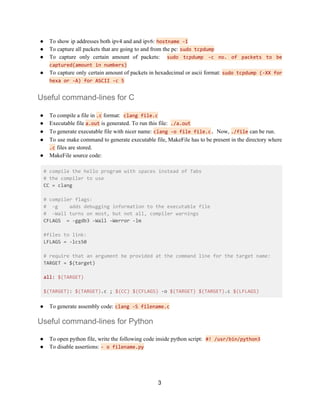
● To show ip addresses both ipv4 and and ipv6:​ ​hostname -I
● To capture all packets that are going to and from the pc:​ ​sudo tcpdump
● To capture only certain amount of packets: ​sudo tcpdump -c no. of packets to be
captured(amount in numbers)
● To capture only certain amount of packets in hexadecimal or ascii format: ​sudo tcpdump (-XX for
hexa or -A) for ASCII -c 5
Useful command-lines for C
● To compile a file in ​.c​ format:​ ​clang file.c
● Executable file ​a.out​ is generated. To run this file:​ ​./a.out
● To generate executable file with nicer name:​ ​clang -o file file.c​. ​Now,​ ​./file​ ​can be run.
● To use make command to generate executable file, MakeFile has to be present in the directory where
.c​ ​files are stored.
● MakeFile source code:
# compile the hello program with spaces instead of Tabs
# the compiler to use
CC = clang
# compiler flags:
# -g adds debugging information to the executable file
# -Wall turns on most, but not all, compiler warnings
CFLAGS = -ggdb3 -Wall -Werror -lm
#files to link:
LFLAGS = -lcs50
# require that an argument be provided at the command line for the target name:
TARGET = $(target)
all: ​$(TARGET)
$(TARGET)​: ​$(TARGET)​.c ; ​$(CC)​ ​$(CFLAGS)​ -o ​$(TARGET)​ ​$(TARGET)​.c ​$(LFLAGS)
● To generate assembly code:​ ​clang -S filename.c
Useful command-lines for Python
● To open python file, write the following code inside python script:​ ​#! /usr/bin/python3
● To disable assertions:​ ​- o filename.py
3
Useful command-lines for Java
● To compile a java file to generate .class executable file: ​javac filename.java
● To run java file on terminal or console:​ ​java filename
4

Linux Commands - Cheat Sheet

  • 1.
    Linux Commands Cheat-sheet GeneralLinux Commands ● To print today’s date: ​date ● To print hostname of the pc: ​hostname ● To perform basic mathematical calculation: ​expr [number 1 (+/-/(/)/*) number 2 (+/-/(/)/*) number 3 . . . ] ● To print string of characters: ​echo “Any string” ● To print name of the OS: ​uname ● To print details of the OS: ​uname -a ● To print version of the bash: ​bash --version ● Debugging a program: ​echo $? ● To print history of commands typed on the terminal: ​history ● To change hostname: ​hostnamectl set-hostname --static "name of your choice" File Management ● To see only files: ​ls ● To see lists even hidden files: ​ls -a ● To see details of the files: ​ls -l ● To see details of the normal and hidden files: ​ls -la ● To remove a file from current directory: ​r​m [filename in any format] ● To remove all files from current directory: ​rm -a ● To ​change directory, to move around to different folders: ​cd ./name of the directory ● To return directly to home directory: ​cd ● To return to previous folder: ​cd .. ● To make a directory: ​mkdir ● To remove a directory: ​rmdir ● To remove a directory and all of its contents recursively: rmdir -r [name of the directory] ● To change permissions of accessibility of file in the terminal: ​chmod +x ‘filename’ ● To download a folder: ​(wget or (curl -L)) http://udacity.github.io/ud595-shell/stuff.zip -o things.zip ● To show current directory: ​pwd ● To read a file from terminal: ​cat <name of the file in .txt format> ● To​ ​read a file one at a time from terminal:​ ​less [name of the file in .txt format] ● To copy a file: ​cp <name of the file to be copied> <new name of the file that will be copied> ● To move a file​: ​mv <name of the file> <directory file to be moved> ● To create a file: ​touch <filename.extension> ● To open a folder: ​nautilus /<destination of the directory> ● To create shortcut for commands: ​alias <user defined shortcut key>=‘<command>’ 1
  • 2.
    ● To seelist of block devices i.e. internal and external hard drives:​ ​lsblk ● To burn .iso image in USB: ​sudo dd if=nameoffile.iso of=/dev/destinationdisk bs=1M ● To have access as root user: ​sudo passwd root​ followed by ​su - ● To open terminal text editor either vim or nano: ​vim​ (for vim) or ​nano​ (for nano) ● To check architecture if 32 or 64 bit:​ ​arch​ result x86_64 for 64 bit and i386 for 32 bit ● For loop syntax(to automate making of files or folders): for i in {1...x}; do mk or mkdir [file or folder name with extension] done Note: ● Tab completion makes life easier in order to complete the file or directory name. ● To use globbing commands, refer udacity last lecture of Linux Basic commands. Network command lines for Linux ● To display HTTP header(information about server and cookies): ​printf 'HEAD / HTTP/1.1rnHost: [host address]rnrn' | nc [host address] 80 ● ● To check IP address and details about mail handled of a website: ​host [domain name] ● To test network connection if it is established and speed of the connection:​ ​ping [domain name] ● To check how network is configured. Displays NAT ip addresses of ethernet connection and wifi and all other information: ​ifconfig ● To check all the information of network devices whether they are active or inactive: ​ifconfig -a ● To enable or disable one of the networking device:​ ​ifconfig [name of the device] [up to enable and down to disable] ● To display ethernet address of the current network card: ​arp ● To change​ ​ip address:​ ​ifconfig (name of the device) ip address of your desire ● To change subnet mask: ​ifconfig (name of the device) netmask 255.255.255.1 ● To change mac address: ​ifconfig (name of the device) hw ether 43:42:12. . ● To display more information about wifi:​ ​iwconfig ● To show only ip addresses of all the devices rather than just domains connected to machine: netstat -nr ● To display the usage of the network cards(to show how many packets in bytes are sent and transferred): ​netstat -i ● To look for active internet connections: ​netstat -ta ● To look for active internet connections: ​netstat -tan ● To find detailed information of a domain: ​whois (domain name) ● To perform detailed DNS lookup: ​dig (domain name) ● To perform DNS lookup: ​nfslookup (domain name) ● To trace no. of hops taken to access domain and lists all the routers the packets come across: traceroute (domain name) ● To show hostname:​ ​hostname 2
  • 3.
    ● To showip addresses both ipv4 and and ipv6:​ ​hostname -I ● To capture all packets that are going to and from the pc:​ ​sudo tcpdump ● To capture only certain amount of packets: ​sudo tcpdump -c no. of packets to be captured(amount in numbers) ● To capture only certain amount of packets in hexadecimal or ascii format: ​sudo tcpdump (-XX for hexa or -A) for ASCII -c 5 Useful command-lines for C ● To compile a file in ​.c​ format:​ ​clang file.c ● Executable file ​a.out​ is generated. To run this file:​ ​./a.out ● To generate executable file with nicer name:​ ​clang -o file file.c​. ​Now,​ ​./file​ ​can be run. ● To use make command to generate executable file, MakeFile has to be present in the directory where .c​ ​files are stored. ● MakeFile source code: # compile the hello program with spaces instead of Tabs # the compiler to use CC = clang # compiler flags: # -g adds debugging information to the executable file # -Wall turns on most, but not all, compiler warnings CFLAGS = -ggdb3 -Wall -Werror -lm #files to link: LFLAGS = -lcs50 # require that an argument be provided at the command line for the target name: TARGET = $(target) all: ​$(TARGET) $(TARGET)​: ​$(TARGET)​.c ; ​$(CC)​ ​$(CFLAGS)​ -o ​$(TARGET)​ ​$(TARGET)​.c ​$(LFLAGS) ● To generate assembly code:​ ​clang -S filename.c Useful command-lines for Python ● To open python file, write the following code inside python script:​ ​#! /usr/bin/python3 ● To disable assertions:​ ​- o filename.py 3
  • 4.
    Useful command-lines forJava ● To compile a java file to generate .class executable file: ​javac filename.java ● To run java file on terminal or console:​ ​java filename 4