CHRISTIAN BUCKLEY | Founder/CEO of CollabTalk LLC
Microsoft MVP
LEVERAGING MICROSOFT TEAMS
FOR A SHAREPOINT-CENTRIC
ORGANIZATION
www.pixelmill.com
@pixelmillteam
#PixelMillWebinars
Christian Buckley
Founder & CEO of CollabTalk LLC
Office Servers & Services MVP
cbuck@collabtalk.com
www.buckleyplanet.com
@buckleyplanet
About CollabTalk
CollabTalk is an independent research and technical marketing services company.
We take a collaborative approach to everything we do, augmenting our capabilities with
a deep network of partners and community influencers.
Customers include many well-known brands within the Microsoft ecosystem:
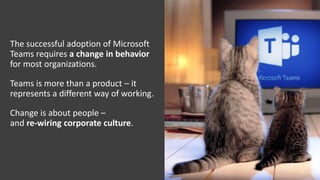
The successful adoption of Microsoft
Teams requires a change in behavior
for most organizations.
Teams is more than a product – it
represents a different way of working.
Change is about people –
and re-wiring corporate culture.
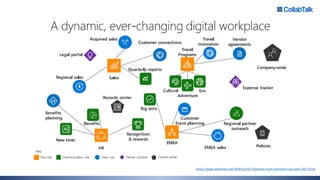
https://www.slideshare.net/SPSParis2017/keynote-mark-kashmann-sps-paris-20171014
What is your
collaboration culture?
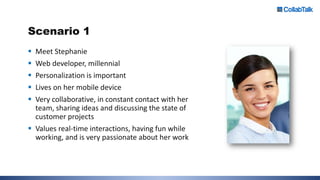
Scenario 1
 Meet Stephanie
 Web developer, millennial
 Personalization is important
 Lives on her mobile device
 Very collaborative, in constant contact with her
team, sharing ideas and discussing the state of
customer projects
 Values real-time interactions, having fun while
working, and is very passionate about her work
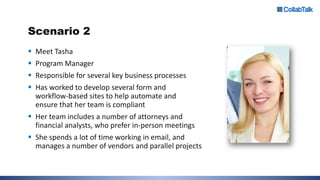
Scenario 2
 Meet Tasha
 Program Manager
 Responsible for several key business processes
 Has worked to develop several form and
workflow-based sites to help automate and
ensure that her team is compliant
 Her team includes a number of attorneys and
financial analysts, who prefer in-person meetings
 She spends a lot of time working in email, and
manages a number of vendors and parallel projects
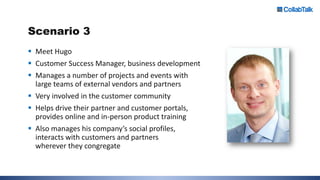
Scenario 3
 Meet Hugo
 Customer Success Manager, business development
 Manages a number of projects and events with
large teams of external vendors and partners
 Very involved in the customer community
 Helps drive their partner and customer portals,
provides online and in-person product training
 Also manages his company’s social profiles,
interacts with customers and partners
wherever they congregate
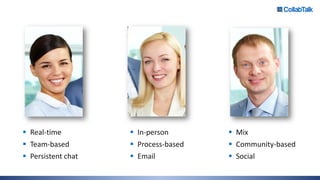
 Real-time
 Team-based
 Persistent chat
 In-person
 Process-based
 Email
 Mix
 Community-based
 Social
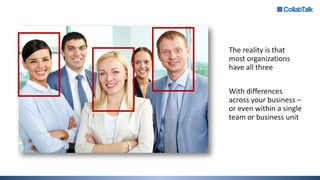
The reality is that
most organizations
have all three
With differences
across your business –
or even within a single
team or business unit
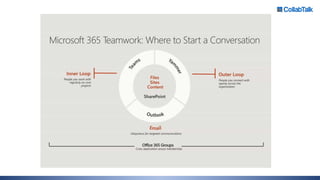
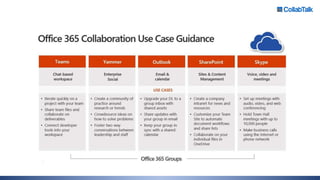
Which tool to use when?
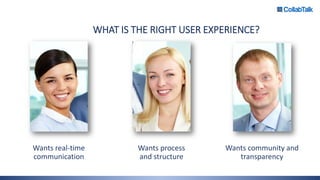
WHAT IS THE RIGHT USER EXPERIENCE?
Wants real-time
communication
Wants process
and structure
Wants community and
transparency
It
Depends.
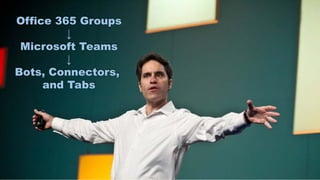
What is the right solution for your org?
Office 365 Groups
↓
Microsoft Teams
↓
Bots, Connectors,
and Tabs
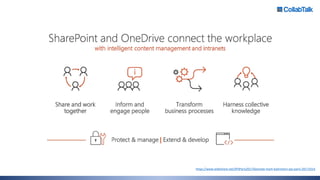
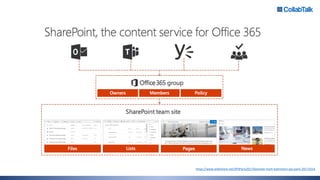
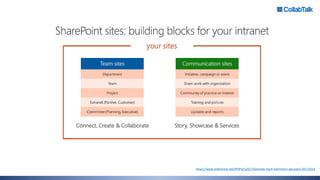
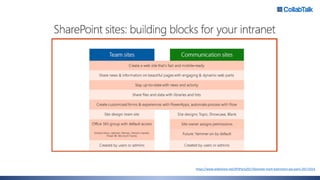
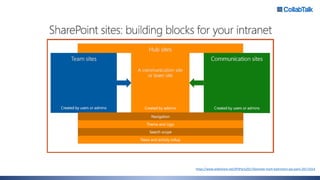
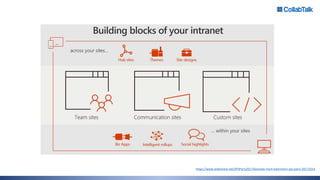
Where Does SharePoint Fit?
https://www.slideshare.net/SPSParis2017/keynote-mark-kashmann-sps-paris-20171014
Microsoft Teams 101
Creating the Intelligent Enterprise
 Tabs
 Connectors
 Bots
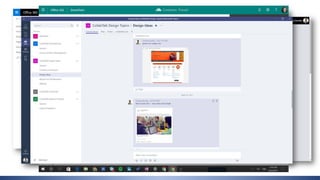
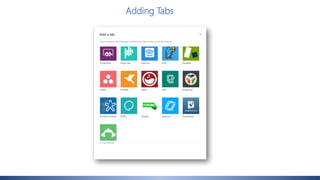
Adding Tabs
What Tabs Can Do
 Provide an interface into relevant content
 Surface sites and tools in context to conversations
 Remove the “which tool do you use when?” argument
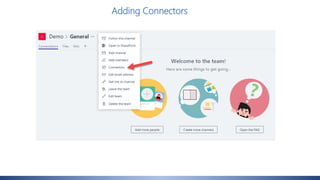
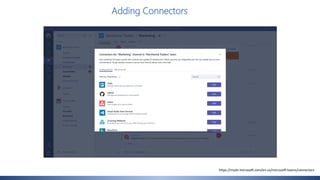
Adding Connectors
Adding Connectors
https://msdn.microsoft.com/en-us/microsoft-teams/connectors
What Connectors Can Do
 Push rich content to Microsoft Teams
 Connect to services like Trello, GitHub, Bing News, Twitter, etc.
 Receive notifications of team activities for each service / stay in sync
 Complete tasks within a channel
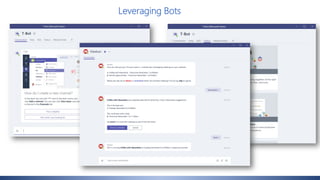
Leveraging Bots
What Bots Can Do
 Automate manual tasks
 Enhance a conversation thread
 Act as a personal assistant to find information and content
 Ability to answer natural language questions
 Run surveys
 Provide quick status updates on open projects and tasks, kick off workflows, etc
 Improve the user experience
Microsoft Teams includes two primary bots:
 Who-Bot is a quick reference tool for engaging with your team members.
 Users can enter real-language requests, such as “Who on my team has experience with
manufacturing technology” and the Who-Bot will reply with team member names and contact
details, based on profile data, content ownership, and use of keywords within conversations.
 Leverages the Microsoft Graph to learn from your collaboration and communication patterns,
acting as the ultimate personal networker for your company.
 T-Bot is an assistant to help you get the most out of Microsoft Teams.
 Provides guidance on the growing set of features in Teams.
 Ask the T-Bot “How do I add a connector?” and it will provide the answer through the relevant
Help topic.
Let’s see a demo…
Governance and Administration
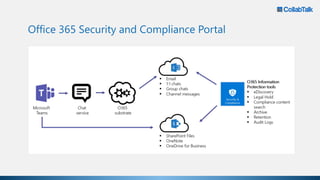
Office 365 Security and Compliance Portal
 Auditing and Reporting
 Audit log search plugs right into the Office 365 Security and Compliance Center and
exposes abilities to set alerts and/or report on Audit event by making available, export of
workload specific or generic event sets for admin use and investigation, across an
unlimited auditing timeline. All Audit Log data is available for setting up of alerts within
the Office 365 Security and Compliance Center, as well as for filtering and export for
further analysis.
 Compliance Content Search
 Content Search can be used to search Microsoft Teams through rich filtering capabilities
and exported to a specific container for compliance and litigation support. This can be
done with or without an eDiscovery case.
Office 365 Security and Compliance Portal
 eDiscovery
 Electronic discovery is the electronic aspect of identifying, collecting and producing
electronically stored information (ESI) in response to a request for production in a law suit
or investigation.
 Capabilities include case management, preservation, search, analysis and export of Teams
data. This includes chat, messaging and file data.
 Customers can leverage in-place eDiscovery or Advanced eDiscovery
 Legal Hold
 When any Team within Microsoft Teams is put on In-Place Hold or Litigation Hold, the hold
is placed on the groups mailbox.
 Legal Holds are generally applied within the context of an eDiscovery case.
Office 365 Security and Compliance Portal
Security Concerns with Bots
 The current slate of bots act as “passive” controls within the system, which means they are
not actively “listening” to your content and conversations, and must be activated or
“invoked” to take action.
 Most users will not take the time to understand the security impacts of using a selected bot.
If a bot *can* be added, most corporate employees assume it has been “vetted” by IT, and is
safe for use.
 Security for bots is at the end user-level.
 Understanding what each bot does, and whether or not they send data outside of the
organization, should be part of your security planning.
 Enabling bots is currently an all-or-nothing decision – you can either allow users to add bots,
or turn off access to all bots for your organization.
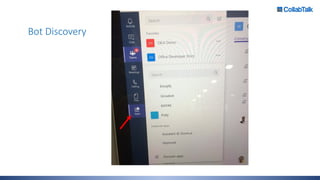
Bot Discovery
Future Features
 Microsoft is considering providing the following security features for Teams. Once
available, guidance will be provided on how customers can leverage the features:
• Tenant-specific retention Policy
• Data loss prevention (DLP)
• Customer Lockbox
• Right Management
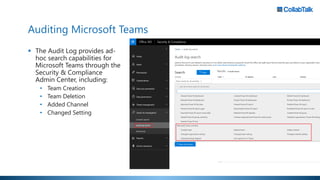
Auditing Microsoft Teams
 The Audit Log provides ad-
hoc search capabilities for
Microsoft Teams through the
Security & Compliance
Admin Center, including:
• Team Creation
• Team Deletion
• Added Channel
• Changed Setting
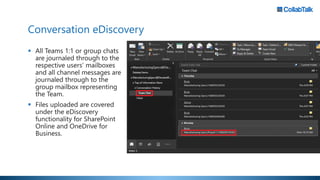
Conversation eDiscovery
 All Teams 1:1 or group chats
are journaled through to the
respective users’ mailboxes
and all channel messages are
journaled through to the
group mailbox representing
the Team.
 Files uploaded are covered
under the eDiscovery
functionality for SharePoint
Online and OneDrive for
Business.
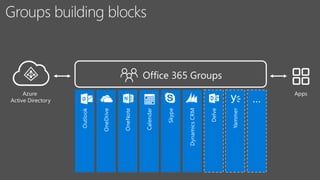
Groups Best Practices
 Control their rollout
 Clearly define and enforce a naming convention
 Be careful about Groups creating from other workloads – be aware of
what is being provisioned, and ensure that company-wide policies are
being met
Microsoft Teams Best Practices
 Control provisioning through IT
 Enforce your naming conventions (SharePoint Online Managed Path)
 Schedule regular, recurring training for employees
 Backups through SharePoint and Exchange workloads
 Manage navigation sprawl through ‘Favorites’
 Be aware of available Connectors and Bots and what they do
 Drive people toward following + sharing through Channels
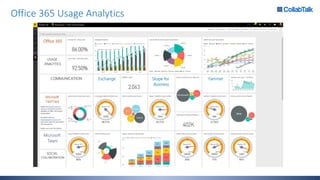
Office 365 Usage Analytics
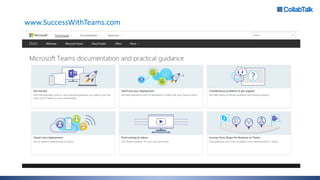
www.SuccessWithTeams.com
Christian Buckley
cbuck@collabtalk.com
@buckleyplanet
Thank you very much!

Leveraging Microsoft Teams for a SharePoint-Centric Organization

  • 1.
    CHRISTIAN BUCKLEY |Founder/CEO of CollabTalk LLC Microsoft MVP LEVERAGING MICROSOFT TEAMS FOR A SHAREPOINT-CENTRIC ORGANIZATION www.pixelmill.com @pixelmillteam #PixelMillWebinars
  • 2.
    Christian Buckley Founder &CEO of CollabTalk LLC Office Servers & Services MVP cbuck@collabtalk.com www.buckleyplanet.com @buckleyplanet
  • 3.
    About CollabTalk CollabTalk isan independent research and technical marketing services company. We take a collaborative approach to everything we do, augmenting our capabilities with a deep network of partners and community influencers. Customers include many well-known brands within the Microsoft ecosystem:
  • 4.
    The successful adoptionof Microsoft Teams requires a change in behavior for most organizations. Teams is more than a product – it represents a different way of working. Change is about people – and re-wiring corporate culture.
  • 6.
  • 7.
  • 8.
    Scenario 1  MeetStephanie  Web developer, millennial  Personalization is important  Lives on her mobile device  Very collaborative, in constant contact with her team, sharing ideas and discussing the state of customer projects  Values real-time interactions, having fun while working, and is very passionate about her work
  • 9.
    Scenario 2  MeetTasha  Program Manager  Responsible for several key business processes  Has worked to develop several form and workflow-based sites to help automate and ensure that her team is compliant  Her team includes a number of attorneys and financial analysts, who prefer in-person meetings  She spends a lot of time working in email, and manages a number of vendors and parallel projects
  • 10.
    Scenario 3  MeetHugo  Customer Success Manager, business development  Manages a number of projects and events with large teams of external vendors and partners  Very involved in the customer community  Helps drive their partner and customer portals, provides online and in-person product training  Also manages his company’s social profiles, interacts with customers and partners wherever they congregate
  • 11.
     Real-time  Team-based Persistent chat  In-person  Process-based  Email  Mix  Community-based  Social
  • 12.
    The reality isthat most organizations have all three With differences across your business – or even within a single team or business unit
  • 13.
    Which tool touse when?
  • 15.
    WHAT IS THERIGHT USER EXPERIENCE? Wants real-time communication Wants process and structure Wants community and transparency
  • 16.
    It Depends. What is theright solution for your org?
  • 17.
    Office 365 Groups ↓ MicrosoftTeams ↓ Bots, Connectors, and Tabs
  • 22.
  • 23.
  • 24.
  • 25.
  • 26.
  • 27.
  • 28.
  • 32.
  • 33.
    Creating the IntelligentEnterprise  Tabs  Connectors  Bots
  • 34.
  • 35.
    What Tabs CanDo  Provide an interface into relevant content  Surface sites and tools in context to conversations  Remove the “which tool do you use when?” argument
  • 36.
  • 37.
  • 38.
    What Connectors CanDo  Push rich content to Microsoft Teams  Connect to services like Trello, GitHub, Bing News, Twitter, etc.  Receive notifications of team activities for each service / stay in sync  Complete tasks within a channel
  • 39.
  • 40.
    What Bots CanDo  Automate manual tasks  Enhance a conversation thread  Act as a personal assistant to find information and content  Ability to answer natural language questions  Run surveys  Provide quick status updates on open projects and tasks, kick off workflows, etc  Improve the user experience
  • 41.
    Microsoft Teams includestwo primary bots:  Who-Bot is a quick reference tool for engaging with your team members.  Users can enter real-language requests, such as “Who on my team has experience with manufacturing technology” and the Who-Bot will reply with team member names and contact details, based on profile data, content ownership, and use of keywords within conversations.  Leverages the Microsoft Graph to learn from your collaboration and communication patterns, acting as the ultimate personal networker for your company.  T-Bot is an assistant to help you get the most out of Microsoft Teams.  Provides guidance on the growing set of features in Teams.  Ask the T-Bot “How do I add a connector?” and it will provide the answer through the relevant Help topic.
  • 42.
  • 43.
  • 44.
    Office 365 Securityand Compliance Portal  Auditing and Reporting  Audit log search plugs right into the Office 365 Security and Compliance Center and exposes abilities to set alerts and/or report on Audit event by making available, export of workload specific or generic event sets for admin use and investigation, across an unlimited auditing timeline. All Audit Log data is available for setting up of alerts within the Office 365 Security and Compliance Center, as well as for filtering and export for further analysis.  Compliance Content Search  Content Search can be used to search Microsoft Teams through rich filtering capabilities and exported to a specific container for compliance and litigation support. This can be done with or without an eDiscovery case.
  • 45.
    Office 365 Securityand Compliance Portal  eDiscovery  Electronic discovery is the electronic aspect of identifying, collecting and producing electronically stored information (ESI) in response to a request for production in a law suit or investigation.  Capabilities include case management, preservation, search, analysis and export of Teams data. This includes chat, messaging and file data.  Customers can leverage in-place eDiscovery or Advanced eDiscovery  Legal Hold  When any Team within Microsoft Teams is put on In-Place Hold or Litigation Hold, the hold is placed on the groups mailbox.  Legal Holds are generally applied within the context of an eDiscovery case.
  • 46.
    Office 365 Securityand Compliance Portal
  • 47.
    Security Concerns withBots  The current slate of bots act as “passive” controls within the system, which means they are not actively “listening” to your content and conversations, and must be activated or “invoked” to take action.  Most users will not take the time to understand the security impacts of using a selected bot. If a bot *can* be added, most corporate employees assume it has been “vetted” by IT, and is safe for use.  Security for bots is at the end user-level.  Understanding what each bot does, and whether or not they send data outside of the organization, should be part of your security planning.  Enabling bots is currently an all-or-nothing decision – you can either allow users to add bots, or turn off access to all bots for your organization.
  • 48.
  • 49.
    Future Features  Microsoftis considering providing the following security features for Teams. Once available, guidance will be provided on how customers can leverage the features: • Tenant-specific retention Policy • Data loss prevention (DLP) • Customer Lockbox • Right Management
  • 50.
    Auditing Microsoft Teams The Audit Log provides ad- hoc search capabilities for Microsoft Teams through the Security & Compliance Admin Center, including: • Team Creation • Team Deletion • Added Channel • Changed Setting
  • 51.
    Conversation eDiscovery  AllTeams 1:1 or group chats are journaled through to the respective users’ mailboxes and all channel messages are journaled through to the group mailbox representing the Team.  Files uploaded are covered under the eDiscovery functionality for SharePoint Online and OneDrive for Business.
  • 52.
    Groups Best Practices Control their rollout  Clearly define and enforce a naming convention  Be careful about Groups creating from other workloads – be aware of what is being provisioned, and ensure that company-wide policies are being met
  • 53.
    Microsoft Teams BestPractices  Control provisioning through IT  Enforce your naming conventions (SharePoint Online Managed Path)  Schedule regular, recurring training for employees  Backups through SharePoint and Exchange workloads  Manage navigation sprawl through ‘Favorites’  Be aware of available Connectors and Bots and what they do  Drive people toward following + sharing through Channels
  • 56.
  • 58.
  • 60.