1. Java is Object-Oriented
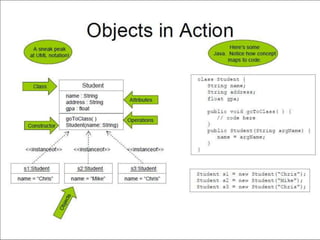
• Object-oriented programming provides great flexibility, modularity, clarity, and
reusability through encapsulation, inheritance, and polymorphism.
2. Java Is Distributed
• Distributed computing involves several computers working together on a network.
• Java is designed to make distributed computing easy as networking capability is
inherently integrated into Java.
• Thus, writing network programs is like sending and receiving data to and from a
file.
CHARACTERISTICS OF JAVA
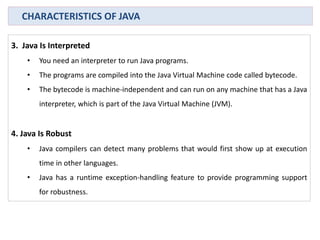
3. Java Is Interpreted
• You need an interpreter to run Java programs.
• The programs are compiled into the Java Virtual Machine code called bytecode.
• The bytecode is machine-independent and can run on any machine that has a Java
interpreter, which is part of the Java Virtual Machine (JVM).
4. Java Is Robust
• Java compilers can detect many problems that would first show up at execution
time in other languages.
• Java has a runtime exception-handling feature to provide programming support
for robustness.
CHARACTERISTICS OF JAVA
5. Java Is Secure
• Java implements several security mechanisms to protect your system against
harm caused by stray programs.
6. Java Is Architecture-Neutral
• Write once, run anywhere. With a Java Virtual Machine (JVM), you can write one
program that will run on any platform.
7. Java Is Portable
• They can be run on any platform without being recompiled.
CHARACTERISTICS OF JAVA
 Set path to JDK bin directory
set path=c:Program Filesjavajdk1.6.0bin
 Set classpath to include the current directory
set classpath=.
 Compile
javac Welcome.java
 Run
java Welcome
COMPILING AND RUNNING JAVA FROM THE CMD
 Right click My Computer.
 Choose Properties from the context menu.
 Click the Advanced system settings link.
 Go to Advanced tab. Click Environment Variables.
 In the section System Variables, find the PATH environment variable and
select it. Click Edit.
 If the PATH environment variable does not exist, click New.
 In the Edit System Variable (or New System Variable) window, specify
the value of the PATH environment variable.
 Click OK. Close all remaining windows by clicking OK.
SETTING PATH AND CLASSPATH DIRECTLY IN WINDOWS 7
After installation, the JDK directory will have the structure shown below.
C:Javajdk1.7.0bin //contains both the compiler and the launcher.
 The PATH environmental variable contains the path of the executables (javac.exe,
java.exe, javadoc.exe, and so on)
 The CLASSPATH variable is one way to tell applications, including the JDK tools, where
to look for user classes.
 After setting the PATH variable, we can access these executables (compiler, launcher
etc) from any directory without having to type the full path of the command. For e.g.
javac Example.java- If the PATH is set, then we use following in CMD
C:Javajdk1.7.0binjavac Example.java - Otherwise
The following is an example of a PATH environment variable:
C:Javajdk1.7.0bin;C:WindowsSystem32;C:Windows;C:WindowsSystem32Wbem
PATH and CLASSPATH
1. System.out.println(“Hello World”); – outputs the string
“Hello World” followed by a new line on the screen.
2. System.out.print(“Hello World”); - outputs the string “Hello
World” on the screen. This string is not followed by a new line.
3. Some Escape Sequence –
• n – stands for new line character
• t – stands for tab character
PRINTING ON THE SCREEN
//This program prints Welcome to Java!
public class Welcome {
public static void main(String[] args) {
System.out.println("Welcome to Java!");
}
}
A SIMPLE JAVA PROGRAM
//This program prints Welcome to Java!
public class Welcome {
public static void main(String[] args) {
System.out.println("Welcome to Java!");
}
}
PROGRAM EXECUTION – STEP I
Enter main method.
The main method provides the control of program flow. The Java interpreter
executes the application by invoking the main method.
//This program prints Welcome to Java!
public class Welcome {
public static void main(String[] args) {
System.out.println("Welcome to Java!");
}
}
PROGRAM EXECUTION – STEP II
Execute Statement 1
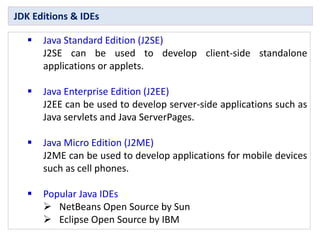
 Java Standard Edition (J2SE)
J2SE can be used to develop client-side standalone
applications or applets.
 Java Enterprise Edition (J2EE)
J2EE can be used to develop server-side applications such as
Java servlets and Java ServerPages.
 Java Micro Edition (J2ME)
J2ME can be used to develop applications for mobile devices
such as cell phones.
 Popular Java IDEs
 NetBeans Open Source by Sun
 Eclipse Open Source by IBM
JDK Editions & IDEs
java:characteristics, classpath, compliation

java:characteristics, classpath, compliation

  • 1.
    1. Java isObject-Oriented • Object-oriented programming provides great flexibility, modularity, clarity, and reusability through encapsulation, inheritance, and polymorphism. 2. Java Is Distributed • Distributed computing involves several computers working together on a network. • Java is designed to make distributed computing easy as networking capability is inherently integrated into Java. • Thus, writing network programs is like sending and receiving data to and from a file. CHARACTERISTICS OF JAVA
  • 2.
    3. Java IsInterpreted • You need an interpreter to run Java programs. • The programs are compiled into the Java Virtual Machine code called bytecode. • The bytecode is machine-independent and can run on any machine that has a Java interpreter, which is part of the Java Virtual Machine (JVM). 4. Java Is Robust • Java compilers can detect many problems that would first show up at execution time in other languages. • Java has a runtime exception-handling feature to provide programming support for robustness. CHARACTERISTICS OF JAVA
  • 3.
    5. Java IsSecure • Java implements several security mechanisms to protect your system against harm caused by stray programs. 6. Java Is Architecture-Neutral • Write once, run anywhere. With a Java Virtual Machine (JVM), you can write one program that will run on any platform. 7. Java Is Portable • They can be run on any platform without being recompiled. CHARACTERISTICS OF JAVA
  • 4.
     Set pathto JDK bin directory set path=c:Program Filesjavajdk1.6.0bin  Set classpath to include the current directory set classpath=.  Compile javac Welcome.java  Run java Welcome COMPILING AND RUNNING JAVA FROM THE CMD
  • 5.
     Right clickMy Computer.  Choose Properties from the context menu.  Click the Advanced system settings link.  Go to Advanced tab. Click Environment Variables.  In the section System Variables, find the PATH environment variable and select it. Click Edit.  If the PATH environment variable does not exist, click New.  In the Edit System Variable (or New System Variable) window, specify the value of the PATH environment variable.  Click OK. Close all remaining windows by clicking OK. SETTING PATH AND CLASSPATH DIRECTLY IN WINDOWS 7
  • 6.
    After installation, theJDK directory will have the structure shown below. C:Javajdk1.7.0bin //contains both the compiler and the launcher.  The PATH environmental variable contains the path of the executables (javac.exe, java.exe, javadoc.exe, and so on)  The CLASSPATH variable is one way to tell applications, including the JDK tools, where to look for user classes.  After setting the PATH variable, we can access these executables (compiler, launcher etc) from any directory without having to type the full path of the command. For e.g. javac Example.java- If the PATH is set, then we use following in CMD C:Javajdk1.7.0binjavac Example.java - Otherwise The following is an example of a PATH environment variable: C:Javajdk1.7.0bin;C:WindowsSystem32;C:Windows;C:WindowsSystem32Wbem PATH and CLASSPATH
  • 7.
    1. System.out.println(“Hello World”);– outputs the string “Hello World” followed by a new line on the screen. 2. System.out.print(“Hello World”); - outputs the string “Hello World” on the screen. This string is not followed by a new line. 3. Some Escape Sequence – • n – stands for new line character • t – stands for tab character PRINTING ON THE SCREEN
  • 8.
    //This program printsWelcome to Java! public class Welcome { public static void main(String[] args) { System.out.println("Welcome to Java!"); } } A SIMPLE JAVA PROGRAM
  • 9.
    //This program printsWelcome to Java! public class Welcome { public static void main(String[] args) { System.out.println("Welcome to Java!"); } } PROGRAM EXECUTION – STEP I Enter main method. The main method provides the control of program flow. The Java interpreter executes the application by invoking the main method.
  • 10.
    //This program printsWelcome to Java! public class Welcome { public static void main(String[] args) { System.out.println("Welcome to Java!"); } } PROGRAM EXECUTION – STEP II Execute Statement 1
  • 11.
     Java StandardEdition (J2SE) J2SE can be used to develop client-side standalone applications or applets.  Java Enterprise Edition (J2EE) J2EE can be used to develop server-side applications such as Java servlets and Java ServerPages.  Java Micro Edition (J2ME) J2ME can be used to develop applications for mobile devices such as cell phones.  Popular Java IDEs  NetBeans Open Source by Sun  Eclipse Open Source by IBM JDK Editions & IDEs