How to Update and Clean Up Your Mac
1. Update Important Software and Browsers
Update Microsoft Office
1. Open Word, Powerpoint, or Excel
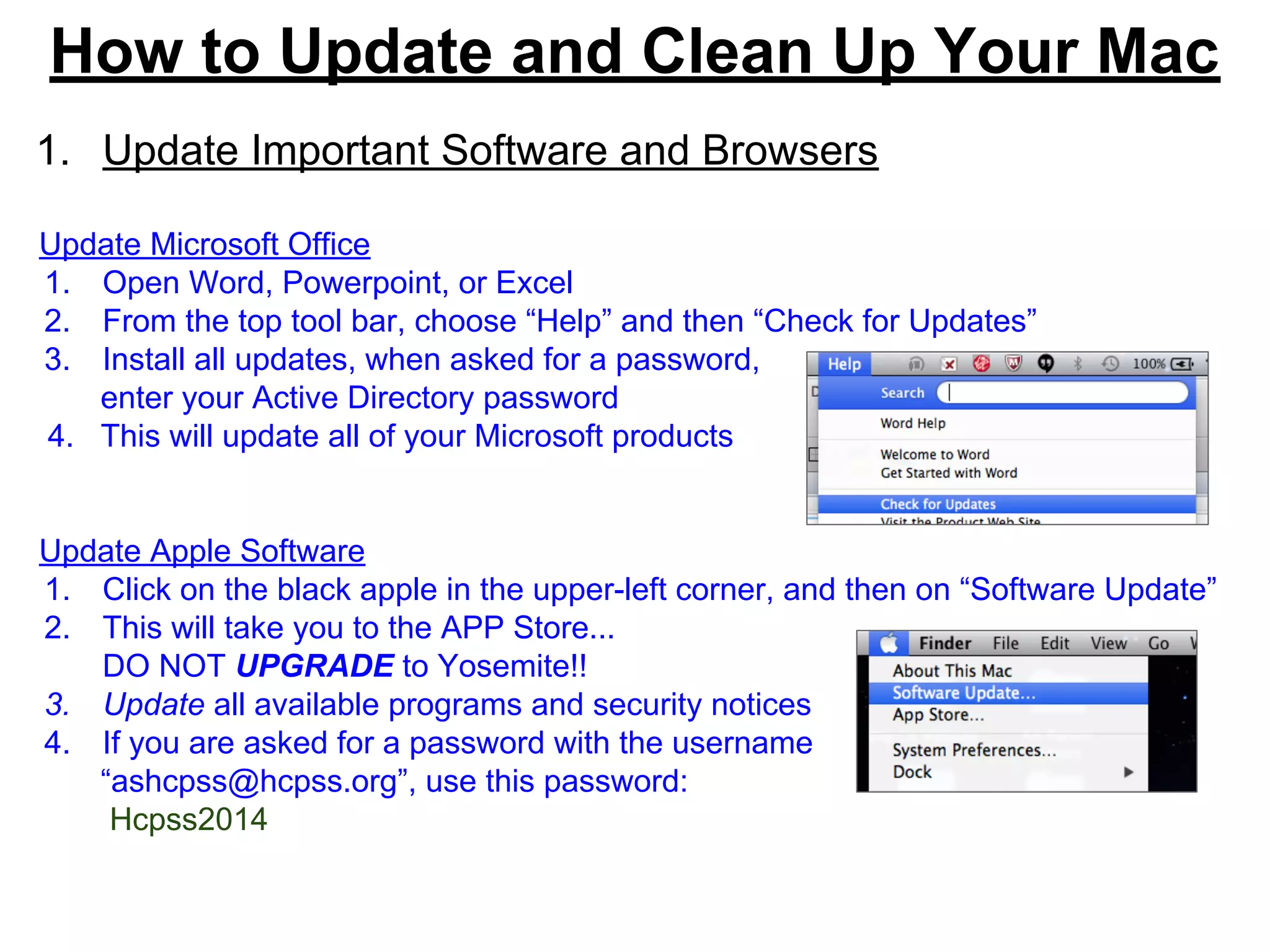
2. From the top tool bar, choose “Help” and then “Check for Updates”
3. Install all updates, when asked for a password,
enter your Active Directory password
4. This will update all of your Microsoft products
Update Apple Software
1. Click on the black apple in the upper-left corner, and then on “Software Update”
2. This will take you to the APP Store...
DO NOT UPGRADE to Yosemite!!
3. Update all available programs and security notices
4. If you are asked for a password with the username
“ashcpss@hcpss.org”, use this password:
Hcpss2014
Update Firefox Browser
1. Open Firefox and click on “About Firefox”
2. If the next box says there is an update available
the easiest way to install is to go to www.mozilla.org/en-US/firefox and
download the latest version. Follow the install instructions, and when asked if
you want to replace the older item, click “replace”
Update Chrome Browser
1. Open Chrome and click on the settings menu in the top right (three lines), then
choose “About Google Chrome”
2. If it does not say “Google Chrome is up to date” with a green check, then go to:
https://www.google.com/chrome/browser/desktop/ and download the latest
version. Follow the install instructions, and when asked if you want to replace the
older item, click “replace”
2. Clear Cache and Browsing Data
Clear Browsing Data from Firefox
1. Open Firefox and click on “Firefox” and then “Preferences”
2. Open the Privacy tab
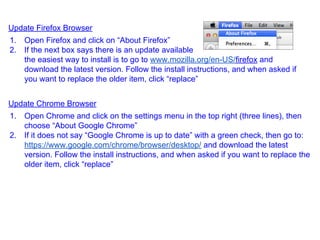
3. You should keep you settings for private browsing as shown below. Firefox
will clear your browsing data each time it closes (saved passwords will be
preserved) if your settings match these
4. If not, click on “Clear all current
History” and then “Clear now”
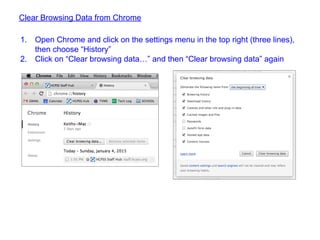
Clear Browsing Data from Chrome
1. Open Chrome and click on the settings menu in the top right (three lines),
then choose “History”
2. Click on “Clear browsing data…” and then “Clear browsing data” again
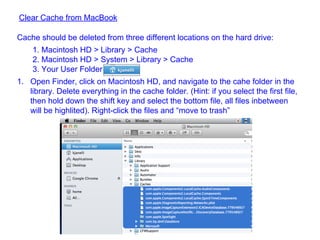
Clear Cache from MacBook
Cache should be deleted from three different locations on the hard drive:
1. Macintosh HD > Library > Cache
2. Macintosh HD > System > Library > Cache
3. Your User Folder
1. Open Finder, click on Macintosh HD, and navigate to the cahe folder in the
library. Delete everything in the cache folder. (Hint: if you select the first file,
then hold down the shift key and select the bottom file, all files inbetween
will be highlited). Right-click the files and “move to trash”
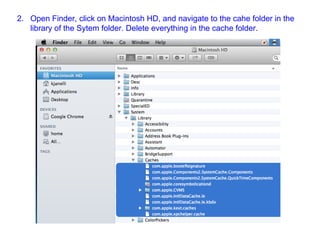
2. Open Finder, click on Macintosh HD, and navigate to the cahe folder in the
library of the Sytem folder. Delete everything in the cache folder.
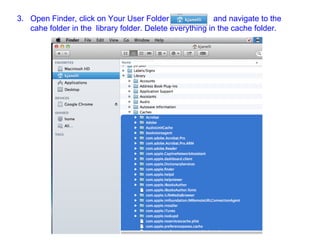
3. Open Finder, click on Your User Folder and navigate to the
cahe folder in the library folder. Delete everything in the cache folder.
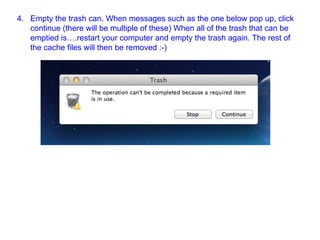
4. Empty the trash can. When messages such as the one below pop up, click
continue (there will be multiple of these) When all of the trash that can be
emptied is….restart your computer and empty the trash again. The rest of
the cache files will then be removed :-)

Laptop tune up

  • 1.
    How to Updateand Clean Up Your Mac 1. Update Important Software and Browsers Update Microsoft Office 1. Open Word, Powerpoint, or Excel 2. From the top tool bar, choose “Help” and then “Check for Updates” 3. Install all updates, when asked for a password, enter your Active Directory password 4. This will update all of your Microsoft products Update Apple Software 1. Click on the black apple in the upper-left corner, and then on “Software Update” 2. This will take you to the APP Store... DO NOT UPGRADE to Yosemite!! 3. Update all available programs and security notices 4. If you are asked for a password with the username “ashcpss@hcpss.org”, use this password: Hcpss2014
  • 2.
    Update Firefox Browser 1.Open Firefox and click on “About Firefox” 2. If the next box says there is an update available the easiest way to install is to go to www.mozilla.org/en-US/firefox and download the latest version. Follow the install instructions, and when asked if you want to replace the older item, click “replace” Update Chrome Browser 1. Open Chrome and click on the settings menu in the top right (three lines), then choose “About Google Chrome” 2. If it does not say “Google Chrome is up to date” with a green check, then go to: https://www.google.com/chrome/browser/desktop/ and download the latest version. Follow the install instructions, and when asked if you want to replace the older item, click “replace”
  • 3.
    2. Clear Cacheand Browsing Data Clear Browsing Data from Firefox 1. Open Firefox and click on “Firefox” and then “Preferences” 2. Open the Privacy tab 3. You should keep you settings for private browsing as shown below. Firefox will clear your browsing data each time it closes (saved passwords will be preserved) if your settings match these 4. If not, click on “Clear all current History” and then “Clear now”
  • 4.
    Clear Browsing Datafrom Chrome 1. Open Chrome and click on the settings menu in the top right (three lines), then choose “History” 2. Click on “Clear browsing data…” and then “Clear browsing data” again
  • 5.
    Clear Cache fromMacBook Cache should be deleted from three different locations on the hard drive: 1. Macintosh HD > Library > Cache 2. Macintosh HD > System > Library > Cache 3. Your User Folder 1. Open Finder, click on Macintosh HD, and navigate to the cahe folder in the library. Delete everything in the cache folder. (Hint: if you select the first file, then hold down the shift key and select the bottom file, all files inbetween will be highlited). Right-click the files and “move to trash”
  • 6.
    2. Open Finder,click on Macintosh HD, and navigate to the cahe folder in the library of the Sytem folder. Delete everything in the cache folder.
  • 7.
    3. Open Finder,click on Your User Folder and navigate to the cahe folder in the library folder. Delete everything in the cache folder.
  • 8.
    4. Empty thetrash can. When messages such as the one below pop up, click continue (there will be multiple of these) When all of the trash that can be emptied is….restart your computer and empty the trash again. The rest of the cache files will then be removed :-)