PC Maintenance
How to keep your
computer healthy
Areas We’ll Cover
 Software
 Hard Drive
 Networking
 Hardware
Software
Update your Internet Browsers
 e.g. Mozilla Firefox, MS Internet Explorer
 It’s important to keep up with browser upgrades
 The latest versions usually contain important security
fixes
 Firefox: Help  Check for Updates…
 IE: Tools  Windows Update
Software
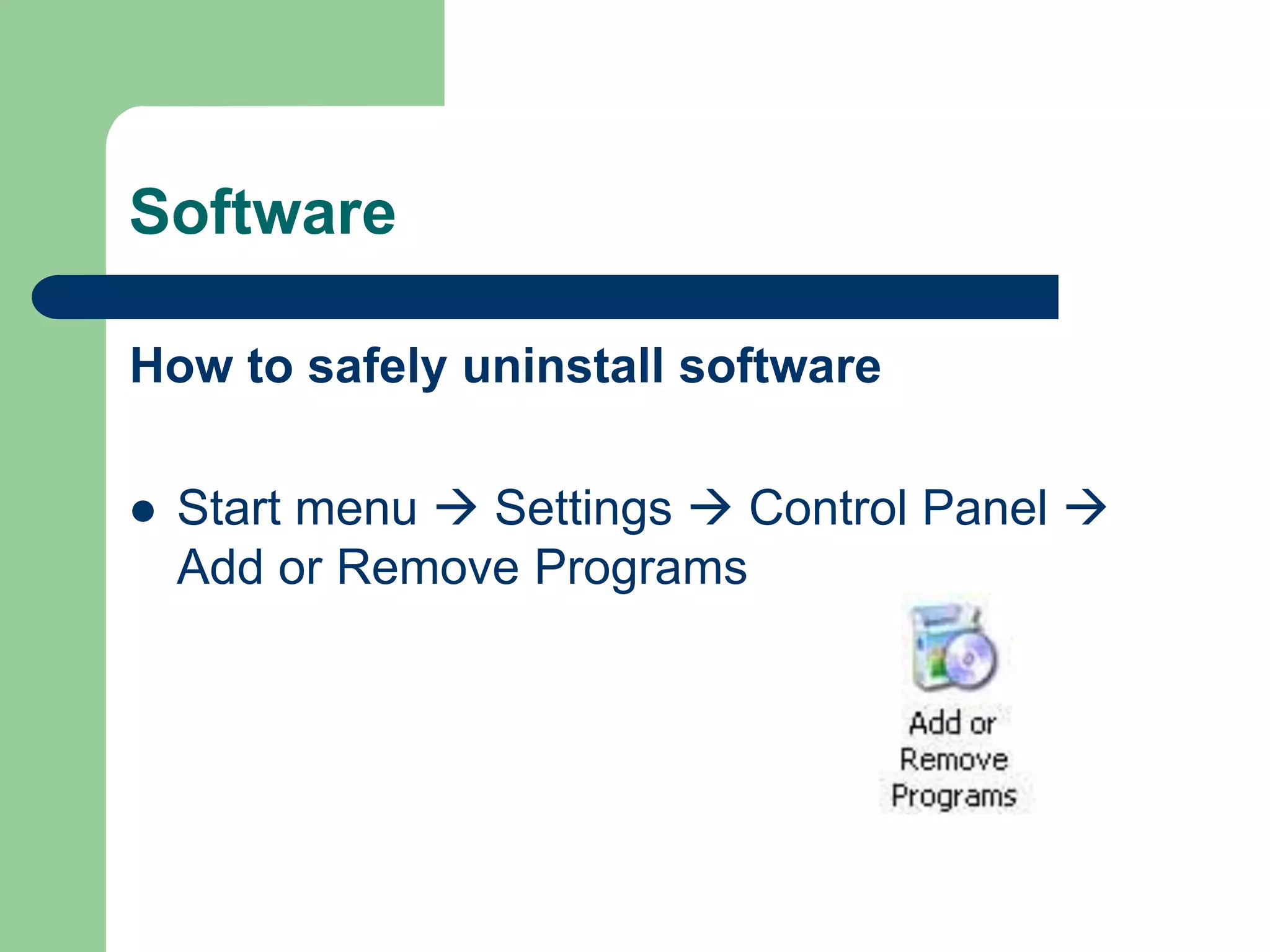
How to safely uninstall software
 Start menu  Settings  Control Panel 
Add or Remove Programs
Software - Unresponsive
Dealing with Unresponsive Software
 Sometimes, software will freeze on you and
you’ll get a “Not Responding” message
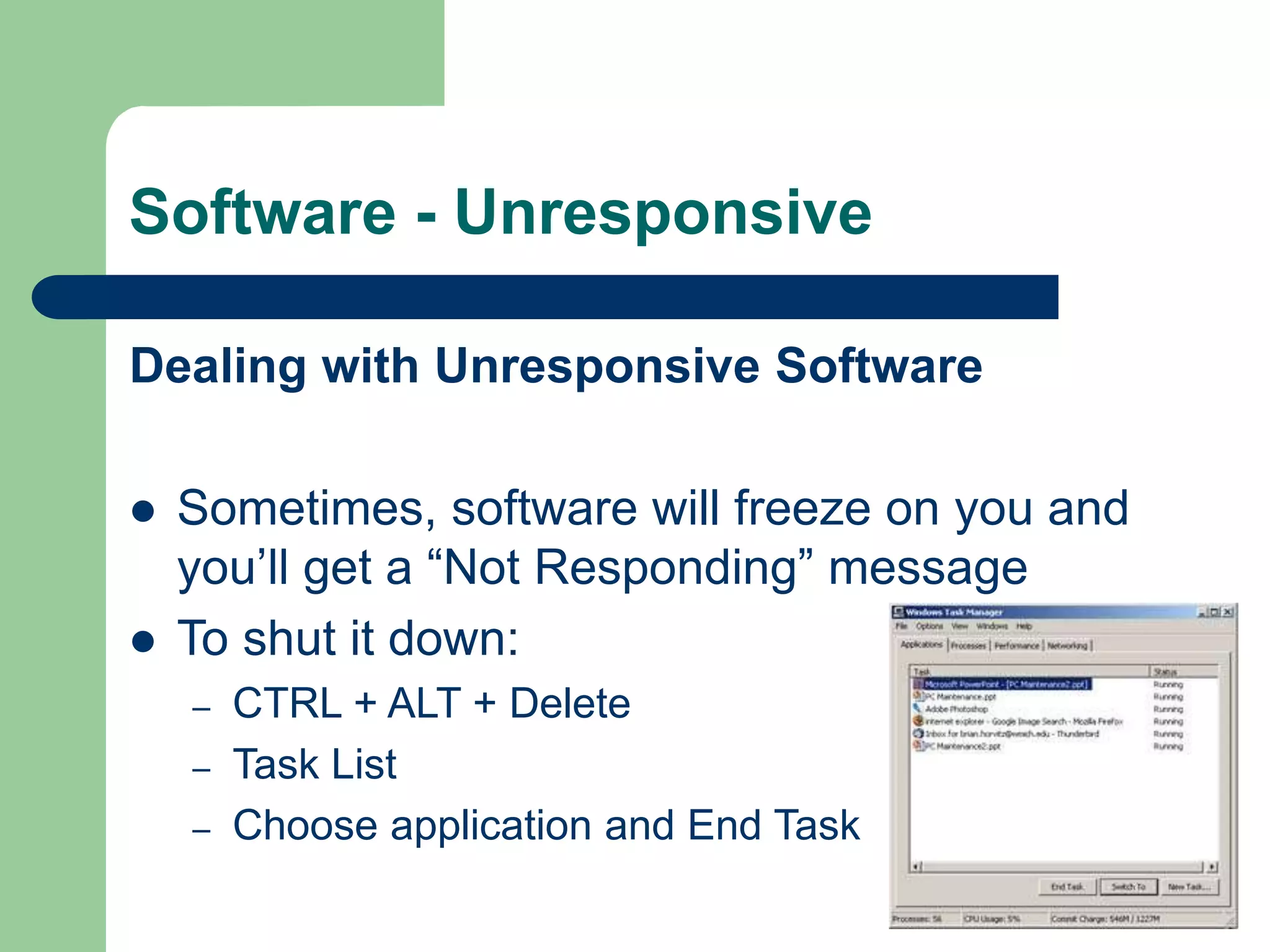
 To shut it down:
– CTRL + ALT + Delete
– Task List
– Choose application and End Task
Hard Drive
Maintenance - Defragmentation
 A few times a year, you should defrag your computer
 Defragmentation reorganizes your computer’s
contents, placing files closer together and creating
large areas of free space. This will make your
computer faster.
 Start  Programs  Accessories  System Tools
 Disk Defragmenter
Hard Drive
Maintenance – Disk Cleanup
 Every few months, you should perform a Disk
Cleanup to remove or compress non-critical
files and clear space
 Start  Programs  Accessories  System
Tools  Disk Cleanup
Hard Drive
Maintenance – Recycle Bin
 At least once a week, you should empty your
Recycle Bin. Too many files in the bin can
slow your machine
 Right-click on the Recycle Bin  Empty
Recycle Bin
Hard Drive
Backup Your Data
 Just wait until you lose a 10-page term paper
– you’ll wish you had!
 Methods of backing up:
– Writable CD-R (650 MB) or CD-RW (700 MB)
– USB Flash Drive: 8 MB – 64 GB
– External Hard Drive (can be huge)
Networking
Anti-virus Software
 Be sure you have software like Symantec Norton
AntiVirus and keep it updated (it can be set to
automatically update itself)
 Will prevent or eliminate viruses or worms from
messing with your machine
 You can download this for free
– goWMU
– Student Services tab
– Virus Protection Downloads window
Networking
Anti-spyware
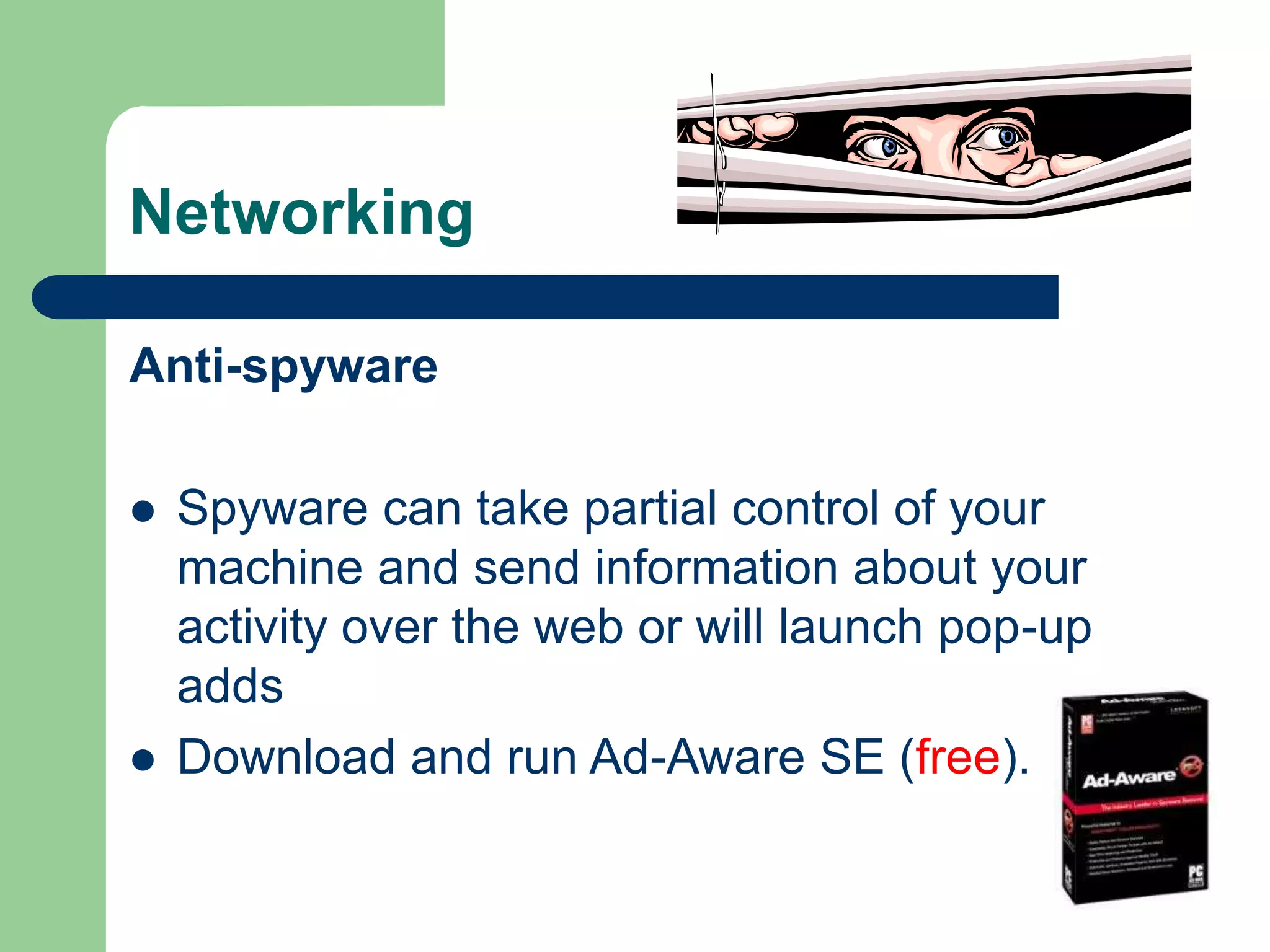
 Spyware can take partial control of your
machine and send information about your
activity over the web or will launch pop-up
adds
 Download and run Ad-Aware SE (free).
Networking
Stop Hackers
 If you have fulltime access to the Internet you
may be vulnerable to being hacked by other
users
 If you’re concerned, download a free firewall
program like ZoneAlarm (free).
Networking
Safe email
 Phishing scams
– http://www.antiphishing.org/
 Other scams
– http://antivirus.about.com/od/emailscams/
– Search Google for others
 Attachments and images embedded in
emails
Hardware
Computers ain’t cheap – take care of them!
 Monitor wipes
 Keyboard vacuum
 Remove dust from back
 Open and clean your mouse (ick)

Pcmaintenance2

  • 1.
    PC Maintenance How tokeep your computer healthy
  • 2.
    Areas We’ll Cover Software  Hard Drive  Networking  Hardware
  • 3.
    Software Update your InternetBrowsers  e.g. Mozilla Firefox, MS Internet Explorer  It’s important to keep up with browser upgrades  The latest versions usually contain important security fixes  Firefox: Help  Check for Updates…  IE: Tools  Windows Update
  • 4.
    Software How to safelyuninstall software  Start menu  Settings  Control Panel  Add or Remove Programs
  • 5.
    Software - Unresponsive Dealingwith Unresponsive Software  Sometimes, software will freeze on you and you’ll get a “Not Responding” message  To shut it down: – CTRL + ALT + Delete – Task List – Choose application and End Task
  • 6.
    Hard Drive Maintenance -Defragmentation  A few times a year, you should defrag your computer  Defragmentation reorganizes your computer’s contents, placing files closer together and creating large areas of free space. This will make your computer faster.  Start  Programs  Accessories  System Tools  Disk Defragmenter
  • 7.
    Hard Drive Maintenance –Disk Cleanup  Every few months, you should perform a Disk Cleanup to remove or compress non-critical files and clear space  Start  Programs  Accessories  System Tools  Disk Cleanup
  • 8.
    Hard Drive Maintenance –Recycle Bin  At least once a week, you should empty your Recycle Bin. Too many files in the bin can slow your machine  Right-click on the Recycle Bin  Empty Recycle Bin
  • 9.
    Hard Drive Backup YourData  Just wait until you lose a 10-page term paper – you’ll wish you had!  Methods of backing up: – Writable CD-R (650 MB) or CD-RW (700 MB) – USB Flash Drive: 8 MB – 64 GB – External Hard Drive (can be huge)
  • 10.
    Networking Anti-virus Software  Besure you have software like Symantec Norton AntiVirus and keep it updated (it can be set to automatically update itself)  Will prevent or eliminate viruses or worms from messing with your machine  You can download this for free – goWMU – Student Services tab – Virus Protection Downloads window
  • 11.
    Networking Anti-spyware  Spyware cantake partial control of your machine and send information about your activity over the web or will launch pop-up adds  Download and run Ad-Aware SE (free).
  • 12.
    Networking Stop Hackers  Ifyou have fulltime access to the Internet you may be vulnerable to being hacked by other users  If you’re concerned, download a free firewall program like ZoneAlarm (free).
  • 13.
    Networking Safe email  Phishingscams – http://www.antiphishing.org/  Other scams – http://antivirus.about.com/od/emailscams/ – Search Google for others  Attachments and images embedded in emails
  • 14.
    Hardware Computers ain’t cheap– take care of them!  Monitor wipes  Keyboard vacuum  Remove dust from back  Open and clean your mouse (ick)