_______________________
  Current Awareness for
        Research
  RSS & Zetoc Workbook
_______________________


_____________________________________________
Should you require this workbook in another format such as
          large print or Braille please contact us at
            jrul.researchers@manchester.ac.uk


Sam Aston                                                2
Version 3.3
January 2012
Contents


Introduction...................................................................................................................4
Aims ............................................................................................................................. 4
Set up iGoogle...............................................................................................................7
Zetoc .............................................................................................................................8
Journal TOCS..............................................................................................................10
Database Feeds............................................................................................................11
ProQuest......................................................................................................................11
EBSCO........................................................................................................................12
.....................................................................................................................................13
SCOPUS......................................................................................................................14
Web of Science .......................................................................................................... 15
Contacts.......................................................................................................................16


Sam Aston                                                                                                                        3
Version 3.3
January 2012
Current awareness for Research

Introduction
The workbook is useful for anyone who has attended the sessions Tips on Avoiding
Information Overload or Zetoc. It may also be of use to anyone that wishes to
employ some personalised current awareness services into their research.


Aims
This workbook intends to take you through a number of short exercises intended to
introduce you to digital media intended to save you time. Once you have worked
through the activities you should be able to

   •   Set up news readers/aggregators
   •   Set up e-mail alerts for publications
   •   Set up RSS feeds
   •   Make effective use of current awareness services to assist you in your
       research

It is vital to keep up to date with the research taking place in your field. This may
mean monitoring web sites for new content, reading the most up to date articles
that have been published or catching up with the latest blog posts from researchers
in your field.

There are two methods of helping you stay connected. You may set up an e-mail
alert or you can use an RSS feed.

E-mail
It is possible to keep abreast of publications and developments by e-mail. Many
information services, publishers and databases, enable users to sign up to receive to
mail when new items are published. These are often referred to as alerts. The
electronic table of contents service from the British Library, Zetoc, offers a service
where you may sign up to receive these.

RSS
RSS has been interpreted to stand for a couple of things Rich Site Summary and
Really Simple Syndication being two of them. RSS feeds are a way of subscribing to
web pages and services in order to keep abreast of the latest information or
‘headlines’ from that site. When the information is updated then a feed is sent out


Sam Aston                                                                         4
Version 3.3
January 2012
to the provider that has been selected to read that feed thus dynamically updating
the information that you get to see.

It is possible to subscribe to a number of feeds in one place so reducing the number
of web pages that you have to visit to keep up to date and saving the time it takes to
do this. RSS feeds also reduce the clutter that can accumulate in your e-mail in-box
so is particularly useful when looking at lots of information sources. RSS feeds are
particularly useful for any kind of site where the information is published regularly,
news sites, blogs and electronic journals. They are easy to subscribe and
unsubscribe to.

Feeds can be subscribed to using a number of different services.

Browsers
These are useful if you use the same PC all the time.
Internet Explorer 7 has an RSS logo that lights up when you are on a page with an
RSS feeds. When you click on the feed logo it takes you to the feed page and then
you can subscribe via the browser. It will then be stored like a bookmark.

Firefox works in a similar way to IE and allows you to subscribe to feeds when you
are on a feed page and then it appears as a bookmark (either in the list or on the
task bar)

Readers
These are useful if you use a number of different PCs and have a log-in for Google or
Yahoo.
In Google once signed in it is possible to search for feeds or add the address of a
feed and subscribe to it.

Aggregators or Start Pages
It is possible to combine lots of information into one web page that you may like to
set up as the home page on your PC. Using one of the following services will enable
you to combine your e-mail, task list with a google scholar search box, delicious
bookmarks, twitter and various feeds.

A list of Aggregators include
http://www.pageflakes.com
http://www.igoogle.co.uk

Alternative
Feedburner can be added to blogs and pages with RSS feeds and this can offer an
alternative way of using feeds which is to subscribe to them via e-mail. If a site
offers this you can just sign up and the feeds arrive by e-mail.

A list of Readers include

Sam Aston                                                                         5
Version 3.3
January 2012
http://www.google.com/reader
http://www.newsgator.com
http://www.bloglines.com
http://www.myyahoo.com
http://www.netvibes.com

You will know that a web site or service offers a feed if you see the orange symbol.


It is possible to embed feeds in other applications such as web pages and blogs


Sam Aston                                                                         6
Version 3.3
January 2012
Set up iGoogle

If you go to http://www.igoogle.co.uk.
The set up wizard appears in the middle of the screen. Tick the boxes that apply to
you and Google adds information to the homepage linked under that subject.

If you already have a Google account you need not register for igoogle. You may
sign in with the username and password that you have set up. This username and
password will also allow you to access Google Reader too.

If you haven’t you will need to register.

Go to http://www.google.co.uk/

Click on igoogle in the top right of the page
If you do not register the page will only be saved on the PC that you are working on.
If you sign up to create an account then the page can be saved and used at different
computers.

To add information and RSS feeds use the Add Stuff link on the right of the page. If
you find something that you would like to add click Add it now.
If you then click the Back to igoogle link page then the data should be displaying in
your personal space.

Anything on your home page can be dragged and dropped around the page into any
arrangement that suits you. Your gadget’s settings can be edited by clicking the
down arrow in the title bar and choosing edit settings.

It is possible to add more tabs to the side bar on the left. Click the downward arrow,
select add a tab and name it.
Click OK.


Sam Aston                                                                         7
Version 3.3
January 2012
Zetoc
Zetoc is a service that provides access to the British Library’s Electronic table of
contents. There are more then 20 million records for articles and conference
proceedings. The database covers multi-disciplinary material from 1993 onwards
and is updated daily.

To set up an alert in the Zetoc database

Go to the Library home page and Electronic Resources.
Use Databases down the sidebar
Click on ‘Z’ for Zetoc
Log in using your University username and password and set your institution as
University of Manchester.
Add your e-mail address the one that you use for your research.
You should give your list a name. You can have a number of lists so it may be wise to
think of something relevant. The system will allocate you a name if you do not enter
one.
Leave the hypertext links in the e-mail as this make it easier to find the article of
interest.
Click create
Zetoc will then confirm you request details and give you an expiry date for the alert
(in 12 months). At which point the service will then e-mail you and ask if you wish to
renew it.
Click the button at the bottom of the screen to add journals or searches.

Adding Journals

It is possible to search for journal titles in a number of ways. Most simply if you have
a specific journal title that you wish to receive the contents pages of every time an
edition is published, type it into the search box.
or
Select the letter with which the title begins
or
Select the subject area and browse though the journals available in that area
Once you have found the titles that you want click Add
The title should now appear in the frame on the left.
You should now receive an e-mail when the new issue is published.
It is possible to continue adding more journal titles to this list.
Remember you will get an e-mail for each of the titles every time the new edition is
published.


Sam Aston                                                                           8
Version 3.3
January 2012
Adding Searches

It is possible to search for keywords or a particular author. These searches will cover
all of the journals that are in the Zetoc database.

Click Add Search
Enter keywords into box. Leave a space if you want to enter more then one term
and use the speech marks if you want to search for a phrase Eg. “soft systems”

Use the speech marks again if you want to search for an individual author Eg.
“Aston, S”. If you want to look for two authors use just the surnames with a space in
between. Eg. Aston McIndoe

Amending searches

It easy to modify the searches that you have set up.
Click on Alert Homepage
You may add, modify, renew and delete alerts here.


Setting up a feed in Zetoc

Go back to the Zetoc homepage and click on Zetoc RSS

There are the same 3 ways of finding the feeds that suit you.
Either type the title into the search box,

Select the letter with which the title begins

Select the subject area and browse though the journals available in that area

A feed is available for every journal title that is listed; the orange icon is on the left
of the screen.

Quite simply right click on the orange image and choose ‘copy shortcut’ and then
paste the address/url into the feed reader that you have selected to use. Each
reader uses a different term ‘Add a subscription’ ‘Add feed’

If you wish to just save the feed to the browser just left click and the browser that
you are in will let you select where you want it to be either in the bookmarks list or
as a live bookmark across the toolbar.


Sam Aston                                                                             9
Version 3.3
January 2012
Journal TOCS

Journal TOCS (http://www.tictocs.ac.uk/) is very similar to Zetoc. It is an electronic
table of contents that searches about 15,000 journals. The service allows the setting
up of feeds much the same as Zetoc. The coverage is slightly different but there is
some duplication between the two.

To add a feed
   • Search for the journal by entering some if not all of the title into the search
       and use the radio buttons to tell it what to search for exact, starts with,
       contains.
   • Use the drop down menu to specify the search to title, subject or publisher
   • To see the current table of contents click on the title and it will appear in the
       centre of the screen
   • In the central frame you should see the orange RSS icon and export feed to.
       Click here and select your reader.
   • This should automatically add this feed and open the reader.
   • Back in ticTocs tick the box next the title and click add. This adds the title to
       your account (MyTOCS)
   • You may add a number of titles to your account before exporting any feeds.
   • Tick the titles that you wish to receive feeds from.
   • Click on export selected, creating an OPML file.
   • Save the file tictocs.opml and remember its location
   • In Google reader select manage subscriptions
   • Click on import/export browse to find the file and click upload.

To cancel feeds
To cancel a feed just go into myTOCS and tick the title that you wish to deselect and
click remove.


Sam Aston                                                                         10
Version 3.3
January 2012
Database Feeds

Many subject databases are becoming more and more intuitive and have many
advanced options with regard to personalisation.


ProQuest
ProQuest provides access to 32 databases covering a range of subjects from
toxicology to education. The databases can be searched individually or in groups.

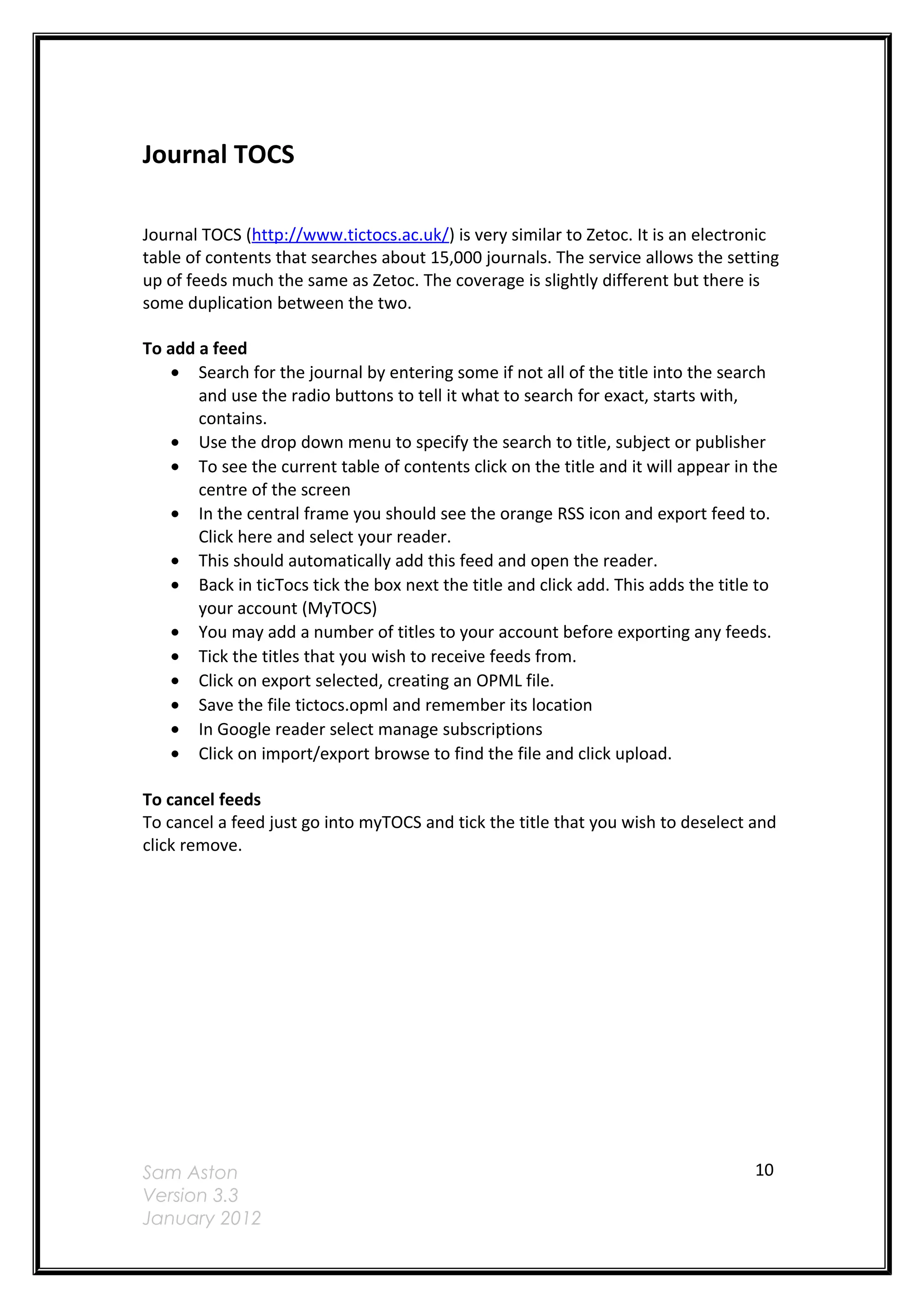
   •   If you do not already have one you will need to set up an account with
       ProQuest, click Sign in
   •   Then click Create a my research account
   •   Enter details to create your account
   •   Click Run a search then enter your search terms
   •   For email click Set up alert
   •   Fill out the form
   •   Click Create alert


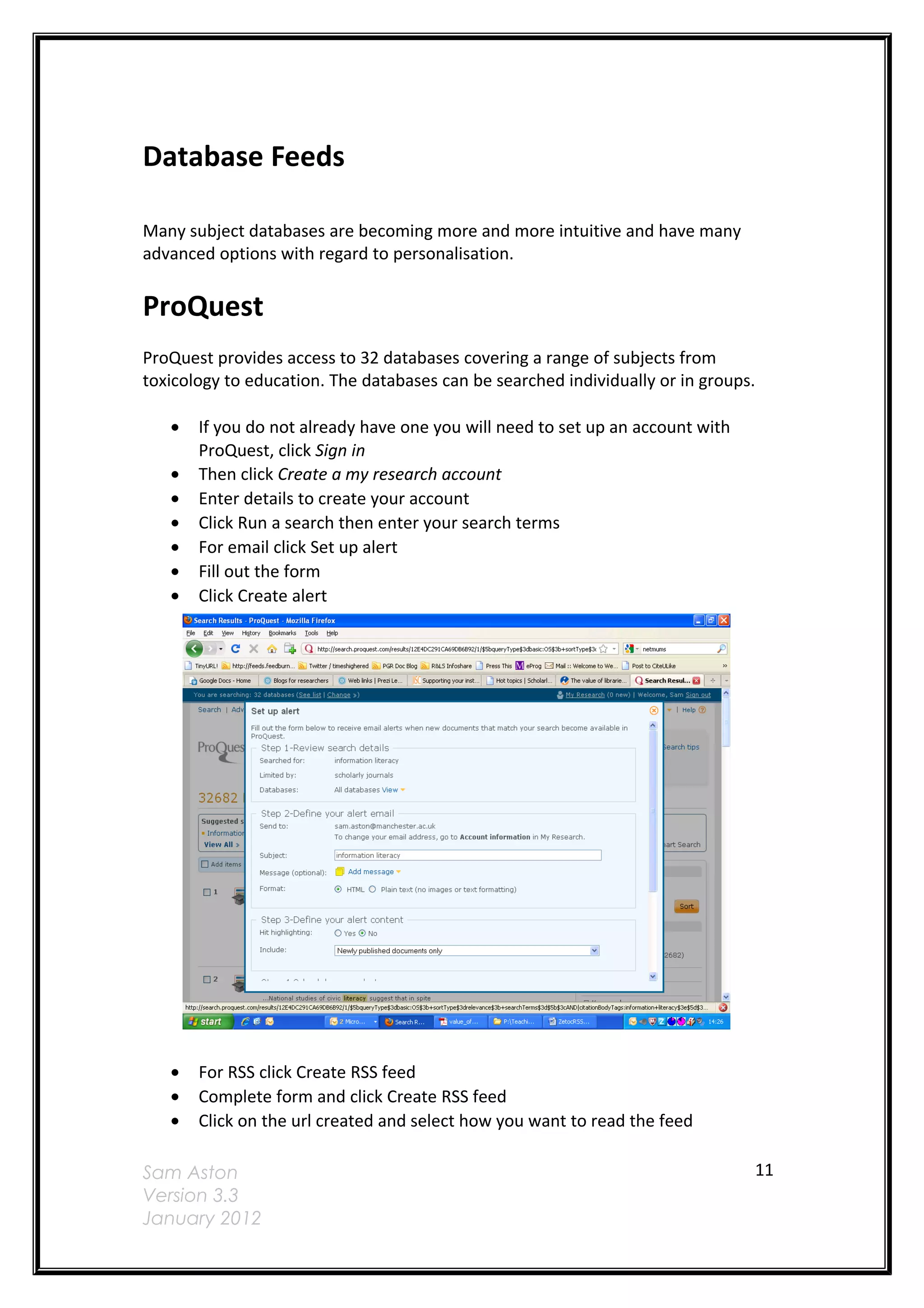
   •   For RSS click Create RSS feed
   •   Complete form and click Create RSS feed
   •   Click on the url created and select how you want to read the feed

Sam Aston                                                                       11
Version 3.3
January 2012
•   Click the drop down menu and select Google
   •   For iGoogle select Google Homepage
   •   Now you have an account you may perform a search in CSA then simply click
       Alert me and follow the steps again


EBSCO
The Ebsco interface allows interaction with a number of databases covering a range
of subjects, history, nursing, business. By setting up a personal account it is possible
to receive e-mail and RSS alerts, save and share results.
    • Set up an account with EBSCO click sign in at the top right of the page
    • Enter details to create an account
    • Carry out your search using your search criteria
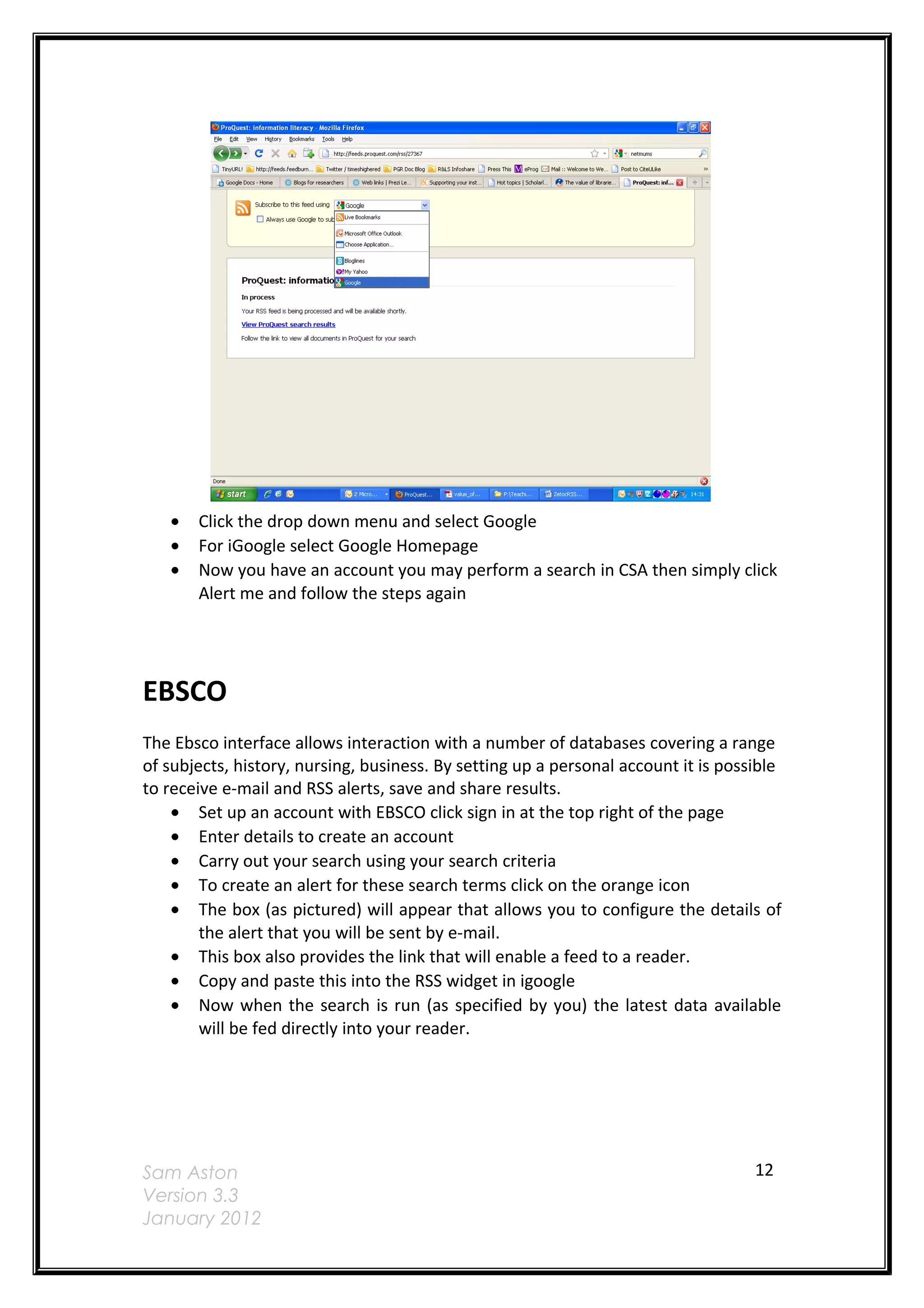
    • To create an alert for these search terms click on the orange icon
    • The box (as pictured) will appear that allows you to configure the details of
        the alert that you will be sent by e-mail.
    • This box also provides the link that will enable a feed to a reader.
    • Copy and paste this into the RSS widget in igoogle
    • Now when the search is run (as specified by you) the latest data available
        will be fed directly into your reader.


Sam Aston                                                                           12
Version 3.3
January 2012
Sam Aston      13
Version 3.3
January 2012
SCOPUS

Scopus is a multi-disciplinary database.

JRUL provides a training session dedicated to researchers for using this database.

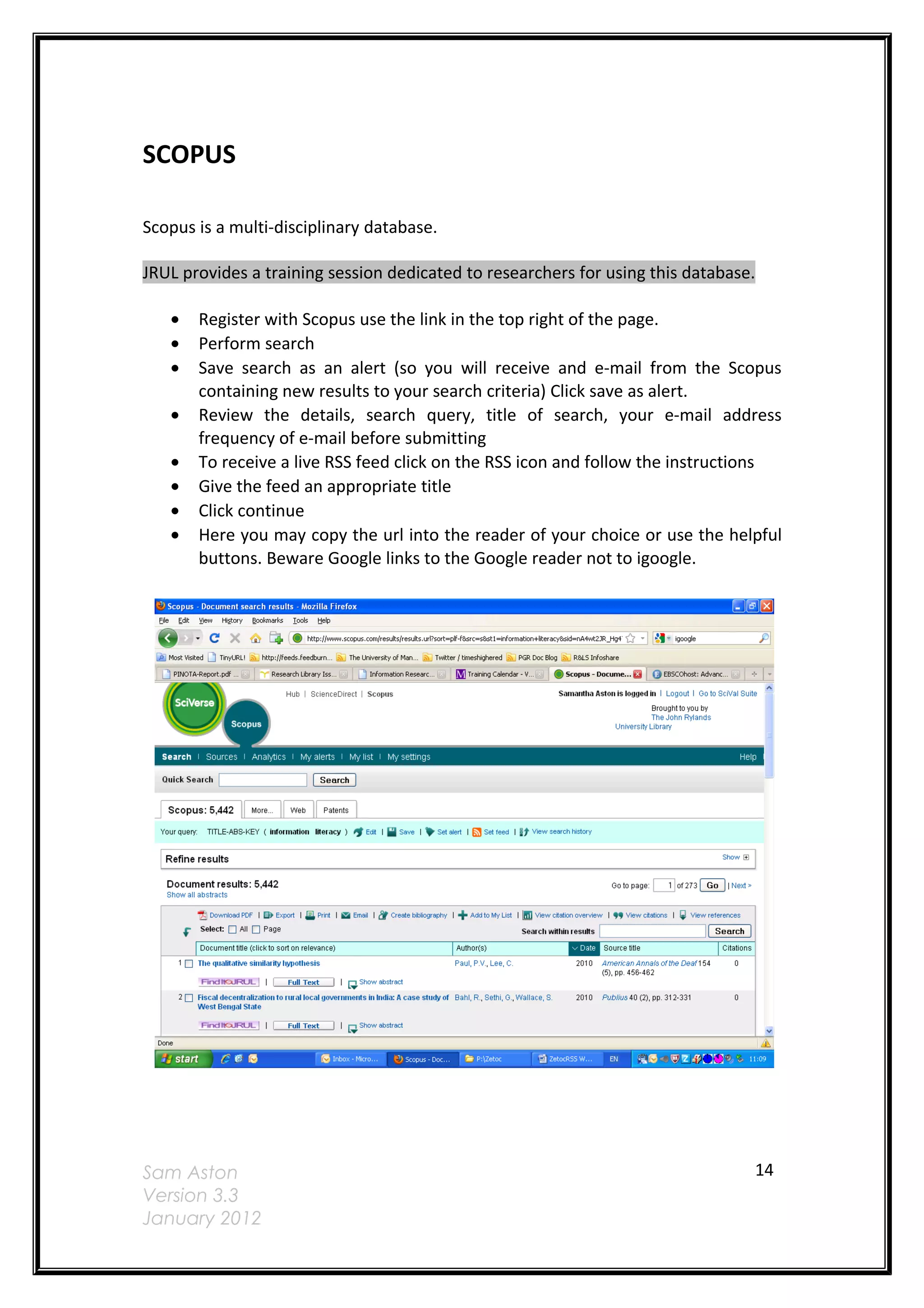
   •   Register with Scopus use the link in the top right of the page.
   •   Perform search
   •   Save search as an alert (so you will receive and e-mail from the Scopus
       containing new results to your search criteria) Click save as alert.
   •   Review the details, search query, title of search, your e-mail address
       frequency of e-mail before submitting
   •   To receive a live RSS feed click on the RSS icon and follow the instructions
   •   Give the feed an appropriate title
   •   Click continue
   •   Here you may copy the url into the reader of your choice or use the helpful
       buttons. Beware Google links to the Google reader not to igoogle.


Sam Aston                                                                        14
Version 3.3
January 2012
Web of Science
Web of Science covers interdisciplinary material including the Arts and Humanities
Index , Science citation index and the Social Sciences Index. It is possible to set up e-
mail alerts and RSS feeds with this service.

JRUL provides a training session dedicated to researchers for using this database.

   •   Register with Web of Science by using the Customise your personal account
       on the left of the screen
   •   Click on Register
   •   Perform search
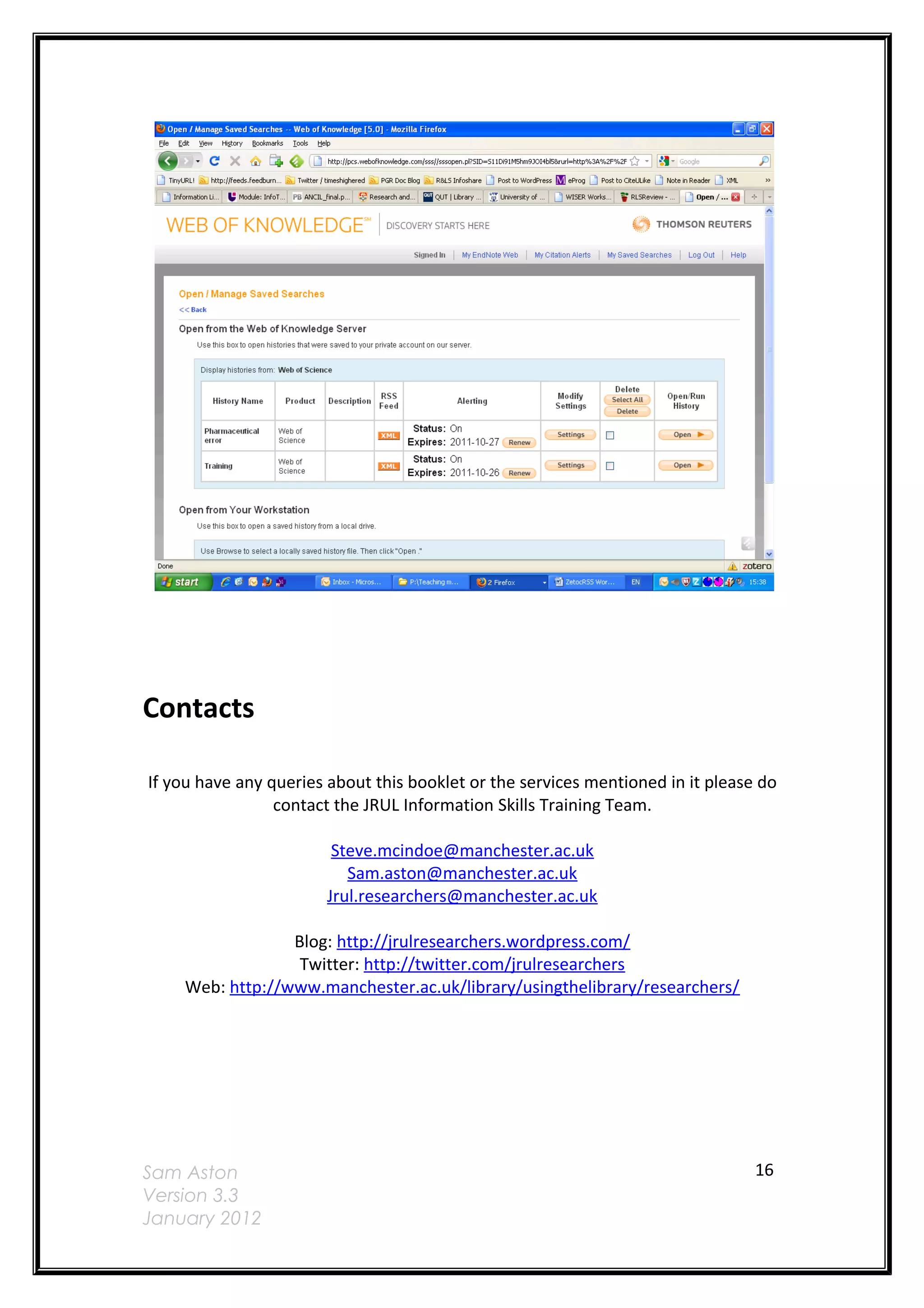
   •   Go to your Search History and click Save History
   •   Give your search a title and description, then click on Save. The search
       should be saved to your account
   •   Underneath your alert details Click XML
   •   Cut and paste the url of this page into the dialogue box Add Feed or Gadget
       in your igoogle account
   •   It is then easy to see when new items are found by your search criteria
   •   You may save an unlimited number of searches, search alerts and citation
       alerts to your account
   •   Alerts remain active for 24 weeks but they can be renewed at any time


Sam Aston                                                                            15
Version 3.3
January 2012
Contacts

If you have any queries about this booklet or the services mentioned in it please do
                 contact the JRUL Information Skills Training Team.

                        Steve.mcindoe@manchester.ac.uk
                          Sam.aston@manchester.ac.uk
                       Jrul.researchers@manchester.ac.uk

                 Blog: http://jrulresearchers.wordpress.com/
                  Twitter: http://twitter.com/jrulresearchers
    Web: http://www.manchester.ac.uk/library/usingthelibrary/researchers/


Sam Aston                                                                        16
Version 3.3
January 2012

Keeping up to date workbook

  • 1.
    _______________________ CurrentAwareness for Research RSS & Zetoc Workbook _______________________ _____________________________________________
  • 2.
    Should you requirethis workbook in another format such as large print or Braille please contact us at jrul.researchers@manchester.ac.uk Sam Aston 2 Version 3.3 January 2012
  • 3.
    Contents Introduction...................................................................................................................4 Aims ............................................................................................................................. 4 Setup iGoogle...............................................................................................................7 Zetoc .............................................................................................................................8 Journal TOCS..............................................................................................................10 Database Feeds............................................................................................................11 ProQuest......................................................................................................................11 EBSCO........................................................................................................................12 .....................................................................................................................................13 SCOPUS......................................................................................................................14 Web of Science .......................................................................................................... 15 Contacts.......................................................................................................................16 Sam Aston 3 Version 3.3 January 2012
  • 4.
    Current awareness forResearch Introduction The workbook is useful for anyone who has attended the sessions Tips on Avoiding Information Overload or Zetoc. It may also be of use to anyone that wishes to employ some personalised current awareness services into their research. Aims This workbook intends to take you through a number of short exercises intended to introduce you to digital media intended to save you time. Once you have worked through the activities you should be able to • Set up news readers/aggregators • Set up e-mail alerts for publications • Set up RSS feeds • Make effective use of current awareness services to assist you in your research It is vital to keep up to date with the research taking place in your field. This may mean monitoring web sites for new content, reading the most up to date articles that have been published or catching up with the latest blog posts from researchers in your field. There are two methods of helping you stay connected. You may set up an e-mail alert or you can use an RSS feed. E-mail It is possible to keep abreast of publications and developments by e-mail. Many information services, publishers and databases, enable users to sign up to receive to mail when new items are published. These are often referred to as alerts. The electronic table of contents service from the British Library, Zetoc, offers a service where you may sign up to receive these. RSS RSS has been interpreted to stand for a couple of things Rich Site Summary and Really Simple Syndication being two of them. RSS feeds are a way of subscribing to web pages and services in order to keep abreast of the latest information or ‘headlines’ from that site. When the information is updated then a feed is sent out Sam Aston 4 Version 3.3 January 2012
  • 5.
    to the providerthat has been selected to read that feed thus dynamically updating the information that you get to see. It is possible to subscribe to a number of feeds in one place so reducing the number of web pages that you have to visit to keep up to date and saving the time it takes to do this. RSS feeds also reduce the clutter that can accumulate in your e-mail in-box so is particularly useful when looking at lots of information sources. RSS feeds are particularly useful for any kind of site where the information is published regularly, news sites, blogs and electronic journals. They are easy to subscribe and unsubscribe to. Feeds can be subscribed to using a number of different services. Browsers These are useful if you use the same PC all the time. Internet Explorer 7 has an RSS logo that lights up when you are on a page with an RSS feeds. When you click on the feed logo it takes you to the feed page and then you can subscribe via the browser. It will then be stored like a bookmark. Firefox works in a similar way to IE and allows you to subscribe to feeds when you are on a feed page and then it appears as a bookmark (either in the list or on the task bar) Readers These are useful if you use a number of different PCs and have a log-in for Google or Yahoo. In Google once signed in it is possible to search for feeds or add the address of a feed and subscribe to it. Aggregators or Start Pages It is possible to combine lots of information into one web page that you may like to set up as the home page on your PC. Using one of the following services will enable you to combine your e-mail, task list with a google scholar search box, delicious bookmarks, twitter and various feeds. A list of Aggregators include http://www.pageflakes.com http://www.igoogle.co.uk Alternative Feedburner can be added to blogs and pages with RSS feeds and this can offer an alternative way of using feeds which is to subscribe to them via e-mail. If a site offers this you can just sign up and the feeds arrive by e-mail. A list of Readers include Sam Aston 5 Version 3.3 January 2012
  • 6.
    http://www.google.com/reader http://www.newsgator.com http://www.bloglines.com http://www.myyahoo.com http://www.netvibes.com You will knowthat a web site or service offers a feed if you see the orange symbol. It is possible to embed feeds in other applications such as web pages and blogs Sam Aston 6 Version 3.3 January 2012
  • 7.
    Set up iGoogle Ifyou go to http://www.igoogle.co.uk. The set up wizard appears in the middle of the screen. Tick the boxes that apply to you and Google adds information to the homepage linked under that subject. If you already have a Google account you need not register for igoogle. You may sign in with the username and password that you have set up. This username and password will also allow you to access Google Reader too. If you haven’t you will need to register. Go to http://www.google.co.uk/ Click on igoogle in the top right of the page If you do not register the page will only be saved on the PC that you are working on. If you sign up to create an account then the page can be saved and used at different computers. To add information and RSS feeds use the Add Stuff link on the right of the page. If you find something that you would like to add click Add it now. If you then click the Back to igoogle link page then the data should be displaying in your personal space. Anything on your home page can be dragged and dropped around the page into any arrangement that suits you. Your gadget’s settings can be edited by clicking the down arrow in the title bar and choosing edit settings. It is possible to add more tabs to the side bar on the left. Click the downward arrow, select add a tab and name it. Click OK. Sam Aston 7 Version 3.3 January 2012
  • 8.
    Zetoc Zetoc is aservice that provides access to the British Library’s Electronic table of contents. There are more then 20 million records for articles and conference proceedings. The database covers multi-disciplinary material from 1993 onwards and is updated daily. To set up an alert in the Zetoc database Go to the Library home page and Electronic Resources. Use Databases down the sidebar Click on ‘Z’ for Zetoc Log in using your University username and password and set your institution as University of Manchester. Add your e-mail address the one that you use for your research. You should give your list a name. You can have a number of lists so it may be wise to think of something relevant. The system will allocate you a name if you do not enter one. Leave the hypertext links in the e-mail as this make it easier to find the article of interest. Click create Zetoc will then confirm you request details and give you an expiry date for the alert (in 12 months). At which point the service will then e-mail you and ask if you wish to renew it. Click the button at the bottom of the screen to add journals or searches. Adding Journals It is possible to search for journal titles in a number of ways. Most simply if you have a specific journal title that you wish to receive the contents pages of every time an edition is published, type it into the search box. or Select the letter with which the title begins or Select the subject area and browse though the journals available in that area Once you have found the titles that you want click Add The title should now appear in the frame on the left. You should now receive an e-mail when the new issue is published. It is possible to continue adding more journal titles to this list. Remember you will get an e-mail for each of the titles every time the new edition is published. Sam Aston 8 Version 3.3 January 2012
  • 9.
    Adding Searches It ispossible to search for keywords or a particular author. These searches will cover all of the journals that are in the Zetoc database. Click Add Search Enter keywords into box. Leave a space if you want to enter more then one term and use the speech marks if you want to search for a phrase Eg. “soft systems” Use the speech marks again if you want to search for an individual author Eg. “Aston, S”. If you want to look for two authors use just the surnames with a space in between. Eg. Aston McIndoe Amending searches It easy to modify the searches that you have set up. Click on Alert Homepage You may add, modify, renew and delete alerts here. Setting up a feed in Zetoc Go back to the Zetoc homepage and click on Zetoc RSS There are the same 3 ways of finding the feeds that suit you. Either type the title into the search box, Select the letter with which the title begins Select the subject area and browse though the journals available in that area A feed is available for every journal title that is listed; the orange icon is on the left of the screen. Quite simply right click on the orange image and choose ‘copy shortcut’ and then paste the address/url into the feed reader that you have selected to use. Each reader uses a different term ‘Add a subscription’ ‘Add feed’ If you wish to just save the feed to the browser just left click and the browser that you are in will let you select where you want it to be either in the bookmarks list or as a live bookmark across the toolbar. Sam Aston 9 Version 3.3 January 2012
  • 10.
    Journal TOCS Journal TOCS(http://www.tictocs.ac.uk/) is very similar to Zetoc. It is an electronic table of contents that searches about 15,000 journals. The service allows the setting up of feeds much the same as Zetoc. The coverage is slightly different but there is some duplication between the two. To add a feed • Search for the journal by entering some if not all of the title into the search and use the radio buttons to tell it what to search for exact, starts with, contains. • Use the drop down menu to specify the search to title, subject or publisher • To see the current table of contents click on the title and it will appear in the centre of the screen • In the central frame you should see the orange RSS icon and export feed to. Click here and select your reader. • This should automatically add this feed and open the reader. • Back in ticTocs tick the box next the title and click add. This adds the title to your account (MyTOCS) • You may add a number of titles to your account before exporting any feeds. • Tick the titles that you wish to receive feeds from. • Click on export selected, creating an OPML file. • Save the file tictocs.opml and remember its location • In Google reader select manage subscriptions • Click on import/export browse to find the file and click upload. To cancel feeds To cancel a feed just go into myTOCS and tick the title that you wish to deselect and click remove. Sam Aston 10 Version 3.3 January 2012
  • 11.
    Database Feeds Many subjectdatabases are becoming more and more intuitive and have many advanced options with regard to personalisation. ProQuest ProQuest provides access to 32 databases covering a range of subjects from toxicology to education. The databases can be searched individually or in groups. • If you do not already have one you will need to set up an account with ProQuest, click Sign in • Then click Create a my research account • Enter details to create your account • Click Run a search then enter your search terms • For email click Set up alert • Fill out the form • Click Create alert • For RSS click Create RSS feed • Complete form and click Create RSS feed • Click on the url created and select how you want to read the feed Sam Aston 11 Version 3.3 January 2012
  • 12.
    Click the drop down menu and select Google • For iGoogle select Google Homepage • Now you have an account you may perform a search in CSA then simply click Alert me and follow the steps again EBSCO The Ebsco interface allows interaction with a number of databases covering a range of subjects, history, nursing, business. By setting up a personal account it is possible to receive e-mail and RSS alerts, save and share results. • Set up an account with EBSCO click sign in at the top right of the page • Enter details to create an account • Carry out your search using your search criteria • To create an alert for these search terms click on the orange icon • The box (as pictured) will appear that allows you to configure the details of the alert that you will be sent by e-mail. • This box also provides the link that will enable a feed to a reader. • Copy and paste this into the RSS widget in igoogle • Now when the search is run (as specified by you) the latest data available will be fed directly into your reader. Sam Aston 12 Version 3.3 January 2012
  • 13.
    Sam Aston 13 Version 3.3 January 2012
  • 14.
    SCOPUS Scopus is amulti-disciplinary database. JRUL provides a training session dedicated to researchers for using this database. • Register with Scopus use the link in the top right of the page. • Perform search • Save search as an alert (so you will receive and e-mail from the Scopus containing new results to your search criteria) Click save as alert. • Review the details, search query, title of search, your e-mail address frequency of e-mail before submitting • To receive a live RSS feed click on the RSS icon and follow the instructions • Give the feed an appropriate title • Click continue • Here you may copy the url into the reader of your choice or use the helpful buttons. Beware Google links to the Google reader not to igoogle. Sam Aston 14 Version 3.3 January 2012
  • 15.
    Web of Science Webof Science covers interdisciplinary material including the Arts and Humanities Index , Science citation index and the Social Sciences Index. It is possible to set up e- mail alerts and RSS feeds with this service. JRUL provides a training session dedicated to researchers for using this database. • Register with Web of Science by using the Customise your personal account on the left of the screen • Click on Register • Perform search • Go to your Search History and click Save History • Give your search a title and description, then click on Save. The search should be saved to your account • Underneath your alert details Click XML • Cut and paste the url of this page into the dialogue box Add Feed or Gadget in your igoogle account • It is then easy to see when new items are found by your search criteria • You may save an unlimited number of searches, search alerts and citation alerts to your account • Alerts remain active for 24 weeks but they can be renewed at any time Sam Aston 15 Version 3.3 January 2012
  • 16.
    Contacts If you haveany queries about this booklet or the services mentioned in it please do contact the JRUL Information Skills Training Team. Steve.mcindoe@manchester.ac.uk Sam.aston@manchester.ac.uk Jrul.researchers@manchester.ac.uk Blog: http://jrulresearchers.wordpress.com/ Twitter: http://twitter.com/jrulresearchers Web: http://www.manchester.ac.uk/library/usingthelibrary/researchers/ Sam Aston 16 Version 3.3 January 2012