Keeping up to date
with emerging research
James Bisset james.bisset@durham.ac.uk
Academic Liaison Librarian (Research Support)
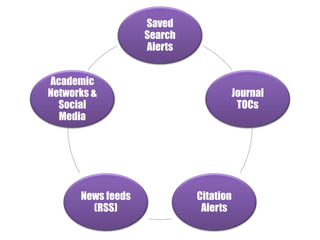
Saved
Search
Alerts
Journal
TOCs
Citation
Alerts
News feeds
(RSS)
Academic
Networks &
Social
Media
Session outline
- How (part 1)
- email alerts, RSS feeds and RSS readers
- What
- Books
- Journal articles
- Journal Table of Contents (ToCs)
- Academic Networks
- Coping Strategies
- How (part 2)
- Filtering your feeds
Part 1
How?
Email &
RSS
How?
Automated alerts:
- Email
- RSS
Using Email Alerts
Think about:
- weekly / monthly / bi-monthly
- separate folders in your mail
account
- how many can you realistically
read / manage
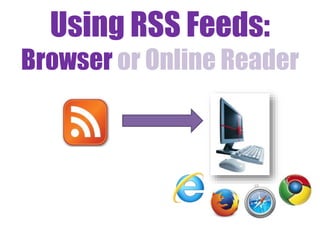
Using RSS Feeds:
Browser or Online Reader

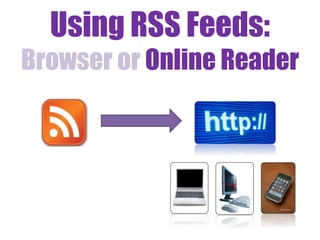
Using RSS Feeds:
Browser or Online Reader
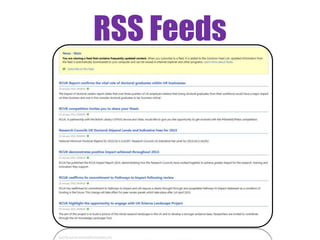
RSS Feeds
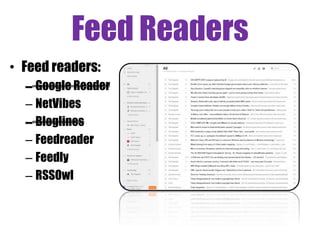
Feed Readers
• Feed readers:
– Google Reader
– NetVibes
– Bloglines
– Feedreader
– Feedly
– RSSOwl
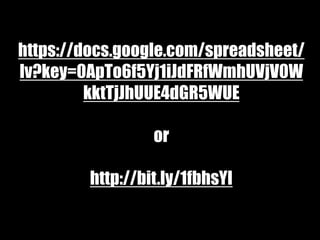
https://docs.google.com/spreadsheet/
lv?key=0ApTo6f5Yj1iJdFRfWmhUVjV0W
kktTjJhUUE4dGR5WUE
or
http://bit.ly/1fbhsYI
Task 1
• Set up a RSS feed reader. Use Internet
Explorer or register for an online
reader such as Feedly
• Subscribe to a generic feed e.g:
- Durham University central news
- A research funder in your field
Part 2
What?
Books
What?
• Books:
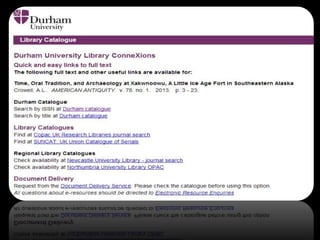
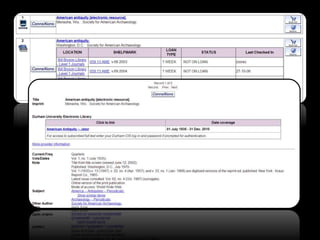
– Library Catalogue
– New items purchased by the library
– Other catalogues
– Publisher sites
Task 2
• Create a RSS feed or an email alert from one
or more of the following:
• Library Catalogue (email)
• Discover (email/RSS)
• New items purchased by the library (RSS)
• Copac (RSS)
• A publisher site (email/RSS)
Part 2
What?
Journal
articles
What?
• Journal articles:
– Web of Science (email or rss)
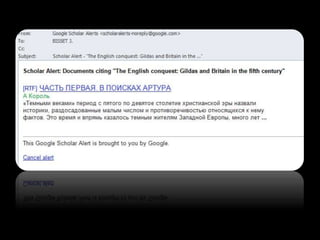
– Google Scholar (email)
Task 3
• Create a RSS feed or an email alert
for a journal from one or more of the
following:
• Web of Science (RSS and email)
• Google Scholar (email)
• Another database in your subject
Part 2
What?
Journal
TOCs
What?
• Journal Table of Contents (TOCs):
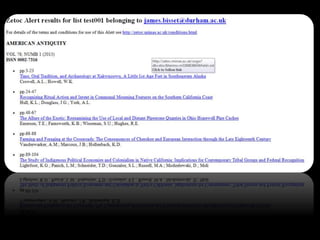
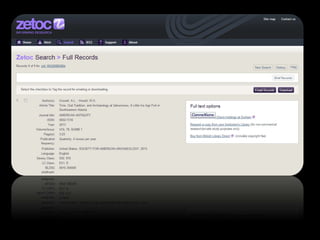
– Zetoc
– Journal TOCs
Task 4
• Create a RSS feed or an email alert
for a journal table of contents from
one or more of the following:
• Zetoc (RSS and email)
• Journal TOCs (RSS)
Part 2
What?
Academic
networks
What?
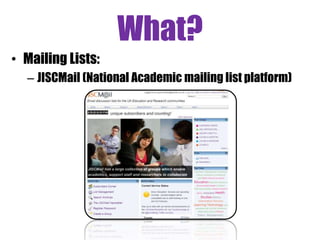
• Mailing Lists:
– JISCMail (National Academic mailing list platform)
What?
• Funding Opportunites
– ResearchProfessional http://bit.ly/1wGTESZ
– Funding Councils etc.
What?
• Academic Networks
– Piirus; identify collaboration opportunities / find
researchers with particular interests / skills / knowledge
areas
– ResearchGate; network, make connections and showcase
your publications, ask or answer questions, organise
conferences and workshops
– Academia.edu; Online CV profile aimed at academic
sector
– LinkedIN; Online CV profile aimed beyond academic
sector
– Blogs; Academics, Research projects, Technology Groups,
What?
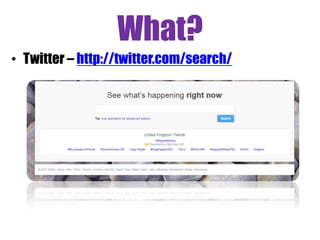
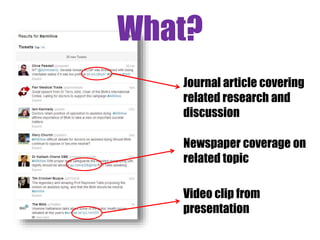
• Twitter – http://twitter.com/search/
What?
Journal article covering
related research and
discussion
Newspaper coverage on
related topic
Video clip from
presentation
Task 5
• Spend some time having a look at
some of the resources:
• JISC Mail
• Piirus
• ResearchGate
• Academic Blogs / Scoop.it
• Twitter
What?
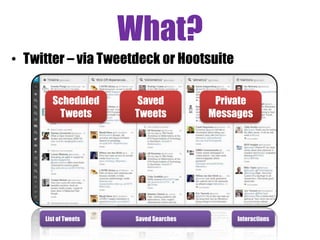
• Twitter – via Tweetdeck or Hootsuite
List of Tweets Saved Searches Interactions
Scheduled
Tweets
Saved
Tweets
Private
Messages
Part 2
What?
Coping
Strategies
YES
NO
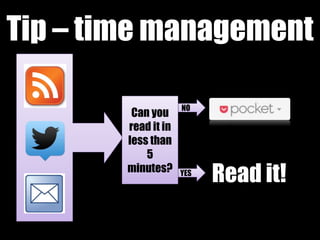
Tip – time management
Can you
read it in
less than
5
minutes?
Read it!
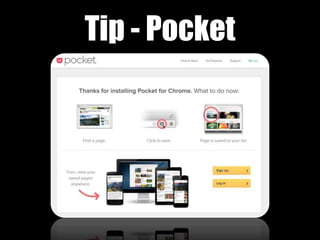
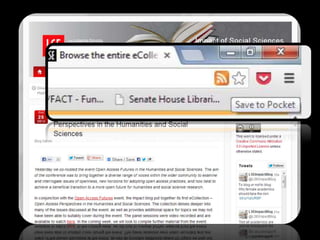
Tip - Pocket
Tip - Pocket
Part 3
How?
Filtering your
feeds
How? – RSS Filters
• See only the relevant information from a feed (or
multiple feeds.
• Define Key words
• Filter services
- Feed sifter
- Pipes – see handout
How? – RSS Filters
• 8th June, Yahoo announced would be
discontinuing Pipes in September 2015.
• As of 22nd June, Feed sifter remains inaccessible
Alternatives
• rssmix.com and feedcombine.com allow you to
combine multiple feeds into one.
• feedrinse.com allows you modify and filter
feeds for certain content.
Task 6
• Set up a filter using Feedsifter
• Subscribe to your filtered feed
Image Credits
[Slide 4] Via Flickr Creative Commons, by Stylianos Mystakidis. Original
available at http://www.flickr.com/photos/90309235@N00/3989939286
[Slides 25] Via Flickr Creative Commons by Jacinta Iluch Valero. Original
at http://www.flickr.com/photos/70626035@N00/8265808436
[Slide 28] Via Flickr Creative Commons, by Adelle & Justin. Original at
http://www.flickr.com/photos/10278395@N08/3687392107
[Slides 33] Via Flickr Creative Commons, by Ian Scott. Original available
at http://www.flickr.com/photos/38000818@N06/7007574429
[Slide 41] Via Flickr Creative Commons, by Rromir Imami. Original
available at http://www.flickr.com/photos/73515668@N08/7749708352
[Slide 49] Via Flickr Creative Commons, by yang zhao. Original available
at http://www.flickr.com/photos/44124411666@N01/24063969
[Slides 61-69] Vitae®, © 2010 Careers Research and Advisory Centre
(CRAC) Limited‘ Available at www.vitae.ac.uk/rdf
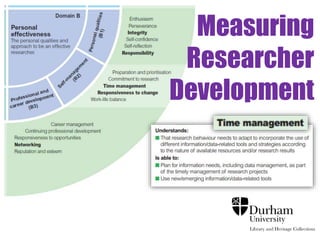
Measuring
Researcher
Development
Vitae Researcher Development Framework [see image credits]
Measuring
Researcher
Development

Pgrptss keeping up_to_date_v1_handout

Editor's Notes

  • #44 Approx 1hr 50 minutes into session. Filtering a feed. RSS feeds are great but quite addictive and you’ll soon find that you have lots of unread feeds unless you are very selective about what you subscribe to. Filters are one way to make sure that you just get the information you need. Feedsifter basic as you can easily filter a feed work by creating a new feed that you can subscribe to – means you can still receive the original but also have a cut down version. Have to use Firefox to filter Zetoc RSS feeds as it doesn’t work in Internet Explorer for Zetoc (e.g. Zetoc Journal feeds can come as RSS feeds) Make sure it’s the FEED URL you type in Multiple keywords per one search are comma separated (AND operator) on the same line – no space after the comma Can expand a search by using words on different lines (OR operator) DEMO one of the news feeds searched earlier – i.e. Durham library or BBC filter using a couple of keywords on each line – will bring back more results – use one word on each line filter using two words on the same line(s) - to bring back less results - use a comma to separate words (no space after the comma) Mention Pipes (Yahoo) but don’t demo - more info on the handout: looks more daunting but ok to use and very flexible. Can be more sophisticated with your filter than with Feedsifter. you can bring together lots of feeds, sort them, filter them by author or descriptor and then create a new RSS feed from that to read in your usual reader.