Feed me! Using RSS  and Web Tools Helen Curtis and Jo Alcock Learning and Information Services Staff  Development 2009/2010
Session Aims Introduction to RSS Using a feed reader RSS feeds for research and current awareness Bookmarking, tagging, and sharing items Applications of RSS and web tools in teaching
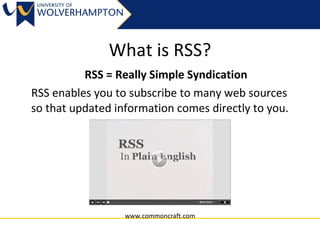
What is RSS? RSS = Really Simple Syndication RSS   enables you to subscribe to many web sources so that updated information comes directly to you.  www.commoncraft.com
RSS feeds VS email alerts Adapted from:  http://libguides.mit.edu/rss   Aspect RSS Email Login/registration Usually subscribe to feeds with a few clicks and no registration required Set up account with each so may have to deal with multiple logins Segregate or integrate Segregates your news so it doesn’t get buried as you deal with more urgent emails Integrates your news with email so only one interface to check Managing new items Items automatically marked as read; much easier to manage if you fall behind with your reading Every new item that comes in has to be filed or filtered in some way Sharing and adding comments Easy to add tags and comments and share with others Forwarding emails to others. Inbox overload?
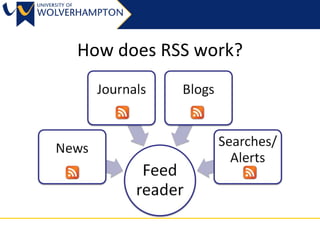
How does RSS work?
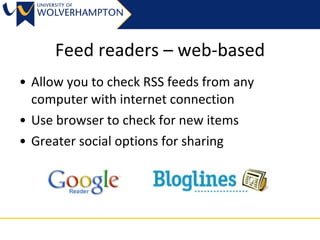
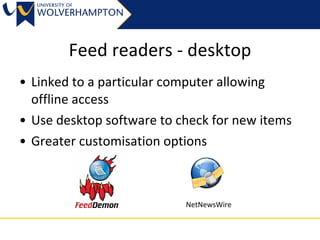
How can I use RSS? Web-based reader Check RSS feeds from any internet connection Use web browser to check for new items Greater social options e.g. sharing, following, tagging Desktop-based reader Located on a particular computer (e.g. home PC) Use desktop software to check for new items Greater customisation options e.g. filtering, personalisation NetNewsWire
Getting started with Google Reader
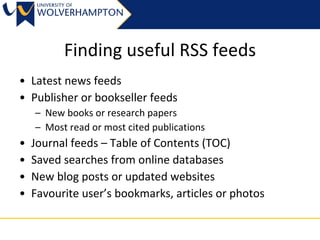
Finding RSS feeds Latest news feeds Publisher or bookseller feeds New books or research papers Most read or most cited publications Journal feeds – Table of Contents (TOC) Saved searches from online databases New blog posts or updated websites Favourite user’s bookmarks, articles or photos
Journal feeds Large research database from the British Library Set up a Zetoc Alert Add journals to your list Receive TOC alert via email or RSS ticTOCs table of contents service Search for journals View citations and links to full text (where subscription allows) Export to a feed reader Useful reading:  ticTOCs  and Zetoc RSS: what are the differences?
Saved Searches and Alerts Saved search: set search terms and parameters and feed will update with new content that matches Citation search: feed that will update when an article you are interested in is cited Google alerts: use for tracking a subject, a news story, or see what is being written about you!
Bookmarking, Tagging, & Sharing Bookmarking: saving favourite web links Tagging: your descriptive words to help locate links again Sharing: with students, colleagues, research partners
See what we have tagged and shared with you at: http://delicious.com/tag/wlvrss
Some sharing tools Google Reader  – shared items and enables comments Delicious  – shared web resources EndNote Web  - create groups of shared references  Fur.ly  - shorten multiple URLs into one Clipmarks  – highlight sections of websites Friendfeed  – bringing together feeds and enabling discussion via comments Netvibes  – start page, bring together feeds with widgets
Using web tools in teaching Encourage wider reading Creating set of RSS feeds alongside a reading list Embed feeds into PebblePad webfolio Formative tasks What have you read this week? Share and comment on items  Tool for collaboration Create a course subject or bookmark collection Build start pages for a group project Embed into research process Research trail: part of literature search and review
Contact us Helen Curtis Academic Resources Librarian Ext. 3561 [email_address] @helencurtis Jo Alcock Resources Librarian Ext. 3273 [email_address] @joeyanne

Feed Me! Using Rss & Web Tools

  • 1.
    Feed me! UsingRSS and Web Tools Helen Curtis and Jo Alcock Learning and Information Services Staff Development 2009/2010
  • 2.
    Session Aims Introductionto RSS Using a feed reader RSS feeds for research and current awareness Bookmarking, tagging, and sharing items Applications of RSS and web tools in teaching
  • 3.
    What is RSS?RSS = Really Simple Syndication RSS enables you to subscribe to many web sources so that updated information comes directly to you. www.commoncraft.com
  • 4.
    RSS feeds VSemail alerts Adapted from: http://libguides.mit.edu/rss Aspect RSS Email Login/registration Usually subscribe to feeds with a few clicks and no registration required Set up account with each so may have to deal with multiple logins Segregate or integrate Segregates your news so it doesn’t get buried as you deal with more urgent emails Integrates your news with email so only one interface to check Managing new items Items automatically marked as read; much easier to manage if you fall behind with your reading Every new item that comes in has to be filed or filtered in some way Sharing and adding comments Easy to add tags and comments and share with others Forwarding emails to others. Inbox overload?
  • 5.
  • 6.
    How can Iuse RSS? Web-based reader Check RSS feeds from any internet connection Use web browser to check for new items Greater social options e.g. sharing, following, tagging Desktop-based reader Located on a particular computer (e.g. home PC) Use desktop software to check for new items Greater customisation options e.g. filtering, personalisation NetNewsWire
  • 7.
    Getting started withGoogle Reader
  • 8.
    Finding RSS feedsLatest news feeds Publisher or bookseller feeds New books or research papers Most read or most cited publications Journal feeds – Table of Contents (TOC) Saved searches from online databases New blog posts or updated websites Favourite user’s bookmarks, articles or photos
  • 9.
    Journal feeds Largeresearch database from the British Library Set up a Zetoc Alert Add journals to your list Receive TOC alert via email or RSS ticTOCs table of contents service Search for journals View citations and links to full text (where subscription allows) Export to a feed reader Useful reading: ticTOCs and Zetoc RSS: what are the differences?
  • 10.
    Saved Searches andAlerts Saved search: set search terms and parameters and feed will update with new content that matches Citation search: feed that will update when an article you are interested in is cited Google alerts: use for tracking a subject, a news story, or see what is being written about you!
  • 11.
    Bookmarking, Tagging, &Sharing Bookmarking: saving favourite web links Tagging: your descriptive words to help locate links again Sharing: with students, colleagues, research partners
  • 12.
    See what wehave tagged and shared with you at: http://delicious.com/tag/wlvrss
  • 13.
    Some sharing toolsGoogle Reader – shared items and enables comments Delicious – shared web resources EndNote Web - create groups of shared references Fur.ly - shorten multiple URLs into one Clipmarks – highlight sections of websites Friendfeed – bringing together feeds and enabling discussion via comments Netvibes – start page, bring together feeds with widgets
  • 14.
    Using web toolsin teaching Encourage wider reading Creating set of RSS feeds alongside a reading list Embed feeds into PebblePad webfolio Formative tasks What have you read this week? Share and comment on items Tool for collaboration Create a course subject or bookmark collection Build start pages for a group project Embed into research process Research trail: part of literature search and review
  • 15.
    Contact us HelenCurtis Academic Resources Librarian Ext. 3561 [email_address] @helencurtis Jo Alcock Resources Librarian Ext. 3273 [email_address] @joeyanne