Researching the smart way
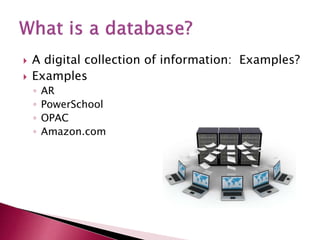
 A digital collection of information: Examples?
 Examples
◦ AR
◦ PowerSchool
◦ OPAC
◦ Amazon.com
 Why not just Google it?
 Databases
◦ All sources have gone through an editing process
◦ Reliable and trustworthy
◦ Source citations are done for you
◦ One-stop-shopping for all of your information
needs
 How do you access the KSLC?
 www.usd250.org
◦ Schools
◦ Pittsburg Community Middle School
◦ Faculty and Staff
◦ Library Resources
◦ PCMS Library Website
 The Kansas Library Card
 www.kslc.org
 PIN
 Birthdate
 Learning and School Resources
 Middle Search Plus
◦ EBSCO
 Fast and easy
 Not many options to limit your results
◦ Limit your results: FULL TEXT
◦ Limit your results: Lexile
 Many options to expand or limit results
◦ Select a Field
◦ Boolean Operators
◦ Limit results
 Full text
 Lexile
 Dates
 All Text vs. Subject Terms
 What does All Text mean?
 All Text
◦ A word or phrase located in the text of the article
◦ Often produces too many results or irrelevant
results
 Subject Term: What is it?
 A word or phrase describing what the article
is ABOUT
◦ Searches only the CONTROLLED VOCABULARY
(words used to tag information in a database)
◦ Less flexible, but very relevant
 Always try a subject search first!
 If the search does not produce many results,
try All Text to expand your options
 To locate subject terms, click on the subjects
at the top of screen
 Use Boolean Operators to narrow search
◦ AND
◦ OR
◦ NOT
 Open and view
 Create notes with option to print
 Print article
 Email article
 Save to folder in EBSCO database
 What does it mean to cite an article?
 Cite an article—give credit to your sources
 Citing from Ebsco
◦ Export to Bibliographic Management Software
◦ Direct Export to EasyBib
◦ Save
◦ Import (without abstracts)
◦ Copy and paste
 Double Quotation Marks
 Wildcards
 Truncation
 Use double quotation marks to search for
exact phrases (exact order)
 Great for use with compound words
 STOP WORDS such as so, and, the, of, etc. are
never searched, regardless of quotations
 Examples: “heart attack”, “dog house”, “tree
house”
 Use for terms with unknown letters or
alternate spellings
 ?
◦ Example: calend?r
 #
◦ Example: col#r (color or colour)
 Enter the root word for the search term, along
with the truncation symbol (*), and the
database searches for all forms of the word
 Example: educat*
 Educate
 Education
 Educated
 Educating
 Educates
 Name forms of the following roots?
 Examples
◦ Read*
◦ Creat*
◦ Theat*
 Databases
 Accessing Kansas Library Card
 Creating EBSCO Account
 Basic Search vs. Advanced Search
 All Text vs. Subject Term
 Boolean Operators
 Citing an article
 Double Quotation Marks
 Wildcards
 Truncation
Kansas Library Card

Kansas Library Card

  • 1.
  • 2.
     A digitalcollection of information: Examples?  Examples ◦ AR ◦ PowerSchool ◦ OPAC ◦ Amazon.com
  • 3.
     Why notjust Google it?  Databases ◦ All sources have gone through an editing process ◦ Reliable and trustworthy ◦ Source citations are done for you ◦ One-stop-shopping for all of your information needs
  • 4.
     How doyou access the KSLC?  www.usd250.org ◦ Schools ◦ Pittsburg Community Middle School ◦ Faculty and Staff ◦ Library Resources ◦ PCMS Library Website  The Kansas Library Card
  • 5.
  • 6.
     Learning andSchool Resources  Middle Search Plus ◦ EBSCO
  • 7.
     Fast andeasy  Not many options to limit your results ◦ Limit your results: FULL TEXT ◦ Limit your results: Lexile
  • 8.
     Many optionsto expand or limit results ◦ Select a Field ◦ Boolean Operators ◦ Limit results  Full text  Lexile  Dates
  • 9.
     All Textvs. Subject Terms  What does All Text mean?  All Text ◦ A word or phrase located in the text of the article ◦ Often produces too many results or irrelevant results
  • 10.
     Subject Term:What is it?  A word or phrase describing what the article is ABOUT ◦ Searches only the CONTROLLED VOCABULARY (words used to tag information in a database) ◦ Less flexible, but very relevant
  • 11.
     Always trya subject search first!  If the search does not produce many results, try All Text to expand your options
  • 12.
     To locatesubject terms, click on the subjects at the top of screen
  • 13.
     Use BooleanOperators to narrow search ◦ AND ◦ OR ◦ NOT
  • 14.
     Open andview  Create notes with option to print  Print article  Email article  Save to folder in EBSCO database
  • 15.
     What doesit mean to cite an article?  Cite an article—give credit to your sources  Citing from Ebsco ◦ Export to Bibliographic Management Software ◦ Direct Export to EasyBib ◦ Save ◦ Import (without abstracts) ◦ Copy and paste
  • 16.
     Double QuotationMarks  Wildcards  Truncation
  • 17.
     Use doublequotation marks to search for exact phrases (exact order)  Great for use with compound words  STOP WORDS such as so, and, the, of, etc. are never searched, regardless of quotations  Examples: “heart attack”, “dog house”, “tree house”
  • 18.
     Use forterms with unknown letters or alternate spellings  ? ◦ Example: calend?r  # ◦ Example: col#r (color or colour)
  • 19.
     Enter theroot word for the search term, along with the truncation symbol (*), and the database searches for all forms of the word  Example: educat*  Educate  Education  Educated  Educating  Educates
  • 20.
     Name formsof the following roots?  Examples ◦ Read* ◦ Creat* ◦ Theat*
  • 21.
     Databases  AccessingKansas Library Card  Creating EBSCO Account  Basic Search vs. Advanced Search  All Text vs. Subject Term  Boolean Operators  Citing an article  Double Quotation Marks  Wildcards  Truncation