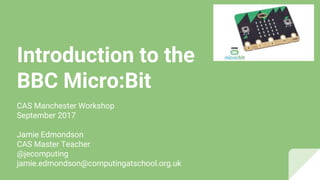
Introduction to the
BBC Micro:Bit
CAS Manchester Workshop
September 2017
Jamie Edmondson
CAS Master Teacher
@jecomputing
jamie.edmondson@computingatschool.org.uk
Objectives
● Overview of the Micro:Bit and basics
● Basic commands
● Downloading the .hex file and running it on device
● Input commands
● Variables
● Conditional selection
Overview
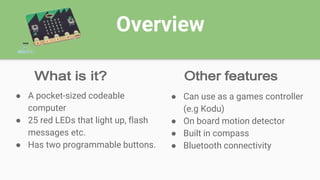
● A pocket-sized codeable
computer
● 25 red LEDs that light up, flash
messages etc.
● Has two programmable buttons.
● Can use as a games controller
(e.g Kodu)
● On board motion detector
● Built in compass
● Bluetooth connectivity
Emulator
Getting to know the Micro:Bit
(Basic commands)
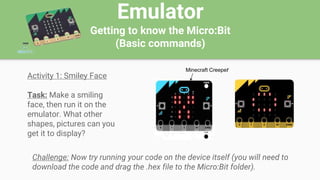
Activity 1: Smiley Face
Task: Make a smiling
face, then run it on the
emulator. What other
shapes, pictures can you
get it to display?
Challenge: Now try running your code on the device itself (you will need to
download the code and drag the .hex file to the Micro:Bit folder).
Minecraft Creeper
Input Commands
Different ways to run your code
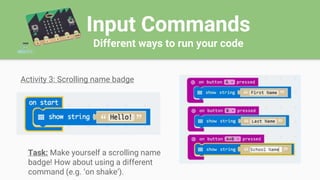
Activity 3: Scrolling name badge
Task: Make yourself a scrolling name
badge! How about using a different
command (e.g. ‘on shake’).
Input Commands
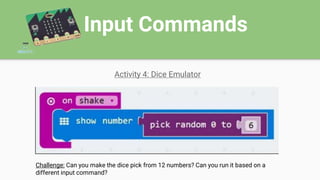
Activity 4: Dice Emulator
Challenge: Can you make the dice pick from 12 numbers? Can you run it based on a
different input command?
Input Commands
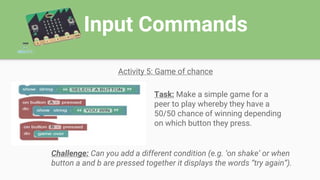
Activity 5: Game of chance
Task: Make a simple game for a
peer to play whereby they have a
50/50 chance of winning depending
on which button they press.
Challenge: Can you add a different condition (e.g. ‘on shake’ or when
button a and b are pressed together it displays the words “try again”).
Input Commands
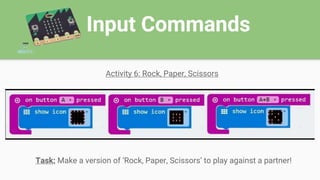
Activity 6: Rock, Paper, Scissors
Task: Make a version of ‘Rock, Paper, Scissors’ to play against a partner!
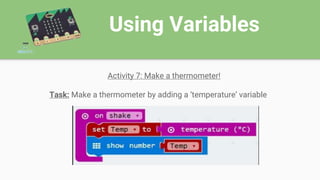
Using Variables
Activity 7: Make a thermometer!
Task: Make a thermometer by adding a ‘temperature’ variable
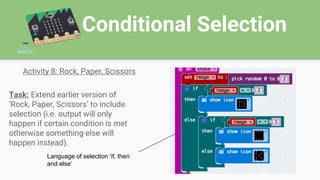
Conditional Selection
Activity 8: Rock, Paper, Scissors
Task: Extend earlier version of
‘Rock, Paper, Scissors’ to include
selection (i.e. output will only
happen if certain condition is met
otherwise something else will
happen instead).
Language of selection ‘if, then
and else’
Conditional Selection
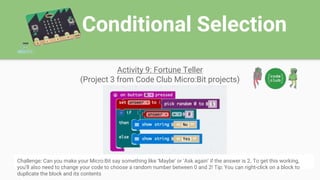
Activity 9: Fortune Teller
(Project 3 from Code Club Micro:Bit projects)
Challenge: Can you make your Micro:Bit say something like ‘Maybe’ or ‘Ask again’ if the answer is 2. To get this working,
you’ll also need to change your code to choose a random number between 0 and 2! Tip: You can right-click on a block to
duplicate the block and its contents.
Conditional Selection
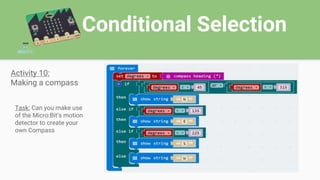
Activity 10:
Making a compass
Task: Can you make use
of the Micro:Bit’s motion
detector to create your
own Compass
Conditional Selection
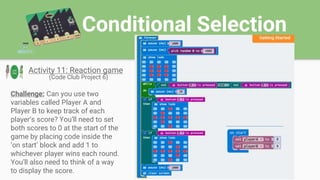
Activity 11: Reaction game
(Code Club Project 6)
Challenge: Can you use two
variables called Player A and
Player B to keep track of each
player’s score? You’ll need to set
both scores to 0 at the start of the
game by placing code inside the
‘on start’ block and add 1 to
whichever player wins each round.
You’ll also need to think of a way
to display the score.
Links
Code Club Projects (Micro:Bit)
Matt Moore Blog
Range of Micro:Bit lesson plans,
resources and activities (Ellie
Overland)
Any Questions?
An introduction to the BBC Micro:Bit
CAS Manchester Workshop September 2017
Jamie Edmondson
CAS Master Teacher
@jecomputing
jamie.edmondson@computingatschool.org.uk
http://tinyurl.com/casman-evaluate

INTRODUCTION TO THE BBC MICRO_BIT.pptx

  • 1.
    Introduction to the BBCMicro:Bit CAS Manchester Workshop September 2017 Jamie Edmondson CAS Master Teacher @jecomputing jamie.edmondson@computingatschool.org.uk
  • 2.
    Objectives ● Overview ofthe Micro:Bit and basics ● Basic commands ● Downloading the .hex file and running it on device ● Input commands ● Variables ● Conditional selection
  • 3.
    Overview ● A pocket-sizedcodeable computer ● 25 red LEDs that light up, flash messages etc. ● Has two programmable buttons. ● Can use as a games controller (e.g Kodu) ● On board motion detector ● Built in compass ● Bluetooth connectivity
  • 4.
    Emulator Getting to knowthe Micro:Bit (Basic commands) Activity 1: Smiley Face Task: Make a smiling face, then run it on the emulator. What other shapes, pictures can you get it to display? Challenge: Now try running your code on the device itself (you will need to download the code and drag the .hex file to the Micro:Bit folder). Minecraft Creeper
  • 5.
    Input Commands Different waysto run your code Activity 3: Scrolling name badge Task: Make yourself a scrolling name badge! How about using a different command (e.g. ‘on shake’).
  • 6.
    Input Commands Activity 4:Dice Emulator Challenge: Can you make the dice pick from 12 numbers? Can you run it based on a different input command?
  • 7.
    Input Commands Activity 5:Game of chance Task: Make a simple game for a peer to play whereby they have a 50/50 chance of winning depending on which button they press. Challenge: Can you add a different condition (e.g. ‘on shake’ or when button a and b are pressed together it displays the words “try again”).
  • 8.
    Input Commands Activity 6:Rock, Paper, Scissors Task: Make a version of ‘Rock, Paper, Scissors’ to play against a partner!
  • 9.
    Using Variables Activity 7:Make a thermometer! Task: Make a thermometer by adding a ‘temperature’ variable
  • 10.
    Conditional Selection Activity 8:Rock, Paper, Scissors Task: Extend earlier version of ‘Rock, Paper, Scissors’ to include selection (i.e. output will only happen if certain condition is met otherwise something else will happen instead). Language of selection ‘if, then and else’
  • 11.
    Conditional Selection Activity 9:Fortune Teller (Project 3 from Code Club Micro:Bit projects) Challenge: Can you make your Micro:Bit say something like ‘Maybe’ or ‘Ask again’ if the answer is 2. To get this working, you’ll also need to change your code to choose a random number between 0 and 2! Tip: You can right-click on a block to duplicate the block and its contents.
  • 12.
    Conditional Selection Activity 10: Makinga compass Task: Can you make use of the Micro:Bit’s motion detector to create your own Compass
  • 13.
    Conditional Selection Activity 11:Reaction game (Code Club Project 6) Challenge: Can you use two variables called Player A and Player B to keep track of each player’s score? You’ll need to set both scores to 0 at the start of the game by placing code inside the ‘on start’ block and add 1 to whichever player wins each round. You’ll also need to think of a way to display the score.
  • 14.
    Links Code Club Projects(Micro:Bit) Matt Moore Blog Range of Micro:Bit lesson plans, resources and activities (Ellie Overland)
  • 15.
    Any Questions? An introductionto the BBC Micro:Bit CAS Manchester Workshop September 2017 Jamie Edmondson CAS Master Teacher @jecomputing jamie.edmondson@computingatschool.org.uk http://tinyurl.com/casman-evaluate