MicroCode 101
March 2023
Getting Started
1. Copy MicroCode hex file onto micro:bit V2
• get file from dialog https://aka.ms/microcode
2. Connect the micro:bit to MicroCode editor. Either
• plug into KittenBot Arcade shield, or
• connect via USB to web browser (dialog at https://aka.ms/microcode)
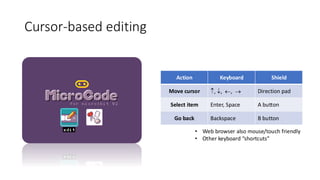
Cursor-based editing
Action Keyboard Shield
Move cursor , , , → Direction pad
Select item Enter, Space A button
Go back Backspace B button
• Web browser also mouse/touch friendly
• Other keyboard “shortcuts”
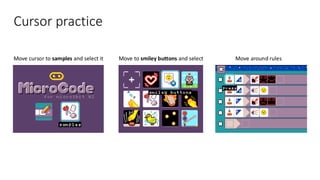
Cursor practice
Move cursor to samples and select it Move to smiley buttons and select Move around rules
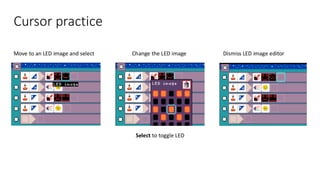
Move to an LED image and select Change the LED image Dismiss LED image editor
Select to toggle LED
Cursor practice
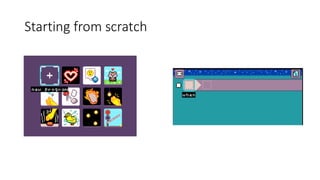
Starting from scratch
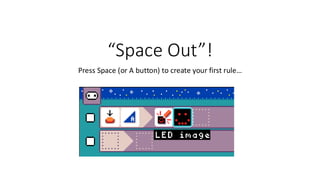
“Space Out”!
Press Space (or A button) to create your first rule…
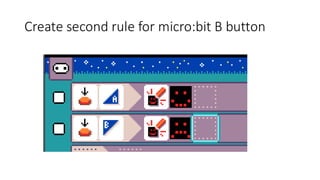
Create second rule for micro:bit B button
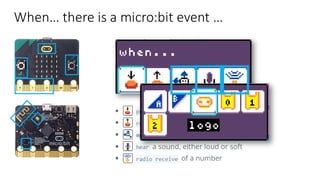
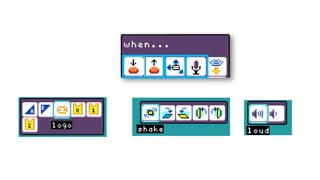
When… there is a micro:bit event …
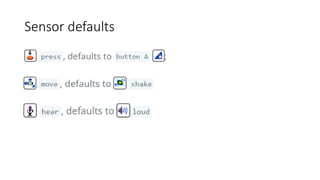
Sensor defaults
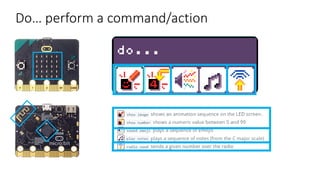
Do… perform a command/action
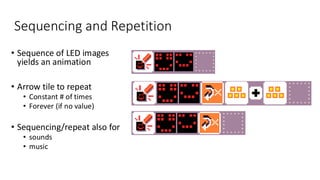
Sequencing and Repetition
• Sequence of LED images
yields an animation
• Arrow tile to repeat
• Constant # of times
• Forever (if no value)
• Sequencing/repeat also for
• sounds
• music
Questions
• Can you program the micro:bit to make a sound at the same time as
displaying a smiley face (on press of button A)?
• What happens if we display both smiley and sad face on A button
press (separate rules)?
Question
• Can you program the micro:bit to alternately
• display smiley face on press of A button
• display sad face on press of A button
• Hint
• Use switch page command
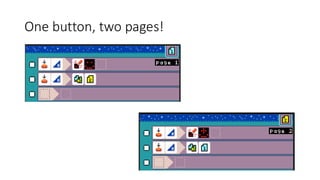
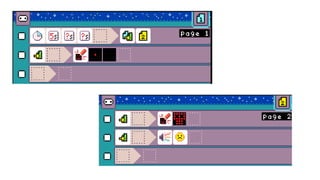
One button, two pages!
Navigating between Pages
• Page icon (upper right)
• Next page
• Use down cursor to move past last rule
• Previous page
• Use up cursor to move up (keep going)
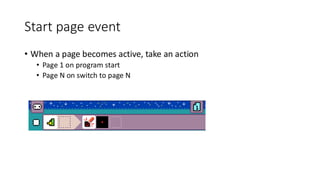
Start page event
• When a page becomes active, take an action
• Page 1 on program start
• Page N on switch to page N
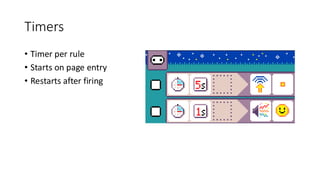
Timers
• Timer per rule
• Starts on page entry
• Restarts after firing
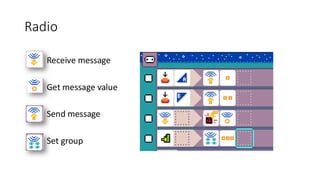
Radio
• Receive message
• Get message value
• Send message
• Set group
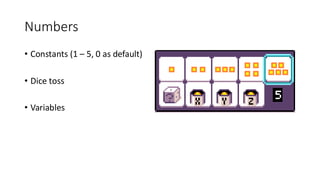
Numbers
• Constants (1 – 5, 0 as default)
• Dice toss
• Variables
Variables
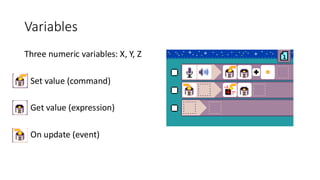
Three numeric variables: X, Y, Z
• Set value (command)
• Get value (expression)
• On update (event)
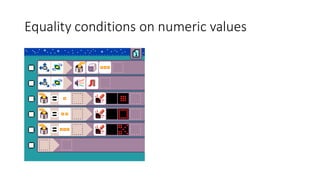
Equality conditions on numeric values
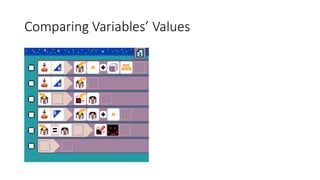
Comparing Variables’ Values
MicroCode: Concepts Covered
• Reactive systems
• Inputs
• Outputs
• Events
• Actions
• Timers
• Control flow
• If-Then (When-Do)
• Switching context (page)
• Sequencing
• Iteration
• Math
• Variables
• Addition
• Equality
More about MicroCode
• User guide
• Language
• Samples
• FAQ
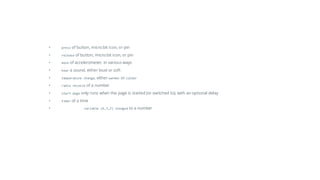
• press of button, micro:bit icon, or pin
• release of button, micro:bit icon, or pin
• move of accelerometer, in various ways
• hear a sound, either loud or soft
• temperature change, either warmer or colder
• radio receive of a number
• start page only runs when the page is started (or switched to), with an optional delay
• timer of a time
• variable (X,Y,Z) changed to a number
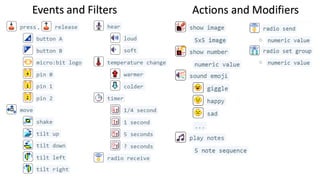
Events and Filters Actions and Modifiers
Pages Variables

MicroCode101.pdfMicroCodeCardsBasic.pdf for learning simulation project.

  • 1.
  • 2.
    Getting Started 1. CopyMicroCode hex file onto micro:bit V2 • get file from dialog https://aka.ms/microcode 2. Connect the micro:bit to MicroCode editor. Either • plug into KittenBot Arcade shield, or • connect via USB to web browser (dialog at https://aka.ms/microcode)
  • 3.
    Cursor-based editing Action KeyboardShield Move cursor , , , → Direction pad Select item Enter, Space A button Go back Backspace B button • Web browser also mouse/touch friendly • Other keyboard “shortcuts”
  • 4.
    Cursor practice Move cursorto samples and select it Move to smiley buttons and select Move around rules
  • 5.
    Move to anLED image and select Change the LED image Dismiss LED image editor Select to toggle LED Cursor practice
  • 6.
  • 7.
    “Space Out”! Press Space(or A button) to create your first rule…
  • 8.
    Create second rulefor micro:bit B button
  • 9.
    When… there isa micro:bit event …
  • 11.
  • 12.
    Do… perform acommand/action
  • 13.
    Sequencing and Repetition •Sequence of LED images yields an animation • Arrow tile to repeat • Constant # of times • Forever (if no value) • Sequencing/repeat also for • sounds • music
  • 14.
    Questions • Can youprogram the micro:bit to make a sound at the same time as displaying a smiley face (on press of button A)? • What happens if we display both smiley and sad face on A button press (separate rules)?
  • 15.
    Question • Can youprogram the micro:bit to alternately • display smiley face on press of A button • display sad face on press of A button • Hint • Use switch page command
  • 16.
  • 17.
    Navigating between Pages •Page icon (upper right) • Next page • Use down cursor to move past last rule • Previous page • Use up cursor to move up (keep going)
  • 18.
    Start page event •When a page becomes active, take an action • Page 1 on program start • Page N on switch to page N
  • 19.
    Timers • Timer perrule • Starts on page entry • Restarts after firing
  • 21.
    Radio • Receive message •Get message value • Send message • Set group
  • 22.
    Numbers • Constants (1– 5, 0 as default) • Dice toss • Variables
  • 23.
    Variables Three numeric variables:X, Y, Z • Set value (command) • Get value (expression) • On update (event)
  • 24.
    Equality conditions onnumeric values
  • 25.
  • 26.
    MicroCode: Concepts Covered •Reactive systems • Inputs • Outputs • Events • Actions • Timers • Control flow • If-Then (When-Do) • Switching context (page) • Sequencing • Iteration • Math • Variables • Addition • Equality
  • 27.
    More about MicroCode •User guide • Language • Samples • FAQ
  • 28.
    • press ofbutton, micro:bit icon, or pin • release of button, micro:bit icon, or pin • move of accelerometer, in various ways • hear a sound, either loud or soft • temperature change, either warmer or colder • radio receive of a number • start page only runs when the page is started (or switched to), with an optional delay • timer of a time • variable (X,Y,Z) changed to a number
  • 29.
    Events and FiltersActions and Modifiers
  • 30.