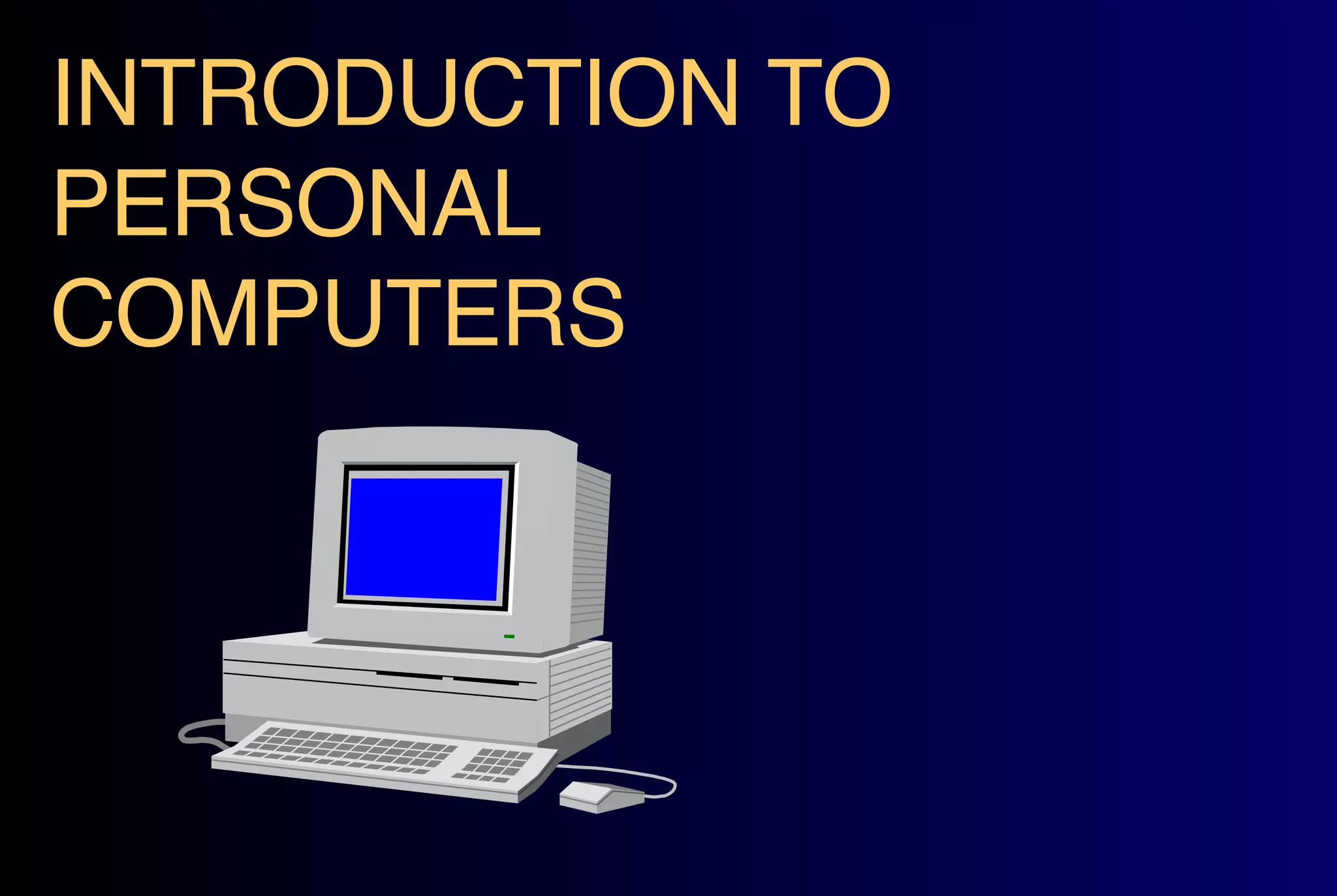


INTRODUCTION TO PERSONAL COMPUTERS
Learning to Use  a Computer is Easy, Right???
Where Do I Start? Square One Introduction to  Personal Computers
Today's  Objectives What is Hardware Read and understand a computer advertisement
TECHNO-BABBLE??? BITS BYTES RAM ROM HARD DISK FLOPPY DISK CPU CD-ROM MOTHER BOARD MOUSE VGA POSTSCRIPT MONITOR MHZ 386 AT DATA
Bits, Bytes and ASCII An introduction to the inner workings of a computer system...
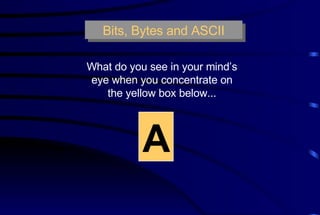
Bits, Bytes and ASCII What do you see in your mind’s eye when you concentrate on the yellow box below... A
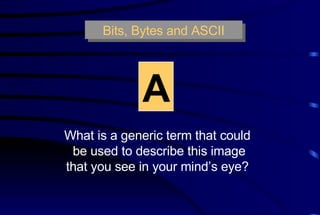
Bits, Bytes and ASCII A   What is a generic term that could be used to describe this image that you see in your mind’s eye?
Bits, Bytes and ASCII AT   How about now?  What does this grouping of two  symbols cause your mind’s eye to see?
Bits, Bytes and ASCII CAT   How about now?  What do you see in your mind’s eye?
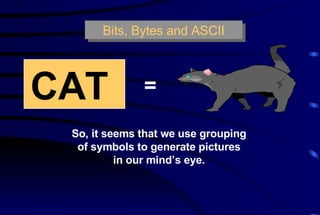
Bits, Bytes and ASCII So, it seems that we use grouping of symbols to generate pictures in our mind’s eye. CAT   =
But can a computer recognize a symbol? What type of information can a computer recognize?  Bits, Bytes and ASCII
Bits, Bytes and ASCII Computers can only recognize one form of information:  there is electricity present ( on ), or there is no electricity present ( off ). This binary condition is called a  BIT . A “BIT” is an acronymn, it stands for B INARY DIG IT
Bits, Bytes and ASCII Take a quick scan around this room. What could we use as an example of a B INARY DIG IT Remember, we need something that only has two possible states, on  and  off .
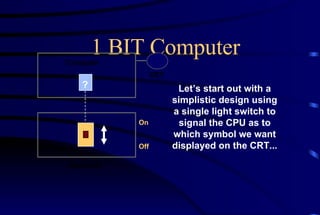
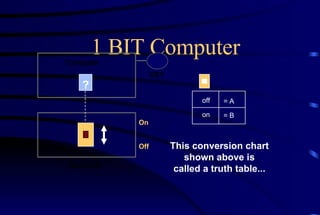
1 BIT Computer Computer Keyboard CRT ? Off On Let’s start out with a simplistic design using a single light switch to signal the CPU as to which symbol we want displayed on the CRT...
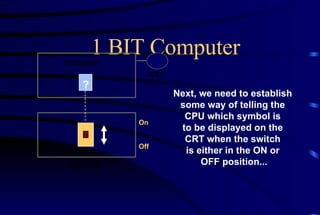
1 BIT Computer Computer Keyboard CRT ? Off On Next, we need to establish some way of telling the CPU which symbol is to be displayed on the CRT when the switch is either in the ON or OFF position...
1 BIT Computer = A = B off on Computer Keyboard CRT ? Off On This conversion chart shown above is called a truth table...
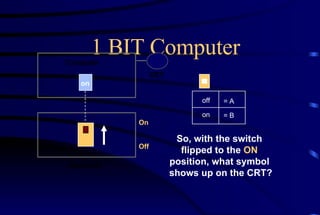
1 BIT Computer = A = B off on Computer Keyboard CRT on Off On So, with the switch flipped to the  ON position, what symbol shows up on the CRT?
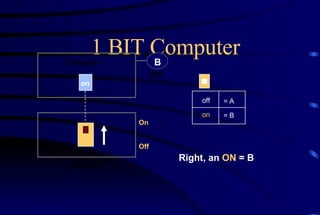
1 BIT Computer = A = B off on Computer Keyboard CRT on Off On B Right, an  ON  = B
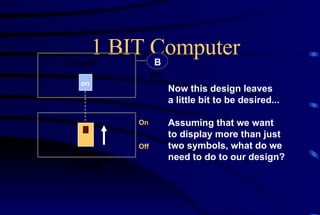
1 BIT Computer Computer Keyboard CRT on Off On B Now this design leaves a little bit to be desired... Assuming that we want to display more than just two symbols, what do we need to do to our design?
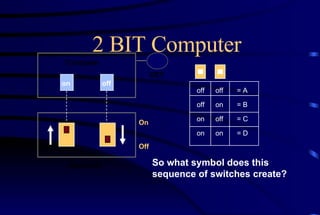
2 BIT Computer = A = B = C = D off on off on off off on on Computer Keyboard CRT on off Off On So what symbol does this sequence of switches create?
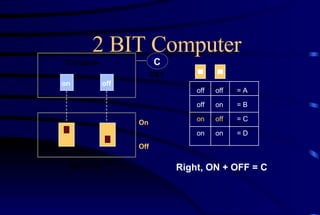
2 BIT Computer = A = B = C = D off on off on off off on on Computer Keyboard CRT on off Off On C Right, ON + OFF = C
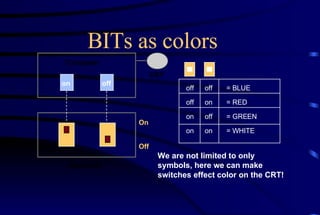
BITs as colors = BLUE = RED = GREEN = WHITE off on off on off off on on Computer Keyboard CRT on off Off On We are not limited to only symbols, here we can make switches effect color on the CRT!
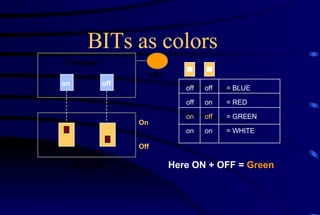
BITs as colors = BLUE = RED = GREEN = WHITE off on off on off off on on Computer Keyboard CRT on off Off On Here ON + OFF =  Green
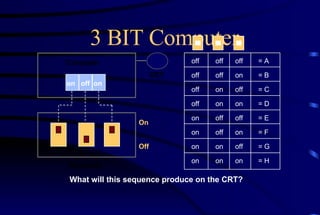
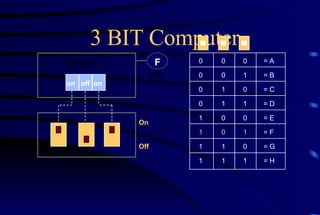
3 BIT Computer = A = B = C = D = E = F = G = H off on off on off on off on off off on on off off on on off off off off on on on on Computer Keyboard CRT on off on Off On What will this sequence produce on the CRT?
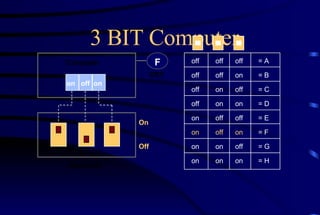
3 BIT Computer = A = B = C = D = E = F = G = H off on off on off on off on off off on on off off on on off off off off on on on on Computer Keyboard CRT on off on Off On F
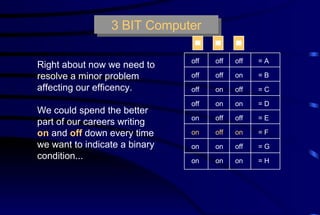
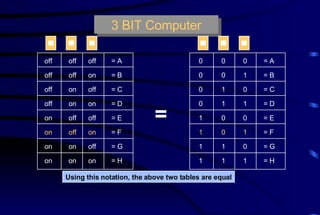
3 BIT Computer = A = B = C = D = E = F = G = H off on off on off on off on off off on on off off on on off off off off on on on on Right about now we need to resolve a minor problem affecting our efficency. We could spend the better part of our careers writing on  and  off   down every time we want to indicate a binary condition...
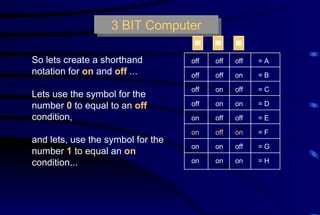
3 BIT Computer = A = B = C = D = E = F = G = H off on off on off on off on off off on on off off on on off off off off on on on on So lets create a shorthand notation for  on  and  off  ...  Lets use the symbol for the number  0  to equal to an  off   condition, and lets, use the symbol for the number  1  to equal an  on  condition...
3 BIT Computer = Using this notation, the above two tables are equal = A = B = C = D = E = F = G = H off on off on off on off on off off on on off off on on off off off off on on on on = A = B = C = D = E = F = G = H 0 1 0 1 0 1 0 1 0 0 1 1 0 0 1 1 0 0 0 0 1 1 1 1
3 BIT Computer Computer Keyboard CRT on off on Off On F = A = B = C = D = E = F = G = H 0 1 0 1 0 1 0 1 0 0 1 1 0 0 1 1 0 0 0 0 1 1 1 1
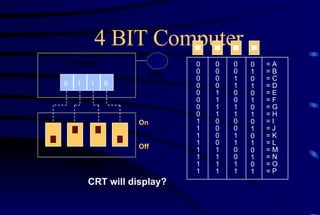
4 BIT Computer Computer Keyboard CRT = A = B = C = D = E = F = G = H = I = J = K = L = M = N = O = P 0 1 0 1 0 1 0 1 0 1 0 1 0 1 0 1 0 0 1 1 0 0 1 1 0 0 1 1 0 0 1 1 0 0 0 0 1 1 1 1 0 0 0 0 1 1 1 1 0 0 0 0 0 0 0 0 1 1 1 1 1 1 1 1 0 1 1 0 Off On CRT will display?
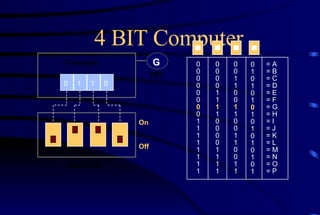
4 BIT Computer Computer Keyboard CRT = A = B = C = D = E = F = G = H = I = J = K = L = M = N = O = P 0 1 0 1 0 1 0 1 0 1 0 1 0 1 0 1 0 0 1 1 0 0 1 1 0 0 1 1 0 0 1 1 0 0 0 0 1 1 1 1 0 0 0 0 1 1 1 1 0 0 0 0 0 0 0 0 1 1 1 1 1 1 1 1 0 1 1 0 Off On G
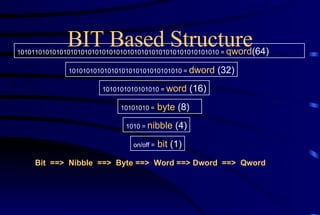
BIT Based Structure on/off =   bit   (1) 1010 =  nibble  (4) 10101010 =   byte  (8) 1010101010101010 =  word   (16) 10101010101010101010101010101010 =  dword  (32) 101011010101010101010101010101010101010101010101010101010 =  qword (64) Bit  ==>  Nibble  ==>  Byte ==>  Word ==> Dword  ==>  Qword
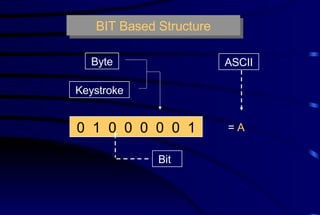
BIT Based Structure 0  1  0  0  0  0  0  1  Byte  Keystroke  Bit  =  A   ASCII
HOW SIZE IS MEASURED One byte = One keystroke
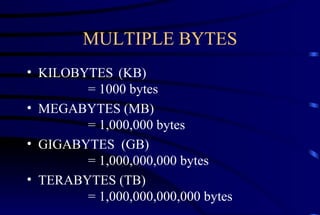
MULTIPLE BYTES KILOBYTES  (KB) = 1000 bytes MEGABYTES (MB) = 1,000,000 bytes GIGABYTES  (GB)  = 1,000,000,000 bytes TERABYTES (TB) = 1,000,000,000,000 bytes
FOUR PARTS OF A COMPUTER CENTRAL PROCESSING UNIT (CPU) INPUT DEVICES OUTPUT DEVICES STORAGE DEVICES
CENTRAL PROCESSING UNIT MICROPROCESSOR CHIP - Often called the CPU MEMORY - ROM (Read only memory) - RAM (Random access memory)
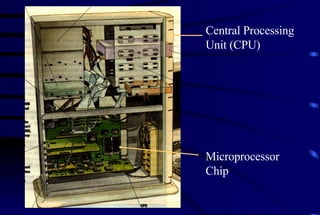
Microprocessor Chip Central Processing Unit (CPU)
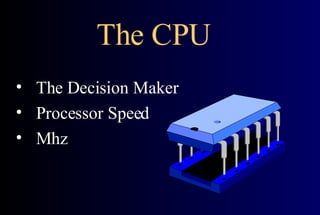
The CPU  The Decision Maker Processor Speed Mhz
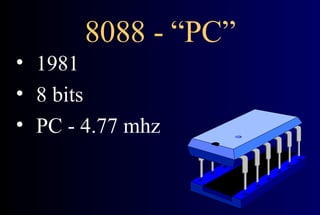
8088 - “PC” 1981 8 bits PC - 4.77 mhz
8086 - “XT” 1983 8 bits 10 mhz  Apple introduces the “Mac”
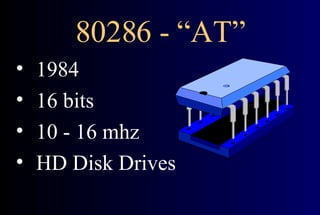
80286 - “AT” 1984 16 bits 10 - 16 mhz  HD Disk Drives
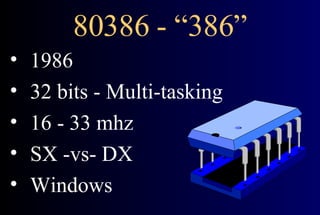
80386 - “386” 1986 32 bits - Multi-tasking 16 - 33 mhz  SX -vs- DX Windows
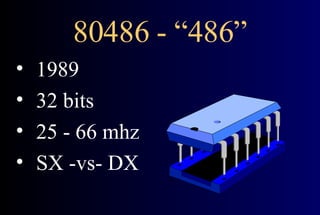
80486 - “486” 1989 32 bits  25 - 66 mhz  SX -vs- DX
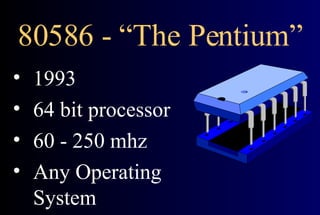
80586 - “The Pentium” 1993 64 bit processor 60 - 250 mhz Any Operating System
MEMORY ROM (Read only memory) RAM (Random access memory)
ROM ROM is used to store information that you do not want to change. For example, there are certain things a computer does when you turn it on. You do not want these to change so they are stored in ROM memory
RAM For your computer to be functional it needs to be able to process different information at various times. For example, you want to write a letter. Then you want to play a game of tetris. These are different functions that the computer will need to think about.
MORE RAM For you to use a program it must be loaded into RAM memory. When you change to another program, you are  - removing the current program from RAM    memory - loading the new program into RAM memory In effect, you are changing the computers mind.
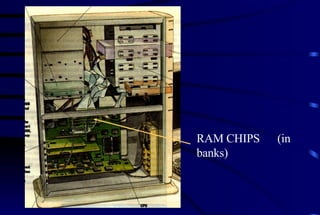
RAM CHIPS  (in banks)
SECOND INPUT DEVICES
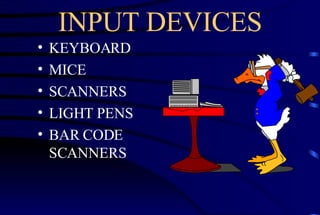
INPUT DEVICES KEYBOARD MICE SCANNERS LIGHT PENS BAR CODE  SCANNERS
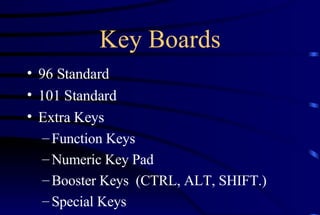
Key Boards 96 Standard 101 Standard Extra Keys Function Keys Numeric Key Pad Booster Keys  (CTRL, ALT, SHIFT.) Special Keys
THIRD OUTPUT DEVICES
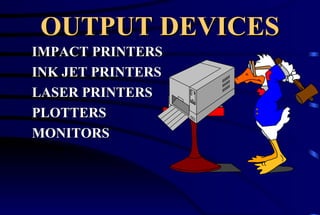
OUTPUT DEVICES IMPACT PRINTERS INK JET PRINTERS LASER PRINTERS PLOTTERS MONITORS
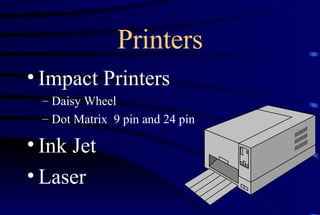
Printers Impact Printers Daisy Wheel Dot Matrix  9 pin and 24 pin Ink Jet Laser
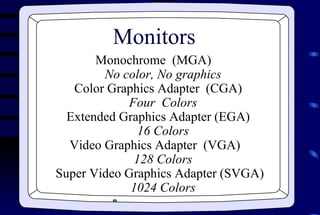
Monitors  Monochrome  (MGA)  No color, No graphics Color Graphics Adapter  (CGA)  Four  Colors Extended Graphics Adapter (EGA)  16 Colors Video Graphics Adapter  (VGA)  128 Colors Super Video Graphics Adapter (SVGA)  1024 Colors
FOURTH STORAGE DEVICES
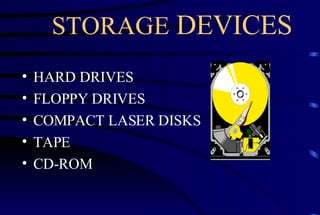
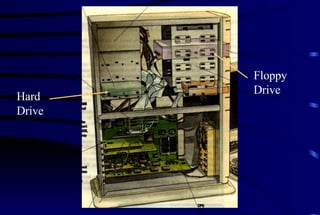
STORAGE  DEVICES HARD DRIVES FLOPPY DRIVES COMPACT LASER DISKS TAPE CD-ROM
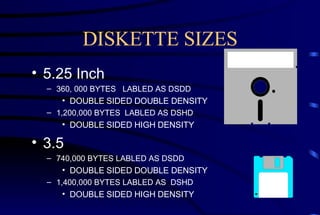
DISKETTE SIZES 5.25 Inch 360, 000 BYTES  LABLED AS DSDD DOUBLE SIDED DOUBLE DENSITY 1,200,000 BYTES  LABLED AS DSHD DOUBLE SIDED HIGH DENSITY 3.5 740,000 BYTES LABLED AS DSDD DOUBLE SIDED DOUBLE DENSITY 1,400,000 BYTES LABLED AS  DSHD DOUBLE SIDED HIGH DENSITY
HARD DRIVES INTERNAL STORAGE DEVICE USUALLY IN MEGABYTES (MEGS) TODAY  - Though this is changing to gigabytes USED TO STORE  - Operating system  - Application software (programs)  - Data (the things you produce)
Hard Drive Floppy Drive
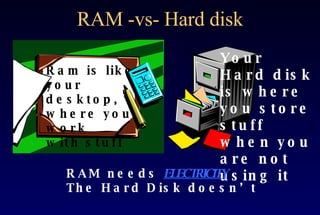
RAM -vs- Hard disk Ram is like your desktop, where you work  with stuff Your Hard disk is where you store stuff  when you are not using it RAM needs  ELECTRICITY The Hard Disk doesn’t
LETS PUT IT ALL TOGETHER THE USER ENTERS COMMANDS  - Type something on the keyboard THE CPU  - Interprets your request  - Takes the appropriate action INFORMATION (DATA) IS  - Retrieved from the disk drive    - Stored in RAM
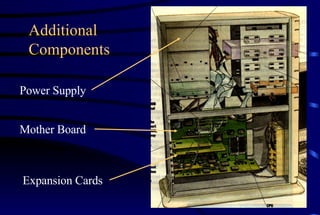
Mother Board Power Supply Expansion Cards Additional Components
NOW THAT YOU KNOW HOW COMPUTERS WORK Lets look at a typical computer advertisement
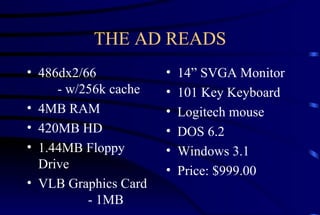
THE AD READS 486dx2/66 - w/256k cache 4MB RAM 420MB HD 1.44MB Floppy Drive VLB Graphics Card  - 1MB 14” SVGA Monitor 101 Key Keyboard Logitech mouse DOS 6.2 Windows 3.1 Price: $999.00
CONGRATULATIONS You have now purchased a new computer. Next, we will learn how to control the computer using DOS.
WE’RE OFF to the land of DOS

B Intro2 Pc

  • 1.
  • 2.
    Learning to Use a Computer is Easy, Right???
  • 3.
    Where Do IStart? Square One Introduction to Personal Computers
  • 4.
    Today's ObjectivesWhat is Hardware Read and understand a computer advertisement
  • 5.
    TECHNO-BABBLE??? BITS BYTESRAM ROM HARD DISK FLOPPY DISK CPU CD-ROM MOTHER BOARD MOUSE VGA POSTSCRIPT MONITOR MHZ 386 AT DATA
  • 6.
    Bits, Bytes andASCII An introduction to the inner workings of a computer system...
  • 7.
    Bits, Bytes andASCII What do you see in your mind’s eye when you concentrate on the yellow box below... A
  • 8.
    Bits, Bytes andASCII A What is a generic term that could be used to describe this image that you see in your mind’s eye?
  • 9.
    Bits, Bytes andASCII AT How about now? What does this grouping of two symbols cause your mind’s eye to see?
  • 10.
    Bits, Bytes andASCII CAT How about now? What do you see in your mind’s eye?
  • 11.
    Bits, Bytes andASCII So, it seems that we use grouping of symbols to generate pictures in our mind’s eye. CAT =
  • 12.
    But can acomputer recognize a symbol? What type of information can a computer recognize? Bits, Bytes and ASCII
  • 13.
    Bits, Bytes andASCII Computers can only recognize one form of information: there is electricity present ( on ), or there is no electricity present ( off ). This binary condition is called a BIT . A “BIT” is an acronymn, it stands for B INARY DIG IT
  • 14.
    Bits, Bytes andASCII Take a quick scan around this room. What could we use as an example of a B INARY DIG IT Remember, we need something that only has two possible states, on and off .
  • 15.
    1 BIT ComputerComputer Keyboard CRT ? Off On Let’s start out with a simplistic design using a single light switch to signal the CPU as to which symbol we want displayed on the CRT...
  • 16.
    1 BIT ComputerComputer Keyboard CRT ? Off On Next, we need to establish some way of telling the CPU which symbol is to be displayed on the CRT when the switch is either in the ON or OFF position...
  • 17.
    1 BIT Computer= A = B off on Computer Keyboard CRT ? Off On This conversion chart shown above is called a truth table...
  • 18.
    1 BIT Computer= A = B off on Computer Keyboard CRT on Off On So, with the switch flipped to the ON position, what symbol shows up on the CRT?
  • 19.
    1 BIT Computer= A = B off on Computer Keyboard CRT on Off On B Right, an ON = B
  • 20.
    1 BIT ComputerComputer Keyboard CRT on Off On B Now this design leaves a little bit to be desired... Assuming that we want to display more than just two symbols, what do we need to do to our design?
  • 21.
    2 BIT Computer= A = B = C = D off on off on off off on on Computer Keyboard CRT on off Off On So what symbol does this sequence of switches create?
  • 22.
    2 BIT Computer= A = B = C = D off on off on off off on on Computer Keyboard CRT on off Off On C Right, ON + OFF = C
  • 23.
    BITs as colors= BLUE = RED = GREEN = WHITE off on off on off off on on Computer Keyboard CRT on off Off On We are not limited to only symbols, here we can make switches effect color on the CRT!
  • 24.
    BITs as colors= BLUE = RED = GREEN = WHITE off on off on off off on on Computer Keyboard CRT on off Off On Here ON + OFF = Green
  • 25.
    3 BIT Computer= A = B = C = D = E = F = G = H off on off on off on off on off off on on off off on on off off off off on on on on Computer Keyboard CRT on off on Off On What will this sequence produce on the CRT?
  • 26.
    3 BIT Computer= A = B = C = D = E = F = G = H off on off on off on off on off off on on off off on on off off off off on on on on Computer Keyboard CRT on off on Off On F
  • 27.
    3 BIT Computer= A = B = C = D = E = F = G = H off on off on off on off on off off on on off off on on off off off off on on on on Right about now we need to resolve a minor problem affecting our efficency. We could spend the better part of our careers writing on and off down every time we want to indicate a binary condition...
  • 28.
    3 BIT Computer= A = B = C = D = E = F = G = H off on off on off on off on off off on on off off on on off off off off on on on on So lets create a shorthand notation for on and off ... Lets use the symbol for the number 0 to equal to an off condition, and lets, use the symbol for the number 1 to equal an on condition...
  • 29.
    3 BIT Computer= Using this notation, the above two tables are equal = A = B = C = D = E = F = G = H off on off on off on off on off off on on off off on on off off off off on on on on = A = B = C = D = E = F = G = H 0 1 0 1 0 1 0 1 0 0 1 1 0 0 1 1 0 0 0 0 1 1 1 1
  • 30.
    3 BIT ComputerComputer Keyboard CRT on off on Off On F = A = B = C = D = E = F = G = H 0 1 0 1 0 1 0 1 0 0 1 1 0 0 1 1 0 0 0 0 1 1 1 1
  • 31.
    4 BIT ComputerComputer Keyboard CRT = A = B = C = D = E = F = G = H = I = J = K = L = M = N = O = P 0 1 0 1 0 1 0 1 0 1 0 1 0 1 0 1 0 0 1 1 0 0 1 1 0 0 1 1 0 0 1 1 0 0 0 0 1 1 1 1 0 0 0 0 1 1 1 1 0 0 0 0 0 0 0 0 1 1 1 1 1 1 1 1 0 1 1 0 Off On CRT will display?
  • 32.
    4 BIT ComputerComputer Keyboard CRT = A = B = C = D = E = F = G = H = I = J = K = L = M = N = O = P 0 1 0 1 0 1 0 1 0 1 0 1 0 1 0 1 0 0 1 1 0 0 1 1 0 0 1 1 0 0 1 1 0 0 0 0 1 1 1 1 0 0 0 0 1 1 1 1 0 0 0 0 0 0 0 0 1 1 1 1 1 1 1 1 0 1 1 0 Off On G
  • 33.
    BIT Based Structureon/off = bit (1) 1010 = nibble (4) 10101010 = byte (8) 1010101010101010 = word (16) 10101010101010101010101010101010 = dword (32) 101011010101010101010101010101010101010101010101010101010 = qword (64) Bit ==> Nibble ==> Byte ==> Word ==> Dword ==> Qword
  • 34.
    BIT Based Structure0 1 0 0 0 0 0 1 Byte Keystroke Bit = A ASCII
  • 35.
    HOW SIZE ISMEASURED One byte = One keystroke
  • 36.
    MULTIPLE BYTES KILOBYTES (KB) = 1000 bytes MEGABYTES (MB) = 1,000,000 bytes GIGABYTES (GB) = 1,000,000,000 bytes TERABYTES (TB) = 1,000,000,000,000 bytes
  • 37.
    FOUR PARTS OFA COMPUTER CENTRAL PROCESSING UNIT (CPU) INPUT DEVICES OUTPUT DEVICES STORAGE DEVICES
  • 38.
    CENTRAL PROCESSING UNITMICROPROCESSOR CHIP - Often called the CPU MEMORY - ROM (Read only memory) - RAM (Random access memory)
  • 39.
    Microprocessor Chip CentralProcessing Unit (CPU)
  • 40.
    The CPU The Decision Maker Processor Speed Mhz
  • 41.
    8088 - “PC”1981 8 bits PC - 4.77 mhz
  • 42.
    8086 - “XT”1983 8 bits 10 mhz Apple introduces the “Mac”
  • 43.
    80286 - “AT”1984 16 bits 10 - 16 mhz HD Disk Drives
  • 44.
    80386 - “386”1986 32 bits - Multi-tasking 16 - 33 mhz SX -vs- DX Windows
  • 45.
    80486 - “486”1989 32 bits 25 - 66 mhz SX -vs- DX
  • 46.
    80586 - “ThePentium” 1993 64 bit processor 60 - 250 mhz Any Operating System
  • 47.
    MEMORY ROM (Readonly memory) RAM (Random access memory)
  • 48.
    ROM ROM isused to store information that you do not want to change. For example, there are certain things a computer does when you turn it on. You do not want these to change so they are stored in ROM memory
  • 49.
    RAM For yourcomputer to be functional it needs to be able to process different information at various times. For example, you want to write a letter. Then you want to play a game of tetris. These are different functions that the computer will need to think about.
  • 50.
    MORE RAM Foryou to use a program it must be loaded into RAM memory. When you change to another program, you are - removing the current program from RAM memory - loading the new program into RAM memory In effect, you are changing the computers mind.
  • 51.
    RAM CHIPS (in banks)
  • 52.
  • 53.
    INPUT DEVICES KEYBOARDMICE SCANNERS LIGHT PENS BAR CODE SCANNERS
  • 54.
    Key Boards 96Standard 101 Standard Extra Keys Function Keys Numeric Key Pad Booster Keys (CTRL, ALT, SHIFT.) Special Keys
  • 55.
  • 56.
    OUTPUT DEVICES IMPACTPRINTERS INK JET PRINTERS LASER PRINTERS PLOTTERS MONITORS
  • 57.
    Printers Impact PrintersDaisy Wheel Dot Matrix 9 pin and 24 pin Ink Jet Laser
  • 58.
    Monitors Monochrome (MGA) No color, No graphics Color Graphics Adapter (CGA) Four Colors Extended Graphics Adapter (EGA) 16 Colors Video Graphics Adapter (VGA) 128 Colors Super Video Graphics Adapter (SVGA) 1024 Colors
  • 59.
  • 60.
    STORAGE DEVICESHARD DRIVES FLOPPY DRIVES COMPACT LASER DISKS TAPE CD-ROM
  • 61.
    DISKETTE SIZES 5.25Inch 360, 000 BYTES LABLED AS DSDD DOUBLE SIDED DOUBLE DENSITY 1,200,000 BYTES LABLED AS DSHD DOUBLE SIDED HIGH DENSITY 3.5 740,000 BYTES LABLED AS DSDD DOUBLE SIDED DOUBLE DENSITY 1,400,000 BYTES LABLED AS DSHD DOUBLE SIDED HIGH DENSITY
  • 62.
    HARD DRIVES INTERNALSTORAGE DEVICE USUALLY IN MEGABYTES (MEGS) TODAY - Though this is changing to gigabytes USED TO STORE - Operating system - Application software (programs) - Data (the things you produce)
  • 63.
  • 64.
    RAM -vs- Harddisk Ram is like your desktop, where you work with stuff Your Hard disk is where you store stuff when you are not using it RAM needs ELECTRICITY The Hard Disk doesn’t
  • 65.
    LETS PUT ITALL TOGETHER THE USER ENTERS COMMANDS - Type something on the keyboard THE CPU - Interprets your request - Takes the appropriate action INFORMATION (DATA) IS - Retrieved from the disk drive - Stored in RAM
  • 66.
    Mother Board PowerSupply Expansion Cards Additional Components
  • 67.
    NOW THAT YOUKNOW HOW COMPUTERS WORK Lets look at a typical computer advertisement
  • 68.
    THE AD READS486dx2/66 - w/256k cache 4MB RAM 420MB HD 1.44MB Floppy Drive VLB Graphics Card - 1MB 14” SVGA Monitor 101 Key Keyboard Logitech mouse DOS 6.2 Windows 3.1 Price: $999.00
  • 69.
    CONGRATULATIONS You havenow purchased a new computer. Next, we will learn how to control the computer using DOS.
  • 70.
    WE’RE OFF tothe land of DOS

Editor's Notes

  • #2 File name: Intro2pc.ppt This presentation explains the block diagram of a computer system and how to read a computer advertisement.