REPORTER
FACEBOOK ADS MANAGER
Jomar V. Dais Isidro P. Oliveros
REPORTER
Facebook Ads Manager
 Ads Manager is an ad management tool to make, edit and
analyze paid promotional Facebook campaigns. Facebook
recently combined Ads Manager and Power Editor into one
platform to make it easier to create and monitor social
media ad campaigns across multiple advertising platforms
owned by Facebook, including Instagram ads.
HOW FACEBOOK ADS
MANAGER WORK?
Ads Manager is your starting point for running ads on
Facebook, Instagram, Messenger or Audience Network.
It's an all-in-one tool for creating ads, managing when
and where they'll run, and tracking how well your
campaigns are performing towards your marketing
goals.
HOW TO CREATE FACEBOOK ADS
MANAGER?
 Getting started with Ads Manager.
 Make sure you have a Facebook Business Page. Once you
create a Page, you'll automatically have an Ads Manager
account.
 View your ad account settings to confirm your account
information.
 Set up your payment method.
 Learn more about creating an ad to launch your first
campaign
How Do I Use Facebook Ads Manager?
 There are two ways to use Facebook Ads Manager to make
a new campaign: guided creation and quick creation.
Switch between the two by clicking the button “Switch to
Guided Creation” or “Switch to Quick Creation.”
What Is Quick Creation?
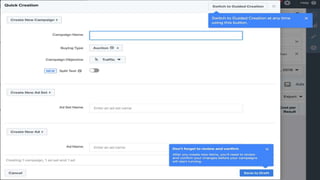
 Quick creation allows you to choose your Facebook ad settings and names for
ads, ad sets and campaigns in one window.
Features of Facebook Ads Manager
include:
 Choose which devices to display ads (desktop, mobile or both)
 Select where on page to include ads (News Feed, Right-Hand Column)
 Upload contact lists for custom targeting
 Locate people similar to your target audiences
 Use A/B testing to see the most effective ad elements and strategies
 What Is Guided Creation & How to Use It
 Guided creation acts as a step-by-step guide for beginners to create entirely
new Facebook ad campaigns. Follow these steps:
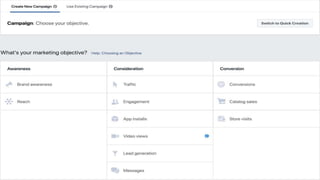
 1. Choose the Marketing Objective Based on Your Business/Revenue Goals
For example, if you want to increase the overall number of users who see
your ad, choose “Reach” under the “Awareness” heading. Type in the
“Campaign Name.” Be as specific as necessary, especially if you have multiple
campaigns at the same time.
 2. Set Up Your Ad Account
In the next window, set up your ad account by selecting info, including
country, currency and time zone. Choose your currency and time zone
carefully because you will not be able to change these settings again unless
you create a new ad account. Facebook will record data for billing and
reporting purposes based on your currency and time zone info. Click Show
Advanced Options to name your ad account.
 3. Click the Option to Create One Ad Set or Several Ad Sets
Choose between the tabs “Create New Ad Set” or “Create Multiple Ad Sets.” “Ad Sets” let you choose various
sets that can differ between audience, locations and more.
 4. Select the Facebook Page for the Ad Set From the Drop-Down Menu
If you don’t see the page you want, click the “+” button to create a new page.
 5. Determine Details for Your Audience, Including Locations & Demographics
Make a custom audience for improved targeting by creating lists of visitors, leads or customers. Add other
audience info, including location, age range, gender and languages. Include detailed targeting to match
audience with desired demographic, interest or behaviors. Next to “Connections,” select connection type to
reach those who have fulfilled a specific action, such as liking your page, and meet your targeting criteria.
 6. Choose Placements of Your Ad
Ad placements include Facebook, Instagram, Audience Network and Messenger. Choose to leave some
placements out with the “Edit Placements” option or pick “Automatic Placements” to automatically optimize ad
displays.

 7. Pick Optimization & Delivery Options
These include whether you’re optimizing “reach” or “impressions,” how often
your ad appears, bid strategy and more.
 8. Set Your Budget & the Date Ads Start Appearing
Select how much to allocate your ad budget toward your ad sets, your total
budget and the starting schedule for set.
Pros of Facebook Ads Manager
 The pros of Facebook Ads Manager include:
 Edit ads or campaigns mass (calls-to-action, bids, budgets, audiences, etc.)
 Manage campaigns across Facebook, Instagram and Audience Network
 Include variations in audiences, locations and more
 Use the built-in analysis tool called Ads Reporting
 Set your campaigns and ad sets to suit your budget
Cons of Facebook Ads Manager
 Unless you are paying facebook ads , no one sees your
content and this is a big con to facebook advertising .
Many marketers who are not interested in paying to share
their content on Facebook will not be able to benefits
from the platforms.
When was facebook ads manager launched?
 2007: Facebook officially launches its Facebook ads
platform.
WHAT BENFITS OF FACEBOOK ADS MANAGER?
4 Advantages of Facebook Ads Manager to Maximize Business Ads
Wider advertising platform. ...
Multiple objective options in Facebook Ads Manager. ...
Various ad format options. ...
More specific and relevant audiences.

FACEBOOK ADS MANAGER

  • 1.
    REPORTER FACEBOOK ADS MANAGER JomarV. Dais Isidro P. Oliveros REPORTER
  • 2.
    Facebook Ads Manager Ads Manager is an ad management tool to make, edit and analyze paid promotional Facebook campaigns. Facebook recently combined Ads Manager and Power Editor into one platform to make it easier to create and monitor social media ad campaigns across multiple advertising platforms owned by Facebook, including Instagram ads.
  • 3.
    HOW FACEBOOK ADS MANAGERWORK? Ads Manager is your starting point for running ads on Facebook, Instagram, Messenger or Audience Network. It's an all-in-one tool for creating ads, managing when and where they'll run, and tracking how well your campaigns are performing towards your marketing goals.
  • 4.
    HOW TO CREATEFACEBOOK ADS MANAGER?  Getting started with Ads Manager.  Make sure you have a Facebook Business Page. Once you create a Page, you'll automatically have an Ads Manager account.  View your ad account settings to confirm your account information.  Set up your payment method.  Learn more about creating an ad to launch your first campaign
  • 5.
    How Do IUse Facebook Ads Manager?  There are two ways to use Facebook Ads Manager to make a new campaign: guided creation and quick creation. Switch between the two by clicking the button “Switch to Guided Creation” or “Switch to Quick Creation.”
  • 7.
    What Is QuickCreation?  Quick creation allows you to choose your Facebook ad settings and names for ads, ad sets and campaigns in one window.
  • 10.
    Features of FacebookAds Manager include:  Choose which devices to display ads (desktop, mobile or both)  Select where on page to include ads (News Feed, Right-Hand Column)  Upload contact lists for custom targeting  Locate people similar to your target audiences  Use A/B testing to see the most effective ad elements and strategies
  • 11.
     What IsGuided Creation & How to Use It  Guided creation acts as a step-by-step guide for beginners to create entirely new Facebook ad campaigns. Follow these steps:  1. Choose the Marketing Objective Based on Your Business/Revenue Goals For example, if you want to increase the overall number of users who see your ad, choose “Reach” under the “Awareness” heading. Type in the “Campaign Name.” Be as specific as necessary, especially if you have multiple campaigns at the same time.  2. Set Up Your Ad Account In the next window, set up your ad account by selecting info, including country, currency and time zone. Choose your currency and time zone carefully because you will not be able to change these settings again unless you create a new ad account. Facebook will record data for billing and reporting purposes based on your currency and time zone info. Click Show Advanced Options to name your ad account.
  • 12.
     3. Clickthe Option to Create One Ad Set or Several Ad Sets Choose between the tabs “Create New Ad Set” or “Create Multiple Ad Sets.” “Ad Sets” let you choose various sets that can differ between audience, locations and more.  4. Select the Facebook Page for the Ad Set From the Drop-Down Menu If you don’t see the page you want, click the “+” button to create a new page.  5. Determine Details for Your Audience, Including Locations & Demographics Make a custom audience for improved targeting by creating lists of visitors, leads or customers. Add other audience info, including location, age range, gender and languages. Include detailed targeting to match audience with desired demographic, interest or behaviors. Next to “Connections,” select connection type to reach those who have fulfilled a specific action, such as liking your page, and meet your targeting criteria.  6. Choose Placements of Your Ad Ad placements include Facebook, Instagram, Audience Network and Messenger. Choose to leave some placements out with the “Edit Placements” option or pick “Automatic Placements” to automatically optimize ad displays. 
  • 13.
     7. PickOptimization & Delivery Options These include whether you’re optimizing “reach” or “impressions,” how often your ad appears, bid strategy and more.  8. Set Your Budget & the Date Ads Start Appearing Select how much to allocate your ad budget toward your ad sets, your total budget and the starting schedule for set. Pros of Facebook Ads Manager  The pros of Facebook Ads Manager include:  Edit ads or campaigns mass (calls-to-action, bids, budgets, audiences, etc.)  Manage campaigns across Facebook, Instagram and Audience Network  Include variations in audiences, locations and more  Use the built-in analysis tool called Ads Reporting  Set your campaigns and ad sets to suit your budget
  • 14.
    Cons of FacebookAds Manager  Unless you are paying facebook ads , no one sees your content and this is a big con to facebook advertising . Many marketers who are not interested in paying to share their content on Facebook will not be able to benefits from the platforms.
  • 15.
    When was facebookads manager launched?  2007: Facebook officially launches its Facebook ads platform.
  • 16.
    WHAT BENFITS OFFACEBOOK ADS MANAGER? 4 Advantages of Facebook Ads Manager to Maximize Business Ads Wider advertising platform. ... Multiple objective options in Facebook Ads Manager. ... Various ad format options. ... More specific and relevant audiences.