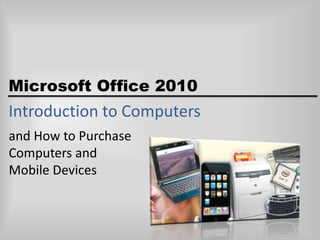
Microsoft Office 2010

Introduction to Computers
and How to Purchase
Computers and
Mobile Devices
Objectives
• Define the term computer and discuss the four basic
computer operations: input, process, output, and
storage
• Define data and information
• Identify the differences among desktop computers,
notebook computers, and mobile devices
• Explain the primary components of the computer
and their use
• Describe the use of hard disks, flash memory, optical
discs, and other storage media
Microsoft Office 2010: Introduction to Computers

2
Objectives
• Discuss computer software and explain the
difference between system software and
application software
• Identify several types of application software
• Discuss the Internet and World Wide Web
• Describe various types of Internet and network
attacks and how to protect against them
• Explain how to purchase computers and mobile
devices
Microsoft Office 2010: Introduction to Computers

3
What Is a Computer?
• An electronic device, operating under the control
of instructions stored in its own memory, that
can:
– Accept data (input)
– Process the data according to specified rules
(process)
– Produce results (output)
– Store the results (storage) for future use

Microsoft Office 2010: Introduction to Computers

4
What Is a Computer?

Microsoft Office 2010: Introduction to Computers

5
What is a Computer?
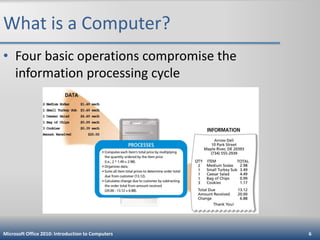
• Four basic operations compromise the
information processing cycle

Microsoft Office 2010: Introduction to Computers

6
The Components of a Computer
• The six primary components of a computer are
input devices, the processor (control unit and
arithmetic/logic unit), memory, output devices,
storage devices, and communications devices
• The processor, memory, and storage devices are
housed in a box-like case called the system unit
• A peripheral is a device that connects to the
system unit and is controlled by the processor in
the computer
Microsoft Office 2010: Introduction to Computers

7
The Components of a Computer

Microsoft Office 2010: Introduction to Computers

8
Personal Computers
and Mobile Devices
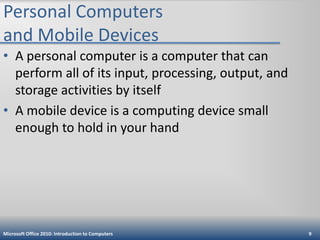
• A personal computer is a computer that can
perform all of its input, processing, output, and
storage activities by itself
• A mobile device is a computing device small
enough to hold in your hand

Microsoft Office 2010: Introduction to Computers

9
Personal Computers
and Mobile Devices
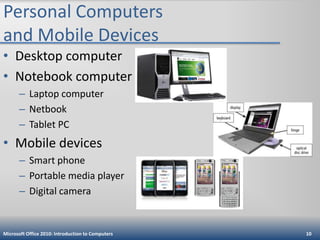
• Desktop computer
• Notebook computer
– Laptop computer
– Netbook
– Tablet PC

• Mobile devices
– Smart phone
– Portable media player
– Digital camera

Microsoft Office 2010: Introduction to Computers

10
Input Devices
• An input device is any hardware component that
allows you to enter data and instructions into a
computer
– A keyboard is an input device that contains keys users
press to enter data and instructions into the computer
– A stylus is a small metal or plastic device that looks like a
tiny ink pen, but uses pressure instead of ink
– A mouse is a pointing device that fits comfortably under
the palm of your hand
– Most notebook computers have a touchpad, a small, flat,
rectangular pointing device

Microsoft Office 2010: Introduction to Computers

11
Input Devices

Microsoft Office 2010: Introduction to Computers

12
Input Devices
• Other input for mobile devices

Microsoft Office 2010: Introduction to Computers

13
System Unit
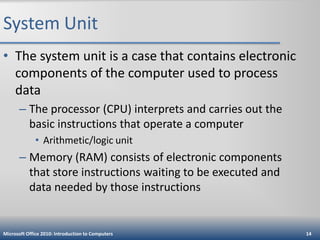
• The system unit is a case that contains electronic
components of the computer used to process
data
– The processor (CPU) interprets and carries out the
basic instructions that operate a computer
• Arithmetic/logic unit

– Memory (RAM) consists of electronic components
that store instructions waiting to be executed and
data needed by those instructions

Microsoft Office 2010: Introduction to Computers

14
System Unit

Microsoft Office 2010: Introduction to Computers

15
Output Devices
• Output devices are hardware components that
convey information to one or more people
• A printer is an output device that produces text
and graphics on a physical medium such as paper
•
•
•
•

Ink-jet printer
Photo printer
Laser printer
Multifunction peripheral (all-in-one device)

Microsoft Office 2010: Introduction to Computers

16
Output Devices

Microsoft Office 2010: Introduction to Computers

17
Display Devices
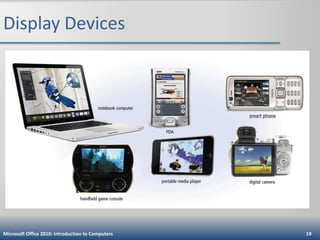
• A display device is an output device that visually
conveys text, graphics, and video information
– LCD monitors use a liquid
crystal display to produce
images on the screen

Microsoft Office 2010: Introduction to Computers

18
Display Devices

Microsoft Office 2010: Introduction to Computers

19
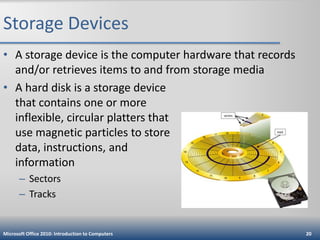
Storage Devices
• A storage device is the computer hardware that records
and/or retrieves items to and from storage media
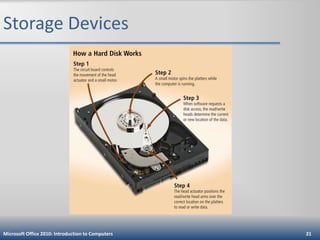
• A hard disk is a storage device
that contains one or more
inflexible, circular platters that
use magnetic particles to store
data, instructions, and
information
– Sectors
– Tracks

Microsoft Office 2010: Introduction to Computers

20
Storage Devices

Microsoft Office 2010: Introduction to Computers

21
Storage Devices
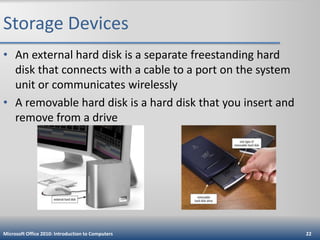
• An external hard disk is a separate freestanding hard
disk that connects with a cable to a port on the system
unit or communicates wirelessly
• A removable hard disk is a hard disk that you insert and
remove from a drive

Microsoft Office 2010: Introduction to Computers

22
Storage Devices
• Flash memory is a type of memory that can be erased
electronically and rewritten
– Solid state media
– A solid state drive (SSD) is a storage device that typically uses
flash memory to store data, instructions, and information

Microsoft Office 2010: Introduction to Computers

23
Storage Devices
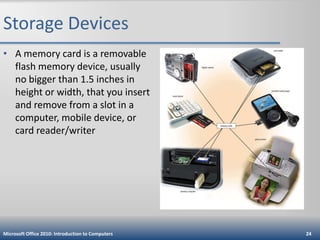
• A memory card is a removable
flash memory device, usually
no bigger than 1.5 inches in
height or width, that you insert
and remove from a slot in a
computer, mobile device, or
card reader/writer

Microsoft Office 2010: Introduction to Computers

24
Storage Devices
• A USB flash drive, sometimes
called a thumb drive, is a
flash memory storage device
that plugs into a USB port on
a computer or mobile device
• An ExpressCard module is a
removable device mobile
device that fits in an
ExpressCard slot

Microsoft Office 2010: Introduction to Computers

25
Storage Devices
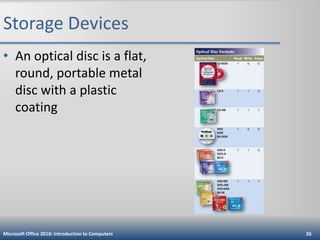
• An optical disc is a flat,
round, portable metal
disc with a plastic
coating

Microsoft Office 2010: Introduction to Computers

26
Storage Devices
• Cloud storage is an Internet service that provides
hard disk storage to computer users

Microsoft Office 2010: Introduction to Computers

27
Communications Devices
• A communications device is a hardware
component that enables a computer to send
(transmit) and receive data, instructions, and
information to and from one or more computers
or mobile devices
– Transmission media

Microsoft Office 2010: Introduction to Computers

28
Computer Software
• Software, also called a program, consists of a
series of related instructions, organized for a
common purpose, that tells the computer what
tasks to perform and how to perform them
– Graphical user interface
– Web application

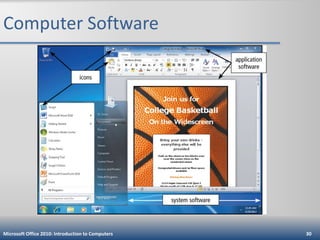
• System software consists of programs to control
the operations of computer and its devices
• Operating system
• Utility program
Microsoft Office 2010: Introduction to Computers

29
Computer Software

Microsoft Office 2010: Introduction to Computers

30
Computer Software
• Application software consists of programs
designed to make users more productive and/or
assist them with personal tasks
– Word processing
– Presentation
– Spreadsheet
– Database
– E-mail

Microsoft Office 2010: Introduction to Computers

31
Computer Software

Microsoft Office 2010: Introduction to Computers

32
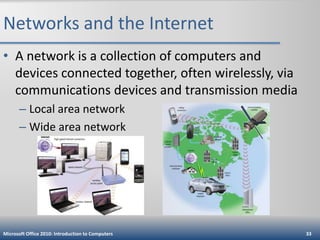
Networks and the Internet
• A network is a collection of computers and
devices connected together, often wirelessly, via
communications devices and transmission media
– Local area network
– Wide area network

Microsoft Office 2010: Introduction to Computers

33
Networks and the Internet
• The Internet is a worldwide collection of
networks that links millions of businesses,
government agencies, educational institutions,
and individuals
– Internet service provider (ISP)
– Online service provider (OSP)
– Wireless Internet service provider (WISP)

Microsoft Office 2010: Introduction to Computers

34
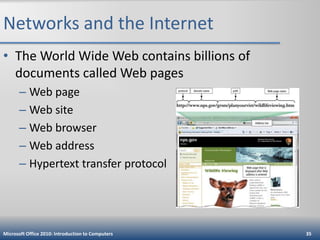
Networks and the Internet
• The World Wide Web contains billions of
documents called Web pages
– Web page
– Web site
– Web browser
– Web address
– Hypertext transfer protocol

Microsoft Office 2010: Introduction to Computers

35
Networks and the Internet
• When you conduct business activities online, you
are participating in electronic commerce, also
known as e-commerce
– Business to consumer (B2C)
– Consumer to consumer (C2C)
– Business to business (B2B)

Microsoft Office 2010: Introduction to Computers

36
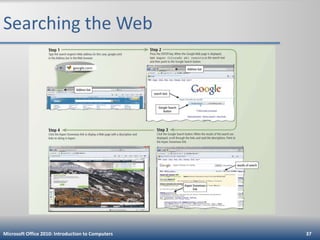
Searching the Web

Microsoft Office 2010: Introduction to Computers

37
Computer Viruses
and Other Malware
•
•
•
•
•

Computer virus
Worm
Trojan horse
Rootkit
An antivirus program protects a computer
against viruses by identifying and removing any
computer viruses found in memory, on storage
media, or on incoming files

Microsoft Office 2010: Introduction to Computers

38
Computer Viruses
and Other Malware

Microsoft Office 2010: Introduction to Computers

39
How to Purchase a Desktop Computer
• Determine the specific software to use on your
computer
• Know the system requirements of the operating
system
• Look for bundled software
• Avoid buying the least powerful computer
available
• Consider upgrades to the mouse, keyboard,
monitor, printer, microphone, and speakers
Microsoft Office 2010: Introduction to Computers

40
How to Purchase a Desktop Computer
• Determine whether to use a broadband or dial-up
connection to access the Internet
• Use a worksheet to compare computers, services, and
other considerations
• If you are buying a new computer, you have several
purchasing options: buying from a school bookstore, a
local computer dealer, a local large retail store, or ordering
by mail via telephone or the Web
• If you are buying a used computer, stay with name brands
such as Dell, Apple, HP, and Gateway
• If you have a computer and are upgrading to a new one,
then consider selling or trading in the old one

Microsoft Office 2010: Introduction to Computers

41
How to Purchase a Desktop Computer
•
•
•
•
•

Be aware of hidden costs
Consider more than just price
Avoid restocking fees
Use a credit card to purchase a new computer
Consider purchasing an extended warranty or
service plan

Microsoft Office 2010: Introduction to Computers

42
How to Purchase a Notebook Computer
• Determine which computer fits your mobile computing
needs
• Purchase a notebook computer with a sufficiently large
screen
• Experiment with different keyboards, pointing devices,
and digital pens
• Make sure the notebook computer you purchase has an
optical disc drive
• If necessary, upgrade the processor, memory, and disk
storage at the time of purchase
• The availability of built-in ports and slots and a USB hub
on a notebook computer is important

Microsoft Office 2010: Introduction to Computers

43
How to Purchase a Notebook Computer
• If you plan to use your notebook computer for notetaking at school or in meetings, consider a
convertible Tablet PC
• If you purchase a Tablet PC, determine whether you
require multi-touch technology
• Purchase a notebook computer with an integrated
Web cam
• Check with your wireless carrier to see if it offers
netbooks for sale
• Purchase a notebook computer with a built-in
wireless network connection
Microsoft Office 2010: Introduction to Computers

44
How to Purchase a Notebook Computer
• If you plan to use your notebook computer for long
periods without access to an electrical outlet,
purchase a second battery
• Purchase a well-padded and well-designed carrying
case
• If you plan to connect your notebook computer to a
video projector, make sure the notebook computer
is compatible with the video projector
• For improved security and convenience, consider a
fingerprint scanner
• Review the docking capabilities of the Tablet PC
Microsoft Office 2010: Introduction to Computers

45
How to Purchase a Smart Phone
• Choose a wireless carrier and plan that satisfies your
needs and budget
• Decide on the size, style, and weight of the smart phone
that will work best for you
• Determine whether you prefer a touch screen, keypad,
or mini-keyboard
• If you will be synchronizing your smart phone with a
program on your computer, select a smart phone that is
compatible with the program you wish to use

Microsoft Office 2010: Introduction to Computers

46
How to Purchase a Smart Phone
• Compare battery life
• Make sure your smart phone has enough
memory and storage
• Check out the accessories

Microsoft Office 2010: Introduction to Computers

47
How to Purchase a
Portable Media Player
• Choose a device with sufficient storage capacity
• Determine which file formats your new portable
media player should support and how you will
add files to your library
• Consider a portable media player that can play
video
• Read reviews about the sound quality on the
portable media players you are considering

Microsoft Office 2010: Introduction to Computers

48
How to Purchase a
Portable Media Player
•
•
•
•

Select a size and style that works best for you
Check out additional memory cards
Consider rechargeable batteries
Stay within your budget

Microsoft Office 2010: Introduction to Computers

49
How to Purchase a Digital Camera
• Determine the type of digital camera that meets
your needs
• The digital camera with the highest resolution is
not always the best
• Consider size and weight
• Different cameras require different memory
cards
• Photo editing features can save you time
Microsoft Office 2010: Introduction to Computers

50
How to Purchase a Digital Camera
• Make sure that you can see the LCD screen easily
• Determine whether your pictures will require
you to zoom
• Price is important
• Know your batteries
• Purchase accessories

Microsoft Office 2010: Introduction to Computers

51
Summary
• Define the term computer and discuss the four basic
computer operations: input, process, output, and
storage
• Define data and information
• Identify the differences among desktop computers,
notebook computers, and mobile devices
• Explain the primary components of the computer
and their use
• Describe the use of hard disks, flash memory, optical
discs, and other storage media
Microsoft Office 2010: Introduction to Computers

52
Summary
• Discuss computer software and explain the
difference between system software and
application software
• Identify several types of application software
• Discuss the Internet and World Wide Web
• Describe various types of Internet and network
attacks and how to protect against them
• Explain how to purchase computers and mobile
devices
Microsoft Office 2010: Introduction to Computers

53
Microsoft Office 2010

Introduction to Computers
Complete

CSCI-200 Introduction to Computers

  • 1.
    Microsoft Office 2010 Introductionto Computers and How to Purchase Computers and Mobile Devices
  • 2.
    Objectives • Define theterm computer and discuss the four basic computer operations: input, process, output, and storage • Define data and information • Identify the differences among desktop computers, notebook computers, and mobile devices • Explain the primary components of the computer and their use • Describe the use of hard disks, flash memory, optical discs, and other storage media Microsoft Office 2010: Introduction to Computers 2
  • 3.
    Objectives • Discuss computersoftware and explain the difference between system software and application software • Identify several types of application software • Discuss the Internet and World Wide Web • Describe various types of Internet and network attacks and how to protect against them • Explain how to purchase computers and mobile devices Microsoft Office 2010: Introduction to Computers 3
  • 4.
    What Is aComputer? • An electronic device, operating under the control of instructions stored in its own memory, that can: – Accept data (input) – Process the data according to specified rules (process) – Produce results (output) – Store the results (storage) for future use Microsoft Office 2010: Introduction to Computers 4
  • 5.
    What Is aComputer? Microsoft Office 2010: Introduction to Computers 5
  • 6.
    What is aComputer? • Four basic operations compromise the information processing cycle Microsoft Office 2010: Introduction to Computers 6
  • 7.
    The Components ofa Computer • The six primary components of a computer are input devices, the processor (control unit and arithmetic/logic unit), memory, output devices, storage devices, and communications devices • The processor, memory, and storage devices are housed in a box-like case called the system unit • A peripheral is a device that connects to the system unit and is controlled by the processor in the computer Microsoft Office 2010: Introduction to Computers 7
  • 8.
    The Components ofa Computer Microsoft Office 2010: Introduction to Computers 8
  • 9.
    Personal Computers and MobileDevices • A personal computer is a computer that can perform all of its input, processing, output, and storage activities by itself • A mobile device is a computing device small enough to hold in your hand Microsoft Office 2010: Introduction to Computers 9
  • 10.
    Personal Computers and MobileDevices • Desktop computer • Notebook computer – Laptop computer – Netbook – Tablet PC • Mobile devices – Smart phone – Portable media player – Digital camera Microsoft Office 2010: Introduction to Computers 10
  • 11.
    Input Devices • Aninput device is any hardware component that allows you to enter data and instructions into a computer – A keyboard is an input device that contains keys users press to enter data and instructions into the computer – A stylus is a small metal or plastic device that looks like a tiny ink pen, but uses pressure instead of ink – A mouse is a pointing device that fits comfortably under the palm of your hand – Most notebook computers have a touchpad, a small, flat, rectangular pointing device Microsoft Office 2010: Introduction to Computers 11
  • 12.
    Input Devices Microsoft Office2010: Introduction to Computers 12
  • 13.
    Input Devices • Otherinput for mobile devices Microsoft Office 2010: Introduction to Computers 13
  • 14.
    System Unit • Thesystem unit is a case that contains electronic components of the computer used to process data – The processor (CPU) interprets and carries out the basic instructions that operate a computer • Arithmetic/logic unit – Memory (RAM) consists of electronic components that store instructions waiting to be executed and data needed by those instructions Microsoft Office 2010: Introduction to Computers 14
  • 15.
    System Unit Microsoft Office2010: Introduction to Computers 15
  • 16.
    Output Devices • Outputdevices are hardware components that convey information to one or more people • A printer is an output device that produces text and graphics on a physical medium such as paper • • • • Ink-jet printer Photo printer Laser printer Multifunction peripheral (all-in-one device) Microsoft Office 2010: Introduction to Computers 16
  • 17.
    Output Devices Microsoft Office2010: Introduction to Computers 17
  • 18.
    Display Devices • Adisplay device is an output device that visually conveys text, graphics, and video information – LCD monitors use a liquid crystal display to produce images on the screen Microsoft Office 2010: Introduction to Computers 18
  • 19.
    Display Devices Microsoft Office2010: Introduction to Computers 19
  • 20.
    Storage Devices • Astorage device is the computer hardware that records and/or retrieves items to and from storage media • A hard disk is a storage device that contains one or more inflexible, circular platters that use magnetic particles to store data, instructions, and information – Sectors – Tracks Microsoft Office 2010: Introduction to Computers 20
  • 21.
    Storage Devices Microsoft Office2010: Introduction to Computers 21
  • 22.
    Storage Devices • Anexternal hard disk is a separate freestanding hard disk that connects with a cable to a port on the system unit or communicates wirelessly • A removable hard disk is a hard disk that you insert and remove from a drive Microsoft Office 2010: Introduction to Computers 22
  • 23.
    Storage Devices • Flashmemory is a type of memory that can be erased electronically and rewritten – Solid state media – A solid state drive (SSD) is a storage device that typically uses flash memory to store data, instructions, and information Microsoft Office 2010: Introduction to Computers 23
  • 24.
    Storage Devices • Amemory card is a removable flash memory device, usually no bigger than 1.5 inches in height or width, that you insert and remove from a slot in a computer, mobile device, or card reader/writer Microsoft Office 2010: Introduction to Computers 24
  • 25.
    Storage Devices • AUSB flash drive, sometimes called a thumb drive, is a flash memory storage device that plugs into a USB port on a computer or mobile device • An ExpressCard module is a removable device mobile device that fits in an ExpressCard slot Microsoft Office 2010: Introduction to Computers 25
  • 26.
    Storage Devices • Anoptical disc is a flat, round, portable metal disc with a plastic coating Microsoft Office 2010: Introduction to Computers 26
  • 27.
    Storage Devices • Cloudstorage is an Internet service that provides hard disk storage to computer users Microsoft Office 2010: Introduction to Computers 27
  • 28.
    Communications Devices • Acommunications device is a hardware component that enables a computer to send (transmit) and receive data, instructions, and information to and from one or more computers or mobile devices – Transmission media Microsoft Office 2010: Introduction to Computers 28
  • 29.
    Computer Software • Software,also called a program, consists of a series of related instructions, organized for a common purpose, that tells the computer what tasks to perform and how to perform them – Graphical user interface – Web application • System software consists of programs to control the operations of computer and its devices • Operating system • Utility program Microsoft Office 2010: Introduction to Computers 29
  • 30.
    Computer Software Microsoft Office2010: Introduction to Computers 30
  • 31.
    Computer Software • Applicationsoftware consists of programs designed to make users more productive and/or assist them with personal tasks – Word processing – Presentation – Spreadsheet – Database – E-mail Microsoft Office 2010: Introduction to Computers 31
  • 32.
    Computer Software Microsoft Office2010: Introduction to Computers 32
  • 33.
    Networks and theInternet • A network is a collection of computers and devices connected together, often wirelessly, via communications devices and transmission media – Local area network – Wide area network Microsoft Office 2010: Introduction to Computers 33
  • 34.
    Networks and theInternet • The Internet is a worldwide collection of networks that links millions of businesses, government agencies, educational institutions, and individuals – Internet service provider (ISP) – Online service provider (OSP) – Wireless Internet service provider (WISP) Microsoft Office 2010: Introduction to Computers 34
  • 35.
    Networks and theInternet • The World Wide Web contains billions of documents called Web pages – Web page – Web site – Web browser – Web address – Hypertext transfer protocol Microsoft Office 2010: Introduction to Computers 35
  • 36.
    Networks and theInternet • When you conduct business activities online, you are participating in electronic commerce, also known as e-commerce – Business to consumer (B2C) – Consumer to consumer (C2C) – Business to business (B2B) Microsoft Office 2010: Introduction to Computers 36
  • 37.
    Searching the Web MicrosoftOffice 2010: Introduction to Computers 37
  • 38.
    Computer Viruses and OtherMalware • • • • • Computer virus Worm Trojan horse Rootkit An antivirus program protects a computer against viruses by identifying and removing any computer viruses found in memory, on storage media, or on incoming files Microsoft Office 2010: Introduction to Computers 38
  • 39.
    Computer Viruses and OtherMalware Microsoft Office 2010: Introduction to Computers 39
  • 40.
    How to Purchasea Desktop Computer • Determine the specific software to use on your computer • Know the system requirements of the operating system • Look for bundled software • Avoid buying the least powerful computer available • Consider upgrades to the mouse, keyboard, monitor, printer, microphone, and speakers Microsoft Office 2010: Introduction to Computers 40
  • 41.
    How to Purchasea Desktop Computer • Determine whether to use a broadband or dial-up connection to access the Internet • Use a worksheet to compare computers, services, and other considerations • If you are buying a new computer, you have several purchasing options: buying from a school bookstore, a local computer dealer, a local large retail store, or ordering by mail via telephone or the Web • If you are buying a used computer, stay with name brands such as Dell, Apple, HP, and Gateway • If you have a computer and are upgrading to a new one, then consider selling or trading in the old one Microsoft Office 2010: Introduction to Computers 41
  • 42.
    How to Purchasea Desktop Computer • • • • • Be aware of hidden costs Consider more than just price Avoid restocking fees Use a credit card to purchase a new computer Consider purchasing an extended warranty or service plan Microsoft Office 2010: Introduction to Computers 42
  • 43.
    How to Purchasea Notebook Computer • Determine which computer fits your mobile computing needs • Purchase a notebook computer with a sufficiently large screen • Experiment with different keyboards, pointing devices, and digital pens • Make sure the notebook computer you purchase has an optical disc drive • If necessary, upgrade the processor, memory, and disk storage at the time of purchase • The availability of built-in ports and slots and a USB hub on a notebook computer is important Microsoft Office 2010: Introduction to Computers 43
  • 44.
    How to Purchasea Notebook Computer • If you plan to use your notebook computer for notetaking at school or in meetings, consider a convertible Tablet PC • If you purchase a Tablet PC, determine whether you require multi-touch technology • Purchase a notebook computer with an integrated Web cam • Check with your wireless carrier to see if it offers netbooks for sale • Purchase a notebook computer with a built-in wireless network connection Microsoft Office 2010: Introduction to Computers 44
  • 45.
    How to Purchasea Notebook Computer • If you plan to use your notebook computer for long periods without access to an electrical outlet, purchase a second battery • Purchase a well-padded and well-designed carrying case • If you plan to connect your notebook computer to a video projector, make sure the notebook computer is compatible with the video projector • For improved security and convenience, consider a fingerprint scanner • Review the docking capabilities of the Tablet PC Microsoft Office 2010: Introduction to Computers 45
  • 46.
    How to Purchasea Smart Phone • Choose a wireless carrier and plan that satisfies your needs and budget • Decide on the size, style, and weight of the smart phone that will work best for you • Determine whether you prefer a touch screen, keypad, or mini-keyboard • If you will be synchronizing your smart phone with a program on your computer, select a smart phone that is compatible with the program you wish to use Microsoft Office 2010: Introduction to Computers 46
  • 47.
    How to Purchasea Smart Phone • Compare battery life • Make sure your smart phone has enough memory and storage • Check out the accessories Microsoft Office 2010: Introduction to Computers 47
  • 48.
    How to Purchasea Portable Media Player • Choose a device with sufficient storage capacity • Determine which file formats your new portable media player should support and how you will add files to your library • Consider a portable media player that can play video • Read reviews about the sound quality on the portable media players you are considering Microsoft Office 2010: Introduction to Computers 48
  • 49.
    How to Purchasea Portable Media Player • • • • Select a size and style that works best for you Check out additional memory cards Consider rechargeable batteries Stay within your budget Microsoft Office 2010: Introduction to Computers 49
  • 50.
    How to Purchasea Digital Camera • Determine the type of digital camera that meets your needs • The digital camera with the highest resolution is not always the best • Consider size and weight • Different cameras require different memory cards • Photo editing features can save you time Microsoft Office 2010: Introduction to Computers 50
  • 51.
    How to Purchasea Digital Camera • Make sure that you can see the LCD screen easily • Determine whether your pictures will require you to zoom • Price is important • Know your batteries • Purchase accessories Microsoft Office 2010: Introduction to Computers 51
  • 52.
    Summary • Define theterm computer and discuss the four basic computer operations: input, process, output, and storage • Define data and information • Identify the differences among desktop computers, notebook computers, and mobile devices • Explain the primary components of the computer and their use • Describe the use of hard disks, flash memory, optical discs, and other storage media Microsoft Office 2010: Introduction to Computers 52
  • 53.
    Summary • Discuss computersoftware and explain the difference between system software and application software • Identify several types of application software • Discuss the Internet and World Wide Web • Describe various types of Internet and network attacks and how to protect against them • Explain how to purchase computers and mobile devices Microsoft Office 2010: Introduction to Computers 53
  • 54.