Performing
Computer Operation
Competencies
LO 1 – Plan and prepare for task to be undertaken
LO 2 – Input data into computer
LO 3 – Accessing information using computer
Name Me!
Safety
Glasses
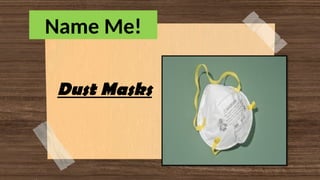
Name Me!
High-Visibility
Clothing
Name Me!
Dust Masks
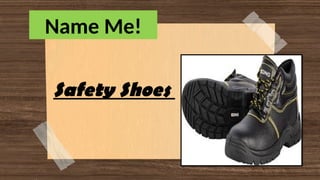
Name Me!
Safety Shoes
What do you notice about the pictures?
Lesson 1:
Performing Computer
Operation
Learning Outcomes:
LO 1 – Plan and prepare for task to be undertaken
LO 2 – Input data into computer
LO 3 – Accessing information using computer
OHS – Operational Health and Safety-
These are policies and procedures
which involve identifying hazard and
risk in order to protect the health and
safety of worker in the workplace.
Definition of Terms
Computer Hardware - Refers to
tangible parts of computer, like
mouse, keyboard monitor and
the like
Computer Software - It is a
collection of instructions that
interact with computer hardware
how to perform a task.
Application Software - A
program that performs
specific task.
Storage Device - A
computer hardware used
for storing and retrieving
data files.
Input Devices - Are
devices that helps user in
entering data into
computer.
Data - Can be in the form
of text, numbers, images
that has no value to
users.
What is
Computer?
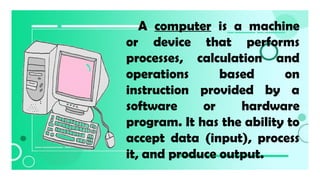
A computer is a machine
or device that performs
processes, calculation and
operations based on
instruction provided by a
software or hardware
program. It has the ability to
accept data (input), process
it, and produce output.
BASIC COMPUTER
0PERATIONS
Output Device
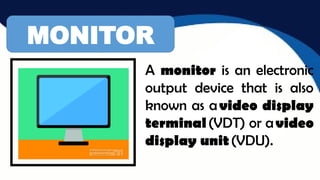
MONITOR
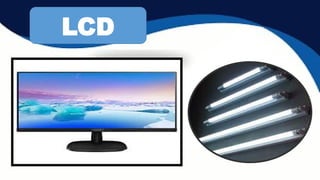
A monitor is an electronic
output device that is also
known as avideo display
terminal(VDT) or avideo
display unit(VDU).
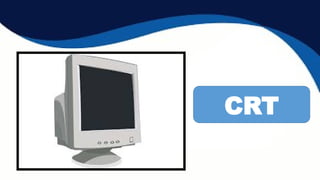
CRT
LCD
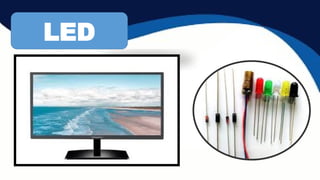
LED
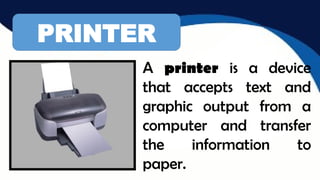
PRINTER
A printer is a device
that accepts text and
graphic output from a
computer and transfer
the information to
paper.
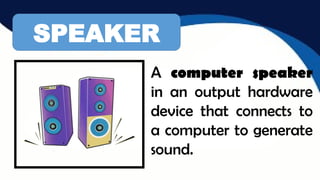
SPEAKER
A computer speaker
in an output hardware
device that connects to
a computer to generate
sound.
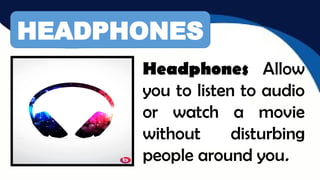
HEADPHONES
Headphones Allow
you to listen to audio
or watch a movie
without disturbing
people around you.
Input Device
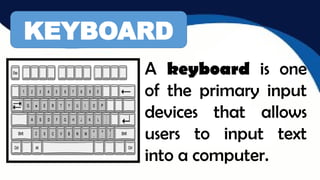
KEYBOARD
A keyboard is one
of the primary input
devices that allows
users to input text
into a computer.
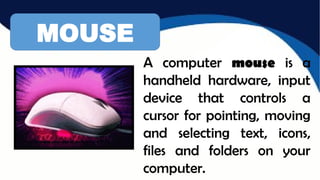
MOUSE
A computer mouse is a
handheld hardware, input
device that controls a
cursor for pointing, moving
and selecting text, icons,
files and folders on your
computer.
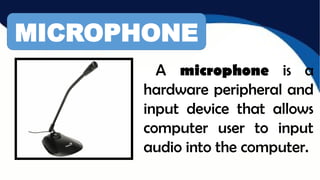
MICROPHONE
A microphone is a
hardware peripheral and
input device that allows
computer user to input
audio into the computer.
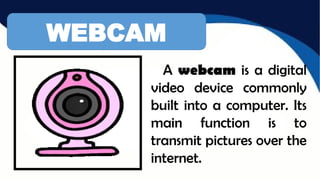
WEBCAM
A webcam is a digital
video device commonly
built into a computer. Its
main function is to
transmit pictures over the
internet.
Process Device
Storage Device
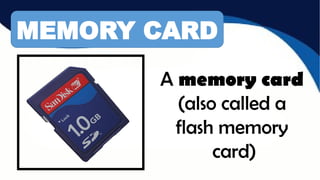
A memory card
(also called a
flash memory
card)
MEMORY CARD
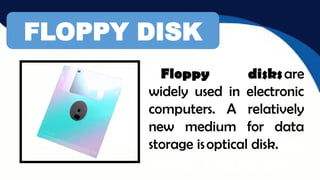
Floppy disksare
widely used in
electronic computers.
A relatively new
medium for data
storage isoptical disk.
Floppy disksare
widely used in electronic
computers. A relatively
new medium for data
storage isoptical disk.
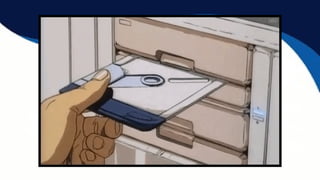
FLOPPY DISK
Floppy disksare
widely used in
electronic computers.
A relatively new
medium for data
storage isoptical disk.
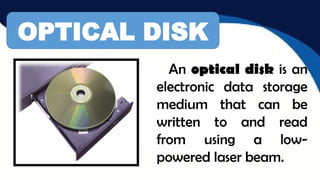
OPTICAL DISK
An optical disk is an
electronic data storage
medium that can be
written to and read
from using a low-
powered laser beam.
Assignment: Site on the
internet some examples
of common application
software. Write your
answer on your
assignment notebook.
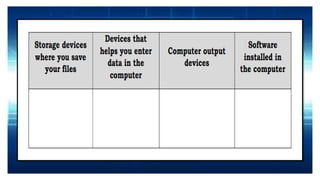
Give example of computer
components under Input
Device.
Give example of computer
components under output
device.
Give example of computer
components under
process device.
I have here different
pictures all you have to do
is to choose the best
answer on the given
choices.
A. MS Word
B. MS Excel
A. MS Access
B. MS Assess
A. MS Axcel
B. MS Excel
Some of the Common
Application Software
Used:
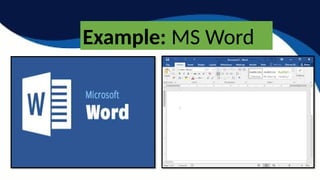
Word Processor
Is software that allows
users to create, edit, and
print documents.
Example: MS Word
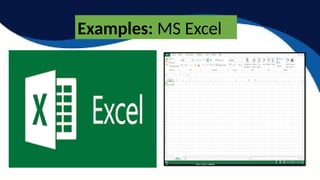
Spread Sheet
An electronic document in which
data is arranged in the rows and
columns of a grid and can be
manipulated and used in
calculations.
Examples: MS Excel
Database Software
Is an organized collection of
data, generally stored and
accessed electronically from a
computer system.
Example: MS Access
Presentation Software
These are programs that allow
users to create electronic
presentation for reports and
other functions in the form of
slides.
Example: MS Power Point
Desktop Publishing Software
Allows the user to manage visual
content, including page layout and
design to produce various materials,
such as books, pamphlets, reports
and booklets.
Example: MS Publisher,
Graphics Programs
These allow the creation
and manipulation of
graphics, images, objects,
and pictures.
Example: Photoshop
Educational Software
These include tutorials and
electronic lessons that give students
knowledge or training in a particular
subject or skill, such as Math or
Science or in gardening or cooking.
Computer Storage Devices
Computer need storage
devices before and after
processing the data to store
information and access later
Computer Storage
Device Can Be:
Fixed Storage Devices
Devices that is
attached inside the
computer unit
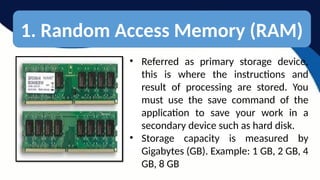
1. Random Access Memory (RAM)
• Referred as primary storage device,
this is where the instructions and
result of processing are stored. You
must use the save command of the
application to save your work in a
secondary device such as hard disk.
• Storage capacity is measured by
Gigabytes (GB). Example: 1 GB, 2 GB, 4
GB, 8 GB
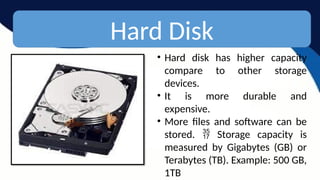
Hard Disk
• Hard disk has higher capacity
compare to other storage
devices.
• It is more durable and
expensive.
• More files and software can be
stored. Storage capacity is

measured by Gigabytes (GB) or
Terabytes (TB). Example: 500 GB,
1TB
Removable Storage Devices
Devices that can be detach
after use and use again
later to other computer.
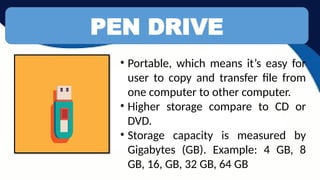
PEN DRIVE
• Portable, which means it’s easy for
user to copy and transfer file from
one computer to other computer.
• Higher storage compare to CD or
DVD.
• Storage capacity is measured by
Gigabytes (GB). Example: 4 GB, 8
GB, 16, GB, 32 GB, 64 GB
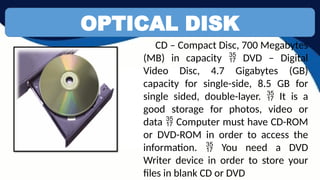
OPTICAL DISK
CD – Compact Disc, 700 Megabytes
(MB) in capacity DVD – Digital

Video Disc, 4.7 Gigabytes (GB)
capacity for single-side, 8.5 GB for
single sided, double-layer. It is a

good storage for photos, video or
data Computer must have CD-ROM

or DVD-ROM in order to access the
information. You need a DVD

Writer device in order to store your
files in blank CD or DVD
Cloud Storage
Some websites
offers free storage to
users. They just
need to sign up
before they can avail
these free storage.
Example of cloud
storage
Google drive
Box
OneDrive
iCloud
Dropbox
BT Cloud
Example of Cloud Storage
Google drive
 Box
OneDrive
 iCloud
 Dropbox
 BT Cloud
Identify what is being ask. Write
your answer on your activity
notebook.
1. Referred as primary storage
device, this is where the
instructions and result of
processing are stored.
2. These allow the creation
and manipulation of graphics,
images, objects, and pictures.
3. Is software that allows users
to create, edit, and print
documents.
4. Portable, which means it’s
easy for user to copy and
transfer file from one
computer to other computer.
5. These include tutorials and electronic
lessons that give students knowledge or
training in a particular subject or skill,
such as Math or Science or in gardening
or cooking.
Answer:
1. RAM
2. Graphics Program
3. Word Processor
4. Pen Drive
5. Educational Software
Assignment:
Research and understand the
Ways to Access Information in
Computer. We will have your
recitation tomorrow.
Name Me!
MS
Power
Point
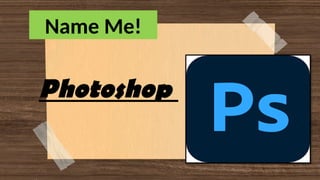
Name Me!
Photoshop
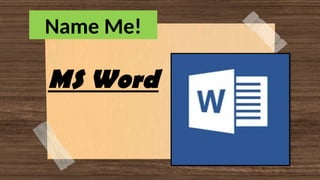
Name Me!
MS Word
Ways to Access
Information in Computer
A. Information Stored in a Computer
Method 1. Manually locate the file.
This method is applicable whether
your file is stored in hard disk, flash
drive, network drive, CD/DVD or
portable external hard disk
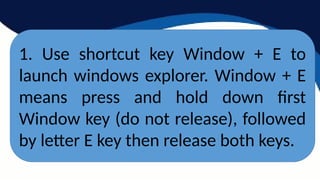
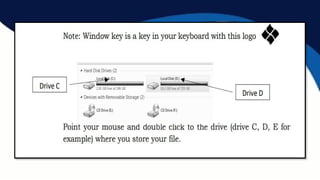
1. Use shortcut key Window + E to
launch windows explorer. Window + E
means press and hold down first
Window key (do not release), followed
by letter E key then release both keys.
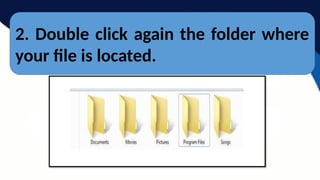
2. Double click again the folder where
your file is located.
3. Once you found your file,
double click the mouse to
open it.
Method 2. Using Search box.
(This method is applicable also in a
storage devices mentioned in Method 1.)
Your computer has a “Search” feature
where can type at least part of the
filename of your file, then computer will
find it for you.
1. Use shortcut key Window + E
to launch windows explorer.
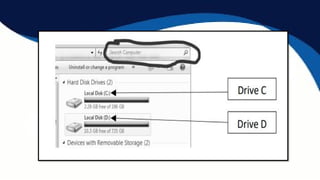
2. Open the drive letter
3. On the upper right corner of
the window, you will find the
search box.
4. Enter the filename you want to
search in search box and press
enter.
5. List of files will be displayed as
a result of search. Select your file
and double click to open it.
B. Information from Internet
Internet is a global information
library. It contains information
available for users. To be able to
search information in internet, your
computer must be connected in
internet and has a browser installed.
Internet – is a global
interconnection of network
computers that shares
information.
Browser – is a software use to
explore information from
internet.
Search Engine – is a
software accessed on the
internet that carry out
internet search.
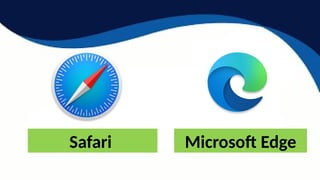
Some common browsers:
Google Chrome Mozilla Firefox
Safari Microsoft Edge
Opera Microsoft Internet
Explorer
Some common search engine:
google.com,
bing.com,
AOL.com,
ask.com,
yahoo.co
Steps to access
information from
internet
1. Connect to internet.

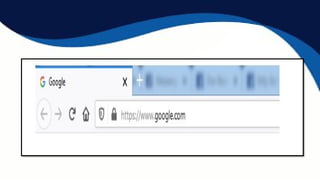
2. Open your browser.
3. In the address bar, type your
search engine web site then
press Enter.
1. Connect to internet.
2. Open your browser.
3. In the address bar, type your
search engine web site then
press Enter.
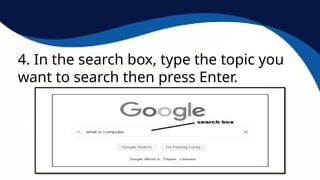
4. In the search box, type the topic you
want to search then press Enter.
5. The results will be
displayed for you to select.
Just click on the result you
want to open.
C. Information from Other Computer
1. Press Window key + E to open
explorer.
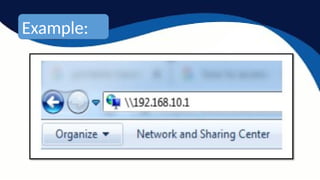
2. On the address bar, type  and
the IP address of other computer
you want to access then press
Enter.
Example:
3. Open the shared folder to access
your files
Enumerate the following
 (1-5) Give some common
search engine:
 (6-11)Give some common
browsers
Read your notes, prepare
for your summative test
tomorrow.
Life is just like computer. If
you don’t give any input, you
won’t get any output
-Devam Shah
Computer System Servicing - Week 2 - PCO.pptx

Computer System Servicing - Week 2 - PCO.pptx