INPUT AND OUTPUT DEVICES
PRESENTED BY
ANZALA NOOR (19011502-011)
DURE BATOOL (19011502-007)
ISMA KANWAL (19011502-024)
MUBEEN AKHTAR (19011502-004)
MADIHA SIDDIQUE (19011502-016)
INPUT DEVICES
PRESENTED BY
ANZALA NOOR (19011502-011)
INPUT AND
INPUT
DEVICES
• Anything that is given to the computer
such as data or instructions is called
input.
• Input devices:
Input devices are the devices from which we
can input data and instructions in the
computers. These devices send this data to
the processing unit. Several input devices
have been developed.
TYPES OF
INPUT
DEVICES
There are three general types of input
devices are
• Keyboard
• Pointing devices
• Source data-entry devices
And the basic input devices are
• Keyboard
• Stylus
• Digital camera
• Microphone
• Scanner
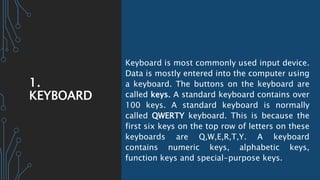
1.
KEYBOARD
Keyboard is most commonly used input device.
Data is mostly entered into the computer using
a keyboard. The buttons on the keyboard are
called keys. A standard keyboard contains over
100 keys. A standard keyboard is normally
called QWERTY keyboard. This is because the
first six keys on the top row of letters on these
keyboards are Q,W,E,R,T,Y. A keyboard
contains numeric keys, alphabetic keys,
function keys and special-purpose keys.
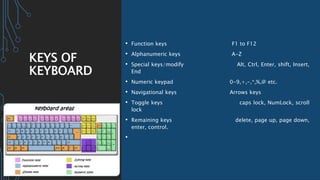
KEYS OF
KEYBOARD
• Function keys F1 to F12
• Alphanumeric keys A-Z
• Special keys/modify Alt, Ctrl, Enter, shift, Insert,
End
• Numeric keypad 0-9,+,-,*,%,@ etc.
• Navigational keys Arrows keys
• Toggle keys caps lock, NumLock, scroll
lock
• Remaining keys delete, page up, page down,
enter, control.
•
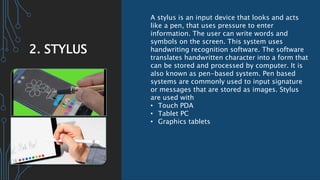
2. STYLUS
A stylus is an input device that looks and acts
like a pen, that uses pressure to enter
information. The user can write words and
symbols on the screen. This system uses
handwriting recognition software. The software
translates handwritten character into a form that
can be stored and processed by computer. It is
also known as pen-based system. Pen based
systems are commonly used to input signature
or messages that are stored as images. Stylus
are used with
• Touch PDA
• Tablet PC
• Graphics tablets
3.MICROPHO
NE
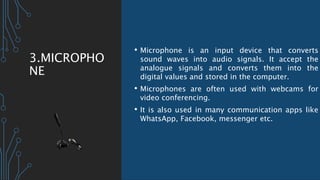
• Microphone is an input device that converts
sound waves into audio signals. It accept the
analogue signals and converts them into the
digital values and stored in the computer.
• Microphones are often used with webcams for
video conferencing.
• It is also used in many communication apps like
WhatsApp, Facebook, messenger etc.
4. DIGITAL
CAMERA
• Digital camera is an input device that takes
pictures and stores them as digital images.
• Digital camera store captured images on
storage in the camera or on some kind of
memory card.
• Photos taken with a digital camera are
typically transferred to a computer using a
wired or wireless connection.
• The number of digital photos depends on the
amount of memory in the camera.
• Many smartphones and other mobile devices
have built-in digital cameras.
• Digital cameras are available in a variety of
size and capability.
5. SCANNER
• Scanner is an input device. It is also called
Optical Reader or Digital Scanner.
• Scanner scans or reads text and picture
printed on a paper and enters them
directly into the computer memory.
• The advantage of a scanner is that the user
needs not type the input data in.
• The scanner takes electronic images, of
text or pictures from the paper and stores
them into the computer.
SCANNING
DEVICES
There are different scanning devices that
are used in the process of scanning. These
are as follows
• Magnetic-ink Character Recognition
Reader (MICR)
• Optical Mark recognition (OMR)
• Optical Character Recognition (OCR)
• Barcode reader
SOURCE
DATA ENTRY
DEVICES OR
SCANNING
DEVICES
• Source data entry devices:
Source data entry devices are used for direct
data entry to the computer system. These
devices provides a quick and efficient way to
input data.
• Types of scanning devices:
There are different scanning devices that are
used in the process of scanning. These are as
follows
• Magnetic-ink Character Recognition Reader
(MICR)
• Optical Mark recognition (OMR)
• Optical Character Recognition (OCR)
• Barcode reader
1.MAGNETIC
-INK
CHARACTER
RECOGNITIO
N READER
(MICR)
• Magnetic Ink Character Recognition is a
character recognition system that uses special
ink and characters. When a document that
contains this ink needs to be read, it passes
through a machine, which magnetizes the ink
and then translates the magnetic information
into characters. MICR technology is used by
banks. Numbers and characters found on the
bottom of checks (usually containing the
check number, sort number, and account
number) are printed using Magnetic Ink. To
print Magnetic Ink need, you need a laser
printer that accepts MICR toner.
• MICR provides a secure, high-speed method
EXAMPLES
OF MICR
• MICR code has 9 digits and is printed on
cheques to facilitate and expedite
clearance in banking system. Format of
MICR is as follow, first three digits are City
Code, second three digits are bank code
and last three are branch code.
Example: MICR -396002068. City - 396 ,
Bank - 002, Branch – 068.
2. OPTICAL
MARK
RECOGNITIO
N (OMR)
• Short for optical mark reading or optical
mark recognition, OMR is the process of
gathering information from human beings
by recognizing marks on a document.
OMR is accomplished by using a hardware
device (scanner) that detects a reflection
or limited light transmittance on or
through a piece of paper. OMR allows for
the processing of hundreds or thousands
of documents per hour.
EXAMPLE OF
OMR
• For example, students may recall taking
tests or surveys where they filled in
bubbles on paper with a pencil.
3. OPTICAL
CHARACTER
RECOGNITIO
N (OCR)
• Literally, OCR stands for Optical Character
Recognition. It is a widespread technology to
recognize text inside images, such as scanned
documents and photos. OCR technology is
used to convert virtually any kind of images
containing written text (typed, handwritten or
printed) into machine-readable text data. OCR
Technology became popular in the early
1990s while attempting to digitize historic
newspapers. Since then the technology has
underwent several improvements. Nowadays
solutions deliver near to perfect OCR accuracy.
Advanced methods like Zonal OCR are used to
4.BARCODE
READER
• A bar code reader can scan barcodes that have
been printed onto an object or is digitally available
as an image. Barcode readers tend to be an
electronic device that reads and outputs to a
computer. In most situations, the online barcode
scanner will also include a decoder, which will help
scan the encoded data. Barcode readers are usually
categorized by the type of technology that they
use. Also, each type of barcode scanner online may
be designed to decode certain codes, but not
all. Some common types include: pen-type
scanners, laser scanners, LED or CCD readers,
camera-based readers, and unidirectional online
barcode scanners.
BARCODE
READER
CONT.…
• A barcode is a set of lines of different widths
and sizes representing data, that when read
help identify the scanned object. Barcodes are
often used to help organize and index
information or prices about an object.
Barcodes used by the U.S. postal service that
helps speed the delivery of mail is another
perfect example of how a barcode could be
used. The picture is an example of what a
barcode of an address.
POINTING
DEVICES
Pointing Devices are used to control the
movement of the Pointer/curser/Arrow . A
pointer represents a small symbol on the
screen .
It can also be used for:
• Selecting items on the screen .
• Sending command signal to the computer.
• Drawing graphs etc.
TYPES OF
POINTING
DEVICES
1. Mouse
2. Track ball
3. Touch Pad
4. Pointing stick
5. Joy stick
6. Light Pen
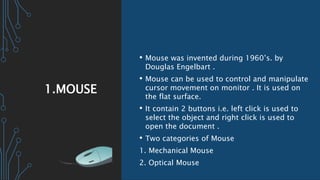
1.MOUSE
• Mouse was invented during 1960’s. by
Douglas Engelbart .
• Mouse can be used to control and manipulate
cursor movement on monitor . It is used on
the flat surface.
• It contain 2 buttons i.e. left click is used to
select the object and right click is used to
open the document .
• Two categories of Mouse
1. Mechanical Mouse
2. Optical Mouse
MECHANICA
L MOUSE
AND
OPTICAL
MOUSE
1. Mechanical mouse
• It contain a metal ball ate the bottom of
mouse that is used to control the position
of pointer .
• When the ball is rolled in any direction,
sensors inside the mouse detect this
motion and move the on-screen mouse
pointer in the same direction.
• It is also known as traditional mouse.
2. Optical mouse
• Optical mouse use laser light to control
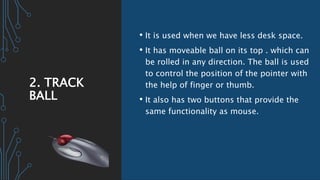
2. TRACK
BALL
• It is used when we have less desk space.
• It has moveable ball on its top . which can
be rolled in any direction. The ball is used
to control the position of the pointer with
the help of finger or thumb.
• It also has two buttons that provide the
same functionality as mouse.
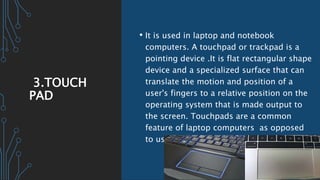
3.TOUCH
PAD
• It is used in laptop and notebook
computers. A touchpad or trackpad is a
pointing device .It is flat rectangular shape
device and a specialized surface that can
translate the motion and position of a
user's fingers to a relative position on the
operating system that is made output to
the screen. Touchpads are a common
feature of laptop computers as opposed
to using a mouse on a desktop.
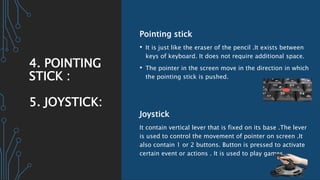
4. POINTING
STICK :
5. JOYSTICK:
Pointing stick
• It is just like the eraser of the pencil .It exists between
keys of keyboard. It does not require additional space.
• The pointer in the screen move in the direction in which
the pointing stick is pushed.
Joystick
It contain vertical lever that is fixed on its base .The lever
is used to control the movement of pointer on screen .It
also contain 1 or 2 buttons. Button is pressed to activate
certain event or actions . It is used to play games.
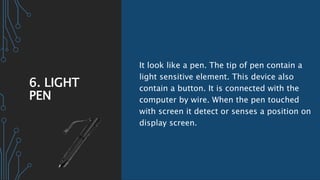
6. LIGHT
PEN
It look like a pen. The tip of pen contain a
light sensitive element. This device also
contain a button. It is connected with the
computer by wire. When the pen touched
with screen it detect or senses a position on
display screen.
OUTPUT
DEVICES
• The data that has been processed into a
useful form is called output.
• Text
• Audio
• Video
• Graphics
• Output devices
The devices that are used to display the
data to the user either in the form of hard
copy or soft copy are called output devices.
TYPES OF
OUTPUT
DEVICES
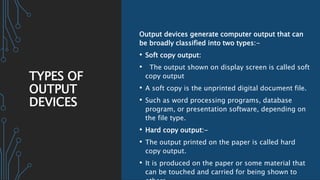
Output devices generate computer output that can
be broadly classified into two types:-
• Soft copy output:
• The output shown on display screen is called soft
copy output
• A soft copy is the unprinted digital document file.
• Such as word processing programs, database
program, or presentation software, depending on
the file type.
• Hard copy output:-
• The output printed on the paper is called hard
copy output.
• It is produced on the paper or some material that
can be touched and carried for being shown to
PRINTER
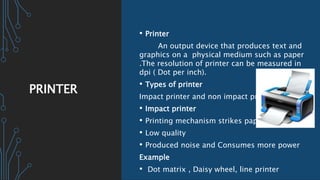
• Printer
An output device that produces text and
graphics on a physical medium such as paper
.The resolution of printer can be measured in
dpi ( Dot per inch).
• Types of printer
Impact printer and non impact printer
• Impact printer
• Printing mechanism strikes paper
• Low quality
• Produced noise and Consumes more power
Example
• Dot matrix , Daisy wheel, line printer
TYPES OF
PRINTER
Non impact printer
• No mechanism strike on paper
• Spray tiny drops of ink onto the paper
• Nozzle spray ink
• Consumes less power
• Does not produce noise
Example
• Ink jet printer
• Thermal printer
• Laser printer
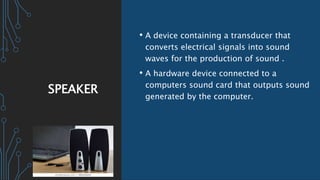
SPEAKER
• A device containing a transducer that
converts electrical signals into sound
waves for the production of sound .
• A hardware device connected to a
computers sound card that outputs sound
generated by the computer.
OUTPUT
DEVICES
• Monitor/Display Screen
• Plotter
1.MONITOR
• Monitor is an output device of computer
• It is like a TV. that displays text and
graphics on the screen.
• Video adapters are responsible for
delivering the image on screen.
TYPES OF
MONITORS
• Monitors are classified based on
technology that they use to display the
image on screen.
1. Cathode Ray Tube(CRT)
2. Liquid crystal Display(LCD)
3. Thin Film Transistor(TFT)
CRT
MONITOR
• CRT Monitor displays image with colours
that are consistent and can be viewed
comfortably from different angles.
• CRT Monitors are available in curved or
flat screens.
TYPES OF
CRT
• Monochrome Monitor
• Gray Scale Monitor
• Colour Monitor
LCD
• Thin and occupies less surface
• Light in weight and consumes less power
• Reduces eyestrain
• Used in laptops and microwave oven
• Also available for desktop
TFT
MONITORS
• Thin film transistors
• Latest technology used in LCD
• A separate tiny resistor is used for each
pixel
• Size is very small
• Displays sharp text, excellent colours and
multimedia application.
PIXEL
• A pixel is a smallest element that display
on monitor and software can manipulate
to create letters, numbers and graphics,
• Also called pel.
CHARACTERI
STICS OF
MONITOR
• Resolution
• Size
• Antiglare Screen
Resolution:
Number of pixels to enhance the quality of
picture.
Size:
Size ranges from 14 to 22 inches.
CONTINUED
…..
• Antiglare screen:
• Gives bright colour and reflects as mirror.
VGA:
• Video graphic adapter
• Responsible to display image on screen
• VGA cable used to connect monitor to the
system through VGA.
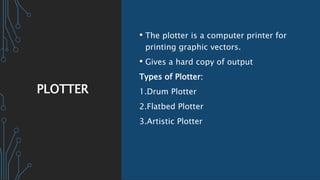
PLOTTER
• The plotter is a computer printer for
printing graphic vectors.
• Gives a hard copy of output
Types of Plotter:
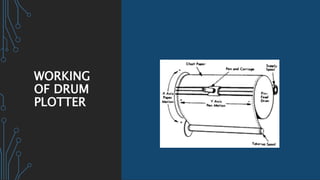
1.Drum Plotter
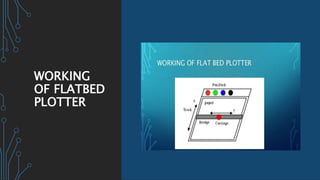
2.Flatbed Plotter
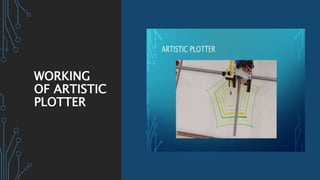
3.Artistic Plotter
WORKING
OF DRUM
PLOTTER
WORKING
OF FLATBED
PLOTTER
WORKING
OF ARTISTIC
PLOTTER

Input and output devices

  • 1.
    INPUT AND OUTPUTDEVICES PRESENTED BY ANZALA NOOR (19011502-011) DURE BATOOL (19011502-007) ISMA KANWAL (19011502-024) MUBEEN AKHTAR (19011502-004) MADIHA SIDDIQUE (19011502-016)
  • 2.
  • 3.
    INPUT AND INPUT DEVICES • Anythingthat is given to the computer such as data or instructions is called input. • Input devices: Input devices are the devices from which we can input data and instructions in the computers. These devices send this data to the processing unit. Several input devices have been developed.
  • 4.
    TYPES OF INPUT DEVICES There arethree general types of input devices are • Keyboard • Pointing devices • Source data-entry devices And the basic input devices are • Keyboard • Stylus • Digital camera • Microphone • Scanner
  • 5.
    1. KEYBOARD Keyboard is mostcommonly used input device. Data is mostly entered into the computer using a keyboard. The buttons on the keyboard are called keys. A standard keyboard contains over 100 keys. A standard keyboard is normally called QWERTY keyboard. This is because the first six keys on the top row of letters on these keyboards are Q,W,E,R,T,Y. A keyboard contains numeric keys, alphabetic keys, function keys and special-purpose keys.
  • 6.
    KEYS OF KEYBOARD • Functionkeys F1 to F12 • Alphanumeric keys A-Z • Special keys/modify Alt, Ctrl, Enter, shift, Insert, End • Numeric keypad 0-9,+,-,*,%,@ etc. • Navigational keys Arrows keys • Toggle keys caps lock, NumLock, scroll lock • Remaining keys delete, page up, page down, enter, control. •
  • 7.
    2. STYLUS A stylusis an input device that looks and acts like a pen, that uses pressure to enter information. The user can write words and symbols on the screen. This system uses handwriting recognition software. The software translates handwritten character into a form that can be stored and processed by computer. It is also known as pen-based system. Pen based systems are commonly used to input signature or messages that are stored as images. Stylus are used with • Touch PDA • Tablet PC • Graphics tablets
  • 8.
    3.MICROPHO NE • Microphone isan input device that converts sound waves into audio signals. It accept the analogue signals and converts them into the digital values and stored in the computer. • Microphones are often used with webcams for video conferencing. • It is also used in many communication apps like WhatsApp, Facebook, messenger etc.
  • 9.
    4. DIGITAL CAMERA • Digitalcamera is an input device that takes pictures and stores them as digital images. • Digital camera store captured images on storage in the camera or on some kind of memory card. • Photos taken with a digital camera are typically transferred to a computer using a wired or wireless connection. • The number of digital photos depends on the amount of memory in the camera. • Many smartphones and other mobile devices have built-in digital cameras. • Digital cameras are available in a variety of size and capability.
  • 10.
    5. SCANNER • Scanneris an input device. It is also called Optical Reader or Digital Scanner. • Scanner scans or reads text and picture printed on a paper and enters them directly into the computer memory. • The advantage of a scanner is that the user needs not type the input data in. • The scanner takes electronic images, of text or pictures from the paper and stores them into the computer.
  • 11.
    SCANNING DEVICES There are differentscanning devices that are used in the process of scanning. These are as follows • Magnetic-ink Character Recognition Reader (MICR) • Optical Mark recognition (OMR) • Optical Character Recognition (OCR) • Barcode reader
  • 12.
    SOURCE DATA ENTRY DEVICES OR SCANNING DEVICES •Source data entry devices: Source data entry devices are used for direct data entry to the computer system. These devices provides a quick and efficient way to input data. • Types of scanning devices: There are different scanning devices that are used in the process of scanning. These are as follows • Magnetic-ink Character Recognition Reader (MICR) • Optical Mark recognition (OMR) • Optical Character Recognition (OCR) • Barcode reader
  • 13.
    1.MAGNETIC -INK CHARACTER RECOGNITIO N READER (MICR) • MagneticInk Character Recognition is a character recognition system that uses special ink and characters. When a document that contains this ink needs to be read, it passes through a machine, which magnetizes the ink and then translates the magnetic information into characters. MICR technology is used by banks. Numbers and characters found on the bottom of checks (usually containing the check number, sort number, and account number) are printed using Magnetic Ink. To print Magnetic Ink need, you need a laser printer that accepts MICR toner. • MICR provides a secure, high-speed method
  • 14.
    EXAMPLES OF MICR • MICRcode has 9 digits and is printed on cheques to facilitate and expedite clearance in banking system. Format of MICR is as follow, first three digits are City Code, second three digits are bank code and last three are branch code. Example: MICR -396002068. City - 396 , Bank - 002, Branch – 068.
  • 15.
    2. OPTICAL MARK RECOGNITIO N (OMR) •Short for optical mark reading or optical mark recognition, OMR is the process of gathering information from human beings by recognizing marks on a document. OMR is accomplished by using a hardware device (scanner) that detects a reflection or limited light transmittance on or through a piece of paper. OMR allows for the processing of hundreds or thousands of documents per hour.
  • 16.
    EXAMPLE OF OMR • Forexample, students may recall taking tests or surveys where they filled in bubbles on paper with a pencil.
  • 17.
    3. OPTICAL CHARACTER RECOGNITIO N (OCR) •Literally, OCR stands for Optical Character Recognition. It is a widespread technology to recognize text inside images, such as scanned documents and photos. OCR technology is used to convert virtually any kind of images containing written text (typed, handwritten or printed) into machine-readable text data. OCR Technology became popular in the early 1990s while attempting to digitize historic newspapers. Since then the technology has underwent several improvements. Nowadays solutions deliver near to perfect OCR accuracy. Advanced methods like Zonal OCR are used to
  • 18.
    4.BARCODE READER • A barcode reader can scan barcodes that have been printed onto an object or is digitally available as an image. Barcode readers tend to be an electronic device that reads and outputs to a computer. In most situations, the online barcode scanner will also include a decoder, which will help scan the encoded data. Barcode readers are usually categorized by the type of technology that they use. Also, each type of barcode scanner online may be designed to decode certain codes, but not all. Some common types include: pen-type scanners, laser scanners, LED or CCD readers, camera-based readers, and unidirectional online barcode scanners.
  • 19.
    BARCODE READER CONT.… • A barcodeis a set of lines of different widths and sizes representing data, that when read help identify the scanned object. Barcodes are often used to help organize and index information or prices about an object. Barcodes used by the U.S. postal service that helps speed the delivery of mail is another perfect example of how a barcode could be used. The picture is an example of what a barcode of an address.
  • 20.
    POINTING DEVICES Pointing Devices areused to control the movement of the Pointer/curser/Arrow . A pointer represents a small symbol on the screen . It can also be used for: • Selecting items on the screen . • Sending command signal to the computer. • Drawing graphs etc.
  • 21.
    TYPES OF POINTING DEVICES 1. Mouse 2.Track ball 3. Touch Pad 4. Pointing stick 5. Joy stick 6. Light Pen
  • 22.
    1.MOUSE • Mouse wasinvented during 1960’s. by Douglas Engelbart . • Mouse can be used to control and manipulate cursor movement on monitor . It is used on the flat surface. • It contain 2 buttons i.e. left click is used to select the object and right click is used to open the document . • Two categories of Mouse 1. Mechanical Mouse 2. Optical Mouse
  • 23.
    MECHANICA L MOUSE AND OPTICAL MOUSE 1. Mechanicalmouse • It contain a metal ball ate the bottom of mouse that is used to control the position of pointer . • When the ball is rolled in any direction, sensors inside the mouse detect this motion and move the on-screen mouse pointer in the same direction. • It is also known as traditional mouse. 2. Optical mouse • Optical mouse use laser light to control
  • 24.
    2. TRACK BALL • Itis used when we have less desk space. • It has moveable ball on its top . which can be rolled in any direction. The ball is used to control the position of the pointer with the help of finger or thumb. • It also has two buttons that provide the same functionality as mouse.
  • 25.
    3.TOUCH PAD • It isused in laptop and notebook computers. A touchpad or trackpad is a pointing device .It is flat rectangular shape device and a specialized surface that can translate the motion and position of a user's fingers to a relative position on the operating system that is made output to the screen. Touchpads are a common feature of laptop computers as opposed to using a mouse on a desktop.
  • 26.
    4. POINTING STICK : 5.JOYSTICK: Pointing stick • It is just like the eraser of the pencil .It exists between keys of keyboard. It does not require additional space. • The pointer in the screen move in the direction in which the pointing stick is pushed. Joystick It contain vertical lever that is fixed on its base .The lever is used to control the movement of pointer on screen .It also contain 1 or 2 buttons. Button is pressed to activate certain event or actions . It is used to play games.
  • 27.
    6. LIGHT PEN It looklike a pen. The tip of pen contain a light sensitive element. This device also contain a button. It is connected with the computer by wire. When the pen touched with screen it detect or senses a position on display screen.
  • 28.
    OUTPUT DEVICES • The datathat has been processed into a useful form is called output. • Text • Audio • Video • Graphics • Output devices The devices that are used to display the data to the user either in the form of hard copy or soft copy are called output devices.
  • 29.
    TYPES OF OUTPUT DEVICES Output devicesgenerate computer output that can be broadly classified into two types:- • Soft copy output: • The output shown on display screen is called soft copy output • A soft copy is the unprinted digital document file. • Such as word processing programs, database program, or presentation software, depending on the file type. • Hard copy output:- • The output printed on the paper is called hard copy output. • It is produced on the paper or some material that can be touched and carried for being shown to
  • 30.
    PRINTER • Printer An outputdevice that produces text and graphics on a physical medium such as paper .The resolution of printer can be measured in dpi ( Dot per inch). • Types of printer Impact printer and non impact printer • Impact printer • Printing mechanism strikes paper • Low quality • Produced noise and Consumes more power Example • Dot matrix , Daisy wheel, line printer
  • 31.
    TYPES OF PRINTER Non impactprinter • No mechanism strike on paper • Spray tiny drops of ink onto the paper • Nozzle spray ink • Consumes less power • Does not produce noise Example • Ink jet printer • Thermal printer • Laser printer
  • 32.
    SPEAKER • A devicecontaining a transducer that converts electrical signals into sound waves for the production of sound . • A hardware device connected to a computers sound card that outputs sound generated by the computer.
  • 33.
  • 34.
    1.MONITOR • Monitor isan output device of computer • It is like a TV. that displays text and graphics on the screen. • Video adapters are responsible for delivering the image on screen.
  • 35.
    TYPES OF MONITORS • Monitorsare classified based on technology that they use to display the image on screen. 1. Cathode Ray Tube(CRT) 2. Liquid crystal Display(LCD) 3. Thin Film Transistor(TFT)
  • 36.
    CRT MONITOR • CRT Monitordisplays image with colours that are consistent and can be viewed comfortably from different angles. • CRT Monitors are available in curved or flat screens.
  • 37.
    TYPES OF CRT • MonochromeMonitor • Gray Scale Monitor • Colour Monitor
  • 38.
    LCD • Thin andoccupies less surface • Light in weight and consumes less power • Reduces eyestrain • Used in laptops and microwave oven • Also available for desktop
  • 39.
    TFT MONITORS • Thin filmtransistors • Latest technology used in LCD • A separate tiny resistor is used for each pixel • Size is very small • Displays sharp text, excellent colours and multimedia application.
  • 40.
    PIXEL • A pixelis a smallest element that display on monitor and software can manipulate to create letters, numbers and graphics, • Also called pel.
  • 41.
    CHARACTERI STICS OF MONITOR • Resolution •Size • Antiglare Screen Resolution: Number of pixels to enhance the quality of picture. Size: Size ranges from 14 to 22 inches.
  • 42.
    CONTINUED ….. • Antiglare screen: •Gives bright colour and reflects as mirror. VGA: • Video graphic adapter • Responsible to display image on screen • VGA cable used to connect monitor to the system through VGA.
  • 43.
    PLOTTER • The plotteris a computer printer for printing graphic vectors. • Gives a hard copy of output Types of Plotter: 1.Drum Plotter 2.Flatbed Plotter 3.Artistic Plotter
  • 44.
  • 45.
  • 46.