Input / Output Devices
RENETHA J.B.
Input-Output Unit
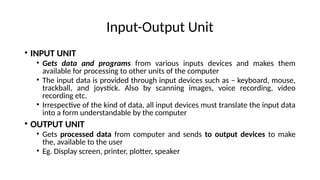
• INPUT UNIT
• Gets data and programs from various inputs devices and makes them
available for processing to other units of the computer
• The input data is provided through input devices such as – keyboard, mouse,
trackball, and joystick. Also by scanning images, voice recording, video
recording etc.
• Irrespective of the kind of data, all input devices must translate the input data
into a form understandable by the computer
• OUTPUT UNIT
• Gets processed data from computer and sends to output devices to make
the, available to the user
• Eg. Display screen, printer, plotter, speaker
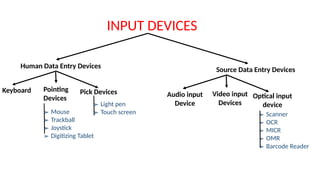
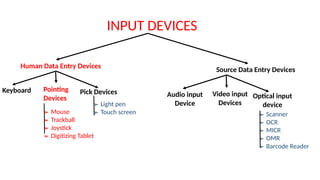
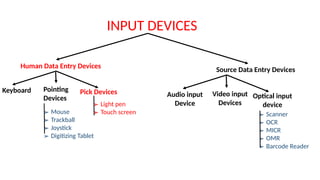
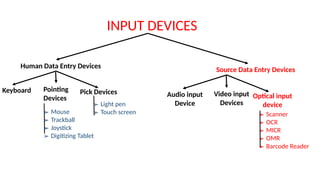
INPUT DEVICES
Human Data Entry Devices
Source Data Entry Devices
Keyboard Pointing
Devices
Pick Devices
➢ Mouse
➢ Trackball
➢ Joystick
➢ Digitizing Tablet
➢ Light pen
➢ Touch screen
Audio input
Device
Video input
Devices
Optical input
device
➢ Scanner
➢ OCR
➢ MICR
➢ OMR
➢ Barcode Reader
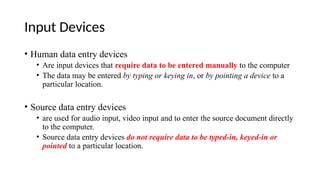
Input Devices
• Human data entry devices
• Are input devices that require data to be entered manually to the computer
• The data may be entered by typing or keying in, or by pointing a device to a
particular location.
• Source data entry devices
• are used for audio input, video input and to enter the source document directly
to the computer.
• Source data entry devices do not require data to be typed-in, keyed-in or
pointed to a particular location.
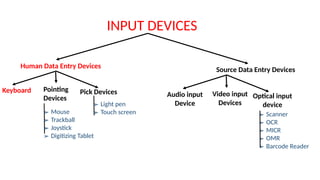
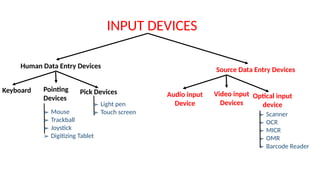
INPUT DEVICES
Human Data Entry Devices
Source Data Entry Devices
Keyboard Pointing
Devices
Pick Devices
➢ Mouse
➢ Trackball
➢ Joystick
➢ Digitizing Tablet
➢ Light pen
➢ Touch screen
Audio input
Device
Video input
Devices
Optical input
device
➢ Scanner
➢ OCR
➢ MICR
➢ OMR
➢ Barcode Reader
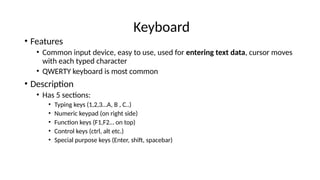
Keyboard
• Features
• Common input device, easy to use, used for entering text data, cursor moves
with each typed character
• QWERTY keyboard is most common
• Description
• Has 5 sections:
• Typing keys (1,2,3…A, B , C..)
• Numeric keypad (on right side)
• Function keys (F1,F2… on top)
• Control keys (ctrl, alt etc.)
• Special purpose keys (Enter, shift, spacebar)
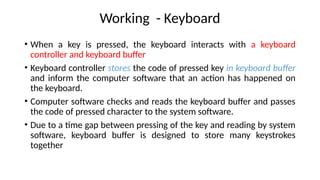
Working - Keyboard
• When a key is pressed, the keyboard interacts with a keyboard
controller and keyboard buffer
• Keyboard controller stores the code of pressed key in keyboard buffer
and inform the computer software that an action has happened on
the keyboard.
• Computer software checks and reads the keyboard buffer and passes
the code of pressed character to the system software.
• Due to a time gap between pressing of the key and reading by system
software, keyboard buffer is designed to store many keystrokes
together
INPUT DEVICES
Human Data Entry Devices
Source Data Entry Devices
Keyboard Pointing
Devices
Pick Devices
➢ Mouse
➢ Trackball
➢ Joystick
➢ Digitizing Tablet
➢ Light pen
➢ Touch screen
Audio input
Device
Video input
Devices
Optical input
device
➢ Scanner
➢ OCR
➢ MICR
➢ OMR
➢ Barcode Reader
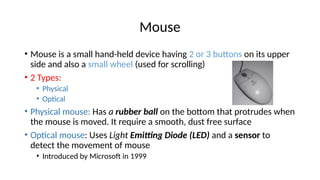
Mouse
• Mouse is a small hand-held device having 2 or 3 buttons on its upper
side and also a small wheel (used for scrolling)
• 2 Types:
• Physical
• Optical
• Physical mouse: Has a rubber ball on the bottom that protrudes when
the mouse is moved. It require a smooth, dust free surface
• Optical mouse: Uses Light Emitting Diode (LED) and a sensor to
detect the movement of mouse
• Introduced by Microsoft in 1999
Working - Mouse
• Physical Mouse:
• Rollers and sensors are used to sense the direction and rate of movement.
When the rubber ball of the mouse moves, rollers sense the horizontal and
vertical movement and sensors sense the speed. This information is passed to
computer via mouse chord
• Optical mouse:
• When moved, a beam of light is reflected from its underside.
• This pulses of light determine the direction and rate of movement
• This information is passed to computer via mouse chord
Trackball
• Features:
• Variant of mouse, easy to use, takes less space than mouse, it is built in laptops since
there is no space to move mouse.
• Various sizes: small and big
• Description:
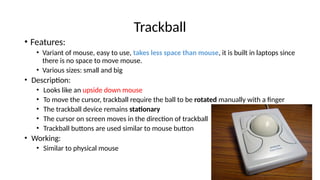
• Looks like an upside down mouse
• To move the cursor, trackball require the ball to be rotated manually with a finger
• The trackball device remains stationary
• The cursor on screen moves in the direction of trackball
• Trackball buttons are used similar to mouse button
• Working:
• Similar to physical mouse
Joystick
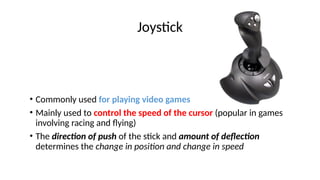
• Commonly used for playing video games
• Mainly used to control the speed of the cursor (popular in games
involving racing and flying)
• The direction of push of the stick and amount of deflection
determines the change in position and change in speed
Digitizing tablet
• Features:
• Used to input drawings, sketches etc.
• Used in CAD (Computer Aided Design) of buildings, automobiles etc.
• Description:
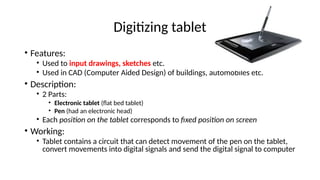
• 2 Parts:
• Electronic tablet (flat bed tablet)
• Pen (had an electronic head)
• Each position on the tablet corresponds to fixed position on screen
• Working:
• Tablet contains a circuit that can detect movement of the pen on the tablet,
convert movements into digital signals and send the digital signal to computer
INPUT DEVICES
Human Data Entry Devices
Source Data Entry Devices
Keyboard Pointing
Devices
Pick Devices
➢ Mouse
➢ Trackball
➢ Joystick
➢ Digitizing Tablet
➢ Light pen
➢ Touch screen
Audio input
Device
Video input
Devices
Optical input
device
➢ Scanner
➢ OCR
➢ MICR
➢ OMR
➢ Barcode Reader
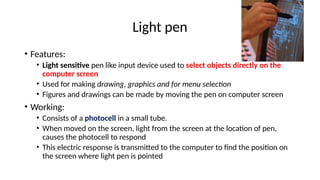
Light pen
• Features:
• Light sensitive pen like input device used to select objects directly on the
computer screen
• Used for making drawing, graphics and for menu selection
• Figures and drawings can be made by moving the pen on computer screen
• Working:
• Consists of a photocell in a small tube.
• When moved on the screen, light from the screen at the location of pen,
causes the photocell to respond
• This electric response is transmitted to the computer to find the position on
the screen where light pen is pointed
Touch screen
• Touch screens have an infrared beam that criss-cross the surface of
screen
• When touched, the beam is broken, and the location is recorded
• The recorded location is sent to computer via the controller of the
touch screen
INPUT DEVICES
Human Data Entry Devices
Source Data Entry Devices
Keyboard Pointing
Devices
Pick Devices
➢ Mouse
➢ Trackball
➢ Joystick
➢ Digitizing Tablet
➢ Light pen
➢ Touch screen
Audio input
Device
Video input
Devices
Optical input
device
➢ Scanner
➢ OCR
➢ MICR
➢ OMR
➢ Barcode Reader
Audio Input Device
• Used for making telephone calls, for audio/video conferencing, to
record voice, to create audio files etc.
• Use of microphones – to input voice data
• Sound card – translates analog audio signals to digital codes and vice
versa
• Translating spoken words to text – speech recognition/Voice
recognition
Video Input Device
• Video inputs are provided using Video camera and digital camera
• Webcam is a common video camera device
• A video capture card allows the user to connect video input devices
INPUT DEVICES
Human Data Entry Devices
Source Data Entry Devices
Keyboard Pointing
Devices
Pick Devices
➢ Mouse
➢ Trackball
➢ Joystick
➢ Digitizing Tablet
➢ Light pen
➢ Touch screen
Audio input
Device
Video input
Devices
Optical input
device
➢ Scanner
➢ OCR
➢ MICR
➢ OMR
➢ Barcode Reader
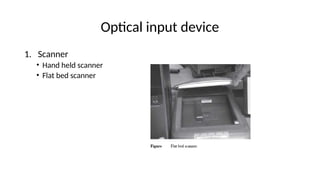
Optical input device
1. Scanner
• Hand held scanner
• Flat bed scanner
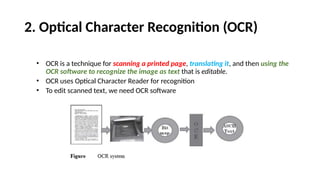
2. Optical Character Recognition (OCR)
• OCR is a technique for scanning a printed page, translating it, and then using the
OCR software to recognize the image as text that is editable.
• OCR uses Optical Character Reader for recognition
• To edit scanned text, we need OCR software
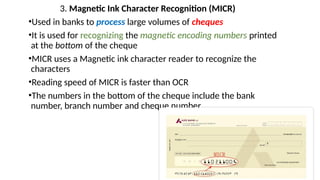
3. Magnetic Ink Character Recognition (MICR)
•Used in banks to process large volumes of cheques
•It is used for recognizing the magnetic encoding numbers printed
at the bottom of the cheque
•MICR uses a Magnetic ink character reader to recognize the
characters
•Reading speed of MICR is faster than OCR
•The numbers in the bottom of the cheque include the bank
number, branch number and cheque number
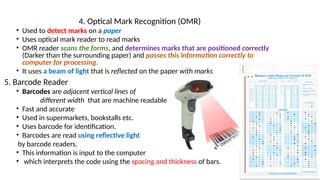
4. Optical Mark Recognition (OMR)
• Used to detect marks on a paper
• Uses optical mark reader to read marks
• OMR reader scans the forms, and determines marks that are positioned correctly
(Darker than the surrounding paper) and passes this information correctly to
computer for processing.
• It uses a beam of light that is reflected on the paper with marks
5. Barcode Reader
• Barcodes are adjacent vertical lines of
different width that are machine readable
• Fast and accurate
• Used in supermarkets, bookstalls etc.
• Uses barcode for identification.
• Barcodes are read using reflective light
by barcode readers.
• This information is input to the computer
• which interprets the code using the spacing and thickness of bars.
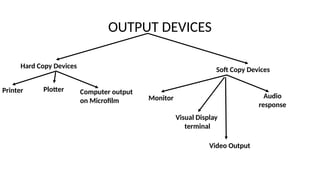
OUTPUT DEVICES
Hard Copy Devices
Soft Copy Devices
Printer Plotter Computer output
on Microfilm Monitor
Video Output
Audio
response
Visual Display
terminal
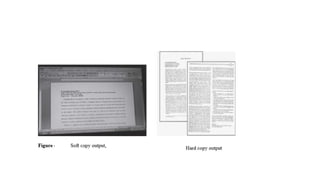
Hard Copy Devices
• The output obtained in a tangible form on a paper or any surface is
called hard copy output.
• The hard copy can be stored permanently and is portable.
• The hard copy output can be read or used without a computer.
• The devices that generate hard copy output are called hard copy
devices.
• Printer, plotter and microfiche are common hard copy output devices.
Printer
• A printer prints the output information from the computer onto a paper.
• Printers are generally used to print textual information, but nowadays printers
also print graphical information.
• Printers are classified into two categories—
• Impact printer
• use the typewriter approach of physically striking a typeface against the paper
and inked ribbon.
• E.g. Dot matrix printers, daisy wheel printers , drum printers
• Non-impact printer.
• They do not hit or impact a ribbon to print.
• They use electro-static chemicals and ink-jet technologies.
• E.g. Inkjet printer, Laser printer
•
Impact printer- Dot Matrix Printers
• Dot matrix printer print one character at a time.
• Dot matrix printers can print alphanumeric characters, special
characters, charts and graphs.
• They can print only in black and white.
• Some dot matrix printers can print in both directions - left to right and
right to left.
• Dot matrix printers are commonly used for printing in applications
like payroll and accounting.
Impact printer- Daisy Wheel Printers
• Daisy wheel printers print one character at a time.
• They produce letter quality document which is better than a
document printed by a dot matrix printer.
• These printers are slow,
• can only print text (not graphics),
• are costly in comparison to dot matrix printers.
• Daisy wheel printers are used where high quality printing is needed
and no graphics is needed.
Impact printer- Drum Printers
• Drum printers are line printers.
• They are expensive and faster than character printers
• but produce a low quality output.
• They can print 200–2500 lines per minute.
Non Impact printer-
• Ink-jet Printers
• spray ink drops directly on the paper like a jet
• Their resolution is more than 500 dpi.
• They produce high quality graphics and text.
• Ink-jet printers are commonly found in homes and offices.
• Laser Printers
• provide highest quality of text and graphics printing.
• Laser printers process and store the entire page before printing and are also
known as page printers.
• The laser printer can print 5–24 pages of text per minute and their resolution
ranges from 400 to 1200 dpi.
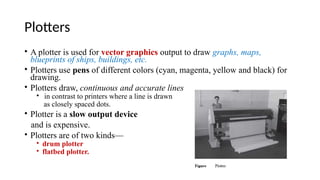
Plotters
• A plotter is used for vector graphics output to draw graphs, maps,
blueprints of ships, buildings, etc.
• Plotters use pens of different colors (cyan, magenta, yellow and black) for
drawing.
• Plotters draw, continuous and accurate lines
• in contrast to printers where a line is drawn
as closely spaced dots.
• Plotter is a slow output device
and is expensive.
• Plotters are of two kinds—
• drum plotter
• flatbed plotter.
Plotters(contd..)
• In a drum plotter,
• pens mounted on the carriage are stationary and move only horizontally;
• for vertical movement, the drum on which the paper is fixed moves clockwise
and anti-clockwise.
• In a flatbed plotter,
• the paper is fixed on a flat bed.
• The paper is stationary and the pens mounted on the carriage move
horizontally and vertically to draw lines.
• Plotters are mainly used for drawings in AUTOCAD, Computer Aided
Design (CAD) and Computer Aided Manufacturing (CAM)
applications.
Computer Output on Microfilm
• A microfilm is in roll format
• Microfilm is used to record computer output directly from the
computer tape or cartridge.
• Computer Output on Microfilm (COM) is a high speed and low cost
process.
• It can produce data in microfilm form at a much faster speed from
that of a paper printer.
• COM is used for storing output in banking and insurance applications, medical
X rays, etc.
Soft Copy Devices
• The output obtained in an intangible form on a visual display, audio
unit or video unit is called soft copy output.
• The soft copy allows corrections to be made, can be stored, and, can
be sent to other users.
• The soft copy output requires a computer to be read or used.
• The devices that generate soft copy output are called soft copy
devices.
• Visual output devices like computer monitor, visual display terminal, video
system and audio response system are common soft copy output devices.
Monitor
• The monitor is provided along with the computer, to view the
displayed output.
• A monitor is of two kinds
• monochrome display monitor
• uses only one color to display text
• color display monitor.
• can display 256 colors at one time
• The clarity of image on the computer screen depends on three
factors- Resolution of Screen, Dot Pitch, Refresh Rate
Visual Display Terminal
• A monitor and keyboard together are known as Visual Display Terminal
(VDT).
• A keyboard is used to input data and monitor is used to display the output
from the computer.
• Computer terminals are categorized as dumb, smart and intelligent
terminals.
• Dumb terminals
• do not have processing and programming capabilities.
• Smart terminals
• have built-in processing capability but do not have its own storage capacity.
• Intelligent terminals
• have both built-in processing and storage capacity.
Video Output
• Screen image projector or data projector is an output device that
displays information from the computer onto a large white screen.
• The projector is mainly used to display visual output to a large
gathering of people required
• for the purposes of teaching, training, meetings, conference presentations, etc.
Audio Response
• A complete sound system consists of sound card, microphone,
speaker and the appropriate software.
• In addition to recording and playing the sound, the software allows
editing of sound, like cutting, copy, amplification and creation of
vibrant sound effects.
• Audio response provides audio output from the computer.
• Audio output device E.g. speakers, headset or headphone
• Audio response is used by visually impaired to read information from
the screen. For speech impaired people, audio response helps them to
communicate with other people.

IO DEVICES PPTdescription about input output devices

  • 1.
    Input / OutputDevices RENETHA J.B.
  • 2.
    Input-Output Unit • INPUTUNIT • Gets data and programs from various inputs devices and makes them available for processing to other units of the computer • The input data is provided through input devices such as – keyboard, mouse, trackball, and joystick. Also by scanning images, voice recording, video recording etc. • Irrespective of the kind of data, all input devices must translate the input data into a form understandable by the computer • OUTPUT UNIT • Gets processed data from computer and sends to output devices to make the, available to the user • Eg. Display screen, printer, plotter, speaker
  • 3.
    INPUT DEVICES Human DataEntry Devices Source Data Entry Devices Keyboard Pointing Devices Pick Devices ➢ Mouse ➢ Trackball ➢ Joystick ➢ Digitizing Tablet ➢ Light pen ➢ Touch screen Audio input Device Video input Devices Optical input device ➢ Scanner ➢ OCR ➢ MICR ➢ OMR ➢ Barcode Reader
  • 4.
    Input Devices • Humandata entry devices • Are input devices that require data to be entered manually to the computer • The data may be entered by typing or keying in, or by pointing a device to a particular location. • Source data entry devices • are used for audio input, video input and to enter the source document directly to the computer. • Source data entry devices do not require data to be typed-in, keyed-in or pointed to a particular location.
  • 5.
    INPUT DEVICES Human DataEntry Devices Source Data Entry Devices Keyboard Pointing Devices Pick Devices ➢ Mouse ➢ Trackball ➢ Joystick ➢ Digitizing Tablet ➢ Light pen ➢ Touch screen Audio input Device Video input Devices Optical input device ➢ Scanner ➢ OCR ➢ MICR ➢ OMR ➢ Barcode Reader
  • 6.
    Keyboard • Features • Commoninput device, easy to use, used for entering text data, cursor moves with each typed character • QWERTY keyboard is most common • Description • Has 5 sections: • Typing keys (1,2,3…A, B , C..) • Numeric keypad (on right side) • Function keys (F1,F2… on top) • Control keys (ctrl, alt etc.) • Special purpose keys (Enter, shift, spacebar)
  • 7.
    Working - Keyboard •When a key is pressed, the keyboard interacts with a keyboard controller and keyboard buffer • Keyboard controller stores the code of pressed key in keyboard buffer and inform the computer software that an action has happened on the keyboard. • Computer software checks and reads the keyboard buffer and passes the code of pressed character to the system software. • Due to a time gap between pressing of the key and reading by system software, keyboard buffer is designed to store many keystrokes together
  • 8.
    INPUT DEVICES Human DataEntry Devices Source Data Entry Devices Keyboard Pointing Devices Pick Devices ➢ Mouse ➢ Trackball ➢ Joystick ➢ Digitizing Tablet ➢ Light pen ➢ Touch screen Audio input Device Video input Devices Optical input device ➢ Scanner ➢ OCR ➢ MICR ➢ OMR ➢ Barcode Reader
  • 9.
    Mouse • Mouse isa small hand-held device having 2 or 3 buttons on its upper side and also a small wheel (used for scrolling) • 2 Types: • Physical • Optical • Physical mouse: Has a rubber ball on the bottom that protrudes when the mouse is moved. It require a smooth, dust free surface • Optical mouse: Uses Light Emitting Diode (LED) and a sensor to detect the movement of mouse • Introduced by Microsoft in 1999
  • 10.
    Working - Mouse •Physical Mouse: • Rollers and sensors are used to sense the direction and rate of movement. When the rubber ball of the mouse moves, rollers sense the horizontal and vertical movement and sensors sense the speed. This information is passed to computer via mouse chord • Optical mouse: • When moved, a beam of light is reflected from its underside. • This pulses of light determine the direction and rate of movement • This information is passed to computer via mouse chord
  • 11.
    Trackball • Features: • Variantof mouse, easy to use, takes less space than mouse, it is built in laptops since there is no space to move mouse. • Various sizes: small and big • Description: • Looks like an upside down mouse • To move the cursor, trackball require the ball to be rotated manually with a finger • The trackball device remains stationary • The cursor on screen moves in the direction of trackball • Trackball buttons are used similar to mouse button • Working: • Similar to physical mouse
  • 12.
    Joystick • Commonly usedfor playing video games • Mainly used to control the speed of the cursor (popular in games involving racing and flying) • The direction of push of the stick and amount of deflection determines the change in position and change in speed
  • 13.
    Digitizing tablet • Features: •Used to input drawings, sketches etc. • Used in CAD (Computer Aided Design) of buildings, automobiles etc. • Description: • 2 Parts: • Electronic tablet (flat bed tablet) • Pen (had an electronic head) • Each position on the tablet corresponds to fixed position on screen • Working: • Tablet contains a circuit that can detect movement of the pen on the tablet, convert movements into digital signals and send the digital signal to computer
  • 14.
    INPUT DEVICES Human DataEntry Devices Source Data Entry Devices Keyboard Pointing Devices Pick Devices ➢ Mouse ➢ Trackball ➢ Joystick ➢ Digitizing Tablet ➢ Light pen ➢ Touch screen Audio input Device Video input Devices Optical input device ➢ Scanner ➢ OCR ➢ MICR ➢ OMR ➢ Barcode Reader
  • 15.
    Light pen • Features: •Light sensitive pen like input device used to select objects directly on the computer screen • Used for making drawing, graphics and for menu selection • Figures and drawings can be made by moving the pen on computer screen • Working: • Consists of a photocell in a small tube. • When moved on the screen, light from the screen at the location of pen, causes the photocell to respond • This electric response is transmitted to the computer to find the position on the screen where light pen is pointed
  • 16.
    Touch screen • Touchscreens have an infrared beam that criss-cross the surface of screen • When touched, the beam is broken, and the location is recorded • The recorded location is sent to computer via the controller of the touch screen
  • 17.
    INPUT DEVICES Human DataEntry Devices Source Data Entry Devices Keyboard Pointing Devices Pick Devices ➢ Mouse ➢ Trackball ➢ Joystick ➢ Digitizing Tablet ➢ Light pen ➢ Touch screen Audio input Device Video input Devices Optical input device ➢ Scanner ➢ OCR ➢ MICR ➢ OMR ➢ Barcode Reader
  • 18.
    Audio Input Device •Used for making telephone calls, for audio/video conferencing, to record voice, to create audio files etc. • Use of microphones – to input voice data • Sound card – translates analog audio signals to digital codes and vice versa • Translating spoken words to text – speech recognition/Voice recognition
  • 19.
    Video Input Device •Video inputs are provided using Video camera and digital camera • Webcam is a common video camera device • A video capture card allows the user to connect video input devices
  • 20.
    INPUT DEVICES Human DataEntry Devices Source Data Entry Devices Keyboard Pointing Devices Pick Devices ➢ Mouse ➢ Trackball ➢ Joystick ➢ Digitizing Tablet ➢ Light pen ➢ Touch screen Audio input Device Video input Devices Optical input device ➢ Scanner ➢ OCR ➢ MICR ➢ OMR ➢ Barcode Reader
  • 21.
    Optical input device 1.Scanner • Hand held scanner • Flat bed scanner
  • 22.
    2. Optical CharacterRecognition (OCR) • OCR is a technique for scanning a printed page, translating it, and then using the OCR software to recognize the image as text that is editable. • OCR uses Optical Character Reader for recognition • To edit scanned text, we need OCR software
  • 23.
    3. Magnetic InkCharacter Recognition (MICR) •Used in banks to process large volumes of cheques •It is used for recognizing the magnetic encoding numbers printed at the bottom of the cheque •MICR uses a Magnetic ink character reader to recognize the characters •Reading speed of MICR is faster than OCR •The numbers in the bottom of the cheque include the bank number, branch number and cheque number
  • 24.
    4. Optical MarkRecognition (OMR) • Used to detect marks on a paper • Uses optical mark reader to read marks • OMR reader scans the forms, and determines marks that are positioned correctly (Darker than the surrounding paper) and passes this information correctly to computer for processing. • It uses a beam of light that is reflected on the paper with marks 5. Barcode Reader • Barcodes are adjacent vertical lines of different width that are machine readable • Fast and accurate • Used in supermarkets, bookstalls etc. • Uses barcode for identification. • Barcodes are read using reflective light by barcode readers. • This information is input to the computer • which interprets the code using the spacing and thickness of bars.
  • 25.
    OUTPUT DEVICES Hard CopyDevices Soft Copy Devices Printer Plotter Computer output on Microfilm Monitor Video Output Audio response Visual Display terminal
  • 27.
    Hard Copy Devices •The output obtained in a tangible form on a paper or any surface is called hard copy output. • The hard copy can be stored permanently and is portable. • The hard copy output can be read or used without a computer. • The devices that generate hard copy output are called hard copy devices. • Printer, plotter and microfiche are common hard copy output devices.
  • 28.
    Printer • A printerprints the output information from the computer onto a paper. • Printers are generally used to print textual information, but nowadays printers also print graphical information. • Printers are classified into two categories— • Impact printer • use the typewriter approach of physically striking a typeface against the paper and inked ribbon. • E.g. Dot matrix printers, daisy wheel printers , drum printers • Non-impact printer. • They do not hit or impact a ribbon to print. • They use electro-static chemicals and ink-jet technologies. • E.g. Inkjet printer, Laser printer •
  • 29.
    Impact printer- DotMatrix Printers • Dot matrix printer print one character at a time. • Dot matrix printers can print alphanumeric characters, special characters, charts and graphs. • They can print only in black and white. • Some dot matrix printers can print in both directions - left to right and right to left. • Dot matrix printers are commonly used for printing in applications like payroll and accounting.
  • 30.
    Impact printer- DaisyWheel Printers • Daisy wheel printers print one character at a time. • They produce letter quality document which is better than a document printed by a dot matrix printer. • These printers are slow, • can only print text (not graphics), • are costly in comparison to dot matrix printers. • Daisy wheel printers are used where high quality printing is needed and no graphics is needed.
  • 31.
    Impact printer- DrumPrinters • Drum printers are line printers. • They are expensive and faster than character printers • but produce a low quality output. • They can print 200–2500 lines per minute.
  • 32.
    Non Impact printer- •Ink-jet Printers • spray ink drops directly on the paper like a jet • Their resolution is more than 500 dpi. • They produce high quality graphics and text. • Ink-jet printers are commonly found in homes and offices. • Laser Printers • provide highest quality of text and graphics printing. • Laser printers process and store the entire page before printing and are also known as page printers. • The laser printer can print 5–24 pages of text per minute and their resolution ranges from 400 to 1200 dpi.
  • 33.
    Plotters • A plotteris used for vector graphics output to draw graphs, maps, blueprints of ships, buildings, etc. • Plotters use pens of different colors (cyan, magenta, yellow and black) for drawing. • Plotters draw, continuous and accurate lines • in contrast to printers where a line is drawn as closely spaced dots. • Plotter is a slow output device and is expensive. • Plotters are of two kinds— • drum plotter • flatbed plotter.
  • 34.
    Plotters(contd..) • In adrum plotter, • pens mounted on the carriage are stationary and move only horizontally; • for vertical movement, the drum on which the paper is fixed moves clockwise and anti-clockwise. • In a flatbed plotter, • the paper is fixed on a flat bed. • The paper is stationary and the pens mounted on the carriage move horizontally and vertically to draw lines. • Plotters are mainly used for drawings in AUTOCAD, Computer Aided Design (CAD) and Computer Aided Manufacturing (CAM) applications.
  • 35.
    Computer Output onMicrofilm • A microfilm is in roll format • Microfilm is used to record computer output directly from the computer tape or cartridge. • Computer Output on Microfilm (COM) is a high speed and low cost process. • It can produce data in microfilm form at a much faster speed from that of a paper printer. • COM is used for storing output in banking and insurance applications, medical X rays, etc.
  • 36.
    Soft Copy Devices •The output obtained in an intangible form on a visual display, audio unit or video unit is called soft copy output. • The soft copy allows corrections to be made, can be stored, and, can be sent to other users. • The soft copy output requires a computer to be read or used. • The devices that generate soft copy output are called soft copy devices. • Visual output devices like computer monitor, visual display terminal, video system and audio response system are common soft copy output devices.
  • 37.
    Monitor • The monitoris provided along with the computer, to view the displayed output. • A monitor is of two kinds • monochrome display monitor • uses only one color to display text • color display monitor. • can display 256 colors at one time • The clarity of image on the computer screen depends on three factors- Resolution of Screen, Dot Pitch, Refresh Rate
  • 38.
    Visual Display Terminal •A monitor and keyboard together are known as Visual Display Terminal (VDT). • A keyboard is used to input data and monitor is used to display the output from the computer. • Computer terminals are categorized as dumb, smart and intelligent terminals. • Dumb terminals • do not have processing and programming capabilities. • Smart terminals • have built-in processing capability but do not have its own storage capacity. • Intelligent terminals • have both built-in processing and storage capacity.
  • 39.
    Video Output • Screenimage projector or data projector is an output device that displays information from the computer onto a large white screen. • The projector is mainly used to display visual output to a large gathering of people required • for the purposes of teaching, training, meetings, conference presentations, etc.
  • 40.
    Audio Response • Acomplete sound system consists of sound card, microphone, speaker and the appropriate software. • In addition to recording and playing the sound, the software allows editing of sound, like cutting, copy, amplification and creation of vibrant sound effects. • Audio response provides audio output from the computer. • Audio output device E.g. speakers, headset or headphone • Audio response is used by visually impaired to read information from the screen. For speech impaired people, audio response helps them to communicate with other people.