INTERACTIVE
INPUT DEVICES
Keyboard
• Common method of entering data
• Often called the QWERTY keyboard
• Consists of a rows of electronic
  switches encased in a plastic
  surround, which has a graphic that
  describes its function
• Key stokes are combined to modify
  the input
Keyboard
Advantage:
• The most efficient way of entering
  numbers, text and commands into the
  computer, as each key has a specific
  function.
• Inexpensive, as virtually every
  computer needs one.
Keyboard
Disadvantage:
• You have to learn to type!
• There are 'arrow keys' but they are
  not as good as a mouse for controlling
  the screen cursor.
• May cause sore wrists and arms
Alternative Keyboards
• Designed to reduce repetitive strain
• Hands fit in the molding and wrist
  need not have to move so much
• Use key combinations to type letters
  and characters
• Another type – more comfortable
  than the standard one
Keyboard for physical
       disabilities
• Keyguard – plate fits over the
  keyboard with holes positioned over
  the keys
• Keyguard – steel with wipe clean
  surface and held in place with dual
  lock
• People with disabilities rest their
  hands on the keyguard – prevents
  accidental keystrokes
Mouse
• Popular way of controlling the screen
  cursor through the use of on-screen
  ‘menus’
• Fits within the palm of your hand
• Detects the back and forth
  movement and input the X-Y (left-
  right,forward-backward) data into
  the computer
• Switches – depressed to cause ‘click’
  data to be input, ‘clicks’ control
  screen menus
• Some have little wheel – to scroll
  within windows
• Wireless mouse – use radio signals
  rather than wires to connect to
  computer
• Two mechanisms to detect hand
  movements
      ‘Roller ball’
      ‘Optical’ mouse
Advantages:
• One of the easiest way of
  translating. X-Y hand movements into
  the computer.
• Excellent for controlling the cursor,
  menus and windows on screen.
• Easy to use.
Disadvantage:
• You have to have space next to the
  keyboard to move the mouse.
• Prolonged use can give you sore
  wrists and arms.
• Not as good as a graphics tablet for
  drawing straight lines and shapes on
  screen
Alternatives
‘Trackball Mouse’
     reduce wrist movements, thus
 reduce repetitive strain
     rolling the ball controls the
 cursor
     switches – work in same way as
 standard mouse
Alternatives
‘Whale Mouse’
• Contoured palm rest encourages neutral
  wrist, hand and finger positions.
• Promotes the use of the larger arm
  muscles relaxing the more delicate
  muscles
• Minimizes sharp, quick wrist movements
  that can lead to injury.
• Easily adjusts to fit any size hand - left
  or right.
Graphics Tablet
• Excellent device for use with drawing
  or graphics package
• Using pen – natural method of
  drawing lines and shapes
• Allows X-Y data input same as mouse
• Slide the stylus along the surface
  which inputs the movement to the
  computer
• Natural hand and arm movement than
  mouse for creating sweeping lines and
  curves
• Can create thick and thin lines –by
  pressing harder or lighter on the
  stylus
Advantage:
• Excellent for use with a drawing or
  graphics package to draw lines and
  shapes.
• Can input pressure data for use in a
  graphics package
 
Disadvantage:
• More expensive than a mouse,
  especially in the larger sizes.
• Not as precise as a mouse for menu
  control, so it tends to be an addition
  rather than a replacement- you can
  run both perfectly well by making
  sure the pen is off the tablet when
  you do not need it.  
Concept Tablet
• Touch sensitive
• Plastic sheet with various pictures
  and graphics is placed on the surface
• Tapping the picture cause a command
  to input
• Appropriate software is used to
  sense these commands
Advantages:
• Can be used to issue specific
  commands to the computer.
• Avoids staff having to know the price
  of everything.
• Allows software to be controlled with
  a single touch of the tablet.
Disadvantage:
• There has to be the right software
  running for the command to make
  sense.
• Number of commands that can be
  issued is limited by the size of the
  device.
Touch Screen
Uses:
• Dusty, dirty or wet environments
  where a keyboard would be damaged
• Hazardous environments where there
  must not be any chance of a spark
• Constricted areas where there is no
  room for another input device
• Hygienic environments where it must
  be simple to wipe clean
• Optical touch screen
      LEDs along one vertical and
  horizontal edge and detectors on the
  other
• Electrical touch panel
      Two transparent plates one
  coated with conductive material and
  other resistive material separated by
  distance
• Acoustic touch panel
      high frequency sound waves
  generated in horizontal and vertical
  directions across a glass plate
      touching the screen reflects
  the wave from fingers to emitters
      time interval between
  transmission and reflection gives the
  position of contact
Advantage:
• No moving parts
• Can use any number of menu levels
• Can display large text to assist less-
  sighted people
Disadvantages:
• Expensive compared to a standard
  keyboard or mouse.
• Has to have specific software to
  make sense of the input.
• Can be a problem seeing the screen in
  bright sunlight.
Scanner
• Input graphic information
• Input picture is laid flat, face down on
  the scanner surface with lid lowered
  to avoid stray light creeping in
• Sensor sweeps along the picture –
  image is built up as a series of ‘pixels’
• A scanner can
1) Create a black and white image -
  handy for line drawings and text
2) Create a full color image - excellent
  for inputting photographs
• Low resolution, black and white image
   small file size with a few hundred
  kilobytes at most
• High quality, high resolution image 
  huge file size with several megabytes
Advantage:
• Scanners can convert photographs
  and flat documents into electronic
  images.
• Both color and black & white images
  can be created.
• Extremely high resolution if required.
• Relatively inexpensive compared to a
  digital camera.
Disadvantages:
• Cannot take 3 dimensional images.
• Document has to fit on the glass
• Relatively slow compared to taking a
  digital photograph.
 
Space ball and Track ball
• Trackball
      ball rotated to produce screen
  cursor movement
      potentiometers attached
  measure the amount and direction of
  rotation
      mounted on keyboards or mouse
• Space ball
     Trackball : 2D positioning devices
 whereas space ball provides 6 degrees
 of freedom
     Simultaneously pan, zoom or
 rotate 3D models scene or camera
 datasets with the controller in one
 hand, while the other hand selects,
 inspects or edits with the mouse
 Eliminate tedious and repetitive
steps that put unnecessary stress on
mouse hand
    Used for 3D positioning and
selection operations in virtual reality
systems, modeling, animation and CAD
and other applications
Joysticks
• Small, vertical stick mounted on a
  base used to steer the screen cursor
  around
• Distance moved in any direction from
  center position corresponds to
  screen cursor movement
• Some respond to stick movement and
  others to pressure
Joysticks
• Potentiometers mounted at the base
  the measure the amount of movement
• Springs return the stick back to
  center position
• One or more buttons programmed to
  signal certain actions once screen
  position is selected
ADDITIONAL INPUT
    DEVICES
Optical Mark Reader
Advantage:
• Good for inputting large volume of
  data at low cost.
• Very little training or instruction
  required to use the forms/card.
• Good for multi-choice questionnaires.
Optical Mark Reader
Disadvantage:
• Can only input a limited data set
• Poorly marked forms/cards cause
  errors.
• Creased/folded forms cause errors.
Optical Character Reader
• Combination of scanner and special
  software that converts printed text into
  electronic ASCII characters
• Additional mechanisms to handle multiple
  sheets
• Eg 1) Converting paper records into
  electronic files.
     2) Scanning invoices into spreadsheets
• Advantage:
      Allows paper records to be
  converted into electronic format
• Disadvantage:
      Conversion is often not perfect
  and so someone has to read the
  results and correct them.
      Can be slow (unless an
  expensive system is used).  
Magnetic Stripe Reader
• Information is simply encoded in
  magnetic form on the strip
• The reader picks up the information
  by swiping the card through it and
  inputs it to the connected computer
• Eg. Bank card, Credit Card, Security
  passes etc.
Advantage:
• Inexpensive
• Robust - not easily damaged
• Simple to use
• Fast
Disadvantage:
• A card can be copied fairly easily.
• Sensitive to strong magnetic fields
HARD COPY DEVICES
• Quality of picture depends on dot
  size (spot size) and no. of dots per
  inch (addressability)
• In high quality prints, adjacent dots
  overlap
• Printers produce output by either
  impact or non impact methods
      Impact: press character faces
  against inked ribbon onto the paper
      Non Impact: use techniques like
  inkjet sprays, electrostatic method…
Dot-Matrix Printers
• Print head of 7 to 24 pins
• Each pin fired individually to strike a
  ribbon against the paper
• Print head moves across the paper
  one step at a time and paper is
  advanced one line
• Raster output device requires scan
  conversion
• Colored ribbon  produce color hard copy
• Two approaches
     Multiple print heads: each with
  different color ribbon
      Single print head with multicolored
  ribbon
• More colors created by overstriking two
  different colors at the same dot on the
  paper
• With 3 colors upto 8 colors can be created
• Often true black is added to the ribbon
LASER PRINTERS
• Positively charged rotating drum is
  coated with selenium
• Areas of drum hit by laser beam lose
  charge
• Positive charge remains only where
  the copy is to be black
• A negatively charged powdered toner
  adhere to the positive areas and is
  then transferred to the paper
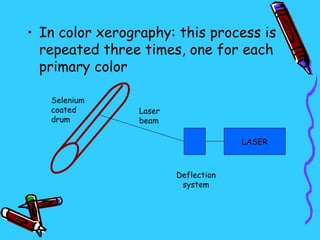
• In color xerography: this process is
  repeated three times, one for each
  primary color

   Selenium
   coated        Laser
   drum          beam

                                      LASER


                         Deflection
                          system
Ink-jet Printers
• Two methods
I method
   Spray cyan, magenta, yellow and
  sometimes black ink onto the paper
   Ink jets are mounted on a head
   Head moves across page to draw
  one scan line, returns while paper
  advances
II method
   Wrap paper around a drum
   Drum rotates rapidly while print
  head moves slowly along the drum
Thermal transfer
         Printers
• Finely spaced heating nibs transfer
  pigments from colored wax paper to
  plain paper
• Wax and plain paper are drawn
  together over the strip of heating
  nibs, which are selectively heated to
  cause pigment transfer
• For color printing, the wax paper is
  on a roll of alternating cyan, magenta,
  yellow strips each of length = paper
  size
• Nibs heat and cool rapidly, a single
  color hard copy image is created in
  less than a minute

Input and Output Devices

  • 1.
  • 2.
    Keyboard • Common methodof entering data • Often called the QWERTY keyboard • Consists of a rows of electronic switches encased in a plastic surround, which has a graphic that describes its function • Key stokes are combined to modify the input
  • 3.
    Keyboard Advantage: • The mostefficient way of entering numbers, text and commands into the computer, as each key has a specific function. • Inexpensive, as virtually every computer needs one.
  • 4.
    Keyboard Disadvantage: • You haveto learn to type! • There are 'arrow keys' but they are not as good as a mouse for controlling the screen cursor. • May cause sore wrists and arms
  • 5.
    Alternative Keyboards • Designedto reduce repetitive strain • Hands fit in the molding and wrist need not have to move so much • Use key combinations to type letters and characters • Another type – more comfortable than the standard one
  • 6.
    Keyboard for physical disabilities • Keyguard – plate fits over the keyboard with holes positioned over the keys • Keyguard – steel with wipe clean surface and held in place with dual lock • People with disabilities rest their hands on the keyguard – prevents accidental keystrokes
  • 7.
    Mouse • Popular wayof controlling the screen cursor through the use of on-screen ‘menus’ • Fits within the palm of your hand • Detects the back and forth movement and input the X-Y (left- right,forward-backward) data into the computer
  • 8.
    • Switches –depressed to cause ‘click’ data to be input, ‘clicks’ control screen menus • Some have little wheel – to scroll within windows • Wireless mouse – use radio signals rather than wires to connect to computer • Two mechanisms to detect hand movements  ‘Roller ball’  ‘Optical’ mouse
  • 9.
    Advantages: • One ofthe easiest way of translating. X-Y hand movements into the computer. • Excellent for controlling the cursor, menus and windows on screen. • Easy to use.
  • 10.
    Disadvantage: • You haveto have space next to the keyboard to move the mouse. • Prolonged use can give you sore wrists and arms. • Not as good as a graphics tablet for drawing straight lines and shapes on screen
  • 11.
    Alternatives ‘Trackball Mouse’  reduce wrist movements, thus reduce repetitive strain  rolling the ball controls the cursor  switches – work in same way as standard mouse
  • 12.
    Alternatives ‘Whale Mouse’ • Contouredpalm rest encourages neutral wrist, hand and finger positions. • Promotes the use of the larger arm muscles relaxing the more delicate muscles • Minimizes sharp, quick wrist movements that can lead to injury. • Easily adjusts to fit any size hand - left or right.
  • 13.
    Graphics Tablet • Excellentdevice for use with drawing or graphics package • Using pen – natural method of drawing lines and shapes • Allows X-Y data input same as mouse • Slide the stylus along the surface which inputs the movement to the computer
  • 14.
    • Natural handand arm movement than mouse for creating sweeping lines and curves • Can create thick and thin lines –by pressing harder or lighter on the stylus
  • 15.
    Advantage: • Excellent foruse with a drawing or graphics package to draw lines and shapes. • Can input pressure data for use in a graphics package  
  • 16.
    Disadvantage: • More expensivethan a mouse, especially in the larger sizes. • Not as precise as a mouse for menu control, so it tends to be an addition rather than a replacement- you can run both perfectly well by making sure the pen is off the tablet when you do not need it.  
  • 17.
    Concept Tablet • Touchsensitive • Plastic sheet with various pictures and graphics is placed on the surface • Tapping the picture cause a command to input • Appropriate software is used to sense these commands
  • 18.
    Advantages: • Can beused to issue specific commands to the computer. • Avoids staff having to know the price of everything. • Allows software to be controlled with a single touch of the tablet.
  • 19.
    Disadvantage: • There hasto be the right software running for the command to make sense. • Number of commands that can be issued is limited by the size of the device.
  • 20.
    Touch Screen Uses: • Dusty,dirty or wet environments where a keyboard would be damaged • Hazardous environments where there must not be any chance of a spark • Constricted areas where there is no room for another input device • Hygienic environments where it must be simple to wipe clean
  • 21.
    • Optical touchscreen  LEDs along one vertical and horizontal edge and detectors on the other • Electrical touch panel  Two transparent plates one coated with conductive material and other resistive material separated by distance
  • 22.
    • Acoustic touchpanel  high frequency sound waves generated in horizontal and vertical directions across a glass plate  touching the screen reflects the wave from fingers to emitters  time interval between transmission and reflection gives the position of contact
  • 23.
    Advantage: • No movingparts • Can use any number of menu levels • Can display large text to assist less- sighted people
  • 24.
    Disadvantages: • Expensive comparedto a standard keyboard or mouse. • Has to have specific software to make sense of the input. • Can be a problem seeing the screen in bright sunlight.
  • 25.
    Scanner • Input graphicinformation • Input picture is laid flat, face down on the scanner surface with lid lowered to avoid stray light creeping in • Sensor sweeps along the picture – image is built up as a series of ‘pixels’
  • 26.
    • A scannercan 1) Create a black and white image - handy for line drawings and text 2) Create a full color image - excellent for inputting photographs • Low resolution, black and white image  small file size with a few hundred kilobytes at most • High quality, high resolution image  huge file size with several megabytes
  • 27.
    Advantage: • Scanners canconvert photographs and flat documents into electronic images. • Both color and black & white images can be created. • Extremely high resolution if required. • Relatively inexpensive compared to a digital camera.
  • 28.
    Disadvantages: • Cannot take3 dimensional images. • Document has to fit on the glass • Relatively slow compared to taking a digital photograph.  
  • 29.
    Space ball andTrack ball • Trackball  ball rotated to produce screen cursor movement  potentiometers attached measure the amount and direction of rotation  mounted on keyboards or mouse
  • 30.
    • Space ball  Trackball : 2D positioning devices whereas space ball provides 6 degrees of freedom  Simultaneously pan, zoom or rotate 3D models scene or camera datasets with the controller in one hand, while the other hand selects, inspects or edits with the mouse
  • 31.
     Eliminate tediousand repetitive steps that put unnecessary stress on mouse hand  Used for 3D positioning and selection operations in virtual reality systems, modeling, animation and CAD and other applications
  • 32.
    Joysticks • Small, verticalstick mounted on a base used to steer the screen cursor around • Distance moved in any direction from center position corresponds to screen cursor movement • Some respond to stick movement and others to pressure
  • 33.
    Joysticks • Potentiometers mountedat the base the measure the amount of movement • Springs return the stick back to center position • One or more buttons programmed to signal certain actions once screen position is selected
  • 34.
  • 35.
    Optical Mark Reader Advantage: •Good for inputting large volume of data at low cost. • Very little training or instruction required to use the forms/card. • Good for multi-choice questionnaires.
  • 36.
    Optical Mark Reader Disadvantage: •Can only input a limited data set • Poorly marked forms/cards cause errors. • Creased/folded forms cause errors.
  • 37.
    Optical Character Reader •Combination of scanner and special software that converts printed text into electronic ASCII characters • Additional mechanisms to handle multiple sheets • Eg 1) Converting paper records into electronic files. 2) Scanning invoices into spreadsheets
  • 38.
    • Advantage:  Allows paper records to be converted into electronic format • Disadvantage:  Conversion is often not perfect and so someone has to read the results and correct them.  Can be slow (unless an expensive system is used).  
  • 39.
    Magnetic Stripe Reader •Information is simply encoded in magnetic form on the strip • The reader picks up the information by swiping the card through it and inputs it to the connected computer • Eg. Bank card, Credit Card, Security passes etc.
  • 40.
    Advantage: • Inexpensive • Robust- not easily damaged • Simple to use • Fast Disadvantage: • A card can be copied fairly easily. • Sensitive to strong magnetic fields
  • 41.
  • 42.
    • Quality ofpicture depends on dot size (spot size) and no. of dots per inch (addressability) • In high quality prints, adjacent dots overlap • Printers produce output by either impact or non impact methods  Impact: press character faces against inked ribbon onto the paper  Non Impact: use techniques like inkjet sprays, electrostatic method…
  • 43.
    Dot-Matrix Printers • Printhead of 7 to 24 pins • Each pin fired individually to strike a ribbon against the paper • Print head moves across the paper one step at a time and paper is advanced one line • Raster output device requires scan conversion
  • 44.
    • Colored ribbon produce color hard copy • Two approaches Multiple print heads: each with different color ribbon  Single print head with multicolored ribbon • More colors created by overstriking two different colors at the same dot on the paper • With 3 colors upto 8 colors can be created • Often true black is added to the ribbon
  • 45.
    LASER PRINTERS • Positivelycharged rotating drum is coated with selenium • Areas of drum hit by laser beam lose charge • Positive charge remains only where the copy is to be black • A negatively charged powdered toner adhere to the positive areas and is then transferred to the paper
  • 46.
    • In colorxerography: this process is repeated three times, one for each primary color Selenium coated Laser drum beam LASER Deflection system
  • 47.
    Ink-jet Printers • Twomethods I method  Spray cyan, magenta, yellow and sometimes black ink onto the paper  Ink jets are mounted on a head  Head moves across page to draw one scan line, returns while paper advances
  • 48.
    II method  Wrap paper around a drum  Drum rotates rapidly while print head moves slowly along the drum
  • 49.
    Thermal transfer Printers • Finely spaced heating nibs transfer pigments from colored wax paper to plain paper • Wax and plain paper are drawn together over the strip of heating nibs, which are selectively heated to cause pigment transfer
  • 50.
    • For colorprinting, the wax paper is on a roll of alternating cyan, magenta, yellow strips each of length = paper size • Nibs heat and cool rapidly, a single color hard copy image is created in less than a minute