OneNote 2016 for Mac
Quick Start Guide
This new version of OneNote is thoughtfully designed for your Mac. Use this guide to learn the basics.
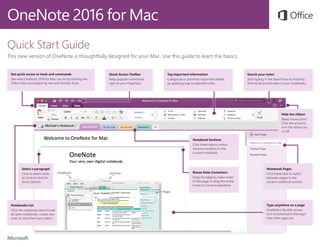
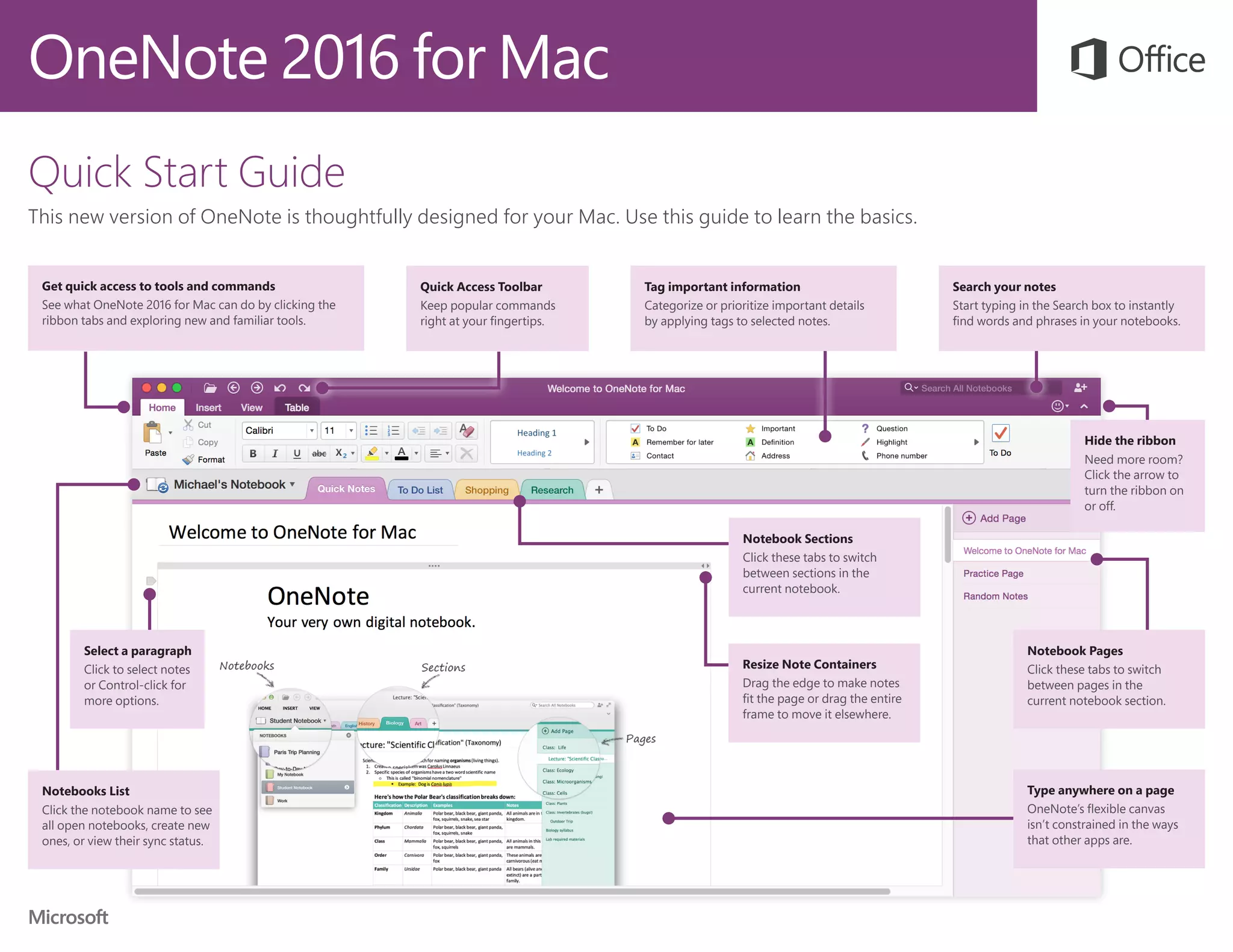
Get quick access to tools and commands
See what OneNote 2016 for Mac can do by clicking the
ribbon tabs and exploring new and familiar tools.
Notebooks List
Click the notebook name to see
all open notebooks, create new
ones, or view their sync status.
Search your notes
Start typing in the Search box to instantly
find words and phrases in your notebooks.
Quick Access Toolbar
Keep popular commands
right at your fingertips.
Notebook Pages
Click these tabs to switch
between pages in the
current notebook section.
Tag important information
Categorize or prioritize important details
by applying tags to selected notes.
Notebook Sections
Click these tabs to switch
between sections in the
current notebook.
Type anywhere on a page
OneNote’s flexible canvas
isn’t constrained in the ways
that other apps are.
Select a paragraph
Click to select notes
or Control-click for
more options.
Hide the ribbon
Need more room?
Click the arrow to
turn the ribbon on
or off.
Resize Note Containers
Drag the edge to make notes
fit the page or drag the entire
frame to move it elsewhere.
OneNote 2016 for Mac
Access your notes anywhere
What good are notes, plans, and ideas if they’re trapped on a hard drive? Keep your
notebooks available to you by signing in with your free Microsoft account when
you first start OneNote on your Mac. There’s even a free OneNote app for your
iPhone and iPad to stay in sync wherever you go.
Never run out of paper
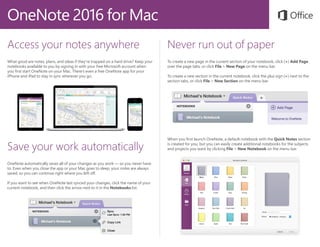
To create a new page in the current section of your notebook, click (+) Add Page
over the page tabs, or click File > New Page on the menu bar.
To create a new section in the current notebook, click the plus sign (+) next to the
section tabs, or click File > New Section on the menu bar.
When you first launch OneNote, a default notebook with the Quick Notes section
is created for you, but you can easily create additional notebooks for the subjects
and projects you want by clicking File > New Notebook on the menu bar.Save your work automatically
OneNote automatically saves all of your changes as you work — so you never have
to. Even when you close the app or your Mac goes to sleep, your notes are always
saved, so you can continue right where you left off.
If you want to see when OneNote last synced your changes, click the name of your
current notebook, and then click the arrow next to it in the Notebooks list.
OneNote 2016 for Mac
Tag selected notes
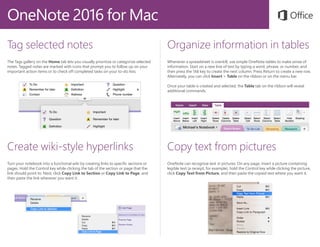
The Tags gallery on the Home tab lets you visually prioritize or categorize selected
notes. Tagged notes are marked with icons that prompt you to follow up on your
important action items or to check off completed tasks on your to-do lists.
Organize information in tables
Whenever a spreadsheet is overkill, use simple OneNote tables to make sense of
information. Start on a new line of text by typing a word, phrase, or number, and
then press the TAB key to create the next column. Press Return to create a new row.
Alternately, you can click Insert > Table on the ribbon or on the menu bar.
Once your table is created and selected, the Table tab on the ribbon will reveal
additional commands.
Copy text from pictures
OneNote can recognize text in pictures. On any page, insert a picture containing
legible text (a receipt, for example), hold the Control key while clicking the picture,
click Copy Text from Picture, and then paste the copied text where you want it.
Create wiki-style hyperlinks
Turn your notebook into a functional wiki by creating links to specific sections or
pages. Hold the Control key while clicking the tab of the section or page that the
link should point to. Next, click Copy Link to Section or Copy Link to Page, and
then paste the link wherever you want it.
OneNote 2016 for Mac
Send us your feedback
Love OneNote for Mac? Got an idea for improvement? Click the smiley face icon
in the upper right corner of the app window to send your feedback directly to the
OneNote development team.
Get help with OneNote
On the menu bar, click Help to search for the OneNote features and commands
that you need help with, or click OneNote Help to browse through popular
content. To let us know if the information we’ve provided has been useful to you,
use the feedback form at the bottom of each of our Help articles.
Share your work with others
Click the Share this notebook button in the top right corner to invite others to
edit your current notebook, to copy a link to its cloud location, or to send the
current page as a message or PDF attachment from your preferred email service.
Get other Quick Start Guides
OneNote is just one of the newly designed apps in the new Office 2016 for Mac.
Visit http://aka.ms/office-mac-guides to download our free Quick Start Guides
for the new Mac versions of Word, Excel, PowerPoint, and Outlook.
If you have any feedback about our guides, please submit your comments at the
bottom of the download page. Thank you!

Mac onenote2016 quick startguide

  • 1.
    OneNote 2016 forMac Quick Start Guide This new version of OneNote is thoughtfully designed for your Mac. Use this guide to learn the basics. Get quick access to tools and commands See what OneNote 2016 for Mac can do by clicking the ribbon tabs and exploring new and familiar tools. Notebooks List Click the notebook name to see all open notebooks, create new ones, or view their sync status. Search your notes Start typing in the Search box to instantly find words and phrases in your notebooks. Quick Access Toolbar Keep popular commands right at your fingertips. Notebook Pages Click these tabs to switch between pages in the current notebook section. Tag important information Categorize or prioritize important details by applying tags to selected notes. Notebook Sections Click these tabs to switch between sections in the current notebook. Type anywhere on a page OneNote’s flexible canvas isn’t constrained in the ways that other apps are. Select a paragraph Click to select notes or Control-click for more options. Hide the ribbon Need more room? Click the arrow to turn the ribbon on or off. Resize Note Containers Drag the edge to make notes fit the page or drag the entire frame to move it elsewhere.
  • 2.
    OneNote 2016 forMac Access your notes anywhere What good are notes, plans, and ideas if they’re trapped on a hard drive? Keep your notebooks available to you by signing in with your free Microsoft account when you first start OneNote on your Mac. There’s even a free OneNote app for your iPhone and iPad to stay in sync wherever you go. Never run out of paper To create a new page in the current section of your notebook, click (+) Add Page over the page tabs, or click File > New Page on the menu bar. To create a new section in the current notebook, click the plus sign (+) next to the section tabs, or click File > New Section on the menu bar. When you first launch OneNote, a default notebook with the Quick Notes section is created for you, but you can easily create additional notebooks for the subjects and projects you want by clicking File > New Notebook on the menu bar.Save your work automatically OneNote automatically saves all of your changes as you work — so you never have to. Even when you close the app or your Mac goes to sleep, your notes are always saved, so you can continue right where you left off. If you want to see when OneNote last synced your changes, click the name of your current notebook, and then click the arrow next to it in the Notebooks list.
  • 3.
    OneNote 2016 forMac Tag selected notes The Tags gallery on the Home tab lets you visually prioritize or categorize selected notes. Tagged notes are marked with icons that prompt you to follow up on your important action items or to check off completed tasks on your to-do lists. Organize information in tables Whenever a spreadsheet is overkill, use simple OneNote tables to make sense of information. Start on a new line of text by typing a word, phrase, or number, and then press the TAB key to create the next column. Press Return to create a new row. Alternately, you can click Insert > Table on the ribbon or on the menu bar. Once your table is created and selected, the Table tab on the ribbon will reveal additional commands. Copy text from pictures OneNote can recognize text in pictures. On any page, insert a picture containing legible text (a receipt, for example), hold the Control key while clicking the picture, click Copy Text from Picture, and then paste the copied text where you want it. Create wiki-style hyperlinks Turn your notebook into a functional wiki by creating links to specific sections or pages. Hold the Control key while clicking the tab of the section or page that the link should point to. Next, click Copy Link to Section or Copy Link to Page, and then paste the link wherever you want it.
  • 4.
    OneNote 2016 forMac Send us your feedback Love OneNote for Mac? Got an idea for improvement? Click the smiley face icon in the upper right corner of the app window to send your feedback directly to the OneNote development team. Get help with OneNote On the menu bar, click Help to search for the OneNote features and commands that you need help with, or click OneNote Help to browse through popular content. To let us know if the information we’ve provided has been useful to you, use the feedback form at the bottom of each of our Help articles. Share your work with others Click the Share this notebook button in the top right corner to invite others to edit your current notebook, to copy a link to its cloud location, or to send the current page as a message or PDF attachment from your preferred email service. Get other Quick Start Guides OneNote is just one of the newly designed apps in the new Office 2016 for Mac. Visit http://aka.ms/office-mac-guides to download our free Quick Start Guides for the new Mac versions of Word, Excel, PowerPoint, and Outlook. If you have any feedback about our guides, please submit your comments at the bottom of the download page. Thank you!