How to Create a Logo
Using Microsoft PowerPoint
Anurag Bansal
www.techacker.com
STEP 1
 Think of a Logo theme. Some logic behind it.
Example,
I wanted to create a logo that shows the
name in the logo and conveys the message
that an extra ‘H’ has been killed.
STEP 2
 Create a new PowerPoint file.
 Go to Insert tab and select ‘WordArt’.
 Restyle the text by using some of the inbuilt styles and
edit as required.
Example:
STEP 3 (a)
 Go to ‘Insert’ tab and select ‘Shapes’ to use any shape you
want to put on top of your text created in previous step.
 Resize, rotate and style as required.
Example: I used a ‘Lightening Bolt’ shape to strike off the
extra ‘h’.
STEP 3 (B)
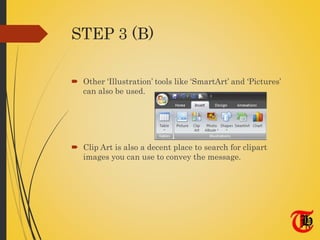
 Other ‘Illustration’ tools like ‘SmartArt’ and ‘Pictures’
can also be used.
 Clip Art is also a decent place to search for clipart
images you can use to convey the message.
STEP 4
 Group all the images together so that they become a
single entity.
 Select All by drawing a window around the images ->
Right Click -> Group
STEP 5
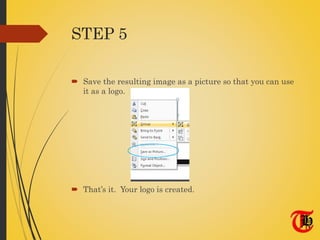
 Save the resulting image as a picture so that you can use
it as a logo.
 That’s it. Your logo is created.
Examples
 Few examples of some logos created with Microsoft
PowerPoint:
Thank You!
Questions/Suggestions ?
Contact Anurag Bansal
Web : www.techacker.com
Twitter : @techackr
Facebook: Techacker

How to create a logo using Microsoft Powerpoint?

  • 1.
    How to Createa Logo Using Microsoft PowerPoint Anurag Bansal www.techacker.com
  • 2.
    STEP 1  Thinkof a Logo theme. Some logic behind it. Example, I wanted to create a logo that shows the name in the logo and conveys the message that an extra ‘H’ has been killed.
  • 3.
    STEP 2  Createa new PowerPoint file.  Go to Insert tab and select ‘WordArt’.  Restyle the text by using some of the inbuilt styles and edit as required. Example:
  • 4.
    STEP 3 (a) Go to ‘Insert’ tab and select ‘Shapes’ to use any shape you want to put on top of your text created in previous step.  Resize, rotate and style as required. Example: I used a ‘Lightening Bolt’ shape to strike off the extra ‘h’.
  • 5.
    STEP 3 (B) Other ‘Illustration’ tools like ‘SmartArt’ and ‘Pictures’ can also be used.  Clip Art is also a decent place to search for clipart images you can use to convey the message.
  • 6.
    STEP 4  Groupall the images together so that they become a single entity.  Select All by drawing a window around the images -> Right Click -> Group
  • 7.
    STEP 5  Savethe resulting image as a picture so that you can use it as a logo.  That’s it. Your logo is created.
  • 8.
    Examples  Few examplesof some logos created with Microsoft PowerPoint:
  • 9.
    Thank You! Questions/Suggestions ? ContactAnurag Bansal Web : www.techacker.com Twitter : @techackr Facebook: Techacker