More Related Content

PDF
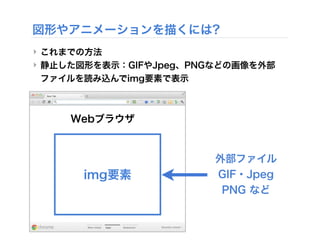
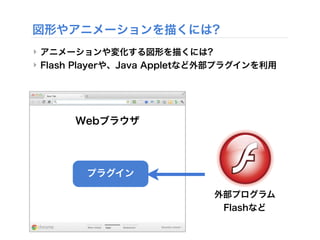
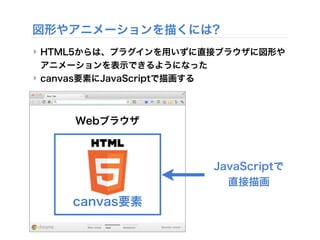
メディア芸術基礎 II Canvas + Javascriptで図形を描く 
PPTX

PDF
HTML5のCanvas入門 - Img画像を編集してみよう - 
PDF
Webデザイン 第10回:HTML5実践 Three.jsで3Dプログラミング 
PDF

KEY
iOSプログラマへ。HTML5 Canvasがおもしろい! 
KEY
Core Graphicsでつくる自作UIコンポーネント入門 
PDF
What's hot

PPTX

PDF

PDF

PDF

PDF

KEY

PDF
React で CSS カプセル化の可能性を考える 
PPTX

PDF
Nuxt なしで Vue App 作る時に乗り越えるべき5つの壁 
PDF
introduction to Marionette.js (jscafe14) 
PDF
HTML5 と SVG で考える、これからの画像アクセシビリティ 
PDF
SVG MANIAX Ver.2 - Mars vanilla 
PPT

PDF

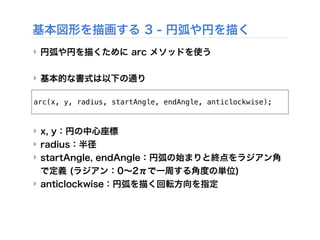
PDF
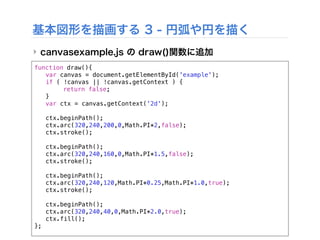
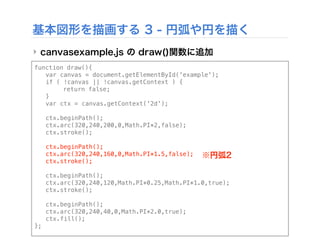
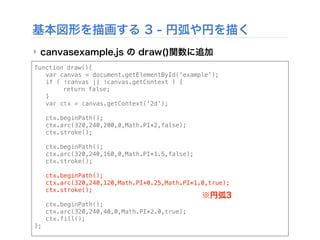
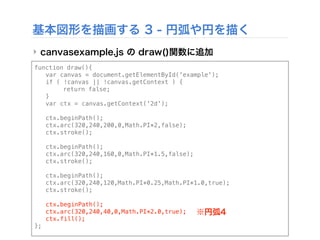
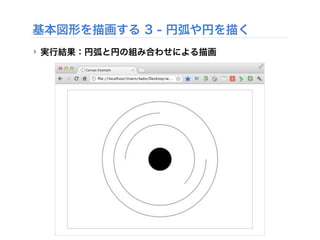
Media Art II 2013 第5回:openFrameworks Addonを使用する 
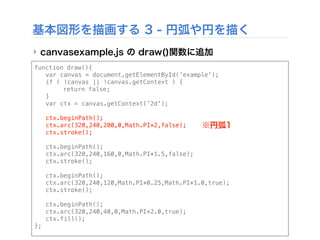
PPTX

PDF

PDF

PPTX
Similar to 情報編集(Web) HTML5 実践1 Canvas + Javascriptで図形を描く

PDF
静岡Developers勉強会 HTML5&CSS3 
PDF

KEY
JavaScript Hackathon for Students 
ODP

PDF
20110903 gunmaweb#6 pavone 
PDF

PDF

PPTX
HTML5のCanvas APIで絵を描いてみる話 
KEY

PDF
初心者向けJavaScript/HTML5ゲームプログラミング 
KEY

PDF
PWAnight_20221019_クリエイティブコーディングとは? 
PDF
HTML5 Canvasを学びたい人に送る�Canvasの超基本とその後の学習方針 
KEY

PDF

PPTX

PDF

PDF

PDF
Androiderとi os屋さんがfirefoxosアプリを作ったら 
PPTX
More from Atsushi Tadokoro

PDF
「クリエイティブ・ミュージック・コーディング」- オーディオ・ビジュアル作品のための、オープンソースなソフトウエア・フレームワークの現状と展望 
PDF

PDF
Interactive Music II ProcessingとSuperColliderの連携 -2 
PDF
coma Creators session vol.2 
PDF
Interactive Music II ProcessingとSuperColliderの連携1 
PDF
Interactive Music II Processingによるアニメーション 
PDF
Interactive Music II Processing基本 
PDF
Interactive Music II SuperCollider応用 2 - SuperColliderとPure Dataの連携 
PDF
Media Art II openFrameworks アプリ間の通信とタンジブルなインターフェイス 
PDF
Interactive Music II SuperCollider応用 - SuperColliderと OSC (Open Sound Control) 
PDF
iTamabi 13 ARTSAT API 実践 5 - 衛星の軌道を描く 
PDF
メディア芸術基礎 II 第11回:HTML5実践 表現のための様々なJavaScriptライブラリ 
PDF
芸術情報演習デザイン(Web) 第8回: CSSフレームワークを使う 
PDF
Interactive Music II SuperCollider応用 JITLib - ライブコーディング 2 
PDF
iTamabi 13 第9回:ARTSAT API 実践 3 ジオコーディングで衛星の位置を取得 
PDF

PDF
Interactive Music II SuperCollider応用 JITLib - ライブコーディング 1 
PDF
iTamabi 13 第8回:ARTSAT API 実践 2 衛星アプリを企画する 
PDF
Media Art II openFrameworks 複数のシーンの管理・切替え 
PDF
Interactive Music II SuperCollider実習 オリジナルの楽器を作ろう! 情報編集(Web) HTML5 実践1 Canvas + Javascriptで図形を描く
- 1.
- 2.
- 3.
- 4.
- 5.
- 6.
- 7.
- 8.
- 9.
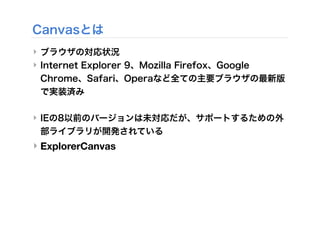
Canvasとは
‣ ブラウザの対応状況
‣ InternetExplorer 9、Mozilla Firefox、Google
Chrome、Safari、Operaなど全ての主要ブラウザの最新版
で実装済み
‣ IEの8以前のバージョンは未対応だが、サポートするための外
部ライブラリが開発されている
‣ ExplorerCanvas
- 10.
- 11.
- 12.
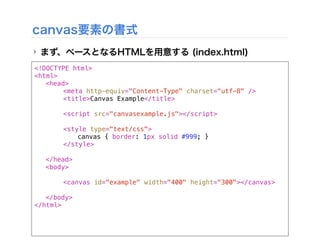
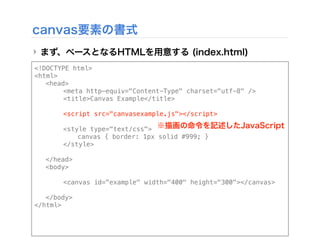
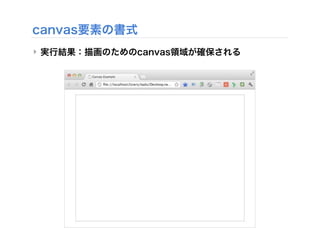
canvas要素の書式
‣ まず、ベースとなるHTMLを用意する (index.html)
‣<!DOCTYPEhtml>
<html>
! <head>
! ! <meta http-equiv="Content-Type" charset="utf-8" />
! ! <title>Canvas Example</title>
! !
! ! <script src="canvasexample.js"></script>
! !
! ! <style type="text/css">
! ! ! canvas { border: 1px solid #999; }
! ! </style>
! </head>
! <body>
!
! ! <canvas id="example" width="400" height="300"></canvas>
!
! </body>
</html>
- 13.
canvas要素の書式
‣ まず、ベースとなるHTMLを用意する (index.html)
‣<!DOCTYPEhtml>
<html>
! <head>
! ! <meta http-equiv="Content-Type" charset="utf-8" />
! ! <title>Canvas Example</title>
! !
! ! <script src="canvasexample.js"></script>
! !
! ! <style type="text/css">
! ! ! canvas { border: 1px solid #999; }
! ! </style>
! </head>
! <body>
!
! ! <canvas id="example" width="400" height="300"></canvas>
!
! </body>
</html>
※描画の命令を記述したJavaScript
- 14.
canvas要素の書式
‣ まず、ベースとなるHTMLを用意する (index.html)
‣<!DOCTYPEhtml>
<html>
! <head>
! ! <meta http-equiv="Content-Type" charset="utf-8" />
! ! <title>Canvas Example</title>
! !
! ! <script src="canvasexample.js"></script>
! !
! ! <style type="text/css">
! ! ! canvas { border: 1px solid #999; }
! ! </style>
! </head>
! <body>
!
! ! <canvas id="example" width="400" height="300"></canvas>
!
! </body>
</html>
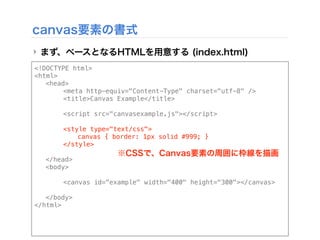
※CSSで、Canvas要素の周囲に枠線を描画
- 15.
canvas要素の書式
‣ まず、ベースとなるHTMLを用意する (index.html)
<!DOCTYPEhtml>
<html>
! <head>
! ! <meta http-equiv="Content-Type" charset="utf-8" />
! ! <title>Canvas Example</title>
! !
! ! <script src="canvasexample.js"></script>
! !
! ! <style type="text/css">
! ! ! canvas { border: 1px solid #999; }
! ! </style>
! </head>
! <body>
!
! ! <canvas id="example" width="400" height="300"></canvas>
!
! </body>
</html>
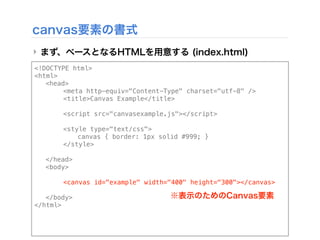
※表示のためのCanvas要素
- 16.
- 17.
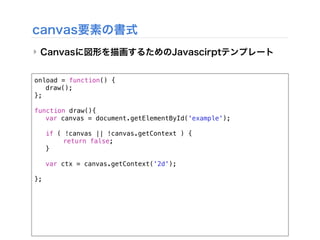
canvas要素の書式
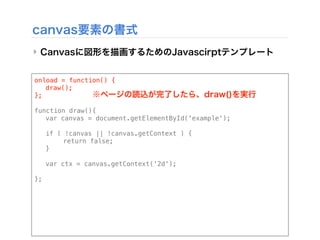
‣ Canvasに図形を描画するためのJavascirptテンプレート
onload =function() {
! draw();
};
function draw(){
! var canvas = document.getElementById('example');
!
! if ( !canvas || !canvas.getContext ) {
! ! return false;
! }
!
! var ctx = canvas.getContext('2d');
!
};
※ページの読込が完了したら、draw()を実行
- 18.
canvas要素の書式
‣ Canvasに図形を描画するためのJavascirptテンプレート
onload =function() {
! draw();
};
function draw(){
! var canvas = document.getElementById('example');
!
! if ( !canvas || !canvas.getContext ) {
! ! return false;
! }
!
! var ctx = canvas.getContext('2d');
!
};
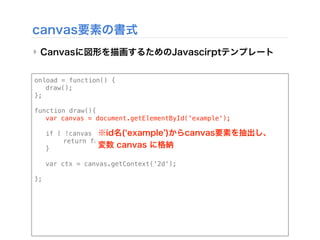
※id名( example )からcanvas要素を抽出し、
変数 canvas に格納
- 19.
canvas要素の書式
‣ Canvasに図形を描画するためのJavascirptテンプレート
onload =function() {
! draw();
};
function draw(){
! var canvas = document.getElementById('example');
!
! if ( !canvas || !canvas.getContext ) {
! ! return false;
! }
!
! var ctx = canvas.getContext('2d');
!
};
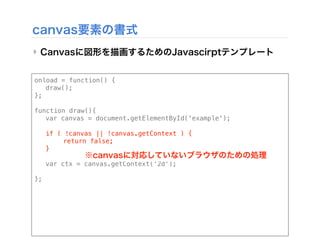
※canvasに対応していないブラウザのための処理
- 20.
canvas要素の書式
‣ Canvasに図形を描画するためのJavascirptテンプレート
onload =function() {
! draw();
};
function draw(){
! var canvas = document.getElementById('example');
!
! if ( !canvas || !canvas.getContext ) {
! ! return false;
! }
!
! var ctx = canvas.getContext('2d');
!
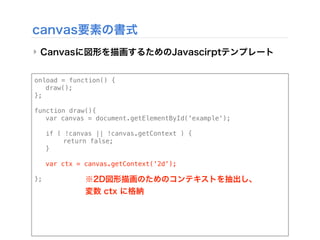
}; ※2D図形描画のためのコンテキストを抽出し、
変数 ctx に格納
- 21.
- 22.
- 23.
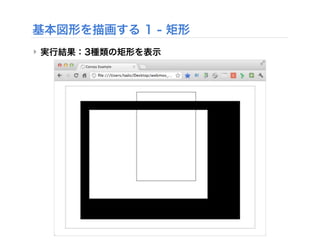
基本図形を描画する 1 -矩形
‣ 生成したcanvas要素の内部に、Javascriptを記述して簡単
な図形を描画してみる
‣ まずは、矩形(長方形)から
‣ canvasでは矩形を描くための3つの関数が用意されている
‣ fillRect(x,y,width,height) : 塗られた矩形を描く
‣ strokeRect(x,y,width,height) : 矩形の輪郭を描く
‣ clearRect(x,y,width,height) : 指定された領域を消去
‣ 実際にやってみよう!!
- 24.
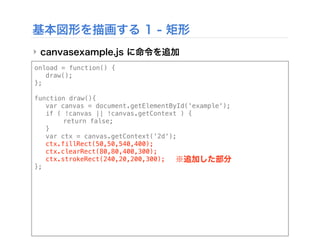
基本図形を描画する 1 -矩形
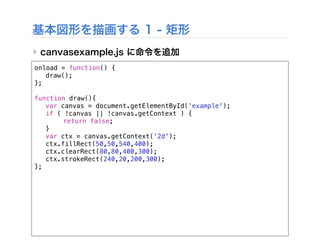
‣ canvasexample.js に命令を追加
onload = function() {
! draw();
};
function draw(){
! var canvas = document.getElementById('example');
! if ( !canvas || !canvas.getContext ) {
! ! return false;
! }
! var ctx = canvas.getContext('2d');
! ctx.fillRect(50,50,540,400);
! ctx.clearRect(80,80,400,300);
! ctx.strokeRect(240,20,200,300);
};
- 25.
基本図形を描画する 1 -矩形
‣ canvasexample.js に命令を追加
onload = function() {
! draw();
};
function draw(){
! var canvas = document.getElementById('example');
! if ( !canvas || !canvas.getContext ) {
! ! return false;
! }
! var ctx = canvas.getContext('2d');
! ctx.fillRect(50,50,540,400);
! ctx.clearRect(80,80,400,300);
! ctx.strokeRect(240,20,200,300);
};
※追加した部分
- 26.
- 27.
- 28.
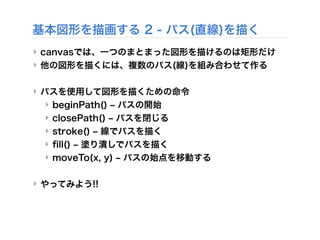
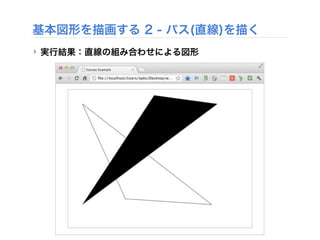
基本図形を描画する 2 -パス(直線)を描く
‣ canvasでは、一つのまとまった図形を描けるのは矩形だけ
‣ 他の図形を描くには、複数のパス(線)を組み合わせて作る
‣ パスを使用して図形を描くための命令
‣ beginPath() ‒ パスの開始
‣ closePath() ‒ パスを閉じる
‣ stroke() ‒ 線でパスを描く
‣ fill() ‒ 塗り潰しでパスを描く
‣ moveTo(x, y) ‒ パスの始点を移動する
‣ やってみよう!!
- 29.
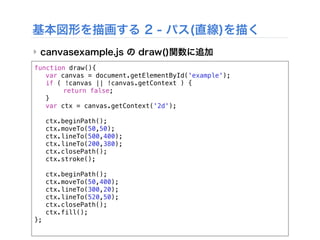
基本図形を描画する 2 -パス(直線)を描く
‣ canvasexample.js の draw()関数に追加
function draw(){
! var canvas = document.getElementById('example');
! if ( !canvas || !canvas.getContext ) {
! ! return false;
! }
! var ctx = canvas.getContext('2d');
! ctx.beginPath();
! ctx.moveTo(50,50);
! ctx.lineTo(500,400);
! ctx.lineTo(200,380);
! ctx.closePath();
! ctx.stroke();
! ctx.beginPath();
! ctx.moveTo(50,400);
! ctx.lineTo(300,20);
! ctx.lineTo(520,50);
! ctx.closePath();
! ctx.fill();
};
- 30.
基本図形を描画する 2 -パス(直線)を描く
‣ canvasexample.js の draw()関数に追加
function draw(){
! var canvas = document.getElementById('example');
! if ( !canvas || !canvas.getContext ) {
! ! return false;
! }
! var ctx = canvas.getContext('2d');
! ctx.beginPath();
! ctx.moveTo(50,50);
! ctx.lineTo(500,400);
! ctx.lineTo(200,380);
! ctx.closePath();
! ctx.stroke();
! ctx.beginPath();
! ctx.moveTo(50,400);
! ctx.lineTo(300,20);
! ctx.lineTo(520,50);
! ctx.closePath();
! ctx.fill();
};
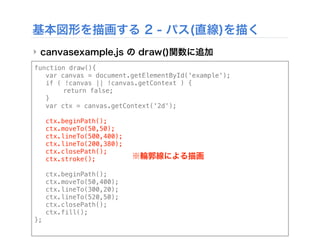
※輪郭線による描画
- 31.
基本図形を描画する 2 -パス(直線)を描く
‣ canvasexample.js の draw()関数に追加
function draw(){
! var canvas = document.getElementById('example');
! if ( !canvas || !canvas.getContext ) {
! ! return false;
! }
! var ctx = canvas.getContext('2d');
! ctx.beginPath();
! ctx.moveTo(50,50);
! ctx.lineTo(500,400);
! ctx.lineTo(200,380);
! ctx.closePath();
! ctx.stroke();
! ctx.beginPath();
! ctx.moveTo(50,400);
! ctx.lineTo(300,20);
! ctx.lineTo(520,50);
! ctx.closePath();
! ctx.fill();
};
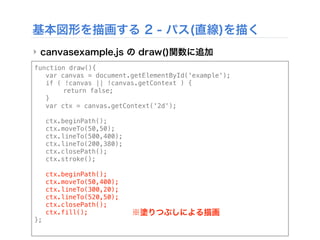
※塗りつぶしによる描画
- 32.
- 33.
- 34.
基本図形を描画する 3 -円弧や円を描く
‣ 円弧や円を描くために arc メソッドを使う
‣ 基本的な書式は以下の通り
‣ x, y:円の中心座標
‣ radius:半径
‣ startAngle, endAngle:円弧の始まりと終点をラジアン角
で定義 (ラジアン:0∼2πで一周する角度の単位)
‣ anticlockwise:円弧を描く回転方向を指定
arc(x, y, radius, startAngle, endAngle, anticlockwise);
- 35.
基本図形を描画する 3 -円弧や円を描く
‣ canvasexample.js の draw()関数に追加
function draw(){
! var canvas = document.getElementById('example');
! if ( !canvas || !canvas.getContext ) {
! ! return false;
! }
! var ctx = canvas.getContext('2d');
! ctx.beginPath();
! ctx.arc(320,240,200,0,Math.PI*2,false);
! ctx.stroke();
! ctx.beginPath();
! ctx.arc(320,240,160,0,Math.PI*1.5,false);
! ctx.stroke();
! ctx.beginPath();
! ctx.arc(320,240,120,Math.PI*0.25,Math.PI*1.0,true);
! ctx.stroke();
! ctx.beginPath();
! ctx.arc(320,240,40,0,Math.PI*2.0,true);
! ctx.fill();
};
- 36.
基本図形を描画する 3 -円弧や円を描く
‣ canvasexample.js の draw()関数に追加
function draw(){
! var canvas = document.getElementById('example');
! if ( !canvas || !canvas.getContext ) {
! ! return false;
! }
! var ctx = canvas.getContext('2d');
! ctx.beginPath();
! ctx.arc(320,240,200,0,Math.PI*2,false);
! ctx.stroke();
! ctx.beginPath();
! ctx.arc(320,240,160,0,Math.PI*1.5,false);
! ctx.stroke();
! ctx.beginPath();
! ctx.arc(320,240,120,Math.PI*0.25,Math.PI*1.0,true);
! ctx.stroke();
! ctx.beginPath();
! ctx.arc(320,240,40,0,Math.PI*2.0,true);
! ctx.fill();
};
※円弧1
- 37.
基本図形を描画する 3 -円弧や円を描く
‣ canvasexample.js の draw()関数に追加
function draw(){
! var canvas = document.getElementById('example');
! if ( !canvas || !canvas.getContext ) {
! ! return false;
! }
! var ctx = canvas.getContext('2d');
! ctx.beginPath();
! ctx.arc(320,240,200,0,Math.PI*2,false);
! ctx.stroke();
! ctx.beginPath();
! ctx.arc(320,240,160,0,Math.PI*1.5,false);
! ctx.stroke();
! ctx.beginPath();
! ctx.arc(320,240,120,Math.PI*0.25,Math.PI*1.0,true);
! ctx.stroke();
! ctx.beginPath();
! ctx.arc(320,240,40,0,Math.PI*2.0,true);
! ctx.fill();
};
※円弧2
- 38.
基本図形を描画する 3 -円弧や円を描く
‣ canvasexample.js の draw()関数に追加
function draw(){
! var canvas = document.getElementById('example');
! if ( !canvas || !canvas.getContext ) {
! ! return false;
! }
! var ctx = canvas.getContext('2d');
! ctx.beginPath();
! ctx.arc(320,240,200,0,Math.PI*2,false);
! ctx.stroke();
! ctx.beginPath();
! ctx.arc(320,240,160,0,Math.PI*1.5,false);
! ctx.stroke();
! ctx.beginPath();
! ctx.arc(320,240,120,Math.PI*0.25,Math.PI*1.0,true);
! ctx.stroke();
! ctx.beginPath();
! ctx.arc(320,240,40,0,Math.PI*2.0,true);
! ctx.fill();
};
※円弧3
- 39.
基本図形を描画する 3 -円弧や円を描く
‣ canvasexample.js の draw()関数に追加
function draw(){
! var canvas = document.getElementById('example');
! if ( !canvas || !canvas.getContext ) {
! ! return false;
! }
! var ctx = canvas.getContext('2d');
! ctx.beginPath();
! ctx.arc(320,240,200,0,Math.PI*2,false);
! ctx.stroke();
! ctx.beginPath();
! ctx.arc(320,240,160,0,Math.PI*1.5,false);
! ctx.stroke();
! ctx.beginPath();
! ctx.arc(320,240,120,Math.PI*0.25,Math.PI*1.0,true);
! ctx.stroke();
! ctx.beginPath();
! ctx.arc(320,240,40,0,Math.PI*2.0,true);
! ctx.fill();
};
※円弧4
- 40.
- 41.
- 42.
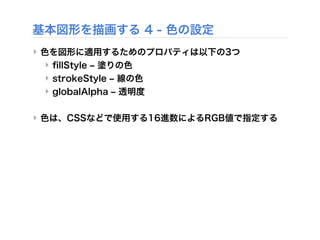
基本図形を描画する 4 -色の設定
‣ 色を図形に適用するためのプロパティは以下の3つ
‣ fillStyle ‒ 塗りの色
‣ strokeStyle ‒ 線の色
‣ globalAlpha ‒ 透明度
‣ 色は、CSSなどで使用する16進数によるRGB値で指定する
- 43.
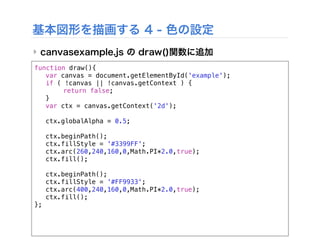
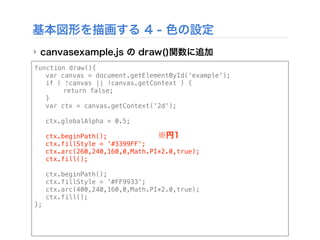
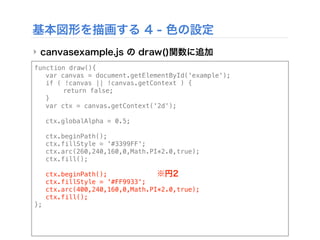
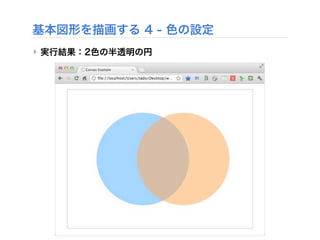
基本図形を描画する 4 -色の設定
‣ canvasexample.js の draw()関数に追加
function draw(){
! var canvas = document.getElementById('example');
! if ( !canvas || !canvas.getContext ) {
! ! return false;
! }
! var ctx = canvas.getContext('2d');
! ctx.globalAlpha = 0.5;
! ctx.beginPath();
! ctx.fillStyle = '#3399FF';
! ctx.arc(260,240,160,0,Math.PI*2.0,true);
! ctx.fill();
! ctx.beginPath();
! ctx.fillStyle = '#FF9933';
! ctx.arc(400,240,160,0,Math.PI*2.0,true);
! ctx.fill();
};
- 44.
基本図形を描画する 4 -色の設定
‣ canvasexample.js の draw()関数に追加
function draw(){
! var canvas = document.getElementById('example');
! if ( !canvas || !canvas.getContext ) {
! ! return false;
! }
! var ctx = canvas.getContext('2d');
! ctx.globalAlpha = 0.5;
! ctx.beginPath();
! ctx.fillStyle = '#3399FF';
! ctx.arc(260,240,160,0,Math.PI*2.0,true);
! ctx.fill();
! ctx.beginPath();
! ctx.fillStyle = '#FF9933';
! ctx.arc(400,240,160,0,Math.PI*2.0,true);
! ctx.fill();
};
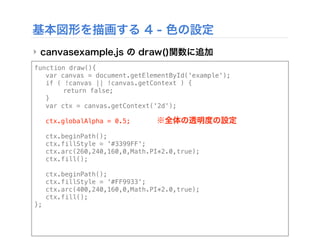
※全体の透明度の設定
- 45.
基本図形を描画する 4 -色の設定
‣ canvasexample.js の draw()関数に追加
function draw(){
! var canvas = document.getElementById('example');
! if ( !canvas || !canvas.getContext ) {
! ! return false;
! }
! var ctx = canvas.getContext('2d');
! ctx.globalAlpha = 0.5;
! ctx.beginPath();
! ctx.fillStyle = '#3399FF';
! ctx.arc(260,240,160,0,Math.PI*2.0,true);
! ctx.fill();
! ctx.beginPath();
! ctx.fillStyle = '#FF9933';
! ctx.arc(400,240,160,0,Math.PI*2.0,true);
! ctx.fill();
};
※円1
- 46.
基本図形を描画する 4 -色の設定
‣ canvasexample.js の draw()関数に追加
function draw(){
! var canvas = document.getElementById('example');
! if ( !canvas || !canvas.getContext ) {
! ! return false;
! }
! var ctx = canvas.getContext('2d');
! ctx.globalAlpha = 0.5;
! ctx.beginPath();
! ctx.fillStyle = '#3399FF';
! ctx.arc(260,240,160,0,Math.PI*2.0,true);
! ctx.fill();
! ctx.beginPath();
! ctx.fillStyle = '#FF9933';
! ctx.arc(400,240,160,0,Math.PI*2.0,true);
! ctx.fill();
};
※円2
- 47.
- 48.