





• Click to edit Master text styles
- Second level
- Third level
Imagery Analysis in ArcGIS:
New View. New Vision.
Chris Barker & Zoe Taylor
• Click to edit Master text styles
- Second level
- Third level
Agenda
• Imagery overview
• What’s new for Imagery in ArcGIS Pro?
• Georeferencing in ArcGIS Pro
• Using Imagery from the Living Atlas
• Raster Functions for on-the-fly Processing
• Raster Products: in memory datasets
• The Image Classification Wizard
• Image Analysis in the Browser
• Click to edit Master text styles
- Second level
- Third level
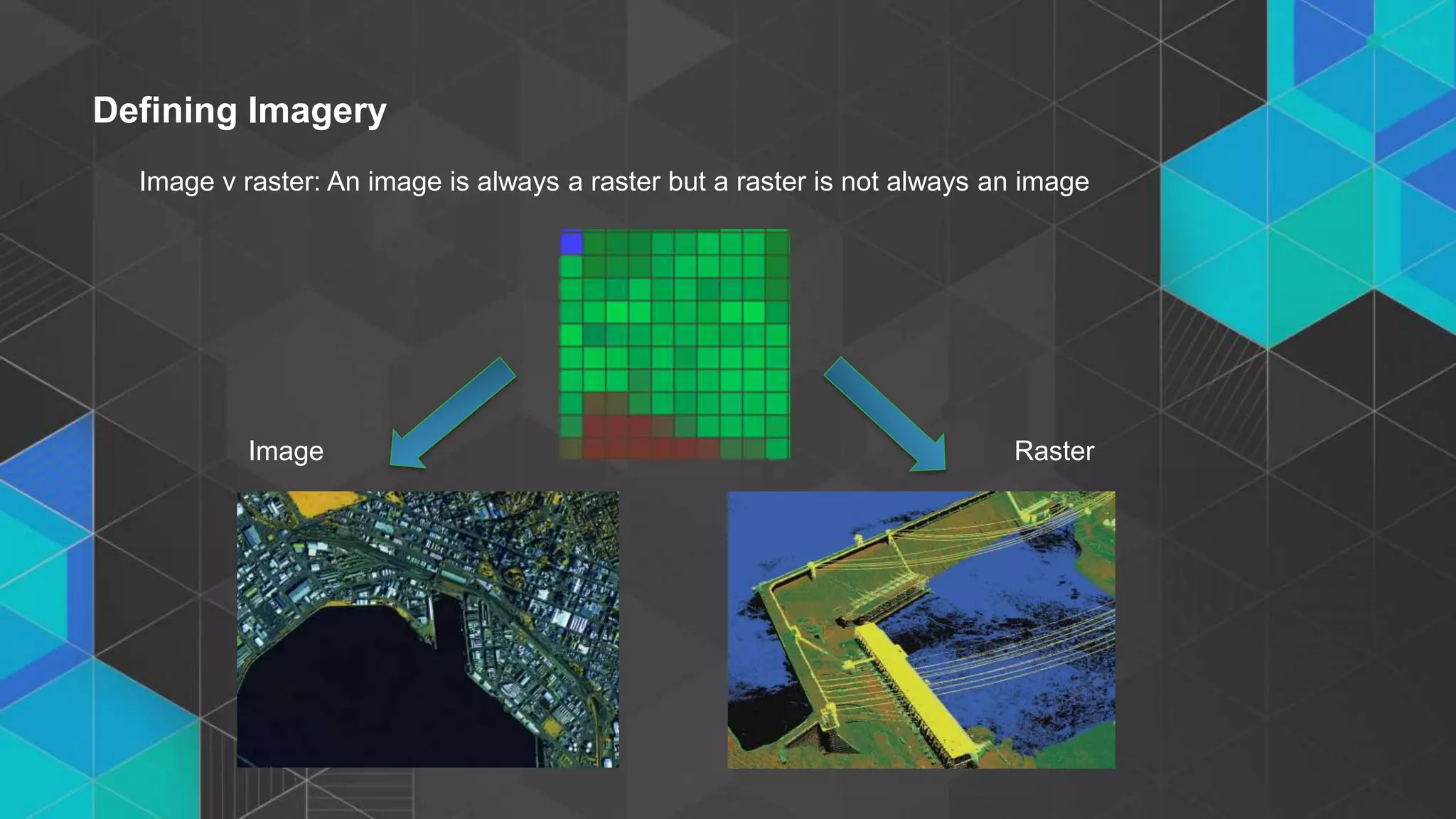
Image v raster: An image is always a raster but a raster is not always an image
Defining Imagery
Image Raster
• Click to edit Master text styles
- Second level
- Third level
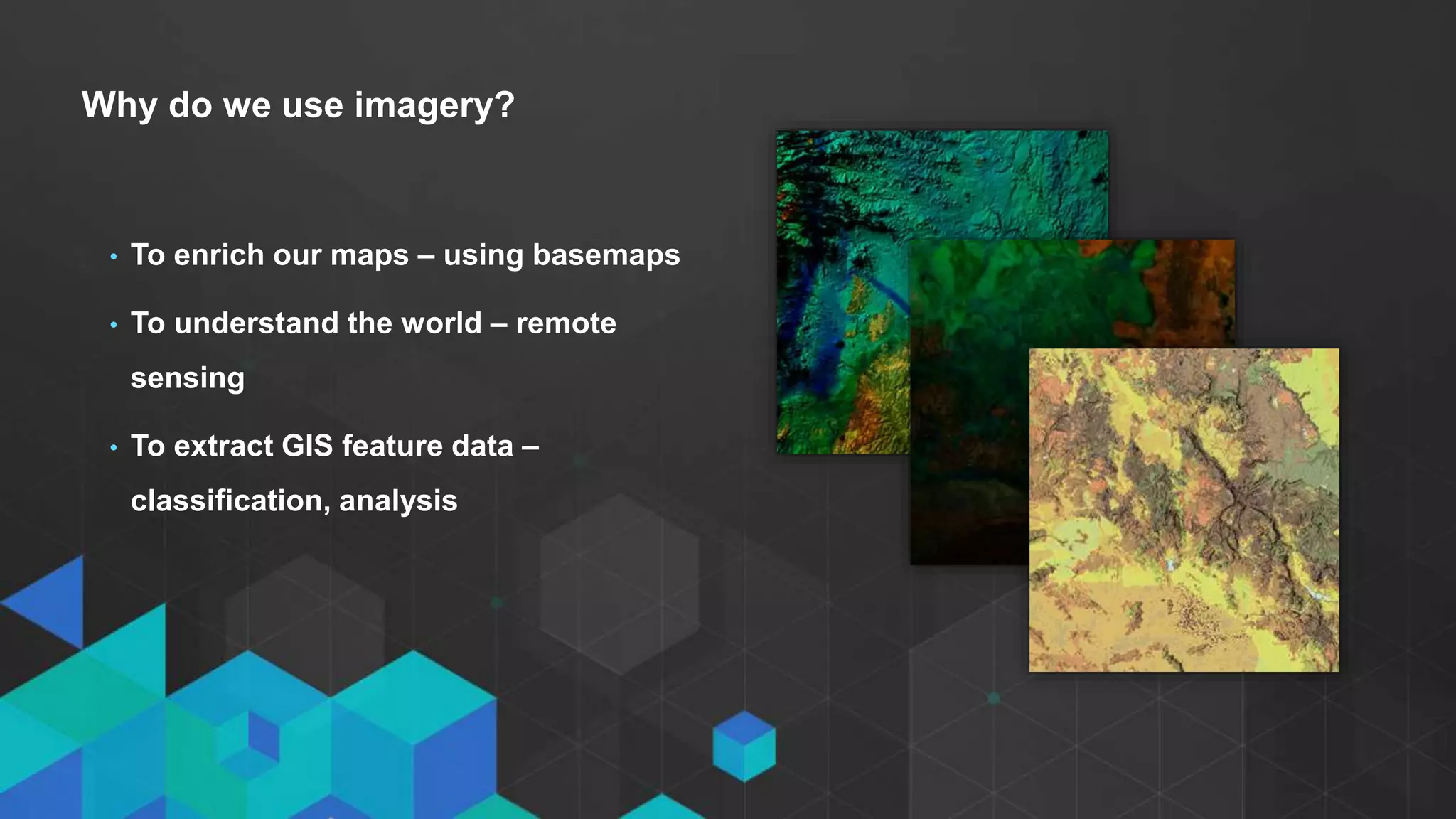
Why do we use imagery?
• To enrich our maps – using basemaps
• To understand the world – remote
sensing
• To extract GIS feature data –
classification, analysis
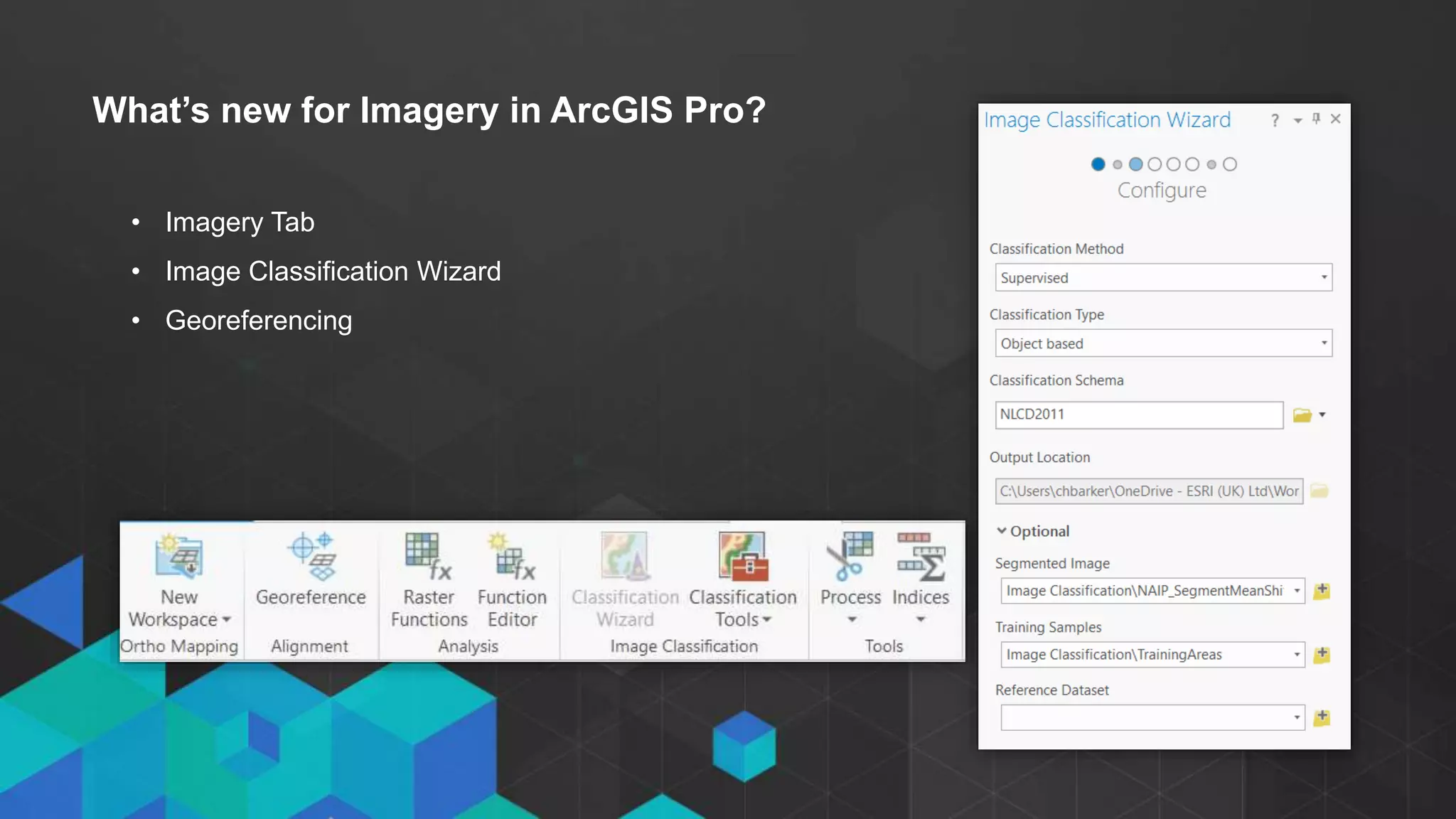
What’s new for Imagery in ArcGIS Pro?
• Imagery Tab
• Image Classification Wizard
• Georeferencing
• Click to edit Master text styles
- Second level
- Third level
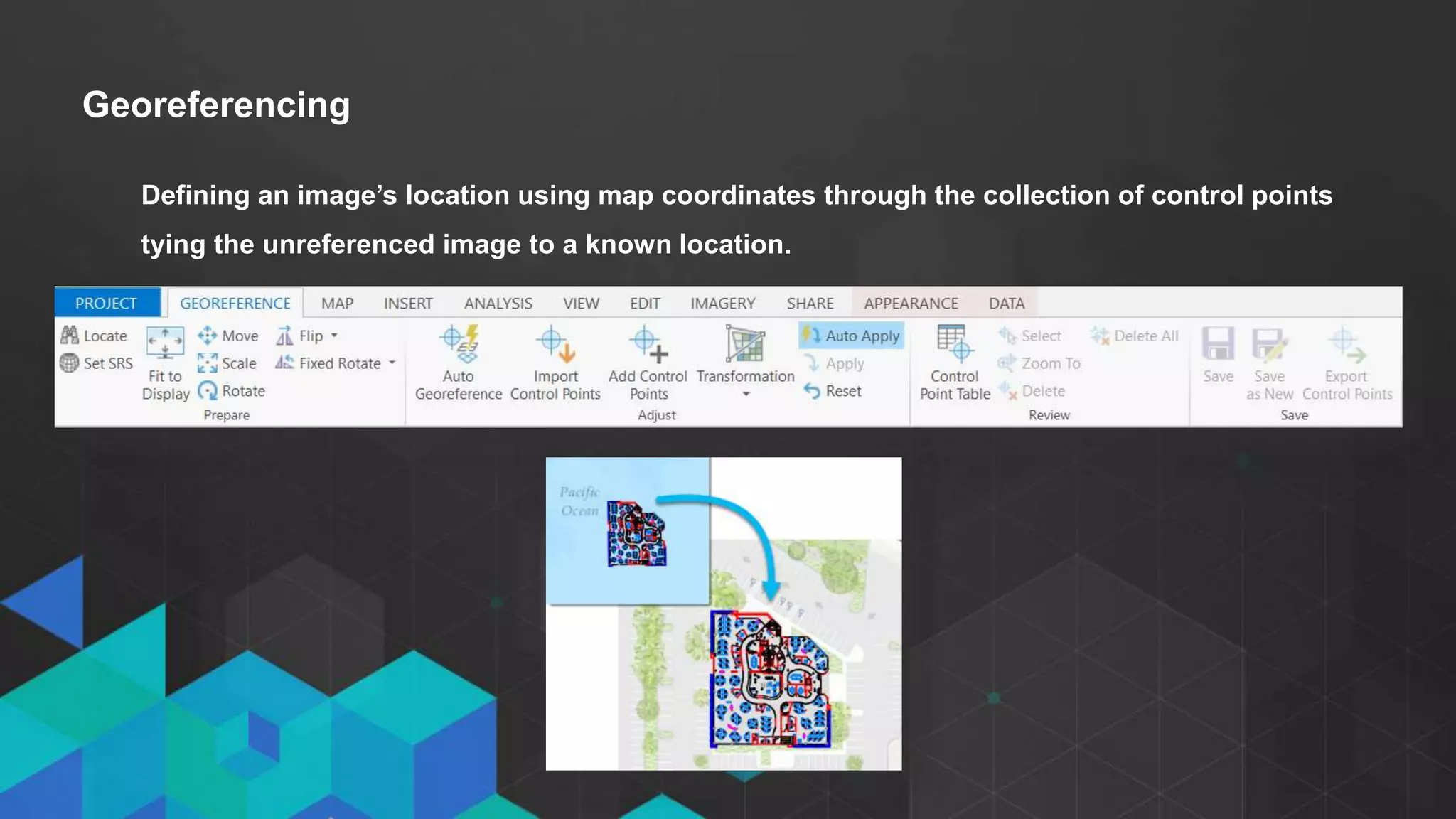
Georeferencing
Defining an image’s location using map coordinates through the collection of control points
tying the unreferenced image to a known location.
Demo 1: Georeferencing in ArcGIS
Pro
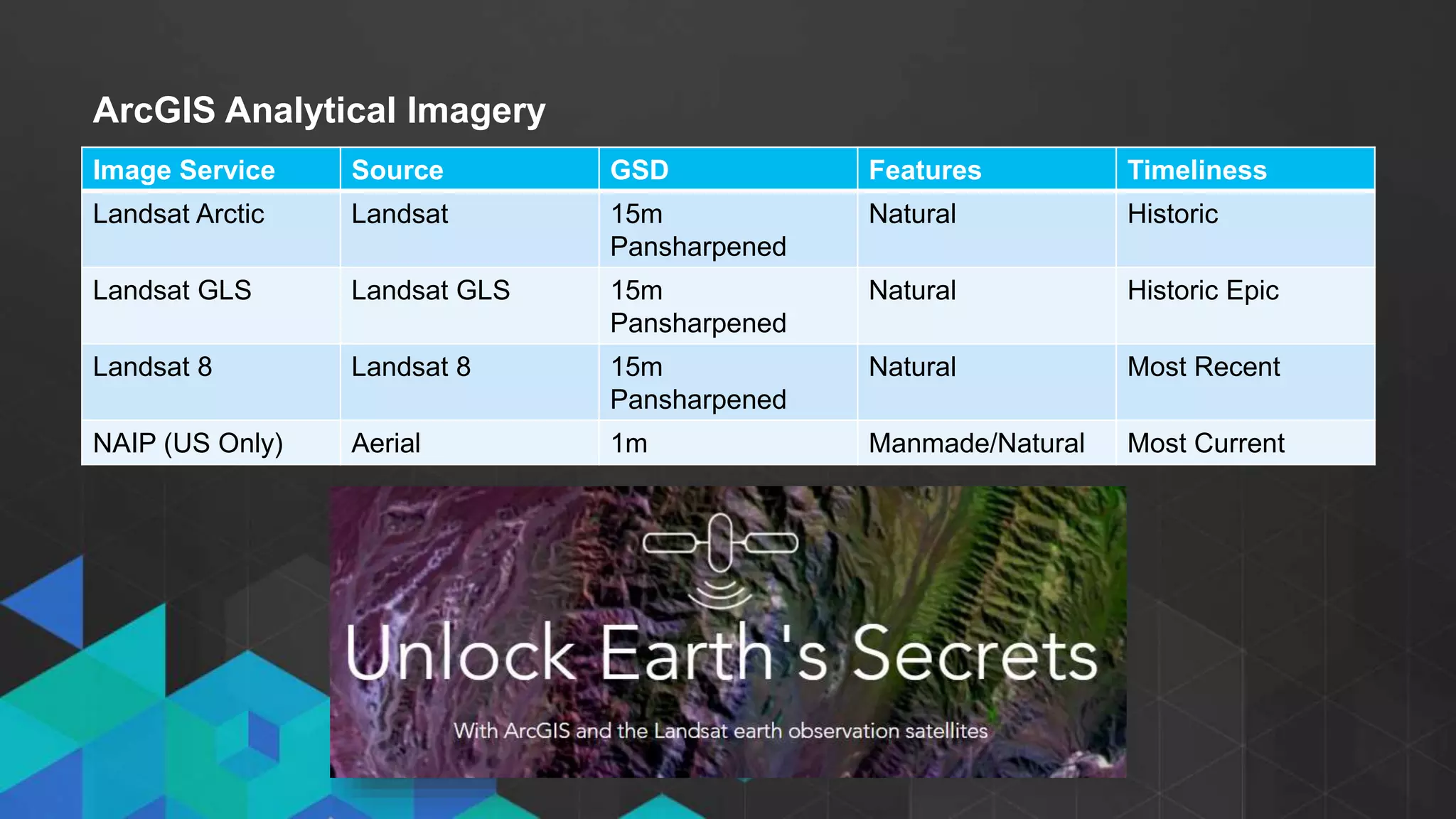
ArcGIS Analytical Imagery
• Landsat Arctic
• Landsat GLS
• Landsat 8
• NAIP (US only)
Image Service Source GSD Features Timeliness
Landsat Arctic Landsat 15m
Pansharpened
Natural Historic
Landsat GLS Landsat GLS 15m
Pansharpened
Natural Historic Epic
Landsat 8 Landsat 8 15m
Pansharpened
Natural Most Recent
NAIP (US Only) Aerial 1m Manmade/Natural Most Current
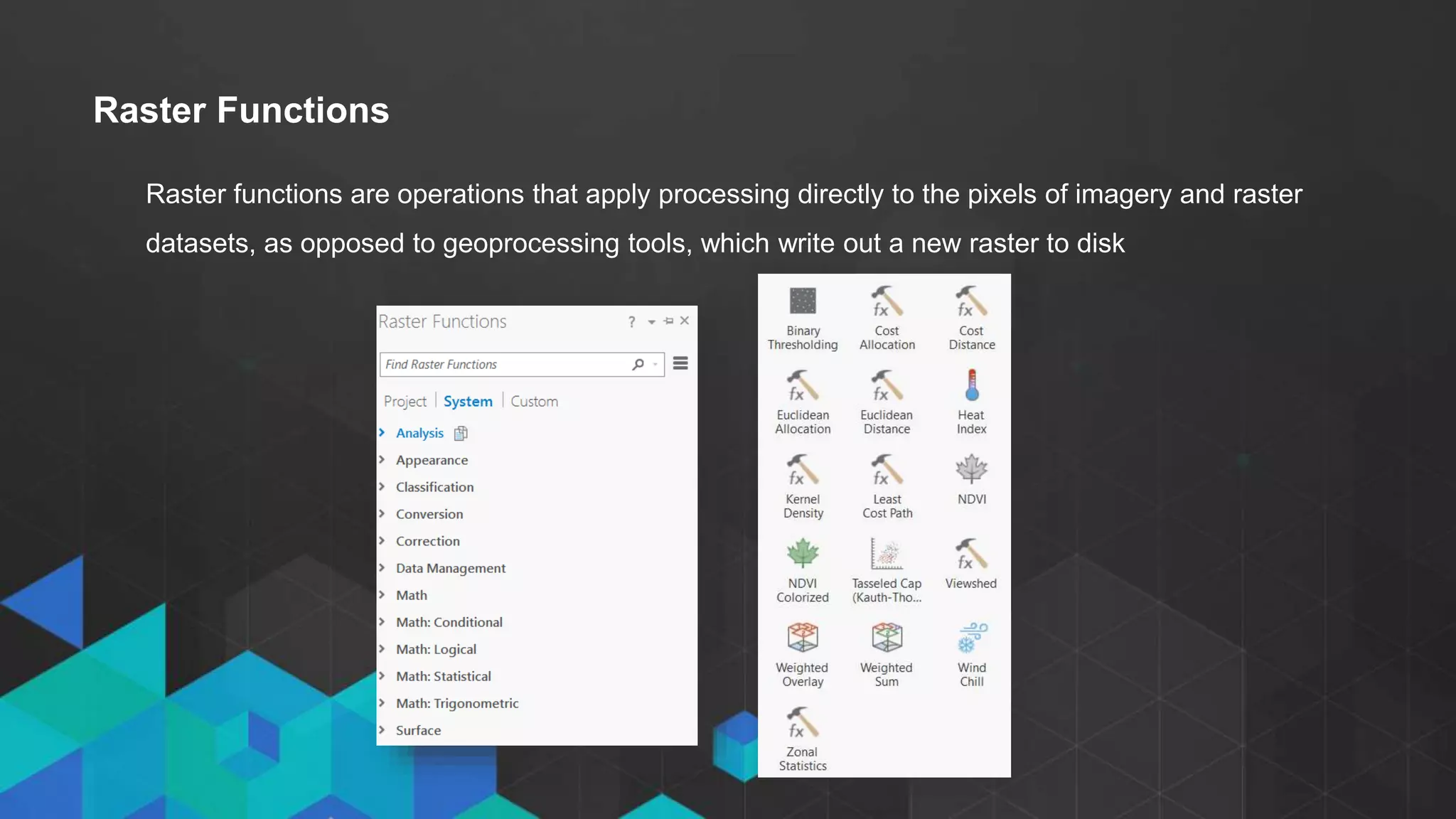
Raster functions are operations that apply processing directly to the pixels of imagery and raster
datasets, as opposed to geoprocessing tools, which write out a new raster to disk
Raster Functions
Demo 2: Living Atlas and Raster
Functions
• Click to edit Master text styles
- Second level
- Third level
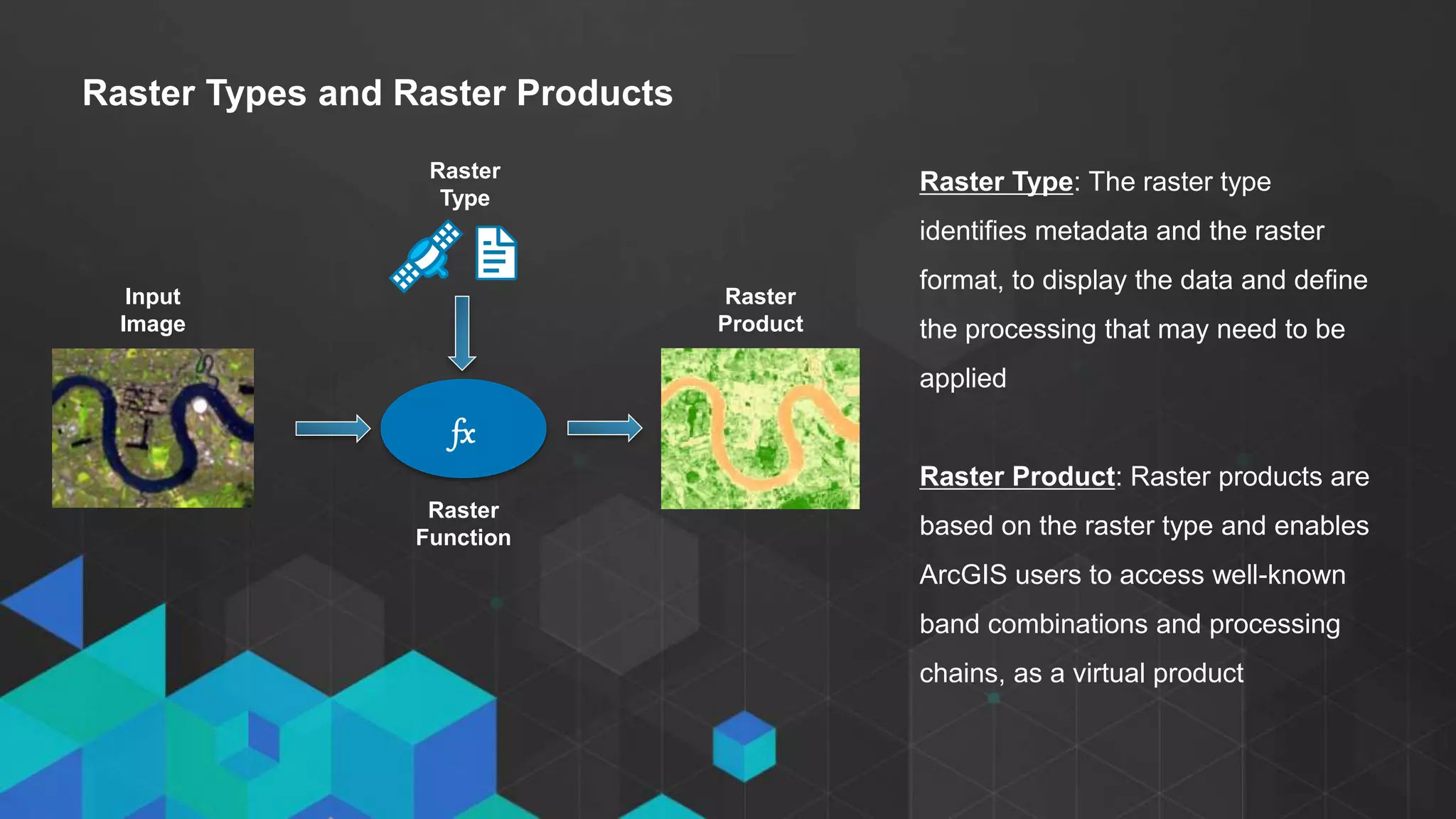
Raster Types and Raster Products
Raster Type: The raster type
identifies metadata and the raster
format, to display the data and define
the processing that may need to be
applied
Raster Product: Raster products are
based on the raster type and enables
ArcGIS users to access well-known
band combinations and processing
chains, as a virtual product
Raster
Type
Raster
Function
fx
Raster
Product
Input
Image
Demo 3: Raster Products and
Virtual Datasets
• Click to edit Master text styles
- Second level
- Third level
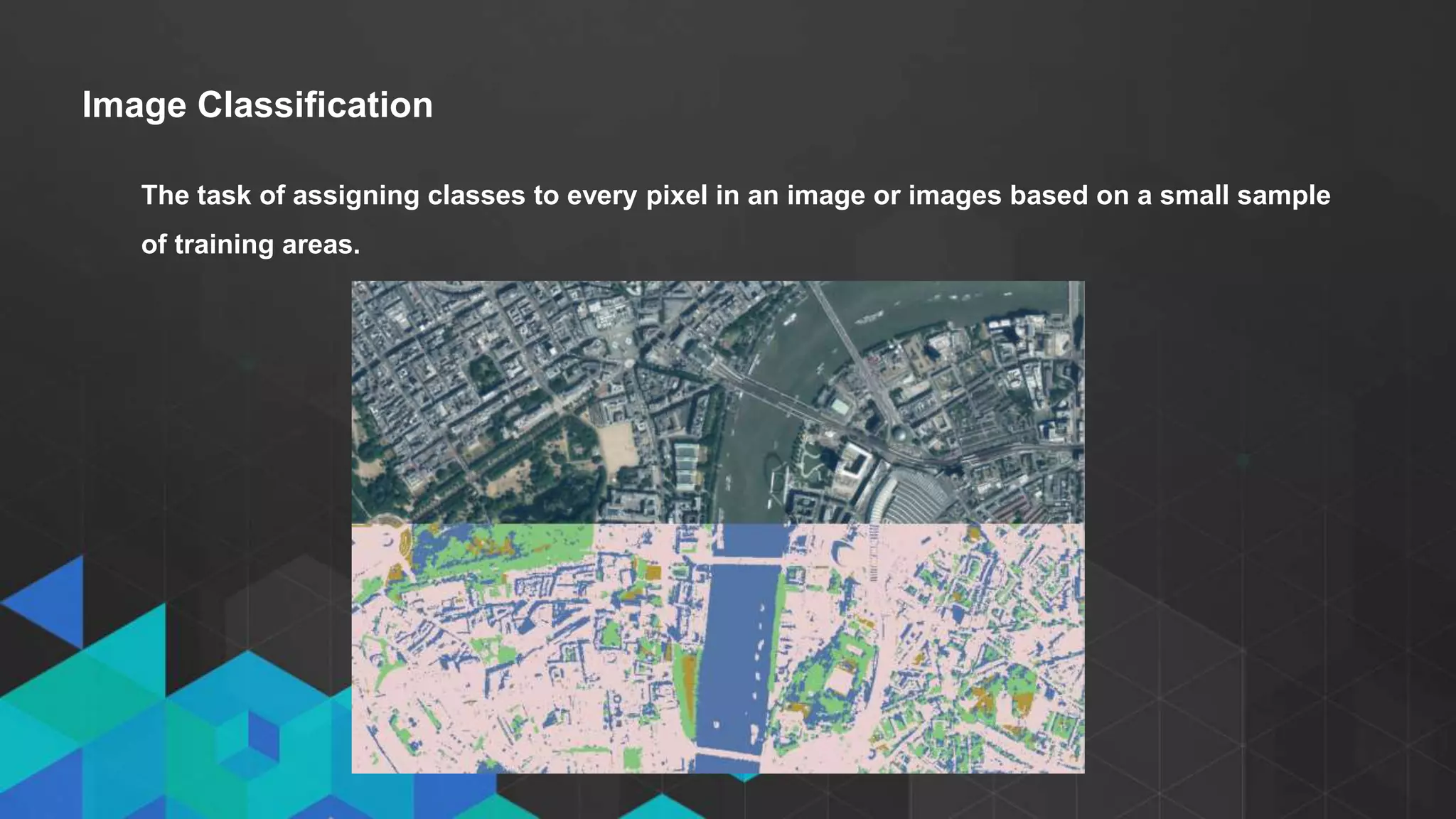
Image Classification
The task of assigning classes to every pixel in an image or images based on a small sample
of training areas.
• Click to edit Master text styles
- Second level
- Third level
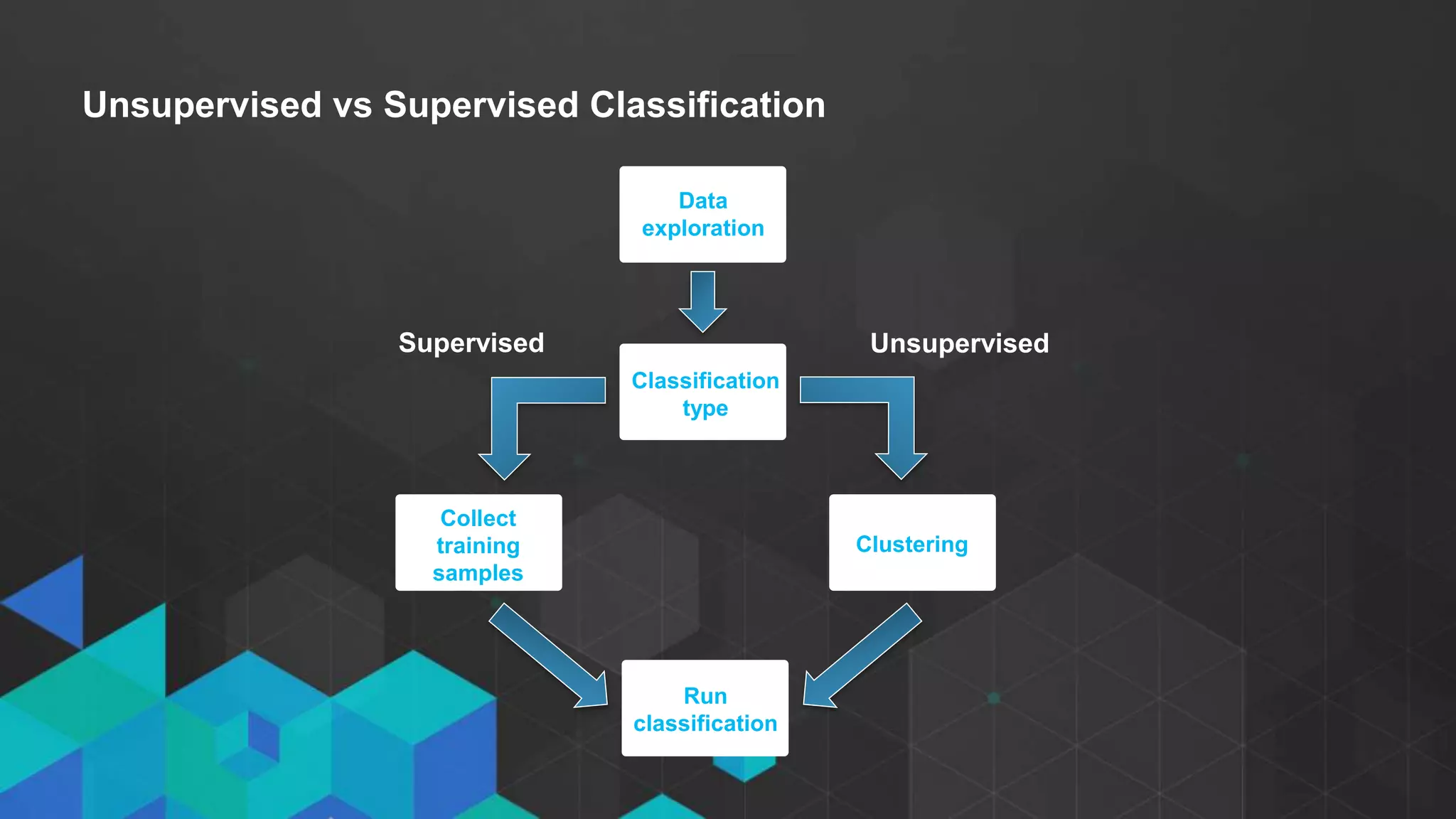
Unsupervised vs Supervised Classification
Data
exploration
Classification
type
Collect
training
samples
Clustering
Run
classification
UnsupervisedSupervised
• Click to edit Master text styles
- Second level
- Third level
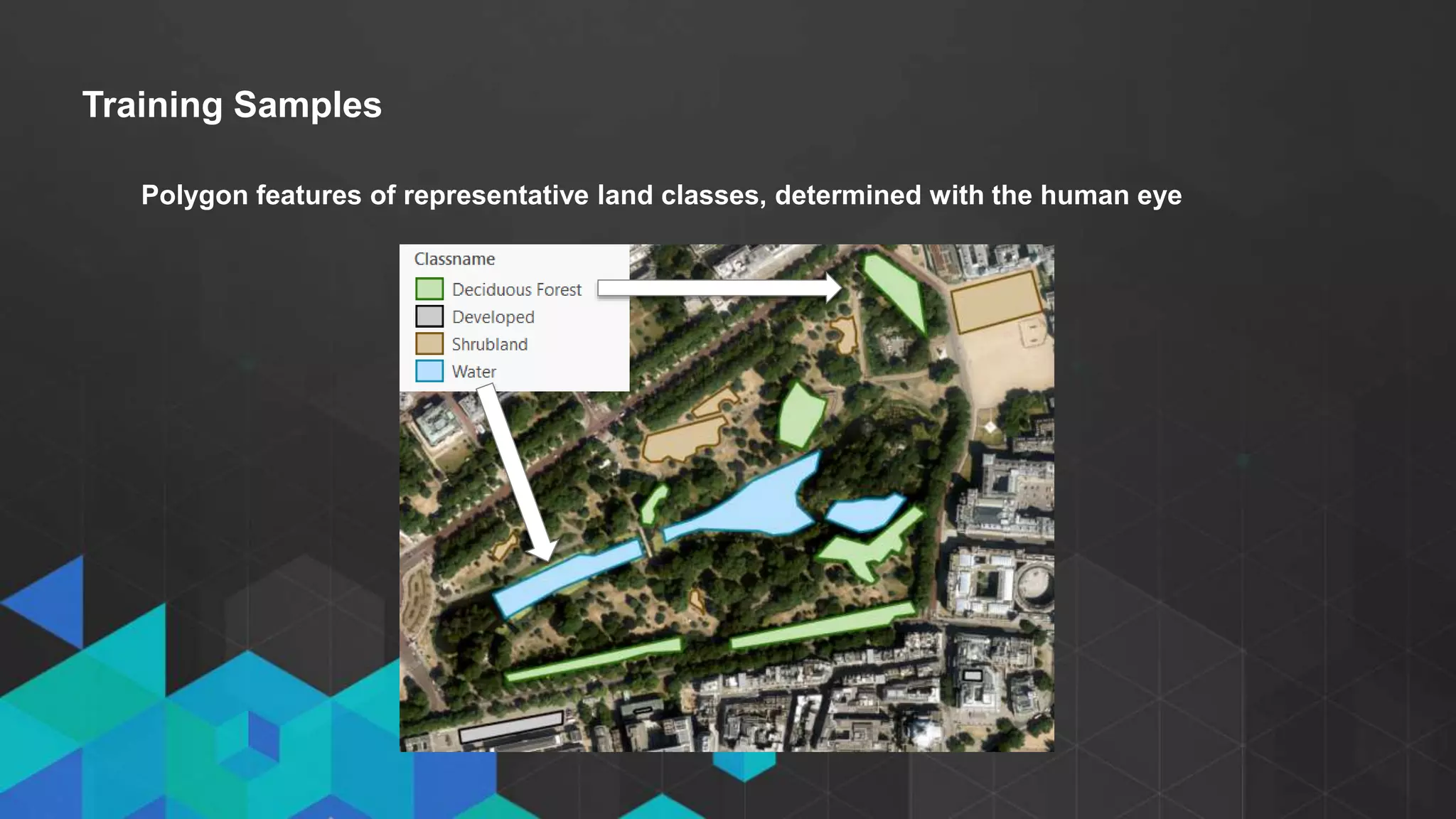
Training Samples
Polygon features of representative land classes, determined with the human eye
• Click to edit Master text styles
- Second level
- Third level
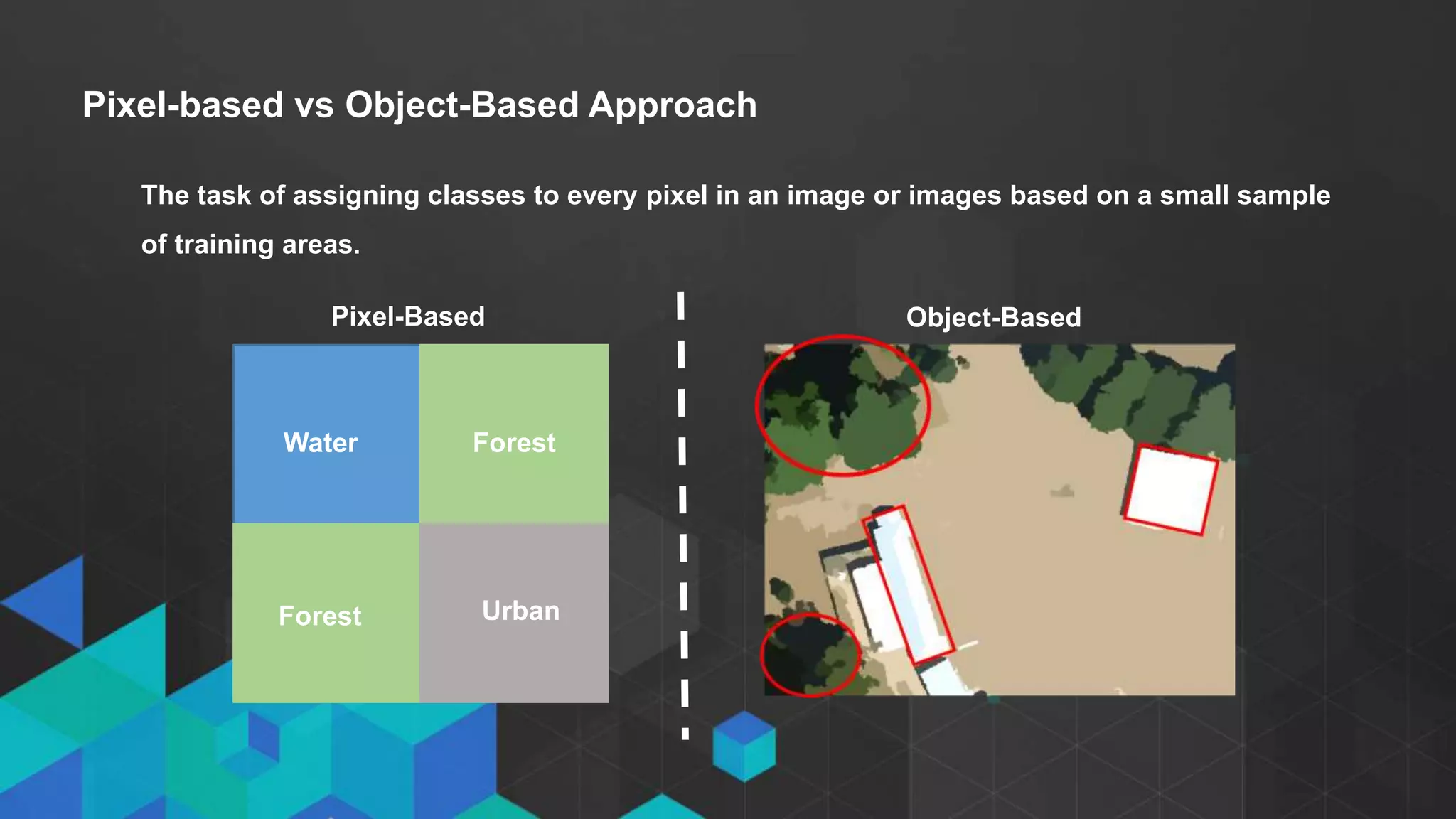
Pixel-based vs Object-Based Approach
The task of assigning classes to every pixel in an image or images based on a small sample
of training areas.
UrbanForest
ForestWater
Pixel-Based Object-Based
Demo 4: The Image Classification
Wizard
• Click to edit Master text styles
- Second level
- Third level
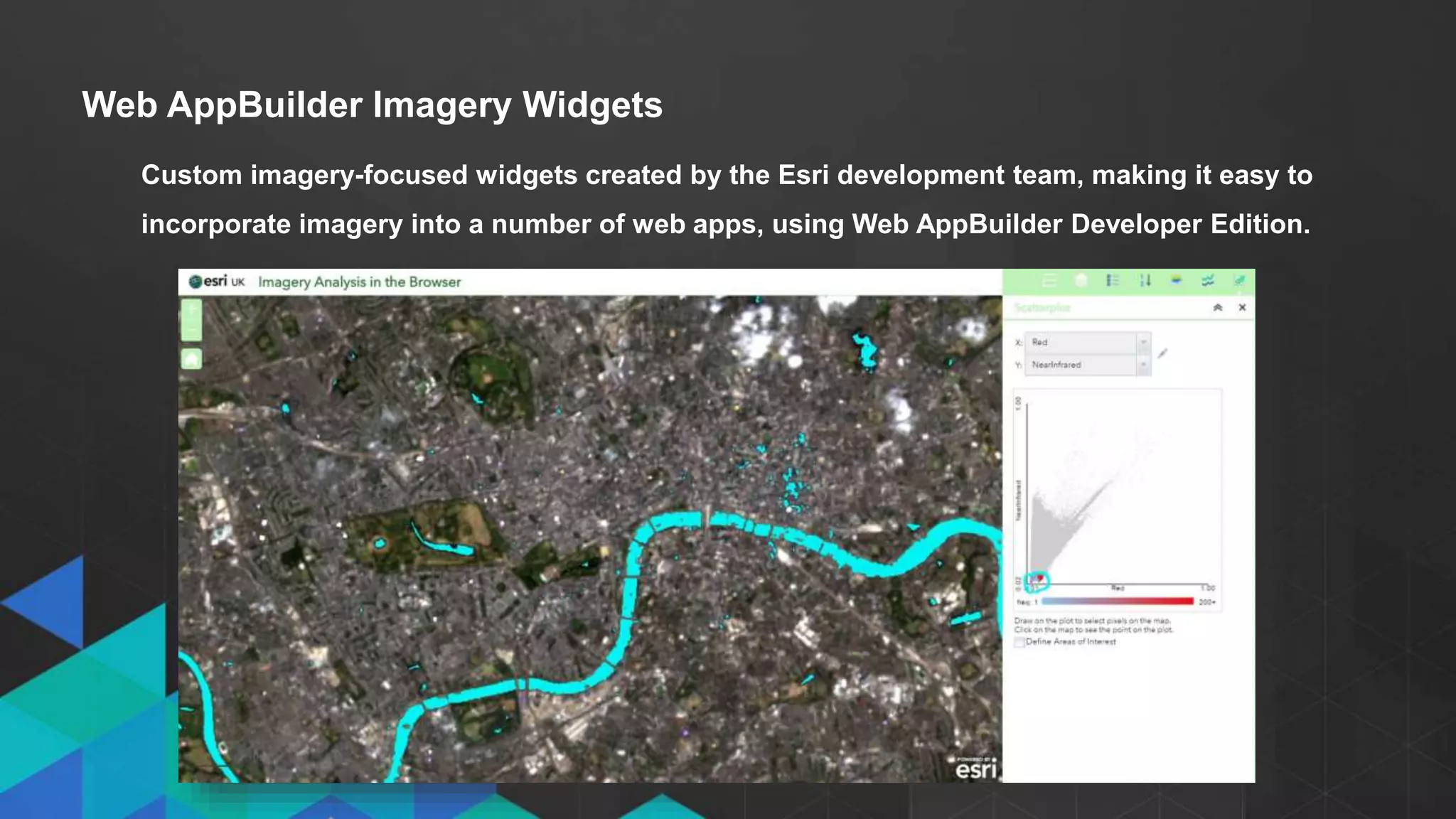
Web AppBuilder Imagery Widgets
Custom imagery-focused widgets created by the Esri development team, making it easy to
incorporate imagery into a number of web apps, using Web AppBuilder Developer Edition.
Demo 5: Image Analysis in the
Browser
• Click to edit Master text styles
- Second level
- Third level
• Imagery in ArcGIS: available imagery, user interface, ArcGIS Pro imagery tab
• Georeferencing in ArcGIS Pro
• Using Imagery from the Living Atlas
• Raster Functions for on-the-fly Processing: raster functions and chains
• Raster Products: in memory datasets: utilising the metadata
• The Image Classification Wizard
• Image Analysis in the Browser: Web AppBuilder imagery widgets on image services
Summary
Resources
• GitHub Web AppBuilder Widgets
• Unlock Earth’s Secrets
• Landsat in Action
• Landsat Lens
• ArcGIS Imagery Book
• Click to edit Master text styles
- Second level
- Third level

Imagery Analysis in ArcGIS New View, New Vision - Technical - Esri UK Annual Conference 2017

  • 1.
    • Click toedit Master text styles - Second level - Third level Imagery Analysis in ArcGIS: New View. New Vision. Chris Barker & Zoe Taylor
  • 2.
    • Click toedit Master text styles - Second level - Third level Agenda • Imagery overview • What’s new for Imagery in ArcGIS Pro? • Georeferencing in ArcGIS Pro • Using Imagery from the Living Atlas • Raster Functions for on-the-fly Processing • Raster Products: in memory datasets • The Image Classification Wizard • Image Analysis in the Browser
  • 3.
    • Click toedit Master text styles - Second level - Third level Image v raster: An image is always a raster but a raster is not always an image Defining Imagery Image Raster
  • 4.
    • Click toedit Master text styles - Second level - Third level Why do we use imagery? • To enrich our maps – using basemaps • To understand the world – remote sensing • To extract GIS feature data – classification, analysis
  • 5.
    What’s new forImagery in ArcGIS Pro? • Imagery Tab • Image Classification Wizard • Georeferencing
  • 6.
    • Click toedit Master text styles - Second level - Third level Georeferencing Defining an image’s location using map coordinates through the collection of control points tying the unreferenced image to a known location.
  • 7.
  • 8.
    ArcGIS Analytical Imagery •Landsat Arctic • Landsat GLS • Landsat 8 • NAIP (US only) Image Service Source GSD Features Timeliness Landsat Arctic Landsat 15m Pansharpened Natural Historic Landsat GLS Landsat GLS 15m Pansharpened Natural Historic Epic Landsat 8 Landsat 8 15m Pansharpened Natural Most Recent NAIP (US Only) Aerial 1m Manmade/Natural Most Current
  • 9.
    Raster functions areoperations that apply processing directly to the pixels of imagery and raster datasets, as opposed to geoprocessing tools, which write out a new raster to disk Raster Functions
  • 11.
    Demo 2: LivingAtlas and Raster Functions
  • 12.
    • Click toedit Master text styles - Second level - Third level Raster Types and Raster Products Raster Type: The raster type identifies metadata and the raster format, to display the data and define the processing that may need to be applied Raster Product: Raster products are based on the raster type and enables ArcGIS users to access well-known band combinations and processing chains, as a virtual product Raster Type Raster Function fx Raster Product Input Image
  • 13.
    Demo 3: RasterProducts and Virtual Datasets
  • 14.
    • Click toedit Master text styles - Second level - Third level Image Classification The task of assigning classes to every pixel in an image or images based on a small sample of training areas.
  • 15.
    • Click toedit Master text styles - Second level - Third level Unsupervised vs Supervised Classification Data exploration Classification type Collect training samples Clustering Run classification UnsupervisedSupervised
  • 16.
    • Click toedit Master text styles - Second level - Third level Training Samples Polygon features of representative land classes, determined with the human eye
  • 17.
    • Click toedit Master text styles - Second level - Third level Pixel-based vs Object-Based Approach The task of assigning classes to every pixel in an image or images based on a small sample of training areas. UrbanForest ForestWater Pixel-Based Object-Based
  • 18.
    Demo 4: TheImage Classification Wizard
  • 19.
    • Click toedit Master text styles - Second level - Third level Web AppBuilder Imagery Widgets Custom imagery-focused widgets created by the Esri development team, making it easy to incorporate imagery into a number of web apps, using Web AppBuilder Developer Edition.
  • 20.
    Demo 5: ImageAnalysis in the Browser
  • 21.
    • Click toedit Master text styles - Second level - Third level • Imagery in ArcGIS: available imagery, user interface, ArcGIS Pro imagery tab • Georeferencing in ArcGIS Pro • Using Imagery from the Living Atlas • Raster Functions for on-the-fly Processing: raster functions and chains • Raster Products: in memory datasets: utilising the metadata • The Image Classification Wizard • Image Analysis in the Browser: Web AppBuilder imagery widgets on image services Summary
  • 22.
    Resources • GitHub WebAppBuilder Widgets • Unlock Earth’s Secrets • Landsat in Action • Landsat Lens • ArcGIS Imagery Book
  • 23.
    • Click toedit Master text styles - Second level - Third level

Editor's Notes

  • #4 The terms image and raster are often used interchangeably and this can cause some confusion. Quickly understanding the difference between the two will make things clearer. So, an image is always a raster
  • #5 We use imagery for a variety of reasons across industries. We can use imagery for very simple applications, all the way to very complex processes. GIS is good from an analytical perspective, but often not from a context perspective. Using imagery as a basemap provides us with an extra level of context. For example, a simple street basemap probably won’t have much detail in remote areas. However with an imagery basemap, we can suddenly enrich our maps and intuitively understand what we can see. Imagery also helps us understand our world. Remote sensing is a very rich science that can capture unique phenomenon across the earth. For example, imagery is timely. Major events can happen over time, for example earthquakes. Existing data in a gis would suddenly be fairly useless, but new imagery can help understand what’s happened where and when. We can also use imagery to extract gis features, so we have data to work with. We can also use images for analysis – using the pixel values to classify into land cover or geology.
  • #9 There are freely available analytical sources in arcgis online – 3 landsat sources and NAIP. Landsat arctic is new and is available in a polar stereographic projection. Landsat gls is a product the usgs publishes every 5 years. It’s the best imagery available in that 5 year collection. Landsat 8 service is the best of landsat 8. it is updated every day with images with less than 10% cliud cover. It’s temporal so you can look back at imagery over time. Naip is a high resolution (1m) multispectral image service for the US only. If you want to check out the analytical capabilities of the landsat service, go to the esri unlock earth’s secrets page and see the service in action over the browser.
  • #10 Raster functions are operations that apply processing directly to the pixels of imagery and raster datasets, as opposed to geoprocessing tools, which write out a new raster to disk Raster functions are used for a variety of things, from exposing specific band to classifying or running mathematical processes. They take pixels in, modifies something and spits something out. However, the unique aspect of raster functions is they work in memory. Theyd on’t write anything out to geodatabases like traditional tools which usually go from tiff to tiff to tiff to tiff. There are around 60 raster functions readily available to process imagery in a number of ways. You can run indivudla functions on a block of pixels or you can chain them together into a raster function chain. Why use raster functions over geoprocessing tools? In general working in memory is quicker. Also, as a lot of common processing tasks are already available as functions, why not use them? One of the key advantages is that many geoprocessing tools work on an entire image. It may be that you only one to process a block of pixels at a time. Ratser functions are able to do this on the fly.
  • #13 Before the next demo on raster products, it’s important to understand how raster products work. We’ve already talked about ratser functions which can process images as a chain of functions. The raster type identifies metadata and the raster format, to display the data and define the processing that may need to be applied. It’s an object in the system that knows specifics of sensors. Arcgis will recognize the sensor of an image, for example landsat, and associate specific logic from that sensor with the image. So once we understand raster functions and raster types, raster products bring those two together to save you a load of work. Raster products are based on the raster type and enables ArcGIS users to access well-known band combinations and processing chains, as a virtual product. It combines the raster type with appropriate raster function chains to provide these virtual products.