Image processing using Matlab
Author : Pooya Sagharchi Ha
Agenda
• Introduction to Matlab
• Basics & Examples
• Image processing with Matlab
• Basics & Examples
What is Matlab?
• Matlab stand for Matrix Laboratory
• Matlab is high-level language
• perform computationally intensive tasks faster
than with traditional programming languages
such as c++
• The help in Matlab is very good, use it!
• Everything is treated as a matrix
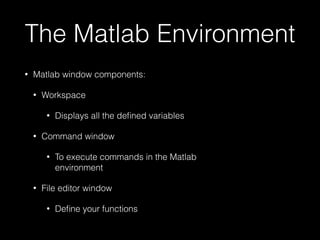
The Matlab Environment
• Matlab window components:
• Workspace
• Displays all the defined variables
• Command window
• To execute commands in the Matlab
environment
• File editor window
• Define your functions
Matlab Help
• Matlab help is an extremely powerful assistance
to learning Matlab
• Help not only contains the theoretical
background, but also shows demos for
implementation
• Matlab help can be opened by using the HELP
pull-down menu
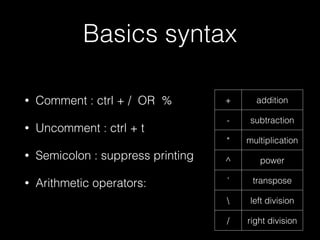
Basics syntax
• Comment : ctrl + / OR %
• Uncomment : ctrl + t
• Semicolon : suppress printing
• Arithmetic operators:
+ addition
- subtraction
* multiplication
^ power
' transpose
 left division
/ right division
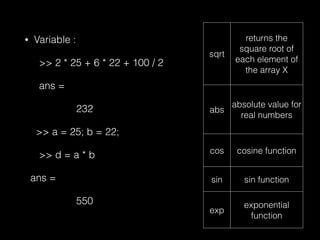
• Variable :
>> 2 * 25 + 6 * 22 + 100 / 2
ans =
232
>> a = 25; b = 22;
>> d = a * b
ans =
550
sqrt
returns the
square root of
each element of
the array X
abs
absolute value for
real numbers
cos cosine function
sin sin function
exp
exponential
function
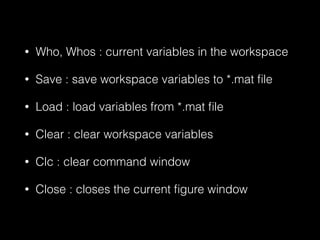
• Who, Whos : current variables in the workspace
• Save : save workspace variables to *.mat file
• Load : load variables from *.mat file
• Clear : clear workspace variables
• Clc : clear command window
• Close : closes the current figure window
Vectors and Matrices
• How to build a matrix?
>> a = [1 5 8]
a =
1 5 8
>> a = [ 1 2 3]'
a =
1
2
3
>> a = [ 0:2:4 ; 8:1:10; 35:5:45]
a =
0 2 4
8 9 10
35 40 45
>> a = [1:3; 4:6; 7:9]
a =
1 2 3
4 5 6
7 8 9
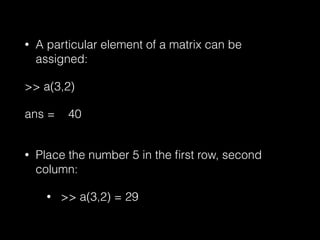
• A particular element of a matrix can be
assigned:
>> a(3,2)
ans = 40
• Place the number 5 in the first row, second
column:
• >> a(3,2) = 29
• Operations ad functions that were defined scalars
in the previous section can also be used on
vectors and matrices, For example.
>> a = [ 1 2 3];
>> b = [ 4 5 6];
>> c = a + b
c =
5 7 9
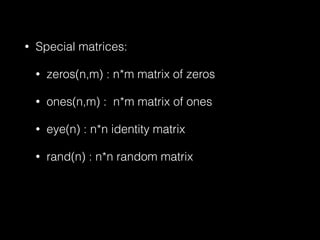
• Special matrices:
• zeros(n,m) : n*m matrix of zeros
• ones(n,m) : n*m matrix of ones
• eye(n) : n*n identity matrix
• rand(n) : n*n random matrix
Flow Control
• Matlab has five flow control constructs:
1. if statement
2. for loop
3. while loop
4. break statement
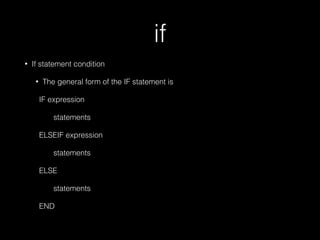
if
• If statement condition
• The general form of the IF statement is
IF expression
statements
ELSEIF expression
statements
ELSE
statements
END
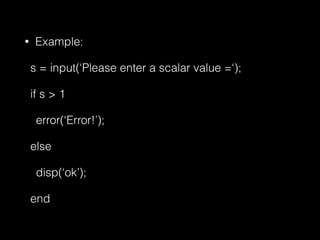
• Example:
s = input(‘Please enter a scalar value =‘);
if s > 1
error(‘Error!’);
else
disp(‘ok’);
end
for
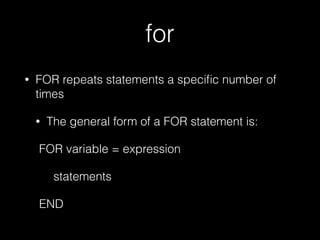
• FOR repeats statements a specific number of
times
• The general form of a FOR statement is:
FOR variable = expression
statements
END
for i=1:10
x(i) = sin(i * pi / 10);
end;
for i=[ 1, 2, 3, 7]
x(i) = i + 1;
end;
while
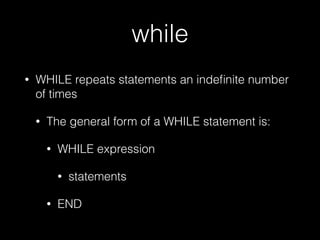
• WHILE repeats statements an indefinite number
of times
• The general form of a WHILE statement is:
• WHILE expression
• statements
• END
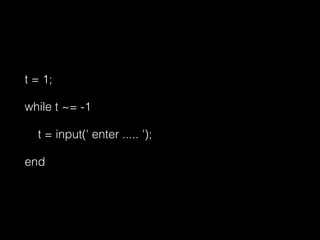
t = 1;
while t ~= -1
t = input(' enter ..... ');
end
Scripts and Functions
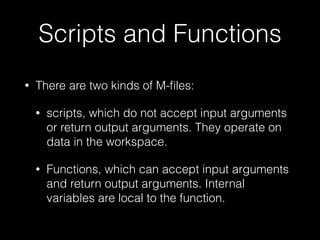
• There are two kinds of M-files:
• scripts, which do not accept input arguments
or return output arguments. They operate on
data in the workspace.
• Functions, which can accept input arguments
and return output arguments. Internal
variables are local to the function.
function
function [ output_args ] = functionName( input_args )
%functionName Summary of this function goes here
% Detailed explanation goes here
end
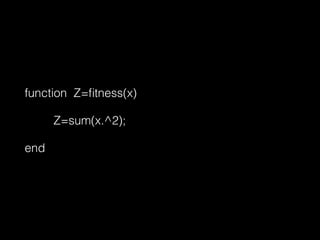
function Z=fitness(x)
Z=sum(x.^2);
end
Visualization and Graphics
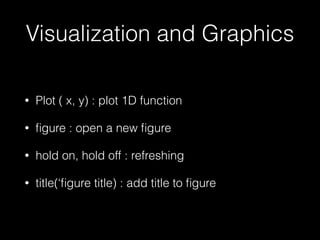
• Plot ( x, y) : plot 1D function
• figure : open a new figure
• hold on, hold off : refreshing
• title(‘figure title) : add title to figure
Image Processing
Matlab and images
• An image in Matlab is treated as a matrix
• Every pixel is a matrix element
Image import and Export
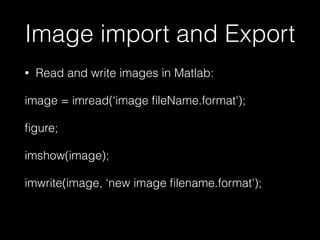
• Read and write images in Matlab:
image = imread(‘image fileName.format');
figure;
imshow(image);
imwrite(image, ‘new image filename.format');
Images and Matrices
row = 256;
col = 256;
img = zeros(row, col);
img(100:105, :) = 0.5;
img(:, 100:105) = 1;
figure;
imshow(img);
Column 1 to 256
Ro
w 1
to
25
6
o
[0, 0]
o
[256, 256]
Histograms
• Frequency of the intensity value of the image
• Quantize frequency into intervals
• Probability density function of image intensities
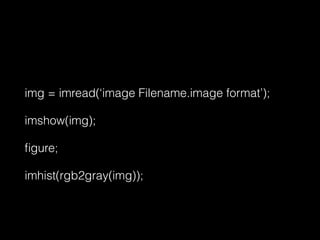
img = imread(‘image Filename.image format’);
imshow(img);
figure;
imhist(rgb2gray(img));
Image Filtering
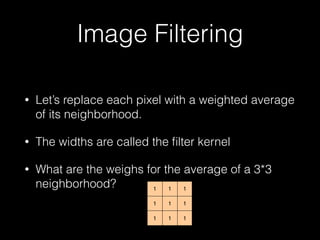
• Let’s replace each pixel with a weighted average
of its neighborhood.
• The widths are called the filter kernel
• What are the weighs for the average of a 3*3
neighborhood?
111
111
111
“box filter”
Image Filtering
I = imread(‘filename.format file’);
h = fspecial(‘unsharp’);
I2 = imfilter(I,h);
imshow(I2);
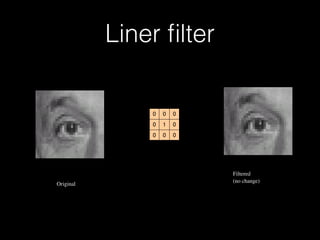
Liner filter
000
010
000
Filtered
(no change)
Original
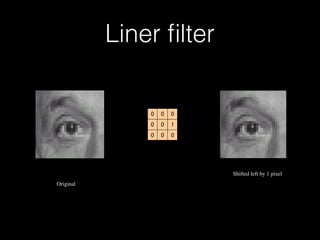
Liner filter
Shifted left by 1 pixel
Original
000
100
000
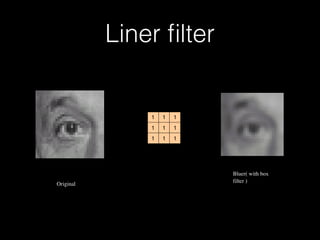
Liner filter
Bluer( with box
filter )
Original
111
111
111

Image processing

  • 1.
    Image processing usingMatlab Author : Pooya Sagharchi Ha
  • 2.
    Agenda • Introduction toMatlab • Basics & Examples • Image processing with Matlab • Basics & Examples
  • 3.
    What is Matlab? •Matlab stand for Matrix Laboratory • Matlab is high-level language • perform computationally intensive tasks faster than with traditional programming languages such as c++ • The help in Matlab is very good, use it! • Everything is treated as a matrix
  • 4.
    The Matlab Environment •Matlab window components: • Workspace • Displays all the defined variables • Command window • To execute commands in the Matlab environment • File editor window • Define your functions
  • 5.
    Matlab Help • Matlabhelp is an extremely powerful assistance to learning Matlab • Help not only contains the theoretical background, but also shows demos for implementation • Matlab help can be opened by using the HELP pull-down menu
  • 6.
    Basics syntax • Comment: ctrl + / OR % • Uncomment : ctrl + t • Semicolon : suppress printing • Arithmetic operators: + addition - subtraction * multiplication ^ power ' transpose left division / right division
  • 7.
    • Variable : >>2 * 25 + 6 * 22 + 100 / 2 ans = 232 >> a = 25; b = 22; >> d = a * b ans = 550 sqrt returns the square root of each element of the array X abs absolute value for real numbers cos cosine function sin sin function exp exponential function
  • 8.
    • Who, Whos: current variables in the workspace • Save : save workspace variables to *.mat file • Load : load variables from *.mat file • Clear : clear workspace variables • Clc : clear command window • Close : closes the current figure window
  • 9.
    Vectors and Matrices •How to build a matrix? >> a = [1 5 8] a = 1 5 8 >> a = [ 1 2 3]' a = 1 2 3
  • 10.
    >> a =[ 0:2:4 ; 8:1:10; 35:5:45] a = 0 2 4 8 9 10 35 40 45 >> a = [1:3; 4:6; 7:9] a = 1 2 3 4 5 6 7 8 9
  • 11.
    • A particularelement of a matrix can be assigned: >> a(3,2) ans = 40 • Place the number 5 in the first row, second column: • >> a(3,2) = 29
  • 12.
    • Operations adfunctions that were defined scalars in the previous section can also be used on vectors and matrices, For example. >> a = [ 1 2 3]; >> b = [ 4 5 6]; >> c = a + b c = 5 7 9
  • 13.
    • Special matrices: •zeros(n,m) : n*m matrix of zeros • ones(n,m) : n*m matrix of ones • eye(n) : n*n identity matrix • rand(n) : n*n random matrix
  • 14.
    Flow Control • Matlabhas five flow control constructs: 1. if statement 2. for loop 3. while loop 4. break statement
  • 15.
    if • If statementcondition • The general form of the IF statement is IF expression statements ELSEIF expression statements ELSE statements END
  • 16.
    • Example: s =input(‘Please enter a scalar value =‘); if s > 1 error(‘Error!’); else disp(‘ok’); end
  • 17.
    for • FOR repeatsstatements a specific number of times • The general form of a FOR statement is: FOR variable = expression statements END
  • 18.
    for i=1:10 x(i) =sin(i * pi / 10); end; for i=[ 1, 2, 3, 7] x(i) = i + 1; end;
  • 19.
    while • WHILE repeatsstatements an indefinite number of times • The general form of a WHILE statement is: • WHILE expression • statements • END
  • 20.
    t = 1; whilet ~= -1 t = input(' enter ..... '); end
  • 21.
    Scripts and Functions •There are two kinds of M-files: • scripts, which do not accept input arguments or return output arguments. They operate on data in the workspace. • Functions, which can accept input arguments and return output arguments. Internal variables are local to the function.
  • 22.
    function function [ output_args] = functionName( input_args ) %functionName Summary of this function goes here % Detailed explanation goes here end
  • 23.
  • 24.
    Visualization and Graphics •Plot ( x, y) : plot 1D function • figure : open a new figure • hold on, hold off : refreshing • title(‘figure title) : add title to figure
  • 25.
  • 26.
    Matlab and images •An image in Matlab is treated as a matrix • Every pixel is a matrix element
  • 27.
    Image import andExport • Read and write images in Matlab: image = imread(‘image fileName.format'); figure; imshow(image); imwrite(image, ‘new image filename.format');
  • 28.
    Images and Matrices row= 256; col = 256; img = zeros(row, col); img(100:105, :) = 0.5; img(:, 100:105) = 1; figure; imshow(img); Column 1 to 256 Ro w 1 to 25 6 o [0, 0] o [256, 256]
  • 29.
    Histograms • Frequency ofthe intensity value of the image • Quantize frequency into intervals • Probability density function of image intensities
  • 30.
    img = imread(‘imageFilename.image format’); imshow(img); figure; imhist(rgb2gray(img));
  • 31.
    Image Filtering • Let’sreplace each pixel with a weighted average of its neighborhood. • The widths are called the filter kernel • What are the weighs for the average of a 3*3 neighborhood? 111 111 111 “box filter”
  • 32.
    Image Filtering I =imread(‘filename.format file’); h = fspecial(‘unsharp’); I2 = imfilter(I,h); imshow(I2);
  • 33.
  • 34.
    Liner filter Shifted leftby 1 pixel Original 000 100 000
  • 35.
    Liner filter Bluer( withbox filter ) Original 111 111 111