IEEE Referencing for Word 2007 + 2010
The benefits of doing this are immense both for individuals and teams.
It allows automatic
renumbering of references, automatic bibliography creation, as well as providing a collection of your
references in one file – even when multiple people work on the same document.

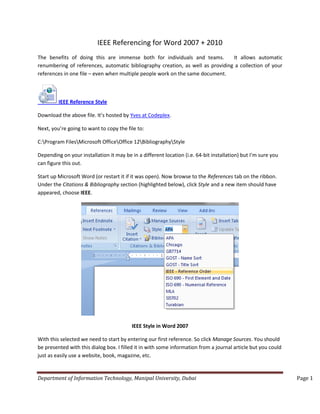
IEEE Reference Style
Download the above file. It’s hosted by Yves at Codeplex.
Next, you’re going to want to copy the file to:
C:Program FilesMicrosoft OfficeOffice 12BibliographyStyle
Depending on your installation it may be in a different location (i.e. 64-bit installation) but I’m sure you
can figure this out.
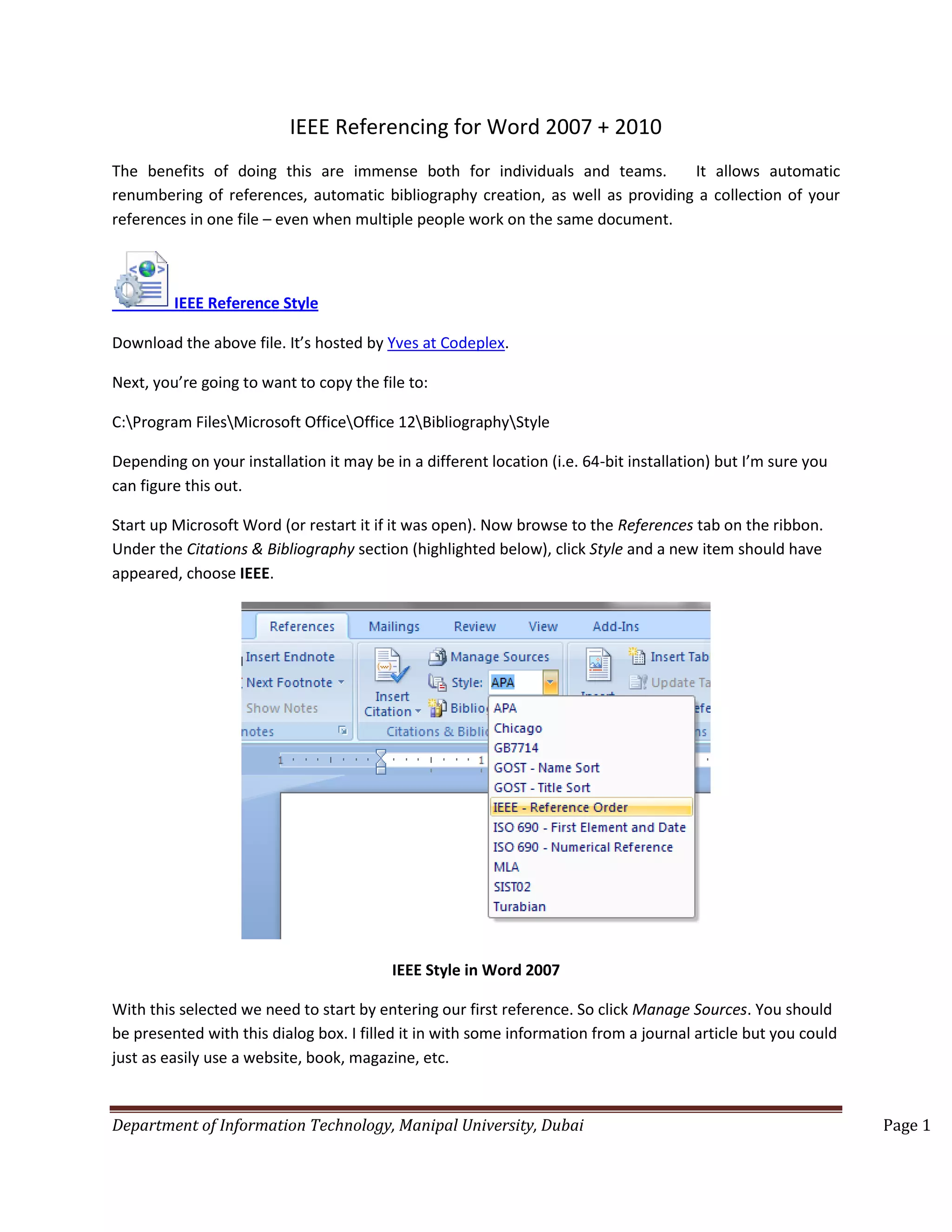
Start up Microsoft Word (or restart it if it was open). Now browse to the References tab on the ribbon.
Under the Citations & Bibliography section (highlighted below), click Style and a new item should have
appeared, choose IEEE.

IEEE Style in Word 2007
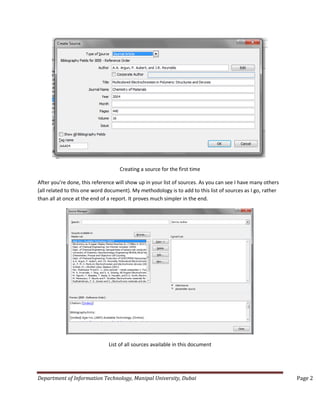
With this selected we need to start by entering our first reference. So click Manage Sources. You should
be presented with this dialog box. I filled it in with some information from a journal article but you could
just as easily use a website, book, magazine, etc.

Department of Information Technology, Manipal University, Dubai

Page 1
Creating a source for the first time
After you’re done, this reference will show up in your list of sources. As you can see I have many others
(all related to this one word document). My methodology is to add to this list of sources as I go, rather
than all at once at the end of a report. It proves much simpler in the end.

List of all sources available in this document

Department of Information Technology, Manipal University, Dubai

Page 2
Now, when I want to use one of these sources all I have to do is click Insert Citation (from the Citations &
Bibliography section), and choose the citation I want. You should see a number appear encased in
square brackets, [1]. That’s your first IEEE reference. You can repeat this as many times as you want with
the same reference or new ones. When you’re done you’re going to want to create a list of references.
Scroll down to the bottom of your document and click Bibliography and then choose either one, it
doesn’t matter. I usually remove the words “Bibliography” and replace it with something less Artsy, like
“References”

Create a bibliography from your list of used sources

Reference:
http://mikemurko.com
http://www.microsoft.com

Department of Information Technology, Manipal University, Dubai

Page 3

Ieee referencing for word 2007 worksheet

  • 1.
    IEEE Referencing forWord 2007 + 2010 The benefits of doing this are immense both for individuals and teams. It allows automatic renumbering of references, automatic bibliography creation, as well as providing a collection of your references in one file – even when multiple people work on the same document. IEEE Reference Style Download the above file. It’s hosted by Yves at Codeplex. Next, you’re going to want to copy the file to: C:Program FilesMicrosoft OfficeOffice 12BibliographyStyle Depending on your installation it may be in a different location (i.e. 64-bit installation) but I’m sure you can figure this out. Start up Microsoft Word (or restart it if it was open). Now browse to the References tab on the ribbon. Under the Citations & Bibliography section (highlighted below), click Style and a new item should have appeared, choose IEEE. IEEE Style in Word 2007 With this selected we need to start by entering our first reference. So click Manage Sources. You should be presented with this dialog box. I filled it in with some information from a journal article but you could just as easily use a website, book, magazine, etc. Department of Information Technology, Manipal University, Dubai Page 1
  • 2.
    Creating a sourcefor the first time After you’re done, this reference will show up in your list of sources. As you can see I have many others (all related to this one word document). My methodology is to add to this list of sources as I go, rather than all at once at the end of a report. It proves much simpler in the end. List of all sources available in this document Department of Information Technology, Manipal University, Dubai Page 2
  • 3.
    Now, when Iwant to use one of these sources all I have to do is click Insert Citation (from the Citations & Bibliography section), and choose the citation I want. You should see a number appear encased in square brackets, [1]. That’s your first IEEE reference. You can repeat this as many times as you want with the same reference or new ones. When you’re done you’re going to want to create a list of references. Scroll down to the bottom of your document and click Bibliography and then choose either one, it doesn’t matter. I usually remove the words “Bibliography” and replace it with something less Artsy, like “References” Create a bibliography from your list of used sources Reference: http://mikemurko.com http://www.microsoft.com Department of Information Technology, Manipal University, Dubai Page 3