’Aqualarm’
ENVIRONMENTAL MONITORING SYSTEM
Installation, Set-up and Operating
Instructions
‘i-Zone’
Systems
CONTENTS
Section Page No.
A INSTALLATION
1. READ IMPORTANT INSTRUCTIONS 4
2. Control Panel 4
3. Interconnecting Cables 4
4. Detector— Description 5
5. Detector— Dipswitch Set-Up 8
B CONTROL PANEL
1. Start-Up Procedure 12
2. Set-Up Time & Date 15
C DETECTOR SET - UP
1. Important Information 15
2. Detector Sensitivity 17
3. Setting Alarm Thresholds. 18
a. Liquid Detectors 19
b. Refrigerant Gas Detectors 19
c. Temperature Detectors 20
d. Humidity Detectors 20
4. ZLM–500 Mapping Procedure 20
5. Hot Swapping 22
D CONTROL PANEL FUNCTIONS
1. What to do if an Alarm Sounds 23
a. Alarm (Detectors) 23
b. Open Circuit (Detectors) 24
2. ZLM-500 Locating Module 25
a. Liquid Detected Alarm 25
b. Open Circuit Alarm 26
c. Network Fail 26
- 2 -
CONTENTS …… (cont)
Section Page No.
D CONTROL PANEL FUNCTIONS
3. Mains Fail Alarm 27
4. Battery Fail Alarm 28
5. Mute & Reset Keys 28
6. View 255 Event Record Log 29
E CONTROL PANEL OUTPUTS
1. Control Panel Relay Outputs 30
2. Control Panel RS-485 Output 30
F CARE & MAINTENANCE
1. Care of Detecting Cables 31
2. Maintenance 31
G EQUIPMENT
1. Control Panel Terminals 33
2. Ancillary Equipment 33
3. PB-24 Power Booster Box 34
4. SWRi-8 Relay Pack 34
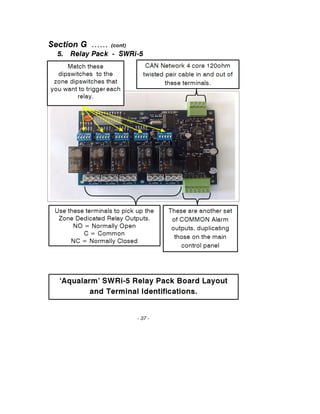
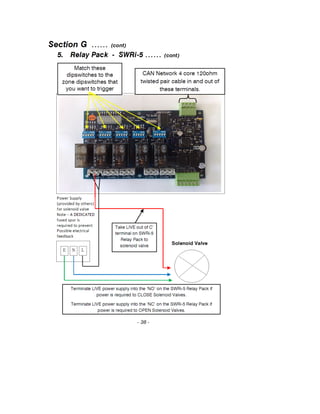
5. SWRi-5 Relay Pack 37
6. Spares 39
7. Control Panel Facia 40
CERTIFICATES
ISO 9001 41
ISO 14001 42
WEE Regs. 2006 43
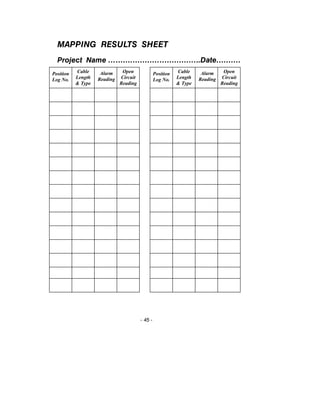
Mapping Results Sheet 44
CORRECT DISPOSAL OF PRODUCT
When finished with Use 46
CE Marking 46
- 3 -
Section A
Installation
1. READ THESE
IMPORTANT INSTRUCTIONS
To avoid damage to the electronics within the Control Panel
It is strongly recommended that you use the knockouts
provided for the entrance of Cables.
If you have to drill holes for cables to enter the Control
Panel, special care must be taken to ensure that drill bits do not
penetrate far enough to touch the Printed Circuit Boards or any
Component.
You must ensure that any swarf from the drilling is
completely removed from the Control Panel.
FAILURE to adhere to the above may invalidate your
Warranty.
2. Control Panel
i. The i-Zone Control Panel should be sited in a position where the
‘Alarm Horn’ can be heard and at a height where the LCD Screen can
be seen.
ii. A 220/240 volt 50 Hz single phase power supply via a 5 amp
non-switched fused spur should be made available adjacent to the
Control Panel prior to the start of the installation.
iii. The Mains Power terminals within the Control Panel are marked
and should be connected as follows:-
connect BROWN wire to TERMINAL marked ‘L’ (live)
connect BLUE wire to TERMINAL marked ‘N’ (neutral)
connect YELLOW/GREEN wire to TERMINAL marked ‘E’ (earth)
(see drawing page 33)
The Mains Power Supply should only be connected to the
Control Panel by a competent qualified person.
DO NOT CONNECT POWER TO THE CONTROL PANEL OR
THE BATTERIES YET . (SEE PAGE 33 FOR CONNECTIONS.)
3. Interconnecting Cables.
i. Using a 120 ohm 0.5mm 4 core cable with twisted pairs and
overall screen, (as Belden Ref: B9842), connect the detectors to the
Control Panel as follows:- (Network)
- 4 -
Section A ………… (cont.)
3. Interconnecting Cables.………… (cont.)
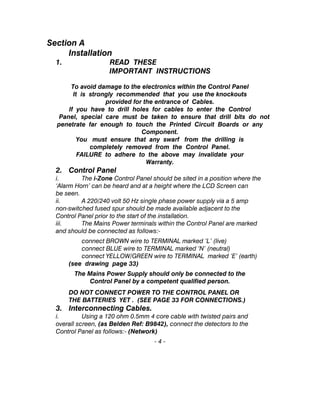
ii. From the Terminals marked CAN within the Control Panel, using
FIRST TWISTED PAIR, connect ONE core to each of the terminals
marked:- V+, V-. Using the SECOND TWISTED PAIR connect ONE
core to each of the terminals marked:- Hi, Lo.
iii. Connect in Series to the corresponding terminals within each of
the Detectors in turn. Ensure that the cables are not cross connected.
(see the following diagram for more information)
4. Detectors. PLEASE NOTE –Detector modules are not housed in
waterproof enclosures - Please locate at a suitable height.
a. Thresholds.
i. With the exception of the Detector Address, all detector
thresholds are set with the factory default.
ii. The parameters of Refrigerant Gas (RGi-24), Temperature (TDi-24)
& Humidity (HDi-24) Detectors can be set with Clients thresholds via
the Control Panel. (See page 18 on how to change thresholds)
b. Description
i. Point of Use Water Detector. (STDi-24)
Consists of 2 parts, a point Detector connected by a fly lead to a CDBi
Module. The CDBi module can be mounted remotely with the Point of
Use Detector normally sited at low points on the floor slab or adjacent
to a potential leak e.g. A.C. unit, humidifier, water cooled equipment etc
ii. Cable type Water Leak Detector (CDBi-24)
Consists of 2 parts, a CDBi Module plus modular lengths of Detecting
Cable (CD-x). The CDBi module should be mounted at the start with the
Detecting cable encircling the area, unit or pipe-work to be monitored.
- 5 -
Detector Connections Diagram1st
Twisted Pair
2nd
Twisted Pair
Control
Panel
CAN
V+ V- Hi Lo
CAN
V+ V- Hi Lo
CAN
V+ V- Hi Lo
LK1
Detector
Jumper pin must
be connected on
last detector
Twist outer braid together
on all but last detector.
Attach
outer braid
to Earth
stud on
panel door
Detector
CAN
V+ V- Hi Lo
CAN
V+ V- Hi Lo
LK1
Jumper pin
disconnected
on all but last
detector
Note
Some detectors
may only have one
CAN terminal for
both sets of
cables.
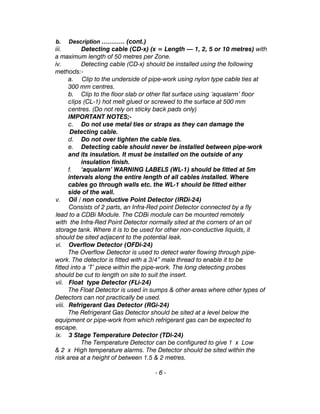
b. Description ………… (cont.)
iii. Detecting cable (CD-x) (x = Length — 1, 2, 5 or 10 metres) with
a maximum length of 50 metres per Zone.
iv. Detecting cable (CD-x) should be installed using the following
methods:-
a. Clip to the underside of pipe-work using nylon type cable ties at
300 mm centres.
b. Clip to the floor slab or other flat surface using ‘aqualarm’ floor
clips (CL-1) hot melt glued or screwed to the surface at 500 mm
centres. (Do not rely on sticky back pads only)
IMPORTANT NOTES;-
c. Do not use metal ties or straps as they can damage the
Detecting cable.
d. Do not over tighten the cable ties.
e. Detecting cable should never be installed between pipe-work
and its insulation. It must be installed on the outside of any
insulation finish.
f. ‘aqualarm’ WARNING LABELS (WL-1) should be fitted at 5m
intervals along the entire length of all cables installed. Where
cables go through walls etc. the WL-1 should be fitted either
side of the wall.
v. Oil / non conductive Point Detector (IRDi-24)
Consists of 2 parts, an Infra-Red point Detector connected by a fly
lead to a CDBi Module. The CDBi module can be mounted remotely
with the Infra-Red Point Detector normally sited at the corners of an oil
storage tank. Where it is to be used for other non-conductive liquids, it
should be sited adjacent to the potential leak.
vi. Overflow Detector (OFDi-24)
The Overflow Detector is used to detect water flowing through pipe-
work. The detector is fitted with a 3/4” male thread to enable it to be
fitted into a ‘T’ piece within the pipe-work. The long detecting probes
should be cut to length on site to suit the insert.
vii. Float type Detector (FLi-24)
The Float Detector is used in sumps & other areas where other types of
Detectors can not practically be used.
viii. Refrigerant Gas Detector (RGi-24)
The Refrigerant Gas Detector should be sited at a level below the
equipment or pipe-work from which refrigerant gas can be expected to
escape.
ix. 3 Stage Temperature Detector (TDi-24)
The Temperature Detector can be configured to give 1 x Low
& 2 x High temperature alarms. The Detector should be sited within the
risk area at a height of between 1.5 & 2 metres.
- 6 -
Section A …… (cont)
b. Description ……(cont.)
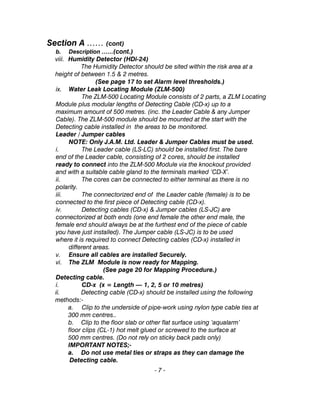
viii. Humidity Detector (HDi-24)
The Humidity Detector should be sited within the risk area at a
height of between 1.5 & 2 metres.
(See page 17 to set Alarm level thresholds.)
ix. Water Leak Locating Module (ZLM-500)
The ZLM-500 Locating Module consists of 2 parts, a ZLM Locating
Module plus modular lengths of Detecting Cable (CD-x) up to a
maximum amount of 500 metres. (inc. the Leader Cable & any Jumper
Cable). The ZLM-500 module should be mounted at the start with the
Detecting cable installed in the areas to be monitored.
Leader / Jumper cables
NOTE: Only J.A.M. Ltd. Leader & Jumper Cables must be used.
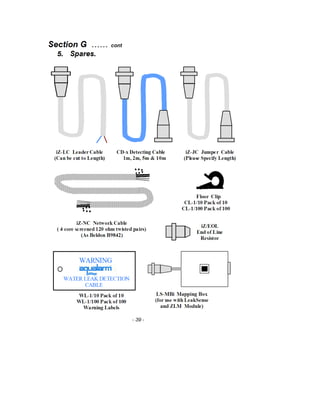
i. The Leader cable (LS-LC) should be installed first. The bare
end of the Leader cable, consisting of 2 cores, should be installed
ready to connect into the ZLM-500 Module via the knockout provided
and with a suitable cable gland to the terminals marked ‘CD-X’.
ii. The cores can be connected to either terminal as there is no
polarity.
iii. The connectorized end of the Leader cable (female) is to be
connected to the first piece of Detecting cable (CD-x).
iv. Detecting cables (CD-x) & Jumper cables (LS-JC) are
connectorized at both ends (one end female the other end male, the
female end should always be at the furthest end of the piece of cable
you have just installed). The Jumper cable (LS-JC) is to be used
where it is required to connect Detecting cables (CD-x) installed in
different areas.
v. Ensure all cables are installed Securely.
vi. The ZLM Module is now ready for Mapping.
(See page 20 for Mapping Procedure.)
Detecting cable.
i. CD-x (x = Length — 1, 2, 5 or 10 metres)
ii. Detecting cable (CD-x) should be installed using the following
methods:-
a. Clip to the underside of pipe-work using nylon type cable ties at
300 mm centres..
b. Clip to the floor slab or other flat surface using ‘aqualarm’
floor clips (CL-1) hot melt glued or screwed to the surface at
500 mm centres. (Do not rely on sticky back pads only)
IMPORTANT NOTES;-
a. Do not use metal ties or straps as they can damage the
Detecting cable.
- 7 -
Section A …… (cont)
b. Description (Detecting Cable) ……(cont.)
b. Do not over tighten the cable ties.
c. Detecting cable should never be installed between pipe-
work and its insulation. It must be installed on the outside
of any insulation finish.
d. ‘aqualarm’ WARNING LABELS (WL-1) should be fitted at
5m intervals along the entire length of all cables installed.
Where cables go through walls etc. the WL-1 should be
fitted either side of the wall.
5. Detector Dipswitchs.
a. Set-Up Procedure
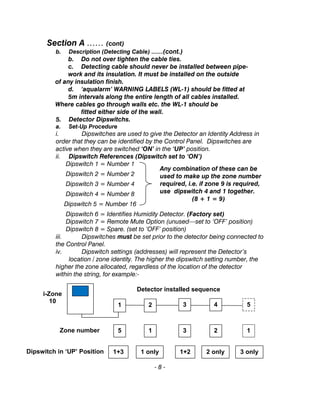
i. Dipswitches are used to give the Detector an Identity Address in
order that they can be identified by the Control Panel. Dipswitches are
active when they are switched ‘ON’ in the ‘UP’ position.
ii. Dipswitch References (Dipswitch set to ‘ON’)
Dipswitch 1 = Number 1
Dipswitch 2 = Number 2
Dipswitch 3 = Number 4
Dipswitch 4 = Number 8
Dipswitch 5 = Number 16
Dipswitch 6 = Identifies Humidity Detector. (Factory set)
Dipswitch 7 = Remote Mute Option (unused—set to ‘OFF’ position)
Dipswitch 8 = Spare. (set to ‘OFF’ position)
iii. Dipswitches must be set prior to the detector being connected to
the Control Panel.
iv. Dipswitch settings (addresses) will represent the Detector’s
location / zone identity. The higher the dipswitch setting number, the
higher the zone allocated, regardless of the location of the detector
within the string, for example:-
- 8 -
Any combination of these can be
used to make up the zone number
required, i.e. if zone 9 is required,
use dipswitch 4 and 1 together.
(8 + 1 = 9)
1 2 3 4 5
5 1 3 2 1
1+3 1 only 1+2 2 only 3 only
Detector installed sequence
i-Zone
10
Zone number
Dipswitch in ‘UP’ Position
Section A …… (cont)
5. Detector Dipswitch Set-Up …... (cont)
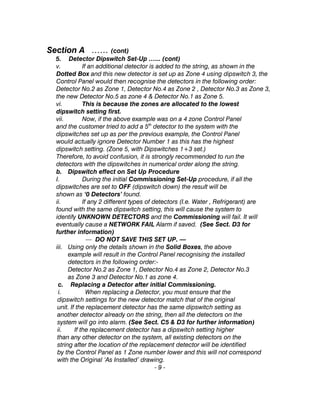
v. If an additional detector is added to the string, as shown in the
Dotted Box and this new detector is set up as Zone 4 using dipswitch 3, the
Control Panel would then recognise the detectors in the following order:
Detector No.2 as Zone 1, Detector No.4 as Zone 2 , Detector No.3 as Zone 3,
the new Detector No.5 as zone 4 & Detector No.1 as Zone 5.
vi. This is because the zones are allocated to the lowest
dipswitch setting first.
vii. Now, if the above example was on a 4 zone Control Panel
and the customer tried to add a 5th
detector to the system with the
dipswitches set up as per the previous example, the Control Panel
would actually ignore Detector Number 1 as this has the highest
dipswitch setting. (Zone 5, with Dipswitches 1+3 set.)
Therefore, to avoid confusion, it is strongly recommended to run the
detectors with the dipswitches in numerical order along the string.
b. Dipswitch effect on Set Up Procedure
I. During the initial Commissioning Set-Up procedure, if all the
dipswitches are set to OFF (dipswitch down) the result will be
shown as ‘0 Detectors’ found.
ii. If any 2 different types of detectors (I.e. Water , Refrigerant) are
found with the same dipswitch setting, this will cause the system to
identify UNKNOWN DETECTORS and the Commissioning will fail. It will
eventually cause a NETWORK FAIL Alarm if saved. (See Sect. D3 for
further information)
— DO NOT SAVE THIS SET UP. —
iii. Using only the details shown in the Solid Boxes, the above
example will result in the Control Panel recognising the installed
detectors in the following order:-
Detector No.2 as Zone 1, Detector No.4 as Zone 2, Detector No.3
as Zone 3 and Detector No.1 as zone 4.
c. Replacing a Detector after initial Commissioning.
i. When replacing a Detector, you must ensure that the
dipswitch settings for the new detector match that of the original
unit. If the replacement detector has the same dipswitch setting as
another detector already on the string, then all the detectors on the
system will go into alarm. (See Sect. C5 & D3 for further information)
ii. If the replacement detector has a dipswitch setting higher
than any other detector on the system, all existing detectors on the
string after the location of the replacement detector will be identified
by the Control Panel as 1 Zone number lower and this will not correspond
with the Original ‘As Installed’ drawing.
- 9 -
- 10 -
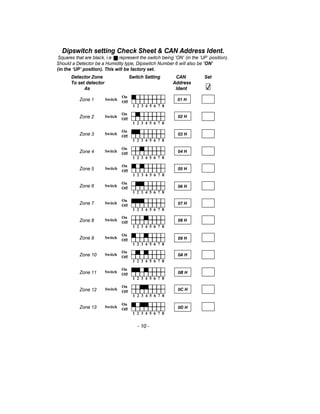
Detector Zone Switch Setting CAN Set
To set detector Address
As Ident
Dipswitch setting Check Sheet & CAN Address Ident.
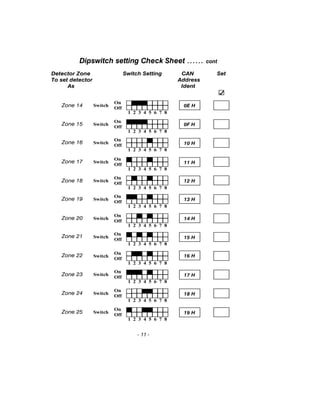
Squares that are black, i.e represent the switch being ‘ON’ (in the ‘UP’ position).
Should a Detector be a Humidity type, Dipswitch Number 6 will also be ‘ON’
(in the ‘UP’ position). This will be factory set.
Switch
On
Off
1 2 3 4 5 6 7 8
Zone 1 01 H
Switch
On
Off
1 2 3 4 5 6 7 8
Zone 2 02 H
Switch
On
Off
1 2 3 4 5 6 7 8
Zone 3 03 H
Switch
On
Off
1 2 3 4 5 6 7 8
Zone 4 04 H
Switch
On
Off
1 2 3 4 5 6 7 8
Zone 5 05 H
Switch
On
Off
1 2 3 4 5 6 7 8
Zone 6 06 H
Switch
On
Off
1 2 3 4 5 6 7 8
Zone 7 07 H
Switch
On
Off
1 2 3 4 5 6 7 8
Zone 8 08 H
Switch
On
Off
1 2 3 4 5 6 7 8
Zone 9 09 H
Switch
On
Off
1 2 3 4 5 6 7 8
Zone 10 0A H
Switch
On
Off
1 2 3 4 5 6 7 8
Zone 11 0B H
Switch
On
Off
1 2 3 4 5 6 7 8
Zone 12 0C H
Switch
On
Off
1 2 3 4 5 6 7 8
Zone 13 0D H
Dipswitch setting Check Sheet …… cont
- 11 -
Detector Zone Switch Setting CAN Set
To set detector Address
As Ident
Switch
On
Off
1 2 3 4 5 6 7 8
Zone 14 0E H
Switch
On
Off
1 2 3 4 5 6 7 8
Zone 15 0F H
Switch
On
Off
1 2 3 4 5 6 7 8
Zone 16 10 H
Switch
On
Off
1 2 3 4 5 6 7 8
Zone 17 11 H
Switch
On
Off
1 2 3 4 5 6 7 8
Zone 18 12 H
Switch
On
Off
1 2 3 4 5 6 7 8
Zone 19 13 H
Switch
On
Off
1 2 3 4 5 6 7 8
Zone 20 14 H
Switch
On
Off
1 2 3 4 5 6 7 8
Zone 21 15 H
Switch
On
Off
1 2 3 4 5 6 7 8
Zone 22 16 H
Switch
On
Off
1 2 3 4 5 6 7 8
Zone 23 17 H
Switch
On
Off
1 2 3 4 5 6 7 8
Zone 24 18 H
Switch
On
Off
1 2 3 4 5 6 7 8
Zone 25 19 H
Section B
Control Panel.
1. Start-Up & Commissioning Procedure.
i. On completion of the Installation of all Network Cables &
Detectors, use the following procedure to Start-Up the system :-
ii Ensure that the Network Cable is connected to the Control Panel
terminals marked CAN V+, V-, Hi, Lo. via a suitable cable entry gland.
iii. Cause a competent qualified person to connect the Battery
Back-Up leads to the correct terminals of the sealed Lead Acid
Batteries and the Control Panel to the Mains Power supply as
described in Section ‘A’.
(See also page 33 Control Panel Terminals.)
iv. Close & Lock the Control Panel door & Switch on the Mains
Power supply.
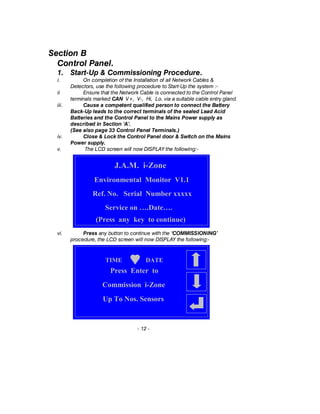
v. The LCD screen will now DISPLAY the following:-
vi. Press any button to continue with the ‘COMMISSIONING’
procedure, the LCD screen will now DISPLAY the following:-
- 12 -
J.A.M. i-Zone
Environmental Monitor V1.1
Ref. No. Serial Number xxxxx
Service on ….Date….
(Press any key to continue)
Press Enter to
Commission i-Zone
Up To Nos. Sensors
TIME DATE
Section B …… (cont)
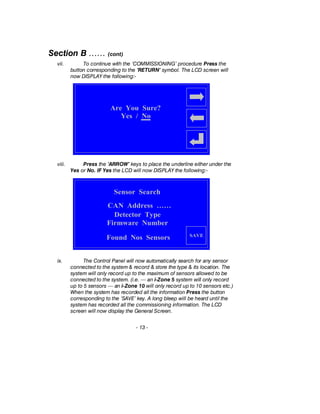
vii. To continue with the ‘COMMISSIONING’ procedure Press the
button corresponding to the ’RETURN’ symbol. The LCD screen will
now DISPLAY the following:-
viii. Press the ‘ARROW’ keys to place the underline either under the
Yes or No. IF Yes the LCD will now DISPLAY the following:-
ix. The Control Panel will now automatically search for any sensor
connected to the system & record & store the type & its location. The
system will only record up to the maximum of sensors allowed to be
connected to the system. (i.e. — an i-Zone 5 system will only record
up to 5 sensors — an i-Zone 10 will only record up to 10 sensors etc.)
When the system has recorded all the information Press the button
corresponding to the ‘SAVE’ key. A long bleep will be heard until the
system has recorded all the commissioning information. The LCD
screen will now display the General Screen.
- 13 -
Are You Sure?
Yes / No
SAVE
Sensor Search
Found Nos Sensors
CAN Address ……
Detector Type
Firmware Number
Section B…… (cont)
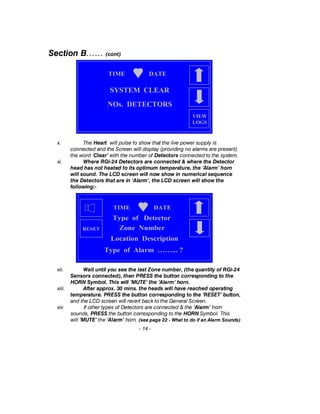
x. The Heart will pulse to show that the live power supply is
connected and the Screen will display (providing no alarms are present)
the word ‘Clear’ with the number of Detectors connected to the system.
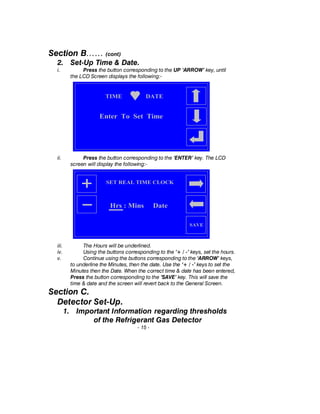
xi. Where RGi-24 Detectors are connected & where the Detector
head has not heated to its optimum temperature, the ‘Alarm’ horn
will sound. The LCD screen will now show in numerical sequence
the Detectors that are in ‘Alarm’, the LCD screen will show the
following:-
xii. Wait until you see the last Zone number, (the quantity of RGi-24
Sensors connected), then PRESS the button corresponding to the
HORN Symbol. This will ’MUTE’ the ’Alarm’ horn.
xiii. After approx. 30 mins. the heads will have reached operating
temperature. PRESS the button corresponding to the ’RESET’ button,
and the LCD screen will revert back to the General Screen.
xiv If other types of Detectors are connected & the ’Alarm’ horn
sounds, PRESS the button corresponding to the HORN Symbol. This
will ’MUTE’ the ’Alarm’ horn. (see page 22 - What to do if an Alarm Sounds)
- 14 -
TIME DATE
NOs. DETECTORS
SYSTEM CLEAR
VIEW
LOGS
TIME DATE
Type of Alarm ……... ?
Type of Detector
Zone Number
Location Description
RESET
Section B…… (cont)
2. Set-Up Time & Date.
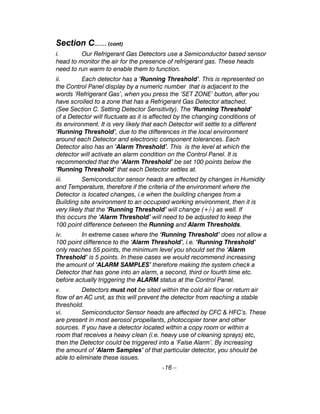
i. Press the button corresponding to the UP ‘ARROW’ key, until
the LCD Screen displays the following:-
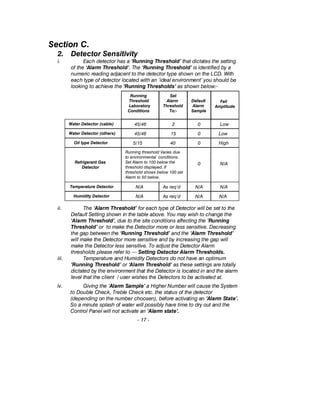
ii. Press the button corresponding to the ‘ENTER’ key. The LCD
screen will display the following:-
iii. The Hours will be underlined.
iv. Using the buttons corresponding to the ‘+ / -’ keys, set the hours.
v. Continue using the buttons corresponding to the ‘ARROW’ keys,
to underline the Minutes, then the date. Use the ‘+ / -’ keys to set the
Minutes then the Date. When the correct time & date has been entered,
Press the button corresponding to the ‘SAVE’ key. This will save the
time & date and the screen will revert back to the General Screen.
Section C.
Detector Set-Up.
1. Important Information regarding thresholds
of the Refrigerant Gas Detector
- 15 -
Enter To Set Time
TIME DATE
SAVE
SET REAL TIME CLOCK
Hrs : Mins Date
Section C.…… (cont)
i. Our Refrigerant Gas Detectors use a Semiconductor based sensor
head to monitor the air for the presence of refrigerant gas. These heads
need to run warm to enable them to function.
ii. Each detector has a ‘Running Threshold’. This is represented on
the Control Panel display by a numeric number that is adjacent to the
words ‘Refrigerant Gas’, when you press the ‘SET ZONE’ button, after you
have scrolled to a zone that has a Refrigerant Gas Detector attached.
(See Section C. Setting Detector Sensitivity). The ‘Running Threshold’
of a Detector will fluctuate as it is affected by the changing conditions of
its environment. It is very likely that each Detector will settle to a different
‘Running Threshold’, due to the differences in the local environment
around each Detector and electronic component tolerances. Each
Detector also has an ‘Alarm Threshold’. This is the level at which the
detector will activate an alarm condition on the Control Panel. It is
recommended that the ‘Alarm Threshold’ be set 100 points below the
‘Running Threshold’ that each Detector settles at.
iii. Semiconductor sensor heads are affected by changes in Humidity
and Temperature, therefore if the criteria of the environment where the
Detector is located changes, i.e when the building changes from a
Building site environment to an occupied working environment, then it is
very likely that the ‘Running Threshold’ will change (+/-) as well. If
this occurs the ‘Alarm Threshold’ will need to be adjusted to keep the
100 point difference between the Running and Alarm Thresholds.
iv. In extreme cases where the ‘Running Threshold’ does not allow a
100 point difference to the ‘Alarm Threshold’, i.e. ‘Running Threshold’
only reaches 55 points, the minimum level you should set the ‘Alarm
Threshold’ is 5 points. In these cases we would recommend increasing
the amount of ‘ALARM SAMPLES’ therefore making the system check a
Detector that has gone into an alarm, a second, third or fourth time etc.
before actually triggering the ALARM status at the Control Panel.
v. Detectors must not be sited within the cold air flow or return air
flow of an AC unit, as this will prevent the detector from reaching a stable
threshold.
vi. Semiconductor Sensor heads are affected by CFC & HFC’s. These
are present in most aerosol propellants, photocopier toner and other
sources. If you have a detector located within a copy room or within a
room that receives a heavy clean (i.e. heavy use of cleaning sprays) etc,
then the Detector could be triggered into a ‘False Alarm’. By increasing
the amount of ‘Alarm Samples’ of that particular detector, you should be
able to eliminate these issues.
-16 –
Section C.
2. Detector Sensitivity
i. Each detector has a ‘Running Threshold’ that dictates the setting
of the ‘Alarm Threshold’. The ‘Running Threshold’ is identified by a
numeric reading adjacent to the detector type shown on the LCD. With
each type of detector located with an ‘ideal environment’ you should be
looking to achieve the ‘Running Thresholds’ as shown below:-
ii. The ‘Alarm Threshold’ for each type of Detector will be set to the
Default Setting shown in the table above. You may wish to change the
‘Alarm Threshold’, due to the site conditions affecting the ‘Running
Threshold’ or to make the Detector more or less sensitive. Decreasing
the gap between the ‘Running Threshold’ and the ‘Alarm Threshold’
will make the Detector more sensitive and by increasing the gap will
make the Detector less sensitive. To adjust the Detector Alarm
thresholds please refer to — Setting Detector Alarm Thresholds.
iii. Temperature and Humidity Detectors do not have an optimum
‘Running Threshold’ or ‘Alarm Threshold’ as these settings are totally
dictated by the environment that the Detector is located in and the alarm
level that the client / user wishes the Detectors to be activated at.
iv. Giving the ‘Alarm Sample’ a Higher Number will cause the System
to Double Check, Treble Check etc. the status of the detector
(depending on the number choosen), before activating an ’Alarm State’.
So a minute splash of water will possibly have time to dry out and the
Control Panel will not activate an ‘Alarm state’.
- 17 -
Running
Threshold
Laboratory
Conditions
Set
Alarm
Threshold
To:-
Water Detector (cable) 45/46 2
Water Detector (others) 45/46 15
Oil type Detector 5/15 40
Default
Alarm
Sample
0
0
0
Fail
Amplitude
Low
Low
High
Running threshold Varies due
to environmental conditions.
Set Alarm to 100 below the
threshold displayed. If
threshold shows below 100 set
Alarm to 50 below.
Refrigerant Gas
Detector
0 N/A
Temperature Detector
Humidity Detector
N/A As req’d
N/A As req’d
N/A
N/A
N/A
N/A
Section C. …… (cont)
3. Setting Detector Alarm Thresholds.
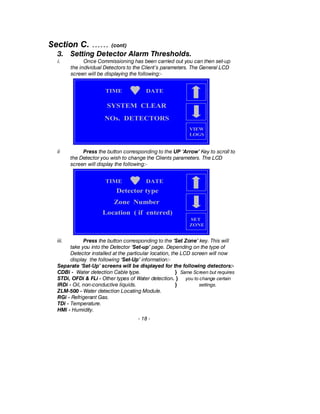
i. Once Commissioning has been carried out you can then set-up
the individual Detectors to the Client’s parameters. The General LCD
screen will be displaying the following:-
ii Press the button corresponding to the UP ‘Arrow’ Key to scroll to
the Detector you wish to change the Clients parameters. The LCD
screen will display the following:-
iii. Press the button corresponding to the ‘Set Zone’ key. This will
take you into the Detector ‘Set-up’ page. Depending on the type of
Detector installed at the particular location, the LCD screen will now
display the following ‘Set-Up’ information:-
Separate ‘Set-Up’ screens will be displayed for the following detectors:-
CDBi - Water detection Cable type. } Same Screen but requires
STDi, OFDi & FLi - Other types of Water detection. } you to change certain
IRDi - Oil, non-conductive liquids. } settings.
ZLM-500 - Water detection Locating Module.
RGi - Refrigerant Gas.
TDi - Temperature.
HMi - Humidity.
- 18 -
TIME DATE
NOs. DETECTORS
SYSTEM CLEAR
VIEW
LOGS
TIME DATE
SET
ZONE
Zone Number
Detector type
Location ( if entered)
Section C …… (cont)
3. Setting Detector Alarm Thresholds …….. (cont)
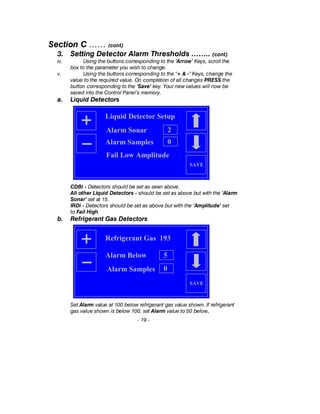
iv. Using the buttons corresponding to the ’Arrow’ Keys, scroll the
box to the parameter you wish to change.
v. Using the buttons corresponding to the ‘+ & -’ Keys, change the
value to the required value. On completion of all changes PRESS the
button corresponding to the ‘Save’ key. Your new values will now be
saved into the Control Panel’s memory.
a. Liquid Detectors
CDBi - Detectors should be set as seen above.
All other Liquid Detectors - should be set as above but with the ‘Alarm
Sonar’ set at 15.
IRDi - Detectors should be set as above but with the ‘Amplitude’ set
to Fail High.
b. Refrigerant Gas Detectors
Set Alarm value at 100 below refrigerant gas value shown. If refrigerant
gas value shown is below 100, set Alarm value to 50 below.
- 19 -
Liquid Detector Setup
SAVE
Alarm Sonar 2
Fail Low Amplitude
Alarm Samples 0
SAVE
Refrigerant Gas 193
5Alarm Below
Alarm Samples 0
Section C …… (cont)
3. Setting Detector Alarm Thresholds …….. (cont)
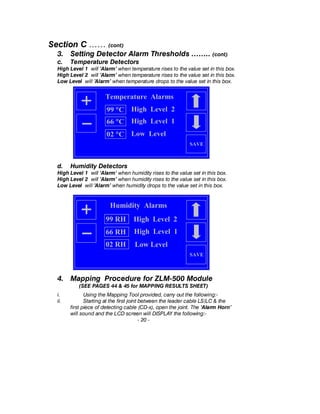
c. Temperature Detectors
High Level 1 will ’Alarm’ when temperature rises to the value set in this box.
High Level 2 will ’Alarm’ when temperature rises to the value set in this box.
Low Level will ’Alarm’ when temperature drops to the value set in this box.
d. Humidity Detectors
High Level 1 will ’Alarm’ when humidity rises to the value set in this box.
High Level 2 will ’Alarm’ when humidity rises to the value set in this box.
Low Level will ’Alarm’ when humidity drops to the value set in this box.
4. Mapping Procedure for ZLM-500 Module
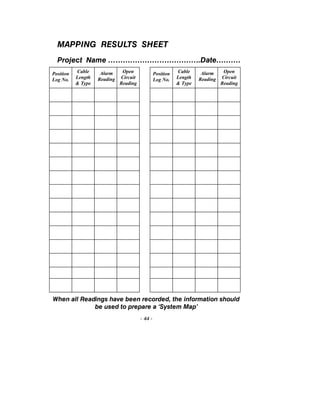
(SEE PAGES 44 & 45 for MAPPING RESULTS SHEET)
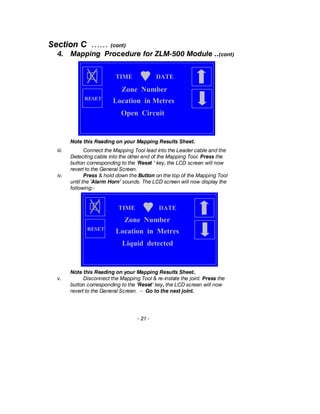
i. Using the Mapping Tool provided, carry out the following:-
ii. Starting at the first joint between the leader cable LS/LC & the
first piece of detecting cable (CD-x), open the joint. The ‘Alarm Horn’
will sound and the LCD screen will DISPLAY the following:-
- 20 -
SAVE
Humidity Alarms
High Level 299 RH
High Level 166 RH
Low Level02 RH
Temperature Alarms
SAVE
99 °C High Level 2
66 °C High Level 1
02 °C Low Level
Section C …… (cont)
4. Mapping Procedure for ZLM-500 Module ..(cont)
Note this Reading on your Mapping Results Sheet.
iii. Connect the Mapping Tool lead into the Leader cable and the
Detecting cable into the other end of the Mapping Tool. Press the
button corresponding to the ‘Reset ‘ key, the LCD screen will now
revert to the General Screen.
iv. Press & hold down the Button on the top of the Mapping Tool
until the ’Alarm Horn’ sounds. The LCD screen will now display the
following:-
Note this Reading on your Mapping Results Sheet..
v. Disconnect the Mapping Tool & re-instate the joint. Press the
button corresponding to the ‘Reset‘ key, the LCD screen will now
revert to the General Screen. – Go to the next joint.
- 21 -
TIME DATE
Liquid detected
Zone Number
Location in MetresRESET
TIME DATE
Open Circuit
Zone Number
Location in MetresRESET
Section C …… (cont)
4. Mapping Procedure …… (cont)
vi. Disconnect this joint & CONTINUE MAPPING EACH JOINT
AS DESCRIBED IN the Paragraphs above UNTIL ALL JOINTS HAVE
BEEN MAPPED & RECORDED (including the End of Line joint (EOL).
vii. The figures recorded will form the basis for preparing the
‘Locating Module Map’.
viii. THE MODULE IS NOW SET & READY FOR USE.
5. Hot Swapping of Electronic Components.
a. Definition.
i. The definition of the term ‘HOT SWAPPING’ relates to the
changing of any electronic component of the system. I.e. printed circuit
boards , detectors, interconnecting cables etc on the CAN network
when the Control Panel is powered (including the system batteries or
UPS supplies) and is in a live status.
ii. The CAN Network will not support ‘HOT SWAPPING’. If you change
over a detector or other component for any reason whilst the system is
live & running, the CAN Network will be corrupted. This will result in
various system failures, I.e. the LCD Display will go blank & the system
software will freeze. ( the display will not change regardless of pressing
the buttons etc.) Network Failures or to the extreme where the CAN
Network can be blocked (frozen) and will no longer receive or send Data.
However the Control Panel will still show a ‘CLEAR’ status, as the last
data received was within acceptable parameters and it cannot refresh as
the CAN Network is blocked.
b. Remedy.
i. Should you inadvertently carry out a ’HOT SWAP’, it is essential that
you carry out a system REFRESH using the following procedure:-
ii. Switch OFF the Mains Power Supply. This will cause a ’Mains Fail’
Alarm, which cannot be Muted.
iii. Open the Control Panel door.
iv. Remove the CAN Network Cable by pulling the GREEN Molex Plug
from the bottom left hand corner of the Main / Top PCB.
v. This will cause a ’Network Fail’ on all Detectors previously
connected to the system. I.e. if 6 Detectors were connected then 6
alarms will be generated. After the final Detector Alarm been generated,
PRESS the ’MUTE’ button to silence the Alarm Horn.
vi. Using the UP arrow button on the top right of the LCD Display
Screen, scroll through the Menue until you reach ’PRESS ENTER TO
COMMISSION I-ZONE SYSTEM’. - PRESS ENTER -
vii. Using the middle button on the right hand side of the LCD Display
Screen, move the cursor under the word ‘YES’. - PRESS ENTER -
22 -
Section C …… (cont)
5. Hot Swapping of Electronic Components.
b. Remedy.. …… (cont)
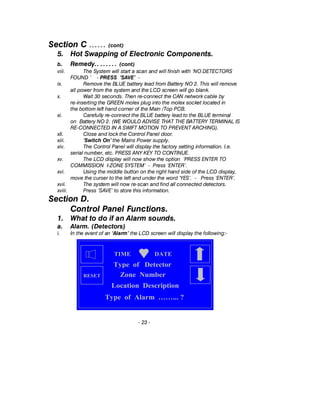
viii. The System will start a scan and will finish with ‘NO DETECTORS
FOUND ’ - PRESS ‘SAVE’ -
ix. Remove the BLUE battery lead from Battery NO 2. This will remove
all power from the system and the LCD screen will go blank.
x. Wait 30 seconds. Then re-connect the CAN network cable by
re-inserting the GREEN molex plug into the molex socket located in
the bottom left hand corner of the Main /Top PCB.
xi. Carefully re-connect the BLUE battery lead to the BLUE terminal
on Battery NO 2. (WE WOULD ADVISE THAT THE BATTERY TERMINAL IS
RE-CONNECTED IN A SWIFT MOTION TO PREVENT ARCHING).
xIi. Close and lock the Control Panel door.
xiii. ‘Switch On’ the Mains Power supply.
xiv. The Control Panel will display the factory setting information. I.e.
serial number, etc. PRESS ANY KEY TO CONTINUE.
xv. The LCD display will now show the option ‘PRESS ENTER TO
COMMISSION I-ZONE SYSTEM’ - Press ‘ENTER’.
xvi. Using the middle button on the right hand side of the LCD display,
move the curser to the left and under the word ‘YES’. - Press ‘ENTER’.
xvii. The system will now re-scan and find all connected detectors.
xviii. Press ‘SAVE’ to store this information.
Section D.
Control Panel Functions.
1. What to do if an Alarm sounds.
a. Alarm. (Detectors)
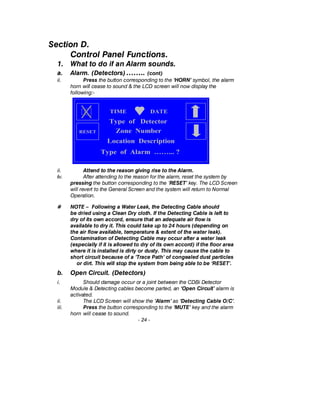
i. In the event of an ‘Alarm’ the LCD screen will display the following:-
- 23 -
TIME DATE
Type of Alarm ……... ?
Type of Detector
Zone Number
Location Description
RESET
Section D.
Control Panel Functions.
1. What to do if an Alarm sounds.
a. Alarm. (Detectors) …….. (cont)
ii. Press the button corresponding to the ‘HORN’ symbol, the alarm
horn will cease to sound & the LCD screen will now display the
following:-
ii. Attend to the reason giving rise to the Alarm.
iv. After attending to the reason for the alarm, reset the system by
pressing the button corresponding to the ‘RESET’ key. The LCD Screen
will revert to the General Screen and the system will return to Normal
Operation.
# NOTE – Following a Water Leak, the Detecting Cable should
be dried using a Clean Dry cloth. If the Detecting Cable is left to
dry of its own accord, ensure that an adequate air flow is
available to dry it. This could take up to 24 hours (depending on
the air flow available, temperature & extent of the water leak).
Contamination of Detecting Cable may occur after a water leak
(especially if it is allowed to dry of its own accord) if the floor area
where it is installed is dirty or dusty. This may cause the cable to
short circuit because of a ‘Trace Path‘ of congealed dust particles
or dirt. This will stop the system from being able to be ‘RESET’.
b. Open Circuit. (Detectors)
i. Should damage occur or a joint between the CDBi Detector
Module & Detecting cables become parted, an ‘Open Circuit’ alarm is
activated.
ii. The LCD Screen will show the ‘Alarm’ as ‘Detecting Cable O/C’.
iii. Press the button corresponding to the ‘MUTE’ key and the alarm
horn will cease to sound.
- 24 -
TIME DATE
Type of Alarm ……... ?
Type of Detector
Zone Number
Location Description
RESET
Section D …… (cont)
1. What to do if an Alarm sounds …….. (cont)
b. Open Circuit. (Detectors) …….. (cont)
iv. Attend to the reason giving rise to the Alarm.
v. After attending to the reason for the alarm, reset the system. Press
the button corresponding to the ‘RESET’ key. The LCD Screen will revert
to the General Screen and the system will return to Normal Operation.
# NOTE – The most common cause of an ‘Open Circuit’
alarm is caused by Engineers who are working in the area of the
alarm. They may have caused damage to the detecting cable or
opened a joint whilst carrying out other duties or works.
Always be aware of any works being carried out in the vicinity of
your Water Leak detection System.
2. Water Leak Locating Module (ZLM-500)
a. Liquid Detected Alarm
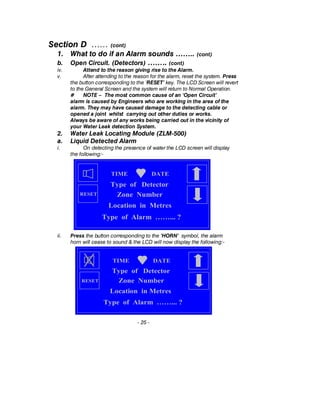
i. On detecting the presence of water the LCD screen will display
the following:-
ii. Press the button corresponding to the ‘HORN’ symbol, the alarm
horn will cease to sound & the LCD will now display the following:-
- 25 -
TIME DATE
Type of Alarm ……... ?
Type of Detector
Zone Number
Location in Metres
RESET
TIME DATE
Type of Alarm ……... ?
Type of Detector
Zone Number
Location in Metres
RESET
Section D ……. (cont)
1. What to do if an Alarm sounds …… (cont)
2. Water Leak Locating Module (ZLM-500) … (cont)
a. Liquid Detected Alarm …… (cont)
iii. Take NOTE of the LOCATION READING displayed. Check this
reading against the Locating Module Map to locate the ‘Water
Detected’.
iv. After attending to the reason for the alarm, reset the system by
pressing the button corresponding to the ‘RESET’ key. The LCD
screen will revert to the General Screen and the system will return to
Normal operation.
v. Should the system re-alarm within 30 seconds & display the
same or similar Location Reading, this will indicate that the Detecting
cable has not dried or that the water is still present.
vi. If a vastly different Location Reading is displayed this will
indicate that a further water contact has been made.
vii. Carry out the above procedures again until the LCD Screen
reverts to the Normal Operation Screen.
b. Open Circuit.
i. Should damage occur or a joint between Leader, Detecting or
Jumper cables become parted, an ‘Open Circuit’ alarm is activated. ii.
The LCD Screen will display as item ii. above.
iii. The ‘Alarm Horn’ will sound.
iv. Press the button corresponding to the ‘MUTE’ key, take NOTE of
the LOCATION READING displayed, check this against the Locating
Module Map to locate the ‘Open Circuit’.
v. After attending to the reason for the alarm, reset the system by
pressing the button corresponding to the ‘RESET’ key. The LCD
screen will revert to the General Screen and the system will return to
Normal operation.
c. Network Fail.
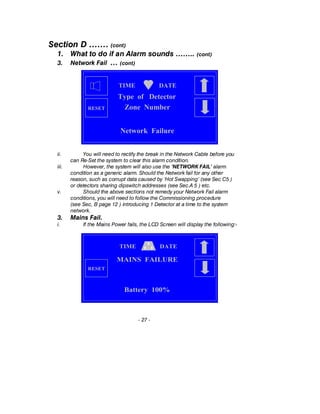
i. A ‘NETWORK FAIL’ alarm will be displayed if the CAN network
cable has been disconnected from the Control Panel or from any of
the installed Detectors. Should this occur, the Alarm Horn will sound
and the LCD display will now display the following:-
- 26 -
Section D ……. (cont)
1. What to do if an Alarm sounds …….. (cont)
3. Network Fail … (cont)
ii. You will need to rectify the break in the Network Cable before you
can Re-Set the system to clear this alarm condition.
iii. However, the system will also use the ‘NETWORK FAIL’ alarm
condition as a generic alarm. Should the Network fail for any other
reason, such as corrupt data caused by ‘Hot Swapping’ (see Sec C5 )
or detectors sharing dipswitch addresses (see Sec.A 5 ) etc.
v. Should the above sections not remedy your Network Fail alarm
conditions, you will need to follow the Commissioning procedure
(see Sec, B page 12 ) introducing 1 Detector at a time to the system
network.
3. Mains Fail.
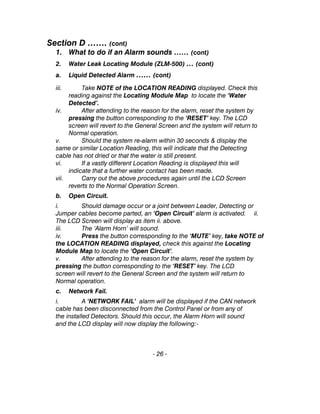
i. If the Mains Power fails, the LCD Screen will display the following:-
- 27 -
TIME DATE
Network Failure
Type of Detector
Zone NumberRESET
TIME DATE
MAINS FAILURE
Battery 100%
RESET
Section D ……. (cont)
1. What to do if an Alarm sounds …….. (cont)
2. Water Leak Locating Module (ZLM-500) … (cont)
3. Mains Fail. …….. (cont)
i. If the Mains Power fails, the LCD Screen will display the following:-
ii. This will also cause the ’Mains Fail’ relay to energise and the
system will switch automatically to Battery Back Up. The LCD Screen
will display a pulsing plug & show the percentage Life State of the
Batteries. When the Life State of the Batteries are approximately 10%
the Battery Fail relay will de-energise & the System will Shut Down.
4. Battery Fail.
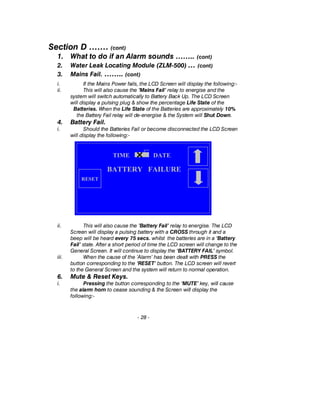
i. Should the Batteries Fail or become disconnected the LCD Screen
will display the following:-
ii. This will also cause the ’Battery Fail’ relay to energise. The LCD
Screen will display a pulsing battery with a CROSS through it and a
beep will be heard every 75 secs. whilst the batteries are in a ‘Battery
Fail’ state. After a short period of time the LCD screen will change to the
General Screen. It will continue to display the ‘BATTERY FAIL’ symbol.
iii. When the cause of the ’Alarm’ has been dealt with PRESS the
button corresponding to the ‘RESET’ button. The LCD screen will revert
to the General Screen and the system will return to normal operation.
6. Mute & Reset Keys.
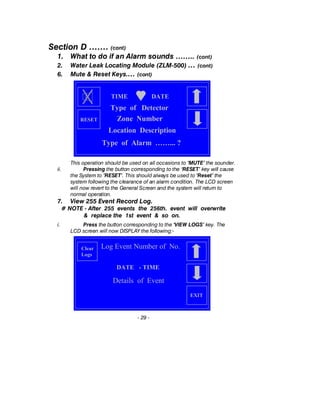
i. Pressing the button corresponding to the ‘MUTE’ key, will cause
the alarm horn to cease sounding & the Screen will display the
following:-
- 28 -
TIME DATE
BATTERY FAILURE
RESET
Section D ……. (cont)
1. What to do if an Alarm sounds …….. (cont)
2. Water Leak Locating Module (ZLM-500) … (cont)
6. Mute & Reset Keys.… (cont)
This operation should be used on all occasions to ‘MUTE’ the sounder.
ii. Pressing the button corresponding to the ‘RESET’ key will cause
the System to ’RESET’. This should always be used to ‘Reset’ the
system following the clearance of an alarm condition. The LCD screen
will now revert to the General Screen and the system will return to
normal operation.
7. View 255 Event Record Log.
# NOTE - After 255 events the 256th. event will overwrite
& replace the 1st event & so on.
i. Press the button corresponding to the ‘VIEW LOGS’ key. The
LCD screen will now DISPLAY the following:-
- 29 -
TIME DATE
Type of Alarm ……... ?
Type of Detector
Zone Number
Location Description
RESET
Details of Event
DATE - TIME
Log Event Number of No.
EXIT
Clear
Logs
Section D ……. (cont)
1. What to do if an Alarm sounds …….. (cont)
2. Water Leak Locating Module (ZLM-500) … (cont)
7. View 255 Event Record Log. … (cont)
ii. Scroll through the Events using the buttons corresponding to the
‘ARROW’ keys. To return to the General Screen Press the button
corresponding to the ‘EXIT’ key.
iii. To CLEAR all the Log Events from the Memory Press the button
corresponding to the ‘Clear Logs’ key. The LCD screen will now
display the words ’LOGS CLEARED’.
iv. After a short period of time the LCD will revert to the General
Screen.
Section E
Control Panel Outputs.
1. Relays.
The Control Panel has the following dedicated relay outputs
each with a set of ‘Clean Contacts’ for remote signalling:-
OUTPUT TERMINALS MARKED
Detector Alarm ‘Alarm’ - N.C. / C / N.O.
Interconnecting Cable Alarm ‘Network Fail’ - N.C. / C / N.O.
Mains Failure Alarm ‘Mains Fail’ - N.C. / C / N.O.
Battery Failure Alarm ‘Batt Fail’ - N.C. / C / N.O.
Service Alarm ‘Service’ - N.C. / C / N.O.
N.C = Normally Closed. – C = Common. – N.O= Normally Open
All the above outputs are via a ‘Clean Set’ of Contacts with a
Maximum rating of 3 amp at 30 volts D.C. or 125 volts A.C.
OUTPUT TERMINALS MARKED
Remote Sounder ‘Sounder’ - V+ / V-
Remote Beacon ‘Beacon’ - V+ / V-
For connection to J.A.M. Sounder & Beacon only.
Beacon output is also used for the J.A.M. Repeater Panel.
Powered at 12 volts with a Maximum 10 amp rating.
2. RS 485
OUTPUT TERMINALS MARKED
Building Management ‘B.M.C.’ - A / B / C
- 30 -
Section F
Care of Detecting Cables & Maintenance
1. Care of Detecting Cables
i. For the Detector to work, water must be able to penetrate the
Detecting Cables. The following list of substances (although not
exhaustive) will have a detrimental effect on the performance of
Detecting cables & will cause continual un-wanted Alarms.
Fizzy Soda, (coca-cola etc) Coffee, Tea & Chocolate Drinks,
Chemical Cleaning Agents both Wet or Dry, Photocopier, Printer
Toners, Mastics & Sealants, Plumbing, Heating & A.C. lubricants,
Glycol, Builders Rubble & Dust.
ii. All the above substances will cause an ’Alarm’ state. If allowed to
dry without attendance a Trace Path (contamination) may occur &
the ‘Alarm’ state will not be able to be cleared or the system ‘Reset’.
Contaminated cable should be removed, cleaned & allowed to dry
before replacing back into service. If after cleaning the cable the
Detector will not ‘Reset’, the cable must be replaced.
Damaged cable must always be replaced.
# NOTE – Following a Water Leak, the Detecting Cable should
be dried using a Clean Dry cloth. If the Detecting Cable is left
to dry of its own accord, ensure that an adequate air flow is
available to dry it. This could take up to 24 hours (depending
on the air flow available, temperature & extent of the leak).
Contamination of Detecting Cable may occur after a water
leak (especially where it is allowed to dry of its own accord) if
the floor area where it is installed is dirty or dusty. This may
cause the cable to short circuit because of a ‘Trace Path‘ of
congealed dust particles or dirt. This will stop the system from
being able to be ‘RESET’
2. Maintenance.
i. Although the system is relatively maintenance free, it is
recommended that it should be checked fully at least ONCE each
year. Should an alarm occur which you cannot clear by the method
described in this Manual or you are unsure of the operation of any part
of the system, please contact your local ’aqualarm’ ‘i-Zone’ Agent or
direct to J.A.M. Limited who will be pleased to give you assistance.
ii. J.A.M. Limited & their authorised Agents are able to offer you a
comprehensive Maintenance Contract to look after your ’i-Zone’
system on a 1, 2, or 4 visit programme each year. For information
please contact the Authorised Agent listed on the back of this
booklet or directly to J.A.M. Limited
- 31 -
Section F …… (cont)
Care of Detecting Cables & Maintenance …… (cont)
1. Care of Detecting Cables …… (cont)
2. Maintenance …… (cont)
iii. Your system is fitted with a ‘Mains Fail’ Battery Back-Up system
in the form of automatic re-chargeable Batteries They should give you a
trouble free life of between 3 & 5 years (dependant on use).
iv. When Maintenance is due the following screen will be displayed:-
v. The ‘Spanner’ will pulse and a ‘Bleep’ sound will be heard.
FOR SERVICE
Telephone the number displayed
OR contact J.A.M. Limited.
Tele: 44 (0) 1268 777222
Fax: 44 (0) 1268 777221
E-mail: sales@jam.uk.com
- 32 -
TIME DATE
01268 777222
SERVICE i-ZONE
Section G
1. Control Panel Terminals
BATTERY CONNECTIONS
MOST IMPORTANT
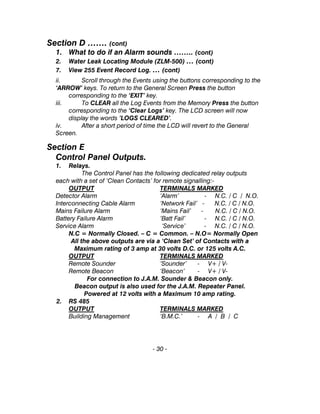
The RED battery lead (labelled Battery 1 ) must be
connected to the RED terminal on Battery 1.
The BLUE battery lead (labelled Battery 2 ) must be
connected to the BLUE terminal on Battery 2.
The BLACK lead (labelled Link) must be connected to
the BLUE terminal on Battery 1 and to the RED
terminal on Battery 2.
2. Ancillary Equipment
i. The following ‘aqualarm’ equipment is available to be connected
directly to the complete range of ‘i-Zone’ Control Panels:-
- Repeater Panel (RP-1) - Connect to Beacon V+ / V-
- Beacon & Sounder (B+S-1) - Connect to Sounder V+ / V-
- Auto-dialler (SD-2) - Connect to Beacon V+
& AUX 12 V V+ / V-
- Auto-Text dialler (SMS-1) - Connect to Beacon V+
& AUX 12 V V+ / V-
- 33 -
Main PCB
Bat 1 Bat 2 PSU
+ - + - + -
Mains Fail Bat Fail
Nc C No Nc C No
Beacon Sounder AUX 12V
V+ V- V+ V- V+ V-
Alarm
Nc C No
Network
Fail
Nc C No
CAN
V+ V- Hi Lo
Service
Nc C No
RS 485
A B E
APM
A B E
PSU
E N L
Section G …… cont
3. Power Booster Box - iZ-PB-24
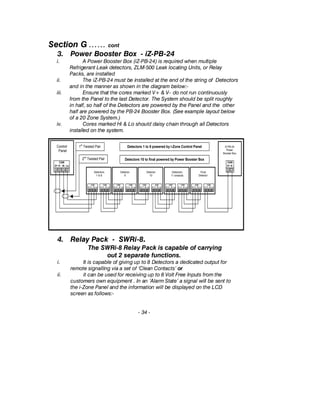
i. A Power Booster Box (iZ-PB-24) is required when multiple
Refrigerant Leak detectors, ZLM-500 Leak locating Units, or Relay
Packs, are installed
ii. The iZ-PB-24 must be installed at the end of the string of Detectors
and in the manner as shown in the diagram below:-
iii. Ensure that the cores marked V+ & V– do not run continuously
from the Panel to the last Detector. The System should be split roughly
in half, so half of the Detectors are powered by the Panel and the other
half are powered by the PB-24 Booster Box. (See example layout below
of a 20 Zone System.)
iv. Cores marked Hi & Lo should daisy chain through all Detectors
installed on the system.
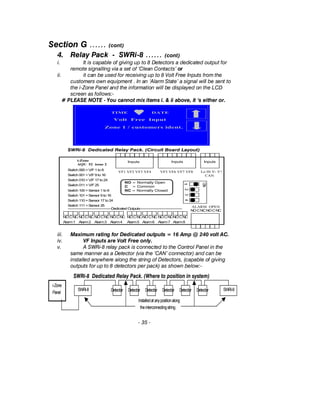
4. Relay Pack - SWRi-8.
The SWRi-8 Relay Pack is capable of carrying
out 2 separate functions.
i. It is capable of giving up to 8 Detectors a dedicated output for
remote signalling via a set of ‘Clean Contacts’ or
ii. it can be used for receiving up to 8 Volt Free Inputs from the
customers own equipment . In an ‘Alarm State’ a signal will be sent to
the i-Zone Panel and the information will be displayed on the LCD
screen as follows:-
- 34 -
Detectors 1 to 9 powered by i-Zone Control Panel1st
Twisted Pair
2nd
Twisted Pair
Control
Panel
CAN
V+ V- Hi Lo
Detectors
1 to 8
CAN
V+ V- Hi Lo
CAN
V+ V- Hi Lo
Detector
9
CAN
V+ V- Hi Lo
CAN
V+ V- Hi Lo
Detector
10
CAN
V+ V- Hi Lo
CAN
V+ V- Hi Lo
Final
Detector
CAN
V+ V- Hi Lo
CAN
V+ V- Hi Lo
Detectors
11 onwards
CAN
V+ V- Hi Lo
CAN
V+ V- Hi Lo
iZ-PB-24
Power
Booster Box
CAN
V+ V-
Detectors 10 to final powered by Power Booster Box
Section G …… (cont)
4. Relay Pack - SWRi-8 …… (cont)
i. It is capable of giving up to 8 Detectors a dedicated output for
remote signalling via a set of ‘Clean Contacts’ or
ii. it can be used for receiving up to 8 Volt Free Inputs from the
customers own equipment . In an ‘Alarm State’ a signal will be sent to
the i-Zone Panel and the information will be displayed on the LCD
screen as follows:-
# PLEASE NOTE - You cannot mix items i. & ii above, it ‘s either or.
iii. Maximum rating for Dedicated outputs = 16 Amp @ 240 volt AC.
iv. VF Inputs are Volt Free only.
v. A SWRi-8 relay pack is connected to the Control Panel in the
same manner as a Detector (via the ‘CAN’ connector) and can be
installed anywhere along the string of Detectors, (capable of giving
outputs for up to 8 detectors per pack) as shown below:-
- 35 -
NO = Normally Open
C = Common
NC = Normally ClosedSwitch 100 =Sensor 1 to 8
Switch 101 =Sensor 9 to 16
Switch 110 =Sensor 17 to24
Switch 111 =Sensor 25
Switch 000 =V/F1 to 8
Switch 001 =V/F9 to 16
Switch 010 =V/F17 to24
Switch 011 =V/F25
i-Zone
AQU 52 issue 2
ALARM OPEN
NOCNCNOCNC
NOCNC
Alarm1
NOCNC
Alarm3
NOCNC
Alarm4
NOCNC
Alarm5
NOCNC
Alarm6
NOCNC
Alarm7
NOCNC
Alarm8
NOCNC
Alarm2
VF1 VF2 VF3 VF4 VF5 VF6 VF7 VF8 Lo Hi V- V+
CAN
InputsInputs Inputs
--------------------------------------DedicatedOutputs-------------------------------------
SWRi-8 Dedicated Relay Pack. (Circuit Board Layout)
ON
1234
TIME DATE
Volt Free Input
Zone 1 / customers ident.
SWRi-8 Dedicated Relay Pack. (Where to position in system)
i-Zone
Panel
SWRi-8DetectorDetectorDetector DetectorDetector DetectorSWRi-8
Installedatanypositionalong
theinterconnectingstring
Section G …… (cont)
4. Relay Pack - SWRi-8. …… (cont)
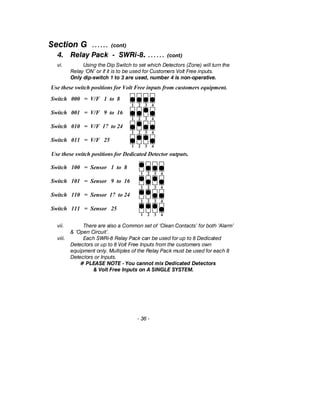
vi. Using the Dip Switch to set which Detectors (Zone) will turn the
Relay ‘ON’ or if it is to be used for Customers Volt Free inputs.
Only dip-switch 1 to 3 are used, number 4 is non-operative.
vii. There are also a Common set of ‘Clean Contacts’ for both ‘Alarm’
& ‘Open Circuit’.
viii. Each SWRi-8 Relay Pack can be used for up to 8 Dedicated
Detectors or up to 8 Volt Free Inputs from the customers own
equipment only. Multiples of the Relay Pack must be used for each 8
Detectors or Inputs.
# PLEASE NOTE - You cannot mix Dedicated Detectors
& Volt Free Inputs on A SINGLE SYSTEM.
- 36 -
1 2 3 4
1 2 3 4
1 2 3 4
1 2 3 4
Switch 000 = V/F 1 to 8
Switch 001 = V/F 9 to 16
Switch 010 = V/F 17 to 24
Switch 011 = V/F 25
Use these switch positions for Volt Free inputs from customers equipment.
1 2 3 4
1 2 3 4
1 2 3 4
1 2 3 4
Switch 100 = Sensor 1 to 8
Switch 101 = Sensor 9 to 16
Switch 110 = Sensor 17 to 24
Switch 111 = Sensor 25
Use these switch positions for Dedicated Detector outputs.
Section G …… cont
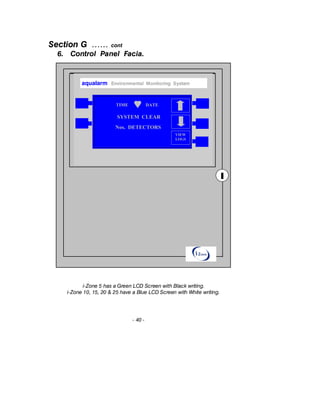
6. Control Panel Facia.
i-Zone 5 has a Green LCD Screen with Black writing.
i-Zone 10, 15, 20 & 25 have a Blue LCD Screen with White writing.
- 40 -
Environmental Monitoring Systemaqualarm Environmental Monitoring System
TIME DATE
Nos. DETECTORS
SYSTEM CLEAR
VIEW
LOGS
- 42 -
- 43 -
MAPPING RESULTS SHEET
Project Name ………………………………..Date……….
When all Readings have been recorded, the information should
be used to prepare a ‘System Map’
- 44 -
Position
Log No.
Cable
Length
& Type
Alarm
Reading
Open
Circuit
Reading
Position
Log No.
Cable
Length
& Type
Alarm
Reading
Open
Circuit
Reading
MAPPING RESULTS SHEET
Project Name ………………………………..Date……….
- 45 -
Position
Log No.
Cable
Length
& Type
Alarm
Reading
Open
Circuit
Reading
Position
Log No.
Cable
Length
& Type
Alarm
Reading
Open
Circuit
Reading
Important Information for correct disposal of
this product in accordance with
EC Directive 2002/96/EC
i. At the end of its working
life, the product must not be
disposed of as urban waste.
ii. It must be taken to a
special local authority,
differentiated waste collection
centre or returned to
J.A.M. Limited.
iii. Disposing of products separately avoids
possible negative consequences for the
environment and health deriving from inappropriate
disposal and enables the constituent materials to
be recovered to obtain significant savings in energy
and resources and create a better future for Earth
and our descendants..
CE Marking.
i. Equipment manufactured in accordance
with EEC Directives:-
98/13/EEC & 2006/95/EC
- 46 -
NOTES
DUTY OF CARE
It is our recommendation that all equipment installed
is made accessible for maintenance, repair or
replacement. J.A.M. Limited will not accept any
responsibility or costs involved should the necessary
access not be made.
DISCLAIMER
The ‘Aqualarm’ products are manufactured as
electronic warning devices, and as such NO
responsibility, or cost(s) will be accepted by J.A.M. Ltd
in respect of damage to equipment, property, or
buildings, from substances, or persons, following
detector activation.
It is highly recommended that persons within the
building responsible for the equipment are fully aware of the
correct operation. It is further recommended that a suitable ‘plan of
action’ policy is in place should an alarm occur: including, but not
limited to, current
Maintenance/Service contact details being readily
available near, or on the equipment.
- 47 -
AUTHORISED AGENT
J.A.M. Limited
39 Brook Road, Rayleigh TEL: +44 (0) 1268 777222
Essex, SS6 7XJ, England FAX: +44 (0) 1268 777221
Web Site : www.jam.uk.com – E-Mail : sales@jam.uk.com
‘aqualarm’, ‘LeakSense’, ’aqualarm OneTouch’ & ’i-Zone’ are
registered Trade Marks of J.A.M. Limited, England Feb 2014

I zone manual SenseTek-nl

  • 1.
    ’Aqualarm’ ENVIRONMENTAL MONITORING SYSTEM Installation,Set-up and Operating Instructions ‘i-Zone’ Systems
  • 2.
    CONTENTS Section Page No. AINSTALLATION 1. READ IMPORTANT INSTRUCTIONS 4 2. Control Panel 4 3. Interconnecting Cables 4 4. Detector— Description 5 5. Detector— Dipswitch Set-Up 8 B CONTROL PANEL 1. Start-Up Procedure 12 2. Set-Up Time & Date 15 C DETECTOR SET - UP 1. Important Information 15 2. Detector Sensitivity 17 3. Setting Alarm Thresholds. 18 a. Liquid Detectors 19 b. Refrigerant Gas Detectors 19 c. Temperature Detectors 20 d. Humidity Detectors 20 4. ZLM–500 Mapping Procedure 20 5. Hot Swapping 22 D CONTROL PANEL FUNCTIONS 1. What to do if an Alarm Sounds 23 a. Alarm (Detectors) 23 b. Open Circuit (Detectors) 24 2. ZLM-500 Locating Module 25 a. Liquid Detected Alarm 25 b. Open Circuit Alarm 26 c. Network Fail 26 - 2 -
  • 3.
    CONTENTS …… (cont) SectionPage No. D CONTROL PANEL FUNCTIONS 3. Mains Fail Alarm 27 4. Battery Fail Alarm 28 5. Mute & Reset Keys 28 6. View 255 Event Record Log 29 E CONTROL PANEL OUTPUTS 1. Control Panel Relay Outputs 30 2. Control Panel RS-485 Output 30 F CARE & MAINTENANCE 1. Care of Detecting Cables 31 2. Maintenance 31 G EQUIPMENT 1. Control Panel Terminals 33 2. Ancillary Equipment 33 3. PB-24 Power Booster Box 34 4. SWRi-8 Relay Pack 34 5. SWRi-5 Relay Pack 37 6. Spares 39 7. Control Panel Facia 40 CERTIFICATES ISO 9001 41 ISO 14001 42 WEE Regs. 2006 43 Mapping Results Sheet 44 CORRECT DISPOSAL OF PRODUCT When finished with Use 46 CE Marking 46 - 3 -
  • 4.
    Section A Installation 1. READTHESE IMPORTANT INSTRUCTIONS To avoid damage to the electronics within the Control Panel It is strongly recommended that you use the knockouts provided for the entrance of Cables. If you have to drill holes for cables to enter the Control Panel, special care must be taken to ensure that drill bits do not penetrate far enough to touch the Printed Circuit Boards or any Component. You must ensure that any swarf from the drilling is completely removed from the Control Panel. FAILURE to adhere to the above may invalidate your Warranty. 2. Control Panel i. The i-Zone Control Panel should be sited in a position where the ‘Alarm Horn’ can be heard and at a height where the LCD Screen can be seen. ii. A 220/240 volt 50 Hz single phase power supply via a 5 amp non-switched fused spur should be made available adjacent to the Control Panel prior to the start of the installation. iii. The Mains Power terminals within the Control Panel are marked and should be connected as follows:- connect BROWN wire to TERMINAL marked ‘L’ (live) connect BLUE wire to TERMINAL marked ‘N’ (neutral) connect YELLOW/GREEN wire to TERMINAL marked ‘E’ (earth) (see drawing page 33) The Mains Power Supply should only be connected to the Control Panel by a competent qualified person. DO NOT CONNECT POWER TO THE CONTROL PANEL OR THE BATTERIES YET . (SEE PAGE 33 FOR CONNECTIONS.) 3. Interconnecting Cables. i. Using a 120 ohm 0.5mm 4 core cable with twisted pairs and overall screen, (as Belden Ref: B9842), connect the detectors to the Control Panel as follows:- (Network) - 4 -
  • 5.
    Section A …………(cont.) 3. Interconnecting Cables.………… (cont.) ii. From the Terminals marked CAN within the Control Panel, using FIRST TWISTED PAIR, connect ONE core to each of the terminals marked:- V+, V-. Using the SECOND TWISTED PAIR connect ONE core to each of the terminals marked:- Hi, Lo. iii. Connect in Series to the corresponding terminals within each of the Detectors in turn. Ensure that the cables are not cross connected. (see the following diagram for more information) 4. Detectors. PLEASE NOTE –Detector modules are not housed in waterproof enclosures - Please locate at a suitable height. a. Thresholds. i. With the exception of the Detector Address, all detector thresholds are set with the factory default. ii. The parameters of Refrigerant Gas (RGi-24), Temperature (TDi-24) & Humidity (HDi-24) Detectors can be set with Clients thresholds via the Control Panel. (See page 18 on how to change thresholds) b. Description i. Point of Use Water Detector. (STDi-24) Consists of 2 parts, a point Detector connected by a fly lead to a CDBi Module. The CDBi module can be mounted remotely with the Point of Use Detector normally sited at low points on the floor slab or adjacent to a potential leak e.g. A.C. unit, humidifier, water cooled equipment etc ii. Cable type Water Leak Detector (CDBi-24) Consists of 2 parts, a CDBi Module plus modular lengths of Detecting Cable (CD-x). The CDBi module should be mounted at the start with the Detecting cable encircling the area, unit or pipe-work to be monitored. - 5 - Detector Connections Diagram1st Twisted Pair 2nd Twisted Pair Control Panel CAN V+ V- Hi Lo CAN V+ V- Hi Lo CAN V+ V- Hi Lo LK1 Detector Jumper pin must be connected on last detector Twist outer braid together on all but last detector. Attach outer braid to Earth stud on panel door Detector CAN V+ V- Hi Lo CAN V+ V- Hi Lo LK1 Jumper pin disconnected on all but last detector Note Some detectors may only have one CAN terminal for both sets of cables.
  • 6.
    b. Description …………(cont.) iii. Detecting cable (CD-x) (x = Length — 1, 2, 5 or 10 metres) with a maximum length of 50 metres per Zone. iv. Detecting cable (CD-x) should be installed using the following methods:- a. Clip to the underside of pipe-work using nylon type cable ties at 300 mm centres. b. Clip to the floor slab or other flat surface using ‘aqualarm’ floor clips (CL-1) hot melt glued or screwed to the surface at 500 mm centres. (Do not rely on sticky back pads only) IMPORTANT NOTES;- c. Do not use metal ties or straps as they can damage the Detecting cable. d. Do not over tighten the cable ties. e. Detecting cable should never be installed between pipe-work and its insulation. It must be installed on the outside of any insulation finish. f. ‘aqualarm’ WARNING LABELS (WL-1) should be fitted at 5m intervals along the entire length of all cables installed. Where cables go through walls etc. the WL-1 should be fitted either side of the wall. v. Oil / non conductive Point Detector (IRDi-24) Consists of 2 parts, an Infra-Red point Detector connected by a fly lead to a CDBi Module. The CDBi module can be mounted remotely with the Infra-Red Point Detector normally sited at the corners of an oil storage tank. Where it is to be used for other non-conductive liquids, it should be sited adjacent to the potential leak. vi. Overflow Detector (OFDi-24) The Overflow Detector is used to detect water flowing through pipe- work. The detector is fitted with a 3/4” male thread to enable it to be fitted into a ‘T’ piece within the pipe-work. The long detecting probes should be cut to length on site to suit the insert. vii. Float type Detector (FLi-24) The Float Detector is used in sumps & other areas where other types of Detectors can not practically be used. viii. Refrigerant Gas Detector (RGi-24) The Refrigerant Gas Detector should be sited at a level below the equipment or pipe-work from which refrigerant gas can be expected to escape. ix. 3 Stage Temperature Detector (TDi-24) The Temperature Detector can be configured to give 1 x Low & 2 x High temperature alarms. The Detector should be sited within the risk area at a height of between 1.5 & 2 metres. - 6 -
  • 7.
    Section A ……(cont) b. Description ……(cont.) viii. Humidity Detector (HDi-24) The Humidity Detector should be sited within the risk area at a height of between 1.5 & 2 metres. (See page 17 to set Alarm level thresholds.) ix. Water Leak Locating Module (ZLM-500) The ZLM-500 Locating Module consists of 2 parts, a ZLM Locating Module plus modular lengths of Detecting Cable (CD-x) up to a maximum amount of 500 metres. (inc. the Leader Cable & any Jumper Cable). The ZLM-500 module should be mounted at the start with the Detecting cable installed in the areas to be monitored. Leader / Jumper cables NOTE: Only J.A.M. Ltd. Leader & Jumper Cables must be used. i. The Leader cable (LS-LC) should be installed first. The bare end of the Leader cable, consisting of 2 cores, should be installed ready to connect into the ZLM-500 Module via the knockout provided and with a suitable cable gland to the terminals marked ‘CD-X’. ii. The cores can be connected to either terminal as there is no polarity. iii. The connectorized end of the Leader cable (female) is to be connected to the first piece of Detecting cable (CD-x). iv. Detecting cables (CD-x) & Jumper cables (LS-JC) are connectorized at both ends (one end female the other end male, the female end should always be at the furthest end of the piece of cable you have just installed). The Jumper cable (LS-JC) is to be used where it is required to connect Detecting cables (CD-x) installed in different areas. v. Ensure all cables are installed Securely. vi. The ZLM Module is now ready for Mapping. (See page 20 for Mapping Procedure.) Detecting cable. i. CD-x (x = Length — 1, 2, 5 or 10 metres) ii. Detecting cable (CD-x) should be installed using the following methods:- a. Clip to the underside of pipe-work using nylon type cable ties at 300 mm centres.. b. Clip to the floor slab or other flat surface using ‘aqualarm’ floor clips (CL-1) hot melt glued or screwed to the surface at 500 mm centres. (Do not rely on sticky back pads only) IMPORTANT NOTES;- a. Do not use metal ties or straps as they can damage the Detecting cable. - 7 -
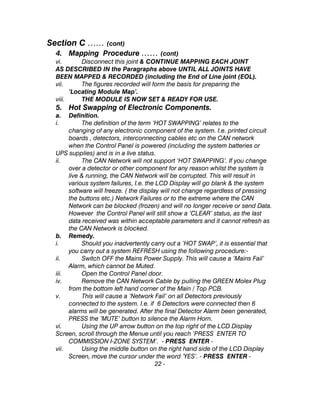
  • 8.
    Section A ……(cont) b. Description (Detecting Cable) ……(cont.) b. Do not over tighten the cable ties. c. Detecting cable should never be installed between pipe- work and its insulation. It must be installed on the outside of any insulation finish. d. ‘aqualarm’ WARNING LABELS (WL-1) should be fitted at 5m intervals along the entire length of all cables installed. Where cables go through walls etc. the WL-1 should be fitted either side of the wall. 5. Detector Dipswitchs. a. Set-Up Procedure i. Dipswitches are used to give the Detector an Identity Address in order that they can be identified by the Control Panel. Dipswitches are active when they are switched ‘ON’ in the ‘UP’ position. ii. Dipswitch References (Dipswitch set to ‘ON’) Dipswitch 1 = Number 1 Dipswitch 2 = Number 2 Dipswitch 3 = Number 4 Dipswitch 4 = Number 8 Dipswitch 5 = Number 16 Dipswitch 6 = Identifies Humidity Detector. (Factory set) Dipswitch 7 = Remote Mute Option (unused—set to ‘OFF’ position) Dipswitch 8 = Spare. (set to ‘OFF’ position) iii. Dipswitches must be set prior to the detector being connected to the Control Panel. iv. Dipswitch settings (addresses) will represent the Detector’s location / zone identity. The higher the dipswitch setting number, the higher the zone allocated, regardless of the location of the detector within the string, for example:- - 8 - Any combination of these can be used to make up the zone number required, i.e. if zone 9 is required, use dipswitch 4 and 1 together. (8 + 1 = 9) 1 2 3 4 5 5 1 3 2 1 1+3 1 only 1+2 2 only 3 only Detector installed sequence i-Zone 10 Zone number Dipswitch in ‘UP’ Position
  • 9.
    Section A ……(cont) 5. Detector Dipswitch Set-Up …... (cont) v. If an additional detector is added to the string, as shown in the Dotted Box and this new detector is set up as Zone 4 using dipswitch 3, the Control Panel would then recognise the detectors in the following order: Detector No.2 as Zone 1, Detector No.4 as Zone 2 , Detector No.3 as Zone 3, the new Detector No.5 as zone 4 & Detector No.1 as Zone 5. vi. This is because the zones are allocated to the lowest dipswitch setting first. vii. Now, if the above example was on a 4 zone Control Panel and the customer tried to add a 5th detector to the system with the dipswitches set up as per the previous example, the Control Panel would actually ignore Detector Number 1 as this has the highest dipswitch setting. (Zone 5, with Dipswitches 1+3 set.) Therefore, to avoid confusion, it is strongly recommended to run the detectors with the dipswitches in numerical order along the string. b. Dipswitch effect on Set Up Procedure I. During the initial Commissioning Set-Up procedure, if all the dipswitches are set to OFF (dipswitch down) the result will be shown as ‘0 Detectors’ found. ii. If any 2 different types of detectors (I.e. Water , Refrigerant) are found with the same dipswitch setting, this will cause the system to identify UNKNOWN DETECTORS and the Commissioning will fail. It will eventually cause a NETWORK FAIL Alarm if saved. (See Sect. D3 for further information) — DO NOT SAVE THIS SET UP. — iii. Using only the details shown in the Solid Boxes, the above example will result in the Control Panel recognising the installed detectors in the following order:- Detector No.2 as Zone 1, Detector No.4 as Zone 2, Detector No.3 as Zone 3 and Detector No.1 as zone 4. c. Replacing a Detector after initial Commissioning. i. When replacing a Detector, you must ensure that the dipswitch settings for the new detector match that of the original unit. If the replacement detector has the same dipswitch setting as another detector already on the string, then all the detectors on the system will go into alarm. (See Sect. C5 & D3 for further information) ii. If the replacement detector has a dipswitch setting higher than any other detector on the system, all existing detectors on the string after the location of the replacement detector will be identified by the Control Panel as 1 Zone number lower and this will not correspond with the Original ‘As Installed’ drawing. - 9 -
  • 10.
    - 10 - DetectorZone Switch Setting CAN Set To set detector Address As Ident Dipswitch setting Check Sheet & CAN Address Ident. Squares that are black, i.e represent the switch being ‘ON’ (in the ‘UP’ position). Should a Detector be a Humidity type, Dipswitch Number 6 will also be ‘ON’ (in the ‘UP’ position). This will be factory set. Switch On Off 1 2 3 4 5 6 7 8 Zone 1 01 H Switch On Off 1 2 3 4 5 6 7 8 Zone 2 02 H Switch On Off 1 2 3 4 5 6 7 8 Zone 3 03 H Switch On Off 1 2 3 4 5 6 7 8 Zone 4 04 H Switch On Off 1 2 3 4 5 6 7 8 Zone 5 05 H Switch On Off 1 2 3 4 5 6 7 8 Zone 6 06 H Switch On Off 1 2 3 4 5 6 7 8 Zone 7 07 H Switch On Off 1 2 3 4 5 6 7 8 Zone 8 08 H Switch On Off 1 2 3 4 5 6 7 8 Zone 9 09 H Switch On Off 1 2 3 4 5 6 7 8 Zone 10 0A H Switch On Off 1 2 3 4 5 6 7 8 Zone 11 0B H Switch On Off 1 2 3 4 5 6 7 8 Zone 12 0C H Switch On Off 1 2 3 4 5 6 7 8 Zone 13 0D H
  • 11.
    Dipswitch setting CheckSheet …… cont - 11 - Detector Zone Switch Setting CAN Set To set detector Address As Ident Switch On Off 1 2 3 4 5 6 7 8 Zone 14 0E H Switch On Off 1 2 3 4 5 6 7 8 Zone 15 0F H Switch On Off 1 2 3 4 5 6 7 8 Zone 16 10 H Switch On Off 1 2 3 4 5 6 7 8 Zone 17 11 H Switch On Off 1 2 3 4 5 6 7 8 Zone 18 12 H Switch On Off 1 2 3 4 5 6 7 8 Zone 19 13 H Switch On Off 1 2 3 4 5 6 7 8 Zone 20 14 H Switch On Off 1 2 3 4 5 6 7 8 Zone 21 15 H Switch On Off 1 2 3 4 5 6 7 8 Zone 22 16 H Switch On Off 1 2 3 4 5 6 7 8 Zone 23 17 H Switch On Off 1 2 3 4 5 6 7 8 Zone 24 18 H Switch On Off 1 2 3 4 5 6 7 8 Zone 25 19 H
  • 12.
    Section B Control Panel. 1.Start-Up & Commissioning Procedure. i. On completion of the Installation of all Network Cables & Detectors, use the following procedure to Start-Up the system :- ii Ensure that the Network Cable is connected to the Control Panel terminals marked CAN V+, V-, Hi, Lo. via a suitable cable entry gland. iii. Cause a competent qualified person to connect the Battery Back-Up leads to the correct terminals of the sealed Lead Acid Batteries and the Control Panel to the Mains Power supply as described in Section ‘A’. (See also page 33 Control Panel Terminals.) iv. Close & Lock the Control Panel door & Switch on the Mains Power supply. v. The LCD screen will now DISPLAY the following:- vi. Press any button to continue with the ‘COMMISSIONING’ procedure, the LCD screen will now DISPLAY the following:- - 12 - J.A.M. i-Zone Environmental Monitor V1.1 Ref. No. Serial Number xxxxx Service on ….Date…. (Press any key to continue) Press Enter to Commission i-Zone Up To Nos. Sensors TIME DATE
  • 13.
    Section B ……(cont) vii. To continue with the ‘COMMISSIONING’ procedure Press the button corresponding to the ’RETURN’ symbol. The LCD screen will now DISPLAY the following:- viii. Press the ‘ARROW’ keys to place the underline either under the Yes or No. IF Yes the LCD will now DISPLAY the following:- ix. The Control Panel will now automatically search for any sensor connected to the system & record & store the type & its location. The system will only record up to the maximum of sensors allowed to be connected to the system. (i.e. — an i-Zone 5 system will only record up to 5 sensors — an i-Zone 10 will only record up to 10 sensors etc.) When the system has recorded all the information Press the button corresponding to the ‘SAVE’ key. A long bleep will be heard until the system has recorded all the commissioning information. The LCD screen will now display the General Screen. - 13 - Are You Sure? Yes / No SAVE Sensor Search Found Nos Sensors CAN Address …… Detector Type Firmware Number
  • 14.
    Section B…… (cont) x.The Heart will pulse to show that the live power supply is connected and the Screen will display (providing no alarms are present) the word ‘Clear’ with the number of Detectors connected to the system. xi. Where RGi-24 Detectors are connected & where the Detector head has not heated to its optimum temperature, the ‘Alarm’ horn will sound. The LCD screen will now show in numerical sequence the Detectors that are in ‘Alarm’, the LCD screen will show the following:- xii. Wait until you see the last Zone number, (the quantity of RGi-24 Sensors connected), then PRESS the button corresponding to the HORN Symbol. This will ’MUTE’ the ’Alarm’ horn. xiii. After approx. 30 mins. the heads will have reached operating temperature. PRESS the button corresponding to the ’RESET’ button, and the LCD screen will revert back to the General Screen. xiv If other types of Detectors are connected & the ’Alarm’ horn sounds, PRESS the button corresponding to the HORN Symbol. This will ’MUTE’ the ’Alarm’ horn. (see page 22 - What to do if an Alarm Sounds) - 14 - TIME DATE NOs. DETECTORS SYSTEM CLEAR VIEW LOGS TIME DATE Type of Alarm ……... ? Type of Detector Zone Number Location Description RESET
  • 15.
    Section B…… (cont) 2.Set-Up Time & Date. i. Press the button corresponding to the UP ‘ARROW’ key, until the LCD Screen displays the following:- ii. Press the button corresponding to the ‘ENTER’ key. The LCD screen will display the following:- iii. The Hours will be underlined. iv. Using the buttons corresponding to the ‘+ / -’ keys, set the hours. v. Continue using the buttons corresponding to the ‘ARROW’ keys, to underline the Minutes, then the date. Use the ‘+ / -’ keys to set the Minutes then the Date. When the correct time & date has been entered, Press the button corresponding to the ‘SAVE’ key. This will save the time & date and the screen will revert back to the General Screen. Section C. Detector Set-Up. 1. Important Information regarding thresholds of the Refrigerant Gas Detector - 15 - Enter To Set Time TIME DATE SAVE SET REAL TIME CLOCK Hrs : Mins Date
  • 16.
    Section C.…… (cont) i.Our Refrigerant Gas Detectors use a Semiconductor based sensor head to monitor the air for the presence of refrigerant gas. These heads need to run warm to enable them to function. ii. Each detector has a ‘Running Threshold’. This is represented on the Control Panel display by a numeric number that is adjacent to the words ‘Refrigerant Gas’, when you press the ‘SET ZONE’ button, after you have scrolled to a zone that has a Refrigerant Gas Detector attached. (See Section C. Setting Detector Sensitivity). The ‘Running Threshold’ of a Detector will fluctuate as it is affected by the changing conditions of its environment. It is very likely that each Detector will settle to a different ‘Running Threshold’, due to the differences in the local environment around each Detector and electronic component tolerances. Each Detector also has an ‘Alarm Threshold’. This is the level at which the detector will activate an alarm condition on the Control Panel. It is recommended that the ‘Alarm Threshold’ be set 100 points below the ‘Running Threshold’ that each Detector settles at. iii. Semiconductor sensor heads are affected by changes in Humidity and Temperature, therefore if the criteria of the environment where the Detector is located changes, i.e when the building changes from a Building site environment to an occupied working environment, then it is very likely that the ‘Running Threshold’ will change (+/-) as well. If this occurs the ‘Alarm Threshold’ will need to be adjusted to keep the 100 point difference between the Running and Alarm Thresholds. iv. In extreme cases where the ‘Running Threshold’ does not allow a 100 point difference to the ‘Alarm Threshold’, i.e. ‘Running Threshold’ only reaches 55 points, the minimum level you should set the ‘Alarm Threshold’ is 5 points. In these cases we would recommend increasing the amount of ‘ALARM SAMPLES’ therefore making the system check a Detector that has gone into an alarm, a second, third or fourth time etc. before actually triggering the ALARM status at the Control Panel. v. Detectors must not be sited within the cold air flow or return air flow of an AC unit, as this will prevent the detector from reaching a stable threshold. vi. Semiconductor Sensor heads are affected by CFC & HFC’s. These are present in most aerosol propellants, photocopier toner and other sources. If you have a detector located within a copy room or within a room that receives a heavy clean (i.e. heavy use of cleaning sprays) etc, then the Detector could be triggered into a ‘False Alarm’. By increasing the amount of ‘Alarm Samples’ of that particular detector, you should be able to eliminate these issues. -16 –
  • 17.
    Section C. 2. DetectorSensitivity i. Each detector has a ‘Running Threshold’ that dictates the setting of the ‘Alarm Threshold’. The ‘Running Threshold’ is identified by a numeric reading adjacent to the detector type shown on the LCD. With each type of detector located with an ‘ideal environment’ you should be looking to achieve the ‘Running Thresholds’ as shown below:- ii. The ‘Alarm Threshold’ for each type of Detector will be set to the Default Setting shown in the table above. You may wish to change the ‘Alarm Threshold’, due to the site conditions affecting the ‘Running Threshold’ or to make the Detector more or less sensitive. Decreasing the gap between the ‘Running Threshold’ and the ‘Alarm Threshold’ will make the Detector more sensitive and by increasing the gap will make the Detector less sensitive. To adjust the Detector Alarm thresholds please refer to — Setting Detector Alarm Thresholds. iii. Temperature and Humidity Detectors do not have an optimum ‘Running Threshold’ or ‘Alarm Threshold’ as these settings are totally dictated by the environment that the Detector is located in and the alarm level that the client / user wishes the Detectors to be activated at. iv. Giving the ‘Alarm Sample’ a Higher Number will cause the System to Double Check, Treble Check etc. the status of the detector (depending on the number choosen), before activating an ’Alarm State’. So a minute splash of water will possibly have time to dry out and the Control Panel will not activate an ‘Alarm state’. - 17 - Running Threshold Laboratory Conditions Set Alarm Threshold To:- Water Detector (cable) 45/46 2 Water Detector (others) 45/46 15 Oil type Detector 5/15 40 Default Alarm Sample 0 0 0 Fail Amplitude Low Low High Running threshold Varies due to environmental conditions. Set Alarm to 100 below the threshold displayed. If threshold shows below 100 set Alarm to 50 below. Refrigerant Gas Detector 0 N/A Temperature Detector Humidity Detector N/A As req’d N/A As req’d N/A N/A N/A N/A
  • 18.
    Section C. ……(cont) 3. Setting Detector Alarm Thresholds. i. Once Commissioning has been carried out you can then set-up the individual Detectors to the Client’s parameters. The General LCD screen will be displaying the following:- ii Press the button corresponding to the UP ‘Arrow’ Key to scroll to the Detector you wish to change the Clients parameters. The LCD screen will display the following:- iii. Press the button corresponding to the ‘Set Zone’ key. This will take you into the Detector ‘Set-up’ page. Depending on the type of Detector installed at the particular location, the LCD screen will now display the following ‘Set-Up’ information:- Separate ‘Set-Up’ screens will be displayed for the following detectors:- CDBi - Water detection Cable type. } Same Screen but requires STDi, OFDi & FLi - Other types of Water detection. } you to change certain IRDi - Oil, non-conductive liquids. } settings. ZLM-500 - Water detection Locating Module. RGi - Refrigerant Gas. TDi - Temperature. HMi - Humidity. - 18 - TIME DATE NOs. DETECTORS SYSTEM CLEAR VIEW LOGS TIME DATE SET ZONE Zone Number Detector type Location ( if entered)
  • 19.
    Section C ……(cont) 3. Setting Detector Alarm Thresholds …….. (cont) iv. Using the buttons corresponding to the ’Arrow’ Keys, scroll the box to the parameter you wish to change. v. Using the buttons corresponding to the ‘+ & -’ Keys, change the value to the required value. On completion of all changes PRESS the button corresponding to the ‘Save’ key. Your new values will now be saved into the Control Panel’s memory. a. Liquid Detectors CDBi - Detectors should be set as seen above. All other Liquid Detectors - should be set as above but with the ‘Alarm Sonar’ set at 15. IRDi - Detectors should be set as above but with the ‘Amplitude’ set to Fail High. b. Refrigerant Gas Detectors Set Alarm value at 100 below refrigerant gas value shown. If refrigerant gas value shown is below 100, set Alarm value to 50 below. - 19 - Liquid Detector Setup SAVE Alarm Sonar 2 Fail Low Amplitude Alarm Samples 0 SAVE Refrigerant Gas 193 5Alarm Below Alarm Samples 0
  • 20.
    Section C ……(cont) 3. Setting Detector Alarm Thresholds …….. (cont) c. Temperature Detectors High Level 1 will ’Alarm’ when temperature rises to the value set in this box. High Level 2 will ’Alarm’ when temperature rises to the value set in this box. Low Level will ’Alarm’ when temperature drops to the value set in this box. d. Humidity Detectors High Level 1 will ’Alarm’ when humidity rises to the value set in this box. High Level 2 will ’Alarm’ when humidity rises to the value set in this box. Low Level will ’Alarm’ when humidity drops to the value set in this box. 4. Mapping Procedure for ZLM-500 Module (SEE PAGES 44 & 45 for MAPPING RESULTS SHEET) i. Using the Mapping Tool provided, carry out the following:- ii. Starting at the first joint between the leader cable LS/LC & the first piece of detecting cable (CD-x), open the joint. The ‘Alarm Horn’ will sound and the LCD screen will DISPLAY the following:- - 20 - SAVE Humidity Alarms High Level 299 RH High Level 166 RH Low Level02 RH Temperature Alarms SAVE 99 °C High Level 2 66 °C High Level 1 02 °C Low Level
  • 21.
    Section C ……(cont) 4. Mapping Procedure for ZLM-500 Module ..(cont) Note this Reading on your Mapping Results Sheet. iii. Connect the Mapping Tool lead into the Leader cable and the Detecting cable into the other end of the Mapping Tool. Press the button corresponding to the ‘Reset ‘ key, the LCD screen will now revert to the General Screen. iv. Press & hold down the Button on the top of the Mapping Tool until the ’Alarm Horn’ sounds. The LCD screen will now display the following:- Note this Reading on your Mapping Results Sheet.. v. Disconnect the Mapping Tool & re-instate the joint. Press the button corresponding to the ‘Reset‘ key, the LCD screen will now revert to the General Screen. – Go to the next joint. - 21 - TIME DATE Liquid detected Zone Number Location in MetresRESET TIME DATE Open Circuit Zone Number Location in MetresRESET
  • 22.
    Section C ……(cont) 4. Mapping Procedure …… (cont) vi. Disconnect this joint & CONTINUE MAPPING EACH JOINT AS DESCRIBED IN the Paragraphs above UNTIL ALL JOINTS HAVE BEEN MAPPED & RECORDED (including the End of Line joint (EOL). vii. The figures recorded will form the basis for preparing the ‘Locating Module Map’. viii. THE MODULE IS NOW SET & READY FOR USE. 5. Hot Swapping of Electronic Components. a. Definition. i. The definition of the term ‘HOT SWAPPING’ relates to the changing of any electronic component of the system. I.e. printed circuit boards , detectors, interconnecting cables etc on the CAN network when the Control Panel is powered (including the system batteries or UPS supplies) and is in a live status. ii. The CAN Network will not support ‘HOT SWAPPING’. If you change over a detector or other component for any reason whilst the system is live & running, the CAN Network will be corrupted. This will result in various system failures, I.e. the LCD Display will go blank & the system software will freeze. ( the display will not change regardless of pressing the buttons etc.) Network Failures or to the extreme where the CAN Network can be blocked (frozen) and will no longer receive or send Data. However the Control Panel will still show a ‘CLEAR’ status, as the last data received was within acceptable parameters and it cannot refresh as the CAN Network is blocked. b. Remedy. i. Should you inadvertently carry out a ’HOT SWAP’, it is essential that you carry out a system REFRESH using the following procedure:- ii. Switch OFF the Mains Power Supply. This will cause a ’Mains Fail’ Alarm, which cannot be Muted. iii. Open the Control Panel door. iv. Remove the CAN Network Cable by pulling the GREEN Molex Plug from the bottom left hand corner of the Main / Top PCB. v. This will cause a ’Network Fail’ on all Detectors previously connected to the system. I.e. if 6 Detectors were connected then 6 alarms will be generated. After the final Detector Alarm been generated, PRESS the ’MUTE’ button to silence the Alarm Horn. vi. Using the UP arrow button on the top right of the LCD Display Screen, scroll through the Menue until you reach ’PRESS ENTER TO COMMISSION I-ZONE SYSTEM’. - PRESS ENTER - vii. Using the middle button on the right hand side of the LCD Display Screen, move the cursor under the word ‘YES’. - PRESS ENTER - 22 -
  • 23.
    Section C ……(cont) 5. Hot Swapping of Electronic Components. b. Remedy.. …… (cont) viii. The System will start a scan and will finish with ‘NO DETECTORS FOUND ’ - PRESS ‘SAVE’ - ix. Remove the BLUE battery lead from Battery NO 2. This will remove all power from the system and the LCD screen will go blank. x. Wait 30 seconds. Then re-connect the CAN network cable by re-inserting the GREEN molex plug into the molex socket located in the bottom left hand corner of the Main /Top PCB. xi. Carefully re-connect the BLUE battery lead to the BLUE terminal on Battery NO 2. (WE WOULD ADVISE THAT THE BATTERY TERMINAL IS RE-CONNECTED IN A SWIFT MOTION TO PREVENT ARCHING). xIi. Close and lock the Control Panel door. xiii. ‘Switch On’ the Mains Power supply. xiv. The Control Panel will display the factory setting information. I.e. serial number, etc. PRESS ANY KEY TO CONTINUE. xv. The LCD display will now show the option ‘PRESS ENTER TO COMMISSION I-ZONE SYSTEM’ - Press ‘ENTER’. xvi. Using the middle button on the right hand side of the LCD display, move the curser to the left and under the word ‘YES’. - Press ‘ENTER’. xvii. The system will now re-scan and find all connected detectors. xviii. Press ‘SAVE’ to store this information. Section D. Control Panel Functions. 1. What to do if an Alarm sounds. a. Alarm. (Detectors) i. In the event of an ‘Alarm’ the LCD screen will display the following:- - 23 - TIME DATE Type of Alarm ……... ? Type of Detector Zone Number Location Description RESET
  • 24.
    Section D. Control PanelFunctions. 1. What to do if an Alarm sounds. a. Alarm. (Detectors) …….. (cont) ii. Press the button corresponding to the ‘HORN’ symbol, the alarm horn will cease to sound & the LCD screen will now display the following:- ii. Attend to the reason giving rise to the Alarm. iv. After attending to the reason for the alarm, reset the system by pressing the button corresponding to the ‘RESET’ key. The LCD Screen will revert to the General Screen and the system will return to Normal Operation. # NOTE – Following a Water Leak, the Detecting Cable should be dried using a Clean Dry cloth. If the Detecting Cable is left to dry of its own accord, ensure that an adequate air flow is available to dry it. This could take up to 24 hours (depending on the air flow available, temperature & extent of the water leak). Contamination of Detecting Cable may occur after a water leak (especially if it is allowed to dry of its own accord) if the floor area where it is installed is dirty or dusty. This may cause the cable to short circuit because of a ‘Trace Path‘ of congealed dust particles or dirt. This will stop the system from being able to be ‘RESET’. b. Open Circuit. (Detectors) i. Should damage occur or a joint between the CDBi Detector Module & Detecting cables become parted, an ‘Open Circuit’ alarm is activated. ii. The LCD Screen will show the ‘Alarm’ as ‘Detecting Cable O/C’. iii. Press the button corresponding to the ‘MUTE’ key and the alarm horn will cease to sound. - 24 - TIME DATE Type of Alarm ……... ? Type of Detector Zone Number Location Description RESET
  • 25.
    Section D ……(cont) 1. What to do if an Alarm sounds …….. (cont) b. Open Circuit. (Detectors) …….. (cont) iv. Attend to the reason giving rise to the Alarm. v. After attending to the reason for the alarm, reset the system. Press the button corresponding to the ‘RESET’ key. The LCD Screen will revert to the General Screen and the system will return to Normal Operation. # NOTE – The most common cause of an ‘Open Circuit’ alarm is caused by Engineers who are working in the area of the alarm. They may have caused damage to the detecting cable or opened a joint whilst carrying out other duties or works. Always be aware of any works being carried out in the vicinity of your Water Leak detection System. 2. Water Leak Locating Module (ZLM-500) a. Liquid Detected Alarm i. On detecting the presence of water the LCD screen will display the following:- ii. Press the button corresponding to the ‘HORN’ symbol, the alarm horn will cease to sound & the LCD will now display the following:- - 25 - TIME DATE Type of Alarm ……... ? Type of Detector Zone Number Location in Metres RESET TIME DATE Type of Alarm ……... ? Type of Detector Zone Number Location in Metres RESET
  • 26.
    Section D …….(cont) 1. What to do if an Alarm sounds …… (cont) 2. Water Leak Locating Module (ZLM-500) … (cont) a. Liquid Detected Alarm …… (cont) iii. Take NOTE of the LOCATION READING displayed. Check this reading against the Locating Module Map to locate the ‘Water Detected’. iv. After attending to the reason for the alarm, reset the system by pressing the button corresponding to the ‘RESET’ key. The LCD screen will revert to the General Screen and the system will return to Normal operation. v. Should the system re-alarm within 30 seconds & display the same or similar Location Reading, this will indicate that the Detecting cable has not dried or that the water is still present. vi. If a vastly different Location Reading is displayed this will indicate that a further water contact has been made. vii. Carry out the above procedures again until the LCD Screen reverts to the Normal Operation Screen. b. Open Circuit. i. Should damage occur or a joint between Leader, Detecting or Jumper cables become parted, an ‘Open Circuit’ alarm is activated. ii. The LCD Screen will display as item ii. above. iii. The ‘Alarm Horn’ will sound. iv. Press the button corresponding to the ‘MUTE’ key, take NOTE of the LOCATION READING displayed, check this against the Locating Module Map to locate the ‘Open Circuit’. v. After attending to the reason for the alarm, reset the system by pressing the button corresponding to the ‘RESET’ key. The LCD screen will revert to the General Screen and the system will return to Normal operation. c. Network Fail. i. A ‘NETWORK FAIL’ alarm will be displayed if the CAN network cable has been disconnected from the Control Panel or from any of the installed Detectors. Should this occur, the Alarm Horn will sound and the LCD display will now display the following:- - 26 -
  • 27.
    Section D …….(cont) 1. What to do if an Alarm sounds …….. (cont) 3. Network Fail … (cont) ii. You will need to rectify the break in the Network Cable before you can Re-Set the system to clear this alarm condition. iii. However, the system will also use the ‘NETWORK FAIL’ alarm condition as a generic alarm. Should the Network fail for any other reason, such as corrupt data caused by ‘Hot Swapping’ (see Sec C5 ) or detectors sharing dipswitch addresses (see Sec.A 5 ) etc. v. Should the above sections not remedy your Network Fail alarm conditions, you will need to follow the Commissioning procedure (see Sec, B page 12 ) introducing 1 Detector at a time to the system network. 3. Mains Fail. i. If the Mains Power fails, the LCD Screen will display the following:- - 27 - TIME DATE Network Failure Type of Detector Zone NumberRESET TIME DATE MAINS FAILURE Battery 100% RESET
  • 28.
    Section D …….(cont) 1. What to do if an Alarm sounds …….. (cont) 2. Water Leak Locating Module (ZLM-500) … (cont) 3. Mains Fail. …….. (cont) i. If the Mains Power fails, the LCD Screen will display the following:- ii. This will also cause the ’Mains Fail’ relay to energise and the system will switch automatically to Battery Back Up. The LCD Screen will display a pulsing plug & show the percentage Life State of the Batteries. When the Life State of the Batteries are approximately 10% the Battery Fail relay will de-energise & the System will Shut Down. 4. Battery Fail. i. Should the Batteries Fail or become disconnected the LCD Screen will display the following:- ii. This will also cause the ’Battery Fail’ relay to energise. The LCD Screen will display a pulsing battery with a CROSS through it and a beep will be heard every 75 secs. whilst the batteries are in a ‘Battery Fail’ state. After a short period of time the LCD screen will change to the General Screen. It will continue to display the ‘BATTERY FAIL’ symbol. iii. When the cause of the ’Alarm’ has been dealt with PRESS the button corresponding to the ‘RESET’ button. The LCD screen will revert to the General Screen and the system will return to normal operation. 6. Mute & Reset Keys. i. Pressing the button corresponding to the ‘MUTE’ key, will cause the alarm horn to cease sounding & the Screen will display the following:- - 28 - TIME DATE BATTERY FAILURE RESET
  • 29.
    Section D …….(cont) 1. What to do if an Alarm sounds …….. (cont) 2. Water Leak Locating Module (ZLM-500) … (cont) 6. Mute & Reset Keys.… (cont) This operation should be used on all occasions to ‘MUTE’ the sounder. ii. Pressing the button corresponding to the ‘RESET’ key will cause the System to ’RESET’. This should always be used to ‘Reset’ the system following the clearance of an alarm condition. The LCD screen will now revert to the General Screen and the system will return to normal operation. 7. View 255 Event Record Log. # NOTE - After 255 events the 256th. event will overwrite & replace the 1st event & so on. i. Press the button corresponding to the ‘VIEW LOGS’ key. The LCD screen will now DISPLAY the following:- - 29 - TIME DATE Type of Alarm ……... ? Type of Detector Zone Number Location Description RESET Details of Event DATE - TIME Log Event Number of No. EXIT Clear Logs
  • 30.
    Section D …….(cont) 1. What to do if an Alarm sounds …….. (cont) 2. Water Leak Locating Module (ZLM-500) … (cont) 7. View 255 Event Record Log. … (cont) ii. Scroll through the Events using the buttons corresponding to the ‘ARROW’ keys. To return to the General Screen Press the button corresponding to the ‘EXIT’ key. iii. To CLEAR all the Log Events from the Memory Press the button corresponding to the ‘Clear Logs’ key. The LCD screen will now display the words ’LOGS CLEARED’. iv. After a short period of time the LCD will revert to the General Screen. Section E Control Panel Outputs. 1. Relays. The Control Panel has the following dedicated relay outputs each with a set of ‘Clean Contacts’ for remote signalling:- OUTPUT TERMINALS MARKED Detector Alarm ‘Alarm’ - N.C. / C / N.O. Interconnecting Cable Alarm ‘Network Fail’ - N.C. / C / N.O. Mains Failure Alarm ‘Mains Fail’ - N.C. / C / N.O. Battery Failure Alarm ‘Batt Fail’ - N.C. / C / N.O. Service Alarm ‘Service’ - N.C. / C / N.O. N.C = Normally Closed. – C = Common. – N.O= Normally Open All the above outputs are via a ‘Clean Set’ of Contacts with a Maximum rating of 3 amp at 30 volts D.C. or 125 volts A.C. OUTPUT TERMINALS MARKED Remote Sounder ‘Sounder’ - V+ / V- Remote Beacon ‘Beacon’ - V+ / V- For connection to J.A.M. Sounder & Beacon only. Beacon output is also used for the J.A.M. Repeater Panel. Powered at 12 volts with a Maximum 10 amp rating. 2. RS 485 OUTPUT TERMINALS MARKED Building Management ‘B.M.C.’ - A / B / C - 30 -
  • 31.
    Section F Care ofDetecting Cables & Maintenance 1. Care of Detecting Cables i. For the Detector to work, water must be able to penetrate the Detecting Cables. The following list of substances (although not exhaustive) will have a detrimental effect on the performance of Detecting cables & will cause continual un-wanted Alarms. Fizzy Soda, (coca-cola etc) Coffee, Tea & Chocolate Drinks, Chemical Cleaning Agents both Wet or Dry, Photocopier, Printer Toners, Mastics & Sealants, Plumbing, Heating & A.C. lubricants, Glycol, Builders Rubble & Dust. ii. All the above substances will cause an ’Alarm’ state. If allowed to dry without attendance a Trace Path (contamination) may occur & the ‘Alarm’ state will not be able to be cleared or the system ‘Reset’. Contaminated cable should be removed, cleaned & allowed to dry before replacing back into service. If after cleaning the cable the Detector will not ‘Reset’, the cable must be replaced. Damaged cable must always be replaced. # NOTE – Following a Water Leak, the Detecting Cable should be dried using a Clean Dry cloth. If the Detecting Cable is left to dry of its own accord, ensure that an adequate air flow is available to dry it. This could take up to 24 hours (depending on the air flow available, temperature & extent of the leak). Contamination of Detecting Cable may occur after a water leak (especially where it is allowed to dry of its own accord) if the floor area where it is installed is dirty or dusty. This may cause the cable to short circuit because of a ‘Trace Path‘ of congealed dust particles or dirt. This will stop the system from being able to be ‘RESET’ 2. Maintenance. i. Although the system is relatively maintenance free, it is recommended that it should be checked fully at least ONCE each year. Should an alarm occur which you cannot clear by the method described in this Manual or you are unsure of the operation of any part of the system, please contact your local ’aqualarm’ ‘i-Zone’ Agent or direct to J.A.M. Limited who will be pleased to give you assistance. ii. J.A.M. Limited & their authorised Agents are able to offer you a comprehensive Maintenance Contract to look after your ’i-Zone’ system on a 1, 2, or 4 visit programme each year. For information please contact the Authorised Agent listed on the back of this booklet or directly to J.A.M. Limited - 31 -
  • 32.
    Section F ……(cont) Care of Detecting Cables & Maintenance …… (cont) 1. Care of Detecting Cables …… (cont) 2. Maintenance …… (cont) iii. Your system is fitted with a ‘Mains Fail’ Battery Back-Up system in the form of automatic re-chargeable Batteries They should give you a trouble free life of between 3 & 5 years (dependant on use). iv. When Maintenance is due the following screen will be displayed:- v. The ‘Spanner’ will pulse and a ‘Bleep’ sound will be heard. FOR SERVICE Telephone the number displayed OR contact J.A.M. Limited. Tele: 44 (0) 1268 777222 Fax: 44 (0) 1268 777221 E-mail: sales@jam.uk.com - 32 - TIME DATE 01268 777222 SERVICE i-ZONE
  • 33.
    Section G 1. ControlPanel Terminals BATTERY CONNECTIONS MOST IMPORTANT The RED battery lead (labelled Battery 1 ) must be connected to the RED terminal on Battery 1. The BLUE battery lead (labelled Battery 2 ) must be connected to the BLUE terminal on Battery 2. The BLACK lead (labelled Link) must be connected to the BLUE terminal on Battery 1 and to the RED terminal on Battery 2. 2. Ancillary Equipment i. The following ‘aqualarm’ equipment is available to be connected directly to the complete range of ‘i-Zone’ Control Panels:- - Repeater Panel (RP-1) - Connect to Beacon V+ / V- - Beacon & Sounder (B+S-1) - Connect to Sounder V+ / V- - Auto-dialler (SD-2) - Connect to Beacon V+ & AUX 12 V V+ / V- - Auto-Text dialler (SMS-1) - Connect to Beacon V+ & AUX 12 V V+ / V- - 33 - Main PCB Bat 1 Bat 2 PSU + - + - + - Mains Fail Bat Fail Nc C No Nc C No Beacon Sounder AUX 12V V+ V- V+ V- V+ V- Alarm Nc C No Network Fail Nc C No CAN V+ V- Hi Lo Service Nc C No RS 485 A B E APM A B E PSU E N L
  • 34.
    Section G ……cont 3. Power Booster Box - iZ-PB-24 i. A Power Booster Box (iZ-PB-24) is required when multiple Refrigerant Leak detectors, ZLM-500 Leak locating Units, or Relay Packs, are installed ii. The iZ-PB-24 must be installed at the end of the string of Detectors and in the manner as shown in the diagram below:- iii. Ensure that the cores marked V+ & V– do not run continuously from the Panel to the last Detector. The System should be split roughly in half, so half of the Detectors are powered by the Panel and the other half are powered by the PB-24 Booster Box. (See example layout below of a 20 Zone System.) iv. Cores marked Hi & Lo should daisy chain through all Detectors installed on the system. 4. Relay Pack - SWRi-8. The SWRi-8 Relay Pack is capable of carrying out 2 separate functions. i. It is capable of giving up to 8 Detectors a dedicated output for remote signalling via a set of ‘Clean Contacts’ or ii. it can be used for receiving up to 8 Volt Free Inputs from the customers own equipment . In an ‘Alarm State’ a signal will be sent to the i-Zone Panel and the information will be displayed on the LCD screen as follows:- - 34 - Detectors 1 to 9 powered by i-Zone Control Panel1st Twisted Pair 2nd Twisted Pair Control Panel CAN V+ V- Hi Lo Detectors 1 to 8 CAN V+ V- Hi Lo CAN V+ V- Hi Lo Detector 9 CAN V+ V- Hi Lo CAN V+ V- Hi Lo Detector 10 CAN V+ V- Hi Lo CAN V+ V- Hi Lo Final Detector CAN V+ V- Hi Lo CAN V+ V- Hi Lo Detectors 11 onwards CAN V+ V- Hi Lo CAN V+ V- Hi Lo iZ-PB-24 Power Booster Box CAN V+ V- Detectors 10 to final powered by Power Booster Box
  • 35.
    Section G ……(cont) 4. Relay Pack - SWRi-8 …… (cont) i. It is capable of giving up to 8 Detectors a dedicated output for remote signalling via a set of ‘Clean Contacts’ or ii. it can be used for receiving up to 8 Volt Free Inputs from the customers own equipment . In an ‘Alarm State’ a signal will be sent to the i-Zone Panel and the information will be displayed on the LCD screen as follows:- # PLEASE NOTE - You cannot mix items i. & ii above, it ‘s either or. iii. Maximum rating for Dedicated outputs = 16 Amp @ 240 volt AC. iv. VF Inputs are Volt Free only. v. A SWRi-8 relay pack is connected to the Control Panel in the same manner as a Detector (via the ‘CAN’ connector) and can be installed anywhere along the string of Detectors, (capable of giving outputs for up to 8 detectors per pack) as shown below:- - 35 - NO = Normally Open C = Common NC = Normally ClosedSwitch 100 =Sensor 1 to 8 Switch 101 =Sensor 9 to 16 Switch 110 =Sensor 17 to24 Switch 111 =Sensor 25 Switch 000 =V/F1 to 8 Switch 001 =V/F9 to 16 Switch 010 =V/F17 to24 Switch 011 =V/F25 i-Zone AQU 52 issue 2 ALARM OPEN NOCNCNOCNC NOCNC Alarm1 NOCNC Alarm3 NOCNC Alarm4 NOCNC Alarm5 NOCNC Alarm6 NOCNC Alarm7 NOCNC Alarm8 NOCNC Alarm2 VF1 VF2 VF3 VF4 VF5 VF6 VF7 VF8 Lo Hi V- V+ CAN InputsInputs Inputs --------------------------------------DedicatedOutputs------------------------------------- SWRi-8 Dedicated Relay Pack. (Circuit Board Layout) ON 1234 TIME DATE Volt Free Input Zone 1 / customers ident. SWRi-8 Dedicated Relay Pack. (Where to position in system) i-Zone Panel SWRi-8DetectorDetectorDetector DetectorDetector DetectorSWRi-8 Installedatanypositionalong theinterconnectingstring
  • 36.
    Section G ……(cont) 4. Relay Pack - SWRi-8. …… (cont) vi. Using the Dip Switch to set which Detectors (Zone) will turn the Relay ‘ON’ or if it is to be used for Customers Volt Free inputs. Only dip-switch 1 to 3 are used, number 4 is non-operative. vii. There are also a Common set of ‘Clean Contacts’ for both ‘Alarm’ & ‘Open Circuit’. viii. Each SWRi-8 Relay Pack can be used for up to 8 Dedicated Detectors or up to 8 Volt Free Inputs from the customers own equipment only. Multiples of the Relay Pack must be used for each 8 Detectors or Inputs. # PLEASE NOTE - You cannot mix Dedicated Detectors & Volt Free Inputs on A SINGLE SYSTEM. - 36 - 1 2 3 4 1 2 3 4 1 2 3 4 1 2 3 4 Switch 000 = V/F 1 to 8 Switch 001 = V/F 9 to 16 Switch 010 = V/F 17 to 24 Switch 011 = V/F 25 Use these switch positions for Volt Free inputs from customers equipment. 1 2 3 4 1 2 3 4 1 2 3 4 1 2 3 4 Switch 100 = Sensor 1 to 8 Switch 101 = Sensor 9 to 16 Switch 110 = Sensor 17 to 24 Switch 111 = Sensor 25 Use these switch positions for Dedicated Detector outputs.
  • 40.
    Section G ……cont 6. Control Panel Facia. i-Zone 5 has a Green LCD Screen with Black writing. i-Zone 10, 15, 20 & 25 have a Blue LCD Screen with White writing. - 40 - Environmental Monitoring Systemaqualarm Environmental Monitoring System TIME DATE Nos. DETECTORS SYSTEM CLEAR VIEW LOGS
  • 42.
  • 43.
  • 44.
    MAPPING RESULTS SHEET ProjectName ………………………………..Date………. When all Readings have been recorded, the information should be used to prepare a ‘System Map’ - 44 - Position Log No. Cable Length & Type Alarm Reading Open Circuit Reading Position Log No. Cable Length & Type Alarm Reading Open Circuit Reading
  • 45.
    MAPPING RESULTS SHEET ProjectName ………………………………..Date………. - 45 - Position Log No. Cable Length & Type Alarm Reading Open Circuit Reading Position Log No. Cable Length & Type Alarm Reading Open Circuit Reading
  • 46.
    Important Information forcorrect disposal of this product in accordance with EC Directive 2002/96/EC i. At the end of its working life, the product must not be disposed of as urban waste. ii. It must be taken to a special local authority, differentiated waste collection centre or returned to J.A.M. Limited. iii. Disposing of products separately avoids possible negative consequences for the environment and health deriving from inappropriate disposal and enables the constituent materials to be recovered to obtain significant savings in energy and resources and create a better future for Earth and our descendants.. CE Marking. i. Equipment manufactured in accordance with EEC Directives:- 98/13/EEC & 2006/95/EC - 46 -
  • 47.
    NOTES DUTY OF CARE Itis our recommendation that all equipment installed is made accessible for maintenance, repair or replacement. J.A.M. Limited will not accept any responsibility or costs involved should the necessary access not be made. DISCLAIMER The ‘Aqualarm’ products are manufactured as electronic warning devices, and as such NO responsibility, or cost(s) will be accepted by J.A.M. Ltd in respect of damage to equipment, property, or buildings, from substances, or persons, following detector activation. It is highly recommended that persons within the building responsible for the equipment are fully aware of the correct operation. It is further recommended that a suitable ‘plan of action’ policy is in place should an alarm occur: including, but not limited to, current Maintenance/Service contact details being readily available near, or on the equipment. - 47 -
  • 48.
    AUTHORISED AGENT J.A.M. Limited 39Brook Road, Rayleigh TEL: +44 (0) 1268 777222 Essex, SS6 7XJ, England FAX: +44 (0) 1268 777221 Web Site : www.jam.uk.com – E-Mail : sales@jam.uk.com ‘aqualarm’, ‘LeakSense’, ’aqualarm OneTouch’ & ’i-Zone’ are registered Trade Marks of J.A.M. Limited, England Feb 2014