iPad 101:
Just the
Basics
Robert Petitto
Instructional Technology Specialist
iPad Overview
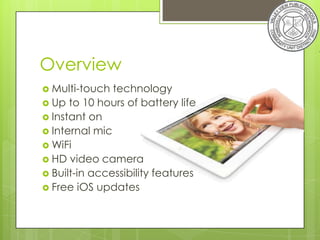
Overview
 Multi-touch  technology
 Up to 10 hours of battery life
 Instant on
 Internal mic
 WiFi
 HD video camera
 Built-in accessibility features
 Free iOS updates
Product Care/Safety
   Do not leave the iPad unattended
       Geolocation is possible when absolutely necessary
       Do not delete or disable Location Services!

   Cleaning the iPad
       Do not use
         Window cleaners
         Household cleaners
         Aerosol sprays
         Alcohol, Ammonia or other Solvents
       Use
           Lint free, non-abrasive cloth
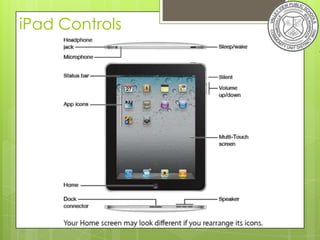
iPad Controls
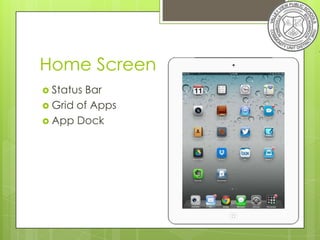
Home Screen
 StatusBar
 Grid of Apps
 App Dock
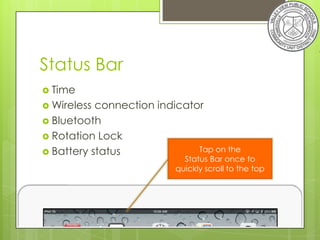
Status Bar
 Time
 Wireless connection indicator
 Bluetooth
 Rotation Lock
 Battery status              Tap on the
                            Status Bar once to
                          quickly scroll to the top
iPad Navigation
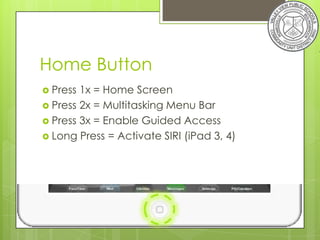
Home Button
 Press 1x = Home Screen
 Press 2x = Multitasking Menu Bar
 Press 3x = Enable Guided Access
 Long Press = Activate SIRI (iPad 3, 4)
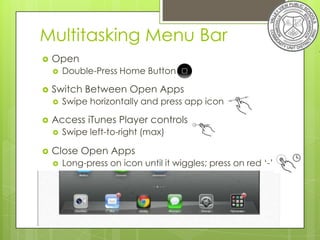
Multitasking Menu Bar
   Open
       Double-Press Home Button

   Switch Between Open Apps
       Swipe horizontally and press app icon

   Access iTunes Player controls
       Swipe left-to-right (max)

   Close Open Apps
       Long-press on icon until it wiggles; press on red ‘-’
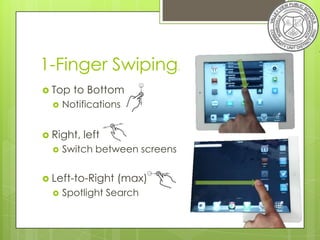
1-Finger Swiping.
 Top   to Bottom
     Notifications


 Right,   left
     Switch between screens


 Left-to-Right   (max)
     Spotlight Search
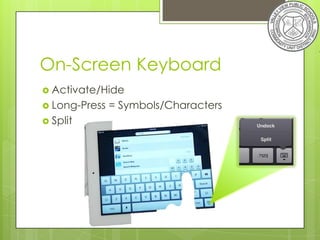
On-Screen Keyboard
 Activate/Hide
 Long-Press   = Symbols/Characters
 Split
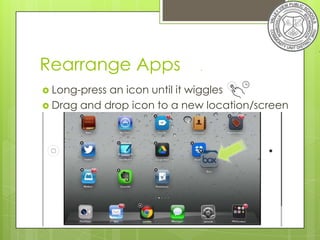
Rearrange Apps              .


 Long-pressan icon until it wiggles
 Drag and drop icon to a new location/screen
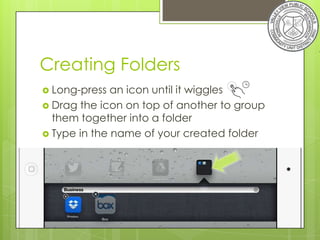
Creating Folders
 Long-press  an icon until it wiggles
 Drag the icon on top of another to group
  them together into a folder
 Type in the name of your created folder
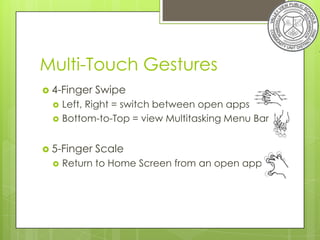
Multi-Touch Gestures
 4-Finger   Swipe
     Left, Right = switch between open apps
     Bottom-to-Top = view Multitasking Menu Bar


 5-Finger   Scale
     Return to Home Screen from an open app
iPad Settings
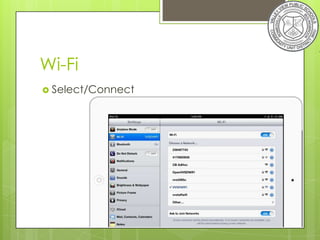
Wi-Fi
 Select/Connect
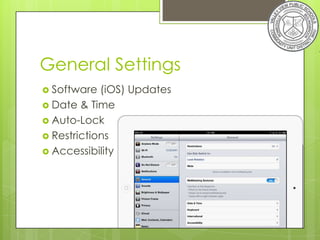
General Settings
 Software  (iOS) Updates
 Date & Time
 Auto-Lock
 Restrictions
 Accessibility
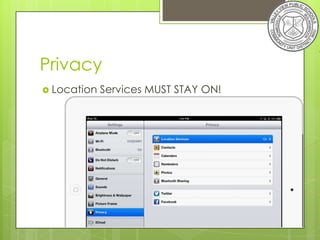
Privacy
 Location   Services MUST STAY ON!
iPad Apps
Absolute Management
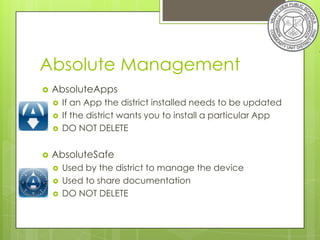
   AbsoluteApps
       If an App the district installed needs to be updated
       If the district wants you to install a particular App
       DO NOT DELETE

   AbsoluteSafe
       Used by the district to manage the device
       Used to share documentation
       DO NOT DELETE
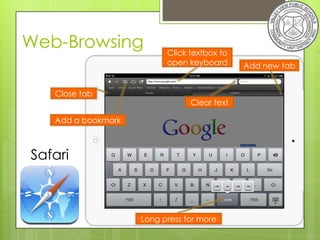
Web-Browsing              Click textbox to
                          open keyboard      Add new tab


   Close tab
                                Clear text

   Add a bookmark


Safari


                    Long press for more
Requesting Apps
1.   As a committee, research apps
        Read app reviews on iTunes
        Consider vetted apps from sites like Appitic
2.   Compose a list of apps
        Be as clear, specific and detailed as possible
        Include Name, Publisher, Cost, Category, Purpose
3.   Email list to Building Administrator for approval
4.   Admin. emails approved list to HelpDesk
I pad 101

I pad 101

  • 1.
    iPad 101: Just the Basics RobertPetitto Instructional Technology Specialist
  • 2.
  • 3.
    Overview  Multi-touch technology  Up to 10 hours of battery life  Instant on  Internal mic  WiFi  HD video camera  Built-in accessibility features  Free iOS updates
  • 4.
    Product Care/Safety  Do not leave the iPad unattended  Geolocation is possible when absolutely necessary  Do not delete or disable Location Services!  Cleaning the iPad  Do not use  Window cleaners  Household cleaners  Aerosol sprays  Alcohol, Ammonia or other Solvents  Use  Lint free, non-abrasive cloth
  • 5.
  • 6.
    Home Screen  StatusBar Grid of Apps  App Dock
  • 7.
    Status Bar  Time Wireless connection indicator  Bluetooth  Rotation Lock  Battery status Tap on the Status Bar once to quickly scroll to the top
  • 8.
  • 9.
    Home Button  Press1x = Home Screen  Press 2x = Multitasking Menu Bar  Press 3x = Enable Guided Access  Long Press = Activate SIRI (iPad 3, 4)
  • 10.
    Multitasking Menu Bar  Open  Double-Press Home Button  Switch Between Open Apps  Swipe horizontally and press app icon  Access iTunes Player controls  Swipe left-to-right (max)  Close Open Apps  Long-press on icon until it wiggles; press on red ‘-’
  • 11.
    1-Finger Swiping.  Top to Bottom  Notifications  Right, left  Switch between screens  Left-to-Right (max)  Spotlight Search
  • 12.
    On-Screen Keyboard  Activate/Hide Long-Press = Symbols/Characters  Split
  • 13.
    Rearrange Apps .  Long-pressan icon until it wiggles  Drag and drop icon to a new location/screen
  • 14.
    Creating Folders  Long-press an icon until it wiggles  Drag the icon on top of another to group them together into a folder  Type in the name of your created folder
  • 15.
    Multi-Touch Gestures  4-Finger Swipe  Left, Right = switch between open apps  Bottom-to-Top = view Multitasking Menu Bar  5-Finger Scale  Return to Home Screen from an open app
  • 16.
  • 17.
  • 18.
    General Settings  Software (iOS) Updates  Date & Time  Auto-Lock  Restrictions  Accessibility
  • 19.
    Privacy  Location Services MUST STAY ON!
  • 20.
  • 21.
    Absolute Management  AbsoluteApps  If an App the district installed needs to be updated  If the district wants you to install a particular App  DO NOT DELETE  AbsoluteSafe  Used by the district to manage the device  Used to share documentation  DO NOT DELETE
  • 22.
    Web-Browsing Click textbox to open keyboard Add new tab Close tab Clear text Add a bookmark Safari Long press for more
  • 23.
    Requesting Apps 1. As a committee, research apps  Read app reviews on iTunes  Consider vetted apps from sites like Appitic 2. Compose a list of apps  Be as clear, specific and detailed as possible  Include Name, Publisher, Cost, Category, Purpose 3. Email list to Building Administrator for approval 4. Admin. emails approved list to HelpDesk