Tutorial for iOS users
*with the CONNECTED WATCH App
• How to use the watch
• How to pair the watch to your device
• a. Step 1: Prepare your watch for pairing.
• b. Step 2: Prepare your device by enabling Bluetooth.
• c. Step 3: Download the Connected App to your iOS
device.
• d. Step 4: Pair your device under iOS Bluetooth settings.
• Registration
• Setup Notification
• Watch Demo
Table of Contents
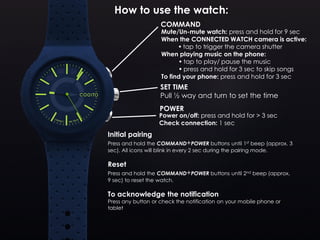
SET TIME
Pull ½ way and turn to set the time
Power on/off: press and hold for > 3 sec
Check connection: 1 sec
How to use the watch:
Mute/Un-mute watch: press and hold for 9 sec
When the CONNECTED WATCH camera is active:
 tap to trigger the camera shutter
When playing music on the phone:
 tap to play/ pause the music
 press and hold for 3 sec to skip songs
To find your phone: press and hold for 3 sec
Initial pairing
Press and hold the COMMAND+POWER buttons until 1st beep (approx. 3
sec). All icons will blink in every 2 sec during the pairing mode.
Reset
Press and hold the COMMAND+POWER buttons until 2nd beep (approx.
9 sec) to reset the watch.
To acknowledge the notification
Press any button or check the notification on your mobile phone or
tablet
POWER
COMMAND
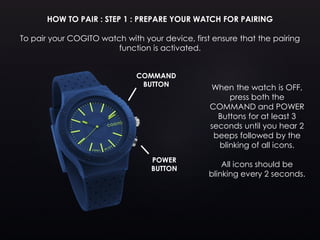
HOW TO PAIR : STEP 1 : PREPARE YOUR WATCH FOR PAIRING
To pair your COGITO watch with your device, first ensure that the pairing
function is activated.
COMMAND
BUTTON
POWER
BUTTON
When the watch is OFF,
press both the
COMMAND and POWER
Buttons for at least 3
seconds until you hear 2
beeps followed by the
blinking of all icons.
All icons should be
blinking every 2 seconds.
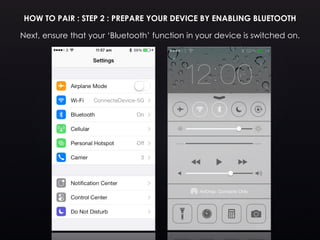
HOW TO PAIR : STEP 2 : PREPARE YOUR DEVICE BY ENABLING BLUETOOTH
Next, ensure that your ‘Bluetooth’ function in your device is switched on.
Next, proceed to download your
Free App on the App store.
For testing purposes, use the
Connected Watch App.
Tap the App Store icon on
your device.
Then, tap ‘Search’ and type
‘Connected Watch’.
Please select and download the
Connected Watch App.
HOW TO PAIR : STEP 3 : DOWNLOAD THE APP ONTO YOUR DEVICE
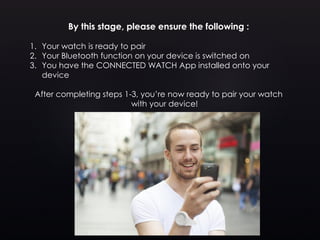
By this stage, please ensure the following :
1. Your watch is ready to pair
2. Your Bluetooth function on your device is switched on
3. You have the CONNECTED WATCH App installed onto your
device
After completing steps 1-3, you’re now ready to pair your watch
with your device!
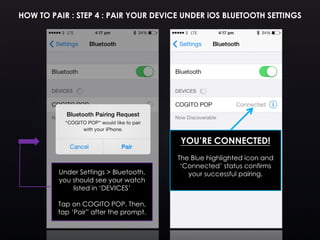
HOW TO PAIR : STEP 4 : PAIR YOUR DEVICE UNDER iOS BLUETOOTH SETTINGS
Under Settings > Bluetooth,
you should see your watch
listed in ‘DEVICES’
Tap on COGITO POP. Then,
tap ‘Pair” after the prompt.
YOU’RE CONNECTED!
The Blue highlighted icon and
‘Connected’ status confirms
your successful pairing.
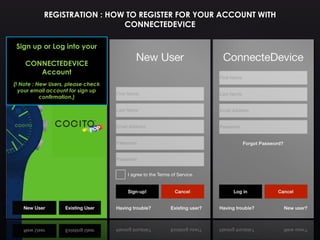
REGISTRATION : HOW TO REGISTER FOR YOUR ACCOUNT WITH
CONNECTEDEVICE
Sign up or Log into your
CONNECTEDEVICE
Account
(! Note : New Users, please check
your email account for sign up
confirmation.)
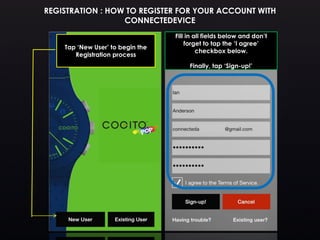
REGISTRATION : HOW TO REGISTER FOR YOUR ACCOUNT WITH
CONNECTEDEVICE
Tap ‘New User’ to begin the
Registration process
Fill in all fields below and don’t
forget to tap the ‘I agree’
checkbox below.
Finally, tap ‘Sign-up!’
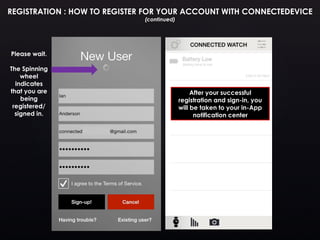
REGISTRATION : HOW TO REGISTER FOR YOUR ACCOUNT WITH CONNECTEDEVICE
(continued)
Please wait.
The Spinning
wheel
indicates
that you are
being
registered/
signed in.
After your successful
registration and sign-in, you
will be taken to your in-App
notification center
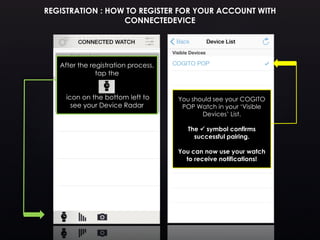
You should see your COGITO
POP Watch in your ‘Visible
Devices’ List.
The  symbol confirms
successful pairing.
You can now use your watch
to receive notifications!
REGISTRATION : HOW TO REGISTER FOR YOUR ACCOUNT WITH
CONNECTEDEVICE
After the registration process,
tap the
icon on the bottom left to
see your Device Radar
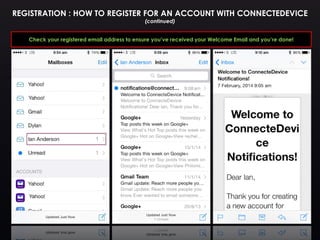
Check your registered email address to ensure you’ve received your Welcome Email and you’re done!
REGISTRATION : HOW TO REGISTER FOR AN ACCOUNT WITH CONNECTEDEVICE
(continued)
SET UP NOTIFICATIONS : HOW TO SET YOUR DEVICE AND WATCH NOTIFICATIONS
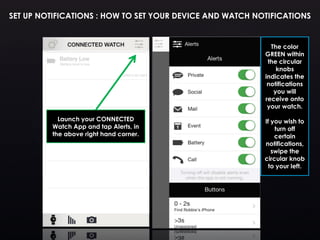
The color
GREEN within
the circular
knobs
indicates the
notifications
you will
receive onto
your watch.
If you wish to
turn off
certain
notifications,
swipe the
circular knob
to your left.
Launch your CONNECTED
Watch App and tap Alerts, in
the above right hand corner.
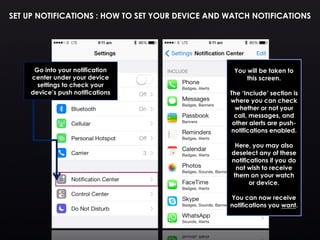
Go into your notification
center under your device
settings to check your
device’s push notifications
You will be taken to
this screen.
The ‘Include’ section is
where you can check
whether or not your
call, messages, and
other alerts are push-
notifications enabled.
Here, you may also
deselect any of these
notifications if you do
not wish to receive
them on your watch
or device.
You can now receive
notifications you want.
SET UP NOTIFICATIONS : HOW TO SET YOUR DEVICE AND WATCH NOTIFICATIONS
(continued – specific instructions for EMAIL NOTIFICATION SET UPS)
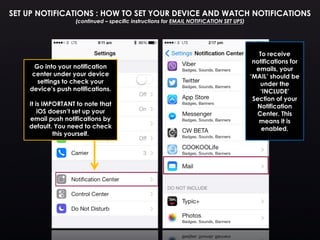
Go into your notification
center under your device
settings to check your
device’s push notifications.
It is IMPORTANT to note that
iOS doesn’t set up your
email push notifications by
default. You need to check
this yourself.
To receive
notifications for
emails, your
‘MAIL’ should be
under the
‘INCLUDE’
Section of your
Notification
Center. This
means it is
enabled.
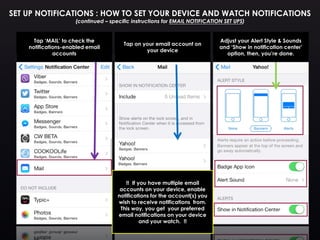
Tap ‘MAIL’ to check the
notifications-enabled email
accounts
Tap on your email account on
your device
Adjust your Alert Style & Sounds
and ‘Show in notification center’
option, then, you’re done.
!! If you have multiple email
accounts on your device, enable
notifications for the account(s) you
wish to receive notifications from.
This way, you get your preferred
email notifications on your device
and your watch. !!
SET UP NOTIFICATIONS : HOW TO SET YOUR DEVICE AND WATCH NOTIFICATIONS
(continued – specific instructions for EMAIL NOTIFICATION SET UPS)
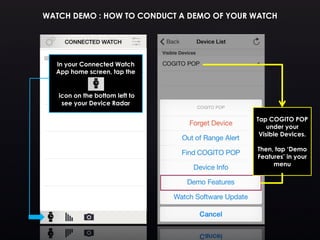
WATCH DEMO : HOW TO CONDUCT A DEMO OF YOUR WATCH
Tap COGITO POP
under your
Visible Devices.
Then, tap ‘Demo
Features’ in your
menu
In your Connected Watch
App home screen, tap the
icon on the bottom left to
see your Device Radar
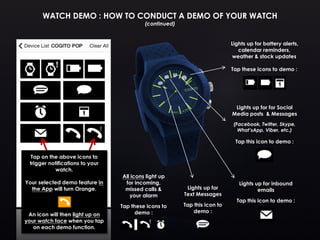
All icons light up
for incoming,
missed calls &
your alarm
Tap these icons to
demo :
Tap on the above icons to
trigger notifications to your
watch.
Your selected demo feature in
the App will turn Orange.
An icon will then light up on
your watch face when you tap
on each demo function.
Lights up for battery alerts,
calendar reminders,
weather & stock updates
Tap these icons to demo :
Lights up for for Social
Media posts & Messages
(Facebook, Twitter, Skype,
What’sApp, Viber, etc.)
Tap this icon to demo :
Lights up for inbound
emails
Tap this icon to demo :
Lights up for
Text Messages
Tap this icon to
demo :
WATCH DEMO : HOW TO CONDUCT A DEMO OF YOUR WATCH
(continued)
If you discovered a problem or that you are not
receiving notifications, please feel free to open a
support ticket at support@connectedevice.com
Please include your mobile phone model, OS
version, app version, and any other details to help
with the investigation.
PROBLEMS?
Thank you !

COGITO POP Tutorial (iOS)

  • 1.
    Tutorial for iOSusers *with the CONNECTED WATCH App
  • 2.
    • How touse the watch • How to pair the watch to your device • a. Step 1: Prepare your watch for pairing. • b. Step 2: Prepare your device by enabling Bluetooth. • c. Step 3: Download the Connected App to your iOS device. • d. Step 4: Pair your device under iOS Bluetooth settings. • Registration • Setup Notification • Watch Demo Table of Contents
  • 3.
    SET TIME Pull ½way and turn to set the time Power on/off: press and hold for > 3 sec Check connection: 1 sec How to use the watch: Mute/Un-mute watch: press and hold for 9 sec When the CONNECTED WATCH camera is active:  tap to trigger the camera shutter When playing music on the phone:  tap to play/ pause the music  press and hold for 3 sec to skip songs To find your phone: press and hold for 3 sec Initial pairing Press and hold the COMMAND+POWER buttons until 1st beep (approx. 3 sec). All icons will blink in every 2 sec during the pairing mode. Reset Press and hold the COMMAND+POWER buttons until 2nd beep (approx. 9 sec) to reset the watch. To acknowledge the notification Press any button or check the notification on your mobile phone or tablet POWER COMMAND
  • 4.
    HOW TO PAIR: STEP 1 : PREPARE YOUR WATCH FOR PAIRING To pair your COGITO watch with your device, first ensure that the pairing function is activated. COMMAND BUTTON POWER BUTTON When the watch is OFF, press both the COMMAND and POWER Buttons for at least 3 seconds until you hear 2 beeps followed by the blinking of all icons. All icons should be blinking every 2 seconds.
  • 5.
    HOW TO PAIR: STEP 2 : PREPARE YOUR DEVICE BY ENABLING BLUETOOTH Next, ensure that your ‘Bluetooth’ function in your device is switched on.
  • 6.
    Next, proceed todownload your Free App on the App store. For testing purposes, use the Connected Watch App. Tap the App Store icon on your device. Then, tap ‘Search’ and type ‘Connected Watch’. Please select and download the Connected Watch App. HOW TO PAIR : STEP 3 : DOWNLOAD THE APP ONTO YOUR DEVICE
  • 7.
    By this stage,please ensure the following : 1. Your watch is ready to pair 2. Your Bluetooth function on your device is switched on 3. You have the CONNECTED WATCH App installed onto your device After completing steps 1-3, you’re now ready to pair your watch with your device!
  • 8.
    HOW TO PAIR: STEP 4 : PAIR YOUR DEVICE UNDER iOS BLUETOOTH SETTINGS Under Settings > Bluetooth, you should see your watch listed in ‘DEVICES’ Tap on COGITO POP. Then, tap ‘Pair” after the prompt. YOU’RE CONNECTED! The Blue highlighted icon and ‘Connected’ status confirms your successful pairing.
  • 9.
    REGISTRATION : HOWTO REGISTER FOR YOUR ACCOUNT WITH CONNECTEDEVICE Sign up or Log into your CONNECTEDEVICE Account (! Note : New Users, please check your email account for sign up confirmation.)
  • 10.
    REGISTRATION : HOWTO REGISTER FOR YOUR ACCOUNT WITH CONNECTEDEVICE Tap ‘New User’ to begin the Registration process Fill in all fields below and don’t forget to tap the ‘I agree’ checkbox below. Finally, tap ‘Sign-up!’
  • 11.
    REGISTRATION : HOWTO REGISTER FOR YOUR ACCOUNT WITH CONNECTEDEVICE (continued) Please wait. The Spinning wheel indicates that you are being registered/ signed in. After your successful registration and sign-in, you will be taken to your in-App notification center
  • 12.
    You should seeyour COGITO POP Watch in your ‘Visible Devices’ List. The  symbol confirms successful pairing. You can now use your watch to receive notifications! REGISTRATION : HOW TO REGISTER FOR YOUR ACCOUNT WITH CONNECTEDEVICE After the registration process, tap the icon on the bottom left to see your Device Radar
  • 13.
    Check your registeredemail address to ensure you’ve received your Welcome Email and you’re done! REGISTRATION : HOW TO REGISTER FOR AN ACCOUNT WITH CONNECTEDEVICE (continued)
  • 14.
    SET UP NOTIFICATIONS: HOW TO SET YOUR DEVICE AND WATCH NOTIFICATIONS The color GREEN within the circular knobs indicates the notifications you will receive onto your watch. If you wish to turn off certain notifications, swipe the circular knob to your left. Launch your CONNECTED Watch App and tap Alerts, in the above right hand corner.
  • 15.
    Go into yournotification center under your device settings to check your device’s push notifications You will be taken to this screen. The ‘Include’ section is where you can check whether or not your call, messages, and other alerts are push- notifications enabled. Here, you may also deselect any of these notifications if you do not wish to receive them on your watch or device. You can now receive notifications you want. SET UP NOTIFICATIONS : HOW TO SET YOUR DEVICE AND WATCH NOTIFICATIONS
  • 16.
    SET UP NOTIFICATIONS: HOW TO SET YOUR DEVICE AND WATCH NOTIFICATIONS (continued – specific instructions for EMAIL NOTIFICATION SET UPS) Go into your notification center under your device settings to check your device’s push notifications. It is IMPORTANT to note that iOS doesn’t set up your email push notifications by default. You need to check this yourself. To receive notifications for emails, your ‘MAIL’ should be under the ‘INCLUDE’ Section of your Notification Center. This means it is enabled.
  • 17.
    Tap ‘MAIL’ tocheck the notifications-enabled email accounts Tap on your email account on your device Adjust your Alert Style & Sounds and ‘Show in notification center’ option, then, you’re done. !! If you have multiple email accounts on your device, enable notifications for the account(s) you wish to receive notifications from. This way, you get your preferred email notifications on your device and your watch. !! SET UP NOTIFICATIONS : HOW TO SET YOUR DEVICE AND WATCH NOTIFICATIONS (continued – specific instructions for EMAIL NOTIFICATION SET UPS)
  • 18.
    WATCH DEMO :HOW TO CONDUCT A DEMO OF YOUR WATCH Tap COGITO POP under your Visible Devices. Then, tap ‘Demo Features’ in your menu In your Connected Watch App home screen, tap the icon on the bottom left to see your Device Radar
  • 19.
    All icons lightup for incoming, missed calls & your alarm Tap these icons to demo : Tap on the above icons to trigger notifications to your watch. Your selected demo feature in the App will turn Orange. An icon will then light up on your watch face when you tap on each demo function. Lights up for battery alerts, calendar reminders, weather & stock updates Tap these icons to demo : Lights up for for Social Media posts & Messages (Facebook, Twitter, Skype, What’sApp, Viber, etc.) Tap this icon to demo : Lights up for inbound emails Tap this icon to demo : Lights up for Text Messages Tap this icon to demo : WATCH DEMO : HOW TO CONDUCT A DEMO OF YOUR WATCH (continued)
  • 20.
    If you discovereda problem or that you are not receiving notifications, please feel free to open a support ticket at support@connectedevice.com Please include your mobile phone model, OS version, app version, and any other details to help with the investigation. PROBLEMS? Thank you !