HTML4
HTML4
vs
vs
HTML5
HTML5
Doctype
Doctype
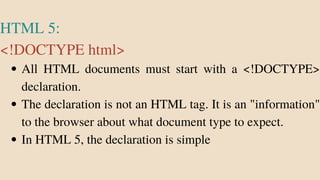
All HTML documents must start with a <!DOCTYPE>
declaration.
The declaration is not an HTML tag. It is an "information"
to the browser about what document type to expect.
In HTML 5, the declaration is simple
HTML 5:
<!DOCTYPE html>
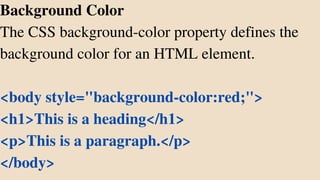
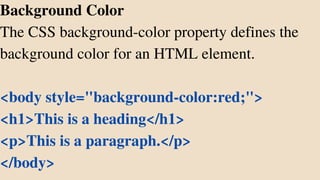
Background Color
The CSS background-color property defines the
background color for an HTML element.
<body style="background-color:red;">
<h1>This is a heading</h1>
<p>This is a paragraph.</p>
</body>
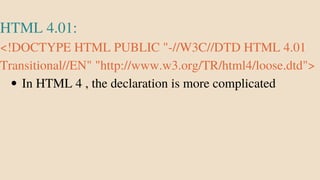
In HTML 4 , the declaration is more complicated
HTML 4.01:
<!DOCTYPE HTML PUBLIC "-//W3C//DTD HTML 4.01
Transitional//EN" "http://www.w3.org/TR/html4/loose.dtd">
HTMLAttributes
All HTML elements can have
attributes
Attributes provide additional
information about elements
Attributes are always specified in
the start tag
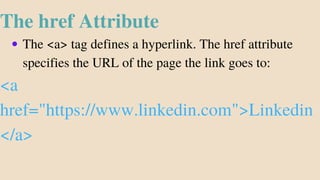
The <a> tag defines a hyperlink. The href attribute
specifies the URL of the page the link goes to:
The href Attribute
<a
href="https://www.linkedin.com">Linkedin
</a>
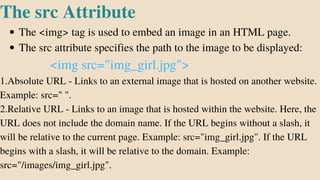
The <img> tag is used to embed an image in an HTML page.
The src attribute specifies the path to the image to be displayed:
The src Attribute
<img src="img_girl.jpg">
1.Absolute URL - Links to an external image that is hosted on another website.
Example: src=" ".
2.Relative URL - Links to an image that is hosted within the website. Here, the
URL does not include the domain name. If the URL begins without a slash, it
will be relative to the current page. Example: src="img_girl.jpg". If the URL
begins with a slash, it will be relative to the domain. Example:
src="/images/img_girl.jpg".
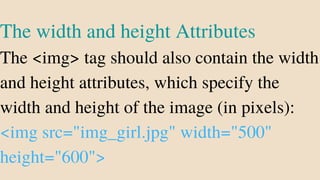
The width and height Attributes
The <img> tag should also contain the width
and height attributes, which specify the
width and height of the image (in pixels):
<img src="img_girl.jpg" width="500"
height="600">
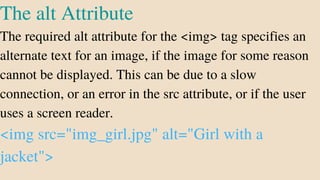
The alt Attribute
The required alt attribute for the <img> tag specifies an
alternate text for an image, if the image for some reason
cannot be displayed. This can be due to a slow
connection, or an error in the src attribute, or if the user
uses a screen reader.
<img src="img_girl.jpg" alt="Girl with a
jacket">
The style Attribute
The style attribute is used to add styles to
an element, such as color, font, size, and
more.
<p style="color:red;">This is a red
paragraph.</p>
ThetitleAttribute
The title attribute defines some extra
information about an element.
The value of the title attribute will be displayed
as a tooltip when you mouse over the element:
<p title="I'm a tooltip">This is a paragraph.
</p>
The lang Attribute:
You should always include the lang
attribute inside the <html> tag, to
declare the language of the Web page.
This is meant to assist search engines
and browsers.
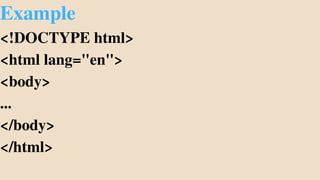
Example
<!DOCTYPE html>
<html lang="en">
<body>
...
</body>
</html>
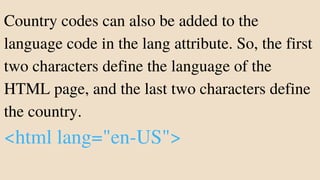
Country codes can also be added to the
language code in the lang attribute. So, the first
two characters define the language of the
HTML page, and the last two characters define
the country.

<html lang="en-US">
HTML Paragraphs
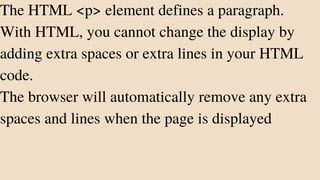
The HTML <p> element defines a paragraph.
With HTML, you cannot change the display by
adding extra spaces or extra lines in your HTML
code.
The browser will automatically remove any extra
spaces and lines when the page is displayed
HTML Headings
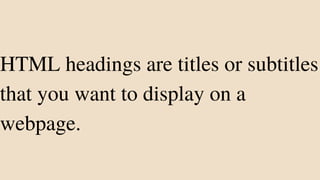
HTML headings are titles or subtitles
that you want to display on a
webpage.
HTML headings are defined with the
<h1> to <h6> tags.
<h1> defines the most important
heading. <h6> defines the least
important heading
Each HTML heading has a default
size. However, you can specify the
size for any heading with the style
attribute, using the CSS font-size
property
HTML Formatting
HTML Text Formatting
HTML contains several elements for defining text with a
special meaning.
Example
<p><b>Bold Text</b></p>
<p><i>Italic Text</i></p>
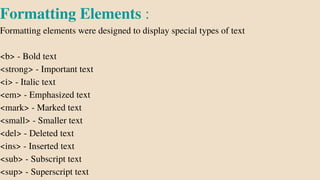
Formatting Elements :
Formatting elements were designed to display special types of text
<b> - Bold text
<strong> - Important text
<i> - Italic text
<em> - Emphasized text
<mark> - Marked text
<small> - Smaller text
<del> - Deleted text
<ins> - Inserted text
<sub> - Subscript text
<sup> - Superscript text
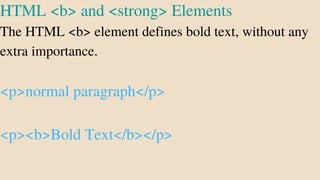
HTML <b> and <strong> Elements
The HTML <b> element defines bold text, without any
extra importance.
<p>normal paragraph</p>
<p><b>Bold Text</b></p>
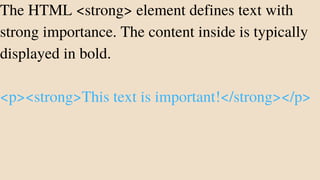
The HTML <strong> element defines text with
strong importance. The content inside is typically
displayed in bold.
<p><strong>This text is important!</strong></p>
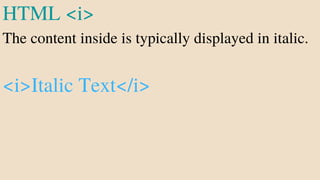
HTML <i>
The content inside is typically displayed in italic.
<i>Italic Text</i>
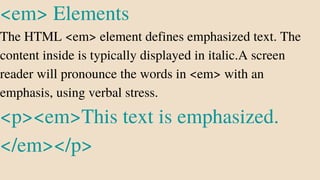
<em> Elements
The HTML <em> element defines emphasized text. The
content inside is typically displayed in italic.A screen
reader will pronounce the words in <em> with an
emphasis, using verbal stress.
<p><em>This text is emphasized.
</em></p>
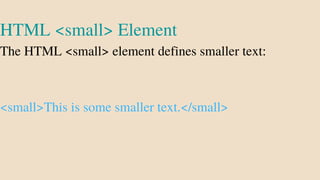
HTML <small> Element
The HTML <small> element defines smaller text:
<small>This is some smaller text.</small>
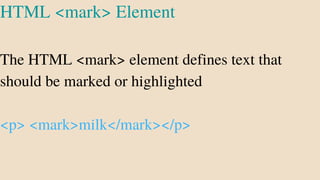
HTML <mark> Element
The HTML <mark> element defines text that
should be marked or highlighted
<p> <mark>milk</mark></p>
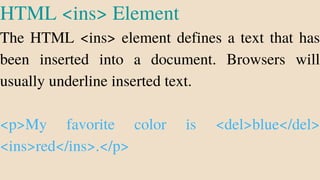
HTML <ins> Element
The HTML <ins> element defines a text that has
been inserted into a document. Browsers will
usually underline inserted text.
<p>My favorite color is <del>blue</del>
<ins>red</ins>.</p>
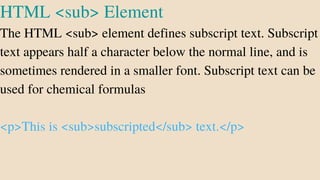
HTML <sub> Element
The HTML <sub> element defines subscript text. Subscript
text appears half a character below the normal line, and is
sometimes rendered in a smaller font. Subscript text can be
used for chemical formulas
<p>This is <sub>subscripted</sub> text.</p>
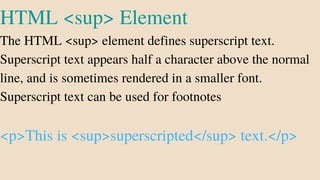
HTML <sup> Element
The HTML <sup> element defines superscript text.
Superscript text appears half a character above the normal
line, and is sometimes rendered in a smaller font.
Superscript text can be used for footnotes
<p>This is <sup>superscripted</sup> text.</p>
HTML FONTS
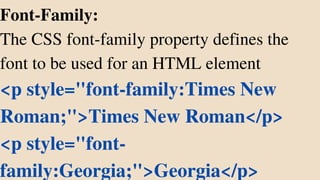
Font-Family:
The CSS font-family property defines the
font to be used for an HTML element
<p style="font-family:Times New
Roman;">Times New Roman</p>
<p style="font-
family:Georgia;">Georgia</p>
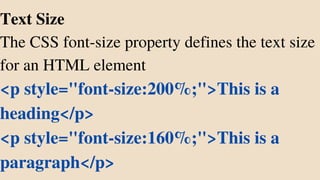
Text Size
The CSS font-size property defines the text size
for an HTML element
<p style="font-size:200%;">This is a
heading</p>
<p style="font-size:160%;">This is a
paragraph</p>
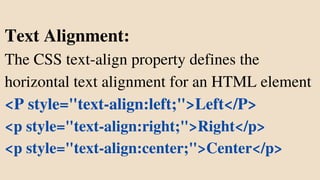
Text Alignment:
The CSS text-align property defines the
horizontal text alignment for an HTML element
<P style="text-align:left;">Left</P>
<p style="text-align:right;">Right</p>
<p style="text-align:center;">Center</p>
HTML Styles
The HTML style attribute is used to
add styles to an element, such as
color, font, size, and more
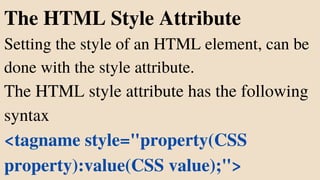
The HTML Style Attribute
Setting the style of an HTML element, can be
done with the style attribute.
The HTML style attribute has the following
syntax
<tagname style="property(CSS
property):value(CSS value);">
Background Color
The CSS background-color property defines the
background color for an HTML element.
<body style="background-color:red;">
<h1>This is a heading</h1>
<p>This is a paragraph.</p>
</body>
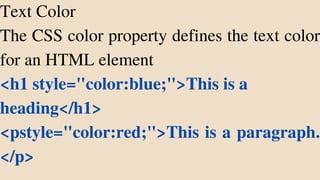
Text Color
The CSS color property defines the text color
for an HTML element
<h1 style="color:blue;">This is a
heading</h1>
<pstyle="color:red;">This is a paragraph.
</p>
HTML Links
Links allow users to click their way
from page to page.
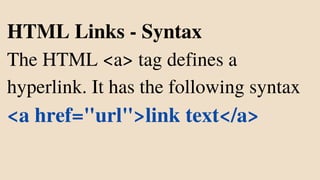
HTML Links - Syntax
The HTML <a> tag defines a
hyperlink. It has the following syntax
<a href="url">link text</a>
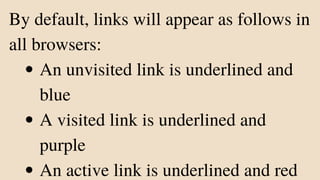
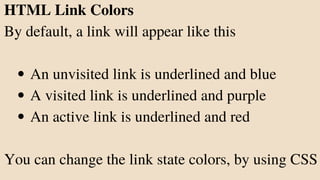
An unvisited link is underlined and
blue
A visited link is underlined and
purple
An active link is underlined and red
By default, links will appear as follows in
all browsers:
By default, the linked page will be displayed in the current browser
window. To change this, you must specify another target for the
link.
The target attribute specifies where to open the linked document.
The target attribute can have one of the following values:
HTML Links - The target Attribute
_self - Default. Opens the document in the same window/tab as it
was clicked
_blank - Opens the document in a new window or tab
_parent - Opens the document in the parent frame
_top - Opens the document in the full body of the window
HTML Links - Use an Image as a Link
To use an image as a link, just put the <img>
tag inside the <a> tag
<a href="https://w">
<img src="Downloadssentti-smiley.gif"
style="width:42px;height:42px;">
</a>
HTML Images
HTML Images
The <img> tag is empty, it contains attributes
only, and does not have a closing tag.
<img src="url" alt="alternatetext">
Image Floating
Use the CSS float property to let the image float
to the right or to the left of a text
<p><img src="smiley.gif" alt="Smiley face"
style="float:right;width:42px;height:42px;">
The image will float to the right of the text.</p>
<p><img src="smiley.gif" alt="Smiley face"
style="float:left;width:42px;height:42px;">
The image will float to the left of the text.</p>
HTML Tables
HTML tables allow web developers
to arrange data into rows and
columns.
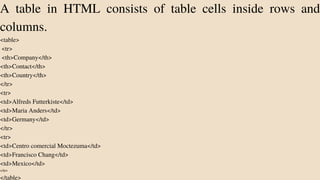
A table in HTML consists of table cells inside rows and
columns.
<table>
<tr>
<th>Company</th>
<th>Contact</th>
<th>Country</th>
</tr>
<tr>
<td>Alfreds Futterkiste</td>
<td>Maria Anders</td>
<td>Germany</td>
</tr>
<tr>
<td>Centro comercial Moctezuma</td>
<td>Francisco Chang</td>
<td>Mexico</td>
</tr>
</table>
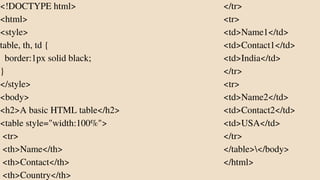
<!DOCTYPE html>
<html>
<style>
table, th, td {
border:1px solid black;
}
</style>
<body>
<h2>A basic HTML table</h2>
<table style="width:100%">
<tr>
<th>Name</th>
<th>Contact</th>
<th>Country</th>
</tr>
<tr>
<td>Name1</td>
<td>Contact1</td>
<td>India</td>
</tr>
<tr>
<td>Name2</td>
<td>Contact2</td>
<td>USA</td>
</tr>
</table></body>
</html>
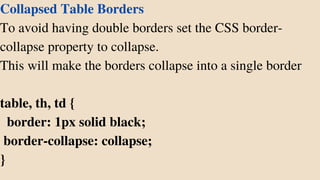
Collapsed Table Borders
To avoid having double borders set the CSS border-
collapse property to collapse.
This will make the borders collapse into a single border
table, th, td {
border: 1px solid black;
border-collapse: collapse;
}
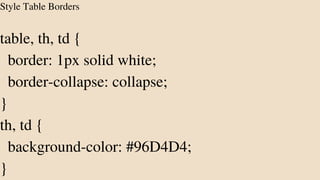
Style Table Borders
table, th, td {
border: 1px solid white;
border-collapse: collapse;
}
th, td {
background-color: #96D4D4;
}
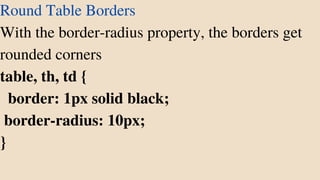
Round Table Borders
With the border-radius property, the borders get
rounded corners
table, th, td {
border: 1px solid black;
border-radius: 10px;
}
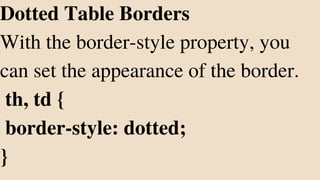
Dotted Table Borders
With the border-style property, you
can set the appearance of the border.
th, td {
border-style: dotted;
}
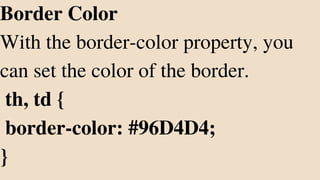
Border Color
With the border-color property, you
can set the color of the border.
th, td {
border-color: #96D4D4;
}
HTML Table Sizes
HTML tables can have different sizes for each
column, row or the entire table
Use the style attribute with the width or height
properties to specify the size of a table, row or
column.
HTML Table Column Width
To set the size of a specific column, add the
style attribute on a <th> or <td> element
<th style="width:70%">Firstname</th>
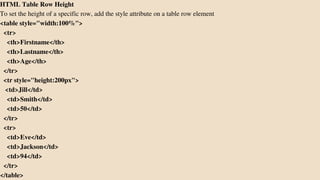
HTML Table Row Height
To set the height of a specific row, add the style attribute on a table row element
<table style="width:100%">
<tr>
<th>Firstname</th>
<th>Lastname</th>
<th>Age</th>
</tr>
<tr style="height:200px">
<td>Jill</td>
<td>Smith</td>
<td>50</td>
</tr>
<tr>
<td>Eve</td>
<td>Jackson</td>
<td>94</td>
</tr>
</table>
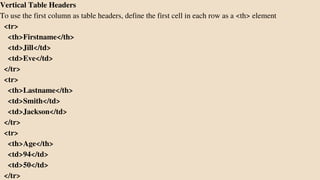
HTML Table Headers
HTML tables can have headers for each
column or row, or for many
columns/rows
Vertical Table Headers
To use the first column as table headers, define the first cell in each row as a <th> element
<tr>
<th>Firstname</th>
<td>Jill</td>
<td>Eve</td>
</tr>
<tr>
<th>Lastname</th>
<td>Smith</td>
<td>Jackson</td>
</tr>
<tr>
<th>Age</th>
<td>94</td>
<td>50</td>
</tr>
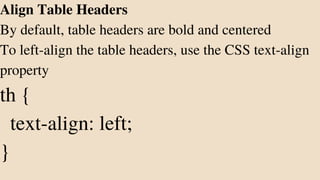
Align Table Headers
By default, table headers are bold and centered
To left-align the table headers, use the CSS text-align
property
th {
text-align: left;
}
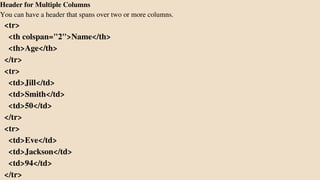
Header for Multiple Columns
You can have a header that spans over two or more columns.
<tr>
<th colspan="2">Name</th>
<th>Age</th>
</tr>
<tr>
<td>Jill</td>
<td>Smith</td>
<td>50</td>
</tr>
<tr>
<td>Eve</td>
<td>Jackson</td>
<td>94</td>
</tr>
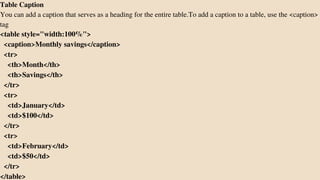
Table Caption
You can add a caption that serves as a heading for the entire table.To add a caption to a table, use the <caption>
tag
<table style="width:100%">
<caption>Monthly savings</caption>
<tr>
<th>Month</th>
<th>Savings</th>
</tr>
<tr>
<td>January</td>
<td>$100</td>
</tr>
<tr>
<td>February</td>
<td>$50</td>
</tr>
</table>
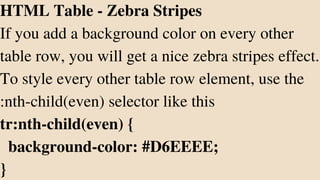
HTML Table - Zebra Stripes
If you add a background color on every other
table row, you will get a nice zebra stripes effect.
To style every other table row element, use the
:nth-child(even) selector like this
tr:nth-child(even) {
background-color: #D6EEEE;
}
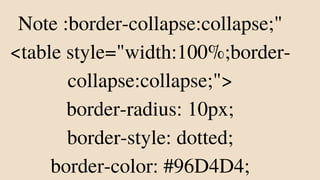
Note :border-collapse:collapse;"
<table style="width:100%;border-
collapse:collapse;">
border-radius: 10px;
border-style: dotted;
border-color: #96D4D4;
Background Images
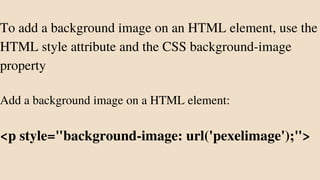
To add a background image on an HTML element, use the
HTML style attribute and the CSS background-image
property
Add a background image on a HTML element:
<p style="background-image: url('pexelimage');">
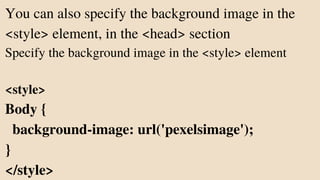
You can also specify the background image in the
<style> element, in the <head> section
Specify the background image in the <style> element
<style>
Body {
background-image: url('pexelsimage');
}
</style>
Background Repeat
If the background image is smaller than the element, the
image will repeat itself, horizontally and vertically,
until it reaches the end of the element
To avoid the background image from repeating itself,
set the background-repeat property to no-repeat
If you want the background image to cover the
entire element, you can set the background-size
property to cover
Also, to make sure the entire element is always
covered, set the background-attachment
property to fixed
Background Stretch
If you want the background image to
stretch to fit the entire element, you
can set the background-size property to
100% 100%:
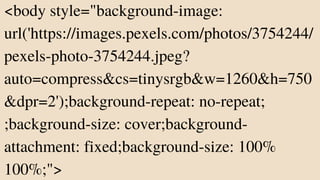
<body style="background-image:
url('https://images.pexels.com/photos/3754244/
pexels-photo-3754244.jpeg?
auto=compress&cs=tinysrgb&w=1260&h=750
&dpr=2');background-repeat: no-repeat;
;background-size: cover;background-
attachment: fixed;background-size: 100%
100%;">
HTML Links
An unvisited link is underlined and blue
A visited link is underlined and purple
An active link is underlined and red
HTML Link Colors
By default, a link will appear like this
You can change the link state colors, by using CSS
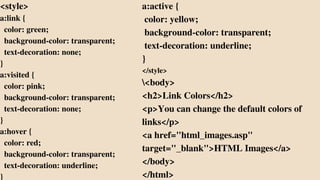
<style>
a:link {
color: green;
background-color: transparent;
text-decoration: none;
}
a:visited {
color: pink;
background-color: transparent;
text-decoration: none;
}
a:hover {
color: red;
background-color: transparent;
text-decoration: underline;
}
a:active {
color: yellow;
background-color: transparent;
text-decoration: underline;
}
</style>
<body>
<h2>Link Colors</h2>
<p>You can change the default colors of
links</p>
<a href="html_images.asp"
target="_blank">HTML Images</a>
</body>
</html>
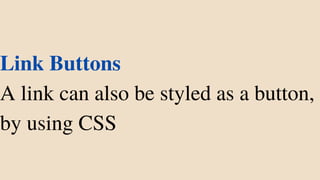
Link Buttons
A link can also be styled as a button,
by using CSS
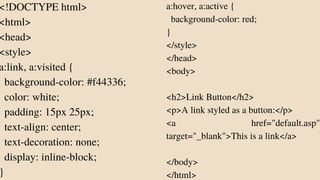
<!DOCTYPE html>
<html>
<head>
<style>
a:link, a:visited {
background-color: #f44336;
color: white;
padding: 15px 25px;
text-align: center;
text-decoration: none;
display: inline-block;
}
a:hover, a:active {
background-color: red;
}
</style>
</head>
<body>
<h2>Link Button</h2>
<p>A link styled as a button:</p>
<a href="default.asp"
target="_blank">This is a link</a>
</body>
</html>
HTML Lists
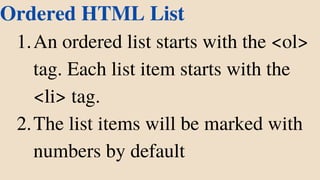
An ordered list starts with the <ol>
tag. Each list item starts with the
<li> tag.
The list items will be marked with
numbers by default
Ordered HTML List
1.
2.
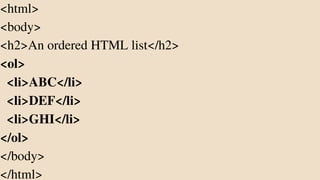
<html>
<body>
<h2>An ordered HTML list</h2>
<ol>
<li>ABC</li>
<li>DEF</li>
<li>GHI</li>
</ol>
</body>
</html>
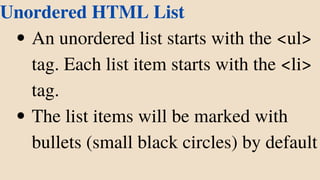
An unordered list starts with the <ul>
tag. Each list item starts with the <li>
tag.
The list items will be marked with
bullets (small black circles) by default
Unordered HTML List
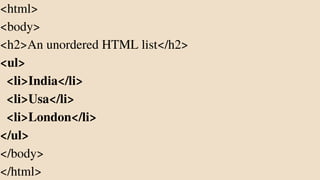
<html>
<body>
<h2>An unordered HTML list</h2>
<ul>
<li>India</li>
<li>Usa</li>
<li>London</li>
</ul>
</body>
</html>
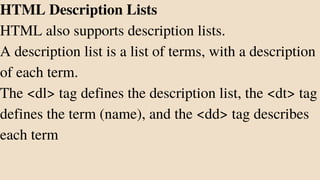
HTML Description Lists
HTML also supports description lists.
A description list is a list of terms, with a description
of each term.
The <dl> tag defines the description list, the <dt> tag
defines the term (name), and the <dd> tag describes
each term
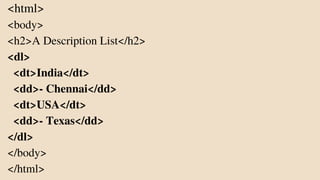
<html>
<body>
<h2>A Description List</h2>
<dl>
<dt>India</dt>
<dd>- Chennai</dd>
<dt>USA</dt>
<dd>- Texas</dd>
</dl>
</body>
</html>
HTML Unordered Lists
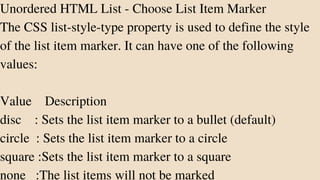
Unordered HTML List - Choose List Item Marker
The CSS list-style-type property is used to define the style
of the list item marker. It can have one of the following
values:
Value Description
disc : Sets the list item marker to a bullet (default)
circle : Sets the list item marker to a circle
square :Sets the list item marker to a square
none :The list items will not be marked
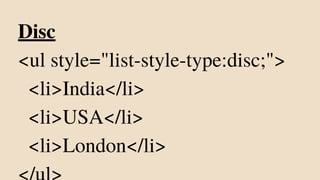
Disc
<ul style="list-style-type:disc;">
<li>India</li>
<li>USA</li>
<li>London</li>
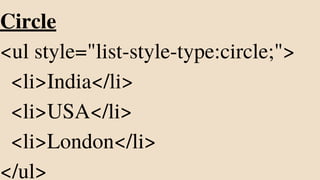
Circle
<ul style="list-style-type:circle;">
<li>India</li>
<li>USA</li>
<li>London</li>
</ul>
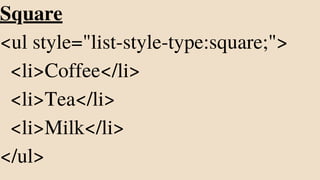
Square
<ul style="list-style-type:square;">
<li>Coffee</li>
<li>Tea</li>
<li>Milk</li>
</ul>
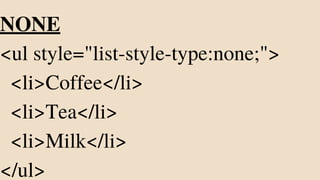
NONE
<ul style="list-style-type:none;">
<li>Coffee</li>
<li>Tea</li>
<li>Milk</li>
</ul>
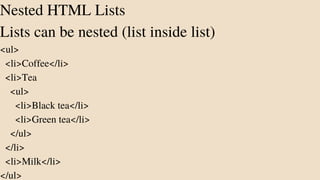
Nested HTML Lists
Lists can be nested (list inside list)
<ul>
<li>Coffee</li>
<li>Tea
<ul>
<li>Black tea</li>
<li>Green tea</li>
</ul>
</li>
<li>Milk</li>
</ul>
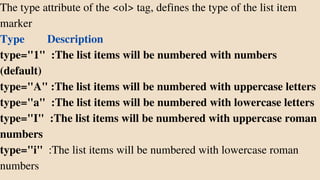
Ordered HTML List
The type attribute of the <ol> tag, defines the type of the list item
marker
Type Description
type="1" :The list items will be numbered with numbers
(default)
type="A" :The list items will be numbered with uppercase letters
type="a" :The list items will be numbered with lowercase letters
type="I" :The list items will be numbered with uppercase roman
numbers
type="i" :The list items will be numbered with lowercase roman
numbers
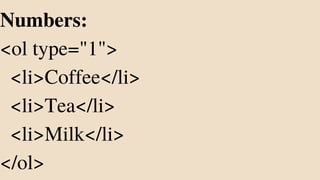
Numbers:
<ol type="1">
<li>Coffee</li>
<li>Tea</li>
<li>Milk</li>
</ol>
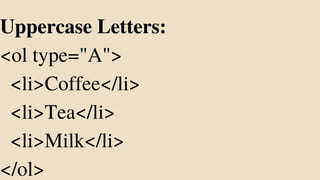
Uppercase Letters:
<ol type="A">
<li>Coffee</li>
<li>Tea</li>
<li>Milk</li>
</ol>
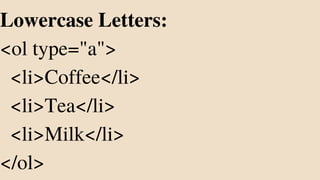
Lowercase Letters:
<ol type="a">
<li>Coffee</li>
<li>Tea</li>
<li>Milk</li>
</ol>
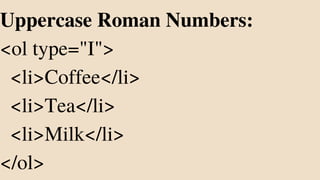
Uppercase Roman Numbers:
<ol type="I">
<li>Coffee</li>
<li>Tea</li>
<li>Milk</li>
</ol>
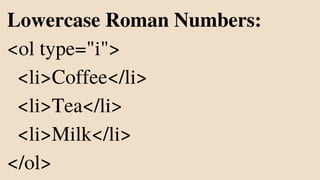
Lowercase Roman Numbers:
<ol type="i">
<li>Coffee</li>
<li>Tea</li>
<li>Milk</li>
</ol>
HTML Colors
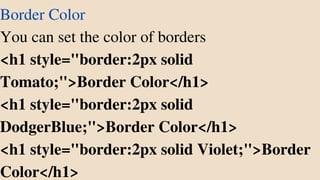
Border Color
You can set the color of borders
<h1 style="border:2px solid
Tomato;">Border Color</h1>
<h1 style="border:2px solid
DodgerBlue;">Border Color</h1>
<h1 style="border:2px solid Violet;">Border
Color</h1>
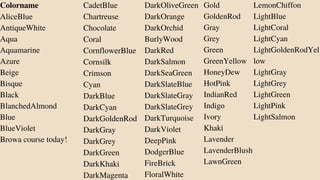
Color Names
Colorname
AliceBlue
AntiqueWhite
Aqua
Aquamarine
Azure
Beige
Bisque
Black
BlanchedAlmond
Blue
BlueViolet
Browa course today!
CadetBlue
Chartreuse
Chocolate
Coral
CornflowerBlue
Cornsilk
Crimson
Cyan
DarkBlue
DarkCyan
DarkGoldenRod
DarkGray
DarkGrey
DarkGreen
DarkKhaki
DarkMagenta
DarkOliveGreen
DarkOrange
DarkOrchid
BurlyWood
DarkRed
DarkSalmon
DarkSeaGreen
DarkSlateBlue
DarkSlateGray
DarkSlateGrey
DarkTurquoise
DarkViolet
DeepPink
DodgerBlue
FireBrick
FloralWhite
Gold
GoldenRod
Gray
Grey
Green
GreenYellow
HoneyDew
HotPink
IndianRed
Indigo
Ivory
Khaki
Lavender
LavenderBlush
LawnGreen
LemonChiffon
LightBlue
LightCoral
LightCyan
LightGoldenRodYel
low
LightGray
LightGrey
LightGreen
LightPink
LightSalmon
HTML Forms
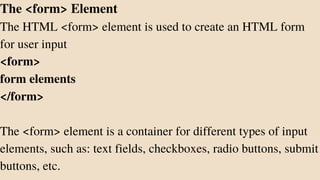
The <form> Element
The HTML <form> element is used to create an HTML form
for user input
<form>
form elements
</form>
The <form> element is a container for different types of input
elements, such as: text fields, checkboxes, radio buttons, submit
buttons, etc.
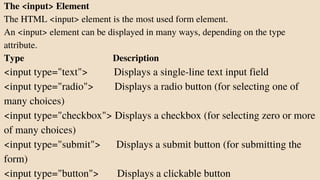
The <input> Element
The HTML <input> element is the most used form element.
An <input> element can be displayed in many ways, depending on the type
attribute.
Type Description
<input type="text"> Displays a single-line text input field
<input type="radio"> Displays a radio button (for selecting one of
many choices)
<input type="checkbox"> Displays a checkbox (for selecting zero or more
of many choices)
<input type="submit"> Displays a submit button (for submitting the
form)
<input type="button"> Displays a clickable button
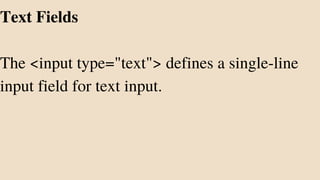
Text Fields
The <input type="text"> defines a single-line
input field for text input.
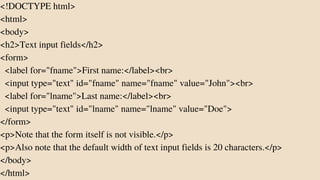
<!DOCTYPE html>
<html>
<body>
<h2>Text input fields</h2>
<form>
<label for="fname">First name:</label><br>
<input type="text" id="fname" name="fname" value="John"><br>
<label for="lname">Last name:</label><br>
<input type="text" id="lname" name="lname" value="Doe">
</form>
<p>Note that the form itself is not visible.</p>
<p>Also note that the default width of text input fields is 20 characters.</p>
</body>
</html>
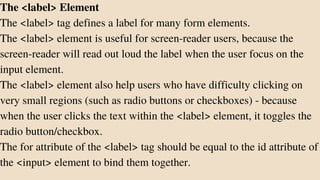
The <label> Element
The <label> tag defines a label for many form elements.
The <label> element is useful for screen-reader users, because the
screen-reader will read out loud the label when the user focus on the
input element.
The <label> element also help users who have difficulty clicking on
very small regions (such as radio buttons or checkboxes) - because
when the user clicks the text within the <label> element, it toggles the
radio button/checkbox.
The for attribute of the <label> tag should be equal to the id attribute of
the <input> element to bind them together.
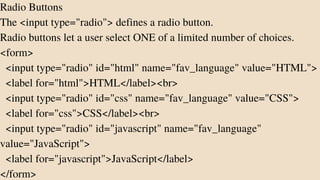
Radio Buttons
The <input type="radio"> defines a radio button.
Radio buttons let a user select ONE of a limited number of choices.
<form>
<input type="radio" id="html" name="fav_language" value="HTML">
<label for="html">HTML</label><br>
<input type="radio" id="css" name="fav_language" value="CSS">
<label for="css">CSS</label><br>
<input type="radio" id="javascript" name="fav_language"
value="JavaScript">
<label for="javascript">JavaScript</label>
</form>
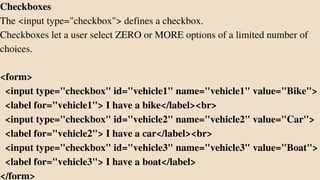
Checkboxes
The <input type="checkbox"> defines a checkbox.
Checkboxes let a user select ZERO or MORE options of a limited number of
choices.
<form>
<input type="checkbox" id="vehicle1" name="vehicle1" value="Bike">
<label for="vehicle1"> I have a bike</label><br>
<input type="checkbox" id="vehicle2" name="vehicle2" value="Car">
<label for="vehicle2"> I have a car</label><br>
<input type="checkbox" id="vehicle3" name="vehicle3" value="Boat">
<label for="vehicle3"> I have a boat</label>
</form>
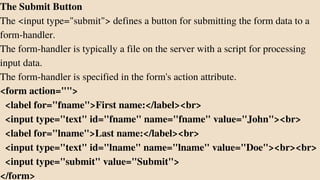
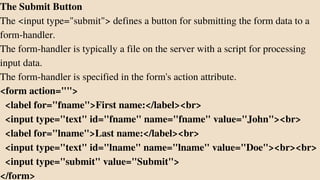
The Submit Button
The <input type="submit"> defines a button for submitting the form data to a
form-handler.
The form-handler is typically a file on the server with a script for processing
input data.
The form-handler is specified in the form's action attribute.
<form action="">
<label for="fname">First name:</label><br>
<input type="text" id="fname" name="fname" value="John"><br>
<label for="lname">Last name:</label><br>
<input type="text" id="lname" name="lname" value="Doe"><br><br>
<input type="submit" value="Submit">
</form>
The Submit Button
The <input type="submit"> defines a button for submitting the form data to a
form-handler.
The form-handler is typically a file on the server with a script for processing
input data.
The form-handler is specified in the form's action attribute.
<form action="">
<label for="fname">First name:</label><br>
<input type="text" id="fname" name="fname" value="John"><br>
<label for="lname">Last name:</label><br>
<input type="text" id="lname" name="lname" value="Doe"><br><br>
<input type="submit" value="Submit">
</form>
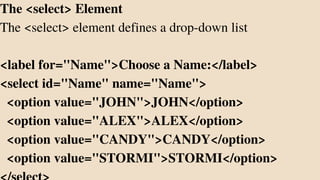
The <select> Element
The <select> element defines a drop-down list
<label for="Name">Choose a Name:</label>
<select id="Name" name="Name">
<option value="JOHN">JOHN</option>
<option value="ALEX">ALEX</option>
<option value="CANDY">CANDY</option>
<option value="STORMI">STORMI</option>
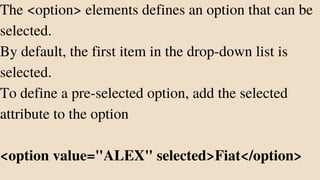
The <option> elements defines an option that can be
selected.
By default, the first item in the drop-down list is
selected.
To define a pre-selected option, add the selected
attribute to the option
<option value="ALEX" selected>Fiat</option>
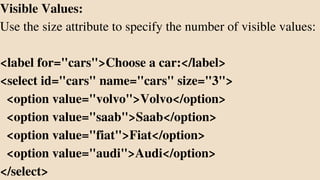
Visible Values:
Use the size attribute to specify the number of visible values:
<label for="cars">Choose a car:</label>
<select id="cars" name="cars" size="3">
<option value="volvo">Volvo</option>
<option value="saab">Saab</option>
<option value="fiat">Fiat</option>
<option value="audi">Audi</option>
</select>
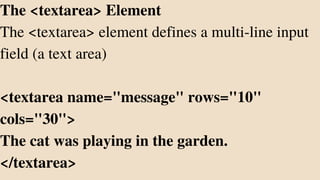
The <textarea> Element
The <textarea> element defines a multi-line input
field (a text area)
<textarea name="message" rows="10"
cols="30">
The cat was playing in the garden.
</textarea>
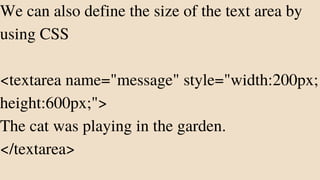
We can also define the size of the text area by
using CSS
<textarea name="message" style="width:200px;
height:600px;">
The cat was playing in the garden.
</textarea>
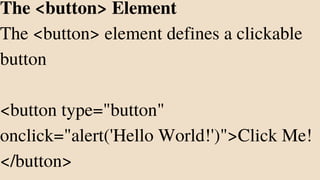
The <button> Element
The <button> element defines a clickable
button
<button type="button"
onclick="alert('Hello World!')">Click Me!
</button>
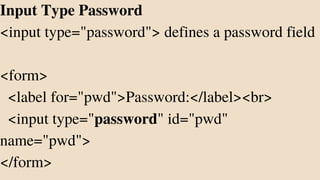
Input Type Password
<input type="password"> defines a password field
<form>
<label for="pwd">Password:</label><br>
<input type="password" id="pwd"
name="pwd">
</form>
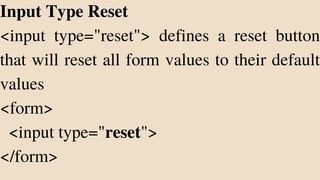
Input Type Reset
<input type="reset"> defines a reset button
that will reset all form values to their default
values
<form>
<input type="reset">
</form>
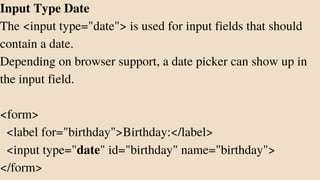
Input Type Date
The <input type="date"> is used for input fields that should
contain a date.
Depending on browser support, a date picker can show up in
the input field.
<form>
<label for="birthday">Birthday:</label>
<input type="date" id="birthday" name="birthday">
</form>
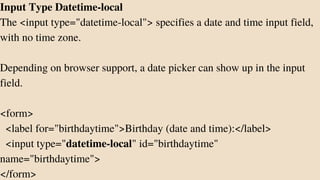
Input Type Datetime-local
The <input type="datetime-local"> specifies a date and time input field,
with no time zone.
Depending on browser support, a date picker can show up in the input
field.
<form>
<label for="birthdaytime">Birthday (date and time):</label>
<input type="datetime-local" id="birthdaytime"
name="birthdaytime">
</form>
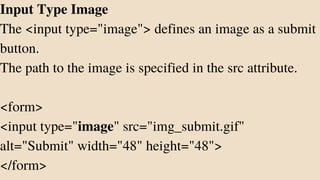
Input Type Image
The <input type="image"> defines an image as a submit
button.
The path to the image is specified in the src attribute.
<form>
<input type="image" src="img_submit.gif"
alt="Submit" width="48" height="48">
</form>
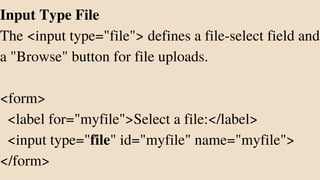
Input Type File
The <input type="file"> defines a file-select field and
a "Browse" button for file uploads.
<form>
<label for="myfile">Select a file:</label>
<input type="file" id="myfile" name="myfile">
</form>
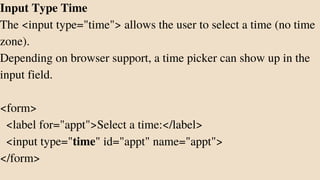
Input Type Time
The <input type="time"> allows the user to select a time (no time
zone).
Depending on browser support, a time picker can show up in the
input field.
<form>
<label for="appt">Select a time:</label>
<input type="time" id="appt" name="appt">
</form>
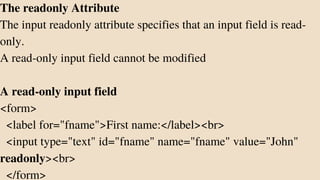
The readonly Attribute
The input readonly attribute specifies that an input field is read-
only.
A read-only input field cannot be modified
A read-only input field
<form>
<label for="fname">First name:</label><br>
<input type="text" id="fname" name="fname" value="John"
readonly><br>
</form>
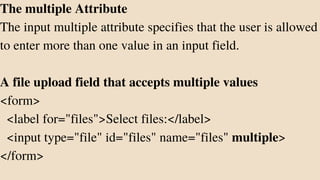
The multiple Attribute
The input multiple attribute specifies that the user is allowed
to enter more than one value in an input field.
A file upload field that accepts multiple values
<form>
<label for="files">Select files:</label>
<input type="file" id="files" name="files" multiple>
</form>
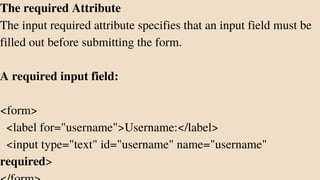
The required Attribute
The input required attribute specifies that an input field must be
filled out before submitting the form.
A required input field:
<form>
<label for="username">Username:</label>
<input type="text" id="username" name="username"
required>
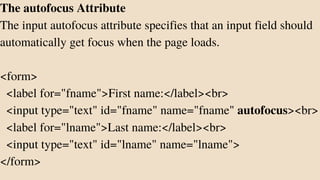
The autofocus Attribute
The input autofocus attribute specifies that an input field should
automatically get focus when the page loads.
<form>
<label for="fname">First name:</label><br>
<input type="text" id="fname" name="fname" autofocus><br>
<label for="lname">Last name:</label><br>
<input type="text" id="lname" name="lname">
</form>
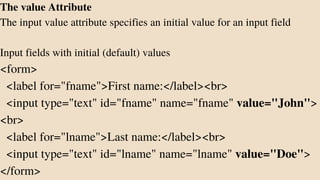
The value Attribute
The input value attribute specifies an initial value for an input field
Input fields with initial (default) values
<form>
<label for="fname">First name:</label><br>
<input type="text" id="fname" name="fname" value="John">
<br>
<label for="lname">Last name:</label><br>
<input type="text" id="lname" name="lname" value="Doe">
</form>
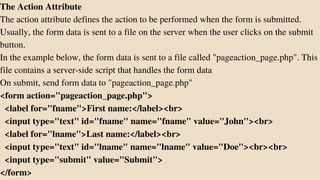
The Action Attribute
The action attribute defines the action to be performed when the form is submitted.
Usually, the form data is sent to a file on the server when the user clicks on the submit
button.
In the example below, the form data is sent to a file called "pageaction_page.php". This
file contains a server-side script that handles the form data
On submit, send form data to "pageaction_page.php"
<form action="pageaction_page.php">
<label for="fname">First name:</label><br>
<input type="text" id="fname" name="fname" value="John"><br>
<label for="lname">Last name:</label><br>
<input type="text" id="lname" name="lname" value="Doe"><br><br>
<input type="submit" value="Submit">
</form>
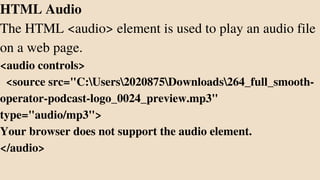
HTML Audio
The HTML <audio> element is used to play an audio file
on a web page.
<audio controls>
<source src="C:Users2020875Downloads264_full_smooth-
operator-podcast-logo_0024_preview.mp3"
type="audio/mp3">
Your browser does not support the audio element.
</audio>
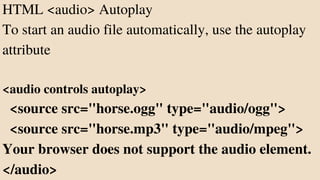
HTML <audio> Autoplay
To start an audio file automatically, use the autoplay
attribute
<audio controls autoplay>
<source src="horse.ogg" type="audio/ogg">
<source src="horse.mp3" type="audio/mpeg">
Your browser does not support the audio element.
</audio>
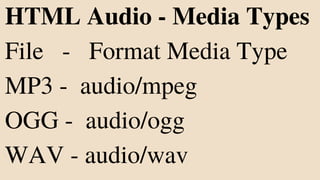
HTML Audio - Media Types
File - Format Media Type
MP3 - audio/mpeg
OGG - audio/ogg
WAV - audio/wav
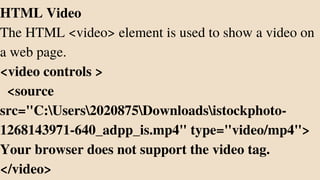
HTML Video
The HTML <video> element is used to show a video on
a web page.
<video controls >
<source
src="C:Users2020875Downloadsistockphoto-
1268143971-640_adpp_is.mp4" type="video/mp4">
Your browser does not support the video tag.
</video>
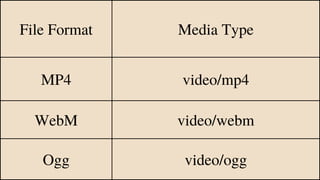
File Format Media Type
MP4 video/mp4
WebM video/webm
Ogg video/ogg
Iframes
HTML Iframes
An HTML iframe is used to display
a web page within a web page.
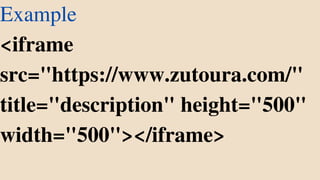
Example
<iframe
src="https://www.zutoura.com/"
title="description" height="500"
width="500"></iframe>
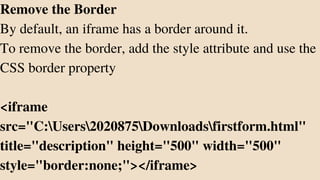
Remove the Border
By default, an iframe has a border around it.
To remove the border, add the style attribute and use the
CSS border property
<iframe
src="C:Users2020875Downloadsfirstform.html"
title="description" height="500" width="500"
style="border:none;"></iframe>
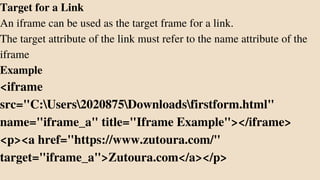
Target for a Link
An iframe can be used as the target frame for a link.
The target attribute of the link must refer to the name attribute of the
iframe
Example
<iframe
src="C:Users2020875Downloadsfirstform.html"
name="iframe_a" title="Iframe Example"></iframe>
<p><a href="https://www.zutoura.com/"
target="iframe_a">Zutoura.com</a></p>
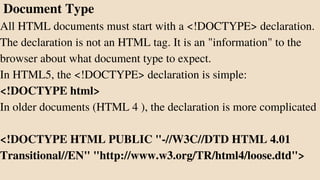
Document Type
All HTML documents must start with a <!DOCTYPE> declaration.
The declaration is not an HTML tag. It is an "information" to the
browser about what document type to expect.
In HTML5, the <!DOCTYPE> declaration is simple:
<!DOCTYPE html>
In older documents (HTML 4 ), the declaration is more complicated
<!DOCTYPE HTML PUBLIC "-//W3C//DTD HTML 4.01
Transitional//EN" "http://www.w3.org/TR/html4/loose.dtd">
HTML HEAD
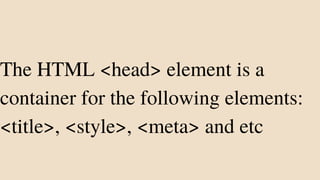
The HTML <head> element is a
container for the following elements:
<title>, <style>, <meta> and etc
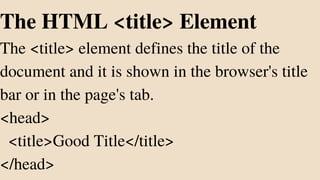
The HTML <title> Element
The <title> element defines the title of the
document and it is shown in the browser's title
bar or in the page's tab.
<head>
<title>Good Title</title>
</head>
HTML <object>
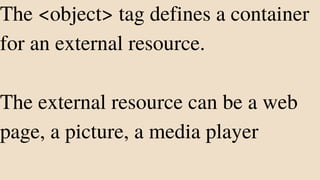
The <object> tag defines a container
for an external resource.
The external resource can be a web
page, a picture, a media player
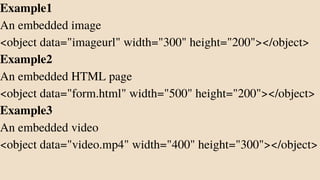
Example1
An embedded image
<object data="imageurl" width="300" height="200"></object>
Example2
An embedded HTML page
<object data="form.html" width="500" height="200"></object>
Example3
An embedded video
<object data="video.mp4" width="400" height="300"></object>
HTML YouTube Videos
The easiest way to play videos in HTML, is
to use YouTube.
Converting videos to different formats can
be difficult and time-consuming.
An easier solution is to let YouTube play
the videos in your web page.
YouTube Video Id
YouTube will display an id (like
tgbNymZ7vqY), when you save (or play) a
video.
You can use this id, and refer to your video
in the HTML code.
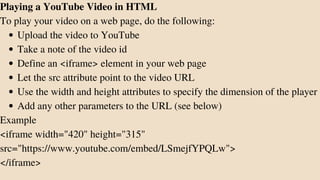
Upload the video to YouTube
Take a note of the video id
Define an <iframe> element in your web page
Let the src attribute point to the video URL
Use the width and height attributes to specify the dimension of the player
Add any other parameters to the URL (see below)
Playing a YouTube Video in HTML
To play your video on a web page, do the following:
Example
<iframe width="420" height="315"
src="https://www.youtube.com/embed/LSmejfYPQLw">
</iframe>
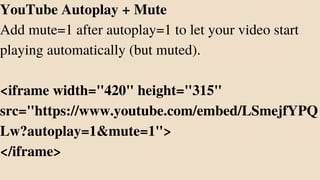
YouTube Autoplay + Mute
Add mute=1 after autoplay=1 to let your video start
playing automatically (but muted).
<iframe width="420" height="315"
src="https://www.youtube.com/embed/LSmejfYPQ
Lw?autoplay=1&mute=1">
</iframe>
HTML DIV
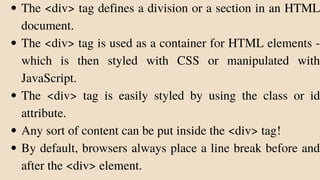
The <div> tag defines a division or a section in an HTML
document.
The <div> tag is used as a container for HTML elements -
which is then styled with CSS or manipulated with
JavaScript.
The <div> tag is easily styled by using the class or id
attribute.
Any sort of content can be put inside the <div> tag!
By default, browsers always place a line break before and
after the <div> element.
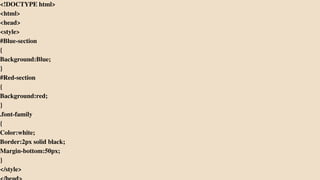
<!DOCTYPE html>
<html>
<head>
<style>
#Blue-section
{
Background:Blue;
}
#Red-section
{
Background:red;
}
.font-family
{
Color:white;
Border:2px solid black;
Margin-bottom:50px;
}
</style>
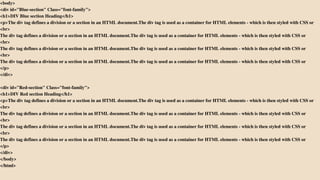
<body>
<div id="Blue-section" Class="font-family">
<h1>DIV Blue section Heading</h1>
<p>The div tag defines a division or a section in an HTML document.The div tag is used as a container for HTML elements - which is then styled with CSS or
<br>
The div tag defines a division or a section in an HTML document.The div tag is used as a container for HTML elements - which is then styled with CSS or
<br>
The div tag defines a division or a section in an HTML document.The div tag is used as a container for HTML elements - which is then styled with CSS or
<br>
The div tag defines a division or a section in an HTML document.The div tag is used as a container for HTML elements - which is then styled with CSS or
</p>
</div>
<div id="Red-section" Class="font-family">
<h1>DIV Red section Heading</h1>
<p>The div tag defines a division or a section in an HTML document.The div tag is used as a container for HTML elements - which is then styled with CSS or
<br>
The div tag defines a division or a section in an HTML document.The div tag is used as a container for HTML elements - which is then styled with CSS or
<br>
The div tag defines a division or a section in an HTML document.The div tag is used as a container for HTML elements - which is then styled with CSS or
<br>
The div tag defines a division or a section in an HTML document.The div tag is used as a container for HTML elements - which is then styled with CSS or
</p>
</div>
</body>
</html>
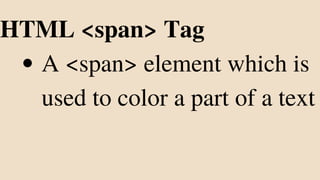
A <span> element which is
used to color a part of a text
HTML <span> Tag
<!DOCTYPE html>
<html>
<head>
<style>
span{
color:blue;
font-size :30px;
}
</style>
</head>
<body>
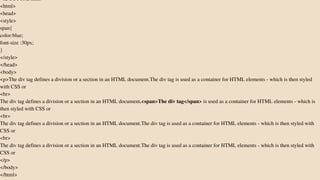
<p>The div tag defines a division or a section in an HTML document.The div tag is used as a container for HTML elements - which is then styled
with CSS or
<br>
The div tag defines a division or a section in an HTML document.<span>The div tag</span> is used as a container for HTML elements - which is
then styled with CSS or
<br>
The div tag defines a division or a section in an HTML document.The div tag is used as a container for HTML elements - which is then styled with
CSS or
<br>
The div tag defines a division or a section in an HTML document.The div tag is used as a container for HTML elements - which is then styled with
CSS or
</p>
</body>
</html>
HTML Comment Tag
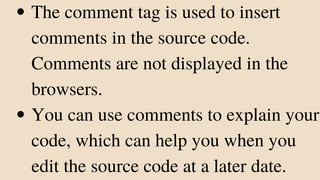
The comment tag is used to insert
comments in the source code.
Comments are not displayed in the
browsers.
You can use comments to explain your
code, which can help you when you
edit the source code at a later date.
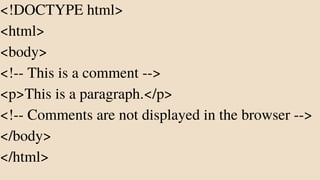
<!DOCTYPE html>
<html>
<body>
<!-- This is a comment -->
<p>This is a paragraph.</p>
<!-- Comments are not displayed in the browser -->
</body>
</html>
The HTML <script> Tag
The HTML <script> tag is used to
define a client-side script (JavaScript)
Common uses for JavaScript are
image manipulation, form validation,
and dynamic changes of content.
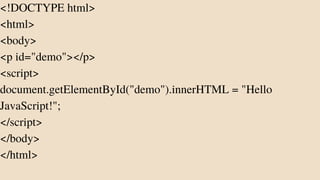
<!DOCTYPE html>
<html>
<body>
<p id="demo"></p>
<script>
document.getElementById("demo").innerHTML = "Hello
JavaScript!";
</script>
</body>
</html>
To select an HTML element, JavaScript
most often uses the
document.getElementById() method.
This JavaScript example writes "Hello
JavaScript!" into an HTML element with
id="demo"
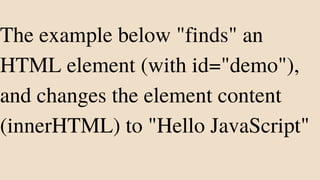
The example below "finds" an
HTML element (with id="demo"),
and changes the element content
(innerHTML) to "Hello JavaScript"
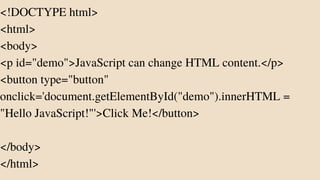
<!DOCTYPE html>
<html>
<body>
<p id="demo">JavaScript can change HTML content.</p>
<button type="button"
onclick='document.getElementById("demo").innerHTML =
"Hello JavaScript!"'>Click Me!</button>
</body>
</html>
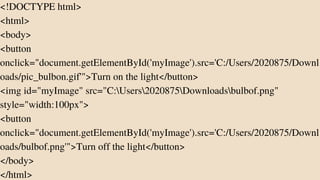
<!DOCTYPE html>
<html>
<body>
<button
onclick="document.getElementById('myImage').src='C:/Users/2020875/Downl
oads/pic_bulbon.gif'">Turn on the light</button>
<img id="myImage" src="C:Users2020875Downloadsbulbof.png"
style="width:100px">
<button
onclick="document.getElementById('myImage').src='C:/Users/2020875/Downl
oads/bulbof.png'">Turn off the light</button>
</body>
</html>
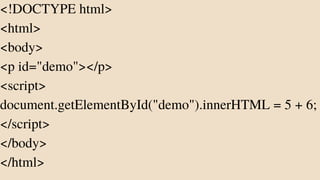
<!DOCTYPE html>
<html>
<body>
<p id="demo"></p>
<script>
document.getElementById("demo").innerHTML = 5 + 6;
</script>
</body>
</html>
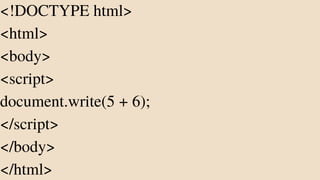
<!DOCTYPE html>
<html>
<body>
<script>
document.write(5 + 6);
</script>
</body>
</html>
HTML <meta> Tag
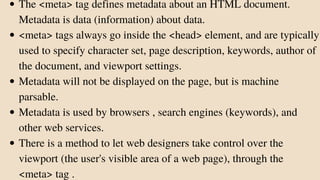
The <meta> tag defines metadata about an HTML document.
Metadata is data (information) about data.
<meta> tags always go inside the <head> element, and are typically
used to specify character set, page description, keywords, author of
the document, and viewport settings.
Metadata will not be displayed on the page, but is machine
parsable.
Metadata is used by browsers , search engines (keywords), and
other web services.
There is a method to let web designers take control over the
viewport (the user's visible area of a web page), through the
<meta> tag .
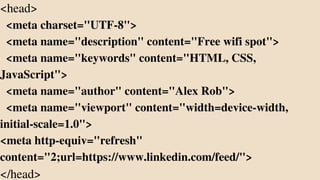
<head>
<meta charset="UTF-8">
<meta name="description" content="Free wifi spot">
<meta name="keywords" content="HTML, CSS,
JavaScript">
<meta name="author" content="Alex Rob">
<meta name="viewport" content="width=device-width,
initial-scale=1.0">
<meta http-equiv="refresh"
content="2;url=https://www.linkedin.com/feed/">
</head>
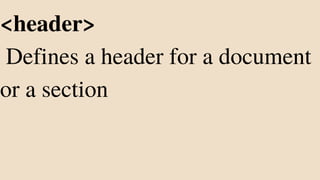
<header>
Defines a header for a document
or a section
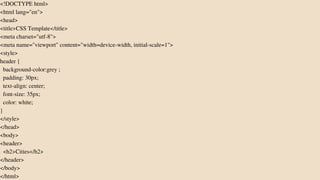
<!DOCTYPE html>
<html lang="en">
<head>
<title>CSS Template</title>
<meta charset="utf-8">
<meta name="viewport" content="width=device-width, initial-scale=1">
<style>
header {
background-color:grey ;
padding: 30px;
text-align: center;
font-size: 35px;
color: white;
}
</style>
</head>
<body>
<header>
<h2>Cities</h2>
</header>
</body>
</html>
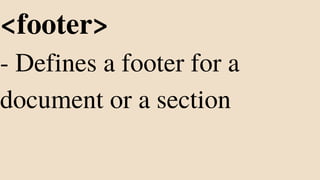
<footer>
- Defines a footer for a
document or a section
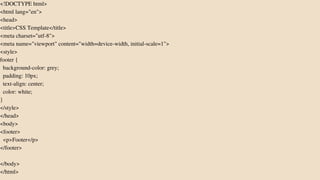
<!DOCTYPE html>
<html lang="en">
<head>
<title>CSS Template</title>
<meta charset="utf-8">
<meta name="viewport" content="width=device-width, initial-scale=1">
<style>
footer {
background-color: grey;
padding: 10px;
text-align: center;
color: white;
}
</style>
</head>
<body>
<footer>
<p>Footer</p>
</footer>
</body>
</html>
HTML <nav> Tag
The <nav> tag defines a set of navigation links.
Notice that NOT all links of a document should
be inside a <nav> element. The <nav> element
is intended only for major blocks of navigation
links.
Browsers, such as screen readers for disabled
users, can use this element to determine whether
to omit the initial rendering of this content.
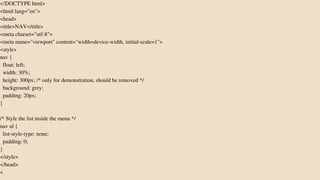
<!DOCTYPE html>
<html lang="en">
<head>
<title>NAV</title>
<meta charset="utf-8">
<meta name="viewport" content="width=device-width, initial-scale=1">
<style>
nav {
float: left;
width: 30%;
height: 300px; /* only for demonstration, should be removed */
background: grey;
padding: 20px;
}
/* Style the list inside the menu */
nav ul {
list-style-type: none;
padding: 0;
}
</style>
</head>
<
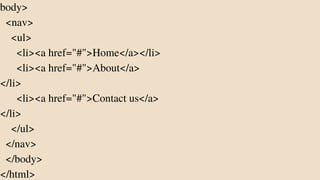
body>
<nav>
<ul>
<li><a href="#">Home</a></li>
<li><a href="#">About</a>
</li>
<li><a href="#">Contact us</a>
</li>
</ul>
</nav>
</body>
</html>
<section>
- Defines a section in a document
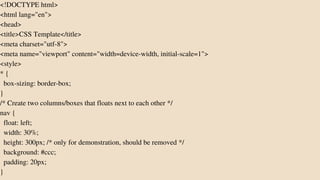
<!DOCTYPE html>
<html lang="en">
<head>
<title>CSS Template</title>
<meta charset="utf-8">
<meta name="viewport" content="width=device-width, initial-scale=1">
<style>
* {
box-sizing: border-box;
}
/* Create two columns/boxes that floats next to each other */
nav {
float: left;
width: 30%;
height: 300px; /* only for demonstration, should be removed */
background: #ccc;
padding: 20px;
}
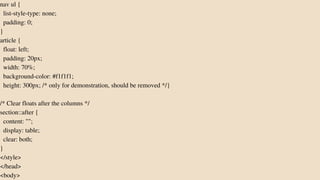
nav ul {
list-style-type: none;
padding: 0;
}
article {
float: left;
padding: 20px;
width: 70%;
background-color: #f1f1f1;
height: 300px; /* only for demonstration, should be removed */}
/* Clear floats after the columns */
section::after {
content: "";
display: table;
clear: both;
}
</style>
</head>
<body>
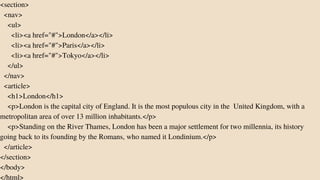
<section>
<nav>
<ul>
<li><a href="#">London</a></li>
<li><a href="#">Paris</a></li>
<li><a href="#">Tokyo</a></li>
</ul>
</nav>
<article>
<h1>London</h1>
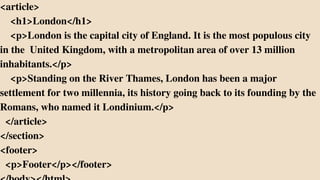
<p>London is the capital city of England. It is the most populous city in the United Kingdom, with a
metropolitan area of over 13 million inhabitants.</p>
<p>Standing on the River Thames, London has been a major settlement for two millennia, its history
going back to its founding by the Romans, who named it Londinium.</p>
</article>
</section>
</body>
</html>
<article> :
Defines an independent, self-
contained content
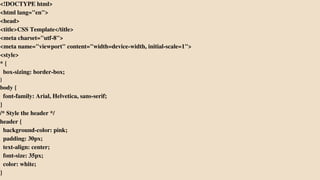
<!DOCTYPE html>
<html lang="en">
<head>
<title>CSS Template</title>
<meta charset="utf-8">
<meta name="viewport" content="width=device-width, initial-scale=1">
<style>
* {
box-sizing: border-box;
}
body {
font-family: Arial, Helvetica, sans-serif;
}
/* Style the header */
header {
background-color: pink;
padding: 30px;
text-align: center;
font-size: 35px;
color: white;
}
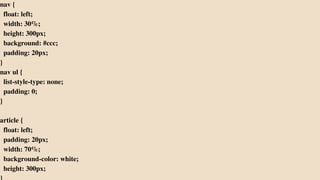
nav {
float: left;
width: 30%;
height: 300px;
background: #ccc;
padding: 20px;
}
nav ul {
list-style-type: none;
padding: 0;
}
article {
float: left;
padding: 20px;
width: 70%;
background-color: white;
height: 300px;
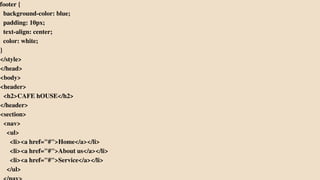
footer {
background-color: blue;
padding: 10px;
text-align: center;
color: white;
}
</style>
</head>
<body>
<header>
<h2>CAFE hOUSE</h2>
</header>
<section>
<nav>
<ul>
<li><a href="#">Home</a></li>
<li><a href="#">About us</a></li>
<li><a href="#">Service</a></li>
</ul>
<article>
<h1>London</h1>
<p>London is the capital city of England. It is the most populous city
in the United Kingdom, with a metropolitan area of over 13 million
inhabitants.</p>
<p>Standing on the River Thames, London has been a major
settlement for two millennia, its history going back to its founding by the
Romans, who named it Londinium.</p>
</article>
</section>
<footer>
<p>Footer</p></footer>
Media attribute-
The purpose of the HTML media
attribute is to define the media type
that the resource linked to the
element is designed for.
Supported elements:
HTML media attribute supports
style and link elements.
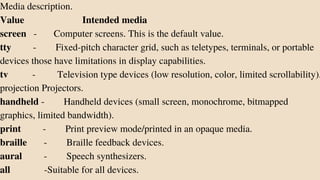
Media description.
Value Intended media
screen - Computer screens. This is the default value.
tty - Fixed-pitch character grid, such as teletypes, terminals, or portable
devices those have limitations in display capabilities.
tv - Television type devices (low resolution, color, limited scrollability).
projection Projectors.
handheld - Handheld devices (small screen, monochrome, bitmapped
graphics, limited bandwidth).
print - Print preview mode/printed in an opaque media.
braille - Braille feedback devices.
aural - Speech synthesizers.
all -Suitable for all devices.
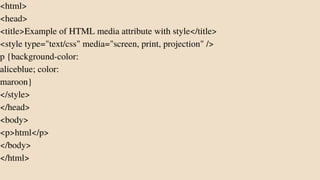
<html>
<head>
<title>Example of HTML media attribute with style</title>
<style type="text/css" media="screen, print, projection" />
p {background-color:
aliceblue; color:
maroon}
</style>
</head>
<body>
<p>html</p>
</body>
</html>
HTML Canvas
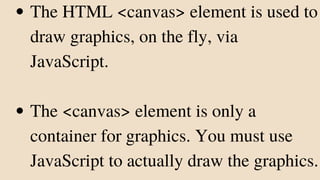
The HTML <canvas> element is used to
draw graphics, on the fly, via
JavaScript.
The <canvas> element is only a
container for graphics. You must use
JavaScript to actually draw the graphics.
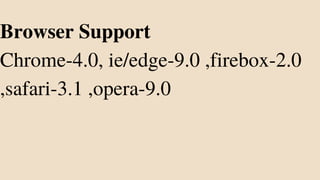
Browser Support
Chrome-4.0, ie/edge-9.0 ,firebox-2.0
,safari-3.1 ,opera-9.0
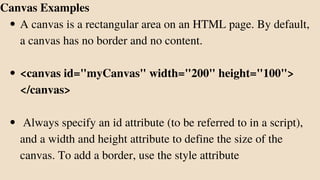
A canvas is a rectangular area on an HTML page. By default,
a canvas has no border and no content.
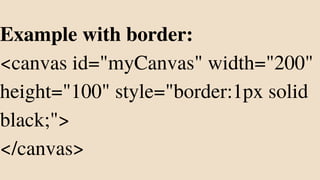
<canvas id="myCanvas" width="200" height="100">
</canvas>
Always specify an id attribute (to be referred to in a script),
and a width and height attribute to define the size of the
canvas. To add a border, use the style attribute
Canvas Examples
Example with border:
<canvas id="myCanvas" width="200"
height="100" style="border:1px solid
black;">
</canvas>
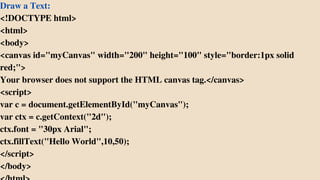
Draw a Text:
<!DOCTYPE html>
<html>
<body>
<canvas id="myCanvas" width="200" height="100" style="border:1px solid
red;">
Your browser does not support the HTML canvas tag.</canvas>
<script>
var c = document.getElementById("myCanvas");
var ctx = c.getContext("2d");
ctx.font = "30px Arial";
ctx.fillText("Hello World",10,50);
</script>
</body>
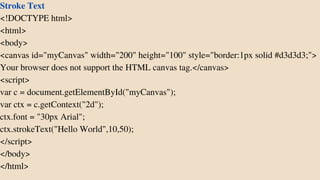
Stroke Text
<!DOCTYPE html>
<html>
<body>
<canvas id="myCanvas" width="200" height="100" style="border:1px solid #d3d3d3;">
Your browser does not support the HTML canvas tag.</canvas>
<script>
var c = document.getElementById("myCanvas");
var ctx = c.getContext("2d");
ctx.font = "30px Arial";
ctx.strokeText("Hello World",10,50);
</script>
</body>
</html>
HTML SVG Graphics
SVG stands for Scalable Vector
Graphics
SVG is used to define graphics
for the Web
The HTML <svg> element is a
container for SVG graphics.
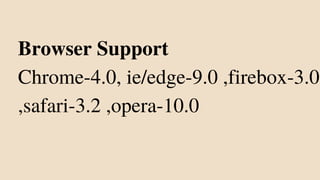
Browser Support
Chrome-4.0, ie/edge-9.0 ,firebox-3.0
,safari-3.2 ,opera-10.0
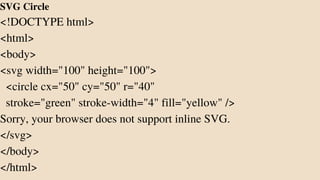
SVG Circle
<!DOCTYPE html>
<html>
<body>
<svg width="100" height="100">
<circle cx="50" cy="50" r="40"
stroke="green" stroke-width="4" fill="yellow" />
Sorry, your browser does not support inline SVG.
</svg>
</body>
</html>
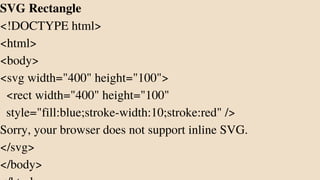
SVG Rectangle
<!DOCTYPE html>
<html>
<body>
<svg width="400" height="100">
<rect width="400" height="100"
style="fill:blue;stroke-width:10;stroke:red" />
Sorry, your browser does not support inline SVG.
</svg>
</body>
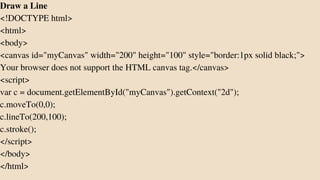
Draw a Line
<!DOCTYPE html>
<html>
<body>
<canvas id="myCanvas" width="200" height="100" style="border:1px solid black;">
Your browser does not support the HTML canvas tag.</canvas>
<script>
var c = document.getElementById("myCanvas").getContext("2d");
c.moveTo(0,0);
c.lineTo(200,100);
c.stroke();
</script>
</body>
</html>
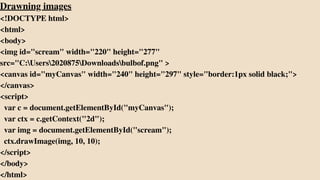
Drawning images
<!DOCTYPE html>
<html>
<body>
<img id="scream" width="220" height="277"
src="C:Users2020875Downloadsbulbof.png" >
<canvas id="myCanvas" width="240" height="297" style="border:1px solid black;">
</canvas>
<script>
var c = document.getElementById("myCanvas");
var ctx = c.getContext("2d");
var img = document.getElementById("scream");
ctx.drawImage(img, 10, 10);
</script>
</body>
</html>
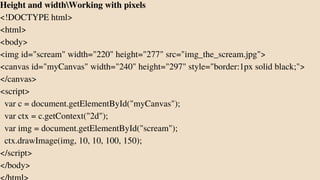
Height and widthWorking with pixels
<!DOCTYPE html>
<html>
<body>
<img id="scream" width="220" height="277" src="img_the_scream.jpg">
<canvas id="myCanvas" width="240" height="297" style="border:1px solid black;">
</canvas>
<script>
var c = document.getElementById("myCanvas");
var ctx = c.getContext("2d");
var img = document.getElementById("scream");
ctx.drawImage(img, 10, 10, 100, 150);
</script>
</body>
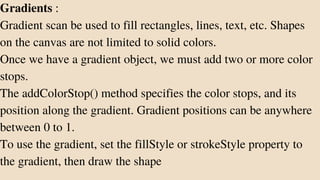
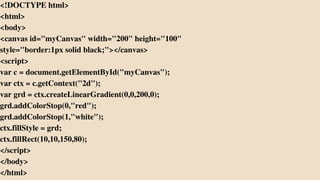
Gradients :
Gradient scan be used to fill rectangles, lines, text, etc. Shapes
on the canvas are not limited to solid colors.
Once we have a gradient object, we must add two or more color
stops.
The addColorStop() method specifies the color stops, and its
position along the gradient. Gradient positions can be anywhere
between 0 to 1.
To use the gradient, set the fillStyle or strokeStyle property to
the gradient, then draw the shape
<!DOCTYPE html>
<html>
<body>
<canvas id="myCanvas" width="200" height="100"
style="border:1px solid black;"></canvas>
<script>
var c = document.getElementById("myCanvas");
var ctx = c.getContext("2d");
var grd = ctx.createLinearGradient(0,0,200,0);
grd.addColorStop(0,"red");
grd.addColorStop(1,"white");
ctx.fillStyle = grd;
ctx.fillRect(10,10,150,80);
</script>
</body>
</html>
Canvas Coordinates
The HTML canvas is a two-
dimensional grid.
The upper-left corner of the canvas
has the coordinates (0,0)
Draw a Line
To draw a straight line on a canvas, use the
following methods:
moveTo(x,y) - defines the starting point of the line
lineTo(x,y) - defines the ending point of the line
Define a starting point in position (0,0), and an
ending point in position (200,100). Then use the
stroke() method to actually draw the line:
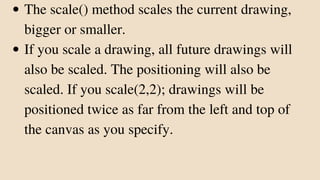
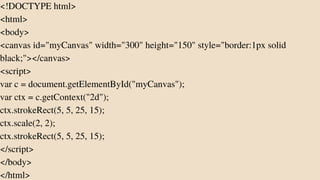
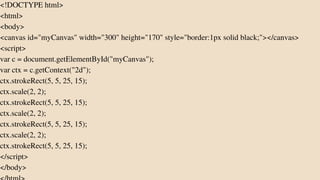
HTML canvas scale() Method
The scale() method scales the current drawing,
bigger or smaller.
If you scale a drawing, all future drawings will
also be scaled. The positioning will also be
scaled. If you scale(2,2); drawings will be
positioned twice as far from the left and top of
the canvas as you specify.
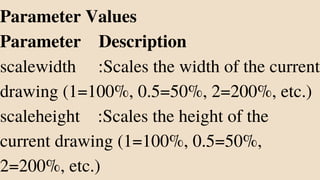
Parameter Values
Parameter Description
scalewidth :Scales the width of the current
drawing (1=100%, 0.5=50%, 2=200%, etc.)
scaleheight :Scales the height of the
current drawing (1=100%, 0.5=50%,
2=200%, etc.)
<!DOCTYPE html>
<html>
<body>
<canvas id="myCanvas" width="300" height="150" style="border:1px solid
black;"></canvas>
<script>
var c = document.getElementById("myCanvas");
var ctx = c.getContext("2d");
ctx.strokeRect(5, 5, 25, 15);
ctx.scale(2, 2);
ctx.strokeRect(5, 5, 25, 15);
</script>
</body>
</html>
<!DOCTYPE html>
<html>
<body>
<canvas id="myCanvas" width="300" height="170" style="border:1px solid black;"></canvas>
<script>
var c = document.getElementById("myCanvas");
var ctx = c.getContext("2d");
ctx.strokeRect(5, 5, 25, 15);
ctx.scale(2, 2);
ctx.strokeRect(5, 5, 25, 15);
ctx.scale(2, 2);
ctx.strokeRect(5, 5, 25, 15);
ctx.scale(2, 2);
ctx.strokeRect(5, 5, 25, 15);
</script>
</body>
HTML canvas translate() Method
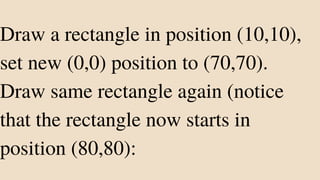
Draw a rectangle in position (10,10),
set new (0,0) position to (70,70).
Draw same rectangle again (notice
that the rectangle now starts in
position (80,80):
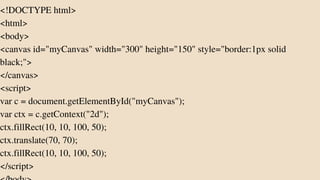
<!DOCTYPE html>
<html>
<body>
<canvas id="myCanvas" width="300" height="150" style="border:1px solid
black;">
</canvas>
<script>
var c = document.getElementById("myCanvas");
var ctx = c.getContext("2d");
ctx.fillRect(10, 10, 100, 50);
ctx.translate(70, 70);
ctx.fillRect(10, 10, 100, 50);
</script>
HTML canvas rotate()
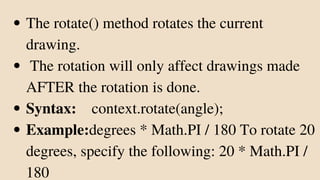
The rotate() method rotates the current
drawing.
The rotation will only affect drawings made
AFTER the rotation is done.
Syntax: context.rotate(angle);
Example:degrees * Math.PI / 180 To rotate 20
degrees, specify the following: 20 * Math.PI /
180
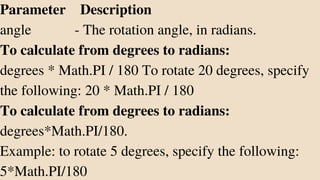
Parameter Description
angle - The rotation angle, in radians.
To calculate from degrees to radians:
degrees * Math.PI / 180 To rotate 20 degrees, specify
the following: 20 * Math.PI / 180
To calculate from degrees to radians:
degrees*Math.PI/180.
Example: to rotate 5 degrees, specify the following:
5*Math.PI/180
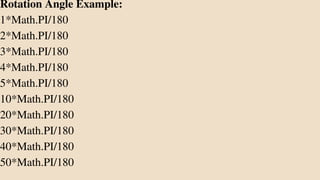
Rotation Angle Example:
1*Math.PI/180
2*Math.PI/180
3*Math.PI/180
4*Math.PI/180
5*Math.PI/180
10*Math.PI/180
20*Math.PI/180
30*Math.PI/180
40*Math.PI/180
50*Math.PI/180
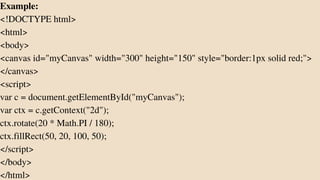
Example:
<!DOCTYPE html>
<html>
<body>
<canvas id="myCanvas" width="300" height="150" style="border:1px solid red;">
</canvas>
<script>
var c = document.getElementById("myCanvas");
var ctx = c.getContext("2d");
ctx.rotate(20 * Math.PI / 180);
ctx.fillRect(50, 20, 100, 50);
</script>
</body>
</html>
HTML FOR BEGINNERS AND FOR PRACTICE .pdf

HTML FOR BEGINNERS AND FOR PRACTICE .pdf

  • 1.
  • 2.
    All HTML documentsmust start with a <!DOCTYPE> declaration. The declaration is not an HTML tag. It is an "information" to the browser about what document type to expect. In HTML 5, the declaration is simple HTML 5: <!DOCTYPE html>
  • 3.
    Background Color The CSSbackground-color property defines the background color for an HTML element. <body style="background-color:red;"> <h1>This is a heading</h1> <p>This is a paragraph.</p> </body>
  • 4.
    In HTML 4, the declaration is more complicated HTML 4.01: <!DOCTYPE HTML PUBLIC "-//W3C//DTD HTML 4.01 Transitional//EN" "http://www.w3.org/TR/html4/loose.dtd">
  • 5.
  • 6.
    All HTML elementscan have attributes Attributes provide additional information about elements Attributes are always specified in the start tag
  • 7.
    The <a> tagdefines a hyperlink. The href attribute specifies the URL of the page the link goes to: The href Attribute <a href="https://www.linkedin.com">Linkedin </a>
  • 8.
    The <img> tagis used to embed an image in an HTML page. The src attribute specifies the path to the image to be displayed: The src Attribute <img src="img_girl.jpg"> 1.Absolute URL - Links to an external image that is hosted on another website. Example: src=" ". 2.Relative URL - Links to an image that is hosted within the website. Here, the URL does not include the domain name. If the URL begins without a slash, it will be relative to the current page. Example: src="img_girl.jpg". If the URL begins with a slash, it will be relative to the domain. Example: src="/images/img_girl.jpg".
  • 9.
    The width andheight Attributes The <img> tag should also contain the width and height attributes, which specify the width and height of the image (in pixels): <img src="img_girl.jpg" width="500" height="600">
  • 10.
    The alt Attribute Therequired alt attribute for the <img> tag specifies an alternate text for an image, if the image for some reason cannot be displayed. This can be due to a slow connection, or an error in the src attribute, or if the user uses a screen reader. <img src="img_girl.jpg" alt="Girl with a jacket">
  • 11.
    The style Attribute Thestyle attribute is used to add styles to an element, such as color, font, size, and more. <p style="color:red;">This is a red paragraph.</p>
  • 12.
    ThetitleAttribute The title attributedefines some extra information about an element. The value of the title attribute will be displayed as a tooltip when you mouse over the element: <p title="I'm a tooltip">This is a paragraph. </p>
  • 13.
    The lang Attribute: Youshould always include the lang attribute inside the <html> tag, to declare the language of the Web page. This is meant to assist search engines and browsers.
  • 14.
  • 15.
    Country codes canalso be added to the language code in the lang attribute. So, the first two characters define the language of the HTML page, and the last two characters define the country. <html lang="en-US">
  • 16.
  • 17.
    The HTML <p>element defines a paragraph. With HTML, you cannot change the display by adding extra spaces or extra lines in your HTML code. The browser will automatically remove any extra spaces and lines when the page is displayed
  • 18.
  • 19.
    HTML headings aretitles or subtitles that you want to display on a webpage.
  • 20.
    HTML headings aredefined with the <h1> to <h6> tags. <h1> defines the most important heading. <h6> defines the least important heading
  • 21.
    Each HTML headinghas a default size. However, you can specify the size for any heading with the style attribute, using the CSS font-size property
  • 22.
  • 23.
    HTML Text Formatting HTMLcontains several elements for defining text with a special meaning. Example <p><b>Bold Text</b></p> <p><i>Italic Text</i></p>
  • 24.
    Formatting Elements : Formattingelements were designed to display special types of text <b> - Bold text <strong> - Important text <i> - Italic text <em> - Emphasized text <mark> - Marked text <small> - Smaller text <del> - Deleted text <ins> - Inserted text <sub> - Subscript text <sup> - Superscript text
  • 25.
    HTML <b> and<strong> Elements The HTML <b> element defines bold text, without any extra importance. <p>normal paragraph</p> <p><b>Bold Text</b></p>
  • 26.
    The HTML <strong>element defines text with strong importance. The content inside is typically displayed in bold. <p><strong>This text is important!</strong></p>
  • 27.
    HTML <i> The contentinside is typically displayed in italic. <i>Italic Text</i>
  • 28.
    <em> Elements The HTML<em> element defines emphasized text. The content inside is typically displayed in italic.A screen reader will pronounce the words in <em> with an emphasis, using verbal stress. <p><em>This text is emphasized. </em></p>
  • 29.
    HTML <small> Element TheHTML <small> element defines smaller text: <small>This is some smaller text.</small>
  • 30.
    HTML <mark> Element TheHTML <mark> element defines text that should be marked or highlighted <p> <mark>milk</mark></p>
  • 31.
    HTML <ins> Element TheHTML <ins> element defines a text that has been inserted into a document. Browsers will usually underline inserted text. <p>My favorite color is <del>blue</del> <ins>red</ins>.</p>
  • 32.
    HTML <sub> Element TheHTML <sub> element defines subscript text. Subscript text appears half a character below the normal line, and is sometimes rendered in a smaller font. Subscript text can be used for chemical formulas <p>This is <sub>subscripted</sub> text.</p>
  • 33.
    HTML <sup> Element TheHTML <sup> element defines superscript text. Superscript text appears half a character above the normal line, and is sometimes rendered in a smaller font. Superscript text can be used for footnotes <p>This is <sup>superscripted</sup> text.</p>
  • 34.
  • 35.
    Font-Family: The CSS font-familyproperty defines the font to be used for an HTML element <p style="font-family:Times New Roman;">Times New Roman</p> <p style="font- family:Georgia;">Georgia</p>
  • 36.
    Text Size The CSSfont-size property defines the text size for an HTML element <p style="font-size:200%;">This is a heading</p> <p style="font-size:160%;">This is a paragraph</p>
  • 37.
    Text Alignment: The CSStext-align property defines the horizontal text alignment for an HTML element <P style="text-align:left;">Left</P> <p style="text-align:right;">Right</p> <p style="text-align:center;">Center</p>
  • 38.
  • 39.
    The HTML styleattribute is used to add styles to an element, such as color, font, size, and more
  • 40.
    The HTML StyleAttribute Setting the style of an HTML element, can be done with the style attribute. The HTML style attribute has the following syntax <tagname style="property(CSS property):value(CSS value);">
  • 41.
    Background Color The CSSbackground-color property defines the background color for an HTML element. <body style="background-color:red;"> <h1>This is a heading</h1> <p>This is a paragraph.</p> </body>
  • 42.
    Text Color The CSScolor property defines the text color for an HTML element <h1 style="color:blue;">This is a heading</h1> <pstyle="color:red;">This is a paragraph. </p>
  • 43.
  • 44.
    Links allow usersto click their way from page to page.
  • 45.
    HTML Links -Syntax The HTML <a> tag defines a hyperlink. It has the following syntax <a href="url">link text</a>
  • 46.
    An unvisited linkis underlined and blue A visited link is underlined and purple An active link is underlined and red By default, links will appear as follows in all browsers:
  • 47.
    By default, thelinked page will be displayed in the current browser window. To change this, you must specify another target for the link. The target attribute specifies where to open the linked document. The target attribute can have one of the following values: HTML Links - The target Attribute _self - Default. Opens the document in the same window/tab as it was clicked _blank - Opens the document in a new window or tab _parent - Opens the document in the parent frame _top - Opens the document in the full body of the window
  • 48.
    HTML Links -Use an Image as a Link To use an image as a link, just put the <img> tag inside the <a> tag <a href="https://w"> <img src="Downloadssentti-smiley.gif" style="width:42px;height:42px;"> </a>
  • 49.
  • 50.
    HTML Images The <img>tag is empty, it contains attributes only, and does not have a closing tag. <img src="url" alt="alternatetext">
  • 51.
    Image Floating Use theCSS float property to let the image float to the right or to the left of a text <p><img src="smiley.gif" alt="Smiley face" style="float:right;width:42px;height:42px;"> The image will float to the right of the text.</p> <p><img src="smiley.gif" alt="Smiley face" style="float:left;width:42px;height:42px;"> The image will float to the left of the text.</p>
  • 52.
  • 53.
    HTML tables allowweb developers to arrange data into rows and columns.
  • 54.
    A table inHTML consists of table cells inside rows and columns. <table> <tr> <th>Company</th> <th>Contact</th> <th>Country</th> </tr> <tr> <td>Alfreds Futterkiste</td> <td>Maria Anders</td> <td>Germany</td> </tr> <tr> <td>Centro comercial Moctezuma</td> <td>Francisco Chang</td> <td>Mexico</td> </tr> </table>
  • 55.
    <!DOCTYPE html> <html> <style> table, th,td { border:1px solid black; } </style> <body> <h2>A basic HTML table</h2> <table style="width:100%"> <tr> <th>Name</th> <th>Contact</th> <th>Country</th> </tr> <tr> <td>Name1</td> <td>Contact1</td> <td>India</td> </tr> <tr> <td>Name2</td> <td>Contact2</td> <td>USA</td> </tr> </table></body> </html>
  • 56.
    Collapsed Table Borders Toavoid having double borders set the CSS border- collapse property to collapse. This will make the borders collapse into a single border table, th, td { border: 1px solid black; border-collapse: collapse; }
  • 57.
    Style Table Borders table,th, td { border: 1px solid white; border-collapse: collapse; } th, td { background-color: #96D4D4; }
  • 58.
    Round Table Borders Withthe border-radius property, the borders get rounded corners table, th, td { border: 1px solid black; border-radius: 10px; }
  • 59.
    Dotted Table Borders Withthe border-style property, you can set the appearance of the border. th, td { border-style: dotted; }
  • 60.
    Border Color With theborder-color property, you can set the color of the border. th, td { border-color: #96D4D4; }
  • 61.
    HTML Table Sizes HTMLtables can have different sizes for each column, row or the entire table Use the style attribute with the width or height properties to specify the size of a table, row or column.
  • 62.
    HTML Table ColumnWidth To set the size of a specific column, add the style attribute on a <th> or <td> element <th style="width:70%">Firstname</th>
  • 63.
    HTML Table RowHeight To set the height of a specific row, add the style attribute on a table row element <table style="width:100%"> <tr> <th>Firstname</th> <th>Lastname</th> <th>Age</th> </tr> <tr style="height:200px"> <td>Jill</td> <td>Smith</td> <td>50</td> </tr> <tr> <td>Eve</td> <td>Jackson</td> <td>94</td> </tr> </table>
  • 64.
    HTML Table Headers HTMLtables can have headers for each column or row, or for many columns/rows
  • 65.
    Vertical Table Headers Touse the first column as table headers, define the first cell in each row as a <th> element <tr> <th>Firstname</th> <td>Jill</td> <td>Eve</td> </tr> <tr> <th>Lastname</th> <td>Smith</td> <td>Jackson</td> </tr> <tr> <th>Age</th> <td>94</td> <td>50</td> </tr>
  • 66.
    Align Table Headers Bydefault, table headers are bold and centered To left-align the table headers, use the CSS text-align property th { text-align: left; }
  • 67.
    Header for MultipleColumns You can have a header that spans over two or more columns. <tr> <th colspan="2">Name</th> <th>Age</th> </tr> <tr> <td>Jill</td> <td>Smith</td> <td>50</td> </tr> <tr> <td>Eve</td> <td>Jackson</td> <td>94</td> </tr>
  • 68.
    Table Caption You canadd a caption that serves as a heading for the entire table.To add a caption to a table, use the <caption> tag <table style="width:100%"> <caption>Monthly savings</caption> <tr> <th>Month</th> <th>Savings</th> </tr> <tr> <td>January</td> <td>$100</td> </tr> <tr> <td>February</td> <td>$50</td> </tr> </table>
  • 69.
    HTML Table -Zebra Stripes If you add a background color on every other table row, you will get a nice zebra stripes effect. To style every other table row element, use the :nth-child(even) selector like this tr:nth-child(even) { background-color: #D6EEEE; }
  • 70.
  • 71.
  • 72.
    To add abackground image on an HTML element, use the HTML style attribute and the CSS background-image property Add a background image on a HTML element: <p style="background-image: url('pexelimage');">
  • 73.
    You can alsospecify the background image in the <style> element, in the <head> section Specify the background image in the <style> element <style> Body { background-image: url('pexelsimage'); } </style>
  • 74.
    Background Repeat If thebackground image is smaller than the element, the image will repeat itself, horizontally and vertically, until it reaches the end of the element To avoid the background image from repeating itself, set the background-repeat property to no-repeat
  • 75.
    If you wantthe background image to cover the entire element, you can set the background-size property to cover Also, to make sure the entire element is always covered, set the background-attachment property to fixed
  • 76.
    Background Stretch If youwant the background image to stretch to fit the entire element, you can set the background-size property to 100% 100%:
  • 77.
  • 78.
  • 79.
    An unvisited linkis underlined and blue A visited link is underlined and purple An active link is underlined and red HTML Link Colors By default, a link will appear like this You can change the link state colors, by using CSS
  • 80.
    <style> a:link { color: green; background-color:transparent; text-decoration: none; } a:visited { color: pink; background-color: transparent; text-decoration: none; } a:hover { color: red; background-color: transparent; text-decoration: underline; } a:active { color: yellow; background-color: transparent; text-decoration: underline; } </style> <body> <h2>Link Colors</h2> <p>You can change the default colors of links</p> <a href="html_images.asp" target="_blank">HTML Images</a> </body> </html>
  • 81.
    Link Buttons A linkcan also be styled as a button, by using CSS
  • 82.
    <!DOCTYPE html> <html> <head> <style> a:link, a:visited{ background-color: #f44336; color: white; padding: 15px 25px; text-align: center; text-decoration: none; display: inline-block; } a:hover, a:active { background-color: red; } </style> </head> <body> <h2>Link Button</h2> <p>A link styled as a button:</p> <a href="default.asp" target="_blank">This is a link</a> </body> </html>
  • 83.
  • 84.
    An ordered liststarts with the <ol> tag. Each list item starts with the <li> tag. The list items will be marked with numbers by default Ordered HTML List 1. 2.
  • 85.
    <html> <body> <h2>An ordered HTMLlist</h2> <ol> <li>ABC</li> <li>DEF</li> <li>GHI</li> </ol> </body> </html>
  • 86.
    An unordered liststarts with the <ul> tag. Each list item starts with the <li> tag. The list items will be marked with bullets (small black circles) by default Unordered HTML List
  • 87.
    <html> <body> <h2>An unordered HTMLlist</h2> <ul> <li>India</li> <li>Usa</li> <li>London</li> </ul> </body> </html>
  • 88.
    HTML Description Lists HTMLalso supports description lists. A description list is a list of terms, with a description of each term. The <dl> tag defines the description list, the <dt> tag defines the term (name), and the <dd> tag describes each term
  • 89.
    <html> <body> <h2>A Description List</h2> <dl> <dt>India</dt> <dd>-Chennai</dd> <dt>USA</dt> <dd>- Texas</dd> </dl> </body> </html>
  • 90.
  • 91.
    Unordered HTML List- Choose List Item Marker The CSS list-style-type property is used to define the style of the list item marker. It can have one of the following values: Value Description disc : Sets the list item marker to a bullet (default) circle : Sets the list item marker to a circle square :Sets the list item marker to a square none :The list items will not be marked
  • 92.
  • 93.
  • 94.
  • 95.
  • 96.
    Nested HTML Lists Listscan be nested (list inside list) <ul> <li>Coffee</li> <li>Tea <ul> <li>Black tea</li> <li>Green tea</li> </ul> </li> <li>Milk</li> </ul>
  • 97.
  • 98.
    The type attributeof the <ol> tag, defines the type of the list item marker Type Description type="1" :The list items will be numbered with numbers (default) type="A" :The list items will be numbered with uppercase letters type="a" :The list items will be numbered with lowercase letters type="I" :The list items will be numbered with uppercase roman numbers type="i" :The list items will be numbered with lowercase roman numbers
  • 99.
  • 100.
  • 101.
  • 102.
    Uppercase Roman Numbers: <oltype="I"> <li>Coffee</li> <li>Tea</li> <li>Milk</li> </ol>
  • 103.
    Lowercase Roman Numbers: <oltype="i"> <li>Coffee</li> <li>Tea</li> <li>Milk</li> </ol>
  • 104.
  • 105.
    Border Color You canset the color of borders <h1 style="border:2px solid Tomato;">Border Color</h1> <h1 style="border:2px solid DodgerBlue;">Border Color</h1> <h1 style="border:2px solid Violet;">Border Color</h1>
  • 106.
  • 107.
  • 108.
  • 109.
    The <form> Element TheHTML <form> element is used to create an HTML form for user input <form> form elements </form> The <form> element is a container for different types of input elements, such as: text fields, checkboxes, radio buttons, submit buttons, etc.
  • 110.
    The <input> Element TheHTML <input> element is the most used form element. An <input> element can be displayed in many ways, depending on the type attribute. Type Description <input type="text"> Displays a single-line text input field <input type="radio"> Displays a radio button (for selecting one of many choices) <input type="checkbox"> Displays a checkbox (for selecting zero or more of many choices) <input type="submit"> Displays a submit button (for submitting the form) <input type="button"> Displays a clickable button
  • 112.
    Text Fields The <inputtype="text"> defines a single-line input field for text input.
  • 113.
    <!DOCTYPE html> <html> <body> <h2>Text inputfields</h2> <form> <label for="fname">First name:</label><br> <input type="text" id="fname" name="fname" value="John"><br> <label for="lname">Last name:</label><br> <input type="text" id="lname" name="lname" value="Doe"> </form> <p>Note that the form itself is not visible.</p> <p>Also note that the default width of text input fields is 20 characters.</p> </body> </html>
  • 114.
    The <label> Element The<label> tag defines a label for many form elements. The <label> element is useful for screen-reader users, because the screen-reader will read out loud the label when the user focus on the input element. The <label> element also help users who have difficulty clicking on very small regions (such as radio buttons or checkboxes) - because when the user clicks the text within the <label> element, it toggles the radio button/checkbox. The for attribute of the <label> tag should be equal to the id attribute of the <input> element to bind them together.
  • 115.
    Radio Buttons The <inputtype="radio"> defines a radio button. Radio buttons let a user select ONE of a limited number of choices. <form> <input type="radio" id="html" name="fav_language" value="HTML"> <label for="html">HTML</label><br> <input type="radio" id="css" name="fav_language" value="CSS"> <label for="css">CSS</label><br> <input type="radio" id="javascript" name="fav_language" value="JavaScript"> <label for="javascript">JavaScript</label> </form>
  • 116.
    Checkboxes The <input type="checkbox">defines a checkbox. Checkboxes let a user select ZERO or MORE options of a limited number of choices. <form> <input type="checkbox" id="vehicle1" name="vehicle1" value="Bike"> <label for="vehicle1"> I have a bike</label><br> <input type="checkbox" id="vehicle2" name="vehicle2" value="Car"> <label for="vehicle2"> I have a car</label><br> <input type="checkbox" id="vehicle3" name="vehicle3" value="Boat"> <label for="vehicle3"> I have a boat</label> </form>
  • 117.
    The Submit Button The<input type="submit"> defines a button for submitting the form data to a form-handler. The form-handler is typically a file on the server with a script for processing input data. The form-handler is specified in the form's action attribute. <form action=""> <label for="fname">First name:</label><br> <input type="text" id="fname" name="fname" value="John"><br> <label for="lname">Last name:</label><br> <input type="text" id="lname" name="lname" value="Doe"><br><br> <input type="submit" value="Submit"> </form>
  • 118.
    The Submit Button The<input type="submit"> defines a button for submitting the form data to a form-handler. The form-handler is typically a file on the server with a script for processing input data. The form-handler is specified in the form's action attribute. <form action=""> <label for="fname">First name:</label><br> <input type="text" id="fname" name="fname" value="John"><br> <label for="lname">Last name:</label><br> <input type="text" id="lname" name="lname" value="Doe"><br><br> <input type="submit" value="Submit"> </form>
  • 119.
    The <select> Element The<select> element defines a drop-down list <label for="Name">Choose a Name:</label> <select id="Name" name="Name"> <option value="JOHN">JOHN</option> <option value="ALEX">ALEX</option> <option value="CANDY">CANDY</option> <option value="STORMI">STORMI</option>
  • 120.
    The <option> elementsdefines an option that can be selected. By default, the first item in the drop-down list is selected. To define a pre-selected option, add the selected attribute to the option <option value="ALEX" selected>Fiat</option>
  • 121.
    Visible Values: Use thesize attribute to specify the number of visible values: <label for="cars">Choose a car:</label> <select id="cars" name="cars" size="3"> <option value="volvo">Volvo</option> <option value="saab">Saab</option> <option value="fiat">Fiat</option> <option value="audi">Audi</option> </select>
  • 122.
    The <textarea> Element The<textarea> element defines a multi-line input field (a text area) <textarea name="message" rows="10" cols="30"> The cat was playing in the garden. </textarea>
  • 123.
    We can alsodefine the size of the text area by using CSS <textarea name="message" style="width:200px; height:600px;"> The cat was playing in the garden. </textarea>
  • 124.
    The <button> Element The<button> element defines a clickable button <button type="button" onclick="alert('Hello World!')">Click Me! </button>
  • 125.
    Input Type Password <inputtype="password"> defines a password field <form> <label for="pwd">Password:</label><br> <input type="password" id="pwd" name="pwd"> </form>
  • 126.
    Input Type Reset <inputtype="reset"> defines a reset button that will reset all form values to their default values <form> <input type="reset"> </form>
  • 127.
    Input Type Date The<input type="date"> is used for input fields that should contain a date. Depending on browser support, a date picker can show up in the input field. <form> <label for="birthday">Birthday:</label> <input type="date" id="birthday" name="birthday"> </form>
  • 128.
    Input Type Datetime-local The<input type="datetime-local"> specifies a date and time input field, with no time zone. Depending on browser support, a date picker can show up in the input field. <form> <label for="birthdaytime">Birthday (date and time):</label> <input type="datetime-local" id="birthdaytime" name="birthdaytime"> </form>
  • 129.
    Input Type Image The<input type="image"> defines an image as a submit button. The path to the image is specified in the src attribute. <form> <input type="image" src="img_submit.gif" alt="Submit" width="48" height="48"> </form>
  • 130.
    Input Type File The<input type="file"> defines a file-select field and a "Browse" button for file uploads. <form> <label for="myfile">Select a file:</label> <input type="file" id="myfile" name="myfile"> </form>
  • 131.
    Input Type Time The<input type="time"> allows the user to select a time (no time zone). Depending on browser support, a time picker can show up in the input field. <form> <label for="appt">Select a time:</label> <input type="time" id="appt" name="appt"> </form>
  • 132.
    The readonly Attribute Theinput readonly attribute specifies that an input field is read- only. A read-only input field cannot be modified A read-only input field <form> <label for="fname">First name:</label><br> <input type="text" id="fname" name="fname" value="John" readonly><br> </form>
  • 133.
    The multiple Attribute Theinput multiple attribute specifies that the user is allowed to enter more than one value in an input field. A file upload field that accepts multiple values <form> <label for="files">Select files:</label> <input type="file" id="files" name="files" multiple> </form>
  • 134.
    The required Attribute Theinput required attribute specifies that an input field must be filled out before submitting the form. A required input field: <form> <label for="username">Username:</label> <input type="text" id="username" name="username" required>
  • 135.
    The autofocus Attribute Theinput autofocus attribute specifies that an input field should automatically get focus when the page loads. <form> <label for="fname">First name:</label><br> <input type="text" id="fname" name="fname" autofocus><br> <label for="lname">Last name:</label><br> <input type="text" id="lname" name="lname"> </form>
  • 136.
    The value Attribute Theinput value attribute specifies an initial value for an input field Input fields with initial (default) values <form> <label for="fname">First name:</label><br> <input type="text" id="fname" name="fname" value="John"> <br> <label for="lname">Last name:</label><br> <input type="text" id="lname" name="lname" value="Doe"> </form>
  • 137.
    The Action Attribute Theaction attribute defines the action to be performed when the form is submitted. Usually, the form data is sent to a file on the server when the user clicks on the submit button. In the example below, the form data is sent to a file called "pageaction_page.php". This file contains a server-side script that handles the form data On submit, send form data to "pageaction_page.php" <form action="pageaction_page.php"> <label for="fname">First name:</label><br> <input type="text" id="fname" name="fname" value="John"><br> <label for="lname">Last name:</label><br> <input type="text" id="lname" name="lname" value="Doe"><br><br> <input type="submit" value="Submit"> </form>
  • 138.
    HTML Audio The HTML<audio> element is used to play an audio file on a web page. <audio controls> <source src="C:Users2020875Downloads264_full_smooth- operator-podcast-logo_0024_preview.mp3" type="audio/mp3"> Your browser does not support the audio element. </audio>
  • 139.
    HTML <audio> Autoplay Tostart an audio file automatically, use the autoplay attribute <audio controls autoplay> <source src="horse.ogg" type="audio/ogg"> <source src="horse.mp3" type="audio/mpeg"> Your browser does not support the audio element. </audio>
  • 140.
    HTML Audio -Media Types File - Format Media Type MP3 - audio/mpeg OGG - audio/ogg WAV - audio/wav
  • 141.
    HTML Video The HTML<video> element is used to show a video on a web page. <video controls > <source src="C:Users2020875Downloadsistockphoto- 1268143971-640_adpp_is.mp4" type="video/mp4"> Your browser does not support the video tag. </video>
  • 142.
    File Format MediaType MP4 video/mp4 WebM video/webm Ogg video/ogg
  • 143.
  • 144.
    HTML Iframes An HTMLiframe is used to display a web page within a web page.
  • 145.
  • 146.
    Remove the Border Bydefault, an iframe has a border around it. To remove the border, add the style attribute and use the CSS border property <iframe src="C:Users2020875Downloadsfirstform.html" title="description" height="500" width="500" style="border:none;"></iframe>
  • 147.
    Target for aLink An iframe can be used as the target frame for a link. The target attribute of the link must refer to the name attribute of the iframe Example <iframe src="C:Users2020875Downloadsfirstform.html" name="iframe_a" title="Iframe Example"></iframe> <p><a href="https://www.zutoura.com/" target="iframe_a">Zutoura.com</a></p>
  • 148.
    Document Type All HTMLdocuments must start with a <!DOCTYPE> declaration. The declaration is not an HTML tag. It is an "information" to the browser about what document type to expect. In HTML5, the <!DOCTYPE> declaration is simple: <!DOCTYPE html> In older documents (HTML 4 ), the declaration is more complicated <!DOCTYPE HTML PUBLIC "-//W3C//DTD HTML 4.01 Transitional//EN" "http://www.w3.org/TR/html4/loose.dtd">
  • 149.
  • 150.
    The HTML <head>element is a container for the following elements: <title>, <style>, <meta> and etc
  • 151.
    The HTML <title>Element The <title> element defines the title of the document and it is shown in the browser's title bar or in the page's tab. <head> <title>Good Title</title> </head>
  • 152.
  • 153.
    The <object> tagdefines a container for an external resource. The external resource can be a web page, a picture, a media player
  • 154.
    Example1 An embedded image <objectdata="imageurl" width="300" height="200"></object> Example2 An embedded HTML page <object data="form.html" width="500" height="200"></object> Example3 An embedded video <object data="video.mp4" width="400" height="300"></object>
  • 155.
  • 156.
    The easiest wayto play videos in HTML, is to use YouTube. Converting videos to different formats can be difficult and time-consuming. An easier solution is to let YouTube play the videos in your web page.
  • 157.
    YouTube Video Id YouTubewill display an id (like tgbNymZ7vqY), when you save (or play) a video. You can use this id, and refer to your video in the HTML code.
  • 158.
    Upload the videoto YouTube Take a note of the video id Define an <iframe> element in your web page Let the src attribute point to the video URL Use the width and height attributes to specify the dimension of the player Add any other parameters to the URL (see below) Playing a YouTube Video in HTML To play your video on a web page, do the following: Example <iframe width="420" height="315" src="https://www.youtube.com/embed/LSmejfYPQLw"> </iframe>
  • 159.
    YouTube Autoplay +Mute Add mute=1 after autoplay=1 to let your video start playing automatically (but muted). <iframe width="420" height="315" src="https://www.youtube.com/embed/LSmejfYPQ Lw?autoplay=1&mute=1"> </iframe>
  • 160.
  • 161.
    The <div> tagdefines a division or a section in an HTML document. The <div> tag is used as a container for HTML elements - which is then styled with CSS or manipulated with JavaScript. The <div> tag is easily styled by using the class or id attribute. Any sort of content can be put inside the <div> tag! By default, browsers always place a line break before and after the <div> element.
  • 162.
  • 163.
    <body> <div id="Blue-section" Class="font-family"> <h1>DIVBlue section Heading</h1> <p>The div tag defines a division or a section in an HTML document.The div tag is used as a container for HTML elements - which is then styled with CSS or <br> The div tag defines a division or a section in an HTML document.The div tag is used as a container for HTML elements - which is then styled with CSS or <br> The div tag defines a division or a section in an HTML document.The div tag is used as a container for HTML elements - which is then styled with CSS or <br> The div tag defines a division or a section in an HTML document.The div tag is used as a container for HTML elements - which is then styled with CSS or </p> </div> <div id="Red-section" Class="font-family"> <h1>DIV Red section Heading</h1> <p>The div tag defines a division or a section in an HTML document.The div tag is used as a container for HTML elements - which is then styled with CSS or <br> The div tag defines a division or a section in an HTML document.The div tag is used as a container for HTML elements - which is then styled with CSS or <br> The div tag defines a division or a section in an HTML document.The div tag is used as a container for HTML elements - which is then styled with CSS or <br> The div tag defines a division or a section in an HTML document.The div tag is used as a container for HTML elements - which is then styled with CSS or </p> </div> </body> </html>
  • 164.
    A <span> elementwhich is used to color a part of a text HTML <span> Tag
  • 165.
    <!DOCTYPE html> <html> <head> <style> span{ color:blue; font-size :30px; } </style> </head> <body> <p>Thediv tag defines a division or a section in an HTML document.The div tag is used as a container for HTML elements - which is then styled with CSS or <br> The div tag defines a division or a section in an HTML document.<span>The div tag</span> is used as a container for HTML elements - which is then styled with CSS or <br> The div tag defines a division or a section in an HTML document.The div tag is used as a container for HTML elements - which is then styled with CSS or <br> The div tag defines a division or a section in an HTML document.The div tag is used as a container for HTML elements - which is then styled with CSS or </p> </body> </html>
  • 166.
  • 167.
    The comment tagis used to insert comments in the source code. Comments are not displayed in the browsers. You can use comments to explain your code, which can help you when you edit the source code at a later date.
  • 168.
    <!DOCTYPE html> <html> <body> <!-- Thisis a comment --> <p>This is a paragraph.</p> <!-- Comments are not displayed in the browser --> </body> </html>
  • 169.
  • 170.
    The HTML <script>tag is used to define a client-side script (JavaScript) Common uses for JavaScript are image manipulation, form validation, and dynamic changes of content.
  • 171.
  • 172.
    To select anHTML element, JavaScript most often uses the document.getElementById() method. This JavaScript example writes "Hello JavaScript!" into an HTML element with id="demo"
  • 173.
    The example below"finds" an HTML element (with id="demo"), and changes the element content (innerHTML) to "Hello JavaScript"
  • 174.
    <!DOCTYPE html> <html> <body> <p id="demo">JavaScriptcan change HTML content.</p> <button type="button" onclick='document.getElementById("demo").innerHTML = "Hello JavaScript!"'>Click Me!</button> </body> </html>
  • 175.
    <!DOCTYPE html> <html> <body> <button onclick="document.getElementById('myImage').src='C:/Users/2020875/Downl oads/pic_bulbon.gif'">Turn onthe light</button> <img id="myImage" src="C:Users2020875Downloadsbulbof.png" style="width:100px"> <button onclick="document.getElementById('myImage').src='C:/Users/2020875/Downl oads/bulbof.png'">Turn off the light</button> </body> </html>
  • 176.
  • 177.
  • 178.
  • 179.
    The <meta> tagdefines metadata about an HTML document. Metadata is data (information) about data. <meta> tags always go inside the <head> element, and are typically used to specify character set, page description, keywords, author of the document, and viewport settings. Metadata will not be displayed on the page, but is machine parsable. Metadata is used by browsers , search engines (keywords), and other web services. There is a method to let web designers take control over the viewport (the user's visible area of a web page), through the <meta> tag .
  • 180.
    <head> <meta charset="UTF-8"> <meta name="description"content="Free wifi spot"> <meta name="keywords" content="HTML, CSS, JavaScript"> <meta name="author" content="Alex Rob"> <meta name="viewport" content="width=device-width, initial-scale=1.0"> <meta http-equiv="refresh" content="2;url=https://www.linkedin.com/feed/"> </head>
  • 181.
    <header> Defines a headerfor a document or a section
  • 182.
    <!DOCTYPE html> <html lang="en"> <head> <title>CSSTemplate</title> <meta charset="utf-8"> <meta name="viewport" content="width=device-width, initial-scale=1"> <style> header { background-color:grey ; padding: 30px; text-align: center; font-size: 35px; color: white; } </style> </head> <body> <header> <h2>Cities</h2> </header> </body> </html>
  • 183.
    <footer> - Defines afooter for a document or a section
  • 184.
    <!DOCTYPE html> <html lang="en"> <head> <title>CSSTemplate</title> <meta charset="utf-8"> <meta name="viewport" content="width=device-width, initial-scale=1"> <style> footer { background-color: grey; padding: 10px; text-align: center; color: white; } </style> </head> <body> <footer> <p>Footer</p> </footer> </body> </html>
  • 185.
  • 186.
    The <nav> tagdefines a set of navigation links. Notice that NOT all links of a document should be inside a <nav> element. The <nav> element is intended only for major blocks of navigation links. Browsers, such as screen readers for disabled users, can use this element to determine whether to omit the initial rendering of this content.
  • 187.
    <!DOCTYPE html> <html lang="en"> <head> <title>NAV</title> <metacharset="utf-8"> <meta name="viewport" content="width=device-width, initial-scale=1"> <style> nav { float: left; width: 30%; height: 300px; /* only for demonstration, should be removed */ background: grey; padding: 20px; } /* Style the list inside the menu */ nav ul { list-style-type: none; padding: 0; } </style> </head> <
  • 188.
    body> <nav> <ul> <li><a href="#">Home</a></li> <li><a href="#">About</a> </li> <li><ahref="#">Contact us</a> </li> </ul> </nav> </body> </html>
  • 189.
    <section> - Defines asection in a document
  • 190.
    <!DOCTYPE html> <html lang="en"> <head> <title>CSSTemplate</title> <meta charset="utf-8"> <meta name="viewport" content="width=device-width, initial-scale=1"> <style> * { box-sizing: border-box; } /* Create two columns/boxes that floats next to each other */ nav { float: left; width: 30%; height: 300px; /* only for demonstration, should be removed */ background: #ccc; padding: 20px; }
  • 191.
    nav ul { list-style-type:none; padding: 0; } article { float: left; padding: 20px; width: 70%; background-color: #f1f1f1; height: 300px; /* only for demonstration, should be removed */} /* Clear floats after the columns */ section::after { content: ""; display: table; clear: both; } </style> </head> <body>
  • 192.
    <section> <nav> <ul> <li><a href="#">London</a></li> <li><a href="#">Paris</a></li> <li><ahref="#">Tokyo</a></li> </ul> </nav> <article> <h1>London</h1> <p>London is the capital city of England. It is the most populous city in the United Kingdom, with a metropolitan area of over 13 million inhabitants.</p> <p>Standing on the River Thames, London has been a major settlement for two millennia, its history going back to its founding by the Romans, who named it Londinium.</p> </article> </section> </body> </html>
  • 193.
    <article> : Defines anindependent, self- contained content
  • 194.
    <!DOCTYPE html> <html lang="en"> <head> <title>CSSTemplate</title> <meta charset="utf-8"> <meta name="viewport" content="width=device-width, initial-scale=1"> <style> * { box-sizing: border-box; } body { font-family: Arial, Helvetica, sans-serif; } /* Style the header */ header { background-color: pink; padding: 30px; text-align: center; font-size: 35px; color: white; }
  • 195.
    nav { float: left; width:30%; height: 300px; background: #ccc; padding: 20px; } nav ul { list-style-type: none; padding: 0; } article { float: left; padding: 20px; width: 70%; background-color: white; height: 300px;
  • 196.
    footer { background-color: blue; padding:10px; text-align: center; color: white; } </style> </head> <body> <header> <h2>CAFE hOUSE</h2> </header> <section> <nav> <ul> <li><a href="#">Home</a></li> <li><a href="#">About us</a></li> <li><a href="#">Service</a></li> </ul>
  • 197.
    <article> <h1>London</h1> <p>London is thecapital city of England. It is the most populous city in the United Kingdom, with a metropolitan area of over 13 million inhabitants.</p> <p>Standing on the River Thames, London has been a major settlement for two millennia, its history going back to its founding by the Romans, who named it Londinium.</p> </article> </section> <footer> <p>Footer</p></footer>
  • 198.
    Media attribute- The purposeof the HTML media attribute is to define the media type that the resource linked to the element is designed for.
  • 199.
    Supported elements: HTML mediaattribute supports style and link elements.
  • 200.
    Media description. Value Intendedmedia screen - Computer screens. This is the default value. tty - Fixed-pitch character grid, such as teletypes, terminals, or portable devices those have limitations in display capabilities. tv - Television type devices (low resolution, color, limited scrollability). projection Projectors. handheld - Handheld devices (small screen, monochrome, bitmapped graphics, limited bandwidth). print - Print preview mode/printed in an opaque media. braille - Braille feedback devices. aural - Speech synthesizers. all -Suitable for all devices.
  • 201.
    <html> <head> <title>Example of HTMLmedia attribute with style</title> <style type="text/css" media="screen, print, projection" /> p {background-color: aliceblue; color: maroon} </style> </head> <body> <p>html</p> </body> </html>
  • 202.
  • 203.
    The HTML <canvas>element is used to draw graphics, on the fly, via JavaScript. The <canvas> element is only a container for graphics. You must use JavaScript to actually draw the graphics.
  • 204.
    Browser Support Chrome-4.0, ie/edge-9.0,firebox-2.0 ,safari-3.1 ,opera-9.0
  • 205.
    A canvas isa rectangular area on an HTML page. By default, a canvas has no border and no content. <canvas id="myCanvas" width="200" height="100"> </canvas> Always specify an id attribute (to be referred to in a script), and a width and height attribute to define the size of the canvas. To add a border, use the style attribute Canvas Examples
  • 206.
    Example with border: <canvasid="myCanvas" width="200" height="100" style="border:1px solid black;"> </canvas>
  • 207.
    Draw a Text: <!DOCTYPEhtml> <html> <body> <canvas id="myCanvas" width="200" height="100" style="border:1px solid red;"> Your browser does not support the HTML canvas tag.</canvas> <script> var c = document.getElementById("myCanvas"); var ctx = c.getContext("2d"); ctx.font = "30px Arial"; ctx.fillText("Hello World",10,50); </script> </body>
  • 208.
    Stroke Text <!DOCTYPE html> <html> <body> <canvasid="myCanvas" width="200" height="100" style="border:1px solid #d3d3d3;"> Your browser does not support the HTML canvas tag.</canvas> <script> var c = document.getElementById("myCanvas"); var ctx = c.getContext("2d"); ctx.font = "30px Arial"; ctx.strokeText("Hello World",10,50); </script> </body> </html>
  • 209.
  • 210.
    SVG stands forScalable Vector Graphics SVG is used to define graphics for the Web
  • 211.
    The HTML <svg>element is a container for SVG graphics.
  • 212.
    Browser Support Chrome-4.0, ie/edge-9.0,firebox-3.0 ,safari-3.2 ,opera-10.0
  • 213.
    SVG Circle <!DOCTYPE html> <html> <body> <svgwidth="100" height="100"> <circle cx="50" cy="50" r="40" stroke="green" stroke-width="4" fill="yellow" /> Sorry, your browser does not support inline SVG. </svg> </body> </html>
  • 214.
    SVG Rectangle <!DOCTYPE html> <html> <body> <svgwidth="400" height="100"> <rect width="400" height="100" style="fill:blue;stroke-width:10;stroke:red" /> Sorry, your browser does not support inline SVG. </svg> </body>
  • 215.
    Draw a Line <!DOCTYPEhtml> <html> <body> <canvas id="myCanvas" width="200" height="100" style="border:1px solid black;"> Your browser does not support the HTML canvas tag.</canvas> <script> var c = document.getElementById("myCanvas").getContext("2d"); c.moveTo(0,0); c.lineTo(200,100); c.stroke(); </script> </body> </html>
  • 216.
    Drawning images <!DOCTYPE html> <html> <body> <imgid="scream" width="220" height="277" src="C:Users2020875Downloadsbulbof.png" > <canvas id="myCanvas" width="240" height="297" style="border:1px solid black;"> </canvas> <script> var c = document.getElementById("myCanvas"); var ctx = c.getContext("2d"); var img = document.getElementById("scream"); ctx.drawImage(img, 10, 10); </script> </body> </html>
  • 217.
    Height and widthWorkingwith pixels <!DOCTYPE html> <html> <body> <img id="scream" width="220" height="277" src="img_the_scream.jpg"> <canvas id="myCanvas" width="240" height="297" style="border:1px solid black;"> </canvas> <script> var c = document.getElementById("myCanvas"); var ctx = c.getContext("2d"); var img = document.getElementById("scream"); ctx.drawImage(img, 10, 10, 100, 150); </script> </body>
  • 218.
    Gradients : Gradient scanbe used to fill rectangles, lines, text, etc. Shapes on the canvas are not limited to solid colors. Once we have a gradient object, we must add two or more color stops. The addColorStop() method specifies the color stops, and its position along the gradient. Gradient positions can be anywhere between 0 to 1. To use the gradient, set the fillStyle or strokeStyle property to the gradient, then draw the shape
  • 219.
    <!DOCTYPE html> <html> <body> <canvas id="myCanvas"width="200" height="100" style="border:1px solid black;"></canvas> <script> var c = document.getElementById("myCanvas"); var ctx = c.getContext("2d"); var grd = ctx.createLinearGradient(0,0,200,0); grd.addColorStop(0,"red"); grd.addColorStop(1,"white"); ctx.fillStyle = grd; ctx.fillRect(10,10,150,80); </script> </body> </html>
  • 220.
    Canvas Coordinates The HTMLcanvas is a two- dimensional grid. The upper-left corner of the canvas has the coordinates (0,0)
  • 221.
    Draw a Line Todraw a straight line on a canvas, use the following methods: moveTo(x,y) - defines the starting point of the line lineTo(x,y) - defines the ending point of the line Define a starting point in position (0,0), and an ending point in position (200,100). Then use the stroke() method to actually draw the line:
  • 222.
  • 223.
    The scale() methodscales the current drawing, bigger or smaller. If you scale a drawing, all future drawings will also be scaled. The positioning will also be scaled. If you scale(2,2); drawings will be positioned twice as far from the left and top of the canvas as you specify.
  • 224.
    Parameter Values Parameter Description scalewidth:Scales the width of the current drawing (1=100%, 0.5=50%, 2=200%, etc.) scaleheight :Scales the height of the current drawing (1=100%, 0.5=50%, 2=200%, etc.)
  • 225.
    <!DOCTYPE html> <html> <body> <canvas id="myCanvas"width="300" height="150" style="border:1px solid black;"></canvas> <script> var c = document.getElementById("myCanvas"); var ctx = c.getContext("2d"); ctx.strokeRect(5, 5, 25, 15); ctx.scale(2, 2); ctx.strokeRect(5, 5, 25, 15); </script> </body> </html>
  • 226.
    <!DOCTYPE html> <html> <body> <canvas id="myCanvas"width="300" height="170" style="border:1px solid black;"></canvas> <script> var c = document.getElementById("myCanvas"); var ctx = c.getContext("2d"); ctx.strokeRect(5, 5, 25, 15); ctx.scale(2, 2); ctx.strokeRect(5, 5, 25, 15); ctx.scale(2, 2); ctx.strokeRect(5, 5, 25, 15); ctx.scale(2, 2); ctx.strokeRect(5, 5, 25, 15); </script> </body>
  • 227.
  • 228.
    Draw a rectanglein position (10,10), set new (0,0) position to (70,70). Draw same rectangle again (notice that the rectangle now starts in position (80,80):
  • 229.
    <!DOCTYPE html> <html> <body> <canvas id="myCanvas"width="300" height="150" style="border:1px solid black;"> </canvas> <script> var c = document.getElementById("myCanvas"); var ctx = c.getContext("2d"); ctx.fillRect(10, 10, 100, 50); ctx.translate(70, 70); ctx.fillRect(10, 10, 100, 50); </script>
  • 230.
  • 231.
    The rotate() methodrotates the current drawing. The rotation will only affect drawings made AFTER the rotation is done. Syntax: context.rotate(angle); Example:degrees * Math.PI / 180 To rotate 20 degrees, specify the following: 20 * Math.PI / 180
  • 232.
    Parameter Description angle -The rotation angle, in radians. To calculate from degrees to radians: degrees * Math.PI / 180 To rotate 20 degrees, specify the following: 20 * Math.PI / 180 To calculate from degrees to radians: degrees*Math.PI/180. Example: to rotate 5 degrees, specify the following: 5*Math.PI/180
  • 233.
  • 234.
    Example: <!DOCTYPE html> <html> <body> <canvas id="myCanvas"width="300" height="150" style="border:1px solid red;"> </canvas> <script> var c = document.getElementById("myCanvas"); var ctx = c.getContext("2d"); ctx.rotate(20 * Math.PI / 180); ctx.fillRect(50, 20, 100, 50); </script> </body> </html>