HTML FORMATES
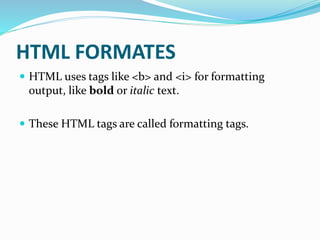
 HTML uses tags like <b> and <i> for formatting
output, like bold or italic text.
 These HTML tags are called formatting tags.
Font
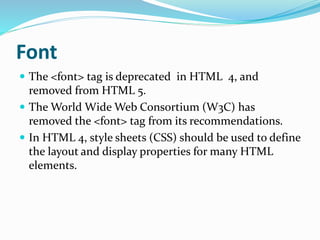
 The <font> tag is deprecated in HTML 4, and
removed from HTML 5.
 The World Wide Web Consortium (W3C) has
removed the <font> tag from its recommendations.
 In HTML 4, style sheets (CSS) should be used to define
the layout and display properties for many HTML
elements.
Font..
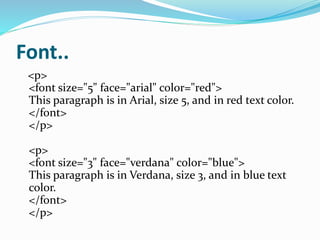
<p>
<font size="5" face="arial" color="red">
This paragraph is in Arial, size 5, and in red text color.
</font>
</p>
<p>
<font size="3" face="verdana" color="blue">
This paragraph is in Verdana, size 3, and in blue text
color.
</font>
</p>
Styling Html With CSS
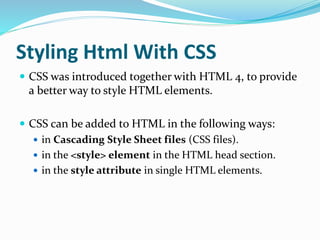
 CSS was introduced together with HTML 4, to provide
a better way to style HTML elements.
 CSS can be added to HTML in the following ways:
 in Cascading Style Sheet files (CSS files).
 in the <style> element in the HTML head section.
 in the style attribute in single HTML elements.
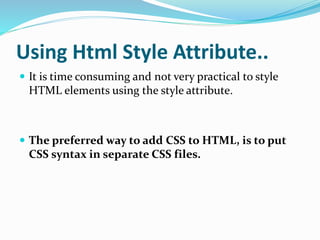
Using Html Style Attribute..
 It is time consuming and not very practical to style
HTML elements using the style attribute.
 The preferred way to add CSS to HTML, is to put
CSS syntax in separate CSS files.
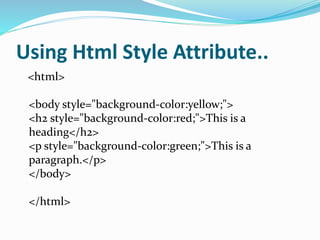
Using Html Style Attribute..
<html>
<body style="background-color:yellow;">
<h2 style="background-color:red;">This is a
heading</h2>
<p style="background-color:green;">This is a
paragraph.</p>
</body>
</html>
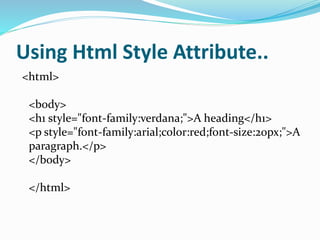
Using Html Style Attribute..
<html>
<body>
<h1 style="font-family:verdana;">A heading</h1>
<p style="font-family:arial;color:red;font-size:20px;">A
paragraph.</p>
</body>
</html>
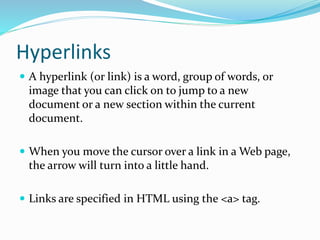
Hyperlinks
 A hyperlink (or link) is a word, group of words, or
image that you can click on to jump to a new
document or a new section within the current
document.
 When you move the cursor over a link in a Web page,
the arrow will turn into a little hand.
 Links are specified in HTML using the <a> tag.
Hyperlinks
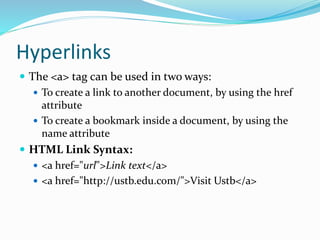
 The <a> tag can be used in two ways:
 To create a link to another document, by using the href
attribute
 To create a bookmark inside a document, by using the
name attribute
 HTML Link Syntax:
 <a href="url">Link text</a>
 <a href="http://ustb.edu.com/">Visit Ustb</a>
Hyperlinks– Target Attribute
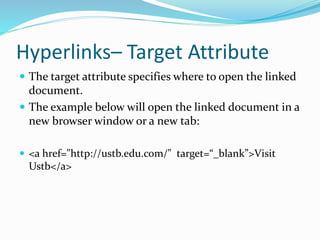
 The target attribute specifies where to open the linked
document.
 The example below will open the linked document in a
new browser window or a new tab:
 <a href="http://ustb.edu.com/" target=“_blank”>Visit
Ustb</a>
Hyperlink– Name Attribute
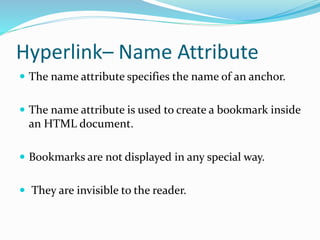
 The name attribute specifies the name of an anchor.
 The name attribute is used to create a bookmark inside
an HTML document.
 Bookmarks are not displayed in any special way.
 They are invisible to the reader.
Example
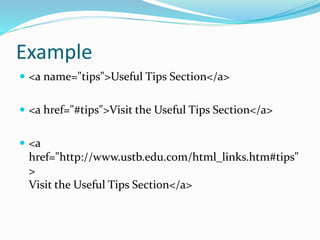
 <a name="tips">Useful Tips Section</a>
 <a href="#tips">Visit the Useful Tips Section</a>
 <a
href="http://www.ustb.edu.com/html_links.htm#tips"
>
Visit the Useful Tips Section</a>
Html Image Tag
 In HTML, images are defined with the <img> tag.
 The <img> tag is empty.
 To display an image on a page, you need to use the src
attribute.
 Src stands for "source".
 The value of the src attribute is the URL of the image
you want to display.
Html Image Tag
 <img src="url" alt="some_text"/>
 The browser displays the image where the <img> tag
occurs in the document.
 If you put an image tag between two paragraphs, the
browser shows the first paragraph, then the image,
and then the second paragraph.
Html Image– alt attribute
 The required alt attribute specifies an alternate text for
an image, if the image cannot be displayed.
 The value of the alt attribute is an author-defined text:
 <img src="boat.gif" alt="Big Boat" />
Html Image – Width And Height
 The height and width attributes are used to specify the
height and width of an image.
 The attribute values are specified in pixels by default:
 <img src="pulpit.jpg" alt="Pulpit rock" width="304"
height="228" />

css.pptx

  • 2.
    HTML FORMATES  HTMLuses tags like <b> and <i> for formatting output, like bold or italic text.  These HTML tags are called formatting tags.
  • 3.
    Font  The <font>tag is deprecated in HTML 4, and removed from HTML 5.  The World Wide Web Consortium (W3C) has removed the <font> tag from its recommendations.  In HTML 4, style sheets (CSS) should be used to define the layout and display properties for many HTML elements.
  • 4.
    Font.. <p> <font size="5" face="arial"color="red"> This paragraph is in Arial, size 5, and in red text color. </font> </p> <p> <font size="3" face="verdana" color="blue"> This paragraph is in Verdana, size 3, and in blue text color. </font> </p>
  • 5.
    Styling Html WithCSS  CSS was introduced together with HTML 4, to provide a better way to style HTML elements.  CSS can be added to HTML in the following ways:  in Cascading Style Sheet files (CSS files).  in the <style> element in the HTML head section.  in the style attribute in single HTML elements.
  • 6.
    Using Html StyleAttribute..  It is time consuming and not very practical to style HTML elements using the style attribute.  The preferred way to add CSS to HTML, is to put CSS syntax in separate CSS files.
  • 7.
    Using Html StyleAttribute.. <html> <body style="background-color:yellow;"> <h2 style="background-color:red;">This is a heading</h2> <p style="background-color:green;">This is a paragraph.</p> </body> </html>
  • 8.
    Using Html StyleAttribute.. <html> <body> <h1 style="font-family:verdana;">A heading</h1> <p style="font-family:arial;color:red;font-size:20px;">A paragraph.</p> </body> </html>
  • 9.
    Hyperlinks  A hyperlink(or link) is a word, group of words, or image that you can click on to jump to a new document or a new section within the current document.  When you move the cursor over a link in a Web page, the arrow will turn into a little hand.  Links are specified in HTML using the <a> tag.
  • 10.
    Hyperlinks  The <a>tag can be used in two ways:  To create a link to another document, by using the href attribute  To create a bookmark inside a document, by using the name attribute  HTML Link Syntax:  <a href="url">Link text</a>  <a href="http://ustb.edu.com/">Visit Ustb</a>
  • 11.
    Hyperlinks– Target Attribute The target attribute specifies where to open the linked document.  The example below will open the linked document in a new browser window or a new tab:  <a href="http://ustb.edu.com/" target=“_blank”>Visit Ustb</a>
  • 12.
    Hyperlink– Name Attribute The name attribute specifies the name of an anchor.  The name attribute is used to create a bookmark inside an HTML document.  Bookmarks are not displayed in any special way.  They are invisible to the reader.
  • 13.
    Example  <a name="tips">UsefulTips Section</a>  <a href="#tips">Visit the Useful Tips Section</a>  <a href="http://www.ustb.edu.com/html_links.htm#tips" > Visit the Useful Tips Section</a>
  • 14.
    Html Image Tag In HTML, images are defined with the <img> tag.  The <img> tag is empty.  To display an image on a page, you need to use the src attribute.  Src stands for "source".  The value of the src attribute is the URL of the image you want to display.
  • 15.
    Html Image Tag <img src="url" alt="some_text"/>  The browser displays the image where the <img> tag occurs in the document.  If you put an image tag between two paragraphs, the browser shows the first paragraph, then the image, and then the second paragraph.
  • 16.
    Html Image– altattribute  The required alt attribute specifies an alternate text for an image, if the image cannot be displayed.  The value of the alt attribute is an author-defined text:  <img src="boat.gif" alt="Big Boat" />
  • 17.
    Html Image –Width And Height  The height and width attributes are used to specify the height and width of an image.  The attribute values are specified in pixels by default:  <img src="pulpit.jpg" alt="Pulpit rock" width="304" height="228" />