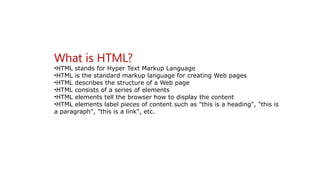
What is HTML?
•HTMLstands for Hyper Text Markup Language
•HTML is the standard markup language for creating Web pages
•HTML describes the structure of a Web page
•HTML consists of a series of elements
•HTML elements tell the browser how to display the content
•HTML elements label pieces of content such as "this is a heading", "this is
a paragraph", "this is a link", etc.
3.
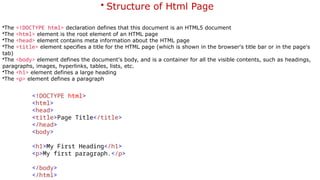
<!DOCTYPE html>
<html>
<head>
<title>Page Title</title>
</head>
<body>
<h1>MyFirst Heading</h1>
<p>My first paragraph.</p>
</body>
</html>
• Structure of Html Page
•The <!DOCTYPE html> declaration defines that this document is an HTML5 document
•The <html> element is the root element of an HTML page
•The <head> element contains meta information about the HTML page
•The <title> element specifies a title for the HTML page (which is shown in the browser's title bar or in the page's
tab)
•The <body> element defines the document's body, and is a container for all the visible contents, such as headings,
paragraphs, images, hyperlinks, tables, lists, etc.
•The <h1> element defines a large heading
•The <p> element defines a paragraph
4.
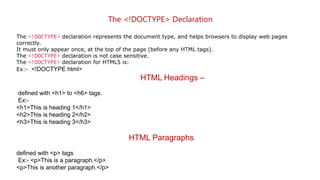
The <!DOCTYPE> Declaration
The<!DOCTYPE> declaration represents the document type, and helps browsers to display web pages
correctly.
It must only appear once, at the top of the page (before any HTML tags).
The <!DOCTYPE> declaration is not case sensitive.
The <!DOCTYPE> declaration for HTML5 is:
Ex:- <!DOCTYPE html>
HTML Headings –
defined with <h1> to <h6> tags.
Ex:-
<h1>This is heading 1</h1>
<h2>This is heading 2</h2>
<h3>This is heading 3</h3>
HTML Paragraphs
defined with <p> tags
Ex:- <p>This is a paragraph.</p>
<p>This is another paragraph.</p>
5.
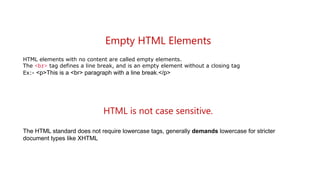
Empty HTML Elements
HTMLelements with no content are called empty elements.
The <br> tag defines a line break, and is an empty element without a closing tag
Ex:- <p>This is a <br> paragraph with a line break.</p>
HTML is not case sensitive.
The HTML standard does not require lowercase tags, generally demands lowercase for stricter
document types like XHTML
6.
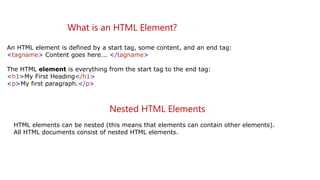
What is anHTML Element?
An HTML element is defined by a start tag, some content, and an end tag:
<tagname> Content goes here... </tagname>
The HTML element is everything from the start tag to the end tag:
<h1>My First Heading</h1>
<p>My first paragraph.</p>
Nested HTML Elements
HTML elements can be nested (this means that elements can contain other elements).
All HTML documents consist of nested HTML elements.
7.
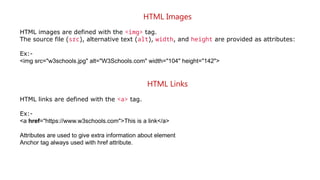
HTML Images
HTML imagesare defined with the <img> tag.
The source file (src), alternative text (alt), width, and height are provided as attributes:
Ex:-
<img src="w3schools.jpg" alt="W3Schools.com" width="104" height="142">
HTML Links
HTML links are defined with the <a> tag.
Ex:-
<a href="https://www.w3schools.com">This is a link</a>
Attributes are used to give extra information about element
Anchor tag always used with href attribute.
8.
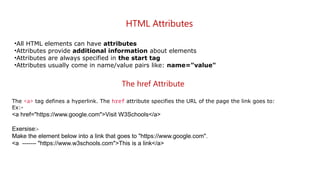
HTML Attributes
•All HTMLelements can have attributes
•Attributes provide additional information about elements
•Attributes are always specified in the start tag
•Attributes usually come in name/value pairs like: name="value"
The href Attribute
The <a> tag defines a hyperlink. The href attribute specifies the URL of the page the link goes to:
Ex:-
<a href="https://www.google.com">Visit W3Schools</a>
Exersise:-
Make the element below into a link that goes to "https://www.google.com".
<a ------- "https://www.w3schools.com">This is a link</a>
9.
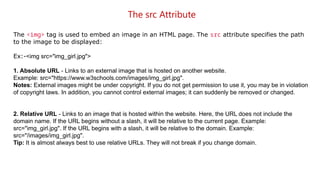
The src Attribute
The<img> tag is used to embed an image in an HTML page. The src attribute specifies the path
to the image to be displayed:
Ex:-<img src="img_girl.jpg">
1. Absolute URL - Links to an external image that is hosted on another website.
Example: src="https://www.w3schools.com/images/img_girl.jpg".
Notes: External images might be under copyright. If you do not get permission to use it, you may be in violation
of copyright laws. In addition, you cannot control external images; it can suddenly be removed or changed.
2. Relative URL - Links to an image that is hosted within the website. Here, the URL does not include the
domain name. If the URL begins without a slash, it will be relative to the current page. Example:
src="img_girl.jpg". If the URL begins with a slash, it will be relative to the domain. Example:
src="/images/img_girl.jpg".
Tip: It is almost always best to use relative URLs. They will not break if you change domain.
10.
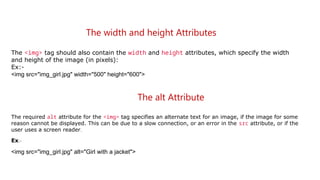
The width andheight Attributes
The <img> tag should also contain the width and height attributes, which specify the width
and height of the image (in pixels):
Ex:-
<img src="img_girl.jpg" width="500" height="600">
The alt Attribute
The required alt attribute for the <img> tag specifies an alternate text for an image, if the image for some
reason cannot be displayed. This can be due to a slow connection, or an error in the src attribute, or if the
user uses a screen reader.
Ex:-
<img src="img_girl.jpg" alt="Girl with a jacket">
11.
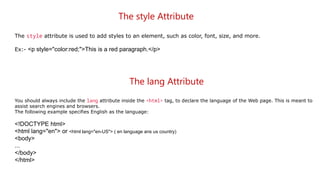
The style Attribute
Thestyle attribute is used to add styles to an element, such as color, font, size, and more.
Ex:- <p style="color:red;">This is a red paragraph.</p>
The lang Attribute
You should always include the lang attribute inside the <html> tag, to declare the language of the Web page. This is meant to
assist search engines and browsers.
The following example specifies English as the language:
<!DOCTYPE html>
<html lang="en"> or <html lang="en-US"> ( en language ans us country)
<body>
...
</body>
</html>
12.
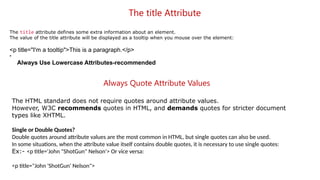
The title Attribute
Thetitle attribute defines some extra information about an element.
The value of the title attribute will be displayed as a tooltip when you mouse over the element:
<p title="I'm a tooltip">This is a paragraph.</p>
•
Always Use Lowercase Attributes-recommended
Always Quote Attribute Values
The HTML standard does not require quotes around attribute values.
However, W3C recommends quotes in HTML, and demands quotes for stricter document
types like XHTML.
Single or Double Quotes?
Double quotes around attribute values are the most common in HTML, but single quotes can also be used.
In some situations, when the attribute value itself contains double quotes, it is necessary to use single quotes:
Ex:- <p title='John "ShotGun" Nelson'> Or vice versa:
<p title="John 'ShotGun' Nelson">
13.
Summary
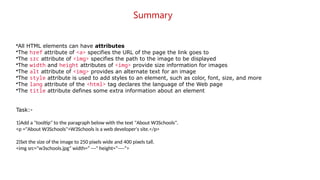
•All HTML elementscan have attributes
•The href attribute of <a> specifies the URL of the page the link goes to
•The src attribute of <img> specifies the path to the image to be displayed
•The width and height attributes of <img> provide size information for images
•The alt attribute of <img> provides an alternate text for an image
•The style attribute is used to add styles to an element, such as color, font, size, and more
•The lang attribute of the <html> tag declares the language of the Web page
•The title attribute defines some extra information about an element
Task:-
1)Add a "tooltip" to the paragraph below with the text "About W3Schools".
<p ="About W3Schools">W3Schools is a web developer's site.</p>
2)Set the size of the image to 250 pixels wide and 400 pixels tall.
<img src="w3schools.jpg" width=“ ---" height=“----">
14.
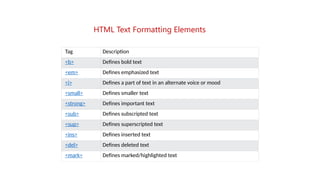
Tag Description
<b> Definesbold text
<em> Defines emphasized text
<i> Defines a part of text in an alternate voice or mood
<small> Defines smaller text
<strong> Defines important text
<sub> Defines subscripted text
<sup> Defines superscripted text
<ins> Defines inserted text
<del> Defines deleted text
<mark> Defines marked/highlighted text
HTML Text Formatting Elements
15.
Exercise:
1)Add extra importanceto the word "degradation" in the paragraph below.
<p>
WWF's mission is to stop the ---- degradation ---- of our
planet's natural environment.
</p>
16.
The style Attribute
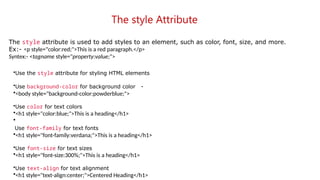
Thestyle attribute is used to add styles to an element, such as color, font, size, and more.
Ex:- <p style="color:red;">This is a red paragraph.</p>
Syntex:- <tagname style="property:value;">
•Use the style attribute for styling HTML elements
•Use background-color for background color -
•<body style="background-color:powderblue;">
•Use color for text colors
•<h1 style="color:blue;">This is a heading</h1>
•
Use font-family for text fonts
•<h1 style="font-family:verdana;">This is a heading</h1>
•Use font-size for text sizes
•<h1 style="font-size:300%;">This is a heading</h1>
•Use text-align for text alignment
•<h1 style="text-align:center;">Centered Heading</h1>
17.
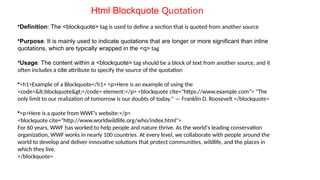
Html Blockquote Quotation
•Definition:The <blockquote> tag is used to define a section that is quoted from another source
•Purpose: It is mainly used to indicate quotations that are longer or more significant than inline
quotations, which are typically wrapped in the <q> tag.
•Usage: The content within a <blockquote> tag should be a block of text from another source, and it
often includes a cite attribute to specify the source of the quotation
•<h1>Example of a Blockquote</h1> <p>Here is an example of using the
<code><blockquote></code> element:</p> <blockquote cite="https://www.example.com"> "The
only limit to our realization of tomorrow is our doubts of today." — Franklin D. Roosevelt </blockquote>
•<p>Here is a quote from WWF's website:</p>
<blockquote cite="http://www.worldwildlife.org/who/index.html">
For 60 years, WWF has worked to help people and nature thrive. As the world's leading conservation
organization, WWF works in nearly 100 countries. At every level, we collaborate with people around the
world to develop and deliver innovative solutions that protect communities, wildlife, and the places in
which they live.
</blockquote>
18.
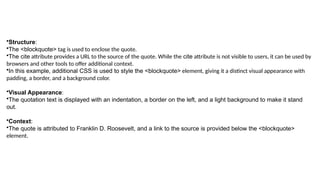
•Structure:
•The <blockquote> tagis used to enclose the quote.
•The cite attribute provides a URL to the source of the quote. While the cite attribute is not visible to users, it can be used by
browsers and other tools to offer additional context.
•In this example, additional CSS is used to style the <blockquote> element, giving it a distinct visual appearance with
padding, a border, and a background color.
•Visual Appearance:
•The quotation text is displayed with an indentation, a border on the left, and a light background to make it stand
out.
•Context:
•The quote is attributed to Franklin D. Roosevelt, and a link to the source is provided below the <blockquote>
element.
19.
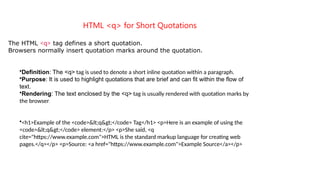
HTML <q> forShort Quotations
The HTML <q> tag defines a short quotation.
Browsers normally insert quotation marks around the quotation.
•Definition: The <q> tag is used to denote a short inline quotation within a paragraph.
•Purpose: It is used to highlight quotations that are brief and can fit within the flow of
text.
•Rendering: The text enclosed by the <q> tag is usually rendered with quotation marks by
the browser.
•<h1>Example of the <code><q></code> Tag</h1> <p>Here is an example of using the
<code><q></code> element:</p> <p>She said, <q
cite="https://www.example.com">HTML is the standard markup language for creating web
pages.</q></p> <p>Source: <a href="https://www.example.com">Example Source</a></p>
20.
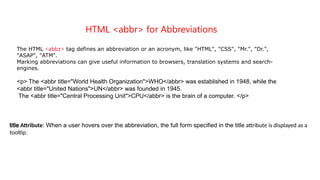
HTML <abbr> forAbbreviations
The HTML <abbr> tag defines an abbreviation or an acronym, like "HTML", "CSS", "Mr.", "Dr.",
"ASAP", "ATM".
Marking abbreviations can give useful information to browsers, translation systems and search-
engines.
<p> The <abbr title="World Health Organization">WHO</abbr> was established in 1948, while the
<abbr title="United Nations">UN</abbr> was founded in 1945.
The <abbr title="Central Processing Unit">CPU</abbr> is the brain of a computer. </p>
title Attribute: When a user hovers over the abbreviation, the full form specified in the title attribute is displayed as a
tooltip.
21.
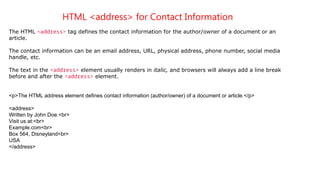
HTML <address> forContact Information
The HTML <address> tag defines the contact information for the author/owner of a document or an
article.
The contact information can be an email address, URL, physical address, phone number, social media
handle, etc.
The text in the <address> element usually renders in italic, and browsers will always add a line break
before and after the <address> element.
<p>The HTML address element defines contact information (author/owner) of a document or article.</p>
<address>
Written by John Doe.<br>
Visit us at:<br>
Example.com<br>
Box 564, Disneyland<br>
USA
</address>
22.
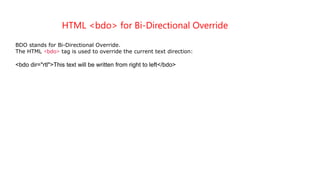
HTML <bdo> forBi-Directional Override
BDO stands for Bi-Directional Override.
The HTML <bdo> tag is used to override the current text direction:
<bdo dir="rtl">This text will be written from right to left</bdo>
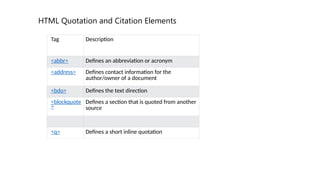
23.
Tag Description
<abbr> Definesan abbreviation or acronym
<address> Defines contact information for the
author/owner of a document
<bdo> Defines the text direction
<blockquote
>
Defines a section that is quoted from another
source
<q> Defines a short inline quotation
HTML Quotation and Citation Elements
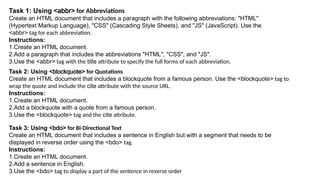
24.
Task 1: Using<abbr> for Abbreviations
Create an HTML document that includes a paragraph with the following abbreviations: "HTML"
(Hypertext Markup Language), "CSS" (Cascading Style Sheets), and "JS" (JavaScript). Use the
<abbr> tag for each abbreviation.
Instructions:
1.Create an HTML document.
2.Add a paragraph that includes the abbreviations "HTML", "CSS", and "JS".
3.Use the <abbr> tag with the title attribute to specify the full forms of each abbreviation.
Task 2: Using <blockquote> for Quotations
Create an HTML document that includes a blockquote from a famous person. Use the <blockquote> tag to
wrap the quote and include the cite attribute with the source URL.
Instructions:
1.Create an HTML document.
2.Add a blockquote with a quote from a famous person.
3.Use the <blockquote> tag and the cite attribute.
Task 3: Using <bdo> for Bi-Directional Text
Create an HTML document that includes a sentence in English but with a segment that needs to be
displayed in reverse order using the <bdo> tag.
Instructions:
1.Create an HTML document.
2.Add a sentence in English.
3.Use the <bdo> tag to display a part of the sentence in reverse order
25.
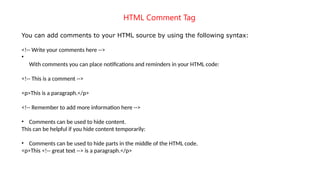
HTML Comment Tag
Youcan add comments to your HTML source by using the following syntax:
<!-- Write your comments here -->
•
With comments you can place notifications and reminders in your HTML code:
<!-- This is a comment -->
<p>This is a paragraph.</p>
<!-- Remember to add more information here -->
• Comments can be used to hide content.
This can be helpful if you hide content temporarily:
• Comments can be used to hide parts in the middle of the HTML code.
<p>This <!-- great text --> is a paragraph.</p>
26.
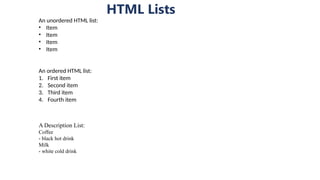
HTML Lists
An unorderedHTML list:
• Item
• Item
• Item
• Item
An ordered HTML list:
1. First item
2. Second item
3. Third item
4. Fourth item
A Description List:
Coffee
- black hot drink
Milk
- white cold drink
27.
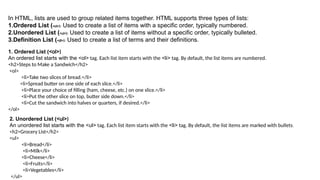
In HTML, listsare used to group related items together. HTML supports three types of lists:
1.Ordered List (<ol>): Used to create a list of items with a specific order, typically numbered.
2.Unordered List (<ul>): Used to create a list of items without a specific order, typically bulleted.
3.Definition List (<dl>): Used to create a list of terms and their definitions.
1. Ordered List (<ol>)
An ordered list starts with the <ol> tag. Each list item starts with the <li> tag. By default, the list items are numbered.
<h2>Steps to Make a Sandwich</h2>
<ol>
<li>Take two slices of bread.</li>
<li>Spread butter on one side of each slice.</li>
<li>Place your choice of filling (ham, cheese, etc.) on one slice.</li>
<li>Put the other slice on top, butter side down.</li>
<li>Cut the sandwich into halves or quarters, if desired.</li>
</ol>
2. Unordered List (<ul>)
An unordered list starts with the <ul> tag. Each list item starts with the <li> tag. By default, the list items are marked with bullets.
<h2>Grocery List</h2>
<ul>
<li>Bread</li>
<li>Milk</li>
<li>Cheese</li>
<li>Fruits</li>
<li>Vegetables</li>
</ul>
28.
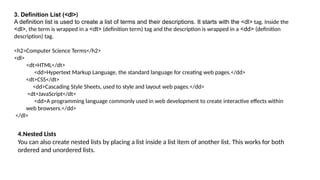
3. Definition List(<dl>)
A definition list is used to create a list of terms and their descriptions. It starts with the <dl> tag. Inside the
<dl>, the term is wrapped in a <dt> (definition term) tag and the description is wrapped in a <dd> (definition
description) tag.
<h2>Computer Science Terms</h2>
<dl>
<dt>HTML</dt>
<dd>Hypertext Markup Language, the standard language for creating web pages.</dd>
<dt>CSS</dt>
<dd>Cascading Style Sheets, used to style and layout web pages.</dd>
<dt>JavaScript</dt>
<dd>A programming language commonly used in web development to create interactive effects within
web browsers.</dd>
</dl>
4.Nested Lists
You can also create nested lists by placing a list inside a list item of another list. This works for both
ordered and unordered lists.
29.
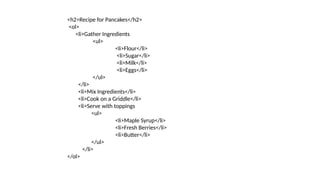
<h2>Recipe for Pancakes</h2>
<ol>
<li>GatherIngredients
<ul>
<li>Flour</li>
<li>Sugar</li>
<li>Milk</li>
<li>Eggs</li>
</ul>
</li>
<li>Mix Ingredients</li>
<li>Cook on a Griddle</li>
<li>Serve with toppings
<ul>
<li>Maple Syrup</li>
<li>Fresh Berries</li>
<li>Butter</li>
</ul>
</li>
</ol>
30.
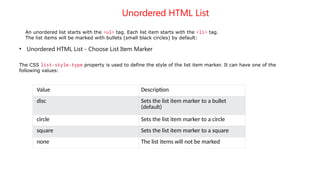
Unordered HTML List
Anunordered list starts with the <ul> tag. Each list item starts with the <li> tag.
The list items will be marked with bullets (small black circles) by default:
• Unordered HTML List - Choose List Item Marker
The CSS list-style-type property is used to define the style of the list item marker. It can have one of the
following values:
Value Description
disc Sets the list item marker to a bullet
(default)
circle Sets the list item marker to a circle
square Sets the list item marker to a square
none The list items will not be marked
31.
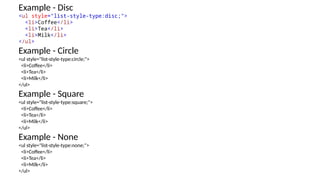
Example - Disc
<ulstyle="list-style-type:disc;">
<li>Coffee</li>
<li>Tea</li>
<li>Milk</li>
</ul>
Example - Circle
<ul style="list-style-type:circle;">
<li>Coffee</li>
<li>Tea</li>
<li>Milk</li>
</ul>
Example - Square
<ul style="list-style-type:square;">
<li>Coffee</li>
<li>Tea</li>
<li>Milk</li>
</ul>
Example - None
<ul style="list-style-type:none;">
<li>Coffee</li>
<li>Tea</li>
<li>Milk</li>
</ul>
32.
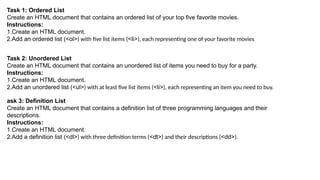
Task 1: OrderedList
Create an HTML document that contains an ordered list of your top five favorite movies.
Instructions:
1.Create an HTML document.
2.Add an ordered list (<ol>) with five list items (<li>), each representing one of your favorite movies.
Task 2: Unordered List
Create an HTML document that contains an unordered list of items you need to buy for a party.
Instructions:
1.Create an HTML document.
2.Add an unordered list (<ul>) with at least five list items (<li>), each representing an item you need to buy.
ask 3: Definition List
Create an HTML document that contains a definition list of three programming languages and their
descriptions.
Instructions:
1.Create an HTML document.
2.Add a definition list (<dl>) with three definition terms (<dt>) and their descriptions (<dd>).
33.
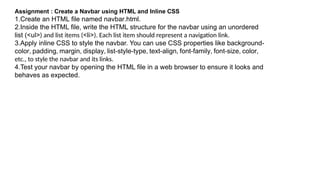
Assignment : Createa Navbar using HTML and Inline CSS
1.Create an HTML file named navbar.html.
2.Inside the HTML file, write the HTML structure for the navbar using an unordered
list (<ul>) and list items (<li>). Each list item should represent a navigation link.
3.Apply inline CSS to style the navbar. You can use CSS properties like background-
color, padding, margin, display, list-style-type, text-align, font-family, font-size, color,
etc., to style the navbar and its links.
4.Test your navbar by opening the HTML file in a web browser to ensure it looks and
behaves as expected.



![Day 2 - Web_Development [basic HTML tags and their functionalities].pptx](https://cdn.slidesharecdn.com/ss_thumbnails/day2-webdevelopmentbasichtmltagsandtheirfunctionalities-240906194136-26a4ba6f-thumbnail.jpg?width=640&height=640&fit=bounds)


