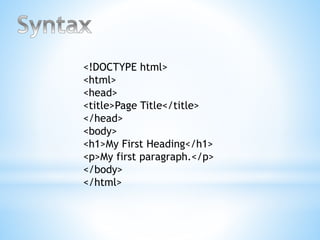
<!DOCTYPE html>
<html>
<head>
<title>Page Title</title>
</head>
<body>
<h1>My First Heading</h1>
<p>My first paragraph.</p>
</body>
</html>
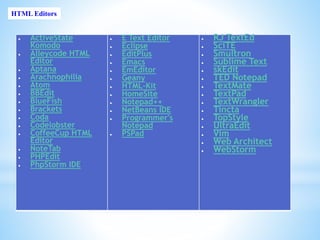
 ActiveState
Komodo
 Alleycode HTML
Editor
 Aptana
 Arachnophilia
 Atom
 BBEdit
 BlueFish
 Brackets
 Coda
 Codelobster
 CoffeeCup HTML
Editor
 NoteTab
 PHPEdit
 PhpStorm IDE
 E Text Editor
 Eclipse
 EditPlus
 Emacs
 EmEditor
 Geany
 HTML-Kit
 HomeSite
 Notepad++
 NetBeans IDE
 Programmer's
Notepad
 PSPad
 RJ TextEd
 SciTE
 Smultron
 Sublime Text
 skEdit
 TED Notepad
 TextMate
 TextPad
 TextWrangler
 Tincta
 TopStyle
 UltraEdit
 Vim
 Web Architect
 WebStorm
HTML Editors
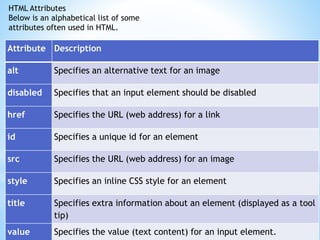
HTML Attributes
Below is an alphabetical list of some
attributes often used in HTML.
Attribute Description
alt Specifies an alternative text for an image
disabled Specifies that an input element should be disabled
href Specifies the URL (web address) for a link
id Specifies a unique id for an element
src Specifies the URL (web address) for an image
style Specifies an inline CSS style for an element
title Specifies extra information about an element (displayed as a tool
tip)
value Specifies the value (text content) for an input element.
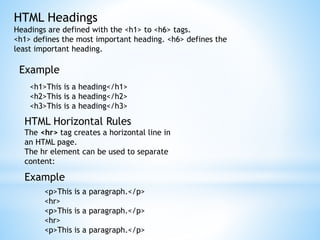
HTML Headings
Headings are defined with the <h1> to <h6> tags.
<h1> defines the most important heading. <h6> defines the
least important heading.
Example
<h1>This is a heading</h1>
<h2>This is a heading</h2>
<h3>This is a heading</h3>
HTML Horizontal Rules
The <hr> tag creates a horizontal line in
an HTML page.
The hr element can be used to separate
content:
Example
<p>This is a paragraph.</p>
<hr>
<p>This is a paragraph.</p>
<hr>
<p>This is a paragraph.</p>
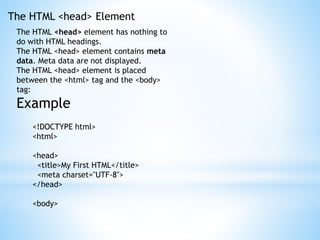
The HTML <head> Element
The HTML <head> element has nothing to
do with HTML headings.
The HTML <head> element contains meta
data. Meta data are not displayed.
The HTML <head> element is placed
between the <html> tag and the <body>
tag:
Example
<!DOCTYPE html>
<html>
<head>
<title>My First HTML</title>
<meta charset="UTF-8">
</head>
<body>
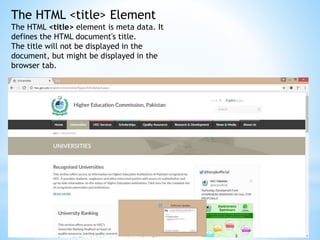
The HTML <title> Element
The HTML <title> element is meta data. It
defines the HTML document's title.
The title will not be displayed in the
document, but might be displayed in the
browser tab.
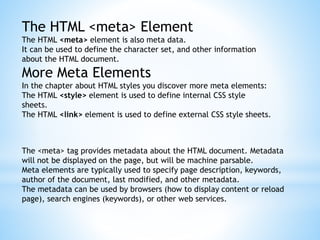
The HTML <meta> Element
The HTML <meta> element is also meta data.
It can be used to define the character set, and other information
about the HTML document.
More Meta Elements
In the chapter about HTML styles you discover more meta elements:
The HTML <style> element is used to define internal CSS style
sheets.
The HTML <link> element is used to define external CSS style sheets.
The <meta> tag provides metadata about the HTML document. Metadata
will not be displayed on the page, but will be machine parsable.
Meta elements are typically used to specify page description, keywords,
author of the document, last modified, and other metadata.
The metadata can be used by browsers (how to display content or reload
page), search engines (keywords), or other web services.
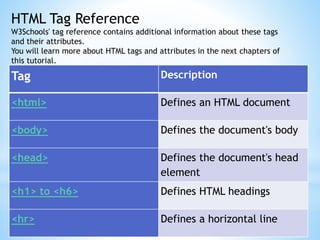
HTML Tag Reference
W3Schools' tag reference contains additional information about these tags
and their attributes.
You will learn more about HTML tags and attributes in the next chapters of
this tutorial.
Tag Description
<html> Defines an HTML document
<body> Defines the document's body
<head> Defines the document's head
element
<h1> to <h6> Defines HTML headings
<hr> Defines a horizontal line
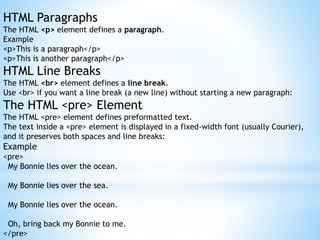
HTML Paragraphs
The HTML <p> element defines a paragraph.
Example
<p>This is a paragraph</p>
<p>This is another paragraph</p>
HTML Line Breaks
The HTML <br> element defines a line break.
Use <br> if you want a line break (a new line) without starting a new paragraph:
The HTML <pre> Element
The HTML <pre> element defines preformatted text.
The text inside a <pre> element is displayed in a fixed-width font (usually Courier),
and it preserves both spaces and line breaks:
Example
<pre>
My Bonnie lies over the ocean.
My Bonnie lies over the sea.
My Bonnie lies over the ocean.
Oh, bring back my Bonnie to me.
</pre>
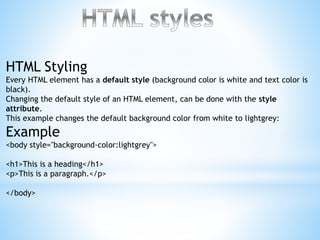
HTML Styling
Every HTML element has a default style (background color is white and text color is
black).
Changing the default style of an HTML element, can be done with the style
attribute.
This example changes the default background color from white to lightgrey:
Example
<body style="background-color:lightgrey">
<h1>This is a heading</h1>
<p>This is a paragraph.</p>
</body>
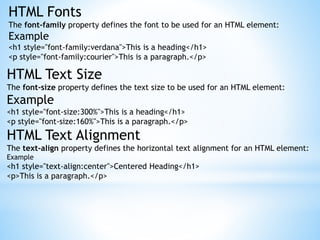
HTML Fonts
The font-family property defines the font to be used for an HTML element:
Example
<h1 style="font-family:verdana">This is a heading</h1>
<p style="font-family:courier">This is a paragraph.</p>
HTML Text Size
The font-size property defines the text size to be used for an HTML element:
Example
<h1 style="font-size:300%">This is a heading</h1>
<p style="font-size:160%">This is a paragraph.</p>
HTML Text Alignment
The text-align property defines the horizontal text alignment for an HTML element:
Example
<h1 style="text-align:center">Centered Heading</h1>
<p>This is a paragraph.</p>
HTML Text Formatting Elements
HTML Bold and Strong Formatting
The HTML <b> element defines bold text, without any extra importance.
Example
<p>This text is normal.</p>
<p><b>This text is bold</b>.</p>
The HTML <strong> element defines strong text, with added semantic "strong"
importance.
Example
<p>This text is normal.</p>
<p><strong>This text is strong</strong>.</p>
The HTML <i> element defines italic text, without any extra importance.
Example
<p>This text is normal.</p>
<p><i>This text is italic</i>.</p>
The HTML <em> element defines emphasized text, with added semantic importance.
Example
<p>This text is normal.</p>
<p><em>This text is emphasized</em>.</p>
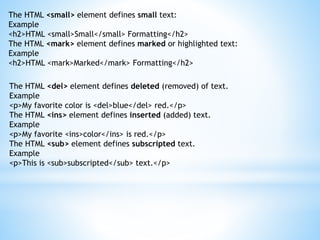
The HTML <small> element defines small text:
Example
<h2>HTML <small>Small</small> Formatting</h2>
The HTML <mark> element defines marked or highlighted text:
Example
<h2>HTML <mark>Marked</mark> Formatting</h2>
The HTML <del> element defines deleted (removed) of text.
Example
<p>My favorite color is <del>blue</del> red.</p>
The HTML <ins> element defines inserted (added) text.
Example
<p>My favorite <ins>color</ins> is red.</p>
The HTML <sub> element defines subscripted text.
Example
<p>This is <sub>subscripted</sub> text.</p>

Html basics

  • 2.
    <!DOCTYPE html> <html> <head> <title>Page Title</title> </head> <body> <h1>MyFirst Heading</h1> <p>My first paragraph.</p> </body> </html>
  • 3.
     ActiveState Komodo  AlleycodeHTML Editor  Aptana  Arachnophilia  Atom  BBEdit  BlueFish  Brackets  Coda  Codelobster  CoffeeCup HTML Editor  NoteTab  PHPEdit  PhpStorm IDE  E Text Editor  Eclipse  EditPlus  Emacs  EmEditor  Geany  HTML-Kit  HomeSite  Notepad++  NetBeans IDE  Programmer's Notepad  PSPad  RJ TextEd  SciTE  Smultron  Sublime Text  skEdit  TED Notepad  TextMate  TextPad  TextWrangler  Tincta  TopStyle  UltraEdit  Vim  Web Architect  WebStorm HTML Editors
  • 4.
    HTML Attributes Below isan alphabetical list of some attributes often used in HTML. Attribute Description alt Specifies an alternative text for an image disabled Specifies that an input element should be disabled href Specifies the URL (web address) for a link id Specifies a unique id for an element src Specifies the URL (web address) for an image style Specifies an inline CSS style for an element title Specifies extra information about an element (displayed as a tool tip) value Specifies the value (text content) for an input element.
  • 5.
    HTML Headings Headings aredefined with the <h1> to <h6> tags. <h1> defines the most important heading. <h6> defines the least important heading. Example <h1>This is a heading</h1> <h2>This is a heading</h2> <h3>This is a heading</h3> HTML Horizontal Rules The <hr> tag creates a horizontal line in an HTML page. The hr element can be used to separate content: Example <p>This is a paragraph.</p> <hr> <p>This is a paragraph.</p> <hr> <p>This is a paragraph.</p>
  • 6.
    The HTML <head>Element The HTML <head> element has nothing to do with HTML headings. The HTML <head> element contains meta data. Meta data are not displayed. The HTML <head> element is placed between the <html> tag and the <body> tag: Example <!DOCTYPE html> <html> <head> <title>My First HTML</title> <meta charset="UTF-8"> </head> <body>
  • 7.
    The HTML <title>Element The HTML <title> element is meta data. It defines the HTML document's title. The title will not be displayed in the document, but might be displayed in the browser tab.
  • 8.
    The HTML <meta>Element The HTML <meta> element is also meta data. It can be used to define the character set, and other information about the HTML document. More Meta Elements In the chapter about HTML styles you discover more meta elements: The HTML <style> element is used to define internal CSS style sheets. The HTML <link> element is used to define external CSS style sheets. The <meta> tag provides metadata about the HTML document. Metadata will not be displayed on the page, but will be machine parsable. Meta elements are typically used to specify page description, keywords, author of the document, last modified, and other metadata. The metadata can be used by browsers (how to display content or reload page), search engines (keywords), or other web services.
  • 9.
    HTML Tag Reference W3Schools'tag reference contains additional information about these tags and their attributes. You will learn more about HTML tags and attributes in the next chapters of this tutorial. Tag Description <html> Defines an HTML document <body> Defines the document's body <head> Defines the document's head element <h1> to <h6> Defines HTML headings <hr> Defines a horizontal line
  • 10.
    HTML Paragraphs The HTML<p> element defines a paragraph. Example <p>This is a paragraph</p> <p>This is another paragraph</p> HTML Line Breaks The HTML <br> element defines a line break. Use <br> if you want a line break (a new line) without starting a new paragraph: The HTML <pre> Element The HTML <pre> element defines preformatted text. The text inside a <pre> element is displayed in a fixed-width font (usually Courier), and it preserves both spaces and line breaks: Example <pre> My Bonnie lies over the ocean. My Bonnie lies over the sea. My Bonnie lies over the ocean. Oh, bring back my Bonnie to me. </pre>
  • 11.
    HTML Styling Every HTMLelement has a default style (background color is white and text color is black). Changing the default style of an HTML element, can be done with the style attribute. This example changes the default background color from white to lightgrey: Example <body style="background-color:lightgrey"> <h1>This is a heading</h1> <p>This is a paragraph.</p> </body>
  • 12.
    HTML Fonts The font-familyproperty defines the font to be used for an HTML element: Example <h1 style="font-family:verdana">This is a heading</h1> <p style="font-family:courier">This is a paragraph.</p> HTML Text Size The font-size property defines the text size to be used for an HTML element: Example <h1 style="font-size:300%">This is a heading</h1> <p style="font-size:160%">This is a paragraph.</p> HTML Text Alignment The text-align property defines the horizontal text alignment for an HTML element: Example <h1 style="text-align:center">Centered Heading</h1> <p>This is a paragraph.</p>
  • 13.
    HTML Text FormattingElements HTML Bold and Strong Formatting The HTML <b> element defines bold text, without any extra importance. Example <p>This text is normal.</p> <p><b>This text is bold</b>.</p> The HTML <strong> element defines strong text, with added semantic "strong" importance. Example <p>This text is normal.</p> <p><strong>This text is strong</strong>.</p> The HTML <i> element defines italic text, without any extra importance. Example <p>This text is normal.</p> <p><i>This text is italic</i>.</p> The HTML <em> element defines emphasized text, with added semantic importance. Example <p>This text is normal.</p> <p><em>This text is emphasized</em>.</p>
  • 14.
    The HTML <small>element defines small text: Example <h2>HTML <small>Small</small> Formatting</h2> The HTML <mark> element defines marked or highlighted text: Example <h2>HTML <mark>Marked</mark> Formatting</h2> The HTML <del> element defines deleted (removed) of text. Example <p>My favorite color is <del>blue</del> red.</p> The HTML <ins> element defines inserted (added) text. Example <p>My favorite <ins>color</ins> is red.</p> The HTML <sub> element defines subscripted text. Example <p>This is <sub>subscripted</sub> text.</p>