INFO 2106
Website Design and
Management
1/22/24
Course Introduction & HTML
Agenda
• Overview of Course
• Professor Availability Info
• Blackboard Introduction
• Grading & Grading Scale
• How to Succeed in INFO 2016 Without Really Trying
• Academic Dishonesty
• HTML Basics
Course Overview
• Review Course Description
• Review Course Objectives
• Review Course Competencies
• Review Participation Policy
Professor Availability Info
• Before class and After class
• Digital hours available by appointment [via Skype, Zoom, or agreeable
technology tool]
Blackboard introduction
• Everything divided into our weekly meetings under COURSE INFORMATION
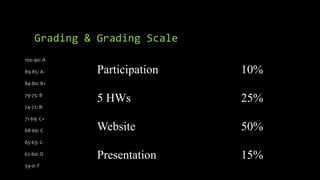
Grading & Grading Scale
100-90: A
89-85: A-
84-80: B+
79-75: B
74-72: B-
71-69: C+
68-66: C
65-63: C-
62-60: D
59-0: F
Participation 10%
5 HWs 25%
Website 50%
Presentation 15%
How to Succeed in INFO 2016
Without Really Trying
• Ask questions with any issues
• Submit homework assignments on time
• Participate in class
• Come to class on time
• Focus efforts on website components!!
Academic Dishonesty
• Please see Academic Dishonesty paragraphs on Course Syllabus
• Unless otherwise specified your work submitted should reflect you completed
100% of the work and did not have any assistance from a classmate [i.e. copying]
• You should be able to do all course work based on my instruction and/or similar
walkthroughs on YouTube
Tools Needed for Class
• WYSIWYG Editor
• Google WYSIWYG HTML Editor and choose the one you would like to use
• Notepad (or similar tool) to save HTML/CSS/JS files and open them in your
browser to check they work
• Purchased domain and hosting plan (I will walk you through this later in the
semester)
What is HTML?
• HTML is the language for describing the structure of Web pages. HTML gives
authors the means to:
• Publish online documents with headings, text, tables, lists, photos, etc.
• Retrieve online information via hypertext links, at the click of a button.
• Design forms for conducting transactions with remote services, for use in
searching for information, making reservations, ordering products, etc.
• Include spread-sheets, video clips, sound clips, and other applications directly in
their documents.
• With HTML, authors describe the structure of pages
using markup. The elements of the language label pieces of content such as
“paragraph,” “list,” “table,” and so on.
HTML Basics
• HTML stands for Hypertext Markup Language
• HTML consists of Tags and values
• Tags have Attributes specified as <font size=“+1”> where size is the attribute and
+1 is the value of the attribute. that are specified in the open bracket.
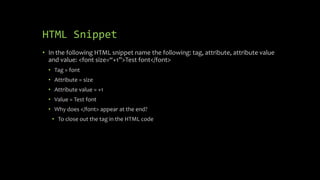
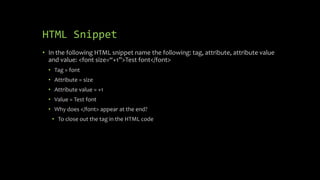
HTML Snippet
• In the following HTML snippet name the following: tag, attribute, attribute value
and value: <font size=“+1”>Test font</font>
• Tag = font
• Attribute = size
• Attribute value = +1
• Value = Test font
• Why does </font> appear at the end?
• To close out the tag in the HTML code
Static vs. Dynamic Websites
• Static Websites
• Never change
• Unless the HTML code is changed
and uploaded to web server
• Dynamic Websites
• Can change based on an event or
data based on code on the website
• Common occurrences of this are
dates/times on a website
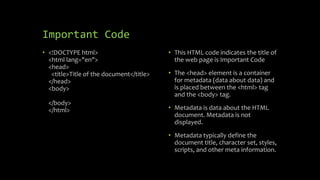
Important Code
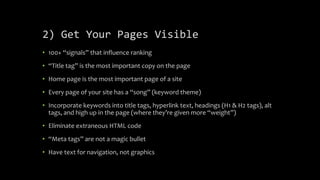
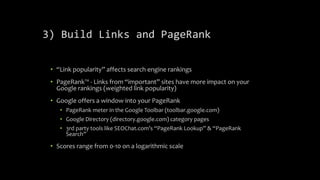
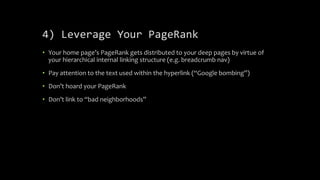
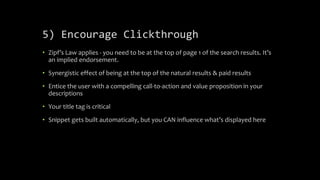
• <!DOCTYPE html>
<html lang="en">
<head>
<title>Title of the document</title>
</head>
<body>
</body>
</html>
• This HTML code indicates the title of
the web page is Important Code
• The <head> element is a container
for metadata (data about data) and
is placed between the <html> tag
and the <body> tag.
• Metadata is data about the HTML
document. Metadata is not
displayed.
• Metadata typically define the
document title, character set, styles,
scripts, and other meta information.
<body></body> tag
• The <body> tag defines the document's body.
• The <body> element contains all the contents of an HTML document, such as
headings, paragraphs, images, hyperlinks, tables, lists, etc.
• Note: There can only be one <body> element in an HTML document.
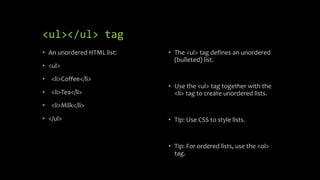
<ul></ul> tag
• An unordered HTML list:
• <ul>
• <li>Coffee</li>
• <li>Tea</li>
• <li>Milk</li>
• </ul>
• The <ul> tag defines an unordered
(bulleted) list.
• Use the <ul> tag together with the
<li> tag to create unordered lists.
• Tip: Use CSS to style lists.
• Tip: For ordered lists, use the <ol>
tag.
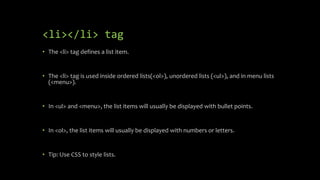
<li></li> tag
• The <li> tag defines a list item.
• The <li> tag is used inside ordered lists(<ol>), unordered lists (<ul>), and in menu lists
(<menu>).
• In <ul> and <menu>, the list items will usually be displayed with bullet points.
• In <ol>, the list items will usually be displayed with numbers or letters.
• Tip: Use CSS to style lists.
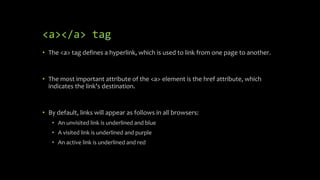
<a></a> tag
• The <a> tag defines a hyperlink, which is used to link from one page to another.
• The most important attribute of the <a> element is the href attribute, which
indicates the link's destination.
• By default, links will appear as follows in all browsers:
• An unvisited link is underlined and blue
• A visited link is underlined and purple
• An active link is underlined and red
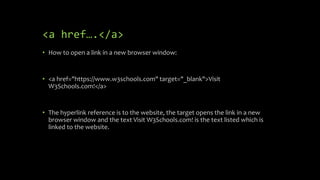
<a href….</a>
• How to open a link in a new browser window:
• <a href="https://www.w3schools.com" target="_blank">Visit
W3Schools.com!</a>
• The hyperlink reference is to the website, the target opens the link in a new
browser window and the text Visit W3Schools.com! is the text listed which is
linked to the website.
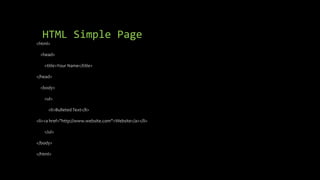
HTML Simple Page
<html>
<head>
<title>Your Name</title>
</head>
<body>
<ul>
<li>Bulleted Text</li>
<li><a href="http://www.website.com">Website</a></li>
</ul>
</body>
</html>
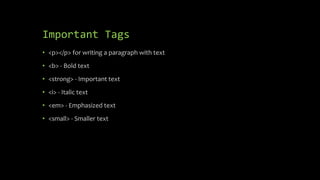
Important Tags
• <p></p> for writing a paragraph with text
• <b> - Bold text
• <strong> - Important text
• <i> - Italic text
• <em> - Emphasized text
• <small> - Smaller text
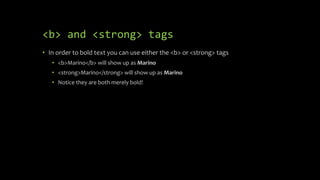
<b> and <strong> tags
• In order to bold text you can use either the <b> or <strong> tags
• <b>Marino</b> will show up as Marino
• <strong>Marino</strong> will show up as Marino
• Notice they are both merely bold!
<i> and <em> tags
• In order to italicize text you can use either the <i> or <em> tags
• <i>Marino</i> will show up as Marino
• <em>Marino</em> will show up as Marino
• Notice they are both merely italic!
<small> tag
• This merely makes your text smaller without having to utilize the size attribute or
similar attributes within HTML code
• Ideally, you use this tag to deemphasize something [things that are not
important]
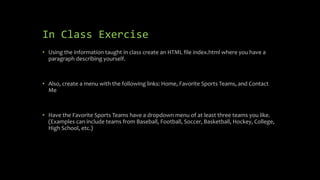
In Class Exercise
• Using the information taught in class create an HTML file index.html where you have a
paragraph describing yourself.
• Also, create a menu with the following links: Home, Favorite Sports Teams, and Contact
Me
• Have the Favorite Sports Teams have a dropdown menu of at least three teams you like.
(Examples can include teams from Baseball, Football, Soccer, Basketball, Hockey, College,
High School, etc.)
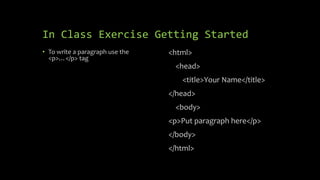
In Class Exercise Getting Started
• To write a paragraph use the
<p>…</p> tag
<html>
<head>
<title>Your Name</title>
</head>
<body>
<p>Put paragraph here</p>
</body>
</html>
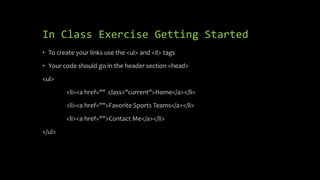
In Class Exercise Getting Started
• To create your links use the <ul> and <il> tags
• Your code should go in the header section <head>
<ul>
<li><a href="" class="current">Home</a></li>
<li><a href="">Favorite Sports Teams</a></li>
<li><a href="">Contact Me</a></li>
</ul>
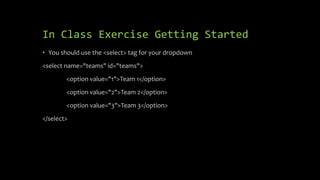
In Class Exercise Getting Started
• You should use the <select> tag for your dropdown
<select name="teams" id="teams">
<option value="1">Team 1</option>
<option value="2">Team 2</option>
<option value="3">Team 3</option>
</select>
In Class Exercise Getting Started
<ul>
<li><a href="" class="current">Home</a></li>
<li><a href="">Favorite Sports Teams</a></li>
<select name="teams" id="teams">
<option value="1">Team 1</option>
<option value="2">Team 2</option>
<option value="3">Team 3</option>
</select>
<li><a href="">Contact Me</a></li>
</ul>
In Class Exercise Visual
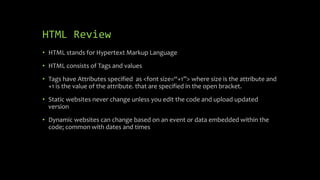
HTML Review
• HTML stands for Hypertext Markup Language
• HTML consists of Tags and values
• Tags have Attributes specified as <font size=“+1”> where size is the attribute and
+1 is the value of the attribute. that are specified in the open bracket.
• Static websites never change unless you edit the code and upload updated
version
• Dynamic websites can change based on an event or data embedded within the
code; common with dates and times
HTML Snippet
• In the following HTML snippet name the following: tag, attribute, attribute value
and value: <font size=“+1”>Test font</font>
• Tag = font
• Attribute = size
• Attribute value = +1
• Value = Test font
• Why does </font> appear at the end?
• To close out the tag in the HTML code
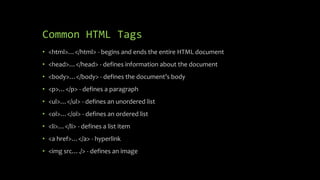
Common HTML Tags
• <html>…</html> - begins and ends the entire HTML document
• <head>…</head> - defines information about the document
• <body>…</body> - defines the document’s body
• <p>…</p> - defines a paragraph
• <ul>…</ul> - defines an unordered list
• <ol>…</ol> - defines an ordered list
• <li>…</li> - defines a list item
• <a href>…</a> - hyperlink
• <img src…./> - defines an image
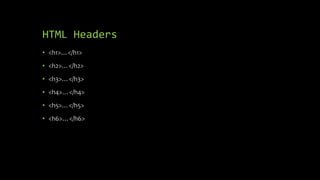
HTML Headers
• <h1>…</h1>
• <h2>…</h2>
• <h3>…</h3>
• <h4>…</h4>
• <h5>…</h5>
• <h6>…</h6>
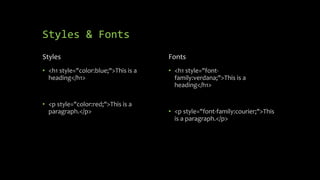
Styles & Fonts
Styles
• <h1 style="color:blue;">This is a
heading</h1>
• <p style="color:red;">This is a
paragraph.</p>
Fonts
• <h1 style="font-
family:verdana;">This is a
heading</h1>
• <p style="font-family:courier;">This
is a paragraph.</p>
Text Size & Alignment
Size
• <h1 style="font-size:300%;">This is a
heading</h1>
• <p style="font-size:160%;">This is a
paragraph.</p>
Alignment
• <h1 style="text-
align:center;">Centered
Heading</h1>
• <p style="text-
align:center;">Centered
paragraph.</p>
Language
• <html lang="en">
• https://www.tutorialrepublic.com/html-reference/html-language-codes.php
• All language codes listed above
Using Images
• <img src="img_girl.jpg" alt="Girl in a jacket" width="500" height="600">
• img src – image source
• alt – description
• width and height should be altered depending on needs
Images As Background
• <div style="background-image: url('img_girl.jpg');">
• <style>
• div {
• background-image: url('img_girl.jpg');
• }
• </style>
Repeat Background
• <style>
• body {
• background-image: url('example_img_girl.jpg');
• background-repeat: no-repeat;
• }
• </style>
Building Tables
• Why build a table?
• Easiest way to organize info in an HTML file
• Assuming not using XML or JSON [covered later in the course]
Tags for building a table
• <table>…</table> - defines a table
• <tr>…</tr> - defines a table row, must appear within a table
• <td>…</td> - defines a table column, must appear within a table row
• <th>…</th> - defines a table header
<table></table> tag
• The <table> tag defines an HTML table.
• An HTML table consists of one <table> element and one or more <tr>, <th>, and
<td> elements.
<tr></tr> tag
• The <tr> tag defines a row in an HTML table.
• A <tr> element contains one or more <th> or <td> elements.
<td></td> tag
• The <td> tag defines a standard data cell in an HTML table.
• An HTML table has two kinds of cells:
Header cells - contains header information (created with the <th> element)
Data cells - contains data (created with the <td> element)
• The text in <td> elements are regular and left-aligned by default.
• The text in <th> elements are bold and centered by default.
<th></th> tag
• The <th> tag defines a header cell in an HTML table.
• An HTML table has two kinds of cells:
Header cells - contains header information (created with the <th> element)
Data cells - contains data (created with the <td> element)
• The text in <th> elements are bold and centered by default.
• The text in <td> elements are regular and left-aligned by default.
Building an HTML file with a Table
Begin with basic code:
<html>
<head>
<meta http-equiv="Content-Type" content="text/html; charset=windows-1252">
<title>New Page 1</title>
</head>
<body>
</body>
</html>
Add Your Header
• <title>New Page 1</title>
• </head>
• <h1 align="center">Your Schedule</h1>
• <body>
• By adding the <h1></h1> code you have created an overall header
Begin creating your Table
• <body>
• <table border="0" width="100%">
• </table>
• </body>
• You can play around with the thickness of the table’s border by changing “0” to
different sizes
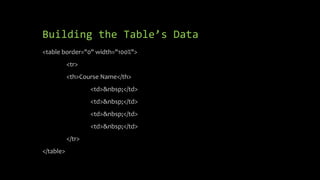
Building the Table’s Data
<table border="0" width="100%">
<tr>
<th>Course Name</th>
<td>&nbsp;</td>
<td>&nbsp;</td>
<td>&nbsp;</td>
<td>&nbsp;</td>
</tr>
</table>
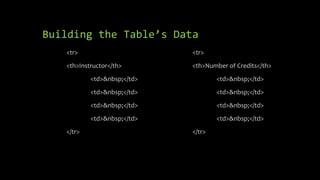
Building the Table’s Data
<tr>
<th>Instructor</th>
<td>&nbsp;</td>
<td>&nbsp;</td>
<td>&nbsp;</td>
<td>&nbsp;</td>
</tr>
<tr>
<th>Number of Credits</th>
<td>&nbsp;</td>
<td>&nbsp;</td>
<td>&nbsp;</td>
<td>&nbsp;</td>
</tr>
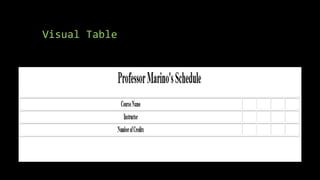
Visual Table
Visual Table Notes
• Sizes of the cells in each row will change when you replace the &nbsp; code with
actual text
• What do you do if you are taking more than 4 courses?
• You will need to add an additional <td></td> for each section [Course Name,
Instructor, and Number of Credits] until you have enough cells to cover all of your
courses for the table you create in Assignment 2
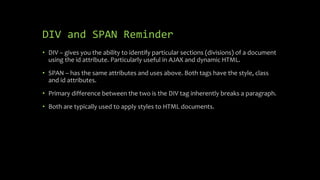
<div></div> tag
• The <div> tag defines a division or a section in an HTML document.
• The <div> tag is used as a container for HTML elements - which is then styled with
CSS or manipulated with JavaScript.
• The <div> tag is easily styled by using the class or id attribute.
• Any sort of content can be put inside the <div> tag!
• Note: By default, browsers always place a line break before and after the <div>
element.
• For our purpose, it is important to note the <div> tag serves as a break for a
paragraph [<p></p> tag]
HTML Review
• <a href=“websitelink.com”>Website Link</a> serves as code for hyperlinking a
website
• As discussed href is “hyperlink reference”
• The <h1></h1> tag represents a header
• <h2></h2>, <h3></h3>, etc. also exist and get smaller
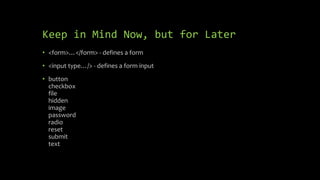
Keep in Mind Now, but for Later
• <form>…</form> - defines a form
• <input type…/> - defines a form input
• button
checkbox
file
hidden
image
password
radio
reset
submit
text
In Class Exercise
Create an HTML page called gallery.html with 16 images displayed.
Building our Gallery
<table border="0" width="100%">
<tr>
<td>&nbsp;</td>
<td>&nbsp;</td>
<td>&nbsp;</td>
<td>&nbsp;</td>
</tr>
</table>
Change the highlighted
0 to a larger number so
we can see the border
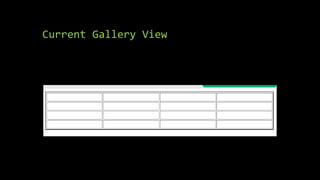
Picture Gallery
• The code on the previous slide only gives us 4 boxes
• How do we get our 16?
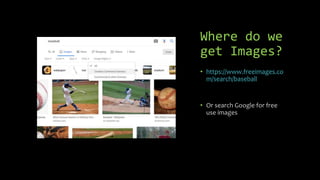
Where do we
get Images?
• https://www.freeimages.co
m/search/baseball
• Or search Google for free
use images
Current Gallery View
Embedding Images
• <img src="img_girl.jpg" alt="Girl in a jacket" width="500" height="600">
• Where img src is your image source
• alt is your alternate description of the image
• width and height should be modified so that all pictures line up
How it looks?
• <td><img src="https://media.istockphoto.com/photos/baseball-with-clipping-
path-picture-
id177401325?b=1&k=20&m=177401325&s=170x170&h=AK3kCSUXA7K8BsjeydSH3U
5oNEkezA2gZ9c9KuDkJZg=" alt="baseball" width="100" height="100"></td>
• Use the direct image source for now, once we have an image saved to our web
space the img src is much shorter like in previous example
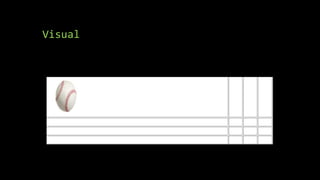
Visual
My Example Gallery Visual
Of Note
• You don’t need to use alt tag if you don’t want to
• You can remove the table border once all 16 images are there
• You want to use the same height for each image
INFO 2106
Website Design and
Management
1/29/24
HTML
Basic HTML Form
• Boring
• Limited
• Hard to Store info
Reminder from HTML Lesson
• <form>…</form> - defines a form
• <input type…/> - defines a form input
• button
checkbox
file
hidden
image
password
radio
reset
submit
text
Inputs - HTML
<input type="text"> Displays a single-line text input field
<input type="radio"> Displays a radio button (for selecting one
of many choices)
<input type="checkbox"> Displays a checkbox (for selecting zero or
more of many choices)
<input type="submit"> Displays a submit button (for submitting
the form)
<input type="button"> Displays a clickable button
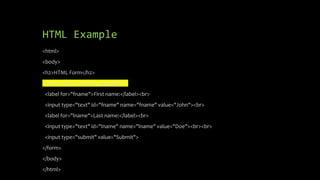
HTML Example
<html>
<body>
<h2>HTML Form</h2>
<form action="/action_page.php">
<label for="fname">First name:</label><br>
<input type="text" id="fname" name="fname" value="John"><br>
<label for="lname">Last name:</label><br>
<input type="text" id="lname" name="lname" value="Doe"><br><br>
<input type="submit" value="Submit">
</form>
</body>
</html>
Visual
Only two inputs
Both inputs are text
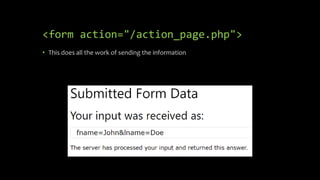
<form action="/action_page.php">
• This does all the work of sending the information
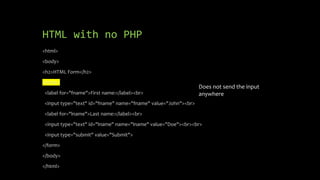
HTML with no PHP
<html>
<body>
<h2>HTML Form</h2>
<form>
<label for="fname">First name:</label><br>
<input type="text" id="fname" name="fname" value="John"><br>
<label for="lname">Last name:</label><br>
<input type="text" id="lname" name="lname" value="Doe"><br><br>
<input type="submit" value="Submit">
</form>
</body>
</html>
Does not send the input
anywhere
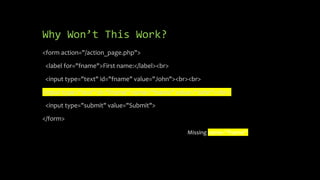
Why Won’t This Work?
<form action="/action_page.php">
<label for="fname">First name:</label><br>
<input type="text" id="fname" value="John"><br><br>
<input type="text" id="fname" name="fname" value="John"><br>
<input type="submit" value="Submit">
</form>
Missing name="fname"
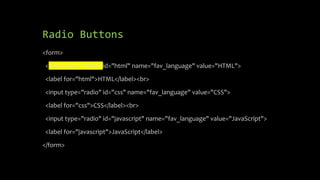
Radio Buttons
<form>
<input type="radio" id="html" name="fav_language" value="HTML">
<label for="html">HTML</label><br>
<input type="radio" id="css" name="fav_language" value="CSS">
<label for="css">CSS</label><br>
<input type="radio" id="javascript" name="fav_language" value="JavaScript">
<label for="javascript">JavaScript</label>
</form>
Check Boxes
<form>
<input type="checkbox" id="vehicle1" name="vehicle1" value="Bike">
<label for="vehicle1"> I have a bike</label><br>
<input type="checkbox" id="vehicle2" name="vehicle2" value="Car">
<label for="vehicle2"> I have a car</label><br>
<input type="checkbox" id="vehicle3" name="vehicle3" value="Boat">
<label for="vehicle3"> I have a boat</label>
</form>
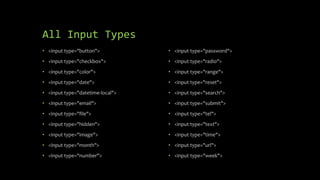
All Input Types
• <input type="button">
• <input type="checkbox">
• <input type="color">
• <input type="date">
• <input type="datetime-local">
• <input type="email">
• <input type="file">
• <input type="hidden">
• <input type="image">
• <input type="month">
• <input type="number">
• <input type="password">
• <input type="radio">
• <input type="range">
• <input type="reset">
• <input type="search">
• <input type="submit">
• <input type="tel">
• <input type="text">
• <input type="time">
• <input type="url">
• <input type="week">
Understanding PHP
• A PHP script can be placed anywhere in the document.
• A PHP script starts with <?php and ends with ?>:
• <?php
• // PHP code goes here
• ?>
• The default file extension for PHP files is ".php".
• A PHP file normally contains HTML tags, and some PHP scripting code.
Using PHP – HTML Code
<html>
<body>
<form action="welcome_get.php" method="get">
Name: <input type="text" name="name"><br>
E-mail: <input type="text" name="email"><br>
<input type="submit">
</form>
</body>
</html>
welcome_get.php Code
<html>
<body>
Welcome <?php echo $_GET["name"]; ?><br>
Your email address is: <?php echo $_GET["email"]; ?>
</body>
</html>
Visual
Once submitted, displays
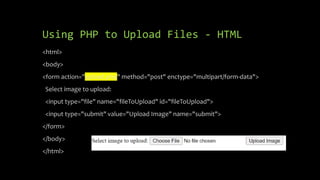
Using PHP to Upload Files - HTML
<html>
<body>
<form action="upload.php" method="post" enctype="multipart/form-data">
Select image to upload:
<input type="file" name="fileToUpload" id="fileToUpload">
<input type="submit" value="Upload Image" name="submit">
</form>
</body>
</html>
upload.php
<?php
$target_dir = "uploads/";
$target_file = $target_dir . basename($_FILES["fileToUpload"]["name"]);
$uploadOk = 1;
$imageFileType = strtolower(pathinfo($target_file,PATHINFO_EXTENSION));
// Check if image file is a actual image or fake image
if(isset($_POST["submit"])) {
$check = getimagesize($_FILES["fileToUpload"]["tmp_name"]);
if($check !== false) {
echo "File is an image - " . $check["mime"] . ".";
$uploadOk = 1;
} else {
echo "File is not an image.";
$uploadOk = 0;
}
}
upload.php
// Check if file already exists
if (file_exists($target_file)) {
echo "Sorry, file already exists.";
$uploadOk = 0;
}
// Check file size
if ($_FILES["fileToUpload"]["size"] > 500000) {
echo "Sorry, your file is too large.";
$uploadOk = 0;
}
// Allow certain file formats
if($imageFileType != "jpg" && $imageFileType != "png" && $imageFileType != "jpeg"
&& $imageFileType != "gif" ) {
echo "Sorry, only JPG, JPEG, PNG & GIF files are allowed.";
$uploadOk = 0;
}
upload.php
// Check if $uploadOk is set to 0 by an error
if ($uploadOk == 0) {
echo "Sorry, your file was not uploaded.";
// if everything is ok, try to upload file
} else {
if (move_uploaded_file($_FILES["fileToUpload"]["tmp_name"], $target_file)) {
echo "The file ". htmlspecialchars( basename( $_FILES["fileToUpload"]["name"])). " has been uploaded.";
} else {
echo "Sorry, there was an error uploading your file.";
}
}
?>
What is the PHP Code Doing?
• PHP script explained:
• $target_dir = "uploads/" - specifies the directory where the file is going to be
placed
• $target_file specifies the path of the file to be uploaded
• $uploadOk=1 is not used yet (will be used later)
• $imageFileType holds the file extension of the file (in lower case)
• Next, check if the image file is an actual image or a fake image
PHP Open and Read
• <?php
• $myfile = fopen("webdictionary.txt", "r") or die("Unable to open file!");
• echo fread($myfile,filesize("webdictionary.txt"));
• fclose($myfile);
• ?>
PHP Create and Write
• <?php
• $myfile = fopen("newfile.txt", "w") or die("Unable to open file!");
• $txt = "John Doen";
• fwrite($myfile, $txt);
• $txt = "Jane Doen";
• fwrite($myfile, $txt);
• fclose($myfile);
• ?>
PHP/Forms In Class Assignment
Using PHP, JavaScript and/or HTML create a Contact form which will accept Name, Email,
and Comment as inputs. The Submit button can either return the input or provide an external
webpage noting your input has been emailed.
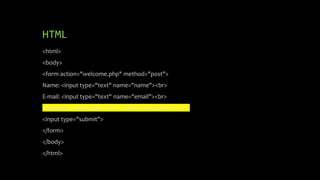
HTML
<html>
<body>
<form action="welcome.php" method="post">
Name: <input type="text" name="name"><br>
E-mail: <input type="text" name="email"><br>
Comment: <input type="text" name="comment"><br>
<input type="submit">
</form>
</body>
</html>
Have to edit welcome.php
<html>
<body>
Welcome <?php echo $_POST["name"]; ?><br>
Your email address is: <?php echo $_POST["email"]; ?>
Your comment was: <?php echo $_POST["comment"]; ?>
</body>
</html>
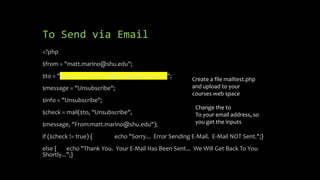
To Send via Email
<?php
$from = "matt.marino@shu.edu";
$to = "dspace-community@googlegroups.com";
$message = "Unsubscribe";
$info = "Unsubscribe";
$check = mail($to, "Unsubscribe",
$message, "From:matt.marino@shu.edu");
if ($check != true) { echo "Sorry... Error Sending E-Mail. E-Mail NOT Sent.";}
else { echo "Thank You. Your E-Mail Has Been Sent... We Will Get Back To You
Shortly...";}
Create a file mailtest.php
and upload to your
courses web space
Change the to
To your email address, so
you get the inputs
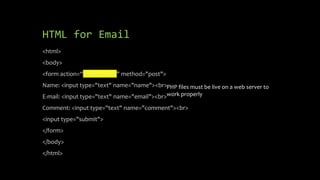
HTML for Email
<html>
<body>
<form action=“mailtest.php" method="post">
Name: <input type="text" name="name"><br>
E-mail: <input type="text" name="email"><br>
Comment: <input type="text" name="comment"><br>
<input type="submit">
</form>
</body>
</html>
PHP files must be live on a web server to
work properly
XHTML Basics
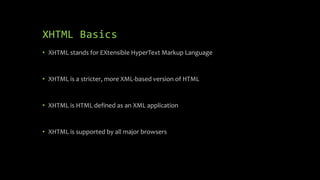
• XHTML stands for EXtensible HyperText Markup Language
• XHTML is a stricter, more XML-based version of HTML
• XHTML is HTML defined as an XML application
• XHTML is supported by all major browsers
XHTML for the Experts
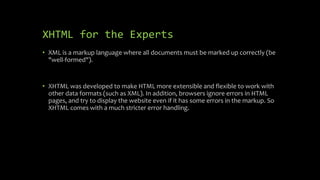
• XML is a markup language where all documents must be marked up correctly (be
"well-formed").
• XHTML was developed to make HTML more extensible and flexible to work with
other data formats (such as XML). In addition, browsers ignore errors in HTML
pages, and try to display the website even if it has some errors in the markup. So
XHTML comes with a much stricter error handling.
Strict?
• <!DOCTYPE> is mandatory
• The xmlns attribute in <html> is mandatory
• <html>, <head>, <title>, and <body> are mandatory
• Elements must always be properly nested
• Elements must always be closed
• Elements must always be in lowercase
• Attribute names must always be in lowercase
• Attribute values must always be quoted
• Attribute minimization is forbidden
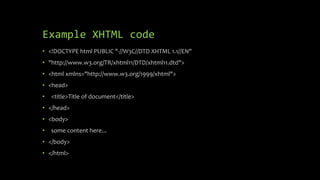
Example XHTML code
• <!DOCTYPE html PUBLIC "-//W3C//DTD XHTML 1.1//EN"
• "http://www.w3.org/TR/xhtml11/DTD/xhtml11.dtd">
• <html xmlns="http://www.w3.org/1999/xhtml">
• <head>
• <title>Title of document</title>
• </head>
• <body>
• some content here...
• </body>
• </html>
Compared to HTML code
• <html>
• <head>
• </head>
• <body>
• </body>
• </html>
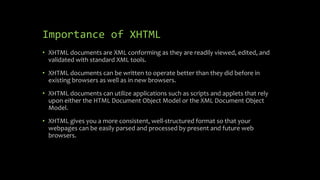
Importance of XHTML
• XHTML documents are XML conforming as they are readily viewed, edited, and
validated with standard XML tools.
• XHTML documents can be written to operate better than they did before in
existing browsers as well as in new browsers.
• XHTML documents can utilize applications such as scripts and applets that rely
upon either the HTML Document Object Model or the XML Document Object
Model.
• XHTML gives you a more consistent, well-structured format so that your
webpages can be easily parsed and processed by present and future web
browsers.
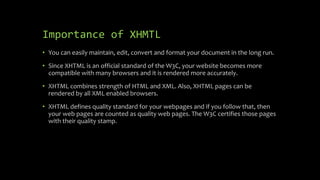
Importance of XHMTL
• You can easily maintain, edit, convert and format your document in the long run.
• Since XHTML is an official standard of the W3C, your website becomes more
compatible with many browsers and it is rendered more accurately.
• XHTML combines strength of HTML and XML. Also, XHTML pages can be
rendered by all XML enabled browsers.
• XHTML defines quality standard for your webpages and if you follow that, then
your web pages are counted as quality web pages. The W3C certifies those pages
with their quality stamp.
XML Basics
• Stands for eXtensible Markup Language
• Used to define customized markup languages
• We are already familiar with XML since we understand HTML
Interesting XML Notes
• XML is a software- and hardware-independent tool for storing and transporting
data.
• XML was designed to store and transport data
• XML was designed to be self-descriptive
• Maybe it is a little hard to understand, but XML does not DO anything.
XML Just Stores Data
• XML is just information wrapped in tags.
• XML is the parent language to HTML
• XML is used to contain data, not to display data
• XML tags are custom, defined by the author.
• HTML can enrich XML data but neither can replace the other. One is used for
storing (XML) and the other is used for displaying (HTML).
XML Rules
• XML elements must follow these rules:
• Can contain letters, numbers and other characters
• Can’t start with a number or punctuation character
• Can’t start with ‘xml’
• Can’t contain spaces
Writing in XML
• XML attributes must be quoted as in: <employee type=‘permanent’>
• Alternatively, you can write
• <employee>
<type>permanent</type>
</employee>
• Both above examples accomplish the same goal and there are no rules as to
which one is right. The second example is easier to read and looks nicer.
XML vs. HTML
• XML was designed to carry data - with focus on what data is
• HTML was designed to display data - with focus on how data looks
• XML tags are not predefined like HTML tags are
You Define XML Tags
• The XML language has no predefined tags.
• Tags are "invented" by the author of the XML document.
• HTML works with predefined tags like <p>, <h1>, <table>, etc.
• With XML, the author must define both the tags and the document structure.
Why Use XML?
• It simplifies data sharing
• It simplifies data transport
• It simplifies platform changes
• It simplifies data availability
More Reasons to use XML
• XML stores data in plain text format. This provides a software- and hardware-
independent way of storing, transporting, and sharing data.
• XML also makes it easier to expand or upgrade to new operating systems, new
applications, or new browsers, without losing data.
• With XML, data can be available to all kinds of "reading machines" like people,
computers, voice machines, news feeds, etc.
In What Ways Can We Use XML?
• Create a list of books
• Create a list of transactions
• Create a news article header
• Detail weather service information
• And much, much more!
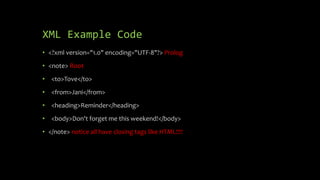
XML Example Code
• <?xml version="1.0" encoding="UTF-8"?> Prolog
• <note> Root
• <to>Tove</to>
• <from>Jani</from>
• <heading>Reminder</heading>
• <body>Don't forget me this weekend!</body>
• </note> notice all have closing tags like HTML!!!!
XML can use HTML tags
• Tags you have previously seen can be used in XML, such as:
• <b></b> for bold text
• <i></i> for italicized text
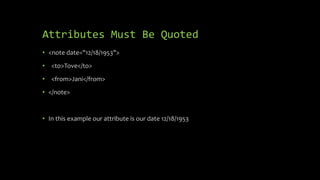
Attributes Must Be Quoted
• <note date="12/18/1953">
• <to>Tove</to>
• <from>Jani</from>
• </note>
• In this example our attribute is our date 12/18/1953
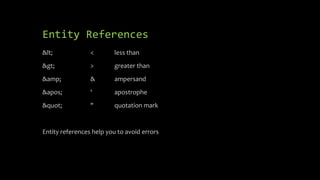
Entity References
&lt; < less than
&gt; > greater than
&amp; & ampersand
&apos; ' apostrophe
&quot; " quotation mark
Entity references help you to avoid errors
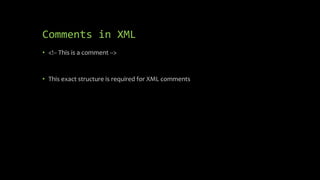
Comments in XML
• <!-- This is a comment -->
• This exact structure is required for XML comments
XML Elements
• An element can contain:
• Text
• Attributes
• other elements
• or a mix of the above
• Examples could be <rate>19.99</rate>
XML Naming Rules Reminder
• XML elements must follow these naming rules:
• Element names are case-sensitive
• Element names must start with a letter or underscore
• Element names cannot start with the letters xml (or XML, or Xml, etc)
• Element names can contain letters, digits, hyphens, underscores, and periods
• Element names cannot contain spaces
• Any name can be used, no words are reserved (except xml).
Standards Advising Naming Rules
• Create descriptive names, like this: <person>, <firstname>, <lastname>.
• Create short and simple names, like this: <book_title> not like this: <the_title_of_the_book>.
• Avoid "-". If you name something "first-name", some software may think you want to subtract "name" from "first".
• Avoid ".". If you name something "first.name", some software may think that "name" is a property of the object "first".
• Avoid ":". Colons are reserved for namespaces (more later).
• Non-English letters like éòá are perfectly legal in XML, but watch out for problems if your software doesn't support them.
XLink
• <?xml version="1.0" encoding="UTF-8"?>
• <homepages xmlns:xlink="http://www.w3.org/1999/xlink">
• <homepage xlink:type="simple" xlink:href="https://www.w3schools.com">Visit
W3Schools</homepage>
• <homepage xlink:type="simple" xlink:href="http://www.w3.org">Visit
W3C</homepage>
• </homepages>
Where Else Can We Use XML?
• HTML
• JavaScript
• PHP
XSLT
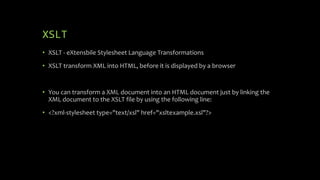
• XSLT - eXtensbile Stylesheet Language Transformations
• XSLT transform XML into HTML, before it is displayed by a browser
• You can transform a XML document into an HTML document just by linking the
XML document to the XSLT file by using the following line:
• <?xml-stylesheet type="text/xsl" href="xsltexample.xsl"?>
Another XML Example
• <xml>
<addressbook>
<address>
<name>Mark Nazzaro</name>
<email>nazzarma@shu.edu</email>
</address>
<address>
<name>David Rosenthal</name>
<email>rosentdv@shu.edu</email>
</address>
</addressbook>
</xml>
JSON Basics
• JSON stands for JavaScript Object Notation
• JSON is easier to parse than XML
• Properties make up a JSON object
• JSON.parse() parses retrieved data
• JSON.stringify() converts a JavaScript object into a string
JSON vs. XML
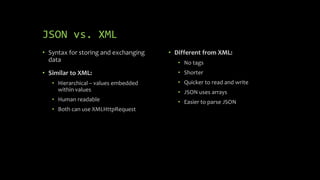
• Syntax for storing and exchanging
data
• Similar to XML:
• Hierarchical – values embedded
within values
• Human readable
• Both can use XMLHttpRequest
• Different from XML:
• No tags
• Shorter
• Quicker to read and write
• JSON uses arrays
• Easier to parse JSON
JSON Object Example
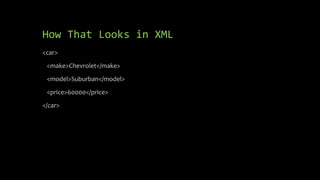
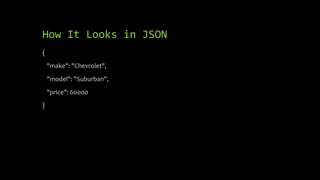
• A car is an object which has three properties describing it
• Make – String value representing the make of the car
• Model – String value representing the model of the car
• Price – Numeric value representing the price of the car
How That Looks in XML
<car>
<make>Chevrolet</make>
<model>Suburban</model>
<price>60000</price>
</car>
How It Looks in JSON
{
"make": "Chevrolet",
"model": "Suburban",
"price": 60000
}
JSON Data Types
• String – {“name”:”Mark”}
• Number – {“age”: 41}
• Objects –
• {
“address”: {“name”:”Matt Marnio”, “email”:”matt.marino@shu.edu”}
}
• Arrays –
• {
“students”:[“Manny”, “Moe”, “Jack”]
}
• Booleans - {“Full-time”: true}
• Null – {“Job Description”: null}
Accessing Values in Objects
• In order to access the values of an
object, you can use the dot (.)
notation
myObj =
{“firstName”:”Matt”,”lastN
ame”:”Marino”,”age”:34};
firstName =
myObj.firstName;
lastName =
myObj.lastName;
age = myObj.age;
• You can also access the values using a
bracket notation
firstName = myObj[“firstName”];
lastName = myObj[“lastName”];
age = myObj[“age”];
• You can also access all of the values
using a for loop:
for (x in myObj)
{
}
Parsing
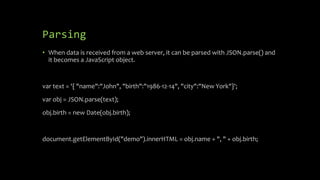
• When data is received from a web server, it can be parsed with JSON.parse() and
it becomes a JavaScript object.
var text = '{ "name":"John", "birth":"1986-12-14", "city":"New York"}';
var obj = JSON.parse(text);
obj.birth = new Date(obj.birth);
document.getElementById("demo").innerHTML = obj.name + ", " + obj.birth;
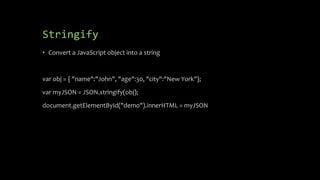
Stringify
• Convert a JavaScript object into a string
var obj = { "name":"John", "age":30, "city":"New York"};
var myJSON = JSON.stringify(obj);
document.getElementById("demo").innerHTML = myJSON
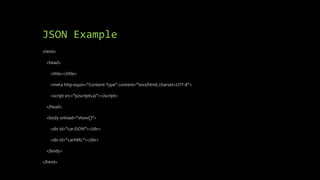
JSON Example
<html>
<head>
<title></title>
<meta http-equiv="Content-Type" content="text/html; charset=UTF-8">
<script src="js/scripts.js"></script>
</head>
<body onload="show()">
<div id="carJSON"></div>
<div id="carXML"></div>
</body>
</html>
JSON Example Visual
JSON XML
function showJSON()
{
var xmlhttp = new XMLHttpRequest();
xmlhttp.onreadystatechange = function() {
if (this.readyState == 4 && this.status == 200) {
var myObj = JSON.parse(this.responseText);
document.getElementById("carJSON").innerHTML = myObj.make;
}
};
xmlhttp.open("GET", "cars.json", true);
xmlhttp.send();
}
function showXML()
{
var xmlhttp = new XMLHttpRequest();
xmlhttp.onreadystatechange = function() {
if (this.readyState == 4 && this.status == 200) {
var xmldoc = xmlhttp.responseXML;
var myObj = xmldoc.getElementsByTagName("make");
alert(myObj[0].childNodes[0].nodeValue);
document.getElementById("carXML").innerHTML =
myObj[0].childNodes[0].nodeValue;
}
};
xmlhttp.open("GET", "cars.xml", true);
xmlhttp.send();
}
function show()
{
showJSON();
showXML();
}
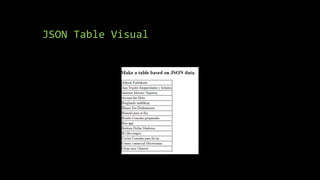
JSON Table
<!DOCTYPE html>
<html>
<body>
<h2>Make a table based on JSON data.</h2>
<p id="demo"></p>
<script>
var obj, dbParam, xmlhttp, myObj, x, txt = "";
obj = { table: "customers", limit: 14 };
dbParam = JSON.stringify(obj);
xmlhttp = new XMLHttpRequest();
xmlhttp.onreadystatechange = function() {
if (this.readyState == 4 && this.status == 200) {
myObj = JSON.parse(this.responseText);
txt += "<table border='1'>"
for (x in myObj) {
txt += "<tr><td>" + myObj[x].name + "</td></tr>";
}
txt += "</table>"
document.getElementById("demo").innerHTML = txt;
}
};
xmlhttp.open("POST", "json_demo_html_table.php", true);
xmlhttp.setRequestHeader("Content-type", "application/x-www-form-urlencoded");
xmlhttp.send("x=" + dbParam);
</script>
</body>
</html>
JSON Table Visual
JSON Community
• https://www.json.org/json-en.html
• Goes in depth on all JSON topics
• Including using JSON with various programming languages
In Class Example
Create a booklist file in both XML and JSON (meaning two different files - one called
books.xml and one called books.json). Include in your data storage files the following book
info: title of book, author of book, and price of book.
In Class Example Help
• XML – refer back to slide 61
• JSON – refer back to slide 62
INFO 2106
Website Design and
Management
2/5/24
HTML – PHP Examples
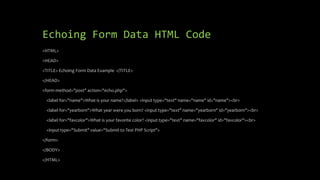
Echoing Form Data HTML Code
<HTML>
<HEAD>
<TITLE> Echoing Form Data Example </TITLE>
</HEAD>
<form method="post" action="echo.php">
<label for="name">What is your name?</label> <input type="text" name="name" id="name"><br>
<label for="yearborn">What year were you born? <input type="text" name="yearborn" id="yearborn"><br>
<label for="favcolor">What is your favorite color? <input type="text" name="favcolor" id="favcolor"><br>
<input type="Submit" value="Submit to Test PHP Script">
</form>
</BODY>
</HTML>
Echoing Form Data PHP Code (echo.php)
<HTML>
<HEAD>
<TITLE> Echoing Form Data Example </TITLE>
</HEAD>
<?php
// Initialize variables from form
$name = $_POST['name'];
$favcolor = $_POST['favcolor'];
$yearborn = $_POST['yearborn'];
// encode any special characters in these variables
$encoded_name = htmlentities($name);
$encoded_favcolor = htmlentities($favcolor);
print("<body bgcolor=$encoded_favcolor>");
// print the person's name
print("Hello $encoded_name<br>");
$currentdate = getdate();
$year = $currentdate["year"];
// Calculate age using the $yearborn field from the
submitted form
$age = $year - $yearborn;
// print the person's age
print("You are $age years old");
?>
</BODY>
</HTML>
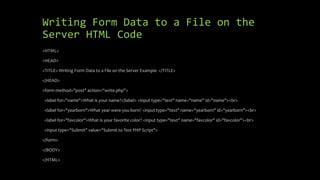
Writing Form Data to a File on the
Server HTML Code
<HTML>
<HEAD>
<TITLE> Writing Form Data to a File on the Server Example </TITLE>
</HEAD>
<form method="post" action=“write.php">
<label for="name">What is your name?</label> <input type="text" name="name" id="name"><br>
<label for="yearborn">What year were you born? <input type="text" name="yearborn" id="yearborn"><br>
<label for="favcolor">What is your favorite color? <input type="text" name="favcolor" id="favcolor"><br>
<input type="Submit" value="Submit to Test PHP Script">
</form>
</BODY>
</HTML>
Writing Form Data to a File on the
Server PHP Code (write.php)
<HTML>
<HEAD>
<TITLE> Writing Form Data to a File on the Server Example </TITLE>
</HEAD>
<BODY>
<?php
// The next line opens a file handle to a file called output.txt
// the file handle is like an alias to the file
// the a in the fopen function means append so entries
// will be appended to the output.txt file
$out = fopen("outputoutput.txt", "a");
// if the file could not be opened for whatever reason, print
// an error message and exit the program
if (!$out) {
print("Could not append to file");
exit;
}
// fputs writes output to a file. the syntax is where to write
// followed by what to write
// $name is the contents of the name field in the sample
form
// t represents a tab character and n represents a new line
fputs($out,"$_POST[name]t");
fputs($out,"$_POST[yearborn]t");
fputs($out,"$_POST[favcolor]t");
fputs($out,"$_SERVER[REMOTE_ADDR]n");
print("Thanks you for completing our survey.");
fclose($out);
?>
</BODY>
</HTML>
Uploading Files HTML Code
<HTML>
<HEAD>
<TITLE> Uploading Files Example </TITLE>
</HEAD>
<form enctype="multipart/form-data" action="upload.php" method="POST">
<input type="hidden" name="MAX_FILE_SIZE" value="100000" />
Choose a file to upload: <input name="uploadedfile" type="file" /><br />
<input type="submit" value="Upload File" />
</form>
</BODY>
</HTML>
Uploading Files PHP Code (upload.php)
<HTML>
<HEAD>
<TITLE> Uploading Files - place file in
uploads folder </TITLE>
</HEAD>
<BODY>
<?php
$target_path = "uploads/";
$target_path = $target_path . basename(
$_FILES['uploadedfile']['name']);
if(move_uploaded_file($_FILES['uploadedfile']['tmp_name'
], $target_path)) {
echo "The file ". basename(
$_FILES['uploadedfile']['name']).
" has been uploaded";
} else{
echo "There was an error uploading the file, please try
again!";
}
?>
</BODY>
</HTML>
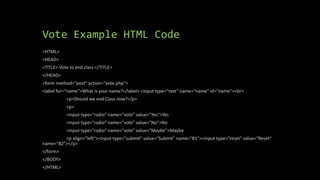
Vote Example HTML Code
<HTML>
<HEAD>
<TITLE> Vote to end class </TITLE>
</HEAD>
<form method="post" action="vote.php">
<label for="name">What is your name?</label> <input type="text" name="name" id="name"><br>
<p>Should we end Class now?</p>
<p>
<input type="radio" name="vote" value="Yes">Yes
<input type="radio" name="vote" value="No">No
<input type="radio" name="vote" value="Maybe">Maybe
<p align="left"><input type="submit" value="Submit" name="B1"><input type="reset" value="Reset"
name="B2"></p>
</form>
</BODY>
</HTML>
Vote Example PHP Code (vote.php)
<HTML>
<HEAD>
<TITLE> Recording Vote </TITLE>
</HEAD>
<BODY>
<?php
$out = fopen("outputvote.txt", "a");
if (!$out) {
print("Could not append to file");
exit;
}
fputs($out,"$_POST[name]t");
fputs($out,"$_POST[vote]n");
print("Thank you for voting");
fclose($out);
?>
</BODY>
</HTML>
Birthday HTML Code
• Full code in notes!
Birthday PHP Code (bday.php)
<HTML>
<HEAD>
<TITLE> Birthday results </TITLE>
</HEAD>
<BODY>
<?php
$out = fopen("outputbirthday.txt", "a");
if (!$out) {
print("Could not append to file");
exit;
}
fputs($out,"$_POST[name]t");
fputs($out,"$_POST[month]t");
fputs($out,"$_POST[day]n");
print("Thank you for entering your birthday");
fclose($out);
?>
</BODY>
</HTML>
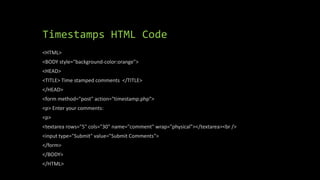
Timestamps HTML Code
<HTML>
<BODY style="background-color:orange">
<HEAD>
<TITLE> Time stamped comments </TITLE>
</HEAD>
<form method="post" action="timestamp.php">
<p> Enter your comments:
<p>
<textarea rows="5" cols="30" name="comment" wrap="physical"></textarea><br />
<input type="Submit" value="Submit Comments">
</form>
</BODY>
</HTML>
Timestamps PHP Code (timestamp.php)
<HTML>
<HEAD>
<TITLE> Timestamped Comments </TITLE>
</HEAD>
<?php
$name = $_POST['comment'];
$out = fopen("outputtimestamps.txt", "a");
if (!$out) {
print("Could not append to file");
exit;
}
fputs($out,"Comment timestamp: ");
fputs($out,date("m/j/y h:i", time()));
fputs($out,"...IP address: ");
fputs($out,$_SERVER[REMOTE_ADDR]);
fputs($out,"n");
fputs($out,"$_POST[comment]nn");
print("Thank you. Your comments are
important to us. ");
fclose($out);
?>
</BODY>
</HTML>
HTML Assignment
• Create a file called schedule.html to be uploaded to Blackboard.
• schedule.html should contain an introduction to yourself followed by a table
including your course schedule and an image you feel represents each of your
classes. For example, if you feel a course is chaotic you might use an image of
people playing dodgeball.
INFO 2106
Website Design and
Management
2/12/24
CSS
Why CSS?
• CSS stands for Cascading Style Sheets.
• CSS saves a lot of work. It can control the layout of multiple web pages all at
once.
• Websites generally have sub-folders where CSS files are stored
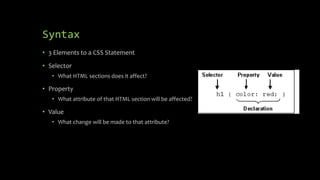
Syntax
• 3 Elements to a CSS Statement
• Selector
• What HTML sections does it affect?
• Property
• What attribute of that HTML section will be affected?
• Value
• What change will be made to that attribute?
Stylesheets
• While HTML defines where structures start and end, stylesheets define what they
look like
• When used properly, stylesheets allow for a consistent look and feel throughout
a website with one simple change of a file
• They are defined in three different ways:
• External: the styles are defined in a .css file (preferred)
• Internal: the styles are defined inside the HTML file, usually in the header section
• Inline: the style is defined inside an existing tag, usually in the body section
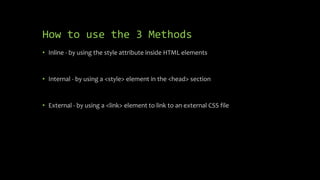
How to use the 3 Methods
• Inline - by using the style attribute inside HTML elements
• Internal - by using a <style> element in the <head> section
• External - by using a <link> element to link to an external CSS file
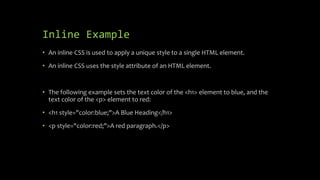
Inline Example
• An inline CSS is used to apply a unique style to a single HTML element.
• An inline CSS uses the style attribute of an HTML element.
• The following example sets the text color of the <h1> element to blue, and the
text color of the <p> element to red:
• <h1 style="color:blue;">A Blue Heading</h1>
• <p style="color:red;">A red paragraph.</p>
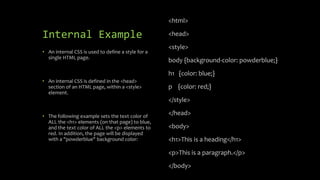
Internal Example
• An internal CSS is used to define a style for a
single HTML page.
• An internal CSS is defined in the <head>
section of an HTML page, within a <style>
element.
• The following example sets the text color of
ALL the <h1> elements (on that page) to blue,
and the text color of ALL the <p> elements to
red. In addition, the page will be displayed
with a "powderblue" background color:
<html>
<head>
<style>
body {background-color: powderblue;}
h1 {color: blue;}
p {color: red;}
</style>
</head>
<body>
<h1>This is a heading</h1>
<p>This is a paragraph.</p>
</body>
External Example [Most Common]
<html>
<head>
<link rel="stylesheet" href="styles.css">
</head>
<body>
<h1>This is a heading</h1>
<p>This is a paragraph.</p>
</body>
</html>
styles.css Code
body {
background-color: powderblue;
}
h1 {
color: blue;
}
p {
color: red;
}
Beyond CSS Basics
• With CSS, you can control:
• Color
• Font
• size of text
• spacing between elements
• how elements are positioned and laid out
• what background images or background colors to be used
• different displays for different devices and screen sizes
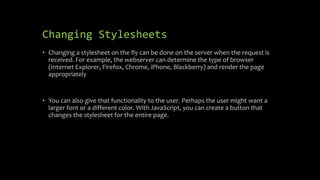
Changing Stylesheets
• Changing a stylesheet on the fly can be done on the server when the request is
received. For example, the webserver can determine the type of browser
(Internet Explorer, Firefox, Chrome, iPhone, Blackberry) and render the page
appropriately
• You can also give that functionality to the user. Perhaps the user might want a
larger font or a different color. With JavaScript, you can create a button that
changes the stylesheet for the entire page.
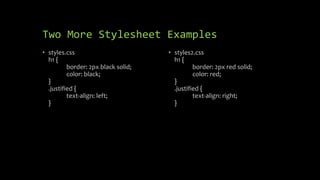
Two More Stylesheet Examples
• styles.css
h1 {
border: 2px black solid;
color: black;
}
.justified {
text-align: left;
}
• styles2.css
h1 {
border: 2px red solid;
color: red;
}
.justified {
text-align: right;
}
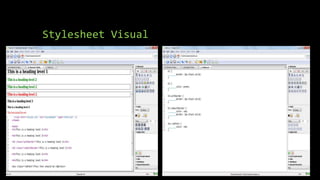
How Stylesheets are put together
• Each style in a style sheet has three parts:
• A selector
• One or more properties
• One or more values for each property
• Syntax
selector {
property1: value1 [value2 …];
property2: value1 [value2 …];
}
• To associate a style sheet to an HTML document, use the <link> tag within the head tag:
• <link href=“styles.css” rel=“stylesheet” type=“text/css” />
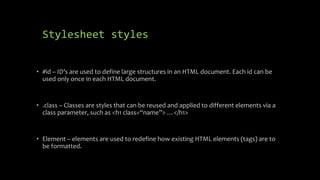
Stylesheet styles
• #id – ID’s are used to define large structures in an HTML document. Each id can be
used only once in each HTML document.
• .class – Classes are styles that can be reused and applied to different elements via a
class parameter, such as <h1 class=“name”> …</h1>
• Element – elements are used to redefine how existing HTML elements (tags) are to
be formatted.
Stylesheet Visual
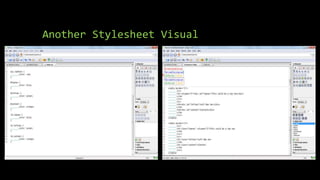
Another Stylesheet Visual
<style></style> tag
• The <style> tag is very important when using CSS code inside an HTML file
• All the CSS code must be in between the <style> and </style>
• Otherwise it is not recognized
CSS Properties
• The CSS color property defines the text color to be used.
• The CSS font-family property defines the font to be used.
• The CSS font-size property defines the text size to be used.
CSS Properties
• The CSS border property defines a border around an HTML element.
• The CSS padding property defines a padding (space) between the text and the
border.
• The CSS margin property defines a margin (space) outside the border.
CSS Properties
• Use the HTML style attribute for
inline styling
• Use the HTML <style> element to
define internal CSS
• Use the HTML <link> element to
refer to an external CSS file
• Use the HTML <head> element to
store <style> and <link> elements
• Use the CSS color property for text
colors
• Use the CSS font-family property for
text fonts
• Use the CSS font-size property for
text sizes
• Use the CSS border property for
borders
• Use the CSS padding property for
space inside the border
• Use the CSS margin property for
space outside the border
CSS Linking [External]
• This example uses a full URL to link to a style sheet:
• <link rel="stylesheet" href="https://www.w3schools.com/html/styles.css">
• This example links to a style sheet located in the html folder on the current web
site:
• <link rel="stylesheet" href="/html/styles.css">
• This example links to a style sheet located in the same folder as the current page:
• <link rel="stylesheet" href="styles.css">
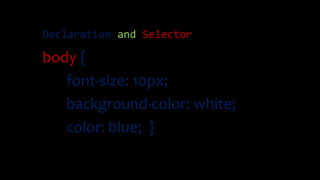
Declaration and Selector
body {
font-size: 10px;
background-color: white;
color: blue; }
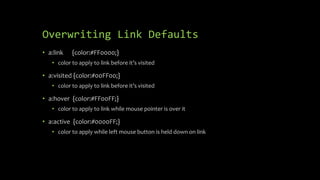
Overwriting Link Defaults
• a:link {color:#FF0000;}
• color to apply to link before it’s visited
• a:visited {color:#00FF00;}
• color to apply to link before it’s visited
• a:hover {color:#FF00FF;}
• color to apply to link while mouse pointer is over it
• a:active {color:#0000FF;}
• color to apply while left mouse button is held down on link
In Class Exercise
Create a CSS file called example.css where you set a background color, header color and
alignment, and text color, size and font.
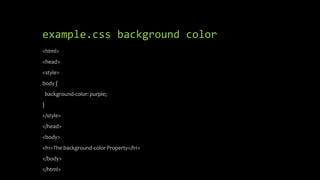
example.css background color
<html>
<head>
<style>
body {
background-color: purple;
}
</style>
</head>
<body>
<h1>The background-color Property</h1>
</body>
</html>
example.css header color and
alignment
<style>
h1 {
color: red;
alignment: center;
}
</style>
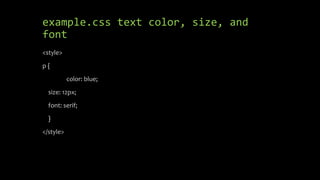
example.css text color, size, and
font
<style>
p {
color: blue;
size: 12px;
font: serif;
}
</style>
Check example.css in WYSIWYG First
• Put all of your pieces into the <style> tag within the <head> section of your HTML
“test” using your WYSIWYG
• Once checked, pull everything out of the <style> … </style> tag and put into
Notepad – save as example.css
Show How Internal Works
• Reference in an HTML file
• See if it works!
Quick Review
• 3 Elements to a CSS Statement
• Selector
• What HTML sections does it affect?
• Property
• What attribute of that HTML section will be affected?
• Value
• What change will be made to that attribute?
Quick Review
• External – separate .css file
• Internal – inside the <style> tag
• Inline – on the same line of code using the style attribute
CSS Inheritance
• Used when you have many sections of a website/web page and want them to
look differently
• Each section can be modified using both internal and inline CSS code
• Works like programming languages, such as Java or Python
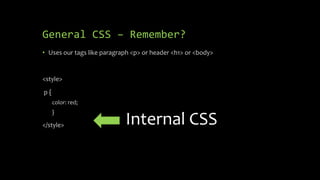
General CSS – Remember?
• Uses our tags like paragraph <p> or header <h1> or <body>
<style>
p {
color: red;
}
</style> Internal CSS
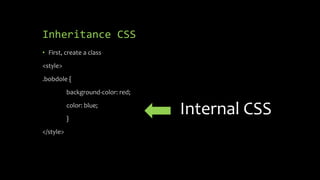
Inheritance CSS
• First, create a class
<style>
.bobdole {
background-color: red;
color: blue;
}
</style>
Internal CSS
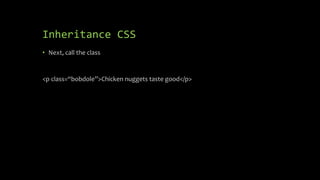
Inheritance CSS
• Next, call the class
<p class=“bobdole”>Chicken nuggets taste good</p>
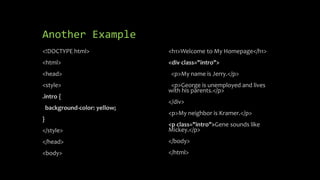
Another Example
<!DOCTYPE html>
<html>
<head>
<style>
.intro {
background-color: yellow;
}
</style>
</head>
<body>
<h1>Welcome to My Homepage</h1>
<div class="intro">
<p>My name is Jerry.</p>
<p>George is unemployed and lives
with his parents.</p>
</div>
<p>My neighbor is Kramer.</p>
<p class="intro">Gene sounds like
Mickey.</p>
</body>
</html>
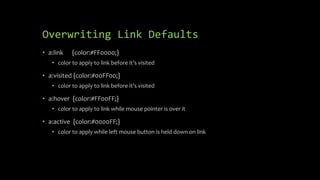
Overwriting Link Defaults
• a:link {color:#FF0000;}
• color to apply to link before it’s visited
• a:visited {color:#00FF00;}
• color to apply to link before it’s visited
• a:hover {color:#FF00FF;}
• color to apply to link while mouse pointer is over it
• a:active {color:#0000FF;}
• color to apply while left mouse button is held down on link
Link Defaults
• By default, a link will appear like this (in all browsers):
• An unvisited link is underlined and blue
• A visited link is underlined and purple
• An active link is underlined and red
• You can change the link state colors, by using CSS:
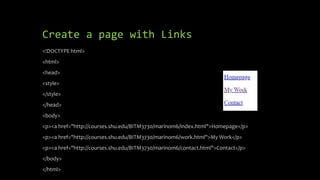
Create a page with Links
<!DOCTYPE html>
<html>
<head>
<style>
</style>
</head>
<body>
<p><a href="http://courses.shu.edu/BITM3730/marinom6/index.html">Homepage</p>
<p><a href="http://courses.shu.edu/BITM3730/marinom6/work.html">My Work</p>
<p><a href="http://courses.shu.edu/BITM3730/marinom6/contact.html">Contact</p>
</body>
</html>
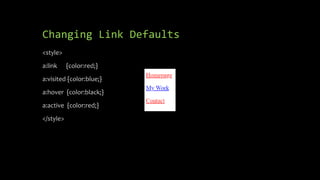
Changing Link Defaults
<style>
a:link {color:red;}
a:visited {color:blue;}
a:hover {color:black;}
a:active {color:red;}
</style>
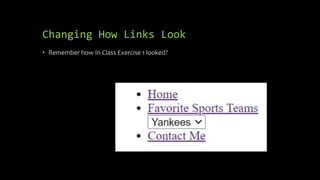
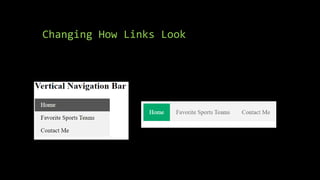
Changing How Links Look
• Remember how In Class Exercise 1 looked?
Changing How Links Look
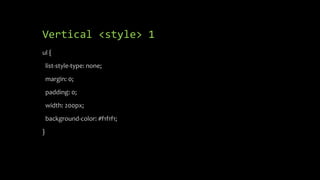
Vertical <style> 1
ul {
list-style-type: none;
margin: 0;
padding: 0;
width: 200px;
background-color: #f1f1f1;
}
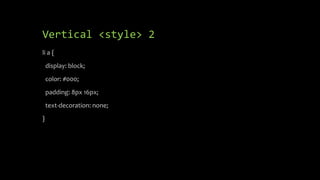
Vertical <style> 2
li a {
display: block;
color: #000;
padding: 8px 16px;
text-decoration: none;
}
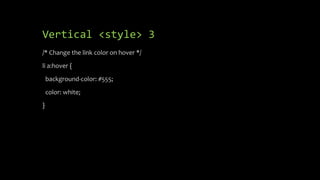
Vertical <style> 3
/* Change the link color on hover */
li a:hover {
background-color: #555;
color: white;
}
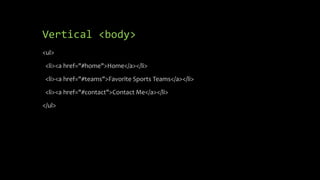
Vertical <body>
<ul>
<li><a href="#home">Home</a></li>
<li><a href="#teams">Favorite Sports Teams</a></li>
<li><a href="#contact">Contact Me</a></li>
</ul>
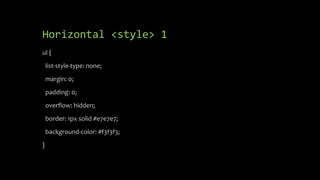
Horizontal <style> 1
ul {
list-style-type: none;
margin: 0;
padding: 0;
overflow: hidden;
border: 1px solid #e7e7e7;
background-color: #f3f3f3;
}
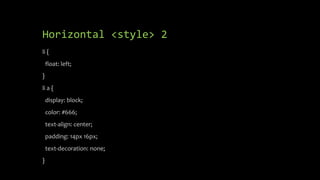
Horizontal <style> 2
li {
float: left;
}
li a {
display: block;
color: #666;
text-align: center;
padding: 14px 16px;
text-decoration: none;
}
Horizontal <style> 3
li a:hover:not(.active) {
background-color: #ddd;
}
li a.active {
color: white;
background-color: #04AA6D;
}
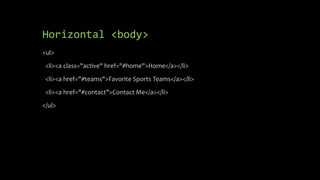
Horizontal <body>
<ul>
<li><a class="active" href="#home">Home</a></li>
<li><a href="#teams">Favorite Sports Teams</a></li>
<li><a href="#contact">Contact Me</a></li>
</ul>
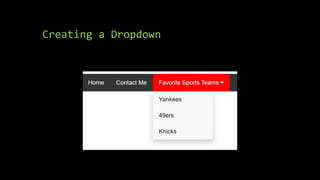
Creating a Dropdown
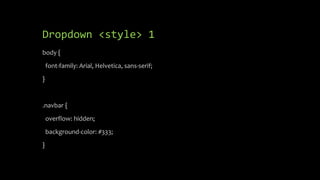
Dropdown <style> 1
body {
font-family: Arial, Helvetica, sans-serif;
}
.navbar {
overflow: hidden;
background-color: #333;
}
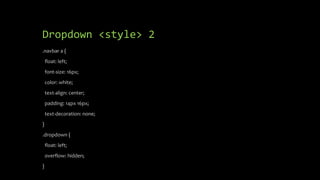
Dropdown <style> 2
.navbar a {
float: left;
font-size: 16px;
color: white;
text-align: center;
padding: 14px 16px;
text-decoration: none;
}
.dropdown {
float: left;
overflow: hidden;
}
Dropdown <style> 3
.dropdown .dropbtn {
font-size: 16px;
border: none;
outline: none;
color: white;
padding: 14px 16px;
background-color: inherit;
font-family: inherit;
margin: 0;
}
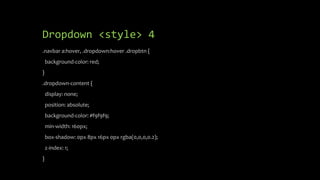
Dropdown <style> 4
.navbar a:hover, .dropdown:hover .dropbtn {
background-color: red;
}
.dropdown-content {
display: none;
position: absolute;
background-color: #f9f9f9;
min-width: 160px;
box-shadow: 0px 8px 16px 0px rgba(0,0,0,0.2);
z-index: 1;
}
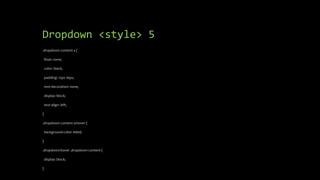
Dropdown <style> 5
.dropdown-content a {
float: none;
color: black;
padding: 12px 16px;
text-decoration: none;
display: block;
text-align: left;
}
.dropdown-content a:hover {
background-color: #ddd;
}
.dropdown:hover .dropdown-content {
display: block;
}
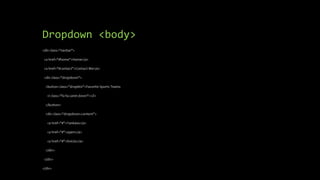
Dropdown <body>
<div class="navbar">
<a href="#home">Home</a>
<a href="#contact">Contact Me</a>
<div class="dropdown">
<button class="dropbtn">Favorite Sports Teams
<i class="fa fa-caret-down"></i>
</button>
<div class="dropdown-content">
<a href="#">Yankees</a>
<a href="#">49ers</a>
<a href="#">Knicks</a>
</div>
</div>
</div>
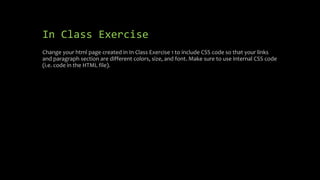
In Class Exercise
Change your html page created in In Class Exercise 1 to include CSS code so that your links
and paragraph section are different colors, size, and font. Make sure to use internal CSS code
(i.e. code in the HTML file).
INFO 2106
Website Design and
Management
2/19/24
CSS
CSS Height and Width
<html>
<head>
<style>
div {
max-width: 500px;
height: 100px;
background-color: powderblue;
}
</style>
</head>
<body>
<h2>Set the max-width of an element</h2>
<div>This div element has a height of 100px and a max-width of 500px.</div>
<p>Resize the browser window to see the effect.</p>
</body>
</html>
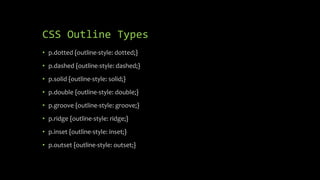
CSS Outline Types
• p.dotted {outline-style: dotted;}
• p.dashed {outline-style: dashed;}
• p.solid {outline-style: solid;}
• p.double {outline-style: double;}
• p.groove {outline-style: groove;}
• p.ridge {outline-style: ridge;}
• p.inset {outline-style: inset;}
• p.outset {outline-style: outset;}
CSS Icon Example
<html>
<head>
<script src="https://kit.fontawesome.com/a076d05399.js" crossorigin="anonymous"></script>
</head>
<body>
<i class="fas fa-cloud"></i>
<i class="fas fa-heart"></i>
<i class="fas fa-car"></i>
<i class="fas fa-file"></i>
<i class="fas fa-bars"></i>
</body>
</html>
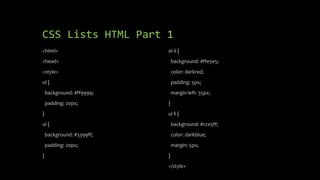
CSS Lists HTML Part 1
<html>
<head>
<style>
ol {
background: #ff9999;
padding: 20px;
}
ul {
background: #3399ff;
padding: 20px;
}
ol li {
background: #ffe5e5;
color: darkred;
padding: 5px;
margin-left: 35px;
}
ul li {
background: #cce5ff;
color: darkblue;
margin: 5px;
}
</style>
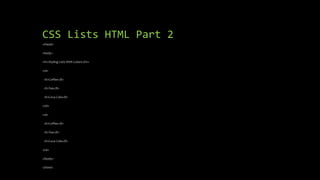
CSS Lists HTML Part 2
</head>
<body>
<h1>Styling Lists With Colors</h1>
<ol>
<li>Coffee</li>
<li>Tea</li>
<li>Coca Cola</li>
</ol>
<ul>
<li>Coffee</li>
<li>Tea</li>
<li>Coca Cola</li>
</ul>
</body>
</html>
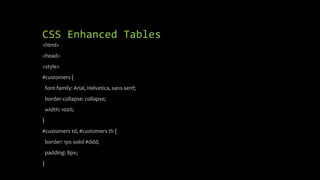
CSS Enhanced Tables
<html>
<head>
<style>
#customers {
font-family: Arial, Helvetica, sans-serif;
border-collapse: collapse;
width: 100%;
}
#customers td, #customers th {
border: 1px solid #ddd;
padding: 8px;
}
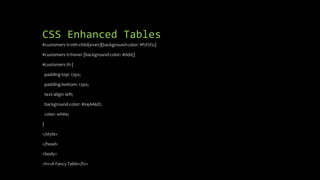
CSS Enhanced Tables
#customers tr:nth-child(even){background-color: #f2f2f2;}
#customers tr:hover {background-color: #ddd;}
#customers th {
padding-top: 12px;
padding-bottom: 12px;
text-align: left;
background-color: #04AA6D;
color: white;
}
</style>
</head>
<body>
<h1>A Fancy Table</h1>
CSS Enhanced Tables
<table id="customers">
<tr>
<th>Company</th>
<th>Contact</th>
<th>Country</th>
</tr>
<tr>
<td>Alfreds Futterkiste</td>
<td>Maria Anders</td>
<td>Germany</td>
</tr>
<tr>
<td>Berglunds snabbköp</td>
<td>Christina Berglund</td>
<td>Sweden</td>
</tr>
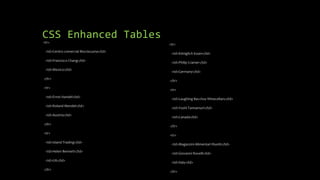
CSS Enhanced Tables
<tr>
<td>Centro comercial Moctezuma</td>
<td>Francisco Chang</td>
<td>Mexico</td>
</tr>
<tr>
<td>Ernst Handel</td>
<td>Roland Mendel</td>
<td>Austria</td>
</tr>
<tr>
<td>Island Trading</td>
<td>Helen Bennett</td>
<td>UK</td>
</tr>
<tr>
<td>Königlich Essen</td>
<td>Philip Cramer</td>
<td>Germany</td>
</tr>
<tr>
<td>Laughing Bacchus Winecellars</td>
<td>Yoshi Tannamuri</td>
<td>Canada</td>
</tr>
<tr>
<td>Magazzini Alimentari Riuniti</td>
<td>Giovanni Rovelli</td>
<td>Italy</td>
</tr>
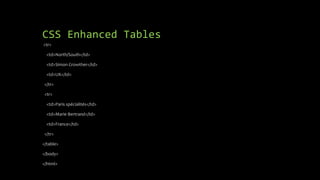
CSS Enhanced Tables
<tr>
<td>North/South</td>
<td>Simon Crowther</td>
<td>UK</td>
</tr>
<tr>
<td>Paris spécialités</td>
<td>Marie Bertrand</td>
<td>France</td>
</tr>
</table>
</body>
</html>
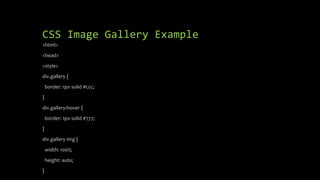
CSS Image Gallery Example
<html>
<head>
<style>
div.gallery {
border: 1px solid #ccc;
}
div.gallery:hover {
border: 1px solid #777;
}
div.gallery img {
width: 100%;
height: auto;
}
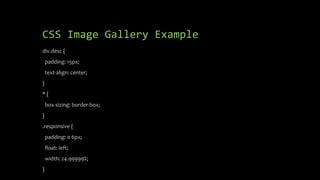
CSS Image Gallery Example
div.desc {
padding: 15px;
text-align: center;
}
* {
box-sizing: border-box;
}
.responsive {
padding: 0 6px;
float: left;
width: 24.99999%;
}
CSS Image Gallery Example
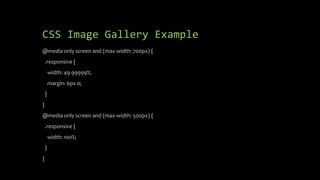
@media only screen and (max-width: 700px) {
.responsive {
width: 49.99999%;
margin: 6px 0;
}
}
@media only screen and (max-width: 500px) {
.responsive {
width: 100%;
}
}
CSS Image Gallery Example
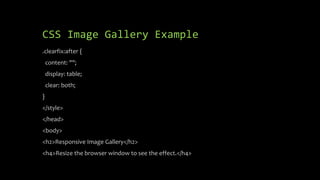
.clearfix:after {
content: "";
display: table;
clear: both;
}
</style>
</head>
<body>
<h2>Responsive Image Gallery</h2>
<h4>Resize the browser window to see the effect.</h4>
CSS Image Gallery Example
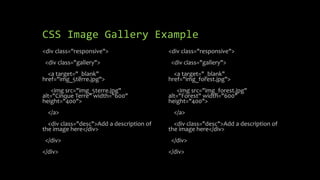
<div class="responsive">
<div class="gallery">
<a target="_blank"
href="img_5terre.jpg">
<img src="img_5terre.jpg"
alt="Cinque Terre" width="600"
height="400">
</a>
<div class="desc">Add a description of
the image here</div>
</div>
</div>
<div class="responsive">
<div class="gallery">
<a target="_blank"
href="img_forest.jpg">
<img src="img_forest.jpg"
alt="Forest" width="600"
height="400">
</a>
<div class="desc">Add a description of
the image here</div>
</div>
</div>
CSS Image Gallery Example
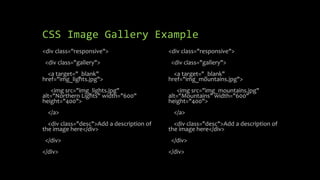
<div class="responsive">
<div class="gallery">
<a target="_blank"
href="img_lights.jpg">
<img src="img_lights.jpg"
alt="Northern Lights" width="600"
height="400">
</a>
<div class="desc">Add a description of
the image here</div>
</div>
</div>
<div class="responsive">
<div class="gallery">
<a target="_blank"
href="img_mountains.jpg">
<img src="img_mountains.jpg"
alt="Mountains" width="600"
height="400">
</a>
<div class="desc">Add a description of
the image here</div>
</div>
</div>
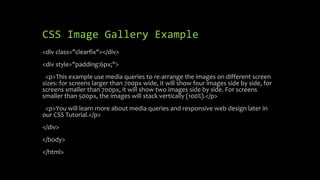
CSS Image Gallery Example
<div class="clearfix"></div>
<div style="padding:6px;">
<p>This example use media queries to re-arrange the images on different screen
sizes: for screens larger than 700px wide, it will show four images side by side, for
screens smaller than 700px, it will show two images side by side. For screens
smaller than 500px, the images will stack vertically (100%).</p>
<p>You will learn more about media queries and responsive web design later in
our CSS Tutorial.</p>
</div>
</body>
</html>
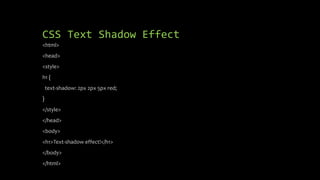
CSS Text Shadow Effect
<html>
<head>
<style>
h1 {
text-shadow: 2px 2px 5px red;
}
</style>
</head>
<body>
<h1>Text-shadow effect!</h1>
</body>
</html>
INFO 2106
Website Design and
Management
2/26/24
CSS
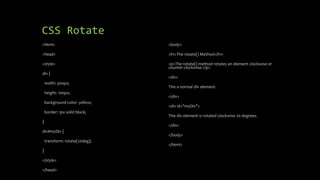
CSS Rotate
<html>
<head>
<style>
div {
width: 300px;
height: 100px;
background-color: yellow;
border: 1px solid black;
}
div#myDiv {
transform: rotate(20deg);
}
</style>
</head>
<body>
<h1>The rotate() Method</h1>
<p>The rotate() method rotates an element clockwise or
counter-clockwise.</p>
<div>
This a normal div element.
</div>
<div id="myDiv">
This div element is rotated clockwise 20 degrees.
</div>
</body>
</html>
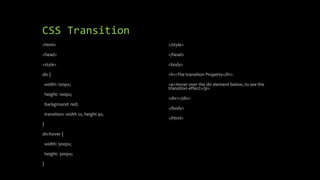
CSS Transition
<html>
<head>
<style>
div {
width: 100px;
height: 100px;
background: red;
transition: width 2s, height 4s;
}
div:hover {
width: 300px;
height: 300px;
}
</style>
</head>
<body>
<h1>The transition Property</h1>
<p>Hover over the div element below, to see the
transition effect:</p>
<div></div>
</body>
</html>
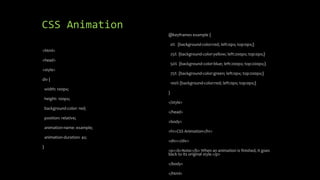
CSS Animation
<html>
<head>
<style>
div {
width: 100px;
height: 100px;
background-color: red;
position: relative;
animation-name: example;
animation-duration: 4s;
}
@keyframes example {
0% {background-color:red; left:0px; top:0px;}
25% {background-color:yellow; left:200px; top:0px;}
50% {background-color:blue; left:200px; top:200px;}
75% {background-color:green; left:0px; top:200px;}
100% {background-color:red; left:0px; top:0px;}
}
</style>
</head>
<body>
<h1>CSS Animation</h1>
<div></div>
<p><b>Note:</b> When an animation is finished, it goes
back to its original style.</p>
</body>
</html>
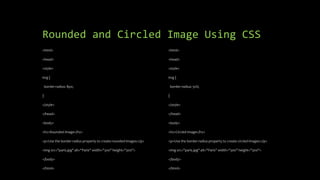
Rounded and Circled Image Using CSS
<html>
<head>
<style>
img {
border-radius: 8px;
}
</style>
</head>
<body>
<h2>Rounded Image</h2>
<p>Use the border-radius property to create rounded images:</p>
<img src="paris.jpg" alt="Paris" width="300" height="300">
</body>
</html>
<html>
<head>
<style>
img {
border-radius: 50%;
}
</style>
</head>
<body>
<h2>Circled Image</h2>
<p>Use the border-radius property to create circled images:</p>
<img src="paris.jpg" alt="Paris" width="300" height="300">
</body>
</html>
CSS Thumbnail Image as Link
<html>
<head>
<style>
img {
border: 1px solid #ddd;
border-radius: 4px;
padding: 5px;
width: 150px;
}
img:hover {
box-shadow: 0 0 2px 1px rgba(0, 140, 186, 0.5);
}
</style>
</head>
<body>
<h2>Thumbnail Image as Link</h2>
<p>Use the border property to create thumbnail images. Wrap an anchor around the image to
use it as a link.</p>
<p>Hover over the image and click on it to see the effect.</p>
<a target="_blank" href="paris.jpg">
<img src="paris.jpg" alt="Paris" style="width:150px">
</a>
</body>
</html>
Polaroids
<html>
<head>
<style>
body {margin:25px;}
div.polaroid {
width: 80%;
background-color: white;
box-shadow: 0 4px 8px 0 rgba(0, 0, 0, 0.2), 0 6px 20px 0 rgba(0, 0, 0, 0.19);
margin-bottom: 25px;
}
div.container {
text-align: center;
padding: 10px 20px;
}
</style>
</head>
<body>
<h2>Responsive Polaroid Images / Cards</h2>
<div class="polaroid">
<img src="img_5terre.jpg" alt="5 Terre" style="width:100%">
<div class="container">
<p>Cinque Terre</p>
</div>
</div>
<div class="polaroid">
<img src="lights600x400.jpg" alt="Norther Lights" style="width:100%">
<div class="container">
<p>Northern Lights</p>
</div>
</div>
</body>
</html>
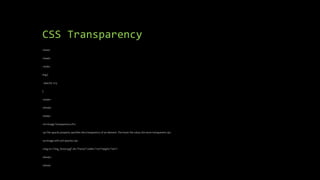
CSS Transparency
<html>
<head>
<style>
img {
opacity: 0.5;
}
</style>
</head>
<body>
<h1>Image Transparency</h1>
<p>The opacity property specifies the transparency of an element. The lower the value, the more transparent:</p>
<p>Image with 50% opacity:</p>
<img src="img_forest.jpg" alt="Forest" width="170" height="100">
</body>
</html>
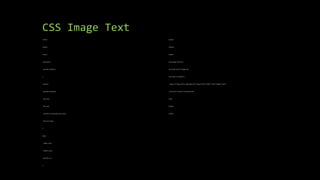
CSS Image Text
<html>
<head>
<style>
.container {
position: relative;
}
.center {
position: absolute;
top: 50%;
left: 50%;
transform: translate(-50%, -50%);
font-size: 18px;
}
img {
width: 100%;
height: auto;
opacity: 0.3;
}
</style>
</head>
<body>
<h2>Image Text</h2>
<p>Center text in image:</p>
<div class="container">
<img src="img_5terre_wide.jpg"alt="Cinque Terre" width="1000" height="300">
<div class="center">Centered</div>
</div>
</body>
</html>
CSS Image Text
• Same can be done using
• .topleft
• .topright
• .bottomleft
• .bottomright
CSS Image Overlay
• Full code in Notes!
• Overlay from the bottom of screen.
CSS Rounded Buttons
<html>
<head>
<style>
.button {
background-color: #04AA6D; /* Green */
border: none;
color: white;
padding: 20px;
text-align: center;
text-decoration: none;
display: inline-block;
font-size: 16px;
margin: 4px 2px;
cursor: pointer;
}
.button1 {border-radius: 2px;}
.button2 {border-radius: 4px;}
CSS Rounded Buttons
.button3 {border-radius: 8px;}
.button4 {border-radius: 12px;}
.button5 {border-radius: 50%;}
</style>
</head>
<body>
<h2>Rounded Buttons</h2>
<p>Add rounded corners to a button with the border-radius property:</p>
<button class="button button1">2px</button>
<button class="button button2">4px</button>
<button class="button button3">8px</button>
<button class="button button4">12px</button>
<button class="button button5">50%</button>
</body>
</html>
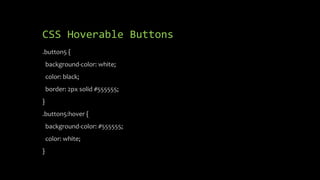
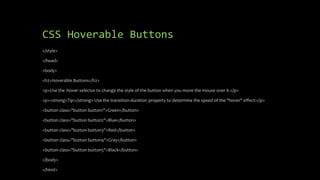
CSS Hoverable Buttons
<html>
<head>
<style>
.button {
background-color: #04AA6D; /* Green */
border: none;
color: white;
padding: 16px 32px;
text-align: center;
text-decoration: none;
display: inline-block;
font-size: 16px;
margin: 4px 2px;
transition-duration: 0.4s;
cursor: pointer;
}
CSS Hoverable Buttons
.button1 {
background-color: white;
color: black;
border: 2px solid #04AA6D;
}
.button1:hover {
background-color: #04AA6D;
color: white;
}
CSS Hoverable Buttons
.button2 {
background-color: white;
color: black;
border: 2px solid #008CBA;
}
.button2:hover {
background-color: #008CBA;
color: white;
}
CSS Hoverable Buttons
.button3 {
background-color: white;
color: black;
border: 2px solid #f44336;
}
.button3:hover {
background-color: #f44336;
color: white;
}
CSS Hoverable Buttons
.button4 {
background-color: white;
color: black;
border: 2px solid #e7e7e7;
}
.button4:hover {background-color: #e7e7e7;}
CSS Hoverable Buttons
.button5 {
background-color: white;
color: black;
border: 2px solid #555555;
}
.button5:hover {
background-color: #555555;
color: white;
}
CSS Hoverable Buttons
</style>
</head>
<body>
<h2>Hoverable Buttons</h2>
<p>Use the :hover selector to change the style of the button when you move the mouse over it.</p>
<p><strong>Tip:</strong> Use the transition-duration property to determine the speed of the "hover" effect:</p>
<button class="button button1">Green</button>
<button class="button button2">Blue</button>
<button class="button button3">Red</button>
<button class="button button4">Gray</button>
<button class="button button5">Black</button>
</body>
</html>
CSS Assignment
• Create an HTML file called dropdown.html where you utilize internal CSS to
create a dropdown menu AND set CSS parameters [color, alignment, etc.] for
your headers and paragraphs.
• Your dropdown menu should include a Home, About Me, Class Info, and Contact
Me pages listed. Create dropdowns for both the About Me and Class Info
sections.
INFO 2106
Website Design and
Management
3/4/24
JS
JavaScript Basics
• JavaScript is embedded in an HTML file using
<script></script>
• .js is the file extension for JavaScript
• Functions make up the majority of JavaScript
• If statements are used for condition execution in
JavaScript
• You comment out a single line of code using //
JavaScript Important Notes
• Like Java [uses functions]
• Interpreted by the browser, not compiled
• Complimentary to HTML, used for dynamic web pages and form validation
• OS and Browser (for the most part) independent
• JavaScript is either embedded in a webpage using <script> …</script> or in a
separate file usually with a .js extension.
• Like stylesheets and css files, JavaScript and js files allows for portability and
reusability.
• To reference an external JavaScript: <script src=“scripts.js”></script>
DIV and SPAN Reminder
• DIV – gives you the ability to identify particular sections (divisions) of a document
using the id attribute. Particularly useful in AJAX and dynamic HTML.
• SPAN – has the same attributes and uses above. Both tags have the style, class
and id attributes.
• Primary difference between the two is the DIV tag inherently breaks a paragraph.
• Both are typically used to apply styles to HTML documents.
JavaScript Intro
• JavaScript allows for client-side code execution.
• Similar to Java
• Typically used for client-side form validation, dynamic HTML and AJAX.
• Example:
<script>
document.write(“Our first JavaScript”);
</script>
• In the above example, code is written directly in the HTML document.
• In order for code to be reusable, the code can be stored in a .js file.
Basic Example
<!DOCTYPE html>
<html>
<head>
<title></title>
<meta http-equiv="Content-Type" content="text/html; charset=UTF-8">
<script src="js/scripts.js" ></script>
</head>
<body>
<div>TODO write content</div>
<button onclick="myFirstFunction();" >Click Me!</button>
</body>
</html>
Function Being Called
function myFirstFunction()
{
alert("our test works!")
}
onclick
• Using standard HTML, a webpage is static (i.e. it won’t change until the HTML file
is changed)
• Using dynamic HTML and events like onClick, the content of a page or a tag can
be changed on the fly
onclick Example HTML
<html>
<head>
<title></title>
<meta http-equiv="Content-Type" content="text/html; charset=UTF-8">
<script src="js/scripts.js"></script>
</head>
<body>
<div id="myDIV">TODO write content</div>
<button id="divChange" onclick="divChange()">Change the DIV value</button><br/>
<button id="divChangeBack" onclick="divChangeBack()">Change the DIV value back</button><br/>
<button id="docChange" onclick="docChange()">Change the entire document</button><br/>
</body>
</html>
onclick JavaScript code
function divChange()
{
previousDIV = document.getElementById("myDIV").innerHTML;
document.getElementById("myDIV").innerHTML="DIV has changed";
}
function divChangeBack()
{
document.getElementById("myDIV").innerHTML = previousDIV;
}
function docChange()
{
document.write("Document has changed");
}
Another onclick Example HTML
<html>
<head>
<title></title>
<meta http-equiv="Content-Type" content="text/html; charset=UTF-8">
<link href="styles.css" rel="stylesheet" type="text/css" title="Default Style" id="defaultStyle" />
<link href="styles2.css" rel="stylesheet" type="text/css" title="Mobile Style" id="mobileStyle"/>
<script src="js/scripts.js"></script>
</head>
<body>
<h1>Here is my H1, watch it change.</h1>
<p class="justified">this is a test of the justified class</p>
<button id="styleSwitchButton" onclick="switchStyle()">Switch Style</button>
</body>
</html>
Another onclick Example JS
function switchStyle()
{
styleDefault = document.getElementById("defaultStyle");
styleMobile = document.getElementById("mobileStyle");
if (styleDefault.disabled)
{
styleDefault.disabled = false;
styleMobile.disabled = true;
}
else
{
styleDefault.disabled = true;
styleMobile.disabled = false;
}
}
JS Functions
• JavaScript code can be written as a block or code that will execute once or as
functions
• Functions are useful when they are used again and again within a page or a website.
One use for a function is form validation. Custom functions can be written to validate
the form before it is submitted.
JS Functions Cont.
• The function syntax is
function myFunction(){
• …..;
}
• In the above example, the function name is myFunction and it takes no
arguments
• A argument is passed for use within the function
• A function can return a value as well so it can be assigned to an outside variable.
• function myAdditionFunction(a, b) {
return a + b;
}
JS Comments
• When writing code, it is useful to embed comments, so the purpose of the code is
understood
// - this comments out a single line
• /*
• */ comments all content between and ignores line breaks
document
• Similar to java, there are objects within JavaScript
• The main one to remember is the document object. This object references the
entire HTML document.
• One typical use is the document.getElementById(“myid”).innerHTML=“some
string”;
• In the above example, the code will find an HTML element such as a <p>, <div> or
a <span> and change the “value” of that tag (i.e. the content between the open
and close tag).
• In order for the element to be referenced, the id attribute must be used in the
opening tag (<div id=“myid”>This text will change</div>
Variables
• In programming, variables allow for the storage of a value so it can be referenced later within the code.
• JavaScript creates variables using the following syntax:
var foo = “a”;
var bar = “b”;
• Javascript has no types. Programming languages typically have types like integer, string, decimal. Javascript stores everything
using the same variable type.
• It is possible to create a variable with no initial value
var myVar;
• var x = 1;
var y = 2;
var z = x + y;
• var x = “test”;
var y = “string”;
var z = x + “ “ + y;
Scope
• Variables have a limited scope when defined in a function.
Function myFunction() {
var myLocalVar = 1; //this var will not be accessible from outside
}
Operators
• + adds two operands
• - subtracts second operand from the
first
• * multiply both operands
• / divide first operand by the second
operand
• ++ increments the operator by one
• -- decrements the operator by one
• == Checks if two operands are equal,
if so, returns true, otherwise false
• != Checks if two operands are not
equal, if so, returns true, otherwise
false
• > Checks if the first operand is greater
than the second operand
• < Checks if the first operand is less
than the second operand
• >= Checks if the first operand is
greater than or equal to
• <= Checks if the first operand is less
than or equal to
Additional Operators
• && returns true if both statements are
true
• || returns true if either statement is true
• ^ returns true if only one statement is true
• = simple assignment operator
• += adds right operand to the left operand
and assigns to the left operand
• -= subtracts right operand from the left
operand and assigns to the left operand
• *= multiples right operand with the left
operand and assigns to the left operand.
• /= divides the left operand with the right
operand and assigns to the left operand.
• C += A is equal to c = c+a
• C -= A is equal to c = c-a
• C *= A is equal to c = c * a
• C /= A is equal to c = c/a
If Statement
• If statements are used for conditional execution.
• Else statements are used to run a different set of code if the if statement doesn’t
evaluate to true
• The syntax in Java is:
if (condition)
{
code to be executed
}
else
{
code to be executed
}
If in Action
var alertString='';
var firstName=document.getElementById("firstName");
var lastName=document.getElementById("lastName");
if (firstName.value == "")
{
alertString+='Enter your first namen';
}
if (lastName.value == "")
{
alertString+='Enter your last namen';
}
if (alertString != "")
{
alert(alertString);
}
AJAX
• Asynchronous JavaScript and XML
• Why asynchronous? – Allows time for the server to process the request and return
the results when complete. JavaScript proceeds while the server is processing
• Uses XMLHttpRequest – builtin javascript object for sending requests for XML using
JavaScript
• Two most useful methods for XMLHttpRequest are open and send.
• Open method has the following parameters
• Method – GET or POST. GET will be sufficient most times however it won’t be
sufficient when a uncached copy of the file is necessary
• url – the URL of the xml file or script
• Async – true or false – send the method asynchronously or not
AJAX Cont.
• For the response from the server, you can use the responseText or responseXML
property of the XMLHttpRequest object
• responseText is used when the response consists of plain text
• responseXML is used when the response consists of XML
What is a Cookie?
• A small piece of data sent from a website and stored in a user’s web browser
while a user is browsing a website
• When the user browses the same website in the future, the data stored in the
cookie can be retrieved by the website.
JavaScript Cookie
• Name: the name of the cookie
• Value: the value of the cookie
• Expires: the date/time when the cookie expires automatically
• Path: the path of the cookie
• Domain: the name of the server that created the cookie
• Secure: whether to use encryption to read/set the cookie
• Only small amounts of data can be stored in a cookie
• Cookies are available via JavaScript only to the domain used when the cookie was
created
• Cookies are available only to files in the same directory the cookie was created in (use
path “/” to make a cookie available to all files)
Setting a Cookie
• To set a cookie, you assign an appropriate value to document.cookie
• We can write a function so that we don’t need to write the same code again and again
function setCookie(name, value, expireDays)
{
var expires = new Date();
expires.setDate(expires.getDate() + expireDays);
var myCookie = name + "=" + escape(value) +
";expires=" + expires.toGMTString() +
";path=/";
document.cookie = myCookie;
}
Explaining What We Just Did
• Var expires is set to a new Date object. An object is a data structure which
contains properties and its behavior.
• The above Date object is created with no date and time. The Date() function is
called its constructor. When setDate is called, it is set with the current date and
the number of days in expiresDays is added hence setting the expire time.
• The myCookie var is nothing but a string. The escape function “escapes”
characters within a string. The characters it escapes are used in the URL and can
cause the HTTP request to fail
• In order to delete a cookie, we can just call setCookie(name, “”, -1). This will clear
out the cookie name and value and set it to expire to yesterday
Getting a Cookie
function getCookie(name)
{
if ((document.cookie == null) || (document.cookie == ""))
{
return "";
}
else
{
var cookies = document.cookie.split(';');
for (var i = 0; i < cookies.length; i++)
{
var cookie = cookies[i].split('=');
if (removeLeadingSpace(cookie[0]) == name)
{
return unescape(cookie[1]);
}
}
return "";
}
}
JavaScript Function Test
function myWhileFunction(a, b)
{
var i = 1;
var counter = 1;
while (counter <= b)
{
i = i * a;
counter++;
}
return i;
}
• Explain how many times the
following while loop will run and
what the value of i will be when it is
complete when called with
myWhileFunction(2,8)
Test Answer
• It will run 8 times
• i will equal 256
function myWhileFunction(a, b)
{
var i = 1;
var counter = 1;
while (counter <= b)
{
i = i * a;
counter++;
}
return i;
}
Important Notes
• XML works well with JavaScript
• JavaScript can help in getting a cookie in addition to setting
a cookie
• A cookie stores small amounts of data
• The expires function is used to set an expiration date on a
cookie
• Cookies are available in the same directory the cookie was
created in
XML and JavaScript [HTML file]
<html>
<head>
<title></title>
<meta http-equiv="Content-Type" content="text/html; charset=UTF-8">
<script src="js/scripts.js"></script>
</head>
<body onload="showData()">
<div id="addressbook"></div>
</body>
</html>
XML and JavaScript [JS file]
function showData()
{
var xml = new XMLHttpRequest();
var addressHTML = "";
var addressbook = document.getElementById("addressbook");
xml.open("GET", "addressdata.xml", false);
xml.send("");
var xmlDoc = xml.responseXML;
var names = xmlDoc.getElementsByTagName("name");
var mails = xmlDoc.getElementsByTagName("email");
for (var i = 0; i < names.length; i++)
{
var name = names[i].childNodes[0].nodeValue;
var mail = mails[i].childNodes[0].nodeValue;
addressHTML += "<li>" + name + "(" + mail + ")</li>n";
}
addressbook.innerHTML = addressHTML;
}
Concerns with Cookies
• Cookies can be overwritten in the browser.
• Some browsers allow for this and others can be edit by opening the file which stores
the cookies.
• Cookies are prime targets for sql injection. Imagine you are performing a select
based on the username:
• select student_id from students where username = “<username>” where <username>
is the valued stored in the cookie.
onclick Display Date and Time
<!DOCTYPE html>
<html>
<body>
<h2>Date and Time</h2>
<button type="button"
onclick="document.getElementById('demo').innerHTML = Date()">
Click me to display Date and Time.</button>
<p id="demo"></p>
</body>
</html>
JavaScript Compared to HTML/CSS
• HTML to define the content of web pages
• CSS to specify the layout of web pages
• JavaScript to program the behavior of web pages
More onclick Examples
<!DOCTYPE html>
<html>
<body>
<button onclick="document.getElementById('demo').innerHTML=Date()">The
time is?</button>
<p id="demo"></p>
</body>
</html>
Another onclick Example
<!DOCTYPE html>
<html>
<body>
<button onclick="this.innerHTML=Date()">The time is?</button>
</body>
</html>
Common JS/HTML Elements
Event Description
onchange An HTML element has been changed
onclick The user clicks an HTML element
onmouseover The user moves the mouse over an HTML element
onmouseout The user moves the mouse away from an HTML element
onkeydown The user pushes a keyboard key
onload The browser has finished loading the page
JavaScript - Java
• Arrays
• Booleans
• Math Class
• Random Class
• Objects
• Functions
• Assignment requirements
JavaScript Community
• https://www.javascript.com/
• Tutorials
• Questions – Community
• And More!
Basics
• Java programming language can be embedded into JSP
• JSP stands for Java Server Pages
• JSP is compiled on servlets
• JSP is a server-side web technology
• The primary function of JSP is rendering content
• The primary function of a servlet is processing
JSP – Java Server Page
• Based on HTML. JSP pages can be based on HTML pages, just
change the extension
• Server-side web technology
• Compiled into servlets at runtime
• Allows for embedding of Java code directly into the script
using <%.....%>
• Requires Apache Tomcat installation on server
Servlet
• Compiled code used to deliver content over the HTTP protocol
• Developed as a Java class conforming to the Java Servlet API
• Typically used in conjunction with JSPs for more extensive processing
JSP vs Servlet
• JSPs are more geared towards rendering content
• Servlets are better suited for processing since they are pre-
compiled
• Consider the concept of Model-View-Controller (MVC)
• Model is your business model which houses all of the business logic
• View is your users’ view into your application. In this case it would be
JSPs
• Controller is the glue between the model and the view
• Spring and Struts are two popular MVCs used in Java web applications
• Servlets will typically process request data, enrich it (process
it) and forward the request onto a JSP for display
Working Together
• JavaServer Pages (JSP) is a Java standard technology that enables you to write
dynamic, data-driven pages for your Java web applications.
• JSP is built on top of the Java Servlet specification.
• The two technologies typically work together, especially in older Java web
applications.
• From a coding perspective, the most obvious difference between them is that
with servlets you write Java code and then embed client-side markup (like HTML)
into that code, whereas with JSP you start with the client-side script or markup,
then embed JSP tags to connect your page to the Java backend.
JSP vs. Everyone Else
• JSP vs. Active Server Pages (ASP): The advantages of JSP are twofold. First, the
dynamic part is written in Java, not Visual Basic or other MS specific language, so it is
more powerful and easier to use. Second, it is portable to other operating systems
and non-Microsoft Web servers.
• JSP vs. Pure Servlets: It is more convenient to write (and to modify!) regular HTML
than to have plenty of println statements that generate the HTML.
• JSP vs. Server-Side Includes (SSI): SSI is really only intended for simple inclusions, not
for "real" programs that use form data, make database connections, and the like.
• JSP vs. JavaScript: JavaScript can generate HTML dynamically on the client but can
hardly interact with the web server to perform complex tasks like database access
and image processing etc.
• JSP vs. Static HTML: Regular HTML, of course, cannot contain dynamic information.
Methods to Set HTTP Status Code
S.No. Method & Description
1
public void setStatus ( int statusCode )
This method sets an arbitrary status code. The setStatus method takes an int (the status code) as an argument. If your
response includes a special status code and a document, be sure to call setStatus before actually returning any of the
content with the PrintWriter.
2
public void sendRedirect(String url)
This method generates a 302 response along with a Location header giving the URL of the new document.
3
public void sendError(int code, String message)
This method sends a status code (usually 404) along with a short message that is automatically formatted inside an
HTML document and sent to the client.
Applications of Servlet
• Read the explicit data sent by the clients (browsers). This includes an HTML form on a
Web page or it could also come from an applet or a custom HTTP client program.
• Read the implicit HTTP request data sent by the clients (browsers). This includes
cookies, media types and compression schemes the browser understands, and so
forth.
• Process the data and generate the results. This process may require talking to a
database, executing an RMI or CORBA call, invoking a Web service, or computing the
response directly.
• Send the explicit data (i.e., the document) to the clients (browsers). This document
can be sent in a variety of formats, including text (HTML or XML), binary (GIF images),
Excel, etc.
• Send the implicit HTTP response to the clients (browsers). This includes telling the
browsers or other clients what type of document is being returned (e.g., HTML),
setting cookies and caching parameters, and other such tasks.
Visually
init
public void init(ServletConfig config)

throws ServletException
• Called by the servlet container to indicate to a servlet that the servlet is being placed
into service.
• The servlet container calls the init method exactly once after instantiating the servlet.
The init method must complete successfully before the servlet can receive any
requests.
• The servlet container cannot place the servlet into service if the init method
• Throws a ServletException
• Does not return within a time period defined by the Web server
destroy
public void destroy()
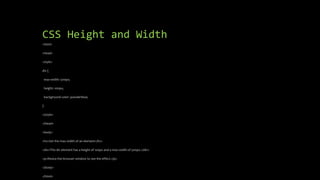
• Called by the servlet container to indicate to a servlet that the servlet is being
taken out of service. This method is only called once all threads within the
servlet's service method have exited or after a timeout period has passed. After
the servlet container calls this method, it will not call the service method again on
this servlet.
• This method gives the servlet an opportunity to clean up any resources that are
being held (for example, memory, file handles, threads) and make sure that any
persistent state is synchronized with the servlet's current state in memory.
Servlet Life Cycle
• Servlet life cycle is governed by init(), service(), and destroy().
• The init() method is called when the servlet is loaded and executes only once.
• After the servlet has been initialized, the service() method is invoked to
process a request.
• The servlet remains in the server address space until it is terminated by the
server. Servlet resources are released by calling destroy().
• No calls to service() are made after destroy() is invoked.
GUIs
• A GUI (graphical user interface) is a system of interactive visual components for
computer software.
• A GUI displays objects that convey information and represent actions that can be
taken by the user.
• The objects change color, size, or visibility when the user interacts with them
Creating a
Multiplication
Table
• Copy the code from
Notes
• Visual example for
entering 9 and 9 to
prompts:
Creating a
Multiplication
Table Prompts
JavaScript Form
• Copy code from Notes
• Visual:
In Class Exercise
Create a popup message using an event. Your JavaScript code will go inside an HTML file
called welcome.html. You should create a message on your page such as Hello and when you
hover over the message a popup shows up with a different message, such as Hello and
Welcome to My site.
Building In Class Exercise
<html>
<head>
<title>JS Event Example</title>
<script type="text/javascript">
Building In Class Exercise
function trigger()
{
document.getElementById("hover").addEventListener("mouseover",
popup);
function popup()
{
alert("Welcome to my WebPage!!!");
}
Building In Class Exercise
}
</script>
<style>
p
{
font-size:50px;
position: fixed;
left: 550px;
top: 300px;
}
</style>
Building In Class Exercise
</head>
<body onload="trigger();">
<p id="hover">Welcome!!!</p>
</body>
</html>
Building In Class Exercise
• Remember to copy you WYSIWYG code into Notepad and save as
• welcome.html
• Do not save as .js file
Review: JavaScript vs Java
• interpreted, not compiled
• more relaxed syntax and rules
• fewer and "looser" data types
• variables don't need to be declared
• errors often silent (few exceptions)
• key construct is the function rather than the class
• "first-class" functions are used in many situations
• contained within a web page and integrates with its HTML/CSS content
Review: External Linking
• <script src="filename" type="text/javascript"></script
• script tag should be placed in HTML page's head
• script code is stored in a separate .js file
• JS code can be placed directly in the HTML file's body or head (like CSS
Common Uses of JavaScript
• Form validation
• Page embellishments and special effects
• Navigation systems
• Basic math calculations
• Dynamic content manipulation
• Sample applications
• Dashboard widgets in Mac OS X, Google Maps, Philips universal remotes, Writely word
processor, hundreds of others…
Example 1: Add Two Numbers
<html>
…
<p> … </p>
<script>
var num1, num2, sum
num1 = prompt("Enter first number")
num2 = prompt("Enter second number")
sum = parseInt(num1) + parseInt(num2)
alert("Sum = " + sum)
</script>
…
</html>
Example 2: Browser Events
<script type="text/JavaScript">
function whichButton(event) {
if (event.button==1) {
alert("You clicked the left mouse button!") }
else {
alert("You clicked the right mouse button!")
}}
</script>
…
<body onmousedown="whichButton(event)">
…
</body>
Mouse event causes
page-defined function
to be called
Other events: onLoad, onMouseMove, onKeyPress, onUnLoad
Example 3: Page Manipulation
• Some possibilities
• createElement(elementName)
• createTextNode(text)
• appendChild(newChild)
• removeChild(node)
• Example: add a new list item
var list = document.getElementById('t1')
var newitem = document.createElement('li')
var newtext = document.createTextNode(text)
list.appendChild(newitem)
newitem.appendChild(newtext)
This uses the browser
Document Object Model
(DOM). We will focus on
JavaScript as a language,
not its use in the browser
Document Object Model (DOM)
• HTML page is structured data
• DOM provides representation of this hierarchy
• Examples
• Properties: document.alinkColor, document.URL, document.forms[ ], document.links[
], document.anchors[ ], …
• Methods: document.write(document.referrer)
• These change the content of the page!
• Also Browser Object Model (BOM)
• Window, Document, Frames[], History, Location, Navigator (type and version of
browser)
Hello World in JavaScript
<!DOCTYPE html>
<html>
<head>
<title>Hello World Example</title>
</head>
<body>
<script type="text/javascript">
<!--
document.write("<h1>Hello, world!</h1>");
//-->
</script>
</body>
</html>
Number properties/methods
Number object "static" properties
Number.MAX_VALUE largest possible number, roughly 10308
Number.MIN_VALUE smallest positive number, roughly 10-324
Number.NaN Not-a-Number; result of invalid computations
Number.POSITIVE_INFINITY infinity; result of 1/0
Number.NEGATIVE_INFINITY negative infinity; result of -1/0
Number properties/methods
Number instance methods
.toString([base]) convert a number to a string with optional base
.toFixed(digits) fixed-point real with given # digits past decimal
.toExponential(digits) convert a number to scientific notation
.toPrecision(digits) floating-point real, given # digits past decimal
Number properties/methods
global methods related to numbers
isNaN(expr) true if the expression evaluates to NaN
isFinite(expr) true if expr is neither NaN nor an infinity
Math properties/methods
Math.E e, base of natural logarithms: 2.718...
Math.LN10, Math.LN2,
Math.LOG2E, Math.LOG10E
natural logarithm of 10 and 2;
logarithm of e in base 2 and base 10
Math.PI , circle's circumference/diameter: 3.14159...
Math.SQRT1_2, Math.SQRT2 square roots of 1/2 and 2
Math.abs(n) absolute value
Math.acos/asin/atan(n) arc-sin/cosine/tangent of angle in radians
Math.ceil(n) ceiling (rounds a real number up)
Math.cos/sin/tan(n) sin/cosine/tangent of angle in radians
Math.exp(n) en, e raised to the nth power
Math.floor(n) floor (rounds a real number down)
Math.log(n) natural logarithm (base e)
Math.max/min(a, b...) largest/smallest of 2 or more numbers
Math.pow(x, y) xy, x raised to the yth power
Math.random() random real number k in range 0 ≤ k < 1
Math.round(n) round number to nearest whole number
Math.sqrt(n) square root
String methods
String.fromCharCode(expr) converts ASCII integer → String
.charAt(index) returns character at index, as a String
.charCodeAt(index) returns ASCII value at a given index
.concat(str...) returns concatenation of string(s) to this one
.indexOf(str[,start])
.lastIndexOf(str[,start])
first/last index at which given string begins in this string, optionally starting
from given index
.match(regexp) returns any matches for this string against the given string or regular
expression ("regex")
.replace(old, new) replaces first occurrence of old string or regular expr. with new string (use
regex to replace all)
.search(regexp) first index where given regex occurs
.slice(start, end)
.substring(start, end)
substr. from start (inclusive) to end (exclusive)
.split(delimiter[,limit]) break apart a string into an array of strings
.toLowerCase()
.toUpperCase()
return new string in all upper/lowercase
Dealing with old browsers
• Some old browsers do not recognize script tags
• These browsers will ignore the script tags but will display the included JavaScript
• To get old browsers to ignore the whole thing, use:
<script type="text/javascript">
<!--
document.write("Hello World!")
//-->
</script>
• The <!-- introduces an HTML comment
• To get JavaScript to ignore the HTML close comment, -->, the // starts a JavaScript
comment, which extends to the end of the line
Exception Handling
• Exception handling in JavaScript is almost the same as in Java
• throw expression creates and throws an exception
• The expression is the value of the exception, and can be of any type (often, it's a
literal String)
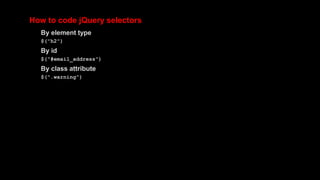
• try {
statements to try
} catch (e) { // Notice: no type declaration for e
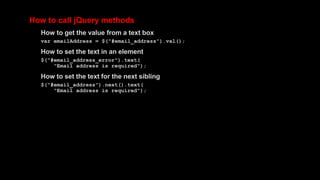
exception-handling statements
} finally { // optional, as usual
code that is always executed
}
• With this form, there is only one catch clause
Exception Handling
• try {
statements to try
} catch (e if test1) {
exception-handling for the case that test1 is true
} catch (e if test2) {
exception-handling for when test1 is false and test2 is true
} catch (e) {
exception-handling for when both test1and test2 are false
} finally { // optional, as usual
code that is always executed
}
• Typically, the test would be something like
e == "InvalidNameException"
JavaScript Warnings
• JavaScript is a big, complex language
• We’ve only scratched the surface
• It’s easy to get started in JavaScript, but if you need to use it heavily, plan to invest
time in learning it well
• Write and test your programs a little bit at a time
• JavaScript is not totally platform independent
• Expect different browsers to behave differently
• Write and test your programs a little bit at a time
• Browsers aren’t designed to report errors
• Don’t expect to get any helpful error messages
• Write and test your programs a little bit at a time
JS Pop Up Type 1: Alert Box
•An alert box is often used if you
want to make sure information
comes through to the user.
•When an alert box pops up, the
user will have to click "OK" to
proceed.
Alert Box Example
<!DOCTYPE html>
<html>
<body>
<h2>JavaScript Alert</h2>
<button onclick="myFunction()">Try it</button>
<script>
function myFunction() {
alert("I am an alert box!");
}
</script>
</body>
</html>
JS Pop Up Type 2: Confirm Box
• A confirm box is often used if you want the user to verify or accept something.
• When a confirm box pops up, the user will have to click either "OK" or "Cancel"
to proceed.
• If the user clicks "OK", the box returns true. If the user clicks "Cancel", the box
returns false.
Confirm Box Example
<!DOCTYPE html>
<html>
<body>
<h2>JavaScript Confirm Box</h2>
<button onclick="myFunction()">Try it</button>
<p id="demo"></p>
<script>
function myFunction() {
var txt;
if (confirm("Press a button!")){
txt = "You pressed OK!";
} else {
txt = "You pressed Cancel!";
}
document.getElementById("demo").innerHTML = txt;
}
</script>
</body>
</html>
JS Pop Up Type 3: Prompt Box
• A prompt box is often used if you want the user to input a value before entering
a page.
• When a prompt box pops up, the user will have to click either "OK" or "Cancel"
to proceed after entering an input value.
• If the user clicks "OK" the box returns the input value. If the user clicks "Cancel"
the box returns null.
Prompt Box Example
<!DOCTYPE html>
<html>
<body>
<h2>JavaScript Prompt</h2>
<button onclick="myFunction()">Try it</button>
<p id="demo"></p>
<script>
function myFunction() {
let text;
let person = prompt("Please enter your name:", "Harry Potter");
if (person == null || person == "") {
text = "User cancelled the prompt.";
} else {
text = "Hello " + person + "! How are you today?";
}
document.getElementById("demo").innerHTML = text;
}
</script>
</body>
Two Input Prompt Example
<!DOCTYPE html>
<html>
<body>
<script type="text/javascript">
<!--
var favcolour, favcolour2;
favcolour = prompt("What is your Favorite colour?");
favcolour2 = prompt("How about your second favorite colour?");
document.write(favcolour," ", favcolour2);
// -->
</script>
</body>
</html>
JavaScript Popups
<script>
// JavaScript popup window function
function basicPopup(url) {
popupWindow =
window.open(url,'popUpWindow','height=300,width=700,left=50,top=50,resizable
=yes,scrollbars=yes,toolbar=yes,menubar=no,location=no,directories=no,
status=yes')
}
</script>
<a href="http://courses.shu.edu/BITM3730/marinom6/"
onclick="basicPopup(this.href);return false">Click here to visit my website</a>
INFO 2106
Website Design and
Management
3/18/24
JS
If Statement
var x = 3;
var y = 4;
var z = 5;
var msg = ‘The range is: ';
if (x < 4) { msg = msg + x + ' '; }
if (y !== 4) { msg = msg + y + ' '; }
if (z == 5) { msg = msg + z + ' '; }
alert(msg);
For loop
var start = 3;
var stop = 20;
var msg = 'The range is: ';
for (i = start; i <= stop; i++) {
msg = msg + i + " ";
}
alert(msg);
While loop
var start = 3;
var stop = 20;
var msg = ‘The range is: ‘;
var i = start;
while ( i <= stop) {
msg = msg + i + ‘ ‘;
i++;
}
alert(msg);
FOR vs. While loops
For loop requires 3 lines of code in the header
a) Initializer
b) Boolean statement (if true the loop runs)
c) 1 Statement that runs after the loop completes
While loop has more freedom:
a) Initialization is done prior to the loop (no limit on lines)
b) Boolean statement – same as the FOR loop
c) 0 to n statements to the loop to terminate.
If statement in a while loop
var start = 3;
var stop = 20;
var msg = 'The range is: ';
var i = start;
while (i < stop) {
if ((i > 5) && (i < 15))
{ msg = msg + i + ' '; }
i = i+1;
}
alert(msg);
Do - While loop
var start = 3;
var stop = 20;
var msg = 'The range is: ';
var i = start;
do {
if ((i > 5) && (i < 15))
{ msg = msg + i + ' '; }
i = i+1;
}
while (i <= stop);
alert(msg);
While vs. Do-While
The Do-While loop is exactly like the While loop except that the loop is guaranteed
to run at lease once.
Infinite Loop (Programming or runtime
Error)
for (var i=1; i > 0; i = i + 1)
{
// infinite loop
}
If-Then-Else
var dow = 3; // 0=sunday 1 = monday etc
if ((dow >= 1) && (dow <= 5))
{
msg = 'weekday';
}
else
{
msg = 'weekend';
}
alert(msg);
Functions
var dow = 3; // 0=sunday 1 = monday etc
var msg = partOfWeek(dow);
alert(msg);
function partOfWeek(d)
{
if ((d >= 1) && (d <= 5))
{ m = 'weekday'; }
else
{ m = 'weekend'; }
return m;
}
Switch statement (with Default)
var dow = -3; // 0=sunday 1 = monday etc
switch(dow) {
case 0: case 6:
msg = "Weekend";
break;
case 1: case 2: case 3: case 4: case 5:
msg = "Weekday";
break;
default:
msg = "Invalid Day";
}
alert(msg);
Functions in JavaScript
function name(parameter1, parameter2, parameter3) {
// code to be executed
}
When JavaScript reaches a return statement, the function will stop executing. Also if it reaches
the end, it will stop.
If the function was invoked from a statement, JavaScript will "return" to execute the code after
the invoking statement.
Functions often compute a return value. The return value is "returned" back to the "caller":
FOR vs. While revisited
while (fileNotFull(‘newsfeed.txt’))
{
addMoreStuff();
}
FOR loop
- Sets 1 initial control variable
- Have a Boolean statement the is initially true and eventually becomes false
- A control statement that makes the Boolean become false
In this case, the loop may not run at all. Also, the Boolean is a functions call
Save password pop ups
JavaScript - Cookies
• Cookies are data, stored in small text files, on your computer.
• When a web server has sent a web page to a browser, the connection is shut
down, and the server forgets everything about the user.
• Cookies were invented to solve the problem "how to remember information
about the user":
• When a user visits a web page, his/her name can be stored in a cookie.
• Next time the user visits the page, the cookie "remembers" his/her name.
• Cookies are saved in name-value pairs like: email=studentID@college.edu
• When a browser requests a web page from a server, cookies belonging to the
page are added to the request. This way the server gets the necessary data to
"remember" information about users.
Creating a JS cookie
• Setting a cookie in a browser
• document.cookie = “email=studentID@college.edu";
• Setting a coolie that will expire
• document.cookie = "email=studentID@college.edu; expires=Thu, 18 Dec 2018
12:00:00 UTC";
• Setting the path where the cookie is valid
• document.cookie = "username=John Doe; path=/";
Getting the values of the cookies
• var cookieTray = document.cookie;
• document.cookie will return all cookies in one string much like:
• cookie1=value1; cookie2=value2; cookie3=value3;
Cookie String?
• The document.cookie property looks like a normal text string. But it is not.
• Even if you write a whole cookie string to document.cookie, when you read it out
again, you can only see the name-value pair of it.
• If you set a new cookie, older cookies are not overwritten. The new cookie is
added to document.cookie, so if you read document.cookie again you will get
something like:
• document.cookie = “email=studentID@college.edu";
• document.cookie = “password=HelloKitty";
• Cookie is now: email = studentID@college.edu; password = HelloKitty ;
• Expired cookies are deleted automatically
Function to set a cookie of a visitor
• function setCookie(cname, cvalue, exdays) {
• var d = new Date();
• d.setTime(d.getTime() + (exdays*24*60*60*1000)); //
• var expires = "expires="+ d.toUTCString();
• document.cookie = cname + "=" + cvalue + "; expires=" + expires + ";path=/";
• }
Function to get a Cookie
• function getCookie(cname) {
• var name = cname + "=";
• var decodedCookie = decodeURIComponent(document.cookie); // Handle
special chars
• var ct = decodedCookie.split(';'); // parse cookies
into tray array
• for(var i = 0; i <ct.length; i++) { // search for
cookie
• var c = ct[i];
• while (c.charAt(0) == ' ') {
• c = c.substring(1);
• }
• if (c.indexOf(name) == 0) {
• return c.substring(name.length, c.length); // return cookie if
found
• }
• }
• return ""; // if not found
• }
Function to check if a cookie is set
• function checkCookie() {
• var email = getCookie(“email");
• if (email != "") {
• alert(“You have been to this site before " + email);
• } else {
• email = prompt("Please enter your email address :", "");
• if (email != "" && email != null) {
• setCookie(“email", email, 365);
• }
• }
• }
Deleting a cookie (expire the cookie)
• function deleteCookie( name ) {
• document.cookie = name + '=; expires=Thu, 01 Jan 1970 00:00:01 GMT;';
• }
• Here we are changing the value to “” and expiring the cookie
Where are cookies stored?
• A cookie is information stored on your computer by a
website you visit.
• In some browsers, each cookie is a small file, but in
Firefox, all cookies are stored in a single file, located in the
Firefox profile folder.
•
• Cookies often store your settings for a website, such as
your preferred language or location.
In 2014 – HTML 5 came out
• Most interesting new features added
• - HTML Geolocation
• - HTML Drag and Drop
• - HTML Local Storage
• - HTML Application Cache
• - HTML Web Workers
• - HTML SSE (Server Sent Events)
Feature replacements in HTML 5
Removed Element Use Instead
<acronym> <abbr>
<applet> <object>
<basefont> CSS
<big> CSS
<center> CSS
<dir> <ul>
<font> CSS
<frame>
<frameset>
<noframes>
<strike> CSS, <s>, or <del>
<tt> CSS
HTML 5 - Introduced Web Storage
• With web storage, web applications can store data locally within the user's browser.
• Before HTML5, application data had to be stored in cookies, included in every server
request. Web storage is more secure, and large amounts of data can be stored locally,
without affecting website performance.
• Unlike cookies, the storage limit is far larger (at least 5MB) and information is never
transferred to the server.
• Web storage is per origin (per domain and protocol). All pages, from one origin, can
store and access the same data.
Storing in localStorage
• // Store
• localStorage.setItem("lastName", "Smith");
• // Retrieve
• var lastName = localStorage.getItem(“lastName”);
• document.getElementById(“welcomeMSG").innerHTML = “Welcome “ +
lastName;
LocalStorage store, expire?, delete
• The localStorage properties allow to save key/value pairs in a web browser.
• The localStorage object stores data with no expiration date. The data will not be
deleted when the browser is closed, and will be available the next day, week, or
year.
• The localStorage property is read-only.
• Delete storage:
• localStorage.removeItem(“lastName");
LocalStorage vs. Cookies
SessionStorage
• The sessionStorage (like localStorage) properties allow to save key/value pairs in
a web browser.
• The sessionStorage object stores data for only one session (the data is deleted
when the browser tab is closed).
Set, get, remove, clear
sessionStorage
• window.sessionStorage
• Syntax for SAVING data to sessionStorage:
• sessionStorage.setItem("key", "value");
• Syntax for READING data from sessionStorage:
• var lastname = sessionStorage.getItem("key");
• Syntax for REMOVING saved data from sessionStorage:
• sessionStorage.removeItem("key");
• Syntax for REMOVING ALL saved data from sessionStorage:
• sessionStorage.clear();
sessionStorage example
• if (sessionStorage.clickcount) {
• sessionStorage.clickcount = Number(sessionStorage.clickcount) + 1;
• } else {
• sessionStorage.clickcount = 1;
• }
• document.getElementById("result").innerHTML = "You have clicked the button
" +
• sessionStorage.clickcount + " time(s) in this session.";
Cookie vs LocalStorage vs
SessionStorage
Clearing Cookies (and other data)
SSE (Server Sent Events – New in
HTML5)
• var source = new EventSource(“./events/latestScore.php");
• source.onmessage = function(event) {
• document.getElementById("result").innerHTML += event.data + "<br>";
• };
Mixing SSE with browser storage
• If you do not want server sent events to constantly update your web browser it is
recommended
• - when updates are sent, update cookie, localStorage, sessionStorage data
• - update the server sent data at your pace
What is a library?
A Collections of functions that have a common theme.
Examples of themes are:
1) Document Object Model
2) Graphical/visualization
3) GUI (Graphical user interface) and widget
4) Pure JavaScript/Ajax
5) Web-application related (MVC, MVVM)
Library vs. Framework
Both frameworks and libraries are code written by someone else that is used to help
solve common problems.
When you use a library, you are in charge of the flow of the application. You are choosing
when and where to call the library.
When you use a framework, the framework is in charge of the flow. It provides some
places for you to plug in your code, but it calls the code you plugged in as needed
Example of outdated JavaScript libraries
The following are once popular JavaScript that are no longer used.
1) Glow
2) Lively Kernel
3) Script.aculo.us
4) YUI Library
Current popular (Circa 2019)
Libraries/Frameworks
1) JQuery (DOM, GUI)
2) Angular (GUI, Web Applications)
3) React (GUI, Web Applications)
4) Vue (GUI, Web Applications)
Angular (by Google)
<!DOCTYPE html>
<html lang="en-US">
<script src="https://ajax.googleapis.com/ajax/libs/angularjs/1.6.9/angular.min.js"></script>
<body>
<div ng-app="">
<p>Name : <input type="text" ng-model="name"></p>
<h1>Hello {{name}}</h1>
</div>
</body>
</html>
React (by facebook)
<!DOCTYPE html>
<html lang="en">
<title>Test React</title>
<script src= "https://unpkg.com/react@16/umd/react.production.min.js"></script>
<script src= "https://unpkg.com/react-dom@16/umd/react-dom.production.min.js"></script>
<script src="https://unpkg.com/babel-standalone@6.15.0/babel.min.js"></script>
<body>
<div id="id01">Hello World!</div>
<script type="text/babel">
ReactDOM.render(
<h1>Hello React!</h1>,
document.getElementById('id01'));
</script>
</body>
</html>
Vue
//index.html
<html>
<head>
<script src="https://cdn.jsdelivr.net/npm/vue"></script>
<script src="./app.js"></script>
</head>
<body>
<div id="app"></div>
</body>
</html>
const vm = new Vue({
template: `<div id="vue-example">
<button @click="checkForErrors">Submit</button>
<p v-if="error">{{ errorMessage }}</p>
</div>`,
el: '#vue-example',
data: {
error: null,
errorMessage: 'An Error Occurred',
},
methods: {
checkForErrors() {
this.error = !this.error;
},
},
});
Which should a web application use (if any)
Angular and React have many similarities and many differences.
One of them is that Angular is a full-fledged MVC framework and React is merely a
JavaScript Library (just the view).
Angular is considered a framework because it offers strong opinions as to how your
application should be structured.
Companies Currently using React and Angular
index.html file and how it appears
<html>
<head>
// head related stuff
</head>
<body>
<h1> Welcome to my web page </h1>
<p> Glad you could be here. </p>
</body>
</html>
Welcome to my web page
Glad you could be here.
Click to change a <p> color
<!DOCTYPE html>
<html>
<body>
<p>Some paragraph nobody cares about.</p>
<p id=“jetBlue" onClick=“changeColor()">Click Me Blue.</p>
<script>
function changeColor() {
document.getElementById(“jetBlue").style.color = "blue";
}
</script>
</body>
</html>
Some paragraph nobody cares
about
Click Me Blue
Some paragraph nobody cares
about
Click Me Blue
Make element a parameter
<p id=“jetGreen" onclick=“changeColor(‘jetGreen’, ‘green')">Click Me
Green</p>
<p id=“jetBlue" onClick=“changeColor(‘jetBlue’, ‘blue')">Click Me
Blue</p>
<script>
function changeColor(elmntID, clr) {
elmnt = document.getElementById(elmntID);
elmnt.style.color = clr;
}
</script> Click Me Green
Click Me Blue
Click Me Green
Click Me Blue
Click Me Green
Click Me Blue
Current element is called “this”
<p onClick=“changeColor(this, ‘green')">Click Me Green</p>
<p onClick=“changeColor(this, ‘blue')">Click Me Blue</p>
<script>
function changeColor(elmnt,clr) { elmnt.style.color = clr; }
</script>
Click Me Green
Click Me Blue
Click Me Green
Click Me Blue
Click Me Green
Click Me Blue
Image defined in HTML
<img src=“images/mainSite/companyLogo.jpg" name=“main”
width=“200" height=“400" />
<p> Welcome to the company web page </p>
// image ss1.jpg is the first of 3 images in the slide show
<img src=“images/slideshow/ss1.jpg" name="slide"
width="350" height="250" />
// this html file has 2 images named 1) main and 2) slide
Script defining pictures file paths
<script>
var imageFolder = "images/slideShow/"
var image1=new Image(); image1.src=imageFolder +"ss1.jpg"
var image2=new Image(); image2.src=imageFolder +"ss2.jpg"
var image3=new Image(); image3.src=imageFolder +"ss3.jpg"
</script>
// image1.src will equal the string “images/slideshow/ss1.jpg”
// image2.src will equal the string “images/slideshow/ss2.jpg”
// image3.src will equal the string “images/slideshow/ss3.jpg”
Script to change image every 5 sec
<script>
var step=1
function slideit(){
document.images.slide.src=eval("image"+step+".src")
step++
if (step > 3) { step = 1 }
//call function "slideit()" every 5 seconds aka 5000 milliseconds
setTimeout("slideit()",5000)
}
slideit()
</script>
DOM with JavaScript
• With the object model, JavaScript gets all the power it needs to create dynamic
HTML:
• JavaScript can change all the HTML elements in the page
• JavaScript can change all the HTML attributes in the page
• JavaScript can change all the CSS styles in the page
• JavaScript can remove existing HTML elements and attributes
• JavaScript can add new HTML elements and attributes
• JavaScript can react to all existing HTML events in the page
• JavaScript can create new HTML events in the page
HTML document element tree
The jQuery website at jQuery.com
C19, Slide 396
What jQuery offers
 Dozens of methods that make it easier to add JavaScript features to your web pages
 Methods that are tested for cross-browser compatibility
How to include jQuery files in a web page
How to include the jQuery file from your computer
<script src="jquery-3.2.1.js"></script>
How to include jQuery from a CDN
<script src="http://code.jquery.com/jquery-3.2.1.min.js">
</script>
How to code jQuery selectors
By element type
$("h2")
By id
$("#email_address")
By class attribute
$(".warning")
How to call jQuery methods
How to get the value from a text box
var emailAddress = $("#email_address").val();
How to set the text in an element
$("#email_address_error").text(
"Email address is required");
How to set the text for the next sibling
$("#email_address").next().text(
"Email address is required");
How to code jQuery event methods
How to code the ready event method
$(document).ready(function() {
alert("The DOM is ready");
});
How to code the click event method for all h2 elements
$("h2").click(function() {
alert("This heading has been clicked");
});
How to use the click event method
within the ready event method
$(document).ready(function() {
$("h2").click(function() {
alert("This heading has been clicked");
}); // end of click event handler
}); // end of ready event handler
The Email List application using jQuery
The HTML for the Email List with jQuery app
<!DOCTYPE html>
<html>
<head>
<meta charset="UTF-8">
<title>Join Email List</title>
<link rel="stylesheet" href="email_list.css">
<script
src="http://code.jquery.com/jquery-3.2.1.min.js">
</script>
<script src="email_list.js"></script>
</head>
<body>
<main>
<h1>Please join our email list</h1>
<form id="email_form" name="email_form"
action="join.php" method="get">
<label for="email_address1">
Email Address:</label>
<input type="text" id="email_address1"
name="email_address1">
<span>*</span><br>
The HTML for the Email List jQuery app (cont.)
<label for="email_address2">
Re-enter Email Address:</label>
<input type="text" id="email_address2"
name="email_address2">
<span>*</span><br>
<label for="first_name">First Name:</label>
<input type="text" id="first_name"
name="first_name">
<span>*</span><br>
<label>&nbsp;</label>
<input type="button" id="join_list"
value="Join our List">
</form>
</main>
</body>
</html>
The jQuery for the Email List application
$(document).ready(function() {
$("#join_list").click(function() {
var emailAddress1 = $("#email_address1").val();
var emailAddress2 = $("#email_address2").val();
var isValid = true;
// validate the first email address
if (emailAddress1 == "") {
$("#email_address1").next().text(
"This field is required.");
isValid = false;
}
else {
$("#email_address1").next().text("");
}
The jQuery for the Email List app (continued)
// validate the second email address
if (emailAddress2 == "") {
$("#email_address2").next().text(
"This field is required.");
isValid = false;
}
else if (emailAddress1 != emailAddress2) {
$("#email_address2").next().text(
"This entry must equal first entry.");
isValid = false;
}
else {
$("#email_address2").next().text("");
}
The Email List jQuery (continued)
// validate the first name entry
if ($("#first_name").val() == "") {
$("#first_name").next().text(
"This field is required.");
isValid = false;
}
else {
$("#first_name").next().text("");
}
// submit the form if all entries are valid
if (isValid) {
$("#email_form").submit();
}
}); // end click
}); // end ready
The user interface for the Image Swap application
The script elements for the image swap
<script src="jquery-3.2.1.min.js"></script>
<script src="image_swaps.js"></script>
The HTML for the images
<main>
<h1>Ram Tap Combined Test</h1>
<ul id="image_list">
<li><a href="images/h1.jpg"
title="James Allison: 1-1">
<img src="thumbnails/t1.jpg" alt=""></a></li>
<li><a href="images/h2.jpg"
title="James Allison: 1-2">
<img src="thumbnails/t2.jpg" alt=""></a></li>
...
<li><a href="images/h6.jpg"
title="James Allison: 1-6">
<img src="thumbnails/t6.jpg" alt=""></a></li>
</ul>
<h2 id="caption">James Allison 1-1</h2>
<p><img src="images/h1.jpg" alt="" id="image"></p>
</main>
The CSS for the li elements
li {padding-right: 10px; display: inline; }
A Slide Show application with fading out and in
The script elements for the slide show
<script src="jquery-3.2.1.min.js"></script>
<script src="slide_show.js"></script>
The HTML for the slide show
<section>
<h1>Fishing Slide Show</h1>
<h2 id="caption">Casting on the Upper Kings</h2>
<img id="slide" src="images/casting1.jpg" alt="">
<div id="slides">
<img src="images/casting1.jpg"
alt="Casting on the Upper Kings">
<img src="images/casting2.jpg"
alt="Casting on the Lower Kings">
<img src="images/catchrelease.jpg"
alt="Catch and Release on the Big Horn">
<img src="images/fish.jpg"
alt="Catching on the South Fork">
<img src="images/lures.jpg"
alt="The Lures for Catching">
</div>
</section>
The critical CSS for the slide show
#slides img { display: none; }
Zak’s recommendations for JavaScript websites
 Dynamic Drive
 The JavaScript Source
Two types of jQuery components
that you can add to your website
 jQuery plugins
 jQuery UI widgets
A jQuery plugin for a carousel called bxSlider
jQuery UI widgets for tabs and accordions
INFO 2106
Website Design and
Management
3/25/24
JS
JS Scatter Plots
<html>
<body>
<canvas id="myCanvas" width="400" height="400"
style="border:1px solid grey"></canvas>
<script>
const canvas =
document.getElementById("myCanvas");
const ctx = canvas.getContext("2d");
canvas.height = canvas.width;
ctx.transform(1, 0, 0, -1, 0, canvas.height)
const xArray =
[50,60,70,80,90,100,110,120,130,140,150];
const yArray = [7,8,8,9,9,9,10,11,14,14,15];
ctx.fillStyle = "red";
for (let i = 0; i < xArray.length-1; i++) {
let x = xArray[i]*400/150;
let y = yArray[i]*400/15;
ctx.beginPath();
ctx.ellipse(x, y, 3, 3, 0, 0, Math.PI * 2);
ctx.fill();
}
</script>
</body>
</html>
JS Line Graphs
<html>
<body>
<canvas id="myCanvas" width="400" height="400" style="border:1px
solid grey"></canvas>
<script>
const canvas = document.getElementById("myCanvas");
const ctx = canvas.getContext("2d");
ctx.fillStyle = "#FF0000";
canvas.height = canvas.width;
ctx.transform(1, 0, 0, -1, 0, canvas.height)
let xMax = canvas.height;
let slope = 1.2;
let intercept = 70;
ctx.moveTo(0, intercept);
ctx.lineTo(xMax, f(xMax));
ctx.strokeStyle = "black";
ctx.stroke();
function f(x) {
return x * slope + intercept;
}
</script>
</body>
</html>
JS Scatter & Line
• See full code in Notes!
JS Vertical Bar Charts
<html>
<script src="https://cdn.plot.ly/plotly-
latest.min.js"></script>
<body>
<div id="myPlot" style="width:100%;max-
width:700px"></div>
<script>
const xArray = ["Italy", "France", "Spain", "USA",
"Argentina"];
const yArray = [55, 49, 44, 24, 15];
const data = [{
x:xArray,
y:yArray,
type:"bar",
orientation:"v",
marker: {color:"rgba(0,0,255,0.6)"}
}];
const layout = {title:"World Wide Wine Production"};
Plotly.newPlot("myPlot", data, layout);
</script>
</body>
</html>
JS Horizontal Bar Charts
<html>
<script src="https://cdn.plot.ly/plotly-
latest.min.js"></script>
<body>
<div id="myPlot" style="width:100%;max-
width:700px"></div>
<script>
const xArray = [55, 49, 44, 24, 15];
const yArray = ["Italy ", "France ", "Spain ", "USA ",
"Argentina "];
const data = [{
x:xArray,
y:yArray,
type:"bar",
orientation:"h",
marker: {color:"rgba(255,0,0,0.6)"}
}];
const layout = {title:"World Wide Wine Production"};
Plotly.newPlot("myPlot", data, layout);
</script>
</body>
</html>
JS Pie Charts
<html>
<script src="https://cdn.plot.ly/plotly-latest.min.js"></script>
<body>
<div id="myPlot" style="width:100%;max-width:700px"></div>
<script>
const xArray = ["Italy", "France", "Spain", "USA", "Argentina"];
const yArray = [55, 49, 44, 24, 15];
const layout = {title:"World Wide Wine Production"};
const data = [{labels:xArray, values:yArray, type:"pie"}];
Plotly.newPlot("myPlot", data, layout);
</script>
</body>
</html>
JS Donut Charts
<html>
<script src="https://cdn.plot.ly/plotly-latest.min.js"></script>
<body>
<div id="myPlot" style="width:100%;max-width:700px"></div>
<script>
const xArray = ["Italy", "France", "Spain", "USA", "Argentina"];
const yArray = [55, 49, 44, 24, 15];
const layout = {title:"World Wide Wine Production"};
const data = [{labels:xArray, values:yArray, hole:.4, type:"pie"}];
Plotly.newPlot("myPlot", data, layout);
</script>
</body>
</html>
JS More Advanced Scatter Plots
<html>
<script src="https://cdn.plot.ly/plotly-latest.min.js"></script>
<body>
<div id="myPlot" style="width:100%;max-width:700px"></div>
<script>
const xArray = [50,60,70,80,90,100,110,120,130,140,150];
const yArray = [7,8,8,9,9,9,10,11,14,14,15];
// Define Data
const data = [{
x:xArray,
y:yArray,
mode:"markers"
}];
// Define Layout
const layout = {
xaxis: {range: [40, 160], title: "Square Meters"},
yaxis: {range: [5, 16], title: "Price in Millions"},
title: "House Prices vs. Size"
};
// Display using Plotly
Plotly.newPlot("myPlot", data, layout);
</script>
</body>
</html>
JS Line Graphs
<html>
<script src="https://cdn.plot.ly/plotly-latest.min.js"></script>
<body>
<div id="myPlot" style="width:100%;max-width:700px"></div>
<script>
const xArray = [50,60,70,80,90,100,110,120,130,140,150];
const yArray = [7,8,8,9,9,9,10,11,14,14,15];
// Define Data
const data = [{
x: xArray,
y: yArray,
mode:"lines"
}];
// Define Layout
const layout = {
xaxis: {range: [40, 160], title: "Square Meters"},
yaxis: {range: [5, 16], title: "Price in Millions"},
title: "House Prices vs. Size"
};
// Display using Plotly
Plotly.newPlot("myPlot", data, layout);
</script>
</body>
</html>
JS Bubble Plots
<html>
<script src="https://cdn.plot.ly/plotly-latest.min.js"></script>
<body>
<div id="myPlot" style="width:100%;max-width:700px"></div>
<script>
const xArray = [1,2,3,4];
const yArray = [10,20,30,40];
const trace1 = {
x: xArray,
y: yArray,
mode: 'markers',
marker: {
color: ['red', 'green', 'blue', 'orange'],
size: [20, 30, 40, 50]
}
};
const trace2 = {
x: [1, 2, 3, 4],
y: [15, 30, 45, 60],
mode: 'markers',
marker: {
color: 'rgb(31, 119, 180)',
size: 18,
symbol: ['circle', 'square', 'diamond', 'cross']
},
};
const data = [trace1, trace2];
const layout = {
title: "Plotting Bubbles"
};
Plotly.newPlot('myPlot', data, layout);
</script>
</body>
</html>
JS Multi Line Graph
• Full code in Notes
JS Output Dropdown List Options
<html>
<head>
<script>
function getOptions() {
var x = document.getElementById("mySelect");
var txt = "";
var i;
for (i = 0; i < x.length; i++) {
txt = txt + " " + x.options[i].text;
}
document.getElementById("demo").innerHTML = txt;
}
</script>
</head>
<body>
<form>
Select your favorite fruit:
<select id="mySelect">
<option>Apple</option>
<option>Orange</option>
<option>Pineapple</option>
<option>Banana</option>
</select>
<br><br>
<input type="button" onclick="getOptions()" value="Output all
options">
</form>
<p id="demo"></p>
</body>
</html>
JS OnClick Review
<html>
<head>
<script>
function myFunction() {
document.getElementById("demo").innerHTML = "Hello World";
}
</script>
</head>
<body>
<h1>JavaScript HTML Events</h1>
<h2>The onclick Attribute</h2>
<p>Click the button to trigger a function.</p>
<button onclick="myFunction()">Click me</button>
<p id="demo"></p>
</body>
</html>
JS Text OnClick
<html>
<head>
<script>
function myFunction() {
document.getElementById("demo").innerHTML = "Hello World";
}
</script>
</head>
<body>
<h1>JavaScript HTML Events</h1>
<h2>The ondblclick Attribute</h2>
<p ondblclick="myFunction()">Doubleclick this paragraph to trigger a function.</p>
<p id="demo"></p>
</body>
</html>
JS Page OnLoad
<html>
<head>
<script>
function myFunction() {
alert("Page is loaded");
}
</script>
</head>
<body onload="myFunction()">
<h1>JavaScript HTML Events</h1>
<h2>The onload Attribute</h2>
</body>
</html>
JS Image OnLoad
<html>
<head>
<script>
function loadImage() {
alert("Image is loaded");
}
</script>
</head>
<body>
<h1>JavaScript HTML Events</h1>
<h2>The onload Attribute</h2>
<img src="w3javascript.gif" onload="loadImage()" width="100" height="132">
</body>
</html>
JS Assignment
• Combine your skills from CSS [onclick] and your JS skills to create an HTML file
called popup.html that when you click an onclick it will open your favorite
website as a popup.
INFO 2106
Website Design and
Management
4/1/24
Securing Your Domain
Search for Availability of Domain Name
• Visit https://www.godaddy.com/domains to search for the availability of your
domain name
• Feel free to check on multiple options
• Ideally, you want firstnamelastname.com but it might not be available, so you will
need to adjust accordingly
Places You Can Purchase Domain
• https://www.godaddy.com/ (usually offers first year promo price if purchasing
domain name for multiple years)
• https://www.ionos.com/ (first year promo price)
• https://www.domain.com/
• https://www.bluehost.com/ (first year promo price)
• https://domains.squarespace.com/
• https://www.web.com/
• https://www.hostgator.com/
• https://www.namecheap.com/ (first year promo price)
• https://www.hostinger.com/
Places You Can Purchase Hosting
• https://www.godaddy.com/
• https://www.ionos.com/
• https://www.domain.com/
• https://www.bluehost.com/
• https://domains.squarespace.com/
• https://www.web.com/
• https://www.hostgator.com/
• https://www.namecheap.com/
• https://www.hostinger.com/
Do the Research!!!!!
• Everyone of these companies is known for something they do well and
something they do poorly
• For example, GoDaddy provides exceptional services, but they charge for
everything. They are the only company I know of that will charge you for an email
address – all others provide them free with domain!
• Another example is HostGator which is very affordable, but if you ever have a
security issue you are going to have to spend a fortune to fix/resolve the issue
What I Do
• Purchase domain from GoDaddy (usually can pay $20 for two years - $0.01 for first
year at promo price and $19.99 for second year on dot com domains)
• Offers many options which may not be available elsewhere
• Utilize SiteGround for hosting (first year promo price under $100 for entire year,
then offers ability to pay monthly, a few months at a time, or yearly)
• Offers free emails, checks websites daily and weekly for issues, allows WordPress and
many other options
Decide on Your Hosting Plan
• Check the specifics of the different hosting plans
• Some plans may include security and be a little more expensive as a result, but do
not require you to purchase security as an add-on
• Look through what is included in the price – sometimes most expensive is not the
best and often the least expensive is missing something you think you will need.
What Are You Going To Do?
• WordPress website? No technical knowledge required
• HTML/CSS/JS website? May require stronger security
• Provided template? Likely will not look great, will take time to make changes and
may even cost additional money if modified often
• Make sure it is your own work, rather than pay someone else to do it!!!!!!!
Internet Corporation for Assigned
Names and Numbers (ICANN)
• Helps in identifying your domain
• IP address associated with your domain name
• Contact information for domain owner (which may be hidden)
• Results in a “tax” when renewing domain
• Geared towards making the world wide web safer, so all domain owners are known
and compliant
Website History
• Your domain may have had a previous history
• Visit https://archive.org/web/ to check to see if your domain has any history (it
may not) – if it does have a history your domain may already have potential traffic
• If it is determined there is a history of your domain, Google it to see what is
indexed by using site:yourdomain.com
• If any indexed URL is inappropriate, you may want to reconsider the purchase of that
domain name – your domain name should positively represent you as a professional
Time for Action
• Work with students individually to help them secure their domain name and
hosting plan
Website Plan Rough Draft
• Create a plan for your personal/professional website. Your plan should include a
description of the different pages you might have. For example, Home, About,
Work Experience, Course Artifacts (things you've designed in courses), and
Contact.
• Each page should have a small plan as to what it will feature. I will provide
feedback for a more comprehensive final plan, which will be your road map for
creating your website.
INFO 2106
Website Design and
Management
4/8/24
Creating/Enhancing Your Digital Presence
Purpose of SEO
• To drive targeted traffic to your website [or specific pages]
• Ideally, the traffic drives additional sales
• Most online purchases are made on sites found through search engine listings
SEO is Technically Not Paid
Advertising
• SEO – influence rankings in the “natural” (a.k.a. “organic”, a.k.a. “algorithmic”)
search results
• PPC – paid search advertising on a pay-per-click basis. The more you pay, the
higher your placement. Stop paying = stop receiving traffic.
• PPC – pay per click
• SEM – encompasses both SEO and PPC
• Search engine marketing
How SEO
Looks
Most Commonly Used Search Engines
• Google
• Google AdWords
• Bing
• Microsoft Advertising
• Yahoo Search
SEO is Based on Keywords
• Keyword Research
• The “right” keywords are…
• relevant to your business
• popular with searchers
• https://ads.google.com/home/tools/keyword-planner/
Researching Keywords
• Tools to check popularity of keyword searches
• http://WordTracker.com
• http://KeywordDiscovery.com
• http://adwords.google.com/KeywordPlanner
• http://www.google.com/trends/
• http://ubersuggest.org/
SEO – Constant Changes
• Topically relevant links from important sites
• Anchor text
• Keyword-rich title tags
• Keyword-rich content
• Internal hierarchical linking structure
• The whole is greater than the sum of the parts
Begin The 7 Steps
1) Get Your Site Fully Indexed
2) Get Your Pages Visible
3) Build Links & PageRank
4) Leverage Your PageRank
4) Encourage Clickthrough
6) Track the Right Metrics
7) Avoid Worst Practices
1) Get Your Site Fully Indexed
 Search engines are wary of “dynamic” pages -
they fear “spider traps”
 The better your PageRank, the deeper and more
often your site will be spidered
1) Get Your Site Fully Indexed
 Page # estimates are wildly inaccurate, and include non-
indexed pages (e.g. ones with no title or snippet)
 Misconfigurations (in robots.txt, in the type of redirects
used, requiring cookies, etc.) can kill indexation
 Keep your error pages out of the index by returning 404
status code
 Keep duplicate pages out of the index by standardizing
your URLs, eliminating unnecessary variables, using 301
redirects when needed
Not Spider-Friendly
• GET http://www.bananarepublic.com --> 302 Moved Temporarily
• GET http://www.bananarepublic.com/browse/home.do --> 302 Moved
Temporarily
• GET
http://www.bananarepublic.com/browse/home.do?targetURL=http%3A%2F%2Fw
ww.bananarepublic.com%2Fbrowse%2Fhome.do&CookieSet=Set --> 302 Moved
Temporarily
• GET http://www.bananarepublic.com/cookieFailure.do --> 200 OK
2) Get Your Pages Visible
• 100+ “signals” that influence ranking
• “Title tag” is the most important copy on the page
• Home page is the most important page of a site
• Every page of your site has a “song” (keyword theme)
• Incorporate keywords into title tags, hyperlink text, headings (H1 & H2 tags), alt
tags, and high up in the page (where they’re given more “weight”)
• Eliminate extraneous HTML code
• “Meta tags” are not a magic bullet
• Have text for navigation, not graphics
3) Build Links and PageRank
• “Link popularity” affects search engine rankings
• PageRank™ - Links from “important” sites have more impact on your
Google rankings (weighted link popularity)
• Google offers a window into your PageRank
• PageRank meter in the Google Toolbar (toolbar.google.com)
• Google Directory (directory.google.com) category pages
• 3rd party tools like SEOChat.com’s “PageRank Lookup” & “PageRank
Search”
• Scores range from 0-10 on a logarithmic scale
4) Leverage Your PageRank
• Your home page’s PageRank gets distributed to your deep pages by virtue of
your hierarchical internal linking structure (e.g. breadcrumb nav)
• Pay attention to the text used within the hyperlink (“Google bombing”)
• Don’t hoard your PageRank
• Don’t link to “bad neighborhoods”
4) Leverage Your PageRank
 Avoid PageRank dilution
 Canonicalization (www.domain.com vs. domain.com)
 Duplicate pages: (session IDs, tracking codes, superfluous parameters)
 http://company.com/Products/widget.html
 http://company.com/products/widget.html
 http://company.com/Products/Widget.html
 http://company.com/products/Widget.html
 In general, search engines are cautious of dynamic URLs (with ?, &, and = characters)
because of “spider traps”
 Rewrite your URLs (using a server module/plug-in) or use a hosted proxy service (e.g.
GravityStream)
 See http://catalogagemag.com/mag/marketing_right_page_web/
5) Encourage Clickthrough
• Zipf’s Law applies - you need to be at the top of page 1 of the search results. It’s
an implied endorsement.
• Synergistic effect of being at the top of the natural results & paid results
• Entice the user with a compelling call-to-action and value proposition in your
descriptions
• Your title tag is critical
• Snippet gets built automatically, but you CAN influence what’s displayed here
6) Track the Right Metrics
 Indexation: # of pages indexed, % of site indexed, % of product inventory
indexed, # of “fresh pages”
 Link popularity: # of links, PageRank score (0 - 10)
 Rankings: by keyword, “filtered” (penalized) rankings
 Keyword popularity: # of searches, competition, KEI (Keyword Effectiveness
Indicator) scores
 Cost/ROI: sales by keyword & by engine, cost per lead
Avoid Worst Practices
• Target relevant keywords
• Don’t stuff keywords or replicate pages
• Create deep, useful content
• Don't conceal, manipulate, or over-optimize content
• Links should be relevant (no scheming!)
• Observe copyright/trademark law & Google’s guidelines
Spamming in Its Many Forms…
• Hidden or small text
• Keyword stuffing
• Targeted to obviously irrelevant keywords
• Automated submitting, resubmitting, deep submitting
• Competitor names in meta tags
• Duplicate pages with minimal or no changes
• Spamglish
• Machine generated content
Spamming in Its Many Forms…
 Pagejacking
 Doorway pages
 Cloaking
 Submitting to FFA (“Free For All”) sites & link farms
 Buying up expired domains with high PageRanks
 Scraping
 Splogging (spam blogging)
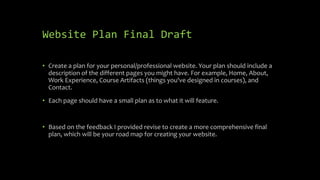
Not Spam, But Bad for Rankings
 Splash pages, content-less home page, Flash intros
 Title tags the same across the site
 Error pages in the search results (eg “Session expired”)

 "Click here" links
 Superfluous text like “Welcome to” at beginning of titles
 Spreading site across multiple domains (usually for load balancing)
 Content too many levels deep
In Summary
• Focus on the right keywords
• Have great keyword-rich content
• Build links, and thus your PageRank™
• Spend that PageRank™ wisely within your site
• Measure the right things
• Continually monitor and benchmark
Pay Per Click
• Bid on the search terms
you want
• You only pay when
someone clicks to get to
your website
Positives of PPC
• Immediate placement
• You can control budget and positioning
• Only pay if traffic is produced
• You can use inexpensive keywords
Negatives of PPC
• Requires a lot of research
• Can cost you a lot of money if done wrong
• Requires you to know about the industry
Google
AdWords
Google
AdWords
What is CMS?
• Content Management Systems (CMS) are commonly used to create and store
data online
• The most commonly used CMS tools allow individuals to create their own website
without knowing anything about web development [coding in HTML, CSS, JS,
etc.]
• Individuals merely install the CMS software to their website and type in specific
information to create websites
Two Common Reasons to Use CMS
• User-friendly browser-based publishing tools
• No technical skills required
• Compliance with Accessibility requirements
• W3C standards
What is Content?
• Any type or unit of digital information.
• Text, images, graphics, video, sound, documents, records, etc
• Anything that we would like to manage in an electronic format.
Why CMS?
• Web Content Management System
• Create/manage HTML & images
• Authoring tools
• Templates for presentation
Common CMS Requirements
Database Code Server
Most Common CMS
Differences in CMS
• Every CMS has its own unique way of organizing and managing content.
• It helps you to create/edit/delete content in a shared repository (database).
• It contains much improved CSS (Cascading Style Sheets).
• CMS enables content to be shared across the Web sites.
Why Use Them?
• Drupal, Joomla, WordPress use a database (tables) to store information
• CMS uses a different technology than standard html/css sites
• The technology is open-source (free!)
• Allows people to update their owns sites
• You are the master of your own domain!
Joomla
• The name Joomla is derived from the Swahili word "Jumla", which means "all
together" or "as a whole".
• Joomla! is one of the most powerful Open Source Content Management Systems.
It is used all over the world for everything from simple websites to complex
corporate applications.
• Joomla! is easy to install, simple to manage, and reliable.
Joomla
• Joomla is written in PHP, uses object-oriented programming structure (OOPS)
techniques and software design pattern, stores data in a MySql database, and
includes features such as page caching, RSS feeds, printable versions of pages,
news flashes, blogs, polls, search, and support for language internationalization.
• It is based on a model-view-controller (MVC) web application framework that
can be used independently.
Why Joomla?
• It is designed to work perfectly in basic shared web hosting environments, a
package that is least expensive and most common. Installer is simple and just like
any other common desktop software.
• It is supported by several extensions, add-on, and plug in. They are written in
PHP, which is most widely used, general purpose scripting language and best
suited for web development.
• Joomla supports SSL logins and SSL pages.
• Joomla probably has a pre built module to transform it in a social bookmarking
website.
• Joomla's greatest advantage is availability of a large number of extensions that
you can use to Plug-in extra features into your website and transform your
website into anything you like.
WordPress Issues
• The WordPress content management system is an ideal platform for bloggers as
it is easy to install and use.
• Adding or removing post dates, need to be changed in design mode and it
requires knowledge of WP scripting.
• You can add membership functionality in WordPress.
Why WordPress?
• With WordPress, any type of website can be created like a personal blog or
website, a photoblog, a business website, a professional portfolio, a government
website, a magazine or news website, an online community, even a network of
websites.
• Website can be made with beautiful with themes, and can be extended with
plugins.
WordPress
• Free website on WordPress website
• Installed to your website if you own a domain
• Themes can be uploaded or created for use
Drupal Issues
• Learning curve is bigger than Joomla and WordPress
• Less support available than Joomla and WordPress
Other CMS
• Shopify
• Squarespace
• Wix
• Blogger
• Weebly
• Moodle
Learning Curve
• WordPress
• Easy, No experience required
• Joomla
• Medium, Easier than Drupal, harder than WordPress.
• Drupal
• Requires technical expertise. Major updates are an effort
E-Commerce
• WordPress
• Yes, with plugins
• Joomla
• Extensions for managing products and content
• Drupal
• the latest version, does not support a stable e-commerce module yet
SEO Friendliness
• WordPress
• Excellent
• Joomla
• Basic
• Drupal
• Good
Speed
• WordPress
• High traffic can cause limitations
• Joomla
• Faster and less resource intensive
• Drupal
• Consumes resources if not tweaked properly
Plugins
• WordPress
• Extensive. 41,579 plug-ins
• Joomla
• Few. 7000 extensions
• Drupal
• Many. 32,568 modules
Themes
• WordPress
• Extensive. Tens of thousands of themes
• Joomla
• Few. Thousands of themes
• Drupal
• Many. Thousands of themes
Mobile Friendly
• WordPress
• Good. Simple responsive starter themes
• Joomla
• Good. Many mobile extensions to choose from
• Drupal
• Good. Going mobile is simple.
Once Installed
• Easier to have website host install for you to avoid potential errors
• Login through Admin Panel, such as wp-admin
• All actions occur with the Admin panel, impact how website looks and is accessed
WordPress Admin
Joomla Admin
Drupal Admin
Using Social Media for Websites
• Adding authenticity
• Grabbing attention
• Boosting imagery
• Inviting interaction
• Embracing mobile
• Elevating User Generated Content
Ways Social Media Assists Websites
• More traffic
• More revenue
• Increased brand awareness
• Build personal connection with clients
Common Social Media Used for
Promotion
Other Ways to Promote Websites
•Affiliate Marketing:
• https://innovativeprof.com/affiliate-marketing-directions/
•Internet Marketing:
• https://innovativeprof.com/5-ps-of-internet-marketing/
INFO 2106
Website Design and
Management
4/15/24
Deciding on and Creating Content
Home
• Your homepage should be as clean as possible with some information, but not
overloaded with information
• Since this is going to be a personal/professional website about you geared
towards helping you secure a full-time position in your field upon graduation you
may be fairly open-ended in this pursuit. Two suggestions are as follows:
• If doing a WordPress website, you could have your homepage serve as a listing of your
blog posts (posts about topics that interest you)
• If doing a HTML/CSS/JS website, you could have your homepage feature some brief
information about yourself with a video resume of sorts embedded into the page
• An example of a good Homepage is https://roycekimmons.com/ which has some info,
but not too much
About
• Your About page should provide a summary of who you are as a person and a
professional. It may be a paragraph or two.
• You could also include a picture of two of yourself. Perhaps a professional picture
• Think of this page like your LinkedIn summary with your LinkedIn profile picture
(i.e. try to make it as professional as possible)
• An example of a good About page is https://ericsheninger.com/about/
Work Experience
• This page may be open-ended and does not even need to be called Work
Experience
• Ideally, here you are going to articulate all of your skills that will get you hired
• Work experience
• Skills – for example, Java programming, Python programming, Adobe Suite, Microsoft
Office, etc.
• Volunteer experience
• In essence, think of anything you would put on your LinkedIn!
Course Artifacts
• This page does not need to be called Course Artifacts, but should represent
things you have done in your courses to prove you have the skills you claim you
have
• For example, those of you who had INFO 2105 should list your website from that
course with a little description explaining it
• Other items may include: a final project from a Java/Python programming, items
created using the Adobe Suite, tutorials/recordings of you doing something
complex in Microsoft Office (as an example)
• The more knowledgeable you present yourself the better
Other Content
• Since this is your professional/personal domain you may want to include
additional information – which is encouraged – however, consider how much is
too much
• One recommendation is having an additional page with your contact information,
such as
• Email address
• Social media – assuming it is professional
• You might also include an indication that you are actively seeking opportunities within
the work force using this page
• You might also decide to include a copy of your resume on this page
Questions?
• Feel free to ask questions regarding this
• This course meeting is geared towards finishing your plan for your website so you
can put it together next week in class
Website Plan Final Draft
• Create a plan for your personal/professional website. Your plan should include a
description of the different pages you might have. For example, Home, About,
Work Experience, Course Artifacts (things you've designed in courses), and
Contact.
• Each page should have a small plan as to what it will feature.
• Based on the feedback I provided revise to create a more comprehensive final
plan, which will be your road map for creating your website.
INFO 2106
Website Design and
Management
4/22/24
Setting Up Website
WordPress or Design Yourself?
• If WordPress, pick theme and adjust accordingly – then add pages and content based
on your plan – no HTML/CSS/JS skills needed
• If designing yourself using HTML/CSS/JS consider the time requirement – due 4/28/24
at 11:59PM (though you can certainly modify upon completion of course)
• Also remember that if you are going to use the hosting providers templates/editor
that you may be limited in what you are able to do (similar to Wix)
• This course meeting is geared towards completing the setup of your website, so ask
any question you may think of
Get Website/Domain Indexed
• Once you have content on your website visit https://pingler.com/ to index your
website/domain
• Decide on what keyword you want associated with your domain and the category
that you represent – Information Technology is one of the options ;)
• You may do this for all of the pages you created
• Additionally, you may use meta tags within your HTML code or use WordPress
plugins to enhance your domain/website SEO
Website Rubric
Simply submit the URL link for your website.
Criteria:
Appearance: 25 points
• Does the website visually look good?
Deliverables: 50 points
• Did you include the items described in your plan? (most should be on your site)
Course Info: 75 points
• Did you use course materials? (HTML, CSS, forms, JavaScript, etc.)
Presentation Rubric
Submit your PowerPoint.
Criteria
Presentation Content: 50 points
• Intro slide with Name and info
• Slides describing plan
• Slides describing website or you can pull up your website and explain it
• Slides describing any issues you had
Duration: 10 points
• Your presentation should be as close to 10 minutes as possible without going over
Presentation: 40 points
• Graded on clarity and professional presentation
• Avoid uh, umm, etc. - just pause instead
• Keep eye contact with audience
• avoid swaying of arms, toe tapping, or other distracting motions

1-22-24 INFO 2106.pptx

  • 1.
    INFO 2106 Website Designand Management 1/22/24 Course Introduction & HTML
  • 2.
    Agenda • Overview ofCourse • Professor Availability Info • Blackboard Introduction • Grading & Grading Scale • How to Succeed in INFO 2016 Without Really Trying • Academic Dishonesty • HTML Basics
  • 3.
    Course Overview • ReviewCourse Description • Review Course Objectives • Review Course Competencies • Review Participation Policy
  • 4.
    Professor Availability Info •Before class and After class • Digital hours available by appointment [via Skype, Zoom, or agreeable technology tool]
  • 5.
    Blackboard introduction • Everythingdivided into our weekly meetings under COURSE INFORMATION
  • 6.
    Grading & GradingScale 100-90: A 89-85: A- 84-80: B+ 79-75: B 74-72: B- 71-69: C+ 68-66: C 65-63: C- 62-60: D 59-0: F Participation 10% 5 HWs 25% Website 50% Presentation 15%
  • 7.
    How to Succeedin INFO 2016 Without Really Trying • Ask questions with any issues • Submit homework assignments on time • Participate in class • Come to class on time • Focus efforts on website components!!
  • 8.
    Academic Dishonesty • Pleasesee Academic Dishonesty paragraphs on Course Syllabus • Unless otherwise specified your work submitted should reflect you completed 100% of the work and did not have any assistance from a classmate [i.e. copying] • You should be able to do all course work based on my instruction and/or similar walkthroughs on YouTube
  • 9.
    Tools Needed forClass • WYSIWYG Editor • Google WYSIWYG HTML Editor and choose the one you would like to use • Notepad (or similar tool) to save HTML/CSS/JS files and open them in your browser to check they work • Purchased domain and hosting plan (I will walk you through this later in the semester)
  • 10.
    What is HTML? •HTML is the language for describing the structure of Web pages. HTML gives authors the means to: • Publish online documents with headings, text, tables, lists, photos, etc. • Retrieve online information via hypertext links, at the click of a button. • Design forms for conducting transactions with remote services, for use in searching for information, making reservations, ordering products, etc. • Include spread-sheets, video clips, sound clips, and other applications directly in their documents. • With HTML, authors describe the structure of pages using markup. The elements of the language label pieces of content such as “paragraph,” “list,” “table,” and so on.
  • 11.
    HTML Basics • HTMLstands for Hypertext Markup Language • HTML consists of Tags and values • Tags have Attributes specified as <font size=“+1”> where size is the attribute and +1 is the value of the attribute. that are specified in the open bracket.
  • 12.
    HTML Snippet • Inthe following HTML snippet name the following: tag, attribute, attribute value and value: <font size=“+1”>Test font</font> • Tag = font • Attribute = size • Attribute value = +1 • Value = Test font • Why does </font> appear at the end? • To close out the tag in the HTML code
  • 13.
    Static vs. DynamicWebsites • Static Websites • Never change • Unless the HTML code is changed and uploaded to web server • Dynamic Websites • Can change based on an event or data based on code on the website • Common occurrences of this are dates/times on a website
  • 14.
    Important Code • <!DOCTYPEhtml> <html lang="en"> <head> <title>Title of the document</title> </head> <body> </body> </html> • This HTML code indicates the title of the web page is Important Code • The <head> element is a container for metadata (data about data) and is placed between the <html> tag and the <body> tag. • Metadata is data about the HTML document. Metadata is not displayed. • Metadata typically define the document title, character set, styles, scripts, and other meta information.
  • 15.
    <body></body> tag • The<body> tag defines the document's body. • The <body> element contains all the contents of an HTML document, such as headings, paragraphs, images, hyperlinks, tables, lists, etc. • Note: There can only be one <body> element in an HTML document.
  • 16.
    <ul></ul> tag • Anunordered HTML list: • <ul> • <li>Coffee</li> • <li>Tea</li> • <li>Milk</li> • </ul> • The <ul> tag defines an unordered (bulleted) list. • Use the <ul> tag together with the <li> tag to create unordered lists. • Tip: Use CSS to style lists. • Tip: For ordered lists, use the <ol> tag.
  • 17.
    <li></li> tag • The<li> tag defines a list item. • The <li> tag is used inside ordered lists(<ol>), unordered lists (<ul>), and in menu lists (<menu>). • In <ul> and <menu>, the list items will usually be displayed with bullet points. • In <ol>, the list items will usually be displayed with numbers or letters. • Tip: Use CSS to style lists.
  • 18.
    <a></a> tag • The<a> tag defines a hyperlink, which is used to link from one page to another. • The most important attribute of the <a> element is the href attribute, which indicates the link's destination. • By default, links will appear as follows in all browsers: • An unvisited link is underlined and blue • A visited link is underlined and purple • An active link is underlined and red
  • 19.
    <a href….</a> • Howto open a link in a new browser window: • <a href="https://www.w3schools.com" target="_blank">Visit W3Schools.com!</a> • The hyperlink reference is to the website, the target opens the link in a new browser window and the text Visit W3Schools.com! is the text listed which is linked to the website.
  • 20.
    HTML Simple Page <html> <head> <title>YourName</title> </head> <body> <ul> <li>Bulleted Text</li> <li><a href="http://www.website.com">Website</a></li> </ul> </body> </html>
  • 21.
    Important Tags • <p></p>for writing a paragraph with text • <b> - Bold text • <strong> - Important text • <i> - Italic text • <em> - Emphasized text • <small> - Smaller text
  • 22.
    <b> and <strong>tags • In order to bold text you can use either the <b> or <strong> tags • <b>Marino</b> will show up as Marino • <strong>Marino</strong> will show up as Marino • Notice they are both merely bold!
  • 23.
    <i> and <em>tags • In order to italicize text you can use either the <i> or <em> tags • <i>Marino</i> will show up as Marino • <em>Marino</em> will show up as Marino • Notice they are both merely italic!
  • 24.
    <small> tag • Thismerely makes your text smaller without having to utilize the size attribute or similar attributes within HTML code • Ideally, you use this tag to deemphasize something [things that are not important]
  • 25.
    In Class Exercise •Using the information taught in class create an HTML file index.html where you have a paragraph describing yourself. • Also, create a menu with the following links: Home, Favorite Sports Teams, and Contact Me • Have the Favorite Sports Teams have a dropdown menu of at least three teams you like. (Examples can include teams from Baseball, Football, Soccer, Basketball, Hockey, College, High School, etc.)
  • 26.
    In Class ExerciseGetting Started • To write a paragraph use the <p>…</p> tag <html> <head> <title>Your Name</title> </head> <body> <p>Put paragraph here</p> </body> </html>
  • 27.
    In Class ExerciseGetting Started • To create your links use the <ul> and <il> tags • Your code should go in the header section <head> <ul> <li><a href="" class="current">Home</a></li> <li><a href="">Favorite Sports Teams</a></li> <li><a href="">Contact Me</a></li> </ul>
  • 28.
    In Class ExerciseGetting Started • You should use the <select> tag for your dropdown <select name="teams" id="teams"> <option value="1">Team 1</option> <option value="2">Team 2</option> <option value="3">Team 3</option> </select>
  • 29.
    In Class ExerciseGetting Started <ul> <li><a href="" class="current">Home</a></li> <li><a href="">Favorite Sports Teams</a></li> <select name="teams" id="teams"> <option value="1">Team 1</option> <option value="2">Team 2</option> <option value="3">Team 3</option> </select> <li><a href="">Contact Me</a></li> </ul>
  • 30.
  • 31.
    HTML Review • HTMLstands for Hypertext Markup Language • HTML consists of Tags and values • Tags have Attributes specified as <font size=“+1”> where size is the attribute and +1 is the value of the attribute. that are specified in the open bracket. • Static websites never change unless you edit the code and upload updated version • Dynamic websites can change based on an event or data embedded within the code; common with dates and times
  • 32.
    HTML Snippet • Inthe following HTML snippet name the following: tag, attribute, attribute value and value: <font size=“+1”>Test font</font> • Tag = font • Attribute = size • Attribute value = +1 • Value = Test font • Why does </font> appear at the end? • To close out the tag in the HTML code
  • 33.
    Common HTML Tags •<html>…</html> - begins and ends the entire HTML document • <head>…</head> - defines information about the document • <body>…</body> - defines the document’s body • <p>…</p> - defines a paragraph • <ul>…</ul> - defines an unordered list • <ol>…</ol> - defines an ordered list • <li>…</li> - defines a list item • <a href>…</a> - hyperlink • <img src…./> - defines an image
  • 34.
    HTML Headers • <h1>…</h1> •<h2>…</h2> • <h3>…</h3> • <h4>…</h4> • <h5>…</h5> • <h6>…</h6>
  • 35.
    Styles & Fonts Styles •<h1 style="color:blue;">This is a heading</h1> • <p style="color:red;">This is a paragraph.</p> Fonts • <h1 style="font- family:verdana;">This is a heading</h1> • <p style="font-family:courier;">This is a paragraph.</p>
  • 36.
    Text Size &Alignment Size • <h1 style="font-size:300%;">This is a heading</h1> • <p style="font-size:160%;">This is a paragraph.</p> Alignment • <h1 style="text- align:center;">Centered Heading</h1> • <p style="text- align:center;">Centered paragraph.</p>
  • 37.
    Language • <html lang="en"> •https://www.tutorialrepublic.com/html-reference/html-language-codes.php • All language codes listed above
  • 38.
    Using Images • <imgsrc="img_girl.jpg" alt="Girl in a jacket" width="500" height="600"> • img src – image source • alt – description • width and height should be altered depending on needs
  • 39.
    Images As Background •<div style="background-image: url('img_girl.jpg');"> • <style> • div { • background-image: url('img_girl.jpg'); • } • </style>
  • 40.
    Repeat Background • <style> •body { • background-image: url('example_img_girl.jpg'); • background-repeat: no-repeat; • } • </style>
  • 41.
    Building Tables • Whybuild a table? • Easiest way to organize info in an HTML file • Assuming not using XML or JSON [covered later in the course]
  • 42.
    Tags for buildinga table • <table>…</table> - defines a table • <tr>…</tr> - defines a table row, must appear within a table • <td>…</td> - defines a table column, must appear within a table row • <th>…</th> - defines a table header
  • 43.
    <table></table> tag • The<table> tag defines an HTML table. • An HTML table consists of one <table> element and one or more <tr>, <th>, and <td> elements.
  • 44.
    <tr></tr> tag • The<tr> tag defines a row in an HTML table. • A <tr> element contains one or more <th> or <td> elements.
  • 45.
    <td></td> tag • The<td> tag defines a standard data cell in an HTML table. • An HTML table has two kinds of cells: Header cells - contains header information (created with the <th> element) Data cells - contains data (created with the <td> element) • The text in <td> elements are regular and left-aligned by default. • The text in <th> elements are bold and centered by default.
  • 46.
    <th></th> tag • The<th> tag defines a header cell in an HTML table. • An HTML table has two kinds of cells: Header cells - contains header information (created with the <th> element) Data cells - contains data (created with the <td> element) • The text in <th> elements are bold and centered by default. • The text in <td> elements are regular and left-aligned by default.
  • 47.
    Building an HTMLfile with a Table Begin with basic code: <html> <head> <meta http-equiv="Content-Type" content="text/html; charset=windows-1252"> <title>New Page 1</title> </head> <body> </body> </html>
  • 48.
    Add Your Header •<title>New Page 1</title> • </head> • <h1 align="center">Your Schedule</h1> • <body> • By adding the <h1></h1> code you have created an overall header
  • 49.
    Begin creating yourTable • <body> • <table border="0" width="100%"> • </table> • </body> • You can play around with the thickness of the table’s border by changing “0” to different sizes
  • 50.
    Building the Table’sData <table border="0" width="100%"> <tr> <th>Course Name</th> <td>&nbsp;</td> <td>&nbsp;</td> <td>&nbsp;</td> <td>&nbsp;</td> </tr> </table>
  • 51.
    Building the Table’sData <tr> <th>Instructor</th> <td>&nbsp;</td> <td>&nbsp;</td> <td>&nbsp;</td> <td>&nbsp;</td> </tr> <tr> <th>Number of Credits</th> <td>&nbsp;</td> <td>&nbsp;</td> <td>&nbsp;</td> <td>&nbsp;</td> </tr>
  • 52.
  • 53.
    Visual Table Notes •Sizes of the cells in each row will change when you replace the &nbsp; code with actual text • What do you do if you are taking more than 4 courses? • You will need to add an additional <td></td> for each section [Course Name, Instructor, and Number of Credits] until you have enough cells to cover all of your courses for the table you create in Assignment 2
  • 54.
    <div></div> tag • The<div> tag defines a division or a section in an HTML document. • The <div> tag is used as a container for HTML elements - which is then styled with CSS or manipulated with JavaScript. • The <div> tag is easily styled by using the class or id attribute. • Any sort of content can be put inside the <div> tag! • Note: By default, browsers always place a line break before and after the <div> element. • For our purpose, it is important to note the <div> tag serves as a break for a paragraph [<p></p> tag]
  • 55.
    HTML Review • <ahref=“websitelink.com”>Website Link</a> serves as code for hyperlinking a website • As discussed href is “hyperlink reference” • The <h1></h1> tag represents a header • <h2></h2>, <h3></h3>, etc. also exist and get smaller
  • 56.
    Keep in MindNow, but for Later • <form>…</form> - defines a form • <input type…/> - defines a form input • button checkbox file hidden image password radio reset submit text
  • 57.
    In Class Exercise Createan HTML page called gallery.html with 16 images displayed.
  • 58.
    Building our Gallery <tableborder="0" width="100%"> <tr> <td>&nbsp;</td> <td>&nbsp;</td> <td>&nbsp;</td> <td>&nbsp;</td> </tr> </table> Change the highlighted 0 to a larger number so we can see the border
  • 59.
    Picture Gallery • Thecode on the previous slide only gives us 4 boxes • How do we get our 16?
  • 60.
    Where do we getImages? • https://www.freeimages.co m/search/baseball • Or search Google for free use images
  • 61.
  • 62.
    Embedding Images • <imgsrc="img_girl.jpg" alt="Girl in a jacket" width="500" height="600"> • Where img src is your image source • alt is your alternate description of the image • width and height should be modified so that all pictures line up
  • 63.
    How it looks? •<td><img src="https://media.istockphoto.com/photos/baseball-with-clipping- path-picture- id177401325?b=1&k=20&m=177401325&s=170x170&h=AK3kCSUXA7K8BsjeydSH3U 5oNEkezA2gZ9c9KuDkJZg=" alt="baseball" width="100" height="100"></td> • Use the direct image source for now, once we have an image saved to our web space the img src is much shorter like in previous example
  • 64.
  • 65.
  • 66.
    Of Note • Youdon’t need to use alt tag if you don’t want to • You can remove the table border once all 16 images are there • You want to use the same height for each image
  • 67.
    INFO 2106 Website Designand Management 1/29/24 HTML
  • 68.
    Basic HTML Form •Boring • Limited • Hard to Store info
  • 69.
    Reminder from HTMLLesson • <form>…</form> - defines a form • <input type…/> - defines a form input • button checkbox file hidden image password radio reset submit text
  • 70.
    Inputs - HTML <inputtype="text"> Displays a single-line text input field <input type="radio"> Displays a radio button (for selecting one of many choices) <input type="checkbox"> Displays a checkbox (for selecting zero or more of many choices) <input type="submit"> Displays a submit button (for submitting the form) <input type="button"> Displays a clickable button
  • 71.
    HTML Example <html> <body> <h2>HTML Form</h2> <formaction="/action_page.php"> <label for="fname">First name:</label><br> <input type="text" id="fname" name="fname" value="John"><br> <label for="lname">Last name:</label><br> <input type="text" id="lname" name="lname" value="Doe"><br><br> <input type="submit" value="Submit"> </form> </body> </html>
  • 72.
  • 73.
    <form action="/action_page.php"> • Thisdoes all the work of sending the information
  • 74.
    HTML with noPHP <html> <body> <h2>HTML Form</h2> <form> <label for="fname">First name:</label><br> <input type="text" id="fname" name="fname" value="John"><br> <label for="lname">Last name:</label><br> <input type="text" id="lname" name="lname" value="Doe"><br><br> <input type="submit" value="Submit"> </form> </body> </html> Does not send the input anywhere
  • 75.
    Why Won’t ThisWork? <form action="/action_page.php"> <label for="fname">First name:</label><br> <input type="text" id="fname" value="John"><br><br> <input type="text" id="fname" name="fname" value="John"><br> <input type="submit" value="Submit"> </form> Missing name="fname"
  • 76.
    Radio Buttons <form> <input type="radio"id="html" name="fav_language" value="HTML"> <label for="html">HTML</label><br> <input type="radio" id="css" name="fav_language" value="CSS"> <label for="css">CSS</label><br> <input type="radio" id="javascript" name="fav_language" value="JavaScript"> <label for="javascript">JavaScript</label> </form>
  • 77.
    Check Boxes <form> <input type="checkbox"id="vehicle1" name="vehicle1" value="Bike"> <label for="vehicle1"> I have a bike</label><br> <input type="checkbox" id="vehicle2" name="vehicle2" value="Car"> <label for="vehicle2"> I have a car</label><br> <input type="checkbox" id="vehicle3" name="vehicle3" value="Boat"> <label for="vehicle3"> I have a boat</label> </form>
  • 78.
    All Input Types •<input type="button"> • <input type="checkbox"> • <input type="color"> • <input type="date"> • <input type="datetime-local"> • <input type="email"> • <input type="file"> • <input type="hidden"> • <input type="image"> • <input type="month"> • <input type="number"> • <input type="password"> • <input type="radio"> • <input type="range"> • <input type="reset"> • <input type="search"> • <input type="submit"> • <input type="tel"> • <input type="text"> • <input type="time"> • <input type="url"> • <input type="week">
  • 79.
    Understanding PHP • APHP script can be placed anywhere in the document. • A PHP script starts with <?php and ends with ?>: • <?php • // PHP code goes here • ?> • The default file extension for PHP files is ".php". • A PHP file normally contains HTML tags, and some PHP scripting code.
  • 80.
    Using PHP –HTML Code <html> <body> <form action="welcome_get.php" method="get"> Name: <input type="text" name="name"><br> E-mail: <input type="text" name="email"><br> <input type="submit"> </form> </body> </html>
  • 81.
    welcome_get.php Code <html> <body> Welcome <?phpecho $_GET["name"]; ?><br> Your email address is: <?php echo $_GET["email"]; ?> </body> </html>
  • 82.
  • 83.
    Using PHP toUpload Files - HTML <html> <body> <form action="upload.php" method="post" enctype="multipart/form-data"> Select image to upload: <input type="file" name="fileToUpload" id="fileToUpload"> <input type="submit" value="Upload Image" name="submit"> </form> </body> </html>
  • 84.
    upload.php <?php $target_dir = "uploads/"; $target_file= $target_dir . basename($_FILES["fileToUpload"]["name"]); $uploadOk = 1; $imageFileType = strtolower(pathinfo($target_file,PATHINFO_EXTENSION)); // Check if image file is a actual image or fake image if(isset($_POST["submit"])) { $check = getimagesize($_FILES["fileToUpload"]["tmp_name"]); if($check !== false) { echo "File is an image - " . $check["mime"] . "."; $uploadOk = 1; } else { echo "File is not an image."; $uploadOk = 0; } }
  • 85.
    upload.php // Check iffile already exists if (file_exists($target_file)) { echo "Sorry, file already exists."; $uploadOk = 0; } // Check file size if ($_FILES["fileToUpload"]["size"] > 500000) { echo "Sorry, your file is too large."; $uploadOk = 0; } // Allow certain file formats if($imageFileType != "jpg" && $imageFileType != "png" && $imageFileType != "jpeg" && $imageFileType != "gif" ) { echo "Sorry, only JPG, JPEG, PNG & GIF files are allowed."; $uploadOk = 0; }
  • 86.
    upload.php // Check if$uploadOk is set to 0 by an error if ($uploadOk == 0) { echo "Sorry, your file was not uploaded."; // if everything is ok, try to upload file } else { if (move_uploaded_file($_FILES["fileToUpload"]["tmp_name"], $target_file)) { echo "The file ". htmlspecialchars( basename( $_FILES["fileToUpload"]["name"])). " has been uploaded."; } else { echo "Sorry, there was an error uploading your file."; } } ?>
  • 87.
    What is thePHP Code Doing? • PHP script explained: • $target_dir = "uploads/" - specifies the directory where the file is going to be placed • $target_file specifies the path of the file to be uploaded • $uploadOk=1 is not used yet (will be used later) • $imageFileType holds the file extension of the file (in lower case) • Next, check if the image file is an actual image or a fake image
  • 88.
    PHP Open andRead • <?php • $myfile = fopen("webdictionary.txt", "r") or die("Unable to open file!"); • echo fread($myfile,filesize("webdictionary.txt")); • fclose($myfile); • ?>
  • 89.
    PHP Create andWrite • <?php • $myfile = fopen("newfile.txt", "w") or die("Unable to open file!"); • $txt = "John Doen"; • fwrite($myfile, $txt); • $txt = "Jane Doen"; • fwrite($myfile, $txt); • fclose($myfile); • ?>
  • 90.
    PHP/Forms In ClassAssignment Using PHP, JavaScript and/or HTML create a Contact form which will accept Name, Email, and Comment as inputs. The Submit button can either return the input or provide an external webpage noting your input has been emailed.
  • 91.
    HTML <html> <body> <form action="welcome.php" method="post"> Name:<input type="text" name="name"><br> E-mail: <input type="text" name="email"><br> Comment: <input type="text" name="comment"><br> <input type="submit"> </form> </body> </html>
  • 92.
    Have to editwelcome.php <html> <body> Welcome <?php echo $_POST["name"]; ?><br> Your email address is: <?php echo $_POST["email"]; ?> Your comment was: <?php echo $_POST["comment"]; ?> </body> </html>
  • 93.
    To Send viaEmail <?php $from = "matt.marino@shu.edu"; $to = "dspace-community@googlegroups.com"; $message = "Unsubscribe"; $info = "Unsubscribe"; $check = mail($to, "Unsubscribe", $message, "From:matt.marino@shu.edu"); if ($check != true) { echo "Sorry... Error Sending E-Mail. E-Mail NOT Sent.";} else { echo "Thank You. Your E-Mail Has Been Sent... We Will Get Back To You Shortly...";} Create a file mailtest.php and upload to your courses web space Change the to To your email address, so you get the inputs
  • 94.
    HTML for Email <html> <body> <formaction=“mailtest.php" method="post"> Name: <input type="text" name="name"><br> E-mail: <input type="text" name="email"><br> Comment: <input type="text" name="comment"><br> <input type="submit"> </form> </body> </html> PHP files must be live on a web server to work properly
  • 95.
    XHTML Basics • XHTMLstands for EXtensible HyperText Markup Language • XHTML is a stricter, more XML-based version of HTML • XHTML is HTML defined as an XML application • XHTML is supported by all major browsers
  • 96.
    XHTML for theExperts • XML is a markup language where all documents must be marked up correctly (be "well-formed"). • XHTML was developed to make HTML more extensible and flexible to work with other data formats (such as XML). In addition, browsers ignore errors in HTML pages, and try to display the website even if it has some errors in the markup. So XHTML comes with a much stricter error handling.
  • 97.
    Strict? • <!DOCTYPE> ismandatory • The xmlns attribute in <html> is mandatory • <html>, <head>, <title>, and <body> are mandatory • Elements must always be properly nested • Elements must always be closed • Elements must always be in lowercase • Attribute names must always be in lowercase • Attribute values must always be quoted • Attribute minimization is forbidden
  • 98.
    Example XHTML code •<!DOCTYPE html PUBLIC "-//W3C//DTD XHTML 1.1//EN" • "http://www.w3.org/TR/xhtml11/DTD/xhtml11.dtd"> • <html xmlns="http://www.w3.org/1999/xhtml"> • <head> • <title>Title of document</title> • </head> • <body> • some content here... • </body> • </html>
  • 99.
    Compared to HTMLcode • <html> • <head> • </head> • <body> • </body> • </html>
  • 100.
    Importance of XHTML •XHTML documents are XML conforming as they are readily viewed, edited, and validated with standard XML tools. • XHTML documents can be written to operate better than they did before in existing browsers as well as in new browsers. • XHTML documents can utilize applications such as scripts and applets that rely upon either the HTML Document Object Model or the XML Document Object Model. • XHTML gives you a more consistent, well-structured format so that your webpages can be easily parsed and processed by present and future web browsers.
  • 101.
    Importance of XHMTL •You can easily maintain, edit, convert and format your document in the long run. • Since XHTML is an official standard of the W3C, your website becomes more compatible with many browsers and it is rendered more accurately. • XHTML combines strength of HTML and XML. Also, XHTML pages can be rendered by all XML enabled browsers. • XHTML defines quality standard for your webpages and if you follow that, then your web pages are counted as quality web pages. The W3C certifies those pages with their quality stamp.
  • 102.
    XML Basics • Standsfor eXtensible Markup Language • Used to define customized markup languages • We are already familiar with XML since we understand HTML
  • 103.
    Interesting XML Notes •XML is a software- and hardware-independent tool for storing and transporting data. • XML was designed to store and transport data • XML was designed to be self-descriptive • Maybe it is a little hard to understand, but XML does not DO anything.
  • 104.
    XML Just StoresData • XML is just information wrapped in tags. • XML is the parent language to HTML • XML is used to contain data, not to display data • XML tags are custom, defined by the author. • HTML can enrich XML data but neither can replace the other. One is used for storing (XML) and the other is used for displaying (HTML).
  • 105.
    XML Rules • XMLelements must follow these rules: • Can contain letters, numbers and other characters • Can’t start with a number or punctuation character • Can’t start with ‘xml’ • Can’t contain spaces
  • 106.
    Writing in XML •XML attributes must be quoted as in: <employee type=‘permanent’> • Alternatively, you can write • <employee> <type>permanent</type> </employee> • Both above examples accomplish the same goal and there are no rules as to which one is right. The second example is easier to read and looks nicer.
  • 107.
    XML vs. HTML •XML was designed to carry data - with focus on what data is • HTML was designed to display data - with focus on how data looks • XML tags are not predefined like HTML tags are
  • 108.
    You Define XMLTags • The XML language has no predefined tags. • Tags are "invented" by the author of the XML document. • HTML works with predefined tags like <p>, <h1>, <table>, etc. • With XML, the author must define both the tags and the document structure.
  • 109.
    Why Use XML? •It simplifies data sharing • It simplifies data transport • It simplifies platform changes • It simplifies data availability
  • 110.
    More Reasons touse XML • XML stores data in plain text format. This provides a software- and hardware- independent way of storing, transporting, and sharing data. • XML also makes it easier to expand or upgrade to new operating systems, new applications, or new browsers, without losing data. • With XML, data can be available to all kinds of "reading machines" like people, computers, voice machines, news feeds, etc.
  • 111.
    In What WaysCan We Use XML? • Create a list of books • Create a list of transactions • Create a news article header • Detail weather service information • And much, much more!
  • 112.
    XML Example Code •<?xml version="1.0" encoding="UTF-8"?> Prolog • <note> Root • <to>Tove</to> • <from>Jani</from> • <heading>Reminder</heading> • <body>Don't forget me this weekend!</body> • </note> notice all have closing tags like HTML!!!!
  • 113.
    XML can useHTML tags • Tags you have previously seen can be used in XML, such as: • <b></b> for bold text • <i></i> for italicized text
  • 114.
    Attributes Must BeQuoted • <note date="12/18/1953"> • <to>Tove</to> • <from>Jani</from> • </note> • In this example our attribute is our date 12/18/1953
  • 115.
    Entity References &lt; <less than &gt; > greater than &amp; & ampersand &apos; ' apostrophe &quot; " quotation mark Entity references help you to avoid errors
  • 116.
    Comments in XML •<!-- This is a comment --> • This exact structure is required for XML comments
  • 117.
    XML Elements • Anelement can contain: • Text • Attributes • other elements • or a mix of the above • Examples could be <rate>19.99</rate>
  • 118.
    XML Naming RulesReminder • XML elements must follow these naming rules: • Element names are case-sensitive • Element names must start with a letter or underscore • Element names cannot start with the letters xml (or XML, or Xml, etc) • Element names can contain letters, digits, hyphens, underscores, and periods • Element names cannot contain spaces • Any name can be used, no words are reserved (except xml).
  • 119.
    Standards Advising NamingRules • Create descriptive names, like this: <person>, <firstname>, <lastname>. • Create short and simple names, like this: <book_title> not like this: <the_title_of_the_book>. • Avoid "-". If you name something "first-name", some software may think you want to subtract "name" from "first". • Avoid ".". If you name something "first.name", some software may think that "name" is a property of the object "first". • Avoid ":". Colons are reserved for namespaces (more later). • Non-English letters like éòá are perfectly legal in XML, but watch out for problems if your software doesn't support them.
  • 120.
    XLink • <?xml version="1.0"encoding="UTF-8"?> • <homepages xmlns:xlink="http://www.w3.org/1999/xlink"> • <homepage xlink:type="simple" xlink:href="https://www.w3schools.com">Visit W3Schools</homepage> • <homepage xlink:type="simple" xlink:href="http://www.w3.org">Visit W3C</homepage> • </homepages>
  • 121.
    Where Else CanWe Use XML? • HTML • JavaScript • PHP
  • 122.
    XSLT • XSLT -eXtensbile Stylesheet Language Transformations • XSLT transform XML into HTML, before it is displayed by a browser • You can transform a XML document into an HTML document just by linking the XML document to the XSLT file by using the following line: • <?xml-stylesheet type="text/xsl" href="xsltexample.xsl"?>
  • 123.
    Another XML Example •<xml> <addressbook> <address> <name>Mark Nazzaro</name> <email>nazzarma@shu.edu</email> </address> <address> <name>David Rosenthal</name> <email>rosentdv@shu.edu</email> </address> </addressbook> </xml>
  • 124.
    JSON Basics • JSONstands for JavaScript Object Notation • JSON is easier to parse than XML • Properties make up a JSON object • JSON.parse() parses retrieved data • JSON.stringify() converts a JavaScript object into a string
  • 125.
    JSON vs. XML •Syntax for storing and exchanging data • Similar to XML: • Hierarchical – values embedded within values • Human readable • Both can use XMLHttpRequest • Different from XML: • No tags • Shorter • Quicker to read and write • JSON uses arrays • Easier to parse JSON
  • 126.
    JSON Object Example •A car is an object which has three properties describing it • Make – String value representing the make of the car • Model – String value representing the model of the car • Price – Numeric value representing the price of the car
  • 127.
    How That Looksin XML <car> <make>Chevrolet</make> <model>Suburban</model> <price>60000</price> </car>
  • 128.
    How It Looksin JSON { "make": "Chevrolet", "model": "Suburban", "price": 60000 }
  • 129.
    JSON Data Types •String – {“name”:”Mark”} • Number – {“age”: 41} • Objects – • { “address”: {“name”:”Matt Marnio”, “email”:”matt.marino@shu.edu”} } • Arrays – • { “students”:[“Manny”, “Moe”, “Jack”] } • Booleans - {“Full-time”: true} • Null – {“Job Description”: null}
  • 130.
    Accessing Values inObjects • In order to access the values of an object, you can use the dot (.) notation myObj = {“firstName”:”Matt”,”lastN ame”:”Marino”,”age”:34}; firstName = myObj.firstName; lastName = myObj.lastName; age = myObj.age; • You can also access the values using a bracket notation firstName = myObj[“firstName”]; lastName = myObj[“lastName”]; age = myObj[“age”]; • You can also access all of the values using a for loop: for (x in myObj) { }
  • 131.
    Parsing • When datais received from a web server, it can be parsed with JSON.parse() and it becomes a JavaScript object. var text = '{ "name":"John", "birth":"1986-12-14", "city":"New York"}'; var obj = JSON.parse(text); obj.birth = new Date(obj.birth); document.getElementById("demo").innerHTML = obj.name + ", " + obj.birth;
  • 132.
    Stringify • Convert aJavaScript object into a string var obj = { "name":"John", "age":30, "city":"New York"}; var myJSON = JSON.stringify(obj); document.getElementById("demo").innerHTML = myJSON
  • 133.
    JSON Example <html> <head> <title></title> <meta http-equiv="Content-Type"content="text/html; charset=UTF-8"> <script src="js/scripts.js"></script> </head> <body onload="show()"> <div id="carJSON"></div> <div id="carXML"></div> </body> </html>
  • 134.
    JSON Example Visual JSONXML function showJSON() { var xmlhttp = new XMLHttpRequest(); xmlhttp.onreadystatechange = function() { if (this.readyState == 4 && this.status == 200) { var myObj = JSON.parse(this.responseText); document.getElementById("carJSON").innerHTML = myObj.make; } }; xmlhttp.open("GET", "cars.json", true); xmlhttp.send(); } function showXML() { var xmlhttp = new XMLHttpRequest(); xmlhttp.onreadystatechange = function() { if (this.readyState == 4 && this.status == 200) { var xmldoc = xmlhttp.responseXML; var myObj = xmldoc.getElementsByTagName("make"); alert(myObj[0].childNodes[0].nodeValue); document.getElementById("carXML").innerHTML = myObj[0].childNodes[0].nodeValue; } }; xmlhttp.open("GET", "cars.xml", true); xmlhttp.send(); } function show() { showJSON(); showXML(); }
  • 135.
    JSON Table <!DOCTYPE html> <html> <body> <h2>Makea table based on JSON data.</h2> <p id="demo"></p> <script> var obj, dbParam, xmlhttp, myObj, x, txt = ""; obj = { table: "customers", limit: 14 }; dbParam = JSON.stringify(obj); xmlhttp = new XMLHttpRequest(); xmlhttp.onreadystatechange = function() { if (this.readyState == 4 && this.status == 200) { myObj = JSON.parse(this.responseText); txt += "<table border='1'>" for (x in myObj) { txt += "<tr><td>" + myObj[x].name + "</td></tr>"; } txt += "</table>" document.getElementById("demo").innerHTML = txt; } }; xmlhttp.open("POST", "json_demo_html_table.php", true); xmlhttp.setRequestHeader("Content-type", "application/x-www-form-urlencoded"); xmlhttp.send("x=" + dbParam); </script> </body> </html>
  • 136.
  • 137.
    JSON Community • https://www.json.org/json-en.html •Goes in depth on all JSON topics • Including using JSON with various programming languages
  • 138.
    In Class Example Createa booklist file in both XML and JSON (meaning two different files - one called books.xml and one called books.json). Include in your data storage files the following book info: title of book, author of book, and price of book.
  • 139.
    In Class ExampleHelp • XML – refer back to slide 61 • JSON – refer back to slide 62
  • 140.
    INFO 2106 Website Designand Management 2/5/24 HTML – PHP Examples
  • 141.
    Echoing Form DataHTML Code <HTML> <HEAD> <TITLE> Echoing Form Data Example </TITLE> </HEAD> <form method="post" action="echo.php"> <label for="name">What is your name?</label> <input type="text" name="name" id="name"><br> <label for="yearborn">What year were you born? <input type="text" name="yearborn" id="yearborn"><br> <label for="favcolor">What is your favorite color? <input type="text" name="favcolor" id="favcolor"><br> <input type="Submit" value="Submit to Test PHP Script"> </form> </BODY> </HTML>
  • 142.
    Echoing Form DataPHP Code (echo.php) <HTML> <HEAD> <TITLE> Echoing Form Data Example </TITLE> </HEAD> <?php // Initialize variables from form $name = $_POST['name']; $favcolor = $_POST['favcolor']; $yearborn = $_POST['yearborn']; // encode any special characters in these variables $encoded_name = htmlentities($name); $encoded_favcolor = htmlentities($favcolor); print("<body bgcolor=$encoded_favcolor>"); // print the person's name print("Hello $encoded_name<br>"); $currentdate = getdate(); $year = $currentdate["year"]; // Calculate age using the $yearborn field from the submitted form $age = $year - $yearborn; // print the person's age print("You are $age years old"); ?> </BODY> </HTML>
  • 143.
    Writing Form Datato a File on the Server HTML Code <HTML> <HEAD> <TITLE> Writing Form Data to a File on the Server Example </TITLE> </HEAD> <form method="post" action=“write.php"> <label for="name">What is your name?</label> <input type="text" name="name" id="name"><br> <label for="yearborn">What year were you born? <input type="text" name="yearborn" id="yearborn"><br> <label for="favcolor">What is your favorite color? <input type="text" name="favcolor" id="favcolor"><br> <input type="Submit" value="Submit to Test PHP Script"> </form> </BODY> </HTML>
  • 144.
    Writing Form Datato a File on the Server PHP Code (write.php) <HTML> <HEAD> <TITLE> Writing Form Data to a File on the Server Example </TITLE> </HEAD> <BODY> <?php // The next line opens a file handle to a file called output.txt // the file handle is like an alias to the file // the a in the fopen function means append so entries // will be appended to the output.txt file $out = fopen("outputoutput.txt", "a"); // if the file could not be opened for whatever reason, print // an error message and exit the program if (!$out) { print("Could not append to file"); exit; } // fputs writes output to a file. the syntax is where to write // followed by what to write // $name is the contents of the name field in the sample form // t represents a tab character and n represents a new line fputs($out,"$_POST[name]t"); fputs($out,"$_POST[yearborn]t"); fputs($out,"$_POST[favcolor]t"); fputs($out,"$_SERVER[REMOTE_ADDR]n"); print("Thanks you for completing our survey."); fclose($out); ?> </BODY> </HTML>
  • 145.
    Uploading Files HTMLCode <HTML> <HEAD> <TITLE> Uploading Files Example </TITLE> </HEAD> <form enctype="multipart/form-data" action="upload.php" method="POST"> <input type="hidden" name="MAX_FILE_SIZE" value="100000" /> Choose a file to upload: <input name="uploadedfile" type="file" /><br /> <input type="submit" value="Upload File" /> </form> </BODY> </HTML>
  • 146.
    Uploading Files PHPCode (upload.php) <HTML> <HEAD> <TITLE> Uploading Files - place file in uploads folder </TITLE> </HEAD> <BODY> <?php $target_path = "uploads/"; $target_path = $target_path . basename( $_FILES['uploadedfile']['name']); if(move_uploaded_file($_FILES['uploadedfile']['tmp_name' ], $target_path)) { echo "The file ". basename( $_FILES['uploadedfile']['name']). " has been uploaded"; } else{ echo "There was an error uploading the file, please try again!"; } ?> </BODY> </HTML>
  • 147.
    Vote Example HTMLCode <HTML> <HEAD> <TITLE> Vote to end class </TITLE> </HEAD> <form method="post" action="vote.php"> <label for="name">What is your name?</label> <input type="text" name="name" id="name"><br> <p>Should we end Class now?</p> <p> <input type="radio" name="vote" value="Yes">Yes <input type="radio" name="vote" value="No">No <input type="radio" name="vote" value="Maybe">Maybe <p align="left"><input type="submit" value="Submit" name="B1"><input type="reset" value="Reset" name="B2"></p> </form> </BODY> </HTML>
  • 148.
    Vote Example PHPCode (vote.php) <HTML> <HEAD> <TITLE> Recording Vote </TITLE> </HEAD> <BODY> <?php $out = fopen("outputvote.txt", "a"); if (!$out) { print("Could not append to file"); exit; } fputs($out,"$_POST[name]t"); fputs($out,"$_POST[vote]n"); print("Thank you for voting"); fclose($out); ?> </BODY> </HTML>
  • 149.
    Birthday HTML Code •Full code in notes!
  • 150.
    Birthday PHP Code(bday.php) <HTML> <HEAD> <TITLE> Birthday results </TITLE> </HEAD> <BODY> <?php $out = fopen("outputbirthday.txt", "a"); if (!$out) { print("Could not append to file"); exit; } fputs($out,"$_POST[name]t"); fputs($out,"$_POST[month]t"); fputs($out,"$_POST[day]n"); print("Thank you for entering your birthday"); fclose($out); ?> </BODY> </HTML>
  • 151.
    Timestamps HTML Code <HTML> <BODYstyle="background-color:orange"> <HEAD> <TITLE> Time stamped comments </TITLE> </HEAD> <form method="post" action="timestamp.php"> <p> Enter your comments: <p> <textarea rows="5" cols="30" name="comment" wrap="physical"></textarea><br /> <input type="Submit" value="Submit Comments"> </form> </BODY> </HTML>
  • 152.
    Timestamps PHP Code(timestamp.php) <HTML> <HEAD> <TITLE> Timestamped Comments </TITLE> </HEAD> <?php $name = $_POST['comment']; $out = fopen("outputtimestamps.txt", "a"); if (!$out) { print("Could not append to file"); exit; } fputs($out,"Comment timestamp: "); fputs($out,date("m/j/y h:i", time())); fputs($out,"...IP address: "); fputs($out,$_SERVER[REMOTE_ADDR]); fputs($out,"n"); fputs($out,"$_POST[comment]nn"); print("Thank you. Your comments are important to us. "); fclose($out); ?> </BODY> </HTML>
  • 153.
    HTML Assignment • Createa file called schedule.html to be uploaded to Blackboard. • schedule.html should contain an introduction to yourself followed by a table including your course schedule and an image you feel represents each of your classes. For example, if you feel a course is chaotic you might use an image of people playing dodgeball.
  • 154.
    INFO 2106 Website Designand Management 2/12/24 CSS
  • 155.
    Why CSS? • CSSstands for Cascading Style Sheets. • CSS saves a lot of work. It can control the layout of multiple web pages all at once. • Websites generally have sub-folders where CSS files are stored
  • 156.
    Syntax • 3 Elementsto a CSS Statement • Selector • What HTML sections does it affect? • Property • What attribute of that HTML section will be affected? • Value • What change will be made to that attribute?
  • 157.
    Stylesheets • While HTMLdefines where structures start and end, stylesheets define what they look like • When used properly, stylesheets allow for a consistent look and feel throughout a website with one simple change of a file • They are defined in three different ways: • External: the styles are defined in a .css file (preferred) • Internal: the styles are defined inside the HTML file, usually in the header section • Inline: the style is defined inside an existing tag, usually in the body section
  • 158.
    How to usethe 3 Methods • Inline - by using the style attribute inside HTML elements • Internal - by using a <style> element in the <head> section • External - by using a <link> element to link to an external CSS file
  • 159.
    Inline Example • Aninline CSS is used to apply a unique style to a single HTML element. • An inline CSS uses the style attribute of an HTML element. • The following example sets the text color of the <h1> element to blue, and the text color of the <p> element to red: • <h1 style="color:blue;">A Blue Heading</h1> • <p style="color:red;">A red paragraph.</p>
  • 160.
    Internal Example • Aninternal CSS is used to define a style for a single HTML page. • An internal CSS is defined in the <head> section of an HTML page, within a <style> element. • The following example sets the text color of ALL the <h1> elements (on that page) to blue, and the text color of ALL the <p> elements to red. In addition, the page will be displayed with a "powderblue" background color: <html> <head> <style> body {background-color: powderblue;} h1 {color: blue;} p {color: red;} </style> </head> <body> <h1>This is a heading</h1> <p>This is a paragraph.</p> </body>
  • 161.
    External Example [MostCommon] <html> <head> <link rel="stylesheet" href="styles.css"> </head> <body> <h1>This is a heading</h1> <p>This is a paragraph.</p> </body> </html>
  • 162.
    styles.css Code body { background-color:powderblue; } h1 { color: blue; } p { color: red; }
  • 163.
    Beyond CSS Basics •With CSS, you can control: • Color • Font • size of text • spacing between elements • how elements are positioned and laid out • what background images or background colors to be used • different displays for different devices and screen sizes
  • 164.
    Changing Stylesheets • Changinga stylesheet on the fly can be done on the server when the request is received. For example, the webserver can determine the type of browser (Internet Explorer, Firefox, Chrome, iPhone, Blackberry) and render the page appropriately • You can also give that functionality to the user. Perhaps the user might want a larger font or a different color. With JavaScript, you can create a button that changes the stylesheet for the entire page.
  • 165.
    Two More StylesheetExamples • styles.css h1 { border: 2px black solid; color: black; } .justified { text-align: left; } • styles2.css h1 { border: 2px red solid; color: red; } .justified { text-align: right; }
  • 166.
    How Stylesheets areput together • Each style in a style sheet has three parts: • A selector • One or more properties • One or more values for each property • Syntax selector { property1: value1 [value2 …]; property2: value1 [value2 …]; } • To associate a style sheet to an HTML document, use the <link> tag within the head tag: • <link href=“styles.css” rel=“stylesheet” type=“text/css” />
  • 167.
    Stylesheet styles • #id– ID’s are used to define large structures in an HTML document. Each id can be used only once in each HTML document. • .class – Classes are styles that can be reused and applied to different elements via a class parameter, such as <h1 class=“name”> …</h1> • Element – elements are used to redefine how existing HTML elements (tags) are to be formatted.
  • 168.
  • 169.
  • 170.
    <style></style> tag • The<style> tag is very important when using CSS code inside an HTML file • All the CSS code must be in between the <style> and </style> • Otherwise it is not recognized
  • 171.
    CSS Properties • TheCSS color property defines the text color to be used. • The CSS font-family property defines the font to be used. • The CSS font-size property defines the text size to be used.
  • 172.
    CSS Properties • TheCSS border property defines a border around an HTML element. • The CSS padding property defines a padding (space) between the text and the border. • The CSS margin property defines a margin (space) outside the border.
  • 173.
    CSS Properties • Usethe HTML style attribute for inline styling • Use the HTML <style> element to define internal CSS • Use the HTML <link> element to refer to an external CSS file • Use the HTML <head> element to store <style> and <link> elements • Use the CSS color property for text colors • Use the CSS font-family property for text fonts • Use the CSS font-size property for text sizes • Use the CSS border property for borders • Use the CSS padding property for space inside the border • Use the CSS margin property for space outside the border
  • 174.
    CSS Linking [External] •This example uses a full URL to link to a style sheet: • <link rel="stylesheet" href="https://www.w3schools.com/html/styles.css"> • This example links to a style sheet located in the html folder on the current web site: • <link rel="stylesheet" href="/html/styles.css"> • This example links to a style sheet located in the same folder as the current page: • <link rel="stylesheet" href="styles.css">
  • 175.
    Declaration and Selector body{ font-size: 10px; background-color: white; color: blue; }
  • 176.
    Overwriting Link Defaults •a:link {color:#FF0000;} • color to apply to link before it’s visited • a:visited {color:#00FF00;} • color to apply to link before it’s visited • a:hover {color:#FF00FF;} • color to apply to link while mouse pointer is over it • a:active {color:#0000FF;} • color to apply while left mouse button is held down on link
  • 177.
    In Class Exercise Createa CSS file called example.css where you set a background color, header color and alignment, and text color, size and font.
  • 178.
    example.css background color <html> <head> <style> body{ background-color: purple; } </style> </head> <body> <h1>The background-color Property</h1> </body> </html>
  • 179.
    example.css header colorand alignment <style> h1 { color: red; alignment: center; } </style>
  • 180.
    example.css text color,size, and font <style> p { color: blue; size: 12px; font: serif; } </style>
  • 181.
    Check example.css inWYSIWYG First • Put all of your pieces into the <style> tag within the <head> section of your HTML “test” using your WYSIWYG • Once checked, pull everything out of the <style> … </style> tag and put into Notepad – save as example.css
  • 182.
    Show How InternalWorks • Reference in an HTML file • See if it works!
  • 183.
    Quick Review • 3Elements to a CSS Statement • Selector • What HTML sections does it affect? • Property • What attribute of that HTML section will be affected? • Value • What change will be made to that attribute?
  • 184.
    Quick Review • External– separate .css file • Internal – inside the <style> tag • Inline – on the same line of code using the style attribute
  • 185.
    CSS Inheritance • Usedwhen you have many sections of a website/web page and want them to look differently • Each section can be modified using both internal and inline CSS code • Works like programming languages, such as Java or Python
  • 186.
    General CSS –Remember? • Uses our tags like paragraph <p> or header <h1> or <body> <style> p { color: red; } </style> Internal CSS
  • 187.
    Inheritance CSS • First,create a class <style> .bobdole { background-color: red; color: blue; } </style> Internal CSS
  • 188.
    Inheritance CSS • Next,call the class <p class=“bobdole”>Chicken nuggets taste good</p>
  • 189.
    Another Example <!DOCTYPE html> <html> <head> <style> .intro{ background-color: yellow; } </style> </head> <body> <h1>Welcome to My Homepage</h1> <div class="intro"> <p>My name is Jerry.</p> <p>George is unemployed and lives with his parents.</p> </div> <p>My neighbor is Kramer.</p> <p class="intro">Gene sounds like Mickey.</p> </body> </html>
  • 190.
    Overwriting Link Defaults •a:link {color:#FF0000;} • color to apply to link before it’s visited • a:visited {color:#00FF00;} • color to apply to link before it’s visited • a:hover {color:#FF00FF;} • color to apply to link while mouse pointer is over it • a:active {color:#0000FF;} • color to apply while left mouse button is held down on link
  • 191.
    Link Defaults • Bydefault, a link will appear like this (in all browsers): • An unvisited link is underlined and blue • A visited link is underlined and purple • An active link is underlined and red • You can change the link state colors, by using CSS:
  • 192.
    Create a pagewith Links <!DOCTYPE html> <html> <head> <style> </style> </head> <body> <p><a href="http://courses.shu.edu/BITM3730/marinom6/index.html">Homepage</p> <p><a href="http://courses.shu.edu/BITM3730/marinom6/work.html">My Work</p> <p><a href="http://courses.shu.edu/BITM3730/marinom6/contact.html">Contact</p> </body> </html>
  • 193.
    Changing Link Defaults <style> a:link{color:red;} a:visited {color:blue;} a:hover {color:black;} a:active {color:red;} </style>
  • 194.
    Changing How LinksLook • Remember how In Class Exercise 1 looked?
  • 195.
  • 196.
    Vertical <style> 1 ul{ list-style-type: none; margin: 0; padding: 0; width: 200px; background-color: #f1f1f1; }
  • 197.
    Vertical <style> 2 lia { display: block; color: #000; padding: 8px 16px; text-decoration: none; }
  • 198.
    Vertical <style> 3 /*Change the link color on hover */ li a:hover { background-color: #555; color: white; }
  • 199.
    Vertical <body> <ul> <li><a href="#home">Home</a></li> <li><ahref="#teams">Favorite Sports Teams</a></li> <li><a href="#contact">Contact Me</a></li> </ul>
  • 200.
    Horizontal <style> 1 ul{ list-style-type: none; margin: 0; padding: 0; overflow: hidden; border: 1px solid #e7e7e7; background-color: #f3f3f3; }
  • 201.
    Horizontal <style> 2 li{ float: left; } li a { display: block; color: #666; text-align: center; padding: 14px 16px; text-decoration: none; }
  • 202.
    Horizontal <style> 3 lia:hover:not(.active) { background-color: #ddd; } li a.active { color: white; background-color: #04AA6D; }
  • 203.
    Horizontal <body> <ul> <li><a class="active"href="#home">Home</a></li> <li><a href="#teams">Favorite Sports Teams</a></li> <li><a href="#contact">Contact Me</a></li> </ul>
  • 204.
  • 205.
    Dropdown <style> 1 body{ font-family: Arial, Helvetica, sans-serif; } .navbar { overflow: hidden; background-color: #333; }
  • 206.
    Dropdown <style> 2 .navbara { float: left; font-size: 16px; color: white; text-align: center; padding: 14px 16px; text-decoration: none; } .dropdown { float: left; overflow: hidden; }
  • 207.
    Dropdown <style> 3 .dropdown.dropbtn { font-size: 16px; border: none; outline: none; color: white; padding: 14px 16px; background-color: inherit; font-family: inherit; margin: 0; }
  • 208.
    Dropdown <style> 4 .navbara:hover, .dropdown:hover .dropbtn { background-color: red; } .dropdown-content { display: none; position: absolute; background-color: #f9f9f9; min-width: 160px; box-shadow: 0px 8px 16px 0px rgba(0,0,0,0.2); z-index: 1; }
  • 209.
    Dropdown <style> 5 .dropdown-contenta { float: none; color: black; padding: 12px 16px; text-decoration: none; display: block; text-align: left; } .dropdown-content a:hover { background-color: #ddd; } .dropdown:hover .dropdown-content { display: block; }
  • 210.
    Dropdown <body> <div class="navbar"> <ahref="#home">Home</a> <a href="#contact">Contact Me</a> <div class="dropdown"> <button class="dropbtn">Favorite Sports Teams <i class="fa fa-caret-down"></i> </button> <div class="dropdown-content"> <a href="#">Yankees</a> <a href="#">49ers</a> <a href="#">Knicks</a> </div> </div> </div>
  • 211.
    In Class Exercise Changeyour html page created in In Class Exercise 1 to include CSS code so that your links and paragraph section are different colors, size, and font. Make sure to use internal CSS code (i.e. code in the HTML file).
  • 212.
    INFO 2106 Website Designand Management 2/19/24 CSS
  • 213.
    CSS Height andWidth <html> <head> <style> div { max-width: 500px; height: 100px; background-color: powderblue; } </style> </head> <body> <h2>Set the max-width of an element</h2> <div>This div element has a height of 100px and a max-width of 500px.</div> <p>Resize the browser window to see the effect.</p> </body> </html>
  • 214.
    CSS Outline Types •p.dotted {outline-style: dotted;} • p.dashed {outline-style: dashed;} • p.solid {outline-style: solid;} • p.double {outline-style: double;} • p.groove {outline-style: groove;} • p.ridge {outline-style: ridge;} • p.inset {outline-style: inset;} • p.outset {outline-style: outset;}
  • 215.
    CSS Icon Example <html> <head> <scriptsrc="https://kit.fontawesome.com/a076d05399.js" crossorigin="anonymous"></script> </head> <body> <i class="fas fa-cloud"></i> <i class="fas fa-heart"></i> <i class="fas fa-car"></i> <i class="fas fa-file"></i> <i class="fas fa-bars"></i> </body> </html>
  • 216.
    CSS Lists HTMLPart 1 <html> <head> <style> ol { background: #ff9999; padding: 20px; } ul { background: #3399ff; padding: 20px; } ol li { background: #ffe5e5; color: darkred; padding: 5px; margin-left: 35px; } ul li { background: #cce5ff; color: darkblue; margin: 5px; } </style>
  • 217.
    CSS Lists HTMLPart 2 </head> <body> <h1>Styling Lists With Colors</h1> <ol> <li>Coffee</li> <li>Tea</li> <li>Coca Cola</li> </ol> <ul> <li>Coffee</li> <li>Tea</li> <li>Coca Cola</li> </ul> </body> </html>
  • 218.
    CSS Enhanced Tables <html> <head> <style> #customers{ font-family: Arial, Helvetica, sans-serif; border-collapse: collapse; width: 100%; } #customers td, #customers th { border: 1px solid #ddd; padding: 8px; }
  • 219.
    CSS Enhanced Tables #customerstr:nth-child(even){background-color: #f2f2f2;} #customers tr:hover {background-color: #ddd;} #customers th { padding-top: 12px; padding-bottom: 12px; text-align: left; background-color: #04AA6D; color: white; } </style> </head> <body> <h1>A Fancy Table</h1>
  • 220.
    CSS Enhanced Tables <tableid="customers"> <tr> <th>Company</th> <th>Contact</th> <th>Country</th> </tr> <tr> <td>Alfreds Futterkiste</td> <td>Maria Anders</td> <td>Germany</td> </tr> <tr> <td>Berglunds snabbköp</td> <td>Christina Berglund</td> <td>Sweden</td> </tr>
  • 221.
    CSS Enhanced Tables <tr> <td>Centrocomercial Moctezuma</td> <td>Francisco Chang</td> <td>Mexico</td> </tr> <tr> <td>Ernst Handel</td> <td>Roland Mendel</td> <td>Austria</td> </tr> <tr> <td>Island Trading</td> <td>Helen Bennett</td> <td>UK</td> </tr> <tr> <td>Königlich Essen</td> <td>Philip Cramer</td> <td>Germany</td> </tr> <tr> <td>Laughing Bacchus Winecellars</td> <td>Yoshi Tannamuri</td> <td>Canada</td> </tr> <tr> <td>Magazzini Alimentari Riuniti</td> <td>Giovanni Rovelli</td> <td>Italy</td> </tr>
  • 222.
    CSS Enhanced Tables <tr> <td>North/South</td> <td>SimonCrowther</td> <td>UK</td> </tr> <tr> <td>Paris spécialités</td> <td>Marie Bertrand</td> <td>France</td> </tr> </table> </body> </html>
  • 223.
    CSS Image GalleryExample <html> <head> <style> div.gallery { border: 1px solid #ccc; } div.gallery:hover { border: 1px solid #777; } div.gallery img { width: 100%; height: auto; }
  • 224.
    CSS Image GalleryExample div.desc { padding: 15px; text-align: center; } * { box-sizing: border-box; } .responsive { padding: 0 6px; float: left; width: 24.99999%; }
  • 225.
    CSS Image GalleryExample @media only screen and (max-width: 700px) { .responsive { width: 49.99999%; margin: 6px 0; } } @media only screen and (max-width: 500px) { .responsive { width: 100%; } }
  • 226.
    CSS Image GalleryExample .clearfix:after { content: ""; display: table; clear: both; } </style> </head> <body> <h2>Responsive Image Gallery</h2> <h4>Resize the browser window to see the effect.</h4>
  • 227.
    CSS Image GalleryExample <div class="responsive"> <div class="gallery"> <a target="_blank" href="img_5terre.jpg"> <img src="img_5terre.jpg" alt="Cinque Terre" width="600" height="400"> </a> <div class="desc">Add a description of the image here</div> </div> </div> <div class="responsive"> <div class="gallery"> <a target="_blank" href="img_forest.jpg"> <img src="img_forest.jpg" alt="Forest" width="600" height="400"> </a> <div class="desc">Add a description of the image here</div> </div> </div>
  • 228.
    CSS Image GalleryExample <div class="responsive"> <div class="gallery"> <a target="_blank" href="img_lights.jpg"> <img src="img_lights.jpg" alt="Northern Lights" width="600" height="400"> </a> <div class="desc">Add a description of the image here</div> </div> </div> <div class="responsive"> <div class="gallery"> <a target="_blank" href="img_mountains.jpg"> <img src="img_mountains.jpg" alt="Mountains" width="600" height="400"> </a> <div class="desc">Add a description of the image here</div> </div> </div>
  • 229.
    CSS Image GalleryExample <div class="clearfix"></div> <div style="padding:6px;"> <p>This example use media queries to re-arrange the images on different screen sizes: for screens larger than 700px wide, it will show four images side by side, for screens smaller than 700px, it will show two images side by side. For screens smaller than 500px, the images will stack vertically (100%).</p> <p>You will learn more about media queries and responsive web design later in our CSS Tutorial.</p> </div> </body> </html>
  • 230.
    CSS Text ShadowEffect <html> <head> <style> h1 { text-shadow: 2px 2px 5px red; } </style> </head> <body> <h1>Text-shadow effect!</h1> </body> </html>
  • 231.
    INFO 2106 Website Designand Management 2/26/24 CSS
  • 232.
    CSS Rotate <html> <head> <style> div { width:300px; height: 100px; background-color: yellow; border: 1px solid black; } div#myDiv { transform: rotate(20deg); } </style> </head> <body> <h1>The rotate() Method</h1> <p>The rotate() method rotates an element clockwise or counter-clockwise.</p> <div> This a normal div element. </div> <div id="myDiv"> This div element is rotated clockwise 20 degrees. </div> </body> </html>
  • 233.
    CSS Transition <html> <head> <style> div { width:100px; height: 100px; background: red; transition: width 2s, height 4s; } div:hover { width: 300px; height: 300px; } </style> </head> <body> <h1>The transition Property</h1> <p>Hover over the div element below, to see the transition effect:</p> <div></div> </body> </html>
  • 234.
    CSS Animation <html> <head> <style> div { width:100px; height: 100px; background-color: red; position: relative; animation-name: example; animation-duration: 4s; } @keyframes example { 0% {background-color:red; left:0px; top:0px;} 25% {background-color:yellow; left:200px; top:0px;} 50% {background-color:blue; left:200px; top:200px;} 75% {background-color:green; left:0px; top:200px;} 100% {background-color:red; left:0px; top:0px;} } </style> </head> <body> <h1>CSS Animation</h1> <div></div> <p><b>Note:</b> When an animation is finished, it goes back to its original style.</p> </body> </html>
  • 235.
    Rounded and CircledImage Using CSS <html> <head> <style> img { border-radius: 8px; } </style> </head> <body> <h2>Rounded Image</h2> <p>Use the border-radius property to create rounded images:</p> <img src="paris.jpg" alt="Paris" width="300" height="300"> </body> </html> <html> <head> <style> img { border-radius: 50%; } </style> </head> <body> <h2>Circled Image</h2> <p>Use the border-radius property to create circled images:</p> <img src="paris.jpg" alt="Paris" width="300" height="300"> </body> </html>
  • 236.
    CSS Thumbnail Imageas Link <html> <head> <style> img { border: 1px solid #ddd; border-radius: 4px; padding: 5px; width: 150px; } img:hover { box-shadow: 0 0 2px 1px rgba(0, 140, 186, 0.5); } </style> </head> <body> <h2>Thumbnail Image as Link</h2> <p>Use the border property to create thumbnail images. Wrap an anchor around the image to use it as a link.</p> <p>Hover over the image and click on it to see the effect.</p> <a target="_blank" href="paris.jpg"> <img src="paris.jpg" alt="Paris" style="width:150px"> </a> </body> </html>
  • 237.
    Polaroids <html> <head> <style> body {margin:25px;} div.polaroid { width:80%; background-color: white; box-shadow: 0 4px 8px 0 rgba(0, 0, 0, 0.2), 0 6px 20px 0 rgba(0, 0, 0, 0.19); margin-bottom: 25px; } div.container { text-align: center; padding: 10px 20px; } </style> </head> <body> <h2>Responsive Polaroid Images / Cards</h2> <div class="polaroid"> <img src="img_5terre.jpg" alt="5 Terre" style="width:100%"> <div class="container"> <p>Cinque Terre</p> </div> </div> <div class="polaroid"> <img src="lights600x400.jpg" alt="Norther Lights" style="width:100%"> <div class="container"> <p>Northern Lights</p> </div> </div> </body> </html>
  • 238.
    CSS Transparency <html> <head> <style> img { opacity:0.5; } </style> </head> <body> <h1>Image Transparency</h1> <p>The opacity property specifies the transparency of an element. The lower the value, the more transparent:</p> <p>Image with 50% opacity:</p> <img src="img_forest.jpg" alt="Forest" width="170" height="100"> </body> </html>
  • 239.
    CSS Image Text <html> <head> <style> .container{ position: relative; } .center { position: absolute; top: 50%; left: 50%; transform: translate(-50%, -50%); font-size: 18px; } img { width: 100%; height: auto; opacity: 0.3; } </style> </head> <body> <h2>Image Text</h2> <p>Center text in image:</p> <div class="container"> <img src="img_5terre_wide.jpg"alt="Cinque Terre" width="1000" height="300"> <div class="center">Centered</div> </div> </body> </html>
  • 240.
    CSS Image Text •Same can be done using • .topleft • .topright • .bottomleft • .bottomright
  • 241.
    CSS Image Overlay •Full code in Notes! • Overlay from the bottom of screen.
  • 242.
    CSS Rounded Buttons <html> <head> <style> .button{ background-color: #04AA6D; /* Green */ border: none; color: white; padding: 20px; text-align: center; text-decoration: none; display: inline-block; font-size: 16px; margin: 4px 2px; cursor: pointer; } .button1 {border-radius: 2px;} .button2 {border-radius: 4px;}
  • 243.
    CSS Rounded Buttons .button3{border-radius: 8px;} .button4 {border-radius: 12px;} .button5 {border-radius: 50%;} </style> </head> <body> <h2>Rounded Buttons</h2> <p>Add rounded corners to a button with the border-radius property:</p> <button class="button button1">2px</button> <button class="button button2">4px</button> <button class="button button3">8px</button> <button class="button button4">12px</button> <button class="button button5">50%</button> </body> </html>
  • 244.
    CSS Hoverable Buttons <html> <head> <style> .button{ background-color: #04AA6D; /* Green */ border: none; color: white; padding: 16px 32px; text-align: center; text-decoration: none; display: inline-block; font-size: 16px; margin: 4px 2px; transition-duration: 0.4s; cursor: pointer; }
  • 245.
    CSS Hoverable Buttons .button1{ background-color: white; color: black; border: 2px solid #04AA6D; } .button1:hover { background-color: #04AA6D; color: white; }
  • 246.
    CSS Hoverable Buttons .button2{ background-color: white; color: black; border: 2px solid #008CBA; } .button2:hover { background-color: #008CBA; color: white; }
  • 247.
    CSS Hoverable Buttons .button3{ background-color: white; color: black; border: 2px solid #f44336; } .button3:hover { background-color: #f44336; color: white; }
  • 248.
    CSS Hoverable Buttons .button4{ background-color: white; color: black; border: 2px solid #e7e7e7; } .button4:hover {background-color: #e7e7e7;}
  • 249.
    CSS Hoverable Buttons .button5{ background-color: white; color: black; border: 2px solid #555555; } .button5:hover { background-color: #555555; color: white; }
  • 250.
    CSS Hoverable Buttons </style> </head> <body> <h2>HoverableButtons</h2> <p>Use the :hover selector to change the style of the button when you move the mouse over it.</p> <p><strong>Tip:</strong> Use the transition-duration property to determine the speed of the "hover" effect:</p> <button class="button button1">Green</button> <button class="button button2">Blue</button> <button class="button button3">Red</button> <button class="button button4">Gray</button> <button class="button button5">Black</button> </body> </html>
  • 251.
    CSS Assignment • Createan HTML file called dropdown.html where you utilize internal CSS to create a dropdown menu AND set CSS parameters [color, alignment, etc.] for your headers and paragraphs. • Your dropdown menu should include a Home, About Me, Class Info, and Contact Me pages listed. Create dropdowns for both the About Me and Class Info sections.
  • 252.
    INFO 2106 Website Designand Management 3/4/24 JS
  • 253.
    JavaScript Basics • JavaScriptis embedded in an HTML file using <script></script> • .js is the file extension for JavaScript • Functions make up the majority of JavaScript • If statements are used for condition execution in JavaScript • You comment out a single line of code using //
  • 254.
    JavaScript Important Notes •Like Java [uses functions] • Interpreted by the browser, not compiled • Complimentary to HTML, used for dynamic web pages and form validation • OS and Browser (for the most part) independent • JavaScript is either embedded in a webpage using <script> …</script> or in a separate file usually with a .js extension. • Like stylesheets and css files, JavaScript and js files allows for portability and reusability. • To reference an external JavaScript: <script src=“scripts.js”></script>
  • 255.
    DIV and SPANReminder • DIV – gives you the ability to identify particular sections (divisions) of a document using the id attribute. Particularly useful in AJAX and dynamic HTML. • SPAN – has the same attributes and uses above. Both tags have the style, class and id attributes. • Primary difference between the two is the DIV tag inherently breaks a paragraph. • Both are typically used to apply styles to HTML documents.
  • 256.
    JavaScript Intro • JavaScriptallows for client-side code execution. • Similar to Java • Typically used for client-side form validation, dynamic HTML and AJAX. • Example: <script> document.write(“Our first JavaScript”); </script> • In the above example, code is written directly in the HTML document. • In order for code to be reusable, the code can be stored in a .js file.
  • 257.
    Basic Example <!DOCTYPE html> <html> <head> <title></title> <metahttp-equiv="Content-Type" content="text/html; charset=UTF-8"> <script src="js/scripts.js" ></script> </head> <body> <div>TODO write content</div> <button onclick="myFirstFunction();" >Click Me!</button> </body> </html>
  • 258.
    Function Being Called functionmyFirstFunction() { alert("our test works!") }
  • 259.
    onclick • Using standardHTML, a webpage is static (i.e. it won’t change until the HTML file is changed) • Using dynamic HTML and events like onClick, the content of a page or a tag can be changed on the fly
  • 260.
    onclick Example HTML <html> <head> <title></title> <metahttp-equiv="Content-Type" content="text/html; charset=UTF-8"> <script src="js/scripts.js"></script> </head> <body> <div id="myDIV">TODO write content</div> <button id="divChange" onclick="divChange()">Change the DIV value</button><br/> <button id="divChangeBack" onclick="divChangeBack()">Change the DIV value back</button><br/> <button id="docChange" onclick="docChange()">Change the entire document</button><br/> </body> </html>
  • 261.
    onclick JavaScript code functiondivChange() { previousDIV = document.getElementById("myDIV").innerHTML; document.getElementById("myDIV").innerHTML="DIV has changed"; } function divChangeBack() { document.getElementById("myDIV").innerHTML = previousDIV; } function docChange() { document.write("Document has changed"); }
  • 262.
    Another onclick ExampleHTML <html> <head> <title></title> <meta http-equiv="Content-Type" content="text/html; charset=UTF-8"> <link href="styles.css" rel="stylesheet" type="text/css" title="Default Style" id="defaultStyle" /> <link href="styles2.css" rel="stylesheet" type="text/css" title="Mobile Style" id="mobileStyle"/> <script src="js/scripts.js"></script> </head> <body> <h1>Here is my H1, watch it change.</h1> <p class="justified">this is a test of the justified class</p> <button id="styleSwitchButton" onclick="switchStyle()">Switch Style</button> </body> </html>
  • 263.
    Another onclick ExampleJS function switchStyle() { styleDefault = document.getElementById("defaultStyle"); styleMobile = document.getElementById("mobileStyle"); if (styleDefault.disabled) { styleDefault.disabled = false; styleMobile.disabled = true; } else { styleDefault.disabled = true; styleMobile.disabled = false; } }
  • 264.
    JS Functions • JavaScriptcode can be written as a block or code that will execute once or as functions • Functions are useful when they are used again and again within a page or a website. One use for a function is form validation. Custom functions can be written to validate the form before it is submitted.
  • 265.
    JS Functions Cont. •The function syntax is function myFunction(){ • …..; } • In the above example, the function name is myFunction and it takes no arguments • A argument is passed for use within the function • A function can return a value as well so it can be assigned to an outside variable. • function myAdditionFunction(a, b) { return a + b; }
  • 266.
    JS Comments • Whenwriting code, it is useful to embed comments, so the purpose of the code is understood // - this comments out a single line • /* • */ comments all content between and ignores line breaks
  • 267.
    document • Similar tojava, there are objects within JavaScript • The main one to remember is the document object. This object references the entire HTML document. • One typical use is the document.getElementById(“myid”).innerHTML=“some string”; • In the above example, the code will find an HTML element such as a <p>, <div> or a <span> and change the “value” of that tag (i.e. the content between the open and close tag). • In order for the element to be referenced, the id attribute must be used in the opening tag (<div id=“myid”>This text will change</div>
  • 268.
    Variables • In programming,variables allow for the storage of a value so it can be referenced later within the code. • JavaScript creates variables using the following syntax: var foo = “a”; var bar = “b”; • Javascript has no types. Programming languages typically have types like integer, string, decimal. Javascript stores everything using the same variable type. • It is possible to create a variable with no initial value var myVar; • var x = 1; var y = 2; var z = x + y; • var x = “test”; var y = “string”; var z = x + “ “ + y;
  • 269.
    Scope • Variables havea limited scope when defined in a function. Function myFunction() { var myLocalVar = 1; //this var will not be accessible from outside }
  • 270.
    Operators • + addstwo operands • - subtracts second operand from the first • * multiply both operands • / divide first operand by the second operand • ++ increments the operator by one • -- decrements the operator by one • == Checks if two operands are equal, if so, returns true, otherwise false • != Checks if two operands are not equal, if so, returns true, otherwise false • > Checks if the first operand is greater than the second operand • < Checks if the first operand is less than the second operand • >= Checks if the first operand is greater than or equal to • <= Checks if the first operand is less than or equal to
  • 271.
    Additional Operators • &&returns true if both statements are true • || returns true if either statement is true • ^ returns true if only one statement is true • = simple assignment operator • += adds right operand to the left operand and assigns to the left operand • -= subtracts right operand from the left operand and assigns to the left operand • *= multiples right operand with the left operand and assigns to the left operand. • /= divides the left operand with the right operand and assigns to the left operand. • C += A is equal to c = c+a • C -= A is equal to c = c-a • C *= A is equal to c = c * a • C /= A is equal to c = c/a
  • 272.
    If Statement • Ifstatements are used for conditional execution. • Else statements are used to run a different set of code if the if statement doesn’t evaluate to true • The syntax in Java is: if (condition) { code to be executed } else { code to be executed }
  • 273.
    If in Action varalertString=''; var firstName=document.getElementById("firstName"); var lastName=document.getElementById("lastName"); if (firstName.value == "") { alertString+='Enter your first namen'; } if (lastName.value == "") { alertString+='Enter your last namen'; } if (alertString != "") { alert(alertString); }
  • 274.
    AJAX • Asynchronous JavaScriptand XML • Why asynchronous? – Allows time for the server to process the request and return the results when complete. JavaScript proceeds while the server is processing • Uses XMLHttpRequest – builtin javascript object for sending requests for XML using JavaScript • Two most useful methods for XMLHttpRequest are open and send. • Open method has the following parameters • Method – GET or POST. GET will be sufficient most times however it won’t be sufficient when a uncached copy of the file is necessary • url – the URL of the xml file or script • Async – true or false – send the method asynchronously or not
  • 275.
    AJAX Cont. • Forthe response from the server, you can use the responseText or responseXML property of the XMLHttpRequest object • responseText is used when the response consists of plain text • responseXML is used when the response consists of XML
  • 276.
    What is aCookie? • A small piece of data sent from a website and stored in a user’s web browser while a user is browsing a website • When the user browses the same website in the future, the data stored in the cookie can be retrieved by the website.
  • 277.
    JavaScript Cookie • Name:the name of the cookie • Value: the value of the cookie • Expires: the date/time when the cookie expires automatically • Path: the path of the cookie • Domain: the name of the server that created the cookie • Secure: whether to use encryption to read/set the cookie • Only small amounts of data can be stored in a cookie • Cookies are available via JavaScript only to the domain used when the cookie was created • Cookies are available only to files in the same directory the cookie was created in (use path “/” to make a cookie available to all files)
  • 278.
    Setting a Cookie •To set a cookie, you assign an appropriate value to document.cookie • We can write a function so that we don’t need to write the same code again and again function setCookie(name, value, expireDays) { var expires = new Date(); expires.setDate(expires.getDate() + expireDays); var myCookie = name + "=" + escape(value) + ";expires=" + expires.toGMTString() + ";path=/"; document.cookie = myCookie; }
  • 279.
    Explaining What WeJust Did • Var expires is set to a new Date object. An object is a data structure which contains properties and its behavior. • The above Date object is created with no date and time. The Date() function is called its constructor. When setDate is called, it is set with the current date and the number of days in expiresDays is added hence setting the expire time. • The myCookie var is nothing but a string. The escape function “escapes” characters within a string. The characters it escapes are used in the URL and can cause the HTTP request to fail • In order to delete a cookie, we can just call setCookie(name, “”, -1). This will clear out the cookie name and value and set it to expire to yesterday
  • 280.
    Getting a Cookie functiongetCookie(name) { if ((document.cookie == null) || (document.cookie == "")) { return ""; } else { var cookies = document.cookie.split(';'); for (var i = 0; i < cookies.length; i++) { var cookie = cookies[i].split('='); if (removeLeadingSpace(cookie[0]) == name) { return unescape(cookie[1]); } } return ""; } }
  • 281.
    JavaScript Function Test functionmyWhileFunction(a, b) { var i = 1; var counter = 1; while (counter <= b) { i = i * a; counter++; } return i; } • Explain how many times the following while loop will run and what the value of i will be when it is complete when called with myWhileFunction(2,8)
  • 282.
    Test Answer • Itwill run 8 times • i will equal 256 function myWhileFunction(a, b) { var i = 1; var counter = 1; while (counter <= b) { i = i * a; counter++; } return i; }
  • 283.
    Important Notes • XMLworks well with JavaScript • JavaScript can help in getting a cookie in addition to setting a cookie • A cookie stores small amounts of data • The expires function is used to set an expiration date on a cookie • Cookies are available in the same directory the cookie was created in
  • 284.
    XML and JavaScript[HTML file] <html> <head> <title></title> <meta http-equiv="Content-Type" content="text/html; charset=UTF-8"> <script src="js/scripts.js"></script> </head> <body onload="showData()"> <div id="addressbook"></div> </body> </html>
  • 285.
    XML and JavaScript[JS file] function showData() { var xml = new XMLHttpRequest(); var addressHTML = ""; var addressbook = document.getElementById("addressbook"); xml.open("GET", "addressdata.xml", false); xml.send(""); var xmlDoc = xml.responseXML; var names = xmlDoc.getElementsByTagName("name"); var mails = xmlDoc.getElementsByTagName("email"); for (var i = 0; i < names.length; i++) { var name = names[i].childNodes[0].nodeValue; var mail = mails[i].childNodes[0].nodeValue; addressHTML += "<li>" + name + "(" + mail + ")</li>n"; } addressbook.innerHTML = addressHTML; }
  • 286.
    Concerns with Cookies •Cookies can be overwritten in the browser. • Some browsers allow for this and others can be edit by opening the file which stores the cookies. • Cookies are prime targets for sql injection. Imagine you are performing a select based on the username: • select student_id from students where username = “<username>” where <username> is the valued stored in the cookie.
  • 287.
    onclick Display Dateand Time <!DOCTYPE html> <html> <body> <h2>Date and Time</h2> <button type="button" onclick="document.getElementById('demo').innerHTML = Date()"> Click me to display Date and Time.</button> <p id="demo"></p> </body> </html>
  • 288.
    JavaScript Compared toHTML/CSS • HTML to define the content of web pages • CSS to specify the layout of web pages • JavaScript to program the behavior of web pages
  • 289.
    More onclick Examples <!DOCTYPEhtml> <html> <body> <button onclick="document.getElementById('demo').innerHTML=Date()">The time is?</button> <p id="demo"></p> </body> </html>
  • 290.
    Another onclick Example <!DOCTYPEhtml> <html> <body> <button onclick="this.innerHTML=Date()">The time is?</button> </body> </html>
  • 291.
    Common JS/HTML Elements EventDescription onchange An HTML element has been changed onclick The user clicks an HTML element onmouseover The user moves the mouse over an HTML element onmouseout The user moves the mouse away from an HTML element onkeydown The user pushes a keyboard key onload The browser has finished loading the page
  • 292.
    JavaScript - Java •Arrays • Booleans • Math Class • Random Class • Objects • Functions • Assignment requirements
  • 293.
    JavaScript Community • https://www.javascript.com/ •Tutorials • Questions – Community • And More!
  • 294.
    Basics • Java programminglanguage can be embedded into JSP • JSP stands for Java Server Pages • JSP is compiled on servlets • JSP is a server-side web technology • The primary function of JSP is rendering content • The primary function of a servlet is processing
  • 295.
    JSP – JavaServer Page • Based on HTML. JSP pages can be based on HTML pages, just change the extension • Server-side web technology • Compiled into servlets at runtime • Allows for embedding of Java code directly into the script using <%.....%> • Requires Apache Tomcat installation on server
  • 296.
    Servlet • Compiled codeused to deliver content over the HTTP protocol • Developed as a Java class conforming to the Java Servlet API • Typically used in conjunction with JSPs for more extensive processing
  • 297.
    JSP vs Servlet •JSPs are more geared towards rendering content • Servlets are better suited for processing since they are pre- compiled • Consider the concept of Model-View-Controller (MVC) • Model is your business model which houses all of the business logic • View is your users’ view into your application. In this case it would be JSPs • Controller is the glue between the model and the view • Spring and Struts are two popular MVCs used in Java web applications • Servlets will typically process request data, enrich it (process it) and forward the request onto a JSP for display
  • 298.
    Working Together • JavaServerPages (JSP) is a Java standard technology that enables you to write dynamic, data-driven pages for your Java web applications. • JSP is built on top of the Java Servlet specification. • The two technologies typically work together, especially in older Java web applications. • From a coding perspective, the most obvious difference between them is that with servlets you write Java code and then embed client-side markup (like HTML) into that code, whereas with JSP you start with the client-side script or markup, then embed JSP tags to connect your page to the Java backend.
  • 299.
    JSP vs. EveryoneElse • JSP vs. Active Server Pages (ASP): The advantages of JSP are twofold. First, the dynamic part is written in Java, not Visual Basic or other MS specific language, so it is more powerful and easier to use. Second, it is portable to other operating systems and non-Microsoft Web servers. • JSP vs. Pure Servlets: It is more convenient to write (and to modify!) regular HTML than to have plenty of println statements that generate the HTML. • JSP vs. Server-Side Includes (SSI): SSI is really only intended for simple inclusions, not for "real" programs that use form data, make database connections, and the like. • JSP vs. JavaScript: JavaScript can generate HTML dynamically on the client but can hardly interact with the web server to perform complex tasks like database access and image processing etc. • JSP vs. Static HTML: Regular HTML, of course, cannot contain dynamic information.
  • 300.
    Methods to SetHTTP Status Code S.No. Method & Description 1 public void setStatus ( int statusCode ) This method sets an arbitrary status code. The setStatus method takes an int (the status code) as an argument. If your response includes a special status code and a document, be sure to call setStatus before actually returning any of the content with the PrintWriter. 2 public void sendRedirect(String url) This method generates a 302 response along with a Location header giving the URL of the new document. 3 public void sendError(int code, String message) This method sends a status code (usually 404) along with a short message that is automatically formatted inside an HTML document and sent to the client.
  • 301.
    Applications of Servlet •Read the explicit data sent by the clients (browsers). This includes an HTML form on a Web page or it could also come from an applet or a custom HTTP client program. • Read the implicit HTTP request data sent by the clients (browsers). This includes cookies, media types and compression schemes the browser understands, and so forth. • Process the data and generate the results. This process may require talking to a database, executing an RMI or CORBA call, invoking a Web service, or computing the response directly. • Send the explicit data (i.e., the document) to the clients (browsers). This document can be sent in a variety of formats, including text (HTML or XML), binary (GIF images), Excel, etc. • Send the implicit HTTP response to the clients (browsers). This includes telling the browsers or other clients what type of document is being returned (e.g., HTML), setting cookies and caching parameters, and other such tasks.
  • 302.
  • 303.
    init public void init(ServletConfigconfig) throws ServletException • Called by the servlet container to indicate to a servlet that the servlet is being placed into service. • The servlet container calls the init method exactly once after instantiating the servlet. The init method must complete successfully before the servlet can receive any requests. • The servlet container cannot place the servlet into service if the init method • Throws a ServletException • Does not return within a time period defined by the Web server
  • 304.
    destroy public void destroy() •Called by the servlet container to indicate to a servlet that the servlet is being taken out of service. This method is only called once all threads within the servlet's service method have exited or after a timeout period has passed. After the servlet container calls this method, it will not call the service method again on this servlet. • This method gives the servlet an opportunity to clean up any resources that are being held (for example, memory, file handles, threads) and make sure that any persistent state is synchronized with the servlet's current state in memory.
  • 305.
    Servlet Life Cycle •Servlet life cycle is governed by init(), service(), and destroy(). • The init() method is called when the servlet is loaded and executes only once. • After the servlet has been initialized, the service() method is invoked to process a request. • The servlet remains in the server address space until it is terminated by the server. Servlet resources are released by calling destroy(). • No calls to service() are made after destroy() is invoked.
  • 306.
    GUIs • A GUI(graphical user interface) is a system of interactive visual components for computer software. • A GUI displays objects that convey information and represent actions that can be taken by the user. • The objects change color, size, or visibility when the user interacts with them
  • 307.
    Creating a Multiplication Table • Copythe code from Notes • Visual example for entering 9 and 9 to prompts:
  • 308.
  • 309.
    JavaScript Form • Copycode from Notes • Visual:
  • 310.
    In Class Exercise Createa popup message using an event. Your JavaScript code will go inside an HTML file called welcome.html. You should create a message on your page such as Hello and when you hover over the message a popup shows up with a different message, such as Hello and Welcome to My site.
  • 311.
    Building In ClassExercise <html> <head> <title>JS Event Example</title> <script type="text/javascript">
  • 312.
    Building In ClassExercise function trigger() { document.getElementById("hover").addEventListener("mouseover", popup); function popup() { alert("Welcome to my WebPage!!!"); }
  • 313.
    Building In ClassExercise } </script> <style> p { font-size:50px; position: fixed; left: 550px; top: 300px; } </style>
  • 314.
    Building In ClassExercise </head> <body onload="trigger();"> <p id="hover">Welcome!!!</p> </body> </html>
  • 315.
    Building In ClassExercise • Remember to copy you WYSIWYG code into Notepad and save as • welcome.html • Do not save as .js file
  • 316.
    Review: JavaScript vsJava • interpreted, not compiled • more relaxed syntax and rules • fewer and "looser" data types • variables don't need to be declared • errors often silent (few exceptions) • key construct is the function rather than the class • "first-class" functions are used in many situations • contained within a web page and integrates with its HTML/CSS content
  • 317.
    Review: External Linking •<script src="filename" type="text/javascript"></script • script tag should be placed in HTML page's head • script code is stored in a separate .js file • JS code can be placed directly in the HTML file's body or head (like CSS
  • 318.
    Common Uses ofJavaScript • Form validation • Page embellishments and special effects • Navigation systems • Basic math calculations • Dynamic content manipulation • Sample applications • Dashboard widgets in Mac OS X, Google Maps, Philips universal remotes, Writely word processor, hundreds of others…
  • 319.
    Example 1: AddTwo Numbers <html> … <p> … </p> <script> var num1, num2, sum num1 = prompt("Enter first number") num2 = prompt("Enter second number") sum = parseInt(num1) + parseInt(num2) alert("Sum = " + sum) </script> … </html>
  • 320.
    Example 2: BrowserEvents <script type="text/JavaScript"> function whichButton(event) { if (event.button==1) { alert("You clicked the left mouse button!") } else { alert("You clicked the right mouse button!") }} </script> … <body onmousedown="whichButton(event)"> … </body> Mouse event causes page-defined function to be called Other events: onLoad, onMouseMove, onKeyPress, onUnLoad
  • 321.
    Example 3: PageManipulation • Some possibilities • createElement(elementName) • createTextNode(text) • appendChild(newChild) • removeChild(node) • Example: add a new list item var list = document.getElementById('t1') var newitem = document.createElement('li') var newtext = document.createTextNode(text) list.appendChild(newitem) newitem.appendChild(newtext) This uses the browser Document Object Model (DOM). We will focus on JavaScript as a language, not its use in the browser
  • 322.
    Document Object Model(DOM) • HTML page is structured data • DOM provides representation of this hierarchy • Examples • Properties: document.alinkColor, document.URL, document.forms[ ], document.links[ ], document.anchors[ ], … • Methods: document.write(document.referrer) • These change the content of the page! • Also Browser Object Model (BOM) • Window, Document, Frames[], History, Location, Navigator (type and version of browser)
  • 323.
    Hello World inJavaScript <!DOCTYPE html> <html> <head> <title>Hello World Example</title> </head> <body> <script type="text/javascript"> <!-- document.write("<h1>Hello, world!</h1>"); //--> </script> </body> </html>
  • 324.
    Number properties/methods Number object"static" properties Number.MAX_VALUE largest possible number, roughly 10308 Number.MIN_VALUE smallest positive number, roughly 10-324 Number.NaN Not-a-Number; result of invalid computations Number.POSITIVE_INFINITY infinity; result of 1/0 Number.NEGATIVE_INFINITY negative infinity; result of -1/0
  • 325.
    Number properties/methods Number instancemethods .toString([base]) convert a number to a string with optional base .toFixed(digits) fixed-point real with given # digits past decimal .toExponential(digits) convert a number to scientific notation .toPrecision(digits) floating-point real, given # digits past decimal
  • 326.
    Number properties/methods global methodsrelated to numbers isNaN(expr) true if the expression evaluates to NaN isFinite(expr) true if expr is neither NaN nor an infinity
  • 327.
    Math properties/methods Math.E e,base of natural logarithms: 2.718... Math.LN10, Math.LN2, Math.LOG2E, Math.LOG10E natural logarithm of 10 and 2; logarithm of e in base 2 and base 10 Math.PI , circle's circumference/diameter: 3.14159... Math.SQRT1_2, Math.SQRT2 square roots of 1/2 and 2 Math.abs(n) absolute value Math.acos/asin/atan(n) arc-sin/cosine/tangent of angle in radians Math.ceil(n) ceiling (rounds a real number up) Math.cos/sin/tan(n) sin/cosine/tangent of angle in radians Math.exp(n) en, e raised to the nth power Math.floor(n) floor (rounds a real number down) Math.log(n) natural logarithm (base e) Math.max/min(a, b...) largest/smallest of 2 or more numbers Math.pow(x, y) xy, x raised to the yth power Math.random() random real number k in range 0 ≤ k < 1 Math.round(n) round number to nearest whole number Math.sqrt(n) square root
  • 328.
    String methods String.fromCharCode(expr) convertsASCII integer → String .charAt(index) returns character at index, as a String .charCodeAt(index) returns ASCII value at a given index .concat(str...) returns concatenation of string(s) to this one .indexOf(str[,start]) .lastIndexOf(str[,start]) first/last index at which given string begins in this string, optionally starting from given index .match(regexp) returns any matches for this string against the given string or regular expression ("regex") .replace(old, new) replaces first occurrence of old string or regular expr. with new string (use regex to replace all) .search(regexp) first index where given regex occurs .slice(start, end) .substring(start, end) substr. from start (inclusive) to end (exclusive) .split(delimiter[,limit]) break apart a string into an array of strings .toLowerCase() .toUpperCase() return new string in all upper/lowercase
  • 329.
    Dealing with oldbrowsers • Some old browsers do not recognize script tags • These browsers will ignore the script tags but will display the included JavaScript • To get old browsers to ignore the whole thing, use: <script type="text/javascript"> <!-- document.write("Hello World!") //--> </script> • The <!-- introduces an HTML comment • To get JavaScript to ignore the HTML close comment, -->, the // starts a JavaScript comment, which extends to the end of the line
  • 330.
    Exception Handling • Exceptionhandling in JavaScript is almost the same as in Java • throw expression creates and throws an exception • The expression is the value of the exception, and can be of any type (often, it's a literal String) • try { statements to try } catch (e) { // Notice: no type declaration for e exception-handling statements } finally { // optional, as usual code that is always executed } • With this form, there is only one catch clause
  • 331.
    Exception Handling • try{ statements to try } catch (e if test1) { exception-handling for the case that test1 is true } catch (e if test2) { exception-handling for when test1 is false and test2 is true } catch (e) { exception-handling for when both test1and test2 are false } finally { // optional, as usual code that is always executed } • Typically, the test would be something like e == "InvalidNameException"
  • 332.
    JavaScript Warnings • JavaScriptis a big, complex language • We’ve only scratched the surface • It’s easy to get started in JavaScript, but if you need to use it heavily, plan to invest time in learning it well • Write and test your programs a little bit at a time • JavaScript is not totally platform independent • Expect different browsers to behave differently • Write and test your programs a little bit at a time • Browsers aren’t designed to report errors • Don’t expect to get any helpful error messages • Write and test your programs a little bit at a time
  • 333.
    JS Pop UpType 1: Alert Box •An alert box is often used if you want to make sure information comes through to the user. •When an alert box pops up, the user will have to click "OK" to proceed.
  • 334.
    Alert Box Example <!DOCTYPEhtml> <html> <body> <h2>JavaScript Alert</h2> <button onclick="myFunction()">Try it</button> <script> function myFunction() { alert("I am an alert box!"); } </script> </body> </html>
  • 335.
    JS Pop UpType 2: Confirm Box • A confirm box is often used if you want the user to verify or accept something. • When a confirm box pops up, the user will have to click either "OK" or "Cancel" to proceed. • If the user clicks "OK", the box returns true. If the user clicks "Cancel", the box returns false.
  • 336.
    Confirm Box Example <!DOCTYPEhtml> <html> <body> <h2>JavaScript Confirm Box</h2> <button onclick="myFunction()">Try it</button> <p id="demo"></p> <script> function myFunction() { var txt; if (confirm("Press a button!")){ txt = "You pressed OK!"; } else { txt = "You pressed Cancel!"; } document.getElementById("demo").innerHTML = txt; } </script> </body> </html>
  • 337.
    JS Pop UpType 3: Prompt Box • A prompt box is often used if you want the user to input a value before entering a page. • When a prompt box pops up, the user will have to click either "OK" or "Cancel" to proceed after entering an input value. • If the user clicks "OK" the box returns the input value. If the user clicks "Cancel" the box returns null.
  • 338.
    Prompt Box Example <!DOCTYPEhtml> <html> <body> <h2>JavaScript Prompt</h2> <button onclick="myFunction()">Try it</button> <p id="demo"></p> <script> function myFunction() { let text; let person = prompt("Please enter your name:", "Harry Potter"); if (person == null || person == "") { text = "User cancelled the prompt."; } else { text = "Hello " + person + "! How are you today?"; } document.getElementById("demo").innerHTML = text; } </script> </body>
  • 339.
    Two Input PromptExample <!DOCTYPE html> <html> <body> <script type="text/javascript"> <!-- var favcolour, favcolour2; favcolour = prompt("What is your Favorite colour?"); favcolour2 = prompt("How about your second favorite colour?"); document.write(favcolour," ", favcolour2); // --> </script> </body> </html>
  • 340.
    JavaScript Popups <script> // JavaScriptpopup window function function basicPopup(url) { popupWindow = window.open(url,'popUpWindow','height=300,width=700,left=50,top=50,resizable =yes,scrollbars=yes,toolbar=yes,menubar=no,location=no,directories=no, status=yes') } </script> <a href="http://courses.shu.edu/BITM3730/marinom6/" onclick="basicPopup(this.href);return false">Click here to visit my website</a>
  • 341.
    INFO 2106 Website Designand Management 3/18/24 JS
  • 342.
    If Statement var x= 3; var y = 4; var z = 5; var msg = ‘The range is: '; if (x < 4) { msg = msg + x + ' '; } if (y !== 4) { msg = msg + y + ' '; } if (z == 5) { msg = msg + z + ' '; } alert(msg);
  • 343.
    For loop var start= 3; var stop = 20; var msg = 'The range is: '; for (i = start; i <= stop; i++) { msg = msg + i + " "; } alert(msg);
  • 344.
    While loop var start= 3; var stop = 20; var msg = ‘The range is: ‘; var i = start; while ( i <= stop) { msg = msg + i + ‘ ‘; i++; } alert(msg);
  • 345.
    FOR vs. Whileloops For loop requires 3 lines of code in the header a) Initializer b) Boolean statement (if true the loop runs) c) 1 Statement that runs after the loop completes While loop has more freedom: a) Initialization is done prior to the loop (no limit on lines) b) Boolean statement – same as the FOR loop c) 0 to n statements to the loop to terminate.
  • 346.
    If statement ina while loop var start = 3; var stop = 20; var msg = 'The range is: '; var i = start; while (i < stop) { if ((i > 5) && (i < 15)) { msg = msg + i + ' '; } i = i+1; } alert(msg);
  • 347.
    Do - Whileloop var start = 3; var stop = 20; var msg = 'The range is: '; var i = start; do { if ((i > 5) && (i < 15)) { msg = msg + i + ' '; } i = i+1; } while (i <= stop); alert(msg);
  • 348.
    While vs. Do-While TheDo-While loop is exactly like the While loop except that the loop is guaranteed to run at lease once.
  • 349.
    Infinite Loop (Programmingor runtime Error) for (var i=1; i > 0; i = i + 1) { // infinite loop }
  • 350.
    If-Then-Else var dow =3; // 0=sunday 1 = monday etc if ((dow >= 1) && (dow <= 5)) { msg = 'weekday'; } else { msg = 'weekend'; } alert(msg);
  • 351.
    Functions var dow =3; // 0=sunday 1 = monday etc var msg = partOfWeek(dow); alert(msg); function partOfWeek(d) { if ((d >= 1) && (d <= 5)) { m = 'weekday'; } else { m = 'weekend'; } return m; }
  • 352.
    Switch statement (withDefault) var dow = -3; // 0=sunday 1 = monday etc switch(dow) { case 0: case 6: msg = "Weekend"; break; case 1: case 2: case 3: case 4: case 5: msg = "Weekday"; break; default: msg = "Invalid Day"; } alert(msg);
  • 353.
    Functions in JavaScript functionname(parameter1, parameter2, parameter3) { // code to be executed } When JavaScript reaches a return statement, the function will stop executing. Also if it reaches the end, it will stop. If the function was invoked from a statement, JavaScript will "return" to execute the code after the invoking statement. Functions often compute a return value. The return value is "returned" back to the "caller":
  • 354.
    FOR vs. Whilerevisited while (fileNotFull(‘newsfeed.txt’)) { addMoreStuff(); } FOR loop - Sets 1 initial control variable - Have a Boolean statement the is initially true and eventually becomes false - A control statement that makes the Boolean become false In this case, the loop may not run at all. Also, the Boolean is a functions call
  • 355.
  • 356.
    JavaScript - Cookies •Cookies are data, stored in small text files, on your computer. • When a web server has sent a web page to a browser, the connection is shut down, and the server forgets everything about the user. • Cookies were invented to solve the problem "how to remember information about the user": • When a user visits a web page, his/her name can be stored in a cookie. • Next time the user visits the page, the cookie "remembers" his/her name. • Cookies are saved in name-value pairs like: email=studentID@college.edu • When a browser requests a web page from a server, cookies belonging to the page are added to the request. This way the server gets the necessary data to "remember" information about users.
  • 357.
    Creating a JScookie • Setting a cookie in a browser • document.cookie = “email=studentID@college.edu"; • Setting a coolie that will expire • document.cookie = "email=studentID@college.edu; expires=Thu, 18 Dec 2018 12:00:00 UTC"; • Setting the path where the cookie is valid • document.cookie = "username=John Doe; path=/";
  • 358.
    Getting the valuesof the cookies • var cookieTray = document.cookie; • document.cookie will return all cookies in one string much like: • cookie1=value1; cookie2=value2; cookie3=value3;
  • 359.
    Cookie String? • Thedocument.cookie property looks like a normal text string. But it is not. • Even if you write a whole cookie string to document.cookie, when you read it out again, you can only see the name-value pair of it. • If you set a new cookie, older cookies are not overwritten. The new cookie is added to document.cookie, so if you read document.cookie again you will get something like: • document.cookie = “email=studentID@college.edu"; • document.cookie = “password=HelloKitty"; • Cookie is now: email = studentID@college.edu; password = HelloKitty ; • Expired cookies are deleted automatically
  • 360.
    Function to seta cookie of a visitor • function setCookie(cname, cvalue, exdays) { • var d = new Date(); • d.setTime(d.getTime() + (exdays*24*60*60*1000)); // • var expires = "expires="+ d.toUTCString(); • document.cookie = cname + "=" + cvalue + "; expires=" + expires + ";path=/"; • }
  • 361.
    Function to geta Cookie • function getCookie(cname) { • var name = cname + "="; • var decodedCookie = decodeURIComponent(document.cookie); // Handle special chars • var ct = decodedCookie.split(';'); // parse cookies into tray array • for(var i = 0; i <ct.length; i++) { // search for cookie • var c = ct[i]; • while (c.charAt(0) == ' ') { • c = c.substring(1); • } • if (c.indexOf(name) == 0) { • return c.substring(name.length, c.length); // return cookie if found • } • } • return ""; // if not found • }
  • 362.
    Function to checkif a cookie is set • function checkCookie() { • var email = getCookie(“email"); • if (email != "") { • alert(“You have been to this site before " + email); • } else { • email = prompt("Please enter your email address :", ""); • if (email != "" && email != null) { • setCookie(“email", email, 365); • } • } • }
  • 363.
    Deleting a cookie(expire the cookie) • function deleteCookie( name ) { • document.cookie = name + '=; expires=Thu, 01 Jan 1970 00:00:01 GMT;'; • } • Here we are changing the value to “” and expiring the cookie
  • 364.
    Where are cookiesstored? • A cookie is information stored on your computer by a website you visit. • In some browsers, each cookie is a small file, but in Firefox, all cookies are stored in a single file, located in the Firefox profile folder. • • Cookies often store your settings for a website, such as your preferred language or location.
  • 365.
    In 2014 –HTML 5 came out • Most interesting new features added • - HTML Geolocation • - HTML Drag and Drop • - HTML Local Storage • - HTML Application Cache • - HTML Web Workers • - HTML SSE (Server Sent Events)
  • 366.
    Feature replacements inHTML 5 Removed Element Use Instead <acronym> <abbr> <applet> <object> <basefont> CSS <big> CSS <center> CSS <dir> <ul> <font> CSS <frame> <frameset> <noframes> <strike> CSS, <s>, or <del> <tt> CSS
  • 367.
    HTML 5 -Introduced Web Storage • With web storage, web applications can store data locally within the user's browser. • Before HTML5, application data had to be stored in cookies, included in every server request. Web storage is more secure, and large amounts of data can be stored locally, without affecting website performance. • Unlike cookies, the storage limit is far larger (at least 5MB) and information is never transferred to the server. • Web storage is per origin (per domain and protocol). All pages, from one origin, can store and access the same data.
  • 368.
    Storing in localStorage •// Store • localStorage.setItem("lastName", "Smith"); • // Retrieve • var lastName = localStorage.getItem(“lastName”); • document.getElementById(“welcomeMSG").innerHTML = “Welcome “ + lastName;
  • 369.
    LocalStorage store, expire?,delete • The localStorage properties allow to save key/value pairs in a web browser. • The localStorage object stores data with no expiration date. The data will not be deleted when the browser is closed, and will be available the next day, week, or year. • The localStorage property is read-only. • Delete storage: • localStorage.removeItem(“lastName");
  • 370.
  • 371.
    SessionStorage • The sessionStorage(like localStorage) properties allow to save key/value pairs in a web browser. • The sessionStorage object stores data for only one session (the data is deleted when the browser tab is closed).
  • 372.
    Set, get, remove,clear sessionStorage • window.sessionStorage • Syntax for SAVING data to sessionStorage: • sessionStorage.setItem("key", "value"); • Syntax for READING data from sessionStorage: • var lastname = sessionStorage.getItem("key"); • Syntax for REMOVING saved data from sessionStorage: • sessionStorage.removeItem("key"); • Syntax for REMOVING ALL saved data from sessionStorage: • sessionStorage.clear();
  • 373.
    sessionStorage example • if(sessionStorage.clickcount) { • sessionStorage.clickcount = Number(sessionStorage.clickcount) + 1; • } else { • sessionStorage.clickcount = 1; • } • document.getElementById("result").innerHTML = "You have clicked the button " + • sessionStorage.clickcount + " time(s) in this session.";
  • 374.
    Cookie vs LocalStoragevs SessionStorage
  • 375.
  • 376.
    SSE (Server SentEvents – New in HTML5) • var source = new EventSource(“./events/latestScore.php"); • source.onmessage = function(event) { • document.getElementById("result").innerHTML += event.data + "<br>"; • };
  • 377.
    Mixing SSE withbrowser storage • If you do not want server sent events to constantly update your web browser it is recommended • - when updates are sent, update cookie, localStorage, sessionStorage data • - update the server sent data at your pace
  • 378.
    What is alibrary? A Collections of functions that have a common theme. Examples of themes are: 1) Document Object Model 2) Graphical/visualization 3) GUI (Graphical user interface) and widget 4) Pure JavaScript/Ajax 5) Web-application related (MVC, MVVM)
  • 379.
    Library vs. Framework Bothframeworks and libraries are code written by someone else that is used to help solve common problems. When you use a library, you are in charge of the flow of the application. You are choosing when and where to call the library. When you use a framework, the framework is in charge of the flow. It provides some places for you to plug in your code, but it calls the code you plugged in as needed
  • 380.
    Example of outdatedJavaScript libraries The following are once popular JavaScript that are no longer used. 1) Glow 2) Lively Kernel 3) Script.aculo.us 4) YUI Library
  • 381.
    Current popular (Circa2019) Libraries/Frameworks 1) JQuery (DOM, GUI) 2) Angular (GUI, Web Applications) 3) React (GUI, Web Applications) 4) Vue (GUI, Web Applications)
  • 382.
    Angular (by Google) <!DOCTYPEhtml> <html lang="en-US"> <script src="https://ajax.googleapis.com/ajax/libs/angularjs/1.6.9/angular.min.js"></script> <body> <div ng-app=""> <p>Name : <input type="text" ng-model="name"></p> <h1>Hello {{name}}</h1> </div> </body> </html>
  • 383.
    React (by facebook) <!DOCTYPEhtml> <html lang="en"> <title>Test React</title> <script src= "https://unpkg.com/react@16/umd/react.production.min.js"></script> <script src= "https://unpkg.com/react-dom@16/umd/react-dom.production.min.js"></script> <script src="https://unpkg.com/babel-standalone@6.15.0/babel.min.js"></script> <body> <div id="id01">Hello World!</div> <script type="text/babel"> ReactDOM.render( <h1>Hello React!</h1>, document.getElementById('id01')); </script> </body> </html>
  • 384.
    Vue //index.html <html> <head> <script src="https://cdn.jsdelivr.net/npm/vue"></script> <script src="./app.js"></script> </head> <body> <divid="app"></div> </body> </html> const vm = new Vue({ template: `<div id="vue-example"> <button @click="checkForErrors">Submit</button> <p v-if="error">{{ errorMessage }}</p> </div>`, el: '#vue-example', data: { error: null, errorMessage: 'An Error Occurred', }, methods: { checkForErrors() { this.error = !this.error; }, }, });
  • 385.
    Which should aweb application use (if any) Angular and React have many similarities and many differences. One of them is that Angular is a full-fledged MVC framework and React is merely a JavaScript Library (just the view). Angular is considered a framework because it offers strong opinions as to how your application should be structured.
  • 386.
    Companies Currently usingReact and Angular
  • 387.
    index.html file andhow it appears <html> <head> // head related stuff </head> <body> <h1> Welcome to my web page </h1> <p> Glad you could be here. </p> </body> </html> Welcome to my web page Glad you could be here.
  • 388.
    Click to changea <p> color <!DOCTYPE html> <html> <body> <p>Some paragraph nobody cares about.</p> <p id=“jetBlue" onClick=“changeColor()">Click Me Blue.</p> <script> function changeColor() { document.getElementById(“jetBlue").style.color = "blue"; } </script> </body> </html> Some paragraph nobody cares about Click Me Blue Some paragraph nobody cares about Click Me Blue
  • 389.
    Make element aparameter <p id=“jetGreen" onclick=“changeColor(‘jetGreen’, ‘green')">Click Me Green</p> <p id=“jetBlue" onClick=“changeColor(‘jetBlue’, ‘blue')">Click Me Blue</p> <script> function changeColor(elmntID, clr) { elmnt = document.getElementById(elmntID); elmnt.style.color = clr; } </script> Click Me Green Click Me Blue Click Me Green Click Me Blue Click Me Green Click Me Blue
  • 390.
    Current element iscalled “this” <p onClick=“changeColor(this, ‘green')">Click Me Green</p> <p onClick=“changeColor(this, ‘blue')">Click Me Blue</p> <script> function changeColor(elmnt,clr) { elmnt.style.color = clr; } </script> Click Me Green Click Me Blue Click Me Green Click Me Blue Click Me Green Click Me Blue
  • 391.
    Image defined inHTML <img src=“images/mainSite/companyLogo.jpg" name=“main” width=“200" height=“400" /> <p> Welcome to the company web page </p> // image ss1.jpg is the first of 3 images in the slide show <img src=“images/slideshow/ss1.jpg" name="slide" width="350" height="250" /> // this html file has 2 images named 1) main and 2) slide
  • 392.
    Script defining picturesfile paths <script> var imageFolder = "images/slideShow/" var image1=new Image(); image1.src=imageFolder +"ss1.jpg" var image2=new Image(); image2.src=imageFolder +"ss2.jpg" var image3=new Image(); image3.src=imageFolder +"ss3.jpg" </script> // image1.src will equal the string “images/slideshow/ss1.jpg” // image2.src will equal the string “images/slideshow/ss2.jpg” // image3.src will equal the string “images/slideshow/ss3.jpg”
  • 393.
    Script to changeimage every 5 sec <script> var step=1 function slideit(){ document.images.slide.src=eval("image"+step+".src") step++ if (step > 3) { step = 1 } //call function "slideit()" every 5 seconds aka 5000 milliseconds setTimeout("slideit()",5000) } slideit() </script>
  • 394.
    DOM with JavaScript •With the object model, JavaScript gets all the power it needs to create dynamic HTML: • JavaScript can change all the HTML elements in the page • JavaScript can change all the HTML attributes in the page • JavaScript can change all the CSS styles in the page • JavaScript can remove existing HTML elements and attributes • JavaScript can add new HTML elements and attributes • JavaScript can react to all existing HTML events in the page • JavaScript can create new HTML events in the page
  • 395.
  • 396.
    The jQuery websiteat jQuery.com C19, Slide 396
  • 397.
    What jQuery offers Dozens of methods that make it easier to add JavaScript features to your web pages  Methods that are tested for cross-browser compatibility
  • 398.
    How to includejQuery files in a web page How to include the jQuery file from your computer <script src="jquery-3.2.1.js"></script> How to include jQuery from a CDN <script src="http://code.jquery.com/jquery-3.2.1.min.js"> </script>
  • 399.
    How to codejQuery selectors By element type $("h2") By id $("#email_address") By class attribute $(".warning")
  • 400.
    How to calljQuery methods How to get the value from a text box var emailAddress = $("#email_address").val(); How to set the text in an element $("#email_address_error").text( "Email address is required"); How to set the text for the next sibling $("#email_address").next().text( "Email address is required");
  • 401.
    How to codejQuery event methods How to code the ready event method $(document).ready(function() { alert("The DOM is ready"); }); How to code the click event method for all h2 elements $("h2").click(function() { alert("This heading has been clicked"); }); How to use the click event method within the ready event method $(document).ready(function() { $("h2").click(function() { alert("This heading has been clicked"); }); // end of click event handler }); // end of ready event handler
  • 402.
    The Email Listapplication using jQuery
  • 403.
    The HTML forthe Email List with jQuery app <!DOCTYPE html> <html> <head> <meta charset="UTF-8"> <title>Join Email List</title> <link rel="stylesheet" href="email_list.css"> <script src="http://code.jquery.com/jquery-3.2.1.min.js"> </script> <script src="email_list.js"></script> </head> <body> <main> <h1>Please join our email list</h1> <form id="email_form" name="email_form" action="join.php" method="get"> <label for="email_address1"> Email Address:</label> <input type="text" id="email_address1" name="email_address1"> <span>*</span><br>
  • 404.
    The HTML forthe Email List jQuery app (cont.) <label for="email_address2"> Re-enter Email Address:</label> <input type="text" id="email_address2" name="email_address2"> <span>*</span><br> <label for="first_name">First Name:</label> <input type="text" id="first_name" name="first_name"> <span>*</span><br> <label>&nbsp;</label> <input type="button" id="join_list" value="Join our List"> </form> </main> </body> </html>
  • 405.
    The jQuery forthe Email List application $(document).ready(function() { $("#join_list").click(function() { var emailAddress1 = $("#email_address1").val(); var emailAddress2 = $("#email_address2").val(); var isValid = true; // validate the first email address if (emailAddress1 == "") { $("#email_address1").next().text( "This field is required."); isValid = false; } else { $("#email_address1").next().text(""); }
  • 406.
    The jQuery forthe Email List app (continued) // validate the second email address if (emailAddress2 == "") { $("#email_address2").next().text( "This field is required."); isValid = false; } else if (emailAddress1 != emailAddress2) { $("#email_address2").next().text( "This entry must equal first entry."); isValid = false; } else { $("#email_address2").next().text(""); }
  • 407.
    The Email ListjQuery (continued) // validate the first name entry if ($("#first_name").val() == "") { $("#first_name").next().text( "This field is required."); isValid = false; } else { $("#first_name").next().text(""); } // submit the form if all entries are valid if (isValid) { $("#email_form").submit(); } }); // end click }); // end ready
  • 408.
    The user interfacefor the Image Swap application
  • 409.
    The script elementsfor the image swap <script src="jquery-3.2.1.min.js"></script> <script src="image_swaps.js"></script>
  • 410.
    The HTML forthe images <main> <h1>Ram Tap Combined Test</h1> <ul id="image_list"> <li><a href="images/h1.jpg" title="James Allison: 1-1"> <img src="thumbnails/t1.jpg" alt=""></a></li> <li><a href="images/h2.jpg" title="James Allison: 1-2"> <img src="thumbnails/t2.jpg" alt=""></a></li> ... <li><a href="images/h6.jpg" title="James Allison: 1-6"> <img src="thumbnails/t6.jpg" alt=""></a></li> </ul> <h2 id="caption">James Allison 1-1</h2> <p><img src="images/h1.jpg" alt="" id="image"></p> </main>
  • 411.
    The CSS forthe li elements li {padding-right: 10px; display: inline; }
  • 412.
    A Slide Showapplication with fading out and in
  • 413.
    The script elementsfor the slide show <script src="jquery-3.2.1.min.js"></script> <script src="slide_show.js"></script>
  • 414.
    The HTML forthe slide show <section> <h1>Fishing Slide Show</h1> <h2 id="caption">Casting on the Upper Kings</h2> <img id="slide" src="images/casting1.jpg" alt=""> <div id="slides"> <img src="images/casting1.jpg" alt="Casting on the Upper Kings"> <img src="images/casting2.jpg" alt="Casting on the Lower Kings"> <img src="images/catchrelease.jpg" alt="Catch and Release on the Big Horn"> <img src="images/fish.jpg" alt="Catching on the South Fork"> <img src="images/lures.jpg" alt="The Lures for Catching"> </div> </section>
  • 415.
    The critical CSSfor the slide show #slides img { display: none; }
  • 416.
    Zak’s recommendations forJavaScript websites  Dynamic Drive  The JavaScript Source Two types of jQuery components that you can add to your website  jQuery plugins  jQuery UI widgets
  • 417.
    A jQuery pluginfor a carousel called bxSlider
  • 418.
    jQuery UI widgetsfor tabs and accordions
  • 419.
    INFO 2106 Website Designand Management 3/25/24 JS
  • 420.
    JS Scatter Plots <html> <body> <canvasid="myCanvas" width="400" height="400" style="border:1px solid grey"></canvas> <script> const canvas = document.getElementById("myCanvas"); const ctx = canvas.getContext("2d"); canvas.height = canvas.width; ctx.transform(1, 0, 0, -1, 0, canvas.height) const xArray = [50,60,70,80,90,100,110,120,130,140,150]; const yArray = [7,8,8,9,9,9,10,11,14,14,15]; ctx.fillStyle = "red"; for (let i = 0; i < xArray.length-1; i++) { let x = xArray[i]*400/150; let y = yArray[i]*400/15; ctx.beginPath(); ctx.ellipse(x, y, 3, 3, 0, 0, Math.PI * 2); ctx.fill(); } </script> </body> </html>
  • 421.
    JS Line Graphs <html> <body> <canvasid="myCanvas" width="400" height="400" style="border:1px solid grey"></canvas> <script> const canvas = document.getElementById("myCanvas"); const ctx = canvas.getContext("2d"); ctx.fillStyle = "#FF0000"; canvas.height = canvas.width; ctx.transform(1, 0, 0, -1, 0, canvas.height) let xMax = canvas.height; let slope = 1.2; let intercept = 70; ctx.moveTo(0, intercept); ctx.lineTo(xMax, f(xMax)); ctx.strokeStyle = "black"; ctx.stroke(); function f(x) { return x * slope + intercept; } </script> </body> </html>
  • 422.
    JS Scatter &Line • See full code in Notes!
  • 423.
    JS Vertical BarCharts <html> <script src="https://cdn.plot.ly/plotly- latest.min.js"></script> <body> <div id="myPlot" style="width:100%;max- width:700px"></div> <script> const xArray = ["Italy", "France", "Spain", "USA", "Argentina"]; const yArray = [55, 49, 44, 24, 15]; const data = [{ x:xArray, y:yArray, type:"bar", orientation:"v", marker: {color:"rgba(0,0,255,0.6)"} }]; const layout = {title:"World Wide Wine Production"}; Plotly.newPlot("myPlot", data, layout); </script> </body> </html>
  • 424.
    JS Horizontal BarCharts <html> <script src="https://cdn.plot.ly/plotly- latest.min.js"></script> <body> <div id="myPlot" style="width:100%;max- width:700px"></div> <script> const xArray = [55, 49, 44, 24, 15]; const yArray = ["Italy ", "France ", "Spain ", "USA ", "Argentina "]; const data = [{ x:xArray, y:yArray, type:"bar", orientation:"h", marker: {color:"rgba(255,0,0,0.6)"} }]; const layout = {title:"World Wide Wine Production"}; Plotly.newPlot("myPlot", data, layout); </script> </body> </html>
  • 425.
    JS Pie Charts <html> <scriptsrc="https://cdn.plot.ly/plotly-latest.min.js"></script> <body> <div id="myPlot" style="width:100%;max-width:700px"></div> <script> const xArray = ["Italy", "France", "Spain", "USA", "Argentina"]; const yArray = [55, 49, 44, 24, 15]; const layout = {title:"World Wide Wine Production"}; const data = [{labels:xArray, values:yArray, type:"pie"}]; Plotly.newPlot("myPlot", data, layout); </script> </body> </html>
  • 426.
    JS Donut Charts <html> <scriptsrc="https://cdn.plot.ly/plotly-latest.min.js"></script> <body> <div id="myPlot" style="width:100%;max-width:700px"></div> <script> const xArray = ["Italy", "France", "Spain", "USA", "Argentina"]; const yArray = [55, 49, 44, 24, 15]; const layout = {title:"World Wide Wine Production"}; const data = [{labels:xArray, values:yArray, hole:.4, type:"pie"}]; Plotly.newPlot("myPlot", data, layout); </script> </body> </html>
  • 427.
    JS More AdvancedScatter Plots <html> <script src="https://cdn.plot.ly/plotly-latest.min.js"></script> <body> <div id="myPlot" style="width:100%;max-width:700px"></div> <script> const xArray = [50,60,70,80,90,100,110,120,130,140,150]; const yArray = [7,8,8,9,9,9,10,11,14,14,15]; // Define Data const data = [{ x:xArray, y:yArray, mode:"markers" }]; // Define Layout const layout = { xaxis: {range: [40, 160], title: "Square Meters"}, yaxis: {range: [5, 16], title: "Price in Millions"}, title: "House Prices vs. Size" }; // Display using Plotly Plotly.newPlot("myPlot", data, layout); </script> </body> </html>
  • 428.
    JS Line Graphs <html> <scriptsrc="https://cdn.plot.ly/plotly-latest.min.js"></script> <body> <div id="myPlot" style="width:100%;max-width:700px"></div> <script> const xArray = [50,60,70,80,90,100,110,120,130,140,150]; const yArray = [7,8,8,9,9,9,10,11,14,14,15]; // Define Data const data = [{ x: xArray, y: yArray, mode:"lines" }]; // Define Layout const layout = { xaxis: {range: [40, 160], title: "Square Meters"}, yaxis: {range: [5, 16], title: "Price in Millions"}, title: "House Prices vs. Size" }; // Display using Plotly Plotly.newPlot("myPlot", data, layout); </script> </body> </html>
  • 429.
    JS Bubble Plots <html> <scriptsrc="https://cdn.plot.ly/plotly-latest.min.js"></script> <body> <div id="myPlot" style="width:100%;max-width:700px"></div> <script> const xArray = [1,2,3,4]; const yArray = [10,20,30,40]; const trace1 = { x: xArray, y: yArray, mode: 'markers', marker: { color: ['red', 'green', 'blue', 'orange'], size: [20, 30, 40, 50] } }; const trace2 = { x: [1, 2, 3, 4], y: [15, 30, 45, 60], mode: 'markers', marker: { color: 'rgb(31, 119, 180)', size: 18, symbol: ['circle', 'square', 'diamond', 'cross'] }, }; const data = [trace1, trace2]; const layout = { title: "Plotting Bubbles" }; Plotly.newPlot('myPlot', data, layout); </script> </body> </html>
  • 430.
    JS Multi LineGraph • Full code in Notes
  • 431.
    JS Output DropdownList Options <html> <head> <script> function getOptions() { var x = document.getElementById("mySelect"); var txt = ""; var i; for (i = 0; i < x.length; i++) { txt = txt + " " + x.options[i].text; } document.getElementById("demo").innerHTML = txt; } </script> </head> <body> <form> Select your favorite fruit: <select id="mySelect"> <option>Apple</option> <option>Orange</option> <option>Pineapple</option> <option>Banana</option> </select> <br><br> <input type="button" onclick="getOptions()" value="Output all options"> </form> <p id="demo"></p> </body> </html>
  • 432.
    JS OnClick Review <html> <head> <script> functionmyFunction() { document.getElementById("demo").innerHTML = "Hello World"; } </script> </head> <body> <h1>JavaScript HTML Events</h1> <h2>The onclick Attribute</h2> <p>Click the button to trigger a function.</p> <button onclick="myFunction()">Click me</button> <p id="demo"></p> </body> </html>
  • 433.
    JS Text OnClick <html> <head> <script> functionmyFunction() { document.getElementById("demo").innerHTML = "Hello World"; } </script> </head> <body> <h1>JavaScript HTML Events</h1> <h2>The ondblclick Attribute</h2> <p ondblclick="myFunction()">Doubleclick this paragraph to trigger a function.</p> <p id="demo"></p> </body> </html>
  • 434.
    JS Page OnLoad <html> <head> <script> functionmyFunction() { alert("Page is loaded"); } </script> </head> <body onload="myFunction()"> <h1>JavaScript HTML Events</h1> <h2>The onload Attribute</h2> </body> </html>
  • 435.
    JS Image OnLoad <html> <head> <script> functionloadImage() { alert("Image is loaded"); } </script> </head> <body> <h1>JavaScript HTML Events</h1> <h2>The onload Attribute</h2> <img src="w3javascript.gif" onload="loadImage()" width="100" height="132"> </body> </html>
  • 436.
    JS Assignment • Combineyour skills from CSS [onclick] and your JS skills to create an HTML file called popup.html that when you click an onclick it will open your favorite website as a popup.
  • 437.
    INFO 2106 Website Designand Management 4/1/24 Securing Your Domain
  • 438.
    Search for Availabilityof Domain Name • Visit https://www.godaddy.com/domains to search for the availability of your domain name • Feel free to check on multiple options • Ideally, you want firstnamelastname.com but it might not be available, so you will need to adjust accordingly
  • 439.
    Places You CanPurchase Domain • https://www.godaddy.com/ (usually offers first year promo price if purchasing domain name for multiple years) • https://www.ionos.com/ (first year promo price) • https://www.domain.com/ • https://www.bluehost.com/ (first year promo price) • https://domains.squarespace.com/ • https://www.web.com/ • https://www.hostgator.com/ • https://www.namecheap.com/ (first year promo price) • https://www.hostinger.com/
  • 440.
    Places You CanPurchase Hosting • https://www.godaddy.com/ • https://www.ionos.com/ • https://www.domain.com/ • https://www.bluehost.com/ • https://domains.squarespace.com/ • https://www.web.com/ • https://www.hostgator.com/ • https://www.namecheap.com/ • https://www.hostinger.com/
  • 441.
    Do the Research!!!!! •Everyone of these companies is known for something they do well and something they do poorly • For example, GoDaddy provides exceptional services, but they charge for everything. They are the only company I know of that will charge you for an email address – all others provide them free with domain! • Another example is HostGator which is very affordable, but if you ever have a security issue you are going to have to spend a fortune to fix/resolve the issue
  • 442.
    What I Do •Purchase domain from GoDaddy (usually can pay $20 for two years - $0.01 for first year at promo price and $19.99 for second year on dot com domains) • Offers many options which may not be available elsewhere • Utilize SiteGround for hosting (first year promo price under $100 for entire year, then offers ability to pay monthly, a few months at a time, or yearly) • Offers free emails, checks websites daily and weekly for issues, allows WordPress and many other options
  • 443.
    Decide on YourHosting Plan • Check the specifics of the different hosting plans • Some plans may include security and be a little more expensive as a result, but do not require you to purchase security as an add-on • Look through what is included in the price – sometimes most expensive is not the best and often the least expensive is missing something you think you will need.
  • 444.
    What Are YouGoing To Do? • WordPress website? No technical knowledge required • HTML/CSS/JS website? May require stronger security • Provided template? Likely will not look great, will take time to make changes and may even cost additional money if modified often • Make sure it is your own work, rather than pay someone else to do it!!!!!!!
  • 445.
    Internet Corporation forAssigned Names and Numbers (ICANN) • Helps in identifying your domain • IP address associated with your domain name • Contact information for domain owner (which may be hidden) • Results in a “tax” when renewing domain • Geared towards making the world wide web safer, so all domain owners are known and compliant
  • 446.
    Website History • Yourdomain may have had a previous history • Visit https://archive.org/web/ to check to see if your domain has any history (it may not) – if it does have a history your domain may already have potential traffic • If it is determined there is a history of your domain, Google it to see what is indexed by using site:yourdomain.com • If any indexed URL is inappropriate, you may want to reconsider the purchase of that domain name – your domain name should positively represent you as a professional
  • 447.
    Time for Action •Work with students individually to help them secure their domain name and hosting plan
  • 448.
    Website Plan RoughDraft • Create a plan for your personal/professional website. Your plan should include a description of the different pages you might have. For example, Home, About, Work Experience, Course Artifacts (things you've designed in courses), and Contact. • Each page should have a small plan as to what it will feature. I will provide feedback for a more comprehensive final plan, which will be your road map for creating your website.
  • 449.
    INFO 2106 Website Designand Management 4/8/24 Creating/Enhancing Your Digital Presence
  • 450.
    Purpose of SEO •To drive targeted traffic to your website [or specific pages] • Ideally, the traffic drives additional sales • Most online purchases are made on sites found through search engine listings
  • 451.
    SEO is TechnicallyNot Paid Advertising • SEO – influence rankings in the “natural” (a.k.a. “organic”, a.k.a. “algorithmic”) search results • PPC – paid search advertising on a pay-per-click basis. The more you pay, the higher your placement. Stop paying = stop receiving traffic. • PPC – pay per click • SEM – encompasses both SEO and PPC • Search engine marketing
  • 452.
  • 453.
    Most Commonly UsedSearch Engines • Google • Google AdWords • Bing • Microsoft Advertising • Yahoo Search
  • 454.
    SEO is Basedon Keywords • Keyword Research • The “right” keywords are… • relevant to your business • popular with searchers • https://ads.google.com/home/tools/keyword-planner/
  • 455.
    Researching Keywords • Toolsto check popularity of keyword searches • http://WordTracker.com • http://KeywordDiscovery.com • http://adwords.google.com/KeywordPlanner • http://www.google.com/trends/ • http://ubersuggest.org/
  • 456.
    SEO – ConstantChanges • Topically relevant links from important sites • Anchor text • Keyword-rich title tags • Keyword-rich content • Internal hierarchical linking structure • The whole is greater than the sum of the parts
  • 457.
    Begin The 7Steps 1) Get Your Site Fully Indexed 2) Get Your Pages Visible 3) Build Links & PageRank 4) Leverage Your PageRank 4) Encourage Clickthrough 6) Track the Right Metrics 7) Avoid Worst Practices
  • 458.
    1) Get YourSite Fully Indexed  Search engines are wary of “dynamic” pages - they fear “spider traps”  The better your PageRank, the deeper and more often your site will be spidered
  • 459.
    1) Get YourSite Fully Indexed  Page # estimates are wildly inaccurate, and include non- indexed pages (e.g. ones with no title or snippet)  Misconfigurations (in robots.txt, in the type of redirects used, requiring cookies, etc.) can kill indexation  Keep your error pages out of the index by returning 404 status code  Keep duplicate pages out of the index by standardizing your URLs, eliminating unnecessary variables, using 301 redirects when needed
  • 460.
    Not Spider-Friendly • GEThttp://www.bananarepublic.com --> 302 Moved Temporarily • GET http://www.bananarepublic.com/browse/home.do --> 302 Moved Temporarily • GET http://www.bananarepublic.com/browse/home.do?targetURL=http%3A%2F%2Fw ww.bananarepublic.com%2Fbrowse%2Fhome.do&CookieSet=Set --> 302 Moved Temporarily • GET http://www.bananarepublic.com/cookieFailure.do --> 200 OK
  • 461.
    2) Get YourPages Visible • 100+ “signals” that influence ranking • “Title tag” is the most important copy on the page • Home page is the most important page of a site • Every page of your site has a “song” (keyword theme) • Incorporate keywords into title tags, hyperlink text, headings (H1 & H2 tags), alt tags, and high up in the page (where they’re given more “weight”) • Eliminate extraneous HTML code • “Meta tags” are not a magic bullet • Have text for navigation, not graphics
  • 462.
    3) Build Linksand PageRank • “Link popularity” affects search engine rankings • PageRank™ - Links from “important” sites have more impact on your Google rankings (weighted link popularity) • Google offers a window into your PageRank • PageRank meter in the Google Toolbar (toolbar.google.com) • Google Directory (directory.google.com) category pages • 3rd party tools like SEOChat.com’s “PageRank Lookup” & “PageRank Search” • Scores range from 0-10 on a logarithmic scale
  • 463.
    4) Leverage YourPageRank • Your home page’s PageRank gets distributed to your deep pages by virtue of your hierarchical internal linking structure (e.g. breadcrumb nav) • Pay attention to the text used within the hyperlink (“Google bombing”) • Don’t hoard your PageRank • Don’t link to “bad neighborhoods”
  • 464.
    4) Leverage YourPageRank  Avoid PageRank dilution  Canonicalization (www.domain.com vs. domain.com)  Duplicate pages: (session IDs, tracking codes, superfluous parameters)  http://company.com/Products/widget.html  http://company.com/products/widget.html  http://company.com/Products/Widget.html  http://company.com/products/Widget.html  In general, search engines are cautious of dynamic URLs (with ?, &, and = characters) because of “spider traps”  Rewrite your URLs (using a server module/plug-in) or use a hosted proxy service (e.g. GravityStream)  See http://catalogagemag.com/mag/marketing_right_page_web/
  • 465.
    5) Encourage Clickthrough •Zipf’s Law applies - you need to be at the top of page 1 of the search results. It’s an implied endorsement. • Synergistic effect of being at the top of the natural results & paid results • Entice the user with a compelling call-to-action and value proposition in your descriptions • Your title tag is critical • Snippet gets built automatically, but you CAN influence what’s displayed here
  • 466.
    6) Track theRight Metrics  Indexation: # of pages indexed, % of site indexed, % of product inventory indexed, # of “fresh pages”  Link popularity: # of links, PageRank score (0 - 10)  Rankings: by keyword, “filtered” (penalized) rankings  Keyword popularity: # of searches, competition, KEI (Keyword Effectiveness Indicator) scores  Cost/ROI: sales by keyword & by engine, cost per lead
  • 467.
    Avoid Worst Practices •Target relevant keywords • Don’t stuff keywords or replicate pages • Create deep, useful content • Don't conceal, manipulate, or over-optimize content • Links should be relevant (no scheming!) • Observe copyright/trademark law & Google’s guidelines
  • 468.
    Spamming in ItsMany Forms… • Hidden or small text • Keyword stuffing • Targeted to obviously irrelevant keywords • Automated submitting, resubmitting, deep submitting • Competitor names in meta tags • Duplicate pages with minimal or no changes • Spamglish • Machine generated content
  • 469.
    Spamming in ItsMany Forms…  Pagejacking  Doorway pages  Cloaking  Submitting to FFA (“Free For All”) sites & link farms  Buying up expired domains with high PageRanks  Scraping  Splogging (spam blogging)
  • 470.
    Not Spam, ButBad for Rankings  Splash pages, content-less home page, Flash intros  Title tags the same across the site  Error pages in the search results (eg “Session expired”)  "Click here" links  Superfluous text like “Welcome to” at beginning of titles  Spreading site across multiple domains (usually for load balancing)  Content too many levels deep
  • 471.
    In Summary • Focuson the right keywords • Have great keyword-rich content • Build links, and thus your PageRank™ • Spend that PageRank™ wisely within your site • Measure the right things • Continually monitor and benchmark
  • 472.
    Pay Per Click •Bid on the search terms you want • You only pay when someone clicks to get to your website
  • 473.
    Positives of PPC •Immediate placement • You can control budget and positioning • Only pay if traffic is produced • You can use inexpensive keywords
  • 474.
    Negatives of PPC •Requires a lot of research • Can cost you a lot of money if done wrong • Requires you to know about the industry
  • 475.
  • 476.
  • 477.
    What is CMS? •Content Management Systems (CMS) are commonly used to create and store data online • The most commonly used CMS tools allow individuals to create their own website without knowing anything about web development [coding in HTML, CSS, JS, etc.] • Individuals merely install the CMS software to their website and type in specific information to create websites
  • 478.
    Two Common Reasonsto Use CMS • User-friendly browser-based publishing tools • No technical skills required • Compliance with Accessibility requirements • W3C standards
  • 479.
    What is Content? •Any type or unit of digital information. • Text, images, graphics, video, sound, documents, records, etc • Anything that we would like to manage in an electronic format.
  • 480.
    Why CMS? • WebContent Management System • Create/manage HTML & images • Authoring tools • Templates for presentation
  • 481.
  • 482.
  • 483.
    Differences in CMS •Every CMS has its own unique way of organizing and managing content. • It helps you to create/edit/delete content in a shared repository (database). • It contains much improved CSS (Cascading Style Sheets). • CMS enables content to be shared across the Web sites.
  • 484.
    Why Use Them? •Drupal, Joomla, WordPress use a database (tables) to store information • CMS uses a different technology than standard html/css sites • The technology is open-source (free!) • Allows people to update their owns sites • You are the master of your own domain!
  • 485.
    Joomla • The nameJoomla is derived from the Swahili word "Jumla", which means "all together" or "as a whole". • Joomla! is one of the most powerful Open Source Content Management Systems. It is used all over the world for everything from simple websites to complex corporate applications. • Joomla! is easy to install, simple to manage, and reliable.
  • 486.
    Joomla • Joomla iswritten in PHP, uses object-oriented programming structure (OOPS) techniques and software design pattern, stores data in a MySql database, and includes features such as page caching, RSS feeds, printable versions of pages, news flashes, blogs, polls, search, and support for language internationalization. • It is based on a model-view-controller (MVC) web application framework that can be used independently.
  • 487.
    Why Joomla? • Itis designed to work perfectly in basic shared web hosting environments, a package that is least expensive and most common. Installer is simple and just like any other common desktop software. • It is supported by several extensions, add-on, and plug in. They are written in PHP, which is most widely used, general purpose scripting language and best suited for web development. • Joomla supports SSL logins and SSL pages. • Joomla probably has a pre built module to transform it in a social bookmarking website. • Joomla's greatest advantage is availability of a large number of extensions that you can use to Plug-in extra features into your website and transform your website into anything you like.
  • 488.
    WordPress Issues • TheWordPress content management system is an ideal platform for bloggers as it is easy to install and use. • Adding or removing post dates, need to be changed in design mode and it requires knowledge of WP scripting. • You can add membership functionality in WordPress.
  • 489.
    Why WordPress? • WithWordPress, any type of website can be created like a personal blog or website, a photoblog, a business website, a professional portfolio, a government website, a magazine or news website, an online community, even a network of websites. • Website can be made with beautiful with themes, and can be extended with plugins.
  • 490.
    WordPress • Free websiteon WordPress website • Installed to your website if you own a domain • Themes can be uploaded or created for use
  • 491.
    Drupal Issues • Learningcurve is bigger than Joomla and WordPress • Less support available than Joomla and WordPress
  • 492.
    Other CMS • Shopify •Squarespace • Wix • Blogger • Weebly • Moodle
  • 493.
    Learning Curve • WordPress •Easy, No experience required • Joomla • Medium, Easier than Drupal, harder than WordPress. • Drupal • Requires technical expertise. Major updates are an effort
  • 494.
    E-Commerce • WordPress • Yes,with plugins • Joomla • Extensions for managing products and content • Drupal • the latest version, does not support a stable e-commerce module yet
  • 495.
    SEO Friendliness • WordPress •Excellent • Joomla • Basic • Drupal • Good
  • 496.
    Speed • WordPress • Hightraffic can cause limitations • Joomla • Faster and less resource intensive • Drupal • Consumes resources if not tweaked properly
  • 497.
    Plugins • WordPress • Extensive.41,579 plug-ins • Joomla • Few. 7000 extensions • Drupal • Many. 32,568 modules
  • 498.
    Themes • WordPress • Extensive.Tens of thousands of themes • Joomla • Few. Thousands of themes • Drupal • Many. Thousands of themes
  • 499.
    Mobile Friendly • WordPress •Good. Simple responsive starter themes • Joomla • Good. Many mobile extensions to choose from • Drupal • Good. Going mobile is simple.
  • 500.
    Once Installed • Easierto have website host install for you to avoid potential errors • Login through Admin Panel, such as wp-admin • All actions occur with the Admin panel, impact how website looks and is accessed
  • 501.
  • 502.
  • 503.
  • 504.
    Using Social Mediafor Websites • Adding authenticity • Grabbing attention • Boosting imagery • Inviting interaction • Embracing mobile • Elevating User Generated Content
  • 505.
    Ways Social MediaAssists Websites • More traffic • More revenue • Increased brand awareness • Build personal connection with clients
  • 506.
    Common Social MediaUsed for Promotion
  • 507.
    Other Ways toPromote Websites •Affiliate Marketing: • https://innovativeprof.com/affiliate-marketing-directions/ •Internet Marketing: • https://innovativeprof.com/5-ps-of-internet-marketing/
  • 508.
    INFO 2106 Website Designand Management 4/15/24 Deciding on and Creating Content
  • 509.
    Home • Your homepageshould be as clean as possible with some information, but not overloaded with information • Since this is going to be a personal/professional website about you geared towards helping you secure a full-time position in your field upon graduation you may be fairly open-ended in this pursuit. Two suggestions are as follows: • If doing a WordPress website, you could have your homepage serve as a listing of your blog posts (posts about topics that interest you) • If doing a HTML/CSS/JS website, you could have your homepage feature some brief information about yourself with a video resume of sorts embedded into the page • An example of a good Homepage is https://roycekimmons.com/ which has some info, but not too much
  • 510.
    About • Your Aboutpage should provide a summary of who you are as a person and a professional. It may be a paragraph or two. • You could also include a picture of two of yourself. Perhaps a professional picture • Think of this page like your LinkedIn summary with your LinkedIn profile picture (i.e. try to make it as professional as possible) • An example of a good About page is https://ericsheninger.com/about/
  • 511.
    Work Experience • Thispage may be open-ended and does not even need to be called Work Experience • Ideally, here you are going to articulate all of your skills that will get you hired • Work experience • Skills – for example, Java programming, Python programming, Adobe Suite, Microsoft Office, etc. • Volunteer experience • In essence, think of anything you would put on your LinkedIn!
  • 512.
    Course Artifacts • Thispage does not need to be called Course Artifacts, but should represent things you have done in your courses to prove you have the skills you claim you have • For example, those of you who had INFO 2105 should list your website from that course with a little description explaining it • Other items may include: a final project from a Java/Python programming, items created using the Adobe Suite, tutorials/recordings of you doing something complex in Microsoft Office (as an example) • The more knowledgeable you present yourself the better
  • 513.
    Other Content • Sincethis is your professional/personal domain you may want to include additional information – which is encouraged – however, consider how much is too much • One recommendation is having an additional page with your contact information, such as • Email address • Social media – assuming it is professional • You might also include an indication that you are actively seeking opportunities within the work force using this page • You might also decide to include a copy of your resume on this page
  • 514.
    Questions? • Feel freeto ask questions regarding this • This course meeting is geared towards finishing your plan for your website so you can put it together next week in class
  • 515.
    Website Plan FinalDraft • Create a plan for your personal/professional website. Your plan should include a description of the different pages you might have. For example, Home, About, Work Experience, Course Artifacts (things you've designed in courses), and Contact. • Each page should have a small plan as to what it will feature. • Based on the feedback I provided revise to create a more comprehensive final plan, which will be your road map for creating your website.
  • 516.
    INFO 2106 Website Designand Management 4/22/24 Setting Up Website
  • 517.
    WordPress or DesignYourself? • If WordPress, pick theme and adjust accordingly – then add pages and content based on your plan – no HTML/CSS/JS skills needed • If designing yourself using HTML/CSS/JS consider the time requirement – due 4/28/24 at 11:59PM (though you can certainly modify upon completion of course) • Also remember that if you are going to use the hosting providers templates/editor that you may be limited in what you are able to do (similar to Wix) • This course meeting is geared towards completing the setup of your website, so ask any question you may think of
  • 518.
    Get Website/Domain Indexed •Once you have content on your website visit https://pingler.com/ to index your website/domain • Decide on what keyword you want associated with your domain and the category that you represent – Information Technology is one of the options ;) • You may do this for all of the pages you created • Additionally, you may use meta tags within your HTML code or use WordPress plugins to enhance your domain/website SEO
  • 519.
    Website Rubric Simply submitthe URL link for your website. Criteria: Appearance: 25 points • Does the website visually look good? Deliverables: 50 points • Did you include the items described in your plan? (most should be on your site) Course Info: 75 points • Did you use course materials? (HTML, CSS, forms, JavaScript, etc.)
  • 520.
    Presentation Rubric Submit yourPowerPoint. Criteria Presentation Content: 50 points • Intro slide with Name and info • Slides describing plan • Slides describing website or you can pull up your website and explain it • Slides describing any issues you had Duration: 10 points • Your presentation should be as close to 10 minutes as possible without going over Presentation: 40 points • Graded on clarity and professional presentation • Avoid uh, umm, etc. - just pause instead • Keep eye contact with audience • avoid swaying of arms, toe tapping, or other distracting motions