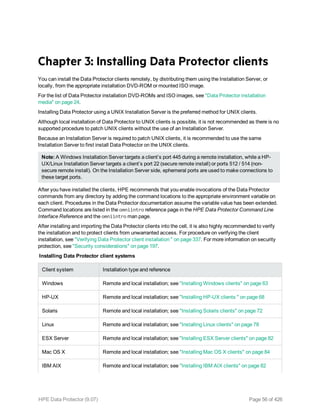
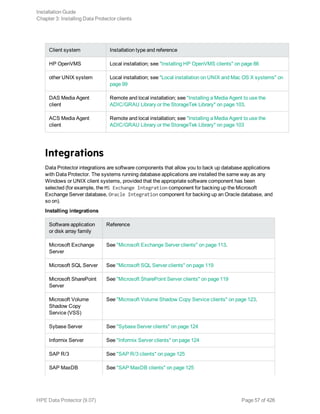
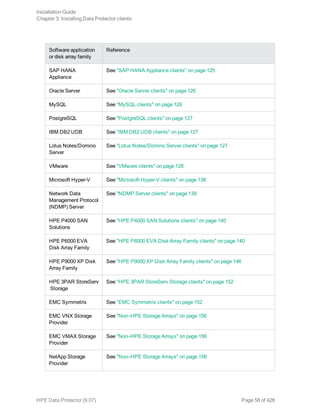
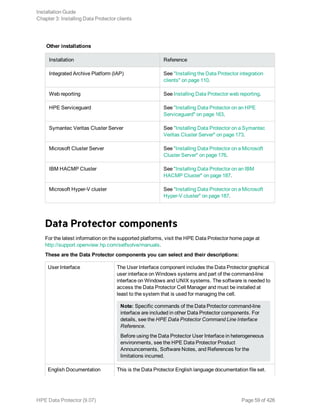
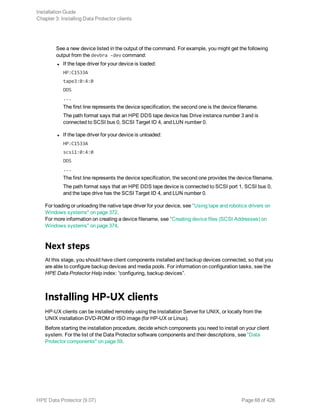
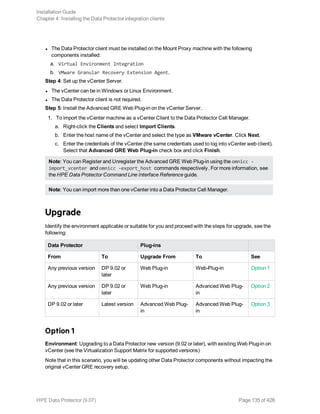
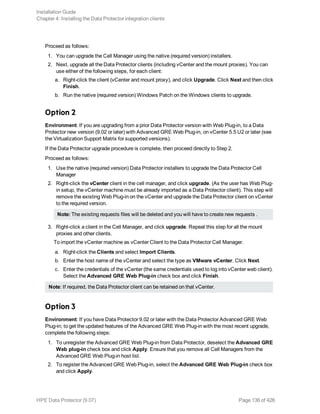
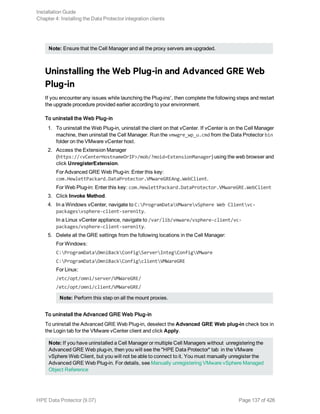
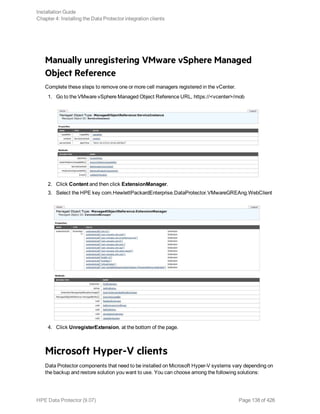
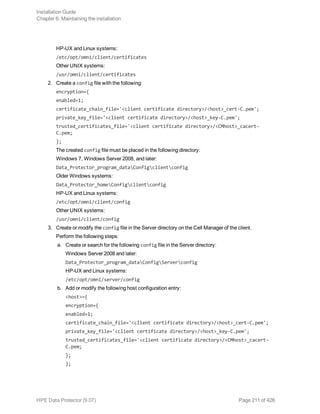
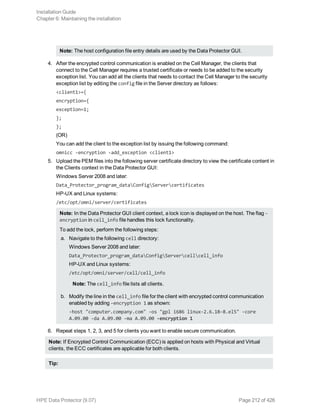
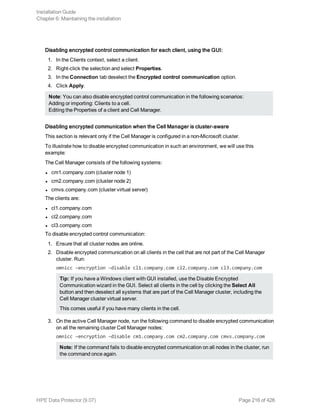
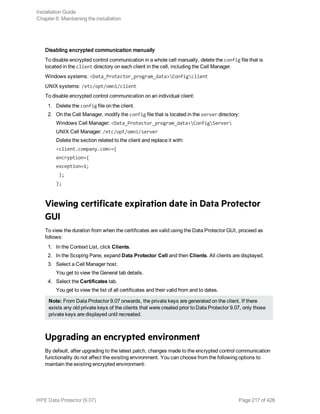
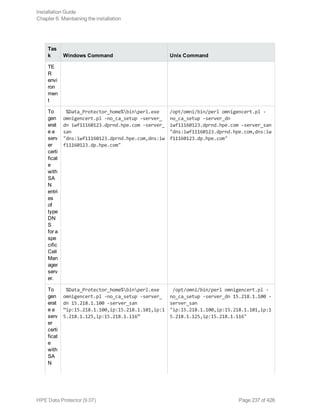
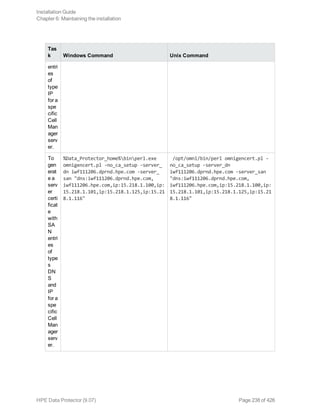
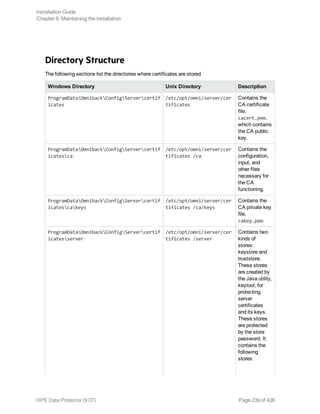
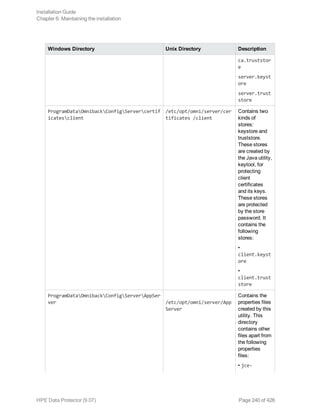
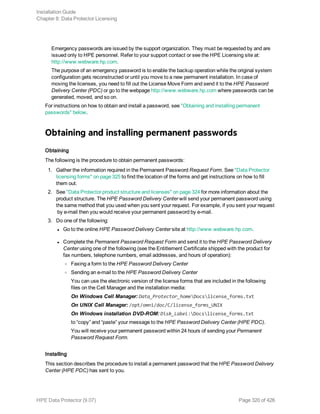
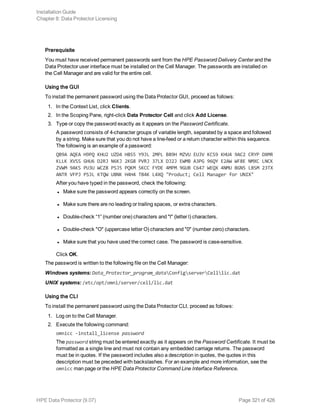
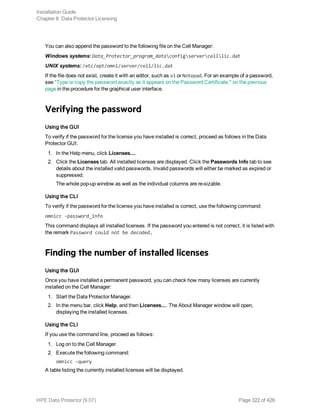
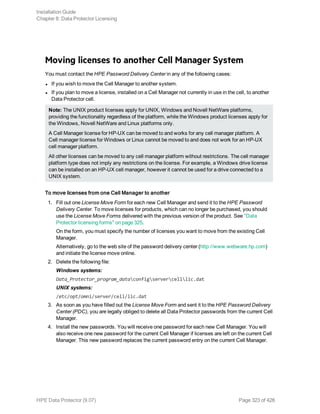
HPE Data Protector
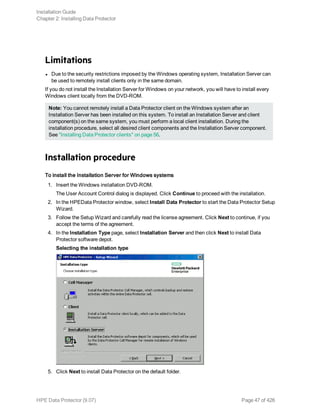
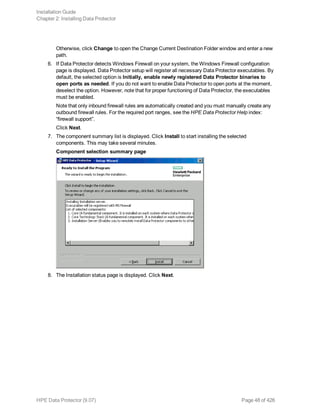
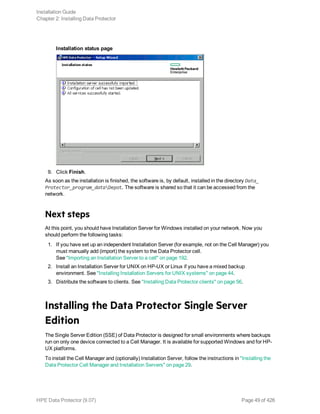
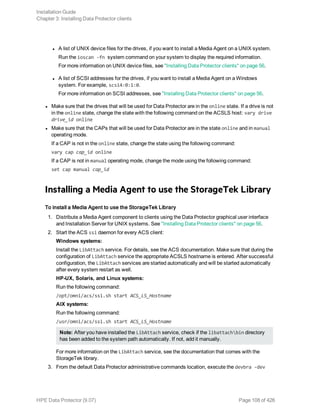
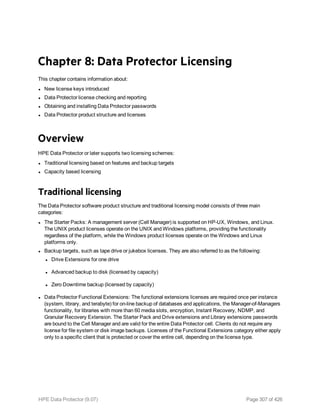
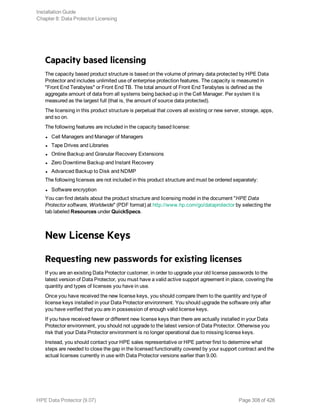
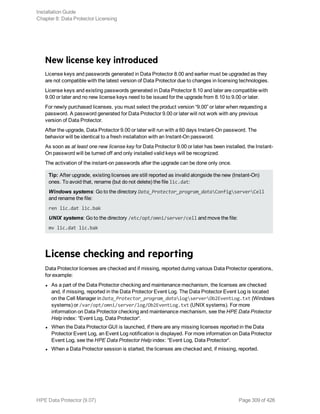
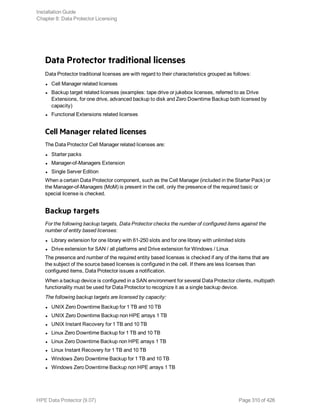
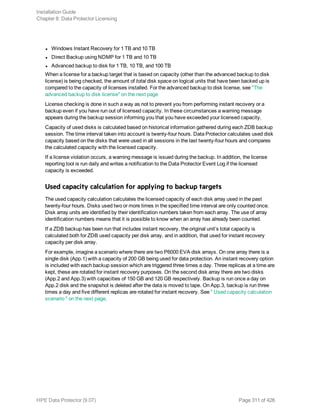
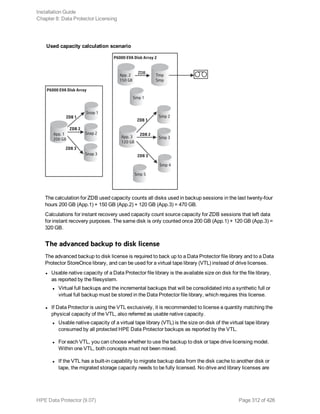
Software Version: 9.07
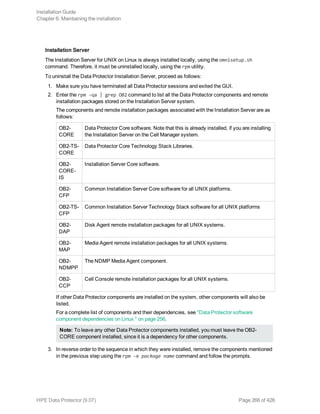
Installation Guide
Document Release Date: June 2016
Software Release Date: June 2016
Legal Notices
Warranty
The only warranties for Hewlett Packard Enterprise Development LP products and services are set forth in
the express warranty statements accompanying such products and services. Nothing herein should be
construed as constituting an additional warranty. HPE shall not be liable for technical or editorial errors or
omissions contained herein.
The information contained herein is subject to change without notice.
Restricted Rights Legend
Confidential computer software. Valid license from HPE required for possession, use or copying. Consistent
with FAR 12.211 and 12.212, Commercial Computer Software, Computer Software Documentation, and
Technical Data for Commercial Items are licensed to the U.S. Government under vendor's standard
commercial license.
Copyright Notice
© Copyright 2016 Hewlett Packard Enterprise Development LP
Trademark Notices
Adobe™ is a trademark of Adobe Systems Incorporated.
Microsoft® and Windows® are U.S. registered trademarks of Microsoft Corporation.
UNIX® is a registered trademark of The Open Group.
This product includes an interface of the 'zlib' general purpose compression library, which is Copyright ©
1995-2002 Jean-loup Gailly and Mark Adler.
Documentation Updates
The title page of this document contains the following identifying information:
l Software Version number, which indicates the software version.
l Document Release Date, which changes each time the document is updated.
l Software Release Date, which indicates the release date of this version of the software.
To check for recent updates or to verify that you are using the most recent edition of a document, go to:
https://softwaresupport.hp.com
This site requires that you register for an HPE Passport and sign in. To register for an HPE Passport ID, go
to: https://hpp12.passport.hp.com/hppcf/createuser.do
Or click the Register link at the top of the HPE Software Support page.
You will also receive updated or new editions if you subscribe to the appropriate product support service.
Contact your HPE sales representative for details.
Support
Visit the HPE Software Support Online web site at: https://softwaresupport.hp.com
This web site provides contact information and details about the products, services, and support that HPE
Software offers.
HPE Software online support provides customer self-solve capabilities. It provides a fast and efficient way to
access interactive technical support tools needed to manage your business. As a valued support customer,
you can benefit by using the support web site to:
Installation Guide
HPE Data Protector (9.07) Page 2 of 426
l Search for knowledge documents of interest
l Submit and track support cases and enhancement requests
l Download software patches
l Manage support contracts
l Look up HPE support contacts
l Review information about available services
l Enter into discussions with other software customers
l Research and register for software training
Most of the support areas require that you register as an HPE Passport user and sign in. Many also require a
support contract. To register for an HPE Passport ID, go to:
https://hpp12.passport.hp.com/hppcf/createuser.do
To find more information about access levels, go to:
https://softwaresupport.hp.com/web/softwaresupport/access-levels
HPE Software Solutions Now accesses the HPESW Solution and Integration Portal Web site. This site
enables you to explore HPE Product Solutions to meet your business needs, includes a full list of
Integrations between HPE Products, as well as a listing of ITIL Processes. The URL for this Web site is
http://h20230.www2.hp.com/sc/solutions/index.jsp
Installation Guide
HPE Data Protector (9.07) Page 3 of 426
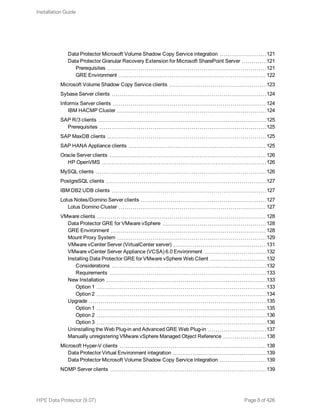
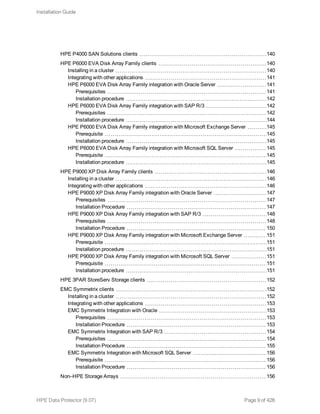
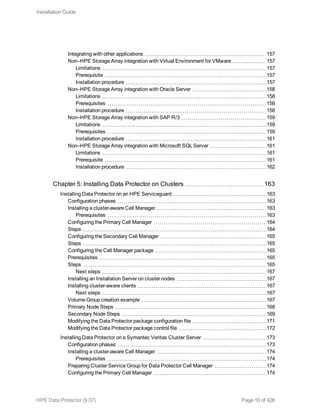
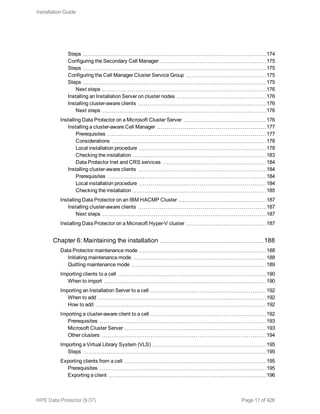
Contents
Chapter 1: Overview of the installation procedure 21
Overview of the installation procedure 21
The remote installation concept 23
Data Protector installation media 24
Choosing the Cell Manager system 25
Choosing the Data Protector user interface system 26
The Data Protector graphical user interface 27
Chapter 2: Installing Data Protector 28
Installing the Data Protector Cell Manager and Installation Servers 29
Installing a UNIX Cell Manager 30
Prerequisites 30
Cluster-aware Cell Manager 31
Recommendations 32
Setting kernel parameters 32
Installation procedure 32
The installed directory structure on HP-UX and Linux systems 33
Configuring automatic startup and shutdown 34
Setting environment variables 36
Next steps 36
Installing a Windows Cell Manager 36
Prerequisites 36
Microsoft Terminal Services Client 38
Recommendations 38
Installation procedure 39
After the installation 42
Troubleshooting 43
Next steps 43
Installing Installation Servers 43
Installing Installation Servers for UNIX systems 44
Prerequisites 44
Recommendations 44
Installation procedure 45
Next steps 45
Installing an Installation Server for Windows systems 46
Prerequisites 46
Limitations 47
Installation procedure 47
Installation Guide
HPE Data Protector (9.07) Page 4 of 426
Next steps 49
Installing the Data Protector Single Server Edition 49
Limitations of SSE for Windows 50
Limitations of SSE for HP-UX 50
Installing a password 50
Installing the Data Protector web reporting 50
Prerequisites 51
Installation Procedure 51
Next steps 52
Verifying the Installation 52
Prerequisite 52
Steps 52
About the Data Protector Inet Service Configuration 52
Integrations 52
Running the Inet service under a Windows domain user account 53
Setting Up a User Account for the Data Protector Inet Service User Impersonation 53
Using the Data Protector GUI 53
Steps 53
Using the Data Protector CLI 54
Changing the Data Protector Inet Account 54
Prerequisites 54
On Windows systems 54
Chapter 3: Installing Data Protector clients 56
Integrations 57
Data Protector components 59
Data Protector services 63
Installing Windows clients 63
Prerequisites 64
Limitations 64
Recommendations 64
Automatic disaster recovery 64
Cluster-aware clients 65
Local installation 65
Connecting a backup device to Windows systems 67
Next steps 68
Installing HP-UX clients 68
Prerequisites 69
Remote installation 69
Local installation 70
Cluster-aware clients 70
Checking the kernel configuration on HP-UX 70
Installation Guide
HPE Data Protector (9.07) Page 5 of 426
Connecting a backup device to HP-UX systems 71
Installing Solaris clients 72
Prerequisites 72
Remote installation 72
Local installation 73
Cluster-aware clients 73
Post-installation configuration 73
Connecting a backup device to a Solaris system 77
Next steps 78
Installing Linux clients 78
Prerequisites 78
Automatic disaster recovery 79
HPE Serviceguard cluster 79
Novell Open Enterprise Server (OES) 79
Remote installation 80
Local installation 81
Connecting a backup device to the Linux system 81
Next steps 82
Installing ESX Server clients 82
Installing IBM AIX clients 82
Prerequisites 82
IBM HACMP cluster 83
Remote installation 83
Local installation 83
Connecting a backup device to an AIX client 83
Next steps 84
Installing Mac OS X clients 84
Installing HP OpenVMS clients 86
Prerequisites 86
Installation Procedure 86
Installation in a cluster environment 89
Next steps 91
Remote installation 91
Prerequisites 91
Recommendations 92
Remote installation using secure shell 93
Setting up OpenSSH 93
Setting up a keychain 94
Next steps 95
Adding clients to the cell 95
Troubleshooting 97
Adding components to clients 98
Prerequisite 98
Installation Guide
HPE Data Protector (9.07) Page 6 of 426
Local installation on UNIX and Mac OS X systems 99
Prerequisites 100
Installation Procedure 100
Running the installation from the hard disk 102
Next steps 103
Installing a Media Agent to use the ADIC/GRAU Library or the StorageTek Library 103
Connecting library drives 103
Preparing Data Protector clients to use the ADIC/GRAU Library 104
Installing a Media Agent to use the ADIC/GRAU Library 105
Prerequisites 105
Installation procedure 106
Next steps 107
Preparing Data Protector clients to use the StorageTek Library 107
Prerequisites 107
Installing a Media Agent to use the StorageTek Library 108
Next steps 109
Chapter 4: Installing the Data Protector integration clients 110
Prerequisites 110
Remote installation 112
Local installation 112
Installing cluster-aware integrations 112
Next steps 112
Microsoft Exchange Server clients 113
Data Protector Microsoft Exchange Server 2007 integration 113
Prerequisites 113
Steps 113
Verification of the Data Protector Microsoft Exchange Server integration installation 115
Verification of Microsoft Exchange Server 115
Data Protector Microsoft Exchange Server 2010 integration 115
Data Protector Microsoft Exchange Server Single Mailbox integration 116
Data Protector Microsoft Volume Shadow Copy Service integration 116
Data Protector Granular Recovery Extension for Microsoft Exchange Server 116
Prerequisites 117
Supported Environments 118
Installing the extension 118
Procedure 119
Removing the extension 119
Microsoft SQL Server clients 119
Microsoft SharePoint Server clients 119
Data Protector Microsoft SharePoint Server 2007/2010/2013 integration 120
Data Protector Microsoft SharePoint Server VSS based solution 120
Installation Guide
HPE Data Protector (9.07) Page 7 of 426
Data Protector Microsoft Volume Shadow Copy Service integration 121
Data Protector Granular Recovery Extension for Microsoft SharePoint Server 121
Prerequisites 121
GRE Environment 122
Microsoft Volume Shadow Copy Service clients 123
Sybase Server clients 124
Informix Server clients 124
IBM HACMP Cluster 124
SAP R/3 clients 125
Prerequisites 125
SAP MaxDB clients 125
SAP HANA Appliance clients 125
Oracle Server clients 126
HP OpenVMS 126
MySQL clients 126
PostgreSQL clients 127
IBM DB2 UDB clients 127
Lotus Notes/Domino Server clients 127
Lotus Domino Cluster 127
VMware clients 128
Data Protector GRE for VMware vSphere 128
GRE Environment 128
Mount Proxy System 129
VMware vCenter Server (VirtualCenter server) 131
VMware vCenter Server Appliance (VCSA) 6.0 Environment 132
Installing Data Protector GRE for VMware vSphere Web Client 132
Considerations 132
Requirements 133
New Installation 133
Option 1 133
Option 2 134
Upgrade 135
Option 1 135
Option 2 136
Option 3 136
Uninstalling the Web Plug-in and Advanced GRE Web Plug-in 137
Manually unregistering VMware vSphere Managed Object Reference 138
Microsoft Hyper-V clients 138
Data Protector Virtual Environment integration 139
Data Protector Microsoft Volume Shadow Copy Service integration 139
NDMP Server clients 139
Installation Guide
HPE Data Protector (9.07) Page 8 of 426
HPE P4000 SAN Solutions clients 140
HPE P6000 EVA Disk Array Family clients 140
Installing in a cluster 140
Integrating with other applications 141
HPE P6000 EVA Disk Array Family integration with Oracle Server 141
Prerequisites 141
Installation procedure 142
HPE P6000 EVA Disk Array Family integration with SAP R/3 142
Prerequisites 142
Installation procedure 144
HPE P6000 EVA Disk Array Family integration with Microsoft Exchange Server 145
Prerequisite 145
Installation procedure 145
HPE P6000 EVA Disk Array Family integration with Microsoft SQL Server 145
Prerequisite 145
Installation procedure 145
HPE P9000 XP Disk Array Family clients 146
Installing in a cluster 146
Integrating with other applications 146
HPE P9000 XP Disk Array Family integration with Oracle Server 147
Prerequisites 147
Installation Procedure 147
HPE P9000 XP Disk Array Family integration with SAP R/3 148
Prerequisites 148
Installation Procedure 150
HPE P9000 XP Disk Array Family integration with Microsoft Exchange Server 151
Prerequisite 151
Installation procedure 151
HPE P9000 XP Disk Array Family integration with Microsoft SQL Server 151
Prerequisite 151
Installation procedure 151
HPE 3PAR StoreServ Storage clients 152
EMC Symmetrix clients 152
Installing in a cluster 152
Integrating with other applications 153
EMC Symmetrix Integration with Oracle 153
Prerequisites 153
Installation Procedure 153
EMC Symmetrix Integration with SAP R/3 154
Prerequisites 154
Installation Procedure 155
EMC Symmetrix Integration with Microsoft SQL Server 156
Prerequisite 156
Installation Procedure 156
Non–HPE Storage Arrays 156
Installation Guide
HPE Data Protector (9.07) Page 9 of 426
Integrating with other applications 157
Non–HPE Storage Array integration with Virtual Environment for VMware 157
Limitations 157
Prerequisite 157
Installation procedure 157
Non–HPE Storage Array integration with Oracle Server 158
Limitations 158
Prerequisites 158
Installation procedure 158
Non–HPE Storage Array integration with SAP R/3 159
Limitations 159
Prerequisites 159
Installation procedure 161
Non–HPE Storage Array integration with Microsoft SQL Server 161
Limitations 161
Prerequisite 161
Installation procedure 162
Chapter 5: Installing Data Protector on Clusters 163
Installing Data Protector on an HPE Serviceguard 163
Configuration phases 163
Installing a cluster-aware Cell Manager 163
Prerequisites 163
Configuring the Primary Cell Manager 164
Steps 164
Configuring the Secondary Cell Manager 165
Steps 165
Configuring the Cell Manager package 165
Prerequisites 165
Steps 165
Next steps 167
Installing an Installation Server on cluster nodes 167
Installing cluster-aware clients 167
Next steps 167
Volume Group creation example 167
Primary Node Steps 168
Secondary Node Steps 169
Modifying the Data Protector package configuration file 171
Modifying the Data Protector package control file 172
Installing Data Protector on a Symantec Veritas Cluster Server 173
Configuration phases 173
Installing a cluster-aware Cell Manager 174
Prerequisites 174
Preparing Cluster Service Group for Data Protector Cell Manager 174
Configuring the Primary Cell Manager 174
Installation Guide
HPE Data Protector (9.07) Page 10 of 426
Steps 174
Configuring the Secondary Cell Manager 175
Steps 175
Configuring the Cell Manager Cluster Service Group 175
Steps 175
Next steps 176
Installing an Installation Server on cluster nodes 176
Installing cluster-aware clients 176
Next steps 176
Installing Data Protector on a Microsoft Cluster Server 176
Installing a cluster-aware Cell Manager 177
Prerequisites 177
Considerations 178
Local installation procedure 178
Checking the installation 183
Data Protector Inet and CRS services 184
Installing cluster-aware clients 184
Prerequisites 184
Local installation procedure 184
Checking the installation 185
Installing Data Protector on an IBM HACMP Cluster 187
Installing cluster-aware clients 187
Next steps 187
Installing Data Protector on a Microsoft Hyper-V cluster 187
Chapter 6: Maintaining the installation 188
Data Protector maintenance mode 188
Initiating maintenance mode 188
Quitting maintenance mode 189
Importing clients to a cell 190
When to import 190
Importing an Installation Server to a cell 192
When to add 192
How to add 192
Importing a cluster-aware client to a cell 192
Prerequisites 193
Microsoft Cluster Server 193
Other clusters 194
Importing a Virtual Library System (VLS) 195
Steps 195
Exporting clients from a cell 195
Prerequisites 195
Exporting a client 196
Installation Guide
HPE Data Protector (9.07) Page 11 of 426
Microsoft Cluster Server clients 197
Security considerations 197
Security layers 197
Client security 197
Data Protector users 198
Cell Manager security 199
Other security aspects 199
Securing clients 199
Consider exceptional situations 200
Securing a client 201
What happens 202
What happens 204
Removing security 204
The allow_hosts and deny_hosts files 204
Excessive logging to the inet.log file 204
Strict hostname checking 205
Limitations 205
Hostname resolution 205
Requirements 206
Enabling the feature 206
Managing encrypted control communication 206
Considerations 207
Enabling encrypted control communication 207
Enabling encrypted control communication with manual distribution of certificates and
keys 210
Encrypted control communication with user-created certificates 213
Disabling encrypted control communication 215
What happens 218
How to add a client to the Security Exceptions list 218
Start backup specification user right 219
Hiding the contents of backup specifications 219
Host trusts 219
Monitoring security events 220
User authentication and LDAP 221
Initializing and configuring the LDAP login module 221
Initializing the LDAP login module 221
Configuring the LDAP login module 224
Granting Data Protector permissions to LDAP users or groups 226
Adding LDAP users to user groups 226
Adding LDAP groups to user groups 227
Logging in using LDAP credentials 227
Checking the LDAP configuration 227
Certificate Generation Utility 228
Syntax 228
Examples 231
Installation Guide
HPE Data Protector (9.07) Page 12 of 426
Directory Structure 239
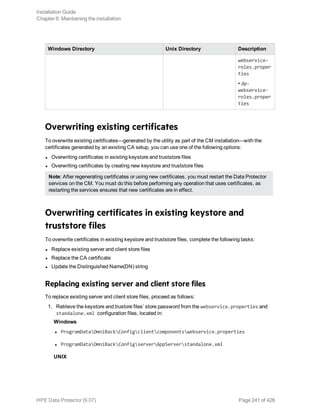
Overwriting certificates in existing keystore and truststore files 241
Replacing existing server and client store files 241
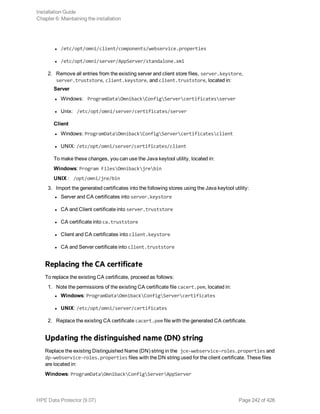
Replacing the CA certificate 242
Updating the distinguished name (DN) string 242
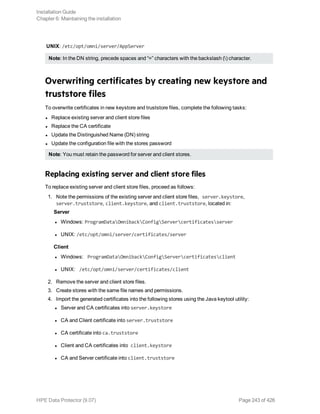
Overwriting certificates by creating new keystore and truststore files 243
Replacing existing server and client store files 243
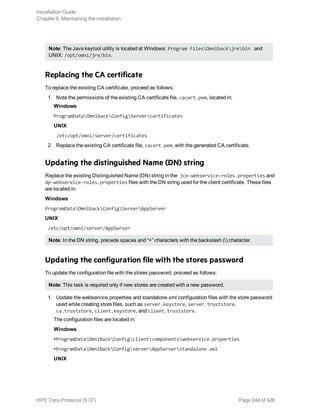
Replacing the CA certificate 244
Updating the distinguished Name (DN) string 244
Updating the configuration file with the stores password 244
Managing Data Protector patches 245
Verifying which Data Protector patches are installed 245
Prerequisites 245
Limitations 246
Verifying Data Protector patches using the GUI 246
Verifying Data Protector Patches Using the CLI 247
Patches required by Data Protector 247
Windows system patches 247
HP-UX system patches 247
HP-UX 11.11 247
HP-UX 11.23 248
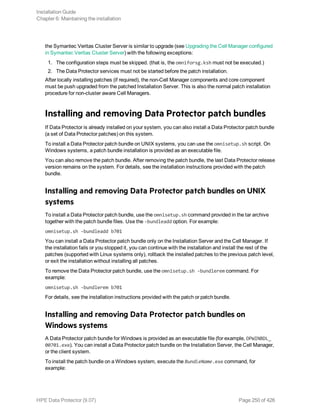
HP-UX 11.31 249
SUSE Linux Enterprise Server system patches 249
Red Hat Enterprise Linux system patches 249
Installing patches 249
Installing patches on the Cell Manager configured in Symantec Veritas Cluster Server 249
Installing and removing Data Protector patch bundles 250
Installing and removing Data Protector patch bundles on UNIX systems 250
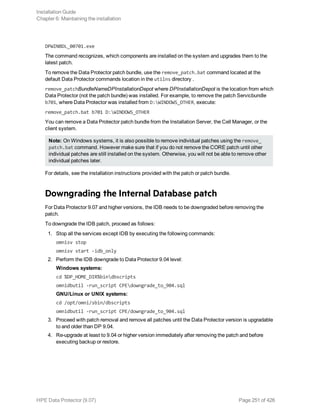
Installing and removing Data Protector patch bundles on Windows systems 250
Downgrading the Internal Database patch 251
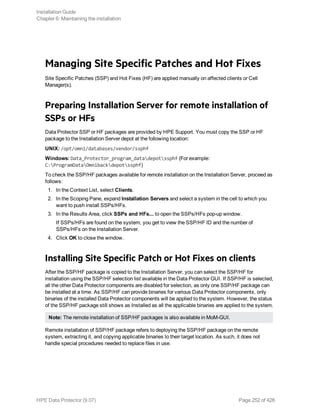
Managing Site Specific Patches and Hot Fixes 252
Preparing Installation Server for remote installation of SSPs or HFs 252
Installing Site Specific Patch or Hot Fixes on clients 252
Reverting binaries replaced by SSP/HF 253
Verifying installed SSPs or HFs 254
Verifying SSP or HF packages using the GUI 254
Verifying the SSPs or HFs using the CLI 255
Changing Data Protector software components 255
On Windows systems 255
Cluster-aware clients 255
On HP-UX systems 256
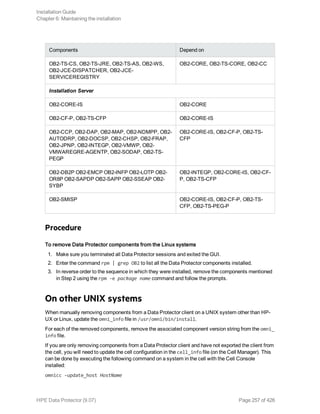
Procedure 256
Oracle Server specifics 256
On Linux systems 256
Procedure 257
Installation Guide
HPE Data Protector (9.07) Page 13 of 426
On other UNIX systems 257
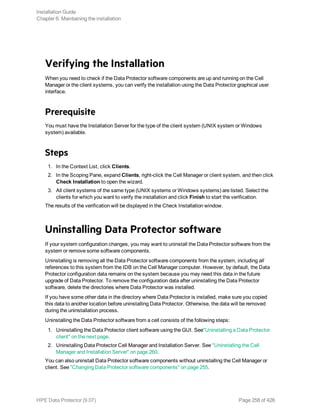
Verifying the Installation 258
Prerequisite 258
Steps 258
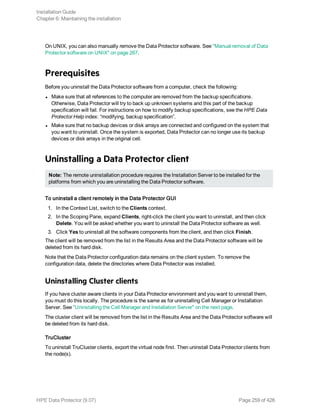
Uninstalling Data Protector software 258
Prerequisites 259
Uninstalling a Data Protector client 259
Uninstalling Cluster clients 259
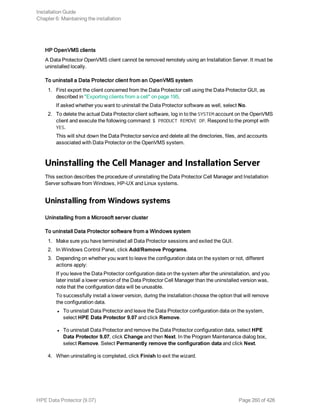
Uninstalling the Cell Manager and Installation Server 260
Uninstalling from Windows systems 260
Uninstalling from HP-UX systems 261
Uninstalling the Cell Manager and/or Installation Server configured on HPE
Serviceguard 261
Uninstalling the Cell Manager and/or Installation Server configured on Symantec
Veritas Cluster Server 263
Uninstalling from Linux systems 264
Manual removal of Data Protector software on UNIX 267
Chapter 7: Upgrading the Data Protector 268
Upgrade overview 268
Before you begin 268
Prerequisites 269
Limitations 269
Upgrade sequence 270
Upgrading in a MoM environment 270
Support for earlier agent versions 270
Upgrading from Data Protector 6.20, 7.00, 8.00 and later 271
Before you begin 271
Validating data consistency before upgrade 271
Upgrading the UNIX Cell Manager and Installation Server 272
Prerequisites 272
Upgrading a Cell Manager 272
Upgrade procedure 273
Next steps 274
Upgrading an Installation Server 274
Upgrade procedure 274
Next steps 275
Upgrading the Windows Cell Manager and Installation Server 275
Considerations 275
Upgrade procedure 276
Next steps 277
Checking configuration changes 277
Global options file 277
Manual steps 278
Installation Guide
HPE Data Protector (9.07) Page 14 of 426
Next steps 279
Internal database changes after upgrade from Data Protector 6.20 or 7.00 279
Migrating the Detail Catalog Binary Files (DCBF) 280
IDB conversion duration and changes in IDB size and structure 280
Importing legacy NDMP media 281
Ordinal numbers in session IDs 281
Upgrading the clients 281
Upgrade sequence 281
Upgrading clients remotely 282
Upgrading clients locally 282
Upgrade-related operating system specifics 282
Upgrading the Oracle integration 283
User root is no longer required 284
Configuring an Oracle instance for instant recovery 284
Oracle ASM configurations using HPE P6000 EVA Disk Array Family or HPE
3PAR StoreServ Storage 284
Upgrading the SAP R/3 integration 284
SAP compliant ZDB sessions 284
Configuring an Oracle instance for instant recovery 285
Upgrading the Microsoft Volume Shadow Copy Service integration 285
Instant recovery-enabled backup sessions after upgrading from HPE Data
Protector 6.20, Data Protector 7.00, and Data Protector 8.00 and later 285
Upgrading the HPE P6000 EVA Disk Array Family integration 285
Upgrading the Virtual Environment integration 286
Upgrading other integrations 286
Upgrading in a MoM environment 286
Limitations 286
Upgrading from the Single Server Edition 287
Upgrading from earlier versions of SSE to Data Protector 9.07 SSE 287
Upgrading from Data Protector 9.07 SSE to Data Protector 9.07 287
Upgrading the Cell Manager 287
Upgrading from multiple installations 288
Migrating the Cell Manager to a different platform 288
Migration from PA-RISC HP-UX systems to Intel Itanium HP-UX systems 288
Migrating from 32-bit/64-bit Windows to 64-bit Windows/Windows Server 2008 or
Windows Server 2012 289
Migrating from Solaris to Linux 289
MoM specifics 290
Installation Server specifics 290
Migrating a Windows Cell Manager Internal Database to a Different Server 291
Terminology 291
Prerequisites 291
Preparing for migration 291
On OLD_SERVER 292
On NEW_SERVER 292
Installation Guide
HPE Data Protector (9.07) Page 15 of 426
Migration tasks 293
Importing the IDB 293
Post Restore Tasks 294
Adding the NEW_SERVER as the Cell Manager 294
Changing the Cell Manager Name in the IDB 295
Next Steps 295
Troubleshooting 296
Upgrading the Cell Manager configured in HPE Serviceguard 299
Prerequisites 299
Primary node 300
Secondary node 300
Primary node 301
Secondary node 301
Primary node 302
Upgrading the Cell Manager configured in Symantec Veritas Cluster Server 302
Prerequisites 302
Primary node 302
Secondary node 303
Primary node 303
Secondary node 303
Primary node 304
Upgrading the Cell Manager configured on Microsoft Cluster Server 304
Prerequisites 304
Upgrade procedure 304
Chapter 8: Data Protector Licensing 307
Overview 307
Traditional licensing 307
Capacity based licensing 308
New License Keys 308
Requesting new passwords for existing licenses 308
New license key introduced 309
License checking and reporting 309
Data Protector traditional licenses 310
Cell Manager related licenses 310
Backup targets 310
Used capacity calculation for applying to backup targets 311
The advanced backup to disk license 312
Examples for backup targets based on licensed capacity 314
Data Protector Functional Extensions 316
Capacity based license reports 317
Limitations 318
Producing a license report on demand 318
Installation Guide
HPE Data Protector (9.07) Page 16 of 426
Data Protector passwords 319
Obtaining and installing permanent passwords 320
Verifying the password 322
Finding the number of installed licenses 322
Moving licenses to another Cell Manager System 323
Centralized licensing 324
Data Protector product structure and licenses 324
Password considerations 324
License migration to Data Protector 9.07 325
Data Protector licensing forms 325
Chapter 9: Troubleshooting installation and upgrade 327
Name resolution problems when installing the Windows Cell Manager 327
Verifying DNS connections within Data Protector cell 328
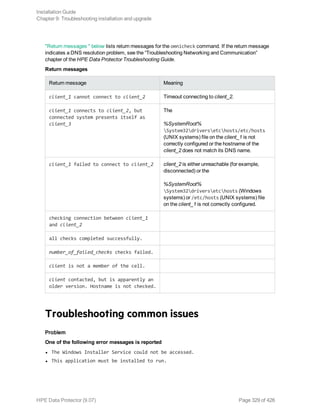
Using the omnicheck command 328
Troubleshooting common issues 329
Troubleshooting installation on UNIX systems 332
Troubleshooting installation on Red Hat 7 systems 333
Troubleshooting installation on Windows systems 335
Verifying Data Protector client installation 337
Troubleshooting upgrade 337
Troubleshooting remote upgrade on Windows systems 343
Manual process for local upgrade on UNIX systems 344
Using log files 344
Local installation 344
Remote installation 345
Data Protector log files 345
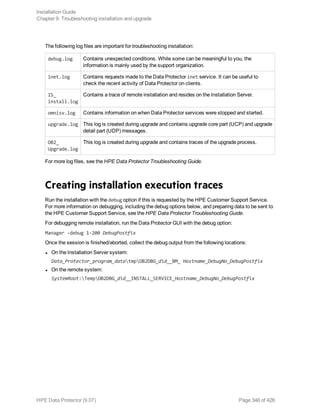
Creating installation execution traces 346
Appendix A: Installing and upgrading using UNIX system native tools 347
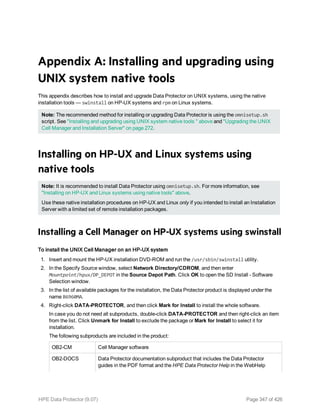
Installing on HP-UX and Linux systems using native tools 347
Installing a Cell Manager on HP-UX systems using swinstall 347
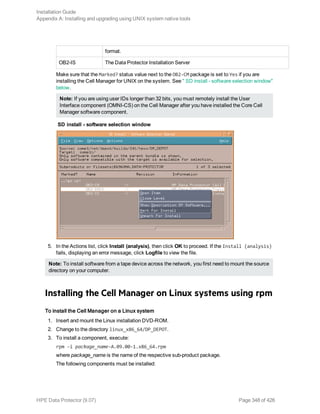
Installing the Cell Manager on Linux systems using rpm 348
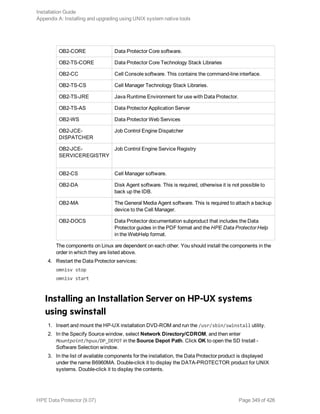
Installing an Installation Server on HP-UX systems using swinstall 349
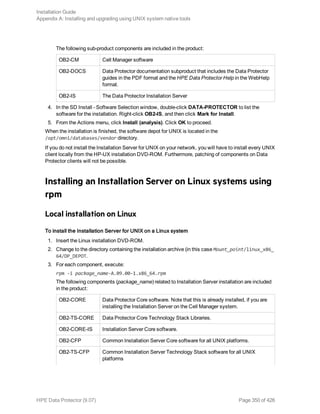
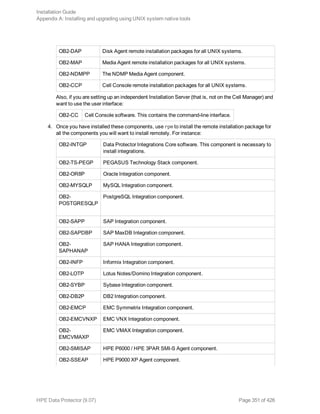
Installing an Installation Server on Linux systems using rpm 350
Local installation on Linux 350
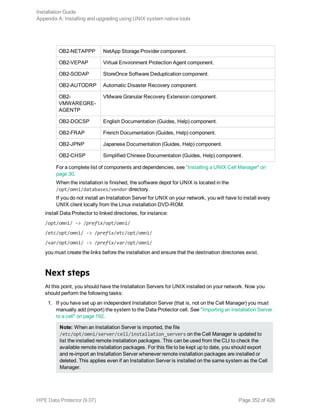
Next steps 352
Installing the clients 353
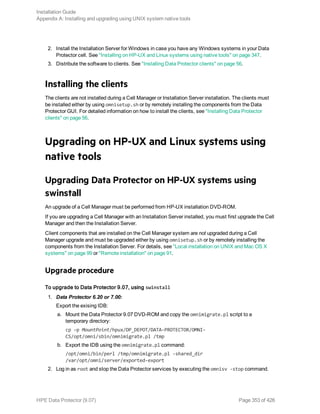
Upgrading on HP-UX and Linux systems using native tools 353
Upgrading Data Protector on HP-UX systems using swinstall 353
Installation Guide
HPE Data Protector (9.07) Page 17 of 426
Upgrade procedure 353
Upgrading Data Protector on Linux systems using rpm 354
Upgrade procedure 354
Appendix B: System preparation and maintenance tasks 356
Network configuration on UNIX systems 356
Checking the TCP/IP setup 356
Changing the default Data Protector ports 358
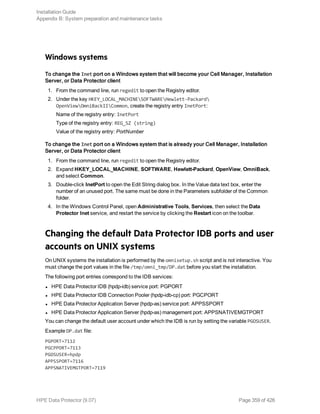
Changing the default Data Protector Inet port 358
UNIX systems 358
Windows systems 359
Changing the default Data Protector IDB ports and user accounts on UNIX systems 359
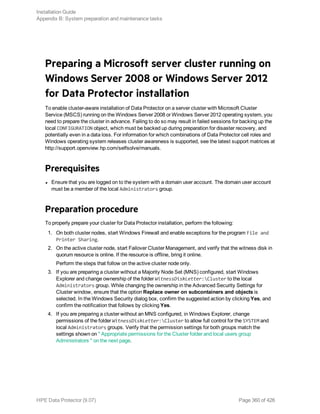
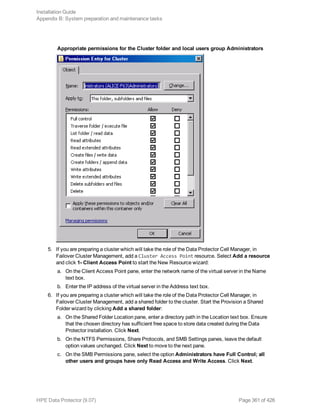
Preparing a Microsoft server cluster running on Windows Server 2008 or Windows Server
2012 for Data Protector installation 360
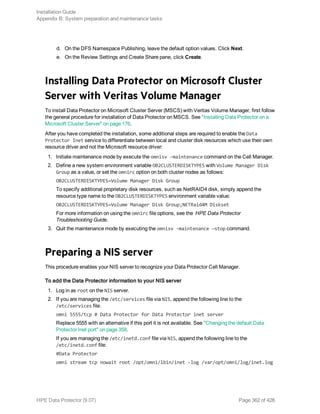
Installing Data Protector on Microsoft Cluster Server with Veritas Volume Manager 362
Preparing a NIS server 362
Changing the Cell Manager name 363
Changing the hostname in Job Control Engine (JCE) database 369
Running large backup sessions on Windows Cell Manager 370
Appendix C: Device and media related tasks 372
Using tape and robotics drivers on Windows systems 372
Tape drivers 372
Robotics drivers 373
Creating device files (SCSI Addresses) on Windows systems 374
Windows using the native tape driver 374
Magneto-optical devices 375
SCSI robotics configuration on HP-UX systems 375
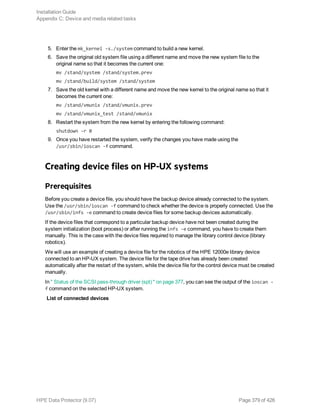
Creating device files on HP-UX systems 379
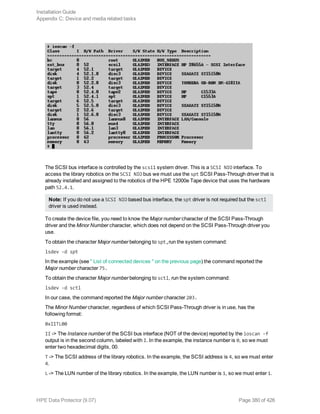
Prerequisites 379
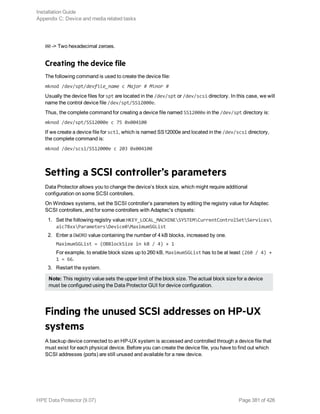
Creating the device file 381
Setting a SCSI controller’s parameters 381
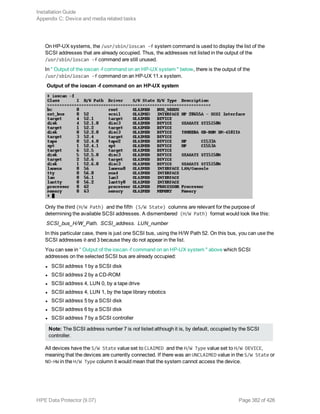
Finding the unused SCSI addresses on HP-UX systems 381
Finding the unused SCSI target IDs on Solaris systems 383
Updating the device and driver configuration on Solaris systems 383
Updating configuration files 383
Creating and checking device files 386
Finding unused SCSI target IDs on Windows systems 387
Setting SCSI IDs on an HPE 330fx library 387
Installation Guide
HPE Data Protector (9.07) Page 18 of 426
Connecting backup devices 388
Hardware compression 390
Next steps 390
Connecting an HPE 24 standalone device 390
Connecting to an HP-UX system 391
Next steps 391
Connecting to a Windows system 391
What’s next? 391
Connecting an HPE DAT Autoloader 392
Connecting to an HP-UX system 392
Next steps 392
Connecting to a Windows system 393
Next steps 393
Connecting an HPE DLT Library 28/48-Slot 393
Connecting to an HP-UX system 393
Next steps 394
Connecting to a Solaris system 394
What’s next? 396
Connecting to a Windows system 396
Next steps 396
Connecting a Seagate Viper 200 LTO Ultrium Tape Drive 396
Connecting to a Solaris system 396
What’s next? 397
Connecting to a Windows system 397
Next steps 398
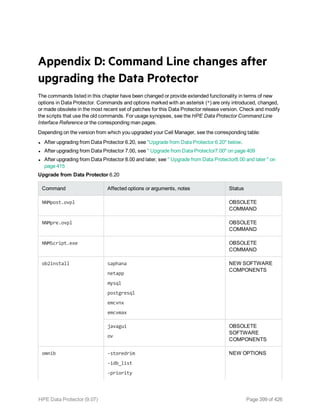
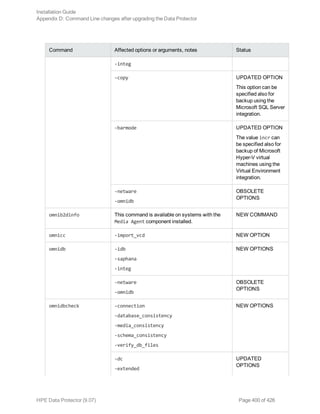
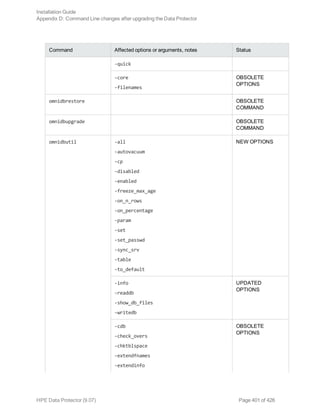
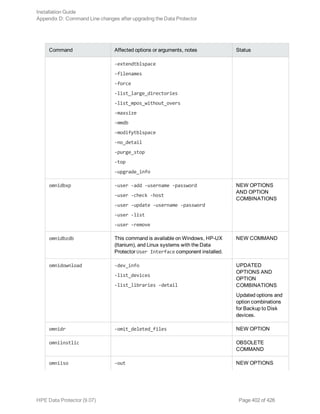
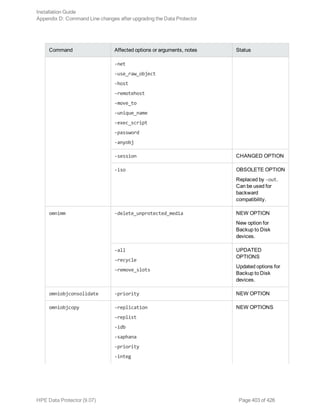
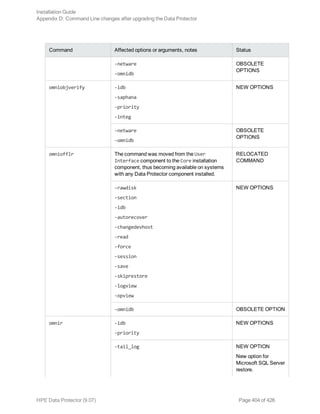
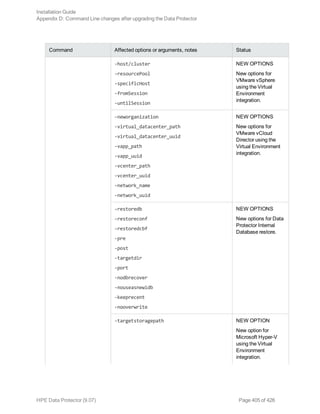
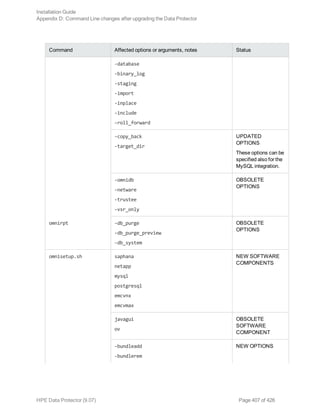
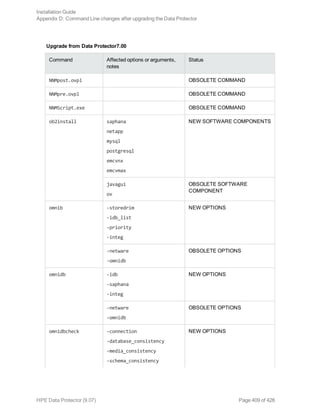
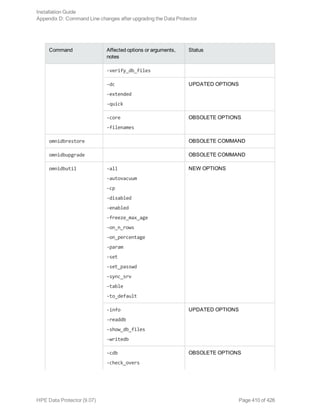
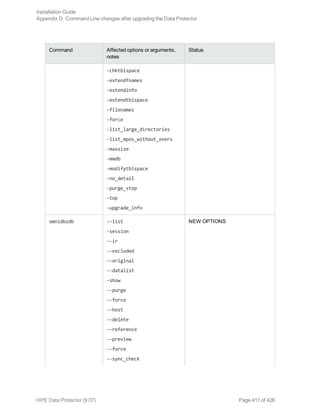
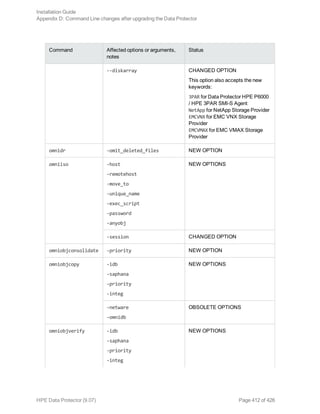
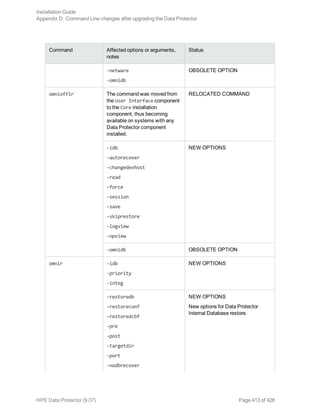
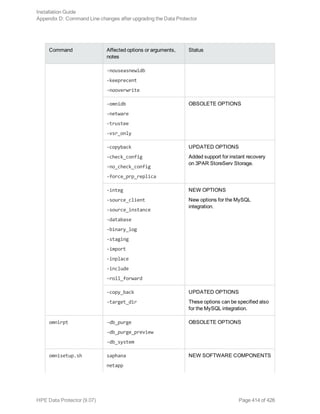
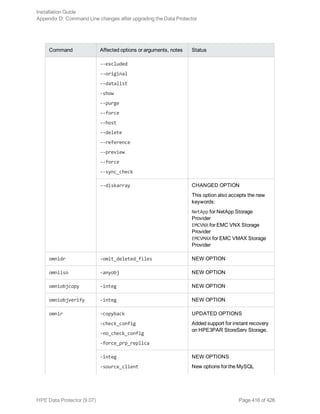
Appendix D: Command Line changes after upgrading the Data Protector 399
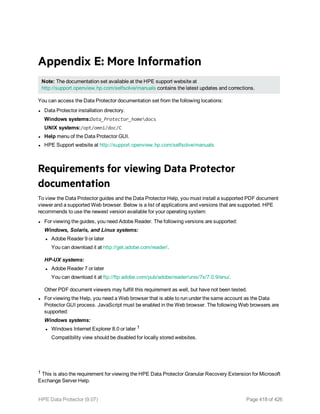
Appendix E: More Information 418
Requirements for viewing Data Protector documentation 418
Help 419
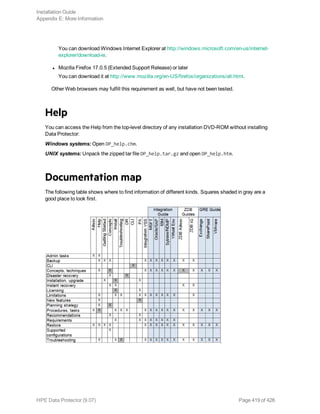
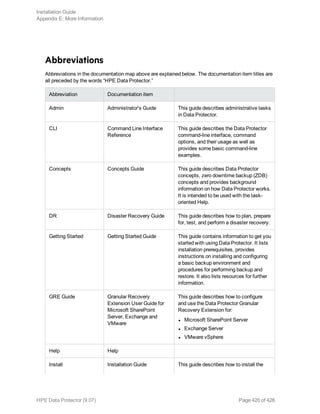
Documentation map 419
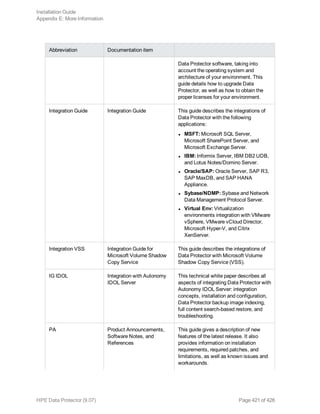
Abbreviations 420
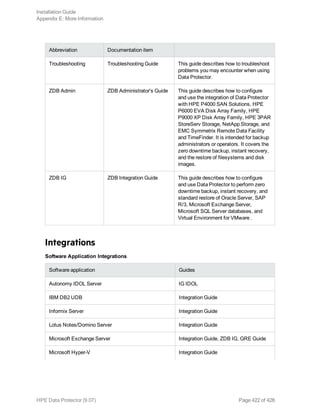
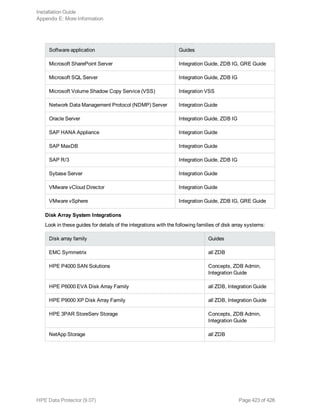
Integrations 422
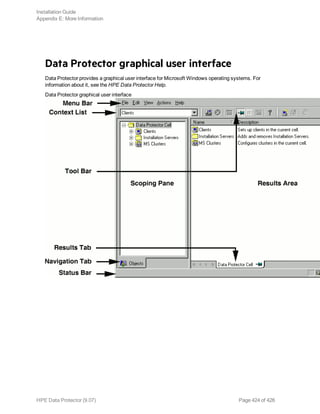
Data Protector graphical user interface 424
Send Documentation Feedback 425
Installation Guide
HPE Data Protector (9.07) Page 19 of 426
Page 20 of 426HPE Data Protector (9.07)
Installation Guide
Chapter 1: Overview of the installation
procedure
This chapter provides an overview of the Data Protector installation procedure and introduces concepts that
apply to the installation. The chapter also introduces Data Protector Cell Manager and Data Protector user
interfaces.
Overview of the installation procedure
A Data Protector backup environment is a set of systems with a common backup policy located in the same
time zone and existing on the same LAN/SAN. This network environment is referred to as a Data Protector
cell. A typical cell consists of a Cell Manager, Installation Servers, clients, and backup devices.
The Cell Manager is the main system that manages the cell from a central point. It contains the Data
Protector Internal Database (IDB) and runs core Data Protector software and session managers.
The IDB keeps track of backed up files and the cell configuration.
The Installation Server is a separate system or a Cell Manager component that contains the Data Protector
software repository used for remote client installations. This Data Protector feature greatly facilitates the
software installation process, particularly for remote clients.
A cell typically consists of one Cell Manager and several clients. A computer system becomes a Data
Protector client as soon as one of the Data Protector software components is installed on the system. The
client components installed on a system depend on the role of that system in your backup environment. Data
Protector components can be installed either locally on a single system, or onto several systems from
Installation Servers.
The User Interface component is needed to access the Data Protector functionality and is used to perform all
configuration and administration tasks. It must be installed on systems used for backup administration. Data
Protector provides a graphical user interface (GUI) and command-line interface (CLI).
Client systems with disks that need to be backed up must have appropriate Data Protector Disk Agent
components installed. The Disk Agent enables you to back up data from the client disk or restore it.
Client systems with applications and virtual environments that need to be backed up must have appropriate
Data Protector integration agent components installed. The integration agent enables you to back up data
from an application or virtual environment or restore it.
Client systems that are connected to a backup device must have a Media Agent component installed. This
software manages backup devices and media. Data Protector features two Media Agents: the General
Media Agent and the NDMP Media Agent. The NDMP Media Agent is only needed on client systems that
control the backup of an NDMP server (on client systems controlling NDMP dedicated drives). In all other
cases the two Media Agents are interchangeable.
Before installing Data Protector on your network, define the following:
l The system on which the Cell Manager will be installed. For supported operating systems and versions,
see the latest support matrices at http://support.openview.hp.com/selfsolve/manuals.
HPE Data Protector (9.07) Page 21 of 426
There can only be one Cell Manager per cell. Data Protector cannot be run without a Cell Manager
installed.
l Systems that will be used to access the Data Protector functionality through the user interface.
These systems must have the User Interface component installed.
l Systems that will be backed up. These must have the Disk Agent component installed for
filesystem backup and the relevant application agent component for online database integrations.
l Systems to which the backup devices will be connected. These must have a Media Agent
component installed.
l One or more systems on which the Data Protector Installation Server will be installed. Two types of
Installation Servers are available for remote software installation: one for UNIX clients and the other
for Windows clients.
The choice of system for the Installation Server is independent of the Cell Manager and the systems
on which the User Interface is installed. The Cell Manager and Installation Server can be installed on
the same system or on different systems.
An Installation Server can be shared between multiple Data Protector cells.
Note: The Installation Server for Windows must be installed on a Windows system. The
Installation Server for UNIX must be installed on an HP-UX or Linux system. For supported
operating system versions, see the latest support matrices at
http://support.openview.hp.com/selfsolve/manuals.
When installing a Data Protector client on Solaris systems, make sure to save all your files from the
/usr/omni directory to some other directory. The Data Protector installation deletes all the files from
the /usr/omni directory.
After you have defined the roles of the systems in your future Data Protector cell, the installation
procedure comprises the following general steps:
1. Checking the prerequisites for installation.
2. Installing the Data Protector Cell Manager.
3. Installing the Installation Server(s) and the User Interface.
4. Installing client systems either remotely (recommended option, where possible), or locally from
the installation DVD-ROM.
Note: You cannot remotely install a Data Protector client on a Windows system if an Installation
Server has already been installed on this system. To install an Installation Server and client
component(s) on the same system, you must perform a local client installation from the Data
Protector Windows installation DVD-ROM. In the Custom Setup window, select all desired client
components and the Installation Server component.
Remote installation is also not possible for Windows XP Home Edition and HP OpenVMS clients.
These have to be installed locally.
Installation Guide
Chapter 1: Overview of the installation procedure
HPE Data Protector (9.07) Page 22 of 426
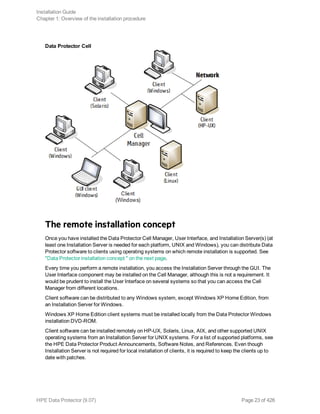
Data Protector Cell
The remote installation concept
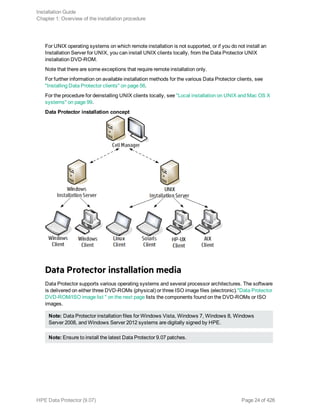
Once you have installed the Data Protector Cell Manager, User Interface, and Installation Server(s) (at
least one Installation Server is needed for each platform, UNIX and Windows), you can distribute Data
Protector software to clients using operating systems on which remote installation is supported. See
"Data Protector installation concept " on the next page.
Every time you perform a remote installation, you access the Installation Server through the GUI. The
User Interface component may be installed on the Cell Manager, although this is not a requirement. It
would be prudent to install the User Interface on several systems so that you can access the Cell
Manager from different locations.
Client software can be distributed to any Windows system, except Windows XP Home Edition, from
an Installation Server for Windows.
Windows XP Home Edition client systems must be installed locally from the Data Protector Windows
installation DVD-ROM.
Client software can be installed remotely on HP-UX, Solaris, Linux, AIX, and other supported UNIX
operating systems from an Installation Server for UNIX systems. For a list of supported platforms, see
the HPE Data Protector Product Announcements, Software Notes, and References. Even though
Installation Server is not required for local installation of clients, it is required to keep the clients up to
date with patches.
Installation Guide
Chapter 1: Overview of the installation procedure
HPE Data Protector (9.07) Page 23 of 426
For UNIX operating systems on which remote installation is not supported, or if you do not install an
Installation Server for UNIX, you can install UNIX clients locally, from the Data Protector UNIX
installation DVD-ROM.
Note that there are some exceptions that require remote installation only.
For further information on available installation methods for the various Data Protector clients, see
"Installing Data Protector clients" on page 56.
For the procedure for deinstalling UNIX clients locally, see "Local installation on UNIX and Mac OS X
systems" on page 99.
Data Protector installation concept
Data Protector installation media
Data Protector supports various operating systems and several processor architectures. The software
is delivered on either three DVD-ROMs (physical) or three ISO image files (electronic)."Data Protector
DVD-ROM/ISO image list " on the next page lists the components found on the DVD-ROMs or ISO
images.
Note: Data Protector installation files for Windows Vista, Windows 7, Windows 8, Windows
Server 2008, and Windows Server 2012 systems are digitally signed by HPE.
Note: Ensure to install the latest Data Protector 9.07 patches.
Installation Guide
Chapter 1: Overview of the installation procedure
HPE Data Protector (9.07) Page 24 of 426
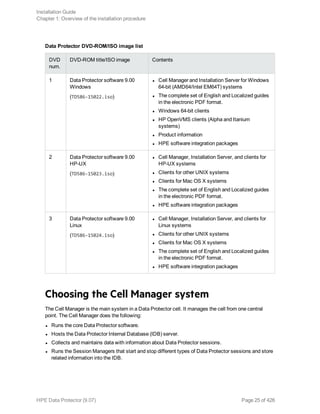
Data Protector DVD-ROM/ISO image list
DVD
num.
DVD-ROM title/ISO image Contents
1 Data Protector software 9.00
Windows
(TD586-15022.iso)
l Cell Manager and Installation Server for Windows
64-bit (AMD64/Intel EM64T) systems
l The complete set of English and Localized guides
in the electronic PDF format.
l Windows 64-bit clients
l HP OpenVMS clients (Alpha and Itanium
systems)
l Product information
l HPE software integration packages
2 Data Protector software 9.00
HP-UX
(TD586-15023.iso)
l Cell Manager, Installation Server, and clients for
HP-UX systems
l Clients for other UNIX systems
l Clients for Mac OS X systems
l The complete set of English and Localized guides
in the electronic PDF format.
l HPE software integration packages
3 Data Protector software 9.00
Linux
(TD586-15024.iso)
l Cell Manager, Installation Server, and clients for
Linux systems
l Clients for other UNIX systems
l Clients for Mac OS X systems
l The complete set of English and Localized guides
in the electronic PDF format.
l HPE software integration packages
Choosing the Cell Manager system
The Cell Manager is the main system in a Data Protector cell. It manages the cell from one central
point. The Cell Manager does the following:
l Runs the core Data Protector software.
l Hosts the Data Protector Internal Database (IDB) server.
l Collects and maintains data with information about Data Protector sessions.
l Runs the Session Managers that start and stop different types of Data Protector sessions and store
related information into the IDB.
Installation Guide
Chapter 1: Overview of the installation procedure
HPE Data Protector (9.07) Page 25 of 426
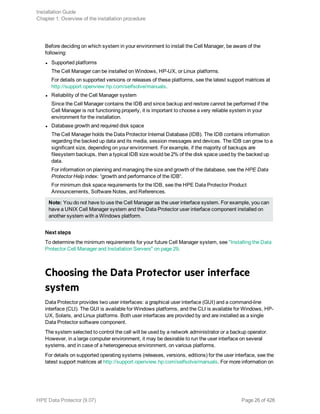
Before deciding on which system in your environment to install the Cell Manager, be aware of the
following:
l Supported platforms
The Cell Manager can be installed on Windows, HP-UX, or Linux platforms.
For details on supported versions or releases of these platforms, see the latest support matrices at
http://support.openview.hp.com/selfsolve/manuals.
l Reliability of the Cell Manager system
Since the Cell Manager contains the IDB and since backup and restore cannot be performed if the
Cell Manager is not functioning properly, it is important to choose a very reliable system in your
environment for the installation.
l Database growth and required disk space
The Cell Manager holds the Data Protector Internal Database (IDB). The IDB contains information
regarding the backed up data and its media, session messages and devices. The IDB can grow to a
significant size, depending on your environment. For example, if the majority of backups are
filesystem backups, then a typical IDB size would be 2% of the disk space used by the backed up
data.
For information on planning and managing the size and growth of the database, see the HPE Data
Protector Help index: “growth and performance of the IDB“.
For minimum disk space requirements for the IDB, see the HPE Data Protector Product
Announcements, Software Notes, and References.
Note: You do not have to use the Cell Manager as the user interface system. For example, you can
have a UNIX Cell Manager system and the Data Protector user interface component installed on
another system with a Windows platform.
Next steps
To determine the minimum requirements for your future Cell Manager system, see "Installing the Data
Protector Cell Manager and Installation Servers" on page 29.
Choosing the Data Protector user interface
system
Data Protector provides two user interfaces: a graphical user interface (GUI) and a command-line
interface (CLI). The GUI is available for Windows platforms, and the CLI is available for Windows, HP-
UX, Solaris, and Linux platforms. Both user interfaces are provided by and are installed as a single
Data Protector software component.
The system selected to control the cell will be used by a network administrator or a backup operator.
However, in a large computer environment, it may be desirable to run the user interface on several
systems, and in case of a heterogeneous environment, on various platforms.
For details on supported operating systems (releases, versions, editions) for the user interface, see the
latest support matrices at http://support.openview.hp.com/selfsolve/manuals. For more information on
Installation Guide
Chapter 1: Overview of the installation procedure
HPE Data Protector (9.07) Page 26 of 426
local language support and usage of non-ASCII characters in file names, see the HPE Data Protector
Help index: “language settings, customizing”.
Once you have installed the user interface on a system in the cell, you can remotely access the Cell
Manager from that system. You do not have to use the graphical user interface system on the Cell
Manager.
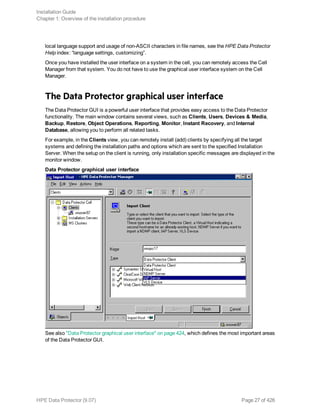
The Data Protector graphical user interface
The Data Protector GUI is a powerful user interface that provides easy access to the Data Protector
functionality. The main window contains several views, such as Clients, Users, Devices & Media,
Backup, Restore, Object Operations, Reporting, Monitor, Instant Recovery, and Internal
Database, allowing you to perform all related tasks.
For example, in the Clients view, you can remotely install (add) clients by specifying all the target
systems and defining the installation paths and options which are sent to the specified Installation
Server. When the setup on the client is running, only installation specific messages are displayed in the
monitor window.
Data Protector graphical user interface
See also "Data Protector graphical user interface" on page 424, which defines the most important areas
of the Data Protector GUI.
Installation Guide
Chapter 1: Overview of the installation procedure
HPE Data Protector (9.07) Page 27 of 426
Chapter 2: Installing Data Protector
This chapter contains detailed instructions about:
l Installing the Data Protector Cell Manager and Installation Servers
l Installing the Data Protector Single Server Edition
l Installing the Data Protector web reporting
HPE Data Protector (9.07) Page 28 of 426
Installing the Data Protector Cell Manager and
Installation Servers
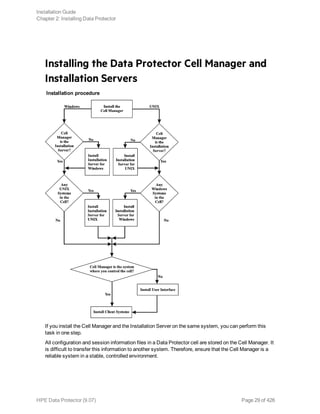
Installation procedure
If you install the Cell Manager and the Installation Server on the same system, you can perform this
task in one step.
All configuration and session information files in a Data Protector cell are stored on the Cell Manager. It
is difficult to transfer this information to another system. Therefore, ensure that the Cell Manager is a
reliable system in a stable, controlled environment.
Installation Guide
Chapter 2: Installing Data Protector
HPE Data Protector (9.07) Page 29 of 426
Installing a UNIX Cell Manager
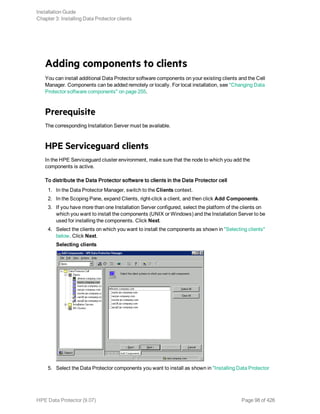
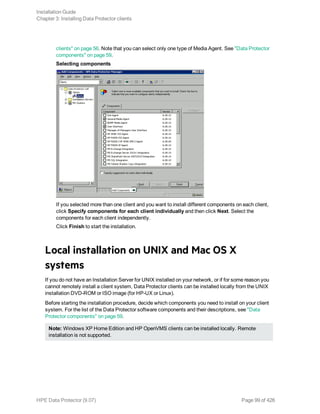
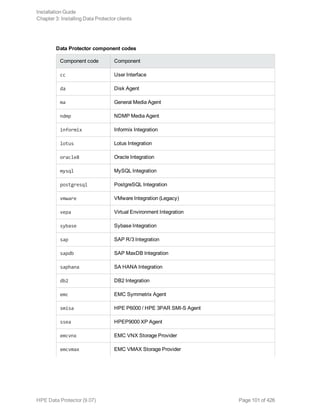
This section provides step-by-step instructions on how to install a UNIX Cell Manager. To install the
Windows Cell Manager only, see "Installing a Windows Cell Manager" on page 36.
Prerequisites
l Reverse DNS lookup for host name resolution is required for all Data Protector components in the
Data Protector cell.
l The default users unmask must be set to 022 otherwise some of the Data Protector services might
fail to start.
l The user account used for the installation must have administrative (root) privileges on the selected
target system.
l The system that will become the Cell Manager must:
l Have a supported UNIX operating system installed. For a list of supported operating systems for
the Cell Manager, see http://support.openview.hp.com/selfsolve/manuals.
l Have access to a DVD-ROM drive or be able to mount an ISO image.
l Have sufficient free disk space for the Data Protector Cell Manager software. The Cell Manager
must meet the following minimum requirements:
o The Soft File Limit per Process on the Cell Manager should be at least 1024.
o HP-UX systems: 8 GB of total RAM; Linux systems: 4 GB of total RAM.
For each parallel backup session, 40 MB of RAM and 5-8 MB per data segment size are required.
For example, if you want to run 60 parallel backup sessions, 3 GB of RAM plus 512 MB for data
segments are needed.
You can overcome free disk space shortage by installing Data Protector to linked directories.
Before creating the links, see "The installed directory structure on HP-UX and Linux systems" on
page 33.
l Have sufficient free disk space for the Data Protector Internal Database (IDB). For recovery of
the Internal Database, twice as much total RAM is required. Have 1.5 GB of free disk space +
approximately 100 bytes for each backed up file (for use by the IDB) in the /var directory, where
the IDB is stored. Note that the current IDB design allows the database binary files to be
relocated if growth in database size makes it necessary.
If you have insufficient free storage space on the disk volume, you can use linked directories, but
you should create the links before the installation and ensure that the destination directories
exist.
l Have the TCP/IP protocol installed and running. The protocol must be able to resolve hostnames.
l Recognize the Cell Manager system if using a NIS server. See "Preparing a NIS server" on page
362.
Installation Guide
Chapter 2: Installing Data Protector
HPE Data Protector (9.07) Page 30 of 426
l Have the following ports free:
o 5555 — the default port for Data Protector communication
o 7112 — the Internal Database Service port
o 7113 — the Internal Database Connection Pooler (IDB CP) port
o 7116 — the Application Server (HTTPS AS) port
o 9999 — the Application Server management port
To change the default communication port number, see "Changing the default Data Protector Inet
port" on page 358.
To change the default IDB and Application Server ports, see "Changing the default Data
Protector IDB ports and user accounts on UNIX systems" on page 359.
l Support long filenames. To check if your filesystem supports long filenames, execute the
getconf NAME_MAX DirectoryPath command.
l Have the inetd or xinetd daemon up and running.
l Have the Basic command line calculator (bc) installed.
l Have the user group hpdp and the dedicated user account hpdp in this user group configured to be
used by Data Protector. To change the default user account, see "Changing the default Data
Protector IDB ports and user accounts on UNIX systems" on page 359.
l Have the existing home folder configured for the hpdp user otherwise some of the Data Protector
services could fail to start.
l The hpdp user must have access to any directory from the following paths that already exist in
the system:
o /opt/omni/*
o /etc/opt/omni/*
o /var/opt/omni/*
Linux systems:
l Have the GNU C Library (glibc) 2.12-1.25.el6.i686 or a later version installed (RHEL 7 version
requires glibc-x.xx-xx.el7.i686).
l Have net-tools installed (some net-tools utilities are needed during installation).
HP-UX systems:
l Have the auth service up and running.
Cluster-aware Cell Manager
Additional prerequisites and steps are required for installing a cluster-aware Cell Manager. See
"Installing a cluster-aware Cell Manager" on page 163.
Note: In a multiple-cell environment (MoM), all Cell Managers must have the same Data Protector
version installed.
Installation Guide
Chapter 2: Installing Data Protector
HPE Data Protector (9.07) Page 31 of 426
Recommendations
l HPE recommends to use large file support (LFS) on the file systems which store the Data Protector
Internal Database and the DC binary files that are expected to grow larger than 2 GB.
Setting kernel parameters
HP-UX systems:
l Set the kernel parameter shmmax (maximum size of a shared memory segment) to at least 2.5 GB.
To check the configuration, execute:
kcusage shmmax
l HPE recommends to set the kernel parameter maxdsiz (max data segment size) or maxdsiz_64 to
at least 134217728 bytes (128 MB), and the kernel parameter semmnu (number of semaphore undo
structures) to at least 2000. The semmnu parameter must allow maximum number of parallel backup
or restore or copy sessions (1000) and the same number of database query sessions (1000). You
need not change the value of semmnu parameter, if you do not plan to execute large number of parallel
sessions.
After committing these changes, restart the system.
Linux systems:
l Set the kernel parameter shmmax (maximum size of a shared memory segment) to at least 2.5 GB.
To check the configuration, execute:
cat /proc/sys/kernel/shmmax
For recovery of the Internal Database, the kernel parameter should be set to twice the above value.
Installation procedure
Tip: If you install the Cell Manager and Installation Server on the same system, you can perform
the installation in one step by executing omnisetup.sh -CM -IS.
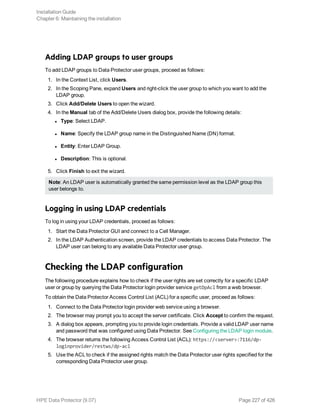
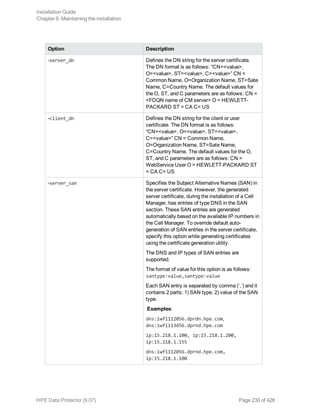
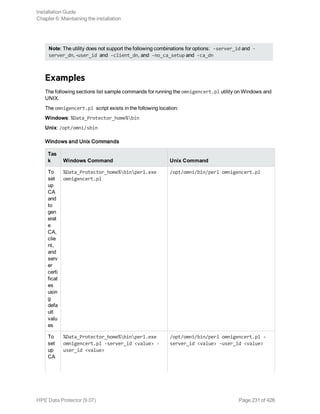
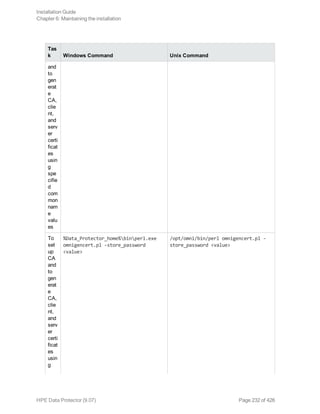
For a description of the omnisetup.sh command, see the README file located in the Mount_
point/LOCAL_INSTALL directory on the DVD-ROM or the HPE Data Protector Command Line
Interface Reference located in the Mount_point/DOCS/C/MAN directory on the DVD-ROM.
To install the Cell Manager on an HP-UX or Linux system
1. Insert and mount the appropriate UNIX installation DVD-ROM (for HP-UX or Linux) to a mount
point or mount the ISO image directly.
Note that the DVD-ROM filesystem uses the Rock Ridge extensions.
Optionally, copy the following directories from the DVD-ROM to your local disk:
LOCAL_INSTALL
platform_dir /DP_DEPOT
Where platform_dir is:
Installation Guide
Chapter 2: Installing Data Protector
HPE Data Protector (9.07) Page 32 of 426
hpux for HP-UX systems
linux_x86_64 for Linux systems
2. Go to the LOCAL_INSTALL directory and execute:
./omnisetup.sh -CM
For details on the omnisetup.sh command, see the HPE Data Protector Command Line Interface
Reference.
If you want to install an Installation Server for UNIX on your Cell Manager, you can do it at this point.
For the required steps, see "Installing Installation Servers for UNIX systems" on page 44.
Note: The installation of Data Protector 9.00 on Red Hat 7 system fails. For more information, see
"Troubleshooting installation on Red Hat 7 systems" on page 333.
The installed directory structure on HP-UX and Linux
systems
When the installation completes, the core Data Protector software is located in the /opt/omni/bin
directory and the Installation Server for UNIX in the /opt/omni/databases/vendor directory. The
following list shows the Data Protector subdirectories and their contents:
To install Data Protector to linked directories, for instance:
/opt/omni/ -> /prefix/opt/omni/
/var/opt/omni/ -> /prefix/var/opt/omni/
/etc/opt/omni/ -> /prefix/etc/opt/omni/
you should create the links before the installation and ensure that the destination directories exist.
/opt/omni/bin User commands
/opt/omni/help/C Help
/opt/omni/lbin Administrative commands, command-line utilities
/opt/omni/sbin Administrative commands, command-line utilities
/opt/omni/sbin/install Installation scripts
/etc/opt/omni Configuration data
/opt/omni/lib Shared libraries for compression, data encoding, and device
handling
/opt/omni/doc/C Guides in the electronic PDF format
/var/opt/omni/log
/var/opt/omni/server/log
Log files
Installation Guide
Chapter 2: Installing Data Protector
HPE Data Protector (9.07) Page 33 of 426
/opt/omni/lib/nls/C Message catalog files
/opt/omni/lib/man Man pages
/var/opt/omni/tmp Temporary files
/var/opt/omni/server/db80 IDB files
For details, see the HPE Data Protector Help index: “IDB,
location of directories”.
/opt/omni/AppServer HPE Data Protector Application Server.
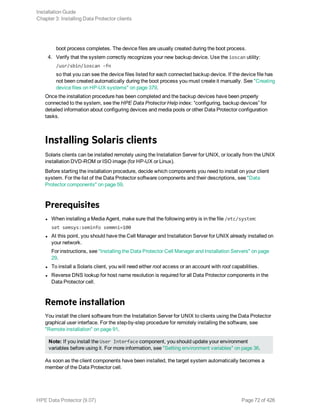
/opt/omni/idb The HPE Data Protector internal database.
/opt/omni/jre The Java Runtime Environment for use with Data Protector.
Configuring automatic startup and shutdown
The Data Protector installation procedure configures an automatic startup and shutdown of all Data
Protector processes whenever a system is restarted. Some of this configuration is operating system
dependent.
The following files are automatically configured:
HP-UX systems:
/sbin/init.d/omni A script with startup and shutdown procedures.
/sbin/rc1.d/K162omni A link to the /sbin/init.d/omni script that shuts down Data Protector.
/sbin/rc2.d/S838omni A link to the /sbin/init.d/omni script that starts up Data Protector.
/etc/rc.config.d/omni Contains an omni parameter defining:
omni=1 Data Protector is automatically stopped and started at
system restart. This is the default option.
omni=0 Data Protector is not automatically stopped and started at
system restart.
Linux systems:
/etc/init.d/omni A script with startup and shutdown procedures.
/etc/rcinit_
level.d/K10omni
A link to the /etc/init.d/omni script that shuts down Data
Protector.
Where init_level is 1 and 6.
/etc/rcinit_
level.d/S90omni
A link to the /etc/init.d/omni script that starts up Data
Protector.
Where init_level is 2,3,4, and 5.
Installation Guide
Chapter 2: Installing Data Protector
HPE Data Protector (9.07) Page 34 of 426
During the installation, the following system files on the Cell Manager system are modified:
HP-UX systems:
/etc/services The Data Protector port number for the service is added to the file.
/opt/omni/lbin/crs The Data Protector CRS service is added.
When the installation is finished, the following processes are running on the Cell Manager:
/opt/omni/lbin/crs The Data Protector Cell Request Server (CRS)
service runs on the Cell Manager system and is
started when the Cell Manager software is installed
on the system. The CRS starts and controls backup
and restore sessions in the cell.
/opt/omni/lbin/mmd The Data Protector Media Management Daemon
(MMD) service runs on the Cell Manager and is
started when the Cell Manager software is installed
on the system. The MMD manages the device and
media management operations.
/opt/omni/lbin/kms The Data Protector Key Management Server
(KMS) service runs on the Cell Manager and is
started when the Cell Manager software is installed
on the system. The KMS provides key management
for the Data Protector encryption functionality.
/opt/omni/idb/bin/postgres The Data Protector Internal Database Service
(hpdp-idb) is the service under which the IDB runs.
The service is accessed locally on the Cell Manager
by processes that need information from the internal
database. This service is accessed remotely only for
media management information about transfer from
the IDB on the Cell Manager to the IDB on the
Manager-of-Manager (MoM).
/opt/omni/idb/bin/pgbouncer The Data Protector Internal Database
Connection Pooler (hpdp-idb-cp) service offers
a pool of open connections to the hpdb-idb which can
be used on request instead of opening a new
connection for every request, thus ensuring hpdp-idb
connection scalability. The service runs on the Cell
Manager and is accessed only by local processes.
/opt/omni/AppServer/bin/standalone.sh The Data Protector Application Server (hpdp-
as) service is used for connecting the GUI to the
IDB through a HTTPS connection (web services). It
runs on the Cell Manager and has a local connection
to the hpdp-idb-cp service.
Installation Guide
Chapter 2: Installing Data Protector
HPE Data Protector (9.07) Page 35 of 426
Setting environment variables
Before using Data Protector, HPE recommends that you extend the values of specific environment
variables in your operating system configuration:
l To enable the Data Protector man pages to be viewed from any location, add the
/opt/omni/lib/man to the MANPATH variable.
l To enable the Data Protector commands to be invoked from any directory, add the command
locations to the PATH variable. Procedures in the Data Protector documentation assume the variable
value has been extended. The command locations are listed in the omniintro reference page in the
HPE Data Protector Command Line Interface Reference and the omniintro man page.
Next steps
At this stage, the Cell Manager is installed and – if it was selected – also the Installation Server for
UNIX systems. Your next tasks are:
1. If you have not installed an Installation Server for UNIX on the same system, see "Installing a
UNIX Cell Manager" on page 30.
2. Install an Installation Server for Windows, if you wish to remotely install software to Windows
clients. See "Installing an Installation Server for Windows systems" on page 46.
3. Distribute the software to clients. See "Installing Data Protector clients" on page 56.
Installing a Windows Cell Manager
Prerequisites
l Reverse DNS lookup for host name resolution is required for all Data Protector components in the
Data Protector cell.
l The user account used for the installation must:
l Have administrative (Administrator) privileges on the selected target system.
l Have network access user rights set in the Windows local security policy.
l The Data Protector Inet service by default runs under the Windows local user account SYSTEM.
However, if for various reasons the Inet service runs under a Windows domain user account, you
must additionally grant it the following Windows operating system Security Policy privileges:
l Impersonate a client after authentication
l Replace a process level token
For more information, see the HPE Data Protector Help index: “Inet user impersonation”.
Installation Guide
Chapter 2: Installing Data Protector
HPE Data Protector (9.07) Page 36 of 426
l The system that will become the Cell Manager must:
l Have a supported Windows operating system installed. For a list of supported operating systems
for the Cell Manager, see http://support.openview.hp.com/selfsolve/manuals.
l Have access to a DVD-ROM drive or be able to mount an ISO image.
l Have sufficient free disk space for the Data Protector Cell Manager software. The Cell Manager
requires 4 GB of total RAM.
For recovery of the Internal Database, twice as much total RAM is required.
For each parallel backup session, 40 MB of RAM are required. For example, if you want to run 60
parallel backup sessions, 3 GB of RAM are needed.
l Have sufficient free disk space for the Data Protector Internal Database (IDB). 1.5 GB of free
disk space + approximately 100 bytes for each backed up file (for use by the IDB).
If you have insufficient free storage space on the selected disk volume, you can mount another
volume to a directory on it, but you should do so before the installation.
l Have2 × size_of_the_biggest_package_to_be_installed + 10 MB of disk space on the
system drive.
l Have firewall configured to additionally accept "Remote Service Administration" (NP)
connections (port 445).
l Have the Microsoft implementation of the TCP/IP protocol installed and running. The protocol
must be able to resolve hostnames. The computer name and the hostname must be the same.
l Have a static IP address assigned. If the system is configured as a DHCP client, its IP address
changes; therefore, it is required to either assign a permanent DNS entry for the system (and
reconfigure it), or to configure a DHCP server to reserve a static IP address for the system (IP
address is bound to the system's MAC address).
l Have the following ports free:
o 5555 — the default port for Data Protector communication
o 7112 — the Internal Database Service port
o 7113 — the Internal Database Connection Pooler (IDB CP) port
o 7116 — the Application Server (HTTPS AS) port
o 9999 — the Application Server management port
You can change the IDB and Application Server service ports during installation. To change the
default communication port number, see "Changing the default Data Protector Inet port" on page
358.
l To run large number of sessions on a Windows Cell Manager, you must change the desktop heap
limit. The size of each desktop heap allocation is controlled by the following registry value:
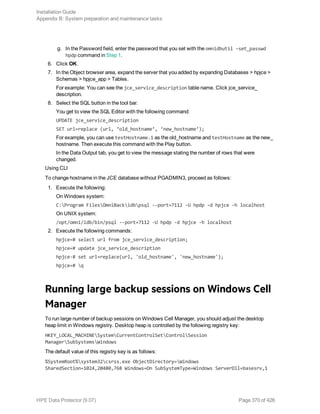
HKEY_LOCAL_MACHINESystemCurrentControlSetControlSession
ManagerSubSystemsWindows
The default data for this registry value will look something like the following:
Installation Guide
Chapter 2: Installing Data Protector
HPE Data Protector (9.07) Page 37 of 426
%SystemRoot%system32csrss.exe ObjectDirectory=Windows
SharedSection=1024,20480,768 Windows=On SubSystemType=Windows ServerDll=basesrv,1
ServerDll=winsrv:UserServerDllInitialization,3 ServerDll=sxssrv,4
ProfileControl=Off MaxRequestThreads=16
The numeric values following "SharedSection=" control how desktop heap is allocated. These
SharedSection values are specified in kilobytes.
l 1024 - shared heap size common to all desktops
l 20480 - size of the desktop heap for each desktop that is associated with an interactive window
station
l 768 - size of the desktop heap for each desktop that is associated with a non-interactive window
station
You must change the SharedSection value that is associated with a non-interactive window station
to 20480. A reboot is required for this change to take effect.
Microsoft Terminal Services Client
l To install Data Protector on Windows through Microsoft Terminal Services Client, ensure that the
system you want to install Data Protector on has Remote Administration selected for the
Terminal Server Mode:
a. In the Windows Control Panel, click Administrative Tools and then Terminal Services
Configuration.
b. In the Terminal Services Configuration dialog box, click Server Settings. Ensure that the
Terminal Services server is running in the Remote Administration mode.
Recommendations
l If you expect DC binary files to grow larger than 2 GB (their size is limited only by the file system
settings), HPE recommends to use the NTFS file system for their storage.
Cluster-aware Cell Manager
Additional prerequisites and steps are required for installing a cluster-aware Cell Manager. See
"Installing a cluster-aware Cell Manager" on page 177.
Note: In a multiple-cell environment (MoM), all Cell Managers must have the same Data Protector
version installed.
Installation Guide
Chapter 2: Installing Data Protector
HPE Data Protector (9.07) Page 38 of 426
Installation procedure
To perform a new installation on a Windows system
1. Insert the Windows installation DVD-ROM or mount the ISO image.
The User Account Control dialog is displayed. Click Continue to proceed with the installation.
2. In the HPE Data Protector window, select Install Data Protector to start the Data Protector
Setup Wizard.
3. Follow the Setup Wizard and carefully read the license agreement. Click Next to continue, if you
accept the terms of the agreement.
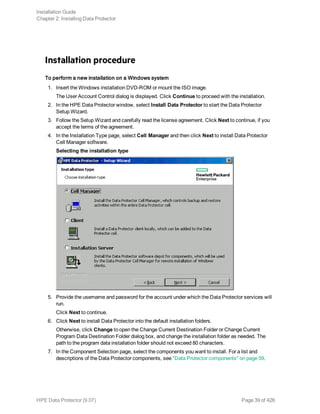
4. In the Installation Type page, select Cell Manager and then click Next to install Data Protector
Cell Manager software.
Selecting the installation type
5. Provide the username and password for the account under which the Data Protector services will
run.
Click Next to continue.
6. Click Next to install Data Protector into the default installation folders.
Otherwise, click Change to open the Change Current Destination Folder or Change Current
Program Data Destination Folder dialog box, and change the installation folder as needed. The
path to the program data installation folder should not exceed 80 characters.
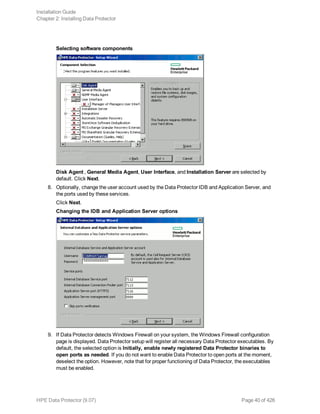
7. In the Component Selection page, select the components you want to install. For a list and
descriptions of the Data Protector components, see "Data Protector components" on page 59.
Installation Guide
Chapter 2: Installing Data Protector
HPE Data Protector (9.07) Page 39 of 426
Selecting software components
Disk Agent , General Media Agent, User Interface, and Installation Server are selected by
default. Click Next.
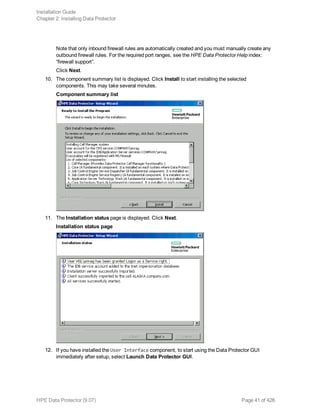
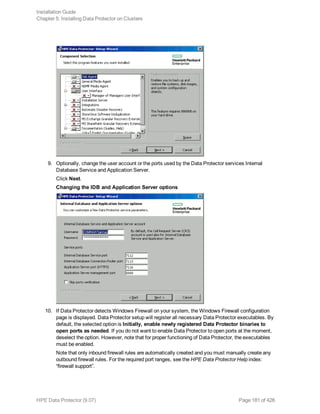
8. Optionally, change the user account used by the Data Protector IDB and Application Server, and
the ports used by these services.
Click Next.
Changing the IDB and Application Server options
9. If Data Protector detects Windows Firewall on your system, the Windows Firewall configuration
page is displayed. Data Protector setup will register all necessary Data Protector executables. By
default, the selected option is Initially, enable newly registered Data Protector binaries to
open ports as needed. If you do not want to enable Data Protector to open ports at the moment,
deselect the option. However, note that for proper functioning of Data Protector, the executables
must be enabled.
Installation Guide
Chapter 2: Installing Data Protector
HPE Data Protector (9.07) Page 40 of 426
Note that only inbound firewall rules are automatically created and you must manually create any
outbound firewall rules. For the required port ranges, see the HPE Data Protector Help index:
“firewall support”.
Click Next.
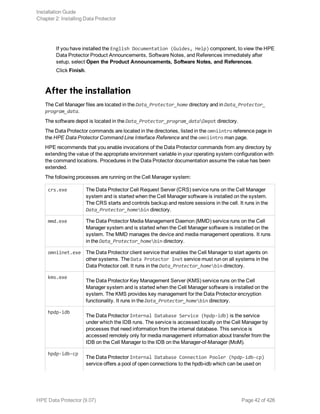
10. The component summary list is displayed. Click Install to start installing the selected
components. This may take several minutes.
Component summary list
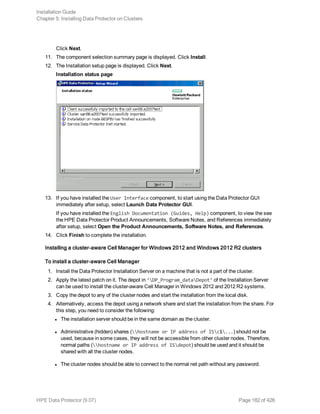
11. The Installation status page is displayed. Click Next.
Installation status page
12. If you have installed the User Interface component, to start using the Data Protector GUI
immediately after setup, select Launch Data Protector GUI.
Installation Guide
Chapter 2: Installing Data Protector
HPE Data Protector (9.07) Page 41 of 426
If you have installed the English Documentation (Guides, Help) component, to view the HPE
Data Protector Product Announcements, Software Notes, and References immediately after
setup, select Open the Product Announcements, Software Notes, and References.
Click Finish.
After the installation
The Cell Manager files are located in the Data_Protector_home directory and in Data_Protector_
program_data.
The software depot is located in the Data_Protector_program_dataDepot directory.
The Data Protector commands are located in the directories, listed in the omniintro reference page in
the HPE Data Protector Command Line Interface Reference and the omniintro man page.
HPE recommends that you enable invocations of the Data Protector commands from any directory by
extending the value of the appropriate environment variable in your operating system configuration with
the command locations. Procedures in the Data Protector documentation assume the value has been
extended.
The following processes are running on the Cell Manager system:
crs.exe The Data Protector Cell Request Server (CRS) service runs on the Cell Manager
system and is started when the Cell Manager software is installed on the system.
The CRS starts and controls backup and restore sessions in the cell. It runs in the
Data_Protector_homebin directory.
mmd.exe The Data Protector Media Management Daemon (MMD) service runs on the Cell
Manager system and is started when the Cell Manager software is installed on the
system. The MMD manages the device and media management operations. It runs
in the Data_Protector_homebin directory.
omniinet.exe The Data Protector client service that enables the Cell Manager to start agents on
other systems. The Data Protector Inet service must run on all systems in the
Data Protector cell. It runs in the Data_Protector_homebin directory.
kms.exe
The Data Protector Key Management Server (KMS) service runs on the Cell
Manager system and is started when the Cell Manager software is installed on the
system. The KMS provides key management for the Data Protector encryption
functionality. It runs in the Data_Protector_homebin directory.
hpdp-idb
The Data Protector Internal Database Service (hpdp-idb) is the service
under which the IDB runs. The service is accessed locally on the Cell Manager by
processes that need information from the internal database. This service is
accessed remotely only for media management information about transfer from the
IDB on the Cell Manager to the IDB on the Manager-of-Manager (MoM).
hpdp-idb-cp
The Data Protector Internal Database Connection Pooler (hpdp-idb-cp)
service offers a pool of open connections to the hpdb-idb which can be used on
Installation Guide
Chapter 2: Installing Data Protector
HPE Data Protector (9.07) Page 42 of 426
request instead of opening a new connection for every request, thus ensuring hpdp-
idb connection scalability. The service runs on the Cell Manager and is accessed
only by local processes.
hpdp-as
The Data Protector Application Server (hpdp-as) service is used for
connecting the GUI to the IDB through a HTTPS connection (web services). It runs
on the Cell Manager and has a local connection to the hpdp-idb-cp service.
Note: If you intend to use the Data Protector user interface to perform backups or restores across
platforms, ssee the HPE Data Protector Product Announcements, Software Notes, and
References for the limitations incurred.
Tip: You can install additional code page conversion tables to correctly display filenames, if the
appropriate encoding is not available from the Data Protector GUI. For detailed steps, see the
operating system documentation.
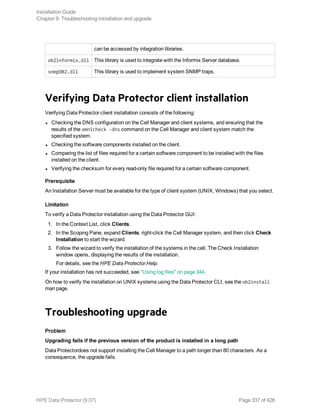
Troubleshooting
In case of an unsuccessful setup, try to verify the requirements that are checked by Setup itself and
what could have caused the failure if they had not been fulfilled. See "Prerequisites" on page 36.
This is the list of the requirements checked by Setup:
l Service Pack version
l nslookup, so that Data Protector is able to expand hostnames
l disk space
l administrative rights
Next steps
At this stage, the Cell Manager is installed and – if it was selected – also the Installation Server for
Windows. Your next tasks are:
1. Install the Installation Server for UNIX, if you have a mixed backup environment. See "Installing
the Data Protector Cell Manager and Installation Servers" on page 29. Skip this step if you do not
need the Installation Server for UNIX system.
2. Distribute the software to clients. See "Installing Data Protector clients" on page 56.
Installing Installation Servers
Installation Servers can be installed on the Cell Manager system or any supported system that is
connected to the Cell Manager by a LAN. For details on supported operating systems for the
Installation Server, see http://support.openview.hp.com/selfsolve/manuals.
Installation Guide
Chapter 2: Installing Data Protector
HPE Data Protector (9.07) Page 43 of 426
To keep the Installation Servers on systems separate from the Cell Manager, install the corresponding
software depot locally. The detailed procedure is described in this section.
Note: When using the Encrypted Control Communication in a cell, the Installation Server must
also have the Secure Communication enabled to update clients.
Installing Installation Servers for UNIX systems
Prerequisites
The system that will become your Installation Server must meet the following requirements:
l Have the HP-UX or Linux operating system installed. For details on supported operating systems for
the Installation Server, see the HPE Data Protector Product Announcements, Software Notes, and
References.
l Have the inetd or xinetd daemon up and running.
l Reverse DNS lookup for host name resolution is required for all Data Protector components in the
Data Protector cell.
l Have the port number 5555 (default) free. If this is not the case, see "Changing the default Data
Protector Inet port" on page 358.
l Have the TCP/IP protocol installed and running. The protocol must be able to resolve hostnames.
l Have enough disk space for the complete Data Protector software depot. The following are the
minimum requirements:
l 512 MB of total RAM
l 1.5 GB of free disk space
l Have a DVD-ROM drive or be able to mount ISO images.
l You need either root access or an account with root privileges.
l The Cell Manager in the Data Protector cell must be of the 9.00 version.
To install Data Protector to linked directories, for instance:
/opt/omni/ -> /prefix/opt/omni/
/etc/opt/omni/ -> /prefix/etc/opt/omni/
/var/opt/omni/ -> /prefix/var/opt/omni/
Create the links before the installation and ensure that the destination directories exist.
Note: To install software from a device across the network, first mount the source directory on
your computer.
Recommendations
Installing Data Protector using a UNIX Installation Server is the preferred method for UNIX clients.
Installation Guide
Chapter 2: Installing Data Protector
HPE Data Protector (9.07) Page 44 of 426
Although local installation of Data Protector to UNIX clients is possible, it is not recommended as there
is no supported procedure to patch UNIX clients without the use of an Installation Server.
Because an Installation Server is required to patch UNIX clients, it is recommended to use the same
Installation Server to first install Data Protector on the UNIX clients.
Installation procedure
To install the Installation Server for UNIX systems on an HP-UX or Linux system
1. Insert and mount the appropriate UNIX installation DVD-ROM or ISO image (for HP-UX or Linux)
to a mount point.
Note that the DVD-ROM filesystem uses the Rock Ridge extensions.
Optionally, copy the following directories from the DVD-ROM to your local disk:
LOCAL_INSTALL
platform_dir/DP_DEPOT
Where platform_dir is:
hpux for HP-UX systems
linux_x86_64 for Linux systems
2. Go to the LOCAL_INSTALL directory and execute:
./omnisetup.sh -IS
For a description of the omnisetup.sh command, see the README file located in the Mount_point/
directory on the DVD-ROM or to the HPE Data Protector Command Line Interface Reference
located in the Mount_point/DOCS/C/MAN directory on the DVD-ROM.
When the installation is finished, the software depot for UNIX is located in the
/opt/omni/databases/vendor directory.
The omnisetup.sh command installs the Installation Server with all packages. To install only a subset
of the packages, use swinstall (for HP-UX) or rpm (for Linux). See "Installing on HP-UX and Linux
systems using native tools" on page 347.
If you do not install the Installation Server for UNIX on your network, you will have to install every UNIX
client locally from the UNIX installation DVD-ROM (for HP-UX or Linux). Furthermore, patching of
components on Data Protector clients will not be possible.
Next steps
At this point, you should have the Installation Servers for UNIX installed on your network. Your next
tasks are:
1. If you installed the Installation Server on a different system than the Cell Manager, you must
manually add (import) the system to the Data Protector cell. See "Importing an Installation Server
to a cell" on page 192.
Installation Guide
Chapter 2: Installing Data Protector
HPE Data Protector (9.07) Page 45 of 426
Note: When an Installation Server is imported, the file
/etc/opt/omni/server/cell/installation_servers on the Cell Manager is updated to
list the installed remote installation packages. This can be used from the CLI to check the
available remote installation packages. For this file to be kept up to date, you should export
and re-import an Installation Server whenever remote installation packages are installed or
deleted. This applies even if an Installation Server is installed on the same system as the Cell
Manager.
2. If you have any Windows systems in your Data Protector cell, install the Installation Server for
Windows. See "Installing an Installation Server for Windows systems" below.
3. Distribute the software to clients. See "Installing Data Protector clients" on page 56.
Installing an Installation Server for Windows
systems
Prerequisites
A Windows system that will become your future Installation Server must meet the following
requirements:
l Have one of the supported Windows operating systems installed. For details on supported operating
systems for the Installation Server, see http://support.openview.hp.com/selfsolve/manuals.
l Have enough disk space for the complete Data Protector software depot. The following are the
minimum requirements:
l 512 MB of total RAM
l 2 GB of free disk space
l Have access to a DVD-ROM drive.
l Reverse DNS lookup for host name resolution is required for all Data Protector components in the
Data Protector cell.
l TCP/UDP 445. For new Data Protector client push installation (without any Data Protector
components on the client), accessible installation server share is required. Alternatively, if the
Installation Server depot share cannot be accessed, initial Data Protector client installation must be
done locally. For upgrades, in cases where the Installation Server depot is not accessible as a share
(UDP 445 traffic is blocked), Data Protector uses internal FTP mechanism as a fallback. Internal
FTP uses inet communication port (5555 by default).
l 5555 — the default port for Data Protector communication. If this is not the case, see "Changing the
default Data Protector Inet port" on page 358.
l Have the Microsoft implementation of the TCP/IP protocol up and running. The protocol must be
able to resolve hostnames. The computer name and the hostname must be the same.
Installation Guide
Chapter 2: Installing Data Protector
HPE Data Protector (9.07) Page 46 of 426
Limitations
l Due to the security restrictions imposed by the Windows operating system, Installation Server can
be used to remotely install clients only in the same domain.
If you do not install the Installation Server for Windows on your network, you will have to install every
Windows client locally from the DVD-ROM.
Note: You cannot remotely install a Data Protector client on the Windows system after an
Installation Server has been installed on this system. To install an Installation Server and client
component(s) on the same system, you must perform a local client installation. During the
installation procedure, select all desired client components and the Installation Server component.
See "Installing Data Protector clients" on page 56.
Installation procedure
To install the Installation Server for Windows systems
1. Insert the Windows installation DVD-ROM.
The User Account Control dialog is displayed. Click Continue to proceed with the installation.
2. In the HPEData Protector window, select Install Data Protector to start the Data Protector Setup
Wizard.
3. Follow the Setup Wizard and carefully read the license agreement. Click Next to continue, if you
accept the terms of the agreement.
4. In the Installation Type page, select Installation Server and then click Next to install Data
Protector software depot.
Selecting the installation type
5. Click Next to install Data Protector on the default folder.
Installation Guide
Chapter 2: Installing Data Protector
HPE Data Protector (9.07) Page 47 of 426
Otherwise, click Change to open the Change Current Destination Folder window and enter a new
path.
6. If Data Protector detects Windows Firewall on your system, the Windows Firewall configuration
page is displayed. Data Protector setup will register all necessary Data Protector executables. By
default, the selected option is Initially, enable newly registered Data Protector binaries to
open ports as needed. If you do not want to enable Data Protector to open ports at the moment,
deselect the option. However, note that for proper functioning of Data Protector, the executables
must be enabled.
Note that only inbound firewall rules are automatically created and you must manually create any
outbound firewall rules. For the required port ranges, see the HPE Data Protector Help index:
“firewall support”.
Click Next.
7. The component summary list is displayed. Click Install to start installing the selected
components. This may take several minutes.
Component selection summary page
8. The Installation status page is displayed. Click Next.
Installation Guide
Chapter 2: Installing Data Protector
HPE Data Protector (9.07) Page 48 of 426
Installation status page
9. Click Finish.
As soon as the installation is finished, the software is, by default, installed in the directory Data_
Protector_program_dataDepot. The software is shared so that it can be accessed from the
network.
Next steps
At this point, you should have Installation Server for Windows installed on your network. Now you
should perform the following tasks:
1. If you have set up an independent Installation Server (for example, not on the Cell Manager) you
must manually add (import) the system to the Data Protector cell.
See "Importing an Installation Server to a cell" on page 192.
2. Install an Installation Server for UNIX on HP-UX or Linux if you have a mixed backup
environment. See "Installing Installation Servers for UNIX systems" on page 44.
3. Distribute the software to clients. See "Installing Data Protector clients" on page 56.
Installing the Data Protector Single Server
Edition
The Single Server Edition (SSE) of Data Protector is designed for small environments where backups
run on only one device connected to a Cell Manager. It is available for supported Windows and for HP-
UX platforms.
To install the Cell Manager and (optionally) Installation Server, follow the instructions in "Installing the
Data Protector Cell Manager and Installation Servers" on page 29.
Installation Guide
Chapter 2: Installing Data Protector
HPE Data Protector (9.07) Page 49 of 426
Limitations of SSE for Windows
l SSE supports backups to only one device concurrently, connected to a single Cell Manager.
l One 10-slot DDS autochanger only is supported.
l UNIX (also HP-UX) clients and servers are not supported. If a backup is attempted to a UNIX
machine, the session is aborted.
l Adding extension products is not supported with SSE.
l Clustering is not supported with SSE.
l Disaster Recovery is not supported with SSE.
The number of Windows clients is not limited.
For supported devices, see the HPE Data Protector Product Announcements, Software Notes, and
References.
Limitations of SSE for HP-UX
l SSE supports backups to only one device concurrently, connected to a single Cell Manager.
l One 10-slot DDS autochanger only is supported.
l On a UNIX Cell Manager, you cannot back up servers - only UNIX clients, Windows clients and
Solaris clients.
l Adding extension products is not supported with SSE.
l Clustering is not supported with SSE.
The number of clients (UNIX, Windows) is not limited.
For supported devices, see the HPE Data Protector Product Announcements, Software Notes, and
References.
Installing a password
For the step-by-step instructions on how to install a password on the Cell Manager, see "Data Protector
passwords" on page 319.
Installing the Data Protector web reporting
Data Protector Web Reporting is installed with other Data Protector components by default, and as
such, you can use it locally from your system.
You can also install it on a Web server and in that way make it available on other systems which do not
need to have any of the Data Protector software components installed.
Installation Guide
Chapter 2: Installing Data Protector
HPE Data Protector (9.07) Page 50 of 426
Prerequisites
To use Data Protector Java Web Reporting on your system, the following prerequisites must be
fulfilled:
l A supported Web browser must be installed on the system
The supported Web browsers are the same as for viewing the Data Protector Help. For details, see
"Requirements for viewing Data Protector documentation" on page 418.
l Windows Internet Explorer:
The default web browser security settings prevent webpages from running scripts or using
ActiveX controls. To allow the web browser to run scripts and use ActiveX controls in order to
enable Data Protector Web Reporting, click Allow blocked content in the Internet Explorer
Information bar. To permanently allow blocked content, select Tools > Internet Options >
Advanced, locate the Security section and select the option Allow active content to run in
files on My Computer.
l A supported Java runtime environment must be installed on the system and enabled in the Web
browser
The supported Java runtime environment is Java Runtime Environment (JRE) 1.5.0_06 or newer
update (for example, 1.5.0_07). You can download JRE at
http://www.oracle.com/technetwork/java/index-jsp-141438.html.
Installation Procedure
To install Data Protector Web Reporting to a Web server
1. Copy the following Data Protector Java reporting files to the server. The server does not have to
be a Data Protector client. On systems with the Data Protector User Interface component
installed, the files are located in the following directory:
Windows systems:
Data_Protector_homejavabin
UNIX systems:
/opt/omni/java/bin
2. Open the WebReporting.html file in your browser to access the Data Protector Web Reporting.
You must make the file available to the users of the Web reporting in the full URL form. For
example, you can put a link to this file from your Intranet site.
Tip: By default, no password is needed to use Data Protector Web Reporting. It is strongly
recommended to set password on Cell Manager and in that way restrict the access to the Web
reporting. For the procedure, see the HPE Data Protector Help index: “Web reports, limiting access
to”.
Installation Guide
Chapter 2: Installing Data Protector
HPE Data Protector (9.07) Page 51 of 426
Next steps
When the installation has been completed, see the HPE Data Protector Help index: “Web reporting
interface, configuring notifications” for more information on configuration issues and creating your own
reports.
Verifying the Installation
When you need to check if the Data Protector software components are up and running on the Cell
Manager or the client systems, you can verify the installation using the Data Protector graphical user
interface.
Prerequisite
You must have the Installation Server for the type of the client system (UNIX system or Windows
system) available.
Steps
1. In the Context List, click Clients.
2. In the Scoping Pane, expand Clients, right-click the Cell Manager or client system, and then click
Check Installation to open the wizard.
3. All client systems of the same type (UNIX systems or Windows systems) are listed. Select the
clients for which you want to verify the installation and click Finish to start the verification.
The results of the verification will be displayed in the Check Installation window.
About the Data Protector Inet Service
Configuration
On Windows systems, backup and restore sessions are started by the Data Protector Inet service,
which by default runs under the Windows local user account SYSTEM. Consequently, a backup or
restore session is performed using the same user account.
Integrations
Some of the Data Protector integrations require that backup and restore sessions are started under a
Windows domain user account. On a Windows Server 2003 system, this can be achieved by simply
restarting the Data Protector Inet service under a different user account. For other supported Windows
Installation Guide
Chapter 2: Installing Data Protector
HPE Data Protector (9.07) Page 52 of 426
operating systems, this in no longer allowed. Therefore, Data Protector uses an alternative concept:
user impersonation. It means that, although the Data Protector Inet service runs under the Windows
local user account SYSTEM, the service can impersonate a Windows domain user account and can
consequently start the integration agent under that user account.
To enable the Data Protector Inet service impersonation, Windows domain user account must be
specified in the backup specification or in the restore wizard and the user account (including its
password) must be saved in the Windows Registry.
Running the Inet service under a Windows domain user
account
In some cases, the Data Protector Inet service must run under a Windows domain user account:
l Cluster environments
In a cluster, you must configure the Data Protector Inet service for all cluster nodes. This means that
you need to use a Windows domain user account as the Inet account.
When the Inet service runs under a Windows domain user account, you must grant it the following
Windows operating system Security Policy privileges:
l Impersonate a client after authentication
l Replace a process level token
Setting Up a User Account for the Data
Protector Inet Service User Impersonation
You can specify that the Data Protector Inet service, which by default runs under the Windows local
user account SYSTEM, uses a different Windows domain user account to start a session.
l Configure the user account as follows:
l Grant the user appropriate permissions to access data (for example, application data).
l Ensure that the user is added to the Data Protectoradmin or operator user group.
Using the Data Protector GUI
Steps
1. In the Context List, click Clients.
2. In the Scoping Pane, expand Data Protector Cell and then Clients.
3. Right-click the client and click Add Impersonation.
Installation Guide
Chapter 2: Installing Data Protector
HPE Data Protector (9.07) Page 53 of 426
Note: To modify or delete a user, click Modify Impersonation or Delete Impersonation,
respectively.
4. In the Select Client Systems page, select the client systems for which you want to configure the
Data Protector Inet service user impersonation and click Next.
5. In the Add, delete or modify impersonation page, add a new user account, or modify or delete an
existing one, and click Finish.
The user account saved in the Windows Registry will be used by the Data Protector Inet service when
needed.
Using the Data Protector CLI
l To set up a user account for the user impersonation on one Data Protector client, use the
omniinetpasswd command.
Log in to the client and run:
omniinetpasswd –add User@DomainPassword
l To set up a user account for the user impersonation on multiple Data Protector clients, use the
omnicc command.
Log in to the Cell Manager and run:
omnicc -impersonation -add_user -user User@Domain -host ClientName1 -host
ClientName2 -host ClientName3 -passwd Password
For details on the omniinetpasswd and omnicc commands, see the HPE Data Protector Command
Line Interface Reference.
Changing the Data Protector Inet Account
To ensure that the Data Protector Inet service starts processes needed for backup and restore under a
specific user account, you must restart the service under that user account.
Prerequisites
l Microsoft Cluster Server: Before changing the account, take the OBVS_HPDP_AS, OBVS_HPDP_IDB,
OBVS_HPDP_IDB_CP, and OBVS_MCRS cluster groups offline. Once the Data Protector Inet service is
restarted under a different account, put the cluster groups online again.
On Windows systems
1. In the Control Panel, click Administrative Tools and then double-click Services.
2. Double-click Data Protector Inet.
3. In the General Data Protector Inet Properties click Stop and then click the Log On tab.
Installation Guide
Chapter 2: Installing Data Protector
HPE Data Protector (9.07) Page 54 of 426
4. Select the This Account button.
5. Enter or browse for the account that has the correct permission (to access the shared disk).
6. Enter and then confirm the password.
7. Click OK to exit these property pages.
8. Make sure that you still have Data Protector Inet selected, right-click it, and then click Start.
9. Exit this dialog box.
Installation Guide
Chapter 2: Installing Data Protector
HPE Data Protector (9.07) Page 55 of 426
Chapter 3: Installing Data Protector clients
You can install the Data Protector clients remotely, by distributing them using the Installation Server, or
locally, from the appropriate installation DVD-ROM or mounted ISO image.
For the list of Data Protector installation DVD-ROMs and ISO images, see "Data Protector installation
media" on page 24.
Installing Data Protector using a UNIX Installation Server is the preferred method for UNIX clients.
Although local installation of Data Protector to UNIX clients is possible, it is not recommended as there is no
supported procedure to patch UNIX clients without the use of an Installation Server.
Because an Installation Server is required to patch UNIX clients, it is recommended to use the same
Installation Server to first install Data Protector on the UNIX clients.
Note: A Windows Installation Server targets a client’s port 445 during a remote installation, while a HP-
UX/Linux Installation Server targets a client’s port 22 (secure remote install) or ports 512 / 514 (non-
secure remote install). On the Installation Server side, ephemeral ports are used to make connections to
these target ports.
After you have installed the clients, HPE recommends that you enable invocations of the Data Protector
commands from any directory by adding the command locations to the appropriate environment variable on
each client. Procedures in the Data Protector documentation assume the variable value has been extended.
Command locations are listed in the omniintro reference page in the HPE Data Protector Command Line
Interface Reference and the omniintro man page.
After installing and importing the Data Protector clients into the cell, it is also highly recommended to verify
the installation and to protect clients from unwarranted access. For procedure on verifying the client
installation, see "Verifying Data Protector client installation " on page 337. For more information on security
protection, see "Security considerations" on page 197.
Installing Data Protector client systems
Client system Installation type and reference
Windows Remote and local installation; see "Installing Windows clients" on page 63
HP-UX Remote and local installation; see "Installing HP-UX clients " on page 68
Solaris Remote and local installation; see "Installing Solaris clients" on page 72
Linux Remote and local installation; see "Installing Linux clients" on page 78
ESX Server Remote and local installation; see "Installing ESX Server clients" on page 82
Mac OS X Remote and local installation; see "Installing Mac OS X clients" on page 84
IBM AIX Remote and local installation; see "Installing IBM AIX clients" on page 82
HPE Data Protector (9.07) Page 56 of 426
Client system Installation type and reference
HP OpenVMS Local installation; see "Installing HP OpenVMS clients" on page 86
other UNIX system Local installation; see "Local installation on UNIX and Mac OS X systems" on
page 99
DAS Media Agent
client
Remote and local installation; see "Installing a Media Agent to use the
ADIC/GRAU Library or the StorageTek Library" on page 103.
ACS Media Agent
client
Remote and local installation; see "Installing a Media Agent to use the
ADIC/GRAU Library or the StorageTek Library" on page 103
Integrations
Data Protector integrations are software components that allow you to back up database applications
with Data Protector. The systems running database applications are installed the same way as any
Windows or UNIX client systems, provided that the appropriate software component has been
selected (for example, the MS Exchange Integration component for backing up the Microsoft
Exchange Server database, Oracle Integration component for backing up an Oracle database, and
so on).
Installing integrations
Software application
or disk array family
Reference
Microsoft Exchange
Server
See "Microsoft Exchange Server clients" on page 113.
Microsoft SQL Server See "Microsoft SQL Server clients" on page 119
Microsoft SharePoint
Server
See "Microsoft SharePoint Server clients" on page 119
Microsoft Volume
Shadow Copy
Service (VSS)
See "Microsoft Volume Shadow Copy Service clients" on page 123.
Sybase Server See "Sybase Server clients" on page 124
Informix Server See "Informix Server clients" on page 124
SAP R/3 See "SAP R/3 clients" on page 125
SAP MaxDB See "SAP MaxDB clients" on page 125
Installation Guide
Chapter 3: Installing Data Protector clients
HPE Data Protector (9.07) Page 57 of 426
Software application
or disk array family
Reference
SAP HANA
Appliance
See "SAP HANA Appliance clients" on page 125
Oracle Server See "Oracle Server clients" on page 126
MySQL See "MySQL clients" on page 126
PostgreSQL See "PostgreSQL clients" on page 127
IBM DB2 UDB See "IBM DB2 UDB clients" on page 127
Lotus Notes/Domino
Server
See "Lotus Notes/Domino Server clients" on page 127
VMware See "VMware clients" on page 128
Microsoft Hyper-V See "Microsoft Hyper-V clients" on page 138
Network Data
Management Protocol
(NDMP) Server
See "NDMP Server clients" on page 139
HPE P4000 SAN
Solutions
See "HPE P4000 SAN Solutions clients" on page 140
HPE P6000 EVA
Disk Array Family
See "HPE P6000 EVA Disk Array Family clients" on page 140
HPE P9000 XP Disk
Array Family
See "HPE P9000 XP Disk Array Family clients" on page 146
HPE 3PAR StoreServ
Storage
See "HPE 3PAR StoreServ Storage clients" on page 152
EMC Symmetrix See "EMC Symmetrix clients" on page 152
EMC VNX Storage
Provider
See "Non–HPE Storage Arrays" on page 156
EMC VMAX Storage
Provider
See "Non–HPE Storage Arrays" on page 156
NetApp Storage
Provider
See "Non–HPE Storage Arrays" on page 156
Installation Guide
Chapter 3: Installing Data Protector clients
HPE Data Protector (9.07) Page 58 of 426
Other installations
Installation Reference
Integrated Archive Platform (IAP) See "Installing the Data Protector integration
clients" on page 110.
Web reporting See Installing Data Protector web reporting.
HPE Serviceguard See "Installing Data Protector on an HPE
Serviceguard" on page 163.
Symantec Veritas Cluster Server See "Installing Data Protector on a Symantec
Veritas Cluster Server" on page 173.
Microsoft Cluster Server See "Installing Data Protector on a Microsoft
Cluster Server" on page 176.
IBM HACMP Cluster See "Installing Data Protector on an IBM
HACMP Cluster" on page 187.
Microsoft Hyper-V cluster See "Installing Data Protector on a Microsoft
Hyper-V cluster" on page 187.
Data Protector components
For the latest information on the supported platforms, visit the HPE Data Protector home page at
http://support.openview.hp.com/selfsolve/manuals.
These are the Data Protector components you can select and their descriptions:
User Interface The User Interface component includes the Data Protector graphical
user interface on Windows systems and part of the command-line
interface on Windows and UNIX systems. The software is needed to
access the Data Protector Cell Manager and must be installed at
least to the system that is used for managing the cell.
Note: Specific commands of the Data Protector command-line
interface are included in other Data Protector components. For
details, see the HPE Data Protector Command Line Interface
Reference.
Before using the Data Protector User Interface in heterogeneous
environments, see the HPE Data Protector Product
Announcements, Software Notes, and References for the
limitations incurred.
English Documentation This is the Data Protector English language documentation file set.
Installation Guide
Chapter 3: Installing Data Protector clients
HPE Data Protector (9.07) Page 59 of 426
(Guides, Help)
French Documentation
(Guides, Help)
This is the Data Protector French language documentation file set.
Japanese Documentation
(Guides, Help)
This is the Data Protector Japanese language documentation file set.
Simplified Chinese
Documentation (Guides,
Help)
This is the Data Protector Simplified Chinese language
documentation file set.
Manager-of-Managers User
Interface
The Manager-of-Managers User Interface includes the Data Protector
graphical user interface. The software is needed to access the Data
Protector Manager-of-Managers functionality and control the multicell
environment. The Manager-of-Managers User Interface and the
Manager User Interface are available as a common application.
Disk Agent The Disk Agent component must be installed on systems that have
disks that will be backed up with Data Protector.
General Media Agent The General Media Agent component must be installed on systems
that have backup devices connected or have access to a library
robotics and will be managed by Data Protector.
Automatic Disaster
Recovery
The Automatic Disaster Recovery component must be installed on
systems for which you want to enable recovery using any of the
automatic disaster recovery methods and on systems where the DR
CD ISO image for Enhanced Automated Disaster Recovery (EADR)
or One Button Disaster Recovery (OBDR) will be prepared to provide
automatic preparation for the disaster recovery.
SAP R/3 Integration The SAP R/3 Integration component must be installed on systems
that have an SAP R/3 database that will be backed up with Data
Protector.
SAP MaxDB Integration The SAP MaxDB Integration component must be installed on
systems that have an SAP MaxDB database that will be backed up
using Data Protector.
SAP HANA Integration The SAP HANA Integration component must be installed on systems
that represent or constitute an SAP HANA Appliance that you want to
protect using Data Protector.
Oracle Integration The Oracle Integration component must be installed on systems that
have an Oracle database that will be backed up with Data Protector.
MySQL Integration The MySQL Integration Integration component must be installed on
systems that have a MySQL database that will be backed up with
Data Protector.
Virtual Environment
Integration
The Virtual Environment Integration component must be installed on
the systems which you will use as backup hosts to control the
Installation Guide
Chapter 3: Installing Data Protector clients
HPE Data Protector (9.07) Page 60 of 426
backup and restore of virtual machines using the Data Protector
Virtual Environment integration.
DB2 Integration The DB2 Integration component must be installed on all systems that
have a DB2 Server that will be backed up with Data Protector.
Sybase Integration The Sybase Integration component must be installed on systems that
have a Sybase database that will be backed up with Data Protector.
Informix Integration The Informix Integration component must be installed on systems
that have an Informix Server database that will be backed up with
Data Protector.
MS Exchange Integration The MS Exchange Integration component must be installed on
Microsoft Exchange Server 2007 systems that you intend to back up
using the Data Protector Microsoft Exchange Server 2007 integration
or the Data Protector Microsoft Exchange Single Mailbox integration.
It must also be installed on Microsoft Exchange Server 2010 systems
that you intend to back up using the Data Protector Microsoft
Exchange Single Mailbox integration.
MS Exchange Server 2010+
Integration
The MS Exchange Server 2010+ Integration component must be
installed on Microsoft Exchange Server 2010 or Microsoft Exchange
Server 2013 systems that you intend to back up using the Data
Protector Microsoft Exchange Server 2010 integration.
MS SQL Integration The MS SQL Integration component must be installed on the systems
that have an Microsoft SQL Server database which will be backed up
with Data Protector.
MS SharePoint
2007/2010/2013 Integration
The MS SharePoint 2007/2010/2013 Integration component must be
installed on Microsoft SharePoint Server 2007/2010/2013 systems
that will be backed up with Data Protector.
MS Volume Shadow Copy
Integration
The MS Volume Shadow Copy Integration component must be
installed on the Windows Server systems where you want to run
backups coordinated by Volume Shadow Copy Service.
HPE P4000 VSS Agent The HPE P4000 VSS Agent component must be installed on both the
application system and the backup system to integrate HPE P4000
SAN Solutions with Data Protector.
HPE P6000 / HPE 3PAR
SMI-S Agent
The HPE P6000 / HPE 3PAR SMI-S Agent component must be
installed on both the application system and the backup system to
integrate Data Protector with HPE P6000 EVA Disk Array Family, or
to integrate Data Protector with HPE 3PAR StoreServ Storage.
HPE P9000 XP Agent The HPE P9000 XP Agent component must be installed on both the
application system and the backup system to integrate Data
Protector with HPE P9000 XP Disk Array Family.
HPE 3PAR VSS Agent The HPE 3PAR VSS Agent component must be installed on both the
Installation Guide
Chapter 3: Installing Data Protector clients
HPE Data Protector (9.07) Page 61 of 426
application system and the backup system to integrate Data
Protector with HPE 3PAR StoreServ Storage in configurations where
the application and backup systems are Windows systems and you
want to use the Volume Shadow Copy Service to backup and restore
your data.
EMC Symmetrix Agent The EMC Symmetrix Agent component must be installed on both the
application system and the backup system to integrate Data
Protector with EMC Symmetrix.
EMC VNX Storage Provider The EMC VNX Storage Provider component on both the application
system and the backup system to integrate Data Protector with EMC
VNX. The EMC VNX Storage Provider component is a plug-in to the
Data Protector SMI-S Agent.
EMC VMAX Storage
Provider
The EMC VMAX Storage Provider component on both the application
system and the backup system to integrate Data Protector with EMC
VMAX. The EMC VMAX Storage Provider component is a plug-in to
the Data Protector SMI-S Agent.
NetApp Storage Provider The NetApp Storage Provider component on both the application
system and the backup system to integrate Data Protector with
NetApp Storage. In case of Virtual Environment Integration, this
component must be installed only on the backup system. The NetApp
Storage Provider component is a plug-in to the Data Protector SMI-S
Agent.
NDMP Media Agent The NDMP Media Agent component must be installed on all systems
that will be backing up data to NDMP dedicated drives through an
NDMP server.
IAP Deduplication Agent The IAP Deduplication Agent component must be installed on
systems that will perform backups directly to the IAP appliance using
Data Protector.
Lotus Integration The Lotus Integration component must be installed on all systems in
the Data Protector cell that have Lotus Notes/Domino Server
databases that you plan to back up with Data Protector.
MS Exchange Granular
Recovery Extension
The Data Protector Granular Recovery Extension for Microsoft
Exchange Server must be installed on each Microsoft Exchange
Server system to enable the granular recovery feature. In a Microsoft
Exchange Server Database Availability Group (DAG) environment, it
must be installed on any of the Exchange Server systems in DAG.
MS SharePoint Granular
Recovery Extension
The Data Protector Granular Recovery Extension for Microsoft
SharePoint Server must be installed on the Microsoft SharePoint
Server Central Administration system.
VMware Granular Recovery
Extension Web Plug-In
The Data Protector VMware Granular Recovery Extension Web Plug-
In component must be installed on the VMware Virtual Server system
to enable the granular recovery feature of the VMware virtual
Installation Guide
Chapter 3: Installing Data Protector clients
HPE Data Protector (9.07) Page 62 of 426
machines. Only remote installation is supported.
VMware Granular Recovery
Extension Agent
The Data Protector VMware Granular Recovery Extension Agent
component must be installed on the mount proxy system to enable
restore and granular recovery of the VMware virtual machines. Only
remote installation is supported.
Note: You cannot install the General Media Agent and the NDMP Media Agent on the same
system.
Data Protector services
Data Protector uses five services:
Inet Backup client service
CRS Cell Manager Service
hpdp-idb Internal Database Service
hpdp-idb-cp Internal Database Connection Pooler
hpdp-as Application Server
By default, Inet and the hpdp-* services are running under the Local System account, and CRS is
running under the Administrator account.
You can change the account information for any of these services. However, the following are
minimum requirements that must be met by the new accounts:
Service Resource Minimum resource
permission required by
service
CRS Data_Protector_program_data
HKLMSOFTWAREHewlett-
PackardOpenViewOmniBackII
Full access
Full access
Inet Backup and Restore
Take Ownership
-
-
Installing Windows clients
For details on supported platforms and components for a particular Windows operating system, see
http://support.openview.hp.com/selfsolve/manuals.
Installation Guide
Chapter 3: Installing Data Protector clients
HPE Data Protector (9.07) Page 63 of 426
Prerequisites
To install a Windows client, you must have the Administrator rights. The Windows system that will
become your future Data Protector client system must meet the following requirements:
l Have sufficient disk space for the Data Protector client software. For details, see the HPE Data
Protector Product Announcements, Software Notes, and References.
l Have port number 5555 (default) free.
l Reverse DNS lookup for host name resolution is required for all Data Protector components in the
Data Protector cell.
l Have the Microsoft implementation of the TCP/IP protocol installed and running. The protocol must
be able to resolve hostnames. The computer name and the hostname must be the same.
l Ensure that network access user rights are set under the Windows local security policy for the
account performing the installation.
Limitations
l Due to the security restrictions imposed by the Windows operating system, Installation Server can
be used to remotely install clients only in the same domain.
l On Windows XP Home Edition, Data Protector clients can only be installed locally.
l When installing clients remotely to Windows Vista, Windows 7, Windows 8, Windows Server 2008,
or Windows Server 2012, use one of the following accounts:
l A built-in administrator account on the remote system. The account must be enabled and with
disabled Admin Approval Mode.
l A domain user account, which is a member of the local Administrators user group on the remote
system.
Recommendations
l Prior to installing Data Protector, check if Microsoft Installer (MSI) 2.0 is installed on the system. If
an earlier version is installed, it is recommended to upgrade it to the version 2.0 before starting the
Data Protector installation. If you do not upgrade MSI beforehand, the Data Protector Setup Wizard
automatically upgrades it to the required version. In this case, Data Protector informs you
appropriately about the MSI upgrade.
If MSI is upgraded, it is highly recommended to restart the system.
Automatic disaster recovery
The Automatic Disaster Recovery component must be installed on systems for which you want to
enable recovery using Enhanced Automated Disaster Recovery (EADR), One Button Disaster
Installation Guide
Chapter 3: Installing Data Protector clients
HPE Data Protector (9.07) Page 64 of 426
Recovery (OBDR), or Automated System Recovery (ASR), and on systems where the DR CD ISO
image for EADR or OBDR will be prepared.
Cluster-aware clients
Additional prerequisites are required for installing cluster-aware clients. For more details, see "Installing
cluster-aware clients" on page 184.
Before starting the installation procedure, decide which components you need to install on your client
system. For the list of the Data Protector software components and their descriptions, see "Data
Protector components" on page 59.
Local installation
Windows clients can be installed locally, from the Windows installation DVD-ROM or ISO image:
1. Insert the DVD-ROM or mount the ISO image.
On Windows Vista, Windows 7, Windows 8, Windows Server 2008, and Windows Server 2012,
the User Account Control dialog box is displayed. Click Continue to proceed with the installation.
2. In the HPEData Protector window, select Install Data Protector to start the Data Protector Setup
Wizard.
3. Follow the Setup Wizard and carefully read the license agreement. Click Next to continue.
4. In the Installation Type page, select Client. For Itanium clients, the type is selected automatically.
5. Enter the name of the Cell Manager.
If your Cell Manager uses a different port then the default 5555, change the port number. Test if the
Cell Manager is active and uses the selected port by clicking Check response.
Click Next.
Choosing the Cell Manager
Installation Guide
Chapter 3: Installing Data Protector clients
HPE Data Protector (9.07) Page 65 of 426
6. Click Next to install Data Protector on the default folder.
Otherwise, click Change to open the Change Current Destination Folder page and enter the path.
7. Select the Data Protector components that you want to install.
For information on other Data Protector components, see "Data Protector components" on page
59.
Click Next.
8. If Data Protector detects Windows Firewall on your system, the Windows Firewall configuration
page is displayed. Data Protector setup will register all necessary Data Protector executables. By
default, the selected option is Initially, enable newly registered Data Protector binaries to
open ports as needed. If you do not want to enable Data Protector to open ports, deselect the
option. However, note that for proper functioning of Data Protector, the executables must be
enabled.
Note that only inbound firewall rules are automatically created and you must manually create any
outbound firewall rules. For the required port ranges, see the HPE Data Protector Help index:
“firewall support”.
Click Next.
9. The component selection summary page is displayed. Click Install to install the selected
components.
Component selection summary page
10. The Installation status page is displayed. Click Next.
Installation Guide
Chapter 3: Installing Data Protector clients
HPE Data Protector (9.07) Page 66 of 426
Installation summary page
11. If you have installed the User Interface component, to start using the Data Protector GUI
immediately after setup, select Launch Data Protector GUI.
If you have installed the English Documentation (Guides, Help) component, to view the
HPE Data Protector Product Announcements, Software Notes, and References immediately after
setup, select Open the Product Announcements, Software Notes, and References.
12. Click Finish.
Note: If encrypted control communication is enabled on a Cell Manager and you run a local
installation of Data Protector on a client and specify this Cell Manager as the cell that you want to
import the client into, the import fails. This is expected behavior. An external client has to be
imported to the Cell Manager from the Cell Manager.
Connecting a backup device to Windows systems
Once you have installed a Media Agent component, you can attach a backup device to a Windows
system by performing the following steps:
1. Find the available SCSI addresses (referred to as SCSI Target IDs on Windows) for the drives and
control device (robotics) of the backup device you want to connect.
See "Finding unused SCSI target IDs on Windows systems" on page 387.
2. Set unused SCSI Target IDs for the drives and control device (robotics). Depending on the
device type, this can usually be done with switches on the device. For details, see the
documentation that comes with the device.
For information about supported devices, see http://support.openview.hp.com/selfsolve/manuals.
3. Switch off your computer and connect your backup device to the system.
4. Switch on the device, then the computer, and wait until the boot process completes.
5. To verify that the system correctly recognizes your new backup device, in the Data_Protector_
homebin directory, run the devbra -dev command.
Installation Guide
Chapter 3: Installing Data Protector clients
HPE Data Protector (9.07) Page 67 of 426
See a new device listed in the output of the command. For example, you might get the following
output from the devbra -dev command:
l If the tape driver for your device is loaded:
HP:C1533A
tape3:0:4:0
DDS
...
The first line represents the device specification, the second one is the device filename.
The path format says that an HPE DDS tape device has Drive instance number 3 and is
connected to SCSI bus 0, SCSI Target ID 4, and LUN number 0.
l If the tape driver for your device is unloaded:
HP:C1533A
scsi1:0:4:0
DDS
...
The first line represents the device specification, the second one provides the device filename.
The path format says that an HPE DDS tape device is connected to SCSI port 1, SCSI bus 0,
and the tape drive has the SCSI Target ID 4, and LUN number 0.
For loading or unloading the native tape driver for your device, see "Using tape and robotics drivers on
Windows systems" on page 372.
For more information on creating a device filename, see "Creating device files (SCSI Addresses) on
Windows systems" on page 374.
Next steps
At this stage, you should have client components installed and backup devices connected, so that you
are able to configure backup devices and media pools. For information on configuration tasks, see the
HPE Data Protector Help index: “configuring, backup devices”.
Installing HP-UX clients
HP-UX clients can be installed remotely using the Installation Server for UNIX, or locally from the
UNIX installation DVD-ROM or ISO image (for HP-UX or Linux).
Before starting the installation procedure, decide which components you need to install on your client
system. For the list of the Data Protector software components and their descriptions, see "Data
Protector components" on page 59.
Installation Guide
Chapter 3: Installing Data Protector clients
HPE Data Protector (9.07) Page 68 of 426
Prerequisites
l At this point, you should have the Cell Manager and Installation Server for UNIX installed on your
network. If not, for instructions see
"Installing the Data Protector Cell Manager and Installation Servers" on page 29.
l You will need either root access or an account with root capabilities.
l Reverse DNS lookup for host name resolution is required for all Data Protector components in the
Data Protector cell.
l For HP-UX 11.11, the IPv6NCF11i bundle or TOUR/IPv6 support is required to enable the Internet
Protocol version 6 (IPv6).
For details, see"HP-UX system patches" on page 247
RAM and disk space requirements for the Data Protector client components on UNIX
systems
The following table presents the minimum RAM and disk space requirements for different Data
Protector client components on UNIX systems:
RAM and disk space requirements
Client system component RAM (MB) 1 Free disk space (MB) 2
Disk Agent 64 for each (recommended
128)
20 for each
Media Agent
Integration components
English Documentation
(Guides, Help)
N/A 100
Remote installation
You install the client software from the Installation Server for UNIX to clients using the Data Protector
graphical user interface. For the step-by-step procedure for remotely installing the software, see
"Remote installation" on page 91.
After the remote installation, the client system automatically becomes a member of the Data Protector
cell.
If you have installed a Media Agent on your client, you must physically connect the backup device to
the system. To see if the device drivers, appropriate for the type of your device, are already build in the
kernel, check your kernel configuration before running a backup.
1 The figures indicate requirements for the components only. The figure does not include space
allocation for the operating system, paging file, or other applications.
2 The figures indicate requirements for the components only. The figure does not include space
allocation for the operating system, paging file, or other applications.
Installation Guide
Chapter 3: Installing Data Protector clients
HPE Data Protector (9.07) Page 69 of 426
Local installation
If you do not have an Installation Server for UNIX installed in your environment, you have to perform
local installation from the UNIX installation DVD-ROM or ISO image (for HP-UX or Linux). For
instructions, see "Local installation on UNIX and Mac OS X systems" on page 99.
After the local installation, the client system has to be manually imported into the cell. See "Importing
clients to a cell " on page 190.
Cluster-aware clients
Additional prerequisites and steps are required for installing cluster-aware clients. For more details, see
"Installing cluster-aware clients" on page 167.
Checking the kernel configuration on HP-UX
The following procedure explains how to check and build your kernel configuration on the HP-UX 11.x,
using the HPE System Administration Manager (SAM) utility. For instructions on how to build the
kernel manually, see "SCSI robotics configuration on HP-UX systems" on page 375.
Follow this procedure to build the kernel configuration using the HPE System Administration Manager
(SAM) utility:
1. Log in as a root user, open the terminal and type sam.
2. In the System Administration Manager window, double-click Kernel Configuration, and then
Drivers.
3. In the Kernel Configuration window, verify the following:
l The drivers for the devices you will be using must be listed among the installed drivers. See
"Kernel configuration Window " on the next page. If the driver you are looking for is not listed,
you have to install it using the /usr/sbin/swinstall utility. For example:
o A Tape Device Driver is required for tape devices and must be installed if you have
connected a tape device to the system. For example, for generic SCSI tape drives, like
DLT or LTO, the stape driver is used, and for DDS devices the tape2 driver.
o A SCSI Pass-Through driver named sctl or spt, or an autochanger robotics driver named
schgr (depending on the hardware) is required to control robotics in Tape library devices.
For details, see "SCSI robotics configuration on HP-UX systems" on page 375.
Installation Guide
Chapter 3: Installing Data Protector clients
HPE Data Protector (9.07) Page 70 of 426
Kernel configuration Window
l The status of a driver that is displayed in the Current State column must be set to In. If the
status value is set to Out, proceed as follows:
i. Select the driver in the list. Click Actions and select Add Driver to Kernel. In the
Pending State column, the status will be set to In.
Repeat this for each driver for which the Current State is In.
ii. Click Actions and select Create a New Kernel to apply the changes, that is to build a
Pending Kernel into the Current Kernel. The action requires a restart of the system.
Once you have all the required drivers built in the kernel, you can continue by connecting a backup
device to your system.
Connecting a backup device to HP-UX systems
1. Determine the available SCSI addresses for the drives and control device (robotics). Use the
/usr/sbin/ioscan -f system command.
For more information, see "Finding the unused SCSI addresses on HP-UX systems" on page 381.
2. Set the SCSI address on the device. Depending on the device type, this can be usually done with
switches on the device. For details, see the documentation that comes with the device.
For details about supported devices, see http://support.openview.hp.com/selfsolve/manuals.
3. Connect the device to the system, switch on the device, and then the computer, and wait until the
Installation Guide
Chapter 3: Installing Data Protector clients
HPE Data Protector (9.07) Page 71 of 426
boot process completes. The device files are usually created during the boot process.
4. Verify that the system correctly recognizes your new backup device. Use the ioscan utility:
/usr/sbin/ioscan -fn
so that you can see the device files listed for each connected backup device. If the device file has
not been created automatically during the boot process you must create it manually. See "Creating
device files on HP-UX systems" on page 379.
Once the installation procedure has been completed and the backup devices have been properly
connected to the system, see the HPE Data Protector Help index: “configuring, backup devices” for
detailed information about configuring devices and media pools or other Data Protector configuration
tasks.
Installing Solaris clients
Solaris clients can be installed remotely using the Installation Server for UNIX, or locally from the UNIX
installation DVD-ROM or ISO image (for HP-UX or Linux).
Before starting the installation procedure, decide which components you need to install on your client
system. For the list of the Data Protector software components and their descriptions, see "Data
Protector components" on page 59.
Prerequisites
l When installing a Media Agent, make sure that the following entry is in the file /etc/system:
set semsys:seminfo semmni=100
l At this point, you should have the Cell Manager and Installation Server for UNIX already installed on
your network.
For instructions, see "Installing the Data Protector Cell Manager and Installation Servers" on page
29.
l To install a Solaris client, you will need either root access or an account with root capabilities.
l Reverse DNS lookup for host name resolution is required for all Data Protector components in the
Data Protector cell.
Remote installation
You install the client software from the Installation Server for UNIX to clients using the Data Protector
graphical user interface. For the step-by-step procedure for remotely installing the software, see
"Remote installation" on page 91.
Note: If you install the User Interface component, you should update your environment
variables before using it. For more information, see "Setting environment variables" on page 36.
As soon as the client components have been installed, the target system automatically becomes a
member of the Data Protector cell.
Installation Guide
Chapter 3: Installing Data Protector clients
HPE Data Protector (9.07) Page 72 of 426
To install Data Protector to linked directories, for instance:
/opt/omni/ -> /prefix/opt/omni/
/etc/opt/omni/ -> /prefix/etc/opt/omni/
/var/opt/omni/ -> /prefix/var/opt/omni/
you should create the links before the installation and ensure that the destination directories exist.
Note: When installing or upgrading remotely, the available disk space in folders /tmp and
/var/tmp> should be at least the size of the biggest package being installed.
Local installation
If you do not have an Installation Server for UNIX installed in your environment, you have to perform
local installation from the UNIX installation DVD-ROM or ISO image (for HP-UX or Linux). For
instructions, see "Local installation on UNIX and Mac OS X systems" on page 99.
Cluster-aware clients
Additional prerequisites are required for installing cluster-aware clients. For more details, see "Installing
cluster-aware clients" on page 176.
Post-installation configuration
Configuration files
Once you have a Media Agent component installed on the client system, you have to check your
configuration to determine the required changes, depending on the platform and the device type you will
be using.
l If your Solaris system is a patched Solaris 9 or Solaris 10 system, the tape device driver may
already support your device by default. To check this, use the strings command.
For example, to check whether your HPE DAT-72 device can be used without additional
configuration steps, execute:
Solaris (SPARC) systems:
strings /kernel/drv/sparcv9/st | grep HP
Solaris (x86, x64) systems:
strings /kernel/drv/st | grep HP
Inspect the command output. If your device is present in it, no additional steps are necessary. In the
opposite case, follow the instructions below.
l For an HPE DAT (4 mm) device, add the following lines to your /kernel/drv/st.conf file:
tape-config-list =
"HP HP35470A", "HP DDS 4mm DAT", "HP-data1",
"HP HP35480A", "HP DDS-DC 4mm DAT", "HP-data1",
Installation Guide
Chapter 3: Installing Data Protector clients
HPE Data Protector (9.07) Page 73 of 426
"HP C1533A", "HP DDS2 4mm DAT", "HP-data2",
"HP C1537A", "HP DDS3 4mm DAT", "HP-data3",
"HP C1553A", "HP DDS2 4mm DATloader", "HP-data2",
"HP C1557A", "HP DDS3 4mm DATloader", "HP-data3";
HP-data1 = 1,0x34,0,0x8019,3,0x00,0x13,0x03,2;
HP-data2 = 1,0x34,0,0x8239,4,0x0,0x13,0x24,0x3,3;
HP-data3 = 1,0x34,0,0x8239,4,0x0,0x13,0x24,0x3,3;
These HPE data entries differ from the default entries that are usually suggested by HPE Support.
Specify these lines exactly, or Data Protector will not be able to use your drive.
l For DLT, DLT1, SuperDLT, LTO1, LTO2 and STK9840 devices, add the following lines to the
/kernel/drv/st.conf file:
tape-config-list =
"HP Ultrium 1-SCSI", "HP Ultrium 1-SCSI", "LTO-data",
"HP Ultrium 2-SCSI", "HP_LTO", "HP-LTO2",
"DEC DLT2000", "Digital DLT2000", "DLT2k-data",
"Quantum DLT4000","Quantum DLT4000", "DLT4k-data",
"QUANTUM DLT7000", "Quantum DLT7000", "DLT7k-data",
"QUANTUM DLT8000", "Quantum DLT8000", "DLT8k-data",
"HP C9264CB-VS80","HP DLT vs80 DLTloader","HP_data1"
"QUANTUM SuperDLT1", "QUANTUM SuperDLT", "SDLT-data",
"TANDBERGSuperDLT1", "TANDBERG SuperDLT", "SDL-data",
"STK 9840", "STK 9840", "CLASS_9840";
DLT2k-data = 1,0x38,0,0x8639,4,0x17,0x18,0x80,0x81,3;
DLT4k-data = 1,0x38,0,0x8639,4,0x17,0x18,0x80,0x81,3;
DLT7k-data = 1,0x38,0,0x8639,4,0x82,0x83,0x84,0x85,3;
DLT8k-data = 1,0x77,0,0x1D639,4,0x84,0x85,0x88,0x89,3;
HP_data1 = 1,0x3a,0,0x8639,4,0x40,0x86,0x87,0x7f,0;
LTO-data = 1,0x7a,0,0x1d679,4,0x00,0x00,0x00,0x40,3;
HP-LTO2 = 1,0x7a,0,0xd639,4,0x00,0x00,0x00,0x42,3;
SDLT-data = 1,0x79,0,0x8639,4,0x90,0x91,0x90,0x91,3;
CLASS_9840 = 1,0x78,0,0x1d679,1,0x00,0;
l For an HPE StorageWorks 12000e (48AL) autoloader (HPE C1553A), add the following entries in
addition to HPE data entries in your /kernel/drv/st.conf file:
name="st" class="scsi"
target=ID lun=0;
name="st" class="scsi"
target=ID lun=1;
Replace the ID symbol with the autoloader’s SCSI address and set the autoloader option number to
5 (the switch is located on the device’s rear panel) and the drive’s DIP switch setting to 11111001
(the switches are accessible from the bottom side of the autoloader).
Note: The HPE StorageWorks 12000e library does not have a dedicated SCSI ID for the picker
device but accepts both data drive access commands and picker commands through the same
SCSI ID. However, the data drive access commands must be directed to SCSI lun=0 and the
picker commands to SCSI lun=1.
Installation Guide
Chapter 3: Installing Data Protector clients
HPE Data Protector (9.07) Page 74 of 426
For all other devices, check the st.conf.templ template (located in /opt/omni/spt) for required
entries in the st.conf file. This is only a template file and is not meant as a replacement for the
st.conf file.
l For each tape device you want to use, check if the following line is present in the file
/kernel/drv/st.conf and add it if necessary. Replace the ID placeholder with the address of the
device:
SCSI devices:
name="st" class="scsi" target=ID lun=0;
Fibre channel devices:
name="st" parent="fp" target=ID
Note that the value for the parent parameter may differ for your tape device. For more information,
see your tape device documentation.
l To enable controlling the SCSI Exchanger devices on Solaris 9 and earlier Solaris versions, you
have to install the SCSI Pass-Through driver first, and then install the SCSI device.
Install the SCSI Pass-Through driver using the following steps:
a. Copy the sst module into the /usr/kernel/drv/sparcv9 directory and the sst.conf
configuration file into the /usr/kernel/drv directory:
32-bit Solaris systems:
$cp /opt/omni/spt/sst /usr/kernel/drv/sst
$cp /opt/omni/spt/sst.conf /usr/kernel/drv/sst.conf
64-bit Solaris systems:
$cp /opt/omni/spt/sst.64bit /usr/kernel/drv/sparcv9 /sst
$cp /opt/omni/spt/sst.conf /usr/kernel/drv/sst.conf
b. Add the following line to the /etc/devlink.tab file:
When editing the /etc/devlink.tab file, do not use [space] characters. Use only [TAB]
characters.
“type=ddi_pseudo;name=sst;minor=character rsstA1”
This will cause devlinks (1M) to create link(s) to devices with names of the /dev/rsstX form,
where X is the SCSI target number.
c. For each SCSI Exchanger device that you want to control, check if the following line is present
in the file /kernel/drv/sst.conf and add it if necessary. Replace the ID placeholder with the
address of the device:
SCSI devices:
name="sst" class="scsi" target=ID lun=0;
Fibre channel devices:
name="sst" parent=”lpfc” class="scsi" target=ID lun=0;
Note that the value for the parent parameter may differ for your tape device. For more
information, see your tape device documentation.
d. Install the driver on the system by entering the following command:
add_drv sst
e. At this stage, you are ready to install the SCSI device. Before the installation, you must assign
Installation Guide
Chapter 3: Installing Data Protector clients
HPE Data Protector (9.07) Page 75 of 426
the correct SCSI address to each drive and the robotics (picker) of the exchanger device. The
chosen addresses must not be used by any other device of the system.
To check the SCSI configuration, shut down the system by running the following command
(Solaris (SPARC)-specific step):
shutdown -i0
then run the probe-scsi-all command at the ok prompt to check the assigned addresses:
ok probe-scsi-all
When you have finished, restart the system with:
ok boot -r
To prepare your system for using a SCSI device, follow the steps as shown in the example
below:
i. Edit /kernel/drv/st.conf to set up the device parameters for using the assigned SCSI
ports. For details, see the device documentation. Modify the tape-config-list
parameter only if the tape device driver does not already support your device by default.
ii. Edit /kernel/drv/sgen.conf to set up the device's drive parameters in order to use the
assigned SCSI ports (refer to the appropriate device’s documentation).
iii. Edit /usr/kernel/drv/sgen.conf to set up the ADIC SCSI control device in order to use
the assigned SCSI port 4. Add the following data for the ADIC SCSI Exchanger drive to
the /usr/kernel/drv/sst.conf file:
name=”sst” class= “scsi” target=4 lun=0;
l To enable controlling the SCSI Exchanger devices on Solaris 10 (SPARC, x86, x64), configure the
in-built sgen driver and then install the SCSI device. Follow the steps:
a. Open the file /kernel/drv/sgen.conf.
If the parameter device-type-config-list is present in the file, add a reference for the
changer device to the already existing line, for example:
device-type-config-list=”scanner”, "changer";
If the parameter is not defined yet, add the following line to the file:
device-type-config-list="changer";
b. For each SCSI Exchanger device that you want to control, check if the following line is present
in the file /kernel/drv/sgen.conf and add it if necessary. Replace the ID placeholder with the
address of the device:
name="sgen" class="scsi" target=ID lun=0;
c. At this stage, you are ready to install the SCSI device. Before the installation, you must assign
the correct SCSI address to each drive and the robotics (picker) of the exchanger device. The
chosen addresses must not be used by any other device of the system.
To check the SCSI configuration, shut down the system by the following command (SPARC
system-specific step):
shutdown -i0
then run the probe-scsi-all command at the ok prompt to check the assigned addresses:
ok probe-scsi-all
When you have finished, restart the system with:
ok boot -r
Installation Guide
Chapter 3: Installing Data Protector clients
HPE Data Protector (9.07) Page 76 of 426
To prepare your system for using a SCSI device, follow the steps as shown in the example
below:
i. Edit /kernel/drv/st.conf to set up the device parameters for using the assigned SCSI
ports. For details, see the device documentation. Modify the tape-config-list
parameter only if the tape device driver does not already support your device by default.
ii. Edit /kernel/drv/sgen.conf to set up the ADIC SCSI control device in order to use the
assigned SCSI port 4. Add the following data for the ADIC SCSI Exchanger drive to the
/kernel/drv/sgen.conf file:
name="sgen" class= "scsi" target=4 lun=0;
When you have modified the /kernel/drv/st.conf file and the /usr/kernel/drv/sst.conf file
(Solaris 9 and earlier Solaris versions) or the /kernel/drv/sgen.conf file (Solaris 10), you are ready to
physically connect a backup device to your system.
Connecting a backup device to a Solaris system
To connect a backup device to a Solaris system
1. Create a reconfigure file:
touch /reconfigure
2. Shut down the system by entering the $shutdown -i0 command, and then switch off your
computer and physically connect the device to the SCSI bus. Check that no other device is using
the same SCSI address you have selected for the device.
See http://www.hp.com/support/manuals for details about supported devices.
Note: Data Protector does not automatically recognize cleaning tapes on a Solaris system. If
Data Protector detects and inserts a cleaning tape in the StorageWorks 12000e (48AL)
device, the tape driver enters an undefined state and may require you to restart your system.
Load a cleaning tape manually, when Data Protector issues a request for it.
3. If your system is a Solaris (SPARC) system, switch the system back on and interrupt the startup
process by pressing the Stop-A key.
4. Verify that the new device is recognized correctly by entering the probe-scsi-all command at
the ok prompt:
ok > probe-scsi-all
Then, enter:
ok > go
to continue.
5. The device should work properly at this stage. The device files must be located in the /dev/rmt
directory for the drives and in the /dev directory for the SCSI control device (picker).
Note: On Solaris 9 and earlier Solaris versions (especially in case of 64-bit Solaris), links to
the SCSI control device (picker) are not always created automatically. On Solaris 10, such
links are never created. Under such circumstances, create symbolic links to join suitable
device files to /dev/rsstNum where Num is a number of your choice. For example:
Installation Guide
Chapter 3: Installing Data Protector clients
HPE Data Protector (9.07) Page 77 of 426
When sst is used:
ln -s /devices/pci@1f,4000/scsi@3,1/sst@4,1:character /dev/rsst4
When sgen is used:
ln -s /devices/pci@1e,600000/QLGC,qla@3/sgen@8,2:changer /dev/rsst4
You can use the Data Protectoruma utility to verify the device. To check the picker of the SCSI
Exchanger device from the previous example (using the SCSI port 4), enter:
echo “inq”|/opt/omni/lbin/uma -ioctl /dev/rsst4
The picker must identify itself as a SCSI-2 device library. The library can be checked by forcing it
to initialize itself. The command is:
echo “init”|/opt/omni/lbin/uma -ioctl /dev/rsst4
Make sure you use Berkeley-style device files, in this case, /dev/rmt/0cbn (not /dev/rmt/0h) for the
tape drive and /dev/rsst4 for the SCSI control device (picker).
Next steps
Once the installation procedure has been completed and the backup devices are properly connected to
the Solaris client, for additional information about configuring backup devices, media pools, and other
configuration tasks, see the HPE Data Protector Help index: “configuring, backup devices”.
Installing Linux clients
Linux client systems can be installed remotely using the Installation Server for UNIX, or locally by
using the UNIX installation DVD-ROM or ISO image (for HP-UX or Linux).
Before starting the installation procedure, decide which components you need to install on your client
system. For the list of the Data Protector software components and their descriptions, see "Data
Protector components" on page 59.
Prerequisites
l On SUSE Linux Enterprise Server 10 and 11, the package compat-libstdc++++-296-2.96-
132.7.2 with 2.96-RH compatibility standard C++ libraries must be installed on the system.
l On Red Hat Enterprise Linux 6 and 7 , 64-bit systems (x86_64), make sure to install the packages
glibc-2.12-1.7.el6.i686 and libstdc++-4.4.4-13.el6.i686 or a later version.
l At this point, you should have the Cell Manager and Installation Server for UNIX already installed on
your network.
For instructions, see "Installing the Data Protector Cell Manager and Installation Servers" on page
29.
l The rpm utility must be installed and set up. Other packaging systems, for example, deb, are not
supported.
l To install Data Protector components on a remote system, the following prerequisites must be met
Installation Guide
Chapter 3: Installing Data Protector clients
HPE Data Protector (9.07) Page 78 of 426
on the remote system:
l The inetd or xinetd service must be running or set up so that Data Protector is able to start it.
l Either the ssh or, if ssh is not installed, the rexec service must be enabled.
l Ensure that the kernel supports SCSI devices (modules SCSI support, SCSI tape support, SCSI
generic support). The parameter Probe all LUNa on each SCSI device is optional.
For more details on SCSI support in the Linux kernel, see the documentation of your Linux
distribution or the Linux kernel documentation.
l Reverse DNS lookup for host name resolution is required for all Data Protector components in the
Data Protector cell.
Note: Data Protector uses the default port number 5555. Therefore, this particular port number
should not be used by another program. Some Linux operating system distributions use this
number for other purposes.
If the port number 5555 is already in use, you should make it available for Data Protector or you can
change the default port number to an unused port number. See "Changing the default Data
Protector Inet port" on page 358.
Automatic disaster recovery
The Automatic Disaster Recovery component must be installed on systems for which you want to
enable recovery using Enhanced Automated Disaster Recovery (EADR) or One Button Disaster
Recovery (OBDR), and on systems where the DR CD ISO image for EADR or OBDR will be prepared.
HPE Serviceguard cluster
With HPE Serviceguard clusters, the Data Protector agents (Disk agent, Media Agent) must be
installed separately on each cluster node (local disk) and not on the shared disk.
After the installation, you need to import the virtual host (application package) to the cell as a client.
Therefore the application package (for example Oracle) must run on the cluster with its virtual IP. Use
the command cmviewcl -v to check this before importing the client.
You can use the passive node to install an Installation Server.
Novell Open Enterprise Server (OES)
On Novell OES systems, Data Protector automatically installs the OES aware Disk Agent. However,
there are some Novell OES specific aspects:
l If you install Novell OES on 32-bit SUSE Linux Enterprise Server 9.0 (SLES), after installing a Data
Protector Linux client on a system, you have to upgrade the Data Protector client as well.
Note that the new Novell OES aware Disk Agent will be remotely installed to the client system
during the upgrade.
l If you remove the Novell OES component from SLES, you have to reinstall the Data Protector client.
Installation Guide
Chapter 3: Installing Data Protector clients
HPE Data Protector (9.07) Page 79 of 426
Remote installation
You remotely install a Linux client system by distributing the Data Protector components from the
Installation Server for UNIX to the Linux system, using the Data Protector graphical user interface. For
the step-by-step procedure for distributing the software, see "Remote installation" on page 91.
As soon as the client components have been installed, the target system automatically becomes a
member of the Data Protector cell.
Troubleshooting remote installation
If you run into problems with remote installation on a Linux client system, ensure that the root account
has rights to access the system either by using exec or shell services. To achieve this, do the
following:
1. Edit the /etc/xinetd.conf. Find the definitions for exec and shell services and add the
following line to the definition of these two services:
server_args = -h
For example:
service shell
{
socket_type = stream
protocol = tcp
wait = no
user = root
server = /usr/sbin/in.rshd
server_args = -L -h
}
service exec
{
socket_type = stream
protocol = tcp
wait = no
user = root
server = /usr/sbin/in.rexecd
server_args = -h
}
Note: Some Linux distributions have these services configured in separate files in the
/etc/xinetd.d directory. In this case, locate the appropriate file (/etc/xinetd.d/rexec and
/etc/xinetd.d/rsh) and modify it as described above.
2. Terminate the inetd process with the HUP signal:
kill -HUP $(ps ax|grep inet|grep -v grep|cut -c1-6)
3. Create a ~root/.rhosts file with the entry: SystemNameOfMyInstallationServer root
It will enable administrative access from the Installation Server.
Installation Guide
Chapter 3: Installing Data Protector clients
HPE Data Protector (9.07) Page 80 of 426
After you have installed Data Protector, you can remove the entry from the -root/.rhosts file, and the
-h flag from the /etc/xinetd.conf (/etc/inetd.conf for Red Hat Enterprise Linux) file. Then repeat
the kill command from the "Terminate the inetd process with the HUP signal:" on the previous page.
For more information, see the rexecd(8), rexec(3), rshd(8), rsh(1), or pam(8) man pages. If this fails,
see "Local installation on UNIX and Mac OS X systems" on page 99.
Local installation
If you do not have an Installation Server for UNIX installed in your environment, you have to perform
local installation from the UNIX installation DVD-ROM or ISO image (for HP-UX or Linux). For
instructions, see "Installing Installation Servers for UNIX systems" on page 44.
Connecting a backup device to the Linux system
Once you have a Media Agent component installed on the Linux client, follow the steps below to
connect a backup device to the system:
1. Run the cat /proc/scsi/scsi command to determine the available SCSI addresses for the
drives and control device (robotics).
2. Set the SCSI address on the device. Depending on the device type, this can be done by switching
on the device. For details, see the documentation that comes with the device.
For details about supported devices, see http://support.openview.hp.com/selfsolve/manuals.
3. Connect the device to the system, switch on the device, then switch on the computer, and wait
until the boot process completes. The device files are created during the boot process.
On Red Hat Enterprise Linux systems, an application, Kudzu, is launched during the boot process
when a new device is connected to the system. Press any key to start the application, and then
click the Configure button.
4. To verify if the system correctly recognizes your new backup device, run cat /proc/scsi/scsi
and then dmesg |grep scsi. The device files are listed for each connected backup device.
Examples
For robotics, the output of the dmesg |grep scsi command is:
Detected scsi generic sg2 at scsi2, channel 0, id 4, lun 0, type 8
and for drives:
Detected scsi tape st0 at scsi2, channel 0, id 5, lun 0
5. Device files are created in the /dev directory. To check if the links to the device files were created,
execute:
ll /dev | grep device_file
For example:
ll /dev | grep sg2
The output of this command is:
lrwxrwxrwx 1 root root 3 Nov 27 2001 sg2 -> sgc
Installation Guide
Chapter 3: Installing Data Protector clients
HPE Data Protector (9.07) Page 81 of 426
where /dev/sg2 is a link to the device file /dev/sgc. This means that the device files to be used
by Data Protector are /dev/sgc for robotics and /dev/st0 for drive. Device files for robotics are
sga, sgb, sgc,… sgh, and for the drives st0, st1,... st7.
Next steps
Once the installation procedure has been completed and the backup devices have been properly
connected to the Linux client system, see the HPE Data Protector Help index: “configuring, backup
devices” for information about configuring backup devices and media pools, or other configuration
tasks.
Installing ESX Server clients
ESX Server is a modified Linux operating system. For details on how to install Data Protector
components on ESX Server systems, see "Installing Linux clients" on page 78.
Installing IBM AIX clients
IBM AIX clients can be installed remotely using the Installation Server for UNIX, or locally from the
UNIX installation DVD-ROM or ISO image (for HP-UX or Linux).
Before starting the installation process, decide which components you need to install on your client
system. For the list of the Data Protector software components and their descriptions, see "Data
Protector components" on page 59.
Prerequisites
l For system requirements, disk space requirements, supported platforms, and Data Protector
components, see the HPE Data Protector Product Announcements, Software Notes, and
References.
l At this point, you should have the Cell Manager and Installation Server for UNIX already installed on
your network.
For instructions, see "Installing the Data Protector Cell Manager and Installation Servers" on page
29.
l Reverse DNS lookup for host name resolution is required for all Data Protector components in the
Data Protector cell.
l Before installing the Disk Agent component, check that the port mapper is up and running on the
selected system. In the /etc/rc.tcpip file, there must be the line that starts the port mapper:
start /usr/sbin/portmap “$src_running”
The src_running flag is set to 1 if the srcmstr daemon is running. The srcmstr daemon is the
System Resource Controller (SRC). The srcmstr daemon spawns and controls subsystems,
Installation Guide
Chapter 3: Installing Data Protector clients
HPE Data Protector (9.07) Page 82 of 426
handles short subsystem status requests, passes requests on to a subsystem, and handles error
notifications.
IBM HACMP cluster
In IBM High Availability Cluster Multi-Processing environment for AIX, install the Data ProtectorDisk
Agent component on all the cluster nodes. For information on how to install Data Protector in a cluster
environment with a cluster-aware application database installed, see "Installing the Data Protector
integration clients" on page 110.
After the installation, import the cluster nodes and the virtual server (virtual environment package IP
address) to the Data Protector cell.
Remote installation
You install the AIX client software from the Installation Server for UNIX to clients using the Data
Protector graphical user interface. For the step-by-step procedure for remotely installing the software,
see "Installing Data Protector clients" on page 56.
Local installation
If you do not have an Installation Server for UNIX installed in your environment, you have to perform
local installation from the UNIX installation DVD-ROM or ISO image (for HP-UX or Linux). For
instructions, see "Installing Data Protector clients" on page 56.
As soon as the client components have been installed, the target system automatically becomes a
member of the Data Protector cell.
Connecting a backup device to an AIX client
Once you have a Media Agent component installed on an AIX client, proceed as follows:
1. Shut down the computer and connect your backup device to the SCSI bus. Check that no other
device is using the same SCSI address which has been selected for your backup device.
For details about supported devices, see http://support.openview.hp.com/selfsolve/manuals.
2. Switch on the computer and wait until the boot process completes. Start the AIX system smit
management tool and verify that the system correctly recognizes your new backup device.
Use smit to change the device’s default block size to 0 (variable block size).
3. Select the appropriate device files from the /dev directory and configure your Data Protector
backup device.
Use only non-rewind-style device files. For example, select /dev/rmt0.1 instead of /dev/rmt0.
Installation Guide
Chapter 3: Installing Data Protector clients
HPE Data Protector (9.07) Page 83 of 426
Next steps
Once the installation procedure has been completed and your backup devices have been properly
connected to the AIX system, see the HPE Data Protector Help index: “configuring, backup devices”
for information on configuring backup devices, media pools, or other Data Protector configuration
tasks.
Installing Mac OS X clients
Mac OS X clients can be installed remotely using the Installation Server for UNIX, or locally from the
UNIX installation DVD-ROM or ISO image (for HP-UX or Linux).
Only the Disk Agent (DA) is supported.
Prerequisites
l For system requirements, disk space requirements, supported OS versions, and Data Protector
components, see "RAM and disk space requirements " below, "Installing Mac OS X clients" above,
and "Installing Mac OS X clients" above.
l The following are the prerequisites for Windows user interface and remote installations on the client:
l On Microsoft Windows XP Professional systems, Service Pack 3 must be installed.
l On Microsoft Windows Server 2003 systems, Service Pack 2 must be installed.
l At this point, you should have the Cell Manager and Installation Server for UNIX already installed on
your network.
For instructions, see "Installing the Data Protector Cell Manager and Installation Servers" on page
29.
l Reverse DNS lookup for host name resolution is required for all Data Protector components in the
Data Protector cell.
RAM and disk space requirements for the Data Protector client components on Windows
systems
The following table presents the minimum RAM and disk space requirements for different Data
Protector client components on Windows systems:
RAM and disk space requirements
Installation Guide
Chapter 3: Installing Data Protector clients
HPE Data Protector (9.07) Page 84 of 426
Client system component Total RAM (MB) 1 Free disk space (MB) 2
User Interface 512 3 150 4
Disk Agent 64 each (recommended 128) 20 each
Media Agent
Integration components
English Documentation
(Guides, Help)
N/A 100
The figures indicate requirements for the components only. For example, the "disk space" figure does
not include space allocation for the operating system, paging file, or other applications.
Recommendation
l If you increase the default block size, HPE recommends to set the kernel parameter
kern.sysv.shmmax (maximum size of a shared memory segment) to 32 MB.
Remote installation
You install the Mac OS X client software from the Installation Server for UNIX to clients using the Data
Protector graphical user interface. For the step-by-step procedure for remotely installing the software,
see "Installing Data Protector clients" on page 56.
Note: When installing remotely, a UNIX based Installation Server (Linux or HP-UX) is required for
accommodating the Mac OS X remote installation packages (Core and Disk Agent).
Local installation
If you do not have an Installation Server for UNIX installed in your environment, you have to perform
local installation from the UNIX installation DVD-ROM or ISO image (for HP-UX or Linux). For
1 The figures indicate requirements for the components only. The figure does not include space
allocation for the operating system, paging file, or other applications.
2 The figures indicate requirements for the components only. The figure does not include space
allocation for the operating system, paging file, or other applications.
3 Memory requirements for the GUI system vary significantly with the number of elements that need to
be displayed at a time. This consideration applies to the worst case (like expanding a single directory).
You do not need to consider all directories and file names on a client, unless you want to expand all
directories while viewing. It has been shown that 2 MB memory are required per 1000 elements
(directories or file names) to display plus a base need for about 50 MB. So the 512 MB of RAM are
enough to display about the maximum number of file names.
4 Regarding the disk space, keep in mind that the page file alone should be able to grow to about 3
times the physical memory.
Installation Guide
Chapter 3: Installing Data Protector clients
HPE Data Protector (9.07) Page 85 of 426
instructions, see "Installing Data Protector clients" on page 56.
As soon as the client components have been installed, the target system automatically becomes a
member of the Data Protector cell.
Installing HP OpenVMS clients
The installation procedure for OpenVMS clients has to be performed locally on a supported OpenVMS
system. Remote installation is not supported.
You can install the Data Protector Disk Agent, General Media Agent, and the User Interface
(command-line interface only) on systems running OpenVMS 7.3-2/IA64 8.2-1. You can also install the
Oracle Integration component on systems running OpenVMS 7.3-2 or later. For information on Data
Protector components, see "Data Protector components" on page 59.
For information on supported devices, OpenVMS platform versions, as well as for limitations, known
problems and workarounds, see the HPE Data Protector Product Announcements, Software Notes,
and References.
For more OpenVMS specific information, see the OpenVMS Release Notes located in the default help
document directory on OpenVMS, for example: SYS$COMMON:[SYSHLP]DPA0800.RELEASE_NOTES.
Prerequisites
Before you install a Data Protector client on the OpenVMS platform, check the following:
l Make sure the HPE TCP/IP transport protocol is installed and running.
l Set the TIMEZONE features of your system by executing the command SYS$MANAGER:UTC$TIME_
SETUP.COM.
l Log in to the SYSTEM account of the OpenVMS system. Note that you must have appropriate
permissions.
l Make sure that you have access to the Data Protector installation DVD-ROM or ISO image
containing the HP OpenVMS client installation package.
l Reverse DNS lookup for host name resolution is required for all Data Protector components in the
Data Protector cell.
Installation Procedure
The installation procedure can be performed from the Data Protector Windows installation DVD-ROM
or ISO image.
To install a Data Protector client on an OpenVMS system
1. If you already have the PCSI installation file go to "Installing Data Protector clients" on page 56.
To get the PCSI installation file, mount the installation DVD-ROM or ISO image on an OpenVMS
Server and copy it to the desired location. You may also ftp the PCSI file from a Windows system.
2. Run the following command:
Installation Guide
Chapter 3: Installing Data Protector clients
HPE Data Protector (9.07) Page 86 of 426
$ PRODUCT INSTALL DP /SOURCE=device:[directory]
where device:[directory] is the location of the .PCSI installation file.
3. Verify the version of the kit by responding YES to the prompt:
The following product has been selected: HPE AXPVMS DP A08.00-xx Layered
Product Do you want to continue? [YES]
4. Choose the software components you wish to install. Take the defaults and the Disk Agent,
General Media Agent, and User Interface will be installed. You may also select each component
individually.
You will be asked to choose options, if any, for each selected product and for any product that may
be installed to satisfy software dependency requirements.
Example
HP IA64VMS DP A08.00-xx: HP OpenVMS IA64 Data Protector V8.00
COPYRIGHT HEWLETT-PACKARD COMPANY 2013
Do you want the defaults for all options? [YES] NO
Do you wish to install Disk Agent for this client node?
[YES] YES
Do you wish to install Media Agent for this client node?
[YES] YES
Do you wish to install Command Language Interface for this client node?
[YES] YES
Do you wish to install Oracle Integration Agent for this client node?
[YES] YES
Do you want to review the options?
[NO] YES
HP IA64VMS DP X08.00-xx: HP OpenVMS IA64 Data Protector V8.00 [Installed]
Do you wish to install Disk Agent for this client node?
YES
Do you wish to install Media Agent for this client node?
YES
Do you wish to install Command Language Interface for this client node?
YES
Do you wish to install Oracle Integration Agent for this client node?
[YES] YES
Are you satisfied with these options?
[YES] YES
The default and only location for the Data Protector directories and files is:
SYS$SYSDEVICE:[VMS$COMMON.OMNI]
Installation Guide
Chapter 3: Installing Data Protector clients
HPE Data Protector (9.07) Page 87 of 426
The directory structure will be created automatically and the files will be placed in this directory
tree.
The Data Protector startup and shutdown command procedures will be placed in
SYS$SYSDEVICE:[VMS$COMMON.SYS$STARTUP]
There are four files that are always present for an OpenVMS client and a fifth file that only exists if
you chose the CLI option. The five files concerned are:
l SYS$STARTUP:OMNI$STARTUP.COM This is the command procedure that starts Data Protector
on this node.
l SYS$STARTUP:OMNI$SYSTARTUP.COM This is the command procedure that defines the
OMNI$ROOT logical name. Any other logical names required by this client may be added to this
command procedure.
l SYS$STARTUP:OMNI$SHUTDOWN.COM This is the command procedure that shuts down Data
Protector on this node.
l OMNI$ROOT:[BIN]OMNI$STARTUP_INET.COM This is the command procedure that is used to
start the TCP/IP INET process, which then executes the commands sent by the Cell Manager.
l OMNI$ROOT:[BIN]OMNI$CLI_SETUP.COM This is the command procedure that defines the
symbols needed to invoke the Data Protector CLI. It will only exist on the system if you chose
the CLI option during installation.
Execute this command procedure from the login.com procedures for all users who will use the
CLI interface. Several logical names are defined in this procedure which are necessary to
execute the CLI commands correctly.
5. Insert the following line in SYS$MANAGER:SYSTARTUP_VMS.COM:
@sys$startup:omni$startup.com
6. Insert the following line in SYS$MANAGER:SYSHUTDWN.COM:
@sys$startup:omni$shutdown.com
7. Ensure that you can connect from the OpenVMS client to all possible TCP/IP aliases for the Cell
Manager.
8. Import the OpenVMS client to the Data Protector cell using the Data Protector graphical user
interface as described in "Importing clients to a cell " on page 190.
An account with the name OMNIADMIN gets created during the installation. The OMNI service runs under
this account.
The login directory for this account is OMNI$ROOT:[LOG] and it holds the log file OMNI$STARTUP_
INET.LOG for each startup of a Data Protector component. This log file contains the name of the
process executing the request, the name of Data Protector image used and the options for the request.
Any unexpected errors are logged in the DEBUG.LOG in this directory.
Note: On OpenVMS 8.3 and later, the Data Protector installation displays the following message:
%PCSI-I-CANNOTVAL, cannot validate [PATH]HP-AXPVMS-DP-A0800
-XXX-1.PCSI;1 -PCSI-I-NOTSIGNED, product kit
Installation Guide
Chapter 3: Installing Data Protector clients
HPE Data Protector (9.07) Page 88 of 426
is not signed and therefore has no manifest file
To avoid the warning being issued, run the product install command using /OPTION=NOVALIDATE_
KIT.
Installation in a cluster environment
If you use a common system disk, the client software needs to be installed only once. However, the
OMNI$STARTUP.COM procedure needs to be executed for each node to be usable as a Data Protector
client. If you do not use a common system disk the client software needs to be installed on each client.
If you use a cluster TCP/IP alias name, you can define a client for the alias name as well if you are
using a cluster common system disk. With the alias client defined you do not have to configure the
individual client nodes. You can choose either client definition or alias definition to run your backups
and restores in a cluster. Depending on your configuration, the save or restore may or may not use a
direct path to your tape device or tape library.
Disk Agent configuration
The Data Protector Disk Agent on OpenVMS supports mounted FILES-11 ODS-2 and ODS-5 disk
volumes. There is no need to configure the OpenVMS Disk Agent. There are, however, some points to
bear in mind when setting up a backup specification that will use it. These are described below:
l The file specifications entered into the GUI or passed to the CLI must be in UNIX style syntax, for
instance:
/disk/directory1/directory2/.../filename.ext.n
l The string must begin with a slash, followed by the disk, directories and filename, separated by
slashes.
l Do not place a colon after the disk name.
l A period should be used before the version number instead of a semi-colon.
l File specifications for OpenVMS files are case-insensitive, except for the files residing on ODS-5
disks.
Example
An OpenVMS file specification of:
$1$DGA100:[USERS.DOE]LOGIN.COM;1
must be specified to Data Protector in the form:
/$1$DGA100/USERS/DOE/LOGIN.COM.1
Note: There is no implicit version number. You must always specify a version number and only the
file version specified for the backup will be backed up.
For some options which allow wildcards the version number can be replaced with an asterisk '*'.
Installation Guide
Chapter 3: Installing Data Protector clients
HPE Data Protector (9.07) Page 89 of 426
To include all versions of the file in a backup, you should select them all in the GUI or, in the CLI,
include the file specifications under the -only option, using wildcards for the version number, as
follows:
/DKA1/dir1/filename.txt.*
Media Agent configuration
You should configure devices on your OpenVMS system using OpenVMS and hardware
documentation as a guide. The pseudo devices for the tape library must be created first using
SYSMAN, as follows:
$ RUN SYS$SYSTEM:SYSMAN
SYSMAN> IO CONNECT gcan/NOADAPTER/DRIVER=SYS$GcDRIVER
where:
l c = K for direct connected SCSI tape libraries.
l a = A,B,C, …the adapter character for the SCSI controller.
l n = the unit number of the tape library’s robotic control device.
Note: This command sequence must be executed after a system boot.
For SAN attached tape libraries the tape drives and robot device name should show up automatically
under OpenVMS once the SAN devices have been configured according to SAN guidelines.
If you are installing tape jukeboxes for use with Data Protector, you should verify that the hardware is
working correctly before configuring it within Data Protector. You may use the Media Robot Utility
(MRU), available from Hewlett-Packard, to verify the hardware.
Note: You can generally use the Data Protector GUI to manually configure or auto-configure these
devices.
However, certain older tape libraries and all tape libraries connected to HSx controllers cannot be
auto-configured. Use manual configuration methods to add these devices to Data Protector.
Media Agent in a cluster
When dealing with devices attached to cluster systems:
1. Configure each tape device and tape library so that it can be accessed from each node.
2. Add the node name to the end of the device name to differentiate between the devices.
3. For tape devices, set a common Device Lock Name under
Devices/Properties/Settings/Advanced/Other.
Example
In a cluster with nodes A and B, a TZ89 is connected to node A and MSCP served to node B. Configure
a device named TZ89_A, with node A as the client and configure a device named TZ89_B, with node B
as the client. Both devices get a common device lock name of TZ89. Now Data Protector can use the
devices via either path, knowing that this is actually only one device. If you run a backup on node B
using TZ89_A, Data Protector moves the data from node B to the device on node A. If you run a backup
Installation Guide
Chapter 3: Installing Data Protector clients
HPE Data Protector (9.07) Page 90 of 426
on node B using TZ89_B the OpenVMS MSCP server moves the data from node B to the device on
node A.
Note: For MSCP served tape devices in a cluster, for all tape devices connected via an HSx
controller and for all tape devices connected via Fibre Channel, follow the guidelines for SAN
configurations in the HPE Data Protector Help index: “SAN, configuring devices in”.
Command-line interface
Before you can use the Data Protector command-line interface on OpenVMS you must run the CLI
command setup procedure, as follows:
$ @OMNI$ROOT:[BIN]OMNI$CLI_SETUP.COM
For a description of the available CLI commands, see the HPE Data Protector Command Line Interface
Reference.
Oracle integration
After you installed the Oracle integration and configured it as described in the HPE Data Protector
Integration Guide, verify that the -key Oracle8 entry is present in OMNI$ROOT:[CONFIG.CLIENT]
omni_info, for example:
-key oracle8 -desc “Oracle Integration” -nlsset 159 -nlsId 12172 -flags 0x7 -ntpath
““ -uxpath ““ -version 9.00
If the entry is not present, copy it from OMNI$ROOT:[CONFIG.CLIENT]omni_format. Otherwise, the
Oracle integration will not be shown as installed on the OpenVMS client.
Next steps
For information on additional configuration tasks, see the HPE Data Protector Help index: “HP
OpenVMS”.
Remote installation
This section describes the procedure for distributing the Data Protector software to clients using the
Installation Server (remote installation or upgrade).
Distribute the software to clients using the Data Protector user interface. Cross-platform client
installation is supported.
Prerequisites
l For prerequisites and recommendations on the installation, see the section that describes the
installation procedure for that particular client. The references are listed in " Installing Data Protector
client systems " on page 56 and in "Installing integrations" on page 57.
l For the information on supported platforms, Data Protector components, and for disk space
Installation Guide
Chapter 3: Installing Data Protector clients
HPE Data Protector (9.07) Page 91 of 426
requirements, see http://support.openview.hp.com/selfsolve/manuals and "Remote installation" on
the previous page.
l At this point, you should have the Cell Manager and the Installation Server(s) installed on your
network.
l For a clean remote installation, the Installation Server for Windows must reside in a shared directory
so that it is visible throughout the network.
l Windows 2012: To remotely install to a Windows 2012 system, complete one of the following
steps:
Configure the domain user who is also the administrator of the remote host (omniinetpasswd -
inst_srv_user) on the Installation Server host. Remote installation is started under this account
and the connection to the remote host is established without any additional user intervention.
OR
Block the following services within firewall on the remote host.
l Remote Service Management (RPC)
l Remote Service Management (RPC-EPMAP)
OR
Switch off the RPC/TCP (client side) on the Installation Server host.
HKEY_LOCAL_MACHINESYSTEMCurrentControlSetControl
DWORD SCMApiConnectionParam = 0x80000000
Combine the SCMApiConnectionParam registry value with the mask value 0x80000000.
Note: A system restart is not required.
Configuring the firewall for successful remote installation
During the installation of a new Data Protector client or upgrade of an older Data Protector client using
the Installation Server, the installation agent is started on the remote computer. The Installation Server
then connects to this agent through the Data Protector cell port (by default 5555). However, if Microsoft
Firewall or any third party firewall software is running on the client, the connection cannot be
established, and the installation fails. To resolve this, perform one of the following steps:
l Configure Windows Firewall to allow connection through a specific port.
l For Microsoft Firewall: If the omnirc option OB2FWPASSTHRU is set on the Installation Server, the
installation agent automatically registers itself with Windows Firewall, and the installation continues
normally.
Recommendations
l UNIX systems: For security reasons, it is recommended to use secure shell for the Data Protector
remote installation. If secure shell is not available, the legacy UNIX tools rsh and rexec are
automatically used by the Data Protector remote installation.
To use secure shell, install and set up OpenSSH on both, the client and Installation Server. If your
private key is encrypted, install and set up keychain on the Installation Server. See "Installing Data
Protector clients" on page 56.
Installation Guide
Chapter 3: Installing Data Protector clients
HPE Data Protector (9.07) Page 92 of 426
Note: You cannot distribute software to clients in another Data Protector cell. However, if you
have an independent Installation Server, you can import it into more than one cell. You can then
distribute software within different cells by using the GUI connected to each Cell Manager in turn.
l Administrator Accounts: To use local users who are members of the Administrators group on the
remote host, where the remote host has UAC enabled, complete either of the following steps on the
remote host:
Disable User Account Control (UAC)
Note: A system restart is required.
OR
Set the registry value:
HKLMSoftwareMicrosoftWindowsCurrentVersionPoliciesSystem
DWORD LocalAccountTokenFilterPolicy = 1
Note: A system restart is not required.
Remote installation using secure shell
Secure shell installation helps you protect your client and Installation Server by installing Data
Protector components in a secure way. High level of protection is achieved by:
l Authenticating the Installation Server user to the client in a secure way through the public-private
key pair mechanism.
l Sending encrypted installation packages over the network.
Note: Secure shell installation is supported on UNIX systems only.
Setting up OpenSSH
Install and set up OpenSSH on both, the client and Installation Server:
1. Ensure that OpenSSH is installed on your system. For details, see the documentation of your
operating system or distribution.
If the OpenSSH package is not a part of your OS distribution, download OpenSSH from
http://www.openssh.org and install it on both the Data Protector client and Installation Server.
Alternately, on HP-UX, you can use the HP-UX Secure Shell.
Note: The default location for the secure shell installation is /opt/ssh.
2. On the Installation Server, run ssh-keygen to generate a public-private key pair. Keep the private
key on the Installation Server while transferring the public key to the client. Note that if you use an
encrypted private key (that is, protected by a passphrase), you need to set up keychain on the
Installation Server (for details, see "Installing Data Protector clients" on page 56).
For information on ssh-keygen, see http://www.openbsd.org/cgi-bin/man.cgi?query=ssh-
keygen&sektion=1.
Installation Guide
Chapter 3: Installing Data Protector clients
HPE Data Protector (9.07) Page 93 of 426
3. Store the public key in the $HOME/.ssh directory on the client under the name authorized_keys.
Note: $HOME/.ssh is usually the home directory of the root user.
To set an SSH protocol version (SSH1 or SSH2), modify the protocol parameter in the following
files:
a. On the Installation Server:
ssh_install_directory /ssh/etc/ssh_config
This file will be used by the ssh command.
b. On the client:
ssh_install_directory /ssh/etc/sshd_config
This command will be used by the ssh daemon (sshd).
Note that these two files must be in sync.
Note: The default SSH protocol version is SSH2.
4. On the client, start the ssh daemon:
ssh_install_directory /ssh/sbin/sshd
5. Add the client to a list of known hosts (located in $HOME/.ssh/known_hosts on the Installation
Server) by running:
ssh root@client_host
where client_host must be the fully qualified DNS name, for example:
ssh root@client1.company.com
6. On the Installation Server, set the omnirc option OB2_SSH_ENABLED to 1. For more information on
omnirc options, see the HPE Data Protector Troubleshooting Guide.
Setting up a keychain
Keychain is a tool eliminating the need to manually supply a passphrase when decrypting the private
key. It is needed only if the private key is encrypted.
To set up keychain:
1. Download keychain from http://www.gentoo.org/proj/en/keychain/index.xml to the Installation
Server.
2. Add the following two lines to $HOME/.profile:
HP-UX and Solaris systems:
keychain_install_directory /keychain-keychain_version/keychain
$HOME/.ssh/private_key
. $HOME/.keychain/'hostname'-sh
Linux systems:
/usr/bin/keychain $HOME/.ssh/private_key
. $HOME/.keychain/'hostname'-sh
3. On the Installation Server, set the OB2_ENCRYPT_PVT_KEY omnirc option to 1. For more information
on omnirc options, see the HPE Data Protector Troubleshooting Guide.
Installation Guide
Chapter 3: Installing Data Protector clients
HPE Data Protector (9.07) Page 94 of 426
If secure shell installation cannot be performed because the execution of its command fails, a
warning will be issued. However, the installation will continue using the standard Data Protector
remote installation method.
Next steps
After you set up OpenSSH and keychain, add clients to the cell using the GUI as described on
"Installing Data Protector clients" on page 56 or using the CLI by running the ob2install command.
For information on CLI commands and their parameters, see the HPE Data Protector Command Line
Interface Reference.
Note: If secure shell installation cannot be performed because the execution of its command fails,
a warning message is issued. However, the installation continues using the standard Data
Protector remote installation method.
Adding clients to the cell
To distribute the Data Protector software to the clients that are not in the Data Protector cell yet
1. Start the Data Protector GUI by clicking Start > Programs > HPE Data Protector > Data
Protector Manager.
Note: For details on the Data Protector graphical user interface, see "The Data Protector
graphical user interface" on page 27 and the HPE Data Protector Help.
2. In the Data Protector Manager, switch to the Clients context.
3. In the Scoping Pane, right-click Clients and click Add Clients.
4. If you have more than one Installation Server configured, select the platform of the clients you
want to install (UNIX or Windows) and the Installation Server to be used for installing the clients.
Click Next.
5. Type the names of the clients or search for the clients (on Windows GUI only) you want to install
as shown in "Installing Data Protector clients" on page 56. Click Next.
Installation Guide
Chapter 3: Installing Data Protector clients
HPE Data Protector (9.07) Page 95 of 426
Selecting clients
6. Select the Data Protector components you want to install as shown in "Installing Data Protector
clients" on page 56. Note that you can select only one type of Media Agent. See "Data Protector
components" on page 59.
Selecting components
7. To change the default user account and target directory (on Windows only) for the installation,
click Options.
8. If you selected more than one client and you would like to install different components on each
client, click Specify components for each client individually and then click Next. Select the
components you want to install for each client independently.
9. Click Next.
Encrypted control communication page
Installation Guide
Chapter 3: Installing Data Protector clients
HPE Data Protector (9.07) Page 96 of 426
10. In the Configure encrypted control communication page, you can enable or disable encrypted
control communication for the client.
l Encrypted control communication - This option is selected by default if encrypted control
communication is enabled on the Cell Manager. Otherwise, it is cleared and encrypted control
communication is disabled. Select this option to enable or disable encrypted control
communication for the selected client. Data Protector will generate or regenerate the required
certificates automatically.
l Use Existing certificates - If this option is selected, Data Protector skips the certificates
generation process and uses the certificates that already exist in the certificates directory on the
Cell Manager.
Use this option if you want to create the certificates manually. Alternatively, use it if you want to
keep the certificates that were generated previously by Data Protector.
However, if you generate the certificates manually, you have to place the certificates in the
following certificates directory on the Cell Manager :
Windows: Data_Protector_program_dataOmnibackConfigServercertificates ;
UNIX: /etc/opt/omni/server/certificates directory.
In addition, the certificates have to comply with the following naming convention:
o <computer.company.com>_cert.pem for the certificate
o <computer.company.com >_key.pem for the private key
o <CellManager.company.com>_cacert.pem for the trusted certificate
For more information on creating the certificates manually, see Encrypted control
communication with user-created certificates.
If the Use Existing certificates option is selected, but the certificates are missing in the
certificates folder or if they are not named properly, then Data Protector generates them
anyway.
11. Click Finish to start the installation.
12. During the installation and when asked, provide the data required (username, password, and on
Windows also domain) to access the specific client system and click OK.
As soon as a system has the Data Protector software installed and is added to the Data Protector cell,
it becomes a Data Protector client.
Note: Before you start using the Data Protector GUI on the client system, add a user from that
system to an appropriate Data Protector user group. For the procedure and the descriptions of
available user rights, see the HPE Data Protector Help.
Troubleshooting
When the remote installation is finished, you can restart any failed installation procedures using the
GUI by clicking Actions and Restart Failed Clients. If the installation fails again, see
"Troubleshooting installation and upgrade" on page 327.
Installation Guide
Chapter 3: Installing Data Protector clients
HPE Data Protector (9.07) Page 97 of 426
Adding components to clients
You can install additional Data Protector software components on your existing clients and the Cell
Manager. Components can be added remotely or locally. For local installation, see "Changing Data
Protector software components" on page 255.
Prerequisite
The corresponding Installation Server must be available.
HPE Serviceguard clients
In the HPE Serviceguard cluster environment, make sure that the node to which you add the
components is active.
To distribute the Data Protector software to clients in the Data Protector cell
1. In the Data Protector Manager, switch to the Clients context.
2. In the Scoping Pane, expand Clients, right-click a client, and then click Add Components.
3. If you have more than one Installation Server configured, select the platform of the clients on
which you want to install the components (UNIX or Windows) and the Installation Server to be
used for installing the components. Click Next.
4. Select the clients on which you want to install the components as shown in "Selecting clients"
below. Click Next.
Selecting clients
5. Select the Data Protector components you want to install as shown in "Installing Data Protector
Installation Guide
Chapter 3: Installing Data Protector clients
HPE Data Protector (9.07) Page 98 of 426
clients" on page 56. Note that you can select only one type of Media Agent. See "Data Protector
components" on page 59.
Selecting components
If you selected more than one client and you want to install different components on each client,
click Specify components for each client individually and then click Next. Select the
components for each client independently.
Click Finish to start the installation.
Local installation on UNIX and Mac OS X
systems
If you do not have an Installation Server for UNIX installed on your network, or if for some reason you
cannot remotely install a client system, Data Protector clients can be installed locally from the UNIX
installation DVD-ROM or ISO image (for HP-UX or Linux).
Before starting the installation procedure, decide which components you need to install on your client
system. For the list of the Data Protector software components and their descriptions, see "Data
Protector components" on page 59.
Note: Windows XP Home Edition and HP OpenVMS clients can be installed locally. Remote
installation is not supported.
Installation Guide
Chapter 3: Installing Data Protector clients
HPE Data Protector (9.07) Page 99 of 426
Prerequisites
l For system requirements, disk space requirements, supported platforms, processors, and Data
Protector components, see the HPE Data Protector Product Announcements, Software Notes, and
References.
l You must have root permissions on every target system.
l A POSIX shell (sh) must be used for the installation.
Note: You can also use the following procedure to upgrade the UNIX clients locally. The script will
detect a previous installation and will prompt you to perform the upgrade.
Installation Procedure
To install UNIX and Mac OS X clients locally
1. Insert and mount the UNIX installation DVD-ROM or ISO image (for HP-UX or Linux).
Note that the DVD-ROM filesystem uses the Rock Ridge extensions.
2. From the MountPoint/LOCAL_INSTALL directory execute the omnisetup.sh command.
The syntax of the command is as follows:
omnisetup.sh [-source directory] [-server name] [-install component_list]
where:
l directory is the location where the installation DVD-ROM or ISO image is mounted. If not
specified, the current directory is used.
l name is a full hostname of the Cell Manager of the cell to which you want to import the client. If
not specified, the client will not be automatically imported to the cell.
Note: In case of upgrading the client that resides on the Cell Manager or Installation
Server, you do not need to specify -install component_list. In this case, the setup will
select the same components that were installed on the system before the upgrade without
issuing a prompt.
l component_list is a comma-separated list of component codes to be installed. No spaces are
allowed. If the -install parameter is not specified, Setup will prompt you separately about
installing each available component on the system.
Note: In case of upgrading the client, the setup will select the same components that were
installed on the system before the upgrade started, without issuing a prompt.
The list of the components is presented in the table below. The exact list of the components is
subject to the availability on the particular system. For the description of the components, see
"Data Protector components" on page 59.
Installation Guide
Chapter 3: Installing Data Protector clients
HPE Data Protector (9.07) Page 100 of 426
Data Protector component codes
Component code Component
cc User Interface
da Disk Agent
ma General Media Agent
ndmp NDMP Media Agent
informix Informix Integration
lotus Lotus Integration
oracle8 Oracle Integration
mysql MySQL Integration
postgresql PostgreSQL Integration
vmware VMware Integration (Legacy)
vepa Virtual Environment Integration
sybase Sybase Integration
sap SAP R/3 Integration
sapdb SAP MaxDB Integration
saphana SA HANA Integration
db2 DB2 Integration
emc EMC Symmetrix Agent
smisa HPE P6000 / HPE 3PAR SMI-S Agent
ssea HPEP9000 XP Agent
emcvnx EMC VNX Storage Provider
emcvmax EMC VMAX Storage Provider
Installation Guide
Chapter 3: Installing Data Protector clients
HPE Data Protector (9.07) Page 101 of 426
Component code Component
netapp NetApp Storage Provider
StoreOnceSoftware StoreOnce Software Deduplication
autodr Automatic Disaster Recovery
docs English Documentation (Guides, Help)
Example
The example below shows how you can install the Disk Agent, General Media Agent, User
Interface, and Informix Integration components on a client that will be automatically
imported to the cell with the Cell Managercomputer.company.com:
./omnisetup.sh -server computer.company.com -installda,ma,cc,informix
3. Setup informs you if the installation was completed and if the client was imported to the Data
Protector cell.
The CORE component is installed the first time any software component is selected for installation.
The CORE-INTEG component is installed the first time any integration software component is
selected for installation or reinstallation.
Running the installation from the hard disk
To copy the installation DVD-ROM image to your computer and run the installation or upgrade of UNIX
and Mac OS X clients from the hard disk, copy at least the hpux/DP_DEPOT and the LOCAL_INSTALL
directories.
Note: The Linux depot does not support local installation. You must copy the HP-UX depot, even
on Linux systems.
For example, if you copy installation packages to /var/dp80, the directories must be a subdirectory of
/var/dp62:
# pwd
/var/dp80
# ls
DP_DEPOT
LOCAL_INSTALL
After you have copied this to the hard disk, change to the LOCAL_INSTALL directory and execute the
following command:
omnisetup.sh [-server name] [-install component_list]
For example:
./omnisetup.sh -install da
Installation Guide
Chapter 3: Installing Data Protector clients
HPE Data Protector (9.07) Page 102 of 426
Note, that if you copied the DP_DEPOT directory to a different directory (for example due to disk space
constraints), the -source option is also required.
Next steps
If you did not specify the name of the Cell Manager during the installation, the client will not be imported
to the cell. In this case, you should import it using the Data Protector graphical user interface. For the
procedure, see "Importing clients to a cell " on page 190. For information on additional configuration
tasks, see the HPE Data Protector Help.
Installing a Media Agent to use the ADIC/GRAU
Library or the StorageTek Library
Data Protector provides a dedicated ADIC/GRAU and StorageTek ACS library policies used to
configure an ADIC/GRAU library or StorageTek ACS library as a Data Protector backup device. You
need to install a Data Protector Media Agent (the General Media Agent or the NDMP Media Agent) on
every system that will be physically connected to a drive in an ADIC/GRAU or StorageTek library.
Also, for multihost configurations, you must install a Data Protector Media Agent on the systems that
control the ADIC/GRAU or StorageTek library robotics. Note that multihost configuration is a
configuration where the library and drive are not connected to the same computer.
For the ADIC/GRAU library, each system on which you install a Media Agent software and it accesses
the library robotics through the GRAU/ADIC DAS Server is called a DAS Client. For the STK ACS
integration, each system on which you install a Media Agent software and it accesses the library
robotics through the STK ACS Server is called an ACS Client.
Note: You need special licenses that depend on the number of drives and slots used in the
StorageTek library. For more information, see "Data Protector Licensing" on page 307.
Connecting library drives
Physically connect the library drives to the systems where you intend to install a Media Agent
software.
For details about supported ADIC/GRAU or STK libraries, see
http://support.openview.hp.com/selfsolve/manuals.
For information about how to physically attach a backup device to the system, see "Installing Data
Protector clients" on page 56 and the documentation that comes with the ADIC/GRAU or StorageTek
library.
For information on how to physically attach a backup device to a supported Windows system, see
"Installing Data Protector clients" on page 56 and the documentation that comes with the ADIC/GRAU
or StorageTek library.
Installation Guide
Chapter 3: Installing Data Protector clients
HPE Data Protector (9.07) Page 103 of 426
Preparing Data Protector clients to use the ADIC/GRAU
Library
The following steps pertain to configuring an ADIC/GRAU library, and should be completed before you
install a Media Agent software:
1. If the DAS server is based on OS/2, before you configure a Data Protector ADIC/GRAU backup
device, create/update the C:DASETCCONFIG file on the DAS server computer. In this file, a list
of all DAS clients must be defined. For Data Protector, this means that each Data Protector client
that can control the library robotics must be defined in the file.
Each DAS client is identified with a unique client name (no spaces), for example DP_C1. For
example, the contents of the C:DASETCCONFIG file should look like this:
client client_name = DP_C1,
# hostname = AMU,"client1"
ip_address = 19.18.17.15,
requests = complete,
options = (avc,dismount),
volumes = ((ALL)),
drives = ((ALL)),
inserts = ((ALL)),
ejects = ((ALL)),
scratchpools = ((ALL))
2. On each Data Protector client with a Data Protector Media Agent installed that needs to access
ADIC/GRAU DAS library robotics, edit the omnirc file and set the following options:
DAS_
CLIENT
A unique GRAU client name defined on the DAS server. For example, if the name of
the client is “DP_C1”, the appropriate line in the omnirc file is DAS_CLIENT=DP_C1.
DAS_
SERVER
The name of the DAS server.
3. You must find out how your ADIC/GRAU library slot allocation policy has been configured, either
statically or dynamically. For information on how to check what type of allocation policy is used,
see the AMU Reference Manual.
The static policy has a designated slot for each volser, while the dynamic allocation policy assigns
the slots randomly. Depending on the policy that has been set, you need to configure Data
Protector accordingly.
If the static allocation policy has been configured, you need to add the following omnirc option to
your system controlling the robotics of the library:
OB2_ACIEJECTTOTAL = 0
Note: This applies to HP-UX and Windows.
For further questions on the configuration of your ADIC/GRAU library, contact your local
ADIC/GRAU support or review your ADIC/GRAU documentation.
Installation Guide
Chapter 3: Installing Data Protector clients
HPE Data Protector (9.07) Page 104 of 426
Installing a Media Agent to use the ADIC/GRAU Library
Prerequisites
The following prerequisites for installation must be met before installing a Media Agent on a system:
l The ADIC/GRAU library must be configured and running. See the documentation that comes with
the ADIC/GRAU library.
l Data Protector must be installed and configured. For instructions, see "Installing the Data Protector
Cell Manager and Installation Servers" on page 29.
l DAS server must be up and running.
To control the ADIC/GRAU library, the DAS software is required. Every DAS client must have DAS
client software installed. Each media- and device-related action initiated by Data Protector first goes
from the DAS client to the DAS server. Then, it is passed to the internal part (AMU - AML
Management Unit) of the ADIC/GRAU library which controls the robotics and moves or loads media.
After a completed action, the DAS server replies to the DAS client. See the documentation that
comes with the ADIC/GRAU library.
l The following information must be obtained before you install a Media Agent:
l The hostname of the DAS Server (an application that runs on an OS/2 host).
l The list of available drives with the corresponding DAS name of the drive. The obtained drive
names are to be used when configuring the ADIC/GRAU drives in Data Protector.
If you have defined the DAS clients for your ADIC/GRAU system, you can get this list with one
of the following dasadmin commands:
dasadmin listd2 client
dasadmin listd client
where client is the DAS client for which the reserved drives are to be displayed.
The dasadmin command can be called from the C:DASBIN directory on the OS/2 host, or, if
installed on other systems, from the directory where the DAS client software has been installed.
On a UNIX client system, this directory is usually the /usr/local/aci/bin system directory.
l The list of available Insert/Eject Areas, with corresponding format specifications.
You can get the list of available Insert/Eject Areas in the Graphical Configuration of AMS (AML
Management Software) on an OS/2 host:
i. Start this configuration from the menu Admin > Configuration.
ii. Open the EIF-Configuration window by double-clicking the I/O unit icon, and then click
the Logical Ranges field. In the text box, the available Insert/Eject Areas are listed.
Note: One Data Protector library device can handle only one media type. It is important
to remember which media type belongs to each one of the specified Insert and Eject
Areas, because you will need this data later for configuring Insert/Eject Areas for the
Data Protector library.
Installation Guide
Chapter 3: Installing Data Protector clients
HPE Data Protector (9.07) Page 105 of 426
l A list of UNIX device files for the drives, if you want to install a Media Agent on a UNIX system.
Run the ioscan -fn system command on your system to display the required information.
For more information on UNIX device files, see "Installing Data Protector clients" on page 56.
l A list of SCSI addresses for the drives, if you want to install a Media Agent on a Windows
system. For example, scsi4:0:1:0.
For more information on SCSI addresses, see "Installing Data Protector clients" on page 56.
Installation procedure
The installation procedure consists of the following steps:
1. Distribute a Media Agent component to clients, using the Data Protector graphical user interface
and Installation Server. See "Installing Data Protector clients" on page 56.
2. Install the ADIC/GRAU library:
l On a Windows system, do the following:
i. Copy the aci.dll, winrpc32.dll and ezrpc32.dll libraries to the Data_Protector_
homebin directory. (These three libraries are part of the DAS client software shipped
with the ADIC/GRAU library. They can be found either on the installation media or in the
C:DASAMU directory on the AMU-PC.)
ii. Copy these three files to the %SystemRoot%system32 directory as well.
iii. Copy Portinst and Portmapper service to the DAS client. (These requirements are
part of the DAS client software shipped with the ADIC/GRAU library. They can be found
on the installation media.)
iv. In the Control Panel, go to Administrative Tools, Services and start portinst to
install portmapper. The DAS client needs to be restarted to run the portmapper service.
v. After restarting the system, check if portmapper and both rpc services are running (in
the Control Panel, go to Administrative Tools, Services and check the status of the
services.
l On an HP-UX system, copy the libaci.sl shared library into the /opt/omni/lib directory.
You must have permissions to access this directory. Make sure that the shared library has read
and execute permissions for everyone (root, group and others). The libaci.sl shared library is
part of the DAS client software shipped with the ADIC/GRAU library. It can be found on the
installation media.
l On an AIX system, copy the libaci.o shared library into the /usr/omni/lib directory. You
must have permissions to access this directory. Make sure that the shared library has read and
execute permissions for everyone (root, group and others). The libaci.o shared library is part
of the DAS client software shipped with the ADIC/GRAU library. It can be found on the
installation media.
At this stage, you should have your hardware connected and your DAS software properly installed.
From the default Data Protector administrative commands location, execute the devbra -dev
command to check whether the library drives are properly connected to your system.
See the library drives with corresponding device files displayed in the list.
Installation Guide
Chapter 3: Installing Data Protector clients
HPE Data Protector (9.07) Page 106 of 426
Next steps
Once a Media Agent is installed and the ADIC/GRAU library is physically connected to the system,
see the HPE Data Protector Help index: “configuring, backup devices” for information about additional
configuration tasks, such as configuring backup devices and media pools.
Preparing Data Protector clients to use the
StorageTek Library
Prerequisites
The following prerequisites for installation must be met before installing a Media Agent:
l The StorageTek library must be configured and running. See the documentation that comes with the
StorageTek library.
l Data Protector must be installed and configured. See "Installing the Data Protector Cell Manager
and Installation Servers" on page 29.
l The following information must be obtained before you start installing a Media Agent software:
l The hostname of the host where ACSLS is running.
l A list of ACS drive IDs that you want to use with Data Protector. The obtained drive IDs are to be
used when configuring the StorageTek drives in Data Protector. To display the list, log in on the
host where ACSLS is running and execute the following command:
rlogin “ACSLS hostname” -l acssa
You will have to enter the terminal type and wait for the command prompt. At the ACSSA prompt,
enter the following command:
ACSSA&gt; query drive all
The format specification of an ACS drive must be the following:
ACS DRIVE: ID:#,#,#,# - (ACS num, LSM num, PANEL, DRIVE)
l A list of available ACS CAP IDs and the ACS CAP format specification. To display the list, login
on the host where ACSLS is running and execute the following command:
rlogin “ACSLS hostname” -l acssa
Enter the terminal type and wait for the command prompt. At the ACSSA prompt, enter the
following command:
ACSSA&gt; query cap all
The format specification of an ACS CAP must be the following:
ACS CAP: ID:#,#,# - (ACS num, LSM num, CAP num)
Installation Guide
Chapter 3: Installing Data Protector clients
HPE Data Protector (9.07) Page 107 of 426
l A list of UNIX device files for the drives, if you want to install a Media Agent on a UNIX system.
Run the ioscan -fn system command on your system to display the required information.
For more information on UNIX device files, see "Installing Data Protector clients" on page 56.
l A list of SCSI addresses for the drives, if you want to install a Media Agent on a Windows
system. For example, scsi4:0:1:0.
For more information on SCSI addresses, see "Installing Data Protector clients" on page 56.
l Make sure that the drives that will be used for Data Protector are in the online state. If a drive is not
in the online state, change the state with the following command on the ACSLS host: vary drive
drive_id online
l Make sure that the CAPs that will be used for Data Protector are in the state online and in manual
operating mode.
If a CAP is not in the online state, change the state using the following command:
vary cap cap_id online
If a CAP is not in manual operating mode, change the mode using the following command:
set cap manual cap_id
Installing a Media Agent to use the StorageTek Library
To install a Media Agent to use the StorageTek Library
1. Distribute a Media Agent component to clients using the Data Protector graphical user interface
and Installation Server for UNIX systems. See "Installing Data Protector clients" on page 56.
2. Start the ACS ssi daemon for every ACS client:
Windows systems:
Install the LibAttach service. For details, see the ACS documentation. Make sure that during the
configuration of LibAttach service the appropriate ACSLS hostname is entered. After successful
configuration, the LibAttach services are started automatically and will be started automatically
after every system restart as well.
HP-UX, Solaris, and Linux systems:
Run the following command:
/opt/omni/acs/ssi.sh start ACS_LS_Hostname
AIX systems:
Run the following command:
/usr/omni/acs/ssi.sh start ACS_LS_Hostname
Note: After you have installed the LibAttach service, check if the libattachbin directory
has been added to the system path automatically. If not, add it manually.
For more information on the LibAttach service, see the documentation that comes with the
StorageTek library.
3. From the default Data Protector administrative commands location, execute the devbra -dev
Installation Guide
Chapter 3: Installing Data Protector clients
HPE Data Protector (9.07) Page 108 of 426
command to check whether or not the library drives are properly connected to your system.
See the library drives with corresponding device files/SCSI addresses displayed in the list.
Next steps
Once a Media Agent is installed and the StorageTek library is physically connected to the system, see
the HPE Data Protector Help index: “configuring, backup devices” for information about additional
configuration tasks, such as configuring backup devices and media pools.
Installation Guide
Chapter 3: Installing Data Protector clients
HPE Data Protector (9.07) Page 109 of 426
Chapter 4: Installing the Data Protector
integration clients
Data Protector integrations are software components that allow you to run an online backup of the database
applications, such as Oracle Server or Microsoft Exchange Server, with Data Protector. Data Protector ZDB
integrations are software components that allow you to run zero downtime backup and instant recovery using
disk arrays, such as HPE P6000 EVA Disk Array Family.
The systems running database applications are called integration clients; the systems using ZDB disk
arrays for backing up and storing data are called ZDB integration clients. Such clients are installed with the
same installation procedure as any other clients on Windows or UNIX systems, provided that the appropriate
software component has been selected (for example, MS Exchange Integration component for backing up
the Microsoft Exchange Server database, HPE P6000 / HPE 3PAR SMI-S Agent component for ZDB and IR
with HPE P6000 EVA Disk Array Family or HPE StoreServ Storage, and so on).
Prerequisites
l For system requirements, disk space requirements, supported platforms, processors, and Data Protector
components, see the HPE Data Protector Product Announcements, Software Notes, and References.
l You need a license to use the Data Protector integration with a database application (except for the VSS
integration). For information about licensing, see "Data Protector product structure and licenses" on page
324.
l At this point, you should have the Cell Manager and Installation Server (optionally, for remote installation)
already installed on your network.
For instructions, see "Installing the Data Protector Cell Manager and Installation Servers" on page 29.
Before starting the installation procedure, decide which other Data Protector software components you want
to install on your client together with an integration component. For the list of the Data Protector software
components and their descriptions, see "Data Protector components" on page 59.
Note that in the cases stated below you need to install the following Data Protector components:
l The Disk Agent component to be able to back up filesystem data with Data Protector. You can use the
Disk Agent for the following purposes:
l To run a filesystem backup of important data that cannot be backed up using a database application
backup.
l To run a filesystem test backup of a database application server (for example, Oracle Server or
Microsoft SQL Server). You need to test a filesystem backup before configuring the Data Protector
integration with a database application and resolve communication and other problems related to the
application and Data Protector.
l To run zero downtime backup of filesystems or disk images.
l To restore from backup media to the application system on LAN in case of SAP R/3 ZDB integrations.
HPE Data Protector (9.07) Page 110 of 426
l The User Interface component to gain access to the Data Protector GUI and the Data Protector
CLI on the Data Protector integration client.
l The General Media Agent component if you have backup devices connected to the Data Protector
integration client. On Data Protector clients used to access an NDMP dedicated drive through the
NDMP Server, the NDMP Media Agent is required.
Integration clients can be installed remotely using the Installation Server for Windows or for UNIX, or
locally from the Windows or from the UNIX installation DVD-ROM or ISO image (for HP-UX or Linux).
For additional information on specific integration clients, see the corresponding sections below:
l "Microsoft Exchange Server clients" on page 113
l "Microsoft SQL Server clients" on page 119
l "Microsoft SharePoint Server clients" on page 119
l "Microsoft Volume Shadow Copy Service clients" on page 123
l "Sybase Server clients" on page 124
l "Informix Server clients" on page 124
l "SAP R/3 clients" on page 125
l "SAP MaxDB clients" on page 125
l "SAP HANA Appliance clients" on page 125
l "Oracle Server clients" on page 126
l "MySQL clients" on page 126
l "PostgreSQL clients" on page 127
l "IBM DB2 UDB clients" on page 127
l "Lotus Notes/Domino Server clients" on page 127
l "VMware clients" on page 128
l "Microsoft Hyper-V clients" on page 138
l "NDMP Server clients" on page 139
l "HPE P4000 SAN Solutions clients" on page 140
l "HPE P6000 EVA Disk Array Family clients" on page 140
l "HPE P9000 XP Disk Array Family clients" on page 146
l "HPE 3PAR StoreServ Storage clients" on page 152
l "EMC Symmetrix clients" on page 152
l "Non–HPE Storage Arrays" on page 156
After you have installed the integration clients, HPE recommends that you enable invocations of the
Data Protector commands from any directory by adding the command locations to the appropriate
environment variable on each client. Procedures in the Data Protector documentation assume the
variable value has been extended. Command locations are listed in the omniintro reference page in
the HPE Data Protector Command Line Interface Reference and the omniintro man page.
After the installation, also see the HPE Data Protector Integration Guide, the HPE Data Protector Zero
Downtime Backup Administrator's Guide, or the HPE Data Protector Zero Downtime Backup
Integration Guide to configure Data Protector integration clients.
Installation Guide
Chapter 4: Installing the Data Protector integration clients
HPE Data Protector (9.07) Page 111 of 426
Remote installation
You install the client software from the Installation Server to clients using the Data Protector graphical
user interface. For the step-by-step procedure for remotely installing the software, see "Remote
installation" on page 91.
After the remote installation, the client system automatically becomes a member of the Data Protector
cell.
Local installation
If you do not have an Installation Server for the respective operating system installed in your
environment, you have to perform local installation from the Windows, or from the UNIX installation
DVD-ROM or ISO image (for HP-UX or Linux), depending on the platform you install a client to.
If you do not choose a Cell Manager during the installation, the client system has to be manually
imported into the cell after the local installation. See "Importing clients to a cell " on page 190.
Installing cluster-aware integrations
The Data Protector cluster-aware integration clients must be installed locally, from the DVD-ROM or
ISO image, on each cluster node. During the local client setup, install, in addition to the other client
software components, the appropriate integration software components (such as Oracle
Integration or HPE P6000 / HPE 3PAR SMI-S Agent).
You can also install a cluster-aware database application and a ZDB Agent on the Data Protector Cell
Manager. Select the appropriate integration software component during the Cell Manager setup.
The installation procedure depends on a cluster environment where you install your integration client.
See the clustering related sections corresponding to your operating system:
l "Installing Data Protector on an HPE Serviceguard" on page 163
l "Installing Data Protector on a Symantec Veritas Cluster Server" on page 173
l "Installing Data Protector on a Microsoft Cluster Server" on page 176
l "Installing Data Protector on a Microsoft Hyper-V cluster" on page 187
l "Installing Data Protector on an IBM HACMP Cluster" on page 187
For more information on clustering, see the HPE Data Protector Help index: “cluster, HPE
Serviceguard” and the HPE Data Protector Concepts Guide.
Next steps
When the installation has been completed, see the HPE Data Protector Integration Guide for
information on configuring the integration.
Installation Guide
Chapter 4: Installing the Data Protector integration clients
HPE Data Protector (9.07) Page 112 of 426
Microsoft Exchange Server clients
Data Protector components that need to be installed on Microsoft Exchange Server systems vary
depending on the backup and restore solution you want to use. You can choose among the following
solutions:
l "Data Protector Microsoft Exchange Server 2007 integration" below
l "Data Protector Microsoft Exchange Server 2010 integration" on page 115
l "Data Protector Microsoft Exchange Server Single Mailbox integration" on page 116
l "Data Protector Microsoft Volume Shadow Copy Service integration" on page 116
l "Data Protector Granular Recovery Extension for Microsoft Exchange Server" on page 116
Data Protector Microsoft Exchange Server 2007
integration
To be able to back up the Microsoft Exchange Server databases, install the MS Exchange
Integration component to the Microsoft Exchange Server system.
The Microsoft Exchange Single Mailbox integration agent will be installed as part of the Data Protector
Microsoft Exchange Server integration component.
Prerequisites
l It is assumed that your Microsoft Exchange Server is up and running.
l You need to be familiar with basic architecture of Microsoft Exchange Server. For information on
Microsoft Exchange Server, see the Microsoft Exchange Server online help.
l You must have an appropriate Data Protector on-line extension license-to-use (LTU) to be able to
use the Data Protector Microsoft Exchange Server integration.
l If you plan to use the Microsoft Exchange Server integration on a disk array, install the Exchange
Server services - Information Store, Key Management Service (optional), and Site Replication
Service (optional) - on the disk array source volumes on the application system.
Steps
1. On the Exchange Server system, add the Exchange_Server_homebin directory to the system
path.
a. On your Windows desktop, right-click My Computer and click Properties.
b. In the System Properties window, click Advanced and then click Environment Variables.
c. In the System variables group box, in the list of variables, locate the Path entry and click Edit.
Installation Guide
Chapter 4: Installing the Data Protector integration clients
HPE Data Protector (9.07) Page 113 of 426
d. In the Edit System Variable window, in the Variable value text box, add the Exchange_
Server_homebin directory. Click OK.
If the Exchange Server is cluster-aware, add this directory to the system path on all cluster nodes.
2. Install the Microsoft Exchange Server integration software on your Exchange Server system
(Data Protector client) either locally, from the DVD-ROM, or remotely, using the Data Protector
GUI.
If the Exchange Server is cluster-aware, install the software components locally, from the DVD-
ROM, on all cluster nodes.
If Data Protector is already installed on the Exchange Server system or you are performing a
remote installation to the Exchange Server system with no Data Protector installed yet, use the
Data Protector GUI to install the required software components.
If Data Protector is not installed on the Exchange Server system yet and you are performing a
local installation, start the Data Protector Setup Wizard. The Setup Wizard will guide you through
the installation process, which is different for installation of a Data Protector Cell Manager and for
installation of a Data Protector client.
You need to install the following Data Protector software components:
l MS Exchange Integration
l General Media Agent (if you have devices connected to the Exchange Server client system)
It is recommended that you also install:
l User Interface
l Disk Agent (if you want to perform a filesystem backup of the Exchange Server client system
for testing purposes)
3. If the Exchange Server is cluster-aware, assign the Cluster service account to the Data Protector
Inet service on all cluster nodes.
a. On your Windows desktop, right-click My Computer and click Manage.
b. In the Computer Management window, expand Services and Applications and click
Services.
c. In the list of services, locate the Data Protector Inet entry, right-click it, and click
Properties. A Data Protector Inet Properties window appears.
d. In the Log On property page, click This account.
e. In the This account text box, enter the Cluster service account name. Optionally, you can
browse to find a particular name by clicking Browse.
f. In the Password and Confirm password text boxes, enter the Cluster service account
password.
g. Click OK.
h. In the File menu, click Exit.
Installation Guide
Chapter 4: Installing the Data Protector integration clients
HPE Data Protector (9.07) Page 114 of 426
Verification of the Data Protector Microsoft Exchange
Server integration installation
l Check if the environment variable Path also includes the Exchange_Server_homebin directory.
If it does not, add the full path of this directory to the Path variable.
l Check if the Cell Manager name is correctly set on the Data Protector client system. Proceed as
follows:
a. Search for the following Registry key:
HKEY_LOCAL_MACHINESOFTWAREHewlett-PackardOpenViewOmniBackIISite
b. Verify that name and data of the Registry key are CellServer and Cell_Manager_host_name,
respectively. If the are not, reinstall Data Protector on this client.
Verification of Microsoft Exchange Server
l Check if the following Microsoft Exchange Server services are running:
l Microsoft Exchange System Attendant (MSExchangeSA)
l Microsoft Exchange Information Store (MSExchangeIS)
If not, restart Exchange Server.
l Perform backup and restore of Exchange Server Information Store using Backup Utility for Windows
(Microsoft Windows Backup) instead of Data Protector. If a failure occurs, try to identify the problem
by verifying the Exchange Server installation and configuration.
Data Protector Microsoft Exchange Server 2010
integration
It is assumed that your Microsoft Exchange Server environment is up and running.
To be able to back up the Microsoft Exchange Server 2010 or the Microsoft Exchange Server 2013
databases, install the following Data Protector components to all the Microsoft Exchange Server
systems:
l MS Exchange Server 2010+ Integration
l MS Volume Shadow Copy Integration
l The appropriate Data Protector disk array agent (if Microsoft Exchange Server data resides on a disk
array)
Note: For VSS transportable backup sessions, the MS Volume Shadow Copy Integration
component and the appropriate Data Protector disk array agent must also be installed on the
backup systems.
Installation Guide
Chapter 4: Installing the Data Protector integration clients
HPE Data Protector (9.07) Page 115 of 426
In DAG environments, the DAG virtual system (host) must also be imported to the Data Protector cell.
On how to import a client to a Data Protector Cell, see the HPE Data Protector Help index: "importing,
client systems”.
l Because the Data Protector Microsoft Exchange Server 2010 integration is based on VSS
technology, Data Protector automatically installs the MS Volume Shadow Copy Integration
component when you install the MS Exchange Server 2010+ Integration component. If the
MS Volume Shadow Copy Integration component is already installed, it is upgraded.
l If you remove the MS Exchange Server 2010+ Integration component from a system, the
MS Volume Shadow Copy Integration component is not removed automatically. Also note
that you cannot remove the MS Volume Shadow Copy Integration component from a system
where the MS Exchange Server 2010+ Integration component is installed.
Data Protector Microsoft Exchange Server Single
Mailbox integration
It is assumed that your Microsoft Exchange Server is up and running.
To be able to back up the Microsoft Exchange Server Mailbox and Public Folder items, install the MS
Exchange Integration component on the Microsoft Exchange Server system. In a DAG
environment, install the component on all Microsoft Exchange Server systems that are part of a DAG.
On Microsoft Exchange Server 2007 systems, you need to install an additional package to enable the
functionality of the Data Protector Microsoft Exchange Single Mailbox integration. The package is
named Microsoft Exchange Server MAPI Client and Collaboration Data Objects
(ExchangeMapiCdo.EXE), and can be downloaded free of charge from the Microsoft web site
http://www.microsoft.com/downloads/Search.aspx?DisplayLang=en.
Data Protector Microsoft Volume Shadow Copy Service
integration
See "Microsoft Volume Shadow Copy Service clients" on page 123.
Data Protector Granular Recovery Extension for
Microsoft Exchange Server
Use the Data Protector extension to be able to recover individual Microsoft Exchange Server mailbox
items. Depending on the configuration of your Microsoft Exchange Server environment, install the
corresponding Data Protector component on:
l single Microsoft Exchange Server system: this system
l multiple Microsoft Exchange Server systems: each Exchange Server system on which the Mailbox
Server role is configured
Installation Guide
Chapter 4: Installing the Data Protector integration clients
HPE Data Protector (9.07) Page 116 of 426
l Microsoft Exchange Server Database Availability Group (DAG) environment: any of the Exchange
Server systems in DAG
Prerequisites
l Install the following to the chosen Microsoft Exchange Server system:
l The Data ProtectorMS Exchange Server 2010+ Integration component
l The Data ProtectorUser Interface component
l All required non-Data Protector components
l Keep the TCP/IP port 60000 (default) free on the chosen Microsoft Exchange Server system.
Microsoft Exchange Server software
Install the following:
l Microsoft Exchange Server
Make sure that you have correctly installed and configured the Microsoft Exchange Server
environment.
For supported versions, platforms, devices, and other information, see the latest support matrices at
http://www.hp.com/support/manuals.
For information on installing, configuring, and using Microsoft Exchange Server, see the Microsoft
Exchange Server documentation.
l Microsoft Management Console (MMC) 3.0 or later
l .NET Framework 3.5.1
l Internet Information Services (IIS) 6.0 or later
Data Protector software
Install the following Data Protector components:
l The Data ProtectorUser Interface component
l The Data ProtectorMS Exchange Server 2010+ Integration component on all Microsoft
Exchange Server systems
Make sure that you installed and configured your Data Protector backup solution as described in the
HPE Data Protector Installation Guide and in the HPE Data Protector Integration Guide.
Other non-Data Protector software and services
l Install Windows PowerShell 1.0 or later (a Windows Management Framework Core package)
l Localization for PowerShell other than English is not supported (The Windows OS must use the
English Localization).
l Keep the TCP/IP port 60000 (default) free for the Granular Recovery Web service.
l Configure a firewall to allow new ports.
Installation Guide
Chapter 4: Installing the Data Protector integration clients
HPE Data Protector (9.07) Page 117 of 426
Supported Environments
The extension can be integrated with Microsoft Exchange Server in different Microsoft Exchange
Server environments:
l a standalone Microsoft Exchange Server system (a standalone environment)
l multiple Microsoft Exchange Mailbox Server systems (multiple Server systems)
l Microsoft Exchange Server Database Availability Group environments (DAG environments)
Depending on your Microsoft Exchange Server environment, install the extension as follows:
Standalone environment
All Microsoft Exchange Server services and data are installed on a single Microsoft Exchange Mailbox
Server, which is adequate in small scale environments. Install the MS Exchange Granular Recovery
Extension component to the Exchange Mailbox Server system.
Multiple Exchange Server systems environment
Your environment contains more than one Microsoft Exchange Server database. Install the MS
Exchange Granular Recovery Extension component to the Exchange Mailbox Server system of
which single items you want to recover.
DAG environment
Your environment can contain up to 16 Microsoft Exchange Mailbox Server systems. Install the MS
Exchange Granular Recovery Extension component to any Microsoft Exchange Server mailbox
role system node. Once the component is installed, the Granular Recovery Extension Graphical User
Interface (GUI) displays all mailbox database objects of all the Mailbox Server nodes in the DAG
environment. The extension considers the dynamic behavior of the DAG environment automatically.
CCR environment
Install the MS Exchange 2010 Granular Recovery Extension component on a mailbox server node.
LCR environment
Install the MS Exchange 2010 Granular Recovery Extension component on the server where the
active and passive mailbox databases are located.
For detailed information on Microsoft Exchange Server concepts, see the Microsoft Exchange Server
documentation.
Installing the extension
The HPEData Protector Granular Recovery Extension for Microsoft Exchange Server is provided as a
Data Protector component. The MS Exchange Granular Recovery Extension component contains
the Granular Recovery Extension graphical user interface, the command line options, the Web Service
components, and the context-sensitive (F1) Help. All the content is installed together.
Note: The extension must be installed on the Microsoft Exchange Server mailbox role systems in
the Microsoft Exchange Organization only. These systems contain Microsoft Exchange Server
mailbox database and recovery technology such as Recovery Databases (RDB) required for
restoring complete Microsoft Exchange Server databases and recovering mailbox items.
Installation Guide
Chapter 4: Installing the Data Protector integration clients
HPE Data Protector (9.07) Page 118 of 426
Procedure
Install the extension using the Data Protector Graphical User Interface (GUI):
Make sure you have the Windows local user account SYSTEM or a Windows domain user account
administrative privileges granted on the Microsoft Exchange Server mailbox role system. You need to
be allowed to create registry entries and to install files or folders to the Program Files directory.
1. Perform a remote installation of a client by:
l adding a client
l importing a client
2. Add the MS Exchange Granular Recovery Extension component to the Data Protector client
system.
For detailed information on the Data Protector installation, see "Installing client systems", "Importing
client systems", and "adding Data Protector components" in the HPE Data Protector Installation
Guide.
Removing the extension
Perform one of the following:
l Using the Data Protector GUI, remotely remove the client which has the extension component
installed.
For details on removing the Data Protector clients, see the HPE Data Protector Help index:
“uninstalling, client”.
l Manually remove the MS Exchange Granular Recovery Extension component.
For details on removing the Data Protector software components, see the HPE Data Protector Help
index: “uninstalling, Data Protector software”.
Microsoft SQL Server clients
It is assumed that your Microsoft SQL Server is up and running.
To be able to back up the Microsoft SQL Server database, you need to select the MS SQL Integration
component during the installation procedure.
Microsoft SharePoint Server clients
Data Protector components that need to be installed in a Microsoft SharePoint Server environment vary
depending on the backup and restore solution you want to use. You can choose among the following
solutions:
Installation Guide
Chapter 4: Installing the Data Protector integration clients
HPE Data Protector (9.07) Page 119 of 426
l "Data Protector Microsoft SharePoint Server 2007/2010/2013 integration" below
l "Data Protector Microsoft SharePoint Server VSS based solution" below
l "Data Protector Microsoft Volume Shadow Copy Service integration" on the next page
l "Data Protector Granular Recovery Extension for Microsoft SharePoint Server" on the next page
Data Protector Microsoft SharePoint Server
2007/2010/2013 integration
It is assumed that your Microsoft SharePoint Server and related Microsoft SQL Server instances are up
and running.
To be able to back up Microsoft SharePoint Server objects, install the following Data Protector
components:
l MS SharePoint 2007/2010/2013 Integration – on Microsoft SharePoint Server systems
(Microsoft SQL Server systems are excluded)
l MS SQL Integration – on Microsoft SQL Server systems
Note: If a system has both the Microsoft SQL Server and Microsoft SharePoint Server installed,
install both Data Protector components on it.
Data Protector Microsoft SharePoint Server VSS based
solution
It is assumed that your Microsoft SharePoint Server and related Microsoft SQL Server instances are up
and running.
To be able to back up Microsoft SharePoint Server objects, install the following Data Protector
components:
l MS Volume Shadow Copy Integration on the Microsoft SQL Server systems and the Microsoft
SharePoint Server systems that have at least one of the following services enabled:
Microsoft Office SharePoint Server 2007:
l Windows SharePoint Services Database
l Windows SharePoint Services Help Search
l Office SharePoint Server Search
Microsoft SharePoint Server 2010:
l SharePoint Foundation Database
l SharePoint Foundation Help Search
l SharePoint Server Search
Installation Guide
Chapter 4: Installing the Data Protector integration clients
HPE Data Protector (9.07) Page 120 of 426
Microsoft SharePoint Server 2013:
l SharePoint Foundation Database
l SharePoint Server Search
l The Data ProtectorUser Interface component on one of the Microsoft SharePoint Server systems
with the Data ProtectorMS Volume Shadow Copy Integration component installed and on which
you plan to configure and start a backup.
Data Protector Microsoft Volume Shadow Copy Service
integration
See "Microsoft Volume Shadow Copy Service clients" on page 123.
Data Protector Granular Recovery Extension for
Microsoft SharePoint Server
It is assumed that your Microsoft SharePoint Server and related Microsoft SQL Server instances are up
and running.
To be able to recover individual Microsoft SharePoint Server objects, install the MS SharePoint
Granular Recovery Extension on the Microsoft SharePoint Server Central Administration system.
l When installing the component locally, the Data Protector installation wizard will display the MS
SharePoint GRE options dialog box. Specify the Farm Administrator user name and password.
l To install this component remotely, select the MS SharePoint Granular Recovery Extension,
click Configure and specify the Farm Administrator user name and password in the MS SharePoint
GRE options dialog box.
l You can install the Granular Recovery Extension only to systems with Microsoft SharePoint
Server installed.
l Ensure that the Data Protector components that are needed to back up Microsoft SharePoint
Server data are also installed in the Microsoft SharePoint Server environment.
Prerequisites
l Microsoft packages:
Install the following Windows Management Framework Core package:
l Microsoft PowerShell 2.0 or higher
l Microsoft SQL Server packages:
Install the following packages for Microsoft SQL Server 2005 or Microsoft SQL Server 2008:
Installation Guide
Chapter 4: Installing the Data Protector integration clients
HPE Data Protector (9.07) Page 121 of 426
l Microsoft SQL Server Native Client
l Microsoft Core XML Services (MSXML) 6.0
l Microsoft SQL Server 2008 Management Objects Collection
Install the following packages for Microsoft SQL Server 2012:
l Microsoft SQL Server Native Client
l Microsoft Core XML Services (MSXML) 6.0 or higer
l Microsoft SQL Server 2012 Management Objects Collection
These packages must be installed on all the Microsoft SharePoint Server systems that have at least
one of the following services enabled:
l Central Administration
l Windows SharePoint Services Web Application (Microsoft Office SharePoint Server 2007)
l Microsoft SharePoint Foundation Web application (Microsoft SharePoint Server 2010/2013)
You can download the packages from the website:
http://www.microsoft.com/downloads/en/default.aspx.
Search for Feature Pack for Microsoft SQL Server 2008 or Feature Pack for Microsoft SQL
Server 2012.
l Data Protector components:
Ensure you installed and configured your Data Protectorbackup solution as described in:
l HPE Data Protector Installation Guide
l applicable chapters of the HPE Data Protector Integration Guide
l HPE Data Protector Zero Downtime Backup Integration Guide
l HPE Data Protector Integration Guide for Microsoft Volume Shadow Copy Service
In addition, ensure that the Data ProtectorUser Interface component is installed on all Microsoft
SharePoint Server systems that have at least one of the following services enabled:
l Central Administration
l Windows SharePoint Services Web Application (Microsoft Office SharePoint Server 2007)
l Microsoft SharePoint Foundation Web application (Microsoft SharePoint Server 2010/2013)
GRE Environment
In the "Installing a medium farm that uses the HPE Data Protector Microsoft SharePoint Server VSS
based solution (an example) " on the next page, the HPE Data Protector components are colored blue,
Installation Guide
Chapter 4: Installing the Data Protector integration clients
HPE Data Protector (9.07) Page 122 of 426
the Microsoft SQL Server install packages are green, and the HPE Data Protector Granular Recovery
Extension component red.
Installing a medium farm that uses the HPE Data Protector Microsoft SharePoint Server VSS
based solution (an example)
Microsoft Volume Shadow Copy Service clients
To back up VSS writers or only the filesystem using VSS, install the following Data Protector software
components on the application system (local backup) or on both the application and backup system
(transportable backup):
l MS Volume Shadow Copy Integration.
l If you are using a disk array (with hardware providers) the appropriate disk array agent: HPE P4000
VSS Agent, HPE P6000 / HPE 3PAR SMI-S Agent, HPEP9000 XP Agent, or HPE 3PAR VSS
Agent.
After you have installed the VSS integration, you need to resolve the source volumes on the application
system if you will perform the ZDB-to-disk and ZDB-to-disk+tape sessions (instant recovery–enabled
sessions). Run the resolve operation from any VSS client in the cell as follows:
Installation Guide
Chapter 4: Installing the Data Protector integration clients
HPE Data Protector (9.07) Page 123 of 426
omnidbvss –resolve {–apphost ApplicationSystem | –all}
However, if you do not resolve or fail to resolve the application system, it will be resolved
automatically, as long as the OB2VSS_DISABLE_AUTO_RESOLVE option in the omnirc file is set to 0
(default). In this case, the backup time for creating a replica is prolonged.
For more information, see the HPE Data Protector Zero Downtime Backup Integration Guide.
Sybase Server clients
It is assumed that your Sybase Backup Server is running.
For backing up the Sybase database, you need to select the following Data Protector component during
the installation procedure:
l Sybase Integration - to be able to back up a Sybase database
l Disk Agent - install the Disk Agent for two reasons:
l To run a filesystem backup of Sybase Backup Server. Make this backup before configuring your
Data Protector Sybase integration and resolve all problems related to Sybase Backup Server and
Data Protector.
l To run a filesystem backup of important data that cannot be backed up using Sybase Backup
Server.
Informix Server clients
It is assumed that your Informix Server is up and running.
For backing up the Informix Server database, you need to select the following Data Protector
component during the installation procedure:
l Informix Integration - to be able to back up an Informix Server database
l Disk Agent - install the Disk Agent for two reasons:
l To run a filesystem backup of Informix Server. Make this backup before configuring your Data
Protector Informix Server integration and resolve all problems related to Informix Server and Data
Protector.
l To run a filesystem backup of important Informix Server data (such as, ONCONFIG file,
sqlhosts file, ON-Bar emergency boot file, oncfg_INFORMIXSERVER.SERVERNUM, configuration
files, and so on) that cannot be backed up using ON-Bar.
IBM HACMP Cluster
If Informix Server is installed in the IBM HACMP cluster environment, install the Informix
Integration component on all the cluster nodes.
Installation Guide
Chapter 4: Installing the Data Protector integration clients
HPE Data Protector (9.07) Page 124 of 426
SAP R/3 clients
Prerequisites
l Ensure that the following Oracle software is installed and configured:
l Oracle Enterprise Server (RDBMS)
l Oracle Net8 software
l SQL*Plus
l It is assumed that your SAP R/3 Database Server is up and running.
Note: The Data Protector SAP R/3 integration backup specifications are fully compatible with the
previous version of Data Protector. Data Protector will run all backup specifications created by
earlier Data Protector versions. You cannot use backup specifications created by the current
version of Data Protector on older versions of Data Protector.
To be able to back up the SAP R/3 database, select the following components during the installation
procedure:
l SAP R/3 Integration
l Disk Agent
Data Protector requires a Disk Agent to be installed on Backup Servers (clients with filesystem data
to be backed up).
SAP MaxDB clients
It is assumed that your SAP MaxDB Server is up and running.
To be able to back up the SAP MaxDB database, you need to select the following Data Protector
components during the installation procedure:
l SAP MaxDB Integration - to be able to run an integrated online backup of an SAP MaxDB database
l Disk Agent - to be able to run a filesystem backup of an SAP MaxDB database.
SAP HANA Appliance clients
To integrate Data Protector with your SAP HANA Appliance (SAP HANA), install the following Data
Protector software components on the SAP HANA system:
Installation Guide
Chapter 4: Installing the Data Protector integration clients
HPE Data Protector (9.07) Page 125 of 426
l SAP HANA Integration
This component enables integrated backup of a complete SAP HANA database and the SAP HANA
redo logs.
l Disk Agent
This component enables non-integrated backup of the SAP HANA configuration files using the Data
Protector filesystem backup functionality. After a disaster, having a backup image of the SAP
HANA configuration files available helps you more easily identify and restore your changes.
In case of a distributed SAP HANA environment, install the above components on each SAP HANA
system that constitutes such environment.
Oracle Server clients
It is assumed that your Oracle Server is up and running.
To be able to back up the Oracle database, you need to select the Oracle Integration component
during the installation procedure.
HP OpenVMS
On HP OpenVMS, after you installed the Oracle integration and configured it as described in the HPE
Data Protector Integration Guide, verify that the -key Oracle8 entry is present in OMNI$ROOT:
[CONFIG.CLIENT]omni_info, for example:
-key oracle8 -desc “Oracle Integration” -nlsset 159 -nlsId 12172 -flags 0x7 -ntpath
““ -uxpath ““ -version 9.07
If the entry is not present, copy it from OMNI$ROOT:[CONFIG.CLIENT]omni_format. Otherwise, the
Oracle integration will not be shown as installed on the OpenVMS client.
MySQL clients
To integrate Data Protector with your MySQL database management system and to be able to back up
the MySQL instances and data, install the following Data Protector components on the MySQL host:
l MySQL Integration
This component enables integrated backup and restore of MySQL databases.
l Disk Agent
This component enables backup of MySQL binary logs as well as restore of binary logs as a
precondition for MySQL database recovery. It can also be used for non-integrated backup of MySQL
data for the purpose of solving problems with the Data Protector client where MySQL is installed.
Installation Guide
Chapter 4: Installing the Data Protector integration clients
HPE Data Protector (9.07) Page 126 of 426
PostgreSQL clients
To integrate Data Protector with your PostgreSQL database server system and to be able to back up
the PostgreSQL instances and data, install the following Data Protector components on the
PostgreSQL host:
l PostgreSQL Integration
This component enables integrated backup and restore of PostgreSQL databases.
IBM DB2 UDB clients
It is assumed that your DB2 Server is up and running.
To be able to back up the DB2 database, you need to select the DB2 Integration and the Disk Agent
components during the installation procedure.
In a physically partitioned environment, install the DB2 Integration and Disk Agent components on
every physical node (system) on which the database resides.
Note: Log in as user root to perform the installation.
Lotus Notes/Domino Server clients
It is assumed that your Lotus Notes/Domino Server is up and running.
To be able to back up the Lotus Notes/Domino Server database, you need to select the Lotus
Integration and the Disk Agent components during the installation procedure. You will need the
Disk Agent component to be able to back up filesystem data with Data Protector in the following
purposes:
l Backing up important data that cannot be backed up using Lotus Integration Agent. These are so
called non-database files, which need to be backed up to provide a complete data protection solution
for a Lotus Notes/Domino Server, such as notes.ini, desktop.dsk, all *.id files.
l Testing the filesystem backup to resolve communication and other problems related to the
application and Data Protector.
Lotus Domino Cluster
Install the Lotus Integration and the Disk Agent components on the Domino servers that will be
used for backup, and, if you plan to restore Domino databases to other Domino servers containing
replicas of these databases, install the components on these Domino servers as well.
Installation Guide
Chapter 4: Installing the Data Protector integration clients
HPE Data Protector (9.07) Page 127 of 426
VMware clients
The Data Protector components that need to be installed on VMware systems vary depending on the
restore and recovery solution you want to use.
This section of the guide helps you with:
l GRE Environment
l Installing Data Protector GRE
l Uninstalling Data Protector GRE
Data Protector GRE for VMware vSphere
The HPE Data Protector Granular Recovery Extension restores data using the Data Protector Virtual
Environment integration; this extension is a recovery solution only. The GRE environment, including
the Mount Proxy and vCenter Server have specific requirements that need to be met before you can
install both the GRE plug-ins.
The GRE plug-in is accessible through two user interfaces:
l Web Plug-in
l Advanced GRE Web Plug-in.
This section of the guide provides the information necessary for creating this environment.
GRE Environment
In the following illustration
l HPE Data Protector components are indicated in blue.
l VMware components are indicated in black.
Installing HPE Data Protector Granular Recovery Extension
Installation Guide
Chapter 4: Installing the Data Protector integration clients
HPE Data Protector (9.07) Page 128 of 426
Mount Proxy System
The Data Protector Granular Recovery Extension for VMware vSphere requires a mount proxy system
as a temporary restore or recovery location between the original location and the target location on the
VMware vCenter Server system. Any supported system, also a virtual machine, can be used as a
mount proxy system.
The virtual machine disks are not mounted immediately. The mount session starts when you, as a
VMware vCenter user, start browsing the files using the extension integrated in the vCenter
environment.
Your mount proxy system needs sufficient disk space for the restored data. You can also adjust the
disk space on demand by attaching additional disks or by adding another mount proxy system.
Note: It is recommended to configure a dedicated system as the mount proxy system.
System Requirements
The following system requirements have to be met on the mount proxy system:
l Windows systems:
(Optional) Make sure to install the following utility, if you want to use VIX API for file recovery. VIX is
used as a fallback option when network share is not available.
l VMware VIX API 1.14
l Linux systems:
Make sure to install the following operating system components and utilities:
Installation Guide
Chapter 4: Installing the Data Protector integration clients
HPE Data Protector (9.07) Page 129 of 426
l FUSE 2.7.3 or later*
l cifs-utils package (used for mounting Windows virtual machine disks on a Linux mount proxy
system)
l ntfs-3g package (used for mounting Windows virtual machine disks on a Linux mount proxy
system
l NFS services
l VMware VIX API 1.14 (Optional; used for file recovery and is used as a fallback option when
network share is not available)
l kpartx is required for disks with LVM partitions
l Samba server, as Data Protector uses the Samba server to create shares during recovery.
Ensure that the Samba shares have read-write permissions. If the Security-Enhanced Linux
(SELinux) kernel security module is deployed in your Linux system, then execute the command
# setsebool -P samba_export_all_rw on to enable read-write permissions for the Samba
shares.
l Add the user of the Media Agent host to the samba password database using the following
command: smbpasswd –a <user>. You can verify if the user has been added to the password
database using the following command: pdbedit -w -L.
l Windows Firewall should be configured. For more information on configuration, see "Configuring
Windows Firewall exceptions" section in the HPE Data Protector Granular Recovery Extension
User Guide.
Note:
1. For detailed information on configuring Smart Cache devices, see the section "Configuring
Smart Cache" in the HPE Data Protector Administrator's Guide.
2. For detailed information on configuring StoreOnce devices, see the section "Configuring a
Backup to Disk Device - StoreOnce" in the HPE Data Protector Administrator's Guide.
*for SUSE Linux Enterprise Server (SLES)- use FUSE 2.7.2
*for SUSE Linux Enterprise Server 12 (SLES 12)- use FUSE 2.9.3
Required Data Protector components on the mount proxy system
Install the Data Protector client. Then proceed to remotely install the following Data Protector
components on the mount proxy system:
l Virtual Environment Integration
l VMware Granular Recovery Extension Agent
See the Component Selection screen. You need to select this component during the installation
procedure. See "Installing Data Protector clients" on page 56.
Installation Guide
Chapter 4: Installing the Data Protector integration clients
HPE Data Protector (9.07) Page 130 of 426
If remote installation fails, install the extension on your local system. See the "Local Installation
Workaround" section in the HPE Data Protector Granular Recovery Extension User Guide. However,
for patch updates you must install the GRE agent remotely.
For details on the importing procedure, see "Configuring the Integration" section in the HPE Data
Protector Integration Guide.
The Linux loop devices are not created by default for RHEL 7.0 and SLES 12. Ensure that there are
enough Linux loop devices on the mount proxy system. You need enough loop devices as the number
of disks mounted to make the complete logical volume group available.
Note: Restart your system before installing the VMware Granular Recovery Extension Agent,
if you have added or removed any of the HPE Data Protector components or VMware VDDKs.
Note: During installation of the VMware Granular Recovery Extension Agent component on
the mount proxy system, sometimes the user may be notified in the installation session output and
reboot of the target host must be performed to complete the installation.
Note: The client that you intend to use as a backup host should not have the VMware Consolidated
Backup (VCB) software installed.
VMware vCenter Server (VirtualCenter server)
The Data Protector Granular Recovery Extension (GRE) for VMware vSphere is integrated into the
VMware vCenter Server. You access virtual machines using the VMware vSphere Web Client. The
HPE Data Protector tab is added to the VMware vSphere Web Client interface.
Note: The GRE Web Plug-in is supported by the VMware vSphere Web Client from version 5.1
onwards and the Advanced GRE Web Plug-in for GRE is supported by the VMware vSphere Web
Client from version 5.5.0 U2 onwards.
Required Data Protector components
The following Data Protector components must be installed on the vCenter Server for the GRE Web
Plug-in:
l A Data Protector client with the Disk Agent or Media Agent components installed.
l VMware Granular Extension Web Plug-In component.
Note: The Data Protector client installation is not required on the vCenter Server for the Advanced
GRE Web Plug-in.
Note: Remote installation of the HPE Data Protector Granular Recovery Extension agent for
VMware vSphere is recommended.
Installation Guide
Chapter 4: Installing the Data Protector integration clients
HPE Data Protector (9.07) Page 131 of 426
VMware vCenter Server Appliance (VCSA) 6.0
Environment
Prerequisite
You need to execute the following commands on the VCSA server:
iptables -P INPUT ACCEPT
iptables -P OUTPUT ACCEPT
iptables -P FORWARD ACCEPT
iptables -F
Installing Data Protector GRE for VMware vSphere Web
Client
Considerations
1. The virtual machines on which you plan to perform recovery operations must have VMware tools
4.x or later installed. You can download the VMware Tools installation package from the webpage
http://www.vmware.com/download.
2. Only remote installation of the Data Protector Granular Recovery Extension web client for
VMware vSphere is supported.
3. To ensure the proper functionality of the extension, do not install and configure both, a VMware
vCenter Server system and a mount proxy system on the same client system.
4. Data Protector VMware GRE does not work if encrypted control communication is enabled on
machines that communicate with the GRE Plug-in (mount proxy machines and the vCenter).
Encrypted control communication can be enabled on the Cell Manager. However, the GRE agent
clients must be added to the exception list. For more information on how to enable VMware GRE
integration to work in an encrypted Data Protector environment, see the chapter "Meeting Data
Protector configuration requirements for Granular Recovery Extension" in the HPE Data Protector
Granular Recovery Extension User Guide.
5. Ensure that the VMware Granular Recovery Extension Agent, the Virtual Environment
Integration Agent and the Data Protector Cell Manager are of the same version. Mixed agent
versions are not supported.
Compatibility Matrix for Data Protector, vCenter and GRE plug-ins
Note: For more details, see the Virtualization Support Matrix
Installation Guide
Chapter 4: Installing the Data Protector integration clients
HPE Data Protector (9.07) Page 132 of 426
Data Protector vCenter Version
Advanced GRE Web Plug-
in
Web
Plug-
in
9.01 and earlier versions Supported version û ü
9.02 and later versions 5.5 U1 and earlier
versions
û ü
9.02 and later versions 5.5 U2 and later versions ü û
Requirements
To use the extension, you need to install and configure the following systems:
l Data Protector cell and client
l VMware vCenter Server system
l Mount proxy system
The GRE plug-in is accessible through two user interfaces; Web Plug-in and the Advanced GRE Web
Plug-in.
New Installation
Identify the environment which is applicable to you and proceed with installation, see the following:
Option 1
Option 2
Option 1
Environment: Data Protector New version (9.02 or later), vCenter (see Virtualization Support Matrix
for supported versions), and Web Plug-in
Step 1: Set up the Cell Manager.
The Cell Manager can be on Windows and Linux system.
Step 2: Set up the Installation Server:
The Installation server is added as part of the Cell Manager installation, by default.
l If you installed Windows Installation Server along with the Cell Manager in Windows (default option),
you can skip this step and proceed with setup of the Mount Proxy.
l If the Cell Manager is installed on Linux, then you need to set up a Windows Installation Server and
import it to the Cell Manager on Linux.
Step 3: Set up the Mount Proxy.
Installation Guide
Chapter 4: Installing the Data Protector integration clients
HPE Data Protector (9.07) Page 133 of 426
l Can be done on a Windows and/or a Linux system.
l It is recommended to have the Mount Proxy on a different and dedicated machine other than the Cell
Manager.
l The Data Protector client must be installed on the Mount Proxy machine with the following
components installed:
a. Virtual Environment Integration
b. VMware Granular Recovery Extension Agent.
Step 4: Set up the vCenter Server.
l The Web Plug-in is supported by vCenter only in Windows, hence the vCenter must be setup in a
Windows Environment.
l The Data Protector client must be installed on the vCenter machine with either the Disk Agent or
Media Agent.
Step 5: Install the Web Plug-in on the vCenter Server.
1. To import the vCenter machine as vCenter Client to the Data Protector Cell Manager.
a. Right-click the Clients and select Import Clients.
b. Enter the host name of the vCenter and select the type as VMware vCenter. Click Next.
c. Enter the credentials of the vCenter (the same credentials used to log into vCenter web client).
Leave the GRE web plugin field empty. Click Finish.
2. Perform a push installation of the vCenter GRE web plugin to the vCenter. Proceed as follows:
a. Right-click the vCenter client. Select Add component.
b. Ensure to select the vCenter checkbox and click Next.
c. Select the option VMware Granular Recovery Extension Web Plug-in, and click Finish.
Option 2
Environment: Data Protector New version (9.02 or later), vCenter (see the Virtualization Support
Matrix for supported versions), and Advanced GRE Web Plug-in.
Step 1: Set up the Cell Manager.
The Cell Manager can be on Windows and Linux system.
Step 2: Set up the Installation Server:
The Installation server is added as part of the Cell Manager installation, by default.
l If you installed Windows Installation Server along with the Cell Manager in Windows (default option),
you can skip this step and proceed with setup of the Mount Proxy.
l If the Cell Manager is installed on Linux, then you need to set up a Windows Installation Server and
import it to the Cell Manager on Linux.
Step 3: Set up the Mount Proxies.
l Can be done on a Windows and/or a Linux system.
l It is recommended to have the Mount Proxy on a different and dedicated machine other than the Cell
Manager.
Installation Guide
Chapter 4: Installing the Data Protector integration clients
HPE Data Protector (9.07) Page 134 of 426
l The Data Protector client must be installed on the Mount Proxy machine with the following
components installed:
a. Virtual Environment Integration
b. VMware Granular Recovery Extension Agent.
Step 4: Set up the vCenter Server.
l The vCenter can be in Windows or Linux Environment.
l The Data Protector client is not required.
Step 5: Install the Advanced GRE Web Plug-in on the vCenter Server.
1. To import the vCenter machine as a vCenter Client to the Data Protector Cell Manager.
a. Right-click the Clients and select Import Clients.
b. Enter the host name of the vCenter and select the type as VMware vCenter. Click Next.
c. Enter the credentials of the vCenter (the same credentials used to log into vCenter web client).
Select that Advanced GRE Web Plug-in check box and click Finish.
Note: You can Register and Unregister the Advanced GRE Web Plug-in using the omnicc -
import_vcenter and omnicc -export_host commands respectively. For more information, see
the HPE Data Protector Command Line Interface Reference guide.
Note: You can import more than one vCenter into a Data Protector Cell Manager.
Upgrade
Identify the environment applicable or suitable for you and proceed with the steps for upgrade, see the
following:
Data Protector Plug-ins
From To Upgrade From To See
Any previous version DP 9.02 or
later
Web Plug-in Web-Plug-in Option 1
Any previous version DP 9.02 or
later
Web Plug-in Advanced Web Plug-
in
Option 2
DP 9.02 or later Latest version Advanced Web Plug-
in
Advanced Web Plug-
in
Option 3
Option 1
Environment: Upgrading to a Data Protector new version (9.02 or later), with existing Web Plug-in on
vCenter (see the Virtualization Support Matrix for supported versions)
Note that in this scenario, you will be updating other Data Protector components without impacting the
original vCenter GRE recovery setup.
Installation Guide
Chapter 4: Installing the Data Protector integration clients
HPE Data Protector (9.07) Page 135 of 426
Proceed as follows:
1. You can upgrade the Cell Manager using the native (required version) installers.
2. Next, upgrade all the Data Protector clients (including vCenter and the mount proxies). You can
use either of the following steps, for each client:
a. Right-click the client (vCenter and mount proxy), and click Upgrade. Click Next and then click
Finish.
b. Run the native (required version) Windows Patch on the Windows clients to upgrade.
Option 2
Environment: If you are upgrading from a prior Data Protector version with Web Plug-in, to a Data
Protector new version (9.02 or later) with Advanced GRE Web Plug-in, on vCenter 5.5 U2 or later (see
the Virtualization Support Matrix for supported versions).
If the Data Protector upgrade procedure is complete, then proceed directly to Step 2.
Proceed as follows:
1. Use the native (required version) Data Protector installers to upgrade the Data Protector Cell
Manager
2. Right-click the vCenter client in the cell manager, and click upgrade. (As the user has Web Plug-
in setup, the vCenter machine must be already imported as a Data Protector client). This step will
remove the existing Web Plug-in on the vCenter and upgrade the Data Protector client on vCenter
to the required version.
Note: The existing requests files will be deleted and you will have to create new requests .
3. Right-click a client in the Cell Manager, and click upgrade. Repeat this step for all the mount
proxies and other clients.
To import the vCenter machine as vCenter Client to the Data Protector Cell Manager.
a. Right-click the Clients and select Import Clients.
b. Enter the host name of the vCenter and select the type as VMware vCenter. Click Next.
c. Enter the credentials of the vCenter (the same credentials used to log into vCenter web client).
Select the Advanced GRE Web Plug-in check box and click Finish.
Note: If required, the Data Protector client can be retained on that vCenter.
Option 3
Environment: If you have Data Protector 9.02 or later with the Data Protector Advanced GRE Web
Plug-in; to get the updated features of the Advanced GRE Web Plug-in with the most recent upgrade,
complete the following steps:
1. To unregister the Advanced GRE Web Plug-in from Data Protector, deselect the Advanced GRE
Web plug-in check box and click Apply. Ensure that you remove all Cell Managers from the
Advanced GRE Web Plug-in host list.
2. To register the Advanced GRE Web Plug-in, select the Advanced GRE Web Plug-in check box
and click Apply.
Installation Guide
Chapter 4: Installing the Data Protector integration clients
HPE Data Protector (9.07) Page 136 of 426
Note: Ensure that the Cell Manager and all the proxy servers are upgraded.
Uninstalling the Web Plug-in and Advanced GRE Web
Plug-in
If you encounter any issues while launching the Plug-ins', then complete the following steps and restart
the upgrade procedure provided earlier according to your environment.
To uninstall the Web Plug-in
1. To uninstall the Web Plug-in, uninstall the client on that vCenter. If vCenter is on the Cell Manager
machine, then uninstall the Cell Manager. Run the vmwgre_wp_u.cmd from the Data Protector bin
folder on the VMware vCenter host.
2. Access the Extension Manager
(https://<vCenterHostnameOrIP>/mob/?moid=ExtensionManager) using the web browser and
click UnregisterExtension.
For Advanced GRE Web Plug-in: Enter this key:
com.HewlettPackard.DataProtector.VMwareGREAng.WebClient.
For Web Plug-in: Enter this key: com.HewlettPackard.DataProtector.VMwareGRE.WebClient
3. Click Invoke Method.
4. In a Windows vCenter, navigate to C:ProgramDataVMwarevSphere Web Clientvc-
packagesvsphere-client-serenity.
In a Linux vCenter appliance, navigate to /var/lib/vmware/vsphere-client/vc-
packages/vsphere-client-serenity.
5. Delete all the GRE settings from the following locations in the Cell Manager:
For Windows:
C:ProgramDataOmniBackConfigServerIntegConfigVMware
C:ProgramDataOmniBackConfigclientVMWareGRE
For Linux:
/etc/opt/omni/server/VMWareGRE/
/etc/opt/omni/client/VMWareGRE/
Note: Perform this step on all the mount proxies.
To uninstall the Advanced GRE Web Plug-in
To uninstall the Advanced GRE Web Plug-in, deselect the Advanced GRE Web plug-in check box in
the Login tab for the VMware vCenter client and click Apply.
Note: If you have uninstalled a Cell Manager or multiple Cell Managers without unregistering the
Advanced GRE Web plug-in, then you will see the "HPE Data Protector" tab in the VMware
vSphere Web Client, but you will not be able to connect to it. You must manually unregister the
Advanced GRE Web Plug-in. For details, see Manually unregistering VMware vSphere Managed
Object Reference
Installation Guide
Chapter 4: Installing the Data Protector integration clients
HPE Data Protector (9.07) Page 137 of 426
Manually unregistering VMware vSphere Managed
Object Reference
Complete these steps to remove one or more cell managers registered in the vCenter.
1. Go to the VMware vSphere Managed Object Reference URL, https://<vcenter>/mob
2. Click Content and then click ExtensionManager.
3. Select the HPE key com.HewlettPackardEnterprise.DataProtector.VMwareGREAng.WebClient
4. Click UnregisterExtension, at the bottom of the page.
Microsoft Hyper-V clients
Data Protector components that need to be installed on Microsoft Hyper-V systems vary depending on
the backup and restore solution you want to use. You can choose among the following solutions:
Installation Guide
Chapter 4: Installing the Data Protector integration clients
HPE Data Protector (9.07) Page 138 of 426
l "Microsoft Hyper-V clients" on the previous page
l "Data Protector Microsoft Volume Shadow Copy Service integration" below
Data Protector Virtual Environment integration
It is assumed that all systems on which you intend to install components are up and running.
On systems that should control backup and restore sessions (backup hosts), install the following Data
Protector components:
l Virtual Environment Integration
l MS Volume Shadow Copy Integration
l Disk Agent
Note: The Disk Agent component enables you to use the Browse button when restoring to a
directory on the backup host. If the component is not installed, you must type the target directory
yourself.
On Microsoft Hyper-V systems, install the following Data Protector component:
l MS Volume Shadow Copy Integration
Note: If your Microsoft Hyper-V systems are configured in a cluster, they must be installed as
cluster-aware clients. For details, see "Installing Data Protector on a Microsoft Hyper-V cluster" on
page 187.
On backup systems (applicable for VSS transportable backups), install the following Data Protector
component:
l MS Volume Shadow Copy Integration
Note: A backup host and a backup system are not one and the same system.
Data Protector Microsoft Volume Shadow Copy Service
integration
For details on which components need to be installed on Microsoft Hyper-V systems, see "Microsoft
Hyper-V clients" on the previous page.
NDMP Server clients
It is assumed that your NDMP Server is up and running.
During the installation procedure, select the NDMP Media Agent and install it to all Data Protector
clients accessing the NDMP dedicated drives.
Note: If a Data Protector client will not be used to access an NDMP dedicated drive through the
Installation Guide
Chapter 4: Installing the Data Protector integration clients
HPE Data Protector (9.07) Page 139 of 426
NDMP Server, but it will be used only to control the robotics of the library, either the NDMP Media
Agent or the General Media Agent can be installed on such a client.
Note that only one Media Agent can be installed on one Data Protector client.
HPE P4000 SAN Solutions clients
To integrate HPE P4000 SAN Solutions with Data Protector, install the following Data Protector
software components on the application and backup systems:
l MS Volume Shadow Copy Integration
l HPE P4000 VSS Agent
To perform ZDB-to-disk+tape or ZDB-to-tape sessions, additionally install the following Data Protector
software component on the backup system:
l General Media Agent
HPE P6000 EVA Disk Array Family clients
To integrate HPE P6000 EVA Disk Array Family with Data Protector, install the following Data
Protector software components on the application and backup systems:
l HPE P6000 / HPE 3PAR SMI-S Agent
l General Media Agent
Install the General Media Agent component on the backup system to back up the bulk data. Install
it on the application system to back up archive logs or to perform a restore to the application
system.
l Disk Agent
Install the Disk Agent component on the application and backup systems to run zero downtime
backup of filesystems or disk images. Clients without the Disk Agent installed are not listed in the
Application system and Backup system drop-down lists when creating a ZDB backup
specification.
On Microsoft Windows Server 2008 systems, two Windows Server 2008 hotfixes must be installed to
enable normal operation of the Data Protector HPE P6000 EVA Disk Array Family integration. You can
download the required hotfix packages from the Microsoft websites
http://support.microsoft.com/kb/952790 and http://support.microsoft.com/kb/971254.
This additional requirement does not apply to Windows Server 2008 R2 systems.
Installing in a cluster
You can install the HPE P6000 EVA Disk Array Family integration in a cluster environment. For the
supported cluster configurations and specific installation requirements, see the HPE Data Protector
Zero Downtime Backup Administrator's Guide.
Installation Guide
Chapter 4: Installing the Data Protector integration clients
HPE Data Protector (9.07) Page 140 of 426
Integrating with other applications
To install the HPE P6000 EVA Disk Array Family integration with a database application, install the
Data Protector component specific for the particular integration to the application and backup systems
and perform the installation tasks specific for this integration. You can install the HPE P6000 EVA Disk
Array Family integration with Oracle Server, SAP R/3, Microsoft Exchange Server, Microsoft SQL
Server, and Microsoft Volume Shadow Copy Service.
HPE P6000 EVA Disk Array Family integration with
Oracle Server
Prerequisites
l The following software must be installed and configured on the application system and on the
backup system for the backup set ZDB method:
l Oracle Enterprise Server (RDBMS)
l Oracle Net services
l SQL*Plus
The Oracle software on the backup system must be installed in the same directory as on the
application system. The binaries should be identical to the binaries on the application system. You
can achieve this either by copying the files and system environment from the application system to
the backup system, or by a clean installation of the Oracle binaries on the backup system with the
same installation parameters as on the application system.
l The Oracle datafiles on the application system must be installed on source volumes that will be
replicated using the SMI-S agent you have installed.
Depending on the location of the Oracle control file, online redo log files, and Oracle SPFILE, the
following two options are possible:
l Oracle control file, online redo log files, and Oracle SPFILE reside on a different volume group (if
LVM is used) or source volume than Oracle datafiles.
By default, instant recovery is enabled for such configuration.
l Oracle control file, online redo log files, and Oracle SPFILE reside on the same volume group (if
LVM is used) or source volume as Oracle datafiles.
By default, instant recovery is not enabled for such configuration. You can enable instant
recovery by setting the ZDB_ORA_INCLUDE_CF_OLF, ZDB_ORA_INCLUDE_SPF, and ZDB_ORA_NO_
CHECKCONF_IR omnirc options. For more information, see the HPE Data Protector Zero
Downtime Backup Integration Guide.
The Oracle archive redo log files do not have to reside on source volumes.
Installation Guide
Chapter 4: Installing the Data Protector integration clients
HPE Data Protector (9.07) Page 141 of 426
If some Oracle data files are installed on symbolic links, then these links have to be created on the
backup system too.
Installation procedure
Perform the following installation tasks:
1. Install the Oracle recovery catalog database. Preferably, install it on a separate system, on non-
mirrored disks. Leave the recovery catalog unregistered. For details on how to install the
database, see the Oracle documentation.
2. Install the following Data Protector software components:
l HPE P6000 / HPE 3PAR SMI-S Agent – on both the application system and backup system
l Oracle Integration – on both the application system and backup system
Note:
l The Data ProtectorOracle Integration component on the backup system is needed only
for the backup set ZDB method. It is not needed for the proxy-copy ZDB method.
l In a RAC cluster environment, the Oracle application database is accessed by multiple
Oracle instances. Therefore, install the Data ProtectorOracle Integration and HPE
P6000 / HPE 3PAR SMI-S Agent components on all the systems where the Oracle
instances are running.
l If you installed the Oracle recovery catalog database on a separate system, you do not
need to install any Data Protector software components there.
HPE P6000 EVA Disk Array Family integration with
SAP R/3
Prerequisites
l The following Oracle software must be installed on the application system.
l Oracle Enterprise Server (RDBMS)
l Oracle Net services
l SQL*Plus
l If you plan to run SAP compliant ZDB sessions (BRBACKUP started on the backup system and not
on the application system), configure the backup system. For details, see the SAP database guide
for Oracle (split mirror backup, software configuration).
l The database on the application system can be installed on disk images, logical volumes, or
filesystems.
Installation Guide
Chapter 4: Installing the Data Protector integration clients
HPE Data Protector (9.07) Page 142 of 426
l The Oracle datafiles must reside on a disk array.
l For online backup, the control file and online redo logs do not have to reside on a disk array.
Online SAP compliant ZDB sessions are an exception, for which the control file must reside on a
disk array.
l For offline backup, the control file and online redo logs must reside on a disk array.
l Archived redo log files do not have to reside on a disk array.
If the Oracle control file, online redo logs, and Oracle SPFILE reside on the same LVM volume group
or source volume as Oracle datafiles, set the Data ProtectorZDB_ORA_NO_CHECKCONF_IR, ZDB_ORA_
INCLUDE_CF_OLF, and ZDB_ORA_INCLUDE_SPFomnirc options. Otherwise, you cannot run ZDB–to–
disk and ZDB–to–disk+tape sessions. For details, see the HPE Data Protector Zero Downtime
Backup Integration Guide.
Note: If some of the Oracle data files are installed on symbolic links, create the links on the
backup system too.
UNIX systems: If the Oracle database is installed on raw partitions (rawdisk or raw logical
volumes), ensure that the volume/disk group names on the application system and backup
system are identical.
l On UNIX systems, ensure that the following users exist on the application system:
l oraORACLE_SID with the primary group dba
l ORACLE_SID adm in the UNIX group sapsys
l The SAP R/3 software must be correctly installed on the application system.
The following is a list of standard directories that must be installed on the application system after
installing SAP R/3:
Note: The location of the directories is dependent on the environment (UNIX systems) or
registry (Windows system) variables. For more information, see the SAP R/3 documentation.
l ORACLE_HOME /dbs (UNIX systems) ORACLE_HOMEdatabase (Windows systems) - the
Oracle and SAP profiles)
l ORACLE_HOME /bin (UNIX systems) ORACLE_HOMEbin (Windows systems) - the Oracle
binaries
l SAPDATA_HOME /sapbackup (UNIX systems) SAPDATA_HOMEsapbackup (Windows
systems) - the SAPBACKUP directory with BRBACKUP log files
l SAPDATA_HOME /saparch (UNIX systems) SAPDATA_HOMEsaparch (Windows systems) - the
SAPARCH directory with BRARCHIVE log files
l SAPDATA_HOME /sapreorg (UNIX systems) SAPDATA_HOMEsapreorg (Windows systems)
l SAPDATA_HOME /sapcheck (UNIX systems) SAPDATA_HOMEsapcheck (Windows systems)
Installation Guide
Chapter 4: Installing the Data Protector integration clients
HPE Data Protector (9.07) Page 143 of 426
l SAPDATA_HOME /saptrace (UNIX systems) SAPDATA_HOMEsaptrace (Windows systems)
l /usr/sap/ORACLE_SID/SYS/exe/run (UNIX systems)
c:OracleORACLE_SIDsysexerun (Windows systems)
Note: If you plan to do instant recovery, ensure that the sapbackup, saparch, and sapreorg
directories reside on different source volumes than the Oracle data files.
UNIX systems
On UNIX systems, if the last six directories do not reside at the above specified destinations, create
appropriate links to them.
On UNIX systems, the directory /usr/sap/ORACLE_SID/SYS/exe/run must be owned by the UNIX
user oraORACLE_SID. The owner of the SAP R/3 files must be the UNIX user oraORACLE_SID
and the UNIX group dba with setuid bit set (chmod 4755 ...). The exception is the file BRRESTORE,
which must be owned by the UNIX user ORACLE_SIDadm.
UNIX example
If ORACLE_SID is PRO, then the permissions inside the directory /usr/sap/PRO/SYS/exe/run
should look like:
-rwsr-xr-x 1 orapro dba 4598276 Apr 17 2011 brarchive
-rwsr-xr-x 1 orapro dba 4750020 Apr 17 2011 brbackup
-rwsr-xr-x 1 orapro dba 4286707 Apr 17 2011 brconnect
-rwsr-xr-x 1 proadm sapsys 430467 Apr 17 2011
brrestore
-rwsr-xr-x 1 orapro dba 188629 Apr 17 2011 brtools
Installation procedure
1. Install SAP R/3 BRTOOLS on the application system.
2. Install the following Data Protector software components on both the application system and
backup system:
l HPE P6000 / HPE 3PAR SMI-S Agent
l SAP R/3 Integration
l Disk Agent
Note: You need to install SAP R/3 Integration on the backup system only if you plan to run SAP
compliant ZDB sessions in which BRBACKUP is started on the backup system.
On Windows systems, the Data Protector software components must be installed using the SAP
R/3 administrator user account, and this account must be included in the ORA_DBA or ORA_SID_DBA
local group on the system where the SAP R/3 instance is running.
Installation Guide
Chapter 4: Installing the Data Protector integration clients
HPE Data Protector (9.07) Page 144 of 426
HPE P6000 EVA Disk Array Family integration with
Microsoft Exchange Server
Prerequisite
The Microsoft Exchange Server database must be installed on the application system source volumes.
The following objects must be located on the source volumes:
l Microsoft Information Store (MIS)
l optionally, Key Management Service (KMS)
l optionally, Site Replication Service (SRS)
To be able to back up transaction logs, disable Circular Logging on the Microsoft Exchange Server.
Installation procedure
Install the following Data Protector software components:
l HPE P6000 / HPE 3PAR SMI-S Agent – on both the application and backup systems
l MS Exchange Integration – on the application system only
HPE P6000 EVA Disk Array Family integration with
Microsoft SQL Server
Prerequisite
Microsoft SQL Server has to be installed on the application system. User databases must reside on the
disk array source volumes, while system databases can be installed anywhere. However, if the
system databases are also installed on the disk array, they must be installed on different source
volumes than user databases.
Installation procedure
Install the following Data Protector software components on both the application and the backup
systems:
l HPE P6000 / HPE 3PAR SMI-S Agent – on both the application and backup systems
l MS SQL Integration – on the application system only
Installation Guide
Chapter 4: Installing the Data Protector integration clients
HPE Data Protector (9.07) Page 145 of 426
HPE P9000 XP Disk Array Family clients
To integrate HPE P9000 XP Disk Array Family with Data Protector, install the following Data Protector
software components on the application and backup systems:
l HPEP9000 XP Agent
l General Media Agent
Install the General Media Agent component on the backup system to back up the bulk data. Install
it on the application system to back up archive logs or to perform a restore to the application
system.
l Disk Agent
Install the Disk Agent component on the application and backup systems to run zero downtime
backup of filesystems or disk images. Clients without the Disk Agent installed are not listed in the
Application system and Backup system drop-down lists when creating a ZDB backup
specification.
On Microsoft Windows Server 2008 systems, two Windows Server 2008 hotfixes must be installed to
enable normal operation of the Data Protector HPE P9000 XP Disk Array Family integration. You can
download the required hotfix packages from the Microsoft websites
http://support.microsoft.com/kb/952790 and http://support.microsoft.com/kb/971254.
This additional requirement does not apply to Windows Server 2008 R2 systems.
Installing in a cluster
You can install the HPE P9000 XP Disk Array Family integration in a cluster environment. For the
supported cluster configurations and specific installation requirements, see the HPE Data Protector
Zero Downtime Backup Administrator's Guide.
Integrating with other applications
To install the HPE P9000 XP Disk Array Family integration with a database application, install the Data
Protector component specific for the particular integration to the application and backup systems and
perform the installation tasks specific for this integration. You can install the HPE P9000 XP Disk Array
Family integration with Oracle Server, SAP R/3, Microsoft Exchange Server, Microsoft SQL Server,
and Microsoft Volume Shadow Copy Service.
Installation Guide
Chapter 4: Installing the Data Protector integration clients
HPE Data Protector (9.07) Page 146 of 426
HPE P9000 XP Disk Array Family integration with
Oracle Server
Prerequisites
l The following software must be installed and configured on the application system and on the
backup system for the backup set ZDB method:
l Oracle Enterprise Server (RDBMS)
l Oracle Net services
l SQL*Plus
The Oracle software on the backup system must be installed in the same directory as on the
application system. The binaries should be identical to the binaries on the application system. You
can achieve this either by copying the files and system environment from the application system to
the backup system, or by a clean installation of the Oracle binaries on the backup system with the
same installation parameters as on the application system.
l The Oracle data files on the application system must be installed on HPE P9000 XP Disk Array
Family LDEVs that are mirrored to the backup system.
In case of the backup set method, if some Oracle data files are installed on symbolic links, then
these links have to be created on the backup system too.
Depending on the location of the Oracle control file, online redo log files, and Oracle SPFILE, the
following two options are possible:
l Oracle control file, online redo log files, and Oracle SPFILE reside on a different volume group (if
LVM is used) or source volume than Oracle datafiles.
By default, instant recovery is enabled for such configuration.
l Oracle control file, online redo log files, and Oracle SPFILE reside on the same volume group (if
LVM is used) or source volume as Oracle datafiles.
By default, instant recovery is not enabled for such configuration. You can enable instant
recovery by setting the ZDB_ORA_INCLUDE_CF_OLF, ZDB_ORA_INCLUDE_SPF, and ZDB_ORA_NO_
CHECKCONF_IR omnirc options. For more information, see the HPE Data Protector Zero
Downtime Backup Integration Guide.
The Oracle archive redo log files do not have to reside on source volumes.
Installation Procedure
Perform the following installation tasks:
1. Install the Oracle recovery catalog database. Preferably, install it on a separate system, on non-
mirrored disks. Leave the recovery catalog unregistered. For details on how to install the
database, see the Oracle documentation.
Installation Guide
Chapter 4: Installing the Data Protector integration clients
HPE Data Protector (9.07) Page 147 of 426
2. Install the following Data Protector software components:
l HPE P9000 XP Agent – on both the application system and backup system
l Oracle Integration – on both the application system and backup system
Note:
l The Data Protector Oracle Integration component on the backup system is needed
only for the backup set ZDB method. It is not needed for the proxy-copy ZDB method.
l In a RAC cluster environment, the Oracle application database is accessed by multiple
Oracle instances. Therefore, install the Data Protector Oracle Integration and HPE
P9000 XP Agent components on all the systems where the Oracle instances are running.
l If you installed the Oracle recovery catalog database on a separate system, you do not
need to install any Data Protector software components there.
HPE P9000 XP Disk Array Family integration with SAP
R/3
Prerequisites
l The following Oracle software must be installed and configured on the application system:
l Oracle Enterprise Server (RDBMS)
l Oracle Net services
l SQL*Plus
l If you plan to run SAP compliant ZDB sessions (BRBACKUP started on the backup system and not
on the application system), configure the backup system. For details, see the SAP database guide
for Oracle (split mirror backup, software configuration).
l The database on the application system can be installed on disk images, logical volumes, or
filesystems.
l The Oracle datafiles must reside on a disk array.
l For online backup, the control file and online redo logs do not have to reside on a disk array.
Online SAP compliant ZDB sessions are an exception, for which the control file must reside on a
disk array.
l For offline backup, the control file and online redo logs must reside on a disk array.
l Archived redo log files do not have to reside on a disk array.
If the Oracle control file, online redo logs, and Oracle SPFILE reside on the same LVM volume group
or source volume as Oracle datafiles, set the Data ProtectorZDB_ORA_NO_CHECKCONF_IR, ZDB_ORA_
Installation Guide
Chapter 4: Installing the Data Protector integration clients
HPE Data Protector (9.07) Page 148 of 426
INCLUDE_CF_OLF, and ZDB_ORA_INCLUDE_SPFomnirc options. Otherwise, you cannot run ZDB–to–
disk and ZDB–to–disk+tape sessions. For details, see the HPE Data Protector Zero Downtime
Backup Integration Guide.
Note: If some of the Oracle data files are installed on symbolic links, create the links on the
backup system too.
UNIX systems: If the Oracle database is installed on raw partitions (rawdisk or raw logical
volumes), ensure that the volume/disk group names on the application system and backup
system are identical.
l On UNIX systems, ensure that the following users exist on the application system:
l oraORACLE_SID with the primary group dba
l ORACLE_SID adm in the UNIX group sapsys
l The SAP R/3 software must be correctly installed on the application system.
The following is a list of standard directories that must be installed on the application system after
installing SAP R/3:
Note: The location of the directories is dependent on the environment (UNIX systems) or
registry (Windows system) variables. For more information, see the SAP R/3 documentation.
l ORACLE_HOME /dbs (UNIX systems)
ORACLE_HOME database (Windows systems) - the Oracle and SAP R/3 profiles)
l ORACLE_HOME /bin or (UNIX systems)
ORACLE_HOME bin (Windows systems) - the Oracle binaries
l SAPDATA_HOME /sapbackup (UNIX systems)
SAPDATA_HOME sapbackup (Windows systems) - the
SAPBACKUP directory with BRBACKUP log files
l SAPDATA_HOME /saparch (UNIX systems)
SAPDATA_HOME saparch (Windows systems) - the SAPARCH
directory with BRARCHIVE log files
l SAPDATA_HOME /sapreorg (UNIX systems)
SAPDATA_HOME sapreorg (Windows systems)
l SAPDATA_HOME /sapcheck (UNIX systems)
SAPDATA_HOME sapcheck (Windows systems)
l SAPDATA_HOME /saptrace (UNIX systems)
SAPDATA_HOME saptrace (Windows systems)
l /usr/sap/ORACLE_SID/SYS/exe/run (UNIX systems)
c:OracleORACLE_SIDsysexerun (Windows systems)
Installation Guide
Chapter 4: Installing the Data Protector integration clients
HPE Data Protector (9.07) Page 149 of 426
Note: If you plan to do instant recovery, ensure that the sapbackup, saparch, and sapreorg
directories reside on different source volumes than the Oracle data files.
UNIX systems
On UNIX systems, if the last six directories do not reside at the above specified destinations, create
appropriate links to them.
On UNIX systems, the directory /usr/sap/ORACLE_SID/SYS/exe/run must be owned by the UNIX
user oraORACLE_SID. The owner of the SAP R/3 files must be the UNIX user oraORACLE_SID
and the UNIX group dba with setuid bit set (chmod 4755 ...). The exception is the file BRRESTORE,
which must be owned by the UNIX user ORACLE_SIDadm.
UNIX example
If ORACLE_SID is PRO, then the permissions inside the directory /usr/sap/PRO/SYS/exe/run
should look like:
-rwsr-xr-x 1 orapro dba 4598276 Apr 17 2011 brarchive
-rwsr-xr-x 1 orapro dba 4750020 Apr 17 2011 brbackup
-rwsr-xr-x 1 orapro dba 4286707 Apr 17 2011 brconnect
-rwsr-xr-x 1 proadm sapsys 430467 Apr 17 2011
brrestore
-rwsr-xr-x 1 orapro dba 188629 Apr 17 2011 brtools
Installation Procedure
1. Install SAP R/3 BRTOOLS on the application system.
2. Install the following Data Protector software components on both the application system and
backup system:
l HPEP9000 XP Agent
l SAP R/3 Integration
l Disk Agent
Note: You need to install SAP R/3 Integration on the backup system only if you plan to run SAP
compliant ZDB sessions in which BRBACKUP is started on the backup system.
On Windows systems, the Data Protector software components must be installed using the SAP
R/3 administrator user account, and this account must be included in the ORA_DBA or ORA_SID_DBA
local group on the system where the SAP R/3 instance is running.
Installation Guide
Chapter 4: Installing the Data Protector integration clients
HPE Data Protector (9.07) Page 150 of 426
HPE P9000 XP Disk Array Family integration with
Microsoft Exchange Server
Prerequisite
The Microsoft Exchange Server database must be installed on the application system on the HPE
P9000 XP Disk Array Family volumes (LDEVs), which are mirrored to the backup system. The
mirroring can be HPE BC P9000 XP or HPE CA P9000 XP and the database installed on a filesystem.
The following objects must be located on volumes that are mirrored:
l Microsoft Information Store (MIS)
l optionally, Key Management Service (KMS)
l optionally, Site Replication Service (SRS)
To be able to back up transaction logs, disable Circular Logging on the Microsoft Exchange Server.
Installation procedure
Install the following Data Protector software components:
l HPE P9000 XP Agent – on both the application and the backup system
l MS Exchange Integration – on the application system only
HPE P9000 XP Disk Array Family integration with
Microsoft SQL Server
Prerequisite
Microsoft SQL Server has to be installed on the application system. User databases must reside on the
disk array source volumes, while system databases can be installed anywhere. However, if the
system databases are also installed on the disk array, they must be installed on different source
volumes than user databases.
Installation procedure
Install the following Data Protector software components on both the application and the backup
systems:
l HPE P9000 XP Agent
l MS SQL Integration
Installation Guide
Chapter 4: Installing the Data Protector integration clients
HPE Data Protector (9.07) Page 151 of 426
HPE 3PAR StoreServ Storage clients
To integrate HPE 3PAR StoreServ Storage with Data Protector, install the following Data Protector
software components on the application and backup systems:
l HPE P6000 / HPE 3PAR SMI-S Agent
For backing up and restoring objects using the Volume Shadow Copy Service, you also need the
following components:
l MS Volume Shadow Copy Integration
l HPE 3PAR VSS Agent
Regardless of the operating system, to perform ZDB-to-disk+tape or ZDB-to-tape sessions,
additionally install the following Data Protector software component on the backup system:
l General Media Agent
EMC Symmetrix clients
To integrate EMC Symmetrix with Data Protector, install the following Data Protector software
components on the application and backup systems:
l EMC Symmetrix Agent (SYMA)
Before remotely installing the EMC Symmetrix Agent component, install the following two EMC
components:
l EMC Solution Enabler
l EMC Symmetrix TimeFinder or EMC Symmetrix Remote Data Facility (SRDF) microcode and
license.
l General Media Agent
Install the General Media Agent component on the backup system to back up the bulk data. Install
it on the application system to back up archive logs or to perform a restore to the application
system.
l Disk Agent
Install the Disk Agent component on the application and backup systems to run disk image and
filesystem ZDB. Clients without Disk Agent installed are not listed in the Application system and
Backup system drop-down lists when creating a ZDB backup specification.
Installing in a cluster
You can install the EMC Symmetrix integration in a cluster environment. For the supported cluster
configurations and specific installation requirements, see the HPE Data Protector Zero Downtime
Backup Administrator's Guide.
Installation Guide
Chapter 4: Installing the Data Protector integration clients
HPE Data Protector (9.07) Page 152 of 426
Integrating with other applications
To install the EMC Symmetrix integration with a database application, install the Data Protector
component specific for the particular integration to the application and backup systems and perform the
installation tasks specific for this integration. You can install the EMC Symmetrix integration with
Oracle and SAP R/3.
EMC Symmetrix Integration with Oracle
Prerequisites
l The following software must be installed and configured on the application system:
l Oracle Enterprise Server (RDBMS)
l Oracle Net services
l SQL*Plus
l The Oracle database files used by the application system must be installed on EMC Symmetrix
devices which are mirrored to the backup system.
The database can be installed on disk images, logical volumes or filesystems. The following Oracle
files have to be mirrored:
l Datafiles
l Control file
l Online redo log files
The archive redo log files have to reside on non-mirrored disks.
Installation Procedure
Perform the following installation tasks:
1. Install the Oracle recovery catalog database. Preferably, install it on a separate system, on non-
mirrored disks. Leave the recovery catalog unregistered. For details on how to install the
database, see the Oracle documentation.
2. Install the following Data Protector software components:
l EMC Symmetrix Agent – on both the application system and backup system
l Oracle Integration – on both the application system and backup system
Note:
l The Data ProtectorOracle Integration component on the backup system is needed only
Installation Guide
Chapter 4: Installing the Data Protector integration clients
HPE Data Protector (9.07) Page 153 of 426
for the backup set ZDB method. It is not needed for the proxy-copy ZDB method.
l In a RAC cluster environment, the Oracle application database is accessed by multiple
Oracle instances. Therefore, install the Data ProtectorOracle Integration and EMC
Symmetrix Agent components on all the systems where the Oracle instances are running.
l If you installed the Oracle recovery catalog database on a separate system, you do not
need to install any Data Protector software components there.
EMC Symmetrix Integration with SAP R/3
Prerequisites
l The following Oracle software must be installed and configured on the application system:
l Oracle Enterprise Server (RDBMS)
l Oracle Net8 software
l SQL*Plus
l If you plan to run SAP compliant ZDB sessions (BRBACKUP started on the backup system and not
on the application system), configure the backup system. For details, see the SAP database guide
for Oracle (split mirror backup, software configuration).
l The database on the application system can be installed on disk images, logical volumes, or
filesystems.
l The Oracle datafiles must reside on a disk array.
l For online backup, the control file and online redo logs do not have to reside on a disk array.
Online SAP compliant ZDB sessions are an exception, for which the control file must reside on a
disk array.
l For offline backup, the control file and online redo logs must reside on a disk array.
l The archived redo log files do not have to reside on a disk array.
Note: If some of the Oracle data files are installed on symbolic links, create the links on the
backup system too.
UNIX systems: If the Oracle database is installed on raw partitions (rawdisk or raw logical
volumes), ensure that the volume/disk group names on the application system and backup
system are identical.
l On UNIX systems, ensure that the following users exist on the application system:
l oraORACLE_SID with the primary group dba
l ORACLE_SID adm in the UNIX group sapsys
Installation Guide
Chapter 4: Installing the Data Protector integration clients
HPE Data Protector (9.07) Page 154 of 426
l The SAP R/3 software must be correctly installed on the application system.
The following is a list of standard directories that must be installed on the application system after
installing SAP R/3:
Note: The location of the directories depends on the environment variables. For more
information, see the SAP R/3 documentation.
l ORACLE_HOME /dbs - the Oracle and SAP R/3 profiles
l ORACLE_HOME /bin - the Oracle binaries
l SAPDATA_HOME /sapbackup - the SAPBACKUP directory with BRBACKUP log files
l SAPDATA_HOME /saparch - the SAPARCH directory with BRARCHIVE log files
l SAPDATA_HOME /sapreorg
l SAPDATA_HOME /sapcheck
l SAPDATA_HOME /saptrace
l /usr/sap/ORACLE_SID/SYS/exe/run
Note: If you plan to do instant recovery, ensure that the sapbackup, saparch, and sapreorg
directories reside on different source volumes than the Oracle data files.
If the last six directories do not reside at the above specified destinations, create appropriate links to
them.
The directory /usr/sap/ORACLE_SID/SYS/exe/run must be owned by the UNIX user
oraORACLE_SID. The owner of the SAP R/3 files must be the UNIX user oraORACLE_SID and
the UNIX group dba with setuid bit set (chmod 4755 ...). The exception is the file BRRESTORE,
which must be owned by the UNIX user ORACLE_SIDadm.
Example
If ORACLE_SID is PRO, then the permissions inside the directory /usr/sap/PRO/SYS/exe/run
should look like:
-rwsr-xr-x 1 orapro dba 4598276 Apr 17 2011 brarchive
-rwsr-xr-x 1 orapro dba 4750020 Apr 17 2011 brbackup
-rwsr-xr-x 1 orapro dba 4286707 Apr 17 2011 brconnect
-rwsr-xr-x 1 proadm sapsys 430467 Apr 17 2011 brrestore
-rwsr-xr-x 1 orapro dba 188629 Apr 17 2011 brtools
Installation Procedure
1. Install SAP R/3 BRTOOLS on the application system.
2. Install the following Data Protector software components on both the application system and
backup system:
Installation Guide
Chapter 4: Installing the Data Protector integration clients
HPE Data Protector (9.07) Page 155 of 426
l EMC Symmetrix Agent
l SAP R/3 Integration
l Disk Agent
Note: You need to install SAP R/3 Integration on the backup system only if you plan to run SAP
compliant ZDB sessions in which BRBACKUP is started on the backup system.
EMC Symmetrix Integration with Microsoft SQL Server
Prerequisite
Microsoft SQL Server has to be installed on the application system. User databases must reside on the
disk array source volumes, while system databases can be installed anywhere. However, if the
system databases are also installed on the disk array, they must be installed on different source
volumes than user databases.
Installation Procedure
Install the following Data Protector software components on both the application and the backup
systems:
l EMC Symmetrix Agent
l MS SQL Integration
Non–HPE Storage Arrays
Data Protector uses Storage Providers for non–HPE Storage Arrays to integrate with the following ZDB
storage arrays: NetApp storage, EMC VNX and EMC VMAX storage families. This Storage Provider
component is a plug-in to the Data Protector SMI-S Agent. It enables ZDB functionality for the
respective storage through SMI-S Agent.
Install the following Data Protector software components on the application and backup systems:
l One of the Storage Provider components for non–HPE Storage Arrays depending on the storage you
use (NetApp Storage Provider, EMC VNX Storage Provider, or EMC VMAX Storage Provider)
To perform ZDB-to-tape sessions install the following Data Protector software component on the
backup system:
l General Media Agent
Installation Guide
Chapter 4: Installing the Data Protector integration clients
HPE Data Protector (9.07) Page 156 of 426
Integrating with other applications
To install the Data Protector non–HPE Storage Array integration with a database application or a virtual
environment integration, install the Data Protector component specific for the particular integration to
the applicable systems and perform the installation tasks specific for this integration. You can install
the non–HPE Storage Array integration with VMware, Oracle Server, SAP R/3, and Microsoft SQL
Server. See the latest support matrices at http://support.openview.hp.com/selfsolve/manuals to check
which combinations of the non–HPE Storage Arrays with the specific database applications or a virtual
environment integration are supported.
Non–HPE Storage Array integration with Virtual
Environment for VMware
Limitations
l Only VMware vCenter environment is supported.
l Instant recovery is not supported.
l Only ZDB to tape is supported.
Prerequisite
All systems on which you intend to install components are up and running.
Installation procedure
On systems that should control backup and restore sessions (backup system), install the following
Data Protector components:
l Virtual Environment Integration
l Storage Provider for the non–HPE Storage Array (NetApp Storage Provider)
l General Media Agent
l Disk Agent
Note:
l The Disk Agent component enables you to use the Browse button when restoring to a directory
on the backup host. If the component is not installed, you must type the target directory
yourself.
l The client that you intend to use as a backup host should not have the VMware Consolidated
Backup (VCB) software installed.
Installation Guide
Chapter 4: Installing the Data Protector integration clients
HPE Data Protector (9.07) Page 157 of 426
Non–HPE Storage Array integration with Oracle Server
Limitations
l RAC cluster environment is not supported.
l Instant recovery is not supported.
l Only ZDB to tape is supported.
Prerequisites
l The following software must be installed and configured on the application system and on the
backup system for the backup set ZDB method:
l Oracle Enterprise Server (RDBMS)
l Oracle Net services
l SQL*Plus
The Oracle software on the backup system must be installed in the same directory as on the
application system. The binaries should be identical to the binaries on the application system. You
can achieve this either by copying the files and system environment from the application system to
the backup system, or by a clean installation of the Oracle binaries on the backup system with the
same installation parameters as on the application system.
l The Oracle datafiles on the application system must be installed on the source volumes that will be
replicated using the Storage Provider (through the SMI-S agent) you have installed.
Depending on the location of the Oracle control file, online redo log files, and Oracle SPFILE, the
following two options are possible:
l Oracle control file, online redo log files, and Oracle SPFILE reside on a different volume group (if
LVM is used) or source volume than Oracle datafiles.
l Oracle control file, online redo log files, and Oracle SPFILE reside on the same volume group (if
LVM is used) or source volume as Oracle datafiles.
The Oracle archive redo log files do not have to reside on source volumes.
If some Oracle data files are installed on symbolic links, then these links have to be created on the
backup system too.
Installation procedure
Perform the following installation tasks:
1. Install the Oracle recovery catalog database. Preferably, install it on a separate system, on non-
mirrored disks. Leave the recovery catalog unregistered. For details on how to install the
database, see the Oracle documentation.
Installation Guide
Chapter 4: Installing the Data Protector integration clients
HPE Data Protector (9.07) Page 158 of 426
2. Install the following Data Protector software components:
l Storage Provider for the non–HPE Storage Array (NetApp Storage Provider, EMC VNX
Storage Provider, or EMC VMAX Storage Provider) – on both the application system and
backup system
l Oracle Integration – on both the application system and backup system
Note:
l The Data ProtectorOracle Integration component on the backup system is needed only
for the backup set ZDB method. It is not needed for the proxy-copy ZDB method.
l If you installed the Oracle recovery catalog database on a separate system, you do not
need to install any Data Protector software components there.
Non–HPE Storage Array integration with SAP R/3
Limitations
l Instant recovery is not supported.
l Only ZDB to tape is supported.
Prerequisites
l The following Oracle software must be installed on the application system.
l Oracle Enterprise Server (RDBMS)
l Oracle Net services
l SQL*Plus
l If you plan to run SAP compliant ZDB sessions (BRBACKUP started on the backup system and not
on the application system), configure the backup system. For details, see the SAP database guide
for Oracle (split mirror backup, software configuration).
l The database on the application system can be installed on disk images, logical volumes, or
filesystems.
l The Oracle datafiles must reside on a storage system.
l For online backup, the control file and online redo logs do not have to reside on a storage system.
Online SAP compliant ZDB sessions are an exception, for which the control file must reside on a
storage system.
l For offline backup, the control file and online redo logs must reside on a storage system.
l Archived redo log files do not have to reside on a storage system.
Installation Guide
Chapter 4: Installing the Data Protector integration clients
HPE Data Protector (9.07) Page 159 of 426
Note: If some of the Oracle data files are installed on symbolic links, create the links on the
backup system too.
UNIX systems: If the Oracle database is installed on raw partitions (rawdisk or raw logical
volumes), ensure that the volume/disk group names on the application system and backup
system are identical.
l On UNIX systems, ensure that the following users exist on the application system:
l oraORACLE_SID with the primary group dba
l ORACLE_SID adm in the UNIX group sapsys
l The SAP R/3 software must be correctly installed on the application system.
The following is a list of standard directories that must be installed on the application system after
installing SAP R/3:
Note: The location of the directories is dependent on the environment (UNIX systems) or
registry (Windows system) variables. For more information, see the SAP R/3 documentation.
l ORACLE_HOME /dbs (UNIX systems) ORACLE_HOMEdatabase (Windows systems) - the
Oracle and SAP profiles)
l ORACLE_HOME /bin (UNIX systems) ORACLE_HOMEbin (Windows systems) - the Oracle
binaries
l SAPDATA_HOME /sapbackup (UNIX systems) SAPDATA_HOMEsapbackup (Windows
systems) - the SAPBACKUP directory with BRBACKUP log files
l SAPDATA_HOME /saparch (UNIX systems) SAPDATA_HOMEsaparch (Windows systems) - the
SAPARCH directory with BRARCHIVE log files
l SAPDATA_HOME /sapreorg (UNIX systems) SAPDATA_HOMEsapreorg (Windows systems)
l SAPDATA_HOME /sapcheck (UNIX systems) SAPDATA_HOMEsapcheck (Windows systems)
l SAPDATA_HOME /saptrace (UNIX systems) SAPDATA_HOMEsaptrace (Windows systems)
l /usr/sap/ORACLE_SID/SYS/exe/run (UNIX systems)
c:OracleORACLE_SIDsysexerun (Windows systems)
UNIX systems
On UNIX systems, if the last six directories do not reside at the above specified destinations, create
appropriate links to them.
On UNIX systems, the directory /usr/sap/ORACLE_SID/SYS/exe/run must be owned by the UNIX
user oraORACLE_SID. The owner of the SAP R/3 files must be the UNIX user oraORACLE_SID
and the UNIX group dba with setuid bit set (chmod 4755 ...). The exception is the file BRRESTORE,
which must be owned by the UNIX user ORACLE_SIDadm.
Installation Guide
Chapter 4: Installing the Data Protector integration clients
HPE Data Protector (9.07) Page 160 of 426
UNIX example
If ORACLE_SID is PRO, then the permissions inside the directory /usr/sap/PRO/SYS/exe/run
should look like:
-rwsr-xr-x 1 orapro dba 4598276 Apr 17 2011 brarchive
-rwsr-xr-x 1 orapro dba 4750020 Apr 17 2011 brbackup
-rwsr-xr-x 1 orapro dba 4286707 Apr 17 2011 brconnect
-rwsr-xr-x 1 proadm sapsys 430467 Apr 17 2011
brrestore
-rwsr-xr-x 1 orapro dba 188629 Apr 17 2011 brtools
Installation procedure
1. Install SAP R/3 BRTOOLS on the application system.
2. Install the following Data Protector software components on both the application system and
backup system:
l Storage Provider for the non–HPE Storage Array (NetApp Storage Provider)
l SAP R/3 Integration
l Disk Agent
Note: You need to install SAP R/3 Integration on the backup system only if you plan to run SAP
compliant ZDB sessions in which BRBACKUP is started on the backup system.
On Windows systems, the Data Protector software components must be installed using the SAP
R/3 administrator user account, and this account must be included in the ORA_DBA or ORA_SID_DBA
local group on the system where the SAP R/3 instance is running.
Non–HPE Storage Array integration with Microsoft SQL
Server
Limitations
l Instant recovery is not supported.
l Only ZDB to tape is supported.
Prerequisite
Microsoft SQL Server has to be installed on the application system. User databases must reside on the
disk array source volumes, while system databases can be installed anywhere. However, if the
system databases are also installed on the disk array, they must be installed on different source
volumes than user databases.
Installation Guide
Chapter 4: Installing the Data Protector integration clients
HPE Data Protector (9.07) Page 161 of 426
Installation procedure
Install the following Data Protector software components on both the application and the backup
systems:
l Storage Provider for the non–HPE Storage Array (NetApp Storage Provider, EMC VNX Storage
Provider, or EMC VMAX Storage Provider) – on both the application and backup systems
l MS SQL Integration – on the application system only
Installation Guide
Chapter 4: Installing the Data Protector integration clients
HPE Data Protector (9.07) Page 162 of 426
Chapter 5: Installing Data Protector on
Clusters
Installing Data Protector on an HPE Serviceguard
Data Protector supports HPE Serviceguard (HPE SG) for HP-UX and Linux. For details on supported
operating system versions, see the HPE Data Protector Product Announcements, Software Notes, and
References.
If your Cell Manager is to be cluster-aware, note that the virtual server IP address should be used for licenses.
Configuration phases
1. Configuring the Primary Cell Manager
2. Configuring the Secondary Cell Manager
3. Configuring the Cell Manager package
Installing a cluster-aware Cell Manager
Prerequisites
Before you install a Data Protector Cell Manager on HPE Serviceguard, check the following:
l Decide which systems are going to be the Primary Cell Manager and the Secondary Cell Manager(s). All of
them must have HPE Serviceguard installed and must be configured as cluster members.
l Data Protector Cell Manager, with recommended patches, and all other Data Protector software
components for the integrations you want to have in the cluster, must be installed on the Primary node and
each of the Secondary nodes.
l The user group hpdp and the dedicated user account hpdp must have the same IDs on both nodes.
l In this cluster environment, a Data Protector Cell Manager should have its own package. Before installing
the Data Protector Cell Manager in HPE Serviceguard, you need to obtain the following information from
your network administrator:
l Virtual server name (the hostname specified in the cluster package)
l Package IP or virtual IP-address
In addition, you will need to create a volume group on a shared disk. For more information, see "Volume
Group creation example" on page 167.
l Ensure that the cluster nodes and the package IP (virtual IP) are on the same subnet.
HPE Data Protector (9.07) Page 163 of 426
l If you have DNS in your environment, ensure that all the nodes in the cluster and the package IP are
registered with the DNS server.
Configuring the Primary Cell Manager
Steps
1. Start the cluster:
cmruncl
2. Activate volume group.
HP-UX:
vgchange -a e vg_name
Linux:
vgchange -a y vg_name
3. Mount the logical volume to mount point directory (for example, /omni_shared).
mount lv_path /omni_shared
4. Modify the /etc/opt/omni/server/sg/sg.conf template file.
Note: The SHARED_DISK_ROOT option should contain the name of your mount point directory
(for example, SHARED DISK ROOT=/omni_shared).
The CS_SERVICE_HOSTNAME option should contain the name of the virtual Cell Manager, as it is
known to the network. Each package in the cluster requires its own virtual IP address and its
network name (for example, CS_SERVICE HOSTNAME=ob2cl.company.com).
5. Configure the Primary Cell Manager. Make sure not to be positioned in the /etc/opt/omni/ or in
the /var/opt/omni/ directory or their subdirectories when running the script. Make also sure to
have no mounted subdirectories in the /etc/opt/omni/ or /var/opt/omni/. Run:
/opt/omni/sbin/install/omniforsg.ksh -primary
Note that after running this script, Data Protector services have been stopped and will be restarted
later on.
6. Dismount the mount point directory:
umount dirname
7. Deactivate the volume group:
vgchange -a n vg_name
Installation Guide
Chapter 5: Installing Data Protector on Clusters
HPE Data Protector (9.07) Page 164 of 426
Configuring the Secondary Cell Manager
Steps
1. Activate the volume group.
HP-UX:
vgchange -a e vg_name
Linux:
vgchange -a y vg_name
2. Mount the logical volume to mount point directory.
mount lv_path /omni_shared
3. Configure the Secondary Cell Manager:
/opt/omni/sbin/install/omniforsg.ksh -secondary dirname
where, dirname stands for the mount point or shared directory (for example, /omni_shared).
4. Dismount the mount point directory:
umount /omni_shared
5. Deactivate the volume group:
vgchange -a n vg_name
Configuring the Cell Manager package
Prerequisites
l The Data Protector Cell Manager should be installed and configured on both cluster nodes.
l Before configuring the Data Protector cluster package, you should have a cluster configuration file
created and edited.
The legacy package configuration always includes 2 files, the package configuration file and the
package control script. The legacy package configuration file is created as an ASCII file, then stored in
the binary Serviceguard configuration using the cmapplyconf command. The modular package
configuration file contains all the package filesystem, mount point and service definitions in a single
file, which is stored in the binary Serviceguard configuration using the cmapplyconf command.
Note: The Data Protector daemons are not running anymore on either cluster node.
Steps
On the Primary Cell Manager node, perform the following steps:
Installation Guide
Chapter 5: Installing Data Protector on Clusters
HPE Data Protector (9.07) Page 165 of 426
1. Check the cluster configuration file for errors (for example, cluster.conf):
cmcheckconf -C /etc/cmcluster/cluster.conf
If there are errors, fix them.
If there are no errors, enable the configuration:
cmapplyconf -C /etc/cmcluster/cluster.conf
2. Start the cluster, if it is not started already:
cmruncl
3. Create and modify the Data Protector cluster package files (configuration and control). For
modular packages, create and modify the single cluster package file (configuration).
a. Create the directory in the /etc/cmcluster directory that will hold the Data Protector
package:
mkdir /etc/cmcluster/ob2cl
b. Change to the /etc/cmcluster/ob2cl directory:
cd /etc/cmcluster/ob2cl
c. For legacy packages, create a package configuration file in the Data Protector package
directory:
cmmakepkg -p /etc/cmcluster/ob2cl/ob2cl.conf
For modular packages, use this command:
cmmakepkg -m sg/all ob2cl.conf
d. This step needs to be performed for legacy packages only. Create a package control file in the
Data Protector package directory: cmmakepkg -s /etc/cmcluster/ob2cl/ob2cl.cntl.
e. Modify the Data Protector package configuration file (for example,
/etc/cmcluster/ob2cl/ob2cl.conf). For more information, see "Modifying the Data
Protector package configuration file" on page 171.
f. This step needs to be performed for legacy packages only. Modify the Data Protector package
control file (for example, /etc/cmcluster/ob2cl/ob2cl.cntl). For more information, see
"Modifying the Data Protector package control file" on page 172.
4. Check and propagate the Data Protector cluster package files.
a. For legacy packages, copy the package control file to another node, called system2 within the
cluster:
remsh system2 "mkdir /etc/cmcluster/ob2cl" rcp
/etc/cmcluster/ob2cl/ob2cl.cntl system2: /etc/cmcluster/ob2cl/ob2cl.cntl
b. Enable the Data Protector shared disk as a cluster volume group (created earlier) on all cluster
nodes:
HP-UX:
vgchange -c y vg_name
Linux:
vgchange -a y vg_name
c. Check the Data Protector package:
cmcheckconf -P /etc/cmcluster/ob2cl/ob2cl.conf
If the check was successful, add the Data Protector package:
Installation Guide
Chapter 5: Installing Data Protector on Clusters
HPE Data Protector (9.07) Page 166 of 426
cmapplyconf -P /etc/cmcluster/ob2cl/ob2cl.conf
d. Start the package:
cmrunpkg ob2cl
The cluster should be formed and the Data Protector Cell Manager package should be up and
running.
Next steps
When the installation has been completed, you must configure the installed Primary Cell Manager and
the Secondary Cell Manager(s), and the Cell Manager package. For more information on configuring
HPE Serviceguard with Data Protector, see the HPE Data Protector Help index: “cluster, HPE
Serviceguard”.
After configuring nodes of the new cluster-aware Cell Manager on the HPE Serviceguard, encrypted
control communication is not enabled. If required, you must enable encrypted control communication
manually after joining all the cluster nodes. Execute omnicc -encryption -enable -all on the
primary cluster node.
Installing an Installation Server on cluster nodes
You can install the Installation Server on a secondary HPE Serviceguard node and use if for remote
installation. "Installing Installation Servers for UNIX systems" on page 44.
Installing cluster-aware clients
The Data Protector cluster-aware clients must be installed on all the cluster nodes.
The installation procedure is standard procedure for installing Data Protector on an UNIX client. For
detailed instructions, see "Installing HP-UX clients " on page 68 and "Installing Linux clients" on page
78.
Next steps
When the installation has been completed, you must import the virtual server (the hostname specified
in the cluster package) to the Data Protector cell. See "Importing a cluster-aware client to a cell" on
page 192.
For more information on how to configure backup devices, media pools, or any additional Data
Protector configuration tasks, see the HPE Data Protector Help index: “configuration”.
Volume Group creation example
Create a volume group on a shared disk accessible to both Cell Managers.
Note: If you are using the ob2 disk as a cluster lock disk, you should have already created a
Installation Guide
Chapter 5: Installing Data Protector on Clusters
HPE Data Protector (9.07) Page 167 of 426
volume group for it.
Primary Node Steps
On the Primary Node, perform the following steps:
1. a. Create a directory for a new volume group:
mkdir vg_name
Note: vg_name is the pathname of the volume group in a subdirectory of the /dev
directory.
b. List all existing volume groups on the system to check which minor numbers are in use:
ll /dev/*/group
c. Create a group file for the volume group:
mknod vg_name/group c 64 0xNN0000
Note: NN is the available minor number.
d. Create a physical volume on the disk(s) used for the Data Protector Cell Manager:
pvcreate -f pv_path ...
Note: pv_path used with the pvcreate command refers to the character (raw) device
path name of the physical volume in the subdirectory of /dev/rdsk directory (for example,
character pv_path for the physical volume c0t1d0 is /dev/rdsk/c0t1d0).
e. Create a new volume group:
vgcreate vg_name pv_path ...
Note: pv_path used with the vgcreate command refers to the block device path name of
the physical volume that is assigned to the new volume group. It is located in a
subdirectory of /dev/dsk directory (for example, the block pv_path for the physical
volume c0t1d0 is /dev/dsk/c0t1d0).
2. Create a logical volume for this group.
a. Create a new logical volume for the volume group:
lvcreate -L lv_size -n lv_name vg_name
Note: The /etc/opt/omni and /var/opt/omni Data Protector directories are available
here.
lv_size is the number representing the size of the partition in MB.
lv_name is the name of the logical volume.
b. Create a journal filesystem on the logical volume:
newfs -F FStype lv_path
Installation Guide
Chapter 5: Installing Data Protector on Clusters
HPE Data Protector (9.07) Page 168 of 426
Note: FStype specifies the filesystem type on which to operate.
lv_path is the character (raw) special device pathname of the logical volume.
3. Set the volume group properties according to the cluster documentation.
HP-UX:
a. Deactivate the volume group from the regular mode:
vgchange -a n vg_name
b. Mark the volume group for cluster use:
vgchange -c y vg_name
Note: If this is a cluster lock disk and you are using a later version of HPE Serviceguard
(for example, 11.09), volume group for cluster is marked automatically.
c. Use the volume group in the exclusive mode:
vgchange -a e vg_name
Linux:
a. Deactivate the volume group from the regular mode:
vgchange -a n vg_name
b. Mark the volume group for the cluster use:
vgchange -a y vg_name
4. Create a mount point directory (for example /omni_shared), and then mount the logical volume to
this directory:
a. mkdir shared_dirname
b. mount lv_path shared_dirname
5. Dismount the mount point directory:
umount shared_dirname
6. Deactivate the volume group you created:
vgchange -a n vg_name
7. Export the volume group you created on the Primary Cell Manager.
a. Export the LVM configuration information from system1:
vgexport -p -m mapfile vg_name
Note: Here, mapfile specifies the path name of the file to which logical volume names
and numbers must be written.
b. Transfer the map file over to system2:
rcp mapfile second_system: mapfile
Secondary Node Steps
On the Secondary Node, perform the following steps:
Installation Guide
Chapter 5: Installing Data Protector on Clusters
HPE Data Protector (9.07) Page 169 of 426
1. Create the volume group to be imported, and import it.
a. Create a directory for a new volume group:
mkdir vg_name
Note: vg_name is the pathname of the volume group located in a subdirectory of the /dev
directory.
b. List all existing volume groups on the system to check which minor numbers are in use:
ll /dev/*/group
c. Create a group file for the volume group:
mknod vg_name/group c 64 0xNN0000
Note: NN is the available minor number.
d. Import the volume group:
vgimport -m mapfile -v vg_name pv_path ...
Note: mapfile is the name of the file from which logical volume names and numbers are
to be read.
pv_path is the block device path name of the physical volume.
2. Set the volume group properties.
HP-UX:
a. Deactivate the volume group from the regular mode:
vgchange -a n vg_name
b. Mark the volume group for the cluster use:
vgchange -c y vg_name
Note: If this is a cluster lock disk and you are using a later version of HPE Serviceguard
(for example, 11.09), volume group for a cluster is marked automatically.
c. Use the volume group in the exclusive mode:
vgchange -a e vg_name
Linux:
a. Deactivate the volume group from the regular mode:
vgchange -a n vg_name
b. Mark the volume group for the cluster use:
vgchange -a y vg_name
3. Create the same mount point directory as you have created on the Primary Cell Manager, and then
mount the logical volume to this directory.
4. Dismount the mount point directory:
umount shared_dirname
5. Deactivate the volume group you imported:
vgchange -a n vg_name
Installation Guide
Chapter 5: Installing Data Protector on Clusters
HPE Data Protector (9.07) Page 170 of 426
Modifying the Data Protector package configuration
file
In Data Protector modular package configuration file, modify the following fields:
For example:
package_name ob2cl
run_script_timeout 600
halt_script_timeout 600
script_log_file /usr/local/cmcluster/conf/ob2cl/ob2cl.log
Subnet settings are as follows:
For example:
monitored_subnet 10.81.0.0
ip_subnet 10.81.0.0
ip_address 10.81.8.46
Note: monitored_subnet is the subnet that includes cluster nodes.
ip_subnet is the subnet that includes the Data Protector Cell Manager virtual server IP.
ip_address is the Data Protector Cell Manager virtual server IP.
The Data Protector service settings are as follows:
For example:
service_name dp_svc
service_cmd /opt/omni/sbin/csfailover.ksh
start
service_restart None
service_fail_fast_enabled no
service_halt_timeout 300
Note: The service_cmd must be set to /opt/omni/sbin/csfailover.ksh start.
The Data Protector shared file system information is as follows:
For example:
Installation Guide
Chapter 5: Installing Data Protector on Clusters
HPE Data Protector (9.07) Page 171 of 426
vg DP
fs_name /dev/DP/vol
fs_directory /DPCLUS
fs_type ext3
fs_mount_opt -o rw
fs_umount_opt ""
fs_fsck_opt ""
In Data Protector legacy package configuration file, modify the following fields:
PACKAGE_NAME
NODE_NAME
RUN_SCRIPT (Is the same as the Data Protector package control file.)
HALT_SCRIPT (Is the same as the Data Protector package control file.)
MONITORED_SUBNET
SERVICE_NAME (You can enter any name but you must use the same name in the control file as well.)
SERVICE_FAIL_FAST_ENABLED
SERVICE_HALT_TIMEOUT
For example:
PACKAGE_NAME ob2cl
NODE_NAME onca
NODE_NAME pardus
RUN_SCRIPT /etc/cmcluster/ob2cl/ob2cl.cntl
HALT_SCRIPT /etc/cmcluster/ob2cl/ob2cl.cntl
MONITORED_SUBNET 10.17.0.0
SERVICE_NAME omni_sv
SERVICE_FAIL_FAST_ENABLED NO
SERVICE_HALT_TIMEOUT 300
Modifying the Data Protector package control file
In the Data Protector legacy package control file, modify the following fields:
VG [n]
Installation Guide
Chapter 5: Installing Data Protector on Clusters
HPE Data Protector (9.07) Page 172 of 426
LV [n]
FS [n]
FS_MOUNT_OPT [n]
IP
SUBNET
SERVICE_NAME (Is the same as used in the configuration file.)
SERVICE_CMD (Must be: /opt/omni/sbin/csfailover.ksh start)
For example:
VG[0] vg_dp
LV[0] /dev/vg_dp/dp_share
FS[0] /DP_SHARE
FS_MOUNT_OPT[0] -o rw
FS_TYPE[0] vxfs
IP[0] 10.17.17.69
SUBNET[0] 10.17.0.0
SERVICE_NAME[0] omni_sv
SERVICE_CMD[0] /opt/omni/sbin/csfailover.ksh
start
Installing Data Protector on a Symantec Veritas
Cluster Server
Data Protector supports Symantec Veritas Cluster Server (VCS) for Linux. For details on supported
operating system versions, see the latest Data Protector Platform and Integration Support Matrix.
Note: If you have configured the Data Protector service group IP, use this IP for licensing. If you
have configured the Data Protector service group without the IP address, use the Veritas Cluster
IP for licensing.
Configuration phases
1. Configuring the Primary Cell Manager
2. Configuring the Secondary Cell Manager
3. Configuring the Cell Manager Cluster Service Group
Installation Guide
Chapter 5: Installing Data Protector on Clusters
HPE Data Protector (9.07) Page 173 of 426
Installing a cluster-aware Cell Manager
Prerequisites
Before you install a Data Protector Cell Manager on VCS, check the following:
l Identify Primary and Secondary Cell Manager system(s). All of them must have the Symantec
Veritas Cluster Server installed and must be configured as cluster members.
l Data Protector Cell Manager with recommended patches, and all other Data Protector software
components for the integrations you want to have in the cluster, must be installed on the Primary
node and each of the Secondary nodes.
l The user group hpdp and the dedicated user account hpdp must have the same IDs on both nodes.
l In this cluster environment, a Data Protector Cell Manager must have its own cluster service group,
which must be created and prepared before cluster-aware Cell Manager configuration. Before
installing the Data Protector Cell Manager in VCS, you need to obtain the virtual server name and its
corresponding IP. This server name or IP is later used as the Data Protector Cell Manager virtual
server name or Data Protector service group IP.
l Ensure that the cluster nodes and the Data Protector service group IP (virtual IP) are on the same
subnet.
Note: Ensure that the Data Protector service group IP and Veritas Cluster IP are different.
l If you have DNS in your environment, ensure that all the nodes in the cluster and the Data Protector
service group IP are registered with the DNS server.
Preparing Cluster Service Group for Data Protector Cell
Manager
You need to create a cluster (Data Protector) service group with the following resources:
l IP cluster resource - Refers to the virtual IP used for IP resource configuration.
l Mount cluster resource - Refers to the mount resource with corresponding dependent resources for
controlling shared volume created on a shared disk and accessible from all nodes, where Data
Protector could be running. This shared volume is used for Data Protector configuration and data
files shared among nodes.
Configuring the Primary Cell Manager
Steps
1. Start the Data Protector service group on the primary node.
2. Modify the /etc/opt/omni/server/sg/sg.conf template file.
Installation Guide
Chapter 5: Installing Data Protector on Clusters
HPE Data Protector (9.07) Page 174 of 426
Note: The SHARED_DISK_ROOT option should contain the name of your mount point directory
(for example, SHARED DISK ROOT=/omni_shared).
The CS_SERVICE_HOSTNAME option must contain the name of the virtual Cell Manager, as it is
known to the network. (For example, CS_SERVICE HOSTNAME=dpvcs.company.com)
3. Configure the Primary Cell Manager. Ensure that the script is not executed from /etc/opt/omni/
or /var/opt/omni/ directory or their sub-directories. Also, ensure that the sub-directories are not
mounted in the /etc/opt/omni/ or /var/opt/omni/ directory. Execute the following command:
/opt/omni/sbin/install/omniforsg.ksh -primary
Note: After running this script, the Data Protector services have been stopped and will be
restarted later on.
Configuring the Secondary Cell Manager
Steps
1. Switch over the Data Protector service group to the secondary node.
2. Configure the Secondary Cell Manager:
/opt/omni/sbin/install/omniforsg.ksh -secondary dirname
where dirname stands for the mount point or shared directory (for example, /omni_shared).
Configuring the Cell Manager Cluster Service Group
Steps
1. Switch over the Data Protector service group back to the primary node.
2. Add the cluster application resource, which will be used for monitoring and controlling the Data
Protector services to Data Protector service group and use vcsfailover.ksh script as an
application monitor or control program. For example,
Application dpapp (
StartProgram = "/opt/omni/sbin/vcsfailover.ksh start"
StopProgram = "/opt/omni/sbin/vcsfailover.ksh stop"
CleanProgram = "/opt/omni/sbin/vcsfailover.ksh stop"
MonitorProgram = "/opt/omni/sbin/vcsfailover.ksh monitor"
)
Note: If the vcsfailover.ksh script needs to be customized, a copy of it must be created
and used as a monitor or control program. During upgrades or updates, the original script gets
overwritten and customized script must be manually updated with the newly introduced
Installation Guide
Chapter 5: Installing Data Protector on Clusters
HPE Data Protector (9.07) Page 175 of 426
changes (if any).
3. Create the Data Protector application resource.
Note: Make the Data Protector application resource dependent on the mount and virtual
server IP resources.
4. Enable and start the Data Protector application resource.
Next steps
After configuring nodes of the new cluster-aware Cell Manager on the Symantec Veritas Cluster
Server, encrypted control communication is not enabled. If required, you must enable encrypted control
communication manually after joining all the cluster nodes. Execute omnicc -encryption -enable -
all on the primary cluster node.
Installing an Installation Server on cluster nodes
You can install the Installation Server on a secondary Symantec Veritas Cluster Server node and use it
for remote installation. "Installing Installation Servers for UNIX systems" on page 44.
Installing cluster-aware clients
The installation procedure is standard procedure for installing Data Protector on a client system. For
detailed instructions, see "Installing Data Protector clients" on page 56.
Next steps
When the installation has been completed:
l To back up the virtual server, you should import it into the cell.
l To back up the physical nodes, you should also import them into the cell.
See "Importing a cluster-aware client to a cell" on page 192. For more information on how to configure
backup devices, media pools, or any additional Data Protector configuration tasks, see the HPE Data
Protector Help index: “configuring”.
Installing Data Protector on a Microsoft Cluster
Server
For supported operating systems for Microsoft Cluster Server integration, see the latest support
matrices at http://support.openview.hp.com/selfsolve/manuals.
Note: If your Cell Manager is to be cluster-aware, the Cell Manager's virtual server IP address
Installation Guide
Chapter 5: Installing Data Protector on Clusters
HPE Data Protector (9.07) Page 176 of 426
should be used for licenses.
Installing a cluster-aware Cell Manager
Prerequisites
Before you install the cluster-aware Data Protector Cell Manager, the following prerequisites must be
fulfilled:
l Clustering functionality must be installed properly on all cluster nodes. For example, you must be
able to move groups from one to another node as many times as needed, without problems with
shared disks.
l Make sure resources with the following names do not exist on the cluster:
OBVS_MCRS, OBVS_HPDP_AS, OBVS_HPDP_IDB, OBVS_HPDP_IDB_CP and OmniBack_Share.
Data Protector uses these names for the Data Protector virtual server. If such resources exist,
delete or rename them.
This can be done as follows:
a. Click Start > Programs >Administrative Tools > Cluster Administrator.
b. Check the resource list and delete or rename these resources, if necessary.
l At least one group in the cluster should have a file cluster resource defined. Data Protector will
install some of its data files in this file cluster resource under a specific folder.
Windows Server 2008, Windows Server 2012: Data files are installed on the File Server resource
under the shared folder selected by the user at installation.
Other Windows systems: Data files are installed on the File Share resource under the folder
specified when the file cluster resource was created.
For instructions on how to define a file cluster resource, see the cluster-specific documentation.
Note that the file share name of the file cluster resource cannot be OmniBack.
l If the virtual server does not exist in the same group as the file cluster resource, create a new virtual
server using a free registered IP address and associate a network name with it.
l The file cluster resource where Data Protector is to be installed must have the IP Address, Network
Name, and Physical Disk set among the file cluster resource dependencies. This ensures that the
Data Protector cluster group can run on any node independently of any other group.
l Ensure that only the cluster administrator has access to shared folder of the file cluster resource,
and they should have full access to it.
l Data Protector is installed on the same location (drive and path name) on all cluster nodes. Ensure
that these locations are free.
l If you start the cluster-aware Cell Manager installation from a network share, you must have access
to this share from all cluster nodes.
l Ensure no other Microsoft Installer-based installations are running on any cluster node.
l Each system (node) of the cluster should be running and functioning properly.
l To enable installation of the cluster-aware Data Protector Cell Manager on a server cluster with
Microsoft Cluster Service (MSCS) running on Windows Server 2008 or Windows Server 2012,
Installation Guide
Chapter 5: Installing Data Protector on Clusters
HPE Data Protector (9.07) Page 177 of 426
perform the procedure described in "Preparing a Microsoft server cluster running on Windows Server
2008 or Windows Server 2012 for Data Protector installation" on page 360.
Considerations
l Setup must be started under the cluster service account on the system (node) where the file cluster
resource is active, so that shared folder of the file cluster resource can be accessed directly. The
resource owner (the system where the resource is active) can be determined using Cluster
Administrator.
l To properly install and configure cluster-aware Data Protector Cell Manager, a domain account with
the following user rights must be provided during installation:
l Administrator rights on the Cell Manager system
l Cluster Administrator rights within the cluster
l Password Never Expires
l Logon as a service
l User Cannot Change Password
l All logon hours are allowed
An account with administrator rights on all the cluster systems (nodes) is required for Microsoft
Cluster Server installation. You should use this account to install Data Protector as well. Failing to
do so results in Data Protector services running in the ordinary instead of the cluster-aware mode.
l The Windows domain user account that is used for the Inet service must additionally be given the
following Windows operating system Security Policy privileges on all cluster nodes:
l Impersonate a client after authentication
l Replace a process level token
See the HPE Data Protector Help index: “Inet user impersonation”.
Local installation procedure
The cluster-aware Data Protector Cell Manager must be installed locally, from the DVD-ROM or ISO
image. Perform the following:
1. Insert the Windows installation DVD-ROM or mount the ISO image.
The User Account Control dialog is displayed. Click Continue to proceed with the installation.
2. In the HPE Data Protector window, select Install Data Protector to start the Data Protector
Setup Wizard.
3. Follow the Setup Wizard and carefully read the license agreement. Click Next to continue, if you
accept the terms of the agreement.
4. In the Installation Type page, select Cell Manager and then click Next to install Data Protector
Cell Manager software.
Installation Guide
Chapter 5: Installing Data Protector on Clusters
HPE Data Protector (9.07) Page 178 of 426
Selecting the installation type
5. Setup automatically detects that it is running in a cluster environment. Select Install cluster-
aware Cell Manager to enable a cluster setup.
Select the cluster group, the virtual hostname, and the file cluster resource on which Data
Protector shared files and the database will reside.
Note: If you select Install Cell Manager on this node only, the Cell Manager will not be
cluster aware. See "Installing a Windows Cell Manager" on page 36.
Selecting the cluster resource on Windows Server 2008
Selecting the cluster resource on other Windows systems
Installation Guide
Chapter 5: Installing Data Protector on Clusters
HPE Data Protector (9.07) Page 179 of 426
6. Enter the username and password for the account that will be used to start Data Protector
services.
Entering the account information
7. Click Next to install Data Protector into the default installation folders.
Otherwise, click Change to open the Change Current Destination Folder or Change Current
Program Data Destination Folder dialog box, and change the installation folder as needed. Path to
the program data installation folder should not exceed 80 characters.
8. In the Component Selection window, select the components you want to install on all cluster
nodes and cluster virtual servers. Click Next.
The MS Cluster Support files are installed automatically.
The selected components will be installed on all the cluster nodes.
Component selection page
Installation Guide
Chapter 5: Installing Data Protector on Clusters
HPE Data Protector (9.07) Page 180 of 426
9. Optionally, change the user account or the ports used by the Data Protector services Internal
Database Service and Application Server.
Click Next.
Changing the IDB and Application Server options
10. If Data Protector detects Windows Firewall on your system, the Windows Firewall configuration
page is displayed. Data Protector setup will register all necessary Data Protector executables. By
default, the selected option is Initially, enable newly registered Data Protector binaries to
open ports as needed. If you do not want to enable Data Protector to open ports at the moment,
deselect the option. However, note that for proper functioning of Data Protector, the executables
must be enabled.
Note that only inbound firewall rules are automatically created and you must manually create any
outbound firewall rules. For the required port ranges, see the HPE Data Protector Help index:
“firewall support”.
Installation Guide
Chapter 5: Installing Data Protector on Clusters
HPE Data Protector (9.07) Page 181 of 426
Click Next.
11. The component selection summary page is displayed. Click Install.
12. The Installation setup page is displayed. Click Next.
Installation status page
13. If you have installed the User Interface component, to start using the Data Protector GUI
immediately after setup, select Launch Data Protector GUI.
If you have installed the English Documentation (Guides, Help) component, to view the see
the HPE Data Protector Product Announcements, Software Notes, and References immediately
after setup, select Open the Product Announcements, Software Notes, and References.
14. Click Finish to complete the installation.
Installing a cluster-aware Cell Manager for Windows 2012 and Windows 2012 R2 clusters
To install a cluster-aware Cell Manager
1. Install the Data Protector Installation Server on a machine that is not a part of the cluster.
2. Apply the latest patch on it. The depot in ‘DP_Program_dataDepot’ of the Installation Server
can be used to install the cluster-aware Cell Manager in Windows 2012 and 2012 R2 systems.
3. Copy the depot to any of the cluster nodes and start the installation from the local disk.
4. Alternatively, access the depot using a network share and start the installation from the share. For
this step, you need to consider the following:
l The installation server should be in the same domain as the cluster.
l Administrative (hidden) shares (hostname or IP address of ISc$...) should not be
used, because in some cases, they will not be accessible from other cluster nodes. Therefore,
normal paths (hostname or IP address of ISdepot) should be used and it should be
shared with all the cluster nodes.
l The cluster nodes should be able to connect to the normal net path without any password.
Installation Guide
Chapter 5: Installing Data Protector on Clusters
HPE Data Protector (9.07) Page 182 of 426
l Normal net path should be accessible from a browser without providing the credentials. If
prompted for credentials, enter them and select Remember Credentials.
Checking the installation
When the setup procedure has been completed, you can check whether or not the Data Protector
software has been properly installed. Proceed as follows:
1. Check if the Cluster service account is assigned to the Data Protector Inet service on each
cluster node. Make sure the same user is also added to the Data Protector admin user group. The
logon account type should be set to This account as shown in "Data Protector user account "
below.
Data Protector user account
2. Execute the following command:
omnirsh host INFO_CLUS
where host is the name of the cluster virtual server (case-sensitive). The output should list the
names of the systems within the cluster and the name of virtual server. If the output returns 0
“NONE”, Data Protector is not installed in the cluster-aware mode.
3. Start the Data Protector GUI, select the Clients context, and then click MS Clusters. See the
newly installed systems listed in the Results Area.
Installation Guide
Chapter 5: Installing Data Protector on Clusters
HPE Data Protector (9.07) Page 183 of 426
Data Protector Inet and CRS services
If needed, change the accounts under which the Data Protector Inet and CRS services are running.
Installing cluster-aware clients
Prerequisites
Before you install a cluster-aware Data Protector client, the following prerequisites must be fulfilled:
l Clustering functionality must be installed properly on all cluster nodes. For example, you must be
able to move groups from one to another node as many times as needed, without problems with
shared disks.
l Each system of the cluster should be running and functioning properly.
l To enable installation of the cluster-aware Data Protector client on a server cluster with Microsoft
Cluster Service (MSCS) running on Windows Server 2008 or Windows Server 2012, perform the
procedure described in "Preparing a Microsoft server cluster running on Windows Server 2008 or
Windows Server 2012 for Data Protector installation" on page 360.
Local installation procedure
The cluster-aware Data Protector clients must be installed locally, from the DVD-ROM or ISO image,
on each cluster node. The cluster nodes (Data Protector cluster clients) are imported to the specified
cell during the installation process. You need to import the virtual server name afterwards.
The cluster Administrator account is required to perform the installation. Apart from that, the cluster
client setup is the same as for the ordinary Windows client setup. The MS Cluster Support files are
installed automatically.
For information on how to locally install a Data Protector Windows client system, see "Installing
Windows clients" on page 63.
The Data Protector installation reports that a cluster was detected. Select Install client in cluster-
aware mode.
Selecting cluster-aware installation mode
Installation Guide
Chapter 5: Installing Data Protector on Clusters
HPE Data Protector (9.07) Page 184 of 426
If you are installing the Data Protector Oracle integration, the setup procedure must be performed on all
cluster nodes and on the virtual server of the Oracle resource group.
Note: You can import a cluster-aware client to the Data Protector cell that is managed using either
the standard Cell Manager or the cluster-aware Cell Manager.
Checking the installation
When the setup procedure has been completed, you can check whether or not the Data Protector
software has been properly installed. Proceed as follows:
1. Check if the Cluster service account is assigned to the Data Protector Inet service on each
cluster node. Make sure the same user is also added to the Data Protector admin user group. The
logon account type should be set to This account as shown in "Data Protector user account "
below.
Data Protector user account
Installation Guide
Chapter 5: Installing Data Protector on Clusters
HPE Data Protector (9.07) Page 185 of 426
2. Execute:
omnirsh host INFO_CLUS
where host is the name of the cluster client system. The output should return the name of the
cluster-aware client system. If the output returns 0 “NONE”, Data Protector is not installed in the
cluster-aware mode.
Veritas Volume Manager
If you have Veritas Volume Manager installed on the cluster, additional steps are required after you
have completed the installation of Data Protector on Microsoft Cluster Server. For the additional steps
to be performed, see "Installing Data Protector on Microsoft Cluster Server with Veritas Volume
Manager" on page 362.
Next steps
When the installation has been completed, you must import the virtual server hostname (cluster-aware
application) to the Data Protector cell. See "Importing a cluster-aware client to a cell" on page 192.
For more information on how to configure backup devices, media pools, or any additional Data
Protector configuration tasks, see the HPE Data Protector Help index: “configuring”.
Changing the Inet and CRS accounts
If needed, change the accounts under which the Data Protector Inet and CRS services are running.
Installation Guide
Chapter 5: Installing Data Protector on Clusters
HPE Data Protector (9.07) Page 186 of 426
Installing Data Protector on an IBM HACMP
Cluster
Data Protector supports IBM High Availability Cluster Multi-Processing for AIX.
Install the Data Protector Disk Agent component on all the cluster nodes.
Installing cluster-aware clients
To install Data Protector components on a cluster node, use the standard procedure for installing Data
Protector on UNIX systems. For details, see "Remote installation" on page 91 or "Local installation on
UNIX and Mac OS X systems" on page 99.
Next steps
After the installation, import the cluster nodes and the virtual server (virtual environment package IP
address) to the Data Protector cell. See "Importing a cluster-aware client to a cell" on page 192.
For information on how to configure backup devices, media pools, or any additional Data Protector
configuration tasks, see the HPE Data Protector Help index: “configuration”.
Installing Data Protector on a Microsoft Hyper-
V cluster
Installing Data Protector on Microsoft Hyper-V systems that are configured in a cluster using the
Microsoft Failover Clustering feature is similar to installing Data Protector on Microsoft Cluster Server;
Microsoft Hyper-V systems must become Data Protector cluster-aware clients. For details, see
"Installing Data Protector on a Microsoft Cluster Server" on page 176.
Note: Once the Microsoft Hyper-V systems become cluster-aware clients, you can install any
additional Data Protector components on them remotely, using the Data Protector Installation
Server.
Installation Guide
Chapter 5: Installing Data Protector on Clusters
HPE Data Protector (9.07) Page 187 of 426
Chapter 6: Maintaining the installation
This chapter describes the procedures most frequently performed to modify the configuration of your backup
environment. The following sections provide information about:
l How and when to use maintenance mode
l How to import clients to a cell using the graphical user interface
l How to import an Installation Server to a cell using the graphical user interface
l How to import clusters/virtual servers using the graphical user interface
l How to export clients using the graphical user interface
l How to ensure security using the graphical user interface
l How to configure LDAP for user authentication in Data Protector
l How and when to use the Certificate Generation Utility
l How to manage Data Protector patch bundles and identify the installed Data Protector patches
l How to uninstall Data Protector software
l How to add or remove Data Protector software components
Data Protector maintenance mode
Maintenance tasks on Cell Manager, during which the write operations to the Internal Database should be
prevented, require Data Protector to enter maintenance mode. Such tasks include upgrading the Data
Protector installation, installing patches and critical fixes, upgrading hardware or the operating system.
Maintenance mode is required only for certain procedures described in this chapter, but is as well applicable
for tasks described elsewhere throughout the documentation.
The process of entering maintenance mode automatically initiates a series of tasks, such as stopping the
scheduler, renaming the backup specification directories, aborting the running processes and freeing up
locked resources. Maintenance mode is supported in individual cells, as well as in MoM and cluster
environments.
Initiating maintenance mode
Maintenance mode can be initiated by the users with administrative rights via the command line interface. To
initiate the maintenance mode, execute:
In an individual cell:
omnisv -maintenance [GracefulTime]
In a MoM environment:
omnisv -maintenance -mom
Running sessions are instructed by the Cell Manager to stop all at once, while the cells in a MoM environment
enter the maintenance mode one by one.
HPE Data Protector (9.07) Page 188 of 426
To customize the way Cell Manager enters the maintenance mode, modify the appropriate global
options. The MaintenanceModeGracefulTime option reflects the seconds given to the Data Protector
services to abort the running sessions, while the MaintenanceModeShutdownTime option reflects the
seconds to wait for the sessions to abort. The default value for both options is 300. If the GracefulTime
option is used, it overrides the MaintenanceModeGracefulTime global option. In case a restore
session is still running after this option is exceeded, maintenance mode initiation fails.
In case any cell in MoM environment fails to enter the maintenance, the mode is reverted.
To check if Data Protector is running in maintenance mode, see the status of CRS service by
executing omnisv -status, or check the GUI status bar. Note that the GUI can only reliably indicate
the maintenance mode when connecting to the Cell Manager, which may sometimes result in the
status bar indicating the maintenance mode even after the Cell Manager has been switched back to
normal mode.
During the maintenance mode, Cell Manager rejects all operations that write data to the Internal
Database, such as creating new devices, backup and restore sessions or their previews, purge, copy
and consolidation sessions.
In cluster environments, only manual cluster related activities can be performed while the maintenance
mode is active, such as shutting down cluster packages, stopping the Data Protector services, or
manual volume mounting.
All read-only IDB operations are allowed while the maintenance mode is active. Data Protector
services are all up and running. Only users with administrative Data Protector user rights can connect
to the cell or MoM while the Cell Manager is in maintenance mode.
Quitting maintenance mode
To quit the maintenance mode on Cell Manager using the CLI, execute:
l In an individual cell:
omnisv -maintenance -stop
l In a MoM environment:
omnisv -maintenance –mom_stop
While in a MoM environment, an individual cell cannot quit the maintenance mode. MoM maintenance
can only be invoked from MoM Server.
To quit maintenance mode using the GUI:
1. In the Context List select Clients.
2. In the Actions menu click Stop Maintenance Mode.
After the normal mode is resumed, you can restart aborted and rejected sessions, as they have been
logged in the maintenance.log file, located at the default Data Protector log files directory.
The following two examples show maintenance.log entries for aborted and rejected sessions:
10.5.2013 10:52:45 OMNISV.2492.9936
["/cli/omnisv/omnisv.c $Rev: 22709 $ $Date:: 2013-03-22 18:00:03":247] X.99.01 b2
Session was aborted - graceful period expired!
session id: 2013/05/10-8
session type: 0
Installation Guide
Chapter 6: Maintaining the installation
HPE Data Protector (9.07) Page 189 of 426
datalist: large_backup
start date: 2013-05-10 10:52:45
owned by: JOHN.JOHNSON@company.com
10.5.2013 10:48:45 CRS.7620.3308 ["/cs/mcrs/sessions.c $Rev: 22709 $ $Date:: 2013-
03-22 18:00:03":142] X.99.01 b2
CRS is in maintenance mode - session rejected
session id: R-2013/05/10-200
session type: dbsm
session desc: Database
start date: 2013-05-10 10:48:45
owned by: .@ pid=0
Sessions are logged as aborted when they attempted to start while the maintenance mode was active.
To run aborted sessions afterwards:
1. In the Context List, click Internal Database
2. In the Scoping Pane, expand Sessions.
3. Right-click a session, and select Restart Failed Objects from the context menu
Sessions are logged as rejected when they attempted to start while the Cell Manager was entering the
maintenance mode. To run rejected session afterwards, restart each session manually.
Importing clients to a cell
When you distribute Data Protector software to clients using the Installation Server, the client systems
are automatically added to the cell. As soon as the remote installation has finished, the client becomes
a member of the cell.
Importing means manually adding a system to a cell after the Data Protector software has been
installed. When added to a Data Protector cell, the system becomes a Data Protector client. Once the
system is a member of the cell, information about the new client is written to the IDB, which is located
on the Cell Manager.
When to import
Some of the clients, such as HP OpenVMS and Windows XP Home Edition, that were installed locally
from the installation DVD-ROM or ISO image must be imported to the cell after the installation.
A client can only be a member of one cell. If you wish to move a client to a different cell, you first export
it from its current cell and then import it to the new cell. For the procedure on how to export clients, see
"Exporting clients from a cell" on page 195.
After you have installed Data Protector clients and imported them to a cell, it is highly recommended to
protect the clients from access by unwanted cell authorities. See "Securing clients" on page 199.
Installation Guide
Chapter 6: Maintaining the installation
HPE Data Protector (9.07) Page 190 of 426
To import a client system
1. In the Context List, click Clients.
2. In the Scoping Pane, right-click Clients and click Import Client.
3. Type the name of the client or browse the network to select the client (on Windows GUI only) you
want to import.
Importing a client to the cell
If you are importing a client configured with multiple LAN cards, select the Virtual Host option.
With this option you must import all names of the same system.
If you are importing an NDMP client, select the NDMP Server option and click Next. Specify the
information about the NDMP Server.
If you are importing an HP OpenVMS client, type the TCP/IP name of the OpenVMS client in the
Name text box.
If you are importing a VLS device, select the VLS Device option and click Next. Specify the
information about the VLS device.
If you are importing a Microsoft Exchange Server DAG virtual host for the Data Protector
Microsoft Exchange Server 2010 integration, select Virtual Host.
If you are importing a client for the Data Protector Virtual Environment integration, select either
VMware ESX(i) for a standalone VMware ESX(i) Server system, VMware vCenter for a VMware
vCenter Server system, or Hyper-V for a Microsoft Hyper-V system. Click Next and specify login
credentials.
Note: To be able to back up virtual machines using the vCD vStorage Image backup method,
make sure to import all vCenter Server systems used by VMware vCloud Director in the Data
Installation Guide
Chapter 6: Maintaining the installation
HPE Data Protector (9.07) Page 191 of 426
Protector Cell as VMware vCenter clients.
4. Click Next.
5. In the Configure encrypted control communication page, you can enable or disable encrypted
control communication for the client. See the Encrypted control communication page for more
details.
6. Click Finish to import the client.
The name of the imported client is displayed in the Results Area.
Importing an Installation Server to a cell
When to add
An Installation Server must be added to a cell in the following circumstances:
l If it is installed as an independent UNIX Installation Server, for example, it is not installed on a Cell
Manager.
In this case, it will not be possible to remotely install any clients within a cell until the Installation
Server has been added to that cell.
l If it is installed on a Cell Manager, but you also want to use it to perform remote installations in
another cell. It must then be added to the other cell (using the GUI connected to the Cell Manager of
the other cell).
Unlike a client, an Installation Server can be a member of more than one cell. Therefore it does not have
to be deleted (exported) from one cell before it can be added (imported) to another cell.
How to add
The process for importing an Installation Server is similar to that for importing a client. The task is
performed using the Data Protector GUI (connected to the Cell Manager of the cell to which the
Installation Server is to be added) by performing the following steps:
1. In the Context List, click Clients.
2. In the Scoping Pane, right-click Installation Servers, and then click Import Installation Server
to start the wizard. See " Importing a client to the cell" on the previous page.
3. Enter or select the name of the system that you want to import. Click Finish to import the
Installation Server.
Importing a cluster-aware client to a cell
After you have locally installed the Data Protector software on a cluster-aware client, import the virtual
server representing the cluster-aware client to the Data Protector cell.
Installation Guide
Chapter 6: Maintaining the installation
HPE Data Protector (9.07) Page 192 of 426
Prerequisites
l Data Protector must be installed on all cluster nodes.
l All cluster packages must be running within the cluster.
Microsoft Cluster Server
To import a Microsoft Cluster Server client to the Data Protector cell
1. In the Data Protector Manager, switch to the Clients context.
2. In the scoping pane, right-click MS Clusters and click Import Cluster.
3. Type the name of the virtual server representing the cluster client to be imported or browse the
network to select the virtual server.
Importing a Microsoft Cluster Server client to a cell
4. Click Next.
5. When you import a Microsoft Cluster Server Virtual Server, the options specified in the encrypted
control communication page apply to all the physical cluster nodes. If you clear the encrypted
control communication option, then encrypted control communication is disabled on all the
physical nodes. If you select this option, then Encrypted control communication is enabled on all
Installation Guide
Chapter 6: Maintaining the installation
HPE Data Protector (9.07) Page 193 of 426
physical cluster nodes. Mixed combinations are not possible.
6. Click Finish to import the cluster client.
Tip: To import a specific cluster node or a virtual server, right click its cluster in the Scoping Pane
and click Import Cluster Node or Import Cluster Virtual Server.
Note: When importing additional cluster nodes or additional cluster virtual servers, the Encrypted
Control Communication - Configuration page will not be available. If encrypted control
communication is enabled on the cluster environment, then each new node or virtual server will
also have encrypted control communication enabled.
Other clusters
To import an HPE Serviceguard, Veritas, or IBM HACMP Cluster client to the Data Protector cell
1. In the Data Protector Manager, switch to the Clients context.
2. In the Scoping Pane, right-click Clients and click Import Client.
3. Type the hostname of the virtual server as specified in the application cluster package, or browse
the network to select the virtual server (on Windows GUI only) you want to import.
Select the Virtual Host option to indicate that this is a cluster virtual server.
Importing an HPE Serviceguard or Veritas client to a cell
4. Click Finish to import the virtual server.
Installation Guide
Chapter 6: Maintaining the installation
HPE Data Protector (9.07) Page 194 of 426
Tip: To configure backups of data on the local disks of the cluster nodes, you need to import the
cluster nodes representing the Data Protector clients. For the procedure, see "Importing clients to a
cell " on page 190.
Importing a Virtual Library System (VLS)
A Virtual Library System (VLS) is treated as a Data Protector client. To gain access to the VLS, you
need to import it to the Data Protector cell. By doing so, you provide Data Protector with the necessary
information for connecting to this VLS and gaining access to the actions and status information.
Steps
1. In the Context List, click Clients.
2. In the Scoping Pane, right-click Clients and click Import Client.
3. In the Name text box, type the hostname or the IP address of the VLS client you want to import.
This name will be used for connecting to the VLS.
In the Type drop-down list, select VLS Device.
Click Next.
4. Specify the required information about the VLS. In the Port text box, type the VLS port number
(the default value is 5988). Also, provide the username and the password for the specified user,
who has sufficient privileges to read attributes and trigger operations on the VLS.
5. Click Finish.
Exporting clients from a cell
Exporting a client from a Data Protector cell means removing its references from the IDB on the Cell
Manager without uninstalling the software from the client. This can be done using the Data Protector
GUI.
You may want to use the export functionality if you:
l Want to move a client to another cell
l Want to remove a client from the Data Protector cell configuration which is no longer part of the
network
l Want to resolve problems related to licensing
By exporting a client from a cell, the license becomes available to some other system.
Prerequisites
Before you export a client, check the following:
Installation Guide
Chapter 6: Maintaining the installation
HPE Data Protector (9.07) Page 195 of 426
l All the occurrences of the client have been removed from backup specifications. Otherwise, Data
Protector will try to back up unknown clients and this part of the backup specification will fail. For
instructions on how to modify backup specifications, see the HPE Data Protector Help index:
“modifying, backup specification”.
l The client does not have any connected and configured backup devices or disk arrays. Once the
system is exported, Data Protector can no longer use its backup devices or disk arrays in the
original cell.
Exporting a client
To export a client using the Data Protector GUI
1. In the Context List, click Clients.
2. In the Scoping Pane, click Clients, right-click the client system that you want to export, and then
click Delete.
Exporting a client system
3. You will be asked whether you want to uninstall Data Protector software as well. Click No to
export the client, and then click Finish.
The client will be removed from the list in the Results Area.
Note: You cannot export or delete a Data Protector client if the Cell Manager is installed on the
same system as the client you would like to export. However, you can export the clients from
systems where only the client and Installation Server are installed. In this case, Installation Server
is also removed from the cell.
Installation Guide
Chapter 6: Maintaining the installation
HPE Data Protector (9.07) Page 196 of 426
Microsoft Cluster Server clients
To export a Microsoft Cluster Server client from the Data Protector cell
1. In the Context List, click Clients.
2. In the Scoping Pane, expand MS Clusters, right-click the cluster client that you want to export,
and then click Delete.
3. You are asked if you also want to uninstall the Data Protector software. Click No to only export
the cluster client.
The cluster client will be removed from the list in the Results Area.
Tip: To export a specific cluster node or a virtual server, right-click the cluster node or virtual server
in the Scoping Pane and click Delete.
Security considerations
This section describes the security elements of Data Protector. It describes the advanced settings that
can be used to enhance the security of Data Protector with prerequisites and considerations that have
to be taken into account.
Since enhancing security in an entire environment requires additional effort, many security features
cannot be enabled by default.
The considerations described in this chapter apply not only when the security settings are changed, but
must also be followed when configuring new users, adding clients, configuring application agents, or
making any other changes these considerations apply to. Any changes in the security settings can
have cell-wide implications and should be carefully planned.
Security layers
Security has to be planned, tested and implemented on different security-critical layers to ensure the
secure operation of Data Protector. Such layers are Data Protector clients, Cell Manager, and users.
This section explains how to configure security on each of these layers.
Client security
Data Protector agents installed on clients in the cell provide numerous powerful capabilities, like
access to all the data on the system. It is important that these capabilities are available only to the
processes running on cell authorities (Cell Manager and Installation Server), and that all other
requests are rejected.
Before securing clients, it is important to determine a list of trusted hosts. This list must include:
Installation Guide
Chapter 6: Maintaining the installation
HPE Data Protector (9.07) Page 197 of 426
l Cell Manager
l Relevant Installation Servers
l For some clients also a list of clients that will access the robotics remotely.
The list must contain all possible hostnames (or IP addresses) where connections can come from.
Multiple hostnames may be needed if any of the above clients is multihomed (has multiple network
adapters and/or multiple IP addresses) or is a cluster.
If the DNS configuration in the cell is not uniform, additional considerations may apply. For more
information, see "Securing clients" on the next page.
While it may not always be necessary to secure each and every client in the cell, it is important that the
computers that other clients will trust are secured themselves:
l Cell Manager / Manager-of-Managers
l Installation Servers
l Media Agent clients
Note: User interface clients do not need to be added to the list of trusted clients. Depending on the
user rights, you can either use the GUI to access the complete Data Protector functionality or to
access only specific contexts.
Data Protector users
Consider the following important aspects when configuring Data Protector users:
l Some user rights are very powerful. For example, the User configuration and Clients
configuration user rights enable the user to change the security settings. Restore to other
clients user right is also very powerful, especially if (but not only if) combined with either the Back
up as root or Restore as root user right.
l Even less powerful user rights bear an inherent risk associated with them. Data Protector can be
configured to restrict certain user rights to reduce these risks. These settings are described later on
in this chapter. See also "Start backup specification user right" on page 219.
l Data Protector comes with only a few predefined user groups. It is recommended to define specific
groups for each type of user in the Data Protector environment to minimize the set of rights assigned
to them.
l In addition to assigning user rights by user group membership, you may want to further restrict
actions of certain user groups to only specific systems of the Data Protector cell. You can
implement this policy by configuring the user_restrictions file. For more information, see the HPE
Data Protector Help.
l The configuration of users is connected with user validation (see "Strict hostname checking" on
page 205). Enhanced validation can be worthless without careful user configuration and the other
way round - even the most careful user configuration can be worked around without the enhanced
validation.
l It is important that there are no “weak” users in the Data Protector user list.
Note: The host part of a user specification is the strong part (especially with the enhanced
validation), while user and group parts cannot be verified reliably. Any user with powerful user
rights should be configured for the specific client they will use for Data Protector administration.
Installation Guide
Chapter 6: Maintaining the installation
HPE Data Protector (9.07) Page 198 of 426
If multiple clients are used, an entry should be added for each client, rather than specifying such
a user as user, group, <Any>. Non-trusted users should not be allowed to log on to any of those
systems.
For details on configuring users, see the HPE Data Protector Help index: "configuring, users".
Cell Manager security
Cell Manager security is important because the Cell Manager has access to all clients and all data in
the cell.
Security of the Cell Manager can be enhanced via the strict hostname checking functionality. However,
it is important that the Cell Manager is also secured as a client and that Data Protector users are
configured carefully.
While it may not always be necessary to secure each and every client in the cell, it is important that the
computers that other clients will trust are secured themselves. These are besides the Cell Manager
also the Installation Server and Media Agent clients.
Security of a Cell Manager and subsequently all clients in the Data Protector cell can be additionally
enhanced by enabling encrypted control communication.
For details, see the "Strict hostname checking" on page 205, "Securing clients" below, and "Managing
encrypted control communication" on page 206.
Other security aspects
There are also some other security related aspects you should consider:
l Users should not have access to any of the trusted clients (Cell Manager, Installation Servers, MA,
and robotics clients). Even granting anonymous log on or ftp access could introduce a serious risk to
overall security.
l Media and tape libraries (and the clients they are connected to) must be physically protected from
unauthorized or untrusted personnel.
l During backup, restore, object or media copying, object consolidation or object verification, data is
generally transferred via network. If sufficient separation from the untrusted network cannot be
achieved with network segmentation, use locally attached devices, Data Protector encryption
techniques, or a custom encoding library. Note that after changing the encoding library, you should
perform a full backup.
l In addition, enabling encrypted control communication in a Data Protector cell helps preventing
unauthorized access to your system and enhances security.
For other security related aspects, see the HPE Data Protector Help and the HPE Data Protector
Concepts Guide.
Securing clients
After you have installed Data Protector clients and imported them to a cell, it is highly recommended to
protect the clients from access by unwanted clients.
Installation Guide
Chapter 6: Maintaining the installation
HPE Data Protector (9.07) Page 199 of 426
Data Protector allows you to specify from which cell authorities (Cell Manager, MoM, and Installation
Servers) a client will accept requests on the Data Protector port 5555. Consequently, other computers
will not be able to access such a client. See "Client security" on page 197.
Note: Clients that will access library robotics remotely should be added to the cell authorities list
for the library robotics clients.
For tasks like backup and restore, starting pre- or post-execution scripts, or importing and exporting
clients, the client checks whether the computer which triggers one of these tasks via the Data
Protector port (default 5555) is allowed to do so. This security mechanism instructs the client to accept
such actions only from the specified cell authorities.
Consider exceptional situations
Before limiting the access to clients, consider the following circumstances which may cause problems:
l A cell authority has several LAN cards and several IP addresses/client names.
l The Cell Manager is cluster-aware.
l A tape library has robotics configured on a separate (or dedicated) system.
Data Protector lets you specify not only one but a list of systems that are explicitly authorized to
connect as a cell authority to the client. To avoid failure, prepare in advance such a list of all possible
valid client names for alternate cell authorities.
The list should include:
l All additional client names (for all LAN cards) of the cell authority.
l Client names of all cluster nodes where the Cell Manager might failover, as well as a cluster virtual
server hostname.
l The target system name to which a cell authority will be moved in case of a total hardware failure of
the cell authority. This target system has to be defined in the disaster recovery strategy.
l For clients that are allowed to access a client that controls the robotics of a library, all clients that
use the drives of that library.
The concept of allowing and denying access can be applied to all systems with Data Protector
installed. For example, you can allow or deny access of Cell Managers to clients, Cell Managers to Cell
Managers, Installation Servers to clients, or clients to clients.
Note: If an Installation Server residing on a system other than the Cell Manager is not added to the
list of allowed clients, it will not have access to a secured client. In this case, the operations
dependent on the Installation Server (such as checking installation, adding components and
removing clients) will fail. If you want these operations to be available on the secured client, add
the Installation Server to the list of allowed clients.
Installation Guide
Chapter 6: Maintaining the installation
HPE Data Protector (9.07) Page 200 of 426
Securing a client
To enable verification of a cell authority on the client side (secure a client) in the Data Protector
GUI
1. In the Context List, click Clients.
2. In the Scoping Pane, expand Clients, right-click the client(s) you want to secure, and click
Secure.
Securing a client
3. Type the names of the systems that will be allowed to access the selected client(s) or search for
the systems using the Network tab (on Windows systems only) or Search tab. Click Add to add
each system to the list.
Installation Guide
Chapter 6: Maintaining the installation
HPE Data Protector (9.07) Page 201 of 426
Enabling security on selected client(s)
The Cell Manager is automatically provided with access and added to the list of trusted clients.
You cannot exclude the Cell Manager from the list.
4. Click Finish to add the selected systems to the allow_hosts file.
What happens
Clients will verify the source for each request from other clients and allow only those requests received
from clients selected in the Enable Security on selected client(s) window. These clients are listed in the
allow_hosts file. If a request is denied, the event is logged to the inet.log file residing in the default
Data Protector log files directory.
To secure all clients in the cell
1. In the Context List, click Clients.
2. In the Scoping Pane, right-click Clients and click Cell Secure.
Installation Guide
Chapter 6: Maintaining the installation
HPE Data Protector (9.07) Page 202 of 426
Securing a cell
3. Type the names of the systems that will be allowed to access all clients in the cell or search for
the systems using the Network (on Windows GUI only) or Search tabs. Click Add to add each
system to the list.
Enabling security for all clients in the cell
4. Click Finish to add the selected systems to the allow_hosts file.
Installation Guide
Chapter 6: Maintaining the installation
HPE Data Protector (9.07) Page 203 of 426
What happens
Clients will verify the source of each request and allow only those requests received from clients
selected in the Enable Security on Cell Manager window. These clients are listed in the allow_hosts
file. If a request is denied, the event is logged to the inet.log file residing in the default Data Protector
log files directory.
When you secure an entire cell, all clients residing in this cell at the time are secured. When you add
new clients to the cell, you should also secure them.
Removing security
To remove security from the selected system(s) in the Data Protector GUI
1. In the Context List, click Clients.
2. In the Scoping Pane, right-click the client(s) from which you want to remove security and click
Unsecure.
3. Click Yes to confirm that you allow access to the selected client(s).
To remove security from all clients in the cell
1. In the Context List, click Clients.
2. In the Scoping Pane, right-click Clients and click Cell Unsecure.
3. Click Yes to confirm that you allow access to all client(s) in your cell.
The allow_hosts and deny_hosts files
When you secure a client, the client names of the systems allowed to access a client are written to the
allow_hosts file. You can also explicitly deny access to a client from certain computers by adding
their names to the deny_hosts file. These files are located in the default Data Protector client
configuration directory.
Specify each client name in a separate line.
Note: If you accidentally lock out a client, you can manually edit (or delete) the allow_hosts file on
this client.
On Windows systems, the files are in double-byte format (Unicode), whereas on HP-UX, Solaris, and
Linux systems, the files are in single-byte format or multi-byte format (for example, Shift-JIS).
Excessive logging to the inet.log file
If the clients are not secured and the Cell Manager is configured in the HPE Serviceguard environment
or has multiple names or IP numbers, the inet.log file may contain many entries of the following type:
A request 0 came from host name.company.com which is not a Cell Manager of this
client.
Installation Guide
Chapter 6: Maintaining the installation
HPE Data Protector (9.07) Page 204 of 426
This happens because the client, which is not secured, recognizes only the primary hostname of the
Cell Manager. Requests from any other clients are allowed, but logged to the inet.log file.
When a client is secured, requests from the clients listed in the allow_hosts file are accepted, and are
thus not logged. Requests from other clients are denied.
Securing clients can be used as a workaround to prevent unnecessary entries in inet.log files.
However, all possible client names for the Cell Manager should be listed in the allow_hosts file on
each client. This enables access to the client also in case of a failover.
If this workaround is for any reason not possible in your environment, you can secure the clients and
specify * as an IP address range for the systems you want to allow access. This means that your
clients will accept requests from all systems (any IP address) and will practically not be secured, but
you will still resolve the excessive logging issue.
Strict hostname checking
By default, the Cell Manager uses a relatively simple method for validating users. It uses the hostname
as known by the client where a user interface or an application agent is started. This method is easier to
configure and it provides a reasonable level of security in environments where security is considered as
“advisory” (for example, malicious attacks are not expected).
The strict hostname checking setting on the other hand, provides enhanced validation of users. The
validation uses the hostname as it is resolved by the Cell Manager using the reverse DNS lookup from
the IP obtained from the connection. This imposes the following limitations and considerations:
Limitations
l IP based validation of users can only be as strong as the anti-spoof protection in the network. The
security designer must determine whether the existing network provides a sufficient degree of anti-
spoof safety for the particular security requirements. Anti-spoof protection can be added by
segmenting the network with firewalls, routers, VPN, and such.
l The separation of users within a certain client is not as strong as the separation between clients. In a
high security environment, one must not mix regular and powerful users within the same client.
l Hosts that are used in user specifications cannot be configured to use DHCP, unless they are bound
to a fixed IP and configured in the DNS.
Be aware of the limitations in order to correctly assess the degree of safety that can be achieved with
the strict hostname checking.
Hostname resolution
The hostname that Data Protector uses for validation may differ between the default user validation and
strict hostname checking in the following situations:
l Reverse DNS lookup returns a different hostname. This can be either intentional or can indicate
misconfiguration of either the client or the reverse DNS table.
l The client is multihomed (has multiple network adapters and/or multiple IP addresses). Whether this
consideration applies to a specific multihomed client, depends on its role in the network and on the
Installation Guide
Chapter 6: Maintaining the installation
HPE Data Protector (9.07) Page 205 of 426
way it is configured in the DNS.
l The client is a cluster.
The nature of checks that are enabled with this setting may require reconfiguration of Data Protector
users. Existing specifications of Data Protector users must be checked to see if they could be affected
by any of the above reasons. Depending on the situation, existing specifications may need to be
changed or new specifications added to account for all the possible IPs from which the connections
can come.
Note that users have to be reconfigured also when reverting back to the default user validation, if you
had to modify user specifications when you enabled the strict hostname checking. It is therefore
recommended to decide which user validation you would like to use and keep using it.
A prerequisite for a reliable reverse DNS lookup is a secure DNS server. You must prevent physical
access and log on to all unauthorized personnel.
By configuring users with IPs instead of hostnames, you can avoid some DNS related validation
problems, but such configuration is more difficult to maintain.
Requirements
The enhanced validation does not automatically grant access for certain internal connections.
Therefore, when this validation is used, a new user must be added for each of the following:
l Any application agent (OB2BAR) on Windows clients. For Windows clients, it is required to add the
user SYSTEM, NT AUTHORITY, client for each client where an application agent is installed. Note that
if Inet on a certain client is configured to use a specific account, this account must have already
been configured. For more information, see the HPE Data Protector Help index: “strict hostname
checking”.
l If you are using Web Reporting, user java, applet, Hostname must be added for every hostname
from where Web Reporting will be used. Note that for full Web Reporting functionality the users
must be in the admin group. Therefore, these clients must be trusted. Also, before making any data
or functionality of Web Reporting available to other users (for example, via a web server), consider
the security implications of making such data generally available.
For detailed information on user configuration, see the HPE Data Protector Help index: “configuring,
users”.
Enabling the feature
To enable the strict hostname checking, set the StrictSecurityFlags global option to 0x0001.
For more information about the global options, see the HPE Data Protector Troubleshooting Guide.
Managing encrypted control communication
Data Protector encrypted control communication helps in preventing unauthorized access to clients in
Data Protector Cell Managers. Using the Data Protector GUI or the CLI you can enable or disable
encrypted control communication for all clients in the Data Protector cell.
Installation Guide
Chapter 6: Maintaining the installation
HPE Data Protector (9.07) Page 206 of 426
l Enabling encrypted control communication
l Selecting TLS version
l Disabling encrypted control communication
l Viewing certificate expiration date in Data Protector GUI
l Upgrading an encrypted environment
Considerations
l The Cell Manager has to be upgraded to the latest patch, to use the new encrypted control
communication with Data Protector automatically generated certificates. If the Cell Manager had
encrypted control communication enabled from a prior release, you have to disable the encrypted
control communication before you proceed to use the new procedure.
l Enabling Encrypted Control Communication will impart additional overhead but testing has shown
that any performance impact should not exceed 10%. This can be offset through increased memory
and processor allocation.
l It is also recommended to upgrade the Data Protector clients. Data Protector clients that have not
been upgraded will not be able to disable the earlier encrypted control communication.
l Hosts with General Media agent, acting as gateway clients, and hosts with StoreOnce Software
Deduplication agent must be upgraded.
l The Installation Server cannot be shared between Cell Managers, if the Installation Server has
enabled encrypted control communication. However, if the Installation Server has enabled
encrypted control communication as part of the MoM environment, then the Installation Server can
have encrypted control communication enabled and shared between the Cell Managers in the MoM
environment.
l In a Windows environment, you can enable encrypted control communication from the GUI and from
the CLI.
l In a UNIX environment, you can enable encrypted control communication only after installing the
Cell Manager, using the CLI.
l After you enable encrypted control communication with Data Protector automatically generated
certificates on the Cell Manager, the clients added will also have encrypted control communication
as enabled.
l StoreOnce Software may fail if the certificate key length is 512 bits or less when the encrypted
control communication is enabled. Therefore, use a certificate that has a key length of more than 512
bits.
Note: It is only possible to manage encryption locally on a Cell Manager or from a client that has
enabled encrypted control communication.
Enabling encrypted control communication
You can enable encrypted control communication on the following:
In a cell: This includes the Cell Manager and individual clients. You do not need to enable encrypted
control communication on all clients.
In a MoM environment: This includes all cells that are a part of the MoM environment.
Installation Guide
Chapter 6: Maintaining the installation
HPE Data Protector (9.07) Page 207 of 426
Note: Ensure that the Universal Standard Time (UST) is the same on all clients in the cell and the
Cell Manager.
Enabling encrypted control communication for all clients in the cell, using the CLI:
Execute the following command: omnicc -encryption -enable -all
If encrypted control communication has been disabled on the Cell Manager, then it is not possible to
enable encrypted control communication for a client in a cell.
To enable encrypted communication only on the Cell Manager, run:
omnicc -encryption -enable <CellManager_name>
To enable encrypted communication on the Cell Manager (if it has not yet been enabled) and all clients
in the cell, run:
omnicc -encryption -enable -all
Enabling encrypted control communication for all cells in a MoM environment, using the CLI:
It is recommended that you first disable encrypted control communication on all the Cell Managers
(including the clients of the Cell Managers) before importing them to the MoM environment, otherwise
the Cell Managers cannot communicate and the creation of the MoM environment will not complete.
After creating the MoM environment, proceed to enable encrypted control communication in the MoM
environment.
Enabling MoM encryption only works:
1. If all the Cell Managers are upgraded to the latest patch. Some clients in Cell Managers can be
older, but disabling will not work in this case.
2. If the MoM server and the other Cell Managers can connect and communicate:
l Encrypted control communication has not been enabled on the MoM server and all the other Cell
Managers or
l Encrypted control communication has been enabled with Data Protector generated certificates
on the MoM server and on some or all of the Cell Managers, which are a part of the MoM
environment. Additionally, trust has been established between the MoM server and member
servers.
Establishing trust
To enable encrypted control communication without disabling the earlier encrypted control
communication, the MoM server has to be able to communicate with the other (member) servers.
Before MoM can be created, trust has to be established between the MoM server and the member
servers.
Note: Save the initial state of the files so that you can revert the changes in case of an error.
To establish trust between the Cell Managers, do the following:
Installation Guide
Chapter 6: Maintaining the installation
HPE Data Protector (9.07) Page 208 of 426
1. Get the CA certificate for MoM server.
a. On the MoM server, open the MoM server trusted certificates file Data_Protector_program_
data/config/client/config and find the line trusted_certificates_file=
For example, trusted_certificates_
file='C:ProgramDataOmniBackconfigclientcertificates<CMhostname>_
cacert.pem';
b. Open the file clientcertificates<CMhostname>_cacert.pem' file in a text editor (unless
it has been modified, the standard file name format is <CMhostname>_cacert.pem ) and copy
its contents (MoM server CA certificate).
2. Get the CA certificate for server1.
a. On server 1 open the server 1 trusted certificates file Data_Protector_program_
data/config/client/config and find the line trusted_certificates_file=
For example, trusted_certificates_
file='C:ProgramDataOmniBackconfigclientcertificates<CMhostname>_
cacert.pem'
b. Open the file clientcertificates<CMhostname>_cacert.pem' file in a text editor (unless
it has been modified, the standard file name format is <CMhostname>_cacert.pem ) and copy
its contents (server 1 CA certificate).
3. Edit both trusted certificate files ‘<CMhostname>_cacert.pem' to include all the certificates that
exist on each server that needs to be trusted. In this example, the MoM Server and Server1 need
to establish trust with each other.
a. On the MoM server, open the MoM server trusted certificates file and include the server 1 CA
certificate to the file.
b. On server 1, open the server 1 trusted certificates file and include the MoM server CA
certificate to the file.
4. If there are more servers (server 2) and so on. Repeat steps 2 and 3 for every server, to be added
to the MoM environment.
The Cell Manager trusted certificate file is initially a copy of Data_Protector_program_
data/config/server/certificates/<CMhostname>_cacert.pem
To enable encrypted control communication, in the MoM environment run omnicc -encryption -
enable_mom{CSHostname1 [CSHostName2...] |-all} [-recreate_cert]
For more details, see the omnicc command in the HPE Data Protector Command Line Interface
Reference.
Enabling encrypted control communication for all clients in the cell, using the GUI:
1. In the Context List, click Clients.
2. In the Scoping Pane, expand Data Protector Cell and then Clients. All clients are displayed.
3. Right-click the client that you want to modify and select Enable encrypted control
communication. In case of multiple clients, select one or more clients for which you want to
enable encrypted control communication.
Note: If you select enable encrypted communication option for a client whose Cell Manager is
not yet encrypted, you are prompted with a message “You can change encrypted
Installation Guide
Chapter 6: Maintaining the installation
HPE Data Protector (9.07) Page 209 of 426
communication configuration only from a client with encrypted communication enabled or the
Cell Manager” and the options on that page become unavailable.
4. In the Connection tab, the Encrypted control communication option is selected by default.
5. Select Use Existing certificates, if you need to use the existing certificates on the Cell Manager.
6. Click Apply to save the changes.
Note: You can also enable encrypted control communication in the following scenarios:
Adding or importing: clients to a cell.
Editing the Properties of a client or Cell Manager.
Enabling encrypted control communication with manual
distribution of certificates and keys
You can enable encrypted control communication between the clients in the Data Protector cell using
the custom keys and certificates.
This section provides details on manual distribution of certificates and keys.
Note: Follow the manual steps carefully to avoid Data Protector communication issues.
Encrypted control communication with manual distribution of certificates
This section covers details on enabling encrypted control communication by manually distributing
certificates, instead of using the Data Protector distribution of certificates.
Considerations
l Store certificates and keys in PEM format without any password.
l Do not use existing certificate names for new certificates.
The certificate naming convention is as follows:
<CMhost>_cacert-C.pem for the Certificate authority PEM file.
<host>_key-C.pem for the Host private key PEM file.
<host>_cert-C.pem for the Host certificate PEM file.
Note: This is a sample of the certificate naming convention, which can be changed based on user
preferences.
To enable encrypted control communication starting with the Cell Manager, perform the following
steps:
1. Place certificates in the following certificate directory on the client:
Windows 7, Windows Server 2008, and later:
Data_Protector_program_dataConfigclientcertificates
Older Windows systems:
Data_Protector_homeConfigclientcertificates
Installation Guide
Chapter 6: Maintaining the installation
HPE Data Protector (9.07) Page 210 of 426
HP-UX and Linux systems:
/etc/opt/omni/client/certificates
Other UNIX systems:
/usr/omni/client/certificates
2. Create a config file with the following:
encryption={
enabled=1;
certificate_chain_file='<client certificate directory>/<host>_cert-C.pem';
private_key_file='<client certificate directory>/<host>_key-C.pem';
trusted_certificates_file='<client certificate directory>/<CMhost>_cacert-
C.pem;
};
The created config file must be placed in the following directory:
Windows 7, Windows Server 2008, and later:
Data_Protector_program_dataConfigclientconfig
Older Windows systems:
Data_Protector_homeConfigclientconfig
HP-UX and Linux systems:
/etc/opt/omni/client/config
Other UNIX systems:
/usr/omni/client/config
3. Create or modify the config file in the Server directory on the Cell Manager of the client.
Perform the following steps:
a. Create or search for the following config file in the Server directory:
Windows Server 2008 and later:
Data_Protector_program_dataConfigServerconfig
HP-UX and Linux systems:
/etc/opt/omni/server/config
b. Add or modify the following host configuration entry:
<host>={
encryption={
enabled=1;
certificate_chain_file='<client certificate directory>/<host>_cert-C.pem';
private_key_file='<client certificate directory>/<host>_key-C.pem';
trusted_certificates_file='<client certificate directory>/<CMhost>_cacert-
C.pem;
};
};
Installation Guide
Chapter 6: Maintaining the installation
HPE Data Protector (9.07) Page 211 of 426
Note: The host configuration file entry details are used by the Data Protector GUI.
4. After the encrypted control communication is enabled on the Cell Manager, the clients that
connect to the Cell Manager requires a trusted certificate or needs to be added to the security
exception list. You can add all the clients that needs to contact the Cell Manager to the security
exception list by editing the config file in the Server directory as follows:
<client1>={
encryption={
exception=1;
};
};
(OR)
You can add the client to the exception list by issuing the following command:
omnicc -encryption -add_exception <client1>
5. Upload the PEM files into the following server certificate directory to view the certificate content in
the Clients context in the Data Protector GUI:
Windows Server 2008 and later:
Data_Protector_program_dataConfigServercertificates
HP-UX and Linux systems:
/etc/opt/omni/server/certificates
Note: In the Data Protector GUI client context, a lock icon is displayed on the host. The flag -
encryption in cell_info file handles this lock functionality.
To add the lock, perform the following steps:
a. Navigate to the following cell directory:
Windows Server 2008 and later:
Data_Protector_program_dataConfigServercellcell_info
HP-UX and Linux systems:
/etc/opt/omni/server/cell/cell_info
Note: The cell_info file lists all clients.
b. Modify the line in the cell_info file for the client with encrypted control communication
enabled by adding -encryption 1 as shown:
-host "computer.company.com" -os "gpl i686 linux-2.6.18-8.el5" -core
A.09.00 -da A.09.00 -ma A.09.00 -encryption 1
6. Repeat steps 1, 2, 3, and 5 for clients you want to enable secure communication.
Note: If Encrypted Control Communication (ECC) is applied on hosts with Physical and Virtual
clients, the ECC certificates are applicable for both clients.
Tip:
Installation Guide
Chapter 6: Maintaining the installation
HPE Data Protector (9.07) Page 212 of 426
l It is recommended to use the generated keys and certificates instead of the HPE Data Protector
certificate hpdpcert.pem.
l Remote clients must consider the manual steps for distribution of certificates and keys, instead
of enabling encrypted control communication from the Data Protector GUI or CLI.
l Restart the StoreOnce Software service after replacing certificates.
Encrypted control communication with user-created certificates
This section is applicable for users who want to generate the certificates themselves.
Encrypted control communication with certificates created manually
The earlier versions of Data Protector did not create certificates automatically, you had to create the
certificates and point Data Protector to the certificate files.
If you generate the certificates manually, then you have to place the certificates in the following
certificates directory on the Cell Manager :
Windows: Data_Protector_program_dataOmnibackConfigServercertificates ;
UNIX: /etc/opt/omni/server/certificates directory.
In addition, the certificates have to comply with the following naming convention.
<computer.company.com>_cert.pem for the certificate
<computer.company.com >_key.pem for the private key
<CellManager.company.com>_cacert.pem for the trusted certificate
When you enable encryption (while adding / importing / editing properties of a client or a Cell Manager),
these certificates are used by Data Protector. When encryption is enabled, ensure that you select the
Use existing certificates option from the Data Protector GUI otherwise the existing certificates will
get overwritten.
Note that you can also generate the certificates to be used for encrypted control communication, using
the script omnigencert.pl and then select Use existing certificates option from the Data Protector
GUI. This enables faster encryption of the clients.
To create the certificates for encrypted control communication use the script omnigencert.pl, and
run:
omnigencert.pl -pem_client -user_id <computer.company.com> [-recreate]
The -recreate option overwrites the existing certificates, if they exist.
Note: The omnigencert.pl script can also be used for generating certificates for other purposes.
Encrypted control communication with certificates created automatically
If you need to generate certificates automatically, and as per your specification, then you can create a
Perl script file gencert.pl and place it in the following location:
ws: %Data_Protector_home%bin
UNIX:/opt/omni/lbin
Installation Guide
Chapter 6: Maintaining the installation
HPE Data Protector (9.07) Page 213 of 426
Data Protector starts using the gencert.pl instead of the omnigencert.pl script after it is added to
the specified folder. You can enable encryption using the Data Protector GUI or CLI. This gencert.pl
script must comply with the following certificate naming conventions:
<computer.company.com>_cert.pem for the certificate
<computer.company.com >_key.pem for the private key
<CellManager.company.com>_cacert.pem for the trusted certificate
The gencert.pl script should be able to accept the following parameters:
gencert.pl-pem_client -user_id <computer.company.com> [-recreate]
Replacing CA certificates in an encrypted control communication environment
It is possible to replace certificates with the ones signed by a different CA. If you need to replace the
CA and the certificates in the cell you must perform the following steps:
1. Concatenate the CA certificates:
Copy the new CA certificate to the following path:
l Windows - Data_Protector_program_dataOmnibackConfigServercertificates and
l UNIX - /etc/opt/omni/server/certificates
To update all the clients in the cell to also trust this new CA, run the following command:
omnicc -encryption -update_trust -all -trust newCA.pem
2. Recreate the certificates:
You can recreate the certificates either manually or use Data Protector to trigger certificate
generation. Data Protector triggers omnigencert.pl or gencert.pl (if it exists) for creating
certificates when you run the following command:
omnicc –encryption –enable –all –recreate_cert
3. Update the clients to trust only the new CA:
omnicc -encryption -update_trust -all -trust newCA.pem –replace
Selecting TLS version
To configure the TLS versions, execute the following omnicc command:
omnicc -encryption -encr_param <hosts> -tls_min <min_ver> -tls_max <max_ver>
This command specifies both minimum and maximum versions of TLS. The default range after the
installation is TLSv1 to TLSv1.1.
By default, Data Protector uses TLSv1.1 for Encrypted Control Communication. TLSv1 is the default
minimum version supported to support communication with previous versions of Data Protector
binaries. Binaries prior to version 9.07 supported only TLSv1.
When setting the range of minimum and maximum TLS versions, ensure that a common version is
available for all the pairs of systems and Data Protector processes that communicate. If there is no
overlap between the two clients, then the connection between them cannot be established.
Installation Guide
Chapter 6: Maintaining the installation
HPE Data Protector (9.07) Page 214 of 426
The maximum version of TLS is TLS1.2. To enable TLS1.2 for a host, use the following command:
omnicc -encyption -encr_param <hostname> -tls_max TLS1.2
Note: The file hpdpcert.pem is not suitable for TLS1.2 version.
When using the hpdpcert.pem or similar short certificate, update the encryption before setting TLS1.2.
It is recommended to switch to the Data Protector generated certificates. This can be done by disabling
the old encrypted control communication and enabling it again. This causes the certificates to be newly
generated by Data Protector.
The <ssl /> element with protocol attribute defines the allowed versions of TLS protocol. The default
value is comma-separated list of three versions:
protocol = TLSv1,TLSv1.1,TLSv1.2
For Windows:
c:ProgramDataOmniBackConfigServerAppServerstandalone.xml
For Linux:
/etc/opt/omni/server/AppServer/standalone.xml
Disabling encrypted control communication
You can disable encrypted control communication:
l In a cell: This includes the Cell Manager and clients
l In a MoM environment: This includes all Cell Managers in a MoM environment.
Note: You can change encrypted communication configuration only from a client with encrypted
communication enabled or from the Cell Manager.
Disabling encrypted control communication, using the CLI:
l In a cell, run: omnicc -encryption -disable -all
l In a MoM environment, run: omnicc -encryption -disable_mom -all
l On a specific client, run: omnicc -encryption -disable <client_name>
l On multiple clients, run: omnicc -encryption -disable{Hostname1 [HostName2 ...] | -all}
For more details, see the omnicc man page or the HPE Data Protector Command Line Interface
Reference.
Disabling encrypted control communication for multiple clients, using the GUI:
1. In the Clients context, select a client or multiple clients.
2. Right-click the selection and select Disable Encrypted Communication.
The Disable encrypted control communication page appears. All the clients are selected.
3. Click Finish to disable encrypted control communication for the clients.
Installation Guide
Chapter 6: Maintaining the installation
HPE Data Protector (9.07) Page 215 of 426
Disabling encrypted control communication for each client, using the GUI:
1. In the Clients context, select a client.
2. Right-click the selection and select Properties.
3. In the Connection tab deselect the Encrypted control communication option.
4. Click Apply.
Note: You can also disable encrypted control communication in the following scenarios:
Adding or importing: Clients to a cell.
Editing the Properties of a client and Cell Manager.
Disabling encrypted communication when the Cell Manager is cluster-aware
This section is relevant only if the Cell Manager is configured in a non-Microsoft cluster.
To illustrate how to disable encrypted communication in such an environment, we will use this
example:
The Cell Manager consists of the following systems:
l cm1.company.com (cluster node 1)
l cm2.company.com (cluster node 2)
l cmvs.company.com (cluster virtual server)
The clients are:
l cl1.company.com
l cl2.company.com
l cl3.company.com
To disable encrypted control communication:
1. Ensure that all cluster nodes are online.
2. Disable encrypted communication on all clients in the cell that are not part of the Cell Manager
cluster. Run:
omnicc –encryption –disable cl1.company.com cl2.company.com cl3.company.com
Tip: If you have a Windows client with GUI installed, use the Disable Encrypted
Communication wizard in the GUI. Select all clients in the cell by clicking the Select All
button and then deselect all systems that are part of the Cell Manager cluster, including the
Cell Manager cluster virtual server.
This comes useful if you have many clients in the cell.
3. On the active Cell Manager node, run the following command to disable encrypted communication
on all the remaining cluster Cell Manager nodes:
omnicc –encryption –disable cm1.company.com cm2.company.com cmvs.company.com
Note: If the command fails to disable encrypted communication on all nodes in the cluster, run
the command once again.
Installation Guide
Chapter 6: Maintaining the installation
HPE Data Protector (9.07) Page 216 of 426
Disabling encrypted communication manually
To disable encrypted control communication in a whole cell manually, delete the config file that is
located in the client directory on each client in the cell, including the Cell Manager.
Windows systems: <Data_Protector_program_data>Configclient
UNIX systems: /etc/opt/omni/client
To disable encrypted control communication on an individual client:
1. Delete the config file on the client.
2. On the Cell Manager, modify the config file that is located in the server directory:
Windows Cell Manager: <Data_Protector_program_data>ConfigServer
UNIX Cell Manager: /etc/opt/omni/server
Delete the section related to the client and replace it with:
<client.company.com>={
encryption={
exception=1;
};
};
Viewing certificate expiration date in Data Protector
GUI
To view the duration from when the certificates are valid using the Data Protector GUI, proceed as
follows:
1. In the Context List, click Clients.
2. In the Scoping Pane, expand Data Protector Cell and then Clients. All clients are displayed.
3. Select a Cell Manager host.
You get to view the General tab details.
4. Select the Certificates tab.
You get to view the list of all certificates and their valid from and to dates.
Note: From Data Protector 9.07 onwards, the private keys are generated on the client. If there
exists any old private keys of the clients that were created prior to Data Protector 9.07, only those
private keys are displayed until recreated.
Upgrading an encrypted environment
By default, after upgrading to the latest patch, changes made to the encrypted control communication
functionality do not affect the existing environment. You can choose from the following options to
maintain the existing encrypted environment:
Installation Guide
Chapter 6: Maintaining the installation
HPE Data Protector (9.07) Page 217 of 426
Option 1
Remove the encryption from the entire cell and enable encryption in the cell in the new way
(recommended). See Enabling encrypted control communication.
Option 2
Keep the existing certificates on the clients and maintain the environment using the omnicc command:
omnicc -encryption -enable {Hostname1 [HostName2 ...] | -all} [-cert Cert [-key
Key]] [-trust TrustedCerts]
In this method, it is not possible to configure encrypted control communication using the GUI. Also, the
clients will not be encrypted automatically after import. You can encrypt the clients after importing them
using the CLI.
For details, see the omnicc man page or the HPE Data Protector Command Line Interface Reference.
Note: With the earlier method of enabling encrypted control communication, if certificates were not
specified, then using the command line omnicc -encryption -enable defaulted to
hpdpcert.pem. With the new approach, the default mechanism is for Data Protector to generate
the certificates. To enable encrypted control communication with hpdpcert.pem, the certificate
has to be specified: omnicc -encryption -enable <host> -cert hpdpcert.pem -key
hpdpcert.pem -trust hpdpcert.pem
What happens
Encrypted control communication is enabled on a per-client basis, which means that encryption control
communication is either enabled or disabled for all control communication with the selected client.
How to add a client to the Security Exceptions list
Clients that for some reason are not supposed to communicate confidentially can be placed in a Cell
Manager exception list, which allows particular clients to communicate in non-encrypted mode.
To add a client to the Security Exceptions list
1. In the Context List, click Clients.
2. In the Scoping Pane, expand Data Protector Cell and then Clients. All clients are displayed.
3. Click the Cell Manager that you want to modify.
4. Type the names of the systems that will be will be added to the Security Exceptions list in the cell
or search for systems using the Network (on Windows GUI only) or Search tabs.
5. Click Add to add systems to the list, then click Apply to save the changes.
The server configuration file
The clients that are accepted in a plain text mode are written to the server configuration file,
located on the Cell Manager in the directory:
Windows systems:Data_Protector_program_dataConfigserverconfig
HP-UX and Linux systems:/etc/opt/omni/server/config
Installation Guide
Chapter 6: Maintaining the installation
HPE Data Protector (9.07) Page 218 of 426
To remove a system from the Security Exceptions list, perform steps 1 to 4 and click Remove, then
click Apply to save the changes.
Limitation
l Communication between the client, which is using plain control communication and the client with
enabled encrypted control communication is not supported. This means, that Data Protector
operations will not be executed (for example, remote installation from an Installation Server, which is
using plain control communication to the client with enabled encrypted control communication will
not succeed).
However, the Cell Manager can communicate with both types of clients in the Data Protector cell.
Start backup specification user right
For general information about the Data Protector users and user rights, see the HPE Data Protector
Help index: “users”.
The Start backup specification user right alone does not enable a user to use the Backup context
in the GUI. The user is allowed to start a backup specification from the command line by using the
omnib with the -datalist option.
Note: By combining the Start Backup Specification with the Start Backup user rights, a user
is allowed to see the configured backup specifications in the GUI and is able to start a backup
specification or an interactive backup.
Allowing users to perform interactive backups may not always be desired. To allow interactive backups
only for users who also have the right to save a backup specification, set the StrictSecurityFlags
global option to 0x0200.
For more information on the global options, see the HPE Data Protector Troubleshooting Guide.
Hiding the contents of backup specifications
In a high security environment, the contents of saved backup specifications may be considered to be
sensitive or even confidential information. Data Protector can be configured to hide the contents of
backup specifications for all users, except for those who have the Save backup specification user
right. To do so, set the StrictSecurityFlags global option to 0x0400.
For more information about the global options, see the HPE Data Protector Troubleshooting Guide.
Host trusts
The host trusts functionality reduces the need to grant the Restore to other clients user right to users
when they only need to restore the data from one client to another within a limited number of clients.
You can define groups of hosts that will trust each other with the data.
Host trusts are typically used in the following situations:
Installation Guide
Chapter 6: Maintaining the installation
HPE Data Protector (9.07) Page 219 of 426
l For clients in a cluster (nodes and virtual server).
l If the hostname of a client is changed and the data from the old backup objects needs to be restored.
l If there is a mismatch between the client hostname and backup objects due to DNS issues.
l If a user owns several clients and needs to restore the data from one client to another.
l When migrating data from one host to another.
Configuration
To configure host trusts, on the Cell Manager, create the file Data_Protector_program_
dataConfigServercellhost_trusts (Windows systems) or
/etc/opt/omni/server/cell/host_trusts (UNIX systems).
The groups of hosts that trust each other are defined as lists of hostnames enclosed in curly brackets.
For example:
Example
GROUP="cluster.domain.com"
{
cluster.domain.com
node1.domain.com
node2.domain.com
}
GROUP="Bajo"
{
computer.domain.com
anothercomputer.domain.com
}
Monitoring security events
If you encounter problems using Data Protector, you can use the information in the log files to
determine your problem. For example, logged events can help you to determine misconfigured users or
clients.
Client security events
Client security events are logged in the inet.log file on every client in the cell in the default Data
Protector log files directory.
Cell Manager security events
Cell Manager security events are logged in the security.log file residing in the default Data Protector
server log files directory.
Installation Guide
Chapter 6: Maintaining the installation
HPE Data Protector (9.07) Page 220 of 426
User authentication and LDAP
Authentication and authorization of Data Protector as an enterprise system should be connected to the
enterprise user management infrastructure. This connection allows users and groups configured in a
corporate user directory to be granted access to Data Protector services.
User authentication is performed over secure connections, and Lightweight Directory Access Protocol
(LDAP) is used as the underlying technology. Consequently, users can use their corporate credentials
to access Data Protector services and are not required to maintain separate passwords. In addition,
administrators or operators can be maintained as groups in the corporate directory, adhering to
established authorization and approval processes.
LDAP integration is configured in a security domain of Data Protector’s embedded application server
(JBoss) using Java Authentication and Authorization Service (JAAS) login modules. An optional LDAP
login module provides LDAP authentication and authorization services, which are mapped to Data
Protectorpermissions by a mandatory Data Protector Login Module. If LDAP integration is not
configured, then Data Protector works just as it did in previous releases.
Data Protector uses the login modules in an login module stack to authenticate users. When a user
connects to the Cell Manager using the Data Protector GUI, user authentication is performed by the
following login modules:
1. LDAP Login Module: Authenticates user credentials, such as username and password, against an
existing LDAP server. See Initializing and Configuring the LDAP Login Module.
2. Data Protector Login Module: Authenticates user credentials against the Data Protector user list
and the Web access password. See Granting Data Protector Permissions to LDAP Users or
Groups.
3. After performing all the steps necessary to complete LDAP initialization and configuration,you can
also check the configuration. See Checking the LDAP Configuration.
Note: Whenever a user or client is configured in Data Protector to allow the CLI access in the
classic way, the Data Protector GUI does not use the LDAP feature.
Initializing and configuring the LDAP login module
The LDAP login module is located in the security domain of JBoss Application Server, which is
installed with Data Protector. The LDAP login module must be initialized and configured prior to the first
use of the LDAP security feature.
1. Initializing the LDAP Login Module.
2. Configuring the LDAP Login Module.
Initializing the LDAP login module
To initialize the LDAP login module, use the jboss-cli utility, which is also installed with Data Protector
Installation Guide
Chapter 6: Maintaining the installation
HPE Data Protector (9.07) Page 221 of 426
1. The jboss-cli utility is located in:%Data_Protector_home%/AppServer/bin. Execute the
following command:
l Windows: jboss-cli.bat --file=ldapinit.cli
l UNIX: jboss-cli.sh --file=ldapinit.cli
This command creates an LDAP login module in JBoss configuration and populates this new login
module with default values. The default values generated by the command line within the
standalone.xml configuration file:
<security-domain name="hpdp-domain">
<authentication>
<login-module code="LdapExtended" flag="optional">
<module-option name="java.naming.factory.initial"
value="com.sun.jndi.ldap.LdapCtxFactory"/>
<module-option name="java.naming.security.authentication" value="simple"/>
<module-option name="roleFilter" value="(member={1})"/>
<module-option name="roleAttributeID" value="memberOf"/>
<module-option name="roleNameAttributeID" value="distinguishedName"/>
<module-option name="roleAttributeIsDN" value="true"/>
<module-option name="searchScope" value="SUBTREE_SCOPE"/>
<module-option name="allowEmptyPasswords" value="true"/>
<module-option name="password-stacking" value="useFirstPass"/>
</login-module>
<login-module code="com.hp.im.dp.cell.auth.DpLoginModule" flag="required">
<module-option name="password-stacking" value="useFirstPass"/>
</login-module>
</authentication>
</security-domain>
Note: The default values generated by the command line within the standalone.xml
configuration file changes, if the Cell Manager is installed on UNIX environment and uses
LDAP authentication. The following are the changes:
<login-module code="LdapExtended" flag="optional">
<module-option name="java.naming.factory.initial"
value="com.sun.jndi.ldap.LdapCtxFactory"/>
<module-option name="java.naming.security.authentication" value="simple"/>
<module-option name="roleFilter" value="(member={1})"/>
Installation Guide
Chapter 6: Maintaining the installation
HPE Data Protector (9.07) Page 222 of 426
<module-option name="roleAttributeID" value="memberOf"/>
<module-option name="roleNameAttributeID" value="distinguishedName"/>
<module-option name="roleAttributeIsDN" value="true"/>
<module-option name="searchScope" value="SUBTREE_SCOPE"/>
<module-option name="allowEmptyPasswords" value="false"/>
<module-option name="password-stacking" value="useFirstPass"/>
<module-option name="java.naming.provider.url" value="ldap://<IP_of_
Active_Directory_host>"/>
<module-option name="baseCtxDN" value="OU=_Benutzer,DC=godyo,DC=int"/>
<module-option name="rolesCtxDN" value="OU=_Gruppen,DC=godyo,DC=int"/>
<module-option name="bindDN" value="CN=backup-service,OU=_Service_
Accounts,DC=godyo,DC=int"/>
<module-option name="bindCredential" value="password"/>
<module-option name="baseFilter" value="(userPrincipalName={0})"/>
</login-module>
The configuration parameters baseCtxDN and rolesCtxDN are the main ones. The Organization
Unit (OU) parameter is used to authenticate the UNIX Cell Manager.
2. To access the JBoss admin console, located on the Cell Manager, from a remote client, enable
the remote access to the JBoss admin console. To do this, use a text editor and change the bind
address of the management interface from 127.0.0.1 to 0.0.0.0 in the interfaces section of the
standalone.xml file:
<interfaces>
<interface name="management">
<inet-address value="${jboss.bind.address.management:0.0.0.0}"/>
</interface>
<interface name="public">
<inet-address value="0.0.0.0"/>
</interface>
<interface name="unsecure">
<inet-address value="${jboss.bind.address.unsecure:127.0.0.1}"/>
</interface>
</interfaces>
3. Restart the Data Protector services:
omnisv stop
Installation Guide
Chapter 6: Maintaining the installation
HPE Data Protector (9.07) Page 223 of 426
omnisv start
Configuring the LDAP login module
To configure the LDAP login module, use the web-based admin console of JBoss Application Server,
which gets installed together with Data Protector. Proceed as follows:
1. To access the JBoss admin console, create a JBoss user. To create a JBoss user, run the add-
user utility:
l Windows: add-user.bat located in %Data_Protector_home%/AppServer/bin
l UNIX: add-user.sh located in /opt/omni/AppServer/bin
2. Provide inputs for the following parameters:
l Type of user to add: Select Management User.
l Realm: Leave this field blank, as the default value ManagementRealm is selected by the utility.
l Username: Add a username.
l Password: Add a password.
3. To access the JBoss admin console, use a browser and open the URL: <http://cell-manager-
name:9990/console>
4. In the Authentication screen, specify the Username and Password created using the add-user
utility.
5. Click Log In. JBoss Application Server admin console appears.
6. In the JBoss admin console, select the Profile tab.
7. In the Profile tab, expand the Security node and then click Security Domains.
8. From the list of registered security domains, click View for hpdp-domain. The following login
modules are defined for the security domain, hpdp-domain:
l LdapExtended
l Com.hp.im.dp.cell.auth.DpLoginModule
9. Select the LdapExtended module.
10. From the Details section, click the Module Options tab. All of the pre-configured module options
are listed in the Module Options tab.
11. To customize and use the LDAP login module, you need to add additional Module Options. Click
Add and specify the Name and Value for each module option. See the following table for more
information:
Module
Option Name Value Description
Provider URL java.naming.provider.url Specify the URL of the LDAP
server in the following
A standard
property name
Installation Guide
Chapter 6: Maintaining the installation
HPE Data Protector (9.07) Page 224 of 426
Module
Option Name Value Description
format:
ldap://<server>:<port>
Base Context
Distinguished
Name (DN)
baseCtxDN Specify the DN of the LDAP
location that contains the users.
The fixed DN of
the context
from where you
start the user
search
Base Filter baseFilter Specify the attribute in the LDAP
setup that matches the user’s
login name in the following
format: (<user-login-name-
attribute>={0}) where
<user-login-name-
attribute> needs to be
replaced by the corresponding
LDAP attribute name.
A search filter
used to locate
the context of
the user to
authenticate
Roles Context
DN
rolesCtxDN Specify the DN of the LDAP
location that contains the user
groups.
The fixed DN of
the context to
search for user
groups
Bind DN bindDN Specify the DN of an LDAP user
that is used by the login module
to perform the initial LDAP bind.
You must have the required
permission to search the LDAP
location of the users and groups
to obtain the users and their
groups. These locations are
defined in the baseCtxDN and
rolesCtxDN module options.
The DN used to
bind against the
LDAP server
for the user and
roles queries.
This is a DN
with
read/search
permissions on
the baseCtxDN
and
rolesCtxDN
values
Bind
Credential
bindCredential Specify the password for the
LDAP user provided in the
BindDN module option.
The password
for the bindDN.
For more information on other Module Options, visit the following URLs:
l https://community.jboss.org/wiki/LdapExtLoginModule
l http://technet.microsoft.com/en-us/library/cc773354 (v=ws.10).aspx
12. The changes will take effect when you reload JBoss Application Server configuration. To reload
the configuration, use the jboss-cli utility located in: %Data_Protector_
Installation Guide
Chapter 6: Maintaining the installation
HPE Data Protector (9.07) Page 225 of 426
home%/AppServer/bin.
13. Execute the following command:
l Windows: jboss-cli.bat -c :reload
l UNIX: jboss-cli.sh -c :reload
Note: When configuring the LDAP Login Module in MoM environments, ensure that you perform
the steps described above on every Cell Manager. Every Cell Manager in the MoM environment
needs to have the same configuration for the LDAP login module.
Granting Data Protector permissions to LDAP users or
groups
LDAP users can connect to a Cell Manager only if they are granted the Data Protector permissions.
After configuring the LDAP login module, you can grant the LDAP users the required Data Protector
permissions.
To grant the Data Protector permissions, proceed as follows:
1. Start the Data Protector GUI and grant Data Protector permissions to the LDAP users or groups.
l Add LDAP users to Data Protector user groups.
l Add LDAP groups to Data Protector user groups.
2. Log In using LDAP credentials.
Adding LDAP users to user groups
To add LDAP users to Data Protector user groups, proceed as follows:
1. In the Context List, click Users.
2. In the Scoping Pane, expand Users and right-click the user group to which you want to add the
LDAP user(s).
3. Click Add/Delete Users to open the wizard.
4. In the Manual tab of the Add/Delete Users dialog box, provide the following details:
l Type: Select LDAP.
l Name: Specify the LDAP user in the LDAP user principal name format.
l Entity: Enter LDAP User.
l Description: This is optional.
5. Click Finish to exit the wizard.
Installation Guide
Chapter 6: Maintaining the installation
HPE Data Protector (9.07) Page 226 of 426
Adding LDAP groups to user groups
To add LDAP groups to Data Protector user groups, proceed as follows:
1. In the Context List, click Users.
2. In the Scoping Pane, expand Users and right-click the user group to which you want to add the
LDAP group.
3. Click Add/Delete Users to open the wizard.
4. In the Manual tab of the Add/Delete Users dialog box, provide the following details:
l Type: Select LDAP.
l Name: Specify the LDAP group name in the Distinguished Name (DN) format.
l Entity: Enter LDAP Group.
l Description: This is optional.
5. Click Finish to exit the wizard.
Note: An LDAP user is automatically granted the same permission level as the LDAP group this
user belongs to.
Logging in using LDAP credentials
To log in using your LDAP credentials, proceed as follows:
1. Start the Data Protector GUI and connect to a Cell Manager.
2. In the LDAP Authentication screen, provide the LDAP credentials to access Data Protector. The
LDAP user can belong to any available Data Protector user group.
Checking the LDAP configuration
The following procedure explains how to check if the user rights are set correctly for a specific LDAP
user or group by querying the Data Protector login provider service getDpAcl from a web browser.
To obtain the Data Protector Access Control List (ACL) for a specific user, proceed as follows:
1. Connect to the Data Protector login provider web service using a browser.
2. The browser may prompt you to accept the server certificate. Click Accept to confirm the request.
3. A dialog box appears, prompting you to provide login credentials. Provide a valid LDAP user name
and password that was configured using Data Protector. See Configuring the LDAP login module.
4. The browser returns the following Access Control List (ACL): https://<server>:7116/dp-
loginprovider/restws/dp-acl
5. Use the ACL to check if the assigned rights match the Data Protector user rights specified for the
corresponding Data Protector user group.
Installation Guide
Chapter 6: Maintaining the installation
HPE Data Protector (9.07) Page 227 of 426
Certificate Generation Utility
The X.509 certificate generation utility—omnigencert.pl—generates the Certificate Authority (CA),
server, and client certificates. It is responsible for the following tasks:
l Setting up a single-level root CA
l Generating CA, server, and client certificates
l Creating the necessary directory structure for storing keys, certificates, configuration, and keystore
files
l Storing the generated certificates in predefined locations on the CM
l Generating the properties files of web service roles
Note: The omnigencert.pl utility can be run only by the Administrator user (Windows) or the root
user (UNIX).
The omnigencert.pl utility is developed as a script and gets installed along with the Cell Manager
(CM) installation kit. As part of the CM installation, the script is run for the first time, and the certificates
are generated and stored in predefined locations.
The omnigencert.pl script exists in the following location:
Windows: %Data_Protector_home%bin
Unix:/opt/omni/sbin
If required, the Data Protector administrators can run this utility any time after the installation to
regenerate certificates using the new keys pair or the new CA setup. However, it is not mandatory to
use the certificates generated by this utility for the certificate-based authentication. Instead, you can
use an existing CA setup for generating the necessary certificates.
Syntax
This utility is executed initially by the installer as part of Cell Manager installation and the necessary
certificates are generated and stored at predefined locations.
The use of this utility is restricted to administrators and is also used to regenerate certificates using
new keys pair even including new CA setup. The ‘Administrator’ user on Windows platform and ‘root’
user on UNIX platform can execute this script.
The omnigencert.pl script exists in the following location:
Windows: %Data_Protector_home%bin
Unix: /opt/omni/sbin
You can run the omnigencert.pl utility using the following syntax and options:
Usage
[-no_ca_setup]
[-server_id ServerIdentityName]
Installation Guide
Chapter 6: Maintaining the installation
HPE Data Protector (9.07) Page 228 of 426
[-user_ID UserIdentityName]
[-store_password KeystorePassword]
[-cert_expire CertificateExpireInDays]
[-ca_dn CertificateAuthorityDistinguishedName]
[-server_dn ServerDistinguishedName]
[-client_dn ClientDistinguishedName]
[-server_san]
The omnigencert.pl utility supports multiple options, which provide flexibility while generating
certificates. If no options are specified, the utility uses default values for generating the certificates.
The omnigencert.pl utility supports the following options:
Option Description
-no_ca_setup Generates the client and server certificates for an
existing CA setup. This option is invalid if a CA
setup does not exist.
-server_id Specifies the value for the Common Name (CN)
entity in the Distinguished Name (DN) section of
the server certificate. The default value for this
option is the CM Fully Qualified Domain Name
(FQDN).
-user_id Specifies the value for the CN entity in the DN
section of the client certificate. The default value
for this option is WebService User.
-store_password Defines the password for the keystore or
truststore, where the server and client certificates,
including their keys, are stored. If this option is not
provided, the default password is used for creating
stores.
-cert_expire Defines the expiry of the generated certificate in
days. The default value for this option is 8760 days
(24 years).
-ca_dn Defines the DN string for the CA. The DN format is
as follows: “CN=<value>, O=<value>,
ST=<value>, C=<value>” CN = Common Name,
O=Organization Name, ST=Sate Name,
C=Country Name. The default values for the O,
ST, and C parameters are as follows: CN = CA
<FDQN name of CM server> O = HEWLETT-
PACKARD ST = CA C= US
Installation Guide
Chapter 6: Maintaining the installation
HPE Data Protector (9.07) Page 229 of 426
Option Description
-server_dn Defines the DN string for the server certificate.
The DN format is as follows: “CN=<value>,
O=<value>, ST=<value>, C=<value>” CN =
Common Name, O=Organization Name, ST=Sate
Name, C=Country Name. The default values for
the O, ST, and C parameters are as follows: CN =
<FDQN name of CM server> O = HEWLETT-
PACKARD ST = CA C= US
-client_dn Defines the DN string for the client or user
certificate. The DN format is as follows:
“CN=<value>, O=<value>, ST=<value>,
C=<value>” CN = Common Name,
O=Organization Name, ST=Sate Name,
C=Country Name. The default values for the O,
ST, and C parameters are as follows: CN =
WebService User O = HEWLETT-PACKARD ST
= CA C= US
-server_san Specifies the Subject Alternative Names (SAN) in
the server certificate. However, the generated
server certificate, during the installation of a Cell
Manager, has entries of type DNS in the SAN
section. These SAN entries are generated
automatically based on the available IP numbers in
the Cell Manager. To override default auto-
generation of SAN entries in the server certificate,
specify this option while generating certificates
using the certificate generation utility.
The DNS and IP types of SAN entries are
supported.
The format of value for this option is as follows:
santype:value,santype:value
Each SAN entry is separated by comma (‘,’) and it
contains 2 parts; 1) SAN type, 2) value of the SAN
type.
Examples:
dns:iwf1112056.dprdn.hpe.com,
dns:iwf1113456.dprnd.hpe.com
ip:15.218.1.100, ip:15.218.1.200,
ip:15.218.1.155
dns:iwf1112056.dprnd.hpe.com,
ip:15.218.1.100
Installation Guide
Chapter 6: Maintaining the installation
HPE Data Protector (9.07) Page 230 of 426
Note: The utility does not support the following combinations for options: -server_id and -
server_dn, -user_id and -client_dn, and -no_ca_setup and -ca_dn
Examples
The following sections list sample commands for running the omnigencert.pl utility on Windows and
UNIX.
The omnigencert.pl script exists in the following location:
Windows: %Data_Protector_home%bin
Unix: /opt/omni/sbin
Windows and Unix Commands
Tas
k Windows Command Unix Command
To
set
up
CA
and
to
gen
erat
e
CA,
clie
nt,
and
serv
er
certi
ficat
es
usin
g
defa
ult
valu
es
%Data_Protector_home%binperl.exe
omnigencert.pl
/opt/omni/bin/perl omnigencert.pl
To
set
up
CA
%Data_Protector_home%binperl.exe
omnigencert.pl -server_id <value> -
user_id <value>
/opt/omni/bin/perl omnigencert.pl -
server_id <value> -user_id <value>
Installation Guide
Chapter 6: Maintaining the installation
HPE Data Protector (9.07) Page 231 of 426
Tas
k Windows Command Unix Command
and
to
gen
erat
e
CA,
clie
nt,
and
serv
er
certi
ficat
es
usin
g
spe
cifie
d
com
mon
nam
e
valu
es
To
set
up
CA
and
to
gen
erat
e
CA,
clie
nt,
and
serv
er
certi
ficat
es
usin
g
%Data_Protector_home%binperl.exe
omnigencert.pl -store_password
<value>
/opt/omni/bin/perl omnigencert.pl -
store_password <value>
Installation Guide
Chapter 6: Maintaining the installation
HPE Data Protector (9.07) Page 232 of 426
Tas
k Windows Command Unix Command
spe
cifie
d
stor
e
pas
swo
rd
To
set
up
CA
and
to
gen
erat
e
CA,
clie
nt,
and
serv
er
certi
ficat
es
usin
g
spe
cifie
d
certi
ficat
e
expi
ry
day
s
%Data_Protector_home%binperl.exe
omnigencert.pl -cert_expire <value>
/opt/omni/bin/perl omnigencert.pl -
cert_expire <value>
To
gen
erat
e
the
%Data_Protector_home%binperl.exe
omnigencert.pl –no_ca_setup
/opt/omni/bin/perl omnigencert.pl –
no_ca_setup
Installation Guide
Chapter 6: Maintaining the installation
HPE Data Protector (9.07) Page 233 of 426
Tas
k Windows Command Unix Command
clie
nt
and
serv
er
certi
ficat
es
usin
g an
exis
ting
CA
setu
p
(whi
ch
is
crea
ted
as
part
of
the
inst
allat
ion)
usin
g
defa
ult
valu
es
To
set
up
CA
and
to
gen
erat
e
CA,
clie
nt,
%Data_Protector_home%binperl.exe
omnigencert.pl -ca_dn <value> -
server_dn <value> -client_dn <value>
/opt/omni/bin/perl omnigencert.pl -
ca_dn <value> -server_dn <value> -
client_dn <value>
Installation Guide
Chapter 6: Maintaining the installation
HPE Data Protector (9.07) Page 234 of 426
Tas
k Windows Command Unix Command
and
serv
er
certi
ficat
es
usin
g
spe
cifie
d
DN
s
To
gen
erat
e
the
clie
nt
and
serv
er
certi
ficat
es
usin
g an
exis
ting
CA
setu
p
usin
g
spe
cifie
d
DN
s
%Data_Protector_home%binperl.exe
omnigencert.pl -no_ca_setup -server_
dn <value> -client_dn <value>
/opt/omni/bin/perl omnigencert.pl -
no_ca_setup -server_dn <value> -
client_dn <value>
To
gen
erat
1. Retrieve the existing keystore password
from <DP_DATA_
DIR>Configclientcomponentswebserv
ice.properties.
1. Retrieve the existing keystore password
from
/etc/opt/omni/client/components/webse
rvice.properties.
Installation Guide
Chapter 6: Maintaining the installation
HPE Data Protector (9.07) Page 235 of 426
Tas
k Windows Command Unix Command
e
clie
nt
and
serv
er
certi
ficat
es
usin
g an
exis
ting
CA
certi
ficat
e in
the
SG-
CL
US
TE
R
envi
ron
men
t
2. Retrieve the PGOSUSER value from <DP_
SDATA_DIR>serveridbidb.config.
3. Run the omnigencert.pl utility with the
cluster virtual system name as follows:
%Data_Protector_home%binperl.exe
omnigencert.pl –no_ca_setup -server_
id cm_virtual_name.domain.com -user_
id hpdp_so_user -store_password
existing_keystor_passwd
2. Retrieve the PGOSUSER value from
/etc/opt/omni/server/idb/idb.config.
3. Run the omnigencert.pl utility with the
cluster virtual system name as follows:
/opt/omni/bin/perl omnigencert.pl –
no_ca_setup -server_id cm_virtual_
name.domain.com -user_id hpdp_so_user
-store_password existing_keystor_
passwd
To
gen
erat
e
CA,
clie
nt,
and
serv
er
certi
ficat
es
in
the
SG-
CL
US
1. Retrieve the existing keystore password
from <DP_DATA_
DIR>Configclientcomponentswebserv
ice.properties.
2. Retrieve the PGOSUSER value from
<DP_SDATA_DIR>serveridbidb.config.
3. Run the omnigencert.pl utility with the
cluster virtual system name as follows:
%Data_Protector_home%binperl.exe
omnigencert.pl -server_id cm_virtual_
name.domain.com -user_id hpdp_so_user
-store_password existing_keystor_
passwd
1. Retrieve the existing keystore password
from
/etc/opt/omni/client/components/webse
rvice.properties.
2. Retrieve the PGOSUSER value from
/etc/opt/omni/server/idb/idb.config.
3. Run the omnigencert.pl utility with the
cluster virtual system name as follows:
/opt/omni/bin/perl omnigencert.pl -
server_id cm_virtual_name.domain.com
-user_id hpdp_so_user -store_password
existing_keystor_passwd
Installation Guide
Chapter 6: Maintaining the installation
HPE Data Protector (9.07) Page 236 of 426
Tas
k Windows Command Unix Command
TE
R
envi
ron
men
t
To
gen
erat
e a
serv
er
certi
ficat
e
with
SA
N
entri
es
of
type
DN
S
for a
spe
cific
Cell
Man
ager
serv
er.
%Data_Protector_home%binperl.exe
omnigencert.pl -no_ca_setup -server_
dn iwf11160123.dprnd.hpe.com -server_
san
"dns:iwf11160123.dprnd.hpe.com,dns:iw
f11160123.dp.hpe.com"
/opt/omni/bin/perl omnigencert.pl -
no_ca_setup -server_dn
iwf11160123.dprnd.hpe.com -server_san
"dns:iwf11160123.dprnd.hpe.com,dns:iw
f11160123.dp.hpe.com"
To
gen
erat
e a
serv
er
certi
ficat
e
with
SA
N
%Data_Protector_home%binperl.exe
omnigencert.pl -no_ca_setup -server_
dn 15.218.1.100 -server_san
“ip:15.218.1.100,ip:15.218.1.101,ip:1
5.218.1.125,ip:15.218.1.116”
/opt/omni/bin/perl omnigencert.pl -
no_ca_setup -server_dn 15.218.1.100 -
server_san
"ip:15.218.1.100,ip:15.218.1.101,ip:1
5.218.1.125,ip:15.218.1.116"
Installation Guide
Chapter 6: Maintaining the installation
HPE Data Protector (9.07) Page 237 of 426
Tas
k Windows Command Unix Command
entri
es
of
type
IP
for a
spe
cific
Cell
Man
ager
serv
er.
To
gen
erat
e a
serv
er
certi
ficat
e
with
SA
N
entri
es
of
type
s
DN
S
and
IP
for a
spe
cific
Cell
Man
ager
serv
er.
%Data_Protector_home%binperl.exe
omnigencert.pl -no_ca_setup -server_
dn iwf111206.dprnd.hpe.com -server_
san "dns:iwf111206.dprnd.hpe.com,
iwf111206.hpe.com,ip:15.218.1.100,ip:
15.218.1.101,ip:15.218.1.125,ip:15.21
8.1.116"
/opt/omni/bin/perl omnigencert.pl -
no_ca_setup -server_dn
iwf111206.dprnd.hpe.com -server_san
"dns:iwf111206.dprnd.hpe.com,
iwf111206.hpe.com,ip:15.218.1.100,ip:
15.218.1.101,ip:15.218.1.125,ip:15.21
8.1.116"
Installation Guide
Chapter 6: Maintaining the installation
HPE Data Protector (9.07) Page 238 of 426
Directory Structure
The following sections list the directories where certificates are stored.
Windows Directory Unix Directory Description
ProgramDataOmnibackConfigServercertif
icates
/etc/opt/omni/server/cer
tificates
Contains the
CA certificate
file,
cacert.pem,
which contains
the CA public
key.
ProgramDataOmnibackConfigServercertif
icatesca
/etc/opt/omni/server/cer
tificates /ca
Contains the
configuration,
input, and
other files
necessary for
the CA
functioning.
ProgramDataOmnibackConfigServercertif
icatescakeys
/etc/opt/omni/server/cer
tificates /ca/keys
Contains the
CA private key
file,
cakey.pem.
ProgramDataOmnibackConfigServercertif
icatesserver
/etc/opt/omni/server/cer
tificates /server
Contains two
kinds of
stores:
keystore and
truststore.
These stores
are created by
the Java utility,
keytool, for
protecting
server
certificates
and its keys.
These stores
are protected
by the store
password. It
contains the
following
stores:
Installation Guide
Chapter 6: Maintaining the installation
HPE Data Protector (9.07) Page 239 of 426
Windows Directory Unix Directory Description
ca.truststor
e
server.keyst
ore
server.trust
store
ProgramDataOmnibackConfigServercertif
icatesclient
/etc/opt/omni/server/cer
tificates /client
Contains two
kinds of
stores:
keystore and
truststore.
These stores
are created by
the Java utility,
keytool, for
protecting
client
certificates
and its keys.
These stores
are protected
by the store
password. It
contains the
following
stores:
•
client.keyst
ore
•
client.trust
store
ProgramDataOmnibackConfigServerAppSer
ver /etc/opt/omni/server/App
Server
Contains the
properties files
created by this
utility. This
directory
contains other
files apart from
the following
properties
files:
• jce-
Installation Guide
Chapter 6: Maintaining the installation
HPE Data Protector (9.07) Page 240 of 426
Windows Directory Unix Directory Description
webservice-
roles.proper
ties
• dp-
webservice-
roles.proper
ties
Overwriting existing certificates
To overwrite existing certificates—generated by the utility as part of the CM installation—with the
certificates generated by an existing CA setup, you can use one of the following options:
l Overwriting certificates in existing keystore and truststore files
l Overwriting certificates by creating new keystore and truststore files
Note: After regenerating certificates or using new certificates, you must restart the Data Protector
services on the CM. You must do this before performing any operation that uses certificates, as
restarting the services ensures that new certificates are in effect.
Overwriting certificates in existing keystore and
truststore files
To overwrite certificates in existing keystore and truststore files, complete the following tasks:
l Replace existing server and client store files
l Replace the CA certificate
l Update the Distinguished Name(DN) string
Replacing existing server and client store files
To replace existing server and client store files, proceed as follows:
1. Retrieve the keystore and trustore files’ store password from the webservice.properties and
standalone.xml configuration files, located in:
Windows
l ProgramDataOmniBackConfigclientcomponentswebservice.properties
l ProgramDataOmniBackConfigserverAppServerstandalone.xml
UNIX
Installation Guide
Chapter 6: Maintaining the installation
HPE Data Protector (9.07) Page 241 of 426
l /etc/opt/omni/client/components/webservice.properties
l /etc/opt/omni/server/AppServer/standalone.xml
2. Remove all entries from the existing server and client store files, server.keystore,
server.truststore, client.keystore, and client.truststore, located in:
Server
l Windows: ProgramDataOmnibackConfigServercertificatesserver
l Unix: /etc/opt/omni/server/certificates/server
Client
l Windows: ProgramDataOmnibackConfigServercertificatesclient
l UNIX: /etc/opt/omni/server/certificates/client
To make these changes, you can use the Java keytool utility, located in:
Windows: Program FilesOmnibackjrebin
UNIX : /opt/omni/jre/bin
3. Import the generated certificates into the following stores using the Java keytool utility:
l Server and CA certificates into server.keystore
l CA and Client certificate into server.truststore
l CA certificate into ca.truststore
l Client and CA certificates into client.keystore
l CA and Server certificate into client.truststore
Replacing the CA certificate
To replace the existing CA certificate, proceed as follows:
1. Note the permissions of the existing CA certificate file cacert.pem, located in:
l Windows: ProgramDataOmnibackConfigServercertificates
l UNIX: /etc/opt/omni/server/certificates
2. Replace the existing CA certificate cacert.pem file with the generated CA certificate.
Updating the distinguished name (DN) string
Replace the existing Distinguished Name (DN) string in the jce-webservice-roles.properties and
dp-webservice-roles.properties files with the DN string used for the client certificate. These files
are located in:
Windows: ProgramDataOmnibackConfigServerAppServer
Installation Guide
Chapter 6: Maintaining the installation
HPE Data Protector (9.07) Page 242 of 426
UNIX: /etc/opt/omni/server/AppServer
Note: In the DN string, precede spaces and “=” characters with the backslash () character.
Overwriting certificates by creating new keystore and
truststore files
To overwrite certificates in new keystore and truststore files, complete the following tasks:
l Replace existing server and client store files
l Replace the CA certificate
l Update the Distinguished Name (DN) string
l Update the configuration file with the stores password
Note: You must retain the password for server and client stores.
Replacing existing server and client store files
To replace existing server and client store files, proceed as follows:
1. Note the permissions of the existing server and client store files, server.keystore,
server.truststore, client.keystore, and client.truststore, located in:
Server
l Windows: ProgramDataOmnibackConfigServercertificatesserver
l UNIX: /etc/opt/omni/server/certificates/server
Client
l Windows: ProgramDataOmnibackConfigServercertificatesclient
l UNIX: /etc/opt/omni/server/certificates/client
2. Remove the server and client store files.
3. Create stores with the same file names and permissions.
4. Import the generated certificates into the following stores using the Java keytool utility:
l Server and CA certificates into server.keystore
l CA and Client certificate into server.truststore
l CA certificate into ca.truststore
l Client and CA certificates into client.keystore
l CA and Server certificate into client.truststore
Installation Guide
Chapter 6: Maintaining the installation
HPE Data Protector (9.07) Page 243 of 426
Note: The Java keytool utility is located at Windows: Program FilesOmnibackjrebin and
UNIX: /opt/omni/jre/bin.
Replacing the CA certificate
To replace the existing CA certificate, proceed as follows:
1. Note the permissions of the existing CA certificate file, cacert.pem, located in:
Windows
ProgramDataOmnibackConfigServercertificates
UNIX
/etc/opt/omni/server/certificates
2. Replace the existing CA certificate file, cacert.pem, with the generated CA certificate.
Updating the distinguished Name (DN) string
Replace the existing Distinguished Name (DN) string in the jce-webservice-roles.properties and
dp-webservice-roles.properties files with the DN string used for the client certificate. These files
are located in:
Windows
ProgramDataOmnibackConfigServerAppServer
UNIX
/etc/opt/omni/server/AppServer
Note: In the DN string, precede spaces and “=” characters with the backslash () character.
Updating the configuration file with the stores password
To update the configuration file with the stores password, proceed as follows:
Note: This task is required only if new stores are created with a new password.
1. Update the webservice.properties and standalone.xml configuration files with the store password
used while creating store files, such as server.keystore, server.truststore,
ca.truststore, client.keystore, and client.truststore.
The configuration files are located in:
Windows
•ProgramDataOmniBackConfigclientcomponentswebservice.properties
•ProgramDataOmniBackConfigserverAppServerstandalone.xml
UNIX
Installation Guide
Chapter 6: Maintaining the installation
HPE Data Protector (9.07) Page 244 of 426
•/etc/opt/omni/client/components/webservice.properties
• /etc/opt/omni/server/AppServer/standalone.xml
2. In the standalone.xml file, update the stores password (highlighted in bold):
<ssl name="ssl" password="M6.pOino06L3w" certificate-key-
file="/etc/opt/omni/server/certificates/server/server.keystore" protocol="TLS"
verify-client="want" ca-certificate-
file="/etc/opt/omni/server/certificates/server/ca.truststore" ca-certificate-
password="M6.pOino06L3w"/>
3. In the webservice.properties file, update the password (highlighted in bold):
<jsse keystore-password="M6.pOino06L3w" keystore-
url="/etc/opt/omni/server/certificates/server/server.keystore" truststore-
password="M6.pOino06L3w" truststore-
url="/etc/opt/omni/server/certificates/server/server.truststore"/>
<jsse keystore-password="M6.pOino06L3w" keystore-
url="/etc/opt/omni/server/certificates/server/server.keystore" truststore-
password="M6.pOino06L3w" truststore-
url="/etc/opt/omni/server/certificates/server/server.truststore"/>
<ssl name="ssl" password="M6.pOino06L3w" certificate-key-
file="/etc/opt/omni/server/certificates/server/server.keystore" protocol="TLS"
verify-client="want" ca-certificate-
file="/etc/opt/omni/server/certificates/server/ca.truststore" ca-certificate-
password="M6.pOino06L3w"/>
Managing Data Protector patches
Data Protector patches are provided through HPE support and can be downloaded from the HPE
support website. Data Protector provides individual patches and patch bundles.
Verifying which Data Protector patches are installed
You can verify which Data Protector patches are installed on a system in the cell. To verify which Data
Protector patches are installed on a particular system in a cell, use the Data Protector GUI or CLI.
Note: After you install a site-specific patch or a patch bundle, it will always be listed in the patch
report, even if it has been included into later patches.
Prerequisites
l To use this functionality, you should have the User Interface component installed.
Installation Guide
Chapter 6: Maintaining the installation
HPE Data Protector (9.07) Page 245 of 426
Limitations
l Patch verification can check which patches are installed on systems within the same cell only.
Verifying Data Protector patches using the GUI
To verify which patches are installed on a particular client using the Data Protector GUI
1. In the Context List, select Clients.
2. In the Scoping Pane, expand Clients and select a system in the cell for which you want to verify
the patches installed.
3. In the Results Area, click Patches to open the Patches on window.
Verifying patches installed
If there are patches found on the system, the verification returns the level and the description of
each patch and the number of the patches installed.
If there are no Data Protector patches on the system, the verification returns an empty list.
If the system verified is not a member of the cell, is unavailable, or an error occurs, the verification
reports an error message.
4. Click OK to close the window.
Installation Guide
Chapter 6: Maintaining the installation
HPE Data Protector (9.07) Page 246 of 426
Verifying Data Protector Patches Using the CLI
To verify which patches are installed on a particular client using the Data Protector CLI, execute the
omnicheck -patches -host hostname command, where the hostname is the name of the system to
be verified.
For more information on the omnicheck command, see the omnicheck man page.
Patches required by Data Protector
For Data Protector patches, see http://support.hp.com for the latest information.
Windows system patches
For systems running Windows, contact the Microsoft Corporation for the latest Microsoft Windows
Service Pack.
HP-UX system patches
For patches on systems running the HP-UX operating systems, see http://www.itrc.hp.com for the
latest information or check with the Response Center to get the current patch numbers. Install the
latest patches before calling support. The patches listed can be replaced with newer patches.
HPE recommends that you regularly install the Extension Software Package delivered for HP-UX. This
is a collection of recommended patches, some of which are listed below. Contact HPE Support for the
current version of the HP-UX Extension Software Package.
HP-UX 11.11
The following HP-UX 11.11 patch bundles are required by Data Protector:
Service pack Bundle name Description
Use latest GOLDQPK11i Current patch bundle for HP-UX 11.11
Use latest HWEnable11i Required hardware enablement patches
The following HP-UX 11.11 individual patches are recommended for all systems in the Data Protector
cell:
Patch name Hardware platform Description
PHCO_40310 s700, s800 libc cumulative patch
PHSS_41214 s700, s800 ld(1) and linker tools cumulative patch
Installation Guide
Chapter 6: Maintaining the installation
HPE Data Protector (9.07) Page 247 of 426
Patch name Hardware platform Description
KRNG11i s700, s800 Strong Random Number Generator 1
The following HP-UX 11.11 individual patches are recommended for all HP-UX 11.11 clients in the
Data Protector cell:
Patch name Hardware platform Description
Use latest s700, s800 HPE Serviceguard patches for the
version you use
The following product and HP-UX 11.11 patch must be installed on each Data Protector Disk Agent
system from which data will be backed up in the AES 256-bit encrypted form:
Product number or patch
name
Hardware platform Description
KRNG11I s700, s800 HP-UX Strong Random Number
Generator
PHKL_27750 s700, s800 vpar enablement, krng enablement
Additionally, to use IPv6 on HP-UX 11.11, the following bundle and patches are required by Data
Protector:
Bundle or patch name Hardware platform Description
IPv6NCF11i bundle or the
TOUR transition patches
s700, s800 Transport Transition patch
HP-UX 11.23
The following HP-UX 11.23 patch bundles are required by Data Protector:
Service pack Bundle name Description
Use latest QPK1123 Current patch bundle for HP-UX 11.23
The following HP-UX 11.23 individual patches are recommended for all HP-UX 11.23 clients in the
Data Protector cell:
Patch name Hardware platform Description
PHKL_32272 2 s700, s800 Changes to fix intermittent failures in
getacl/setacl.
PHSS_41178 s700, s800 linker and fdp cumulative patch
1 Required to enable encrypted control communication.
2 This patch is required to support the access control list (ACL) functionality.
Installation Guide
Chapter 6: Maintaining the installation
HPE Data Protector (9.07) Page 248 of 426
HP-UX 11.31
The following HP-UX 11.31 patch bundles are required by Data Protector:
Service pack Bundle name Description
Use latest QPK1131 Current patch bundle for HP-UX 11.31
The following HP-UX 11.31 individual patches are required by Data Protector:
Patch name Hardware platform Description
PHCO_38050 Itanium, PA-RISC pthread library cumulative patch
PHKL_38055 Itanium, PA-RISC Scheduler cumulative patch
PHSS_41179 Itanium, PA-RISC linker and fdp cumulative patch
SUSE Linux Enterprise Server system patches
Use the latest recommended system patches provided by SUSE.
Red Hat Enterprise Linux system patches
Use the latest recommended system patches provided by Red Hat.
Installing patches
Cell Manager patches can be installed locally. However, in order to patch clients, Installation Server is
required. Once the Installation Server is patched, you can then patch clients remotely.
On HP-UX systems, before patching the Cell Manager with a Cell Manager (CS) patch, stop the Data
Protector services using the Data Protector omnisv command, and start them again after the patching
process completes.
If individual patches are included in a patch bundle, you can only install the whole bundle. For details,
see the installation instructions provided with the patch.
To verify which patches are installed on the system, you can use the Data Protector GUI or CLI. See
"Verifying which Data Protector patches are installed" on page 245
Installing patches on the Cell Manager configured in
Symantec Veritas Cluster Server
When installing a patch for Cell Manager components (CS patch and Patch Bundle), the patch must be
applied locally on each node first. The patching procedure for cluster-aware Cell Manager executing on
Installation Guide
Chapter 6: Maintaining the installation
HPE Data Protector (9.07) Page 249 of 426
the Symantec Veritas Cluster Server is similar to upgrade (see Upgrading the Cell Manager configured
in Symantec Veritas Cluster Server) with the following exceptions:
1. The configuration steps must be skipped. (that is, the omniforsg.ksh must not be executed.)
2. The Data Protector services must not be started before the patch installation.
After locally installing patches (if required), the non-Cell Manager components and core component
must be push upgraded from the patched Installation Server. This is also the normal patch installation
procedure for non-cluster aware Cell Managers.
Installing and removing Data Protector patch bundles
If Data Protector is already installed on your system, you can also install a Data Protector patch bundle
(a set of Data Protector patches) on this system.
To install a Data Protector patch bundle on UNIX systems, you can use the omnisetup.sh script. On
Windows systems, a patch bundle installation is provided as an executable file.
You can also remove the patch bundle. After removing the patch bundle, the last Data Protector release
version remains on the system. For details, see the installation instructions provided with the patch
bundle.
Installing and removing Data Protector patch bundles on UNIX
systems
To install a Data Protector patch bundle, use the omnisetup.sh command provided in the tar archive
together with the patch bundle files. Use the -bundleadd option. For example:
omnisetup.sh -bundleadd b701
You can install a Data Protector patch bundle only on the Installation Server and the Cell Manager. If
the installation fails or you stopped it, you can continue with the installation and install the rest of the
patches (supported with Linux systems only), rollback the installed patches to the previous patch level,
or exit the installation without installing all patches.
To remove the Data Protector patch bundle, use the omnisetup.sh -bundlerem command. For
example:
omnisetup.sh -bundlerem b701
For details, see the installation instructions provided with the patch or patch bundle.
Installing and removing Data Protector patch bundles on
Windows systems
A Data Protector patch bundle for Windows is provided as an executable file (for example, DPWINBDL_
00701.exe). You can install a Data Protector patch bundle on the Installation Server, the Cell Manager,
or the client system.
To install the patch bundle on a Windows system, execute the BundleName.exe command, for
example:
Installation Guide
Chapter 6: Maintaining the installation
HPE Data Protector (9.07) Page 250 of 426
DPWINBDL_00701.exe
The command recognizes, which components are installed on the system and upgrades them to the
latest patch.
To remove the Data Protector patch bundle, use the remove_patch.bat command located at the
default Data Protector commands location in the utilns directory .
remove_patchBundleNameDPInstallationDepot where DPInstallationDepot is the location from which
Data Protector (not the patch bundle) was installed. For example, to remove the patch Servicbundle
b701, where Data Protector was installed from D:WINDOWS_OTHER, execute:
remove_patch.bat b701 D:WINDOWS_OTHER
You can remove a Data Protector patch bundle from the Installation Server, the Cell Manager, or the
client system.
Note: On Windows systems, it is also possible to remove individual patches using the remove_
patch.bat command. However make sure that if you do not remove the CORE patch until other
individual patches are still installed on the system. Otherwise, you will not be able to remove other
individual patches later.
For details, see the installation instructions provided with the patch or patch bundle.
Downgrading the Internal Database patch
For Data Protector 9.07 and higher versions, the IDB needs to be downgraded before removing the
patch.
To downgrade the IDB patch, proceed as follows:
1. Stop all the services except IDB by executing the following commands:
omnisv stop
omnisv start -idb_only
2. Perform the IDB downgrade to Data Protector 9.04 level:
Windows systems:
cd %DP_HOME_DIR%bindbscripts
omnidbutil -run_script CPEdowngrade_to_904.sql
GNU/Linux or UNIX systems:
cd /opt/omni/sbin/dbscripts
omnidbutil -run_script CPE/downgrade_to_904.sql
3. Proceed with patch removal and remove all patches until the Data Protector version is upgradable
to and older than DP 9.04.
4. Re-upgrade at least to 9.04 or higher version immediately after removing the patch and before
executing backup or restore.
Installation Guide
Chapter 6: Maintaining the installation
HPE Data Protector (9.07) Page 251 of 426
Managing Site Specific Patches and Hot Fixes
Site Specific Patches (SSP) and Hot Fixes (HF) are applied manually on affected clients or Cell
Manager(s).
Preparing Installation Server for remote installation of
SSPs or HFs
Data Protector SSP or HF packages are provided by HPE Support. You must copy the SSP or HF
package to the Installation Server depot at the following location:
UNIX: /opt/omni/databases/vendor/ssphf
Windows: Data_Protector_program_datadepotssphf (For example:
C:ProgramDataOmnibackdepotssphf)
To check the SSP/HF packages available for remote installation on the Installation Server, proceed as
follows:
1. In the Context List, select Clients.
2. In the Scoping Pane, expand Installation Servers and select a system in the cell to which you
want to push install SSPs/HFs.
3. In the Results Area, click SSPs and HFs... to open the SSPs/HFs pop-up window.
If SSPs/HFs are found on the system, you get to view the SSP/HF ID and the number of
SSPs/HFs on the Installation Server.
4. Click OK to close the window.
Installing Site Specific Patch or Hot Fixes on clients
After the SSP/HF package is copied to the Installation Server, you can select the SSP/HF for
installation using the SSP/HF selection list available in the Data Protector GUI. If SSP/HF is selected,
all the other Data Protector components are disabled for selection, as only one SSP/HF package can
be installed at a time. As SSP/HF can provide binaries for various Data Protector components, only
binaries of the installed Data Protector components will be applied to the system. However, the status
of the SSP/HF package still shows as Installed as all the applicable binaries are applied to the system.
Note: The remote installation of SSP/HF packages is also available in MoM-GUI.
Remote installation of SSP/HF package refers to deploying the SSP/HF package on the remote
system, extracting it, and copying applicable binaries to their target location. As such, it does not
handle special procedures needed to replace files in use.
Installation Guide
Chapter 6: Maintaining the installation
HPE Data Protector (9.07) Page 252 of 426
To manually install the SSP/HF on clients, proceed as follows:
l Copy the SSP/HF archive package to the destination host and extract it.
l Stop Data Protector services. Only affected services or processes can be stopped.
l Apply SSP/HF binaries as follows:
l Copy files from the extracted SSP/HF package to the applicable destination location. (copy only
those files for which the Data Protector components are being installed.)
l Copy the CII_<SSPHFNAME> to its corresponding location.
For example:
Windows: Data_Protector_program_dataconfigClientssphf
Other Platforms: etcoptomniclientssphf
Also, you can install the SSP/HF on clients using the ob2install command. For more information on
the ob2install command, see the ob2install man page.
Mostly, you need to manually install the SSP/HF packages, which provide some of the listed binaries:
l Cell Server binaries - Especially service and session manager binaries.
l CORE binaries - Windows: Inet service binary and catalogue messages. For example,
OmniInet.exe, OmniEnu.dll, and so on.
l GUI binaries - When using the Data Protector GUI on host where such SSP/HF needs to be applied.
Note: Adding components to a cluster-aware Cell Manager running on MS Cluster Server is
disabled, as such the SSP/HF cannot be installed remotely and must be manually applied on all
applicable cluster nodes.
Reverting binaries replaced by SSP/HF
During remote installation of SSP/HF binaries, the current files are backed up and left on the system for
later use.
For example,
Windows: Data_Protector_program_datatmpssphf<SSPHFNAME><DATE_TIME>
Other platform: /var/opt/omni/tmp/ssphf/<SSPHFNAME>/<DATE_TIME>. (Exact location depends
on the platform.)
To revert the binaries replaced by the SSP/HF push install, consider one of the following approaches:
l Manually revert backed up binaries.
l Reinstall the affected components to the system. (Preferred)
l Upgrade the system from the Data Protector GUI. (Clients context)
l Execute the Repair operation from the Data Protector Setup Wizard. (Applicable for Windows
system only)
l Install any other SSP/HF package, which includes all binaries being packed as part of the old
SSP/HF to be replaced.
Each SSP/HF push operation creates its own log in the following location, which can be used for
troubleshooting failed operations:
Installation Guide
Chapter 6: Maintaining the installation
HPE Data Protector (9.07) Page 253 of 426
Windows: Data_Protector_program_datalogssphf_install_<DATE_TIME>.log
Unix: /var/opt/omni/log/ssphf_install_<PID>.log (exact location depends on the platform)
Verifying installed SSPs or HFs
You can verify which Data Protector site specific patches or hot fixes are installed on a system in the
cell using the Data Protector GUI or CLI.
Note: After successful installation of SSP/HF, the SSPs and HFs display the installation status as
Installed. In case of failures, binaries are reverted and statuses of such SSPs/HFs are not listed.
Remote installation of SSP/HF installs only binaries for the components, which are installed on the
target host. The SSP/HF package can display one of the following statuses:
l Installed - all SSP/HF binaries for Data Protector components installed on the system are copied.
l Partly - few binaries from the SSP/HF package for Data Protector components installed on the
system are not installed. This can happen due to two possible reasons:
1. If a complete SSP/HF package is installed, the SSP/HF will be marked as Installed. However,
at some point of time, if another SSP/HF or Data Protector component from the original installation
is pushed to the system overwriting some of the binaries provided by SSP/HF, the status of such
a package would be changed to Partly installed.
2. If SSP/HF package provides binaries for multiple Data Protector components (example: da and
ma) and only few of the components are installed on the system (example: da), only binaries for
installed components will be applied on the system (that is, da). The installation status of such a
package will be shown as Installed. Later, if ma component is installed on the system, the status
of the package would be changed to Partly installed.
Note: If all binaries installed by the SSP/HF package are replaced by some other binaries, such an
SSP/HF will be treated as not installed anymore and will not be displayed in the SSP/HF status
list.
To view the list of SSP/HF binaries which were changed, proceed as follows:
l Run the Inet service with the debug option.
l Check statuses of the installed SSP/HF packages.
l Check the Inet log for changed binaries.
Verifying SSP or HF packages using the GUI
To verify which SSPs/HFs are installed on a particular client using the Data Protector GUI:
1. In the Context List, select Clients.
2. In the Scoping Pane, expand Clients and select a system in the cell for which you want to verify
the SSPs/HFs installed.
3. In the Results Area, click SSPs and HFs... to open the SSPs/HFs pop-up window.
If there are SSPs/HFs found on the system, the verification returns the SSP/HF ID and status of
Installation Guide
Chapter 6: Maintaining the installation
HPE Data Protector (9.07) Page 254 of 426
each SSP/HF, and the number of SSPs/HFs installed.
4. Click OK to close the window.
Verifying the SSPs or HFs using the CLI
To verify which SSPs/HFs are installed on a particular client using the Data Protector CLI, execute the
omnicheck -ssphf -host hostname command, where the hostname is the name of the system to be
verified.
For more information on the omnicheck command, see the omnicheck man page.
Changing Data Protector software components
This section describes the procedure for removing and adding Data Protector software components
from or to Windows, HP-UX, Solaris, and Linux systems. For the list of supported Data Protector
components for a particular operating system, see the HPE Data Protector Product Announcements,
Software Notes, and References.
Data Protector software components can be added on the Cell Manager or on a client using the Data
Protector GUI. You perform the remote installation of selected components using the Installation
Server functionality. For the detailed procedure, see "Remote installation" on page 91.
The Data Protector components can be removed locally on the Cell Manager, an Installation Server, or
a client.
On Windows systems
To add or remove the Data Protector software components on a Windows system
1. In the Windows Control Panel, click Add or Remove Programs.
2. Select HPE Data Protector 9.07 and click Change.
3. Click Next.
4. In the Program Maintenance window, click Modify and then Next.
5. In the Custom Setup window, select the components you want to add and/or unselect the
software components you want to remove. Click Next.
6. Click Install to start the installing or removing the software components.
7. When the installation is completed, click Finish.
Cluster-aware clients
If you are changing the Data Protector software components on the cluster-aware clients, it must be
done locally, from the DVD-ROM, on each cluster node. After that, the virtual server hostname has to
be manually imported to the Data Protector cell using the GUI.
Installation Guide
Chapter 6: Maintaining the installation
HPE Data Protector (9.07) Page 255 of 426
On HP-UX systems
You can add new components using the Installation Server functionality.
To remove components, use the swremove command.
Procedure
To remove Data Protector software components
1. Log in as root and run the swremove command.
2. Double-click B6960MA, DATA-PROTECTOR, and then OB2-CM to display a list of the Data
Protector components.
3. Select the components you want to remove.
4. In the Actions menu, click Mark for Remove to mark the components you want to remove.
5. When the components you want to remove are marked, click Remove in the Actions menu, and
then click OK.
Note: When you mark the Data Protector components you want to remove, and if the remaining
components cannot operate properly, the Dependency Message Dialog box appears with a list of
dependent components.
Oracle Server specifics
After uninstalling the Data Protector Oracle Server integration on an Oracle Server system, the Oracle
Server software is still linked to the Data Protector Database Library. You have to remove this link,
otherwise the Oracle Server cannot be started after removing the integration. For more information, see
the HPE Data Protector Integration Guide.
On Linux systems
You can add new components using the Installation Server functionality. On Linux systems, some
Data Protector components depend on each other and cannot operate properly, if you remove one of
them. The table below presents the components and their dependencies on each other.
Data Protector software component dependencies on Linux
Components Depend on
Cell Manager
OB2-CC, OB2-DA, OB2-MA, OB2-DOCS OB2-CORE, OB2-TS-CORE
OB2-CS OB2-CORE, OB2-TS-CORE, OB2-CC
Installation Guide
Chapter 6: Maintaining the installation
HPE Data Protector (9.07) Page 256 of 426
Components Depend on
OB2-TS-CS, OB2-TS-JRE, OB2-TS-AS, OB2-WS,
OB2-JCE-DISPATCHER, OB2-JCE-
SERVICEREGISTRY
OB2-CORE, OB2-TS-CORE, OB2-CC
Installation Server
OB2-CORE-IS OB2-CORE
OB2-CF-P, OB2-TS-CFP OB2-CORE-IS
OB2-CCP, OB2-DAP, OB2-MAP, OB2-NDMPP, OB2-
AUTODRP, OB2-DOCSP, OB2-CHSP, OB2-FRAP,
OB2-JPNP, OB2-INTEGP, OB2-VMWP, OB2-
VMWAREGRE-AGENTP, OB2-SODAP, OB2-TS-
PEGP
OB2-CORE-IS, OB2-CF-P, OB2-TS-
CFP
OB2-DB2P OB2-EMCP OB2-INFP OB2-LOTP OB2-
OR8P OB2-SAPDP OB2-SAPP OB2-SSEAP OB2-
SYBP
OB2-INTEGP, OB2-CORE-IS, OB2-CF-
P, OB2-TS-CFP
OB2-SMISP OB2-CORE-IS, OB2-CF-P, OB2-TS-
CFP, OB2-TS-PEG-P
Procedure
To remove Data Protector components from the Linux systems
1. Make sure you terminated all Data Protector sessions and exited the GUI.
2. Enter the command rpm | grep OB2 to list all the Data Protector components installed.
3. In reverse order to the sequence in which they were installed, remove the components mentioned
in Step 2 using the rpm -e package name command and follow the prompts.
On other UNIX systems
When manually removing components from a Data Protector client on a UNIX system other than HP-
UX or Linux, update the omni_info file in /usr/omni/bin/install.
For each of the removed components, remove the associated component version string from the omni_
info file.
If you are only removing components from a Data Protector client and have not exported the client from
the cell, you will need to update the cell configuration in the cell_info file (on the Cell Manager). This
can be done by executing the following command on a system in the cell with the Cell Console
installed:
omnicc -update_host HostName
Installation Guide
Chapter 6: Maintaining the installation
HPE Data Protector (9.07) Page 257 of 426
Verifying the Installation
When you need to check if the Data Protector software components are up and running on the Cell
Manager or the client systems, you can verify the installation using the Data Protector graphical user
interface.
Prerequisite
You must have the Installation Server for the type of the client system (UNIX system or Windows
system) available.
Steps
1. In the Context List, click Clients.
2. In the Scoping Pane, expand Clients, right-click the Cell Manager or client system, and then click
Check Installation to open the wizard.
3. All client systems of the same type (UNIX systems or Windows systems) are listed. Select the
clients for which you want to verify the installation and click Finish to start the verification.
The results of the verification will be displayed in the Check Installation window.
Uninstalling Data Protector software
If your system configuration changes, you may want to uninstall the Data Protector software from the
system or remove some software components.
Uninstalling is removing all the Data Protector software components from the system, including all
references to this system from the IDB on the Cell Manager computer. However, by default, the Data
Protector configuration data remains on the system because you may need this data in the future
upgrade of Data Protector. To remove the configuration data after uninstalling the Data Protector
software, delete the directories where Data Protector was installed.
If you have some other data in the directory where Data Protector is installed, make sure you copied
this data to another location before uninstalling Data Protector. Otherwise, the data will be removed
during the uninstallation process.
Uninstalling the Data Protector software from a cell consists of the following steps:
1. Uninstalling the Data Protector client software using the GUI. See"Uninstalling a Data Protector
client" on the next page.
2. Uninstalling Data Protector Cell Manager and Installation Server. See "Uninstalling the Cell
Manager and Installation Server" on page 260.
You can also uninstall Data Protector software components without uninstalling the Cell Manager or
client. See "Changing Data Protector software components" on page 255.
Installation Guide
Chapter 6: Maintaining the installation
HPE Data Protector (9.07) Page 258 of 426
On UNIX, you can also manually remove the Data Protector software. See "Manual removal of Data
Protector software on UNIX" on page 267.
Prerequisites
Before you uninstall the Data Protector software from a computer, check the following:
l Make sure that all references to the computer are removed from the backup specifications.
Otherwise, Data Protector will try to back up unknown systems and this part of the backup
specification will fail. For instructions on how to modify backup specifications, see the HPE Data
Protector Help index: “modifying, backup specification”.
l Make sure that no backup devices or disk arrays are connected and configured on the system that
you want to uninstall. Once the system is exported, Data Protector can no longer use its backup
devices or disk arrays in the original cell.
Uninstalling a Data Protector client
Note: The remote uninstallation procedure requires the Installation Server to be installed for the
platforms from which you are uninstalling the Data Protector software.
To uninstall a client remotely in the Data Protector GUI
1. In the Context List, switch to the Clients context.
2. In the Scoping Pane, expand Clients, right-click the client you want to uninstall, and then click
Delete. You will be asked whether you want to uninstall the Data Protector software as well.
3. Click Yes to uninstall all the software components from the client, and then click Finish.
The client will be removed from the list in the Results Area and the Data Protector software will be
deleted from its hard disk.
Note that the Data Protector configuration data remains on the client system. To remove the
configuration data, delete the directories where Data Protector was installed.
Uninstalling Cluster clients
If you have cluster aware clients in your Data Protector environment and you want to uninstall them,
you must do this locally. The procedure is the same as for uninstalling Cell Manager or Installation
Server. See "Uninstalling the Cell Manager and Installation Server" on the next page.
The cluster client will be removed from the list in the Results Area and the Data Protector software will
be deleted from its hard disk.
TruCluster
To uninstall TruCluster clients, export the virtual node first. Then uninstall Data Protector clients from
the node(s).
Installation Guide
Chapter 6: Maintaining the installation
HPE Data Protector (9.07) Page 259 of 426
HP OpenVMS clients
A Data Protector OpenVMS client cannot be removed remotely using an Installation Server. It must be
uninstalled locally.
To uninstall a Data Protector client from an OpenVMS system
1. First export the client concerned from the Data Protector cell using the Data Protector GUI, as
described in "Exporting clients from a cell" on page 195.
If asked whether you want to uninstall the Data Protector software as well, select No.
2. To delete the actual Data Protector client software, log in to the SYSTEM account on the OpenVMS
client and execute the following command: $ PRODUCT REMOVE DP. Respond to the prompt with
YES.
This will shut down the Data Protector service and delete all the directories, files, and accounts
associated with Data Protector on the OpenVMS system.
Uninstalling the Cell Manager and Installation Server
This section describes the procedure of uninstalling the Data Protector Cell Manager and Installation
Server software from Windows, HP-UX and Linux systems.
Uninstalling from Windows systems
Uninstalling from a Microsoft server cluster
To uninstall Data Protector software from a Windows system
1. Make sure you have terminated all Data Protector sessions and exited the GUI.
2. In Windows Control Panel, click Add/Remove Programs.
3. Depending on whether you want to leave the configuration data on the system or not, different
actions apply:
If you leave the Data Protector configuration data on the system after the uninstallation, and you
later install a lower version of the Data Protector Cell Manager than the uninstalled version was,
note that the configuration data will be unusable.
To successfully install a lower version, during the installation choose the option that will remove
the configuration data.
l To uninstall Data Protector and leave the Data Protector configuration data on the system,
select HPE Data Protector 9.07 and click Remove.
l To uninstall Data Protector and remove the Data Protector configuration data, select HPE
Data Protector 9.07, click Change and then Next. In the Program Maintenance dialog box,
select Remove. Select Permanently remove the configuration data and click Next.
4. When uninstalling is completed, click Finish to exit the wizard.
Installation Guide
Chapter 6: Maintaining the installation
HPE Data Protector (9.07) Page 260 of 426
Uninstalling from HP-UX systems
The Cell Manager for HP-UX is always installed locally, using the omnisetup.sh command. Therefore,
it must be uninstalled locally, using the swremove utility.
If you leave the Data Protector configuration data on the system after the uninstallation, and you later
install a lower version of the Data Protector Cell Manager than the uninstalled version was, note that
the configuration data will be unusable.
To successfully install a lower version, after the uninstallation remove the remaining Data Protector
directories from your system.
Prerequisites
l Remove any installed Data Protector patch bundles using the omnisetup.sh -bundlerem
command. See "Installing and removing Data Protector patch bundles on UNIX systems" on page
250.
Procedure
Before you start uninstalling Data Protector software, shut down Data Protector processes running on
the Cell Manager and/or Installation Server system:
1. Log in as root and execute the omnisv -stop.
2. Enter the ps -ef | grep omni command to verify whether or not all the processes have been
shut down. There should be no Data Protector processes listed after executing ps -ef | grep
omni.
If you have any Data Protector processes running, stop them using the kill process_ID
command before you proceed with uninstalling.
3. Run /usr/sbin/swremove DATA-PROTECTOR to uninstall Data Protector software.
4. The HPE AutoPass utility is not removed during the Data Protector uninstallation. You can
manually remove it by running the /usr/sbin/swremove HPOVLIC command as the user root.
To remove the remaining Data Protector directories from your system, see "Manual removal of Data
Protector software on UNIX" on page 267.
Uninstalling the Cell Manager and/or Installation Server
configured on HPE Serviceguard
If your Cell Manager and/or Installation Server is configured on an HPE Serviceguard cluster, perform
the following steps to uninstall the software.
Primary node
Log on to the primary node and perform the following steps:
1. Stop the Data Protector package:
cmhaltpkg PackageName
where PackageName stands for the name of the cluster package.
Installation Guide
Chapter 6: Maintaining the installation
HPE Data Protector (9.07) Page 261 of 426
For example:
cmhaltpkg ob2cl
2. Deactivate the cluster mode for the volume group:
vgchange -c n vg_name
(where vg_name stands for the path name of the volume group located in the subdirectory of the
/dev directory).
For example:
vgchange -c n /dev/vg_ob2cm
3. Activate the volume group:
vgchange -a y -q y vg_name
For example:
vgchange -a y -q y /dev/vg_ob2cm
4. Mount the logical volume to the shared disk:
mount lv_path shared_disk
(where lv_path stands for the path name of the logical volume and shared_disk stands for the
mount point or shared directory).
For example:
mount /dev/vg_ob2cm/lv_ob2cm /omni_shared
5. Remove Data Protector by using the swremove utility.
6. Remove the soft links:
rm /etc/opt/omni
rm /var/opt/omni
7. Remove the backup directories:
rm -rf /etc/opt/omni.save
rm -rf /var/opt/omni.save
8. Remove the Data Protector directory with its contents:
rm -rf /opt/omni
9. Dismount the shared disk:
umount shared_disk
For example:
umount /omni_shared
10. Deactivate the volume group:
vgchange -a n vg_name
For example:
vgchange -a n /dev/vg_ob2cm
Secondary node
Log on to the secondary node and perform the following steps:
Installation Guide
Chapter 6: Maintaining the installation
HPE Data Protector (9.07) Page 262 of 426
1. Activate the volume group:
vgchange -a y vg_name
2. Mount the shared disk:
mount lv_path shared_disk
3. Remove Data Protector by using the swremove utility.
4. Remove the soft links:
rm /etc/opt/omni
rm /var/opt/omni
5. Remove the backup directories:
rm -rf /etc/opt/omni.save
rm -rf /var/opt/omni.save
6. Remove the Data Protector directory with its contents:
rm -rf /opt/omni
7. Remove the directories in the shared filesystem:
rm -rf shared_disk/etc_opt_omni
rm -rf shared_disk/var_opt_omni
For example:
rm -rf /omni_shared/etc_opt_omni
8. Dismount the shared disk:
umountshared_disk
9. Deactivate the volume group:
vgchange -a n vg_name
Data Protector is completely removed from the system.
Uninstalling the Cell Manager and/or Installation Server
configured on Symantec Veritas Cluster Server
If your Cell Manager and/or Installation Server is configured on a Symantec Veritas Cluster Server,
perform the following steps to uninstall the software.
Primary node
Log on to the primary node and perform the following steps:
1. Take the Data Protector application resource offline.
2. Disable the Data Protector application resource.
3. Uninstall Data Protector.
4. Remove the soft links:
rm /etc/opt/omni
rm /var/opt/omni
Installation Guide
Chapter 6: Maintaining the installation
HPE Data Protector (9.07) Page 263 of 426
5. Remove the backup directories:
rm -rf /etc/opt/omni.save
rm -rf /var/opt/omni.save
6. Remove the Data Protector directory with its contents:
rm -rf /opt/omni
Secondary node
Log on to the secondary node and perform the following steps:
1. Switch over the Data Protector service group to the secondary node.
2. Uninstall Data Protector.
3. Remove the soft links:
rm /etc/opt/omni
rm /var/opt/omni
4. Remove the backup directories:
rm -rf /etc/opt/omni.save
rm -rf /var/opt/omni.save
5. Remove the Data Protector directory with its contents:
rm -rf /opt/omni
6. Remove the directories in the shared filesystem:
rm -rf shared_disk/etc_opt_omni
rm -rf shared_disk/var_opt_omni
For example:
rm -rf /omni_shared/etc_opt_omni
rm -rf /omni_shared/var_opt_omni
Data Protector is completely removed from the system.
Uninstalling from Linux systems
Prerequisites
l Remove any installed Data Protector patch bundles using the omnisetup.sh -bundlerem
command. See "Installing and removing Data Protector patch bundles on UNIX systems" on page
250.
Cell Manager
The Cell Manager for Linux is always installed locally, using the omnisetup.sh command. Therefore, it
must be uninstalled locally, using the rpm utility.
If you leave the Data Protector configuration data on the system after the uninstallation, and you later
install a lower version of the Data Protector Cell Manager than the uninstalled version was, note that
the configuration data will be unusable.
Installation Guide
Chapter 6: Maintaining the installation
HPE Data Protector (9.07) Page 264 of 426
To successfully install a lower version, after the uninstallation remove the remaining Data Protector
directories from your system.
To uninstall the Data Protector Cell Manager, proceed as follows:
1. Make sure you have terminated all Data Protector sessions and exited the graphical user
interface.
2. Enter the rpm -qa | grep OB2 command to list all the Data Protector components installed on
the Cell Manager.
The components associated with the Cell Manager are as follows:
OB2-CORE Data Protector Core software.
OB2-TS-CORE Data Protector Core Technology Stack Libraries
OB2-CC Cell Console software. This contains the command-line interface.
OB2-TS-CS Cell Manager Technology Stack Libraries.
OB2-TS-JRE Java Runtime Environment for use with Data Protector.
OB2-TS-AS Data Protector Application Server
OB2-WS Data Protector Web Services
OB2-JCE-
DISPATCHER
Job Control Engine Dispatcher
OB2-JCE-
SERVICEREGISTRY
Job Control Engine Service Registry
OB2-CS Cell Manager software.
OB2-DA Disk Agent software. This is required, otherwise it is not possible to
back up the IDB.
OB2-MA The General Media Agent software. This is required to attach a backup
device to the Cell Manager.
OB2-DOCS Data Protector documentation subproduct that includes the Data
Protector guides in the PDF format and the HPE Data Protector Help
in the WebHelp format.
If Data Protector clients or an Installation Server are also installed on the system, other
components will also be listed.
Note: To leave any other Data Protector components installed, you must leave the OB2-
CORE component installed, since it is a dependency for other components.
3. In reverse order to the sequence in which they were installed, remove the components mentioned
in the previous step using the rpm -e package name command and follow the prompts.
Installation Guide
Chapter 6: Maintaining the installation
HPE Data Protector (9.07) Page 265 of 426
Installation Server
The Installation Server for UNIX on Linux is always installed locally, using the omnisetup.sh
command. Therefore, it must be uninstalled locally, using the rpm utility.
To uninstall the Data Protector Installation Server, proceed as follows:
1. Make sure you have terminated all Data Protector sessions and exited the GUI.
2. Enter the rpm -qa | grep OB2 command to list all the Data Protector components and remote
installation packages stored on the Installation Server system.
The components and remote installation packages associated with the Installation Server are as
follows:
OB2-
CORE
Data Protector Core software. Note that this is already installed, if you are installing
the Installation Server on the Cell Manager system.
OB2-TS-
CORE
Data Protector Core Technology Stack Libraries.
OB2-
CORE-
IS
Installation Server Core software.
OB2-
CFP
Common Installation Server Core software for all UNIX platforms.
OB2-TS-
CFP
Common Installation Server Technology Stack software for all UNIX platforms
OB2-
DAP
Disk Agent remote installation packages for all UNIX systems.
OB2-
MAP
Media Agent remote installation packages for all UNIX systems.
OB2-
NDMPP
The NDMP Media Agent component.
OB2-
CCP
Cell Console remote installation packages for all UNIX systems.
If other Data Protector components are installed on the system, other components will also be
listed.
For a complete list of components and their dependencies, see "Data Protector software
component dependencies on Linux " on page 256.
Note: To leave any other Data Protector components installed, you must leave the OB2-
CORE component installed, since it is a dependency for other components.
3. In reverse order to the sequence in which they were installed, remove the components mentioned
in the previous step using the rpm -e package name command and follow the prompts.
Installation Guide
Chapter 6: Maintaining the installation
HPE Data Protector (9.07) Page 266 of 426
Manual removal of Data Protector software on UNIX
Before uninstalling a UNIX client, you should export it from the cell. For procedure, see "Exporting
clients from a cell" on page 195.
HP-UX systems
To manually remove the files from an HP-UX system, do the following:
1. Run /usr/sbin/swremove DATA-PROTECTOR to remove the Data Protector software.
2. Remove the following directories using the rm command:
rm -fr /var/opt/omni
rm -fr /etc/opt/omni
rm -fr /opt/omni
At this stage, Data Protector references no longer reside on your system.
Linux systems
To manually remove files from a Linux system, delete them from the following directories and then
delete the directories using the rm command:
rm -fr /var/opt/omni
rm -fr /etc/opt/omni
rm -fr /opt/omni
Solaris systems
To manually remove files from a Solaris system, delete them from the following directories and then
delete the directories using the rm command:
rm -fr /var/opt/omni
rm -fr /etc/opt/omni
rm -fr /opt/omni
Other UNIX systems and Mac OS X systems
Delete the files from the following directory and then delete the directories using the rm command:
rm -fr /usr/omni
Installation Guide
Chapter 6: Maintaining the installation
HPE Data Protector (9.07) Page 267 of 426
Chapter 7: Upgrading the Data Protector
This chapter provides instructions for performing Data Protector upgrade and migration tasks.
Upgrade overview
Before you begin
Before upgrading an existing product version, consider the following:
l For information about supported and discontinued platforms and versions, see the latest support matrices
at http://support.openview.hp.com/selfsolve/manuals and the HPE Data Protector Product
Announcements, Software Notes, and References.
On platforms on which the Cell Manager is no longer supported, first migrate the Cell Manager to a
supported platform and then upgrade to Data Protector 9.00. For details, see "Migrating the Cell Manager
to a different platform" on page 288.
As an unsupported functional area, the Data Protector Java graphical user interface is not supplied in Data
Protector 9.00. If there are UNIX systems in your Data Protector cell that have the Data Protector Java
graphical user interface installed, during the cell upgrade process, you need to choose other systems that
will take the role of Data Protector graphical user interface clients. These clients should run on operating
systems supported by the original (native) Data Protector graphical user interface.
l License passwords issued for releases prior to Data Protector 9.00 will no longer work with this version.
You must have a valid active support agreement in place in order to be eligible for new license passwords
according to the type and quantity of licenses listed in your support agreement.
Before you start the upgrade, check the quantity and type of license keys installed in your Data Protector
environment and compare it to the quantity and type of licenses listed in your support agreement.
If you have fewer or different licenses listed in your support agreement than actually installed in your
environment, you should not start the upgrade. Otherwise you risk that your Data Protector environment is
no longer operational due to missing license keys. Instead, contact your HPE sales representative or HPE
partner first to determine what steps are needed to close the gap in the licensed functionality covered by
the support contract and the actual licenses currently in use with Data Protector versions older than Data
Protector 9.00.
For details about licensing, see "Data Protector Licensing" on page 307.
l Data Protector 8.00 introduced a new Internal Database (IDB) to address scalability needs in enterprise
environments, resulting in changes in the IDB structure, system requirements (disk space, user rights, and
so on), and platform support. If you are upgrading from Data Protector 6.20 or 7.00, check the requirements
in the HPE Data Protector Product Announcements, Software Notes, and References. and "Installing a
UNIX Cell Manager" on page 30.
l After the upgrade, the Cell Manager, and Installation Server must have the same Data Protector version
installed. Although older Data Protector Disk Agent and Media Agent versions are supported in the same
cell, it is highly recommended that the clients also have the same version of Data Protector components
HPE Data Protector (9.07) Page 268 of 426
installed.
For constraints imposed by older Disk Agent and Media Agent versions after an upgrade, see the
HPE Data Protector Product Announcements, Software Notes, and References.
l After the upgrade of a multiple-cell (MoM) environment, all Cell Managers must have the same Data
Protector version installed.
Prerequisites
l Run database consistency checks on the existing IDB to validate data consistency prior to the
upgrade. See "Validating data consistency before upgrade" on page 271
l Perform a backup of the existing Cell Manager system and the Internal Database (IDB).
l If you are upgrading from Data Protector 6.20 or 7.00, note that the new IDB requires more disk
space due to format changes. Before upgrading, make sure you have enough free space available.
See "IDB conversion duration and changes in IDB size and structure" on page 280.
l If you are upgrading from Data Protector 6.20 or 7.00, in order to allow the upgrade process to export
the IDB, the existing Data Protector installation must be functional and the IDB services or at least
the Raima Database Server (RDS) service must be up and running.
Limitations
l The upgrade to Data Protector 9.00 is only supported for Data Protector 6.20, Data Protector 7.00,
and Data Protector 8.00 and later.
l A backup of the Internal Database, created with Data Protector 6.20 or 7.00, cannot be restored with
Data Protector 9.00.
Note: After upgrading the Cell Manager, back up the Internal Database before you continue
using Data Protector.
l Changing the Cell Manager platform during the upgrade is not supported. Upgrades are only
supported on the same Cell Manager platform (HP-UX to HP-UX, Linux to Linux, and Windows to
Windows).
If your platform is discontinued, migrate the Cell Manager to a supported platform first and then
upgrade to the new version. See "Migrating the Cell Manager to a different platform" on page 288.
l In a UNIX environment: The only Data Protector processes that can be running before performing an
upgrade are from Data Protector services. To do this, stop the Data Protector services, terminate
any running process and restart the services.
l The Internal Database restore is supported only from the same minor-minor Data Protector version,
in which the Internal Database was backed up. This is because of the Internal Database schema
changes that are present in new releases.
l If you want to restore the Internal Database that was backed up in an earlier Data Protectorversion,
reinstall the particular version, import the Internal Database backup medium, and then perform the
restore.
Installation Guide
Chapter 7: Upgrading the Data Protector
HPE Data Protector (9.07) Page 269 of 426
Upgrade sequence
To upgrade your cell from the earlier versions of the product, proceed as follows:
1. Upgrade the Cell Manager and Installation Server to Data Protector 9.00. The steps are different
for UNIX and Windows platforms.
You must first upgrade the Cell Manager in the current cell before you can upgrade the Installation
Server.
2. Upgrade the GUI clients.
3. Upgrade the clients that have an online application integration installed, such as Oracle, SAP R/3,
Informix Server, Microsoft SQL Server, Microsoft Exchange Server, and other.
4. Upgrade the clients that have a Data Protector Media Agent (MA) installed. You can perform
backups as soon as MA is upgraded on all MA clients of the same platform as the Cell Manager.
5. HPE recommends that you upgrade the clients that have the Data Protector Disk Agent (DA)
installed within the next two weeks.
6. Optionally, if you are upgrading from Data Protector 6.20 or 7.00, migrate the Detail Catalog Binary
Files (DCBF).
Note: The Data Protector Internal Database changed in Data Protector 8.00 and is
automatically migrated during the upgrade, except for the Detail Catalog Binary Files (DCBF).
Because a migration of DC Binary Files is time consuming, HPE recommends to perform it
after you upgrade the entire cell. For details, see "Migrating the Detail Catalog Binary Files
(DCBF)" on page 280.
Upgrading in a MoM environment
To upgrade your MoM environment to Data Protector 9.00, you need to upgrade the MoM Manager
system first. After this is done, all Cell Managers of the previous versions, which have not been
upgraded yet, are able to access the Central MMDB and central licensing, perform backups, but other
MoM functionality is not available. Note that device sharing between the Data Protector 9.00 MoM cell
and the cells with earlier versions of the product installed is not supported. During the upgrade in a MoM
environment, none of the Cell Managers in the MoM environment should be operational.
Support for earlier agent versions
Wherever possible, Data Protector components on all clients in a Data Protector cell should be
upgraded to version 9.07 during the regular upgrade process. This ensures that customers can benefit
from the full feature set of Data Protector 9.07 on all systems in a cell.
Nevertheless, Disk Agent and Media Agent components of an earlier Data Protector version (7.00, or
8.00) are supported in a 9.07 cell with the following constraints:
l The earlier product version is still supported by HPE as an independent product. To check the
announced end-of-support dates for HPE products, see the webpage
http://support.openview.hp.com/encore/products.jsp.
Installation Guide
Chapter 7: Upgrading the Data Protector
HPE Data Protector (9.07) Page 270 of 426
l Support is limited to the feature set of the earlier Data Protector version.
l If you are performing operations involving clients on different systems, all agents of the same type
(for example Media Agents) must be of the same version.
l Earlier Media Agent component versions are not supported in combination with NDMP servers.
l A file system backup can be sourced from multiple Disk Agents with different versions and the
Backup Server deduplication is supported with different versions of the Media Agent. The Disk and
Media agent versions could be lower than or equal to the Cell Manager version. However, the source
deduplication requires the same versions of Disk Agents and Media Agents, which can be lower
than or equal to the Cell Manager version.
l For the Data Protector StoreOnce software store, the Disk Agent and Media Agent must be the
same version. However, this version can be lower than or equal to the Cell Manager version.
l If one Data Protector component on a client is upgraded to 9.07, all other components have to be
upgraded to 9.07 as well.
l Lower versions of Integration agents are not supported with the latest Cell Manager version..
If you encounter problems establishing a connection with agents of an earlier product version, consider
upgrading to 9.07 as the first resolution step.
Upgrading from Data Protector 6.20, 7.00, 8.00
and later
UNIX and Windows platforms running Data Protector 6.20, 7.00, 8.00 and later release versions can be
directly upgraded to Data Protector 9.00
Licenses
The existing Data Protector 6.20, 7.00, 8.00 and later license keys must be updated. Existing license
keys from these versions will not work with Data Protector 9.00 Licensing. For details about licensing,
see "Data Protector Licensing" on page 307.
Before you begin
Before you begin the upgrade, see "Upgrade overview" on page 268 for information on limitations and
the upgrade sequence.
Validating data consistency before upgrade
Before you proceed with the upgrade, it is highly recommended to perform several consistency checks
to validate data consistency in the existing IDB.
Installation Guide
Chapter 7: Upgrading the Data Protector
HPE Data Protector (9.07) Page 271 of 426
To run database consistency checks
1. Run omnidbcheck.
This command validates data consistency in the following areas:
l Database connection
l Schema consistency
l Datafiles consistency
l DCBF
2. Run omnidbcheck -dc.
This command validates your DataCatalog consistency.
If the data is consistent, both checks respond with Status - Ok on all fields. Perform a backup of
the existing Cell Manager system and the IDB.
If any inconsistencies are detected, it is highly advised to first fix those problems and then perform
the upgrade.
Upgrading the UNIX Cell Manager and Installation
Server
Prerequisites
l A POSIX shell (sh) is required for the installation.
l You must have root permissions to perform the upgrade.
If the HP-UX or Linux Installation Server is installed together with the Cell Manager, it is upgraded
automatically when the omnisetup.sh command is executed.
If the HP-UX or Linux Installation Server is installed on a separate system, see "Upgrading an
Installation Server" on page 274.
Upgrading a Cell Manager
The HP-UX or Linux Cell Manager is upgraded automatically when the omnisetup.sh command is
executed.
On HP-UX, this command directly upgrades the installed components using the swinstall utility. On
Linux, this command directly upgrades the installed components using the rpm utility.
If the Installation Server is installed with client components, it will be removed by the omnisetup.sh
command. In this case, install a new Installation Server depot using the omnisetup.sh -IS command,
and then re-import the upgraded Installation Server. For details, see "Importing an Installation Server to
a cell" on page 192.
Installation Guide
Chapter 7: Upgrading the Data Protector
HPE Data Protector (9.07) Page 272 of 426
HPE Serviceguard
The upgrade procedure for the Cell Manager, configured on HPE SG differs from the upgrade procedure
for the Cell Manager not running in the HPE SG environment. The detailed steps you need to follow are
described in "Upgrading the Cell Manager configured in HPE Serviceguard" on page 299.
Preparing the environment
HP-UX systems:
l Set the kernel parameter shmmax (maximum size of a shared memory segment) to at least 2.5 GB.
To check the configuration, execute:
kcusage shmmax
l HPE recommends to set the kernel parameter maxdsiz_64 (max data segment size) to at least
134217728 bytes (128 MB), and the kernel parameter semmnu (number of semaphore undo
structures) to at least 256. After committing these changes, recompile the kernel and restart the
system.
Linux systems:
l Set the kernel parameter shmmax (maximum size of a shared memory segment) to at least 2.5 GB.
To check the configuration, execute:
cat /proc/sys/kernel/shmmax
Upgrade procedure
To upgrade the HP-UX or Linux Cell Manager,
1. Insert and mount the appropriate UNIX installation DVD-ROM or ISO image (for HP-UX or Linux)
to a mount point.
Note that the DVD-ROM filesystem uses the Rock Ridge extensions.
l Optionally, copy the following directories from the DVD-ROM or ISO image to your local disk:
LOCAL_INSTALL
platform_dir/DP_DEPOT
Where platform_dir is:
hpux for HP-UX systems
linux_x86_64 for Linux systems
2. Go to the LOCAL_INSTALL directory on the DVD-ROM, ISO image, or local directory and execute:
./omnisetup.sh
After the previous version of Data Protector is detected, the upgrade procedure is automatically
started. To perform a clean installation (the database of previous version will be deleted), uninstall the
old version and restart the installation.
For details about installation, see "Installing a UNIX Cell Manager" on page 30 and "Installing
Installation Servers for UNIX systems" on page 44.
As soon as the procedure is completed, you can start using Data Protector.
Installation Guide
Chapter 7: Upgrading the Data Protector
HPE Data Protector (9.07) Page 273 of 426
For the description of the omnisetup.sh command, see the README file located in the Mount_
point/LOCAL_INSTALL directory on the DVD-ROM or ISO image, or the HPE Data Protector
Command Line Interface Reference located in the Mount_point/DOCS/C/MAN directory on the DVD-
ROM or ISO image.
Next steps
l After the upgrade is complete, validate the data consistency by running omnidbcheck and
omnidbcheck -dc again. See "Validating data consistency before upgrade" on page 271
l Once the Cell Manager and Installation Server systems are upgraded, check if you have to apply
any modifications to your configuration files. See "Checking configuration changes" on page 277.
l You must manually adjust the library capacity (VTLCAPACITY) of a virtual tape library, which was
created with a previous version of Data Protector, and is after the upgrade by default set to 1 TB.
See "Checking configuration changes" on page 277.
l On HP-UX 11.31 (Itanium) and SUSE Linux Enterprise Server (x86-64) the maximum size of
database files can exceed the default maximum size of 2 GB. Consequently, during an upgrade to
Data Protector 9.00 or later, a warning message is displayed with an advice to adjust the maximum
size of database files. This adjustment should be done after the upgrade, as it may take a significant
amount of time, depending on the database size. See "Troubleshooting upgrade" on page 337.
Upgrading an Installation Server
The HP-UX or Linux Installation Server is upgraded automatically when the omnisetup.sh command is
executed.
On HP-UX, this command directly upgrades the installed components and stored remote installation
packages using the swinstall utility. On Linux, this command directly upgrades the installed
components and stored remote installation packages using the rpm utility.
If the Installation Server is installed with client components, it will be removed by the omnisetup.sh
command. In this case, install a new Installation Server depot using the omnisetup.sh -IS command,
and then re-import the upgraded Installation Server. For details, see "Importing an Installation Server to
a cell" on page 192.
You cannot upgrade the Installation Server unless you upgraded the Cell Manager first.
Upgrade procedure
To upgrade the HP-UX or Linux Installation Server, follow the procedure described below:
1. Insert and mount the appropriate UNIX installation DVD-ROM or ISO image (for HP-UX or Linux)
to a mount point.
Note that the DVD-ROM filesystem uses the Rock Ridge extensions.
l Optionally, copy the following directories from the DVD-ROM or ISO image to your local disk:
LOCAL_INSTALL
platform_dir/DP_DEPOT
Where platform_dir is:
Installation Guide
Chapter 7: Upgrading the Data Protector
HPE Data Protector (9.07) Page 274 of 426
hpux for HP-UX systems
linux_x86_64 for Linux systems
2. Go to the LOCAL_INSTALL directory on the DVD-ROM, ISO image, or local directory and execute:
./omnisetup.sh
As soon as the procedure is completed, you can start using Data Protector.
For the description of the omnisetup.sh command, see the README file located in the LOCAL_INSTALL
directory on the DVD-ROM or ISO image or the HPE Data Protector Command Line Interface
Reference located in the Mount_point/DOCS/C/MAN directory on the DVD-ROM or ISO image.
Next steps
Once the Installation Server system is upgraded, check if you have to apply any modifications to your
configuration files. See "Checking configuration changes" on page 277.
Upgrading the Windows Cell Manager and Installation
Server
When the previous version of Data Protector is detected, the same component set as installed is
assumed by the operating system (without obsolete components). The installed components are
removed and the new components are installed as for a new (clean) installation.
The Windows Installation Server is upgraded automatically during the upgrade procedure if it is
installed on the same system as the Cell Manager. The old Installation Server depot is removed and if
the Installation Server component is selected during the installation, the new Installation Server
depot is copied to its place.
If the Installation Server is installed together with the Data Protector client, and this client is upgraded
remotely (using the Data Protector GUI), the Installation Server is upgraded as well.
Re-import the upgraded Installation Server after the installation procedure has finished. For details, see
"Importing an Installation Server to a cell" on page 192.
Considerations
l Microsoft Cluster Server
The upgrade procedure for the Cell Manager, running in the Microsoft Cluster Server environment, is
different from the upgrade procedure for the Cell Manager not configured for use with Microsoft
Cluster Server. The detailed steps you need to follow are described in "Upgrading the Cell Manager
configured on Microsoft Cluster Server" on page 304.
l You cannot upgrade Data Protector directly if the installation path:
l contains non-ASCII characters
l contains the characters "@ " or "# "
Installation Guide
Chapter 7: Upgrading the Data Protector
HPE Data Protector (9.07) Page 275 of 426
l contains a directory that ends with the character "!"
l is longer than 80 characters.
For workarounds, see "Upgrading fails if the previous version of the product is installed in a long
path" on page 337 and "Upgrading fails if the previous version of the product is installed in a path
with unsupported characters" on page 338.
Upgrade procedure
To upgrade the Windows Cell Manager and Installation Server, follow the procedure described below:
1. Insert the Windows installation DVD-ROM or mount the ISO image and run the
Windowsx8664setup.exe command. Setup detects the previous Data Protector installation.
Click Next to start the upgrade.
2. In the Component Selection page, the components previously installed on the system are
selected.
You can change the component set by selecting or deselecting additional components. Click
Next.
3. Optionally, change the user account or the ports used by the Data Protector Internal Database
Service and Application Server. For details on these services, see "After the installation" on page
42.
Click Next.
4. If Data Protector detects Windows Firewall on your system, the Windows Firewall configuration
page is displayed. Data Protector setup will register all necessary Data Protector executables.
By default, the Initially, enable newly registered Data Protector binaries to open ports as
needed option is selected. If you do not want to enable Data Protector to open ports at the
moment, deselect the option. However, note that for proper functioning of Data Protector, the
executables must be enabled.
Note: Inbound firewall rules are automatically created and you must manually create any
outbound firewall rules. For the required port ranges, see the HPE Data Protector Help index
“firewall support”.
Click Next.
5. The component summary list is displayed. Click Install to perform the upgrade.
Upgrades from 6.20 and 7.00 to 9.00 or later:
A Command Prompt window opens and the software begins the IDB migration to the new
database format by exporting the older IDB.
This Command Prompt window remains open during the export of the older IDB and displays
status messages. The IDB export may take several minutes to complete.
As the upgrade proceeds, an additional Command Prompt window opens to display the status of
the import of the IDB configuration information and data into Data Protector 9.00 or later.
Upgrades from 8.00 and later:
The IDB updates automatically; no Command Prompt windows are opened.
6. The Installation status page is displayed. Click Next.
Installation Guide
Chapter 7: Upgrading the Data Protector
HPE Data Protector (9.07) Page 276 of 426
7. To start using the Data Protector GUI immediately after setup, select Launch Data Protector
GUI.
If the English Documentation (Guides, Help) component has been upgraded or newly
installed, to view the HPE Data Protector Product Announcements, Software Notes, and
References immediately after setup, select Open the Product Announcements, Software
Notes, and References.
Note: This step is performed only for a Cell Manager upgrade. If the Installation Server
installed on a client other than the Cell Manager is being upgraded, this step does not occur.
8. Click Finish.
As soon as the procedure is completed, you can start using Data Protector.
Next steps
l After the upgrade is complete, validate the data consistency by running omnidbcheck and
omnidbcheck -dc again. See "Validating data consistency before upgrade" on page 271
l Once the Cell Manager and Installation Server systems are upgraded, check if you have to apply
any modifications to your configuration files. See "Checking configuration changes" below.
l You must manually adjust the library capacity (VTLCAPACITY) of a virtual tape library, which was
created with a previous version of Data Protector, and is after the upgrade by default set to 1 TB.
See "Checking configuration changes" below.
Checking configuration changes
Global options file
During the upgrade, the contents of the old global options file are merged with the contents of the new
(default) global options file on the Cell Manager, located at:
Windows systems: Data_Protector_program_dataNewConfigServerOptions
UNIX systems: /opt/omni/newconfig/etc/opt/omni/server/options
The merged file global resides at the same location on the Cell Manager as the old one and is used by
the upgraded version of the product. The old global options file is renamed to global.1, global.2, and
so on, depending on the number of upgrades performed.
The following applies when the merged file is created:
l Global options that were active (uncommented) in the old file remain active in the merged file. The
following comment, stating that the value of the option was copied from the old file, is added to the
merged file:
Option=Value
# Data Protector 9.00
# This value was automatically copied from previous version.
l Global options that are not used anymore, are commented (made inactive) in the merged file and
Installation Guide
Chapter 7: Upgrading the Data Protector
HPE Data Protector (9.07) Page 277 of 426
added the following comment stating that the option is no longer in use:
#Option=Value
# Data Protector 9.00
# This value is no longer in use.
l Global options with values, not supported anymore, are commented (made inactive) in the merged
file. The following comment is added, containing a template line (DefaultValue) and stating the
previous value of this option:
# Option=DefaultValue
# Data Protector9.00
# This variable cannot be transferred automatically.
# The previous setting was:
# Option=Value
l Comments are not transferred to the newly merged file.
Descriptions of the new options are in the merged global options file. For more information about the
global options use, see the HPE Data Protector Troubleshooting Guide.
Manual steps
The following list summarizes the steps you must perform manually once the upgrade procedure has
successfully completed:
l Omnirc options
After upgrading the Cell Manager and Installation Server systems, you may want to edit the omnirc
file. For instructions, see section How to use omnirc options? in the HPE Data Protector
Troubleshooting Guide and in the HPE Data Protector Help.
l Command line
You may need to make adjustments for your scripts that invoke Data Protector commands:
l For a general list of newly introduced commands, commands that have been changed or are
provided with extended functionality, and commands that are no longer available in Data
Protector, see "Command Line changes after upgrading the Data Protector " on page 399. For
command usage synopses, see the HPE Data Protector Command Line Interface Reference or
the corresponding man pages.
l The omnidbrestore command is replaced with the extended omniofflr command that provides
the same functionality. Until you replace the omnidbrestore command lines with the omniofflr
command lines, you can use the script omnidbrestore.pl that is supplied for your convenience.
It recognizes the same set of options as omniofflr. Invocations of the script should be in the
following format where OMNIOFFLR_OPTIONS are omniofflr command options without the -idb
option:
Windows systems:
perl omnidbrestore.pl OMNIOFFLR_OPTIONS
UNIX systems:
omnidbrestore.pl OMNIOFFLR_OPTIONS
Installation Guide
Chapter 7: Upgrading the Data Protector
HPE Data Protector (9.07) Page 278 of 426
l Verify that the hosts file contains the fully qualified domain names (FQDNs) in the
computer.company.com format. If needed, update the file accordingly. The file resides at the
following location:
Windows systems: %SystemRoot%system32driversetc
UNIX systems: /etc/hosts
l Changed default block size of backup devices
Pay attention to an increased default block size for physical backup devices and other device types
in device configuration wizard. Specific use cases, for example, object copying, object mirroring,
and object consolidation, require careful selection of backup device block sizes. Devices configured
with the default block size may not meet such use case requirements when used in conjunction with
devices configured with the default block size in an earlier product version.
Non-converted Internal Database parts after an upgrade from Data Protector 6.20 or 7.00
To ensure an efficient upgrade, the Data Protector upgrade process does not automatically upgrade
(convert) specific parts of the Internal Database to the new format. The non-converted parts are
nevertheless actively used in the new product version. Files constituting these IDB parts are located in
the following directory:
Windows systems: Data_Protector_program_datadb40
UNIX systems: /var/opt/omni/server/db40
The directory continues to be used until either of the following happens:
l Catalog protection expires for all backup data that was referenced in the DCBF of the earlier product
version at the time of upgrade.
l You trigger migration of the legacy DCBF to the new format using the omnimigrate.pl command.
For more information, see "Migrating the Detail Catalog Binary Files (DCBF)" on the next page.
Caution: The above-mentioned directory should not be manually removed. Failing to do so may
result in a data loss.
Next steps
Once the Cell Manager and Installation Servers are installed and all required modifications
implemented, HPE recommends that you distribute the software to clients. See "Upgrading the clients"
on page 281.
Internal database changes after upgrade from Data
Protector 6.20 or 7.00
Data Protector 8.00 introduced a new Internal database (IDB) which differs significantly from the IDB in
Data Protector version 7.00 or earlier. This includes changes in the IDB structure, size, and operation.
As a result, you may also need to migrate some parts of the IDB after the conversion.
Installation Guide
Chapter 7: Upgrading the Data Protector
HPE Data Protector (9.07) Page 279 of 426
Migrating the Detail Catalog Binary Files (DCBF)
After the upgrade, Data Protector is fully operational. However, all objects whose catalogs are still
protected and were backed up prior to the upgrade still have their catalogs stored in the old format.
When catalogs expire, the old DC Binary Files are automatically deleted (through daily maintenance
tasks). Old database files are however kept as long as there are any filenames in any of the old
catalogs files which are protected and continue to occupy disk space.
Data Protector helps you to identify the protected media, objects, and sessions that still need the old
DC Binary Files and IDB files, and the amount of space they occupy, and writes a report (warning) to
the Event log. You can also execute the report manually from the CLI:
omnimigrate.pl -report_old_catalog [media | sessions | objects]
Catalogs for permanently protected objects, media, and sessions will not expire and must be migrated
manually.
Tip: The migration process can take a significant amount of time. Therefore, HPE recommends
that you wait until most of your old media expire and you trigger the migration only for permanently
protected media.
To migrate the catalog files, execute:
omnimigrate.pl -start_catalog_migration
Note: Once the full catalog migration is done (after there are no old catalogs), change the global
variable SupportOldDCBF to 0.
For the conversion duration and space requirement estimates, see "IDB conversion duration and
changes in IDB size and structure" below.
After you finish the upgrade, back up the IDB. The old IDB backups cannot be used with Data Protector
9.00 and later.
IDB conversion duration and changes in IDB size and structure
During the upgrade process, the IDB is converted to the new format. The conversion duration depends
on the size and complexity of the existing database as well as on the performance of your hardware.
Note that the examples given below may differ in your environment.
IDB size after IDB migration
The size of the new IDB depends on the size of the original IDB and its structure; therefore it is not
possible to exactly predict the new size. During tests, 1 GB tended to be sufficient for medium sized
databases. The installation will check for an additional 1 GB of available space and display a warning if
this space is not available. If you are migrating large databases, you will likely need more free space.
Detailed Catalog Binary Files migration
The DCBF format is changed and the DCBFs now contain the file version information. Additionally, the
space requirements for the new DCBFs change as well.
Installation Guide
Chapter 7: Upgrading the Data Protector
HPE Data Protector (9.07) Page 280 of 426
The DCBF size increases because the filenames are now stored in the DCBF, therefore it is not
possible to exactly predict the new size. However, a rough guideline is an increase of approximately
four times. Some example conversions are listed in the following table:
Old DCBF size 24 MB 48.4 MB 97.3 MB
Upgrade duration
(minutes:seconds)
1:51 3:33 6:13
New DCBF size 90.6 MB 181 MB 417 MB
Serverless Integrations Binary Files migration
During the upgrade process, data contained in the Serverless Integrations Binary Files (SIBF) is moved
to the Catalog Database (CDB) part of the IDB, and becomes its integral part. Thus, the SIBF part of
the IDB is no longer used, and the following IDB installation directories are not present:
Windows systems: Data_Protector_program_dataserverdb80meta
UNIX systems: /var/opt/omni/server/db80/meta
Importing legacy NDMP media
Ownership of objects backed up from UNIX file systems and stored on NDMP media was incorrectly
handled in Data Protector versions earlier than 9.00. When legacy NDMP media are imported to Data
Protector 9.00 or later, ownership flags of such objects are set to 0 0 (owner, group), since the original
ownership information is missing.
Ordinal numbers in session IDs
Due to an increased limit on a specific backup session concurrency metric in Data Protector 9.00 or
later, session IDs may contain 5-digit ordinal numbers. Additionally, in the Data Protector debug
messages, ordinal numbers lower than 10  000 are padded with zeroes. For example, the first backup
session run on 1 January 2013 is logged with the ID 2013/01/01-0001 in the debug files.
You may need to revise and possibly adapt scripts that you have been using in conjunction with Data
Protector to consider the above changes.
Upgrading the clients
Upgrade sequence
For information about the sequence in which the client upgrade is performed, see "Upgrade overview"
on page 268.
On platforms where remote installation is supported, HPE recommends that you upgrade the clients
remotely.
Installation Guide
Chapter 7: Upgrading the Data Protector
HPE Data Protector (9.07) Page 281 of 426
Upgrading clients remotely
For the procedure on how to upgrade the clients using the Installation Server, see "Remote installation"
on page 91. On UNIX systems, you must upgrade the already present components before you add new
components. After new components are added, the components from previous versions are not
displayed by Data Protector. In this case, you have to reinstall them.
Note: If a client is not part of any Cell Manager, the remote upgrade of the client is not possible.
Upgrading clients locally
If you do not have an Installation Server installed on your network, or if for some reason you cannot
distribute the Data Protector software to a client system, Data Protector clients can be upgraded
locally.
To upgrade Windows clients locally, see "Installing Windows clients" on page 63.
To upgrade UNIX clients locally, see "Local installation on UNIX and Mac OS X systems" on page 99.
Upgrade-related operating system specifics
Upgrading Windows, HP-UX, and Linux clients
During an upgrade, the enhanced incremental backup database is not migrated to the new release
version. The old enhanced incremental backup repository is deleted from the directory Data_
Protector_homeenhincrdbMountPoint (Windows systems) or /var/opt/omni/enhincrdb
(UNIX systems). During the first full backup after the client upgrade, a new repository is created at the
same location. Ensure the type if your first backup performed after the upgrade is full.
Upgrading Linux clients
If the xinetd service is used instead of inetd, the /etc/xinetd.d/omni file is not replaced and thus
the settings remain unchanged. To check if the xinetd service is running, run the following command:
ps -e | grep xinetd
To replace your settings with the default Data Protector settings or to replace a corrupted file, remove
the file and remotely upgrade any Data Protector software component from the Data Protector GUI.
The /etc/xinetd.d/omni file is then installed with the default settings.
By replacing the /etc/xinetd.d/omni file, your modifications are lost. To retain your modifications,
create a backup copy in advance and manually transfer the settings to the newly installed file after the
upgrade.
Upgrading Solaris 8 to Solaris 9 systems
Starting with Data Protector 7.00, upgrading the operating system on the Data Protector Disk Agent
clients from Solaris 8 to Solaris 9 is no longer supported.
Installation Guide
Chapter 7: Upgrading the Data Protector
HPE Data Protector (9.07) Page 282 of 426
If you still have Disk Agent (DA) of an earlier Data Protector version installed on Solaris 8, to upgrade
the operating system to Solaris 9, follow instructions in the corresponding section of the HPE Data
Protector Installation Guide of the earlier product version.
Upgrading clients configured on HPE Serviceguard
If you are upgrading the client that uses HPE Serviceguard, and if the Data Protector integration
component to be upgraded is installed on the same node as the Cell Manager, first upgrade the physical
nodes, and then perform the following:
1. Export the virtual host by executing:
omnicc -export_host virtual_hostname
2. Re-import the virtual host by executing:
omnicc -import_host virtual_hostname -virtual
Upgrading integration clients
If you are upgrading a Data Protector client that has the integration installed (such as the integration for
Oracle, SAP R/3, Microsoft Volume Shadow Copy Service, or HPE P6000 EVA Disk Array Family, the
Automatic Disaster Recovery module, the integration for Microsoft Exchange Server, Microsoft SQL
Server, HPE P9000 XP Disk Array Family, or EMC Symmetrix, and so on), follow the steps described
in sections below to successfully perform the upgrade:
l For instructions on how to upgrade the Oracle integration, see "Upgrading the Oracle integration"
below.
l For instructions on how to upgrade the SAP R/3 integration, see "Upgrading the SAP R/3
integration" on the next page.
l For instructions on how to upgrade the Microsoft Volume Shadow Copy Service integration, see
"Upgrading the Microsoft Volume Shadow Copy Service integration" on page 285.
l For instructions on how to upgrade the HPE P6000 EVA Disk Array Family integration, see
"Upgrading the HPE P6000 EVA Disk Array Family integration" on page 285.
l For instructions on how to upgrade the Virtual Environment integration, see "Upgrading the Virtual
Environment integration" on page 286.
l For instructions on how to upgrade the Microsoft Exchange Server, Microsoft SQL Server, HPE
P9000 XP Disk Array Family, or EMC Symmetrix integration, or any other integration, see
"Upgrading other integrations" on page 286.
Upgrading the Oracle integration
The clients that have the Oracle integration installed are upgraded either locally, by running the
omnisetup.sh -install oracle8 command (UNIX systems) or the setup.exe command (Windows
systems), or remotely, by remotely installing the Oracle integration agent to the client using the Data
Protector GUI. Note that on UNIX, if you are upgrading the client that does not reside on the Cell
Manager, you do not need to specify the -install oracle8 option. In this case, the setup will select
the same components as installed on the system before the upgrade without issuing a prompt.
Installation Guide
Chapter 7: Upgrading the Data Protector
HPE Data Protector (9.07) Page 283 of 426
User root is no longer required
On UNIX clients, the Data Protector Oracle Server integration no longer configures, checks the
configuration of, and browses Oracle databases under the user root. Now, these operations run under
the operating system user account that you specify in a backup specification. Therefore, you can
safely remove the user root from the Data Protector user group.
Note: For ZDB and instant recovery sessions, the user root is still required.
After the upgrade, it is also recommended to perform a configuration check for each Oracle database,
during which Data Protector copies the operating system user account (backup owner) from the backup
specification to the corresponding Data Protector Oracle database configuration file.
If the configuration check is not performed, the configuration file is not updated. In such cases, during
restore, Data Protector browses Oracle databases under the backup owner of the last backup session.
If such a backup session has not been created in the last three months, the root user is used as the
last option.
Configuring an Oracle instance for instant recovery
If the control files, recovery catalogs, or archive redo logs are located on the same volume group (if
LVM is used) or source volume as the database files, you must either reconfigure the Oracle instance
or set the ZDB_ORA_INCLUDE_CF_OLF, ZDB_ORA_INCLUDE_SPF, and ZDB_ORA_NO_CHECKCONF_IR omnirc
options. See the HPE Data Protector Zero Downtime Backup Integration Guide.
Oracle ASM configurations using HPE P6000 EVA Disk Array Family or
HPE 3PAR StoreServ Storage
To enable support for creation of consistent replicas of the Oracle Server data on P6000 EVA Array or
in HPE 3PAR StoreServ Storage configurations in which Automatic Storage Management (ASM) is
used, you need to upgrade both Data Protector components, the Oracle Integration and the HPE P6000
/ HPE 3PAR SMI-S Agent, on the application system as well as on the backup system.
Upgrading the SAP R/3 integration
The clients that have the SAP R/3 integration installed are upgraded either locally, by executing the
omnisetup.sh -install sap command (UNIX systems) or the setup.exe command (Windows
systems), or remotely, by remotely installing the SAP R/3 integration agent to the client using the Data
Protector GUI. Note that on UNIX, if you are upgrading the client that does not reside on the Cell
Manager, you do not need to specify the -install sap option. In this case, the setup will select the
same components as installed on the system before the upgrade without issuing a prompt.
SAP compliant ZDB sessions
SAP standards recommend that BRBACKUP is started on the backup system during ZDB sessions
(SAP compliant ZDB sessions). Data Protector enables you to comply with these standards. First,
configure the backup system as described in the SAP guide for Oracle (split mirror backup, software
Installation Guide
Chapter 7: Upgrading the Data Protector
HPE Data Protector (9.07) Page 284 of 426
configuration) and install the Data Protector SAP R/3 Integration component on the backup system.
Then, configure Data Protector for SAP compliant ZDB sessions as described in the HPE Data
Protector Zero Downtime Backup Integration Guide.
Configuring an Oracle instance for instant recovery
If the control files, recovery catalogs, or archive redo logs are located on the same volume group (if
LVM is used) or source volume as the database files, you have three options:
l Reconfigure the Oracle instance.
l Set the ZDB_ORA_INCLUDE_CF_OLF, ZDB_ORA_INCLUDE_SPF, and ZDB_ORA_NO_CHECKCONF_IR
omnirc options.
l Configure Data Protector to start BRBACKUP on the backup system (SAP compliant ZDB
sessions).
For details, see the HPE Data Protector Zero Downtime Backup Integration Guide.
Upgrading the Microsoft Volume Shadow Copy Service
integration
Instant recovery-enabled backup sessions after upgrading from HPE
Data Protector 6.20, Data Protector 7.00, and Data Protector 8.00 and
later
After you upgraded the VSS integration from an older version of Data Protector, you need to resolve the
source volumes on the application system if you will perform the ZDB-to-disk and ZDB-to-disk+tape
sessions. Otherwise, the ZDB-to-disk sessions will fail and ZDB-to-disk+tape session will complete
only with backups to tape not leaving the replicas on the disk array. Execute the resolve operation from
any VSS client in the cell as follows:
omnidbvss –resolve {–apphost ApplicationSystem | –all}
For more information, see the HPE Data Protector Zero Downtime Backup Integration Guide.
Upgrading the HPE P6000 EVA Disk Array Family integration
Considerations
l When upgrading a pre-6.20 version of Data Protector to Data Protector 9.00 or later, note that the
Loose snapshot policy for replica creation on P6000 EVA Array was no longer supported starting
with the Data Protector version 6.20. The Strict snapshot policy is implied for all ZDB sessions
involving this disk array. After the upgrade, when a ZDB session using the Loose snapshot policy is
run, a warning is reported and the Strict snapshot policy is used instead, but the ZDB backup
specification itself is not updated. To avoid such warnings, you need to manually update such ZDB
backup specifications.
To manually update a ZDB backup specification to use the now implicit Strict snapshot policy, open
the backup specification in the Data Protector GUI, change any of its options and change it back,
and finally save the backup specification by clicking Apply.
Installation Guide
Chapter 7: Upgrading the Data Protector
HPE Data Protector (9.07) Page 285 of 426
For information on snapshot policies for replica creation on P6000 EVA Array, see the HPE Data
Protector Zero Downtime Backup Administrator's Guide and the HPE Data Protector Help.
Upgrading the Virtual Environment integration
When upgrading the Data Protector Virtual Environment integration component from the Data Protector
version 6.20 or earlier, run the following command after the new version has been installed on the
corresponding clients:
vepa_util.exe ––upgrade-cell_info
This is needed due to a change in password encoding in the cell_info file. It will re-encode the
passwords used by the Virtual Environment integration, first creating a cell_info.bak file.
Upgrading other integrations
If the Data Protector client has the Microsoft Exchange Server, Microsoft SQL Server, HPE P9000 XP
Disk Array Family, or EMC Symmetrix integration, or any other integration installed, upgrade such
client either locally, using the omnisetup.sh-installcomponent_list command (UNIX systems) or
the setup.exe command (Windows systems), or remotely, using the Data Protector GUI. For a list of
the Data Protector component codes, see "Local installation on UNIX and Mac OS X systems" on
page 99. Note that if you are upgrading the client that does not reside on the Cell Manager, you do not
need to specify the -installcomponent_list option. In this case, the setup will select the same
components as installed on the system before the upgrade without issuing a prompt.
Upgrading in a MoM environment
You can upgrade a MoM Environment sequentially. However, note the following limitations:
Limitations
l You cannot use distributed file media format with your file libraries until all Cell Managers have
been upgraded to Data Protector 9.00 or later.
To upgrade your MoM environment, proceed as follows:
1. Upgrade the MoM Manager/CMMDB Server to Data Protector 9.07.
During the upgrade, Cell Managers in a MoM environment must not be operational. After the
upgrade, the MoM Manager can still work with the old Cell Managers.
2. Upgrade each client Cell Manager in a MoM environment.
For the upgrade procedure, see "Upgrading the UNIX Cell Manager and Installation Server" on
page 272 and "Upgrading the Windows Cell Manager and Installation Server" on page 275.
3. Upgrade clients with configured devices.
4. Upgrade clients with application integrations.
After this part of the upgrade is finished, you can backup and restore filesystems and integrations
with the Data Protector 9.00 or later MoM GUI.
Installation Guide
Chapter 7: Upgrading the Data Protector
HPE Data Protector (9.07) Page 286 of 426
Upgrading from the Single Server Edition
You can perform the upgrade from one of the following:
l From earlier versions of the Single Server Edition (SSE) to Data Protector 9.07 Single Server
Edition. For details, see "Upgrading from earlier versions of SSE to Data Protector 9.07 SSE" below.
l From Data Protector 9.07 Single Server Edition to Data Protector 9.07. For details, see "Upgrading
from Data Protector 9.07 SSE to Data Protector 9.07" below.
Upgrading from earlier versions of SSE to Data
Protector 9.07 SSE
The upgrade procedure from earlier versions of SSE to Data Protector 9.07 SSE is the same as the
upgrade procedure from earlier versions of Data Protector to Data Protector 9.07. For the information,
see "Upgrading from Data Protector 6.20, 7.00, 8.00 and later" on page 271.
Upgrading from Data Protector 9.07 SSE to Data
Protector 9.07
Licenses
You need to have a license to perform the upgrade from Data Protector 9.07 Single Server Edition to
Data Protector 9.07. For details about licensing, see "Data Protector Licensing" on page 307.
The upgrade from Data Protector 9.07 Single Server Edition to Data Protector 9.07 is offered for two
possible scenarios:
l If you have the Data Protector Single Server Edition installed on one system (Cell Manager) only.
See "Upgrading the Cell Manager" below.
l If you have the Data Protector Single Server Edition installed on multiple systems and you want to
merge these cells. See "Upgrading from multiple installations" on the next page.
Note: To upgrade from a previous version of the Single Server Edition to a full Data Protector
installation, first upgrade your Single Server Edition to the full installation of the same version level.
To upgrade this full installation to Data Protector 9.07, see "Upgrading from Data Protector 6.20,
7.00, 8.00 and later" on page 271.
Upgrading the Cell Manager
To upgrade the Single Server Edition Cell Manager, do the following:
1. Remove the Single Server Edition license:
Windows systems:
Installation Guide
Chapter 7: Upgrading the Data Protector
HPE Data Protector (9.07) Page 287 of 426
del Data_Protector_program_dataConfigserverCelllic.dat
UNIX systems:
rm /etc/opt/omni/server/cell/lic.dat
2. Start the Data Protector GUI and add a permanent password.
Upgrading from multiple installations
To upgrade the Data Protector Single Server Edition installed on multiple systems, proceed as follows:
1. Select one of the existing Single Server Edition systems to be the new Cell Manager. See
"Choosing the Cell Manager system" on page 25.
2. Upgrade the selected Cell Manager by performing the following:
a. Remove the Single Server Edition license:
del Data_Protector_program_dataConfigserverCelllic.dat (on Windows
systems) or
rm /etc/opt/omni/server/cell/lic.dat (on UNIX systems)
b. Start the Data Protector GUI and add a permanent password.
3. Import the other Single Server Edition systems into the newly created Cell Manager system as
clients using the GUI.
4. Uninstall the Data Protector Single Server Edition from the other systems. See .
5. Import the media to the new Cell Manager.
For information about importing media, see the HPE Data Protector Help index: “importing,
media”.
Migrating the Cell Manager to a different
platform
Migration from PA-RISC HP-UX systems to Intel
Itanium HP-UX systems
Data Protector no longer supports PA-RISC architecture based HP-UX 11.11/11.23 systems as a Cell
Manager platform. Therefore, you must migrate Cell Manager from a PA-RISC architecture based HP-
UX 11.11/11.23 system to an HP-UX 11.23/11.31 system for the Intel Itanium 2 architecture before the
upgrade.
For the migration procedure, see the HPE Data Protector Installation Guide of the appropriate product
version.
Installation Guide
Chapter 7: Upgrading the Data Protector
HPE Data Protector (9.07) Page 288 of 426
Migrating from 32-bit/64-bit Windows to 64-bit
Windows/Windows Server 2008 or Windows Server
2012
Data Protector no longer supports 32-bit Windows systems as a Cell Manager platform. Therefore, you
must migrate the Cell Manager to a 64-bit Windows system before you start the upgrade procedure to
Data Protector 9.00 or later. For the migration procedure, see the HPE Data Protector Installation
Guide from the appropriate product version.
Migrating from Solaris to Linux
This section describes the procedure for migrating your existing Cell Manager from a Solaris system to
a Linux system.
Data Protector 9.00 no longer supports Solaris as a Cell Manager platform. Therefore, you must
migrate the Cell Manager to a new platform before you start the upgrade procedure to Data Protector
9.00 or later, using the installed Data Protector version.
Procedure
1. Using your existing Data Protector installation, export all media catalogs on the current Cell
Manager:
a. In the Context List, click Devices & Media.
b. In the Scoping Pane, expand Media and then expand Pools.
c. Expand the media pool with the media whose catalog you want to copy.
d. Select and right-click the media and click Copy Catalog to File.
e. Specify the output directory for the MCF files, which will contain media-related catalog data.
f. Click Finish to start copying and exit the wizard. For details, see the HPE Data Protector
Help topic Copying the Catalog Media Data to the MCF File.
2. Install Data Protector on the Linux system that will become the new Cell Manager. For details, see
"Installing a UNIX Cell Manager" on page 30.
3. If you changed the default Data Protector Inet port on the old Cell Manager, set the same Inet port
also on the new Cell Manager. See "Changing the default Data Protector Inet port" on page 358.
4. Import the MCF files to the new Cell Manager:
a. In the Context List, click Devices & Media.
b. In the Scoping Pane, expand Media, right-click Pools, and click Import Catalog from MCF
File to open the wizard.
c. Specify MCF files you want to import.
d. Specify additional options for the session: by default, the Import to original pool if
possible option is selected. Select the Import Copy as Original option.
e. Click Finish to start importing and exit the wizard.
Installation Guide
Chapter 7: Upgrading the Data Protector
HPE Data Protector (9.07) Page 289 of 426
For details, see the HPE Data Protector Help topic Importing the Catalog Media Data from the
MCF Files.
5. Configure the licenses on the new Cell Manager. See "Data Protector product structure and
licenses" on page 324.
6. Additional steps are required if the following is true:
l Your cell is a part of the MoM environment. See "MoM specifics" below.
l Your cell works across a firewall. Reconfigure all firewall related settings on the new Cell
Manager. See the HPE Data Protector Help index: “firewall environments”.
l You want to have an Installation Server on your new Cell Manager. See "Installation Server
specifics" below.
After the migration is done, you can upgrade Data Protector.
MoM specifics
If the new Cell Manager will be configured in the MoM, additional steps are required after the basic
migration procedure has been completed. The required steps depend on the configuration of the MoM
for the old and new Cell Managers in your environment. The supported combinations are:
l The old Cell Manager was a MoM client; the new Cell Manager will be a MoM client of the same
MoM Manager.
Perform the following steps:
a. On the MoM Manager, export the old Cell Manager from the MoM Manager cell and import the
new Cell Manager. See the HPE Data Protector Help index: “client systems exporting”.
b. Add the MoM administrator to the users list on the new Cell Manager. See the HPE Data
Protector Help index: “MoM administrator, adding”.
l The old Cell Manager was a MoM Manager; the new Cell Manager will be a MoM Manager.
If the old MoM Manager was the only client in the MoM, no action is necessary. Otherwise, perform
the following steps:
a. On the old MoM Manager (the old Cell Manager), export all MoM clients.
b. On the new MoM Manager (the new Cell Manager), import all MoM clients.
c. Add the MoM administrator to the users list on all MoM clients.
Installation Server specifics
The migration of the Installation Server is not done as part of the Cell Manager migration. If Installation
Server is installed on your old Cell Manager, it will not be migrated to the new Cell Manager and will
stay the Installation Server for your cell.
To use the new Cell Manager also as an Installation Server, install the Installation Server component
on the new Cell Manager after the migration and import it in the cell. See the HPE Data Protector Help
index: “Installation Server”.
Installation Guide
Chapter 7: Upgrading the Data Protector
HPE Data Protector (9.07) Page 290 of 426
Migrating a Windows Cell Manager Internal
Database to a Different Server
The following scenario is an example of migrating an Internal Database (IDB) from one Windows Cell
Manager server to another.
Terminology
The following terminology is used in this scenario.
l OLD_SERVER. The source Cell Manager from which the IDB will be moved.
l NEW_SERVER. The destination Cell Manager to which the IDB will be moved.
Prerequisites
l When using command line arguments, substitute the fully qualified domain name for OLD_SERVER
and NEW_SERVER.
l If the OLD_SERVER is running on Windows 2008, the NEW_SERVER may run either Windows
2008 or Windows 2012.
l If the OLD_SERVER is running on Windows 2012, the NEW_SERVER must be running on
Windows 2012.
l Both servers must have the same version of Data Protector installed on the Cell Manager.
l If the NEW_SERVER has a different IP address than the OLD_SERVER, you must move your
licenses to the new IP address by contacting the HPE Password Center (http://webware.hp.com).
l On the NEW_SERVER you must be able to import the media that contains the full IDB backup from
the OLD_SERVER.
l If the IDB backup is on a physical tape, you must configure a tape drive or library on the NEW_
SERVER and ensure that the tape is accessible.
l If the IDB backup is on a file library backup device, you may need to export the file library from
the OLD_SERVER and import it to the NEW_SERVER. For more information, see "On NEW_
SERVER" on the next page.
l The configuration, logs, and database files are stored under the Data_Protector_program_data
directory, usually C:ProgramDataOmniback.
If you have installed to a different location, take note of the location for later use.
Preparing for migration
Before you begin the migration, there are several tasks that must be performed on the OLD_SERVER
and the NEW_SERVER to prepare them for the migration of the IDB.
Installation Guide
Chapter 7: Upgrading the Data Protector
HPE Data Protector (9.07) Page 291 of 426
On OLD_SERVER
l Run an extended database consistency check on the existing IDB on the OLD_SERVER to validate
data consistency prior to the migration.
l Perform a full backup of the existing IDB.
Running an extended database consistency check
1. Run omnidbcheck -extended.
This command validates data consistency in the following areas:
l Database connection
l Database and schema consistency
l Datafiles and media consistency
If any inconsistencies are detected, ensure that you first fix those problems and then perform the
migration.
Performing a full backup of the IDB on OLD_SERVER
For more information on performing a full backup of the IDB, see the HPE Data Protector Help.
On NEW_SERVER
l Save a copy of the cell_info file, found in the Data_Protector_program_data directory, usually
C:ProgramDataOmnibackConfigServercellcell_info. This file will be used later.
Using omnidownload and omniupload to transfer information about a file library
1. On the OLD_SERVER, use omnidownload-library Library to download information about the
file library from the Data Protector IDB to an ASCII file.
For example, for an IDB backup to a file library named “FL1” use the command as follows:
omnidownload –library FL1 –file “C:tmpFL1.txt”
2. Copy the omnidownload output file to the NEW_SERVER.
For example, copy to C:tmpFL1.txt.
3. On the NEW_SERVER, use omniupload -create_library <filename>.txt to upload the library file
and create a new backup device on NEW_SERVER.
omniupload -create_library “C:tmpFL1.txt”
4. Import the media from the new backup device on NEW_SERVER.
For details on commands, see the HPE Data Protector Command Line Interface Reference. For
details on importing media, see the HPE Data Protector Help.
Installation Guide
Chapter 7: Upgrading the Data Protector
HPE Data Protector (9.07) Page 292 of 426
Migration tasks
Prerequisite for Linux:
l If the IDB is restored to a new host or Cell Manager, the user and group ID must be the same as
the original Cell Manager.
Use the following commands to change the user and group ID on new host before installing the
Data Protector:
l To determine the ID for hpdp user and group on the original host, use cat /etc/passwd.
l To set user and group ID on the new host, use:
usermod -u <NEWID> <LOGIN>
groupmod -g <NEWID> <GROUP>
usermod -g <GROUP> <LOGIN>
Importing the IDB
To import the IDB on the NEW_SERVER
1. Once the media is imported, ensure that you can see the IDB backup session in the Data
Protector GUI.
2. Create a new directory to be used for the restored IDB.
For example, create a directory at the following location:
C:ProgramDataOmnibackserverdb80_restoreidb
Note: You cannot restore the IDB from OLD_SERVER to the same location on NEW_
SERVER, because it is in use.
3. In the Data Protector GUI Context List, click Restore.
4. In the Scoping Pane, expand Restore Objects, and then expand Internal Database.
5. Expand the OLD_SERVER item, and click Internal Database.
a. On the Internal Database property page, to restore the basic Internal Database parts:
i. Select the Restore Internal Database option.
ii. Specify the temporary port to be used for the Internal Database Service during the
restore, and the restore location as C:ProgramDataOmnibackserverdb80_
restoreidb.
iii. Select Restore catalog binary files to restore the DCBF part of the IDB, and select the
Restore to original location option.
b. On the Configuration Files property page:
On Windows system:
Installation Guide
Chapter 7: Upgrading the Data Protector
HPE Data Protector (9.07) Page 293 of 426
i. Select Restore to original location.
Note: Ensure that the Restore configuration files option is checked.
ii. Select Keep most recent from the File conflict handling list.
On UNIX system:
See "IDB restore fails at the end of a restore process" on page 298
c. Click Restore to start the restore of the IDB.
During restore, you might see the following error message along with few others; which can be
ignored:
[Major] From: OB2BAR_POSTGRES_BAR@mrou77.usa.hp.com "DPIDB" Time: 10/9/2014
10:35:29 PM The OS reported error while accessing
C:/ProgramData/OmniBack/config/server/certificates: [80] The file exists.
d. When the restore has completed, stop and start the Data Protector services.
omnisrv -stop
omnisrv -start
Note: If you encounter any issues after completing the IDB restore session, see Troubleshooting.
Post Restore Tasks
Perform the following post-restore tasks.
1. Run omnidbutil -show_db_files to ensure that the restored files exist in the directory created in
Step 3 of "Importing the IDB" on the previous page.
2. Add the NEW_SERVER as the Cell Manager. See "Adding the NEW_SERVER as the Cell
Manager" below
3. Optionally, change the Cell Manager name in the IDB. See "Changing the Cell Manager Name in
the IDB" on the next page.
4. Run omnidbcheck -extended to verify the consistency of the restored IDB. See "Running an
extended database consistency check " on page 292.
Adding the NEW_SERVER as the Cell Manager
To add the NEW_SERVER as the Cell Manager
1. In the Data Protector GUI Context List, click Clients.
2. Delete the OLD_SERVER item.
3. Import the NEW_SERVER and ensure that it is shown as the Cell Manager.
If the steps above do not work
1. In a text editor, open the cell_info file that you saved in "Preparing for migration" on page 291.
2. Copy the line containing the host name of the NEW_SERVER to your paste buffer.
Installation Guide
Chapter 7: Upgrading the Data Protector
HPE Data Protector (9.07) Page 294 of 426
3. Edit the cell_info file.
a. Add the entry for the NEW_SERVER from your paste buffer.
b. Remove the entry for the OLD_SERVER and save the cell_info file.
4. Restart the GUI.
Changing the Cell Manager Name in the IDB
If the NEW_SERVER has a different host name than the OLD_SERVER, you must change the Cell
Manager name in the IDB.
For example, the OLD_SERVER name is oldcm.company.com and the NEW_SERVER name is
newcm.company.com.
On the NEW_SERVER
1. Run omnidbutil -show_cell_name to display which Cell Manager owns the IDB.
For example
> omnidbutil -show_cell_name
Catalog database owner: "oldcm.company.com"
2. Run -change_cell_name OldHost to change the ownership of the IDB to the NEW_SERVER.
For example
> omnidbutil -change_cell_name oldcm.company.com
This action will change ownership of libraries, devices, media pools and media.
Are you sure [y/n]? y
DONE!
Next Steps
1. Migrate your clients to the NEW_SERVER by running the omnicc command.
Run the omnicc -update_all -force_cs command to update the version and installed
components information in the NEW_SERVER cell_info configuration file for all clients in the cell.
For a description of the omnicc commands, see the HPE Data Protector Command Line Interface
Reference.
2. Create a new IDB backup specification for the NEW_SERVER because the original one is
configured to use the OLD_SERVER.
For more information, see the HPE Data Protector Help.
3. Navigate to the Internal Database and check, if any sessions are in running state. If any, run the
omnidbutil -clear command.
4. Stop and start the Data Protector services.
omnisrv -stop
omnisrv -start
Installation Guide
Chapter 7: Upgrading the Data Protector
HPE Data Protector (9.07) Page 295 of 426
Troubleshooting
Problem
After completing the IDB restore operation, connecting from the Data Protector GUI to the
Cell Manager fails
After completing a restore operation, connecting from the GUI to the Cell Manager fails with the error:
A server error has occurred. Reported error message:
couldn't connect to host.
The hpdp-as service process is not listening on port 7116.
Action
1. Verify the listening port as 7116 by opening a command window and running the netstat command.
c:> netstat -ban | findstr 7116 | findstr LISTEN
If the netstat command returns results, the listening port is properly configured.
If the netstat command does not return any results the port is improperly configured, for example:
c:> netstat -ban | findstr 7116 | findstr LISTEN
c:>
2. Take a backup of /etc/opt/omni/server/AppServer/standalone.xml file.
3. Replace all keystore and truststore passwords in
/etc/opt/omni/server/AppServer/standalone.xml with ones stored in
/etc/opt/omni/client/components/webservice.properties.
Navigate to the C:ProgramDataOmnibackConfigclientcomponents directory and in
webservice.properties file search for the following lines of code:
keystorePassword=jones7XE7EJjHzZ
truststorePassword=jones7XE7EJjHzZ
4. Take note of the keystore password for later use.
5. Open standalone.xml file in a text editor and search for the lines that contain keystore-
password, such as:
<jsse keystore-password="JypjEncO.9aG1"
keystoreurl="C:/ProgramData/OmniBack/Config/server/certificates/server/server.k
eystore"
truststore-password="JypjEncO.9aG1"
truststoreurl="C:/ProgramData/OmniBack/Config/server/certificates/server/server
.truststore"/>
6. Replace all instances of keystore and truststore passwords in the standalone.xml file with
the keystore password from the webservice.properties file from Step 4 and save the file.
7. In a command window, navigate to C:Program FilesOmniBackbin.
8. Regenerate the certificate using the following command:
Installation Guide
Chapter 7: Upgrading the Data Protector
HPE Data Protector (9.07) Page 296 of 426
perl omnigencert.pl -server_id NEW_SERVER -store_password <keystore-password>
where the <keystore-password> is the password noted in Step 4.
9. Stop and start the Data Protector services.
omnisrv -stop
omnisrv -start
10. Attempt to connect to the Cell Manager again.
Problem
After completing the IDB restore operation, connecting from the Data Protector GUI to the Cell
Manager fails with SSL errors
After completing a restore operation, connecting from the GUI to the Cell Manager fails with the error:
A server error has occurred. Reported error message:
SSL peer certificate or SSH remote was not OK.
Action
1. Navigate to the C:ProgramDataOmnibackConfigclientcomponents directory and open the
webservice.properties file:
# global property file for all components
jce-serviceregistry.URL = https://newcm.company.com:7116/jce-
serviceregistry/restws
keystorePath=C:/ProgramData/OmniBack/Config/server/certificates/client/client.k
eystore
truststorePath=C:/ProgramData/OmniBack/Config/server/certificates/client/client
.truststore
keystorePassword=jones7XE7EJjHzZ
truststorePassword=jones7XE7EJjHzZ
2. Take note of the keystorePassword and the truststorePassword.
3. In a command window, navigate to C:Program FilesOmniBackbin.
4. Regenerate the certificate using the following command:
perl omnigencert.pl -server_id NEW_SERVER -store_password <keystore-password>
where the <keystore-password> is the password noted in Step 2.
5. Stop and start the Data Protector services.
omnisrv -stop
omnisrv -start
6. Attempt to connect to the Cell Manager again.
Installation Guide
Chapter 7: Upgrading the Data Protector
HPE Data Protector (9.07) Page 297 of 426
Problem
During an IDB backup, the IDB cannot be put into backup mode and fails
During an IDB backup, the Session Messages display an error:
[Critical] From: OB2BAR_POSTGRES_BAR@oldcm.company.com "DPIDB" Time: 10/10/2014
12:19:51 PM
Putting the Internal Database into the backup mode failed
Action
1. Navigate to C:ProgramDataOmniBackConfigServeridb and made a copy of the
idb.config file as a backup.
2. In a text editor, open the idb.config file and search for PGOSUSER.
For example
PGOSUSER='OLD_SERVERAdministrator';
3. If the server name is not correct, edit it to the NEW_SERVER name.
For example
PGOSUSER='NEW_SERVERAdministrator';
4. Stop and start the Data Protector services.
omnisrv -stop
omnisrv -start
5. Attempt the IDB backup again.
Problem
IDB restore fails at the end of a restore process
IDB restore fails at the end of restore process with the message:
cannot execute omnidbutil -clear command
Action
This could happen under the following circumstances in a HP-UX cell manager: When restoring to a
different cell manager or on the same cell manager, but postgres passwords have changed after the
backup session was restored or after a fresh cell manager installation.
Note: In a Linux environment, restore will complete successfully. This is because Linux mostly
uses Operating System authentication on databases in contrast to HP-UX, which uses password
authorization and in this case passwords files are not restored correctly. However, the workaround
should be applied in the Linux environment too, to have the correct password files.
1. Restore only the configuration files to another location <restore-conf> up to the point in time you
are planning to restore the whole IDB.
Installation Guide
Chapter 7: Upgrading the Data Protector
HPE Data Protector (9.07) Page 298 of 426
2. Restore the whole IDB but don't choose to restore DCBFs or else restore the whole DCBFs to the
original location.
3. Save a backup of /etc/otp/omni/server/idb/idb.config to idb.config.bkp
4. Perform file copies from the <restore-conf> location to the original location:
a. cp <restore-conf>/etc/opt/omni/server/idb/idb.config
/etc/opt/omni/server/idb/idb.config
b. cp <restore-conf>/etc/opt/omni/server/idb/ulist
/etc/opt/omni/server/idb/ulist
c. cp <restore-conf>/etc/opt/omni/server/AppServer/standalone.xml
/etc/opt/omni/server/AppServer/standalone.xml
5. Modify the following fields in idb.config to point to the correct location (correct locations are
stored in idb.config.bkp)
a. PGDATA_PG='/space/restore1/pg';
b. PGDATA_IDB='/space/restore1/idb';
c. PGDATA_JCE='/space/restore1/jce';
d. PGWALPATH='/space/restore1/pg/pg_xlog_archive' ;
6. Stop and start Data Protector services.
a. run omnisv stop (this could take a while)
b. run omnisv start
c. run omnidbutil -clear
Upgrading the Cell Manager configured in HPE
Serviceguard
During an upgrade procedure, only the database is upgraded, and the previous version of the product is
removed. The latest version of Data Protector is installed with the default selection of agents, and other
agents are removed. To obtain a configuration equivalent to the state before the upgrade, you must
manually select any other agents during the upgrade procedure or reinstall them afterwards on each
physical node.
Prerequisites
l The Data Protector services on the HPE Serviceguard secondary node(s) should not be running.
This ensures the upgrade uses the IDB exported during the upgrade of the primary node and avoids
an additional IDB export.
The upgrade procedure from previous versions of Data Protector to the latest version of Data Protector
consists of upgrading the primary and secondary nodes. Follow the instructions in the order they are
presented in the sections below.
Installation Guide
Chapter 7: Upgrading the Data Protector
HPE Data Protector (9.07) Page 299 of 426
Primary node
Log on to the primary node and perform the procedure:
1. Stop the old Data Protector package by running the cmhaltpkg PackageName command (where
PackageName is the name of the cluster package). For example:
cmhaltpkg ob2cl
2. Activate the volume group in exclusive mode:
vgchange -a e -q y VGName
For example:
vgchange -a e -q y /dev/vg_ob2cm
3. Mount the logical volume to the shared disk:
mount LVPathSharedDisk
The LVPath parameter is the path name of the logical volume, and SharedDisk is the mount point
or a shared directory. For example:
mount /dev/vg_ob2cm/lv_ob2cm /omni_shared
4. Start the Data Protector services:
omnisv -start
5. Upgrade the Cell Manager by following the instructions in the section "Upgrading the UNIX Cell
Manager and Installation Server" on page 272. Some steps are different depending on the product
version you are upgrading from.
6. Stop the Data Protector services:
omnisv -stop
7. Dismount the shared disk:
umount SharedDisk
For example:
umount /omni_shared
8. Deactivate the volume group:
vgchange -a n VGName
For example:
vgchange -a n /dev/vg_ob2cm
Secondary node
Log on to the secondary node and perform the procedure:
1. Activate the volume group in exclusive mode:
vgchange -a e -q y VGName
2. Mount the logical volume to the shared disk:
mount LVPathSharedDisk
Installation Guide
Chapter 7: Upgrading the Data Protector
HPE Data Protector (9.07) Page 300 of 426
3. Upgrade the Cell Manager by following the instructions in the section "Upgrading the UNIX Cell
Manager and Installation Server" on page 272. Some steps are different depending on the product
version you are upgrading from.
4. Rename the csfailover.sh and mafailover.ksh startup scripts in the
/etc/opt/omni/server/sg directory (for example, to csfailover_DP70.sh and mafailover_
DP70.ksh) and copy the new csfailover.sh and the mafailover.ksh scripts from the
/opt/omni/newconfig/etc/opt/omni/server/sg directory to the /etc/opt/omni/server/sg
directory.
If you customized your old startup scripts, reimplement the changes also in the new startup
scripts.
5. Stop the Data Protector services:
omnisv -stop
6. Dismount the shared disk:
umount SharedDisk
7. Deactivate the volume group:
vgchange -a n VGName
Primary node
Log on to the primary node again and perform the procedure:
1. Start the Data Protector package:
cmrunpkg PackageName
2. Configure the Cell Manager. Make sure not to be positioned in the /etc/opt/omni or
/var/opt/omni directory or their subdirectories when running the script. Make also sure to have
no mounted subdirectories in the /etc/opt/omni or /var/opt/omni. Execute:
/opt/omni/sbin/install/omniforsg.ksh -primary -upgrade
3. Stop the Data Protector package:
cmhaltpkg PackageName
Secondary node
Log on to the secondary node again and perform the procedure:
1. Start the Data Protector package:
cmrunpkg PackageName
2. Configure the Cell Manager. Make sure not to be positioned in the /etc/opt/omni or
/var/opt/omni directory or their subdirectories when running the script. Ensure no subdirectories
are mounted in the /etc/opt/omni or /var/opt/omni directory. Execute:
/opt/omni/sbin/install/omniforsg.ksh -secondary /share -upgrade
3. Stop the Data Protector package:
cmhaltpkg PackageName
Installation Guide
Chapter 7: Upgrading the Data Protector
HPE Data Protector (9.07) Page 301 of 426
Primary node
Log on to the primary node once again and perform the procedure:
1. Start the Data Protector package:
cmrunpkg PackageName
Make sure that the package switching and switching for nodes options are enabled.
2. Re-import the virtual host:
omnicc -import_host VirtualHostname -virtual
3. Change the Cell Manager name in the IDB:
omnidbutil -change_cell_name
4. If you have the Installation Server in the same package as the Cell Manager, import the
Installation Server virtual hostname:
omnicc -import_is VirtualHostname
Note: All requests coming from the Cell Managers are logged in the
/var/opt/omni/log/inet.log file on the Data Protector clients. To prevent unnecessary log
entries, secure the clients. See "Security considerations" on page 197 for information on how to
secure a cell.
Upgrading the Cell Manager configured in
Symantec Veritas Cluster Server
During an upgrade procedure, only the database is upgraded, and the previous version of the product is
removed. Data Protector is installed with the default selection of agents, and other agents are removed.
To obtain a configuration equivalent to the state before the upgrade, you must manually select any
other agents during the upgrade procedure or reinstall them afterwards on each physical node.
Prerequisites
The Data Protector services on the Symantec Veritas Cluster Server secondary node(s) should not be
running.
The upgrade procedure from previous versions of Data Protector consists of upgrading the primary and
secondary nodes. Follow the instructions in the order they are presented in the sections below.
Primary node
Log on to the primary node and perform the following steps:
Installation Guide
Chapter 7: Upgrading the Data Protector
HPE Data Protector (9.07) Page 302 of 426
1. Take the Data Protector application resource offline.
2. Disable the Data Protector application resource.
3. Start the Data Protector services:
omnisv -start
4. Upgrade the Cell Manager by following the instructions in the section "Upgrading the UNIX Cell
Manager and Installation Server" on page 272.
5. If you have customized the monitoring script used by the Data Protector Application resource, re-
implement the changes provided by the newly installed /opt/omni/sbin/vcsfailover.ksh
script in your customized script.
6. Stop the Data Protector services:
omnisv -stop
Secondary node
Log on to the secondary node and perform the following steps:
1. Switch over the Data Protector service group to the secondary node.
2. Upgrade the Cell Manager by following the instructions in the section "Upgrading the UNIX Cell
Manager and Installation Server" on page 272.
3. If you have customized the monitoring script used by Data Protector Application resource, re-
implement the changes provided by the newly installed /opt/omni/sbin/vcsfailover.ksh
script in your customized script.
4. Stop the Data Protector services:
omnisv -stop
Primary node
Log on to the primary node again and perform the following steps:
1. Switch over the Data Protector service group to the primary node.
2. Enable the Data Protector application resource.
3. Bring the Data Protector application resource online.
4. Configure the Cell Manager. Ensure that the script is not executed from /etc/opt/omni or
/var/opt/omni directory or their sub-directories. Also, ensure that sub-directories are not
mounted in the /etc/opt/omni or /var/opt/omni directory. Execute the following command:
/opt/omni/sbin/install/omniforsg.ksh -primary -upgrade
Secondary node
Log on to the secondary node again and perform the following steps:
1. Switch over the Data Protector service group to the secondary node.
2. Configure the Cell Manager. Ensure that the script is not executed from /etc/opt/omni or
Installation Guide
Chapter 7: Upgrading the Data Protector
HPE Data Protector (9.07) Page 303 of 426
/var/opt/omni directory or their sub-directories. Also, ensure that sub-directories are not
mounted in the /etc/opt/omni or /var/opt/omni directory. Execute the following command:
/opt/omni/sbin/install/omniforsg.ksh -secondary dirname -upgrade
where dirname stands for the mount point or shared directory (for example, /omni_shared).
Primary node
Log on to the primary node once again and perform the following steps:
1. Switch over the Data Protector service group to the primary node.
2. If you have the Installation Server in the same service group as the Cell Manager, import the
Installation Server virtual hostname:
omnicc -import_is VirtualHostname
Note: All requests coming from the Cell Managers are logged in the
/var/opt/omni/log/inet.log file on the Data Protector clients. To prevent unnecessary log
entries, secure the clients. See "Security considerations" on page 197 for information on how to
secure a cell.
Upgrading the Cell Manager configured on
Microsoft Cluster Server
Upgrade of the Cell Manager on Microsoft Cluster Server (MSCS) is performed locally, from the
Windows installation DVD-ROM or ISO image.
Prerequisites
l The upgrade option is supported only if the previously installed Data Protector software is the Cell
Manager installed in cluster-aware mode. If a system in the cluster has the Data Protector software
installed as non-cluster-aware, you must uninstall it prior to starting the setup.
Upgrade procedure
To perform the upgrade, proceed as follows:
1. Insert the Windows installation DVD-ROM or mount the ISO image and run Windows_
Otherx8664setup.exe. It is recommended to start the setup on the currently active virtual
server node.
Setup automatically detects the previous version of the product and prompts you to upgrade.
Click Next to continue.
2. Data Protector automatically selects the components that were installed.
Installation Guide
Chapter 7: Upgrading the Data Protector
HPE Data Protector (9.07) Page 304 of 426
Selecting the components
Click Next.
3. If Data Protector detects Windows Firewall on your system, the Windows Firewall configuration
page is displayed. Data Protector setup will register all necessary Data Protector executables. By
default, the Initially, enable newly registered Data Protector binaries to open ports as
needed option is selected. If you do not want to enable Data Protector to open ports at the
moment, deselect the option. However, note that for proper functioning of Data Protector, the
executables must be enabled.
Note: Inbound firewall rules are automatically created and you must manually create any
outbound firewall rules. For the required port ranges, see the HPE Data Protector Help index
“firewall support”.
Click Next.
4. Optionally, change the user account used by the Data Protector IDB and HTTPS Application
Server and the ports used by these services.
Click Next.
5. The component selection summary list is displayed. Click Install to perform the upgrade.
Upgrades from 6.20 and 7.00:
A Command Prompt window opens and the software begins the IDB migration to the new
database format by exporting the older IDB.
This Command Prompt window remains open during the export of the older IDB and displays
status messages. The IDB export may take several minutes to complete.
Installation Guide
Chapter 7: Upgrading the Data Protector
HPE Data Protector (9.07) Page 305 of 426
As the upgrade proceeds, an additional Command Prompt window opens to display the status of
the import of the IDB configuration information and data into Data Protector.
Upgrades from 8.00 and later:
The IDB updates automatically; no Command Prompt windows are opened.
Note that after the upgrade, every node has the same component set.
6. The Installation status page is displayed. Click Next.
7. To start using the Data Protector GUI immediately after setup, select Launch Data Protector
GUI.
If the English Documentation (Guides, Help) component has been upgraded or newly
installed, to view the HPE Data Protector Product Announcements, Software Notes, and
References immediately after setup, select Open the Product Announcements, Software
Notes, and References.
Click Finish.
Note: If you are upgrading cluster-aware clients, first upgrade every cluster node separately, and
then re-import the virtual server. The remote upgrade is not supported.
Installation Guide
Chapter 7: Upgrading the Data Protector
HPE Data Protector (9.07) Page 306 of 426
Chapter 8: Data Protector Licensing
This chapter contains information about:
l New license keys introduced
l Data Protector license checking and reporting
l Obtaining and installing Data Protector passwords
l Data Protector product structure and licenses
Overview
HPE Data Protector or later supports two licensing schemes:
l Traditional licensing based on features and backup targets
l Capacity based licensing
Traditional licensing
The Data Protector software product structure and traditional licensing model consists of three main
categories:
l The Starter Packs: A management server (Cell Manager) is supported on HP-UX, Windows, and Linux.
The UNIX product licenses operate on the UNIX and Windows platforms, providing the functionality
regardless of the platform, while the Windows product licenses operate on the Windows and Linux
platforms only.
l Backup targets, such as tape drive or jukebox licenses. They are also referred to as the following:
l Drive Extensions for one drive
l Advanced backup to disk (licensed by capacity)
l Zero Downtime backup (licensed by capacity)
l Data Protector Functional Extensions: The functional extensions licenses are required once per instance
(system, library, and terabyte) for on-line backup of databases and applications, the Manager-of-Managers
functionality, for libraries with more than 60 media slots, encryption, Instant Recovery, NDMP, and
Granular Recovery Extension. The Starter Pack and Drive extensions and Library extensions passwords
are bound to the Cell Manager and are valid for the entire Data Protector cell. Clients do not require any
license for file system or disk image backups. Licenses of the Functional Extensions category either apply
only to a specific client that is protected or cover the entire cell, depending on the license type.
HPE Data Protector (9.07) Page 307 of 426
Capacity based licensing
The capacity based product structure is based on the volume of primary data protected by HPE Data
Protector and includes unlimited use of enterprise protection features. The capacity is measured in
"Front End Terabytes" or Front End TB. The total amount of Front End Terabytes is defined as the
aggregate amount of data from all systems being backed up in the Cell Manager. Per system it is
measured as the largest full (that is, the amount of source data protected).
The licensing in this product structure is perpetual that covers all existing or new server, storage, apps,
and so on.
The following features are included in the capacity based license:
l Cell Managers and Manager of Managers
l Tape Drives and Libraries
l Online Backup and Granular Recovery Extensions
l Zero Downtime Backup and Instant Recovery
l Advanced Backup to Disk and NDMP
The following licenses are not included in this product structure and must be ordered separately:
l Software encryption
You can find details about the product structure and licensing model in the document "HPE Data
Protector software, Worldwide" (PDF format) at http://www.hp.com/go/dataprotector by selecting the
tab labeled Resources under QuickSpecs.
New License Keys
Requesting new passwords for existing licenses
If you are an existing Data Protector customer, in order to upgrade your old license passwords to the
latest version of Data Protector, you must have a valid active support agreement in place, covering the
quantity and types of licenses you have in use.
Once you have received the new license keys, you should compare them to the quantity and type of
license keys installed in your Data Protector environment. You should upgrade the software only after
you have verified that you are in possession of enough valid license keys.
If you have received fewer or different new license keys than there are actually installed in your Data
Protector environment, you should not upgrade to the latest version of Data Protector. Otherwise you
risk that your Data Protector environment is no longer operational due to missing license keys.
Instead, you should contact your HPE sales representative or HPE partner first to determine what
steps are needed to close the gap in the licensed functionality covered by your support contract and the
actual licenses currently in use with Data Protector versions earlier than 9.00.
Installation Guide
Chapter 8: Data Protector Licensing
HPE Data Protector (9.07) Page 308 of 426
New license key introduced
License keys and passwords generated in Data Protector 8.00 and earlier must be upgraded as they
are not compatible with the latest version of Data Protector due to changes in licensing technologies.
License keys and existing passwords generated in Data Protector 8.10 and later are compatible with
9.00 or later and no new license keys need to be issued for the upgrade from 8.10 to 9.00 or later.
For newly purchased licenses, you must select the product version “9.00” or later when requesting a
password. A password generated for Data Protector 9.00 or later will not work with any previous
version of Data Protector.
After the upgrade, Data Protector 9.00 or later will run with a 60 days Instant-On password. The
behavior will be identical to a fresh installation with an Instant-On password.
As soon as at least one new license key for Data Protector 9.00 or later has been installed, the Instant-
On password will be turned off and only installed valid keys will be recognized.
The activation of the instant-on passwords after the upgrade can be done only once.
Tip: After upgrade, existing licenses are still reported as invalid alongside the new (Instant-On)
ones. To avoid that, rename (but do not delete) the file lic.dat:
Windows systems: Go to the directory Data_Protector_program_dataConfigserverCell
and rename the file:
ren lic.dat lic.bak
UNIX systems: Go to the directory /etc/opt/omni/server/cell and move the file:
mv lic.dat lic.bak
License checking and reporting
Data Protector licenses are checked and if missing, reported during various Data Protector operations,
for example:
l As a part of the Data Protector checking and maintenance mechanism, the licenses are checked
and, if missing, reported in the Data Protector Event Log. The Data Protector Event Log is located
on the Cell Manager in Data_Protector_program_datalogserverOb2EventLog.txt (Windows
systems) or /var/opt/omni/server/log/Ob2EventLog.txt (UNIX systems). For more
information on Data Protector checking and maintenance mechanism, see the HPE Data Protector
Help index: “Event Log, Data Protector“.
l When the Data Protector GUI is launched, if there are any missing licenses reported in the Data
Protector Event Log, an Event Log notification is displayed. For more information on Data Protector
Event Log, see the HPE Data Protector Help index: “Event Log, Data Protector“.
l When a Data Protector session is started, the licenses are checked and, if missing, reported.
Installation Guide
Chapter 8: Data Protector Licensing
HPE Data Protector (9.07) Page 309 of 426
Data Protector traditional licenses
Data Protector traditional licenses are with regard to their characteristics grouped as follows:
l Cell Manager related licenses
l Backup target related licenses (examples: tape drive or jukebox licenses, referred to as Drive
Extensions, for one drive, advanced backup to disk and Zero Downtime Backup both licensed by
capacity)
l Functional Extensions related licenses
Cell Manager related licenses
The Data Protector Cell Manager related licenses are:
l Starter packs
l Manager-of-Managers Extension
l Single Server Edition
When a certain Data Protector component, such as the Cell Manager (included in the Starter Pack) or
the Manager-of-Managers (MoM) is present in the cell, only the presence of the required basic or
special license is checked.
Backup targets
For the following backup targets, Data Protector checks the number of configured items against the
number of entity based licenses:
l Library extension for one library with 61-250 slots and for one library with unlimited slots
l Drive extension for SAN / all platforms and Drive extension for Windows / Linux
The presence and number of the required entity based licenses is checked if any of the items that are
the subject of the source based licenses is configured in the cell. If there are less licenses than
configured items, Data Protector issues a notification.
When a backup device is configured in a SAN environment for several Data Protector clients, multipath
functionality must be used for Data Protector to recognize it as a single backup device.
The following backup targets are licensed by capacity:
l UNIX Zero Downtime Backup for 1 TB and 10 TB
l UNIX Zero Downtime Backup non HPE arrays 1 TB
l UNIX Instant Recovery for 1 TB and 10 TB
l Linux Zero Downtime Backup for 1 TB and 10 TB
l Linux Zero Downtime Backup non HPE arrays 1 TB
l Linux Instant Recovery for 1 TB and 10 TB
l Windows Zero Downtime Backup for 1 TB and 10 TB
l Windows Zero Downtime Backup non HPE arrays 1 TB
Installation Guide
Chapter 8: Data Protector Licensing
HPE Data Protector (9.07) Page 310 of 426
l Windows Instant Recovery for 1 TB and 10 TB
l Direct Backup using NDMP for 1 TB and 10 TB
l Advanced backup to disk for 1 TB, 10 TB, and 100 TB
When a license for a backup target that is based on capacity (other than the advanced backup to disk
license) is being checked, the amount of total disk space on logical units that have been backed up is
compared to the capacity of licenses installed. For the advanced backup to disk license, see "The
advanced backup to disk license" on the next page
License checking is done in such a way as not to prevent you from performing instant recovery or a
backup even if you have run out of licensed capacity. In these circumstances a warning message
appears during the backup session informing you that you have exceeded your licensed capacity.
Capacity of used disks is calculated based on historical information gathered during each ZDB backup
session. The time interval taken into account is twenty-four hours. Data Protector calculates used disk
capacity based on the disks that were used in all sessions in the last twenty-four hours and compares
the calculated capacity with the licensed capacity.
If a license violation occurs, a warning message is issued during the backup. In addition, the license
reporting tool is run daily and writes a notification to the Data Protector Event Log if the licensed
capacity is exceeded.
Used capacity calculation for applying to backup targets
The used capacity calculation calculates the licensed capacity of each disk array used in the past
twenty-four hours. Disks used two or more times in the specified time interval are only counted once.
Disk array units are identified by their identification numbers taken from each array. The use of array
identification numbers means that it is possible to know when an array has already been counted.
If a ZDB backup has been run that includes instant recovery, the original unit’s total capacity is
calculated both for ZDB used capacity per disk array, and in addition, that used for instant recovery
capacity per disk array.
For example, imagine a scenario where there are two P6000 EVA disk arrays. On one array there is a
single disk (App.1) with a capacity of 200 GB being used for data protection. An instant recovery option
is included with each backup session which are triggered three times a day. Three replicas at a time are
kept, these are rotated for instant recovery purposes. On the second disk array there are two disks
(App.2 and App.3) with capacities of 150 GB and 120 GB respectively. Backup is run once a day on
App.2 disk and the snapshot is deleted after the data is moved to tape. On App.3, backup is run three
times a day and five different replicas are rotated for instant recovery. See " Used capacity calculation
scenario " on the next page.
Installation Guide
Chapter 8: Data Protector Licensing
HPE Data Protector (9.07) Page 311 of 426
Used capacity calculation scenario
The calculation for ZDB used capacity counts all disks used in backup sessions in the last twenty-four
hours 200 GB (App.1) + 150 GB (App.2) + 120 GB (App.3) = 470 GB.
Calculations for instant recovery used capacity count source capacity for ZDB sessions that left data
for instant recovery purposes. The same disk is only counted once 200 GB (App.1) + 120 GB (App.3) =
320 GB.
The advanced backup to disk license
The advanced backup to disk license is required to back up to a Data Protector file library and to a Data
Protector StoreOnce library, and can be used for a virtual tape library (VTL) instead of drive licenses.
l Usable native capacity of a Data Protector file library is the available size on disk for the file library,
as reported by the filesystem.
l Virtual full backups and the incremental backups that will be consolidated into a synthetic full or
virtual full backup must be stored in the Data Protector file library, which requires this license.
l If Data Protector is using the VTL exclusively, it is recommended to license a quantity matching the
physical capacity of the VTL, also referred as usable native capacity.
l Usable native capacity of a virtual tape library (VTL) is the size on disk of the virtual tape library
consumed by all protected HPE Data Protector backups as reported by the VTL.
l For each VTL, you can choose whether to use the backup to disk or tape drive licensing model.
Within one VTL, both concepts must not been mixed.
l If the VTL has a built-in capability to migrate backup data from the disk cache to another disk or
tape, the migrated storage capacity needs to be fully licensed. No drive and library licenses are
Installation Guide
Chapter 8: Data Protector Licensing
HPE Data Protector (9.07) Page 312 of 426
required for the tape library exclusively controlled by the VTL, but the used capacity of all tapes
in the physical tape library needs to be licensed. However, this is not applicable if Data
Protector object copy functionality has been used to migrate the backup data to another disk or
tape.
l By default, Data Protector treats VTL devices as ordinary libraries (such as SCSI II libraries) and
does not utilize capacity based licensing. To enable capacity based licensing, the device must be
marked as a VTL during the device configuration.
For more information on how to configure a VTL via the graphical user interface (GUI), see the
HPE Data Protector Help index: “virtual tape library”. For more information on how to configure a
VTL via the command-line interface (CLI), see the following "Example" below.
l In case of central licensing with the Manager-of-Manager (MoM), you need to assign at minimum 1
TB to each cell using the advanced backup to disk functionality.
Note: Data Protector cannot report the required amount of licenses due to the missing
instrumentation and interfaces of today’s Virtual Tape Libraries and some files servers hosting the
Data Protector file library. It is your responsibility to license the capacity consistently with the
licensing definitions.
Example
If you configure a virtual tape library named “VTL_2011” via the command-line interface (CLI) by using
the omniupload command, you must specify the estimated library capacity in the configuration file for
the string VTLCAPACITY. This estimated value consequently adds up to used licenses capacity for
advanced backup to disk in the license checker report.
Note: The estimated virtual library capacity consumption value (VTLCAPACITY) in terabytes (TB)
must be an integer to avoid the error message "Invalid VTL capacity specified".
In the configuration file named "libVTL.txt" in the directory "C:Temp" type the estimated library
capacity, for example 11 and execute:
omniupload -create_library VTL_2011 -file C:TemplibVTL.txt
To verify library configuration, execute:
omnidownload -library VTL_2011
#omnidownload -library VTL_2011
NAME "VTL2011"
DESCRIPTION ""
HOST computer.company.com
POLICY SCSI-II
TYPE DDS
LIBVIRTUAL
VTLCAPACITY 11
IOCTLSERIAL ""
CONTROL "SCSI address"
REPOSITORY
"SCSI repository"
MGMTCONSOLEURL ""
Installation Guide
Chapter 8: Data Protector Licensing
HPE Data Protector (9.07) Page 313 of 426
The license checker reports the license capacity in use, which is the sum of used space on disk for the
file library (FL) and the estimated size of disk space on a virtual tape library. For example, you are using
2 TB of the disk space by backing up with the FL and 10 TB of disk capacity on the VTL. The total
capacity in use is 12 TB. If there are only 5 TB licenses capacity installed, you get a notification that
you need additional 7 Advanced Backup to disk for 1 TB licenses.
#omnicc –check_licenses –detail
----------------------------------------------------------------
License Category : Advanced Backup to disk for 1 TB
Licenses Capacity Installed : 5 TB
Licenses Capacity In Use : 12.0 TB
Add. Licenses Capacity Required: 7 TB
Summary
-------
Description Licenses Needed
Advanced Backup to disk for 1 TB 7
Total protected data 1 TB
Examples for backup targets based on licensed capacity
This section provides examples of how capacity based licensing is calculated.
Example 1
" ZDB-to-disk sessions " below shows a situation where data from one 800 GB logical unit is backed up
three times a day in a ZDB-to-disk session.
ZDB-to-disk sessions
Three split mirror or snapshot copies (replicas) are rotated and kept for the purpose of instant recovery.
The capacity based licensing is calculated as follows:
One 800 GB logical unit is used for ZDB-to-disk sessions:
Installation Guide
Chapter 8: Data Protector Licensing
HPE Data Protector (9.07) Page 314 of 426
1 x 800 GB = 0.8 TB for the “Zero Downtime Backup for 1 TB” license.
Three replicas of the same 800 GB logical unit are kept for the purpose of instant recovery. Note that it
is the capacity of source volumes and not the capacity of replica that is the subject of the license:
1 x 800 GB = 0.8 TB for the “Instant Recovery for 1 TB” license.
One “Zero Downtime Backup for 1 TB” license and one “Instant Recovery for 1 TB” license are
sufficient for this situation.
Example 2
" ZDB-to-tape sessions " below shows a situation where data from one 800 GB logical unit is backed up
twice a day in a ZDB-to-tape session. Split mirror or snapshot copies (replicas) are, therefore, not kept
for instant recovery. The capacity based licensing is calculated as follows:
One 800 GB logical unit is used for ZDB-to-disk sessions:
1 x 800 GB = 0.8 TB for the “Zero Downtime Backup for 1 TB license.
One “Zero Downtime Backup for 1 TB” license is sufficient.
ZDB-to-tape sessions
Example 3
" ZDB-to-disk+tape sessions " on the next page shows a situation where data from one 800 GB logical
unit is backed up three times a day in a ZDB-to-disk+tape session. Five split mirror or snapshot copies
(replicas) are rotated and kept for the purpose of instant recovery. The capacity based licensing is
calculated as follows:
One 800 GB logical unit is used for ZDB-to-disk+tape sessions:
1 x 800 GB = 0.8 TB for the “Zero Downtime Backup for 1 TB” license.
Five replicas of the same 800 GB logical unit are kept for the purpose of instant recovery. Note that it is
the capacity of source volumes and not the capacity of replica that is the subject of the license:
1 x 800 GB = 0.8 TB for the “Instant Recovery for 1 TB” license.
One “Zero Downtime Backup for 1 TB” license and one “Instant Recovery for 1 TB” license are
sufficient.
Installation Guide
Chapter 8: Data Protector Licensing
HPE Data Protector (9.07) Page 315 of 426
ZDB-to-disk+tape sessions
Example 4
One 200 GB logical unit, one 500 GB logical unit, one 120 GB logical unit, and one 300 GB logical unit
are used in ZDB sessions:
1 x 200 GB + 1 x 500 GB + 1 x 120 GB + 1 x 300 GB = 1.12 TB for the “Zero Downtime Backup for 1 TB”
license.
Split mirror or snapshot copies of one 200 GB logical unit, one 120 GB logical unit, and one 300 GB
logical unit are kept for the purpose of instant recovery:
1 x 200 GB + 1 x 120 GB + 1 x 300 GB = 0.62 TB for the “Instant Recovery for 1 TB” license.
One “Zero Downtime Backup for 1 TB” licenses and one “Instant Recovery for 1 TB” license are
sufficient if all three examples in " ZDB-to-disk sessions " on page 314 through " ZDB-to-disk+tape
sessions " above are configured in a cell.
Data Protector Functional Extensions
The functional extensions licenses are required once per instance (system, library and terabyte) for:
l On-line extension for one UNIX system and On-line extension for one Windows / Linux system
l The Manager-of-Managers functionality
l Libraries with more than 60 media slots
l Data Protector encryption extension for one client system
l Instant Recovery
l NDMP backup
l Granular recovery extension for one database server
Installation Guide
Chapter 8: Data Protector Licensing
HPE Data Protector (9.07) Page 316 of 426
Capacity based license reports
In the capacity based licensing mode, Data Protector lists only the number of capacity based licenses
(with a granularity of 1 TB) and licenses that are not covered by capacity based licenses, that is the
Software Encryption extension. Traditional licenses which are covered by capacity based licensing are
not displayed.
Capacity based license report
#omnicc -check_license -detail
WARNING: Calculation of total protected data size may take some time.
Report generated : 03/03/2016 1:48:27 AM
Licensing mode : Server
License server : host.domain.com
-----------------------------------------------------------------------------------
---
License Category : Encryption Extension for one client system
Licenses Installed : 0
Licenses Used : 0
Additional Licenses Required : 0
-----------------------------------------------------------------------------------
---
License Category : HPE Data Protector - capacity based per TB SW
Licenses Capacity Installed : 9 TB
Licenses Capacity In Use : 0 TB
Add. Licenses Capacity Required : 0 TB
-----------------------------------------------------------------------------------
---
.
.
.
Summary
-------
Licensing is covered.
Total Protected Data : 4,00 TB
-----------------------------------------------------------------------------------
---
Backup Type | Total Protected Data
-----------------------------------------------------------------------------------
---
MS Filesystem | 1 GB
MS SQL | 1 GB
SAP | 1 GB
UNIX Filesystem | 1 GB
Installation Guide
Chapter 8: Data Protector Licensing
HPE Data Protector (9.07) Page 317 of 426
-----------------------------------------------------------------------------------
The Total Protected Data is defined as the aggregate amount of data being backed up from all systems.
The Total Protected Data for each system is measured as the sum of the following:
l Sum of the largest full backup of each object for the file system (including synthetic backups) and
virtual environment backups.
l Sum of the largest full backup of each data set for each of the application integration backups.
Note: The unique object for each of the file systems and virtual environments is the actual object
created at the time of backup. The actual object can be either: mount point, virtual machine, or
virtual machine’s disk.
The unique data set for each of the application integrations is identified differently, usually this is
the database instance or server name.
Limitations
l When backing up the same data with multiple different agents, the backup is calculated multiple
times. Few such examples of double calculations are as follows:
l File system backup of database using VSS and application integration agent backup of the same
database.
l Virtual environment integration backup of virtual host and file system agent backup run inside the
virtual machine (host).
Note: It is recommended to backup unique objects to overcome double calculations.
l When the Oracle backup object name format is externally reconfigured, this could result in the
database name not being resolved from the new object names. Such object sizes could be
incorrectly handled while calculating the total protected data.
Note: It is essential for a reconfigured format to still include the Oracle database name defined
as <DBID_*.dbf for correctly adding Oracle objects in the total protected data size calculation.
Producing a license report on demand
To produce a report about licensing related information from the cell, execute:
omnicc -check_licenses [-detail]
If the -detail option is specified, a detailed report is produced. The license checker returns the
following information for every license in the cell: license name, licenses installed, licenses used, the
total TB of data under protection, and additional licenses (capacity) required.
If the -detail option is not specified, the command returns information on whether the Data Protector
licensing is covered or not. The following information is returned: the time when the report was
generated, the licensing mode, the license server and the total TB of data under protection.
Installation Guide
Chapter 8: Data Protector Licensing
HPE Data Protector (9.07) Page 318 of 426
Note that for drive extension licenses-to-use, the license checker returns information about configured
drives and recommended additional licenses. You need as many licenses as there are drives in use at
any point in time. This is typically the total number of configured drives to allow all drives to be used
simultaneously.
Note that the command does not list the expiration dates for the licenses. Depending on the
environment and the number of licenses installed, the report may take some time to generate. To get
the information on the licenses expiration dates, execute:
omnicc -password_info
In a MoM environment with the CMMDB configured, when producing a license report for the items that
are subject to libraries and drives, the omnicc command must be run on the Cell Manager with the
CMMDB installed.
For more information, see the omnicc man page or the HPE Data Protector Command Line Interface
Reference.
Data Protector passwords
Once you have installed Data Protector product, you can start using it for 60 days. After this period, you
must install a permanent password on the Cell Manager to enable the software. You may load the
software on the Data Protector Cell Manager, but you cannot perform configuration tasks without a
permanent password, because the licenses required for particular Data Protector functionality require
passwords.
The Data Protector licensing requires one of the following passwords:
l Instant-On password
An Instant-On password is built in the product when first installed. You are able to use the software
for 60 days after you have installed it on any system supported by Data Protector. Within this period
you must request your permanent password from the HPE Password Delivery Center (PDC) and
then install it.
For an existing Data Protector installation, after the upgrade to Data Protector 9.00 or later, your
installation is running with an Instant-On password for 60 days. Within this period you must request
your new permanent passwords from the HPE Password Delivery Center as specified in your active
support agreement. Old licenses which are not covered in the support agreement cannot be
upgraded.
l Permanent passwords
The Data Protector product is shipped with an Entitlement Certificate license that entitles you to
obtain a permanent password. The permanent password permits you to configure a Data Protector
cell with regard to your backup policy, provided that you have bought all required licenses. Before
you request a permanent password, you must determine the Cell Manager system and understand
your cell configuration requirements.
l Emergency password
Emergency or fallback passwords are available in case the currently installed passwords do not
match the current system configuration due to an emergency. They will allow operation on any
system for a duration of 120 days.
Installation Guide
Chapter 8: Data Protector Licensing
HPE Data Protector (9.07) Page 319 of 426
Emergency passwords are issued by the support organization. They must be requested by and are
issued only to HPE personnel. Refer to your support contact or see the HPE Licensing site at:
http://www.webware.hp.com.
The purpose of an emergency password is to enable the backup operation while the original system
configuration gets reconstructed or until you move to a new permanent installation. In case of
moving the licenses, you need to fill out the License Move Form and send it to the HPE Password
Delivery Center (PDC) or go to the webpage http://www.webware.hp.com where passwords can be
generated, moved, and so on.
For instructions on how to obtain and install a password, see "Obtaining and installing permanent
passwords" below.
Obtaining and installing permanent passwords
Obtaining
The following is the procedure to obtain permanent passwords:
1. Gather the information required in the Permanent Password Request Form. See "Data Protector
licensing forms" on page 325 to find the location of the forms and get instructions on how to fill
them out.
2. See "Data Protector product structure and licenses" on page 324 for more information about the
product structure. The HPE Password Delivery Center will send your permanent password using
the same method that you used when you sent your request. For example, if you sent your request
by e-mail then you would receive your permanent password by e-mail.
3. Do one of the following:
l Go to the online HPE Password Delivery Center site at http://www.webware.hp.com.
l Complete the Permanent Password Request Form and send it to the HPE Password Delivery
Center using one of the following (see the Entitlement Certificate shipped with the product for
fax numbers, telephone numbers, email addresses, and hours of operation):
o Faxing a form to the HPE Password Delivery Center
o Sending an e-mail to the HPE Password Delivery Center
You can use the electronic version of the license forms that are included in the following
files on the Cell Manager and the installation media:
On Windows Cell Manager: Data_Protector_homeDocslicense_forms.txt
On UNIX Cell Manager: /opt/omni/doc/C/license_forms_UNIX
On Windows installation DVD-ROM: Disk_Label:Docslicense_forms.txt
to “copy” and “paste” your message to the HPE Password Delivery Center (HPE PDC).
You will receive your permanent password within 24 hours of sending your Permanent
Password Request Form.
Installing
This section describes the procedure to install a permanent password that the HPE Password Delivery
Center (HPE PDC) has sent to you.
Installation Guide
Chapter 8: Data Protector Licensing
HPE Data Protector (9.07) Page 320 of 426
Prerequisite
You must have received permanent passwords sent from the HPE Password Delivery Center and the
Data Protector user interface must be installed on the Cell Manager. The passwords are installed on
the Cell Manager and are valid for the entire cell.
Using the GUI
To install the permanent password using the Data Protector GUI, proceed as follows:
1. In the Context List, click Clients.
2. In the Scoping Pane, right-click Data Protector Cell and click Add License.
3. Type or copy the password exactly as it appears on the Password Certificate.
A password consists of 4-character groups of variable length, separated by a space and followed
by a string. Make sure that you do not have a line-feed or a return character within this sequence.
The following is an example of a password:
QB9A AQEA H9PQ KHU2 UZD4 H8S5 Y9JL 2MPL B89H MZVU EUJV KCS9 KHU4 9AC2 CRYP DXMR
KLLK XVSS GHU6 D2RJ N6KJ 2KG8 PVRJ 37LX DJ2J EWMB A3PG 96QY E2AW WF8E NMXC LNCK
ZVWM 9AKS PU3U WCZ8 PSJ5 PQKM 5KCC FYDE 4MPM 9GUB C647 WEQX 4NMU BGN5 L8SM 23TX
ANTR VFPJ PSJL KTQW U8NK H4H4 TB4K L4XQ "Product; Cell Manager for UNIX"
After you have typed in the password, check the following:
l Make sure the password appears correctly on the screen.
l Make sure there are no leading or trailing spaces, or extra characters.
l Double-check “1” (number one) characters and "l" (letter l) characters.
l Double-check "O" (uppercase letter O) characters and "0" (number zero) characters.
l Make sure that you have used the correct case. The password is case-sensitive.
Click OK.
The password is written to the following file on the Cell Manager:
Windows systems: Data_Protector_program_dataConfigserverCelllic.dat
UNIX systems: /etc/opt/omni/server/cell/lic.dat
Using the CLI
To install the permanent password using the Data Protector CLI, proceed as follows:
1. Log on to the Cell Manager.
2. Execute the following command:
omnicc -install_license password
The password string must be entered exactly as it appears on the Password Certificate. It must be
formatted as a single line and must not contain any embedded carriage returns. The password
must be in quotes. If the password includes also a description in quotes, the quotes in this
description must be preceded with backslashes. For an example and more information, see the
omnicc man page or the HPE Data Protector Command Line Interface Reference.
Installation Guide
Chapter 8: Data Protector Licensing
HPE Data Protector (9.07) Page 321 of 426
You can also append the password to the following file on the Cell Manager:
Windows systems: Data_Protector_program_dataconfigservercelllic.dat
UNIX systems: /etc/opt/omni/server/cell/lic.dat
If the file does not exist, create it with an editor, such as vi or Notepad. For an example of a password,
see "Type or copy the password exactly as it appears on the Password Certificate." on the previous
page in the procedure for the graphical user interface.
Verifying the password
Using the GUI
To verify if the password for the license you have installed is correct, proceed as follows in the Data
Protector GUI:
1. In the Help menu, click Licenses....
2. Click the Licenses tab. All installed licenses are displayed. Click the Passwords Info tab to see
details about the installed valid passwords. Invalid passwords will either be marked as expired or
suppressed.
The whole pop-up window as well as the individual columns are re-sizable.
Using the CLI
To verify if the password for the license you have installed is correct, use the following command:
omnicc -password_info
This command displays all installed licenses. If the password you entered is not correct, it is listed with
the remark Password could not be decoded.
Finding the number of installed licenses
Using the GUI
Once you have installed a permanent password, you can check how many licenses are currently
installed on the Cell Manager:
1. Start the Data Protector Manager.
2. In the menu bar, click Help, and then Licenses.... The About Manager window will open,
displaying the installed licenses.
Using the CLI
If you use the command line, proceed as follows:
1. Log on to the Cell Manager.
2. Execute the following command:
omnicc -query
A table listing the currently installed licenses will be displayed.
Installation Guide
Chapter 8: Data Protector Licensing
HPE Data Protector (9.07) Page 322 of 426
Moving licenses to another Cell Manager System
You must contact the HPE Password Delivery Center in any of the following cases:
l If you wish to move the Cell Manager to another system.
l If you plan to move a license, installed on a Cell Manager not currently in use in the cell, to another
Data Protector cell.
Note: The UNIX product licenses apply for UNIX, Windows and Novell NetWare platforms,
providing the functionality regardless of the platform, while the Windows product licenses apply for
the Windows, Novell NetWare and Linux platforms only.
A Cell Manager license for HP-UX can be moved to and works for any cell manager platform. A
Cell manager license for Windows or Linux cannot be moved to and does not work for an HP-UX
cell manager platform.
All other licenses can be moved to any cell manager platform without restrictions. The cell manager
platform type does not imply any restrictions on the license. For example, a Windows drive license
can be installed on an HP-UX cell manager, however it cannot be used for a drive connected to a
UNIX system.
To move licenses from one Cell Manager to another
1. Fill out one License Move Form for each new Cell Manager and send it to the HPE Password
Delivery Center. To move licenses for products, which can no longer be purchased, you should
use the License Move Forms delivered with the previous version of the product. See "Data
Protector licensing forms" on page 325.
On the form, you must specify the number of licenses you want to move from the existing Cell
Manager.
Alternatively, go to the web site of the password delivery center (http://www.webware.hp.com)
and initiate the license move online.
2. Delete the following file:
Windows systems:
Data_Protector_program_dataconfigservercelllic.dat
UNIX systems:
/etc/opt/omni/server/cell/lic.dat
3. As soon as you have filled out the License Move Form and sent it to the HPE Password Delivery
Center (PDC), you are legally obliged to delete all Data Protector passwords from the current Cell
Manager.
4. Install the new passwords. You will receive one password for each new Cell Manager. You will
also receive one new password for the current Cell Manager if licenses are left on the current Cell
Manager. This new password replaces the current password entry on the current Cell Manager.
Installation Guide
Chapter 8: Data Protector Licensing
HPE Data Protector (9.07) Page 323 of 426
Centralized licensing
Data Protector allows you to configure centralized licensing for a whole multicell environment, which
simplifies license management. All licenses are kept on the Manager-of-Managers (MoM) Manager
system. Licenses are allocated to specific cells although they remain configured on the MoM Manager.
For more information on how to configure licenses, see the HPE Data Protector Help.
Note: The UNIX product licenses apply for UNIX, Windows and Novell NetWare platforms,
providing the functionality regardless of the platform, while the Windows product licenses apply for
the Windows, Novell NetWare and Linux platforms only.
A Cell Manager license for HP-UX can be moved to and works for any cell manager platform. A
Cell manager license for Windows or Linux cannot be moved to and does not work for an HP-UX
cell manager platform.
All other licenses can be moved to any cell manager platform without restrictions. The cell manager
platform type does not imply any restrictions on the license. For example, a Windows drive license
can be installed on an HP-UX cell manager, however it cannot be used for a drive connected to a
UNIX system.
The MoM functionality allows you to move (re-assign) licenses among the MoM cells. For more
information, see the HPE Data Protector Help index: “MoM environment”.
If you are installing a new Data Protector license, ensure that you check the MoM functionality before
you request any licenses. If you decide to use centralized licensing at a later date, you will then have to
go through the procedure of moving licenses.
Note: The MoM functionality allows centralized licensing. This means you can install all licenses
on the MoM Manager and then distribute them to the Cell Managers that belong to the MoM cell.
You can later move (re-distribute) licenses among the MoM cells. For more information, see the
HPE Data Protector Help index: “MoM environment”.
Data Protector product structure and licenses
Password considerations
Consider the following to help determine the right number of passwords.
l Instant-On passwords are built-in. They are available for every new installation and every existing
Data Protector installation upgraded to version Data Protector 9.00 or later for 60 days without any
extra license password installation requirements, and they offer you the full product functionality for
evaluation purposes.
After 60 days the Instant-On passwords expire and the product stops working, unless permanent
license key have been installed.
The evaluation period for the full product ends as soon as the first regular license key is installed. As
Installation Guide
Chapter 8: Data Protector Licensing
HPE Data Protector (9.07) Page 324 of 426
soon as at least one license key is installed, only the functionality can be used, for which license
keys have been installed.
l Permanent licenses can be moved to a different Cell Manager. However, you need to use the
License Move Form(s) and send them to the HPE Password Delivery Center (PDC).
l Passwords are installed on the Cell Manager and are valid for the entire cell.
l Centralized licensing is provided within the Manager-of-Managers (MoM) functionality. You can have
all the licenses installed on the MoM system if you purchase multiple licenses for several cells.
l You need one Cell Manager license for each cell.
l The license keys or passwords are regularly checked by the software when you perform a Data
Protector configuration task or start a backup session.
l Instant-On passwords can be used on any system, while evaluation and permanent passwords can
be used only on the Cell Manager system for which you requested the licenses.
Note: To change the IP address of the Cell Manager, to move the Cell Manager to another system,
or to move licenses from one cell to another (where MoM functionality is not used), you should
contact the HPE Password Delivery Center (PDC) in order to update the licenses. For information
about contacting the HPE Password Delivery Center, see "Obtaining and installing permanent
passwords" on page 320.
License migration to Data Protector 9.07
Data Protector 6.20, 7.00 and 8.00 and later customers on support contract will receive Data Protector
9.07 free of charge including new license keys for all licenses on the support contract.
You can go to the MyUpdates portal at the Software Support Online (SSO)
http://support.openview.hp.com/downloads.jsp.
Here you get access to the software and license keys downloads which you are entitled for according
to your active support contract (SAID).
You can see all software associated to the SAID, check the box in front of Data Protector 9.00 or later
and click Get updates.
Three tabs are displayed:
l Get software: For downloading the software.
l Get licenses: To get licenses for the LTUs mapped to Data Protector 9.00 or later.
l Get documentation: To download the product documentation.
When you click the Get license link, this directs you to the update order the HPE Software Licensing
Portal (http://www.webware.hp.com) where you can get license keys for the LTUs and quantities that
are on your Service Agreement Identifier (SAID).
Data Protector licensing forms
This section discusses Data Protector Licensing forms. Fill them out to order permanent passwords
using one of the following methods:
Installation Guide
Chapter 8: Data Protector Licensing
HPE Data Protector (9.07) Page 325 of 426
l Order permanent passwords using the online Password Delivery Center site at
http://www.webware.hp.com.
l Print the electronic version of the license forms that are included in the following files on the Cell
Manager system and the installation media:
HP-UX and Linux systems: /opt/omni/doc/C/license_forms_UNIX
Windows installation DVD-ROM: DriveLetter:Docslicense_forms.txt
or use the electronic files to “copy” and “paste” your message to the Password Delivery Center
(PDC).
Make sure that you type information clearly and that you do not forget the required fields.
The common fields in the licensing forms that you are required to fill out are briefly described beneath:
Personal Data This field contains customer information, including to whom the new password
should be delivered.
Licensing Data Provide licensing information about your Data Protector cell.
Current Cell
Manager
Enter the required information about your current Cell Manager.
New Cell
Manager
Enter the required information about your New Cell Manager.
Order Number Enter the Order Number printed on the Entitlement Certificate. The Order Number
is required to verify that you are entitled to request a permanent password.
IP Address This field defines for which system the Password Delivery Center will generate
the passwords. In case you want to use centralized licensing (MoM environments
only) then this system must be the MoM Manager system.
If the Cell Manager has the several LAN cards, you can enter any of the IP
addresses. HPE recommends that you enter the primary one.
If you have Data Protector in an HPE Serviceguard or Microsoft Cluster
environment, enter the IP address of your virtual server. For more information on
clusters, see the HPE Data Protector Help.
The Password
Delivery Center
Fax Numbers
For contact information, see the Entitlement Certificate shipped with your product.
Product
License Type
In the fields next to the Product Numbers, enter the quantity of licenses you want
to install on this Cell Manager. The quantity can be all or a subset of the licenses
purchased with the Order Number.
Installation Guide
Chapter 8: Data Protector Licensing
HPE Data Protector (9.07) Page 326 of 426
Chapter 9: Troubleshooting installation and
upgrade
This chapter contains information specific to installation related problems. For general troubleshooting
information, see the HPE Data Protector Troubleshooting Guide.
Name resolution problems when installing the
Windows Cell Manager
During the installation of the Data Protector Cell Manager on Windows, Data Protector detects and warns you
if the DNS or the LMHOSTS file is not set up as required. In addition, Data Protector notifies you if the
TCP/IP protocol is not installed on your system.
Problem
Name resolution fails when using DNS or LMHOSTS
If the name resolution fails, the “error expanding hostname” message is displayed and the installation is
aborted.
l If you encounter resolution problems when using DNS, you get a warning message about your current
DNS configuration.
l If you encounter resolution problems when using LMHOSTS file, you get a warning message to check your
LMHOSTS file configuration.
l If you have not configured either DNS or LMHOSTS, you get a warning message to enable the DNS or the
LMHOSTS resolution in the TCP/IP properties dialog.
Action
Check your DNS or LMHOSTS file configuration or activate it. See "Verifying DNS connections within Data
Protector cell" on the next page.
Problem
The TCP/IP protocol is not installed and configured on your system
Data Protector uses the TCP/IP protocol for network communications; it must be installed and configured on
every client in the cell. Otherwise, the installation is aborted.
Action
Check the TCP/IP setup. For information, see "Changing the default Data Protector Inet port" on page 358.
HPE Data Protector (9.07) Page 327 of 426
Verifying DNS connections within Data
Protector cell
DNS (Domain Name System) is a name service for TCP/IP hosts. The DNS is configured with a list of
host names and IP addresses, enabling users to specify remote systems by host names rather than by
IP addresses. DNS ensures proper communication among the members of the Data Protector cell.
If DNS is not configured properly, name resolution problems may occur in the Data Protector cell and
the members will not be able communicate with each other.
Data Protector provides the omnicheck command to verify the DNS connections among the members
of the Data Protector cell. Although all possible connections in the cell can be checked with this
command, it is enough to verify the following connections, which are essential in the Data Protector
cell:
l Cell Manager to any other member of the cell and the other way round
l Media Agent to any other member of the cell and the other way round
Using the omnicheck command
Limitations
l The command verifies connections among the cell members only; it does not verify DNS
connections in general.
The synopsis of the omnicheck command is:
omnicheck -dns [-host Client | -full] [-verbose]
You can verify the following DNS connections in the Data Protector cell using different options:
l To check that the Cell Manager and every Media Agent in the cell resolve DNS connections to every
Data Protector client in the cell properly and the other way round, execute:
omnicheck -dns [-verbose]
l To check that a particular Data Protector client resolves DNS connections to every Data Protector
client in the cell properly and the other way round, execute:
omnicheck -dns -host client [-verbose]
where client is the name Data Protector client checked.
l To check all possible DNS connections in the cell, execute:
omnicheck -dns -full [-verbose]
When the [-verbose] option is specified, the command returns all the messages. If this option is not
set (default), only the messages that are the result of failed checks are returned.
For more information, see the omnicheck man page.
Installation Guide
Chapter 9: Troubleshooting installation and upgrade
HPE Data Protector (9.07) Page 328 of 426
"Return messages " below lists return messages for the omnicheck command. If the return message
indicates a DNS resolution problem, see the “Troubleshooting Networking and Communication”
chapter of the HPE Data Protector Troubleshooting Guide.
Return messages
Return message Meaning
client_1 cannot connect to client_2 Timeout connecting to client_2.
client_1 connects to client_2, but
connected system presents itself as
client_3
The
%SystemRoot%
System32driversetchosts/etc/hosts
(UNIX systems) file on the client_1 is not
correctly configured or the hostname of the
client_2 does not match its DNS name.
client_1 failed to connect to client_2 client_2 is either unreachable (for example,
disconnected) or the
%SystemRoot%
System32driversetchosts (Windows
systems) or /etc/hosts (UNIX systems) file
on the client_1 is not correctly configured.
checking connection between client_1
and client_2
all checks completed successfully.
number_of_failed_checks checks failed.
client is not a member of the cell.
client contacted, but is apparently an
older version. Hostname is not checked.
Troubleshooting common issues
Problem
One of the following error messages is reported
l The Windows Installer Service could not be accessed.
l This application must be installed to run.
Installation Guide
Chapter 9: Troubleshooting installation and upgrade
HPE Data Protector (9.07) Page 329 of 426
l This patch package could not be opened.
l The system cannot open the device or file specified.
After the Data Protectorinstallation or upgrade, Windows may report that some applications are not
installed or that a reinstall is required.
The reason is an error in the Microsoft Installer upgrade procedure. Microsoft Installer version 1.x data
information is not migrated to the Microsoft Installer version 2.x that Data Protector installs on the
computer.
Action
On how to solve the problem, see article Q324906 in the Microsoft Knowledge Base.
Problem
Cell Manager installation on a Windows system, which is not part of any Windows domain,
fails
The following error message is reported:
Setup is unable to match the password with the given account name.
Actions
Two solutions are available:
l Make the Windows system, on which you are installing the Cell Manager, part of a domain.
l Use the local administrator account for the CRS service.
Problem
The following error message is reported
msvcr90.dll file is not found
The MSVCR90.dll library (upper case) cannot be found, because only msvcr90.dll (lower case) is
available on the network share. Since MSVCR90.dll and msvcr90.dll are not treated as the same files,
setup.exe fails to find the appropriate dll.
Action
Rename the file from msvcr90.dll (lower case) to MSCVCR90.dll (upper case) or reconfigure the
network share not to be case-sensitive.
Problem
Canceling of installation does not uninstall already installed components
If you cancel the Data Protector installation while some components have been already installed, Data
Protector does not uninstall them. The installation finishes with an error.
Action
Manually uninstall already installed components after you cancelled the installation.
Installation Guide
Chapter 9: Troubleshooting installation and upgrade
HPE Data Protector (9.07) Page 330 of 426
Problem
The following error is reported
"too many open files" error
The Cell Request Server (CRS) adjusts its ulimit to support large number of open files or sockets,
which is usually sufficient. In case, you encounter "too many open files" error, you need to adjust the
OS parameters.
Action
The OS parameters cover two aspects:
l They change the limit for open files or sockets.
l They influence the performance when large number of socket connections are present.
The following list is not a definite one. For more information, see the OS documentation.
HP-UX
The maximum number of open files are set by the kernel variables.
To configure, use kctune variable=value.
To view, use kctune –v variable or kcusage.
variable default valid values note
maxfiles 2048 32 … 1,048,576
<= maxfiles_lim
Initial (soft) maximum number
of file descriptors per process
ulimit –Sn
maxfiles_lim 4096 32 … 1,048,576
>= maxfiles
<= nfile/2
Hard maximum number of file
descriptors per process ulimit -
Hn
nfile 65,536 2048 … 2,147,483,647 >=
2*maxfiles_lim
Maximum number of file
descriptors (system-wide)
Note: "ulimit –Hn nnn"
succeeds even if nnn > nfile/2
Also, tune the network parameters with ndd for large number of sockets as described:
ndd -h tcp_time_wait_interval
ndd -h tcp_fin_wait_2_timeout
ndd -h /dev/tcp tcp_smallest_anon_port
vi /etc/rc.config.d/nddconf
Linux
Kernel parameters are saved in the following location:
/etc/sysctl.conf
Installation Guide
Chapter 9: Troubleshooting installation and upgrade
HPE Data Protector (9.07) Page 331 of 426
You can edit the sysctl.conf file or invoke sysctl –w name=value. Also, you can load the running
kernel using sysctl –p or modify its corresponding procfs file. For example, the variable fs.file-
max corresponds to /proc/sys/fs/file-max.
Note: The defaults depend on the available memory.
Variable Note
fs.file-max Maximum number of file descriptors (system-wide).
net.core.somaxconn Maximum length to which the queue of pending connections for
listen socket may grow.
net.ipv4.tcp_max_syn_backlog Maximum number of remembered connection requests, which still
did not receive an acknowledgment from the connecting client.
Also, the default values for the pre-process limits are stored in the following location:
/etc/limits.conf
(OR)
/etc/security/limits.conf
Troubleshooting installation on UNIX systems
Problem
Remote installation of UNIX clients fails
Remote installation or upgrade of a UNIX client fails with the following error message:
Installation/Upgrade session finished with errors.
When installing or upgrading UNIX clients remotely, the available disk space on a client system in the
folder /tmp should be at least the size of the largest package being used for the installation. On Solaris
client systems, the same amount of disk space should be available also in the /var/tmp folder.
Action
Check if you have enough disk space in the above mentioned directories and restart the installation or
upgrade procedure.
For disk space requirements, see "Installing Data Protector clients" on page 56.
Problem
Problems with the installation of an HP-UX client
When adding a new HP-UX client to a Data Protector cell, the following error message is displayed:
/tmp/omni_tmp/packet: you do not have the required permissions to perform this SD
function.....
Installation Guide
Chapter 9: Troubleshooting installation and upgrade
HPE Data Protector (9.07) Page 332 of 426
Access denied to root at to start agent on registered depot /tmp/omni_tmp/packet.
No insert permission on host.
Action
Stop the swagent daemon and restart it by either killing the process and then restarting it by running the
/opt/omni/sbin/swagentd command, or by running the /opt/omni/sbin/swagentd -r command.
Ensure that you have a local host, loopback entry in the hosts file (/etc/hosts).
Problem
Problems with the installation of a Mac OS X client
When adding a Mac OS X client to a Data Protector cell, the com.hp.omni process is not started.
Action
On Mac OS X, launchd is used to start the com.hp.omni process.
To start the service, go to:
cd /usr/omni/newconfig/System/Library/LaunchDaemons
Execute:
launchctl load com.hp.omni
Problem
Inet process cannot be started after installing the UNIX Cell Manager
When starting the Cell Manager, the following error is displayed:
ERROR: Cannot start "omniinet" service, system error: [1053] Unknown error 1053.
Action
Check if the inetd or xinetd service is running:
HP-UX systems: ps -ef | grep inetd
Linux systems: ps -ef | grep xinetd
To start the service, execute:
HP-UX systems: /usr/sbin/inetd
Linux systems: rcxinetd start
Troubleshooting installation on Red Hat 7
systems
Problem
Installation of Data Protector 9.00 on Red Hat 7 systems fails
Installation Guide
Chapter 9: Troubleshooting installation and upgrade
HPE Data Protector (9.07) Page 333 of 426
While installing the Data Protector 9.00 MR Cell Manager, the installation of Cell Server packet fails
with the following output:
Installing OB2-CS packet
Preparing... ################################# [100%]
Updating / installing...
1:OB2-CS-A.09.00-1 ################################# [100%]
NOTE: No Data Protector A.09.00 Internal Database found. Initializing...
Configuring and starting up Internal Database... Done!
Configuring and starting up Internal Database Connection Pool... Done!
Initializing Internal Database version A.09.00... Done!
Configuring and starting up Application Server...
ERROR: Unable to reload Application Server (Return code = 1)
For more detail please refer to /var/opt/omni/server/log/DPIDBsetup_14124.log
warning: %post(OB2-CS-A.09.00-1.x86_64) scriptlet failed, exit status 3
Action
After a failed Data Protector 9.00MR Cell Manager installation, follow these steps to make the Cell
Manager fully operational:
1. Stop all Data Protector services:
omnisv -stop
Note: Ensure that no Data Protector processes are left running by executing: ps –ef | grep
omni command and stop any running processes, if found.
2. Replace the omnigencert.pl script. Perform the following:
l Create temporary folder and change the current path to the created folder:
mkdir /tmp/omni_tmp
cd /tmp/omni_tmp
l Download 9.05 (or newer) Cell Server patch to /tmp/omni_tmp.
l Extract omnigencert.pl script from the Cell Server patch:
rpm2cpio DPLNX_00417.rpm| cpio -id ./opt/omni/sbin/omnigencert.pl
l Replace existing omnigencert.pl with the extracted one:
cp /tmp/omni_tmp/opt/omni/sbin/omnigencert.pl /opt/omni/sbin/
3. Execute IDBSetup.sh:
/opt/omni/sbin/IDBsetup.sh
4. Update /etc/opt/omni/client/omni_info with cs component:
/opt/omni/bin/omnicc -put_component_str cs client/omni_format client/omni_info
A.09.00
Installation Guide
Chapter 9: Troubleshooting installation and upgrade
HPE Data Protector (9.07) Page 334 of 426
5. Re-import the Cell Manager host and Installation Server(if installed) to the cell:
omnicc -import_host cm_hostname
omnicc -import_is cm_hostname
6. Continue with the normal procedure for applying the latest patches.
Troubleshooting installation on Windows
systems
Problem
Remote installation of Windows clients fails
Remote installation of a Data Protector client to a Windows system fails and reports the following error
message:
[Normal] Connecting to client computer.company.com...
[Normal] Done.
[Normal] Installing the Data Protector bootstrap service on client
computer.company.com...
[Critical] Cannot connect to the SCM (Service Control Manager) on client
computer.company.com: [5] Access is denied.
Action
1. On the Installation Server system, execute the following command to mark a user account from
the local operating system Administrators user group to be used by the Installation Server during
remote installation:
omniinetpasswd –inst_srv_user User@Domain
Note that the user account must already be added to the local Inet configuration. For details, see
the omniinetpasswd command description in the HPE Data Protector Command Line Interface
Reference.
2. Start remote installation of the Data Protector client once again.
Problem
Remote installation of Windows clients fails (Windows XP)
When a Windows XP system is a member of a workgroup and the Simple File Sharing security policy
setting is turned on, users attempting to access this system through the network are forced to use the
Guest account. During remote installation of a Data Protector client, Data Protector repeatedly asks for
a valid username and password because administrator rights are required for the remote installation.
Action
Turn off Simple File Sharing: in Windows XP, open Windows Explorer or My Computer, click the
Tools menu, click Folder Options, click the View tab, then clear the Use simple file sharing
Installation Guide
Chapter 9: Troubleshooting installation and upgrade
HPE Data Protector (9.07) Page 335 of 426
(Recommended) check box.
The Simple File Sharing policy is ignored:
l when the computer is a member of a domain
l when the Network access: Sharing and security model for local accounts security policy
setting is set to Classic: Local users authenticate as themselves
Problem
Digital signature verification might fail, if Windows 7 or Windows 2008 R2 systems are
disconnected.
Digital signature verification fails with the following error message:
[Critical] <computer.company.com> [70:32] Digital Signature verification of the
install kit failed.
Action
Perform either one of the following:
l Enable internet connection and wait until the proper certificates are imported into the trusted root and
intermediate certificate authorities automatically.
(Or)
l Refer to the following articles to understand how to update the trusted root certificates on
disconnected systems:
https://support.microsoft.com/en-us/kb/3004394
https://support.microsoft.com/en-us/kb/2813430
Problem
When installing a Cell Manager, the Application Server service fails to start
The Application Server service fails to start with the message
Timeout reached before Data Protector Application Server started.
The following error is logged to the installation summary log file:
Caused by: org.jboss.as.cli.
CommandLineException: The controller is not available at localhost:9999
The installation process cannot access various utilities because the PATH system environment
variable does not contain the directory %SystemRoot%system32.
Action
Add the %SystemRoot%system32 directory to the PATH variable.
Note: The following files are placed (depending on the components selected) in the
%SystemRoot%system32 folder on Windows systems:
BrandChgUni.dll This is a resource library. It is used only internally; however, it also contains the
path to registry settings, so it must be located in a well-known location where it
Installation Guide
Chapter 9: Troubleshooting installation and upgrade
HPE Data Protector (9.07) Page 336 of 426
can be accessed by integration libraries.
ob2informix.dll This library is used to integrate with the Informix Server database.
snmpOB2.dll This library is used to implement system SNMP traps.
Verifying Data Protector client installation
Verifying Data Protector client installation consists of the following:
l Checking the DNS configuration on the Cell Manager and client systems, and ensuring that the
results of the omnicheck -dns command on the Cell Manager and client system match the
specified system.
l Checking the software components installed on the client.
l Comparing the list of files required for a certain software component to be installed with the files
installed on the client.
l Verifying the checksum for every read-only file required for a certain software component.
Prerequisite
An Installation Server must be available for the type of client system (UNIX, Windows) that you select.
Limitation
To verify a Data Protector installation using the Data Protector GUI:
1. In the Context List, click Clients.
2. In the Scoping Pane, expand Clients, right-click the Cell Manager system, and then click Check
Installation to start the wizard.
3. Follow the wizard to verify the installation of the systems in the cell. The Check Installation
window opens, displaying the results of the installation.
For details, see the HPE Data Protector Help.
If your installation has not succeeded, see "Using log files" on page 344.
On how to verify the installation on UNIX systems using the Data Protector CLI, see the ob2install
man page.
Troubleshooting upgrade
Problem
Upgrading fails if the previous version of the product is installed in a long path
Data Protectordoes not support installing the Cell Manager to a path longer than 80 characters. As a
consequence, the upgrade fails.
Installation Guide
Chapter 9: Troubleshooting installation and upgrade
HPE Data Protector (9.07) Page 337 of 426
Action
1. Copy the omnimigrate.pl script from the installation DVD, from the directory
x8664toolsUpgrade, to a temporary directory, for example c:temp.
2. Export the IDB using the omnimigrate command:
perl c:tempomnimigrate.pl -export -shared_dir c:output
Use the Perl version that is a part of the Data Protector installation and resides in the default
commands directory.
3. Remove the previous version of Data Protector, but leave the configuration and database data. Do
not remove the Data_Protector_program_datadb40 directory.
4. Install Data Protector 9.07. Make sure the path you install to is shorter than 80 characters.
5. Stop all Data Protector services:
omnisv –stop
6. Copy the files from the old Data_Protector_program_datadb40 directory (left after the removal
of the previous version of Data Protector) to the new Data_Protector_program_datadb40
folder. Make sure that you do not move the DCBF directories.
7. Copy the configuration from the old Data_Protector_program_dataConfigServer folder to
the new one:
a. Copy the old configuration directory to the new one, but keep the old files. Do not copy the
files from the directory Data_Protector_program_dataConfigServerinstall.
b. If you want to keep the cell configuration (clients, Installation Server), copy and overwrite the
Data_Protector_program_dataConfigServercellcell_info and Data_Protector_
program_dataConfigServercellinstallation_servers files.
8. Merge the new notification and global options file:
a. To merge the notifications, execute the omninotifupg.exe tool:
omninotifupg.exe -quiet
b. To merge the global options file, execute:
mrgcfg.exe –global -except BackupDeviceIdle -rename
DbFVerLimit=DbFnamesDatLimit,SessSucessfulWhenNoObjectsBackedUp
=SessSuccessfulWhenNoObjectsBackedUp
Alternatively, you can manually merge the global options file from the old installation.
9. Start the Data Protector services:
omnisv -start
10. Import the IDB to the new installation. Execute:
omnimigrate.pl -import -shared_dir c:output -force
Problem
Upgrading fails if the previous version of the product is installed in a path with unsupported
characters
Data Protector does not support installing the Cell Manager to a path that:
l contains non-ASCII characters
l contains the characters "@ " or "# "
Installation Guide
Chapter 9: Troubleshooting installation and upgrade
HPE Data Protector (9.07) Page 338 of 426
l contains a directory that ends with the character "!"
As a consequence, the upgrade fails.
Action
1. Copy the omnimigrate.pl script from the installation DVD, from the directory
x8664toolsUpgrade, to a temporary directory, for example c:temp.
2. Create two directories with ASCII names for example:
c:outputcdb
c:outputmmdb
3. Export the MMDB and CDB:
omnidbutil -writedb -cdb c:outputcdb -mmdb c:outputmmdb
This process can take a while. You can stop the omnidbutil process using Ctrl+C when it starts
exporting filenames because this data is not needed for upgrade.
4. Export the IDB using the omnimigrate command:
perl c:tempomnimigrate.pl -exportNonASCII -shared_dir c:output
Use the Perl version that is a part of the Data Protector installation and resides in the default
commands directory.
5. Create a ANSI charset file, c:outputold_cm. The file should contain the following two lines:
OLDCM_SHORTNAME=OldCmName
OLDCM_ENDIANNESS=LITTLE_ENDIAN
Replace OldCmName with the short name of the Cell Manager.
6. Remove the previous version of Data Protector, but leave the configuration and database data. Do
not remove the Data_Protector_program_datadb40 directory.
7. Install Data Protector. Make sure the path you install to does not contain any non-ASCII
characters.
8. Stop all Data Protector services:
omnisv –stop
9. Copy the files from the old Data_Protector_program_datadb40 directory (left after the removal
of the previous version of Data Protector) to the new Data_Protector_program_datadb40
folder. Make sure that you do not move the DCBF directories.
10. Copy the configuration from the old Data_Protector_program_dataConfigServer folder to
the new one:
a. Copy the old configuration directory to the new one, but keep the old files. Do not copy the
files from the directory Data_Protector_program_dataConfigServerinstall.
b. If you want to keep the cell configuration (clients, Installation Server), copy and overwrite the
Data_Protector_program_dataConfigServercellcell_info and Data_Protector_
program_dataConfigServercellinstallation_servers files.
11. Merge the new notification and global options file:
a. To merge the notifications, execute the omninotifupg.exe tool:
omninotifupg.exe -quiet
b. To merge the global options file, execute:
Installation Guide
Chapter 9: Troubleshooting installation and upgrade
HPE Data Protector (9.07) Page 339 of 426
mrgcfg.exe –global -except BackupDeviceIdle -rename
DbFVerLimit=DbFnamesDatLimit,SessSucessfulWhenNoObjectsBackedUp
=SessSuccessfulWhenNoObjectsBackedUp
Alternatively, you can manually merge the global options file from the old installation.
12. Start the Data Protector services:
omnisv -start
13. Import the IDB to the new installation. Execute:
omnimigrate.pl -import -shared_dir c:output -force
Problem
The upgrade process is aborted if the old (Raima DB based) IDB is corrupted
During upgrade, the following corrupted fields in the IDB are detected and corrected:
l media blocks_used is set to 0
l media blocks_total is set to blocks_used
l pool media_age_limit is set to the default value (the media_age_limit for the default pool with the
same media class)
l pool media_overwrite_limit is set to the default value (the media_overwrite_limit for the
default pool with the same media class)
However, if any other fields in the IDB are corrupted, the upgrade is aborted.
Action
Revert your Data Protector installation back to the old version:
1. Remove the current version of Data Protector.
2. Reinstall the previous version of Data Protector.
3. Restore the old IDB.
Before attempting another upgrade, you need to fix the old IDB. Contact HPE support for further
assistance.
Problem
After upgrading, omnidbcheck -bf fails with error
In previous releases of Data Protector, omnidbcheck -bf did not correctly report errors due to
inconsistency between the actual size and header size of media in the DC binary files.
The omnidbcheck -bf correctly reports any errors in consistency that may have existed in the IDB
prior to the upgrade.
Action
If some DC binary files are corrupted, you can remove the DC binary files and recreate them by
importing the media with proper logging level. The only impact of removing the files is that some media
positions point to the non-existent binary files, and thus an error message is displayed when browsing
the relevant filesystems.
Installation Guide
Chapter 9: Troubleshooting installation and upgrade
HPE Data Protector (9.07) Page 340 of 426
1. From the omnidbcheck -dc output, identify the Medium ID of the corrupted DC binary file.
2. Run the omnimm -media_info medium-id command to get other attributes of the medium, such
as medium label and media pool.
3. Identify the DC binary file for the affected medium. DC binary files are named: MediumID_
TimeStamp.dat (in the MediumID, colons ":" are replaced with underscores "_").
4. Remove the corrupted DC binary files.
5. Run the omnidbutil -fixmpos command to establish consistency between media positions
(mpos) and binary files.
6. Import catalog from media to recreate the binary files.
For more information, see HPE Data Protector Help and HPE Data Protector Troubleshooting
Guide "handling minor IDB corruption in the DCBF part". Contact HPE support for further
assistance.
Problem
The upgrade process is aborted if the Velois IDB is corrupted
During upgrade, the following corrupted fields in the IDB are detected and corrected:
l media blocks_used is set to 99
l media blocks_total is set to blocks_used
l pool media_age_limit is set to the default value (the media_age_limit for the default pool with the
same media class)
l pool media_overwrite_limit is set to the default value (the media_overwrite_limit for the
default pool with the same media class)
However, if any of the following fields in the IDB are corrupted, the upgrade is aborted.
Media: LAST_SEGMENT
Positions:
SEQUENCE_NR
START_SEGMENT
START_OFFSET
LOG_LEVEL
DCBF_OFFSET
DCBF_NUMOFDIRS
DCBF_NUMOFITEMS
DCBF_SIZE
Action
Revert your Data Protector installation back to the old version:
1. Remove the current version of Data Protector.
2. Reinstall the previous version of Data Protector.
3. Restore the old IDB.
Installation Guide
Chapter 9: Troubleshooting installation and upgrade
HPE Data Protector (9.07) Page 341 of 426
Before attempting another upgrade, you need to fix the old IDB. Contact HPE support for further
assistance.
Problem
IDB and configuration files are not available after upgrade
After upgrading the Cell Manager from a previous release version, the IDB and all configuration files are
not available. This occurs if the upgrade procedure was interrupted for any reason.
Action
Restore Data Protector from the backup made before the upgrade, eliminate the reason of the
interruption, and start the upgrade again.
Problem
Old Data Protector patches are not removed after upgrade
Old Data Protector patches are listed among installed programs if the swlist command is run after the
Data Protector upgrade has finished. The patches were removed from your system during the upgrade,
but they remained in the sw database.
To check which Data Protector patches are installed, "Verifying Data Protector patches using the GUI"
on page 246 .
Action
To remove the old patches from the sw database, run the following command:
swmodify -upatch.*patch
For example, to remove a patch “PHSS_30143” from the sw database, run the following command:
swmodify -u PHSS_30143.* PHSS_30143
Problem
Upgrade of a Media Agent client which uses the StorageTek Library causes connectivity
problems
After you upgrade the Data Protector Media Agent component on a system which uses the StorageTek
Library, connectivity to the library is lost, and the Data Protector sessions which involve the library may
stop responding or terminate abnormally.
Action
Restarting the StorageTek Library supporting service or daemon may solve the problem:
Windows systems: Using the administrative tool Services, restart the LibAttach service.
HP-UX and Solaris systems: Run the commands /opt/omni/acs/ssi.sh stop and
/opt/omni/acs/ssi.sh start ACSLS_hostname where ACSLS_hostname is the name of the system
on which the Automated Cartridge System library software is installed.
AIX systems: Run the commands /usr/omni/acs/ssi.sh stop and /usr/omni/acs/ssi.sh start
ACSLS_hostname where ACSLS_hostname is the name of the system on which the Automated
Cartridge System library software is installed.
Installation Guide
Chapter 9: Troubleshooting installation and upgrade
HPE Data Protector (9.07) Page 342 of 426
Problem
After upgrading to Data Protector 9.07, when you perform a restore operation, a DCBF error message
appears. In the Data Protector GUI, Restore context, when you select an object and try to browse files,
the following message appears:
[12:10907] Invalid format of detail catalog binary file.
However, the omnidbcheck –dc reports NO errors, as the DCBF files are NOT really corrupt. This
happens because of a version mismatch as two files of different versions are read.
Action
Option 1: Go to the Restore Sessions context and try restoring single files.
Option 2: Export/import the medium, the DCBF catalog is recreated. For more information, see the
"Importing Media" and "Exporting a Media" sections of the HPE Data Protector Help.
Option 3: Catalog migration. perl omnimigrate.pl –start_catalog_migration
Note: Once the full catalog migration is done (after there are no old catalogs), change the global
variable SupportOldDCBF to 0.
Problem
After upgrading to Data Protector 9.07 or later versions, if you select an individual disk, which is backed
up using Data Protector 7.03, for restore, then the Data Protector GUI displays the following error
messages:
Object scsi0:<disk number> does not have version information. Most probably backup
of this object was not completed - restore will not be possible.
There is a problem with restore object '<VCenter host> Virtual Environment [<Data
center>]'. It might not have any version information or there is some other
conflict. Restore was aborted.
Action
Select the complete virtual machine for restore.
Troubleshooting remote upgrade on Windows systems
Problem
Error starting setup process
When using Data Protector remote installation functionality to upgrade Windows clients, you get the
following error:
Error starting setup process, err=[1326] Logon failure: unknown user name or bad
password.
The problem is that the Data Protector Inet service on the remote computer is running under a user
account that does not have access to the OmniBack share on the Installation Server computer. This is
most probably a local user.
Installation Guide
Chapter 9: Troubleshooting installation and upgrade
HPE Data Protector (9.07) Page 343 of 426
Action
Change the user for the Data Protector Inet service to one that can access the Data Protector
share.
Problem
The Data Protector Cell Request Server (CRS) fails to start after upgrade
The following error message is displayed when starting CRS manually:
Windows could not start the Data Protector CRS on Local Computer.
For more information, review the System Event Log. If this is a non-Microsoft
service, contact the service vendor, and refer to service-specific error code 1007.
The following error message is displayed after installation:
Timeout reached before Data Protector CRS started.
Action
l Stop the Data Protector services with omnisv stop command.
l Open the Task Manager and end the remaining Data Protector processes.
l Start the Data Protector services with omnisv start command.
Manual process for local upgrade on UNIX systems
Normally, you upgrade Data Protector 6.20, 7.00, 8.00 on UNIX Cell Manager and Installation Server
by executing the omnisetup.sh command, which performs an automated upgrade procedure.
However, you can also perform the upgrade manually. See "Upgrading on HP-UX and Linux systems
using native tools" on page 353.
Using log files
If you run into problems installing Data Protector, you can examine any of the following log files to
determine your problem:
l setup log files (Windows)
l system log files (UNIX)
l Data Protector log files
Which log files to check in case of installation problems depends on the type of the installation (local or
remote) and on the operating system.
Local installation
In case of problems with local installation, check the following log files:
HP-UX Cell Manager:
Installation Guide
Chapter 9: Troubleshooting installation and upgrade
HPE Data Protector (9.07) Page 344 of 426
l /var/adm/sw/swinstall.log
l /var/adm/sw/swagent.log (for more details)
Linux Cell Manager:
/var/opt/omni/log/debug.log
Windows client (the system where setup is running):
l TempSetupLog.log
l TempOB2DBG_did__setup_HostName_DebugNo_setup.txt (for more details)
where:
l did (debugging ID) is the process ID of the first process that accepts the debugging parameters.
This ID is used as an ID for the debugging session. All further processes will use this ID.
l HostName is the name of the host where the trace file is created.
l DebugNo is a number generated by Data Protector.
l TempCLUS_DBG_DebugNo.TXT (in cluster environments)
The location of the Temp directory is specified by the TEMP environment variable. To examine the value
of this variable, run the set command.
Remote installation
In case of problems with remote installation, check the following log files:
UNIX Installation Server:
/var/opt/omni/log/IS_install.log
Windows client (the remote system to which components are to be installed):
l SystemRootTEMPOB2DBG_did_INSTALL_SERVICE_DebugNo_debug.txt
l SystemRootTEMPCLUS_DBG_DebugNo.TXT
The location of the Temp directory is specified by the TEMP environment variable, and SystemRoot is a
path specified in the SystemRoot environment variable.
In case the setup log files are not created, run the remote installation with the debug option. See
"Creating installation execution traces" on the next page.
Data Protector log files
The Data Protector log files listed below are located in:
Windows Vista, Windows 7, Windows 8, Windows Server 2008, and Windows Server 2012:
Data_Protector_program_datalog
Other Windows systems: Data_Protector_homelog
HP-UX, Solaris, and Linux systems: /var/opt/omni/log and /var/opt/omni/server/log
Other UNIX systems and Mac OS X systems: /usr/omni/log
Installation Guide
Chapter 9: Troubleshooting installation and upgrade
HPE Data Protector (9.07) Page 345 of 426
The following log files are important for troubleshooting installation:
debug.log Contains unexpected conditions. While some can be meaningful to you, the
information is mainly used by the support organization.
inet.log Contains requests made to the Data Protector inet service. It can be useful to
check the recent activity of Data Protector on clients.
IS_
install.log
Contains a trace of remote installation and resides on the Installation Server.
omnisv.log Contains information on when Data Protector services were stopped and started.
upgrade.log This log is created during upgrade and contains upgrade core part (UCP) and upgrade
detail part (UDP) messages.
OB2_
Upgrade.log
This log is created during upgrade and contains traces of the upgrade process.
For more log files, see the HPE Data Protector Troubleshooting Guide.
Creating installation execution traces
Run the installation with the debug option if this is requested by the HPE Customer Support Service.
For more information on debugging, including the debug options below, and preparing data to be sent to
the HPE Customer Support Service, see the HPE Data Protector Troubleshooting Guide.
For debugging remote installation, run the Data Protector GUI with the debug option:
Manager -debug 1-200 DebugPostfix
Once the session is finished/aborted, collect the debug output from the following locations:
l On the Installation Server system:
Data_Protector_program_datatmpOB2DBG_did__BM_ Hostname_DebugNo_DebugPostfix
l On the remote system:
SystemRoot:TempOB2DBG_did__INSTALL_SERVICE_Hostname_DebugNo_DebugPostfix
Installation Guide
Chapter 9: Troubleshooting installation and upgrade
HPE Data Protector (9.07) Page 346 of 426
Appendix A: Installing and upgrading using
UNIX system native tools
This appendix describes how to install and upgrade Data Protector on UNIX systems, using the native
installation tools — swinstall on HP-UX systems and rpm on Linux systems.
Note: The recommended method for installing or upgrading Data Protector is using the omnisetup.sh
script. See "Installing and upgrading using UNIX system native tools " above and "Upgrading the UNIX
Cell Manager and Installation Server" on page 272.
Installing on HP-UX and Linux systems using
native tools
Note: It is recommended to install Data Protector using omnisetup.sh. For more information, see
"Installing on HP-UX and Linux systems using native tools" above.
Use these native installation procedures on HP-UX and Linux only if you intended to install an Installation
Server with a limited set of remote installation packages.
Installing a Cell Manager on HP-UX systems using swinstall
To install the UNIX Cell Manager on an HP-UX system
1. Insert and mount the HP-UX installation DVD-ROM and run the /usr/sbin/swinstall utility.
2. In the Specify Source window, select Network Directory/CDROM, and then enter
Mountpoint/hpux/DP_DEPOT in the Source Depot Path. Click OK to open the SD Install - Software
Selection window.
3. In the list of available packages for the installation, the Data Protector product is displayed under the
name B6960MA.
4. Right-click DATA-PROTECTOR, and then click Mark for Install to install the whole software.
In case you do not need all subproducts, double-click DATA-PROTECTOR and then right-click an item
from the list. Click Unmark for Install to exclude the package or Mark for Install to select it for
installation.
The following subproducts are included in the product:
OB2-CM Cell Manager software
OB2-DOCS Data Protector documentation subproduct that includes the Data Protector
guides in the PDF format and the HPE Data Protector Help in the WebHelp
HPE Data Protector (9.07) Page 347 of 426
format.
OB2-IS The Data Protector Installation Server
Make sure that the Marked? status value next to the OB2-CM package is set to Yes if you are
installing the Cell Manager for UNIX on the system. See " SD install - software selection window"
below.
Note: If you are using user IDs longer than 32 bits, you must remotely install the User
Interface component (OMNI-CS) on the Cell Manager after you have installed the Core Cell
Manager software component.
SD install - software selection window
5. In the Actions list, click Install (analysis), then click OK to proceed. If the Install (analysis)
fails, displaying an error message, click Logfile to view the file.
Note: To install software from a tape device across the network, you first need to mount the source
directory on your computer.
Installing the Cell Manager on Linux systems using rpm
To install the Cell Manager on a Linux system
1. Insert and mount the Linux installation DVD-ROM.
2. Change to the directory linux_x86_64/DP_DEPOT.
3. To install a component, execute:
rpm -i package_name-A.09.00-1.x86_64.rpm
where package_name is the name of the respective sub-product package.
The following components must be installed:
Installation Guide
Appendix A: Installing and upgrading using UNIX system native tools
HPE Data Protector (9.07) Page 348 of 426
OB2-CORE Data Protector Core software.
OB2-TS-CORE Data Protector Core Technology Stack Libraries
OB2-CC Cell Console software. This contains the command-line interface.
OB2-TS-CS Cell Manager Technology Stack Libraries.
OB2-TS-JRE Java Runtime Environment for use with Data Protector.
OB2-TS-AS Data Protector Application Server
OB2-WS Data Protector Web Services
OB2-JCE-
DISPATCHER
Job Control Engine Dispatcher
OB2-JCE-
SERVICEREGISTRY
Job Control Engine Service Registry
OB2-CS Cell Manager software.
OB2-DA Disk Agent software. This is required, otherwise it is not possible to
back up the IDB.
OB2-MA The General Media Agent software. This is required to attach a backup
device to the Cell Manager.
OB2-DOCS Data Protector documentation subproduct that includes the Data
Protector guides in the PDF format and the HPE Data Protector Help
in the WebHelp format.
The components on Linux are dependent on each other. You should install the components in the
order in which they are listed above.
4. Restart the Data Protector services:
omnisv stop
omnisv start
Installing an Installation Server on HP-UX systems
using swinstall
1. Insert and mount the HP-UX installation DVD-ROM and run the /usr/sbin/swinstall utility.
2. In the Specify Source window, select Network Directory/CDROM, and then enter
Mountpoint/hpux/DP_DEPOT in the Source Depot Path. Click OK to open the SD Install -
Software Selection window.
3. In the list of available components for the installation, the Data Protector product is displayed
under the name B6960MA. Double-click it to display the DATA-PROTECTOR product for UNIX
systems. Double-click it to display the contents.
Installation Guide
Appendix A: Installing and upgrading using UNIX system native tools
HPE Data Protector (9.07) Page 349 of 426
The following sub-product components are included in the product:
OB2-CM Cell Manager software
OB2-DOCS Data Protector documentation subproduct that includes the Data Protector
guides in the PDF format and the HPE Data Protector Help in the WebHelp
format.
OB2-IS The Data Protector Installation Server
4. In the SD Install - Software Selection window, double-click DATA-PROTECTOR to list the
software for the installation. Right-click OB2-IS, and then click Mark for Install.
5. From the Actions menu, click Install (analysis). Click OK to proceed.
When the installation is finished, the software depot for UNIX is located in the
/opt/omni/databases/vendor directory.
If you do not install the Installation Server for UNIX on your network, you will have to install every UNIX
client locally from the HP-UX installation DVD-ROM. Furthermore, patching of components on Data
Protector clients will not be possible.
Installing an Installation Server on Linux systems using
rpm
Local installation on Linux
To install the Installation Server for UNIX on a Linux system
1. Insert the Linux installation DVD-ROM.
2. Change to the directory containing the installation archive (in this case Mount_point/linux_x86_
64/DP_DEPOT.
3. For each component, execute:
rpm -i package_name-A.09.00-1.x86_64.rpm
The following components (package_name) related to Installation Server installation are included
in the product:
OB2-CORE Data Protector Core software. Note that this is already installed, if you are
installing the Installation Server on the Cell Manager system.
OB2-TS-CORE Data Protector Core Technology Stack Libraries.
OB2-CORE-IS Installation Server Core software.
OB2-CFP Common Installation Server Core software for all UNIX platforms.
OB2-TS-CFP Common Installation Server Technology Stack software for all UNIX
platforms
Installation Guide
Appendix A: Installing and upgrading using UNIX system native tools
HPE Data Protector (9.07) Page 350 of 426
OB2-DAP Disk Agent remote installation packages for all UNIX systems.
OB2-MAP Media Agent remote installation packages for all UNIX systems.
OB2-NDMPP The NDMP Media Agent component.
OB2-CCP Cell Console remote installation packages for all UNIX systems.
Also, if you are setting up an independent Installation Server (that is, not on the Cell Manager) and
want to use the user interface:
OB2-CC Cell Console software. This contains the command-line interface.
4. Once you have installed these components, use rpm to install the remote installation package for
all the components you will want to install remotely. For instance:
OB2-INTGP Data Protector Integrations Core software. This component is necessary to
install integrations.
OB2-TS-PEGP PEGASUS Technology Stack component.
OB2-OR8P Oracle Integration component.
OB2-MYSQLP MySQL Integration component.
OB2-
POSTGRESQLP
PostgreSQL Integration component.
OB2-SAPP SAP Integration component.
OB2-SAPDBP SAP MaxDB Integration component.
OB2-
SAPHANAP
SAP HANA Integration component.
OB2-INFP Informix Integration component.
OB2-LOTP Lotus Notes/Domino Integration component.
OB2-SYBP Sybase Integration component.
OB2-DB2P DB2 Integration component.
OB2-EMCP EMC Symmetrix Integration component.
OB2-EMCVNXP EMC VNX Integration component.
OB2-
EMCVMAXP
EMC VMAX Integration component.
OB2-SMISAP HPE P6000 / HPE 3PAR SMI-S Agent component.
OB2-SSEAP HPE P9000 XP Agent component.
Installation Guide
Appendix A: Installing and upgrading using UNIX system native tools
HPE Data Protector (9.07) Page 351 of 426
OB2-NETAPPP NetApp Storage Provider component.
OB2-VEPAP Virtual Environment Protection Agent component.
OB2-SODAP StoreOnce Software Deduplication component.
OB2-AUTODRP Automatic Disaster Recovery component.
OB2-
VMWAREGRE-
AGENTP
VMware Granular Recovery Extension component.
OB2-DOCSP English Documentation (Guides, Help) component.
OB2-FRAP French Documentation (Guides, Help) component.
OB2-JPNP Japanese Documentation (Guides, Help) component.
OB2-CHSP Simplified Chinese Documentation (Guides, Help) component.
For a complete list of components and dependencies, see "Installing a UNIX Cell Manager" on
page 30.
When the installation is finished, the software depot for UNIX is located in the
/opt/omni/databases/vendor directory.
If you do not install an Installation Server for UNIX on your network, you will have to install every
UNIX client locally from the Linux installation DVD-ROM.
install Data Protector to linked directories, for instance:
/opt/omni/ -> /prefix/opt/omni/
/etc/opt/omni/ -> /prefix/etc/opt/omni/
/var/opt/omni/ -> /prefix/var/opt/omni/
you must create the links before the installation and ensure that the destination directories exist.
Next steps
At this point, you should have the Installation Servers for UNIX installed on your network. Now you
should perform the following tasks:
1. If you have set up an independent Installation Server (that is, not on the Cell Manager) you must
manually add (import) the system to the Data Protector cell. See "Importing an Installation Server
to a cell" on page 192.
Note: When an Installation Server is imported, the file
/etc/opt/omni/server/cell/installation_servers on the Cell Manager is updated to
list the installed remote installation packages. This can be used from the CLI to check the
available remote installation packages. For this file to be kept up to date, you should export
and re-import an Installation Server whenever remote installation packages are installed or
deleted. This applies even if an Installation Server is installed on the same system as the Cell
Manager.
Installation Guide
Appendix A: Installing and upgrading using UNIX system native tools
HPE Data Protector (9.07) Page 352 of 426
2. Install the Installation Server for Windows in case you have any Windows systems in your Data
Protector cell. See "Installing on HP-UX and Linux systems using native tools" on page 347.
3. Distribute the software to clients. See "Installing Data Protector clients" on page 56.
Installing the clients
The clients are not installed during a Cell Manager or Installation Server installation. The clients must
be installed either by using omnisetup.sh or by remotely installing the components from the Data
Protector GUI. For detailed information on how to install the clients, see "Installing Data Protector
clients" on page 56.
Upgrading on HP-UX and Linux systems using
native tools
Upgrading Data Protector on HP-UX systems using
swinstall
An upgrade of a Cell Manager must be performed from HP-UX installation DVD-ROM.
If you are upgrading a Cell Manager with an Installation Server installed, you must first upgrade the Cell
Manager and then the Installation Server.
Client components that are installed on the Cell Manager system are not upgraded during a Cell
Manager upgrade and must be upgraded either by using omnisetup.sh or by remotely installing the
components from the Installation Server. For details, see "Local installation on UNIX and Mac OS X
systems" on page 99 or "Remote installation" on page 91.
Upgrade procedure
To upgrade to Data Protector 9.07, using swinstall
1. Data Protector 6.20 or 7.00:
Export the exising IDB:
a. Mount the Data Protector 9.07 DVD-ROM and copy the omnimigrate.pl script to a
temporary directory:
cp –p MountPoint/hpux/DP_DEPOT/DATA-PROTECTOR/OMNI-
CS/opt/omni/sbin/omnimigrate.pl /tmp
b. Export the IDB using the omnimigrate.pl command:
/opt/omni/bin/perl /tmp/omnimigrate.pl -shared_dir
/var/opt/omni/server/exported-export
2. Log in as root and stop the Data Protector services by executing the omnisv -stop command.
Installation Guide
Appendix A: Installing and upgrading using UNIX system native tools
HPE Data Protector (9.07) Page 353 of 426
Type ps -ef | grep omni to verify whether all the services have been shut down. There must be
no Data Protector services listed after executing the ps -ef | grep omni command.
3. To upgrade a Cell Manager or/and an Installation Server, follow the procedures described
"Installing a Cell Manager on HP-UX systems using swinstall" on page 347 or/and "Installing an
Installation Server on HP-UX systems using swinstall" on page 349.
The installation procedure will automatically detect the previous version and upgrade only the
selected components. If a component that was installed in the previous version of Data Protector
is not selected, it is not upgraded. Therefore, you must ensure that you select all components that
must be upgraded.
Note: The Match what target has option is not supported if you are upgrading both, the Cell
Manager and Installation Server on the same system.
Upgrading Data Protector on Linux systems using rpm
To upgrade the Linux Cell Manager or Installation Server, uninstall the old version and install the new
version of the product.
Client components that are installed on the Cell Manager system are not upgraded during a Cell
Manager upgrade and must be upgraded either by using omnisetup.sh or by remotely installing the
components from the Installation Server. For details, see "Local installation on UNIX and Mac OS X
systems" on page 99 or "Remote installation" on page 91.
Upgrade procedure
To upgrade to Data Protector 9.07 using rpm
1. Data Protector 6.20 or 7.00:
a. Mount the Data Protector 9.07 DVD-ROM and copy the omnimigrate.pl script to a
temporary directory:
cp –p MountPoint/hpux/DP_DEPOT/DATA-PROTECTOR/OMNI-CS/opt/omni/sbin/omn
imigrate.pl /tmp
b. Export the IDB using the omnimigrate.pl command:
/opt/omni/bin/perl /tmp/omnimigrate.pl -shared_dir
/var/opt/omni/server/exported-export
2. Log in as root and stop the Data Protector services executing the omnisv -stop command.
Type ps -ef | grep omni to verify whether all the services have been shut down. There must be
no Data Protector services listed after executing the ps -ef | grep omni command.
3. Uninstall Data Protector using rpm.
The configuration files and the database are preserved during this procedure.
4. Run the rpm —q command to verify that you uninstalled the old version of Data Protector. Old
versions of Data Protector should not be listed.
Verify that the database and configuration files are still present. The following directories should
still exist and contain binaries:
Installation Guide
Appendix A: Installing and upgrading using UNIX system native tools
HPE Data Protector (9.07) Page 354 of 426
l /opt/omni
l /var/opt/omni
l /etc/opt/omni
5. If you are upgrading a Cell Manager, insert and mount the Linux installation DVD-ROM and use
rpm to install the Cell Manager. For detailed steps, see "Installing the Cell Manager on Linux
systems using rpm" on page 348.
If you are upgrading an Installation Server, insert and mount the Linux installation DVD-ROM and
install the Installation Server. For detailed steps, see "Installing an Installation Server on Linux
systems using rpm" on page 350.
Installation Guide
Appendix A: Installing and upgrading using UNIX system native tools
HPE Data Protector (9.07) Page 355 of 426
Appendix B: System preparation and
maintenance tasks
This appendix provides some additional information about tasks that are beyond the scope of this guide but
strongly influence the installation procedure. These tasks include system preparation and maintenance tasks.
Network configuration on UNIX systems
When you install Data Protector on a UNIX system, Data Protector Inet is registered as a network service.
Typically this involves the following steps:
l Modification of the /etc/services file for registering a port on which Data Protector Inet will listen.
l Registration of Data Protector Inet in the system's inetd daemon or its equivalent (xinetd, launchd).
When you modify a network configuration, the initial Data Protector Inet configuration may become
incomplete or even invalid. This happens whenever you add or remove Internet Protocol version 6 (IPv6)
network interfaces, due to the system-specific settings for adding IPv6 support to network services. It may
happen in other circumstances as well.
In order to update the Data Protector Inet configuration, you can use the dpsvcsetup.sh utility. This utility,
also used by the installation, which gathers the necessary information and accordingly updates the system
configuration, is located in the directory /opt/omni/sbin (HP-UX, Solaris, and Linux systems) or
/usr/omni/bin (other UNIX systems).
l To update the Data Protector Inet configuration, execute:
dpsvcsetup.sh -update.
l To register the Data Protector Inet as a network service, execute:
dpsvcsetup.sh -install.
l To unregister the Data Protector Inet as a network service, execute:
dpsvcsetup.sh -uninstall.
Checking the TCP/IP setup
An important aspect of the TCP/IP configuration process is the setup of a hostname resolution mechanism.
Each system in the network must be able to resolve the address of the Cell Manager as well as all clients with
Media Agents and physical media devices attached. The Cell Manager must be able to resolve the names of
all clients in the cell.
Once you have the TCP/IP protocol installed, you can use the ping and ipconfig/ifconfig commands to
verify the TCP/IP configuration.
Note that on some systems the ping command cannot be used for IPv6 addresses, the ping6 command
should be used instead.
HPE Data Protector (9.07) Page 356 of 426
To check the TCP/IP setup
1. At the command line, run:
Windows systems: ipconfig /all
UNIX systems: ifconfiginterface or ifconfig -a or nestat -i, depending on the system
The precise information on your TCP/IP configuration and the addresses that have been set for
your network adapter. Check if the IP address and subnet mask are set correctly.
2. Type ping your_IP_address to confirm the software installation and configuration. By default, you
should receive four echo packets.
3. Type ping default_gateway.
The gateway should be on your subnet. If you fail to ping the gateway, check if the gateway IP
address is correct and that the gateway is operational.
4. If the previous steps have worked successfully, you are ready to test the name resolution. Enter
the name of the system while running the ping command to test the hosts file and/or DNS. If your
machine name was computer, and the domain name was company.com, you would enter: ping
computer.company.com.
If this does not work, verify that the domain name in the TCP/IP properties window is correct. You
should also check the hosts file and the DNS. Be sure that the name resolution for the system,
which is intended to be the Cell Manager, and the systems, which are intended to be the clients, is
working in both ways:
l On the Cell Manager you can ping each client.
l On the clients you can ping the Cell Manager and each client with a Media Agent installed.
Note: When using the hosts file for the name resolution, the above test does not guarantee
that name resolution works properly. In this case, you may want to use DNS check tool once
Data Protector is installed.
If the name resolution, as specified above, is not working, Data Protector cannot be installed
properly.
Also note that the Windows computer name must be the same as the hostname. Otherwise, Data
Protector setup reports a warning.
5. After Data Protector has been installed and a Data Protector cell has been created, you can use
the DNS check tool to check that the Cell Manager and every client with a Media Agent installed
resolve DNS connections to all other clients in the cell properly and vice versa. You do this by
executing the omnicheck -dns command. Failed checks and the total number of failed checks
are listed.
For detailed information on the omnicheck command, see the HPE Data Protector Command Line
Interface Reference.
Installation Guide
Appendix B: System preparation and maintenance tasks
HPE Data Protector (9.07) Page 357 of 426
Changing the default Data Protector ports
Changing the default Data Protector Inet port
The Data Protector Inet service (process), which starts other processes needed for backup and
restore, should use the same port on each system within the Data Protector cell.
By default, Inet uses the port number 5555. To verify that this particular port is not used by another
program, inspect the local /etc/services file (UNIX systems) or the output of the locally invoked
netstat -a command (Windows systems). If the port is already in use by another program, you must
reconfigure Inet to use an unused port. Such reconfiguration must be done on each system of the cell
so that all systems in the cell use the same port.
Once changed on the Cell Manager which also acts as the Installation Server, or on a standalone
Installation Server, the new port is automatically used by all clients which are remotely installed using
this Installation Server. The Inet port can, therefore, be changed most easily when establishing the
cell.
Caution: Do not change the default Inet listen port on systems that are prepared for disaster
recovery. In the opposite case, if such systems are struck by a disaster, the disaster recovery
process may fail.
UNIX systems
To change the Inet port on a UNIX system that will become your Cell Manager, Installation Server, or
Data Protector client, follow the steps:
l Create the file /tmp/omni_tmp/socket.dat with the desired port number.
To change the Inet port on a UNIX system that is already your Cell Manager, Installation Server, or
Data Protector client, follow the steps:
1. Edit the /etc/services file. By default, this file should contain the entry:
omni 5555/tcp # DATA-PROTECTOR
Replace the number 5555 with the number of an unused port.
2. If the files /etc/opt/omni/client/customize/socket and
/opt/omni/newconfig/etc/opt/omni/client/customize/socket exist on the system, update
their content with the desired port number.
3. Restart the Inet service by terminating the process concerned using the kill -HUP inetd_pid
command. To determine the process ID (inetd_pid), run the ps -ef command.
4. If you are reconfiguring Inet on the Cell Manager, set a new value for the Port global option.
5. If you are reconfiguring Inet on the Cell Manager, restart the Data Protector services:
- omnisv stop
- omnisv start
Installation Guide
Appendix B: System preparation and maintenance tasks
HPE Data Protector (9.07) Page 358 of 426
Windows systems
To change the Inet port on a Windows system that will become your Cell Manager, Installation
Server, or Data Protector client
1. From the command line, run regedit to open the Registry editor.
2. Under the key HKEY_LOCAL_MACHINESOFTWAREHewlett-Packard
OpenViewOmniBackIICommon, create the registry entry InetPort:
Name of the registry entry: InetPort
Type of the registry entry: REG_SZ (string)
Value of the registry entry: PortNumber
To change the Inet port on a Windows system that is already your Cell Manager, Installation
Server, or Data Protector client
1. From the command line, run regedit to open the Registry editor.
2. Expand HKEY_LOCAL_MACHINE, SOFTWARE, Hewlett-Packard, OpenView, OmniBack,
and select Common.
3. Double-click InetPort to open the Edit String dialog box. In the Value data text box, enter the
number of an unused port. The same must be done in the Parameters subfolder of the Common
folder.
4. In the Windows Control Panel, open Administrative Tools, Services, then select the Data
Protector Inet service, and restart the service by clicking the Restart icon on the toolbar.
Changing the default Data Protector IDB ports and user
accounts on UNIX systems
On UNIX systems the installation is performed by the omnisetup.sh script and is not interactive. You
must change the port values in the file /tmp/omni_tmp/DP.dat before you start the installation.
The following port entries correspond to the IDB services:
l HPE Data Protector IDB (hpdp-idb) service port: PGPORT
l HPE Data Protector IDB Connection Pooler (hpdp-idb-cp) port: PGCPORT
l HPE Data Protector Application Server (hpdp-as) service port: APPSSPORT
l HPE Data Protector Application Server (hpdp-as) management port: APPSNATIVEMGTPORT
You can change the default user account under which the IDB is run by setting the variable PGOSUSER.
Example DP.dat file:
PGPORT=7112
PGCPPORT=7113
PGOSUSER=hpdp
APPSSPORT=7116
APPSNATIVEMGTPORT=7119
Installation Guide
Appendix B: System preparation and maintenance tasks
HPE Data Protector (9.07) Page 359 of 426
Preparing a Microsoft server cluster running on
Windows Server 2008 or Windows Server 2012
for Data Protector installation
To enable cluster-aware installation of Data Protector on a server cluster with Microsoft Cluster
Service (MSCS) running on the Windows Server 2008 or Windows Server 2012 operating system, you
need to prepare the cluster in advance. Failing to do so may result in failed sessions for backing up the
local CONFIGURATION object, which must be backed up during preparation for disaster recovery, and
potentially even in a data loss. For information for which combinations of Data Protector cell roles and
Windows operating system releases cluster awareness is supported, see the latest support matrices at
http://support.openview.hp.com/selfsolve/manuals.
Prerequisites
l Ensure that you are logged on to the system with a domain user account. The domain user account
must be a member of the local Administrators group.
Preparation procedure
To properly prepare your cluster for Data Protector installation, perform the following:
1. On both cluster nodes, start Windows Firewall and enable exceptions for the program File and
Printer Sharing.
2. On the active cluster node, start Failover Cluster Management, and verify that the witness disk in
quorum resource is online. If the resource is offline, bring it online.
Perform the steps that follow on the active cluster node only.
3. If you are preparing a cluster without a Majority Node Set (MNS) configured, start Windows
Explorer and change ownership of the folder WitnessDiskLetter:Cluster to the local
Administrators group. While changing the ownership in the Advanced Security Settings for
Cluster window, ensure that the option Replace owner on subcontainers and objects is
selected. In the Windows Security dialog box, confirm the suggested action by clicking Yes, and
confirm the notification that follows by clicking Yes.
4. If you are preparing a cluster without an MNS configured, in Windows Explorer, change
permissions of the folder WitnessDiskLetter:Cluster to allow full control for the SYSTEM and
local Administrators groups. Verify that the permission settings for both groups match the
settings shown on " Appropriate permissions for the Cluster folder and local users group
Administrators " on the next page.
Installation Guide
Appendix B: System preparation and maintenance tasks
HPE Data Protector (9.07) Page 360 of 426
Appropriate permissions for the Cluster folder and local users group Administrators
5. If you are preparing a cluster which will take the role of the Data Protector Cell Manager, in
Failover Cluster Management, add a Cluster Access Point resource. Select Add a resource
and click 1- Client Access Point to start the New Resource wizard:
a. On the Client Access Point pane, enter the network name of the virtual server in the Name
text box.
b. Enter the IP address of the virtual server in the Address text box.
6. If you are preparing a cluster which will take the role of the Data Protector Cell Manager, in
Failover Cluster Management, add a shared folder to the cluster. Start the Provision a Shared
Folder wizard by clicking Add a shared folder:
a. On the Shared Folder Location pane, enter a directory path in the Location text box. Ensure
that the chosen directory has sufficient free space to store data created during the Data
Protector installation. Click Next.
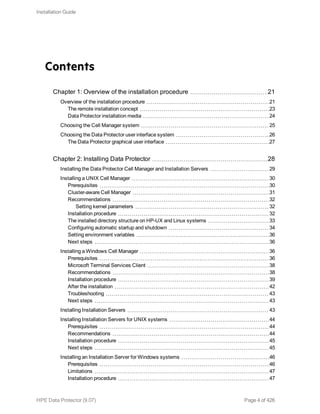
b. On the NTFS Permissions, Share Protocols, and SMB Settings panes, leave the default
option values unchanged. Click Next to move to the next pane.
c. On the SMB Permissions pane, select the option Administrators have Full Control; all
other users and groups have only Read Access and Write Access. Click Next.
Installation Guide
Appendix B: System preparation and maintenance tasks
HPE Data Protector (9.07) Page 361 of 426
d. On the DFS Namespace Publishing, leave the default option values. Click Next.
e. On the Review Settings and Create Share pane, click Create.
Installing Data Protector on Microsoft Cluster
Server with Veritas Volume Manager
To install Data Protector on Microsoft Cluster Server (MSCS) with Veritas Volume Manager, first follow
the general procedure for installation of Data Protector on MSCS. See "Installing Data Protector on a
Microsoft Cluster Server" on page 176.
After you have completed the installation, some additional steps are required to enable the Data
Protector Inet service to differentiate between local and cluster disk resources which use their own
resource driver and not the Microsoft resource driver:
1. Initiate maintenance mode by execute the omnisv -maintenance command on the Cell Manager.
2. Define a new system environment variable OB2CLUSTERDISKTYPES with Volume Manager Disk
Group as a value, or set the omnirc option on both cluster nodes as follows:
OB2CLUSTERDISKTYPES=Volume Manager Disk Group
To specify additional proprietary disk resources, such as NetRAID4 disk, simply append the
resource type name to the OB2CLUSTERDISKTYPES environment variable value:
OB2CLUSTERDISKTYPES=Volume Manager Disk Group;NETRaid4M Diskset
For more information on using the omnirc file options, see the HPE Data Protector
Troubleshooting Guide.
3. Quit the maintenance mode by executing the omnisv -maintenance —stop command.
Preparing a NIS server
This procedure enables your NIS server to recognize your Data Protector Cell Manager.
To add the Data Protector information to your NIS server
1. Log in as root on the NIS server.
2. If you are managing the /etc/services file via NIS, append the following line to the
/etc/services file:
omni 5555/tcp # Data Protector for Data Protector inet server
Replace 5555 with an alternative if this port it is not available. See "Changing the default Data
Protector Inet port" on page 358.
If you are managing the /etc/inetd.conf file via NIS, append the following line to the
/etc/inetd.conf file:
#Data Protector
omni stream tcp nowait root /opt/omni/lbin/inet -log /var/opt/omni/log/inet.log
Installation Guide
Appendix B: System preparation and maintenance tasks
HPE Data Protector (9.07) Page 362 of 426
3. Run the following command so that the NIS server reads the file and updates the configuration.
cd /var/yp; make
Note: In the NIS environment, the nsswitch.conf file defines the order in which different
configuration files will be used. For example, you can define whether the /etc/inetd.conf file
will be used on the local machine or from the NIS server. You can also insert a sentence in the file,
stating that the nsswitch.conf file controls where the names are kept. See the man pages for
detailed information.
If you have already installed Data Protector, you must prepare the NIS server, and then restart the
inet service by killing the process concerned, using the command kill -HUP pid on every NIS
client that is also a Data Protector client.
Troubleshooting
l If the Data Protector Inet service does not start after you have installed Data Protector in your
NIS environment, check the /etc/nsswitch.conf file.
If you find the following line:
services: nis [NOTFOUND=RETURN] files
replace the line with:
services: nis [NOTFOUND=CONTINUE] files
Changing the Cell Manager name
When Data Protector is installed it uses the current hostname for the Cell Manager name. If you
change the hostname of your Cell Manager, you need to update the Data Protector files manually.
It is necessary to update the client information about the Cell Manager name. Before changing the
hostname of your Cell Manager, export the clients from the cell. For the procedure, see "Exporting
clients from a cell" on page 195. After you have changed the hostname, import the clients back to the
cell. For the procedure, see "Importing clients to a cell " on page 190.
Note: Any devices and backup specifications that were configured using the old Cell Manager
name must be modified to reflect the correct name.
On UNIX systems
On a UNIX Cell Manager, do the following:
1. Change the computer or domain name.
Note: Ensure that the new hostname is resolved by DNS by all members and in both
directions. Do not continue this procedure, if the name resolution does not work.
2. Execute the following command:
Installation Guide
Appendix B: System preparation and maintenance tasks
HPE Data Protector (9.07) Page 363 of 426
omnisv stop
Note: Ensure that no instances of the old hostname exists in the following file:
/etc/opt/omni/client/components
You can execute the following command:
"grep -rn /etc/opt/omni/client/components -e "<OLD_HOSTNAME_FQDN>""
3. Change the Cell Manager hostname entries in the following files:
/etc/opt/omni/client/cell_server
/etc/opt/omni/server/cell/cell_info
/etc/opt/omni/server/config
/etc/opt/omni/server/cell/installation_servers
/etc/opt/omni/server/users/UserList
4. Regenerate the certificate by executing the following command:
# perl -CA /opt/omni/sbin/omnigencert.pl -server_id <NEW_HOSTNAME_FQDN> -
server_san dns:<short_hostname>,dns:< NEW_HOSTNAME_FQDN > -user_id hpdp -store_
password <STORE_PASSWORD>
Note: You can find the keystorepassword by executing the following command:
# grep keystorePassword
/etc/opt/omni/client/components/webservice.properties
5. Execute the following command:
omnisv start
6. Change the Cell Manager name in the IDB by executing:
omnidbutil -change_cell_name
7. Connect to the Cell Manger using the Data Protector GUI and accept the new certificate
8. If a tape device is connected to the Cell Manager, navigate to Devices and Media, and change
the hostname in the properties of the tape device.
9. In case of a configured file device:
a. To view the configured devices, use the following:
"omnidownload -list_libraries [-detail]" and "omnidownload -dev_info"
b. To modify the hostname in the Library, navigate to # omnidownload -library <LIBRARY_
NAME> >/tmp/file_lib.txt and edit the file_lib.txt file as follows:
# omniupload -modify_library <LIBRARY_NAME> -file /tmp/file_lib.txt
c. To modify the hostname in Devices, navigate to # omnidownload -device <DRIVE_NAME>
>/tmp/writer_0.txt and edit the writer_0.txt file as follows:
# omniupload -modify_device <DRIVE_NAME> -file /tmp/writer_0.txt
10. Delete the backup specification in the Data Protector IDB and recreate a new one.
11. Change the other backup specifications that are affected by the hostname change.
12. Update the UNIX or LINUX clients for the Cell Server hostname change in the following:
Installation Guide
Appendix B: System preparation and maintenance tasks
HPE Data Protector (9.07) Page 364 of 426
/etc/opt/omni/client/cell_server
13. Update the Windows clients for the Cell Server hostname change in the registry:
HKEY_LOCAL_MACHINE -> SOFTWARE -> Hewlett Packard -> OpenView -> OmniBack II ->
Site -> CellServer
14. Check the following config file for the old hostname:
# grep -rn /etc/opt/omni -e "<OLD_HOSTNAME_FQDN>"
Note: It is fine to view the old hostname in the following locations:
/etc/opt/omni/server/dr/p1s -> If the system recovery data has been stored
in the past.
/etc/opt/omni/server/certificates -> old certificate
/etc/opt/omni/client/certificates -> old certificate
15. Check the IDB content and export it to the following file:
/opt/omni/sbin/omnidbutil -writedb /tmp
<ENTER>
Note: The dpidb.dat file contains the main part of the Internal Database. Tables where the
old hostname can still remain is as follows:
dp_frontend_application
dp_catalog_object
dp_catalog_object_datastream (in case the old device name(s) contain the old
hostname)
dp_management_session
dp_medmng_library (in case the current device name(s) contain the old
hostname)
dp_medmng_media_pool (in case the old pool name(s) contain the old hostname)
dp_medmng_cartridge (in case the old pool name(s) contain the old hostname)
Also, the dpjce.dat file contains the Job Control Engine (JCE) database. It contains few URL
entries that are essential for advanced scheduler. The old hostname must not exist in this file
If you find the old hostname in the jce_service_description table, proceed as follows:
a. Login to the hpjce database.
Note: You can find the database credentials in
/etc/opt/omni/server/idb/idb.config file
# grep PGSUPERPASSWORD /etc/opt/omni/server/idb/idb.config
PGSUPERPASSWORD='a2ZudGV4cjBpdTZnMg==';
# export PGPASSWORD=`echo 'a2ZudGV4cjBpdTZnMg==' | base64 -d`
# echo $PGPASSWORD
kfntexr0iu6g2
b. Create a connection. Proceed as follows:
Installation Guide
Appendix B: System preparation and maintenance tasks
HPE Data Protector (9.07) Page 365 of 426
i. In a command prompt, navigate to the bin location (/opt/omni/idb/bin/).
ii. Execute the following command to login to the hpjce database using the hpdp user:
# /opt/omni/idb/bin/psql -h localhost -p 7112 -U hpdp hpdpidb
psql (9.1.9)
Type "help" for help.
iii. Check the current content by executing the following command in the hpjce database:
hpjce=# select url from jce_service_description;
Note: If you need to change the hostname, execute the following commands:
hpjce=# update jce_service_description
hpjce-# set url=replace(url, 'old_hostname', 'new_hostname');
hpjce=# q
On Windows systems
On a Windows Cell Manager, do the following:
1. Change the computer or domain name.
Note: Ensure that the new hostname is resolved by DNS by all members and in both
directions. Do not continue this procedure, if the name resolution does not work.
2. Execute the following command:
omnisv stop
3. Change the Cell Manager name in the following registry keys:
HKEY_LOCAL_
MACHINESOFTWAREHewlettPackardOpenViewOmniBackIISiteCellServernewnameHKE
Y_LOCAL_MACHINESOFTWAREHewlett-PackardOpenViewOmniBackIIPackagesnewname
4. Navigate to the following file to ensure that no instances of the old hostname still exists:
Data_Protector_program_dataConfigclientcomponents
Note: Use the Windows find in file function.
5. Change the Cell Manager hostname entries in the following files:
Data_Protector_program_dataConfigServerusersUserList
Data_Protector_program_dataConfigServerconfig
Data_Protector_program_dataConfigServercellcell_info
Data_Protector_program_dataConfigServercellinstallation_servers
6. Regenerate the certificate by executing the following command from C:Program
FilesOmniBackbin folder:
perl omnigencert.pl -server_id <NEW_HOSTNAME> -server_san
dns:<hostname>,dns:<FQDN> -user_id hpdp -store_password <PASSWORD>
Installation Guide
Appendix B: System preparation and maintenance tasks
HPE Data Protector (9.07) Page 366 of 426
Note: You can find the keystorepassword from the following location:
Data_Protector_program_dataConfigclientcomponentswebservice.properties
7. Execute the following command:
omnisv start
8. Change the Cell Manager name in the IDB by executing:
omnidbutil -change_cell_name
9. Connect to the Cell Manger using the Data Protector GUI and accept the new certificate.
10. If a tape device is connected to the Cell Manager, navigate to Devices and Media, and change
the hostname in the properties of the tape device.
11. In case of a configured file device:
a. To view the configured devices, use the following:
"omnidownload -list_libraries [-detail]" and "omnidownload -dev_info"
b. To modify the hostname in the Library, navigate to "omnidownload -library <LIBRARY_
NAME> > c:tempfile_lib.txt" and edit the file_lib.txt file as follows:
omniupload -modify_library <LIBRARY_NAME> -file c:tempfile_lib.txt
c. To modify the hostname in Devices, navigate to "omnidownload -device <Device Name> >
c:tempdevice.txt" and edit the device.txt file as follows:
omniupload -modify_device <Device Name> -file c:tempdevice.txt
12. Delete the backup specification in the Data Protector IDB and recreate a new one.
13. Change the other backup specifications that are affected by the hostname change.
14. Update the UNIX or LINUX clients for the Cell Server hostname change in the following:
/etc/opt/omni/client/cell_server
15. Update the Windows clients for the Cell Server hostname change in the registry:
HKEY_LOCAL_MACHINE -> SOFTWARE -> Hewlett Packard -> OpenView -> OmniBack II ->
Site -> CellServer
16. Check the following config file using the Windows "find in file" function to search the old
hostname:
Data_Protector_program_dataConfig
Note: It is fine to view the old hostname in the following locations:
Data_Protector_program_dataConfigServerdr -> If system recovery has been stored
in the past.
Data_Protector_program_dataConfigServercertificates -> old certificate
Data_Protector_program_dataConfigclientcertificates -> old certificate
17. Check the IDB content and export it to the following file:
omnidbutil -writedb e:idb_export
<ENTER>
Note: The dpidb.dat file contains the main part of the Internal Database. Tables where the
Installation Guide
Appendix B: System preparation and maintenance tasks
HPE Data Protector (9.07) Page 367 of 426
old hostname can still remain is as follows:
dp_frontend_application
dp_catalog_object
dp_catalog_object_datastream (in case the old device name(s) contain the old
hostname)
dp_management_session
dp_medmng_library (in case the current device name(s) contain the old
hostname)
dp_medmng_media_pool (in case the old pool name(s) contain the old hostname)
dp_medmng_cartridge (in case the old pool name(s) contain the old hostname)
Also, the dpjce.dat file contains the Job Control Engine (JCE) database. It contains few URL
entries that are essential for advanced scheduler. The old hostname must not exist in this file.
If you find the old hostname in the jce_service_description table, proceed as follows:
a. Login to the hpjce database.
Note: You can find the database credentials in Data_Protector_program_
dataConfigServeridbidb.config file. You can use the following link to decode the
PGSUPERPASSWORD:
https://www.base64decode.org
b. Create a connection. Proceed as follows:
i. In a command prompt, navigate to the bin location (C:Program
FilesOmniBackidbbin).
ii. Execute the following command to login to the hpjce database using the hpdp user:
.psql -h localhost -p 7112 -d hpjce -U hpdp <Enter the decoded
password>
iii. Check the current content by executing the following command in the hpjce database:
hpjce=# select url from jce_service_description;
Note: If you need to change the hostname, execute the following commands:
hpjce=# update jce_service_description
hpjce-# set url=replace(url, 'old_hostname', 'new_hostname');
hpjce=# q
Installation Guide
Appendix B: System preparation and maintenance tasks
HPE Data Protector (9.07) Page 368 of 426
Changing the hostname in Job Control Engine
(JCE) database
On UNIX systems
To change the hostname in JCE database with PGADMIN3, proceed as follows:
1. Navigate to /var/opt/omni/server/db80/pg/pg_hba.conf file.
2. Change host all all 127..0.0.1/32 md5 to host all all 10.17.0.0/16 md5.
(OR)
Change host all all 127..0.0.1/32 md5 to connect to a specific host (host all all
10.17.16.121/32 md5) only.
3. Reload the pg config file and execute the following commands:
su hpdp
/opt/omni/idb/bin/pg_ctl reload -D /var/opt/omni/server/db80/pg
4. Connect to pgAdmin3.
On Windows systems
To change the hostname in JCE database using the command line with PGADMIN3, proceed as
follows:
1. Execute the following command:
omnidbutil –set_passwd hpdp
2. Set the password.
3. Navigate to the C:Program FilesOmniBackidbbin folder and run pgadmin3.exe.
The pgAdmin3 program gets started.
4. Add the server by clicking on the plug-in.
The New Server Registration window is displayed.
5. In the New Server Registration window, perform the following:
a. In the Name field, enter local or as per your requirement.
For example, enter jce_service_description.
b. In the Host field, enter localhost.
c. In the Port field, enter 7112.
d. In the Service field, leave it empty.
e. In the Maintenance DB field, select hpdpidb.
f. In the Username field, enter hpdp.
Installation Guide
Appendix B: System preparation and maintenance tasks
HPE Data Protector (9.07) Page 369 of 426
g. In the Password field, enter the password that you set with the omnidbutil –set_passwd
hpdp command in Step 1.
6. Click OK.
7. In the Object browser area, expand the server that you added by expanding Databases > hpjce >
Schemas > hpjce_app > Tables.
For example: You can see the jce_service_description table name. Click jce_service_
description.
8. Select the SQL button in the tool bar.
You get to view the SQL Editor with the following command:
UPDATE jce_service_description
SET url=replace (url, ‘old_hostname’, ‘new_hostname’);
For example, you can use testHostname.1 as the old_hostname and testHostname as the new_
hostname. Then execute this command with the Play button.
In the Data Output tab, you get to view the message stating the number of rows that were
changed.
Using CLI
To change hostname in the JCE database without PGADMIN3, proceed as follows:
1. Execute the following:
On Windows system:
C:Program FilesOmniBackidbpsql --port=7112 -U hpdp -d hpjce -h localhost
On UNIX system:
/opt/omni/idb/bin/psql --port=7112 -U hpdp -d hpjce -h localhost
2. Execute the following commands:
hpjce=# select url from jce_service_description;
hpjce=# update jce_service_description
hpjce-# set url=replace(url, 'old_hostname', 'new_hostname');
hpjce=# q
Running large backup sessions on Windows Cell
Manager
To run large number of backup sessions on Windows Cell Manager, you should adjust the desktop
heap limit in Windows registry. Desktop heap is controlled by the following registry key:
HKEY_LOCAL_MACHINESystemCurrentControlSetControlSession
ManagerSubSystemsWindows
The default value of this registry key is as follows:
%SystemRoot%system32csrss.exe ObjectDirectory=Windows
SharedSection=1024,20480,768 Windows=On SubSystemType=Windows ServerDll=basesrv,1
Installation Guide
Appendix B: System preparation and maintenance tasks
HPE Data Protector (9.07) Page 370 of 426
ServerDll=winsrv:UserServerDllInitialization,3 ServerDll=sxssrv,4
ProfileControl=Off MaxRequestThreads=16
Data Protector is affected by the SharedSection parameter, which includes the following values:
l 1024: Shared heap size common to all desktops. It should not be changed to address issues related
to desktop heap exhaustion.
l 20480: Size of the desktop heap for each desktop associated with an interactive window station.
l 768: Size of the desktop heap for each desktop associated with a non-interactive window station.
You should set the third value (768) of the SharedSection parameter to 20480. The modified value of
the Windows registry key will look like the following:
%SystemRoot%system32csrss.exe ObjectDirectory=Windows
SharedSection=1024,20480,20480 Windows=On SubSystemType=Windows ServerDll=basesrv,1
ServerDll=winsrv:UserServerDllInitialization,3 ServerDll=sxssrv,4
ProfileControl=Off MaxRequestThreads=16
Note: Do not set a very high value, as it is in kilobytes.
After setting the new value, you must restart the system.
Installation Guide
Appendix B: System preparation and maintenance tasks
HPE Data Protector (9.07) Page 371 of 426
Appendix C: Device and media related tasks
This Appendix provides some additional Data Protector specific information about tasks that are beyond the
scope of this guide. These tasks include device driver configuration, managing SCSI robotics, maintaining
the SCSI environment, and similar.
Using tape and robotics drivers on Windows
systems
Data Protector supports the native tape drivers that are loaded by default for an enabled tape drive attached to
a Windows system. The Windows native drivers loaded for Medium changers (robotics) devices are not
supported by Data Protector.
In the examples below, an HPE 4mm DDS tape device is attached to the Windows system. The native driver
loaded for medium changer devices needs to be disabled if the HPE 4mm DDS tape device is connected to
the Windows system and will be configured for use with Data Protector. This section describes the related
procedures.
Tape drivers
A driver is usually delivered with Windows, if the device is listed in the Hardware Compatibility List (HCL).
HCL is a list of the devices supported by Windows and can be found at the following site:
http://www.microsoft.com/whdc/hcl/default.mspx
The device drivers then load automatically for all enabled devices once the computer has been started. You
do not need to load the native tape driver separately, but you can update it.
To update or replace the native tape driver on a Windows system
1. In the Windows Control Panel, double-click Administrative Tools.
2. In the Administrative Tools window, double-click the Computer Management. Click Device
Manager.
3. Expand Tape Drives. To check which driver is currently loaded for the device, right-click the tape drive
and then click Properties.
4. Select the Driver tab and click Update Driver. Then, follow the wizard, where you can specify if you
want to update the currently installed native tape driver or replace it with a different one.
5. Restart the system to apply the changes.
If a device has already been configured for Data Protector without using the native tape driver, you have to
rename the device files for all configured Data Protector backup devices that reference the particular tape
drive (for example, from scsi1:0:4:0 to tape3:0:4:0).
For details, see "Creating device files (SCSI Addresses) on Windows systems" on page 374.
HPE Data Protector (9.07) Page 372 of 426
Robotics drivers
On Windows, the robotics drivers are automatically loaded for enabled tape libraries. In order to use the
library robotics with Data Protector, you have to disable the respective driver.
An HPE 1557A tape library using the 4mm DDS tapes is used in the example below.
To disable the automatically loaded robotics driver(ddsmc.sys) on a Windows system
1. In the Windows Control Panel, double-click Administrative Tools.
2. In the Administrative Tools window, double-click the Computer Management. Click Device
Manager.
3. In the Results Area of the Device Manager window, expand Medium Changers.
4. To check which driver is currently loaded, right-click the 4mm DDS Medium Changer and then
Properties.
Select the Driver tab and click Driver details. In this case, the following window will display:
Medium changer properties
To disable the native robotics driver, right-click the 4mm DDS Medium Changer and then select
Disable.
Disabling robotics drivers
Installation Guide
Appendix C: Device and media related tasks
HPE Data Protector (9.07) Page 373 of 426
5. Restart the system to apply the changes. The robotics can now be configured with Data Protector.
Creating device files (SCSI Addresses) on Windows
systems
The tape device filename syntax depends on whether the native tape driver was loaded (tapeN:B:T:L)
or unloaded (scsiP:B:T:L) for a tape drive.
Windows using the native tape driver
To create a device file for a tape drive connected to a Windows system that uses the native tape driver,
proceed as follows:
1. In the Windows Control Panel, double-click Administrative Tools.
2. In the Administrative Tools window, double-click the Computer Management. Expand
Removable Storage, then Physical Locations. Right-click the tape drive and select Properties.
3. If the native tape driver is loaded, the device file name is displayed in the General property page.
Otherwise, you can find the relevant information in the Device Information property page. See "
Tape drive properties " below.
Tape drive properties
Installation Guide
Appendix C: Device and media related tasks
HPE Data Protector (9.07) Page 374 of 426
The file name for the tape drive in " Tape drive properties " on the previous page is created as follows:
Native Tape Driver Used Tape0 or Tape0:0:5:0
Native Tape Driver NOT Used scsii1:0:5:0
Magneto-optical devices
If you connect a magneto-optical device to a Windows system, a drive letter is assigned to the device
after you restart the system. This drive letter is then used when you create the device file. For example,
E: is the device file created for a magneto-optical drive which has been assigned a drive letter E.
SCSI robotics configuration on HP-UX systems
On HP-UX systems, a SCSI Pass-Through Driver is used to manage the SCSI controller and control
device (also referred to as robotics or picker) of the Tape Library devices (like HPE 12000e). The
control device in a library is responsible for loading/unloading media to/from the drives and
importing/exporting media to/from such a device.
SCSI controlled devices
Installation Guide
Appendix C: Device and media related tasks
HPE Data Protector (9.07) Page 375 of 426
Managing devices
The type of SCSI Robotic Driver in use depends on the hardware. Systems equipped with the GSC/HSC
or PCI bus have the SCSI Autochanger Driver named schgr, and systems equipped with the EISA bus
have the SCSI Pass-Through Driver named sctl, which is already built in the kernel. However, the
SCSI Pass-Through Driver used on HPE Servers with an NIO Bus is named spt. It is installed on the
system without being built into the kernel by default.
If the SCSI Robotic Driver driver has not already been linked to your current kernel, you have to add it
yourself and assign it to the robotics of the connected Tape libraries.
Installation Guide
Appendix C: Device and media related tasks
HPE Data Protector (9.07) Page 376 of 426
The steps beneath explain how to manually add the SCSI Robotic Driver to the kernel and manually
rebuild a new one.
Tip: On the HP-UX platform, you can also build the kernel using the HPE System Administration
Manager (SAM) utility. See "Installing HP-UX clients " on page 68.
Use the /opt/omni/sbin/ioscan -f command to check whether or not the SCSI Robotic Driver is
assigned to the library that you want to configure.
Status of the SCSI pass-through driver (sctl)
In " Status of the SCSI pass-through driver (sctl) " above, you can see the sctl SCSI Pass-Through
Driver assigned to the control device of the Exabyte tape device. The matching hardware path (H/W
Path) is 8/12.2.0. (SCSI=2, LUN=0)
There is also a tape drive connected to the same SCSI bus, but the driver controlling the tape drive is
stape. The matching hardware path (H/W Path) is 8/12.1.0. (SCSI=0, LUN=0)
The SCSI address 7 is always used by SCSI controllers, although the corresponding line may not
appear in the output of the ioscan -f command. In this example, the controller is managed by sctl.
Status of the SCSI pass-through driver (spt)
Installation Guide
Appendix C: Device and media related tasks
HPE Data Protector (9.07) Page 377 of 426
In " Status of the SCSI pass-through driver (spt) " on the previous page, you can see an example of a
connected tape device with robotics controlled by the spt SCSI Pass-Through Driver. The particular
device is an HPE 12000e tape library device that uses the SCSI address 4 and is connected to the
SCSI bus with the H/W Path 52. The matching hardware path is 52.4.1. The robotics is correctly
assigned to the spt SCSI Pass-Through Driver.
If the sctl, spt, or schgr driver is not assigned to the robotics, you have to add the H/W Path of the
robotics to the driver statement in the system file and rebuild the kernel. Follow the procedure below.
The following procedure explains how to manually add a SCSI Robotic Driver to the kernel, assign it to
the robotics, and then manually rebuild a new kernel:
1. Login as a root user and switch to the build directory:
cd /stand/build
2. Create a new system file from your existing kernel:
/usr/lbin/sysadm/system_prep -s system
3. Check which SCSI Robotic Driver is already built in your current kernel. From the /stand
directory, execute the following command:
grep SCSIRoboticDriver system
where the SCSIRoboticDriver can be either spt, sctl, or schgr. The system will display the
corresponding line if the driver is already built in the current kernel.
4. Use an editor to append a driver statement:
driver H/W Path spt
to the /stand/build/system file, where H/W Path is the complete hardware path of the device.
For the HPE 12000e Tape library from the previous example you would enter:
driver 52.4.1 spt
For several libraries connected to the same system, you have to add a driver line for each library
robotics with the appropriate hardware path.
When configuring the schgr driver, append the following line to a driver statement:
schgr
Installation Guide
Appendix C: Device and media related tasks
HPE Data Protector (9.07) Page 378 of 426
5. Enter the mk_kernel -s./system command to build a new kernel.
6. Save the original old system file using a different name and move the new system file to the
original name so that it becomes the current one:
mv /stand/system /stand/system.prev
mv /stand/build/system /stand/system
7. Save the old kernel with a different name and move the new kernel to the original name so that it
becomes the current one:
mv /stand/vmunix /stand/vmunix.prev
mv /stand/vmunix_test /stand/vmunix
8. Restart the system from the new kernel by entering the following command:
shutdown -r 0
9. Once you have restarted the system, verify the changes you have made using the
/usr/sbin/ioscan -f command.
Creating device files on HP-UX systems
Prerequisites
Before you create a device file, you should have the backup device already connected to the system.
Use the /usr/sbin/ioscan -f command to check whether the device is properly connected. Use the
/usr/sbin/infs -e command to create device files for some backup devices automatically.
If the device files that correspond to a particular backup device have not been created during the
system initialization (boot process) or after running the infs -e command, you have to create them
manually. This is the case with the device files required to manage the library control device (library
robotics).
We will use an example of creating a device file for the robotics of the HPE 12000e library device
connected to an HP-UX system. The device file for the tape drive has already been created
automatically after the restart of the system, while the device file for the control device must be created
manually.
In " Status of the SCSI pass-through driver (spt) " on page 377, you can see the output of the ioscan -
f command on the selected HP-UX system.
List of connected devices
Installation Guide
Appendix C: Device and media related tasks
HPE Data Protector (9.07) Page 379 of 426
The SCSI bus interface is controlled by the scsi1 system driver. This is a SCSI NIO interface. To
access the library robotics on the SCSI NIO bus we must use the spt SCSI Pass-Through driver that is
already installed and assigned to the robotics of the HPE 12000e Tape device that uses the hardware
path 52.4.1.
Note: If you do not use a SCSI NIO based bus interface, the spt driver is not required but the sctl
driver is used instead.
To create the device file, you need to know the Major number character of the SCSI Pass-Through
driver and the Minor Number character, which does not depend on the SCSI Pass-Through driver you
use.
To obtain the character Major number belonging to spt,run the system command:
lsdev -d spt
In the example (see " List of connected devices " on the previous page) the command reported the
Major number character 75.
To obtain the character Major number belonging to sctl, run the system command:
lsdev -d sctl
In our case, the command reported the Major number character 203.
The Minor Number character, regardless of which SCSI Pass-Through driver is in use, has the
following format:
0xIITL00
II -> The Instance number of the SCSI bus interface (NOT of the device) reported by the ioscan -f
output is in the second column, labeled with I. In the example, the instance number is 0, so we must
enter two hexadecimal digits, 00.
T -> The SCSI address of the library robotics. In the example, the SCSI address is 4, so we must enter
4.
L -> The LUN number of the library robotics. In the example, the LUN number is 1, so we must enter 1.
Installation Guide
Appendix C: Device and media related tasks
HPE Data Protector (9.07) Page 380 of 426
00 -> Two hexadecimal zeroes.
Creating the device file
The following command is used to create the device file:
mknod /dev/spt/devfile_name c Major # Minor #
Usually the device files for spt are located in the /dev/spt or /dev/scsi directory. In this case, we will
name the control device file /dev/spt/SS12000e.
Thus, the complete command for creating a device file named SS12000e in the /dev/spt directory is:
mknod /dev/spt/SS12000e c 75 0x004100
If we create a device file for sctl, which is named SS12000e and located in the /dev/scsi directory,
the complete command is:
mknod /dev/scsi/SS12000e c 203 0x004100
Setting a SCSI controller’s parameters
Data Protector allows you to change the device’s block size, which might require additional
configuration on some SCSI controllers.
On Windows systems, set the SCSI controller’s parameters by editing the registry value for Adaptec
SCSI controllers, and for some controllers with Adaptec's chipsets:
1. Set the following registry value:HKEY_LOCAL_MACHINESYSTEMCurrentControlSetServices
aic78xxParametersDevice0MaximumSGList
2. Enter a DWORD value containing the number of 4 kB blocks, increased by one.
MaximumSGList = (OBBlockSize in kB / 4) + 1
For example, to enable block sizes up to 260 kB, MaximumSGList has to be at least (260 / 4) +
1 = 66.
3. Restart the system.
Note: This registry value sets the upper limit of the block size. The actual block size for a device
must be configured using the Data Protector GUI for device configuration.
Finding the unused SCSI addresses on HP-UX
systems
A backup device connected to an HP-UX system is accessed and controlled through a device file that
must exist for each physical device. Before you can create the device file, you have to find out which
SCSI addresses (ports) are still unused and available for a new device.
Installation Guide
Appendix C: Device and media related tasks
HPE Data Protector (9.07) Page 381 of 426
On HP-UX systems, the /usr/sbin/ioscan -f system command is used to display the list of the
SCSI addresses that are already occupied. Thus, the addresses not listed in the output of the
/usr/sbin/ioscan -f command are still unused.
In " Output of the ioscan -f command on an HP-UX system " below, there is the output of the
/usr/sbin/ioscan -f command on an HP-UX 11.x system.
Output of the ioscan -f command on an HP-UX system
Only the third (H/W Path) and the fifth (S/W State) columns are relevant for the purpose of
determining the available SCSI addresses. A dismembered (H/W Path) format would look like this:
SCSI_bus_H/W_Path. SCSI_address. LUN_number
In this particular case, there is just one SCSI bus, using the H/W Path 52. On this bus, you can use the
SCSI addresses 0 and 3 because they do not appear in the list.
You can see in " Output of the ioscan -f command on an HP-UX system " above which SCSI
addresses on the selected SCSI bus are already occupied:
l SCSI address 1 by a SCSI disk
l SCSI address 2 by a CD-ROM
l SCSI address 4, LUN 0, by a tape drive
l SCSI address 4, LUN 1, by the tape library robotics
l SCSI address 5 by a SCSI disk
l SCSI address 6 by a SCSI disk
l SCSI address 7 by a SCSI controller
Note: The SCSI address number 7 is not listed although it is, by default, occupied by the SCSI
controller.
All devices have the S/W State value set to CLAIMED and the H/W Type value set to H/W DEVICE,
meaning that the devices are currently connected. If there was an UNCLAIMED value in the S/W State or
NO-HW in the H/W Type column it would mean that the system cannot access the device.
Installation Guide
Appendix C: Device and media related tasks
HPE Data Protector (9.07) Page 382 of 426
The SCSI address 4 is claimed by the tape library that has the tape drive with LUN 0 and the robotics
with LUN 1. The drive is controlled by the tape2 driver and the robotics is controlled by the spt SCSI
Pass-Through driver. Looking at the description, you can see that the device is an HPE 12000e library;
it is easily recognized among the SCSI libraries because it uses the same SCSI address for the tape
drive and robotics but uses different LUNs.
The whole SCSI bus is controlled by the scsi1 interface module.
Finding the unused SCSI target IDs on Solaris
systems
A backup device connected to a Solaris system is accessed and controlled through a device file. This
device file is created automatically by the Solaris operating system, in the directory /dev/rmt, when
the backup device is connected and the client system and backup device are powered up.
Before the backup device is connected, however, the available SCSI addresses must be checked and
the address of the backup device set to an address not already allocated.
To list the available SCSI addresses on a Solaris system
1. Stop the system by pressing Stop and A.
2. Run the probe-scsi-all command at the ok prompt:
probe-scsi-all
You may be asked by the system to start the reset-all command before executing the probe-
scsi-all command.
3. To return to normal operation, enter go at the ok prompt:
go
After listing the available addresses and choosing one to use for your backup device, you must update
the relevant configuration files before connecting and starting up the device. See the next section for
instructions on updating the configuration files.
Updating the device and driver configuration on
Solaris systems
Updating configuration files
The following configuration files are used for device and driver configuration. They must be checked,
and if necessary, edited before attached devices can be used:
l st.conf
l sst.conf
Installation Guide
Appendix C: Device and media related tasks
HPE Data Protector (9.07) Page 383 of 426
st.conf: all devices
This file is required on each Data Protector Solaris client with a tape device connected. It must contain
device information and one or more SCSI addresses for each backup device connected to that client. A
single SCSI entry is required for a single-drive device and multiple SCSI entries are required for a multi-
drive library device.
1. Check the unused SCSI addresses on the client, as described in the previous section, and choose
an address for the device you want to attach.
2. Set the chosen SCSI address(es) on the backup device.
3. Power down the client system.
4. Attach the backup device.
5. First power up the device and then the client system.
6. Stop the system by pressing Stop and A.
7. Enter the probe-scsi-all command at the ok prompt:
probe-scsi-all
This will provide information on the attached SCSI devices, including the correct device ID string
for the newly attached backup device.
8. Return to normal running:
go
9. Edit the /kernel/drv/st.conf file. This file is used by the Solaris st (SCSI tape) driver. It
contains a list of devices officially supported by Solaris and a set of configuration entries for third
party devices. If you are using a supported device, it should be possible to connect the device and
use it without any further configuration. Otherwise, you should add the following types of entries to
st.conf:
l A tape configuration list entry (plus a tape data variable definition). Example entries are
supplied in the file, commented out. You can use one of these, if applicable, or modify one to
suit your needs.
The entry must come before the first name= entry in the file and the required format is as
follows:
tape-config-list= "Tape unit", "Tape reference name", "Tape data";
where:
Tape unit The vendor and product ID string for the tape device. This must be correctly
specified as described in the device manufacturer’s documentation.
Tape
reference
name
The name you choose, by which the system will identify the tape device. The
name you provide does not change the tape product ID, but when the system
boots, the reference name will be displayed in the list of peripheral devices
recognized by the system.
Tape data A variable that references a series of additional tape device configuration
items. The variable definition must also be supplied and be correctly specified,
as described in the device manufacturer’s documentation.
For example:
Installation Guide
Appendix C: Device and media related tasks
HPE Data Protector (9.07) Page 384 of 426
tape-config-list= “Quantum DLT4000”, “Quantum DLT4000”, “DLT-data”;
DLT-data = 1,0x38,0,0xD639,4,0x80,0x81,0x82,0x83,2;
The second parameter, 0x38, designates the DLTtape tape type as "other SCSI drive". The
value specified here should be defined in /usr/include/sys/mtio.h.
Note: Ensure that the last entry in the tape-config-list is terminated with a semi-colon (;).
l For multidrive devices, target entries as follows:
name="st" class="scsi"
target=X lun=Y;
where:
X is the SCSI port assigned to the data drive (or robotic mechanism).
Y is the logical unit value.
For example:
name="st" class="scsi"
target=1 lun=0;
name="st" class="scsi"
target=2 lun=0
Normally target entries are required in st.conf only for the drives, not for the robotics
mechanism, which is on a different target. Entries for these are usually provided in the
sst.conf file (see below). However, there are some devices, for example the HPE 24x6, that
treat the robotics mechanism similar to another drive. In this case two entries with the same
target are required (one for the drive and one for the robotics), but with different LUNs.
For example:
name="st" class="scsi"
target=1 lun=0;
name="st" class="scsi"
target=1 lun=1
sst.conf: library devices
This file is required on each Data Protector Solaris client to which a multi-drive library device is
connected. Generally speaking, it requires an entry for the SCSI address of the robotic mechanism of
each library device connected to the client (there are some exceptions, such as the HPE 24x6
mentioned in the previous section).
1. Copy the sst driver (module) and configuration file sst.conf to the required directory:
l For 32-bit operating systems:
$cp /opt/omni/spt/sst /usr/kernel/drv/sst
$cp /opt/omni/spt/sst.conf /usr/kernel/drv/sst.conf
l For 64-bit operating systems:
Installation Guide
Appendix C: Device and media related tasks
HPE Data Protector (9.07) Page 385 of 426
$cp /opt/omni/spt/sst.64bit /usr/kernel/drv/sparcv9 /sst
$cp /opt/omni/spt/sst.conf /usr/kernel/drv/sst.conf
2. Edit the sst.conf file and add the following entry:
name="sst" class="scsi" target=X lun=Y;
where:
X is the SCSI address of the robotic mechanism.
Y is the logical unit.
For example:
name="sst" class="scsi" target=6 lun=0;
3. Add the driver to the Solaris kernel:
add_drv sst
Creating and checking device files
After setting up the configuration files and installing the drivers, you can create new device files as
follows:
1. Remove all existing device files from the /dev/rmt directory:
cd /dev/rmt rm *
2. Enter the following to shut down the system:
shutdown -i0 -g0
3. Restart the system:
boot -rv
The r switch in the boot command enables a kernel compile and includes the creation of device
special files used for communication with the tape device. The v switch enables verbose mode
display of system startup. With verbose mode, the system should indicate that the device is
attached by displaying the Tape reference name string you selected during the /devices
directory configuration phase of boot.
4. Enter the following command to verify the installation:
mt -t /dev/rmt/0 status
The output of this command depends on the configured drive. It will be similar to the following:
Quantum DLT7000 tape drive: sense key(0x6)= Unit Attention residual= 0 retries=
0 file no= 0 block no= 0
5. When the system restart has completed, you can check the device files that have been created
using the command ls -all. For a library device, the output of this command might be:
/dev/rmt/0hb for a first tape drive
/dev/rmt/1hb for a second tape drive
/dev/rsst6 for a robotic drive
Installation Guide
Appendix C: Device and media related tasks
HPE Data Protector (9.07) Page 386 of 426
Finding unused SCSI target IDs on Windows
systems
To determine the unused SCSI Target IDs (SCSI Addresses) on a Windows system
1. In the Windows Control Panel, click SCSI Adapters.
2. For each device connected to a SCSI Adapter in the list, check its properties. Double-click the
name of a device, and then click Settings to open the property page. See " Device settings "
below.
Remember the SCSI Target IDs and LUNs(Logical Unit Numbers) assigned to the device.
This way you can find out which SCSI Target IDs and LUNs are already occupied.
Device settings
Setting SCSI IDs on an HPE 330fx library
Once you have chosen the unused SCSI IDs for the robotics and drives, you can check and configure
them using the Control Panel of the library device.
Example
If you have a library model HPE 330fx, you can find the configured SCSI IDs as follows:
Installation Guide
Appendix C: Device and media related tasks
HPE Data Protector (9.07) Page 387 of 426
1. From the READY state, press NEXT, and then ADMIN* will appear.
2. Press ENTER, and then you will be asked for the password. Enter the password.
3. TEST* will appear, press NEXT until SCSI IDs * appears.
4. Press ENTER. VIEW IDs* appears.
5. Press ENTER. JKBX ID 6 LUN 0 appears.
6. Press NEXT. DRV 1 ID 5 LUN 0 appears.
7. Press NEXT. DRV 2 ID 4 LUN 0 appears, and so on.
You can return to the READY state by pressing CANCEL several times.
Connecting backup devices
The following procedure describes the general steps to follow in order to connect a backup device to an
HP-UX, Solaris, Linux, or Windows system.
1. Select the client to which you will connect the backup device.
2. Install a Media Agent on the selected system. See "Remote installation" on page 91.
3. Determine the unused SCSI address that can be used by the device. For HP-UX systems, see
"Finding the unused SCSI addresses on HP-UX systems" on page 381. For Solaris systems, see
"Finding the unused SCSI target IDs on Solaris systems" on page 383. For a Windows system,
see "Finding unused SCSI target IDs on Windows systems" on the previous page.
l If connecting to an HP-UX system, check that the required drivers are installed and built into
the current kernel. See "Checking the kernel configuration on HP-UX" on page 70.
If you need to configure a SCSI Pass-Through Driver, see "SCSI robotics configuration on HP-
UX systems" on page 375.
l If connecting to a Solaris system, check that the required drivers are installed and the
configuration files are updated for the device to be installed. See "Updating the device and
driver configuration on Solaris systems" on page 383. This also tells you how to update the
sst.conf file if you need to configure a SCSI Pass-Through Driver.
l If connecting to a Windows client, the native tape driver can be loaded or disabled, depending
on the Windows system version. See "Using tape and robotics drivers on Windows systems"
on page 372.
If you load the native tape driver for a device which has been already configured in Data
Protector and did not use the native tape driver, make sure that you rename the device
filenames for all configured Data Protector logical devices that reference this specific device
(for example, from scsi1:0:4:0 to tape3:0:4:0).
For more information on an appropriate device filename, see "Creating device files (SCSI
Addresses) on Windows systems" on page 374.
4. Set the SCSI addresses (IDs) on the device. Depending on the device type, this can be usually
done using the switches on the device. For details, see the documentation that comes with the
device.
For an example, see "Setting SCSI IDs on an HPE 330fx library" on the previous page.
Installation Guide
Appendix C: Device and media related tasks
HPE Data Protector (9.07) Page 388 of 426
For details about supported devices, see http://support.openview.hp.com/selfsolve/manuals.
Note: On a Windows systems with the Adaptec SCSI adapter installed and a SCSI device
connected, the Host Adapter BIOS option must be enabled so that the system does not have
problems issuing SCSI commands.
To set the Host Adapter BIOS option, press Ctrl+A during the boot of the system to enter the
SCSI Adapter menu, then select Configure/View Host Adapter Settings > Advanced
Configuration Options and enable Host Adapter BIOS.
5. First, switch on the device, and then the computer, and then wait until the boot process
completes. Verify that the system correctly recognizes your new backup device.
Windows systems: You can verify that the system correctly recognizes your new backup device
if you use the devbra utility. In the default Data Protector commands directory, execute the
devbra -dev command.
In the output of the devbra command you will find the following lines for each connected and
properly recognized device:
backup device specification
hardware_path
media_type
...........
For example, the following output:
HP:C1533A
tape3:0:4:0
DDS
...
...
means that an HPE DDS tape device (with the native tape driver loaded) has the Drive instance
number 3, and is connected to the SCSI bus 0, the SCSI Target ID 4 and LUN number 0.
Or, the following output:
HP:C1533A
scsi1:0:4:0
DDS
...
...
means that an HPE DDS tape device (with the native tape driver unloaded) is connected to the
SCSI port 1, SCSI bus 0, and the tape drive has the SCSI Target ID 4, and LUN number 0.
HP-UX systems: Run the command /usr/sbin/ioscan -fn to display a list of connected
devices with the corresponding hardware paths and device files, where you should find your newly
connected device with the correct SCSI addresses.
If the device file has not been created automatically during the system startup process, you should
create it manually. See "Creating device files on HP-UX systems" on page 379.
Installation Guide
Appendix C: Device and media related tasks
HPE Data Protector (9.07) Page 389 of 426
Solaris systems: Run the ls -all command on the /dev/rmt directory to display a list of
connected devices with the corresponding hardware paths and device files, where you should find
your newly connected device with the correct SCSI addresses.
Linux systems: Run the ls -all command on the /dev/rmt directory to display a list of
connected devices with the corresponding hardware paths and device files, where you should find
your newly connected device with the correct SCSI addresses.
AIX systems: Run the command lsdev -C to display the list of connected devices with the
corresponding device files.
Hardware compression
Most modern backup devices provide built-in hardware compression that can be enabled when you
create a device file or SCSI address in the device configuration procedure. For detailed steps, see the
HPE Data Protector Help.
Hardware compression is done by a device that receives the original data from a Media Agent client
and writes it to the tape in compressed mode. Hardware compression increases the speed at which a
tape drive can receive data, because less data is written to the tape.
When software compression is used and hardware compression is disabled, the data is compressed by
the Disk Agent and sent compressed to a Media Agent. The compression algorithm can take a
substantial amount of resources from the Disk Agent system if software compression is used, but this
reduces the network load.
To enable hardware compression on Windows systems, add “C” to the end of the device/drive SCSI
address, for example: scsi:0:3:0C (or tape2:0:1:0C if tape driver is loaded). If the device supports
hardware compression, it will be used, otherwise the C option will be ignored.
To disable hardware compression on Windows systems, add “N” to the end of the device/drive SCSI
address, for example: scsi:0:3:0:N.
To enable/disable hardware compression on UNIX systems, select a proper device file. Consult the
device and operating system documentation for details.
Next steps
At this stage, you should have the backup devices connected that enable you to configure backup
devices and media pools. For more information about further configuration tasks, see the HPE Data
Protector Help index: “configuring, backup devices”.
You must have a Media Agent installed on your system. See "Remote installation" on page 91.
The following sections describe how to connect an HPE Standalone 24 Tape Device, HPE 12000e
Library, and HPE DLT Library 28/48-Slot to an HP-UX and a Windows system.
Connecting an HPE 24 standalone device
The 24 DDS backup device is a standalone tape drive based on DDS3 technology.
Installation Guide
Appendix C: Device and media related tasks
HPE Data Protector (9.07) Page 390 of 426
Connecting to an HP-UX system
To connect the HPE 24 Standalone device to an HP-UX system
1. Check that the required drivers (stape or tape2)are installed and built into the current kernel.
See "Checking the kernel configuration on HP-UX" on page 70.
2. Determine an unused SCSI address that can be used by the tape drive. See "Finding the unused
SCSI addresses on HP-UX systems" on page 381.
3. Set the SCSI addresses (IDs) on the device. Use the switches at the back of the device.
For details, see the documentation that comes with the device.
4. First, switch on the device, and then the computer, and wait until the boot process completes.
5. Verify that the system correctly recognizes the newly connected tape drive. Use the ioscan
utility:
/usr/sbin/ioscan -fn
to display a list of connected devices with the corresponding hardware paths and device files,
where you should find your newly connected tape drive, which has the correct SCSI address. The
device file for the drive has been created during the boot process.
Next steps
After properly connecting the device, see the HPE Data Protector Help index: “configuring, backup
devices” for instructions about configuring a Data Protector backup device for your newly connected
device.
Connecting to a Windows system
To connect the HPE 24 Standalone device to a Windows system
1. Determine an unused SCSI address (Target ID) that can be used by the tape drive. See "Finding
unused SCSI target IDs on Windows systems" on page 387.
2. Set the SCSI addresses (IDs) on the device. Use the switches at the back of the device. For
details, see the documentation that comes with the device.
3. First, switch on the device, and then the computer, and then wait until the boot process
completes.
4. Verify that the system correctly recognizes the newly connected tape drive. In the Data Protector
commands directory, execute the devbra -dev command.
In the output of the devbra command, you should find the newly connected tape drive of the HPE
24 Standalone device.
What’s next?
After properly connecting the device, see the HPE Data Protector Help index: “configuring, backup
devices” for instructions about configuring a Data Protector backup device for your newly connected
Installation Guide
Appendix C: Device and media related tasks
HPE Data Protector (9.07) Page 391 of 426
device.
Connecting an HPE DAT Autoloader
Both the HPE 12000e and the DAT24x6 libraries have a repository for six cartridges, one drive, and one
robotic arm used for moving cartridges to and from the drive. The two libraries also have built-in dirty
tape detection.
Connecting to an HP-UX system
To connect the HPE 12000e library device to an HP-UX system
1. On the rear side of the autoloader, set the mode switch to 6.
2. Check that the required drivers (stape or tape2)are installed and built into the current kernel.
See "Checking the kernel configuration on HP-UX" on page 70.
3. Check that the required SCSI Pass-Through drivers (sctl or spt) are installed and built into the
current kernel. See "SCSI robotics configuration on HP-UX systems" on page 375.
4. Determine an unused SCSI address that can be used by the tape drive and the robotics. See
"Finding the unused SCSI addresses on HP-UX systems" on page 381.
Note: The HPE 12000e Library uses the same SCSI address for the tape drive and for the
robotics, but uses different LUN numbers.
5. Set the SCSI addresses (IDs) on the device. For details, see the documentation that comes with
the device.
6. First, switch on the device, and then the computer, and then wait until the boot process
completes.
7. Verify that the system correctly recognizes the newly connected tape drive. Use the ioscan utility
/usr/sbin/ioscan -fn
to display a list of connected devices with the corresponding hardware paths and device files,
where you should find your newly connected tape drive, having the correct SCSI address.
8. The device file for the drive has been created during the boot process, while the device file for the
robotics must be created manually. See "Creating device files on HP-UX systems" on page 379.
9. Verify that the system correctly recognizes the newly created device file for the library robotics.
Run the ioscan utility:
/usr/sbin/ioscan -fn
You should see your newly created device file in the output of the command.
Next steps
After properly connecting the library device, see the HPE Data Protector Help index: “configuring,
backup devices” for instructions about configuring a Data Protector backup device for your newly
connected device.
Installation Guide
Appendix C: Device and media related tasks
HPE Data Protector (9.07) Page 392 of 426
Connecting to a Windows system
To connect the HPE 12000e library device to a Windows system
1. On the rear side of the autoloader, set the mode switch to 6.
2. Determine an unused SCSI address that can be used by the tape drive and for the robotics. See
"Finding unused SCSI target IDs on Windows systems" on page 387.
3. Set the SCSI addresses (IDs) on the device. For details, see the documentation that comes with
the device.
Note: The HPE 12000e Library uses the same SCSI address for the tape drive and for the
robotics, but uses different LUN numbers.
4. First, switch on the device, and then the computer, and wait until the boot process completes.
5. Verify that the system correctly recognizes the newly connected tape drive and the robotics. In the
default Data Protector commands directory, execute the devbra -dev command.
In the output of the devbra command, you should find the newly connected tape drive and the
robotics of the HPE 12000e Library device.
Next steps
After properly connecting the library device, see the HPE Data Protector Help index: “configuring,
backup devices” for instructions about configuring a Data Protector backup device for your newly
connected device.
Connecting an HPE DLT Library 28/48-Slot
The HPE DLT Library 28/48-Slot is a multi-drive library for enterprise environments with 80-600 GB to
back up. It has four DLT 4000 or DLT 7000 drives with multiple data channels, a mail slot, and a
barcode reader.
Connecting to an HP-UX system
To connect the HPE DLT Library 28/48-Slot library device to an HP-UX system
1. Check that the required drivers (stape or tape2) drivers are installed and built into the current
kernel. See "Checking the kernel configuration on HP-UX" on page 70.
2. Check that the required SCSI Pass-Through drivers (sctl or spt) are installed and built into the
current kernel. See "SCSI robotics configuration on HP-UX systems" on page 375.
3. Determine an unused SCSI address that can be used by the tape drive and the robotics. See
"Finding the unused SCSI addresses on HP-UX systems" on page 381.
Note: The HPE DLT Library 28/48-Slot has four tape drives and the robotics, so you need five
unused SCSI addresses in case you will be using all tape drives. The tape drives and the
Installation Guide
Appendix C: Device and media related tasks
HPE Data Protector (9.07) Page 393 of 426
robotics must use different SCSI addresses.
4. Set the SCSI addresses (IDs) on the device. For details, see the documentation that comes with
the device.
5. Switch on the device, and then the computer, and wait until the boot process completes.
6. Verify that the system correctly recognizes the newly connected tape drives. Use the ioscan
utility
/usr/sbin/ioscan -fn
to display a list of connected devices with the corresponding hardware paths and device files,
where you must find your newly connected tape drives, having the correct SCSI addresses.
7. The device files for the drives have been created during the boot process, while the device file for
the robotics must be created manually. See "Creating device files on HP-UX systems" on page
379.
8. Verify that the system correctly recognizes the newly created device file for the library robotics.
Use the ioscan utility:
/usr/sbin/ioscan -fn
You should see your newly created device file in the output of the command.
Next steps
After properly connecting the HPE DLT Library 28/48-Slot library device, see the HPE Data Protector
Help index: “configuring, backup devices” for instructions about configuring a Data Protector backup
device for your newly connected device.
Connecting to a Solaris system
For this example, it is assumed that two drives are to be allocated to Data Protector.
To configure the HPE C5173-7000 library device on a Solaris system
1. Copy the sst driver (module) and configuration file sst.conf to the required directory:
l For 32-bit operating systems:
$cp /opt/omni/spt/sst /usr/kernel/drv/sst
$cp /opt/omni/spt/sst.conf /usr/kernel/drv/sst.conf
l For 64-bit operating systems:
$cp /opt/omni/spt/sst.64 /usr/kernel/drv/sparcv9 /sst
$cp /opt/omni/spt/sst.conf /usr/kernel/drv /sparcv9/sst.conf
2. Add the driver to the Solaris kernel:
add_drv sst
3. Remove all existing device files from the /dev/rmt directory:
cd /dev/rmt rm *
Installation Guide
Appendix C: Device and media related tasks
HPE Data Protector (9.07) Page 394 of 426
4. Stop the system by pressing Stop and A.
5. Run the probe-scsi-all command at the "ok" prompt to check which SCSI addresses are
available for use.
ok probe-scsi-all
The system may ask you to start the reset-all command before executing the probe-scsi-all
command.
In our case, we will use port 6 for the SCSI control device, port 2 for the first drive, and port 1 for
the second drive; lun is 0)
6. Return to normal running:
ok go
7. Copy the st.conf configuration file into the required directory:
$cp /opt/omni/spt/st.conf /kernel/drv/st.conf
The st.conf file is present on each Solaris Data Protector client and contains SCSI addresses for
each backup device connected to the client.
8. Edit the /kernel/drv/st.conf file and add the following lines:
tape-config-list= "QUANTUM DLT7000", "Digital DLT7000", "DLT-data3";
DLT-data3 = 1,0x77,0,0x8639,4,0x82,0x83,0x84,0x85,3;
name="st" class="scsi"
target=1 lun=0;
name="st" class="scsi"
target=2 lun=0;
name="st" class="scsi"
target=6 lun=0;
These entries provide the SCSI addresses for drive 1, drive 2, and the robotic drive, respectively.
9. Edit the sst.conf file (that you copied across in "Copy the sst driver (module) and configuration
file sst.conf to the required directory:" on the previous page and add the following line:
name="sst" class="scsi" target=6 lun=0;
Note: This entry must match that for the robotic drive in the st.conf file. See "Edit the
/kernel/drv/st.conf file and add the following lines: " above above.
10. Power down the client system and attach the library device.
11. Power up the library device first and then the client system.
The system will now boot and automatically create device files for the robotic drive and tape
drives. These can be listed using the command ls -all. In our case:
/dev/rmt/0hb for a first tape drive
/dev/rmt/1hb for a second tape drive
/dev/rsst6 for a robotic drive
Installation Guide
Appendix C: Device and media related tasks
HPE Data Protector (9.07) Page 395 of 426
What’s next?
After properly connecting the HPE DLT Library 28/48-Slot library device, see the HPE Data Protector
Help index: “configuring, backup devices” for instructions about configuring a Data Protector backup
device for your newly connected device.
Connecting to a Windows system
To connect the HPE DLT 28/48-Slot library device to a Windows system
1. Determine the unused SCSI addresses (Target IDs) that can be used by the tape drive and by the
robotics. See "Finding unused SCSI target IDs on Windows systems" on page 387.
2. Set the SCSI addresses (Target IDs) on the device. For details, see the documentation that
comes with the device.
Note: The HPE DLT Library 28/48-Slot has four tape drives and the robotics, so you need five
unused SCSI addresses in case you will be using all tape drives. The tape drives and the
robotics must use different SCSI Target IDs.
3. First, switch on the device, then the computer, and then wait until the boot process completes.
4. Verify that the system correctly recognizes the newly connected tape drives and the robotics. In
the default Data Protector commands directory, execute the devbra -dev command.
In the output of the devbra command, you should find the newly connected tape drives and the
robotics of the HPE DLT Library 28/48-Slot library device.
Next steps
After properly connecting the HPE DLT Library 28/48-Slot library device, see the HPE Data Protector
Help index: “configuring, backup devices” for instructions about configuring a Data Protector backup
device for your newly connected library device.
Connecting a Seagate Viper 200 LTO Ultrium Tape
Drive
The Seagate Viper 200 LTO Ultrium Tape Drive is a standalone device for enterprise environments with
100-200 GB to back up.
Connecting to a Solaris system
To configure the Seagate Viper 200 LTO Ultrium Tape Drive on a Solaris system
1. Determine the unused SCSI addresses that can be used by the tape drive. Run the modinfo or
dmesg command to find the SCSI controllers in use and the SCSI target devices installed:
Installation Guide
Appendix C: Device and media related tasks
HPE Data Protector (9.07) Page 396 of 426
dmesg | egrep “target” | sort | uniq
The following output should be received:
sd32 at ithps0: target 2 lun 0
sd34 at ithps0: target 4 lun 0
st21 at ithps1: target 0 lun 0
st22 at ithps1: target 1 lun 0
Note: It is recommended that you use either a glm or isp SCSI controller when connecting
the Viper 200 LTO device to a Solaris system. It is also recommended that you use either
Ultra2 SCSI or Ultra3 SCSI controllers.
2. Edit the /kernel/drv/st.conf file and add the following lines:
tape-config-list=
“SEAGATE ULTRIUM06242-XXX” , “SEAGATE LTO” , 
“SEAGATE_LTO”;
SEAGATE_LTO = 1, 0x7a, 0, 0x1d679, 4, 0x00, 0x00, 0x00, 
0x00, 1;
3. Power down the client system and attach the device.
4. Power up the device first and then the client system.
The system will now boot and automatically create device files for the tape drive. These can be
listed using the command ls -all.
What’s next?
After properly connecting the Seagate Viper 200 LTO Ultrium Tape Drive, see the HPE Data Protector
Help index: “configuring, backup devices” for instructions about configuring a Data Protector backup
device for your newly connected device.
Connecting to a Windows system
To connect the Seagate Viper 200 LTO Ultrium Tape Drive to a Windows system
1. Determine the unused SCSI addresses (Target IDs) that can be used by the tape drive. See
"Finding unused SCSI target IDs on Windows systems" on page 387.
2. Set the SCSI addresses (Target IDs) on the device. For details, see the documentation that
comes with the device.
1. First, switch on the device, then the computer, and then wait until the boot process completes.
2. Verify that the system correctly recognizes the newly connected tape drives and the robotics. In
the default Data Protector commands directory, execute the devbra -dev command.
In the output of the devbra command, you should find the newly connected tape drive of the
Seagate Viper 200 LTO Ultrium Tape Drive.
Installation Guide
Appendix C: Device and media related tasks
HPE Data Protector (9.07) Page 397 of 426
Next steps
After properly connecting the Seagate Viper 200 LTO Ultrium Tape Drive, see the HPE Data Protector
Help index: “configuring, backup devices” for instructions about configuring a Data Protector backup
device for your newly connected device.
Note: When configuring the Seagate Viper 200 LTO Ultrium Tape Drive with Data Protector, make
sure that the compression mode is set. This is done by specifying the C parameter after the SCSI
address of the drive, for example:
scsi2:0:0:0C
Installation Guide
Appendix C: Device and media related tasks
HPE Data Protector (9.07) Page 398 of 426
Appendix D: Command Line changes after
upgrading the Data Protector
The commands listed in this chapter have been changed or provide extended functionality in terms of new
options in Data Protector. Commands and options marked with an asterisk (*) are only introduced, changed,
or made obsolete in the most recent set of patches for this Data Protector release version. Check and modify
the scripts that use the old commands. For usage synopses, see the HPE Data Protector Command Line
Interface Reference or the corresponding man pages.
Depending on the version from which you upgraded your Cell Manager, see the corresponding table:
l After upgrading from Data Protector 6.20, see "Upgrade from Data Protector 6.20" below.
l After upgrading from Data Protector 7.00, see " Upgrade from Data Protector7.00" on page 409
l After upgrading from Data Protector 8.00 and later, see " Upgrade from Data Protector8.00 and later " on
page 415
Upgrade from Data Protector 6.20
Command Affected options or arguments, notes Status
NNMpost.ovpl OBSOLETE
COMMAND
NNMpre.ovpl OBSOLETE
COMMAND
NNMScript.exe OBSOLETE
COMMAND
ob2install saphana
netapp
mysql
postgresql
emcvnx
emcvmax
NEW SOFTWARE
COMPONENTS
javagui
ov
OBSOLETE
SOFTWARE
COMPONENTS
omnib -storedrim
-idb_list
-priority
NEW OPTIONS
HPE Data Protector (9.07) Page 399 of 426
Command Affected options or arguments, notes Status
-integ
-copy UPDATED OPTION
This option can be
specified also for
backup using the
Microsoft SQL Server
integration.
-barmode UPDATED OPTION
The value incr can
be specified also for
backup of Microsoft
Hyper-V virtual
machines using the
Virtual Environment
integration.
-netware
-omnidb
OBSOLETE
OPTIONS
omnib2dinfo This command is available on systems with the
Media Agent component installed.
NEW COMMAND
omnicc -import_vcd NEW OPTION
omnidb -idb
-saphana
-integ
NEW OPTIONS
-netware
-omnidb
OBSOLETE
OPTIONS
omnidbcheck -connection
-database_consistency
-media_consistency
-schema_consistency
-verify_db_files
NEW OPTIONS
-dc
-extended
UPDATED
OPTIONS
Installation Guide
Appendix D: Command Line changes after upgrading the Data Protector
HPE Data Protector (9.07) Page 400 of 426
Command Affected options or arguments, notes Status
-quick
-core
-filenames
OBSOLETE
OPTIONS
omnidbrestore OBSOLETE
COMMAND
omnidbupgrade OBSOLETE
COMMAND
omnidbutil -all
-autovacuum
-cp
-disabled
-enabled
-freeze_max_age
-on_n_rows
-on_percentage
-param
-set
-set_passwd
-sync_srv
-table
-to_default
NEW OPTIONS
-info
-readdb
-show_db_files
-writedb
UPDATED
OPTIONS
-cdb
-check_overs
-chktblspace
-extendfnames
-extendinfo
OBSOLETE
OPTIONS
Installation Guide
Appendix D: Command Line changes after upgrading the Data Protector
HPE Data Protector (9.07) Page 401 of 426
Command Affected options or arguments, notes Status
-extendtblspace
-filenames
-force
-list_large_directories
-list_mpos_without_overs
-maxsize
-mmdb
-modifytblspace
-no_detail
-purge_stop
-top
-upgrade_info
omnidbxp -user -add -username -password
-user -check -host
-user -update -username -password
-user -list
-user -remove
NEW OPTIONS
AND OPTION
COMBINATIONS
omnidbzdb This command is available on Windows, HP-UX
(Itanium), and Linux systems with the Data
Protector User Interface component installed.
NEW COMMAND
omnidownload -dev_info
-list_devices
-list_libraries -detail
UPDATED
OPTIONS AND
OPTION
COMBINATIONS
Updated options and
option combinations
for Backup to Disk
devices.
omnidr -omit_deleted_files NEW OPTION
omniinstlic OBSOLETE
COMMAND
omniiso -out NEW OPTIONS
Installation Guide
Appendix D: Command Line changes after upgrading the Data Protector
HPE Data Protector (9.07) Page 402 of 426
Command Affected options or arguments, notes Status
-net
-use_raw_object
-host
-remotehost
-move_to
-unique_name
-exec_script
-password
-anyobj
-session CHANGED OPTION
-iso OBSOLETE OPTION
Replaced by -out.
Can be used for
backward
compatibility.
omnimm -delete_unprotected_media NEW OPTION
New option for
Backup to Disk
devices.
-all
-recycle
-remove_slots
UPDATED
OPTIONS
Updated options for
Backup to Disk
devices.
omniobjconsolidate -priority NEW OPTION
omniobjcopy -replication
-replist
-idb
-saphana
-priority
-integ
NEW OPTIONS
Installation Guide
Appendix D: Command Line changes after upgrading the Data Protector
HPE Data Protector (9.07) Page 403 of 426
Command Affected options or arguments, notes Status
-netware
-omnidb
OBSOLETE
OPTIONS
omniobjverify -idb
-saphana
-priority
-integ
NEW OPTIONS
-netware
-omnidb
OBSOLETE
OPTIONS
omniofflr The command was moved from the User
Interface component to the Core installation
component, thus becoming available on systems
with any Data Protector component installed.
RELOCATED
COMMAND
-rawdisk
-section
-idb
-autorecover
-changedevhost
-read
-force
-session
-save
-skiprestore
-logview
-opview
NEW OPTIONS
-omnidb OBSOLETE OPTION
omnir -idb
-priority
NEW OPTIONS
-tail_log NEW OPTION
New option for
Microsoft SQL Server
restore.
Installation Guide
Appendix D: Command Line changes after upgrading the Data Protector
HPE Data Protector (9.07) Page 404 of 426
Command Affected options or arguments, notes Status
-host/cluster
-resourcePool
-specificHost
-fromSession
-untilSession
NEW OPTIONS
New options for
VMware vSphere
using the Virtual
Environment
integration.
-neworganization
-virtual_datacenter_path
-virtual_datacenter_uuid
-vapp_path
-vapp_uuid
-vcenter_path
-vcenter_uuid
-network_name
-network_uuid
NEW OPTIONS
New options for
VMware vCloud
Director using the
Virtual Environment
integration.
-restoredb
-restoreconf
-restoredcbf
-pre
-post
-targetdir
-port
-nodbrecover
-nouseasnewidb
-keeprecent
-nooverwrite
NEW OPTIONS
New options for Data
Protector Internal
Database restore.
-targetstoragepath NEW OPTION
New option for
Microsoft Hyper-V
using the Virtual
Environment
integration.
Installation Guide
Appendix D: Command Line changes after upgrading the Data Protector
HPE Data Protector (9.07) Page 405 of 426
Command Affected options or arguments, notes Status
-deleteafter
-keep_for_forensics
-new_name
NEW OPTIONS
New options for
VMware vSphere
using the Virtual
Environment
integration.
-deletebefore
-skip
UPDATED
OPTIONS
These options can be
specified also for
Microsoft Hyper-V
restore using the
Virtual Environment
integration.
-copyback
-check_config
-no_check_config
-force_prp_replica
UPDATED
OPTIONS
Added support for
instant recovery on
HPE 3PAR
StoreServ Storage.
-virtual-environment
-method
UPDATED
OPTIONS
These options can be
specified also for
VMware vCloud
Director using the
Virtual Environment
integration.
-network_name UPDATED OPTION
This option can be
specified also for
VMware vSphere
using the Virtual
Environment
integration.
-integ
-source_client
-source_instance
NEW OPTIONS
New options for the
MySQL integration.
Installation Guide
Appendix D: Command Line changes after upgrading the Data Protector
HPE Data Protector (9.07) Page 406 of 426
Command Affected options or arguments, notes Status
-database
-binary_log
-staging
-import
-inplace
-include
-roll_forward
-copy_back
-target_dir
UPDATED
OPTIONS
These options can be
specified also for the
MySQL integration.
-omnidb
-netware
-trustee
-vsr_only
OBSOLETE
OPTIONS
omnirpt -db_purge
-db_purge_preview
-db_system
OBSOLETE
OPTIONS
omnisetup.sh saphana
netapp
mysql
postgresql
emcvnx
emcvmax
NEW SOFTWARE
COMPONENTS
javagui
ov
OBSOLETE
SOFTWARE
COMPONENT
-bundleadd
-bundlerem
NEW OPTIONS
Installation Guide
Appendix D: Command Line changes after upgrading the Data Protector
HPE Data Protector (9.07) Page 407 of 426
Command Affected options or arguments, notes Status
omnisrdupdate -use_raw_object NEW OPTION
-session CHANGED OPTION
-anyobj NEW OPTION
omni -anyobj NEW OPTION
omnisv -maintenance
-mom
-mom_stop
NEW OPTIONS
util_cmd -putopt[ion] UPDATED OPTION
These options can be
specified also for the
MySQL integration.
vepa_util.exe --list-organizations NEW OPTION
New option for
VMware vCloud
Director using the
Virtual Environment
integration.
--check-config
--config
--configvm
--virtual-environment
UPDATED
OPTIONS
These options can be
specified also for
VMware vCloud
Director using the
Virtual Environment
integration.
--show-incremental-flag
--enable-incremental
--disable-incremental
--list-vms
NEW OPTIONS
New options for
Microsoft Hyper-V
using the Virtual
Environment
integration.
winomnimigrate.pl OBSOLETE
COMMAND
Installation Guide
Appendix D: Command Line changes after upgrading the Data Protector
HPE Data Protector (9.07) Page 408 of 426
Upgrade from Data Protector7.00
Command Affected options or arguments,
notes
Status
NNMpost.ovpl OBSOLETE COMMAND
NNMpre.ovpl OBSOLETE COMMAND
NNMScript.exe OBSOLETE COMMAND
ob2install saphana
netapp
mysql
postgresql
emcvnx
emcvmax
NEW SOFTWARE COMPONENTS
javagui
ov
OBSOLETE SOFTWARE
COMPONENT
omnib -storedrim
-idb_list
-priority
-integ
NEW OPTIONS
-netware
-omnidb
OBSOLETE OPTIONS
omnidb -idb
-saphana
-integ
NEW OPTIONS
-netware
-omnidb
OBSOLETE OPTIONS
omnidbcheck -connection
-database_consistency
-media_consistency
-schema_consistency
NEW OPTIONS
Installation Guide
Appendix D: Command Line changes after upgrading the Data Protector
HPE Data Protector (9.07) Page 409 of 426
Command Affected options or arguments,
notes
Status
-verify_db_files
-dc
-extended
-quick
UPDATED OPTIONS
-core
-filenames
OBSOLETE OPTIONS
omnidbrestore OBSOLETE COMMAND
omnidbupgrade OBSOLETE COMMAND
omnidbutil -all
-autovacuum
-cp
-disabled
-enabled
-freeze_max_age
-on_n_rows
-on_percentage
-param
-set
-set_passwd
-sync_srv
-table
-to_default
NEW OPTIONS
-info
-readdb
-show_db_files
-writedb
UPDATED OPTIONS
-cdb
-check_overs
OBSOLETE OPTIONS
Installation Guide
Appendix D: Command Line changes after upgrading the Data Protector
HPE Data Protector (9.07) Page 410 of 426
Command Affected options or arguments,
notes
Status
-chktblspace
-extendfnames
-extendinfo
-extendtblspace
-filenames
-force
-list_large_directories
-list_mpos_without_overs
-maxsize
-mmdb
-modifytblspace
-no_detail
-purge_stop
-top
-upgrade_info
omnidbzdb --list
-session
--ir
--excluded
--original
--datalist
-show
--purge
--force
--host
--delete
--reference
--preview
--force
--sync_check
NEW OPTIONS
Installation Guide
Appendix D: Command Line changes after upgrading the Data Protector
HPE Data Protector (9.07) Page 411 of 426
Command Affected options or arguments,
notes
Status
--diskarray CHANGED OPTION
This option also accepts the new
keywords:
3PAR for Data Protector HPE P6000
/ HPE 3PAR SMI-S Agent
NetApp for NetApp Storage Provider
EMCVNX for EMC VNX Storage
Provider
EMCVMAX for EMC VMAX Storage
Provider
omnidr -omit_deleted_files NEW OPTION
omniiso -host
-remotehost
-move_to
-unique_name
-exec_script
-password
-anyobj
NEW OPTIONS
-session CHANGED OPTION
omniobjconsolidate -priority NEW OPTION
omniobjcopy -idb
-saphana
-priority
-integ
NEW OPTIONS
-netware
-omnidb
OBSOLETE OPTIONS
omniobjverify -idb
-saphana
-priority
-integ
NEW OPTIONS
Installation Guide
Appendix D: Command Line changes after upgrading the Data Protector
HPE Data Protector (9.07) Page 412 of 426
Command Affected options or arguments,
notes
Status
-netware
-omnidb
OBSOLETE OPTION
omniofflr The command was moved from
the User Interface component
to the Core installation
component, thus becoming
available on systems with any
Data Protector component
installed.
RELOCATED COMMAND
-idb
-autorecover
-changedevhost
-read
-force
-session
-save
-skiprestore
-logview
-opview
NEW OPTIONS
-omnidb OBSOLETE OPTION
omnir -idb
-priority
-integ
NEW OPTIONS
-restoredb
-restoreconf
-restoredcbf
-pre
-post
-targetdir
-port
-nodbrecover
NEW OPTIONS
New options for Data Protector
Internal Database restore.
Installation Guide
Appendix D: Command Line changes after upgrading the Data Protector
HPE Data Protector (9.07) Page 413 of 426
Command Affected options or arguments,
notes
Status
-nouseasnewidb
-keeprecent
-nooverwrite
-omnidb
-netware
-trustee
-vsr_only
OBSOLETE OPTIONS
-copyback
-check_config
-no_check_config
-force_prp_replica
UPDATED OPTIONS
Added support for instant recovery
on 3PAR StoreServ Storage.
-integ
-source_client
-source_instance
-database
-binary_log
-staging
-import
-inplace
-include
-roll_forward
NEW OPTIONS
New options for the MySQL
integration.
-copy_back
-target_dir
UPDATED OPTIONS
These options can be specified also
for the MySQL integration.
omnirpt -db_purge
-db_purge_preview
-db_system
OBSOLETE OPTIONS
omnisetup.sh saphana
netapp
NEW SOFTWARE COMPONENTS
Installation Guide
Appendix D: Command Line changes after upgrading the Data Protector
HPE Data Protector (9.07) Page 414 of 426
Command Affected options or arguments,
notes
Status
mysql
postgresql
emcvnx
emcvmax
javagui
ov
OBSOLETE SOFTWARE
COMPONENT
omnisrdupdate -session CHANGED OPTION
-anyobj NEW OPTION
omnisv -maintenance
-mom
-mom_stop
NEW OPTIONS
util_cmd -putopt[ion] UPDATED OPTION
These options can be specified also
for the MySQL integration.
winomnimigrate.pl OBSOLETE COMMAND
Upgrade from Data Protector8.00 and later
Command Affected options or arguments, notes Status
ob2install netapp
mysql
postgresql
emcvnx
emcvmax
NEW SOFTWARE COMPONENT
omnib -integ NEW OPTION
omnidb -integ NEW OPTION
omnidbzdb --list
-session
--ir
NEW OPTIONS
Installation Guide
Appendix D: Command Line changes after upgrading the Data Protector
HPE Data Protector (9.07) Page 415 of 426
Command Affected options or arguments, notes Status
--excluded
--original
--datalist
-show
--purge
--force
--host
--delete
--reference
--preview
--force
--sync_check
--diskarray CHANGED OPTION
This option also accepts the new
keywords:
NetApp for NetApp Storage
Provider
EMCVNX for EMC VNX Storage
Provider
EMCVMAX for EMC VMAX Storage
Provider
omnidr -omit_deleted_files NEW OPTION
omniiso -anyobj NEW OPTION
omniobjcopy -integ NEW OPTION
omniobjverify -integ NEW OPTION
omnir -copyback
-check_config
-no_check_config
-force_prp_replica
UPDATED OPTIONS
Added support for instant recovery
on HPE3PAR StoreServ Storage.
-integ
-source_client
NEW OPTIONS
New options for the MySQL
Installation Guide
Appendix D: Command Line changes after upgrading the Data Protector
HPE Data Protector (9.07) Page 416 of 426
Command Affected options or arguments, notes Status
-source_instance
-database
-binary_log
-staging
-import
-inplace
-include
-roll_forward
integration.
-copy_back
-target_dir
UPDATED OPTIONS
These options can be specified
also for the MySQL integration.
omnisetup.sh netapp
mysql
postgresql
emcvnx
emcvmax
NEW SOFTWARE COMPONENT
omnisrdupdate -anyobj NEW OPTION
util_cmd -putopt[ion] UPDATED OPTION
These options can be specified
also for the MySQL integration.
Installation Guide
Appendix D: Command Line changes after upgrading the Data Protector
HPE Data Protector (9.07) Page 417 of 426
Appendix E: More Information
Note: The documentation set available at the HPE support website at
http://support.openview.hp.com/selfsolve/manuals contains the latest updates and corrections.
You can access the Data Protector documentation set from the following locations:
l Data Protector installation directory.
Windows systems:Data_Protector_homedocs
UNIX systems:/opt/omni/doc/C
l Help menu of the Data Protector GUI.
l HPE Support website at http://support.openview.hp.com/selfsolve/manuals
Requirements for viewing Data Protector
documentation
To view the Data Protector guides and the Data Protector Help, you must install a supported PDF document
viewer and a supported Web browser. Below is a list of applications and versions that are supported. HPE
recommends to use the newest version available for your operating system:
l For viewing the guides, you need Adobe Reader. The following versions are supported:
Windows, Solaris, and Linux systems:
l Adobe Reader 9 or later
You can download it at http://get.adobe.com/reader/.
HP-UX systems:
l Adobe Reader 7 or later
You can download it at ftp://ftp.adobe.com/pub/adobe/reader/unis/7x/7.0.9/enu/.
Other PDF document viewers may fulfill this requirement as well, but have not been tested.
l For viewing the Help, you need a Web browser that is able to run under the same account as the Data
Protector GUI process. JavaScript must be enabled in the Web browser. The following Web browsers are
supported:
Windows systems:
l Windows Internet Explorer 8.0 or later 1
Compatibility view should be disabled for locally stored websites.
1 This is also the requirement for viewing the HPE Data Protector Granular Recovery Extension for Microsoft
Exchange Server Help.
HPE Data Protector (9.07) Page 418 of 426
You can download Windows Internet Explorer at http://windows.microsoft.com/en-us/internet-
explorer/download-ie.
l Mozilla Firefox 17.0.5 (Extended Support Release) or later
You can download it at http://www.mozilla.org/en-US/firefox/organizations/all.html.
Other Web browsers may fulfill this requirement as well, but have not been tested.
Help
You can access the Help from the top-level directory of any installation DVD-ROM without installing
Data Protector:
Windows systems: Open DP_help.chm.
UNIX systems: Unpack the zipped tar file DP_help.tar.gz and open DP_help.htm.
Documentation map
The following table shows where to find information of different kinds. Squares shaded in gray are a
good place to look first.
Installation Guide
Appendix E: More Information
HPE Data Protector (9.07) Page 419 of 426
Abbreviations
Abbreviations in the documentation map above are explained below. The documentation item titles are
all preceded by the words “HPE Data Protector.”
Abbreviation Documentation item
Admin Administrator's Guide This guide describes administrative tasks
in Data Protector.
CLI Command Line Interface
Reference
This guide describes the Data Protector
command-line interface, command
options, and their usage as well as
provides some basic command-line
examples.
Concepts Concepts Guide This guide describes Data Protector
concepts, zero downtime backup (ZDB)
concepts and provides background
information on how Data Protector works.
It is intended to be used with the task-
oriented Help.
DR Disaster Recovery Guide This guide describes how to plan, prepare
for, test, and perform a disaster recovery.
Getting Started Getting Started Guide This guide contains information to get you
started with using Data Protector. It lists
installation prerequisites, provides
instructions on installing and configuring
a basic backup environment and
procedures for performing backup and
restore. It also lists resources for further
information.
GRE Guide Granular Recovery
Extension User Guide for
Microsoft SharePoint
Server, Exchange and
VMware
This guide describes how to configure
and use the Data Protector Granular
Recovery Extension for:
l Microsoft SharePoint Server
l Exchange Server
l VMware vSphere
Help Help
Install Installation Guide This guide describes how to install the
Installation Guide
Appendix E: More Information
HPE Data Protector (9.07) Page 420 of 426
Abbreviation Documentation item
Data Protector software, taking into
account the operating system and
architecture of your environment. This
guide details how to upgrade Data
Protector, as well as how to obtain the
proper licenses for your environment.
Integration Guide Integration Guide This guide describes the integrations of
Data Protector with the following
applications:
l MSFT: Microsoft SQL Server,
Microsoft SharePoint Server, and
Microsoft Exchange Server.
l IBM: Informix Server, IBM DB2 UDB,
and Lotus Notes/Domino Server.
l Oracle/SAP: Oracle Server, SAP R3,
SAP MaxDB, and SAP HANA
Appliance.
l Sybase/NDMP: Sybase and Network
Data Management Protocol Server.
l Virtual Env: Virtualization
environments integration with VMware
vSphere, VMware vCloud Director,
Microsoft Hyper-V, and Citrix
XenServer.
Integration VSS Integration Guide for
Microsoft Volume Shadow
Copy Service
This guide describes the integrations of
Data Protector with Microsoft Volume
Shadow Copy Service (VSS).
IG IDOL Integration with Autonomy
IDOL Server
This technical white paper describes all
aspects of integrating Data Protector with
Autonomy IDOL Server: integration
concepts, installation and configuration,
Data Protector backup image indexing,
full content search-based restore, and
troubleshooting.
PA Product Announcements,
Software Notes, and
References
This guide gives a description of new
features of the latest release. It also
provides information on installation
requirements, required patches, and
limitations, as well as known issues and
workarounds.
Installation Guide
Appendix E: More Information
HPE Data Protector (9.07) Page 421 of 426
Abbreviation Documentation item
Troubleshooting Troubleshooting Guide This guide describes how to troubleshoot
problems you may encounter when using
Data Protector.
ZDB Admin ZDB Administrator's Guide This guide describes how to configure
and use the integration of Data Protector
with HPE P4000 SAN Solutions, HPE
P6000 EVA Disk Array Family, HPE
P9000 XP Disk Array Family, HPE 3PAR
StoreServ Storage, NetApp Storage, and
EMC Symmetrix Remote Data Facility
and TimeFinder. It is intended for backup
administrators or operators. It covers the
zero downtime backup, instant recovery,
and the restore of filesystems and disk
images.
ZDB IG ZDB Integration Guide This guide describes how to configure
and use Data Protector to perform zero
downtime backup, instant recovery, and
standard restore of Oracle Server, SAP
R/3, Microsoft Exchange Server,
Microsoft SQL Server databases, and
Virtual Environment for VMware .
Integrations
Software Application Integrations
Software application Guides
Autonomy IDOL Server IG IDOL
IBM DB2 UDB Integration Guide
Informix Server Integration Guide
Lotus Notes/Domino Server Integration Guide
Microsoft Exchange Server Integration Guide, ZDB IG, GRE Guide
Microsoft Hyper-V Integration Guide
Installation Guide
Appendix E: More Information
HPE Data Protector (9.07) Page 422 of 426
Software application Guides
Microsoft SharePoint Server Integration Guide, ZDB IG, GRE Guide
Microsoft SQL Server Integration Guide, ZDB IG
Microsoft Volume Shadow Copy Service (VSS) Integration VSS
Network Data Management Protocol (NDMP) Server Integration Guide
Oracle Server Integration Guide, ZDB IG
SAP HANA Appliance Integration Guide
SAP MaxDB Integration Guide
SAP R/3 Integration Guide, ZDB IG
Sybase Server Integration Guide
VMware vCloud Director Integration Guide
VMware vSphere Integration Guide, ZDB IG, GRE Guide
Disk Array System Integrations
Look in these guides for details of the integrations with the following families of disk array systems:
Disk array family Guides
EMC Symmetrix all ZDB
HPE P4000 SAN Solutions Concepts, ZDB Admin,
Integration Guide
HPE P6000 EVA Disk Array Family all ZDB, Integration Guide
HPE P9000 XP Disk Array Family all ZDB, Integration Guide
HPE 3PAR StoreServ Storage Concepts, ZDB Admin,
Integration Guide
NetApp Storage all ZDB
Installation Guide
Appendix E: More Information
HPE Data Protector (9.07) Page 423 of 426
Data Protector graphical user interface
Data Protector provides a graphical user interface for Microsoft Windows operating systems. For
information about it, see the HPE Data Protector Help.
Data Protector graphical user interface
Installation Guide
Appendix E: More Information
HPE Data Protector (9.07) Page 424 of 426
Send Documentation Feedback
If you have comments about this document, you can contact the documentation team by email. If an email
client is configured on this system, click the link above and an email window opens with the following
information in the subject line:
Feedback on Installation Guide (Data Protector 9.07)
Just add your feedback to the email and click send.
If no email client is available, copy the information above to a new message in a web mail client, and send
your feedback to AutonomyTPFeedback@hpe.com.
We appreciate your feedback!
HPE Data Protector (9.07) Page 425 of 426
Hpe Data Protector installation guide

Hpe Data Protector installation guide

  • 1.
    HPE Data Protector Software Version:9.07 Installation Guide Document Release Date: June 2016 Software Release Date: June 2016
  • 2.
    Legal Notices Warranty The onlywarranties for Hewlett Packard Enterprise Development LP products and services are set forth in the express warranty statements accompanying such products and services. Nothing herein should be construed as constituting an additional warranty. HPE shall not be liable for technical or editorial errors or omissions contained herein. The information contained herein is subject to change without notice. Restricted Rights Legend Confidential computer software. Valid license from HPE required for possession, use or copying. Consistent with FAR 12.211 and 12.212, Commercial Computer Software, Computer Software Documentation, and Technical Data for Commercial Items are licensed to the U.S. Government under vendor's standard commercial license. Copyright Notice © Copyright 2016 Hewlett Packard Enterprise Development LP Trademark Notices Adobe™ is a trademark of Adobe Systems Incorporated. Microsoft® and Windows® are U.S. registered trademarks of Microsoft Corporation. UNIX® is a registered trademark of The Open Group. This product includes an interface of the 'zlib' general purpose compression library, which is Copyright © 1995-2002 Jean-loup Gailly and Mark Adler. Documentation Updates The title page of this document contains the following identifying information: l Software Version number, which indicates the software version. l Document Release Date, which changes each time the document is updated. l Software Release Date, which indicates the release date of this version of the software. To check for recent updates or to verify that you are using the most recent edition of a document, go to: https://softwaresupport.hp.com This site requires that you register for an HPE Passport and sign in. To register for an HPE Passport ID, go to: https://hpp12.passport.hp.com/hppcf/createuser.do Or click the Register link at the top of the HPE Software Support page. You will also receive updated or new editions if you subscribe to the appropriate product support service. Contact your HPE sales representative for details. Support Visit the HPE Software Support Online web site at: https://softwaresupport.hp.com This web site provides contact information and details about the products, services, and support that HPE Software offers. HPE Software online support provides customer self-solve capabilities. It provides a fast and efficient way to access interactive technical support tools needed to manage your business. As a valued support customer, you can benefit by using the support web site to: Installation Guide HPE Data Protector (9.07) Page 2 of 426
  • 3.
    l Search forknowledge documents of interest l Submit and track support cases and enhancement requests l Download software patches l Manage support contracts l Look up HPE support contacts l Review information about available services l Enter into discussions with other software customers l Research and register for software training Most of the support areas require that you register as an HPE Passport user and sign in. Many also require a support contract. To register for an HPE Passport ID, go to: https://hpp12.passport.hp.com/hppcf/createuser.do To find more information about access levels, go to: https://softwaresupport.hp.com/web/softwaresupport/access-levels HPE Software Solutions Now accesses the HPESW Solution and Integration Portal Web site. This site enables you to explore HPE Product Solutions to meet your business needs, includes a full list of Integrations between HPE Products, as well as a listing of ITIL Processes. The URL for this Web site is http://h20230.www2.hp.com/sc/solutions/index.jsp Installation Guide HPE Data Protector (9.07) Page 3 of 426
  • 4.
    Contents Chapter 1: Overviewof the installation procedure 21 Overview of the installation procedure 21 The remote installation concept 23 Data Protector installation media 24 Choosing the Cell Manager system 25 Choosing the Data Protector user interface system 26 The Data Protector graphical user interface 27 Chapter 2: Installing Data Protector 28 Installing the Data Protector Cell Manager and Installation Servers 29 Installing a UNIX Cell Manager 30 Prerequisites 30 Cluster-aware Cell Manager 31 Recommendations 32 Setting kernel parameters 32 Installation procedure 32 The installed directory structure on HP-UX and Linux systems 33 Configuring automatic startup and shutdown 34 Setting environment variables 36 Next steps 36 Installing a Windows Cell Manager 36 Prerequisites 36 Microsoft Terminal Services Client 38 Recommendations 38 Installation procedure 39 After the installation 42 Troubleshooting 43 Next steps 43 Installing Installation Servers 43 Installing Installation Servers for UNIX systems 44 Prerequisites 44 Recommendations 44 Installation procedure 45 Next steps 45 Installing an Installation Server for Windows systems 46 Prerequisites 46 Limitations 47 Installation procedure 47 Installation Guide HPE Data Protector (9.07) Page 4 of 426
  • 5.
    Next steps 49 Installingthe Data Protector Single Server Edition 49 Limitations of SSE for Windows 50 Limitations of SSE for HP-UX 50 Installing a password 50 Installing the Data Protector web reporting 50 Prerequisites 51 Installation Procedure 51 Next steps 52 Verifying the Installation 52 Prerequisite 52 Steps 52 About the Data Protector Inet Service Configuration 52 Integrations 52 Running the Inet service under a Windows domain user account 53 Setting Up a User Account for the Data Protector Inet Service User Impersonation 53 Using the Data Protector GUI 53 Steps 53 Using the Data Protector CLI 54 Changing the Data Protector Inet Account 54 Prerequisites 54 On Windows systems 54 Chapter 3: Installing Data Protector clients 56 Integrations 57 Data Protector components 59 Data Protector services 63 Installing Windows clients 63 Prerequisites 64 Limitations 64 Recommendations 64 Automatic disaster recovery 64 Cluster-aware clients 65 Local installation 65 Connecting a backup device to Windows systems 67 Next steps 68 Installing HP-UX clients 68 Prerequisites 69 Remote installation 69 Local installation 70 Cluster-aware clients 70 Checking the kernel configuration on HP-UX 70 Installation Guide HPE Data Protector (9.07) Page 5 of 426
  • 6.
    Connecting a backupdevice to HP-UX systems 71 Installing Solaris clients 72 Prerequisites 72 Remote installation 72 Local installation 73 Cluster-aware clients 73 Post-installation configuration 73 Connecting a backup device to a Solaris system 77 Next steps 78 Installing Linux clients 78 Prerequisites 78 Automatic disaster recovery 79 HPE Serviceguard cluster 79 Novell Open Enterprise Server (OES) 79 Remote installation 80 Local installation 81 Connecting a backup device to the Linux system 81 Next steps 82 Installing ESX Server clients 82 Installing IBM AIX clients 82 Prerequisites 82 IBM HACMP cluster 83 Remote installation 83 Local installation 83 Connecting a backup device to an AIX client 83 Next steps 84 Installing Mac OS X clients 84 Installing HP OpenVMS clients 86 Prerequisites 86 Installation Procedure 86 Installation in a cluster environment 89 Next steps 91 Remote installation 91 Prerequisites 91 Recommendations 92 Remote installation using secure shell 93 Setting up OpenSSH 93 Setting up a keychain 94 Next steps 95 Adding clients to the cell 95 Troubleshooting 97 Adding components to clients 98 Prerequisite 98 Installation Guide HPE Data Protector (9.07) Page 6 of 426
  • 7.
    Local installation onUNIX and Mac OS X systems 99 Prerequisites 100 Installation Procedure 100 Running the installation from the hard disk 102 Next steps 103 Installing a Media Agent to use the ADIC/GRAU Library or the StorageTek Library 103 Connecting library drives 103 Preparing Data Protector clients to use the ADIC/GRAU Library 104 Installing a Media Agent to use the ADIC/GRAU Library 105 Prerequisites 105 Installation procedure 106 Next steps 107 Preparing Data Protector clients to use the StorageTek Library 107 Prerequisites 107 Installing a Media Agent to use the StorageTek Library 108 Next steps 109 Chapter 4: Installing the Data Protector integration clients 110 Prerequisites 110 Remote installation 112 Local installation 112 Installing cluster-aware integrations 112 Next steps 112 Microsoft Exchange Server clients 113 Data Protector Microsoft Exchange Server 2007 integration 113 Prerequisites 113 Steps 113 Verification of the Data Protector Microsoft Exchange Server integration installation 115 Verification of Microsoft Exchange Server 115 Data Protector Microsoft Exchange Server 2010 integration 115 Data Protector Microsoft Exchange Server Single Mailbox integration 116 Data Protector Microsoft Volume Shadow Copy Service integration 116 Data Protector Granular Recovery Extension for Microsoft Exchange Server 116 Prerequisites 117 Supported Environments 118 Installing the extension 118 Procedure 119 Removing the extension 119 Microsoft SQL Server clients 119 Microsoft SharePoint Server clients 119 Data Protector Microsoft SharePoint Server 2007/2010/2013 integration 120 Data Protector Microsoft SharePoint Server VSS based solution 120 Installation Guide HPE Data Protector (9.07) Page 7 of 426
  • 8.
    Data Protector MicrosoftVolume Shadow Copy Service integration 121 Data Protector Granular Recovery Extension for Microsoft SharePoint Server 121 Prerequisites 121 GRE Environment 122 Microsoft Volume Shadow Copy Service clients 123 Sybase Server clients 124 Informix Server clients 124 IBM HACMP Cluster 124 SAP R/3 clients 125 Prerequisites 125 SAP MaxDB clients 125 SAP HANA Appliance clients 125 Oracle Server clients 126 HP OpenVMS 126 MySQL clients 126 PostgreSQL clients 127 IBM DB2 UDB clients 127 Lotus Notes/Domino Server clients 127 Lotus Domino Cluster 127 VMware clients 128 Data Protector GRE for VMware vSphere 128 GRE Environment 128 Mount Proxy System 129 VMware vCenter Server (VirtualCenter server) 131 VMware vCenter Server Appliance (VCSA) 6.0 Environment 132 Installing Data Protector GRE for VMware vSphere Web Client 132 Considerations 132 Requirements 133 New Installation 133 Option 1 133 Option 2 134 Upgrade 135 Option 1 135 Option 2 136 Option 3 136 Uninstalling the Web Plug-in and Advanced GRE Web Plug-in 137 Manually unregistering VMware vSphere Managed Object Reference 138 Microsoft Hyper-V clients 138 Data Protector Virtual Environment integration 139 Data Protector Microsoft Volume Shadow Copy Service integration 139 NDMP Server clients 139 Installation Guide HPE Data Protector (9.07) Page 8 of 426
  • 9.
    HPE P4000 SANSolutions clients 140 HPE P6000 EVA Disk Array Family clients 140 Installing in a cluster 140 Integrating with other applications 141 HPE P6000 EVA Disk Array Family integration with Oracle Server 141 Prerequisites 141 Installation procedure 142 HPE P6000 EVA Disk Array Family integration with SAP R/3 142 Prerequisites 142 Installation procedure 144 HPE P6000 EVA Disk Array Family integration with Microsoft Exchange Server 145 Prerequisite 145 Installation procedure 145 HPE P6000 EVA Disk Array Family integration with Microsoft SQL Server 145 Prerequisite 145 Installation procedure 145 HPE P9000 XP Disk Array Family clients 146 Installing in a cluster 146 Integrating with other applications 146 HPE P9000 XP Disk Array Family integration with Oracle Server 147 Prerequisites 147 Installation Procedure 147 HPE P9000 XP Disk Array Family integration with SAP R/3 148 Prerequisites 148 Installation Procedure 150 HPE P9000 XP Disk Array Family integration with Microsoft Exchange Server 151 Prerequisite 151 Installation procedure 151 HPE P9000 XP Disk Array Family integration with Microsoft SQL Server 151 Prerequisite 151 Installation procedure 151 HPE 3PAR StoreServ Storage clients 152 EMC Symmetrix clients 152 Installing in a cluster 152 Integrating with other applications 153 EMC Symmetrix Integration with Oracle 153 Prerequisites 153 Installation Procedure 153 EMC Symmetrix Integration with SAP R/3 154 Prerequisites 154 Installation Procedure 155 EMC Symmetrix Integration with Microsoft SQL Server 156 Prerequisite 156 Installation Procedure 156 Non–HPE Storage Arrays 156 Installation Guide HPE Data Protector (9.07) Page 9 of 426
  • 10.
    Integrating with otherapplications 157 Non–HPE Storage Array integration with Virtual Environment for VMware 157 Limitations 157 Prerequisite 157 Installation procedure 157 Non–HPE Storage Array integration with Oracle Server 158 Limitations 158 Prerequisites 158 Installation procedure 158 Non–HPE Storage Array integration with SAP R/3 159 Limitations 159 Prerequisites 159 Installation procedure 161 Non–HPE Storage Array integration with Microsoft SQL Server 161 Limitations 161 Prerequisite 161 Installation procedure 162 Chapter 5: Installing Data Protector on Clusters 163 Installing Data Protector on an HPE Serviceguard 163 Configuration phases 163 Installing a cluster-aware Cell Manager 163 Prerequisites 163 Configuring the Primary Cell Manager 164 Steps 164 Configuring the Secondary Cell Manager 165 Steps 165 Configuring the Cell Manager package 165 Prerequisites 165 Steps 165 Next steps 167 Installing an Installation Server on cluster nodes 167 Installing cluster-aware clients 167 Next steps 167 Volume Group creation example 167 Primary Node Steps 168 Secondary Node Steps 169 Modifying the Data Protector package configuration file 171 Modifying the Data Protector package control file 172 Installing Data Protector on a Symantec Veritas Cluster Server 173 Configuration phases 173 Installing a cluster-aware Cell Manager 174 Prerequisites 174 Preparing Cluster Service Group for Data Protector Cell Manager 174 Configuring the Primary Cell Manager 174 Installation Guide HPE Data Protector (9.07) Page 10 of 426
  • 11.
    Steps 174 Configuring theSecondary Cell Manager 175 Steps 175 Configuring the Cell Manager Cluster Service Group 175 Steps 175 Next steps 176 Installing an Installation Server on cluster nodes 176 Installing cluster-aware clients 176 Next steps 176 Installing Data Protector on a Microsoft Cluster Server 176 Installing a cluster-aware Cell Manager 177 Prerequisites 177 Considerations 178 Local installation procedure 178 Checking the installation 183 Data Protector Inet and CRS services 184 Installing cluster-aware clients 184 Prerequisites 184 Local installation procedure 184 Checking the installation 185 Installing Data Protector on an IBM HACMP Cluster 187 Installing cluster-aware clients 187 Next steps 187 Installing Data Protector on a Microsoft Hyper-V cluster 187 Chapter 6: Maintaining the installation 188 Data Protector maintenance mode 188 Initiating maintenance mode 188 Quitting maintenance mode 189 Importing clients to a cell 190 When to import 190 Importing an Installation Server to a cell 192 When to add 192 How to add 192 Importing a cluster-aware client to a cell 192 Prerequisites 193 Microsoft Cluster Server 193 Other clusters 194 Importing a Virtual Library System (VLS) 195 Steps 195 Exporting clients from a cell 195 Prerequisites 195 Exporting a client 196 Installation Guide HPE Data Protector (9.07) Page 11 of 426
  • 12.
    Microsoft Cluster Serverclients 197 Security considerations 197 Security layers 197 Client security 197 Data Protector users 198 Cell Manager security 199 Other security aspects 199 Securing clients 199 Consider exceptional situations 200 Securing a client 201 What happens 202 What happens 204 Removing security 204 The allow_hosts and deny_hosts files 204 Excessive logging to the inet.log file 204 Strict hostname checking 205 Limitations 205 Hostname resolution 205 Requirements 206 Enabling the feature 206 Managing encrypted control communication 206 Considerations 207 Enabling encrypted control communication 207 Enabling encrypted control communication with manual distribution of certificates and keys 210 Encrypted control communication with user-created certificates 213 Disabling encrypted control communication 215 What happens 218 How to add a client to the Security Exceptions list 218 Start backup specification user right 219 Hiding the contents of backup specifications 219 Host trusts 219 Monitoring security events 220 User authentication and LDAP 221 Initializing and configuring the LDAP login module 221 Initializing the LDAP login module 221 Configuring the LDAP login module 224 Granting Data Protector permissions to LDAP users or groups 226 Adding LDAP users to user groups 226 Adding LDAP groups to user groups 227 Logging in using LDAP credentials 227 Checking the LDAP configuration 227 Certificate Generation Utility 228 Syntax 228 Examples 231 Installation Guide HPE Data Protector (9.07) Page 12 of 426
  • 13.
    Directory Structure 239 Overwritingcertificates in existing keystore and truststore files 241 Replacing existing server and client store files 241 Replacing the CA certificate 242 Updating the distinguished name (DN) string 242 Overwriting certificates by creating new keystore and truststore files 243 Replacing existing server and client store files 243 Replacing the CA certificate 244 Updating the distinguished Name (DN) string 244 Updating the configuration file with the stores password 244 Managing Data Protector patches 245 Verifying which Data Protector patches are installed 245 Prerequisites 245 Limitations 246 Verifying Data Protector patches using the GUI 246 Verifying Data Protector Patches Using the CLI 247 Patches required by Data Protector 247 Windows system patches 247 HP-UX system patches 247 HP-UX 11.11 247 HP-UX 11.23 248 HP-UX 11.31 249 SUSE Linux Enterprise Server system patches 249 Red Hat Enterprise Linux system patches 249 Installing patches 249 Installing patches on the Cell Manager configured in Symantec Veritas Cluster Server 249 Installing and removing Data Protector patch bundles 250 Installing and removing Data Protector patch bundles on UNIX systems 250 Installing and removing Data Protector patch bundles on Windows systems 250 Downgrading the Internal Database patch 251 Managing Site Specific Patches and Hot Fixes 252 Preparing Installation Server for remote installation of SSPs or HFs 252 Installing Site Specific Patch or Hot Fixes on clients 252 Reverting binaries replaced by SSP/HF 253 Verifying installed SSPs or HFs 254 Verifying SSP or HF packages using the GUI 254 Verifying the SSPs or HFs using the CLI 255 Changing Data Protector software components 255 On Windows systems 255 Cluster-aware clients 255 On HP-UX systems 256 Procedure 256 Oracle Server specifics 256 On Linux systems 256 Procedure 257 Installation Guide HPE Data Protector (9.07) Page 13 of 426
  • 14.
    On other UNIXsystems 257 Verifying the Installation 258 Prerequisite 258 Steps 258 Uninstalling Data Protector software 258 Prerequisites 259 Uninstalling a Data Protector client 259 Uninstalling Cluster clients 259 Uninstalling the Cell Manager and Installation Server 260 Uninstalling from Windows systems 260 Uninstalling from HP-UX systems 261 Uninstalling the Cell Manager and/or Installation Server configured on HPE Serviceguard 261 Uninstalling the Cell Manager and/or Installation Server configured on Symantec Veritas Cluster Server 263 Uninstalling from Linux systems 264 Manual removal of Data Protector software on UNIX 267 Chapter 7: Upgrading the Data Protector 268 Upgrade overview 268 Before you begin 268 Prerequisites 269 Limitations 269 Upgrade sequence 270 Upgrading in a MoM environment 270 Support for earlier agent versions 270 Upgrading from Data Protector 6.20, 7.00, 8.00 and later 271 Before you begin 271 Validating data consistency before upgrade 271 Upgrading the UNIX Cell Manager and Installation Server 272 Prerequisites 272 Upgrading a Cell Manager 272 Upgrade procedure 273 Next steps 274 Upgrading an Installation Server 274 Upgrade procedure 274 Next steps 275 Upgrading the Windows Cell Manager and Installation Server 275 Considerations 275 Upgrade procedure 276 Next steps 277 Checking configuration changes 277 Global options file 277 Manual steps 278 Installation Guide HPE Data Protector (9.07) Page 14 of 426
  • 15.
    Next steps 279 Internaldatabase changes after upgrade from Data Protector 6.20 or 7.00 279 Migrating the Detail Catalog Binary Files (DCBF) 280 IDB conversion duration and changes in IDB size and structure 280 Importing legacy NDMP media 281 Ordinal numbers in session IDs 281 Upgrading the clients 281 Upgrade sequence 281 Upgrading clients remotely 282 Upgrading clients locally 282 Upgrade-related operating system specifics 282 Upgrading the Oracle integration 283 User root is no longer required 284 Configuring an Oracle instance for instant recovery 284 Oracle ASM configurations using HPE P6000 EVA Disk Array Family or HPE 3PAR StoreServ Storage 284 Upgrading the SAP R/3 integration 284 SAP compliant ZDB sessions 284 Configuring an Oracle instance for instant recovery 285 Upgrading the Microsoft Volume Shadow Copy Service integration 285 Instant recovery-enabled backup sessions after upgrading from HPE Data Protector 6.20, Data Protector 7.00, and Data Protector 8.00 and later 285 Upgrading the HPE P6000 EVA Disk Array Family integration 285 Upgrading the Virtual Environment integration 286 Upgrading other integrations 286 Upgrading in a MoM environment 286 Limitations 286 Upgrading from the Single Server Edition 287 Upgrading from earlier versions of SSE to Data Protector 9.07 SSE 287 Upgrading from Data Protector 9.07 SSE to Data Protector 9.07 287 Upgrading the Cell Manager 287 Upgrading from multiple installations 288 Migrating the Cell Manager to a different platform 288 Migration from PA-RISC HP-UX systems to Intel Itanium HP-UX systems 288 Migrating from 32-bit/64-bit Windows to 64-bit Windows/Windows Server 2008 or Windows Server 2012 289 Migrating from Solaris to Linux 289 MoM specifics 290 Installation Server specifics 290 Migrating a Windows Cell Manager Internal Database to a Different Server 291 Terminology 291 Prerequisites 291 Preparing for migration 291 On OLD_SERVER 292 On NEW_SERVER 292 Installation Guide HPE Data Protector (9.07) Page 15 of 426
  • 16.
    Migration tasks 293 Importingthe IDB 293 Post Restore Tasks 294 Adding the NEW_SERVER as the Cell Manager 294 Changing the Cell Manager Name in the IDB 295 Next Steps 295 Troubleshooting 296 Upgrading the Cell Manager configured in HPE Serviceguard 299 Prerequisites 299 Primary node 300 Secondary node 300 Primary node 301 Secondary node 301 Primary node 302 Upgrading the Cell Manager configured in Symantec Veritas Cluster Server 302 Prerequisites 302 Primary node 302 Secondary node 303 Primary node 303 Secondary node 303 Primary node 304 Upgrading the Cell Manager configured on Microsoft Cluster Server 304 Prerequisites 304 Upgrade procedure 304 Chapter 8: Data Protector Licensing 307 Overview 307 Traditional licensing 307 Capacity based licensing 308 New License Keys 308 Requesting new passwords for existing licenses 308 New license key introduced 309 License checking and reporting 309 Data Protector traditional licenses 310 Cell Manager related licenses 310 Backup targets 310 Used capacity calculation for applying to backup targets 311 The advanced backup to disk license 312 Examples for backup targets based on licensed capacity 314 Data Protector Functional Extensions 316 Capacity based license reports 317 Limitations 318 Producing a license report on demand 318 Installation Guide HPE Data Protector (9.07) Page 16 of 426
  • 17.
    Data Protector passwords319 Obtaining and installing permanent passwords 320 Verifying the password 322 Finding the number of installed licenses 322 Moving licenses to another Cell Manager System 323 Centralized licensing 324 Data Protector product structure and licenses 324 Password considerations 324 License migration to Data Protector 9.07 325 Data Protector licensing forms 325 Chapter 9: Troubleshooting installation and upgrade 327 Name resolution problems when installing the Windows Cell Manager 327 Verifying DNS connections within Data Protector cell 328 Using the omnicheck command 328 Troubleshooting common issues 329 Troubleshooting installation on UNIX systems 332 Troubleshooting installation on Red Hat 7 systems 333 Troubleshooting installation on Windows systems 335 Verifying Data Protector client installation 337 Troubleshooting upgrade 337 Troubleshooting remote upgrade on Windows systems 343 Manual process for local upgrade on UNIX systems 344 Using log files 344 Local installation 344 Remote installation 345 Data Protector log files 345 Creating installation execution traces 346 Appendix A: Installing and upgrading using UNIX system native tools 347 Installing on HP-UX and Linux systems using native tools 347 Installing a Cell Manager on HP-UX systems using swinstall 347 Installing the Cell Manager on Linux systems using rpm 348 Installing an Installation Server on HP-UX systems using swinstall 349 Installing an Installation Server on Linux systems using rpm 350 Local installation on Linux 350 Next steps 352 Installing the clients 353 Upgrading on HP-UX and Linux systems using native tools 353 Upgrading Data Protector on HP-UX systems using swinstall 353 Installation Guide HPE Data Protector (9.07) Page 17 of 426
  • 18.
    Upgrade procedure 353 UpgradingData Protector on Linux systems using rpm 354 Upgrade procedure 354 Appendix B: System preparation and maintenance tasks 356 Network configuration on UNIX systems 356 Checking the TCP/IP setup 356 Changing the default Data Protector ports 358 Changing the default Data Protector Inet port 358 UNIX systems 358 Windows systems 359 Changing the default Data Protector IDB ports and user accounts on UNIX systems 359 Preparing a Microsoft server cluster running on Windows Server 2008 or Windows Server 2012 for Data Protector installation 360 Installing Data Protector on Microsoft Cluster Server with Veritas Volume Manager 362 Preparing a NIS server 362 Changing the Cell Manager name 363 Changing the hostname in Job Control Engine (JCE) database 369 Running large backup sessions on Windows Cell Manager 370 Appendix C: Device and media related tasks 372 Using tape and robotics drivers on Windows systems 372 Tape drivers 372 Robotics drivers 373 Creating device files (SCSI Addresses) on Windows systems 374 Windows using the native tape driver 374 Magneto-optical devices 375 SCSI robotics configuration on HP-UX systems 375 Creating device files on HP-UX systems 379 Prerequisites 379 Creating the device file 381 Setting a SCSI controller’s parameters 381 Finding the unused SCSI addresses on HP-UX systems 381 Finding the unused SCSI target IDs on Solaris systems 383 Updating the device and driver configuration on Solaris systems 383 Updating configuration files 383 Creating and checking device files 386 Finding unused SCSI target IDs on Windows systems 387 Setting SCSI IDs on an HPE 330fx library 387 Installation Guide HPE Data Protector (9.07) Page 18 of 426
  • 19.
    Connecting backup devices388 Hardware compression 390 Next steps 390 Connecting an HPE 24 standalone device 390 Connecting to an HP-UX system 391 Next steps 391 Connecting to a Windows system 391 What’s next? 391 Connecting an HPE DAT Autoloader 392 Connecting to an HP-UX system 392 Next steps 392 Connecting to a Windows system 393 Next steps 393 Connecting an HPE DLT Library 28/48-Slot 393 Connecting to an HP-UX system 393 Next steps 394 Connecting to a Solaris system 394 What’s next? 396 Connecting to a Windows system 396 Next steps 396 Connecting a Seagate Viper 200 LTO Ultrium Tape Drive 396 Connecting to a Solaris system 396 What’s next? 397 Connecting to a Windows system 397 Next steps 398 Appendix D: Command Line changes after upgrading the Data Protector 399 Appendix E: More Information 418 Requirements for viewing Data Protector documentation 418 Help 419 Documentation map 419 Abbreviations 420 Integrations 422 Data Protector graphical user interface 424 Send Documentation Feedback 425 Installation Guide HPE Data Protector (9.07) Page 19 of 426
  • 20.
    Page 20 of426HPE Data Protector (9.07) Installation Guide
  • 21.
    Chapter 1: Overviewof the installation procedure This chapter provides an overview of the Data Protector installation procedure and introduces concepts that apply to the installation. The chapter also introduces Data Protector Cell Manager and Data Protector user interfaces. Overview of the installation procedure A Data Protector backup environment is a set of systems with a common backup policy located in the same time zone and existing on the same LAN/SAN. This network environment is referred to as a Data Protector cell. A typical cell consists of a Cell Manager, Installation Servers, clients, and backup devices. The Cell Manager is the main system that manages the cell from a central point. It contains the Data Protector Internal Database (IDB) and runs core Data Protector software and session managers. The IDB keeps track of backed up files and the cell configuration. The Installation Server is a separate system or a Cell Manager component that contains the Data Protector software repository used for remote client installations. This Data Protector feature greatly facilitates the software installation process, particularly for remote clients. A cell typically consists of one Cell Manager and several clients. A computer system becomes a Data Protector client as soon as one of the Data Protector software components is installed on the system. The client components installed on a system depend on the role of that system in your backup environment. Data Protector components can be installed either locally on a single system, or onto several systems from Installation Servers. The User Interface component is needed to access the Data Protector functionality and is used to perform all configuration and administration tasks. It must be installed on systems used for backup administration. Data Protector provides a graphical user interface (GUI) and command-line interface (CLI). Client systems with disks that need to be backed up must have appropriate Data Protector Disk Agent components installed. The Disk Agent enables you to back up data from the client disk or restore it. Client systems with applications and virtual environments that need to be backed up must have appropriate Data Protector integration agent components installed. The integration agent enables you to back up data from an application or virtual environment or restore it. Client systems that are connected to a backup device must have a Media Agent component installed. This software manages backup devices and media. Data Protector features two Media Agents: the General Media Agent and the NDMP Media Agent. The NDMP Media Agent is only needed on client systems that control the backup of an NDMP server (on client systems controlling NDMP dedicated drives). In all other cases the two Media Agents are interchangeable. Before installing Data Protector on your network, define the following: l The system on which the Cell Manager will be installed. For supported operating systems and versions, see the latest support matrices at http://support.openview.hp.com/selfsolve/manuals. HPE Data Protector (9.07) Page 21 of 426
  • 22.
    There can onlybe one Cell Manager per cell. Data Protector cannot be run without a Cell Manager installed. l Systems that will be used to access the Data Protector functionality through the user interface. These systems must have the User Interface component installed. l Systems that will be backed up. These must have the Disk Agent component installed for filesystem backup and the relevant application agent component for online database integrations. l Systems to which the backup devices will be connected. These must have a Media Agent component installed. l One or more systems on which the Data Protector Installation Server will be installed. Two types of Installation Servers are available for remote software installation: one for UNIX clients and the other for Windows clients. The choice of system for the Installation Server is independent of the Cell Manager and the systems on which the User Interface is installed. The Cell Manager and Installation Server can be installed on the same system or on different systems. An Installation Server can be shared between multiple Data Protector cells. Note: The Installation Server for Windows must be installed on a Windows system. The Installation Server for UNIX must be installed on an HP-UX or Linux system. For supported operating system versions, see the latest support matrices at http://support.openview.hp.com/selfsolve/manuals. When installing a Data Protector client on Solaris systems, make sure to save all your files from the /usr/omni directory to some other directory. The Data Protector installation deletes all the files from the /usr/omni directory. After you have defined the roles of the systems in your future Data Protector cell, the installation procedure comprises the following general steps: 1. Checking the prerequisites for installation. 2. Installing the Data Protector Cell Manager. 3. Installing the Installation Server(s) and the User Interface. 4. Installing client systems either remotely (recommended option, where possible), or locally from the installation DVD-ROM. Note: You cannot remotely install a Data Protector client on a Windows system if an Installation Server has already been installed on this system. To install an Installation Server and client component(s) on the same system, you must perform a local client installation from the Data Protector Windows installation DVD-ROM. In the Custom Setup window, select all desired client components and the Installation Server component. Remote installation is also not possible for Windows XP Home Edition and HP OpenVMS clients. These have to be installed locally. Installation Guide Chapter 1: Overview of the installation procedure HPE Data Protector (9.07) Page 22 of 426
  • 23.
    Data Protector Cell Theremote installation concept Once you have installed the Data Protector Cell Manager, User Interface, and Installation Server(s) (at least one Installation Server is needed for each platform, UNIX and Windows), you can distribute Data Protector software to clients using operating systems on which remote installation is supported. See "Data Protector installation concept " on the next page. Every time you perform a remote installation, you access the Installation Server through the GUI. The User Interface component may be installed on the Cell Manager, although this is not a requirement. It would be prudent to install the User Interface on several systems so that you can access the Cell Manager from different locations. Client software can be distributed to any Windows system, except Windows XP Home Edition, from an Installation Server for Windows. Windows XP Home Edition client systems must be installed locally from the Data Protector Windows installation DVD-ROM. Client software can be installed remotely on HP-UX, Solaris, Linux, AIX, and other supported UNIX operating systems from an Installation Server for UNIX systems. For a list of supported platforms, see the HPE Data Protector Product Announcements, Software Notes, and References. Even though Installation Server is not required for local installation of clients, it is required to keep the clients up to date with patches. Installation Guide Chapter 1: Overview of the installation procedure HPE Data Protector (9.07) Page 23 of 426
  • 24.
    For UNIX operatingsystems on which remote installation is not supported, or if you do not install an Installation Server for UNIX, you can install UNIX clients locally, from the Data Protector UNIX installation DVD-ROM. Note that there are some exceptions that require remote installation only. For further information on available installation methods for the various Data Protector clients, see "Installing Data Protector clients" on page 56. For the procedure for deinstalling UNIX clients locally, see "Local installation on UNIX and Mac OS X systems" on page 99. Data Protector installation concept Data Protector installation media Data Protector supports various operating systems and several processor architectures. The software is delivered on either three DVD-ROMs (physical) or three ISO image files (electronic)."Data Protector DVD-ROM/ISO image list " on the next page lists the components found on the DVD-ROMs or ISO images. Note: Data Protector installation files for Windows Vista, Windows 7, Windows 8, Windows Server 2008, and Windows Server 2012 systems are digitally signed by HPE. Note: Ensure to install the latest Data Protector 9.07 patches. Installation Guide Chapter 1: Overview of the installation procedure HPE Data Protector (9.07) Page 24 of 426
  • 25.
    Data Protector DVD-ROM/ISOimage list DVD num. DVD-ROM title/ISO image Contents 1 Data Protector software 9.00 Windows (TD586-15022.iso) l Cell Manager and Installation Server for Windows 64-bit (AMD64/Intel EM64T) systems l The complete set of English and Localized guides in the electronic PDF format. l Windows 64-bit clients l HP OpenVMS clients (Alpha and Itanium systems) l Product information l HPE software integration packages 2 Data Protector software 9.00 HP-UX (TD586-15023.iso) l Cell Manager, Installation Server, and clients for HP-UX systems l Clients for other UNIX systems l Clients for Mac OS X systems l The complete set of English and Localized guides in the electronic PDF format. l HPE software integration packages 3 Data Protector software 9.00 Linux (TD586-15024.iso) l Cell Manager, Installation Server, and clients for Linux systems l Clients for other UNIX systems l Clients for Mac OS X systems l The complete set of English and Localized guides in the electronic PDF format. l HPE software integration packages Choosing the Cell Manager system The Cell Manager is the main system in a Data Protector cell. It manages the cell from one central point. The Cell Manager does the following: l Runs the core Data Protector software. l Hosts the Data Protector Internal Database (IDB) server. l Collects and maintains data with information about Data Protector sessions. l Runs the Session Managers that start and stop different types of Data Protector sessions and store related information into the IDB. Installation Guide Chapter 1: Overview of the installation procedure HPE Data Protector (9.07) Page 25 of 426
  • 26.
    Before deciding onwhich system in your environment to install the Cell Manager, be aware of the following: l Supported platforms The Cell Manager can be installed on Windows, HP-UX, or Linux platforms. For details on supported versions or releases of these platforms, see the latest support matrices at http://support.openview.hp.com/selfsolve/manuals. l Reliability of the Cell Manager system Since the Cell Manager contains the IDB and since backup and restore cannot be performed if the Cell Manager is not functioning properly, it is important to choose a very reliable system in your environment for the installation. l Database growth and required disk space The Cell Manager holds the Data Protector Internal Database (IDB). The IDB contains information regarding the backed up data and its media, session messages and devices. The IDB can grow to a significant size, depending on your environment. For example, if the majority of backups are filesystem backups, then a typical IDB size would be 2% of the disk space used by the backed up data. For information on planning and managing the size and growth of the database, see the HPE Data Protector Help index: “growth and performance of the IDB“. For minimum disk space requirements for the IDB, see the HPE Data Protector Product Announcements, Software Notes, and References. Note: You do not have to use the Cell Manager as the user interface system. For example, you can have a UNIX Cell Manager system and the Data Protector user interface component installed on another system with a Windows platform. Next steps To determine the minimum requirements for your future Cell Manager system, see "Installing the Data Protector Cell Manager and Installation Servers" on page 29. Choosing the Data Protector user interface system Data Protector provides two user interfaces: a graphical user interface (GUI) and a command-line interface (CLI). The GUI is available for Windows platforms, and the CLI is available for Windows, HP- UX, Solaris, and Linux platforms. Both user interfaces are provided by and are installed as a single Data Protector software component. The system selected to control the cell will be used by a network administrator or a backup operator. However, in a large computer environment, it may be desirable to run the user interface on several systems, and in case of a heterogeneous environment, on various platforms. For details on supported operating systems (releases, versions, editions) for the user interface, see the latest support matrices at http://support.openview.hp.com/selfsolve/manuals. For more information on Installation Guide Chapter 1: Overview of the installation procedure HPE Data Protector (9.07) Page 26 of 426
  • 27.
    local language supportand usage of non-ASCII characters in file names, see the HPE Data Protector Help index: “language settings, customizing”. Once you have installed the user interface on a system in the cell, you can remotely access the Cell Manager from that system. You do not have to use the graphical user interface system on the Cell Manager. The Data Protector graphical user interface The Data Protector GUI is a powerful user interface that provides easy access to the Data Protector functionality. The main window contains several views, such as Clients, Users, Devices & Media, Backup, Restore, Object Operations, Reporting, Monitor, Instant Recovery, and Internal Database, allowing you to perform all related tasks. For example, in the Clients view, you can remotely install (add) clients by specifying all the target systems and defining the installation paths and options which are sent to the specified Installation Server. When the setup on the client is running, only installation specific messages are displayed in the monitor window. Data Protector graphical user interface See also "Data Protector graphical user interface" on page 424, which defines the most important areas of the Data Protector GUI. Installation Guide Chapter 1: Overview of the installation procedure HPE Data Protector (9.07) Page 27 of 426
  • 28.
    Chapter 2: InstallingData Protector This chapter contains detailed instructions about: l Installing the Data Protector Cell Manager and Installation Servers l Installing the Data Protector Single Server Edition l Installing the Data Protector web reporting HPE Data Protector (9.07) Page 28 of 426
  • 29.
    Installing the DataProtector Cell Manager and Installation Servers Installation procedure If you install the Cell Manager and the Installation Server on the same system, you can perform this task in one step. All configuration and session information files in a Data Protector cell are stored on the Cell Manager. It is difficult to transfer this information to another system. Therefore, ensure that the Cell Manager is a reliable system in a stable, controlled environment. Installation Guide Chapter 2: Installing Data Protector HPE Data Protector (9.07) Page 29 of 426
  • 30.
    Installing a UNIXCell Manager This section provides step-by-step instructions on how to install a UNIX Cell Manager. To install the Windows Cell Manager only, see "Installing a Windows Cell Manager" on page 36. Prerequisites l Reverse DNS lookup for host name resolution is required for all Data Protector components in the Data Protector cell. l The default users unmask must be set to 022 otherwise some of the Data Protector services might fail to start. l The user account used for the installation must have administrative (root) privileges on the selected target system. l The system that will become the Cell Manager must: l Have a supported UNIX operating system installed. For a list of supported operating systems for the Cell Manager, see http://support.openview.hp.com/selfsolve/manuals. l Have access to a DVD-ROM drive or be able to mount an ISO image. l Have sufficient free disk space for the Data Protector Cell Manager software. The Cell Manager must meet the following minimum requirements: o The Soft File Limit per Process on the Cell Manager should be at least 1024. o HP-UX systems: 8 GB of total RAM; Linux systems: 4 GB of total RAM. For each parallel backup session, 40 MB of RAM and 5-8 MB per data segment size are required. For example, if you want to run 60 parallel backup sessions, 3 GB of RAM plus 512 MB for data segments are needed. You can overcome free disk space shortage by installing Data Protector to linked directories. Before creating the links, see "The installed directory structure on HP-UX and Linux systems" on page 33. l Have sufficient free disk space for the Data Protector Internal Database (IDB). For recovery of the Internal Database, twice as much total RAM is required. Have 1.5 GB of free disk space + approximately 100 bytes for each backed up file (for use by the IDB) in the /var directory, where the IDB is stored. Note that the current IDB design allows the database binary files to be relocated if growth in database size makes it necessary. If you have insufficient free storage space on the disk volume, you can use linked directories, but you should create the links before the installation and ensure that the destination directories exist. l Have the TCP/IP protocol installed and running. The protocol must be able to resolve hostnames. l Recognize the Cell Manager system if using a NIS server. See "Preparing a NIS server" on page 362. Installation Guide Chapter 2: Installing Data Protector HPE Data Protector (9.07) Page 30 of 426
  • 31.
    l Have thefollowing ports free: o 5555 — the default port for Data Protector communication o 7112 — the Internal Database Service port o 7113 — the Internal Database Connection Pooler (IDB CP) port o 7116 — the Application Server (HTTPS AS) port o 9999 — the Application Server management port To change the default communication port number, see "Changing the default Data Protector Inet port" on page 358. To change the default IDB and Application Server ports, see "Changing the default Data Protector IDB ports and user accounts on UNIX systems" on page 359. l Support long filenames. To check if your filesystem supports long filenames, execute the getconf NAME_MAX DirectoryPath command. l Have the inetd or xinetd daemon up and running. l Have the Basic command line calculator (bc) installed. l Have the user group hpdp and the dedicated user account hpdp in this user group configured to be used by Data Protector. To change the default user account, see "Changing the default Data Protector IDB ports and user accounts on UNIX systems" on page 359. l Have the existing home folder configured for the hpdp user otherwise some of the Data Protector services could fail to start. l The hpdp user must have access to any directory from the following paths that already exist in the system: o /opt/omni/* o /etc/opt/omni/* o /var/opt/omni/* Linux systems: l Have the GNU C Library (glibc) 2.12-1.25.el6.i686 or a later version installed (RHEL 7 version requires glibc-x.xx-xx.el7.i686). l Have net-tools installed (some net-tools utilities are needed during installation). HP-UX systems: l Have the auth service up and running. Cluster-aware Cell Manager Additional prerequisites and steps are required for installing a cluster-aware Cell Manager. See "Installing a cluster-aware Cell Manager" on page 163. Note: In a multiple-cell environment (MoM), all Cell Managers must have the same Data Protector version installed. Installation Guide Chapter 2: Installing Data Protector HPE Data Protector (9.07) Page 31 of 426
  • 32.
    Recommendations l HPE recommendsto use large file support (LFS) on the file systems which store the Data Protector Internal Database and the DC binary files that are expected to grow larger than 2 GB. Setting kernel parameters HP-UX systems: l Set the kernel parameter shmmax (maximum size of a shared memory segment) to at least 2.5 GB. To check the configuration, execute: kcusage shmmax l HPE recommends to set the kernel parameter maxdsiz (max data segment size) or maxdsiz_64 to at least 134217728 bytes (128 MB), and the kernel parameter semmnu (number of semaphore undo structures) to at least 2000. The semmnu parameter must allow maximum number of parallel backup or restore or copy sessions (1000) and the same number of database query sessions (1000). You need not change the value of semmnu parameter, if you do not plan to execute large number of parallel sessions. After committing these changes, restart the system. Linux systems: l Set the kernel parameter shmmax (maximum size of a shared memory segment) to at least 2.5 GB. To check the configuration, execute: cat /proc/sys/kernel/shmmax For recovery of the Internal Database, the kernel parameter should be set to twice the above value. Installation procedure Tip: If you install the Cell Manager and Installation Server on the same system, you can perform the installation in one step by executing omnisetup.sh -CM -IS. For a description of the omnisetup.sh command, see the README file located in the Mount_ point/LOCAL_INSTALL directory on the DVD-ROM or the HPE Data Protector Command Line Interface Reference located in the Mount_point/DOCS/C/MAN directory on the DVD-ROM. To install the Cell Manager on an HP-UX or Linux system 1. Insert and mount the appropriate UNIX installation DVD-ROM (for HP-UX or Linux) to a mount point or mount the ISO image directly. Note that the DVD-ROM filesystem uses the Rock Ridge extensions. Optionally, copy the following directories from the DVD-ROM to your local disk: LOCAL_INSTALL platform_dir /DP_DEPOT Where platform_dir is: Installation Guide Chapter 2: Installing Data Protector HPE Data Protector (9.07) Page 32 of 426
  • 33.
    hpux for HP-UXsystems linux_x86_64 for Linux systems 2. Go to the LOCAL_INSTALL directory and execute: ./omnisetup.sh -CM For details on the omnisetup.sh command, see the HPE Data Protector Command Line Interface Reference. If you want to install an Installation Server for UNIX on your Cell Manager, you can do it at this point. For the required steps, see "Installing Installation Servers for UNIX systems" on page 44. Note: The installation of Data Protector 9.00 on Red Hat 7 system fails. For more information, see "Troubleshooting installation on Red Hat 7 systems" on page 333. The installed directory structure on HP-UX and Linux systems When the installation completes, the core Data Protector software is located in the /opt/omni/bin directory and the Installation Server for UNIX in the /opt/omni/databases/vendor directory. The following list shows the Data Protector subdirectories and their contents: To install Data Protector to linked directories, for instance: /opt/omni/ -> /prefix/opt/omni/ /var/opt/omni/ -> /prefix/var/opt/omni/ /etc/opt/omni/ -> /prefix/etc/opt/omni/ you should create the links before the installation and ensure that the destination directories exist. /opt/omni/bin User commands /opt/omni/help/C Help /opt/omni/lbin Administrative commands, command-line utilities /opt/omni/sbin Administrative commands, command-line utilities /opt/omni/sbin/install Installation scripts /etc/opt/omni Configuration data /opt/omni/lib Shared libraries for compression, data encoding, and device handling /opt/omni/doc/C Guides in the electronic PDF format /var/opt/omni/log /var/opt/omni/server/log Log files Installation Guide Chapter 2: Installing Data Protector HPE Data Protector (9.07) Page 33 of 426
  • 34.
    /opt/omni/lib/nls/C Message catalogfiles /opt/omni/lib/man Man pages /var/opt/omni/tmp Temporary files /var/opt/omni/server/db80 IDB files For details, see the HPE Data Protector Help index: “IDB, location of directories”. /opt/omni/AppServer HPE Data Protector Application Server. /opt/omni/idb The HPE Data Protector internal database. /opt/omni/jre The Java Runtime Environment for use with Data Protector. Configuring automatic startup and shutdown The Data Protector installation procedure configures an automatic startup and shutdown of all Data Protector processes whenever a system is restarted. Some of this configuration is operating system dependent. The following files are automatically configured: HP-UX systems: /sbin/init.d/omni A script with startup and shutdown procedures. /sbin/rc1.d/K162omni A link to the /sbin/init.d/omni script that shuts down Data Protector. /sbin/rc2.d/S838omni A link to the /sbin/init.d/omni script that starts up Data Protector. /etc/rc.config.d/omni Contains an omni parameter defining: omni=1 Data Protector is automatically stopped and started at system restart. This is the default option. omni=0 Data Protector is not automatically stopped and started at system restart. Linux systems: /etc/init.d/omni A script with startup and shutdown procedures. /etc/rcinit_ level.d/K10omni A link to the /etc/init.d/omni script that shuts down Data Protector. Where init_level is 1 and 6. /etc/rcinit_ level.d/S90omni A link to the /etc/init.d/omni script that starts up Data Protector. Where init_level is 2,3,4, and 5. Installation Guide Chapter 2: Installing Data Protector HPE Data Protector (9.07) Page 34 of 426
  • 35.
    During the installation,the following system files on the Cell Manager system are modified: HP-UX systems: /etc/services The Data Protector port number for the service is added to the file. /opt/omni/lbin/crs The Data Protector CRS service is added. When the installation is finished, the following processes are running on the Cell Manager: /opt/omni/lbin/crs The Data Protector Cell Request Server (CRS) service runs on the Cell Manager system and is started when the Cell Manager software is installed on the system. The CRS starts and controls backup and restore sessions in the cell. /opt/omni/lbin/mmd The Data Protector Media Management Daemon (MMD) service runs on the Cell Manager and is started when the Cell Manager software is installed on the system. The MMD manages the device and media management operations. /opt/omni/lbin/kms The Data Protector Key Management Server (KMS) service runs on the Cell Manager and is started when the Cell Manager software is installed on the system. The KMS provides key management for the Data Protector encryption functionality. /opt/omni/idb/bin/postgres The Data Protector Internal Database Service (hpdp-idb) is the service under which the IDB runs. The service is accessed locally on the Cell Manager by processes that need information from the internal database. This service is accessed remotely only for media management information about transfer from the IDB on the Cell Manager to the IDB on the Manager-of-Manager (MoM). /opt/omni/idb/bin/pgbouncer The Data Protector Internal Database Connection Pooler (hpdp-idb-cp) service offers a pool of open connections to the hpdb-idb which can be used on request instead of opening a new connection for every request, thus ensuring hpdp-idb connection scalability. The service runs on the Cell Manager and is accessed only by local processes. /opt/omni/AppServer/bin/standalone.sh The Data Protector Application Server (hpdp- as) service is used for connecting the GUI to the IDB through a HTTPS connection (web services). It runs on the Cell Manager and has a local connection to the hpdp-idb-cp service. Installation Guide Chapter 2: Installing Data Protector HPE Data Protector (9.07) Page 35 of 426
  • 36.
    Setting environment variables Beforeusing Data Protector, HPE recommends that you extend the values of specific environment variables in your operating system configuration: l To enable the Data Protector man pages to be viewed from any location, add the /opt/omni/lib/man to the MANPATH variable. l To enable the Data Protector commands to be invoked from any directory, add the command locations to the PATH variable. Procedures in the Data Protector documentation assume the variable value has been extended. The command locations are listed in the omniintro reference page in the HPE Data Protector Command Line Interface Reference and the omniintro man page. Next steps At this stage, the Cell Manager is installed and – if it was selected – also the Installation Server for UNIX systems. Your next tasks are: 1. If you have not installed an Installation Server for UNIX on the same system, see "Installing a UNIX Cell Manager" on page 30. 2. Install an Installation Server for Windows, if you wish to remotely install software to Windows clients. See "Installing an Installation Server for Windows systems" on page 46. 3. Distribute the software to clients. See "Installing Data Protector clients" on page 56. Installing a Windows Cell Manager Prerequisites l Reverse DNS lookup for host name resolution is required for all Data Protector components in the Data Protector cell. l The user account used for the installation must: l Have administrative (Administrator) privileges on the selected target system. l Have network access user rights set in the Windows local security policy. l The Data Protector Inet service by default runs under the Windows local user account SYSTEM. However, if for various reasons the Inet service runs under a Windows domain user account, you must additionally grant it the following Windows operating system Security Policy privileges: l Impersonate a client after authentication l Replace a process level token For more information, see the HPE Data Protector Help index: “Inet user impersonation”. Installation Guide Chapter 2: Installing Data Protector HPE Data Protector (9.07) Page 36 of 426
  • 37.
    l The systemthat will become the Cell Manager must: l Have a supported Windows operating system installed. For a list of supported operating systems for the Cell Manager, see http://support.openview.hp.com/selfsolve/manuals. l Have access to a DVD-ROM drive or be able to mount an ISO image. l Have sufficient free disk space for the Data Protector Cell Manager software. The Cell Manager requires 4 GB of total RAM. For recovery of the Internal Database, twice as much total RAM is required. For each parallel backup session, 40 MB of RAM are required. For example, if you want to run 60 parallel backup sessions, 3 GB of RAM are needed. l Have sufficient free disk space for the Data Protector Internal Database (IDB). 1.5 GB of free disk space + approximately 100 bytes for each backed up file (for use by the IDB). If you have insufficient free storage space on the selected disk volume, you can mount another volume to a directory on it, but you should do so before the installation. l Have2 × size_of_the_biggest_package_to_be_installed + 10 MB of disk space on the system drive. l Have firewall configured to additionally accept "Remote Service Administration" (NP) connections (port 445). l Have the Microsoft implementation of the TCP/IP protocol installed and running. The protocol must be able to resolve hostnames. The computer name and the hostname must be the same. l Have a static IP address assigned. If the system is configured as a DHCP client, its IP address changes; therefore, it is required to either assign a permanent DNS entry for the system (and reconfigure it), or to configure a DHCP server to reserve a static IP address for the system (IP address is bound to the system's MAC address). l Have the following ports free: o 5555 — the default port for Data Protector communication o 7112 — the Internal Database Service port o 7113 — the Internal Database Connection Pooler (IDB CP) port o 7116 — the Application Server (HTTPS AS) port o 9999 — the Application Server management port You can change the IDB and Application Server service ports during installation. To change the default communication port number, see "Changing the default Data Protector Inet port" on page 358. l To run large number of sessions on a Windows Cell Manager, you must change the desktop heap limit. The size of each desktop heap allocation is controlled by the following registry value: HKEY_LOCAL_MACHINESystemCurrentControlSetControlSession ManagerSubSystemsWindows The default data for this registry value will look something like the following: Installation Guide Chapter 2: Installing Data Protector HPE Data Protector (9.07) Page 37 of 426
  • 38.
    %SystemRoot%system32csrss.exe ObjectDirectory=Windows SharedSection=1024,20480,768 Windows=OnSubSystemType=Windows ServerDll=basesrv,1 ServerDll=winsrv:UserServerDllInitialization,3 ServerDll=sxssrv,4 ProfileControl=Off MaxRequestThreads=16 The numeric values following "SharedSection=" control how desktop heap is allocated. These SharedSection values are specified in kilobytes. l 1024 - shared heap size common to all desktops l 20480 - size of the desktop heap for each desktop that is associated with an interactive window station l 768 - size of the desktop heap for each desktop that is associated with a non-interactive window station You must change the SharedSection value that is associated with a non-interactive window station to 20480. A reboot is required for this change to take effect. Microsoft Terminal Services Client l To install Data Protector on Windows through Microsoft Terminal Services Client, ensure that the system you want to install Data Protector on has Remote Administration selected for the Terminal Server Mode: a. In the Windows Control Panel, click Administrative Tools and then Terminal Services Configuration. b. In the Terminal Services Configuration dialog box, click Server Settings. Ensure that the Terminal Services server is running in the Remote Administration mode. Recommendations l If you expect DC binary files to grow larger than 2 GB (their size is limited only by the file system settings), HPE recommends to use the NTFS file system for their storage. Cluster-aware Cell Manager Additional prerequisites and steps are required for installing a cluster-aware Cell Manager. See "Installing a cluster-aware Cell Manager" on page 177. Note: In a multiple-cell environment (MoM), all Cell Managers must have the same Data Protector version installed. Installation Guide Chapter 2: Installing Data Protector HPE Data Protector (9.07) Page 38 of 426
  • 39.
    Installation procedure To performa new installation on a Windows system 1. Insert the Windows installation DVD-ROM or mount the ISO image. The User Account Control dialog is displayed. Click Continue to proceed with the installation. 2. In the HPE Data Protector window, select Install Data Protector to start the Data Protector Setup Wizard. 3. Follow the Setup Wizard and carefully read the license agreement. Click Next to continue, if you accept the terms of the agreement. 4. In the Installation Type page, select Cell Manager and then click Next to install Data Protector Cell Manager software. Selecting the installation type 5. Provide the username and password for the account under which the Data Protector services will run. Click Next to continue. 6. Click Next to install Data Protector into the default installation folders. Otherwise, click Change to open the Change Current Destination Folder or Change Current Program Data Destination Folder dialog box, and change the installation folder as needed. The path to the program data installation folder should not exceed 80 characters. 7. In the Component Selection page, select the components you want to install. For a list and descriptions of the Data Protector components, see "Data Protector components" on page 59. Installation Guide Chapter 2: Installing Data Protector HPE Data Protector (9.07) Page 39 of 426
  • 40.
    Selecting software components DiskAgent , General Media Agent, User Interface, and Installation Server are selected by default. Click Next. 8. Optionally, change the user account used by the Data Protector IDB and Application Server, and the ports used by these services. Click Next. Changing the IDB and Application Server options 9. If Data Protector detects Windows Firewall on your system, the Windows Firewall configuration page is displayed. Data Protector setup will register all necessary Data Protector executables. By default, the selected option is Initially, enable newly registered Data Protector binaries to open ports as needed. If you do not want to enable Data Protector to open ports at the moment, deselect the option. However, note that for proper functioning of Data Protector, the executables must be enabled. Installation Guide Chapter 2: Installing Data Protector HPE Data Protector (9.07) Page 40 of 426
  • 41.
    Note that onlyinbound firewall rules are automatically created and you must manually create any outbound firewall rules. For the required port ranges, see the HPE Data Protector Help index: “firewall support”. Click Next. 10. The component summary list is displayed. Click Install to start installing the selected components. This may take several minutes. Component summary list 11. The Installation status page is displayed. Click Next. Installation status page 12. If you have installed the User Interface component, to start using the Data Protector GUI immediately after setup, select Launch Data Protector GUI. Installation Guide Chapter 2: Installing Data Protector HPE Data Protector (9.07) Page 41 of 426
  • 42.
    If you haveinstalled the English Documentation (Guides, Help) component, to view the HPE Data Protector Product Announcements, Software Notes, and References immediately after setup, select Open the Product Announcements, Software Notes, and References. Click Finish. After the installation The Cell Manager files are located in the Data_Protector_home directory and in Data_Protector_ program_data. The software depot is located in the Data_Protector_program_dataDepot directory. The Data Protector commands are located in the directories, listed in the omniintro reference page in the HPE Data Protector Command Line Interface Reference and the omniintro man page. HPE recommends that you enable invocations of the Data Protector commands from any directory by extending the value of the appropriate environment variable in your operating system configuration with the command locations. Procedures in the Data Protector documentation assume the value has been extended. The following processes are running on the Cell Manager system: crs.exe The Data Protector Cell Request Server (CRS) service runs on the Cell Manager system and is started when the Cell Manager software is installed on the system. The CRS starts and controls backup and restore sessions in the cell. It runs in the Data_Protector_homebin directory. mmd.exe The Data Protector Media Management Daemon (MMD) service runs on the Cell Manager system and is started when the Cell Manager software is installed on the system. The MMD manages the device and media management operations. It runs in the Data_Protector_homebin directory. omniinet.exe The Data Protector client service that enables the Cell Manager to start agents on other systems. The Data Protector Inet service must run on all systems in the Data Protector cell. It runs in the Data_Protector_homebin directory. kms.exe The Data Protector Key Management Server (KMS) service runs on the Cell Manager system and is started when the Cell Manager software is installed on the system. The KMS provides key management for the Data Protector encryption functionality. It runs in the Data_Protector_homebin directory. hpdp-idb The Data Protector Internal Database Service (hpdp-idb) is the service under which the IDB runs. The service is accessed locally on the Cell Manager by processes that need information from the internal database. This service is accessed remotely only for media management information about transfer from the IDB on the Cell Manager to the IDB on the Manager-of-Manager (MoM). hpdp-idb-cp The Data Protector Internal Database Connection Pooler (hpdp-idb-cp) service offers a pool of open connections to the hpdb-idb which can be used on Installation Guide Chapter 2: Installing Data Protector HPE Data Protector (9.07) Page 42 of 426
  • 43.
    request instead ofopening a new connection for every request, thus ensuring hpdp- idb connection scalability. The service runs on the Cell Manager and is accessed only by local processes. hpdp-as The Data Protector Application Server (hpdp-as) service is used for connecting the GUI to the IDB through a HTTPS connection (web services). It runs on the Cell Manager and has a local connection to the hpdp-idb-cp service. Note: If you intend to use the Data Protector user interface to perform backups or restores across platforms, ssee the HPE Data Protector Product Announcements, Software Notes, and References for the limitations incurred. Tip: You can install additional code page conversion tables to correctly display filenames, if the appropriate encoding is not available from the Data Protector GUI. For detailed steps, see the operating system documentation. Troubleshooting In case of an unsuccessful setup, try to verify the requirements that are checked by Setup itself and what could have caused the failure if they had not been fulfilled. See "Prerequisites" on page 36. This is the list of the requirements checked by Setup: l Service Pack version l nslookup, so that Data Protector is able to expand hostnames l disk space l administrative rights Next steps At this stage, the Cell Manager is installed and – if it was selected – also the Installation Server for Windows. Your next tasks are: 1. Install the Installation Server for UNIX, if you have a mixed backup environment. See "Installing the Data Protector Cell Manager and Installation Servers" on page 29. Skip this step if you do not need the Installation Server for UNIX system. 2. Distribute the software to clients. See "Installing Data Protector clients" on page 56. Installing Installation Servers Installation Servers can be installed on the Cell Manager system or any supported system that is connected to the Cell Manager by a LAN. For details on supported operating systems for the Installation Server, see http://support.openview.hp.com/selfsolve/manuals. Installation Guide Chapter 2: Installing Data Protector HPE Data Protector (9.07) Page 43 of 426
  • 44.
    To keep theInstallation Servers on systems separate from the Cell Manager, install the corresponding software depot locally. The detailed procedure is described in this section. Note: When using the Encrypted Control Communication in a cell, the Installation Server must also have the Secure Communication enabled to update clients. Installing Installation Servers for UNIX systems Prerequisites The system that will become your Installation Server must meet the following requirements: l Have the HP-UX or Linux operating system installed. For details on supported operating systems for the Installation Server, see the HPE Data Protector Product Announcements, Software Notes, and References. l Have the inetd or xinetd daemon up and running. l Reverse DNS lookup for host name resolution is required for all Data Protector components in the Data Protector cell. l Have the port number 5555 (default) free. If this is not the case, see "Changing the default Data Protector Inet port" on page 358. l Have the TCP/IP protocol installed and running. The protocol must be able to resolve hostnames. l Have enough disk space for the complete Data Protector software depot. The following are the minimum requirements: l 512 MB of total RAM l 1.5 GB of free disk space l Have a DVD-ROM drive or be able to mount ISO images. l You need either root access or an account with root privileges. l The Cell Manager in the Data Protector cell must be of the 9.00 version. To install Data Protector to linked directories, for instance: /opt/omni/ -> /prefix/opt/omni/ /etc/opt/omni/ -> /prefix/etc/opt/omni/ /var/opt/omni/ -> /prefix/var/opt/omni/ Create the links before the installation and ensure that the destination directories exist. Note: To install software from a device across the network, first mount the source directory on your computer. Recommendations Installing Data Protector using a UNIX Installation Server is the preferred method for UNIX clients. Installation Guide Chapter 2: Installing Data Protector HPE Data Protector (9.07) Page 44 of 426
  • 45.
    Although local installationof Data Protector to UNIX clients is possible, it is not recommended as there is no supported procedure to patch UNIX clients without the use of an Installation Server. Because an Installation Server is required to patch UNIX clients, it is recommended to use the same Installation Server to first install Data Protector on the UNIX clients. Installation procedure To install the Installation Server for UNIX systems on an HP-UX or Linux system 1. Insert and mount the appropriate UNIX installation DVD-ROM or ISO image (for HP-UX or Linux) to a mount point. Note that the DVD-ROM filesystem uses the Rock Ridge extensions. Optionally, copy the following directories from the DVD-ROM to your local disk: LOCAL_INSTALL platform_dir/DP_DEPOT Where platform_dir is: hpux for HP-UX systems linux_x86_64 for Linux systems 2. Go to the LOCAL_INSTALL directory and execute: ./omnisetup.sh -IS For a description of the omnisetup.sh command, see the README file located in the Mount_point/ directory on the DVD-ROM or to the HPE Data Protector Command Line Interface Reference located in the Mount_point/DOCS/C/MAN directory on the DVD-ROM. When the installation is finished, the software depot for UNIX is located in the /opt/omni/databases/vendor directory. The omnisetup.sh command installs the Installation Server with all packages. To install only a subset of the packages, use swinstall (for HP-UX) or rpm (for Linux). See "Installing on HP-UX and Linux systems using native tools" on page 347. If you do not install the Installation Server for UNIX on your network, you will have to install every UNIX client locally from the UNIX installation DVD-ROM (for HP-UX or Linux). Furthermore, patching of components on Data Protector clients will not be possible. Next steps At this point, you should have the Installation Servers for UNIX installed on your network. Your next tasks are: 1. If you installed the Installation Server on a different system than the Cell Manager, you must manually add (import) the system to the Data Protector cell. See "Importing an Installation Server to a cell" on page 192. Installation Guide Chapter 2: Installing Data Protector HPE Data Protector (9.07) Page 45 of 426
  • 46.
    Note: When anInstallation Server is imported, the file /etc/opt/omni/server/cell/installation_servers on the Cell Manager is updated to list the installed remote installation packages. This can be used from the CLI to check the available remote installation packages. For this file to be kept up to date, you should export and re-import an Installation Server whenever remote installation packages are installed or deleted. This applies even if an Installation Server is installed on the same system as the Cell Manager. 2. If you have any Windows systems in your Data Protector cell, install the Installation Server for Windows. See "Installing an Installation Server for Windows systems" below. 3. Distribute the software to clients. See "Installing Data Protector clients" on page 56. Installing an Installation Server for Windows systems Prerequisites A Windows system that will become your future Installation Server must meet the following requirements: l Have one of the supported Windows operating systems installed. For details on supported operating systems for the Installation Server, see http://support.openview.hp.com/selfsolve/manuals. l Have enough disk space for the complete Data Protector software depot. The following are the minimum requirements: l 512 MB of total RAM l 2 GB of free disk space l Have access to a DVD-ROM drive. l Reverse DNS lookup for host name resolution is required for all Data Protector components in the Data Protector cell. l TCP/UDP 445. For new Data Protector client push installation (without any Data Protector components on the client), accessible installation server share is required. Alternatively, if the Installation Server depot share cannot be accessed, initial Data Protector client installation must be done locally. For upgrades, in cases where the Installation Server depot is not accessible as a share (UDP 445 traffic is blocked), Data Protector uses internal FTP mechanism as a fallback. Internal FTP uses inet communication port (5555 by default). l 5555 — the default port for Data Protector communication. If this is not the case, see "Changing the default Data Protector Inet port" on page 358. l Have the Microsoft implementation of the TCP/IP protocol up and running. The protocol must be able to resolve hostnames. The computer name and the hostname must be the same. Installation Guide Chapter 2: Installing Data Protector HPE Data Protector (9.07) Page 46 of 426
  • 47.
    Limitations l Due tothe security restrictions imposed by the Windows operating system, Installation Server can be used to remotely install clients only in the same domain. If you do not install the Installation Server for Windows on your network, you will have to install every Windows client locally from the DVD-ROM. Note: You cannot remotely install a Data Protector client on the Windows system after an Installation Server has been installed on this system. To install an Installation Server and client component(s) on the same system, you must perform a local client installation. During the installation procedure, select all desired client components and the Installation Server component. See "Installing Data Protector clients" on page 56. Installation procedure To install the Installation Server for Windows systems 1. Insert the Windows installation DVD-ROM. The User Account Control dialog is displayed. Click Continue to proceed with the installation. 2. In the HPEData Protector window, select Install Data Protector to start the Data Protector Setup Wizard. 3. Follow the Setup Wizard and carefully read the license agreement. Click Next to continue, if you accept the terms of the agreement. 4. In the Installation Type page, select Installation Server and then click Next to install Data Protector software depot. Selecting the installation type 5. Click Next to install Data Protector on the default folder. Installation Guide Chapter 2: Installing Data Protector HPE Data Protector (9.07) Page 47 of 426
  • 48.
    Otherwise, click Changeto open the Change Current Destination Folder window and enter a new path. 6. If Data Protector detects Windows Firewall on your system, the Windows Firewall configuration page is displayed. Data Protector setup will register all necessary Data Protector executables. By default, the selected option is Initially, enable newly registered Data Protector binaries to open ports as needed. If you do not want to enable Data Protector to open ports at the moment, deselect the option. However, note that for proper functioning of Data Protector, the executables must be enabled. Note that only inbound firewall rules are automatically created and you must manually create any outbound firewall rules. For the required port ranges, see the HPE Data Protector Help index: “firewall support”. Click Next. 7. The component summary list is displayed. Click Install to start installing the selected components. This may take several minutes. Component selection summary page 8. The Installation status page is displayed. Click Next. Installation Guide Chapter 2: Installing Data Protector HPE Data Protector (9.07) Page 48 of 426
  • 49.
    Installation status page 9.Click Finish. As soon as the installation is finished, the software is, by default, installed in the directory Data_ Protector_program_dataDepot. The software is shared so that it can be accessed from the network. Next steps At this point, you should have Installation Server for Windows installed on your network. Now you should perform the following tasks: 1. If you have set up an independent Installation Server (for example, not on the Cell Manager) you must manually add (import) the system to the Data Protector cell. See "Importing an Installation Server to a cell" on page 192. 2. Install an Installation Server for UNIX on HP-UX or Linux if you have a mixed backup environment. See "Installing Installation Servers for UNIX systems" on page 44. 3. Distribute the software to clients. See "Installing Data Protector clients" on page 56. Installing the Data Protector Single Server Edition The Single Server Edition (SSE) of Data Protector is designed for small environments where backups run on only one device connected to a Cell Manager. It is available for supported Windows and for HP- UX platforms. To install the Cell Manager and (optionally) Installation Server, follow the instructions in "Installing the Data Protector Cell Manager and Installation Servers" on page 29. Installation Guide Chapter 2: Installing Data Protector HPE Data Protector (9.07) Page 49 of 426
  • 50.
    Limitations of SSEfor Windows l SSE supports backups to only one device concurrently, connected to a single Cell Manager. l One 10-slot DDS autochanger only is supported. l UNIX (also HP-UX) clients and servers are not supported. If a backup is attempted to a UNIX machine, the session is aborted. l Adding extension products is not supported with SSE. l Clustering is not supported with SSE. l Disaster Recovery is not supported with SSE. The number of Windows clients is not limited. For supported devices, see the HPE Data Protector Product Announcements, Software Notes, and References. Limitations of SSE for HP-UX l SSE supports backups to only one device concurrently, connected to a single Cell Manager. l One 10-slot DDS autochanger only is supported. l On a UNIX Cell Manager, you cannot back up servers - only UNIX clients, Windows clients and Solaris clients. l Adding extension products is not supported with SSE. l Clustering is not supported with SSE. The number of clients (UNIX, Windows) is not limited. For supported devices, see the HPE Data Protector Product Announcements, Software Notes, and References. Installing a password For the step-by-step instructions on how to install a password on the Cell Manager, see "Data Protector passwords" on page 319. Installing the Data Protector web reporting Data Protector Web Reporting is installed with other Data Protector components by default, and as such, you can use it locally from your system. You can also install it on a Web server and in that way make it available on other systems which do not need to have any of the Data Protector software components installed. Installation Guide Chapter 2: Installing Data Protector HPE Data Protector (9.07) Page 50 of 426
  • 51.
    Prerequisites To use DataProtector Java Web Reporting on your system, the following prerequisites must be fulfilled: l A supported Web browser must be installed on the system The supported Web browsers are the same as for viewing the Data Protector Help. For details, see "Requirements for viewing Data Protector documentation" on page 418. l Windows Internet Explorer: The default web browser security settings prevent webpages from running scripts or using ActiveX controls. To allow the web browser to run scripts and use ActiveX controls in order to enable Data Protector Web Reporting, click Allow blocked content in the Internet Explorer Information bar. To permanently allow blocked content, select Tools > Internet Options > Advanced, locate the Security section and select the option Allow active content to run in files on My Computer. l A supported Java runtime environment must be installed on the system and enabled in the Web browser The supported Java runtime environment is Java Runtime Environment (JRE) 1.5.0_06 or newer update (for example, 1.5.0_07). You can download JRE at http://www.oracle.com/technetwork/java/index-jsp-141438.html. Installation Procedure To install Data Protector Web Reporting to a Web server 1. Copy the following Data Protector Java reporting files to the server. The server does not have to be a Data Protector client. On systems with the Data Protector User Interface component installed, the files are located in the following directory: Windows systems: Data_Protector_homejavabin UNIX systems: /opt/omni/java/bin 2. Open the WebReporting.html file in your browser to access the Data Protector Web Reporting. You must make the file available to the users of the Web reporting in the full URL form. For example, you can put a link to this file from your Intranet site. Tip: By default, no password is needed to use Data Protector Web Reporting. It is strongly recommended to set password on Cell Manager and in that way restrict the access to the Web reporting. For the procedure, see the HPE Data Protector Help index: “Web reports, limiting access to”. Installation Guide Chapter 2: Installing Data Protector HPE Data Protector (9.07) Page 51 of 426
  • 52.
    Next steps When theinstallation has been completed, see the HPE Data Protector Help index: “Web reporting interface, configuring notifications” for more information on configuration issues and creating your own reports. Verifying the Installation When you need to check if the Data Protector software components are up and running on the Cell Manager or the client systems, you can verify the installation using the Data Protector graphical user interface. Prerequisite You must have the Installation Server for the type of the client system (UNIX system or Windows system) available. Steps 1. In the Context List, click Clients. 2. In the Scoping Pane, expand Clients, right-click the Cell Manager or client system, and then click Check Installation to open the wizard. 3. All client systems of the same type (UNIX systems or Windows systems) are listed. Select the clients for which you want to verify the installation and click Finish to start the verification. The results of the verification will be displayed in the Check Installation window. About the Data Protector Inet Service Configuration On Windows systems, backup and restore sessions are started by the Data Protector Inet service, which by default runs under the Windows local user account SYSTEM. Consequently, a backup or restore session is performed using the same user account. Integrations Some of the Data Protector integrations require that backup and restore sessions are started under a Windows domain user account. On a Windows Server 2003 system, this can be achieved by simply restarting the Data Protector Inet service under a different user account. For other supported Windows Installation Guide Chapter 2: Installing Data Protector HPE Data Protector (9.07) Page 52 of 426
  • 53.
    operating systems, thisin no longer allowed. Therefore, Data Protector uses an alternative concept: user impersonation. It means that, although the Data Protector Inet service runs under the Windows local user account SYSTEM, the service can impersonate a Windows domain user account and can consequently start the integration agent under that user account. To enable the Data Protector Inet service impersonation, Windows domain user account must be specified in the backup specification or in the restore wizard and the user account (including its password) must be saved in the Windows Registry. Running the Inet service under a Windows domain user account In some cases, the Data Protector Inet service must run under a Windows domain user account: l Cluster environments In a cluster, you must configure the Data Protector Inet service for all cluster nodes. This means that you need to use a Windows domain user account as the Inet account. When the Inet service runs under a Windows domain user account, you must grant it the following Windows operating system Security Policy privileges: l Impersonate a client after authentication l Replace a process level token Setting Up a User Account for the Data Protector Inet Service User Impersonation You can specify that the Data Protector Inet service, which by default runs under the Windows local user account SYSTEM, uses a different Windows domain user account to start a session. l Configure the user account as follows: l Grant the user appropriate permissions to access data (for example, application data). l Ensure that the user is added to the Data Protectoradmin or operator user group. Using the Data Protector GUI Steps 1. In the Context List, click Clients. 2. In the Scoping Pane, expand Data Protector Cell and then Clients. 3. Right-click the client and click Add Impersonation. Installation Guide Chapter 2: Installing Data Protector HPE Data Protector (9.07) Page 53 of 426
  • 54.
    Note: To modifyor delete a user, click Modify Impersonation or Delete Impersonation, respectively. 4. In the Select Client Systems page, select the client systems for which you want to configure the Data Protector Inet service user impersonation and click Next. 5. In the Add, delete or modify impersonation page, add a new user account, or modify or delete an existing one, and click Finish. The user account saved in the Windows Registry will be used by the Data Protector Inet service when needed. Using the Data Protector CLI l To set up a user account for the user impersonation on one Data Protector client, use the omniinetpasswd command. Log in to the client and run: omniinetpasswd –add User@DomainPassword l To set up a user account for the user impersonation on multiple Data Protector clients, use the omnicc command. Log in to the Cell Manager and run: omnicc -impersonation -add_user -user User@Domain -host ClientName1 -host ClientName2 -host ClientName3 -passwd Password For details on the omniinetpasswd and omnicc commands, see the HPE Data Protector Command Line Interface Reference. Changing the Data Protector Inet Account To ensure that the Data Protector Inet service starts processes needed for backup and restore under a specific user account, you must restart the service under that user account. Prerequisites l Microsoft Cluster Server: Before changing the account, take the OBVS_HPDP_AS, OBVS_HPDP_IDB, OBVS_HPDP_IDB_CP, and OBVS_MCRS cluster groups offline. Once the Data Protector Inet service is restarted under a different account, put the cluster groups online again. On Windows systems 1. In the Control Panel, click Administrative Tools and then double-click Services. 2. Double-click Data Protector Inet. 3. In the General Data Protector Inet Properties click Stop and then click the Log On tab. Installation Guide Chapter 2: Installing Data Protector HPE Data Protector (9.07) Page 54 of 426
  • 55.
    4. Select theThis Account button. 5. Enter or browse for the account that has the correct permission (to access the shared disk). 6. Enter and then confirm the password. 7. Click OK to exit these property pages. 8. Make sure that you still have Data Protector Inet selected, right-click it, and then click Start. 9. Exit this dialog box. Installation Guide Chapter 2: Installing Data Protector HPE Data Protector (9.07) Page 55 of 426
  • 56.
    Chapter 3: InstallingData Protector clients You can install the Data Protector clients remotely, by distributing them using the Installation Server, or locally, from the appropriate installation DVD-ROM or mounted ISO image. For the list of Data Protector installation DVD-ROMs and ISO images, see "Data Protector installation media" on page 24. Installing Data Protector using a UNIX Installation Server is the preferred method for UNIX clients. Although local installation of Data Protector to UNIX clients is possible, it is not recommended as there is no supported procedure to patch UNIX clients without the use of an Installation Server. Because an Installation Server is required to patch UNIX clients, it is recommended to use the same Installation Server to first install Data Protector on the UNIX clients. Note: A Windows Installation Server targets a client’s port 445 during a remote installation, while a HP- UX/Linux Installation Server targets a client’s port 22 (secure remote install) or ports 512 / 514 (non- secure remote install). On the Installation Server side, ephemeral ports are used to make connections to these target ports. After you have installed the clients, HPE recommends that you enable invocations of the Data Protector commands from any directory by adding the command locations to the appropriate environment variable on each client. Procedures in the Data Protector documentation assume the variable value has been extended. Command locations are listed in the omniintro reference page in the HPE Data Protector Command Line Interface Reference and the omniintro man page. After installing and importing the Data Protector clients into the cell, it is also highly recommended to verify the installation and to protect clients from unwarranted access. For procedure on verifying the client installation, see "Verifying Data Protector client installation " on page 337. For more information on security protection, see "Security considerations" on page 197. Installing Data Protector client systems Client system Installation type and reference Windows Remote and local installation; see "Installing Windows clients" on page 63 HP-UX Remote and local installation; see "Installing HP-UX clients " on page 68 Solaris Remote and local installation; see "Installing Solaris clients" on page 72 Linux Remote and local installation; see "Installing Linux clients" on page 78 ESX Server Remote and local installation; see "Installing ESX Server clients" on page 82 Mac OS X Remote and local installation; see "Installing Mac OS X clients" on page 84 IBM AIX Remote and local installation; see "Installing IBM AIX clients" on page 82 HPE Data Protector (9.07) Page 56 of 426
  • 57.
    Client system Installationtype and reference HP OpenVMS Local installation; see "Installing HP OpenVMS clients" on page 86 other UNIX system Local installation; see "Local installation on UNIX and Mac OS X systems" on page 99 DAS Media Agent client Remote and local installation; see "Installing a Media Agent to use the ADIC/GRAU Library or the StorageTek Library" on page 103. ACS Media Agent client Remote and local installation; see "Installing a Media Agent to use the ADIC/GRAU Library or the StorageTek Library" on page 103 Integrations Data Protector integrations are software components that allow you to back up database applications with Data Protector. The systems running database applications are installed the same way as any Windows or UNIX client systems, provided that the appropriate software component has been selected (for example, the MS Exchange Integration component for backing up the Microsoft Exchange Server database, Oracle Integration component for backing up an Oracle database, and so on). Installing integrations Software application or disk array family Reference Microsoft Exchange Server See "Microsoft Exchange Server clients" on page 113. Microsoft SQL Server See "Microsoft SQL Server clients" on page 119 Microsoft SharePoint Server See "Microsoft SharePoint Server clients" on page 119 Microsoft Volume Shadow Copy Service (VSS) See "Microsoft Volume Shadow Copy Service clients" on page 123. Sybase Server See "Sybase Server clients" on page 124 Informix Server See "Informix Server clients" on page 124 SAP R/3 See "SAP R/3 clients" on page 125 SAP MaxDB See "SAP MaxDB clients" on page 125 Installation Guide Chapter 3: Installing Data Protector clients HPE Data Protector (9.07) Page 57 of 426
  • 58.
    Software application or diskarray family Reference SAP HANA Appliance See "SAP HANA Appliance clients" on page 125 Oracle Server See "Oracle Server clients" on page 126 MySQL See "MySQL clients" on page 126 PostgreSQL See "PostgreSQL clients" on page 127 IBM DB2 UDB See "IBM DB2 UDB clients" on page 127 Lotus Notes/Domino Server See "Lotus Notes/Domino Server clients" on page 127 VMware See "VMware clients" on page 128 Microsoft Hyper-V See "Microsoft Hyper-V clients" on page 138 Network Data Management Protocol (NDMP) Server See "NDMP Server clients" on page 139 HPE P4000 SAN Solutions See "HPE P4000 SAN Solutions clients" on page 140 HPE P6000 EVA Disk Array Family See "HPE P6000 EVA Disk Array Family clients" on page 140 HPE P9000 XP Disk Array Family See "HPE P9000 XP Disk Array Family clients" on page 146 HPE 3PAR StoreServ Storage See "HPE 3PAR StoreServ Storage clients" on page 152 EMC Symmetrix See "EMC Symmetrix clients" on page 152 EMC VNX Storage Provider See "Non–HPE Storage Arrays" on page 156 EMC VMAX Storage Provider See "Non–HPE Storage Arrays" on page 156 NetApp Storage Provider See "Non–HPE Storage Arrays" on page 156 Installation Guide Chapter 3: Installing Data Protector clients HPE Data Protector (9.07) Page 58 of 426
  • 59.
    Other installations Installation Reference IntegratedArchive Platform (IAP) See "Installing the Data Protector integration clients" on page 110. Web reporting See Installing Data Protector web reporting. HPE Serviceguard See "Installing Data Protector on an HPE Serviceguard" on page 163. Symantec Veritas Cluster Server See "Installing Data Protector on a Symantec Veritas Cluster Server" on page 173. Microsoft Cluster Server See "Installing Data Protector on a Microsoft Cluster Server" on page 176. IBM HACMP Cluster See "Installing Data Protector on an IBM HACMP Cluster" on page 187. Microsoft Hyper-V cluster See "Installing Data Protector on a Microsoft Hyper-V cluster" on page 187. Data Protector components For the latest information on the supported platforms, visit the HPE Data Protector home page at http://support.openview.hp.com/selfsolve/manuals. These are the Data Protector components you can select and their descriptions: User Interface The User Interface component includes the Data Protector graphical user interface on Windows systems and part of the command-line interface on Windows and UNIX systems. The software is needed to access the Data Protector Cell Manager and must be installed at least to the system that is used for managing the cell. Note: Specific commands of the Data Protector command-line interface are included in other Data Protector components. For details, see the HPE Data Protector Command Line Interface Reference. Before using the Data Protector User Interface in heterogeneous environments, see the HPE Data Protector Product Announcements, Software Notes, and References for the limitations incurred. English Documentation This is the Data Protector English language documentation file set. Installation Guide Chapter 3: Installing Data Protector clients HPE Data Protector (9.07) Page 59 of 426
  • 60.
    (Guides, Help) French Documentation (Guides,Help) This is the Data Protector French language documentation file set. Japanese Documentation (Guides, Help) This is the Data Protector Japanese language documentation file set. Simplified Chinese Documentation (Guides, Help) This is the Data Protector Simplified Chinese language documentation file set. Manager-of-Managers User Interface The Manager-of-Managers User Interface includes the Data Protector graphical user interface. The software is needed to access the Data Protector Manager-of-Managers functionality and control the multicell environment. The Manager-of-Managers User Interface and the Manager User Interface are available as a common application. Disk Agent The Disk Agent component must be installed on systems that have disks that will be backed up with Data Protector. General Media Agent The General Media Agent component must be installed on systems that have backup devices connected or have access to a library robotics and will be managed by Data Protector. Automatic Disaster Recovery The Automatic Disaster Recovery component must be installed on systems for which you want to enable recovery using any of the automatic disaster recovery methods and on systems where the DR CD ISO image for Enhanced Automated Disaster Recovery (EADR) or One Button Disaster Recovery (OBDR) will be prepared to provide automatic preparation for the disaster recovery. SAP R/3 Integration The SAP R/3 Integration component must be installed on systems that have an SAP R/3 database that will be backed up with Data Protector. SAP MaxDB Integration The SAP MaxDB Integration component must be installed on systems that have an SAP MaxDB database that will be backed up using Data Protector. SAP HANA Integration The SAP HANA Integration component must be installed on systems that represent or constitute an SAP HANA Appliance that you want to protect using Data Protector. Oracle Integration The Oracle Integration component must be installed on systems that have an Oracle database that will be backed up with Data Protector. MySQL Integration The MySQL Integration Integration component must be installed on systems that have a MySQL database that will be backed up with Data Protector. Virtual Environment Integration The Virtual Environment Integration component must be installed on the systems which you will use as backup hosts to control the Installation Guide Chapter 3: Installing Data Protector clients HPE Data Protector (9.07) Page 60 of 426
  • 61.
    backup and restoreof virtual machines using the Data Protector Virtual Environment integration. DB2 Integration The DB2 Integration component must be installed on all systems that have a DB2 Server that will be backed up with Data Protector. Sybase Integration The Sybase Integration component must be installed on systems that have a Sybase database that will be backed up with Data Protector. Informix Integration The Informix Integration component must be installed on systems that have an Informix Server database that will be backed up with Data Protector. MS Exchange Integration The MS Exchange Integration component must be installed on Microsoft Exchange Server 2007 systems that you intend to back up using the Data Protector Microsoft Exchange Server 2007 integration or the Data Protector Microsoft Exchange Single Mailbox integration. It must also be installed on Microsoft Exchange Server 2010 systems that you intend to back up using the Data Protector Microsoft Exchange Single Mailbox integration. MS Exchange Server 2010+ Integration The MS Exchange Server 2010+ Integration component must be installed on Microsoft Exchange Server 2010 or Microsoft Exchange Server 2013 systems that you intend to back up using the Data Protector Microsoft Exchange Server 2010 integration. MS SQL Integration The MS SQL Integration component must be installed on the systems that have an Microsoft SQL Server database which will be backed up with Data Protector. MS SharePoint 2007/2010/2013 Integration The MS SharePoint 2007/2010/2013 Integration component must be installed on Microsoft SharePoint Server 2007/2010/2013 systems that will be backed up with Data Protector. MS Volume Shadow Copy Integration The MS Volume Shadow Copy Integration component must be installed on the Windows Server systems where you want to run backups coordinated by Volume Shadow Copy Service. HPE P4000 VSS Agent The HPE P4000 VSS Agent component must be installed on both the application system and the backup system to integrate HPE P4000 SAN Solutions with Data Protector. HPE P6000 / HPE 3PAR SMI-S Agent The HPE P6000 / HPE 3PAR SMI-S Agent component must be installed on both the application system and the backup system to integrate Data Protector with HPE P6000 EVA Disk Array Family, or to integrate Data Protector with HPE 3PAR StoreServ Storage. HPE P9000 XP Agent The HPE P9000 XP Agent component must be installed on both the application system and the backup system to integrate Data Protector with HPE P9000 XP Disk Array Family. HPE 3PAR VSS Agent The HPE 3PAR VSS Agent component must be installed on both the Installation Guide Chapter 3: Installing Data Protector clients HPE Data Protector (9.07) Page 61 of 426
  • 62.
    application system andthe backup system to integrate Data Protector with HPE 3PAR StoreServ Storage in configurations where the application and backup systems are Windows systems and you want to use the Volume Shadow Copy Service to backup and restore your data. EMC Symmetrix Agent The EMC Symmetrix Agent component must be installed on both the application system and the backup system to integrate Data Protector with EMC Symmetrix. EMC VNX Storage Provider The EMC VNX Storage Provider component on both the application system and the backup system to integrate Data Protector with EMC VNX. The EMC VNX Storage Provider component is a plug-in to the Data Protector SMI-S Agent. EMC VMAX Storage Provider The EMC VMAX Storage Provider component on both the application system and the backup system to integrate Data Protector with EMC VMAX. The EMC VMAX Storage Provider component is a plug-in to the Data Protector SMI-S Agent. NetApp Storage Provider The NetApp Storage Provider component on both the application system and the backup system to integrate Data Protector with NetApp Storage. In case of Virtual Environment Integration, this component must be installed only on the backup system. The NetApp Storage Provider component is a plug-in to the Data Protector SMI-S Agent. NDMP Media Agent The NDMP Media Agent component must be installed on all systems that will be backing up data to NDMP dedicated drives through an NDMP server. IAP Deduplication Agent The IAP Deduplication Agent component must be installed on systems that will perform backups directly to the IAP appliance using Data Protector. Lotus Integration The Lotus Integration component must be installed on all systems in the Data Protector cell that have Lotus Notes/Domino Server databases that you plan to back up with Data Protector. MS Exchange Granular Recovery Extension The Data Protector Granular Recovery Extension for Microsoft Exchange Server must be installed on each Microsoft Exchange Server system to enable the granular recovery feature. In a Microsoft Exchange Server Database Availability Group (DAG) environment, it must be installed on any of the Exchange Server systems in DAG. MS SharePoint Granular Recovery Extension The Data Protector Granular Recovery Extension for Microsoft SharePoint Server must be installed on the Microsoft SharePoint Server Central Administration system. VMware Granular Recovery Extension Web Plug-In The Data Protector VMware Granular Recovery Extension Web Plug- In component must be installed on the VMware Virtual Server system to enable the granular recovery feature of the VMware virtual Installation Guide Chapter 3: Installing Data Protector clients HPE Data Protector (9.07) Page 62 of 426
  • 63.
    machines. Only remoteinstallation is supported. VMware Granular Recovery Extension Agent The Data Protector VMware Granular Recovery Extension Agent component must be installed on the mount proxy system to enable restore and granular recovery of the VMware virtual machines. Only remote installation is supported. Note: You cannot install the General Media Agent and the NDMP Media Agent on the same system. Data Protector services Data Protector uses five services: Inet Backup client service CRS Cell Manager Service hpdp-idb Internal Database Service hpdp-idb-cp Internal Database Connection Pooler hpdp-as Application Server By default, Inet and the hpdp-* services are running under the Local System account, and CRS is running under the Administrator account. You can change the account information for any of these services. However, the following are minimum requirements that must be met by the new accounts: Service Resource Minimum resource permission required by service CRS Data_Protector_program_data HKLMSOFTWAREHewlett- PackardOpenViewOmniBackII Full access Full access Inet Backup and Restore Take Ownership - - Installing Windows clients For details on supported platforms and components for a particular Windows operating system, see http://support.openview.hp.com/selfsolve/manuals. Installation Guide Chapter 3: Installing Data Protector clients HPE Data Protector (9.07) Page 63 of 426
  • 64.
    Prerequisites To install aWindows client, you must have the Administrator rights. The Windows system that will become your future Data Protector client system must meet the following requirements: l Have sufficient disk space for the Data Protector client software. For details, see the HPE Data Protector Product Announcements, Software Notes, and References. l Have port number 5555 (default) free. l Reverse DNS lookup for host name resolution is required for all Data Protector components in the Data Protector cell. l Have the Microsoft implementation of the TCP/IP protocol installed and running. The protocol must be able to resolve hostnames. The computer name and the hostname must be the same. l Ensure that network access user rights are set under the Windows local security policy for the account performing the installation. Limitations l Due to the security restrictions imposed by the Windows operating system, Installation Server can be used to remotely install clients only in the same domain. l On Windows XP Home Edition, Data Protector clients can only be installed locally. l When installing clients remotely to Windows Vista, Windows 7, Windows 8, Windows Server 2008, or Windows Server 2012, use one of the following accounts: l A built-in administrator account on the remote system. The account must be enabled and with disabled Admin Approval Mode. l A domain user account, which is a member of the local Administrators user group on the remote system. Recommendations l Prior to installing Data Protector, check if Microsoft Installer (MSI) 2.0 is installed on the system. If an earlier version is installed, it is recommended to upgrade it to the version 2.0 before starting the Data Protector installation. If you do not upgrade MSI beforehand, the Data Protector Setup Wizard automatically upgrades it to the required version. In this case, Data Protector informs you appropriately about the MSI upgrade. If MSI is upgraded, it is highly recommended to restart the system. Automatic disaster recovery The Automatic Disaster Recovery component must be installed on systems for which you want to enable recovery using Enhanced Automated Disaster Recovery (EADR), One Button Disaster Installation Guide Chapter 3: Installing Data Protector clients HPE Data Protector (9.07) Page 64 of 426
  • 65.
    Recovery (OBDR), orAutomated System Recovery (ASR), and on systems where the DR CD ISO image for EADR or OBDR will be prepared. Cluster-aware clients Additional prerequisites are required for installing cluster-aware clients. For more details, see "Installing cluster-aware clients" on page 184. Before starting the installation procedure, decide which components you need to install on your client system. For the list of the Data Protector software components and their descriptions, see "Data Protector components" on page 59. Local installation Windows clients can be installed locally, from the Windows installation DVD-ROM or ISO image: 1. Insert the DVD-ROM or mount the ISO image. On Windows Vista, Windows 7, Windows 8, Windows Server 2008, and Windows Server 2012, the User Account Control dialog box is displayed. Click Continue to proceed with the installation. 2. In the HPEData Protector window, select Install Data Protector to start the Data Protector Setup Wizard. 3. Follow the Setup Wizard and carefully read the license agreement. Click Next to continue. 4. In the Installation Type page, select Client. For Itanium clients, the type is selected automatically. 5. Enter the name of the Cell Manager. If your Cell Manager uses a different port then the default 5555, change the port number. Test if the Cell Manager is active and uses the selected port by clicking Check response. Click Next. Choosing the Cell Manager Installation Guide Chapter 3: Installing Data Protector clients HPE Data Protector (9.07) Page 65 of 426
  • 66.
    6. Click Nextto install Data Protector on the default folder. Otherwise, click Change to open the Change Current Destination Folder page and enter the path. 7. Select the Data Protector components that you want to install. For information on other Data Protector components, see "Data Protector components" on page 59. Click Next. 8. If Data Protector detects Windows Firewall on your system, the Windows Firewall configuration page is displayed. Data Protector setup will register all necessary Data Protector executables. By default, the selected option is Initially, enable newly registered Data Protector binaries to open ports as needed. If you do not want to enable Data Protector to open ports, deselect the option. However, note that for proper functioning of Data Protector, the executables must be enabled. Note that only inbound firewall rules are automatically created and you must manually create any outbound firewall rules. For the required port ranges, see the HPE Data Protector Help index: “firewall support”. Click Next. 9. The component selection summary page is displayed. Click Install to install the selected components. Component selection summary page 10. The Installation status page is displayed. Click Next. Installation Guide Chapter 3: Installing Data Protector clients HPE Data Protector (9.07) Page 66 of 426
  • 67.
    Installation summary page 11.If you have installed the User Interface component, to start using the Data Protector GUI immediately after setup, select Launch Data Protector GUI. If you have installed the English Documentation (Guides, Help) component, to view the HPE Data Protector Product Announcements, Software Notes, and References immediately after setup, select Open the Product Announcements, Software Notes, and References. 12. Click Finish. Note: If encrypted control communication is enabled on a Cell Manager and you run a local installation of Data Protector on a client and specify this Cell Manager as the cell that you want to import the client into, the import fails. This is expected behavior. An external client has to be imported to the Cell Manager from the Cell Manager. Connecting a backup device to Windows systems Once you have installed a Media Agent component, you can attach a backup device to a Windows system by performing the following steps: 1. Find the available SCSI addresses (referred to as SCSI Target IDs on Windows) for the drives and control device (robotics) of the backup device you want to connect. See "Finding unused SCSI target IDs on Windows systems" on page 387. 2. Set unused SCSI Target IDs for the drives and control device (robotics). Depending on the device type, this can usually be done with switches on the device. For details, see the documentation that comes with the device. For information about supported devices, see http://support.openview.hp.com/selfsolve/manuals. 3. Switch off your computer and connect your backup device to the system. 4. Switch on the device, then the computer, and wait until the boot process completes. 5. To verify that the system correctly recognizes your new backup device, in the Data_Protector_ homebin directory, run the devbra -dev command. Installation Guide Chapter 3: Installing Data Protector clients HPE Data Protector (9.07) Page 67 of 426
  • 68.
    See a newdevice listed in the output of the command. For example, you might get the following output from the devbra -dev command: l If the tape driver for your device is loaded: HP:C1533A tape3:0:4:0 DDS ... The first line represents the device specification, the second one is the device filename. The path format says that an HPE DDS tape device has Drive instance number 3 and is connected to SCSI bus 0, SCSI Target ID 4, and LUN number 0. l If the tape driver for your device is unloaded: HP:C1533A scsi1:0:4:0 DDS ... The first line represents the device specification, the second one provides the device filename. The path format says that an HPE DDS tape device is connected to SCSI port 1, SCSI bus 0, and the tape drive has the SCSI Target ID 4, and LUN number 0. For loading or unloading the native tape driver for your device, see "Using tape and robotics drivers on Windows systems" on page 372. For more information on creating a device filename, see "Creating device files (SCSI Addresses) on Windows systems" on page 374. Next steps At this stage, you should have client components installed and backup devices connected, so that you are able to configure backup devices and media pools. For information on configuration tasks, see the HPE Data Protector Help index: “configuring, backup devices”. Installing HP-UX clients HP-UX clients can be installed remotely using the Installation Server for UNIX, or locally from the UNIX installation DVD-ROM or ISO image (for HP-UX or Linux). Before starting the installation procedure, decide which components you need to install on your client system. For the list of the Data Protector software components and their descriptions, see "Data Protector components" on page 59. Installation Guide Chapter 3: Installing Data Protector clients HPE Data Protector (9.07) Page 68 of 426
  • 69.
    Prerequisites l At thispoint, you should have the Cell Manager and Installation Server for UNIX installed on your network. If not, for instructions see "Installing the Data Protector Cell Manager and Installation Servers" on page 29. l You will need either root access or an account with root capabilities. l Reverse DNS lookup for host name resolution is required for all Data Protector components in the Data Protector cell. l For HP-UX 11.11, the IPv6NCF11i bundle or TOUR/IPv6 support is required to enable the Internet Protocol version 6 (IPv6). For details, see"HP-UX system patches" on page 247 RAM and disk space requirements for the Data Protector client components on UNIX systems The following table presents the minimum RAM and disk space requirements for different Data Protector client components on UNIX systems: RAM and disk space requirements Client system component RAM (MB) 1 Free disk space (MB) 2 Disk Agent 64 for each (recommended 128) 20 for each Media Agent Integration components English Documentation (Guides, Help) N/A 100 Remote installation You install the client software from the Installation Server for UNIX to clients using the Data Protector graphical user interface. For the step-by-step procedure for remotely installing the software, see "Remote installation" on page 91. After the remote installation, the client system automatically becomes a member of the Data Protector cell. If you have installed a Media Agent on your client, you must physically connect the backup device to the system. To see if the device drivers, appropriate for the type of your device, are already build in the kernel, check your kernel configuration before running a backup. 1 The figures indicate requirements for the components only. The figure does not include space allocation for the operating system, paging file, or other applications. 2 The figures indicate requirements for the components only. The figure does not include space allocation for the operating system, paging file, or other applications. Installation Guide Chapter 3: Installing Data Protector clients HPE Data Protector (9.07) Page 69 of 426
  • 70.
    Local installation If youdo not have an Installation Server for UNIX installed in your environment, you have to perform local installation from the UNIX installation DVD-ROM or ISO image (for HP-UX or Linux). For instructions, see "Local installation on UNIX and Mac OS X systems" on page 99. After the local installation, the client system has to be manually imported into the cell. See "Importing clients to a cell " on page 190. Cluster-aware clients Additional prerequisites and steps are required for installing cluster-aware clients. For more details, see "Installing cluster-aware clients" on page 167. Checking the kernel configuration on HP-UX The following procedure explains how to check and build your kernel configuration on the HP-UX 11.x, using the HPE System Administration Manager (SAM) utility. For instructions on how to build the kernel manually, see "SCSI robotics configuration on HP-UX systems" on page 375. Follow this procedure to build the kernel configuration using the HPE System Administration Manager (SAM) utility: 1. Log in as a root user, open the terminal and type sam. 2. In the System Administration Manager window, double-click Kernel Configuration, and then Drivers. 3. In the Kernel Configuration window, verify the following: l The drivers for the devices you will be using must be listed among the installed drivers. See "Kernel configuration Window " on the next page. If the driver you are looking for is not listed, you have to install it using the /usr/sbin/swinstall utility. For example: o A Tape Device Driver is required for tape devices and must be installed if you have connected a tape device to the system. For example, for generic SCSI tape drives, like DLT or LTO, the stape driver is used, and for DDS devices the tape2 driver. o A SCSI Pass-Through driver named sctl or spt, or an autochanger robotics driver named schgr (depending on the hardware) is required to control robotics in Tape library devices. For details, see "SCSI robotics configuration on HP-UX systems" on page 375. Installation Guide Chapter 3: Installing Data Protector clients HPE Data Protector (9.07) Page 70 of 426
  • 71.
    Kernel configuration Window lThe status of a driver that is displayed in the Current State column must be set to In. If the status value is set to Out, proceed as follows: i. Select the driver in the list. Click Actions and select Add Driver to Kernel. In the Pending State column, the status will be set to In. Repeat this for each driver for which the Current State is In. ii. Click Actions and select Create a New Kernel to apply the changes, that is to build a Pending Kernel into the Current Kernel. The action requires a restart of the system. Once you have all the required drivers built in the kernel, you can continue by connecting a backup device to your system. Connecting a backup device to HP-UX systems 1. Determine the available SCSI addresses for the drives and control device (robotics). Use the /usr/sbin/ioscan -f system command. For more information, see "Finding the unused SCSI addresses on HP-UX systems" on page 381. 2. Set the SCSI address on the device. Depending on the device type, this can be usually done with switches on the device. For details, see the documentation that comes with the device. For details about supported devices, see http://support.openview.hp.com/selfsolve/manuals. 3. Connect the device to the system, switch on the device, and then the computer, and wait until the Installation Guide Chapter 3: Installing Data Protector clients HPE Data Protector (9.07) Page 71 of 426
  • 72.
    boot process completes.The device files are usually created during the boot process. 4. Verify that the system correctly recognizes your new backup device. Use the ioscan utility: /usr/sbin/ioscan -fn so that you can see the device files listed for each connected backup device. If the device file has not been created automatically during the boot process you must create it manually. See "Creating device files on HP-UX systems" on page 379. Once the installation procedure has been completed and the backup devices have been properly connected to the system, see the HPE Data Protector Help index: “configuring, backup devices” for detailed information about configuring devices and media pools or other Data Protector configuration tasks. Installing Solaris clients Solaris clients can be installed remotely using the Installation Server for UNIX, or locally from the UNIX installation DVD-ROM or ISO image (for HP-UX or Linux). Before starting the installation procedure, decide which components you need to install on your client system. For the list of the Data Protector software components and their descriptions, see "Data Protector components" on page 59. Prerequisites l When installing a Media Agent, make sure that the following entry is in the file /etc/system: set semsys:seminfo semmni=100 l At this point, you should have the Cell Manager and Installation Server for UNIX already installed on your network. For instructions, see "Installing the Data Protector Cell Manager and Installation Servers" on page 29. l To install a Solaris client, you will need either root access or an account with root capabilities. l Reverse DNS lookup for host name resolution is required for all Data Protector components in the Data Protector cell. Remote installation You install the client software from the Installation Server for UNIX to clients using the Data Protector graphical user interface. For the step-by-step procedure for remotely installing the software, see "Remote installation" on page 91. Note: If you install the User Interface component, you should update your environment variables before using it. For more information, see "Setting environment variables" on page 36. As soon as the client components have been installed, the target system automatically becomes a member of the Data Protector cell. Installation Guide Chapter 3: Installing Data Protector clients HPE Data Protector (9.07) Page 72 of 426
  • 73.
    To install DataProtector to linked directories, for instance: /opt/omni/ -> /prefix/opt/omni/ /etc/opt/omni/ -> /prefix/etc/opt/omni/ /var/opt/omni/ -> /prefix/var/opt/omni/ you should create the links before the installation and ensure that the destination directories exist. Note: When installing or upgrading remotely, the available disk space in folders /tmp and /var/tmp> should be at least the size of the biggest package being installed. Local installation If you do not have an Installation Server for UNIX installed in your environment, you have to perform local installation from the UNIX installation DVD-ROM or ISO image (for HP-UX or Linux). For instructions, see "Local installation on UNIX and Mac OS X systems" on page 99. Cluster-aware clients Additional prerequisites are required for installing cluster-aware clients. For more details, see "Installing cluster-aware clients" on page 176. Post-installation configuration Configuration files Once you have a Media Agent component installed on the client system, you have to check your configuration to determine the required changes, depending on the platform and the device type you will be using. l If your Solaris system is a patched Solaris 9 or Solaris 10 system, the tape device driver may already support your device by default. To check this, use the strings command. For example, to check whether your HPE DAT-72 device can be used without additional configuration steps, execute: Solaris (SPARC) systems: strings /kernel/drv/sparcv9/st | grep HP Solaris (x86, x64) systems: strings /kernel/drv/st | grep HP Inspect the command output. If your device is present in it, no additional steps are necessary. In the opposite case, follow the instructions below. l For an HPE DAT (4 mm) device, add the following lines to your /kernel/drv/st.conf file: tape-config-list = "HP HP35470A", "HP DDS 4mm DAT", "HP-data1", "HP HP35480A", "HP DDS-DC 4mm DAT", "HP-data1", Installation Guide Chapter 3: Installing Data Protector clients HPE Data Protector (9.07) Page 73 of 426
  • 74.
    "HP C1533A", "HPDDS2 4mm DAT", "HP-data2", "HP C1537A", "HP DDS3 4mm DAT", "HP-data3", "HP C1553A", "HP DDS2 4mm DATloader", "HP-data2", "HP C1557A", "HP DDS3 4mm DATloader", "HP-data3"; HP-data1 = 1,0x34,0,0x8019,3,0x00,0x13,0x03,2; HP-data2 = 1,0x34,0,0x8239,4,0x0,0x13,0x24,0x3,3; HP-data3 = 1,0x34,0,0x8239,4,0x0,0x13,0x24,0x3,3; These HPE data entries differ from the default entries that are usually suggested by HPE Support. Specify these lines exactly, or Data Protector will not be able to use your drive. l For DLT, DLT1, SuperDLT, LTO1, LTO2 and STK9840 devices, add the following lines to the /kernel/drv/st.conf file: tape-config-list = "HP Ultrium 1-SCSI", "HP Ultrium 1-SCSI", "LTO-data", "HP Ultrium 2-SCSI", "HP_LTO", "HP-LTO2", "DEC DLT2000", "Digital DLT2000", "DLT2k-data", "Quantum DLT4000","Quantum DLT4000", "DLT4k-data", "QUANTUM DLT7000", "Quantum DLT7000", "DLT7k-data", "QUANTUM DLT8000", "Quantum DLT8000", "DLT8k-data", "HP C9264CB-VS80","HP DLT vs80 DLTloader","HP_data1" "QUANTUM SuperDLT1", "QUANTUM SuperDLT", "SDLT-data", "TANDBERGSuperDLT1", "TANDBERG SuperDLT", "SDL-data", "STK 9840", "STK 9840", "CLASS_9840"; DLT2k-data = 1,0x38,0,0x8639,4,0x17,0x18,0x80,0x81,3; DLT4k-data = 1,0x38,0,0x8639,4,0x17,0x18,0x80,0x81,3; DLT7k-data = 1,0x38,0,0x8639,4,0x82,0x83,0x84,0x85,3; DLT8k-data = 1,0x77,0,0x1D639,4,0x84,0x85,0x88,0x89,3; HP_data1 = 1,0x3a,0,0x8639,4,0x40,0x86,0x87,0x7f,0; LTO-data = 1,0x7a,0,0x1d679,4,0x00,0x00,0x00,0x40,3; HP-LTO2 = 1,0x7a,0,0xd639,4,0x00,0x00,0x00,0x42,3; SDLT-data = 1,0x79,0,0x8639,4,0x90,0x91,0x90,0x91,3; CLASS_9840 = 1,0x78,0,0x1d679,1,0x00,0; l For an HPE StorageWorks 12000e (48AL) autoloader (HPE C1553A), add the following entries in addition to HPE data entries in your /kernel/drv/st.conf file: name="st" class="scsi" target=ID lun=0; name="st" class="scsi" target=ID lun=1; Replace the ID symbol with the autoloader’s SCSI address and set the autoloader option number to 5 (the switch is located on the device’s rear panel) and the drive’s DIP switch setting to 11111001 (the switches are accessible from the bottom side of the autoloader). Note: The HPE StorageWorks 12000e library does not have a dedicated SCSI ID for the picker device but accepts both data drive access commands and picker commands through the same SCSI ID. However, the data drive access commands must be directed to SCSI lun=0 and the picker commands to SCSI lun=1. Installation Guide Chapter 3: Installing Data Protector clients HPE Data Protector (9.07) Page 74 of 426
  • 75.
    For all otherdevices, check the st.conf.templ template (located in /opt/omni/spt) for required entries in the st.conf file. This is only a template file and is not meant as a replacement for the st.conf file. l For each tape device you want to use, check if the following line is present in the file /kernel/drv/st.conf and add it if necessary. Replace the ID placeholder with the address of the device: SCSI devices: name="st" class="scsi" target=ID lun=0; Fibre channel devices: name="st" parent="fp" target=ID Note that the value for the parent parameter may differ for your tape device. For more information, see your tape device documentation. l To enable controlling the SCSI Exchanger devices on Solaris 9 and earlier Solaris versions, you have to install the SCSI Pass-Through driver first, and then install the SCSI device. Install the SCSI Pass-Through driver using the following steps: a. Copy the sst module into the /usr/kernel/drv/sparcv9 directory and the sst.conf configuration file into the /usr/kernel/drv directory: 32-bit Solaris systems: $cp /opt/omni/spt/sst /usr/kernel/drv/sst $cp /opt/omni/spt/sst.conf /usr/kernel/drv/sst.conf 64-bit Solaris systems: $cp /opt/omni/spt/sst.64bit /usr/kernel/drv/sparcv9 /sst $cp /opt/omni/spt/sst.conf /usr/kernel/drv/sst.conf b. Add the following line to the /etc/devlink.tab file: When editing the /etc/devlink.tab file, do not use [space] characters. Use only [TAB] characters. “type=ddi_pseudo;name=sst;minor=character rsstA1” This will cause devlinks (1M) to create link(s) to devices with names of the /dev/rsstX form, where X is the SCSI target number. c. For each SCSI Exchanger device that you want to control, check if the following line is present in the file /kernel/drv/sst.conf and add it if necessary. Replace the ID placeholder with the address of the device: SCSI devices: name="sst" class="scsi" target=ID lun=0; Fibre channel devices: name="sst" parent=”lpfc” class="scsi" target=ID lun=0; Note that the value for the parent parameter may differ for your tape device. For more information, see your tape device documentation. d. Install the driver on the system by entering the following command: add_drv sst e. At this stage, you are ready to install the SCSI device. Before the installation, you must assign Installation Guide Chapter 3: Installing Data Protector clients HPE Data Protector (9.07) Page 75 of 426
  • 76.
    the correct SCSIaddress to each drive and the robotics (picker) of the exchanger device. The chosen addresses must not be used by any other device of the system. To check the SCSI configuration, shut down the system by running the following command (Solaris (SPARC)-specific step): shutdown -i0 then run the probe-scsi-all command at the ok prompt to check the assigned addresses: ok probe-scsi-all When you have finished, restart the system with: ok boot -r To prepare your system for using a SCSI device, follow the steps as shown in the example below: i. Edit /kernel/drv/st.conf to set up the device parameters for using the assigned SCSI ports. For details, see the device documentation. Modify the tape-config-list parameter only if the tape device driver does not already support your device by default. ii. Edit /kernel/drv/sgen.conf to set up the device's drive parameters in order to use the assigned SCSI ports (refer to the appropriate device’s documentation). iii. Edit /usr/kernel/drv/sgen.conf to set up the ADIC SCSI control device in order to use the assigned SCSI port 4. Add the following data for the ADIC SCSI Exchanger drive to the /usr/kernel/drv/sst.conf file: name=”sst” class= “scsi” target=4 lun=0; l To enable controlling the SCSI Exchanger devices on Solaris 10 (SPARC, x86, x64), configure the in-built sgen driver and then install the SCSI device. Follow the steps: a. Open the file /kernel/drv/sgen.conf. If the parameter device-type-config-list is present in the file, add a reference for the changer device to the already existing line, for example: device-type-config-list=”scanner”, "changer"; If the parameter is not defined yet, add the following line to the file: device-type-config-list="changer"; b. For each SCSI Exchanger device that you want to control, check if the following line is present in the file /kernel/drv/sgen.conf and add it if necessary. Replace the ID placeholder with the address of the device: name="sgen" class="scsi" target=ID lun=0; c. At this stage, you are ready to install the SCSI device. Before the installation, you must assign the correct SCSI address to each drive and the robotics (picker) of the exchanger device. The chosen addresses must not be used by any other device of the system. To check the SCSI configuration, shut down the system by the following command (SPARC system-specific step): shutdown -i0 then run the probe-scsi-all command at the ok prompt to check the assigned addresses: ok probe-scsi-all When you have finished, restart the system with: ok boot -r Installation Guide Chapter 3: Installing Data Protector clients HPE Data Protector (9.07) Page 76 of 426
  • 77.
    To prepare yoursystem for using a SCSI device, follow the steps as shown in the example below: i. Edit /kernel/drv/st.conf to set up the device parameters for using the assigned SCSI ports. For details, see the device documentation. Modify the tape-config-list parameter only if the tape device driver does not already support your device by default. ii. Edit /kernel/drv/sgen.conf to set up the ADIC SCSI control device in order to use the assigned SCSI port 4. Add the following data for the ADIC SCSI Exchanger drive to the /kernel/drv/sgen.conf file: name="sgen" class= "scsi" target=4 lun=0; When you have modified the /kernel/drv/st.conf file and the /usr/kernel/drv/sst.conf file (Solaris 9 and earlier Solaris versions) or the /kernel/drv/sgen.conf file (Solaris 10), you are ready to physically connect a backup device to your system. Connecting a backup device to a Solaris system To connect a backup device to a Solaris system 1. Create a reconfigure file: touch /reconfigure 2. Shut down the system by entering the $shutdown -i0 command, and then switch off your computer and physically connect the device to the SCSI bus. Check that no other device is using the same SCSI address you have selected for the device. See http://www.hp.com/support/manuals for details about supported devices. Note: Data Protector does not automatically recognize cleaning tapes on a Solaris system. If Data Protector detects and inserts a cleaning tape in the StorageWorks 12000e (48AL) device, the tape driver enters an undefined state and may require you to restart your system. Load a cleaning tape manually, when Data Protector issues a request for it. 3. If your system is a Solaris (SPARC) system, switch the system back on and interrupt the startup process by pressing the Stop-A key. 4. Verify that the new device is recognized correctly by entering the probe-scsi-all command at the ok prompt: ok > probe-scsi-all Then, enter: ok > go to continue. 5. The device should work properly at this stage. The device files must be located in the /dev/rmt directory for the drives and in the /dev directory for the SCSI control device (picker). Note: On Solaris 9 and earlier Solaris versions (especially in case of 64-bit Solaris), links to the SCSI control device (picker) are not always created automatically. On Solaris 10, such links are never created. Under such circumstances, create symbolic links to join suitable device files to /dev/rsstNum where Num is a number of your choice. For example: Installation Guide Chapter 3: Installing Data Protector clients HPE Data Protector (9.07) Page 77 of 426
  • 78.
    When sst isused: ln -s /devices/pci@1f,4000/scsi@3,1/sst@4,1:character /dev/rsst4 When sgen is used: ln -s /devices/pci@1e,600000/QLGC,qla@3/sgen@8,2:changer /dev/rsst4 You can use the Data Protectoruma utility to verify the device. To check the picker of the SCSI Exchanger device from the previous example (using the SCSI port 4), enter: echo “inq”|/opt/omni/lbin/uma -ioctl /dev/rsst4 The picker must identify itself as a SCSI-2 device library. The library can be checked by forcing it to initialize itself. The command is: echo “init”|/opt/omni/lbin/uma -ioctl /dev/rsst4 Make sure you use Berkeley-style device files, in this case, /dev/rmt/0cbn (not /dev/rmt/0h) for the tape drive and /dev/rsst4 for the SCSI control device (picker). Next steps Once the installation procedure has been completed and the backup devices are properly connected to the Solaris client, for additional information about configuring backup devices, media pools, and other configuration tasks, see the HPE Data Protector Help index: “configuring, backup devices”. Installing Linux clients Linux client systems can be installed remotely using the Installation Server for UNIX, or locally by using the UNIX installation DVD-ROM or ISO image (for HP-UX or Linux). Before starting the installation procedure, decide which components you need to install on your client system. For the list of the Data Protector software components and their descriptions, see "Data Protector components" on page 59. Prerequisites l On SUSE Linux Enterprise Server 10 and 11, the package compat-libstdc++++-296-2.96- 132.7.2 with 2.96-RH compatibility standard C++ libraries must be installed on the system. l On Red Hat Enterprise Linux 6 and 7 , 64-bit systems (x86_64), make sure to install the packages glibc-2.12-1.7.el6.i686 and libstdc++-4.4.4-13.el6.i686 or a later version. l At this point, you should have the Cell Manager and Installation Server for UNIX already installed on your network. For instructions, see "Installing the Data Protector Cell Manager and Installation Servers" on page 29. l The rpm utility must be installed and set up. Other packaging systems, for example, deb, are not supported. l To install Data Protector components on a remote system, the following prerequisites must be met Installation Guide Chapter 3: Installing Data Protector clients HPE Data Protector (9.07) Page 78 of 426
  • 79.
    on the remotesystem: l The inetd or xinetd service must be running or set up so that Data Protector is able to start it. l Either the ssh or, if ssh is not installed, the rexec service must be enabled. l Ensure that the kernel supports SCSI devices (modules SCSI support, SCSI tape support, SCSI generic support). The parameter Probe all LUNa on each SCSI device is optional. For more details on SCSI support in the Linux kernel, see the documentation of your Linux distribution or the Linux kernel documentation. l Reverse DNS lookup for host name resolution is required for all Data Protector components in the Data Protector cell. Note: Data Protector uses the default port number 5555. Therefore, this particular port number should not be used by another program. Some Linux operating system distributions use this number for other purposes. If the port number 5555 is already in use, you should make it available for Data Protector or you can change the default port number to an unused port number. See "Changing the default Data Protector Inet port" on page 358. Automatic disaster recovery The Automatic Disaster Recovery component must be installed on systems for which you want to enable recovery using Enhanced Automated Disaster Recovery (EADR) or One Button Disaster Recovery (OBDR), and on systems where the DR CD ISO image for EADR or OBDR will be prepared. HPE Serviceguard cluster With HPE Serviceguard clusters, the Data Protector agents (Disk agent, Media Agent) must be installed separately on each cluster node (local disk) and not on the shared disk. After the installation, you need to import the virtual host (application package) to the cell as a client. Therefore the application package (for example Oracle) must run on the cluster with its virtual IP. Use the command cmviewcl -v to check this before importing the client. You can use the passive node to install an Installation Server. Novell Open Enterprise Server (OES) On Novell OES systems, Data Protector automatically installs the OES aware Disk Agent. However, there are some Novell OES specific aspects: l If you install Novell OES on 32-bit SUSE Linux Enterprise Server 9.0 (SLES), after installing a Data Protector Linux client on a system, you have to upgrade the Data Protector client as well. Note that the new Novell OES aware Disk Agent will be remotely installed to the client system during the upgrade. l If you remove the Novell OES component from SLES, you have to reinstall the Data Protector client. Installation Guide Chapter 3: Installing Data Protector clients HPE Data Protector (9.07) Page 79 of 426
  • 80.
    Remote installation You remotelyinstall a Linux client system by distributing the Data Protector components from the Installation Server for UNIX to the Linux system, using the Data Protector graphical user interface. For the step-by-step procedure for distributing the software, see "Remote installation" on page 91. As soon as the client components have been installed, the target system automatically becomes a member of the Data Protector cell. Troubleshooting remote installation If you run into problems with remote installation on a Linux client system, ensure that the root account has rights to access the system either by using exec or shell services. To achieve this, do the following: 1. Edit the /etc/xinetd.conf. Find the definitions for exec and shell services and add the following line to the definition of these two services: server_args = -h For example: service shell { socket_type = stream protocol = tcp wait = no user = root server = /usr/sbin/in.rshd server_args = -L -h } service exec { socket_type = stream protocol = tcp wait = no user = root server = /usr/sbin/in.rexecd server_args = -h } Note: Some Linux distributions have these services configured in separate files in the /etc/xinetd.d directory. In this case, locate the appropriate file (/etc/xinetd.d/rexec and /etc/xinetd.d/rsh) and modify it as described above. 2. Terminate the inetd process with the HUP signal: kill -HUP $(ps ax|grep inet|grep -v grep|cut -c1-6) 3. Create a ~root/.rhosts file with the entry: SystemNameOfMyInstallationServer root It will enable administrative access from the Installation Server. Installation Guide Chapter 3: Installing Data Protector clients HPE Data Protector (9.07) Page 80 of 426
  • 81.
    After you haveinstalled Data Protector, you can remove the entry from the -root/.rhosts file, and the -h flag from the /etc/xinetd.conf (/etc/inetd.conf for Red Hat Enterprise Linux) file. Then repeat the kill command from the "Terminate the inetd process with the HUP signal:" on the previous page. For more information, see the rexecd(8), rexec(3), rshd(8), rsh(1), or pam(8) man pages. If this fails, see "Local installation on UNIX and Mac OS X systems" on page 99. Local installation If you do not have an Installation Server for UNIX installed in your environment, you have to perform local installation from the UNIX installation DVD-ROM or ISO image (for HP-UX or Linux). For instructions, see "Installing Installation Servers for UNIX systems" on page 44. Connecting a backup device to the Linux system Once you have a Media Agent component installed on the Linux client, follow the steps below to connect a backup device to the system: 1. Run the cat /proc/scsi/scsi command to determine the available SCSI addresses for the drives and control device (robotics). 2. Set the SCSI address on the device. Depending on the device type, this can be done by switching on the device. For details, see the documentation that comes with the device. For details about supported devices, see http://support.openview.hp.com/selfsolve/manuals. 3. Connect the device to the system, switch on the device, then switch on the computer, and wait until the boot process completes. The device files are created during the boot process. On Red Hat Enterprise Linux systems, an application, Kudzu, is launched during the boot process when a new device is connected to the system. Press any key to start the application, and then click the Configure button. 4. To verify if the system correctly recognizes your new backup device, run cat /proc/scsi/scsi and then dmesg |grep scsi. The device files are listed for each connected backup device. Examples For robotics, the output of the dmesg |grep scsi command is: Detected scsi generic sg2 at scsi2, channel 0, id 4, lun 0, type 8 and for drives: Detected scsi tape st0 at scsi2, channel 0, id 5, lun 0 5. Device files are created in the /dev directory. To check if the links to the device files were created, execute: ll /dev | grep device_file For example: ll /dev | grep sg2 The output of this command is: lrwxrwxrwx 1 root root 3 Nov 27 2001 sg2 -> sgc Installation Guide Chapter 3: Installing Data Protector clients HPE Data Protector (9.07) Page 81 of 426
  • 82.
    where /dev/sg2 isa link to the device file /dev/sgc. This means that the device files to be used by Data Protector are /dev/sgc for robotics and /dev/st0 for drive. Device files for robotics are sga, sgb, sgc,… sgh, and for the drives st0, st1,... st7. Next steps Once the installation procedure has been completed and the backup devices have been properly connected to the Linux client system, see the HPE Data Protector Help index: “configuring, backup devices” for information about configuring backup devices and media pools, or other configuration tasks. Installing ESX Server clients ESX Server is a modified Linux operating system. For details on how to install Data Protector components on ESX Server systems, see "Installing Linux clients" on page 78. Installing IBM AIX clients IBM AIX clients can be installed remotely using the Installation Server for UNIX, or locally from the UNIX installation DVD-ROM or ISO image (for HP-UX or Linux). Before starting the installation process, decide which components you need to install on your client system. For the list of the Data Protector software components and their descriptions, see "Data Protector components" on page 59. Prerequisites l For system requirements, disk space requirements, supported platforms, and Data Protector components, see the HPE Data Protector Product Announcements, Software Notes, and References. l At this point, you should have the Cell Manager and Installation Server for UNIX already installed on your network. For instructions, see "Installing the Data Protector Cell Manager and Installation Servers" on page 29. l Reverse DNS lookup for host name resolution is required for all Data Protector components in the Data Protector cell. l Before installing the Disk Agent component, check that the port mapper is up and running on the selected system. In the /etc/rc.tcpip file, there must be the line that starts the port mapper: start /usr/sbin/portmap “$src_running” The src_running flag is set to 1 if the srcmstr daemon is running. The srcmstr daemon is the System Resource Controller (SRC). The srcmstr daemon spawns and controls subsystems, Installation Guide Chapter 3: Installing Data Protector clients HPE Data Protector (9.07) Page 82 of 426
  • 83.
    handles short subsystemstatus requests, passes requests on to a subsystem, and handles error notifications. IBM HACMP cluster In IBM High Availability Cluster Multi-Processing environment for AIX, install the Data ProtectorDisk Agent component on all the cluster nodes. For information on how to install Data Protector in a cluster environment with a cluster-aware application database installed, see "Installing the Data Protector integration clients" on page 110. After the installation, import the cluster nodes and the virtual server (virtual environment package IP address) to the Data Protector cell. Remote installation You install the AIX client software from the Installation Server for UNIX to clients using the Data Protector graphical user interface. For the step-by-step procedure for remotely installing the software, see "Installing Data Protector clients" on page 56. Local installation If you do not have an Installation Server for UNIX installed in your environment, you have to perform local installation from the UNIX installation DVD-ROM or ISO image (for HP-UX or Linux). For instructions, see "Installing Data Protector clients" on page 56. As soon as the client components have been installed, the target system automatically becomes a member of the Data Protector cell. Connecting a backup device to an AIX client Once you have a Media Agent component installed on an AIX client, proceed as follows: 1. Shut down the computer and connect your backup device to the SCSI bus. Check that no other device is using the same SCSI address which has been selected for your backup device. For details about supported devices, see http://support.openview.hp.com/selfsolve/manuals. 2. Switch on the computer and wait until the boot process completes. Start the AIX system smit management tool and verify that the system correctly recognizes your new backup device. Use smit to change the device’s default block size to 0 (variable block size). 3. Select the appropriate device files from the /dev directory and configure your Data Protector backup device. Use only non-rewind-style device files. For example, select /dev/rmt0.1 instead of /dev/rmt0. Installation Guide Chapter 3: Installing Data Protector clients HPE Data Protector (9.07) Page 83 of 426
  • 84.
    Next steps Once theinstallation procedure has been completed and your backup devices have been properly connected to the AIX system, see the HPE Data Protector Help index: “configuring, backup devices” for information on configuring backup devices, media pools, or other Data Protector configuration tasks. Installing Mac OS X clients Mac OS X clients can be installed remotely using the Installation Server for UNIX, or locally from the UNIX installation DVD-ROM or ISO image (for HP-UX or Linux). Only the Disk Agent (DA) is supported. Prerequisites l For system requirements, disk space requirements, supported OS versions, and Data Protector components, see "RAM and disk space requirements " below, "Installing Mac OS X clients" above, and "Installing Mac OS X clients" above. l The following are the prerequisites for Windows user interface and remote installations on the client: l On Microsoft Windows XP Professional systems, Service Pack 3 must be installed. l On Microsoft Windows Server 2003 systems, Service Pack 2 must be installed. l At this point, you should have the Cell Manager and Installation Server for UNIX already installed on your network. For instructions, see "Installing the Data Protector Cell Manager and Installation Servers" on page 29. l Reverse DNS lookup for host name resolution is required for all Data Protector components in the Data Protector cell. RAM and disk space requirements for the Data Protector client components on Windows systems The following table presents the minimum RAM and disk space requirements for different Data Protector client components on Windows systems: RAM and disk space requirements Installation Guide Chapter 3: Installing Data Protector clients HPE Data Protector (9.07) Page 84 of 426
  • 85.
    Client system componentTotal RAM (MB) 1 Free disk space (MB) 2 User Interface 512 3 150 4 Disk Agent 64 each (recommended 128) 20 each Media Agent Integration components English Documentation (Guides, Help) N/A 100 The figures indicate requirements for the components only. For example, the "disk space" figure does not include space allocation for the operating system, paging file, or other applications. Recommendation l If you increase the default block size, HPE recommends to set the kernel parameter kern.sysv.shmmax (maximum size of a shared memory segment) to 32 MB. Remote installation You install the Mac OS X client software from the Installation Server for UNIX to clients using the Data Protector graphical user interface. For the step-by-step procedure for remotely installing the software, see "Installing Data Protector clients" on page 56. Note: When installing remotely, a UNIX based Installation Server (Linux or HP-UX) is required for accommodating the Mac OS X remote installation packages (Core and Disk Agent). Local installation If you do not have an Installation Server for UNIX installed in your environment, you have to perform local installation from the UNIX installation DVD-ROM or ISO image (for HP-UX or Linux). For 1 The figures indicate requirements for the components only. The figure does not include space allocation for the operating system, paging file, or other applications. 2 The figures indicate requirements for the components only. The figure does not include space allocation for the operating system, paging file, or other applications. 3 Memory requirements for the GUI system vary significantly with the number of elements that need to be displayed at a time. This consideration applies to the worst case (like expanding a single directory). You do not need to consider all directories and file names on a client, unless you want to expand all directories while viewing. It has been shown that 2 MB memory are required per 1000 elements (directories or file names) to display plus a base need for about 50 MB. So the 512 MB of RAM are enough to display about the maximum number of file names. 4 Regarding the disk space, keep in mind that the page file alone should be able to grow to about 3 times the physical memory. Installation Guide Chapter 3: Installing Data Protector clients HPE Data Protector (9.07) Page 85 of 426
  • 86.
    instructions, see "InstallingData Protector clients" on page 56. As soon as the client components have been installed, the target system automatically becomes a member of the Data Protector cell. Installing HP OpenVMS clients The installation procedure for OpenVMS clients has to be performed locally on a supported OpenVMS system. Remote installation is not supported. You can install the Data Protector Disk Agent, General Media Agent, and the User Interface (command-line interface only) on systems running OpenVMS 7.3-2/IA64 8.2-1. You can also install the Oracle Integration component on systems running OpenVMS 7.3-2 or later. For information on Data Protector components, see "Data Protector components" on page 59. For information on supported devices, OpenVMS platform versions, as well as for limitations, known problems and workarounds, see the HPE Data Protector Product Announcements, Software Notes, and References. For more OpenVMS specific information, see the OpenVMS Release Notes located in the default help document directory on OpenVMS, for example: SYS$COMMON:[SYSHLP]DPA0800.RELEASE_NOTES. Prerequisites Before you install a Data Protector client on the OpenVMS platform, check the following: l Make sure the HPE TCP/IP transport protocol is installed and running. l Set the TIMEZONE features of your system by executing the command SYS$MANAGER:UTC$TIME_ SETUP.COM. l Log in to the SYSTEM account of the OpenVMS system. Note that you must have appropriate permissions. l Make sure that you have access to the Data Protector installation DVD-ROM or ISO image containing the HP OpenVMS client installation package. l Reverse DNS lookup for host name resolution is required for all Data Protector components in the Data Protector cell. Installation Procedure The installation procedure can be performed from the Data Protector Windows installation DVD-ROM or ISO image. To install a Data Protector client on an OpenVMS system 1. If you already have the PCSI installation file go to "Installing Data Protector clients" on page 56. To get the PCSI installation file, mount the installation DVD-ROM or ISO image on an OpenVMS Server and copy it to the desired location. You may also ftp the PCSI file from a Windows system. 2. Run the following command: Installation Guide Chapter 3: Installing Data Protector clients HPE Data Protector (9.07) Page 86 of 426
  • 87.
    $ PRODUCT INSTALLDP /SOURCE=device:[directory] where device:[directory] is the location of the .PCSI installation file. 3. Verify the version of the kit by responding YES to the prompt: The following product has been selected: HPE AXPVMS DP A08.00-xx Layered Product Do you want to continue? [YES] 4. Choose the software components you wish to install. Take the defaults and the Disk Agent, General Media Agent, and User Interface will be installed. You may also select each component individually. You will be asked to choose options, if any, for each selected product and for any product that may be installed to satisfy software dependency requirements. Example HP IA64VMS DP A08.00-xx: HP OpenVMS IA64 Data Protector V8.00 COPYRIGHT HEWLETT-PACKARD COMPANY 2013 Do you want the defaults for all options? [YES] NO Do you wish to install Disk Agent for this client node? [YES] YES Do you wish to install Media Agent for this client node? [YES] YES Do you wish to install Command Language Interface for this client node? [YES] YES Do you wish to install Oracle Integration Agent for this client node? [YES] YES Do you want to review the options? [NO] YES HP IA64VMS DP X08.00-xx: HP OpenVMS IA64 Data Protector V8.00 [Installed] Do you wish to install Disk Agent for this client node? YES Do you wish to install Media Agent for this client node? YES Do you wish to install Command Language Interface for this client node? YES Do you wish to install Oracle Integration Agent for this client node? [YES] YES Are you satisfied with these options? [YES] YES The default and only location for the Data Protector directories and files is: SYS$SYSDEVICE:[VMS$COMMON.OMNI] Installation Guide Chapter 3: Installing Data Protector clients HPE Data Protector (9.07) Page 87 of 426
  • 88.
    The directory structurewill be created automatically and the files will be placed in this directory tree. The Data Protector startup and shutdown command procedures will be placed in SYS$SYSDEVICE:[VMS$COMMON.SYS$STARTUP] There are four files that are always present for an OpenVMS client and a fifth file that only exists if you chose the CLI option. The five files concerned are: l SYS$STARTUP:OMNI$STARTUP.COM This is the command procedure that starts Data Protector on this node. l SYS$STARTUP:OMNI$SYSTARTUP.COM This is the command procedure that defines the OMNI$ROOT logical name. Any other logical names required by this client may be added to this command procedure. l SYS$STARTUP:OMNI$SHUTDOWN.COM This is the command procedure that shuts down Data Protector on this node. l OMNI$ROOT:[BIN]OMNI$STARTUP_INET.COM This is the command procedure that is used to start the TCP/IP INET process, which then executes the commands sent by the Cell Manager. l OMNI$ROOT:[BIN]OMNI$CLI_SETUP.COM This is the command procedure that defines the symbols needed to invoke the Data Protector CLI. It will only exist on the system if you chose the CLI option during installation. Execute this command procedure from the login.com procedures for all users who will use the CLI interface. Several logical names are defined in this procedure which are necessary to execute the CLI commands correctly. 5. Insert the following line in SYS$MANAGER:SYSTARTUP_VMS.COM: @sys$startup:omni$startup.com 6. Insert the following line in SYS$MANAGER:SYSHUTDWN.COM: @sys$startup:omni$shutdown.com 7. Ensure that you can connect from the OpenVMS client to all possible TCP/IP aliases for the Cell Manager. 8. Import the OpenVMS client to the Data Protector cell using the Data Protector graphical user interface as described in "Importing clients to a cell " on page 190. An account with the name OMNIADMIN gets created during the installation. The OMNI service runs under this account. The login directory for this account is OMNI$ROOT:[LOG] and it holds the log file OMNI$STARTUP_ INET.LOG for each startup of a Data Protector component. This log file contains the name of the process executing the request, the name of Data Protector image used and the options for the request. Any unexpected errors are logged in the DEBUG.LOG in this directory. Note: On OpenVMS 8.3 and later, the Data Protector installation displays the following message: %PCSI-I-CANNOTVAL, cannot validate [PATH]HP-AXPVMS-DP-A0800 -XXX-1.PCSI;1 -PCSI-I-NOTSIGNED, product kit Installation Guide Chapter 3: Installing Data Protector clients HPE Data Protector (9.07) Page 88 of 426
  • 89.
    is not signedand therefore has no manifest file To avoid the warning being issued, run the product install command using /OPTION=NOVALIDATE_ KIT. Installation in a cluster environment If you use a common system disk, the client software needs to be installed only once. However, the OMNI$STARTUP.COM procedure needs to be executed for each node to be usable as a Data Protector client. If you do not use a common system disk the client software needs to be installed on each client. If you use a cluster TCP/IP alias name, you can define a client for the alias name as well if you are using a cluster common system disk. With the alias client defined you do not have to configure the individual client nodes. You can choose either client definition or alias definition to run your backups and restores in a cluster. Depending on your configuration, the save or restore may or may not use a direct path to your tape device or tape library. Disk Agent configuration The Data Protector Disk Agent on OpenVMS supports mounted FILES-11 ODS-2 and ODS-5 disk volumes. There is no need to configure the OpenVMS Disk Agent. There are, however, some points to bear in mind when setting up a backup specification that will use it. These are described below: l The file specifications entered into the GUI or passed to the CLI must be in UNIX style syntax, for instance: /disk/directory1/directory2/.../filename.ext.n l The string must begin with a slash, followed by the disk, directories and filename, separated by slashes. l Do not place a colon after the disk name. l A period should be used before the version number instead of a semi-colon. l File specifications for OpenVMS files are case-insensitive, except for the files residing on ODS-5 disks. Example An OpenVMS file specification of: $1$DGA100:[USERS.DOE]LOGIN.COM;1 must be specified to Data Protector in the form: /$1$DGA100/USERS/DOE/LOGIN.COM.1 Note: There is no implicit version number. You must always specify a version number and only the file version specified for the backup will be backed up. For some options which allow wildcards the version number can be replaced with an asterisk '*'. Installation Guide Chapter 3: Installing Data Protector clients HPE Data Protector (9.07) Page 89 of 426
  • 90.
    To include allversions of the file in a backup, you should select them all in the GUI or, in the CLI, include the file specifications under the -only option, using wildcards for the version number, as follows: /DKA1/dir1/filename.txt.* Media Agent configuration You should configure devices on your OpenVMS system using OpenVMS and hardware documentation as a guide. The pseudo devices for the tape library must be created first using SYSMAN, as follows: $ RUN SYS$SYSTEM:SYSMAN SYSMAN&gt; IO CONNECT gcan/NOADAPTER/DRIVER=SYS$GcDRIVER where: l c = K for direct connected SCSI tape libraries. l a = A,B,C, …the adapter character for the SCSI controller. l n = the unit number of the tape library’s robotic control device. Note: This command sequence must be executed after a system boot. For SAN attached tape libraries the tape drives and robot device name should show up automatically under OpenVMS once the SAN devices have been configured according to SAN guidelines. If you are installing tape jukeboxes for use with Data Protector, you should verify that the hardware is working correctly before configuring it within Data Protector. You may use the Media Robot Utility (MRU), available from Hewlett-Packard, to verify the hardware. Note: You can generally use the Data Protector GUI to manually configure or auto-configure these devices. However, certain older tape libraries and all tape libraries connected to HSx controllers cannot be auto-configured. Use manual configuration methods to add these devices to Data Protector. Media Agent in a cluster When dealing with devices attached to cluster systems: 1. Configure each tape device and tape library so that it can be accessed from each node. 2. Add the node name to the end of the device name to differentiate between the devices. 3. For tape devices, set a common Device Lock Name under Devices/Properties/Settings/Advanced/Other. Example In a cluster with nodes A and B, a TZ89 is connected to node A and MSCP served to node B. Configure a device named TZ89_A, with node A as the client and configure a device named TZ89_B, with node B as the client. Both devices get a common device lock name of TZ89. Now Data Protector can use the devices via either path, knowing that this is actually only one device. If you run a backup on node B using TZ89_A, Data Protector moves the data from node B to the device on node A. If you run a backup Installation Guide Chapter 3: Installing Data Protector clients HPE Data Protector (9.07) Page 90 of 426
  • 91.
    on node Busing TZ89_B the OpenVMS MSCP server moves the data from node B to the device on node A. Note: For MSCP served tape devices in a cluster, for all tape devices connected via an HSx controller and for all tape devices connected via Fibre Channel, follow the guidelines for SAN configurations in the HPE Data Protector Help index: “SAN, configuring devices in”. Command-line interface Before you can use the Data Protector command-line interface on OpenVMS you must run the CLI command setup procedure, as follows: $ @OMNI$ROOT:[BIN]OMNI$CLI_SETUP.COM For a description of the available CLI commands, see the HPE Data Protector Command Line Interface Reference. Oracle integration After you installed the Oracle integration and configured it as described in the HPE Data Protector Integration Guide, verify that the -key Oracle8 entry is present in OMNI$ROOT:[CONFIG.CLIENT] omni_info, for example: -key oracle8 -desc “Oracle Integration” -nlsset 159 -nlsId 12172 -flags 0x7 -ntpath ““ -uxpath ““ -version 9.00 If the entry is not present, copy it from OMNI$ROOT:[CONFIG.CLIENT]omni_format. Otherwise, the Oracle integration will not be shown as installed on the OpenVMS client. Next steps For information on additional configuration tasks, see the HPE Data Protector Help index: “HP OpenVMS”. Remote installation This section describes the procedure for distributing the Data Protector software to clients using the Installation Server (remote installation or upgrade). Distribute the software to clients using the Data Protector user interface. Cross-platform client installation is supported. Prerequisites l For prerequisites and recommendations on the installation, see the section that describes the installation procedure for that particular client. The references are listed in " Installing Data Protector client systems " on page 56 and in "Installing integrations" on page 57. l For the information on supported platforms, Data Protector components, and for disk space Installation Guide Chapter 3: Installing Data Protector clients HPE Data Protector (9.07) Page 91 of 426
  • 92.
    requirements, see http://support.openview.hp.com/selfsolve/manualsand "Remote installation" on the previous page. l At this point, you should have the Cell Manager and the Installation Server(s) installed on your network. l For a clean remote installation, the Installation Server for Windows must reside in a shared directory so that it is visible throughout the network. l Windows 2012: To remotely install to a Windows 2012 system, complete one of the following steps: Configure the domain user who is also the administrator of the remote host (omniinetpasswd - inst_srv_user) on the Installation Server host. Remote installation is started under this account and the connection to the remote host is established without any additional user intervention. OR Block the following services within firewall on the remote host. l Remote Service Management (RPC) l Remote Service Management (RPC-EPMAP) OR Switch off the RPC/TCP (client side) on the Installation Server host. HKEY_LOCAL_MACHINESYSTEMCurrentControlSetControl DWORD SCMApiConnectionParam = 0x80000000 Combine the SCMApiConnectionParam registry value with the mask value 0x80000000. Note: A system restart is not required. Configuring the firewall for successful remote installation During the installation of a new Data Protector client or upgrade of an older Data Protector client using the Installation Server, the installation agent is started on the remote computer. The Installation Server then connects to this agent through the Data Protector cell port (by default 5555). However, if Microsoft Firewall or any third party firewall software is running on the client, the connection cannot be established, and the installation fails. To resolve this, perform one of the following steps: l Configure Windows Firewall to allow connection through a specific port. l For Microsoft Firewall: If the omnirc option OB2FWPASSTHRU is set on the Installation Server, the installation agent automatically registers itself with Windows Firewall, and the installation continues normally. Recommendations l UNIX systems: For security reasons, it is recommended to use secure shell for the Data Protector remote installation. If secure shell is not available, the legacy UNIX tools rsh and rexec are automatically used by the Data Protector remote installation. To use secure shell, install and set up OpenSSH on both, the client and Installation Server. If your private key is encrypted, install and set up keychain on the Installation Server. See "Installing Data Protector clients" on page 56. Installation Guide Chapter 3: Installing Data Protector clients HPE Data Protector (9.07) Page 92 of 426
  • 93.
    Note: You cannotdistribute software to clients in another Data Protector cell. However, if you have an independent Installation Server, you can import it into more than one cell. You can then distribute software within different cells by using the GUI connected to each Cell Manager in turn. l Administrator Accounts: To use local users who are members of the Administrators group on the remote host, where the remote host has UAC enabled, complete either of the following steps on the remote host: Disable User Account Control (UAC) Note: A system restart is required. OR Set the registry value: HKLMSoftwareMicrosoftWindowsCurrentVersionPoliciesSystem DWORD LocalAccountTokenFilterPolicy = 1 Note: A system restart is not required. Remote installation using secure shell Secure shell installation helps you protect your client and Installation Server by installing Data Protector components in a secure way. High level of protection is achieved by: l Authenticating the Installation Server user to the client in a secure way through the public-private key pair mechanism. l Sending encrypted installation packages over the network. Note: Secure shell installation is supported on UNIX systems only. Setting up OpenSSH Install and set up OpenSSH on both, the client and Installation Server: 1. Ensure that OpenSSH is installed on your system. For details, see the documentation of your operating system or distribution. If the OpenSSH package is not a part of your OS distribution, download OpenSSH from http://www.openssh.org and install it on both the Data Protector client and Installation Server. Alternately, on HP-UX, you can use the HP-UX Secure Shell. Note: The default location for the secure shell installation is /opt/ssh. 2. On the Installation Server, run ssh-keygen to generate a public-private key pair. Keep the private key on the Installation Server while transferring the public key to the client. Note that if you use an encrypted private key (that is, protected by a passphrase), you need to set up keychain on the Installation Server (for details, see "Installing Data Protector clients" on page 56). For information on ssh-keygen, see http://www.openbsd.org/cgi-bin/man.cgi?query=ssh- keygen&sektion=1. Installation Guide Chapter 3: Installing Data Protector clients HPE Data Protector (9.07) Page 93 of 426
  • 94.
    3. Store thepublic key in the $HOME/.ssh directory on the client under the name authorized_keys. Note: $HOME/.ssh is usually the home directory of the root user. To set an SSH protocol version (SSH1 or SSH2), modify the protocol parameter in the following files: a. On the Installation Server: ssh_install_directory /ssh/etc/ssh_config This file will be used by the ssh command. b. On the client: ssh_install_directory /ssh/etc/sshd_config This command will be used by the ssh daemon (sshd). Note that these two files must be in sync. Note: The default SSH protocol version is SSH2. 4. On the client, start the ssh daemon: ssh_install_directory /ssh/sbin/sshd 5. Add the client to a list of known hosts (located in $HOME/.ssh/known_hosts on the Installation Server) by running: ssh root@client_host where client_host must be the fully qualified DNS name, for example: ssh root@client1.company.com 6. On the Installation Server, set the omnirc option OB2_SSH_ENABLED to 1. For more information on omnirc options, see the HPE Data Protector Troubleshooting Guide. Setting up a keychain Keychain is a tool eliminating the need to manually supply a passphrase when decrypting the private key. It is needed only if the private key is encrypted. To set up keychain: 1. Download keychain from http://www.gentoo.org/proj/en/keychain/index.xml to the Installation Server. 2. Add the following two lines to $HOME/.profile: HP-UX and Solaris systems: keychain_install_directory /keychain-keychain_version/keychain $HOME/.ssh/private_key . $HOME/.keychain/'hostname'-sh Linux systems: /usr/bin/keychain $HOME/.ssh/private_key . $HOME/.keychain/'hostname'-sh 3. On the Installation Server, set the OB2_ENCRYPT_PVT_KEY omnirc option to 1. For more information on omnirc options, see the HPE Data Protector Troubleshooting Guide. Installation Guide Chapter 3: Installing Data Protector clients HPE Data Protector (9.07) Page 94 of 426
  • 95.
    If secure shellinstallation cannot be performed because the execution of its command fails, a warning will be issued. However, the installation will continue using the standard Data Protector remote installation method. Next steps After you set up OpenSSH and keychain, add clients to the cell using the GUI as described on "Installing Data Protector clients" on page 56 or using the CLI by running the ob2install command. For information on CLI commands and their parameters, see the HPE Data Protector Command Line Interface Reference. Note: If secure shell installation cannot be performed because the execution of its command fails, a warning message is issued. However, the installation continues using the standard Data Protector remote installation method. Adding clients to the cell To distribute the Data Protector software to the clients that are not in the Data Protector cell yet 1. Start the Data Protector GUI by clicking Start > Programs > HPE Data Protector > Data Protector Manager. Note: For details on the Data Protector graphical user interface, see "The Data Protector graphical user interface" on page 27 and the HPE Data Protector Help. 2. In the Data Protector Manager, switch to the Clients context. 3. In the Scoping Pane, right-click Clients and click Add Clients. 4. If you have more than one Installation Server configured, select the platform of the clients you want to install (UNIX or Windows) and the Installation Server to be used for installing the clients. Click Next. 5. Type the names of the clients or search for the clients (on Windows GUI only) you want to install as shown in "Installing Data Protector clients" on page 56. Click Next. Installation Guide Chapter 3: Installing Data Protector clients HPE Data Protector (9.07) Page 95 of 426
  • 96.
    Selecting clients 6. Selectthe Data Protector components you want to install as shown in "Installing Data Protector clients" on page 56. Note that you can select only one type of Media Agent. See "Data Protector components" on page 59. Selecting components 7. To change the default user account and target directory (on Windows only) for the installation, click Options. 8. If you selected more than one client and you would like to install different components on each client, click Specify components for each client individually and then click Next. Select the components you want to install for each client independently. 9. Click Next. Encrypted control communication page Installation Guide Chapter 3: Installing Data Protector clients HPE Data Protector (9.07) Page 96 of 426
  • 97.
    10. In theConfigure encrypted control communication page, you can enable or disable encrypted control communication for the client. l Encrypted control communication - This option is selected by default if encrypted control communication is enabled on the Cell Manager. Otherwise, it is cleared and encrypted control communication is disabled. Select this option to enable or disable encrypted control communication for the selected client. Data Protector will generate or regenerate the required certificates automatically. l Use Existing certificates - If this option is selected, Data Protector skips the certificates generation process and uses the certificates that already exist in the certificates directory on the Cell Manager. Use this option if you want to create the certificates manually. Alternatively, use it if you want to keep the certificates that were generated previously by Data Protector. However, if you generate the certificates manually, you have to place the certificates in the following certificates directory on the Cell Manager : Windows: Data_Protector_program_dataOmnibackConfigServercertificates ; UNIX: /etc/opt/omni/server/certificates directory. In addition, the certificates have to comply with the following naming convention: o <computer.company.com>_cert.pem for the certificate o <computer.company.com >_key.pem for the private key o <CellManager.company.com>_cacert.pem for the trusted certificate For more information on creating the certificates manually, see Encrypted control communication with user-created certificates. If the Use Existing certificates option is selected, but the certificates are missing in the certificates folder or if they are not named properly, then Data Protector generates them anyway. 11. Click Finish to start the installation. 12. During the installation and when asked, provide the data required (username, password, and on Windows also domain) to access the specific client system and click OK. As soon as a system has the Data Protector software installed and is added to the Data Protector cell, it becomes a Data Protector client. Note: Before you start using the Data Protector GUI on the client system, add a user from that system to an appropriate Data Protector user group. For the procedure and the descriptions of available user rights, see the HPE Data Protector Help. Troubleshooting When the remote installation is finished, you can restart any failed installation procedures using the GUI by clicking Actions and Restart Failed Clients. If the installation fails again, see "Troubleshooting installation and upgrade" on page 327. Installation Guide Chapter 3: Installing Data Protector clients HPE Data Protector (9.07) Page 97 of 426
  • 98.
    Adding components toclients You can install additional Data Protector software components on your existing clients and the Cell Manager. Components can be added remotely or locally. For local installation, see "Changing Data Protector software components" on page 255. Prerequisite The corresponding Installation Server must be available. HPE Serviceguard clients In the HPE Serviceguard cluster environment, make sure that the node to which you add the components is active. To distribute the Data Protector software to clients in the Data Protector cell 1. In the Data Protector Manager, switch to the Clients context. 2. In the Scoping Pane, expand Clients, right-click a client, and then click Add Components. 3. If you have more than one Installation Server configured, select the platform of the clients on which you want to install the components (UNIX or Windows) and the Installation Server to be used for installing the components. Click Next. 4. Select the clients on which you want to install the components as shown in "Selecting clients" below. Click Next. Selecting clients 5. Select the Data Protector components you want to install as shown in "Installing Data Protector Installation Guide Chapter 3: Installing Data Protector clients HPE Data Protector (9.07) Page 98 of 426
  • 99.
    clients" on page56. Note that you can select only one type of Media Agent. See "Data Protector components" on page 59. Selecting components If you selected more than one client and you want to install different components on each client, click Specify components for each client individually and then click Next. Select the components for each client independently. Click Finish to start the installation. Local installation on UNIX and Mac OS X systems If you do not have an Installation Server for UNIX installed on your network, or if for some reason you cannot remotely install a client system, Data Protector clients can be installed locally from the UNIX installation DVD-ROM or ISO image (for HP-UX or Linux). Before starting the installation procedure, decide which components you need to install on your client system. For the list of the Data Protector software components and their descriptions, see "Data Protector components" on page 59. Note: Windows XP Home Edition and HP OpenVMS clients can be installed locally. Remote installation is not supported. Installation Guide Chapter 3: Installing Data Protector clients HPE Data Protector (9.07) Page 99 of 426
  • 100.
    Prerequisites l For systemrequirements, disk space requirements, supported platforms, processors, and Data Protector components, see the HPE Data Protector Product Announcements, Software Notes, and References. l You must have root permissions on every target system. l A POSIX shell (sh) must be used for the installation. Note: You can also use the following procedure to upgrade the UNIX clients locally. The script will detect a previous installation and will prompt you to perform the upgrade. Installation Procedure To install UNIX and Mac OS X clients locally 1. Insert and mount the UNIX installation DVD-ROM or ISO image (for HP-UX or Linux). Note that the DVD-ROM filesystem uses the Rock Ridge extensions. 2. From the MountPoint/LOCAL_INSTALL directory execute the omnisetup.sh command. The syntax of the command is as follows: omnisetup.sh [-source directory] [-server name] [-install component_list] where: l directory is the location where the installation DVD-ROM or ISO image is mounted. If not specified, the current directory is used. l name is a full hostname of the Cell Manager of the cell to which you want to import the client. If not specified, the client will not be automatically imported to the cell. Note: In case of upgrading the client that resides on the Cell Manager or Installation Server, you do not need to specify -install component_list. In this case, the setup will select the same components that were installed on the system before the upgrade without issuing a prompt. l component_list is a comma-separated list of component codes to be installed. No spaces are allowed. If the -install parameter is not specified, Setup will prompt you separately about installing each available component on the system. Note: In case of upgrading the client, the setup will select the same components that were installed on the system before the upgrade started, without issuing a prompt. The list of the components is presented in the table below. The exact list of the components is subject to the availability on the particular system. For the description of the components, see "Data Protector components" on page 59. Installation Guide Chapter 3: Installing Data Protector clients HPE Data Protector (9.07) Page 100 of 426
  • 101.
    Data Protector componentcodes Component code Component cc User Interface da Disk Agent ma General Media Agent ndmp NDMP Media Agent informix Informix Integration lotus Lotus Integration oracle8 Oracle Integration mysql MySQL Integration postgresql PostgreSQL Integration vmware VMware Integration (Legacy) vepa Virtual Environment Integration sybase Sybase Integration sap SAP R/3 Integration sapdb SAP MaxDB Integration saphana SA HANA Integration db2 DB2 Integration emc EMC Symmetrix Agent smisa HPE P6000 / HPE 3PAR SMI-S Agent ssea HPEP9000 XP Agent emcvnx EMC VNX Storage Provider emcvmax EMC VMAX Storage Provider Installation Guide Chapter 3: Installing Data Protector clients HPE Data Protector (9.07) Page 101 of 426
  • 102.
    Component code Component netappNetApp Storage Provider StoreOnceSoftware StoreOnce Software Deduplication autodr Automatic Disaster Recovery docs English Documentation (Guides, Help) Example The example below shows how you can install the Disk Agent, General Media Agent, User Interface, and Informix Integration components on a client that will be automatically imported to the cell with the Cell Managercomputer.company.com: ./omnisetup.sh -server computer.company.com -installda,ma,cc,informix 3. Setup informs you if the installation was completed and if the client was imported to the Data Protector cell. The CORE component is installed the first time any software component is selected for installation. The CORE-INTEG component is installed the first time any integration software component is selected for installation or reinstallation. Running the installation from the hard disk To copy the installation DVD-ROM image to your computer and run the installation or upgrade of UNIX and Mac OS X clients from the hard disk, copy at least the hpux/DP_DEPOT and the LOCAL_INSTALL directories. Note: The Linux depot does not support local installation. You must copy the HP-UX depot, even on Linux systems. For example, if you copy installation packages to /var/dp80, the directories must be a subdirectory of /var/dp62: # pwd /var/dp80 # ls DP_DEPOT LOCAL_INSTALL After you have copied this to the hard disk, change to the LOCAL_INSTALL directory and execute the following command: omnisetup.sh [-server name] [-install component_list] For example: ./omnisetup.sh -install da Installation Guide Chapter 3: Installing Data Protector clients HPE Data Protector (9.07) Page 102 of 426
  • 103.
    Note, that ifyou copied the DP_DEPOT directory to a different directory (for example due to disk space constraints), the -source option is also required. Next steps If you did not specify the name of the Cell Manager during the installation, the client will not be imported to the cell. In this case, you should import it using the Data Protector graphical user interface. For the procedure, see "Importing clients to a cell " on page 190. For information on additional configuration tasks, see the HPE Data Protector Help. Installing a Media Agent to use the ADIC/GRAU Library or the StorageTek Library Data Protector provides a dedicated ADIC/GRAU and StorageTek ACS library policies used to configure an ADIC/GRAU library or StorageTek ACS library as a Data Protector backup device. You need to install a Data Protector Media Agent (the General Media Agent or the NDMP Media Agent) on every system that will be physically connected to a drive in an ADIC/GRAU or StorageTek library. Also, for multihost configurations, you must install a Data Protector Media Agent on the systems that control the ADIC/GRAU or StorageTek library robotics. Note that multihost configuration is a configuration where the library and drive are not connected to the same computer. For the ADIC/GRAU library, each system on which you install a Media Agent software and it accesses the library robotics through the GRAU/ADIC DAS Server is called a DAS Client. For the STK ACS integration, each system on which you install a Media Agent software and it accesses the library robotics through the STK ACS Server is called an ACS Client. Note: You need special licenses that depend on the number of drives and slots used in the StorageTek library. For more information, see "Data Protector Licensing" on page 307. Connecting library drives Physically connect the library drives to the systems where you intend to install a Media Agent software. For details about supported ADIC/GRAU or STK libraries, see http://support.openview.hp.com/selfsolve/manuals. For information about how to physically attach a backup device to the system, see "Installing Data Protector clients" on page 56 and the documentation that comes with the ADIC/GRAU or StorageTek library. For information on how to physically attach a backup device to a supported Windows system, see "Installing Data Protector clients" on page 56 and the documentation that comes with the ADIC/GRAU or StorageTek library. Installation Guide Chapter 3: Installing Data Protector clients HPE Data Protector (9.07) Page 103 of 426
  • 104.
    Preparing Data Protectorclients to use the ADIC/GRAU Library The following steps pertain to configuring an ADIC/GRAU library, and should be completed before you install a Media Agent software: 1. If the DAS server is based on OS/2, before you configure a Data Protector ADIC/GRAU backup device, create/update the C:DASETCCONFIG file on the DAS server computer. In this file, a list of all DAS clients must be defined. For Data Protector, this means that each Data Protector client that can control the library robotics must be defined in the file. Each DAS client is identified with a unique client name (no spaces), for example DP_C1. For example, the contents of the C:DASETCCONFIG file should look like this: client client_name = DP_C1, # hostname = AMU,"client1" ip_address = 19.18.17.15, requests = complete, options = (avc,dismount), volumes = ((ALL)), drives = ((ALL)), inserts = ((ALL)), ejects = ((ALL)), scratchpools = ((ALL)) 2. On each Data Protector client with a Data Protector Media Agent installed that needs to access ADIC/GRAU DAS library robotics, edit the omnirc file and set the following options: DAS_ CLIENT A unique GRAU client name defined on the DAS server. For example, if the name of the client is “DP_C1”, the appropriate line in the omnirc file is DAS_CLIENT=DP_C1. DAS_ SERVER The name of the DAS server. 3. You must find out how your ADIC/GRAU library slot allocation policy has been configured, either statically or dynamically. For information on how to check what type of allocation policy is used, see the AMU Reference Manual. The static policy has a designated slot for each volser, while the dynamic allocation policy assigns the slots randomly. Depending on the policy that has been set, you need to configure Data Protector accordingly. If the static allocation policy has been configured, you need to add the following omnirc option to your system controlling the robotics of the library: OB2_ACIEJECTTOTAL = 0 Note: This applies to HP-UX and Windows. For further questions on the configuration of your ADIC/GRAU library, contact your local ADIC/GRAU support or review your ADIC/GRAU documentation. Installation Guide Chapter 3: Installing Data Protector clients HPE Data Protector (9.07) Page 104 of 426
  • 105.
    Installing a MediaAgent to use the ADIC/GRAU Library Prerequisites The following prerequisites for installation must be met before installing a Media Agent on a system: l The ADIC/GRAU library must be configured and running. See the documentation that comes with the ADIC/GRAU library. l Data Protector must be installed and configured. For instructions, see "Installing the Data Protector Cell Manager and Installation Servers" on page 29. l DAS server must be up and running. To control the ADIC/GRAU library, the DAS software is required. Every DAS client must have DAS client software installed. Each media- and device-related action initiated by Data Protector first goes from the DAS client to the DAS server. Then, it is passed to the internal part (AMU - AML Management Unit) of the ADIC/GRAU library which controls the robotics and moves or loads media. After a completed action, the DAS server replies to the DAS client. See the documentation that comes with the ADIC/GRAU library. l The following information must be obtained before you install a Media Agent: l The hostname of the DAS Server (an application that runs on an OS/2 host). l The list of available drives with the corresponding DAS name of the drive. The obtained drive names are to be used when configuring the ADIC/GRAU drives in Data Protector. If you have defined the DAS clients for your ADIC/GRAU system, you can get this list with one of the following dasadmin commands: dasadmin listd2 client dasadmin listd client where client is the DAS client for which the reserved drives are to be displayed. The dasadmin command can be called from the C:DASBIN directory on the OS/2 host, or, if installed on other systems, from the directory where the DAS client software has been installed. On a UNIX client system, this directory is usually the /usr/local/aci/bin system directory. l The list of available Insert/Eject Areas, with corresponding format specifications. You can get the list of available Insert/Eject Areas in the Graphical Configuration of AMS (AML Management Software) on an OS/2 host: i. Start this configuration from the menu Admin > Configuration. ii. Open the EIF-Configuration window by double-clicking the I/O unit icon, and then click the Logical Ranges field. In the text box, the available Insert/Eject Areas are listed. Note: One Data Protector library device can handle only one media type. It is important to remember which media type belongs to each one of the specified Insert and Eject Areas, because you will need this data later for configuring Insert/Eject Areas for the Data Protector library. Installation Guide Chapter 3: Installing Data Protector clients HPE Data Protector (9.07) Page 105 of 426
  • 106.
    l A listof UNIX device files for the drives, if you want to install a Media Agent on a UNIX system. Run the ioscan -fn system command on your system to display the required information. For more information on UNIX device files, see "Installing Data Protector clients" on page 56. l A list of SCSI addresses for the drives, if you want to install a Media Agent on a Windows system. For example, scsi4:0:1:0. For more information on SCSI addresses, see "Installing Data Protector clients" on page 56. Installation procedure The installation procedure consists of the following steps: 1. Distribute a Media Agent component to clients, using the Data Protector graphical user interface and Installation Server. See "Installing Data Protector clients" on page 56. 2. Install the ADIC/GRAU library: l On a Windows system, do the following: i. Copy the aci.dll, winrpc32.dll and ezrpc32.dll libraries to the Data_Protector_ homebin directory. (These three libraries are part of the DAS client software shipped with the ADIC/GRAU library. They can be found either on the installation media or in the C:DASAMU directory on the AMU-PC.) ii. Copy these three files to the %SystemRoot%system32 directory as well. iii. Copy Portinst and Portmapper service to the DAS client. (These requirements are part of the DAS client software shipped with the ADIC/GRAU library. They can be found on the installation media.) iv. In the Control Panel, go to Administrative Tools, Services and start portinst to install portmapper. The DAS client needs to be restarted to run the portmapper service. v. After restarting the system, check if portmapper and both rpc services are running (in the Control Panel, go to Administrative Tools, Services and check the status of the services. l On an HP-UX system, copy the libaci.sl shared library into the /opt/omni/lib directory. You must have permissions to access this directory. Make sure that the shared library has read and execute permissions for everyone (root, group and others). The libaci.sl shared library is part of the DAS client software shipped with the ADIC/GRAU library. It can be found on the installation media. l On an AIX system, copy the libaci.o shared library into the /usr/omni/lib directory. You must have permissions to access this directory. Make sure that the shared library has read and execute permissions for everyone (root, group and others). The libaci.o shared library is part of the DAS client software shipped with the ADIC/GRAU library. It can be found on the installation media. At this stage, you should have your hardware connected and your DAS software properly installed. From the default Data Protector administrative commands location, execute the devbra -dev command to check whether the library drives are properly connected to your system. See the library drives with corresponding device files displayed in the list. Installation Guide Chapter 3: Installing Data Protector clients HPE Data Protector (9.07) Page 106 of 426
  • 107.
    Next steps Once aMedia Agent is installed and the ADIC/GRAU library is physically connected to the system, see the HPE Data Protector Help index: “configuring, backup devices” for information about additional configuration tasks, such as configuring backup devices and media pools. Preparing Data Protector clients to use the StorageTek Library Prerequisites The following prerequisites for installation must be met before installing a Media Agent: l The StorageTek library must be configured and running. See the documentation that comes with the StorageTek library. l Data Protector must be installed and configured. See "Installing the Data Protector Cell Manager and Installation Servers" on page 29. l The following information must be obtained before you start installing a Media Agent software: l The hostname of the host where ACSLS is running. l A list of ACS drive IDs that you want to use with Data Protector. The obtained drive IDs are to be used when configuring the StorageTek drives in Data Protector. To display the list, log in on the host where ACSLS is running and execute the following command: rlogin “ACSLS hostname” -l acssa You will have to enter the terminal type and wait for the command prompt. At the ACSSA prompt, enter the following command: ACSSA&gt; query drive all The format specification of an ACS drive must be the following: ACS DRIVE: ID:#,#,#,# - (ACS num, LSM num, PANEL, DRIVE) l A list of available ACS CAP IDs and the ACS CAP format specification. To display the list, login on the host where ACSLS is running and execute the following command: rlogin “ACSLS hostname” -l acssa Enter the terminal type and wait for the command prompt. At the ACSSA prompt, enter the following command: ACSSA&gt; query cap all The format specification of an ACS CAP must be the following: ACS CAP: ID:#,#,# - (ACS num, LSM num, CAP num) Installation Guide Chapter 3: Installing Data Protector clients HPE Data Protector (9.07) Page 107 of 426
  • 108.
    l A listof UNIX device files for the drives, if you want to install a Media Agent on a UNIX system. Run the ioscan -fn system command on your system to display the required information. For more information on UNIX device files, see "Installing Data Protector clients" on page 56. l A list of SCSI addresses for the drives, if you want to install a Media Agent on a Windows system. For example, scsi4:0:1:0. For more information on SCSI addresses, see "Installing Data Protector clients" on page 56. l Make sure that the drives that will be used for Data Protector are in the online state. If a drive is not in the online state, change the state with the following command on the ACSLS host: vary drive drive_id online l Make sure that the CAPs that will be used for Data Protector are in the state online and in manual operating mode. If a CAP is not in the online state, change the state using the following command: vary cap cap_id online If a CAP is not in manual operating mode, change the mode using the following command: set cap manual cap_id Installing a Media Agent to use the StorageTek Library To install a Media Agent to use the StorageTek Library 1. Distribute a Media Agent component to clients using the Data Protector graphical user interface and Installation Server for UNIX systems. See "Installing Data Protector clients" on page 56. 2. Start the ACS ssi daemon for every ACS client: Windows systems: Install the LibAttach service. For details, see the ACS documentation. Make sure that during the configuration of LibAttach service the appropriate ACSLS hostname is entered. After successful configuration, the LibAttach services are started automatically and will be started automatically after every system restart as well. HP-UX, Solaris, and Linux systems: Run the following command: /opt/omni/acs/ssi.sh start ACS_LS_Hostname AIX systems: Run the following command: /usr/omni/acs/ssi.sh start ACS_LS_Hostname Note: After you have installed the LibAttach service, check if the libattachbin directory has been added to the system path automatically. If not, add it manually. For more information on the LibAttach service, see the documentation that comes with the StorageTek library. 3. From the default Data Protector administrative commands location, execute the devbra -dev Installation Guide Chapter 3: Installing Data Protector clients HPE Data Protector (9.07) Page 108 of 426
  • 109.
    command to checkwhether or not the library drives are properly connected to your system. See the library drives with corresponding device files/SCSI addresses displayed in the list. Next steps Once a Media Agent is installed and the StorageTek library is physically connected to the system, see the HPE Data Protector Help index: “configuring, backup devices” for information about additional configuration tasks, such as configuring backup devices and media pools. Installation Guide Chapter 3: Installing Data Protector clients HPE Data Protector (9.07) Page 109 of 426
  • 110.
    Chapter 4: Installingthe Data Protector integration clients Data Protector integrations are software components that allow you to run an online backup of the database applications, such as Oracle Server or Microsoft Exchange Server, with Data Protector. Data Protector ZDB integrations are software components that allow you to run zero downtime backup and instant recovery using disk arrays, such as HPE P6000 EVA Disk Array Family. The systems running database applications are called integration clients; the systems using ZDB disk arrays for backing up and storing data are called ZDB integration clients. Such clients are installed with the same installation procedure as any other clients on Windows or UNIX systems, provided that the appropriate software component has been selected (for example, MS Exchange Integration component for backing up the Microsoft Exchange Server database, HPE P6000 / HPE 3PAR SMI-S Agent component for ZDB and IR with HPE P6000 EVA Disk Array Family or HPE StoreServ Storage, and so on). Prerequisites l For system requirements, disk space requirements, supported platforms, processors, and Data Protector components, see the HPE Data Protector Product Announcements, Software Notes, and References. l You need a license to use the Data Protector integration with a database application (except for the VSS integration). For information about licensing, see "Data Protector product structure and licenses" on page 324. l At this point, you should have the Cell Manager and Installation Server (optionally, for remote installation) already installed on your network. For instructions, see "Installing the Data Protector Cell Manager and Installation Servers" on page 29. Before starting the installation procedure, decide which other Data Protector software components you want to install on your client together with an integration component. For the list of the Data Protector software components and their descriptions, see "Data Protector components" on page 59. Note that in the cases stated below you need to install the following Data Protector components: l The Disk Agent component to be able to back up filesystem data with Data Protector. You can use the Disk Agent for the following purposes: l To run a filesystem backup of important data that cannot be backed up using a database application backup. l To run a filesystem test backup of a database application server (for example, Oracle Server or Microsoft SQL Server). You need to test a filesystem backup before configuring the Data Protector integration with a database application and resolve communication and other problems related to the application and Data Protector. l To run zero downtime backup of filesystems or disk images. l To restore from backup media to the application system on LAN in case of SAP R/3 ZDB integrations. HPE Data Protector (9.07) Page 110 of 426
  • 111.
    l The UserInterface component to gain access to the Data Protector GUI and the Data Protector CLI on the Data Protector integration client. l The General Media Agent component if you have backup devices connected to the Data Protector integration client. On Data Protector clients used to access an NDMP dedicated drive through the NDMP Server, the NDMP Media Agent is required. Integration clients can be installed remotely using the Installation Server for Windows or for UNIX, or locally from the Windows or from the UNIX installation DVD-ROM or ISO image (for HP-UX or Linux). For additional information on specific integration clients, see the corresponding sections below: l "Microsoft Exchange Server clients" on page 113 l "Microsoft SQL Server clients" on page 119 l "Microsoft SharePoint Server clients" on page 119 l "Microsoft Volume Shadow Copy Service clients" on page 123 l "Sybase Server clients" on page 124 l "Informix Server clients" on page 124 l "SAP R/3 clients" on page 125 l "SAP MaxDB clients" on page 125 l "SAP HANA Appliance clients" on page 125 l "Oracle Server clients" on page 126 l "MySQL clients" on page 126 l "PostgreSQL clients" on page 127 l "IBM DB2 UDB clients" on page 127 l "Lotus Notes/Domino Server clients" on page 127 l "VMware clients" on page 128 l "Microsoft Hyper-V clients" on page 138 l "NDMP Server clients" on page 139 l "HPE P4000 SAN Solutions clients" on page 140 l "HPE P6000 EVA Disk Array Family clients" on page 140 l "HPE P9000 XP Disk Array Family clients" on page 146 l "HPE 3PAR StoreServ Storage clients" on page 152 l "EMC Symmetrix clients" on page 152 l "Non–HPE Storage Arrays" on page 156 After you have installed the integration clients, HPE recommends that you enable invocations of the Data Protector commands from any directory by adding the command locations to the appropriate environment variable on each client. Procedures in the Data Protector documentation assume the variable value has been extended. Command locations are listed in the omniintro reference page in the HPE Data Protector Command Line Interface Reference and the omniintro man page. After the installation, also see the HPE Data Protector Integration Guide, the HPE Data Protector Zero Downtime Backup Administrator's Guide, or the HPE Data Protector Zero Downtime Backup Integration Guide to configure Data Protector integration clients. Installation Guide Chapter 4: Installing the Data Protector integration clients HPE Data Protector (9.07) Page 111 of 426
  • 112.
    Remote installation You installthe client software from the Installation Server to clients using the Data Protector graphical user interface. For the step-by-step procedure for remotely installing the software, see "Remote installation" on page 91. After the remote installation, the client system automatically becomes a member of the Data Protector cell. Local installation If you do not have an Installation Server for the respective operating system installed in your environment, you have to perform local installation from the Windows, or from the UNIX installation DVD-ROM or ISO image (for HP-UX or Linux), depending on the platform you install a client to. If you do not choose a Cell Manager during the installation, the client system has to be manually imported into the cell after the local installation. See "Importing clients to a cell " on page 190. Installing cluster-aware integrations The Data Protector cluster-aware integration clients must be installed locally, from the DVD-ROM or ISO image, on each cluster node. During the local client setup, install, in addition to the other client software components, the appropriate integration software components (such as Oracle Integration or HPE P6000 / HPE 3PAR SMI-S Agent). You can also install a cluster-aware database application and a ZDB Agent on the Data Protector Cell Manager. Select the appropriate integration software component during the Cell Manager setup. The installation procedure depends on a cluster environment where you install your integration client. See the clustering related sections corresponding to your operating system: l "Installing Data Protector on an HPE Serviceguard" on page 163 l "Installing Data Protector on a Symantec Veritas Cluster Server" on page 173 l "Installing Data Protector on a Microsoft Cluster Server" on page 176 l "Installing Data Protector on a Microsoft Hyper-V cluster" on page 187 l "Installing Data Protector on an IBM HACMP Cluster" on page 187 For more information on clustering, see the HPE Data Protector Help index: “cluster, HPE Serviceguard” and the HPE Data Protector Concepts Guide. Next steps When the installation has been completed, see the HPE Data Protector Integration Guide for information on configuring the integration. Installation Guide Chapter 4: Installing the Data Protector integration clients HPE Data Protector (9.07) Page 112 of 426
  • 113.
    Microsoft Exchange Serverclients Data Protector components that need to be installed on Microsoft Exchange Server systems vary depending on the backup and restore solution you want to use. You can choose among the following solutions: l "Data Protector Microsoft Exchange Server 2007 integration" below l "Data Protector Microsoft Exchange Server 2010 integration" on page 115 l "Data Protector Microsoft Exchange Server Single Mailbox integration" on page 116 l "Data Protector Microsoft Volume Shadow Copy Service integration" on page 116 l "Data Protector Granular Recovery Extension for Microsoft Exchange Server" on page 116 Data Protector Microsoft Exchange Server 2007 integration To be able to back up the Microsoft Exchange Server databases, install the MS Exchange Integration component to the Microsoft Exchange Server system. The Microsoft Exchange Single Mailbox integration agent will be installed as part of the Data Protector Microsoft Exchange Server integration component. Prerequisites l It is assumed that your Microsoft Exchange Server is up and running. l You need to be familiar with basic architecture of Microsoft Exchange Server. For information on Microsoft Exchange Server, see the Microsoft Exchange Server online help. l You must have an appropriate Data Protector on-line extension license-to-use (LTU) to be able to use the Data Protector Microsoft Exchange Server integration. l If you plan to use the Microsoft Exchange Server integration on a disk array, install the Exchange Server services - Information Store, Key Management Service (optional), and Site Replication Service (optional) - on the disk array source volumes on the application system. Steps 1. On the Exchange Server system, add the Exchange_Server_homebin directory to the system path. a. On your Windows desktop, right-click My Computer and click Properties. b. In the System Properties window, click Advanced and then click Environment Variables. c. In the System variables group box, in the list of variables, locate the Path entry and click Edit. Installation Guide Chapter 4: Installing the Data Protector integration clients HPE Data Protector (9.07) Page 113 of 426
  • 114.
    d. In theEdit System Variable window, in the Variable value text box, add the Exchange_ Server_homebin directory. Click OK. If the Exchange Server is cluster-aware, add this directory to the system path on all cluster nodes. 2. Install the Microsoft Exchange Server integration software on your Exchange Server system (Data Protector client) either locally, from the DVD-ROM, or remotely, using the Data Protector GUI. If the Exchange Server is cluster-aware, install the software components locally, from the DVD- ROM, on all cluster nodes. If Data Protector is already installed on the Exchange Server system or you are performing a remote installation to the Exchange Server system with no Data Protector installed yet, use the Data Protector GUI to install the required software components. If Data Protector is not installed on the Exchange Server system yet and you are performing a local installation, start the Data Protector Setup Wizard. The Setup Wizard will guide you through the installation process, which is different for installation of a Data Protector Cell Manager and for installation of a Data Protector client. You need to install the following Data Protector software components: l MS Exchange Integration l General Media Agent (if you have devices connected to the Exchange Server client system) It is recommended that you also install: l User Interface l Disk Agent (if you want to perform a filesystem backup of the Exchange Server client system for testing purposes) 3. If the Exchange Server is cluster-aware, assign the Cluster service account to the Data Protector Inet service on all cluster nodes. a. On your Windows desktop, right-click My Computer and click Manage. b. In the Computer Management window, expand Services and Applications and click Services. c. In the list of services, locate the Data Protector Inet entry, right-click it, and click Properties. A Data Protector Inet Properties window appears. d. In the Log On property page, click This account. e. In the This account text box, enter the Cluster service account name. Optionally, you can browse to find a particular name by clicking Browse. f. In the Password and Confirm password text boxes, enter the Cluster service account password. g. Click OK. h. In the File menu, click Exit. Installation Guide Chapter 4: Installing the Data Protector integration clients HPE Data Protector (9.07) Page 114 of 426
  • 115.
    Verification of theData Protector Microsoft Exchange Server integration installation l Check if the environment variable Path also includes the Exchange_Server_homebin directory. If it does not, add the full path of this directory to the Path variable. l Check if the Cell Manager name is correctly set on the Data Protector client system. Proceed as follows: a. Search for the following Registry key: HKEY_LOCAL_MACHINESOFTWAREHewlett-PackardOpenViewOmniBackIISite b. Verify that name and data of the Registry key are CellServer and Cell_Manager_host_name, respectively. If the are not, reinstall Data Protector on this client. Verification of Microsoft Exchange Server l Check if the following Microsoft Exchange Server services are running: l Microsoft Exchange System Attendant (MSExchangeSA) l Microsoft Exchange Information Store (MSExchangeIS) If not, restart Exchange Server. l Perform backup and restore of Exchange Server Information Store using Backup Utility for Windows (Microsoft Windows Backup) instead of Data Protector. If a failure occurs, try to identify the problem by verifying the Exchange Server installation and configuration. Data Protector Microsoft Exchange Server 2010 integration It is assumed that your Microsoft Exchange Server environment is up and running. To be able to back up the Microsoft Exchange Server 2010 or the Microsoft Exchange Server 2013 databases, install the following Data Protector components to all the Microsoft Exchange Server systems: l MS Exchange Server 2010+ Integration l MS Volume Shadow Copy Integration l The appropriate Data Protector disk array agent (if Microsoft Exchange Server data resides on a disk array) Note: For VSS transportable backup sessions, the MS Volume Shadow Copy Integration component and the appropriate Data Protector disk array agent must also be installed on the backup systems. Installation Guide Chapter 4: Installing the Data Protector integration clients HPE Data Protector (9.07) Page 115 of 426
  • 116.
    In DAG environments,the DAG virtual system (host) must also be imported to the Data Protector cell. On how to import a client to a Data Protector Cell, see the HPE Data Protector Help index: "importing, client systems”. l Because the Data Protector Microsoft Exchange Server 2010 integration is based on VSS technology, Data Protector automatically installs the MS Volume Shadow Copy Integration component when you install the MS Exchange Server 2010+ Integration component. If the MS Volume Shadow Copy Integration component is already installed, it is upgraded. l If you remove the MS Exchange Server 2010+ Integration component from a system, the MS Volume Shadow Copy Integration component is not removed automatically. Also note that you cannot remove the MS Volume Shadow Copy Integration component from a system where the MS Exchange Server 2010+ Integration component is installed. Data Protector Microsoft Exchange Server Single Mailbox integration It is assumed that your Microsoft Exchange Server is up and running. To be able to back up the Microsoft Exchange Server Mailbox and Public Folder items, install the MS Exchange Integration component on the Microsoft Exchange Server system. In a DAG environment, install the component on all Microsoft Exchange Server systems that are part of a DAG. On Microsoft Exchange Server 2007 systems, you need to install an additional package to enable the functionality of the Data Protector Microsoft Exchange Single Mailbox integration. The package is named Microsoft Exchange Server MAPI Client and Collaboration Data Objects (ExchangeMapiCdo.EXE), and can be downloaded free of charge from the Microsoft web site http://www.microsoft.com/downloads/Search.aspx?DisplayLang=en. Data Protector Microsoft Volume Shadow Copy Service integration See "Microsoft Volume Shadow Copy Service clients" on page 123. Data Protector Granular Recovery Extension for Microsoft Exchange Server Use the Data Protector extension to be able to recover individual Microsoft Exchange Server mailbox items. Depending on the configuration of your Microsoft Exchange Server environment, install the corresponding Data Protector component on: l single Microsoft Exchange Server system: this system l multiple Microsoft Exchange Server systems: each Exchange Server system on which the Mailbox Server role is configured Installation Guide Chapter 4: Installing the Data Protector integration clients HPE Data Protector (9.07) Page 116 of 426
  • 117.
    l Microsoft ExchangeServer Database Availability Group (DAG) environment: any of the Exchange Server systems in DAG Prerequisites l Install the following to the chosen Microsoft Exchange Server system: l The Data ProtectorMS Exchange Server 2010+ Integration component l The Data ProtectorUser Interface component l All required non-Data Protector components l Keep the TCP/IP port 60000 (default) free on the chosen Microsoft Exchange Server system. Microsoft Exchange Server software Install the following: l Microsoft Exchange Server Make sure that you have correctly installed and configured the Microsoft Exchange Server environment. For supported versions, platforms, devices, and other information, see the latest support matrices at http://www.hp.com/support/manuals. For information on installing, configuring, and using Microsoft Exchange Server, see the Microsoft Exchange Server documentation. l Microsoft Management Console (MMC) 3.0 or later l .NET Framework 3.5.1 l Internet Information Services (IIS) 6.0 or later Data Protector software Install the following Data Protector components: l The Data ProtectorUser Interface component l The Data ProtectorMS Exchange Server 2010+ Integration component on all Microsoft Exchange Server systems Make sure that you installed and configured your Data Protector backup solution as described in the HPE Data Protector Installation Guide and in the HPE Data Protector Integration Guide. Other non-Data Protector software and services l Install Windows PowerShell 1.0 or later (a Windows Management Framework Core package) l Localization for PowerShell other than English is not supported (The Windows OS must use the English Localization). l Keep the TCP/IP port 60000 (default) free for the Granular Recovery Web service. l Configure a firewall to allow new ports. Installation Guide Chapter 4: Installing the Data Protector integration clients HPE Data Protector (9.07) Page 117 of 426
  • 118.
    Supported Environments The extensioncan be integrated with Microsoft Exchange Server in different Microsoft Exchange Server environments: l a standalone Microsoft Exchange Server system (a standalone environment) l multiple Microsoft Exchange Mailbox Server systems (multiple Server systems) l Microsoft Exchange Server Database Availability Group environments (DAG environments) Depending on your Microsoft Exchange Server environment, install the extension as follows: Standalone environment All Microsoft Exchange Server services and data are installed on a single Microsoft Exchange Mailbox Server, which is adequate in small scale environments. Install the MS Exchange Granular Recovery Extension component to the Exchange Mailbox Server system. Multiple Exchange Server systems environment Your environment contains more than one Microsoft Exchange Server database. Install the MS Exchange Granular Recovery Extension component to the Exchange Mailbox Server system of which single items you want to recover. DAG environment Your environment can contain up to 16 Microsoft Exchange Mailbox Server systems. Install the MS Exchange Granular Recovery Extension component to any Microsoft Exchange Server mailbox role system node. Once the component is installed, the Granular Recovery Extension Graphical User Interface (GUI) displays all mailbox database objects of all the Mailbox Server nodes in the DAG environment. The extension considers the dynamic behavior of the DAG environment automatically. CCR environment Install the MS Exchange 2010 Granular Recovery Extension component on a mailbox server node. LCR environment Install the MS Exchange 2010 Granular Recovery Extension component on the server where the active and passive mailbox databases are located. For detailed information on Microsoft Exchange Server concepts, see the Microsoft Exchange Server documentation. Installing the extension The HPEData Protector Granular Recovery Extension for Microsoft Exchange Server is provided as a Data Protector component. The MS Exchange Granular Recovery Extension component contains the Granular Recovery Extension graphical user interface, the command line options, the Web Service components, and the context-sensitive (F1) Help. All the content is installed together. Note: The extension must be installed on the Microsoft Exchange Server mailbox role systems in the Microsoft Exchange Organization only. These systems contain Microsoft Exchange Server mailbox database and recovery technology such as Recovery Databases (RDB) required for restoring complete Microsoft Exchange Server databases and recovering mailbox items. Installation Guide Chapter 4: Installing the Data Protector integration clients HPE Data Protector (9.07) Page 118 of 426
  • 119.
    Procedure Install the extensionusing the Data Protector Graphical User Interface (GUI): Make sure you have the Windows local user account SYSTEM or a Windows domain user account administrative privileges granted on the Microsoft Exchange Server mailbox role system. You need to be allowed to create registry entries and to install files or folders to the Program Files directory. 1. Perform a remote installation of a client by: l adding a client l importing a client 2. Add the MS Exchange Granular Recovery Extension component to the Data Protector client system. For detailed information on the Data Protector installation, see "Installing client systems", "Importing client systems", and "adding Data Protector components" in the HPE Data Protector Installation Guide. Removing the extension Perform one of the following: l Using the Data Protector GUI, remotely remove the client which has the extension component installed. For details on removing the Data Protector clients, see the HPE Data Protector Help index: “uninstalling, client”. l Manually remove the MS Exchange Granular Recovery Extension component. For details on removing the Data Protector software components, see the HPE Data Protector Help index: “uninstalling, Data Protector software”. Microsoft SQL Server clients It is assumed that your Microsoft SQL Server is up and running. To be able to back up the Microsoft SQL Server database, you need to select the MS SQL Integration component during the installation procedure. Microsoft SharePoint Server clients Data Protector components that need to be installed in a Microsoft SharePoint Server environment vary depending on the backup and restore solution you want to use. You can choose among the following solutions: Installation Guide Chapter 4: Installing the Data Protector integration clients HPE Data Protector (9.07) Page 119 of 426
  • 120.
    l "Data ProtectorMicrosoft SharePoint Server 2007/2010/2013 integration" below l "Data Protector Microsoft SharePoint Server VSS based solution" below l "Data Protector Microsoft Volume Shadow Copy Service integration" on the next page l "Data Protector Granular Recovery Extension for Microsoft SharePoint Server" on the next page Data Protector Microsoft SharePoint Server 2007/2010/2013 integration It is assumed that your Microsoft SharePoint Server and related Microsoft SQL Server instances are up and running. To be able to back up Microsoft SharePoint Server objects, install the following Data Protector components: l MS SharePoint 2007/2010/2013 Integration – on Microsoft SharePoint Server systems (Microsoft SQL Server systems are excluded) l MS SQL Integration – on Microsoft SQL Server systems Note: If a system has both the Microsoft SQL Server and Microsoft SharePoint Server installed, install both Data Protector components on it. Data Protector Microsoft SharePoint Server VSS based solution It is assumed that your Microsoft SharePoint Server and related Microsoft SQL Server instances are up and running. To be able to back up Microsoft SharePoint Server objects, install the following Data Protector components: l MS Volume Shadow Copy Integration on the Microsoft SQL Server systems and the Microsoft SharePoint Server systems that have at least one of the following services enabled: Microsoft Office SharePoint Server 2007: l Windows SharePoint Services Database l Windows SharePoint Services Help Search l Office SharePoint Server Search Microsoft SharePoint Server 2010: l SharePoint Foundation Database l SharePoint Foundation Help Search l SharePoint Server Search Installation Guide Chapter 4: Installing the Data Protector integration clients HPE Data Protector (9.07) Page 120 of 426
  • 121.
    Microsoft SharePoint Server2013: l SharePoint Foundation Database l SharePoint Server Search l The Data ProtectorUser Interface component on one of the Microsoft SharePoint Server systems with the Data ProtectorMS Volume Shadow Copy Integration component installed and on which you plan to configure and start a backup. Data Protector Microsoft Volume Shadow Copy Service integration See "Microsoft Volume Shadow Copy Service clients" on page 123. Data Protector Granular Recovery Extension for Microsoft SharePoint Server It is assumed that your Microsoft SharePoint Server and related Microsoft SQL Server instances are up and running. To be able to recover individual Microsoft SharePoint Server objects, install the MS SharePoint Granular Recovery Extension on the Microsoft SharePoint Server Central Administration system. l When installing the component locally, the Data Protector installation wizard will display the MS SharePoint GRE options dialog box. Specify the Farm Administrator user name and password. l To install this component remotely, select the MS SharePoint Granular Recovery Extension, click Configure and specify the Farm Administrator user name and password in the MS SharePoint GRE options dialog box. l You can install the Granular Recovery Extension only to systems with Microsoft SharePoint Server installed. l Ensure that the Data Protector components that are needed to back up Microsoft SharePoint Server data are also installed in the Microsoft SharePoint Server environment. Prerequisites l Microsoft packages: Install the following Windows Management Framework Core package: l Microsoft PowerShell 2.0 or higher l Microsoft SQL Server packages: Install the following packages for Microsoft SQL Server 2005 or Microsoft SQL Server 2008: Installation Guide Chapter 4: Installing the Data Protector integration clients HPE Data Protector (9.07) Page 121 of 426
  • 122.
    l Microsoft SQLServer Native Client l Microsoft Core XML Services (MSXML) 6.0 l Microsoft SQL Server 2008 Management Objects Collection Install the following packages for Microsoft SQL Server 2012: l Microsoft SQL Server Native Client l Microsoft Core XML Services (MSXML) 6.0 or higer l Microsoft SQL Server 2012 Management Objects Collection These packages must be installed on all the Microsoft SharePoint Server systems that have at least one of the following services enabled: l Central Administration l Windows SharePoint Services Web Application (Microsoft Office SharePoint Server 2007) l Microsoft SharePoint Foundation Web application (Microsoft SharePoint Server 2010/2013) You can download the packages from the website: http://www.microsoft.com/downloads/en/default.aspx. Search for Feature Pack for Microsoft SQL Server 2008 or Feature Pack for Microsoft SQL Server 2012. l Data Protector components: Ensure you installed and configured your Data Protectorbackup solution as described in: l HPE Data Protector Installation Guide l applicable chapters of the HPE Data Protector Integration Guide l HPE Data Protector Zero Downtime Backup Integration Guide l HPE Data Protector Integration Guide for Microsoft Volume Shadow Copy Service In addition, ensure that the Data ProtectorUser Interface component is installed on all Microsoft SharePoint Server systems that have at least one of the following services enabled: l Central Administration l Windows SharePoint Services Web Application (Microsoft Office SharePoint Server 2007) l Microsoft SharePoint Foundation Web application (Microsoft SharePoint Server 2010/2013) GRE Environment In the "Installing a medium farm that uses the HPE Data Protector Microsoft SharePoint Server VSS based solution (an example) " on the next page, the HPE Data Protector components are colored blue, Installation Guide Chapter 4: Installing the Data Protector integration clients HPE Data Protector (9.07) Page 122 of 426
  • 123.
    the Microsoft SQLServer install packages are green, and the HPE Data Protector Granular Recovery Extension component red. Installing a medium farm that uses the HPE Data Protector Microsoft SharePoint Server VSS based solution (an example) Microsoft Volume Shadow Copy Service clients To back up VSS writers or only the filesystem using VSS, install the following Data Protector software components on the application system (local backup) or on both the application and backup system (transportable backup): l MS Volume Shadow Copy Integration. l If you are using a disk array (with hardware providers) the appropriate disk array agent: HPE P4000 VSS Agent, HPE P6000 / HPE 3PAR SMI-S Agent, HPEP9000 XP Agent, or HPE 3PAR VSS Agent. After you have installed the VSS integration, you need to resolve the source volumes on the application system if you will perform the ZDB-to-disk and ZDB-to-disk+tape sessions (instant recovery–enabled sessions). Run the resolve operation from any VSS client in the cell as follows: Installation Guide Chapter 4: Installing the Data Protector integration clients HPE Data Protector (9.07) Page 123 of 426
  • 124.
    omnidbvss –resolve {–apphostApplicationSystem | –all} However, if you do not resolve or fail to resolve the application system, it will be resolved automatically, as long as the OB2VSS_DISABLE_AUTO_RESOLVE option in the omnirc file is set to 0 (default). In this case, the backup time for creating a replica is prolonged. For more information, see the HPE Data Protector Zero Downtime Backup Integration Guide. Sybase Server clients It is assumed that your Sybase Backup Server is running. For backing up the Sybase database, you need to select the following Data Protector component during the installation procedure: l Sybase Integration - to be able to back up a Sybase database l Disk Agent - install the Disk Agent for two reasons: l To run a filesystem backup of Sybase Backup Server. Make this backup before configuring your Data Protector Sybase integration and resolve all problems related to Sybase Backup Server and Data Protector. l To run a filesystem backup of important data that cannot be backed up using Sybase Backup Server. Informix Server clients It is assumed that your Informix Server is up and running. For backing up the Informix Server database, you need to select the following Data Protector component during the installation procedure: l Informix Integration - to be able to back up an Informix Server database l Disk Agent - install the Disk Agent for two reasons: l To run a filesystem backup of Informix Server. Make this backup before configuring your Data Protector Informix Server integration and resolve all problems related to Informix Server and Data Protector. l To run a filesystem backup of important Informix Server data (such as, ONCONFIG file, sqlhosts file, ON-Bar emergency boot file, oncfg_INFORMIXSERVER.SERVERNUM, configuration files, and so on) that cannot be backed up using ON-Bar. IBM HACMP Cluster If Informix Server is installed in the IBM HACMP cluster environment, install the Informix Integration component on all the cluster nodes. Installation Guide Chapter 4: Installing the Data Protector integration clients HPE Data Protector (9.07) Page 124 of 426
  • 125.
    SAP R/3 clients Prerequisites lEnsure that the following Oracle software is installed and configured: l Oracle Enterprise Server (RDBMS) l Oracle Net8 software l SQL*Plus l It is assumed that your SAP R/3 Database Server is up and running. Note: The Data Protector SAP R/3 integration backup specifications are fully compatible with the previous version of Data Protector. Data Protector will run all backup specifications created by earlier Data Protector versions. You cannot use backup specifications created by the current version of Data Protector on older versions of Data Protector. To be able to back up the SAP R/3 database, select the following components during the installation procedure: l SAP R/3 Integration l Disk Agent Data Protector requires a Disk Agent to be installed on Backup Servers (clients with filesystem data to be backed up). SAP MaxDB clients It is assumed that your SAP MaxDB Server is up and running. To be able to back up the SAP MaxDB database, you need to select the following Data Protector components during the installation procedure: l SAP MaxDB Integration - to be able to run an integrated online backup of an SAP MaxDB database l Disk Agent - to be able to run a filesystem backup of an SAP MaxDB database. SAP HANA Appliance clients To integrate Data Protector with your SAP HANA Appliance (SAP HANA), install the following Data Protector software components on the SAP HANA system: Installation Guide Chapter 4: Installing the Data Protector integration clients HPE Data Protector (9.07) Page 125 of 426
  • 126.
    l SAP HANAIntegration This component enables integrated backup of a complete SAP HANA database and the SAP HANA redo logs. l Disk Agent This component enables non-integrated backup of the SAP HANA configuration files using the Data Protector filesystem backup functionality. After a disaster, having a backup image of the SAP HANA configuration files available helps you more easily identify and restore your changes. In case of a distributed SAP HANA environment, install the above components on each SAP HANA system that constitutes such environment. Oracle Server clients It is assumed that your Oracle Server is up and running. To be able to back up the Oracle database, you need to select the Oracle Integration component during the installation procedure. HP OpenVMS On HP OpenVMS, after you installed the Oracle integration and configured it as described in the HPE Data Protector Integration Guide, verify that the -key Oracle8 entry is present in OMNI$ROOT: [CONFIG.CLIENT]omni_info, for example: -key oracle8 -desc “Oracle Integration” -nlsset 159 -nlsId 12172 -flags 0x7 -ntpath ““ -uxpath ““ -version 9.07 If the entry is not present, copy it from OMNI$ROOT:[CONFIG.CLIENT]omni_format. Otherwise, the Oracle integration will not be shown as installed on the OpenVMS client. MySQL clients To integrate Data Protector with your MySQL database management system and to be able to back up the MySQL instances and data, install the following Data Protector components on the MySQL host: l MySQL Integration This component enables integrated backup and restore of MySQL databases. l Disk Agent This component enables backup of MySQL binary logs as well as restore of binary logs as a precondition for MySQL database recovery. It can also be used for non-integrated backup of MySQL data for the purpose of solving problems with the Data Protector client where MySQL is installed. Installation Guide Chapter 4: Installing the Data Protector integration clients HPE Data Protector (9.07) Page 126 of 426
  • 127.
    PostgreSQL clients To integrateData Protector with your PostgreSQL database server system and to be able to back up the PostgreSQL instances and data, install the following Data Protector components on the PostgreSQL host: l PostgreSQL Integration This component enables integrated backup and restore of PostgreSQL databases. IBM DB2 UDB clients It is assumed that your DB2 Server is up and running. To be able to back up the DB2 database, you need to select the DB2 Integration and the Disk Agent components during the installation procedure. In a physically partitioned environment, install the DB2 Integration and Disk Agent components on every physical node (system) on which the database resides. Note: Log in as user root to perform the installation. Lotus Notes/Domino Server clients It is assumed that your Lotus Notes/Domino Server is up and running. To be able to back up the Lotus Notes/Domino Server database, you need to select the Lotus Integration and the Disk Agent components during the installation procedure. You will need the Disk Agent component to be able to back up filesystem data with Data Protector in the following purposes: l Backing up important data that cannot be backed up using Lotus Integration Agent. These are so called non-database files, which need to be backed up to provide a complete data protection solution for a Lotus Notes/Domino Server, such as notes.ini, desktop.dsk, all *.id files. l Testing the filesystem backup to resolve communication and other problems related to the application and Data Protector. Lotus Domino Cluster Install the Lotus Integration and the Disk Agent components on the Domino servers that will be used for backup, and, if you plan to restore Domino databases to other Domino servers containing replicas of these databases, install the components on these Domino servers as well. Installation Guide Chapter 4: Installing the Data Protector integration clients HPE Data Protector (9.07) Page 127 of 426
  • 128.
    VMware clients The DataProtector components that need to be installed on VMware systems vary depending on the restore and recovery solution you want to use. This section of the guide helps you with: l GRE Environment l Installing Data Protector GRE l Uninstalling Data Protector GRE Data Protector GRE for VMware vSphere The HPE Data Protector Granular Recovery Extension restores data using the Data Protector Virtual Environment integration; this extension is a recovery solution only. The GRE environment, including the Mount Proxy and vCenter Server have specific requirements that need to be met before you can install both the GRE plug-ins. The GRE plug-in is accessible through two user interfaces: l Web Plug-in l Advanced GRE Web Plug-in. This section of the guide provides the information necessary for creating this environment. GRE Environment In the following illustration l HPE Data Protector components are indicated in blue. l VMware components are indicated in black. Installing HPE Data Protector Granular Recovery Extension Installation Guide Chapter 4: Installing the Data Protector integration clients HPE Data Protector (9.07) Page 128 of 426
  • 129.
    Mount Proxy System TheData Protector Granular Recovery Extension for VMware vSphere requires a mount proxy system as a temporary restore or recovery location between the original location and the target location on the VMware vCenter Server system. Any supported system, also a virtual machine, can be used as a mount proxy system. The virtual machine disks are not mounted immediately. The mount session starts when you, as a VMware vCenter user, start browsing the files using the extension integrated in the vCenter environment. Your mount proxy system needs sufficient disk space for the restored data. You can also adjust the disk space on demand by attaching additional disks or by adding another mount proxy system. Note: It is recommended to configure a dedicated system as the mount proxy system. System Requirements The following system requirements have to be met on the mount proxy system: l Windows systems: (Optional) Make sure to install the following utility, if you want to use VIX API for file recovery. VIX is used as a fallback option when network share is not available. l VMware VIX API 1.14 l Linux systems: Make sure to install the following operating system components and utilities: Installation Guide Chapter 4: Installing the Data Protector integration clients HPE Data Protector (9.07) Page 129 of 426
  • 130.
    l FUSE 2.7.3or later* l cifs-utils package (used for mounting Windows virtual machine disks on a Linux mount proxy system) l ntfs-3g package (used for mounting Windows virtual machine disks on a Linux mount proxy system l NFS services l VMware VIX API 1.14 (Optional; used for file recovery and is used as a fallback option when network share is not available) l kpartx is required for disks with LVM partitions l Samba server, as Data Protector uses the Samba server to create shares during recovery. Ensure that the Samba shares have read-write permissions. If the Security-Enhanced Linux (SELinux) kernel security module is deployed in your Linux system, then execute the command # setsebool -P samba_export_all_rw on to enable read-write permissions for the Samba shares. l Add the user of the Media Agent host to the samba password database using the following command: smbpasswd –a <user>. You can verify if the user has been added to the password database using the following command: pdbedit -w -L. l Windows Firewall should be configured. For more information on configuration, see "Configuring Windows Firewall exceptions" section in the HPE Data Protector Granular Recovery Extension User Guide. Note: 1. For detailed information on configuring Smart Cache devices, see the section "Configuring Smart Cache" in the HPE Data Protector Administrator's Guide. 2. For detailed information on configuring StoreOnce devices, see the section "Configuring a Backup to Disk Device - StoreOnce" in the HPE Data Protector Administrator's Guide. *for SUSE Linux Enterprise Server (SLES)- use FUSE 2.7.2 *for SUSE Linux Enterprise Server 12 (SLES 12)- use FUSE 2.9.3 Required Data Protector components on the mount proxy system Install the Data Protector client. Then proceed to remotely install the following Data Protector components on the mount proxy system: l Virtual Environment Integration l VMware Granular Recovery Extension Agent See the Component Selection screen. You need to select this component during the installation procedure. See "Installing Data Protector clients" on page 56. Installation Guide Chapter 4: Installing the Data Protector integration clients HPE Data Protector (9.07) Page 130 of 426
  • 131.
    If remote installationfails, install the extension on your local system. See the "Local Installation Workaround" section in the HPE Data Protector Granular Recovery Extension User Guide. However, for patch updates you must install the GRE agent remotely. For details on the importing procedure, see "Configuring the Integration" section in the HPE Data Protector Integration Guide. The Linux loop devices are not created by default for RHEL 7.0 and SLES 12. Ensure that there are enough Linux loop devices on the mount proxy system. You need enough loop devices as the number of disks mounted to make the complete logical volume group available. Note: Restart your system before installing the VMware Granular Recovery Extension Agent, if you have added or removed any of the HPE Data Protector components or VMware VDDKs. Note: During installation of the VMware Granular Recovery Extension Agent component on the mount proxy system, sometimes the user may be notified in the installation session output and reboot of the target host must be performed to complete the installation. Note: The client that you intend to use as a backup host should not have the VMware Consolidated Backup (VCB) software installed. VMware vCenter Server (VirtualCenter server) The Data Protector Granular Recovery Extension (GRE) for VMware vSphere is integrated into the VMware vCenter Server. You access virtual machines using the VMware vSphere Web Client. The HPE Data Protector tab is added to the VMware vSphere Web Client interface. Note: The GRE Web Plug-in is supported by the VMware vSphere Web Client from version 5.1 onwards and the Advanced GRE Web Plug-in for GRE is supported by the VMware vSphere Web Client from version 5.5.0 U2 onwards. Required Data Protector components The following Data Protector components must be installed on the vCenter Server for the GRE Web Plug-in: l A Data Protector client with the Disk Agent or Media Agent components installed. l VMware Granular Extension Web Plug-In component. Note: The Data Protector client installation is not required on the vCenter Server for the Advanced GRE Web Plug-in. Note: Remote installation of the HPE Data Protector Granular Recovery Extension agent for VMware vSphere is recommended. Installation Guide Chapter 4: Installing the Data Protector integration clients HPE Data Protector (9.07) Page 131 of 426
  • 132.
    VMware vCenter ServerAppliance (VCSA) 6.0 Environment Prerequisite You need to execute the following commands on the VCSA server: iptables -P INPUT ACCEPT iptables -P OUTPUT ACCEPT iptables -P FORWARD ACCEPT iptables -F Installing Data Protector GRE for VMware vSphere Web Client Considerations 1. The virtual machines on which you plan to perform recovery operations must have VMware tools 4.x or later installed. You can download the VMware Tools installation package from the webpage http://www.vmware.com/download. 2. Only remote installation of the Data Protector Granular Recovery Extension web client for VMware vSphere is supported. 3. To ensure the proper functionality of the extension, do not install and configure both, a VMware vCenter Server system and a mount proxy system on the same client system. 4. Data Protector VMware GRE does not work if encrypted control communication is enabled on machines that communicate with the GRE Plug-in (mount proxy machines and the vCenter). Encrypted control communication can be enabled on the Cell Manager. However, the GRE agent clients must be added to the exception list. For more information on how to enable VMware GRE integration to work in an encrypted Data Protector environment, see the chapter "Meeting Data Protector configuration requirements for Granular Recovery Extension" in the HPE Data Protector Granular Recovery Extension User Guide. 5. Ensure that the VMware Granular Recovery Extension Agent, the Virtual Environment Integration Agent and the Data Protector Cell Manager are of the same version. Mixed agent versions are not supported. Compatibility Matrix for Data Protector, vCenter and GRE plug-ins Note: For more details, see the Virtualization Support Matrix Installation Guide Chapter 4: Installing the Data Protector integration clients HPE Data Protector (9.07) Page 132 of 426
  • 133.
    Data Protector vCenterVersion Advanced GRE Web Plug- in Web Plug- in 9.01 and earlier versions Supported version û ü 9.02 and later versions 5.5 U1 and earlier versions û ü 9.02 and later versions 5.5 U2 and later versions ü û Requirements To use the extension, you need to install and configure the following systems: l Data Protector cell and client l VMware vCenter Server system l Mount proxy system The GRE plug-in is accessible through two user interfaces; Web Plug-in and the Advanced GRE Web Plug-in. New Installation Identify the environment which is applicable to you and proceed with installation, see the following: Option 1 Option 2 Option 1 Environment: Data Protector New version (9.02 or later), vCenter (see Virtualization Support Matrix for supported versions), and Web Plug-in Step 1: Set up the Cell Manager. The Cell Manager can be on Windows and Linux system. Step 2: Set up the Installation Server: The Installation server is added as part of the Cell Manager installation, by default. l If you installed Windows Installation Server along with the Cell Manager in Windows (default option), you can skip this step and proceed with setup of the Mount Proxy. l If the Cell Manager is installed on Linux, then you need to set up a Windows Installation Server and import it to the Cell Manager on Linux. Step 3: Set up the Mount Proxy. Installation Guide Chapter 4: Installing the Data Protector integration clients HPE Data Protector (9.07) Page 133 of 426
  • 134.
    l Can bedone on a Windows and/or a Linux system. l It is recommended to have the Mount Proxy on a different and dedicated machine other than the Cell Manager. l The Data Protector client must be installed on the Mount Proxy machine with the following components installed: a. Virtual Environment Integration b. VMware Granular Recovery Extension Agent. Step 4: Set up the vCenter Server. l The Web Plug-in is supported by vCenter only in Windows, hence the vCenter must be setup in a Windows Environment. l The Data Protector client must be installed on the vCenter machine with either the Disk Agent or Media Agent. Step 5: Install the Web Plug-in on the vCenter Server. 1. To import the vCenter machine as vCenter Client to the Data Protector Cell Manager. a. Right-click the Clients and select Import Clients. b. Enter the host name of the vCenter and select the type as VMware vCenter. Click Next. c. Enter the credentials of the vCenter (the same credentials used to log into vCenter web client). Leave the GRE web plugin field empty. Click Finish. 2. Perform a push installation of the vCenter GRE web plugin to the vCenter. Proceed as follows: a. Right-click the vCenter client. Select Add component. b. Ensure to select the vCenter checkbox and click Next. c. Select the option VMware Granular Recovery Extension Web Plug-in, and click Finish. Option 2 Environment: Data Protector New version (9.02 or later), vCenter (see the Virtualization Support Matrix for supported versions), and Advanced GRE Web Plug-in. Step 1: Set up the Cell Manager. The Cell Manager can be on Windows and Linux system. Step 2: Set up the Installation Server: The Installation server is added as part of the Cell Manager installation, by default. l If you installed Windows Installation Server along with the Cell Manager in Windows (default option), you can skip this step and proceed with setup of the Mount Proxy. l If the Cell Manager is installed on Linux, then you need to set up a Windows Installation Server and import it to the Cell Manager on Linux. Step 3: Set up the Mount Proxies. l Can be done on a Windows and/or a Linux system. l It is recommended to have the Mount Proxy on a different and dedicated machine other than the Cell Manager. Installation Guide Chapter 4: Installing the Data Protector integration clients HPE Data Protector (9.07) Page 134 of 426
  • 135.
    l The DataProtector client must be installed on the Mount Proxy machine with the following components installed: a. Virtual Environment Integration b. VMware Granular Recovery Extension Agent. Step 4: Set up the vCenter Server. l The vCenter can be in Windows or Linux Environment. l The Data Protector client is not required. Step 5: Install the Advanced GRE Web Plug-in on the vCenter Server. 1. To import the vCenter machine as a vCenter Client to the Data Protector Cell Manager. a. Right-click the Clients and select Import Clients. b. Enter the host name of the vCenter and select the type as VMware vCenter. Click Next. c. Enter the credentials of the vCenter (the same credentials used to log into vCenter web client). Select that Advanced GRE Web Plug-in check box and click Finish. Note: You can Register and Unregister the Advanced GRE Web Plug-in using the omnicc - import_vcenter and omnicc -export_host commands respectively. For more information, see the HPE Data Protector Command Line Interface Reference guide. Note: You can import more than one vCenter into a Data Protector Cell Manager. Upgrade Identify the environment applicable or suitable for you and proceed with the steps for upgrade, see the following: Data Protector Plug-ins From To Upgrade From To See Any previous version DP 9.02 or later Web Plug-in Web-Plug-in Option 1 Any previous version DP 9.02 or later Web Plug-in Advanced Web Plug- in Option 2 DP 9.02 or later Latest version Advanced Web Plug- in Advanced Web Plug- in Option 3 Option 1 Environment: Upgrading to a Data Protector new version (9.02 or later), with existing Web Plug-in on vCenter (see the Virtualization Support Matrix for supported versions) Note that in this scenario, you will be updating other Data Protector components without impacting the original vCenter GRE recovery setup. Installation Guide Chapter 4: Installing the Data Protector integration clients HPE Data Protector (9.07) Page 135 of 426
  • 136.
    Proceed as follows: 1.You can upgrade the Cell Manager using the native (required version) installers. 2. Next, upgrade all the Data Protector clients (including vCenter and the mount proxies). You can use either of the following steps, for each client: a. Right-click the client (vCenter and mount proxy), and click Upgrade. Click Next and then click Finish. b. Run the native (required version) Windows Patch on the Windows clients to upgrade. Option 2 Environment: If you are upgrading from a prior Data Protector version with Web Plug-in, to a Data Protector new version (9.02 or later) with Advanced GRE Web Plug-in, on vCenter 5.5 U2 or later (see the Virtualization Support Matrix for supported versions). If the Data Protector upgrade procedure is complete, then proceed directly to Step 2. Proceed as follows: 1. Use the native (required version) Data Protector installers to upgrade the Data Protector Cell Manager 2. Right-click the vCenter client in the cell manager, and click upgrade. (As the user has Web Plug- in setup, the vCenter machine must be already imported as a Data Protector client). This step will remove the existing Web Plug-in on the vCenter and upgrade the Data Protector client on vCenter to the required version. Note: The existing requests files will be deleted and you will have to create new requests . 3. Right-click a client in the Cell Manager, and click upgrade. Repeat this step for all the mount proxies and other clients. To import the vCenter machine as vCenter Client to the Data Protector Cell Manager. a. Right-click the Clients and select Import Clients. b. Enter the host name of the vCenter and select the type as VMware vCenter. Click Next. c. Enter the credentials of the vCenter (the same credentials used to log into vCenter web client). Select the Advanced GRE Web Plug-in check box and click Finish. Note: If required, the Data Protector client can be retained on that vCenter. Option 3 Environment: If you have Data Protector 9.02 or later with the Data Protector Advanced GRE Web Plug-in; to get the updated features of the Advanced GRE Web Plug-in with the most recent upgrade, complete the following steps: 1. To unregister the Advanced GRE Web Plug-in from Data Protector, deselect the Advanced GRE Web plug-in check box and click Apply. Ensure that you remove all Cell Managers from the Advanced GRE Web Plug-in host list. 2. To register the Advanced GRE Web Plug-in, select the Advanced GRE Web Plug-in check box and click Apply. Installation Guide Chapter 4: Installing the Data Protector integration clients HPE Data Protector (9.07) Page 136 of 426
  • 137.
    Note: Ensure thatthe Cell Manager and all the proxy servers are upgraded. Uninstalling the Web Plug-in and Advanced GRE Web Plug-in If you encounter any issues while launching the Plug-ins', then complete the following steps and restart the upgrade procedure provided earlier according to your environment. To uninstall the Web Plug-in 1. To uninstall the Web Plug-in, uninstall the client on that vCenter. If vCenter is on the Cell Manager machine, then uninstall the Cell Manager. Run the vmwgre_wp_u.cmd from the Data Protector bin folder on the VMware vCenter host. 2. Access the Extension Manager (https://<vCenterHostnameOrIP>/mob/?moid=ExtensionManager) using the web browser and click UnregisterExtension. For Advanced GRE Web Plug-in: Enter this key: com.HewlettPackard.DataProtector.VMwareGREAng.WebClient. For Web Plug-in: Enter this key: com.HewlettPackard.DataProtector.VMwareGRE.WebClient 3. Click Invoke Method. 4. In a Windows vCenter, navigate to C:ProgramDataVMwarevSphere Web Clientvc- packagesvsphere-client-serenity. In a Linux vCenter appliance, navigate to /var/lib/vmware/vsphere-client/vc- packages/vsphere-client-serenity. 5. Delete all the GRE settings from the following locations in the Cell Manager: For Windows: C:ProgramDataOmniBackConfigServerIntegConfigVMware C:ProgramDataOmniBackConfigclientVMWareGRE For Linux: /etc/opt/omni/server/VMWareGRE/ /etc/opt/omni/client/VMWareGRE/ Note: Perform this step on all the mount proxies. To uninstall the Advanced GRE Web Plug-in To uninstall the Advanced GRE Web Plug-in, deselect the Advanced GRE Web plug-in check box in the Login tab for the VMware vCenter client and click Apply. Note: If you have uninstalled a Cell Manager or multiple Cell Managers without unregistering the Advanced GRE Web plug-in, then you will see the "HPE Data Protector" tab in the VMware vSphere Web Client, but you will not be able to connect to it. You must manually unregister the Advanced GRE Web Plug-in. For details, see Manually unregistering VMware vSphere Managed Object Reference Installation Guide Chapter 4: Installing the Data Protector integration clients HPE Data Protector (9.07) Page 137 of 426
  • 138.
    Manually unregistering VMwarevSphere Managed Object Reference Complete these steps to remove one or more cell managers registered in the vCenter. 1. Go to the VMware vSphere Managed Object Reference URL, https://<vcenter>/mob 2. Click Content and then click ExtensionManager. 3. Select the HPE key com.HewlettPackardEnterprise.DataProtector.VMwareGREAng.WebClient 4. Click UnregisterExtension, at the bottom of the page. Microsoft Hyper-V clients Data Protector components that need to be installed on Microsoft Hyper-V systems vary depending on the backup and restore solution you want to use. You can choose among the following solutions: Installation Guide Chapter 4: Installing the Data Protector integration clients HPE Data Protector (9.07) Page 138 of 426
  • 139.
    l "Microsoft Hyper-Vclients" on the previous page l "Data Protector Microsoft Volume Shadow Copy Service integration" below Data Protector Virtual Environment integration It is assumed that all systems on which you intend to install components are up and running. On systems that should control backup and restore sessions (backup hosts), install the following Data Protector components: l Virtual Environment Integration l MS Volume Shadow Copy Integration l Disk Agent Note: The Disk Agent component enables you to use the Browse button when restoring to a directory on the backup host. If the component is not installed, you must type the target directory yourself. On Microsoft Hyper-V systems, install the following Data Protector component: l MS Volume Shadow Copy Integration Note: If your Microsoft Hyper-V systems are configured in a cluster, they must be installed as cluster-aware clients. For details, see "Installing Data Protector on a Microsoft Hyper-V cluster" on page 187. On backup systems (applicable for VSS transportable backups), install the following Data Protector component: l MS Volume Shadow Copy Integration Note: A backup host and a backup system are not one and the same system. Data Protector Microsoft Volume Shadow Copy Service integration For details on which components need to be installed on Microsoft Hyper-V systems, see "Microsoft Hyper-V clients" on the previous page. NDMP Server clients It is assumed that your NDMP Server is up and running. During the installation procedure, select the NDMP Media Agent and install it to all Data Protector clients accessing the NDMP dedicated drives. Note: If a Data Protector client will not be used to access an NDMP dedicated drive through the Installation Guide Chapter 4: Installing the Data Protector integration clients HPE Data Protector (9.07) Page 139 of 426
  • 140.
    NDMP Server, butit will be used only to control the robotics of the library, either the NDMP Media Agent or the General Media Agent can be installed on such a client. Note that only one Media Agent can be installed on one Data Protector client. HPE P4000 SAN Solutions clients To integrate HPE P4000 SAN Solutions with Data Protector, install the following Data Protector software components on the application and backup systems: l MS Volume Shadow Copy Integration l HPE P4000 VSS Agent To perform ZDB-to-disk+tape or ZDB-to-tape sessions, additionally install the following Data Protector software component on the backup system: l General Media Agent HPE P6000 EVA Disk Array Family clients To integrate HPE P6000 EVA Disk Array Family with Data Protector, install the following Data Protector software components on the application and backup systems: l HPE P6000 / HPE 3PAR SMI-S Agent l General Media Agent Install the General Media Agent component on the backup system to back up the bulk data. Install it on the application system to back up archive logs or to perform a restore to the application system. l Disk Agent Install the Disk Agent component on the application and backup systems to run zero downtime backup of filesystems or disk images. Clients without the Disk Agent installed are not listed in the Application system and Backup system drop-down lists when creating a ZDB backup specification. On Microsoft Windows Server 2008 systems, two Windows Server 2008 hotfixes must be installed to enable normal operation of the Data Protector HPE P6000 EVA Disk Array Family integration. You can download the required hotfix packages from the Microsoft websites http://support.microsoft.com/kb/952790 and http://support.microsoft.com/kb/971254. This additional requirement does not apply to Windows Server 2008 R2 systems. Installing in a cluster You can install the HPE P6000 EVA Disk Array Family integration in a cluster environment. For the supported cluster configurations and specific installation requirements, see the HPE Data Protector Zero Downtime Backup Administrator's Guide. Installation Guide Chapter 4: Installing the Data Protector integration clients HPE Data Protector (9.07) Page 140 of 426
  • 141.
    Integrating with otherapplications To install the HPE P6000 EVA Disk Array Family integration with a database application, install the Data Protector component specific for the particular integration to the application and backup systems and perform the installation tasks specific for this integration. You can install the HPE P6000 EVA Disk Array Family integration with Oracle Server, SAP R/3, Microsoft Exchange Server, Microsoft SQL Server, and Microsoft Volume Shadow Copy Service. HPE P6000 EVA Disk Array Family integration with Oracle Server Prerequisites l The following software must be installed and configured on the application system and on the backup system for the backup set ZDB method: l Oracle Enterprise Server (RDBMS) l Oracle Net services l SQL*Plus The Oracle software on the backup system must be installed in the same directory as on the application system. The binaries should be identical to the binaries on the application system. You can achieve this either by copying the files and system environment from the application system to the backup system, or by a clean installation of the Oracle binaries on the backup system with the same installation parameters as on the application system. l The Oracle datafiles on the application system must be installed on source volumes that will be replicated using the SMI-S agent you have installed. Depending on the location of the Oracle control file, online redo log files, and Oracle SPFILE, the following two options are possible: l Oracle control file, online redo log files, and Oracle SPFILE reside on a different volume group (if LVM is used) or source volume than Oracle datafiles. By default, instant recovery is enabled for such configuration. l Oracle control file, online redo log files, and Oracle SPFILE reside on the same volume group (if LVM is used) or source volume as Oracle datafiles. By default, instant recovery is not enabled for such configuration. You can enable instant recovery by setting the ZDB_ORA_INCLUDE_CF_OLF, ZDB_ORA_INCLUDE_SPF, and ZDB_ORA_NO_ CHECKCONF_IR omnirc options. For more information, see the HPE Data Protector Zero Downtime Backup Integration Guide. The Oracle archive redo log files do not have to reside on source volumes. Installation Guide Chapter 4: Installing the Data Protector integration clients HPE Data Protector (9.07) Page 141 of 426
  • 142.
    If some Oracledata files are installed on symbolic links, then these links have to be created on the backup system too. Installation procedure Perform the following installation tasks: 1. Install the Oracle recovery catalog database. Preferably, install it on a separate system, on non- mirrored disks. Leave the recovery catalog unregistered. For details on how to install the database, see the Oracle documentation. 2. Install the following Data Protector software components: l HPE P6000 / HPE 3PAR SMI-S Agent – on both the application system and backup system l Oracle Integration – on both the application system and backup system Note: l The Data ProtectorOracle Integration component on the backup system is needed only for the backup set ZDB method. It is not needed for the proxy-copy ZDB method. l In a RAC cluster environment, the Oracle application database is accessed by multiple Oracle instances. Therefore, install the Data ProtectorOracle Integration and HPE P6000 / HPE 3PAR SMI-S Agent components on all the systems where the Oracle instances are running. l If you installed the Oracle recovery catalog database on a separate system, you do not need to install any Data Protector software components there. HPE P6000 EVA Disk Array Family integration with SAP R/3 Prerequisites l The following Oracle software must be installed on the application system. l Oracle Enterprise Server (RDBMS) l Oracle Net services l SQL*Plus l If you plan to run SAP compliant ZDB sessions (BRBACKUP started on the backup system and not on the application system), configure the backup system. For details, see the SAP database guide for Oracle (split mirror backup, software configuration). l The database on the application system can be installed on disk images, logical volumes, or filesystems. Installation Guide Chapter 4: Installing the Data Protector integration clients HPE Data Protector (9.07) Page 142 of 426
  • 143.
    l The Oracledatafiles must reside on a disk array. l For online backup, the control file and online redo logs do not have to reside on a disk array. Online SAP compliant ZDB sessions are an exception, for which the control file must reside on a disk array. l For offline backup, the control file and online redo logs must reside on a disk array. l Archived redo log files do not have to reside on a disk array. If the Oracle control file, online redo logs, and Oracle SPFILE reside on the same LVM volume group or source volume as Oracle datafiles, set the Data ProtectorZDB_ORA_NO_CHECKCONF_IR, ZDB_ORA_ INCLUDE_CF_OLF, and ZDB_ORA_INCLUDE_SPFomnirc options. Otherwise, you cannot run ZDB–to– disk and ZDB–to–disk+tape sessions. For details, see the HPE Data Protector Zero Downtime Backup Integration Guide. Note: If some of the Oracle data files are installed on symbolic links, create the links on the backup system too. UNIX systems: If the Oracle database is installed on raw partitions (rawdisk or raw logical volumes), ensure that the volume/disk group names on the application system and backup system are identical. l On UNIX systems, ensure that the following users exist on the application system: l oraORACLE_SID with the primary group dba l ORACLE_SID adm in the UNIX group sapsys l The SAP R/3 software must be correctly installed on the application system. The following is a list of standard directories that must be installed on the application system after installing SAP R/3: Note: The location of the directories is dependent on the environment (UNIX systems) or registry (Windows system) variables. For more information, see the SAP R/3 documentation. l ORACLE_HOME /dbs (UNIX systems) ORACLE_HOMEdatabase (Windows systems) - the Oracle and SAP profiles) l ORACLE_HOME /bin (UNIX systems) ORACLE_HOMEbin (Windows systems) - the Oracle binaries l SAPDATA_HOME /sapbackup (UNIX systems) SAPDATA_HOMEsapbackup (Windows systems) - the SAPBACKUP directory with BRBACKUP log files l SAPDATA_HOME /saparch (UNIX systems) SAPDATA_HOMEsaparch (Windows systems) - the SAPARCH directory with BRARCHIVE log files l SAPDATA_HOME /sapreorg (UNIX systems) SAPDATA_HOMEsapreorg (Windows systems) l SAPDATA_HOME /sapcheck (UNIX systems) SAPDATA_HOMEsapcheck (Windows systems) Installation Guide Chapter 4: Installing the Data Protector integration clients HPE Data Protector (9.07) Page 143 of 426
  • 144.
    l SAPDATA_HOME /saptrace(UNIX systems) SAPDATA_HOMEsaptrace (Windows systems) l /usr/sap/ORACLE_SID/SYS/exe/run (UNIX systems) c:OracleORACLE_SIDsysexerun (Windows systems) Note: If you plan to do instant recovery, ensure that the sapbackup, saparch, and sapreorg directories reside on different source volumes than the Oracle data files. UNIX systems On UNIX systems, if the last six directories do not reside at the above specified destinations, create appropriate links to them. On UNIX systems, the directory /usr/sap/ORACLE_SID/SYS/exe/run must be owned by the UNIX user oraORACLE_SID. The owner of the SAP R/3 files must be the UNIX user oraORACLE_SID and the UNIX group dba with setuid bit set (chmod 4755 ...). The exception is the file BRRESTORE, which must be owned by the UNIX user ORACLE_SIDadm. UNIX example If ORACLE_SID is PRO, then the permissions inside the directory /usr/sap/PRO/SYS/exe/run should look like: -rwsr-xr-x 1 orapro dba 4598276 Apr 17 2011 brarchive -rwsr-xr-x 1 orapro dba 4750020 Apr 17 2011 brbackup -rwsr-xr-x 1 orapro dba 4286707 Apr 17 2011 brconnect -rwsr-xr-x 1 proadm sapsys 430467 Apr 17 2011 brrestore -rwsr-xr-x 1 orapro dba 188629 Apr 17 2011 brtools Installation procedure 1. Install SAP R/3 BRTOOLS on the application system. 2. Install the following Data Protector software components on both the application system and backup system: l HPE P6000 / HPE 3PAR SMI-S Agent l SAP R/3 Integration l Disk Agent Note: You need to install SAP R/3 Integration on the backup system only if you plan to run SAP compliant ZDB sessions in which BRBACKUP is started on the backup system. On Windows systems, the Data Protector software components must be installed using the SAP R/3 administrator user account, and this account must be included in the ORA_DBA or ORA_SID_DBA local group on the system where the SAP R/3 instance is running. Installation Guide Chapter 4: Installing the Data Protector integration clients HPE Data Protector (9.07) Page 144 of 426
  • 145.
    HPE P6000 EVADisk Array Family integration with Microsoft Exchange Server Prerequisite The Microsoft Exchange Server database must be installed on the application system source volumes. The following objects must be located on the source volumes: l Microsoft Information Store (MIS) l optionally, Key Management Service (KMS) l optionally, Site Replication Service (SRS) To be able to back up transaction logs, disable Circular Logging on the Microsoft Exchange Server. Installation procedure Install the following Data Protector software components: l HPE P6000 / HPE 3PAR SMI-S Agent – on both the application and backup systems l MS Exchange Integration – on the application system only HPE P6000 EVA Disk Array Family integration with Microsoft SQL Server Prerequisite Microsoft SQL Server has to be installed on the application system. User databases must reside on the disk array source volumes, while system databases can be installed anywhere. However, if the system databases are also installed on the disk array, they must be installed on different source volumes than user databases. Installation procedure Install the following Data Protector software components on both the application and the backup systems: l HPE P6000 / HPE 3PAR SMI-S Agent – on both the application and backup systems l MS SQL Integration – on the application system only Installation Guide Chapter 4: Installing the Data Protector integration clients HPE Data Protector (9.07) Page 145 of 426
  • 146.
    HPE P9000 XPDisk Array Family clients To integrate HPE P9000 XP Disk Array Family with Data Protector, install the following Data Protector software components on the application and backup systems: l HPEP9000 XP Agent l General Media Agent Install the General Media Agent component on the backup system to back up the bulk data. Install it on the application system to back up archive logs or to perform a restore to the application system. l Disk Agent Install the Disk Agent component on the application and backup systems to run zero downtime backup of filesystems or disk images. Clients without the Disk Agent installed are not listed in the Application system and Backup system drop-down lists when creating a ZDB backup specification. On Microsoft Windows Server 2008 systems, two Windows Server 2008 hotfixes must be installed to enable normal operation of the Data Protector HPE P9000 XP Disk Array Family integration. You can download the required hotfix packages from the Microsoft websites http://support.microsoft.com/kb/952790 and http://support.microsoft.com/kb/971254. This additional requirement does not apply to Windows Server 2008 R2 systems. Installing in a cluster You can install the HPE P9000 XP Disk Array Family integration in a cluster environment. For the supported cluster configurations and specific installation requirements, see the HPE Data Protector Zero Downtime Backup Administrator's Guide. Integrating with other applications To install the HPE P9000 XP Disk Array Family integration with a database application, install the Data Protector component specific for the particular integration to the application and backup systems and perform the installation tasks specific for this integration. You can install the HPE P9000 XP Disk Array Family integration with Oracle Server, SAP R/3, Microsoft Exchange Server, Microsoft SQL Server, and Microsoft Volume Shadow Copy Service. Installation Guide Chapter 4: Installing the Data Protector integration clients HPE Data Protector (9.07) Page 146 of 426
  • 147.
    HPE P9000 XPDisk Array Family integration with Oracle Server Prerequisites l The following software must be installed and configured on the application system and on the backup system for the backup set ZDB method: l Oracle Enterprise Server (RDBMS) l Oracle Net services l SQL*Plus The Oracle software on the backup system must be installed in the same directory as on the application system. The binaries should be identical to the binaries on the application system. You can achieve this either by copying the files and system environment from the application system to the backup system, or by a clean installation of the Oracle binaries on the backup system with the same installation parameters as on the application system. l The Oracle data files on the application system must be installed on HPE P9000 XP Disk Array Family LDEVs that are mirrored to the backup system. In case of the backup set method, if some Oracle data files are installed on symbolic links, then these links have to be created on the backup system too. Depending on the location of the Oracle control file, online redo log files, and Oracle SPFILE, the following two options are possible: l Oracle control file, online redo log files, and Oracle SPFILE reside on a different volume group (if LVM is used) or source volume than Oracle datafiles. By default, instant recovery is enabled for such configuration. l Oracle control file, online redo log files, and Oracle SPFILE reside on the same volume group (if LVM is used) or source volume as Oracle datafiles. By default, instant recovery is not enabled for such configuration. You can enable instant recovery by setting the ZDB_ORA_INCLUDE_CF_OLF, ZDB_ORA_INCLUDE_SPF, and ZDB_ORA_NO_ CHECKCONF_IR omnirc options. For more information, see the HPE Data Protector Zero Downtime Backup Integration Guide. The Oracle archive redo log files do not have to reside on source volumes. Installation Procedure Perform the following installation tasks: 1. Install the Oracle recovery catalog database. Preferably, install it on a separate system, on non- mirrored disks. Leave the recovery catalog unregistered. For details on how to install the database, see the Oracle documentation. Installation Guide Chapter 4: Installing the Data Protector integration clients HPE Data Protector (9.07) Page 147 of 426
  • 148.
    2. Install thefollowing Data Protector software components: l HPE P9000 XP Agent – on both the application system and backup system l Oracle Integration – on both the application system and backup system Note: l The Data Protector Oracle Integration component on the backup system is needed only for the backup set ZDB method. It is not needed for the proxy-copy ZDB method. l In a RAC cluster environment, the Oracle application database is accessed by multiple Oracle instances. Therefore, install the Data Protector Oracle Integration and HPE P9000 XP Agent components on all the systems where the Oracle instances are running. l If you installed the Oracle recovery catalog database on a separate system, you do not need to install any Data Protector software components there. HPE P9000 XP Disk Array Family integration with SAP R/3 Prerequisites l The following Oracle software must be installed and configured on the application system: l Oracle Enterprise Server (RDBMS) l Oracle Net services l SQL*Plus l If you plan to run SAP compliant ZDB sessions (BRBACKUP started on the backup system and not on the application system), configure the backup system. For details, see the SAP database guide for Oracle (split mirror backup, software configuration). l The database on the application system can be installed on disk images, logical volumes, or filesystems. l The Oracle datafiles must reside on a disk array. l For online backup, the control file and online redo logs do not have to reside on a disk array. Online SAP compliant ZDB sessions are an exception, for which the control file must reside on a disk array. l For offline backup, the control file and online redo logs must reside on a disk array. l Archived redo log files do not have to reside on a disk array. If the Oracle control file, online redo logs, and Oracle SPFILE reside on the same LVM volume group or source volume as Oracle datafiles, set the Data ProtectorZDB_ORA_NO_CHECKCONF_IR, ZDB_ORA_ Installation Guide Chapter 4: Installing the Data Protector integration clients HPE Data Protector (9.07) Page 148 of 426
  • 149.
    INCLUDE_CF_OLF, and ZDB_ORA_INCLUDE_SPFomnircoptions. Otherwise, you cannot run ZDB–to– disk and ZDB–to–disk+tape sessions. For details, see the HPE Data Protector Zero Downtime Backup Integration Guide. Note: If some of the Oracle data files are installed on symbolic links, create the links on the backup system too. UNIX systems: If the Oracle database is installed on raw partitions (rawdisk or raw logical volumes), ensure that the volume/disk group names on the application system and backup system are identical. l On UNIX systems, ensure that the following users exist on the application system: l oraORACLE_SID with the primary group dba l ORACLE_SID adm in the UNIX group sapsys l The SAP R/3 software must be correctly installed on the application system. The following is a list of standard directories that must be installed on the application system after installing SAP R/3: Note: The location of the directories is dependent on the environment (UNIX systems) or registry (Windows system) variables. For more information, see the SAP R/3 documentation. l ORACLE_HOME /dbs (UNIX systems) ORACLE_HOME database (Windows systems) - the Oracle and SAP R/3 profiles) l ORACLE_HOME /bin or (UNIX systems) ORACLE_HOME bin (Windows systems) - the Oracle binaries l SAPDATA_HOME /sapbackup (UNIX systems) SAPDATA_HOME sapbackup (Windows systems) - the SAPBACKUP directory with BRBACKUP log files l SAPDATA_HOME /saparch (UNIX systems) SAPDATA_HOME saparch (Windows systems) - the SAPARCH directory with BRARCHIVE log files l SAPDATA_HOME /sapreorg (UNIX systems) SAPDATA_HOME sapreorg (Windows systems) l SAPDATA_HOME /sapcheck (UNIX systems) SAPDATA_HOME sapcheck (Windows systems) l SAPDATA_HOME /saptrace (UNIX systems) SAPDATA_HOME saptrace (Windows systems) l /usr/sap/ORACLE_SID/SYS/exe/run (UNIX systems) c:OracleORACLE_SIDsysexerun (Windows systems) Installation Guide Chapter 4: Installing the Data Protector integration clients HPE Data Protector (9.07) Page 149 of 426
  • 150.
    Note: If youplan to do instant recovery, ensure that the sapbackup, saparch, and sapreorg directories reside on different source volumes than the Oracle data files. UNIX systems On UNIX systems, if the last six directories do not reside at the above specified destinations, create appropriate links to them. On UNIX systems, the directory /usr/sap/ORACLE_SID/SYS/exe/run must be owned by the UNIX user oraORACLE_SID. The owner of the SAP R/3 files must be the UNIX user oraORACLE_SID and the UNIX group dba with setuid bit set (chmod 4755 ...). The exception is the file BRRESTORE, which must be owned by the UNIX user ORACLE_SIDadm. UNIX example If ORACLE_SID is PRO, then the permissions inside the directory /usr/sap/PRO/SYS/exe/run should look like: -rwsr-xr-x 1 orapro dba 4598276 Apr 17 2011 brarchive -rwsr-xr-x 1 orapro dba 4750020 Apr 17 2011 brbackup -rwsr-xr-x 1 orapro dba 4286707 Apr 17 2011 brconnect -rwsr-xr-x 1 proadm sapsys 430467 Apr 17 2011 brrestore -rwsr-xr-x 1 orapro dba 188629 Apr 17 2011 brtools Installation Procedure 1. Install SAP R/3 BRTOOLS on the application system. 2. Install the following Data Protector software components on both the application system and backup system: l HPEP9000 XP Agent l SAP R/3 Integration l Disk Agent Note: You need to install SAP R/3 Integration on the backup system only if you plan to run SAP compliant ZDB sessions in which BRBACKUP is started on the backup system. On Windows systems, the Data Protector software components must be installed using the SAP R/3 administrator user account, and this account must be included in the ORA_DBA or ORA_SID_DBA local group on the system where the SAP R/3 instance is running. Installation Guide Chapter 4: Installing the Data Protector integration clients HPE Data Protector (9.07) Page 150 of 426
  • 151.
    HPE P9000 XPDisk Array Family integration with Microsoft Exchange Server Prerequisite The Microsoft Exchange Server database must be installed on the application system on the HPE P9000 XP Disk Array Family volumes (LDEVs), which are mirrored to the backup system. The mirroring can be HPE BC P9000 XP or HPE CA P9000 XP and the database installed on a filesystem. The following objects must be located on volumes that are mirrored: l Microsoft Information Store (MIS) l optionally, Key Management Service (KMS) l optionally, Site Replication Service (SRS) To be able to back up transaction logs, disable Circular Logging on the Microsoft Exchange Server. Installation procedure Install the following Data Protector software components: l HPE P9000 XP Agent – on both the application and the backup system l MS Exchange Integration – on the application system only HPE P9000 XP Disk Array Family integration with Microsoft SQL Server Prerequisite Microsoft SQL Server has to be installed on the application system. User databases must reside on the disk array source volumes, while system databases can be installed anywhere. However, if the system databases are also installed on the disk array, they must be installed on different source volumes than user databases. Installation procedure Install the following Data Protector software components on both the application and the backup systems: l HPE P9000 XP Agent l MS SQL Integration Installation Guide Chapter 4: Installing the Data Protector integration clients HPE Data Protector (9.07) Page 151 of 426
  • 152.
    HPE 3PAR StoreServStorage clients To integrate HPE 3PAR StoreServ Storage with Data Protector, install the following Data Protector software components on the application and backup systems: l HPE P6000 / HPE 3PAR SMI-S Agent For backing up and restoring objects using the Volume Shadow Copy Service, you also need the following components: l MS Volume Shadow Copy Integration l HPE 3PAR VSS Agent Regardless of the operating system, to perform ZDB-to-disk+tape or ZDB-to-tape sessions, additionally install the following Data Protector software component on the backup system: l General Media Agent EMC Symmetrix clients To integrate EMC Symmetrix with Data Protector, install the following Data Protector software components on the application and backup systems: l EMC Symmetrix Agent (SYMA) Before remotely installing the EMC Symmetrix Agent component, install the following two EMC components: l EMC Solution Enabler l EMC Symmetrix TimeFinder or EMC Symmetrix Remote Data Facility (SRDF) microcode and license. l General Media Agent Install the General Media Agent component on the backup system to back up the bulk data. Install it on the application system to back up archive logs or to perform a restore to the application system. l Disk Agent Install the Disk Agent component on the application and backup systems to run disk image and filesystem ZDB. Clients without Disk Agent installed are not listed in the Application system and Backup system drop-down lists when creating a ZDB backup specification. Installing in a cluster You can install the EMC Symmetrix integration in a cluster environment. For the supported cluster configurations and specific installation requirements, see the HPE Data Protector Zero Downtime Backup Administrator's Guide. Installation Guide Chapter 4: Installing the Data Protector integration clients HPE Data Protector (9.07) Page 152 of 426
  • 153.
    Integrating with otherapplications To install the EMC Symmetrix integration with a database application, install the Data Protector component specific for the particular integration to the application and backup systems and perform the installation tasks specific for this integration. You can install the EMC Symmetrix integration with Oracle and SAP R/3. EMC Symmetrix Integration with Oracle Prerequisites l The following software must be installed and configured on the application system: l Oracle Enterprise Server (RDBMS) l Oracle Net services l SQL*Plus l The Oracle database files used by the application system must be installed on EMC Symmetrix devices which are mirrored to the backup system. The database can be installed on disk images, logical volumes or filesystems. The following Oracle files have to be mirrored: l Datafiles l Control file l Online redo log files The archive redo log files have to reside on non-mirrored disks. Installation Procedure Perform the following installation tasks: 1. Install the Oracle recovery catalog database. Preferably, install it on a separate system, on non- mirrored disks. Leave the recovery catalog unregistered. For details on how to install the database, see the Oracle documentation. 2. Install the following Data Protector software components: l EMC Symmetrix Agent – on both the application system and backup system l Oracle Integration – on both the application system and backup system Note: l The Data ProtectorOracle Integration component on the backup system is needed only Installation Guide Chapter 4: Installing the Data Protector integration clients HPE Data Protector (9.07) Page 153 of 426
  • 154.
    for the backupset ZDB method. It is not needed for the proxy-copy ZDB method. l In a RAC cluster environment, the Oracle application database is accessed by multiple Oracle instances. Therefore, install the Data ProtectorOracle Integration and EMC Symmetrix Agent components on all the systems where the Oracle instances are running. l If you installed the Oracle recovery catalog database on a separate system, you do not need to install any Data Protector software components there. EMC Symmetrix Integration with SAP R/3 Prerequisites l The following Oracle software must be installed and configured on the application system: l Oracle Enterprise Server (RDBMS) l Oracle Net8 software l SQL*Plus l If you plan to run SAP compliant ZDB sessions (BRBACKUP started on the backup system and not on the application system), configure the backup system. For details, see the SAP database guide for Oracle (split mirror backup, software configuration). l The database on the application system can be installed on disk images, logical volumes, or filesystems. l The Oracle datafiles must reside on a disk array. l For online backup, the control file and online redo logs do not have to reside on a disk array. Online SAP compliant ZDB sessions are an exception, for which the control file must reside on a disk array. l For offline backup, the control file and online redo logs must reside on a disk array. l The archived redo log files do not have to reside on a disk array. Note: If some of the Oracle data files are installed on symbolic links, create the links on the backup system too. UNIX systems: If the Oracle database is installed on raw partitions (rawdisk or raw logical volumes), ensure that the volume/disk group names on the application system and backup system are identical. l On UNIX systems, ensure that the following users exist on the application system: l oraORACLE_SID with the primary group dba l ORACLE_SID adm in the UNIX group sapsys Installation Guide Chapter 4: Installing the Data Protector integration clients HPE Data Protector (9.07) Page 154 of 426
  • 155.
    l The SAPR/3 software must be correctly installed on the application system. The following is a list of standard directories that must be installed on the application system after installing SAP R/3: Note: The location of the directories depends on the environment variables. For more information, see the SAP R/3 documentation. l ORACLE_HOME /dbs - the Oracle and SAP R/3 profiles l ORACLE_HOME /bin - the Oracle binaries l SAPDATA_HOME /sapbackup - the SAPBACKUP directory with BRBACKUP log files l SAPDATA_HOME /saparch - the SAPARCH directory with BRARCHIVE log files l SAPDATA_HOME /sapreorg l SAPDATA_HOME /sapcheck l SAPDATA_HOME /saptrace l /usr/sap/ORACLE_SID/SYS/exe/run Note: If you plan to do instant recovery, ensure that the sapbackup, saparch, and sapreorg directories reside on different source volumes than the Oracle data files. If the last six directories do not reside at the above specified destinations, create appropriate links to them. The directory /usr/sap/ORACLE_SID/SYS/exe/run must be owned by the UNIX user oraORACLE_SID. The owner of the SAP R/3 files must be the UNIX user oraORACLE_SID and the UNIX group dba with setuid bit set (chmod 4755 ...). The exception is the file BRRESTORE, which must be owned by the UNIX user ORACLE_SIDadm. Example If ORACLE_SID is PRO, then the permissions inside the directory /usr/sap/PRO/SYS/exe/run should look like: -rwsr-xr-x 1 orapro dba 4598276 Apr 17 2011 brarchive -rwsr-xr-x 1 orapro dba 4750020 Apr 17 2011 brbackup -rwsr-xr-x 1 orapro dba 4286707 Apr 17 2011 brconnect -rwsr-xr-x 1 proadm sapsys 430467 Apr 17 2011 brrestore -rwsr-xr-x 1 orapro dba 188629 Apr 17 2011 brtools Installation Procedure 1. Install SAP R/3 BRTOOLS on the application system. 2. Install the following Data Protector software components on both the application system and backup system: Installation Guide Chapter 4: Installing the Data Protector integration clients HPE Data Protector (9.07) Page 155 of 426
  • 156.
    l EMC SymmetrixAgent l SAP R/3 Integration l Disk Agent Note: You need to install SAP R/3 Integration on the backup system only if you plan to run SAP compliant ZDB sessions in which BRBACKUP is started on the backup system. EMC Symmetrix Integration with Microsoft SQL Server Prerequisite Microsoft SQL Server has to be installed on the application system. User databases must reside on the disk array source volumes, while system databases can be installed anywhere. However, if the system databases are also installed on the disk array, they must be installed on different source volumes than user databases. Installation Procedure Install the following Data Protector software components on both the application and the backup systems: l EMC Symmetrix Agent l MS SQL Integration Non–HPE Storage Arrays Data Protector uses Storage Providers for non–HPE Storage Arrays to integrate with the following ZDB storage arrays: NetApp storage, EMC VNX and EMC VMAX storage families. This Storage Provider component is a plug-in to the Data Protector SMI-S Agent. It enables ZDB functionality for the respective storage through SMI-S Agent. Install the following Data Protector software components on the application and backup systems: l One of the Storage Provider components for non–HPE Storage Arrays depending on the storage you use (NetApp Storage Provider, EMC VNX Storage Provider, or EMC VMAX Storage Provider) To perform ZDB-to-tape sessions install the following Data Protector software component on the backup system: l General Media Agent Installation Guide Chapter 4: Installing the Data Protector integration clients HPE Data Protector (9.07) Page 156 of 426
  • 157.
    Integrating with otherapplications To install the Data Protector non–HPE Storage Array integration with a database application or a virtual environment integration, install the Data Protector component specific for the particular integration to the applicable systems and perform the installation tasks specific for this integration. You can install the non–HPE Storage Array integration with VMware, Oracle Server, SAP R/3, and Microsoft SQL Server. See the latest support matrices at http://support.openview.hp.com/selfsolve/manuals to check which combinations of the non–HPE Storage Arrays with the specific database applications or a virtual environment integration are supported. Non–HPE Storage Array integration with Virtual Environment for VMware Limitations l Only VMware vCenter environment is supported. l Instant recovery is not supported. l Only ZDB to tape is supported. Prerequisite All systems on which you intend to install components are up and running. Installation procedure On systems that should control backup and restore sessions (backup system), install the following Data Protector components: l Virtual Environment Integration l Storage Provider for the non–HPE Storage Array (NetApp Storage Provider) l General Media Agent l Disk Agent Note: l The Disk Agent component enables you to use the Browse button when restoring to a directory on the backup host. If the component is not installed, you must type the target directory yourself. l The client that you intend to use as a backup host should not have the VMware Consolidated Backup (VCB) software installed. Installation Guide Chapter 4: Installing the Data Protector integration clients HPE Data Protector (9.07) Page 157 of 426
  • 158.
    Non–HPE Storage Arrayintegration with Oracle Server Limitations l RAC cluster environment is not supported. l Instant recovery is not supported. l Only ZDB to tape is supported. Prerequisites l The following software must be installed and configured on the application system and on the backup system for the backup set ZDB method: l Oracle Enterprise Server (RDBMS) l Oracle Net services l SQL*Plus The Oracle software on the backup system must be installed in the same directory as on the application system. The binaries should be identical to the binaries on the application system. You can achieve this either by copying the files and system environment from the application system to the backup system, or by a clean installation of the Oracle binaries on the backup system with the same installation parameters as on the application system. l The Oracle datafiles on the application system must be installed on the source volumes that will be replicated using the Storage Provider (through the SMI-S agent) you have installed. Depending on the location of the Oracle control file, online redo log files, and Oracle SPFILE, the following two options are possible: l Oracle control file, online redo log files, and Oracle SPFILE reside on a different volume group (if LVM is used) or source volume than Oracle datafiles. l Oracle control file, online redo log files, and Oracle SPFILE reside on the same volume group (if LVM is used) or source volume as Oracle datafiles. The Oracle archive redo log files do not have to reside on source volumes. If some Oracle data files are installed on symbolic links, then these links have to be created on the backup system too. Installation procedure Perform the following installation tasks: 1. Install the Oracle recovery catalog database. Preferably, install it on a separate system, on non- mirrored disks. Leave the recovery catalog unregistered. For details on how to install the database, see the Oracle documentation. Installation Guide Chapter 4: Installing the Data Protector integration clients HPE Data Protector (9.07) Page 158 of 426
  • 159.
    2. Install thefollowing Data Protector software components: l Storage Provider for the non–HPE Storage Array (NetApp Storage Provider, EMC VNX Storage Provider, or EMC VMAX Storage Provider) – on both the application system and backup system l Oracle Integration – on both the application system and backup system Note: l The Data ProtectorOracle Integration component on the backup system is needed only for the backup set ZDB method. It is not needed for the proxy-copy ZDB method. l If you installed the Oracle recovery catalog database on a separate system, you do not need to install any Data Protector software components there. Non–HPE Storage Array integration with SAP R/3 Limitations l Instant recovery is not supported. l Only ZDB to tape is supported. Prerequisites l The following Oracle software must be installed on the application system. l Oracle Enterprise Server (RDBMS) l Oracle Net services l SQL*Plus l If you plan to run SAP compliant ZDB sessions (BRBACKUP started on the backup system and not on the application system), configure the backup system. For details, see the SAP database guide for Oracle (split mirror backup, software configuration). l The database on the application system can be installed on disk images, logical volumes, or filesystems. l The Oracle datafiles must reside on a storage system. l For online backup, the control file and online redo logs do not have to reside on a storage system. Online SAP compliant ZDB sessions are an exception, for which the control file must reside on a storage system. l For offline backup, the control file and online redo logs must reside on a storage system. l Archived redo log files do not have to reside on a storage system. Installation Guide Chapter 4: Installing the Data Protector integration clients HPE Data Protector (9.07) Page 159 of 426
  • 160.
    Note: If someof the Oracle data files are installed on symbolic links, create the links on the backup system too. UNIX systems: If the Oracle database is installed on raw partitions (rawdisk or raw logical volumes), ensure that the volume/disk group names on the application system and backup system are identical. l On UNIX systems, ensure that the following users exist on the application system: l oraORACLE_SID with the primary group dba l ORACLE_SID adm in the UNIX group sapsys l The SAP R/3 software must be correctly installed on the application system. The following is a list of standard directories that must be installed on the application system after installing SAP R/3: Note: The location of the directories is dependent on the environment (UNIX systems) or registry (Windows system) variables. For more information, see the SAP R/3 documentation. l ORACLE_HOME /dbs (UNIX systems) ORACLE_HOMEdatabase (Windows systems) - the Oracle and SAP profiles) l ORACLE_HOME /bin (UNIX systems) ORACLE_HOMEbin (Windows systems) - the Oracle binaries l SAPDATA_HOME /sapbackup (UNIX systems) SAPDATA_HOMEsapbackup (Windows systems) - the SAPBACKUP directory with BRBACKUP log files l SAPDATA_HOME /saparch (UNIX systems) SAPDATA_HOMEsaparch (Windows systems) - the SAPARCH directory with BRARCHIVE log files l SAPDATA_HOME /sapreorg (UNIX systems) SAPDATA_HOMEsapreorg (Windows systems) l SAPDATA_HOME /sapcheck (UNIX systems) SAPDATA_HOMEsapcheck (Windows systems) l SAPDATA_HOME /saptrace (UNIX systems) SAPDATA_HOMEsaptrace (Windows systems) l /usr/sap/ORACLE_SID/SYS/exe/run (UNIX systems) c:OracleORACLE_SIDsysexerun (Windows systems) UNIX systems On UNIX systems, if the last six directories do not reside at the above specified destinations, create appropriate links to them. On UNIX systems, the directory /usr/sap/ORACLE_SID/SYS/exe/run must be owned by the UNIX user oraORACLE_SID. The owner of the SAP R/3 files must be the UNIX user oraORACLE_SID and the UNIX group dba with setuid bit set (chmod 4755 ...). The exception is the file BRRESTORE, which must be owned by the UNIX user ORACLE_SIDadm. Installation Guide Chapter 4: Installing the Data Protector integration clients HPE Data Protector (9.07) Page 160 of 426
  • 161.
    UNIX example If ORACLE_SIDis PRO, then the permissions inside the directory /usr/sap/PRO/SYS/exe/run should look like: -rwsr-xr-x 1 orapro dba 4598276 Apr 17 2011 brarchive -rwsr-xr-x 1 orapro dba 4750020 Apr 17 2011 brbackup -rwsr-xr-x 1 orapro dba 4286707 Apr 17 2011 brconnect -rwsr-xr-x 1 proadm sapsys 430467 Apr 17 2011 brrestore -rwsr-xr-x 1 orapro dba 188629 Apr 17 2011 brtools Installation procedure 1. Install SAP R/3 BRTOOLS on the application system. 2. Install the following Data Protector software components on both the application system and backup system: l Storage Provider for the non–HPE Storage Array (NetApp Storage Provider) l SAP R/3 Integration l Disk Agent Note: You need to install SAP R/3 Integration on the backup system only if you plan to run SAP compliant ZDB sessions in which BRBACKUP is started on the backup system. On Windows systems, the Data Protector software components must be installed using the SAP R/3 administrator user account, and this account must be included in the ORA_DBA or ORA_SID_DBA local group on the system where the SAP R/3 instance is running. Non–HPE Storage Array integration with Microsoft SQL Server Limitations l Instant recovery is not supported. l Only ZDB to tape is supported. Prerequisite Microsoft SQL Server has to be installed on the application system. User databases must reside on the disk array source volumes, while system databases can be installed anywhere. However, if the system databases are also installed on the disk array, they must be installed on different source volumes than user databases. Installation Guide Chapter 4: Installing the Data Protector integration clients HPE Data Protector (9.07) Page 161 of 426
  • 162.
    Installation procedure Install thefollowing Data Protector software components on both the application and the backup systems: l Storage Provider for the non–HPE Storage Array (NetApp Storage Provider, EMC VNX Storage Provider, or EMC VMAX Storage Provider) – on both the application and backup systems l MS SQL Integration – on the application system only Installation Guide Chapter 4: Installing the Data Protector integration clients HPE Data Protector (9.07) Page 162 of 426
  • 163.
    Chapter 5: InstallingData Protector on Clusters Installing Data Protector on an HPE Serviceguard Data Protector supports HPE Serviceguard (HPE SG) for HP-UX and Linux. For details on supported operating system versions, see the HPE Data Protector Product Announcements, Software Notes, and References. If your Cell Manager is to be cluster-aware, note that the virtual server IP address should be used for licenses. Configuration phases 1. Configuring the Primary Cell Manager 2. Configuring the Secondary Cell Manager 3. Configuring the Cell Manager package Installing a cluster-aware Cell Manager Prerequisites Before you install a Data Protector Cell Manager on HPE Serviceguard, check the following: l Decide which systems are going to be the Primary Cell Manager and the Secondary Cell Manager(s). All of them must have HPE Serviceguard installed and must be configured as cluster members. l Data Protector Cell Manager, with recommended patches, and all other Data Protector software components for the integrations you want to have in the cluster, must be installed on the Primary node and each of the Secondary nodes. l The user group hpdp and the dedicated user account hpdp must have the same IDs on both nodes. l In this cluster environment, a Data Protector Cell Manager should have its own package. Before installing the Data Protector Cell Manager in HPE Serviceguard, you need to obtain the following information from your network administrator: l Virtual server name (the hostname specified in the cluster package) l Package IP or virtual IP-address In addition, you will need to create a volume group on a shared disk. For more information, see "Volume Group creation example" on page 167. l Ensure that the cluster nodes and the package IP (virtual IP) are on the same subnet. HPE Data Protector (9.07) Page 163 of 426
  • 164.
    l If youhave DNS in your environment, ensure that all the nodes in the cluster and the package IP are registered with the DNS server. Configuring the Primary Cell Manager Steps 1. Start the cluster: cmruncl 2. Activate volume group. HP-UX: vgchange -a e vg_name Linux: vgchange -a y vg_name 3. Mount the logical volume to mount point directory (for example, /omni_shared). mount lv_path /omni_shared 4. Modify the /etc/opt/omni/server/sg/sg.conf template file. Note: The SHARED_DISK_ROOT option should contain the name of your mount point directory (for example, SHARED DISK ROOT=/omni_shared). The CS_SERVICE_HOSTNAME option should contain the name of the virtual Cell Manager, as it is known to the network. Each package in the cluster requires its own virtual IP address and its network name (for example, CS_SERVICE HOSTNAME=ob2cl.company.com). 5. Configure the Primary Cell Manager. Make sure not to be positioned in the /etc/opt/omni/ or in the /var/opt/omni/ directory or their subdirectories when running the script. Make also sure to have no mounted subdirectories in the /etc/opt/omni/ or /var/opt/omni/. Run: /opt/omni/sbin/install/omniforsg.ksh -primary Note that after running this script, Data Protector services have been stopped and will be restarted later on. 6. Dismount the mount point directory: umount dirname 7. Deactivate the volume group: vgchange -a n vg_name Installation Guide Chapter 5: Installing Data Protector on Clusters HPE Data Protector (9.07) Page 164 of 426
  • 165.
    Configuring the SecondaryCell Manager Steps 1. Activate the volume group. HP-UX: vgchange -a e vg_name Linux: vgchange -a y vg_name 2. Mount the logical volume to mount point directory. mount lv_path /omni_shared 3. Configure the Secondary Cell Manager: /opt/omni/sbin/install/omniforsg.ksh -secondary dirname where, dirname stands for the mount point or shared directory (for example, /omni_shared). 4. Dismount the mount point directory: umount /omni_shared 5. Deactivate the volume group: vgchange -a n vg_name Configuring the Cell Manager package Prerequisites l The Data Protector Cell Manager should be installed and configured on both cluster nodes. l Before configuring the Data Protector cluster package, you should have a cluster configuration file created and edited. The legacy package configuration always includes 2 files, the package configuration file and the package control script. The legacy package configuration file is created as an ASCII file, then stored in the binary Serviceguard configuration using the cmapplyconf command. The modular package configuration file contains all the package filesystem, mount point and service definitions in a single file, which is stored in the binary Serviceguard configuration using the cmapplyconf command. Note: The Data Protector daemons are not running anymore on either cluster node. Steps On the Primary Cell Manager node, perform the following steps: Installation Guide Chapter 5: Installing Data Protector on Clusters HPE Data Protector (9.07) Page 165 of 426
  • 166.
    1. Check thecluster configuration file for errors (for example, cluster.conf): cmcheckconf -C /etc/cmcluster/cluster.conf If there are errors, fix them. If there are no errors, enable the configuration: cmapplyconf -C /etc/cmcluster/cluster.conf 2. Start the cluster, if it is not started already: cmruncl 3. Create and modify the Data Protector cluster package files (configuration and control). For modular packages, create and modify the single cluster package file (configuration). a. Create the directory in the /etc/cmcluster directory that will hold the Data Protector package: mkdir /etc/cmcluster/ob2cl b. Change to the /etc/cmcluster/ob2cl directory: cd /etc/cmcluster/ob2cl c. For legacy packages, create a package configuration file in the Data Protector package directory: cmmakepkg -p /etc/cmcluster/ob2cl/ob2cl.conf For modular packages, use this command: cmmakepkg -m sg/all ob2cl.conf d. This step needs to be performed for legacy packages only. Create a package control file in the Data Protector package directory: cmmakepkg -s /etc/cmcluster/ob2cl/ob2cl.cntl. e. Modify the Data Protector package configuration file (for example, /etc/cmcluster/ob2cl/ob2cl.conf). For more information, see "Modifying the Data Protector package configuration file" on page 171. f. This step needs to be performed for legacy packages only. Modify the Data Protector package control file (for example, /etc/cmcluster/ob2cl/ob2cl.cntl). For more information, see "Modifying the Data Protector package control file" on page 172. 4. Check and propagate the Data Protector cluster package files. a. For legacy packages, copy the package control file to another node, called system2 within the cluster: remsh system2 "mkdir /etc/cmcluster/ob2cl" rcp /etc/cmcluster/ob2cl/ob2cl.cntl system2: /etc/cmcluster/ob2cl/ob2cl.cntl b. Enable the Data Protector shared disk as a cluster volume group (created earlier) on all cluster nodes: HP-UX: vgchange -c y vg_name Linux: vgchange -a y vg_name c. Check the Data Protector package: cmcheckconf -P /etc/cmcluster/ob2cl/ob2cl.conf If the check was successful, add the Data Protector package: Installation Guide Chapter 5: Installing Data Protector on Clusters HPE Data Protector (9.07) Page 166 of 426
  • 167.
    cmapplyconf -P /etc/cmcluster/ob2cl/ob2cl.conf d.Start the package: cmrunpkg ob2cl The cluster should be formed and the Data Protector Cell Manager package should be up and running. Next steps When the installation has been completed, you must configure the installed Primary Cell Manager and the Secondary Cell Manager(s), and the Cell Manager package. For more information on configuring HPE Serviceguard with Data Protector, see the HPE Data Protector Help index: “cluster, HPE Serviceguard”. After configuring nodes of the new cluster-aware Cell Manager on the HPE Serviceguard, encrypted control communication is not enabled. If required, you must enable encrypted control communication manually after joining all the cluster nodes. Execute omnicc -encryption -enable -all on the primary cluster node. Installing an Installation Server on cluster nodes You can install the Installation Server on a secondary HPE Serviceguard node and use if for remote installation. "Installing Installation Servers for UNIX systems" on page 44. Installing cluster-aware clients The Data Protector cluster-aware clients must be installed on all the cluster nodes. The installation procedure is standard procedure for installing Data Protector on an UNIX client. For detailed instructions, see "Installing HP-UX clients " on page 68 and "Installing Linux clients" on page 78. Next steps When the installation has been completed, you must import the virtual server (the hostname specified in the cluster package) to the Data Protector cell. See "Importing a cluster-aware client to a cell" on page 192. For more information on how to configure backup devices, media pools, or any additional Data Protector configuration tasks, see the HPE Data Protector Help index: “configuration”. Volume Group creation example Create a volume group on a shared disk accessible to both Cell Managers. Note: If you are using the ob2 disk as a cluster lock disk, you should have already created a Installation Guide Chapter 5: Installing Data Protector on Clusters HPE Data Protector (9.07) Page 167 of 426
  • 168.
    volume group forit. Primary Node Steps On the Primary Node, perform the following steps: 1. a. Create a directory for a new volume group: mkdir vg_name Note: vg_name is the pathname of the volume group in a subdirectory of the /dev directory. b. List all existing volume groups on the system to check which minor numbers are in use: ll /dev/*/group c. Create a group file for the volume group: mknod vg_name/group c 64 0xNN0000 Note: NN is the available minor number. d. Create a physical volume on the disk(s) used for the Data Protector Cell Manager: pvcreate -f pv_path ... Note: pv_path used with the pvcreate command refers to the character (raw) device path name of the physical volume in the subdirectory of /dev/rdsk directory (for example, character pv_path for the physical volume c0t1d0 is /dev/rdsk/c0t1d0). e. Create a new volume group: vgcreate vg_name pv_path ... Note: pv_path used with the vgcreate command refers to the block device path name of the physical volume that is assigned to the new volume group. It is located in a subdirectory of /dev/dsk directory (for example, the block pv_path for the physical volume c0t1d0 is /dev/dsk/c0t1d0). 2. Create a logical volume for this group. a. Create a new logical volume for the volume group: lvcreate -L lv_size -n lv_name vg_name Note: The /etc/opt/omni and /var/opt/omni Data Protector directories are available here. lv_size is the number representing the size of the partition in MB. lv_name is the name of the logical volume. b. Create a journal filesystem on the logical volume: newfs -F FStype lv_path Installation Guide Chapter 5: Installing Data Protector on Clusters HPE Data Protector (9.07) Page 168 of 426
  • 169.
    Note: FStype specifiesthe filesystem type on which to operate. lv_path is the character (raw) special device pathname of the logical volume. 3. Set the volume group properties according to the cluster documentation. HP-UX: a. Deactivate the volume group from the regular mode: vgchange -a n vg_name b. Mark the volume group for cluster use: vgchange -c y vg_name Note: If this is a cluster lock disk and you are using a later version of HPE Serviceguard (for example, 11.09), volume group for cluster is marked automatically. c. Use the volume group in the exclusive mode: vgchange -a e vg_name Linux: a. Deactivate the volume group from the regular mode: vgchange -a n vg_name b. Mark the volume group for the cluster use: vgchange -a y vg_name 4. Create a mount point directory (for example /omni_shared), and then mount the logical volume to this directory: a. mkdir shared_dirname b. mount lv_path shared_dirname 5. Dismount the mount point directory: umount shared_dirname 6. Deactivate the volume group you created: vgchange -a n vg_name 7. Export the volume group you created on the Primary Cell Manager. a. Export the LVM configuration information from system1: vgexport -p -m mapfile vg_name Note: Here, mapfile specifies the path name of the file to which logical volume names and numbers must be written. b. Transfer the map file over to system2: rcp mapfile second_system: mapfile Secondary Node Steps On the Secondary Node, perform the following steps: Installation Guide Chapter 5: Installing Data Protector on Clusters HPE Data Protector (9.07) Page 169 of 426
  • 170.
    1. Create thevolume group to be imported, and import it. a. Create a directory for a new volume group: mkdir vg_name Note: vg_name is the pathname of the volume group located in a subdirectory of the /dev directory. b. List all existing volume groups on the system to check which minor numbers are in use: ll /dev/*/group c. Create a group file for the volume group: mknod vg_name/group c 64 0xNN0000 Note: NN is the available minor number. d. Import the volume group: vgimport -m mapfile -v vg_name pv_path ... Note: mapfile is the name of the file from which logical volume names and numbers are to be read. pv_path is the block device path name of the physical volume. 2. Set the volume group properties. HP-UX: a. Deactivate the volume group from the regular mode: vgchange -a n vg_name b. Mark the volume group for the cluster use: vgchange -c y vg_name Note: If this is a cluster lock disk and you are using a later version of HPE Serviceguard (for example, 11.09), volume group for a cluster is marked automatically. c. Use the volume group in the exclusive mode: vgchange -a e vg_name Linux: a. Deactivate the volume group from the regular mode: vgchange -a n vg_name b. Mark the volume group for the cluster use: vgchange -a y vg_name 3. Create the same mount point directory as you have created on the Primary Cell Manager, and then mount the logical volume to this directory. 4. Dismount the mount point directory: umount shared_dirname 5. Deactivate the volume group you imported: vgchange -a n vg_name Installation Guide Chapter 5: Installing Data Protector on Clusters HPE Data Protector (9.07) Page 170 of 426
  • 171.
    Modifying the DataProtector package configuration file In Data Protector modular package configuration file, modify the following fields: For example: package_name ob2cl run_script_timeout 600 halt_script_timeout 600 script_log_file /usr/local/cmcluster/conf/ob2cl/ob2cl.log Subnet settings are as follows: For example: monitored_subnet 10.81.0.0 ip_subnet 10.81.0.0 ip_address 10.81.8.46 Note: monitored_subnet is the subnet that includes cluster nodes. ip_subnet is the subnet that includes the Data Protector Cell Manager virtual server IP. ip_address is the Data Protector Cell Manager virtual server IP. The Data Protector service settings are as follows: For example: service_name dp_svc service_cmd /opt/omni/sbin/csfailover.ksh start service_restart None service_fail_fast_enabled no service_halt_timeout 300 Note: The service_cmd must be set to /opt/omni/sbin/csfailover.ksh start. The Data Protector shared file system information is as follows: For example: Installation Guide Chapter 5: Installing Data Protector on Clusters HPE Data Protector (9.07) Page 171 of 426
  • 172.
    vg DP fs_name /dev/DP/vol fs_directory/DPCLUS fs_type ext3 fs_mount_opt -o rw fs_umount_opt "" fs_fsck_opt "" In Data Protector legacy package configuration file, modify the following fields: PACKAGE_NAME NODE_NAME RUN_SCRIPT (Is the same as the Data Protector package control file.) HALT_SCRIPT (Is the same as the Data Protector package control file.) MONITORED_SUBNET SERVICE_NAME (You can enter any name but you must use the same name in the control file as well.) SERVICE_FAIL_FAST_ENABLED SERVICE_HALT_TIMEOUT For example: PACKAGE_NAME ob2cl NODE_NAME onca NODE_NAME pardus RUN_SCRIPT /etc/cmcluster/ob2cl/ob2cl.cntl HALT_SCRIPT /etc/cmcluster/ob2cl/ob2cl.cntl MONITORED_SUBNET 10.17.0.0 SERVICE_NAME omni_sv SERVICE_FAIL_FAST_ENABLED NO SERVICE_HALT_TIMEOUT 300 Modifying the Data Protector package control file In the Data Protector legacy package control file, modify the following fields: VG [n] Installation Guide Chapter 5: Installing Data Protector on Clusters HPE Data Protector (9.07) Page 172 of 426
  • 173.
    LV [n] FS [n] FS_MOUNT_OPT[n] IP SUBNET SERVICE_NAME (Is the same as used in the configuration file.) SERVICE_CMD (Must be: /opt/omni/sbin/csfailover.ksh start) For example: VG[0] vg_dp LV[0] /dev/vg_dp/dp_share FS[0] /DP_SHARE FS_MOUNT_OPT[0] -o rw FS_TYPE[0] vxfs IP[0] 10.17.17.69 SUBNET[0] 10.17.0.0 SERVICE_NAME[0] omni_sv SERVICE_CMD[0] /opt/omni/sbin/csfailover.ksh start Installing Data Protector on a Symantec Veritas Cluster Server Data Protector supports Symantec Veritas Cluster Server (VCS) for Linux. For details on supported operating system versions, see the latest Data Protector Platform and Integration Support Matrix. Note: If you have configured the Data Protector service group IP, use this IP for licensing. If you have configured the Data Protector service group without the IP address, use the Veritas Cluster IP for licensing. Configuration phases 1. Configuring the Primary Cell Manager 2. Configuring the Secondary Cell Manager 3. Configuring the Cell Manager Cluster Service Group Installation Guide Chapter 5: Installing Data Protector on Clusters HPE Data Protector (9.07) Page 173 of 426
  • 174.
    Installing a cluster-awareCell Manager Prerequisites Before you install a Data Protector Cell Manager on VCS, check the following: l Identify Primary and Secondary Cell Manager system(s). All of them must have the Symantec Veritas Cluster Server installed and must be configured as cluster members. l Data Protector Cell Manager with recommended patches, and all other Data Protector software components for the integrations you want to have in the cluster, must be installed on the Primary node and each of the Secondary nodes. l The user group hpdp and the dedicated user account hpdp must have the same IDs on both nodes. l In this cluster environment, a Data Protector Cell Manager must have its own cluster service group, which must be created and prepared before cluster-aware Cell Manager configuration. Before installing the Data Protector Cell Manager in VCS, you need to obtain the virtual server name and its corresponding IP. This server name or IP is later used as the Data Protector Cell Manager virtual server name or Data Protector service group IP. l Ensure that the cluster nodes and the Data Protector service group IP (virtual IP) are on the same subnet. Note: Ensure that the Data Protector service group IP and Veritas Cluster IP are different. l If you have DNS in your environment, ensure that all the nodes in the cluster and the Data Protector service group IP are registered with the DNS server. Preparing Cluster Service Group for Data Protector Cell Manager You need to create a cluster (Data Protector) service group with the following resources: l IP cluster resource - Refers to the virtual IP used for IP resource configuration. l Mount cluster resource - Refers to the mount resource with corresponding dependent resources for controlling shared volume created on a shared disk and accessible from all nodes, where Data Protector could be running. This shared volume is used for Data Protector configuration and data files shared among nodes. Configuring the Primary Cell Manager Steps 1. Start the Data Protector service group on the primary node. 2. Modify the /etc/opt/omni/server/sg/sg.conf template file. Installation Guide Chapter 5: Installing Data Protector on Clusters HPE Data Protector (9.07) Page 174 of 426
  • 175.
    Note: The SHARED_DISK_ROOToption should contain the name of your mount point directory (for example, SHARED DISK ROOT=/omni_shared). The CS_SERVICE_HOSTNAME option must contain the name of the virtual Cell Manager, as it is known to the network. (For example, CS_SERVICE HOSTNAME=dpvcs.company.com) 3. Configure the Primary Cell Manager. Ensure that the script is not executed from /etc/opt/omni/ or /var/opt/omni/ directory or their sub-directories. Also, ensure that the sub-directories are not mounted in the /etc/opt/omni/ or /var/opt/omni/ directory. Execute the following command: /opt/omni/sbin/install/omniforsg.ksh -primary Note: After running this script, the Data Protector services have been stopped and will be restarted later on. Configuring the Secondary Cell Manager Steps 1. Switch over the Data Protector service group to the secondary node. 2. Configure the Secondary Cell Manager: /opt/omni/sbin/install/omniforsg.ksh -secondary dirname where dirname stands for the mount point or shared directory (for example, /omni_shared). Configuring the Cell Manager Cluster Service Group Steps 1. Switch over the Data Protector service group back to the primary node. 2. Add the cluster application resource, which will be used for monitoring and controlling the Data Protector services to Data Protector service group and use vcsfailover.ksh script as an application monitor or control program. For example, Application dpapp ( StartProgram = "/opt/omni/sbin/vcsfailover.ksh start" StopProgram = "/opt/omni/sbin/vcsfailover.ksh stop" CleanProgram = "/opt/omni/sbin/vcsfailover.ksh stop" MonitorProgram = "/opt/omni/sbin/vcsfailover.ksh monitor" ) Note: If the vcsfailover.ksh script needs to be customized, a copy of it must be created and used as a monitor or control program. During upgrades or updates, the original script gets overwritten and customized script must be manually updated with the newly introduced Installation Guide Chapter 5: Installing Data Protector on Clusters HPE Data Protector (9.07) Page 175 of 426
  • 176.
    changes (if any). 3.Create the Data Protector application resource. Note: Make the Data Protector application resource dependent on the mount and virtual server IP resources. 4. Enable and start the Data Protector application resource. Next steps After configuring nodes of the new cluster-aware Cell Manager on the Symantec Veritas Cluster Server, encrypted control communication is not enabled. If required, you must enable encrypted control communication manually after joining all the cluster nodes. Execute omnicc -encryption -enable - all on the primary cluster node. Installing an Installation Server on cluster nodes You can install the Installation Server on a secondary Symantec Veritas Cluster Server node and use it for remote installation. "Installing Installation Servers for UNIX systems" on page 44. Installing cluster-aware clients The installation procedure is standard procedure for installing Data Protector on a client system. For detailed instructions, see "Installing Data Protector clients" on page 56. Next steps When the installation has been completed: l To back up the virtual server, you should import it into the cell. l To back up the physical nodes, you should also import them into the cell. See "Importing a cluster-aware client to a cell" on page 192. For more information on how to configure backup devices, media pools, or any additional Data Protector configuration tasks, see the HPE Data Protector Help index: “configuring”. Installing Data Protector on a Microsoft Cluster Server For supported operating systems for Microsoft Cluster Server integration, see the latest support matrices at http://support.openview.hp.com/selfsolve/manuals. Note: If your Cell Manager is to be cluster-aware, the Cell Manager's virtual server IP address Installation Guide Chapter 5: Installing Data Protector on Clusters HPE Data Protector (9.07) Page 176 of 426
  • 177.
    should be usedfor licenses. Installing a cluster-aware Cell Manager Prerequisites Before you install the cluster-aware Data Protector Cell Manager, the following prerequisites must be fulfilled: l Clustering functionality must be installed properly on all cluster nodes. For example, you must be able to move groups from one to another node as many times as needed, without problems with shared disks. l Make sure resources with the following names do not exist on the cluster: OBVS_MCRS, OBVS_HPDP_AS, OBVS_HPDP_IDB, OBVS_HPDP_IDB_CP and OmniBack_Share. Data Protector uses these names for the Data Protector virtual server. If such resources exist, delete or rename them. This can be done as follows: a. Click Start > Programs >Administrative Tools > Cluster Administrator. b. Check the resource list and delete or rename these resources, if necessary. l At least one group in the cluster should have a file cluster resource defined. Data Protector will install some of its data files in this file cluster resource under a specific folder. Windows Server 2008, Windows Server 2012: Data files are installed on the File Server resource under the shared folder selected by the user at installation. Other Windows systems: Data files are installed on the File Share resource under the folder specified when the file cluster resource was created. For instructions on how to define a file cluster resource, see the cluster-specific documentation. Note that the file share name of the file cluster resource cannot be OmniBack. l If the virtual server does not exist in the same group as the file cluster resource, create a new virtual server using a free registered IP address and associate a network name with it. l The file cluster resource where Data Protector is to be installed must have the IP Address, Network Name, and Physical Disk set among the file cluster resource dependencies. This ensures that the Data Protector cluster group can run on any node independently of any other group. l Ensure that only the cluster administrator has access to shared folder of the file cluster resource, and they should have full access to it. l Data Protector is installed on the same location (drive and path name) on all cluster nodes. Ensure that these locations are free. l If you start the cluster-aware Cell Manager installation from a network share, you must have access to this share from all cluster nodes. l Ensure no other Microsoft Installer-based installations are running on any cluster node. l Each system (node) of the cluster should be running and functioning properly. l To enable installation of the cluster-aware Data Protector Cell Manager on a server cluster with Microsoft Cluster Service (MSCS) running on Windows Server 2008 or Windows Server 2012, Installation Guide Chapter 5: Installing Data Protector on Clusters HPE Data Protector (9.07) Page 177 of 426
  • 178.
    perform the proceduredescribed in "Preparing a Microsoft server cluster running on Windows Server 2008 or Windows Server 2012 for Data Protector installation" on page 360. Considerations l Setup must be started under the cluster service account on the system (node) where the file cluster resource is active, so that shared folder of the file cluster resource can be accessed directly. The resource owner (the system where the resource is active) can be determined using Cluster Administrator. l To properly install and configure cluster-aware Data Protector Cell Manager, a domain account with the following user rights must be provided during installation: l Administrator rights on the Cell Manager system l Cluster Administrator rights within the cluster l Password Never Expires l Logon as a service l User Cannot Change Password l All logon hours are allowed An account with administrator rights on all the cluster systems (nodes) is required for Microsoft Cluster Server installation. You should use this account to install Data Protector as well. Failing to do so results in Data Protector services running in the ordinary instead of the cluster-aware mode. l The Windows domain user account that is used for the Inet service must additionally be given the following Windows operating system Security Policy privileges on all cluster nodes: l Impersonate a client after authentication l Replace a process level token See the HPE Data Protector Help index: “Inet user impersonation”. Local installation procedure The cluster-aware Data Protector Cell Manager must be installed locally, from the DVD-ROM or ISO image. Perform the following: 1. Insert the Windows installation DVD-ROM or mount the ISO image. The User Account Control dialog is displayed. Click Continue to proceed with the installation. 2. In the HPE Data Protector window, select Install Data Protector to start the Data Protector Setup Wizard. 3. Follow the Setup Wizard and carefully read the license agreement. Click Next to continue, if you accept the terms of the agreement. 4. In the Installation Type page, select Cell Manager and then click Next to install Data Protector Cell Manager software. Installation Guide Chapter 5: Installing Data Protector on Clusters HPE Data Protector (9.07) Page 178 of 426
  • 179.
    Selecting the installationtype 5. Setup automatically detects that it is running in a cluster environment. Select Install cluster- aware Cell Manager to enable a cluster setup. Select the cluster group, the virtual hostname, and the file cluster resource on which Data Protector shared files and the database will reside. Note: If you select Install Cell Manager on this node only, the Cell Manager will not be cluster aware. See "Installing a Windows Cell Manager" on page 36. Selecting the cluster resource on Windows Server 2008 Selecting the cluster resource on other Windows systems Installation Guide Chapter 5: Installing Data Protector on Clusters HPE Data Protector (9.07) Page 179 of 426
  • 180.
    6. Enter theusername and password for the account that will be used to start Data Protector services. Entering the account information 7. Click Next to install Data Protector into the default installation folders. Otherwise, click Change to open the Change Current Destination Folder or Change Current Program Data Destination Folder dialog box, and change the installation folder as needed. Path to the program data installation folder should not exceed 80 characters. 8. In the Component Selection window, select the components you want to install on all cluster nodes and cluster virtual servers. Click Next. The MS Cluster Support files are installed automatically. The selected components will be installed on all the cluster nodes. Component selection page Installation Guide Chapter 5: Installing Data Protector on Clusters HPE Data Protector (9.07) Page 180 of 426
  • 181.
    9. Optionally, changethe user account or the ports used by the Data Protector services Internal Database Service and Application Server. Click Next. Changing the IDB and Application Server options 10. If Data Protector detects Windows Firewall on your system, the Windows Firewall configuration page is displayed. Data Protector setup will register all necessary Data Protector executables. By default, the selected option is Initially, enable newly registered Data Protector binaries to open ports as needed. If you do not want to enable Data Protector to open ports at the moment, deselect the option. However, note that for proper functioning of Data Protector, the executables must be enabled. Note that only inbound firewall rules are automatically created and you must manually create any outbound firewall rules. For the required port ranges, see the HPE Data Protector Help index: “firewall support”. Installation Guide Chapter 5: Installing Data Protector on Clusters HPE Data Protector (9.07) Page 181 of 426
  • 182.
    Click Next. 11. Thecomponent selection summary page is displayed. Click Install. 12. The Installation setup page is displayed. Click Next. Installation status page 13. If you have installed the User Interface component, to start using the Data Protector GUI immediately after setup, select Launch Data Protector GUI. If you have installed the English Documentation (Guides, Help) component, to view the see the HPE Data Protector Product Announcements, Software Notes, and References immediately after setup, select Open the Product Announcements, Software Notes, and References. 14. Click Finish to complete the installation. Installing a cluster-aware Cell Manager for Windows 2012 and Windows 2012 R2 clusters To install a cluster-aware Cell Manager 1. Install the Data Protector Installation Server on a machine that is not a part of the cluster. 2. Apply the latest patch on it. The depot in ‘DP_Program_dataDepot’ of the Installation Server can be used to install the cluster-aware Cell Manager in Windows 2012 and 2012 R2 systems. 3. Copy the depot to any of the cluster nodes and start the installation from the local disk. 4. Alternatively, access the depot using a network share and start the installation from the share. For this step, you need to consider the following: l The installation server should be in the same domain as the cluster. l Administrative (hidden) shares (hostname or IP address of ISc$...) should not be used, because in some cases, they will not be accessible from other cluster nodes. Therefore, normal paths (hostname or IP address of ISdepot) should be used and it should be shared with all the cluster nodes. l The cluster nodes should be able to connect to the normal net path without any password. Installation Guide Chapter 5: Installing Data Protector on Clusters HPE Data Protector (9.07) Page 182 of 426
  • 183.
    l Normal netpath should be accessible from a browser without providing the credentials. If prompted for credentials, enter them and select Remember Credentials. Checking the installation When the setup procedure has been completed, you can check whether or not the Data Protector software has been properly installed. Proceed as follows: 1. Check if the Cluster service account is assigned to the Data Protector Inet service on each cluster node. Make sure the same user is also added to the Data Protector admin user group. The logon account type should be set to This account as shown in "Data Protector user account " below. Data Protector user account 2. Execute the following command: omnirsh host INFO_CLUS where host is the name of the cluster virtual server (case-sensitive). The output should list the names of the systems within the cluster and the name of virtual server. If the output returns 0 “NONE”, Data Protector is not installed in the cluster-aware mode. 3. Start the Data Protector GUI, select the Clients context, and then click MS Clusters. See the newly installed systems listed in the Results Area. Installation Guide Chapter 5: Installing Data Protector on Clusters HPE Data Protector (9.07) Page 183 of 426
  • 184.
    Data Protector Inetand CRS services If needed, change the accounts under which the Data Protector Inet and CRS services are running. Installing cluster-aware clients Prerequisites Before you install a cluster-aware Data Protector client, the following prerequisites must be fulfilled: l Clustering functionality must be installed properly on all cluster nodes. For example, you must be able to move groups from one to another node as many times as needed, without problems with shared disks. l Each system of the cluster should be running and functioning properly. l To enable installation of the cluster-aware Data Protector client on a server cluster with Microsoft Cluster Service (MSCS) running on Windows Server 2008 or Windows Server 2012, perform the procedure described in "Preparing a Microsoft server cluster running on Windows Server 2008 or Windows Server 2012 for Data Protector installation" on page 360. Local installation procedure The cluster-aware Data Protector clients must be installed locally, from the DVD-ROM or ISO image, on each cluster node. The cluster nodes (Data Protector cluster clients) are imported to the specified cell during the installation process. You need to import the virtual server name afterwards. The cluster Administrator account is required to perform the installation. Apart from that, the cluster client setup is the same as for the ordinary Windows client setup. The MS Cluster Support files are installed automatically. For information on how to locally install a Data Protector Windows client system, see "Installing Windows clients" on page 63. The Data Protector installation reports that a cluster was detected. Select Install client in cluster- aware mode. Selecting cluster-aware installation mode Installation Guide Chapter 5: Installing Data Protector on Clusters HPE Data Protector (9.07) Page 184 of 426
  • 185.
    If you areinstalling the Data Protector Oracle integration, the setup procedure must be performed on all cluster nodes and on the virtual server of the Oracle resource group. Note: You can import a cluster-aware client to the Data Protector cell that is managed using either the standard Cell Manager or the cluster-aware Cell Manager. Checking the installation When the setup procedure has been completed, you can check whether or not the Data Protector software has been properly installed. Proceed as follows: 1. Check if the Cluster service account is assigned to the Data Protector Inet service on each cluster node. Make sure the same user is also added to the Data Protector admin user group. The logon account type should be set to This account as shown in "Data Protector user account " below. Data Protector user account Installation Guide Chapter 5: Installing Data Protector on Clusters HPE Data Protector (9.07) Page 185 of 426
  • 186.
    2. Execute: omnirsh hostINFO_CLUS where host is the name of the cluster client system. The output should return the name of the cluster-aware client system. If the output returns 0 “NONE”, Data Protector is not installed in the cluster-aware mode. Veritas Volume Manager If you have Veritas Volume Manager installed on the cluster, additional steps are required after you have completed the installation of Data Protector on Microsoft Cluster Server. For the additional steps to be performed, see "Installing Data Protector on Microsoft Cluster Server with Veritas Volume Manager" on page 362. Next steps When the installation has been completed, you must import the virtual server hostname (cluster-aware application) to the Data Protector cell. See "Importing a cluster-aware client to a cell" on page 192. For more information on how to configure backup devices, media pools, or any additional Data Protector configuration tasks, see the HPE Data Protector Help index: “configuring”. Changing the Inet and CRS accounts If needed, change the accounts under which the Data Protector Inet and CRS services are running. Installation Guide Chapter 5: Installing Data Protector on Clusters HPE Data Protector (9.07) Page 186 of 426
  • 187.
    Installing Data Protectoron an IBM HACMP Cluster Data Protector supports IBM High Availability Cluster Multi-Processing for AIX. Install the Data Protector Disk Agent component on all the cluster nodes. Installing cluster-aware clients To install Data Protector components on a cluster node, use the standard procedure for installing Data Protector on UNIX systems. For details, see "Remote installation" on page 91 or "Local installation on UNIX and Mac OS X systems" on page 99. Next steps After the installation, import the cluster nodes and the virtual server (virtual environment package IP address) to the Data Protector cell. See "Importing a cluster-aware client to a cell" on page 192. For information on how to configure backup devices, media pools, or any additional Data Protector configuration tasks, see the HPE Data Protector Help index: “configuration”. Installing Data Protector on a Microsoft Hyper- V cluster Installing Data Protector on Microsoft Hyper-V systems that are configured in a cluster using the Microsoft Failover Clustering feature is similar to installing Data Protector on Microsoft Cluster Server; Microsoft Hyper-V systems must become Data Protector cluster-aware clients. For details, see "Installing Data Protector on a Microsoft Cluster Server" on page 176. Note: Once the Microsoft Hyper-V systems become cluster-aware clients, you can install any additional Data Protector components on them remotely, using the Data Protector Installation Server. Installation Guide Chapter 5: Installing Data Protector on Clusters HPE Data Protector (9.07) Page 187 of 426
  • 188.
    Chapter 6: Maintainingthe installation This chapter describes the procedures most frequently performed to modify the configuration of your backup environment. The following sections provide information about: l How and when to use maintenance mode l How to import clients to a cell using the graphical user interface l How to import an Installation Server to a cell using the graphical user interface l How to import clusters/virtual servers using the graphical user interface l How to export clients using the graphical user interface l How to ensure security using the graphical user interface l How to configure LDAP for user authentication in Data Protector l How and when to use the Certificate Generation Utility l How to manage Data Protector patch bundles and identify the installed Data Protector patches l How to uninstall Data Protector software l How to add or remove Data Protector software components Data Protector maintenance mode Maintenance tasks on Cell Manager, during which the write operations to the Internal Database should be prevented, require Data Protector to enter maintenance mode. Such tasks include upgrading the Data Protector installation, installing patches and critical fixes, upgrading hardware or the operating system. Maintenance mode is required only for certain procedures described in this chapter, but is as well applicable for tasks described elsewhere throughout the documentation. The process of entering maintenance mode automatically initiates a series of tasks, such as stopping the scheduler, renaming the backup specification directories, aborting the running processes and freeing up locked resources. Maintenance mode is supported in individual cells, as well as in MoM and cluster environments. Initiating maintenance mode Maintenance mode can be initiated by the users with administrative rights via the command line interface. To initiate the maintenance mode, execute: In an individual cell: omnisv -maintenance [GracefulTime] In a MoM environment: omnisv -maintenance -mom Running sessions are instructed by the Cell Manager to stop all at once, while the cells in a MoM environment enter the maintenance mode one by one. HPE Data Protector (9.07) Page 188 of 426
  • 189.
    To customize theway Cell Manager enters the maintenance mode, modify the appropriate global options. The MaintenanceModeGracefulTime option reflects the seconds given to the Data Protector services to abort the running sessions, while the MaintenanceModeShutdownTime option reflects the seconds to wait for the sessions to abort. The default value for both options is 300. If the GracefulTime option is used, it overrides the MaintenanceModeGracefulTime global option. In case a restore session is still running after this option is exceeded, maintenance mode initiation fails. In case any cell in MoM environment fails to enter the maintenance, the mode is reverted. To check if Data Protector is running in maintenance mode, see the status of CRS service by executing omnisv -status, or check the GUI status bar. Note that the GUI can only reliably indicate the maintenance mode when connecting to the Cell Manager, which may sometimes result in the status bar indicating the maintenance mode even after the Cell Manager has been switched back to normal mode. During the maintenance mode, Cell Manager rejects all operations that write data to the Internal Database, such as creating new devices, backup and restore sessions or their previews, purge, copy and consolidation sessions. In cluster environments, only manual cluster related activities can be performed while the maintenance mode is active, such as shutting down cluster packages, stopping the Data Protector services, or manual volume mounting. All read-only IDB operations are allowed while the maintenance mode is active. Data Protector services are all up and running. Only users with administrative Data Protector user rights can connect to the cell or MoM while the Cell Manager is in maintenance mode. Quitting maintenance mode To quit the maintenance mode on Cell Manager using the CLI, execute: l In an individual cell: omnisv -maintenance -stop l In a MoM environment: omnisv -maintenance –mom_stop While in a MoM environment, an individual cell cannot quit the maintenance mode. MoM maintenance can only be invoked from MoM Server. To quit maintenance mode using the GUI: 1. In the Context List select Clients. 2. In the Actions menu click Stop Maintenance Mode. After the normal mode is resumed, you can restart aborted and rejected sessions, as they have been logged in the maintenance.log file, located at the default Data Protector log files directory. The following two examples show maintenance.log entries for aborted and rejected sessions: 10.5.2013 10:52:45 OMNISV.2492.9936 ["/cli/omnisv/omnisv.c $Rev: 22709 $ $Date:: 2013-03-22 18:00:03":247] X.99.01 b2 Session was aborted - graceful period expired! session id: 2013/05/10-8 session type: 0 Installation Guide Chapter 6: Maintaining the installation HPE Data Protector (9.07) Page 189 of 426
  • 190.
    datalist: large_backup start date:2013-05-10 10:52:45 owned by: JOHN.JOHNSON@company.com 10.5.2013 10:48:45 CRS.7620.3308 ["/cs/mcrs/sessions.c $Rev: 22709 $ $Date:: 2013- 03-22 18:00:03":142] X.99.01 b2 CRS is in maintenance mode - session rejected session id: R-2013/05/10-200 session type: dbsm session desc: Database start date: 2013-05-10 10:48:45 owned by: .@ pid=0 Sessions are logged as aborted when they attempted to start while the maintenance mode was active. To run aborted sessions afterwards: 1. In the Context List, click Internal Database 2. In the Scoping Pane, expand Sessions. 3. Right-click a session, and select Restart Failed Objects from the context menu Sessions are logged as rejected when they attempted to start while the Cell Manager was entering the maintenance mode. To run rejected session afterwards, restart each session manually. Importing clients to a cell When you distribute Data Protector software to clients using the Installation Server, the client systems are automatically added to the cell. As soon as the remote installation has finished, the client becomes a member of the cell. Importing means manually adding a system to a cell after the Data Protector software has been installed. When added to a Data Protector cell, the system becomes a Data Protector client. Once the system is a member of the cell, information about the new client is written to the IDB, which is located on the Cell Manager. When to import Some of the clients, such as HP OpenVMS and Windows XP Home Edition, that were installed locally from the installation DVD-ROM or ISO image must be imported to the cell after the installation. A client can only be a member of one cell. If you wish to move a client to a different cell, you first export it from its current cell and then import it to the new cell. For the procedure on how to export clients, see "Exporting clients from a cell" on page 195. After you have installed Data Protector clients and imported them to a cell, it is highly recommended to protect the clients from access by unwanted cell authorities. See "Securing clients" on page 199. Installation Guide Chapter 6: Maintaining the installation HPE Data Protector (9.07) Page 190 of 426
  • 191.
    To import aclient system 1. In the Context List, click Clients. 2. In the Scoping Pane, right-click Clients and click Import Client. 3. Type the name of the client or browse the network to select the client (on Windows GUI only) you want to import. Importing a client to the cell If you are importing a client configured with multiple LAN cards, select the Virtual Host option. With this option you must import all names of the same system. If you are importing an NDMP client, select the NDMP Server option and click Next. Specify the information about the NDMP Server. If you are importing an HP OpenVMS client, type the TCP/IP name of the OpenVMS client in the Name text box. If you are importing a VLS device, select the VLS Device option and click Next. Specify the information about the VLS device. If you are importing a Microsoft Exchange Server DAG virtual host for the Data Protector Microsoft Exchange Server 2010 integration, select Virtual Host. If you are importing a client for the Data Protector Virtual Environment integration, select either VMware ESX(i) for a standalone VMware ESX(i) Server system, VMware vCenter for a VMware vCenter Server system, or Hyper-V for a Microsoft Hyper-V system. Click Next and specify login credentials. Note: To be able to back up virtual machines using the vCD vStorage Image backup method, make sure to import all vCenter Server systems used by VMware vCloud Director in the Data Installation Guide Chapter 6: Maintaining the installation HPE Data Protector (9.07) Page 191 of 426
  • 192.
    Protector Cell asVMware vCenter clients. 4. Click Next. 5. In the Configure encrypted control communication page, you can enable or disable encrypted control communication for the client. See the Encrypted control communication page for more details. 6. Click Finish to import the client. The name of the imported client is displayed in the Results Area. Importing an Installation Server to a cell When to add An Installation Server must be added to a cell in the following circumstances: l If it is installed as an independent UNIX Installation Server, for example, it is not installed on a Cell Manager. In this case, it will not be possible to remotely install any clients within a cell until the Installation Server has been added to that cell. l If it is installed on a Cell Manager, but you also want to use it to perform remote installations in another cell. It must then be added to the other cell (using the GUI connected to the Cell Manager of the other cell). Unlike a client, an Installation Server can be a member of more than one cell. Therefore it does not have to be deleted (exported) from one cell before it can be added (imported) to another cell. How to add The process for importing an Installation Server is similar to that for importing a client. The task is performed using the Data Protector GUI (connected to the Cell Manager of the cell to which the Installation Server is to be added) by performing the following steps: 1. In the Context List, click Clients. 2. In the Scoping Pane, right-click Installation Servers, and then click Import Installation Server to start the wizard. See " Importing a client to the cell" on the previous page. 3. Enter or select the name of the system that you want to import. Click Finish to import the Installation Server. Importing a cluster-aware client to a cell After you have locally installed the Data Protector software on a cluster-aware client, import the virtual server representing the cluster-aware client to the Data Protector cell. Installation Guide Chapter 6: Maintaining the installation HPE Data Protector (9.07) Page 192 of 426
  • 193.
    Prerequisites l Data Protectormust be installed on all cluster nodes. l All cluster packages must be running within the cluster. Microsoft Cluster Server To import a Microsoft Cluster Server client to the Data Protector cell 1. In the Data Protector Manager, switch to the Clients context. 2. In the scoping pane, right-click MS Clusters and click Import Cluster. 3. Type the name of the virtual server representing the cluster client to be imported or browse the network to select the virtual server. Importing a Microsoft Cluster Server client to a cell 4. Click Next. 5. When you import a Microsoft Cluster Server Virtual Server, the options specified in the encrypted control communication page apply to all the physical cluster nodes. If you clear the encrypted control communication option, then encrypted control communication is disabled on all the physical nodes. If you select this option, then Encrypted control communication is enabled on all Installation Guide Chapter 6: Maintaining the installation HPE Data Protector (9.07) Page 193 of 426
  • 194.
    physical cluster nodes.Mixed combinations are not possible. 6. Click Finish to import the cluster client. Tip: To import a specific cluster node or a virtual server, right click its cluster in the Scoping Pane and click Import Cluster Node or Import Cluster Virtual Server. Note: When importing additional cluster nodes or additional cluster virtual servers, the Encrypted Control Communication - Configuration page will not be available. If encrypted control communication is enabled on the cluster environment, then each new node or virtual server will also have encrypted control communication enabled. Other clusters To import an HPE Serviceguard, Veritas, or IBM HACMP Cluster client to the Data Protector cell 1. In the Data Protector Manager, switch to the Clients context. 2. In the Scoping Pane, right-click Clients and click Import Client. 3. Type the hostname of the virtual server as specified in the application cluster package, or browse the network to select the virtual server (on Windows GUI only) you want to import. Select the Virtual Host option to indicate that this is a cluster virtual server. Importing an HPE Serviceguard or Veritas client to a cell 4. Click Finish to import the virtual server. Installation Guide Chapter 6: Maintaining the installation HPE Data Protector (9.07) Page 194 of 426
  • 195.
    Tip: To configurebackups of data on the local disks of the cluster nodes, you need to import the cluster nodes representing the Data Protector clients. For the procedure, see "Importing clients to a cell " on page 190. Importing a Virtual Library System (VLS) A Virtual Library System (VLS) is treated as a Data Protector client. To gain access to the VLS, you need to import it to the Data Protector cell. By doing so, you provide Data Protector with the necessary information for connecting to this VLS and gaining access to the actions and status information. Steps 1. In the Context List, click Clients. 2. In the Scoping Pane, right-click Clients and click Import Client. 3. In the Name text box, type the hostname or the IP address of the VLS client you want to import. This name will be used for connecting to the VLS. In the Type drop-down list, select VLS Device. Click Next. 4. Specify the required information about the VLS. In the Port text box, type the VLS port number (the default value is 5988). Also, provide the username and the password for the specified user, who has sufficient privileges to read attributes and trigger operations on the VLS. 5. Click Finish. Exporting clients from a cell Exporting a client from a Data Protector cell means removing its references from the IDB on the Cell Manager without uninstalling the software from the client. This can be done using the Data Protector GUI. You may want to use the export functionality if you: l Want to move a client to another cell l Want to remove a client from the Data Protector cell configuration which is no longer part of the network l Want to resolve problems related to licensing By exporting a client from a cell, the license becomes available to some other system. Prerequisites Before you export a client, check the following: Installation Guide Chapter 6: Maintaining the installation HPE Data Protector (9.07) Page 195 of 426
  • 196.
    l All theoccurrences of the client have been removed from backup specifications. Otherwise, Data Protector will try to back up unknown clients and this part of the backup specification will fail. For instructions on how to modify backup specifications, see the HPE Data Protector Help index: “modifying, backup specification”. l The client does not have any connected and configured backup devices or disk arrays. Once the system is exported, Data Protector can no longer use its backup devices or disk arrays in the original cell. Exporting a client To export a client using the Data Protector GUI 1. In the Context List, click Clients. 2. In the Scoping Pane, click Clients, right-click the client system that you want to export, and then click Delete. Exporting a client system 3. You will be asked whether you want to uninstall Data Protector software as well. Click No to export the client, and then click Finish. The client will be removed from the list in the Results Area. Note: You cannot export or delete a Data Protector client if the Cell Manager is installed on the same system as the client you would like to export. However, you can export the clients from systems where only the client and Installation Server are installed. In this case, Installation Server is also removed from the cell. Installation Guide Chapter 6: Maintaining the installation HPE Data Protector (9.07) Page 196 of 426
  • 197.
    Microsoft Cluster Serverclients To export a Microsoft Cluster Server client from the Data Protector cell 1. In the Context List, click Clients. 2. In the Scoping Pane, expand MS Clusters, right-click the cluster client that you want to export, and then click Delete. 3. You are asked if you also want to uninstall the Data Protector software. Click No to only export the cluster client. The cluster client will be removed from the list in the Results Area. Tip: To export a specific cluster node or a virtual server, right-click the cluster node or virtual server in the Scoping Pane and click Delete. Security considerations This section describes the security elements of Data Protector. It describes the advanced settings that can be used to enhance the security of Data Protector with prerequisites and considerations that have to be taken into account. Since enhancing security in an entire environment requires additional effort, many security features cannot be enabled by default. The considerations described in this chapter apply not only when the security settings are changed, but must also be followed when configuring new users, adding clients, configuring application agents, or making any other changes these considerations apply to. Any changes in the security settings can have cell-wide implications and should be carefully planned. Security layers Security has to be planned, tested and implemented on different security-critical layers to ensure the secure operation of Data Protector. Such layers are Data Protector clients, Cell Manager, and users. This section explains how to configure security on each of these layers. Client security Data Protector agents installed on clients in the cell provide numerous powerful capabilities, like access to all the data on the system. It is important that these capabilities are available only to the processes running on cell authorities (Cell Manager and Installation Server), and that all other requests are rejected. Before securing clients, it is important to determine a list of trusted hosts. This list must include: Installation Guide Chapter 6: Maintaining the installation HPE Data Protector (9.07) Page 197 of 426
  • 198.
    l Cell Manager lRelevant Installation Servers l For some clients also a list of clients that will access the robotics remotely. The list must contain all possible hostnames (or IP addresses) where connections can come from. Multiple hostnames may be needed if any of the above clients is multihomed (has multiple network adapters and/or multiple IP addresses) or is a cluster. If the DNS configuration in the cell is not uniform, additional considerations may apply. For more information, see "Securing clients" on the next page. While it may not always be necessary to secure each and every client in the cell, it is important that the computers that other clients will trust are secured themselves: l Cell Manager / Manager-of-Managers l Installation Servers l Media Agent clients Note: User interface clients do not need to be added to the list of trusted clients. Depending on the user rights, you can either use the GUI to access the complete Data Protector functionality or to access only specific contexts. Data Protector users Consider the following important aspects when configuring Data Protector users: l Some user rights are very powerful. For example, the User configuration and Clients configuration user rights enable the user to change the security settings. Restore to other clients user right is also very powerful, especially if (but not only if) combined with either the Back up as root or Restore as root user right. l Even less powerful user rights bear an inherent risk associated with them. Data Protector can be configured to restrict certain user rights to reduce these risks. These settings are described later on in this chapter. See also "Start backup specification user right" on page 219. l Data Protector comes with only a few predefined user groups. It is recommended to define specific groups for each type of user in the Data Protector environment to minimize the set of rights assigned to them. l In addition to assigning user rights by user group membership, you may want to further restrict actions of certain user groups to only specific systems of the Data Protector cell. You can implement this policy by configuring the user_restrictions file. For more information, see the HPE Data Protector Help. l The configuration of users is connected with user validation (see "Strict hostname checking" on page 205). Enhanced validation can be worthless without careful user configuration and the other way round - even the most careful user configuration can be worked around without the enhanced validation. l It is important that there are no “weak” users in the Data Protector user list. Note: The host part of a user specification is the strong part (especially with the enhanced validation), while user and group parts cannot be verified reliably. Any user with powerful user rights should be configured for the specific client they will use for Data Protector administration. Installation Guide Chapter 6: Maintaining the installation HPE Data Protector (9.07) Page 198 of 426
  • 199.
    If multiple clientsare used, an entry should be added for each client, rather than specifying such a user as user, group, <Any>. Non-trusted users should not be allowed to log on to any of those systems. For details on configuring users, see the HPE Data Protector Help index: "configuring, users". Cell Manager security Cell Manager security is important because the Cell Manager has access to all clients and all data in the cell. Security of the Cell Manager can be enhanced via the strict hostname checking functionality. However, it is important that the Cell Manager is also secured as a client and that Data Protector users are configured carefully. While it may not always be necessary to secure each and every client in the cell, it is important that the computers that other clients will trust are secured themselves. These are besides the Cell Manager also the Installation Server and Media Agent clients. Security of a Cell Manager and subsequently all clients in the Data Protector cell can be additionally enhanced by enabling encrypted control communication. For details, see the "Strict hostname checking" on page 205, "Securing clients" below, and "Managing encrypted control communication" on page 206. Other security aspects There are also some other security related aspects you should consider: l Users should not have access to any of the trusted clients (Cell Manager, Installation Servers, MA, and robotics clients). Even granting anonymous log on or ftp access could introduce a serious risk to overall security. l Media and tape libraries (and the clients they are connected to) must be physically protected from unauthorized or untrusted personnel. l During backup, restore, object or media copying, object consolidation or object verification, data is generally transferred via network. If sufficient separation from the untrusted network cannot be achieved with network segmentation, use locally attached devices, Data Protector encryption techniques, or a custom encoding library. Note that after changing the encoding library, you should perform a full backup. l In addition, enabling encrypted control communication in a Data Protector cell helps preventing unauthorized access to your system and enhances security. For other security related aspects, see the HPE Data Protector Help and the HPE Data Protector Concepts Guide. Securing clients After you have installed Data Protector clients and imported them to a cell, it is highly recommended to protect the clients from access by unwanted clients. Installation Guide Chapter 6: Maintaining the installation HPE Data Protector (9.07) Page 199 of 426
  • 200.
    Data Protector allowsyou to specify from which cell authorities (Cell Manager, MoM, and Installation Servers) a client will accept requests on the Data Protector port 5555. Consequently, other computers will not be able to access such a client. See "Client security" on page 197. Note: Clients that will access library robotics remotely should be added to the cell authorities list for the library robotics clients. For tasks like backup and restore, starting pre- or post-execution scripts, or importing and exporting clients, the client checks whether the computer which triggers one of these tasks via the Data Protector port (default 5555) is allowed to do so. This security mechanism instructs the client to accept such actions only from the specified cell authorities. Consider exceptional situations Before limiting the access to clients, consider the following circumstances which may cause problems: l A cell authority has several LAN cards and several IP addresses/client names. l The Cell Manager is cluster-aware. l A tape library has robotics configured on a separate (or dedicated) system. Data Protector lets you specify not only one but a list of systems that are explicitly authorized to connect as a cell authority to the client. To avoid failure, prepare in advance such a list of all possible valid client names for alternate cell authorities. The list should include: l All additional client names (for all LAN cards) of the cell authority. l Client names of all cluster nodes where the Cell Manager might failover, as well as a cluster virtual server hostname. l The target system name to which a cell authority will be moved in case of a total hardware failure of the cell authority. This target system has to be defined in the disaster recovery strategy. l For clients that are allowed to access a client that controls the robotics of a library, all clients that use the drives of that library. The concept of allowing and denying access can be applied to all systems with Data Protector installed. For example, you can allow or deny access of Cell Managers to clients, Cell Managers to Cell Managers, Installation Servers to clients, or clients to clients. Note: If an Installation Server residing on a system other than the Cell Manager is not added to the list of allowed clients, it will not have access to a secured client. In this case, the operations dependent on the Installation Server (such as checking installation, adding components and removing clients) will fail. If you want these operations to be available on the secured client, add the Installation Server to the list of allowed clients. Installation Guide Chapter 6: Maintaining the installation HPE Data Protector (9.07) Page 200 of 426
  • 201.
    Securing a client Toenable verification of a cell authority on the client side (secure a client) in the Data Protector GUI 1. In the Context List, click Clients. 2. In the Scoping Pane, expand Clients, right-click the client(s) you want to secure, and click Secure. Securing a client 3. Type the names of the systems that will be allowed to access the selected client(s) or search for the systems using the Network tab (on Windows systems only) or Search tab. Click Add to add each system to the list. Installation Guide Chapter 6: Maintaining the installation HPE Data Protector (9.07) Page 201 of 426
  • 202.
    Enabling security onselected client(s) The Cell Manager is automatically provided with access and added to the list of trusted clients. You cannot exclude the Cell Manager from the list. 4. Click Finish to add the selected systems to the allow_hosts file. What happens Clients will verify the source for each request from other clients and allow only those requests received from clients selected in the Enable Security on selected client(s) window. These clients are listed in the allow_hosts file. If a request is denied, the event is logged to the inet.log file residing in the default Data Protector log files directory. To secure all clients in the cell 1. In the Context List, click Clients. 2. In the Scoping Pane, right-click Clients and click Cell Secure. Installation Guide Chapter 6: Maintaining the installation HPE Data Protector (9.07) Page 202 of 426
  • 203.
    Securing a cell 3.Type the names of the systems that will be allowed to access all clients in the cell or search for the systems using the Network (on Windows GUI only) or Search tabs. Click Add to add each system to the list. Enabling security for all clients in the cell 4. Click Finish to add the selected systems to the allow_hosts file. Installation Guide Chapter 6: Maintaining the installation HPE Data Protector (9.07) Page 203 of 426
  • 204.
    What happens Clients willverify the source of each request and allow only those requests received from clients selected in the Enable Security on Cell Manager window. These clients are listed in the allow_hosts file. If a request is denied, the event is logged to the inet.log file residing in the default Data Protector log files directory. When you secure an entire cell, all clients residing in this cell at the time are secured. When you add new clients to the cell, you should also secure them. Removing security To remove security from the selected system(s) in the Data Protector GUI 1. In the Context List, click Clients. 2. In the Scoping Pane, right-click the client(s) from which you want to remove security and click Unsecure. 3. Click Yes to confirm that you allow access to the selected client(s). To remove security from all clients in the cell 1. In the Context List, click Clients. 2. In the Scoping Pane, right-click Clients and click Cell Unsecure. 3. Click Yes to confirm that you allow access to all client(s) in your cell. The allow_hosts and deny_hosts files When you secure a client, the client names of the systems allowed to access a client are written to the allow_hosts file. You can also explicitly deny access to a client from certain computers by adding their names to the deny_hosts file. These files are located in the default Data Protector client configuration directory. Specify each client name in a separate line. Note: If you accidentally lock out a client, you can manually edit (or delete) the allow_hosts file on this client. On Windows systems, the files are in double-byte format (Unicode), whereas on HP-UX, Solaris, and Linux systems, the files are in single-byte format or multi-byte format (for example, Shift-JIS). Excessive logging to the inet.log file If the clients are not secured and the Cell Manager is configured in the HPE Serviceguard environment or has multiple names or IP numbers, the inet.log file may contain many entries of the following type: A request 0 came from host name.company.com which is not a Cell Manager of this client. Installation Guide Chapter 6: Maintaining the installation HPE Data Protector (9.07) Page 204 of 426
  • 205.
    This happens becausethe client, which is not secured, recognizes only the primary hostname of the Cell Manager. Requests from any other clients are allowed, but logged to the inet.log file. When a client is secured, requests from the clients listed in the allow_hosts file are accepted, and are thus not logged. Requests from other clients are denied. Securing clients can be used as a workaround to prevent unnecessary entries in inet.log files. However, all possible client names for the Cell Manager should be listed in the allow_hosts file on each client. This enables access to the client also in case of a failover. If this workaround is for any reason not possible in your environment, you can secure the clients and specify * as an IP address range for the systems you want to allow access. This means that your clients will accept requests from all systems (any IP address) and will practically not be secured, but you will still resolve the excessive logging issue. Strict hostname checking By default, the Cell Manager uses a relatively simple method for validating users. It uses the hostname as known by the client where a user interface or an application agent is started. This method is easier to configure and it provides a reasonable level of security in environments where security is considered as “advisory” (for example, malicious attacks are not expected). The strict hostname checking setting on the other hand, provides enhanced validation of users. The validation uses the hostname as it is resolved by the Cell Manager using the reverse DNS lookup from the IP obtained from the connection. This imposes the following limitations and considerations: Limitations l IP based validation of users can only be as strong as the anti-spoof protection in the network. The security designer must determine whether the existing network provides a sufficient degree of anti- spoof safety for the particular security requirements. Anti-spoof protection can be added by segmenting the network with firewalls, routers, VPN, and such. l The separation of users within a certain client is not as strong as the separation between clients. In a high security environment, one must not mix regular and powerful users within the same client. l Hosts that are used in user specifications cannot be configured to use DHCP, unless they are bound to a fixed IP and configured in the DNS. Be aware of the limitations in order to correctly assess the degree of safety that can be achieved with the strict hostname checking. Hostname resolution The hostname that Data Protector uses for validation may differ between the default user validation and strict hostname checking in the following situations: l Reverse DNS lookup returns a different hostname. This can be either intentional or can indicate misconfiguration of either the client or the reverse DNS table. l The client is multihomed (has multiple network adapters and/or multiple IP addresses). Whether this consideration applies to a specific multihomed client, depends on its role in the network and on the Installation Guide Chapter 6: Maintaining the installation HPE Data Protector (9.07) Page 205 of 426
  • 206.
    way it isconfigured in the DNS. l The client is a cluster. The nature of checks that are enabled with this setting may require reconfiguration of Data Protector users. Existing specifications of Data Protector users must be checked to see if they could be affected by any of the above reasons. Depending on the situation, existing specifications may need to be changed or new specifications added to account for all the possible IPs from which the connections can come. Note that users have to be reconfigured also when reverting back to the default user validation, if you had to modify user specifications when you enabled the strict hostname checking. It is therefore recommended to decide which user validation you would like to use and keep using it. A prerequisite for a reliable reverse DNS lookup is a secure DNS server. You must prevent physical access and log on to all unauthorized personnel. By configuring users with IPs instead of hostnames, you can avoid some DNS related validation problems, but such configuration is more difficult to maintain. Requirements The enhanced validation does not automatically grant access for certain internal connections. Therefore, when this validation is used, a new user must be added for each of the following: l Any application agent (OB2BAR) on Windows clients. For Windows clients, it is required to add the user SYSTEM, NT AUTHORITY, client for each client where an application agent is installed. Note that if Inet on a certain client is configured to use a specific account, this account must have already been configured. For more information, see the HPE Data Protector Help index: “strict hostname checking”. l If you are using Web Reporting, user java, applet, Hostname must be added for every hostname from where Web Reporting will be used. Note that for full Web Reporting functionality the users must be in the admin group. Therefore, these clients must be trusted. Also, before making any data or functionality of Web Reporting available to other users (for example, via a web server), consider the security implications of making such data generally available. For detailed information on user configuration, see the HPE Data Protector Help index: “configuring, users”. Enabling the feature To enable the strict hostname checking, set the StrictSecurityFlags global option to 0x0001. For more information about the global options, see the HPE Data Protector Troubleshooting Guide. Managing encrypted control communication Data Protector encrypted control communication helps in preventing unauthorized access to clients in Data Protector Cell Managers. Using the Data Protector GUI or the CLI you can enable or disable encrypted control communication for all clients in the Data Protector cell. Installation Guide Chapter 6: Maintaining the installation HPE Data Protector (9.07) Page 206 of 426
  • 207.
    l Enabling encryptedcontrol communication l Selecting TLS version l Disabling encrypted control communication l Viewing certificate expiration date in Data Protector GUI l Upgrading an encrypted environment Considerations l The Cell Manager has to be upgraded to the latest patch, to use the new encrypted control communication with Data Protector automatically generated certificates. If the Cell Manager had encrypted control communication enabled from a prior release, you have to disable the encrypted control communication before you proceed to use the new procedure. l Enabling Encrypted Control Communication will impart additional overhead but testing has shown that any performance impact should not exceed 10%. This can be offset through increased memory and processor allocation. l It is also recommended to upgrade the Data Protector clients. Data Protector clients that have not been upgraded will not be able to disable the earlier encrypted control communication. l Hosts with General Media agent, acting as gateway clients, and hosts with StoreOnce Software Deduplication agent must be upgraded. l The Installation Server cannot be shared between Cell Managers, if the Installation Server has enabled encrypted control communication. However, if the Installation Server has enabled encrypted control communication as part of the MoM environment, then the Installation Server can have encrypted control communication enabled and shared between the Cell Managers in the MoM environment. l In a Windows environment, you can enable encrypted control communication from the GUI and from the CLI. l In a UNIX environment, you can enable encrypted control communication only after installing the Cell Manager, using the CLI. l After you enable encrypted control communication with Data Protector automatically generated certificates on the Cell Manager, the clients added will also have encrypted control communication as enabled. l StoreOnce Software may fail if the certificate key length is 512 bits or less when the encrypted control communication is enabled. Therefore, use a certificate that has a key length of more than 512 bits. Note: It is only possible to manage encryption locally on a Cell Manager or from a client that has enabled encrypted control communication. Enabling encrypted control communication You can enable encrypted control communication on the following: In a cell: This includes the Cell Manager and individual clients. You do not need to enable encrypted control communication on all clients. In a MoM environment: This includes all cells that are a part of the MoM environment. Installation Guide Chapter 6: Maintaining the installation HPE Data Protector (9.07) Page 207 of 426
  • 208.
    Note: Ensure thatthe Universal Standard Time (UST) is the same on all clients in the cell and the Cell Manager. Enabling encrypted control communication for all clients in the cell, using the CLI: Execute the following command: omnicc -encryption -enable -all If encrypted control communication has been disabled on the Cell Manager, then it is not possible to enable encrypted control communication for a client in a cell. To enable encrypted communication only on the Cell Manager, run: omnicc -encryption -enable <CellManager_name> To enable encrypted communication on the Cell Manager (if it has not yet been enabled) and all clients in the cell, run: omnicc -encryption -enable -all Enabling encrypted control communication for all cells in a MoM environment, using the CLI: It is recommended that you first disable encrypted control communication on all the Cell Managers (including the clients of the Cell Managers) before importing them to the MoM environment, otherwise the Cell Managers cannot communicate and the creation of the MoM environment will not complete. After creating the MoM environment, proceed to enable encrypted control communication in the MoM environment. Enabling MoM encryption only works: 1. If all the Cell Managers are upgraded to the latest patch. Some clients in Cell Managers can be older, but disabling will not work in this case. 2. If the MoM server and the other Cell Managers can connect and communicate: l Encrypted control communication has not been enabled on the MoM server and all the other Cell Managers or l Encrypted control communication has been enabled with Data Protector generated certificates on the MoM server and on some or all of the Cell Managers, which are a part of the MoM environment. Additionally, trust has been established between the MoM server and member servers. Establishing trust To enable encrypted control communication without disabling the earlier encrypted control communication, the MoM server has to be able to communicate with the other (member) servers. Before MoM can be created, trust has to be established between the MoM server and the member servers. Note: Save the initial state of the files so that you can revert the changes in case of an error. To establish trust between the Cell Managers, do the following: Installation Guide Chapter 6: Maintaining the installation HPE Data Protector (9.07) Page 208 of 426
  • 209.
    1. Get theCA certificate for MoM server. a. On the MoM server, open the MoM server trusted certificates file Data_Protector_program_ data/config/client/config and find the line trusted_certificates_file= For example, trusted_certificates_ file='C:ProgramDataOmniBackconfigclientcertificates<CMhostname>_ cacert.pem'; b. Open the file clientcertificates<CMhostname>_cacert.pem' file in a text editor (unless it has been modified, the standard file name format is <CMhostname>_cacert.pem ) and copy its contents (MoM server CA certificate). 2. Get the CA certificate for server1. a. On server 1 open the server 1 trusted certificates file Data_Protector_program_ data/config/client/config and find the line trusted_certificates_file= For example, trusted_certificates_ file='C:ProgramDataOmniBackconfigclientcertificates<CMhostname>_ cacert.pem' b. Open the file clientcertificates<CMhostname>_cacert.pem' file in a text editor (unless it has been modified, the standard file name format is <CMhostname>_cacert.pem ) and copy its contents (server 1 CA certificate). 3. Edit both trusted certificate files ‘<CMhostname>_cacert.pem' to include all the certificates that exist on each server that needs to be trusted. In this example, the MoM Server and Server1 need to establish trust with each other. a. On the MoM server, open the MoM server trusted certificates file and include the server 1 CA certificate to the file. b. On server 1, open the server 1 trusted certificates file and include the MoM server CA certificate to the file. 4. If there are more servers (server 2) and so on. Repeat steps 2 and 3 for every server, to be added to the MoM environment. The Cell Manager trusted certificate file is initially a copy of Data_Protector_program_ data/config/server/certificates/<CMhostname>_cacert.pem To enable encrypted control communication, in the MoM environment run omnicc -encryption - enable_mom{CSHostname1 [CSHostName2...] |-all} [-recreate_cert] For more details, see the omnicc command in the HPE Data Protector Command Line Interface Reference. Enabling encrypted control communication for all clients in the cell, using the GUI: 1. In the Context List, click Clients. 2. In the Scoping Pane, expand Data Protector Cell and then Clients. All clients are displayed. 3. Right-click the client that you want to modify and select Enable encrypted control communication. In case of multiple clients, select one or more clients for which you want to enable encrypted control communication. Note: If you select enable encrypted communication option for a client whose Cell Manager is not yet encrypted, you are prompted with a message “You can change encrypted Installation Guide Chapter 6: Maintaining the installation HPE Data Protector (9.07) Page 209 of 426
  • 210.
    communication configuration onlyfrom a client with encrypted communication enabled or the Cell Manager” and the options on that page become unavailable. 4. In the Connection tab, the Encrypted control communication option is selected by default. 5. Select Use Existing certificates, if you need to use the existing certificates on the Cell Manager. 6. Click Apply to save the changes. Note: You can also enable encrypted control communication in the following scenarios: Adding or importing: clients to a cell. Editing the Properties of a client or Cell Manager. Enabling encrypted control communication with manual distribution of certificates and keys You can enable encrypted control communication between the clients in the Data Protector cell using the custom keys and certificates. This section provides details on manual distribution of certificates and keys. Note: Follow the manual steps carefully to avoid Data Protector communication issues. Encrypted control communication with manual distribution of certificates This section covers details on enabling encrypted control communication by manually distributing certificates, instead of using the Data Protector distribution of certificates. Considerations l Store certificates and keys in PEM format without any password. l Do not use existing certificate names for new certificates. The certificate naming convention is as follows: <CMhost>_cacert-C.pem for the Certificate authority PEM file. <host>_key-C.pem for the Host private key PEM file. <host>_cert-C.pem for the Host certificate PEM file. Note: This is a sample of the certificate naming convention, which can be changed based on user preferences. To enable encrypted control communication starting with the Cell Manager, perform the following steps: 1. Place certificates in the following certificate directory on the client: Windows 7, Windows Server 2008, and later: Data_Protector_program_dataConfigclientcertificates Older Windows systems: Data_Protector_homeConfigclientcertificates Installation Guide Chapter 6: Maintaining the installation HPE Data Protector (9.07) Page 210 of 426
  • 211.
    HP-UX and Linuxsystems: /etc/opt/omni/client/certificates Other UNIX systems: /usr/omni/client/certificates 2. Create a config file with the following: encryption={ enabled=1; certificate_chain_file='<client certificate directory>/<host>_cert-C.pem'; private_key_file='<client certificate directory>/<host>_key-C.pem'; trusted_certificates_file='<client certificate directory>/<CMhost>_cacert- C.pem; }; The created config file must be placed in the following directory: Windows 7, Windows Server 2008, and later: Data_Protector_program_dataConfigclientconfig Older Windows systems: Data_Protector_homeConfigclientconfig HP-UX and Linux systems: /etc/opt/omni/client/config Other UNIX systems: /usr/omni/client/config 3. Create or modify the config file in the Server directory on the Cell Manager of the client. Perform the following steps: a. Create or search for the following config file in the Server directory: Windows Server 2008 and later: Data_Protector_program_dataConfigServerconfig HP-UX and Linux systems: /etc/opt/omni/server/config b. Add or modify the following host configuration entry: <host>={ encryption={ enabled=1; certificate_chain_file='<client certificate directory>/<host>_cert-C.pem'; private_key_file='<client certificate directory>/<host>_key-C.pem'; trusted_certificates_file='<client certificate directory>/<CMhost>_cacert- C.pem; }; }; Installation Guide Chapter 6: Maintaining the installation HPE Data Protector (9.07) Page 211 of 426
  • 212.
    Note: The hostconfiguration file entry details are used by the Data Protector GUI. 4. After the encrypted control communication is enabled on the Cell Manager, the clients that connect to the Cell Manager requires a trusted certificate or needs to be added to the security exception list. You can add all the clients that needs to contact the Cell Manager to the security exception list by editing the config file in the Server directory as follows: <client1>={ encryption={ exception=1; }; }; (OR) You can add the client to the exception list by issuing the following command: omnicc -encryption -add_exception <client1> 5. Upload the PEM files into the following server certificate directory to view the certificate content in the Clients context in the Data Protector GUI: Windows Server 2008 and later: Data_Protector_program_dataConfigServercertificates HP-UX and Linux systems: /etc/opt/omni/server/certificates Note: In the Data Protector GUI client context, a lock icon is displayed on the host. The flag - encryption in cell_info file handles this lock functionality. To add the lock, perform the following steps: a. Navigate to the following cell directory: Windows Server 2008 and later: Data_Protector_program_dataConfigServercellcell_info HP-UX and Linux systems: /etc/opt/omni/server/cell/cell_info Note: The cell_info file lists all clients. b. Modify the line in the cell_info file for the client with encrypted control communication enabled by adding -encryption 1 as shown: -host "computer.company.com" -os "gpl i686 linux-2.6.18-8.el5" -core A.09.00 -da A.09.00 -ma A.09.00 -encryption 1 6. Repeat steps 1, 2, 3, and 5 for clients you want to enable secure communication. Note: If Encrypted Control Communication (ECC) is applied on hosts with Physical and Virtual clients, the ECC certificates are applicable for both clients. Tip: Installation Guide Chapter 6: Maintaining the installation HPE Data Protector (9.07) Page 212 of 426
  • 213.
    l It isrecommended to use the generated keys and certificates instead of the HPE Data Protector certificate hpdpcert.pem. l Remote clients must consider the manual steps for distribution of certificates and keys, instead of enabling encrypted control communication from the Data Protector GUI or CLI. l Restart the StoreOnce Software service after replacing certificates. Encrypted control communication with user-created certificates This section is applicable for users who want to generate the certificates themselves. Encrypted control communication with certificates created manually The earlier versions of Data Protector did not create certificates automatically, you had to create the certificates and point Data Protector to the certificate files. If you generate the certificates manually, then you have to place the certificates in the following certificates directory on the Cell Manager : Windows: Data_Protector_program_dataOmnibackConfigServercertificates ; UNIX: /etc/opt/omni/server/certificates directory. In addition, the certificates have to comply with the following naming convention. <computer.company.com>_cert.pem for the certificate <computer.company.com >_key.pem for the private key <CellManager.company.com>_cacert.pem for the trusted certificate When you enable encryption (while adding / importing / editing properties of a client or a Cell Manager), these certificates are used by Data Protector. When encryption is enabled, ensure that you select the Use existing certificates option from the Data Protector GUI otherwise the existing certificates will get overwritten. Note that you can also generate the certificates to be used for encrypted control communication, using the script omnigencert.pl and then select Use existing certificates option from the Data Protector GUI. This enables faster encryption of the clients. To create the certificates for encrypted control communication use the script omnigencert.pl, and run: omnigencert.pl -pem_client -user_id <computer.company.com> [-recreate] The -recreate option overwrites the existing certificates, if they exist. Note: The omnigencert.pl script can also be used for generating certificates for other purposes. Encrypted control communication with certificates created automatically If you need to generate certificates automatically, and as per your specification, then you can create a Perl script file gencert.pl and place it in the following location: ws: %Data_Protector_home%bin UNIX:/opt/omni/lbin Installation Guide Chapter 6: Maintaining the installation HPE Data Protector (9.07) Page 213 of 426
  • 214.
    Data Protector startsusing the gencert.pl instead of the omnigencert.pl script after it is added to the specified folder. You can enable encryption using the Data Protector GUI or CLI. This gencert.pl script must comply with the following certificate naming conventions: <computer.company.com>_cert.pem for the certificate <computer.company.com >_key.pem for the private key <CellManager.company.com>_cacert.pem for the trusted certificate The gencert.pl script should be able to accept the following parameters: gencert.pl-pem_client -user_id <computer.company.com> [-recreate] Replacing CA certificates in an encrypted control communication environment It is possible to replace certificates with the ones signed by a different CA. If you need to replace the CA and the certificates in the cell you must perform the following steps: 1. Concatenate the CA certificates: Copy the new CA certificate to the following path: l Windows - Data_Protector_program_dataOmnibackConfigServercertificates and l UNIX - /etc/opt/omni/server/certificates To update all the clients in the cell to also trust this new CA, run the following command: omnicc -encryption -update_trust -all -trust newCA.pem 2. Recreate the certificates: You can recreate the certificates either manually or use Data Protector to trigger certificate generation. Data Protector triggers omnigencert.pl or gencert.pl (if it exists) for creating certificates when you run the following command: omnicc –encryption –enable –all –recreate_cert 3. Update the clients to trust only the new CA: omnicc -encryption -update_trust -all -trust newCA.pem –replace Selecting TLS version To configure the TLS versions, execute the following omnicc command: omnicc -encryption -encr_param <hosts> -tls_min <min_ver> -tls_max <max_ver> This command specifies both minimum and maximum versions of TLS. The default range after the installation is TLSv1 to TLSv1.1. By default, Data Protector uses TLSv1.1 for Encrypted Control Communication. TLSv1 is the default minimum version supported to support communication with previous versions of Data Protector binaries. Binaries prior to version 9.07 supported only TLSv1. When setting the range of minimum and maximum TLS versions, ensure that a common version is available for all the pairs of systems and Data Protector processes that communicate. If there is no overlap between the two clients, then the connection between them cannot be established. Installation Guide Chapter 6: Maintaining the installation HPE Data Protector (9.07) Page 214 of 426
  • 215.
    The maximum versionof TLS is TLS1.2. To enable TLS1.2 for a host, use the following command: omnicc -encyption -encr_param <hostname> -tls_max TLS1.2 Note: The file hpdpcert.pem is not suitable for TLS1.2 version. When using the hpdpcert.pem or similar short certificate, update the encryption before setting TLS1.2. It is recommended to switch to the Data Protector generated certificates. This can be done by disabling the old encrypted control communication and enabling it again. This causes the certificates to be newly generated by Data Protector. The <ssl /> element with protocol attribute defines the allowed versions of TLS protocol. The default value is comma-separated list of three versions: protocol = TLSv1,TLSv1.1,TLSv1.2 For Windows: c:ProgramDataOmniBackConfigServerAppServerstandalone.xml For Linux: /etc/opt/omni/server/AppServer/standalone.xml Disabling encrypted control communication You can disable encrypted control communication: l In a cell: This includes the Cell Manager and clients l In a MoM environment: This includes all Cell Managers in a MoM environment. Note: You can change encrypted communication configuration only from a client with encrypted communication enabled or from the Cell Manager. Disabling encrypted control communication, using the CLI: l In a cell, run: omnicc -encryption -disable -all l In a MoM environment, run: omnicc -encryption -disable_mom -all l On a specific client, run: omnicc -encryption -disable <client_name> l On multiple clients, run: omnicc -encryption -disable{Hostname1 [HostName2 ...] | -all} For more details, see the omnicc man page or the HPE Data Protector Command Line Interface Reference. Disabling encrypted control communication for multiple clients, using the GUI: 1. In the Clients context, select a client or multiple clients. 2. Right-click the selection and select Disable Encrypted Communication. The Disable encrypted control communication page appears. All the clients are selected. 3. Click Finish to disable encrypted control communication for the clients. Installation Guide Chapter 6: Maintaining the installation HPE Data Protector (9.07) Page 215 of 426
  • 216.
    Disabling encrypted controlcommunication for each client, using the GUI: 1. In the Clients context, select a client. 2. Right-click the selection and select Properties. 3. In the Connection tab deselect the Encrypted control communication option. 4. Click Apply. Note: You can also disable encrypted control communication in the following scenarios: Adding or importing: Clients to a cell. Editing the Properties of a client and Cell Manager. Disabling encrypted communication when the Cell Manager is cluster-aware This section is relevant only if the Cell Manager is configured in a non-Microsoft cluster. To illustrate how to disable encrypted communication in such an environment, we will use this example: The Cell Manager consists of the following systems: l cm1.company.com (cluster node 1) l cm2.company.com (cluster node 2) l cmvs.company.com (cluster virtual server) The clients are: l cl1.company.com l cl2.company.com l cl3.company.com To disable encrypted control communication: 1. Ensure that all cluster nodes are online. 2. Disable encrypted communication on all clients in the cell that are not part of the Cell Manager cluster. Run: omnicc –encryption –disable cl1.company.com cl2.company.com cl3.company.com Tip: If you have a Windows client with GUI installed, use the Disable Encrypted Communication wizard in the GUI. Select all clients in the cell by clicking the Select All button and then deselect all systems that are part of the Cell Manager cluster, including the Cell Manager cluster virtual server. This comes useful if you have many clients in the cell. 3. On the active Cell Manager node, run the following command to disable encrypted communication on all the remaining cluster Cell Manager nodes: omnicc –encryption –disable cm1.company.com cm2.company.com cmvs.company.com Note: If the command fails to disable encrypted communication on all nodes in the cluster, run the command once again. Installation Guide Chapter 6: Maintaining the installation HPE Data Protector (9.07) Page 216 of 426
  • 217.
    Disabling encrypted communicationmanually To disable encrypted control communication in a whole cell manually, delete the config file that is located in the client directory on each client in the cell, including the Cell Manager. Windows systems: <Data_Protector_program_data>Configclient UNIX systems: /etc/opt/omni/client To disable encrypted control communication on an individual client: 1. Delete the config file on the client. 2. On the Cell Manager, modify the config file that is located in the server directory: Windows Cell Manager: <Data_Protector_program_data>ConfigServer UNIX Cell Manager: /etc/opt/omni/server Delete the section related to the client and replace it with: <client.company.com>={ encryption={ exception=1; }; }; Viewing certificate expiration date in Data Protector GUI To view the duration from when the certificates are valid using the Data Protector GUI, proceed as follows: 1. In the Context List, click Clients. 2. In the Scoping Pane, expand Data Protector Cell and then Clients. All clients are displayed. 3. Select a Cell Manager host. You get to view the General tab details. 4. Select the Certificates tab. You get to view the list of all certificates and their valid from and to dates. Note: From Data Protector 9.07 onwards, the private keys are generated on the client. If there exists any old private keys of the clients that were created prior to Data Protector 9.07, only those private keys are displayed until recreated. Upgrading an encrypted environment By default, after upgrading to the latest patch, changes made to the encrypted control communication functionality do not affect the existing environment. You can choose from the following options to maintain the existing encrypted environment: Installation Guide Chapter 6: Maintaining the installation HPE Data Protector (9.07) Page 217 of 426
  • 218.
    Option 1 Remove theencryption from the entire cell and enable encryption in the cell in the new way (recommended). See Enabling encrypted control communication. Option 2 Keep the existing certificates on the clients and maintain the environment using the omnicc command: omnicc -encryption -enable {Hostname1 [HostName2 ...] | -all} [-cert Cert [-key Key]] [-trust TrustedCerts] In this method, it is not possible to configure encrypted control communication using the GUI. Also, the clients will not be encrypted automatically after import. You can encrypt the clients after importing them using the CLI. For details, see the omnicc man page or the HPE Data Protector Command Line Interface Reference. Note: With the earlier method of enabling encrypted control communication, if certificates were not specified, then using the command line omnicc -encryption -enable defaulted to hpdpcert.pem. With the new approach, the default mechanism is for Data Protector to generate the certificates. To enable encrypted control communication with hpdpcert.pem, the certificate has to be specified: omnicc -encryption -enable <host> -cert hpdpcert.pem -key hpdpcert.pem -trust hpdpcert.pem What happens Encrypted control communication is enabled on a per-client basis, which means that encryption control communication is either enabled or disabled for all control communication with the selected client. How to add a client to the Security Exceptions list Clients that for some reason are not supposed to communicate confidentially can be placed in a Cell Manager exception list, which allows particular clients to communicate in non-encrypted mode. To add a client to the Security Exceptions list 1. In the Context List, click Clients. 2. In the Scoping Pane, expand Data Protector Cell and then Clients. All clients are displayed. 3. Click the Cell Manager that you want to modify. 4. Type the names of the systems that will be will be added to the Security Exceptions list in the cell or search for systems using the Network (on Windows GUI only) or Search tabs. 5. Click Add to add systems to the list, then click Apply to save the changes. The server configuration file The clients that are accepted in a plain text mode are written to the server configuration file, located on the Cell Manager in the directory: Windows systems:Data_Protector_program_dataConfigserverconfig HP-UX and Linux systems:/etc/opt/omni/server/config Installation Guide Chapter 6: Maintaining the installation HPE Data Protector (9.07) Page 218 of 426
  • 219.
    To remove asystem from the Security Exceptions list, perform steps 1 to 4 and click Remove, then click Apply to save the changes. Limitation l Communication between the client, which is using plain control communication and the client with enabled encrypted control communication is not supported. This means, that Data Protector operations will not be executed (for example, remote installation from an Installation Server, which is using plain control communication to the client with enabled encrypted control communication will not succeed). However, the Cell Manager can communicate with both types of clients in the Data Protector cell. Start backup specification user right For general information about the Data Protector users and user rights, see the HPE Data Protector Help index: “users”. The Start backup specification user right alone does not enable a user to use the Backup context in the GUI. The user is allowed to start a backup specification from the command line by using the omnib with the -datalist option. Note: By combining the Start Backup Specification with the Start Backup user rights, a user is allowed to see the configured backup specifications in the GUI and is able to start a backup specification or an interactive backup. Allowing users to perform interactive backups may not always be desired. To allow interactive backups only for users who also have the right to save a backup specification, set the StrictSecurityFlags global option to 0x0200. For more information on the global options, see the HPE Data Protector Troubleshooting Guide. Hiding the contents of backup specifications In a high security environment, the contents of saved backup specifications may be considered to be sensitive or even confidential information. Data Protector can be configured to hide the contents of backup specifications for all users, except for those who have the Save backup specification user right. To do so, set the StrictSecurityFlags global option to 0x0400. For more information about the global options, see the HPE Data Protector Troubleshooting Guide. Host trusts The host trusts functionality reduces the need to grant the Restore to other clients user right to users when they only need to restore the data from one client to another within a limited number of clients. You can define groups of hosts that will trust each other with the data. Host trusts are typically used in the following situations: Installation Guide Chapter 6: Maintaining the installation HPE Data Protector (9.07) Page 219 of 426
  • 220.
    l For clientsin a cluster (nodes and virtual server). l If the hostname of a client is changed and the data from the old backup objects needs to be restored. l If there is a mismatch between the client hostname and backup objects due to DNS issues. l If a user owns several clients and needs to restore the data from one client to another. l When migrating data from one host to another. Configuration To configure host trusts, on the Cell Manager, create the file Data_Protector_program_ dataConfigServercellhost_trusts (Windows systems) or /etc/opt/omni/server/cell/host_trusts (UNIX systems). The groups of hosts that trust each other are defined as lists of hostnames enclosed in curly brackets. For example: Example GROUP="cluster.domain.com" { cluster.domain.com node1.domain.com node2.domain.com } GROUP="Bajo" { computer.domain.com anothercomputer.domain.com } Monitoring security events If you encounter problems using Data Protector, you can use the information in the log files to determine your problem. For example, logged events can help you to determine misconfigured users or clients. Client security events Client security events are logged in the inet.log file on every client in the cell in the default Data Protector log files directory. Cell Manager security events Cell Manager security events are logged in the security.log file residing in the default Data Protector server log files directory. Installation Guide Chapter 6: Maintaining the installation HPE Data Protector (9.07) Page 220 of 426
  • 221.
    User authentication andLDAP Authentication and authorization of Data Protector as an enterprise system should be connected to the enterprise user management infrastructure. This connection allows users and groups configured in a corporate user directory to be granted access to Data Protector services. User authentication is performed over secure connections, and Lightweight Directory Access Protocol (LDAP) is used as the underlying technology. Consequently, users can use their corporate credentials to access Data Protector services and are not required to maintain separate passwords. In addition, administrators or operators can be maintained as groups in the corporate directory, adhering to established authorization and approval processes. LDAP integration is configured in a security domain of Data Protector’s embedded application server (JBoss) using Java Authentication and Authorization Service (JAAS) login modules. An optional LDAP login module provides LDAP authentication and authorization services, which are mapped to Data Protectorpermissions by a mandatory Data Protector Login Module. If LDAP integration is not configured, then Data Protector works just as it did in previous releases. Data Protector uses the login modules in an login module stack to authenticate users. When a user connects to the Cell Manager using the Data Protector GUI, user authentication is performed by the following login modules: 1. LDAP Login Module: Authenticates user credentials, such as username and password, against an existing LDAP server. See Initializing and Configuring the LDAP Login Module. 2. Data Protector Login Module: Authenticates user credentials against the Data Protector user list and the Web access password. See Granting Data Protector Permissions to LDAP Users or Groups. 3. After performing all the steps necessary to complete LDAP initialization and configuration,you can also check the configuration. See Checking the LDAP Configuration. Note: Whenever a user or client is configured in Data Protector to allow the CLI access in the classic way, the Data Protector GUI does not use the LDAP feature. Initializing and configuring the LDAP login module The LDAP login module is located in the security domain of JBoss Application Server, which is installed with Data Protector. The LDAP login module must be initialized and configured prior to the first use of the LDAP security feature. 1. Initializing the LDAP Login Module. 2. Configuring the LDAP Login Module. Initializing the LDAP login module To initialize the LDAP login module, use the jboss-cli utility, which is also installed with Data Protector Installation Guide Chapter 6: Maintaining the installation HPE Data Protector (9.07) Page 221 of 426
  • 222.
    1. The jboss-cliutility is located in:%Data_Protector_home%/AppServer/bin. Execute the following command: l Windows: jboss-cli.bat --file=ldapinit.cli l UNIX: jboss-cli.sh --file=ldapinit.cli This command creates an LDAP login module in JBoss configuration and populates this new login module with default values. The default values generated by the command line within the standalone.xml configuration file: <security-domain name="hpdp-domain"> <authentication> <login-module code="LdapExtended" flag="optional"> <module-option name="java.naming.factory.initial" value="com.sun.jndi.ldap.LdapCtxFactory"/> <module-option name="java.naming.security.authentication" value="simple"/> <module-option name="roleFilter" value="(member={1})"/> <module-option name="roleAttributeID" value="memberOf"/> <module-option name="roleNameAttributeID" value="distinguishedName"/> <module-option name="roleAttributeIsDN" value="true"/> <module-option name="searchScope" value="SUBTREE_SCOPE"/> <module-option name="allowEmptyPasswords" value="true"/> <module-option name="password-stacking" value="useFirstPass"/> </login-module> <login-module code="com.hp.im.dp.cell.auth.DpLoginModule" flag="required"> <module-option name="password-stacking" value="useFirstPass"/> </login-module> </authentication> </security-domain> Note: The default values generated by the command line within the standalone.xml configuration file changes, if the Cell Manager is installed on UNIX environment and uses LDAP authentication. The following are the changes: <login-module code="LdapExtended" flag="optional"> <module-option name="java.naming.factory.initial" value="com.sun.jndi.ldap.LdapCtxFactory"/> <module-option name="java.naming.security.authentication" value="simple"/> <module-option name="roleFilter" value="(member={1})"/> Installation Guide Chapter 6: Maintaining the installation HPE Data Protector (9.07) Page 222 of 426
  • 223.
    <module-option name="roleAttributeID" value="memberOf"/> <module-optionname="roleNameAttributeID" value="distinguishedName"/> <module-option name="roleAttributeIsDN" value="true"/> <module-option name="searchScope" value="SUBTREE_SCOPE"/> <module-option name="allowEmptyPasswords" value="false"/> <module-option name="password-stacking" value="useFirstPass"/> <module-option name="java.naming.provider.url" value="ldap://<IP_of_ Active_Directory_host>"/> <module-option name="baseCtxDN" value="OU=_Benutzer,DC=godyo,DC=int"/> <module-option name="rolesCtxDN" value="OU=_Gruppen,DC=godyo,DC=int"/> <module-option name="bindDN" value="CN=backup-service,OU=_Service_ Accounts,DC=godyo,DC=int"/> <module-option name="bindCredential" value="password"/> <module-option name="baseFilter" value="(userPrincipalName={0})"/> </login-module> The configuration parameters baseCtxDN and rolesCtxDN are the main ones. The Organization Unit (OU) parameter is used to authenticate the UNIX Cell Manager. 2. To access the JBoss admin console, located on the Cell Manager, from a remote client, enable the remote access to the JBoss admin console. To do this, use a text editor and change the bind address of the management interface from 127.0.0.1 to 0.0.0.0 in the interfaces section of the standalone.xml file: <interfaces> <interface name="management"> <inet-address value="${jboss.bind.address.management:0.0.0.0}"/> </interface> <interface name="public"> <inet-address value="0.0.0.0"/> </interface> <interface name="unsecure"> <inet-address value="${jboss.bind.address.unsecure:127.0.0.1}"/> </interface> </interfaces> 3. Restart the Data Protector services: omnisv stop Installation Guide Chapter 6: Maintaining the installation HPE Data Protector (9.07) Page 223 of 426
  • 224.
    omnisv start Configuring theLDAP login module To configure the LDAP login module, use the web-based admin console of JBoss Application Server, which gets installed together with Data Protector. Proceed as follows: 1. To access the JBoss admin console, create a JBoss user. To create a JBoss user, run the add- user utility: l Windows: add-user.bat located in %Data_Protector_home%/AppServer/bin l UNIX: add-user.sh located in /opt/omni/AppServer/bin 2. Provide inputs for the following parameters: l Type of user to add: Select Management User. l Realm: Leave this field blank, as the default value ManagementRealm is selected by the utility. l Username: Add a username. l Password: Add a password. 3. To access the JBoss admin console, use a browser and open the URL: <http://cell-manager- name:9990/console> 4. In the Authentication screen, specify the Username and Password created using the add-user utility. 5. Click Log In. JBoss Application Server admin console appears. 6. In the JBoss admin console, select the Profile tab. 7. In the Profile tab, expand the Security node and then click Security Domains. 8. From the list of registered security domains, click View for hpdp-domain. The following login modules are defined for the security domain, hpdp-domain: l LdapExtended l Com.hp.im.dp.cell.auth.DpLoginModule 9. Select the LdapExtended module. 10. From the Details section, click the Module Options tab. All of the pre-configured module options are listed in the Module Options tab. 11. To customize and use the LDAP login module, you need to add additional Module Options. Click Add and specify the Name and Value for each module option. See the following table for more information: Module Option Name Value Description Provider URL java.naming.provider.url Specify the URL of the LDAP server in the following A standard property name Installation Guide Chapter 6: Maintaining the installation HPE Data Protector (9.07) Page 224 of 426
  • 225.
    Module Option Name ValueDescription format: ldap://<server>:<port> Base Context Distinguished Name (DN) baseCtxDN Specify the DN of the LDAP location that contains the users. The fixed DN of the context from where you start the user search Base Filter baseFilter Specify the attribute in the LDAP setup that matches the user’s login name in the following format: (<user-login-name- attribute>={0}) where <user-login-name- attribute> needs to be replaced by the corresponding LDAP attribute name. A search filter used to locate the context of the user to authenticate Roles Context DN rolesCtxDN Specify the DN of the LDAP location that contains the user groups. The fixed DN of the context to search for user groups Bind DN bindDN Specify the DN of an LDAP user that is used by the login module to perform the initial LDAP bind. You must have the required permission to search the LDAP location of the users and groups to obtain the users and their groups. These locations are defined in the baseCtxDN and rolesCtxDN module options. The DN used to bind against the LDAP server for the user and roles queries. This is a DN with read/search permissions on the baseCtxDN and rolesCtxDN values Bind Credential bindCredential Specify the password for the LDAP user provided in the BindDN module option. The password for the bindDN. For more information on other Module Options, visit the following URLs: l https://community.jboss.org/wiki/LdapExtLoginModule l http://technet.microsoft.com/en-us/library/cc773354 (v=ws.10).aspx 12. The changes will take effect when you reload JBoss Application Server configuration. To reload the configuration, use the jboss-cli utility located in: %Data_Protector_ Installation Guide Chapter 6: Maintaining the installation HPE Data Protector (9.07) Page 225 of 426
  • 226.
    home%/AppServer/bin. 13. Execute thefollowing command: l Windows: jboss-cli.bat -c :reload l UNIX: jboss-cli.sh -c :reload Note: When configuring the LDAP Login Module in MoM environments, ensure that you perform the steps described above on every Cell Manager. Every Cell Manager in the MoM environment needs to have the same configuration for the LDAP login module. Granting Data Protector permissions to LDAP users or groups LDAP users can connect to a Cell Manager only if they are granted the Data Protector permissions. After configuring the LDAP login module, you can grant the LDAP users the required Data Protector permissions. To grant the Data Protector permissions, proceed as follows: 1. Start the Data Protector GUI and grant Data Protector permissions to the LDAP users or groups. l Add LDAP users to Data Protector user groups. l Add LDAP groups to Data Protector user groups. 2. Log In using LDAP credentials. Adding LDAP users to user groups To add LDAP users to Data Protector user groups, proceed as follows: 1. In the Context List, click Users. 2. In the Scoping Pane, expand Users and right-click the user group to which you want to add the LDAP user(s). 3. Click Add/Delete Users to open the wizard. 4. In the Manual tab of the Add/Delete Users dialog box, provide the following details: l Type: Select LDAP. l Name: Specify the LDAP user in the LDAP user principal name format. l Entity: Enter LDAP User. l Description: This is optional. 5. Click Finish to exit the wizard. Installation Guide Chapter 6: Maintaining the installation HPE Data Protector (9.07) Page 226 of 426
  • 227.
    Adding LDAP groupsto user groups To add LDAP groups to Data Protector user groups, proceed as follows: 1. In the Context List, click Users. 2. In the Scoping Pane, expand Users and right-click the user group to which you want to add the LDAP group. 3. Click Add/Delete Users to open the wizard. 4. In the Manual tab of the Add/Delete Users dialog box, provide the following details: l Type: Select LDAP. l Name: Specify the LDAP group name in the Distinguished Name (DN) format. l Entity: Enter LDAP Group. l Description: This is optional. 5. Click Finish to exit the wizard. Note: An LDAP user is automatically granted the same permission level as the LDAP group this user belongs to. Logging in using LDAP credentials To log in using your LDAP credentials, proceed as follows: 1. Start the Data Protector GUI and connect to a Cell Manager. 2. In the LDAP Authentication screen, provide the LDAP credentials to access Data Protector. The LDAP user can belong to any available Data Protector user group. Checking the LDAP configuration The following procedure explains how to check if the user rights are set correctly for a specific LDAP user or group by querying the Data Protector login provider service getDpAcl from a web browser. To obtain the Data Protector Access Control List (ACL) for a specific user, proceed as follows: 1. Connect to the Data Protector login provider web service using a browser. 2. The browser may prompt you to accept the server certificate. Click Accept to confirm the request. 3. A dialog box appears, prompting you to provide login credentials. Provide a valid LDAP user name and password that was configured using Data Protector. See Configuring the LDAP login module. 4. The browser returns the following Access Control List (ACL): https://<server>:7116/dp- loginprovider/restws/dp-acl 5. Use the ACL to check if the assigned rights match the Data Protector user rights specified for the corresponding Data Protector user group. Installation Guide Chapter 6: Maintaining the installation HPE Data Protector (9.07) Page 227 of 426
  • 228.
    Certificate Generation Utility TheX.509 certificate generation utility—omnigencert.pl—generates the Certificate Authority (CA), server, and client certificates. It is responsible for the following tasks: l Setting up a single-level root CA l Generating CA, server, and client certificates l Creating the necessary directory structure for storing keys, certificates, configuration, and keystore files l Storing the generated certificates in predefined locations on the CM l Generating the properties files of web service roles Note: The omnigencert.pl utility can be run only by the Administrator user (Windows) or the root user (UNIX). The omnigencert.pl utility is developed as a script and gets installed along with the Cell Manager (CM) installation kit. As part of the CM installation, the script is run for the first time, and the certificates are generated and stored in predefined locations. The omnigencert.pl script exists in the following location: Windows: %Data_Protector_home%bin Unix:/opt/omni/sbin If required, the Data Protector administrators can run this utility any time after the installation to regenerate certificates using the new keys pair or the new CA setup. However, it is not mandatory to use the certificates generated by this utility for the certificate-based authentication. Instead, you can use an existing CA setup for generating the necessary certificates. Syntax This utility is executed initially by the installer as part of Cell Manager installation and the necessary certificates are generated and stored at predefined locations. The use of this utility is restricted to administrators and is also used to regenerate certificates using new keys pair even including new CA setup. The ‘Administrator’ user on Windows platform and ‘root’ user on UNIX platform can execute this script. The omnigencert.pl script exists in the following location: Windows: %Data_Protector_home%bin Unix: /opt/omni/sbin You can run the omnigencert.pl utility using the following syntax and options: Usage [-no_ca_setup] [-server_id ServerIdentityName] Installation Guide Chapter 6: Maintaining the installation HPE Data Protector (9.07) Page 228 of 426
  • 229.
    [-user_ID UserIdentityName] [-store_password KeystorePassword] [-cert_expireCertificateExpireInDays] [-ca_dn CertificateAuthorityDistinguishedName] [-server_dn ServerDistinguishedName] [-client_dn ClientDistinguishedName] [-server_san] The omnigencert.pl utility supports multiple options, which provide flexibility while generating certificates. If no options are specified, the utility uses default values for generating the certificates. The omnigencert.pl utility supports the following options: Option Description -no_ca_setup Generates the client and server certificates for an existing CA setup. This option is invalid if a CA setup does not exist. -server_id Specifies the value for the Common Name (CN) entity in the Distinguished Name (DN) section of the server certificate. The default value for this option is the CM Fully Qualified Domain Name (FQDN). -user_id Specifies the value for the CN entity in the DN section of the client certificate. The default value for this option is WebService User. -store_password Defines the password for the keystore or truststore, where the server and client certificates, including their keys, are stored. If this option is not provided, the default password is used for creating stores. -cert_expire Defines the expiry of the generated certificate in days. The default value for this option is 8760 days (24 years). -ca_dn Defines the DN string for the CA. The DN format is as follows: “CN=<value>, O=<value>, ST=<value>, C=<value>” CN = Common Name, O=Organization Name, ST=Sate Name, C=Country Name. The default values for the O, ST, and C parameters are as follows: CN = CA <FDQN name of CM server> O = HEWLETT- PACKARD ST = CA C= US Installation Guide Chapter 6: Maintaining the installation HPE Data Protector (9.07) Page 229 of 426
  • 230.
    Option Description -server_dn Definesthe DN string for the server certificate. The DN format is as follows: “CN=<value>, O=<value>, ST=<value>, C=<value>” CN = Common Name, O=Organization Name, ST=Sate Name, C=Country Name. The default values for the O, ST, and C parameters are as follows: CN = <FDQN name of CM server> O = HEWLETT- PACKARD ST = CA C= US -client_dn Defines the DN string for the client or user certificate. The DN format is as follows: “CN=<value>, O=<value>, ST=<value>, C=<value>” CN = Common Name, O=Organization Name, ST=Sate Name, C=Country Name. The default values for the O, ST, and C parameters are as follows: CN = WebService User O = HEWLETT-PACKARD ST = CA C= US -server_san Specifies the Subject Alternative Names (SAN) in the server certificate. However, the generated server certificate, during the installation of a Cell Manager, has entries of type DNS in the SAN section. These SAN entries are generated automatically based on the available IP numbers in the Cell Manager. To override default auto- generation of SAN entries in the server certificate, specify this option while generating certificates using the certificate generation utility. The DNS and IP types of SAN entries are supported. The format of value for this option is as follows: santype:value,santype:value Each SAN entry is separated by comma (‘,’) and it contains 2 parts; 1) SAN type, 2) value of the SAN type. Examples: dns:iwf1112056.dprdn.hpe.com, dns:iwf1113456.dprnd.hpe.com ip:15.218.1.100, ip:15.218.1.200, ip:15.218.1.155 dns:iwf1112056.dprnd.hpe.com, ip:15.218.1.100 Installation Guide Chapter 6: Maintaining the installation HPE Data Protector (9.07) Page 230 of 426
  • 231.
    Note: The utilitydoes not support the following combinations for options: -server_id and - server_dn, -user_id and -client_dn, and -no_ca_setup and -ca_dn Examples The following sections list sample commands for running the omnigencert.pl utility on Windows and UNIX. The omnigencert.pl script exists in the following location: Windows: %Data_Protector_home%bin Unix: /opt/omni/sbin Windows and Unix Commands Tas k Windows Command Unix Command To set up CA and to gen erat e CA, clie nt, and serv er certi ficat es usin g defa ult valu es %Data_Protector_home%binperl.exe omnigencert.pl /opt/omni/bin/perl omnigencert.pl To set up CA %Data_Protector_home%binperl.exe omnigencert.pl -server_id <value> - user_id <value> /opt/omni/bin/perl omnigencert.pl - server_id <value> -user_id <value> Installation Guide Chapter 6: Maintaining the installation HPE Data Protector (9.07) Page 231 of 426
  • 232.
    Tas k Windows CommandUnix Command and to gen erat e CA, clie nt, and serv er certi ficat es usin g spe cifie d com mon nam e valu es To set up CA and to gen erat e CA, clie nt, and serv er certi ficat es usin g %Data_Protector_home%binperl.exe omnigencert.pl -store_password <value> /opt/omni/bin/perl omnigencert.pl - store_password <value> Installation Guide Chapter 6: Maintaining the installation HPE Data Protector (9.07) Page 232 of 426
  • 233.
    Tas k Windows CommandUnix Command spe cifie d stor e pas swo rd To set up CA and to gen erat e CA, clie nt, and serv er certi ficat es usin g spe cifie d certi ficat e expi ry day s %Data_Protector_home%binperl.exe omnigencert.pl -cert_expire <value> /opt/omni/bin/perl omnigencert.pl - cert_expire <value> To gen erat e the %Data_Protector_home%binperl.exe omnigencert.pl –no_ca_setup /opt/omni/bin/perl omnigencert.pl – no_ca_setup Installation Guide Chapter 6: Maintaining the installation HPE Data Protector (9.07) Page 233 of 426
  • 234.
    Tas k Windows CommandUnix Command clie nt and serv er certi ficat es usin g an exis ting CA setu p (whi ch is crea ted as part of the inst allat ion) usin g defa ult valu es To set up CA and to gen erat e CA, clie nt, %Data_Protector_home%binperl.exe omnigencert.pl -ca_dn <value> - server_dn <value> -client_dn <value> /opt/omni/bin/perl omnigencert.pl - ca_dn <value> -server_dn <value> - client_dn <value> Installation Guide Chapter 6: Maintaining the installation HPE Data Protector (9.07) Page 234 of 426
  • 235.
    Tas k Windows CommandUnix Command and serv er certi ficat es usin g spe cifie d DN s To gen erat e the clie nt and serv er certi ficat es usin g an exis ting CA setu p usin g spe cifie d DN s %Data_Protector_home%binperl.exe omnigencert.pl -no_ca_setup -server_ dn <value> -client_dn <value> /opt/omni/bin/perl omnigencert.pl - no_ca_setup -server_dn <value> - client_dn <value> To gen erat 1. Retrieve the existing keystore password from <DP_DATA_ DIR>Configclientcomponentswebserv ice.properties. 1. Retrieve the existing keystore password from /etc/opt/omni/client/components/webse rvice.properties. Installation Guide Chapter 6: Maintaining the installation HPE Data Protector (9.07) Page 235 of 426
  • 236.
    Tas k Windows CommandUnix Command e clie nt and serv er certi ficat es usin g an exis ting CA certi ficat e in the SG- CL US TE R envi ron men t 2. Retrieve the PGOSUSER value from <DP_ SDATA_DIR>serveridbidb.config. 3. Run the omnigencert.pl utility with the cluster virtual system name as follows: %Data_Protector_home%binperl.exe omnigencert.pl –no_ca_setup -server_ id cm_virtual_name.domain.com -user_ id hpdp_so_user -store_password existing_keystor_passwd 2. Retrieve the PGOSUSER value from /etc/opt/omni/server/idb/idb.config. 3. Run the omnigencert.pl utility with the cluster virtual system name as follows: /opt/omni/bin/perl omnigencert.pl – no_ca_setup -server_id cm_virtual_ name.domain.com -user_id hpdp_so_user -store_password existing_keystor_ passwd To gen erat e CA, clie nt, and serv er certi ficat es in the SG- CL US 1. Retrieve the existing keystore password from <DP_DATA_ DIR>Configclientcomponentswebserv ice.properties. 2. Retrieve the PGOSUSER value from <DP_SDATA_DIR>serveridbidb.config. 3. Run the omnigencert.pl utility with the cluster virtual system name as follows: %Data_Protector_home%binperl.exe omnigencert.pl -server_id cm_virtual_ name.domain.com -user_id hpdp_so_user -store_password existing_keystor_ passwd 1. Retrieve the existing keystore password from /etc/opt/omni/client/components/webse rvice.properties. 2. Retrieve the PGOSUSER value from /etc/opt/omni/server/idb/idb.config. 3. Run the omnigencert.pl utility with the cluster virtual system name as follows: /opt/omni/bin/perl omnigencert.pl - server_id cm_virtual_name.domain.com -user_id hpdp_so_user -store_password existing_keystor_passwd Installation Guide Chapter 6: Maintaining the installation HPE Data Protector (9.07) Page 236 of 426
  • 237.
    Tas k Windows CommandUnix Command TE R envi ron men t To gen erat e a serv er certi ficat e with SA N entri es of type DN S for a spe cific Cell Man ager serv er. %Data_Protector_home%binperl.exe omnigencert.pl -no_ca_setup -server_ dn iwf11160123.dprnd.hpe.com -server_ san "dns:iwf11160123.dprnd.hpe.com,dns:iw f11160123.dp.hpe.com" /opt/omni/bin/perl omnigencert.pl - no_ca_setup -server_dn iwf11160123.dprnd.hpe.com -server_san "dns:iwf11160123.dprnd.hpe.com,dns:iw f11160123.dp.hpe.com" To gen erat e a serv er certi ficat e with SA N %Data_Protector_home%binperl.exe omnigencert.pl -no_ca_setup -server_ dn 15.218.1.100 -server_san “ip:15.218.1.100,ip:15.218.1.101,ip:1 5.218.1.125,ip:15.218.1.116” /opt/omni/bin/perl omnigencert.pl - no_ca_setup -server_dn 15.218.1.100 - server_san "ip:15.218.1.100,ip:15.218.1.101,ip:1 5.218.1.125,ip:15.218.1.116" Installation Guide Chapter 6: Maintaining the installation HPE Data Protector (9.07) Page 237 of 426
  • 238.
    Tas k Windows CommandUnix Command entri es of type IP for a spe cific Cell Man ager serv er. To gen erat e a serv er certi ficat e with SA N entri es of type s DN S and IP for a spe cific Cell Man ager serv er. %Data_Protector_home%binperl.exe omnigencert.pl -no_ca_setup -server_ dn iwf111206.dprnd.hpe.com -server_ san "dns:iwf111206.dprnd.hpe.com, iwf111206.hpe.com,ip:15.218.1.100,ip: 15.218.1.101,ip:15.218.1.125,ip:15.21 8.1.116" /opt/omni/bin/perl omnigencert.pl - no_ca_setup -server_dn iwf111206.dprnd.hpe.com -server_san "dns:iwf111206.dprnd.hpe.com, iwf111206.hpe.com,ip:15.218.1.100,ip: 15.218.1.101,ip:15.218.1.125,ip:15.21 8.1.116" Installation Guide Chapter 6: Maintaining the installation HPE Data Protector (9.07) Page 238 of 426
  • 239.
    Directory Structure The followingsections list the directories where certificates are stored. Windows Directory Unix Directory Description ProgramDataOmnibackConfigServercertif icates /etc/opt/omni/server/cer tificates Contains the CA certificate file, cacert.pem, which contains the CA public key. ProgramDataOmnibackConfigServercertif icatesca /etc/opt/omni/server/cer tificates /ca Contains the configuration, input, and other files necessary for the CA functioning. ProgramDataOmnibackConfigServercertif icatescakeys /etc/opt/omni/server/cer tificates /ca/keys Contains the CA private key file, cakey.pem. ProgramDataOmnibackConfigServercertif icatesserver /etc/opt/omni/server/cer tificates /server Contains two kinds of stores: keystore and truststore. These stores are created by the Java utility, keytool, for protecting server certificates and its keys. These stores are protected by the store password. It contains the following stores: Installation Guide Chapter 6: Maintaining the installation HPE Data Protector (9.07) Page 239 of 426
  • 240.
    Windows Directory UnixDirectory Description ca.truststor e server.keyst ore server.trust store ProgramDataOmnibackConfigServercertif icatesclient /etc/opt/omni/server/cer tificates /client Contains two kinds of stores: keystore and truststore. These stores are created by the Java utility, keytool, for protecting client certificates and its keys. These stores are protected by the store password. It contains the following stores: • client.keyst ore • client.trust store ProgramDataOmnibackConfigServerAppSer ver /etc/opt/omni/server/App Server Contains the properties files created by this utility. This directory contains other files apart from the following properties files: • jce- Installation Guide Chapter 6: Maintaining the installation HPE Data Protector (9.07) Page 240 of 426
  • 241.
    Windows Directory UnixDirectory Description webservice- roles.proper ties • dp- webservice- roles.proper ties Overwriting existing certificates To overwrite existing certificates—generated by the utility as part of the CM installation—with the certificates generated by an existing CA setup, you can use one of the following options: l Overwriting certificates in existing keystore and truststore files l Overwriting certificates by creating new keystore and truststore files Note: After regenerating certificates or using new certificates, you must restart the Data Protector services on the CM. You must do this before performing any operation that uses certificates, as restarting the services ensures that new certificates are in effect. Overwriting certificates in existing keystore and truststore files To overwrite certificates in existing keystore and truststore files, complete the following tasks: l Replace existing server and client store files l Replace the CA certificate l Update the Distinguished Name(DN) string Replacing existing server and client store files To replace existing server and client store files, proceed as follows: 1. Retrieve the keystore and trustore files’ store password from the webservice.properties and standalone.xml configuration files, located in: Windows l ProgramDataOmniBackConfigclientcomponentswebservice.properties l ProgramDataOmniBackConfigserverAppServerstandalone.xml UNIX Installation Guide Chapter 6: Maintaining the installation HPE Data Protector (9.07) Page 241 of 426
  • 242.
    l /etc/opt/omni/client/components/webservice.properties l /etc/opt/omni/server/AppServer/standalone.xml 2.Remove all entries from the existing server and client store files, server.keystore, server.truststore, client.keystore, and client.truststore, located in: Server l Windows: ProgramDataOmnibackConfigServercertificatesserver l Unix: /etc/opt/omni/server/certificates/server Client l Windows: ProgramDataOmnibackConfigServercertificatesclient l UNIX: /etc/opt/omni/server/certificates/client To make these changes, you can use the Java keytool utility, located in: Windows: Program FilesOmnibackjrebin UNIX : /opt/omni/jre/bin 3. Import the generated certificates into the following stores using the Java keytool utility: l Server and CA certificates into server.keystore l CA and Client certificate into server.truststore l CA certificate into ca.truststore l Client and CA certificates into client.keystore l CA and Server certificate into client.truststore Replacing the CA certificate To replace the existing CA certificate, proceed as follows: 1. Note the permissions of the existing CA certificate file cacert.pem, located in: l Windows: ProgramDataOmnibackConfigServercertificates l UNIX: /etc/opt/omni/server/certificates 2. Replace the existing CA certificate cacert.pem file with the generated CA certificate. Updating the distinguished name (DN) string Replace the existing Distinguished Name (DN) string in the jce-webservice-roles.properties and dp-webservice-roles.properties files with the DN string used for the client certificate. These files are located in: Windows: ProgramDataOmnibackConfigServerAppServer Installation Guide Chapter 6: Maintaining the installation HPE Data Protector (9.07) Page 242 of 426
  • 243.
    UNIX: /etc/opt/omni/server/AppServer Note: Inthe DN string, precede spaces and “=” characters with the backslash () character. Overwriting certificates by creating new keystore and truststore files To overwrite certificates in new keystore and truststore files, complete the following tasks: l Replace existing server and client store files l Replace the CA certificate l Update the Distinguished Name (DN) string l Update the configuration file with the stores password Note: You must retain the password for server and client stores. Replacing existing server and client store files To replace existing server and client store files, proceed as follows: 1. Note the permissions of the existing server and client store files, server.keystore, server.truststore, client.keystore, and client.truststore, located in: Server l Windows: ProgramDataOmnibackConfigServercertificatesserver l UNIX: /etc/opt/omni/server/certificates/server Client l Windows: ProgramDataOmnibackConfigServercertificatesclient l UNIX: /etc/opt/omni/server/certificates/client 2. Remove the server and client store files. 3. Create stores with the same file names and permissions. 4. Import the generated certificates into the following stores using the Java keytool utility: l Server and CA certificates into server.keystore l CA and Client certificate into server.truststore l CA certificate into ca.truststore l Client and CA certificates into client.keystore l CA and Server certificate into client.truststore Installation Guide Chapter 6: Maintaining the installation HPE Data Protector (9.07) Page 243 of 426
  • 244.
    Note: The Javakeytool utility is located at Windows: Program FilesOmnibackjrebin and UNIX: /opt/omni/jre/bin. Replacing the CA certificate To replace the existing CA certificate, proceed as follows: 1. Note the permissions of the existing CA certificate file, cacert.pem, located in: Windows ProgramDataOmnibackConfigServercertificates UNIX /etc/opt/omni/server/certificates 2. Replace the existing CA certificate file, cacert.pem, with the generated CA certificate. Updating the distinguished Name (DN) string Replace the existing Distinguished Name (DN) string in the jce-webservice-roles.properties and dp-webservice-roles.properties files with the DN string used for the client certificate. These files are located in: Windows ProgramDataOmnibackConfigServerAppServer UNIX /etc/opt/omni/server/AppServer Note: In the DN string, precede spaces and “=” characters with the backslash () character. Updating the configuration file with the stores password To update the configuration file with the stores password, proceed as follows: Note: This task is required only if new stores are created with a new password. 1. Update the webservice.properties and standalone.xml configuration files with the store password used while creating store files, such as server.keystore, server.truststore, ca.truststore, client.keystore, and client.truststore. The configuration files are located in: Windows •ProgramDataOmniBackConfigclientcomponentswebservice.properties •ProgramDataOmniBackConfigserverAppServerstandalone.xml UNIX Installation Guide Chapter 6: Maintaining the installation HPE Data Protector (9.07) Page 244 of 426
  • 245.
    •/etc/opt/omni/client/components/webservice.properties • /etc/opt/omni/server/AppServer/standalone.xml 2. Inthe standalone.xml file, update the stores password (highlighted in bold): <ssl name="ssl" password="M6.pOino06L3w" certificate-key- file="/etc/opt/omni/server/certificates/server/server.keystore" protocol="TLS" verify-client="want" ca-certificate- file="/etc/opt/omni/server/certificates/server/ca.truststore" ca-certificate- password="M6.pOino06L3w"/> 3. In the webservice.properties file, update the password (highlighted in bold): <jsse keystore-password="M6.pOino06L3w" keystore- url="/etc/opt/omni/server/certificates/server/server.keystore" truststore- password="M6.pOino06L3w" truststore- url="/etc/opt/omni/server/certificates/server/server.truststore"/> <jsse keystore-password="M6.pOino06L3w" keystore- url="/etc/opt/omni/server/certificates/server/server.keystore" truststore- password="M6.pOino06L3w" truststore- url="/etc/opt/omni/server/certificates/server/server.truststore"/> <ssl name="ssl" password="M6.pOino06L3w" certificate-key- file="/etc/opt/omni/server/certificates/server/server.keystore" protocol="TLS" verify-client="want" ca-certificate- file="/etc/opt/omni/server/certificates/server/ca.truststore" ca-certificate- password="M6.pOino06L3w"/> Managing Data Protector patches Data Protector patches are provided through HPE support and can be downloaded from the HPE support website. Data Protector provides individual patches and patch bundles. Verifying which Data Protector patches are installed You can verify which Data Protector patches are installed on a system in the cell. To verify which Data Protector patches are installed on a particular system in a cell, use the Data Protector GUI or CLI. Note: After you install a site-specific patch or a patch bundle, it will always be listed in the patch report, even if it has been included into later patches. Prerequisites l To use this functionality, you should have the User Interface component installed. Installation Guide Chapter 6: Maintaining the installation HPE Data Protector (9.07) Page 245 of 426
  • 246.
    Limitations l Patch verificationcan check which patches are installed on systems within the same cell only. Verifying Data Protector patches using the GUI To verify which patches are installed on a particular client using the Data Protector GUI 1. In the Context List, select Clients. 2. In the Scoping Pane, expand Clients and select a system in the cell for which you want to verify the patches installed. 3. In the Results Area, click Patches to open the Patches on window. Verifying patches installed If there are patches found on the system, the verification returns the level and the description of each patch and the number of the patches installed. If there are no Data Protector patches on the system, the verification returns an empty list. If the system verified is not a member of the cell, is unavailable, or an error occurs, the verification reports an error message. 4. Click OK to close the window. Installation Guide Chapter 6: Maintaining the installation HPE Data Protector (9.07) Page 246 of 426
  • 247.
    Verifying Data ProtectorPatches Using the CLI To verify which patches are installed on a particular client using the Data Protector CLI, execute the omnicheck -patches -host hostname command, where the hostname is the name of the system to be verified. For more information on the omnicheck command, see the omnicheck man page. Patches required by Data Protector For Data Protector patches, see http://support.hp.com for the latest information. Windows system patches For systems running Windows, contact the Microsoft Corporation for the latest Microsoft Windows Service Pack. HP-UX system patches For patches on systems running the HP-UX operating systems, see http://www.itrc.hp.com for the latest information or check with the Response Center to get the current patch numbers. Install the latest patches before calling support. The patches listed can be replaced with newer patches. HPE recommends that you regularly install the Extension Software Package delivered for HP-UX. This is a collection of recommended patches, some of which are listed below. Contact HPE Support for the current version of the HP-UX Extension Software Package. HP-UX 11.11 The following HP-UX 11.11 patch bundles are required by Data Protector: Service pack Bundle name Description Use latest GOLDQPK11i Current patch bundle for HP-UX 11.11 Use latest HWEnable11i Required hardware enablement patches The following HP-UX 11.11 individual patches are recommended for all systems in the Data Protector cell: Patch name Hardware platform Description PHCO_40310 s700, s800 libc cumulative patch PHSS_41214 s700, s800 ld(1) and linker tools cumulative patch Installation Guide Chapter 6: Maintaining the installation HPE Data Protector (9.07) Page 247 of 426
  • 248.
    Patch name Hardwareplatform Description KRNG11i s700, s800 Strong Random Number Generator 1 The following HP-UX 11.11 individual patches are recommended for all HP-UX 11.11 clients in the Data Protector cell: Patch name Hardware platform Description Use latest s700, s800 HPE Serviceguard patches for the version you use The following product and HP-UX 11.11 patch must be installed on each Data Protector Disk Agent system from which data will be backed up in the AES 256-bit encrypted form: Product number or patch name Hardware platform Description KRNG11I s700, s800 HP-UX Strong Random Number Generator PHKL_27750 s700, s800 vpar enablement, krng enablement Additionally, to use IPv6 on HP-UX 11.11, the following bundle and patches are required by Data Protector: Bundle or patch name Hardware platform Description IPv6NCF11i bundle or the TOUR transition patches s700, s800 Transport Transition patch HP-UX 11.23 The following HP-UX 11.23 patch bundles are required by Data Protector: Service pack Bundle name Description Use latest QPK1123 Current patch bundle for HP-UX 11.23 The following HP-UX 11.23 individual patches are recommended for all HP-UX 11.23 clients in the Data Protector cell: Patch name Hardware platform Description PHKL_32272 2 s700, s800 Changes to fix intermittent failures in getacl/setacl. PHSS_41178 s700, s800 linker and fdp cumulative patch 1 Required to enable encrypted control communication. 2 This patch is required to support the access control list (ACL) functionality. Installation Guide Chapter 6: Maintaining the installation HPE Data Protector (9.07) Page 248 of 426
  • 249.
    HP-UX 11.31 The followingHP-UX 11.31 patch bundles are required by Data Protector: Service pack Bundle name Description Use latest QPK1131 Current patch bundle for HP-UX 11.31 The following HP-UX 11.31 individual patches are required by Data Protector: Patch name Hardware platform Description PHCO_38050 Itanium, PA-RISC pthread library cumulative patch PHKL_38055 Itanium, PA-RISC Scheduler cumulative patch PHSS_41179 Itanium, PA-RISC linker and fdp cumulative patch SUSE Linux Enterprise Server system patches Use the latest recommended system patches provided by SUSE. Red Hat Enterprise Linux system patches Use the latest recommended system patches provided by Red Hat. Installing patches Cell Manager patches can be installed locally. However, in order to patch clients, Installation Server is required. Once the Installation Server is patched, you can then patch clients remotely. On HP-UX systems, before patching the Cell Manager with a Cell Manager (CS) patch, stop the Data Protector services using the Data Protector omnisv command, and start them again after the patching process completes. If individual patches are included in a patch bundle, you can only install the whole bundle. For details, see the installation instructions provided with the patch. To verify which patches are installed on the system, you can use the Data Protector GUI or CLI. See "Verifying which Data Protector patches are installed" on page 245 Installing patches on the Cell Manager configured in Symantec Veritas Cluster Server When installing a patch for Cell Manager components (CS patch and Patch Bundle), the patch must be applied locally on each node first. The patching procedure for cluster-aware Cell Manager executing on Installation Guide Chapter 6: Maintaining the installation HPE Data Protector (9.07) Page 249 of 426
  • 250.
    the Symantec VeritasCluster Server is similar to upgrade (see Upgrading the Cell Manager configured in Symantec Veritas Cluster Server) with the following exceptions: 1. The configuration steps must be skipped. (that is, the omniforsg.ksh must not be executed.) 2. The Data Protector services must not be started before the patch installation. After locally installing patches (if required), the non-Cell Manager components and core component must be push upgraded from the patched Installation Server. This is also the normal patch installation procedure for non-cluster aware Cell Managers. Installing and removing Data Protector patch bundles If Data Protector is already installed on your system, you can also install a Data Protector patch bundle (a set of Data Protector patches) on this system. To install a Data Protector patch bundle on UNIX systems, you can use the omnisetup.sh script. On Windows systems, a patch bundle installation is provided as an executable file. You can also remove the patch bundle. After removing the patch bundle, the last Data Protector release version remains on the system. For details, see the installation instructions provided with the patch bundle. Installing and removing Data Protector patch bundles on UNIX systems To install a Data Protector patch bundle, use the omnisetup.sh command provided in the tar archive together with the patch bundle files. Use the -bundleadd option. For example: omnisetup.sh -bundleadd b701 You can install a Data Protector patch bundle only on the Installation Server and the Cell Manager. If the installation fails or you stopped it, you can continue with the installation and install the rest of the patches (supported with Linux systems only), rollback the installed patches to the previous patch level, or exit the installation without installing all patches. To remove the Data Protector patch bundle, use the omnisetup.sh -bundlerem command. For example: omnisetup.sh -bundlerem b701 For details, see the installation instructions provided with the patch or patch bundle. Installing and removing Data Protector patch bundles on Windows systems A Data Protector patch bundle for Windows is provided as an executable file (for example, DPWINBDL_ 00701.exe). You can install a Data Protector patch bundle on the Installation Server, the Cell Manager, or the client system. To install the patch bundle on a Windows system, execute the BundleName.exe command, for example: Installation Guide Chapter 6: Maintaining the installation HPE Data Protector (9.07) Page 250 of 426
  • 251.
    DPWINBDL_00701.exe The command recognizes,which components are installed on the system and upgrades them to the latest patch. To remove the Data Protector patch bundle, use the remove_patch.bat command located at the default Data Protector commands location in the utilns directory . remove_patchBundleNameDPInstallationDepot where DPInstallationDepot is the location from which Data Protector (not the patch bundle) was installed. For example, to remove the patch Servicbundle b701, where Data Protector was installed from D:WINDOWS_OTHER, execute: remove_patch.bat b701 D:WINDOWS_OTHER You can remove a Data Protector patch bundle from the Installation Server, the Cell Manager, or the client system. Note: On Windows systems, it is also possible to remove individual patches using the remove_ patch.bat command. However make sure that if you do not remove the CORE patch until other individual patches are still installed on the system. Otherwise, you will not be able to remove other individual patches later. For details, see the installation instructions provided with the patch or patch bundle. Downgrading the Internal Database patch For Data Protector 9.07 and higher versions, the IDB needs to be downgraded before removing the patch. To downgrade the IDB patch, proceed as follows: 1. Stop all the services except IDB by executing the following commands: omnisv stop omnisv start -idb_only 2. Perform the IDB downgrade to Data Protector 9.04 level: Windows systems: cd %DP_HOME_DIR%bindbscripts omnidbutil -run_script CPEdowngrade_to_904.sql GNU/Linux or UNIX systems: cd /opt/omni/sbin/dbscripts omnidbutil -run_script CPE/downgrade_to_904.sql 3. Proceed with patch removal and remove all patches until the Data Protector version is upgradable to and older than DP 9.04. 4. Re-upgrade at least to 9.04 or higher version immediately after removing the patch and before executing backup or restore. Installation Guide Chapter 6: Maintaining the installation HPE Data Protector (9.07) Page 251 of 426
  • 252.
    Managing Site SpecificPatches and Hot Fixes Site Specific Patches (SSP) and Hot Fixes (HF) are applied manually on affected clients or Cell Manager(s). Preparing Installation Server for remote installation of SSPs or HFs Data Protector SSP or HF packages are provided by HPE Support. You must copy the SSP or HF package to the Installation Server depot at the following location: UNIX: /opt/omni/databases/vendor/ssphf Windows: Data_Protector_program_datadepotssphf (For example: C:ProgramDataOmnibackdepotssphf) To check the SSP/HF packages available for remote installation on the Installation Server, proceed as follows: 1. In the Context List, select Clients. 2. In the Scoping Pane, expand Installation Servers and select a system in the cell to which you want to push install SSPs/HFs. 3. In the Results Area, click SSPs and HFs... to open the SSPs/HFs pop-up window. If SSPs/HFs are found on the system, you get to view the SSP/HF ID and the number of SSPs/HFs on the Installation Server. 4. Click OK to close the window. Installing Site Specific Patch or Hot Fixes on clients After the SSP/HF package is copied to the Installation Server, you can select the SSP/HF for installation using the SSP/HF selection list available in the Data Protector GUI. If SSP/HF is selected, all the other Data Protector components are disabled for selection, as only one SSP/HF package can be installed at a time. As SSP/HF can provide binaries for various Data Protector components, only binaries of the installed Data Protector components will be applied to the system. However, the status of the SSP/HF package still shows as Installed as all the applicable binaries are applied to the system. Note: The remote installation of SSP/HF packages is also available in MoM-GUI. Remote installation of SSP/HF package refers to deploying the SSP/HF package on the remote system, extracting it, and copying applicable binaries to their target location. As such, it does not handle special procedures needed to replace files in use. Installation Guide Chapter 6: Maintaining the installation HPE Data Protector (9.07) Page 252 of 426
  • 253.
    To manually installthe SSP/HF on clients, proceed as follows: l Copy the SSP/HF archive package to the destination host and extract it. l Stop Data Protector services. Only affected services or processes can be stopped. l Apply SSP/HF binaries as follows: l Copy files from the extracted SSP/HF package to the applicable destination location. (copy only those files for which the Data Protector components are being installed.) l Copy the CII_<SSPHFNAME> to its corresponding location. For example: Windows: Data_Protector_program_dataconfigClientssphf Other Platforms: etcoptomniclientssphf Also, you can install the SSP/HF on clients using the ob2install command. For more information on the ob2install command, see the ob2install man page. Mostly, you need to manually install the SSP/HF packages, which provide some of the listed binaries: l Cell Server binaries - Especially service and session manager binaries. l CORE binaries - Windows: Inet service binary and catalogue messages. For example, OmniInet.exe, OmniEnu.dll, and so on. l GUI binaries - When using the Data Protector GUI on host where such SSP/HF needs to be applied. Note: Adding components to a cluster-aware Cell Manager running on MS Cluster Server is disabled, as such the SSP/HF cannot be installed remotely and must be manually applied on all applicable cluster nodes. Reverting binaries replaced by SSP/HF During remote installation of SSP/HF binaries, the current files are backed up and left on the system for later use. For example, Windows: Data_Protector_program_datatmpssphf<SSPHFNAME><DATE_TIME> Other platform: /var/opt/omni/tmp/ssphf/<SSPHFNAME>/<DATE_TIME>. (Exact location depends on the platform.) To revert the binaries replaced by the SSP/HF push install, consider one of the following approaches: l Manually revert backed up binaries. l Reinstall the affected components to the system. (Preferred) l Upgrade the system from the Data Protector GUI. (Clients context) l Execute the Repair operation from the Data Protector Setup Wizard. (Applicable for Windows system only) l Install any other SSP/HF package, which includes all binaries being packed as part of the old SSP/HF to be replaced. Each SSP/HF push operation creates its own log in the following location, which can be used for troubleshooting failed operations: Installation Guide Chapter 6: Maintaining the installation HPE Data Protector (9.07) Page 253 of 426
  • 254.
    Windows: Data_Protector_program_datalogssphf_install_<DATE_TIME>.log Unix: /var/opt/omni/log/ssphf_install_<PID>.log(exact location depends on the platform) Verifying installed SSPs or HFs You can verify which Data Protector site specific patches or hot fixes are installed on a system in the cell using the Data Protector GUI or CLI. Note: After successful installation of SSP/HF, the SSPs and HFs display the installation status as Installed. In case of failures, binaries are reverted and statuses of such SSPs/HFs are not listed. Remote installation of SSP/HF installs only binaries for the components, which are installed on the target host. The SSP/HF package can display one of the following statuses: l Installed - all SSP/HF binaries for Data Protector components installed on the system are copied. l Partly - few binaries from the SSP/HF package for Data Protector components installed on the system are not installed. This can happen due to two possible reasons: 1. If a complete SSP/HF package is installed, the SSP/HF will be marked as Installed. However, at some point of time, if another SSP/HF or Data Protector component from the original installation is pushed to the system overwriting some of the binaries provided by SSP/HF, the status of such a package would be changed to Partly installed. 2. If SSP/HF package provides binaries for multiple Data Protector components (example: da and ma) and only few of the components are installed on the system (example: da), only binaries for installed components will be applied on the system (that is, da). The installation status of such a package will be shown as Installed. Later, if ma component is installed on the system, the status of the package would be changed to Partly installed. Note: If all binaries installed by the SSP/HF package are replaced by some other binaries, such an SSP/HF will be treated as not installed anymore and will not be displayed in the SSP/HF status list. To view the list of SSP/HF binaries which were changed, proceed as follows: l Run the Inet service with the debug option. l Check statuses of the installed SSP/HF packages. l Check the Inet log for changed binaries. Verifying SSP or HF packages using the GUI To verify which SSPs/HFs are installed on a particular client using the Data Protector GUI: 1. In the Context List, select Clients. 2. In the Scoping Pane, expand Clients and select a system in the cell for which you want to verify the SSPs/HFs installed. 3. In the Results Area, click SSPs and HFs... to open the SSPs/HFs pop-up window. If there are SSPs/HFs found on the system, the verification returns the SSP/HF ID and status of Installation Guide Chapter 6: Maintaining the installation HPE Data Protector (9.07) Page 254 of 426
  • 255.
    each SSP/HF, andthe number of SSPs/HFs installed. 4. Click OK to close the window. Verifying the SSPs or HFs using the CLI To verify which SSPs/HFs are installed on a particular client using the Data Protector CLI, execute the omnicheck -ssphf -host hostname command, where the hostname is the name of the system to be verified. For more information on the omnicheck command, see the omnicheck man page. Changing Data Protector software components This section describes the procedure for removing and adding Data Protector software components from or to Windows, HP-UX, Solaris, and Linux systems. For the list of supported Data Protector components for a particular operating system, see the HPE Data Protector Product Announcements, Software Notes, and References. Data Protector software components can be added on the Cell Manager or on a client using the Data Protector GUI. You perform the remote installation of selected components using the Installation Server functionality. For the detailed procedure, see "Remote installation" on page 91. The Data Protector components can be removed locally on the Cell Manager, an Installation Server, or a client. On Windows systems To add or remove the Data Protector software components on a Windows system 1. In the Windows Control Panel, click Add or Remove Programs. 2. Select HPE Data Protector 9.07 and click Change. 3. Click Next. 4. In the Program Maintenance window, click Modify and then Next. 5. In the Custom Setup window, select the components you want to add and/or unselect the software components you want to remove. Click Next. 6. Click Install to start the installing or removing the software components. 7. When the installation is completed, click Finish. Cluster-aware clients If you are changing the Data Protector software components on the cluster-aware clients, it must be done locally, from the DVD-ROM, on each cluster node. After that, the virtual server hostname has to be manually imported to the Data Protector cell using the GUI. Installation Guide Chapter 6: Maintaining the installation HPE Data Protector (9.07) Page 255 of 426
  • 256.
    On HP-UX systems Youcan add new components using the Installation Server functionality. To remove components, use the swremove command. Procedure To remove Data Protector software components 1. Log in as root and run the swremove command. 2. Double-click B6960MA, DATA-PROTECTOR, and then OB2-CM to display a list of the Data Protector components. 3. Select the components you want to remove. 4. In the Actions menu, click Mark for Remove to mark the components you want to remove. 5. When the components you want to remove are marked, click Remove in the Actions menu, and then click OK. Note: When you mark the Data Protector components you want to remove, and if the remaining components cannot operate properly, the Dependency Message Dialog box appears with a list of dependent components. Oracle Server specifics After uninstalling the Data Protector Oracle Server integration on an Oracle Server system, the Oracle Server software is still linked to the Data Protector Database Library. You have to remove this link, otherwise the Oracle Server cannot be started after removing the integration. For more information, see the HPE Data Protector Integration Guide. On Linux systems You can add new components using the Installation Server functionality. On Linux systems, some Data Protector components depend on each other and cannot operate properly, if you remove one of them. The table below presents the components and their dependencies on each other. Data Protector software component dependencies on Linux Components Depend on Cell Manager OB2-CC, OB2-DA, OB2-MA, OB2-DOCS OB2-CORE, OB2-TS-CORE OB2-CS OB2-CORE, OB2-TS-CORE, OB2-CC Installation Guide Chapter 6: Maintaining the installation HPE Data Protector (9.07) Page 256 of 426
  • 257.
    Components Depend on OB2-TS-CS,OB2-TS-JRE, OB2-TS-AS, OB2-WS, OB2-JCE-DISPATCHER, OB2-JCE- SERVICEREGISTRY OB2-CORE, OB2-TS-CORE, OB2-CC Installation Server OB2-CORE-IS OB2-CORE OB2-CF-P, OB2-TS-CFP OB2-CORE-IS OB2-CCP, OB2-DAP, OB2-MAP, OB2-NDMPP, OB2- AUTODRP, OB2-DOCSP, OB2-CHSP, OB2-FRAP, OB2-JPNP, OB2-INTEGP, OB2-VMWP, OB2- VMWAREGRE-AGENTP, OB2-SODAP, OB2-TS- PEGP OB2-CORE-IS, OB2-CF-P, OB2-TS- CFP OB2-DB2P OB2-EMCP OB2-INFP OB2-LOTP OB2- OR8P OB2-SAPDP OB2-SAPP OB2-SSEAP OB2- SYBP OB2-INTEGP, OB2-CORE-IS, OB2-CF- P, OB2-TS-CFP OB2-SMISP OB2-CORE-IS, OB2-CF-P, OB2-TS- CFP, OB2-TS-PEG-P Procedure To remove Data Protector components from the Linux systems 1. Make sure you terminated all Data Protector sessions and exited the GUI. 2. Enter the command rpm | grep OB2 to list all the Data Protector components installed. 3. In reverse order to the sequence in which they were installed, remove the components mentioned in Step 2 using the rpm -e package name command and follow the prompts. On other UNIX systems When manually removing components from a Data Protector client on a UNIX system other than HP- UX or Linux, update the omni_info file in /usr/omni/bin/install. For each of the removed components, remove the associated component version string from the omni_ info file. If you are only removing components from a Data Protector client and have not exported the client from the cell, you will need to update the cell configuration in the cell_info file (on the Cell Manager). This can be done by executing the following command on a system in the cell with the Cell Console installed: omnicc -update_host HostName Installation Guide Chapter 6: Maintaining the installation HPE Data Protector (9.07) Page 257 of 426
  • 258.
    Verifying the Installation Whenyou need to check if the Data Protector software components are up and running on the Cell Manager or the client systems, you can verify the installation using the Data Protector graphical user interface. Prerequisite You must have the Installation Server for the type of the client system (UNIX system or Windows system) available. Steps 1. In the Context List, click Clients. 2. In the Scoping Pane, expand Clients, right-click the Cell Manager or client system, and then click Check Installation to open the wizard. 3. All client systems of the same type (UNIX systems or Windows systems) are listed. Select the clients for which you want to verify the installation and click Finish to start the verification. The results of the verification will be displayed in the Check Installation window. Uninstalling Data Protector software If your system configuration changes, you may want to uninstall the Data Protector software from the system or remove some software components. Uninstalling is removing all the Data Protector software components from the system, including all references to this system from the IDB on the Cell Manager computer. However, by default, the Data Protector configuration data remains on the system because you may need this data in the future upgrade of Data Protector. To remove the configuration data after uninstalling the Data Protector software, delete the directories where Data Protector was installed. If you have some other data in the directory where Data Protector is installed, make sure you copied this data to another location before uninstalling Data Protector. Otherwise, the data will be removed during the uninstallation process. Uninstalling the Data Protector software from a cell consists of the following steps: 1. Uninstalling the Data Protector client software using the GUI. See"Uninstalling a Data Protector client" on the next page. 2. Uninstalling Data Protector Cell Manager and Installation Server. See "Uninstalling the Cell Manager and Installation Server" on page 260. You can also uninstall Data Protector software components without uninstalling the Cell Manager or client. See "Changing Data Protector software components" on page 255. Installation Guide Chapter 6: Maintaining the installation HPE Data Protector (9.07) Page 258 of 426
  • 259.
    On UNIX, youcan also manually remove the Data Protector software. See "Manual removal of Data Protector software on UNIX" on page 267. Prerequisites Before you uninstall the Data Protector software from a computer, check the following: l Make sure that all references to the computer are removed from the backup specifications. Otherwise, Data Protector will try to back up unknown systems and this part of the backup specification will fail. For instructions on how to modify backup specifications, see the HPE Data Protector Help index: “modifying, backup specification”. l Make sure that no backup devices or disk arrays are connected and configured on the system that you want to uninstall. Once the system is exported, Data Protector can no longer use its backup devices or disk arrays in the original cell. Uninstalling a Data Protector client Note: The remote uninstallation procedure requires the Installation Server to be installed for the platforms from which you are uninstalling the Data Protector software. To uninstall a client remotely in the Data Protector GUI 1. In the Context List, switch to the Clients context. 2. In the Scoping Pane, expand Clients, right-click the client you want to uninstall, and then click Delete. You will be asked whether you want to uninstall the Data Protector software as well. 3. Click Yes to uninstall all the software components from the client, and then click Finish. The client will be removed from the list in the Results Area and the Data Protector software will be deleted from its hard disk. Note that the Data Protector configuration data remains on the client system. To remove the configuration data, delete the directories where Data Protector was installed. Uninstalling Cluster clients If you have cluster aware clients in your Data Protector environment and you want to uninstall them, you must do this locally. The procedure is the same as for uninstalling Cell Manager or Installation Server. See "Uninstalling the Cell Manager and Installation Server" on the next page. The cluster client will be removed from the list in the Results Area and the Data Protector software will be deleted from its hard disk. TruCluster To uninstall TruCluster clients, export the virtual node first. Then uninstall Data Protector clients from the node(s). Installation Guide Chapter 6: Maintaining the installation HPE Data Protector (9.07) Page 259 of 426
  • 260.
    HP OpenVMS clients AData Protector OpenVMS client cannot be removed remotely using an Installation Server. It must be uninstalled locally. To uninstall a Data Protector client from an OpenVMS system 1. First export the client concerned from the Data Protector cell using the Data Protector GUI, as described in "Exporting clients from a cell" on page 195. If asked whether you want to uninstall the Data Protector software as well, select No. 2. To delete the actual Data Protector client software, log in to the SYSTEM account on the OpenVMS client and execute the following command: $ PRODUCT REMOVE DP. Respond to the prompt with YES. This will shut down the Data Protector service and delete all the directories, files, and accounts associated with Data Protector on the OpenVMS system. Uninstalling the Cell Manager and Installation Server This section describes the procedure of uninstalling the Data Protector Cell Manager and Installation Server software from Windows, HP-UX and Linux systems. Uninstalling from Windows systems Uninstalling from a Microsoft server cluster To uninstall Data Protector software from a Windows system 1. Make sure you have terminated all Data Protector sessions and exited the GUI. 2. In Windows Control Panel, click Add/Remove Programs. 3. Depending on whether you want to leave the configuration data on the system or not, different actions apply: If you leave the Data Protector configuration data on the system after the uninstallation, and you later install a lower version of the Data Protector Cell Manager than the uninstalled version was, note that the configuration data will be unusable. To successfully install a lower version, during the installation choose the option that will remove the configuration data. l To uninstall Data Protector and leave the Data Protector configuration data on the system, select HPE Data Protector 9.07 and click Remove. l To uninstall Data Protector and remove the Data Protector configuration data, select HPE Data Protector 9.07, click Change and then Next. In the Program Maintenance dialog box, select Remove. Select Permanently remove the configuration data and click Next. 4. When uninstalling is completed, click Finish to exit the wizard. Installation Guide Chapter 6: Maintaining the installation HPE Data Protector (9.07) Page 260 of 426
  • 261.
    Uninstalling from HP-UXsystems The Cell Manager for HP-UX is always installed locally, using the omnisetup.sh command. Therefore, it must be uninstalled locally, using the swremove utility. If you leave the Data Protector configuration data on the system after the uninstallation, and you later install a lower version of the Data Protector Cell Manager than the uninstalled version was, note that the configuration data will be unusable. To successfully install a lower version, after the uninstallation remove the remaining Data Protector directories from your system. Prerequisites l Remove any installed Data Protector patch bundles using the omnisetup.sh -bundlerem command. See "Installing and removing Data Protector patch bundles on UNIX systems" on page 250. Procedure Before you start uninstalling Data Protector software, shut down Data Protector processes running on the Cell Manager and/or Installation Server system: 1. Log in as root and execute the omnisv -stop. 2. Enter the ps -ef | grep omni command to verify whether or not all the processes have been shut down. There should be no Data Protector processes listed after executing ps -ef | grep omni. If you have any Data Protector processes running, stop them using the kill process_ID command before you proceed with uninstalling. 3. Run /usr/sbin/swremove DATA-PROTECTOR to uninstall Data Protector software. 4. The HPE AutoPass utility is not removed during the Data Protector uninstallation. You can manually remove it by running the /usr/sbin/swremove HPOVLIC command as the user root. To remove the remaining Data Protector directories from your system, see "Manual removal of Data Protector software on UNIX" on page 267. Uninstalling the Cell Manager and/or Installation Server configured on HPE Serviceguard If your Cell Manager and/or Installation Server is configured on an HPE Serviceguard cluster, perform the following steps to uninstall the software. Primary node Log on to the primary node and perform the following steps: 1. Stop the Data Protector package: cmhaltpkg PackageName where PackageName stands for the name of the cluster package. Installation Guide Chapter 6: Maintaining the installation HPE Data Protector (9.07) Page 261 of 426
  • 262.
    For example: cmhaltpkg ob2cl 2.Deactivate the cluster mode for the volume group: vgchange -c n vg_name (where vg_name stands for the path name of the volume group located in the subdirectory of the /dev directory). For example: vgchange -c n /dev/vg_ob2cm 3. Activate the volume group: vgchange -a y -q y vg_name For example: vgchange -a y -q y /dev/vg_ob2cm 4. Mount the logical volume to the shared disk: mount lv_path shared_disk (where lv_path stands for the path name of the logical volume and shared_disk stands for the mount point or shared directory). For example: mount /dev/vg_ob2cm/lv_ob2cm /omni_shared 5. Remove Data Protector by using the swremove utility. 6. Remove the soft links: rm /etc/opt/omni rm /var/opt/omni 7. Remove the backup directories: rm -rf /etc/opt/omni.save rm -rf /var/opt/omni.save 8. Remove the Data Protector directory with its contents: rm -rf /opt/omni 9. Dismount the shared disk: umount shared_disk For example: umount /omni_shared 10. Deactivate the volume group: vgchange -a n vg_name For example: vgchange -a n /dev/vg_ob2cm Secondary node Log on to the secondary node and perform the following steps: Installation Guide Chapter 6: Maintaining the installation HPE Data Protector (9.07) Page 262 of 426
  • 263.
    1. Activate thevolume group: vgchange -a y vg_name 2. Mount the shared disk: mount lv_path shared_disk 3. Remove Data Protector by using the swremove utility. 4. Remove the soft links: rm /etc/opt/omni rm /var/opt/omni 5. Remove the backup directories: rm -rf /etc/opt/omni.save rm -rf /var/opt/omni.save 6. Remove the Data Protector directory with its contents: rm -rf /opt/omni 7. Remove the directories in the shared filesystem: rm -rf shared_disk/etc_opt_omni rm -rf shared_disk/var_opt_omni For example: rm -rf /omni_shared/etc_opt_omni rm -rf /omni_shared/etc_opt_omni 8. Dismount the shared disk: umountshared_disk 9. Deactivate the volume group: vgchange -a n vg_name Data Protector is completely removed from the system. Uninstalling the Cell Manager and/or Installation Server configured on Symantec Veritas Cluster Server If your Cell Manager and/or Installation Server is configured on a Symantec Veritas Cluster Server, perform the following steps to uninstall the software. Primary node Log on to the primary node and perform the following steps: 1. Take the Data Protector application resource offline. 2. Disable the Data Protector application resource. 3. Uninstall Data Protector. 4. Remove the soft links: rm /etc/opt/omni rm /var/opt/omni Installation Guide Chapter 6: Maintaining the installation HPE Data Protector (9.07) Page 263 of 426
  • 264.
    5. Remove thebackup directories: rm -rf /etc/opt/omni.save rm -rf /var/opt/omni.save 6. Remove the Data Protector directory with its contents: rm -rf /opt/omni Secondary node Log on to the secondary node and perform the following steps: 1. Switch over the Data Protector service group to the secondary node. 2. Uninstall Data Protector. 3. Remove the soft links: rm /etc/opt/omni rm /var/opt/omni 4. Remove the backup directories: rm -rf /etc/opt/omni.save rm -rf /var/opt/omni.save 5. Remove the Data Protector directory with its contents: rm -rf /opt/omni 6. Remove the directories in the shared filesystem: rm -rf shared_disk/etc_opt_omni rm -rf shared_disk/var_opt_omni For example: rm -rf /omni_shared/etc_opt_omni rm -rf /omni_shared/var_opt_omni Data Protector is completely removed from the system. Uninstalling from Linux systems Prerequisites l Remove any installed Data Protector patch bundles using the omnisetup.sh -bundlerem command. See "Installing and removing Data Protector patch bundles on UNIX systems" on page 250. Cell Manager The Cell Manager for Linux is always installed locally, using the omnisetup.sh command. Therefore, it must be uninstalled locally, using the rpm utility. If you leave the Data Protector configuration data on the system after the uninstallation, and you later install a lower version of the Data Protector Cell Manager than the uninstalled version was, note that the configuration data will be unusable. Installation Guide Chapter 6: Maintaining the installation HPE Data Protector (9.07) Page 264 of 426
  • 265.
    To successfully installa lower version, after the uninstallation remove the remaining Data Protector directories from your system. To uninstall the Data Protector Cell Manager, proceed as follows: 1. Make sure you have terminated all Data Protector sessions and exited the graphical user interface. 2. Enter the rpm -qa | grep OB2 command to list all the Data Protector components installed on the Cell Manager. The components associated with the Cell Manager are as follows: OB2-CORE Data Protector Core software. OB2-TS-CORE Data Protector Core Technology Stack Libraries OB2-CC Cell Console software. This contains the command-line interface. OB2-TS-CS Cell Manager Technology Stack Libraries. OB2-TS-JRE Java Runtime Environment for use with Data Protector. OB2-TS-AS Data Protector Application Server OB2-WS Data Protector Web Services OB2-JCE- DISPATCHER Job Control Engine Dispatcher OB2-JCE- SERVICEREGISTRY Job Control Engine Service Registry OB2-CS Cell Manager software. OB2-DA Disk Agent software. This is required, otherwise it is not possible to back up the IDB. OB2-MA The General Media Agent software. This is required to attach a backup device to the Cell Manager. OB2-DOCS Data Protector documentation subproduct that includes the Data Protector guides in the PDF format and the HPE Data Protector Help in the WebHelp format. If Data Protector clients or an Installation Server are also installed on the system, other components will also be listed. Note: To leave any other Data Protector components installed, you must leave the OB2- CORE component installed, since it is a dependency for other components. 3. In reverse order to the sequence in which they were installed, remove the components mentioned in the previous step using the rpm -e package name command and follow the prompts. Installation Guide Chapter 6: Maintaining the installation HPE Data Protector (9.07) Page 265 of 426
  • 266.
    Installation Server The InstallationServer for UNIX on Linux is always installed locally, using the omnisetup.sh command. Therefore, it must be uninstalled locally, using the rpm utility. To uninstall the Data Protector Installation Server, proceed as follows: 1. Make sure you have terminated all Data Protector sessions and exited the GUI. 2. Enter the rpm -qa | grep OB2 command to list all the Data Protector components and remote installation packages stored on the Installation Server system. The components and remote installation packages associated with the Installation Server are as follows: OB2- CORE Data Protector Core software. Note that this is already installed, if you are installing the Installation Server on the Cell Manager system. OB2-TS- CORE Data Protector Core Technology Stack Libraries. OB2- CORE- IS Installation Server Core software. OB2- CFP Common Installation Server Core software for all UNIX platforms. OB2-TS- CFP Common Installation Server Technology Stack software for all UNIX platforms OB2- DAP Disk Agent remote installation packages for all UNIX systems. OB2- MAP Media Agent remote installation packages for all UNIX systems. OB2- NDMPP The NDMP Media Agent component. OB2- CCP Cell Console remote installation packages for all UNIX systems. If other Data Protector components are installed on the system, other components will also be listed. For a complete list of components and their dependencies, see "Data Protector software component dependencies on Linux " on page 256. Note: To leave any other Data Protector components installed, you must leave the OB2- CORE component installed, since it is a dependency for other components. 3. In reverse order to the sequence in which they were installed, remove the components mentioned in the previous step using the rpm -e package name command and follow the prompts. Installation Guide Chapter 6: Maintaining the installation HPE Data Protector (9.07) Page 266 of 426
  • 267.
    Manual removal ofData Protector software on UNIX Before uninstalling a UNIX client, you should export it from the cell. For procedure, see "Exporting clients from a cell" on page 195. HP-UX systems To manually remove the files from an HP-UX system, do the following: 1. Run /usr/sbin/swremove DATA-PROTECTOR to remove the Data Protector software. 2. Remove the following directories using the rm command: rm -fr /var/opt/omni rm -fr /etc/opt/omni rm -fr /opt/omni At this stage, Data Protector references no longer reside on your system. Linux systems To manually remove files from a Linux system, delete them from the following directories and then delete the directories using the rm command: rm -fr /var/opt/omni rm -fr /etc/opt/omni rm -fr /opt/omni Solaris systems To manually remove files from a Solaris system, delete them from the following directories and then delete the directories using the rm command: rm -fr /var/opt/omni rm -fr /etc/opt/omni rm -fr /opt/omni Other UNIX systems and Mac OS X systems Delete the files from the following directory and then delete the directories using the rm command: rm -fr /usr/omni Installation Guide Chapter 6: Maintaining the installation HPE Data Protector (9.07) Page 267 of 426
  • 268.
    Chapter 7: Upgradingthe Data Protector This chapter provides instructions for performing Data Protector upgrade and migration tasks. Upgrade overview Before you begin Before upgrading an existing product version, consider the following: l For information about supported and discontinued platforms and versions, see the latest support matrices at http://support.openview.hp.com/selfsolve/manuals and the HPE Data Protector Product Announcements, Software Notes, and References. On platforms on which the Cell Manager is no longer supported, first migrate the Cell Manager to a supported platform and then upgrade to Data Protector 9.00. For details, see "Migrating the Cell Manager to a different platform" on page 288. As an unsupported functional area, the Data Protector Java graphical user interface is not supplied in Data Protector 9.00. If there are UNIX systems in your Data Protector cell that have the Data Protector Java graphical user interface installed, during the cell upgrade process, you need to choose other systems that will take the role of Data Protector graphical user interface clients. These clients should run on operating systems supported by the original (native) Data Protector graphical user interface. l License passwords issued for releases prior to Data Protector 9.00 will no longer work with this version. You must have a valid active support agreement in place in order to be eligible for new license passwords according to the type and quantity of licenses listed in your support agreement. Before you start the upgrade, check the quantity and type of license keys installed in your Data Protector environment and compare it to the quantity and type of licenses listed in your support agreement. If you have fewer or different licenses listed in your support agreement than actually installed in your environment, you should not start the upgrade. Otherwise you risk that your Data Protector environment is no longer operational due to missing license keys. Instead, contact your HPE sales representative or HPE partner first to determine what steps are needed to close the gap in the licensed functionality covered by the support contract and the actual licenses currently in use with Data Protector versions older than Data Protector 9.00. For details about licensing, see "Data Protector Licensing" on page 307. l Data Protector 8.00 introduced a new Internal Database (IDB) to address scalability needs in enterprise environments, resulting in changes in the IDB structure, system requirements (disk space, user rights, and so on), and platform support. If you are upgrading from Data Protector 6.20 or 7.00, check the requirements in the HPE Data Protector Product Announcements, Software Notes, and References. and "Installing a UNIX Cell Manager" on page 30. l After the upgrade, the Cell Manager, and Installation Server must have the same Data Protector version installed. Although older Data Protector Disk Agent and Media Agent versions are supported in the same cell, it is highly recommended that the clients also have the same version of Data Protector components HPE Data Protector (9.07) Page 268 of 426
  • 269.
    installed. For constraints imposedby older Disk Agent and Media Agent versions after an upgrade, see the HPE Data Protector Product Announcements, Software Notes, and References. l After the upgrade of a multiple-cell (MoM) environment, all Cell Managers must have the same Data Protector version installed. Prerequisites l Run database consistency checks on the existing IDB to validate data consistency prior to the upgrade. See "Validating data consistency before upgrade" on page 271 l Perform a backup of the existing Cell Manager system and the Internal Database (IDB). l If you are upgrading from Data Protector 6.20 or 7.00, note that the new IDB requires more disk space due to format changes. Before upgrading, make sure you have enough free space available. See "IDB conversion duration and changes in IDB size and structure" on page 280. l If you are upgrading from Data Protector 6.20 or 7.00, in order to allow the upgrade process to export the IDB, the existing Data Protector installation must be functional and the IDB services or at least the Raima Database Server (RDS) service must be up and running. Limitations l The upgrade to Data Protector 9.00 is only supported for Data Protector 6.20, Data Protector 7.00, and Data Protector 8.00 and later. l A backup of the Internal Database, created with Data Protector 6.20 or 7.00, cannot be restored with Data Protector 9.00. Note: After upgrading the Cell Manager, back up the Internal Database before you continue using Data Protector. l Changing the Cell Manager platform during the upgrade is not supported. Upgrades are only supported on the same Cell Manager platform (HP-UX to HP-UX, Linux to Linux, and Windows to Windows). If your platform is discontinued, migrate the Cell Manager to a supported platform first and then upgrade to the new version. See "Migrating the Cell Manager to a different platform" on page 288. l In a UNIX environment: The only Data Protector processes that can be running before performing an upgrade are from Data Protector services. To do this, stop the Data Protector services, terminate any running process and restart the services. l The Internal Database restore is supported only from the same minor-minor Data Protector version, in which the Internal Database was backed up. This is because of the Internal Database schema changes that are present in new releases. l If you want to restore the Internal Database that was backed up in an earlier Data Protectorversion, reinstall the particular version, import the Internal Database backup medium, and then perform the restore. Installation Guide Chapter 7: Upgrading the Data Protector HPE Data Protector (9.07) Page 269 of 426
  • 270.
    Upgrade sequence To upgradeyour cell from the earlier versions of the product, proceed as follows: 1. Upgrade the Cell Manager and Installation Server to Data Protector 9.00. The steps are different for UNIX and Windows platforms. You must first upgrade the Cell Manager in the current cell before you can upgrade the Installation Server. 2. Upgrade the GUI clients. 3. Upgrade the clients that have an online application integration installed, such as Oracle, SAP R/3, Informix Server, Microsoft SQL Server, Microsoft Exchange Server, and other. 4. Upgrade the clients that have a Data Protector Media Agent (MA) installed. You can perform backups as soon as MA is upgraded on all MA clients of the same platform as the Cell Manager. 5. HPE recommends that you upgrade the clients that have the Data Protector Disk Agent (DA) installed within the next two weeks. 6. Optionally, if you are upgrading from Data Protector 6.20 or 7.00, migrate the Detail Catalog Binary Files (DCBF). Note: The Data Protector Internal Database changed in Data Protector 8.00 and is automatically migrated during the upgrade, except for the Detail Catalog Binary Files (DCBF). Because a migration of DC Binary Files is time consuming, HPE recommends to perform it after you upgrade the entire cell. For details, see "Migrating the Detail Catalog Binary Files (DCBF)" on page 280. Upgrading in a MoM environment To upgrade your MoM environment to Data Protector 9.00, you need to upgrade the MoM Manager system first. After this is done, all Cell Managers of the previous versions, which have not been upgraded yet, are able to access the Central MMDB and central licensing, perform backups, but other MoM functionality is not available. Note that device sharing between the Data Protector 9.00 MoM cell and the cells with earlier versions of the product installed is not supported. During the upgrade in a MoM environment, none of the Cell Managers in the MoM environment should be operational. Support for earlier agent versions Wherever possible, Data Protector components on all clients in a Data Protector cell should be upgraded to version 9.07 during the regular upgrade process. This ensures that customers can benefit from the full feature set of Data Protector 9.07 on all systems in a cell. Nevertheless, Disk Agent and Media Agent components of an earlier Data Protector version (7.00, or 8.00) are supported in a 9.07 cell with the following constraints: l The earlier product version is still supported by HPE as an independent product. To check the announced end-of-support dates for HPE products, see the webpage http://support.openview.hp.com/encore/products.jsp. Installation Guide Chapter 7: Upgrading the Data Protector HPE Data Protector (9.07) Page 270 of 426
  • 271.
    l Support islimited to the feature set of the earlier Data Protector version. l If you are performing operations involving clients on different systems, all agents of the same type (for example Media Agents) must be of the same version. l Earlier Media Agent component versions are not supported in combination with NDMP servers. l A file system backup can be sourced from multiple Disk Agents with different versions and the Backup Server deduplication is supported with different versions of the Media Agent. The Disk and Media agent versions could be lower than or equal to the Cell Manager version. However, the source deduplication requires the same versions of Disk Agents and Media Agents, which can be lower than or equal to the Cell Manager version. l For the Data Protector StoreOnce software store, the Disk Agent and Media Agent must be the same version. However, this version can be lower than or equal to the Cell Manager version. l If one Data Protector component on a client is upgraded to 9.07, all other components have to be upgraded to 9.07 as well. l Lower versions of Integration agents are not supported with the latest Cell Manager version.. If you encounter problems establishing a connection with agents of an earlier product version, consider upgrading to 9.07 as the first resolution step. Upgrading from Data Protector 6.20, 7.00, 8.00 and later UNIX and Windows platforms running Data Protector 6.20, 7.00, 8.00 and later release versions can be directly upgraded to Data Protector 9.00 Licenses The existing Data Protector 6.20, 7.00, 8.00 and later license keys must be updated. Existing license keys from these versions will not work with Data Protector 9.00 Licensing. For details about licensing, see "Data Protector Licensing" on page 307. Before you begin Before you begin the upgrade, see "Upgrade overview" on page 268 for information on limitations and the upgrade sequence. Validating data consistency before upgrade Before you proceed with the upgrade, it is highly recommended to perform several consistency checks to validate data consistency in the existing IDB. Installation Guide Chapter 7: Upgrading the Data Protector HPE Data Protector (9.07) Page 271 of 426
  • 272.
    To run databaseconsistency checks 1. Run omnidbcheck. This command validates data consistency in the following areas: l Database connection l Schema consistency l Datafiles consistency l DCBF 2. Run omnidbcheck -dc. This command validates your DataCatalog consistency. If the data is consistent, both checks respond with Status - Ok on all fields. Perform a backup of the existing Cell Manager system and the IDB. If any inconsistencies are detected, it is highly advised to first fix those problems and then perform the upgrade. Upgrading the UNIX Cell Manager and Installation Server Prerequisites l A POSIX shell (sh) is required for the installation. l You must have root permissions to perform the upgrade. If the HP-UX or Linux Installation Server is installed together with the Cell Manager, it is upgraded automatically when the omnisetup.sh command is executed. If the HP-UX or Linux Installation Server is installed on a separate system, see "Upgrading an Installation Server" on page 274. Upgrading a Cell Manager The HP-UX or Linux Cell Manager is upgraded automatically when the omnisetup.sh command is executed. On HP-UX, this command directly upgrades the installed components using the swinstall utility. On Linux, this command directly upgrades the installed components using the rpm utility. If the Installation Server is installed with client components, it will be removed by the omnisetup.sh command. In this case, install a new Installation Server depot using the omnisetup.sh -IS command, and then re-import the upgraded Installation Server. For details, see "Importing an Installation Server to a cell" on page 192. Installation Guide Chapter 7: Upgrading the Data Protector HPE Data Protector (9.07) Page 272 of 426
  • 273.
    HPE Serviceguard The upgradeprocedure for the Cell Manager, configured on HPE SG differs from the upgrade procedure for the Cell Manager not running in the HPE SG environment. The detailed steps you need to follow are described in "Upgrading the Cell Manager configured in HPE Serviceguard" on page 299. Preparing the environment HP-UX systems: l Set the kernel parameter shmmax (maximum size of a shared memory segment) to at least 2.5 GB. To check the configuration, execute: kcusage shmmax l HPE recommends to set the kernel parameter maxdsiz_64 (max data segment size) to at least 134217728 bytes (128 MB), and the kernel parameter semmnu (number of semaphore undo structures) to at least 256. After committing these changes, recompile the kernel and restart the system. Linux systems: l Set the kernel parameter shmmax (maximum size of a shared memory segment) to at least 2.5 GB. To check the configuration, execute: cat /proc/sys/kernel/shmmax Upgrade procedure To upgrade the HP-UX or Linux Cell Manager, 1. Insert and mount the appropriate UNIX installation DVD-ROM or ISO image (for HP-UX or Linux) to a mount point. Note that the DVD-ROM filesystem uses the Rock Ridge extensions. l Optionally, copy the following directories from the DVD-ROM or ISO image to your local disk: LOCAL_INSTALL platform_dir/DP_DEPOT Where platform_dir is: hpux for HP-UX systems linux_x86_64 for Linux systems 2. Go to the LOCAL_INSTALL directory on the DVD-ROM, ISO image, or local directory and execute: ./omnisetup.sh After the previous version of Data Protector is detected, the upgrade procedure is automatically started. To perform a clean installation (the database of previous version will be deleted), uninstall the old version and restart the installation. For details about installation, see "Installing a UNIX Cell Manager" on page 30 and "Installing Installation Servers for UNIX systems" on page 44. As soon as the procedure is completed, you can start using Data Protector. Installation Guide Chapter 7: Upgrading the Data Protector HPE Data Protector (9.07) Page 273 of 426
  • 274.
    For the descriptionof the omnisetup.sh command, see the README file located in the Mount_ point/LOCAL_INSTALL directory on the DVD-ROM or ISO image, or the HPE Data Protector Command Line Interface Reference located in the Mount_point/DOCS/C/MAN directory on the DVD- ROM or ISO image. Next steps l After the upgrade is complete, validate the data consistency by running omnidbcheck and omnidbcheck -dc again. See "Validating data consistency before upgrade" on page 271 l Once the Cell Manager and Installation Server systems are upgraded, check if you have to apply any modifications to your configuration files. See "Checking configuration changes" on page 277. l You must manually adjust the library capacity (VTLCAPACITY) of a virtual tape library, which was created with a previous version of Data Protector, and is after the upgrade by default set to 1 TB. See "Checking configuration changes" on page 277. l On HP-UX 11.31 (Itanium) and SUSE Linux Enterprise Server (x86-64) the maximum size of database files can exceed the default maximum size of 2 GB. Consequently, during an upgrade to Data Protector 9.00 or later, a warning message is displayed with an advice to adjust the maximum size of database files. This adjustment should be done after the upgrade, as it may take a significant amount of time, depending on the database size. See "Troubleshooting upgrade" on page 337. Upgrading an Installation Server The HP-UX or Linux Installation Server is upgraded automatically when the omnisetup.sh command is executed. On HP-UX, this command directly upgrades the installed components and stored remote installation packages using the swinstall utility. On Linux, this command directly upgrades the installed components and stored remote installation packages using the rpm utility. If the Installation Server is installed with client components, it will be removed by the omnisetup.sh command. In this case, install a new Installation Server depot using the omnisetup.sh -IS command, and then re-import the upgraded Installation Server. For details, see "Importing an Installation Server to a cell" on page 192. You cannot upgrade the Installation Server unless you upgraded the Cell Manager first. Upgrade procedure To upgrade the HP-UX or Linux Installation Server, follow the procedure described below: 1. Insert and mount the appropriate UNIX installation DVD-ROM or ISO image (for HP-UX or Linux) to a mount point. Note that the DVD-ROM filesystem uses the Rock Ridge extensions. l Optionally, copy the following directories from the DVD-ROM or ISO image to your local disk: LOCAL_INSTALL platform_dir/DP_DEPOT Where platform_dir is: Installation Guide Chapter 7: Upgrading the Data Protector HPE Data Protector (9.07) Page 274 of 426
  • 275.
    hpux for HP-UXsystems linux_x86_64 for Linux systems 2. Go to the LOCAL_INSTALL directory on the DVD-ROM, ISO image, or local directory and execute: ./omnisetup.sh As soon as the procedure is completed, you can start using Data Protector. For the description of the omnisetup.sh command, see the README file located in the LOCAL_INSTALL directory on the DVD-ROM or ISO image or the HPE Data Protector Command Line Interface Reference located in the Mount_point/DOCS/C/MAN directory on the DVD-ROM or ISO image. Next steps Once the Installation Server system is upgraded, check if you have to apply any modifications to your configuration files. See "Checking configuration changes" on page 277. Upgrading the Windows Cell Manager and Installation Server When the previous version of Data Protector is detected, the same component set as installed is assumed by the operating system (without obsolete components). The installed components are removed and the new components are installed as for a new (clean) installation. The Windows Installation Server is upgraded automatically during the upgrade procedure if it is installed on the same system as the Cell Manager. The old Installation Server depot is removed and if the Installation Server component is selected during the installation, the new Installation Server depot is copied to its place. If the Installation Server is installed together with the Data Protector client, and this client is upgraded remotely (using the Data Protector GUI), the Installation Server is upgraded as well. Re-import the upgraded Installation Server after the installation procedure has finished. For details, see "Importing an Installation Server to a cell" on page 192. Considerations l Microsoft Cluster Server The upgrade procedure for the Cell Manager, running in the Microsoft Cluster Server environment, is different from the upgrade procedure for the Cell Manager not configured for use with Microsoft Cluster Server. The detailed steps you need to follow are described in "Upgrading the Cell Manager configured on Microsoft Cluster Server" on page 304. l You cannot upgrade Data Protector directly if the installation path: l contains non-ASCII characters l contains the characters "@ " or "# " Installation Guide Chapter 7: Upgrading the Data Protector HPE Data Protector (9.07) Page 275 of 426
  • 276.
    l contains adirectory that ends with the character "!" l is longer than 80 characters. For workarounds, see "Upgrading fails if the previous version of the product is installed in a long path" on page 337 and "Upgrading fails if the previous version of the product is installed in a path with unsupported characters" on page 338. Upgrade procedure To upgrade the Windows Cell Manager and Installation Server, follow the procedure described below: 1. Insert the Windows installation DVD-ROM or mount the ISO image and run the Windowsx8664setup.exe command. Setup detects the previous Data Protector installation. Click Next to start the upgrade. 2. In the Component Selection page, the components previously installed on the system are selected. You can change the component set by selecting or deselecting additional components. Click Next. 3. Optionally, change the user account or the ports used by the Data Protector Internal Database Service and Application Server. For details on these services, see "After the installation" on page 42. Click Next. 4. If Data Protector detects Windows Firewall on your system, the Windows Firewall configuration page is displayed. Data Protector setup will register all necessary Data Protector executables. By default, the Initially, enable newly registered Data Protector binaries to open ports as needed option is selected. If you do not want to enable Data Protector to open ports at the moment, deselect the option. However, note that for proper functioning of Data Protector, the executables must be enabled. Note: Inbound firewall rules are automatically created and you must manually create any outbound firewall rules. For the required port ranges, see the HPE Data Protector Help index “firewall support”. Click Next. 5. The component summary list is displayed. Click Install to perform the upgrade. Upgrades from 6.20 and 7.00 to 9.00 or later: A Command Prompt window opens and the software begins the IDB migration to the new database format by exporting the older IDB. This Command Prompt window remains open during the export of the older IDB and displays status messages. The IDB export may take several minutes to complete. As the upgrade proceeds, an additional Command Prompt window opens to display the status of the import of the IDB configuration information and data into Data Protector 9.00 or later. Upgrades from 8.00 and later: The IDB updates automatically; no Command Prompt windows are opened. 6. The Installation status page is displayed. Click Next. Installation Guide Chapter 7: Upgrading the Data Protector HPE Data Protector (9.07) Page 276 of 426
  • 277.
    7. To startusing the Data Protector GUI immediately after setup, select Launch Data Protector GUI. If the English Documentation (Guides, Help) component has been upgraded or newly installed, to view the HPE Data Protector Product Announcements, Software Notes, and References immediately after setup, select Open the Product Announcements, Software Notes, and References. Note: This step is performed only for a Cell Manager upgrade. If the Installation Server installed on a client other than the Cell Manager is being upgraded, this step does not occur. 8. Click Finish. As soon as the procedure is completed, you can start using Data Protector. Next steps l After the upgrade is complete, validate the data consistency by running omnidbcheck and omnidbcheck -dc again. See "Validating data consistency before upgrade" on page 271 l Once the Cell Manager and Installation Server systems are upgraded, check if you have to apply any modifications to your configuration files. See "Checking configuration changes" below. l You must manually adjust the library capacity (VTLCAPACITY) of a virtual tape library, which was created with a previous version of Data Protector, and is after the upgrade by default set to 1 TB. See "Checking configuration changes" below. Checking configuration changes Global options file During the upgrade, the contents of the old global options file are merged with the contents of the new (default) global options file on the Cell Manager, located at: Windows systems: Data_Protector_program_dataNewConfigServerOptions UNIX systems: /opt/omni/newconfig/etc/opt/omni/server/options The merged file global resides at the same location on the Cell Manager as the old one and is used by the upgraded version of the product. The old global options file is renamed to global.1, global.2, and so on, depending on the number of upgrades performed. The following applies when the merged file is created: l Global options that were active (uncommented) in the old file remain active in the merged file. The following comment, stating that the value of the option was copied from the old file, is added to the merged file: Option=Value # Data Protector 9.00 # This value was automatically copied from previous version. l Global options that are not used anymore, are commented (made inactive) in the merged file and Installation Guide Chapter 7: Upgrading the Data Protector HPE Data Protector (9.07) Page 277 of 426
  • 278.
    added the followingcomment stating that the option is no longer in use: #Option=Value # Data Protector 9.00 # This value is no longer in use. l Global options with values, not supported anymore, are commented (made inactive) in the merged file. The following comment is added, containing a template line (DefaultValue) and stating the previous value of this option: # Option=DefaultValue # Data Protector9.00 # This variable cannot be transferred automatically. # The previous setting was: # Option=Value l Comments are not transferred to the newly merged file. Descriptions of the new options are in the merged global options file. For more information about the global options use, see the HPE Data Protector Troubleshooting Guide. Manual steps The following list summarizes the steps you must perform manually once the upgrade procedure has successfully completed: l Omnirc options After upgrading the Cell Manager and Installation Server systems, you may want to edit the omnirc file. For instructions, see section How to use omnirc options? in the HPE Data Protector Troubleshooting Guide and in the HPE Data Protector Help. l Command line You may need to make adjustments for your scripts that invoke Data Protector commands: l For a general list of newly introduced commands, commands that have been changed or are provided with extended functionality, and commands that are no longer available in Data Protector, see "Command Line changes after upgrading the Data Protector " on page 399. For command usage synopses, see the HPE Data Protector Command Line Interface Reference or the corresponding man pages. l The omnidbrestore command is replaced with the extended omniofflr command that provides the same functionality. Until you replace the omnidbrestore command lines with the omniofflr command lines, you can use the script omnidbrestore.pl that is supplied for your convenience. It recognizes the same set of options as omniofflr. Invocations of the script should be in the following format where OMNIOFFLR_OPTIONS are omniofflr command options without the -idb option: Windows systems: perl omnidbrestore.pl OMNIOFFLR_OPTIONS UNIX systems: omnidbrestore.pl OMNIOFFLR_OPTIONS Installation Guide Chapter 7: Upgrading the Data Protector HPE Data Protector (9.07) Page 278 of 426
  • 279.
    l Verify thatthe hosts file contains the fully qualified domain names (FQDNs) in the computer.company.com format. If needed, update the file accordingly. The file resides at the following location: Windows systems: %SystemRoot%system32driversetc UNIX systems: /etc/hosts l Changed default block size of backup devices Pay attention to an increased default block size for physical backup devices and other device types in device configuration wizard. Specific use cases, for example, object copying, object mirroring, and object consolidation, require careful selection of backup device block sizes. Devices configured with the default block size may not meet such use case requirements when used in conjunction with devices configured with the default block size in an earlier product version. Non-converted Internal Database parts after an upgrade from Data Protector 6.20 or 7.00 To ensure an efficient upgrade, the Data Protector upgrade process does not automatically upgrade (convert) specific parts of the Internal Database to the new format. The non-converted parts are nevertheless actively used in the new product version. Files constituting these IDB parts are located in the following directory: Windows systems: Data_Protector_program_datadb40 UNIX systems: /var/opt/omni/server/db40 The directory continues to be used until either of the following happens: l Catalog protection expires for all backup data that was referenced in the DCBF of the earlier product version at the time of upgrade. l You trigger migration of the legacy DCBF to the new format using the omnimigrate.pl command. For more information, see "Migrating the Detail Catalog Binary Files (DCBF)" on the next page. Caution: The above-mentioned directory should not be manually removed. Failing to do so may result in a data loss. Next steps Once the Cell Manager and Installation Servers are installed and all required modifications implemented, HPE recommends that you distribute the software to clients. See "Upgrading the clients" on page 281. Internal database changes after upgrade from Data Protector 6.20 or 7.00 Data Protector 8.00 introduced a new Internal database (IDB) which differs significantly from the IDB in Data Protector version 7.00 or earlier. This includes changes in the IDB structure, size, and operation. As a result, you may also need to migrate some parts of the IDB after the conversion. Installation Guide Chapter 7: Upgrading the Data Protector HPE Data Protector (9.07) Page 279 of 426
  • 280.
    Migrating the DetailCatalog Binary Files (DCBF) After the upgrade, Data Protector is fully operational. However, all objects whose catalogs are still protected and were backed up prior to the upgrade still have their catalogs stored in the old format. When catalogs expire, the old DC Binary Files are automatically deleted (through daily maintenance tasks). Old database files are however kept as long as there are any filenames in any of the old catalogs files which are protected and continue to occupy disk space. Data Protector helps you to identify the protected media, objects, and sessions that still need the old DC Binary Files and IDB files, and the amount of space they occupy, and writes a report (warning) to the Event log. You can also execute the report manually from the CLI: omnimigrate.pl -report_old_catalog [media | sessions | objects] Catalogs for permanently protected objects, media, and sessions will not expire and must be migrated manually. Tip: The migration process can take a significant amount of time. Therefore, HPE recommends that you wait until most of your old media expire and you trigger the migration only for permanently protected media. To migrate the catalog files, execute: omnimigrate.pl -start_catalog_migration Note: Once the full catalog migration is done (after there are no old catalogs), change the global variable SupportOldDCBF to 0. For the conversion duration and space requirement estimates, see "IDB conversion duration and changes in IDB size and structure" below. After you finish the upgrade, back up the IDB. The old IDB backups cannot be used with Data Protector 9.00 and later. IDB conversion duration and changes in IDB size and structure During the upgrade process, the IDB is converted to the new format. The conversion duration depends on the size and complexity of the existing database as well as on the performance of your hardware. Note that the examples given below may differ in your environment. IDB size after IDB migration The size of the new IDB depends on the size of the original IDB and its structure; therefore it is not possible to exactly predict the new size. During tests, 1 GB tended to be sufficient for medium sized databases. The installation will check for an additional 1 GB of available space and display a warning if this space is not available. If you are migrating large databases, you will likely need more free space. Detailed Catalog Binary Files migration The DCBF format is changed and the DCBFs now contain the file version information. Additionally, the space requirements for the new DCBFs change as well. Installation Guide Chapter 7: Upgrading the Data Protector HPE Data Protector (9.07) Page 280 of 426
  • 281.
    The DCBF sizeincreases because the filenames are now stored in the DCBF, therefore it is not possible to exactly predict the new size. However, a rough guideline is an increase of approximately four times. Some example conversions are listed in the following table: Old DCBF size 24 MB 48.4 MB 97.3 MB Upgrade duration (minutes:seconds) 1:51 3:33 6:13 New DCBF size 90.6 MB 181 MB 417 MB Serverless Integrations Binary Files migration During the upgrade process, data contained in the Serverless Integrations Binary Files (SIBF) is moved to the Catalog Database (CDB) part of the IDB, and becomes its integral part. Thus, the SIBF part of the IDB is no longer used, and the following IDB installation directories are not present: Windows systems: Data_Protector_program_dataserverdb80meta UNIX systems: /var/opt/omni/server/db80/meta Importing legacy NDMP media Ownership of objects backed up from UNIX file systems and stored on NDMP media was incorrectly handled in Data Protector versions earlier than 9.00. When legacy NDMP media are imported to Data Protector 9.00 or later, ownership flags of such objects are set to 0 0 (owner, group), since the original ownership information is missing. Ordinal numbers in session IDs Due to an increased limit on a specific backup session concurrency metric in Data Protector 9.00 or later, session IDs may contain 5-digit ordinal numbers. Additionally, in the Data Protector debug messages, ordinal numbers lower than 10  000 are padded with zeroes. For example, the first backup session run on 1 January 2013 is logged with the ID 2013/01/01-0001 in the debug files. You may need to revise and possibly adapt scripts that you have been using in conjunction with Data Protector to consider the above changes. Upgrading the clients Upgrade sequence For information about the sequence in which the client upgrade is performed, see "Upgrade overview" on page 268. On platforms where remote installation is supported, HPE recommends that you upgrade the clients remotely. Installation Guide Chapter 7: Upgrading the Data Protector HPE Data Protector (9.07) Page 281 of 426
  • 282.
    Upgrading clients remotely Forthe procedure on how to upgrade the clients using the Installation Server, see "Remote installation" on page 91. On UNIX systems, you must upgrade the already present components before you add new components. After new components are added, the components from previous versions are not displayed by Data Protector. In this case, you have to reinstall them. Note: If a client is not part of any Cell Manager, the remote upgrade of the client is not possible. Upgrading clients locally If you do not have an Installation Server installed on your network, or if for some reason you cannot distribute the Data Protector software to a client system, Data Protector clients can be upgraded locally. To upgrade Windows clients locally, see "Installing Windows clients" on page 63. To upgrade UNIX clients locally, see "Local installation on UNIX and Mac OS X systems" on page 99. Upgrade-related operating system specifics Upgrading Windows, HP-UX, and Linux clients During an upgrade, the enhanced incremental backup database is not migrated to the new release version. The old enhanced incremental backup repository is deleted from the directory Data_ Protector_homeenhincrdbMountPoint (Windows systems) or /var/opt/omni/enhincrdb (UNIX systems). During the first full backup after the client upgrade, a new repository is created at the same location. Ensure the type if your first backup performed after the upgrade is full. Upgrading Linux clients If the xinetd service is used instead of inetd, the /etc/xinetd.d/omni file is not replaced and thus the settings remain unchanged. To check if the xinetd service is running, run the following command: ps -e | grep xinetd To replace your settings with the default Data Protector settings or to replace a corrupted file, remove the file and remotely upgrade any Data Protector software component from the Data Protector GUI. The /etc/xinetd.d/omni file is then installed with the default settings. By replacing the /etc/xinetd.d/omni file, your modifications are lost. To retain your modifications, create a backup copy in advance and manually transfer the settings to the newly installed file after the upgrade. Upgrading Solaris 8 to Solaris 9 systems Starting with Data Protector 7.00, upgrading the operating system on the Data Protector Disk Agent clients from Solaris 8 to Solaris 9 is no longer supported. Installation Guide Chapter 7: Upgrading the Data Protector HPE Data Protector (9.07) Page 282 of 426
  • 283.
    If you stillhave Disk Agent (DA) of an earlier Data Protector version installed on Solaris 8, to upgrade the operating system to Solaris 9, follow instructions in the corresponding section of the HPE Data Protector Installation Guide of the earlier product version. Upgrading clients configured on HPE Serviceguard If you are upgrading the client that uses HPE Serviceguard, and if the Data Protector integration component to be upgraded is installed on the same node as the Cell Manager, first upgrade the physical nodes, and then perform the following: 1. Export the virtual host by executing: omnicc -export_host virtual_hostname 2. Re-import the virtual host by executing: omnicc -import_host virtual_hostname -virtual Upgrading integration clients If you are upgrading a Data Protector client that has the integration installed (such as the integration for Oracle, SAP R/3, Microsoft Volume Shadow Copy Service, or HPE P6000 EVA Disk Array Family, the Automatic Disaster Recovery module, the integration for Microsoft Exchange Server, Microsoft SQL Server, HPE P9000 XP Disk Array Family, or EMC Symmetrix, and so on), follow the steps described in sections below to successfully perform the upgrade: l For instructions on how to upgrade the Oracle integration, see "Upgrading the Oracle integration" below. l For instructions on how to upgrade the SAP R/3 integration, see "Upgrading the SAP R/3 integration" on the next page. l For instructions on how to upgrade the Microsoft Volume Shadow Copy Service integration, see "Upgrading the Microsoft Volume Shadow Copy Service integration" on page 285. l For instructions on how to upgrade the HPE P6000 EVA Disk Array Family integration, see "Upgrading the HPE P6000 EVA Disk Array Family integration" on page 285. l For instructions on how to upgrade the Virtual Environment integration, see "Upgrading the Virtual Environment integration" on page 286. l For instructions on how to upgrade the Microsoft Exchange Server, Microsoft SQL Server, HPE P9000 XP Disk Array Family, or EMC Symmetrix integration, or any other integration, see "Upgrading other integrations" on page 286. Upgrading the Oracle integration The clients that have the Oracle integration installed are upgraded either locally, by running the omnisetup.sh -install oracle8 command (UNIX systems) or the setup.exe command (Windows systems), or remotely, by remotely installing the Oracle integration agent to the client using the Data Protector GUI. Note that on UNIX, if you are upgrading the client that does not reside on the Cell Manager, you do not need to specify the -install oracle8 option. In this case, the setup will select the same components as installed on the system before the upgrade without issuing a prompt. Installation Guide Chapter 7: Upgrading the Data Protector HPE Data Protector (9.07) Page 283 of 426
  • 284.
    User root isno longer required On UNIX clients, the Data Protector Oracle Server integration no longer configures, checks the configuration of, and browses Oracle databases under the user root. Now, these operations run under the operating system user account that you specify in a backup specification. Therefore, you can safely remove the user root from the Data Protector user group. Note: For ZDB and instant recovery sessions, the user root is still required. After the upgrade, it is also recommended to perform a configuration check for each Oracle database, during which Data Protector copies the operating system user account (backup owner) from the backup specification to the corresponding Data Protector Oracle database configuration file. If the configuration check is not performed, the configuration file is not updated. In such cases, during restore, Data Protector browses Oracle databases under the backup owner of the last backup session. If such a backup session has not been created in the last three months, the root user is used as the last option. Configuring an Oracle instance for instant recovery If the control files, recovery catalogs, or archive redo logs are located on the same volume group (if LVM is used) or source volume as the database files, you must either reconfigure the Oracle instance or set the ZDB_ORA_INCLUDE_CF_OLF, ZDB_ORA_INCLUDE_SPF, and ZDB_ORA_NO_CHECKCONF_IR omnirc options. See the HPE Data Protector Zero Downtime Backup Integration Guide. Oracle ASM configurations using HPE P6000 EVA Disk Array Family or HPE 3PAR StoreServ Storage To enable support for creation of consistent replicas of the Oracle Server data on P6000 EVA Array or in HPE 3PAR StoreServ Storage configurations in which Automatic Storage Management (ASM) is used, you need to upgrade both Data Protector components, the Oracle Integration and the HPE P6000 / HPE 3PAR SMI-S Agent, on the application system as well as on the backup system. Upgrading the SAP R/3 integration The clients that have the SAP R/3 integration installed are upgraded either locally, by executing the omnisetup.sh -install sap command (UNIX systems) or the setup.exe command (Windows systems), or remotely, by remotely installing the SAP R/3 integration agent to the client using the Data Protector GUI. Note that on UNIX, if you are upgrading the client that does not reside on the Cell Manager, you do not need to specify the -install sap option. In this case, the setup will select the same components as installed on the system before the upgrade without issuing a prompt. SAP compliant ZDB sessions SAP standards recommend that BRBACKUP is started on the backup system during ZDB sessions (SAP compliant ZDB sessions). Data Protector enables you to comply with these standards. First, configure the backup system as described in the SAP guide for Oracle (split mirror backup, software Installation Guide Chapter 7: Upgrading the Data Protector HPE Data Protector (9.07) Page 284 of 426
  • 285.
    configuration) and installthe Data Protector SAP R/3 Integration component on the backup system. Then, configure Data Protector for SAP compliant ZDB sessions as described in the HPE Data Protector Zero Downtime Backup Integration Guide. Configuring an Oracle instance for instant recovery If the control files, recovery catalogs, or archive redo logs are located on the same volume group (if LVM is used) or source volume as the database files, you have three options: l Reconfigure the Oracle instance. l Set the ZDB_ORA_INCLUDE_CF_OLF, ZDB_ORA_INCLUDE_SPF, and ZDB_ORA_NO_CHECKCONF_IR omnirc options. l Configure Data Protector to start BRBACKUP on the backup system (SAP compliant ZDB sessions). For details, see the HPE Data Protector Zero Downtime Backup Integration Guide. Upgrading the Microsoft Volume Shadow Copy Service integration Instant recovery-enabled backup sessions after upgrading from HPE Data Protector 6.20, Data Protector 7.00, and Data Protector 8.00 and later After you upgraded the VSS integration from an older version of Data Protector, you need to resolve the source volumes on the application system if you will perform the ZDB-to-disk and ZDB-to-disk+tape sessions. Otherwise, the ZDB-to-disk sessions will fail and ZDB-to-disk+tape session will complete only with backups to tape not leaving the replicas on the disk array. Execute the resolve operation from any VSS client in the cell as follows: omnidbvss –resolve {–apphost ApplicationSystem | –all} For more information, see the HPE Data Protector Zero Downtime Backup Integration Guide. Upgrading the HPE P6000 EVA Disk Array Family integration Considerations l When upgrading a pre-6.20 version of Data Protector to Data Protector 9.00 or later, note that the Loose snapshot policy for replica creation on P6000 EVA Array was no longer supported starting with the Data Protector version 6.20. The Strict snapshot policy is implied for all ZDB sessions involving this disk array. After the upgrade, when a ZDB session using the Loose snapshot policy is run, a warning is reported and the Strict snapshot policy is used instead, but the ZDB backup specification itself is not updated. To avoid such warnings, you need to manually update such ZDB backup specifications. To manually update a ZDB backup specification to use the now implicit Strict snapshot policy, open the backup specification in the Data Protector GUI, change any of its options and change it back, and finally save the backup specification by clicking Apply. Installation Guide Chapter 7: Upgrading the Data Protector HPE Data Protector (9.07) Page 285 of 426
  • 286.
    For information onsnapshot policies for replica creation on P6000 EVA Array, see the HPE Data Protector Zero Downtime Backup Administrator's Guide and the HPE Data Protector Help. Upgrading the Virtual Environment integration When upgrading the Data Protector Virtual Environment integration component from the Data Protector version 6.20 or earlier, run the following command after the new version has been installed on the corresponding clients: vepa_util.exe ––upgrade-cell_info This is needed due to a change in password encoding in the cell_info file. It will re-encode the passwords used by the Virtual Environment integration, first creating a cell_info.bak file. Upgrading other integrations If the Data Protector client has the Microsoft Exchange Server, Microsoft SQL Server, HPE P9000 XP Disk Array Family, or EMC Symmetrix integration, or any other integration installed, upgrade such client either locally, using the omnisetup.sh-installcomponent_list command (UNIX systems) or the setup.exe command (Windows systems), or remotely, using the Data Protector GUI. For a list of the Data Protector component codes, see "Local installation on UNIX and Mac OS X systems" on page 99. Note that if you are upgrading the client that does not reside on the Cell Manager, you do not need to specify the -installcomponent_list option. In this case, the setup will select the same components as installed on the system before the upgrade without issuing a prompt. Upgrading in a MoM environment You can upgrade a MoM Environment sequentially. However, note the following limitations: Limitations l You cannot use distributed file media format with your file libraries until all Cell Managers have been upgraded to Data Protector 9.00 or later. To upgrade your MoM environment, proceed as follows: 1. Upgrade the MoM Manager/CMMDB Server to Data Protector 9.07. During the upgrade, Cell Managers in a MoM environment must not be operational. After the upgrade, the MoM Manager can still work with the old Cell Managers. 2. Upgrade each client Cell Manager in a MoM environment. For the upgrade procedure, see "Upgrading the UNIX Cell Manager and Installation Server" on page 272 and "Upgrading the Windows Cell Manager and Installation Server" on page 275. 3. Upgrade clients with configured devices. 4. Upgrade clients with application integrations. After this part of the upgrade is finished, you can backup and restore filesystems and integrations with the Data Protector 9.00 or later MoM GUI. Installation Guide Chapter 7: Upgrading the Data Protector HPE Data Protector (9.07) Page 286 of 426
  • 287.
    Upgrading from theSingle Server Edition You can perform the upgrade from one of the following: l From earlier versions of the Single Server Edition (SSE) to Data Protector 9.07 Single Server Edition. For details, see "Upgrading from earlier versions of SSE to Data Protector 9.07 SSE" below. l From Data Protector 9.07 Single Server Edition to Data Protector 9.07. For details, see "Upgrading from Data Protector 9.07 SSE to Data Protector 9.07" below. Upgrading from earlier versions of SSE to Data Protector 9.07 SSE The upgrade procedure from earlier versions of SSE to Data Protector 9.07 SSE is the same as the upgrade procedure from earlier versions of Data Protector to Data Protector 9.07. For the information, see "Upgrading from Data Protector 6.20, 7.00, 8.00 and later" on page 271. Upgrading from Data Protector 9.07 SSE to Data Protector 9.07 Licenses You need to have a license to perform the upgrade from Data Protector 9.07 Single Server Edition to Data Protector 9.07. For details about licensing, see "Data Protector Licensing" on page 307. The upgrade from Data Protector 9.07 Single Server Edition to Data Protector 9.07 is offered for two possible scenarios: l If you have the Data Protector Single Server Edition installed on one system (Cell Manager) only. See "Upgrading the Cell Manager" below. l If you have the Data Protector Single Server Edition installed on multiple systems and you want to merge these cells. See "Upgrading from multiple installations" on the next page. Note: To upgrade from a previous version of the Single Server Edition to a full Data Protector installation, first upgrade your Single Server Edition to the full installation of the same version level. To upgrade this full installation to Data Protector 9.07, see "Upgrading from Data Protector 6.20, 7.00, 8.00 and later" on page 271. Upgrading the Cell Manager To upgrade the Single Server Edition Cell Manager, do the following: 1. Remove the Single Server Edition license: Windows systems: Installation Guide Chapter 7: Upgrading the Data Protector HPE Data Protector (9.07) Page 287 of 426
  • 288.
    del Data_Protector_program_dataConfigserverCelllic.dat UNIX systems: rm/etc/opt/omni/server/cell/lic.dat 2. Start the Data Protector GUI and add a permanent password. Upgrading from multiple installations To upgrade the Data Protector Single Server Edition installed on multiple systems, proceed as follows: 1. Select one of the existing Single Server Edition systems to be the new Cell Manager. See "Choosing the Cell Manager system" on page 25. 2. Upgrade the selected Cell Manager by performing the following: a. Remove the Single Server Edition license: del Data_Protector_program_dataConfigserverCelllic.dat (on Windows systems) or rm /etc/opt/omni/server/cell/lic.dat (on UNIX systems) b. Start the Data Protector GUI and add a permanent password. 3. Import the other Single Server Edition systems into the newly created Cell Manager system as clients using the GUI. 4. Uninstall the Data Protector Single Server Edition from the other systems. See . 5. Import the media to the new Cell Manager. For information about importing media, see the HPE Data Protector Help index: “importing, media”. Migrating the Cell Manager to a different platform Migration from PA-RISC HP-UX systems to Intel Itanium HP-UX systems Data Protector no longer supports PA-RISC architecture based HP-UX 11.11/11.23 systems as a Cell Manager platform. Therefore, you must migrate Cell Manager from a PA-RISC architecture based HP- UX 11.11/11.23 system to an HP-UX 11.23/11.31 system for the Intel Itanium 2 architecture before the upgrade. For the migration procedure, see the HPE Data Protector Installation Guide of the appropriate product version. Installation Guide Chapter 7: Upgrading the Data Protector HPE Data Protector (9.07) Page 288 of 426
  • 289.
    Migrating from 32-bit/64-bitWindows to 64-bit Windows/Windows Server 2008 or Windows Server 2012 Data Protector no longer supports 32-bit Windows systems as a Cell Manager platform. Therefore, you must migrate the Cell Manager to a 64-bit Windows system before you start the upgrade procedure to Data Protector 9.00 or later. For the migration procedure, see the HPE Data Protector Installation Guide from the appropriate product version. Migrating from Solaris to Linux This section describes the procedure for migrating your existing Cell Manager from a Solaris system to a Linux system. Data Protector 9.00 no longer supports Solaris as a Cell Manager platform. Therefore, you must migrate the Cell Manager to a new platform before you start the upgrade procedure to Data Protector 9.00 or later, using the installed Data Protector version. Procedure 1. Using your existing Data Protector installation, export all media catalogs on the current Cell Manager: a. In the Context List, click Devices & Media. b. In the Scoping Pane, expand Media and then expand Pools. c. Expand the media pool with the media whose catalog you want to copy. d. Select and right-click the media and click Copy Catalog to File. e. Specify the output directory for the MCF files, which will contain media-related catalog data. f. Click Finish to start copying and exit the wizard. For details, see the HPE Data Protector Help topic Copying the Catalog Media Data to the MCF File. 2. Install Data Protector on the Linux system that will become the new Cell Manager. For details, see "Installing a UNIX Cell Manager" on page 30. 3. If you changed the default Data Protector Inet port on the old Cell Manager, set the same Inet port also on the new Cell Manager. See "Changing the default Data Protector Inet port" on page 358. 4. Import the MCF files to the new Cell Manager: a. In the Context List, click Devices & Media. b. In the Scoping Pane, expand Media, right-click Pools, and click Import Catalog from MCF File to open the wizard. c. Specify MCF files you want to import. d. Specify additional options for the session: by default, the Import to original pool if possible option is selected. Select the Import Copy as Original option. e. Click Finish to start importing and exit the wizard. Installation Guide Chapter 7: Upgrading the Data Protector HPE Data Protector (9.07) Page 289 of 426
  • 290.
    For details, seethe HPE Data Protector Help topic Importing the Catalog Media Data from the MCF Files. 5. Configure the licenses on the new Cell Manager. See "Data Protector product structure and licenses" on page 324. 6. Additional steps are required if the following is true: l Your cell is a part of the MoM environment. See "MoM specifics" below. l Your cell works across a firewall. Reconfigure all firewall related settings on the new Cell Manager. See the HPE Data Protector Help index: “firewall environments”. l You want to have an Installation Server on your new Cell Manager. See "Installation Server specifics" below. After the migration is done, you can upgrade Data Protector. MoM specifics If the new Cell Manager will be configured in the MoM, additional steps are required after the basic migration procedure has been completed. The required steps depend on the configuration of the MoM for the old and new Cell Managers in your environment. The supported combinations are: l The old Cell Manager was a MoM client; the new Cell Manager will be a MoM client of the same MoM Manager. Perform the following steps: a. On the MoM Manager, export the old Cell Manager from the MoM Manager cell and import the new Cell Manager. See the HPE Data Protector Help index: “client systems exporting”. b. Add the MoM administrator to the users list on the new Cell Manager. See the HPE Data Protector Help index: “MoM administrator, adding”. l The old Cell Manager was a MoM Manager; the new Cell Manager will be a MoM Manager. If the old MoM Manager was the only client in the MoM, no action is necessary. Otherwise, perform the following steps: a. On the old MoM Manager (the old Cell Manager), export all MoM clients. b. On the new MoM Manager (the new Cell Manager), import all MoM clients. c. Add the MoM administrator to the users list on all MoM clients. Installation Server specifics The migration of the Installation Server is not done as part of the Cell Manager migration. If Installation Server is installed on your old Cell Manager, it will not be migrated to the new Cell Manager and will stay the Installation Server for your cell. To use the new Cell Manager also as an Installation Server, install the Installation Server component on the new Cell Manager after the migration and import it in the cell. See the HPE Data Protector Help index: “Installation Server”. Installation Guide Chapter 7: Upgrading the Data Protector HPE Data Protector (9.07) Page 290 of 426
  • 291.
    Migrating a WindowsCell Manager Internal Database to a Different Server The following scenario is an example of migrating an Internal Database (IDB) from one Windows Cell Manager server to another. Terminology The following terminology is used in this scenario. l OLD_SERVER. The source Cell Manager from which the IDB will be moved. l NEW_SERVER. The destination Cell Manager to which the IDB will be moved. Prerequisites l When using command line arguments, substitute the fully qualified domain name for OLD_SERVER and NEW_SERVER. l If the OLD_SERVER is running on Windows 2008, the NEW_SERVER may run either Windows 2008 or Windows 2012. l If the OLD_SERVER is running on Windows 2012, the NEW_SERVER must be running on Windows 2012. l Both servers must have the same version of Data Protector installed on the Cell Manager. l If the NEW_SERVER has a different IP address than the OLD_SERVER, you must move your licenses to the new IP address by contacting the HPE Password Center (http://webware.hp.com). l On the NEW_SERVER you must be able to import the media that contains the full IDB backup from the OLD_SERVER. l If the IDB backup is on a physical tape, you must configure a tape drive or library on the NEW_ SERVER and ensure that the tape is accessible. l If the IDB backup is on a file library backup device, you may need to export the file library from the OLD_SERVER and import it to the NEW_SERVER. For more information, see "On NEW_ SERVER" on the next page. l The configuration, logs, and database files are stored under the Data_Protector_program_data directory, usually C:ProgramDataOmniback. If you have installed to a different location, take note of the location for later use. Preparing for migration Before you begin the migration, there are several tasks that must be performed on the OLD_SERVER and the NEW_SERVER to prepare them for the migration of the IDB. Installation Guide Chapter 7: Upgrading the Data Protector HPE Data Protector (9.07) Page 291 of 426
  • 292.
    On OLD_SERVER l Runan extended database consistency check on the existing IDB on the OLD_SERVER to validate data consistency prior to the migration. l Perform a full backup of the existing IDB. Running an extended database consistency check 1. Run omnidbcheck -extended. This command validates data consistency in the following areas: l Database connection l Database and schema consistency l Datafiles and media consistency If any inconsistencies are detected, ensure that you first fix those problems and then perform the migration. Performing a full backup of the IDB on OLD_SERVER For more information on performing a full backup of the IDB, see the HPE Data Protector Help. On NEW_SERVER l Save a copy of the cell_info file, found in the Data_Protector_program_data directory, usually C:ProgramDataOmnibackConfigServercellcell_info. This file will be used later. Using omnidownload and omniupload to transfer information about a file library 1. On the OLD_SERVER, use omnidownload-library Library to download information about the file library from the Data Protector IDB to an ASCII file. For example, for an IDB backup to a file library named “FL1” use the command as follows: omnidownload –library FL1 –file “C:tmpFL1.txt” 2. Copy the omnidownload output file to the NEW_SERVER. For example, copy to C:tmpFL1.txt. 3. On the NEW_SERVER, use omniupload -create_library <filename>.txt to upload the library file and create a new backup device on NEW_SERVER. omniupload -create_library “C:tmpFL1.txt” 4. Import the media from the new backup device on NEW_SERVER. For details on commands, see the HPE Data Protector Command Line Interface Reference. For details on importing media, see the HPE Data Protector Help. Installation Guide Chapter 7: Upgrading the Data Protector HPE Data Protector (9.07) Page 292 of 426
  • 293.
    Migration tasks Prerequisite forLinux: l If the IDB is restored to a new host or Cell Manager, the user and group ID must be the same as the original Cell Manager. Use the following commands to change the user and group ID on new host before installing the Data Protector: l To determine the ID for hpdp user and group on the original host, use cat /etc/passwd. l To set user and group ID on the new host, use: usermod -u <NEWID> <LOGIN> groupmod -g <NEWID> <GROUP> usermod -g <GROUP> <LOGIN> Importing the IDB To import the IDB on the NEW_SERVER 1. Once the media is imported, ensure that you can see the IDB backup session in the Data Protector GUI. 2. Create a new directory to be used for the restored IDB. For example, create a directory at the following location: C:ProgramDataOmnibackserverdb80_restoreidb Note: You cannot restore the IDB from OLD_SERVER to the same location on NEW_ SERVER, because it is in use. 3. In the Data Protector GUI Context List, click Restore. 4. In the Scoping Pane, expand Restore Objects, and then expand Internal Database. 5. Expand the OLD_SERVER item, and click Internal Database. a. On the Internal Database property page, to restore the basic Internal Database parts: i. Select the Restore Internal Database option. ii. Specify the temporary port to be used for the Internal Database Service during the restore, and the restore location as C:ProgramDataOmnibackserverdb80_ restoreidb. iii. Select Restore catalog binary files to restore the DCBF part of the IDB, and select the Restore to original location option. b. On the Configuration Files property page: On Windows system: Installation Guide Chapter 7: Upgrading the Data Protector HPE Data Protector (9.07) Page 293 of 426
  • 294.
    i. Select Restoreto original location. Note: Ensure that the Restore configuration files option is checked. ii. Select Keep most recent from the File conflict handling list. On UNIX system: See "IDB restore fails at the end of a restore process" on page 298 c. Click Restore to start the restore of the IDB. During restore, you might see the following error message along with few others; which can be ignored: [Major] From: OB2BAR_POSTGRES_BAR@mrou77.usa.hp.com "DPIDB" Time: 10/9/2014 10:35:29 PM The OS reported error while accessing C:/ProgramData/OmniBack/config/server/certificates: [80] The file exists. d. When the restore has completed, stop and start the Data Protector services. omnisrv -stop omnisrv -start Note: If you encounter any issues after completing the IDB restore session, see Troubleshooting. Post Restore Tasks Perform the following post-restore tasks. 1. Run omnidbutil -show_db_files to ensure that the restored files exist in the directory created in Step 3 of "Importing the IDB" on the previous page. 2. Add the NEW_SERVER as the Cell Manager. See "Adding the NEW_SERVER as the Cell Manager" below 3. Optionally, change the Cell Manager name in the IDB. See "Changing the Cell Manager Name in the IDB" on the next page. 4. Run omnidbcheck -extended to verify the consistency of the restored IDB. See "Running an extended database consistency check " on page 292. Adding the NEW_SERVER as the Cell Manager To add the NEW_SERVER as the Cell Manager 1. In the Data Protector GUI Context List, click Clients. 2. Delete the OLD_SERVER item. 3. Import the NEW_SERVER and ensure that it is shown as the Cell Manager. If the steps above do not work 1. In a text editor, open the cell_info file that you saved in "Preparing for migration" on page 291. 2. Copy the line containing the host name of the NEW_SERVER to your paste buffer. Installation Guide Chapter 7: Upgrading the Data Protector HPE Data Protector (9.07) Page 294 of 426
  • 295.
    3. Edit thecell_info file. a. Add the entry for the NEW_SERVER from your paste buffer. b. Remove the entry for the OLD_SERVER and save the cell_info file. 4. Restart the GUI. Changing the Cell Manager Name in the IDB If the NEW_SERVER has a different host name than the OLD_SERVER, you must change the Cell Manager name in the IDB. For example, the OLD_SERVER name is oldcm.company.com and the NEW_SERVER name is newcm.company.com. On the NEW_SERVER 1. Run omnidbutil -show_cell_name to display which Cell Manager owns the IDB. For example > omnidbutil -show_cell_name Catalog database owner: "oldcm.company.com" 2. Run -change_cell_name OldHost to change the ownership of the IDB to the NEW_SERVER. For example > omnidbutil -change_cell_name oldcm.company.com This action will change ownership of libraries, devices, media pools and media. Are you sure [y/n]? y DONE! Next Steps 1. Migrate your clients to the NEW_SERVER by running the omnicc command. Run the omnicc -update_all -force_cs command to update the version and installed components information in the NEW_SERVER cell_info configuration file for all clients in the cell. For a description of the omnicc commands, see the HPE Data Protector Command Line Interface Reference. 2. Create a new IDB backup specification for the NEW_SERVER because the original one is configured to use the OLD_SERVER. For more information, see the HPE Data Protector Help. 3. Navigate to the Internal Database and check, if any sessions are in running state. If any, run the omnidbutil -clear command. 4. Stop and start the Data Protector services. omnisrv -stop omnisrv -start Installation Guide Chapter 7: Upgrading the Data Protector HPE Data Protector (9.07) Page 295 of 426
  • 296.
    Troubleshooting Problem After completing theIDB restore operation, connecting from the Data Protector GUI to the Cell Manager fails After completing a restore operation, connecting from the GUI to the Cell Manager fails with the error: A server error has occurred. Reported error message: couldn't connect to host. The hpdp-as service process is not listening on port 7116. Action 1. Verify the listening port as 7116 by opening a command window and running the netstat command. c:> netstat -ban | findstr 7116 | findstr LISTEN If the netstat command returns results, the listening port is properly configured. If the netstat command does not return any results the port is improperly configured, for example: c:> netstat -ban | findstr 7116 | findstr LISTEN c:> 2. Take a backup of /etc/opt/omni/server/AppServer/standalone.xml file. 3. Replace all keystore and truststore passwords in /etc/opt/omni/server/AppServer/standalone.xml with ones stored in /etc/opt/omni/client/components/webservice.properties. Navigate to the C:ProgramDataOmnibackConfigclientcomponents directory and in webservice.properties file search for the following lines of code: keystorePassword=jones7XE7EJjHzZ truststorePassword=jones7XE7EJjHzZ 4. Take note of the keystore password for later use. 5. Open standalone.xml file in a text editor and search for the lines that contain keystore- password, such as: <jsse keystore-password="JypjEncO.9aG1" keystoreurl="C:/ProgramData/OmniBack/Config/server/certificates/server/server.k eystore" truststore-password="JypjEncO.9aG1" truststoreurl="C:/ProgramData/OmniBack/Config/server/certificates/server/server .truststore"/> 6. Replace all instances of keystore and truststore passwords in the standalone.xml file with the keystore password from the webservice.properties file from Step 4 and save the file. 7. In a command window, navigate to C:Program FilesOmniBackbin. 8. Regenerate the certificate using the following command: Installation Guide Chapter 7: Upgrading the Data Protector HPE Data Protector (9.07) Page 296 of 426
  • 297.
    perl omnigencert.pl -server_idNEW_SERVER -store_password <keystore-password> where the <keystore-password> is the password noted in Step 4. 9. Stop and start the Data Protector services. omnisrv -stop omnisrv -start 10. Attempt to connect to the Cell Manager again. Problem After completing the IDB restore operation, connecting from the Data Protector GUI to the Cell Manager fails with SSL errors After completing a restore operation, connecting from the GUI to the Cell Manager fails with the error: A server error has occurred. Reported error message: SSL peer certificate or SSH remote was not OK. Action 1. Navigate to the C:ProgramDataOmnibackConfigclientcomponents directory and open the webservice.properties file: # global property file for all components jce-serviceregistry.URL = https://newcm.company.com:7116/jce- serviceregistry/restws keystorePath=C:/ProgramData/OmniBack/Config/server/certificates/client/client.k eystore truststorePath=C:/ProgramData/OmniBack/Config/server/certificates/client/client .truststore keystorePassword=jones7XE7EJjHzZ truststorePassword=jones7XE7EJjHzZ 2. Take note of the keystorePassword and the truststorePassword. 3. In a command window, navigate to C:Program FilesOmniBackbin. 4. Regenerate the certificate using the following command: perl omnigencert.pl -server_id NEW_SERVER -store_password <keystore-password> where the <keystore-password> is the password noted in Step 2. 5. Stop and start the Data Protector services. omnisrv -stop omnisrv -start 6. Attempt to connect to the Cell Manager again. Installation Guide Chapter 7: Upgrading the Data Protector HPE Data Protector (9.07) Page 297 of 426
  • 298.
    Problem During an IDBbackup, the IDB cannot be put into backup mode and fails During an IDB backup, the Session Messages display an error: [Critical] From: OB2BAR_POSTGRES_BAR@oldcm.company.com "DPIDB" Time: 10/10/2014 12:19:51 PM Putting the Internal Database into the backup mode failed Action 1. Navigate to C:ProgramDataOmniBackConfigServeridb and made a copy of the idb.config file as a backup. 2. In a text editor, open the idb.config file and search for PGOSUSER. For example PGOSUSER='OLD_SERVERAdministrator'; 3. If the server name is not correct, edit it to the NEW_SERVER name. For example PGOSUSER='NEW_SERVERAdministrator'; 4. Stop and start the Data Protector services. omnisrv -stop omnisrv -start 5. Attempt the IDB backup again. Problem IDB restore fails at the end of a restore process IDB restore fails at the end of restore process with the message: cannot execute omnidbutil -clear command Action This could happen under the following circumstances in a HP-UX cell manager: When restoring to a different cell manager or on the same cell manager, but postgres passwords have changed after the backup session was restored or after a fresh cell manager installation. Note: In a Linux environment, restore will complete successfully. This is because Linux mostly uses Operating System authentication on databases in contrast to HP-UX, which uses password authorization and in this case passwords files are not restored correctly. However, the workaround should be applied in the Linux environment too, to have the correct password files. 1. Restore only the configuration files to another location <restore-conf> up to the point in time you are planning to restore the whole IDB. Installation Guide Chapter 7: Upgrading the Data Protector HPE Data Protector (9.07) Page 298 of 426
  • 299.
    2. Restore thewhole IDB but don't choose to restore DCBFs or else restore the whole DCBFs to the original location. 3. Save a backup of /etc/otp/omni/server/idb/idb.config to idb.config.bkp 4. Perform file copies from the <restore-conf> location to the original location: a. cp <restore-conf>/etc/opt/omni/server/idb/idb.config /etc/opt/omni/server/idb/idb.config b. cp <restore-conf>/etc/opt/omni/server/idb/ulist /etc/opt/omni/server/idb/ulist c. cp <restore-conf>/etc/opt/omni/server/AppServer/standalone.xml /etc/opt/omni/server/AppServer/standalone.xml 5. Modify the following fields in idb.config to point to the correct location (correct locations are stored in idb.config.bkp) a. PGDATA_PG='/space/restore1/pg'; b. PGDATA_IDB='/space/restore1/idb'; c. PGDATA_JCE='/space/restore1/jce'; d. PGWALPATH='/space/restore1/pg/pg_xlog_archive' ; 6. Stop and start Data Protector services. a. run omnisv stop (this could take a while) b. run omnisv start c. run omnidbutil -clear Upgrading the Cell Manager configured in HPE Serviceguard During an upgrade procedure, only the database is upgraded, and the previous version of the product is removed. The latest version of Data Protector is installed with the default selection of agents, and other agents are removed. To obtain a configuration equivalent to the state before the upgrade, you must manually select any other agents during the upgrade procedure or reinstall them afterwards on each physical node. Prerequisites l The Data Protector services on the HPE Serviceguard secondary node(s) should not be running. This ensures the upgrade uses the IDB exported during the upgrade of the primary node and avoids an additional IDB export. The upgrade procedure from previous versions of Data Protector to the latest version of Data Protector consists of upgrading the primary and secondary nodes. Follow the instructions in the order they are presented in the sections below. Installation Guide Chapter 7: Upgrading the Data Protector HPE Data Protector (9.07) Page 299 of 426
  • 300.
    Primary node Log onto the primary node and perform the procedure: 1. Stop the old Data Protector package by running the cmhaltpkg PackageName command (where PackageName is the name of the cluster package). For example: cmhaltpkg ob2cl 2. Activate the volume group in exclusive mode: vgchange -a e -q y VGName For example: vgchange -a e -q y /dev/vg_ob2cm 3. Mount the logical volume to the shared disk: mount LVPathSharedDisk The LVPath parameter is the path name of the logical volume, and SharedDisk is the mount point or a shared directory. For example: mount /dev/vg_ob2cm/lv_ob2cm /omni_shared 4. Start the Data Protector services: omnisv -start 5. Upgrade the Cell Manager by following the instructions in the section "Upgrading the UNIX Cell Manager and Installation Server" on page 272. Some steps are different depending on the product version you are upgrading from. 6. Stop the Data Protector services: omnisv -stop 7. Dismount the shared disk: umount SharedDisk For example: umount /omni_shared 8. Deactivate the volume group: vgchange -a n VGName For example: vgchange -a n /dev/vg_ob2cm Secondary node Log on to the secondary node and perform the procedure: 1. Activate the volume group in exclusive mode: vgchange -a e -q y VGName 2. Mount the logical volume to the shared disk: mount LVPathSharedDisk Installation Guide Chapter 7: Upgrading the Data Protector HPE Data Protector (9.07) Page 300 of 426
  • 301.
    3. Upgrade theCell Manager by following the instructions in the section "Upgrading the UNIX Cell Manager and Installation Server" on page 272. Some steps are different depending on the product version you are upgrading from. 4. Rename the csfailover.sh and mafailover.ksh startup scripts in the /etc/opt/omni/server/sg directory (for example, to csfailover_DP70.sh and mafailover_ DP70.ksh) and copy the new csfailover.sh and the mafailover.ksh scripts from the /opt/omni/newconfig/etc/opt/omni/server/sg directory to the /etc/opt/omni/server/sg directory. If you customized your old startup scripts, reimplement the changes also in the new startup scripts. 5. Stop the Data Protector services: omnisv -stop 6. Dismount the shared disk: umount SharedDisk 7. Deactivate the volume group: vgchange -a n VGName Primary node Log on to the primary node again and perform the procedure: 1. Start the Data Protector package: cmrunpkg PackageName 2. Configure the Cell Manager. Make sure not to be positioned in the /etc/opt/omni or /var/opt/omni directory or their subdirectories when running the script. Make also sure to have no mounted subdirectories in the /etc/opt/omni or /var/opt/omni. Execute: /opt/omni/sbin/install/omniforsg.ksh -primary -upgrade 3. Stop the Data Protector package: cmhaltpkg PackageName Secondary node Log on to the secondary node again and perform the procedure: 1. Start the Data Protector package: cmrunpkg PackageName 2. Configure the Cell Manager. Make sure not to be positioned in the /etc/opt/omni or /var/opt/omni directory or their subdirectories when running the script. Ensure no subdirectories are mounted in the /etc/opt/omni or /var/opt/omni directory. Execute: /opt/omni/sbin/install/omniforsg.ksh -secondary /share -upgrade 3. Stop the Data Protector package: cmhaltpkg PackageName Installation Guide Chapter 7: Upgrading the Data Protector HPE Data Protector (9.07) Page 301 of 426
  • 302.
    Primary node Log onto the primary node once again and perform the procedure: 1. Start the Data Protector package: cmrunpkg PackageName Make sure that the package switching and switching for nodes options are enabled. 2. Re-import the virtual host: omnicc -import_host VirtualHostname -virtual 3. Change the Cell Manager name in the IDB: omnidbutil -change_cell_name 4. If you have the Installation Server in the same package as the Cell Manager, import the Installation Server virtual hostname: omnicc -import_is VirtualHostname Note: All requests coming from the Cell Managers are logged in the /var/opt/omni/log/inet.log file on the Data Protector clients. To prevent unnecessary log entries, secure the clients. See "Security considerations" on page 197 for information on how to secure a cell. Upgrading the Cell Manager configured in Symantec Veritas Cluster Server During an upgrade procedure, only the database is upgraded, and the previous version of the product is removed. Data Protector is installed with the default selection of agents, and other agents are removed. To obtain a configuration equivalent to the state before the upgrade, you must manually select any other agents during the upgrade procedure or reinstall them afterwards on each physical node. Prerequisites The Data Protector services on the Symantec Veritas Cluster Server secondary node(s) should not be running. The upgrade procedure from previous versions of Data Protector consists of upgrading the primary and secondary nodes. Follow the instructions in the order they are presented in the sections below. Primary node Log on to the primary node and perform the following steps: Installation Guide Chapter 7: Upgrading the Data Protector HPE Data Protector (9.07) Page 302 of 426
  • 303.
    1. Take theData Protector application resource offline. 2. Disable the Data Protector application resource. 3. Start the Data Protector services: omnisv -start 4. Upgrade the Cell Manager by following the instructions in the section "Upgrading the UNIX Cell Manager and Installation Server" on page 272. 5. If you have customized the monitoring script used by the Data Protector Application resource, re- implement the changes provided by the newly installed /opt/omni/sbin/vcsfailover.ksh script in your customized script. 6. Stop the Data Protector services: omnisv -stop Secondary node Log on to the secondary node and perform the following steps: 1. Switch over the Data Protector service group to the secondary node. 2. Upgrade the Cell Manager by following the instructions in the section "Upgrading the UNIX Cell Manager and Installation Server" on page 272. 3. If you have customized the monitoring script used by Data Protector Application resource, re- implement the changes provided by the newly installed /opt/omni/sbin/vcsfailover.ksh script in your customized script. 4. Stop the Data Protector services: omnisv -stop Primary node Log on to the primary node again and perform the following steps: 1. Switch over the Data Protector service group to the primary node. 2. Enable the Data Protector application resource. 3. Bring the Data Protector application resource online. 4. Configure the Cell Manager. Ensure that the script is not executed from /etc/opt/omni or /var/opt/omni directory or their sub-directories. Also, ensure that sub-directories are not mounted in the /etc/opt/omni or /var/opt/omni directory. Execute the following command: /opt/omni/sbin/install/omniforsg.ksh -primary -upgrade Secondary node Log on to the secondary node again and perform the following steps: 1. Switch over the Data Protector service group to the secondary node. 2. Configure the Cell Manager. Ensure that the script is not executed from /etc/opt/omni or Installation Guide Chapter 7: Upgrading the Data Protector HPE Data Protector (9.07) Page 303 of 426
  • 304.
    /var/opt/omni directory ortheir sub-directories. Also, ensure that sub-directories are not mounted in the /etc/opt/omni or /var/opt/omni directory. Execute the following command: /opt/omni/sbin/install/omniforsg.ksh -secondary dirname -upgrade where dirname stands for the mount point or shared directory (for example, /omni_shared). Primary node Log on to the primary node once again and perform the following steps: 1. Switch over the Data Protector service group to the primary node. 2. If you have the Installation Server in the same service group as the Cell Manager, import the Installation Server virtual hostname: omnicc -import_is VirtualHostname Note: All requests coming from the Cell Managers are logged in the /var/opt/omni/log/inet.log file on the Data Protector clients. To prevent unnecessary log entries, secure the clients. See "Security considerations" on page 197 for information on how to secure a cell. Upgrading the Cell Manager configured on Microsoft Cluster Server Upgrade of the Cell Manager on Microsoft Cluster Server (MSCS) is performed locally, from the Windows installation DVD-ROM or ISO image. Prerequisites l The upgrade option is supported only if the previously installed Data Protector software is the Cell Manager installed in cluster-aware mode. If a system in the cluster has the Data Protector software installed as non-cluster-aware, you must uninstall it prior to starting the setup. Upgrade procedure To perform the upgrade, proceed as follows: 1. Insert the Windows installation DVD-ROM or mount the ISO image and run Windows_ Otherx8664setup.exe. It is recommended to start the setup on the currently active virtual server node. Setup automatically detects the previous version of the product and prompts you to upgrade. Click Next to continue. 2. Data Protector automatically selects the components that were installed. Installation Guide Chapter 7: Upgrading the Data Protector HPE Data Protector (9.07) Page 304 of 426
  • 305.
    Selecting the components ClickNext. 3. If Data Protector detects Windows Firewall on your system, the Windows Firewall configuration page is displayed. Data Protector setup will register all necessary Data Protector executables. By default, the Initially, enable newly registered Data Protector binaries to open ports as needed option is selected. If you do not want to enable Data Protector to open ports at the moment, deselect the option. However, note that for proper functioning of Data Protector, the executables must be enabled. Note: Inbound firewall rules are automatically created and you must manually create any outbound firewall rules. For the required port ranges, see the HPE Data Protector Help index “firewall support”. Click Next. 4. Optionally, change the user account used by the Data Protector IDB and HTTPS Application Server and the ports used by these services. Click Next. 5. The component selection summary list is displayed. Click Install to perform the upgrade. Upgrades from 6.20 and 7.00: A Command Prompt window opens and the software begins the IDB migration to the new database format by exporting the older IDB. This Command Prompt window remains open during the export of the older IDB and displays status messages. The IDB export may take several minutes to complete. Installation Guide Chapter 7: Upgrading the Data Protector HPE Data Protector (9.07) Page 305 of 426
  • 306.
    As the upgradeproceeds, an additional Command Prompt window opens to display the status of the import of the IDB configuration information and data into Data Protector. Upgrades from 8.00 and later: The IDB updates automatically; no Command Prompt windows are opened. Note that after the upgrade, every node has the same component set. 6. The Installation status page is displayed. Click Next. 7. To start using the Data Protector GUI immediately after setup, select Launch Data Protector GUI. If the English Documentation (Guides, Help) component has been upgraded or newly installed, to view the HPE Data Protector Product Announcements, Software Notes, and References immediately after setup, select Open the Product Announcements, Software Notes, and References. Click Finish. Note: If you are upgrading cluster-aware clients, first upgrade every cluster node separately, and then re-import the virtual server. The remote upgrade is not supported. Installation Guide Chapter 7: Upgrading the Data Protector HPE Data Protector (9.07) Page 306 of 426
  • 307.
    Chapter 8: DataProtector Licensing This chapter contains information about: l New license keys introduced l Data Protector license checking and reporting l Obtaining and installing Data Protector passwords l Data Protector product structure and licenses Overview HPE Data Protector or later supports two licensing schemes: l Traditional licensing based on features and backup targets l Capacity based licensing Traditional licensing The Data Protector software product structure and traditional licensing model consists of three main categories: l The Starter Packs: A management server (Cell Manager) is supported on HP-UX, Windows, and Linux. The UNIX product licenses operate on the UNIX and Windows platforms, providing the functionality regardless of the platform, while the Windows product licenses operate on the Windows and Linux platforms only. l Backup targets, such as tape drive or jukebox licenses. They are also referred to as the following: l Drive Extensions for one drive l Advanced backup to disk (licensed by capacity) l Zero Downtime backup (licensed by capacity) l Data Protector Functional Extensions: The functional extensions licenses are required once per instance (system, library, and terabyte) for on-line backup of databases and applications, the Manager-of-Managers functionality, for libraries with more than 60 media slots, encryption, Instant Recovery, NDMP, and Granular Recovery Extension. The Starter Pack and Drive extensions and Library extensions passwords are bound to the Cell Manager and are valid for the entire Data Protector cell. Clients do not require any license for file system or disk image backups. Licenses of the Functional Extensions category either apply only to a specific client that is protected or cover the entire cell, depending on the license type. HPE Data Protector (9.07) Page 307 of 426
  • 308.
    Capacity based licensing Thecapacity based product structure is based on the volume of primary data protected by HPE Data Protector and includes unlimited use of enterprise protection features. The capacity is measured in "Front End Terabytes" or Front End TB. The total amount of Front End Terabytes is defined as the aggregate amount of data from all systems being backed up in the Cell Manager. Per system it is measured as the largest full (that is, the amount of source data protected). The licensing in this product structure is perpetual that covers all existing or new server, storage, apps, and so on. The following features are included in the capacity based license: l Cell Managers and Manager of Managers l Tape Drives and Libraries l Online Backup and Granular Recovery Extensions l Zero Downtime Backup and Instant Recovery l Advanced Backup to Disk and NDMP The following licenses are not included in this product structure and must be ordered separately: l Software encryption You can find details about the product structure and licensing model in the document "HPE Data Protector software, Worldwide" (PDF format) at http://www.hp.com/go/dataprotector by selecting the tab labeled Resources under QuickSpecs. New License Keys Requesting new passwords for existing licenses If you are an existing Data Protector customer, in order to upgrade your old license passwords to the latest version of Data Protector, you must have a valid active support agreement in place, covering the quantity and types of licenses you have in use. Once you have received the new license keys, you should compare them to the quantity and type of license keys installed in your Data Protector environment. You should upgrade the software only after you have verified that you are in possession of enough valid license keys. If you have received fewer or different new license keys than there are actually installed in your Data Protector environment, you should not upgrade to the latest version of Data Protector. Otherwise you risk that your Data Protector environment is no longer operational due to missing license keys. Instead, you should contact your HPE sales representative or HPE partner first to determine what steps are needed to close the gap in the licensed functionality covered by your support contract and the actual licenses currently in use with Data Protector versions earlier than 9.00. Installation Guide Chapter 8: Data Protector Licensing HPE Data Protector (9.07) Page 308 of 426
  • 309.
    New license keyintroduced License keys and passwords generated in Data Protector 8.00 and earlier must be upgraded as they are not compatible with the latest version of Data Protector due to changes in licensing technologies. License keys and existing passwords generated in Data Protector 8.10 and later are compatible with 9.00 or later and no new license keys need to be issued for the upgrade from 8.10 to 9.00 or later. For newly purchased licenses, you must select the product version “9.00” or later when requesting a password. A password generated for Data Protector 9.00 or later will not work with any previous version of Data Protector. After the upgrade, Data Protector 9.00 or later will run with a 60 days Instant-On password. The behavior will be identical to a fresh installation with an Instant-On password. As soon as at least one new license key for Data Protector 9.00 or later has been installed, the Instant- On password will be turned off and only installed valid keys will be recognized. The activation of the instant-on passwords after the upgrade can be done only once. Tip: After upgrade, existing licenses are still reported as invalid alongside the new (Instant-On) ones. To avoid that, rename (but do not delete) the file lic.dat: Windows systems: Go to the directory Data_Protector_program_dataConfigserverCell and rename the file: ren lic.dat lic.bak UNIX systems: Go to the directory /etc/opt/omni/server/cell and move the file: mv lic.dat lic.bak License checking and reporting Data Protector licenses are checked and if missing, reported during various Data Protector operations, for example: l As a part of the Data Protector checking and maintenance mechanism, the licenses are checked and, if missing, reported in the Data Protector Event Log. The Data Protector Event Log is located on the Cell Manager in Data_Protector_program_datalogserverOb2EventLog.txt (Windows systems) or /var/opt/omni/server/log/Ob2EventLog.txt (UNIX systems). For more information on Data Protector checking and maintenance mechanism, see the HPE Data Protector Help index: “Event Log, Data Protector“. l When the Data Protector GUI is launched, if there are any missing licenses reported in the Data Protector Event Log, an Event Log notification is displayed. For more information on Data Protector Event Log, see the HPE Data Protector Help index: “Event Log, Data Protector“. l When a Data Protector session is started, the licenses are checked and, if missing, reported. Installation Guide Chapter 8: Data Protector Licensing HPE Data Protector (9.07) Page 309 of 426
  • 310.
    Data Protector traditionallicenses Data Protector traditional licenses are with regard to their characteristics grouped as follows: l Cell Manager related licenses l Backup target related licenses (examples: tape drive or jukebox licenses, referred to as Drive Extensions, for one drive, advanced backup to disk and Zero Downtime Backup both licensed by capacity) l Functional Extensions related licenses Cell Manager related licenses The Data Protector Cell Manager related licenses are: l Starter packs l Manager-of-Managers Extension l Single Server Edition When a certain Data Protector component, such as the Cell Manager (included in the Starter Pack) or the Manager-of-Managers (MoM) is present in the cell, only the presence of the required basic or special license is checked. Backup targets For the following backup targets, Data Protector checks the number of configured items against the number of entity based licenses: l Library extension for one library with 61-250 slots and for one library with unlimited slots l Drive extension for SAN / all platforms and Drive extension for Windows / Linux The presence and number of the required entity based licenses is checked if any of the items that are the subject of the source based licenses is configured in the cell. If there are less licenses than configured items, Data Protector issues a notification. When a backup device is configured in a SAN environment for several Data Protector clients, multipath functionality must be used for Data Protector to recognize it as a single backup device. The following backup targets are licensed by capacity: l UNIX Zero Downtime Backup for 1 TB and 10 TB l UNIX Zero Downtime Backup non HPE arrays 1 TB l UNIX Instant Recovery for 1 TB and 10 TB l Linux Zero Downtime Backup for 1 TB and 10 TB l Linux Zero Downtime Backup non HPE arrays 1 TB l Linux Instant Recovery for 1 TB and 10 TB l Windows Zero Downtime Backup for 1 TB and 10 TB l Windows Zero Downtime Backup non HPE arrays 1 TB Installation Guide Chapter 8: Data Protector Licensing HPE Data Protector (9.07) Page 310 of 426
  • 311.
    l Windows InstantRecovery for 1 TB and 10 TB l Direct Backup using NDMP for 1 TB and 10 TB l Advanced backup to disk for 1 TB, 10 TB, and 100 TB When a license for a backup target that is based on capacity (other than the advanced backup to disk license) is being checked, the amount of total disk space on logical units that have been backed up is compared to the capacity of licenses installed. For the advanced backup to disk license, see "The advanced backup to disk license" on the next page License checking is done in such a way as not to prevent you from performing instant recovery or a backup even if you have run out of licensed capacity. In these circumstances a warning message appears during the backup session informing you that you have exceeded your licensed capacity. Capacity of used disks is calculated based on historical information gathered during each ZDB backup session. The time interval taken into account is twenty-four hours. Data Protector calculates used disk capacity based on the disks that were used in all sessions in the last twenty-four hours and compares the calculated capacity with the licensed capacity. If a license violation occurs, a warning message is issued during the backup. In addition, the license reporting tool is run daily and writes a notification to the Data Protector Event Log if the licensed capacity is exceeded. Used capacity calculation for applying to backup targets The used capacity calculation calculates the licensed capacity of each disk array used in the past twenty-four hours. Disks used two or more times in the specified time interval are only counted once. Disk array units are identified by their identification numbers taken from each array. The use of array identification numbers means that it is possible to know when an array has already been counted. If a ZDB backup has been run that includes instant recovery, the original unit’s total capacity is calculated both for ZDB used capacity per disk array, and in addition, that used for instant recovery capacity per disk array. For example, imagine a scenario where there are two P6000 EVA disk arrays. On one array there is a single disk (App.1) with a capacity of 200 GB being used for data protection. An instant recovery option is included with each backup session which are triggered three times a day. Three replicas at a time are kept, these are rotated for instant recovery purposes. On the second disk array there are two disks (App.2 and App.3) with capacities of 150 GB and 120 GB respectively. Backup is run once a day on App.2 disk and the snapshot is deleted after the data is moved to tape. On App.3, backup is run three times a day and five different replicas are rotated for instant recovery. See " Used capacity calculation scenario " on the next page. Installation Guide Chapter 8: Data Protector Licensing HPE Data Protector (9.07) Page 311 of 426
  • 312.
    Used capacity calculationscenario The calculation for ZDB used capacity counts all disks used in backup sessions in the last twenty-four hours 200 GB (App.1) + 150 GB (App.2) + 120 GB (App.3) = 470 GB. Calculations for instant recovery used capacity count source capacity for ZDB sessions that left data for instant recovery purposes. The same disk is only counted once 200 GB (App.1) + 120 GB (App.3) = 320 GB. The advanced backup to disk license The advanced backup to disk license is required to back up to a Data Protector file library and to a Data Protector StoreOnce library, and can be used for a virtual tape library (VTL) instead of drive licenses. l Usable native capacity of a Data Protector file library is the available size on disk for the file library, as reported by the filesystem. l Virtual full backups and the incremental backups that will be consolidated into a synthetic full or virtual full backup must be stored in the Data Protector file library, which requires this license. l If Data Protector is using the VTL exclusively, it is recommended to license a quantity matching the physical capacity of the VTL, also referred as usable native capacity. l Usable native capacity of a virtual tape library (VTL) is the size on disk of the virtual tape library consumed by all protected HPE Data Protector backups as reported by the VTL. l For each VTL, you can choose whether to use the backup to disk or tape drive licensing model. Within one VTL, both concepts must not been mixed. l If the VTL has a built-in capability to migrate backup data from the disk cache to another disk or tape, the migrated storage capacity needs to be fully licensed. No drive and library licenses are Installation Guide Chapter 8: Data Protector Licensing HPE Data Protector (9.07) Page 312 of 426
  • 313.
    required for thetape library exclusively controlled by the VTL, but the used capacity of all tapes in the physical tape library needs to be licensed. However, this is not applicable if Data Protector object copy functionality has been used to migrate the backup data to another disk or tape. l By default, Data Protector treats VTL devices as ordinary libraries (such as SCSI II libraries) and does not utilize capacity based licensing. To enable capacity based licensing, the device must be marked as a VTL during the device configuration. For more information on how to configure a VTL via the graphical user interface (GUI), see the HPE Data Protector Help index: “virtual tape library”. For more information on how to configure a VTL via the command-line interface (CLI), see the following "Example" below. l In case of central licensing with the Manager-of-Manager (MoM), you need to assign at minimum 1 TB to each cell using the advanced backup to disk functionality. Note: Data Protector cannot report the required amount of licenses due to the missing instrumentation and interfaces of today’s Virtual Tape Libraries and some files servers hosting the Data Protector file library. It is your responsibility to license the capacity consistently with the licensing definitions. Example If you configure a virtual tape library named “VTL_2011” via the command-line interface (CLI) by using the omniupload command, you must specify the estimated library capacity in the configuration file for the string VTLCAPACITY. This estimated value consequently adds up to used licenses capacity for advanced backup to disk in the license checker report. Note: The estimated virtual library capacity consumption value (VTLCAPACITY) in terabytes (TB) must be an integer to avoid the error message "Invalid VTL capacity specified". In the configuration file named "libVTL.txt" in the directory "C:Temp" type the estimated library capacity, for example 11 and execute: omniupload -create_library VTL_2011 -file C:TemplibVTL.txt To verify library configuration, execute: omnidownload -library VTL_2011 #omnidownload -library VTL_2011 NAME "VTL2011" DESCRIPTION "" HOST computer.company.com POLICY SCSI-II TYPE DDS LIBVIRTUAL VTLCAPACITY 11 IOCTLSERIAL "" CONTROL "SCSI address" REPOSITORY "SCSI repository" MGMTCONSOLEURL "" Installation Guide Chapter 8: Data Protector Licensing HPE Data Protector (9.07) Page 313 of 426
  • 314.
    The license checkerreports the license capacity in use, which is the sum of used space on disk for the file library (FL) and the estimated size of disk space on a virtual tape library. For example, you are using 2 TB of the disk space by backing up with the FL and 10 TB of disk capacity on the VTL. The total capacity in use is 12 TB. If there are only 5 TB licenses capacity installed, you get a notification that you need additional 7 Advanced Backup to disk for 1 TB licenses. #omnicc –check_licenses –detail ---------------------------------------------------------------- License Category : Advanced Backup to disk for 1 TB Licenses Capacity Installed : 5 TB Licenses Capacity In Use : 12.0 TB Add. Licenses Capacity Required: 7 TB Summary ------- Description Licenses Needed Advanced Backup to disk for 1 TB 7 Total protected data 1 TB Examples for backup targets based on licensed capacity This section provides examples of how capacity based licensing is calculated. Example 1 " ZDB-to-disk sessions " below shows a situation where data from one 800 GB logical unit is backed up three times a day in a ZDB-to-disk session. ZDB-to-disk sessions Three split mirror or snapshot copies (replicas) are rotated and kept for the purpose of instant recovery. The capacity based licensing is calculated as follows: One 800 GB logical unit is used for ZDB-to-disk sessions: Installation Guide Chapter 8: Data Protector Licensing HPE Data Protector (9.07) Page 314 of 426
  • 315.
    1 x 800GB = 0.8 TB for the “Zero Downtime Backup for 1 TB” license. Three replicas of the same 800 GB logical unit are kept for the purpose of instant recovery. Note that it is the capacity of source volumes and not the capacity of replica that is the subject of the license: 1 x 800 GB = 0.8 TB for the “Instant Recovery for 1 TB” license. One “Zero Downtime Backup for 1 TB” license and one “Instant Recovery for 1 TB” license are sufficient for this situation. Example 2 " ZDB-to-tape sessions " below shows a situation where data from one 800 GB logical unit is backed up twice a day in a ZDB-to-tape session. Split mirror or snapshot copies (replicas) are, therefore, not kept for instant recovery. The capacity based licensing is calculated as follows: One 800 GB logical unit is used for ZDB-to-disk sessions: 1 x 800 GB = 0.8 TB for the “Zero Downtime Backup for 1 TB license. One “Zero Downtime Backup for 1 TB” license is sufficient. ZDB-to-tape sessions Example 3 " ZDB-to-disk+tape sessions " on the next page shows a situation where data from one 800 GB logical unit is backed up three times a day in a ZDB-to-disk+tape session. Five split mirror or snapshot copies (replicas) are rotated and kept for the purpose of instant recovery. The capacity based licensing is calculated as follows: One 800 GB logical unit is used for ZDB-to-disk+tape sessions: 1 x 800 GB = 0.8 TB for the “Zero Downtime Backup for 1 TB” license. Five replicas of the same 800 GB logical unit are kept for the purpose of instant recovery. Note that it is the capacity of source volumes and not the capacity of replica that is the subject of the license: 1 x 800 GB = 0.8 TB for the “Instant Recovery for 1 TB” license. One “Zero Downtime Backup for 1 TB” license and one “Instant Recovery for 1 TB” license are sufficient. Installation Guide Chapter 8: Data Protector Licensing HPE Data Protector (9.07) Page 315 of 426
  • 316.
    ZDB-to-disk+tape sessions Example 4 One200 GB logical unit, one 500 GB logical unit, one 120 GB logical unit, and one 300 GB logical unit are used in ZDB sessions: 1 x 200 GB + 1 x 500 GB + 1 x 120 GB + 1 x 300 GB = 1.12 TB for the “Zero Downtime Backup for 1 TB” license. Split mirror or snapshot copies of one 200 GB logical unit, one 120 GB logical unit, and one 300 GB logical unit are kept for the purpose of instant recovery: 1 x 200 GB + 1 x 120 GB + 1 x 300 GB = 0.62 TB for the “Instant Recovery for 1 TB” license. One “Zero Downtime Backup for 1 TB” licenses and one “Instant Recovery for 1 TB” license are sufficient if all three examples in " ZDB-to-disk sessions " on page 314 through " ZDB-to-disk+tape sessions " above are configured in a cell. Data Protector Functional Extensions The functional extensions licenses are required once per instance (system, library and terabyte) for: l On-line extension for one UNIX system and On-line extension for one Windows / Linux system l The Manager-of-Managers functionality l Libraries with more than 60 media slots l Data Protector encryption extension for one client system l Instant Recovery l NDMP backup l Granular recovery extension for one database server Installation Guide Chapter 8: Data Protector Licensing HPE Data Protector (9.07) Page 316 of 426
  • 317.
    Capacity based licensereports In the capacity based licensing mode, Data Protector lists only the number of capacity based licenses (with a granularity of 1 TB) and licenses that are not covered by capacity based licenses, that is the Software Encryption extension. Traditional licenses which are covered by capacity based licensing are not displayed. Capacity based license report #omnicc -check_license -detail WARNING: Calculation of total protected data size may take some time. Report generated : 03/03/2016 1:48:27 AM Licensing mode : Server License server : host.domain.com ----------------------------------------------------------------------------------- --- License Category : Encryption Extension for one client system Licenses Installed : 0 Licenses Used : 0 Additional Licenses Required : 0 ----------------------------------------------------------------------------------- --- License Category : HPE Data Protector - capacity based per TB SW Licenses Capacity Installed : 9 TB Licenses Capacity In Use : 0 TB Add. Licenses Capacity Required : 0 TB ----------------------------------------------------------------------------------- --- . . . Summary ------- Licensing is covered. Total Protected Data : 4,00 TB ----------------------------------------------------------------------------------- --- Backup Type | Total Protected Data ----------------------------------------------------------------------------------- --- MS Filesystem | 1 GB MS SQL | 1 GB SAP | 1 GB UNIX Filesystem | 1 GB Installation Guide Chapter 8: Data Protector Licensing HPE Data Protector (9.07) Page 317 of 426
  • 318.
    ----------------------------------------------------------------------------------- The Total ProtectedData is defined as the aggregate amount of data being backed up from all systems. The Total Protected Data for each system is measured as the sum of the following: l Sum of the largest full backup of each object for the file system (including synthetic backups) and virtual environment backups. l Sum of the largest full backup of each data set for each of the application integration backups. Note: The unique object for each of the file systems and virtual environments is the actual object created at the time of backup. The actual object can be either: mount point, virtual machine, or virtual machine’s disk. The unique data set for each of the application integrations is identified differently, usually this is the database instance or server name. Limitations l When backing up the same data with multiple different agents, the backup is calculated multiple times. Few such examples of double calculations are as follows: l File system backup of database using VSS and application integration agent backup of the same database. l Virtual environment integration backup of virtual host and file system agent backup run inside the virtual machine (host). Note: It is recommended to backup unique objects to overcome double calculations. l When the Oracle backup object name format is externally reconfigured, this could result in the database name not being resolved from the new object names. Such object sizes could be incorrectly handled while calculating the total protected data. Note: It is essential for a reconfigured format to still include the Oracle database name defined as <DBID_*.dbf for correctly adding Oracle objects in the total protected data size calculation. Producing a license report on demand To produce a report about licensing related information from the cell, execute: omnicc -check_licenses [-detail] If the -detail option is specified, a detailed report is produced. The license checker returns the following information for every license in the cell: license name, licenses installed, licenses used, the total TB of data under protection, and additional licenses (capacity) required. If the -detail option is not specified, the command returns information on whether the Data Protector licensing is covered or not. The following information is returned: the time when the report was generated, the licensing mode, the license server and the total TB of data under protection. Installation Guide Chapter 8: Data Protector Licensing HPE Data Protector (9.07) Page 318 of 426
  • 319.
    Note that fordrive extension licenses-to-use, the license checker returns information about configured drives and recommended additional licenses. You need as many licenses as there are drives in use at any point in time. This is typically the total number of configured drives to allow all drives to be used simultaneously. Note that the command does not list the expiration dates for the licenses. Depending on the environment and the number of licenses installed, the report may take some time to generate. To get the information on the licenses expiration dates, execute: omnicc -password_info In a MoM environment with the CMMDB configured, when producing a license report for the items that are subject to libraries and drives, the omnicc command must be run on the Cell Manager with the CMMDB installed. For more information, see the omnicc man page or the HPE Data Protector Command Line Interface Reference. Data Protector passwords Once you have installed Data Protector product, you can start using it for 60 days. After this period, you must install a permanent password on the Cell Manager to enable the software. You may load the software on the Data Protector Cell Manager, but you cannot perform configuration tasks without a permanent password, because the licenses required for particular Data Protector functionality require passwords. The Data Protector licensing requires one of the following passwords: l Instant-On password An Instant-On password is built in the product when first installed. You are able to use the software for 60 days after you have installed it on any system supported by Data Protector. Within this period you must request your permanent password from the HPE Password Delivery Center (PDC) and then install it. For an existing Data Protector installation, after the upgrade to Data Protector 9.00 or later, your installation is running with an Instant-On password for 60 days. Within this period you must request your new permanent passwords from the HPE Password Delivery Center as specified in your active support agreement. Old licenses which are not covered in the support agreement cannot be upgraded. l Permanent passwords The Data Protector product is shipped with an Entitlement Certificate license that entitles you to obtain a permanent password. The permanent password permits you to configure a Data Protector cell with regard to your backup policy, provided that you have bought all required licenses. Before you request a permanent password, you must determine the Cell Manager system and understand your cell configuration requirements. l Emergency password Emergency or fallback passwords are available in case the currently installed passwords do not match the current system configuration due to an emergency. They will allow operation on any system for a duration of 120 days. Installation Guide Chapter 8: Data Protector Licensing HPE Data Protector (9.07) Page 319 of 426
  • 320.
    Emergency passwords areissued by the support organization. They must be requested by and are issued only to HPE personnel. Refer to your support contact or see the HPE Licensing site at: http://www.webware.hp.com. The purpose of an emergency password is to enable the backup operation while the original system configuration gets reconstructed or until you move to a new permanent installation. In case of moving the licenses, you need to fill out the License Move Form and send it to the HPE Password Delivery Center (PDC) or go to the webpage http://www.webware.hp.com where passwords can be generated, moved, and so on. For instructions on how to obtain and install a password, see "Obtaining and installing permanent passwords" below. Obtaining and installing permanent passwords Obtaining The following is the procedure to obtain permanent passwords: 1. Gather the information required in the Permanent Password Request Form. See "Data Protector licensing forms" on page 325 to find the location of the forms and get instructions on how to fill them out. 2. See "Data Protector product structure and licenses" on page 324 for more information about the product structure. The HPE Password Delivery Center will send your permanent password using the same method that you used when you sent your request. For example, if you sent your request by e-mail then you would receive your permanent password by e-mail. 3. Do one of the following: l Go to the online HPE Password Delivery Center site at http://www.webware.hp.com. l Complete the Permanent Password Request Form and send it to the HPE Password Delivery Center using one of the following (see the Entitlement Certificate shipped with the product for fax numbers, telephone numbers, email addresses, and hours of operation): o Faxing a form to the HPE Password Delivery Center o Sending an e-mail to the HPE Password Delivery Center You can use the electronic version of the license forms that are included in the following files on the Cell Manager and the installation media: On Windows Cell Manager: Data_Protector_homeDocslicense_forms.txt On UNIX Cell Manager: /opt/omni/doc/C/license_forms_UNIX On Windows installation DVD-ROM: Disk_Label:Docslicense_forms.txt to “copy” and “paste” your message to the HPE Password Delivery Center (HPE PDC). You will receive your permanent password within 24 hours of sending your Permanent Password Request Form. Installing This section describes the procedure to install a permanent password that the HPE Password Delivery Center (HPE PDC) has sent to you. Installation Guide Chapter 8: Data Protector Licensing HPE Data Protector (9.07) Page 320 of 426
  • 321.
    Prerequisite You must havereceived permanent passwords sent from the HPE Password Delivery Center and the Data Protector user interface must be installed on the Cell Manager. The passwords are installed on the Cell Manager and are valid for the entire cell. Using the GUI To install the permanent password using the Data Protector GUI, proceed as follows: 1. In the Context List, click Clients. 2. In the Scoping Pane, right-click Data Protector Cell and click Add License. 3. Type or copy the password exactly as it appears on the Password Certificate. A password consists of 4-character groups of variable length, separated by a space and followed by a string. Make sure that you do not have a line-feed or a return character within this sequence. The following is an example of a password: QB9A AQEA H9PQ KHU2 UZD4 H8S5 Y9JL 2MPL B89H MZVU EUJV KCS9 KHU4 9AC2 CRYP DXMR KLLK XVSS GHU6 D2RJ N6KJ 2KG8 PVRJ 37LX DJ2J EWMB A3PG 96QY E2AW WF8E NMXC LNCK ZVWM 9AKS PU3U WCZ8 PSJ5 PQKM 5KCC FYDE 4MPM 9GUB C647 WEQX 4NMU BGN5 L8SM 23TX ANTR VFPJ PSJL KTQW U8NK H4H4 TB4K L4XQ "Product; Cell Manager for UNIX" After you have typed in the password, check the following: l Make sure the password appears correctly on the screen. l Make sure there are no leading or trailing spaces, or extra characters. l Double-check “1” (number one) characters and "l" (letter l) characters. l Double-check "O" (uppercase letter O) characters and "0" (number zero) characters. l Make sure that you have used the correct case. The password is case-sensitive. Click OK. The password is written to the following file on the Cell Manager: Windows systems: Data_Protector_program_dataConfigserverCelllic.dat UNIX systems: /etc/opt/omni/server/cell/lic.dat Using the CLI To install the permanent password using the Data Protector CLI, proceed as follows: 1. Log on to the Cell Manager. 2. Execute the following command: omnicc -install_license password The password string must be entered exactly as it appears on the Password Certificate. It must be formatted as a single line and must not contain any embedded carriage returns. The password must be in quotes. If the password includes also a description in quotes, the quotes in this description must be preceded with backslashes. For an example and more information, see the omnicc man page or the HPE Data Protector Command Line Interface Reference. Installation Guide Chapter 8: Data Protector Licensing HPE Data Protector (9.07) Page 321 of 426
  • 322.
    You can alsoappend the password to the following file on the Cell Manager: Windows systems: Data_Protector_program_dataconfigservercelllic.dat UNIX systems: /etc/opt/omni/server/cell/lic.dat If the file does not exist, create it with an editor, such as vi or Notepad. For an example of a password, see "Type or copy the password exactly as it appears on the Password Certificate." on the previous page in the procedure for the graphical user interface. Verifying the password Using the GUI To verify if the password for the license you have installed is correct, proceed as follows in the Data Protector GUI: 1. In the Help menu, click Licenses.... 2. Click the Licenses tab. All installed licenses are displayed. Click the Passwords Info tab to see details about the installed valid passwords. Invalid passwords will either be marked as expired or suppressed. The whole pop-up window as well as the individual columns are re-sizable. Using the CLI To verify if the password for the license you have installed is correct, use the following command: omnicc -password_info This command displays all installed licenses. If the password you entered is not correct, it is listed with the remark Password could not be decoded. Finding the number of installed licenses Using the GUI Once you have installed a permanent password, you can check how many licenses are currently installed on the Cell Manager: 1. Start the Data Protector Manager. 2. In the menu bar, click Help, and then Licenses.... The About Manager window will open, displaying the installed licenses. Using the CLI If you use the command line, proceed as follows: 1. Log on to the Cell Manager. 2. Execute the following command: omnicc -query A table listing the currently installed licenses will be displayed. Installation Guide Chapter 8: Data Protector Licensing HPE Data Protector (9.07) Page 322 of 426
  • 323.
    Moving licenses toanother Cell Manager System You must contact the HPE Password Delivery Center in any of the following cases: l If you wish to move the Cell Manager to another system. l If you plan to move a license, installed on a Cell Manager not currently in use in the cell, to another Data Protector cell. Note: The UNIX product licenses apply for UNIX, Windows and Novell NetWare platforms, providing the functionality regardless of the platform, while the Windows product licenses apply for the Windows, Novell NetWare and Linux platforms only. A Cell Manager license for HP-UX can be moved to and works for any cell manager platform. A Cell manager license for Windows or Linux cannot be moved to and does not work for an HP-UX cell manager platform. All other licenses can be moved to any cell manager platform without restrictions. The cell manager platform type does not imply any restrictions on the license. For example, a Windows drive license can be installed on an HP-UX cell manager, however it cannot be used for a drive connected to a UNIX system. To move licenses from one Cell Manager to another 1. Fill out one License Move Form for each new Cell Manager and send it to the HPE Password Delivery Center. To move licenses for products, which can no longer be purchased, you should use the License Move Forms delivered with the previous version of the product. See "Data Protector licensing forms" on page 325. On the form, you must specify the number of licenses you want to move from the existing Cell Manager. Alternatively, go to the web site of the password delivery center (http://www.webware.hp.com) and initiate the license move online. 2. Delete the following file: Windows systems: Data_Protector_program_dataconfigservercelllic.dat UNIX systems: /etc/opt/omni/server/cell/lic.dat 3. As soon as you have filled out the License Move Form and sent it to the HPE Password Delivery Center (PDC), you are legally obliged to delete all Data Protector passwords from the current Cell Manager. 4. Install the new passwords. You will receive one password for each new Cell Manager. You will also receive one new password for the current Cell Manager if licenses are left on the current Cell Manager. This new password replaces the current password entry on the current Cell Manager. Installation Guide Chapter 8: Data Protector Licensing HPE Data Protector (9.07) Page 323 of 426
  • 324.
    Centralized licensing Data Protectorallows you to configure centralized licensing for a whole multicell environment, which simplifies license management. All licenses are kept on the Manager-of-Managers (MoM) Manager system. Licenses are allocated to specific cells although they remain configured on the MoM Manager. For more information on how to configure licenses, see the HPE Data Protector Help. Note: The UNIX product licenses apply for UNIX, Windows and Novell NetWare platforms, providing the functionality regardless of the platform, while the Windows product licenses apply for the Windows, Novell NetWare and Linux platforms only. A Cell Manager license for HP-UX can be moved to and works for any cell manager platform. A Cell manager license for Windows or Linux cannot be moved to and does not work for an HP-UX cell manager platform. All other licenses can be moved to any cell manager platform without restrictions. The cell manager platform type does not imply any restrictions on the license. For example, a Windows drive license can be installed on an HP-UX cell manager, however it cannot be used for a drive connected to a UNIX system. The MoM functionality allows you to move (re-assign) licenses among the MoM cells. For more information, see the HPE Data Protector Help index: “MoM environment”. If you are installing a new Data Protector license, ensure that you check the MoM functionality before you request any licenses. If you decide to use centralized licensing at a later date, you will then have to go through the procedure of moving licenses. Note: The MoM functionality allows centralized licensing. This means you can install all licenses on the MoM Manager and then distribute them to the Cell Managers that belong to the MoM cell. You can later move (re-distribute) licenses among the MoM cells. For more information, see the HPE Data Protector Help index: “MoM environment”. Data Protector product structure and licenses Password considerations Consider the following to help determine the right number of passwords. l Instant-On passwords are built-in. They are available for every new installation and every existing Data Protector installation upgraded to version Data Protector 9.00 or later for 60 days without any extra license password installation requirements, and they offer you the full product functionality for evaluation purposes. After 60 days the Instant-On passwords expire and the product stops working, unless permanent license key have been installed. The evaluation period for the full product ends as soon as the first regular license key is installed. As Installation Guide Chapter 8: Data Protector Licensing HPE Data Protector (9.07) Page 324 of 426
  • 325.
    soon as atleast one license key is installed, only the functionality can be used, for which license keys have been installed. l Permanent licenses can be moved to a different Cell Manager. However, you need to use the License Move Form(s) and send them to the HPE Password Delivery Center (PDC). l Passwords are installed on the Cell Manager and are valid for the entire cell. l Centralized licensing is provided within the Manager-of-Managers (MoM) functionality. You can have all the licenses installed on the MoM system if you purchase multiple licenses for several cells. l You need one Cell Manager license for each cell. l The license keys or passwords are regularly checked by the software when you perform a Data Protector configuration task or start a backup session. l Instant-On passwords can be used on any system, while evaluation and permanent passwords can be used only on the Cell Manager system for which you requested the licenses. Note: To change the IP address of the Cell Manager, to move the Cell Manager to another system, or to move licenses from one cell to another (where MoM functionality is not used), you should contact the HPE Password Delivery Center (PDC) in order to update the licenses. For information about contacting the HPE Password Delivery Center, see "Obtaining and installing permanent passwords" on page 320. License migration to Data Protector 9.07 Data Protector 6.20, 7.00 and 8.00 and later customers on support contract will receive Data Protector 9.07 free of charge including new license keys for all licenses on the support contract. You can go to the MyUpdates portal at the Software Support Online (SSO) http://support.openview.hp.com/downloads.jsp. Here you get access to the software and license keys downloads which you are entitled for according to your active support contract (SAID). You can see all software associated to the SAID, check the box in front of Data Protector 9.00 or later and click Get updates. Three tabs are displayed: l Get software: For downloading the software. l Get licenses: To get licenses for the LTUs mapped to Data Protector 9.00 or later. l Get documentation: To download the product documentation. When you click the Get license link, this directs you to the update order the HPE Software Licensing Portal (http://www.webware.hp.com) where you can get license keys for the LTUs and quantities that are on your Service Agreement Identifier (SAID). Data Protector licensing forms This section discusses Data Protector Licensing forms. Fill them out to order permanent passwords using one of the following methods: Installation Guide Chapter 8: Data Protector Licensing HPE Data Protector (9.07) Page 325 of 426
  • 326.
    l Order permanentpasswords using the online Password Delivery Center site at http://www.webware.hp.com. l Print the electronic version of the license forms that are included in the following files on the Cell Manager system and the installation media: HP-UX and Linux systems: /opt/omni/doc/C/license_forms_UNIX Windows installation DVD-ROM: DriveLetter:Docslicense_forms.txt or use the electronic files to “copy” and “paste” your message to the Password Delivery Center (PDC). Make sure that you type information clearly and that you do not forget the required fields. The common fields in the licensing forms that you are required to fill out are briefly described beneath: Personal Data This field contains customer information, including to whom the new password should be delivered. Licensing Data Provide licensing information about your Data Protector cell. Current Cell Manager Enter the required information about your current Cell Manager. New Cell Manager Enter the required information about your New Cell Manager. Order Number Enter the Order Number printed on the Entitlement Certificate. The Order Number is required to verify that you are entitled to request a permanent password. IP Address This field defines for which system the Password Delivery Center will generate the passwords. In case you want to use centralized licensing (MoM environments only) then this system must be the MoM Manager system. If the Cell Manager has the several LAN cards, you can enter any of the IP addresses. HPE recommends that you enter the primary one. If you have Data Protector in an HPE Serviceguard or Microsoft Cluster environment, enter the IP address of your virtual server. For more information on clusters, see the HPE Data Protector Help. The Password Delivery Center Fax Numbers For contact information, see the Entitlement Certificate shipped with your product. Product License Type In the fields next to the Product Numbers, enter the quantity of licenses you want to install on this Cell Manager. The quantity can be all or a subset of the licenses purchased with the Order Number. Installation Guide Chapter 8: Data Protector Licensing HPE Data Protector (9.07) Page 326 of 426
  • 327.
    Chapter 9: Troubleshootinginstallation and upgrade This chapter contains information specific to installation related problems. For general troubleshooting information, see the HPE Data Protector Troubleshooting Guide. Name resolution problems when installing the Windows Cell Manager During the installation of the Data Protector Cell Manager on Windows, Data Protector detects and warns you if the DNS or the LMHOSTS file is not set up as required. In addition, Data Protector notifies you if the TCP/IP protocol is not installed on your system. Problem Name resolution fails when using DNS or LMHOSTS If the name resolution fails, the “error expanding hostname” message is displayed and the installation is aborted. l If you encounter resolution problems when using DNS, you get a warning message about your current DNS configuration. l If you encounter resolution problems when using LMHOSTS file, you get a warning message to check your LMHOSTS file configuration. l If you have not configured either DNS or LMHOSTS, you get a warning message to enable the DNS or the LMHOSTS resolution in the TCP/IP properties dialog. Action Check your DNS or LMHOSTS file configuration or activate it. See "Verifying DNS connections within Data Protector cell" on the next page. Problem The TCP/IP protocol is not installed and configured on your system Data Protector uses the TCP/IP protocol for network communications; it must be installed and configured on every client in the cell. Otherwise, the installation is aborted. Action Check the TCP/IP setup. For information, see "Changing the default Data Protector Inet port" on page 358. HPE Data Protector (9.07) Page 327 of 426
  • 328.
    Verifying DNS connectionswithin Data Protector cell DNS (Domain Name System) is a name service for TCP/IP hosts. The DNS is configured with a list of host names and IP addresses, enabling users to specify remote systems by host names rather than by IP addresses. DNS ensures proper communication among the members of the Data Protector cell. If DNS is not configured properly, name resolution problems may occur in the Data Protector cell and the members will not be able communicate with each other. Data Protector provides the omnicheck command to verify the DNS connections among the members of the Data Protector cell. Although all possible connections in the cell can be checked with this command, it is enough to verify the following connections, which are essential in the Data Protector cell: l Cell Manager to any other member of the cell and the other way round l Media Agent to any other member of the cell and the other way round Using the omnicheck command Limitations l The command verifies connections among the cell members only; it does not verify DNS connections in general. The synopsis of the omnicheck command is: omnicheck -dns [-host Client | -full] [-verbose] You can verify the following DNS connections in the Data Protector cell using different options: l To check that the Cell Manager and every Media Agent in the cell resolve DNS connections to every Data Protector client in the cell properly and the other way round, execute: omnicheck -dns [-verbose] l To check that a particular Data Protector client resolves DNS connections to every Data Protector client in the cell properly and the other way round, execute: omnicheck -dns -host client [-verbose] where client is the name Data Protector client checked. l To check all possible DNS connections in the cell, execute: omnicheck -dns -full [-verbose] When the [-verbose] option is specified, the command returns all the messages. If this option is not set (default), only the messages that are the result of failed checks are returned. For more information, see the omnicheck man page. Installation Guide Chapter 9: Troubleshooting installation and upgrade HPE Data Protector (9.07) Page 328 of 426
  • 329.
    "Return messages "below lists return messages for the omnicheck command. If the return message indicates a DNS resolution problem, see the “Troubleshooting Networking and Communication” chapter of the HPE Data Protector Troubleshooting Guide. Return messages Return message Meaning client_1 cannot connect to client_2 Timeout connecting to client_2. client_1 connects to client_2, but connected system presents itself as client_3 The %SystemRoot% System32driversetchosts/etc/hosts (UNIX systems) file on the client_1 is not correctly configured or the hostname of the client_2 does not match its DNS name. client_1 failed to connect to client_2 client_2 is either unreachable (for example, disconnected) or the %SystemRoot% System32driversetchosts (Windows systems) or /etc/hosts (UNIX systems) file on the client_1 is not correctly configured. checking connection between client_1 and client_2 all checks completed successfully. number_of_failed_checks checks failed. client is not a member of the cell. client contacted, but is apparently an older version. Hostname is not checked. Troubleshooting common issues Problem One of the following error messages is reported l The Windows Installer Service could not be accessed. l This application must be installed to run. Installation Guide Chapter 9: Troubleshooting installation and upgrade HPE Data Protector (9.07) Page 329 of 426
  • 330.
    l This patchpackage could not be opened. l The system cannot open the device or file specified. After the Data Protectorinstallation or upgrade, Windows may report that some applications are not installed or that a reinstall is required. The reason is an error in the Microsoft Installer upgrade procedure. Microsoft Installer version 1.x data information is not migrated to the Microsoft Installer version 2.x that Data Protector installs on the computer. Action On how to solve the problem, see article Q324906 in the Microsoft Knowledge Base. Problem Cell Manager installation on a Windows system, which is not part of any Windows domain, fails The following error message is reported: Setup is unable to match the password with the given account name. Actions Two solutions are available: l Make the Windows system, on which you are installing the Cell Manager, part of a domain. l Use the local administrator account for the CRS service. Problem The following error message is reported msvcr90.dll file is not found The MSVCR90.dll library (upper case) cannot be found, because only msvcr90.dll (lower case) is available on the network share. Since MSVCR90.dll and msvcr90.dll are not treated as the same files, setup.exe fails to find the appropriate dll. Action Rename the file from msvcr90.dll (lower case) to MSCVCR90.dll (upper case) or reconfigure the network share not to be case-sensitive. Problem Canceling of installation does not uninstall already installed components If you cancel the Data Protector installation while some components have been already installed, Data Protector does not uninstall them. The installation finishes with an error. Action Manually uninstall already installed components after you cancelled the installation. Installation Guide Chapter 9: Troubleshooting installation and upgrade HPE Data Protector (9.07) Page 330 of 426
  • 331.
    Problem The following erroris reported "too many open files" error The Cell Request Server (CRS) adjusts its ulimit to support large number of open files or sockets, which is usually sufficient. In case, you encounter "too many open files" error, you need to adjust the OS parameters. Action The OS parameters cover two aspects: l They change the limit for open files or sockets. l They influence the performance when large number of socket connections are present. The following list is not a definite one. For more information, see the OS documentation. HP-UX The maximum number of open files are set by the kernel variables. To configure, use kctune variable=value. To view, use kctune –v variable or kcusage. variable default valid values note maxfiles 2048 32 … 1,048,576 <= maxfiles_lim Initial (soft) maximum number of file descriptors per process ulimit –Sn maxfiles_lim 4096 32 … 1,048,576 >= maxfiles <= nfile/2 Hard maximum number of file descriptors per process ulimit - Hn nfile 65,536 2048 … 2,147,483,647 >= 2*maxfiles_lim Maximum number of file descriptors (system-wide) Note: "ulimit –Hn nnn" succeeds even if nnn > nfile/2 Also, tune the network parameters with ndd for large number of sockets as described: ndd -h tcp_time_wait_interval ndd -h tcp_fin_wait_2_timeout ndd -h /dev/tcp tcp_smallest_anon_port vi /etc/rc.config.d/nddconf Linux Kernel parameters are saved in the following location: /etc/sysctl.conf Installation Guide Chapter 9: Troubleshooting installation and upgrade HPE Data Protector (9.07) Page 331 of 426
  • 332.
    You can editthe sysctl.conf file or invoke sysctl –w name=value. Also, you can load the running kernel using sysctl –p or modify its corresponding procfs file. For example, the variable fs.file- max corresponds to /proc/sys/fs/file-max. Note: The defaults depend on the available memory. Variable Note fs.file-max Maximum number of file descriptors (system-wide). net.core.somaxconn Maximum length to which the queue of pending connections for listen socket may grow. net.ipv4.tcp_max_syn_backlog Maximum number of remembered connection requests, which still did not receive an acknowledgment from the connecting client. Also, the default values for the pre-process limits are stored in the following location: /etc/limits.conf (OR) /etc/security/limits.conf Troubleshooting installation on UNIX systems Problem Remote installation of UNIX clients fails Remote installation or upgrade of a UNIX client fails with the following error message: Installation/Upgrade session finished with errors. When installing or upgrading UNIX clients remotely, the available disk space on a client system in the folder /tmp should be at least the size of the largest package being used for the installation. On Solaris client systems, the same amount of disk space should be available also in the /var/tmp folder. Action Check if you have enough disk space in the above mentioned directories and restart the installation or upgrade procedure. For disk space requirements, see "Installing Data Protector clients" on page 56. Problem Problems with the installation of an HP-UX client When adding a new HP-UX client to a Data Protector cell, the following error message is displayed: /tmp/omni_tmp/packet: you do not have the required permissions to perform this SD function..... Installation Guide Chapter 9: Troubleshooting installation and upgrade HPE Data Protector (9.07) Page 332 of 426
  • 333.
    Access denied toroot at to start agent on registered depot /tmp/omni_tmp/packet. No insert permission on host. Action Stop the swagent daemon and restart it by either killing the process and then restarting it by running the /opt/omni/sbin/swagentd command, or by running the /opt/omni/sbin/swagentd -r command. Ensure that you have a local host, loopback entry in the hosts file (/etc/hosts). Problem Problems with the installation of a Mac OS X client When adding a Mac OS X client to a Data Protector cell, the com.hp.omni process is not started. Action On Mac OS X, launchd is used to start the com.hp.omni process. To start the service, go to: cd /usr/omni/newconfig/System/Library/LaunchDaemons Execute: launchctl load com.hp.omni Problem Inet process cannot be started after installing the UNIX Cell Manager When starting the Cell Manager, the following error is displayed: ERROR: Cannot start "omniinet" service, system error: [1053] Unknown error 1053. Action Check if the inetd or xinetd service is running: HP-UX systems: ps -ef | grep inetd Linux systems: ps -ef | grep xinetd To start the service, execute: HP-UX systems: /usr/sbin/inetd Linux systems: rcxinetd start Troubleshooting installation on Red Hat 7 systems Problem Installation of Data Protector 9.00 on Red Hat 7 systems fails Installation Guide Chapter 9: Troubleshooting installation and upgrade HPE Data Protector (9.07) Page 333 of 426
  • 334.
    While installing theData Protector 9.00 MR Cell Manager, the installation of Cell Server packet fails with the following output: Installing OB2-CS packet Preparing... ################################# [100%] Updating / installing... 1:OB2-CS-A.09.00-1 ################################# [100%] NOTE: No Data Protector A.09.00 Internal Database found. Initializing... Configuring and starting up Internal Database... Done! Configuring and starting up Internal Database Connection Pool... Done! Initializing Internal Database version A.09.00... Done! Configuring and starting up Application Server... ERROR: Unable to reload Application Server (Return code = 1) For more detail please refer to /var/opt/omni/server/log/DPIDBsetup_14124.log warning: %post(OB2-CS-A.09.00-1.x86_64) scriptlet failed, exit status 3 Action After a failed Data Protector 9.00MR Cell Manager installation, follow these steps to make the Cell Manager fully operational: 1. Stop all Data Protector services: omnisv -stop Note: Ensure that no Data Protector processes are left running by executing: ps –ef | grep omni command and stop any running processes, if found. 2. Replace the omnigencert.pl script. Perform the following: l Create temporary folder and change the current path to the created folder: mkdir /tmp/omni_tmp cd /tmp/omni_tmp l Download 9.05 (or newer) Cell Server patch to /tmp/omni_tmp. l Extract omnigencert.pl script from the Cell Server patch: rpm2cpio DPLNX_00417.rpm| cpio -id ./opt/omni/sbin/omnigencert.pl l Replace existing omnigencert.pl with the extracted one: cp /tmp/omni_tmp/opt/omni/sbin/omnigencert.pl /opt/omni/sbin/ 3. Execute IDBSetup.sh: /opt/omni/sbin/IDBsetup.sh 4. Update /etc/opt/omni/client/omni_info with cs component: /opt/omni/bin/omnicc -put_component_str cs client/omni_format client/omni_info A.09.00 Installation Guide Chapter 9: Troubleshooting installation and upgrade HPE Data Protector (9.07) Page 334 of 426
  • 335.
    5. Re-import theCell Manager host and Installation Server(if installed) to the cell: omnicc -import_host cm_hostname omnicc -import_is cm_hostname 6. Continue with the normal procedure for applying the latest patches. Troubleshooting installation on Windows systems Problem Remote installation of Windows clients fails Remote installation of a Data Protector client to a Windows system fails and reports the following error message: [Normal] Connecting to client computer.company.com... [Normal] Done. [Normal] Installing the Data Protector bootstrap service on client computer.company.com... [Critical] Cannot connect to the SCM (Service Control Manager) on client computer.company.com: [5] Access is denied. Action 1. On the Installation Server system, execute the following command to mark a user account from the local operating system Administrators user group to be used by the Installation Server during remote installation: omniinetpasswd –inst_srv_user User@Domain Note that the user account must already be added to the local Inet configuration. For details, see the omniinetpasswd command description in the HPE Data Protector Command Line Interface Reference. 2. Start remote installation of the Data Protector client once again. Problem Remote installation of Windows clients fails (Windows XP) When a Windows XP system is a member of a workgroup and the Simple File Sharing security policy setting is turned on, users attempting to access this system through the network are forced to use the Guest account. During remote installation of a Data Protector client, Data Protector repeatedly asks for a valid username and password because administrator rights are required for the remote installation. Action Turn off Simple File Sharing: in Windows XP, open Windows Explorer or My Computer, click the Tools menu, click Folder Options, click the View tab, then clear the Use simple file sharing Installation Guide Chapter 9: Troubleshooting installation and upgrade HPE Data Protector (9.07) Page 335 of 426
  • 336.
    (Recommended) check box. TheSimple File Sharing policy is ignored: l when the computer is a member of a domain l when the Network access: Sharing and security model for local accounts security policy setting is set to Classic: Local users authenticate as themselves Problem Digital signature verification might fail, if Windows 7 or Windows 2008 R2 systems are disconnected. Digital signature verification fails with the following error message: [Critical] <computer.company.com> [70:32] Digital Signature verification of the install kit failed. Action Perform either one of the following: l Enable internet connection and wait until the proper certificates are imported into the trusted root and intermediate certificate authorities automatically. (Or) l Refer to the following articles to understand how to update the trusted root certificates on disconnected systems: https://support.microsoft.com/en-us/kb/3004394 https://support.microsoft.com/en-us/kb/2813430 Problem When installing a Cell Manager, the Application Server service fails to start The Application Server service fails to start with the message Timeout reached before Data Protector Application Server started. The following error is logged to the installation summary log file: Caused by: org.jboss.as.cli. CommandLineException: The controller is not available at localhost:9999 The installation process cannot access various utilities because the PATH system environment variable does not contain the directory %SystemRoot%system32. Action Add the %SystemRoot%system32 directory to the PATH variable. Note: The following files are placed (depending on the components selected) in the %SystemRoot%system32 folder on Windows systems: BrandChgUni.dll This is a resource library. It is used only internally; however, it also contains the path to registry settings, so it must be located in a well-known location where it Installation Guide Chapter 9: Troubleshooting installation and upgrade HPE Data Protector (9.07) Page 336 of 426
  • 337.
    can be accessedby integration libraries. ob2informix.dll This library is used to integrate with the Informix Server database. snmpOB2.dll This library is used to implement system SNMP traps. Verifying Data Protector client installation Verifying Data Protector client installation consists of the following: l Checking the DNS configuration on the Cell Manager and client systems, and ensuring that the results of the omnicheck -dns command on the Cell Manager and client system match the specified system. l Checking the software components installed on the client. l Comparing the list of files required for a certain software component to be installed with the files installed on the client. l Verifying the checksum for every read-only file required for a certain software component. Prerequisite An Installation Server must be available for the type of client system (UNIX, Windows) that you select. Limitation To verify a Data Protector installation using the Data Protector GUI: 1. In the Context List, click Clients. 2. In the Scoping Pane, expand Clients, right-click the Cell Manager system, and then click Check Installation to start the wizard. 3. Follow the wizard to verify the installation of the systems in the cell. The Check Installation window opens, displaying the results of the installation. For details, see the HPE Data Protector Help. If your installation has not succeeded, see "Using log files" on page 344. On how to verify the installation on UNIX systems using the Data Protector CLI, see the ob2install man page. Troubleshooting upgrade Problem Upgrading fails if the previous version of the product is installed in a long path Data Protectordoes not support installing the Cell Manager to a path longer than 80 characters. As a consequence, the upgrade fails. Installation Guide Chapter 9: Troubleshooting installation and upgrade HPE Data Protector (9.07) Page 337 of 426
  • 338.
    Action 1. Copy theomnimigrate.pl script from the installation DVD, from the directory x8664toolsUpgrade, to a temporary directory, for example c:temp. 2. Export the IDB using the omnimigrate command: perl c:tempomnimigrate.pl -export -shared_dir c:output Use the Perl version that is a part of the Data Protector installation and resides in the default commands directory. 3. Remove the previous version of Data Protector, but leave the configuration and database data. Do not remove the Data_Protector_program_datadb40 directory. 4. Install Data Protector 9.07. Make sure the path you install to is shorter than 80 characters. 5. Stop all Data Protector services: omnisv –stop 6. Copy the files from the old Data_Protector_program_datadb40 directory (left after the removal of the previous version of Data Protector) to the new Data_Protector_program_datadb40 folder. Make sure that you do not move the DCBF directories. 7. Copy the configuration from the old Data_Protector_program_dataConfigServer folder to the new one: a. Copy the old configuration directory to the new one, but keep the old files. Do not copy the files from the directory Data_Protector_program_dataConfigServerinstall. b. If you want to keep the cell configuration (clients, Installation Server), copy and overwrite the Data_Protector_program_dataConfigServercellcell_info and Data_Protector_ program_dataConfigServercellinstallation_servers files. 8. Merge the new notification and global options file: a. To merge the notifications, execute the omninotifupg.exe tool: omninotifupg.exe -quiet b. To merge the global options file, execute: mrgcfg.exe –global -except BackupDeviceIdle -rename DbFVerLimit=DbFnamesDatLimit,SessSucessfulWhenNoObjectsBackedUp =SessSuccessfulWhenNoObjectsBackedUp Alternatively, you can manually merge the global options file from the old installation. 9. Start the Data Protector services: omnisv -start 10. Import the IDB to the new installation. Execute: omnimigrate.pl -import -shared_dir c:output -force Problem Upgrading fails if the previous version of the product is installed in a path with unsupported characters Data Protector does not support installing the Cell Manager to a path that: l contains non-ASCII characters l contains the characters "@ " or "# " Installation Guide Chapter 9: Troubleshooting installation and upgrade HPE Data Protector (9.07) Page 338 of 426
  • 339.
    l contains adirectory that ends with the character "!" As a consequence, the upgrade fails. Action 1. Copy the omnimigrate.pl script from the installation DVD, from the directory x8664toolsUpgrade, to a temporary directory, for example c:temp. 2. Create two directories with ASCII names for example: c:outputcdb c:outputmmdb 3. Export the MMDB and CDB: omnidbutil -writedb -cdb c:outputcdb -mmdb c:outputmmdb This process can take a while. You can stop the omnidbutil process using Ctrl+C when it starts exporting filenames because this data is not needed for upgrade. 4. Export the IDB using the omnimigrate command: perl c:tempomnimigrate.pl -exportNonASCII -shared_dir c:output Use the Perl version that is a part of the Data Protector installation and resides in the default commands directory. 5. Create a ANSI charset file, c:outputold_cm. The file should contain the following two lines: OLDCM_SHORTNAME=OldCmName OLDCM_ENDIANNESS=LITTLE_ENDIAN Replace OldCmName with the short name of the Cell Manager. 6. Remove the previous version of Data Protector, but leave the configuration and database data. Do not remove the Data_Protector_program_datadb40 directory. 7. Install Data Protector. Make sure the path you install to does not contain any non-ASCII characters. 8. Stop all Data Protector services: omnisv –stop 9. Copy the files from the old Data_Protector_program_datadb40 directory (left after the removal of the previous version of Data Protector) to the new Data_Protector_program_datadb40 folder. Make sure that you do not move the DCBF directories. 10. Copy the configuration from the old Data_Protector_program_dataConfigServer folder to the new one: a. Copy the old configuration directory to the new one, but keep the old files. Do not copy the files from the directory Data_Protector_program_dataConfigServerinstall. b. If you want to keep the cell configuration (clients, Installation Server), copy and overwrite the Data_Protector_program_dataConfigServercellcell_info and Data_Protector_ program_dataConfigServercellinstallation_servers files. 11. Merge the new notification and global options file: a. To merge the notifications, execute the omninotifupg.exe tool: omninotifupg.exe -quiet b. To merge the global options file, execute: Installation Guide Chapter 9: Troubleshooting installation and upgrade HPE Data Protector (9.07) Page 339 of 426
  • 340.
    mrgcfg.exe –global -exceptBackupDeviceIdle -rename DbFVerLimit=DbFnamesDatLimit,SessSucessfulWhenNoObjectsBackedUp =SessSuccessfulWhenNoObjectsBackedUp Alternatively, you can manually merge the global options file from the old installation. 12. Start the Data Protector services: omnisv -start 13. Import the IDB to the new installation. Execute: omnimigrate.pl -import -shared_dir c:output -force Problem The upgrade process is aborted if the old (Raima DB based) IDB is corrupted During upgrade, the following corrupted fields in the IDB are detected and corrected: l media blocks_used is set to 0 l media blocks_total is set to blocks_used l pool media_age_limit is set to the default value (the media_age_limit for the default pool with the same media class) l pool media_overwrite_limit is set to the default value (the media_overwrite_limit for the default pool with the same media class) However, if any other fields in the IDB are corrupted, the upgrade is aborted. Action Revert your Data Protector installation back to the old version: 1. Remove the current version of Data Protector. 2. Reinstall the previous version of Data Protector. 3. Restore the old IDB. Before attempting another upgrade, you need to fix the old IDB. Contact HPE support for further assistance. Problem After upgrading, omnidbcheck -bf fails with error In previous releases of Data Protector, omnidbcheck -bf did not correctly report errors due to inconsistency between the actual size and header size of media in the DC binary files. The omnidbcheck -bf correctly reports any errors in consistency that may have existed in the IDB prior to the upgrade. Action If some DC binary files are corrupted, you can remove the DC binary files and recreate them by importing the media with proper logging level. The only impact of removing the files is that some media positions point to the non-existent binary files, and thus an error message is displayed when browsing the relevant filesystems. Installation Guide Chapter 9: Troubleshooting installation and upgrade HPE Data Protector (9.07) Page 340 of 426
  • 341.
    1. From theomnidbcheck -dc output, identify the Medium ID of the corrupted DC binary file. 2. Run the omnimm -media_info medium-id command to get other attributes of the medium, such as medium label and media pool. 3. Identify the DC binary file for the affected medium. DC binary files are named: MediumID_ TimeStamp.dat (in the MediumID, colons ":" are replaced with underscores "_"). 4. Remove the corrupted DC binary files. 5. Run the omnidbutil -fixmpos command to establish consistency between media positions (mpos) and binary files. 6. Import catalog from media to recreate the binary files. For more information, see HPE Data Protector Help and HPE Data Protector Troubleshooting Guide "handling minor IDB corruption in the DCBF part". Contact HPE support for further assistance. Problem The upgrade process is aborted if the Velois IDB is corrupted During upgrade, the following corrupted fields in the IDB are detected and corrected: l media blocks_used is set to 99 l media blocks_total is set to blocks_used l pool media_age_limit is set to the default value (the media_age_limit for the default pool with the same media class) l pool media_overwrite_limit is set to the default value (the media_overwrite_limit for the default pool with the same media class) However, if any of the following fields in the IDB are corrupted, the upgrade is aborted. Media: LAST_SEGMENT Positions: SEQUENCE_NR START_SEGMENT START_OFFSET LOG_LEVEL DCBF_OFFSET DCBF_NUMOFDIRS DCBF_NUMOFITEMS DCBF_SIZE Action Revert your Data Protector installation back to the old version: 1. Remove the current version of Data Protector. 2. Reinstall the previous version of Data Protector. 3. Restore the old IDB. Installation Guide Chapter 9: Troubleshooting installation and upgrade HPE Data Protector (9.07) Page 341 of 426
  • 342.
    Before attempting anotherupgrade, you need to fix the old IDB. Contact HPE support for further assistance. Problem IDB and configuration files are not available after upgrade After upgrading the Cell Manager from a previous release version, the IDB and all configuration files are not available. This occurs if the upgrade procedure was interrupted for any reason. Action Restore Data Protector from the backup made before the upgrade, eliminate the reason of the interruption, and start the upgrade again. Problem Old Data Protector patches are not removed after upgrade Old Data Protector patches are listed among installed programs if the swlist command is run after the Data Protector upgrade has finished. The patches were removed from your system during the upgrade, but they remained in the sw database. To check which Data Protector patches are installed, "Verifying Data Protector patches using the GUI" on page 246 . Action To remove the old patches from the sw database, run the following command: swmodify -upatch.*patch For example, to remove a patch “PHSS_30143” from the sw database, run the following command: swmodify -u PHSS_30143.* PHSS_30143 Problem Upgrade of a Media Agent client which uses the StorageTek Library causes connectivity problems After you upgrade the Data Protector Media Agent component on a system which uses the StorageTek Library, connectivity to the library is lost, and the Data Protector sessions which involve the library may stop responding or terminate abnormally. Action Restarting the StorageTek Library supporting service or daemon may solve the problem: Windows systems: Using the administrative tool Services, restart the LibAttach service. HP-UX and Solaris systems: Run the commands /opt/omni/acs/ssi.sh stop and /opt/omni/acs/ssi.sh start ACSLS_hostname where ACSLS_hostname is the name of the system on which the Automated Cartridge System library software is installed. AIX systems: Run the commands /usr/omni/acs/ssi.sh stop and /usr/omni/acs/ssi.sh start ACSLS_hostname where ACSLS_hostname is the name of the system on which the Automated Cartridge System library software is installed. Installation Guide Chapter 9: Troubleshooting installation and upgrade HPE Data Protector (9.07) Page 342 of 426
  • 343.
    Problem After upgrading toData Protector 9.07, when you perform a restore operation, a DCBF error message appears. In the Data Protector GUI, Restore context, when you select an object and try to browse files, the following message appears: [12:10907] Invalid format of detail catalog binary file. However, the omnidbcheck –dc reports NO errors, as the DCBF files are NOT really corrupt. This happens because of a version mismatch as two files of different versions are read. Action Option 1: Go to the Restore Sessions context and try restoring single files. Option 2: Export/import the medium, the DCBF catalog is recreated. For more information, see the "Importing Media" and "Exporting a Media" sections of the HPE Data Protector Help. Option 3: Catalog migration. perl omnimigrate.pl –start_catalog_migration Note: Once the full catalog migration is done (after there are no old catalogs), change the global variable SupportOldDCBF to 0. Problem After upgrading to Data Protector 9.07 or later versions, if you select an individual disk, which is backed up using Data Protector 7.03, for restore, then the Data Protector GUI displays the following error messages: Object scsi0:<disk number> does not have version information. Most probably backup of this object was not completed - restore will not be possible. There is a problem with restore object '<VCenter host> Virtual Environment [<Data center>]'. It might not have any version information or there is some other conflict. Restore was aborted. Action Select the complete virtual machine for restore. Troubleshooting remote upgrade on Windows systems Problem Error starting setup process When using Data Protector remote installation functionality to upgrade Windows clients, you get the following error: Error starting setup process, err=[1326] Logon failure: unknown user name or bad password. The problem is that the Data Protector Inet service on the remote computer is running under a user account that does not have access to the OmniBack share on the Installation Server computer. This is most probably a local user. Installation Guide Chapter 9: Troubleshooting installation and upgrade HPE Data Protector (9.07) Page 343 of 426
  • 344.
    Action Change the userfor the Data Protector Inet service to one that can access the Data Protector share. Problem The Data Protector Cell Request Server (CRS) fails to start after upgrade The following error message is displayed when starting CRS manually: Windows could not start the Data Protector CRS on Local Computer. For more information, review the System Event Log. If this is a non-Microsoft service, contact the service vendor, and refer to service-specific error code 1007. The following error message is displayed after installation: Timeout reached before Data Protector CRS started. Action l Stop the Data Protector services with omnisv stop command. l Open the Task Manager and end the remaining Data Protector processes. l Start the Data Protector services with omnisv start command. Manual process for local upgrade on UNIX systems Normally, you upgrade Data Protector 6.20, 7.00, 8.00 on UNIX Cell Manager and Installation Server by executing the omnisetup.sh command, which performs an automated upgrade procedure. However, you can also perform the upgrade manually. See "Upgrading on HP-UX and Linux systems using native tools" on page 353. Using log files If you run into problems installing Data Protector, you can examine any of the following log files to determine your problem: l setup log files (Windows) l system log files (UNIX) l Data Protector log files Which log files to check in case of installation problems depends on the type of the installation (local or remote) and on the operating system. Local installation In case of problems with local installation, check the following log files: HP-UX Cell Manager: Installation Guide Chapter 9: Troubleshooting installation and upgrade HPE Data Protector (9.07) Page 344 of 426
  • 345.
    l /var/adm/sw/swinstall.log l /var/adm/sw/swagent.log(for more details) Linux Cell Manager: /var/opt/omni/log/debug.log Windows client (the system where setup is running): l TempSetupLog.log l TempOB2DBG_did__setup_HostName_DebugNo_setup.txt (for more details) where: l did (debugging ID) is the process ID of the first process that accepts the debugging parameters. This ID is used as an ID for the debugging session. All further processes will use this ID. l HostName is the name of the host where the trace file is created. l DebugNo is a number generated by Data Protector. l TempCLUS_DBG_DebugNo.TXT (in cluster environments) The location of the Temp directory is specified by the TEMP environment variable. To examine the value of this variable, run the set command. Remote installation In case of problems with remote installation, check the following log files: UNIX Installation Server: /var/opt/omni/log/IS_install.log Windows client (the remote system to which components are to be installed): l SystemRootTEMPOB2DBG_did_INSTALL_SERVICE_DebugNo_debug.txt l SystemRootTEMPCLUS_DBG_DebugNo.TXT The location of the Temp directory is specified by the TEMP environment variable, and SystemRoot is a path specified in the SystemRoot environment variable. In case the setup log files are not created, run the remote installation with the debug option. See "Creating installation execution traces" on the next page. Data Protector log files The Data Protector log files listed below are located in: Windows Vista, Windows 7, Windows 8, Windows Server 2008, and Windows Server 2012: Data_Protector_program_datalog Other Windows systems: Data_Protector_homelog HP-UX, Solaris, and Linux systems: /var/opt/omni/log and /var/opt/omni/server/log Other UNIX systems and Mac OS X systems: /usr/omni/log Installation Guide Chapter 9: Troubleshooting installation and upgrade HPE Data Protector (9.07) Page 345 of 426
  • 346.
    The following logfiles are important for troubleshooting installation: debug.log Contains unexpected conditions. While some can be meaningful to you, the information is mainly used by the support organization. inet.log Contains requests made to the Data Protector inet service. It can be useful to check the recent activity of Data Protector on clients. IS_ install.log Contains a trace of remote installation and resides on the Installation Server. omnisv.log Contains information on when Data Protector services were stopped and started. upgrade.log This log is created during upgrade and contains upgrade core part (UCP) and upgrade detail part (UDP) messages. OB2_ Upgrade.log This log is created during upgrade and contains traces of the upgrade process. For more log files, see the HPE Data Protector Troubleshooting Guide. Creating installation execution traces Run the installation with the debug option if this is requested by the HPE Customer Support Service. For more information on debugging, including the debug options below, and preparing data to be sent to the HPE Customer Support Service, see the HPE Data Protector Troubleshooting Guide. For debugging remote installation, run the Data Protector GUI with the debug option: Manager -debug 1-200 DebugPostfix Once the session is finished/aborted, collect the debug output from the following locations: l On the Installation Server system: Data_Protector_program_datatmpOB2DBG_did__BM_ Hostname_DebugNo_DebugPostfix l On the remote system: SystemRoot:TempOB2DBG_did__INSTALL_SERVICE_Hostname_DebugNo_DebugPostfix Installation Guide Chapter 9: Troubleshooting installation and upgrade HPE Data Protector (9.07) Page 346 of 426
  • 347.
    Appendix A: Installingand upgrading using UNIX system native tools This appendix describes how to install and upgrade Data Protector on UNIX systems, using the native installation tools — swinstall on HP-UX systems and rpm on Linux systems. Note: The recommended method for installing or upgrading Data Protector is using the omnisetup.sh script. See "Installing and upgrading using UNIX system native tools " above and "Upgrading the UNIX Cell Manager and Installation Server" on page 272. Installing on HP-UX and Linux systems using native tools Note: It is recommended to install Data Protector using omnisetup.sh. For more information, see "Installing on HP-UX and Linux systems using native tools" above. Use these native installation procedures on HP-UX and Linux only if you intended to install an Installation Server with a limited set of remote installation packages. Installing a Cell Manager on HP-UX systems using swinstall To install the UNIX Cell Manager on an HP-UX system 1. Insert and mount the HP-UX installation DVD-ROM and run the /usr/sbin/swinstall utility. 2. In the Specify Source window, select Network Directory/CDROM, and then enter Mountpoint/hpux/DP_DEPOT in the Source Depot Path. Click OK to open the SD Install - Software Selection window. 3. In the list of available packages for the installation, the Data Protector product is displayed under the name B6960MA. 4. Right-click DATA-PROTECTOR, and then click Mark for Install to install the whole software. In case you do not need all subproducts, double-click DATA-PROTECTOR and then right-click an item from the list. Click Unmark for Install to exclude the package or Mark for Install to select it for installation. The following subproducts are included in the product: OB2-CM Cell Manager software OB2-DOCS Data Protector documentation subproduct that includes the Data Protector guides in the PDF format and the HPE Data Protector Help in the WebHelp HPE Data Protector (9.07) Page 347 of 426
  • 348.
    format. OB2-IS The DataProtector Installation Server Make sure that the Marked? status value next to the OB2-CM package is set to Yes if you are installing the Cell Manager for UNIX on the system. See " SD install - software selection window" below. Note: If you are using user IDs longer than 32 bits, you must remotely install the User Interface component (OMNI-CS) on the Cell Manager after you have installed the Core Cell Manager software component. SD install - software selection window 5. In the Actions list, click Install (analysis), then click OK to proceed. If the Install (analysis) fails, displaying an error message, click Logfile to view the file. Note: To install software from a tape device across the network, you first need to mount the source directory on your computer. Installing the Cell Manager on Linux systems using rpm To install the Cell Manager on a Linux system 1. Insert and mount the Linux installation DVD-ROM. 2. Change to the directory linux_x86_64/DP_DEPOT. 3. To install a component, execute: rpm -i package_name-A.09.00-1.x86_64.rpm where package_name is the name of the respective sub-product package. The following components must be installed: Installation Guide Appendix A: Installing and upgrading using UNIX system native tools HPE Data Protector (9.07) Page 348 of 426
  • 349.
    OB2-CORE Data ProtectorCore software. OB2-TS-CORE Data Protector Core Technology Stack Libraries OB2-CC Cell Console software. This contains the command-line interface. OB2-TS-CS Cell Manager Technology Stack Libraries. OB2-TS-JRE Java Runtime Environment for use with Data Protector. OB2-TS-AS Data Protector Application Server OB2-WS Data Protector Web Services OB2-JCE- DISPATCHER Job Control Engine Dispatcher OB2-JCE- SERVICEREGISTRY Job Control Engine Service Registry OB2-CS Cell Manager software. OB2-DA Disk Agent software. This is required, otherwise it is not possible to back up the IDB. OB2-MA The General Media Agent software. This is required to attach a backup device to the Cell Manager. OB2-DOCS Data Protector documentation subproduct that includes the Data Protector guides in the PDF format and the HPE Data Protector Help in the WebHelp format. The components on Linux are dependent on each other. You should install the components in the order in which they are listed above. 4. Restart the Data Protector services: omnisv stop omnisv start Installing an Installation Server on HP-UX systems using swinstall 1. Insert and mount the HP-UX installation DVD-ROM and run the /usr/sbin/swinstall utility. 2. In the Specify Source window, select Network Directory/CDROM, and then enter Mountpoint/hpux/DP_DEPOT in the Source Depot Path. Click OK to open the SD Install - Software Selection window. 3. In the list of available components for the installation, the Data Protector product is displayed under the name B6960MA. Double-click it to display the DATA-PROTECTOR product for UNIX systems. Double-click it to display the contents. Installation Guide Appendix A: Installing and upgrading using UNIX system native tools HPE Data Protector (9.07) Page 349 of 426
  • 350.
    The following sub-productcomponents are included in the product: OB2-CM Cell Manager software OB2-DOCS Data Protector documentation subproduct that includes the Data Protector guides in the PDF format and the HPE Data Protector Help in the WebHelp format. OB2-IS The Data Protector Installation Server 4. In the SD Install - Software Selection window, double-click DATA-PROTECTOR to list the software for the installation. Right-click OB2-IS, and then click Mark for Install. 5. From the Actions menu, click Install (analysis). Click OK to proceed. When the installation is finished, the software depot for UNIX is located in the /opt/omni/databases/vendor directory. If you do not install the Installation Server for UNIX on your network, you will have to install every UNIX client locally from the HP-UX installation DVD-ROM. Furthermore, patching of components on Data Protector clients will not be possible. Installing an Installation Server on Linux systems using rpm Local installation on Linux To install the Installation Server for UNIX on a Linux system 1. Insert the Linux installation DVD-ROM. 2. Change to the directory containing the installation archive (in this case Mount_point/linux_x86_ 64/DP_DEPOT. 3. For each component, execute: rpm -i package_name-A.09.00-1.x86_64.rpm The following components (package_name) related to Installation Server installation are included in the product: OB2-CORE Data Protector Core software. Note that this is already installed, if you are installing the Installation Server on the Cell Manager system. OB2-TS-CORE Data Protector Core Technology Stack Libraries. OB2-CORE-IS Installation Server Core software. OB2-CFP Common Installation Server Core software for all UNIX platforms. OB2-TS-CFP Common Installation Server Technology Stack software for all UNIX platforms Installation Guide Appendix A: Installing and upgrading using UNIX system native tools HPE Data Protector (9.07) Page 350 of 426
  • 351.
    OB2-DAP Disk Agentremote installation packages for all UNIX systems. OB2-MAP Media Agent remote installation packages for all UNIX systems. OB2-NDMPP The NDMP Media Agent component. OB2-CCP Cell Console remote installation packages for all UNIX systems. Also, if you are setting up an independent Installation Server (that is, not on the Cell Manager) and want to use the user interface: OB2-CC Cell Console software. This contains the command-line interface. 4. Once you have installed these components, use rpm to install the remote installation package for all the components you will want to install remotely. For instance: OB2-INTGP Data Protector Integrations Core software. This component is necessary to install integrations. OB2-TS-PEGP PEGASUS Technology Stack component. OB2-OR8P Oracle Integration component. OB2-MYSQLP MySQL Integration component. OB2- POSTGRESQLP PostgreSQL Integration component. OB2-SAPP SAP Integration component. OB2-SAPDBP SAP MaxDB Integration component. OB2- SAPHANAP SAP HANA Integration component. OB2-INFP Informix Integration component. OB2-LOTP Lotus Notes/Domino Integration component. OB2-SYBP Sybase Integration component. OB2-DB2P DB2 Integration component. OB2-EMCP EMC Symmetrix Integration component. OB2-EMCVNXP EMC VNX Integration component. OB2- EMCVMAXP EMC VMAX Integration component. OB2-SMISAP HPE P6000 / HPE 3PAR SMI-S Agent component. OB2-SSEAP HPE P9000 XP Agent component. Installation Guide Appendix A: Installing and upgrading using UNIX system native tools HPE Data Protector (9.07) Page 351 of 426
  • 352.
    OB2-NETAPPP NetApp StorageProvider component. OB2-VEPAP Virtual Environment Protection Agent component. OB2-SODAP StoreOnce Software Deduplication component. OB2-AUTODRP Automatic Disaster Recovery component. OB2- VMWAREGRE- AGENTP VMware Granular Recovery Extension component. OB2-DOCSP English Documentation (Guides, Help) component. OB2-FRAP French Documentation (Guides, Help) component. OB2-JPNP Japanese Documentation (Guides, Help) component. OB2-CHSP Simplified Chinese Documentation (Guides, Help) component. For a complete list of components and dependencies, see "Installing a UNIX Cell Manager" on page 30. When the installation is finished, the software depot for UNIX is located in the /opt/omni/databases/vendor directory. If you do not install an Installation Server for UNIX on your network, you will have to install every UNIX client locally from the Linux installation DVD-ROM. install Data Protector to linked directories, for instance: /opt/omni/ -> /prefix/opt/omni/ /etc/opt/omni/ -> /prefix/etc/opt/omni/ /var/opt/omni/ -> /prefix/var/opt/omni/ you must create the links before the installation and ensure that the destination directories exist. Next steps At this point, you should have the Installation Servers for UNIX installed on your network. Now you should perform the following tasks: 1. If you have set up an independent Installation Server (that is, not on the Cell Manager) you must manually add (import) the system to the Data Protector cell. See "Importing an Installation Server to a cell" on page 192. Note: When an Installation Server is imported, the file /etc/opt/omni/server/cell/installation_servers on the Cell Manager is updated to list the installed remote installation packages. This can be used from the CLI to check the available remote installation packages. For this file to be kept up to date, you should export and re-import an Installation Server whenever remote installation packages are installed or deleted. This applies even if an Installation Server is installed on the same system as the Cell Manager. Installation Guide Appendix A: Installing and upgrading using UNIX system native tools HPE Data Protector (9.07) Page 352 of 426
  • 353.
    2. Install theInstallation Server for Windows in case you have any Windows systems in your Data Protector cell. See "Installing on HP-UX and Linux systems using native tools" on page 347. 3. Distribute the software to clients. See "Installing Data Protector clients" on page 56. Installing the clients The clients are not installed during a Cell Manager or Installation Server installation. The clients must be installed either by using omnisetup.sh or by remotely installing the components from the Data Protector GUI. For detailed information on how to install the clients, see "Installing Data Protector clients" on page 56. Upgrading on HP-UX and Linux systems using native tools Upgrading Data Protector on HP-UX systems using swinstall An upgrade of a Cell Manager must be performed from HP-UX installation DVD-ROM. If you are upgrading a Cell Manager with an Installation Server installed, you must first upgrade the Cell Manager and then the Installation Server. Client components that are installed on the Cell Manager system are not upgraded during a Cell Manager upgrade and must be upgraded either by using omnisetup.sh or by remotely installing the components from the Installation Server. For details, see "Local installation on UNIX and Mac OS X systems" on page 99 or "Remote installation" on page 91. Upgrade procedure To upgrade to Data Protector 9.07, using swinstall 1. Data Protector 6.20 or 7.00: Export the exising IDB: a. Mount the Data Protector 9.07 DVD-ROM and copy the omnimigrate.pl script to a temporary directory: cp –p MountPoint/hpux/DP_DEPOT/DATA-PROTECTOR/OMNI- CS/opt/omni/sbin/omnimigrate.pl /tmp b. Export the IDB using the omnimigrate.pl command: /opt/omni/bin/perl /tmp/omnimigrate.pl -shared_dir /var/opt/omni/server/exported-export 2. Log in as root and stop the Data Protector services by executing the omnisv -stop command. Installation Guide Appendix A: Installing and upgrading using UNIX system native tools HPE Data Protector (9.07) Page 353 of 426
  • 354.
    Type ps -ef| grep omni to verify whether all the services have been shut down. There must be no Data Protector services listed after executing the ps -ef | grep omni command. 3. To upgrade a Cell Manager or/and an Installation Server, follow the procedures described "Installing a Cell Manager on HP-UX systems using swinstall" on page 347 or/and "Installing an Installation Server on HP-UX systems using swinstall" on page 349. The installation procedure will automatically detect the previous version and upgrade only the selected components. If a component that was installed in the previous version of Data Protector is not selected, it is not upgraded. Therefore, you must ensure that you select all components that must be upgraded. Note: The Match what target has option is not supported if you are upgrading both, the Cell Manager and Installation Server on the same system. Upgrading Data Protector on Linux systems using rpm To upgrade the Linux Cell Manager or Installation Server, uninstall the old version and install the new version of the product. Client components that are installed on the Cell Manager system are not upgraded during a Cell Manager upgrade and must be upgraded either by using omnisetup.sh or by remotely installing the components from the Installation Server. For details, see "Local installation on UNIX and Mac OS X systems" on page 99 or "Remote installation" on page 91. Upgrade procedure To upgrade to Data Protector 9.07 using rpm 1. Data Protector 6.20 or 7.00: a. Mount the Data Protector 9.07 DVD-ROM and copy the omnimigrate.pl script to a temporary directory: cp –p MountPoint/hpux/DP_DEPOT/DATA-PROTECTOR/OMNI-CS/opt/omni/sbin/omn imigrate.pl /tmp b. Export the IDB using the omnimigrate.pl command: /opt/omni/bin/perl /tmp/omnimigrate.pl -shared_dir /var/opt/omni/server/exported-export 2. Log in as root and stop the Data Protector services executing the omnisv -stop command. Type ps -ef | grep omni to verify whether all the services have been shut down. There must be no Data Protector services listed after executing the ps -ef | grep omni command. 3. Uninstall Data Protector using rpm. The configuration files and the database are preserved during this procedure. 4. Run the rpm —q command to verify that you uninstalled the old version of Data Protector. Old versions of Data Protector should not be listed. Verify that the database and configuration files are still present. The following directories should still exist and contain binaries: Installation Guide Appendix A: Installing and upgrading using UNIX system native tools HPE Data Protector (9.07) Page 354 of 426
  • 355.
    l /opt/omni l /var/opt/omni l/etc/opt/omni 5. If you are upgrading a Cell Manager, insert and mount the Linux installation DVD-ROM and use rpm to install the Cell Manager. For detailed steps, see "Installing the Cell Manager on Linux systems using rpm" on page 348. If you are upgrading an Installation Server, insert and mount the Linux installation DVD-ROM and install the Installation Server. For detailed steps, see "Installing an Installation Server on Linux systems using rpm" on page 350. Installation Guide Appendix A: Installing and upgrading using UNIX system native tools HPE Data Protector (9.07) Page 355 of 426
  • 356.
    Appendix B: Systempreparation and maintenance tasks This appendix provides some additional information about tasks that are beyond the scope of this guide but strongly influence the installation procedure. These tasks include system preparation and maintenance tasks. Network configuration on UNIX systems When you install Data Protector on a UNIX system, Data Protector Inet is registered as a network service. Typically this involves the following steps: l Modification of the /etc/services file for registering a port on which Data Protector Inet will listen. l Registration of Data Protector Inet in the system's inetd daemon or its equivalent (xinetd, launchd). When you modify a network configuration, the initial Data Protector Inet configuration may become incomplete or even invalid. This happens whenever you add or remove Internet Protocol version 6 (IPv6) network interfaces, due to the system-specific settings for adding IPv6 support to network services. It may happen in other circumstances as well. In order to update the Data Protector Inet configuration, you can use the dpsvcsetup.sh utility. This utility, also used by the installation, which gathers the necessary information and accordingly updates the system configuration, is located in the directory /opt/omni/sbin (HP-UX, Solaris, and Linux systems) or /usr/omni/bin (other UNIX systems). l To update the Data Protector Inet configuration, execute: dpsvcsetup.sh -update. l To register the Data Protector Inet as a network service, execute: dpsvcsetup.sh -install. l To unregister the Data Protector Inet as a network service, execute: dpsvcsetup.sh -uninstall. Checking the TCP/IP setup An important aspect of the TCP/IP configuration process is the setup of a hostname resolution mechanism. Each system in the network must be able to resolve the address of the Cell Manager as well as all clients with Media Agents and physical media devices attached. The Cell Manager must be able to resolve the names of all clients in the cell. Once you have the TCP/IP protocol installed, you can use the ping and ipconfig/ifconfig commands to verify the TCP/IP configuration. Note that on some systems the ping command cannot be used for IPv6 addresses, the ping6 command should be used instead. HPE Data Protector (9.07) Page 356 of 426
  • 357.
    To check theTCP/IP setup 1. At the command line, run: Windows systems: ipconfig /all UNIX systems: ifconfiginterface or ifconfig -a or nestat -i, depending on the system The precise information on your TCP/IP configuration and the addresses that have been set for your network adapter. Check if the IP address and subnet mask are set correctly. 2. Type ping your_IP_address to confirm the software installation and configuration. By default, you should receive four echo packets. 3. Type ping default_gateway. The gateway should be on your subnet. If you fail to ping the gateway, check if the gateway IP address is correct and that the gateway is operational. 4. If the previous steps have worked successfully, you are ready to test the name resolution. Enter the name of the system while running the ping command to test the hosts file and/or DNS. If your machine name was computer, and the domain name was company.com, you would enter: ping computer.company.com. If this does not work, verify that the domain name in the TCP/IP properties window is correct. You should also check the hosts file and the DNS. Be sure that the name resolution for the system, which is intended to be the Cell Manager, and the systems, which are intended to be the clients, is working in both ways: l On the Cell Manager you can ping each client. l On the clients you can ping the Cell Manager and each client with a Media Agent installed. Note: When using the hosts file for the name resolution, the above test does not guarantee that name resolution works properly. In this case, you may want to use DNS check tool once Data Protector is installed. If the name resolution, as specified above, is not working, Data Protector cannot be installed properly. Also note that the Windows computer name must be the same as the hostname. Otherwise, Data Protector setup reports a warning. 5. After Data Protector has been installed and a Data Protector cell has been created, you can use the DNS check tool to check that the Cell Manager and every client with a Media Agent installed resolve DNS connections to all other clients in the cell properly and vice versa. You do this by executing the omnicheck -dns command. Failed checks and the total number of failed checks are listed. For detailed information on the omnicheck command, see the HPE Data Protector Command Line Interface Reference. Installation Guide Appendix B: System preparation and maintenance tasks HPE Data Protector (9.07) Page 357 of 426
  • 358.
    Changing the defaultData Protector ports Changing the default Data Protector Inet port The Data Protector Inet service (process), which starts other processes needed for backup and restore, should use the same port on each system within the Data Protector cell. By default, Inet uses the port number 5555. To verify that this particular port is not used by another program, inspect the local /etc/services file (UNIX systems) or the output of the locally invoked netstat -a command (Windows systems). If the port is already in use by another program, you must reconfigure Inet to use an unused port. Such reconfiguration must be done on each system of the cell so that all systems in the cell use the same port. Once changed on the Cell Manager which also acts as the Installation Server, or on a standalone Installation Server, the new port is automatically used by all clients which are remotely installed using this Installation Server. The Inet port can, therefore, be changed most easily when establishing the cell. Caution: Do not change the default Inet listen port on systems that are prepared for disaster recovery. In the opposite case, if such systems are struck by a disaster, the disaster recovery process may fail. UNIX systems To change the Inet port on a UNIX system that will become your Cell Manager, Installation Server, or Data Protector client, follow the steps: l Create the file /tmp/omni_tmp/socket.dat with the desired port number. To change the Inet port on a UNIX system that is already your Cell Manager, Installation Server, or Data Protector client, follow the steps: 1. Edit the /etc/services file. By default, this file should contain the entry: omni 5555/tcp # DATA-PROTECTOR Replace the number 5555 with the number of an unused port. 2. If the files /etc/opt/omni/client/customize/socket and /opt/omni/newconfig/etc/opt/omni/client/customize/socket exist on the system, update their content with the desired port number. 3. Restart the Inet service by terminating the process concerned using the kill -HUP inetd_pid command. To determine the process ID (inetd_pid), run the ps -ef command. 4. If you are reconfiguring Inet on the Cell Manager, set a new value for the Port global option. 5. If you are reconfiguring Inet on the Cell Manager, restart the Data Protector services: - omnisv stop - omnisv start Installation Guide Appendix B: System preparation and maintenance tasks HPE Data Protector (9.07) Page 358 of 426
  • 359.
    Windows systems To changethe Inet port on a Windows system that will become your Cell Manager, Installation Server, or Data Protector client 1. From the command line, run regedit to open the Registry editor. 2. Under the key HKEY_LOCAL_MACHINESOFTWAREHewlett-Packard OpenViewOmniBackIICommon, create the registry entry InetPort: Name of the registry entry: InetPort Type of the registry entry: REG_SZ (string) Value of the registry entry: PortNumber To change the Inet port on a Windows system that is already your Cell Manager, Installation Server, or Data Protector client 1. From the command line, run regedit to open the Registry editor. 2. Expand HKEY_LOCAL_MACHINE, SOFTWARE, Hewlett-Packard, OpenView, OmniBack, and select Common. 3. Double-click InetPort to open the Edit String dialog box. In the Value data text box, enter the number of an unused port. The same must be done in the Parameters subfolder of the Common folder. 4. In the Windows Control Panel, open Administrative Tools, Services, then select the Data Protector Inet service, and restart the service by clicking the Restart icon on the toolbar. Changing the default Data Protector IDB ports and user accounts on UNIX systems On UNIX systems the installation is performed by the omnisetup.sh script and is not interactive. You must change the port values in the file /tmp/omni_tmp/DP.dat before you start the installation. The following port entries correspond to the IDB services: l HPE Data Protector IDB (hpdp-idb) service port: PGPORT l HPE Data Protector IDB Connection Pooler (hpdp-idb-cp) port: PGCPORT l HPE Data Protector Application Server (hpdp-as) service port: APPSSPORT l HPE Data Protector Application Server (hpdp-as) management port: APPSNATIVEMGTPORT You can change the default user account under which the IDB is run by setting the variable PGOSUSER. Example DP.dat file: PGPORT=7112 PGCPPORT=7113 PGOSUSER=hpdp APPSSPORT=7116 APPSNATIVEMGTPORT=7119 Installation Guide Appendix B: System preparation and maintenance tasks HPE Data Protector (9.07) Page 359 of 426
  • 360.
    Preparing a Microsoftserver cluster running on Windows Server 2008 or Windows Server 2012 for Data Protector installation To enable cluster-aware installation of Data Protector on a server cluster with Microsoft Cluster Service (MSCS) running on the Windows Server 2008 or Windows Server 2012 operating system, you need to prepare the cluster in advance. Failing to do so may result in failed sessions for backing up the local CONFIGURATION object, which must be backed up during preparation for disaster recovery, and potentially even in a data loss. For information for which combinations of Data Protector cell roles and Windows operating system releases cluster awareness is supported, see the latest support matrices at http://support.openview.hp.com/selfsolve/manuals. Prerequisites l Ensure that you are logged on to the system with a domain user account. The domain user account must be a member of the local Administrators group. Preparation procedure To properly prepare your cluster for Data Protector installation, perform the following: 1. On both cluster nodes, start Windows Firewall and enable exceptions for the program File and Printer Sharing. 2. On the active cluster node, start Failover Cluster Management, and verify that the witness disk in quorum resource is online. If the resource is offline, bring it online. Perform the steps that follow on the active cluster node only. 3. If you are preparing a cluster without a Majority Node Set (MNS) configured, start Windows Explorer and change ownership of the folder WitnessDiskLetter:Cluster to the local Administrators group. While changing the ownership in the Advanced Security Settings for Cluster window, ensure that the option Replace owner on subcontainers and objects is selected. In the Windows Security dialog box, confirm the suggested action by clicking Yes, and confirm the notification that follows by clicking Yes. 4. If you are preparing a cluster without an MNS configured, in Windows Explorer, change permissions of the folder WitnessDiskLetter:Cluster to allow full control for the SYSTEM and local Administrators groups. Verify that the permission settings for both groups match the settings shown on " Appropriate permissions for the Cluster folder and local users group Administrators " on the next page. Installation Guide Appendix B: System preparation and maintenance tasks HPE Data Protector (9.07) Page 360 of 426
  • 361.
    Appropriate permissions forthe Cluster folder and local users group Administrators 5. If you are preparing a cluster which will take the role of the Data Protector Cell Manager, in Failover Cluster Management, add a Cluster Access Point resource. Select Add a resource and click 1- Client Access Point to start the New Resource wizard: a. On the Client Access Point pane, enter the network name of the virtual server in the Name text box. b. Enter the IP address of the virtual server in the Address text box. 6. If you are preparing a cluster which will take the role of the Data Protector Cell Manager, in Failover Cluster Management, add a shared folder to the cluster. Start the Provision a Shared Folder wizard by clicking Add a shared folder: a. On the Shared Folder Location pane, enter a directory path in the Location text box. Ensure that the chosen directory has sufficient free space to store data created during the Data Protector installation. Click Next. b. On the NTFS Permissions, Share Protocols, and SMB Settings panes, leave the default option values unchanged. Click Next to move to the next pane. c. On the SMB Permissions pane, select the option Administrators have Full Control; all other users and groups have only Read Access and Write Access. Click Next. Installation Guide Appendix B: System preparation and maintenance tasks HPE Data Protector (9.07) Page 361 of 426
  • 362.
    d. On theDFS Namespace Publishing, leave the default option values. Click Next. e. On the Review Settings and Create Share pane, click Create. Installing Data Protector on Microsoft Cluster Server with Veritas Volume Manager To install Data Protector on Microsoft Cluster Server (MSCS) with Veritas Volume Manager, first follow the general procedure for installation of Data Protector on MSCS. See "Installing Data Protector on a Microsoft Cluster Server" on page 176. After you have completed the installation, some additional steps are required to enable the Data Protector Inet service to differentiate between local and cluster disk resources which use their own resource driver and not the Microsoft resource driver: 1. Initiate maintenance mode by execute the omnisv -maintenance command on the Cell Manager. 2. Define a new system environment variable OB2CLUSTERDISKTYPES with Volume Manager Disk Group as a value, or set the omnirc option on both cluster nodes as follows: OB2CLUSTERDISKTYPES=Volume Manager Disk Group To specify additional proprietary disk resources, such as NetRAID4 disk, simply append the resource type name to the OB2CLUSTERDISKTYPES environment variable value: OB2CLUSTERDISKTYPES=Volume Manager Disk Group;NETRaid4M Diskset For more information on using the omnirc file options, see the HPE Data Protector Troubleshooting Guide. 3. Quit the maintenance mode by executing the omnisv -maintenance —stop command. Preparing a NIS server This procedure enables your NIS server to recognize your Data Protector Cell Manager. To add the Data Protector information to your NIS server 1. Log in as root on the NIS server. 2. If you are managing the /etc/services file via NIS, append the following line to the /etc/services file: omni 5555/tcp # Data Protector for Data Protector inet server Replace 5555 with an alternative if this port it is not available. See "Changing the default Data Protector Inet port" on page 358. If you are managing the /etc/inetd.conf file via NIS, append the following line to the /etc/inetd.conf file: #Data Protector omni stream tcp nowait root /opt/omni/lbin/inet -log /var/opt/omni/log/inet.log Installation Guide Appendix B: System preparation and maintenance tasks HPE Data Protector (9.07) Page 362 of 426
  • 363.
    3. Run thefollowing command so that the NIS server reads the file and updates the configuration. cd /var/yp; make Note: In the NIS environment, the nsswitch.conf file defines the order in which different configuration files will be used. For example, you can define whether the /etc/inetd.conf file will be used on the local machine or from the NIS server. You can also insert a sentence in the file, stating that the nsswitch.conf file controls where the names are kept. See the man pages for detailed information. If you have already installed Data Protector, you must prepare the NIS server, and then restart the inet service by killing the process concerned, using the command kill -HUP pid on every NIS client that is also a Data Protector client. Troubleshooting l If the Data Protector Inet service does not start after you have installed Data Protector in your NIS environment, check the /etc/nsswitch.conf file. If you find the following line: services: nis [NOTFOUND=RETURN] files replace the line with: services: nis [NOTFOUND=CONTINUE] files Changing the Cell Manager name When Data Protector is installed it uses the current hostname for the Cell Manager name. If you change the hostname of your Cell Manager, you need to update the Data Protector files manually. It is necessary to update the client information about the Cell Manager name. Before changing the hostname of your Cell Manager, export the clients from the cell. For the procedure, see "Exporting clients from a cell" on page 195. After you have changed the hostname, import the clients back to the cell. For the procedure, see "Importing clients to a cell " on page 190. Note: Any devices and backup specifications that were configured using the old Cell Manager name must be modified to reflect the correct name. On UNIX systems On a UNIX Cell Manager, do the following: 1. Change the computer or domain name. Note: Ensure that the new hostname is resolved by DNS by all members and in both directions. Do not continue this procedure, if the name resolution does not work. 2. Execute the following command: Installation Guide Appendix B: System preparation and maintenance tasks HPE Data Protector (9.07) Page 363 of 426
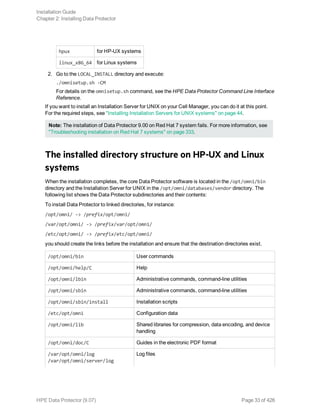
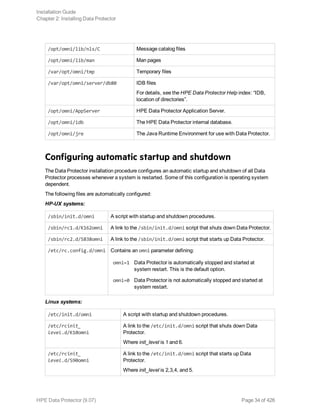
  • 364.
    omnisv stop Note: Ensurethat no instances of the old hostname exists in the following file: /etc/opt/omni/client/components You can execute the following command: "grep -rn /etc/opt/omni/client/components -e "<OLD_HOSTNAME_FQDN>"" 3. Change the Cell Manager hostname entries in the following files: /etc/opt/omni/client/cell_server /etc/opt/omni/server/cell/cell_info /etc/opt/omni/server/config /etc/opt/omni/server/cell/installation_servers /etc/opt/omni/server/users/UserList 4. Regenerate the certificate by executing the following command: # perl -CA /opt/omni/sbin/omnigencert.pl -server_id <NEW_HOSTNAME_FQDN> - server_san dns:<short_hostname>,dns:< NEW_HOSTNAME_FQDN > -user_id hpdp -store_ password <STORE_PASSWORD> Note: You can find the keystorepassword by executing the following command: # grep keystorePassword /etc/opt/omni/client/components/webservice.properties 5. Execute the following command: omnisv start 6. Change the Cell Manager name in the IDB by executing: omnidbutil -change_cell_name 7. Connect to the Cell Manger using the Data Protector GUI and accept the new certificate 8. If a tape device is connected to the Cell Manager, navigate to Devices and Media, and change the hostname in the properties of the tape device. 9. In case of a configured file device: a. To view the configured devices, use the following: "omnidownload -list_libraries [-detail]" and "omnidownload -dev_info" b. To modify the hostname in the Library, navigate to # omnidownload -library <LIBRARY_ NAME> >/tmp/file_lib.txt and edit the file_lib.txt file as follows: # omniupload -modify_library <LIBRARY_NAME> -file /tmp/file_lib.txt c. To modify the hostname in Devices, navigate to # omnidownload -device <DRIVE_NAME> >/tmp/writer_0.txt and edit the writer_0.txt file as follows: # omniupload -modify_device <DRIVE_NAME> -file /tmp/writer_0.txt 10. Delete the backup specification in the Data Protector IDB and recreate a new one. 11. Change the other backup specifications that are affected by the hostname change. 12. Update the UNIX or LINUX clients for the Cell Server hostname change in the following: Installation Guide Appendix B: System preparation and maintenance tasks HPE Data Protector (9.07) Page 364 of 426
  • 365.
    /etc/opt/omni/client/cell_server 13. Update theWindows clients for the Cell Server hostname change in the registry: HKEY_LOCAL_MACHINE -> SOFTWARE -> Hewlett Packard -> OpenView -> OmniBack II -> Site -> CellServer 14. Check the following config file for the old hostname: # grep -rn /etc/opt/omni -e "<OLD_HOSTNAME_FQDN>" Note: It is fine to view the old hostname in the following locations: /etc/opt/omni/server/dr/p1s -> If the system recovery data has been stored in the past. /etc/opt/omni/server/certificates -> old certificate /etc/opt/omni/client/certificates -> old certificate 15. Check the IDB content and export it to the following file: /opt/omni/sbin/omnidbutil -writedb /tmp <ENTER> Note: The dpidb.dat file contains the main part of the Internal Database. Tables where the old hostname can still remain is as follows: dp_frontend_application dp_catalog_object dp_catalog_object_datastream (in case the old device name(s) contain the old hostname) dp_management_session dp_medmng_library (in case the current device name(s) contain the old hostname) dp_medmng_media_pool (in case the old pool name(s) contain the old hostname) dp_medmng_cartridge (in case the old pool name(s) contain the old hostname) Also, the dpjce.dat file contains the Job Control Engine (JCE) database. It contains few URL entries that are essential for advanced scheduler. The old hostname must not exist in this file If you find the old hostname in the jce_service_description table, proceed as follows: a. Login to the hpjce database. Note: You can find the database credentials in /etc/opt/omni/server/idb/idb.config file # grep PGSUPERPASSWORD /etc/opt/omni/server/idb/idb.config PGSUPERPASSWORD='a2ZudGV4cjBpdTZnMg=='; # export PGPASSWORD=`echo 'a2ZudGV4cjBpdTZnMg==' | base64 -d` # echo $PGPASSWORD kfntexr0iu6g2 b. Create a connection. Proceed as follows: Installation Guide Appendix B: System preparation and maintenance tasks HPE Data Protector (9.07) Page 365 of 426
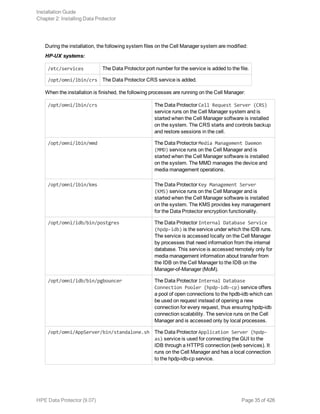
  • 366.
    i. In acommand prompt, navigate to the bin location (/opt/omni/idb/bin/). ii. Execute the following command to login to the hpjce database using the hpdp user: # /opt/omni/idb/bin/psql -h localhost -p 7112 -U hpdp hpdpidb psql (9.1.9) Type "help" for help. iii. Check the current content by executing the following command in the hpjce database: hpjce=# select url from jce_service_description; Note: If you need to change the hostname, execute the following commands: hpjce=# update jce_service_description hpjce-# set url=replace(url, 'old_hostname', 'new_hostname'); hpjce=# q On Windows systems On a Windows Cell Manager, do the following: 1. Change the computer or domain name. Note: Ensure that the new hostname is resolved by DNS by all members and in both directions. Do not continue this procedure, if the name resolution does not work. 2. Execute the following command: omnisv stop 3. Change the Cell Manager name in the following registry keys: HKEY_LOCAL_ MACHINESOFTWAREHewlettPackardOpenViewOmniBackIISiteCellServernewnameHKE Y_LOCAL_MACHINESOFTWAREHewlett-PackardOpenViewOmniBackIIPackagesnewname 4. Navigate to the following file to ensure that no instances of the old hostname still exists: Data_Protector_program_dataConfigclientcomponents Note: Use the Windows find in file function. 5. Change the Cell Manager hostname entries in the following files: Data_Protector_program_dataConfigServerusersUserList Data_Protector_program_dataConfigServerconfig Data_Protector_program_dataConfigServercellcell_info Data_Protector_program_dataConfigServercellinstallation_servers 6. Regenerate the certificate by executing the following command from C:Program FilesOmniBackbin folder: perl omnigencert.pl -server_id <NEW_HOSTNAME> -server_san dns:<hostname>,dns:<FQDN> -user_id hpdp -store_password <PASSWORD> Installation Guide Appendix B: System preparation and maintenance tasks HPE Data Protector (9.07) Page 366 of 426
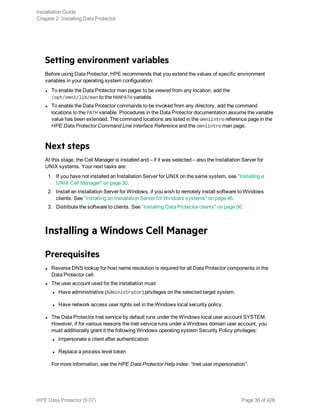
  • 367.
    Note: You canfind the keystorepassword from the following location: Data_Protector_program_dataConfigclientcomponentswebservice.properties 7. Execute the following command: omnisv start 8. Change the Cell Manager name in the IDB by executing: omnidbutil -change_cell_name 9. Connect to the Cell Manger using the Data Protector GUI and accept the new certificate. 10. If a tape device is connected to the Cell Manager, navigate to Devices and Media, and change the hostname in the properties of the tape device. 11. In case of a configured file device: a. To view the configured devices, use the following: "omnidownload -list_libraries [-detail]" and "omnidownload -dev_info" b. To modify the hostname in the Library, navigate to "omnidownload -library <LIBRARY_ NAME> > c:tempfile_lib.txt" and edit the file_lib.txt file as follows: omniupload -modify_library <LIBRARY_NAME> -file c:tempfile_lib.txt c. To modify the hostname in Devices, navigate to "omnidownload -device <Device Name> > c:tempdevice.txt" and edit the device.txt file as follows: omniupload -modify_device <Device Name> -file c:tempdevice.txt 12. Delete the backup specification in the Data Protector IDB and recreate a new one. 13. Change the other backup specifications that are affected by the hostname change. 14. Update the UNIX or LINUX clients for the Cell Server hostname change in the following: /etc/opt/omni/client/cell_server 15. Update the Windows clients for the Cell Server hostname change in the registry: HKEY_LOCAL_MACHINE -> SOFTWARE -> Hewlett Packard -> OpenView -> OmniBack II -> Site -> CellServer 16. Check the following config file using the Windows "find in file" function to search the old hostname: Data_Protector_program_dataConfig Note: It is fine to view the old hostname in the following locations: Data_Protector_program_dataConfigServerdr -> If system recovery has been stored in the past. Data_Protector_program_dataConfigServercertificates -> old certificate Data_Protector_program_dataConfigclientcertificates -> old certificate 17. Check the IDB content and export it to the following file: omnidbutil -writedb e:idb_export <ENTER> Note: The dpidb.dat file contains the main part of the Internal Database. Tables where the Installation Guide Appendix B: System preparation and maintenance tasks HPE Data Protector (9.07) Page 367 of 426
  • 368.
    old hostname canstill remain is as follows: dp_frontend_application dp_catalog_object dp_catalog_object_datastream (in case the old device name(s) contain the old hostname) dp_management_session dp_medmng_library (in case the current device name(s) contain the old hostname) dp_medmng_media_pool (in case the old pool name(s) contain the old hostname) dp_medmng_cartridge (in case the old pool name(s) contain the old hostname) Also, the dpjce.dat file contains the Job Control Engine (JCE) database. It contains few URL entries that are essential for advanced scheduler. The old hostname must not exist in this file. If you find the old hostname in the jce_service_description table, proceed as follows: a. Login to the hpjce database. Note: You can find the database credentials in Data_Protector_program_ dataConfigServeridbidb.config file. You can use the following link to decode the PGSUPERPASSWORD: https://www.base64decode.org b. Create a connection. Proceed as follows: i. In a command prompt, navigate to the bin location (C:Program FilesOmniBackidbbin). ii. Execute the following command to login to the hpjce database using the hpdp user: .psql -h localhost -p 7112 -d hpjce -U hpdp <Enter the decoded password> iii. Check the current content by executing the following command in the hpjce database: hpjce=# select url from jce_service_description; Note: If you need to change the hostname, execute the following commands: hpjce=# update jce_service_description hpjce-# set url=replace(url, 'old_hostname', 'new_hostname'); hpjce=# q Installation Guide Appendix B: System preparation and maintenance tasks HPE Data Protector (9.07) Page 368 of 426
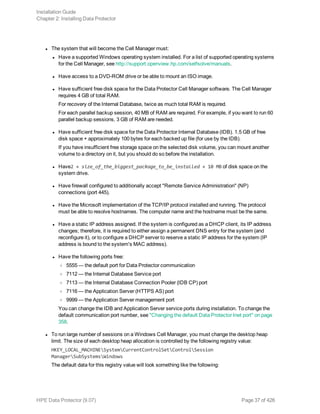
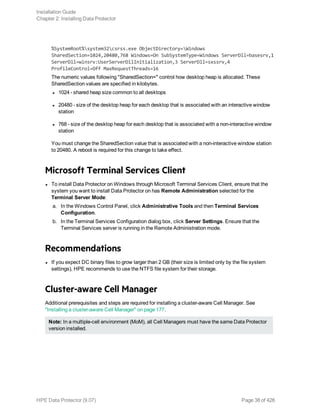
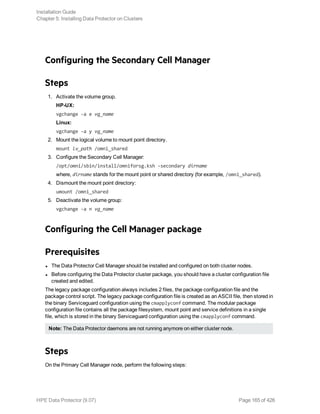
  • 369.
    Changing the hostnamein Job Control Engine (JCE) database On UNIX systems To change the hostname in JCE database with PGADMIN3, proceed as follows: 1. Navigate to /var/opt/omni/server/db80/pg/pg_hba.conf file. 2. Change host all all 127..0.0.1/32 md5 to host all all 10.17.0.0/16 md5. (OR) Change host all all 127..0.0.1/32 md5 to connect to a specific host (host all all 10.17.16.121/32 md5) only. 3. Reload the pg config file and execute the following commands: su hpdp /opt/omni/idb/bin/pg_ctl reload -D /var/opt/omni/server/db80/pg 4. Connect to pgAdmin3. On Windows systems To change the hostname in JCE database using the command line with PGADMIN3, proceed as follows: 1. Execute the following command: omnidbutil –set_passwd hpdp 2. Set the password. 3. Navigate to the C:Program FilesOmniBackidbbin folder and run pgadmin3.exe. The pgAdmin3 program gets started. 4. Add the server by clicking on the plug-in. The New Server Registration window is displayed. 5. In the New Server Registration window, perform the following: a. In the Name field, enter local or as per your requirement. For example, enter jce_service_description. b. In the Host field, enter localhost. c. In the Port field, enter 7112. d. In the Service field, leave it empty. e. In the Maintenance DB field, select hpdpidb. f. In the Username field, enter hpdp. Installation Guide Appendix B: System preparation and maintenance tasks HPE Data Protector (9.07) Page 369 of 426
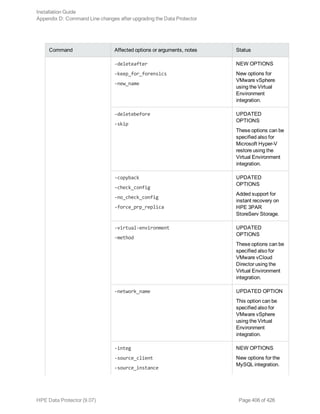
  • 370.
    g. In thePassword field, enter the password that you set with the omnidbutil –set_passwd hpdp command in Step 1. 6. Click OK. 7. In the Object browser area, expand the server that you added by expanding Databases > hpjce > Schemas > hpjce_app > Tables. For example: You can see the jce_service_description table name. Click jce_service_ description. 8. Select the SQL button in the tool bar. You get to view the SQL Editor with the following command: UPDATE jce_service_description SET url=replace (url, ‘old_hostname’, ‘new_hostname’); For example, you can use testHostname.1 as the old_hostname and testHostname as the new_ hostname. Then execute this command with the Play button. In the Data Output tab, you get to view the message stating the number of rows that were changed. Using CLI To change hostname in the JCE database without PGADMIN3, proceed as follows: 1. Execute the following: On Windows system: C:Program FilesOmniBackidbpsql --port=7112 -U hpdp -d hpjce -h localhost On UNIX system: /opt/omni/idb/bin/psql --port=7112 -U hpdp -d hpjce -h localhost 2. Execute the following commands: hpjce=# select url from jce_service_description; hpjce=# update jce_service_description hpjce-# set url=replace(url, 'old_hostname', 'new_hostname'); hpjce=# q Running large backup sessions on Windows Cell Manager To run large number of backup sessions on Windows Cell Manager, you should adjust the desktop heap limit in Windows registry. Desktop heap is controlled by the following registry key: HKEY_LOCAL_MACHINESystemCurrentControlSetControlSession ManagerSubSystemsWindows The default value of this registry key is as follows: %SystemRoot%system32csrss.exe ObjectDirectory=Windows SharedSection=1024,20480,768 Windows=On SubSystemType=Windows ServerDll=basesrv,1 Installation Guide Appendix B: System preparation and maintenance tasks HPE Data Protector (9.07) Page 370 of 426
  • 371.
    ServerDll=winsrv:UserServerDllInitialization,3 ServerDll=sxssrv,4 ProfileControl=Off MaxRequestThreads=16 DataProtector is affected by the SharedSection parameter, which includes the following values: l 1024: Shared heap size common to all desktops. It should not be changed to address issues related to desktop heap exhaustion. l 20480: Size of the desktop heap for each desktop associated with an interactive window station. l 768: Size of the desktop heap for each desktop associated with a non-interactive window station. You should set the third value (768) of the SharedSection parameter to 20480. The modified value of the Windows registry key will look like the following: %SystemRoot%system32csrss.exe ObjectDirectory=Windows SharedSection=1024,20480,20480 Windows=On SubSystemType=Windows ServerDll=basesrv,1 ServerDll=winsrv:UserServerDllInitialization,3 ServerDll=sxssrv,4 ProfileControl=Off MaxRequestThreads=16 Note: Do not set a very high value, as it is in kilobytes. After setting the new value, you must restart the system. Installation Guide Appendix B: System preparation and maintenance tasks HPE Data Protector (9.07) Page 371 of 426
  • 372.
    Appendix C: Deviceand media related tasks This Appendix provides some additional Data Protector specific information about tasks that are beyond the scope of this guide. These tasks include device driver configuration, managing SCSI robotics, maintaining the SCSI environment, and similar. Using tape and robotics drivers on Windows systems Data Protector supports the native tape drivers that are loaded by default for an enabled tape drive attached to a Windows system. The Windows native drivers loaded for Medium changers (robotics) devices are not supported by Data Protector. In the examples below, an HPE 4mm DDS tape device is attached to the Windows system. The native driver loaded for medium changer devices needs to be disabled if the HPE 4mm DDS tape device is connected to the Windows system and will be configured for use with Data Protector. This section describes the related procedures. Tape drivers A driver is usually delivered with Windows, if the device is listed in the Hardware Compatibility List (HCL). HCL is a list of the devices supported by Windows and can be found at the following site: http://www.microsoft.com/whdc/hcl/default.mspx The device drivers then load automatically for all enabled devices once the computer has been started. You do not need to load the native tape driver separately, but you can update it. To update or replace the native tape driver on a Windows system 1. In the Windows Control Panel, double-click Administrative Tools. 2. In the Administrative Tools window, double-click the Computer Management. Click Device Manager. 3. Expand Tape Drives. To check which driver is currently loaded for the device, right-click the tape drive and then click Properties. 4. Select the Driver tab and click Update Driver. Then, follow the wizard, where you can specify if you want to update the currently installed native tape driver or replace it with a different one. 5. Restart the system to apply the changes. If a device has already been configured for Data Protector without using the native tape driver, you have to rename the device files for all configured Data Protector backup devices that reference the particular tape drive (for example, from scsi1:0:4:0 to tape3:0:4:0). For details, see "Creating device files (SCSI Addresses) on Windows systems" on page 374. HPE Data Protector (9.07) Page 372 of 426
  • 373.
    Robotics drivers On Windows,the robotics drivers are automatically loaded for enabled tape libraries. In order to use the library robotics with Data Protector, you have to disable the respective driver. An HPE 1557A tape library using the 4mm DDS tapes is used in the example below. To disable the automatically loaded robotics driver(ddsmc.sys) on a Windows system 1. In the Windows Control Panel, double-click Administrative Tools. 2. In the Administrative Tools window, double-click the Computer Management. Click Device Manager. 3. In the Results Area of the Device Manager window, expand Medium Changers. 4. To check which driver is currently loaded, right-click the 4mm DDS Medium Changer and then Properties. Select the Driver tab and click Driver details. In this case, the following window will display: Medium changer properties To disable the native robotics driver, right-click the 4mm DDS Medium Changer and then select Disable. Disabling robotics drivers Installation Guide Appendix C: Device and media related tasks HPE Data Protector (9.07) Page 373 of 426
  • 374.
    5. Restart thesystem to apply the changes. The robotics can now be configured with Data Protector. Creating device files (SCSI Addresses) on Windows systems The tape device filename syntax depends on whether the native tape driver was loaded (tapeN:B:T:L) or unloaded (scsiP:B:T:L) for a tape drive. Windows using the native tape driver To create a device file for a tape drive connected to a Windows system that uses the native tape driver, proceed as follows: 1. In the Windows Control Panel, double-click Administrative Tools. 2. In the Administrative Tools window, double-click the Computer Management. Expand Removable Storage, then Physical Locations. Right-click the tape drive and select Properties. 3. If the native tape driver is loaded, the device file name is displayed in the General property page. Otherwise, you can find the relevant information in the Device Information property page. See " Tape drive properties " below. Tape drive properties Installation Guide Appendix C: Device and media related tasks HPE Data Protector (9.07) Page 374 of 426
  • 375.
    The file namefor the tape drive in " Tape drive properties " on the previous page is created as follows: Native Tape Driver Used Tape0 or Tape0:0:5:0 Native Tape Driver NOT Used scsii1:0:5:0 Magneto-optical devices If you connect a magneto-optical device to a Windows system, a drive letter is assigned to the device after you restart the system. This drive letter is then used when you create the device file. For example, E: is the device file created for a magneto-optical drive which has been assigned a drive letter E. SCSI robotics configuration on HP-UX systems On HP-UX systems, a SCSI Pass-Through Driver is used to manage the SCSI controller and control device (also referred to as robotics or picker) of the Tape Library devices (like HPE 12000e). The control device in a library is responsible for loading/unloading media to/from the drives and importing/exporting media to/from such a device. SCSI controlled devices Installation Guide Appendix C: Device and media related tasks HPE Data Protector (9.07) Page 375 of 426
  • 376.
    Managing devices The typeof SCSI Robotic Driver in use depends on the hardware. Systems equipped with the GSC/HSC or PCI bus have the SCSI Autochanger Driver named schgr, and systems equipped with the EISA bus have the SCSI Pass-Through Driver named sctl, which is already built in the kernel. However, the SCSI Pass-Through Driver used on HPE Servers with an NIO Bus is named spt. It is installed on the system without being built into the kernel by default. If the SCSI Robotic Driver driver has not already been linked to your current kernel, you have to add it yourself and assign it to the robotics of the connected Tape libraries. Installation Guide Appendix C: Device and media related tasks HPE Data Protector (9.07) Page 376 of 426
  • 377.
    The steps beneathexplain how to manually add the SCSI Robotic Driver to the kernel and manually rebuild a new one. Tip: On the HP-UX platform, you can also build the kernel using the HPE System Administration Manager (SAM) utility. See "Installing HP-UX clients " on page 68. Use the /opt/omni/sbin/ioscan -f command to check whether or not the SCSI Robotic Driver is assigned to the library that you want to configure. Status of the SCSI pass-through driver (sctl) In " Status of the SCSI pass-through driver (sctl) " above, you can see the sctl SCSI Pass-Through Driver assigned to the control device of the Exabyte tape device. The matching hardware path (H/W Path) is 8/12.2.0. (SCSI=2, LUN=0) There is also a tape drive connected to the same SCSI bus, but the driver controlling the tape drive is stape. The matching hardware path (H/W Path) is 8/12.1.0. (SCSI=0, LUN=0) The SCSI address 7 is always used by SCSI controllers, although the corresponding line may not appear in the output of the ioscan -f command. In this example, the controller is managed by sctl. Status of the SCSI pass-through driver (spt) Installation Guide Appendix C: Device and media related tasks HPE Data Protector (9.07) Page 377 of 426
  • 378.
    In " Statusof the SCSI pass-through driver (spt) " on the previous page, you can see an example of a connected tape device with robotics controlled by the spt SCSI Pass-Through Driver. The particular device is an HPE 12000e tape library device that uses the SCSI address 4 and is connected to the SCSI bus with the H/W Path 52. The matching hardware path is 52.4.1. The robotics is correctly assigned to the spt SCSI Pass-Through Driver. If the sctl, spt, or schgr driver is not assigned to the robotics, you have to add the H/W Path of the robotics to the driver statement in the system file and rebuild the kernel. Follow the procedure below. The following procedure explains how to manually add a SCSI Robotic Driver to the kernel, assign it to the robotics, and then manually rebuild a new kernel: 1. Login as a root user and switch to the build directory: cd /stand/build 2. Create a new system file from your existing kernel: /usr/lbin/sysadm/system_prep -s system 3. Check which SCSI Robotic Driver is already built in your current kernel. From the /stand directory, execute the following command: grep SCSIRoboticDriver system where the SCSIRoboticDriver can be either spt, sctl, or schgr. The system will display the corresponding line if the driver is already built in the current kernel. 4. Use an editor to append a driver statement: driver H/W Path spt to the /stand/build/system file, where H/W Path is the complete hardware path of the device. For the HPE 12000e Tape library from the previous example you would enter: driver 52.4.1 spt For several libraries connected to the same system, you have to add a driver line for each library robotics with the appropriate hardware path. When configuring the schgr driver, append the following line to a driver statement: schgr Installation Guide Appendix C: Device and media related tasks HPE Data Protector (9.07) Page 378 of 426
  • 379.
    5. Enter themk_kernel -s./system command to build a new kernel. 6. Save the original old system file using a different name and move the new system file to the original name so that it becomes the current one: mv /stand/system /stand/system.prev mv /stand/build/system /stand/system 7. Save the old kernel with a different name and move the new kernel to the original name so that it becomes the current one: mv /stand/vmunix /stand/vmunix.prev mv /stand/vmunix_test /stand/vmunix 8. Restart the system from the new kernel by entering the following command: shutdown -r 0 9. Once you have restarted the system, verify the changes you have made using the /usr/sbin/ioscan -f command. Creating device files on HP-UX systems Prerequisites Before you create a device file, you should have the backup device already connected to the system. Use the /usr/sbin/ioscan -f command to check whether the device is properly connected. Use the /usr/sbin/infs -e command to create device files for some backup devices automatically. If the device files that correspond to a particular backup device have not been created during the system initialization (boot process) or after running the infs -e command, you have to create them manually. This is the case with the device files required to manage the library control device (library robotics). We will use an example of creating a device file for the robotics of the HPE 12000e library device connected to an HP-UX system. The device file for the tape drive has already been created automatically after the restart of the system, while the device file for the control device must be created manually. In " Status of the SCSI pass-through driver (spt) " on page 377, you can see the output of the ioscan - f command on the selected HP-UX system. List of connected devices Installation Guide Appendix C: Device and media related tasks HPE Data Protector (9.07) Page 379 of 426
  • 380.
    The SCSI businterface is controlled by the scsi1 system driver. This is a SCSI NIO interface. To access the library robotics on the SCSI NIO bus we must use the spt SCSI Pass-Through driver that is already installed and assigned to the robotics of the HPE 12000e Tape device that uses the hardware path 52.4.1. Note: If you do not use a SCSI NIO based bus interface, the spt driver is not required but the sctl driver is used instead. To create the device file, you need to know the Major number character of the SCSI Pass-Through driver and the Minor Number character, which does not depend on the SCSI Pass-Through driver you use. To obtain the character Major number belonging to spt,run the system command: lsdev -d spt In the example (see " List of connected devices " on the previous page) the command reported the Major number character 75. To obtain the character Major number belonging to sctl, run the system command: lsdev -d sctl In our case, the command reported the Major number character 203. The Minor Number character, regardless of which SCSI Pass-Through driver is in use, has the following format: 0xIITL00 II -> The Instance number of the SCSI bus interface (NOT of the device) reported by the ioscan -f output is in the second column, labeled with I. In the example, the instance number is 0, so we must enter two hexadecimal digits, 00. T -> The SCSI address of the library robotics. In the example, the SCSI address is 4, so we must enter 4. L -> The LUN number of the library robotics. In the example, the LUN number is 1, so we must enter 1. Installation Guide Appendix C: Device and media related tasks HPE Data Protector (9.07) Page 380 of 426
  • 381.
    00 -> Twohexadecimal zeroes. Creating the device file The following command is used to create the device file: mknod /dev/spt/devfile_name c Major # Minor # Usually the device files for spt are located in the /dev/spt or /dev/scsi directory. In this case, we will name the control device file /dev/spt/SS12000e. Thus, the complete command for creating a device file named SS12000e in the /dev/spt directory is: mknod /dev/spt/SS12000e c 75 0x004100 If we create a device file for sctl, which is named SS12000e and located in the /dev/scsi directory, the complete command is: mknod /dev/scsi/SS12000e c 203 0x004100 Setting a SCSI controller’s parameters Data Protector allows you to change the device’s block size, which might require additional configuration on some SCSI controllers. On Windows systems, set the SCSI controller’s parameters by editing the registry value for Adaptec SCSI controllers, and for some controllers with Adaptec's chipsets: 1. Set the following registry value:HKEY_LOCAL_MACHINESYSTEMCurrentControlSetServices aic78xxParametersDevice0MaximumSGList 2. Enter a DWORD value containing the number of 4 kB blocks, increased by one. MaximumSGList = (OBBlockSize in kB / 4) + 1 For example, to enable block sizes up to 260 kB, MaximumSGList has to be at least (260 / 4) + 1 = 66. 3. Restart the system. Note: This registry value sets the upper limit of the block size. The actual block size for a device must be configured using the Data Protector GUI for device configuration. Finding the unused SCSI addresses on HP-UX systems A backup device connected to an HP-UX system is accessed and controlled through a device file that must exist for each physical device. Before you can create the device file, you have to find out which SCSI addresses (ports) are still unused and available for a new device. Installation Guide Appendix C: Device and media related tasks HPE Data Protector (9.07) Page 381 of 426
  • 382.
    On HP-UX systems,the /usr/sbin/ioscan -f system command is used to display the list of the SCSI addresses that are already occupied. Thus, the addresses not listed in the output of the /usr/sbin/ioscan -f command are still unused. In " Output of the ioscan -f command on an HP-UX system " below, there is the output of the /usr/sbin/ioscan -f command on an HP-UX 11.x system. Output of the ioscan -f command on an HP-UX system Only the third (H/W Path) and the fifth (S/W State) columns are relevant for the purpose of determining the available SCSI addresses. A dismembered (H/W Path) format would look like this: SCSI_bus_H/W_Path. SCSI_address. LUN_number In this particular case, there is just one SCSI bus, using the H/W Path 52. On this bus, you can use the SCSI addresses 0 and 3 because they do not appear in the list. You can see in " Output of the ioscan -f command on an HP-UX system " above which SCSI addresses on the selected SCSI bus are already occupied: l SCSI address 1 by a SCSI disk l SCSI address 2 by a CD-ROM l SCSI address 4, LUN 0, by a tape drive l SCSI address 4, LUN 1, by the tape library robotics l SCSI address 5 by a SCSI disk l SCSI address 6 by a SCSI disk l SCSI address 7 by a SCSI controller Note: The SCSI address number 7 is not listed although it is, by default, occupied by the SCSI controller. All devices have the S/W State value set to CLAIMED and the H/W Type value set to H/W DEVICE, meaning that the devices are currently connected. If there was an UNCLAIMED value in the S/W State or NO-HW in the H/W Type column it would mean that the system cannot access the device. Installation Guide Appendix C: Device and media related tasks HPE Data Protector (9.07) Page 382 of 426
  • 383.
    The SCSI address4 is claimed by the tape library that has the tape drive with LUN 0 and the robotics with LUN 1. The drive is controlled by the tape2 driver and the robotics is controlled by the spt SCSI Pass-Through driver. Looking at the description, you can see that the device is an HPE 12000e library; it is easily recognized among the SCSI libraries because it uses the same SCSI address for the tape drive and robotics but uses different LUNs. The whole SCSI bus is controlled by the scsi1 interface module. Finding the unused SCSI target IDs on Solaris systems A backup device connected to a Solaris system is accessed and controlled through a device file. This device file is created automatically by the Solaris operating system, in the directory /dev/rmt, when the backup device is connected and the client system and backup device are powered up. Before the backup device is connected, however, the available SCSI addresses must be checked and the address of the backup device set to an address not already allocated. To list the available SCSI addresses on a Solaris system 1. Stop the system by pressing Stop and A. 2. Run the probe-scsi-all command at the ok prompt: probe-scsi-all You may be asked by the system to start the reset-all command before executing the probe- scsi-all command. 3. To return to normal operation, enter go at the ok prompt: go After listing the available addresses and choosing one to use for your backup device, you must update the relevant configuration files before connecting and starting up the device. See the next section for instructions on updating the configuration files. Updating the device and driver configuration on Solaris systems Updating configuration files The following configuration files are used for device and driver configuration. They must be checked, and if necessary, edited before attached devices can be used: l st.conf l sst.conf Installation Guide Appendix C: Device and media related tasks HPE Data Protector (9.07) Page 383 of 426
  • 384.
    st.conf: all devices Thisfile is required on each Data Protector Solaris client with a tape device connected. It must contain device information and one or more SCSI addresses for each backup device connected to that client. A single SCSI entry is required for a single-drive device and multiple SCSI entries are required for a multi- drive library device. 1. Check the unused SCSI addresses on the client, as described in the previous section, and choose an address for the device you want to attach. 2. Set the chosen SCSI address(es) on the backup device. 3. Power down the client system. 4. Attach the backup device. 5. First power up the device and then the client system. 6. Stop the system by pressing Stop and A. 7. Enter the probe-scsi-all command at the ok prompt: probe-scsi-all This will provide information on the attached SCSI devices, including the correct device ID string for the newly attached backup device. 8. Return to normal running: go 9. Edit the /kernel/drv/st.conf file. This file is used by the Solaris st (SCSI tape) driver. It contains a list of devices officially supported by Solaris and a set of configuration entries for third party devices. If you are using a supported device, it should be possible to connect the device and use it without any further configuration. Otherwise, you should add the following types of entries to st.conf: l A tape configuration list entry (plus a tape data variable definition). Example entries are supplied in the file, commented out. You can use one of these, if applicable, or modify one to suit your needs. The entry must come before the first name= entry in the file and the required format is as follows: tape-config-list= "Tape unit", "Tape reference name", "Tape data"; where: Tape unit The vendor and product ID string for the tape device. This must be correctly specified as described in the device manufacturer’s documentation. Tape reference name The name you choose, by which the system will identify the tape device. The name you provide does not change the tape product ID, but when the system boots, the reference name will be displayed in the list of peripheral devices recognized by the system. Tape data A variable that references a series of additional tape device configuration items. The variable definition must also be supplied and be correctly specified, as described in the device manufacturer’s documentation. For example: Installation Guide Appendix C: Device and media related tasks HPE Data Protector (9.07) Page 384 of 426
  • 385.
    tape-config-list= “Quantum DLT4000”,“Quantum DLT4000”, “DLT-data”; DLT-data = 1,0x38,0,0xD639,4,0x80,0x81,0x82,0x83,2; The second parameter, 0x38, designates the DLTtape tape type as "other SCSI drive". The value specified here should be defined in /usr/include/sys/mtio.h. Note: Ensure that the last entry in the tape-config-list is terminated with a semi-colon (;). l For multidrive devices, target entries as follows: name="st" class="scsi" target=X lun=Y; where: X is the SCSI port assigned to the data drive (or robotic mechanism). Y is the logical unit value. For example: name="st" class="scsi" target=1 lun=0; name="st" class="scsi" target=2 lun=0 Normally target entries are required in st.conf only for the drives, not for the robotics mechanism, which is on a different target. Entries for these are usually provided in the sst.conf file (see below). However, there are some devices, for example the HPE 24x6, that treat the robotics mechanism similar to another drive. In this case two entries with the same target are required (one for the drive and one for the robotics), but with different LUNs. For example: name="st" class="scsi" target=1 lun=0; name="st" class="scsi" target=1 lun=1 sst.conf: library devices This file is required on each Data Protector Solaris client to which a multi-drive library device is connected. Generally speaking, it requires an entry for the SCSI address of the robotic mechanism of each library device connected to the client (there are some exceptions, such as the HPE 24x6 mentioned in the previous section). 1. Copy the sst driver (module) and configuration file sst.conf to the required directory: l For 32-bit operating systems: $cp /opt/omni/spt/sst /usr/kernel/drv/sst $cp /opt/omni/spt/sst.conf /usr/kernel/drv/sst.conf l For 64-bit operating systems: Installation Guide Appendix C: Device and media related tasks HPE Data Protector (9.07) Page 385 of 426
  • 386.
    $cp /opt/omni/spt/sst.64bit /usr/kernel/drv/sparcv9/sst $cp /opt/omni/spt/sst.conf /usr/kernel/drv/sst.conf 2. Edit the sst.conf file and add the following entry: name="sst" class="scsi" target=X lun=Y; where: X is the SCSI address of the robotic mechanism. Y is the logical unit. For example: name="sst" class="scsi" target=6 lun=0; 3. Add the driver to the Solaris kernel: add_drv sst Creating and checking device files After setting up the configuration files and installing the drivers, you can create new device files as follows: 1. Remove all existing device files from the /dev/rmt directory: cd /dev/rmt rm * 2. Enter the following to shut down the system: shutdown -i0 -g0 3. Restart the system: boot -rv The r switch in the boot command enables a kernel compile and includes the creation of device special files used for communication with the tape device. The v switch enables verbose mode display of system startup. With verbose mode, the system should indicate that the device is attached by displaying the Tape reference name string you selected during the /devices directory configuration phase of boot. 4. Enter the following command to verify the installation: mt -t /dev/rmt/0 status The output of this command depends on the configured drive. It will be similar to the following: Quantum DLT7000 tape drive: sense key(0x6)= Unit Attention residual= 0 retries= 0 file no= 0 block no= 0 5. When the system restart has completed, you can check the device files that have been created using the command ls -all. For a library device, the output of this command might be: /dev/rmt/0hb for a first tape drive /dev/rmt/1hb for a second tape drive /dev/rsst6 for a robotic drive Installation Guide Appendix C: Device and media related tasks HPE Data Protector (9.07) Page 386 of 426
  • 387.
    Finding unused SCSItarget IDs on Windows systems To determine the unused SCSI Target IDs (SCSI Addresses) on a Windows system 1. In the Windows Control Panel, click SCSI Adapters. 2. For each device connected to a SCSI Adapter in the list, check its properties. Double-click the name of a device, and then click Settings to open the property page. See " Device settings " below. Remember the SCSI Target IDs and LUNs(Logical Unit Numbers) assigned to the device. This way you can find out which SCSI Target IDs and LUNs are already occupied. Device settings Setting SCSI IDs on an HPE 330fx library Once you have chosen the unused SCSI IDs for the robotics and drives, you can check and configure them using the Control Panel of the library device. Example If you have a library model HPE 330fx, you can find the configured SCSI IDs as follows: Installation Guide Appendix C: Device and media related tasks HPE Data Protector (9.07) Page 387 of 426
  • 388.
    1. From theREADY state, press NEXT, and then ADMIN* will appear. 2. Press ENTER, and then you will be asked for the password. Enter the password. 3. TEST* will appear, press NEXT until SCSI IDs * appears. 4. Press ENTER. VIEW IDs* appears. 5. Press ENTER. JKBX ID 6 LUN 0 appears. 6. Press NEXT. DRV 1 ID 5 LUN 0 appears. 7. Press NEXT. DRV 2 ID 4 LUN 0 appears, and so on. You can return to the READY state by pressing CANCEL several times. Connecting backup devices The following procedure describes the general steps to follow in order to connect a backup device to an HP-UX, Solaris, Linux, or Windows system. 1. Select the client to which you will connect the backup device. 2. Install a Media Agent on the selected system. See "Remote installation" on page 91. 3. Determine the unused SCSI address that can be used by the device. For HP-UX systems, see "Finding the unused SCSI addresses on HP-UX systems" on page 381. For Solaris systems, see "Finding the unused SCSI target IDs on Solaris systems" on page 383. For a Windows system, see "Finding unused SCSI target IDs on Windows systems" on the previous page. l If connecting to an HP-UX system, check that the required drivers are installed and built into the current kernel. See "Checking the kernel configuration on HP-UX" on page 70. If you need to configure a SCSI Pass-Through Driver, see "SCSI robotics configuration on HP- UX systems" on page 375. l If connecting to a Solaris system, check that the required drivers are installed and the configuration files are updated for the device to be installed. See "Updating the device and driver configuration on Solaris systems" on page 383. This also tells you how to update the sst.conf file if you need to configure a SCSI Pass-Through Driver. l If connecting to a Windows client, the native tape driver can be loaded or disabled, depending on the Windows system version. See "Using tape and robotics drivers on Windows systems" on page 372. If you load the native tape driver for a device which has been already configured in Data Protector and did not use the native tape driver, make sure that you rename the device filenames for all configured Data Protector logical devices that reference this specific device (for example, from scsi1:0:4:0 to tape3:0:4:0). For more information on an appropriate device filename, see "Creating device files (SCSI Addresses) on Windows systems" on page 374. 4. Set the SCSI addresses (IDs) on the device. Depending on the device type, this can be usually done using the switches on the device. For details, see the documentation that comes with the device. For an example, see "Setting SCSI IDs on an HPE 330fx library" on the previous page. Installation Guide Appendix C: Device and media related tasks HPE Data Protector (9.07) Page 388 of 426
  • 389.
    For details aboutsupported devices, see http://support.openview.hp.com/selfsolve/manuals. Note: On a Windows systems with the Adaptec SCSI adapter installed and a SCSI device connected, the Host Adapter BIOS option must be enabled so that the system does not have problems issuing SCSI commands. To set the Host Adapter BIOS option, press Ctrl+A during the boot of the system to enter the SCSI Adapter menu, then select Configure/View Host Adapter Settings > Advanced Configuration Options and enable Host Adapter BIOS. 5. First, switch on the device, and then the computer, and then wait until the boot process completes. Verify that the system correctly recognizes your new backup device. Windows systems: You can verify that the system correctly recognizes your new backup device if you use the devbra utility. In the default Data Protector commands directory, execute the devbra -dev command. In the output of the devbra command you will find the following lines for each connected and properly recognized device: backup device specification hardware_path media_type ........... For example, the following output: HP:C1533A tape3:0:4:0 DDS ... ... means that an HPE DDS tape device (with the native tape driver loaded) has the Drive instance number 3, and is connected to the SCSI bus 0, the SCSI Target ID 4 and LUN number 0. Or, the following output: HP:C1533A scsi1:0:4:0 DDS ... ... means that an HPE DDS tape device (with the native tape driver unloaded) is connected to the SCSI port 1, SCSI bus 0, and the tape drive has the SCSI Target ID 4, and LUN number 0. HP-UX systems: Run the command /usr/sbin/ioscan -fn to display a list of connected devices with the corresponding hardware paths and device files, where you should find your newly connected device with the correct SCSI addresses. If the device file has not been created automatically during the system startup process, you should create it manually. See "Creating device files on HP-UX systems" on page 379. Installation Guide Appendix C: Device and media related tasks HPE Data Protector (9.07) Page 389 of 426
  • 390.
    Solaris systems: Runthe ls -all command on the /dev/rmt directory to display a list of connected devices with the corresponding hardware paths and device files, where you should find your newly connected device with the correct SCSI addresses. Linux systems: Run the ls -all command on the /dev/rmt directory to display a list of connected devices with the corresponding hardware paths and device files, where you should find your newly connected device with the correct SCSI addresses. AIX systems: Run the command lsdev -C to display the list of connected devices with the corresponding device files. Hardware compression Most modern backup devices provide built-in hardware compression that can be enabled when you create a device file or SCSI address in the device configuration procedure. For detailed steps, see the HPE Data Protector Help. Hardware compression is done by a device that receives the original data from a Media Agent client and writes it to the tape in compressed mode. Hardware compression increases the speed at which a tape drive can receive data, because less data is written to the tape. When software compression is used and hardware compression is disabled, the data is compressed by the Disk Agent and sent compressed to a Media Agent. The compression algorithm can take a substantial amount of resources from the Disk Agent system if software compression is used, but this reduces the network load. To enable hardware compression on Windows systems, add “C” to the end of the device/drive SCSI address, for example: scsi:0:3:0C (or tape2:0:1:0C if tape driver is loaded). If the device supports hardware compression, it will be used, otherwise the C option will be ignored. To disable hardware compression on Windows systems, add “N” to the end of the device/drive SCSI address, for example: scsi:0:3:0:N. To enable/disable hardware compression on UNIX systems, select a proper device file. Consult the device and operating system documentation for details. Next steps At this stage, you should have the backup devices connected that enable you to configure backup devices and media pools. For more information about further configuration tasks, see the HPE Data Protector Help index: “configuring, backup devices”. You must have a Media Agent installed on your system. See "Remote installation" on page 91. The following sections describe how to connect an HPE Standalone 24 Tape Device, HPE 12000e Library, and HPE DLT Library 28/48-Slot to an HP-UX and a Windows system. Connecting an HPE 24 standalone device The 24 DDS backup device is a standalone tape drive based on DDS3 technology. Installation Guide Appendix C: Device and media related tasks HPE Data Protector (9.07) Page 390 of 426
  • 391.
    Connecting to anHP-UX system To connect the HPE 24 Standalone device to an HP-UX system 1. Check that the required drivers (stape or tape2)are installed and built into the current kernel. See "Checking the kernel configuration on HP-UX" on page 70. 2. Determine an unused SCSI address that can be used by the tape drive. See "Finding the unused SCSI addresses on HP-UX systems" on page 381. 3. Set the SCSI addresses (IDs) on the device. Use the switches at the back of the device. For details, see the documentation that comes with the device. 4. First, switch on the device, and then the computer, and wait until the boot process completes. 5. Verify that the system correctly recognizes the newly connected tape drive. Use the ioscan utility: /usr/sbin/ioscan -fn to display a list of connected devices with the corresponding hardware paths and device files, where you should find your newly connected tape drive, which has the correct SCSI address. The device file for the drive has been created during the boot process. Next steps After properly connecting the device, see the HPE Data Protector Help index: “configuring, backup devices” for instructions about configuring a Data Protector backup device for your newly connected device. Connecting to a Windows system To connect the HPE 24 Standalone device to a Windows system 1. Determine an unused SCSI address (Target ID) that can be used by the tape drive. See "Finding unused SCSI target IDs on Windows systems" on page 387. 2. Set the SCSI addresses (IDs) on the device. Use the switches at the back of the device. For details, see the documentation that comes with the device. 3. First, switch on the device, and then the computer, and then wait until the boot process completes. 4. Verify that the system correctly recognizes the newly connected tape drive. In the Data Protector commands directory, execute the devbra -dev command. In the output of the devbra command, you should find the newly connected tape drive of the HPE 24 Standalone device. What’s next? After properly connecting the device, see the HPE Data Protector Help index: “configuring, backup devices” for instructions about configuring a Data Protector backup device for your newly connected Installation Guide Appendix C: Device and media related tasks HPE Data Protector (9.07) Page 391 of 426
  • 392.
    device. Connecting an HPEDAT Autoloader Both the HPE 12000e and the DAT24x6 libraries have a repository for six cartridges, one drive, and one robotic arm used for moving cartridges to and from the drive. The two libraries also have built-in dirty tape detection. Connecting to an HP-UX system To connect the HPE 12000e library device to an HP-UX system 1. On the rear side of the autoloader, set the mode switch to 6. 2. Check that the required drivers (stape or tape2)are installed and built into the current kernel. See "Checking the kernel configuration on HP-UX" on page 70. 3. Check that the required SCSI Pass-Through drivers (sctl or spt) are installed and built into the current kernel. See "SCSI robotics configuration on HP-UX systems" on page 375. 4. Determine an unused SCSI address that can be used by the tape drive and the robotics. See "Finding the unused SCSI addresses on HP-UX systems" on page 381. Note: The HPE 12000e Library uses the same SCSI address for the tape drive and for the robotics, but uses different LUN numbers. 5. Set the SCSI addresses (IDs) on the device. For details, see the documentation that comes with the device. 6. First, switch on the device, and then the computer, and then wait until the boot process completes. 7. Verify that the system correctly recognizes the newly connected tape drive. Use the ioscan utility /usr/sbin/ioscan -fn to display a list of connected devices with the corresponding hardware paths and device files, where you should find your newly connected tape drive, having the correct SCSI address. 8. The device file for the drive has been created during the boot process, while the device file for the robotics must be created manually. See "Creating device files on HP-UX systems" on page 379. 9. Verify that the system correctly recognizes the newly created device file for the library robotics. Run the ioscan utility: /usr/sbin/ioscan -fn You should see your newly created device file in the output of the command. Next steps After properly connecting the library device, see the HPE Data Protector Help index: “configuring, backup devices” for instructions about configuring a Data Protector backup device for your newly connected device. Installation Guide Appendix C: Device and media related tasks HPE Data Protector (9.07) Page 392 of 426
  • 393.
    Connecting to aWindows system To connect the HPE 12000e library device to a Windows system 1. On the rear side of the autoloader, set the mode switch to 6. 2. Determine an unused SCSI address that can be used by the tape drive and for the robotics. See "Finding unused SCSI target IDs on Windows systems" on page 387. 3. Set the SCSI addresses (IDs) on the device. For details, see the documentation that comes with the device. Note: The HPE 12000e Library uses the same SCSI address for the tape drive and for the robotics, but uses different LUN numbers. 4. First, switch on the device, and then the computer, and wait until the boot process completes. 5. Verify that the system correctly recognizes the newly connected tape drive and the robotics. In the default Data Protector commands directory, execute the devbra -dev command. In the output of the devbra command, you should find the newly connected tape drive and the robotics of the HPE 12000e Library device. Next steps After properly connecting the library device, see the HPE Data Protector Help index: “configuring, backup devices” for instructions about configuring a Data Protector backup device for your newly connected device. Connecting an HPE DLT Library 28/48-Slot The HPE DLT Library 28/48-Slot is a multi-drive library for enterprise environments with 80-600 GB to back up. It has four DLT 4000 or DLT 7000 drives with multiple data channels, a mail slot, and a barcode reader. Connecting to an HP-UX system To connect the HPE DLT Library 28/48-Slot library device to an HP-UX system 1. Check that the required drivers (stape or tape2) drivers are installed and built into the current kernel. See "Checking the kernel configuration on HP-UX" on page 70. 2. Check that the required SCSI Pass-Through drivers (sctl or spt) are installed and built into the current kernel. See "SCSI robotics configuration on HP-UX systems" on page 375. 3. Determine an unused SCSI address that can be used by the tape drive and the robotics. See "Finding the unused SCSI addresses on HP-UX systems" on page 381. Note: The HPE DLT Library 28/48-Slot has four tape drives and the robotics, so you need five unused SCSI addresses in case you will be using all tape drives. The tape drives and the Installation Guide Appendix C: Device and media related tasks HPE Data Protector (9.07) Page 393 of 426
  • 394.
    robotics must usedifferent SCSI addresses. 4. Set the SCSI addresses (IDs) on the device. For details, see the documentation that comes with the device. 5. Switch on the device, and then the computer, and wait until the boot process completes. 6. Verify that the system correctly recognizes the newly connected tape drives. Use the ioscan utility /usr/sbin/ioscan -fn to display a list of connected devices with the corresponding hardware paths and device files, where you must find your newly connected tape drives, having the correct SCSI addresses. 7. The device files for the drives have been created during the boot process, while the device file for the robotics must be created manually. See "Creating device files on HP-UX systems" on page 379. 8. Verify that the system correctly recognizes the newly created device file for the library robotics. Use the ioscan utility: /usr/sbin/ioscan -fn You should see your newly created device file in the output of the command. Next steps After properly connecting the HPE DLT Library 28/48-Slot library device, see the HPE Data Protector Help index: “configuring, backup devices” for instructions about configuring a Data Protector backup device for your newly connected device. Connecting to a Solaris system For this example, it is assumed that two drives are to be allocated to Data Protector. To configure the HPE C5173-7000 library device on a Solaris system 1. Copy the sst driver (module) and configuration file sst.conf to the required directory: l For 32-bit operating systems: $cp /opt/omni/spt/sst /usr/kernel/drv/sst $cp /opt/omni/spt/sst.conf /usr/kernel/drv/sst.conf l For 64-bit operating systems: $cp /opt/omni/spt/sst.64 /usr/kernel/drv/sparcv9 /sst $cp /opt/omni/spt/sst.conf /usr/kernel/drv /sparcv9/sst.conf 2. Add the driver to the Solaris kernel: add_drv sst 3. Remove all existing device files from the /dev/rmt directory: cd /dev/rmt rm * Installation Guide Appendix C: Device and media related tasks HPE Data Protector (9.07) Page 394 of 426
  • 395.
    4. Stop thesystem by pressing Stop and A. 5. Run the probe-scsi-all command at the "ok" prompt to check which SCSI addresses are available for use. ok probe-scsi-all The system may ask you to start the reset-all command before executing the probe-scsi-all command. In our case, we will use port 6 for the SCSI control device, port 2 for the first drive, and port 1 for the second drive; lun is 0) 6. Return to normal running: ok go 7. Copy the st.conf configuration file into the required directory: $cp /opt/omni/spt/st.conf /kernel/drv/st.conf The st.conf file is present on each Solaris Data Protector client and contains SCSI addresses for each backup device connected to the client. 8. Edit the /kernel/drv/st.conf file and add the following lines: tape-config-list= "QUANTUM DLT7000", "Digital DLT7000", "DLT-data3"; DLT-data3 = 1,0x77,0,0x8639,4,0x82,0x83,0x84,0x85,3; name="st" class="scsi" target=1 lun=0; name="st" class="scsi" target=2 lun=0; name="st" class="scsi" target=6 lun=0; These entries provide the SCSI addresses for drive 1, drive 2, and the robotic drive, respectively. 9. Edit the sst.conf file (that you copied across in "Copy the sst driver (module) and configuration file sst.conf to the required directory:" on the previous page and add the following line: name="sst" class="scsi" target=6 lun=0; Note: This entry must match that for the robotic drive in the st.conf file. See "Edit the /kernel/drv/st.conf file and add the following lines: " above above. 10. Power down the client system and attach the library device. 11. Power up the library device first and then the client system. The system will now boot and automatically create device files for the robotic drive and tape drives. These can be listed using the command ls -all. In our case: /dev/rmt/0hb for a first tape drive /dev/rmt/1hb for a second tape drive /dev/rsst6 for a robotic drive Installation Guide Appendix C: Device and media related tasks HPE Data Protector (9.07) Page 395 of 426
  • 396.
    What’s next? After properlyconnecting the HPE DLT Library 28/48-Slot library device, see the HPE Data Protector Help index: “configuring, backup devices” for instructions about configuring a Data Protector backup device for your newly connected device. Connecting to a Windows system To connect the HPE DLT 28/48-Slot library device to a Windows system 1. Determine the unused SCSI addresses (Target IDs) that can be used by the tape drive and by the robotics. See "Finding unused SCSI target IDs on Windows systems" on page 387. 2. Set the SCSI addresses (Target IDs) on the device. For details, see the documentation that comes with the device. Note: The HPE DLT Library 28/48-Slot has four tape drives and the robotics, so you need five unused SCSI addresses in case you will be using all tape drives. The tape drives and the robotics must use different SCSI Target IDs. 3. First, switch on the device, then the computer, and then wait until the boot process completes. 4. Verify that the system correctly recognizes the newly connected tape drives and the robotics. In the default Data Protector commands directory, execute the devbra -dev command. In the output of the devbra command, you should find the newly connected tape drives and the robotics of the HPE DLT Library 28/48-Slot library device. Next steps After properly connecting the HPE DLT Library 28/48-Slot library device, see the HPE Data Protector Help index: “configuring, backup devices” for instructions about configuring a Data Protector backup device for your newly connected library device. Connecting a Seagate Viper 200 LTO Ultrium Tape Drive The Seagate Viper 200 LTO Ultrium Tape Drive is a standalone device for enterprise environments with 100-200 GB to back up. Connecting to a Solaris system To configure the Seagate Viper 200 LTO Ultrium Tape Drive on a Solaris system 1. Determine the unused SCSI addresses that can be used by the tape drive. Run the modinfo or dmesg command to find the SCSI controllers in use and the SCSI target devices installed: Installation Guide Appendix C: Device and media related tasks HPE Data Protector (9.07) Page 396 of 426
  • 397.
    dmesg | egrep“target” | sort | uniq The following output should be received: sd32 at ithps0: target 2 lun 0 sd34 at ithps0: target 4 lun 0 st21 at ithps1: target 0 lun 0 st22 at ithps1: target 1 lun 0 Note: It is recommended that you use either a glm or isp SCSI controller when connecting the Viper 200 LTO device to a Solaris system. It is also recommended that you use either Ultra2 SCSI or Ultra3 SCSI controllers. 2. Edit the /kernel/drv/st.conf file and add the following lines: tape-config-list= “SEAGATE ULTRIUM06242-XXX” , “SEAGATE LTO” , “SEAGATE_LTO”; SEAGATE_LTO = 1, 0x7a, 0, 0x1d679, 4, 0x00, 0x00, 0x00, 0x00, 1; 3. Power down the client system and attach the device. 4. Power up the device first and then the client system. The system will now boot and automatically create device files for the tape drive. These can be listed using the command ls -all. What’s next? After properly connecting the Seagate Viper 200 LTO Ultrium Tape Drive, see the HPE Data Protector Help index: “configuring, backup devices” for instructions about configuring a Data Protector backup device for your newly connected device. Connecting to a Windows system To connect the Seagate Viper 200 LTO Ultrium Tape Drive to a Windows system 1. Determine the unused SCSI addresses (Target IDs) that can be used by the tape drive. See "Finding unused SCSI target IDs on Windows systems" on page 387. 2. Set the SCSI addresses (Target IDs) on the device. For details, see the documentation that comes with the device. 1. First, switch on the device, then the computer, and then wait until the boot process completes. 2. Verify that the system correctly recognizes the newly connected tape drives and the robotics. In the default Data Protector commands directory, execute the devbra -dev command. In the output of the devbra command, you should find the newly connected tape drive of the Seagate Viper 200 LTO Ultrium Tape Drive. Installation Guide Appendix C: Device and media related tasks HPE Data Protector (9.07) Page 397 of 426
  • 398.
    Next steps After properlyconnecting the Seagate Viper 200 LTO Ultrium Tape Drive, see the HPE Data Protector Help index: “configuring, backup devices” for instructions about configuring a Data Protector backup device for your newly connected device. Note: When configuring the Seagate Viper 200 LTO Ultrium Tape Drive with Data Protector, make sure that the compression mode is set. This is done by specifying the C parameter after the SCSI address of the drive, for example: scsi2:0:0:0C Installation Guide Appendix C: Device and media related tasks HPE Data Protector (9.07) Page 398 of 426
  • 399.
    Appendix D: CommandLine changes after upgrading the Data Protector The commands listed in this chapter have been changed or provide extended functionality in terms of new options in Data Protector. Commands and options marked with an asterisk (*) are only introduced, changed, or made obsolete in the most recent set of patches for this Data Protector release version. Check and modify the scripts that use the old commands. For usage synopses, see the HPE Data Protector Command Line Interface Reference or the corresponding man pages. Depending on the version from which you upgraded your Cell Manager, see the corresponding table: l After upgrading from Data Protector 6.20, see "Upgrade from Data Protector 6.20" below. l After upgrading from Data Protector 7.00, see " Upgrade from Data Protector7.00" on page 409 l After upgrading from Data Protector 8.00 and later, see " Upgrade from Data Protector8.00 and later " on page 415 Upgrade from Data Protector 6.20 Command Affected options or arguments, notes Status NNMpost.ovpl OBSOLETE COMMAND NNMpre.ovpl OBSOLETE COMMAND NNMScript.exe OBSOLETE COMMAND ob2install saphana netapp mysql postgresql emcvnx emcvmax NEW SOFTWARE COMPONENTS javagui ov OBSOLETE SOFTWARE COMPONENTS omnib -storedrim -idb_list -priority NEW OPTIONS HPE Data Protector (9.07) Page 399 of 426
  • 400.
    Command Affected optionsor arguments, notes Status -integ -copy UPDATED OPTION This option can be specified also for backup using the Microsoft SQL Server integration. -barmode UPDATED OPTION The value incr can be specified also for backup of Microsoft Hyper-V virtual machines using the Virtual Environment integration. -netware -omnidb OBSOLETE OPTIONS omnib2dinfo This command is available on systems with the Media Agent component installed. NEW COMMAND omnicc -import_vcd NEW OPTION omnidb -idb -saphana -integ NEW OPTIONS -netware -omnidb OBSOLETE OPTIONS omnidbcheck -connection -database_consistency -media_consistency -schema_consistency -verify_db_files NEW OPTIONS -dc -extended UPDATED OPTIONS Installation Guide Appendix D: Command Line changes after upgrading the Data Protector HPE Data Protector (9.07) Page 400 of 426
  • 401.
    Command Affected optionsor arguments, notes Status -quick -core -filenames OBSOLETE OPTIONS omnidbrestore OBSOLETE COMMAND omnidbupgrade OBSOLETE COMMAND omnidbutil -all -autovacuum -cp -disabled -enabled -freeze_max_age -on_n_rows -on_percentage -param -set -set_passwd -sync_srv -table -to_default NEW OPTIONS -info -readdb -show_db_files -writedb UPDATED OPTIONS -cdb -check_overs -chktblspace -extendfnames -extendinfo OBSOLETE OPTIONS Installation Guide Appendix D: Command Line changes after upgrading the Data Protector HPE Data Protector (9.07) Page 401 of 426
  • 402.
    Command Affected optionsor arguments, notes Status -extendtblspace -filenames -force -list_large_directories -list_mpos_without_overs -maxsize -mmdb -modifytblspace -no_detail -purge_stop -top -upgrade_info omnidbxp -user -add -username -password -user -check -host -user -update -username -password -user -list -user -remove NEW OPTIONS AND OPTION COMBINATIONS omnidbzdb This command is available on Windows, HP-UX (Itanium), and Linux systems with the Data Protector User Interface component installed. NEW COMMAND omnidownload -dev_info -list_devices -list_libraries -detail UPDATED OPTIONS AND OPTION COMBINATIONS Updated options and option combinations for Backup to Disk devices. omnidr -omit_deleted_files NEW OPTION omniinstlic OBSOLETE COMMAND omniiso -out NEW OPTIONS Installation Guide Appendix D: Command Line changes after upgrading the Data Protector HPE Data Protector (9.07) Page 402 of 426
  • 403.
    Command Affected optionsor arguments, notes Status -net -use_raw_object -host -remotehost -move_to -unique_name -exec_script -password -anyobj -session CHANGED OPTION -iso OBSOLETE OPTION Replaced by -out. Can be used for backward compatibility. omnimm -delete_unprotected_media NEW OPTION New option for Backup to Disk devices. -all -recycle -remove_slots UPDATED OPTIONS Updated options for Backup to Disk devices. omniobjconsolidate -priority NEW OPTION omniobjcopy -replication -replist -idb -saphana -priority -integ NEW OPTIONS Installation Guide Appendix D: Command Line changes after upgrading the Data Protector HPE Data Protector (9.07) Page 403 of 426
  • 404.
    Command Affected optionsor arguments, notes Status -netware -omnidb OBSOLETE OPTIONS omniobjverify -idb -saphana -priority -integ NEW OPTIONS -netware -omnidb OBSOLETE OPTIONS omniofflr The command was moved from the User Interface component to the Core installation component, thus becoming available on systems with any Data Protector component installed. RELOCATED COMMAND -rawdisk -section -idb -autorecover -changedevhost -read -force -session -save -skiprestore -logview -opview NEW OPTIONS -omnidb OBSOLETE OPTION omnir -idb -priority NEW OPTIONS -tail_log NEW OPTION New option for Microsoft SQL Server restore. Installation Guide Appendix D: Command Line changes after upgrading the Data Protector HPE Data Protector (9.07) Page 404 of 426
  • 405.
    Command Affected optionsor arguments, notes Status -host/cluster -resourcePool -specificHost -fromSession -untilSession NEW OPTIONS New options for VMware vSphere using the Virtual Environment integration. -neworganization -virtual_datacenter_path -virtual_datacenter_uuid -vapp_path -vapp_uuid -vcenter_path -vcenter_uuid -network_name -network_uuid NEW OPTIONS New options for VMware vCloud Director using the Virtual Environment integration. -restoredb -restoreconf -restoredcbf -pre -post -targetdir -port -nodbrecover -nouseasnewidb -keeprecent -nooverwrite NEW OPTIONS New options for Data Protector Internal Database restore. -targetstoragepath NEW OPTION New option for Microsoft Hyper-V using the Virtual Environment integration. Installation Guide Appendix D: Command Line changes after upgrading the Data Protector HPE Data Protector (9.07) Page 405 of 426
  • 406.
    Command Affected optionsor arguments, notes Status -deleteafter -keep_for_forensics -new_name NEW OPTIONS New options for VMware vSphere using the Virtual Environment integration. -deletebefore -skip UPDATED OPTIONS These options can be specified also for Microsoft Hyper-V restore using the Virtual Environment integration. -copyback -check_config -no_check_config -force_prp_replica UPDATED OPTIONS Added support for instant recovery on HPE 3PAR StoreServ Storage. -virtual-environment -method UPDATED OPTIONS These options can be specified also for VMware vCloud Director using the Virtual Environment integration. -network_name UPDATED OPTION This option can be specified also for VMware vSphere using the Virtual Environment integration. -integ -source_client -source_instance NEW OPTIONS New options for the MySQL integration. Installation Guide Appendix D: Command Line changes after upgrading the Data Protector HPE Data Protector (9.07) Page 406 of 426
  • 407.
    Command Affected optionsor arguments, notes Status -database -binary_log -staging -import -inplace -include -roll_forward -copy_back -target_dir UPDATED OPTIONS These options can be specified also for the MySQL integration. -omnidb -netware -trustee -vsr_only OBSOLETE OPTIONS omnirpt -db_purge -db_purge_preview -db_system OBSOLETE OPTIONS omnisetup.sh saphana netapp mysql postgresql emcvnx emcvmax NEW SOFTWARE COMPONENTS javagui ov OBSOLETE SOFTWARE COMPONENT -bundleadd -bundlerem NEW OPTIONS Installation Guide Appendix D: Command Line changes after upgrading the Data Protector HPE Data Protector (9.07) Page 407 of 426
  • 408.
    Command Affected optionsor arguments, notes Status omnisrdupdate -use_raw_object NEW OPTION -session CHANGED OPTION -anyobj NEW OPTION omni -anyobj NEW OPTION omnisv -maintenance -mom -mom_stop NEW OPTIONS util_cmd -putopt[ion] UPDATED OPTION These options can be specified also for the MySQL integration. vepa_util.exe --list-organizations NEW OPTION New option for VMware vCloud Director using the Virtual Environment integration. --check-config --config --configvm --virtual-environment UPDATED OPTIONS These options can be specified also for VMware vCloud Director using the Virtual Environment integration. --show-incremental-flag --enable-incremental --disable-incremental --list-vms NEW OPTIONS New options for Microsoft Hyper-V using the Virtual Environment integration. winomnimigrate.pl OBSOLETE COMMAND Installation Guide Appendix D: Command Line changes after upgrading the Data Protector HPE Data Protector (9.07) Page 408 of 426
  • 409.
    Upgrade from DataProtector7.00 Command Affected options or arguments, notes Status NNMpost.ovpl OBSOLETE COMMAND NNMpre.ovpl OBSOLETE COMMAND NNMScript.exe OBSOLETE COMMAND ob2install saphana netapp mysql postgresql emcvnx emcvmax NEW SOFTWARE COMPONENTS javagui ov OBSOLETE SOFTWARE COMPONENT omnib -storedrim -idb_list -priority -integ NEW OPTIONS -netware -omnidb OBSOLETE OPTIONS omnidb -idb -saphana -integ NEW OPTIONS -netware -omnidb OBSOLETE OPTIONS omnidbcheck -connection -database_consistency -media_consistency -schema_consistency NEW OPTIONS Installation Guide Appendix D: Command Line changes after upgrading the Data Protector HPE Data Protector (9.07) Page 409 of 426
  • 410.
    Command Affected optionsor arguments, notes Status -verify_db_files -dc -extended -quick UPDATED OPTIONS -core -filenames OBSOLETE OPTIONS omnidbrestore OBSOLETE COMMAND omnidbupgrade OBSOLETE COMMAND omnidbutil -all -autovacuum -cp -disabled -enabled -freeze_max_age -on_n_rows -on_percentage -param -set -set_passwd -sync_srv -table -to_default NEW OPTIONS -info -readdb -show_db_files -writedb UPDATED OPTIONS -cdb -check_overs OBSOLETE OPTIONS Installation Guide Appendix D: Command Line changes after upgrading the Data Protector HPE Data Protector (9.07) Page 410 of 426
  • 411.
    Command Affected optionsor arguments, notes Status -chktblspace -extendfnames -extendinfo -extendtblspace -filenames -force -list_large_directories -list_mpos_without_overs -maxsize -mmdb -modifytblspace -no_detail -purge_stop -top -upgrade_info omnidbzdb --list -session --ir --excluded --original --datalist -show --purge --force --host --delete --reference --preview --force --sync_check NEW OPTIONS Installation Guide Appendix D: Command Line changes after upgrading the Data Protector HPE Data Protector (9.07) Page 411 of 426
  • 412.
    Command Affected optionsor arguments, notes Status --diskarray CHANGED OPTION This option also accepts the new keywords: 3PAR for Data Protector HPE P6000 / HPE 3PAR SMI-S Agent NetApp for NetApp Storage Provider EMCVNX for EMC VNX Storage Provider EMCVMAX for EMC VMAX Storage Provider omnidr -omit_deleted_files NEW OPTION omniiso -host -remotehost -move_to -unique_name -exec_script -password -anyobj NEW OPTIONS -session CHANGED OPTION omniobjconsolidate -priority NEW OPTION omniobjcopy -idb -saphana -priority -integ NEW OPTIONS -netware -omnidb OBSOLETE OPTIONS omniobjverify -idb -saphana -priority -integ NEW OPTIONS Installation Guide Appendix D: Command Line changes after upgrading the Data Protector HPE Data Protector (9.07) Page 412 of 426
  • 413.
    Command Affected optionsor arguments, notes Status -netware -omnidb OBSOLETE OPTION omniofflr The command was moved from the User Interface component to the Core installation component, thus becoming available on systems with any Data Protector component installed. RELOCATED COMMAND -idb -autorecover -changedevhost -read -force -session -save -skiprestore -logview -opview NEW OPTIONS -omnidb OBSOLETE OPTION omnir -idb -priority -integ NEW OPTIONS -restoredb -restoreconf -restoredcbf -pre -post -targetdir -port -nodbrecover NEW OPTIONS New options for Data Protector Internal Database restore. Installation Guide Appendix D: Command Line changes after upgrading the Data Protector HPE Data Protector (9.07) Page 413 of 426
  • 414.
    Command Affected optionsor arguments, notes Status -nouseasnewidb -keeprecent -nooverwrite -omnidb -netware -trustee -vsr_only OBSOLETE OPTIONS -copyback -check_config -no_check_config -force_prp_replica UPDATED OPTIONS Added support for instant recovery on 3PAR StoreServ Storage. -integ -source_client -source_instance -database -binary_log -staging -import -inplace -include -roll_forward NEW OPTIONS New options for the MySQL integration. -copy_back -target_dir UPDATED OPTIONS These options can be specified also for the MySQL integration. omnirpt -db_purge -db_purge_preview -db_system OBSOLETE OPTIONS omnisetup.sh saphana netapp NEW SOFTWARE COMPONENTS Installation Guide Appendix D: Command Line changes after upgrading the Data Protector HPE Data Protector (9.07) Page 414 of 426
  • 415.
    Command Affected optionsor arguments, notes Status mysql postgresql emcvnx emcvmax javagui ov OBSOLETE SOFTWARE COMPONENT omnisrdupdate -session CHANGED OPTION -anyobj NEW OPTION omnisv -maintenance -mom -mom_stop NEW OPTIONS util_cmd -putopt[ion] UPDATED OPTION These options can be specified also for the MySQL integration. winomnimigrate.pl OBSOLETE COMMAND Upgrade from Data Protector8.00 and later Command Affected options or arguments, notes Status ob2install netapp mysql postgresql emcvnx emcvmax NEW SOFTWARE COMPONENT omnib -integ NEW OPTION omnidb -integ NEW OPTION omnidbzdb --list -session --ir NEW OPTIONS Installation Guide Appendix D: Command Line changes after upgrading the Data Protector HPE Data Protector (9.07) Page 415 of 426
  • 416.
    Command Affected optionsor arguments, notes Status --excluded --original --datalist -show --purge --force --host --delete --reference --preview --force --sync_check --diskarray CHANGED OPTION This option also accepts the new keywords: NetApp for NetApp Storage Provider EMCVNX for EMC VNX Storage Provider EMCVMAX for EMC VMAX Storage Provider omnidr -omit_deleted_files NEW OPTION omniiso -anyobj NEW OPTION omniobjcopy -integ NEW OPTION omniobjverify -integ NEW OPTION omnir -copyback -check_config -no_check_config -force_prp_replica UPDATED OPTIONS Added support for instant recovery on HPE3PAR StoreServ Storage. -integ -source_client NEW OPTIONS New options for the MySQL Installation Guide Appendix D: Command Line changes after upgrading the Data Protector HPE Data Protector (9.07) Page 416 of 426
  • 417.
    Command Affected optionsor arguments, notes Status -source_instance -database -binary_log -staging -import -inplace -include -roll_forward integration. -copy_back -target_dir UPDATED OPTIONS These options can be specified also for the MySQL integration. omnisetup.sh netapp mysql postgresql emcvnx emcvmax NEW SOFTWARE COMPONENT omnisrdupdate -anyobj NEW OPTION util_cmd -putopt[ion] UPDATED OPTION These options can be specified also for the MySQL integration. Installation Guide Appendix D: Command Line changes after upgrading the Data Protector HPE Data Protector (9.07) Page 417 of 426
  • 418.
    Appendix E: MoreInformation Note: The documentation set available at the HPE support website at http://support.openview.hp.com/selfsolve/manuals contains the latest updates and corrections. You can access the Data Protector documentation set from the following locations: l Data Protector installation directory. Windows systems:Data_Protector_homedocs UNIX systems:/opt/omni/doc/C l Help menu of the Data Protector GUI. l HPE Support website at http://support.openview.hp.com/selfsolve/manuals Requirements for viewing Data Protector documentation To view the Data Protector guides and the Data Protector Help, you must install a supported PDF document viewer and a supported Web browser. Below is a list of applications and versions that are supported. HPE recommends to use the newest version available for your operating system: l For viewing the guides, you need Adobe Reader. The following versions are supported: Windows, Solaris, and Linux systems: l Adobe Reader 9 or later You can download it at http://get.adobe.com/reader/. HP-UX systems: l Adobe Reader 7 or later You can download it at ftp://ftp.adobe.com/pub/adobe/reader/unis/7x/7.0.9/enu/. Other PDF document viewers may fulfill this requirement as well, but have not been tested. l For viewing the Help, you need a Web browser that is able to run under the same account as the Data Protector GUI process. JavaScript must be enabled in the Web browser. The following Web browsers are supported: Windows systems: l Windows Internet Explorer 8.0 or later 1 Compatibility view should be disabled for locally stored websites. 1 This is also the requirement for viewing the HPE Data Protector Granular Recovery Extension for Microsoft Exchange Server Help. HPE Data Protector (9.07) Page 418 of 426
  • 419.
    You can downloadWindows Internet Explorer at http://windows.microsoft.com/en-us/internet- explorer/download-ie. l Mozilla Firefox 17.0.5 (Extended Support Release) or later You can download it at http://www.mozilla.org/en-US/firefox/organizations/all.html. Other Web browsers may fulfill this requirement as well, but have not been tested. Help You can access the Help from the top-level directory of any installation DVD-ROM without installing Data Protector: Windows systems: Open DP_help.chm. UNIX systems: Unpack the zipped tar file DP_help.tar.gz and open DP_help.htm. Documentation map The following table shows where to find information of different kinds. Squares shaded in gray are a good place to look first. Installation Guide Appendix E: More Information HPE Data Protector (9.07) Page 419 of 426
  • 420.
    Abbreviations Abbreviations in thedocumentation map above are explained below. The documentation item titles are all preceded by the words “HPE Data Protector.” Abbreviation Documentation item Admin Administrator's Guide This guide describes administrative tasks in Data Protector. CLI Command Line Interface Reference This guide describes the Data Protector command-line interface, command options, and their usage as well as provides some basic command-line examples. Concepts Concepts Guide This guide describes Data Protector concepts, zero downtime backup (ZDB) concepts and provides background information on how Data Protector works. It is intended to be used with the task- oriented Help. DR Disaster Recovery Guide This guide describes how to plan, prepare for, test, and perform a disaster recovery. Getting Started Getting Started Guide This guide contains information to get you started with using Data Protector. It lists installation prerequisites, provides instructions on installing and configuring a basic backup environment and procedures for performing backup and restore. It also lists resources for further information. GRE Guide Granular Recovery Extension User Guide for Microsoft SharePoint Server, Exchange and VMware This guide describes how to configure and use the Data Protector Granular Recovery Extension for: l Microsoft SharePoint Server l Exchange Server l VMware vSphere Help Help Install Installation Guide This guide describes how to install the Installation Guide Appendix E: More Information HPE Data Protector (9.07) Page 420 of 426
  • 421.
    Abbreviation Documentation item DataProtector software, taking into account the operating system and architecture of your environment. This guide details how to upgrade Data Protector, as well as how to obtain the proper licenses for your environment. Integration Guide Integration Guide This guide describes the integrations of Data Protector with the following applications: l MSFT: Microsoft SQL Server, Microsoft SharePoint Server, and Microsoft Exchange Server. l IBM: Informix Server, IBM DB2 UDB, and Lotus Notes/Domino Server. l Oracle/SAP: Oracle Server, SAP R3, SAP MaxDB, and SAP HANA Appliance. l Sybase/NDMP: Sybase and Network Data Management Protocol Server. l Virtual Env: Virtualization environments integration with VMware vSphere, VMware vCloud Director, Microsoft Hyper-V, and Citrix XenServer. Integration VSS Integration Guide for Microsoft Volume Shadow Copy Service This guide describes the integrations of Data Protector with Microsoft Volume Shadow Copy Service (VSS). IG IDOL Integration with Autonomy IDOL Server This technical white paper describes all aspects of integrating Data Protector with Autonomy IDOL Server: integration concepts, installation and configuration, Data Protector backup image indexing, full content search-based restore, and troubleshooting. PA Product Announcements, Software Notes, and References This guide gives a description of new features of the latest release. It also provides information on installation requirements, required patches, and limitations, as well as known issues and workarounds. Installation Guide Appendix E: More Information HPE Data Protector (9.07) Page 421 of 426
  • 422.
    Abbreviation Documentation item TroubleshootingTroubleshooting Guide This guide describes how to troubleshoot problems you may encounter when using Data Protector. ZDB Admin ZDB Administrator's Guide This guide describes how to configure and use the integration of Data Protector with HPE P4000 SAN Solutions, HPE P6000 EVA Disk Array Family, HPE P9000 XP Disk Array Family, HPE 3PAR StoreServ Storage, NetApp Storage, and EMC Symmetrix Remote Data Facility and TimeFinder. It is intended for backup administrators or operators. It covers the zero downtime backup, instant recovery, and the restore of filesystems and disk images. ZDB IG ZDB Integration Guide This guide describes how to configure and use Data Protector to perform zero downtime backup, instant recovery, and standard restore of Oracle Server, SAP R/3, Microsoft Exchange Server, Microsoft SQL Server databases, and Virtual Environment for VMware . Integrations Software Application Integrations Software application Guides Autonomy IDOL Server IG IDOL IBM DB2 UDB Integration Guide Informix Server Integration Guide Lotus Notes/Domino Server Integration Guide Microsoft Exchange Server Integration Guide, ZDB IG, GRE Guide Microsoft Hyper-V Integration Guide Installation Guide Appendix E: More Information HPE Data Protector (9.07) Page 422 of 426
  • 423.
    Software application Guides MicrosoftSharePoint Server Integration Guide, ZDB IG, GRE Guide Microsoft SQL Server Integration Guide, ZDB IG Microsoft Volume Shadow Copy Service (VSS) Integration VSS Network Data Management Protocol (NDMP) Server Integration Guide Oracle Server Integration Guide, ZDB IG SAP HANA Appliance Integration Guide SAP MaxDB Integration Guide SAP R/3 Integration Guide, ZDB IG Sybase Server Integration Guide VMware vCloud Director Integration Guide VMware vSphere Integration Guide, ZDB IG, GRE Guide Disk Array System Integrations Look in these guides for details of the integrations with the following families of disk array systems: Disk array family Guides EMC Symmetrix all ZDB HPE P4000 SAN Solutions Concepts, ZDB Admin, Integration Guide HPE P6000 EVA Disk Array Family all ZDB, Integration Guide HPE P9000 XP Disk Array Family all ZDB, Integration Guide HPE 3PAR StoreServ Storage Concepts, ZDB Admin, Integration Guide NetApp Storage all ZDB Installation Guide Appendix E: More Information HPE Data Protector (9.07) Page 423 of 426
  • 424.
    Data Protector graphicaluser interface Data Protector provides a graphical user interface for Microsoft Windows operating systems. For information about it, see the HPE Data Protector Help. Data Protector graphical user interface Installation Guide Appendix E: More Information HPE Data Protector (9.07) Page 424 of 426
  • 425.
    Send Documentation Feedback Ifyou have comments about this document, you can contact the documentation team by email. If an email client is configured on this system, click the link above and an email window opens with the following information in the subject line: Feedback on Installation Guide (Data Protector 9.07) Just add your feedback to the email and click send. If no email client is available, copy the information above to a new message in a web mail client, and send your feedback to AutonomyTPFeedback@hpe.com. We appreciate your feedback! HPE Data Protector (9.07) Page 425 of 426