HP Data Protector A.06.11

Integration guide for VMware Virtual
Infrastructure, Sybase, Network Node
Manager, and Network Data
Management Protocol Server


B6960-90160

Part number: B6960-90160
First edition: September 2009
Legal and notice information
© Copyright 2004, 2009 Hewlett-Packard Development Company, L.P.
Confidential computer software. Valid license from HP required for possession, use or copying. Consistent
with FAR 12.21 and 12.212, Commercial Computer Software, Computer Software Documentation, and
              1
Technical Data for Commercial Items are licensed to the U.S. Government under vendor's standard
commercial license.
The information contained herein is subject to change without notice. The only warranties for HP products
and services are set forth in the express warranty statements accompanying such products and services.
Nothing herein should be construed as constituting an additional warranty. HP shall not be liable for
technical or editorial errors or omissions contained herein.
Intel®, Itanium®, Pentium®, Intel Inside®, and the Intel Inside logo are trademarks or registered trademarks
of Intel Corporation or its subsidiaries in the United States and other countries.
Microsoft®, Windows®, Windows XP®, and Windows NT® are U.S. registered trademarks of Microsoft
Corporation.
Adobe and Acrobat are trademarks of Adobe Systems Incorporated.
Java is a US trademark of Sun Microsystems, Inc.
Oracle® is a registered US trademark of Oracle Corporation, Redwood City, California.
UNIX® is a registered trademark of The Open Group.
Printed in the US
Contents

Publication history .............................................................. 15
About this guide ................................................................. 17
    Intended audience .............................................................................................       17
    Documentation set .............................................................................................       17
         Guides ......................................................................................................    17
         Online Help ...............................................................................................      20
         Documentation map ....................................................................................           21
              Abbreviations ......................................................................................        21
              Map ...................................................................................................     22
              Integrations .........................................................................................      23
    Document conventions and symbols .....................................................................                25
    Data Protector graphical user interface .................................................................             26
    General information ..........................................................................................        27
    HP technical support ..........................................................................................       27
    Subscription service ...........................................................................................      28
    HP websites ......................................................................................................    28
    Documentation feedback ....................................................................................           28

1 Integrating VMware Virtual Infrastructure and Data
Protector ........................................................................... 29
    Introduction ......................................................................................................   29
    Integration concepts ..........................................................................................       30
         Supported environments ...............................................................................           30
              VirtualCenter environment ......................................................................            31
              Standalone ESX Server environment ........................................................                  35
         Data Protector components ...........................................................................            36
              Data Protector Cell Manager .................................................................               36
              Data Protector VMware Integration component .........................................                       36
              Data Protector Media Agents .................................................................               36
    Configuring the integration .................................................................................         37
         Prerequisites ...............................................................................................    37
         Before you begin ........................................................................................        37


           Integration guide for VMware Virtual Infrastructure, Sybase, Network Node Manager,
                                       and Network Data Management Protocol Server         3
Configuring VMware users ...........................................................................               38
         Configuring clusters .....................................................................................         38
              ESX Server systems in a cluster ...............................................................               38
         Configuring backup proxy systems ................................................................                  39
         Configuring VMware management clients ......................................................                       39
              Using the Data Protector GUI .................................................................                40
              Using the Data Protector CLI ..................................................................               42
         Configuring virtual machines ........................................................................              43
              Using the Data Protector GUI .................................................................                43
              Using the Data Protector CLI ..................................................................               46
         Checking the configuration of VMware clients ................................................                      47
              Using the Data Protector GUI .................................................................                47
              Using the Data Protector CLI ..................................................................               47
    Backup ............................................................................................................     48
         What is backed up? ....................................................................................            48
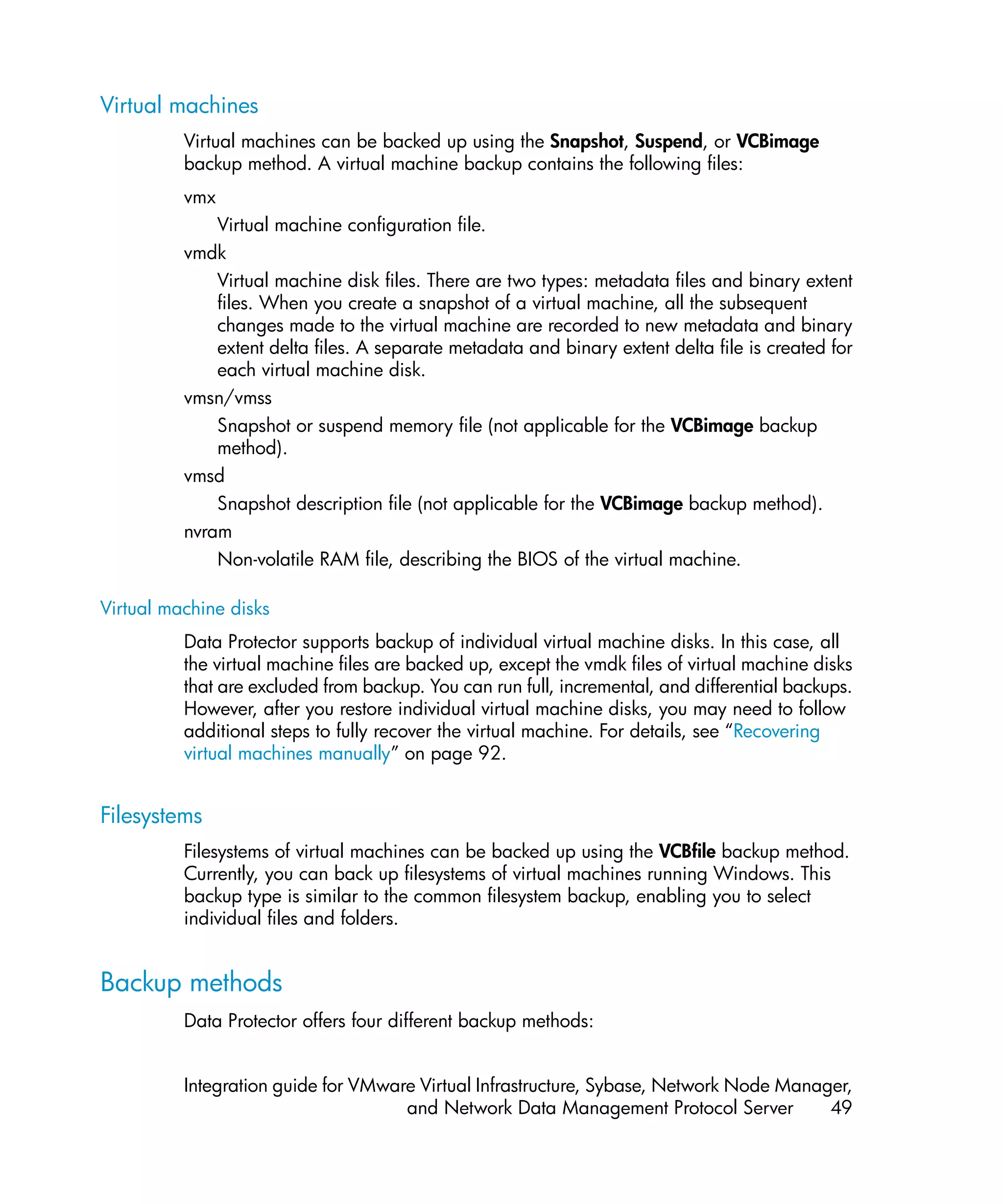
              Virtual machines ..................................................................................           49
              Filesystems ...........................................................................................       49
         Backup methods .........................................................................................           49
              Snapshot method .................................................................................             50
              Suspend method ..................................................................................             60
              VCBimage method ...............................................................................               61
              VCBfile method ....................................................................................           63
         Backup types ..............................................................................................        65
         Considerations ...........................................................................................         66
         Creating backup specifications .....................................................................               68
         Modifying backup specifications ...................................................................                72
         Scheduling backup specifications ..................................................................                72
              Scheduling example .............................................................................              72
         Previewing backup sessions ..........................................................................              73
              Using the Data Protector GUI .................................................................                73
              Using the Data Protector CLI ..................................................................               74
              What happens during the preview? ........................................................                     74
         Starting backup sessions ..............................................................................            74
              Using the Data Protector GUI .................................................................                74
              Using the Data Protector CLI ..................................................................               75
         Preparing for disaster recovery .....................................................................              76
    Restore .............................................................................................................   77
         Restore of virtual machines ...........................................................................            77
              Application database: Datacenter ..........................................................                   77
              Application database: None (restore files to client) ...................................                      78
         Restore of filesystems ...................................................................................         78
         Considerations ...........................................................................................         79
         Finding information for restore ......................................................................             79


4
Using the Data Protector GUI ................................................................. 79
            Using the Data Protector CLI .................................................................. 80
       Restoring using the Data Protector GUI .......................................................... 81
       Restoring using the Data Protector CLI ............................................................ 89
       Recovering virtual machines manually ............................................................ 92
            Recovery after restoring outside of a datacenter ........................................ 92
            Recovery after restoring to a datacenter ................................................. 100
       Restoring using another device ................................................................... 108
       Disaster recovery ...................................................................................... 108
   Monitoring sessions ......................................................................................... 109
   Troubleshooting ............................................................................................... 109
       Before you begin ...................................................................................... 109
       Checks and verifications ............................................................................ 110
       Problems .................................................................................................. 110

2 Integrating Sybase Server and Data Protector .................... 113
   Introduction ....................................................................................................   113
   Integration concepts ........................................................................................       113
   Data Protector CLI commands ...........................................................................             115
   Configuring the integration ...............................................................................         115
        Prerequisites .............................................................................................    116
        Before you begin ......................................................................................        116
        Cluster-aware clients ..................................................................................       116
        Configuring Sybase users ...........................................................................           116
        Configuring Sybase instances .....................................................................             117
             Before you begin ................................................................................         117
             Using the Data Protector GUI ...............................................................              117
             Using the Data Protector CLI ................................................................             120
        Checking the configuration ........................................................................            121
             Using the Data Protector GUI ...............................................................              121
             Using the Data Protector CLI ................................................................             122
   Backup ..........................................................................................................   122
        Creating backup specifications ...................................................................             122
        Modifying backup specifications .................................................................              127
        Scheduling backup specifications ................................................................              127
        Previewing backup sessions ........................................................................            128
             Using the Data Protector GUI ...............................................................              128
             Using the Data Protector CLI ................................................................             129
             What happens during the preview? ......................................................                   129
        Starting backup sessions ............................................................................          130
             Using the Data Protector GUI ...............................................................              130
             Using the Data Protector CLI ................................................................             130


          Integration guide for VMware Virtual Infrastructure, Sybase, Network Node Manager,
                                      and Network Data Management Protocol Server         5
Using Sybase commands .....................................................................                 131
     Restore ...........................................................................................................   131
          Localized database names .........................................................................               132
          Finding information for restore ....................................................................             132
               Using the Data Protector GUI ...............................................................                132
               Using the Data Protector CLI ................................................................               132
          Restoring using the Sybase isql command ....................................................                     139
               Restore examples ................................................................................           142
          Restoring using another device ...................................................................               145
     Monitoring sessions .........................................................................................         145
     Troubleshooting ...............................................................................................       145
          Before you begin ......................................................................................          146
          Checks and verifications ............................................................................            146

3 Integrating HP Network Node Manager and Data
Protector ......................................................................... 149
     Introduction .................................................................................................... 149
     Integration concept .......................................................................................... 150
     Configuring the integration ............................................................................... 150
          Prerequisites ............................................................................................. 150
          Before you begin ...................................................................................... 151
          Tasks for the NNM administrator ................................................................ 151
     Backup .......................................................................................................... 151
          Creating backup specifications ................................................................... 152
          Modifying backup specifications ................................................................. 153
          Scheduling backup specifications ................................................................ 153
          Starting backup sessions ............................................................................ 154
     Restore ........................................................................................................... 155
     Monitoring sessions ......................................................................................... 155
          Acceptable warnings on Windows .............................................................. 155
     Troubleshooting ............................................................................................... 156
          Before you begin ...................................................................................... 157
          Problems .................................................................................................. 157

4 Integrating NDMP Server and Data Protector .................... 163
     Introduction ....................................................................................................     163
     Integration concept ..........................................................................................        163
     Configuring the integration ...............................................................................           166
          Prerequisites .............................................................................................      166
          Importing NDMP Server systems .................................................................                  166
          Creating media pools ................................................................................            168


 6
Configuring NDMP devices ....................................................................... 169
             Configuring tape libraries .................................................................... 171
             Configuring standalone devices ............................................................ 174
             Network appliance configuration ......................................................... 176
             EMC Celerra configuration .................................................................. 177
             Block size .......................................................................................... 178
   Backup .......................................................................................................... 179
        Before you begin ...................................................................................... 180
        Creating backup specifications ................................................................... 180
        Modifying backup specifications ................................................................. 185
        Starting backup sessions ............................................................................ 185
   Restore ........................................................................................................... 185
        Restoring using the Data Protector GUI ........................................................ 186
        Direct access restore .................................................................................. 187
        Restoring using another device ................................................................... 189
   NDMP environment variables ............................................................................ 189
   The NDMP specific omnirc file variables ............................................................. 190
   Media management ........................................................................................ 192
   Troubleshooting ............................................................................................... 193
        Before you begin ...................................................................................... 193
        Problems .................................................................................................. 193

A Integrating Citrix XenServer and HP Data Protector ............ 195
   Introduction .................................................................................................... 195
   Integration concepts ........................................................................................ 195
        Types of backup ....................................................................................... 195
              Online backup ................................................................................... 195
              Offline backup ................................................................................... 196
              Disaster recovery ................................................................................ 196
        Backup processes ...................................................................................... 196
              Online backup ................................................................................... 196
              Offline backup ................................................................................... 197
        Types of restore ......................................................................................... 197
        Restore processes ...................................................................................... 198
              Restore from online backup .................................................................. 198
              Restore from offline backup .................................................................. 198
        Restore considerations ............................................................................... 199
        Main integration components ..................................................................... 200
   Installation of the integration ............................................................................. 201
        Prerequisites ............................................................................................. 201
        Installation of the integration scripts ............................................................. 202
        Integration script functions .......................................................................... 204


          Integration guide for VMware Virtual Infrastructure, Sybase, Network Node Manager,
                                      and Network Data Management Protocol Server         7
Backup using the integration .............................................................................       204
          Updating configuration script DPxen_config.py for backup .............................                      205
               Example backup configurations ............................................................             206
          Creating a backup specification ..................................................................          207
     Restore using the integration .............................................................................      209
          Updating configuration script DPxen_config.py for restore ..............................                    209
               Example restore configurations .............................................................           210
          Specifying a restore ..................................................................................     212
          Notes on restore .......................................................................................    214
     Special considerations .....................................................................................     214
     Further information ..........................................................................................   215

Glossary ......................................................................... 217

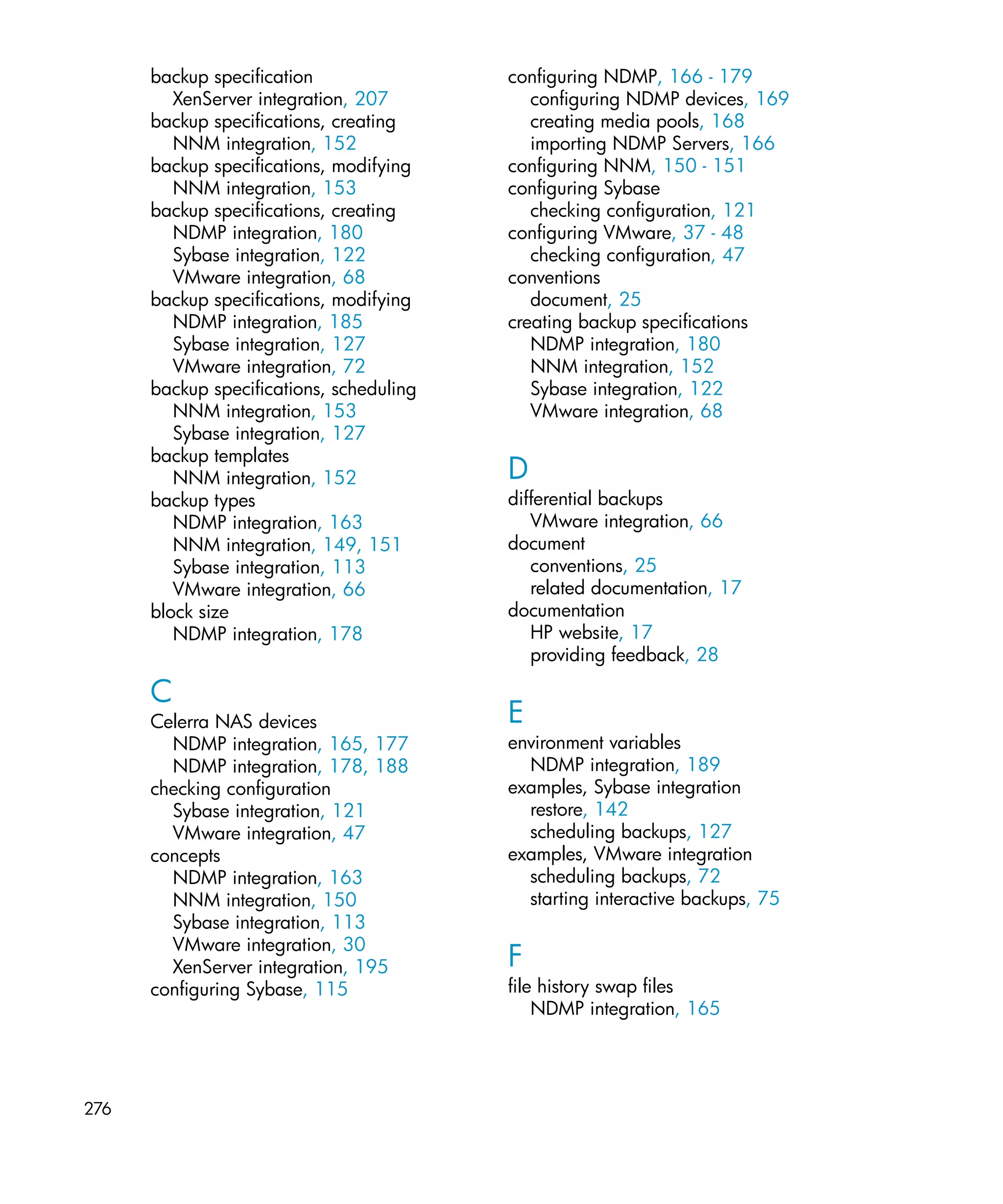
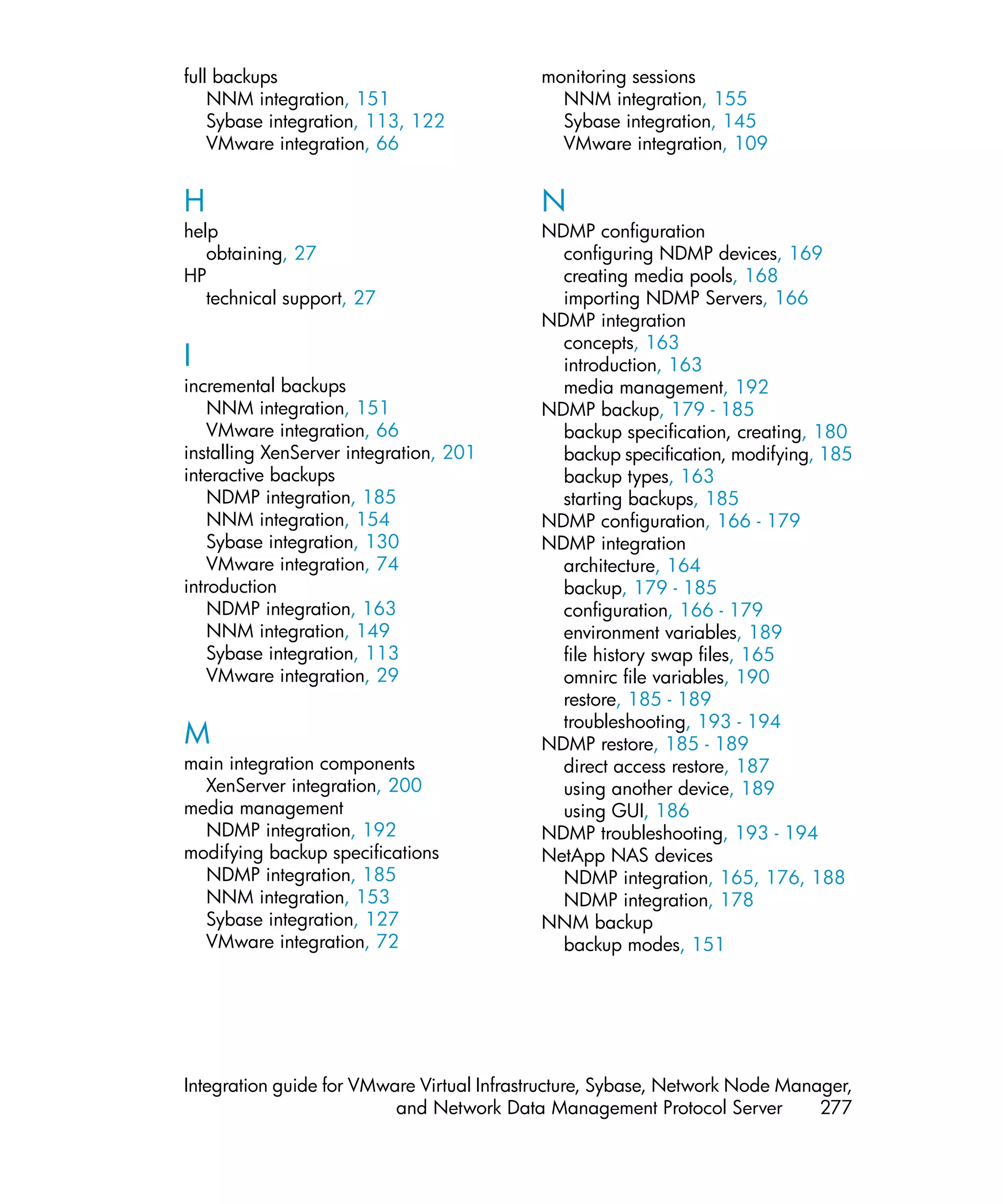
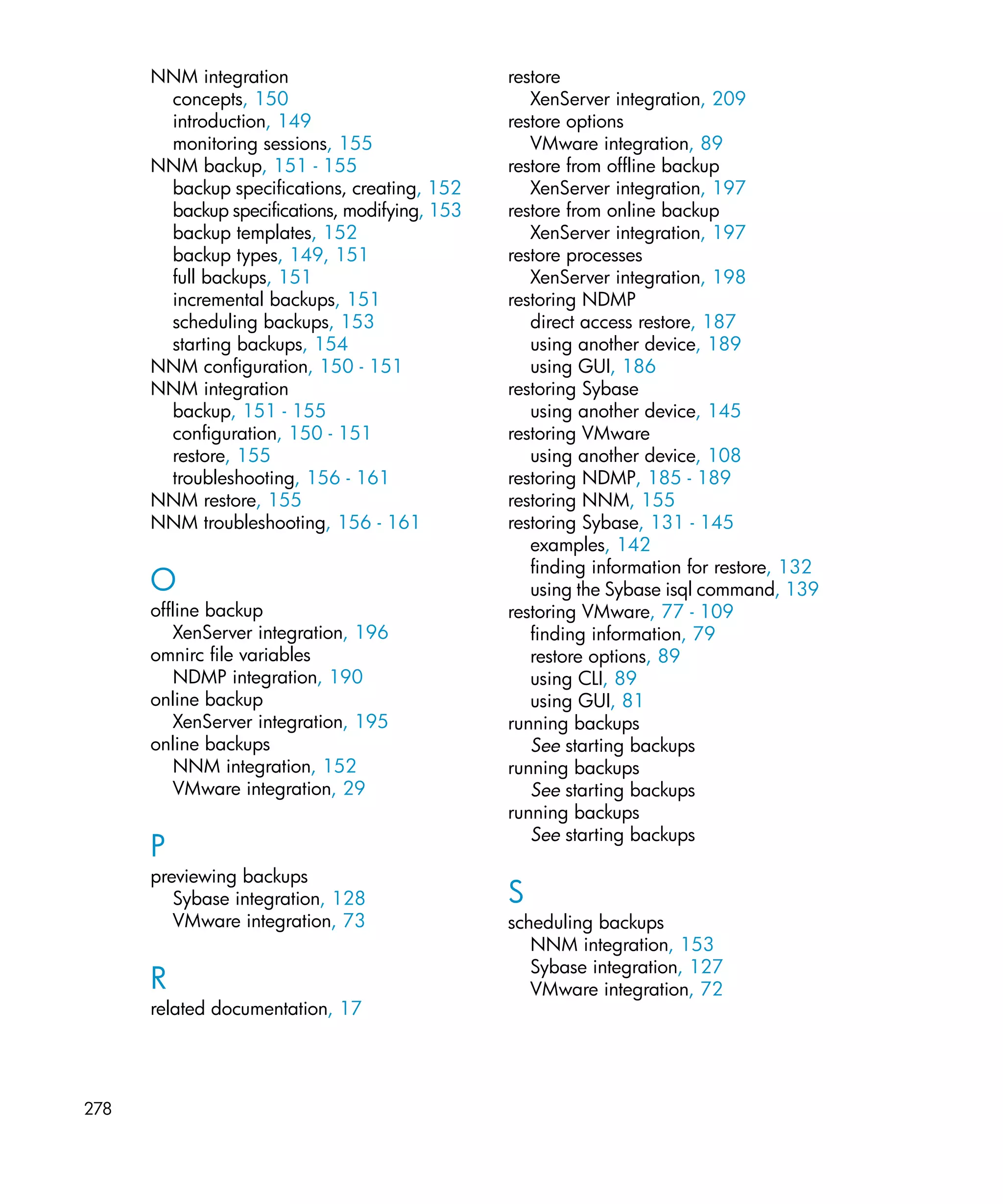
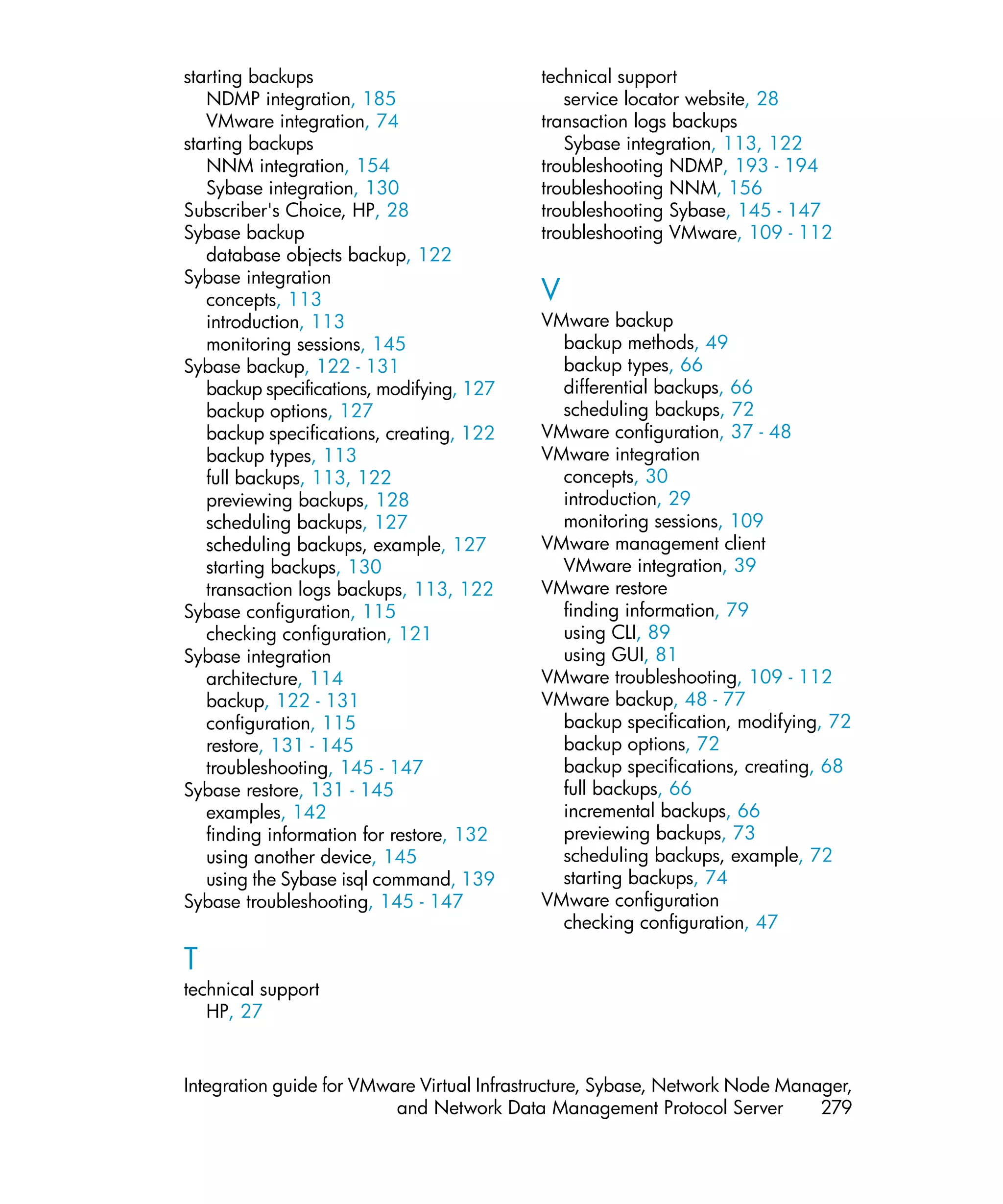
Index .............................................................................. 275


 8
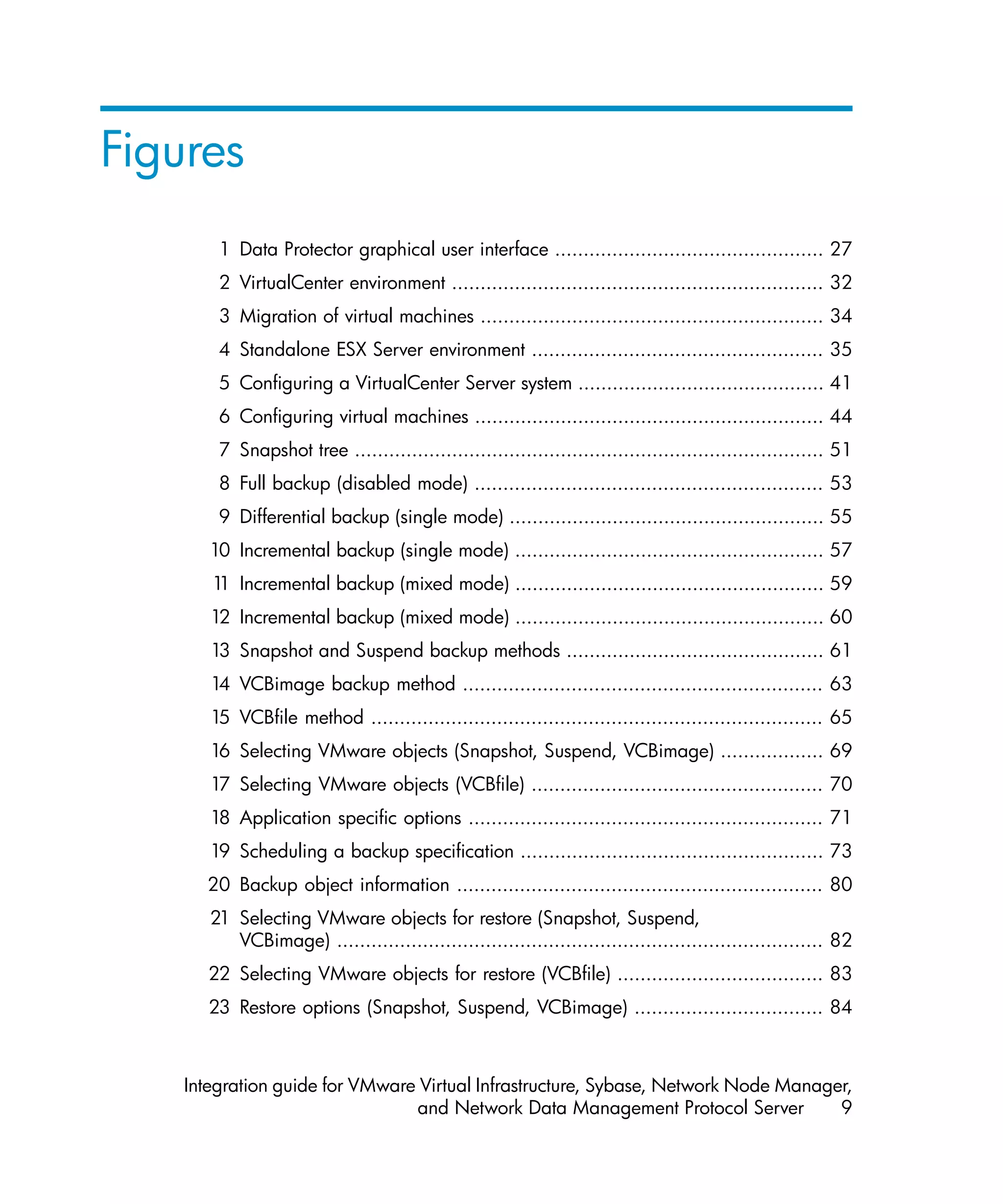
Figures
        1 Data Protector graphical user interface ............................................... 27
        2 VirtualCenter environment ................................................................. 32
        3 Migration of virtual machines ............................................................ 34
        4 Standalone ESX Server environment ................................................... 35
        5 Configuring a VirtualCenter Server system ........................................... 41
        6 Configuring virtual machines ............................................................. 44
        7 Snapshot tree .................................................................................. 51
        8 Full backup (disabled mode) ............................................................. 53
        9 Differential backup (single mode) ....................................................... 55
       10 Incremental backup (single mode) ...................................................... 57
       1 Incremental backup (mixed mode) ...................................................... 59
        1
       12 Incremental backup (mixed mode) ...................................................... 60
       13 Snapshot and Suspend backup methods ............................................. 61
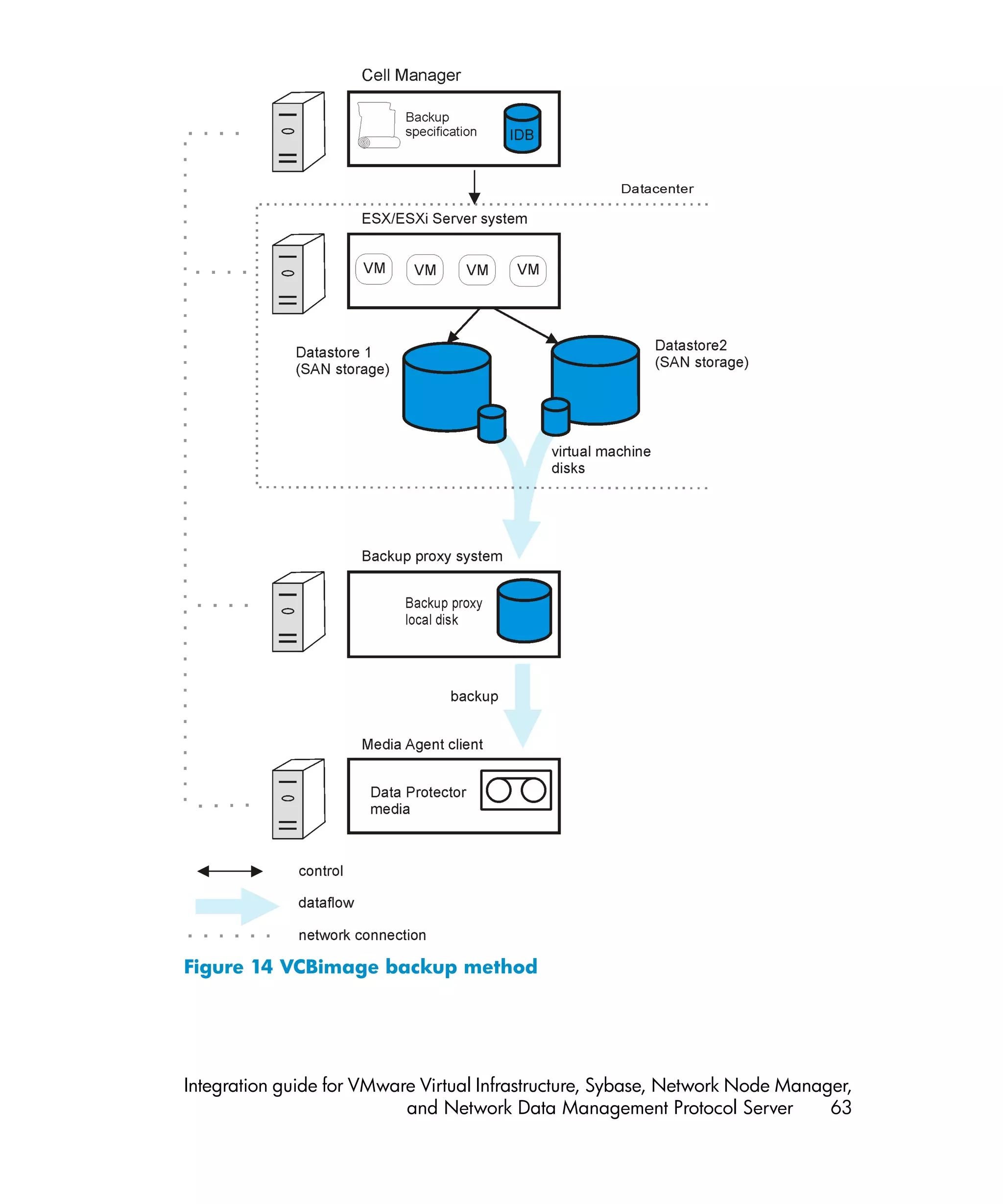
       14 VCBimage backup method ............................................................... 63
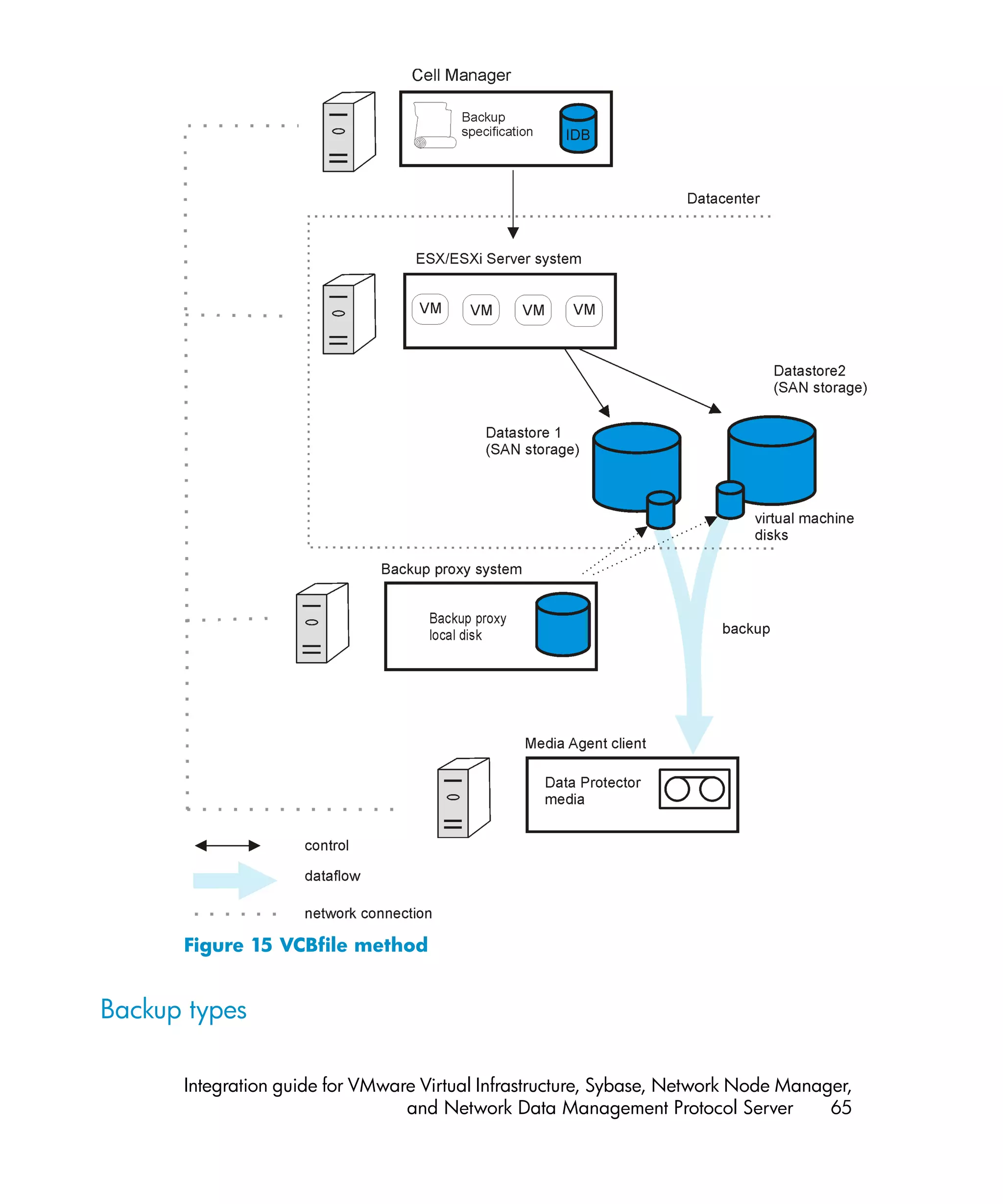
       15 VCBfile method ............................................................................... 65
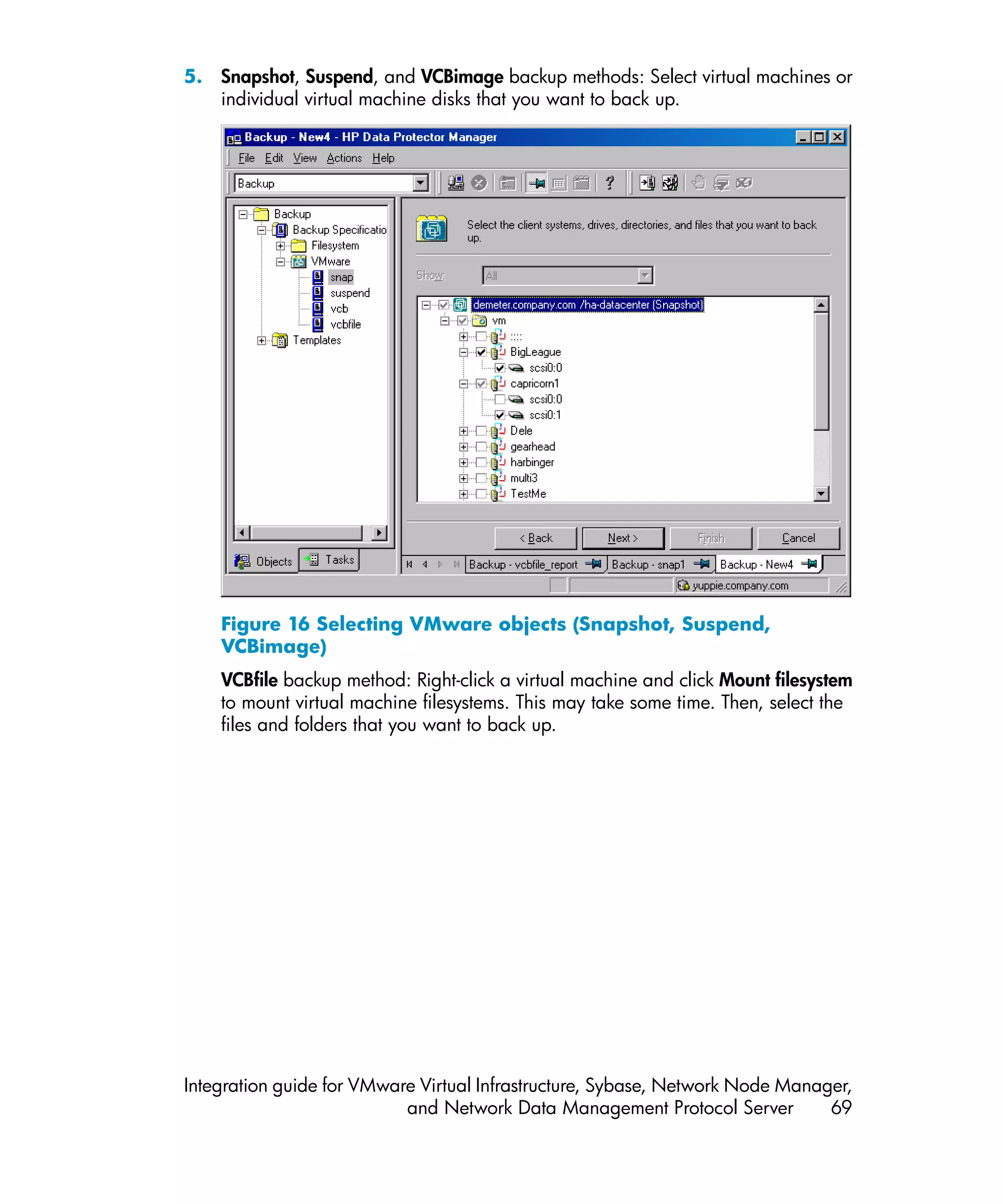
       16 Selecting VMware objects (Snapshot, Suspend, VCBimage) .................. 69
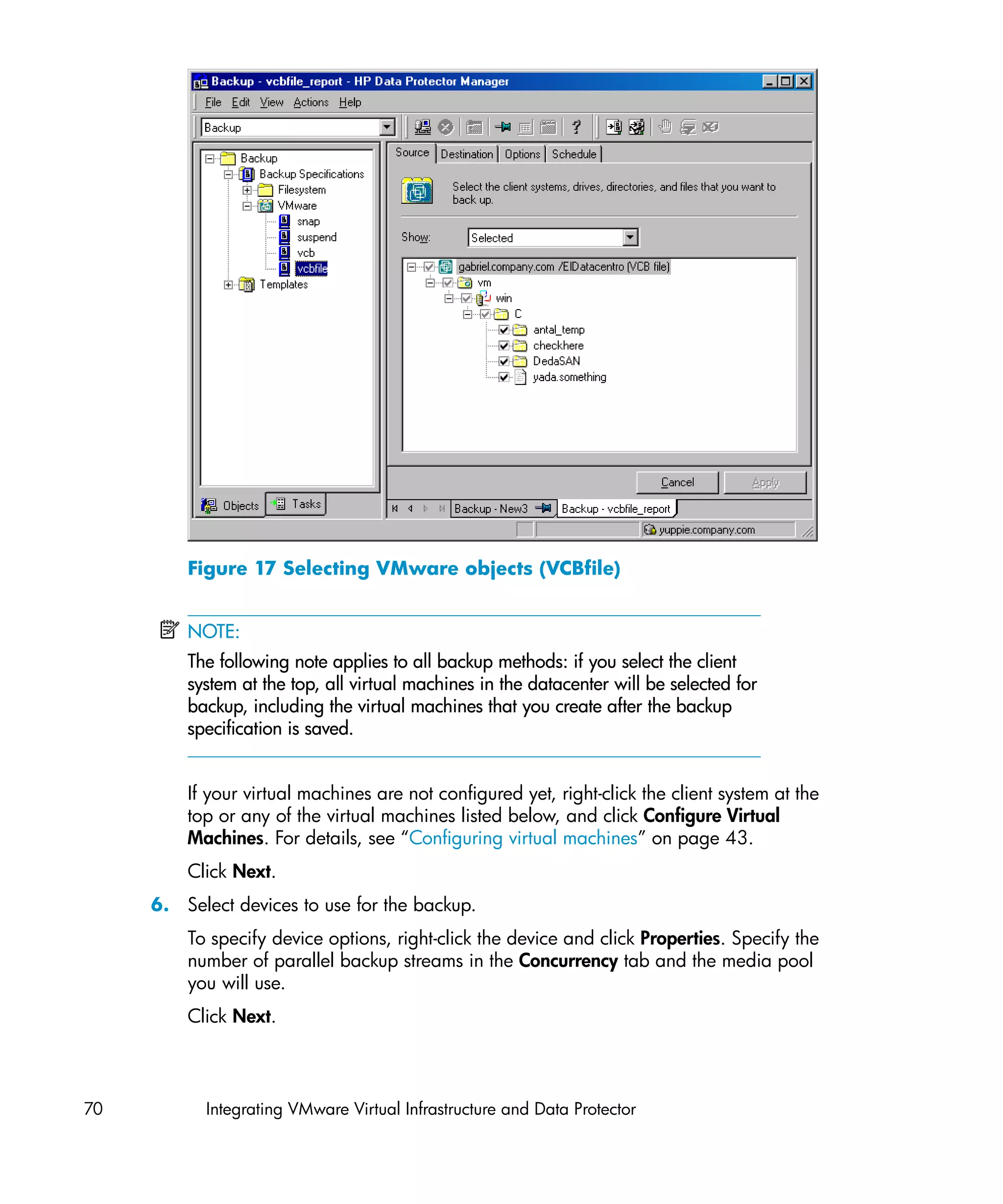
       17 Selecting VMware objects (VCBfile) ................................................... 70
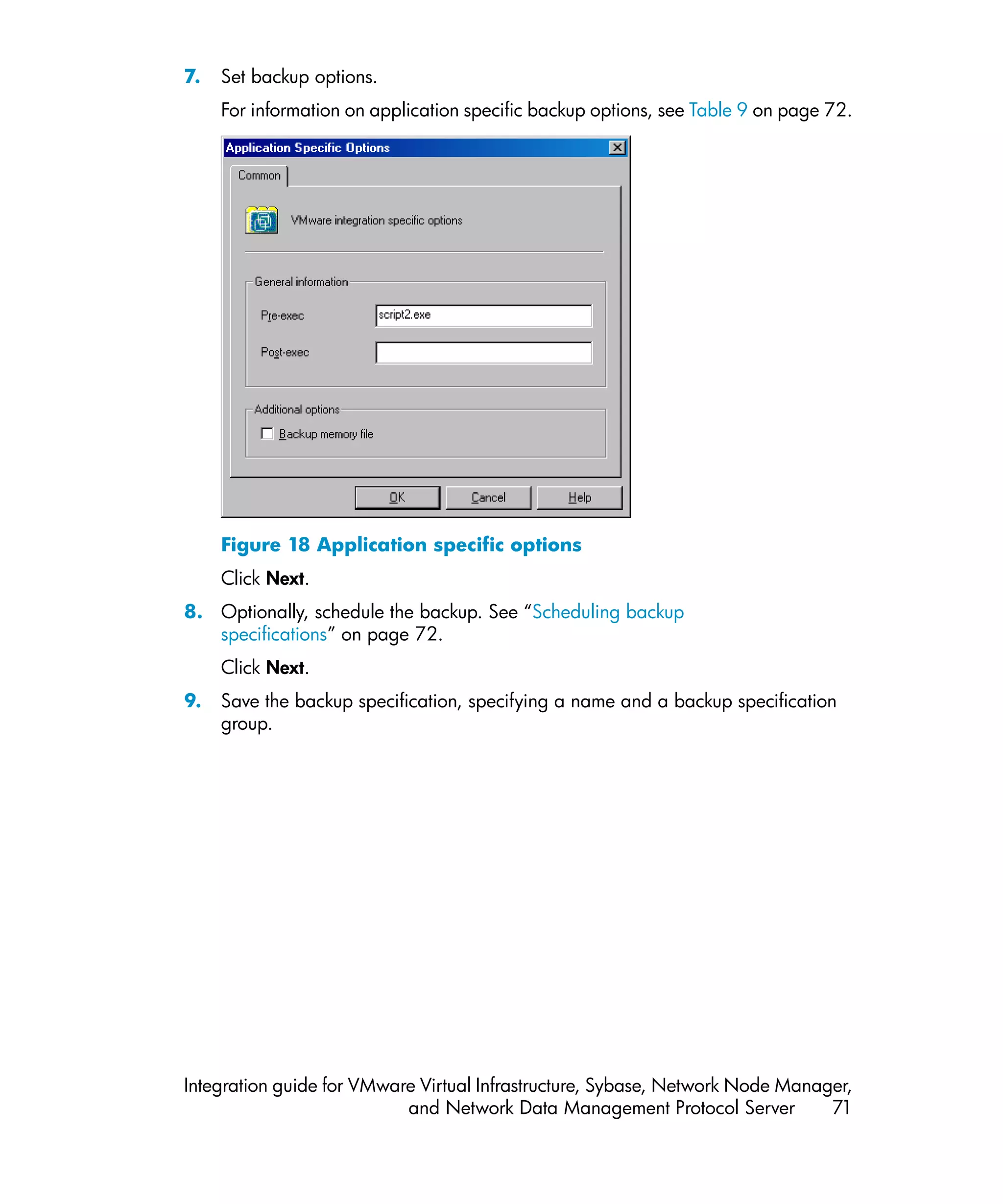
       18 Application specific options .............................................................. 71
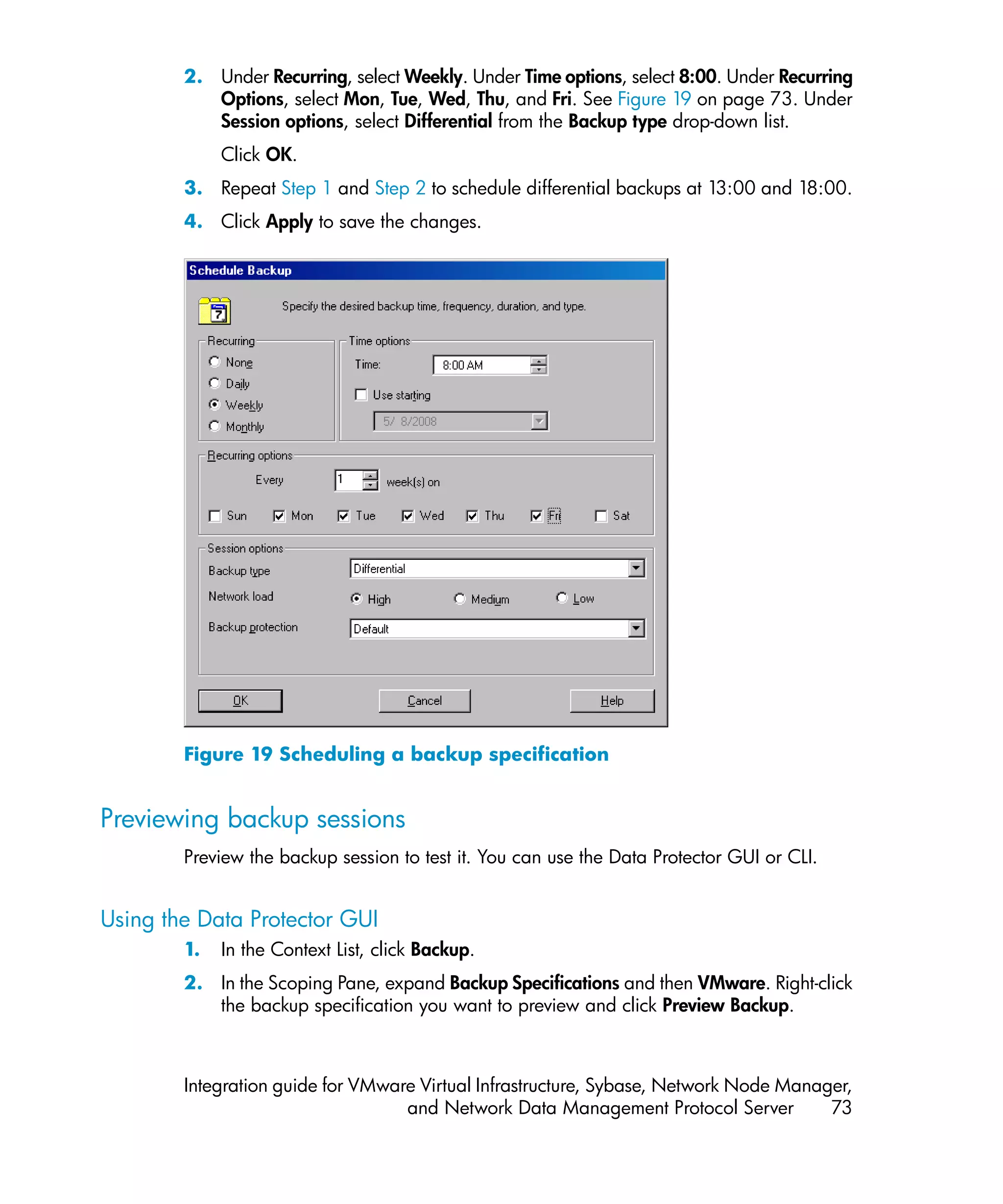
       19 Scheduling a backup specification ..................................................... 73
      20 Backup object information ................................................................ 80
       21 Selecting VMware objects for restore (Snapshot, Suspend,
          VCBimage) ..................................................................................... 82
      22 Selecting VMware objects for restore (VCBfile) .................................... 83
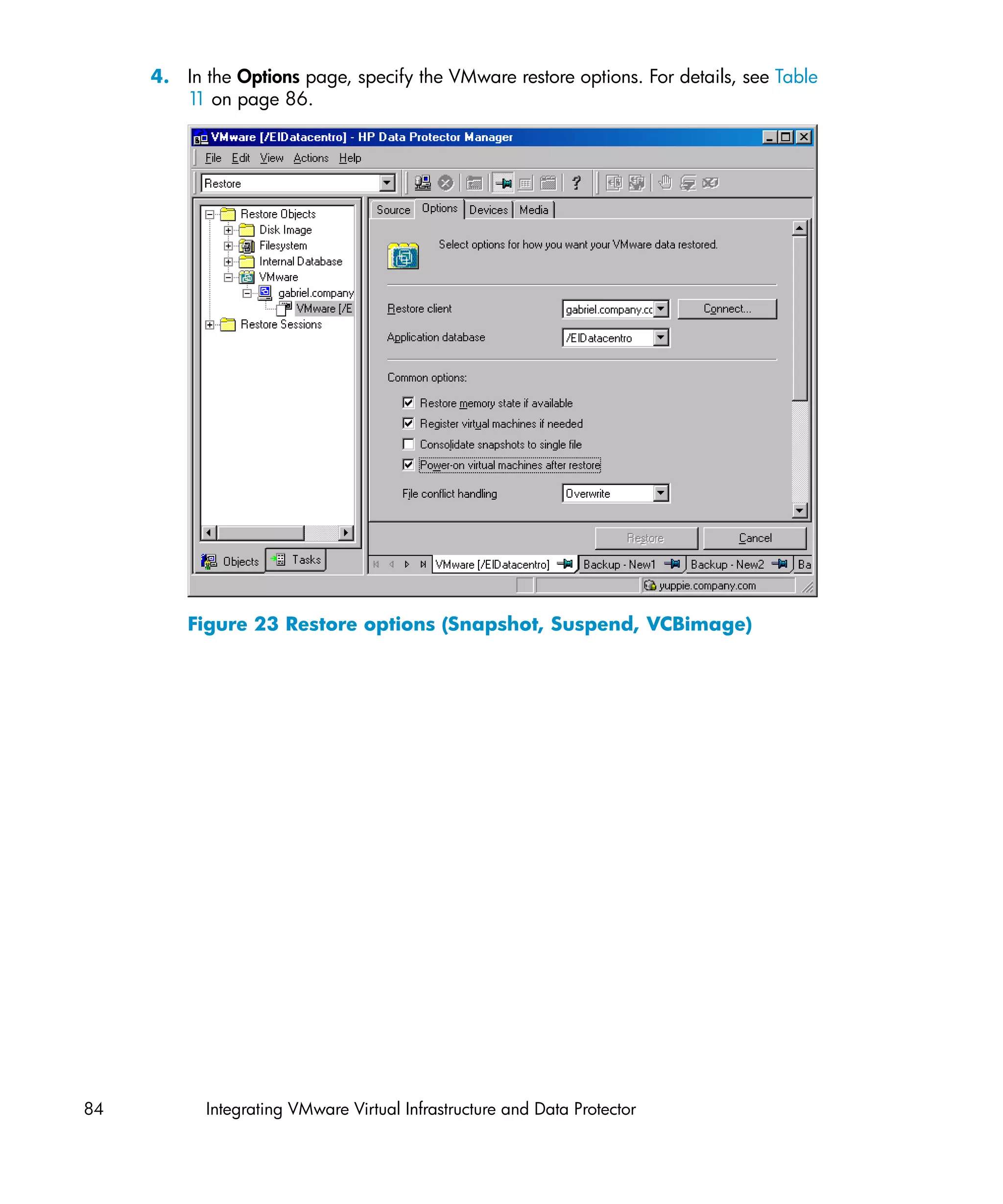
       23 Restore options (Snapshot, Suspend, VCBimage) ................................. 84


    Integration guide for VMware Virtual Infrastructure, Sybase, Network Node Manager,
                                and Network Data Management Protocol Server         9
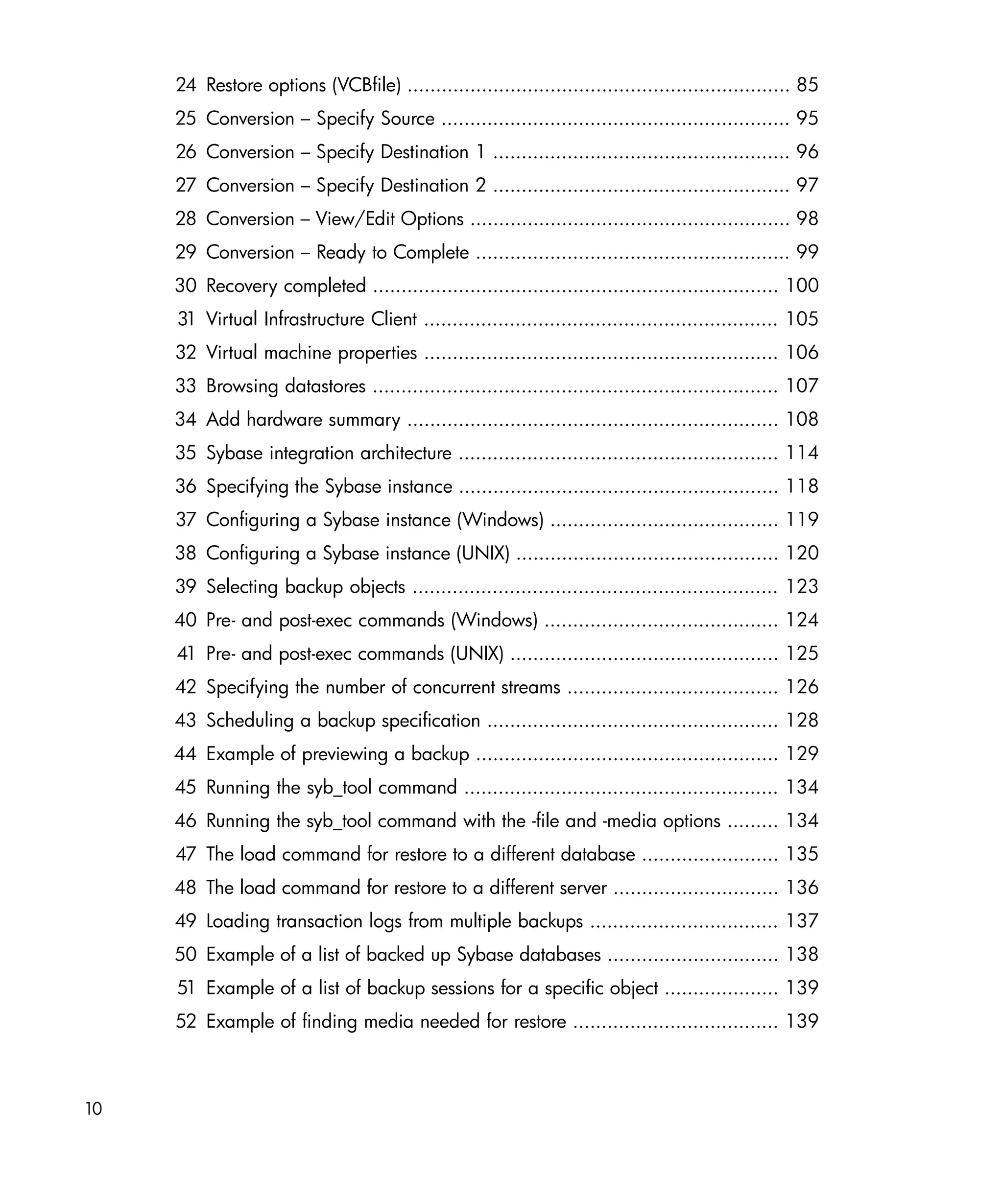
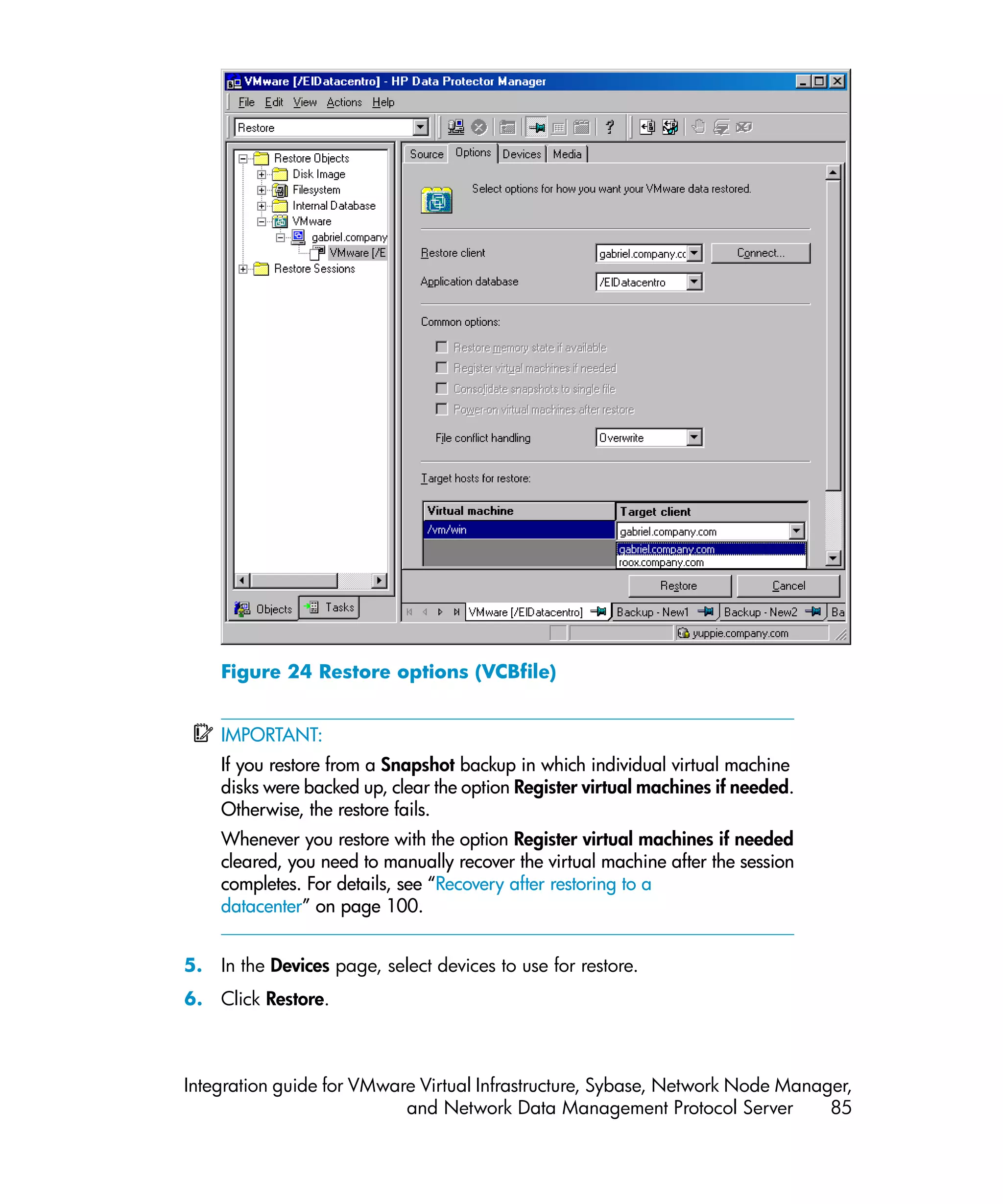
24 Restore options (VCBfile) ................................................................... 85
     25 Conversion – Specify Source ............................................................. 95
     26 Conversion – Specify Destination 1 .................................................... 96
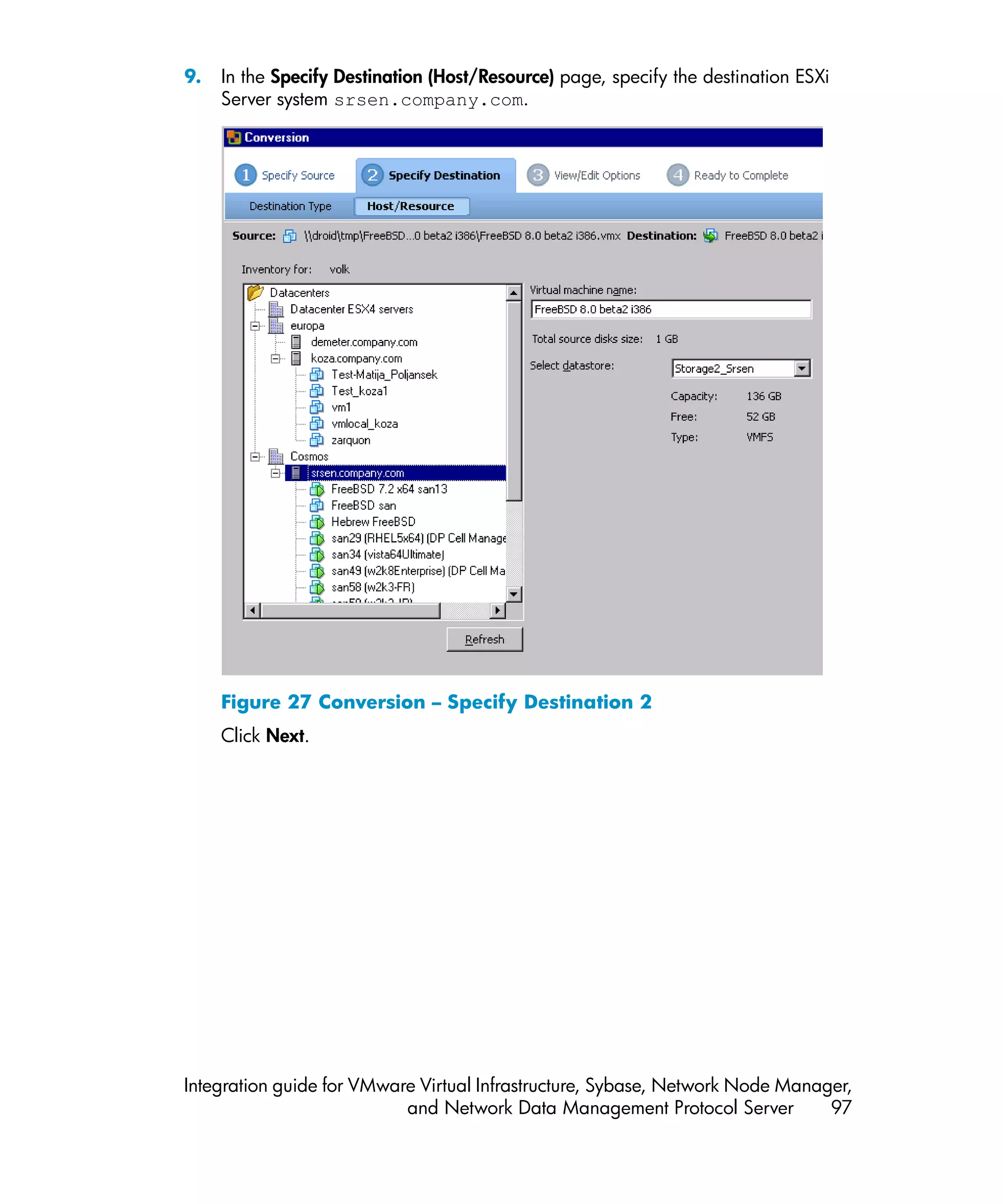
     27 Conversion – Specify Destination 2 .................................................... 97
     28 Conversion – View/Edit Options ........................................................ 98
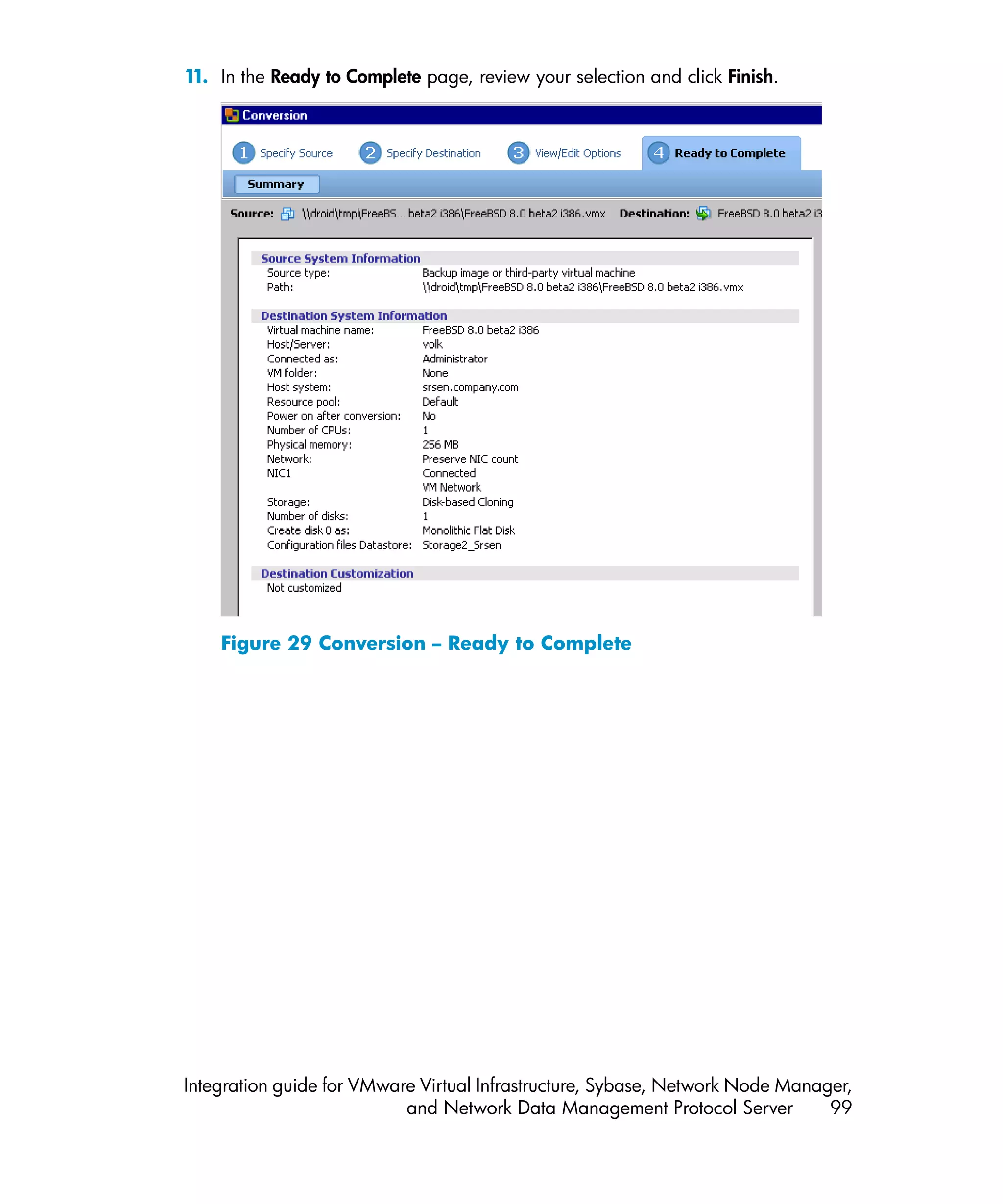
     29 Conversion – Ready to Complete ....................................................... 99
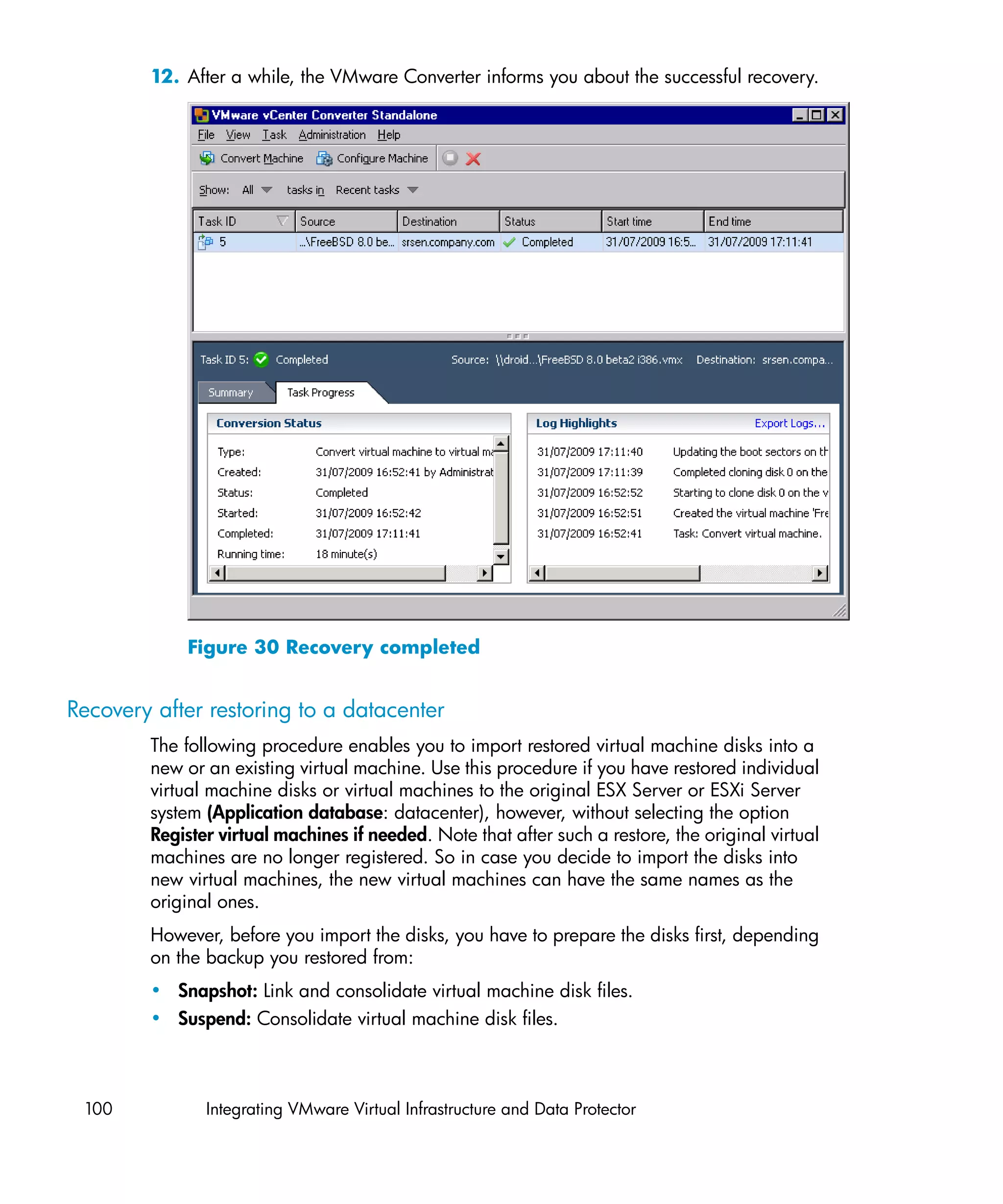
     30 Recovery completed ....................................................................... 100
     31 Virtual Infrastructure Client .............................................................. 105
     32 Virtual machine properties .............................................................. 106
     33 Browsing datastores ....................................................................... 107
     34 Add hardware summary ................................................................. 108
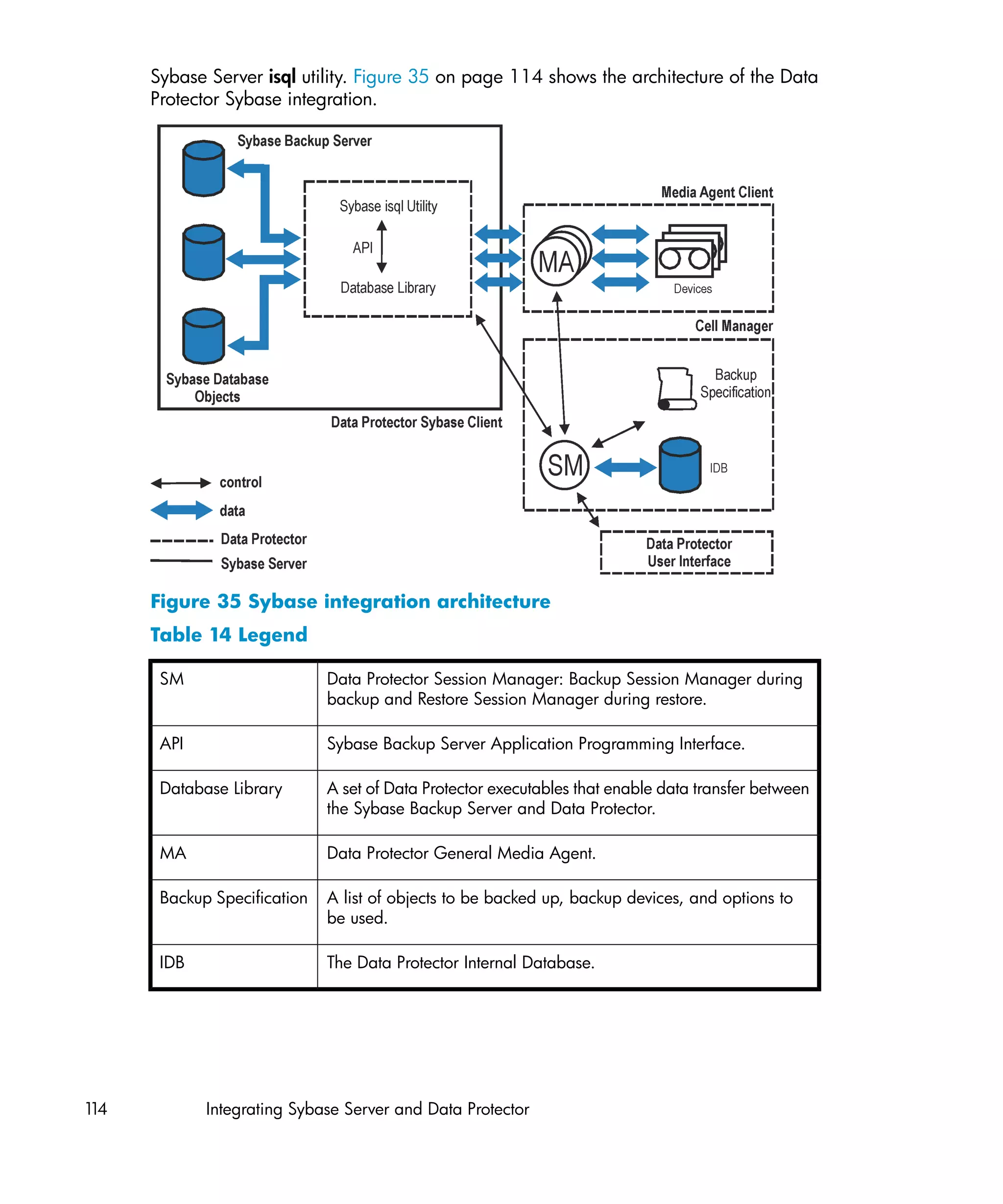
     35 Sybase integration architecture ........................................................ 114
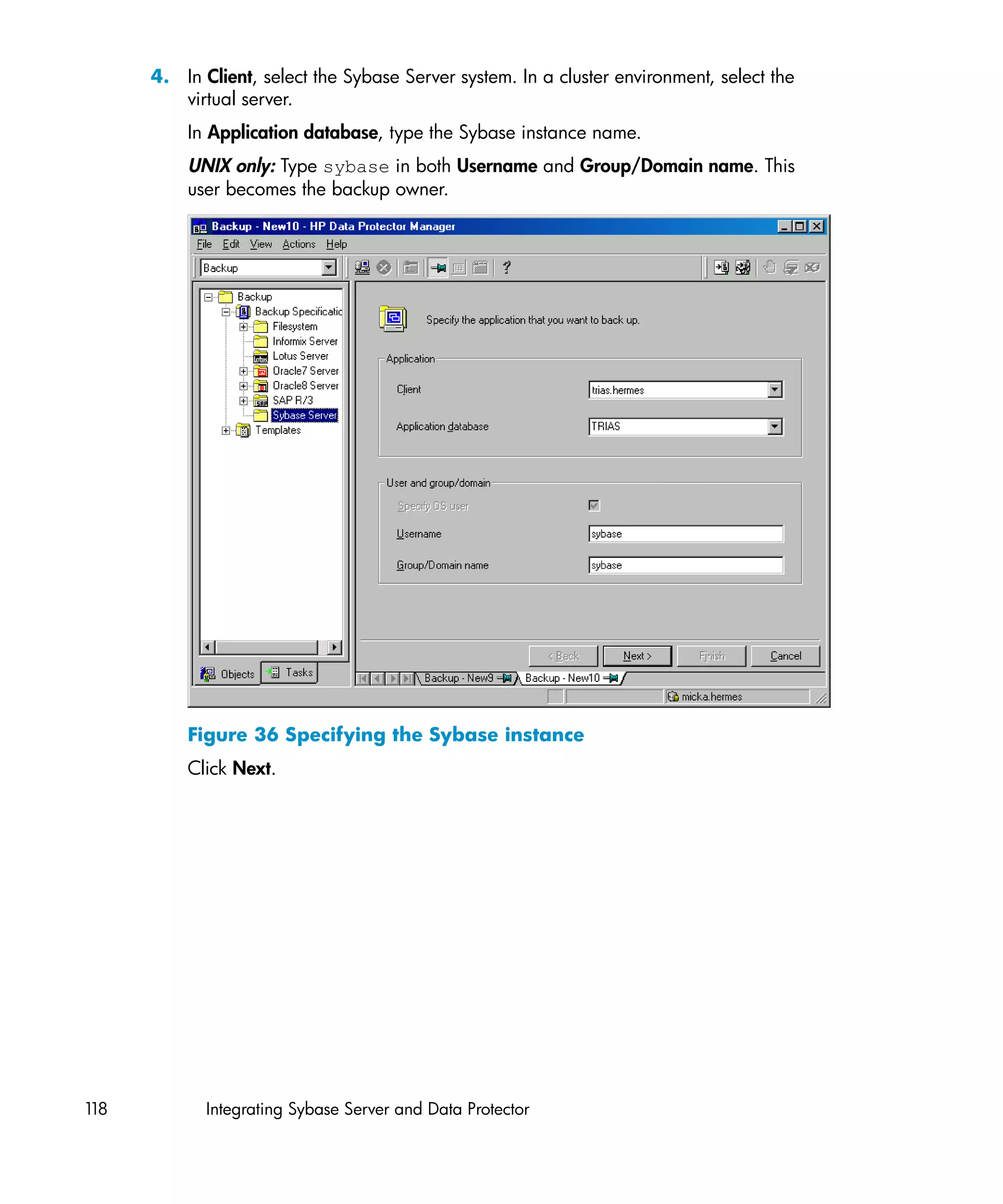
     36 Specifying the Sybase instance ........................................................ 118
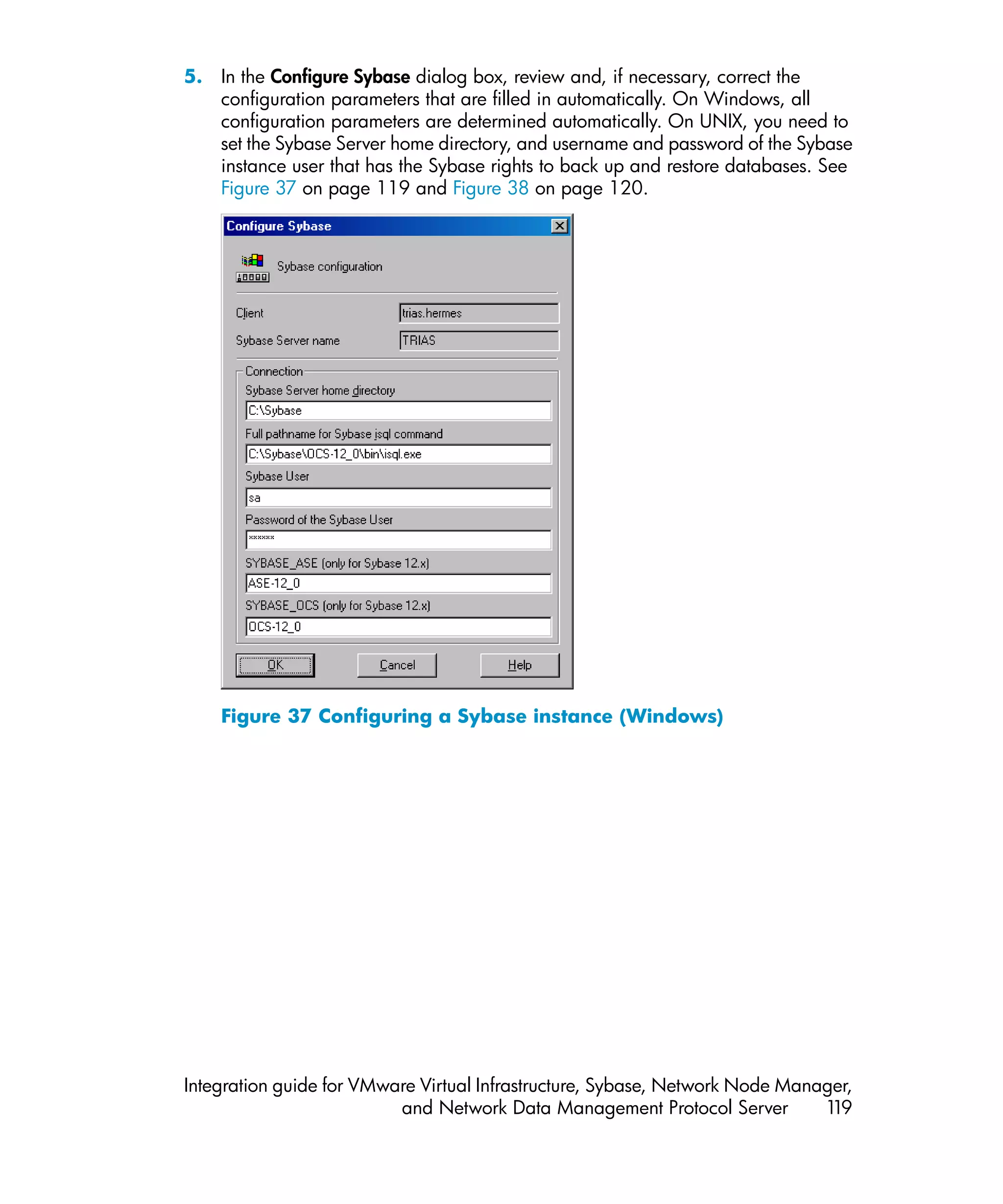
     37 Configuring a Sybase instance (Windows) ........................................ 119
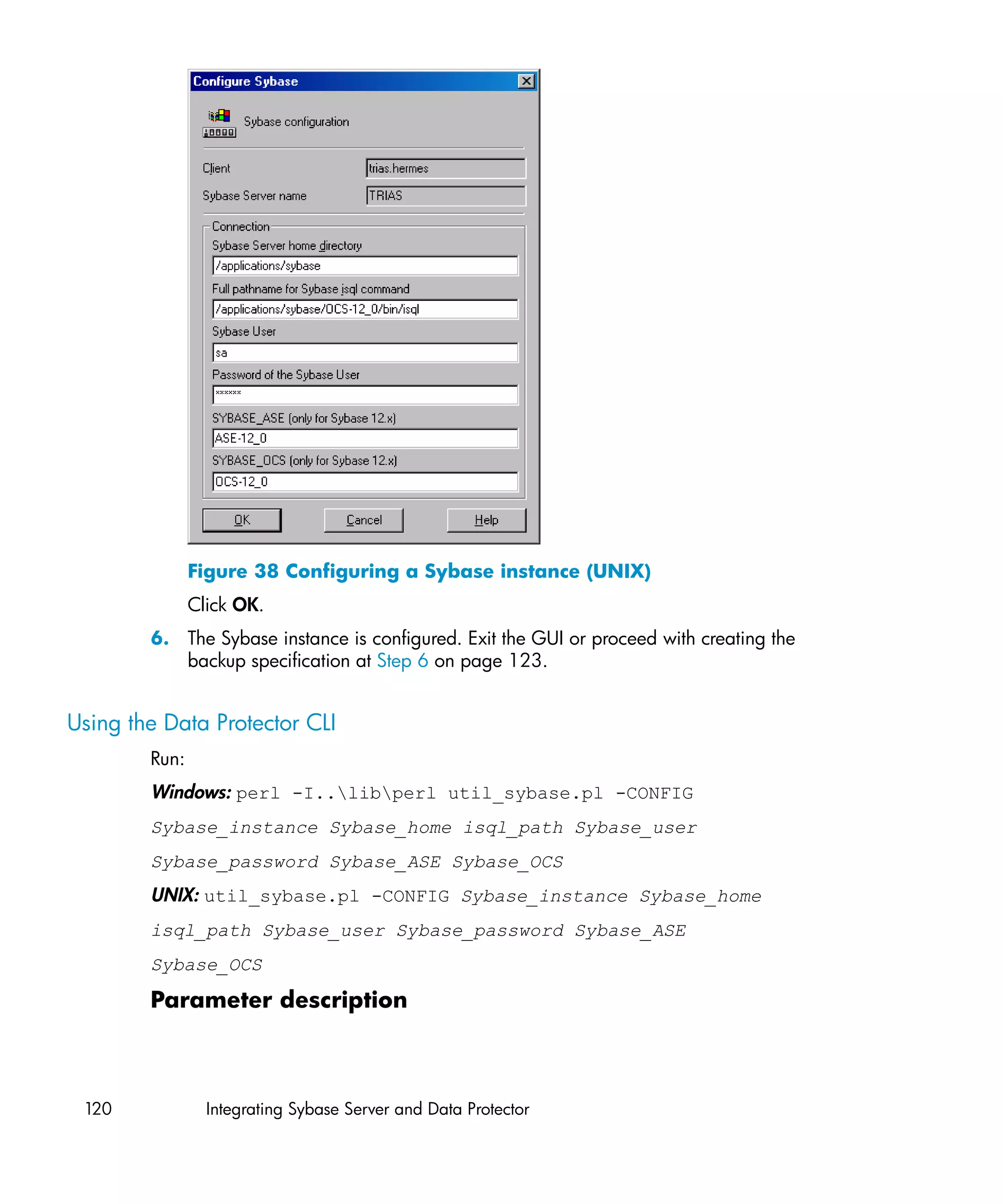
     38 Configuring a Sybase instance (UNIX) .............................................. 120
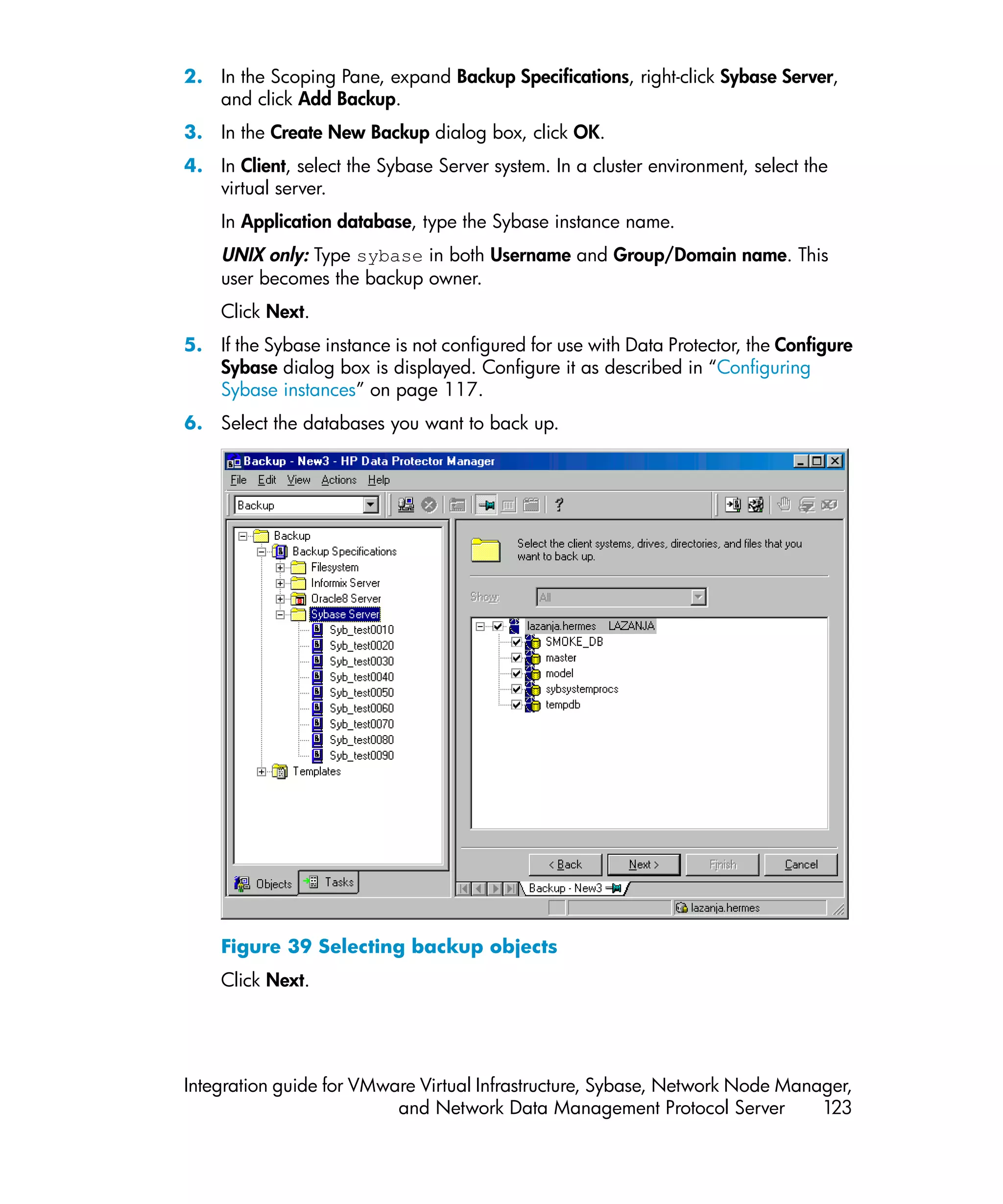
     39 Selecting backup objects ................................................................ 123
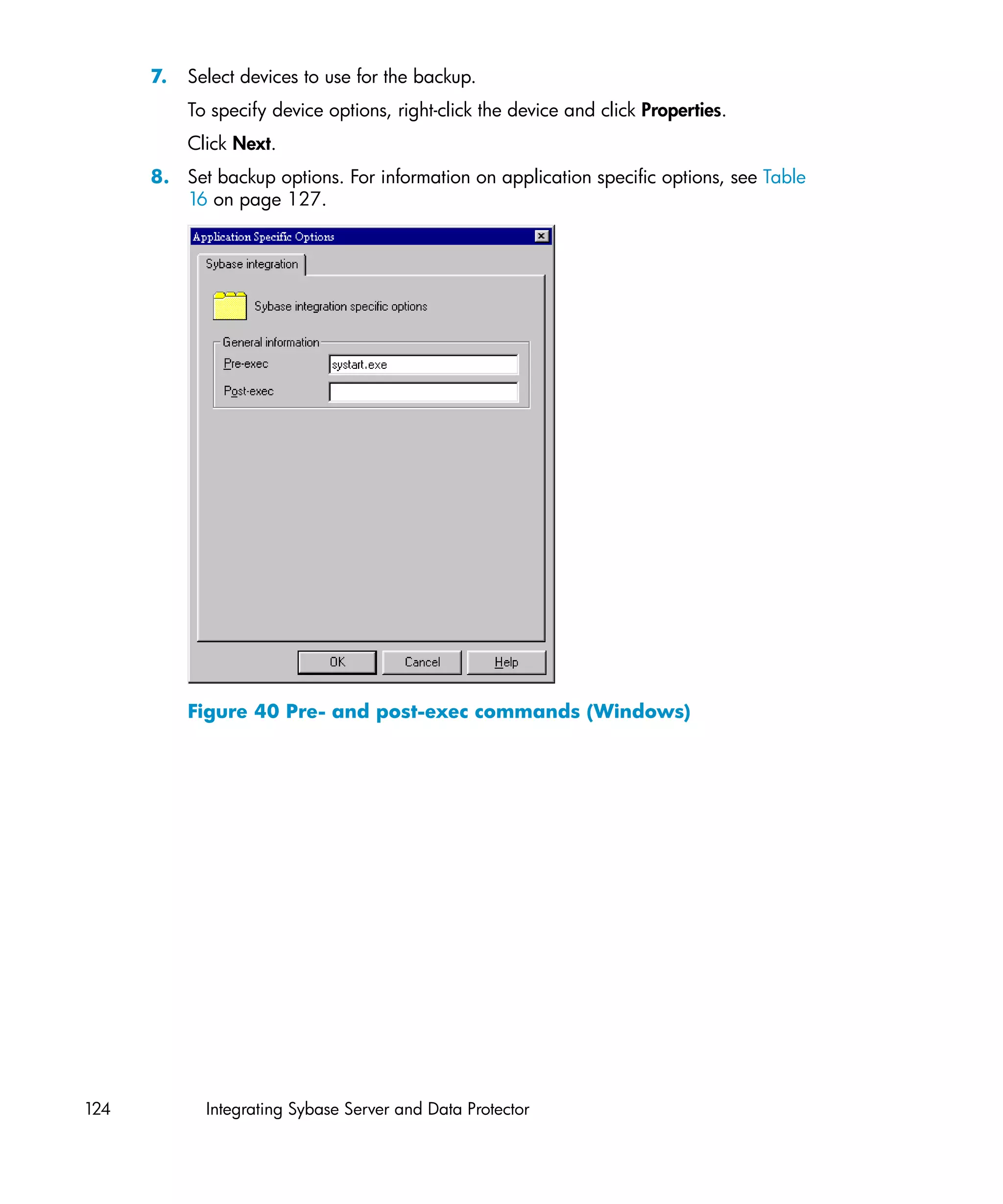
     40 Pre- and post-exec commands (Windows) ......................................... 124
     41 Pre- and post-exec commands (UNIX) ............................................... 125
     42 Specifying the number of concurrent streams ..................................... 126
     43 Scheduling a backup specification ................................................... 128
     44 Example of previewing a backup ..................................................... 129
     45 Running the syb_tool command ....................................................... 134
     46 Running the syb_tool command with the -file and -media options ......... 134
     47 The load command for restore to a different database ........................ 135
     48 The load command for restore to a different server ............................. 136
     49 Loading transaction logs from multiple backups ................................. 137
     50 Example of a list of backed up Sybase databases .............................. 138
     51 Example of a list of backup sessions for a specific object .................... 139
     52 Example of finding media needed for restore .................................... 139


10
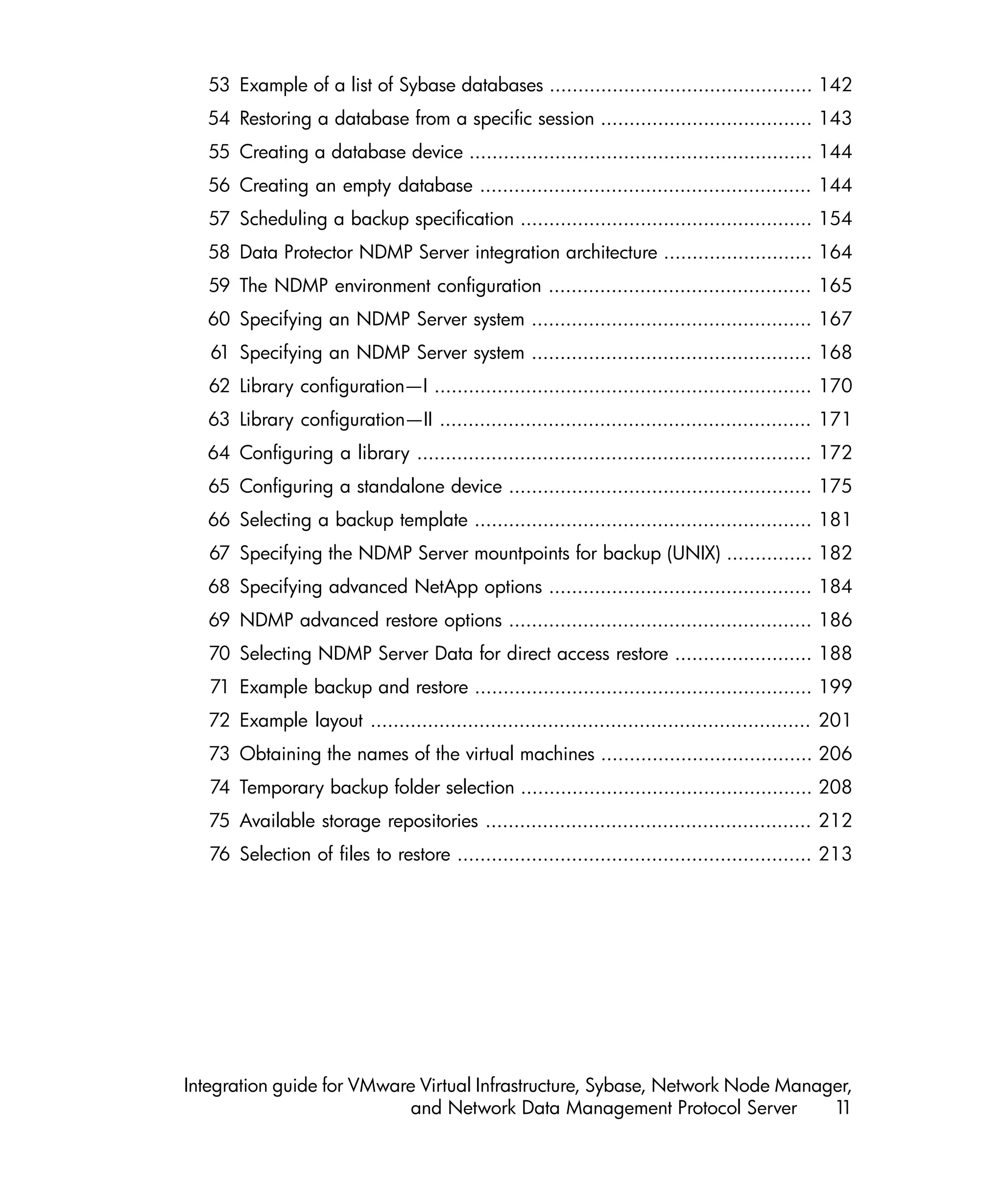
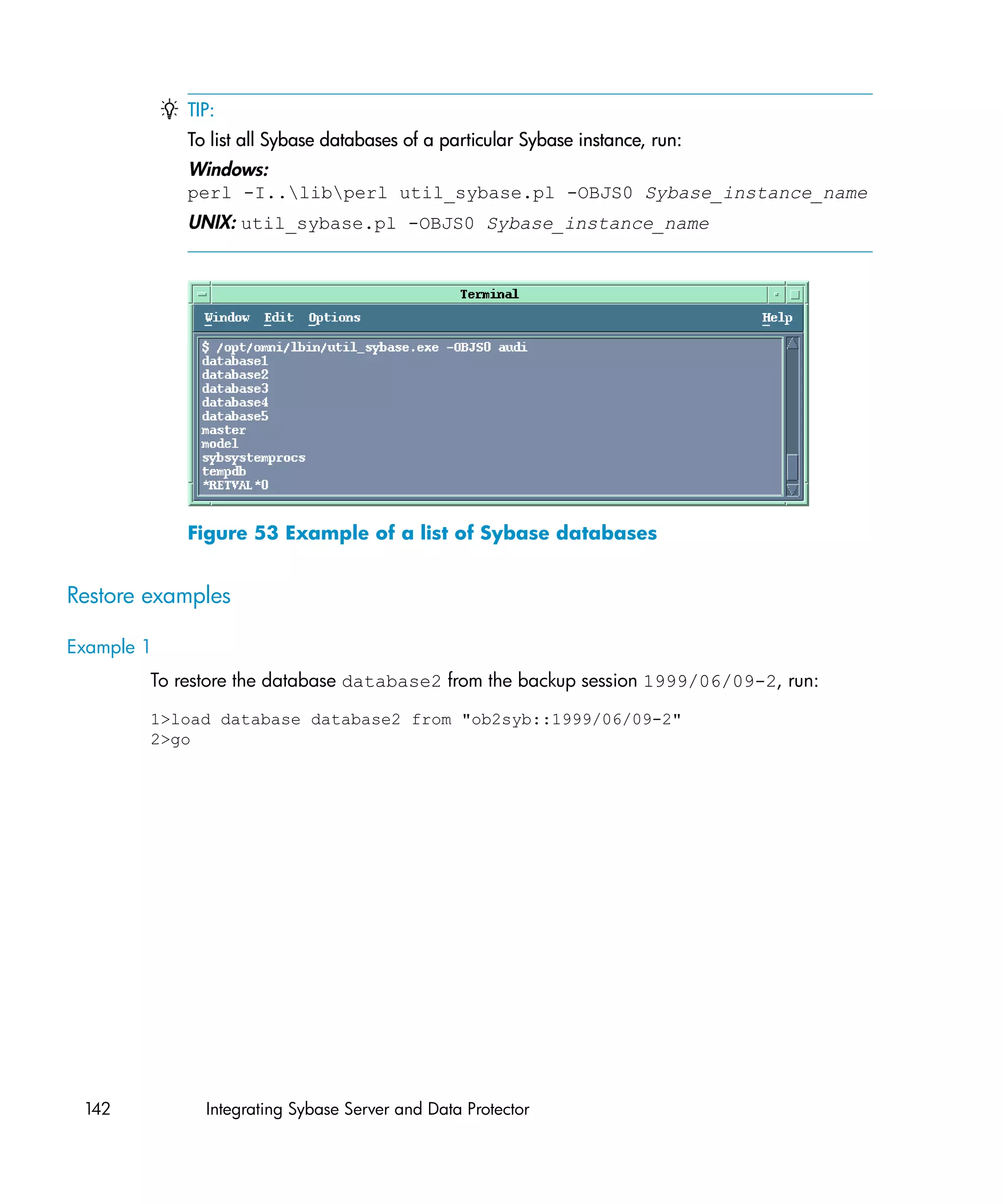
53 Example of a list of Sybase databases .............................................. 142
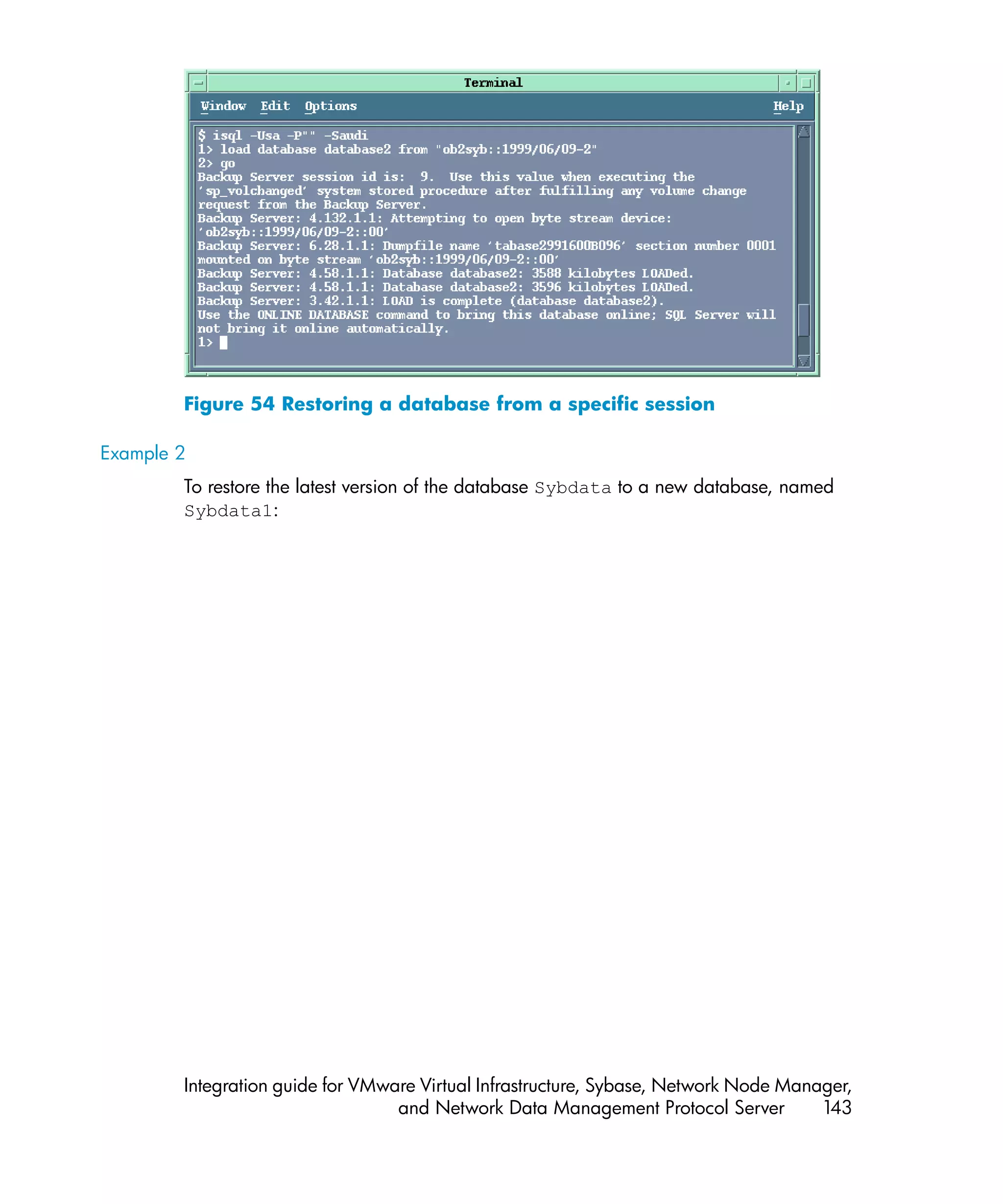
  54 Restoring a database from a specific session ..................................... 143
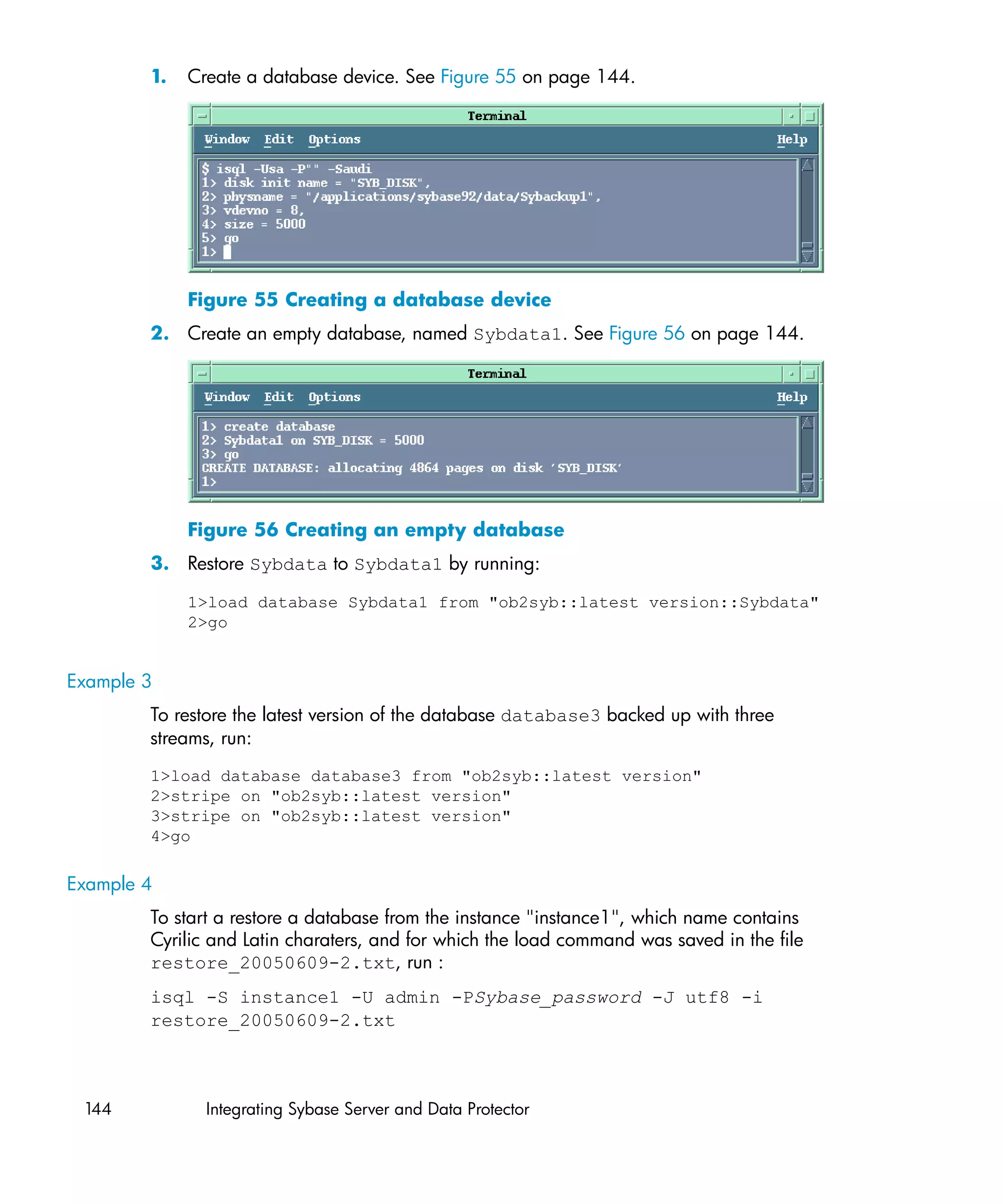
   55 Creating a database device ............................................................ 144
  56 Creating an empty database .......................................................... 144
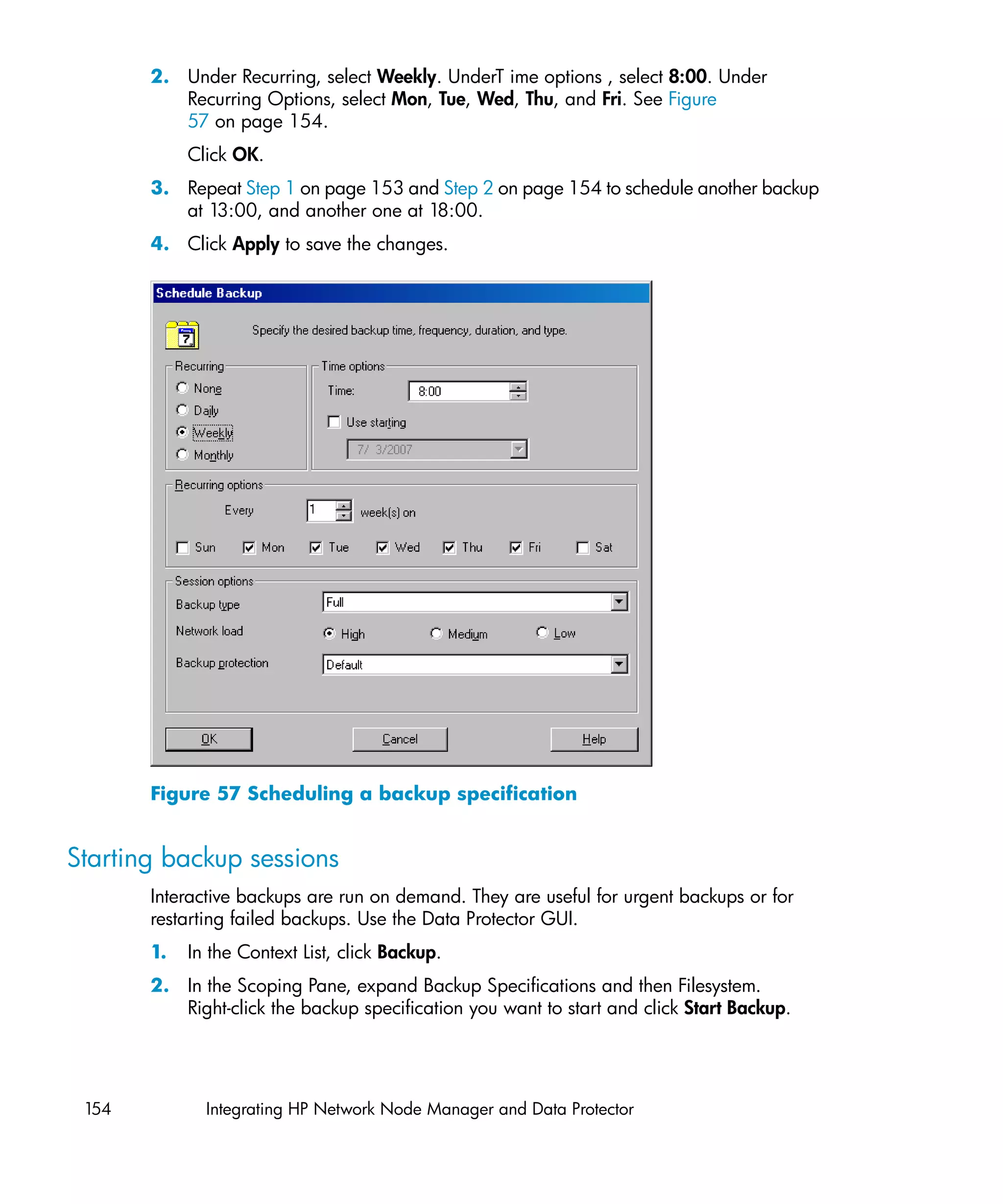
   57 Scheduling a backup specification ................................................... 154
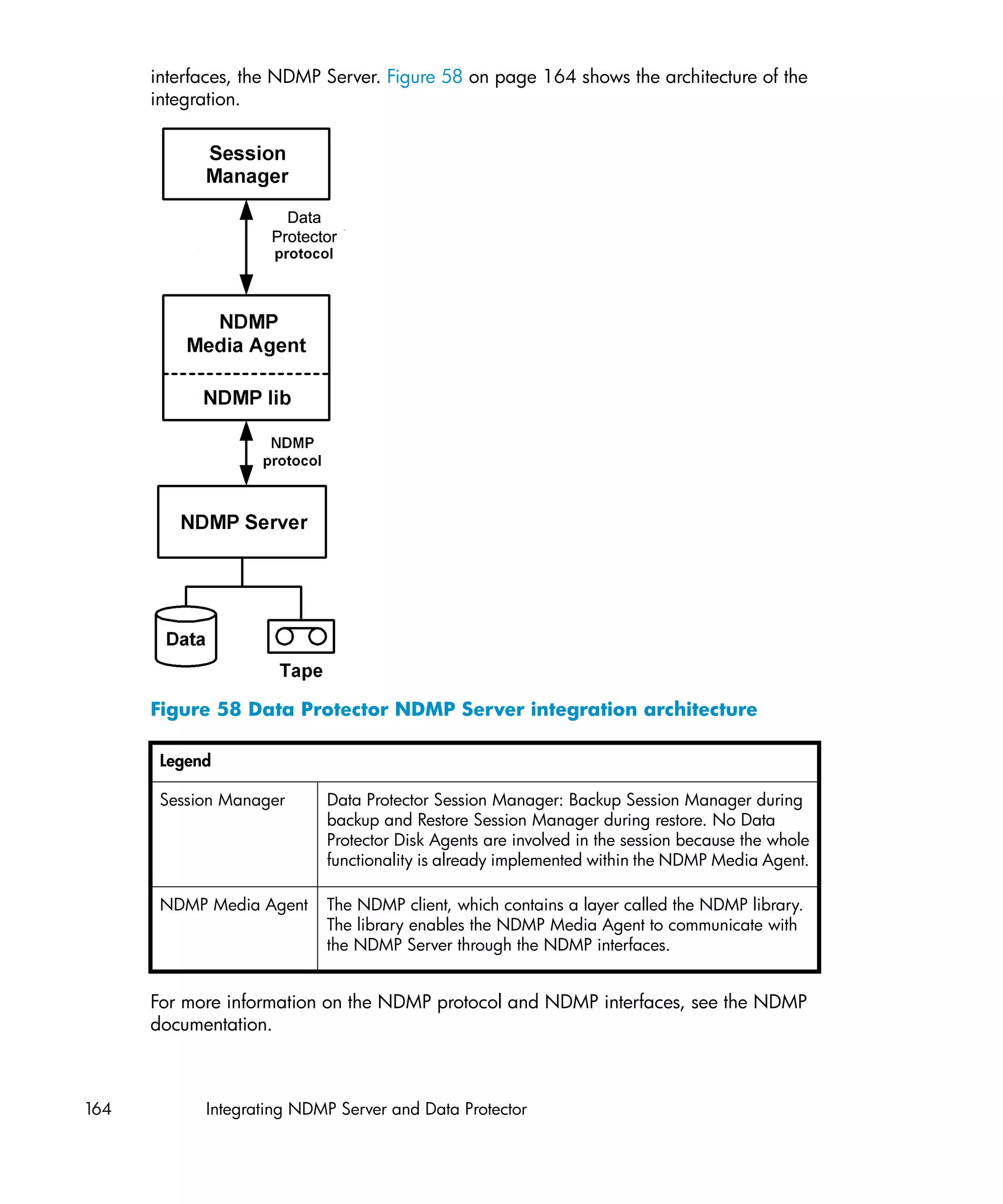
  58 Data Protector NDMP Server integration architecture .......................... 164
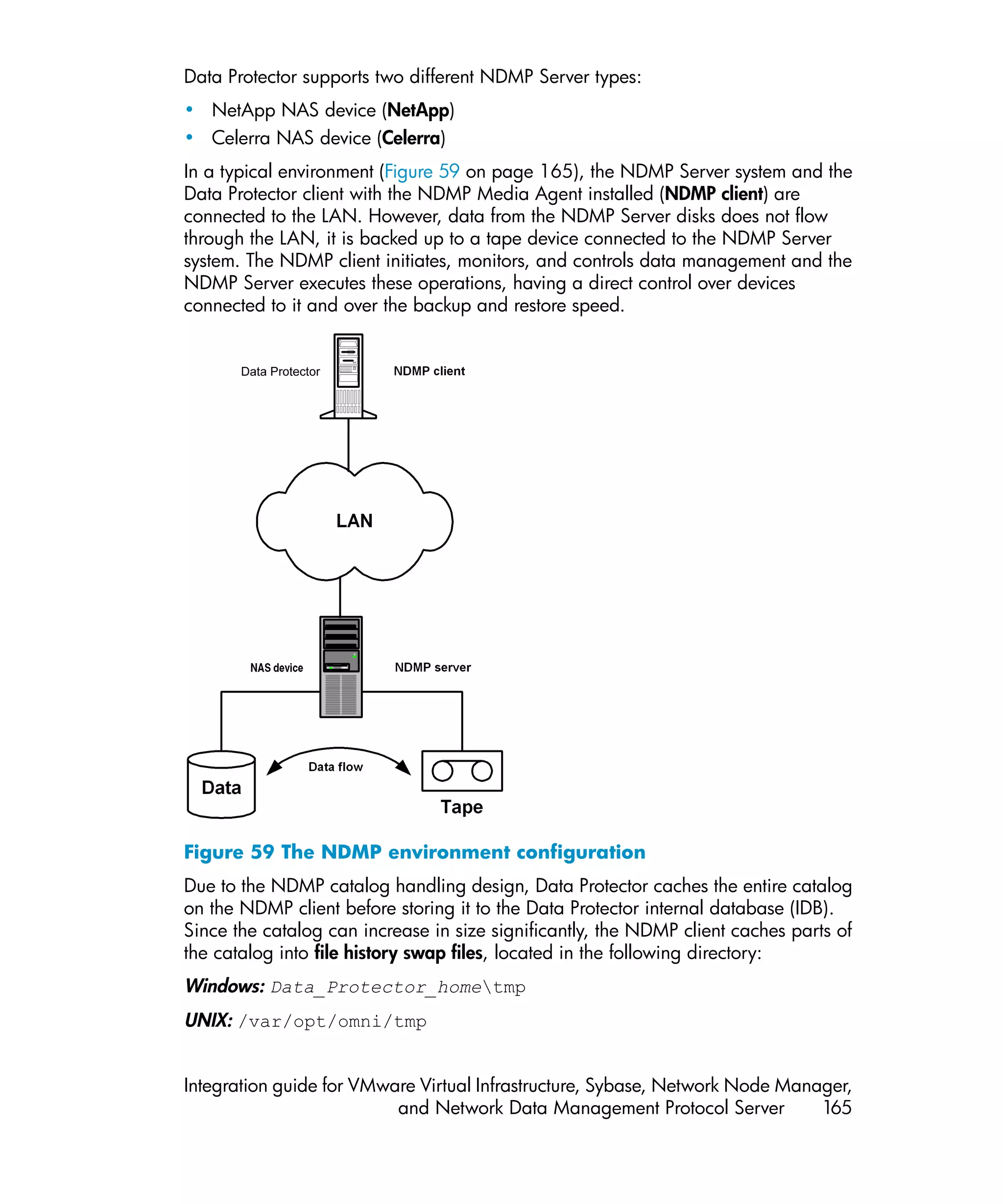
   59 The NDMP environment configuration .............................................. 165
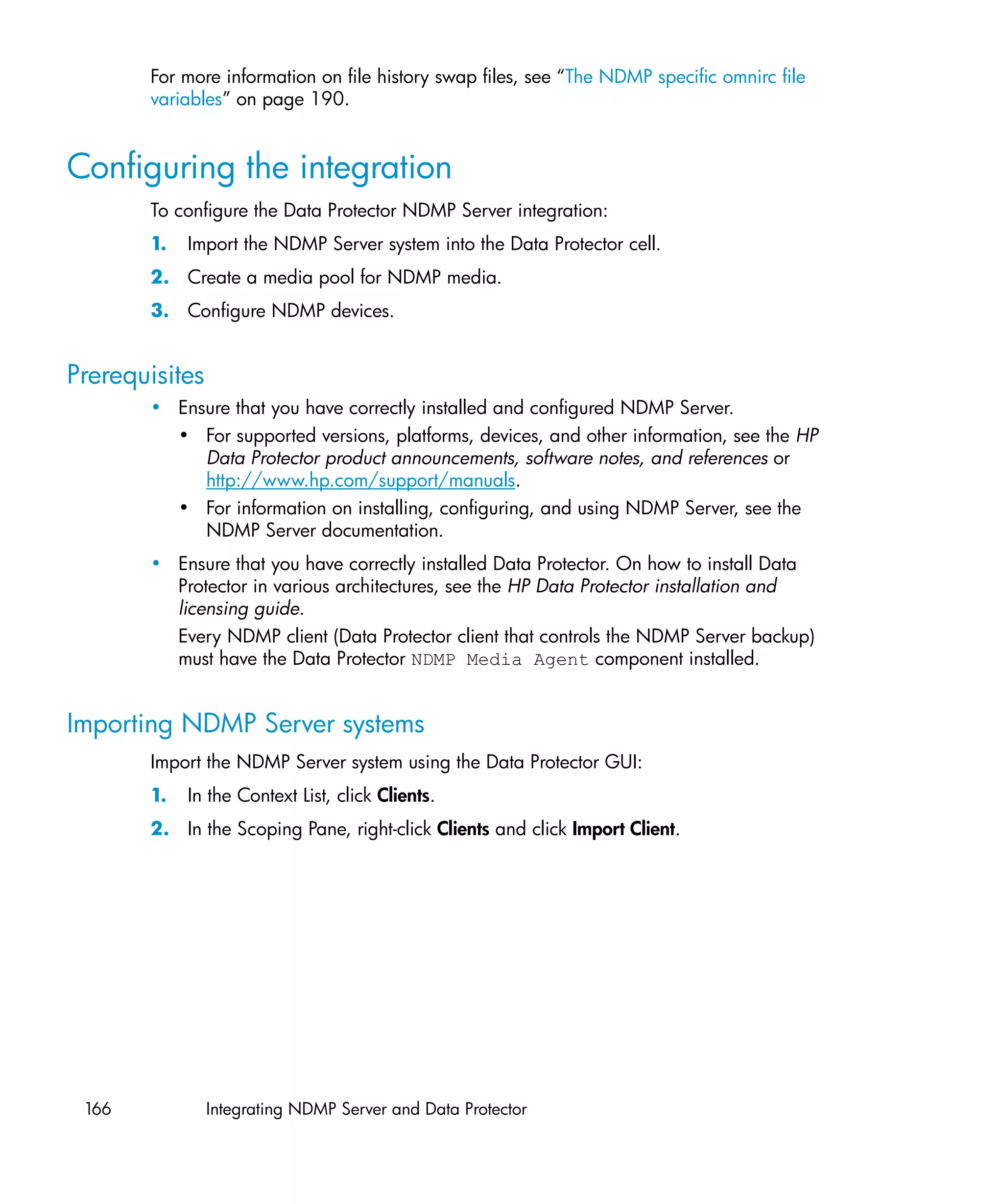
  60 Specifying an NDMP Server system ................................................. 167
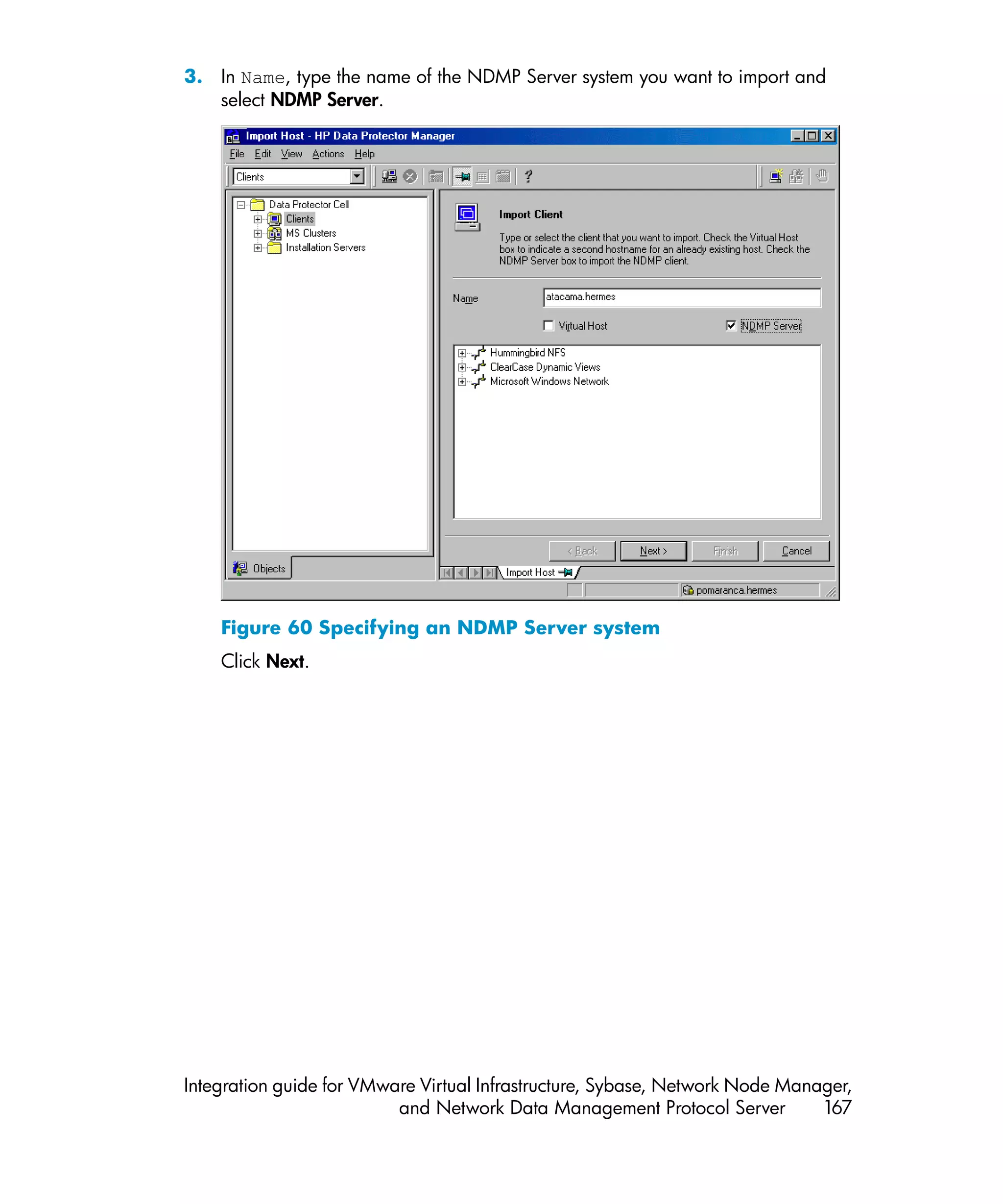
   61 Specifying an NDMP Server system ................................................. 168
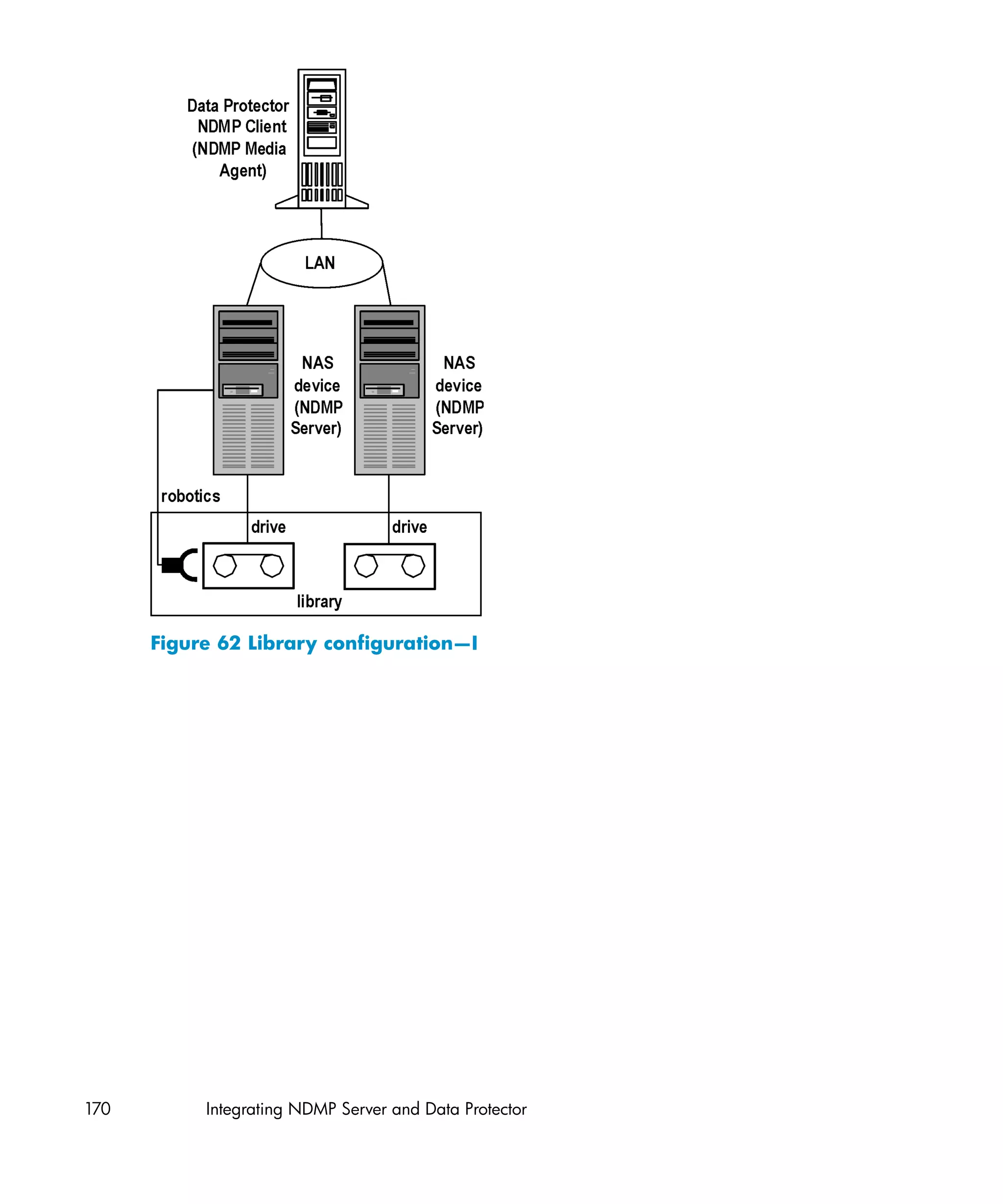
   62 Library configuration—I .................................................................. 170
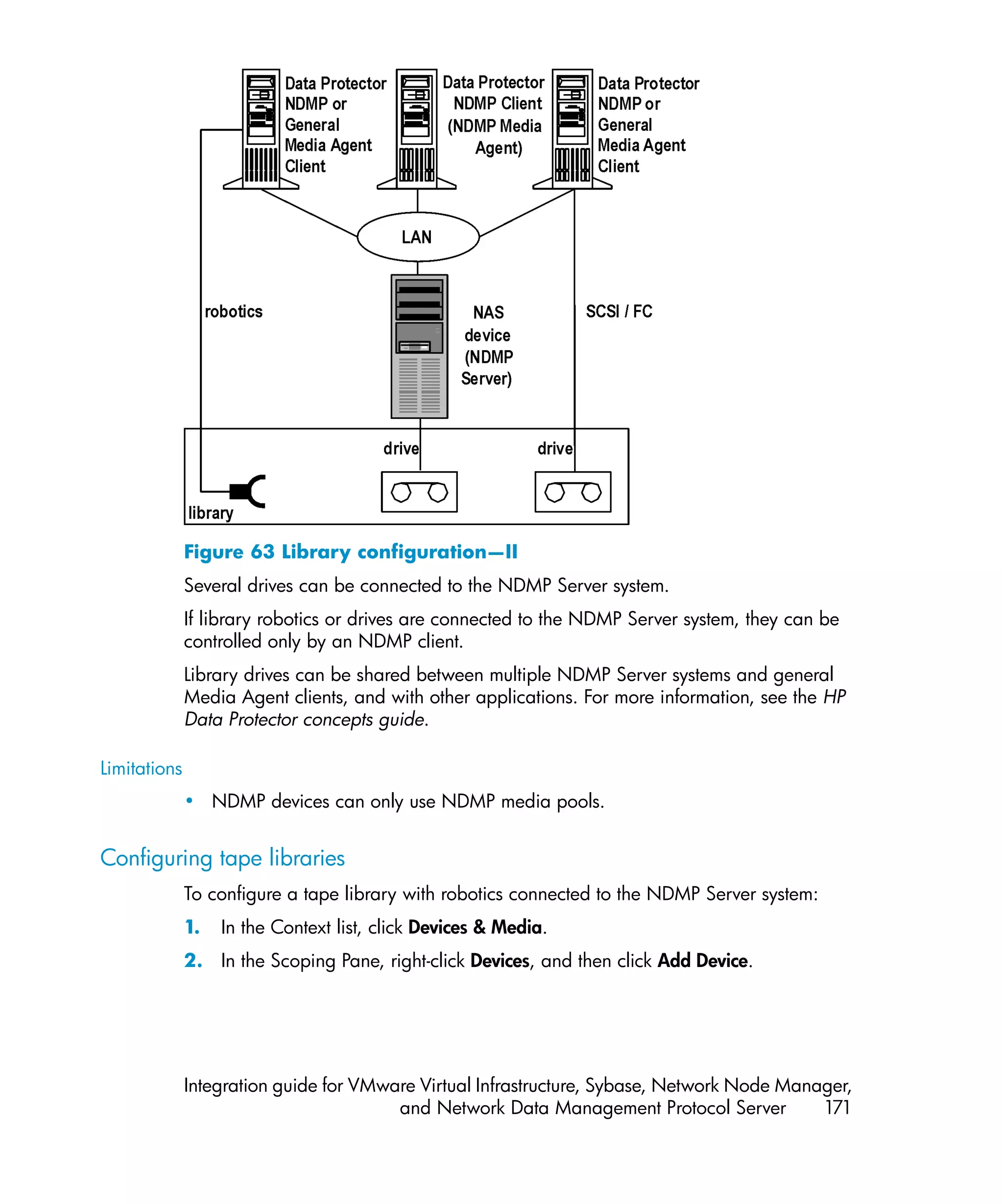
  63 Library configuration—II ................................................................. 171
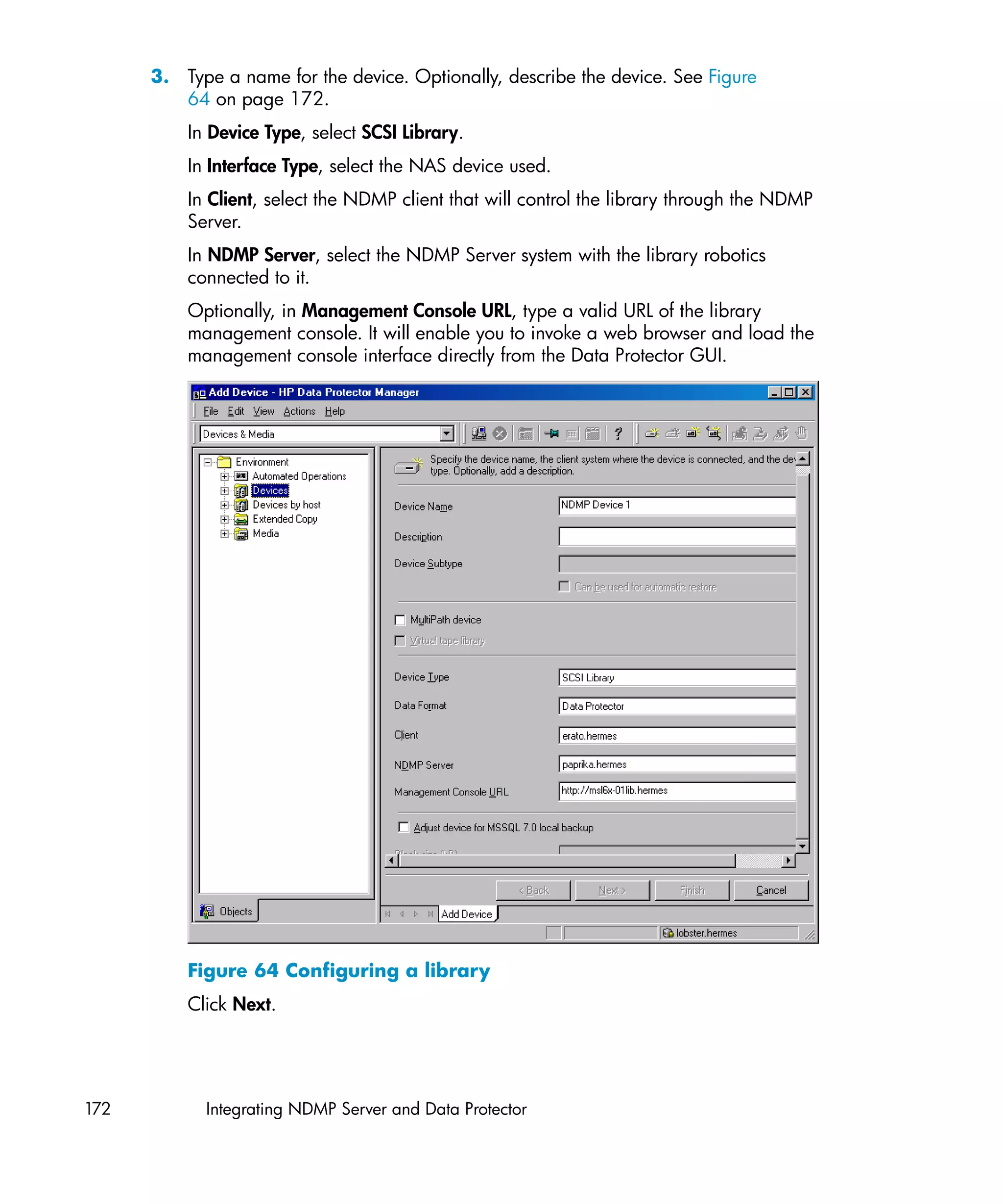
  64 Configuring a library ..................................................................... 172
  65 Configuring a standalone device ..................................................... 175
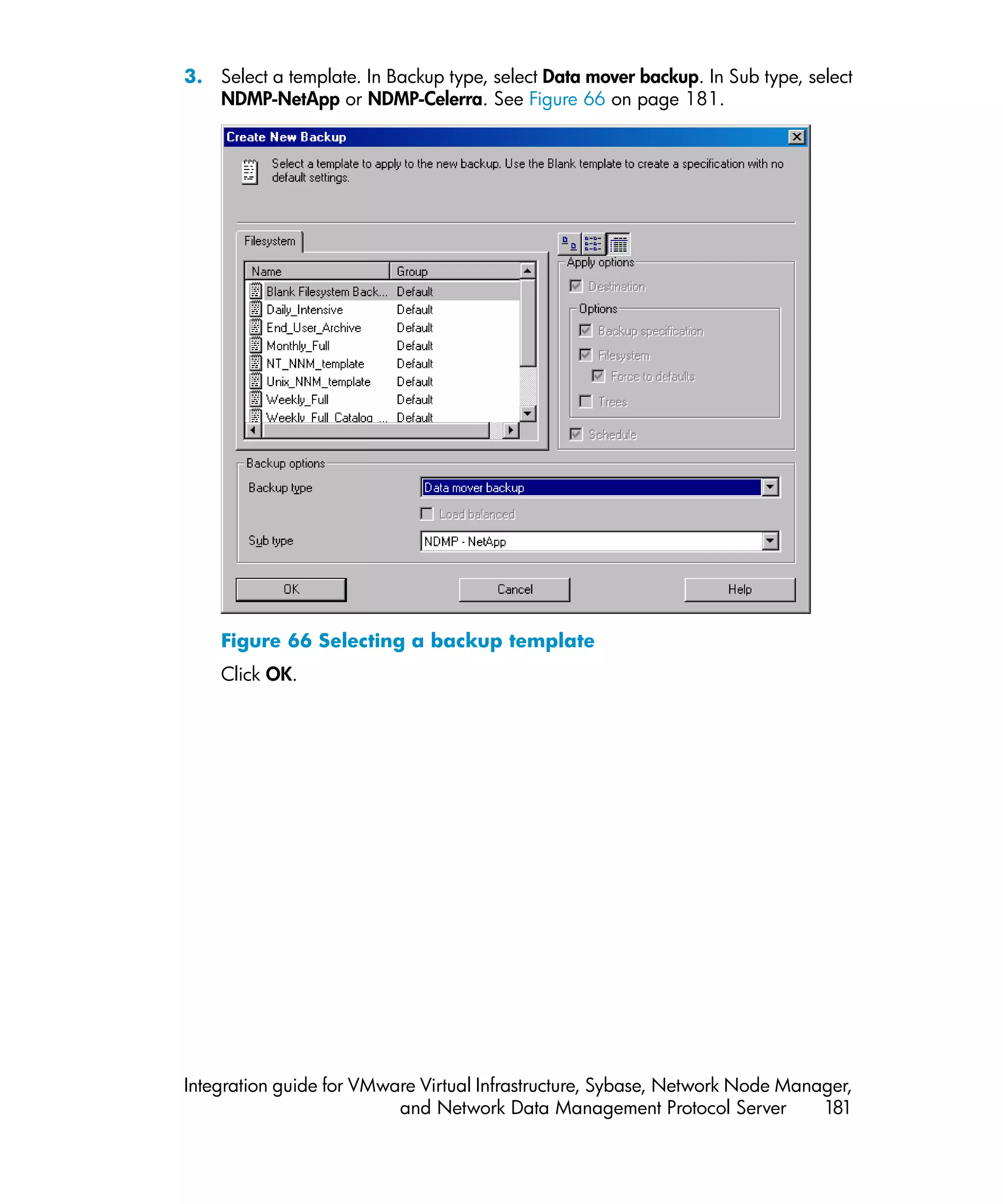
  66 Selecting a backup template ........................................................... 181
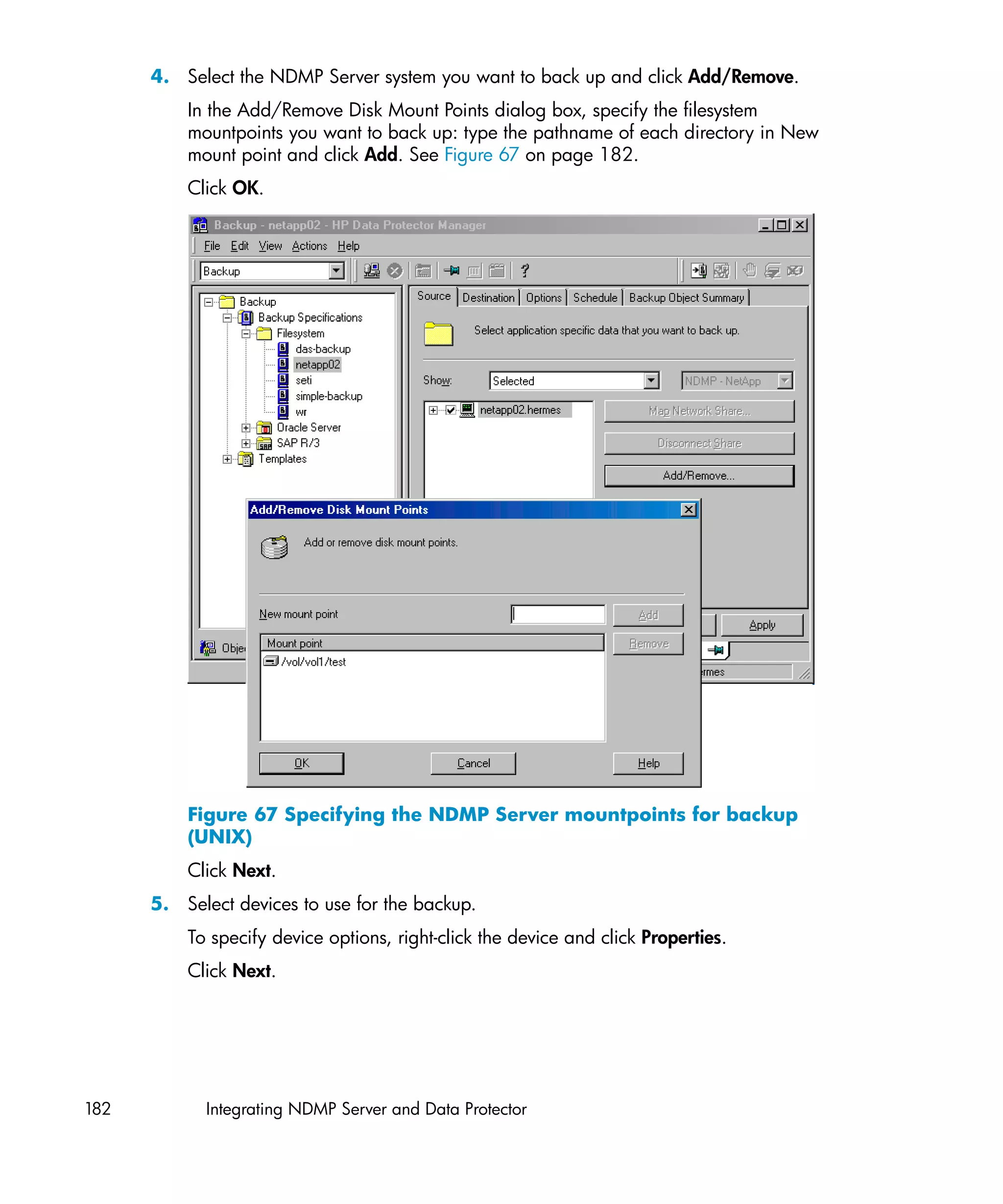
   67 Specifying the NDMP Server mountpoints for backup (UNIX) ............... 182
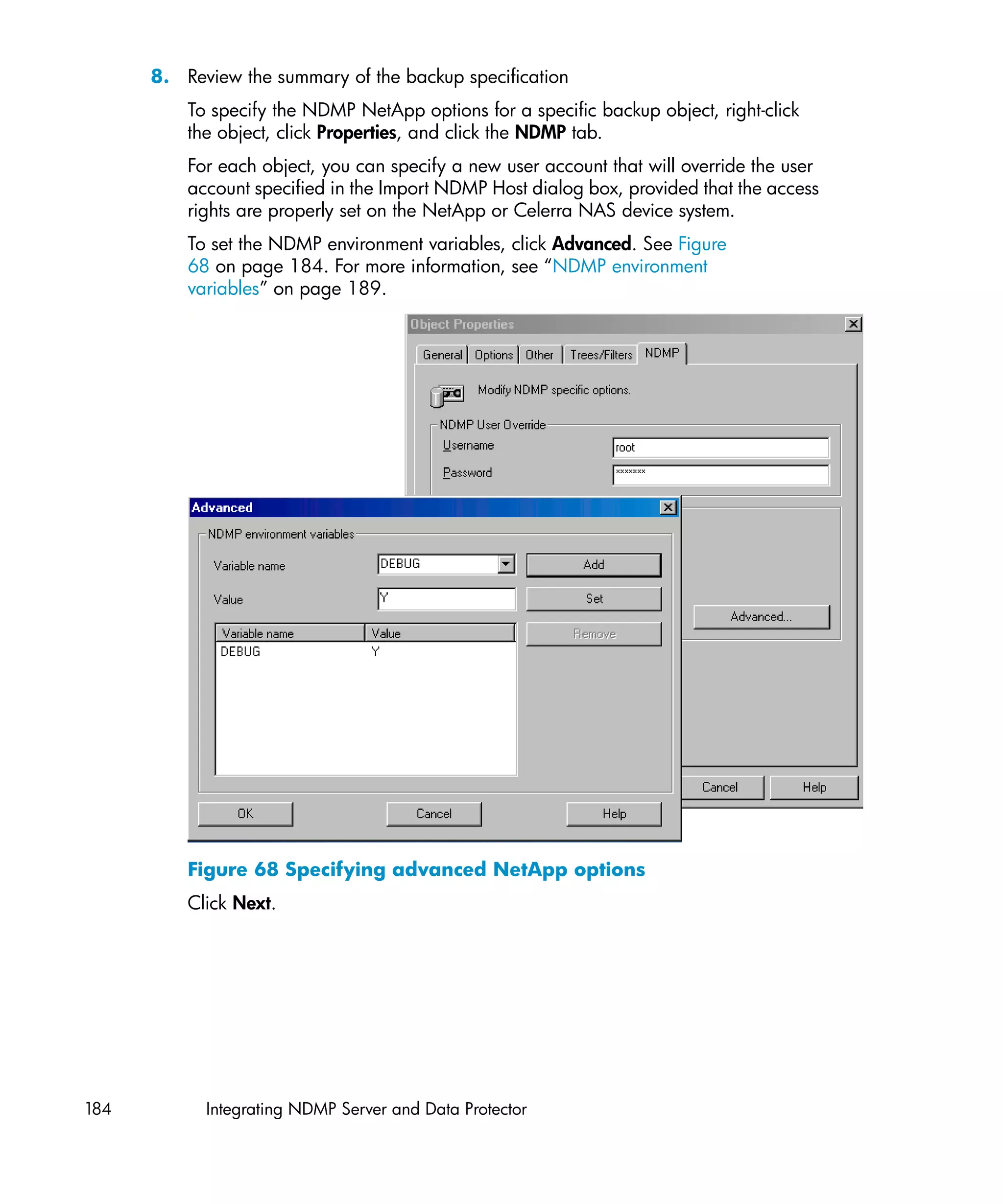
  68 Specifying advanced NetApp options .............................................. 184
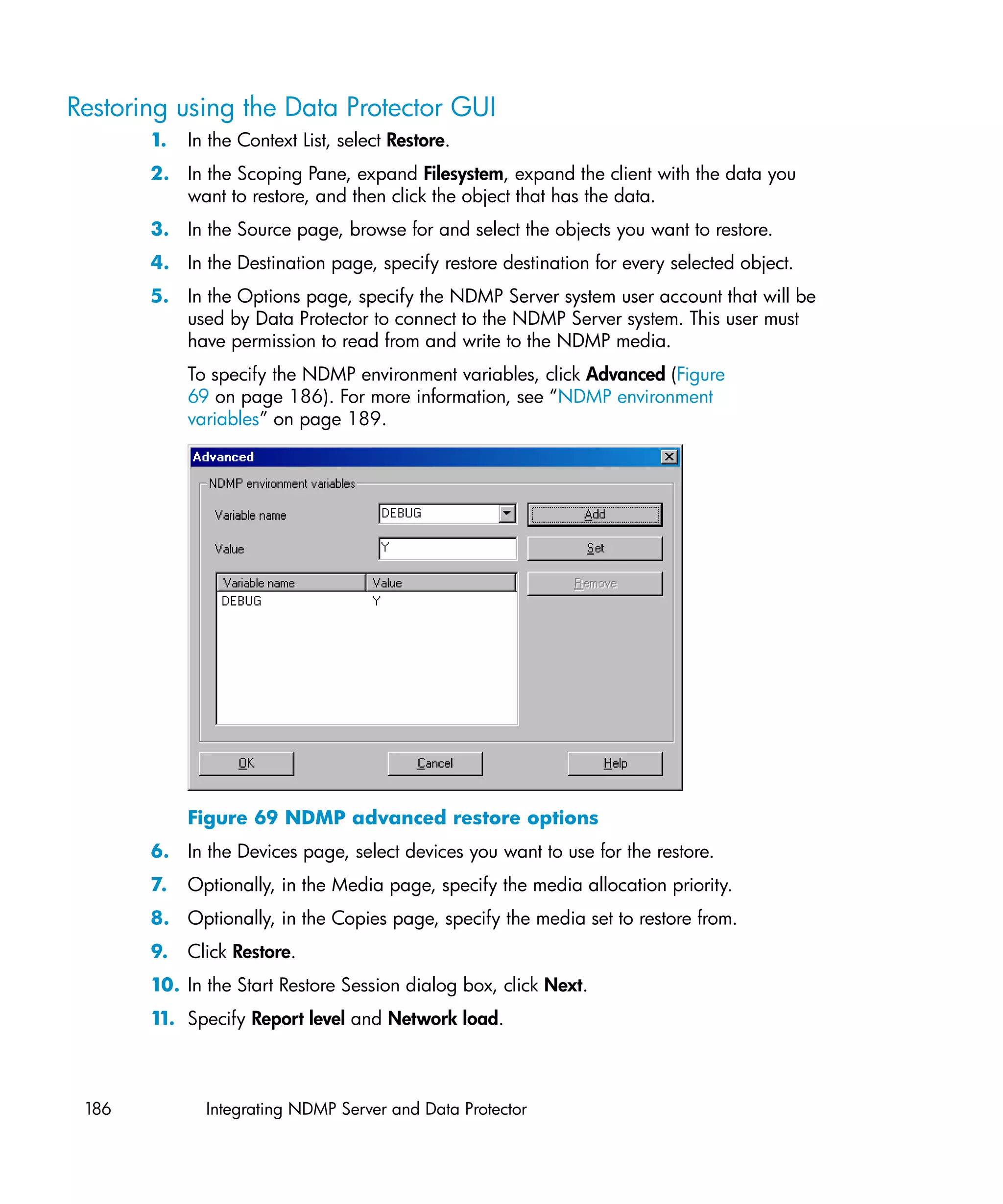
   69 NDMP advanced restore options ..................................................... 186
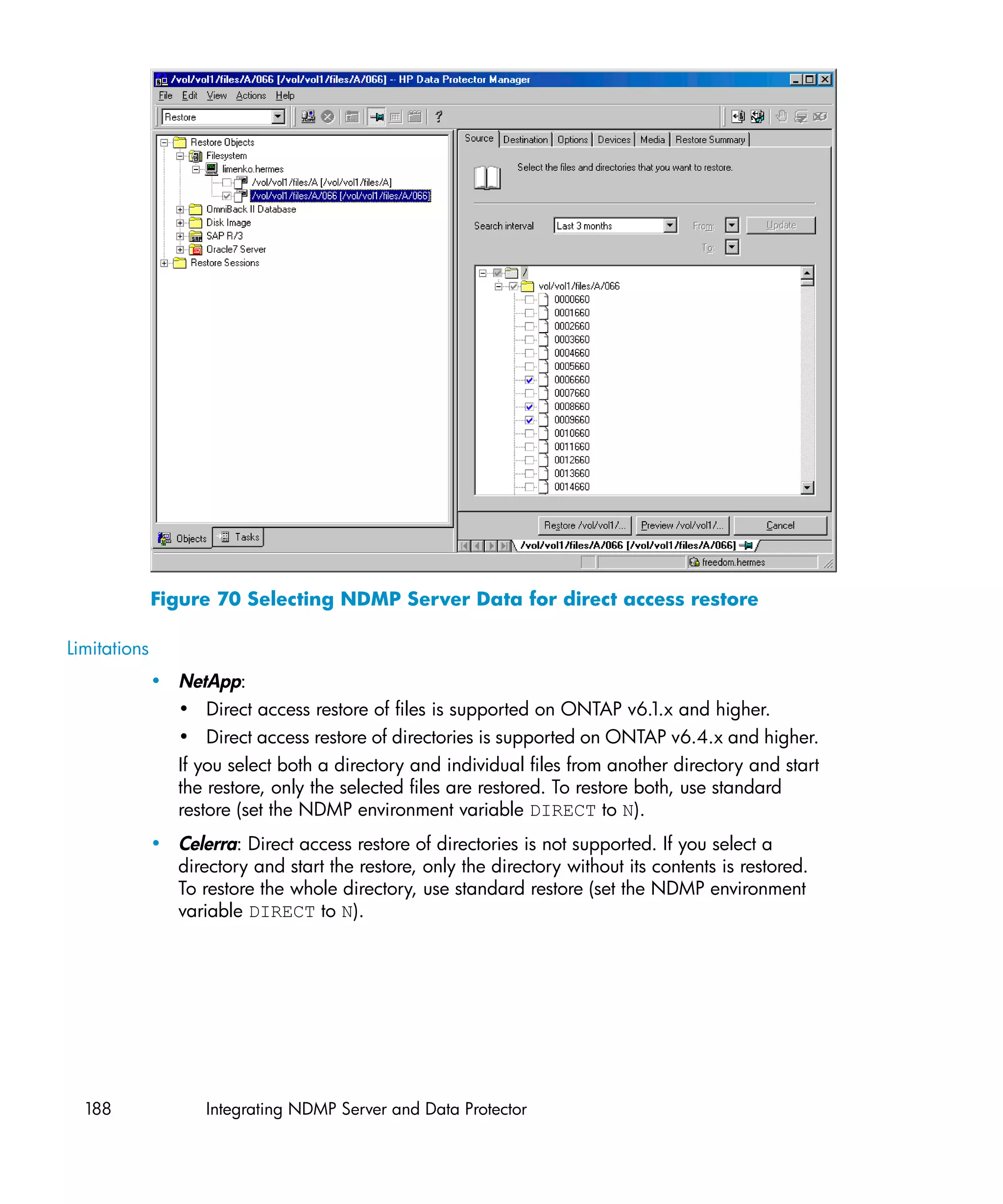
   70 Selecting NDMP Server Data for direct access restore ........................ 188
   71 Example backup and restore ........................................................... 199
   72 Example layout ............................................................................. 201
   73 Obtaining the names of the virtual machines ..................................... 206
   74 Temporary backup folder selection ................................................... 208
   75 Available storage repositories ......................................................... 212
   76 Selection of files to restore .............................................................. 213


Integration guide for VMware Virtual Infrastructure, Sybase, Network Node Manager,
                            and Network Data Management Protocol Server        11
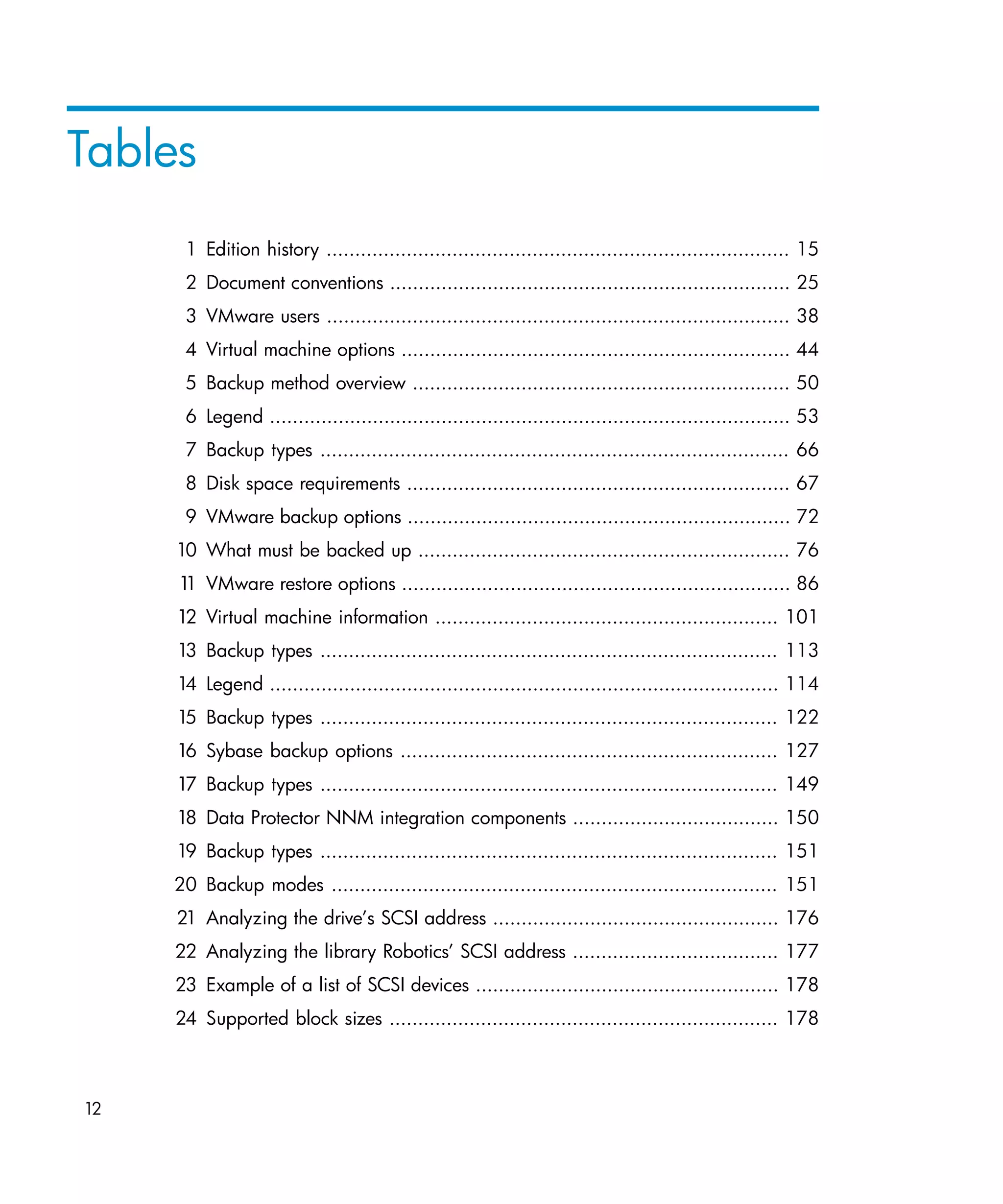
Tables
      1 Edition history ................................................................................. 15
      2 Document conventions ...................................................................... 25
      3 VMware users ................................................................................. 38
      4 Virtual machine options .................................................................... 44
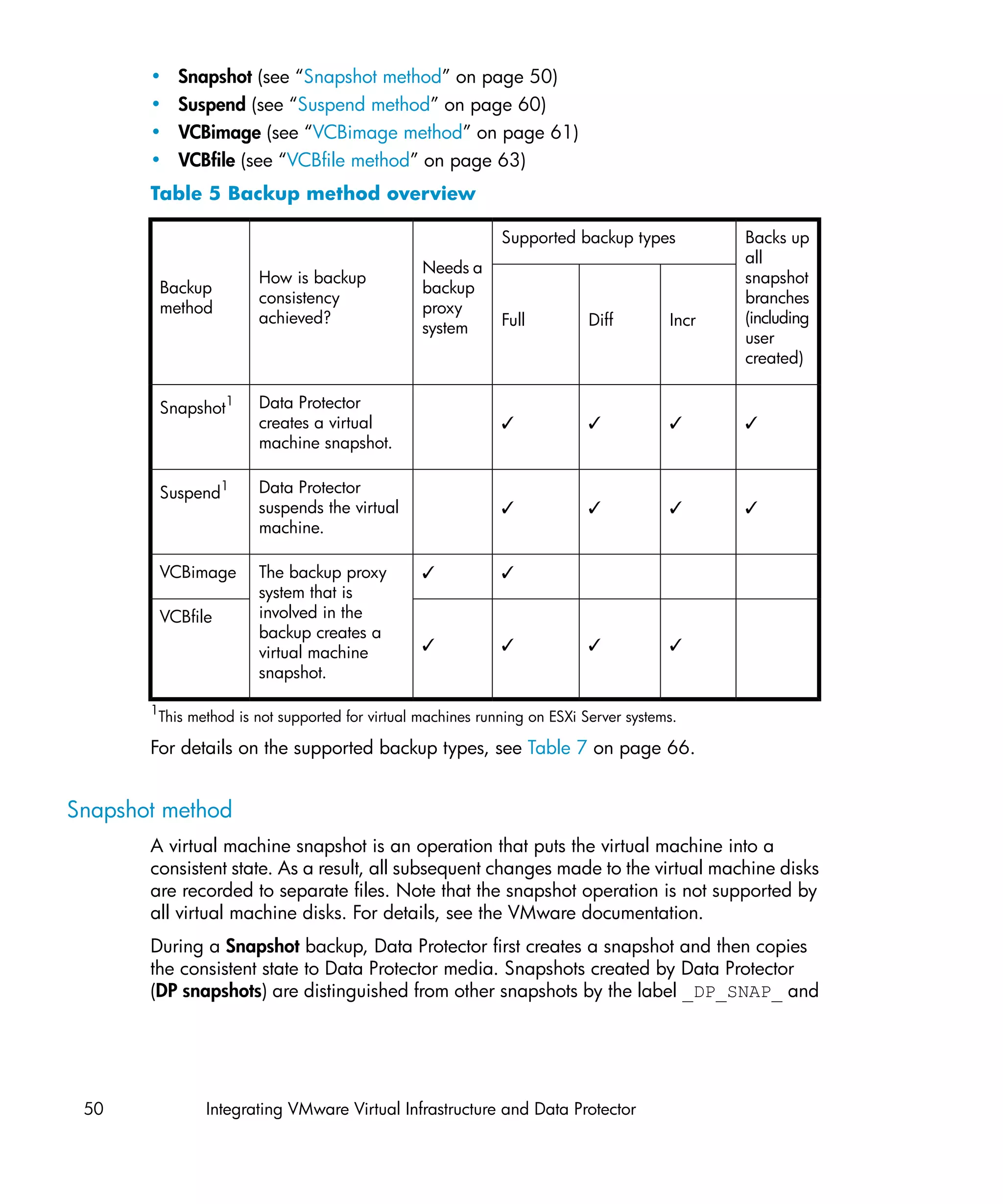
      5 Backup method overview .................................................................. 50
      6 Legend ........................................................................................... 53
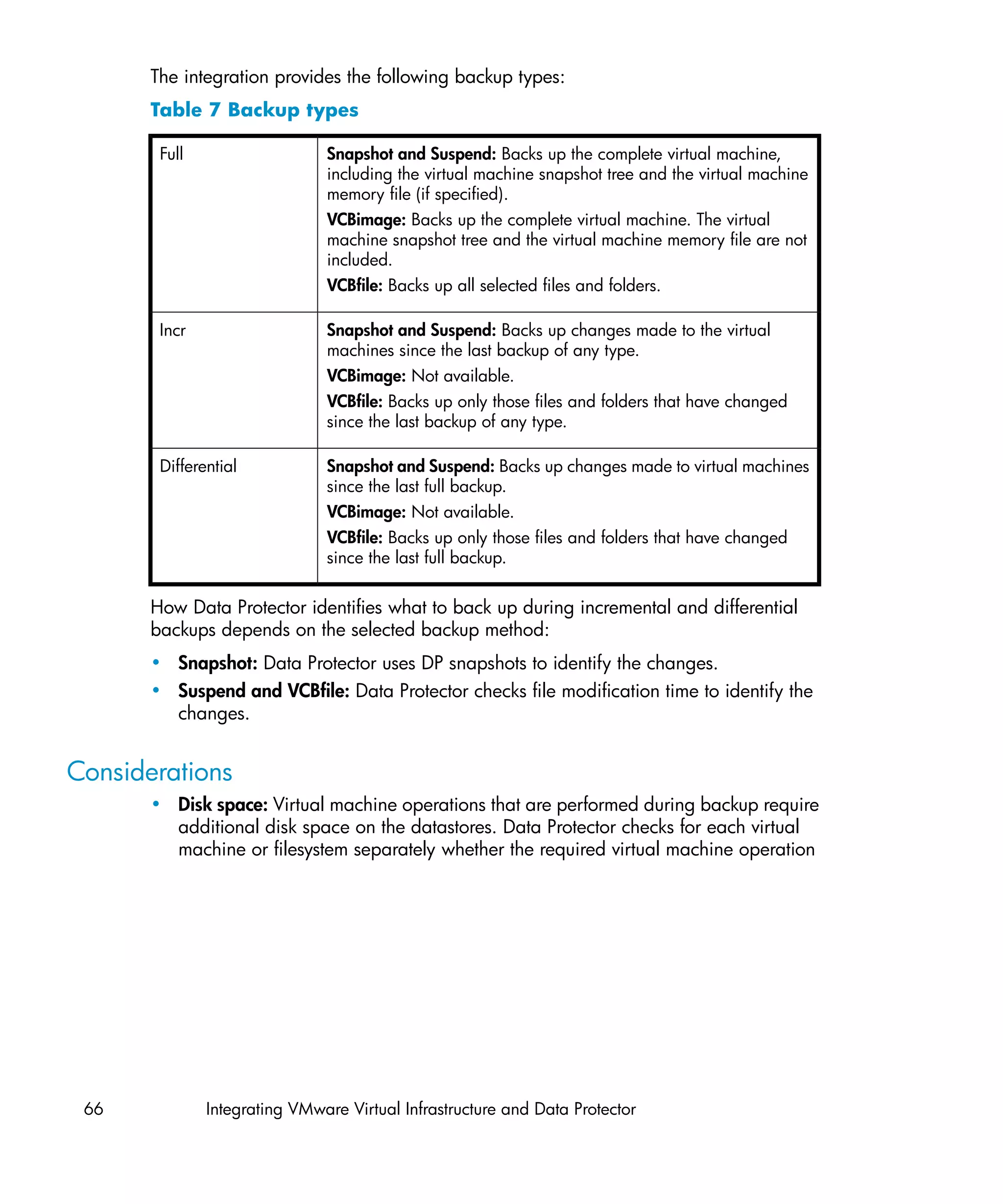
      7 Backup types .................................................................................. 66
      8 Disk space requirements ................................................................... 67
      9 VMware backup options ................................................................... 72
     10 What must be backed up ................................................................. 76
     1 VMware restore options .................................................................... 86
      1
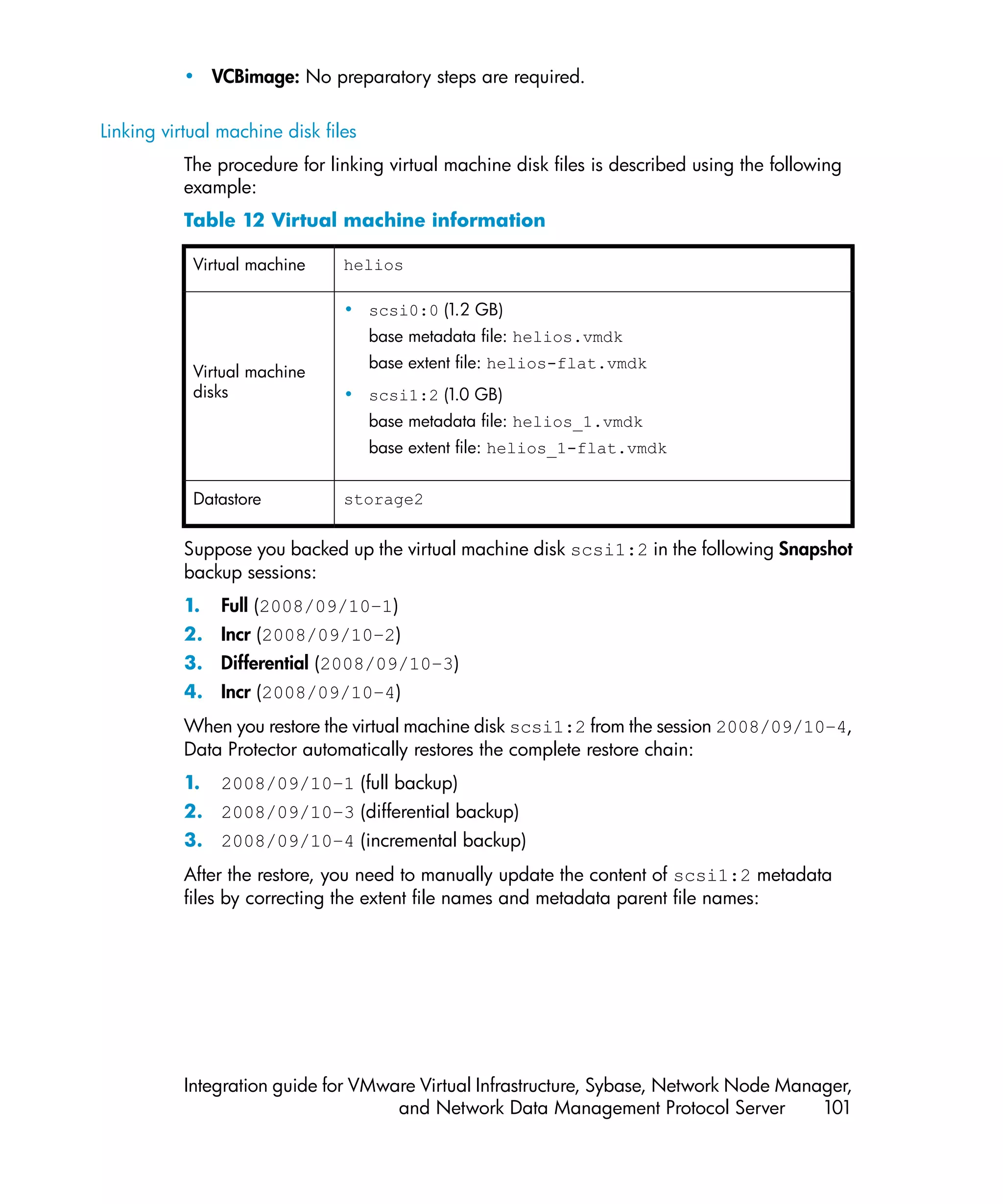
     12 Virtual machine information ............................................................ 101
     13 Backup types ................................................................................ 113
     14 Legend ......................................................................................... 114
     15 Backup types ................................................................................ 122
     16 Sybase backup options .................................................................. 127
     17 Backup types ................................................................................ 149
     18 Data Protector NNM integration components .................................... 150
     19 Backup types ................................................................................ 151
     20 Backup modes .............................................................................. 151
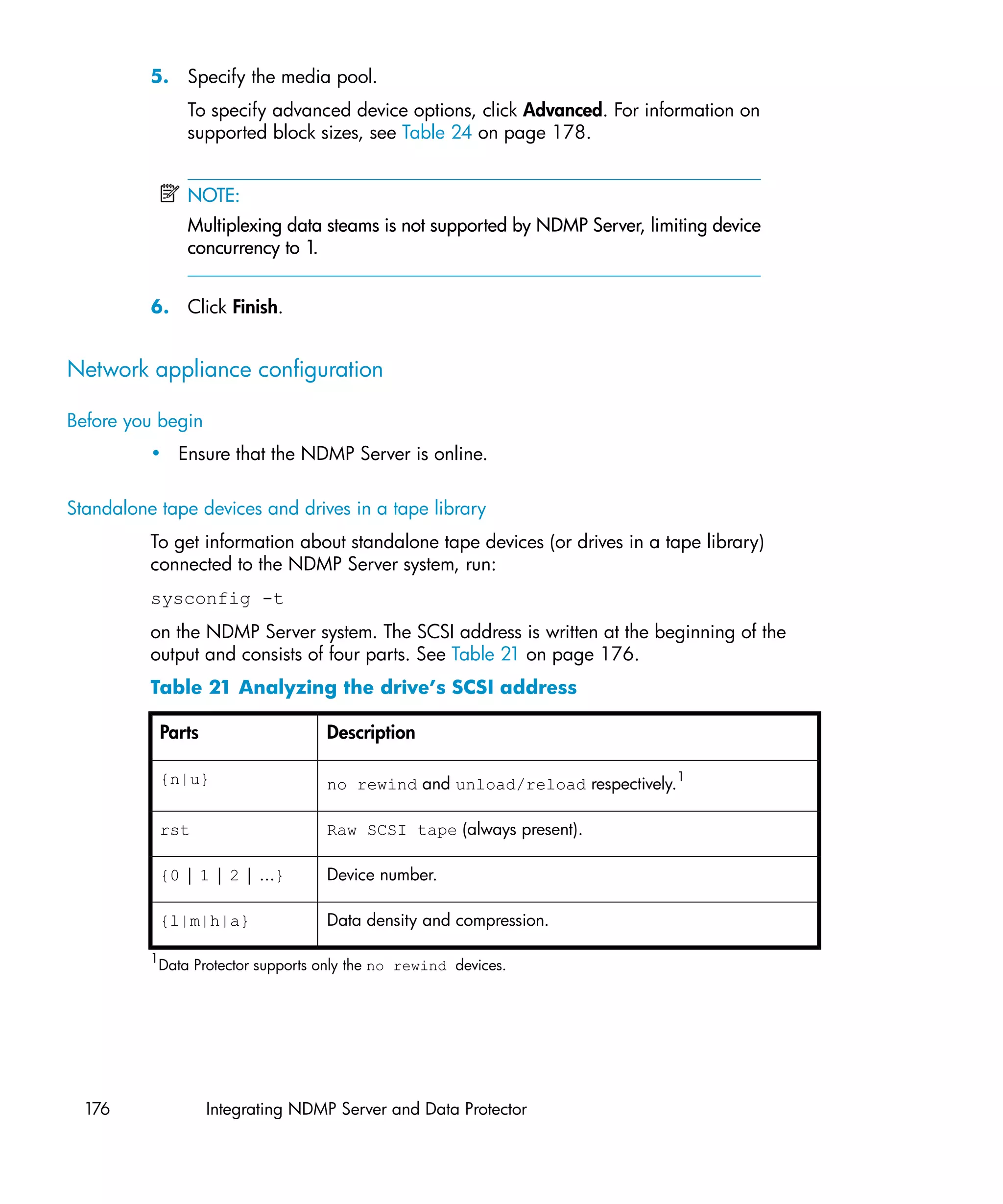
     21 Analyzing the drive’s SCSI address .................................................. 176
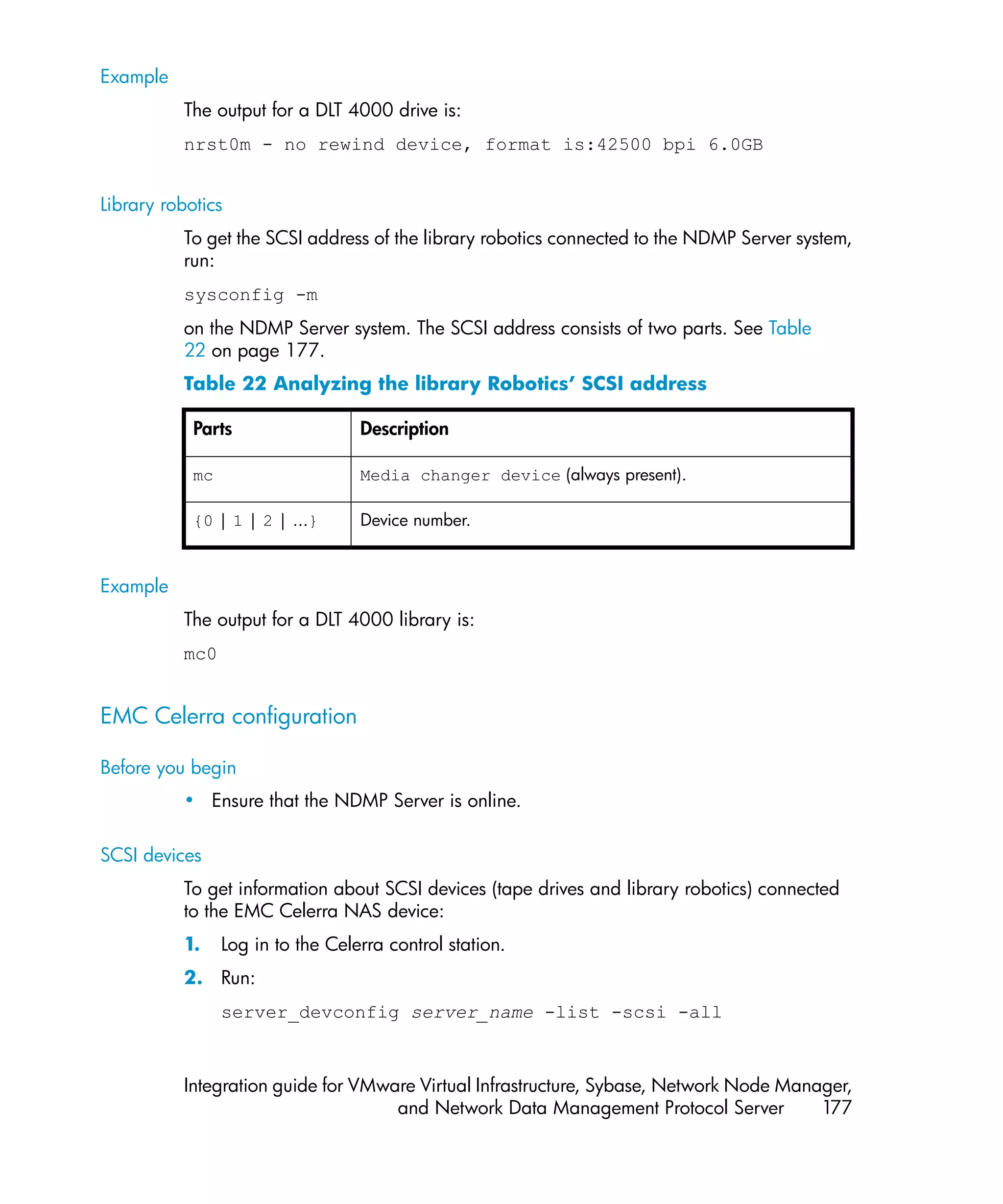
     22 Analyzing the library Robotics’ SCSI address .................................... 177
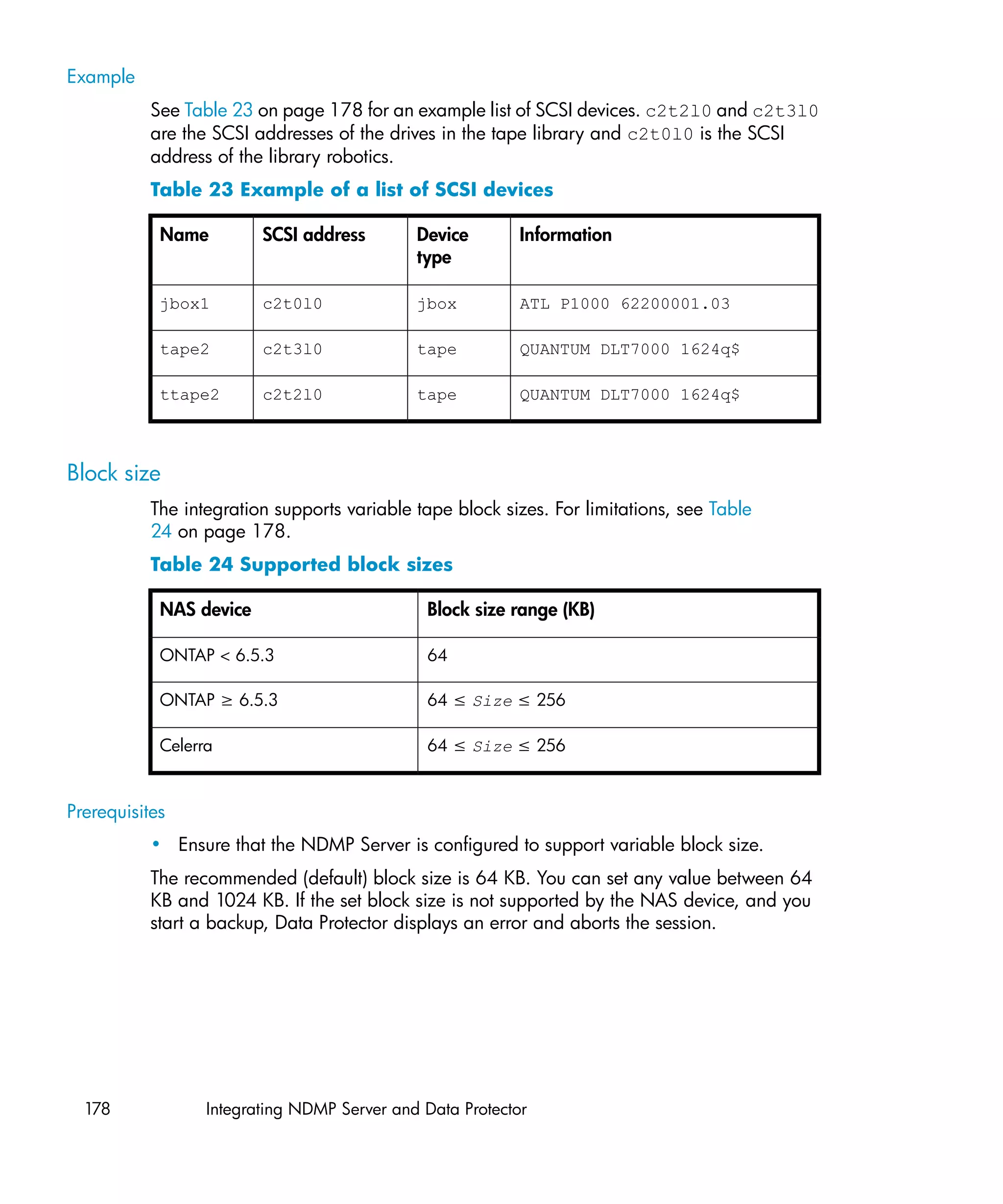
     23 Example of a list of SCSI devices ..................................................... 178
     24 Supported block sizes .................................................................... 178


12
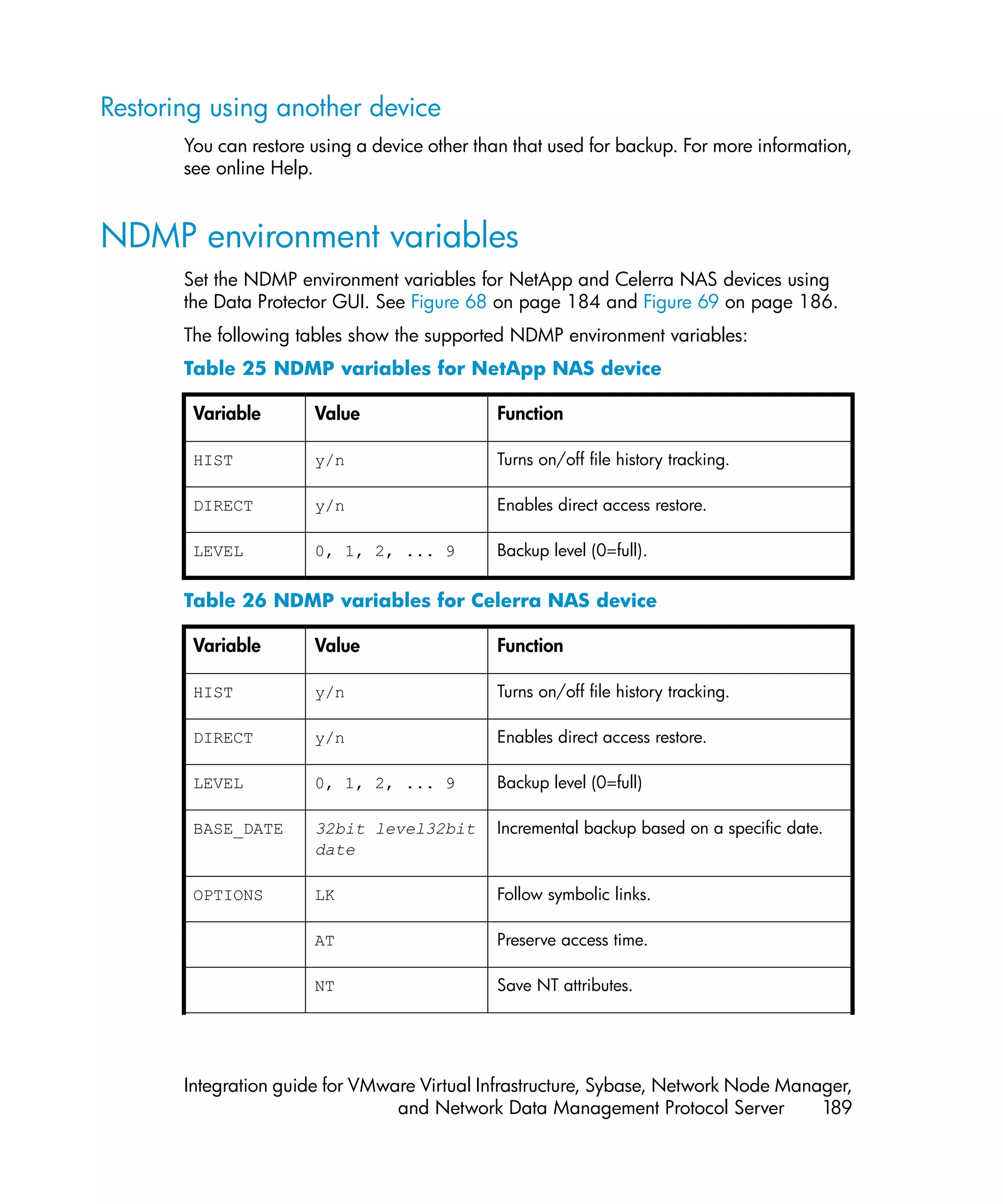
25 NDMP variables for NetApp NAS device ......................................... 189
   26 NDMP variables for Celerra NAS device .......................................... 189
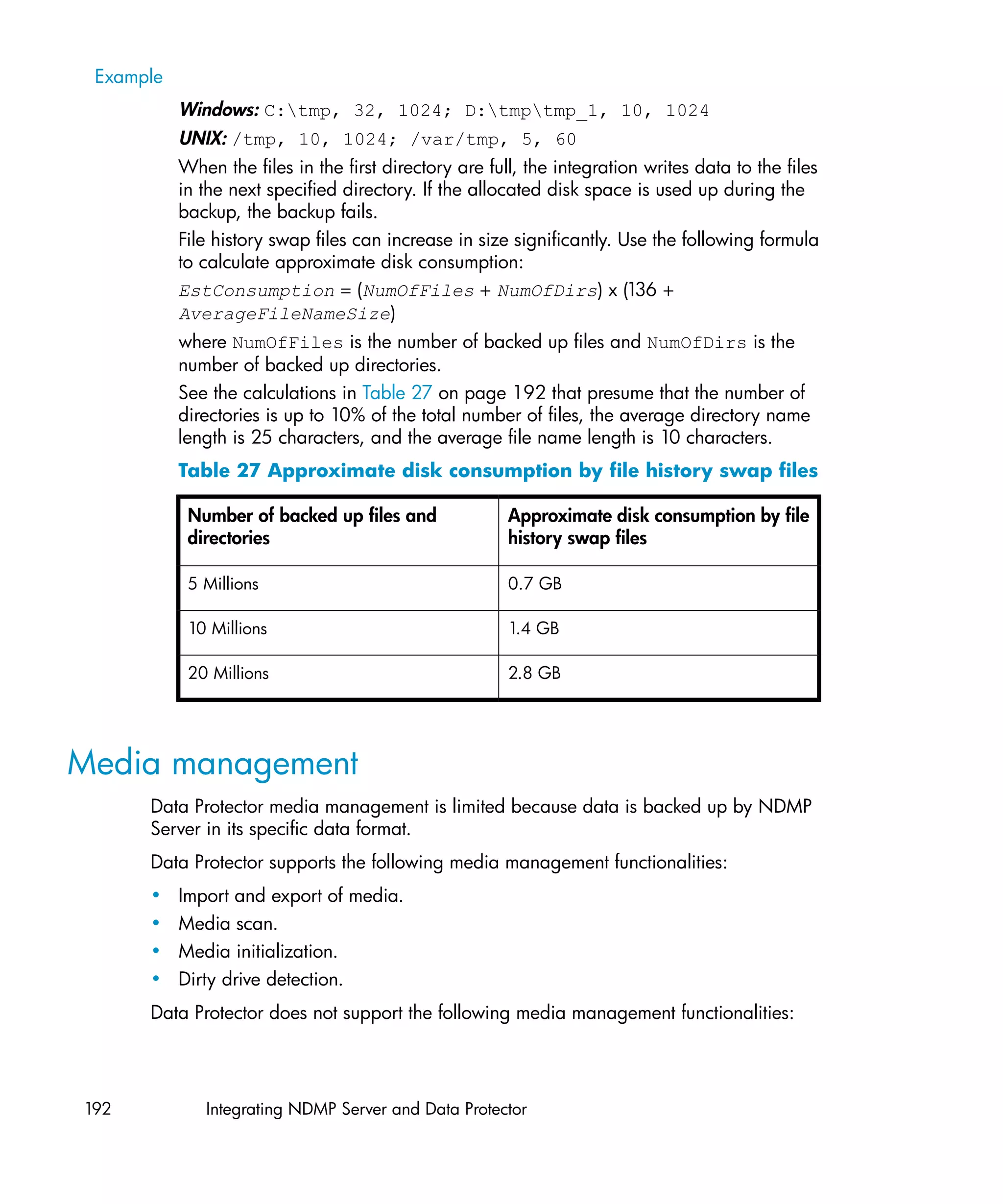
   27 Approximate disk consumption by file history swap files ..................... 192


Integration guide for VMware Virtual Infrastructure, Sybase, Network Node Manager,
                           and Network Data Management Protocol Server         13
14
Publication history

   Guide updates may be issued between editions to correct errors or document product
   changes. To ensure that you receive updated or new editions, subscribe to the
   appropriate product support service. See your HP sales representative for details.
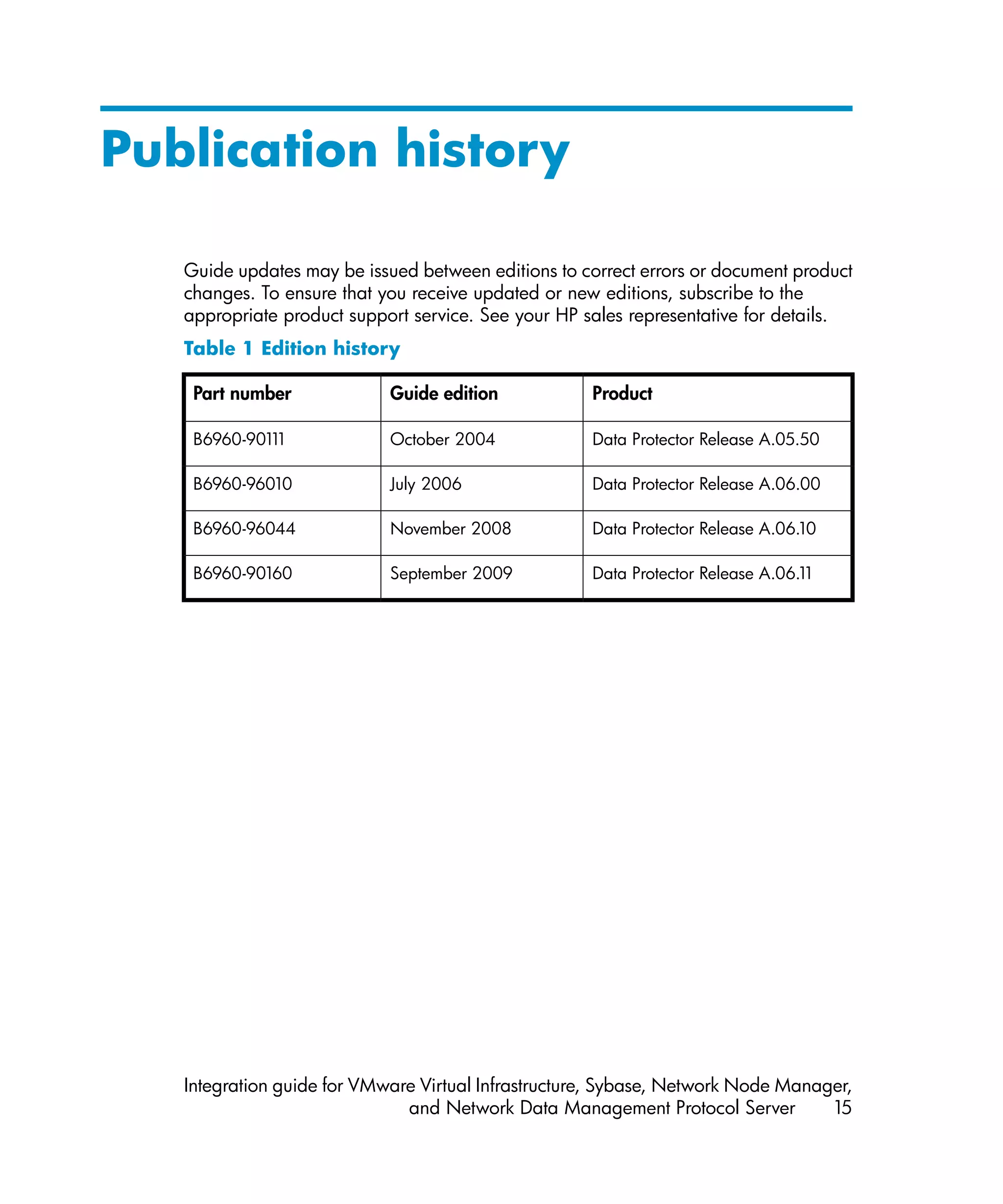
   Table 1 Edition history

    Part number             Guide edition            Product

    B6960-901 1
             1              October 2004             Data Protector Release A.05.50

    B6960-96010             July 2006                Data Protector Release A.06.00

    B6960-96044             November 2008            Data Protector Release A.06.10

    B6960-90160             September 2009           Data Protector Release A.06.11


   Integration guide for VMware Virtual Infrastructure, Sybase, Network Node Manager,
                              and Network Data Management Protocol Server         15
16   Publication history
About this guide

         This guide describes how to configure and use Data Protector with Sybase, Network
         Node Manager, Network Data Management Protocol, and VMware.


Intended audience
         This guide is intended for backup administrators responsible for planning, setting up,
         and maintaining network backups. It assumes you are familiar with:
         • Basic Data Protector functionality
         • Administration of the respective application
         Conceptual information can be found in the HP Data Protector concepts guide, which
         is recommended to fully understand the fundamentals and the model of Data Protector.


Documentation set
         Other documents and online Help provide related information.


Guides
         Data Protector guides are available in printed format and in PDF format. Install the
         PDF files during the Data Protector setup procedure by selecting the English
         Documentation & Help component on Windows or the OB2-DOCS component
         on UNIX. Once installed, the guides reside in the Data_Protector_homedocs
         directory on Windows and in the /opt/omni/doc/C directory on UNIX.
         You can find these documents from the Manuals page of the HP Business Support
         Center website:
            http://www.hp.com/support/manuals
         In the Storage section, click Storage Software and then select your product.
         • HP Data Protector concepts guide


         Integration guide for VMware Virtual Infrastructure, Sybase, Network Node Manager,
                                    and Network Data Management Protocol Server         17
This guide describes Data Protector concepts and provides background information
        on how Data Protector works. It is intended to be used with the task-oriented
        online Help.
     • HP Data Protector installation and licensing guide
       This guide describes how to install the Data Protector software, taking into account
       the operating system and architecture of your environment. This guide also gives
       details on how to upgrade Data Protector, as well as how to obtain the proper
       licenses for your environment.
     • HP Data Protector troubleshooting guide
       This guide describes how to troubleshoot problems you may encounter when
       using Data Protector.
     • HP Data Protector disaster recovery guide
       This guide describes how to plan, prepare for, test and perform a disaster
       recovery.
     • HP Data Protector integration guides
       These guides describe how to configure and use Data Protector to back up and
       restore various databases and applications. They are intended for backup
       administrators or operators. There are four guides:
       • HP Data Protector integration guide for Microsoft applications: SQL Server,
           SharePoint Portal Server, Exchange Server, and Volume Shadow Copy Service
           This guide describes the integrations of Data Protector with the following
           Microsoft applications: Microsoft Exchange Server, Microsoft SQL Server, and
           Volume Shadow Copy Service.
        • HP Data Protector integration guide for Oracle and SAP
          This guide describes the integrations of Data Protector with Oracle, SAP R/3,
          and SAP DB/MaxDB.
        • HP Data Protector integration guide for IBM applications: Informix, DB2, and
          Lotus Notes/Domino
          This guide describes the integrations of Data Protector with the following IBM
          applications: Informix Server, IBM DB2, and Lotus Notes/Domino Server.
        • HP Data Protector integration guide for VMware Virtual Infrastructure, Sybase,
          Network Node Manager, and Network Data Management Protocol Server
          This guide describes the integrations of Data Protector with VMware Virtual
          Infrastructure, Sybase, Network Node Manager, Network Data Management
          Protocol Server, and Citrix XenServer.

     • HP Data Protector integration guide for HP Service Information Portal


18          About this guide
This guide describes how to install, configure, and use the integration of Data
   Protector with HP Service Information Portal. It is intended for backup
   administrators. It discusses how to use the application for Data Protector service
   management.
• HP Data Protector integration guide for HP Reporter
  This manual describes how to install, configure, and use the integration of Data
  Protector with HP Reporter. It is intended for backup administrators. It discusses
  how to use the application for Data Protector service management.
• HP Data Protector integration guide for HP Operations Manager for UNIX
  This guide describes how to monitor and manage the health and performance of
  the Data Protector environment with HP Operations Manager and HP Service
  Navigator on UNIX.
• HP Data Protector integration guide for HP Operations Manager for Windows
  This guide describes how to monitor and manage the health and performance of
  the Data Protector environment with HP Operations Manager and HP Service
  Navigator on Windows.
• HP Data Protector integration guide for HP Performance Manager and HP
  Performance Agent
  This guide provides information about how to monitor and manage the health
  and performance of the Data Protector environment with HP Performance Manager
  (PM) and HP Performance Agent (PA) on Windows, HP-UX, Solaris, and Linux.
• HP Data Protector zero downtime backup concepts guide
  This guide describes Data Protector zero downtime backup and instant recovery
  concepts and provides background information on how Data Protector works in
  a zero downtime backup environment. It is intended to be used with the
  task-oriented HP Data Protector zero downtime backup administrator's guide and
  the HP Data Protector zero downtime backup integration guide.
• HP Data Protector zero downtime backup administrator's guide
  This guide describes how to configure and use the integration of Data Protector
  with HP StorageWorks Virtual Array, HP StorageWorks Enterprise Virtual Array,
  EMC Symmetrix Remote Data Facility and TimeFinder, and HP StorageWorks
  Disk Array XP. It is intended for backup administrators or operators. It covers the
  zero downtime backup, instant recovery, and the restore of filesystems and disk
  images.
• HP Data Protector zero downtime backup integration guide
  This guide describes how to configure and use Data Protector to perform zero
  downtime backup, instant recovery, and standard restore of Oracle, SAP R/3,
  Microsoft Exchange Server, and Microsoft SQL Server databases. The guide also


Integration guide for VMware Virtual Infrastructure, Sybase, Network Node Manager,
                           and Network Data Management Protocol Server         19
describes how to configure and use Data Protector to perform backup and restore
         using the Microsoft Volume Shadow Copy Service.
      • HP Data Protector MPE/iX system user guide
        This guide describes how to configure MPE/iX clients and how to back up and
        restore MPE/iX data.
      • HP Data Protector Media Operations user guide
        This guide provides tracking and management of offline storage media. It describes
        the tasks of installing and configuring the application, performing daily media
        operations and producing reports.
      • HP Data Protector product announcements, software notes, and references
        This guide gives a description of new features of HP Data Protector A.06.1 It
                                                                                   1.
        also provides information on installation requirements, required patches, and
        limitations, as well as known issues and workarounds.
      • HP Data Protector product announcements, software notes, and references for
        integrations to HP Operations Manager, HP Reporter, HP Performance Manager,
        HP Performance Agent, and HP Service Information Portal
        This guide fulfills a similar function for the listed integrations.
      • HP Data Protector Media Operations product announcements, software notes,
        and references
        This guide fulfills a similar function for Media Operations.
      • HP Data Protector command line interface reference
        This guide describes the Data Protector command-line interface, command options
        and their usage as well as provides some basic command-line examples.


Online Help
      Data Protector provides context-sensitive (F1) Help and Help Topics for Windows
      and UNIX platforms.
      You can access the online Help from the top-level directory on the installation
      DVD-ROM without installing Data Protector:
      • Windows: Unzip DP_help.zip and open DP_help.chm.
      • UNIX: Unpack the zipped tar file DP_help.tar.gz, and access the online Help
        system through DP_help.htm.


 20           About this guide
Documentation map

Abbreviations
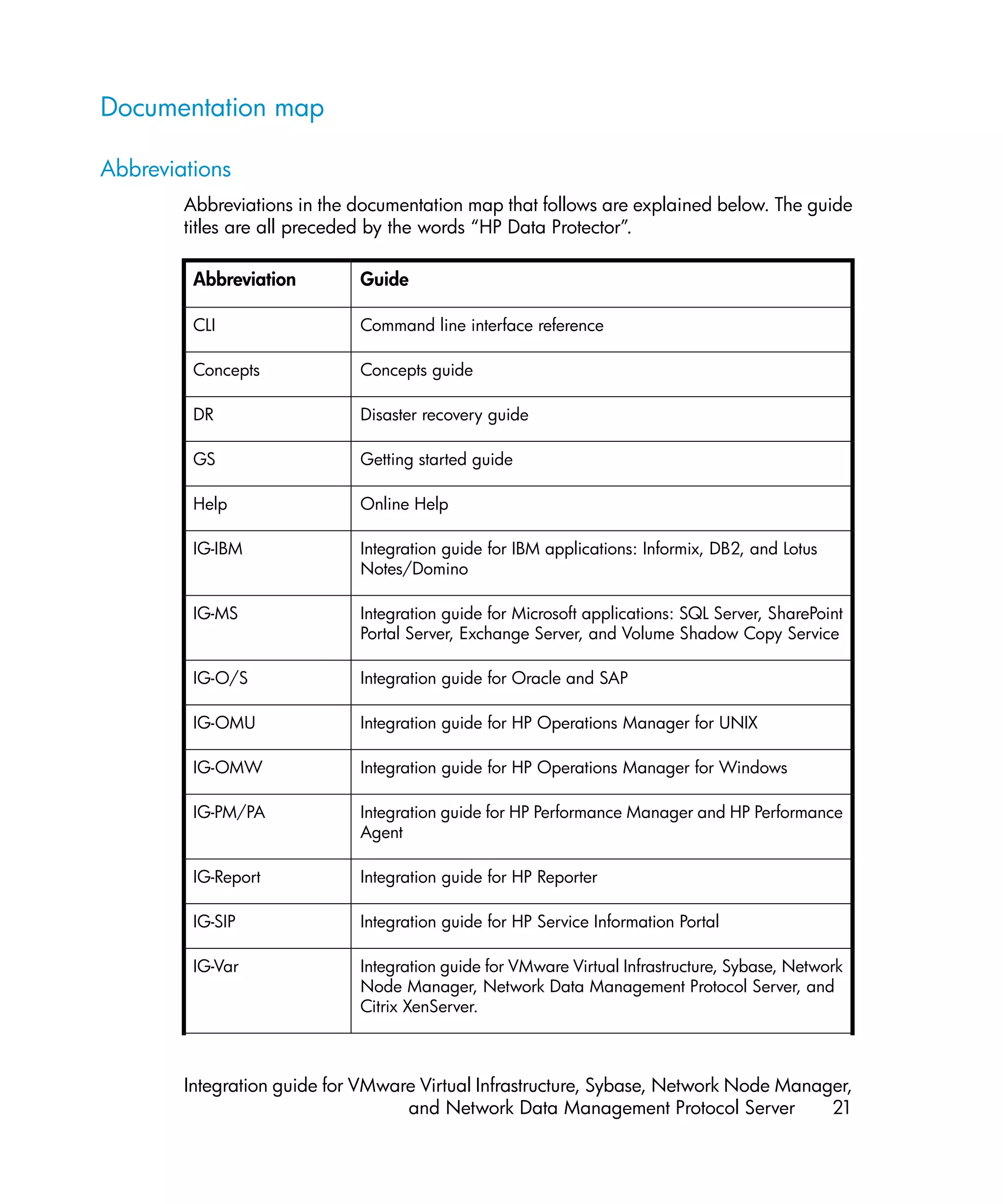
        Abbreviations in the documentation map that follows are explained below. The guide
        titles are all preceded by the words “HP Data Protector”.

         Abbreviation        Guide

         CLI                 Command line interface reference

         Concepts            Concepts guide

         DR                  Disaster recovery guide

         GS                  Getting started guide

         Help                Online Help

         IG-IBM              Integration guide for IBM applications: Informix, DB2, and Lotus
                             Notes/Domino

         IG-MS               Integration guide for Microsoft applications: SQL Server, SharePoint
                             Portal Server, Exchange Server, and Volume Shadow Copy Service

         IG-O/S              Integration guide for Oracle and SAP

         IG-OMU              Integration guide for HP Operations Manager for UNIX

         IG-OMW              Integration guide for HP Operations Manager for Windows

         IG-PM/PA            Integration guide for HP Performance Manager and HP Performance
                             Agent

         IG-Report           Integration guide for HP Reporter

         IG-SIP              Integration guide for HP Service Information Portal

         IG-Var              Integration guide for VMware Virtual Infrastructure, Sybase, Network
                             Node Manager, Network Data Management Protocol Server, and
                             Citrix XenServer.


        Integration guide for VMware Virtual Infrastructure, Sybase, Network Node Manager,
                                   and Network Data Management Protocol Server         21
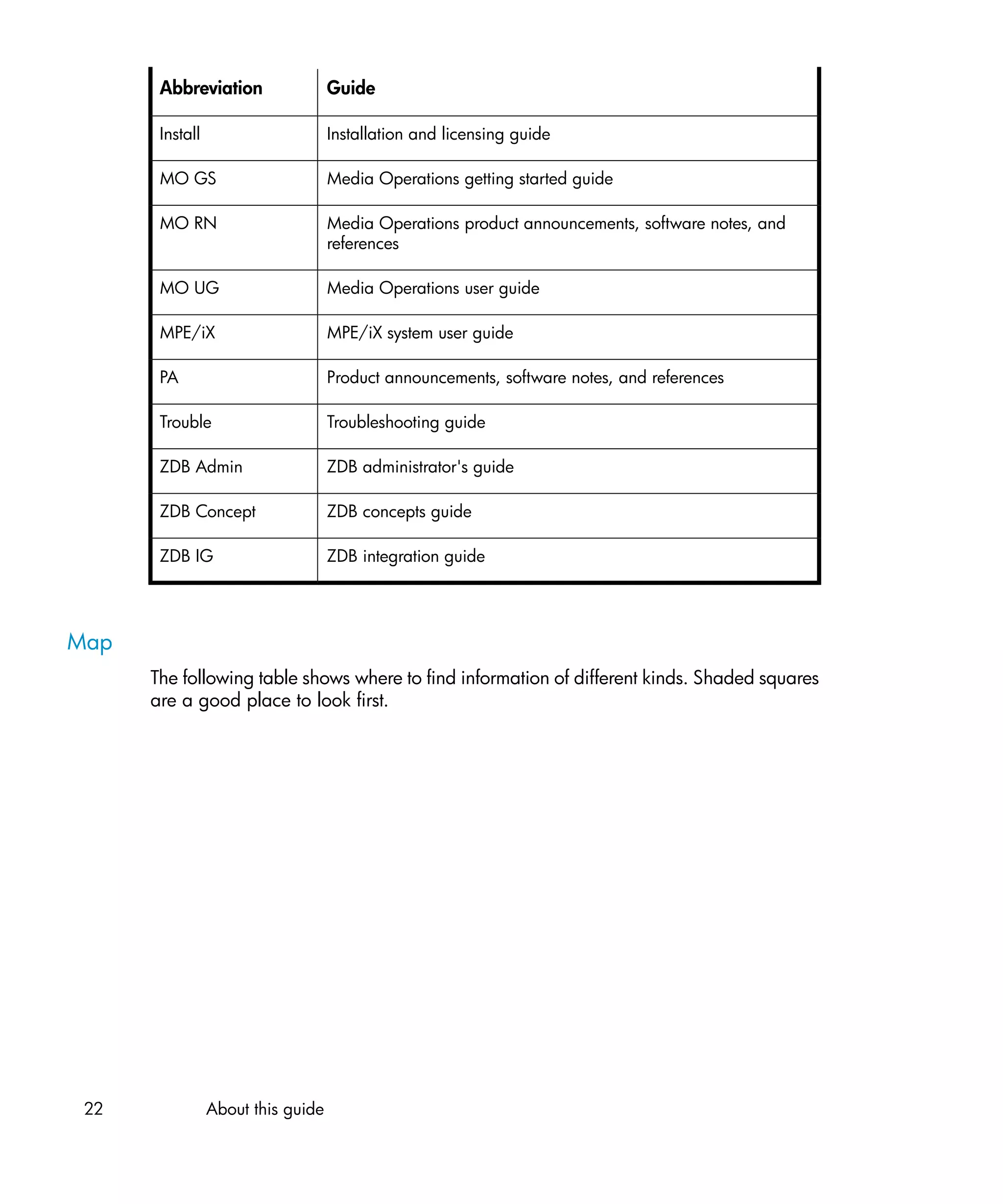
Abbreviation                 Guide

       Install                      Installation and licensing guide

       MO GS                        Media Operations getting started guide

       MO RN                        Media Operations product announcements, software notes, and
                                    references

       MO UG                        Media Operations user guide

       MPE/iX                       MPE/iX system user guide

       PA                           Product announcements, software notes, and references

       Trouble                      Troubleshooting guide

       ZDB Admin                    ZDB administrator's guide

       ZDB Concept                  ZDB concepts guide

       ZDB IG                       ZDB integration guide


Map
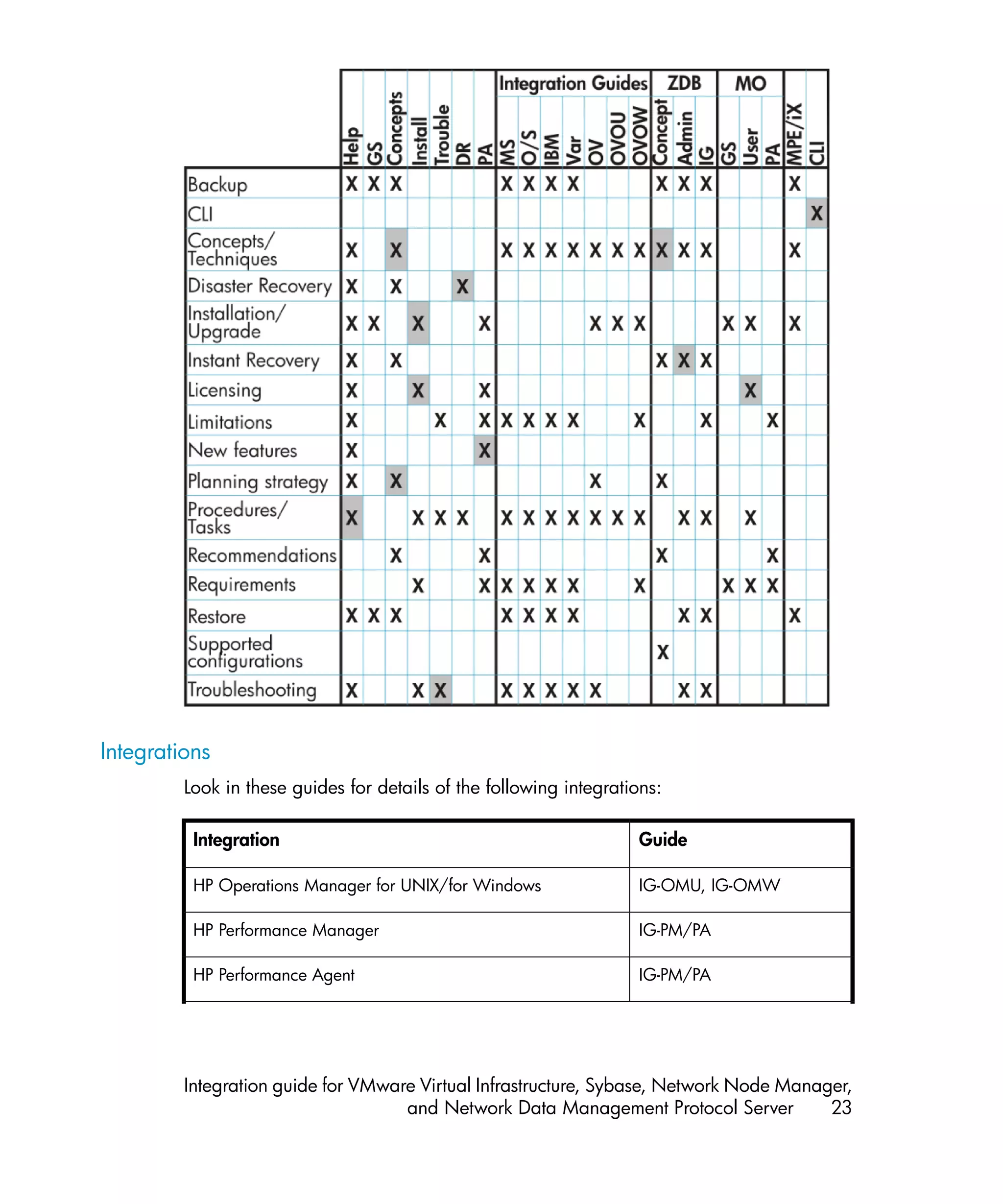
      The following table shows where to find information of different kinds. Shaded squares
      are a good place to look first.


 22              About this guide
Integrations
         Look in these guides for details of the following integrations:

          Integration                                               Guide

          HP Operations Manager for UNIX/for Windows                IG-OMU, IG-OMW

          HP Performance Manager                                    IG-PM/PA

          HP Performance Agent                                      IG-PM/PA


         Integration guide for VMware Virtual Infrastructure, Sybase, Network Node Manager,
                                    and Network Data Management Protocol Server         23
Integration                                      Guide

     HP Reporter                                      IG-R

     HP Service Information Portal                    IG-SIP

     HP StorageWorks Disk Array XP                    all ZDB

     HP StorageWorks Enterprise Virtual Array (EVA)   all ZDB

     HP StorageWorks Virtual Array (VA)               all ZDB

     IBM DB2 UDB                                      IG-IBM

     Informix                                         IG-IBM

     Lotus Notes/Domino                               IG-IBM

     Media Operations                                 MO User

     MPE/iX system                                    MPE/iX

     Microsoft Exchange Server                        IG-MS, ZDB IG

     Microsoft Exchange Single Mailbox                IG-MS

     Microsoft SQL Server                             IG-MS, ZDB IG

     Microsoft Volume Shadow Copy Service (VSS)       IG-MS, ZDB IG

     NDMP Server                                      IG-Var

     Network Node Manager (NNM)                       IG-Var

     Oracle                                           IG-O/S

     Oracle ZDB                                       ZDB IG

     SAP DB                                           IG-O/S

     SAP R/3                                          IG-O/S, ZDB IG


24         About this guide
Integration                                                   Guide

      Sybase                                                        IG-Var

      EMC Symmetrix                                                 all ZDB

      VMware                                                        IG-Var


Document conventions and symbols
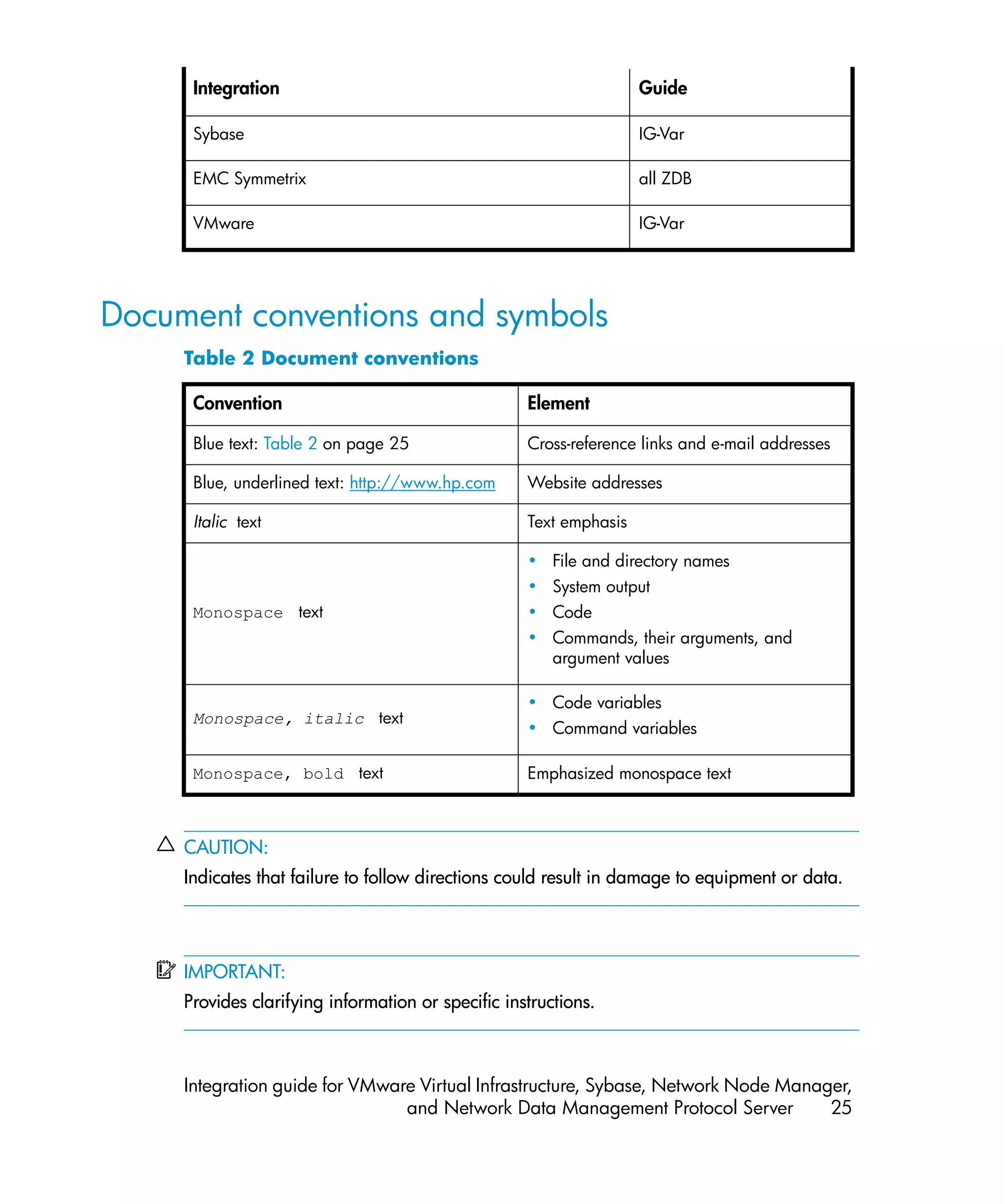
     Table 2 Document conventions

      Convention                                    Element

      Blue text: Table 2 on page 25                 Cross-reference links and e-mail addresses

      Blue, underlined text: http://www.hp.com      Website addresses

      Italic text                                   Text emphasis

                                                    • File and directory names
                                                    • System output
      Monospace text                                • Code
                                                    • Commands, their arguments, and
                                                      argument values

                                                    • Code variables
      Monospace, italic text
                                                    • Command variables

      Monospace, bold text                          Emphasized monospace text


     CAUTION:
     Indicates that failure to follow directions could result in damage to equipment or data.


     IMPORTANT:
     Provides clarifying information or specific instructions.


     Integration guide for VMware Virtual Infrastructure, Sybase, Network Node Manager,
                                and Network Data Management Protocol Server         25
NOTE:
      Provides additional information.


      TIP:
      Provides helpful hints and shortcuts.


Data Protector graphical user interface
      Data Protector provides a cross-platform (Windows and UNIX) graphical user
      interface. You can use the original Data Protector GUI (Windows only) or the Data
      Protector Java GUI. For information about the Data Protector graphical user interface,
      see the online Help.


 26           About this guide
Figure 1 Data Protector graphical user interface


General information
     General information about Data Protector can be found at http://www.hp.com/go/
     dataprotector.


HP technical support
     For worldwide technical support information, see the HP support website:
         http://www.hp.com/support
     Before contacting HP, collect the following information:
     •   Product model names and numbers
     •   Technical support registration number (if applicable)
     •   Product serial numbers
     •   Error messages
     •   Operating system type and revision level
     •   Detailed questions


     Integration guide for VMware Virtual Infrastructure, Sybase, Network Node Manager,
                                and Network Data Management Protocol Server         27
Subscription service
      HP recommends that you register your product at the Subscriber's Choice for Business
      website:
          http://www.hp.com/go/e-updates
      After registering, you will receive e-mail notification of product enhancements, new
      driver versions, firmware updates, and other product resources.


HP websites
      For additional information, see the following HP websites:
      •   http://www.hp.com
      •   http://www.hp.com/go/software
      •   http://www.hp.com/support/manuals
      •   http://h20230.www2.hp.com/selfsolve/manuals
      •   http://www.hp.com/support/downloads


Documentation feedback
      HP welcomes your feedback.
      To make comments and suggestions about product documentation, please send a
      message to DP.DocFeedback@hp.com. All submissions become the property of HP.


 28          About this guide
1 Integrating VMware Virtual
Infrastructure and Data
Protector

Introduction
      This chapter explains how to configure and use the Data Protector VMware Virtual
      Infrastructure integration (VMware integration). Data Protector integrates with VMware
      Virtual Infrastructure, including ESX Server and ESXi Server1 systems, and
      VirtualCenter Server systems, to back up and restore the following VMware objects:
      • Virtual machines
      • Filesystems of virtual machines2

      The following backup methods are available:
      • Snapshot3
      • Suspend3
      • VCBimage4
      • VCBfile 4

      During backup, virtual machines can be powered off (offline backup) or actively used
      (online backup). The Suspend backup method supports only offline backup.

      1
        Since Data Protector components cannot be installed on ESXi Server systems, not all backup and restore
      functionality is available for virtual machines running on ESXi Server systems. For details, see the following
      sections.
      2
       Currently, you can back up only filesystems of virtual machines running Windows. For a detailed list of
      guest operating systems supported for the VCBfile backup method, see the latest support matrices at http:/
      /www.hp.com/support/manuals.
      3
       This method is not supported for virtual machines running on ESXi Server systems.
      4
       This method requires a Windows system with the VMware Consolidated Backup software installed
      (backup proxy system).


      Integration guide for VMware Virtual Infrastructure, Sybase, Network Node Manager,
                                 and Network Data Management Protocol Server         29
The Snapshot, Suspend, and VCBimage methods are used to back up virtual machines.
      The VCBfile method is used to back up filesystems of virtual machines.
      For details, see “Backup methods” on page 49.
      Data Protector offers interactive and scheduled backups of the following types:
      • Full
      • Incremental
      • Differential
      For details on the backup types see, Table 7 on page 66.
      Virtual machines can be restored:
      • To the original ESX Server and/or ESXi Server systems
      • To any Data Protector client with the VMware Integration component installed.
        After such a restore, you need to manually move the restored virtual machine
        images to an ESX Server or ESXi Server system, using the VMware Converter.
      Filesystems of virtual machines can be restored to any Windows system (physical or
      virtual) that has the VMware Integration component installed.
      This chapter provides information specific to the VMware Virtual Infrastructure
      integration. For limitations, see the HP Data Protector product announcements, software
      notes, and references. For general Data Protector procedures and options, see the
      online Help.


Integration concepts
      Data Protector integrates with VMware Virtual Infrastructure through the Data Protector
      VMware integration agent, which channels communication between the Data Protector
      Session Manager and the clients in the VMware environment. The Data Protector
      VMware integration agent communicates with the Virtual Infrastructure through VI
      SDK, a web-service API.


Supported environments
      Data Protector supports environments where ESX Server and/or ESXi Server systems
      are managed through a VirtualCenter Server system (VirtualCenter environments) as
      well as environments with standalone ESX Server systems (standalone ESX Server
      environments). Mixed environments, in which some of the ESX Server and/or ESXi
      Server systems are managed through a VirtualCenter Server system and some are
      standalone, are also supported. You can even have multiple VirtualCenter Server


 30          Integrating VMware Virtual Infrastructure and Data Protector
systems in your environment, each managing its own set of ESX Server and/or ESXi
        Server systems.


VirtualCenter environment
        In a VirtualCenter environment, Data Protector communicates with the VMware Virtual
        Infrastructure through the VirtualCenter Server system. All backup and restore requests
        are sent there.
        In one session, you can back up virtual machines from only one datacenter.


        Integration guide for VMware Virtual Infrastructure, Sybase, Network Node Manager,
                                   and Network Data Management Protocol Server         31
Figure 2 VirtualCenter environment

     ESX Server or ESXi
                           VMware platform capable of hosting multiple virtual machines.
     Server system

     VM                    Virtual machine. Virtualized x86 or x64 PC environment, in which
                           a guest operating system and associated application software can
                           run.

     Datacenter            An organizational unit that consists of one or more ESX Server
                           and/or ESXi Server systems and the related storage for virtual
                           machines (datastores). Datastores can reside on local disks/RAID,
                           iSCSI or SAN storage.


32         Integrating VMware Virtual Infrastructure and Data Protector
Migration of virtual machines
          In a VirtualCenter environment, Data Protector supports migration of virtual machines
          between ESX Server and/or ESXi Server systems that belong to the same datacenter.
          Virtual machines migrate from one ESX Server or ESXi Server system to another for
          various reasons:
          • If ESX Server and/or ESXi Server systems are configured in a VMware high
            availability cluster, virtual machines automatically migrate when the original ESX
            Server or ESXi Server system fails.
          • If ESX Server and/or ESXi Server systems are configured in a VMware load
            balancing cluster, virtual machines automatically migrate to ESX Server or ESXi
            Server systems with less workload.
          • You can start a migration of a virtual machine manually, using the Virtual
            Infrastructure client.


          Integration guide for VMware Virtual Infrastructure, Sybase, Network Node Manager,
                                     and Network Data Management Protocol Server         33
Figure 3 Migration of virtual machines
          Whatever the reason for the migration, you do not need to create a new backup
          specification afterwards. Data Protector will automatically find the migrated virtual
          machines and back them up.
          Data Protector does not support migration of virtual machines between ESX Server
          and/or ESXi Server systems that belong to different datacenters.


VirtualCenter Server system in a cluster
          Data Protector also supports environments with a VirtualCenter Server system in a
          Microsoft Cluster Service cluster. After a failover in such a cluster, you do not need
          to change the backup specification. However, if the failover occurs during a backup
          or restore session, the session fails and has to be restarted.


  34              Integrating VMware Virtual Infrastructure and Data Protector
Standalone ESX Server environment
        In a standalone ESX Server environment, Data Protector communicates with the
        VMware Virtual Infrastructure through an ESX Server system. All backup and restore
        requests are sent there.
        In one session, you can back up virtual machines from only one datacenter (ESX
        Server system).


        Figure 4 Standalone ESX Server environment


        NOTE:
        ESXi Server systems are not supported in standalone environments.


        Integration guide for VMware Virtual Infrastructure, Sybase, Network Node Manager,
                                   and Network Data Management Protocol Server         35
Data Protector components

Data Protector Cell Manager
        The Data Protector Cell Manager can be installed on a virtual machine, VirtualCenter
        Server system, backup proxy system, or a separate system outside the VMware Virtual
        Infrastructure environment.


Data Protector VMware Integration component
        The Data Protector VMware Integration component must be installed on the
        following clients:
        • All ESX Server systems from which you plan to back up virtual machines
        • VirtualCenter Server systems (if they exist)
        • Backup proxy systems (if you plan to use the VCBfile and VCBimage backup
          methods)
        • Windows systems (physical or virtual) to which you plan to restore filesystems of
          virtual machines


        NOTE:
        The Data Protector VMware Integration component (or any other) cannot be installed
        on ESXi Server systems.


        The component consists of the following parts:
        • vmware_bar.exe, activated during backup and restore
        • util_vmware.exe, activated during configuration and mounting on backup
          proxy systems


Data Protector Media Agents
        Data Protector Media Agents can be installed on ESX Server systems, VirtualCenter
        Server systems, backup proxy systems, or separate systems outside the VMware
        Virtual Infrastructure environment.


 36             Integrating VMware Virtual Infrastructure and Data Protector
Configuring the integration
       Configure the integration as follows:
       • Configure users as described in “Configuring VMware users” on page 38.
       • Provide Data Protector with login information to VMware management clients as
         described in “Configuring VMware management clients” on page 39.
       • If your ESX Server systems are configured in a cluster, check the cluster settings
         as described in “Configuring clusters” on page 38.
       • For each virtual machine, specify details on how to perform various backup
         methods as described in “Configuring virtual machines” on page 43.


Prerequisites
       • Ensure that you have a correctly installed and configured VMware environment.
         • For supported versions, platforms, devices, and other information, see the
            latest support matrices at http://www.hp.com/support/manuals.
         • For information on installing, configuring, and using the VMware Virtual
            Infrastructure, see the VMware documentation.
            For the VCBfile and VCBimage backup methods, ensure that you have at least
            one backup proxy system configured in your environment. For details, see the
            VMware documentation.

       • Ensure that you have correctly installed Data Protector. On how to install Data
         Protector in various architectures, see the HP Data Protector installation and
         licensing guide.
       • For limitations, see “Limitations and recommendations” in the HP Data Protector
         product announcements, software notes, and references.


Before you begin
       • Configure devices and media for use with Data Protector.
       • To test whether the VMware Virtual Infrastructure and the Cell Manager
         communicate properly, configure and run a Data Protector filesystem backup and
         restore on every VMware client (ESX Server system, VirtualCenter Server system,
         backup proxy system) in your environment.


       Integration guide for VMware Virtual Infrastructure, Sybase, Network Node Manager,
                                  and Network Data Management Protocol Server         37
Configuring VMware users
        1.   Identify or configure the following users:
             Table 3 VMware users

              VirtualCenter users              For each VirtualCenter Server system, identify the
              (VirtualCenter environment)      Windows operating system user who administers the
                                               VirtualCenter Server.

              ESX Server users                 For each standalone ESX Server system, identify an
              (standalone ESX Server           operating system user who has read, write, and
              environment)                     execute permissions on the related datastores.


        2. Add all these users to the Data Protector admin or operator user group.
             For details on adding users, see the online Help index: ”adding users”.


             NOTE:
             If your VirtualCenter Server system is in a cluster, add the users from both
             nodes to the Data Protector admin or operator user group.


Configuring clusters

ESX Server systems in a cluster
        If your ESX Server systems are configured in a high availability cluster, open the
        cluster settings dialog box in the Virtual Infrastructure client and select the option
        Allow virtual machines to be powered on even if they violate availability constrains.


        NOTE:
        This option is applicable only for the Suspend backup method. Therefore, it is not
        applicable for ESXi Server systems.
        If the option is not selected, you may encounter problems when trying to back up virtual
        machines that have migrated to other ESX Server systems after a failover. More
        specifically, Data Protector may not be able to power on the virtual machines at the end
        of the session.


 38             Integrating VMware Virtual Infrastructure and Data Protector
Configuring backup proxy systems
       If your virtual machines reside on iSCSI datastores, restart the Data Protector Inet
       service on the related backup proxy system under a network domain user account
       that has read-write permissions for the following directories:
       • C:Program Files
       • C:WindowsTempvmware-system (this directory is created when you run
         the vcbMounter for the first time)


           NOTE:
           If the Data Protector Inet service on the backup proxy system runs under the
           Local System account, VCBimage and VCBfile backup sessions fail because this
           account does not have permissions to use network, which is needed to access
           iSCSI datastores.


       For information on changing the Data Protector Inet account, see the online Help
       index: “Inet, changing account”.


Configuring VMware management clients
       In VirtualCenter environments, Data Protector communicates with the VMware Virtual
       Infrastructure through a VirtualCenter Server system and in standalone ESX Server
       environments, through an ESX Server system. From now on, this client will be called
       the VMware management client.
       For each VMware management client, you need to provide the following login
       information:
       •   Username
       •   Password
       •   Web root (optional)
       •   Port (optional)
       For details on the parameters, see the following section.
       You can provide the information in two different ways:
       • Specify the login information manually (Standard security). In this case, the
         information is saved in the VMware management client specific configuration file


       Integration guide for VMware Virtual Infrastructure, Sybase, Network Node Manager,
                                  and Network Data Management Protocol Server         39
on the Cell Manager. The file is named
           VMwareManagementClient%_OB2_GLOBAL.


           NOTE:
           Before the information is saved, Data Protector first tests the connection. If the
           connection fails, the information is not saved in the configuration file, leaving
           the previous login information (if it exists) in the configuration file intact.


        • Instruct Data Protector to use the login information contained in a local file on the
          VMware management client (Integrated security). At the beginning of a backup
          session, the Session Manager starts the VMware integration agent on the VMware
          management client and the agent provides the information from the file.
        To configure VMware management clients, use the Data Protector GUI or CLI.


Using the Data Protector GUI
        You specify the login information in the Configure VMware dialog box. The dialog
        box is displayed automatically when you create the first backup specification. To
        change or check the parameters later, open any backup specification for this VMware
        management client, go to the Source page, right-click the client at the top, and click
        Configure.


 40            Integrating VMware Virtual Infrastructure and Data Protector
Figure 5 Configuring a VirtualCenter Server system
Select either Integrated security or Standard security.
If you select Standard security, specify the following:
• Username and Password: Specify an operating system user account that has the
  following VMware Virtual Infrastructure privileges:
  • System.View
   • System.Anonymous
   • Folder.Create
   • VirtualMachine.State.CreateSnapshot
   • VirtualMachine.State.RemoveSnapshot
   • VirtualMachine.Interact.Suspend
   • VirtualMachine.Interact.PowerOff
   • VirtualMachine.Interact.PowerOn
   • VirtualMachine.Inventory.Create
   • VirtualMachine.Inventory.Delete
• Web service: Optionally, change the web service entry point URI. Default: /sdk


Integration guide for VMware Virtual Infrastructure, Sybase, Network Node Manager,
                           and Network Data Management Protocol Server         41
• Port: Optionally, change the TCP port number of the Virtual Infrastructure web
          service server.
          Default: 443 (SSL–encrypted HTTP), 80 (unencrypted HTTP).
             By default, the HTTP/S (SSL–encrypted HTTP) is used. To switch to unencrypted
             HTTP, configure the VMware management client to allow HTTP connections and
             set the Data Protector omnirc variable OB2_VMWARE_HTTP to 1. On how to set
             the omnirc variable, see the online Help index: “omnirc options”.
             If you leave the Port option empty, the value is read from the following file,
             depending on your VMware management client:
             VirtualCenter Server system: Windows registry:
             HKEY_LOCAL_MACHINESOFTWAREVMware, Inc.VMware
             VirtualCenter
             ESX Server system: /etc/vmware/hostd/config.xml

        If you select Integrated security, ensure that the backuptools.conf file on the
        VMware management client contains the required data. The file location depends
        on your VMware management client:
        VirtualCenter Server system: C:Documents and SettingsAll
        UsersApplication DataVMwareVMware
        VirtualCenterbackuptools.conf.
        Standalone ESX Server system: /etc/vmware/backuptools.conf.
        On the VirtualCenter Server system, the file does not exist by default. It has to be
        created manually at the specified location. The file content should be similar to the
        following:
        USERNAME=”Administrator”
        PASSWORD=”vnmx46578”


Using the Data Protector CLI
        1.    Log in to the VMware management client under a user account that is configured
              as described in “Configuring VMware users” on page 38.
        2. Go to the following directory:
              VirtualCenter Server system: Data_Protector_homebin
              Standalone ESX Server system: /opt/omni/lbin


 42             Integrating VMware Virtual Infrastructure and Data Protector
3. Run:
            For Integrated security:
            util_vmware.exe
            –config
            –security 1

            For Standard security:
            util_vmware.exe
            –config
            –security 0
            —user Username
            —password Password
            [-webroot WebServiceRoot]
            [-port WebServicePort]

            The message *RETVAL*0 indicates successful configuration.
            For option description, see the util_vmware.exe man page or the HP Data
            Protector command line interface reference.


Configuring virtual machines
        For each virtual machine, specify details on how to perform various backup methods:
        • For the Snapshot method, specify how to handle virtual machine snapshots that
          are created during backup. Note that not all snapshot handling modes support
          incremental and differential backups.
        • For the VCBfile and VCBimage backup methods, specify which backup proxy
          system and mount points should be used to back up virtual machines or filesystems.
        • The Suspend backup method has no specifics.
        You can configure each virtual machine separately or all together. Configuration
        settings for virtual machines of the same datacenter are saved in a separate
        configuration file on the Cell Manager. The file is named
        VMwareManagementClient%DatacenterPath. It is used for all backup sessions
        involving this particular datacenter.
        To configure virtual machines, use the Data Protector GUI or CLI.


Using the Data Protector GUI
        You can specify details on how a virtual machine backup should be performed when
        you create or modify a backup specification. In the Source page of a backup


        Integration guide for VMware Virtual Infrastructure, Sybase, Network Node Manager,
                                   and Network Data Management Protocol Server         43
specification, right-click the client system at the top or any of the virtual machines
     listed below and click Configure Virtual Machines.


     Figure 6 Configuring virtual machines
     In the Configure Virtual Machine(s) dialog box, specify the following options:
     Table 4 Virtual machine options

      Configure       Select whether you want to specify common virtual machine settings
      virtual         (Common VM Settings) or settings for a specific virtual machine. Virtual
      machine         machine specific settings override the common virtual machine settings.


44          Integrating VMware Virtual Infrastructure and Data Protector
Use common     Available only if a virtual machine is selected.
                 settings for   Select this option to apply the common virtual machine
                 selected VM    settings for the selected virtual machine.
                                Default: ON

                 Use default    Available only if Common VM Settings is selected.
                 settings       Select this option to set default values for the common
                                virtual machine settings.
                                Default: ON

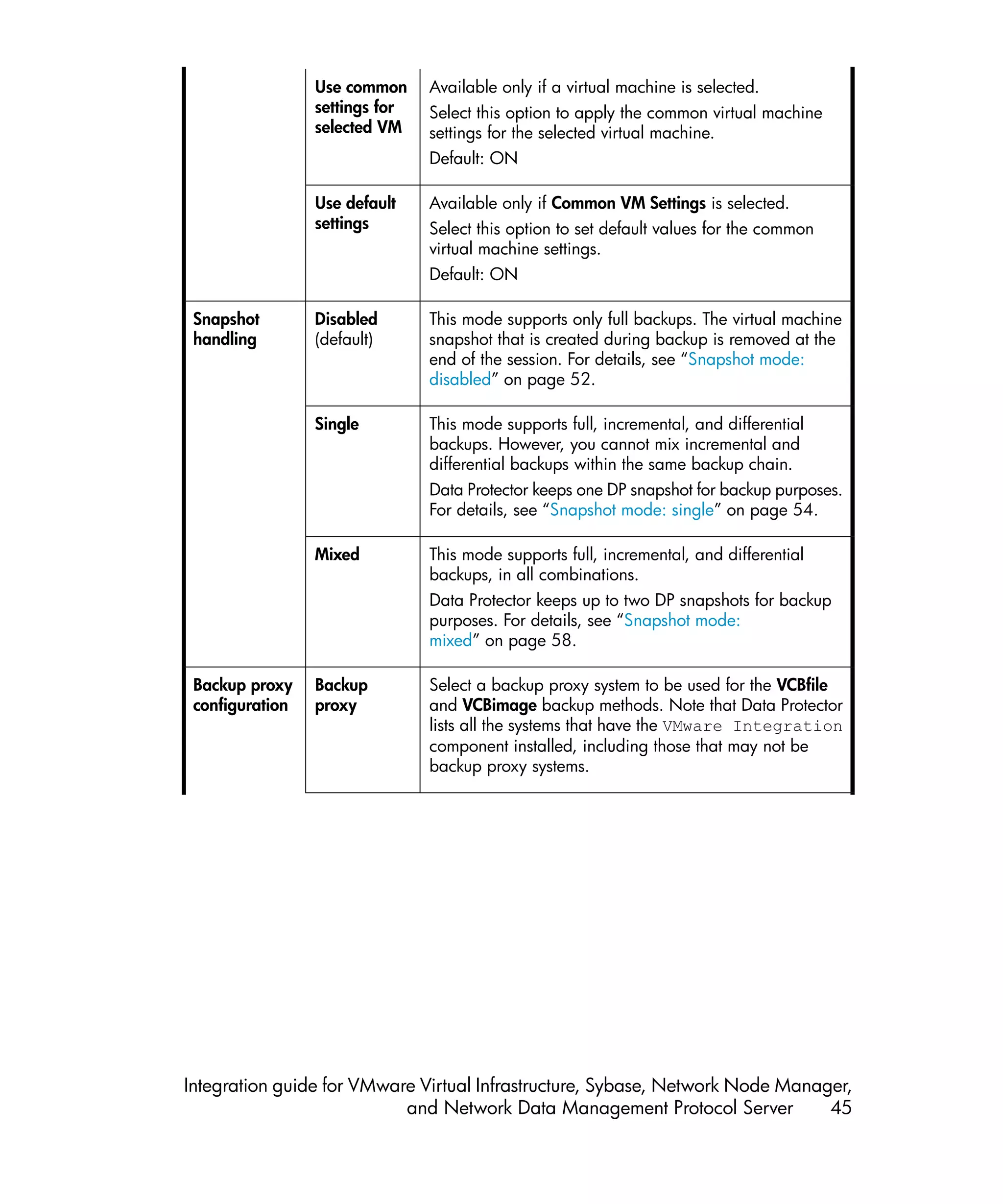
 Snapshot        Disabled       This mode supports only full backups. The virtual machine
 handling        (default)      snapshot that is created during backup is removed at the
                                end of the session. For details, see “Snapshot mode:
                                disabled” on page 52.

                 Single         This mode supports full, incremental, and differential
                                backups. However, you cannot mix incremental and
                                differential backups within the same backup chain.
                                Data Protector keeps one DP snapshot for backup purposes.
                                For details, see “Snapshot mode: single” on page 54.

                 Mixed          This mode supports full, incremental, and differential
                                backups, in all combinations.
                                Data Protector keeps up to two DP snapshots for backup
                                purposes. For details, see “Snapshot mode:
                                mixed” on page 58.

 Backup proxy    Backup         Select a backup proxy system to be used for the VCBfile
 configuration   proxy          and VCBimage backup methods. Note that Data Protector
                                lists all the systems that have the VMware Integration
                                component installed, including those that may not be
                                backup proxy systems.


Integration guide for VMware Virtual Infrastructure, Sybase, Network Node Manager,
                           and Network Data Management Protocol Server         45
Specify         During a VCB backup session, virtual machine disks are
                         mountpoint      mounted on a backup proxy system. Select this option to
                                         specify a different mount point directory on the backup
                                         proxy system. This is particularly useful for the VCBimage
                                         backup method, during which the virtual machine disks
                                         are copied to a local disk on the backup proxy system.
                                         This option enables you to specify a mount point where
                                         you have enough disk space. It also enables you to mount
                                         virtual machines on different disks, which improves backup
                                         performance.
                                         Default: Data_Protector_hometmp


Using the Data Protector CLI
        1.   Log in to the VMware management client under a user account that is configured
             as described in “Configuring VMware users” on page 38.
        2. Go to the following directory:
             VirtualCenter Server system: Data_Protector_homebin
             Standalone ESX Server system: /opt/omni/lbin
        3. Run:
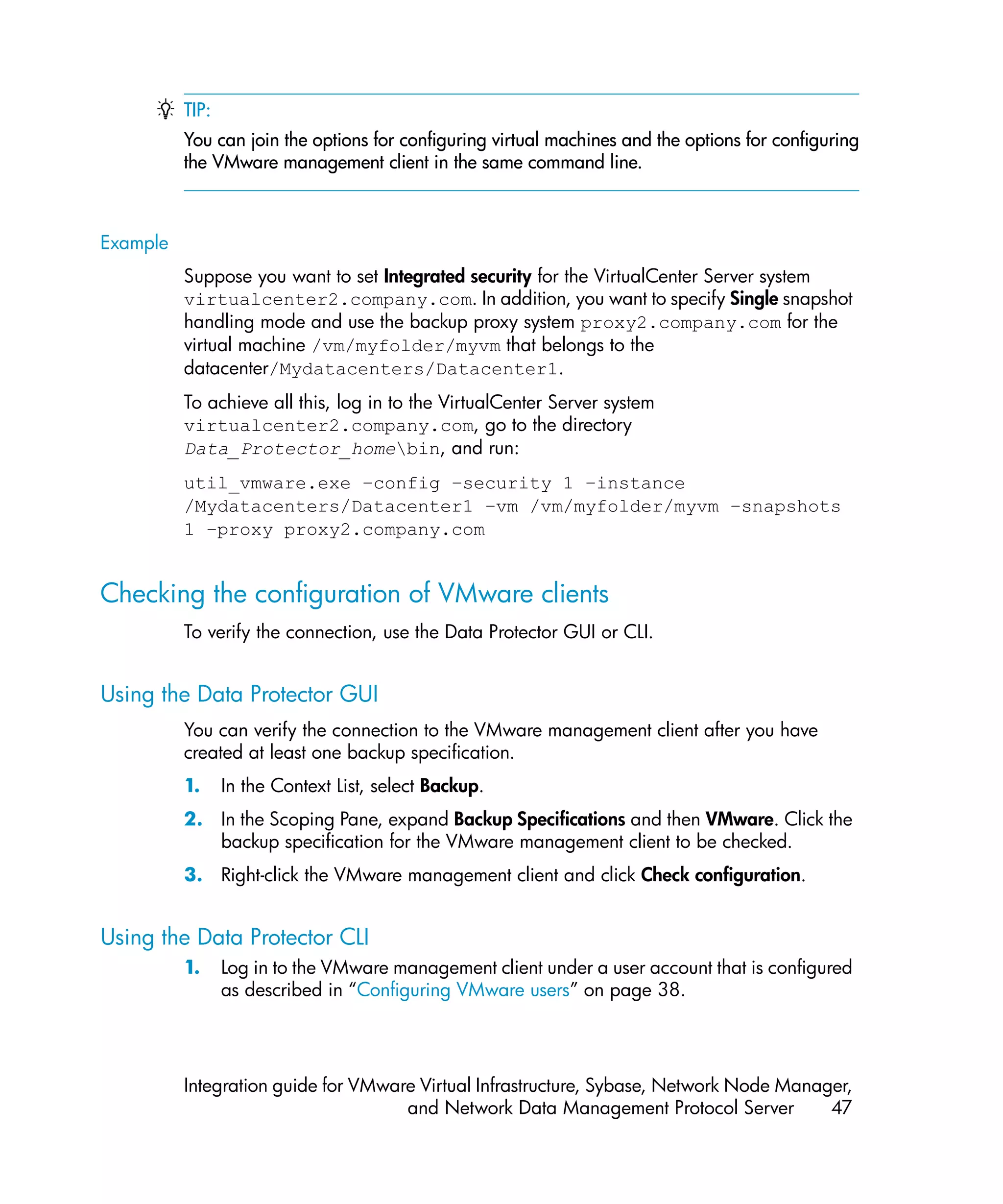
             util_vmware.exe
             -config
             —instance DatacenterPath
             –vm VMpath VM_OPTIONS [–vm VMpath VM_OPTIONS...]

             VM_OPTIONS
             –snapshots { 0 | 1 | 2}
             –proxy BackupProxy
             –mount ProxyMountPoint
             -default

             The values { 0 | 1 | 2} represent Disabled, Single, and Mixed snapshot
             handling modes respectively. For details, see the util_vmware.exe man page
             or the HP Data Protector command line interface reference.
             To change virtual machine specific settings back to common virtual machine
             settings, run:
             util_vmware.exe –config –instance DatacenterPath –vm VMpath
             –default [–vm VMpath –default ...]
             The message *RETVAL*0 indicates successful configuration.


 46            Integrating VMware Virtual Infrastructure and Data Protector
TIP:
          You can join the options for configuring virtual machines and the options for configuring
          the VMware management client in the same command line.


Example
          Suppose you want to set Integrated security for the VirtualCenter Server system
          virtualcenter2.company.com. In addition, you want to specify Single snapshot
          handling mode and use the backup proxy system proxy2.company.com for the
          virtual machine /vm/myfolder/myvm that belongs to the
          datacenter/Mydatacenters/Datacenter1.
          To achieve all this, log in to the VirtualCenter Server system
          virtualcenter2.company.com, go to the directory
          Data_Protector_homebin, and run:
          util_vmware.exe –config –security 1 –instance
          /Mydatacenters/Datacenter1 –vm /vm/myfolder/myvm –snapshots
          1 –proxy proxy2.company.com


Checking the configuration of VMware clients
          To verify the connection, use the Data Protector GUI or CLI.


Using the Data Protector GUI
          You can verify the connection to the VMware management client after you have
          created at least one backup specification.
          1.     In the Context List, select Backup.
          2. In the Scoping Pane, expand Backup Specifications and then VMware. Click the
             backup specification for the VMware management client to be checked.
          3. Right-click the VMware management client and click Check configuration.


Using the Data Protector CLI
          1.     Log in to the VMware management client under a user account that is configured
                 as described in “Configuring VMware users” on page 38.


          Integration guide for VMware Virtual Infrastructure, Sybase, Network Node Manager,
                                     and Network Data Management Protocol Server         47
2. Go to the following directory:
          VirtualCenter Server system: Data_Protector_homebin
          Standalone ESX Server system: /opt/omni/lbin
      3. Run:
          util_vmware.exe –chkconf [–instance DatacenterPath]
          For option description, see the util_vmware.exe man page or the HP Data
          Protector command line interface reference.


Backup
      Using the Data Protector VMware integration, you can back up the following VMware
      objects:
      • Virtual machines
      • Filesystems of virtual machines


What is backed up?
      Data Protector identifies datacenters and virtual machines by their Virtual Infrastructure
      inventory path. A standalone ESX Server system has only one datacenter
      /ha-datacenter and only one folder /vm, which stores all the virtual machines.
      Example:
      Datacenter: /ha-datacenter
      Virtual machine: /vm/myvm1
      In a VirtualCenter environment, you can organize virtual machines and datacenters
      within folders that you create yourself. However, once you move a datacenter or a
      virtual machine to another folder, you need to create a new backup specification
      because Data Protector no longer finds the datacenter or virtual machine under the
      specified path.
      Example:
      Virtual machine: /vm/myfolder1/myfolder2/.../myvm2
      Datacenter: /myfolder/mydatacenter
      Depending on the backup method that you select, you can back up either a virtual
      machine or a filesystem of a virtual machine.


 48          Integrating VMware Virtual Infrastructure and Data Protector
Virtual machines
          Virtual machines can be backed up using the Snapshot, Suspend, or VCBimage
          backup method. A virtual machine backup contains the following files:
          vmx
              Virtual machine configuration file.
          vmdk
              Virtual machine disk files. There are two types: metadata files and binary extent
              files. When you create a snapshot of a virtual machine, all the subsequent
              changes made to the virtual machine are recorded to new metadata and binary
              extent delta files. A separate metadata and binary extent delta file is created for
              each virtual machine disk.
          vmsn/vmss
              Snapshot or suspend memory file (not applicable for the VCBimage backup
              method).
          vmsd
              Snapshot description file (not applicable for the VCBimage backup method).
          nvram
              Non-volatile RAM file, describing the BIOS of the virtual machine.

Virtual machine disks
          Data Protector supports backup of individual virtual machine disks. In this case, all
          the virtual machine files are backed up, except the vmdk files of virtual machine disks
          that are excluded from backup. You can run full, incremental, and differential backups.
          However, after you restore individual virtual machine disks, you may need to follow
          additional steps to fully recover the virtual machine. For details, see “Recovering
          virtual machines manually” on page 92.


Filesystems
          Filesystems of virtual machines can be backed up using the VCBfile backup method.
          Currently, you can back up filesystems of virtual machines running Windows. This
          backup type is similar to the common filesystem backup, enabling you to select
          individual files and folders.


Backup methods
          Data Protector offers four different backup methods:


          Integration guide for VMware Virtual Infrastructure, Sybase, Network Node Manager,
                                     and Network Data Management Protocol Server         49
•     Snapshot (see “Snapshot method” on page 50)
       •     Suspend (see “Suspend method” on page 60)
       •     VCBimage (see “VCBimage method” on page 61)
       •     VCBfile (see “VCBfile method” on page 63)
       Table 5 Backup method overview

                                                             Supported backup types           Backs up
                                                                                              all
                                                 Needs a
                        How is backup                                                         snapshot
           Backup                                backup
                        consistency                                                           branches
           method                                proxy
                        achieved?                            Full          Diff        Incr   (including
                                                 system
                                                                                              user
                                                                                              created)

           Snapshot1    Data Protector
                        creates a virtual                    ✓             ✓           ✓      ✓
                        machine snapshot.

           Suspend1     Data Protector
                        suspends the virtual                 ✓             ✓           ✓      ✓
                        machine.

           VCBimage     The backup proxy         ✓           ✓
                        system that is
           VCBfile      involved in the
                        backup creates a
                        virtual machine          ✓           ✓             ✓           ✓
                        snapshot.

       1
        This method is not supported for virtual machines running on ESXi Server systems.

       For details on the supported backup types, see Table 7 on page 66.


Snapshot method
       A virtual machine snapshot is an operation that puts the virtual machine into a
       consistent state. As a result, all subsequent changes made to the virtual machine disks
       are recorded to separate files. Note that the snapshot operation is not supported by
       all virtual machine disks. For details, see the VMware documentation.
       During a Snapshot backup, Data Protector first creates a snapshot and then copies
       the consistent state to Data Protector media. Snapshots created by Data Protector
       (DP snapshots) are distinguished from other snapshots by the label _DP_SNAP_ and


 50              Integrating VMware Virtual Infrastructure and Data Protector
a description that contains the product name and a timestamp. Therefore, avoid using
this label for snapshots that you create for other purposes.


Figure 7 Snapshot tree
Existing virtual machine snapshots reduce the overall performance of a virtual machine.
For this reason, Data Protector removes DP snapshots once they are no longer needed.
The number of DP snapshots that remain on the snapshot tree depends on the selected
snapshot handling mode and backup type. The following snapshot handling modes
are available:
• Disabled: This mode supports only full backups. The snapshot that is made at the
  beginning of a backup session is used only to create a consistent state. After the
  data transfer completes, the snapshot is removed. For details, see “Snapshot
  mode: disabled” on page 52.
• Single: This mode supports full, differential, and incremental backups. The following
  backup chains are supported:
  Full, differential, differential, differential,...
  Full, incremental, incremental, incremental,...
  It means that you cannot mix incremental and differential backups within the same
  backup chain. The snapshot that is made at the beginning of a backup session
  is used to create a consistent state. After the backup completes, one DP snapshot
  remains on the snapshot tree. It is needed to track changes made since the last
  full or incremental backup. For details, see “Snapshot mode: single” on page 54.
• Mixed: This mode supports full, differential, and incremental backups. All backup
  chains are supported. For example:
  Full, incremental, incremental, differential, incremental, differential,...
  The snapshot that is made at the beginning of a backup session is used to create
  a consistent state. After the backup completes, up to two DP snapshots remain
  on the snapshot tree. One is needed to track changes made since the last full
  backup and the other to track changes made since the last backup (incremental
  or differential). For details, see “Snapshot mode: mixed” on page 58.


Integration guide for VMware Virtual Infrastructure, Sybase, Network Node Manager,
                           and Network Data Management Protocol Server         51
IMPORTANT:
         A backup chain gets broken if you do any of the following operations:
         • Delete a snapshot
         • Revert to a snapshot
         • Create a non-Data Protector snapshot
         • Change snapshot handling mode
         • Add a new virtual machine disk or rename an existing one
         • Restore the virtual machine
         After you make such changes, you must run a full backup again to start a new backup
         chain. Otherwise, subsequent incremental and differential sessions fail.


Snapshot mode: disabled
         A full backup in Disabled mode progresses as shown in the following figure.


 52             Integrating VMware Virtual Infrastructure and Data Protector
Figure 8 Full backup (disabled mode)
Table 6 Legend

 Ti             Boxes denoted by Ti show how the virtual machine snapshot tree changes
                in time.

 Virtual        The rectangle denoted by Virtual machine base represents the virtual
 machine base   machine base or the last non-Data Protector created virtual machine delta
                file on the active branch.

 VMΔ            A rectangle denoted by VMΔ represents a virtual machine delta file created
                by a Data Protector snapshot.


Integration guide for VMware Virtual Infrastructure, Sybase, Network Node Manager,
                           and Network Data Management Protocol Server         53
DP snapshot     A rectangle denoted by DP snapshot represents a process (snapshot
                          operation triggered by Data Protector). This process closes the current
                          active state to become a read-only file. At the same time, it creates a new
                          delta file, which becomes the active state. The active state is denoted by
                          round corners.


Snapshot mode: single
         A full backup in the Single mode progresses in the same way as a full backup in the
         Disabled mode, with the exception that the DP snapshot is not removed at the end
         (you end up with one DP snapshot). A subsequent differential backup is shown in the
         following figure.


 54             Integrating VMware Virtual Infrastructure and Data Protector
Figure 9 Differential backup (single mode)
DP snapshot1 remains on the snapshot tree to track changes made since the last full


Integration guide for VMware Virtual Infrastructure, Sybase, Network Node Manager,
                           and Network Data Management Protocol Server         55
backup.
     A backup chain consisting of a full backup that is followed by incremental sessions
     progresses in the same way, with the exception that, at the end of an incremental
     session, DP snapshot1 is removed instead of DP Snapshot2 (see Figure 10).


56          Integrating VMware Virtual Infrastructure and Data Protector
Figure 10 Incremental backup (single mode)
DP snapshot2 remains on the snapshot tree to track changes made since the last


Integration guide for VMware Virtual Infrastructure, Sybase, Network Node Manager,
                           and Network Data Management Protocol Server         57
incremental backup.


Snapshot mode: mixed
         A full backup in the Mixed mode progresses in the same way as a full backup in the
         Single mode (you end up with one DP snapshot). A subsequent differential or
         incremental backup progresses in the same way as a differential or incremental
         backup in the Single mode, with the exception that no DP snapshot is removed at
         the end (you end up with two DP snapshots).
         The progress of a subsequent incremental backup is shown below.


 58            Integrating VMware Virtual Infrastructure and Data Protector
Figure 1 Incremental backup (mixed mode)
        1


Integration guide for VMware Virtual Infrastructure, Sybase, Network Node Manager,
                           and Network Data Management Protocol Server         59
Figure 12 Incremental backup (mixed mode)
       DP snapshot1 and DP snapshot3 remain on the snapshot tree to track changes made
       since the last full and the last backup respectively.
       A subsequent differential backup progresses in the same way as an incremental
       session described in Figure 1 on page 59, with the following exceptions:
                                    1
       • DP snapshot2 is removed before DP snapshot3 is created.
       • Instead of changes made between DP snapshot2 and DP snapshot3, changes
         made between DP snapshot1 and DP snapshot3 are backed up.


Suspend method
       The suspend operation saves the current memory state of a virtual machine to a file
       and puts the virtual machine offline. This functionality is similar to the Hibernate power
       mode in Windows operating systems. Note that the suspend operation is supported
       by all virtual machines. Therefore, this is the only backup method that can be used
       if your virtual machines do not support the snapshot operation.
       During a Suspend backup, Data Protector suspends the virtual machine (if it is online)
       and then copies the virtual machine files to Data Protector media. If specified, the
       memory state is also backed up. After the backup, the virtual machine is powered
       on (if it was online), the memory is read from the memory file, and the virtual machine
       resumes the original state.


 60           Integrating VMware Virtual Infrastructure and Data Protector
Using this method, you can run full, incremental, and differential backups. Data
      Protector uses the file modification time as an incremental or differential backup
      criterion. It means that only the files with the modification time changed since the last
      (full) backup are backed up.


      Figure 13 Snapshot and Suspend backup methods


VCBimage method
      For the VCBimage backup method, you need to have at least one backup proxy
      system configured in your environment. A backup proxy system is a Windows system
      that has the VMware Consolidated Backup (VCB) software installed. For details on
      the VCB software, see the VMware documentation.
      During a VCBimage backup, Data Protector invokes VCB to mount virtual machines
      on a backup proxy host. Before a virtual machine is mounted, VCB creates a virtual


      Integration guide for VMware Virtual Infrastructure, Sybase, Network Node Manager,
                                 and Network Data Management Protocol Server         61
machine snapshot to put the virtual machine into a consistent state. Once mounted,
     the virtual machine is copied (exported) to the backup proxy local disk.


     NOTE:
     Depending on virtual machine disk sizes, the copy operation can be very time–consuming.
     It may take longer than the default Data Protector Session Manager timeout, which is
     10 minutes. If the timeout is reached, the session is automatically aborted. To solve the
     problem, extend the timeout by resetting the Data Protector
     SmWaitForFirstBackupClient global options variable. For details, on how to set
     the variable, see the online Help index: “global options”.


     After the virtual machine copy is created, it is transferred to Data Protector media.
     At the end, the virtual machine is unmounted. Consequently, the virtual machine copy
     is removed from the backup proxy. The virtual machine snapshot is removed as well.
     The VCBimage backup method backs up only the current state of a virtual machine.
     Information about the snapshot tree and the changes made on non-active snapshot
     branches are not included in the backup.


62           Integrating VMware Virtual Infrastructure and Data Protector
Figure 14 VCBimage backup method


Integration guide for VMware Virtual Infrastructure, Sybase, Network Node Manager,
                           and Network Data Management Protocol Server         63
VCBfile method
       For the VCBfile backup method, you need to have at least one backup proxy system
       configured in your environment. A backup proxy system is a Windows system that
       has the VMware Consolidated Backup (VCB) software installed. For details on the
       VCB software, see the VMware documentation.
       During a VCBfile backup, Data Protector invokes VCB to mount NTFS filesystems of
       Windows virtual machines on a backup proxy host. Before a filesystem is mounted,
       VCB creates a virtual machine snapshot to put the files into a consistent state. Once
       the filesystem is mounted, the files are transferred directly to Data Protector media
       while the backup proxy is only referencing them. At the end, the filesystem is
       unmounted and the virtual machine snapshot is removed.
       The VCBfile backup method enables you to back up NTFS filesystems of virtual
       machines running Windows. Filesystems of other guest operating systems cannot be
       backed up.


 64           Integrating VMware Virtual Infrastructure and Data Protector
Figure 15 VCBfile method


Backup types

      Integration guide for VMware Virtual Infrastructure, Sybase, Network Node Manager,
                                 and Network Data Management Protocol Server         65
The integration provides the following backup types:
       Table 7 Backup types

        Full                   Snapshot and Suspend: Backs up the complete virtual machine,
                               including the virtual machine snapshot tree and the virtual machine
                               memory file (if specified).
                               VCBimage: Backs up the complete virtual machine. The virtual
                               machine snapshot tree and the virtual machine memory file are not
                               included.
                               VCBfile: Backs up all selected files and folders.

        Incr                   Snapshot and Suspend: Backs up changes made to the virtual
                               machines since the last backup of any type.
                               VCBimage: Not available.
                               VCBfile: Backs up only those files and folders that have changed
                               since the last backup of any type.

        Differential           Snapshot and Suspend: Backs up changes made to virtual machines
                               since the last full backup.
                               VCBimage: Not available.
                               VCBfile: Backs up only those files and folders that have changed
                               since the last full backup.


       How Data Protector identifies what to back up during incremental and differential
       backups depends on the selected backup method:
       • Snapshot: Data Protector uses DP snapshots to identify the changes.
       • Suspend and VCBfile: Data Protector checks file modification time to identify the
         changes.


Considerations
       • Disk space: Virtual machine operations that are performed during backup require
         additional disk space on the datastores. Data Protector checks for each virtual
         machine or filesystem separately whether the required virtual machine operation


 66            Integrating VMware Virtual Infrastructure and Data Protector
can be safely performed (whether enough disk space is available). If not, the
   backup of that particular virtual machine or filesystem is skipped.
   Table 8 Disk space requirements

    Backup      Required disk space on            Explanation
    method      datastores

    Snapshot                                      After a snapshot is created, changes
                The sum of the sizes of all the   made to the virtual machine disks are
                virtual machine disks, plus the   recorded to separate files (one delta file
                size of the virtual machine       is created for each virtual machine disk).
                RAM if specified.                 A delta file can grow up to the total size
                                                  of the virtual machine disk.

    Suspend                                       The Suspend method does not create any
                                                  delta files. However, a copy of the
                The size of the virtual machine
                                                  memory state is always made, even if
                RAM.
                                                  the memory file is not selected for
                                                  backup.

    VCBimage
                The sum of the sizes of all the
                                                  Same as for the Snapshot method.
                virtual machine disks.
    VCBfile


   For the VCBimage and VCBfile backup methods, disk space is needed also on
   the backup proxy system for mounting virtual machines and filesystems. VCB
   checks whether enough disks space is available and informs Data Protector of it.
   If not, Data Protector skips the backup of that particular virtual machine or
   filesystem.
   To disable the check for available disk space that is performed during backup of
   a particular datacenter, set the Data Protector environment variable
   OB2_VMWARE_SKIPSPACECHECK in the datacenter configuration file to 1.
   To set the OB2_VMWARE_SKIPSPACECHECK variable using the Data Protector
   GUI, perform the following:
   1. In the Context List, click Backup.
   2. In the Scoping Pane, expand Backup Specifications and then VMware. Click
        a backup specification for your VMware datacenter.
   3. In the Source property page, right-click the VMware datacenter and select
        Set Environment Variables....
   4. In the Advanced dialog box, add the OB2_VMWARE_SKIPSPACECHECK
        variable and set its value to 1. Apply the change by clicking OK.


Integration guide for VMware Virtual Infrastructure, Sybase, Network Node Manager,
                           and Network Data Management Protocol Server         67
• Concurrent sessions: Backup sessions that use the same devices or back up the
         same datacenter cannot run concurrently. If multiple sessions are started, one
         session waits for the other to complete.


Creating backup specifications
       Create a backup specification using the Data Protector Manager.
       1.   In the Context List, click Backup.
       2. In the Scoping Pane, expand Backup Specifications, right-click VMware, and
          click Add Backup.
       3. In the Create New Backup dialog box, click OK.
       4. In Client, select a VMware management client. Note that the Client drop-down
          list offers all clients that have the VMware Integration component installed.
          If your VMware management client is a VirtualCenter Server system that is
          configured in a Microsoft Cluster Service cluster, select its virtual hostname.
            If the selected VMware management client is not configured for use with Data
            Protector, a warning is displayed that the configuration check failed. Click OK
            to open the Configure VMware dialog box and provide the connection
            parameters as described in “Configuring VMware management
            clients” on page 39.
            In Application database, select a datacenter that you want to back up from
            (standalone ESX Server system has only one datacenter (/ha–datacenter)).
            In Backup method, select a backup method.
            Specify the User and group/domain options, which are available if an ESX
            Server or Windows Server 2008 VirtualCenter Server system is selected:
            • Specify OS: On ESX Server clients, it is mandatory to specify the Username
              and Group/Domain name options. On Windows Server 2008 VirtualCenter
              Server systems, it is not mandatory to specify these options and if they are
              not specified, the backup runs under the Local System Account.
            • Username, Group/Domain name: Specify the operating system user account
              under which you want the backup session to run (for example, the user name
              root, group root, or user name Administrator, domain DP). Ensure
              that this user has been added to the Data Protector admin or operator
              user group. This user becomes the backup owner.
              If you selected an ESX Server client, ensure that this user also has the read,
              write, and execute permissions on the ESX Server datastores.

            Click Next.


 68           Integrating VMware Virtual Infrastructure and Data Protector
5. Snapshot, Suspend, and VCBimage backup methods: Select virtual machines or
   individual virtual machine disks that you want to back up.


    Figure 16 Selecting VMware objects (Snapshot, Suspend,
    VCBimage)
    VCBfile backup method: Right-click a virtual machine and click Mount filesystem
    to mount virtual machine filesystems. This may take some time. Then, select the
    files and folders that you want to back up.


Integration guide for VMware Virtual Infrastructure, Sybase, Network Node Manager,
                           and Network Data Management Protocol Server         69
Figure 17 Selecting VMware objects (VCBfile)


         NOTE:
         The following note applies to all backup methods: if you select the client
         system at the top, all virtual machines in the datacenter will be selected for
         backup, including the virtual machines that you create after the backup
         specification is saved.


         If your virtual machines are not configured yet, right-click the client system at the
         top or any of the virtual machines listed below, and click Configure Virtual
         Machines. For details, see “Configuring virtual machines” on page 43.
         Click Next.
     6. Select devices to use for the backup.
         To specify device options, right-click the device and click Properties. Specify the
         number of parallel backup streams in the Concurrency tab and the media pool
         you will use.
         Click Next.


70         Integrating VMware Virtual Infrastructure and Data Protector
7.   Set backup options.
     For information on application specific backup options, see Table 9 on page 72.


     Figure 18 Application specific options
     Click Next.
8. Optionally, schedule the backup. See “Scheduling backup
   specifications” on page 72.
     Click Next.
9.   Save the backup specification, specifying a name and a backup specification
     group.


Integration guide for VMware Virtual Infrastructure, Sybase, Network Node Manager,
                           and Network Data Management Protocol Server         71
TIP:
       Preview your backup specification before using it for real. See “Previewing backup
       sessions” on page 73.


       Table 9 VMware backup options

        Options                 Description

        Pre-exec, Post-exec     The command specified here is run by vmware_bar.exe on the
                                VMware management client before the backup (pre-exec) or after
                                it (post-exec).
                                Do not use double quotes. Type only the name of the command and
                                ensure that the command resides in the following directory:
                                VirtualCenter Server system: Data_Protector_homebin
                                Standalone ESX Server system: /opt/omni/bin

        Backup memory file      Available only for the Snapshot and Suspend backup methods.
                                If this option is selected, the memory of a running virtual machine is
                                saved into a file and backed up. Note that the backup takes
                                considerably longer if this option is selected.


Modifying backup specifications
       To modify your backup specification, click its name in the Scoping Pane of the Backup
       context, then click the appropriate tab, and apply the changes.


Scheduling backup specifications
       You can run unattended backups at specific times or periodically. For details on
       scheduling, see the online Help index: “scheduled backups”.


Scheduling example
       To schedule differential backups at 8:00, 13:00, and 18:00 during week days:
       1.     In the Schedule property page of the backup specification, select the starting
              date in the calendar and click Add to open the Schedule Backup dialog box.


 72             Integrating VMware Virtual Infrastructure and Data Protector
2. Under Recurring, select Weekly. Under Time options, select 8:00. Under Recurring
           Options, select Mon, Tue, Wed, Thu, and Fri. See Figure 19 on page 73. Under
           Session options, select Differential from the Backup type drop-down list.
             Click OK.
        3. Repeat Step 1 and Step 2 to schedule differential backups at 13:00 and 18:00.
        4. Click Apply to save the changes.


        Figure 19 Scheduling a backup specification


Previewing backup sessions
        Preview the backup session to test it. You can use the Data Protector GUI or CLI.


Using the Data Protector GUI
        1.   In the Context List, click Backup.
        2. In the Scoping Pane, expand Backup Specifications and then VMware. Right-click
           the backup specification you want to preview and click Preview Backup.


        Integration guide for VMware Virtual Infrastructure, Sybase, Network Node Manager,
                                   and Network Data Management Protocol Server         73
3. Specify the Backup type and Network load. Click OK.

        The message Session completed successfully is displayed at the end of a
        successful preview.


Using the Data Protector CLI
        1.    Log in to the VMware management client under a user account that is configured
              as described in “Configuring VMware users” on page 38.
        2. Go to the following directory:
              VirtualCenter Server system: Data_Protector_homebin
              Standalone ESX Server system: /opt/omni/lbin
        3. Run:
              omnib -vmware_list BackupSpecificationName -test_bar


What happens during the preview?
        The following is tested:
        •    Communication between the VMware management client and Data Protector
        •    The syntax of the backup specification
        •    If devices are correctly specified
        •    If the necessary media are in the devices


Starting backup sessions
        Interactive backups are run on demand. They are useful for urgent backups or
        restarting failed backups.
        To start a backup, use the Data Protector GUI or CLI.


Using the Data Protector GUI
        1.    In the Context List, click Backup.
        2. In the Scoping Pane, expand Backup Specifications, and then VMware. Right-click
           the backup specification you want to start and click Start Backup.
        3. Specify Backup type and Network load. Click OK.


 74             Integrating VMware Virtual Infrastructure and Data Protector
The message Session completed successfully is displayed at the end of a
        successful backup session.


Using the Data Protector CLI
        1.    Log in to the VMware management client under a user account that is configured
              as described in “Configuring VMware users” on page 38.
        2. Go to the following directory:
              VirtualCenter Server system: Data_Protector_homebin
              Standalone ESX Server system: /opt/omni/lbin
        3. Run:
              omnib -vmware_list BackupSpecificationName [-barmode
              VMwareMode][ListOptions]
              where VMwareMode is one of the following backup types:
              full|incr|diff
              The default is full.
              For ListOptions, see the omnib man page or the HP Data Protector command
              line interface reference.

   Examples
              To start a full backup using the backup specification snapshot2, run:
              omnib -vmware_list snapshot2 -barmode full
              To start a differential backup using the same backup specification, run:
              omnib -vmware_list snapshot2 -barmode diff


        Integration guide for VMware Virtual Infrastructure, Sybase, Network Node Manager,
                                   and Network Data Management Protocol Server         75
Preparing for disaster recovery
       To do a disaster recovery, you need backups of the following VMware objects:
       Table 10 What must be backed up

        VMware objects           How to back up

        ESX Server console       1.   Ensure that the Data Protector Disk Agent component is
                                      installed on all the ESX Server systems.
                                 2. In the Backup context of the Data Protector GUI, right-click
                                    Filesystem and click Add backup to create a backup
                                    specification of the filesystem type. In the Source page of the
                                    backup specification, select ESX Server consoles of all ESX
                                    Server systems.
                                      For details on what to back up, see the topic “ESX Server
                                      Configuration Backup and Restore procedure” at http://
                                      kb.vmware.com/selfservice/microsites/microsite.do.
                                 3. Start a backup using the newly created backup specification.

        VirtualCenter            The VirtualCenter configuration database can be an Oracle
        configuration database   database or Microsoft SQL Server database. To back up the
        (applicable only for     database, use the corresponding Data Protector integration. For
        VirtualCenter            example, if it is an Oracle database, follow these steps:
        environments)            1.   Ensure that the Data Protector Oracle Integration
                                      component is installed on the VirtualCenter Server system.
                                 2. In the Backup context of the Data Protector GUI, right-click
                                    Oracle Server and click Add backup to create a backup
                                    specification of the Oracle type. In Application database,
                                    type the name of the VirtualCenter configuration database.
                                      Continue with the backup specification creation as described
                                      in the HP Data Protector integration guide for Oracle and
                                      SAP.
                                 3. Start a backup using the newly created backup specification.

        VMware virtual
                                 Back up the virtual machines as described in this chapter.
        machines


 76           Integrating VMware Virtual Infrastructure and Data Protector
Restore
        You can restore virtual machines and filesystems of virtual machines using the Data
        Protector GUI or CLI.


Restore of virtual machines
        Virtual machines backed up with the Snapshot, Suspend, or VCBimage method can
        be restored in two ways, depending on what you select in the Application database
        restore option. You can select a datacenter or None (restore files to client).


Application database: Datacenter
        If you select a datacenter in the Application database option, virtual machines are
        restored to the original ESX Server and/or ESXi Server systems. For the restore, you
        can also specify the following:
        • Whether existing virtual machine files should be overwritten with files from the
          backup or left intact
        • Whether the restored virtual machine files should be consolidated when the restore
          completes
        • Whether the restored virtual machines should be registered in the datacenter,
          and powered on
        Usually, you specify the original datacenter in the Application database option.
        Specifying a different datacenter is allowed only in the case of a disaster recovery
        when the new datacenter has a different name from the original one. Do not restore
        a virtual machine to a different datacenter in order to clone the virtual machine
        because this leads to licensing and network problems (mostly because the virtual
        machine UUID gets duplicated).


        Integration guide for VMware Virtual Infrastructure, Sybase, Network Node Manager,
                                   and Network Data Management Protocol Server         77
IMPORTANT:
         Since the Data Protector VMware Integration component cannot be installed on
         ESXi Server systems, virtual machines backed up from ESXi Server systems can be restored
         back to the original ESXi Server systems only if there is an ESX Server system (with the
         VMware Integration component installed) in the same datacenter, having access
         to the virtual machine datastores.
         If the connection with the target ESX Server or ESXi Server system cannot be established,
         the virtual machines are automatically restored to the client specified in the Restore client
         option as if None (restore files to client) had been selected in the Application database
         option (see Application database: None (restore files to client). However, if the omnirc
         variable OB2_VMWARE_PATH on the restore client has not been set, the restore fails.


Application database: None (restore files to client)
         If you select None (restore files to client) in the Application database option, virtual
         machines are restored to the client specified in the Restore client option. This
         destination client can be any client with the VMware Integration component
         installed, but typically it is a VCB proxy system. During such a restore, the virtual
         machine files are restored to the directory specified in the destination client omnirc
         variable OB2_VMWARE_PATH (for example, C:tmp). Therefore, before you start
         the restore session, ensure that the omnirc variable OB2_VMWARE_PATH is set. For
         details, on how to set omnirc variables, see the online Help index: "omnirc option".
         After such a restore (restore outside of a datacenter), the virtual machines are not
         functional. You need to manually move the restored virtual machine images to an
         ESX Server or ESXi Server system, using the VMware Converter as described in
         “Recovery after restoring outside of a datacenter” on page 92.


Restore of filesystems
         Filesystems of virtual machines backed up with the VCBfile method can be restored
         to the original virtual machine or to any Windows system (physical or virtual) that
         has the VMware Integration component installed. You can also specify what to
         do if the files to be restored already exist on the destination client: you may keep or
         overwrite them.


 78             Integrating VMware Virtual Infrastructure and Data Protector
Considerations
        • Restore chain: When you restore a virtual machine from an incremental or
          differential Snapshot or Suspend session, Data Protector automatically restores
          the complete backup chain, starting with the last full backup, which is then followed
          by the last differential and all subsequent incremental backups (if they exist) up
          to the selected session.
        • Backup proxy: A restore session from a VCBfile or VCBimage backup does not
          involve a backup proxy system. VMware objects are restored directly to specified
          clients.
        • Concurrent sessions: Restore sessions that use the same devices or restore the
          same datacenter cannot run concurrently.
        • Different backup methods: VMware objects that were created using different
          backup methods cannot be restored in the same session.


Finding information for restore
        You can find information about backup objects in the Data Protector IDB, such as
        which backup type and media were used, and which messages were displayed
        during the backup. To retrieve this information, use the Data Protector GUI or CLI.


Using the Data Protector GUI
        In the Internal Database context, expand Objects or Sessions.
        If you expand Objects, backup objects are sorted according to the virtual machine
        for which they were created. For example, backup objects for the virtual machine
        /vm/mach1 from the datacenter ELDatacentro are listed under
        /%2FEldatacentro/0/%2Fvm%2Fmach1.
        If you expand Sessions, backup objects are sorted according to the session in which
        they were created. For example, backup objects created in the session
        2008/08/15–7 are listed under 2008/08/15–7.
        To view details on a backup object, right-click the backup object and click Properties.


        Integration guide for VMware Virtual Infrastructure, Sybase, Network Node Manager,
                                   and Network Data Management Protocol Server         79
Figure 20 Backup object information


        TIP:
        To view the messages displayed during the session, click the Messages tab.


Using the Data Protector CLI
        1.     Log in to the VMware management client under a user account that is configured
               as described in “Configuring VMware users” on page 38.
        2. Go to the following directory:
               VirtualCenter Server system: Data_Protector_homebin
               Standalone ESX Server system: /opt/omni/lbin
        3. Get a list of VMware backup objects created in a particular backup session:
               omnidb -session SessionID


 80              Integrating VMware Virtual Infrastructure and Data Protector
4. Get details on a particular backup object:
            omnidb -vmware BackupObjectName -session SessionID -catalog
            Here is one example of a backup object name:
            gabriel.company.com::/%2FElDatacentro/0/%2Fvm%2Fharbour

       For details, see the omnidb man page or the HP Data Protector command line interface
       reference.


Restoring using the Data Protector GUI
       1.   In the Context List, click Restore.
       2. In the Scoping Pane, expand VMware, expand the VMware management client
          and click the datacenter you want to restore.


       Integration guide for VMware Virtual Infrastructure, Sybase, Network Node Manager,
                                  and Network Data Management Protocol Server         81
3. In the Source page, Data Protector displays VMware objects that were backed
        up with the method specified in Backup method. To display VMware objects
        that were backed up with a different method, change Backup method.


         NOTE:
         VMware objects that were created using different backup methods cannot
         be restored in the same session.


         By using the From and To options, you narrow the scope of displayed virtual
         machines to those backed up within the specified time interval.
         Select the VMware objects that you want to restore.


         NOTE:
         Data Protector restores each selected VMware object from the last backup
         session performed during the specified time interval.


82         Integrating VMware Virtual Infrastructure and Data Protector
Figure 21 Selecting VMware objects for restore (Snapshot, Suspend,
    VCBimage)


    Figure 22 Selecting VMware objects for restore (VCBfile)


Integration guide for VMware Virtual Infrastructure, Sybase, Network Node Manager,
                           and Network Data Management Protocol Server         83
4. In the Options page, specify the VMware restore options. For details, see Table
        1 on page 86.
         1


         Figure 23 Restore options (Snapshot, Suspend, VCBimage)


84         Integrating VMware Virtual Infrastructure and Data Protector
Figure 24 Restore options (VCBfile)


    IMPORTANT:
    If you restore from a Snapshot backup in which individual virtual machine
    disks were backed up, clear the option Register virtual machines if needed.
    Otherwise, the restore fails.
    Whenever you restore with the option Register virtual machines if needed
    cleared, you need to manually recover the virtual machine after the session
    completes. For details, see “Recovery after restoring to a
    datacenter” on page 100.


5. In the Devices page, select devices to use for restore.
6. Click Restore.


Integration guide for VMware Virtual Infrastructure, Sybase, Network Node Manager,
                           and Network Data Management Protocol Server         85
7.   In the Start Restore Session dialog box, click Next.
     8. Specify Report level and Network load.
          Click Finish to start the restore.
          The message Session completed successfully is displayed at the end
          of a successful session.

     Table 1 VMware restore options
            1

      GUI/CLI option                    Description

      Restore client/                   Specifies the client that the restore session is started on.
      -destination                      By default, the session is started on the same client on
                                        which the backup was started.
                                        Change the default only in the case of a disaster recovery
                                        when you restore from a Suspend, Snapshot, or
                                        VCBimage backup and the new VMware management
                                        client does not have the same name as the original one.
                                        Ensure that the new client has access to all the required
                                        datastores.
                                        You can also change the default if you want to restore
                                        the virtual machines outside of a datacenter, in which
                                        case you must specify the client to restore to.
                                        If you select a client that has not been configured for use
                                        with the Data Protector VMware Virtual Infrastructure
                                        integration, a warning is displayed. Click OK and
                                        configure the client as described in “Configuring VMware
                                        management clients” on page 39. However, to restore
                                        outside of a datacenter, you do not need to configure the
                                        destination client, just click Cancel.
                                        To change the configuration of the selected client, click
                                        the Connection button.


86          Integrating VMware Virtual Infrastructure and Data Protector
GUI/CLI option                    Description

 Application database/             Specifies the datacenter that the virtual machines are
 -newinstance                      restored to. By default, the virtual machines are restored
                                   to the original datacenter. Change the default only in the
                                   case of a disaster recovery when the new datacenter
                                   does not have the same name as the original one.
                                   You can also change the default if you want to restore
                                   the virtual machines outside of a datacenter, in which
                                   case you should select None (restore files to client).
                                   Consequently, the virtual machines are restored to the
                                   client specified in Restore client, to the directory specified
                                   in the client omnirc variable OB2_VMWARE_PATH.
                                   This option is not applicable if you restore from a VCBfile
                                   backup.

 Restore memory state if           Select this option to restore the virtual machine memory
 available/                        file as well if it was backed up.
 -memory                           This option is not available if None (restore files to client)
                                   is selected in Application database or if you restore from
                                   a VCBfile backup.
                                   Default: OFF

 Register virtual machines if      Select this option to register restored virtual machines.
 needed/                           Clear this option if you restore from a Snapshot backup
 -register                         in which individual virtual machine disks were backed
                                   up. Otherwise, the restore fails.
                                   If this option is not selected, you need to manually recover
                                   the restored virtual machines as described in “Recovering
                                   virtual machines manually” on page 92.
                                   This option is not available if None (restore files to client)
                                   is selected in Application database or if you restore from
                                   a VCBfile backup.
                                   Default: OFF

 Consolidate snapshots to single   This option is applicable only if Register virtual machines
 file/                             if needed is selected. Select this option to commit all
 -consolidate                      existing snapshots (including non-Data Protector ones) to
                                   the virtual machine base when the restore completes.
                                   This option is not available if None (restore files to client)
                                   is selected in Application database or if you restore from
                                   a VCBfile backup.
                                   Default: OFF


Integration guide for VMware Virtual Infrastructure, Sybase, Network Node Manager,
                           and Network Data Management Protocol Server         87
GUI/CLI option                     Description

     Power-on virtual machines after    This option is applicable only if Register virtual machines
     restore/                           if needed is selected. Select this option to put the
     -poweron                           newly-restored virtual machines online when the session
                                        completes.
                                        This option is not available if None (restore files to client)
                                        is selected in Application database or if you restore from
                                        a VCBfile backup.
                                        Default: OFF

     File conflict          Specifies Data Protector's behavior if virtual machines or files to be
     handling/              restored already exist in the destination. The file handling options
     -overwrite             have different meanings, depending on whether you restore from a
     [older]                Snaphot, Suspend, VCBimage, or VCBfile backup.
                            Note that if you restore from a Snapshot, Suspend, or VCBimage
                            backup and at the same time you select None (restore files to client)
                            in Application database, the same description applies as if you
                            restored from a VCBfile backup.

                            Overwrite   Snapshot, Suspend, VCBimage: Data Protector unregisters
                            (default)   such virtual machines, deletes their files, and then restores
                                        them from the backup.
                                        VCBfile: Data Protector overwrites such files with those
                                        from the backup.

                            Keep        Snapshot, Suspend, VCBimage: Data Protector leaves
                            latest      such virtual machines intact. They are not restored from
                                        the backup.
                                        VCBfile: Data Protector leaves such files intact only if they
                                        are more recent than those from the backup. Otherwise,
                                        such files are overwritten with those from the backup.

                            Skip        Snapshot, Suspend, VCBimage: Data Protector leaves
                                        such virtual machines intact. They are not restored from
                                        the backup.
                                        VCBfile: Data Protector leaves such files intact. They are
                                        not restored from the backup.


88          Integrating VMware Virtual Infrastructure and Data Protector
GUI/CLI option                Description

        Target hosts for restore/     This option is available only if you restore from a VCBfile
        -target                       backup.
                                      Specifies where to restore filesystems of virtual machines.
                                      The target system can be any Windows system (physical
                                      or virtual).


Restoring using the Data Protector CLI
       1.   Log in to the VMware management client under a user account that is configured
            as described in “Configuring VMware users” on page 38.
       2. Go to the following directory:
            VirtualCenter Server system: Data_Protector_homebin
            Standalone ESX Server system: /opt/omni/lbin


       Integration guide for VMware Virtual Infrastructure, Sybase, Network Node Manager,
                                  and Network Data Management Protocol Server         89
3. Run:
               Restore of virtual machines:
               omnir -vmware
               -barhost OriginalVMwareManagementClient
               –instance OriginalDatacenter
               –method {Snapshot | Suspend | VCBimage}
               [-session SessionID]
               VirtualMachines [-disk Disk [-disk Disk...]]
               [VirtualMachines [-disk Disk [-disk Disk...]]...]
               [–destination RestoreClient]
               [–newinstance TargetDatacenter]
               [-consolidate]
               [-memory]
               [–register]
               [–poweron]
               [–overwrite [older]]

               Restore of filesystems:
               omnir -vmware
               -barhost OriginalVMwareManagementClient
               –instance OriginalDatacenter
               –method VCBfile
               [-session SessionID]
               VirtualMachines —target TargetClient [-file File [-file File...]]
               [VirtualMachines —target TargetClient [-file File [-file File...]]...]
               [–destination RestoreClient]
               [–overwrite [older]]


               where VirtualMachines must be specified in one of the following ways:

               {
               -all [-exclude VMFolder [-exclude VMFolder...]] |
               —vmfolder VMFolder [-exclude VMFolder [-exclude VMFolder...]] |
               —vm VM
               }

               For description of all the options, see the omnir man page or the HP Data
               Protector command line interface reference.


Example (Restoring virtual machines to a datacenter)
          Suppose you want to restore the virtual machine /vm/machineA and the individual
          disks (scsi0:0 and scsi0:1) of the virtual machine /vm/machineB. At the time
          of backup, the virtual machines were running on the ESX Server systems that belonged


  90             Integrating VMware Virtual Infrastructure and Data Protector
to the datacenter /MyDatacenter managed by the VirtualCenter Server system
          Virtualcenter.company.com. The virtual machines were backed up with the
          Suspend backup method.
          You want to restore them to the original location, using the backup session
          2008/07/14–1. If, in this session, virtual machine memory files were also backed
          up, you want to restore them as well. You also want to ensure that the newly restored
          virtual machines are put online when the session completes.
          Run:
          omnir -vmware -barhost Virtualcenter.company.com –instance
          /MyDatacenter -method Suspend –session 2008/7/14-1 –vm
          /vm/machineA –vm /vm/machineB -disk scsi0:0 –disk scsi0:1
          –memory –poweron

Example (Restoring virtual machines outside of a datacenter)
          Suppose the virtual machines /MyVirtualMachines/machineA and
          /MyVirtualMachines/machineB were backed up in the session 2009/8/14-5
          from the datacenter /MyDatacenter that is managed by the VirtualCenter Server
          system VirtualCenter.company.com, using the VCBimage backup method. To
          restore the virtual machines outside of the datacenter, to the directory C:tmp on
          the VCB proxy system proxy.company.com:
          1.     Log in to the VCB proxy system.
          2. Set the omnirc variable OB2_VMWARE_PATH to C:tmp.
          3. Run:
                 omnir -vmware -barhost VirtualCenter.company.com -instance
                 /MyDatacenter -method VCBimage -session 2009/8/14-5 -vm
                 /MyVirtualMachines/machineA -vm /MyVirtualMachines/machineB
                 –destination proxy.company.com –newinstance "None"


Example (Restoring filesystems of virtual machines)
          Suppose you want to restore all filesystems of all the virtual machines contained in
          the Virtual Infrastructure inventory folder /MyVirtualMachines, except the
          filesystems of the virtual machine /MyVirtualMachines/MachineA. The restore
          destination is the Windows client computer1.company.com.
          In addition, you want to restore the C:Documents and Settings folder and
          the file C:TestSchedule.txt of the virtual machine
          /MyVirtualMachines2/MachineB back to the same virtual machine


          Integration guide for VMware Virtual Infrastructure, Sybase, Network Node Manager,
                                     and Network Data Management Protocol Server         91
MachineB.company.com. The virtual machines were backed up from the datacenter
        /MyDatacenter that was managed by the VirtualCenter Server system
        VirtualCenter.company.com. You want to restore from the last backup session.
        Run:
        omnir -vmware -barhost VirtualCenter.company.com –instance
        /MyDatacenter –method VCBfile -vmfolder /MyVirtualMachines
        –exclude /MyVirtualMachines/MachineA –target
        computer1.company.com –vm /MyVirtualMachines2/MachineB –target
        MachineB.company.com –file “C/Documents and Settings” –file
        C/Test/Schedule.txt


Recovering virtual machines manually
        There are two different scenarios when you need to manually recover virtual machines
        after they have been restored with Data Protector:
        • If you have restored the virtual machine files to a directory on a Data Protector
            client due to one of the following reasons:
            • You selected None (restore files to client) in the Application database restore
                option.
            • You selected a datacenter in the Application database restore option but the
                connection with the target ESX Server or ESXi Server system could not be
                established.
            See “Recovery after restoring outside of a datacenter” on page 92.
        • If you have restored the virtual machine files to the original ESX Server and/or
          ESXi Server systems by selecting a datacenter in the Application database restore
          option, however, without selecting the restore option Register virtual machines if
          needed (see “Recovery after restoring to a datacenter” on page 100).


Recovery after restoring outside of a datacenter
        Suppose the virtual machine FreeBSD 8.0 beta2 i386 was backed up in the
        VCBimage backup session 2009/07/07-2 and you have restored the virtual machine
        to the directory C:tmp on the VCB proxy system droid.company.com.
        To manually move the restored virtual machine image to the ESXi Server system
        srsen.company.com managed by the VirtualCenter Server system
        volk.company.com, using the VMware Converter:


 92            Integrating VMware Virtual Infrastructure and Data Protector
1.   Display the content of the restored directory C:tmpFreeBSD 8.0 beta2
     i386:


      catalog_2009_07_17_0002
      FreeBSD 8.0 beta2 i386.vmdk_2009_07_17_0002
      FreeBSD 8.0 beta2 i386.vmx_2009_07_17_0002
      scsi0-0-0-FreeBSD 8.0 beta2 i386-flat.vmdk_2009_07_17_0002

2. Delete the backup session IDs appended at the end of the filenames:


      catalog
      FreeBSD 8.0 beta2 i386.vmdk
      FreeBSD 8.0 beta2 i386.vmx
      scsi0-0-0-FreeBSD 8.0 beta2 i386-flat.vmdk


Integration guide for VMware Virtual Infrastructure, Sybase, Network Node Manager,
                           and Network Data Management Protocol Server         93
3. Open the catalog file with a text editor:


          catalog
          version= esx-3.0
          state= poweredOn
          display_name= "FreeBSD 8.0 beta2 i386"
          uuid= "503d98d9-cad4-5c0e-9132-b35de35b900d"
          disk.scsi0:0.filename= "scsi0-0-0-FreeBSD 8.0 beta2 i386.vmdk"
          disk.scsi0:0.diskname= "[Storage_VmWare_all] FreeBSD 8.0 beta2
          i386/FreeBSD 8.0 beta2 i386.vmdk"
          config.vmx= "[Storage_VmWare_all] FreeBSD 8.0 beta2 i386/FreeBSD
          8.0 beta2 i386.vmx"
          host= srsen.company.com
          timestamp= "Fri Jul 17 05:52:17 2009"
          config.suspenddir= "[Storage_VmWare_all] FreeBSD 8.0 beta2 i386/"
          config.snapshotdir= "[Storage_VmWare_all] FreeBSD 8.0 beta2 i386/"
          config.file0= "FreeBSD 8.0 beta2 i386.vmsd"
          config.file1= "FreeBSD 8.0 beta2 i386.vmxf"
          config.file2= "FreeBSD 8.0 beta2 i386.nvram"
          config.logdir= "[Storage_VmWare_all] FreeBSD 8.0 beta2 i386/"
          config.log0= "vmware.log"
          folderpath= "/Datacenters/europa/vm"
          resourcepool= "/Datacenters/europa/host/srsen.company.com/Resources"

         The name specified in the disk.scsi0:0.filename catalog variable and
         the name of the base metadata file residing in the folder must match. Therefore,
         rename the base metadata file FreeBSD 8.0 beta2 i386.vmdk to
         scsi0-0-0-FreeBSD 8.0 beta2 i386.vmdk:


          catalog
          scsi0-0-0-FreeBSD 8.0 beta2 i386.vmdk
          FreeBSD 8.0 beta2 i386.vmx
          scsi0-0-0-FreeBSD 8.0 beta2 i386-flat.vmdk

     4. Share the folder C:tmpFreeBSD 8.0 beta2 i386 so that it is accessible
        from the VirtualCenter Server system.
     5. Log in to the VirtualCenter Server system and open the VMware Converter user
        interface.
     6. Click the Convert Machine button to open the Conversion wizard.


94         Integrating VMware Virtual Infrastructure and Data Protector
7.   In the Specify Source page, select Backup image or third-party virtual machine
     for the source type and droidtmpFreeBSD 8.0 beta2 i386FreeBSD
     8.0 beta2 i386.vmx for the virtual machine.


     Figure 25 Conversion – Specify Source
     Click Next.


Integration guide for VMware Virtual Infrastructure, Sybase, Network Node Manager,
                           and Network Data Management Protocol Server         95
8. In the Specify Destination (Destination Type) page, provide the login information
        for the VirtualCenter Server system.


         Figure 26 Conversion – Specify Destination 1
         Click Next.


96         Integrating VMware Virtual Infrastructure and Data Protector
9.   In the Specify Destination (Host/Resource) page, specify the destination ESXi
     Server system srsen.company.com.


     Figure 27 Conversion – Specify Destination 2
     Click Next.


Integration guide for VMware Virtual Infrastructure, Sybase, Network Node Manager,
                           and Network Data Management Protocol Server         97
10. In the View/Edit Options page, modify the options (optional).


         Figure 28 Conversion – View/Edit Options
         Click Next.


98         Integrating VMware Virtual Infrastructure and Data Protector
1 In the Ready to Complete page, review your selection and click Finish.
 1.


    Figure 29 Conversion – Ready to Complete


Integration guide for VMware Virtual Infrastructure, Sybase, Network Node Manager,
                           and Network Data Management Protocol Server         99
12. After a while, the VMware Converter informs you about the successful recovery.


            Figure 30 Recovery completed


Recovery after restoring to a datacenter
        The following procedure enables you to import restored virtual machine disks into a
        new or an existing virtual machine. Use this procedure if you have restored individual
        virtual machine disks or virtual machines to the original ESX Server or ESXi Server
        system (Application database: datacenter), however, without selecting the option
        Register virtual machines if needed. Note that after such a restore, the original virtual
        machines are no longer registered. So in case you decide to import the disks into
        new virtual machines, the new virtual machines can have the same names as the
        original ones.
        However, before you import the disks, you have to prepare the disks first, depending
        on the backup you restored from:
        • Snapshot: Link and consolidate virtual machine disk files.
        • Suspend: Consolidate virtual machine disk files.


 100           Integrating VMware Virtual Infrastructure and Data Protector
• VCBimage: No preparatory steps are required.

Linking virtual machine disk files
           The procedure for linking virtual machine disk files is described using the following
           example:
           Table 12 Virtual machine information

            Virtual machine     helios

                                • scsi0:0 (1.2 GB)
                                     base metadata file: helios.vmdk
                                     base extent file: helios-flat.vmdk
            Virtual machine
            disks               • scsi1:2 (1.0 GB)
                                     base metadata file: helios_1.vmdk
                                     base extent file: helios_1-flat.vmdk


            Datastore           storage2


           Suppose you backed up the virtual machine disk scsi1:2 in the following Snapshot
           backup sessions:
           1.   Full (2008/09/10–1)
           2. Incr (2008/09/10–2)
           3. Differential (2008/09/10–3)
           4. Incr (2008/09/10–4)
           When you restore the virtual machine disk scsi1:2 from the session 2008/09/10–4,
           Data Protector automatically restores the complete restore chain:
           1.   2008/09/10–1 (full backup)
           2. 2008/09/10–3 (differential backup)
           3. 2008/09/10–4 (incremental backup)
           After the restore, you need to manually update the content of scsi1:2 metadata
           files by correcting the extent file names and metadata parent file names:


           Integration guide for VMware Virtual Infrastructure, Sybase, Network Node Manager,
                                     and Network Data Management Protocol Server         101
1.   Display the content of the restored directory
           /vmfs/volumes/storage2/helios/:


            .
            ..
            helios_1-000001-delta.vmdk.2008_09_10_0003
            helios_1-000001.vmdk.2008_09_10_0003
            helios_1-000002-delta.vmdk.2008_09_10_0004
            helios_1-000002.vmdk.2008_09_10_0004
            helios_1-flat.vmdk.2008_09_10_0001
            helios_1.vmdk.2008_09_10_0001
            helios.nvram.2008_09_10_0001
            helios.nvram.2008_09_10_0003
            helios.nvram.2008_09_10_0004
            helios-Snapshot1.vmsn.2008_09_10_0001
            helios-Snapshot4.vmsn.2008_09_10_0003
            helios-Snapshot5.vmsn.2008_09_10_0004
            helios.vmsd.2008_09_10_0001
            helios.vmsd.2008_09_10_0003
            helios.vmsd.2008_09_10_0004
            helios.vmx.2008_09_10_0001
            helios.vmx.2008_09_10_0003
            helios.vmx.2008_09_10_0004
            helios.vmxf.2008_09_10_0001
            helios.vmxf.2008_09_10_0003
            helios.vmxf.2008_09_10_0004

      2. Identify the scsi1:2 metadata files:


            helios_1.vmdk.2008_09_10_0001
            helios_1-000001.vmdk.2008_09_10_0003
            helios_1-000002.vmdk.2008_09_10_0004

           Identify the corresponding extent files:


            helios_1-flat.vmdk.2008_09_10_0001
            helios_1-000001-delta.vmdk.2008_09_10_0003
            helios_1-000002-delta.vmdk.2008_09_10_0004

           The correct sequence in which the metadata files should be linked is determined
           from timestamps appended at the end of filenames. The metadata file
           helios_1.vmdk.2008_09_10_0001 is the parent of
           helios_1-000001.vmdk.2008_09_10_0003, which is the parent of
           helios_1-000002.vmdk.2008_09_10_0004.


102          Integrating VMware Virtual Infrastructure and Data Protector
3. Open the base metadata file helios_1.vmdk.2008_09_10_0001:


     # Disk DescriptorFile
     version=1
     CID=d0fb6c81
     parentCID=ffffffff
     createType="vmfs"

     # Extent description
     RW 2097152 VMFS "helios_1-flat.vmdk"
     # The Disk Data Base
     #DDB
     ddb.virtualHWVersion = "4"
     ddb.geometry.cylinders = "512"
     ddb.geometry.heads = "128"
     ddb.geometry.sectors = "32"
     ddb.adapterType = "lsilogic"

    Change the extent file name helios_1-flat.vmdk to
    helios_1-flat.vmdk.2008_09_10_0001.
4. Open the snapshot metadata file
   helios_1-000001.vmdk.2008_09_10_0003:


     # Disk DescriptorFile
     version=1
     CID=d0fb6c81
     parentCID=d0fb6c81
     createType="vmfsSparse"
     parentFileNameHint="helios_1.vmdk"
     # Extent description
     RW 2097152 VMFSSPARSE "helios_1-000001-delta.vmdk"
     # The Disk Data Base
     #DDB

    Change the parent metadata file name helios_1.vmdk to
    helios_1.vmdk.2008_09_10_0001. Change the extent file name
    helios_1-000001-delta.vmdk to
    helios_1-000001-delta.vmdk.2008_09_10_0003.


Integration guide for VMware Virtual Infrastructure, Sybase, Network Node Manager,
                          and Network Data Management Protocol Server         103
5. Open the snapshot metadata file
             helios_1-000002.vmdk.2008_09_10_0004:


                # Disk DescriptorFile
                version=1
                CID=d0fb6c81
                parentCID=d0fb6c81
                createType="vmfsSparse"
                parentFileNameHint="helios_1-000001.vmdk"
                # Extent description
                RW 2097152 VMFSSPARSE "helios_1-000002-delta.vmdk"
                # The Disk Data Base
                #DDB

               Change the parent metadata file name helios_1-000001.vmdk to
               helios_1-000001.vmdk.2008_09_10_0003. Change the extent file name
               helios_1-000002-delta.vmdk to
               helios_1-000002-delta.vmdk.2008_09_10_0004.


Consolidating virtual machine disks
          1. Connect to the ESX Server system to which the virtual machine was restored.
          2. Run:
               vmkfstools --clonevirtualdisk LastMetadataFile
               RecoveredDisk
               For example:
               vmkfstools --clonevirtualdisk
               helios_1-000002.vmdk.2008_09_10_0004
               helios_1_recovered.vmdk
               As a result, the file helios_1_recovered.vmdk is created in the directory
               /vmfs/volumes/storage2/helios/.


Importing virtual machine disks
          To import the virtual machine disk helios_1_recovered.vmdk into the virtual
          machine galaxy:


  104            Integrating VMware Virtual Infrastructure and Data Protector
1.   Open the Virtual Infrastructure Client.


     Figure 31 Virtual Infrastructure Client
     Right-click the virtual machine galaxy and click Edit Settings.


Integration guide for VMware Virtual Infrastructure, Sybase, Network Node Manager,
                          and Network Data Management Protocol Server         105
2. In the Virtual Machine Properties dialog box, select Hard Disk 1 and click Add.


          Figure 32 Virtual machine properties
      3. In the Select Device Type page of the Add Hardware wizard, select Hard disk
         and click Next.
      4. In the Select a Disk page of the Add Hardware wizard, select Use an existing
         virtual disk and click Next.
      5. In the Select Existing Disk page of the Add Hardware wizard, click Browse.


106         Integrating VMware Virtual Infrastructure and Data Protector
6. In the Browse Datastores dialog box, browse to
   /vmfs/volumes/storage2/helios, select helios_1_recovered.vmdk
   and click Open.


     Figure 33 Browsing datastores
7.   In the Advanced Options page of the Add Hardware wizard, select a Virtual
     Device Node for the new disk and click Next.


Integration guide for VMware Virtual Infrastructure, Sybase, Network Node Manager,
                          and Network Data Management Protocol Server         107
8. In the Ready to Complete page of the Add Hardware wizard, review your
          selection and click Finish.


            Figure 34 Add hardware summary


Restoring using another device
       You can restore using a device other than that used for backup. For details, see the
       online Help index: “restore, selecting devices for”.


Disaster recovery
       Disaster recovery is very complex, involving different products from different vendors.
       Check the instructions from the guest operating systems and VMware on how to
       prepare for it.
       The following are the main steps needed to recover a virtual machine after a disaster:
       1.   Reinstall the VMware environment. The configuration should be the same as
            during the backup. Although the new VMware management client and
            datacenters may have different names, ensure that the datastores have the same
            names as the original ones. Otherwise, the restore fails.
       2. Install Data Protector in the newly configured environment.


 108          Integrating VMware Virtual Infrastructure and Data Protector
3. Restore the service console of the ESX Server system on which the virtual machine
          was running to the newly configured ESX Server system from a Data Protector
          filesystem backup.
           For details on what to restore, see the topic “ESX Server Configuration Backup
           and Restore procedure” at http://kb.vmware.com/selfservice/microsites/
           microsite.do.
           For details on how to restore from a filesystem backup, see the online Help.
       4. Restore the original VirtualCenter database (if needed). For details, see the Data
          Protector integration that was used to back up the database.
       5. Restore the virtual machine from a Data Protector VMware backup as described
          in “Restore” on page 77.


Monitoring sessions
       You can monitor currently running sessions in the Data Protector GUI. When you run
       a backup or restore session, a monitor window shows the progress of the session.
       Closing the GUI does not affect the session.
       You can also monitor sessions from any Data Protector client with the User
       Interface component installed, using the Monitor context.
       To monitor a session, see the online Help index: “viewing currently running sessions”.


Troubleshooting
       This section lists general checks and verifications, plus problems you might encounter
       when using the VMware integration.
       For general Data Protector troubleshooting information, see the HP Data Protector
       troubleshooting guide.


Before you begin
       • Ensure that the latest official Data Protector patches are installed. See the online
         Help index: “patches” on how to verify this.
       • See the HP Data Protector product announcements, software notes, and references
         for general Data Protector limitations, as well as recognized issues and
         workarounds.
       • See http://www.hp.com/support/manuals for an up-to-date list of supported
         versions, platforms, and other information.


       Integration guide for VMware Virtual Infrastructure, Sybase, Network Node Manager,
                                 and Network Data Management Protocol Server         109
Checks and verifications
          If your configuration, backup, or restore failed:
          • Examine system errors reported in the debug.log located in:
             VirtualCenter Server system: Data_Protector_homelog.
             Standalone ESX Server system: /opt/omni/log.
          • Check if you can do a filesystem backup and restore on the problematic client.
            For information, see the online Help.
          Additionally, if your backup failed:
          • Check the configuration of the VirtualCenter Server or standalone ESX Server
            system as described in “Configuring VMware management clients” on page 39.


Problems
Problem
          Suspend backup fails with the error “IPC Cannot Connect”
          A Suspend backup of virtual machines running on ESX Server systems that are
          configured in a VirtualCenter environment fails with the IPC Cannot Connect
          error.

Action
          Ensure that the Data Protector VMware Integration agent is not blocked by the ESX
          Server firewall. For information on how to limit the range of port numbers from which
          dynamically allocated ports are selected, see the online Help index: "firewall support".

Problem
          Creation of a VCBfile backup specification fails with the error “IPC Cannot Connect”
          When you create a backup specification for a VCBfile backup and you try to mount
          filesystems of virtual machines in the Source page, Data Protector displays the IPC
          Cannot Connect error.

Action
          Ensure that the Data Protector VMware Integration agent is not blocked by the ESX
          Server firewall. For information on how to limit the range of port numbers from which
          dynamically allocated ports are selected, see the online Help index: "firewall support".


 110             Integrating VMware Virtual Infrastructure and Data Protector
Problem
          Suspend backup fails with the error “insufficient resources to satisfy failover level”
          This error may occur if your ESX Server systems are configured in a high availability
          cluster and one of the ESX Server systems fails. Consequently, the virtual machines
          from the failed system migrate elsewhere. If you start a Suspend backup of such
          virtual machines, the power-on operation at the end of the backup fails with an error
          similar to the following:


           [Critical] From: OB2BAR_VMWARE_BAR@gabriel.company.com
           "/ClusterDatacenter" Time: 7.4.2008 16:13:50 Virtual machine
           '/vm/vmsan1': operation failed: Error: {
           localizedMessage='Insufficient resources to satisfy configured
           failover level for HA.';


Action
          1.   Open the cluster settings dialog box in the Virtual Infrastructure client and select
               the option Allow virtual machines to be powered on even if they violate
               availability constrains.
          2. Power on the virtual machines and restart the backup (if needed).


Problem
          Orphaned virtual machines
          When you open the Virtual Infrastructure client while the restore session is in progress,
          the virtual machines that are being restored are shaded and the note (orphaned)
          is added next to them.
          This happens if you back up virtual machines from a datacenter that is managed by
          a VirtualCenter Server system and, then, restore the virtual machines, specifying a
          different client on which to start the restore. Specifically, you change the restore
          option Restore client from the VirtualCenter Server system to the ESX Server system
          on which the virtual machines were running. Consequently, the restore option
          Application database automatically changes to the datacenter /ha-datacenter.
          As a result, during restore, the virtual machines are unregistered inside the datacenter
          /ha-datacenter, but not inside the VirtualCenter Server datacenter from which
          they were backed up.


          Integration guide for VMware Virtual Infrastructure, Sybase, Network Node Manager,
                                     and Network Data Management Protocol Server         11
                                                                                          1
Action
          Do not change the restore destination. Changes are allowed only in case of a disaster
          recovery when the newly configured VirtualCenter systems, ESX Server systems, or
          datacenters have different names than the original ones.

Problem
          Backup fails if a VM filesystem is still mounted
          If not enough time passes between unmounting and mounting of a VM (mount point),
          the vcbMounter will report that it cannot create a directory, although the directory
          has been removed:
          [2009-08-04 12:13:05.218 'vcbMounter' 712 error] Error: Cannot
          create directory c:mount-p26752.3
          nl


          [2009-08-04 12:13:05.218 'vcbMounter' 712 error] An error
          occurred, cleaning up...
          The issue appears only with interactive backups.

Action
          Restart the backup. The previous failed backup resulted in unmounted VMs, so the
          issue will not appear.


 112             Integrating VMware Virtual Infrastructure and Data Protector
2 Integrating Sybase Server
and Data Protector

Introduction
      This chapter explains how to configure and use the Data Protector Sybase Adaptive
      Server (Sybase Server) integration. It describes concepts and methods you need to
      understand to back up and restore Sybase databases.
      Data Protector offers interactive and scheduled backups of the following types:
      Table 13 Backup types

       Full                 Backs up all selected Sybase databases and transaction logs.

       Trans                Backs up changes made to the transaction logs since the last backup
                            of any type.


      During backup, the database is online and actively used.
      Sybase databases are restored using the isql utility. You can restore a database:
      • To a specific point in time
      • To a new database
      • To another Sybase instance
      This chapter provides information specific to the Data Protector Sybase Server
      integration. For general Data Protector procedures and options, see online Help.


Integration concepts
      Data Protector integrates with Sybase Backup Server through the Data Protector
      Database Library based on a common library called Data Protector BAR (Backup
      And Restore). The Data Protector Database Library channels communication between
      the Data Protector Session Manager, and, via the Sybase Backup Server API, the


      Integration guide for VMware Virtual Infrastructure, Sybase, Network Node Manager,
                                and Network Data Management Protocol Server         113
Sybase Server isql utility. Figure 35 on page 114 shows the architecture of the Data
      Protector Sybase integration.


      Figure 35 Sybase integration architecture
      Table 14 Legend

       SM                     Data Protector Session Manager: Backup Session Manager during
                              backup and Restore Session Manager during restore.

       API                    Sybase Backup Server Application Programming Interface.

       Database Library       A set of Data Protector executables that enable data transfer between
                              the Sybase Backup Server and Data Protector.

       MA                     Data Protector General Media Agent.

       Backup Specification   A list of objects to be backed up, backup devices, and options to
                              be used.

       IDB                    The Data Protector Internal Database.


114          Integrating Sybase Server and Data Protector
The isql utility sends backup and restore commands (issued through the Data
     Protector GUI or CLI, or the Sybase isql command line interface) to Sybase Backup
     Server, initiating data transfer between Sybase databases and Data Protector media.
     While Sybase Backup Server is responsible for read/write operations to disk, Data
     Protector manages devices and media used for backup and restore.


Data Protector CLI commands
     Run the Data Protector CLI commands from the following directories:
     Windows: Data_Protector_homebin
     UNIX:

      Command                       Directory

      omnib                         opt/omni/bin

      omnidb

      syb_tool

      testbar

      omnigetmsg                    opt/omni/lbin

      util_cmd

      util_sybase.pl


     To run the commands, you must have appropriate Data Protector user rights. For
     information, see the online Help index: “user groups” and “adding users”.
     If the names of the database or database instances are in a non-ASCII encoding, set
     the OB2_CLI_UTF8 environment variable to 1 to enable unicode output of the Data
     Protector Sybase CLI utilities. The terminal application must also use a UTF-8 locale.


Configuring the integration
     You need to configure Sybase users and every Sybase Adaptive Server instance
     (Sybase instance) you intend to back up from or restore to.


     Integration guide for VMware Virtual Infrastructure, Sybase, Network Node Manager,
                               and Network Data Management Protocol Server         115
Prerequisites
       • Ensure that you have correctly installed and configured Sybase Server.
         • For supported versions, platforms, devices, and other information, see the HP
            Data Protector product announcements, software notes, and references or
            http://www.hp.com/support/manuals.
         • For information on the Sybase Server, see the Adaptive Server Enterprise
            System Administration Guide and Adaptive Server Enterprise Installation and
            Configuration Guide.
         Every Sybase instance and its default Sybase Backup Server must be configured
         on the same system.
       • Ensure that you have correctly installed Data Protector. On how to install the Data
         Protector Sybase integration in various architectures, see the HP Data Protector
         installation and licensing guide.
         Every Sybase Server system you intend to back up from or restore to must have
         the Data Protector Sybase Integration component installed.


Before you begin
       • Configure devices and media for use with Data Protector.
       • To test whether the Sybase Server system and the Cell Manager communicate
         properly, configure and run a Data Protector filesystem backup and restore on
         the Sybase Server system.


Cluster-aware clients
       Configure Sybase instances only on one cluster node, since the configuration files
       reside on the Cell Manager.
       If you intend to use the Data Protector CLI, set the Data Protector environment variable
       OB2BARHOSTNAME to the virtual server name.


Configuring Sybase users
       On UNIX, add user root and the Sybase Server administrator (the owner of the
       isql utility) to the Data Protector admin or operator user group. For information,
       see the online Help index: “adding users”.
       This chapter assumes that the Sybase Server administrator is user sybase in the
       group sybase.


 116            Integrating Sybase Server and Data Protector
Configuring Sybase instances
        Provide Data Protector with Sybase instance configuration parameters:
        • Pathname of the Sybase Server home directory
        • Pathname of the Sybase isql utility
        • Sybase instance name
        • Sybase instance user
        • Password of the Sybase instance user
        • Name of the Sybase SYBASE_ASE directory
        • Name of the Sybase SYBASE_OCS directory
        Data Protector then creates the Sybase instance configuration file on the Cell Manager
        and verifies the connection to the Sybase Backup Server.
        To configure a Sybase instance, use the Data Protector GUI. On UNIX, you also use
        the Data Protector CLI.


Before you begin
        • Ensure that the default Sybase Backup Server of the Sybase instance is online.


Using the Data Protector GUI
        1.   In the Context List, click Backup.
        2. In the Scoping Pane, expand Backup Specifications, right-click Sybase Server,
           and click Add Backup.
        3. In the Create New Backup dialog box, click OK.


        Integration guide for VMware Virtual Infrastructure, Sybase, Network Node Manager,
                                  and Network Data Management Protocol Server         117
4. In Client, select the Sybase Server system. In a cluster environment, select the
         virtual server.
          In Application database, type the Sybase instance name.
          UNIX only: Type sybase in both Username and Group/Domain name. This
          user becomes the backup owner.


          Figure 36 Specifying the Sybase instance
          Click Next.


118          Integrating Sybase Server and Data Protector
5. In the Configure Sybase dialog box, review and, if necessary, correct the
   configuration parameters that are filled in automatically. On Windows, all
   configuration parameters are determined automatically. On UNIX, you need to
   set the Sybase Server home directory, and username and password of the Sybase
   instance user that has the Sybase rights to back up and restore databases. See
   Figure 37 on page 119 and Figure 38 on page 120.


    Figure 37 Configuring a Sybase instance (Windows)


Integration guide for VMware Virtual Infrastructure, Sybase, Network Node Manager,
                          and Network Data Management Protocol Server         119
Figure 38 Configuring a Sybase instance (UNIX)
               Click OK.
        6. The Sybase instance is configured. Exit the GUI or proceed with creating the
           backup specification at Step 6 on page 123.


Using the Data Protector CLI
        Run:
        Windows: perl -I..libperl util_sybase.pl -CONFIG
        Sybase_instance Sybase_home isql_path Sybase_user
        Sybase_password Sybase_ASE Sybase_OCS
        UNIX: util_sybase.pl -CONFIG Sybase_instance Sybase_home
        isql_path Sybase_user Sybase_password Sybase_ASE
        Sybase_OCS

        Parameter description


 120             Integrating Sybase Server and Data Protector
Sybase_instance                      Name of the Sybase instance.

        Sybase_home                          Pathname of the Sybase Server home directory.

        isql_path                            Pathname of the Sybase isql command.

        Sybase_user                          Sybase instance user with the Sybase right to back
                                             up and restore databases.

        Sybase_password                      Password of the Sybase instance user.

        Sybase_ASE                           Name of the Sybase Sybase_ASE directory.

        Sybase_OCS                           Name of the Sybase Sybase_OCS directory.

        The message *RETVAL*0 indicates successful configuration. Otherwise, you receive
        *RETVAL*error_number. To get the error description, run:
        omnigetmsg 12 error_number.

Example 1
        To configure the Sybase instance mysybase, run:
        util_sybase.pl -CONFIG mysybase /applications/sybase.12/
        /applications/sybase.12/OCS-12_0/bin/isql sa " " ASE-12_0
        OCS-12_0


Checking the configuration
        You can check the configuration of a Sybase instance after you have created at least
        one backup specification for the Sybase instance. Use the Data Protector GUI. On
        UNIX, you can also use the Data Protector CLI.


Using the Data Protector GUI
        1.   In the Context List, select Backup.
        2. In the Scoping Pane, expand Backup Specifications and then Sybase Server.
           Click the backup specification to display the Sybase instance to be checked.
        3. Right-click the instance and click Check configuration.


        Integration guide for VMware Virtual Infrastructure, Sybase, Network Node Manager,
                                  and Network Data Management Protocol Server         121
Using the Data Protector CLI
        Run:
        Windows: perl -I..libperl util_sybase.pl -CHKCONF
        Sybase_instance_name
        UNIX: util_sybase.pl -CHKCONF Sybase_instance_name


Backup
        The Data Protector Sybase integration provides online backup of the following types:
        Table 15 Backup types

            Full                     Backs up all selected Sybase databases and transaction logs.

            Trans1                   Backs up changes made to the transaction logs since the last backup
                                     of any type.

        1
         For this backup type, the transaction logs must be placed on a separate Sybase database device. Oth-
        erwise, the backup fails. For details on how to place transaction logs on a separate Sybase database
        device, see the Sybase documentation.

        To be prepared for hardware or software failures on your system:
        • Regularly back up Sybase system databases.
          Back up the master database every time you create, alter, or delete a device
          or database. Back up the model database and system procedure database
          every time you change them.
        • Keep a copy of the following system tables:
          • sysusages
               • sysdatabases
               • sysdevices
               • sysloginroles
               • syslogins


Creating backup specifications
        Create a backup specification using the Data Protector GUI.
        1.         In the Context List, click Backup.


 122                 Integrating Sybase Server and Data Protector
2. In the Scoping Pane, expand Backup Specifications, right-click Sybase Server,
   and click Add Backup.
3. In the Create New Backup dialog box, click OK.
4. In Client, select the Sybase Server system. In a cluster environment, select the
   virtual server.
    In Application database, type the Sybase instance name.
    UNIX only: Type sybase in both Username and Group/Domain name. This
    user becomes the backup owner.
    Click Next.
5. If the Sybase instance is not configured for use with Data Protector, the Configure
   Sybase dialog box is displayed. Configure it as described in “Configuring
   Sybase instances” on page 117.
6. Select the databases you want to back up.


    Figure 39 Selecting backup objects
    Click Next.


Integration guide for VMware Virtual Infrastructure, Sybase, Network Node Manager,
                          and Network Data Management Protocol Server         123
7.   Select devices to use for the backup.
           To specify device options, right-click the device and click Properties.
           Click Next.
      8. Set backup options. For information on application specific options, see Table
         16 on page 127.


           Figure 40 Pre- and post-exec commands (Windows)


124          Integrating Sybase Server and Data Protector
Figure 41 Pre- and post-exec commands (UNIX)
     Click Next.
9.   Optionally, schedule the backup. For more information, see “Scheduling backup
     specifications” on page 127.
     Click Next.


Integration guide for VMware Virtual Infrastructure, Sybase, Network Node Manager,
                          and Network Data Management Protocol Server         125
10. View the properties of objects selected for backup. If you have selected only
          specific databases, not the whole instance, you can specify the number of
          concurrent data streams for backing up a particular database: right-click the
          database and click Properties.
          This option is equivalent to Sybase dump striping.


          Figure 42 Specifying the number of concurrent streams
          The Sybase Backup Server then splits the database into approximately equal
          parts and sends the parts concurrently to devices according to device concurrency
          values.
          If the total sum of device concurrencies is big enough, two or more databases
          can be backed up simultaneously.
          Click Next.
      1 Save the backup specification, specifying a name and a backup specification
       1.
          group.


126          Integrating Sybase Server and Data Protector
TIP:
          Preview your backup specification before using it for real. See “Previewing backup
          sessions” on page 128.


          Table 16 Sybase backup options

           Pre-exec,              Specify a command that will be started by ob2sybase.exe
           Post-exec              (Windows) or ob2sybase.pl (UNIX) on the Sybase Server system
                                  before the backup of every selected database (pre-exec) or after
                                  it (post-exec). Do not use double quotes.
                                  Windows: Provide only the name of the command. The command
                                  must reside in the Data_Protector_homebin directory. See
                                  Figure 40 on page 124.
                                  UNIX: Provide the pathname of the command. See Figure
                                  41 on page 125.


Modifying backup specifications
          To modify your backup specification, click its name in the Scoping Pane of the Backup
          context, then click the appropriate tab, and apply the changes.


Scheduling backup specifications
          You can run unattended backups at specific times or periodically. For details on
          scheduling, see the online Help index: “scheduled backups”.

Example
          To schedule Full backups at 8:00, 13:00, and 18:00 during week days:
          1.     In the Schedule property page, select the starting date in the calendar and click
                 Add to open the Schedule Backup dialog box.
          2. Under Recurring, select Weekly. Under Time options, select 8:00. Under Recurring
             Options, select Mon, Tue, Wed, Thu, and Fri. Under Session options, select the
             Full backup type. See Figure 43 on page 128. Click OK.
          3. Repeat Step 1 on page 127 and Step 2 on page 127 to schedule another backup
             at 13:00, and another one at 18:00.
          4. Click Apply to save the changes.


          Integration guide for VMware Virtual Infrastructure, Sybase, Network Node Manager,
                                    and Network Data Management Protocol Server         127
Figure 43 Scheduling a backup specification


Previewing backup sessions
        Preview the backup session to test it. Use the Data Protector GUI or CLI.


Using the Data Protector GUI
        1.   In the Context List, click Backup.
        2. In the Scoping Pane, expand Backup Specifications and then Sybase Server.
           Right-click the backup specification you want to preview and click Preview
           Backup.
        3. Specify the Backup type and Network load. Click OK.

        The message Session completed successfully is displayed at the end of a
        successful preview.


 128           Integrating Sybase Server and Data Protector
Using the Data Protector CLI
        Run:
        omnib -sybase_list backup_specification_name -test_bar


        Figure 44 Example of previewing a backup


What happens during the preview?
        The following are tested:
        •   Communication between the Sybase instance and Data Protector
        •   The syntax of the backup specification
        •   If devices are correctly specified
        •   If the necessary media are in the devices
        •   Configuration of the Sybase instance


        Integration guide for VMware Virtual Infrastructure, Sybase, Network Node Manager,
                                  and Network Data Management Protocol Server         129
Starting backup sessions
          Interactive backups are run on demand. They are useful for urgent backups or for
          restarting failed backups.
          Start a backup in any of the following ways:
          • Use the Data Protector GUI.
          • Use the Data Protector CLI.
          • Use the Sybase isql utility.


Using the Data Protector GUI
          1.     In the Context List, click Backup.
          2. In the Scoping Pane, expand Backup Specifications and then Sybase Server.
             Right-click the backup specification you want to start and click Start Backup.
          3. Select the Backup type and Network load. Click OK.

          Successful backup displays the message Session completed successfully.


Using the Data Protector CLI
          Run:
          omnib -sybase_list backup_specification [-barmode sybase_mode]
          [options]

          Parameter description

          backup_specification                        Name of the Data Protector Sybase backup
                                                      specification.

          sybase_mode                                 Backup type. Select among {full |trans}.

          options                                     For information, see the omnib man page.

Example
          To perform a full backup using the backup specification FullSybase, run:
          omnib -sybase_list FullSybase -barmode full


 130               Integrating Sybase Server and Data Protector
Using Sybase commands
       To start a database backup from the client where the database is located, using the
       Sybase isql utility:
       1.   Check if the devices to be used contain formatted (initialized) media with enough
            free space.
       2. Verify the backup options in the Data Protector Sybase backup specification.
       3. Log in to the Sybase Server system as user sybase.
       4. Run the Sybase isql command:
            isql -SSybase_instance -USybase_user -PSybase_password
            dump database database to "ob2syb::backup_specification"

            Parameter description

            Sybase_instance                         Sybase instance name.

            Sybase_user                             Sybase instance user.

            Sybase_password                         Password of the Sybase instance user.

            database                                Name of the database to be backed up.

            backup_specification                    Name of the Data Protector Sybase
                                                    backup specification.


Restore
       Restore Sybase databases using the Sybase isql utility.
       To restore a Sybase database:
       1.   Restore a full backup of the Sybase database.
       2. Restore subsequent transaction backups (if they exist).


       Integration guide for VMware Virtual Infrastructure, Sybase, Network Node Manager,
                                 and Network Data Management Protocol Server         131
Localized database names
        If the names of backed up objects contain characters that cannot be displayed using
        the current language group (on Windows) or code page (on UNIX):
        1.   Set the encoding used on the terminal to UTF-8.
        2. Windows only: Set the environment variable OB2_CLI_UTF8 to 1.
        3. When gathering information for restore, redirect the output of the syb_tool
           or omnidb command to a text file.
             If you need to edit the file containing the load command, use a UTF-8 aware
             editor that does not set the first byte ("BOM"), since such a file is not supported
             by isql. Note that the Windows Notepad editor cannot be used.
             For details, see “Finding information for restore” on page 132.
        4. When restoring the objects, add the -i file_name –J utf8 options to the
           isql command, where file_name is the file with the load command.
             For details, see “Restoring using the Sybase isql command” on page 139.


Finding information for restore
        To restore a corrupted database, first find the necessary media and the session ID
        of the last full backup. If you have backed up the database using several streams,
        also determine the number of streams.
        Use the Data Protector GUI or CLI.


Using the Data Protector GUI
        In the Internal Database context, expand Objects or Sessions. To view details
        on a session, right-click the session and click Properties.


Using the Data Protector CLI
        Use the Data Protector syb_tool command or the standard Data Protector CLI
        commands.


 132           Integrating Sybase Server and Data Protector
Using the Data Protector syb_tool command
         The Data Protector syb_tool command returns the exact Sybase load command
         needed for restore.
         The syntax of the syb_tool command is:

         syb_tool database Sybase_instance
         -date YYYY/MM/DD.hh:mm:ss
           [ -new_db new_database ]
          [ -new_server new_Sybase_instance ]
          [ -file file ]
          [ -media    ]
         Parameter description

         database                                Database to be restored.

         Sybase_instance                         Sybase instance from which the database to
                                                 be restored was backed up.

         date                                    Point in time. The first backup version created
                                                 after this point in time is restored. Use the
                                                 0-24h time format.

         new_database                            Target database to which to restore.

         new_Sybase_instance                     Target Sybase instance to which to restore.

         file                                    Pathname of a file to which the load
                                                 command or command sequence is recorded.

         -media                                  Lists media needed for the restore.

         To define the time interval between the closure of transaction logs and the start of a
         backup session, set the global variable OB2SybaseTransLogDelay. The default
         value is 20 seconds.

Example 1
         To get the load command that restores database1 of the Sybase instance audi
         from the first backup performed after 12.00 noon on June 1, 1999, and to get the
         necessary media, run:


         Integration guide for VMware Virtual Infrastructure, Sybase, Network Node Manager,
                                   and Network Data Management Protocol Server         133
syb_tool database1 audi -date 1999/06/01.12:00:00 -media
        See Figure 45 on page 134.


        Figure 45 Running the syb_tool command

Example 2
        To get the load command that restores database1 of the Sybase instance
        sherlock from the first backup performed after 12.00 noon on June 1, 1999, to
        get the necessary media, and to record the load command to the file
        c:/tmp/isqlfile (Windows), run:
        syb_tool database1 sherlock -date 1999/06/01.12:00:00 -file
        c:tmpisqlfile -media


        Figure 46 Running the syb_tool command with the -file and -media
        options

Example 3
        To get the load command that restores database1 to database2 from the first
        backup performed after 12.00 noon on June 1, 1999, run:


 134          Integrating Sybase Server and Data Protector
syb_tool database1 audi -date 1999/06/01.12:00:00 -new_db
        database2 -media


        Figure 47 The load command for restore to a different database

Example 4
        To get the load command that restores database1 of the Sybase instance audi
        to the Sybase instance toplarna, run:
        syb_tool database1 audi -date 1999/06/01.12:00:00 -new_server
        toplarna -file /tmp/isql -media


        Integration guide for VMware Virtual Infrastructure, Sybase, Network Node Manager,
                                  and Network Data Management Protocol Server         135
Figure 48 The load command for restore to a different server

Example 5
        To get the load command that restores database1 of the Sybase instance audi
        from the first backup performed after 14:28 on July 7, 1999, and to record the load
        command to the file /tmp/dudule, run:
        syb_tool database1 audi -date 1999/07/07.14:28:00 -file
        /tmp/dudule
        You see in Figure 49 on page 137 that you need to restore one full backup and four
        transaction log backups, the last one backed up with concurrency 3.


 136          Integrating Sybase Server and Data Protector
Figure 49 Loading transaction logs from multiple backups


Using the standard Data Protector CLI commands


         Integration guide for VMware Virtual Infrastructure, Sybase, Network Node Manager,
                                   and Network Data Management Protocol Server         137
1.   Get a list of backed up Sybase databases:
           omnidb -sybase


           Figure 50 Example of a list of backed up Sybase databases


138          Integrating Sybase Server and Data Protector
2. Get a list of backup sessions for a specific object, including the session ID:
            omnidb -sybase "object_name"


            Figure 51 Example of a list of backup sessions for a specific object


            IMPORTANT:
            For object copies, use the object's backup ID (which equals the object's
            backup session ID). Do not use the object's copy session ID.


       3. Get a list of media needed for restore:
            omnidb -session session_id -media


            Figure 52 Example of finding media needed for restore

       For details on the omnidb command, see the omnidb man page.


Restoring using the Sybase isql command
       1.   On UNIX, log in to the Sybase Server system as user sybase.


       Integration guide for VMware Virtual Infrastructure, Sybase, Network Node Manager,
                                 and Network Data Management Protocol Server         139
2. Run the Sybase isql utility:
          isql -SSybase_instance -USybase_user -PSybase_password [-i
          input_file -J utf8]
          Parameter description

          Sybase_instance                      Sybase instance name.

          Sybase_user                          Sybase instance user.

          Sybase_password                      Password of the Sybase instance user.

          input_file                           The file to which the load parameter was
                                               saved. See also “Localized database
                                               names” on page 132.


140         Integrating Sybase Server and Data Protector
3. If you did not provide the load command in a file, type the desired load
   command in the first line. To run the command(s), type go in the last line and
   press Enter.
    The syntax of the Sybase load command is:

    load {database|transaction} new_database from
    "ob2syb::version[::database[::Sybase_instance]]"
    stripe on
    "ob2syb::version[::database[::Sybase_instance]]"

    Parameter description

    {database|transaction}              Defines whether databases or transaction
                                        logs are to be restored.

    version                             Session ID of the backup version to restore
                                        from. You can also type latest version
                                        to restore from the latest backup.

    new_database                        Target database to which to restore.

    database                            Database to be restored.

    Sybase_instance                     Sybase instance from which the database to
                                        be restored was backed up.

    The stripe part is needed only when restoring a database backed up with
    several streams. The number of streams used for backup is displayed in the Data
    Protector Monitor during the backup session.


    IMPORTANT:
    To restore a database to a new database, first create a new database. The
    new database should have the same structure as the database to be restored.


    For details on the Sybase load command, see the Adaptive Server Enterprise
    System Administration Guide.


Integration guide for VMware Virtual Infrastructure, Sybase, Network Node Manager,
                          and Network Data Management Protocol Server         141
TIP:
            To list all Sybase databases of a particular Sybase instance, run:
            Windows:
            perl -I..libperl util_sybase.pl -OBJS0 Sybase_instance_name
            UNIX: util_sybase.pl -OBJS0 Sybase_instance_name


            Figure 53 Example of a list of Sybase databases


Restore examples

Example 1
        To restore the database database2 from the backup session 1999/06/09-2, run:

        1>load database database2 from "ob2syb::1999/06/09-2"
        2>go


 142          Integrating Sybase Server and Data Protector
Figure 54 Restoring a database from a specific session

Example 2
        To restore the latest version of the database Sybdata to a new database, named
        Sybdata1:


        Integration guide for VMware Virtual Infrastructure, Sybase, Network Node Manager,
                                  and Network Data Management Protocol Server         143
1.   Create a database device. See Figure 55 on page 144.


             Figure 55 Creating a database device
        2. Create an empty database, named Sybdata1. See Figure 56 on page 144.


             Figure 56 Creating an empty database
        3. Restore Sybdata to Sybdata1 by running:

             1>load database Sybdata1 from "ob2syb::latest version::Sybdata"
             2>go


Example 3
        To restore the latest version of the database database3 backed up with three
        streams, run:
        1>load database database3 from "ob2syb::latest version"
        2>stripe on "ob2syb::latest version"
        3>stripe on "ob2syb::latest version"
        4>go

Example 4
        To start a restore a database from the instance "instance1", which name contains
        Cyrilic and Latin charaters, and for which the load command was saved in the file
        restore_20050609-2.txt, run :
        isql -S instance1 -U admin -PSybase_password -J utf8 -i
        restore_20050609-2.txt


 144           Integrating Sybase Server and Data Protector
Restoring using another device
       You can restore using a device other than that used for backup.
       Specify the new device in the file:
       Windows: Data_Protector_homeConfigserverCellrestoredev
       UNIX: /etc/opt/omni/server/cell/restoredev
       Use the format:
       "DEV 1" "DEV 2"
       where DEV 1 is the original device and DEV 2 the new device.


       IMPORTANT:
       Delete this file after use.


       On Windows, use the Unicode format for the file.


Monitoring sessions
       You can monitor currently running sessions in the Data Protector GUI. When you run
       an interactive backup or restore session, a monitor window shows you the progress
       of the session. Closing the GUI does not affect the session.
       You can also monitor sessions from any Data Protector client with the User
       Interface component installed, using the Monitor context.
       On how to monitor a session, see the online Help index: “viewing currently running
       sessions”.


Troubleshooting
       This section lists general checks and verifications.
       For general Data Protector troubleshooting information, see the HP Data Protector
       troubleshooting guide.


       Integration guide for VMware Virtual Infrastructure, Sybase, Network Node Manager,
                                 and Network Data Management Protocol Server         145
Before you begin
       • Ensure that the latest official Data Protector patches are installed. See the online
         Help index: “patches” on how to verify this.
       • See the HP Data Protector product announcements, software notes, and references
         for general Data Protector limitations, as well as recognized issues and
         workarounds.
       • See http://www.hp.com/support/manuals for an up-to-date list of supported
         versions, platforms, and other information.


Checks and verifications
       If your configuration, backup, or restore failed:
       • Examine system errors written to debug.log, located on the Sybase Server
         system in:
         Windows: Data_Protector_homelog
          UNIX: /var/opt/omni/log
       • Make a test backup and restore of any filesystem on the problematic client. For
         information, see online Help.
       • In a cluster environment, before performing procedures from the Data Protector
         CLI, ensure that the environment variable OB2BARHOSTNAME is set to the virtual
         server name. When the Data Protector GUI is used, this is not required.
       • Ensure that the Sybase instance and its default Sybase Backup Server are online.
       • UNIX only: Ensure that user root and user sybase are added to the Data
         Protector admin or operator user group.
       Additionally, if your configuration or backup failed:
       • If you use non-default Sybase settings, ensure that they are registered in:
         Windows: The System Properties dialog box, which you access by
         double-clicking System in the Control Panel.
          UNIX: The Data Protector Sybase configuration file.

       Additionally, if your backup failed:
       • Check the configuration of the Sybase instance described in “Checking the
         configuration” on page 121.
       • Test the backup specification as described in “Previewing backup
         sessions” on page 128.


 146          Integrating Sybase Server and Data Protector
If the Data Protector part of the test fails:
   1. UNIX only: Ensure that the owner of the backup specification is user sybase
         and that it is added to the Data Protector operator or admin user groups.
   2. Create a Sybase backup specification to back up to a null or file device. If
      the backup succeeds, then the problem is probably related to devices. For
      information on troubleshooting devices, see the HP Data Protector
      troubleshooting guide.

   If the test succeeds, start a backup directly from the Sybase Server. See “Using
   Sybase commands” on page 131.

Additionally, if your backup or restore failed:
• Test Data Protector data transfer using the testbar utility. Log in to the Sybase
  Server system as user sybase and run:
   • If your backup failed:
     testbar -type:Sybase -appname:Sybase_instance_name
     -bar:backup_specification_name -perform:backup
   • If your restore failed:
     testbar -type:Sybase -appname:Sybase_instance_name
     -bar:backup_specification_name -perform:restore
     -object:object_name -version:object_version
   where object_name is the name of the object to be restored.
   If the test fails:
   • Troubleshoot errors. See the text file Trouble.txt located on the Cell
        Manager in:
        Windows: Data_Protector_homehelpenu
       UNIX: /opt/omni/gui/help/C
   • On the Sybase Server system, examine system errors, reported in:
     Windows: Data_Protector_homelogdebug.log
       UNIX: /var/opt/omni/log/debug.log

Additionally, if your restore failed:
• Ensure that the Data Protector operator user group has the See private
  objects user right selected. On how to change user rights, see the online Help
  index: “changing user rights”.


Integration guide for VMware Virtual Infrastructure, Sybase, Network Node Manager,
                          and Network Data Management Protocol Server         147
148   Integrating Sybase Server and Data Protector
3 Integrating HP Network
Node Manager and Data
Protector

Introduction
      This chapter explains how to configure and use the Data Protector HP Network Node
      Manager (NNM) integration. It describes concepts and methods you need to
      understand to back up and restore the NNM database.
      You can back up or restore NNM objects: the whole database or only parts of it.
      Data Protector offers interactive and scheduled backups of the following types:
      Table 17 Backup types

       Full                 Backs up the selected NNM objects.

       Incremental          Backs up changes made to the selected NNM objects since the last
                            full backup.


      This chapter provides information specific to the Data Protector HP Network Node
      Manager integration. For general Data Protector procedures and options, see online
      Help.


      Integration guide for VMware Virtual Infrastructure, Sybase, Network Node Manager,
                                and Network Data Management Protocol Server         149
Integration concept
       The basic components of the Data Protector NNM integration are the following Perl
       scripts:
       Table 18 Data Protector NNM integration components

        NNMpre.ovpl            A script without arguments that:
                               1.   Initiates a special NNM backup, instructing the NNM database
                                    to make a direct copy of itself to a location specified in the
                                    solid.ini file, from which Data Protector backs it up later.
                               2. Pauses the eight NNM processes, so that Data Protector can
                                  actually back up the NNM data.

        NNMpost.ovpl           A script without arguments that restarts the NNM processes after the
                               backup completes.

        NNMScript.exe          A script with a pre- and post- argument that locates the NNM Perl
        (Windows only)         compiler and NNM pre.ovpl or NNMpost.ovpl, and starts the
                               script.


       NOTE:
       Files created by the embedded database remain on the disk and are overwritten by
       future backups. Remove the files manually to free the disk space.


       The NNM Perl compiler is used for NNMpre.ovpl and NNMpost.ovpl.
       While HP Network Node Manager is responsible for read/write operations to disk,
       Data Protector reads from and writes to devices and manages media.


Configuring the integration
Prerequisites
       • Ensure that you have correctly installed and configured NNM.
         • For supported versions, platforms, devices, and other information, see the HP
            Data Protector product announcements, software notes, and references or
            http://www.hp.com/support/manuals.


 150            Integrating HP Network Node Manager and Data Protector
• For information on backup and recovery strategies and NNM concepts, see
             the HP Network Node Manager documentation.
       • Ensure that you have correctly installed Data Protector. On how to install the Data
         Protector NNM integration in various architectures, see the HP Data Protector
         installation and licensing guide.
         Every NNM system you intend to back up from or restore to must have the Data
         Protector HP Network Node Manager Backup Integration and Disk Agent
         components installed.


Before you begin
       • Configure devices and media for use with Data Protector. For information, see
         online Help.
       • To test whether the NNM system and the Cell Manager communicate properly,
         configure and run a Data Protector filesystem backup and restore on the NNM
         system.


Tasks for the NNM administrator
       • Communicate the location of the NNM backup directory, specified in the NNM
         embedded database file solid.ini.
       • In solid.ini, comment out the line beginning with At= that schedules a nightly
         backup of the NNM embedded database.


Backup
       The Data Protector NNM integration provides two backup types and two backup
       modes.
       Table 19 Backup types

        Full                 Backs up all selected NNM objects.

        Incremental          Backs up changes made to the selected NNM objects since the last
                             full backup.


       Table 20 Backup modes

        Offline              The database is taken offline. Consequently, no changes can be
                             made to the database during the backup process, leaving it in a
                             consistent state.


       Integration guide for VMware Virtual Infrastructure, Sybase, Network Node Manager,
                                 and Network Data Management Protocol Server         151
Online                The database is in a paused state and the changes made to the
                              database during the backup process are recorded to temporary
                              files. When the backup completes, the database resumes its normal
                              state and the changes from the temporary files are applied to the
                              database, bringing it to a consistent state.


       To perform an offline backup:
       1.   On the NNM system, take the NNM database offline by running:
            ovstop
       2. Back up the complete NNM directory using Data Protector.
       3. On the NNM system, bring the NNM database online by running:
            ovstart


Creating backup specifications
       Create a backup specification using the Data Protector Manager.
       1.   In the Context List, click Backup.
       2. In the Scoping Pane, expand Backup Specifications, right-click Filesystem, and
          click Add Backup.
       3. Select a template:
            Windows: NT_NNM_template
            UNIX: Unix_NNM_template
            You can also select the Blank Filesystem Backup template or any other
            template.
            Click OK.
       4. Select the appropriate client and directories to be backed up from the client.
            Click Next.
       5. Select devices to use for the backup.
            To specify device options, right-click the device and click Properties.
            Click Next.


 152          Integrating HP Network Node Manager and Data Protector
6. Set backup options.


               IMPORTANT:
               If you have selected the NNM template, do not change the default pre- and
               post-exec options. If you have selected a different template, specify exactly
               the same pre-exec and post-exec scripts as specified in the NNM template.


               Click Next.
          7.   Optionally, schedule the backup. For more information, see “Scheduling backup
               specifications” on page 127.
               Click Next.
          8. Save the backup specification, specifying a name and a backup specification
             group.


               TIP:
               Preview backup session for your backup specification before using it. For
               details, see the online Help index: “previewing a backup”. Note that the
               backup preview does not run pre-exec and post-exec scripts.


Modifying backup specifications
          To modify your backup specification, click its name in the Scoping Pane of the Backup
          context, then click the appropriate tab, and apply the changes.


Scheduling backup specifications
          You can run unattended backups at specific times or periodically. For details on
          scheduling, see the online Help index: “scheduled backups”.

Example
          To schedule backups at 8:00, 13:00, and 18:00 during week days:
          1.   In the Schedule property page, select the starting date in the calendar and click
               Add to open the Schedule Backup dialog box.


          Integration guide for VMware Virtual Infrastructure, Sybase, Network Node Manager,
                                    and Network Data Management Protocol Server         153
2. Under Recurring, select Weekly. UnderT ime options , select 8:00. Under
          Recurring Options, select Mon, Tue, Wed, Thu, and Fri. See Figure
          57 on page 154.
            Click OK.
       3. Repeat Step 1 on page 153 and Step 2 on page 154 to schedule another backup
          at 13:00, and another one at 18:00.
       4. Click Apply to save the changes.


       Figure 57 Scheduling a backup specification


Starting backup sessions
       Interactive backups are run on demand. They are useful for urgent backups or for
       restarting failed backups. Use the Data Protector GUI.
       1.   In the Context List, click Backup.
       2. In the Scoping Pane, expand Backup Specifications and then Filesystem.
          Right-click the backup specification you want to start and click Start Backup.


 154          Integrating HP Network Node Manager and Data Protector
3. Specify Backup type and Network load. Click OK.
               The message Session completed successfully is displayed at the end
               of a successful backup session.


Restore
          To restore NNM objects:
          1.   Stop all NNM processes.
          2. Restore the NNM objects using the Data Protector GUI.
          3. Perform the NNM recovery procedures.
          4. Restart the NNM processes.
               For details, see the online Help index: “standard restore procedure” and the
               NNM reporting and data analysis manual.


Monitoring sessions
          You can monitor currently running sessions in the Data Protector GUI. When you run
          an interactive backup or restore session, a monitor window shows you the progress
          of the session. Closing the GUI does not affect the session.
          You can also monitor sessions from any Data Protector client with the User
          Interface component installed, using the Monitor context.
          On how to monitor a session, see the online Help index: “viewing currently running
          sessions”.
          Messages generated by scripts, NNM, and Data Protector are logged to the IDB.


Acceptable warnings on Windows
          The following warnings, which are likely to occur during an NNM backup, have no
          impact on the validity of the backup. They are only informational.

Message
          [Warning] From: session_owner Time: mm/dd/yy hr:mn:sc
          [error code] pathHP OpenViewNNMbintcl7.5.dll
          Cannot preserve time attributes: ([5] Access is denied.).


          Integration guide for VMware Virtual Infrastructure, Sybase, Network Node Manager,
                                    and Network Data Management Protocol Server         155
Description
          The file tcl7.5.dll is backed up, but the time attributes, which are not significant
          to Data Protector, are not preserved.

Message
          [Warning] From: session_owner Time: mm/dd/yy hr:mn:sc
          [error code] pathHP
          OpenViewNNMdatabasesanalysisdefaultsolid.db Cannot open:
          ([33] The process cannot access the file ....).

Description
          The embedded database file referenced in this message has already been backed
          up as part of the pre-exec script. Its default location is in the pathHP
          OpenViewNNMdatabasesanalysisdefaultbackup directory, which is
          specified in the solid.ini file. After the restore, copy the backed up solid.db
          file from that directory to the active pathHP
          OpenViewNNMdatabasesanalysisdefault directory.

Message
          [Warning] From: session_owner Time: mm/dd/yy hr:mn:sc
          [error code] pathHP
          OpenViewNNMdatabasesopenviewtoponetmon.lock Cannot open:
          ([33] The process cannot access the file ....).

Message
          [Warning] From: session_owner Time: mm/dd/yy hr:mn:sc
          [error code] pathHP OpenViewNNMdatabasessnmpCollectdblock
          Cannot open: ([33] The process cannot access the file ....).

Description
          These files are not significant to Data Protector.


Troubleshooting
          This section lists problems you might encounter when using the Data Protector NNM
          integration.


  156            Integrating HP Network Node Manager and Data Protector
For general Data Protector troubleshooting information, see the HP Data Protector
          troubleshooting guide.


Before you begin
          • Ensure that the latest official Data Protector patches are installed. See the online
            Help index: “patches” on how to verify this.
          • See the HP Data Protector product announcements, software notes, and references
            for general Data Protector limitations, as well as recognized issues and
            workarounds.
          • See http://www.hp.com/support/manuals for an up-to-date list of supported
            versions, platforms, and other information.


Problems
Problem
          The system is already in a paused state
          NNM reports:
          The system is already in a paused state. ’ovpause’ cannot
          continue, If a synchronization error has occurred, try
          removing the file e:Program FilesHP OpenViewtmpovpause.lock
          (Windows system) or /var/opt/OV/tmp/ovpause.lock (UNIX system)
          and then retrying the ’ovpause’ command.

Action
          Ensure that the NNM processes are not paused manually before the Data Protector
          NNM session starts. Otherwise, the pre-exec script NNNpre.ovpl fails.

Problem
          The system is not in a paused state
          NNM reports:
          The system is not in a paused state. ’ovresume’ cannot
          continue. If a synchronization error has occurred, try
          creating the empty file e:Program FilesHP
          OpenViewtmpovpause.lock (Windows systems) or
          /var/opt/OV/tmp/ovpause.lock (UNIX systems) and then retrying
          the ’ovresume’ command.


          Integration guide for VMware Virtual Infrastructure, Sybase, Network Node Manager,
                                    and Network Data Management Protocol Server         157
Action
          Ensure that the NNM processes are not resumed manually during the Data Protector
          NNM session. Otherwise, the post-exec script NNMpost.ovpl fails and Data Protector
          displays the message Backup completed with errors.

Problem
          ODBC Error: SQLSTATE=HY000
          Data Protector reports:
          ODBC Error:SQLSTATE=HY000 NATIVE ERROR=21306 SOLID
          Communication Error 21306: Server ’tcpip 2690’ not found,
          connection failed Connect to ODBC data Source "ovdbrun"
          failed.

Action
          Ensure that no NNM processes are paused manually before the Data Protector NNM
          session starts. Otherwise, the pre-exec script NNMpre.ovpl fails because it cannot
          connect to the NNM embedded database.

Problem
          Embedded database is currently in the backup process
          NNM reports:
          Embedded database is currently in the backup process.
          Aborting Data Protector backup.

Action
          Ensure that the default scheduled backup in the solid.ini file is commented out.
          A Data Protector NNM backup and an active backup of the NNM embedded
          database cannot be performed simultaneously.

Problem
          Wrong number of arguments
          On Windows, Data Protector reports:
          Wrong number of arguments. Please specify pre or post backup.
          "NNMScript.exe pre" for pre-exec script "NNMScript.exe post"
          for post-backup script.


 158             Integrating HP Network Node Manager and Data Protector
Action
          Correct the number of arguments for NNMScript.exe, as specified in the pre-exec
          and post-exec backup options.

Problem
          Couldn’t find HP Network Node Manager key
          On Windows, Data Protector reports:
          Couldn’t find HP Network Node Manager key in registry.

Action
          Ensure that NNM is installed on the target client and that the registry key HP
          Network Node Manager exists under
          HKEY_LOCAL_MACHINESOFTWAREHewlett-PackardOpenView.

Problem
          Couldn’t find the HP Network Node Manager PathName
          On Windows, Data Protector reports:
          Couldn’t find the HP Network Node Manager PathName in registry.

Action
          Ensure that a registry entry with the name PathName exists under
          HKEY_LOCAL_MACHINESOFTWAREHewlett-PackardOpenViewHP
          Network Node Manager and has a string value.

Problem
          Couldn’t find OmniBack II key
          On Windows, NNM reports:
          Couldn’t find OmniBack II key in registry.

Action
          Ensure that Data Protector with a Disk Agent is installed on the target client and that
          the registry key OmniBack II exists under
          HKEY_LOCAL_MACHINESOFTWAREHewlett-PackardOpenView. Any other
          name causes problems, potentially requiring reinstallation of the Disk Agent.


          Integration guide for VMware Virtual Infrastructure, Sybase, Network Node Manager,
                                    and Network Data Management Protocol Server         159
Problem
          Couldn’t find the Data Protector HomeDir
          On Windows, NNM reports:
          Couldn’t find the Data Protector HomeDir in registry.

Action
          Ensure that a registry entry with the name HomeDir exists under
          HKEY_LOCAL_MACHINESOFTWAREHewlett-PackardOpenViewOmniBackII
          Common, having a string value for the Data Protector path. Otherwise, create it or
          reinstall the Disk Agent.

Problem
          Incorrect argument
          On Windows, Data Protector reports:
          Incorrect arguments. Use "pre" or "post".

Action
          Ensure that NNMScript.exe has correct arguments, as specified in the pre- and
          post-exec backup options. The arguments are not case-sensitive.

Problem
          Failure starting NNM_perl_compiler_path Data_Protector_homebin*.ovpl.
          On Windows, Data Protector reports:
          Failure starting NNM_perl_compiler_path
          Data_Protector_homebin*.ovpl.

Action
          Ensure that the NNM Perl compiler has not been removed and paths for Data Protector
          and NNM in the registry are correct.

Problem
          Execution of NNM_perl_compiler_path Data_Protector_homebin*.ovpl failed
          On Windows, NNM reports:


 160            Integrating HP Network Node Manager and Data Protector
Execution of NNM_perl_compiler_path
         Data_Protector_homebin*.ovpl failed.

Action
         Ensure that pathHP OpenViewNNMbin is in the PATH and scripts are in the
         Data_Protector_homebin directory. Otherwise, the command that starts
         NNMpre.ovpl or NNMpost.ovpl fails.


         Integration guide for VMware Virtual Infrastructure, Sybase, Network Node Manager,
                                   and Network Data Management Protocol Server         161
162   Integrating HP Network Node Manager and Data Protector
4 Integrating NDMP Server
and Data Protector

Introduction
      This chapter explains how to configure and use the Data Protector Network Data
      Management Protocol Server integration (NDMP Server integration). It describes
      concepts and methods you need to understand to perform filesystem backups and
      restores on a Network Attached Storage device.
      Network Data Management Protocol (NDMP) is a protocol used to manage backup
      and restore operations on a Network Attached Storage device. NDMP uses a client
      server model, where the Data Protector NDMP Media Agent client controls the backup,
      while the NDMP Server performs the actual backup operations.
      The Data Protector NDMP Server integration offers interactive and scheduled filesystem
      backups of the following types:
      • Full
      • Inc1
      For information on these backup types, see the HP Data Protector concepts guide.
      The Data Protector NDMP Server integration offers two restore types:
      • Standard filesystem restore
      • Direct access restore
      This chapter provides information specific to the Data Protector NDMP Server
      integration. For general Data Protector procedures and options, see online Help.


Integration concept
      Data Protector integrates with NDMP Server through the Data Protector NDMP library
      and the NDMP Media Agent. The Data Protector NDMP library channels
      communication between the Data Protector Session Manager, and, via the NDMP


      Integration guide for VMware Virtual Infrastructure, Sybase, Network Node Manager,
                                and Network Data Management Protocol Server         163
interfaces, the NDMP Server. Figure 58 on page 164 shows the architecture of the
      integration.


      Figure 58 Data Protector NDMP Server integration architecture

       Legend

       Session Manager     Data Protector Session Manager: Backup Session Manager during
                           backup and Restore Session Manager during restore. No Data
                           Protector Disk Agents are involved in the session because the whole
                           functionality is already implemented within the NDMP Media Agent.

       NDMP Media Agent    The NDMP client, which contains a layer called the NDMP library.
                           The library enables the NDMP Media Agent to communicate with
                           the NDMP Server through the NDMP interfaces.


      For more information on the NDMP protocol and NDMP interfaces, see the NDMP
      documentation.


164         Integrating NDMP Server and Data Protector
Data Protector supports two different NDMP Server types:
• NetApp NAS device (NetApp)
• Celerra NAS device (Celerra)
In a typical environment (Figure 59 on page 165), the NDMP Server system and the
Data Protector client with the NDMP Media Agent installed (NDMP client) are
connected to the LAN. However, data from the NDMP Server disks does not flow
through the LAN, it is backed up to a tape device connected to the NDMP Server
system. The NDMP client initiates, monitors, and controls data management and the
NDMP Server executes these operations, having a direct control over devices
connected to it and over the backup and restore speed.


Figure 59 The NDMP environment configuration
Due to the NDMP catalog handling design, Data Protector caches the entire catalog
on the NDMP client before storing it to the Data Protector internal database (IDB).
Since the catalog can increase in size significantly, the NDMP client caches parts of
the catalog into file history swap files, located in the following directory:
Windows: Data_Protector_hometmp
UNIX: /var/opt/omni/tmp


Integration guide for VMware Virtual Infrastructure, Sybase, Network Node Manager,
                          and Network Data Management Protocol Server         165
For more information on file history swap files, see “The NDMP specific omnirc file
       variables” on page 190.


Configuring the integration
       To configure the Data Protector NDMP Server integration:
       1.   Import the NDMP Server system into the Data Protector cell.
       2. Create a media pool for NDMP media.
       3. Configure NDMP devices.


Prerequisites
       • Ensure that you have correctly installed and configured NDMP Server.
         • For supported versions, platforms, devices, and other information, see the HP
            Data Protector product announcements, software notes, and references or
            http://www.hp.com/support/manuals.
         • For information on installing, configuring, and using NDMP Server, see the
            NDMP Server documentation.
       • Ensure that you have correctly installed Data Protector. On how to install Data
         Protector in various architectures, see the HP Data Protector installation and
         licensing guide.
         Every NDMP client (Data Protector client that controls the NDMP Server backup)
         must have the Data Protector NDMP Media Agent component installed.


Importing NDMP Server systems
       Import the NDMP Server system using the Data Protector GUI:
       1.   In the Context List, click Clients.
       2. In the Scoping Pane, right-click Clients and click Import Client.


 166            Integrating NDMP Server and Data Protector
3. In Name, type the name of the NDMP Server system you want to import and
   select NDMP Server.


    Figure 60 Specifying an NDMP Server system
    Click Next.


Integration guide for VMware Virtual Infrastructure, Sybase, Network Node Manager,
                          and Network Data Management Protocol Server         167
4. In NDMP Type, select the NAS device type.
           In Port, specify the TCP/IP port number of the NDMP Server. The default number
           is 10000.
           Provide the NDMP Server system user account that will be used by Data Protector
           to connect to the NDMP Server system. This user must have permission to read
           from and write to the NDMP media.
           The Data Protector NDMP integration supports the “none”, “text”, and “MD5”
           NDMP authentication methods. Data Protector automatically detects and uses
           the method supported by your NDMP Server.


           Figure 61 Specifying an NDMP Server system
           Click Finish.


Creating media pools
       Create a special media pool for NDMP media. For information, see the online Help
       index: “creating media pools”.


 168         Integrating NDMP Server and Data Protector
The NDMP media pool can only be used by devices using the NDMP data format
              (NDMP devices).

Limitations
              • A medium cannot be used by different NMDP Server types. Consequently, data
                that was backed up from one NDMP Server type cannot be restored to another
                NDMP Server type.


Configuring NDMP devices
              Configure NDMP devices using the Data Protector GUI.

Prerequisites
              • The NDMP Server system must have a tape drive connected to it.
                The drive must be supported by both NDMP Server and Data Protector.

              Library robotics can be connected to:
              • NDMP Server system (Figure 62 on page 170).
              • NDMP client (Figure 63 on page 171).
              • Data Protector client with the general Media Agent installed (general Media Agent
                client) (Figure 63 on page 171).
              If it is connected to the NDMP Server system, the library robotics must be supported
              by both NDMP Server and Data Protector.


              Integration guide for VMware Virtual Infrastructure, Sybase, Network Node Manager,
                                        and Network Data Management Protocol Server         169
Figure 62 Library configuration—I


170        Integrating NDMP Server and Data Protector
Figure 63 Library configuration—II
              Several drives can be connected to the NDMP Server system.
              If library robotics or drives are connected to the NDMP Server system, they can be
              controlled only by an NDMP client.
              Library drives can be shared between multiple NDMP Server systems and general
              Media Agent clients, and with other applications. For more information, see the HP
              Data Protector concepts guide.

Limitations
              • NDMP devices can only use NDMP media pools.


Configuring tape libraries
              To configure a tape library with robotics connected to the NDMP Server system:
              1.   In the Context list, click Devices & Media.
              2. In the Scoping Pane, right-click Devices, and then click Add Device.


              Integration guide for VMware Virtual Infrastructure, Sybase, Network Node Manager,
                                        and Network Data Management Protocol Server         171
3. Type a name for the device. Optionally, describe the device. See Figure
         64 on page 172.
          In Device Type, select SCSI Library.
          In Interface Type, select the NAS device used.
          In Client, select the NDMP client that will control the library through the NDMP
          Server.
          In NDMP Server, select the NDMP Server system with the library robotics
          connected to it.
          Optionally, in Management Console URL, type a valid URL of the library
          management console. It will enable you to invoke a web browser and load the
          management console interface directly from the Data Protector GUI.


          Figure 64 Configuring a library
          Click Next.


172         Integrating NDMP Server and Data Protector
4. Specify library robotics’ SCSI address and drive handling. For information, see
   “Network appliance configuration” on page 176 and “EMC Celerra
   configuration” on page 177.
     Click Next.
5. Specify slots to be used by Data Protector.
     Click Next.
6. Select the media type used in the library.
     Click Next.
7.   Click Finish and then click Yes to configure drives in the library.
8. Type a name for the drive. Optionally, describe the drive.
     In Client, select the NDMP client that will control the library through the NDMP
     Server.
     In NDMP Server, select the NDMP Server system with the library robotics
     connected to it.
     In Data Format, select the NAS device used.
     Click Next.
9.   Specify the drive’s NDMP SCSI address. For information, see “Network appliance
     configuration” on page 176 and “EMC Celerra configuration” on page 177.
     Do not change the drive index number.
     Click Next.
10. Specify the media pool.
     To specify advanced device options, click Advanced. For information on
     supported block sizes, see Table 24 on page 178.


     NOTE:
     Multiplexing data streams is not supported by NDMP Server, limiting device
     concurrency to 1.


Integration guide for VMware Virtual Infrastructure, Sybase, Network Node Manager,
                          and Network Data Management Protocol Server         173
1 Click Yes to create another drive or NO to finish.
         1.
             On how to configure a tape library with robotics connected to a Data Protector
             NDMP or General Media Agent client and drives connected to the NDMP Server
             system, see the online Help index: “configuring SCSI libraries”. Then configure
             the drives as described in Step 8 on page 173 through Step 1 on page 174
                                                                            1
             inStep 8 on page 173.


Configuring standalone devices
        To configure a standalone device:
        1.   In the Context List, click Devices & Media.
        2. In the Scoping Pane, right-click Devices, and then click Add Device.


 174           Integrating NDMP Server and Data Protector
3. Type a name for the device. Optionally, describe the device.
    In Device Type, select Standalone.
    In Data Format, select the NAS device used.
    In Client, select the NDMP client that will control the device through the NDMP
    Server.
    In NDMP Server, select the NDMP Server system to which the standalone device
    is connected.


    Figure 65 Configuring a standalone device
    Click Next.
4. Provide the SCSI address of the device. For information, see “Network appliance
   configuration” on page 176 and “EMC Celerra configuration” on page 177.
    Click Next.


Integration guide for VMware Virtual Infrastructure, Sybase, Network Node Manager,
                          and Network Data Management Protocol Server         175
5. Specify the media pool.
                 To specify advanced device options, click Advanced. For information on
                 supported block sizes, see Table 24 on page 178.


                 NOTE:
                 Multiplexing data steams is not supported by NDMP Server, limiting device
                 concurrency to 1.


          6. Click Finish.


Network appliance configuration

Before you begin
          • Ensure that the NDMP Server is online.

Standalone tape devices and drives in a tape library
          To get information about standalone tape devices (or drives in a tape library)
          connected to the NDMP Server system, run:
          sysconfig -t
          on the NDMP Server system. The SCSI address is written at the beginning of the
          output and consists of four parts. See Table 21 on page 176.
          Table 21 Analyzing the drive’s SCSI address

              Parts                  Description

              {n|u}                  no rewind and unload/reload respectively.1

              rst                    Raw SCSI tape (always present).

              {0 | 1 | 2 | ...}      Device number.

              {l|m|h|a}              Data density and compression.

          1
           Data Protector supports only the no rewind devices.


  176                 Integrating NDMP Server and Data Protector
Example
          The output for a DLT 4000 drive is:
          nrst0m - no rewind device, format is:42500 bpi 6.0GB


Library robotics
          To get the SCSI address of the library robotics connected to the NDMP Server system,
          run:
          sysconfig -m
          on the NDMP Server system. The SCSI address consists of two parts. See Table
          22 on page 177.
          Table 22 Analyzing the library Robotics’ SCSI address

            Parts                  Description

            mc                     Media changer device (always present).

            {0 | 1 | 2 | ...}      Device number.


Example
          The output for a DLT 4000 library is:
          mc0


EMC Celerra configuration

Before you begin
          • Ensure that the NDMP Server is online.

SCSI devices
          To get information about SCSI devices (tape drives and library robotics) connected
          to the EMC Celerra NAS device:
          1.     Log in to the Celerra control station.
          2. Run:
                 server_devconfig server_name -list -scsi -all


          Integration guide for VMware Virtual Infrastructure, Sybase, Network Node Manager,
                                    and Network Data Management Protocol Server         177
Example
           See Table 23 on page 178 for an example list of SCSI devices. c2t2l0 and c2t3l0
           are the SCSI addresses of the drives in the tape library and c2t0l0 is the SCSI
           address of the library robotics.
           Table 23 Example of a list of SCSI devices

            Name         SCSI address        Device        Information
                                             type

            jbox1        c2t0l0              jbox          ATL P1000 62200001.03

            tape2        c2t3l0              tape          QUANTUM DLT7000 1624q$

            ttape2       c2t2l0              tape          QUANTUM DLT7000 1624q$


Block size
           The integration supports variable tape block sizes. For limitations, see Table
           24 on page 178.
           Table 24 Supported block sizes

            NAS device                        Block size range (KB)

            ONTAP < 6.5.3                     64

            ONTAP ≥ 6.5.3                     64 ≤ Size ≤ 256

            Celerra                           64 ≤ Size ≤ 256


Prerequisites
           • Ensure that the NDMP Server is configured to support variable block size.
           The recommended (default) block size is 64 KB. You can set any value between 64
           KB and 1024 KB. If the set block size is not supported by the NAS device, and you
           start a backup, Data Protector displays an error and aborts the session.


  178             Integrating NDMP Server and Data Protector
NOTE:
              Although the Data Protector media formatting completes successfully, that does not
              guarantee that the NAS device supports the set block size, and backup may still fail.


Limitations
              • The device used for restore must have the same or greater block size than the
                one that was used for backup.
              • Celerra only: Block size value should not be greater than the Celerra
                readWriteBlockSizeInKB parameter.


                 TIP:
                 To get the current value of the readWriteBlockSizeInKB parameter, run:
                 server_param server_3 -facility PAX -info
                 readWriteBlockSizeInKB -verbose


Backup
Limitations
              • Only filesystem backup is supported.
              • You cannot store an NDMP backup and a standard Data Protector backup on
                the same medium.
              • Load balancing is not supported.
              • Device concurrency is limited to 1.
              • You cannot browse devices and filesystems.
              • Only Full and Inc1 backup types are supported.
              • Object copying, object mirroring, and media copying are not supported.
              • By default, you cannot select more than 5 million files for backup.
                To enable higher values (up to 20 millions), set the OB2NDMPMEMONLY omnirc
                file variable to 0. For more information, see “The NDMP specific omnirc file
                variables” on page 190.


              Integration guide for VMware Virtual Infrastructure, Sybase, Network Node Manager,
                                        and Network Data Management Protocol Server         179
• Once you have selected a directory, you cannot exclude any subdirectories or
         files from backup. Specifically, the following options are not supported:
         • Data Protector GUI: the Trees/Filters set of options: Trees, Excludes,
              Skips, and Onlys.
            • Data Protector omnib command: -trees, -exclude, -skip, and -only.


Before you begin
       • Ensure that media to be used are formatted.
       • NetApp only: Get information about filesystems exported from the NDMP Server
         system by running exportfs.


Creating backup specifications
       Create a backup specification using the Data Protector Manager.
       1.   In the Context List, click Backup.
       2. In the Scoping Pane, expand Backup Specifications, right-click Filesystem, and
          click Add Backup.


 180          Integrating NDMP Server and Data Protector
3. Select a template. In Backup type, select Data mover backup. In Sub type, select
   NDMP-NetApp or NDMP-Celerra. See Figure 66 on page 181.


    Figure 66 Selecting a backup template
    Click OK.


Integration guide for VMware Virtual Infrastructure, Sybase, Network Node Manager,
                          and Network Data Management Protocol Server         181
4. Select the NDMP Server system you want to back up and click Add/Remove.
          In the Add/Remove Disk Mount Points dialog box, specify the filesystem
          mountpoints you want to back up: type the pathname of each directory in New
          mount point and click Add. See Figure 67 on page 182.
          Click OK.


          Figure 67 Specifying the NDMP Server mountpoints for backup
          (UNIX)
          Click Next.
      5. Select devices to use for the backup.
          To specify device options, right-click the device and click Properties.
          Click Next.


182         Integrating NDMP Server and Data Protector
6. Set backup options.
     Click Next.
7.   Optionally, schedule the backup.
     Click Next.


Integration guide for VMware Virtual Infrastructure, Sybase, Network Node Manager,
                          and Network Data Management Protocol Server         183
8. Review the summary of the backup specification
          To specify the NDMP NetApp options for a specific backup object, right-click
          the object, click Properties, and click the NDMP tab.
          For each object, you can specify a new user account that will override the user
          account specified in the Import NDMP Host dialog box, provided that the access
          rights are properly set on the NetApp or Celerra NAS device system.
          To set the NDMP environment variables, click Advanced. See Figure
          68 on page 184. For more information, see “NDMP environment
          variables” on page 189.


          Figure 68 Specifying advanced NetApp options
          Click Next.


184         Integrating NDMP Server and Data Protector
9.   Save the backup specification, specifying a name and a backup specification
                   group.


                   TIP:
                   Preview backup session for your backup specification before using it. For
                   details, see the online Help index: “previewing a backup”.


Modifying backup specifications
              To modify your backup specification, click its name in the Scoping Pane of the Backup
              context, then click the appropriate tab, and apply the changes.


Starting backup sessions
              Interactive backups are run on demand. They are useful for urgent backups or for
              restarting failed backups. Use the Data Protector GUI.
              1.   In the Context List, click Backup.
              2. In the Scoping Pane, expand Backup Specifications and then Filesystem.
                 Right-click the backup specification you want to start and click Start Backup.
              3. Select a Backup type and Network load. Click OK.


Restore
              Restore filesystems using the Data Protector GUI or CLI.

Limitations
              • Once you have selected a directory, you cannot exclude any subdirectories or
                files from restore. Specifically, the following options are not supported:
                • Data Protector GUI options: Restore only and Skip.
                   • Data Protector CLI omnir command: -only, -skip and -exclude.
              • Restore preview is not supported.
              • Data that was located on an NDMP server can only be restored to the same
                NDMP server.


              Integration guide for VMware Virtual Infrastructure, Sybase, Network Node Manager,
                                        and Network Data Management Protocol Server         185
Restoring using the Data Protector GUI
       1.   In the Context List, select Restore.
       2. In the Scoping Pane, expand Filesystem, expand the client with the data you
          want to restore, and then click the object that has the data.
       3. In the Source page, browse for and select the objects you want to restore.
       4. In the Destination page, specify restore destination for every selected object.
       5. In the Options page, specify the NDMP Server system user account that will be
          used by Data Protector to connect to the NDMP Server system. This user must
          have permission to read from and write to the NDMP media.
            To specify the NDMP environment variables, click Advanced (Figure
            69 on page 186). For more information, see “NDMP environment
            variables” on page 189.


            Figure 69 NDMP advanced restore options
       6. In the Devices page, select devices you want to use for the restore.
       7.   Optionally, in the Media page, specify the media allocation priority.
       8. Optionally, in the Copies page, specify the media set to restore from.
       9.   Click Restore.
       10. In the Start Restore Session dialog box, click Next.
       1 Specify Report level and Network load.
        1.


 186          Integrating NDMP Server and Data Protector
12. Click Finish to start the restore.


Direct access restore
           Direct access restore is an optimized data recovery operation. Backed up data is
           accessed directly, in the middle of a tape.
           This is achieved by partitioning backed up data into segments during backup and
           recording their start addresses.
           During restore, Data Protector first computes which segment contains the requested
           file or directory, then locates the segment, and finally starts reading through it to
           locate the beginning of the file or directory.

Prerequisites
           File history tracking must be turned on during the backup. On how to enable file
           history tracking, see “NDMP environment variables” on page 189.
           To enable direct access restore, set the NDMP environmental variable DIRECT to Y.
           The procedure for the direct access restore is the same as for standard restore. The
           only difference is that you can browse for and select individual files and directories
           for restore. See Figure 70 on page 188.


           Integration guide for VMware Virtual Infrastructure, Sybase, Network Node Manager,
                                     and Network Data Management Protocol Server         187
Figure 70 Selecting NDMP Server Data for direct access restore

Limitations
              • NetApp:
                • Direct access restore of files is supported on ONTAP v6.1.x and higher.
                • Direct access restore of directories is supported on ONTAP v6.4.x and higher.
                If you select both a directory and individual files from another directory and start
                the restore, only the selected files are restored. To restore both, use standard
                restore (set the NDMP environment variable DIRECT to N).
              • Celerra: Direct access restore of directories is not supported. If you select a
                directory and start the restore, only the directory without its contents is restored.
                To restore the whole directory, use standard restore (set the NDMP environment
                variable DIRECT to N).


  188                Integrating NDMP Server and Data Protector
Restoring using another device
       You can restore using a device other than that used for backup. For more information,
       see online Help.


NDMP environment variables
       Set the NDMP environment variables for NetApp and Celerra NAS devices using
       the Data Protector GUI. See Figure 68 on page 184 and Figure 69 on page 186.
       The following tables show the supported NDMP environment variables:
       Table 25 NDMP variables for NetApp NAS device

        Variable       Value                  Function

        HIST           y/n                    Turns on/off file history tracking.

        DIRECT         y/n                    Enables direct access restore.

        LEVEL          0, 1, 2, ... 9         Backup level (0=full).


       Table 26 NDMP variables for Celerra NAS device

        Variable       Value                  Function

        HIST           y/n                    Turns on/off file history tracking.

        DIRECT         y/n                    Enables direct access restore.

        LEVEL          0, 1, 2, ... 9         Backup level (0=full)

        BASE_DATE      32bit level32bit       Incremental backup based on a specific date.
                       date

        OPTIONS        LK                     Follow symbolic links.

                       AT                     Preserve access time.

                       NT                     Save NT attributes.


       Integration guide for VMware Virtual Infrastructure, Sybase, Network Node Manager,
                                 and Network Data Management Protocol Server         189
Variable        Value                   Function

                        MI/MD/MM                Restore collision policy for localization.


       NOTE:
       You can also set some NDMP environment variables using the omnirc file. For more
       information, see “The NDMP specific omnirc file variables” on page 190.


The NDMP specific omnirc file variables
       On how to set the omnirc variables, see the online Help index: “omnirc options”.


       NOTE:
       You can also set some variables using the Data Protector GUI. On how to do this, see
       Figure 67 on page 182, Figure 68 on page 184, and “NDMP environment
       variables” on page 189.
       The GUI setting overrides the setting in the omnirc file.


       The NDMP specific omnirc file variables are:
       • OB2NDMPFH (Y/N)
         Default value: Y
         When set to Y, the NDMP Server file history tracking is turned on, which is a
         prerequisite for browsing and restoring individual files. However, this impacts
         the time needed for such a backup.
         This setting overrides the file history setting on the NDMP Server every time a
         backup is started.
       • OB2NDMPDIRECT (Y/N)
         Default value: Y
         When set to Y, Data Protector uses the direct access restore functionality, provided
         that the NDMP Server file history tracking was turned on during the backup.
       • OB2NDMPMEMONLY (0/1)
         Default value: 1
         This variable defines how the NDMP Media Agent uses system resources.


 190           Integrating NDMP Server and Data Protector
When set to 1, the NDMP Media Agent uses system physical memory only.
   When set to 0, the NDMP Media Agent stores part of the catalog in file history
   swap files. Set the variable to 0 whenever the number of files in the backup
   specification exceeds 5 millions. Consequently, the NDMP Media Agent can
   handle backups of up to 20 million files (in one backup specification), provided
   the system has enough resources.
   For example, to back up 20 million files, where 10% of the total number of backed
   up files are directories, with the average directory name consisting of 25
   characters, and average filename consisting of 10 characters, you need
   approximately 1.9 GB of system memory and 2.8 GB of disk space.
   For optimal performance, select 10 million files and directories for backup.
   For more information on file history swap files, see the OB2NDMPFHFILEOPT
   variable description.
• OB2NDMPCATQUESIZE
  Default value: 5
  This variable sets the number of internal buffers that hold catalog information
  before storing it to file history swap files. By fine tuning the value, you can
  increase, to a certain extent, NDMP backup performance.
  When set to 5, the NDMP Media Agent can process up to 20 million files (in one
  backup specification), provided that enough system resources are available
  (approximately 1.9 GB of system memory and 2.8 GB of disk space).
  Set the variable to higher values if the number of files in the backup specification
  is less than 20 millions and enough system memory is available.
  To calculate memory allocation overhead in kilobytes, multiply the variable value
  by 512.
• OB2NDMPFHFILEOPT
  Default values:
  Windows: Data_Protector_hometmp, 32, 1024
   UNIX: /var/opt/omni/tmp, 32, 1024
   This variable fine tunes file history swap files usage. It has three parameters that
   define the following:
   1. Pathname of the directory where the file history swap files are stored.
   2. Maximum number of file history swap files, created by Data Protector on the
      NDMP client’s disk.
   3. Maximum size of a file history swap file (in MB).

   The parameters are separated by commas. You can specify several sets of
   parameters. Use a semicolon to separate them.


Integration guide for VMware Virtual Infrastructure, Sybase, Network Node Manager,
                          and Network Data Management Protocol Server         191
Example
           Windows: C:tmp, 32, 1024; D:tmptmp_1, 10, 1024
           UNIX: /tmp, 10, 1024; /var/tmp, 5, 60
           When the files in the first directory are full, the integration writes data to the files
           in the next specified directory. If the allocated disk space is used up during the
           backup, the backup fails.
           File history swap files can increase in size significantly. Use the following formula
           to calculate approximate disk consumption:
           EstConsumption = (NumOfFiles + NumOfDirs) x (136 +
           AverageFileNameSize)
           where NumOfFiles is the number of backed up files and NumOfDirs is the
           number of backed up directories.
           See the calculations in Table 27 on page 192 that presume that the number of
           directories is up to 10% of the total number of files, the average directory name
           length is 25 characters, and the average file name length is 10 characters.
           Table 27 Approximate disk consumption by file history swap files

            Number of backed up files and               Approximate disk consumption by file
            directories                                 history swap files

            5 Millions                                  0.7 GB

            10 Millions                                 1.4 GB

            20 Millions                                 2.8 GB


Media management
      Data Protector media management is limited because data is backed up by NDMP
      Server in its specific data format.
      Data Protector supports the following media management functionalities:
      •    Import and export of media.
      •    Media scan.
      •    Media initialization.
      •    Dirty drive detection.
      Data Protector does not support the following media management functionalities:


192           Integrating NDMP Server and Data Protector
• Verification of backed up data.
          • Media copy.
          For more information, see online Help.


Troubleshooting
          This section lists problems you might encounter when using the Data Protector NDMP
          Server integration.
          For general Data Protector troubleshooting information, see the HP Data Protector
          troubleshooting guide.


Before you begin
          • Ensure that the latest official Data Protector patches are installed. See the online
            Help index: “patches” on how to verify this.
          • See the HP Data Protector product announcements, software notes, and references
            for general Data Protector limitations, as well as recognized issues and
            workarounds.
          • See http://www.hp.com/support/manuals for an up-to-date list of supported
            versions, platforms, and other information.


Problems
Problem
          End of media
          At the end of the backup, Data Protector starts storing the catalog to the media. The
          catalog size increases with the number of files backed up. Since Data Protector has
          no control over how much free space is left on the media, the End of Media error
          may occur during the writing of the catalog. This has no impact on future restore
          because the catalog is still stored in the IDB. However, the medium cannot be imported
          anymore.

Problem
          Import of NDMP media failed


          Integration guide for VMware Virtual Infrastructure, Sybase, Network Node Manager,
                                    and Network Data Management Protocol Server         193
Action
          Ensure that the drive used for importing NMDP media is connected to an NDMP
          Server system.

Problem
          A tape remains in the drive after a successful drive scan

Action
          Eject the tape manually and set the OB2SCTLMOVETIMEOUT omnirc file variable
          on the NDMP client to a higher value (for example, 360000 or higher).
          On how to set the omnirc file variables, see the online Help index: “omnirc options”.

Problem
          Data Protector was unable to set NDMP record size
          Data Protector reports:
          DP was unable to set NDMP record size. Reason for this might
          be that NDMP server doesn't support specified record size.
          Please check the release notes in order to determine which
          record size is supported for your NDMP server.

Action
          See “Block size” on page 178.


 194             Integrating NDMP Server and Data Protector
A Integrating Citrix XenServer
and HP Data Protector

Introduction
       This appendix describes a script based solution that, when used together with standard
       Data Protector functionality, enables online and offline backup and restore of Virtual
       Machines hosted on a Citrix XenServer. For the supported version of Citrix XenServer
       for your version of Data Protector, refer to the HP Data Protector A.06.1x Virtualization
       support matrix.


Integration concepts
Types of backup
       Using this integration, you can perform both online and offline backups. In both
       cases, only full backups of virtual machines are available.


Online backup
       Online backups are performed without stopping the virtual machines concerned,
       using the snapshot functionality available on the Citrix XenServer. By creating a
       snapshot of a virtual machine, a copy of the whole virtual machine is created, using
       the capabilities of the underlying storage repository and is saved as a template virtual
       machine. This template can subsequently be used to restore the disks of the original
       virtual machine, or to create new virtual machines as exact copies of the original at
       the time of the snapshot.
       • online. The user selects which virtual machine, or virtual machines, Data Protector
         should back up without disturbing their power state(s).
       • allOnline. Data Protector backs up all virtual machines present in the XenServer
         without disturbing their power states.


       Integration guide for VMware Virtual Infrastructure, Sybase, Network Node Manager,
                                 and Network Data Management Protocol Server         195
NOTE:
        The types of storage repositories for which online backup is supported is dependent on
        the version of XenServer that you are using. Refer to “Special considerations” on page 214


        Online backup is available for Virtual Hard Disk (VHD), Netapp and EqualLogic
        storage repositories.


Offline backup
        Offline backups are performed after first shutting down the virtual machines concerned.
        The complete virtual machine is then saved as an .xva file using the Citrix export
        functionality. This file can subsequently be imported into any XenServer to create a
        new machine equivalent to the one exported.
        • offline. The user selects which virtual machine, or virtual machines, should be
          suspended and backed up.
        • allOffline. All the virtual machines present in the XenServer are sequentially
          suspended and backed up.


Disaster recovery
        For disaster recovery, you need a backup of the disks that a virtual machine uses
        plus the metadata for the virtual machine. With this integration, this is only possible
        with offline backup.


Backup processes

Online backup
        The process used by the integration script for an online backup is as follows:
        1. Check that snapshot operation is allowed for all the disks of the virtual machine.
        2. Snapshot the virtual machine.
        3. Export the snapshot to the temporary backup folder as an .xva file.
        4. Delete the snapshot.
        After the script has finished, the contents of the temporary backup folder are backed
        up to the backup device using standard Data Protector functionality.


 196            Integrating Citrix XenServer and HP Data Protector
Offline backup
        The process used by the integration script for an offline backup is as follows:
        1. If the virtual machine to be backed up is running, stop it.
        2. Export the virtual machine to the temporary backup folder as an .xva file.
        3. If the virtual machine was running before the backup, restart it.
        After the script has finished, the contents of the temporary backup folder are backed
        up to the backup device using standard Data Protector functionality.


        NOTE:
        The file type of the exported file for offline backup is the same as that for online backup,
        but it is possible to differentiate between offline and online backups from the filename.
        Refer to “Specifying a restore” on page 212


Types of restore
        The type of restore that can be performed is dependent on the type of backup that
        was performed: Restore from online backup requires a different process to restore
        from offline backup.
        The following restore possibilities are available:
        • Restore from online backup. In a similar way to online backup, this has two
          options available:
          • online. This mode allows a user to restore the disks of selected virtual machines
             that were backed up in a session using backup mode online or allOnline.
           • allOnline. This mode allows a user to restore the disks of all the virtual machines
             backed up in a session using backup mode online or allOnline.
        • Restore from offline backup. In a similar way to offline backup, this has two
          options available:
          • offline. This mode allows a user to restore selected virtual machines that were
             backed up in a session using backup mode offline or allOffline.
           • allOffline. This mode allows a user to restore all virtual machines that were
             backed up in a session using backup mode offline or allOffline.


        Integration guide for VMware Virtual Infrastructure, Sybase, Network Node Manager,
                                  and Network Data Management Protocol Server         197
NOTE:
        The disks or virtual machines available for restore can be influenced by selections made
        within the Data Protector GUI. See Figure 76.


Restore processes

Restore from online backup
        First, Data Protector restores the selected contents from the relevant backup session
        to the temporary backup folder.
        Then, the integration script uses the following process to perform the restore from
        online backup:
        1. Ensure that the virtual machine is present and stopped.
        2. Delete the old disks of the virtual machine.
        3. Import the .xva file containing the snapshot from the temporary backup directory.
        4. Restore the disks of the virtual machine using the disks from the snapshot.


Restore from offline backup
        First, Data Protector restores the selected contents from the relevant backup session
        to the temporary backup folder.
        Then, the integration script uses the following process to perform the restore from
        offline backup:
        1. If present, ensure that the virtual machine is stopped.
        2. Delete the old virtual machine.
        3. Import the .xva file from the temporary backup directory, activating the restore
           option.
           The import operation of XenServer converts the .xva file into a virtual machine
           and sets the virtual machine in the same power state as it was during the export.
           When the restore option is set to true, the MAC of the old virtual machine is
           preserved


 198            Integrating Citrix XenServer and HP Data Protector
NOTE:
       The file type of the backup file for offline backup is the same as that for online backup,
       but it is possible to differentiate between offline and online backups from the filename.
       Refer to “Specifying a restore” on page 212


Restore considerations
       When a restore is performed, the original storage repositories used by the virtual
       machine are not known, so the user must specify in which storage repository the
       restore should be performed. If no storage repository is specified, the virtual machine
       will be restored in the default storage repository. Consider Figure 71.


       Figure 71 Example backup and restore
       On the left side is a virtual machine with two disks: One disk uses the shared storage
       repository and the other the default storage repository.
       When this virtual machine is backed up, an .xva file is produced.
       When the virtual machine is subsequently restored, two options are available:


       Integration guide for VMware Virtual Infrastructure, Sybase, Network Node Manager,
                                 and Network Data Management Protocol Server         199
• A storage repository is not specified. In this case, both disks are restored into the
         default storage repository.
       • A storage repository is specified. In this case, both disks are restored into the
         specified storage repository. For example, if the Shared Storage repository is
         specified, both disks are restored into the Shared Storage repository.
       This means that the virtual machine can be restored successfully, but it is only possible
       to restore the disks to a single storage repository, regardless of the original
       configuration.


Main integration components
       To function, this integration requires the following components:
       • Supported Citrix XenServer
       • HP Data Protector client(s) with:
         • Disk Agent
         • Media Agent
       • Integration scripts
       A simple example layout for these components (with both Disk Agent and Media
       Agent on the same Data Protector client) is shown in Figure 72.
       No scripts are installed on the Citrix XenServer, but its export facility is used by the
       integration scripts. The integration scripts themselves are all installed on the Data
       Protector client with the Disk Agent installed.
       During backup, virtual machines, or virtual machine disks, are exported to the Disk
       Agent host and backed up using Data Protector. The device used for the backup can
       be any device supported by Data Protector for file-system backup.


 200          Integrating Citrix XenServer and HP Data Protector
Figure 72 Example layout


Installation of the integration
       This section gives detailed instructions for the installation of the XenServer integration.


Prerequisites
       The machine on which the integration is to be installed must be a Data Protector
       client (shown as DP Client in Figure 72) with the Data Protector Disk Agent installed
       and must be a member of a Data Protector Cell. For further details, refer to the HP
       Data Protector installation and licensing guide.
       The Data Protector Disk Agent must be installed first, since other software must be
       installed in specific Data Protector directories.
       The following software must then be installed on the Disk Agent host:
       • Python version 2.5.x or 2.6.x (available from http://www.python.org/download).
          This must be installed first. (Also, see the note regarding Pycurl below).
          Install the software in the following directories:
          • On Windows: Data_Protector_homebin
          • On Linux: /opt/omni/bin
       • Curl with libcurl version 7.18.x or 7.19.x (available from http://curl.haxx.se/
         download.html).
         Note that the package installed must contain libcurl.
       • Pycurl (available from http://pycurl.sourceforge.net/).
         If you prefer there are some compiled versions available from:
         • For Windows: http://pycurl.sourceforge.net/download/
         • For Linux: http://rpm.pbone.net/index.php3


       Integration guide for VMware Virtual Infrastructure, Sybase, Network Node Manager,
                                 and Network Data Management Protocol Server         201
NOTE:
               The installers may require a Python version earlier than the latest available, so it is
               best to check the situation before installing Python. For example, the fact that the
               pycurl-ssl-7.18.2.win32-py2.5.exe contains the string py2.5 implies
               that python 2.5 is required.


        • xenAPI.py for the version of XenServer that you are using (available from http:/
          /community.citrix.com/display/xs/Download+SDKs)


        TIP:
        Note the full installation directory of python. You will need this later when calling the
        Data Protector Pre-exec and Post-exec scripts. For this documentation it is assumed to
        be:
        • On Windows: Data_Protector_homebinPython25
        • On Linux: /opt/omni/bin/Python25/


Installation of the integration scripts
        The following scripts are supplied for the integration:
        • DPxen_config.py
        • DPxen_operations.py
        • DPxen_backup.py
        • DPxen_restore.py
        • DPxen_postbackup.py
        They are available as follows:
        • For Data Protector A.06.1 on the Data Protector A.06.1 DVD–ROM in
                                   1,                           1
          directory:
          • For Windows: DP611_WIN_OTHERWindows_otherXen_sup
               • For Linux: DP611_SOL_LINUX/Xen_sup
        • For other versions of Data Protector for which the integration is supported, as a
          download package:
          1. Go to http://www.hp.com/go/dataprotector


 202              Integrating Citrix XenServer and HP Data Protector
2.   Click Patches and utilities.
     3.   Select the Data Protector version with which you will be using the integration.
     4.   Select Cross operating system (BIOS, Firmware, Diagnostics, etc.)
     5.   In the Software-Solutions section, click Data Protector Release x.xx / Xen
          Server integration packet and download the package from the subsequent
          page.

When you have obtained the scripts, install them as follows:
1.   If you have downloaded the package, unzip
     xenServer_backup_solution.zip.
2. Copy all of the scripts to your preferred location on the Data Protector Disk Agent
   host. For security reasons, the following locations are recommended:
   • On Windows: Data_Protector_homebin
     • On Linux: /opt/omni/bin
     Make a note of this location: You will need it later.
3. If you do not already have the xenAPI.py file:
     a. Go to http://community.citrix.com/display/xs/Download+SDKs.
     b. Go to the download section for the version of XenServer that you are using.
     c. Download the XenAPI.py.
4. Copy XenAPI.py to the same location as the integration scripts.
5. Create a folder with read and write permissions, for temporary use during
   backup. Create the folder as follows:
   • On Windows: C:tmpbackup
     • On Linux: /tmp/backup/


     IMPORTANT:
     It is the contents of this directory that will actually be backed up to the backup device
     by Data Protector. It must therefore have enough space available to cope with your
     largest likely backup. For instance, if you want to be able to backup all the virtual
     machines on your XenServer in one operation, there must be enough space for all
     of them. The folder will be referred to as the temporary backup folder in these
     instructions.


Integration guide for VMware Virtual Infrastructure, Sybase, Network Node Manager,
                          and Network Data Management Protocol Server         203
Integration script functions
        The integration components, supplied in the xenServer_backup_solution.zip
        file, and their purposes are described below:
        • DPxen_config.py. This is the default configuration file for backup and restore
          operations using the integration. It is the only file that should be changed by the
          user, to match particular work scenarios. For details of setting up its contents,
          refer to “Updating configuration script DPxen_config.py for backup” on page 205
          and “Updating configuration script DPxen_config.py for restore” on page 209.
          For convenience, you can create your own versions of this file, with your own
          names, for instance myBackupConfig and myRestoreConfig, and specify these
          when calling the main scripts DPxen_backup.py and DPxen_restore.py.
        • DPxen_operations.py. This contains same auxiliary functions that are used during
          backup and restore, for example, functions to import or export a virtual machine,
          to find a virtual machine by name, and so on.
        • DPxen_backup.py. This controls obtaining the files to backup from the XenServer,
          according to the parameters specified in the configuration file, and writing them
          to the temporary backup folder ready for backup by Data Protector. If snapshots
          are created during the backup process it also deletes them afterwards.
          This script can be called with the name of the configuration file as an argument,
          which allows you to use your own configuration file. If called without an argument,
          the default configuration file, DPxen_config.py is used.
        • DPxen_restore.py. This restores the files saved during the backup in the XenServer.
          It also deletes all the auxiliary elements created during a restore in the XenServer.
          The files restored by Data Protector to the temporary backup folder are not deleted
          by this script. This script also accepts as an argument the name of the configuration
          file to use.
        • DPxen_postbackup.py. This can be used to delete the contents of the temporary
          backup folder. It should be run after completion of a backup session as a cleanup
          operation. Alternatively, it could be used to delete the contents of the temporary
          backup folder before a restore session.


Backup using the integration
        To produce a backup using the integration, you need to perform the following
        operations:
        1.   Update the configuration script DPxen_config.py, or your own equivalent.
        2. Ensure that the temporary backup directory is empty.


 204           Integrating Citrix XenServer and HP Data Protector
3. Set up a Data Protector backup specification.
       4. Run the backup specification (or schedule it in the specification).
       These operations are described in this section.


Updating configuration script DPxen_config.py for backup
       In the configuration file DPxen_config.py, or a configuration file with a name of
       your own, you can specify the following parameters required to perform the backup:
       Mode
          The type of backup to be used and whether all, or only specified virtual machines
          are to be backed up. Valid options are: online, allOnline, offline, and
          allOffline. For explanations of these options, refer to “Integration
          concepts” on page 195
       url
          The URL of the XenServer containing the virtual machines to be backed up.
       username
          The username of a user with the required access rights to the Xen Server.
       password
            The password of the user specified in username.
       vmName
            A list containing the names of the virtual machines to be backed up. If you specify
            online or offline for the Mode parameter, you must specify the names of
            the individual virtual machines that you want to backup. The format of the list is:
            ["name1", "name2",...]
          The names can be obtained from the command line interface on the XenServer
          (running the xe vm-list command) or from the XenCenter interface, as shown
          in Figure 73.
          If you specify allOnline or allOffline for the Mode parameter, this
          parameter will be ignored.
       debug
            A Boolean value that should be set to True if you want to create a debug file
            during the backup.
       sr
            This parameter is used for restore only. It is ignored during backup operations
            and can be left out for backup, if preferred.


       Integration guide for VMware Virtual Infrastructure, Sybase, Network Node Manager,
                                 and Network Data Management Protocol Server         205
Figure 73 Obtaining the names of the virtual machines
        Once you have all the information for those parameters you can proceed to change
        the DPxen_config.py file or create a new configuration file.


Example backup configurations
        • Suspend and backup the Debian virtual machine, without creating a debug file.
           Mode = "offline"
           url = "http://tpc227.company.com"
           username = "user"
           password = "myPassword"
           vmName = ["Debian"]
           debug = False
           sr = ""

        • Suspend and backup all the virtual machines present in the XenServer and create
          a debug file. The debug file will be created in /tmp/ or C:/tmp/.

           Mode = "allOffline"
           url = "http://tpc227.company.com"
           username = "user"
           password = "myPassword"
           vmName = []
           debug = True
           sr = ""

        • Backup the virtual machines Debian and vm2 in hot mode, creating a debug file.
           Mode = "online"
           url = "http://tpc227.company.com"
           username = "user"
           password = "myPassword"


 206          Integrating Citrix XenServer and HP Data Protector
vmName = ["Debian", "vm2"]
            debug = True
            sr = ""

       • Backup all the virtual machines present in the XenServer, without changing their
         power state. When the Mode selected is allOnline or allOffline, the value
         of the vmName parameter is ignored so its value is not important. In this example
         a debug file will not be created.
            Mode = "allOnline"
            url = "http://tpc227.company.com"
            username = "user"
            password = "myPassword"
            vmName = []
            debug = False
            sr = ""


Creating a backup specification
       In the Data Protector GUI, create a filesystem backup specification:
       1.   Select the Backup context and expand Backup Specifications.
       2.   Right click on Filesystem and select Add Backup.
       3.   Select a Blank Filesystem Backup template and click OK.
       4.   Select the item to be backed up. In this case, you must select the temporary
            backup folder that was created during the installation process:
            • On Windows: C:tmpbackup
            • On Linux: /tmp/backup


       Integration guide for VMware Virtual Infrastructure, Sybase, Network Node Manager,
                                 and Network Data Management Protocol Server         207
Figure 74 Temporary backup folder selection

      5.   Click Next.
      6.   Select the backup device on which the backup will be performed and click Next.
      7.   In Backup Specification Options, click Advanced.
      8.   In the Backup Options window, make the following entries in the Pre-exec and
           Post-exec sections:
           Pre-exec: PythonDirectorypython.exe
           ScriptPathDPxen_backup.py [ConfigFile]
           On client: myDPClient.com
           Post-exec: PythonDirectorypython.exe
           ScriptPathDPxen_postbackup.py
           On client: myDPClient.com
           where:
           • PythonDirectory is the name of the directory containing the python
             interpreter, for example, Python25. Python must be installed in the correct
             location, as described in “Prerequisites” on page 201.


              NOTE:
              If the integration scripts have been installed on the Cell Manager, the full
              path must be given. For example,
              Data_Protector_homebinPython25.


208          Integrating Citrix XenServer and HP Data Protector
• ScriptPath is the full path of the integration scripts, for example,
              Data_Protector_homebin
            • ConfigFile is an optional parameter for specifying a configuration file
              with a name of your own. If this is omitted, the default configuration file
              DPxen_config.py is used.
       9. Click OK and then Next.
       10. Schedule the backup in the normal way for a Data Protector backup. Select a
           backup type of Full. Even though incremental backups are shown as available,
           only full backups are supported for this integration.
       1 Click Next
        1.
       12. After reviewing the specification, click Next. Note that if you click Properties on
           the review panel, the options tab contains object options, not backup options,
           so your pre-exec and post-exec entries are not displayed.
       13. Click Save as…, enter a name for the specification and click OK


Restore using the integration
       To restore a backup using the integration, you need to perform the following
       operations:
       1.   Update the configuration file DPxen_config.py, or your own equivalent.
       2. Ensure that the temporary backup directory is empty.
       3. Specify a Data Protector restore.
       4. Perform the restore.
       These operations are described in this section.


Updating configuration script DPxen_config.py for restore
       In a similar way to with backup, the configuration file DPxen_config.py, or a
       configuration file with a name of your own, must be used to specify the parameters
       required to perform a restore:
       Mode
          : The type of restore to be performed and whether all, or only specified virtual
          machines are restored. Valid options are: online, allOnline, offline, and
          allOffline. For explanations of these options, refer to “Integration
          concepts” on page 195.
       url
            The URL of the XenServer to which virtual machines are to be restored.


       Integration guide for VMware Virtual Infrastructure, Sybase, Network Node Manager,
                                 and Network Data Management Protocol Server         209
username
           The username of a user with the required access rights to the XenServer.
        password
             The password of the user specified in Username.
        vmName
             A list containing the names of the virtual machines to be restored. If you specify
             online or offline for the Mode parameter, you must specify the names of
             the individual virtual machines that you want to restore. The format of the list is:
             ["name1", "name2",..]
           If you specify allOnline or allOffline for the Mode parameter, the vmName
           parameter is ignored.
        debug
             A Boolean value that should be set to True if you want to create a debug file
             during the restore.
        sr
             The name of the storage repository to which you want to restore the virtual
             machine(s) specified in the vmName parameter. This does not have to be the
             same storage repository as the one in use when the virtual machine was backed
             up. If the specified value is blank (sr = "") the restore is performed to the
             default storage repository.


             IMPORTANT:
             You must have a default storage repository defined if you leave this
             parameter blank for a restore, otherwise the restore will fail.


Example restore configurations
        • Restore the Debian virtual machine, which was backed up using offline mode,
          into the default storage repository. Create a debug file.
             Mode = "offline"
             url = "http://tpc227.company.com"
             username = "user"
             password = "myPassword"
             vmName = ["Debian"]
             debug = False
             sr = ""


 210           Integrating Citrix XenServer and HP Data Protector
• Restore all the files backed up in the selected session into the default storage
  repository. The backup was performed in offline mode. Create a debug file.

   Mode = "allOffline"
   url = "http://tpc227.company.com"
   username = "user"
   password = "myPassword"
   vmName = []
   debug = True
   sr = ""

• Restore the virtual machines Debian and vm2, which were backed up in online
  mode, into the default storage repository and create a debug file.
   Mode = "online"
   url = "http://tpc227.company.com"
   username = "user"
   password = "myPassword"
   vmName = ["Debian", "vm2"]
   debug = True
   sr = ""

• Restore all the virtual machines present in the XenServer, without changing their
  power state. Create a debug file.
   Mode = "allOnline"
   url = "http://tpc227.company.com"
   username = "user"
   password = "myPassword"
   vmName = []
   debug = False
   sr = ""

• Restore the Debian and vm2 virtual machines, which were backed up using the
  offline mode, into storage repository "Shared Storage" (See Figure 75) .
  Create a debug file.
   Mode = "offline"
   url = "http://tpc227.company.com"
   username = "user"
   password = "myPassword"
   vmName = ["Debian", "vm2"]
   debug = True
   sr = "Shared Storage"


Integration guide for VMware Virtual Infrastructure, Sybase, Network Node Manager,
                          and Network Data Management Protocol Server         211
Figure 75 Available storage repositories

       • Restore the Debian virtual machine, which was originally backed up using the
         online mode, into the "Removable storage" storage repository. Do not create
         a debug file.
          Mode = "online"
          url = "http://tpc227.company.com"
          username = "user"
          password = "myPassword"
          vmName = ["Debian"]
          debug = False
          sr = "Removable storage"


Specifying a restore
       1. In the Context List, click Restore.
       2. In the Scoping Pane, expand Restore Sessions to display clients and then the
          object backed up on those clients (The mount point containing the temporary
          backup directory you created during the installation process).
       3. Click the object to open the property pages.
       4. In the Source tab, select the temporary backup directory to view the files available
          for restore. Note that the filename formats indicate the mode of the backups in
          the folder, as follows:
          • offline or allOffline: servername_vmName.xva
           • online or allOnline: servername_vmName_Snapshot.xva
           Check the file format, to decide the mode of restore required, (it must be
           equivalent to the type of backup). See Figure 76.


 212          Integrating Citrix XenServer and HP Data Protector
Figure 76 Selection of files to restore


    IMPORTANT:
    The Source tab shows the contents of the temporary backup folder when the
    backup session was performed. It does not show the current contents of the
    folder. It is important to ensure that the temporary backup folder is empty before
    performing a restore.
    During a restore, the files selected in this tab are first restored to the temporary
    backup folder. Only files selected here are subsequently available for the restore
    of virtual machines using the DPxen_restore.py script (provided the
    temporary backup folder was empty beforehand).


5. In the Options tab, in the Post-exec field, specify the DPxen_restore.py script
   as follows:
   PythonPathpython.exe ScriptPathDPxen_restore.py
   [ConfigFile]
    where:
    • PythonPath is the full path of the python interpreter, for example,
      Data_Protector_homebinPython25


Integration guide for VMware Virtual Infrastructure, Sybase, Network Node Manager,
                          and Network Data Management Protocol Server         213
• ScriptPath is the full path of the integration scripts, for example,
             Data_Protector_homebin
           • ConfigFile is an optional parameter for specifying a configuration file
             with a name of your own. If this is omitted, the default configuration file
             DPxen_config.py is used.


           NOTE:
           The restore mode specified in the configuration file must be suitable for the
           filename format of the files in the folder. See the previous point.


       6. Click Restore and check that the conditions for the restore, summarized in the
          Start Restore Session panel, are correct.
       7. When you are sure that the restore is correctly specified, click Finish to start the
          restore.


Notes on restore
       • It is possible to perform the restore without specifying a post-exec. In this case,
         the .xva file is restored to the temporary backup folder only. You can then run
         the script independently.
       • After the restore has completed, the files in the temporary backup folder are not
         deleted automatically. If you don’t require them for any other purpose, it is
         advisable to delete them.
       • When you restore a virtual machine, its UUID changes.


Special considerations
       • The online backup performs a snapshot of the virtual machine, but this operation
         is not always allowed. For XenServer 5.0, at the time of writing, snapshots were
         supported with VHD, Netapp, or EqualLogic storage repositories only. Any attempt
         to perform an online backup of a virtual machine that uses a different storage
         repository will fail and the error message, At least one sr used by
         vmName does not support snapshot, will be displayed in the monitor. If
         you are performing a backup of multiple virtual machines, only the virtual machines
         that allow snapshot operation will be backed up.
         For the latest snapshot support with your XenServer version, refer to the XenServer
         documentation.


 214          Integrating Citrix XenServer and HP Data Protector
If you want to convert your default storage repository to file-based VHD-on-EXT3,
        follow the instructions given in the Citrix forum at http://support.citrix.com/article/
        ctx1 16324.
     • When you perform an online backup, only the disks of the virtual machines are
       available for restore, not the metadata. To be able to restore the disks and the
       metadata, you need top perform an offline backup. The best practice is to perform
       an offline backup after the metadata of a virtual machine has changed, for
       example after installing a new application. The rest of the time it is sufficient to
       perform online backups.
       If only the disks of a virtual machine have been corrupted you only need to restore
       your latest online backup. If the metadata is corrupted you need to first restore
       your latest offline backup and then your latest online backup, if newer.
     • Before performing a backup, ensure that there is enough space on the Disk Agent
       host. If there is not enough space, the backup will fail.


Further information
     For further information, refer to http://www.hp.com/go/dataprotector.


     Integration guide for VMware Virtual Infrastructure, Sybase, Network Node Manager,
                               and Network Data Management Protocol Server         215
216   Integrating Citrix XenServer and HP Data Protector
Glossary

  access rights        See user rights.

  ACSLS                (StorageTek specific term) The Automated Cartridge System
                       Library Server (ACSLS) software that manages the Automated
                       Cartridge System (ACS).

  Active Directory     (Windows specific term) The directory service in a Windows
                       network. It contains information about resources on the network
                       and makes them accessible to users and applications. The
                       directory services provide a consistent way to name, describe,
                       locate, access and manage resources regardless of the physical
                       system they reside on.

  AES 256–bit          Data Protector software encryption, based on the AES-CTR
  encryption           (Advanced Encryption Standard in Counter Mode) encryption
                       algorithm that uses random keys of 256-bit length. The same
                       key is used for both encryption and decryption. With AES
                       256-bit encryption, data is encrypted before it is transferred
                       over a network and before it is written to media.

  AML                  (EMASS/GRAU specific term) Automated Mixed-Media library.

  application agent    A component needed on a client to back up or restore online
                       database integrations.
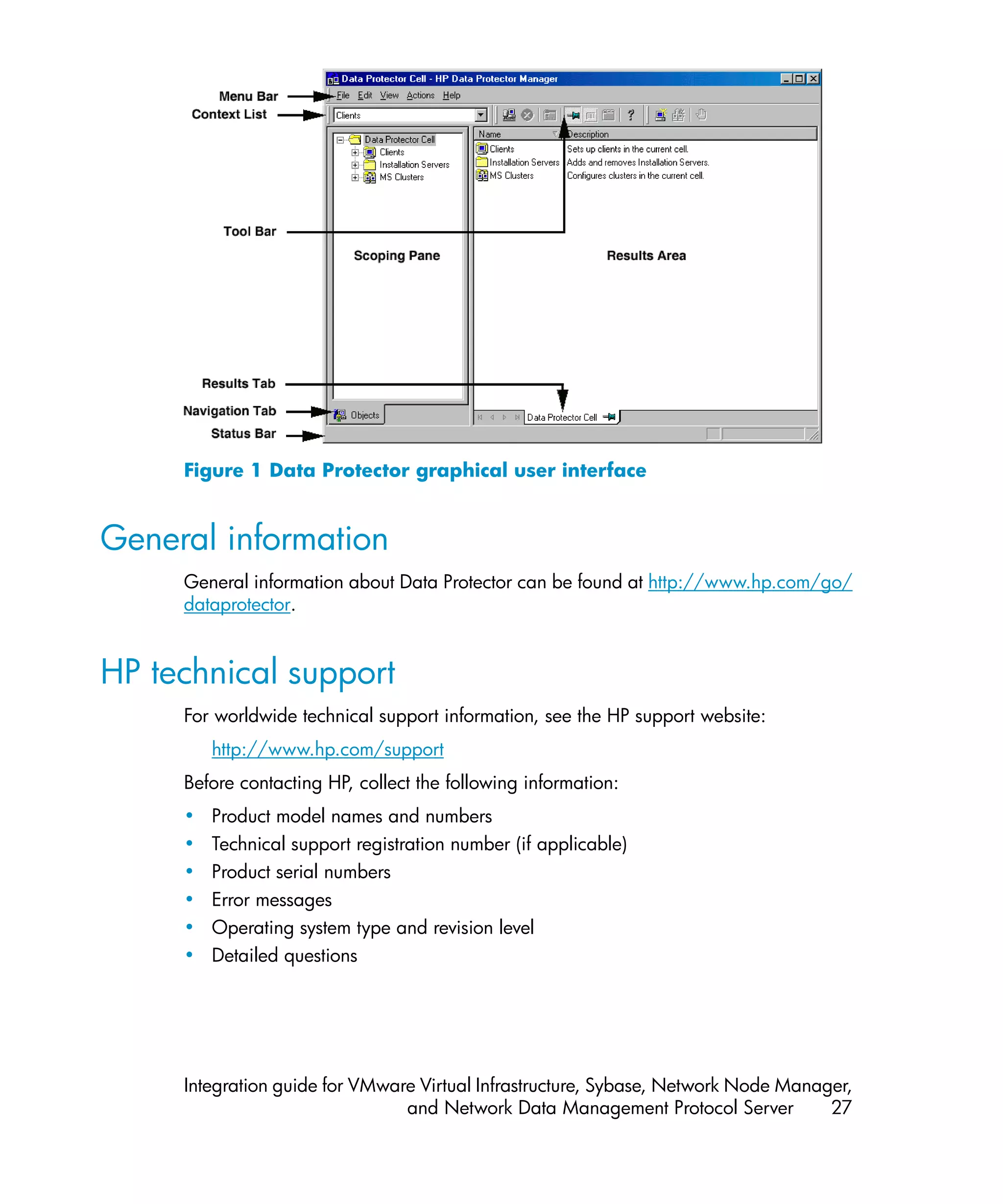
                       See also Disk Agent.

  application system   (ZDB specific term) A system the application or database runs
                       on. The application or database data is located on source
                       volumes.
                       See also backup system and source volume.

  archived redo log    (Oracle specific term) Also called offline redo log. If the Oracle
                       database operates in the ARCHIVELOG mode, as each online
                       redo log is filled, it is copied to an archived log destination.
                       This copy is the archived redo log. The presence or absence of


  Integration guide for VMware Virtual Infrastructure, Sybase, Network Node Manager,
                            and Network Data Management Protocol Server         217
an archived redo log is determined by the mode the database
                          is using:
                          • ARCHIVELOG - The filled online redo log files are archived
                              before they are reused. The database can be recovered if
                              an instance or a disk fails. A “hot” backup can be performed
                              only when the database is running in this mode.
                          • NOARCHIVELOG - The filled online redo log files are not
                              archived.
                          See also online redo log.

      archive logging     (Lotus Domino Server specific term) Lotus Domino Server
                          database mode where transaction log files are overwritten only
                          after they have been backed up.

      ASR Set             A collection of files stored on several diskettes, required for
                          proper reconfiguration of the replacement disk (disk partitioning
                          and logical volume configuration) and automatic recovery of
                          the original system configuration and user data that was backed
                          up during the full client backup. These files are stored as an
                          ASR archive file on the Cell Manager in the directory
                          Data_Protector_program_dataConfigServerdrasr
                          (Windows Server 2008),
                          Data_Protector_homeConfigServerdrasr (other
                          Windows systesm), or /etc/opt/omni/server/dr/asr
                          (UNIX systems) as well as on the backup medium. After a
                          disaster occurs, the ASR archive file is extracted to diskettes
                          which you need to perform ASR.

      Audit Logs          Data files to which auditing information is stored.

      Audit Report        User-readable output of auditing information created from data
                          stored in audit log files.

      Auditing            Data about every backup session that was performed over an
      Information         extended, user-defined period for the whole Data Protector cell.

      autochanger         See library.

      autoloader          See library.

      Automatic Storage   (Oracle specific term) Automatic Storage Management is an
      Management          Oracle 10g/1 integrated filesystem and volume manager
                                        1g
                          that manages Oracle database files. It eliminates complexity


218         Glossary
associated with managing data and disk and provides striping
                    and mirroring capabilities to optimize performance.

automigration       (VLS specific term) The functionality that allows data backups
                    to be first made to the VLS' virtual tapes and then migrated to
                    physical tapes (one virtual tape emulating one physical tape)
                    without using an intermediate backup application.
                    See also Virtual Library System (VLS) and virtual tape.

BACKINT             (SAP R/3 specific term) SAP R/3 backup programs can call the
                    Data Protector backint interface program via an open interface,
                    which enables them to communicate with Data Protector
                    software. For backup and restore, SAP R/3 programs issue
                    orders for the Data Protector backint interface.

backup API          The Oracle interface between the Oracle backup/restore utility
                    and the backup/restore media management layer. The interface
                    defines a set of routines to allow the reading and writing of data
                    to the backup media, the creation, searching and removing the
                    backup files.

backup chain        See restore chain.

backup device       A device configured for use with Data Protector, which can write
                    data to and read data from storage media. This can be, for
                    example, a standalone DDS/DAT drive or a library.

backup generation   One backup generation includes one full backup and all
                    incremental backups until the next full backup.

backup ID           An identifier of an integration object that equals the session ID
                    of the backup of this object. The backup ID is preserved when
                    an object is copied, exported, or imported.

backup object       A backup unit that contains all items backed up from one disk
                    volume (logical disk or mount point). The backed up items can
                    be any number of files, directories, or the entire disk or mount
                    point. Additionally, a backup object can be a
                    database/application entity or a disk image (rawdisk).
                    A backup object is defined by:
                    • Client name: Hostname of the Data Protector client where
                        the backup object resides.
                    • Mount point: For filesystem objects — the access point in a
                        directory structure on the client where the backup object is


Integration guide for VMware Virtual Infrastructure, Sybase, Network Node Manager,
                          and Network Data Management Protocol Server         219
located (drive on Windows and mount point on UNIX). For
                          integration objects — backup stream identification, indicating
                          the backed up database/application items.
                        • Description: For filesystem objects — uniquely defines objects
                          with identical client name and mount point. For integration
                          objects — displays the integration type (for example, SAP
                          or Lotus).
                        • Type: Backup object type. For filesystem objects — filesystem
                          type (for example, WinFS). For integration objects — “Bar”.

      backup owner      Each backup object in the IDB has an owner. The default owner
                        of a backup is the user who starts the backup session.

      backup session    A process that creates a copy of data on storage media. The
                        activities are specified in a backup specification or an interactive
                        session. All clients configured in one backup specification are
                        backed up together in one backup session using the same
                        backup type (full or incremental). The result of a backup session
                        is a set of media, which was written to, also called the backup
                        or media set.
                        See also backup specification, incremental backup, and full
                        backup.

      backup set        A complete set of integration objects associated with a backup.

      backup set        (Oracle specific term) A logical grouping of backed up files that
                        are created using the RMAN backup command. A backup set
                        is a complete set of files associated with a backup. The files can
                        be multiplexed to increase performance. A backup set contains
                        either datafiles or archived logs, but not both together.

      backup            A list of objects to be backed up, together with a set of devices
      specification     or drives to be used, backup options for all objects in the
                        specification, and days and time that you want backups to be
                        performed. The objects are entire disks/volumes or parts of them
                        such as files, directories, or even the Windows Registry for
                        example. File selection lists such as include-lists and exclude-lists
                        can be specified.

      backup system     (ZDB specific term) A system connected to target volumes of one
                        or multiple application systems. The backup system is typically
                        connected to a backup device to perform the backup of the data
                        in a replica.


220          Glossary
See also application system, target volume, and replica.

backup types        See incremental backup, differential backup, transaction backup,
                    full backup, and delta backup.

backup view         Data Protector provides different views for backup specifications:
                    By Type - according to the type of data available for
                    backups/templates. Default view.
                    By Group - according to the group to which backup
                    specifications/templates belong.
                    By Name - according to the name of backup
                    specifications/templates.
                    By Manager - if you are running MoM, you can also set the
                    Backup view according to the Cell Manager to which backup
                    specifications/templates belong.

BC                  (EMC Symmetrix specific term) Business Continuance are
                    processes that allow customers to access and manage instant
                    copies of EMC Symmetrix standard devices.
                    See also BCV.

BC                  (HP StorageWorks Disk Array XP specific term) The Business
                    Copy XP allows to maintain internal copies of HP StorageWorks
                    Disk Array XP LDEVs for purposes such as data backup or data
                    duplication. The copies (secondary volumes or S-VOLs) can be
                    separated from the primary volumes (P-VOLs) and connected to
                    a different system for various purposes, such as backup and
                    development. For backup purposes, P-VOLs should be connected
                    to the application system, and one of the S-VOL mirror sets
                    should be connected to the backup system.
                    See also HP StorageWorks Disk Array XP LDEV, CA, Main
                    Control Unit, application system, and backup system.

BC EVA              (HP StorageWorks EVA specific term) Business Copy EVA is a
                    local replication software solution enabling you to create
                    point-in-time copies (replicas) of the source volumes using the
                    snapshot and clone capabilities of the EVA firmware.
                    See also replica, source volume, snapshot, and CA+BC EVA.

BC Process          (EMC Symmetrix specific term) A protected storage environment
                    solution that has defined specially configured EMC Symmetrix
                    devices as mirrors or Business Continuance Volumes to protect
                    data on EMC Symmetrix standard devices.
                    See also BCV.


Integration guide for VMware Virtual Infrastructure, Sybase, Network Node Manager,
                          and Network Data Management Protocol Server         221
BC VA               (HP StorageWorks Virtual Array specific term) Business Copy
                          VA allows you to maintain internal copies of HP StorageWorks
                          Virtual Array LUNs for data backup or data duplication within
                          the same virtual array. The copies (child or Business Copy LUNs)
                          can be used for various purposes, such as backup, data analysis
                          or development. When used for backup purposes, the original
                          (parent) LUNs are connected to the application system and the
                          Business Copy (child) LUNs are connected to the backup system.
                          See also HP StorageWorks Virtual Array LUN, application
                          system, and backup system.

      BCV                 (EMC Symmetrix specific term) Business Continuance Volumes,
                          or BCV devices, are dedicated SLDs that are pre-configured in
                          the ICDA on which the business continuation operation runs.
                          BCV devices are assigned separate SCSI addresses, differing
                          from the addresses used by the SLDs they mirror. The BCV
                          devices are used as splittable mirrors of the primary EMC
                          Symmetrix SLDs that need to be protected.
                          See also BC and BC Process.

      Boolean operators   The Boolean operators for the full text search functionality of the
                          online Help system are AND, OR, NOT, and NEAR. Used when
                          searching, they enable you to define your query precisely by
                          creating a relationship between search terms. If no operator is
                          specified in a multi-word search, AND is used by default. For
                          example, the query manual disaster recovery is equivalent to
                          manual AND disaster AND recovery.

      boot volume/disk/   A volume/disk/partition with files required for the initial step
      partition           of the boot process. Microsoft terminology defines the boot
                          volume/disk/partition as a volume/disk/partition containing
                          the operating system files.

      BRARCHIVE           (SAP R/3 specific term) An SAP R/3 backup tool that allows
                          you to archive redo log files. BRARCHIVE also saves all the logs
                          and profiles of the archiving process.
                          See also BRBACKUP, and BRRESTORE.

      BRBACKUP            (SAP R/3 specific term) An SAP R/3 backup tool that allows an
                          online or offline backup of the control file, of individual data
                          files, or of all tablespaces and, if necessary, of the online redo
                          log files.
                          See also BRARCHIVE, and BRRESTORE.


222           Glossary
BRRESTORE            (SAP R/3 specific term) An SAP R/3 tool that can be used to
                     restore files of the following type:
                     • Database data files, control files, and online redo log files
                         saved with BRBACKUP
                     • Redo log files archived with BRARCHIVE
                     • Non-database files saved with BRBACKUP
                     You can specify files, tablespaces, complete backups, log
                     sequence numbers of redo log files, or the session ID of the
                     backup.
                     See also BRBACKUP, and BRARCHIVE.

BSM                  The Data Protector Backup Session Manager controls the backup
                     session. This process always runs on the Cell Manager system.

CA                   (HP StorageWorks Disk Array XP specific term) Continuous
                     Access XP allows you to create and maintain remote copies of
                     HP StorageWorks Disk Array XP LDEVs for purposes such as
                     data duplication, backup, and disaster recovery. CA operations
                     involve the main (primary) disk arrays and the remote
                     (secondary) disk arrays. The main disk arrays contain the CA
                     primary volumes (P-VOLs), which contain the original data and
                     are connected to the application system. The remote disk arrays
                     contain the CA secondary volumes (S-VOLs) connected to the
                     backup system.
                     See also BC (HP StorageWorks Disk Array XP specific term),
                     Main Control Unit and HP StorageWorks Disk Array XP LDEV.

CA+BC EVA            (HP StorageWorks EVA specific term) The combination of
                     Continuous Access (CA) EVA and Business Copy (BC) EVA
                     enables you to create and maintain copies (replicas) of the
                     source volumes on a remote EVA, and then use these copies as
                     the source for local replication on this remote array.
                     See also BC EVA, replica, and source volume.

CAP                  (StorageTek specific term) Cartridge Access Port is a port built
                     into the door panel of a library. The purpose is to enter or eject
                     media.

catalog protection   Defines how long information about backed up data (such as
                     file names and file versions) is kept in the IDB.
                     See also data protection.


Integration guide for VMware Virtual Infrastructure, Sybase, Network Node Manager,
                          and Network Data Management Protocol Server         223
CDB                 The Catalog Database is a part of the IDB that contains
                          information about backup, restore, object copy, object
                          consolidation, object verification, and media management
                          sessions. Depending on the selected logging level, it also
                          contains file names and file versions. This part of the database
                          is always local to the cell.
                          See also MMDB.

      CDF file            (UNIX specific term) A Context Dependent File is a file consisting
                          of several files grouped under the same pathname. The system
                          ordinarily selects one of the files using the context of the process.
                          This mechanism allows machine dependent executables, system
                          data, and device files to work correctly from all hosts in a cluster
                          while using the same pathname.

      cell                A set of systems that are under the control of a Cell Manager.
                          The cell typically represents the systems on a site or an
                          organizational entity, which are connected to the same LAN.
                          Central control is available to administer the backup and restore
                          policies and tasks.

      Cell Manager        The main system in the cell where the essential Data Protector
                          software is installed and from which all backup and restore
                          activities are managed. The GUI used for management tasks
                          can be located on a different system. Each cell has one Cell
                          Manager system.

      centralized         Data Protector allows you to configure centralized licensing for
      licensing           the whole enterprise environment consisting of several cells. All
                          Data Protector licenses are installed and kept on the Enterprise
                          Cell Manager system. You can then allocate licenses to specific
                          cells to suit your needs.
                          See also MoM.

      Centralized Media   See CMMDB.
      Management
      Database
      (CMMDB)

      Change Journal      (Windows specific term) A Windows filesystem feature that logs
                          a record of each change as it occurs to the files and directories
                          on a local NTFS volume.


224          Glossary
Change Log          (Windows specific term) A module that can be queried to
Provider            determine which objects on a filesystem have been created,
                    modified, or deleted.

channel             (Oracle specific term) An Oracle Recovery Manager resource
                    allocation. Every allocated channel starts a new Oracle process,
                    which performs backup, restore, and recovery actions. The type
                    of channel allocated determines the type of media used:
                    • type 'disk'
                    • type ‘sbt_tape’
                    If the specified channel is of type ‘sbt_tape’ and Oracle is
                    integrated with Data Protector, the server process will attempt
                    to read backups from or write data files to Data Protector.

circular logging    (Microsoft Exchange Server and Lotus Domino Server specific
                    term) Circular logging is a Microsoft Exchange Server database
                    and Lotus Domino Server database mode, in which the
                    transaction log file contents are periodically overwritten after
                    the corresponding data is committed to the database. Circular
                    logging reduces disk storage space requirements.

client backup       A backup of all volumes (filesystems) mounted on a Data
                    Protector client.
                    What is actually backed up depends on how you select objects
                    in a backup specification:
                    • If you select the check box next to the client system name, a
                        single backup object of the Client System type is created.
                        As a result, at the time of the backup, Data Protector first
                        detects all volumes that are mounted on the selected client
                        and then backs them up. On Windows clients,
                        CONFIGURATION is also backed up.
                    • If you individually select all volumes that are mounted on the
                      client system, a separate backup object of the Filesystem
                      type is created for each volume. As a result, at the time of
                      the backup, only the selected volumes are backed up.
                      Volumes that have been potentially mounted on the client
                      after the backup specification was created are not backed
                      up.

client or client    Any system configured with any Data Protector functionality and
system              configured in a cell.


Integration guide for VMware Virtual Infrastructure, Sybase, Network Node Manager,
                          and Network Data Management Protocol Server         225
cluster-aware        It is an application that supports the cluster Application
      application          Programming Interface. Each cluster-aware application declares
                           its own critical resources (disk volumes (on Microsoft Cluster
                           Server), volume groups (on MC/ServiceGuard), application
                           services, IP names and addresses, and so on).

      cluster continuous   (Microsoft Exchange Server specific term) Cluster continuous
      replication          replication (CCR) is a high availability solution that uses cluster
                           management and failover options to create and maintain an
                           exact copy (CCR copy) of a storage group. A storage group is
                           replicated to a separate server. CCR removes any single point
                           of failure in your Exchange back-end servers. You can perform
                           backups using VSS on your passive Exchange Server node
                           where a CCR copy is located and thus reducing the load on the
                           active node.
                           A CCR copy is used for disaster recovery since you can switch
                           to the CCR copy in a few seconds. A replicated storage group
                           is represented as a new instance of Exchange writer called
                           Exchange Replication Service and can be backed up (using
                           VSS) like an ordinary storage group.
                           See also Exchange Replication Service and local continuous
                           replication.

      CMD Script for       (Informix Server specific term) A Windows CMD script that is
      Informix Server      created in INFORMIXDIR when an Informix Server database is
                           configured. The CMD script is a set of system commands that
                           export environment variables for Informix Server.

      CMMDB                The Data Protector Centralized Media Management Database
                           (CMMDB) is the result of merging MMDBs from several cells in
                           the MoM environment. It allows you to share high-end devices
                           and media across multiple cells in a MoM environment. One
                           cell can control the robotics, serving the devices that are
                           connected to systems in other cells. The CMMDB must reside on
                           the Manager-of-Managers. A reliable network connection
                           between the MoM cell and the other Data Protector cells is highly
                           recommended
                           See also MoM.

      COM+ Class           (Windows specific term) The COM+ Class Registration Database
      Registration         and the Windows Registry store application attributes, class
      Database             attributes, and computer-level attributes. This guarantees
                           consistency among these attributes and provides common
                           operation on top of these attributes.


226          Glossary
command-line        A set of DOS and UNIX like commands that you can use in shell
interface (CLI)     scripts to perform Data Protector configuration, backup, restore,
                    and management tasks.

Command View        (HP StorageWorks EVA specific term) The user interface that
(CV) EVA            enables you to configure, manage, and monitor your HP
                    StorageWorks EVA storage system. It is used to perform various
                    storage management tasks, for example, creating virtual disk
                    families, managing storage system hardware, and creating
                    snapclones and snapshots of virtual disks. The Command View
                    EVA software runs on the HP Storage Management Appliance,
                    and is accessed by a Web browser.
                    See also HP StorageWorks EVA SMI-S Agent and HP
                    StorageWorks SMI-S EVA provider.

Command View        (VLS specific term) A web browser-based GUI that is used to
VLS                 configure, manage, and monitor the VLS through a LAN.
                    See also Virtual Library System (VLS).

concurrency         See Disk Agent concurrency.

control file        (Oracle and SAP R/3 specific term) An Oracle data file that
                    contains entries specifying the physical structure of the database.
                    It provides database consistency information used for recovery.

copy set            (HP StorageWorks EVA specific term) A pair that consists of the
                    source volumes on a local EVA and their replica on a remote
                    EVA.
                    See also source volume, replica, and CA+BC EVA

CRS                 The Cell Request Server process (service), which runs on the
                    Data Protector Cell Manager, and starts and controls the backup
                    and restore sessions. The service is started as soon as Data
                    Protector is installed on the Cell Manager. On Windows systems,
                    the CRS runs under the account of the user specified at
                    installation time. On UNIX systems, it runs under the account
                    root.

CSM                 The Data Protector Copy and Consolidation Session Manager
                    process controls the object copy and object consolidation
                    sessions and runs on the Cell Manager system.


Integration guide for VMware Virtual Infrastructure, Sybase, Network Node Manager,
                          and Network Data Management Protocol Server         227
data file          (Oracle and SAP R/3 specific term) A physical file created by
                         Oracle that contains data structures such as tables and indexes.
                         A data file can only belong to one Oracle database.

      data protection    Defines how long the backed up data on media remains
                         protected, that is, Data Protector will not overwrite it. When the
                         protection expires, Data Protector will be able to reuse the media
                         in one of the next backup sessions.
                         See also catalog protection.

      data stream        Sequence of data transferred over the communication channel.

      Data_Protector_    On Windows Vista and Windows Server 2008, the directory
      home               containing Data Protector program files. On other Windows
                         operating systems, the directory containing Data Protector
                         program files and data files. Its default path is
                         %ProgramFiles%OmniBack, but the path can be changed
                         in the Data Protector Setup Wizard at installation time.
                         See also Data_Protector_program_data.

      Data_Protector_    On Windows Vista and Windows Server 2008, the directory
      program_data       containing Data Protector data files. Its default path is
                         %ProgramData%OmniBack, but the path can be changed
                         in the Data Protector Setup Wizard at installation time.
                         See also Data_Protector_home.

      database library   A Data Protector set of routines that enables data transfer
                         between Data Protector and a server of an online database
                         integration, for example, Oracle Server.

      database           More than one database is backed up at a time if the number
      parallelism        of available devices allows you to perform backups in parallel.

      Data Replication   (HP StorageWorks EVA specific term) A logical grouping of
      (DR) group         EVA virtual disks. It can contain up to eight copy sets provided
                         they have common characteristics and share a common CA
                         EVA log.
                         See also copy set.

      database server    A computer with a large database stored on it, such as the SAP
                         R/3 or Microsoft SQL database. A server has a database that
                         can be accessed by clients.


228          Glossary
Dbobject            (Informix Server specific term) An Informix Server physical
                    database object. It can be a blobspace, dbspace, or logical
                    log file.

DC directory        The Detail Catalog (DC) directory contains DC binary files,
                    which store information about file versions. It represents the
                    DCBF part of the IDB, which occupies approximately 80% of
                    the IDB. The default DC directory is called the dcbf directory
                    and is located on the Cell Manager in the directory
                    Data_Protector_program_datadb40 (Windows Server
                    2008), Data_Protector_homedb40 (other Windows
                    systems), or /var/opt/omni/server/db40 (UNIX systems).
                    You can create more DC directories and use a custom location.
                    Up to 50 DC directories are supported per cell. The default
                    maximum size of a DC directory is 16 GB.

DCBF                The Detail Catalog Binary Files (DCBF) part of the IDB stores
                    information about file versions and attributes. It occupies
                    approximately 80% of the IDB. One DC binary file is created
                    for each Data Protector medium used for backup. Its maximum
                    size is limited by the file system settings.

delta backup        A delta backup is a backup containing all the changes made
                    to the database from the last backup of any type.
                    See also backup types.

device              A physical unit which contains either just a drive or a more
                    complex unit such as a library.

device chain        A device chain consists of several standalone devices configured
                    for sequential use. When a medium in one device gets full, the
                    backup automatically continues on a medium in the next device
                    in the device chain.

device group        (EMC Symmetrix specific term) A logical unit representing several
                    EMC Symmetrix devices. A device cannot belong to more than
                    a single device group. All devices in a device group must be
                    on the same EMC Symmetrix unit. You can use a device group
                    to identify and work with a subset of the available EMC
                    Symmetrix devices.

device streaming    A device is streaming if it can feed enough data to the medium
                    to keep it moving forward continuously. Otherwise, the tape
                    has to be stopped, the device waits for more data, reverses the


Integration guide for VMware Virtual Infrastructure, Sybase, Network Node Manager,
                          and Network Data Management Protocol Server         229
tape a little and resumes to write to the tape, and so on. In other
                            words, if the data rate written to the tape is less or equal the
                            data rate which can be delivered to the device by the computer
                            system, then the device is streaming. Streaming significantly
                            improves the performance of the device and use of space.

      DHCP server           A system running the Dynamic Host Configuration Protocol
                            (DHCP) providing dynamic IP address assignment and network
                            configuration for DHCP clients.

      differential backup   An incremental backup that backs up changes made since the
                            last full backup. To perform this type of backup, specify the Incr1
                            backup type.
                            See also incremental backup.

      differential backup   (Microsoft SQL Server specific term) A database backup that
                            records only the data changes made to the database after the
                            last full database backup.
                            See also backup types.

      differential          A differential database backup records only those data changes
      database backup       made to the database after the last full database backup.

      direct backup         A SAN-based backup solution in which data movement directly
                            from disk to tape (or to other secondary storage) is facilitated
                            by the SCSI Extended Copy (Xcopy) command. Direct backup
                            lessens the backup I/O load on systems in a SAN environment.
                            The data movement is facilitated directly from disk to tape (or
                            to other secondary storage) by the SCSI Extended Copy (XCopy)
                            command. The command is provided by any element of the
                            infrastructure including bridges, switches, tape libraries, and
                            disk subsystems.
                            See also XCopy engine.

      directory junction    (Windows specific term) Directory junctions use the reparse
                            point concept of Windows. An NTFS 5 directory junction allows
                            you to redirect a directory/file request to another location.

      disaster recovery     A process to restore a client’s main system disk to a state close
                            to the time when a (full) backup was performed.

      disaster recovery     See DR OS.
      operating system


230          Glossary
Disk Agent          A component needed on a client to back it up and restore it.
                    The Disk Agent controls reading from and writing to a disk.
                    During a backup session, the Disk Agent reads data from a disk
                    and sends it to the Media Agent, which then moves it to the
                    device. During a restore session the Disk Agent receives data
                    from the Media Agent and writes it to the disk. During an object
                    verification session the Disk Agent receives data from the Media
                    Agent and performs the verification process, but no data is
                    written to disk.

Disk Agent          The number of Disk Agents that are allowed to send data to one
concurrency         Media Agent concurrently.

disk group          (Veritas Volume Manager specific term) The basic unit of data
                    storage in VxVM system. A disk group can consist of one or
                    more physical volumes. There can be more than one disk group
                    on the system.

disk image          A high-speed backup where Data Protector backs up files as
(rawdisk) backup    bitmap images. A disk image (rawdisk) backup does not track
                    the files and directory structure stored on the disk, but stores a
                    disk image structure on byte level. You can perform a disk image
                    backup of either specific disk sections or a complete disk.

disk quota          A concept to manage disk space consumption for all or a subset
                    of users on a computer system. This concept is used by several
                    operating system platforms.

disk staging        The process of backing up data in several phases to improve
                    the performance of backups and restores, reduce costs of storing
                    the backed up data, and increase the data availability and
                    accessibility for restore. The backup stages consist of backing
                    up data to one media type first (for example disk) and later
                    copying it to a different media type (for example tape).

distributed file    A media format, available with the file library, which supports
media format        a space efficient type of synthetic backup called virtual full
                    backup. Using this format is a prerequisite for virtual full backup.
                    See also virtual full backup.

Distributed File    A service that connects file shares into a single namespace. The
System (DFS)        file shares can reside on the same or on different computers.
                    DFS provides client access to the resources in a
                    location-transparent manner.


Integration guide for VMware Virtual Infrastructure, Sybase, Network Node Manager,
                          and Network Data Management Protocol Server         231
DMZ                 The Demilitarized Zone (DMZ) is a network inserted as a "neutral
                          zone" between a company's private network (intranet) and the
                          outside public network (Internet). It prevents outside users from
                          getting direct access to company servers in the intranet.

      DNS server          In the DNS client-server model, this is the server containing
                          information about a portion of the DNS database that makes
                          computer names available to client resolvers querying for name
                          resolution across the Internet.

      domain controller   A server in a network that is responsible for user security and
                          verifying passwords within a group of other servers.

      DR image            Data required for temporary disaster recovery operating system
                          (DR OS) installation and configuration.

      DR OS               An operating system environment in which disaster recovery
                          runs. It provides Data Protector with a basic runtime environment
                          (disk, network, tape, and filesystem access). It has to be installed
                          on disk or loaded into memory and configured before the Data
                          Protector disaster recovery can be performed. DR OS can be
                          either temporary or active. A temporary DR OS is used
                          exclusively as a host environment for some other operating
                          system restore along with the target operating system
                          configuration data. It is deleted after the target system is restored
                          to the original system configuration. An active DR OS not only
                          hosts the Data Protector disaster recovery process but can also
                          be a part of the restored system because it replaces its own
                          configuration data with the original configuration data.

      drive               A physical unit that receives data from a computer system and
                          can write it onto a magnetic medium (typically a tape drive). It
                          can also read the data from the medium and send it to the
                          computer system.

      drive-based         Data Protector drive-based encryption uses the encryption
      encryption          functionality of the drive. While performing the backup, the
                          drive encrypts both the data and the meta-data that is written
                          to the medium.

      drive index         A number that identifies the mechanical position of a drive inside
                          a library device. This number is used by the robotic control to
                          access a drive.


232           Glossary
dynamic client      See client backup with disk discovery.

EMC Symmetrix       See Symmetrix Agent (SYMA).
Agent (SYMA)
(EMC Symmetrix
specific term)

emergency boot      (Informix Server specific term) The Informix Server configuration
file                file ixbar.server_id that resides in the directory
                    INFORMIXDIR/etc (on Windows) or INFORMIXDIRetc (on
                    UNIX). INFORMIXDIR is the Informix Server home directory
                    and server_id is the value of the SERVERNUM configuration
                    parameter. Each line of the emergency boot file corresponds to
                    one backup object.

encryption key      A 256-bit randomly generated number used by the Data
                    Protector encryption algorithm to encode information during
                    backups for which AES 256-bit software encryption or
                    drive-based encryption has been specified. The same key is
                    used for subsequent decryption of the information. Encryption
                    keys for a Data Protector cell are stored in a central keystore
                    on the Cell Manager.

encryption key      Combined identifier used by the Data Protector Key Management
KeyID-StoreID       Server to identify and administer encryption keys used by Data
                    Protector. KeyID identifies the key within the keystore. StoreID
                    identifies the keystore on the Cell Manager. If Data Protector
                    has been upgraded from an earlier version with encryption
                    functionality, there may several StoreIDs used on the same
                    Cell Manager.

enhanced            Conventional incremental backup backs up files that have
incremental         changed since a previous backup, but has certain limitations in
backup              detection of changes. Unlike conventional incremental backup,
                    enhanced incremental backup reliably detects and backs up
                    also renamed and moved files, as well as files with changes in
                    attributes.

Enterprise Backup   Several cells can be grouped together and managed from a
Environment         central cell. The enterprise backup environment includes all
                    clients located in several Data Protector cells which are managed
                    and administered from a central cell using the
                    Manager-of-Managers concept.
                    See also MoM.


Integration guide for VMware Virtual Infrastructure, Sybase, Network Node Manager,
                          and Network Data Management Protocol Server         233
Event Log (Data       A central repository of all Data Protector related notifications.
      Protector Event       By default, all notifications are sent to the Event Log. The Event
      Log)                  Log is accessible only to Data Protector users in the Admin group
                            and to Data Protector users who are granted the Reporting
                            and notifications user rights. You can view or delete all
                            events in the Event Log.

      Event Logs            (Windows specific term) Files in which Windows logs all events,
                            such as the starting or stopping of services and the logging on
                            and off of users. Data Protector can back up Windows Event
                            Logs as part of the Windows configuration backup.

      Exchange              (Microsoft Exchange Server specific term) The Microsoft
      Replication Service   Exchange Server service that represents storage groups that
                            were replicated using either local continuous replication (LCR)
                            or cluster continuous replication (CCR) technology.
                            See also cluster continuous replication and local continuous
                            replication.

      exchanger             Also referred to as SCSI Exchanger.
                            See also library.

      exporting media       A process that removes all data about backup sessions, such
                            as systems, objects, and file names, which reside on the media
                            from the IDB. Information about the media and their relation to
                            a pool is also removed from the IDB. The data on the media
                            remains unchanged.
                            See also importing media.

      Extensible Storage    (Microsoft Exchange Server specific term) A database technology
      Engine (ESE)          used as a storage system for information exchange in Microsoft
                            Exchange Server.

      failover              Transferring of the most important cluster data, called group (on
                            Windows) or package (on UNIX) from one cluster node to
                            another. A failover can occur mostly because of software or
                            hardware failures or maintenance on the primary node.

      failover              (HP StorageWorks EVA specific term) An operation that reverses
                            the roles of source and destination in CA+BC EVA
                            configurations.
                            See also CA+BC EVA.

      FC bridge             See Fibre Channel bridge.


234          Glossary
Fibre Channel         An ANSI standard for high-speed computer interconnection.
                      Using either optical or copper cables, it allows the high speed
                      bi-directional transmission of large data files and can be
                      deployed between sites kilometers apart. Fibre Channel connects
                      nodes using three physical topologies: point-to-point, loop, and
                      switched.

Fibre Channel         A Fibre Channel bridge or multiplexer provides the ability to
bridge                migrate existing parallel SCSI devices, like RAID arrays, solid
                      state disks (SSD), and tape libraries to a Fibre Channel
                      environment. On one side of the bridge or multiplexer there is
                      a Fibre Channel interface while on the other side there are
                      parallel SCSI ports. The bridge or multiplexer enables SCSI
                      packets to be moved between the Fibre Channel and parallel
                      SCSI devices.

file depot            A file containing the data from a backup to a file library device.

file jukebox device   A device residing on disk consisting of multiple slots used to
                      store file media.

file library device   A device which resides on a disk emulating a library with several
                      media, hence containing multiple files, referred to as file depots.

File Replication      A Windows service that replicates the domain controller store
Service (FRS)         logon scripts and group policies. FRS also enables replication
                      of Distributed File System (DFS) shares between systems and
                      allows any server to perform replication activity.

file tree walk        (Windows specific term) The process of traversing a filesystem
                      to determine which objects have been created, modified, or
                      deleted.

file version          The same file can be backed up multiple times in case of full
                      backups and incremental backups (if the file changed). If the
                      log level ALL is selected for backup, Data Protector retains one
                      entry in the IDB for the filename itself and one for each version
                      (date/time) of the file.

filesystem            The organization of files on a hard disk. A filesystem is backed
                      up so that the file attributes and the file contents are stored on
                      the backup media.

first-level mirror    (HP StorageWorks Disk Array XP specific term) HP StorageWorks
                      Disk Array XP allows up to three mirror copies of a primary


Integration guide for VMware Virtual Infrastructure, Sybase, Network Node Manager,
                          and Network Data Management Protocol Server         235
volume and each of these copies can have additional two
                            copies. The three mirror copies are called first-level mirrors.
                            See also primary volume and MU number.

      flash recovery        (Oracle specific term) Flash recovery area is an Oracle 10g/1  1g
      area                  managed directory, filesystem, or Automatic Storage
                            Management disk group that serves as a centralized storage
                            area for files related to backup and recovery (recovery files).
                            See also recovery files.

      fnames.dat            The fnames.dat files of the IDB contain information on the
                            names of the backed up files. Typically, these files occupy about
                            20% of the IDB, if filenames are stored.

      formatting            A process that erases any data contained on a medium and
                            prepares it for use with Data Protector. Information about media
                            (medium ID, description, and location) is saved in the IDB as
                            well as on the respective media (media header). Data Protector
                            media with protected data are not formatted until the protection
                            expires or the media are unprotected/recycled.

      free pool             An auxiliary source of media for use by media pools when they
                            run out of media. The media pools must be configured to use
                            free pools.

      full backup           A backup in which all selected objects are backed up, whether
                            or not they have been recently modified.
                            See also backup types.

      full database         A backup of all data in a database, not only the data that has
      backup                been changed after the last (full or incremental) backup of the
                            database. A full database backup does not depend on any
                            other backup.

      full mailbox          A full mailbox backup is a backup of the entire mailbox content.
      backup

      full ZDB              A ZDB to tape or ZDB to disk+tape session in which all selected
                            objects are streamed to tape, even if there are no changes from
                            the previous backup.
                            See also incremental ZDB.

      global options file   A file that allows you to customize Data Protector. It explains
                            the global options, which cover various aspects of Data


236          Glossary
Protector, typically time-outs and limits, and affect the entire
                    Data Protector cell. The file is located on the Cell Manager in
                    the directory
                    Data_Protector_program_dataConfigServerOptions
                    (Windows Server 2008),
                    Data_Protector_homeConfigServerOptions (other
                    Windows systems), or /etc/opt/omni/server/options
                    (HP-UX or Solaris systems).

group               (Microsoft Cluster Server specific term) A collection of resources
                    (for example disk volumes, application services, IP names, and
                    addresses) that are needed to run a specific cluster-aware
                    applications.

GUI                 A graphical user interface provided by Data Protector for easy
                    access to all configuration, administration, and operation tasks.
                    Besides the original Data Protector GUI that runs on Windows,
                    Data Protector also provides a Java-based graphical user
                    interface with the same look and feel, which runs on numerous
                    platforms.

hard recovery       (Microsoft Exchange Server specific term) A Microsoft Exchange
                    Server database recovery that is performed after a restore by
                    the database engine, using transaction log files.

heartbeat           A cluster data set with a time stamp carrying information about
                    the operational status of a particular cluster node. This data set
                    or packet is distributed among all cluster nodes.

Hierarchical        A method for optimizing the use of expensive hard disk storage
Storage             by migrating less frequently used data to less expensive optical
Management          platters. When needed, the data is migrated back to hard disk
(HSM)               storage. This balances the need for fast retrieval from hard disk
                    with the lower cost of optical platters.

Holidays file       A file that contains information about holidays. You can set
                    different holidays by editing the Holidays file on the Cell
                    Manager in the directory
                    Data_Protector_program_dataConfigServerholidays
                    (Windows Server 2008),
                    Data_Protector_homeConfigServerholidays (other
                    Windows systems), or /etc/opt/omni/server/Holidays
                    (UNIX systems).


Integration guide for VMware Virtual Infrastructure, Sybase, Network Node Manager,
                          and Network Data Management Protocol Server         237
hosting system    A working Data Protector client used for Disk Delivery Disaster
                        Recovery with a Data Protector Disk Agent installed.

      HP Operations     HP Operations Manager provides powerful capabilities for
      Manager           operations management of a large number of systems and
                        applications in a network. Data Protector provides an integration
                        into this management product. This integration is implemented
                        as a SMART Plug-In for HP Operations Manager management
                        servers on Windows, HP-UX, Solaris, and Linux. Earlier versions
                        of HP Operations Manager were called IT/Operation,
                        Operations Center, Vantage Point Operations, and OpenView
                        Operations.

      HP Operations     A fully integrated, out-of-the-box solution which "plugs into"
      Manager SMART     HP Operations Manager, extending the managed domain.
      Plug-In (SPI)     Through the Data Protector integration, which is implemented
                        as an HP Operations Manager SMART Plug-In, a user can have
                        an arbitrary number of Data Protector Cell Managers monitored
                        as an extension to HP Operations Manager.

      HP StorageWorks   A logical partition of a physical disk within an HP StorageWorks
      Disk Array XP     Disk Array XP. LDEVs are entities that can be replicated in the
      LDEV              Continuous Access XP (CA) and Business Copy XP (BC)
                        configurations, or can be used as standalone entities.
                        See also BC, CA (HP StorageWorks Disk Array XP specific term),
                        and replica.

      HP StorageWorks   A Data Protector software module that executes all tasks required
      EVA SMI-S Agent   for the HP StorageWorks Enterprise Virtual Array integration.
                        With the EVA SMI-S Agent, the control over the array is
                        established through HP StorageWorks SMI-S EVA provider,
                        which directs communication between incoming requests and
                        CV EVA.
                        See also Command View (CV) EVA and HP StorageWorks SMI-S
                        EVA provider.

      HP StorageWorks   An interface used for controlling HP StorageWorks Enterprise
      SMI-S EVA         Virtual Array. SMI-S EVA provider runs as a separate service
      provider          on the HP Storage Management Appliance system and acts as
                        a gateway between incoming requests and Command View
                        EVA. With the Data Protector HP StorageWorks EVA integration,
                        SMI-S EVA provider accepts standardized requests from the
                        EVA SMI-S Agent, communicates with Command View EVA for


238         Glossary
information or method invocation, and returns standardized
                    responses.
                    See also HP StorageWorks EVA SMI-S Agent and Command
                    View (CV) EVA.

HP StorageWorks     A logical partition of a physical disk within an HP StorageWorks
Virtual Array LUN   Virtual Array. LUNs are entities that can be replicated in the HP
                    StorageWorks Business Copy VA configuration, or can be used
                    as standalone entities.
                    See also BC VA and replica.

ICDA                (EMC Symmetrix specific term) EMC's Symmetrix Integrated
                    Cached Disk Arrays (ICDA) is a disk array device that combines
                    a set of physical disks, a number of FWD SCSI channels, an
                    internal cache memory, and control and diagnostic software
                    commonly referred to as the microcode.

IDB                 The Data Protector Internal Database is an embedded database
                    located on the Cell Manager that keeps information regarding
                    which data is backed up, on which media it is backed up, how
                    backup and restore sessions are run, and which devices and
                    libraries are configured.

IDB recovery file   An IDB file (obrindex.dat) with information about IDB backups,
                    media, and devices used for the backup. This information can
                    significantly simplify IDB recovery. It is recommended to relocate
                    the file, together with IDB transaction logs, to a separate physical
                    disk from other IDB directories, and, additionally, to make an
                    additional copy of the file.

importing media     A process that re-reads all data about backup sessions which
                    are on the medium back into the IDB. This then allows for fast
                    and convenient access to the data on the media.
                    See also exporting media.

incremental         A backup that selects only files that have changed since a
backup              previous backup. Several levels of incremental backup are
                    available, which enables detailed control of restore chain length.
                    See also backup types.

incremental         (Microsoft Exchange Server specific term) A backup of the
backup              Microsoft Exchange Server data that has changed since the last
                    full or incremental backup. With the incremental backup, only
                    the transaction log files are backed up.


Integration guide for VMware Virtual Infrastructure, Sybase, Network Node Manager,
                          and Network Data Management Protocol Server         239
See also backup types.

      incremental           An incremental mailbox backup backs up all the changes made
      mailbox backup        to the mailbox after the last backup of any type.

      incremental1          An incremental1 mailbox backup backs up all the changes made
      mailbox backup        to the mailbox after the last full backup.

      incremental           (EMC Symmetrix specific term) A BCV or SRDF control operation.
      (re)-establish        In BCV control operations, an incremental establish causes the
                            BCV device to be synchronized incrementally and to function
                            as an EMC Symmetrix mirrored medium. The EMC Symmetrix
                            devices must have been previously paired. In SRDF control
                            operations, an incremental establish causes the target (R2) device
                            to be synchronized incrementally and to function as an EMC
                            Symmetrix mirrored medium. The EMC Symmetrix devices must
                            have been previously paired.

      incremental restore   (EMC Symmetrix specific term) A BCV or SRDF control operation.
                            In BCV control operations, an incremental restore reassigns a
                            BCV device as the next available mirror of the standard device
                            in the pair. However, the standard devices are updated with
                            only the data that was written to the BCV device during the time
                            of the original pair split, and the data that was written to the
                            standard device during the split is overwritten with data from
                            the BCV mirror. In SRDF control operations, an incremental
                            restore reassigns a target (R2) device as the next available mirror
                            of the source (R1) device in the pair. However, the source (R1)
                            devices are updated with only the data that was written to the
                            target (R2) device during the time of the original pair split, and
                            the data that was written to the source (R1) device during the
                            split is overwritten with data from the target (R2) mirror.

      incremental ZDB       A filesystem ZDB to tape or ZDB to disk+tape session in which
                            only changes from the last protected full or incremental backup
                            are streamed to tape.
                            See also full ZDB.

      Inet                  A process that runs on each UNIX system or service that runs
                            on each Windows system in the Data Protector cell. It is
                            responsible for communication between systems in the cell and
                            for starting other processes needed for backup and restore. The
                            Inet service is started as soon as Data Protector is installed on
                            a system. The Inet process is started by the inetd daemon.


240          Glossary
Information Store     (Microsoft Exchange Server specific term) The Microsoft
                      Exchange Server service that is responsible for storage
                      management. Information Store in Microsoft Exchange Server
                      manages two kinds of stores: mailbox stores and public folder
                      stores. A mailbox store consists of mailboxes that belong to
                      individual users. A public folder store contains public folders
                      and messages that are shared among several users.
                      See also Key Management Service and Site Replication Service.

Informix Server       (Informix Server specific term) Refers to Informix Dynamic Server.

initializing          See formatting.

Installation Server   A computer system that holds a repository of the Data Protector
                      software packages for a specific architecture. The Installation
                      Server is used for remote installation of Data Protector clients.
                      In mixed environments at least two Installation Servers are
                      needed: one for UNIX systems and one for Windows systems.

instant recovery      (ZDB specific term) A process in which a replica, produced by
                      a ZDB-to-disk or a ZDB-to-disk+tape session, is used to restore
                      the contents of the source volumes to their states at the time at
                      which the replica was created, avoiding the need to perform a
                      restore from tape. Depending on the application or database
                      concerned, this may be all that is required, or other steps, such
                      as the application of transaction log files, may be required for
                      full recovery.
                      See also replica, zero downtime backup (ZDB), ZDB to disk,
                      and ZDB to disk+tape.

integration object    A backup object of a Data Protector integration, such as Oracle
                      or SAP DB.

Internet              (Windows specific term) Microsoft Internet Information Services
Information           is a network file and application server that supports multiple
Services (IIS)        protocols. Primarily, IIS transmits information in Hypertext
                      Markup Language (HTML) pages by using the Hypertext
                      Transport Protocol (HTTP).

IP address            An Internet Protocol address is a numeric address of a system
                      used to uniquely identify the system on the network. The IP
                      address consists of four groups of numbers separated by periods
                      (full stops).


Integration guide for VMware Virtual Infrastructure, Sybase, Network Node Manager,
                          and Network Data Management Protocol Server         241
ISQL              (Sybase specific term) A Sybase utility used to perform system
                        administration tasks on Sybase SQL Server.

      Java GUI Client   The Java GUI Client is a component of the Java GUI that contains
                        only user interface related functionalities and requires connection
                        to the Java GUI Server to function.

      Java GUI Server   The Java GUI Server is a component of the Java GUI that is
                        installed on the Data Protector Cell Manager system. The Java
                        GUI Server receives requests from the Java GUI Client, processes
                        them and then sends the responses back to the Java GUI Client.
                        The communication is done through Hypertext Transfer Protocol
                        (HTTP) on port 5556.

      jukebox           See library.

      jukebox device    A device consisting of multiple slots used to store either optical
                        or file media. When being used to store file media, the jukebox
                        device is known as the “file jukebox device”.

      keychain          A tool that eliminates the supply of a passphrase manually when
                        decrypting the private key. It needs to be installed and
                        configured on the Installation Server if you perform remote
                        installation using secure shell.

      Key Management    (Microsoft Exchange Server specific term) The Microsoft
      Service           Exchange Server service that provides encryption functionality
                        for enhanced security.
                        See also Information Store and Site Replication Service.

      KMS               Key Management Server (KMS) is a centralized service that runs
                        on the Cell Manager and provides key management for the
                        Data Protector encryption functionality. The service is started as
                        soon as Data Protector is installed on the Cell Manager.

      keystore          All encryption keys are centrally stored in the keystore on the
                        Cell Manager and administered by the Key Management Server
                        (KMS).

      LBO               (EMC Symmetrix specific term) A Logical Backup Object (LBO)
                        is an object of data storage/retrieval in the EMC Symmetrix
                        environment. It is stored/retrieved by EMC Symmetrix as one
                        entity and can only be restored as a whole.


242          Glossary
library             Also called autochanger, jukebox, autoloader, or exchanger.
                    A library contains media in repository slots. Each slot holds one
                    medium (for example, DDS/DAT). Media are moved between
                    slots and drives by a robotic mechanism, allowing random
                    access to media. The library can contain multiple drives.

lights-out          A backup or restore operation that takes place outside of normal
operation or        business hours without an operator. This implies that no operator
unattended          personnel is present to work with the backup application or
operation           service mount requests, for example.

LISTENER.ORA        (Oracle specific term) An Oracle configuration file that describes
                    one or more Transparent Network Substrate (TNS) listeners on
                    a server.

load balancing      By default, Data Protector automatically balances the usage of
                    devices selected for backup, so that they are used evenly. Load
                    balancing optimizes the device usage by balancing the number
                    of objects written to each device. Since load balancing is done
                    automatically during backup time, you do not need to manage
                    how the data is actually backed up. You just specify the devices
                    to be used. If you do not want to use load balancing, you can
                    select which device will be used for each object in the backup
                    specification. Data Protector will access the devices in the
                    specified order.

local and remote    Remote recovery is performed if all Media Agent hosts specified
recovery            in the SRD file are accessible. If any of them fails, the disaster
                    recovery process fails over to the local mode. This means that
                    the target system is searched for locally attached devices. If only
                    one device is found, it is automatically used. Otherwise, Data
                    Protector prompts you to select the device, which will be used
                    for restore.

local continuous    (Microsoft Exchange Server specific term) Local continuous
replication         replication (LCR) is a single-server solution that creates and
                    maintains an exact copy (LCR copy) of a storage group. An LCR
                    copy is located on the same server as the original storage group.
                    When an LCR copy is created, it is kept up to date through
                    change propagation (log replay) technology. The replication
                    feature in LCR guarantees that logs that have not been replicated
                    are not deleted. The implication of this behavior is that running
                    backups in a mode that deletes logs may not actually free space
                    if replication is sufficiently far behind in its log copying.


Integration guide for VMware Virtual Infrastructure, Sybase, Network Node Manager,
                          and Network Data Management Protocol Server         243
An LCR copy is used for disaster recovery because you can
                              switch to the LCR copy in a few seconds. If an LCR copy is used
                              for backup and if it is located on a different disk than the original
                              data, then the I/O load on a production database is minimal.
                              A replicated storage group is represented as a new instance of
                              Exchange writer called Exchange Replication Service and can
                              be backed up (using VSS) as a normal storage group.
                              See also cluster continuous replication and Exchange Replication
                              Service.

      lock name               You can configure the same physical device several times with
                              different characteristics, by using different device names. The
                              lock name is a user specified string that is used for locking all
                              such device configurations to prevent collision if several such
                              devices (device names) are used concurrently. Use an identical
                              lock name for all device definitions which use the same physical
                              device.

      log_full shell script   (Informix Server UNIX specific term) A script provided by ON-Bar
                              that you can use to start backing up logical log files when
                              Informix Server issues a logfull event alarm. The Informix Server
                              ALARMPROGRAM configuration parameter defaults to the
                              INFORMIXDIR/etc/log_full.sh, where INFORMIXDIR
                              is the Informix Server home directory. If you do not want logical
                              logs to be backed up continuously, set the ALARMPROGRAM
                              configuration parameter to INFORMIXDIR/etc/no_log.sh.

      logging level           The logging level determines the amount of details on files and
                              directories written to the IDB during backup, object copying, or
                              object consolidation. You can always restore your data,
                              regardless of the logging level used during backup. Data
                              Protector provides four logging levels: Log All, Log Directories,
                              Log Files, and No Log. The different logging level settings
                              influence the IDB growth, backup speed, and the convenience
                              of browsing data for restore.

      logical-log files       This applies to online database backup. Logical-log files are
                              files in which modified data is first stored before being flushed
                              to disk. In the event of a failure, these logical-log files are used
                              to roll forward all transactions that have been committed as well
                              as roll back any transactions that have not been committed.


244          Glossary
login ID            (Microsoft SQL Server specific term) The name a user uses to
                    log on to Microsoft SQL Server. A login ID is valid if Microsoft
                    SQL Server has an entry for that user in the system table syslogin.

login information   (Oracle and SAP R/3 specific term) The format of the login
to the Oracle       information is user_name/password@service, where:
Target Database     • user_name is the name by which a user is known to Oracle
                      Server and to other users. Every user name is associated
                      with a password and both have to be entered to connect to
                      an Oracle Target Database. This user must have Oracle
                      SYSDBA or SYSOPER rights.
                    • password must be the same as the password specified in
                      the Oracle password file (orapwd), which is used for
                      authentication of users performing database administration.
                    • service is the name used to identify an SQL*Net server
                      process for the target database.

login information   (Oracle specific term) The format of the login information to the
to the Recovery     Recovery (Oracle) Catalog Database is
Catalog Database    user_name/password@service, where the description of
                    the user name, password, and service name is the same as in
                    the Oracle SQL*Net V2 login information to the Oracle target
                    database. In this case, service is the name of the service to
                    the Recovery Catalog Database, not the Oracle target database.
                    Note that the Oracle user specified here must be the owner of
                    the Oracle Recovery Catalog.

Lotus C API         (Lotus Domino Server specific term) An interface for the exchange
                    of backup and recovery information between Lotus Domino
                    Server and a backup solution, like Data Protector.

LVM                 A Logical Volume Manager is a subsystem for structuring and
                    mapping physical disk space to logical volumes on UNIX
                    systems. An LVM system consists of several volume groups,
                    where each volume group has several volumes.

Magic Packet        See Wake ONLAN.

mailbox             (Microsoft Exchange Server specific term) The location to which
                    e-mail is delivered, which is set up by the administrator for each
                    user. If a set of personal folders is designated as the e-mail
                    delivery location, e-mail is routed from the mailbox to this
                    location.


Integration guide for VMware Virtual Infrastructure, Sybase, Network Node Manager,
                          and Network Data Management Protocol Server         245
mailbox store       (Microsoft Exchange Server specific term) A part of the
                          Information Store that maintains information in user mailboxes.
                          A mailbox store consists of a binary rich-text .edb file and a
                          streaming native internet content .stm file.

      Main Control Unit   (HP StorageWorks Disk Array XP specific term) An HP
      (MCU)               StorageWorks XP disk array that contains the primary volumes
                          for the CA and BC configurations and acts as a master device.
                          See also BC (HP StorageWorks Disk Array XP specific term),
                          CA (HP StorageWorks Disk Array XP specific term), and HP
                          StorageWorks Disk Array XP LDEV.

      Manager-of-         See MoM.
      Managers (MoM)

      make_net_           make_net_recovery is an Ignite-UX command, which allows
      recovery            you to create a recovery archive over the network onto the
                          Ignite-UX server or any other specified system. The target system
                          can be recovered across subnets after booting either from a
                          bootable tape created by the Ignite-UX make_boot_tape
                          command or the system boots directly from the Ignite-UX server.
                          Booting directly from the Ignite-UX server can be automated with
                          the Ignite-UX bootsys command or interactively specified on
                          the boot console.

      make_tape_          make_tape_recovery is a command on Ignite-UX which
      recovery            creates a bootable recovery (installation) tape, customized for
                          your system and enables you unattended disaster recovery by
                          connecting the backup device directly to the target system and
                          booting the target system from the bootable recovery tape. The
                          backup device has to be locally connected to the client during
                          the creation of the archive and recovery of the client.

      MAPI                (Microsoft Exchange Server specific term) The MAPI (Messaging
                          Application Programming Interface) is the programming interface
                          that lets applications and messaging clients interact with
                          messaging and information systems.

      MCU                 See Main Control Unit (MCU).

      Media Agent         A process that controls reading from and writing to a device,
                          which reads from or writes to a medium (typically a tape). During
                          a backup session, a Media Agent receives data from the Disk
                          Agent and sends it to the device for writing it to the medium.


246          Glossary
During a restore or object verification session, a Media Agent
                    locates data on the backup medium and sends it to the Disk
                    Agent for processing. For a restore sssion, the Disk Agent then
                    writes the data to the disk. A Media Agent also manages the
                    robotics control of a library.

media allocation    Determines in which sequence media are used for backup. The
policy              Strict allocation policy directs Data Protector to prompt for a
                    specific medium. The Loose policy directs Data Protector to
                    prompt for any suitable medium. The Formatted First policy
                    directs Data Protector to give preference to unknown media,
                    even if unprotected media are available in the library.

media condition     The quality of a medium as derived from the media condition
                    factors. Heavy usage and age result in an increased number of
                    read and write errors with tape media. Media need to be
                    replaced when they are marked as POOR.

media condition     The user-assigned age threshold and overwrite threshold used
factors             to determine the state of a medium.

medium ID           A unique identifier assigned to a medium by Data Protector.

media label         A user-defined identifier used to describe a medium.

media location      A user-defined physical location of a medium, such as "building
                    4" or "off-site storage".

media               A session performing some action on a medium, such as
management          initializing, scanning the content, verifying data on a medium,
session             or copying a medium.

media pool          A set of media of the same type (such as DDS) used and tracked
                    as a group. Media are formatted and assigned to a media pool.

media set           The result of a backup session is data backed up on a group of
                    media called media set. Depending on the media usage policy,
                    several sessions can share the same media.

media type          The physical type of media, such as DDS or DLT.

media usage         The media usage policy controls how new backups are added
policy              to the already used media. It can be Appendable,
                    Non-Appendable, or Appendable for incrementals
                    only.


Integration guide for VMware Virtual Infrastructure, Sybase, Network Node Manager,
                          and Network Data Management Protocol Server         247
merging               This defines one mode to resolve file conflicts during restore. If
                            the file to be restored already exists at the destination, the one
                            with the more recent modification date is kept. Files not present
                            on the disk are always restored.
                            See also overwrite.

      Microsoft             A “client-server” messaging and a workgroup system that offers
      Exchange Server       a transparent connection to many different communication
                            systems. It provides users with an electronic mail system,
                            individual and group scheduling, online forms, and workflow
                            automation tools. It provides a developer with a platform on
                            which to build custom information-sharing and messaging-service
                            applications.

      Microsoft             (Windows specific term) An administration model for
      Management            Windows-based environments. It provides a simple, consistent,
      Console (MMC)         and integrated administration user interface allowing
                            management of many applications through the same GUI,
                            provided that the applications adhere to the MMC model.

      Microsoft SQL         A database management system designed to meet the
      Server                requirements of distributed "client-server" computing.

      Microsoft Volume      A software service that provides a unified communication
      Shadow Copy           interface to coordinate backup and restore of a VSS-aware
      Service (VSS)         application regardless of its specific features. This service
                            collaborates with the backup application, writers, shadow copy
                            providers, and the operating system kernel to implement the
                            management of volume shadow copies and shadow copy sets.
                            See also shadow copy, shadow copy provider, replica, and
                            writer.

      mirror (EMC           See target volume.
      Symmetrix and HP
      StorageWorks Disk
      Array XP specific
      term)

      mirror rotation (HP   See replica set rotation.
      StorageWorks Disk
      Array XP specific
      term)


248          Glossary
MMD                  The Media Management Daemon process (service) runs on the
                     Data Protector Cell Manager and controls media management
                     and device operations. The process is started when Data
                     Protector is installed on the Cell Manager.

MMDB                 The Media Management Database (MMDB) is a part of the IDB
                     that contains information about media, media pools, devices,
                     libraries, library drives, and slots configured in the cell, as well
                     as the Data Protector media used for backup. In an enterprise
                     backup environment, this part of the database can be common
                     to all cells.
                     See also CMMDB, CDB.

MoM                  Several cells can be grouped together and managed from a
                     central cell. The management system of the central cell is the
                     Manager-of-Managers (MoM). The cells are called MoM clients.
                     The MoM enables you to configure and manage multiple cells
                     from a central point.

mount request        A screen prompt that tells you to insert a specific medium into
                     a device. Once you respond to the mount request by providing
                     the required medium and confirm the mount request, the session
                     continues.

mount point          The access point in a directory structure for a disk or logical
                     volume, for example/opt or d:. On UNIX, the mount points
                     are displayed using the bdf or df command.

MSM                  The Data Protector Media Session Manager, which runs on the
                     Cell Manager and controls media sessions, such as copying
                     media.

MU number            (HP StorageWorks Disk Array XP specific term) Mirror Unit
                     number. An integer number (0, 1 or 2), used to indicate a
                     first-level mirror.
                     See also first-level mirror.

multi-drive server   A license that allows you to run an unlimited number of Media
                     Agents on a single system. This license, which is bound to the
                     IP address of the Cell Manager, is no longer available.

obdrindex.dat        See IDB recovery file.


Integration guide for VMware Virtual Infrastructure, Sybase, Network Node Manager,
                          and Network Data Management Protocol Server         249
OBDR capable          A device that can emulate a CD-ROM drive loaded with a
      device                bootable disk and can thus be used as a backup or boot device
                            for disaster recovery purposes.

      object                See backup object.

      object                The process of merging a restore chain of a backup object,
      consolidation         consisting of a full backup and at least one incremental backup,
                            into a new, consolidated version of this object. The process is
                            a part of the synthetic backup procedure. The result is a synthetic
                            full backup of the specified backup object.

      object                A process that merges a restore chain of a backup object,
      consolidation         consisting of a full backup and at least one incremental backup,
      session               into a new, consolidated version of this object.

      object copy           A copy of a specific object version that is created during an
                            object copy session or a backup session with object mirroring.

      object copy session   A process that creates an additional copy of the backed up data
                            on a different media set. During an object copy session, the
                            selected backed up objects are copied from the source to the
                            target media.

      object copying        The process of copying selected object versions to a specific
                            media set. You can select object versions from one or several
                            backup sessions to be copied.

      object ID             (Windows specific term) The object IDs (OIDs) enable access
                            to NTFS 5 files no matter where in the system the files reside.
                            Data Protector treats the OIDs as alternate streams of the files.

      object mirror         A copy of a backup object created using object mirroring.
                            Object mirrors are often referred to as object copies.

      object mirroring      The process of writing the same data to several media sets
                            during a backup session. Data Protector enables you to mirror
                            all or some backup objects to one or more media sets.

      object verification   The process of verifying the data integrity of backup objects,
                            from the Data Protector point of view, and the ability of Data
                            Protector to deliver them to the required destination. The process
                            can be used to provide a level of confidence in the ability to
                            restore object versions created by backup, object copy, or object
                            consolidation sessions.


250            Glossary
object verification   A process that verifies the data integrity of specified backup
session               objects or object versions and the ability of selected Data
                      Protector network components to deliver them to a specified
                      host. Object verification sessions can be run interactively, or as
                      specified in automated post-backup, or scheduled specifications.

offline backup        A backup during which an application database cannot be
                      used by the application.
                      • For simple backup methods (non ZDB), the database is
                         generally put into a quiescent state that allows use by the
                         backup system, but not the application, for the whole backup
                         period (several minutes or hours). For instance, for backup
                         to tape, until streaming of data to the tape is finished.
                      • For ZDB methods, the database is also put into the quiescent
                         state, but for the period of the data replication process only
                         (several seconds). Normal database operation can then be
                         resumed for the rest of the backup process.
                      See also zero downtime backup (ZDB) and online backup.

offline recovery      Offline recovery is performed if the Cell Manager is not
                      accessible, for example, due to network problems. Only
                      standalone and SCSI library devices can be used for offline
                      recovery. Recovery of the Cell Manager is always offline.

offline redo log      See archived redo log.

ON-Bar                (Informix Server specific term) A backup and restore system for
                      Informix Server. ON-Bar enables you to create a copy of your
                      Informix Server data and later restore the data. The ON-Bar
                      backup and restore system involves the following components:
                      • the onbar command
                      • Data Protector as the backup solution
                      • the XBSA interface
                      • ON-Bar catalog tables, which are used to back up dbobjects
                        and track instances of dbobjects through multiple backups.

ONCONFIG              (Informix Server specific term) An environment variable that
                      specifies the name of the active ONCONFIG configuration file.
                      If the ONCONFIG environment variable is not present, Informix
                      Server uses the configuration values from the onconfig file in
                      the directory INFORMIXDIRetc (on Windows) or
                      INFORMIXDIR/etc/ (on UNIX).


Integration guide for VMware Virtual Infrastructure, Sybase, Network Node Manager,
                          and Network Data Management Protocol Server         251
online backup       A backup performed while a database application remains
                          available for use. The database is placed into a special backup
                          mode of operation for the time period that the backup
                          application requires access to the original data objects. During
                          this period, the database is fully operational, but there may be
                          a small performance impact and log files may grow very quickly.
                          • For simple backup methods (non ZDB), backup mode is
                              required for the whole backup period (several minutes or
                              hours). For instance, for backup to tape, until streaming of
                              data to tape is finished.
                          • For ZDB methods, backup mode is required for the short
                              period of the data replication process only (several seconds).
                              Normal database operation can then be resumed for the
                              rest of the backup process.
                          In some cases, transaction logs may also have to be backed up
                          to allow a consistent database to be restored.
                          See also zero downtime backup (ZDB), and offline backup.

      online redo log     (Oracle specific term) Redo logs that have not been archived,
                          but are either available to the instance for recording database
                          activity or are filled and waiting to be archived or reused.
                          See also archived redo log.

      OpenSSH             A set of network connectivity tools used to access remote
                          machines securely, by using a variety of authentication and
                          encryption methods. It needs to be installed and configured on
                          the Installation Server and the client if you perform remote
                          installation using secure shell.

      Oracle Data Guard   (Oracle specific term) Oracle Data Guard is Oracle’s primary
                          disaster recovery solution. Oracle Data Guard is able to
                          maintain up to nine standby databases, each of which is a
                          real-time copy of the production (primary) database, to protect
                          against corruptions, data failures, human errors, and disasters.
                          If a failure occurs on the production (primary) database, then
                          a failover to one of the standby databases which becomes the
                          new primary database is possible. In addition, planned
                          downtime for maintenance can be reduced because the
                          production processing can be moved from the current primary
                          database to a standby database and back quickly.


252         Glossary
Oracle instance     (Oracle specific term) Each installation of an Oracle database
                    on one or more systems. One computer system can have several
                    instances of a database running.

ORACLE_SID          (Oracle specific term) A unique name for an Oracle Server
                    instance. To switch among Oracle Servers, specify the desired
                    ORACLE_SID. The ORACLE_SID is included in the CONNECT
                    DATA parts of the connect descriptor in a TNSNAMES.ORA file
                    and in the definition of the TNS listener in the LISTENER.ORA
                    file.

original system     The system configuration backed up by Data Protector before
                    a computer disaster hits the system.

overwrite           An option that defines one mode to resolve file conflicts during
                    restore. All files are restored from a backup even if they are
                    older than existing files.
                    See also merging.

ownership           Backup ownership affects the ability of users to see and restore
                    data. Each backup session and all the data backed up within
                    it is assigned an owner. The owner can be the user that starts
                    an interactive backup, the account under which the CRS process
                    is running, or the user specified as the owner in the backup
                    specification options.
                    If a user starts an existing backup specification without modifying
                    it, the backup session is not considered as interactive.
                    If a modified backup specification is started by a user, the user
                    is the owner unless the following is true:
                    • The user has the Switch Session Ownership user right.
                    • The backup session owner is explicitly defined in the backup
                         specification, where the username, group or domain name,
                         and the system name are specified.
                    If a backup is scheduled on a UNIX Cell Manager, the session
                    owner is root:sys unless the above conditions are true.
                    If a backup is scheduled on a Windows Cell Manager, the
                    session owner is the user specified during the installation, unless
                    the above conditions are true.

P1S file            P1S file contains information on how to format and partition all
                    disks installed in the system during Enhanced Automated Disaster
                    Recovery (EADR). It is created during full backup and is saved
                    on backup medium and on Cell Manager into the directory


Integration guide for VMware Virtual Infrastructure, Sybase, Network Node Manager,
                          and Network Data Management Protocol Server         253
Data_Protector_program_dataConfigServerdrp1s
                            (Windows Server 2008),
                            Data_Protector_homeConfigServerdrp1s (other
                            Windows systems), or /etc/opt/omni/server/dr/p1s
                            (UNIX systems) with the filename recovery.p1s.

      package               (MC/ServiceGuard and Veritas Cluster specific term) A collection
                            of resources (for example volume groups, application services,
                            IP names and addresses) that are needed to run a specific
                            cluster-aware application.

      pair status           (HP StorageWorks Disk Array XP specific term) A mirrored pair
                            of disks can have various status values depending on the action
                            performed on it. The three most important status values are:
                            • COPY - The mirrored pair is currently re-synchronizing. Data
                                is transferred from one disk to the other. The disks do not
                                contain the same data.
                            • PAIR - The mirrored pair is completely synchronized and
                                both disks (the primary volume and the mirrored volume)
                                contain identical data.
                            • SUSPENDED - The link between the mirrored disks is
                                suspended. That means that both disks are accessed and
                                updated independently. However, the mirror relationship is
                                still maintained and the pair can be re-synchronized without
                                transferring the complete disk.

      parallel restore      Restoring backed up data to multiple disks at the same time (that
                            is, in parallel) by running multiple Disk Agents, that receive data
                            from one Media Agent. For the parallel restore to work, select
                            data that is located on different disks or logical volumes and
                            during backup, the data from the different objects must have
                            been sent to the same device using a concurrency of 2 or more.
                            During a parallel restore, the data for multiple objects selected
                            for restore is read from media at the same time, thereby
                            improving performance.

      parallelism           The concept of reading multiple data streams from an online
                            database.

      phase 0 of disaster   Preparation for disaster recovery - the prerequisite condition for
      recovery              a successful disaster recovery.


254          Glossary
phase 1 of disaster   Installation and configuration of DR OS, establishing previous
recovery              storage structure.

phase 2 of disaster   Restoration of operating system (with all the configuration
recovery              information that defines the environment) and Data Protector.

phase 3 of disaster   Restoration of user and application data.
recovery

physical device       A physical unit that contains either a drive or a more complex
                      unit such as a library.

post-exec             A backup option that executes a command or script after the
                      backup of an object or after the entire session completes.
                      Post-exec commands are not supplied by Data Protector. You
                      need to create your own. They can be written as executables
                      or batch files on Windows and as shell scripts on UNIX.
                      See also pre-exec.

pre- and post-exec    Pre- and post-exec commands are used to perform additional
commands              action before and after a backup or restore session. They are
                      not supplied by Data Protector. You need to create your own
                      commands. They can be written as executables or batch files
                      on Windows and as shell scripts on UNIX.

prealloc list         A subset of media in a media pool that specifies the order in
                      which media are used for backup.

pre-exec              A backup option that executes a command or script before the
                      backup of an object or before the entire session is started.
                      Pre-exec commands are not supplied by Data Protector. You
                      need to create your own. They can be written as executables
                      or batch files on Windows and as shell scripts on UNIX.
                      See also post-exec.

primary volume        (HP StorageWorks Disk Array XP specific term) Standard HP
(P-VOL)               StorageWorks Disk Array XP LDEVs that act as a primary volume
                      for the CA and BC configurations. The P-VOL is located in the
                      MCU.
                      See also secondary volume (S-VOL) and Main Control Unit
                      (MCU).

protection            See data protection and also catalog protection.


Integration guide for VMware Virtual Infrastructure, Sybase, Network Node Manager,
                          and Network Data Management Protocol Server         255
public folder store   (Microsoft Exchange Server specific term) The part of the
                            Information Store that maintains information in public folders.
                            A public folder store consists of a binary rich-text .edb file and
                            a streaming native internet content .stm file.

      public/private        When configuring a backup, you can select whether the backed
      backed up data        up data will be:
                            • public, that is visible (and accessible for restore) to all Data
                               Protector users
                            • private, that is, visible (and accessible for restore) only to
                               the owner of the backup and administrators

      RAID                  Redundant Array of Inexpensive Disks.

      RAID Manager          (HP StorageWorks Disk Array XP specific term) The RAID
      Library               Manager Library is used internally by Data Protector on Solaris
                            systems to allow access to HP StorageWorks Disk Array XP
                            configuration, status, and performance data and to key HP
                            StorageWorks Disk Array XP features through the use of function
                            calls translated into a sequence of low level SCSI commands.

      RAID Manager XP       (HP StorageWorks Disk Array XP specific term) The RAID
                            Manager XP application provides an extensive list of commands
                            to report and control the status of the CA and BC applications.
                            The commands communicate through a RAID Manager instance
                            with the HP StorageWorks Disk Array XP Disk Control Unit. This
                            instance translates the commands into a sequence of low level
                            SCSI commands.

      rawdisk backup        See disk image backup.

      RCU                   See Remote Control Unit (RCU).

      RDBMS                 Relational Database Management System.

      RDF1/RDF2             (EMC Symmetrix specific term) A type of SRDF device group.
                            Only RDF devices can be assigned to an RDF group. An RDF1
                            group type contains source (R1) devices and an RDF2 group
                            type contains target (R2) devices.

      RDS                   The Raima Database Server process (service) runs on the Data
                            Protector Cell Manager and manages the IDB. The process is
                            started when Data Protector is installed on the Cell Manager.


256          Glossary
Recovery Catalog    (Oracle specific term) A set of Oracle tables and views that are
                    used by Recovery Manager to store information about Oracle
                    databases. This information is used by Recovery Manager to
                    manage the backup, restore, and recovery of Oracle databases.
                    The recovery catalog contains information about:
                    • The physical schema of the Oracle target database
                    • Data file and archived log backup sets
                    • Data file copies
                    • Archived Redo Logs
                    • Stored scripts

Recovery Catalog    (Oracle specific term) An Oracle database that contains a
Database            recovery catalog schema. You should not store the recovery
                    catalog in your target database.

recovery files      (Oracle specific term) Recovery files are Oracle 10g/1     1g
                    specific files that reside in the flash recovery area: the current
                    control file, online redo logs, archived redo logs, flashback logs,
                    control file autobackups, datafile copies, and backup pieces.
                    See also flash recovery area.

RecoveryInfo        When backing up Windows configuration files, Data Protector
                    collects the information about the current system configuration
                    (information on disk layout, volume, and network configuration).
                    This information is needed for disaster recovery.

Recovery Manager    (Oracle specific term) An Oracle command-line interface that
(RMAN)              directs an Oracle Server process to back up, restore, or recover
                    the database it is connected to. RMAN uses either the recovery
                    catalog or the control file to store information about backups.
                    This information can be used later in restore sessions.

recycle             A process that removes the data protection from all backed up
                    data on a medium, allowing Data Protector to overwrite it during
                    one of the next backups. Data that belongs to the same session(s)
                    but resides on other media is also unprotected. Recycling does
                    not actually alter the data on the medium.

redo log            (Oracle specific term) Every Oracle database has a set of two
                    or more redo log files. The set of redo log files for the database
                    is known as the database's redo log. Oracle uses the redo log
                    to record all changes made to data.


Integration guide for VMware Virtual Infrastructure, Sybase, Network Node Manager,
                          and Network Data Management Protocol Server         257
Remote Control         (HP StorageWorks Disk Array XP specific term) The Remote
      Unit (RCU)             Control Unit (RCU) acts as a slave of an MCU in a CA
                             configuration. In bidirectional configurations, the RCU can act
                             as an MCU.

      Removable              (Windows specific term) A Windows service used for managing
      Storage                removable media (such as tapes and disks) and storage devices
      Management             (libraries). Removable Storage allows applications to access
      Database               and share the same media resources.

      reparse point          (Windows specific term) A system-controlled attribute that can
                             be associated with any directory or file. The value of a reparse
                             attribute can have user-controlled data. The format of the data
                             is understood by the application that stored the data and a
                             filesystem filter that was installed to interpret the data and
                             process such files. Whenever the filesystem encounters a file
                             with a reparse point, it attempts to find the filesystem filter
                             associated with the data format.

      replica                (ZDB specific term) An image, at a particular point in time, of
                             the data in source volumes that contain user-specified backup
                             objects. Depending on the hardware or software with which it
                             is created, the image may be an independent exact duplicate
                             (clone) of the storage blocks at the physical disk level (for
                             example, a split mirror or snapclone), or a virtual copy (for
                             example, a snapshot). From perspective of a basic operating
                             system, the complete physical disk containing backup objects
                             is replicated. However, if a volume manager is used on UNIX,
                             the whole volume or disk group containing a backup object
                             (logical volume) is replicated. If partitions are used on Windows,
                             the whole physical volume containing the selected partition is
                             replicated.
                             See also snapshot, snapshot creation, split mirror, and split
                             mirror creation.

      replica set            (ZDB specific term) A group of replicas, all created using the
                             same backup specification.
                             See also replica and replica set rotation.

      replica set rotation   (ZDB specific term) The use of a replica set for regular backup
                             production: Each time the same backup specification requiring
                             the use of a replica set is run, a new replica is created and
                             added to the set, until the maximum number for the set is


258             Glossary
reached. After that, the oldest replica in the set is replaced,
                    maintaining the maximum number of replicas in the set.
                    See also replica and replica set.

restore chain       All backups that are necessary for a restore of a backup object
                    to a certain point in time. A restore chain consists of a full
                    backup of the object and any number of related incremental
                    backups.

restore session     A process that copies data from backup media to a client.

resync mode         (HP StorageWorks Disk Array XP VSS provider specific term)
                    One of two XP VSS hardware provider operation modes. When
                    the XP provider is in the resync mode, the source volume (P-VOL)
                    and its replica (S-VOL) are in the suspended mirror relationship
                    after a backup. The maximum number of replicas (S-VOLs per
                    a P-VOL) rotated is three provided that MU range is 0-2 or 0,
                    1, 2. Restore from a backup in such a configuration is possible
                    only by re-synchronization of an S-VOL with its P-VOL.
                    See also VSS compliant mode, source volume, primary volume
                    (P-VOL), replica, secondary volume (S-VOL), MU number, and
                    replica set rotation.

RMAN (Oracle        See Recovery Manager.
specific term)

RSM                 The Data Protector Restore Session Manager controls restore
                    and object verification sessions. This process always runs on
                    the Cell Manager system.

RSM                 (Windows specific term) Removable Storage Manager (RSM)
                    includes a media management service that facilitates
                    communication among applications, robotic changers, and
                    media libraries. It enables multiple applications to share local
                    robotic media libraries and tape or disk drives and to manage
                    removable media.

scan                A function that identifies the media in a device. This synchronizes
                    the MMDB with the media that are actually present at the
                    selected locations (for example, slots in a library).

scanning            A function which identifies the media in a device. This
                    synchronizes the MMDB with the media that are actually present
                    at the selected locations (for example, slots in a library). It is


Integration guide for VMware Virtual Infrastructure, Sybase, Network Node Manager,
                          and Network Data Management Protocol Server         259
useful to perform a scan and check the actual media in the
                         device if someone has manually manipulated media without
                         using Data Protector to eject or enter, for example.

      Scheduler          A function that controls when and how often automatic backups
                         occur. By setting up a schedule, you automate the start of
                         backups.

      secondary volume   (HP StorageWorks Disk Array XP specific term) secondary
      (S-VOL)            volumes, or S-VOLs, are XP LDEVs that act as a secondary CA
                         or BC mirror of another LDEV (a P-VOL). In the case of CA,
                         S-VOLs can be used as failover devices in a MetroCluster
                         configuration. The S-VOLs are assigned separate SCSI
                         addresses, different from the addresses used by the P-VOLs.
                         See also primary volume (P-VOL) and Main Control Unit (MCU)

      session            See backup session,media management session, and restore
                         session.

      session ID         An identifier of a backup, restore, object copy, object
                         consolidation, object verification, or media management session,
                         consisting of the date when the session ran and a unique
                         number.

      session key        This environment variable for the pre-exec and post-exec script
                         is a Data Protector unique identification of any session, including
                         preview sessions. The session key is not recorded in the
                         database, and it is used for specifying options for the omnimnt,
                         omnistat, and omniabort commands.

      shadow copy        (Microsoft VSS specific term) A volume that represents a
                         duplicate of the original volume at a certain point in time. The
                         data is then backed up from the shadow copy and not from the
                         original volume. The original volume continues to change as
                         the backup process continues, but the shadow copy of the
                         volume remains constant.
                         See also Microsoft Volume Shadow Copy Service and replica.

      shadow copy        (Microsoft VSS specific term) An entity that performs the work
      provider           on creating and representing the volume shadow copies.
                         Providers own the shadow copy data and expose the shadow
                         copies. Providers can be software (for example, system
                         providers) or hardware (local disks, disk arrays).
                         See also shadow copy.


260          Glossary
shadow copy set     (Microsoft VSS specific term) A collection of shadow copies
                    created at the same point in time.
                    See also shadow copy and replica set.

shared disks        A Windows disk on another system that has been made
                    available to other users on the network. Systems with shared
                    disks can be backed up without a Data Protector Disk Agent
                    installed.

SIBF                The Serverless Integrations Binary Files (SIBF) is a part of the
                    IDB that stores raw NDMP meta data. This data is necessary to
                    perform restore of NDMP objects.

Site Replication    (Microsoft Exchange Server specific term) The Microsoft
Service             Exchange Server 2000/2003 service that permits compatibility
                    with Microsoft Exchange Server 5.5 by emulating the Exchange
                    Server 5.5 directory service.
                    See also Information Store and Key Management Service.

slot                A mechanical position in a library. Each slot can hold a medium,
                    such as a DLT tape. Data Protector references each slot with a
                    number. To read a medium, a robotic mechanism moves the
                    medium from a slot into the drive.

SMB                 See split mirror backup.

smart copy          (VLS specific term) A copy of the backed up data created from
                    the virtual tape to the physical tape library. The smart copy
                    process allows Data Protector to distinguish between the source
                    and the target medium thus enabling media management.
                    See also Virtual Library System (VLS).

smart copy pool     (VLS specific term) A pool that defines which destination library
                    slots are available as smart copy targets for a specified source
                    virtual library.
                    See also Virtual Library System (VLS) and smart copy.

SMBF                The Session Messages Binary Files (SMBF) part of the IDB stores
                    session messages generated during backup, restore, object
                    copy, object consolidation, object verification, and media
                    management sessions. One binary file is created per session.
                    The files are grouped by year and month.

snapshot            (HP StorageWorks VA and HP StorageWorks EVA specific term)
                    A form of replica produced using snapshot creation techniques.


Integration guide for VMware Virtual Infrastructure, Sybase, Network Node Manager,
                          and Network Data Management Protocol Server         261
A range of snapshot types is available, with different
                           characteristics, depending on the arrays/techniques used. Such
                           replicas are dynamic and may be either virtual copies, still reliant
                           upon the contents of the source volumes, or independent exact
                           duplicates (clones), depending on the snapshot type and the
                           time since creation.
                           See also replica and snapshot creation.

      snapshot backup      See ZDB to tape, ZDB to disk, and ZDB to disk+tape.
      (HP StorageWorks
      VA and HP
      StorageWorks EVA
      specific term)

      snapshot creation    (HP StorageWorks VA and HP StorageWorks EVA specific term)
                           A replica creation technique, in which copies of source volumes
                           are created using storage virtualization techniques. The replicas
                           are considered to be created at one particular point in time,
                           without pre-configuration, and are immediately available for
                           use. However background copying processes normally continue
                           after creation.
                           See also snapshot.

      source (R1) device   (EMC Symmetrix specific term) An EMC Symmetrix device that
                           participates in SRDF operations with a target (R2) device. All
                           writes to this device are mirrored to a target (R2) device in a
                           remote EMC Symmetrix unit. An R1 device must be assigned to
                           an RDF1 group type.
                           See also target (R2) device.

      source volume        (ZDB specific term) A storage volume containing data to be
                           replicated.

      sparse file          A file that contains data with portions of empty blocks. Examples
                           are: a matrix in which some or much of the data contains zeros,
                           files from image applications, and high-speed databases. If
                           sparse file processing is not enabled during restore, it might be
                           impossible to restore this file.

      split mirror         (EMC Symmetrix and HP StorageWorks Disk Array XP specific
                           term) A replica created using split mirror techniques. Such a
                           replica provides an independent, exact duplicate, or clone of
                           the contents of the source volumes.
                           See also replica and split mirror creation.


262          Glossary
split mirror backup    See ZDB to tape.
(EMC Symmetrix
specific term)

split mirror backup    See ZDB to tape, ZDB to disk, and ZDB to disk+tape.
(HP StorageWorks
Disk Array XP
specific term)

split mirror           (EMC Symmetrix and HP StorageWorks Disk Array XP specific
creation               term) A replica creation technique, in which a pre-configured
                       set of target volumes (a mirror) is kept synchronized with a set
                       of source volumes until the time at which a replica of the contents
                       of the source volumes is required. Then, the synchronization is
                       stopped (the mirror is split) and a split mirror replica of the
                       source volumes at the time of the split remains in the target
                       volumes.
                       See also split mirror.

split mirror restore   (EMC Symmetrix and HP StorageWorks Disk Array XP specific
                       term) A process in which data backed up in a ZDB-to-tape or a
                       ZDB-to-disk+tape session is restored from tape media to a split
                       mirror replica, which is then synchronized to the source volumes.
                       Individual backup objects or complete sessions can be restored
                       using this method.
                       See also ZDB to tape, ZDB to disk+tape, and replica.

sqlhosts file          (Informix Server specific term) An Informix Server connectivity
                       information file (on UNIX) or registry (on Windows) that contains
                       the names of each of the database servers and any aliases to
                       which the clients on a host computer can connect.

SRD file               (disaster recovery specific term) A text file in the Unicode
                       (UTF-16) format, generated during CONFIGURATION backup
                       of a Windows system and stored on the Cell Manager. It
                       contains system information required for installing and
                       configuring the operating system on the target system in the
                       case of a disaster.
                       See also target system.

SRDF                   (EMC Symmetrix specific term) The EMC Symmetrix Remote
                       Data Facility is a business continuation process that enables
                       effective, real-time data replication of SLDs between dislocated
                       processing environments. These environments could be situated


Integration guide for VMware Virtual Infrastructure, Sybase, Network Node Manager,
                          and Network Data Management Protocol Server         263
within the same root computer environment or separated by
                         long distances.

      SSE Agent          (HP StorageWorks Disk Array XP specific term) A Data Protector
                         software module that executes all tasks required for a split mirror
                         backup integration. It communicates with the HP StorageWorks
                         Disk Array XP storing system using the RAID Manager XP utility
                         (HP-UX and Windows systems) or RAID Manager Library (Solaris
                         systems).

      sst.conf file      The file /usr/kernel/drv/sst.conf is required on each
                         Data Protector Sun Solaris client to which a multi-drive library
                         device is connected. It must contain an entry for the SCSI address
                         of the robotic mechanism of each library device connected to
                         the client.

      st.conf file       The file /kernel/drv/st.conf is required on each Data
                         Protector Solaris client with a backup device connected. It must
                         contain device information and a SCSI address for each backup
                         drive connected to that client. A single SCSI entry is required
                         for a single-drive device and multiple SCSI entries are required
                         for a multi-drive library device.

      stackers           Devices with multiple slots for media storage usually with only
                         one drive. A stacker selects media from the stack sequentially.
                         In contrast, a library can randomly select media from its
                         repository.

      standalone file    A file device is a file in a specified directory to which you back
      device             up data.

      Storage Group      (Microsoft Exchange Server specific term) A collection of mailbox
                         stores and public folder stores that share a set of transaction
                         log files. Exchange Server manages each storage group with a
                         separate server process.

      StorageTek ACS     (StorageTek specific term) Automated Cartridge System is a
      library            library system (also known as Silo) consisting of one Library
                         Management Unit (LMU) and one to 24 Library Storage Modules
                         (LSM) connected to the unit.

      storage volume     (ZDB specific term) A storage volume represents an object that
                         may be presented to an operating system or some other entity
                         (for example, a virtualization mechanism) upon which volume


264           Glossary
management systems, file systems, or other objects may exist.
                    The volume management systems, file systems are built on this
                    storage. Typically, these can be created or exist within a storage
                    system such as a disk array.

switchover          See failover.

Sybase Backup       (Sybase specific term) An industry-standard interface developed
Server API          for the exchange of backup and recovery information between
                    a Sybase SQL Server and a backup solution like Data Protector.

Sybase SQL Server   (Sybase specific term) The server in the Sybase “client-server”
                    architecture. Sybase SQL Server manages multiple databases
                    and multiple users, keeps track of the actual location of data on
                    disks, maintains mapping of logical data description to physical
                    data storage, and maintains data and procedure caches in
                    memory.

Symmetrix Agent     (EMC Symmetrix specific term) The Data Protector software
(SYMA)              module that prepares the EMC Symmetrix environment for
                    backup and restore operations.

synthetic backup    A backup solution that produces a synthetic full backup, an
                    equivalent to a conventional full backup in terms of data, without
                    putting stress on the production servers or the network. A
                    synthetic full backup is created from a previous full backup and
                    any number of incremental backups.

synthetic full      The result of an object consolidation operation, where a restore
backup              chain of a backup objects is merged into a new, synthetic full
                    version of this object. A synthetic full backup is equivalent to a
                    conventional full backup in terms of restore speed.

System Backup to    (Oracle specific term) An Oracle interface that handles the
Tape                actions required to load, label, and unload correct backup
                    devices when Oracle issues a backup or restore request.

system databases    (Sybase specific term) The four system databases on a newly
                    installed Sybase SQL Server are the:
                    • master database (master)
                    • temporary database (tempdb)
                    • system procedure database (sybsystemprocs)
                    • model database (model).


Integration guide for VMware Virtual Infrastructure, Sybase, Network Node Manager,
                          and Network Data Management Protocol Server         265
System Recovery       See SRD file.
      Data file

      System State          (Windows specific term) The System State data comprises the
                            Registry, COM+ Class Registration database, system startup
                            files, and the Certificate Services database (if the server is a
                            certificate server). If the server is a domain controller, Active
                            Directory services and the SYSVOL directory are also contained
                            in the System State data. If the server is running the Cluster
                            service, the System State data also includes resource registry
                            checkpoints and the quorum resource recovery log, which
                            contains the most recent cluster database information.

      system                A volume/disk/partition containing operating system files.
      volume/disk/          Microsoft terminology defines the system volume/disk/partition
      partition             as the volume/disk/partition containing files required for the
                            initial step of the boot process.

      SysVol                (Windows specific term) A shared directory that stores the server
                            copy of the domain’s public files, which are replicated among
                            all domain controllers in the domain.

      tablespace            A part of a database structure. Each database is logically
                            divided into one or more tablespaces. Each tablespace has data
                            files or raw volumes exclusively associated with it.

      tapeless backup       See ZDB to disk.
      (ZDB specific term)

      target database       (Oracle specific term) In RMAN, the target database is the
                            database that you are backing up or restoring.

      target (R2) device    (EMC Symmetrix specific term) An EMC Symmetrix device that
                            participates in SRDF operations with a source (R1) device. It
                            resides in the remote EMC Symmetrix unit. It is paired with a
                            source (R1) device in the local EMC Symmetrix unit and receives
                            all write data from its mirrored pair. This device is not accessed
                            by user applications during normal I/O operations. An R2
                            device must be assigned to an RDF2 group type.
                            See also source (R1) device.

      target system         (disaster recovery specific term) A system after a computer
                            disaster has occurred. The target system is typically in a
                            non-bootable state and the goal of disaster recovery is to restore


266            Glossary
this system to the original system configuration. The difference
                     between a faulty system and a target system is that a target
                     system has all faulty hardware replaced.

target volume        (ZDB specific term) A storage volume to which data is replicated.

Terminal Services    (Windows specific term) Windows Terminal Services provide a
                     multi-session environment that allows clients to access a virtual
                     Windows desktop session and Windows-based programs
                     running on the server.

thread               (Microsoft SQL Server specific term) An executable entity that
                     belongs to only one process. It comprises a program counter,
                     a user-mode stack, a kernel-mode stack, and a set of register
                     values. Several threads can run at a time within one process.

TimeFinder           (EMC Symmetrix specific term) A business continuation process
                     that creates an instant copy of single or multiple Symmetrix
                     Logical Devices (SLDs). The instant copy is created on specially
                     preconfigured SLDs called BCVs and is accessible via a separate
                     device address to the system(s).

TLU                  Tape Library Unit.

TNSNAMES.ORA         (Oracle and SAP R/3 specific term) A network configuration
                     file that contains connect descriptors mapped to service names.
                     The file may be maintained centrally or locally, for use by all
                     or individual clients.

transaction          A mechanism for ensuring that a set of actions is treated as a
                     single unit of work. Databases use transactions to keep track of
                     database changes.

transaction backup   Transaction backups generally use fewer resources than
                     database backups, so they can be created more frequently than
                     database backups. By applying transaction backups, you can
                     recover the database to a specific point in time prior to when
                     a problem occurred.

transaction backup   (Sybase and SQL specific term) A backup of the transaction log
                     providing a record of changes made since the last full or
                     transaction backup.

transaction log      Transaction log backups generally use fewer resources than
backup               database backups so they can be created more frequently than


Integration guide for VMware Virtual Infrastructure, Sybase, Network Node Manager,
                          and Network Data Management Protocol Server         267
database backups. By applying transaction log backups, you
                           can recover the database to a specific point in time.

      transaction log      Files that record transactions of the database modifications, and
      files                provide fault tolerance in case of a database disaster.

      transaction logs     (Data Protector specific term) Keep track of IDB changes. The
                           archiving of transaction logs should be enabled to prevent you
                           from losing the transaction log files that are created after the
                           last IDB backup and are necessary for IDB recovery.

      transaction log      (Sybase specific term) A system table in which all changes to
      table                the database are automatically recorded.

      transportable        (Microsoft VSS specific term) A shadow copy that is created on
      snapshot             the application system and can be presented to the backup
                           system where a backup can be performed.
                           See also Microsoft Volume Shadow Copy Service (VSS).

      TSANDS.CFG file      (Novell NetWare specific term) A file that allows you to specify
                           the names of containers where you want backups to begin. It
                           is a text file located in the SYS:SYSTEMTSA directory on the
                           server where TSANDS.NLM is loaded.

      UIProxy              The Java GUI Server (UIProxy service) runs on the Data
                           Protector Cell Manager. It is responsible for communication
                           between the Java GUI Client and the Cell Manager, moreover,
                           it performs business logic operations and sends only important
                           information to the client. The service is started as soon as Data
                           Protector is installed on the Cell Manager.

      unattended           See lights-out operation.
      operation

      user account (Data   You can use Data Protector only if you have a Data Protector
      Protector user       user account, which restricts unauthorized access to Data
      account)             Protector and to backed up data. Data Protector administrators
                           create this account specifying a user logon name, the systems
                           from which the user can log on, and a Data Protector user group
                           membership. This is checked whenever the user starts the Data
                           Protector user interface or performs specific tasks.

      User Account         A security component in Windows Vista and Windows
      Control (UAC)        Server 2008 that limits application software to standard user


268          Glossary
privileges until an administrator authorizes an increase in
                     privilege level.

user disk quotas     NTFS quota-management support enables an enhanced tracking
                     mechanism and control over disk space usage on shared storage
                     volumes. Data Protector backs up user disk quotas on the whole
                     system and for all configured users at a time.

user group           Each Data Protector user is member of a User Group. Each User
                     Group has a set of user rights that are given to every user in
                     that User Group. The number of User Groups with their
                     associated user rights can be defined as desired. Data Protector
                     provides three default user groups: admin, operator, and user.

user profile         (Windows specific term) Configuration information retained on
                     a user basis. This information includes desktop settings, screen
                     colors, network connections, and so on. When the user logs on,
                     the user profile is loaded and the Windows environment is set
                     accordingly.

user rights          User rights or access rights are the permissions needed to
                     perform specific Data Protector tasks. Configuring a backup,
                     starting a backup session, or starting a restore session are typical
                     user rights. Users have the access rights of the user group to
                     which they belong.

vaulting media       The process of storing media to a safe and remote place. The
                     media are brought back to the data center when they are
                     needed for restore or are ready for reuse in subsequent backups.
                     The vaulting procedure depends on your company's backup
                     strategy and policies for data protection/reliability.

verify               A function that lets you check whether the Data Protector data
                     on a specified medium is readable. Additionally, consistency
                     within each block can be checked if the backup was performed
                     with the cyclic redundancy check (CRC) option ON.

Virtual Controller   (HP StorageWorks EVA specific term) The firmware that manages
Software (VCS)       all aspects of storage system operation, including communication
                     with Command View EVA through the HSV controllers.
                     See also Command View (CV) EVA.


Integration guide for VMware Virtual Infrastructure, Sybase, Network Node Manager,
                          and Network Data Management Protocol Server         269
Virtual Device        (Microsoft SQL Server specific term) This is a SQL Server
      Interface             programming interface that allows fast backup and restore of
                            large databases.

      virtual disk          (HP StorageWorks EVA specific term) A unit of storage allocated
                            from an HP StorageWorks Enterprise Virtual Array storage pool.
                            Virtual disks are the entities that are replicated using the HP
                            StorageWorks Enterprise Virtual Array snapshot functionality.
                            See also source volume and target volume.

      virtual full backup   An efficient type of synthetic backup where data is consolidated
                            using pointers instead of being copied. It is performed if all the
                            backups (the full backup, incremental backups, and the resulting
                            virtual full backup) are written to a single file library that uses
                            distributed file medium format.

      Virtual Library       A disk-based data storage device hosting one or more virtual
      System (VLS)          tape libraries (VTLs).

      virtual server        A virtual machine in a cluster environment defined in a domain
                            by a network IP name and address. Its address is cached by
                            the cluster software and mapped to the cluster node that is
                            currently running the virtual server resources. This way all
                            requests for a particular virtual server are cached by a specific
                            cluster node.

      virtual tape          (VLS specific term) An archival storage technology that backs
                            up data to disk drives in the same way as if it were being stored
                            on tape. Benefits of virtual tape systems include improved backup
                            and recovery speed and lower operating costs.
                            See also Virtual Library System (VLS) and Virtual Tape Library.

      Virtual Tape          (VLS specific term) An emulated tape library that provides the
      Library (VTL)         functionality of traditional tape-based storage.
                            See also Virtual Library System (VLS).

      VMware                (VMware integration specific term) The client that Data Protector
      management client     uses to communicate with VMware Virtual Infrastructure. This
                            can be a VirtualCenter Server system (VirtualCenter environment)
                            or an ESX Server system (standalone ESX Server environment).

      volser                (ADIC and STK specific term) A VOLume SERial number is a
                            label on the medium to identify the physical tape used in very


270            Glossary
large libraries. A volser is a naming convention specific to
                     ADIC/GRAU and StorageTek devices.

volume group         A unit of data storage in an LVM system. A volume group can
                     consist of one or more physical volumes. There can be more
                     than one volume group on the system.

volume mount         (Windows specific term) An empty directory on a volume that
point                can be used to mount another volume. The volume mount point
                     acts as a gateway to the target volume. Provided that the volume
                     is mounted, users and applications can refer to the data on the
                     mounted volume by the full (merged) filesystem path as if both
                     volumes are one integral part.

Volume Shadow        See Microsoft Volume Shadow Copy Service.
Copy Service

VSS                  See Microsoft Volume Shadow Copy Service.

VSS compliant        (HP StorageWorks Disk Array XP VSS provider specific term)
mode                 One of two XP VSS hardware provider operation modes. When
                     the XP provider is in the VSS compliant mode, the source volume
                     (P-VOL) and its replica (S-VOL) are in simplex, unpaired state
                     after a backup. Therefore the number of replicas (S-VOLs per a
                     P-VOL) rotated is not limited. Restore from a backup in such a
                     configuration is possible only by switching of the disks.
                     See also resync mode, source volume, primary volume (P-VOL),
                     replica, secondary volume (S-VOL), and replica set rotation.

VxFS                 Veritas Journal Filesystem.

VxVM (Veritas        A Veritas Volume Manager is a system for managing disk space
Volume Manager)      on Solaris platforms. A VxVM system consists of an arbitrary
                     group of one or more physical volumes organized into logical
                     disk groups.

Wake ONLAN           Remote power-up support for systems running in power-save
                     mode from some other system on the same LAN.

Web reporting        The Data Protector functionality that allows you to view reports
                     on backup, object copy, and object consolidation status and
                     Data Protector configuration using the Web interface.

wildcard character   A keyboard character that can be used to represent one or many
                     characters. The asterisk (*), for example, typically represents


Integration guide for VMware Virtual Infrastructure, Sybase, Network Node Manager,
                          and Network Data Management Protocol Server         271
one or more characters, and the question mark (?) typically
                          represents a single character. Wildcard characters are often
                          used in operating systems as a means of specifying more than
                          one file by name.

      Windows             Data Protector allows you to back up Windows
      CONFIGURATION       CONFIGURATION, including Windows Registry, user profiles,
      backup              Event Logs, and WINS and DHCP server data (if configured on
                          a system) in one step.

      Windows Registry    A centralized database used by Windows to store configuration
                          information for the operating system and the installed
                          applications.

      WINS server         A system running Windows Internet Name Service software that
                          resolves Windows networking computer names to IP addresses.
                          Data Protector can back up WINS server data as part of the
                          Windows configuration.

      writer              (Microsoft VSS specific term) A process that initiates change of
                          data on the original volume. Writers are typically applications
                          or system services that write persistent information on a volume.
                          Writers also participate in the shadow copy synchronization
                          process by assuring data consistency.

      XBSA interface      (Informix Server specific term) ON-Bar and Data Protector
                          communicate with each other through the X/Open Backup
                          Services Application Programmer's Interface (XBSA).

      XCopy engine        (direct backup specific term) A SCSI-3 copy command that allows
                          you to copy data from a storage device having a SCSI source
                          address to a backup device having a SCSI destination address,
                          thus enabling direct backup. The data flows from a source device
                          (either block or streaming, that is, disk or tape) to the destination
                          device (either block or streaming) through XCopy. This releases
                          the controlling server of reading the data from the storage device
                          into memory and then writing the information to the destination
                          device.
                          See also direct backup.

      ZDB                 See zero downtime backup (ZDB).

      ZDB database        (ZDB specific term) A part of the IDB, storing ZDB related
                          information such as source volumes, replicas and security


272            Glossary
information. The ZDB database is used for ZDB, instant recovery,
                    and split mirror restore.
                    See also zero downtime backup (ZDB).

ZDB to disk         (ZDB specific term) A form of zero downtime backup where the
                    replica produced is kept on the disk array as a backup of the
                    source volumes at a specific point in time. Multiple replicas,
                    produced using the same backup specification at different times,
                    can be kept in a replica set. A replica from ZDB to disk can be
                    restored using the instant recovery process.
                    See also zero downtime backup (ZDB), ZDB to tape, ZDB to
                    disk+tape, instant recovery, and replica set rotation.

ZDB to disk+tape    (ZDB specific term) A form of zero downtime backup where the
                    replica produced is kept on the disk array as a backup of the
                    source volumes at a specific point in time, in the same way as
                    with ZDB to disk. However, data in the replica is also streamed
                    to a backup medium, as with ZDB to tape. If this backup method
                    is used, data backed up in the same session can be restored
                    using the instant recovery process, the standard Data Protector
                    restore from tape, or on split mirror arrays, split mirror restore.
                    See also zero downtime backup (ZDB), ZDB to disk, ZDB to
                    tape, instant recovery, replica, and replica set rotation.

ZDB to tape         (ZDB specific term) A form of zero downtime backup where
                    data in the replica produced is streamed to a backup medium,
                    typically tape. Instant recovery is not possible from such a
                    backup, so the replica need not be retained on the disk array
                    after backup completion. The backed-up data can be restored
                    using standard Data Protector restore from tape. On split mirror
                    arrays, split mirror restore can also be used.
                    See also zero downtime backup (ZDB), ZDB to disk, instant
                    recovery, ZDB to disk+tape, and replica.

zero downtime       A backup approach in which data replication techniques,
backup (ZDB)        provided by a disk array, are used to minimize the impact of
                    backup operations on an application system. A replica of the
                    data to be backed up is created first. All subsequent backup
                    operations are performed on the replicated data rather than the
                    original data, while the application system can be returned to
                    normal operation.
                    See also ZDB to disk, ZDB to tape, ZDB to disk+tape, and instant
                    recovery.


Integration guide for VMware Virtual Infrastructure, Sybase, Network Node Manager,
                          and Network Data Management Protocol Server         273
274   Glossary
Index

                                             backing up Sybase, 122 - 131
  A                                            backup options, 127
  architecture                                 backup specifications, creating, 122
     NDMP integration, 164                     backup specifications, modifying, 127
     Sybase integration, 114                   database objects backup, 122
     VMware integration, 31                    full backups, 113, 122
  audience, 17                                 scheduling backups, 127
                                               scheduling backups, example, 127
                                               starting backups, 130
  B                                            transaction logs backups, 113, 122
  backing up NDMP                            backing up VMware, 48 - 77
    backup types, 163                          backup methods, 49
    starting backups, 185                      backup options, 72
  backing up NNM                               backup specifications, creating, 68
    backup types, 149, 151                     backup types, 66
  backing up Sybase                            backup specification, modifying, 72
    backup types, 113                          differential backups, 66
    previewing backups, 128                    full backups, 66
  backing up VMware                            incremental backups, 66
    previewing backups, 73                     scheduling backups, 72
    starting backups, 74                       scheduling backups, example, 72
  backing up NDMP, 179 - 185                 backup
    backup specification, creating, 180        XenServer integration, 204
    backup specification, modifying, 185     backup options
  backing up NNM, 151 - 155                    VMware integration, 72
    backup modes, 151                        backup specifications, scheduling
    backup specifications, creating, 152       VMware integration, 72
    backup specifications, modifying, 153    backup methods
    backup templates, 152                      VMware integration, 49
    full backups, 151                        backup modes
    incremental backups, 151                   NNM integration, 151
    scheduling backups, 153                  backup options
    starting backups, 154                      Sybase integration, 127


  Integration guide for VMware Virtual Infrastructure, Sybase, Network Node Manager,
                            and Network Data Management Protocol Server         275
backup specification                configuring NDMP, 166 - 179
         XenServer integration, 207          configuring NDMP devices, 169
      backup specifications, creating        creating media pools, 168
         NNM integration, 152                importing NDMP Servers, 166
      backup specifications, modifying    configuring NNM, 150 - 151
         NNM integration, 153             configuring Sybase
      backup specifications, creating        checking configuration, 121
         NDMP integration, 180            configuring VMware, 37 - 48
         Sybase integration, 122             checking configuration, 47
         VMware integration, 68           conventions
      backup specifications, modifying       document, 25
         NDMP integration, 185            creating backup specifications
         Sybase integration, 127             NDMP integration, 180
         VMware integration, 72              NNM integration, 152
      backup specifications, scheduling      Sybase integration, 122
         NNM integration, 153                VMware integration, 68
         Sybase integration, 127
      backup templates
         NNM integration, 152             D
      backup types                        differential backups
         NDMP integration, 163               VMware integration, 66
         NNM integration, 149, 151        document
         Sybase integration, 113             conventions, 25
         VMware integration, 66              related documentation, 17
      block size                          documentation
         NDMP integration, 178               HP website, 17
                                             providing feedback, 28

      C
      Celerra NAS devices                 E
        NDMP integration, 165, 177        environment variables
        NDMP integration, 178, 188          NDMP integration, 189
      checking configuration              examples, Sybase integration
        Sybase integration, 121             restore, 142
        VMware integration, 47              scheduling backups, 127
      concepts                            examples, VMware integration
        NDMP integration, 163               scheduling backups, 72
        NNM integration, 150                starting interactive backups, 75
        Sybase integration, 113
        VMware integration, 30
        XenServer integration, 195        F
      configuring Sybase, 115             file history swap files
                                              NDMP integration, 165


276
full backups                               monitoring sessions
    NNM integration, 151                     NNM integration, 155
    Sybase integration, 113, 122             Sybase integration, 145
    VMware integration, 66                   VMware integration, 109


H                                          N
help                                       NDMP configuration
   obtaining, 27                             configuring NDMP devices, 169
HP                                           creating media pools, 168
   technical support, 27                     importing NDMP Servers, 166
                                           NDMP integration
                                             concepts, 163
I                                            introduction, 163
incremental backups                          media management, 192
    NNM integration, 151                   NDMP backup, 179 - 185
    VMware integration, 66                   backup specification, creating, 180
installing XenServer integration, 201        backup specification, modifying, 185
interactive backups                          backup types, 163
    NDMP integration, 185                    starting backups, 185
    NNM integration, 154                   NDMP configuration, 166 - 179
    Sybase integration, 130                NDMP integration
    VMware integration, 74                   architecture, 164
introduction                                 backup, 179 - 185
    NDMP integration, 163                    configuration, 166 - 179
    NNM integration, 149                     environment variables, 189
    Sybase integration, 113                  file history swap files, 165
    VMware integration, 29                   omnirc file variables, 190
                                             restore, 185 - 189
                                             troubleshooting, 193 - 194
M                                          NDMP restore, 185 - 189
main integration components                  direct access restore, 187
  XenServer integration, 200                 using another device, 189
media management                             using GUI, 186
  NDMP integration, 192                    NDMP troubleshooting, 193 - 194
modifying backup specifications            NetApp NAS devices
  NDMP integration, 185                      NDMP integration, 165, 176, 188
  NNM integration, 153                       NDMP integration, 178
  Sybase integration, 127                  NNM backup
  VMware integration, 72                     backup modes, 151


Integration guide for VMware Virtual Infrastructure, Sybase, Network Node Manager,
                          and Network Data Management Protocol Server         277
NNM integration                          restore
       concepts, 150                              XenServer integration, 209
       introduction, 149                       restore options
       monitoring sessions, 155                   VMware integration, 89
      NNM backup, 151 - 155                    restore from offline backup
       backup specifications, creating, 152       XenServer integration, 197
       backup specifications, modifying, 153   restore from online backup
       backup templates, 152                      XenServer integration, 197
       backup types, 149, 151                  restore processes
       full backups, 151                          XenServer integration, 198
       incremental backups, 151                restoring NDMP
       scheduling backups, 153                    direct access restore, 187
       starting backups, 154                      using another device, 189
      NNM configuration, 150 - 151                using GUI, 186
      NNM integration                          restoring Sybase
       backup, 151 - 155                          using another device, 145
       configuration, 150 - 151                restoring VMware
       restore, 155                               using another device, 108
       troubleshooting, 156 - 161              restoring NDMP, 185 - 189
      NNM restore, 155                         restoring NNM, 155
      NNM troubleshooting, 156 - 161           restoring Sybase, 131 - 145
                                                  examples, 142
                                                  finding information for restore, 132
      O                                           using the Sybase isql command, 139
      offline backup                           restoring VMware, 77 - 109
          XenServer integration, 196              finding information, 79
      omnirc file variables                       restore options, 89
          NDMP integration, 190                   using CLI, 89
      online backup                               using GUI, 81
          XenServer integration, 195           running backups
      online backups                              See starting backups
          NNM integration, 152                 running backups
          VMware integration, 29                  See starting backups
                                               running backups
                                                  See starting backups
      P
      previewing backups
         Sybase integration, 128               S
         VMware integration, 73                scheduling backups
                                                  NNM integration, 153
                                                  Sybase integration, 127
      R                                           VMware integration, 72
      related documentation, 17


278
starting backups                           technical support
   NDMP integration, 185                      service locator website, 28
   VMware integration, 74                  transaction logs backups
starting backups                              Sybase integration, 113, 122
   NNM integration, 154                    troubleshooting NDMP, 193 - 194
   Sybase integration, 130                 troubleshooting NNM, 156
Subscriber's Choice, HP, 28                troubleshooting Sybase, 145 - 147
Sybase backup                              troubleshooting VMware, 109 - 112
   database objects backup, 122
Sybase integration
   concepts, 113                           V
   introduction, 113                       VMware backup
   monitoring sessions, 145                  backup methods, 49
Sybase backup, 122 - 131                     backup types, 66
   backup specifications, modifying, 127     differential backups, 66
   backup options, 127                       scheduling backups, 72
   backup specifications, creating, 122    VMware configuration, 37 - 48
   backup types, 113                       VMware integration
   full backups, 113, 122                    concepts, 30
   previewing backups, 128                   introduction, 29
   scheduling backups, 127                   monitoring sessions, 109
   scheduling backups, example, 127        VMware management client
   starting backups, 130                     VMware integration, 39
   transaction logs backups, 113, 122      VMware restore
Sybase configuration, 115                    finding information, 79
   checking configuration, 121               using CLI, 89
Sybase integration                           using GUI, 81
   architecture, 114                       VMware troubleshooting, 109 - 112
   backup, 122 - 131                       VMware backup, 48 - 77
   configuration, 115                        backup specification, modifying, 72
   restore, 131 - 145                        backup options, 72
   troubleshooting, 145 - 147                backup specifications, creating, 68
Sybase restore, 131 - 145                    full backups, 66
   examples, 142                             incremental backups, 66
   finding information for restore, 132      previewing backups, 73
   using another device, 145                 scheduling backups, example, 72
   using the Sybase isql command, 139        starting backups, 74
Sybase troubleshooting, 145 - 147          VMware configuration
                                             checking configuration, 47

T
technical support
   HP, 27


Integration guide for VMware Virtual Infrastructure, Sybase, Network Node Manager,
                          and Network Data Management Protocol Server         279
VMware integration
        architecture, 31
        backup, 48 - 77
        configuration, 37 - 48
        restore, 77 - 109
        troubleshooting, 109 - 112
      VMware restore, 77 - 109
        restore options, 89
        using another device, 108


      W
      websites
        HP Subscriber's Choice for Business,
        28
        HP , 28
        product manuals, 17


      X
      XenServer integration
        concepts, 195
        offline backup, 196
        online backup, 195
        restore processes, 198
      XenServer integration
        backup, 204
        backup specification, 207
        installation, 201
        integration scripts, 204
        main integration components, 200
        restore, 209
        restore from offline backup, 197
        restore from online backup, 197
        specifying restore, 212
        updating DPxen_config.py for
        backup, 205
        updating DPxen_config.py for
        restore, 209


280

C01631241

  • 1.
    HP Data ProtectorA.06.11 Integration guide for VMware Virtual Infrastructure, Sybase, Network Node Manager, and Network Data Management Protocol Server B6960-90160 Part number: B6960-90160 First edition: September 2009
  • 2.
    Legal and noticeinformation © Copyright 2004, 2009 Hewlett-Packard Development Company, L.P. Confidential computer software. Valid license from HP required for possession, use or copying. Consistent with FAR 12.21 and 12.212, Commercial Computer Software, Computer Software Documentation, and 1 Technical Data for Commercial Items are licensed to the U.S. Government under vendor's standard commercial license. The information contained herein is subject to change without notice. The only warranties for HP products and services are set forth in the express warranty statements accompanying such products and services. Nothing herein should be construed as constituting an additional warranty. HP shall not be liable for technical or editorial errors or omissions contained herein. Intel®, Itanium®, Pentium®, Intel Inside®, and the Intel Inside logo are trademarks or registered trademarks of Intel Corporation or its subsidiaries in the United States and other countries. Microsoft®, Windows®, Windows XP®, and Windows NT® are U.S. registered trademarks of Microsoft Corporation. Adobe and Acrobat are trademarks of Adobe Systems Incorporated. Java is a US trademark of Sun Microsystems, Inc. Oracle® is a registered US trademark of Oracle Corporation, Redwood City, California. UNIX® is a registered trademark of The Open Group. Printed in the US
  • 3.
    Contents Publication history ..............................................................15 About this guide ................................................................. 17 Intended audience ............................................................................................. 17 Documentation set ............................................................................................. 17 Guides ...................................................................................................... 17 Online Help ............................................................................................... 20 Documentation map .................................................................................... 21 Abbreviations ...................................................................................... 21 Map ................................................................................................... 22 Integrations ......................................................................................... 23 Document conventions and symbols ..................................................................... 25 Data Protector graphical user interface ................................................................. 26 General information .......................................................................................... 27 HP technical support .......................................................................................... 27 Subscription service ........................................................................................... 28 HP websites ...................................................................................................... 28 Documentation feedback .................................................................................... 28 1 Integrating VMware Virtual Infrastructure and Data Protector ........................................................................... 29 Introduction ...................................................................................................... 29 Integration concepts .......................................................................................... 30 Supported environments ............................................................................... 30 VirtualCenter environment ...................................................................... 31 Standalone ESX Server environment ........................................................ 35 Data Protector components ........................................................................... 36 Data Protector Cell Manager ................................................................. 36 Data Protector VMware Integration component ......................................... 36 Data Protector Media Agents ................................................................. 36 Configuring the integration ................................................................................. 37 Prerequisites ............................................................................................... 37 Before you begin ........................................................................................ 37 Integration guide for VMware Virtual Infrastructure, Sybase, Network Node Manager, and Network Data Management Protocol Server 3
  • 4.
    Configuring VMware users........................................................................... 38 Configuring clusters ..................................................................................... 38 ESX Server systems in a cluster ............................................................... 38 Configuring backup proxy systems ................................................................ 39 Configuring VMware management clients ...................................................... 39 Using the Data Protector GUI ................................................................. 40 Using the Data Protector CLI .................................................................. 42 Configuring virtual machines ........................................................................ 43 Using the Data Protector GUI ................................................................. 43 Using the Data Protector CLI .................................................................. 46 Checking the configuration of VMware clients ................................................ 47 Using the Data Protector GUI ................................................................. 47 Using the Data Protector CLI .................................................................. 47 Backup ............................................................................................................ 48 What is backed up? .................................................................................... 48 Virtual machines .................................................................................. 49 Filesystems ........................................................................................... 49 Backup methods ......................................................................................... 49 Snapshot method ................................................................................. 50 Suspend method .................................................................................. 60 VCBimage method ............................................................................... 61 VCBfile method .................................................................................... 63 Backup types .............................................................................................. 65 Considerations ........................................................................................... 66 Creating backup specifications ..................................................................... 68 Modifying backup specifications ................................................................... 72 Scheduling backup specifications .................................................................. 72 Scheduling example ............................................................................. 72 Previewing backup sessions .......................................................................... 73 Using the Data Protector GUI ................................................................. 73 Using the Data Protector CLI .................................................................. 74 What happens during the preview? ........................................................ 74 Starting backup sessions .............................................................................. 74 Using the Data Protector GUI ................................................................. 74 Using the Data Protector CLI .................................................................. 75 Preparing for disaster recovery ..................................................................... 76 Restore ............................................................................................................. 77 Restore of virtual machines ........................................................................... 77 Application database: Datacenter .......................................................... 77 Application database: None (restore files to client) ................................... 78 Restore of filesystems ................................................................................... 78 Considerations ........................................................................................... 79 Finding information for restore ...................................................................... 79 4
  • 5.
    Using the DataProtector GUI ................................................................. 79 Using the Data Protector CLI .................................................................. 80 Restoring using the Data Protector GUI .......................................................... 81 Restoring using the Data Protector CLI ............................................................ 89 Recovering virtual machines manually ............................................................ 92 Recovery after restoring outside of a datacenter ........................................ 92 Recovery after restoring to a datacenter ................................................. 100 Restoring using another device ................................................................... 108 Disaster recovery ...................................................................................... 108 Monitoring sessions ......................................................................................... 109 Troubleshooting ............................................................................................... 109 Before you begin ...................................................................................... 109 Checks and verifications ............................................................................ 110 Problems .................................................................................................. 110 2 Integrating Sybase Server and Data Protector .................... 113 Introduction .................................................................................................... 113 Integration concepts ........................................................................................ 113 Data Protector CLI commands ........................................................................... 115 Configuring the integration ............................................................................... 115 Prerequisites ............................................................................................. 116 Before you begin ...................................................................................... 116 Cluster-aware clients .................................................................................. 116 Configuring Sybase users ........................................................................... 116 Configuring Sybase instances ..................................................................... 117 Before you begin ................................................................................ 117 Using the Data Protector GUI ............................................................... 117 Using the Data Protector CLI ................................................................ 120 Checking the configuration ........................................................................ 121 Using the Data Protector GUI ............................................................... 121 Using the Data Protector CLI ................................................................ 122 Backup .......................................................................................................... 122 Creating backup specifications ................................................................... 122 Modifying backup specifications ................................................................. 127 Scheduling backup specifications ................................................................ 127 Previewing backup sessions ........................................................................ 128 Using the Data Protector GUI ............................................................... 128 Using the Data Protector CLI ................................................................ 129 What happens during the preview? ...................................................... 129 Starting backup sessions ............................................................................ 130 Using the Data Protector GUI ............................................................... 130 Using the Data Protector CLI ................................................................ 130 Integration guide for VMware Virtual Infrastructure, Sybase, Network Node Manager, and Network Data Management Protocol Server 5
  • 6.
    Using Sybase commands..................................................................... 131 Restore ........................................................................................................... 131 Localized database names ......................................................................... 132 Finding information for restore .................................................................... 132 Using the Data Protector GUI ............................................................... 132 Using the Data Protector CLI ................................................................ 132 Restoring using the Sybase isql command .................................................... 139 Restore examples ................................................................................ 142 Restoring using another device ................................................................... 145 Monitoring sessions ......................................................................................... 145 Troubleshooting ............................................................................................... 145 Before you begin ...................................................................................... 146 Checks and verifications ............................................................................ 146 3 Integrating HP Network Node Manager and Data Protector ......................................................................... 149 Introduction .................................................................................................... 149 Integration concept .......................................................................................... 150 Configuring the integration ............................................................................... 150 Prerequisites ............................................................................................. 150 Before you begin ...................................................................................... 151 Tasks for the NNM administrator ................................................................ 151 Backup .......................................................................................................... 151 Creating backup specifications ................................................................... 152 Modifying backup specifications ................................................................. 153 Scheduling backup specifications ................................................................ 153 Starting backup sessions ............................................................................ 154 Restore ........................................................................................................... 155 Monitoring sessions ......................................................................................... 155 Acceptable warnings on Windows .............................................................. 155 Troubleshooting ............................................................................................... 156 Before you begin ...................................................................................... 157 Problems .................................................................................................. 157 4 Integrating NDMP Server and Data Protector .................... 163 Introduction .................................................................................................... 163 Integration concept .......................................................................................... 163 Configuring the integration ............................................................................... 166 Prerequisites ............................................................................................. 166 Importing NDMP Server systems ................................................................. 166 Creating media pools ................................................................................ 168 6
  • 7.
    Configuring NDMP devices....................................................................... 169 Configuring tape libraries .................................................................... 171 Configuring standalone devices ............................................................ 174 Network appliance configuration ......................................................... 176 EMC Celerra configuration .................................................................. 177 Block size .......................................................................................... 178 Backup .......................................................................................................... 179 Before you begin ...................................................................................... 180 Creating backup specifications ................................................................... 180 Modifying backup specifications ................................................................. 185 Starting backup sessions ............................................................................ 185 Restore ........................................................................................................... 185 Restoring using the Data Protector GUI ........................................................ 186 Direct access restore .................................................................................. 187 Restoring using another device ................................................................... 189 NDMP environment variables ............................................................................ 189 The NDMP specific omnirc file variables ............................................................. 190 Media management ........................................................................................ 192 Troubleshooting ............................................................................................... 193 Before you begin ...................................................................................... 193 Problems .................................................................................................. 193 A Integrating Citrix XenServer and HP Data Protector ............ 195 Introduction .................................................................................................... 195 Integration concepts ........................................................................................ 195 Types of backup ....................................................................................... 195 Online backup ................................................................................... 195 Offline backup ................................................................................... 196 Disaster recovery ................................................................................ 196 Backup processes ...................................................................................... 196 Online backup ................................................................................... 196 Offline backup ................................................................................... 197 Types of restore ......................................................................................... 197 Restore processes ...................................................................................... 198 Restore from online backup .................................................................. 198 Restore from offline backup .................................................................. 198 Restore considerations ............................................................................... 199 Main integration components ..................................................................... 200 Installation of the integration ............................................................................. 201 Prerequisites ............................................................................................. 201 Installation of the integration scripts ............................................................. 202 Integration script functions .......................................................................... 204 Integration guide for VMware Virtual Infrastructure, Sybase, Network Node Manager, and Network Data Management Protocol Server 7
  • 8.
    Backup using theintegration ............................................................................. 204 Updating configuration script DPxen_config.py for backup ............................. 205 Example backup configurations ............................................................ 206 Creating a backup specification .................................................................. 207 Restore using the integration ............................................................................. 209 Updating configuration script DPxen_config.py for restore .............................. 209 Example restore configurations ............................................................. 210 Specifying a restore .................................................................................. 212 Notes on restore ....................................................................................... 214 Special considerations ..................................................................................... 214 Further information .......................................................................................... 215 Glossary ......................................................................... 217 Index .............................................................................. 275 8
  • 9.
    Figures 1 Data Protector graphical user interface ............................................... 27 2 VirtualCenter environment ................................................................. 32 3 Migration of virtual machines ............................................................ 34 4 Standalone ESX Server environment ................................................... 35 5 Configuring a VirtualCenter Server system ........................................... 41 6 Configuring virtual machines ............................................................. 44 7 Snapshot tree .................................................................................. 51 8 Full backup (disabled mode) ............................................................. 53 9 Differential backup (single mode) ....................................................... 55 10 Incremental backup (single mode) ...................................................... 57 1 Incremental backup (mixed mode) ...................................................... 59 1 12 Incremental backup (mixed mode) ...................................................... 60 13 Snapshot and Suspend backup methods ............................................. 61 14 VCBimage backup method ............................................................... 63 15 VCBfile method ............................................................................... 65 16 Selecting VMware objects (Snapshot, Suspend, VCBimage) .................. 69 17 Selecting VMware objects (VCBfile) ................................................... 70 18 Application specific options .............................................................. 71 19 Scheduling a backup specification ..................................................... 73 20 Backup object information ................................................................ 80 21 Selecting VMware objects for restore (Snapshot, Suspend, VCBimage) ..................................................................................... 82 22 Selecting VMware objects for restore (VCBfile) .................................... 83 23 Restore options (Snapshot, Suspend, VCBimage) ................................. 84 Integration guide for VMware Virtual Infrastructure, Sybase, Network Node Manager, and Network Data Management Protocol Server 9
  • 10.
    24 Restore options(VCBfile) ................................................................... 85 25 Conversion – Specify Source ............................................................. 95 26 Conversion – Specify Destination 1 .................................................... 96 27 Conversion – Specify Destination 2 .................................................... 97 28 Conversion – View/Edit Options ........................................................ 98 29 Conversion – Ready to Complete ....................................................... 99 30 Recovery completed ....................................................................... 100 31 Virtual Infrastructure Client .............................................................. 105 32 Virtual machine properties .............................................................. 106 33 Browsing datastores ....................................................................... 107 34 Add hardware summary ................................................................. 108 35 Sybase integration architecture ........................................................ 114 36 Specifying the Sybase instance ........................................................ 118 37 Configuring a Sybase instance (Windows) ........................................ 119 38 Configuring a Sybase instance (UNIX) .............................................. 120 39 Selecting backup objects ................................................................ 123 40 Pre- and post-exec commands (Windows) ......................................... 124 41 Pre- and post-exec commands (UNIX) ............................................... 125 42 Specifying the number of concurrent streams ..................................... 126 43 Scheduling a backup specification ................................................... 128 44 Example of previewing a backup ..................................................... 129 45 Running the syb_tool command ....................................................... 134 46 Running the syb_tool command with the -file and -media options ......... 134 47 The load command for restore to a different database ........................ 135 48 The load command for restore to a different server ............................. 136 49 Loading transaction logs from multiple backups ................................. 137 50 Example of a list of backed up Sybase databases .............................. 138 51 Example of a list of backup sessions for a specific object .................... 139 52 Example of finding media needed for restore .................................... 139 10
  • 11.
    53 Example ofa list of Sybase databases .............................................. 142 54 Restoring a database from a specific session ..................................... 143 55 Creating a database device ............................................................ 144 56 Creating an empty database .......................................................... 144 57 Scheduling a backup specification ................................................... 154 58 Data Protector NDMP Server integration architecture .......................... 164 59 The NDMP environment configuration .............................................. 165 60 Specifying an NDMP Server system ................................................. 167 61 Specifying an NDMP Server system ................................................. 168 62 Library configuration—I .................................................................. 170 63 Library configuration—II ................................................................. 171 64 Configuring a library ..................................................................... 172 65 Configuring a standalone device ..................................................... 175 66 Selecting a backup template ........................................................... 181 67 Specifying the NDMP Server mountpoints for backup (UNIX) ............... 182 68 Specifying advanced NetApp options .............................................. 184 69 NDMP advanced restore options ..................................................... 186 70 Selecting NDMP Server Data for direct access restore ........................ 188 71 Example backup and restore ........................................................... 199 72 Example layout ............................................................................. 201 73 Obtaining the names of the virtual machines ..................................... 206 74 Temporary backup folder selection ................................................... 208 75 Available storage repositories ......................................................... 212 76 Selection of files to restore .............................................................. 213 Integration guide for VMware Virtual Infrastructure, Sybase, Network Node Manager, and Network Data Management Protocol Server 11
  • 12.
    Tables 1 Edition history ................................................................................. 15 2 Document conventions ...................................................................... 25 3 VMware users ................................................................................. 38 4 Virtual machine options .................................................................... 44 5 Backup method overview .................................................................. 50 6 Legend ........................................................................................... 53 7 Backup types .................................................................................. 66 8 Disk space requirements ................................................................... 67 9 VMware backup options ................................................................... 72 10 What must be backed up ................................................................. 76 1 VMware restore options .................................................................... 86 1 12 Virtual machine information ............................................................ 101 13 Backup types ................................................................................ 113 14 Legend ......................................................................................... 114 15 Backup types ................................................................................ 122 16 Sybase backup options .................................................................. 127 17 Backup types ................................................................................ 149 18 Data Protector NNM integration components .................................... 150 19 Backup types ................................................................................ 151 20 Backup modes .............................................................................. 151 21 Analyzing the drive’s SCSI address .................................................. 176 22 Analyzing the library Robotics’ SCSI address .................................... 177 23 Example of a list of SCSI devices ..................................................... 178 24 Supported block sizes .................................................................... 178 12
  • 13.
    25 NDMP variablesfor NetApp NAS device ......................................... 189 26 NDMP variables for Celerra NAS device .......................................... 189 27 Approximate disk consumption by file history swap files ..................... 192 Integration guide for VMware Virtual Infrastructure, Sybase, Network Node Manager, and Network Data Management Protocol Server 13
  • 14.
  • 15.
    Publication history Guide updates may be issued between editions to correct errors or document product changes. To ensure that you receive updated or new editions, subscribe to the appropriate product support service. See your HP sales representative for details. Table 1 Edition history Part number Guide edition Product B6960-901 1 1 October 2004 Data Protector Release A.05.50 B6960-96010 July 2006 Data Protector Release A.06.00 B6960-96044 November 2008 Data Protector Release A.06.10 B6960-90160 September 2009 Data Protector Release A.06.11 Integration guide for VMware Virtual Infrastructure, Sybase, Network Node Manager, and Network Data Management Protocol Server 15
  • 16.
    16 Publication history
  • 17.
    About this guide This guide describes how to configure and use Data Protector with Sybase, Network Node Manager, Network Data Management Protocol, and VMware. Intended audience This guide is intended for backup administrators responsible for planning, setting up, and maintaining network backups. It assumes you are familiar with: • Basic Data Protector functionality • Administration of the respective application Conceptual information can be found in the HP Data Protector concepts guide, which is recommended to fully understand the fundamentals and the model of Data Protector. Documentation set Other documents and online Help provide related information. Guides Data Protector guides are available in printed format and in PDF format. Install the PDF files during the Data Protector setup procedure by selecting the English Documentation & Help component on Windows or the OB2-DOCS component on UNIX. Once installed, the guides reside in the Data_Protector_homedocs directory on Windows and in the /opt/omni/doc/C directory on UNIX. You can find these documents from the Manuals page of the HP Business Support Center website: http://www.hp.com/support/manuals In the Storage section, click Storage Software and then select your product. • HP Data Protector concepts guide Integration guide for VMware Virtual Infrastructure, Sybase, Network Node Manager, and Network Data Management Protocol Server 17
  • 18.
    This guide describesData Protector concepts and provides background information on how Data Protector works. It is intended to be used with the task-oriented online Help. • HP Data Protector installation and licensing guide This guide describes how to install the Data Protector software, taking into account the operating system and architecture of your environment. This guide also gives details on how to upgrade Data Protector, as well as how to obtain the proper licenses for your environment. • HP Data Protector troubleshooting guide This guide describes how to troubleshoot problems you may encounter when using Data Protector. • HP Data Protector disaster recovery guide This guide describes how to plan, prepare for, test and perform a disaster recovery. • HP Data Protector integration guides These guides describe how to configure and use Data Protector to back up and restore various databases and applications. They are intended for backup administrators or operators. There are four guides: • HP Data Protector integration guide for Microsoft applications: SQL Server, SharePoint Portal Server, Exchange Server, and Volume Shadow Copy Service This guide describes the integrations of Data Protector with the following Microsoft applications: Microsoft Exchange Server, Microsoft SQL Server, and Volume Shadow Copy Service. • HP Data Protector integration guide for Oracle and SAP This guide describes the integrations of Data Protector with Oracle, SAP R/3, and SAP DB/MaxDB. • HP Data Protector integration guide for IBM applications: Informix, DB2, and Lotus Notes/Domino This guide describes the integrations of Data Protector with the following IBM applications: Informix Server, IBM DB2, and Lotus Notes/Domino Server. • HP Data Protector integration guide for VMware Virtual Infrastructure, Sybase, Network Node Manager, and Network Data Management Protocol Server This guide describes the integrations of Data Protector with VMware Virtual Infrastructure, Sybase, Network Node Manager, Network Data Management Protocol Server, and Citrix XenServer. • HP Data Protector integration guide for HP Service Information Portal 18 About this guide
  • 19.
    This guide describeshow to install, configure, and use the integration of Data Protector with HP Service Information Portal. It is intended for backup administrators. It discusses how to use the application for Data Protector service management. • HP Data Protector integration guide for HP Reporter This manual describes how to install, configure, and use the integration of Data Protector with HP Reporter. It is intended for backup administrators. It discusses how to use the application for Data Protector service management. • HP Data Protector integration guide for HP Operations Manager for UNIX This guide describes how to monitor and manage the health and performance of the Data Protector environment with HP Operations Manager and HP Service Navigator on UNIX. • HP Data Protector integration guide for HP Operations Manager for Windows This guide describes how to monitor and manage the health and performance of the Data Protector environment with HP Operations Manager and HP Service Navigator on Windows. • HP Data Protector integration guide for HP Performance Manager and HP Performance Agent This guide provides information about how to monitor and manage the health and performance of the Data Protector environment with HP Performance Manager (PM) and HP Performance Agent (PA) on Windows, HP-UX, Solaris, and Linux. • HP Data Protector zero downtime backup concepts guide This guide describes Data Protector zero downtime backup and instant recovery concepts and provides background information on how Data Protector works in a zero downtime backup environment. It is intended to be used with the task-oriented HP Data Protector zero downtime backup administrator's guide and the HP Data Protector zero downtime backup integration guide. • HP Data Protector zero downtime backup administrator's guide This guide describes how to configure and use the integration of Data Protector with HP StorageWorks Virtual Array, HP StorageWorks Enterprise Virtual Array, EMC Symmetrix Remote Data Facility and TimeFinder, and HP StorageWorks Disk Array XP. It is intended for backup administrators or operators. It covers the zero downtime backup, instant recovery, and the restore of filesystems and disk images. • HP Data Protector zero downtime backup integration guide This guide describes how to configure and use Data Protector to perform zero downtime backup, instant recovery, and standard restore of Oracle, SAP R/3, Microsoft Exchange Server, and Microsoft SQL Server databases. The guide also Integration guide for VMware Virtual Infrastructure, Sybase, Network Node Manager, and Network Data Management Protocol Server 19
  • 20.
    describes how toconfigure and use Data Protector to perform backup and restore using the Microsoft Volume Shadow Copy Service. • HP Data Protector MPE/iX system user guide This guide describes how to configure MPE/iX clients and how to back up and restore MPE/iX data. • HP Data Protector Media Operations user guide This guide provides tracking and management of offline storage media. It describes the tasks of installing and configuring the application, performing daily media operations and producing reports. • HP Data Protector product announcements, software notes, and references This guide gives a description of new features of HP Data Protector A.06.1 It 1. also provides information on installation requirements, required patches, and limitations, as well as known issues and workarounds. • HP Data Protector product announcements, software notes, and references for integrations to HP Operations Manager, HP Reporter, HP Performance Manager, HP Performance Agent, and HP Service Information Portal This guide fulfills a similar function for the listed integrations. • HP Data Protector Media Operations product announcements, software notes, and references This guide fulfills a similar function for Media Operations. • HP Data Protector command line interface reference This guide describes the Data Protector command-line interface, command options and their usage as well as provides some basic command-line examples. Online Help Data Protector provides context-sensitive (F1) Help and Help Topics for Windows and UNIX platforms. You can access the online Help from the top-level directory on the installation DVD-ROM without installing Data Protector: • Windows: Unzip DP_help.zip and open DP_help.chm. • UNIX: Unpack the zipped tar file DP_help.tar.gz, and access the online Help system through DP_help.htm. 20 About this guide
  • 21.
    Documentation map Abbreviations Abbreviations in the documentation map that follows are explained below. The guide titles are all preceded by the words “HP Data Protector”. Abbreviation Guide CLI Command line interface reference Concepts Concepts guide DR Disaster recovery guide GS Getting started guide Help Online Help IG-IBM Integration guide for IBM applications: Informix, DB2, and Lotus Notes/Domino IG-MS Integration guide for Microsoft applications: SQL Server, SharePoint Portal Server, Exchange Server, and Volume Shadow Copy Service IG-O/S Integration guide for Oracle and SAP IG-OMU Integration guide for HP Operations Manager for UNIX IG-OMW Integration guide for HP Operations Manager for Windows IG-PM/PA Integration guide for HP Performance Manager and HP Performance Agent IG-Report Integration guide for HP Reporter IG-SIP Integration guide for HP Service Information Portal IG-Var Integration guide for VMware Virtual Infrastructure, Sybase, Network Node Manager, Network Data Management Protocol Server, and Citrix XenServer. Integration guide for VMware Virtual Infrastructure, Sybase, Network Node Manager, and Network Data Management Protocol Server 21
  • 22.
    Abbreviation Guide Install Installation and licensing guide MO GS Media Operations getting started guide MO RN Media Operations product announcements, software notes, and references MO UG Media Operations user guide MPE/iX MPE/iX system user guide PA Product announcements, software notes, and references Trouble Troubleshooting guide ZDB Admin ZDB administrator's guide ZDB Concept ZDB concepts guide ZDB IG ZDB integration guide Map The following table shows where to find information of different kinds. Shaded squares are a good place to look first. 22 About this guide
  • 23.
    Integrations Look in these guides for details of the following integrations: Integration Guide HP Operations Manager for UNIX/for Windows IG-OMU, IG-OMW HP Performance Manager IG-PM/PA HP Performance Agent IG-PM/PA Integration guide for VMware Virtual Infrastructure, Sybase, Network Node Manager, and Network Data Management Protocol Server 23
  • 24.
    Integration Guide HP Reporter IG-R HP Service Information Portal IG-SIP HP StorageWorks Disk Array XP all ZDB HP StorageWorks Enterprise Virtual Array (EVA) all ZDB HP StorageWorks Virtual Array (VA) all ZDB IBM DB2 UDB IG-IBM Informix IG-IBM Lotus Notes/Domino IG-IBM Media Operations MO User MPE/iX system MPE/iX Microsoft Exchange Server IG-MS, ZDB IG Microsoft Exchange Single Mailbox IG-MS Microsoft SQL Server IG-MS, ZDB IG Microsoft Volume Shadow Copy Service (VSS) IG-MS, ZDB IG NDMP Server IG-Var Network Node Manager (NNM) IG-Var Oracle IG-O/S Oracle ZDB ZDB IG SAP DB IG-O/S SAP R/3 IG-O/S, ZDB IG 24 About this guide
  • 25.
    Integration Guide Sybase IG-Var EMC Symmetrix all ZDB VMware IG-Var Document conventions and symbols Table 2 Document conventions Convention Element Blue text: Table 2 on page 25 Cross-reference links and e-mail addresses Blue, underlined text: http://www.hp.com Website addresses Italic text Text emphasis • File and directory names • System output Monospace text • Code • Commands, their arguments, and argument values • Code variables Monospace, italic text • Command variables Monospace, bold text Emphasized monospace text CAUTION: Indicates that failure to follow directions could result in damage to equipment or data. IMPORTANT: Provides clarifying information or specific instructions. Integration guide for VMware Virtual Infrastructure, Sybase, Network Node Manager, and Network Data Management Protocol Server 25
  • 26.
    NOTE: Provides additional information. TIP: Provides helpful hints and shortcuts. Data Protector graphical user interface Data Protector provides a cross-platform (Windows and UNIX) graphical user interface. You can use the original Data Protector GUI (Windows only) or the Data Protector Java GUI. For information about the Data Protector graphical user interface, see the online Help. 26 About this guide
  • 27.
    Figure 1 DataProtector graphical user interface General information General information about Data Protector can be found at http://www.hp.com/go/ dataprotector. HP technical support For worldwide technical support information, see the HP support website: http://www.hp.com/support Before contacting HP, collect the following information: • Product model names and numbers • Technical support registration number (if applicable) • Product serial numbers • Error messages • Operating system type and revision level • Detailed questions Integration guide for VMware Virtual Infrastructure, Sybase, Network Node Manager, and Network Data Management Protocol Server 27
  • 28.
    Subscription service HP recommends that you register your product at the Subscriber's Choice for Business website: http://www.hp.com/go/e-updates After registering, you will receive e-mail notification of product enhancements, new driver versions, firmware updates, and other product resources. HP websites For additional information, see the following HP websites: • http://www.hp.com • http://www.hp.com/go/software • http://www.hp.com/support/manuals • http://h20230.www2.hp.com/selfsolve/manuals • http://www.hp.com/support/downloads Documentation feedback HP welcomes your feedback. To make comments and suggestions about product documentation, please send a message to DP.DocFeedback@hp.com. All submissions become the property of HP. 28 About this guide
  • 29.
    1 Integrating VMwareVirtual Infrastructure and Data Protector Introduction This chapter explains how to configure and use the Data Protector VMware Virtual Infrastructure integration (VMware integration). Data Protector integrates with VMware Virtual Infrastructure, including ESX Server and ESXi Server1 systems, and VirtualCenter Server systems, to back up and restore the following VMware objects: • Virtual machines • Filesystems of virtual machines2 The following backup methods are available: • Snapshot3 • Suspend3 • VCBimage4 • VCBfile 4 During backup, virtual machines can be powered off (offline backup) or actively used (online backup). The Suspend backup method supports only offline backup. 1 Since Data Protector components cannot be installed on ESXi Server systems, not all backup and restore functionality is available for virtual machines running on ESXi Server systems. For details, see the following sections. 2 Currently, you can back up only filesystems of virtual machines running Windows. For a detailed list of guest operating systems supported for the VCBfile backup method, see the latest support matrices at http:/ /www.hp.com/support/manuals. 3 This method is not supported for virtual machines running on ESXi Server systems. 4 This method requires a Windows system with the VMware Consolidated Backup software installed (backup proxy system). Integration guide for VMware Virtual Infrastructure, Sybase, Network Node Manager, and Network Data Management Protocol Server 29
  • 30.
    The Snapshot, Suspend,and VCBimage methods are used to back up virtual machines. The VCBfile method is used to back up filesystems of virtual machines. For details, see “Backup methods” on page 49. Data Protector offers interactive and scheduled backups of the following types: • Full • Incremental • Differential For details on the backup types see, Table 7 on page 66. Virtual machines can be restored: • To the original ESX Server and/or ESXi Server systems • To any Data Protector client with the VMware Integration component installed. After such a restore, you need to manually move the restored virtual machine images to an ESX Server or ESXi Server system, using the VMware Converter. Filesystems of virtual machines can be restored to any Windows system (physical or virtual) that has the VMware Integration component installed. This chapter provides information specific to the VMware Virtual Infrastructure integration. For limitations, see the HP Data Protector product announcements, software notes, and references. For general Data Protector procedures and options, see the online Help. Integration concepts Data Protector integrates with VMware Virtual Infrastructure through the Data Protector VMware integration agent, which channels communication between the Data Protector Session Manager and the clients in the VMware environment. The Data Protector VMware integration agent communicates with the Virtual Infrastructure through VI SDK, a web-service API. Supported environments Data Protector supports environments where ESX Server and/or ESXi Server systems are managed through a VirtualCenter Server system (VirtualCenter environments) as well as environments with standalone ESX Server systems (standalone ESX Server environments). Mixed environments, in which some of the ESX Server and/or ESXi Server systems are managed through a VirtualCenter Server system and some are standalone, are also supported. You can even have multiple VirtualCenter Server 30 Integrating VMware Virtual Infrastructure and Data Protector
  • 31.
    systems in yourenvironment, each managing its own set of ESX Server and/or ESXi Server systems. VirtualCenter environment In a VirtualCenter environment, Data Protector communicates with the VMware Virtual Infrastructure through the VirtualCenter Server system. All backup and restore requests are sent there. In one session, you can back up virtual machines from only one datacenter. Integration guide for VMware Virtual Infrastructure, Sybase, Network Node Manager, and Network Data Management Protocol Server 31
  • 32.
    Figure 2 VirtualCenterenvironment ESX Server or ESXi VMware platform capable of hosting multiple virtual machines. Server system VM Virtual machine. Virtualized x86 or x64 PC environment, in which a guest operating system and associated application software can run. Datacenter An organizational unit that consists of one or more ESX Server and/or ESXi Server systems and the related storage for virtual machines (datastores). Datastores can reside on local disks/RAID, iSCSI or SAN storage. 32 Integrating VMware Virtual Infrastructure and Data Protector
  • 33.
    Migration of virtualmachines In a VirtualCenter environment, Data Protector supports migration of virtual machines between ESX Server and/or ESXi Server systems that belong to the same datacenter. Virtual machines migrate from one ESX Server or ESXi Server system to another for various reasons: • If ESX Server and/or ESXi Server systems are configured in a VMware high availability cluster, virtual machines automatically migrate when the original ESX Server or ESXi Server system fails. • If ESX Server and/or ESXi Server systems are configured in a VMware load balancing cluster, virtual machines automatically migrate to ESX Server or ESXi Server systems with less workload. • You can start a migration of a virtual machine manually, using the Virtual Infrastructure client. Integration guide for VMware Virtual Infrastructure, Sybase, Network Node Manager, and Network Data Management Protocol Server 33
  • 34.
    Figure 3 Migrationof virtual machines Whatever the reason for the migration, you do not need to create a new backup specification afterwards. Data Protector will automatically find the migrated virtual machines and back them up. Data Protector does not support migration of virtual machines between ESX Server and/or ESXi Server systems that belong to different datacenters. VirtualCenter Server system in a cluster Data Protector also supports environments with a VirtualCenter Server system in a Microsoft Cluster Service cluster. After a failover in such a cluster, you do not need to change the backup specification. However, if the failover occurs during a backup or restore session, the session fails and has to be restarted. 34 Integrating VMware Virtual Infrastructure and Data Protector
  • 35.
    Standalone ESX Serverenvironment In a standalone ESX Server environment, Data Protector communicates with the VMware Virtual Infrastructure through an ESX Server system. All backup and restore requests are sent there. In one session, you can back up virtual machines from only one datacenter (ESX Server system). Figure 4 Standalone ESX Server environment NOTE: ESXi Server systems are not supported in standalone environments. Integration guide for VMware Virtual Infrastructure, Sybase, Network Node Manager, and Network Data Management Protocol Server 35
  • 36.
    Data Protector components DataProtector Cell Manager The Data Protector Cell Manager can be installed on a virtual machine, VirtualCenter Server system, backup proxy system, or a separate system outside the VMware Virtual Infrastructure environment. Data Protector VMware Integration component The Data Protector VMware Integration component must be installed on the following clients: • All ESX Server systems from which you plan to back up virtual machines • VirtualCenter Server systems (if they exist) • Backup proxy systems (if you plan to use the VCBfile and VCBimage backup methods) • Windows systems (physical or virtual) to which you plan to restore filesystems of virtual machines NOTE: The Data Protector VMware Integration component (or any other) cannot be installed on ESXi Server systems. The component consists of the following parts: • vmware_bar.exe, activated during backup and restore • util_vmware.exe, activated during configuration and mounting on backup proxy systems Data Protector Media Agents Data Protector Media Agents can be installed on ESX Server systems, VirtualCenter Server systems, backup proxy systems, or separate systems outside the VMware Virtual Infrastructure environment. 36 Integrating VMware Virtual Infrastructure and Data Protector
  • 37.
    Configuring the integration Configure the integration as follows: • Configure users as described in “Configuring VMware users” on page 38. • Provide Data Protector with login information to VMware management clients as described in “Configuring VMware management clients” on page 39. • If your ESX Server systems are configured in a cluster, check the cluster settings as described in “Configuring clusters” on page 38. • For each virtual machine, specify details on how to perform various backup methods as described in “Configuring virtual machines” on page 43. Prerequisites • Ensure that you have a correctly installed and configured VMware environment. • For supported versions, platforms, devices, and other information, see the latest support matrices at http://www.hp.com/support/manuals. • For information on installing, configuring, and using the VMware Virtual Infrastructure, see the VMware documentation. For the VCBfile and VCBimage backup methods, ensure that you have at least one backup proxy system configured in your environment. For details, see the VMware documentation. • Ensure that you have correctly installed Data Protector. On how to install Data Protector in various architectures, see the HP Data Protector installation and licensing guide. • For limitations, see “Limitations and recommendations” in the HP Data Protector product announcements, software notes, and references. Before you begin • Configure devices and media for use with Data Protector. • To test whether the VMware Virtual Infrastructure and the Cell Manager communicate properly, configure and run a Data Protector filesystem backup and restore on every VMware client (ESX Server system, VirtualCenter Server system, backup proxy system) in your environment. Integration guide for VMware Virtual Infrastructure, Sybase, Network Node Manager, and Network Data Management Protocol Server 37
  • 38.
    Configuring VMware users 1. Identify or configure the following users: Table 3 VMware users VirtualCenter users For each VirtualCenter Server system, identify the (VirtualCenter environment) Windows operating system user who administers the VirtualCenter Server. ESX Server users For each standalone ESX Server system, identify an (standalone ESX Server operating system user who has read, write, and environment) execute permissions on the related datastores. 2. Add all these users to the Data Protector admin or operator user group. For details on adding users, see the online Help index: ”adding users”. NOTE: If your VirtualCenter Server system is in a cluster, add the users from both nodes to the Data Protector admin or operator user group. Configuring clusters ESX Server systems in a cluster If your ESX Server systems are configured in a high availability cluster, open the cluster settings dialog box in the Virtual Infrastructure client and select the option Allow virtual machines to be powered on even if they violate availability constrains. NOTE: This option is applicable only for the Suspend backup method. Therefore, it is not applicable for ESXi Server systems. If the option is not selected, you may encounter problems when trying to back up virtual machines that have migrated to other ESX Server systems after a failover. More specifically, Data Protector may not be able to power on the virtual machines at the end of the session. 38 Integrating VMware Virtual Infrastructure and Data Protector
  • 39.
    Configuring backup proxysystems If your virtual machines reside on iSCSI datastores, restart the Data Protector Inet service on the related backup proxy system under a network domain user account that has read-write permissions for the following directories: • C:Program Files • C:WindowsTempvmware-system (this directory is created when you run the vcbMounter for the first time) NOTE: If the Data Protector Inet service on the backup proxy system runs under the Local System account, VCBimage and VCBfile backup sessions fail because this account does not have permissions to use network, which is needed to access iSCSI datastores. For information on changing the Data Protector Inet account, see the online Help index: “Inet, changing account”. Configuring VMware management clients In VirtualCenter environments, Data Protector communicates with the VMware Virtual Infrastructure through a VirtualCenter Server system and in standalone ESX Server environments, through an ESX Server system. From now on, this client will be called the VMware management client. For each VMware management client, you need to provide the following login information: • Username • Password • Web root (optional) • Port (optional) For details on the parameters, see the following section. You can provide the information in two different ways: • Specify the login information manually (Standard security). In this case, the information is saved in the VMware management client specific configuration file Integration guide for VMware Virtual Infrastructure, Sybase, Network Node Manager, and Network Data Management Protocol Server 39
  • 40.
    on the CellManager. The file is named VMwareManagementClient%_OB2_GLOBAL. NOTE: Before the information is saved, Data Protector first tests the connection. If the connection fails, the information is not saved in the configuration file, leaving the previous login information (if it exists) in the configuration file intact. • Instruct Data Protector to use the login information contained in a local file on the VMware management client (Integrated security). At the beginning of a backup session, the Session Manager starts the VMware integration agent on the VMware management client and the agent provides the information from the file. To configure VMware management clients, use the Data Protector GUI or CLI. Using the Data Protector GUI You specify the login information in the Configure VMware dialog box. The dialog box is displayed automatically when you create the first backup specification. To change or check the parameters later, open any backup specification for this VMware management client, go to the Source page, right-click the client at the top, and click Configure. 40 Integrating VMware Virtual Infrastructure and Data Protector
  • 41.
    Figure 5 Configuringa VirtualCenter Server system Select either Integrated security or Standard security. If you select Standard security, specify the following: • Username and Password: Specify an operating system user account that has the following VMware Virtual Infrastructure privileges: • System.View • System.Anonymous • Folder.Create • VirtualMachine.State.CreateSnapshot • VirtualMachine.State.RemoveSnapshot • VirtualMachine.Interact.Suspend • VirtualMachine.Interact.PowerOff • VirtualMachine.Interact.PowerOn • VirtualMachine.Inventory.Create • VirtualMachine.Inventory.Delete • Web service: Optionally, change the web service entry point URI. Default: /sdk Integration guide for VMware Virtual Infrastructure, Sybase, Network Node Manager, and Network Data Management Protocol Server 41
  • 42.
    • Port: Optionally,change the TCP port number of the Virtual Infrastructure web service server. Default: 443 (SSL–encrypted HTTP), 80 (unencrypted HTTP). By default, the HTTP/S (SSL–encrypted HTTP) is used. To switch to unencrypted HTTP, configure the VMware management client to allow HTTP connections and set the Data Protector omnirc variable OB2_VMWARE_HTTP to 1. On how to set the omnirc variable, see the online Help index: “omnirc options”. If you leave the Port option empty, the value is read from the following file, depending on your VMware management client: VirtualCenter Server system: Windows registry: HKEY_LOCAL_MACHINESOFTWAREVMware, Inc.VMware VirtualCenter ESX Server system: /etc/vmware/hostd/config.xml If you select Integrated security, ensure that the backuptools.conf file on the VMware management client contains the required data. The file location depends on your VMware management client: VirtualCenter Server system: C:Documents and SettingsAll UsersApplication DataVMwareVMware VirtualCenterbackuptools.conf. Standalone ESX Server system: /etc/vmware/backuptools.conf. On the VirtualCenter Server system, the file does not exist by default. It has to be created manually at the specified location. The file content should be similar to the following: USERNAME=”Administrator” PASSWORD=”vnmx46578” Using the Data Protector CLI 1. Log in to the VMware management client under a user account that is configured as described in “Configuring VMware users” on page 38. 2. Go to the following directory: VirtualCenter Server system: Data_Protector_homebin Standalone ESX Server system: /opt/omni/lbin 42 Integrating VMware Virtual Infrastructure and Data Protector
  • 43.
    3. Run: For Integrated security: util_vmware.exe –config –security 1 For Standard security: util_vmware.exe –config –security 0 —user Username —password Password [-webroot WebServiceRoot] [-port WebServicePort] The message *RETVAL*0 indicates successful configuration. For option description, see the util_vmware.exe man page or the HP Data Protector command line interface reference. Configuring virtual machines For each virtual machine, specify details on how to perform various backup methods: • For the Snapshot method, specify how to handle virtual machine snapshots that are created during backup. Note that not all snapshot handling modes support incremental and differential backups. • For the VCBfile and VCBimage backup methods, specify which backup proxy system and mount points should be used to back up virtual machines or filesystems. • The Suspend backup method has no specifics. You can configure each virtual machine separately or all together. Configuration settings for virtual machines of the same datacenter are saved in a separate configuration file on the Cell Manager. The file is named VMwareManagementClient%DatacenterPath. It is used for all backup sessions involving this particular datacenter. To configure virtual machines, use the Data Protector GUI or CLI. Using the Data Protector GUI You can specify details on how a virtual machine backup should be performed when you create or modify a backup specification. In the Source page of a backup Integration guide for VMware Virtual Infrastructure, Sybase, Network Node Manager, and Network Data Management Protocol Server 43
  • 44.
    specification, right-click theclient system at the top or any of the virtual machines listed below and click Configure Virtual Machines. Figure 6 Configuring virtual machines In the Configure Virtual Machine(s) dialog box, specify the following options: Table 4 Virtual machine options Configure Select whether you want to specify common virtual machine settings virtual (Common VM Settings) or settings for a specific virtual machine. Virtual machine machine specific settings override the common virtual machine settings. 44 Integrating VMware Virtual Infrastructure and Data Protector
  • 45.
    Use common Available only if a virtual machine is selected. settings for Select this option to apply the common virtual machine selected VM settings for the selected virtual machine. Default: ON Use default Available only if Common VM Settings is selected. settings Select this option to set default values for the common virtual machine settings. Default: ON Snapshot Disabled This mode supports only full backups. The virtual machine handling (default) snapshot that is created during backup is removed at the end of the session. For details, see “Snapshot mode: disabled” on page 52. Single This mode supports full, incremental, and differential backups. However, you cannot mix incremental and differential backups within the same backup chain. Data Protector keeps one DP snapshot for backup purposes. For details, see “Snapshot mode: single” on page 54. Mixed This mode supports full, incremental, and differential backups, in all combinations. Data Protector keeps up to two DP snapshots for backup purposes. For details, see “Snapshot mode: mixed” on page 58. Backup proxy Backup Select a backup proxy system to be used for the VCBfile configuration proxy and VCBimage backup methods. Note that Data Protector lists all the systems that have the VMware Integration component installed, including those that may not be backup proxy systems. Integration guide for VMware Virtual Infrastructure, Sybase, Network Node Manager, and Network Data Management Protocol Server 45
  • 46.
    Specify During a VCB backup session, virtual machine disks are mountpoint mounted on a backup proxy system. Select this option to specify a different mount point directory on the backup proxy system. This is particularly useful for the VCBimage backup method, during which the virtual machine disks are copied to a local disk on the backup proxy system. This option enables you to specify a mount point where you have enough disk space. It also enables you to mount virtual machines on different disks, which improves backup performance. Default: Data_Protector_hometmp Using the Data Protector CLI 1. Log in to the VMware management client under a user account that is configured as described in “Configuring VMware users” on page 38. 2. Go to the following directory: VirtualCenter Server system: Data_Protector_homebin Standalone ESX Server system: /opt/omni/lbin 3. Run: util_vmware.exe -config —instance DatacenterPath –vm VMpath VM_OPTIONS [–vm VMpath VM_OPTIONS...] VM_OPTIONS –snapshots { 0 | 1 | 2} –proxy BackupProxy –mount ProxyMountPoint -default The values { 0 | 1 | 2} represent Disabled, Single, and Mixed snapshot handling modes respectively. For details, see the util_vmware.exe man page or the HP Data Protector command line interface reference. To change virtual machine specific settings back to common virtual machine settings, run: util_vmware.exe –config –instance DatacenterPath –vm VMpath –default [–vm VMpath –default ...] The message *RETVAL*0 indicates successful configuration. 46 Integrating VMware Virtual Infrastructure and Data Protector
  • 47.
    TIP: You can join the options for configuring virtual machines and the options for configuring the VMware management client in the same command line. Example Suppose you want to set Integrated security for the VirtualCenter Server system virtualcenter2.company.com. In addition, you want to specify Single snapshot handling mode and use the backup proxy system proxy2.company.com for the virtual machine /vm/myfolder/myvm that belongs to the datacenter/Mydatacenters/Datacenter1. To achieve all this, log in to the VirtualCenter Server system virtualcenter2.company.com, go to the directory Data_Protector_homebin, and run: util_vmware.exe –config –security 1 –instance /Mydatacenters/Datacenter1 –vm /vm/myfolder/myvm –snapshots 1 –proxy proxy2.company.com Checking the configuration of VMware clients To verify the connection, use the Data Protector GUI or CLI. Using the Data Protector GUI You can verify the connection to the VMware management client after you have created at least one backup specification. 1. In the Context List, select Backup. 2. In the Scoping Pane, expand Backup Specifications and then VMware. Click the backup specification for the VMware management client to be checked. 3. Right-click the VMware management client and click Check configuration. Using the Data Protector CLI 1. Log in to the VMware management client under a user account that is configured as described in “Configuring VMware users” on page 38. Integration guide for VMware Virtual Infrastructure, Sybase, Network Node Manager, and Network Data Management Protocol Server 47
  • 48.
    2. Go tothe following directory: VirtualCenter Server system: Data_Protector_homebin Standalone ESX Server system: /opt/omni/lbin 3. Run: util_vmware.exe –chkconf [–instance DatacenterPath] For option description, see the util_vmware.exe man page or the HP Data Protector command line interface reference. Backup Using the Data Protector VMware integration, you can back up the following VMware objects: • Virtual machines • Filesystems of virtual machines What is backed up? Data Protector identifies datacenters and virtual machines by their Virtual Infrastructure inventory path. A standalone ESX Server system has only one datacenter /ha-datacenter and only one folder /vm, which stores all the virtual machines. Example: Datacenter: /ha-datacenter Virtual machine: /vm/myvm1 In a VirtualCenter environment, you can organize virtual machines and datacenters within folders that you create yourself. However, once you move a datacenter or a virtual machine to another folder, you need to create a new backup specification because Data Protector no longer finds the datacenter or virtual machine under the specified path. Example: Virtual machine: /vm/myfolder1/myfolder2/.../myvm2 Datacenter: /myfolder/mydatacenter Depending on the backup method that you select, you can back up either a virtual machine or a filesystem of a virtual machine. 48 Integrating VMware Virtual Infrastructure and Data Protector
  • 49.
    Virtual machines Virtual machines can be backed up using the Snapshot, Suspend, or VCBimage backup method. A virtual machine backup contains the following files: vmx Virtual machine configuration file. vmdk Virtual machine disk files. There are two types: metadata files and binary extent files. When you create a snapshot of a virtual machine, all the subsequent changes made to the virtual machine are recorded to new metadata and binary extent delta files. A separate metadata and binary extent delta file is created for each virtual machine disk. vmsn/vmss Snapshot or suspend memory file (not applicable for the VCBimage backup method). vmsd Snapshot description file (not applicable for the VCBimage backup method). nvram Non-volatile RAM file, describing the BIOS of the virtual machine. Virtual machine disks Data Protector supports backup of individual virtual machine disks. In this case, all the virtual machine files are backed up, except the vmdk files of virtual machine disks that are excluded from backup. You can run full, incremental, and differential backups. However, after you restore individual virtual machine disks, you may need to follow additional steps to fully recover the virtual machine. For details, see “Recovering virtual machines manually” on page 92. Filesystems Filesystems of virtual machines can be backed up using the VCBfile backup method. Currently, you can back up filesystems of virtual machines running Windows. This backup type is similar to the common filesystem backup, enabling you to select individual files and folders. Backup methods Data Protector offers four different backup methods: Integration guide for VMware Virtual Infrastructure, Sybase, Network Node Manager, and Network Data Management Protocol Server 49
  • 50.
    Snapshot (see “Snapshot method” on page 50) • Suspend (see “Suspend method” on page 60) • VCBimage (see “VCBimage method” on page 61) • VCBfile (see “VCBfile method” on page 63) Table 5 Backup method overview Supported backup types Backs up all Needs a How is backup snapshot Backup backup consistency branches method proxy achieved? Full Diff Incr (including system user created) Snapshot1 Data Protector creates a virtual ✓ ✓ ✓ ✓ machine snapshot. Suspend1 Data Protector suspends the virtual ✓ ✓ ✓ ✓ machine. VCBimage The backup proxy ✓ ✓ system that is VCBfile involved in the backup creates a virtual machine ✓ ✓ ✓ ✓ snapshot. 1 This method is not supported for virtual machines running on ESXi Server systems. For details on the supported backup types, see Table 7 on page 66. Snapshot method A virtual machine snapshot is an operation that puts the virtual machine into a consistent state. As a result, all subsequent changes made to the virtual machine disks are recorded to separate files. Note that the snapshot operation is not supported by all virtual machine disks. For details, see the VMware documentation. During a Snapshot backup, Data Protector first creates a snapshot and then copies the consistent state to Data Protector media. Snapshots created by Data Protector (DP snapshots) are distinguished from other snapshots by the label _DP_SNAP_ and 50 Integrating VMware Virtual Infrastructure and Data Protector
  • 51.
    a description thatcontains the product name and a timestamp. Therefore, avoid using this label for snapshots that you create for other purposes. Figure 7 Snapshot tree Existing virtual machine snapshots reduce the overall performance of a virtual machine. For this reason, Data Protector removes DP snapshots once they are no longer needed. The number of DP snapshots that remain on the snapshot tree depends on the selected snapshot handling mode and backup type. The following snapshot handling modes are available: • Disabled: This mode supports only full backups. The snapshot that is made at the beginning of a backup session is used only to create a consistent state. After the data transfer completes, the snapshot is removed. For details, see “Snapshot mode: disabled” on page 52. • Single: This mode supports full, differential, and incremental backups. The following backup chains are supported: Full, differential, differential, differential,... Full, incremental, incremental, incremental,... It means that you cannot mix incremental and differential backups within the same backup chain. The snapshot that is made at the beginning of a backup session is used to create a consistent state. After the backup completes, one DP snapshot remains on the snapshot tree. It is needed to track changes made since the last full or incremental backup. For details, see “Snapshot mode: single” on page 54. • Mixed: This mode supports full, differential, and incremental backups. All backup chains are supported. For example: Full, incremental, incremental, differential, incremental, differential,... The snapshot that is made at the beginning of a backup session is used to create a consistent state. After the backup completes, up to two DP snapshots remain on the snapshot tree. One is needed to track changes made since the last full backup and the other to track changes made since the last backup (incremental or differential). For details, see “Snapshot mode: mixed” on page 58. Integration guide for VMware Virtual Infrastructure, Sybase, Network Node Manager, and Network Data Management Protocol Server 51
  • 52.
    IMPORTANT: A backup chain gets broken if you do any of the following operations: • Delete a snapshot • Revert to a snapshot • Create a non-Data Protector snapshot • Change snapshot handling mode • Add a new virtual machine disk or rename an existing one • Restore the virtual machine After you make such changes, you must run a full backup again to start a new backup chain. Otherwise, subsequent incremental and differential sessions fail. Snapshot mode: disabled A full backup in Disabled mode progresses as shown in the following figure. 52 Integrating VMware Virtual Infrastructure and Data Protector
  • 53.
    Figure 8 Fullbackup (disabled mode) Table 6 Legend Ti Boxes denoted by Ti show how the virtual machine snapshot tree changes in time. Virtual The rectangle denoted by Virtual machine base represents the virtual machine base machine base or the last non-Data Protector created virtual machine delta file on the active branch. VMΔ A rectangle denoted by VMΔ represents a virtual machine delta file created by a Data Protector snapshot. Integration guide for VMware Virtual Infrastructure, Sybase, Network Node Manager, and Network Data Management Protocol Server 53
  • 54.
    DP snapshot A rectangle denoted by DP snapshot represents a process (snapshot operation triggered by Data Protector). This process closes the current active state to become a read-only file. At the same time, it creates a new delta file, which becomes the active state. The active state is denoted by round corners. Snapshot mode: single A full backup in the Single mode progresses in the same way as a full backup in the Disabled mode, with the exception that the DP snapshot is not removed at the end (you end up with one DP snapshot). A subsequent differential backup is shown in the following figure. 54 Integrating VMware Virtual Infrastructure and Data Protector
  • 55.
    Figure 9 Differentialbackup (single mode) DP snapshot1 remains on the snapshot tree to track changes made since the last full Integration guide for VMware Virtual Infrastructure, Sybase, Network Node Manager, and Network Data Management Protocol Server 55
  • 56.
    backup. A backup chain consisting of a full backup that is followed by incremental sessions progresses in the same way, with the exception that, at the end of an incremental session, DP snapshot1 is removed instead of DP Snapshot2 (see Figure 10). 56 Integrating VMware Virtual Infrastructure and Data Protector
  • 57.
    Figure 10 Incrementalbackup (single mode) DP snapshot2 remains on the snapshot tree to track changes made since the last Integration guide for VMware Virtual Infrastructure, Sybase, Network Node Manager, and Network Data Management Protocol Server 57
  • 58.
    incremental backup. Snapshot mode:mixed A full backup in the Mixed mode progresses in the same way as a full backup in the Single mode (you end up with one DP snapshot). A subsequent differential or incremental backup progresses in the same way as a differential or incremental backup in the Single mode, with the exception that no DP snapshot is removed at the end (you end up with two DP snapshots). The progress of a subsequent incremental backup is shown below. 58 Integrating VMware Virtual Infrastructure and Data Protector
  • 59.
    Figure 1 Incrementalbackup (mixed mode) 1 Integration guide for VMware Virtual Infrastructure, Sybase, Network Node Manager, and Network Data Management Protocol Server 59
  • 60.
    Figure 12 Incrementalbackup (mixed mode) DP snapshot1 and DP snapshot3 remain on the snapshot tree to track changes made since the last full and the last backup respectively. A subsequent differential backup progresses in the same way as an incremental session described in Figure 1 on page 59, with the following exceptions: 1 • DP snapshot2 is removed before DP snapshot3 is created. • Instead of changes made between DP snapshot2 and DP snapshot3, changes made between DP snapshot1 and DP snapshot3 are backed up. Suspend method The suspend operation saves the current memory state of a virtual machine to a file and puts the virtual machine offline. This functionality is similar to the Hibernate power mode in Windows operating systems. Note that the suspend operation is supported by all virtual machines. Therefore, this is the only backup method that can be used if your virtual machines do not support the snapshot operation. During a Suspend backup, Data Protector suspends the virtual machine (if it is online) and then copies the virtual machine files to Data Protector media. If specified, the memory state is also backed up. After the backup, the virtual machine is powered on (if it was online), the memory is read from the memory file, and the virtual machine resumes the original state. 60 Integrating VMware Virtual Infrastructure and Data Protector
  • 61.
    Using this method,you can run full, incremental, and differential backups. Data Protector uses the file modification time as an incremental or differential backup criterion. It means that only the files with the modification time changed since the last (full) backup are backed up. Figure 13 Snapshot and Suspend backup methods VCBimage method For the VCBimage backup method, you need to have at least one backup proxy system configured in your environment. A backup proxy system is a Windows system that has the VMware Consolidated Backup (VCB) software installed. For details on the VCB software, see the VMware documentation. During a VCBimage backup, Data Protector invokes VCB to mount virtual machines on a backup proxy host. Before a virtual machine is mounted, VCB creates a virtual Integration guide for VMware Virtual Infrastructure, Sybase, Network Node Manager, and Network Data Management Protocol Server 61
  • 62.
    machine snapshot toput the virtual machine into a consistent state. Once mounted, the virtual machine is copied (exported) to the backup proxy local disk. NOTE: Depending on virtual machine disk sizes, the copy operation can be very time–consuming. It may take longer than the default Data Protector Session Manager timeout, which is 10 minutes. If the timeout is reached, the session is automatically aborted. To solve the problem, extend the timeout by resetting the Data Protector SmWaitForFirstBackupClient global options variable. For details, on how to set the variable, see the online Help index: “global options”. After the virtual machine copy is created, it is transferred to Data Protector media. At the end, the virtual machine is unmounted. Consequently, the virtual machine copy is removed from the backup proxy. The virtual machine snapshot is removed as well. The VCBimage backup method backs up only the current state of a virtual machine. Information about the snapshot tree and the changes made on non-active snapshot branches are not included in the backup. 62 Integrating VMware Virtual Infrastructure and Data Protector
  • 63.
    Figure 14 VCBimagebackup method Integration guide for VMware Virtual Infrastructure, Sybase, Network Node Manager, and Network Data Management Protocol Server 63
  • 64.
    VCBfile method For the VCBfile backup method, you need to have at least one backup proxy system configured in your environment. A backup proxy system is a Windows system that has the VMware Consolidated Backup (VCB) software installed. For details on the VCB software, see the VMware documentation. During a VCBfile backup, Data Protector invokes VCB to mount NTFS filesystems of Windows virtual machines on a backup proxy host. Before a filesystem is mounted, VCB creates a virtual machine snapshot to put the files into a consistent state. Once the filesystem is mounted, the files are transferred directly to Data Protector media while the backup proxy is only referencing them. At the end, the filesystem is unmounted and the virtual machine snapshot is removed. The VCBfile backup method enables you to back up NTFS filesystems of virtual machines running Windows. Filesystems of other guest operating systems cannot be backed up. 64 Integrating VMware Virtual Infrastructure and Data Protector
  • 65.
    Figure 15 VCBfilemethod Backup types Integration guide for VMware Virtual Infrastructure, Sybase, Network Node Manager, and Network Data Management Protocol Server 65
  • 66.
    The integration providesthe following backup types: Table 7 Backup types Full Snapshot and Suspend: Backs up the complete virtual machine, including the virtual machine snapshot tree and the virtual machine memory file (if specified). VCBimage: Backs up the complete virtual machine. The virtual machine snapshot tree and the virtual machine memory file are not included. VCBfile: Backs up all selected files and folders. Incr Snapshot and Suspend: Backs up changes made to the virtual machines since the last backup of any type. VCBimage: Not available. VCBfile: Backs up only those files and folders that have changed since the last backup of any type. Differential Snapshot and Suspend: Backs up changes made to virtual machines since the last full backup. VCBimage: Not available. VCBfile: Backs up only those files and folders that have changed since the last full backup. How Data Protector identifies what to back up during incremental and differential backups depends on the selected backup method: • Snapshot: Data Protector uses DP snapshots to identify the changes. • Suspend and VCBfile: Data Protector checks file modification time to identify the changes. Considerations • Disk space: Virtual machine operations that are performed during backup require additional disk space on the datastores. Data Protector checks for each virtual machine or filesystem separately whether the required virtual machine operation 66 Integrating VMware Virtual Infrastructure and Data Protector
  • 67.
    can be safelyperformed (whether enough disk space is available). If not, the backup of that particular virtual machine or filesystem is skipped. Table 8 Disk space requirements Backup Required disk space on Explanation method datastores Snapshot After a snapshot is created, changes The sum of the sizes of all the made to the virtual machine disks are virtual machine disks, plus the recorded to separate files (one delta file size of the virtual machine is created for each virtual machine disk). RAM if specified. A delta file can grow up to the total size of the virtual machine disk. Suspend The Suspend method does not create any delta files. However, a copy of the The size of the virtual machine memory state is always made, even if RAM. the memory file is not selected for backup. VCBimage The sum of the sizes of all the Same as for the Snapshot method. virtual machine disks. VCBfile For the VCBimage and VCBfile backup methods, disk space is needed also on the backup proxy system for mounting virtual machines and filesystems. VCB checks whether enough disks space is available and informs Data Protector of it. If not, Data Protector skips the backup of that particular virtual machine or filesystem. To disable the check for available disk space that is performed during backup of a particular datacenter, set the Data Protector environment variable OB2_VMWARE_SKIPSPACECHECK in the datacenter configuration file to 1. To set the OB2_VMWARE_SKIPSPACECHECK variable using the Data Protector GUI, perform the following: 1. In the Context List, click Backup. 2. In the Scoping Pane, expand Backup Specifications and then VMware. Click a backup specification for your VMware datacenter. 3. In the Source property page, right-click the VMware datacenter and select Set Environment Variables.... 4. In the Advanced dialog box, add the OB2_VMWARE_SKIPSPACECHECK variable and set its value to 1. Apply the change by clicking OK. Integration guide for VMware Virtual Infrastructure, Sybase, Network Node Manager, and Network Data Management Protocol Server 67
  • 68.
    • Concurrent sessions:Backup sessions that use the same devices or back up the same datacenter cannot run concurrently. If multiple sessions are started, one session waits for the other to complete. Creating backup specifications Create a backup specification using the Data Protector Manager. 1. In the Context List, click Backup. 2. In the Scoping Pane, expand Backup Specifications, right-click VMware, and click Add Backup. 3. In the Create New Backup dialog box, click OK. 4. In Client, select a VMware management client. Note that the Client drop-down list offers all clients that have the VMware Integration component installed. If your VMware management client is a VirtualCenter Server system that is configured in a Microsoft Cluster Service cluster, select its virtual hostname. If the selected VMware management client is not configured for use with Data Protector, a warning is displayed that the configuration check failed. Click OK to open the Configure VMware dialog box and provide the connection parameters as described in “Configuring VMware management clients” on page 39. In Application database, select a datacenter that you want to back up from (standalone ESX Server system has only one datacenter (/ha–datacenter)). In Backup method, select a backup method. Specify the User and group/domain options, which are available if an ESX Server or Windows Server 2008 VirtualCenter Server system is selected: • Specify OS: On ESX Server clients, it is mandatory to specify the Username and Group/Domain name options. On Windows Server 2008 VirtualCenter Server systems, it is not mandatory to specify these options and if they are not specified, the backup runs under the Local System Account. • Username, Group/Domain name: Specify the operating system user account under which you want the backup session to run (for example, the user name root, group root, or user name Administrator, domain DP). Ensure that this user has been added to the Data Protector admin or operator user group. This user becomes the backup owner. If you selected an ESX Server client, ensure that this user also has the read, write, and execute permissions on the ESX Server datastores. Click Next. 68 Integrating VMware Virtual Infrastructure and Data Protector
  • 69.
    5. Snapshot, Suspend,and VCBimage backup methods: Select virtual machines or individual virtual machine disks that you want to back up. Figure 16 Selecting VMware objects (Snapshot, Suspend, VCBimage) VCBfile backup method: Right-click a virtual machine and click Mount filesystem to mount virtual machine filesystems. This may take some time. Then, select the files and folders that you want to back up. Integration guide for VMware Virtual Infrastructure, Sybase, Network Node Manager, and Network Data Management Protocol Server 69
  • 70.
    Figure 17 SelectingVMware objects (VCBfile) NOTE: The following note applies to all backup methods: if you select the client system at the top, all virtual machines in the datacenter will be selected for backup, including the virtual machines that you create after the backup specification is saved. If your virtual machines are not configured yet, right-click the client system at the top or any of the virtual machines listed below, and click Configure Virtual Machines. For details, see “Configuring virtual machines” on page 43. Click Next. 6. Select devices to use for the backup. To specify device options, right-click the device and click Properties. Specify the number of parallel backup streams in the Concurrency tab and the media pool you will use. Click Next. 70 Integrating VMware Virtual Infrastructure and Data Protector
  • 71.
    7. Set backup options. For information on application specific backup options, see Table 9 on page 72. Figure 18 Application specific options Click Next. 8. Optionally, schedule the backup. See “Scheduling backup specifications” on page 72. Click Next. 9. Save the backup specification, specifying a name and a backup specification group. Integration guide for VMware Virtual Infrastructure, Sybase, Network Node Manager, and Network Data Management Protocol Server 71
  • 72.
    TIP: Preview your backup specification before using it for real. See “Previewing backup sessions” on page 73. Table 9 VMware backup options Options Description Pre-exec, Post-exec The command specified here is run by vmware_bar.exe on the VMware management client before the backup (pre-exec) or after it (post-exec). Do not use double quotes. Type only the name of the command and ensure that the command resides in the following directory: VirtualCenter Server system: Data_Protector_homebin Standalone ESX Server system: /opt/omni/bin Backup memory file Available only for the Snapshot and Suspend backup methods. If this option is selected, the memory of a running virtual machine is saved into a file and backed up. Note that the backup takes considerably longer if this option is selected. Modifying backup specifications To modify your backup specification, click its name in the Scoping Pane of the Backup context, then click the appropriate tab, and apply the changes. Scheduling backup specifications You can run unattended backups at specific times or periodically. For details on scheduling, see the online Help index: “scheduled backups”. Scheduling example To schedule differential backups at 8:00, 13:00, and 18:00 during week days: 1. In the Schedule property page of the backup specification, select the starting date in the calendar and click Add to open the Schedule Backup dialog box. 72 Integrating VMware Virtual Infrastructure and Data Protector
  • 73.
    2. Under Recurring,select Weekly. Under Time options, select 8:00. Under Recurring Options, select Mon, Tue, Wed, Thu, and Fri. See Figure 19 on page 73. Under Session options, select Differential from the Backup type drop-down list. Click OK. 3. Repeat Step 1 and Step 2 to schedule differential backups at 13:00 and 18:00. 4. Click Apply to save the changes. Figure 19 Scheduling a backup specification Previewing backup sessions Preview the backup session to test it. You can use the Data Protector GUI or CLI. Using the Data Protector GUI 1. In the Context List, click Backup. 2. In the Scoping Pane, expand Backup Specifications and then VMware. Right-click the backup specification you want to preview and click Preview Backup. Integration guide for VMware Virtual Infrastructure, Sybase, Network Node Manager, and Network Data Management Protocol Server 73
  • 74.
    3. Specify theBackup type and Network load. Click OK. The message Session completed successfully is displayed at the end of a successful preview. Using the Data Protector CLI 1. Log in to the VMware management client under a user account that is configured as described in “Configuring VMware users” on page 38. 2. Go to the following directory: VirtualCenter Server system: Data_Protector_homebin Standalone ESX Server system: /opt/omni/lbin 3. Run: omnib -vmware_list BackupSpecificationName -test_bar What happens during the preview? The following is tested: • Communication between the VMware management client and Data Protector • The syntax of the backup specification • If devices are correctly specified • If the necessary media are in the devices Starting backup sessions Interactive backups are run on demand. They are useful for urgent backups or restarting failed backups. To start a backup, use the Data Protector GUI or CLI. Using the Data Protector GUI 1. In the Context List, click Backup. 2. In the Scoping Pane, expand Backup Specifications, and then VMware. Right-click the backup specification you want to start and click Start Backup. 3. Specify Backup type and Network load. Click OK. 74 Integrating VMware Virtual Infrastructure and Data Protector
  • 75.
    The message Sessioncompleted successfully is displayed at the end of a successful backup session. Using the Data Protector CLI 1. Log in to the VMware management client under a user account that is configured as described in “Configuring VMware users” on page 38. 2. Go to the following directory: VirtualCenter Server system: Data_Protector_homebin Standalone ESX Server system: /opt/omni/lbin 3. Run: omnib -vmware_list BackupSpecificationName [-barmode VMwareMode][ListOptions] where VMwareMode is one of the following backup types: full|incr|diff The default is full. For ListOptions, see the omnib man page or the HP Data Protector command line interface reference. Examples To start a full backup using the backup specification snapshot2, run: omnib -vmware_list snapshot2 -barmode full To start a differential backup using the same backup specification, run: omnib -vmware_list snapshot2 -barmode diff Integration guide for VMware Virtual Infrastructure, Sybase, Network Node Manager, and Network Data Management Protocol Server 75
  • 76.
    Preparing for disasterrecovery To do a disaster recovery, you need backups of the following VMware objects: Table 10 What must be backed up VMware objects How to back up ESX Server console 1. Ensure that the Data Protector Disk Agent component is installed on all the ESX Server systems. 2. In the Backup context of the Data Protector GUI, right-click Filesystem and click Add backup to create a backup specification of the filesystem type. In the Source page of the backup specification, select ESX Server consoles of all ESX Server systems. For details on what to back up, see the topic “ESX Server Configuration Backup and Restore procedure” at http:// kb.vmware.com/selfservice/microsites/microsite.do. 3. Start a backup using the newly created backup specification. VirtualCenter The VirtualCenter configuration database can be an Oracle configuration database database or Microsoft SQL Server database. To back up the (applicable only for database, use the corresponding Data Protector integration. For VirtualCenter example, if it is an Oracle database, follow these steps: environments) 1. Ensure that the Data Protector Oracle Integration component is installed on the VirtualCenter Server system. 2. In the Backup context of the Data Protector GUI, right-click Oracle Server and click Add backup to create a backup specification of the Oracle type. In Application database, type the name of the VirtualCenter configuration database. Continue with the backup specification creation as described in the HP Data Protector integration guide for Oracle and SAP. 3. Start a backup using the newly created backup specification. VMware virtual Back up the virtual machines as described in this chapter. machines 76 Integrating VMware Virtual Infrastructure and Data Protector
  • 77.
    Restore You can restore virtual machines and filesystems of virtual machines using the Data Protector GUI or CLI. Restore of virtual machines Virtual machines backed up with the Snapshot, Suspend, or VCBimage method can be restored in two ways, depending on what you select in the Application database restore option. You can select a datacenter or None (restore files to client). Application database: Datacenter If you select a datacenter in the Application database option, virtual machines are restored to the original ESX Server and/or ESXi Server systems. For the restore, you can also specify the following: • Whether existing virtual machine files should be overwritten with files from the backup or left intact • Whether the restored virtual machine files should be consolidated when the restore completes • Whether the restored virtual machines should be registered in the datacenter, and powered on Usually, you specify the original datacenter in the Application database option. Specifying a different datacenter is allowed only in the case of a disaster recovery when the new datacenter has a different name from the original one. Do not restore a virtual machine to a different datacenter in order to clone the virtual machine because this leads to licensing and network problems (mostly because the virtual machine UUID gets duplicated). Integration guide for VMware Virtual Infrastructure, Sybase, Network Node Manager, and Network Data Management Protocol Server 77
  • 78.
    IMPORTANT: Since the Data Protector VMware Integration component cannot be installed on ESXi Server systems, virtual machines backed up from ESXi Server systems can be restored back to the original ESXi Server systems only if there is an ESX Server system (with the VMware Integration component installed) in the same datacenter, having access to the virtual machine datastores. If the connection with the target ESX Server or ESXi Server system cannot be established, the virtual machines are automatically restored to the client specified in the Restore client option as if None (restore files to client) had been selected in the Application database option (see Application database: None (restore files to client). However, if the omnirc variable OB2_VMWARE_PATH on the restore client has not been set, the restore fails. Application database: None (restore files to client) If you select None (restore files to client) in the Application database option, virtual machines are restored to the client specified in the Restore client option. This destination client can be any client with the VMware Integration component installed, but typically it is a VCB proxy system. During such a restore, the virtual machine files are restored to the directory specified in the destination client omnirc variable OB2_VMWARE_PATH (for example, C:tmp). Therefore, before you start the restore session, ensure that the omnirc variable OB2_VMWARE_PATH is set. For details, on how to set omnirc variables, see the online Help index: "omnirc option". After such a restore (restore outside of a datacenter), the virtual machines are not functional. You need to manually move the restored virtual machine images to an ESX Server or ESXi Server system, using the VMware Converter as described in “Recovery after restoring outside of a datacenter” on page 92. Restore of filesystems Filesystems of virtual machines backed up with the VCBfile method can be restored to the original virtual machine or to any Windows system (physical or virtual) that has the VMware Integration component installed. You can also specify what to do if the files to be restored already exist on the destination client: you may keep or overwrite them. 78 Integrating VMware Virtual Infrastructure and Data Protector
  • 79.
    Considerations • Restore chain: When you restore a virtual machine from an incremental or differential Snapshot or Suspend session, Data Protector automatically restores the complete backup chain, starting with the last full backup, which is then followed by the last differential and all subsequent incremental backups (if they exist) up to the selected session. • Backup proxy: A restore session from a VCBfile or VCBimage backup does not involve a backup proxy system. VMware objects are restored directly to specified clients. • Concurrent sessions: Restore sessions that use the same devices or restore the same datacenter cannot run concurrently. • Different backup methods: VMware objects that were created using different backup methods cannot be restored in the same session. Finding information for restore You can find information about backup objects in the Data Protector IDB, such as which backup type and media were used, and which messages were displayed during the backup. To retrieve this information, use the Data Protector GUI or CLI. Using the Data Protector GUI In the Internal Database context, expand Objects or Sessions. If you expand Objects, backup objects are sorted according to the virtual machine for which they were created. For example, backup objects for the virtual machine /vm/mach1 from the datacenter ELDatacentro are listed under /%2FEldatacentro/0/%2Fvm%2Fmach1. If you expand Sessions, backup objects are sorted according to the session in which they were created. For example, backup objects created in the session 2008/08/15–7 are listed under 2008/08/15–7. To view details on a backup object, right-click the backup object and click Properties. Integration guide for VMware Virtual Infrastructure, Sybase, Network Node Manager, and Network Data Management Protocol Server 79
  • 80.
    Figure 20 Backupobject information TIP: To view the messages displayed during the session, click the Messages tab. Using the Data Protector CLI 1. Log in to the VMware management client under a user account that is configured as described in “Configuring VMware users” on page 38. 2. Go to the following directory: VirtualCenter Server system: Data_Protector_homebin Standalone ESX Server system: /opt/omni/lbin 3. Get a list of VMware backup objects created in a particular backup session: omnidb -session SessionID 80 Integrating VMware Virtual Infrastructure and Data Protector
  • 81.
    4. Get detailson a particular backup object: omnidb -vmware BackupObjectName -session SessionID -catalog Here is one example of a backup object name: gabriel.company.com::/%2FElDatacentro/0/%2Fvm%2Fharbour For details, see the omnidb man page or the HP Data Protector command line interface reference. Restoring using the Data Protector GUI 1. In the Context List, click Restore. 2. In the Scoping Pane, expand VMware, expand the VMware management client and click the datacenter you want to restore. Integration guide for VMware Virtual Infrastructure, Sybase, Network Node Manager, and Network Data Management Protocol Server 81
  • 82.
    3. In theSource page, Data Protector displays VMware objects that were backed up with the method specified in Backup method. To display VMware objects that were backed up with a different method, change Backup method. NOTE: VMware objects that were created using different backup methods cannot be restored in the same session. By using the From and To options, you narrow the scope of displayed virtual machines to those backed up within the specified time interval. Select the VMware objects that you want to restore. NOTE: Data Protector restores each selected VMware object from the last backup session performed during the specified time interval. 82 Integrating VMware Virtual Infrastructure and Data Protector
  • 83.
    Figure 21 SelectingVMware objects for restore (Snapshot, Suspend, VCBimage) Figure 22 Selecting VMware objects for restore (VCBfile) Integration guide for VMware Virtual Infrastructure, Sybase, Network Node Manager, and Network Data Management Protocol Server 83
  • 84.
    4. In theOptions page, specify the VMware restore options. For details, see Table 1 on page 86. 1 Figure 23 Restore options (Snapshot, Suspend, VCBimage) 84 Integrating VMware Virtual Infrastructure and Data Protector
  • 85.
    Figure 24 Restoreoptions (VCBfile) IMPORTANT: If you restore from a Snapshot backup in which individual virtual machine disks were backed up, clear the option Register virtual machines if needed. Otherwise, the restore fails. Whenever you restore with the option Register virtual machines if needed cleared, you need to manually recover the virtual machine after the session completes. For details, see “Recovery after restoring to a datacenter” on page 100. 5. In the Devices page, select devices to use for restore. 6. Click Restore. Integration guide for VMware Virtual Infrastructure, Sybase, Network Node Manager, and Network Data Management Protocol Server 85
  • 86.
    7. In the Start Restore Session dialog box, click Next. 8. Specify Report level and Network load. Click Finish to start the restore. The message Session completed successfully is displayed at the end of a successful session. Table 1 VMware restore options 1 GUI/CLI option Description Restore client/ Specifies the client that the restore session is started on. -destination By default, the session is started on the same client on which the backup was started. Change the default only in the case of a disaster recovery when you restore from a Suspend, Snapshot, or VCBimage backup and the new VMware management client does not have the same name as the original one. Ensure that the new client has access to all the required datastores. You can also change the default if you want to restore the virtual machines outside of a datacenter, in which case you must specify the client to restore to. If you select a client that has not been configured for use with the Data Protector VMware Virtual Infrastructure integration, a warning is displayed. Click OK and configure the client as described in “Configuring VMware management clients” on page 39. However, to restore outside of a datacenter, you do not need to configure the destination client, just click Cancel. To change the configuration of the selected client, click the Connection button. 86 Integrating VMware Virtual Infrastructure and Data Protector
  • 87.
    GUI/CLI option Description Application database/ Specifies the datacenter that the virtual machines are -newinstance restored to. By default, the virtual machines are restored to the original datacenter. Change the default only in the case of a disaster recovery when the new datacenter does not have the same name as the original one. You can also change the default if you want to restore the virtual machines outside of a datacenter, in which case you should select None (restore files to client). Consequently, the virtual machines are restored to the client specified in Restore client, to the directory specified in the client omnirc variable OB2_VMWARE_PATH. This option is not applicable if you restore from a VCBfile backup. Restore memory state if Select this option to restore the virtual machine memory available/ file as well if it was backed up. -memory This option is not available if None (restore files to client) is selected in Application database or if you restore from a VCBfile backup. Default: OFF Register virtual machines if Select this option to register restored virtual machines. needed/ Clear this option if you restore from a Snapshot backup -register in which individual virtual machine disks were backed up. Otherwise, the restore fails. If this option is not selected, you need to manually recover the restored virtual machines as described in “Recovering virtual machines manually” on page 92. This option is not available if None (restore files to client) is selected in Application database or if you restore from a VCBfile backup. Default: OFF Consolidate snapshots to single This option is applicable only if Register virtual machines file/ if needed is selected. Select this option to commit all -consolidate existing snapshots (including non-Data Protector ones) to the virtual machine base when the restore completes. This option is not available if None (restore files to client) is selected in Application database or if you restore from a VCBfile backup. Default: OFF Integration guide for VMware Virtual Infrastructure, Sybase, Network Node Manager, and Network Data Management Protocol Server 87
  • 88.
    GUI/CLI option Description Power-on virtual machines after This option is applicable only if Register virtual machines restore/ if needed is selected. Select this option to put the -poweron newly-restored virtual machines online when the session completes. This option is not available if None (restore files to client) is selected in Application database or if you restore from a VCBfile backup. Default: OFF File conflict Specifies Data Protector's behavior if virtual machines or files to be handling/ restored already exist in the destination. The file handling options -overwrite have different meanings, depending on whether you restore from a [older] Snaphot, Suspend, VCBimage, or VCBfile backup. Note that if you restore from a Snapshot, Suspend, or VCBimage backup and at the same time you select None (restore files to client) in Application database, the same description applies as if you restored from a VCBfile backup. Overwrite Snapshot, Suspend, VCBimage: Data Protector unregisters (default) such virtual machines, deletes their files, and then restores them from the backup. VCBfile: Data Protector overwrites such files with those from the backup. Keep Snapshot, Suspend, VCBimage: Data Protector leaves latest such virtual machines intact. They are not restored from the backup. VCBfile: Data Protector leaves such files intact only if they are more recent than those from the backup. Otherwise, such files are overwritten with those from the backup. Skip Snapshot, Suspend, VCBimage: Data Protector leaves such virtual machines intact. They are not restored from the backup. VCBfile: Data Protector leaves such files intact. They are not restored from the backup. 88 Integrating VMware Virtual Infrastructure and Data Protector
  • 89.
    GUI/CLI option Description Target hosts for restore/ This option is available only if you restore from a VCBfile -target backup. Specifies where to restore filesystems of virtual machines. The target system can be any Windows system (physical or virtual). Restoring using the Data Protector CLI 1. Log in to the VMware management client under a user account that is configured as described in “Configuring VMware users” on page 38. 2. Go to the following directory: VirtualCenter Server system: Data_Protector_homebin Standalone ESX Server system: /opt/omni/lbin Integration guide for VMware Virtual Infrastructure, Sybase, Network Node Manager, and Network Data Management Protocol Server 89
  • 90.
    3. Run: Restore of virtual machines: omnir -vmware -barhost OriginalVMwareManagementClient –instance OriginalDatacenter –method {Snapshot | Suspend | VCBimage} [-session SessionID] VirtualMachines [-disk Disk [-disk Disk...]] [VirtualMachines [-disk Disk [-disk Disk...]]...] [–destination RestoreClient] [–newinstance TargetDatacenter] [-consolidate] [-memory] [–register] [–poweron] [–overwrite [older]] Restore of filesystems: omnir -vmware -barhost OriginalVMwareManagementClient –instance OriginalDatacenter –method VCBfile [-session SessionID] VirtualMachines —target TargetClient [-file File [-file File...]] [VirtualMachines —target TargetClient [-file File [-file File...]]...] [–destination RestoreClient] [–overwrite [older]] where VirtualMachines must be specified in one of the following ways: { -all [-exclude VMFolder [-exclude VMFolder...]] | —vmfolder VMFolder [-exclude VMFolder [-exclude VMFolder...]] | —vm VM } For description of all the options, see the omnir man page or the HP Data Protector command line interface reference. Example (Restoring virtual machines to a datacenter) Suppose you want to restore the virtual machine /vm/machineA and the individual disks (scsi0:0 and scsi0:1) of the virtual machine /vm/machineB. At the time of backup, the virtual machines were running on the ESX Server systems that belonged 90 Integrating VMware Virtual Infrastructure and Data Protector
  • 91.
    to the datacenter/MyDatacenter managed by the VirtualCenter Server system Virtualcenter.company.com. The virtual machines were backed up with the Suspend backup method. You want to restore them to the original location, using the backup session 2008/07/14–1. If, in this session, virtual machine memory files were also backed up, you want to restore them as well. You also want to ensure that the newly restored virtual machines are put online when the session completes. Run: omnir -vmware -barhost Virtualcenter.company.com –instance /MyDatacenter -method Suspend –session 2008/7/14-1 –vm /vm/machineA –vm /vm/machineB -disk scsi0:0 –disk scsi0:1 –memory –poweron Example (Restoring virtual machines outside of a datacenter) Suppose the virtual machines /MyVirtualMachines/machineA and /MyVirtualMachines/machineB were backed up in the session 2009/8/14-5 from the datacenter /MyDatacenter that is managed by the VirtualCenter Server system VirtualCenter.company.com, using the VCBimage backup method. To restore the virtual machines outside of the datacenter, to the directory C:tmp on the VCB proxy system proxy.company.com: 1. Log in to the VCB proxy system. 2. Set the omnirc variable OB2_VMWARE_PATH to C:tmp. 3. Run: omnir -vmware -barhost VirtualCenter.company.com -instance /MyDatacenter -method VCBimage -session 2009/8/14-5 -vm /MyVirtualMachines/machineA -vm /MyVirtualMachines/machineB –destination proxy.company.com –newinstance "None" Example (Restoring filesystems of virtual machines) Suppose you want to restore all filesystems of all the virtual machines contained in the Virtual Infrastructure inventory folder /MyVirtualMachines, except the filesystems of the virtual machine /MyVirtualMachines/MachineA. The restore destination is the Windows client computer1.company.com. In addition, you want to restore the C:Documents and Settings folder and the file C:TestSchedule.txt of the virtual machine /MyVirtualMachines2/MachineB back to the same virtual machine Integration guide for VMware Virtual Infrastructure, Sybase, Network Node Manager, and Network Data Management Protocol Server 91
  • 92.
    MachineB.company.com. The virtualmachines were backed up from the datacenter /MyDatacenter that was managed by the VirtualCenter Server system VirtualCenter.company.com. You want to restore from the last backup session. Run: omnir -vmware -barhost VirtualCenter.company.com –instance /MyDatacenter –method VCBfile -vmfolder /MyVirtualMachines –exclude /MyVirtualMachines/MachineA –target computer1.company.com –vm /MyVirtualMachines2/MachineB –target MachineB.company.com –file “C/Documents and Settings” –file C/Test/Schedule.txt Recovering virtual machines manually There are two different scenarios when you need to manually recover virtual machines after they have been restored with Data Protector: • If you have restored the virtual machine files to a directory on a Data Protector client due to one of the following reasons: • You selected None (restore files to client) in the Application database restore option. • You selected a datacenter in the Application database restore option but the connection with the target ESX Server or ESXi Server system could not be established. See “Recovery after restoring outside of a datacenter” on page 92. • If you have restored the virtual machine files to the original ESX Server and/or ESXi Server systems by selecting a datacenter in the Application database restore option, however, without selecting the restore option Register virtual machines if needed (see “Recovery after restoring to a datacenter” on page 100). Recovery after restoring outside of a datacenter Suppose the virtual machine FreeBSD 8.0 beta2 i386 was backed up in the VCBimage backup session 2009/07/07-2 and you have restored the virtual machine to the directory C:tmp on the VCB proxy system droid.company.com. To manually move the restored virtual machine image to the ESXi Server system srsen.company.com managed by the VirtualCenter Server system volk.company.com, using the VMware Converter: 92 Integrating VMware Virtual Infrastructure and Data Protector
  • 93.
    1. Display the content of the restored directory C:tmpFreeBSD 8.0 beta2 i386: catalog_2009_07_17_0002 FreeBSD 8.0 beta2 i386.vmdk_2009_07_17_0002 FreeBSD 8.0 beta2 i386.vmx_2009_07_17_0002 scsi0-0-0-FreeBSD 8.0 beta2 i386-flat.vmdk_2009_07_17_0002 2. Delete the backup session IDs appended at the end of the filenames: catalog FreeBSD 8.0 beta2 i386.vmdk FreeBSD 8.0 beta2 i386.vmx scsi0-0-0-FreeBSD 8.0 beta2 i386-flat.vmdk Integration guide for VMware Virtual Infrastructure, Sybase, Network Node Manager, and Network Data Management Protocol Server 93
  • 94.
    3. Open thecatalog file with a text editor: catalog version= esx-3.0 state= poweredOn display_name= "FreeBSD 8.0 beta2 i386" uuid= "503d98d9-cad4-5c0e-9132-b35de35b900d" disk.scsi0:0.filename= "scsi0-0-0-FreeBSD 8.0 beta2 i386.vmdk" disk.scsi0:0.diskname= "[Storage_VmWare_all] FreeBSD 8.0 beta2 i386/FreeBSD 8.0 beta2 i386.vmdk" config.vmx= "[Storage_VmWare_all] FreeBSD 8.0 beta2 i386/FreeBSD 8.0 beta2 i386.vmx" host= srsen.company.com timestamp= "Fri Jul 17 05:52:17 2009" config.suspenddir= "[Storage_VmWare_all] FreeBSD 8.0 beta2 i386/" config.snapshotdir= "[Storage_VmWare_all] FreeBSD 8.0 beta2 i386/" config.file0= "FreeBSD 8.0 beta2 i386.vmsd" config.file1= "FreeBSD 8.0 beta2 i386.vmxf" config.file2= "FreeBSD 8.0 beta2 i386.nvram" config.logdir= "[Storage_VmWare_all] FreeBSD 8.0 beta2 i386/" config.log0= "vmware.log" folderpath= "/Datacenters/europa/vm" resourcepool= "/Datacenters/europa/host/srsen.company.com/Resources" The name specified in the disk.scsi0:0.filename catalog variable and the name of the base metadata file residing in the folder must match. Therefore, rename the base metadata file FreeBSD 8.0 beta2 i386.vmdk to scsi0-0-0-FreeBSD 8.0 beta2 i386.vmdk: catalog scsi0-0-0-FreeBSD 8.0 beta2 i386.vmdk FreeBSD 8.0 beta2 i386.vmx scsi0-0-0-FreeBSD 8.0 beta2 i386-flat.vmdk 4. Share the folder C:tmpFreeBSD 8.0 beta2 i386 so that it is accessible from the VirtualCenter Server system. 5. Log in to the VirtualCenter Server system and open the VMware Converter user interface. 6. Click the Convert Machine button to open the Conversion wizard. 94 Integrating VMware Virtual Infrastructure and Data Protector
  • 95.
    7. In the Specify Source page, select Backup image or third-party virtual machine for the source type and droidtmpFreeBSD 8.0 beta2 i386FreeBSD 8.0 beta2 i386.vmx for the virtual machine. Figure 25 Conversion – Specify Source Click Next. Integration guide for VMware Virtual Infrastructure, Sybase, Network Node Manager, and Network Data Management Protocol Server 95
  • 96.
    8. In theSpecify Destination (Destination Type) page, provide the login information for the VirtualCenter Server system. Figure 26 Conversion – Specify Destination 1 Click Next. 96 Integrating VMware Virtual Infrastructure and Data Protector
  • 97.
    9. In the Specify Destination (Host/Resource) page, specify the destination ESXi Server system srsen.company.com. Figure 27 Conversion – Specify Destination 2 Click Next. Integration guide for VMware Virtual Infrastructure, Sybase, Network Node Manager, and Network Data Management Protocol Server 97
  • 98.
    10. In theView/Edit Options page, modify the options (optional). Figure 28 Conversion – View/Edit Options Click Next. 98 Integrating VMware Virtual Infrastructure and Data Protector
  • 99.
    1 In theReady to Complete page, review your selection and click Finish. 1. Figure 29 Conversion – Ready to Complete Integration guide for VMware Virtual Infrastructure, Sybase, Network Node Manager, and Network Data Management Protocol Server 99
  • 100.
    12. After awhile, the VMware Converter informs you about the successful recovery. Figure 30 Recovery completed Recovery after restoring to a datacenter The following procedure enables you to import restored virtual machine disks into a new or an existing virtual machine. Use this procedure if you have restored individual virtual machine disks or virtual machines to the original ESX Server or ESXi Server system (Application database: datacenter), however, without selecting the option Register virtual machines if needed. Note that after such a restore, the original virtual machines are no longer registered. So in case you decide to import the disks into new virtual machines, the new virtual machines can have the same names as the original ones. However, before you import the disks, you have to prepare the disks first, depending on the backup you restored from: • Snapshot: Link and consolidate virtual machine disk files. • Suspend: Consolidate virtual machine disk files. 100 Integrating VMware Virtual Infrastructure and Data Protector
  • 101.
    • VCBimage: Nopreparatory steps are required. Linking virtual machine disk files The procedure for linking virtual machine disk files is described using the following example: Table 12 Virtual machine information Virtual machine helios • scsi0:0 (1.2 GB) base metadata file: helios.vmdk base extent file: helios-flat.vmdk Virtual machine disks • scsi1:2 (1.0 GB) base metadata file: helios_1.vmdk base extent file: helios_1-flat.vmdk Datastore storage2 Suppose you backed up the virtual machine disk scsi1:2 in the following Snapshot backup sessions: 1. Full (2008/09/10–1) 2. Incr (2008/09/10–2) 3. Differential (2008/09/10–3) 4. Incr (2008/09/10–4) When you restore the virtual machine disk scsi1:2 from the session 2008/09/10–4, Data Protector automatically restores the complete restore chain: 1. 2008/09/10–1 (full backup) 2. 2008/09/10–3 (differential backup) 3. 2008/09/10–4 (incremental backup) After the restore, you need to manually update the content of scsi1:2 metadata files by correcting the extent file names and metadata parent file names: Integration guide for VMware Virtual Infrastructure, Sybase, Network Node Manager, and Network Data Management Protocol Server 101
  • 102.
    1. Display the content of the restored directory /vmfs/volumes/storage2/helios/: . .. helios_1-000001-delta.vmdk.2008_09_10_0003 helios_1-000001.vmdk.2008_09_10_0003 helios_1-000002-delta.vmdk.2008_09_10_0004 helios_1-000002.vmdk.2008_09_10_0004 helios_1-flat.vmdk.2008_09_10_0001 helios_1.vmdk.2008_09_10_0001 helios.nvram.2008_09_10_0001 helios.nvram.2008_09_10_0003 helios.nvram.2008_09_10_0004 helios-Snapshot1.vmsn.2008_09_10_0001 helios-Snapshot4.vmsn.2008_09_10_0003 helios-Snapshot5.vmsn.2008_09_10_0004 helios.vmsd.2008_09_10_0001 helios.vmsd.2008_09_10_0003 helios.vmsd.2008_09_10_0004 helios.vmx.2008_09_10_0001 helios.vmx.2008_09_10_0003 helios.vmx.2008_09_10_0004 helios.vmxf.2008_09_10_0001 helios.vmxf.2008_09_10_0003 helios.vmxf.2008_09_10_0004 2. Identify the scsi1:2 metadata files: helios_1.vmdk.2008_09_10_0001 helios_1-000001.vmdk.2008_09_10_0003 helios_1-000002.vmdk.2008_09_10_0004 Identify the corresponding extent files: helios_1-flat.vmdk.2008_09_10_0001 helios_1-000001-delta.vmdk.2008_09_10_0003 helios_1-000002-delta.vmdk.2008_09_10_0004 The correct sequence in which the metadata files should be linked is determined from timestamps appended at the end of filenames. The metadata file helios_1.vmdk.2008_09_10_0001 is the parent of helios_1-000001.vmdk.2008_09_10_0003, which is the parent of helios_1-000002.vmdk.2008_09_10_0004. 102 Integrating VMware Virtual Infrastructure and Data Protector
  • 103.
    3. Open thebase metadata file helios_1.vmdk.2008_09_10_0001: # Disk DescriptorFile version=1 CID=d0fb6c81 parentCID=ffffffff createType="vmfs" # Extent description RW 2097152 VMFS "helios_1-flat.vmdk" # The Disk Data Base #DDB ddb.virtualHWVersion = "4" ddb.geometry.cylinders = "512" ddb.geometry.heads = "128" ddb.geometry.sectors = "32" ddb.adapterType = "lsilogic" Change the extent file name helios_1-flat.vmdk to helios_1-flat.vmdk.2008_09_10_0001. 4. Open the snapshot metadata file helios_1-000001.vmdk.2008_09_10_0003: # Disk DescriptorFile version=1 CID=d0fb6c81 parentCID=d0fb6c81 createType="vmfsSparse" parentFileNameHint="helios_1.vmdk" # Extent description RW 2097152 VMFSSPARSE "helios_1-000001-delta.vmdk" # The Disk Data Base #DDB Change the parent metadata file name helios_1.vmdk to helios_1.vmdk.2008_09_10_0001. Change the extent file name helios_1-000001-delta.vmdk to helios_1-000001-delta.vmdk.2008_09_10_0003. Integration guide for VMware Virtual Infrastructure, Sybase, Network Node Manager, and Network Data Management Protocol Server 103
  • 104.
    5. Open thesnapshot metadata file helios_1-000002.vmdk.2008_09_10_0004: # Disk DescriptorFile version=1 CID=d0fb6c81 parentCID=d0fb6c81 createType="vmfsSparse" parentFileNameHint="helios_1-000001.vmdk" # Extent description RW 2097152 VMFSSPARSE "helios_1-000002-delta.vmdk" # The Disk Data Base #DDB Change the parent metadata file name helios_1-000001.vmdk to helios_1-000001.vmdk.2008_09_10_0003. Change the extent file name helios_1-000002-delta.vmdk to helios_1-000002-delta.vmdk.2008_09_10_0004. Consolidating virtual machine disks 1. Connect to the ESX Server system to which the virtual machine was restored. 2. Run: vmkfstools --clonevirtualdisk LastMetadataFile RecoveredDisk For example: vmkfstools --clonevirtualdisk helios_1-000002.vmdk.2008_09_10_0004 helios_1_recovered.vmdk As a result, the file helios_1_recovered.vmdk is created in the directory /vmfs/volumes/storage2/helios/. Importing virtual machine disks To import the virtual machine disk helios_1_recovered.vmdk into the virtual machine galaxy: 104 Integrating VMware Virtual Infrastructure and Data Protector
  • 105.
    1. Open the Virtual Infrastructure Client. Figure 31 Virtual Infrastructure Client Right-click the virtual machine galaxy and click Edit Settings. Integration guide for VMware Virtual Infrastructure, Sybase, Network Node Manager, and Network Data Management Protocol Server 105
  • 106.
    2. In theVirtual Machine Properties dialog box, select Hard Disk 1 and click Add. Figure 32 Virtual machine properties 3. In the Select Device Type page of the Add Hardware wizard, select Hard disk and click Next. 4. In the Select a Disk page of the Add Hardware wizard, select Use an existing virtual disk and click Next. 5. In the Select Existing Disk page of the Add Hardware wizard, click Browse. 106 Integrating VMware Virtual Infrastructure and Data Protector
  • 107.
    6. In theBrowse Datastores dialog box, browse to /vmfs/volumes/storage2/helios, select helios_1_recovered.vmdk and click Open. Figure 33 Browsing datastores 7. In the Advanced Options page of the Add Hardware wizard, select a Virtual Device Node for the new disk and click Next. Integration guide for VMware Virtual Infrastructure, Sybase, Network Node Manager, and Network Data Management Protocol Server 107
  • 108.
    8. In theReady to Complete page of the Add Hardware wizard, review your selection and click Finish. Figure 34 Add hardware summary Restoring using another device You can restore using a device other than that used for backup. For details, see the online Help index: “restore, selecting devices for”. Disaster recovery Disaster recovery is very complex, involving different products from different vendors. Check the instructions from the guest operating systems and VMware on how to prepare for it. The following are the main steps needed to recover a virtual machine after a disaster: 1. Reinstall the VMware environment. The configuration should be the same as during the backup. Although the new VMware management client and datacenters may have different names, ensure that the datastores have the same names as the original ones. Otherwise, the restore fails. 2. Install Data Protector in the newly configured environment. 108 Integrating VMware Virtual Infrastructure and Data Protector
  • 109.
    3. Restore theservice console of the ESX Server system on which the virtual machine was running to the newly configured ESX Server system from a Data Protector filesystem backup. For details on what to restore, see the topic “ESX Server Configuration Backup and Restore procedure” at http://kb.vmware.com/selfservice/microsites/ microsite.do. For details on how to restore from a filesystem backup, see the online Help. 4. Restore the original VirtualCenter database (if needed). For details, see the Data Protector integration that was used to back up the database. 5. Restore the virtual machine from a Data Protector VMware backup as described in “Restore” on page 77. Monitoring sessions You can monitor currently running sessions in the Data Protector GUI. When you run a backup or restore session, a monitor window shows the progress of the session. Closing the GUI does not affect the session. You can also monitor sessions from any Data Protector client with the User Interface component installed, using the Monitor context. To monitor a session, see the online Help index: “viewing currently running sessions”. Troubleshooting This section lists general checks and verifications, plus problems you might encounter when using the VMware integration. For general Data Protector troubleshooting information, see the HP Data Protector troubleshooting guide. Before you begin • Ensure that the latest official Data Protector patches are installed. See the online Help index: “patches” on how to verify this. • See the HP Data Protector product announcements, software notes, and references for general Data Protector limitations, as well as recognized issues and workarounds. • See http://www.hp.com/support/manuals for an up-to-date list of supported versions, platforms, and other information. Integration guide for VMware Virtual Infrastructure, Sybase, Network Node Manager, and Network Data Management Protocol Server 109
  • 110.
    Checks and verifications If your configuration, backup, or restore failed: • Examine system errors reported in the debug.log located in: VirtualCenter Server system: Data_Protector_homelog. Standalone ESX Server system: /opt/omni/log. • Check if you can do a filesystem backup and restore on the problematic client. For information, see the online Help. Additionally, if your backup failed: • Check the configuration of the VirtualCenter Server or standalone ESX Server system as described in “Configuring VMware management clients” on page 39. Problems Problem Suspend backup fails with the error “IPC Cannot Connect” A Suspend backup of virtual machines running on ESX Server systems that are configured in a VirtualCenter environment fails with the IPC Cannot Connect error. Action Ensure that the Data Protector VMware Integration agent is not blocked by the ESX Server firewall. For information on how to limit the range of port numbers from which dynamically allocated ports are selected, see the online Help index: "firewall support". Problem Creation of a VCBfile backup specification fails with the error “IPC Cannot Connect” When you create a backup specification for a VCBfile backup and you try to mount filesystems of virtual machines in the Source page, Data Protector displays the IPC Cannot Connect error. Action Ensure that the Data Protector VMware Integration agent is not blocked by the ESX Server firewall. For information on how to limit the range of port numbers from which dynamically allocated ports are selected, see the online Help index: "firewall support". 110 Integrating VMware Virtual Infrastructure and Data Protector
  • 111.
    Problem Suspend backup fails with the error “insufficient resources to satisfy failover level” This error may occur if your ESX Server systems are configured in a high availability cluster and one of the ESX Server systems fails. Consequently, the virtual machines from the failed system migrate elsewhere. If you start a Suspend backup of such virtual machines, the power-on operation at the end of the backup fails with an error similar to the following: [Critical] From: OB2BAR_VMWARE_BAR@gabriel.company.com "/ClusterDatacenter" Time: 7.4.2008 16:13:50 Virtual machine '/vm/vmsan1': operation failed: Error: { localizedMessage='Insufficient resources to satisfy configured failover level for HA.'; Action 1. Open the cluster settings dialog box in the Virtual Infrastructure client and select the option Allow virtual machines to be powered on even if they violate availability constrains. 2. Power on the virtual machines and restart the backup (if needed). Problem Orphaned virtual machines When you open the Virtual Infrastructure client while the restore session is in progress, the virtual machines that are being restored are shaded and the note (orphaned) is added next to them. This happens if you back up virtual machines from a datacenter that is managed by a VirtualCenter Server system and, then, restore the virtual machines, specifying a different client on which to start the restore. Specifically, you change the restore option Restore client from the VirtualCenter Server system to the ESX Server system on which the virtual machines were running. Consequently, the restore option Application database automatically changes to the datacenter /ha-datacenter. As a result, during restore, the virtual machines are unregistered inside the datacenter /ha-datacenter, but not inside the VirtualCenter Server datacenter from which they were backed up. Integration guide for VMware Virtual Infrastructure, Sybase, Network Node Manager, and Network Data Management Protocol Server 11 1
  • 112.
    Action Do not change the restore destination. Changes are allowed only in case of a disaster recovery when the newly configured VirtualCenter systems, ESX Server systems, or datacenters have different names than the original ones. Problem Backup fails if a VM filesystem is still mounted If not enough time passes between unmounting and mounting of a VM (mount point), the vcbMounter will report that it cannot create a directory, although the directory has been removed: [2009-08-04 12:13:05.218 'vcbMounter' 712 error] Error: Cannot create directory c:mount-p26752.3 nl [2009-08-04 12:13:05.218 'vcbMounter' 712 error] An error occurred, cleaning up... The issue appears only with interactive backups. Action Restart the backup. The previous failed backup resulted in unmounted VMs, so the issue will not appear. 112 Integrating VMware Virtual Infrastructure and Data Protector
  • 113.
    2 Integrating SybaseServer and Data Protector Introduction This chapter explains how to configure and use the Data Protector Sybase Adaptive Server (Sybase Server) integration. It describes concepts and methods you need to understand to back up and restore Sybase databases. Data Protector offers interactive and scheduled backups of the following types: Table 13 Backup types Full Backs up all selected Sybase databases and transaction logs. Trans Backs up changes made to the transaction logs since the last backup of any type. During backup, the database is online and actively used. Sybase databases are restored using the isql utility. You can restore a database: • To a specific point in time • To a new database • To another Sybase instance This chapter provides information specific to the Data Protector Sybase Server integration. For general Data Protector procedures and options, see online Help. Integration concepts Data Protector integrates with Sybase Backup Server through the Data Protector Database Library based on a common library called Data Protector BAR (Backup And Restore). The Data Protector Database Library channels communication between the Data Protector Session Manager, and, via the Sybase Backup Server API, the Integration guide for VMware Virtual Infrastructure, Sybase, Network Node Manager, and Network Data Management Protocol Server 113
  • 114.
    Sybase Server isqlutility. Figure 35 on page 114 shows the architecture of the Data Protector Sybase integration. Figure 35 Sybase integration architecture Table 14 Legend SM Data Protector Session Manager: Backup Session Manager during backup and Restore Session Manager during restore. API Sybase Backup Server Application Programming Interface. Database Library A set of Data Protector executables that enable data transfer between the Sybase Backup Server and Data Protector. MA Data Protector General Media Agent. Backup Specification A list of objects to be backed up, backup devices, and options to be used. IDB The Data Protector Internal Database. 114 Integrating Sybase Server and Data Protector
  • 115.
    The isql utilitysends backup and restore commands (issued through the Data Protector GUI or CLI, or the Sybase isql command line interface) to Sybase Backup Server, initiating data transfer between Sybase databases and Data Protector media. While Sybase Backup Server is responsible for read/write operations to disk, Data Protector manages devices and media used for backup and restore. Data Protector CLI commands Run the Data Protector CLI commands from the following directories: Windows: Data_Protector_homebin UNIX: Command Directory omnib opt/omni/bin omnidb syb_tool testbar omnigetmsg opt/omni/lbin util_cmd util_sybase.pl To run the commands, you must have appropriate Data Protector user rights. For information, see the online Help index: “user groups” and “adding users”. If the names of the database or database instances are in a non-ASCII encoding, set the OB2_CLI_UTF8 environment variable to 1 to enable unicode output of the Data Protector Sybase CLI utilities. The terminal application must also use a UTF-8 locale. Configuring the integration You need to configure Sybase users and every Sybase Adaptive Server instance (Sybase instance) you intend to back up from or restore to. Integration guide for VMware Virtual Infrastructure, Sybase, Network Node Manager, and Network Data Management Protocol Server 115
  • 116.
    Prerequisites • Ensure that you have correctly installed and configured Sybase Server. • For supported versions, platforms, devices, and other information, see the HP Data Protector product announcements, software notes, and references or http://www.hp.com/support/manuals. • For information on the Sybase Server, see the Adaptive Server Enterprise System Administration Guide and Adaptive Server Enterprise Installation and Configuration Guide. Every Sybase instance and its default Sybase Backup Server must be configured on the same system. • Ensure that you have correctly installed Data Protector. On how to install the Data Protector Sybase integration in various architectures, see the HP Data Protector installation and licensing guide. Every Sybase Server system you intend to back up from or restore to must have the Data Protector Sybase Integration component installed. Before you begin • Configure devices and media for use with Data Protector. • To test whether the Sybase Server system and the Cell Manager communicate properly, configure and run a Data Protector filesystem backup and restore on the Sybase Server system. Cluster-aware clients Configure Sybase instances only on one cluster node, since the configuration files reside on the Cell Manager. If you intend to use the Data Protector CLI, set the Data Protector environment variable OB2BARHOSTNAME to the virtual server name. Configuring Sybase users On UNIX, add user root and the Sybase Server administrator (the owner of the isql utility) to the Data Protector admin or operator user group. For information, see the online Help index: “adding users”. This chapter assumes that the Sybase Server administrator is user sybase in the group sybase. 116 Integrating Sybase Server and Data Protector
  • 117.
    Configuring Sybase instances Provide Data Protector with Sybase instance configuration parameters: • Pathname of the Sybase Server home directory • Pathname of the Sybase isql utility • Sybase instance name • Sybase instance user • Password of the Sybase instance user • Name of the Sybase SYBASE_ASE directory • Name of the Sybase SYBASE_OCS directory Data Protector then creates the Sybase instance configuration file on the Cell Manager and verifies the connection to the Sybase Backup Server. To configure a Sybase instance, use the Data Protector GUI. On UNIX, you also use the Data Protector CLI. Before you begin • Ensure that the default Sybase Backup Server of the Sybase instance is online. Using the Data Protector GUI 1. In the Context List, click Backup. 2. In the Scoping Pane, expand Backup Specifications, right-click Sybase Server, and click Add Backup. 3. In the Create New Backup dialog box, click OK. Integration guide for VMware Virtual Infrastructure, Sybase, Network Node Manager, and Network Data Management Protocol Server 117
  • 118.
    4. In Client,select the Sybase Server system. In a cluster environment, select the virtual server. In Application database, type the Sybase instance name. UNIX only: Type sybase in both Username and Group/Domain name. This user becomes the backup owner. Figure 36 Specifying the Sybase instance Click Next. 118 Integrating Sybase Server and Data Protector
  • 119.
    5. In theConfigure Sybase dialog box, review and, if necessary, correct the configuration parameters that are filled in automatically. On Windows, all configuration parameters are determined automatically. On UNIX, you need to set the Sybase Server home directory, and username and password of the Sybase instance user that has the Sybase rights to back up and restore databases. See Figure 37 on page 119 and Figure 38 on page 120. Figure 37 Configuring a Sybase instance (Windows) Integration guide for VMware Virtual Infrastructure, Sybase, Network Node Manager, and Network Data Management Protocol Server 119
  • 120.
    Figure 38 Configuringa Sybase instance (UNIX) Click OK. 6. The Sybase instance is configured. Exit the GUI or proceed with creating the backup specification at Step 6 on page 123. Using the Data Protector CLI Run: Windows: perl -I..libperl util_sybase.pl -CONFIG Sybase_instance Sybase_home isql_path Sybase_user Sybase_password Sybase_ASE Sybase_OCS UNIX: util_sybase.pl -CONFIG Sybase_instance Sybase_home isql_path Sybase_user Sybase_password Sybase_ASE Sybase_OCS Parameter description 120 Integrating Sybase Server and Data Protector
  • 121.
    Sybase_instance Name of the Sybase instance. Sybase_home Pathname of the Sybase Server home directory. isql_path Pathname of the Sybase isql command. Sybase_user Sybase instance user with the Sybase right to back up and restore databases. Sybase_password Password of the Sybase instance user. Sybase_ASE Name of the Sybase Sybase_ASE directory. Sybase_OCS Name of the Sybase Sybase_OCS directory. The message *RETVAL*0 indicates successful configuration. Otherwise, you receive *RETVAL*error_number. To get the error description, run: omnigetmsg 12 error_number. Example 1 To configure the Sybase instance mysybase, run: util_sybase.pl -CONFIG mysybase /applications/sybase.12/ /applications/sybase.12/OCS-12_0/bin/isql sa " " ASE-12_0 OCS-12_0 Checking the configuration You can check the configuration of a Sybase instance after you have created at least one backup specification for the Sybase instance. Use the Data Protector GUI. On UNIX, you can also use the Data Protector CLI. Using the Data Protector GUI 1. In the Context List, select Backup. 2. In the Scoping Pane, expand Backup Specifications and then Sybase Server. Click the backup specification to display the Sybase instance to be checked. 3. Right-click the instance and click Check configuration. Integration guide for VMware Virtual Infrastructure, Sybase, Network Node Manager, and Network Data Management Protocol Server 121
  • 122.
    Using the DataProtector CLI Run: Windows: perl -I..libperl util_sybase.pl -CHKCONF Sybase_instance_name UNIX: util_sybase.pl -CHKCONF Sybase_instance_name Backup The Data Protector Sybase integration provides online backup of the following types: Table 15 Backup types Full Backs up all selected Sybase databases and transaction logs. Trans1 Backs up changes made to the transaction logs since the last backup of any type. 1 For this backup type, the transaction logs must be placed on a separate Sybase database device. Oth- erwise, the backup fails. For details on how to place transaction logs on a separate Sybase database device, see the Sybase documentation. To be prepared for hardware or software failures on your system: • Regularly back up Sybase system databases. Back up the master database every time you create, alter, or delete a device or database. Back up the model database and system procedure database every time you change them. • Keep a copy of the following system tables: • sysusages • sysdatabases • sysdevices • sysloginroles • syslogins Creating backup specifications Create a backup specification using the Data Protector GUI. 1. In the Context List, click Backup. 122 Integrating Sybase Server and Data Protector
  • 123.
    2. In theScoping Pane, expand Backup Specifications, right-click Sybase Server, and click Add Backup. 3. In the Create New Backup dialog box, click OK. 4. In Client, select the Sybase Server system. In a cluster environment, select the virtual server. In Application database, type the Sybase instance name. UNIX only: Type sybase in both Username and Group/Domain name. This user becomes the backup owner. Click Next. 5. If the Sybase instance is not configured for use with Data Protector, the Configure Sybase dialog box is displayed. Configure it as described in “Configuring Sybase instances” on page 117. 6. Select the databases you want to back up. Figure 39 Selecting backup objects Click Next. Integration guide for VMware Virtual Infrastructure, Sybase, Network Node Manager, and Network Data Management Protocol Server 123
  • 124.
    7. Select devices to use for the backup. To specify device options, right-click the device and click Properties. Click Next. 8. Set backup options. For information on application specific options, see Table 16 on page 127. Figure 40 Pre- and post-exec commands (Windows) 124 Integrating Sybase Server and Data Protector
  • 125.
    Figure 41 Pre-and post-exec commands (UNIX) Click Next. 9. Optionally, schedule the backup. For more information, see “Scheduling backup specifications” on page 127. Click Next. Integration guide for VMware Virtual Infrastructure, Sybase, Network Node Manager, and Network Data Management Protocol Server 125
  • 126.
    10. View theproperties of objects selected for backup. If you have selected only specific databases, not the whole instance, you can specify the number of concurrent data streams for backing up a particular database: right-click the database and click Properties. This option is equivalent to Sybase dump striping. Figure 42 Specifying the number of concurrent streams The Sybase Backup Server then splits the database into approximately equal parts and sends the parts concurrently to devices according to device concurrency values. If the total sum of device concurrencies is big enough, two or more databases can be backed up simultaneously. Click Next. 1 Save the backup specification, specifying a name and a backup specification 1. group. 126 Integrating Sybase Server and Data Protector
  • 127.
    TIP: Preview your backup specification before using it for real. See “Previewing backup sessions” on page 128. Table 16 Sybase backup options Pre-exec, Specify a command that will be started by ob2sybase.exe Post-exec (Windows) or ob2sybase.pl (UNIX) on the Sybase Server system before the backup of every selected database (pre-exec) or after it (post-exec). Do not use double quotes. Windows: Provide only the name of the command. The command must reside in the Data_Protector_homebin directory. See Figure 40 on page 124. UNIX: Provide the pathname of the command. See Figure 41 on page 125. Modifying backup specifications To modify your backup specification, click its name in the Scoping Pane of the Backup context, then click the appropriate tab, and apply the changes. Scheduling backup specifications You can run unattended backups at specific times or periodically. For details on scheduling, see the online Help index: “scheduled backups”. Example To schedule Full backups at 8:00, 13:00, and 18:00 during week days: 1. In the Schedule property page, select the starting date in the calendar and click Add to open the Schedule Backup dialog box. 2. Under Recurring, select Weekly. Under Time options, select 8:00. Under Recurring Options, select Mon, Tue, Wed, Thu, and Fri. Under Session options, select the Full backup type. See Figure 43 on page 128. Click OK. 3. Repeat Step 1 on page 127 and Step 2 on page 127 to schedule another backup at 13:00, and another one at 18:00. 4. Click Apply to save the changes. Integration guide for VMware Virtual Infrastructure, Sybase, Network Node Manager, and Network Data Management Protocol Server 127
  • 128.
    Figure 43 Schedulinga backup specification Previewing backup sessions Preview the backup session to test it. Use the Data Protector GUI or CLI. Using the Data Protector GUI 1. In the Context List, click Backup. 2. In the Scoping Pane, expand Backup Specifications and then Sybase Server. Right-click the backup specification you want to preview and click Preview Backup. 3. Specify the Backup type and Network load. Click OK. The message Session completed successfully is displayed at the end of a successful preview. 128 Integrating Sybase Server and Data Protector
  • 129.
    Using the DataProtector CLI Run: omnib -sybase_list backup_specification_name -test_bar Figure 44 Example of previewing a backup What happens during the preview? The following are tested: • Communication between the Sybase instance and Data Protector • The syntax of the backup specification • If devices are correctly specified • If the necessary media are in the devices • Configuration of the Sybase instance Integration guide for VMware Virtual Infrastructure, Sybase, Network Node Manager, and Network Data Management Protocol Server 129
  • 130.
    Starting backup sessions Interactive backups are run on demand. They are useful for urgent backups or for restarting failed backups. Start a backup in any of the following ways: • Use the Data Protector GUI. • Use the Data Protector CLI. • Use the Sybase isql utility. Using the Data Protector GUI 1. In the Context List, click Backup. 2. In the Scoping Pane, expand Backup Specifications and then Sybase Server. Right-click the backup specification you want to start and click Start Backup. 3. Select the Backup type and Network load. Click OK. Successful backup displays the message Session completed successfully. Using the Data Protector CLI Run: omnib -sybase_list backup_specification [-barmode sybase_mode] [options] Parameter description backup_specification Name of the Data Protector Sybase backup specification. sybase_mode Backup type. Select among {full |trans}. options For information, see the omnib man page. Example To perform a full backup using the backup specification FullSybase, run: omnib -sybase_list FullSybase -barmode full 130 Integrating Sybase Server and Data Protector
  • 131.
    Using Sybase commands To start a database backup from the client where the database is located, using the Sybase isql utility: 1. Check if the devices to be used contain formatted (initialized) media with enough free space. 2. Verify the backup options in the Data Protector Sybase backup specification. 3. Log in to the Sybase Server system as user sybase. 4. Run the Sybase isql command: isql -SSybase_instance -USybase_user -PSybase_password dump database database to "ob2syb::backup_specification" Parameter description Sybase_instance Sybase instance name. Sybase_user Sybase instance user. Sybase_password Password of the Sybase instance user. database Name of the database to be backed up. backup_specification Name of the Data Protector Sybase backup specification. Restore Restore Sybase databases using the Sybase isql utility. To restore a Sybase database: 1. Restore a full backup of the Sybase database. 2. Restore subsequent transaction backups (if they exist). Integration guide for VMware Virtual Infrastructure, Sybase, Network Node Manager, and Network Data Management Protocol Server 131
  • 132.
    Localized database names If the names of backed up objects contain characters that cannot be displayed using the current language group (on Windows) or code page (on UNIX): 1. Set the encoding used on the terminal to UTF-8. 2. Windows only: Set the environment variable OB2_CLI_UTF8 to 1. 3. When gathering information for restore, redirect the output of the syb_tool or omnidb command to a text file. If you need to edit the file containing the load command, use a UTF-8 aware editor that does not set the first byte ("BOM"), since such a file is not supported by isql. Note that the Windows Notepad editor cannot be used. For details, see “Finding information for restore” on page 132. 4. When restoring the objects, add the -i file_name –J utf8 options to the isql command, where file_name is the file with the load command. For details, see “Restoring using the Sybase isql command” on page 139. Finding information for restore To restore a corrupted database, first find the necessary media and the session ID of the last full backup. If you have backed up the database using several streams, also determine the number of streams. Use the Data Protector GUI or CLI. Using the Data Protector GUI In the Internal Database context, expand Objects or Sessions. To view details on a session, right-click the session and click Properties. Using the Data Protector CLI Use the Data Protector syb_tool command or the standard Data Protector CLI commands. 132 Integrating Sybase Server and Data Protector
  • 133.
    Using the DataProtector syb_tool command The Data Protector syb_tool command returns the exact Sybase load command needed for restore. The syntax of the syb_tool command is: syb_tool database Sybase_instance -date YYYY/MM/DD.hh:mm:ss [ -new_db new_database ] [ -new_server new_Sybase_instance ] [ -file file ] [ -media ] Parameter description database Database to be restored. Sybase_instance Sybase instance from which the database to be restored was backed up. date Point in time. The first backup version created after this point in time is restored. Use the 0-24h time format. new_database Target database to which to restore. new_Sybase_instance Target Sybase instance to which to restore. file Pathname of a file to which the load command or command sequence is recorded. -media Lists media needed for the restore. To define the time interval between the closure of transaction logs and the start of a backup session, set the global variable OB2SybaseTransLogDelay. The default value is 20 seconds. Example 1 To get the load command that restores database1 of the Sybase instance audi from the first backup performed after 12.00 noon on June 1, 1999, and to get the necessary media, run: Integration guide for VMware Virtual Infrastructure, Sybase, Network Node Manager, and Network Data Management Protocol Server 133
  • 134.
    syb_tool database1 audi-date 1999/06/01.12:00:00 -media See Figure 45 on page 134. Figure 45 Running the syb_tool command Example 2 To get the load command that restores database1 of the Sybase instance sherlock from the first backup performed after 12.00 noon on June 1, 1999, to get the necessary media, and to record the load command to the file c:/tmp/isqlfile (Windows), run: syb_tool database1 sherlock -date 1999/06/01.12:00:00 -file c:tmpisqlfile -media Figure 46 Running the syb_tool command with the -file and -media options Example 3 To get the load command that restores database1 to database2 from the first backup performed after 12.00 noon on June 1, 1999, run: 134 Integrating Sybase Server and Data Protector
  • 135.
    syb_tool database1 audi-date 1999/06/01.12:00:00 -new_db database2 -media Figure 47 The load command for restore to a different database Example 4 To get the load command that restores database1 of the Sybase instance audi to the Sybase instance toplarna, run: syb_tool database1 audi -date 1999/06/01.12:00:00 -new_server toplarna -file /tmp/isql -media Integration guide for VMware Virtual Infrastructure, Sybase, Network Node Manager, and Network Data Management Protocol Server 135
  • 136.
    Figure 48 Theload command for restore to a different server Example 5 To get the load command that restores database1 of the Sybase instance audi from the first backup performed after 14:28 on July 7, 1999, and to record the load command to the file /tmp/dudule, run: syb_tool database1 audi -date 1999/07/07.14:28:00 -file /tmp/dudule You see in Figure 49 on page 137 that you need to restore one full backup and four transaction log backups, the last one backed up with concurrency 3. 136 Integrating Sybase Server and Data Protector
  • 137.
    Figure 49 Loadingtransaction logs from multiple backups Using the standard Data Protector CLI commands Integration guide for VMware Virtual Infrastructure, Sybase, Network Node Manager, and Network Data Management Protocol Server 137
  • 138.
    1. Get a list of backed up Sybase databases: omnidb -sybase Figure 50 Example of a list of backed up Sybase databases 138 Integrating Sybase Server and Data Protector
  • 139.
    2. Get alist of backup sessions for a specific object, including the session ID: omnidb -sybase "object_name" Figure 51 Example of a list of backup sessions for a specific object IMPORTANT: For object copies, use the object's backup ID (which equals the object's backup session ID). Do not use the object's copy session ID. 3. Get a list of media needed for restore: omnidb -session session_id -media Figure 52 Example of finding media needed for restore For details on the omnidb command, see the omnidb man page. Restoring using the Sybase isql command 1. On UNIX, log in to the Sybase Server system as user sybase. Integration guide for VMware Virtual Infrastructure, Sybase, Network Node Manager, and Network Data Management Protocol Server 139
  • 140.
    2. Run theSybase isql utility: isql -SSybase_instance -USybase_user -PSybase_password [-i input_file -J utf8] Parameter description Sybase_instance Sybase instance name. Sybase_user Sybase instance user. Sybase_password Password of the Sybase instance user. input_file The file to which the load parameter was saved. See also “Localized database names” on page 132. 140 Integrating Sybase Server and Data Protector
  • 141.
    3. If youdid not provide the load command in a file, type the desired load command in the first line. To run the command(s), type go in the last line and press Enter. The syntax of the Sybase load command is: load {database|transaction} new_database from "ob2syb::version[::database[::Sybase_instance]]" stripe on "ob2syb::version[::database[::Sybase_instance]]" Parameter description {database|transaction} Defines whether databases or transaction logs are to be restored. version Session ID of the backup version to restore from. You can also type latest version to restore from the latest backup. new_database Target database to which to restore. database Database to be restored. Sybase_instance Sybase instance from which the database to be restored was backed up. The stripe part is needed only when restoring a database backed up with several streams. The number of streams used for backup is displayed in the Data Protector Monitor during the backup session. IMPORTANT: To restore a database to a new database, first create a new database. The new database should have the same structure as the database to be restored. For details on the Sybase load command, see the Adaptive Server Enterprise System Administration Guide. Integration guide for VMware Virtual Infrastructure, Sybase, Network Node Manager, and Network Data Management Protocol Server 141
  • 142.
    TIP: To list all Sybase databases of a particular Sybase instance, run: Windows: perl -I..libperl util_sybase.pl -OBJS0 Sybase_instance_name UNIX: util_sybase.pl -OBJS0 Sybase_instance_name Figure 53 Example of a list of Sybase databases Restore examples Example 1 To restore the database database2 from the backup session 1999/06/09-2, run: 1>load database database2 from "ob2syb::1999/06/09-2" 2>go 142 Integrating Sybase Server and Data Protector
  • 143.
    Figure 54 Restoringa database from a specific session Example 2 To restore the latest version of the database Sybdata to a new database, named Sybdata1: Integration guide for VMware Virtual Infrastructure, Sybase, Network Node Manager, and Network Data Management Protocol Server 143
  • 144.
    1. Create a database device. See Figure 55 on page 144. Figure 55 Creating a database device 2. Create an empty database, named Sybdata1. See Figure 56 on page 144. Figure 56 Creating an empty database 3. Restore Sybdata to Sybdata1 by running: 1>load database Sybdata1 from "ob2syb::latest version::Sybdata" 2>go Example 3 To restore the latest version of the database database3 backed up with three streams, run: 1>load database database3 from "ob2syb::latest version" 2>stripe on "ob2syb::latest version" 3>stripe on "ob2syb::latest version" 4>go Example 4 To start a restore a database from the instance "instance1", which name contains Cyrilic and Latin charaters, and for which the load command was saved in the file restore_20050609-2.txt, run : isql -S instance1 -U admin -PSybase_password -J utf8 -i restore_20050609-2.txt 144 Integrating Sybase Server and Data Protector
  • 145.
    Restoring using anotherdevice You can restore using a device other than that used for backup. Specify the new device in the file: Windows: Data_Protector_homeConfigserverCellrestoredev UNIX: /etc/opt/omni/server/cell/restoredev Use the format: "DEV 1" "DEV 2" where DEV 1 is the original device and DEV 2 the new device. IMPORTANT: Delete this file after use. On Windows, use the Unicode format for the file. Monitoring sessions You can monitor currently running sessions in the Data Protector GUI. When you run an interactive backup or restore session, a monitor window shows you the progress of the session. Closing the GUI does not affect the session. You can also monitor sessions from any Data Protector client with the User Interface component installed, using the Monitor context. On how to monitor a session, see the online Help index: “viewing currently running sessions”. Troubleshooting This section lists general checks and verifications. For general Data Protector troubleshooting information, see the HP Data Protector troubleshooting guide. Integration guide for VMware Virtual Infrastructure, Sybase, Network Node Manager, and Network Data Management Protocol Server 145
  • 146.
    Before you begin • Ensure that the latest official Data Protector patches are installed. See the online Help index: “patches” on how to verify this. • See the HP Data Protector product announcements, software notes, and references for general Data Protector limitations, as well as recognized issues and workarounds. • See http://www.hp.com/support/manuals for an up-to-date list of supported versions, platforms, and other information. Checks and verifications If your configuration, backup, or restore failed: • Examine system errors written to debug.log, located on the Sybase Server system in: Windows: Data_Protector_homelog UNIX: /var/opt/omni/log • Make a test backup and restore of any filesystem on the problematic client. For information, see online Help. • In a cluster environment, before performing procedures from the Data Protector CLI, ensure that the environment variable OB2BARHOSTNAME is set to the virtual server name. When the Data Protector GUI is used, this is not required. • Ensure that the Sybase instance and its default Sybase Backup Server are online. • UNIX only: Ensure that user root and user sybase are added to the Data Protector admin or operator user group. Additionally, if your configuration or backup failed: • If you use non-default Sybase settings, ensure that they are registered in: Windows: The System Properties dialog box, which you access by double-clicking System in the Control Panel. UNIX: The Data Protector Sybase configuration file. Additionally, if your backup failed: • Check the configuration of the Sybase instance described in “Checking the configuration” on page 121. • Test the backup specification as described in “Previewing backup sessions” on page 128. 146 Integrating Sybase Server and Data Protector
  • 147.
    If the DataProtector part of the test fails: 1. UNIX only: Ensure that the owner of the backup specification is user sybase and that it is added to the Data Protector operator or admin user groups. 2. Create a Sybase backup specification to back up to a null or file device. If the backup succeeds, then the problem is probably related to devices. For information on troubleshooting devices, see the HP Data Protector troubleshooting guide. If the test succeeds, start a backup directly from the Sybase Server. See “Using Sybase commands” on page 131. Additionally, if your backup or restore failed: • Test Data Protector data transfer using the testbar utility. Log in to the Sybase Server system as user sybase and run: • If your backup failed: testbar -type:Sybase -appname:Sybase_instance_name -bar:backup_specification_name -perform:backup • If your restore failed: testbar -type:Sybase -appname:Sybase_instance_name -bar:backup_specification_name -perform:restore -object:object_name -version:object_version where object_name is the name of the object to be restored. If the test fails: • Troubleshoot errors. See the text file Trouble.txt located on the Cell Manager in: Windows: Data_Protector_homehelpenu UNIX: /opt/omni/gui/help/C • On the Sybase Server system, examine system errors, reported in: Windows: Data_Protector_homelogdebug.log UNIX: /var/opt/omni/log/debug.log Additionally, if your restore failed: • Ensure that the Data Protector operator user group has the See private objects user right selected. On how to change user rights, see the online Help index: “changing user rights”. Integration guide for VMware Virtual Infrastructure, Sybase, Network Node Manager, and Network Data Management Protocol Server 147
  • 148.
    148 Integrating Sybase Server and Data Protector
  • 149.
    3 Integrating HPNetwork Node Manager and Data Protector Introduction This chapter explains how to configure and use the Data Protector HP Network Node Manager (NNM) integration. It describes concepts and methods you need to understand to back up and restore the NNM database. You can back up or restore NNM objects: the whole database or only parts of it. Data Protector offers interactive and scheduled backups of the following types: Table 17 Backup types Full Backs up the selected NNM objects. Incremental Backs up changes made to the selected NNM objects since the last full backup. This chapter provides information specific to the Data Protector HP Network Node Manager integration. For general Data Protector procedures and options, see online Help. Integration guide for VMware Virtual Infrastructure, Sybase, Network Node Manager, and Network Data Management Protocol Server 149
  • 150.
    Integration concept The basic components of the Data Protector NNM integration are the following Perl scripts: Table 18 Data Protector NNM integration components NNMpre.ovpl A script without arguments that: 1. Initiates a special NNM backup, instructing the NNM database to make a direct copy of itself to a location specified in the solid.ini file, from which Data Protector backs it up later. 2. Pauses the eight NNM processes, so that Data Protector can actually back up the NNM data. NNMpost.ovpl A script without arguments that restarts the NNM processes after the backup completes. NNMScript.exe A script with a pre- and post- argument that locates the NNM Perl (Windows only) compiler and NNM pre.ovpl or NNMpost.ovpl, and starts the script. NOTE: Files created by the embedded database remain on the disk and are overwritten by future backups. Remove the files manually to free the disk space. The NNM Perl compiler is used for NNMpre.ovpl and NNMpost.ovpl. While HP Network Node Manager is responsible for read/write operations to disk, Data Protector reads from and writes to devices and manages media. Configuring the integration Prerequisites • Ensure that you have correctly installed and configured NNM. • For supported versions, platforms, devices, and other information, see the HP Data Protector product announcements, software notes, and references or http://www.hp.com/support/manuals. 150 Integrating HP Network Node Manager and Data Protector
  • 151.
    • For informationon backup and recovery strategies and NNM concepts, see the HP Network Node Manager documentation. • Ensure that you have correctly installed Data Protector. On how to install the Data Protector NNM integration in various architectures, see the HP Data Protector installation and licensing guide. Every NNM system you intend to back up from or restore to must have the Data Protector HP Network Node Manager Backup Integration and Disk Agent components installed. Before you begin • Configure devices and media for use with Data Protector. For information, see online Help. • To test whether the NNM system and the Cell Manager communicate properly, configure and run a Data Protector filesystem backup and restore on the NNM system. Tasks for the NNM administrator • Communicate the location of the NNM backup directory, specified in the NNM embedded database file solid.ini. • In solid.ini, comment out the line beginning with At= that schedules a nightly backup of the NNM embedded database. Backup The Data Protector NNM integration provides two backup types and two backup modes. Table 19 Backup types Full Backs up all selected NNM objects. Incremental Backs up changes made to the selected NNM objects since the last full backup. Table 20 Backup modes Offline The database is taken offline. Consequently, no changes can be made to the database during the backup process, leaving it in a consistent state. Integration guide for VMware Virtual Infrastructure, Sybase, Network Node Manager, and Network Data Management Protocol Server 151
  • 152.
    Online The database is in a paused state and the changes made to the database during the backup process are recorded to temporary files. When the backup completes, the database resumes its normal state and the changes from the temporary files are applied to the database, bringing it to a consistent state. To perform an offline backup: 1. On the NNM system, take the NNM database offline by running: ovstop 2. Back up the complete NNM directory using Data Protector. 3. On the NNM system, bring the NNM database online by running: ovstart Creating backup specifications Create a backup specification using the Data Protector Manager. 1. In the Context List, click Backup. 2. In the Scoping Pane, expand Backup Specifications, right-click Filesystem, and click Add Backup. 3. Select a template: Windows: NT_NNM_template UNIX: Unix_NNM_template You can also select the Blank Filesystem Backup template or any other template. Click OK. 4. Select the appropriate client and directories to be backed up from the client. Click Next. 5. Select devices to use for the backup. To specify device options, right-click the device and click Properties. Click Next. 152 Integrating HP Network Node Manager and Data Protector
  • 153.
    6. Set backupoptions. IMPORTANT: If you have selected the NNM template, do not change the default pre- and post-exec options. If you have selected a different template, specify exactly the same pre-exec and post-exec scripts as specified in the NNM template. Click Next. 7. Optionally, schedule the backup. For more information, see “Scheduling backup specifications” on page 127. Click Next. 8. Save the backup specification, specifying a name and a backup specification group. TIP: Preview backup session for your backup specification before using it. For details, see the online Help index: “previewing a backup”. Note that the backup preview does not run pre-exec and post-exec scripts. Modifying backup specifications To modify your backup specification, click its name in the Scoping Pane of the Backup context, then click the appropriate tab, and apply the changes. Scheduling backup specifications You can run unattended backups at specific times or periodically. For details on scheduling, see the online Help index: “scheduled backups”. Example To schedule backups at 8:00, 13:00, and 18:00 during week days: 1. In the Schedule property page, select the starting date in the calendar and click Add to open the Schedule Backup dialog box. Integration guide for VMware Virtual Infrastructure, Sybase, Network Node Manager, and Network Data Management Protocol Server 153
  • 154.
    2. Under Recurring,select Weekly. UnderT ime options , select 8:00. Under Recurring Options, select Mon, Tue, Wed, Thu, and Fri. See Figure 57 on page 154. Click OK. 3. Repeat Step 1 on page 153 and Step 2 on page 154 to schedule another backup at 13:00, and another one at 18:00. 4. Click Apply to save the changes. Figure 57 Scheduling a backup specification Starting backup sessions Interactive backups are run on demand. They are useful for urgent backups or for restarting failed backups. Use the Data Protector GUI. 1. In the Context List, click Backup. 2. In the Scoping Pane, expand Backup Specifications and then Filesystem. Right-click the backup specification you want to start and click Start Backup. 154 Integrating HP Network Node Manager and Data Protector
  • 155.
    3. Specify Backuptype and Network load. Click OK. The message Session completed successfully is displayed at the end of a successful backup session. Restore To restore NNM objects: 1. Stop all NNM processes. 2. Restore the NNM objects using the Data Protector GUI. 3. Perform the NNM recovery procedures. 4. Restart the NNM processes. For details, see the online Help index: “standard restore procedure” and the NNM reporting and data analysis manual. Monitoring sessions You can monitor currently running sessions in the Data Protector GUI. When you run an interactive backup or restore session, a monitor window shows you the progress of the session. Closing the GUI does not affect the session. You can also monitor sessions from any Data Protector client with the User Interface component installed, using the Monitor context. On how to monitor a session, see the online Help index: “viewing currently running sessions”. Messages generated by scripts, NNM, and Data Protector are logged to the IDB. Acceptable warnings on Windows The following warnings, which are likely to occur during an NNM backup, have no impact on the validity of the backup. They are only informational. Message [Warning] From: session_owner Time: mm/dd/yy hr:mn:sc [error code] pathHP OpenViewNNMbintcl7.5.dll Cannot preserve time attributes: ([5] Access is denied.). Integration guide for VMware Virtual Infrastructure, Sybase, Network Node Manager, and Network Data Management Protocol Server 155
  • 156.
    Description The file tcl7.5.dll is backed up, but the time attributes, which are not significant to Data Protector, are not preserved. Message [Warning] From: session_owner Time: mm/dd/yy hr:mn:sc [error code] pathHP OpenViewNNMdatabasesanalysisdefaultsolid.db Cannot open: ([33] The process cannot access the file ....). Description The embedded database file referenced in this message has already been backed up as part of the pre-exec script. Its default location is in the pathHP OpenViewNNMdatabasesanalysisdefaultbackup directory, which is specified in the solid.ini file. After the restore, copy the backed up solid.db file from that directory to the active pathHP OpenViewNNMdatabasesanalysisdefault directory. Message [Warning] From: session_owner Time: mm/dd/yy hr:mn:sc [error code] pathHP OpenViewNNMdatabasesopenviewtoponetmon.lock Cannot open: ([33] The process cannot access the file ....). Message [Warning] From: session_owner Time: mm/dd/yy hr:mn:sc [error code] pathHP OpenViewNNMdatabasessnmpCollectdblock Cannot open: ([33] The process cannot access the file ....). Description These files are not significant to Data Protector. Troubleshooting This section lists problems you might encounter when using the Data Protector NNM integration. 156 Integrating HP Network Node Manager and Data Protector
  • 157.
    For general DataProtector troubleshooting information, see the HP Data Protector troubleshooting guide. Before you begin • Ensure that the latest official Data Protector patches are installed. See the online Help index: “patches” on how to verify this. • See the HP Data Protector product announcements, software notes, and references for general Data Protector limitations, as well as recognized issues and workarounds. • See http://www.hp.com/support/manuals for an up-to-date list of supported versions, platforms, and other information. Problems Problem The system is already in a paused state NNM reports: The system is already in a paused state. ’ovpause’ cannot continue, If a synchronization error has occurred, try removing the file e:Program FilesHP OpenViewtmpovpause.lock (Windows system) or /var/opt/OV/tmp/ovpause.lock (UNIX system) and then retrying the ’ovpause’ command. Action Ensure that the NNM processes are not paused manually before the Data Protector NNM session starts. Otherwise, the pre-exec script NNNpre.ovpl fails. Problem The system is not in a paused state NNM reports: The system is not in a paused state. ’ovresume’ cannot continue. If a synchronization error has occurred, try creating the empty file e:Program FilesHP OpenViewtmpovpause.lock (Windows systems) or /var/opt/OV/tmp/ovpause.lock (UNIX systems) and then retrying the ’ovresume’ command. Integration guide for VMware Virtual Infrastructure, Sybase, Network Node Manager, and Network Data Management Protocol Server 157
  • 158.
    Action Ensure that the NNM processes are not resumed manually during the Data Protector NNM session. Otherwise, the post-exec script NNMpost.ovpl fails and Data Protector displays the message Backup completed with errors. Problem ODBC Error: SQLSTATE=HY000 Data Protector reports: ODBC Error:SQLSTATE=HY000 NATIVE ERROR=21306 SOLID Communication Error 21306: Server ’tcpip 2690’ not found, connection failed Connect to ODBC data Source "ovdbrun" failed. Action Ensure that no NNM processes are paused manually before the Data Protector NNM session starts. Otherwise, the pre-exec script NNMpre.ovpl fails because it cannot connect to the NNM embedded database. Problem Embedded database is currently in the backup process NNM reports: Embedded database is currently in the backup process. Aborting Data Protector backup. Action Ensure that the default scheduled backup in the solid.ini file is commented out. A Data Protector NNM backup and an active backup of the NNM embedded database cannot be performed simultaneously. Problem Wrong number of arguments On Windows, Data Protector reports: Wrong number of arguments. Please specify pre or post backup. "NNMScript.exe pre" for pre-exec script "NNMScript.exe post" for post-backup script. 158 Integrating HP Network Node Manager and Data Protector
  • 159.
    Action Correct the number of arguments for NNMScript.exe, as specified in the pre-exec and post-exec backup options. Problem Couldn’t find HP Network Node Manager key On Windows, Data Protector reports: Couldn’t find HP Network Node Manager key in registry. Action Ensure that NNM is installed on the target client and that the registry key HP Network Node Manager exists under HKEY_LOCAL_MACHINESOFTWAREHewlett-PackardOpenView. Problem Couldn’t find the HP Network Node Manager PathName On Windows, Data Protector reports: Couldn’t find the HP Network Node Manager PathName in registry. Action Ensure that a registry entry with the name PathName exists under HKEY_LOCAL_MACHINESOFTWAREHewlett-PackardOpenViewHP Network Node Manager and has a string value. Problem Couldn’t find OmniBack II key On Windows, NNM reports: Couldn’t find OmniBack II key in registry. Action Ensure that Data Protector with a Disk Agent is installed on the target client and that the registry key OmniBack II exists under HKEY_LOCAL_MACHINESOFTWAREHewlett-PackardOpenView. Any other name causes problems, potentially requiring reinstallation of the Disk Agent. Integration guide for VMware Virtual Infrastructure, Sybase, Network Node Manager, and Network Data Management Protocol Server 159
  • 160.
    Problem Couldn’t find the Data Protector HomeDir On Windows, NNM reports: Couldn’t find the Data Protector HomeDir in registry. Action Ensure that a registry entry with the name HomeDir exists under HKEY_LOCAL_MACHINESOFTWAREHewlett-PackardOpenViewOmniBackII Common, having a string value for the Data Protector path. Otherwise, create it or reinstall the Disk Agent. Problem Incorrect argument On Windows, Data Protector reports: Incorrect arguments. Use "pre" or "post". Action Ensure that NNMScript.exe has correct arguments, as specified in the pre- and post-exec backup options. The arguments are not case-sensitive. Problem Failure starting NNM_perl_compiler_path Data_Protector_homebin*.ovpl. On Windows, Data Protector reports: Failure starting NNM_perl_compiler_path Data_Protector_homebin*.ovpl. Action Ensure that the NNM Perl compiler has not been removed and paths for Data Protector and NNM in the registry are correct. Problem Execution of NNM_perl_compiler_path Data_Protector_homebin*.ovpl failed On Windows, NNM reports: 160 Integrating HP Network Node Manager and Data Protector
  • 161.
    Execution of NNM_perl_compiler_path Data_Protector_homebin*.ovpl failed. Action Ensure that pathHP OpenViewNNMbin is in the PATH and scripts are in the Data_Protector_homebin directory. Otherwise, the command that starts NNMpre.ovpl or NNMpost.ovpl fails. Integration guide for VMware Virtual Infrastructure, Sybase, Network Node Manager, and Network Data Management Protocol Server 161
  • 162.
    162 Integrating HP Network Node Manager and Data Protector
  • 163.
    4 Integrating NDMPServer and Data Protector Introduction This chapter explains how to configure and use the Data Protector Network Data Management Protocol Server integration (NDMP Server integration). It describes concepts and methods you need to understand to perform filesystem backups and restores on a Network Attached Storage device. Network Data Management Protocol (NDMP) is a protocol used to manage backup and restore operations on a Network Attached Storage device. NDMP uses a client server model, where the Data Protector NDMP Media Agent client controls the backup, while the NDMP Server performs the actual backup operations. The Data Protector NDMP Server integration offers interactive and scheduled filesystem backups of the following types: • Full • Inc1 For information on these backup types, see the HP Data Protector concepts guide. The Data Protector NDMP Server integration offers two restore types: • Standard filesystem restore • Direct access restore This chapter provides information specific to the Data Protector NDMP Server integration. For general Data Protector procedures and options, see online Help. Integration concept Data Protector integrates with NDMP Server through the Data Protector NDMP library and the NDMP Media Agent. The Data Protector NDMP library channels communication between the Data Protector Session Manager, and, via the NDMP Integration guide for VMware Virtual Infrastructure, Sybase, Network Node Manager, and Network Data Management Protocol Server 163
  • 164.
    interfaces, the NDMPServer. Figure 58 on page 164 shows the architecture of the integration. Figure 58 Data Protector NDMP Server integration architecture Legend Session Manager Data Protector Session Manager: Backup Session Manager during backup and Restore Session Manager during restore. No Data Protector Disk Agents are involved in the session because the whole functionality is already implemented within the NDMP Media Agent. NDMP Media Agent The NDMP client, which contains a layer called the NDMP library. The library enables the NDMP Media Agent to communicate with the NDMP Server through the NDMP interfaces. For more information on the NDMP protocol and NDMP interfaces, see the NDMP documentation. 164 Integrating NDMP Server and Data Protector
  • 165.
    Data Protector supportstwo different NDMP Server types: • NetApp NAS device (NetApp) • Celerra NAS device (Celerra) In a typical environment (Figure 59 on page 165), the NDMP Server system and the Data Protector client with the NDMP Media Agent installed (NDMP client) are connected to the LAN. However, data from the NDMP Server disks does not flow through the LAN, it is backed up to a tape device connected to the NDMP Server system. The NDMP client initiates, monitors, and controls data management and the NDMP Server executes these operations, having a direct control over devices connected to it and over the backup and restore speed. Figure 59 The NDMP environment configuration Due to the NDMP catalog handling design, Data Protector caches the entire catalog on the NDMP client before storing it to the Data Protector internal database (IDB). Since the catalog can increase in size significantly, the NDMP client caches parts of the catalog into file history swap files, located in the following directory: Windows: Data_Protector_hometmp UNIX: /var/opt/omni/tmp Integration guide for VMware Virtual Infrastructure, Sybase, Network Node Manager, and Network Data Management Protocol Server 165
  • 166.
    For more informationon file history swap files, see “The NDMP specific omnirc file variables” on page 190. Configuring the integration To configure the Data Protector NDMP Server integration: 1. Import the NDMP Server system into the Data Protector cell. 2. Create a media pool for NDMP media. 3. Configure NDMP devices. Prerequisites • Ensure that you have correctly installed and configured NDMP Server. • For supported versions, platforms, devices, and other information, see the HP Data Protector product announcements, software notes, and references or http://www.hp.com/support/manuals. • For information on installing, configuring, and using NDMP Server, see the NDMP Server documentation. • Ensure that you have correctly installed Data Protector. On how to install Data Protector in various architectures, see the HP Data Protector installation and licensing guide. Every NDMP client (Data Protector client that controls the NDMP Server backup) must have the Data Protector NDMP Media Agent component installed. Importing NDMP Server systems Import the NDMP Server system using the Data Protector GUI: 1. In the Context List, click Clients. 2. In the Scoping Pane, right-click Clients and click Import Client. 166 Integrating NDMP Server and Data Protector
  • 167.
    3. In Name,type the name of the NDMP Server system you want to import and select NDMP Server. Figure 60 Specifying an NDMP Server system Click Next. Integration guide for VMware Virtual Infrastructure, Sybase, Network Node Manager, and Network Data Management Protocol Server 167
  • 168.
    4. In NDMPType, select the NAS device type. In Port, specify the TCP/IP port number of the NDMP Server. The default number is 10000. Provide the NDMP Server system user account that will be used by Data Protector to connect to the NDMP Server system. This user must have permission to read from and write to the NDMP media. The Data Protector NDMP integration supports the “none”, “text”, and “MD5” NDMP authentication methods. Data Protector automatically detects and uses the method supported by your NDMP Server. Figure 61 Specifying an NDMP Server system Click Finish. Creating media pools Create a special media pool for NDMP media. For information, see the online Help index: “creating media pools”. 168 Integrating NDMP Server and Data Protector
  • 169.
    The NDMP mediapool can only be used by devices using the NDMP data format (NDMP devices). Limitations • A medium cannot be used by different NMDP Server types. Consequently, data that was backed up from one NDMP Server type cannot be restored to another NDMP Server type. Configuring NDMP devices Configure NDMP devices using the Data Protector GUI. Prerequisites • The NDMP Server system must have a tape drive connected to it. The drive must be supported by both NDMP Server and Data Protector. Library robotics can be connected to: • NDMP Server system (Figure 62 on page 170). • NDMP client (Figure 63 on page 171). • Data Protector client with the general Media Agent installed (general Media Agent client) (Figure 63 on page 171). If it is connected to the NDMP Server system, the library robotics must be supported by both NDMP Server and Data Protector. Integration guide for VMware Virtual Infrastructure, Sybase, Network Node Manager, and Network Data Management Protocol Server 169
  • 170.
    Figure 62 Libraryconfiguration—I 170 Integrating NDMP Server and Data Protector
  • 171.
    Figure 63 Libraryconfiguration—II Several drives can be connected to the NDMP Server system. If library robotics or drives are connected to the NDMP Server system, they can be controlled only by an NDMP client. Library drives can be shared between multiple NDMP Server systems and general Media Agent clients, and with other applications. For more information, see the HP Data Protector concepts guide. Limitations • NDMP devices can only use NDMP media pools. Configuring tape libraries To configure a tape library with robotics connected to the NDMP Server system: 1. In the Context list, click Devices & Media. 2. In the Scoping Pane, right-click Devices, and then click Add Device. Integration guide for VMware Virtual Infrastructure, Sybase, Network Node Manager, and Network Data Management Protocol Server 171
  • 172.
    3. Type aname for the device. Optionally, describe the device. See Figure 64 on page 172. In Device Type, select SCSI Library. In Interface Type, select the NAS device used. In Client, select the NDMP client that will control the library through the NDMP Server. In NDMP Server, select the NDMP Server system with the library robotics connected to it. Optionally, in Management Console URL, type a valid URL of the library management console. It will enable you to invoke a web browser and load the management console interface directly from the Data Protector GUI. Figure 64 Configuring a library Click Next. 172 Integrating NDMP Server and Data Protector
  • 173.
    4. Specify libraryrobotics’ SCSI address and drive handling. For information, see “Network appliance configuration” on page 176 and “EMC Celerra configuration” on page 177. Click Next. 5. Specify slots to be used by Data Protector. Click Next. 6. Select the media type used in the library. Click Next. 7. Click Finish and then click Yes to configure drives in the library. 8. Type a name for the drive. Optionally, describe the drive. In Client, select the NDMP client that will control the library through the NDMP Server. In NDMP Server, select the NDMP Server system with the library robotics connected to it. In Data Format, select the NAS device used. Click Next. 9. Specify the drive’s NDMP SCSI address. For information, see “Network appliance configuration” on page 176 and “EMC Celerra configuration” on page 177. Do not change the drive index number. Click Next. 10. Specify the media pool. To specify advanced device options, click Advanced. For information on supported block sizes, see Table 24 on page 178. NOTE: Multiplexing data streams is not supported by NDMP Server, limiting device concurrency to 1. Integration guide for VMware Virtual Infrastructure, Sybase, Network Node Manager, and Network Data Management Protocol Server 173
  • 174.
    1 Click Yesto create another drive or NO to finish. 1. On how to configure a tape library with robotics connected to a Data Protector NDMP or General Media Agent client and drives connected to the NDMP Server system, see the online Help index: “configuring SCSI libraries”. Then configure the drives as described in Step 8 on page 173 through Step 1 on page 174 1 inStep 8 on page 173. Configuring standalone devices To configure a standalone device: 1. In the Context List, click Devices & Media. 2. In the Scoping Pane, right-click Devices, and then click Add Device. 174 Integrating NDMP Server and Data Protector
  • 175.
    3. Type aname for the device. Optionally, describe the device. In Device Type, select Standalone. In Data Format, select the NAS device used. In Client, select the NDMP client that will control the device through the NDMP Server. In NDMP Server, select the NDMP Server system to which the standalone device is connected. Figure 65 Configuring a standalone device Click Next. 4. Provide the SCSI address of the device. For information, see “Network appliance configuration” on page 176 and “EMC Celerra configuration” on page 177. Click Next. Integration guide for VMware Virtual Infrastructure, Sybase, Network Node Manager, and Network Data Management Protocol Server 175
  • 176.
    5. Specify themedia pool. To specify advanced device options, click Advanced. For information on supported block sizes, see Table 24 on page 178. NOTE: Multiplexing data steams is not supported by NDMP Server, limiting device concurrency to 1. 6. Click Finish. Network appliance configuration Before you begin • Ensure that the NDMP Server is online. Standalone tape devices and drives in a tape library To get information about standalone tape devices (or drives in a tape library) connected to the NDMP Server system, run: sysconfig -t on the NDMP Server system. The SCSI address is written at the beginning of the output and consists of four parts. See Table 21 on page 176. Table 21 Analyzing the drive’s SCSI address Parts Description {n|u} no rewind and unload/reload respectively.1 rst Raw SCSI tape (always present). {0 | 1 | 2 | ...} Device number. {l|m|h|a} Data density and compression. 1 Data Protector supports only the no rewind devices. 176 Integrating NDMP Server and Data Protector
  • 177.
    Example The output for a DLT 4000 drive is: nrst0m - no rewind device, format is:42500 bpi 6.0GB Library robotics To get the SCSI address of the library robotics connected to the NDMP Server system, run: sysconfig -m on the NDMP Server system. The SCSI address consists of two parts. See Table 22 on page 177. Table 22 Analyzing the library Robotics’ SCSI address Parts Description mc Media changer device (always present). {0 | 1 | 2 | ...} Device number. Example The output for a DLT 4000 library is: mc0 EMC Celerra configuration Before you begin • Ensure that the NDMP Server is online. SCSI devices To get information about SCSI devices (tape drives and library robotics) connected to the EMC Celerra NAS device: 1. Log in to the Celerra control station. 2. Run: server_devconfig server_name -list -scsi -all Integration guide for VMware Virtual Infrastructure, Sybase, Network Node Manager, and Network Data Management Protocol Server 177
  • 178.
    Example See Table 23 on page 178 for an example list of SCSI devices. c2t2l0 and c2t3l0 are the SCSI addresses of the drives in the tape library and c2t0l0 is the SCSI address of the library robotics. Table 23 Example of a list of SCSI devices Name SCSI address Device Information type jbox1 c2t0l0 jbox ATL P1000 62200001.03 tape2 c2t3l0 tape QUANTUM DLT7000 1624q$ ttape2 c2t2l0 tape QUANTUM DLT7000 1624q$ Block size The integration supports variable tape block sizes. For limitations, see Table 24 on page 178. Table 24 Supported block sizes NAS device Block size range (KB) ONTAP < 6.5.3 64 ONTAP ≥ 6.5.3 64 ≤ Size ≤ 256 Celerra 64 ≤ Size ≤ 256 Prerequisites • Ensure that the NDMP Server is configured to support variable block size. The recommended (default) block size is 64 KB. You can set any value between 64 KB and 1024 KB. If the set block size is not supported by the NAS device, and you start a backup, Data Protector displays an error and aborts the session. 178 Integrating NDMP Server and Data Protector
  • 179.
    NOTE: Although the Data Protector media formatting completes successfully, that does not guarantee that the NAS device supports the set block size, and backup may still fail. Limitations • The device used for restore must have the same or greater block size than the one that was used for backup. • Celerra only: Block size value should not be greater than the Celerra readWriteBlockSizeInKB parameter. TIP: To get the current value of the readWriteBlockSizeInKB parameter, run: server_param server_3 -facility PAX -info readWriteBlockSizeInKB -verbose Backup Limitations • Only filesystem backup is supported. • You cannot store an NDMP backup and a standard Data Protector backup on the same medium. • Load balancing is not supported. • Device concurrency is limited to 1. • You cannot browse devices and filesystems. • Only Full and Inc1 backup types are supported. • Object copying, object mirroring, and media copying are not supported. • By default, you cannot select more than 5 million files for backup. To enable higher values (up to 20 millions), set the OB2NDMPMEMONLY omnirc file variable to 0. For more information, see “The NDMP specific omnirc file variables” on page 190. Integration guide for VMware Virtual Infrastructure, Sybase, Network Node Manager, and Network Data Management Protocol Server 179
  • 180.
    • Once youhave selected a directory, you cannot exclude any subdirectories or files from backup. Specifically, the following options are not supported: • Data Protector GUI: the Trees/Filters set of options: Trees, Excludes, Skips, and Onlys. • Data Protector omnib command: -trees, -exclude, -skip, and -only. Before you begin • Ensure that media to be used are formatted. • NetApp only: Get information about filesystems exported from the NDMP Server system by running exportfs. Creating backup specifications Create a backup specification using the Data Protector Manager. 1. In the Context List, click Backup. 2. In the Scoping Pane, expand Backup Specifications, right-click Filesystem, and click Add Backup. 180 Integrating NDMP Server and Data Protector
  • 181.
    3. Select atemplate. In Backup type, select Data mover backup. In Sub type, select NDMP-NetApp or NDMP-Celerra. See Figure 66 on page 181. Figure 66 Selecting a backup template Click OK. Integration guide for VMware Virtual Infrastructure, Sybase, Network Node Manager, and Network Data Management Protocol Server 181
  • 182.
    4. Select theNDMP Server system you want to back up and click Add/Remove. In the Add/Remove Disk Mount Points dialog box, specify the filesystem mountpoints you want to back up: type the pathname of each directory in New mount point and click Add. See Figure 67 on page 182. Click OK. Figure 67 Specifying the NDMP Server mountpoints for backup (UNIX) Click Next. 5. Select devices to use for the backup. To specify device options, right-click the device and click Properties. Click Next. 182 Integrating NDMP Server and Data Protector
  • 183.
    6. Set backupoptions. Click Next. 7. Optionally, schedule the backup. Click Next. Integration guide for VMware Virtual Infrastructure, Sybase, Network Node Manager, and Network Data Management Protocol Server 183
  • 184.
    8. Review thesummary of the backup specification To specify the NDMP NetApp options for a specific backup object, right-click the object, click Properties, and click the NDMP tab. For each object, you can specify a new user account that will override the user account specified in the Import NDMP Host dialog box, provided that the access rights are properly set on the NetApp or Celerra NAS device system. To set the NDMP environment variables, click Advanced. See Figure 68 on page 184. For more information, see “NDMP environment variables” on page 189. Figure 68 Specifying advanced NetApp options Click Next. 184 Integrating NDMP Server and Data Protector
  • 185.
    9. Save the backup specification, specifying a name and a backup specification group. TIP: Preview backup session for your backup specification before using it. For details, see the online Help index: “previewing a backup”. Modifying backup specifications To modify your backup specification, click its name in the Scoping Pane of the Backup context, then click the appropriate tab, and apply the changes. Starting backup sessions Interactive backups are run on demand. They are useful for urgent backups or for restarting failed backups. Use the Data Protector GUI. 1. In the Context List, click Backup. 2. In the Scoping Pane, expand Backup Specifications and then Filesystem. Right-click the backup specification you want to start and click Start Backup. 3. Select a Backup type and Network load. Click OK. Restore Restore filesystems using the Data Protector GUI or CLI. Limitations • Once you have selected a directory, you cannot exclude any subdirectories or files from restore. Specifically, the following options are not supported: • Data Protector GUI options: Restore only and Skip. • Data Protector CLI omnir command: -only, -skip and -exclude. • Restore preview is not supported. • Data that was located on an NDMP server can only be restored to the same NDMP server. Integration guide for VMware Virtual Infrastructure, Sybase, Network Node Manager, and Network Data Management Protocol Server 185
  • 186.
    Restoring using theData Protector GUI 1. In the Context List, select Restore. 2. In the Scoping Pane, expand Filesystem, expand the client with the data you want to restore, and then click the object that has the data. 3. In the Source page, browse for and select the objects you want to restore. 4. In the Destination page, specify restore destination for every selected object. 5. In the Options page, specify the NDMP Server system user account that will be used by Data Protector to connect to the NDMP Server system. This user must have permission to read from and write to the NDMP media. To specify the NDMP environment variables, click Advanced (Figure 69 on page 186). For more information, see “NDMP environment variables” on page 189. Figure 69 NDMP advanced restore options 6. In the Devices page, select devices you want to use for the restore. 7. Optionally, in the Media page, specify the media allocation priority. 8. Optionally, in the Copies page, specify the media set to restore from. 9. Click Restore. 10. In the Start Restore Session dialog box, click Next. 1 Specify Report level and Network load. 1. 186 Integrating NDMP Server and Data Protector
  • 187.
    12. Click Finishto start the restore. Direct access restore Direct access restore is an optimized data recovery operation. Backed up data is accessed directly, in the middle of a tape. This is achieved by partitioning backed up data into segments during backup and recording their start addresses. During restore, Data Protector first computes which segment contains the requested file or directory, then locates the segment, and finally starts reading through it to locate the beginning of the file or directory. Prerequisites File history tracking must be turned on during the backup. On how to enable file history tracking, see “NDMP environment variables” on page 189. To enable direct access restore, set the NDMP environmental variable DIRECT to Y. The procedure for the direct access restore is the same as for standard restore. The only difference is that you can browse for and select individual files and directories for restore. See Figure 70 on page 188. Integration guide for VMware Virtual Infrastructure, Sybase, Network Node Manager, and Network Data Management Protocol Server 187
  • 188.
    Figure 70 SelectingNDMP Server Data for direct access restore Limitations • NetApp: • Direct access restore of files is supported on ONTAP v6.1.x and higher. • Direct access restore of directories is supported on ONTAP v6.4.x and higher. If you select both a directory and individual files from another directory and start the restore, only the selected files are restored. To restore both, use standard restore (set the NDMP environment variable DIRECT to N). • Celerra: Direct access restore of directories is not supported. If you select a directory and start the restore, only the directory without its contents is restored. To restore the whole directory, use standard restore (set the NDMP environment variable DIRECT to N). 188 Integrating NDMP Server and Data Protector
  • 189.
    Restoring using anotherdevice You can restore using a device other than that used for backup. For more information, see online Help. NDMP environment variables Set the NDMP environment variables for NetApp and Celerra NAS devices using the Data Protector GUI. See Figure 68 on page 184 and Figure 69 on page 186. The following tables show the supported NDMP environment variables: Table 25 NDMP variables for NetApp NAS device Variable Value Function HIST y/n Turns on/off file history tracking. DIRECT y/n Enables direct access restore. LEVEL 0, 1, 2, ... 9 Backup level (0=full). Table 26 NDMP variables for Celerra NAS device Variable Value Function HIST y/n Turns on/off file history tracking. DIRECT y/n Enables direct access restore. LEVEL 0, 1, 2, ... 9 Backup level (0=full) BASE_DATE 32bit level32bit Incremental backup based on a specific date. date OPTIONS LK Follow symbolic links. AT Preserve access time. NT Save NT attributes. Integration guide for VMware Virtual Infrastructure, Sybase, Network Node Manager, and Network Data Management Protocol Server 189
  • 190.
    Variable Value Function MI/MD/MM Restore collision policy for localization. NOTE: You can also set some NDMP environment variables using the omnirc file. For more information, see “The NDMP specific omnirc file variables” on page 190. The NDMP specific omnirc file variables On how to set the omnirc variables, see the online Help index: “omnirc options”. NOTE: You can also set some variables using the Data Protector GUI. On how to do this, see Figure 67 on page 182, Figure 68 on page 184, and “NDMP environment variables” on page 189. The GUI setting overrides the setting in the omnirc file. The NDMP specific omnirc file variables are: • OB2NDMPFH (Y/N) Default value: Y When set to Y, the NDMP Server file history tracking is turned on, which is a prerequisite for browsing and restoring individual files. However, this impacts the time needed for such a backup. This setting overrides the file history setting on the NDMP Server every time a backup is started. • OB2NDMPDIRECT (Y/N) Default value: Y When set to Y, Data Protector uses the direct access restore functionality, provided that the NDMP Server file history tracking was turned on during the backup. • OB2NDMPMEMONLY (0/1) Default value: 1 This variable defines how the NDMP Media Agent uses system resources. 190 Integrating NDMP Server and Data Protector
  • 191.
    When set to1, the NDMP Media Agent uses system physical memory only. When set to 0, the NDMP Media Agent stores part of the catalog in file history swap files. Set the variable to 0 whenever the number of files in the backup specification exceeds 5 millions. Consequently, the NDMP Media Agent can handle backups of up to 20 million files (in one backup specification), provided the system has enough resources. For example, to back up 20 million files, where 10% of the total number of backed up files are directories, with the average directory name consisting of 25 characters, and average filename consisting of 10 characters, you need approximately 1.9 GB of system memory and 2.8 GB of disk space. For optimal performance, select 10 million files and directories for backup. For more information on file history swap files, see the OB2NDMPFHFILEOPT variable description. • OB2NDMPCATQUESIZE Default value: 5 This variable sets the number of internal buffers that hold catalog information before storing it to file history swap files. By fine tuning the value, you can increase, to a certain extent, NDMP backup performance. When set to 5, the NDMP Media Agent can process up to 20 million files (in one backup specification), provided that enough system resources are available (approximately 1.9 GB of system memory and 2.8 GB of disk space). Set the variable to higher values if the number of files in the backup specification is less than 20 millions and enough system memory is available. To calculate memory allocation overhead in kilobytes, multiply the variable value by 512. • OB2NDMPFHFILEOPT Default values: Windows: Data_Protector_hometmp, 32, 1024 UNIX: /var/opt/omni/tmp, 32, 1024 This variable fine tunes file history swap files usage. It has three parameters that define the following: 1. Pathname of the directory where the file history swap files are stored. 2. Maximum number of file history swap files, created by Data Protector on the NDMP client’s disk. 3. Maximum size of a file history swap file (in MB). The parameters are separated by commas. You can specify several sets of parameters. Use a semicolon to separate them. Integration guide for VMware Virtual Infrastructure, Sybase, Network Node Manager, and Network Data Management Protocol Server 191
  • 192.
    Example Windows: C:tmp, 32, 1024; D:tmptmp_1, 10, 1024 UNIX: /tmp, 10, 1024; /var/tmp, 5, 60 When the files in the first directory are full, the integration writes data to the files in the next specified directory. If the allocated disk space is used up during the backup, the backup fails. File history swap files can increase in size significantly. Use the following formula to calculate approximate disk consumption: EstConsumption = (NumOfFiles + NumOfDirs) x (136 + AverageFileNameSize) where NumOfFiles is the number of backed up files and NumOfDirs is the number of backed up directories. See the calculations in Table 27 on page 192 that presume that the number of directories is up to 10% of the total number of files, the average directory name length is 25 characters, and the average file name length is 10 characters. Table 27 Approximate disk consumption by file history swap files Number of backed up files and Approximate disk consumption by file directories history swap files 5 Millions 0.7 GB 10 Millions 1.4 GB 20 Millions 2.8 GB Media management Data Protector media management is limited because data is backed up by NDMP Server in its specific data format. Data Protector supports the following media management functionalities: • Import and export of media. • Media scan. • Media initialization. • Dirty drive detection. Data Protector does not support the following media management functionalities: 192 Integrating NDMP Server and Data Protector
  • 193.
    • Verification ofbacked up data. • Media copy. For more information, see online Help. Troubleshooting This section lists problems you might encounter when using the Data Protector NDMP Server integration. For general Data Protector troubleshooting information, see the HP Data Protector troubleshooting guide. Before you begin • Ensure that the latest official Data Protector patches are installed. See the online Help index: “patches” on how to verify this. • See the HP Data Protector product announcements, software notes, and references for general Data Protector limitations, as well as recognized issues and workarounds. • See http://www.hp.com/support/manuals for an up-to-date list of supported versions, platforms, and other information. Problems Problem End of media At the end of the backup, Data Protector starts storing the catalog to the media. The catalog size increases with the number of files backed up. Since Data Protector has no control over how much free space is left on the media, the End of Media error may occur during the writing of the catalog. This has no impact on future restore because the catalog is still stored in the IDB. However, the medium cannot be imported anymore. Problem Import of NDMP media failed Integration guide for VMware Virtual Infrastructure, Sybase, Network Node Manager, and Network Data Management Protocol Server 193
  • 194.
    Action Ensure that the drive used for importing NMDP media is connected to an NDMP Server system. Problem A tape remains in the drive after a successful drive scan Action Eject the tape manually and set the OB2SCTLMOVETIMEOUT omnirc file variable on the NDMP client to a higher value (for example, 360000 or higher). On how to set the omnirc file variables, see the online Help index: “omnirc options”. Problem Data Protector was unable to set NDMP record size Data Protector reports: DP was unable to set NDMP record size. Reason for this might be that NDMP server doesn't support specified record size. Please check the release notes in order to determine which record size is supported for your NDMP server. Action See “Block size” on page 178. 194 Integrating NDMP Server and Data Protector
  • 195.
    A Integrating CitrixXenServer and HP Data Protector Introduction This appendix describes a script based solution that, when used together with standard Data Protector functionality, enables online and offline backup and restore of Virtual Machines hosted on a Citrix XenServer. For the supported version of Citrix XenServer for your version of Data Protector, refer to the HP Data Protector A.06.1x Virtualization support matrix. Integration concepts Types of backup Using this integration, you can perform both online and offline backups. In both cases, only full backups of virtual machines are available. Online backup Online backups are performed without stopping the virtual machines concerned, using the snapshot functionality available on the Citrix XenServer. By creating a snapshot of a virtual machine, a copy of the whole virtual machine is created, using the capabilities of the underlying storage repository and is saved as a template virtual machine. This template can subsequently be used to restore the disks of the original virtual machine, or to create new virtual machines as exact copies of the original at the time of the snapshot. • online. The user selects which virtual machine, or virtual machines, Data Protector should back up without disturbing their power state(s). • allOnline. Data Protector backs up all virtual machines present in the XenServer without disturbing their power states. Integration guide for VMware Virtual Infrastructure, Sybase, Network Node Manager, and Network Data Management Protocol Server 195
  • 196.
    NOTE: The types of storage repositories for which online backup is supported is dependent on the version of XenServer that you are using. Refer to “Special considerations” on page 214 Online backup is available for Virtual Hard Disk (VHD), Netapp and EqualLogic storage repositories. Offline backup Offline backups are performed after first shutting down the virtual machines concerned. The complete virtual machine is then saved as an .xva file using the Citrix export functionality. This file can subsequently be imported into any XenServer to create a new machine equivalent to the one exported. • offline. The user selects which virtual machine, or virtual machines, should be suspended and backed up. • allOffline. All the virtual machines present in the XenServer are sequentially suspended and backed up. Disaster recovery For disaster recovery, you need a backup of the disks that a virtual machine uses plus the metadata for the virtual machine. With this integration, this is only possible with offline backup. Backup processes Online backup The process used by the integration script for an online backup is as follows: 1. Check that snapshot operation is allowed for all the disks of the virtual machine. 2. Snapshot the virtual machine. 3. Export the snapshot to the temporary backup folder as an .xva file. 4. Delete the snapshot. After the script has finished, the contents of the temporary backup folder are backed up to the backup device using standard Data Protector functionality. 196 Integrating Citrix XenServer and HP Data Protector
  • 197.
    Offline backup The process used by the integration script for an offline backup is as follows: 1. If the virtual machine to be backed up is running, stop it. 2. Export the virtual machine to the temporary backup folder as an .xva file. 3. If the virtual machine was running before the backup, restart it. After the script has finished, the contents of the temporary backup folder are backed up to the backup device using standard Data Protector functionality. NOTE: The file type of the exported file for offline backup is the same as that for online backup, but it is possible to differentiate between offline and online backups from the filename. Refer to “Specifying a restore” on page 212 Types of restore The type of restore that can be performed is dependent on the type of backup that was performed: Restore from online backup requires a different process to restore from offline backup. The following restore possibilities are available: • Restore from online backup. In a similar way to online backup, this has two options available: • online. This mode allows a user to restore the disks of selected virtual machines that were backed up in a session using backup mode online or allOnline. • allOnline. This mode allows a user to restore the disks of all the virtual machines backed up in a session using backup mode online or allOnline. • Restore from offline backup. In a similar way to offline backup, this has two options available: • offline. This mode allows a user to restore selected virtual machines that were backed up in a session using backup mode offline or allOffline. • allOffline. This mode allows a user to restore all virtual machines that were backed up in a session using backup mode offline or allOffline. Integration guide for VMware Virtual Infrastructure, Sybase, Network Node Manager, and Network Data Management Protocol Server 197
  • 198.
    NOTE: The disks or virtual machines available for restore can be influenced by selections made within the Data Protector GUI. See Figure 76. Restore processes Restore from online backup First, Data Protector restores the selected contents from the relevant backup session to the temporary backup folder. Then, the integration script uses the following process to perform the restore from online backup: 1. Ensure that the virtual machine is present and stopped. 2. Delete the old disks of the virtual machine. 3. Import the .xva file containing the snapshot from the temporary backup directory. 4. Restore the disks of the virtual machine using the disks from the snapshot. Restore from offline backup First, Data Protector restores the selected contents from the relevant backup session to the temporary backup folder. Then, the integration script uses the following process to perform the restore from offline backup: 1. If present, ensure that the virtual machine is stopped. 2. Delete the old virtual machine. 3. Import the .xva file from the temporary backup directory, activating the restore option. The import operation of XenServer converts the .xva file into a virtual machine and sets the virtual machine in the same power state as it was during the export. When the restore option is set to true, the MAC of the old virtual machine is preserved 198 Integrating Citrix XenServer and HP Data Protector
  • 199.
    NOTE: The file type of the backup file for offline backup is the same as that for online backup, but it is possible to differentiate between offline and online backups from the filename. Refer to “Specifying a restore” on page 212 Restore considerations When a restore is performed, the original storage repositories used by the virtual machine are not known, so the user must specify in which storage repository the restore should be performed. If no storage repository is specified, the virtual machine will be restored in the default storage repository. Consider Figure 71. Figure 71 Example backup and restore On the left side is a virtual machine with two disks: One disk uses the shared storage repository and the other the default storage repository. When this virtual machine is backed up, an .xva file is produced. When the virtual machine is subsequently restored, two options are available: Integration guide for VMware Virtual Infrastructure, Sybase, Network Node Manager, and Network Data Management Protocol Server 199
  • 200.
    • A storagerepository is not specified. In this case, both disks are restored into the default storage repository. • A storage repository is specified. In this case, both disks are restored into the specified storage repository. For example, if the Shared Storage repository is specified, both disks are restored into the Shared Storage repository. This means that the virtual machine can be restored successfully, but it is only possible to restore the disks to a single storage repository, regardless of the original configuration. Main integration components To function, this integration requires the following components: • Supported Citrix XenServer • HP Data Protector client(s) with: • Disk Agent • Media Agent • Integration scripts A simple example layout for these components (with both Disk Agent and Media Agent on the same Data Protector client) is shown in Figure 72. No scripts are installed on the Citrix XenServer, but its export facility is used by the integration scripts. The integration scripts themselves are all installed on the Data Protector client with the Disk Agent installed. During backup, virtual machines, or virtual machine disks, are exported to the Disk Agent host and backed up using Data Protector. The device used for the backup can be any device supported by Data Protector for file-system backup. 200 Integrating Citrix XenServer and HP Data Protector
  • 201.
    Figure 72 Examplelayout Installation of the integration This section gives detailed instructions for the installation of the XenServer integration. Prerequisites The machine on which the integration is to be installed must be a Data Protector client (shown as DP Client in Figure 72) with the Data Protector Disk Agent installed and must be a member of a Data Protector Cell. For further details, refer to the HP Data Protector installation and licensing guide. The Data Protector Disk Agent must be installed first, since other software must be installed in specific Data Protector directories. The following software must then be installed on the Disk Agent host: • Python version 2.5.x or 2.6.x (available from http://www.python.org/download). This must be installed first. (Also, see the note regarding Pycurl below). Install the software in the following directories: • On Windows: Data_Protector_homebin • On Linux: /opt/omni/bin • Curl with libcurl version 7.18.x or 7.19.x (available from http://curl.haxx.se/ download.html). Note that the package installed must contain libcurl. • Pycurl (available from http://pycurl.sourceforge.net/). If you prefer there are some compiled versions available from: • For Windows: http://pycurl.sourceforge.net/download/ • For Linux: http://rpm.pbone.net/index.php3 Integration guide for VMware Virtual Infrastructure, Sybase, Network Node Manager, and Network Data Management Protocol Server 201
  • 202.
    NOTE: The installers may require a Python version earlier than the latest available, so it is best to check the situation before installing Python. For example, the fact that the pycurl-ssl-7.18.2.win32-py2.5.exe contains the string py2.5 implies that python 2.5 is required. • xenAPI.py for the version of XenServer that you are using (available from http:/ /community.citrix.com/display/xs/Download+SDKs) TIP: Note the full installation directory of python. You will need this later when calling the Data Protector Pre-exec and Post-exec scripts. For this documentation it is assumed to be: • On Windows: Data_Protector_homebinPython25 • On Linux: /opt/omni/bin/Python25/ Installation of the integration scripts The following scripts are supplied for the integration: • DPxen_config.py • DPxen_operations.py • DPxen_backup.py • DPxen_restore.py • DPxen_postbackup.py They are available as follows: • For Data Protector A.06.1 on the Data Protector A.06.1 DVD–ROM in 1, 1 directory: • For Windows: DP611_WIN_OTHERWindows_otherXen_sup • For Linux: DP611_SOL_LINUX/Xen_sup • For other versions of Data Protector for which the integration is supported, as a download package: 1. Go to http://www.hp.com/go/dataprotector 202 Integrating Citrix XenServer and HP Data Protector
  • 203.
    2. Click Patches and utilities. 3. Select the Data Protector version with which you will be using the integration. 4. Select Cross operating system (BIOS, Firmware, Diagnostics, etc.) 5. In the Software-Solutions section, click Data Protector Release x.xx / Xen Server integration packet and download the package from the subsequent page. When you have obtained the scripts, install them as follows: 1. If you have downloaded the package, unzip xenServer_backup_solution.zip. 2. Copy all of the scripts to your preferred location on the Data Protector Disk Agent host. For security reasons, the following locations are recommended: • On Windows: Data_Protector_homebin • On Linux: /opt/omni/bin Make a note of this location: You will need it later. 3. If you do not already have the xenAPI.py file: a. Go to http://community.citrix.com/display/xs/Download+SDKs. b. Go to the download section for the version of XenServer that you are using. c. Download the XenAPI.py. 4. Copy XenAPI.py to the same location as the integration scripts. 5. Create a folder with read and write permissions, for temporary use during backup. Create the folder as follows: • On Windows: C:tmpbackup • On Linux: /tmp/backup/ IMPORTANT: It is the contents of this directory that will actually be backed up to the backup device by Data Protector. It must therefore have enough space available to cope with your largest likely backup. For instance, if you want to be able to backup all the virtual machines on your XenServer in one operation, there must be enough space for all of them. The folder will be referred to as the temporary backup folder in these instructions. Integration guide for VMware Virtual Infrastructure, Sybase, Network Node Manager, and Network Data Management Protocol Server 203
  • 204.
    Integration script functions The integration components, supplied in the xenServer_backup_solution.zip file, and their purposes are described below: • DPxen_config.py. This is the default configuration file for backup and restore operations using the integration. It is the only file that should be changed by the user, to match particular work scenarios. For details of setting up its contents, refer to “Updating configuration script DPxen_config.py for backup” on page 205 and “Updating configuration script DPxen_config.py for restore” on page 209. For convenience, you can create your own versions of this file, with your own names, for instance myBackupConfig and myRestoreConfig, and specify these when calling the main scripts DPxen_backup.py and DPxen_restore.py. • DPxen_operations.py. This contains same auxiliary functions that are used during backup and restore, for example, functions to import or export a virtual machine, to find a virtual machine by name, and so on. • DPxen_backup.py. This controls obtaining the files to backup from the XenServer, according to the parameters specified in the configuration file, and writing them to the temporary backup folder ready for backup by Data Protector. If snapshots are created during the backup process it also deletes them afterwards. This script can be called with the name of the configuration file as an argument, which allows you to use your own configuration file. If called without an argument, the default configuration file, DPxen_config.py is used. • DPxen_restore.py. This restores the files saved during the backup in the XenServer. It also deletes all the auxiliary elements created during a restore in the XenServer. The files restored by Data Protector to the temporary backup folder are not deleted by this script. This script also accepts as an argument the name of the configuration file to use. • DPxen_postbackup.py. This can be used to delete the contents of the temporary backup folder. It should be run after completion of a backup session as a cleanup operation. Alternatively, it could be used to delete the contents of the temporary backup folder before a restore session. Backup using the integration To produce a backup using the integration, you need to perform the following operations: 1. Update the configuration script DPxen_config.py, or your own equivalent. 2. Ensure that the temporary backup directory is empty. 204 Integrating Citrix XenServer and HP Data Protector
  • 205.
    3. Set upa Data Protector backup specification. 4. Run the backup specification (or schedule it in the specification). These operations are described in this section. Updating configuration script DPxen_config.py for backup In the configuration file DPxen_config.py, or a configuration file with a name of your own, you can specify the following parameters required to perform the backup: Mode The type of backup to be used and whether all, or only specified virtual machines are to be backed up. Valid options are: online, allOnline, offline, and allOffline. For explanations of these options, refer to “Integration concepts” on page 195 url The URL of the XenServer containing the virtual machines to be backed up. username The username of a user with the required access rights to the Xen Server. password The password of the user specified in username. vmName A list containing the names of the virtual machines to be backed up. If you specify online or offline for the Mode parameter, you must specify the names of the individual virtual machines that you want to backup. The format of the list is: ["name1", "name2",...] The names can be obtained from the command line interface on the XenServer (running the xe vm-list command) or from the XenCenter interface, as shown in Figure 73. If you specify allOnline or allOffline for the Mode parameter, this parameter will be ignored. debug A Boolean value that should be set to True if you want to create a debug file during the backup. sr This parameter is used for restore only. It is ignored during backup operations and can be left out for backup, if preferred. Integration guide for VMware Virtual Infrastructure, Sybase, Network Node Manager, and Network Data Management Protocol Server 205
  • 206.
    Figure 73 Obtainingthe names of the virtual machines Once you have all the information for those parameters you can proceed to change the DPxen_config.py file or create a new configuration file. Example backup configurations • Suspend and backup the Debian virtual machine, without creating a debug file. Mode = "offline" url = "http://tpc227.company.com" username = "user" password = "myPassword" vmName = ["Debian"] debug = False sr = "" • Suspend and backup all the virtual machines present in the XenServer and create a debug file. The debug file will be created in /tmp/ or C:/tmp/. Mode = "allOffline" url = "http://tpc227.company.com" username = "user" password = "myPassword" vmName = [] debug = True sr = "" • Backup the virtual machines Debian and vm2 in hot mode, creating a debug file. Mode = "online" url = "http://tpc227.company.com" username = "user" password = "myPassword" 206 Integrating Citrix XenServer and HP Data Protector
  • 207.
    vmName = ["Debian","vm2"] debug = True sr = "" • Backup all the virtual machines present in the XenServer, without changing their power state. When the Mode selected is allOnline or allOffline, the value of the vmName parameter is ignored so its value is not important. In this example a debug file will not be created. Mode = "allOnline" url = "http://tpc227.company.com" username = "user" password = "myPassword" vmName = [] debug = False sr = "" Creating a backup specification In the Data Protector GUI, create a filesystem backup specification: 1. Select the Backup context and expand Backup Specifications. 2. Right click on Filesystem and select Add Backup. 3. Select a Blank Filesystem Backup template and click OK. 4. Select the item to be backed up. In this case, you must select the temporary backup folder that was created during the installation process: • On Windows: C:tmpbackup • On Linux: /tmp/backup Integration guide for VMware Virtual Infrastructure, Sybase, Network Node Manager, and Network Data Management Protocol Server 207
  • 208.
    Figure 74 Temporarybackup folder selection 5. Click Next. 6. Select the backup device on which the backup will be performed and click Next. 7. In Backup Specification Options, click Advanced. 8. In the Backup Options window, make the following entries in the Pre-exec and Post-exec sections: Pre-exec: PythonDirectorypython.exe ScriptPathDPxen_backup.py [ConfigFile] On client: myDPClient.com Post-exec: PythonDirectorypython.exe ScriptPathDPxen_postbackup.py On client: myDPClient.com where: • PythonDirectory is the name of the directory containing the python interpreter, for example, Python25. Python must be installed in the correct location, as described in “Prerequisites” on page 201. NOTE: If the integration scripts have been installed on the Cell Manager, the full path must be given. For example, Data_Protector_homebinPython25. 208 Integrating Citrix XenServer and HP Data Protector
  • 209.
    • ScriptPath isthe full path of the integration scripts, for example, Data_Protector_homebin • ConfigFile is an optional parameter for specifying a configuration file with a name of your own. If this is omitted, the default configuration file DPxen_config.py is used. 9. Click OK and then Next. 10. Schedule the backup in the normal way for a Data Protector backup. Select a backup type of Full. Even though incremental backups are shown as available, only full backups are supported for this integration. 1 Click Next 1. 12. After reviewing the specification, click Next. Note that if you click Properties on the review panel, the options tab contains object options, not backup options, so your pre-exec and post-exec entries are not displayed. 13. Click Save as…, enter a name for the specification and click OK Restore using the integration To restore a backup using the integration, you need to perform the following operations: 1. Update the configuration file DPxen_config.py, or your own equivalent. 2. Ensure that the temporary backup directory is empty. 3. Specify a Data Protector restore. 4. Perform the restore. These operations are described in this section. Updating configuration script DPxen_config.py for restore In a similar way to with backup, the configuration file DPxen_config.py, or a configuration file with a name of your own, must be used to specify the parameters required to perform a restore: Mode : The type of restore to be performed and whether all, or only specified virtual machines are restored. Valid options are: online, allOnline, offline, and allOffline. For explanations of these options, refer to “Integration concepts” on page 195. url The URL of the XenServer to which virtual machines are to be restored. Integration guide for VMware Virtual Infrastructure, Sybase, Network Node Manager, and Network Data Management Protocol Server 209
  • 210.
    username The username of a user with the required access rights to the XenServer. password The password of the user specified in Username. vmName A list containing the names of the virtual machines to be restored. If you specify online or offline for the Mode parameter, you must specify the names of the individual virtual machines that you want to restore. The format of the list is: ["name1", "name2",..] If you specify allOnline or allOffline for the Mode parameter, the vmName parameter is ignored. debug A Boolean value that should be set to True if you want to create a debug file during the restore. sr The name of the storage repository to which you want to restore the virtual machine(s) specified in the vmName parameter. This does not have to be the same storage repository as the one in use when the virtual machine was backed up. If the specified value is blank (sr = "") the restore is performed to the default storage repository. IMPORTANT: You must have a default storage repository defined if you leave this parameter blank for a restore, otherwise the restore will fail. Example restore configurations • Restore the Debian virtual machine, which was backed up using offline mode, into the default storage repository. Create a debug file. Mode = "offline" url = "http://tpc227.company.com" username = "user" password = "myPassword" vmName = ["Debian"] debug = False sr = "" 210 Integrating Citrix XenServer and HP Data Protector
  • 211.
    • Restore allthe files backed up in the selected session into the default storage repository. The backup was performed in offline mode. Create a debug file. Mode = "allOffline" url = "http://tpc227.company.com" username = "user" password = "myPassword" vmName = [] debug = True sr = "" • Restore the virtual machines Debian and vm2, which were backed up in online mode, into the default storage repository and create a debug file. Mode = "online" url = "http://tpc227.company.com" username = "user" password = "myPassword" vmName = ["Debian", "vm2"] debug = True sr = "" • Restore all the virtual machines present in the XenServer, without changing their power state. Create a debug file. Mode = "allOnline" url = "http://tpc227.company.com" username = "user" password = "myPassword" vmName = [] debug = False sr = "" • Restore the Debian and vm2 virtual machines, which were backed up using the offline mode, into storage repository "Shared Storage" (See Figure 75) . Create a debug file. Mode = "offline" url = "http://tpc227.company.com" username = "user" password = "myPassword" vmName = ["Debian", "vm2"] debug = True sr = "Shared Storage" Integration guide for VMware Virtual Infrastructure, Sybase, Network Node Manager, and Network Data Management Protocol Server 211
  • 212.
    Figure 75 Availablestorage repositories • Restore the Debian virtual machine, which was originally backed up using the online mode, into the "Removable storage" storage repository. Do not create a debug file. Mode = "online" url = "http://tpc227.company.com" username = "user" password = "myPassword" vmName = ["Debian"] debug = False sr = "Removable storage" Specifying a restore 1. In the Context List, click Restore. 2. In the Scoping Pane, expand Restore Sessions to display clients and then the object backed up on those clients (The mount point containing the temporary backup directory you created during the installation process). 3. Click the object to open the property pages. 4. In the Source tab, select the temporary backup directory to view the files available for restore. Note that the filename formats indicate the mode of the backups in the folder, as follows: • offline or allOffline: servername_vmName.xva • online or allOnline: servername_vmName_Snapshot.xva Check the file format, to decide the mode of restore required, (it must be equivalent to the type of backup). See Figure 76. 212 Integrating Citrix XenServer and HP Data Protector
  • 213.
    Figure 76 Selectionof files to restore IMPORTANT: The Source tab shows the contents of the temporary backup folder when the backup session was performed. It does not show the current contents of the folder. It is important to ensure that the temporary backup folder is empty before performing a restore. During a restore, the files selected in this tab are first restored to the temporary backup folder. Only files selected here are subsequently available for the restore of virtual machines using the DPxen_restore.py script (provided the temporary backup folder was empty beforehand). 5. In the Options tab, in the Post-exec field, specify the DPxen_restore.py script as follows: PythonPathpython.exe ScriptPathDPxen_restore.py [ConfigFile] where: • PythonPath is the full path of the python interpreter, for example, Data_Protector_homebinPython25 Integration guide for VMware Virtual Infrastructure, Sybase, Network Node Manager, and Network Data Management Protocol Server 213
  • 214.
    • ScriptPath isthe full path of the integration scripts, for example, Data_Protector_homebin • ConfigFile is an optional parameter for specifying a configuration file with a name of your own. If this is omitted, the default configuration file DPxen_config.py is used. NOTE: The restore mode specified in the configuration file must be suitable for the filename format of the files in the folder. See the previous point. 6. Click Restore and check that the conditions for the restore, summarized in the Start Restore Session panel, are correct. 7. When you are sure that the restore is correctly specified, click Finish to start the restore. Notes on restore • It is possible to perform the restore without specifying a post-exec. In this case, the .xva file is restored to the temporary backup folder only. You can then run the script independently. • After the restore has completed, the files in the temporary backup folder are not deleted automatically. If you don’t require them for any other purpose, it is advisable to delete them. • When you restore a virtual machine, its UUID changes. Special considerations • The online backup performs a snapshot of the virtual machine, but this operation is not always allowed. For XenServer 5.0, at the time of writing, snapshots were supported with VHD, Netapp, or EqualLogic storage repositories only. Any attempt to perform an online backup of a virtual machine that uses a different storage repository will fail and the error message, At least one sr used by vmName does not support snapshot, will be displayed in the monitor. If you are performing a backup of multiple virtual machines, only the virtual machines that allow snapshot operation will be backed up. For the latest snapshot support with your XenServer version, refer to the XenServer documentation. 214 Integrating Citrix XenServer and HP Data Protector
  • 215.
    If you wantto convert your default storage repository to file-based VHD-on-EXT3, follow the instructions given in the Citrix forum at http://support.citrix.com/article/ ctx1 16324. • When you perform an online backup, only the disks of the virtual machines are available for restore, not the metadata. To be able to restore the disks and the metadata, you need top perform an offline backup. The best practice is to perform an offline backup after the metadata of a virtual machine has changed, for example after installing a new application. The rest of the time it is sufficient to perform online backups. If only the disks of a virtual machine have been corrupted you only need to restore your latest online backup. If the metadata is corrupted you need to first restore your latest offline backup and then your latest online backup, if newer. • Before performing a backup, ensure that there is enough space on the Disk Agent host. If there is not enough space, the backup will fail. Further information For further information, refer to http://www.hp.com/go/dataprotector. Integration guide for VMware Virtual Infrastructure, Sybase, Network Node Manager, and Network Data Management Protocol Server 215
  • 216.
    216 Integrating Citrix XenServer and HP Data Protector
  • 217.
    Glossary accessrights See user rights. ACSLS (StorageTek specific term) The Automated Cartridge System Library Server (ACSLS) software that manages the Automated Cartridge System (ACS). Active Directory (Windows specific term) The directory service in a Windows network. It contains information about resources on the network and makes them accessible to users and applications. The directory services provide a consistent way to name, describe, locate, access and manage resources regardless of the physical system they reside on. AES 256–bit Data Protector software encryption, based on the AES-CTR encryption (Advanced Encryption Standard in Counter Mode) encryption algorithm that uses random keys of 256-bit length. The same key is used for both encryption and decryption. With AES 256-bit encryption, data is encrypted before it is transferred over a network and before it is written to media. AML (EMASS/GRAU specific term) Automated Mixed-Media library. application agent A component needed on a client to back up or restore online database integrations. See also Disk Agent. application system (ZDB specific term) A system the application or database runs on. The application or database data is located on source volumes. See also backup system and source volume. archived redo log (Oracle specific term) Also called offline redo log. If the Oracle database operates in the ARCHIVELOG mode, as each online redo log is filled, it is copied to an archived log destination. This copy is the archived redo log. The presence or absence of Integration guide for VMware Virtual Infrastructure, Sybase, Network Node Manager, and Network Data Management Protocol Server 217
  • 218.
    an archived redolog is determined by the mode the database is using: • ARCHIVELOG - The filled online redo log files are archived before they are reused. The database can be recovered if an instance or a disk fails. A “hot” backup can be performed only when the database is running in this mode. • NOARCHIVELOG - The filled online redo log files are not archived. See also online redo log. archive logging (Lotus Domino Server specific term) Lotus Domino Server database mode where transaction log files are overwritten only after they have been backed up. ASR Set A collection of files stored on several diskettes, required for proper reconfiguration of the replacement disk (disk partitioning and logical volume configuration) and automatic recovery of the original system configuration and user data that was backed up during the full client backup. These files are stored as an ASR archive file on the Cell Manager in the directory Data_Protector_program_dataConfigServerdrasr (Windows Server 2008), Data_Protector_homeConfigServerdrasr (other Windows systesm), or /etc/opt/omni/server/dr/asr (UNIX systems) as well as on the backup medium. After a disaster occurs, the ASR archive file is extracted to diskettes which you need to perform ASR. Audit Logs Data files to which auditing information is stored. Audit Report User-readable output of auditing information created from data stored in audit log files. Auditing Data about every backup session that was performed over an Information extended, user-defined period for the whole Data Protector cell. autochanger See library. autoloader See library. Automatic Storage (Oracle specific term) Automatic Storage Management is an Management Oracle 10g/1 integrated filesystem and volume manager 1g that manages Oracle database files. It eliminates complexity 218 Glossary
  • 219.
    associated with managingdata and disk and provides striping and mirroring capabilities to optimize performance. automigration (VLS specific term) The functionality that allows data backups to be first made to the VLS' virtual tapes and then migrated to physical tapes (one virtual tape emulating one physical tape) without using an intermediate backup application. See also Virtual Library System (VLS) and virtual tape. BACKINT (SAP R/3 specific term) SAP R/3 backup programs can call the Data Protector backint interface program via an open interface, which enables them to communicate with Data Protector software. For backup and restore, SAP R/3 programs issue orders for the Data Protector backint interface. backup API The Oracle interface between the Oracle backup/restore utility and the backup/restore media management layer. The interface defines a set of routines to allow the reading and writing of data to the backup media, the creation, searching and removing the backup files. backup chain See restore chain. backup device A device configured for use with Data Protector, which can write data to and read data from storage media. This can be, for example, a standalone DDS/DAT drive or a library. backup generation One backup generation includes one full backup and all incremental backups until the next full backup. backup ID An identifier of an integration object that equals the session ID of the backup of this object. The backup ID is preserved when an object is copied, exported, or imported. backup object A backup unit that contains all items backed up from one disk volume (logical disk or mount point). The backed up items can be any number of files, directories, or the entire disk or mount point. Additionally, a backup object can be a database/application entity or a disk image (rawdisk). A backup object is defined by: • Client name: Hostname of the Data Protector client where the backup object resides. • Mount point: For filesystem objects — the access point in a directory structure on the client where the backup object is Integration guide for VMware Virtual Infrastructure, Sybase, Network Node Manager, and Network Data Management Protocol Server 219
  • 220.
    located (drive onWindows and mount point on UNIX). For integration objects — backup stream identification, indicating the backed up database/application items. • Description: For filesystem objects — uniquely defines objects with identical client name and mount point. For integration objects — displays the integration type (for example, SAP or Lotus). • Type: Backup object type. For filesystem objects — filesystem type (for example, WinFS). For integration objects — “Bar”. backup owner Each backup object in the IDB has an owner. The default owner of a backup is the user who starts the backup session. backup session A process that creates a copy of data on storage media. The activities are specified in a backup specification or an interactive session. All clients configured in one backup specification are backed up together in one backup session using the same backup type (full or incremental). The result of a backup session is a set of media, which was written to, also called the backup or media set. See also backup specification, incremental backup, and full backup. backup set A complete set of integration objects associated with a backup. backup set (Oracle specific term) A logical grouping of backed up files that are created using the RMAN backup command. A backup set is a complete set of files associated with a backup. The files can be multiplexed to increase performance. A backup set contains either datafiles or archived logs, but not both together. backup A list of objects to be backed up, together with a set of devices specification or drives to be used, backup options for all objects in the specification, and days and time that you want backups to be performed. The objects are entire disks/volumes or parts of them such as files, directories, or even the Windows Registry for example. File selection lists such as include-lists and exclude-lists can be specified. backup system (ZDB specific term) A system connected to target volumes of one or multiple application systems. The backup system is typically connected to a backup device to perform the backup of the data in a replica. 220 Glossary
  • 221.
    See also applicationsystem, target volume, and replica. backup types See incremental backup, differential backup, transaction backup, full backup, and delta backup. backup view Data Protector provides different views for backup specifications: By Type - according to the type of data available for backups/templates. Default view. By Group - according to the group to which backup specifications/templates belong. By Name - according to the name of backup specifications/templates. By Manager - if you are running MoM, you can also set the Backup view according to the Cell Manager to which backup specifications/templates belong. BC (EMC Symmetrix specific term) Business Continuance are processes that allow customers to access and manage instant copies of EMC Symmetrix standard devices. See also BCV. BC (HP StorageWorks Disk Array XP specific term) The Business Copy XP allows to maintain internal copies of HP StorageWorks Disk Array XP LDEVs for purposes such as data backup or data duplication. The copies (secondary volumes or S-VOLs) can be separated from the primary volumes (P-VOLs) and connected to a different system for various purposes, such as backup and development. For backup purposes, P-VOLs should be connected to the application system, and one of the S-VOL mirror sets should be connected to the backup system. See also HP StorageWorks Disk Array XP LDEV, CA, Main Control Unit, application system, and backup system. BC EVA (HP StorageWorks EVA specific term) Business Copy EVA is a local replication software solution enabling you to create point-in-time copies (replicas) of the source volumes using the snapshot and clone capabilities of the EVA firmware. See also replica, source volume, snapshot, and CA+BC EVA. BC Process (EMC Symmetrix specific term) A protected storage environment solution that has defined specially configured EMC Symmetrix devices as mirrors or Business Continuance Volumes to protect data on EMC Symmetrix standard devices. See also BCV. Integration guide for VMware Virtual Infrastructure, Sybase, Network Node Manager, and Network Data Management Protocol Server 221
  • 222.
    BC VA (HP StorageWorks Virtual Array specific term) Business Copy VA allows you to maintain internal copies of HP StorageWorks Virtual Array LUNs for data backup or data duplication within the same virtual array. The copies (child or Business Copy LUNs) can be used for various purposes, such as backup, data analysis or development. When used for backup purposes, the original (parent) LUNs are connected to the application system and the Business Copy (child) LUNs are connected to the backup system. See also HP StorageWorks Virtual Array LUN, application system, and backup system. BCV (EMC Symmetrix specific term) Business Continuance Volumes, or BCV devices, are dedicated SLDs that are pre-configured in the ICDA on which the business continuation operation runs. BCV devices are assigned separate SCSI addresses, differing from the addresses used by the SLDs they mirror. The BCV devices are used as splittable mirrors of the primary EMC Symmetrix SLDs that need to be protected. See also BC and BC Process. Boolean operators The Boolean operators for the full text search functionality of the online Help system are AND, OR, NOT, and NEAR. Used when searching, they enable you to define your query precisely by creating a relationship between search terms. If no operator is specified in a multi-word search, AND is used by default. For example, the query manual disaster recovery is equivalent to manual AND disaster AND recovery. boot volume/disk/ A volume/disk/partition with files required for the initial step partition of the boot process. Microsoft terminology defines the boot volume/disk/partition as a volume/disk/partition containing the operating system files. BRARCHIVE (SAP R/3 specific term) An SAP R/3 backup tool that allows you to archive redo log files. BRARCHIVE also saves all the logs and profiles of the archiving process. See also BRBACKUP, and BRRESTORE. BRBACKUP (SAP R/3 specific term) An SAP R/3 backup tool that allows an online or offline backup of the control file, of individual data files, or of all tablespaces and, if necessary, of the online redo log files. See also BRARCHIVE, and BRRESTORE. 222 Glossary
  • 223.
    BRRESTORE (SAP R/3 specific term) An SAP R/3 tool that can be used to restore files of the following type: • Database data files, control files, and online redo log files saved with BRBACKUP • Redo log files archived with BRARCHIVE • Non-database files saved with BRBACKUP You can specify files, tablespaces, complete backups, log sequence numbers of redo log files, or the session ID of the backup. See also BRBACKUP, and BRARCHIVE. BSM The Data Protector Backup Session Manager controls the backup session. This process always runs on the Cell Manager system. CA (HP StorageWorks Disk Array XP specific term) Continuous Access XP allows you to create and maintain remote copies of HP StorageWorks Disk Array XP LDEVs for purposes such as data duplication, backup, and disaster recovery. CA operations involve the main (primary) disk arrays and the remote (secondary) disk arrays. The main disk arrays contain the CA primary volumes (P-VOLs), which contain the original data and are connected to the application system. The remote disk arrays contain the CA secondary volumes (S-VOLs) connected to the backup system. See also BC (HP StorageWorks Disk Array XP specific term), Main Control Unit and HP StorageWorks Disk Array XP LDEV. CA+BC EVA (HP StorageWorks EVA specific term) The combination of Continuous Access (CA) EVA and Business Copy (BC) EVA enables you to create and maintain copies (replicas) of the source volumes on a remote EVA, and then use these copies as the source for local replication on this remote array. See also BC EVA, replica, and source volume. CAP (StorageTek specific term) Cartridge Access Port is a port built into the door panel of a library. The purpose is to enter or eject media. catalog protection Defines how long information about backed up data (such as file names and file versions) is kept in the IDB. See also data protection. Integration guide for VMware Virtual Infrastructure, Sybase, Network Node Manager, and Network Data Management Protocol Server 223
  • 224.
    CDB The Catalog Database is a part of the IDB that contains information about backup, restore, object copy, object consolidation, object verification, and media management sessions. Depending on the selected logging level, it also contains file names and file versions. This part of the database is always local to the cell. See also MMDB. CDF file (UNIX specific term) A Context Dependent File is a file consisting of several files grouped under the same pathname. The system ordinarily selects one of the files using the context of the process. This mechanism allows machine dependent executables, system data, and device files to work correctly from all hosts in a cluster while using the same pathname. cell A set of systems that are under the control of a Cell Manager. The cell typically represents the systems on a site or an organizational entity, which are connected to the same LAN. Central control is available to administer the backup and restore policies and tasks. Cell Manager The main system in the cell where the essential Data Protector software is installed and from which all backup and restore activities are managed. The GUI used for management tasks can be located on a different system. Each cell has one Cell Manager system. centralized Data Protector allows you to configure centralized licensing for licensing the whole enterprise environment consisting of several cells. All Data Protector licenses are installed and kept on the Enterprise Cell Manager system. You can then allocate licenses to specific cells to suit your needs. See also MoM. Centralized Media See CMMDB. Management Database (CMMDB) Change Journal (Windows specific term) A Windows filesystem feature that logs a record of each change as it occurs to the files and directories on a local NTFS volume. 224 Glossary
  • 225.
    Change Log (Windows specific term) A module that can be queried to Provider determine which objects on a filesystem have been created, modified, or deleted. channel (Oracle specific term) An Oracle Recovery Manager resource allocation. Every allocated channel starts a new Oracle process, which performs backup, restore, and recovery actions. The type of channel allocated determines the type of media used: • type 'disk' • type ‘sbt_tape’ If the specified channel is of type ‘sbt_tape’ and Oracle is integrated with Data Protector, the server process will attempt to read backups from or write data files to Data Protector. circular logging (Microsoft Exchange Server and Lotus Domino Server specific term) Circular logging is a Microsoft Exchange Server database and Lotus Domino Server database mode, in which the transaction log file contents are periodically overwritten after the corresponding data is committed to the database. Circular logging reduces disk storage space requirements. client backup A backup of all volumes (filesystems) mounted on a Data Protector client. What is actually backed up depends on how you select objects in a backup specification: • If you select the check box next to the client system name, a single backup object of the Client System type is created. As a result, at the time of the backup, Data Protector first detects all volumes that are mounted on the selected client and then backs them up. On Windows clients, CONFIGURATION is also backed up. • If you individually select all volumes that are mounted on the client system, a separate backup object of the Filesystem type is created for each volume. As a result, at the time of the backup, only the selected volumes are backed up. Volumes that have been potentially mounted on the client after the backup specification was created are not backed up. client or client Any system configured with any Data Protector functionality and system configured in a cell. Integration guide for VMware Virtual Infrastructure, Sybase, Network Node Manager, and Network Data Management Protocol Server 225
  • 226.
    cluster-aware It is an application that supports the cluster Application application Programming Interface. Each cluster-aware application declares its own critical resources (disk volumes (on Microsoft Cluster Server), volume groups (on MC/ServiceGuard), application services, IP names and addresses, and so on). cluster continuous (Microsoft Exchange Server specific term) Cluster continuous replication replication (CCR) is a high availability solution that uses cluster management and failover options to create and maintain an exact copy (CCR copy) of a storage group. A storage group is replicated to a separate server. CCR removes any single point of failure in your Exchange back-end servers. You can perform backups using VSS on your passive Exchange Server node where a CCR copy is located and thus reducing the load on the active node. A CCR copy is used for disaster recovery since you can switch to the CCR copy in a few seconds. A replicated storage group is represented as a new instance of Exchange writer called Exchange Replication Service and can be backed up (using VSS) like an ordinary storage group. See also Exchange Replication Service and local continuous replication. CMD Script for (Informix Server specific term) A Windows CMD script that is Informix Server created in INFORMIXDIR when an Informix Server database is configured. The CMD script is a set of system commands that export environment variables for Informix Server. CMMDB The Data Protector Centralized Media Management Database (CMMDB) is the result of merging MMDBs from several cells in the MoM environment. It allows you to share high-end devices and media across multiple cells in a MoM environment. One cell can control the robotics, serving the devices that are connected to systems in other cells. The CMMDB must reside on the Manager-of-Managers. A reliable network connection between the MoM cell and the other Data Protector cells is highly recommended See also MoM. COM+ Class (Windows specific term) The COM+ Class Registration Database Registration and the Windows Registry store application attributes, class Database attributes, and computer-level attributes. This guarantees consistency among these attributes and provides common operation on top of these attributes. 226 Glossary
  • 227.
    command-line A set of DOS and UNIX like commands that you can use in shell interface (CLI) scripts to perform Data Protector configuration, backup, restore, and management tasks. Command View (HP StorageWorks EVA specific term) The user interface that (CV) EVA enables you to configure, manage, and monitor your HP StorageWorks EVA storage system. It is used to perform various storage management tasks, for example, creating virtual disk families, managing storage system hardware, and creating snapclones and snapshots of virtual disks. The Command View EVA software runs on the HP Storage Management Appliance, and is accessed by a Web browser. See also HP StorageWorks EVA SMI-S Agent and HP StorageWorks SMI-S EVA provider. Command View (VLS specific term) A web browser-based GUI that is used to VLS configure, manage, and monitor the VLS through a LAN. See also Virtual Library System (VLS). concurrency See Disk Agent concurrency. control file (Oracle and SAP R/3 specific term) An Oracle data file that contains entries specifying the physical structure of the database. It provides database consistency information used for recovery. copy set (HP StorageWorks EVA specific term) A pair that consists of the source volumes on a local EVA and their replica on a remote EVA. See also source volume, replica, and CA+BC EVA CRS The Cell Request Server process (service), which runs on the Data Protector Cell Manager, and starts and controls the backup and restore sessions. The service is started as soon as Data Protector is installed on the Cell Manager. On Windows systems, the CRS runs under the account of the user specified at installation time. On UNIX systems, it runs under the account root. CSM The Data Protector Copy and Consolidation Session Manager process controls the object copy and object consolidation sessions and runs on the Cell Manager system. Integration guide for VMware Virtual Infrastructure, Sybase, Network Node Manager, and Network Data Management Protocol Server 227
  • 228.
    data file (Oracle and SAP R/3 specific term) A physical file created by Oracle that contains data structures such as tables and indexes. A data file can only belong to one Oracle database. data protection Defines how long the backed up data on media remains protected, that is, Data Protector will not overwrite it. When the protection expires, Data Protector will be able to reuse the media in one of the next backup sessions. See also catalog protection. data stream Sequence of data transferred over the communication channel. Data_Protector_ On Windows Vista and Windows Server 2008, the directory home containing Data Protector program files. On other Windows operating systems, the directory containing Data Protector program files and data files. Its default path is %ProgramFiles%OmniBack, but the path can be changed in the Data Protector Setup Wizard at installation time. See also Data_Protector_program_data. Data_Protector_ On Windows Vista and Windows Server 2008, the directory program_data containing Data Protector data files. Its default path is %ProgramData%OmniBack, but the path can be changed in the Data Protector Setup Wizard at installation time. See also Data_Protector_home. database library A Data Protector set of routines that enables data transfer between Data Protector and a server of an online database integration, for example, Oracle Server. database More than one database is backed up at a time if the number parallelism of available devices allows you to perform backups in parallel. Data Replication (HP StorageWorks EVA specific term) A logical grouping of (DR) group EVA virtual disks. It can contain up to eight copy sets provided they have common characteristics and share a common CA EVA log. See also copy set. database server A computer with a large database stored on it, such as the SAP R/3 or Microsoft SQL database. A server has a database that can be accessed by clients. 228 Glossary
  • 229.
    Dbobject (Informix Server specific term) An Informix Server physical database object. It can be a blobspace, dbspace, or logical log file. DC directory The Detail Catalog (DC) directory contains DC binary files, which store information about file versions. It represents the DCBF part of the IDB, which occupies approximately 80% of the IDB. The default DC directory is called the dcbf directory and is located on the Cell Manager in the directory Data_Protector_program_datadb40 (Windows Server 2008), Data_Protector_homedb40 (other Windows systems), or /var/opt/omni/server/db40 (UNIX systems). You can create more DC directories and use a custom location. Up to 50 DC directories are supported per cell. The default maximum size of a DC directory is 16 GB. DCBF The Detail Catalog Binary Files (DCBF) part of the IDB stores information about file versions and attributes. It occupies approximately 80% of the IDB. One DC binary file is created for each Data Protector medium used for backup. Its maximum size is limited by the file system settings. delta backup A delta backup is a backup containing all the changes made to the database from the last backup of any type. See also backup types. device A physical unit which contains either just a drive or a more complex unit such as a library. device chain A device chain consists of several standalone devices configured for sequential use. When a medium in one device gets full, the backup automatically continues on a medium in the next device in the device chain. device group (EMC Symmetrix specific term) A logical unit representing several EMC Symmetrix devices. A device cannot belong to more than a single device group. All devices in a device group must be on the same EMC Symmetrix unit. You can use a device group to identify and work with a subset of the available EMC Symmetrix devices. device streaming A device is streaming if it can feed enough data to the medium to keep it moving forward continuously. Otherwise, the tape has to be stopped, the device waits for more data, reverses the Integration guide for VMware Virtual Infrastructure, Sybase, Network Node Manager, and Network Data Management Protocol Server 229
  • 230.
    tape a littleand resumes to write to the tape, and so on. In other words, if the data rate written to the tape is less or equal the data rate which can be delivered to the device by the computer system, then the device is streaming. Streaming significantly improves the performance of the device and use of space. DHCP server A system running the Dynamic Host Configuration Protocol (DHCP) providing dynamic IP address assignment and network configuration for DHCP clients. differential backup An incremental backup that backs up changes made since the last full backup. To perform this type of backup, specify the Incr1 backup type. See also incremental backup. differential backup (Microsoft SQL Server specific term) A database backup that records only the data changes made to the database after the last full database backup. See also backup types. differential A differential database backup records only those data changes database backup made to the database after the last full database backup. direct backup A SAN-based backup solution in which data movement directly from disk to tape (or to other secondary storage) is facilitated by the SCSI Extended Copy (Xcopy) command. Direct backup lessens the backup I/O load on systems in a SAN environment. The data movement is facilitated directly from disk to tape (or to other secondary storage) by the SCSI Extended Copy (XCopy) command. The command is provided by any element of the infrastructure including bridges, switches, tape libraries, and disk subsystems. See also XCopy engine. directory junction (Windows specific term) Directory junctions use the reparse point concept of Windows. An NTFS 5 directory junction allows you to redirect a directory/file request to another location. disaster recovery A process to restore a client’s main system disk to a state close to the time when a (full) backup was performed. disaster recovery See DR OS. operating system 230 Glossary
  • 231.
    Disk Agent A component needed on a client to back it up and restore it. The Disk Agent controls reading from and writing to a disk. During a backup session, the Disk Agent reads data from a disk and sends it to the Media Agent, which then moves it to the device. During a restore session the Disk Agent receives data from the Media Agent and writes it to the disk. During an object verification session the Disk Agent receives data from the Media Agent and performs the verification process, but no data is written to disk. Disk Agent The number of Disk Agents that are allowed to send data to one concurrency Media Agent concurrently. disk group (Veritas Volume Manager specific term) The basic unit of data storage in VxVM system. A disk group can consist of one or more physical volumes. There can be more than one disk group on the system. disk image A high-speed backup where Data Protector backs up files as (rawdisk) backup bitmap images. A disk image (rawdisk) backup does not track the files and directory structure stored on the disk, but stores a disk image structure on byte level. You can perform a disk image backup of either specific disk sections or a complete disk. disk quota A concept to manage disk space consumption for all or a subset of users on a computer system. This concept is used by several operating system platforms. disk staging The process of backing up data in several phases to improve the performance of backups and restores, reduce costs of storing the backed up data, and increase the data availability and accessibility for restore. The backup stages consist of backing up data to one media type first (for example disk) and later copying it to a different media type (for example tape). distributed file A media format, available with the file library, which supports media format a space efficient type of synthetic backup called virtual full backup. Using this format is a prerequisite for virtual full backup. See also virtual full backup. Distributed File A service that connects file shares into a single namespace. The System (DFS) file shares can reside on the same or on different computers. DFS provides client access to the resources in a location-transparent manner. Integration guide for VMware Virtual Infrastructure, Sybase, Network Node Manager, and Network Data Management Protocol Server 231
  • 232.
    DMZ The Demilitarized Zone (DMZ) is a network inserted as a "neutral zone" between a company's private network (intranet) and the outside public network (Internet). It prevents outside users from getting direct access to company servers in the intranet. DNS server In the DNS client-server model, this is the server containing information about a portion of the DNS database that makes computer names available to client resolvers querying for name resolution across the Internet. domain controller A server in a network that is responsible for user security and verifying passwords within a group of other servers. DR image Data required for temporary disaster recovery operating system (DR OS) installation and configuration. DR OS An operating system environment in which disaster recovery runs. It provides Data Protector with a basic runtime environment (disk, network, tape, and filesystem access). It has to be installed on disk or loaded into memory and configured before the Data Protector disaster recovery can be performed. DR OS can be either temporary or active. A temporary DR OS is used exclusively as a host environment for some other operating system restore along with the target operating system configuration data. It is deleted after the target system is restored to the original system configuration. An active DR OS not only hosts the Data Protector disaster recovery process but can also be a part of the restored system because it replaces its own configuration data with the original configuration data. drive A physical unit that receives data from a computer system and can write it onto a magnetic medium (typically a tape drive). It can also read the data from the medium and send it to the computer system. drive-based Data Protector drive-based encryption uses the encryption encryption functionality of the drive. While performing the backup, the drive encrypts both the data and the meta-data that is written to the medium. drive index A number that identifies the mechanical position of a drive inside a library device. This number is used by the robotic control to access a drive. 232 Glossary
  • 233.
    dynamic client See client backup with disk discovery. EMC Symmetrix See Symmetrix Agent (SYMA). Agent (SYMA) (EMC Symmetrix specific term) emergency boot (Informix Server specific term) The Informix Server configuration file file ixbar.server_id that resides in the directory INFORMIXDIR/etc (on Windows) or INFORMIXDIRetc (on UNIX). INFORMIXDIR is the Informix Server home directory and server_id is the value of the SERVERNUM configuration parameter. Each line of the emergency boot file corresponds to one backup object. encryption key A 256-bit randomly generated number used by the Data Protector encryption algorithm to encode information during backups for which AES 256-bit software encryption or drive-based encryption has been specified. The same key is used for subsequent decryption of the information. Encryption keys for a Data Protector cell are stored in a central keystore on the Cell Manager. encryption key Combined identifier used by the Data Protector Key Management KeyID-StoreID Server to identify and administer encryption keys used by Data Protector. KeyID identifies the key within the keystore. StoreID identifies the keystore on the Cell Manager. If Data Protector has been upgraded from an earlier version with encryption functionality, there may several StoreIDs used on the same Cell Manager. enhanced Conventional incremental backup backs up files that have incremental changed since a previous backup, but has certain limitations in backup detection of changes. Unlike conventional incremental backup, enhanced incremental backup reliably detects and backs up also renamed and moved files, as well as files with changes in attributes. Enterprise Backup Several cells can be grouped together and managed from a Environment central cell. The enterprise backup environment includes all clients located in several Data Protector cells which are managed and administered from a central cell using the Manager-of-Managers concept. See also MoM. Integration guide for VMware Virtual Infrastructure, Sybase, Network Node Manager, and Network Data Management Protocol Server 233
  • 234.
    Event Log (Data A central repository of all Data Protector related notifications. Protector Event By default, all notifications are sent to the Event Log. The Event Log) Log is accessible only to Data Protector users in the Admin group and to Data Protector users who are granted the Reporting and notifications user rights. You can view or delete all events in the Event Log. Event Logs (Windows specific term) Files in which Windows logs all events, such as the starting or stopping of services and the logging on and off of users. Data Protector can back up Windows Event Logs as part of the Windows configuration backup. Exchange (Microsoft Exchange Server specific term) The Microsoft Replication Service Exchange Server service that represents storage groups that were replicated using either local continuous replication (LCR) or cluster continuous replication (CCR) technology. See also cluster continuous replication and local continuous replication. exchanger Also referred to as SCSI Exchanger. See also library. exporting media A process that removes all data about backup sessions, such as systems, objects, and file names, which reside on the media from the IDB. Information about the media and their relation to a pool is also removed from the IDB. The data on the media remains unchanged. See also importing media. Extensible Storage (Microsoft Exchange Server specific term) A database technology Engine (ESE) used as a storage system for information exchange in Microsoft Exchange Server. failover Transferring of the most important cluster data, called group (on Windows) or package (on UNIX) from one cluster node to another. A failover can occur mostly because of software or hardware failures or maintenance on the primary node. failover (HP StorageWorks EVA specific term) An operation that reverses the roles of source and destination in CA+BC EVA configurations. See also CA+BC EVA. FC bridge See Fibre Channel bridge. 234 Glossary
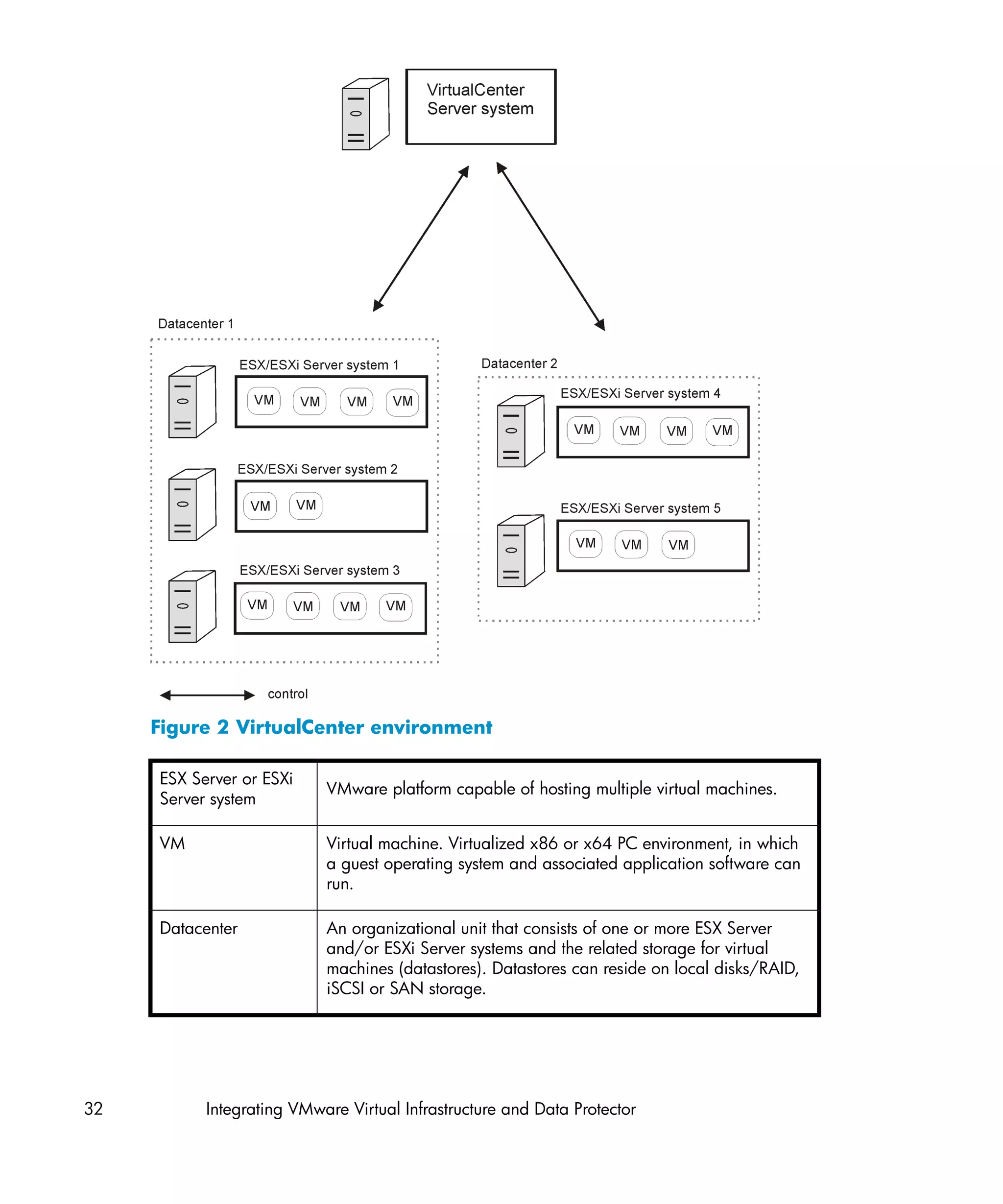
  • 235.
    Fibre Channel An ANSI standard for high-speed computer interconnection. Using either optical or copper cables, it allows the high speed bi-directional transmission of large data files and can be deployed between sites kilometers apart. Fibre Channel connects nodes using three physical topologies: point-to-point, loop, and switched. Fibre Channel A Fibre Channel bridge or multiplexer provides the ability to bridge migrate existing parallel SCSI devices, like RAID arrays, solid state disks (SSD), and tape libraries to a Fibre Channel environment. On one side of the bridge or multiplexer there is a Fibre Channel interface while on the other side there are parallel SCSI ports. The bridge or multiplexer enables SCSI packets to be moved between the Fibre Channel and parallel SCSI devices. file depot A file containing the data from a backup to a file library device. file jukebox device A device residing on disk consisting of multiple slots used to store file media. file library device A device which resides on a disk emulating a library with several media, hence containing multiple files, referred to as file depots. File Replication A Windows service that replicates the domain controller store Service (FRS) logon scripts and group policies. FRS also enables replication of Distributed File System (DFS) shares between systems and allows any server to perform replication activity. file tree walk (Windows specific term) The process of traversing a filesystem to determine which objects have been created, modified, or deleted. file version The same file can be backed up multiple times in case of full backups and incremental backups (if the file changed). If the log level ALL is selected for backup, Data Protector retains one entry in the IDB for the filename itself and one for each version (date/time) of the file. filesystem The organization of files on a hard disk. A filesystem is backed up so that the file attributes and the file contents are stored on the backup media. first-level mirror (HP StorageWorks Disk Array XP specific term) HP StorageWorks Disk Array XP allows up to three mirror copies of a primary Integration guide for VMware Virtual Infrastructure, Sybase, Network Node Manager, and Network Data Management Protocol Server 235
  • 236.
    volume and eachof these copies can have additional two copies. The three mirror copies are called first-level mirrors. See also primary volume and MU number. flash recovery (Oracle specific term) Flash recovery area is an Oracle 10g/1 1g area managed directory, filesystem, or Automatic Storage Management disk group that serves as a centralized storage area for files related to backup and recovery (recovery files). See also recovery files. fnames.dat The fnames.dat files of the IDB contain information on the names of the backed up files. Typically, these files occupy about 20% of the IDB, if filenames are stored. formatting A process that erases any data contained on a medium and prepares it for use with Data Protector. Information about media (medium ID, description, and location) is saved in the IDB as well as on the respective media (media header). Data Protector media with protected data are not formatted until the protection expires or the media are unprotected/recycled. free pool An auxiliary source of media for use by media pools when they run out of media. The media pools must be configured to use free pools. full backup A backup in which all selected objects are backed up, whether or not they have been recently modified. See also backup types. full database A backup of all data in a database, not only the data that has backup been changed after the last (full or incremental) backup of the database. A full database backup does not depend on any other backup. full mailbox A full mailbox backup is a backup of the entire mailbox content. backup full ZDB A ZDB to tape or ZDB to disk+tape session in which all selected objects are streamed to tape, even if there are no changes from the previous backup. See also incremental ZDB. global options file A file that allows you to customize Data Protector. It explains the global options, which cover various aspects of Data 236 Glossary
  • 237.
    Protector, typically time-outsand limits, and affect the entire Data Protector cell. The file is located on the Cell Manager in the directory Data_Protector_program_dataConfigServerOptions (Windows Server 2008), Data_Protector_homeConfigServerOptions (other Windows systems), or /etc/opt/omni/server/options (HP-UX or Solaris systems). group (Microsoft Cluster Server specific term) A collection of resources (for example disk volumes, application services, IP names, and addresses) that are needed to run a specific cluster-aware applications. GUI A graphical user interface provided by Data Protector for easy access to all configuration, administration, and operation tasks. Besides the original Data Protector GUI that runs on Windows, Data Protector also provides a Java-based graphical user interface with the same look and feel, which runs on numerous platforms. hard recovery (Microsoft Exchange Server specific term) A Microsoft Exchange Server database recovery that is performed after a restore by the database engine, using transaction log files. heartbeat A cluster data set with a time stamp carrying information about the operational status of a particular cluster node. This data set or packet is distributed among all cluster nodes. Hierarchical A method for optimizing the use of expensive hard disk storage Storage by migrating less frequently used data to less expensive optical Management platters. When needed, the data is migrated back to hard disk (HSM) storage. This balances the need for fast retrieval from hard disk with the lower cost of optical platters. Holidays file A file that contains information about holidays. You can set different holidays by editing the Holidays file on the Cell Manager in the directory Data_Protector_program_dataConfigServerholidays (Windows Server 2008), Data_Protector_homeConfigServerholidays (other Windows systems), or /etc/opt/omni/server/Holidays (UNIX systems). Integration guide for VMware Virtual Infrastructure, Sybase, Network Node Manager, and Network Data Management Protocol Server 237
  • 238.
    hosting system A working Data Protector client used for Disk Delivery Disaster Recovery with a Data Protector Disk Agent installed. HP Operations HP Operations Manager provides powerful capabilities for Manager operations management of a large number of systems and applications in a network. Data Protector provides an integration into this management product. This integration is implemented as a SMART Plug-In for HP Operations Manager management servers on Windows, HP-UX, Solaris, and Linux. Earlier versions of HP Operations Manager were called IT/Operation, Operations Center, Vantage Point Operations, and OpenView Operations. HP Operations A fully integrated, out-of-the-box solution which "plugs into" Manager SMART HP Operations Manager, extending the managed domain. Plug-In (SPI) Through the Data Protector integration, which is implemented as an HP Operations Manager SMART Plug-In, a user can have an arbitrary number of Data Protector Cell Managers monitored as an extension to HP Operations Manager. HP StorageWorks A logical partition of a physical disk within an HP StorageWorks Disk Array XP Disk Array XP. LDEVs are entities that can be replicated in the LDEV Continuous Access XP (CA) and Business Copy XP (BC) configurations, or can be used as standalone entities. See also BC, CA (HP StorageWorks Disk Array XP specific term), and replica. HP StorageWorks A Data Protector software module that executes all tasks required EVA SMI-S Agent for the HP StorageWorks Enterprise Virtual Array integration. With the EVA SMI-S Agent, the control over the array is established through HP StorageWorks SMI-S EVA provider, which directs communication between incoming requests and CV EVA. See also Command View (CV) EVA and HP StorageWorks SMI-S EVA provider. HP StorageWorks An interface used for controlling HP StorageWorks Enterprise SMI-S EVA Virtual Array. SMI-S EVA provider runs as a separate service provider on the HP Storage Management Appliance system and acts as a gateway between incoming requests and Command View EVA. With the Data Protector HP StorageWorks EVA integration, SMI-S EVA provider accepts standardized requests from the EVA SMI-S Agent, communicates with Command View EVA for 238 Glossary
  • 239.
    information or methodinvocation, and returns standardized responses. See also HP StorageWorks EVA SMI-S Agent and Command View (CV) EVA. HP StorageWorks A logical partition of a physical disk within an HP StorageWorks Virtual Array LUN Virtual Array. LUNs are entities that can be replicated in the HP StorageWorks Business Copy VA configuration, or can be used as standalone entities. See also BC VA and replica. ICDA (EMC Symmetrix specific term) EMC's Symmetrix Integrated Cached Disk Arrays (ICDA) is a disk array device that combines a set of physical disks, a number of FWD SCSI channels, an internal cache memory, and control and diagnostic software commonly referred to as the microcode. IDB The Data Protector Internal Database is an embedded database located on the Cell Manager that keeps information regarding which data is backed up, on which media it is backed up, how backup and restore sessions are run, and which devices and libraries are configured. IDB recovery file An IDB file (obrindex.dat) with information about IDB backups, media, and devices used for the backup. This information can significantly simplify IDB recovery. It is recommended to relocate the file, together with IDB transaction logs, to a separate physical disk from other IDB directories, and, additionally, to make an additional copy of the file. importing media A process that re-reads all data about backup sessions which are on the medium back into the IDB. This then allows for fast and convenient access to the data on the media. See also exporting media. incremental A backup that selects only files that have changed since a backup previous backup. Several levels of incremental backup are available, which enables detailed control of restore chain length. See also backup types. incremental (Microsoft Exchange Server specific term) A backup of the backup Microsoft Exchange Server data that has changed since the last full or incremental backup. With the incremental backup, only the transaction log files are backed up. Integration guide for VMware Virtual Infrastructure, Sybase, Network Node Manager, and Network Data Management Protocol Server 239
  • 240.
    See also backuptypes. incremental An incremental mailbox backup backs up all the changes made mailbox backup to the mailbox after the last backup of any type. incremental1 An incremental1 mailbox backup backs up all the changes made mailbox backup to the mailbox after the last full backup. incremental (EMC Symmetrix specific term) A BCV or SRDF control operation. (re)-establish In BCV control operations, an incremental establish causes the BCV device to be synchronized incrementally and to function as an EMC Symmetrix mirrored medium. The EMC Symmetrix devices must have been previously paired. In SRDF control operations, an incremental establish causes the target (R2) device to be synchronized incrementally and to function as an EMC Symmetrix mirrored medium. The EMC Symmetrix devices must have been previously paired. incremental restore (EMC Symmetrix specific term) A BCV or SRDF control operation. In BCV control operations, an incremental restore reassigns a BCV device as the next available mirror of the standard device in the pair. However, the standard devices are updated with only the data that was written to the BCV device during the time of the original pair split, and the data that was written to the standard device during the split is overwritten with data from the BCV mirror. In SRDF control operations, an incremental restore reassigns a target (R2) device as the next available mirror of the source (R1) device in the pair. However, the source (R1) devices are updated with only the data that was written to the target (R2) device during the time of the original pair split, and the data that was written to the source (R1) device during the split is overwritten with data from the target (R2) mirror. incremental ZDB A filesystem ZDB to tape or ZDB to disk+tape session in which only changes from the last protected full or incremental backup are streamed to tape. See also full ZDB. Inet A process that runs on each UNIX system or service that runs on each Windows system in the Data Protector cell. It is responsible for communication between systems in the cell and for starting other processes needed for backup and restore. The Inet service is started as soon as Data Protector is installed on a system. The Inet process is started by the inetd daemon. 240 Glossary
  • 241.
    Information Store (Microsoft Exchange Server specific term) The Microsoft Exchange Server service that is responsible for storage management. Information Store in Microsoft Exchange Server manages two kinds of stores: mailbox stores and public folder stores. A mailbox store consists of mailboxes that belong to individual users. A public folder store contains public folders and messages that are shared among several users. See also Key Management Service and Site Replication Service. Informix Server (Informix Server specific term) Refers to Informix Dynamic Server. initializing See formatting. Installation Server A computer system that holds a repository of the Data Protector software packages for a specific architecture. The Installation Server is used for remote installation of Data Protector clients. In mixed environments at least two Installation Servers are needed: one for UNIX systems and one for Windows systems. instant recovery (ZDB specific term) A process in which a replica, produced by a ZDB-to-disk or a ZDB-to-disk+tape session, is used to restore the contents of the source volumes to their states at the time at which the replica was created, avoiding the need to perform a restore from tape. Depending on the application or database concerned, this may be all that is required, or other steps, such as the application of transaction log files, may be required for full recovery. See also replica, zero downtime backup (ZDB), ZDB to disk, and ZDB to disk+tape. integration object A backup object of a Data Protector integration, such as Oracle or SAP DB. Internet (Windows specific term) Microsoft Internet Information Services Information is a network file and application server that supports multiple Services (IIS) protocols. Primarily, IIS transmits information in Hypertext Markup Language (HTML) pages by using the Hypertext Transport Protocol (HTTP). IP address An Internet Protocol address is a numeric address of a system used to uniquely identify the system on the network. The IP address consists of four groups of numbers separated by periods (full stops). Integration guide for VMware Virtual Infrastructure, Sybase, Network Node Manager, and Network Data Management Protocol Server 241
  • 242.
    ISQL (Sybase specific term) A Sybase utility used to perform system administration tasks on Sybase SQL Server. Java GUI Client The Java GUI Client is a component of the Java GUI that contains only user interface related functionalities and requires connection to the Java GUI Server to function. Java GUI Server The Java GUI Server is a component of the Java GUI that is installed on the Data Protector Cell Manager system. The Java GUI Server receives requests from the Java GUI Client, processes them and then sends the responses back to the Java GUI Client. The communication is done through Hypertext Transfer Protocol (HTTP) on port 5556. jukebox See library. jukebox device A device consisting of multiple slots used to store either optical or file media. When being used to store file media, the jukebox device is known as the “file jukebox device”. keychain A tool that eliminates the supply of a passphrase manually when decrypting the private key. It needs to be installed and configured on the Installation Server if you perform remote installation using secure shell. Key Management (Microsoft Exchange Server specific term) The Microsoft Service Exchange Server service that provides encryption functionality for enhanced security. See also Information Store and Site Replication Service. KMS Key Management Server (KMS) is a centralized service that runs on the Cell Manager and provides key management for the Data Protector encryption functionality. The service is started as soon as Data Protector is installed on the Cell Manager. keystore All encryption keys are centrally stored in the keystore on the Cell Manager and administered by the Key Management Server (KMS). LBO (EMC Symmetrix specific term) A Logical Backup Object (LBO) is an object of data storage/retrieval in the EMC Symmetrix environment. It is stored/retrieved by EMC Symmetrix as one entity and can only be restored as a whole. 242 Glossary
  • 243.
    library Also called autochanger, jukebox, autoloader, or exchanger. A library contains media in repository slots. Each slot holds one medium (for example, DDS/DAT). Media are moved between slots and drives by a robotic mechanism, allowing random access to media. The library can contain multiple drives. lights-out A backup or restore operation that takes place outside of normal operation or business hours without an operator. This implies that no operator unattended personnel is present to work with the backup application or operation service mount requests, for example. LISTENER.ORA (Oracle specific term) An Oracle configuration file that describes one or more Transparent Network Substrate (TNS) listeners on a server. load balancing By default, Data Protector automatically balances the usage of devices selected for backup, so that they are used evenly. Load balancing optimizes the device usage by balancing the number of objects written to each device. Since load balancing is done automatically during backup time, you do not need to manage how the data is actually backed up. You just specify the devices to be used. If you do not want to use load balancing, you can select which device will be used for each object in the backup specification. Data Protector will access the devices in the specified order. local and remote Remote recovery is performed if all Media Agent hosts specified recovery in the SRD file are accessible. If any of them fails, the disaster recovery process fails over to the local mode. This means that the target system is searched for locally attached devices. If only one device is found, it is automatically used. Otherwise, Data Protector prompts you to select the device, which will be used for restore. local continuous (Microsoft Exchange Server specific term) Local continuous replication replication (LCR) is a single-server solution that creates and maintains an exact copy (LCR copy) of a storage group. An LCR copy is located on the same server as the original storage group. When an LCR copy is created, it is kept up to date through change propagation (log replay) technology. The replication feature in LCR guarantees that logs that have not been replicated are not deleted. The implication of this behavior is that running backups in a mode that deletes logs may not actually free space if replication is sufficiently far behind in its log copying. Integration guide for VMware Virtual Infrastructure, Sybase, Network Node Manager, and Network Data Management Protocol Server 243
  • 244.
    An LCR copyis used for disaster recovery because you can switch to the LCR copy in a few seconds. If an LCR copy is used for backup and if it is located on a different disk than the original data, then the I/O load on a production database is minimal. A replicated storage group is represented as a new instance of Exchange writer called Exchange Replication Service and can be backed up (using VSS) as a normal storage group. See also cluster continuous replication and Exchange Replication Service. lock name You can configure the same physical device several times with different characteristics, by using different device names. The lock name is a user specified string that is used for locking all such device configurations to prevent collision if several such devices (device names) are used concurrently. Use an identical lock name for all device definitions which use the same physical device. log_full shell script (Informix Server UNIX specific term) A script provided by ON-Bar that you can use to start backing up logical log files when Informix Server issues a logfull event alarm. The Informix Server ALARMPROGRAM configuration parameter defaults to the INFORMIXDIR/etc/log_full.sh, where INFORMIXDIR is the Informix Server home directory. If you do not want logical logs to be backed up continuously, set the ALARMPROGRAM configuration parameter to INFORMIXDIR/etc/no_log.sh. logging level The logging level determines the amount of details on files and directories written to the IDB during backup, object copying, or object consolidation. You can always restore your data, regardless of the logging level used during backup. Data Protector provides four logging levels: Log All, Log Directories, Log Files, and No Log. The different logging level settings influence the IDB growth, backup speed, and the convenience of browsing data for restore. logical-log files This applies to online database backup. Logical-log files are files in which modified data is first stored before being flushed to disk. In the event of a failure, these logical-log files are used to roll forward all transactions that have been committed as well as roll back any transactions that have not been committed. 244 Glossary
  • 245.
    login ID (Microsoft SQL Server specific term) The name a user uses to log on to Microsoft SQL Server. A login ID is valid if Microsoft SQL Server has an entry for that user in the system table syslogin. login information (Oracle and SAP R/3 specific term) The format of the login to the Oracle information is user_name/password@service, where: Target Database • user_name is the name by which a user is known to Oracle Server and to other users. Every user name is associated with a password and both have to be entered to connect to an Oracle Target Database. This user must have Oracle SYSDBA or SYSOPER rights. • password must be the same as the password specified in the Oracle password file (orapwd), which is used for authentication of users performing database administration. • service is the name used to identify an SQL*Net server process for the target database. login information (Oracle specific term) The format of the login information to the to the Recovery Recovery (Oracle) Catalog Database is Catalog Database user_name/password@service, where the description of the user name, password, and service name is the same as in the Oracle SQL*Net V2 login information to the Oracle target database. In this case, service is the name of the service to the Recovery Catalog Database, not the Oracle target database. Note that the Oracle user specified here must be the owner of the Oracle Recovery Catalog. Lotus C API (Lotus Domino Server specific term) An interface for the exchange of backup and recovery information between Lotus Domino Server and a backup solution, like Data Protector. LVM A Logical Volume Manager is a subsystem for structuring and mapping physical disk space to logical volumes on UNIX systems. An LVM system consists of several volume groups, where each volume group has several volumes. Magic Packet See Wake ONLAN. mailbox (Microsoft Exchange Server specific term) The location to which e-mail is delivered, which is set up by the administrator for each user. If a set of personal folders is designated as the e-mail delivery location, e-mail is routed from the mailbox to this location. Integration guide for VMware Virtual Infrastructure, Sybase, Network Node Manager, and Network Data Management Protocol Server 245
  • 246.
    mailbox store (Microsoft Exchange Server specific term) A part of the Information Store that maintains information in user mailboxes. A mailbox store consists of a binary rich-text .edb file and a streaming native internet content .stm file. Main Control Unit (HP StorageWorks Disk Array XP specific term) An HP (MCU) StorageWorks XP disk array that contains the primary volumes for the CA and BC configurations and acts as a master device. See also BC (HP StorageWorks Disk Array XP specific term), CA (HP StorageWorks Disk Array XP specific term), and HP StorageWorks Disk Array XP LDEV. Manager-of- See MoM. Managers (MoM) make_net_ make_net_recovery is an Ignite-UX command, which allows recovery you to create a recovery archive over the network onto the Ignite-UX server or any other specified system. The target system can be recovered across subnets after booting either from a bootable tape created by the Ignite-UX make_boot_tape command or the system boots directly from the Ignite-UX server. Booting directly from the Ignite-UX server can be automated with the Ignite-UX bootsys command or interactively specified on the boot console. make_tape_ make_tape_recovery is a command on Ignite-UX which recovery creates a bootable recovery (installation) tape, customized for your system and enables you unattended disaster recovery by connecting the backup device directly to the target system and booting the target system from the bootable recovery tape. The backup device has to be locally connected to the client during the creation of the archive and recovery of the client. MAPI (Microsoft Exchange Server specific term) The MAPI (Messaging Application Programming Interface) is the programming interface that lets applications and messaging clients interact with messaging and information systems. MCU See Main Control Unit (MCU). Media Agent A process that controls reading from and writing to a device, which reads from or writes to a medium (typically a tape). During a backup session, a Media Agent receives data from the Disk Agent and sends it to the device for writing it to the medium. 246 Glossary
  • 247.
    During a restoreor object verification session, a Media Agent locates data on the backup medium and sends it to the Disk Agent for processing. For a restore sssion, the Disk Agent then writes the data to the disk. A Media Agent also manages the robotics control of a library. media allocation Determines in which sequence media are used for backup. The policy Strict allocation policy directs Data Protector to prompt for a specific medium. The Loose policy directs Data Protector to prompt for any suitable medium. The Formatted First policy directs Data Protector to give preference to unknown media, even if unprotected media are available in the library. media condition The quality of a medium as derived from the media condition factors. Heavy usage and age result in an increased number of read and write errors with tape media. Media need to be replaced when they are marked as POOR. media condition The user-assigned age threshold and overwrite threshold used factors to determine the state of a medium. medium ID A unique identifier assigned to a medium by Data Protector. media label A user-defined identifier used to describe a medium. media location A user-defined physical location of a medium, such as "building 4" or "off-site storage". media A session performing some action on a medium, such as management initializing, scanning the content, verifying data on a medium, session or copying a medium. media pool A set of media of the same type (such as DDS) used and tracked as a group. Media are formatted and assigned to a media pool. media set The result of a backup session is data backed up on a group of media called media set. Depending on the media usage policy, several sessions can share the same media. media type The physical type of media, such as DDS or DLT. media usage The media usage policy controls how new backups are added policy to the already used media. It can be Appendable, Non-Appendable, or Appendable for incrementals only. Integration guide for VMware Virtual Infrastructure, Sybase, Network Node Manager, and Network Data Management Protocol Server 247
  • 248.
    merging This defines one mode to resolve file conflicts during restore. If the file to be restored already exists at the destination, the one with the more recent modification date is kept. Files not present on the disk are always restored. See also overwrite. Microsoft A “client-server” messaging and a workgroup system that offers Exchange Server a transparent connection to many different communication systems. It provides users with an electronic mail system, individual and group scheduling, online forms, and workflow automation tools. It provides a developer with a platform on which to build custom information-sharing and messaging-service applications. Microsoft (Windows specific term) An administration model for Management Windows-based environments. It provides a simple, consistent, Console (MMC) and integrated administration user interface allowing management of many applications through the same GUI, provided that the applications adhere to the MMC model. Microsoft SQL A database management system designed to meet the Server requirements of distributed "client-server" computing. Microsoft Volume A software service that provides a unified communication Shadow Copy interface to coordinate backup and restore of a VSS-aware Service (VSS) application regardless of its specific features. This service collaborates with the backup application, writers, shadow copy providers, and the operating system kernel to implement the management of volume shadow copies and shadow copy sets. See also shadow copy, shadow copy provider, replica, and writer. mirror (EMC See target volume. Symmetrix and HP StorageWorks Disk Array XP specific term) mirror rotation (HP See replica set rotation. StorageWorks Disk Array XP specific term) 248 Glossary
  • 249.
    MMD The Media Management Daemon process (service) runs on the Data Protector Cell Manager and controls media management and device operations. The process is started when Data Protector is installed on the Cell Manager. MMDB The Media Management Database (MMDB) is a part of the IDB that contains information about media, media pools, devices, libraries, library drives, and slots configured in the cell, as well as the Data Protector media used for backup. In an enterprise backup environment, this part of the database can be common to all cells. See also CMMDB, CDB. MoM Several cells can be grouped together and managed from a central cell. The management system of the central cell is the Manager-of-Managers (MoM). The cells are called MoM clients. The MoM enables you to configure and manage multiple cells from a central point. mount request A screen prompt that tells you to insert a specific medium into a device. Once you respond to the mount request by providing the required medium and confirm the mount request, the session continues. mount point The access point in a directory structure for a disk or logical volume, for example/opt or d:. On UNIX, the mount points are displayed using the bdf or df command. MSM The Data Protector Media Session Manager, which runs on the Cell Manager and controls media sessions, such as copying media. MU number (HP StorageWorks Disk Array XP specific term) Mirror Unit number. An integer number (0, 1 or 2), used to indicate a first-level mirror. See also first-level mirror. multi-drive server A license that allows you to run an unlimited number of Media Agents on a single system. This license, which is bound to the IP address of the Cell Manager, is no longer available. obdrindex.dat See IDB recovery file. Integration guide for VMware Virtual Infrastructure, Sybase, Network Node Manager, and Network Data Management Protocol Server 249
  • 250.
    OBDR capable A device that can emulate a CD-ROM drive loaded with a device bootable disk and can thus be used as a backup or boot device for disaster recovery purposes. object See backup object. object The process of merging a restore chain of a backup object, consolidation consisting of a full backup and at least one incremental backup, into a new, consolidated version of this object. The process is a part of the synthetic backup procedure. The result is a synthetic full backup of the specified backup object. object A process that merges a restore chain of a backup object, consolidation consisting of a full backup and at least one incremental backup, session into a new, consolidated version of this object. object copy A copy of a specific object version that is created during an object copy session or a backup session with object mirroring. object copy session A process that creates an additional copy of the backed up data on a different media set. During an object copy session, the selected backed up objects are copied from the source to the target media. object copying The process of copying selected object versions to a specific media set. You can select object versions from one or several backup sessions to be copied. object ID (Windows specific term) The object IDs (OIDs) enable access to NTFS 5 files no matter where in the system the files reside. Data Protector treats the OIDs as alternate streams of the files. object mirror A copy of a backup object created using object mirroring. Object mirrors are often referred to as object copies. object mirroring The process of writing the same data to several media sets during a backup session. Data Protector enables you to mirror all or some backup objects to one or more media sets. object verification The process of verifying the data integrity of backup objects, from the Data Protector point of view, and the ability of Data Protector to deliver them to the required destination. The process can be used to provide a level of confidence in the ability to restore object versions created by backup, object copy, or object consolidation sessions. 250 Glossary
  • 251.
    object verification A process that verifies the data integrity of specified backup session objects or object versions and the ability of selected Data Protector network components to deliver them to a specified host. Object verification sessions can be run interactively, or as specified in automated post-backup, or scheduled specifications. offline backup A backup during which an application database cannot be used by the application. • For simple backup methods (non ZDB), the database is generally put into a quiescent state that allows use by the backup system, but not the application, for the whole backup period (several minutes or hours). For instance, for backup to tape, until streaming of data to the tape is finished. • For ZDB methods, the database is also put into the quiescent state, but for the period of the data replication process only (several seconds). Normal database operation can then be resumed for the rest of the backup process. See also zero downtime backup (ZDB) and online backup. offline recovery Offline recovery is performed if the Cell Manager is not accessible, for example, due to network problems. Only standalone and SCSI library devices can be used for offline recovery. Recovery of the Cell Manager is always offline. offline redo log See archived redo log. ON-Bar (Informix Server specific term) A backup and restore system for Informix Server. ON-Bar enables you to create a copy of your Informix Server data and later restore the data. The ON-Bar backup and restore system involves the following components: • the onbar command • Data Protector as the backup solution • the XBSA interface • ON-Bar catalog tables, which are used to back up dbobjects and track instances of dbobjects through multiple backups. ONCONFIG (Informix Server specific term) An environment variable that specifies the name of the active ONCONFIG configuration file. If the ONCONFIG environment variable is not present, Informix Server uses the configuration values from the onconfig file in the directory INFORMIXDIRetc (on Windows) or INFORMIXDIR/etc/ (on UNIX). Integration guide for VMware Virtual Infrastructure, Sybase, Network Node Manager, and Network Data Management Protocol Server 251
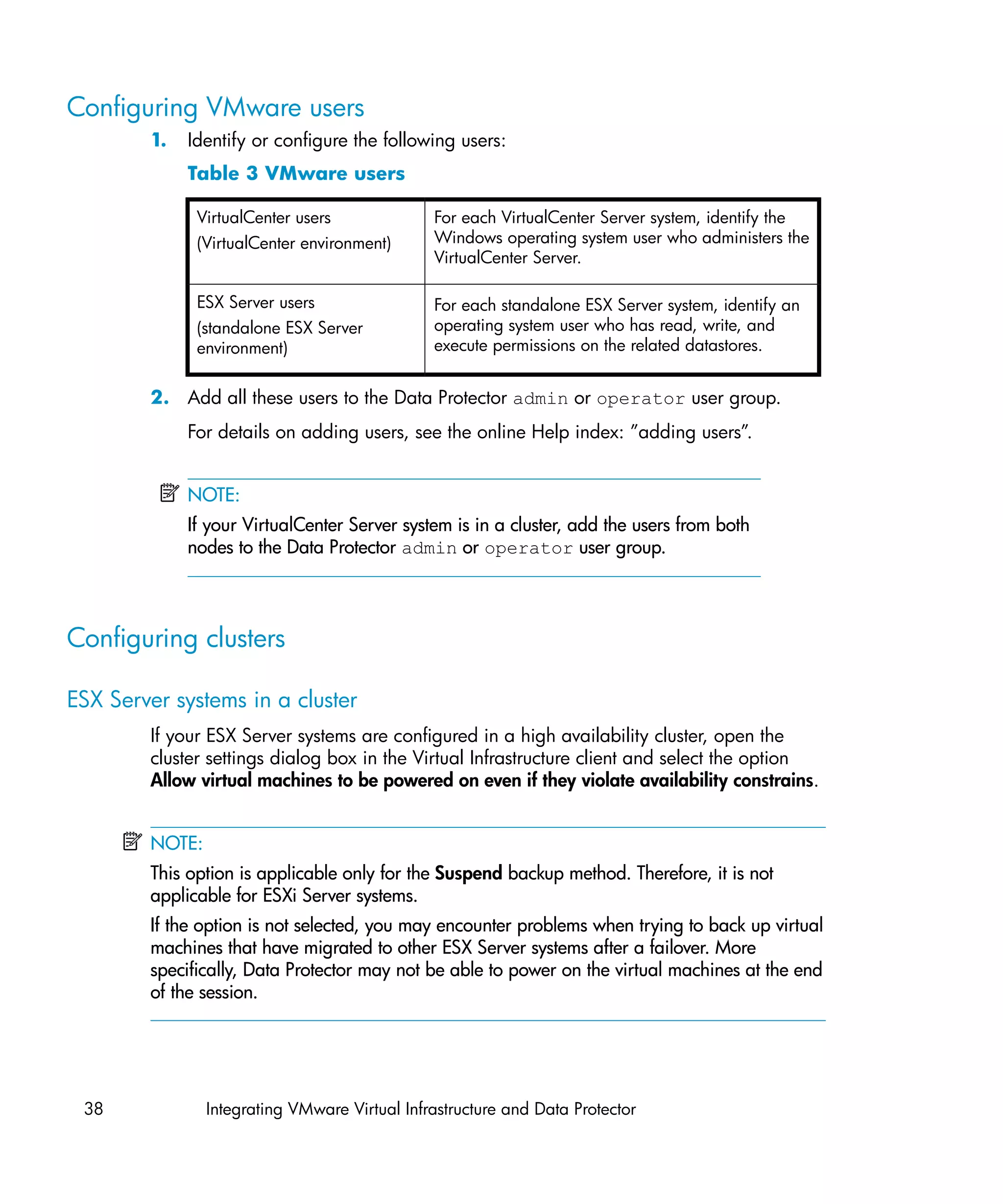
  • 252.
    online backup A backup performed while a database application remains available for use. The database is placed into a special backup mode of operation for the time period that the backup application requires access to the original data objects. During this period, the database is fully operational, but there may be a small performance impact and log files may grow very quickly. • For simple backup methods (non ZDB), backup mode is required for the whole backup period (several minutes or hours). For instance, for backup to tape, until streaming of data to tape is finished. • For ZDB methods, backup mode is required for the short period of the data replication process only (several seconds). Normal database operation can then be resumed for the rest of the backup process. In some cases, transaction logs may also have to be backed up to allow a consistent database to be restored. See also zero downtime backup (ZDB), and offline backup. online redo log (Oracle specific term) Redo logs that have not been archived, but are either available to the instance for recording database activity or are filled and waiting to be archived or reused. See also archived redo log. OpenSSH A set of network connectivity tools used to access remote machines securely, by using a variety of authentication and encryption methods. It needs to be installed and configured on the Installation Server and the client if you perform remote installation using secure shell. Oracle Data Guard (Oracle specific term) Oracle Data Guard is Oracle’s primary disaster recovery solution. Oracle Data Guard is able to maintain up to nine standby databases, each of which is a real-time copy of the production (primary) database, to protect against corruptions, data failures, human errors, and disasters. If a failure occurs on the production (primary) database, then a failover to one of the standby databases which becomes the new primary database is possible. In addition, planned downtime for maintenance can be reduced because the production processing can be moved from the current primary database to a standby database and back quickly. 252 Glossary
  • 253.
    Oracle instance (Oracle specific term) Each installation of an Oracle database on one or more systems. One computer system can have several instances of a database running. ORACLE_SID (Oracle specific term) A unique name for an Oracle Server instance. To switch among Oracle Servers, specify the desired ORACLE_SID. The ORACLE_SID is included in the CONNECT DATA parts of the connect descriptor in a TNSNAMES.ORA file and in the definition of the TNS listener in the LISTENER.ORA file. original system The system configuration backed up by Data Protector before a computer disaster hits the system. overwrite An option that defines one mode to resolve file conflicts during restore. All files are restored from a backup even if they are older than existing files. See also merging. ownership Backup ownership affects the ability of users to see and restore data. Each backup session and all the data backed up within it is assigned an owner. The owner can be the user that starts an interactive backup, the account under which the CRS process is running, or the user specified as the owner in the backup specification options. If a user starts an existing backup specification without modifying it, the backup session is not considered as interactive. If a modified backup specification is started by a user, the user is the owner unless the following is true: • The user has the Switch Session Ownership user right. • The backup session owner is explicitly defined in the backup specification, where the username, group or domain name, and the system name are specified. If a backup is scheduled on a UNIX Cell Manager, the session owner is root:sys unless the above conditions are true. If a backup is scheduled on a Windows Cell Manager, the session owner is the user specified during the installation, unless the above conditions are true. P1S file P1S file contains information on how to format and partition all disks installed in the system during Enhanced Automated Disaster Recovery (EADR). It is created during full backup and is saved on backup medium and on Cell Manager into the directory Integration guide for VMware Virtual Infrastructure, Sybase, Network Node Manager, and Network Data Management Protocol Server 253
  • 254.
    Data_Protector_program_dataConfigServerdrp1s (Windows Server 2008), Data_Protector_homeConfigServerdrp1s (other Windows systems), or /etc/opt/omni/server/dr/p1s (UNIX systems) with the filename recovery.p1s. package (MC/ServiceGuard and Veritas Cluster specific term) A collection of resources (for example volume groups, application services, IP names and addresses) that are needed to run a specific cluster-aware application. pair status (HP StorageWorks Disk Array XP specific term) A mirrored pair of disks can have various status values depending on the action performed on it. The three most important status values are: • COPY - The mirrored pair is currently re-synchronizing. Data is transferred from one disk to the other. The disks do not contain the same data. • PAIR - The mirrored pair is completely synchronized and both disks (the primary volume and the mirrored volume) contain identical data. • SUSPENDED - The link between the mirrored disks is suspended. That means that both disks are accessed and updated independently. However, the mirror relationship is still maintained and the pair can be re-synchronized without transferring the complete disk. parallel restore Restoring backed up data to multiple disks at the same time (that is, in parallel) by running multiple Disk Agents, that receive data from one Media Agent. For the parallel restore to work, select data that is located on different disks or logical volumes and during backup, the data from the different objects must have been sent to the same device using a concurrency of 2 or more. During a parallel restore, the data for multiple objects selected for restore is read from media at the same time, thereby improving performance. parallelism The concept of reading multiple data streams from an online database. phase 0 of disaster Preparation for disaster recovery - the prerequisite condition for recovery a successful disaster recovery. 254 Glossary
  • 255.
    phase 1 ofdisaster Installation and configuration of DR OS, establishing previous recovery storage structure. phase 2 of disaster Restoration of operating system (with all the configuration recovery information that defines the environment) and Data Protector. phase 3 of disaster Restoration of user and application data. recovery physical device A physical unit that contains either a drive or a more complex unit such as a library. post-exec A backup option that executes a command or script after the backup of an object or after the entire session completes. Post-exec commands are not supplied by Data Protector. You need to create your own. They can be written as executables or batch files on Windows and as shell scripts on UNIX. See also pre-exec. pre- and post-exec Pre- and post-exec commands are used to perform additional commands action before and after a backup or restore session. They are not supplied by Data Protector. You need to create your own commands. They can be written as executables or batch files on Windows and as shell scripts on UNIX. prealloc list A subset of media in a media pool that specifies the order in which media are used for backup. pre-exec A backup option that executes a command or script before the backup of an object or before the entire session is started. Pre-exec commands are not supplied by Data Protector. You need to create your own. They can be written as executables or batch files on Windows and as shell scripts on UNIX. See also post-exec. primary volume (HP StorageWorks Disk Array XP specific term) Standard HP (P-VOL) StorageWorks Disk Array XP LDEVs that act as a primary volume for the CA and BC configurations. The P-VOL is located in the MCU. See also secondary volume (S-VOL) and Main Control Unit (MCU). protection See data protection and also catalog protection. Integration guide for VMware Virtual Infrastructure, Sybase, Network Node Manager, and Network Data Management Protocol Server 255
  • 256.
    public folder store (Microsoft Exchange Server specific term) The part of the Information Store that maintains information in public folders. A public folder store consists of a binary rich-text .edb file and a streaming native internet content .stm file. public/private When configuring a backup, you can select whether the backed backed up data up data will be: • public, that is visible (and accessible for restore) to all Data Protector users • private, that is, visible (and accessible for restore) only to the owner of the backup and administrators RAID Redundant Array of Inexpensive Disks. RAID Manager (HP StorageWorks Disk Array XP specific term) The RAID Library Manager Library is used internally by Data Protector on Solaris systems to allow access to HP StorageWorks Disk Array XP configuration, status, and performance data and to key HP StorageWorks Disk Array XP features through the use of function calls translated into a sequence of low level SCSI commands. RAID Manager XP (HP StorageWorks Disk Array XP specific term) The RAID Manager XP application provides an extensive list of commands to report and control the status of the CA and BC applications. The commands communicate through a RAID Manager instance with the HP StorageWorks Disk Array XP Disk Control Unit. This instance translates the commands into a sequence of low level SCSI commands. rawdisk backup See disk image backup. RCU See Remote Control Unit (RCU). RDBMS Relational Database Management System. RDF1/RDF2 (EMC Symmetrix specific term) A type of SRDF device group. Only RDF devices can be assigned to an RDF group. An RDF1 group type contains source (R1) devices and an RDF2 group type contains target (R2) devices. RDS The Raima Database Server process (service) runs on the Data Protector Cell Manager and manages the IDB. The process is started when Data Protector is installed on the Cell Manager. 256 Glossary
  • 257.
    Recovery Catalog (Oracle specific term) A set of Oracle tables and views that are used by Recovery Manager to store information about Oracle databases. This information is used by Recovery Manager to manage the backup, restore, and recovery of Oracle databases. The recovery catalog contains information about: • The physical schema of the Oracle target database • Data file and archived log backup sets • Data file copies • Archived Redo Logs • Stored scripts Recovery Catalog (Oracle specific term) An Oracle database that contains a Database recovery catalog schema. You should not store the recovery catalog in your target database. recovery files (Oracle specific term) Recovery files are Oracle 10g/1 1g specific files that reside in the flash recovery area: the current control file, online redo logs, archived redo logs, flashback logs, control file autobackups, datafile copies, and backup pieces. See also flash recovery area. RecoveryInfo When backing up Windows configuration files, Data Protector collects the information about the current system configuration (information on disk layout, volume, and network configuration). This information is needed for disaster recovery. Recovery Manager (Oracle specific term) An Oracle command-line interface that (RMAN) directs an Oracle Server process to back up, restore, or recover the database it is connected to. RMAN uses either the recovery catalog or the control file to store information about backups. This information can be used later in restore sessions. recycle A process that removes the data protection from all backed up data on a medium, allowing Data Protector to overwrite it during one of the next backups. Data that belongs to the same session(s) but resides on other media is also unprotected. Recycling does not actually alter the data on the medium. redo log (Oracle specific term) Every Oracle database has a set of two or more redo log files. The set of redo log files for the database is known as the database's redo log. Oracle uses the redo log to record all changes made to data. Integration guide for VMware Virtual Infrastructure, Sybase, Network Node Manager, and Network Data Management Protocol Server 257
  • 258.
    Remote Control (HP StorageWorks Disk Array XP specific term) The Remote Unit (RCU) Control Unit (RCU) acts as a slave of an MCU in a CA configuration. In bidirectional configurations, the RCU can act as an MCU. Removable (Windows specific term) A Windows service used for managing Storage removable media (such as tapes and disks) and storage devices Management (libraries). Removable Storage allows applications to access Database and share the same media resources. reparse point (Windows specific term) A system-controlled attribute that can be associated with any directory or file. The value of a reparse attribute can have user-controlled data. The format of the data is understood by the application that stored the data and a filesystem filter that was installed to interpret the data and process such files. Whenever the filesystem encounters a file with a reparse point, it attempts to find the filesystem filter associated with the data format. replica (ZDB specific term) An image, at a particular point in time, of the data in source volumes that contain user-specified backup objects. Depending on the hardware or software with which it is created, the image may be an independent exact duplicate (clone) of the storage blocks at the physical disk level (for example, a split mirror or snapclone), or a virtual copy (for example, a snapshot). From perspective of a basic operating system, the complete physical disk containing backup objects is replicated. However, if a volume manager is used on UNIX, the whole volume or disk group containing a backup object (logical volume) is replicated. If partitions are used on Windows, the whole physical volume containing the selected partition is replicated. See also snapshot, snapshot creation, split mirror, and split mirror creation. replica set (ZDB specific term) A group of replicas, all created using the same backup specification. See also replica and replica set rotation. replica set rotation (ZDB specific term) The use of a replica set for regular backup production: Each time the same backup specification requiring the use of a replica set is run, a new replica is created and added to the set, until the maximum number for the set is 258 Glossary
  • 259.
    reached. After that,the oldest replica in the set is replaced, maintaining the maximum number of replicas in the set. See also replica and replica set. restore chain All backups that are necessary for a restore of a backup object to a certain point in time. A restore chain consists of a full backup of the object and any number of related incremental backups. restore session A process that copies data from backup media to a client. resync mode (HP StorageWorks Disk Array XP VSS provider specific term) One of two XP VSS hardware provider operation modes. When the XP provider is in the resync mode, the source volume (P-VOL) and its replica (S-VOL) are in the suspended mirror relationship after a backup. The maximum number of replicas (S-VOLs per a P-VOL) rotated is three provided that MU range is 0-2 or 0, 1, 2. Restore from a backup in such a configuration is possible only by re-synchronization of an S-VOL with its P-VOL. See also VSS compliant mode, source volume, primary volume (P-VOL), replica, secondary volume (S-VOL), MU number, and replica set rotation. RMAN (Oracle See Recovery Manager. specific term) RSM The Data Protector Restore Session Manager controls restore and object verification sessions. This process always runs on the Cell Manager system. RSM (Windows specific term) Removable Storage Manager (RSM) includes a media management service that facilitates communication among applications, robotic changers, and media libraries. It enables multiple applications to share local robotic media libraries and tape or disk drives and to manage removable media. scan A function that identifies the media in a device. This synchronizes the MMDB with the media that are actually present at the selected locations (for example, slots in a library). scanning A function which identifies the media in a device. This synchronizes the MMDB with the media that are actually present at the selected locations (for example, slots in a library). It is Integration guide for VMware Virtual Infrastructure, Sybase, Network Node Manager, and Network Data Management Protocol Server 259
  • 260.
    useful to performa scan and check the actual media in the device if someone has manually manipulated media without using Data Protector to eject or enter, for example. Scheduler A function that controls when and how often automatic backups occur. By setting up a schedule, you automate the start of backups. secondary volume (HP StorageWorks Disk Array XP specific term) secondary (S-VOL) volumes, or S-VOLs, are XP LDEVs that act as a secondary CA or BC mirror of another LDEV (a P-VOL). In the case of CA, S-VOLs can be used as failover devices in a MetroCluster configuration. The S-VOLs are assigned separate SCSI addresses, different from the addresses used by the P-VOLs. See also primary volume (P-VOL) and Main Control Unit (MCU) session See backup session,media management session, and restore session. session ID An identifier of a backup, restore, object copy, object consolidation, object verification, or media management session, consisting of the date when the session ran and a unique number. session key This environment variable for the pre-exec and post-exec script is a Data Protector unique identification of any session, including preview sessions. The session key is not recorded in the database, and it is used for specifying options for the omnimnt, omnistat, and omniabort commands. shadow copy (Microsoft VSS specific term) A volume that represents a duplicate of the original volume at a certain point in time. The data is then backed up from the shadow copy and not from the original volume. The original volume continues to change as the backup process continues, but the shadow copy of the volume remains constant. See also Microsoft Volume Shadow Copy Service and replica. shadow copy (Microsoft VSS specific term) An entity that performs the work provider on creating and representing the volume shadow copies. Providers own the shadow copy data and expose the shadow copies. Providers can be software (for example, system providers) or hardware (local disks, disk arrays). See also shadow copy. 260 Glossary
  • 261.
    shadow copy set (Microsoft VSS specific term) A collection of shadow copies created at the same point in time. See also shadow copy and replica set. shared disks A Windows disk on another system that has been made available to other users on the network. Systems with shared disks can be backed up without a Data Protector Disk Agent installed. SIBF The Serverless Integrations Binary Files (SIBF) is a part of the IDB that stores raw NDMP meta data. This data is necessary to perform restore of NDMP objects. Site Replication (Microsoft Exchange Server specific term) The Microsoft Service Exchange Server 2000/2003 service that permits compatibility with Microsoft Exchange Server 5.5 by emulating the Exchange Server 5.5 directory service. See also Information Store and Key Management Service. slot A mechanical position in a library. Each slot can hold a medium, such as a DLT tape. Data Protector references each slot with a number. To read a medium, a robotic mechanism moves the medium from a slot into the drive. SMB See split mirror backup. smart copy (VLS specific term) A copy of the backed up data created from the virtual tape to the physical tape library. The smart copy process allows Data Protector to distinguish between the source and the target medium thus enabling media management. See also Virtual Library System (VLS). smart copy pool (VLS specific term) A pool that defines which destination library slots are available as smart copy targets for a specified source virtual library. See also Virtual Library System (VLS) and smart copy. SMBF The Session Messages Binary Files (SMBF) part of the IDB stores session messages generated during backup, restore, object copy, object consolidation, object verification, and media management sessions. One binary file is created per session. The files are grouped by year and month. snapshot (HP StorageWorks VA and HP StorageWorks EVA specific term) A form of replica produced using snapshot creation techniques. Integration guide for VMware Virtual Infrastructure, Sybase, Network Node Manager, and Network Data Management Protocol Server 261
  • 262.
    A range ofsnapshot types is available, with different characteristics, depending on the arrays/techniques used. Such replicas are dynamic and may be either virtual copies, still reliant upon the contents of the source volumes, or independent exact duplicates (clones), depending on the snapshot type and the time since creation. See also replica and snapshot creation. snapshot backup See ZDB to tape, ZDB to disk, and ZDB to disk+tape. (HP StorageWorks VA and HP StorageWorks EVA specific term) snapshot creation (HP StorageWorks VA and HP StorageWorks EVA specific term) A replica creation technique, in which copies of source volumes are created using storage virtualization techniques. The replicas are considered to be created at one particular point in time, without pre-configuration, and are immediately available for use. However background copying processes normally continue after creation. See also snapshot. source (R1) device (EMC Symmetrix specific term) An EMC Symmetrix device that participates in SRDF operations with a target (R2) device. All writes to this device are mirrored to a target (R2) device in a remote EMC Symmetrix unit. An R1 device must be assigned to an RDF1 group type. See also target (R2) device. source volume (ZDB specific term) A storage volume containing data to be replicated. sparse file A file that contains data with portions of empty blocks. Examples are: a matrix in which some or much of the data contains zeros, files from image applications, and high-speed databases. If sparse file processing is not enabled during restore, it might be impossible to restore this file. split mirror (EMC Symmetrix and HP StorageWorks Disk Array XP specific term) A replica created using split mirror techniques. Such a replica provides an independent, exact duplicate, or clone of the contents of the source volumes. See also replica and split mirror creation. 262 Glossary
  • 263.
    split mirror backup See ZDB to tape. (EMC Symmetrix specific term) split mirror backup See ZDB to tape, ZDB to disk, and ZDB to disk+tape. (HP StorageWorks Disk Array XP specific term) split mirror (EMC Symmetrix and HP StorageWorks Disk Array XP specific creation term) A replica creation technique, in which a pre-configured set of target volumes (a mirror) is kept synchronized with a set of source volumes until the time at which a replica of the contents of the source volumes is required. Then, the synchronization is stopped (the mirror is split) and a split mirror replica of the source volumes at the time of the split remains in the target volumes. See also split mirror. split mirror restore (EMC Symmetrix and HP StorageWorks Disk Array XP specific term) A process in which data backed up in a ZDB-to-tape or a ZDB-to-disk+tape session is restored from tape media to a split mirror replica, which is then synchronized to the source volumes. Individual backup objects or complete sessions can be restored using this method. See also ZDB to tape, ZDB to disk+tape, and replica. sqlhosts file (Informix Server specific term) An Informix Server connectivity information file (on UNIX) or registry (on Windows) that contains the names of each of the database servers and any aliases to which the clients on a host computer can connect. SRD file (disaster recovery specific term) A text file in the Unicode (UTF-16) format, generated during CONFIGURATION backup of a Windows system and stored on the Cell Manager. It contains system information required for installing and configuring the operating system on the target system in the case of a disaster. See also target system. SRDF (EMC Symmetrix specific term) The EMC Symmetrix Remote Data Facility is a business continuation process that enables effective, real-time data replication of SLDs between dislocated processing environments. These environments could be situated Integration guide for VMware Virtual Infrastructure, Sybase, Network Node Manager, and Network Data Management Protocol Server 263
  • 264.
    within the sameroot computer environment or separated by long distances. SSE Agent (HP StorageWorks Disk Array XP specific term) A Data Protector software module that executes all tasks required for a split mirror backup integration. It communicates with the HP StorageWorks Disk Array XP storing system using the RAID Manager XP utility (HP-UX and Windows systems) or RAID Manager Library (Solaris systems). sst.conf file The file /usr/kernel/drv/sst.conf is required on each Data Protector Sun Solaris client to which a multi-drive library device is connected. It must contain an entry for the SCSI address of the robotic mechanism of each library device connected to the client. st.conf file The file /kernel/drv/st.conf is required on each Data Protector Solaris client with a backup device connected. It must contain device information and a SCSI address for each backup drive connected to that client. A single SCSI entry is required for a single-drive device and multiple SCSI entries are required for a multi-drive library device. stackers Devices with multiple slots for media storage usually with only one drive. A stacker selects media from the stack sequentially. In contrast, a library can randomly select media from its repository. standalone file A file device is a file in a specified directory to which you back device up data. Storage Group (Microsoft Exchange Server specific term) A collection of mailbox stores and public folder stores that share a set of transaction log files. Exchange Server manages each storage group with a separate server process. StorageTek ACS (StorageTek specific term) Automated Cartridge System is a library library system (also known as Silo) consisting of one Library Management Unit (LMU) and one to 24 Library Storage Modules (LSM) connected to the unit. storage volume (ZDB specific term) A storage volume represents an object that may be presented to an operating system or some other entity (for example, a virtualization mechanism) upon which volume 264 Glossary
  • 265.
    management systems, filesystems, or other objects may exist. The volume management systems, file systems are built on this storage. Typically, these can be created or exist within a storage system such as a disk array. switchover See failover. Sybase Backup (Sybase specific term) An industry-standard interface developed Server API for the exchange of backup and recovery information between a Sybase SQL Server and a backup solution like Data Protector. Sybase SQL Server (Sybase specific term) The server in the Sybase “client-server” architecture. Sybase SQL Server manages multiple databases and multiple users, keeps track of the actual location of data on disks, maintains mapping of logical data description to physical data storage, and maintains data and procedure caches in memory. Symmetrix Agent (EMC Symmetrix specific term) The Data Protector software (SYMA) module that prepares the EMC Symmetrix environment for backup and restore operations. synthetic backup A backup solution that produces a synthetic full backup, an equivalent to a conventional full backup in terms of data, without putting stress on the production servers or the network. A synthetic full backup is created from a previous full backup and any number of incremental backups. synthetic full The result of an object consolidation operation, where a restore backup chain of a backup objects is merged into a new, synthetic full version of this object. A synthetic full backup is equivalent to a conventional full backup in terms of restore speed. System Backup to (Oracle specific term) An Oracle interface that handles the Tape actions required to load, label, and unload correct backup devices when Oracle issues a backup or restore request. system databases (Sybase specific term) The four system databases on a newly installed Sybase SQL Server are the: • master database (master) • temporary database (tempdb) • system procedure database (sybsystemprocs) • model database (model). Integration guide for VMware Virtual Infrastructure, Sybase, Network Node Manager, and Network Data Management Protocol Server 265
  • 266.
    System Recovery See SRD file. Data file System State (Windows specific term) The System State data comprises the Registry, COM+ Class Registration database, system startup files, and the Certificate Services database (if the server is a certificate server). If the server is a domain controller, Active Directory services and the SYSVOL directory are also contained in the System State data. If the server is running the Cluster service, the System State data also includes resource registry checkpoints and the quorum resource recovery log, which contains the most recent cluster database information. system A volume/disk/partition containing operating system files. volume/disk/ Microsoft terminology defines the system volume/disk/partition partition as the volume/disk/partition containing files required for the initial step of the boot process. SysVol (Windows specific term) A shared directory that stores the server copy of the domain’s public files, which are replicated among all domain controllers in the domain. tablespace A part of a database structure. Each database is logically divided into one or more tablespaces. Each tablespace has data files or raw volumes exclusively associated with it. tapeless backup See ZDB to disk. (ZDB specific term) target database (Oracle specific term) In RMAN, the target database is the database that you are backing up or restoring. target (R2) device (EMC Symmetrix specific term) An EMC Symmetrix device that participates in SRDF operations with a source (R1) device. It resides in the remote EMC Symmetrix unit. It is paired with a source (R1) device in the local EMC Symmetrix unit and receives all write data from its mirrored pair. This device is not accessed by user applications during normal I/O operations. An R2 device must be assigned to an RDF2 group type. See also source (R1) device. target system (disaster recovery specific term) A system after a computer disaster has occurred. The target system is typically in a non-bootable state and the goal of disaster recovery is to restore 266 Glossary
  • 267.
    this system tothe original system configuration. The difference between a faulty system and a target system is that a target system has all faulty hardware replaced. target volume (ZDB specific term) A storage volume to which data is replicated. Terminal Services (Windows specific term) Windows Terminal Services provide a multi-session environment that allows clients to access a virtual Windows desktop session and Windows-based programs running on the server. thread (Microsoft SQL Server specific term) An executable entity that belongs to only one process. It comprises a program counter, a user-mode stack, a kernel-mode stack, and a set of register values. Several threads can run at a time within one process. TimeFinder (EMC Symmetrix specific term) A business continuation process that creates an instant copy of single or multiple Symmetrix Logical Devices (SLDs). The instant copy is created on specially preconfigured SLDs called BCVs and is accessible via a separate device address to the system(s). TLU Tape Library Unit. TNSNAMES.ORA (Oracle and SAP R/3 specific term) A network configuration file that contains connect descriptors mapped to service names. The file may be maintained centrally or locally, for use by all or individual clients. transaction A mechanism for ensuring that a set of actions is treated as a single unit of work. Databases use transactions to keep track of database changes. transaction backup Transaction backups generally use fewer resources than database backups, so they can be created more frequently than database backups. By applying transaction backups, you can recover the database to a specific point in time prior to when a problem occurred. transaction backup (Sybase and SQL specific term) A backup of the transaction log providing a record of changes made since the last full or transaction backup. transaction log Transaction log backups generally use fewer resources than backup database backups so they can be created more frequently than Integration guide for VMware Virtual Infrastructure, Sybase, Network Node Manager, and Network Data Management Protocol Server 267
  • 268.
    database backups. Byapplying transaction log backups, you can recover the database to a specific point in time. transaction log Files that record transactions of the database modifications, and files provide fault tolerance in case of a database disaster. transaction logs (Data Protector specific term) Keep track of IDB changes. The archiving of transaction logs should be enabled to prevent you from losing the transaction log files that are created after the last IDB backup and are necessary for IDB recovery. transaction log (Sybase specific term) A system table in which all changes to table the database are automatically recorded. transportable (Microsoft VSS specific term) A shadow copy that is created on snapshot the application system and can be presented to the backup system where a backup can be performed. See also Microsoft Volume Shadow Copy Service (VSS). TSANDS.CFG file (Novell NetWare specific term) A file that allows you to specify the names of containers where you want backups to begin. It is a text file located in the SYS:SYSTEMTSA directory on the server where TSANDS.NLM is loaded. UIProxy The Java GUI Server (UIProxy service) runs on the Data Protector Cell Manager. It is responsible for communication between the Java GUI Client and the Cell Manager, moreover, it performs business logic operations and sends only important information to the client. The service is started as soon as Data Protector is installed on the Cell Manager. unattended See lights-out operation. operation user account (Data You can use Data Protector only if you have a Data Protector Protector user user account, which restricts unauthorized access to Data account) Protector and to backed up data. Data Protector administrators create this account specifying a user logon name, the systems from which the user can log on, and a Data Protector user group membership. This is checked whenever the user starts the Data Protector user interface or performs specific tasks. User Account A security component in Windows Vista and Windows Control (UAC) Server 2008 that limits application software to standard user 268 Glossary
  • 269.
    privileges until anadministrator authorizes an increase in privilege level. user disk quotas NTFS quota-management support enables an enhanced tracking mechanism and control over disk space usage on shared storage volumes. Data Protector backs up user disk quotas on the whole system and for all configured users at a time. user group Each Data Protector user is member of a User Group. Each User Group has a set of user rights that are given to every user in that User Group. The number of User Groups with their associated user rights can be defined as desired. Data Protector provides three default user groups: admin, operator, and user. user profile (Windows specific term) Configuration information retained on a user basis. This information includes desktop settings, screen colors, network connections, and so on. When the user logs on, the user profile is loaded and the Windows environment is set accordingly. user rights User rights or access rights are the permissions needed to perform specific Data Protector tasks. Configuring a backup, starting a backup session, or starting a restore session are typical user rights. Users have the access rights of the user group to which they belong. vaulting media The process of storing media to a safe and remote place. The media are brought back to the data center when they are needed for restore or are ready for reuse in subsequent backups. The vaulting procedure depends on your company's backup strategy and policies for data protection/reliability. verify A function that lets you check whether the Data Protector data on a specified medium is readable. Additionally, consistency within each block can be checked if the backup was performed with the cyclic redundancy check (CRC) option ON. Virtual Controller (HP StorageWorks EVA specific term) The firmware that manages Software (VCS) all aspects of storage system operation, including communication with Command View EVA through the HSV controllers. See also Command View (CV) EVA. Integration guide for VMware Virtual Infrastructure, Sybase, Network Node Manager, and Network Data Management Protocol Server 269
  • 270.
    Virtual Device (Microsoft SQL Server specific term) This is a SQL Server Interface programming interface that allows fast backup and restore of large databases. virtual disk (HP StorageWorks EVA specific term) A unit of storage allocated from an HP StorageWorks Enterprise Virtual Array storage pool. Virtual disks are the entities that are replicated using the HP StorageWorks Enterprise Virtual Array snapshot functionality. See also source volume and target volume. virtual full backup An efficient type of synthetic backup where data is consolidated using pointers instead of being copied. It is performed if all the backups (the full backup, incremental backups, and the resulting virtual full backup) are written to a single file library that uses distributed file medium format. Virtual Library A disk-based data storage device hosting one or more virtual System (VLS) tape libraries (VTLs). virtual server A virtual machine in a cluster environment defined in a domain by a network IP name and address. Its address is cached by the cluster software and mapped to the cluster node that is currently running the virtual server resources. This way all requests for a particular virtual server are cached by a specific cluster node. virtual tape (VLS specific term) An archival storage technology that backs up data to disk drives in the same way as if it were being stored on tape. Benefits of virtual tape systems include improved backup and recovery speed and lower operating costs. See also Virtual Library System (VLS) and Virtual Tape Library. Virtual Tape (VLS specific term) An emulated tape library that provides the Library (VTL) functionality of traditional tape-based storage. See also Virtual Library System (VLS). VMware (VMware integration specific term) The client that Data Protector management client uses to communicate with VMware Virtual Infrastructure. This can be a VirtualCenter Server system (VirtualCenter environment) or an ESX Server system (standalone ESX Server environment). volser (ADIC and STK specific term) A VOLume SERial number is a label on the medium to identify the physical tape used in very 270 Glossary
  • 271.
    large libraries. Avolser is a naming convention specific to ADIC/GRAU and StorageTek devices. volume group A unit of data storage in an LVM system. A volume group can consist of one or more physical volumes. There can be more than one volume group on the system. volume mount (Windows specific term) An empty directory on a volume that point can be used to mount another volume. The volume mount point acts as a gateway to the target volume. Provided that the volume is mounted, users and applications can refer to the data on the mounted volume by the full (merged) filesystem path as if both volumes are one integral part. Volume Shadow See Microsoft Volume Shadow Copy Service. Copy Service VSS See Microsoft Volume Shadow Copy Service. VSS compliant (HP StorageWorks Disk Array XP VSS provider specific term) mode One of two XP VSS hardware provider operation modes. When the XP provider is in the VSS compliant mode, the source volume (P-VOL) and its replica (S-VOL) are in simplex, unpaired state after a backup. Therefore the number of replicas (S-VOLs per a P-VOL) rotated is not limited. Restore from a backup in such a configuration is possible only by switching of the disks. See also resync mode, source volume, primary volume (P-VOL), replica, secondary volume (S-VOL), and replica set rotation. VxFS Veritas Journal Filesystem. VxVM (Veritas A Veritas Volume Manager is a system for managing disk space Volume Manager) on Solaris platforms. A VxVM system consists of an arbitrary group of one or more physical volumes organized into logical disk groups. Wake ONLAN Remote power-up support for systems running in power-save mode from some other system on the same LAN. Web reporting The Data Protector functionality that allows you to view reports on backup, object copy, and object consolidation status and Data Protector configuration using the Web interface. wildcard character A keyboard character that can be used to represent one or many characters. The asterisk (*), for example, typically represents Integration guide for VMware Virtual Infrastructure, Sybase, Network Node Manager, and Network Data Management Protocol Server 271
  • 272.
    one or morecharacters, and the question mark (?) typically represents a single character. Wildcard characters are often used in operating systems as a means of specifying more than one file by name. Windows Data Protector allows you to back up Windows CONFIGURATION CONFIGURATION, including Windows Registry, user profiles, backup Event Logs, and WINS and DHCP server data (if configured on a system) in one step. Windows Registry A centralized database used by Windows to store configuration information for the operating system and the installed applications. WINS server A system running Windows Internet Name Service software that resolves Windows networking computer names to IP addresses. Data Protector can back up WINS server data as part of the Windows configuration. writer (Microsoft VSS specific term) A process that initiates change of data on the original volume. Writers are typically applications or system services that write persistent information on a volume. Writers also participate in the shadow copy synchronization process by assuring data consistency. XBSA interface (Informix Server specific term) ON-Bar and Data Protector communicate with each other through the X/Open Backup Services Application Programmer's Interface (XBSA). XCopy engine (direct backup specific term) A SCSI-3 copy command that allows you to copy data from a storage device having a SCSI source address to a backup device having a SCSI destination address, thus enabling direct backup. The data flows from a source device (either block or streaming, that is, disk or tape) to the destination device (either block or streaming) through XCopy. This releases the controlling server of reading the data from the storage device into memory and then writing the information to the destination device. See also direct backup. ZDB See zero downtime backup (ZDB). ZDB database (ZDB specific term) A part of the IDB, storing ZDB related information such as source volumes, replicas and security 272 Glossary
  • 273.
    information. The ZDBdatabase is used for ZDB, instant recovery, and split mirror restore. See also zero downtime backup (ZDB). ZDB to disk (ZDB specific term) A form of zero downtime backup where the replica produced is kept on the disk array as a backup of the source volumes at a specific point in time. Multiple replicas, produced using the same backup specification at different times, can be kept in a replica set. A replica from ZDB to disk can be restored using the instant recovery process. See also zero downtime backup (ZDB), ZDB to tape, ZDB to disk+tape, instant recovery, and replica set rotation. ZDB to disk+tape (ZDB specific term) A form of zero downtime backup where the replica produced is kept on the disk array as a backup of the source volumes at a specific point in time, in the same way as with ZDB to disk. However, data in the replica is also streamed to a backup medium, as with ZDB to tape. If this backup method is used, data backed up in the same session can be restored using the instant recovery process, the standard Data Protector restore from tape, or on split mirror arrays, split mirror restore. See also zero downtime backup (ZDB), ZDB to disk, ZDB to tape, instant recovery, replica, and replica set rotation. ZDB to tape (ZDB specific term) A form of zero downtime backup where data in the replica produced is streamed to a backup medium, typically tape. Instant recovery is not possible from such a backup, so the replica need not be retained on the disk array after backup completion. The backed-up data can be restored using standard Data Protector restore from tape. On split mirror arrays, split mirror restore can also be used. See also zero downtime backup (ZDB), ZDB to disk, instant recovery, ZDB to disk+tape, and replica. zero downtime A backup approach in which data replication techniques, backup (ZDB) provided by a disk array, are used to minimize the impact of backup operations on an application system. A replica of the data to be backed up is created first. All subsequent backup operations are performed on the replicated data rather than the original data, while the application system can be returned to normal operation. See also ZDB to disk, ZDB to tape, ZDB to disk+tape, and instant recovery. Integration guide for VMware Virtual Infrastructure, Sybase, Network Node Manager, and Network Data Management Protocol Server 273
  • 274.
    274 Glossary
  • 275.
    Index backing up Sybase, 122 - 131 A backup options, 127 architecture backup specifications, creating, 122 NDMP integration, 164 backup specifications, modifying, 127 Sybase integration, 114 database objects backup, 122 VMware integration, 31 full backups, 113, 122 audience, 17 scheduling backups, 127 scheduling backups, example, 127 starting backups, 130 B transaction logs backups, 113, 122 backing up NDMP backing up VMware, 48 - 77 backup types, 163 backup methods, 49 starting backups, 185 backup options, 72 backing up NNM backup specifications, creating, 68 backup types, 149, 151 backup types, 66 backing up Sybase backup specification, modifying, 72 backup types, 113 differential backups, 66 previewing backups, 128 full backups, 66 backing up VMware incremental backups, 66 previewing backups, 73 scheduling backups, 72 starting backups, 74 scheduling backups, example, 72 backing up NDMP, 179 - 185 backup backup specification, creating, 180 XenServer integration, 204 backup specification, modifying, 185 backup options backing up NNM, 151 - 155 VMware integration, 72 backup modes, 151 backup specifications, scheduling backup specifications, creating, 152 VMware integration, 72 backup specifications, modifying, 153 backup methods backup templates, 152 VMware integration, 49 full backups, 151 backup modes incremental backups, 151 NNM integration, 151 scheduling backups, 153 backup options starting backups, 154 Sybase integration, 127 Integration guide for VMware Virtual Infrastructure, Sybase, Network Node Manager, and Network Data Management Protocol Server 275
  • 276.
    backup specification configuring NDMP, 166 - 179 XenServer integration, 207 configuring NDMP devices, 169 backup specifications, creating creating media pools, 168 NNM integration, 152 importing NDMP Servers, 166 backup specifications, modifying configuring NNM, 150 - 151 NNM integration, 153 configuring Sybase backup specifications, creating checking configuration, 121 NDMP integration, 180 configuring VMware, 37 - 48 Sybase integration, 122 checking configuration, 47 VMware integration, 68 conventions backup specifications, modifying document, 25 NDMP integration, 185 creating backup specifications Sybase integration, 127 NDMP integration, 180 VMware integration, 72 NNM integration, 152 backup specifications, scheduling Sybase integration, 122 NNM integration, 153 VMware integration, 68 Sybase integration, 127 backup templates NNM integration, 152 D backup types differential backups NDMP integration, 163 VMware integration, 66 NNM integration, 149, 151 document Sybase integration, 113 conventions, 25 VMware integration, 66 related documentation, 17 block size documentation NDMP integration, 178 HP website, 17 providing feedback, 28 C Celerra NAS devices E NDMP integration, 165, 177 environment variables NDMP integration, 178, 188 NDMP integration, 189 checking configuration examples, Sybase integration Sybase integration, 121 restore, 142 VMware integration, 47 scheduling backups, 127 concepts examples, VMware integration NDMP integration, 163 scheduling backups, 72 NNM integration, 150 starting interactive backups, 75 Sybase integration, 113 VMware integration, 30 XenServer integration, 195 F configuring Sybase, 115 file history swap files NDMP integration, 165 276
  • 277.
    full backups monitoring sessions NNM integration, 151 NNM integration, 155 Sybase integration, 113, 122 Sybase integration, 145 VMware integration, 66 VMware integration, 109 H N help NDMP configuration obtaining, 27 configuring NDMP devices, 169 HP creating media pools, 168 technical support, 27 importing NDMP Servers, 166 NDMP integration concepts, 163 I introduction, 163 incremental backups media management, 192 NNM integration, 151 NDMP backup, 179 - 185 VMware integration, 66 backup specification, creating, 180 installing XenServer integration, 201 backup specification, modifying, 185 interactive backups backup types, 163 NDMP integration, 185 starting backups, 185 NNM integration, 154 NDMP configuration, 166 - 179 Sybase integration, 130 NDMP integration VMware integration, 74 architecture, 164 introduction backup, 179 - 185 NDMP integration, 163 configuration, 166 - 179 NNM integration, 149 environment variables, 189 Sybase integration, 113 file history swap files, 165 VMware integration, 29 omnirc file variables, 190 restore, 185 - 189 troubleshooting, 193 - 194 M NDMP restore, 185 - 189 main integration components direct access restore, 187 XenServer integration, 200 using another device, 189 media management using GUI, 186 NDMP integration, 192 NDMP troubleshooting, 193 - 194 modifying backup specifications NetApp NAS devices NDMP integration, 185 NDMP integration, 165, 176, 188 NNM integration, 153 NDMP integration, 178 Sybase integration, 127 NNM backup VMware integration, 72 backup modes, 151 Integration guide for VMware Virtual Infrastructure, Sybase, Network Node Manager, and Network Data Management Protocol Server 277
  • 278.
    NNM integration restore concepts, 150 XenServer integration, 209 introduction, 149 restore options monitoring sessions, 155 VMware integration, 89 NNM backup, 151 - 155 restore from offline backup backup specifications, creating, 152 XenServer integration, 197 backup specifications, modifying, 153 restore from online backup backup templates, 152 XenServer integration, 197 backup types, 149, 151 restore processes full backups, 151 XenServer integration, 198 incremental backups, 151 restoring NDMP scheduling backups, 153 direct access restore, 187 starting backups, 154 using another device, 189 NNM configuration, 150 - 151 using GUI, 186 NNM integration restoring Sybase backup, 151 - 155 using another device, 145 configuration, 150 - 151 restoring VMware restore, 155 using another device, 108 troubleshooting, 156 - 161 restoring NDMP, 185 - 189 NNM restore, 155 restoring NNM, 155 NNM troubleshooting, 156 - 161 restoring Sybase, 131 - 145 examples, 142 finding information for restore, 132 O using the Sybase isql command, 139 offline backup restoring VMware, 77 - 109 XenServer integration, 196 finding information, 79 omnirc file variables restore options, 89 NDMP integration, 190 using CLI, 89 online backup using GUI, 81 XenServer integration, 195 running backups online backups See starting backups NNM integration, 152 running backups VMware integration, 29 See starting backups running backups See starting backups P previewing backups Sybase integration, 128 S VMware integration, 73 scheduling backups NNM integration, 153 Sybase integration, 127 R VMware integration, 72 related documentation, 17 278
  • 279.
    starting backups technical support NDMP integration, 185 service locator website, 28 VMware integration, 74 transaction logs backups starting backups Sybase integration, 113, 122 NNM integration, 154 troubleshooting NDMP, 193 - 194 Sybase integration, 130 troubleshooting NNM, 156 Subscriber's Choice, HP, 28 troubleshooting Sybase, 145 - 147 Sybase backup troubleshooting VMware, 109 - 112 database objects backup, 122 Sybase integration concepts, 113 V introduction, 113 VMware backup monitoring sessions, 145 backup methods, 49 Sybase backup, 122 - 131 backup types, 66 backup specifications, modifying, 127 differential backups, 66 backup options, 127 scheduling backups, 72 backup specifications, creating, 122 VMware configuration, 37 - 48 backup types, 113 VMware integration full backups, 113, 122 concepts, 30 previewing backups, 128 introduction, 29 scheduling backups, 127 monitoring sessions, 109 scheduling backups, example, 127 VMware management client starting backups, 130 VMware integration, 39 transaction logs backups, 113, 122 VMware restore Sybase configuration, 115 finding information, 79 checking configuration, 121 using CLI, 89 Sybase integration using GUI, 81 architecture, 114 VMware troubleshooting, 109 - 112 backup, 122 - 131 VMware backup, 48 - 77 configuration, 115 backup specification, modifying, 72 restore, 131 - 145 backup options, 72 troubleshooting, 145 - 147 backup specifications, creating, 68 Sybase restore, 131 - 145 full backups, 66 examples, 142 incremental backups, 66 finding information for restore, 132 previewing backups, 73 using another device, 145 scheduling backups, example, 72 using the Sybase isql command, 139 starting backups, 74 Sybase troubleshooting, 145 - 147 VMware configuration checking configuration, 47 T technical support HP, 27 Integration guide for VMware Virtual Infrastructure, Sybase, Network Node Manager, and Network Data Management Protocol Server 279
  • 280.
    VMware integration architecture, 31 backup, 48 - 77 configuration, 37 - 48 restore, 77 - 109 troubleshooting, 109 - 112 VMware restore, 77 - 109 restore options, 89 using another device, 108 W websites HP Subscriber's Choice for Business, 28 HP , 28 product manuals, 17 X XenServer integration concepts, 195 offline backup, 196 online backup, 195 restore processes, 198 XenServer integration backup, 204 backup specification, 207 installation, 201 integration scripts, 204 main integration components, 200 restore, 209 restore from offline backup, 197 restore from online backup, 197 specifying restore, 212 updating DPxen_config.py for backup, 205 updating DPxen_config.py for restore, 209 280