PREPARED BY:
AHMED SHAMEL
SENIOR. SYSTEM ENGINEER
INFOTECH BUSINESS SOLUTIONS
PARTNER CONNECT - ADVANCED
2024
At the end of this, you will be able to:
 Will be able to install and configure ESXi (Hypervisor)

 Will be able to do the VMWare vSphere administration
 Will be able to troubleshoot everyday vSphere related issues
 You will be able to create Virtual Machines
 Will be able to create and add new network port groups and assigned VLANs
 Will be able to install and Configure vCenter
 Will be able to do Hot/Cold migration between ESXIs hypervisore.
 Will have great exposure to VMWare HA and DRS technology
Agenda
 What is Virtualization
 What is VMware
 Virtual Vs Physical Infrastructure
 Install, Configuration and Management VMware
Terminology
 Operating System (OS)
Software designed to allocate physical resources to application. EX Microsoft window or Linux
 Application
Software that runs on an operating system, consuming physical resources. EX Chrome, Anydesk.
 Virtual Machine (VM)
Specialized application has abstracts hardware resources into software
 Guest
The operating system that runs into a VM also called guest operating system
 Hypervisor
Specialized operating system designed to run VMs. EX: ESXi, KVM, AHV, Hyper-V
 Host
Physical server that provides resources to ESXi hypervisor
 vSphere
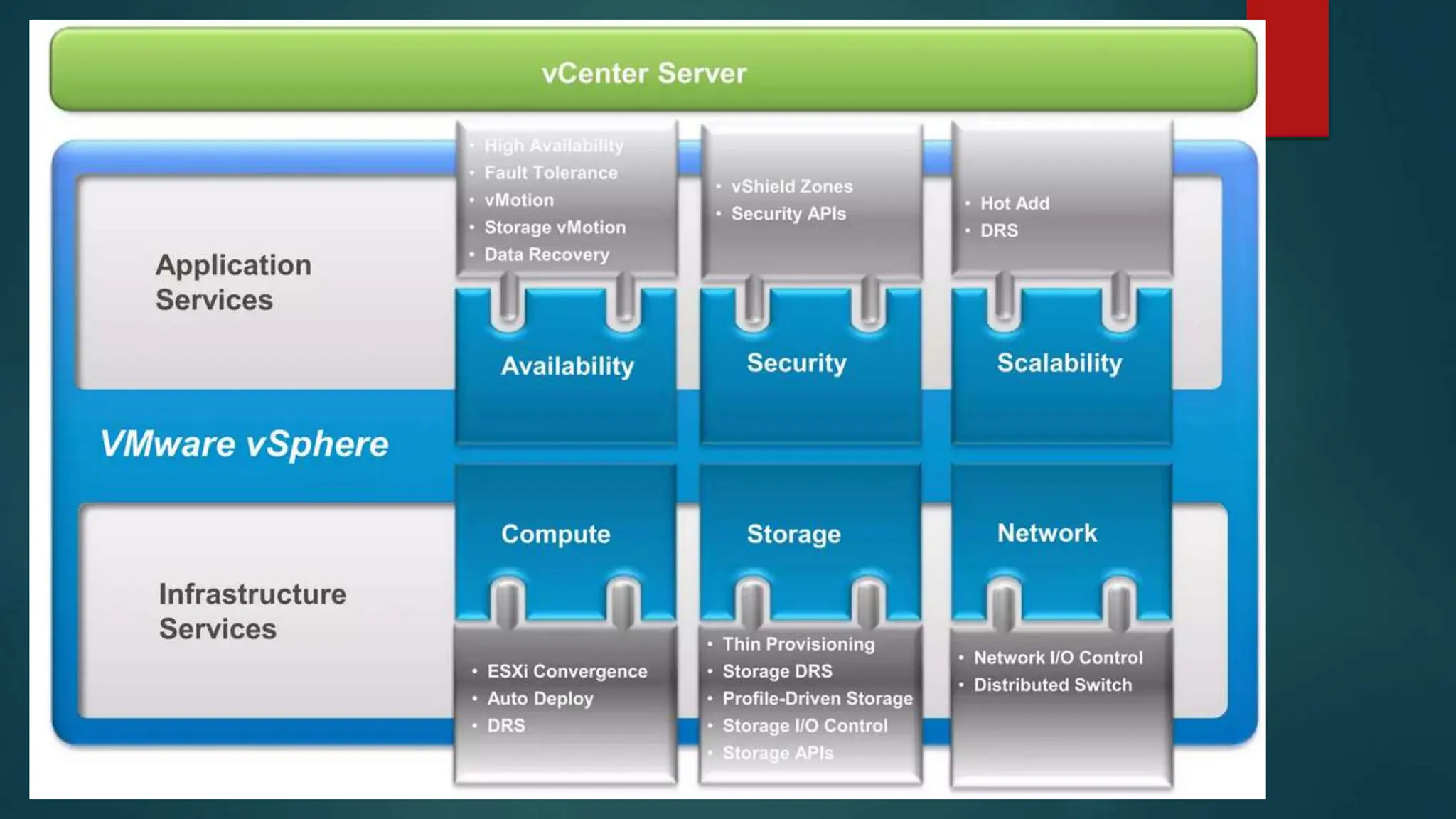
Server virtualization product of VMware that combines the ESXi hypervisor and the vCenter server management platform.
 Cluster
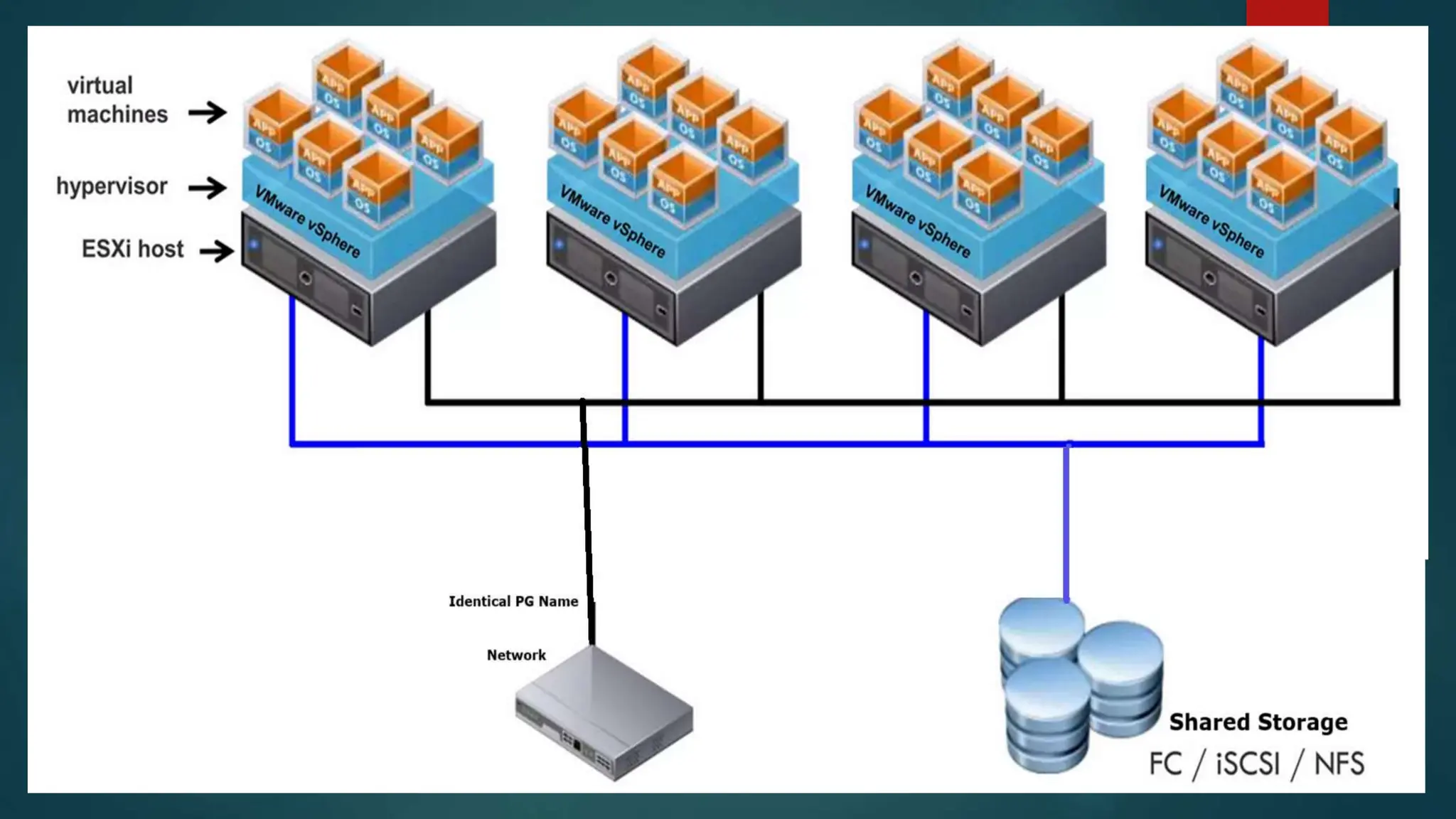
Group of ESXi hosts whose resources are shared by VMs.
 vSphere vMotion
Feature that supports the migration of powered-on VMs from host to host without service interruption.
 vSphere HA
Cluster feature that protects against host hardware failures by restarting VMs on hosts that are running normally.
 vSphere DRS
Cluster Feature that uses vSphere vMotion to place VMs on hosts and ensure that each VM receives the resources that it needs.
Terminology
What is Virtualization
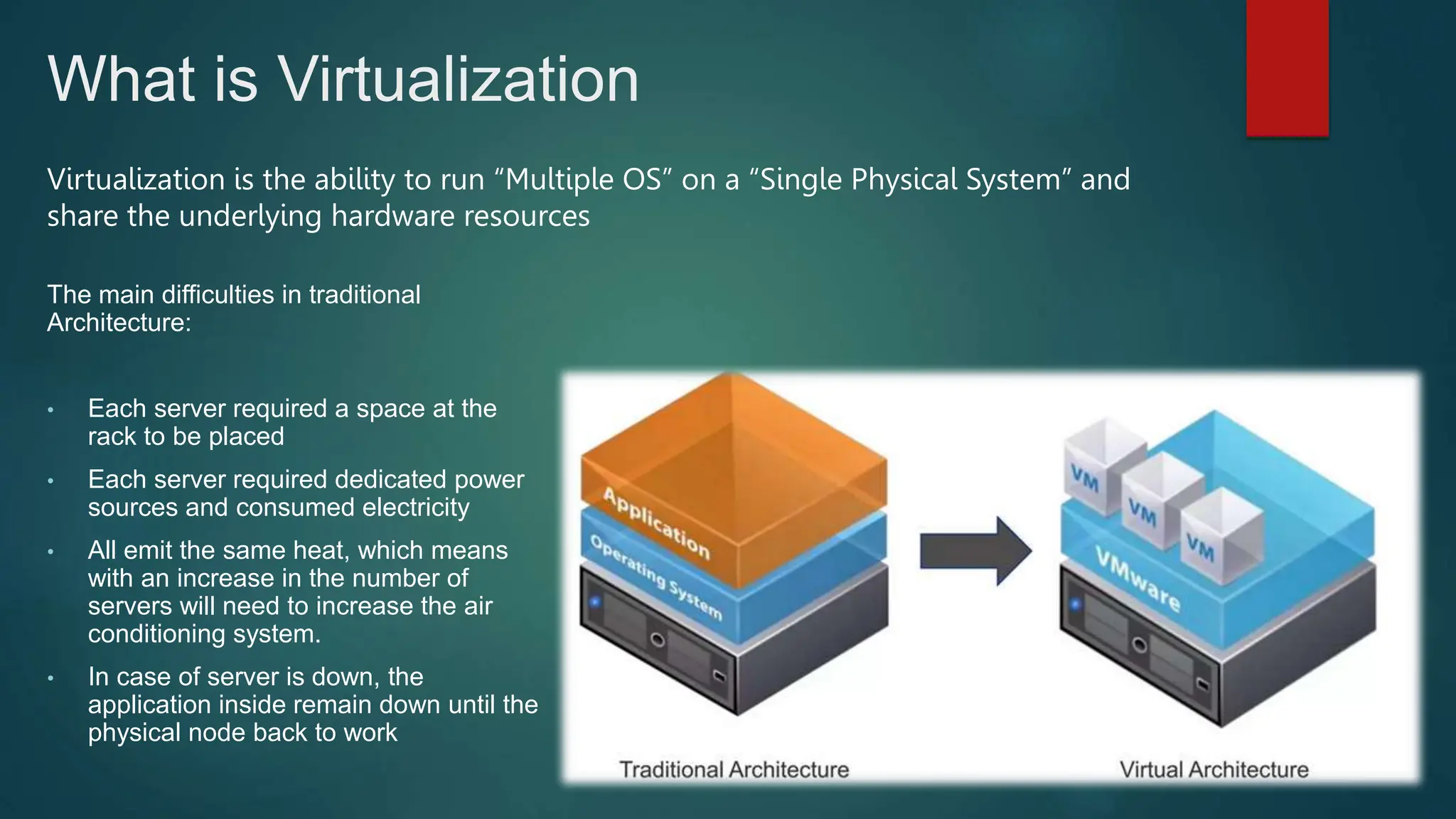
Virtualization is the ability to run “Multiple OS” on a “Single Physical System” and
share the underlying hardware resources
The main difficulties in traditional
Architecture:
• Each server required a space at the
rack to be placed
• Each server required dedicated power
sources and consumed electricity
• All emit the same heat, which means
with an increase in the number of
servers will need to increase the air
conditioning system.
• In case of server is down, the
application inside remain down until the
physical node back to work
VMware ESXi VS VMware Workstation
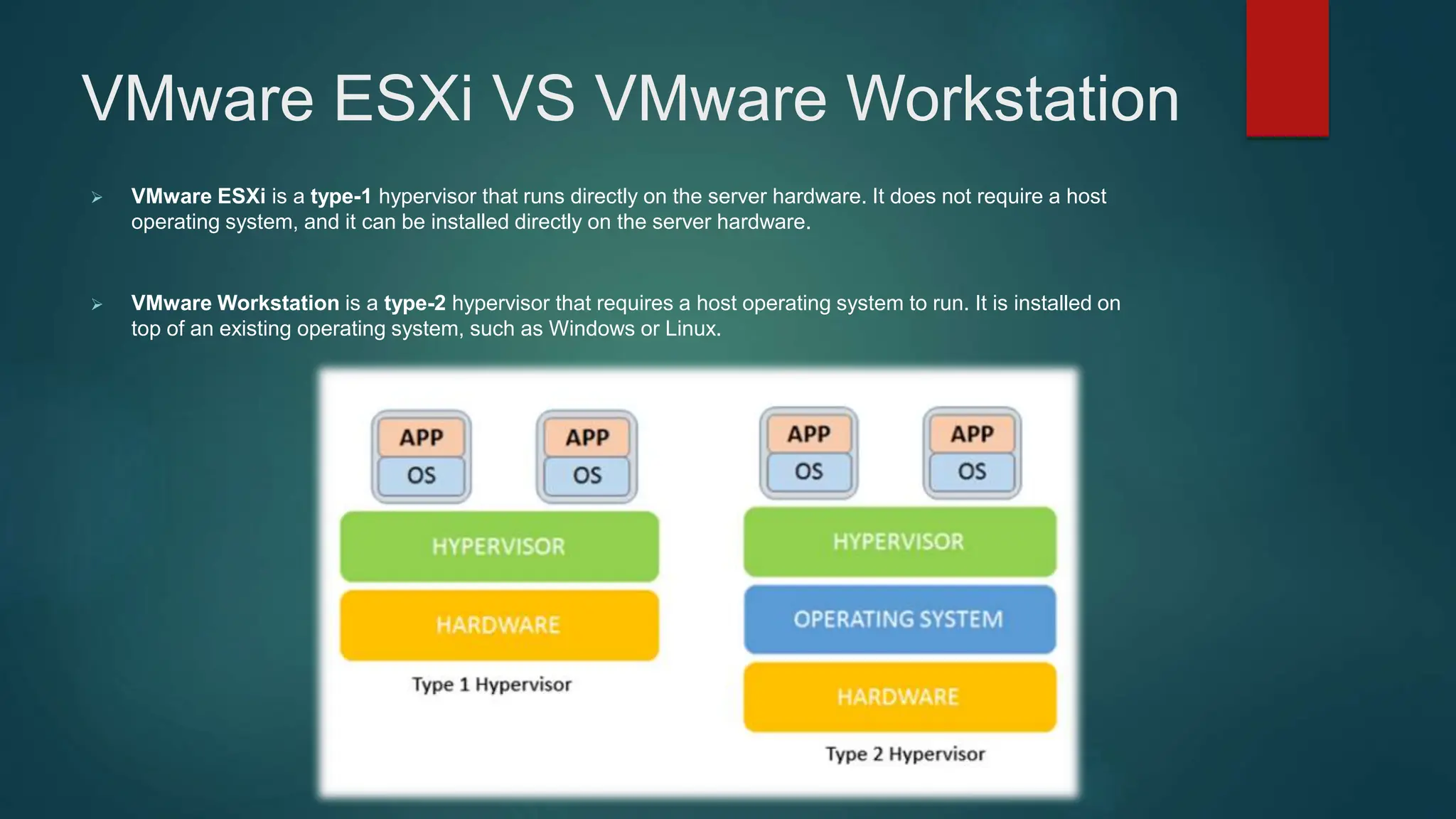
 VMware ESXi is a type-1 hypervisor that runs directly on the server hardware. It does not require a host
operating system, and it can be installed directly on the server hardware.
 VMware Workstation is a type-2 hypervisor that requires a host operating system to run. It is installed on
top of an existing operating system, such as Windows or Linux.
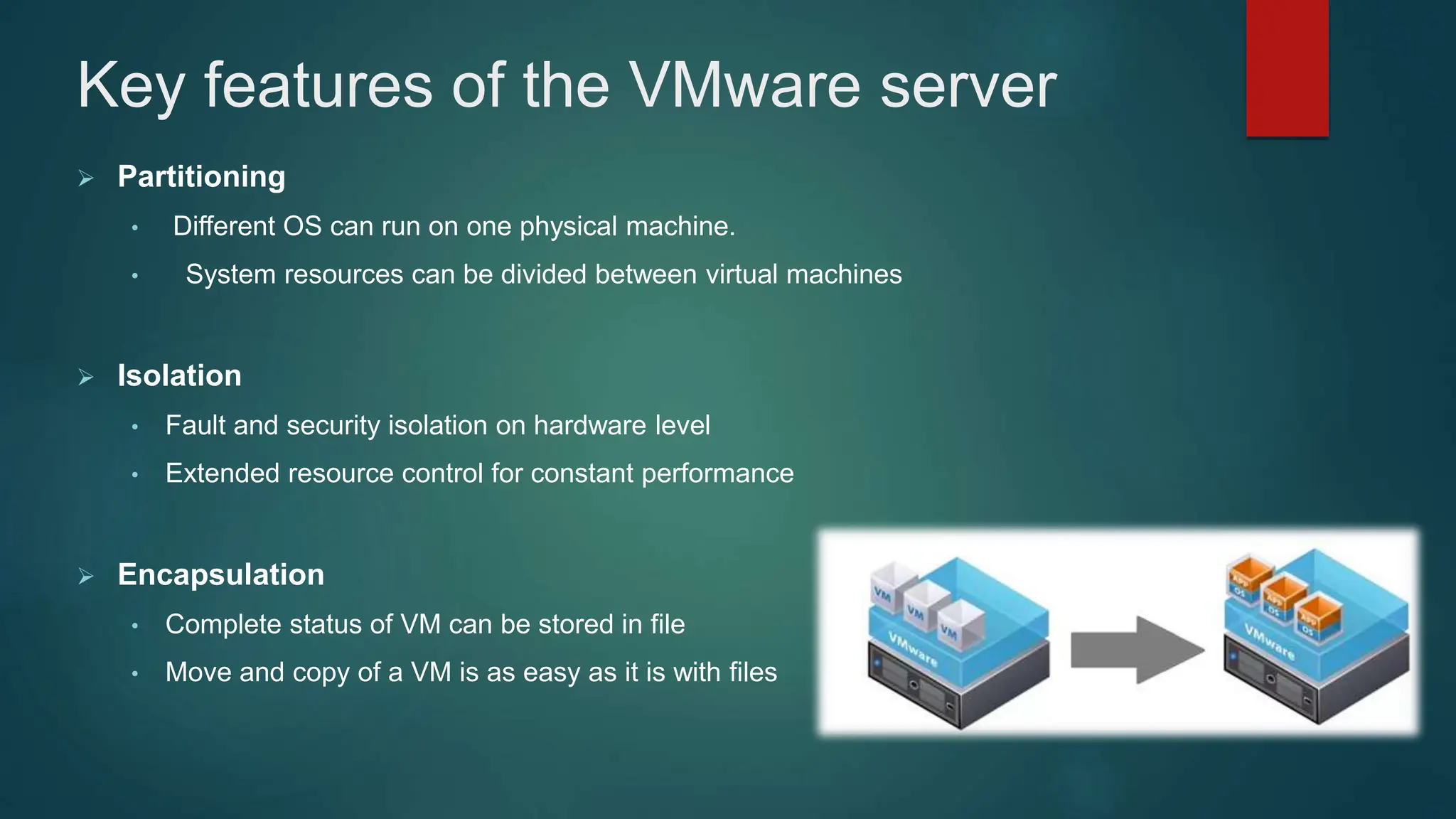
Key features of the VMware server
 Partitioning
• Different OS can run on one physical machine.
• System resources can be divided between virtual machines
 Isolation
• Fault and security isolation on hardware level
• Extended resource control for constant performance
 Encapsulation
• Complete status of VM can be stored in file
• Move and copy of a VM is as easy as it is with files
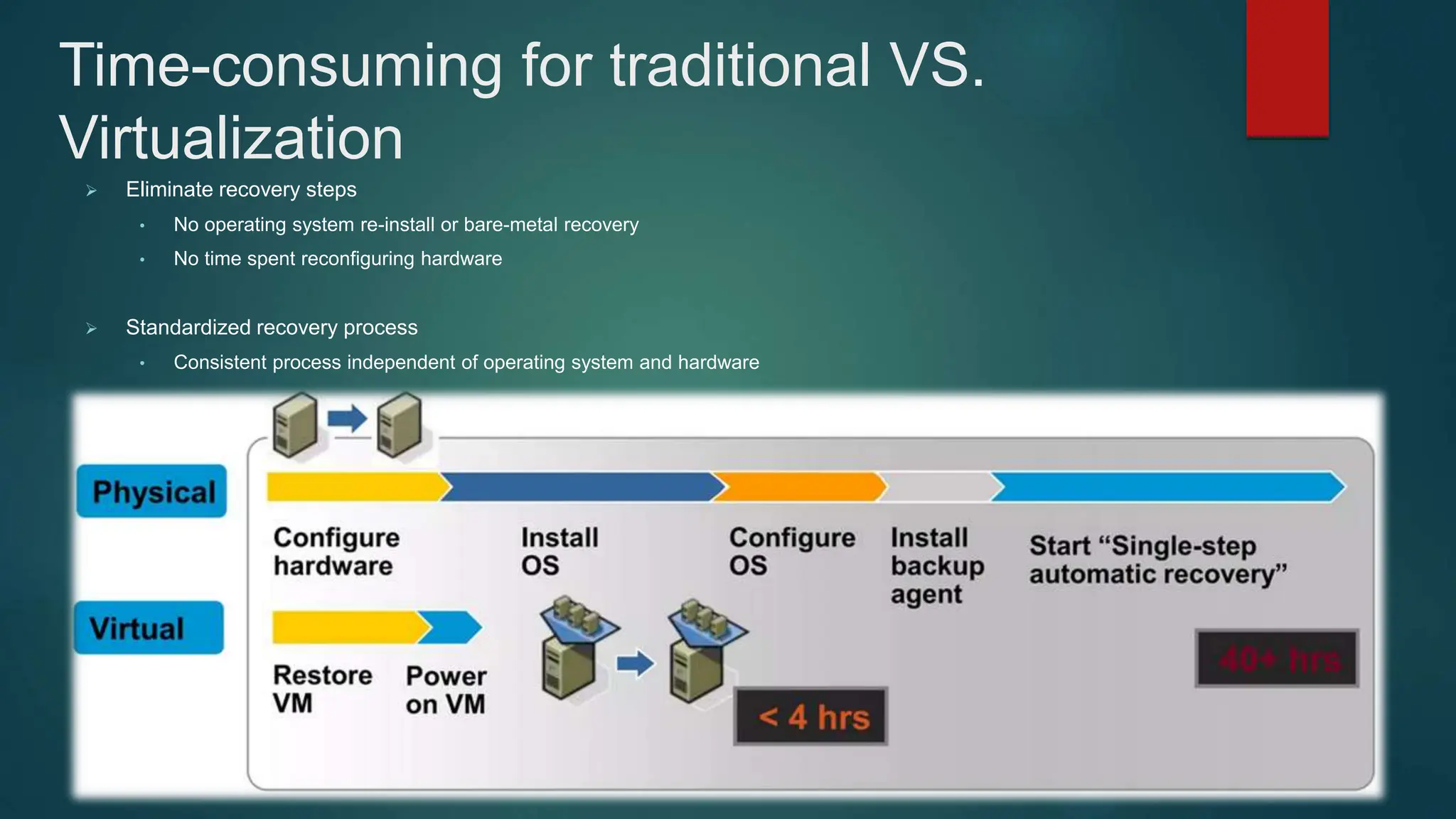
Time-consuming for traditional VS.
Virtualization
 Eliminate recovery steps
• No operating system re-install or bare-metal recovery
• No time spent reconfiguring hardware
 Standardized recovery process
• Consistent process independent of operating system and hardware
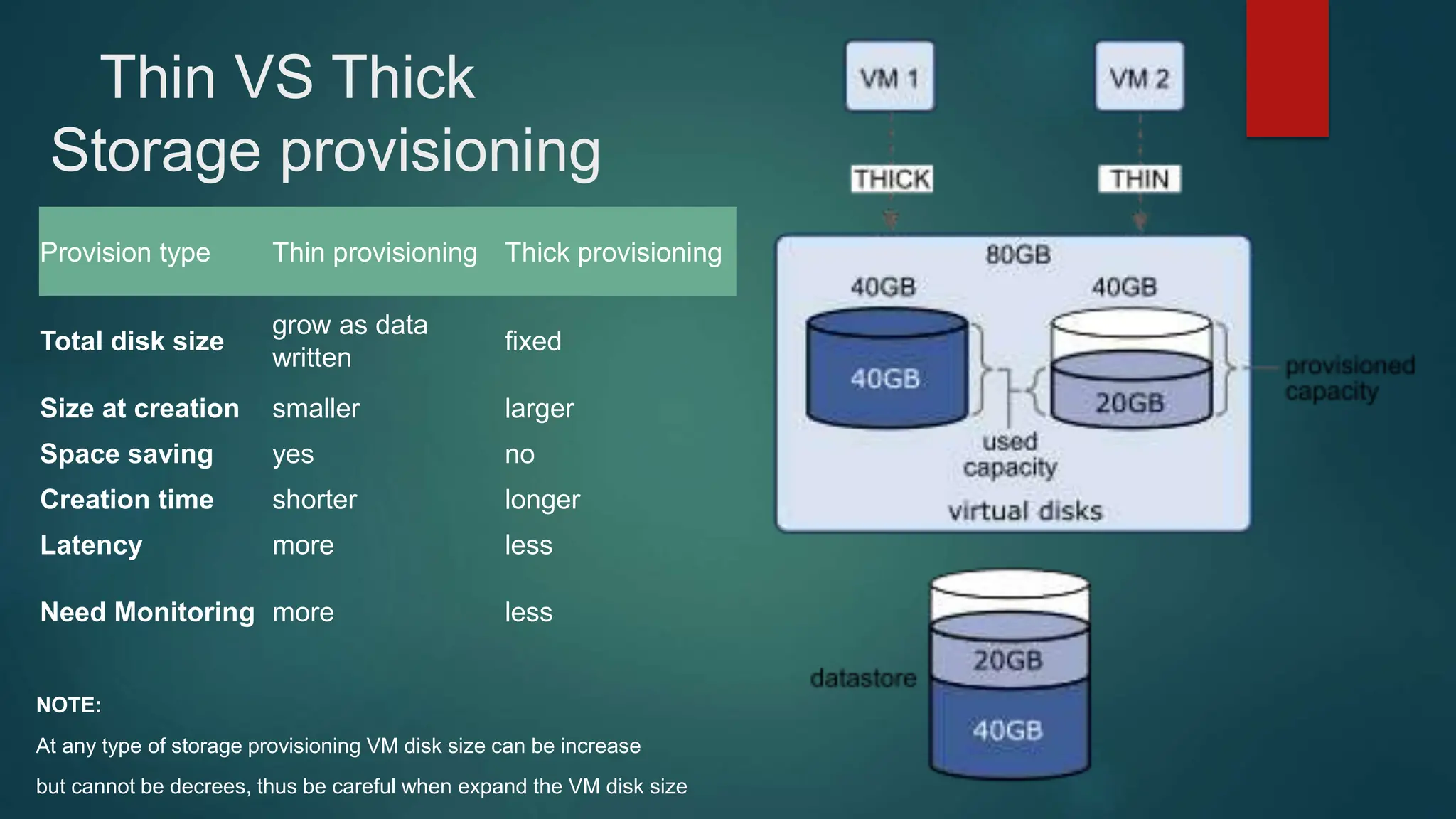
Thin VS Thick
Storage provisioning
Provision type Thin provisioning Thick provisioning
Total disk size
grow as data
written
fixed
Size at creation smaller larger
Space saving yes no
Creation time shorter longer
Latency more less
Need Monitoring more less
NOTE:
At any type of storage provisioning VM disk size can be increase
but cannot be decrees, thus be careful when expand the VM disk size
Install ESXI
 Download ESXI ISO for the intended version to you computer from the official link below
https://customerconnect.vmware.com/downloads/details?downloadGroup=ESXI70U3N&productId=1230
 Choosing the Installation Method
Best practices for logs when booting from USB or similar.
 Burn the download ISO into USB using any burn app like Rufus.
 Attached this USB to your server and boot from this USB.
 Start the installer using the arrow keys and
press [ENTER] to begin booting the ESXi installer.
A compatibility warning is displayed.
 Press [ENTER] to proceed.
The End User License Agreement (EULA) displays.
 Press [ENTER] to proceed. The End
User License Agreement (EULA)
displays.
 Use the arrow keys to select the drive
you want to install ESXi, and then
press [ENTER] to continue.
Install ESXI
 The Confirm Disk Selection window displays
Press [ENTER] to accept your selection and
continue.
 Please select a keyboard layout window displays.
Select your desired keyboard layout using the arrow
keys and then press [ENTER]. The Enter a root
password window displays.
Install ESXI
 Enter a root password in the Root password
field.
Confirm the password in the Confirm password
field and then press [ENTER] to proceed. The
installer rescans the system.
 It then displays the Confirm Install window.
Press [F11] to proceed with the installation.
Install ESXI
 The Complete Installation window displays
when the installation process is completed.
Press [ENTER] to reboot the system. (Make sure
your installation media has been ejected and your
bios set to the boot disk.)
 It will can take several minutes to complete the
reboot.
The VMware ESXi screen displays when the boot
completes.
Install ESXI
 Press [F2]. The Authentication Required window
displays.
Enter the root account credentials you created during
the installation process and press [ENTER]. The
System Customization screen displays.
 Scroll down to select Configure Management
Network and then press [ENTER]. The Configure
Management Network window appears.
Install ESXI
 Select the Network Adapters window and press
[ENTER].
Use the arrow keys to select the adapter to use as the
default management network and press [ENTER]. More
than one management network can be selected for
redundancy.
Use space to select vmnic0 and vmnic1 to make them as
team-NIC
 Exit the menu with [ESC] and select the IPv4
Configuration window
Install ESXI
 Press [ENTER] to apply the new DNS settings and
return to the Configure Management Network menu
Press [ESC] to exit the Configure Management
Network menu. The Confirm Management Network
popup window displays. Press [Y] to confirm your
selection.
 After applying Yes, now you can go to your web
browser and request HTTPS with the same IP you
just set.
Install ESXI
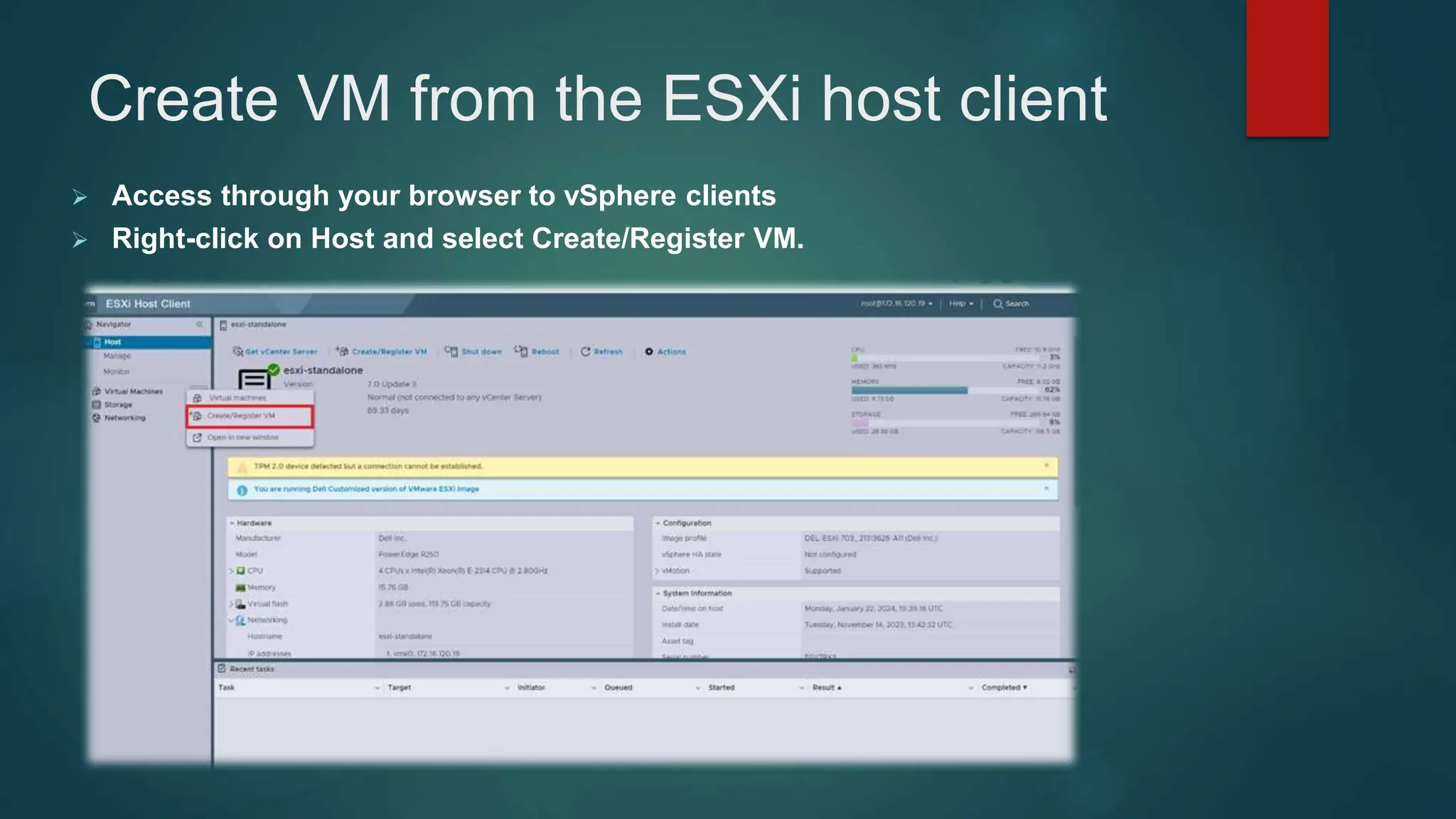
Create VM from the ESXi host client
 Access through your browser to vSphere clients
 Right-click on Host and select Create/Register VM.
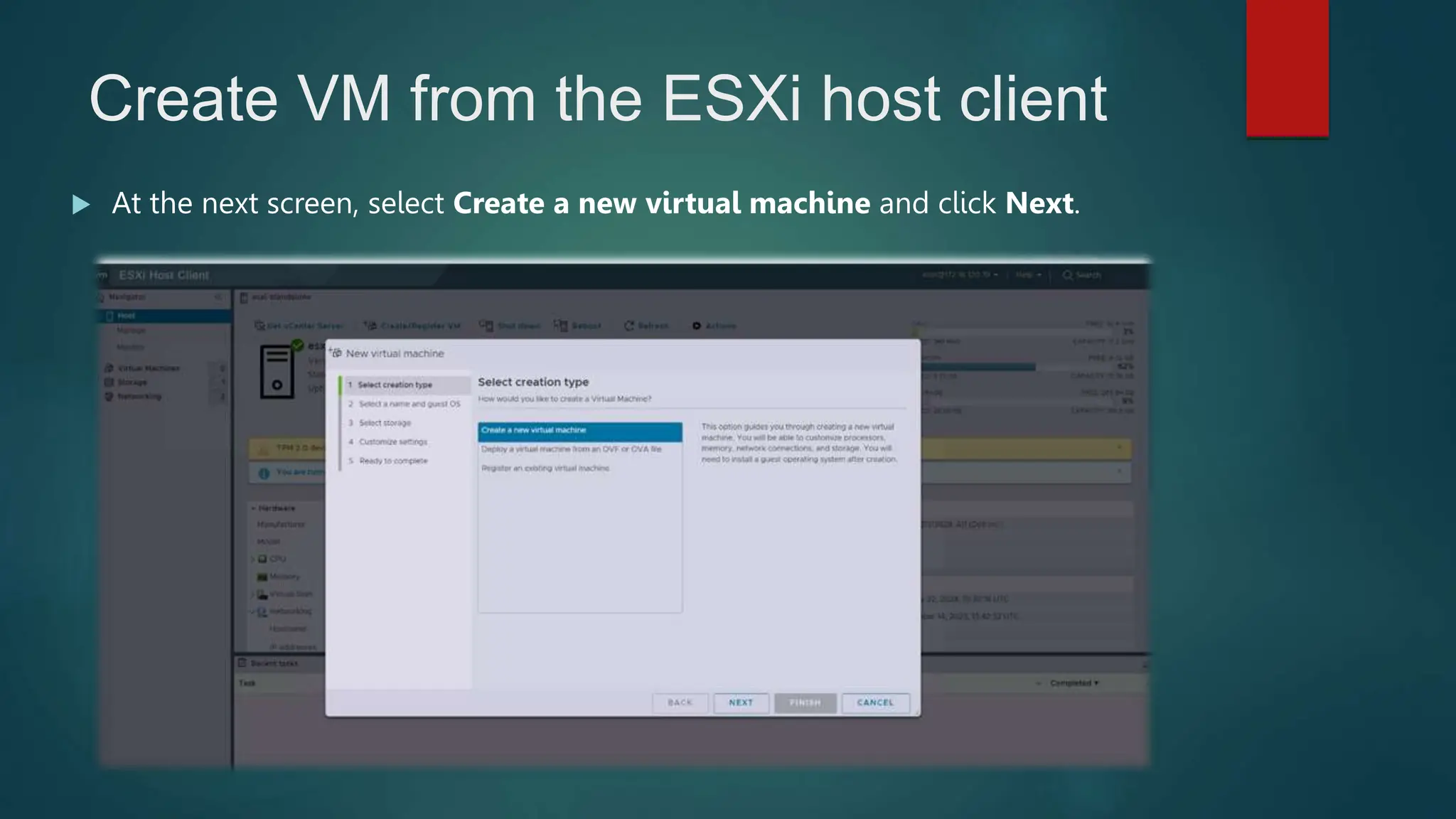
Create VM from the ESXi host client
 At the next screen, select Create a new virtual machine and click Next.
Create VM from the ESXi host client
 Create a new virtual machine from scratch. You will be able to customize the VMs
hardware. You will also need to install a guest operating system after creating the virtual
machine.
 Deploy a virtual machine from an OVF or an OVA file. With this option, you will be
guided through the process of creating a virtual machine from a pre-configured appliance.
 Register an existing virtual machine: This option guides you through registering a virtual
machine that already exists on a datastore.
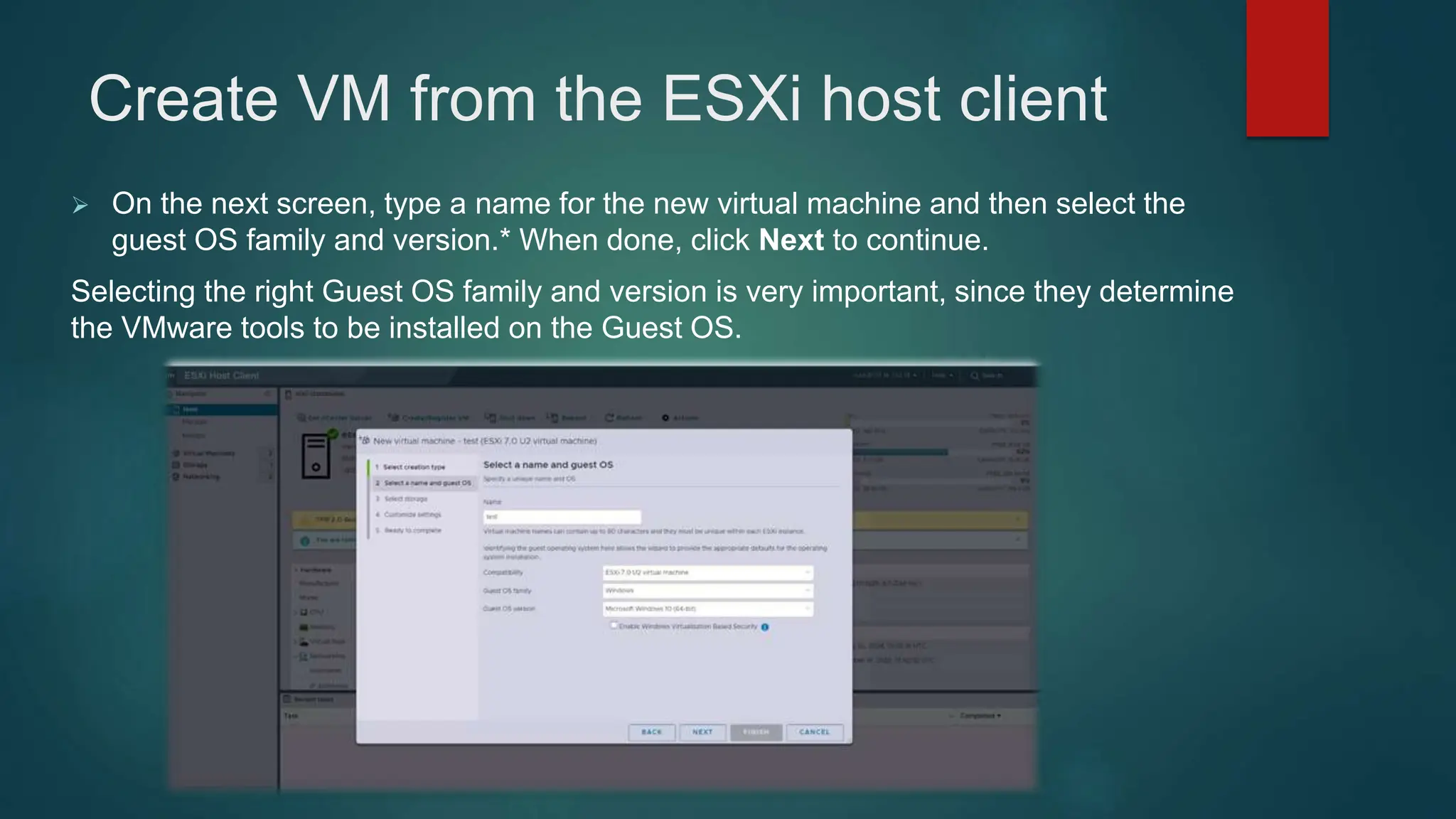
Create VM from the ESXi host client
 On the next screen, type a name for the new virtual machine and then select the
guest OS family and version.* When done, click Next to continue.
Selecting the right Guest OS family and version is very important, since they determine
the VMware tools to be installed on the Guest OS.
Create VM from the ESXi host client
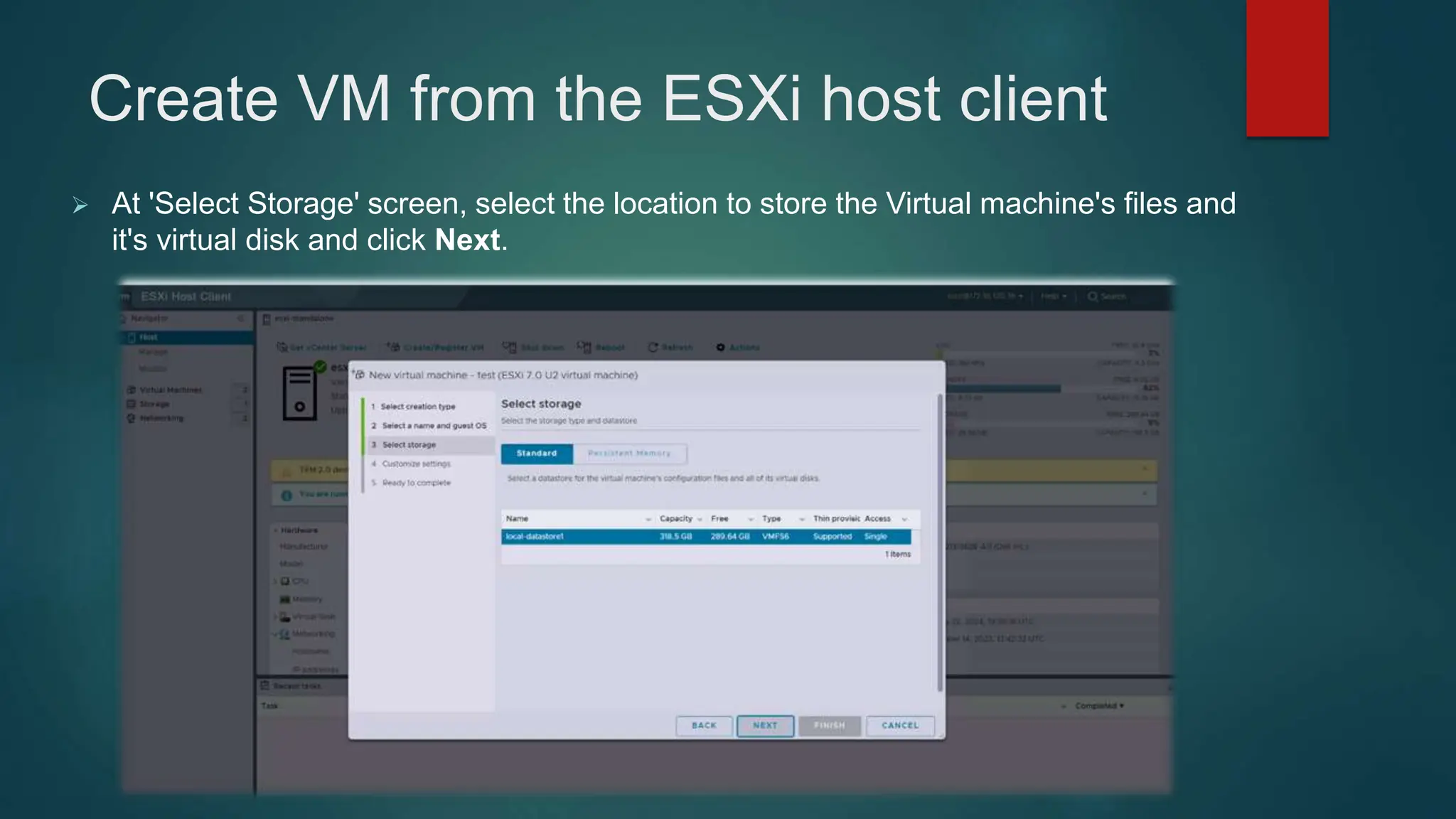
 At 'Select Storage' screen, select the location to store the Virtual machine's files and
it's virtual disk and click Next.
Create VM from the ESXi host client
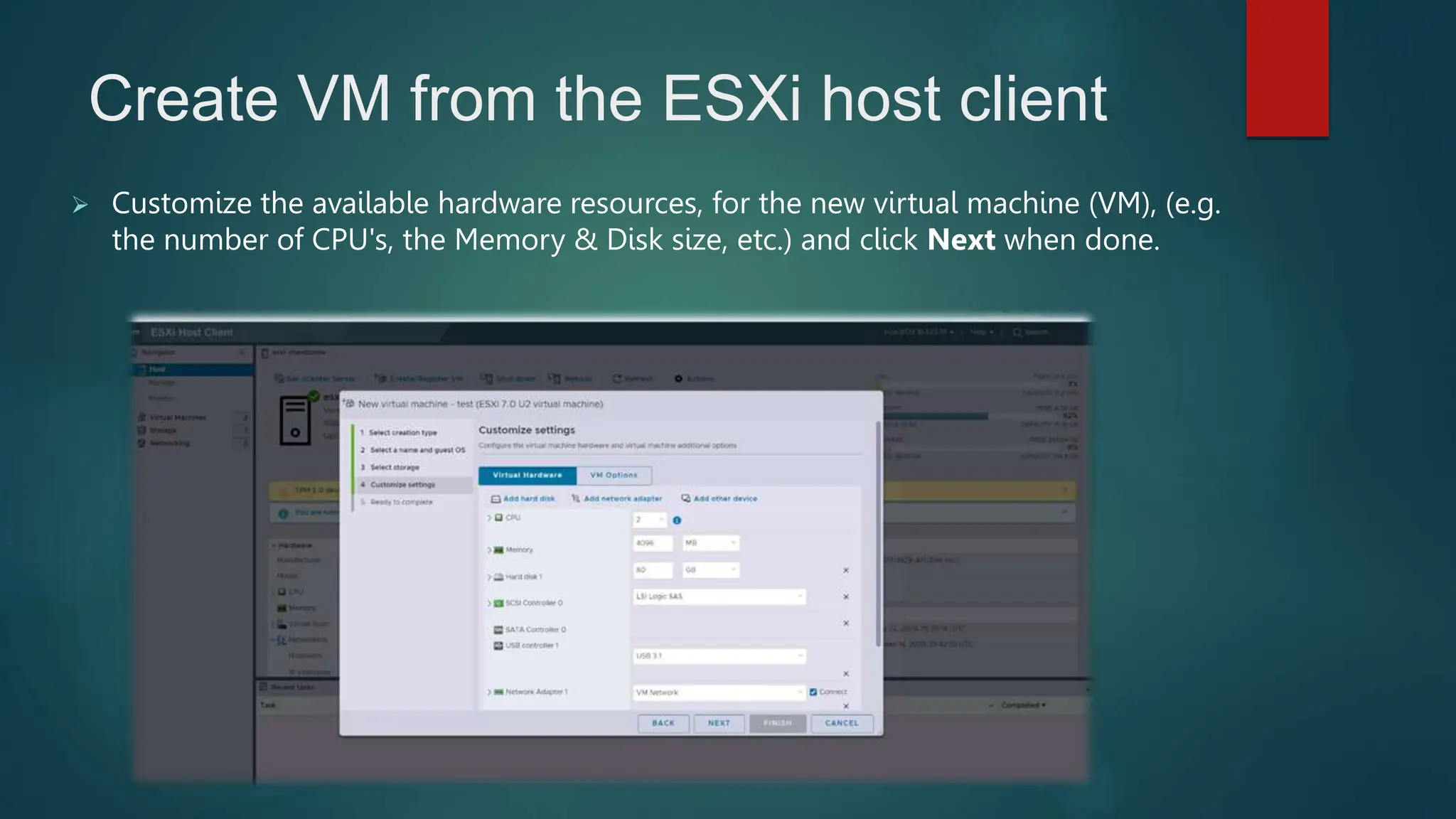
 Customize the available hardware resources, for the new virtual machine (VM), (e.g.
the number of CPU's, the Memory & Disk size, etc.) and click Next when done.
Create VM from the ESXi host client
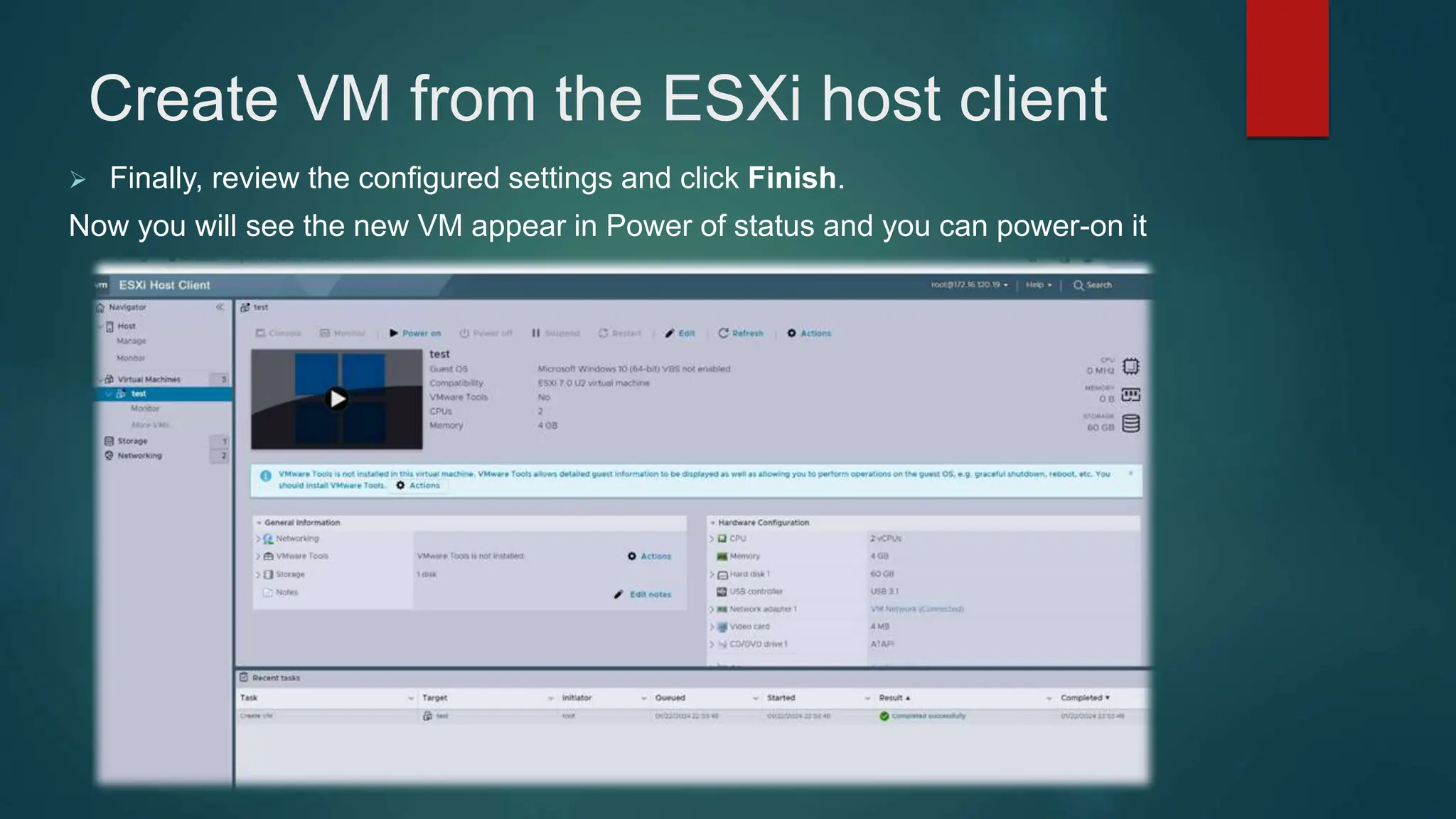
 Finally, review the configured settings and click Finish.
Now you will see the new VM appear in Power of status and you can power-on it
Upload ISO to the datastore
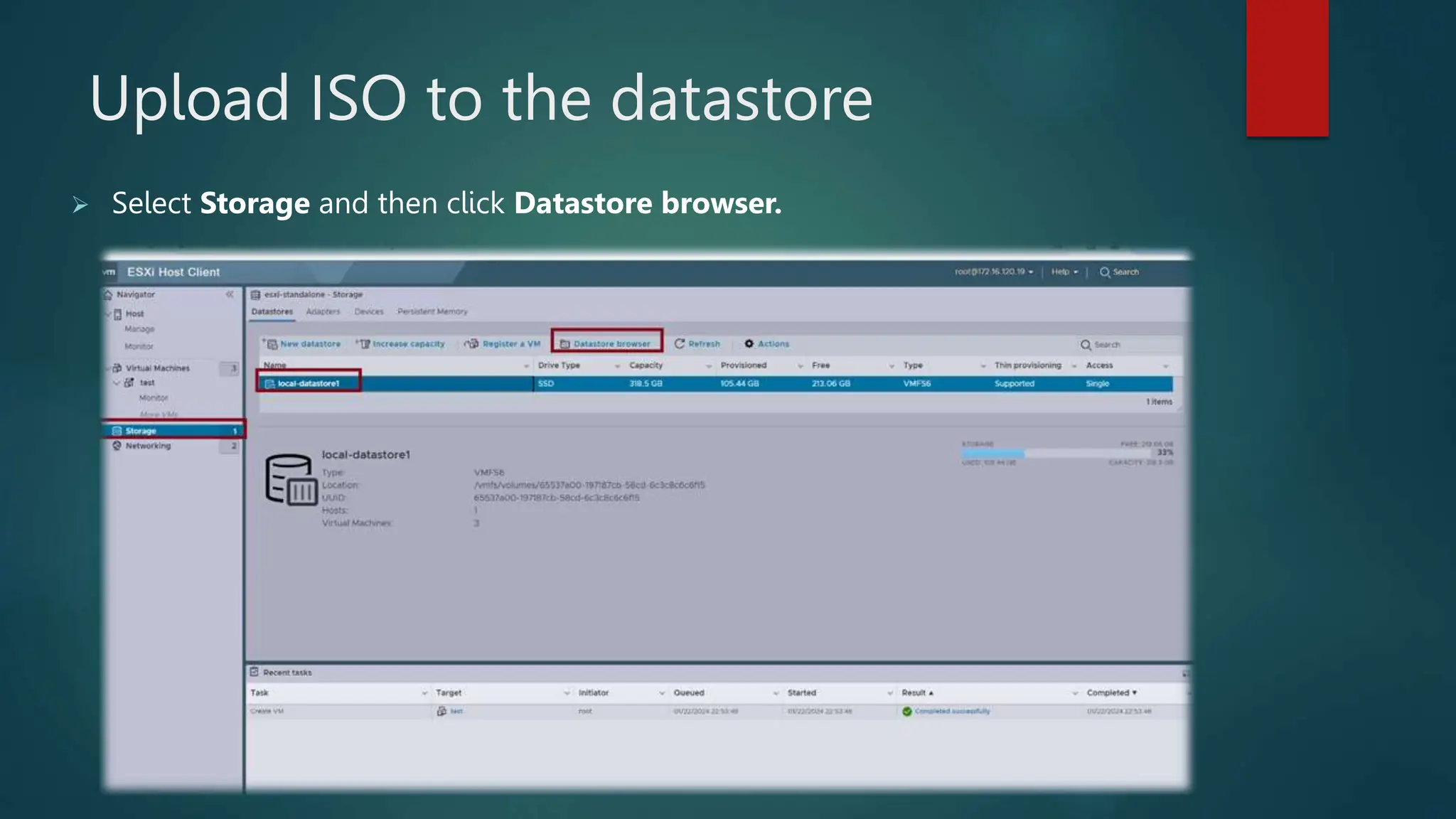
 Select Storage and then click Datastore browser.
Upload ISO to the datastore
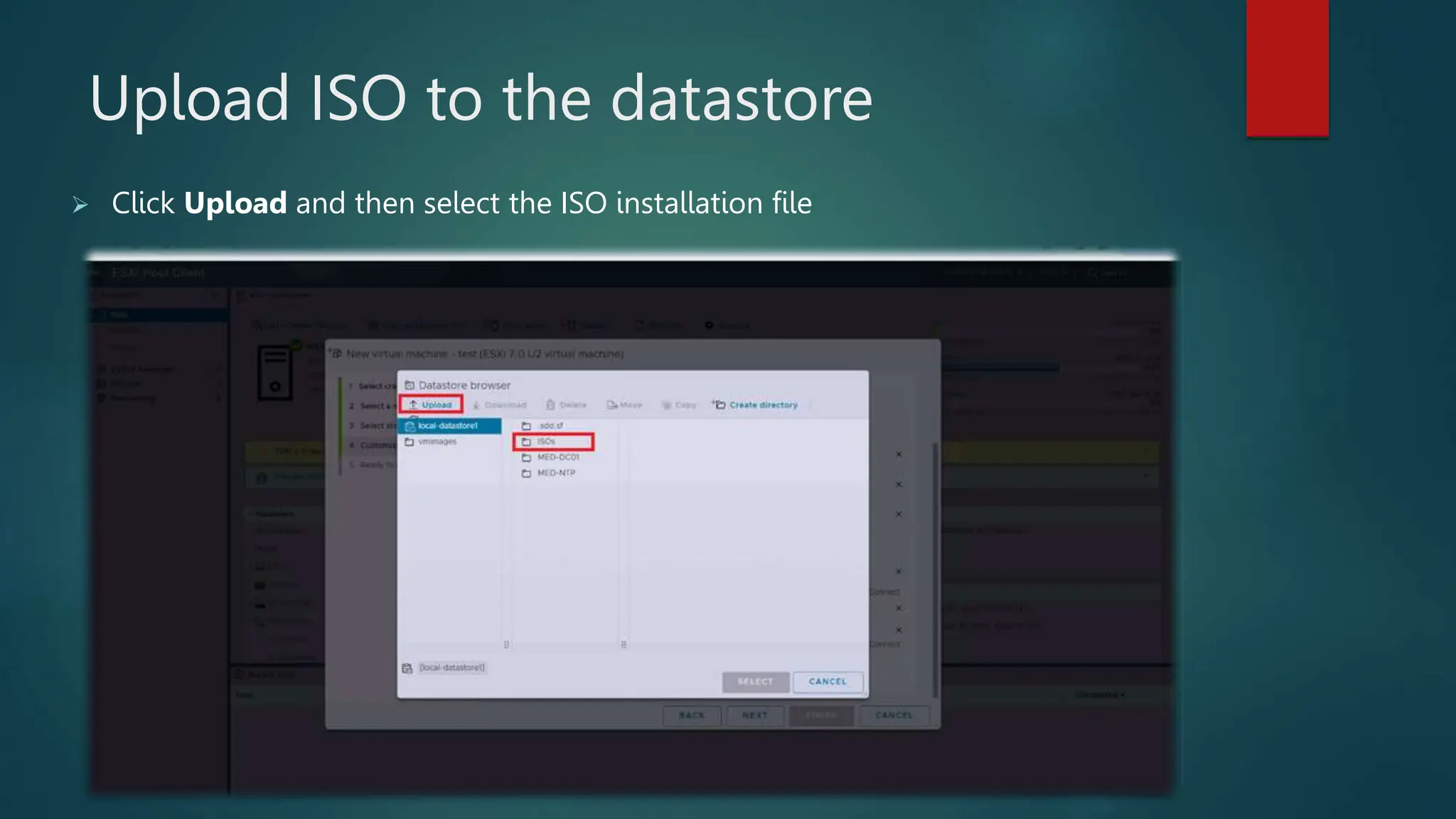
 Click Upload and then select the ISO installation file
vCenter
Components
Installation of vCenter
 Download vCenter packages
from the VMware site as zip.
https://customerconnect.vmware.
com/downloads/get-
download?downloadGroup=VC7
0U3
 Extract the ZIP and then
access the path as shown at
the image
Installation of vCenter
 As we are installing a new
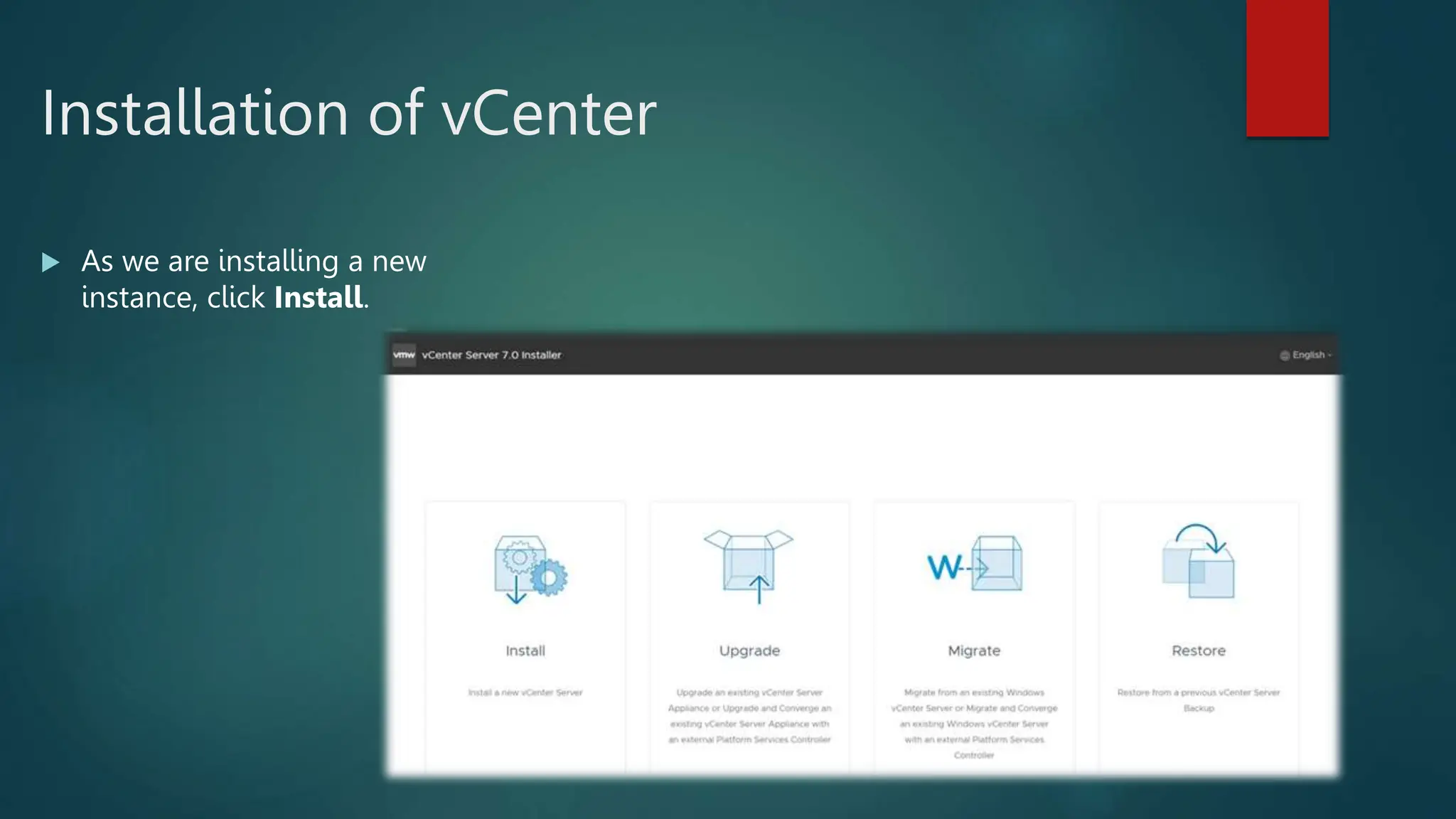
instance, click Install.
Installation of vCenter
 The install is two stages. We
begin with Stage1: Deploy
vCenter Server. Click Next to
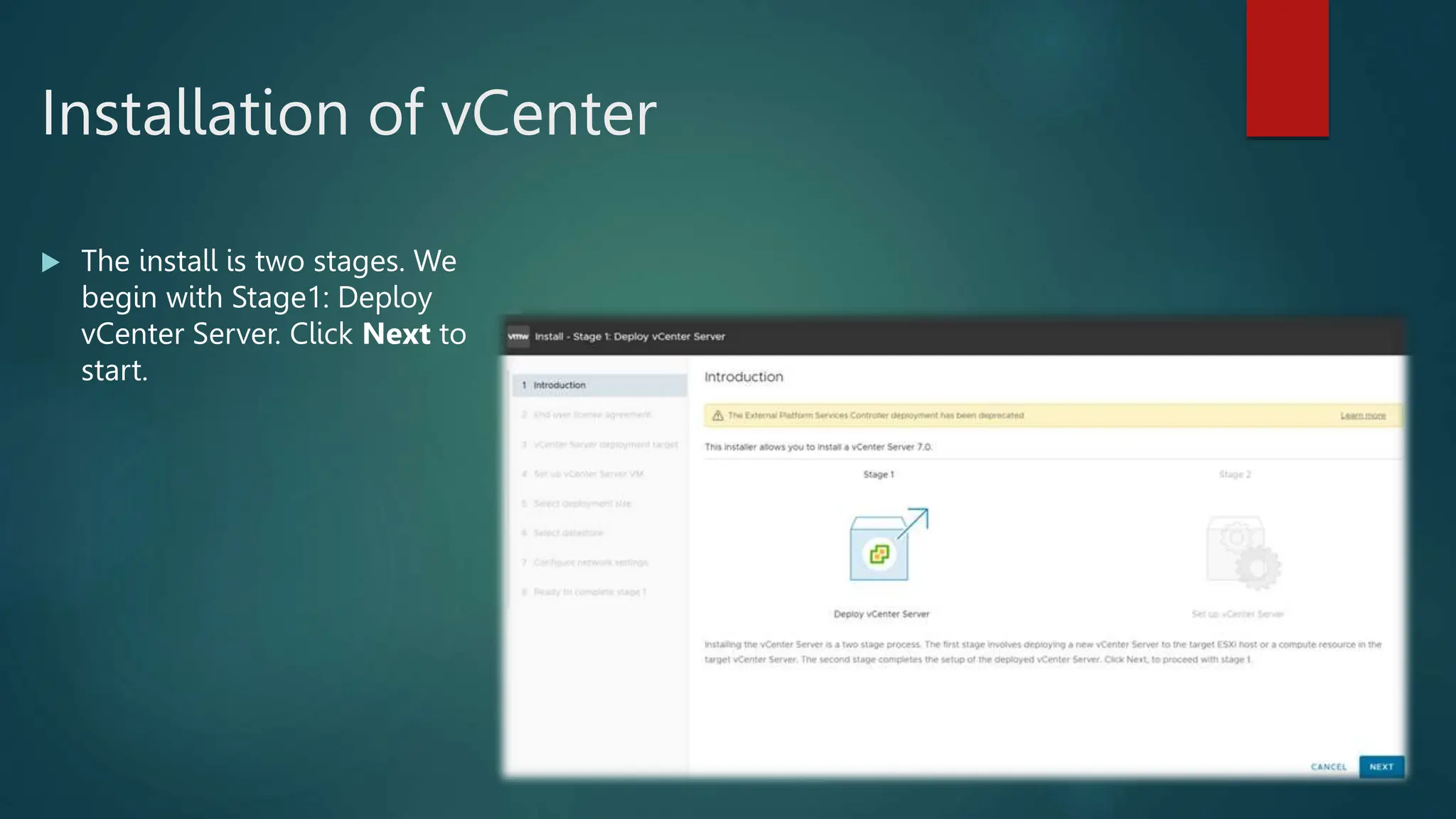
start.
Installation of vCenter
 Read and accept the EULA,
and then click Next to
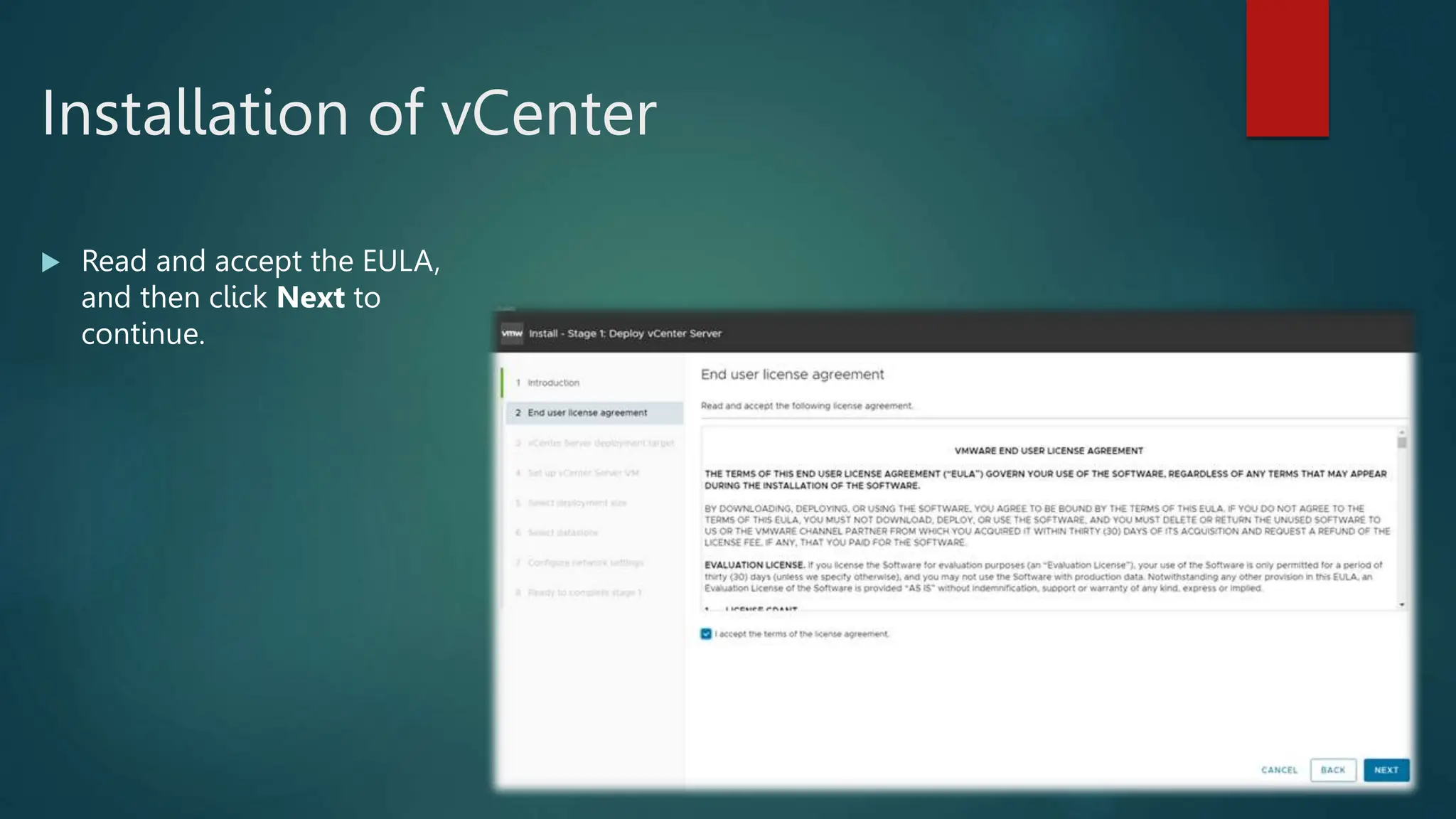
continue.
Installation of vCenter
 Select the ESXi host on which
to install the VCSA as a guest.
This must be a host that runs
ESXi 7 or later. Enter the IP
address or fully qualified
domain name (FQDN) of the
chosen host, its root
username, and password; then
click Next.
Installation of vCenter
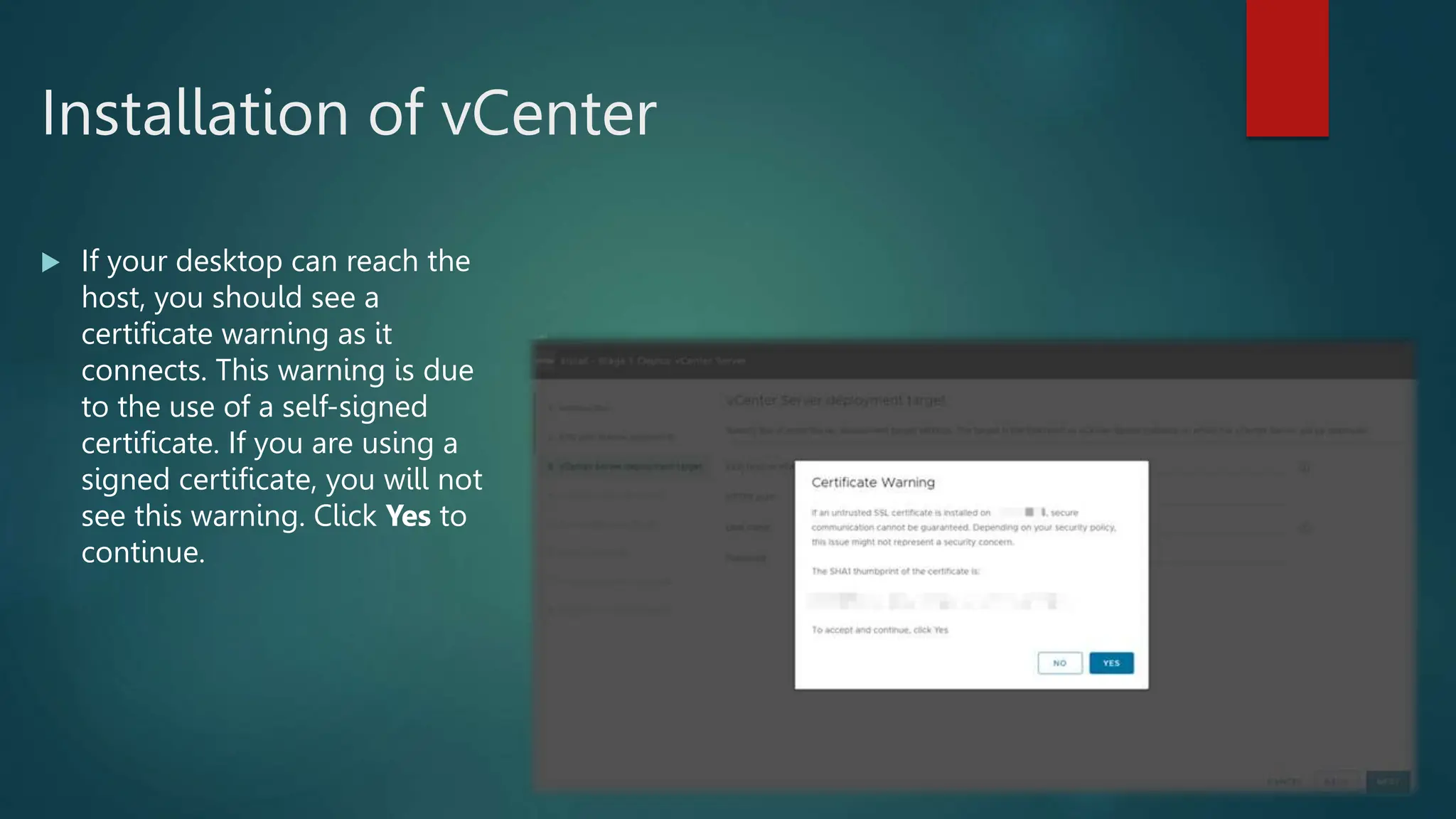
 If your desktop can reach the
host, you should see a
certificate warning as it
connects. This warning is due
to the use of a self-signed
certificate. If you are using a
signed certificate, you will not
see this warning. Click Yes to
continue.
Installation of vCenter
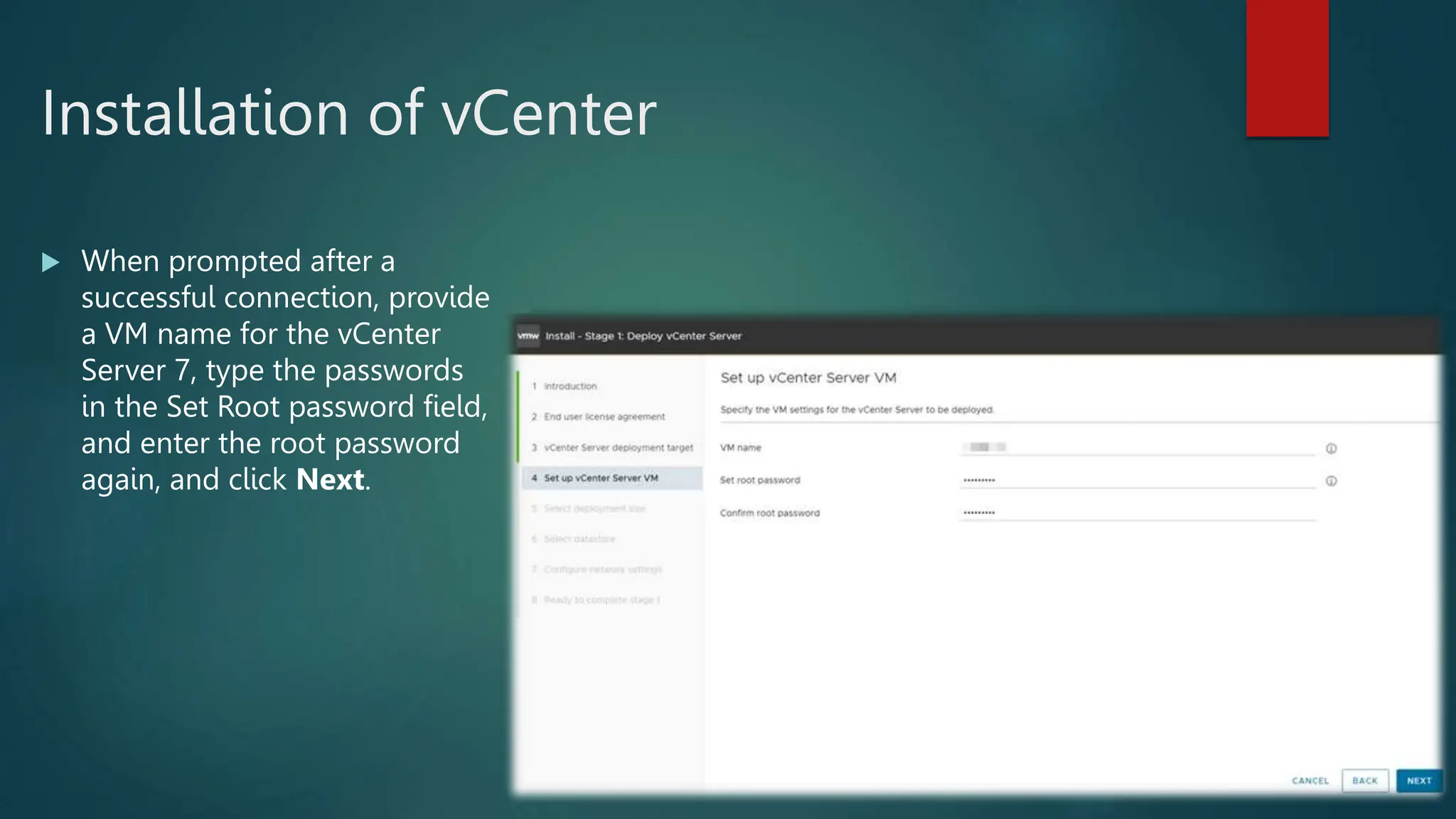
 When prompted after a
successful connection, provide
a VM name for the vCenter
Server 7, type the passwords
in the Set Root password field,
and enter the root password
again, and click Next.
Installation of vCenter
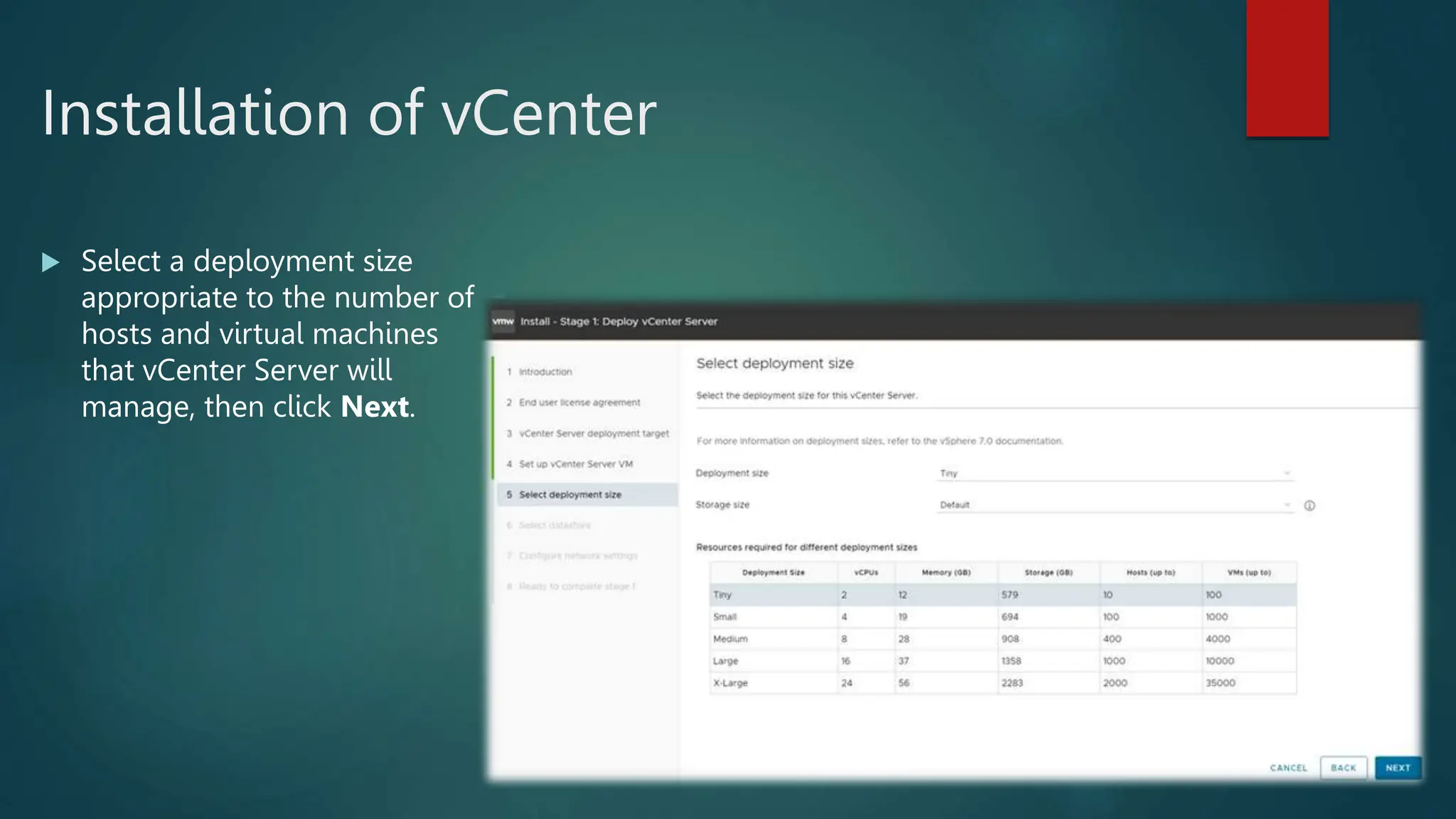
 Select a deployment size
appropriate to the number of
hosts and virtual machines
that vCenter Server will
manage, then click Next.
Installation of vCenter
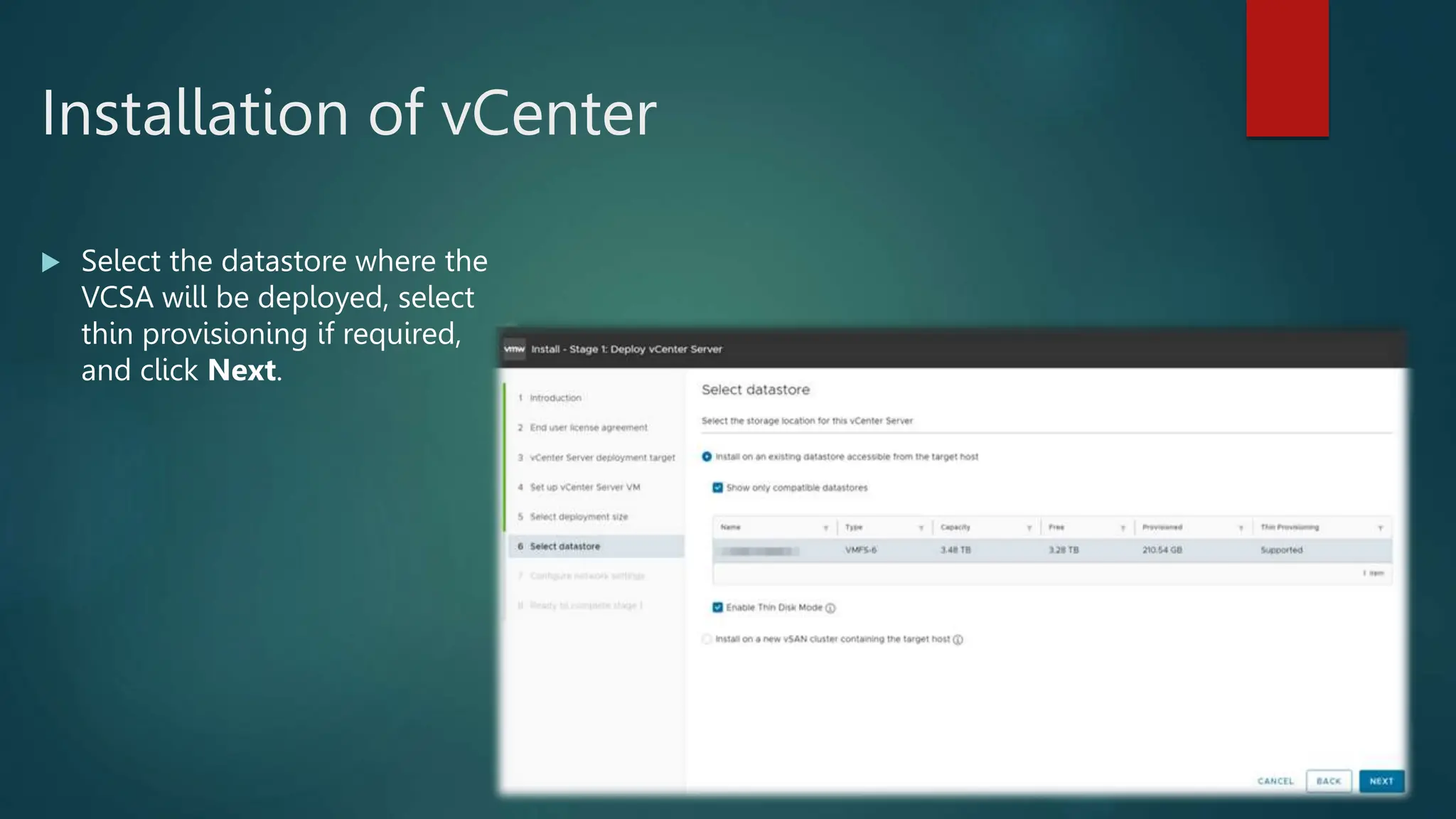
 Select the datastore where the
VCSA will be deployed, select
thin provisioning if required,
and click Next.
Installation of vCenter
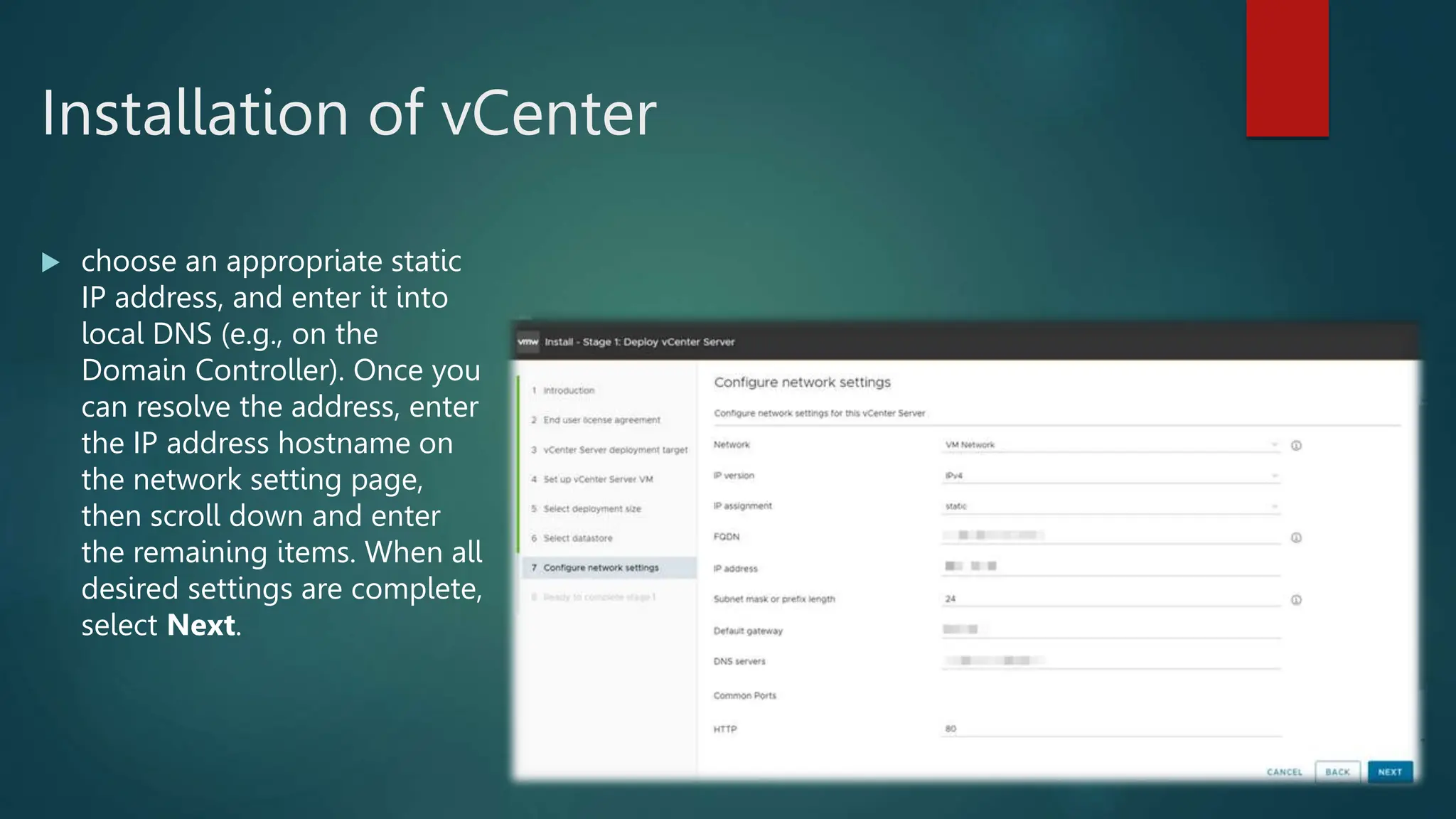
 choose an appropriate static
IP address, and enter it into
local DNS (e.g., on the
Domain Controller). Once you
can resolve the address, enter
the IP address hostname on
the network setting page,
then scroll down and enter
the remaining items. When all
desired settings are complete,
select Next.
Installation of vCenter
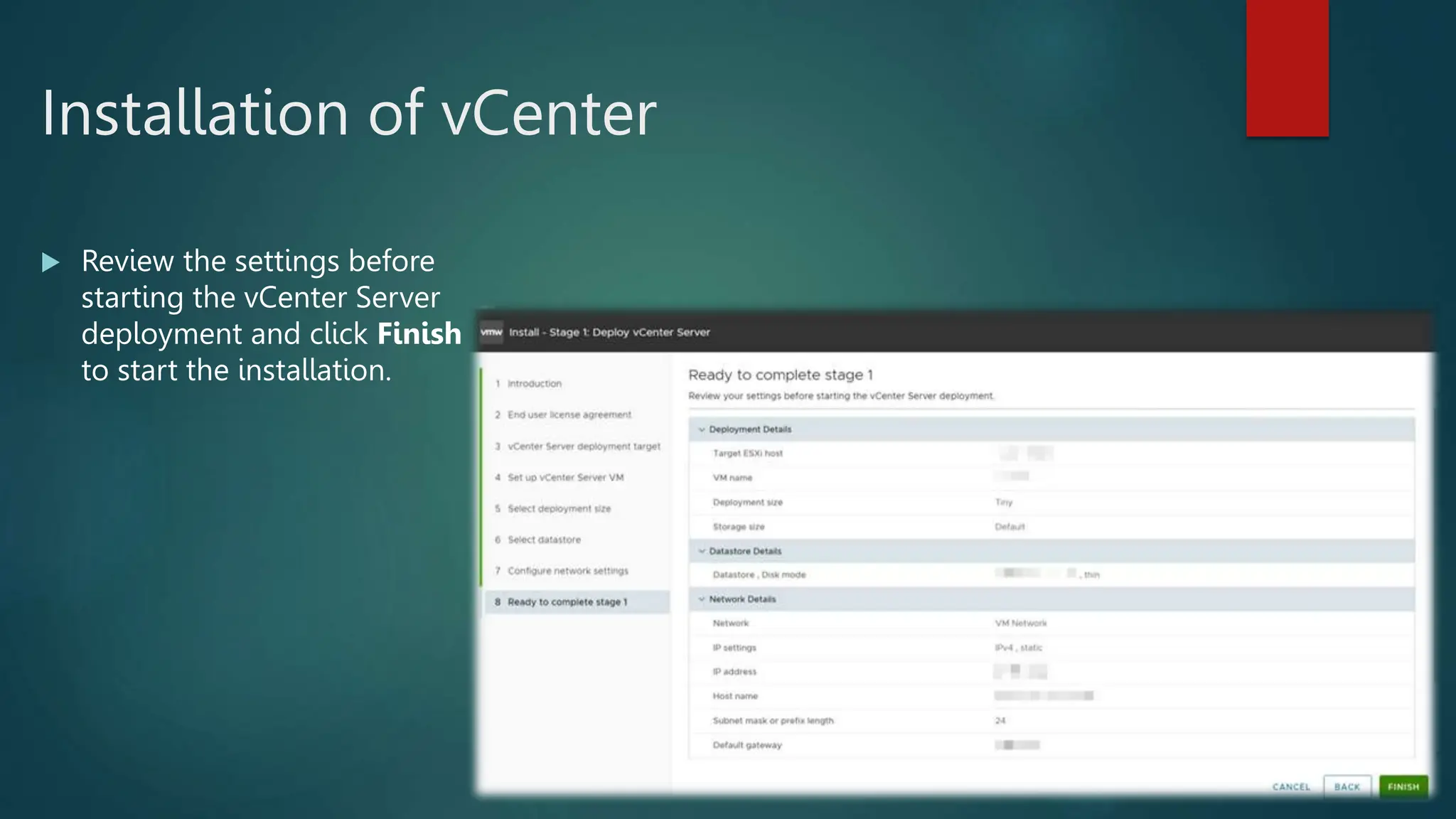
 Review the settings before
starting the vCenter Server
deployment and click Finish
to start the installation.
Installation of vCenter
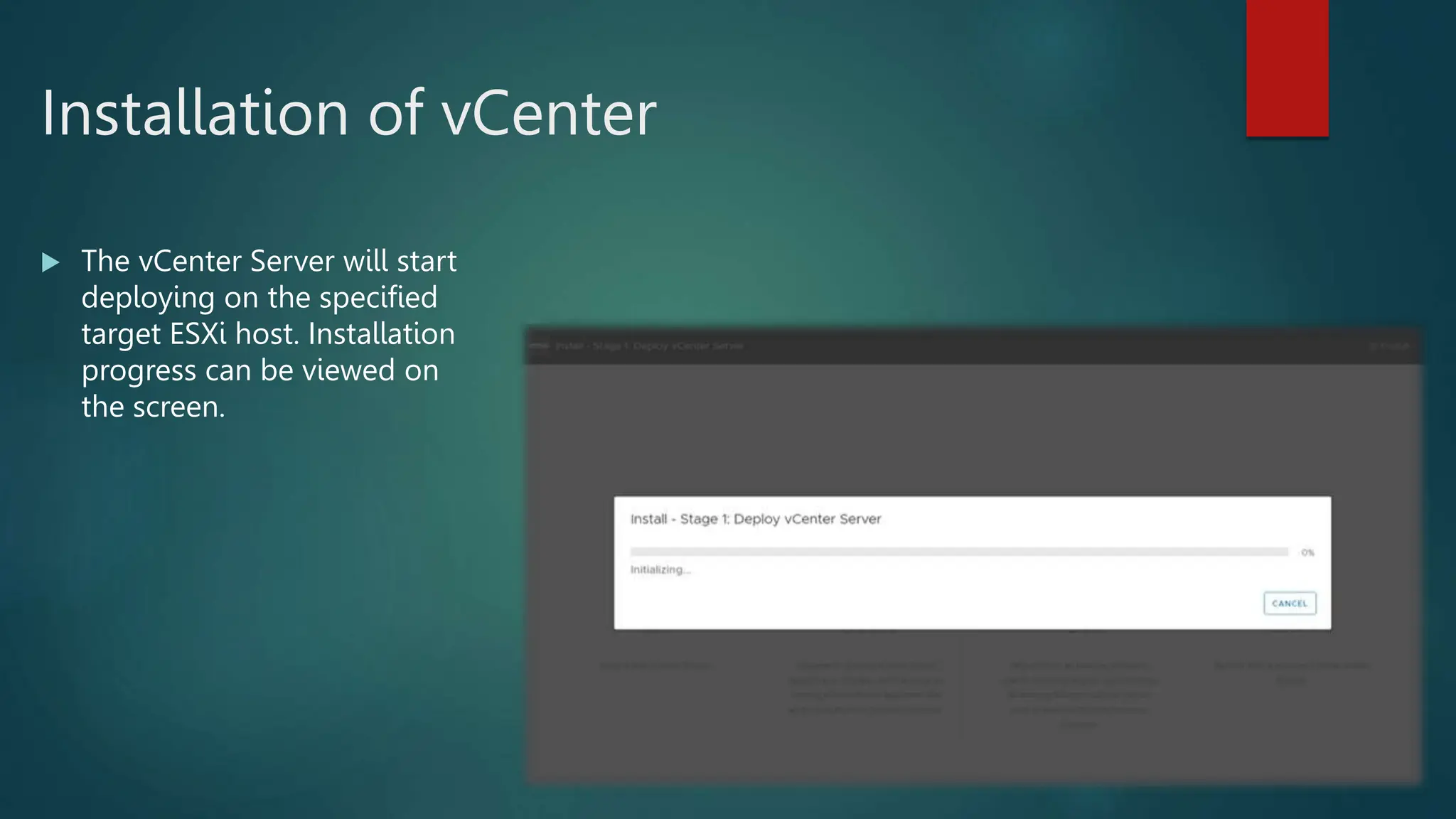
 The vCenter Server will start
deploying on the specified
target ESXi host. Installation
progress can be viewed on
the screen.
Installation of vCenter
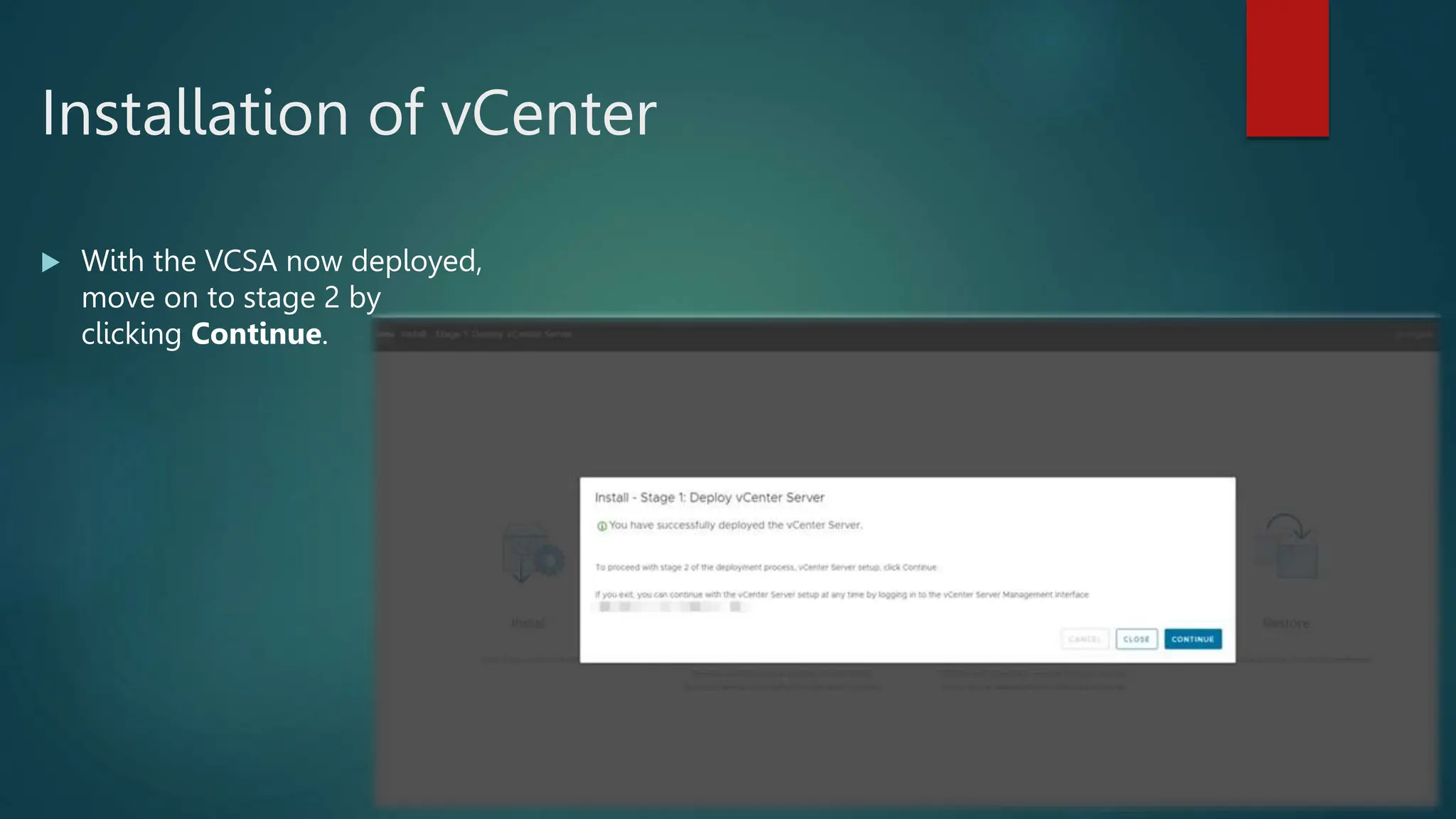
 With the VCSA now deployed,
move on to stage 2 by
clicking Continue.
Installation of vCenter
 With the VCSA now deployed,
move on to stage 2 by
clicking Continue.
Installation of vCenter
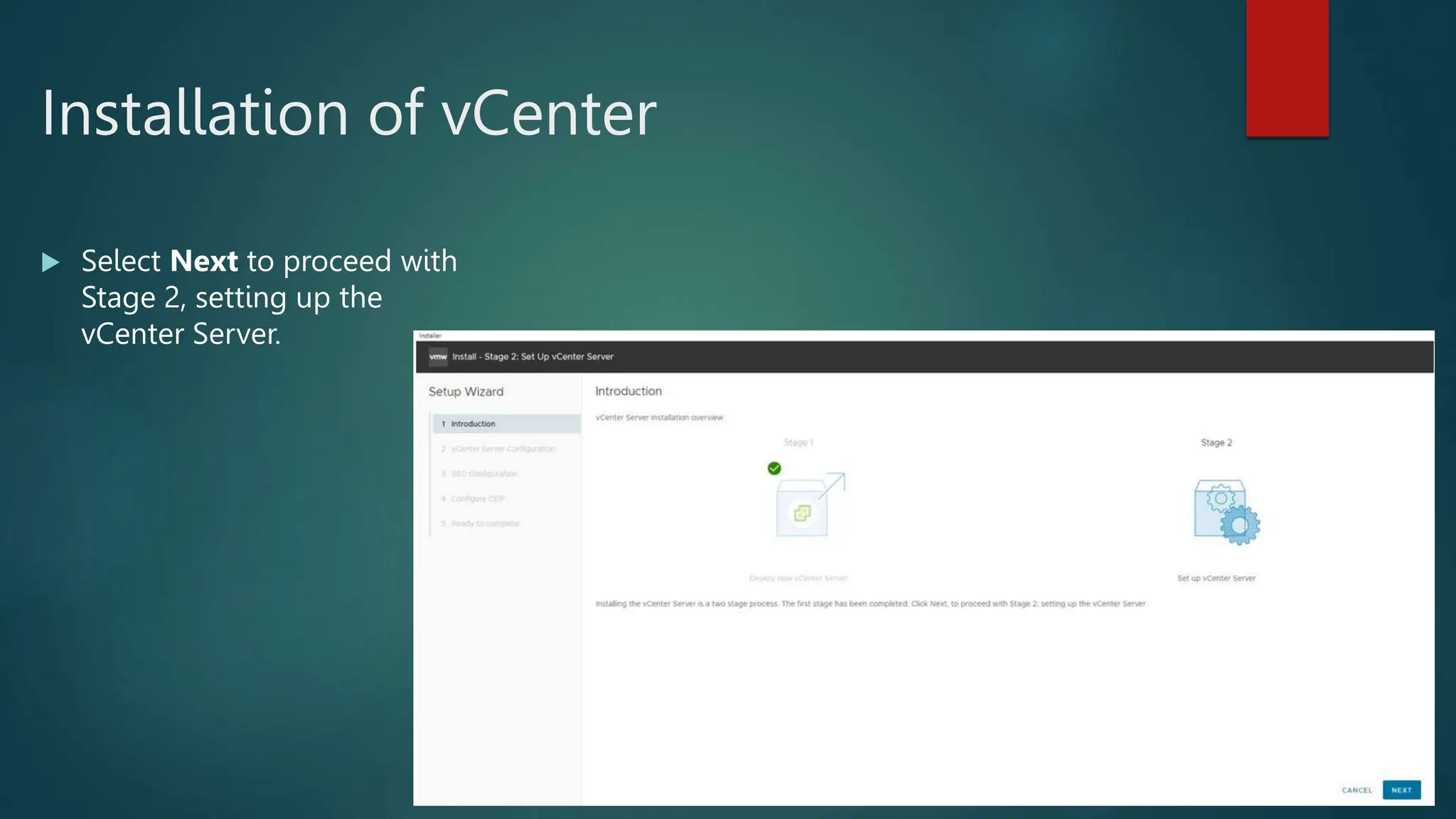
 Select Next to proceed with
Stage 2, setting up the
vCenter Server.
Installation of vCenter
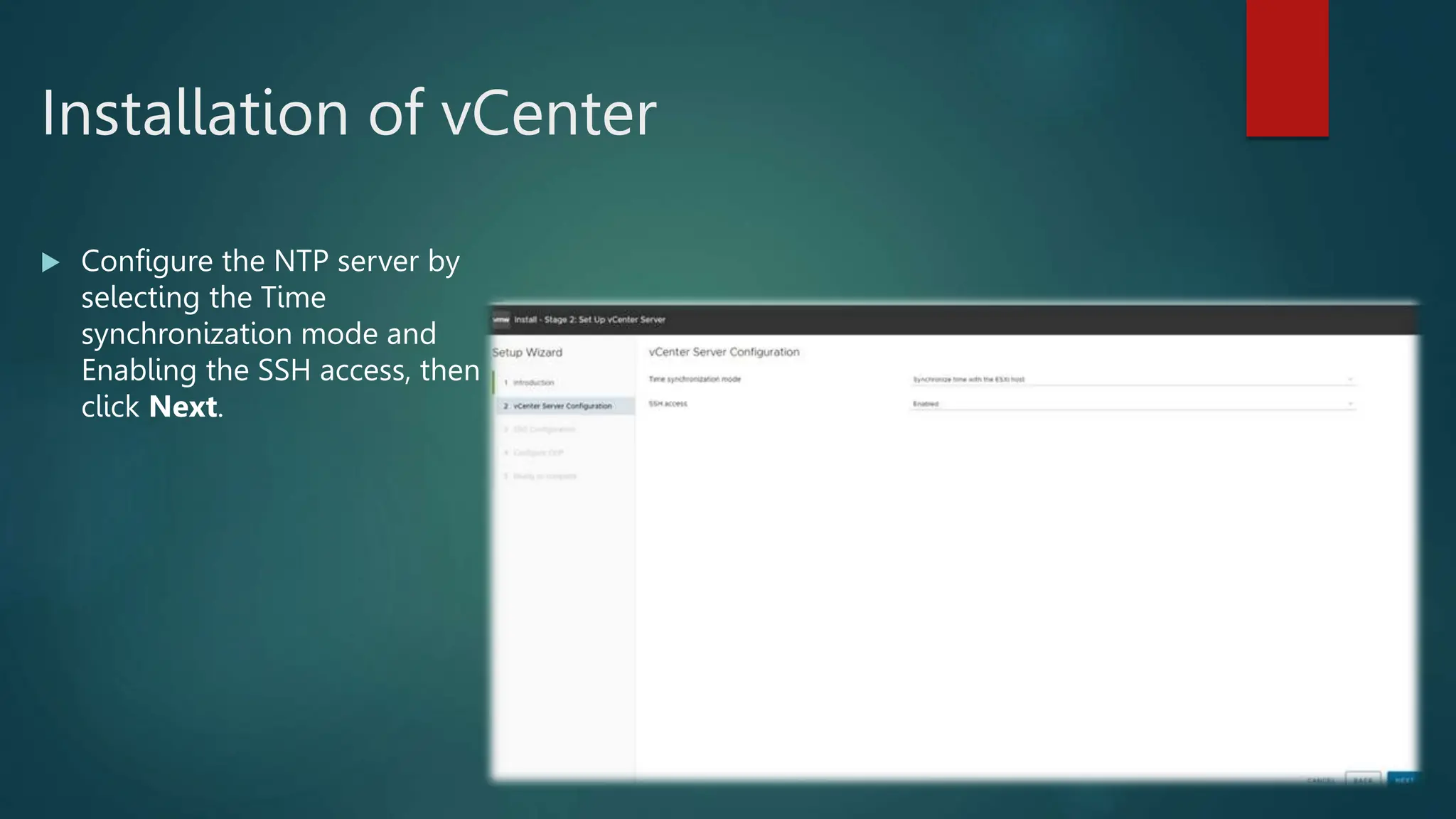
 Configure the NTP server by
selecting the Time
synchronization mode and
Enabling the SSH access, then
click Next.
Installation of vCenter
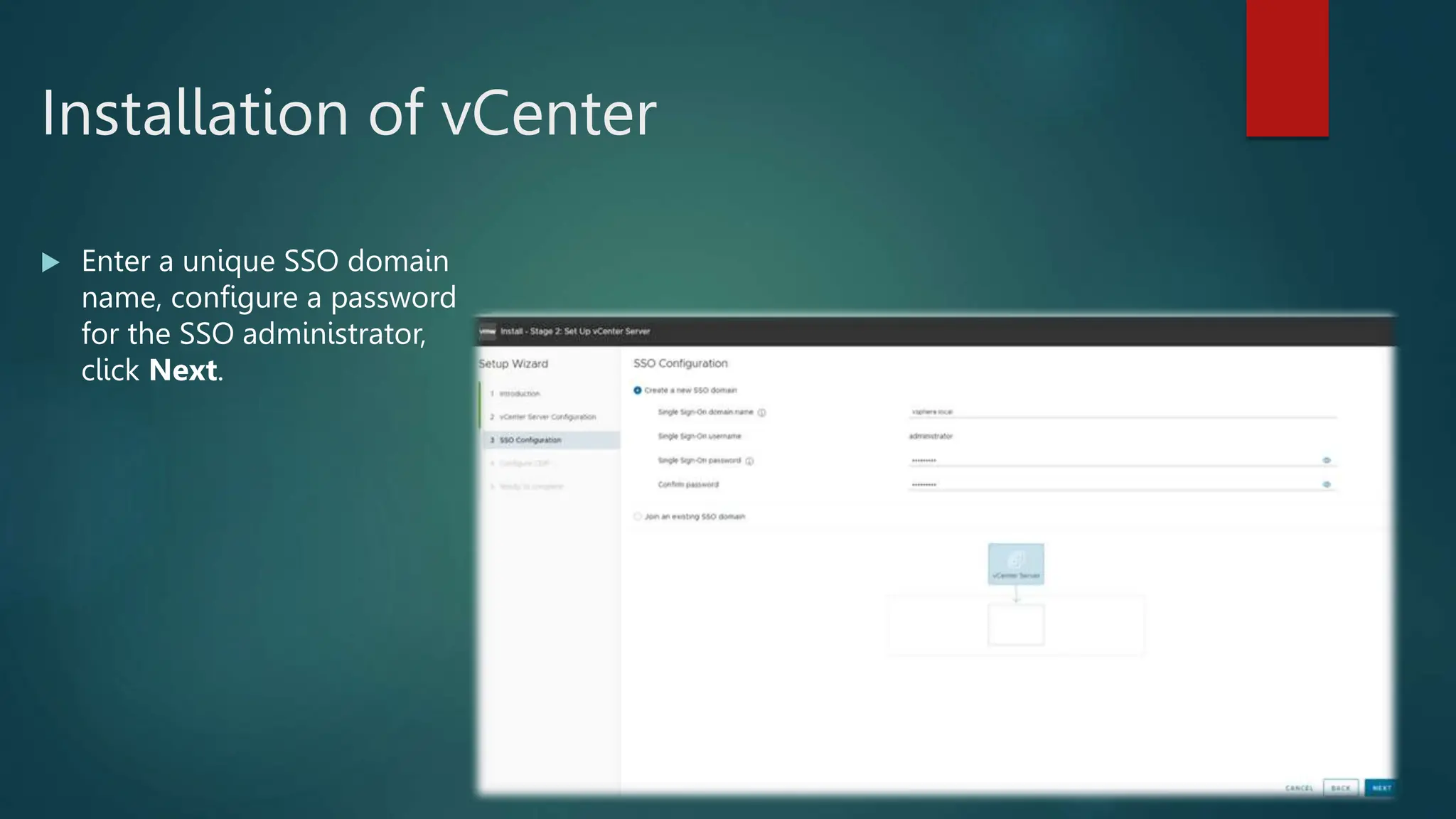
 Enter a unique SSO domain
name, configure a password
for the SSO administrator,
click Next.
Installation of vCenter
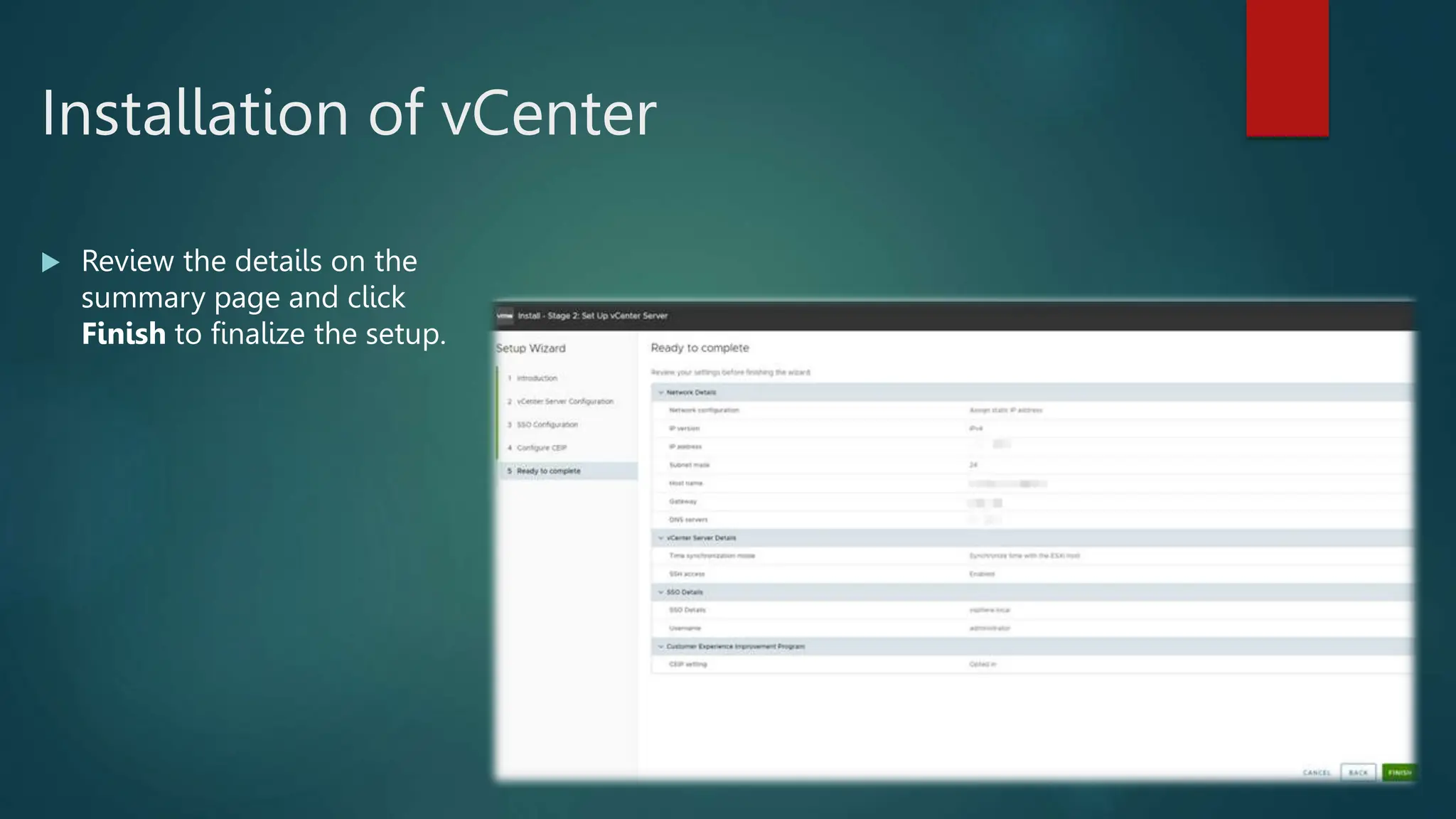
 Review the details on the
summary page and click
Finish to finalize the setup.
Installation of vCenter
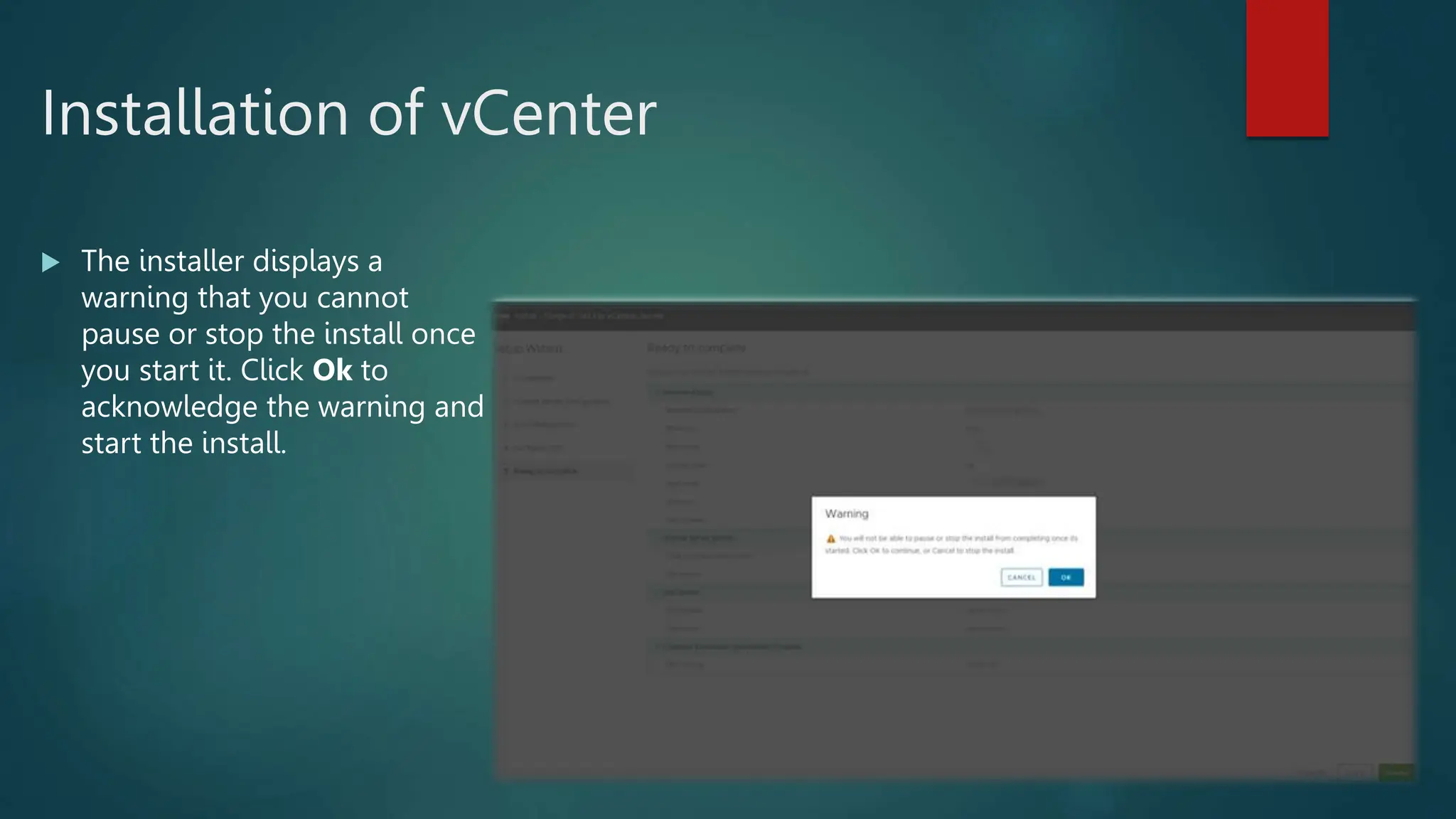
 The installer displays a
warning that you cannot
pause or stop the install once
you start it. Click Ok to
acknowledge the warning and
start the install.
Installation of vCenter
 The installer displays a
warning that you cannot
pause or stop the install once
you start it. Click Ok to
acknowledge the warning and
start the install.
Installation of vCenter
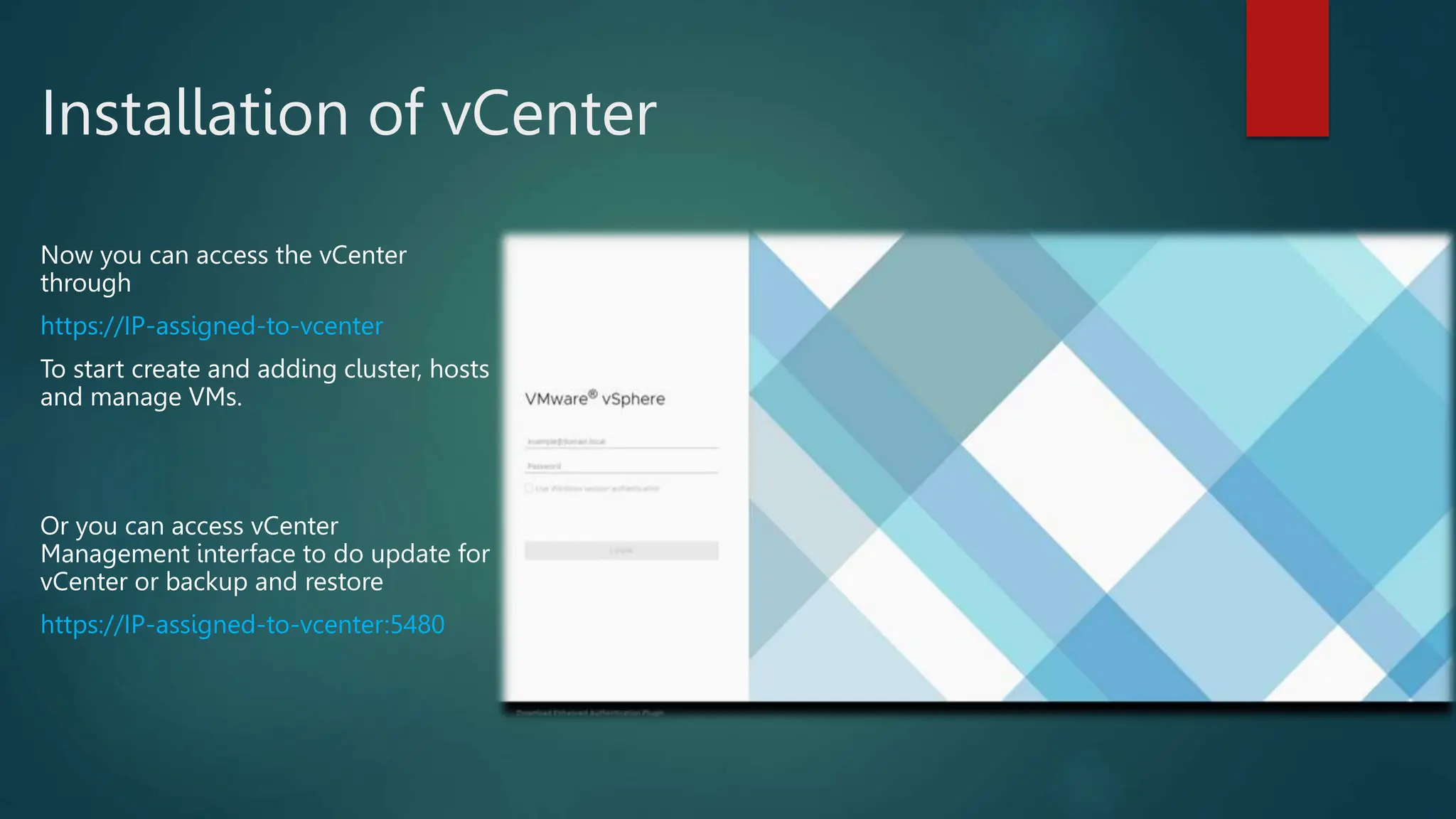
Now you can access the vCenter
through
https://IP-assigned-to-vcenter
To start create and adding cluster, hosts
and manage VMs.
Or you can access vCenter
Management interface to do update for
vCenter or backup and restore
https://IP-assigned-to-vcenter:5480
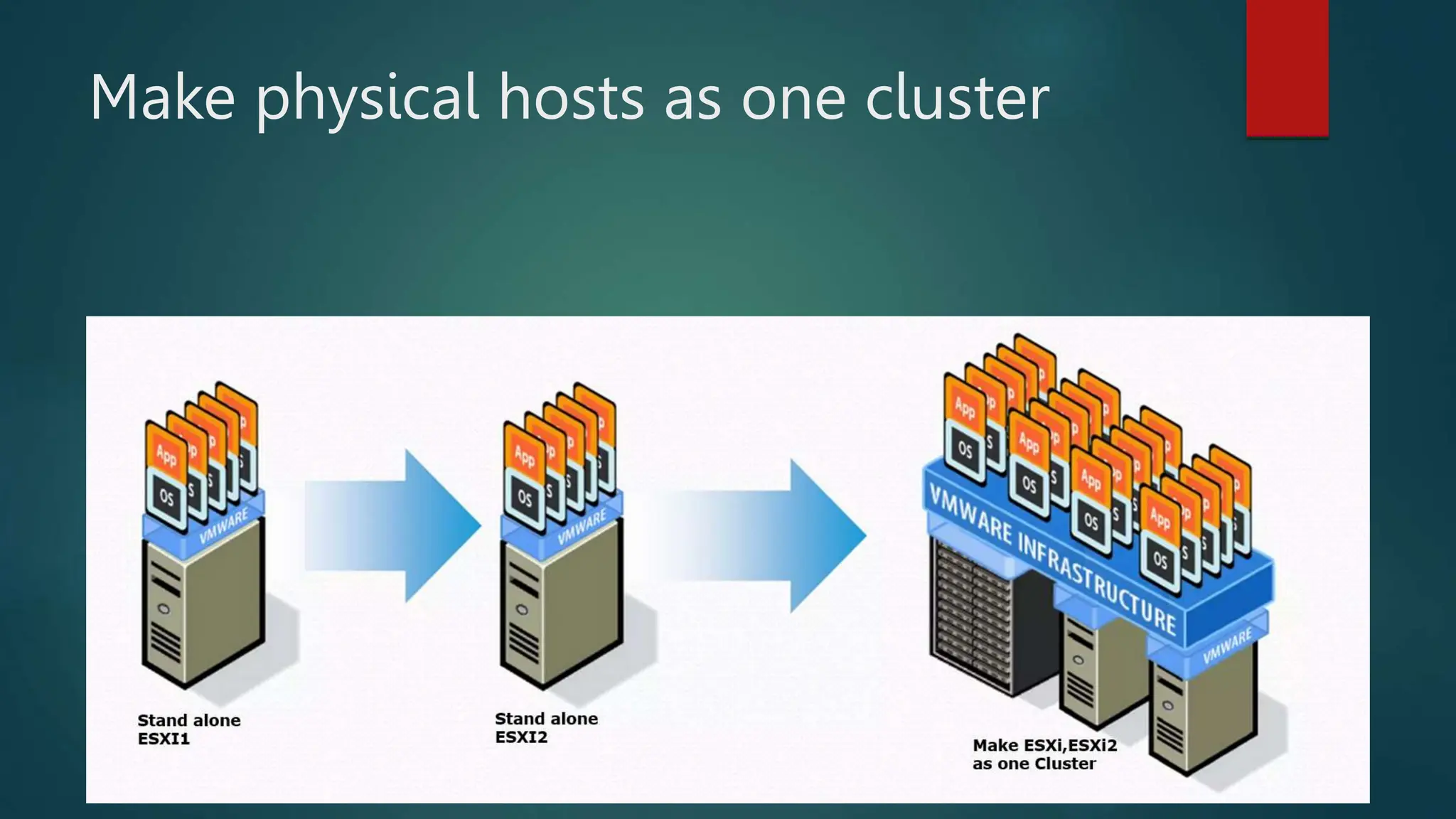
Make physical hosts as one cluster
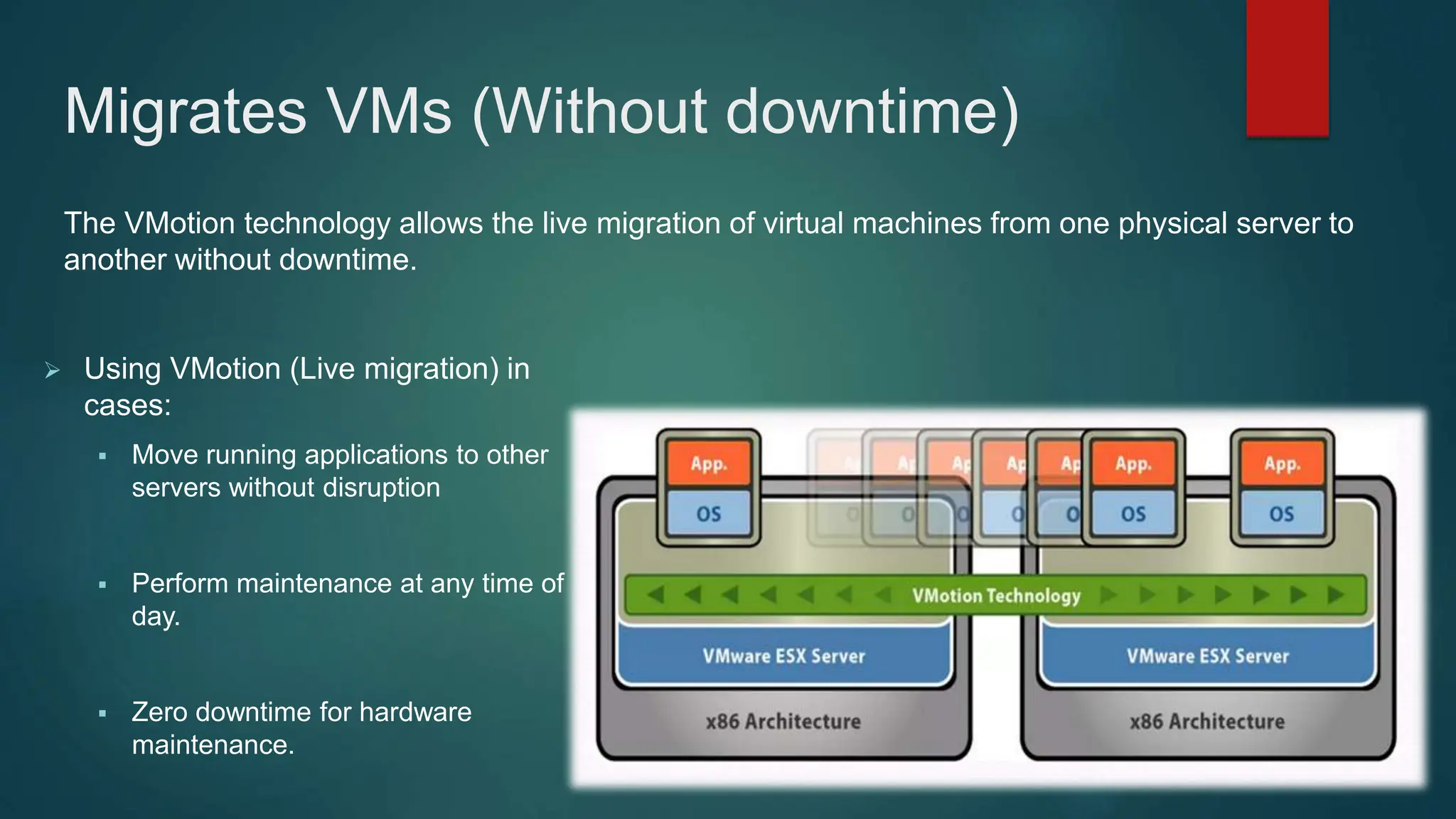
Migrates VMs (Without downtime)
 Using VMotion (Live migration) in
cases:
 Move running applications to other
servers without disruption
 Perform maintenance at any time of
day.
 Zero downtime for hardware
maintenance.
The VMotion technology allows the live migration of virtual machines from one physical server to
another without downtime.
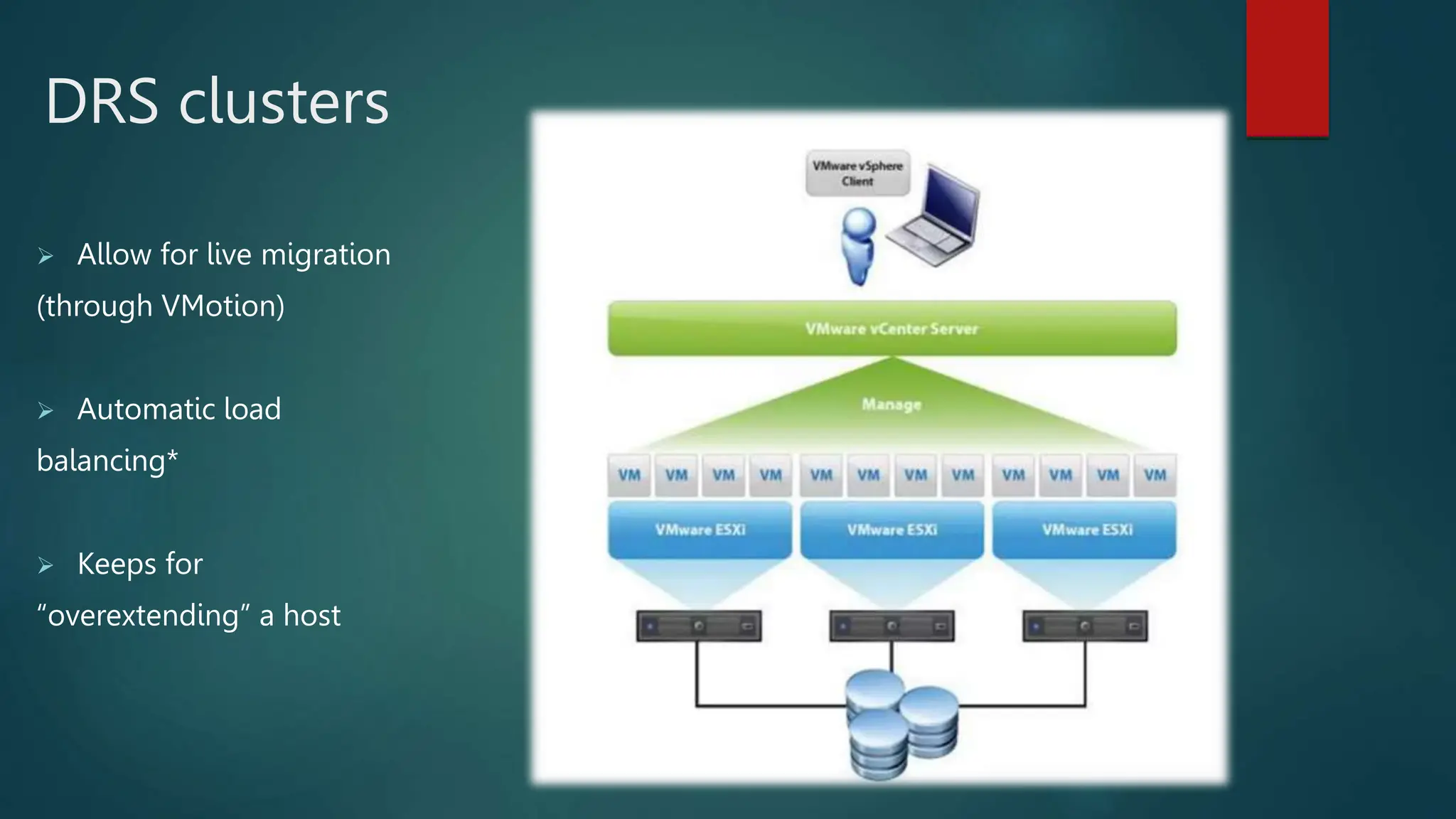
DRS clusters
 Allow for live migration
(through VMotion)
 Automatic load
balancing*
 Keeps for
“overextending” a host
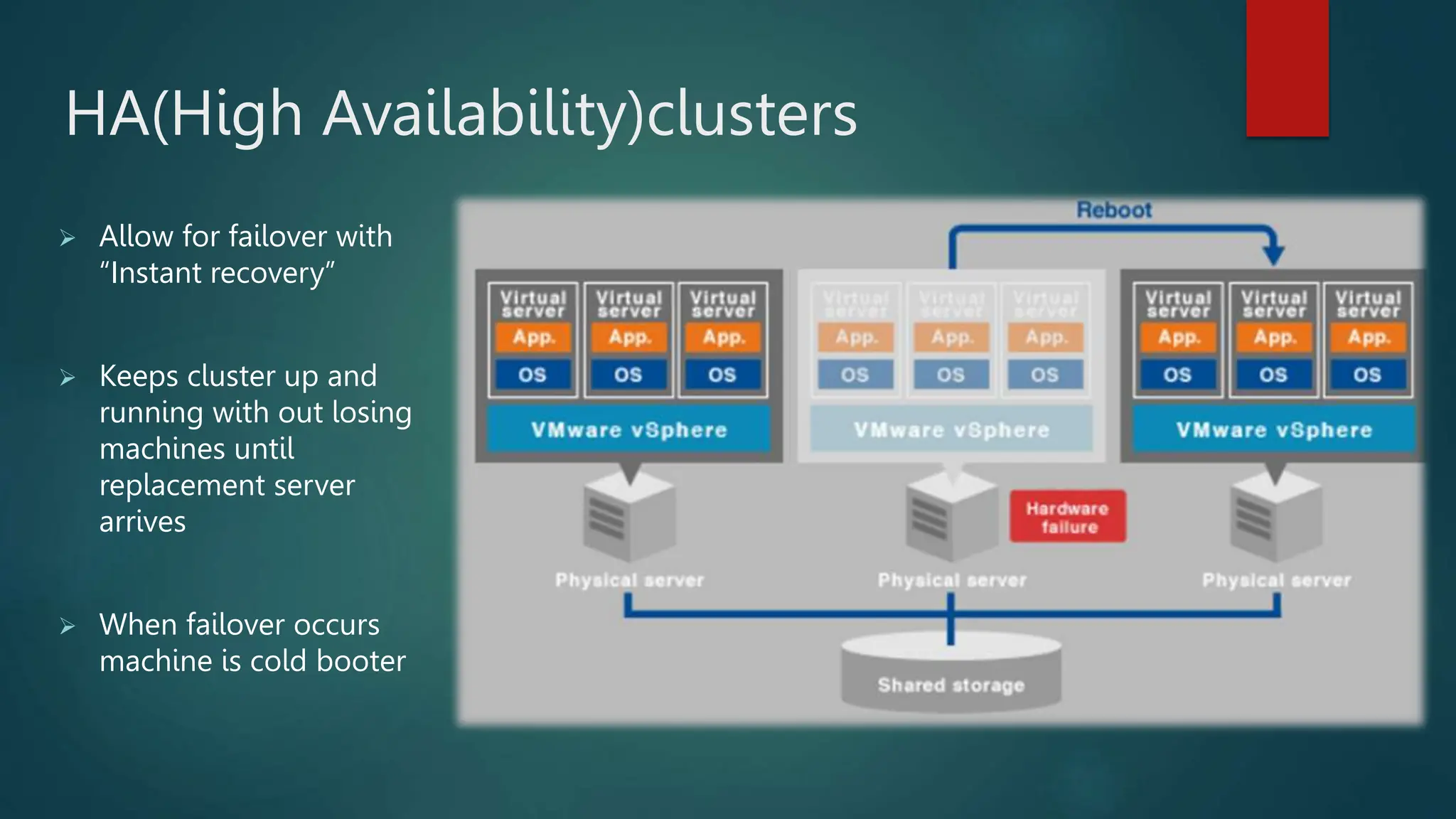
HA(High Availability)clusters
 Allow for failover with
“Instant recovery”
 Keeps cluster up and
running with out losing
machines until
replacement server
arrives
 When failover occurs
machine is cold booter
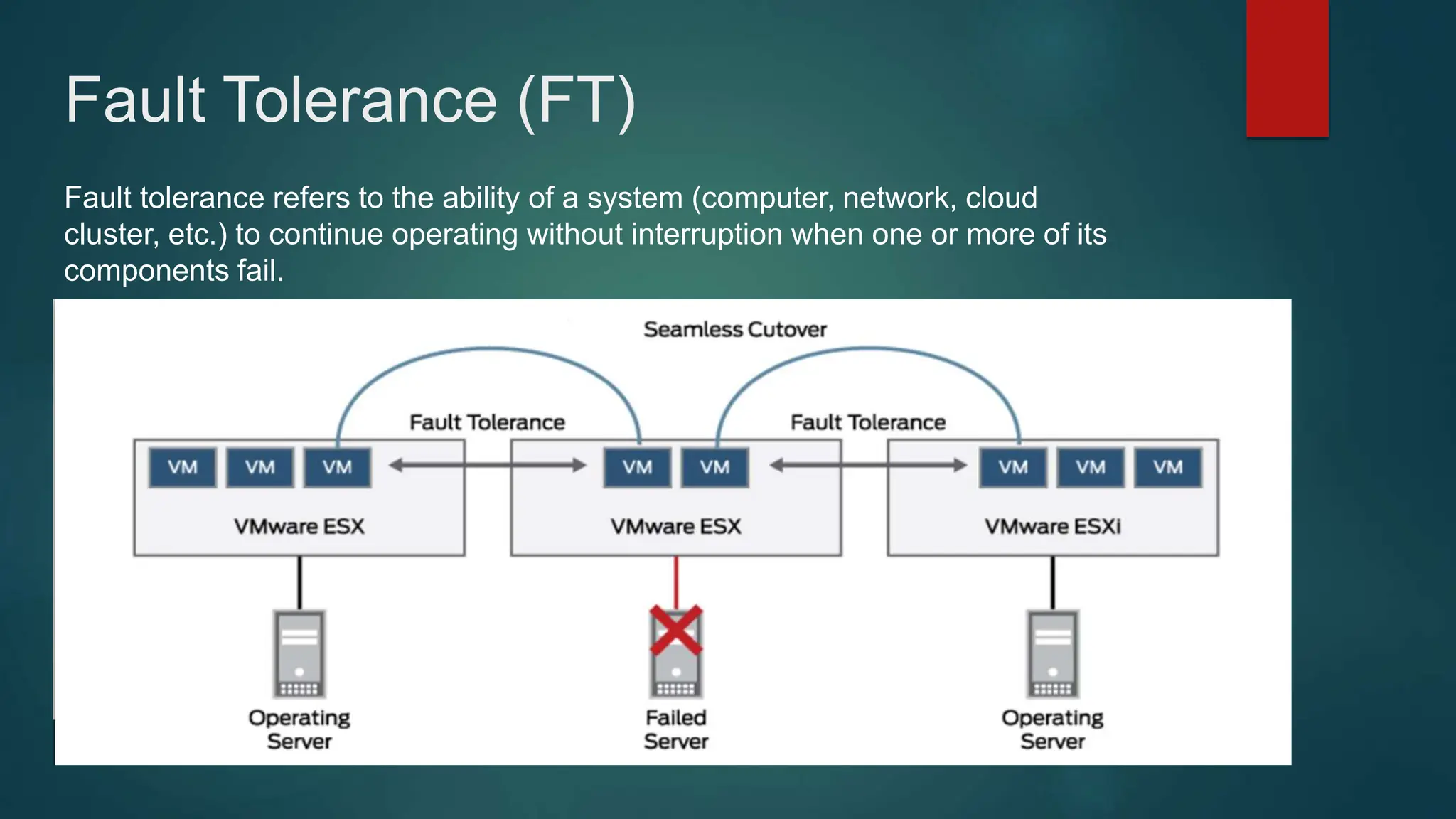
Fault Tolerance (FT)
Fault tolerance refers to the ability of a system (computer, network, cloud
cluster, etc.) to continue operating without interruption when one or more of its
components fail.
Vmware Data Center Virtualization ESXI and vCenter

Vmware Data Center Virtualization ESXI and vCenter

  • 1.
    PREPARED BY: AHMED SHAMEL SENIOR.SYSTEM ENGINEER INFOTECH BUSINESS SOLUTIONS PARTNER CONNECT - ADVANCED 2024
  • 2.
    At the endof this, you will be able to:  Will be able to install and configure ESXi (Hypervisor)  Will be able to do the VMWare vSphere administration  Will be able to troubleshoot everyday vSphere related issues  You will be able to create Virtual Machines  Will be able to create and add new network port groups and assigned VLANs  Will be able to install and Configure vCenter  Will be able to do Hot/Cold migration between ESXIs hypervisore.  Will have great exposure to VMWare HA and DRS technology
  • 3.
    Agenda  What isVirtualization  What is VMware  Virtual Vs Physical Infrastructure  Install, Configuration and Management VMware
  • 4.
    Terminology  Operating System(OS) Software designed to allocate physical resources to application. EX Microsoft window or Linux  Application Software that runs on an operating system, consuming physical resources. EX Chrome, Anydesk.  Virtual Machine (VM) Specialized application has abstracts hardware resources into software  Guest The operating system that runs into a VM also called guest operating system  Hypervisor Specialized operating system designed to run VMs. EX: ESXi, KVM, AHV, Hyper-V  Host Physical server that provides resources to ESXi hypervisor
  • 5.
     vSphere Server virtualizationproduct of VMware that combines the ESXi hypervisor and the vCenter server management platform.  Cluster Group of ESXi hosts whose resources are shared by VMs.  vSphere vMotion Feature that supports the migration of powered-on VMs from host to host without service interruption.  vSphere HA Cluster feature that protects against host hardware failures by restarting VMs on hosts that are running normally.  vSphere DRS Cluster Feature that uses vSphere vMotion to place VMs on hosts and ensure that each VM receives the resources that it needs. Terminology
  • 6.
    What is Virtualization Virtualizationis the ability to run “Multiple OS” on a “Single Physical System” and share the underlying hardware resources The main difficulties in traditional Architecture: • Each server required a space at the rack to be placed • Each server required dedicated power sources and consumed electricity • All emit the same heat, which means with an increase in the number of servers will need to increase the air conditioning system. • In case of server is down, the application inside remain down until the physical node back to work
  • 7.
    VMware ESXi VSVMware Workstation  VMware ESXi is a type-1 hypervisor that runs directly on the server hardware. It does not require a host operating system, and it can be installed directly on the server hardware.  VMware Workstation is a type-2 hypervisor that requires a host operating system to run. It is installed on top of an existing operating system, such as Windows or Linux.
  • 8.
    Key features ofthe VMware server  Partitioning • Different OS can run on one physical machine. • System resources can be divided between virtual machines  Isolation • Fault and security isolation on hardware level • Extended resource control for constant performance  Encapsulation • Complete status of VM can be stored in file • Move and copy of a VM is as easy as it is with files
  • 9.
    Time-consuming for traditionalVS. Virtualization  Eliminate recovery steps • No operating system re-install or bare-metal recovery • No time spent reconfiguring hardware  Standardized recovery process • Consistent process independent of operating system and hardware
  • 10.
    Thin VS Thick Storageprovisioning Provision type Thin provisioning Thick provisioning Total disk size grow as data written fixed Size at creation smaller larger Space saving yes no Creation time shorter longer Latency more less Need Monitoring more less NOTE: At any type of storage provisioning VM disk size can be increase but cannot be decrees, thus be careful when expand the VM disk size
  • 11.
    Install ESXI  DownloadESXI ISO for the intended version to you computer from the official link below https://customerconnect.vmware.com/downloads/details?downloadGroup=ESXI70U3N&productId=1230  Choosing the Installation Method Best practices for logs when booting from USB or similar.  Burn the download ISO into USB using any burn app like Rufus.  Attached this USB to your server and boot from this USB.  Start the installer using the arrow keys and press [ENTER] to begin booting the ESXi installer. A compatibility warning is displayed.  Press [ENTER] to proceed. The End User License Agreement (EULA) displays.
  • 12.
     Press [ENTER]to proceed. The End User License Agreement (EULA) displays.  Use the arrow keys to select the drive you want to install ESXi, and then press [ENTER] to continue. Install ESXI
  • 13.
     The ConfirmDisk Selection window displays Press [ENTER] to accept your selection and continue.  Please select a keyboard layout window displays. Select your desired keyboard layout using the arrow keys and then press [ENTER]. The Enter a root password window displays. Install ESXI
  • 14.
     Enter aroot password in the Root password field. Confirm the password in the Confirm password field and then press [ENTER] to proceed. The installer rescans the system.  It then displays the Confirm Install window. Press [F11] to proceed with the installation. Install ESXI
  • 15.
     The CompleteInstallation window displays when the installation process is completed. Press [ENTER] to reboot the system. (Make sure your installation media has been ejected and your bios set to the boot disk.)  It will can take several minutes to complete the reboot. The VMware ESXi screen displays when the boot completes. Install ESXI
  • 16.
     Press [F2].The Authentication Required window displays. Enter the root account credentials you created during the installation process and press [ENTER]. The System Customization screen displays.  Scroll down to select Configure Management Network and then press [ENTER]. The Configure Management Network window appears. Install ESXI
  • 17.
     Select theNetwork Adapters window and press [ENTER]. Use the arrow keys to select the adapter to use as the default management network and press [ENTER]. More than one management network can be selected for redundancy. Use space to select vmnic0 and vmnic1 to make them as team-NIC  Exit the menu with [ESC] and select the IPv4 Configuration window Install ESXI
  • 18.
     Press [ENTER]to apply the new DNS settings and return to the Configure Management Network menu Press [ESC] to exit the Configure Management Network menu. The Confirm Management Network popup window displays. Press [Y] to confirm your selection.  After applying Yes, now you can go to your web browser and request HTTPS with the same IP you just set. Install ESXI
  • 19.
    Create VM fromthe ESXi host client  Access through your browser to vSphere clients  Right-click on Host and select Create/Register VM.
  • 20.
    Create VM fromthe ESXi host client  At the next screen, select Create a new virtual machine and click Next.
  • 21.
    Create VM fromthe ESXi host client  Create a new virtual machine from scratch. You will be able to customize the VMs hardware. You will also need to install a guest operating system after creating the virtual machine.  Deploy a virtual machine from an OVF or an OVA file. With this option, you will be guided through the process of creating a virtual machine from a pre-configured appliance.  Register an existing virtual machine: This option guides you through registering a virtual machine that already exists on a datastore.
  • 22.
    Create VM fromthe ESXi host client  On the next screen, type a name for the new virtual machine and then select the guest OS family and version.* When done, click Next to continue. Selecting the right Guest OS family and version is very important, since they determine the VMware tools to be installed on the Guest OS.
  • 23.
    Create VM fromthe ESXi host client  At 'Select Storage' screen, select the location to store the Virtual machine's files and it's virtual disk and click Next.
  • 24.
    Create VM fromthe ESXi host client  Customize the available hardware resources, for the new virtual machine (VM), (e.g. the number of CPU's, the Memory & Disk size, etc.) and click Next when done.
  • 25.
    Create VM fromthe ESXi host client  Finally, review the configured settings and click Finish. Now you will see the new VM appear in Power of status and you can power-on it
  • 26.
    Upload ISO tothe datastore  Select Storage and then click Datastore browser.
  • 27.
    Upload ISO tothe datastore  Click Upload and then select the ISO installation file
  • 28.
  • 29.
    Installation of vCenter Download vCenter packages from the VMware site as zip. https://customerconnect.vmware. com/downloads/get- download?downloadGroup=VC7 0U3  Extract the ZIP and then access the path as shown at the image
  • 30.
    Installation of vCenter As we are installing a new instance, click Install.
  • 31.
    Installation of vCenter The install is two stages. We begin with Stage1: Deploy vCenter Server. Click Next to start.
  • 32.
    Installation of vCenter Read and accept the EULA, and then click Next to continue.
  • 33.
    Installation of vCenter Select the ESXi host on which to install the VCSA as a guest. This must be a host that runs ESXi 7 or later. Enter the IP address or fully qualified domain name (FQDN) of the chosen host, its root username, and password; then click Next.
  • 34.
    Installation of vCenter If your desktop can reach the host, you should see a certificate warning as it connects. This warning is due to the use of a self-signed certificate. If you are using a signed certificate, you will not see this warning. Click Yes to continue.
  • 35.
    Installation of vCenter When prompted after a successful connection, provide a VM name for the vCenter Server 7, type the passwords in the Set Root password field, and enter the root password again, and click Next.
  • 36.
    Installation of vCenter Select a deployment size appropriate to the number of hosts and virtual machines that vCenter Server will manage, then click Next.
  • 37.
    Installation of vCenter Select the datastore where the VCSA will be deployed, select thin provisioning if required, and click Next.
  • 38.
    Installation of vCenter choose an appropriate static IP address, and enter it into local DNS (e.g., on the Domain Controller). Once you can resolve the address, enter the IP address hostname on the network setting page, then scroll down and enter the remaining items. When all desired settings are complete, select Next.
  • 39.
    Installation of vCenter Review the settings before starting the vCenter Server deployment and click Finish to start the installation.
  • 40.
    Installation of vCenter The vCenter Server will start deploying on the specified target ESXi host. Installation progress can be viewed on the screen.
  • 41.
    Installation of vCenter With the VCSA now deployed, move on to stage 2 by clicking Continue.
  • 42.
    Installation of vCenter With the VCSA now deployed, move on to stage 2 by clicking Continue.
  • 43.
    Installation of vCenter Select Next to proceed with Stage 2, setting up the vCenter Server.
  • 44.
    Installation of vCenter Configure the NTP server by selecting the Time synchronization mode and Enabling the SSH access, then click Next.
  • 45.
    Installation of vCenter Enter a unique SSO domain name, configure a password for the SSO administrator, click Next.
  • 46.
    Installation of vCenter Review the details on the summary page and click Finish to finalize the setup.
  • 47.
    Installation of vCenter The installer displays a warning that you cannot pause or stop the install once you start it. Click Ok to acknowledge the warning and start the install.
  • 48.
    Installation of vCenter The installer displays a warning that you cannot pause or stop the install once you start it. Click Ok to acknowledge the warning and start the install.
  • 49.
    Installation of vCenter Nowyou can access the vCenter through https://IP-assigned-to-vcenter To start create and adding cluster, hosts and manage VMs. Or you can access vCenter Management interface to do update for vCenter or backup and restore https://IP-assigned-to-vcenter:5480
  • 50.
    Make physical hostsas one cluster
  • 52.
    Migrates VMs (Withoutdowntime)  Using VMotion (Live migration) in cases:  Move running applications to other servers without disruption  Perform maintenance at any time of day.  Zero downtime for hardware maintenance. The VMotion technology allows the live migration of virtual machines from one physical server to another without downtime.
  • 53.
    DRS clusters  Allowfor live migration (through VMotion)  Automatic load balancing*  Keeps for “overextending” a host
  • 54.
    HA(High Availability)clusters  Allowfor failover with “Instant recovery”  Keeps cluster up and running with out losing machines until replacement server arrives  When failover occurs machine is cold booter
  • 55.
    Fault Tolerance (FT) Faulttolerance refers to the ability of a system (computer, network, cloud cluster, etc.) to continue operating without interruption when one or more of its components fail.