How to Use Layers 
Josh Sampson
1st Step 
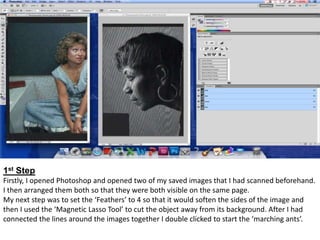
Firstly, I opened Photoshop and opened two of my saved images that I had scanned beforehand. 
I then arranged them both so that they were both visible on the same page. 
My next step was to set the ‘Feathers’ to 4 so that it would soften the sides of the image and 
then I used the ‘Magnetic Lasso Tool’ to cut the object away from its background. After I had 
connected the lines around the images together I double clicked to start the ‘marching ants’.
2nd Step 
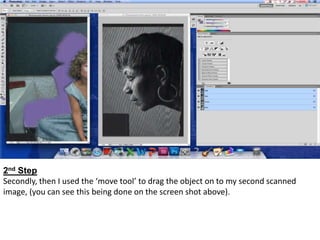
Secondly, then I used the ‘move tool’ to drag the object on to my second scanned 
image, (you can see this being done on the screen shot above).
3rd Step 
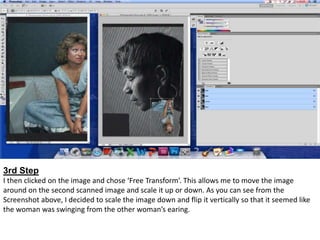
I then clicked on the image and chose ‘Free Transform’. This allows me to move the image 
around on the second scanned image and scale it up or down. As you can see from the 
Screenshot above, I decided to scale the image down and flip it vertically so that it seemed like 
the woman was swinging from the other woman’s earing.
4th Step 
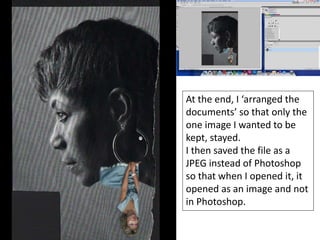
At the end, I ‘arranged the 
documents’ so that only the 
one image I wanted to be 
kept, stayed. 
I then saved the file as a 
JPEG instead of Photoshop 
so that when I opened it, it 
opened as an image and not 
in Photoshop.

How to Use Layers

  • 1.
    How to UseLayers Josh Sampson
  • 2.
    1st Step Firstly,I opened Photoshop and opened two of my saved images that I had scanned beforehand. I then arranged them both so that they were both visible on the same page. My next step was to set the ‘Feathers’ to 4 so that it would soften the sides of the image and then I used the ‘Magnetic Lasso Tool’ to cut the object away from its background. After I had connected the lines around the images together I double clicked to start the ‘marching ants’.
  • 3.
    2nd Step Secondly,then I used the ‘move tool’ to drag the object on to my second scanned image, (you can see this being done on the screen shot above).
  • 4.
    3rd Step Ithen clicked on the image and chose ‘Free Transform’. This allows me to move the image around on the second scanned image and scale it up or down. As you can see from the Screenshot above, I decided to scale the image down and flip it vertically so that it seemed like the woman was swinging from the other woman’s earing.
  • 5.
    4th Step Atthe end, I ‘arranged the documents’ so that only the one image I wanted to be kept, stayed. I then saved the file as a JPEG instead of Photoshop so that when I opened it, it opened as an image and not in Photoshop.