3600-4184_01_TN_ACS-Omron 
• 1 • 
Technical Note 
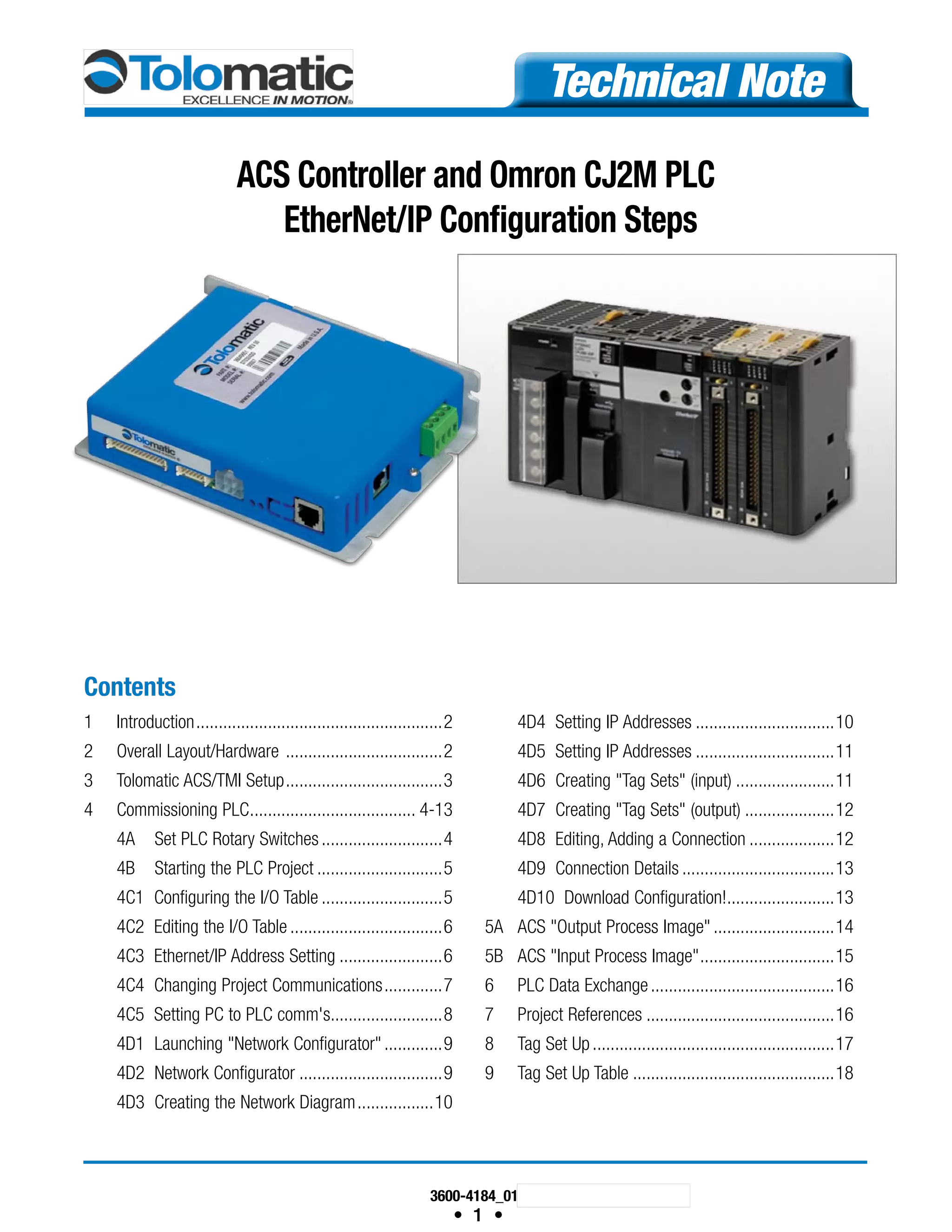
ACS Controller and Omron CJ2M PLC 
EtherNet/IP Configuration Steps 
Contents 
1 Introduction........................................................2 
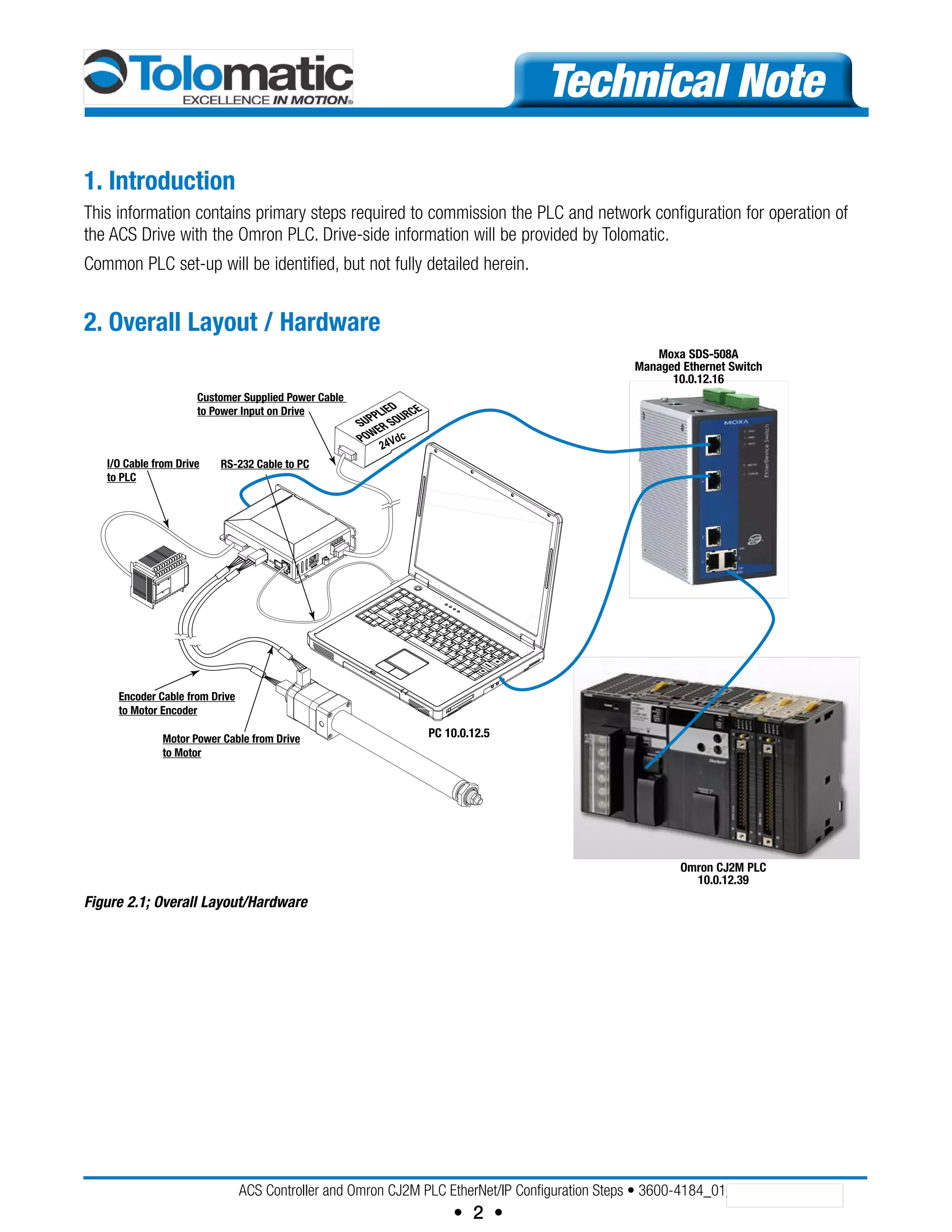
2 Overall Layout/Hardware ....................................2 
3 Tolomatic ACS/TMI Setup....................................3 
4 Commissioning PLC...................................... 4-13 
4A Set PLC Rotary Switches............................4 
4B Starting the PLC Project.............................5 
4C1 Configuring the I/O Table............................5 
4C2 Editing the I/O Table...................................6 
4C3 Ethernet/IP Address Setting........................6 
4C4 Changing Project Communications..............7 
4C5 Setting PC to PLC comm's..........................8 
4D1 Launching "Network Configurator"..............9 
4D2 Network Configurator.................................9 
4D3 Creating the Network Diagram..................10 
4D4 Setting IP Addresses................................10 
4D5 Setting IP Addresses................................11 
4D6 Creating "Tag Sets" (input).......................11 
4D7 Creating "Tag Sets" (output).....................12 
4D8 Editing, Adding a Connection....................12 
4D9 Connection Details...................................13 
4D10 Download Configuration!.........................13 
5A ACS "Output Process Image"............................14 
5B ACS "Input Process Image"...............................15 
6 PLC Data Exchange..........................................16 
7 Project References...........................................16 
8 Tag Set Up.......................................................17 
9 Tag Set Up Table..............................................18
Customer Supplied Power Cable 
to Power Input on Drive 
Moxa SDS-508A 
Managed Ethernet Switch 
10.0.12.16 
ACS Controller and Omron CJ2M PLC EtherNet/IP Configuration Steps • 3600-4184_01_TN_ACS-Omron 
• 2 • 
Technical Note 
1. Introduction 
This information contains primary steps required to commission the PLC and network configuration for operation of 
the ACS Drive with the Omron PLC. Drive-side information will be provided by Tolomatic. 
Common PLC set-up will be identified, but not fully detailed herein. 
2. Overall Layout / Hardware 
SUPPLIED 
POWER SOURCE 
24Vdc 
RS-232 Cable to PC 
I/O Cable from Drive 
to PLC 
Encoder Cable from Drive 
to Motor Encoder 
Motor Power Cable from Drive 
to Motor 
PC 10.0.12.5 
Omron CJ2M PLC 
10.0.12.39 
Figure 2.1; Overall Layout/Hardware
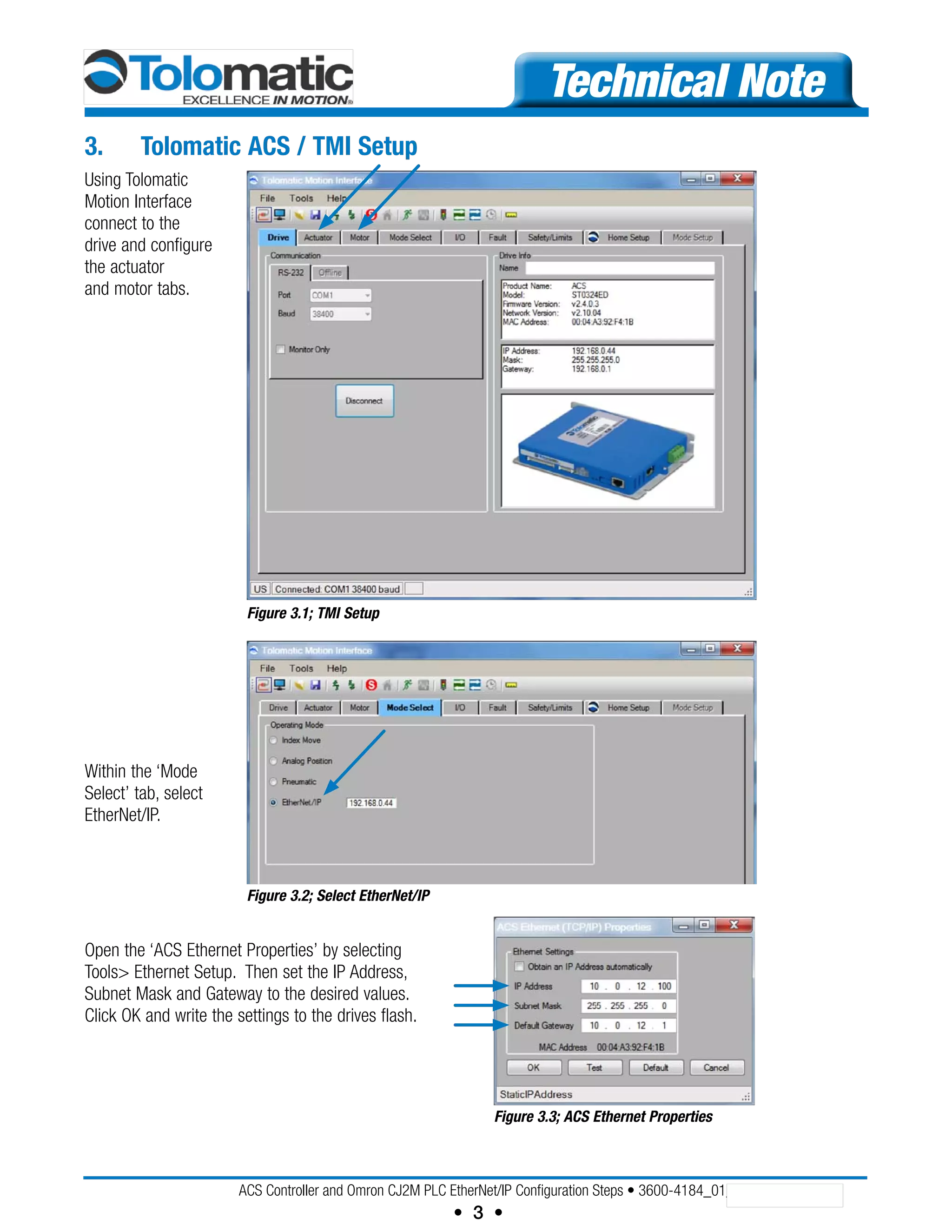
Figure 3.1; TMI Setup 
ACS Controller and Omron CJ2M PLC EtherNet/IP Configuration Steps • 3600-4184_01_TN_ACS-Omron 
• 3 • 
Technical Note 
3. Tolomatic ACS / TMI Setup 
Using Tolomatic 
Motion Interface 
connect to the 
drive and configure 
the actuator 
and motor tabs. 
Within the ‘Mode 
Select’ tab, select 
EtherNet/IP. 
Open the ‘ACS Ethernet Properties’ by selecting 
Tools> Ethernet Setup. Then set the IP Address, 
Subnet Mask and Gateway to the desired values. 
Click OK and write the settings to the drives flash. 
Figure 3.3; ACS Ethernet Properties 
Figure 3.2; Select EtherNet/IP
ACS Controller and Omron CJ2M PLC EtherNet/IP Configuration Steps • 3600-4184_01_TN_ACS-Omron 
• 4 • 
Technical Note 
4. Commission PLC 
A. Set PLC rotary switches as required Ethernet Modules Unit # and Node # 
B. Start project and connect via USB com. 
C. Register I/O table, set IP address, and Routing Table (if applicable, – if using more than one SIOU card) 
D. Download, discon., change comm. to Ethernet 
4A. Set PLC Rotary Switches 
Figure 4A.1; Set PLC Rotary Switches (CJ2H) 
Figure 4A.2; Set PLC Rotary Switches (CJ2M) 
Setting Rotary Switches 
Unit Number: 0-F, set to position 1 
(Each communications module on 
the Rack ass’y must have a unique 
number up to 16 on a system. 
More than 1 will require a routing 
table be set via CX-Integrator.) 
Node Number: 
Set “16X1” Sw to 2, and 16X0 Sw 
to 7. 
(These are “hex-based” settings 
which must match the last octet 
of software set IP address, 
this is done later via I/O table 
configuration.) 
In this case 27 hex = 39 decimal, 
our IP is 10.0.12.39 in this 
example.
ACS Controller and Omron CJ2M PLC EtherNet/IP Configuration Steps • 3600-4184_01_TN_ACS-Omron 
• 5 • 
Technical Note 
4B Starting the PLC Project 
1. Start new CX-Programmer project. 
2. Choose PLC Model 
3. Set CPU Version 
4. Use USB 
5. Choose OK. 
Figure 4B.1; Starting the PLC Projec 
4C1 Register I/O Table 
1. Get On-Line. 
2. Change or set 
CPU to Stop/ 
Program mode. 
3. Go into I/O Table 
4. From Options 
pull-down 
choose “Create”. 
Figure 4C1.1; Configuring the I/O Table
ACS Controller and Omron CJ2M PLC EtherNet/IP Configuration Steps • 3600-4184_01_TN_ACS-Omron 
• 6 • 
Technical Note 
4C2 Editing the I/O Table 
1. Result: cards on 
system are now 
registered to 
CPU 
2. (Built-in ‘EIP) 
3. (Other Cards on 
“rack”) 
{ 
Figure 4C2.1; Editing the I/O Table 
4C3 Ethernet/IP Address Settings 
1. Open ‘EIP card 
2. Set IP and 
sub-net. 
3. Transfer 
(PC to Unit) 
4. (Acknowledge 
following 
prompts 
accordingly.) 
Figure 4C3; Set IP Address
ACS Controller and Omron CJ2M PLC EtherNet/IP Configuration Steps • 3600-4184_01_TN_ACS-Omron 
• 7 • 
Technical Note 
4C4 Changing Project Communications 
1. Close I/O Table 
2. Go Off-Line 
3. Change comm. 
Settings 
4. Set IP to match 
settings made in 
I/O settings. 
(10.0.12.39) 
5. Choose OK 
Figure 4C4.1; Changing Project Communications
ACS Controller and Omron CJ2M PLC EtherNet/IP Configuration Steps • 3600-4184_01_TN_ACS-Omron 
• 8 • 
Technical Note 
4C5 Setting PC to PLC comm.'s 
1. Change your 
PC’s network 
card to an IP on 
the same subnet. 
2. “Ping test” your 
conn. w/PLC. 
3. Start, Run… 
Figure 4C5.1; Setting PC to PLC comm.'s
ACS Controller and Omron CJ2M PLC EtherNet/IP Configuration Steps • 3600-4184_01_TN_ACS-Omron 
• 9 • 
Technical Note 
4D1 Launching "Network Configurator" 
1. Go back On-Line 
2. Open I/O Table 
3. Expand view 
4. Right click 
on ‘EIP, 
then choose 
“Start Special 
Application”, 
“…with Setting 
Inherited”. 
5. Acknowledging 
prompts will 
start the Omron 
“Network 
Configurator” 
software tool. 
Figure 4D1.1; Launching "Network Configurator" 
4D2 Network Configurator 
Result 
This will be 
used in the 
following slides 
to commission 
the Ethernet/IP 
“Tag Data links” 
Figure 4D2.1; Network Configurator
ACS Controller and Omron CJ2M PLC EtherNet/IP Configuration Steps • 3600-4184_01_TN_ACS-Omron 
• 10 • 
Technical Note 
4D3 Creating the Network Diagram 
1. Obtain and 
install the ACS’s 
EDS file, use the 
“EDS File” pull-down. 
2. Expand the 
device tree 
3. Click and drag 
the CP2M out 
to the network 
diagram 
4. Click and drag 
the ACS drive 
controller out 
to the network 
diagram 
Figure 4D3.1; Creating the Network Diagram 
4D4 Setting IP Addresses 
1. Right Click on 
PLC icon and 
choose “Change 
Node Address” 
2. Set to 
10.0.12.39 
3. Choose OK 
Figure 4D4.1; Setting IP Addresses
ACS Controller and Omron CJ2M PLC EtherNet/IP Configuration Steps • 3600-4184_01_TN_ACS-Omron 
• 11 • 
Technical Note 
4D5 Setting IP Addresses 
1. Do the same for 
the ACS. 
(Our example 
will use 
10.0.12.100) 
2. Choose OK 
Figure 4D5.1; Setting IP Addresses 
4D6 Creating "Tag Sets" (input) 
1. Double-click PLC 
icon 
2. Choose “Tag 
Sets” tab 
3. Choose “Edit 
Tags” 
4. Choose “New” 
5. Enter an address 
in “Name” field. 
(Note, this is actually 
the address location 
you want the ACS’s 28 
bytes to be seen in the 
PLC’s memory.) 
6. Choose 
“Register”. 
(Since this completes 
the Input tag sets 
we need here click 
“Close”, and then 
“OK”) 
Figure 4D6.1; Creating "Tag Sets" (input)
ACS Controller and Omron CJ2M PLC EtherNet/IP Configuration Steps • 3600-4184_01_TN_ACS-Omron 
• 12 • 
Technical Note 
4D7 Creating "Tag Sets" (output) 
1. Click the “Out- 
Produce” tab. 
2. Click “Edit Tags” 
3. Enter an address 
in the “Name” 
field. 
(As before, this is 
actually the address 
location you wish to 
designate in the PLC 
for use in controlling 
the ACS) 
4. Choose 
“Register”. 
(Since this completes 
the Output tag sets 
we need here click 
“Close” and then 
“OK”) 
Figure 4D7.1; Creating "Tag Sets" (output) 
4D8 Editing, adding a Connection 
1. Go to 
connections tab 
2. Click here 
(To bring 
PLC down to 
“Register Device 
List) 
3. Result 
4 Double-click 
to edit 
(as seen next) 
Figure 4D8.1; Editing, adding a Connection
ACS Controller and Omron CJ2M PLC EtherNet/IP Configuration Steps • 3600-4184_01_TN_ACS-Omron 
• 13 • 
Technical Note 
4D9 Connection Details 
1. Change pull-down 
choices 
to following 
selections 
to create 
appropriate 
connections with 
the PLC! 
2. Click “Register 
Figure 4D9.1; Connection Details 
4D10 Download Configuration! 
Result! 
1. Choose OK. 
2. Click on PLC 
icon in network 
diagram. 
3. From the menu 
bar choose 
“Device”, then 
“Parameter”, 
then “download. 
Figure 4D10.1; Download Configuration!
ACS Controller and Omron CJ2M PLC EtherNet/IP Configuration Steps • 3600-4184_01_TN_ACS-Omron 
• 14 • 
Technical Note 
5A ACS "Output Process Image" 
1. Make up of 
“Output Ass’y” 
mapped for 
control from the 
PLC over the 
drive/actuator. 
PLC memory 
area 
W200-W215 
(32 Bytes = 16 Words) 
Figure 5A.1; ACS "Output Process Image"
ACS Controller and Omron CJ2M PLC EtherNet/IP Configuration Steps • 3600-4184_01_TN_ACS-Omron 
• 15 • 
Technical Note 
5B ACS "Input Process Image" 
1. Make-up of 
“Input Assembly” 
mapped for 
“feedback” to 
PLC 
PLC memory 
area 
W300-W313 
(28 Bytes = 14 Words) 
Figure 5B.1; ACS "Input Process Image"
ACS Controller and Omron CJ2M PLC EtherNet/IP Configuration Steps • 3600-4184_01_TN_ACS-Omron 
• 16 • 
Technical Note 
6 PLC Data Exchange 
1. Create Symbols, (not done here yet) and pull data into 
Watch Window to test run. 
Figure 6.1; PLC Data Exchange 
7 Project References 
• Omron CX-Programmer - Ref manuals, Installed with Suite 
• Omron Network Config. Tool for “E/IP – Ref manuals” 
• CJ2M Manuals – available at Omron247.com 
• Tolomatic Motion Interface, EDS files and manuals at Tolomatic.com 
Figure 7.1 Tolomatic #3604-4173 Figure 7.2 Tolomatic #3600-4167
ACS Controller and Omron CJ2M PLC EtherNet/IP Configuration Steps • 3600-4184_01_TN_ACS-Omron 
• 17 • 
Technical Note 
8 Tag Set Up 
Figure 8.1; Double click on symbols, edit the data tag. A list of tags/addresses needs to be made for each ACS parameter. 
Figure 8.2; Data tag values can be loaded by double clicking the tag.
ACS Controller and Omron CJ2M PLC EtherNet/IP Configuration Steps • 3600-4184_01_TN_ACS-Omron 
• 18 • 
Technical Note 
9 Tag Set Up Tables 
Figure 9.2; Example of Omron tags used in ladder logic program

How to setup ACS Controller and Omron CJ2M PLC EtherNet/IP Configuration Steps

  • 1.
    3600-4184_01_TN_ACS-Omron • 1• Technical Note ACS Controller and Omron CJ2M PLC EtherNet/IP Configuration Steps Contents 1 Introduction........................................................2 2 Overall Layout/Hardware ....................................2 3 Tolomatic ACS/TMI Setup....................................3 4 Commissioning PLC...................................... 4-13 4A Set PLC Rotary Switches............................4 4B Starting the PLC Project.............................5 4C1 Configuring the I/O Table............................5 4C2 Editing the I/O Table...................................6 4C3 Ethernet/IP Address Setting........................6 4C4 Changing Project Communications..............7 4C5 Setting PC to PLC comm's..........................8 4D1 Launching "Network Configurator"..............9 4D2 Network Configurator.................................9 4D3 Creating the Network Diagram..................10 4D4 Setting IP Addresses................................10 4D5 Setting IP Addresses................................11 4D6 Creating "Tag Sets" (input).......................11 4D7 Creating "Tag Sets" (output).....................12 4D8 Editing, Adding a Connection....................12 4D9 Connection Details...................................13 4D10 Download Configuration!.........................13 5A ACS "Output Process Image"............................14 5B ACS "Input Process Image"...............................15 6 PLC Data Exchange..........................................16 7 Project References...........................................16 8 Tag Set Up.......................................................17 9 Tag Set Up Table..............................................18
  • 2.
    Customer Supplied PowerCable to Power Input on Drive Moxa SDS-508A Managed Ethernet Switch 10.0.12.16 ACS Controller and Omron CJ2M PLC EtherNet/IP Configuration Steps • 3600-4184_01_TN_ACS-Omron • 2 • Technical Note 1. Introduction This information contains primary steps required to commission the PLC and network configuration for operation of the ACS Drive with the Omron PLC. Drive-side information will be provided by Tolomatic. Common PLC set-up will be identified, but not fully detailed herein. 2. Overall Layout / Hardware SUPPLIED POWER SOURCE 24Vdc RS-232 Cable to PC I/O Cable from Drive to PLC Encoder Cable from Drive to Motor Encoder Motor Power Cable from Drive to Motor PC 10.0.12.5 Omron CJ2M PLC 10.0.12.39 Figure 2.1; Overall Layout/Hardware
  • 3.
    Figure 3.1; TMISetup ACS Controller and Omron CJ2M PLC EtherNet/IP Configuration Steps • 3600-4184_01_TN_ACS-Omron • 3 • Technical Note 3. Tolomatic ACS / TMI Setup Using Tolomatic Motion Interface connect to the drive and configure the actuator and motor tabs. Within the ‘Mode Select’ tab, select EtherNet/IP. Open the ‘ACS Ethernet Properties’ by selecting Tools> Ethernet Setup. Then set the IP Address, Subnet Mask and Gateway to the desired values. Click OK and write the settings to the drives flash. Figure 3.3; ACS Ethernet Properties Figure 3.2; Select EtherNet/IP
  • 4.
    ACS Controller andOmron CJ2M PLC EtherNet/IP Configuration Steps • 3600-4184_01_TN_ACS-Omron • 4 • Technical Note 4. Commission PLC A. Set PLC rotary switches as required Ethernet Modules Unit # and Node # B. Start project and connect via USB com. C. Register I/O table, set IP address, and Routing Table (if applicable, – if using more than one SIOU card) D. Download, discon., change comm. to Ethernet 4A. Set PLC Rotary Switches Figure 4A.1; Set PLC Rotary Switches (CJ2H) Figure 4A.2; Set PLC Rotary Switches (CJ2M) Setting Rotary Switches Unit Number: 0-F, set to position 1 (Each communications module on the Rack ass’y must have a unique number up to 16 on a system. More than 1 will require a routing table be set via CX-Integrator.) Node Number: Set “16X1” Sw to 2, and 16X0 Sw to 7. (These are “hex-based” settings which must match the last octet of software set IP address, this is done later via I/O table configuration.) In this case 27 hex = 39 decimal, our IP is 10.0.12.39 in this example.
  • 5.
    ACS Controller andOmron CJ2M PLC EtherNet/IP Configuration Steps • 3600-4184_01_TN_ACS-Omron • 5 • Technical Note 4B Starting the PLC Project 1. Start new CX-Programmer project. 2. Choose PLC Model 3. Set CPU Version 4. Use USB 5. Choose OK. Figure 4B.1; Starting the PLC Projec 4C1 Register I/O Table 1. Get On-Line. 2. Change or set CPU to Stop/ Program mode. 3. Go into I/O Table 4. From Options pull-down choose “Create”. Figure 4C1.1; Configuring the I/O Table
  • 6.
    ACS Controller andOmron CJ2M PLC EtherNet/IP Configuration Steps • 3600-4184_01_TN_ACS-Omron • 6 • Technical Note 4C2 Editing the I/O Table 1. Result: cards on system are now registered to CPU 2. (Built-in ‘EIP) 3. (Other Cards on “rack”) { Figure 4C2.1; Editing the I/O Table 4C3 Ethernet/IP Address Settings 1. Open ‘EIP card 2. Set IP and sub-net. 3. Transfer (PC to Unit) 4. (Acknowledge following prompts accordingly.) Figure 4C3; Set IP Address
  • 7.
    ACS Controller andOmron CJ2M PLC EtherNet/IP Configuration Steps • 3600-4184_01_TN_ACS-Omron • 7 • Technical Note 4C4 Changing Project Communications 1. Close I/O Table 2. Go Off-Line 3. Change comm. Settings 4. Set IP to match settings made in I/O settings. (10.0.12.39) 5. Choose OK Figure 4C4.1; Changing Project Communications
  • 8.
    ACS Controller andOmron CJ2M PLC EtherNet/IP Configuration Steps • 3600-4184_01_TN_ACS-Omron • 8 • Technical Note 4C5 Setting PC to PLC comm.'s 1. Change your PC’s network card to an IP on the same subnet. 2. “Ping test” your conn. w/PLC. 3. Start, Run… Figure 4C5.1; Setting PC to PLC comm.'s
  • 9.
    ACS Controller andOmron CJ2M PLC EtherNet/IP Configuration Steps • 3600-4184_01_TN_ACS-Omron • 9 • Technical Note 4D1 Launching "Network Configurator" 1. Go back On-Line 2. Open I/O Table 3. Expand view 4. Right click on ‘EIP, then choose “Start Special Application”, “…with Setting Inherited”. 5. Acknowledging prompts will start the Omron “Network Configurator” software tool. Figure 4D1.1; Launching "Network Configurator" 4D2 Network Configurator Result This will be used in the following slides to commission the Ethernet/IP “Tag Data links” Figure 4D2.1; Network Configurator
  • 10.
    ACS Controller andOmron CJ2M PLC EtherNet/IP Configuration Steps • 3600-4184_01_TN_ACS-Omron • 10 • Technical Note 4D3 Creating the Network Diagram 1. Obtain and install the ACS’s EDS file, use the “EDS File” pull-down. 2. Expand the device tree 3. Click and drag the CP2M out to the network diagram 4. Click and drag the ACS drive controller out to the network diagram Figure 4D3.1; Creating the Network Diagram 4D4 Setting IP Addresses 1. Right Click on PLC icon and choose “Change Node Address” 2. Set to 10.0.12.39 3. Choose OK Figure 4D4.1; Setting IP Addresses
  • 11.
    ACS Controller andOmron CJ2M PLC EtherNet/IP Configuration Steps • 3600-4184_01_TN_ACS-Omron • 11 • Technical Note 4D5 Setting IP Addresses 1. Do the same for the ACS. (Our example will use 10.0.12.100) 2. Choose OK Figure 4D5.1; Setting IP Addresses 4D6 Creating "Tag Sets" (input) 1. Double-click PLC icon 2. Choose “Tag Sets” tab 3. Choose “Edit Tags” 4. Choose “New” 5. Enter an address in “Name” field. (Note, this is actually the address location you want the ACS’s 28 bytes to be seen in the PLC’s memory.) 6. Choose “Register”. (Since this completes the Input tag sets we need here click “Close”, and then “OK”) Figure 4D6.1; Creating "Tag Sets" (input)
  • 12.
    ACS Controller andOmron CJ2M PLC EtherNet/IP Configuration Steps • 3600-4184_01_TN_ACS-Omron • 12 • Technical Note 4D7 Creating "Tag Sets" (output) 1. Click the “Out- Produce” tab. 2. Click “Edit Tags” 3. Enter an address in the “Name” field. (As before, this is actually the address location you wish to designate in the PLC for use in controlling the ACS) 4. Choose “Register”. (Since this completes the Output tag sets we need here click “Close” and then “OK”) Figure 4D7.1; Creating "Tag Sets" (output) 4D8 Editing, adding a Connection 1. Go to connections tab 2. Click here (To bring PLC down to “Register Device List) 3. Result 4 Double-click to edit (as seen next) Figure 4D8.1; Editing, adding a Connection
  • 13.
    ACS Controller andOmron CJ2M PLC EtherNet/IP Configuration Steps • 3600-4184_01_TN_ACS-Omron • 13 • Technical Note 4D9 Connection Details 1. Change pull-down choices to following selections to create appropriate connections with the PLC! 2. Click “Register Figure 4D9.1; Connection Details 4D10 Download Configuration! Result! 1. Choose OK. 2. Click on PLC icon in network diagram. 3. From the menu bar choose “Device”, then “Parameter”, then “download. Figure 4D10.1; Download Configuration!
  • 14.
    ACS Controller andOmron CJ2M PLC EtherNet/IP Configuration Steps • 3600-4184_01_TN_ACS-Omron • 14 • Technical Note 5A ACS "Output Process Image" 1. Make up of “Output Ass’y” mapped for control from the PLC over the drive/actuator. PLC memory area W200-W215 (32 Bytes = 16 Words) Figure 5A.1; ACS "Output Process Image"
  • 15.
    ACS Controller andOmron CJ2M PLC EtherNet/IP Configuration Steps • 3600-4184_01_TN_ACS-Omron • 15 • Technical Note 5B ACS "Input Process Image" 1. Make-up of “Input Assembly” mapped for “feedback” to PLC PLC memory area W300-W313 (28 Bytes = 14 Words) Figure 5B.1; ACS "Input Process Image"
  • 16.
    ACS Controller andOmron CJ2M PLC EtherNet/IP Configuration Steps • 3600-4184_01_TN_ACS-Omron • 16 • Technical Note 6 PLC Data Exchange 1. Create Symbols, (not done here yet) and pull data into Watch Window to test run. Figure 6.1; PLC Data Exchange 7 Project References • Omron CX-Programmer - Ref manuals, Installed with Suite • Omron Network Config. Tool for “E/IP – Ref manuals” • CJ2M Manuals – available at Omron247.com • Tolomatic Motion Interface, EDS files and manuals at Tolomatic.com Figure 7.1 Tolomatic #3604-4173 Figure 7.2 Tolomatic #3600-4167
  • 17.
    ACS Controller andOmron CJ2M PLC EtherNet/IP Configuration Steps • 3600-4184_01_TN_ACS-Omron • 17 • Technical Note 8 Tag Set Up Figure 8.1; Double click on symbols, edit the data tag. A list of tags/addresses needs to be made for each ACS parameter. Figure 8.2; Data tag values can be loaded by double clicking the tag.
  • 18.
    ACS Controller andOmron CJ2M PLC EtherNet/IP Configuration Steps • 3600-4184_01_TN_ACS-Omron • 18 • Technical Note 9 Tag Set Up Tables Figure 9.2; Example of Omron tags used in ladder logic program