How To Measure Your
Marketing
Effectiveness
Agenda
• Introductions and Overview
• Which metrics indicate success?
• Where do I find this data?
• Advanced implementations and bringing it all together
• Questions & Answers
Introductions
A Brief Introduction to
Top Floor
Top Floor
• Website Design &
Development
• Search Engine
Marketing
• Web Analytics &
Conversion
Improvement
• Marketing & Branding
Strategy
Maximizing Online Marketing Results for Hundreds of
Businesses Since 1999
Getting the Most From
Today’s Workshop
Write down 2-3 learning points
that you will begin putting into
action within the next two weeks.
Then – follow through.
Today’s Speaker
Justin Kerley
SEO Manager, Top Floor
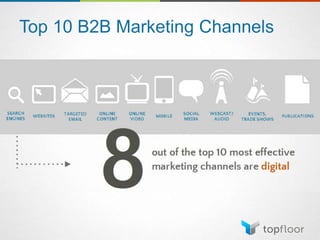
Top 10 B2B Marketing Channels
How do you know
what’s working?
What are your marketing goals?
• Clearly define your marketing
goals
• Understand the expected
outcomes from your
marketing efforts
• Identify which metrics will
indicate success
The Danger of Numbers
• Numbers can be used to tell
ANY story
• Metrics without context do not
tell the whole story
• Understand what each metric
measures and what changes
indicate
Before You Start
• Take a baseline
• If you are promoting existing content or have historical data
• Look at how your site/page is currently performing
• Note any past marketing efforts and their effect
• If you are marketing something brand new
• Look for like-products or similar pages to estimate performance
Goal 1: Promote a New Product
• Traffic to the product’s page – this will show how your marketing
efforts have affected the views of your product’s page
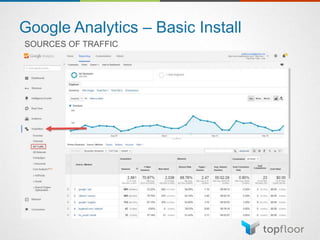
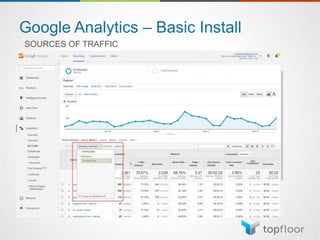
• Sources of the traffic – your marketing efforts may run the gamut of
various digital channels, make sure you look at the various channels
to measure the performance of each method
• Referral
• Paid Search
• Organic
• E-mail
• Social
Goal 1: Promote a New Product
• Site Search – this shows what users are searching for once they’ve
reached your site
• Your marketing efforts may have generated interest around your
brand and the product name, but may not have promoted the
specific page that features the product
• Many users utilize the site search to quickly find what they are
looking for
• Lead Generation Forms
• Contact Us
• Request for Quote
• Quick Question
Goal 1: Promote a New Product
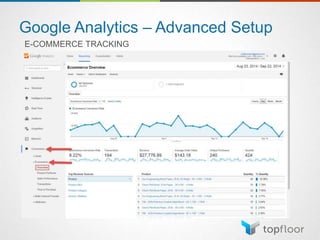
• Transactional data – if you run an e-commerce site, then these
metrics will show how your marketing efforts have affected the
bottom line
• Revenue – this shows how much money the product has generated.
NOTE: this number may include things like tax and shipping
depending on your Google Analytics implementation
• Average Order Value – this is a basic calculation of total revenue
divided by transactions, however if your product has or is a
complementary product, you may want to track changes to AOV
• Unique Purchases – this tracks how many times a product has
appeared in a transaction. Very useful when transactions typically
contain multiple different products
• Conversion Rate – the percentage of visitors to the site that include
an e-commerce purchase. This can help monitor the quality of traffic
that is entering the site
Goal 1: Promote a New Product
• Social Proof – many users look to customer
reviews/testimonials/endorsements of products before they make a
purchase
• User-generated content
• Testimonials
• Reviews
• Social Media Engagement
• Shares
• Likes
• Tweets
• +1’s
Goal 2: Increase Blog Followership
• Traffic to the blog
• Sources – this will help you understand what is driving traffic to the
blog.
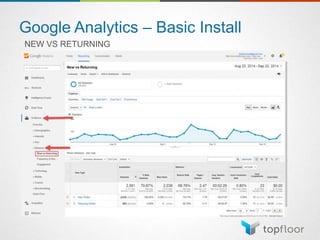
• New vs. Returning – a good metric for understanding if you blog is
generating new traffic or building a dedicated following
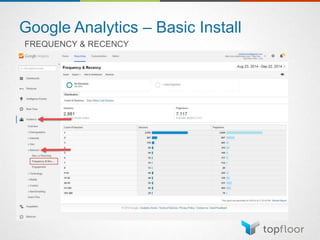
• Frequency & Recency – another report that can provide insights into
how often users return to the site and how many times
Goal 2: Increase Blog Followership
• Engagement
• Comments – many argue that this is the most important metric for a
blog’s success/failure.
• Shares/Likes/+1s – an indication of the value of the content is how
many times a user has shared that content with their followers
• Subscriptions to RSS Feeds/E-mail notifications – if you blog has an
RSS feed or a subscription to received e-mails regarding new
products, track how often a new user signs up
Goal 3: Build Brand Awareness
• Many of the metrics that indicate success with building brand
awareness are not measured within Google Analytics
• Changes in direct traffic can be an indicator of brand awareness
• Quantity of searches around your brand
• Social Engagement
Goal 3: Build Brand Awareness
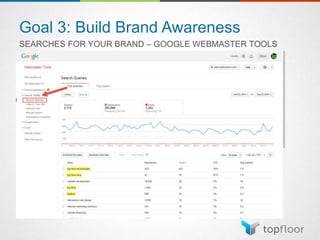
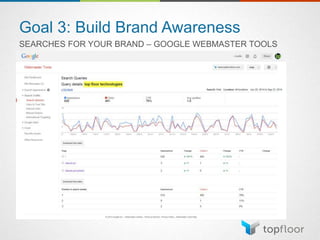
• Google Webmaster Tools
• Only 3 months of data
• Not 100% accurate
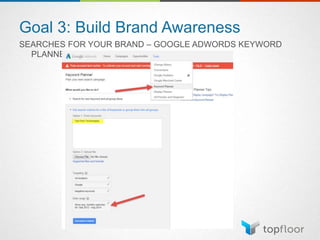
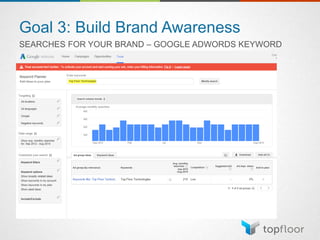
• Google AdWords Keyword Planner
• 2 years of data
• Monthly Estimates
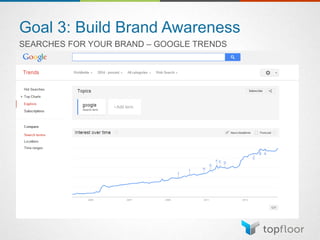
• Google Trends
• Longest data set – starting in January 2004
• Relative data – not actual search figures
• Your brand may not be large enough to track trends
SEARCHES FOR YOUR BRAND
Goal 3: Build Brand Awareness
SEARCHES FOR YOUR BRAND – GOOGLE WEBMASTER TOOLS
Goal 3: Build Brand Awareness
SEARCHES FOR YOUR BRAND – GOOGLE WEBMASTER TOOLS
Goal 3: Build Brand Awareness
SEARCHES FOR YOUR BRAND – GOOGLE ADWORDS KEYWORD
PLANNER
Goal 3: Build Brand Awareness
SEARCHES FOR YOUR BRAND – GOOGLE ADWORDS KEYWORD
PLANNER
Goal 3: Build Brand Awareness
SEARCHES FOR YOUR BRAND – GOOGLE TRENDS
Goal 3: Build Brand Awareness
• Trends in Followers/Likes/Circles
• Reach
• Tools to track
• Twittercounter.com
• Analytics.twitter.com
• Facebook Insights
• Google Insights
SOCIAL ENGAGEMENT
Where do you find this
data?
Google Analytics Checklist
• Traffic to a page
• Sources of traffic
• New vs. Returning
• Frequency & Recency
• Site Search
• Lead Generation/Form Submissions
• E-commerce data
• User Generated Content
• Social Engagement
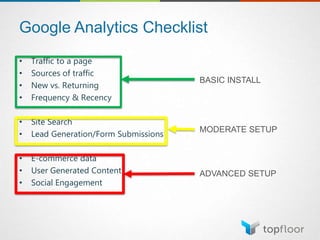
Google Analytics Checklist
• Traffic to a page
• Sources of traffic
• New vs. Returning
• Frequency & Recency
• Site Search
• Lead Generation/Form Submissions
• E-commerce data
• User Generated Content
• Social Engagement
BASIC INSTALL
MODERATE SETUP
ADVANCED SETUP
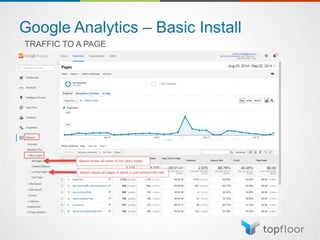
Google Analytics – Basic Install
TRAFFIC TO A PAGE
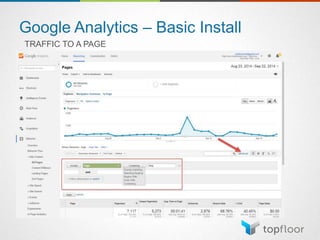
Google Analytics – Basic Install
TRAFFIC TO A PAGE
Google Analytics – Basic Install
SOURCES OF TRAFFIC
Google Analytics – Basic Install
SOURCES OF TRAFFIC
Google Analytics – Basic Install
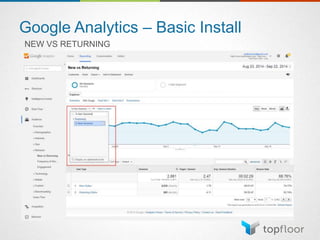
NEW VS RETURNING
Google Analytics – Basic Install
NEW VS RETURNING
Google Analytics – Basic Install
FREQUENCY & RECENCY
Let’s Take a Break
Google Analytics – Moderate Setup
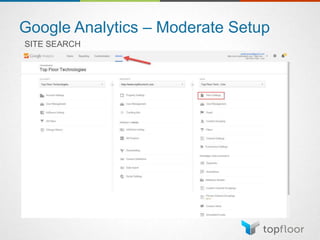
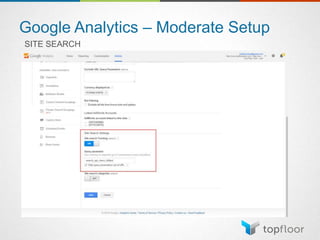
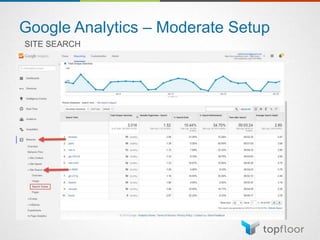
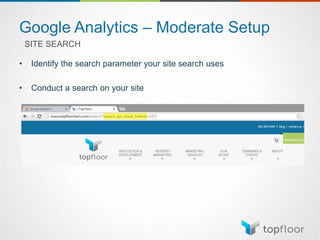
SITE SEARCH
• Identify the search parameter your site search uses
• Conduct a search on your site
Google Analytics – Moderate Setup
SITE SEARCH
Google Analytics – Moderate Setup
SITE SEARCH
Google Analytics – Moderate Setup
SITE SEARCH
Google Analytics – Moderate Setup
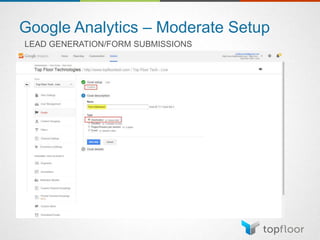
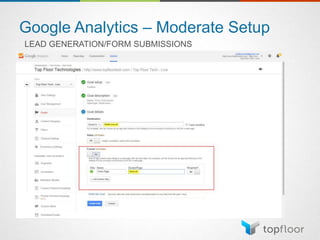
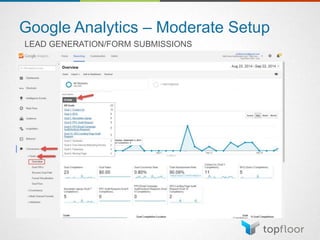
LEAD GENERATION/FORM SUBMISSIONS
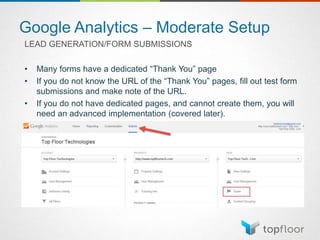
• Many forms have a dedicated “Thank You” page
• If you do not know the URL of the “Thank You” pages, fill out test form
submissions and make note of the URL.
• If you do not have dedicated pages, and cannot create them, you will
need an advanced implementation (covered later).
Google Analytics – Moderate Setup
LEAD GENERATION/FORM SUBMISSIONS
• Many forms have a dedicated “Thank You” page
• If you do not know the URL of the “Thank You” pages, fill out test form
submissions and make note of the URL.
• If you do not have dedicated pages, and cannot create them, you will
need an advanced implementation (covered later).
Google Analytics – Moderate Setup
LEAD GENERATION/FORM SUBMISSIONS
Google Analytics – Moderate Setup
LEAD GENERATION/FORM SUBMISSIONS
Google Analytics – Moderate Setup
LEAD GENERATION/FORM SUBMISSIONS
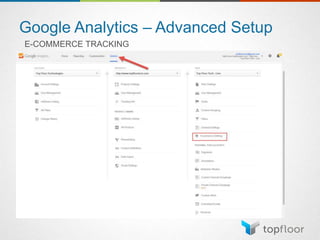
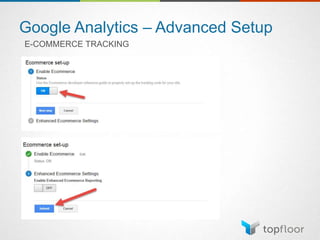
Google Analytics – Advanced Setup
E-COMMERCE TRACKING
• E-commerce tracking is not enabled by default
• Many content management systems have modules or plug-ins that can
add e-commerce tracking code to your site
• If you need to add this code manually, Google provides a developer’s
resource:
https://developers.google.com/analytics/devguides/collection/analyticsjs/
ecommerce
• I DO NOT ADVISE TRYING TO ADD THIS CODE WITHOUT
DEVELOPMENT EXPERIENCE
Google Analytics – Advanced Setup
E-COMMERCE TRACKING
Google Analytics – Advanced Setup
E-COMMERCE TRACKING
Google Analytics – Advanced Setup
E-COMMERCE TRACKING
Google Analytics – Advanced Setup
ENGAGEMENT
• There are many methods for users to engage with you site and content
that Google Analytics cannot track with the base install
• Blog comments
• Social Shares
• Clickable e-mail addresses
• Links to External sites
• These interactions either take place off-site (where you Google Analytics
code is not in use) or on-site without accessing the server (forcing
another call of the tracking code)
• Event tracking allows you to track these actions within Analytics
Google Analytics – Advanced Setup
EVENT TRACKING
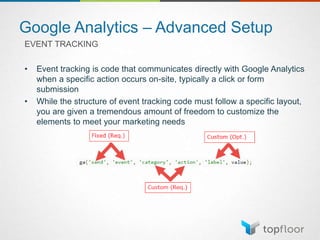
• Event tracking is code that communicates directly with Google Analytics
when a specific action occurs on-site, typically a click or form
submission
• While the structure of event tracking code must follow a specific layout,
you are given a tremendous amount of freedom to customize the
elements to meet your marketing needs
Google Analytics – Advanced Setup
EVENT TRACKING – REQUIRED FIELDS
• Category
• Use this field to differentiate between the different types of events
you are/will be tracking on-site
• We commonly use:
• “File Download”
• “E-mail”
• “Form Submission”
• Action
• Use this field to describe the action that is taken
• Most often it will be generic:
• “Click”
• “Submit”
Google Analytics – Advanced Setup
EVENT TRACKING – OPTIONAL FIELDS
• Label
• While this is an optional field, it can be extremely useful in helping
you further drill down into the events that take place on-site
• Example: If you are tracking clicks of e-mail addresses on your site,
and your site has multiple e-mails available, the label field can help
you separate and track clicks to each of the available addresses
• Value
• This is an arbitrary number that can help you track the value of an
event
• Example: You have determined that for every 10 e-mails you
receive, you close $50 in sales. Your value per e-mail would be $5.
Google Analytics – Advanced Setup
EVENT TRACKING - IMPLEMENTATION
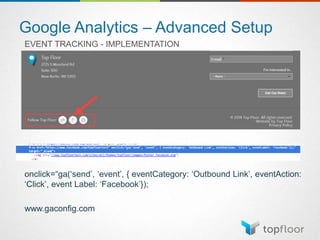
onclick=“ga(‘send’, ‘event’, { eventCategory: ‘Outbound Link’, eventAction:
‘Click’, event Label: ‘Facebook’});
www.gaconfig.com
Google Analytics – Advanced Setup
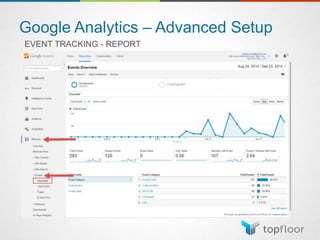
EVENT TRACKING - REPORT
Google Analytics – Advanced Setup
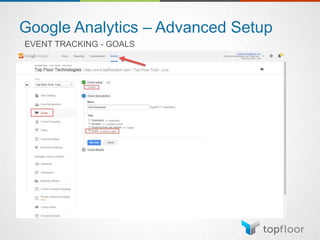
EVENT TRACKING - GOALS
Google Analytics – Advanced Setup
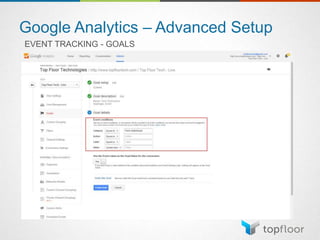
EVENT TRACKING - GOALS
How do I bring it all
together?
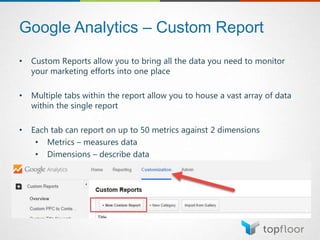
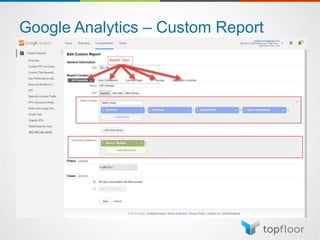
Google Analytics – Custom Report
• Custom Reports allow you to bring all the data you need to monitor
your marketing efforts into one place
• Multiple tabs within the report allow you to house a vast array of data
within the single report
• Each tab can report on up to 50 metrics against 2 dimensions
• Metrics – measures data
• Dimensions – describe data
Google Analytics – Custom Report
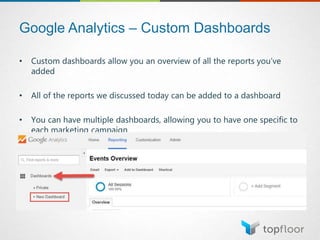
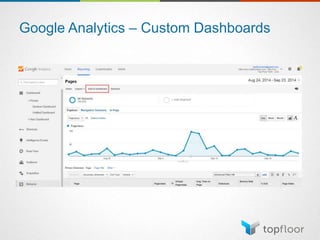
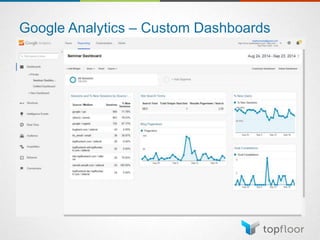
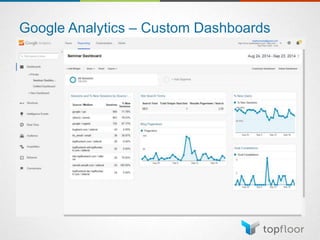
Google Analytics – Custom Dashboards
• Custom dashboards allow you an overview of all the reports you’ve
added
• All of the reports we discussed today can be added to a dashboard
• You can have multiple dashboards, allowing you to have one specific to
each marketing campaign
Google Analytics – Custom Dashboards
Google Analytics – Campaign Tagging
• Campaign tagging allows you to segment traffic that comes in from a
specific marketing effort.
• Any marketing effort in which you control either the links a user would
click or a page that you are directing users to can be tagged (Note:
Organic traffic CANNOT be tagged with custom campaign data)
• AdWords
• Social
• E-mail
• Print Ads*
• Radio Ads*
* THIS IS AN ADVANCED TACTIC. DATA WILL NOT BE 100% ACCURATE
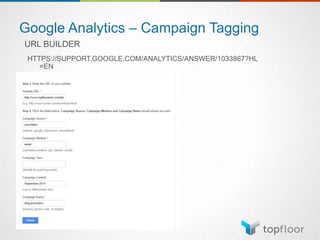
Google Analytics – Campaign Tagging
URL BUILDER
HTTPS://SUPPORT.GOOGLE.COM/ANALYTICS/ANSWER/1033867?HL
=EN
Google Analytics – Campaign Tagging
NON-DIGITAL TAGGING
• Create a URL that is specific to the print collateral
• Example: http://www.topfloortech.com/seo
• Example: http://www.topfloorseo.com
• Make it quick and to the point
• Ensure you do not use these URLs in any other mediums (business
cards, e-mail signatures etc…)
• Create a 301 redirect from the URL in use to the actual destination
landing page
• Within destination URL of the redirect, add the campaign tagging
data
• Users may only be familiar with the brand and may not remember the
exact URL used
• May resort to search engines to find you
Google Analytics – Campaign Tagging
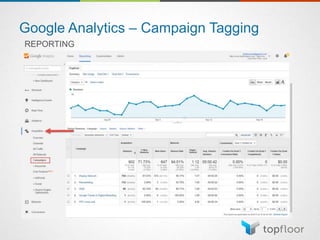
REPORTING
Thank You.
ANY QUESTIONS?

How to measure your marketing effectiveness

  • 1.
    How To MeasureYour Marketing Effectiveness
  • 2.
    Agenda • Introductions andOverview • Which metrics indicate success? • Where do I find this data? • Advanced implementations and bringing it all together • Questions & Answers
  • 3.
  • 4.
  • 5.
    Top Floor • WebsiteDesign & Development • Search Engine Marketing • Web Analytics & Conversion Improvement • Marketing & Branding Strategy Maximizing Online Marketing Results for Hundreds of Businesses Since 1999
  • 6.
    Getting the MostFrom Today’s Workshop Write down 2-3 learning points that you will begin putting into action within the next two weeks. Then – follow through.
  • 7.
  • 8.
    Top 10 B2BMarketing Channels
  • 9.
    How do youknow what’s working?
  • 10.
    What are yourmarketing goals? • Clearly define your marketing goals • Understand the expected outcomes from your marketing efforts • Identify which metrics will indicate success
  • 11.
    The Danger ofNumbers • Numbers can be used to tell ANY story • Metrics without context do not tell the whole story • Understand what each metric measures and what changes indicate
  • 12.
    Before You Start •Take a baseline • If you are promoting existing content or have historical data • Look at how your site/page is currently performing • Note any past marketing efforts and their effect • If you are marketing something brand new • Look for like-products or similar pages to estimate performance
  • 13.
    Goal 1: Promotea New Product • Traffic to the product’s page – this will show how your marketing efforts have affected the views of your product’s page • Sources of the traffic – your marketing efforts may run the gamut of various digital channels, make sure you look at the various channels to measure the performance of each method • Referral • Paid Search • Organic • E-mail • Social
  • 14.
    Goal 1: Promotea New Product • Site Search – this shows what users are searching for once they’ve reached your site • Your marketing efforts may have generated interest around your brand and the product name, but may not have promoted the specific page that features the product • Many users utilize the site search to quickly find what they are looking for • Lead Generation Forms • Contact Us • Request for Quote • Quick Question
  • 15.
    Goal 1: Promotea New Product • Transactional data – if you run an e-commerce site, then these metrics will show how your marketing efforts have affected the bottom line • Revenue – this shows how much money the product has generated. NOTE: this number may include things like tax and shipping depending on your Google Analytics implementation • Average Order Value – this is a basic calculation of total revenue divided by transactions, however if your product has or is a complementary product, you may want to track changes to AOV • Unique Purchases – this tracks how many times a product has appeared in a transaction. Very useful when transactions typically contain multiple different products • Conversion Rate – the percentage of visitors to the site that include an e-commerce purchase. This can help monitor the quality of traffic that is entering the site
  • 16.
    Goal 1: Promotea New Product • Social Proof – many users look to customer reviews/testimonials/endorsements of products before they make a purchase • User-generated content • Testimonials • Reviews • Social Media Engagement • Shares • Likes • Tweets • +1’s
  • 17.
    Goal 2: IncreaseBlog Followership • Traffic to the blog • Sources – this will help you understand what is driving traffic to the blog. • New vs. Returning – a good metric for understanding if you blog is generating new traffic or building a dedicated following • Frequency & Recency – another report that can provide insights into how often users return to the site and how many times
  • 18.
    Goal 2: IncreaseBlog Followership • Engagement • Comments – many argue that this is the most important metric for a blog’s success/failure. • Shares/Likes/+1s – an indication of the value of the content is how many times a user has shared that content with their followers • Subscriptions to RSS Feeds/E-mail notifications – if you blog has an RSS feed or a subscription to received e-mails regarding new products, track how often a new user signs up
  • 19.
    Goal 3: BuildBrand Awareness • Many of the metrics that indicate success with building brand awareness are not measured within Google Analytics • Changes in direct traffic can be an indicator of brand awareness • Quantity of searches around your brand • Social Engagement
  • 20.
    Goal 3: BuildBrand Awareness • Google Webmaster Tools • Only 3 months of data • Not 100% accurate • Google AdWords Keyword Planner • 2 years of data • Monthly Estimates • Google Trends • Longest data set – starting in January 2004 • Relative data – not actual search figures • Your brand may not be large enough to track trends SEARCHES FOR YOUR BRAND
  • 21.
    Goal 3: BuildBrand Awareness SEARCHES FOR YOUR BRAND – GOOGLE WEBMASTER TOOLS
  • 22.
    Goal 3: BuildBrand Awareness SEARCHES FOR YOUR BRAND – GOOGLE WEBMASTER TOOLS
  • 23.
    Goal 3: BuildBrand Awareness SEARCHES FOR YOUR BRAND – GOOGLE ADWORDS KEYWORD PLANNER
  • 24.
    Goal 3: BuildBrand Awareness SEARCHES FOR YOUR BRAND – GOOGLE ADWORDS KEYWORD PLANNER
  • 25.
    Goal 3: BuildBrand Awareness SEARCHES FOR YOUR BRAND – GOOGLE TRENDS
  • 26.
    Goal 3: BuildBrand Awareness • Trends in Followers/Likes/Circles • Reach • Tools to track • Twittercounter.com • Analytics.twitter.com • Facebook Insights • Google Insights SOCIAL ENGAGEMENT
  • 27.
    Where do youfind this data?
  • 28.
    Google Analytics Checklist •Traffic to a page • Sources of traffic • New vs. Returning • Frequency & Recency • Site Search • Lead Generation/Form Submissions • E-commerce data • User Generated Content • Social Engagement
  • 29.
    Google Analytics Checklist •Traffic to a page • Sources of traffic • New vs. Returning • Frequency & Recency • Site Search • Lead Generation/Form Submissions • E-commerce data • User Generated Content • Social Engagement BASIC INSTALL MODERATE SETUP ADVANCED SETUP
  • 30.
    Google Analytics –Basic Install TRAFFIC TO A PAGE
  • 31.
    Google Analytics –Basic Install TRAFFIC TO A PAGE
  • 32.
    Google Analytics –Basic Install SOURCES OF TRAFFIC
  • 33.
    Google Analytics –Basic Install SOURCES OF TRAFFIC
  • 34.
    Google Analytics –Basic Install NEW VS RETURNING
  • 35.
    Google Analytics –Basic Install NEW VS RETURNING
  • 36.
    Google Analytics –Basic Install FREQUENCY & RECENCY
  • 37.
  • 38.
    Google Analytics –Moderate Setup SITE SEARCH • Identify the search parameter your site search uses • Conduct a search on your site
  • 39.
    Google Analytics –Moderate Setup SITE SEARCH
  • 40.
    Google Analytics –Moderate Setup SITE SEARCH
  • 41.
    Google Analytics –Moderate Setup SITE SEARCH
  • 42.
    Google Analytics –Moderate Setup LEAD GENERATION/FORM SUBMISSIONS • Many forms have a dedicated “Thank You” page • If you do not know the URL of the “Thank You” pages, fill out test form submissions and make note of the URL. • If you do not have dedicated pages, and cannot create them, you will need an advanced implementation (covered later).
  • 43.
    Google Analytics –Moderate Setup LEAD GENERATION/FORM SUBMISSIONS • Many forms have a dedicated “Thank You” page • If you do not know the URL of the “Thank You” pages, fill out test form submissions and make note of the URL. • If you do not have dedicated pages, and cannot create them, you will need an advanced implementation (covered later).
  • 44.
    Google Analytics –Moderate Setup LEAD GENERATION/FORM SUBMISSIONS
  • 45.
    Google Analytics –Moderate Setup LEAD GENERATION/FORM SUBMISSIONS
  • 46.
    Google Analytics –Moderate Setup LEAD GENERATION/FORM SUBMISSIONS
  • 47.
    Google Analytics –Advanced Setup E-COMMERCE TRACKING • E-commerce tracking is not enabled by default • Many content management systems have modules or plug-ins that can add e-commerce tracking code to your site • If you need to add this code manually, Google provides a developer’s resource: https://developers.google.com/analytics/devguides/collection/analyticsjs/ ecommerce • I DO NOT ADVISE TRYING TO ADD THIS CODE WITHOUT DEVELOPMENT EXPERIENCE
  • 48.
    Google Analytics –Advanced Setup E-COMMERCE TRACKING
  • 49.
    Google Analytics –Advanced Setup E-COMMERCE TRACKING
  • 50.
    Google Analytics –Advanced Setup E-COMMERCE TRACKING
  • 51.
    Google Analytics –Advanced Setup ENGAGEMENT • There are many methods for users to engage with you site and content that Google Analytics cannot track with the base install • Blog comments • Social Shares • Clickable e-mail addresses • Links to External sites • These interactions either take place off-site (where you Google Analytics code is not in use) or on-site without accessing the server (forcing another call of the tracking code) • Event tracking allows you to track these actions within Analytics
  • 52.
    Google Analytics –Advanced Setup EVENT TRACKING • Event tracking is code that communicates directly with Google Analytics when a specific action occurs on-site, typically a click or form submission • While the structure of event tracking code must follow a specific layout, you are given a tremendous amount of freedom to customize the elements to meet your marketing needs
  • 53.
    Google Analytics –Advanced Setup EVENT TRACKING – REQUIRED FIELDS • Category • Use this field to differentiate between the different types of events you are/will be tracking on-site • We commonly use: • “File Download” • “E-mail” • “Form Submission” • Action • Use this field to describe the action that is taken • Most often it will be generic: • “Click” • “Submit”
  • 54.
    Google Analytics –Advanced Setup EVENT TRACKING – OPTIONAL FIELDS • Label • While this is an optional field, it can be extremely useful in helping you further drill down into the events that take place on-site • Example: If you are tracking clicks of e-mail addresses on your site, and your site has multiple e-mails available, the label field can help you separate and track clicks to each of the available addresses • Value • This is an arbitrary number that can help you track the value of an event • Example: You have determined that for every 10 e-mails you receive, you close $50 in sales. Your value per e-mail would be $5.
  • 55.
    Google Analytics –Advanced Setup EVENT TRACKING - IMPLEMENTATION onclick=“ga(‘send’, ‘event’, { eventCategory: ‘Outbound Link’, eventAction: ‘Click’, event Label: ‘Facebook’}); www.gaconfig.com
  • 56.
    Google Analytics –Advanced Setup EVENT TRACKING - REPORT
  • 57.
    Google Analytics –Advanced Setup EVENT TRACKING - GOALS
  • 58.
    Google Analytics –Advanced Setup EVENT TRACKING - GOALS
  • 59.
    How do Ibring it all together?
  • 60.
    Google Analytics –Custom Report • Custom Reports allow you to bring all the data you need to monitor your marketing efforts into one place • Multiple tabs within the report allow you to house a vast array of data within the single report • Each tab can report on up to 50 metrics against 2 dimensions • Metrics – measures data • Dimensions – describe data
  • 61.
    Google Analytics –Custom Report
  • 62.
    Google Analytics –Custom Dashboards • Custom dashboards allow you an overview of all the reports you’ve added • All of the reports we discussed today can be added to a dashboard • You can have multiple dashboards, allowing you to have one specific to each marketing campaign
  • 63.
    Google Analytics –Custom Dashboards
  • 64.
    Google Analytics –Custom Dashboards
  • 65.
    Google Analytics –Custom Dashboards
  • 66.
    Google Analytics –Campaign Tagging • Campaign tagging allows you to segment traffic that comes in from a specific marketing effort. • Any marketing effort in which you control either the links a user would click or a page that you are directing users to can be tagged (Note: Organic traffic CANNOT be tagged with custom campaign data) • AdWords • Social • E-mail • Print Ads* • Radio Ads* * THIS IS AN ADVANCED TACTIC. DATA WILL NOT BE 100% ACCURATE
  • 67.
    Google Analytics –Campaign Tagging URL BUILDER HTTPS://SUPPORT.GOOGLE.COM/ANALYTICS/ANSWER/1033867?HL =EN
  • 68.
    Google Analytics –Campaign Tagging NON-DIGITAL TAGGING • Create a URL that is specific to the print collateral • Example: http://www.topfloortech.com/seo • Example: http://www.topfloorseo.com • Make it quick and to the point • Ensure you do not use these URLs in any other mediums (business cards, e-mail signatures etc…) • Create a 301 redirect from the URL in use to the actual destination landing page • Within destination URL of the redirect, add the campaign tagging data • Users may only be familiar with the brand and may not remember the exact URL used • May resort to search engines to find you
  • 69.
    Google Analytics –Campaign Tagging REPORTING
  • 70.

Editor's Notes

  • #2 DO NOT PASTE CLIENT LOGOS. Pasting low res client logos is a violation of their brand standards and a poor reflection on us as an agency that offers branding. Use client name but no logo.
  • #3 Use this template for visual introductions – See pages 10, 11 and 12 for other photo options
  • #4 Use this template for visual introductions – See pages 10, 11 and 12 for other photo options
  • #5 Use this template for visual introductions – See pages 10, 11 and 12 for other photo options
  • #6 Use this template for visual introductions – See pages 10, 11 and 12 for other photo options
  • #7 Use this template for visual introductions – See pages 10, 11 and 12 for other photo options
  • #8 Use this template for visual introductions – See pages 10, 11 and 12 for other photo options
  • #9 Table size can be easily adjusted for larger lists
  • #10 Use this template for visual introductions – See pages 10, 11 and 12 for other photo options
  • #11 Table size can be easily adjusted for larger lists
  • #12 Table size can be easily adjusted for larger lists
  • #13 Table size can be easily adjusted for larger lists
  • #14 Table size can be easily adjusted for larger lists
  • #15 Table size can be easily adjusted for larger lists
  • #16 Table size can be easily adjusted for larger lists
  • #17 Table size can be easily adjusted for larger lists
  • #18 Table size can be easily adjusted for larger lists
  • #19 Table size can be easily adjusted for larger lists
  • #20 Table size can be easily adjusted for larger lists
  • #21 Table size can be easily adjusted for larger lists
  • #22 Table size can be easily adjusted for larger lists
  • #23 Table size can be easily adjusted for larger lists
  • #24 Table size can be easily adjusted for larger lists
  • #25 Table size can be easily adjusted for larger lists
  • #26 Table size can be easily adjusted for larger lists
  • #27 Table size can be easily adjusted for larger lists
  • #28 Use this template for visual introductions – See pages 10, 11 and 12 for other photo options
  • #29 Table size can be easily adjusted for larger lists
  • #30 Table size can be easily adjusted for larger lists
  • #31 Table size can be easily adjusted for larger lists
  • #32 Table size can be easily adjusted for larger lists
  • #33 Table size can be easily adjusted for larger lists
  • #34 Table size can be easily adjusted for larger lists
  • #35 Table size can be easily adjusted for larger lists
  • #36 Table size can be easily adjusted for larger lists
  • #37 Table size can be easily adjusted for larger lists
  • #38 Use this template for visual introductions – See pages 10, 11 and 12 for other photo options
  • #39 Table size can be easily adjusted for larger lists
  • #40 Table size can be easily adjusted for larger lists
  • #41 Table size can be easily adjusted for larger lists
  • #42 Table size can be easily adjusted for larger lists
  • #43 Table size can be easily adjusted for larger lists
  • #44 Table size can be easily adjusted for larger lists
  • #45 Table size can be easily adjusted for larger lists
  • #46 Table size can be easily adjusted for larger lists
  • #47 Table size can be easily adjusted for larger lists
  • #48 Table size can be easily adjusted for larger lists
  • #49 Table size can be easily adjusted for larger lists
  • #50 Table size can be easily adjusted for larger lists
  • #51 Table size can be easily adjusted for larger lists
  • #52 Table size can be easily adjusted for larger lists
  • #53 Table size can be easily adjusted for larger lists
  • #54 Table size can be easily adjusted for larger lists
  • #55 Table size can be easily adjusted for larger lists
  • #56 Table size can be easily adjusted for larger lists
  • #57 Table size can be easily adjusted for larger lists
  • #58 Table size can be easily adjusted for larger lists
  • #59 Table size can be easily adjusted for larger lists
  • #60 Use this template for visual introductions – See pages 10, 11 and 12 for other photo options
  • #61 Table size can be easily adjusted for larger lists
  • #62 Table size can be easily adjusted for larger lists
  • #63 Table size can be easily adjusted for larger lists
  • #64 Table size can be easily adjusted for larger lists
  • #65 Table size can be easily adjusted for larger lists
  • #66 Table size can be easily adjusted for larger lists
  • #67 Table size can be easily adjusted for larger lists
  • #68 Table size can be easily adjusted for larger lists
  • #69 Table size can be easily adjusted for larger lists
  • #70 Table size can be easily adjusted for larger lists