HOW TO CITE A 
DATABASE BY: TALAIYAH
STEP 1 
Click on Google Chrome or Internet Explore 
located on your task bar
STEP 2 
Go to the library website 
http://tinyurl.com/libraryatwilder
STEP 3 
Click on online 
resources
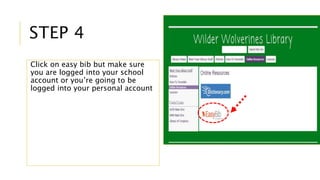
STEP 4 
Click on easy bib but make sure 
you are logged into your school 
account or you’re going to be 
logged into your personal account
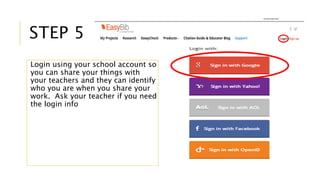
STEP 5 
Login using your school account so 
you can share your things with 
your teachers and they can identify 
who you are when you share your 
work. Ask your teacher if you need 
the login info
STEP 6 
Once you log in with your 
school email you’ll get to 
this page
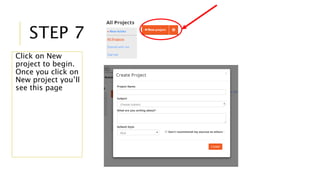
STEP 7 
Click on New 
project to begin. 
Once you click on 
New project you’ll 
see this page
STEP 8 
Once you reach that 
screen you will fill out 
the following 
Fill in your project 
name going to be 
writing about 
Choose the 
subject that 
the topic 
falls into 
Write a 
quick 
summary 
of what 
you’re 
writing 
about 
Always keep it on MLA 
Click create
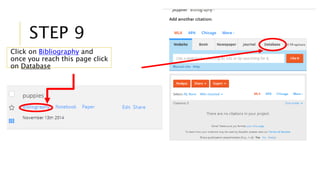
STEP 9 
Click on Bibliography and 
once you reach this page click 
on Database
STEP 10 
Once you have clicked on 
database open another 
tab on your browser and 
go back to the library 
website and click on 
OneSearch. Also located 
on the library home page.
STEP 11 
When you 
enter 
OneSearch 
click on the 
middle school 
one to begin 
(you may need 
your hpcs login 
to use 
OneSearch)
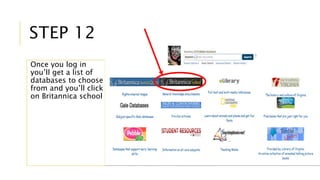
STEP 12 
Once you log in 
you’ll get a list of 
databases to choose 
from and you’ll click 
on Britannica school
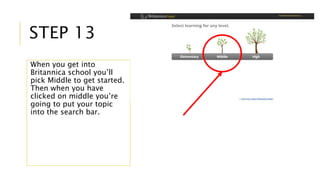
STEP 13 
When you get into 
Britannica school you’ll 
pick Middle to get started. 
Then when you have 
clicked on middle you’re 
going to put your topic 
into the search bar.
STEP 14 
When you have 
searched for your topic 
then you’re going to 
pick an article or image 
to cite.
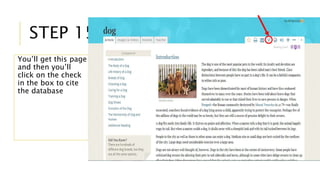
STEP 15 
You’ll get this page 
and then you’ll 
click on the check 
in the box to cite 
the database
STEP 16 
When you click the 
check in the box you’ll 
see this pop up you’ll 
copy the whole link and 
then you’ll go back to 
your other tab and click 
on copy & paste to 
continue
STEP 17 
Then you’ll see this and 
then you will click create 
and you’re done
THE END

How to Cite a Database on EasyBib

  • 1.
    HOW TO CITEA DATABASE BY: TALAIYAH
  • 2.
    STEP 1 Clickon Google Chrome or Internet Explore located on your task bar
  • 3.
    STEP 2 Goto the library website http://tinyurl.com/libraryatwilder
  • 4.
    STEP 3 Clickon online resources
  • 5.
    STEP 4 Clickon easy bib but make sure you are logged into your school account or you’re going to be logged into your personal account
  • 6.
    STEP 5 Loginusing your school account so you can share your things with your teachers and they can identify who you are when you share your work. Ask your teacher if you need the login info
  • 7.
    STEP 6 Onceyou log in with your school email you’ll get to this page
  • 8.
    STEP 7 Clickon New project to begin. Once you click on New project you’ll see this page
  • 9.
    STEP 8 Onceyou reach that screen you will fill out the following Fill in your project name going to be writing about Choose the subject that the topic falls into Write a quick summary of what you’re writing about Always keep it on MLA Click create
  • 10.
    STEP 9 Clickon Bibliography and once you reach this page click on Database
  • 11.
    STEP 10 Onceyou have clicked on database open another tab on your browser and go back to the library website and click on OneSearch. Also located on the library home page.
  • 12.
    STEP 11 Whenyou enter OneSearch click on the middle school one to begin (you may need your hpcs login to use OneSearch)
  • 13.
    STEP 12 Onceyou log in you’ll get a list of databases to choose from and you’ll click on Britannica school
  • 14.
    STEP 13 Whenyou get into Britannica school you’ll pick Middle to get started. Then when you have clicked on middle you’re going to put your topic into the search bar.
  • 15.
    STEP 14 Whenyou have searched for your topic then you’re going to pick an article or image to cite.
  • 16.
    STEP 15 You’llget this page and then you’ll click on the check in the box to cite the database
  • 17.
    STEP 16 Whenyou click the check in the box you’ll see this pop up you’ll copy the whole link and then you’ll go back to your other tab and click on copy & paste to continue
  • 18.
    STEP 17 Thenyou’ll see this and then you will click create and you’re done
  • 19.