How to Install
Subdomain
and
Wordpress through Cpanel
Do you want to
create new
Website using
Subdomain?
By the way..
Do you know
what is
Subdomain?
a second website, with its
own unique content, but
there is no new domain
name. Instead, you use an
existing domain name and
change the www to
another name.
Subdomain is..
Source: support.hostgator.com
Let’s
log-in
to your
Webhost.
Enter your Account Details..
Click Submit
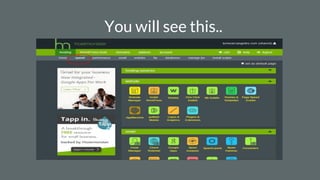
You will see this..
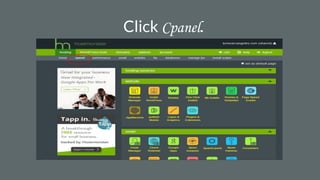
Click Cpanel.
Scroll down..
Search for File Manager..
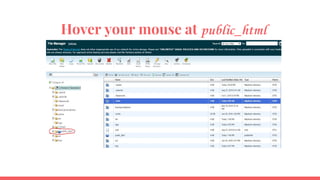
Hover your mouse at public_html
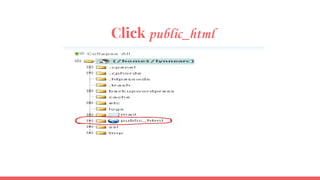
Click public_html
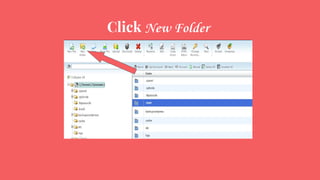
Click New Folder
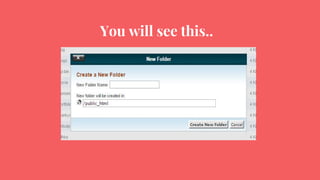
You will see this..
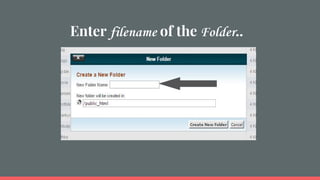
Enter filename of the Folder..
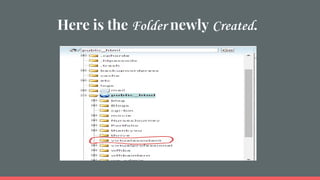
Here is the Folder newly Created.
Click the folder Virtual assistant.
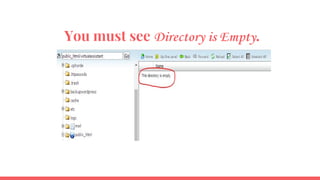
You must see Directory is Empty.
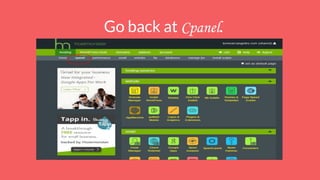
Go back at Cpanel.
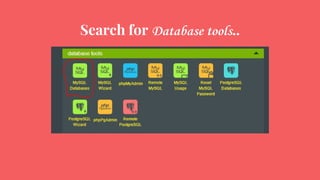
Search for Database tools..
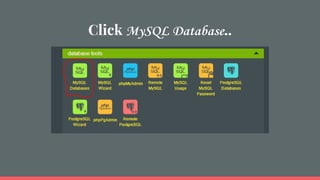
Click MySQL Database..
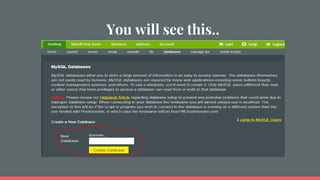
You will see this..
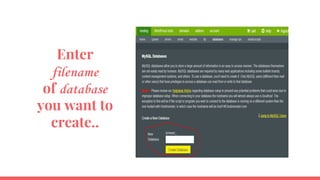
Enter
filename
of database
you want to
create..
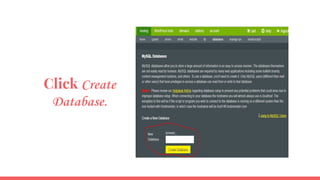
Click Create
Database.
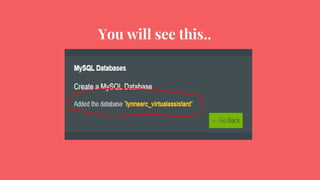
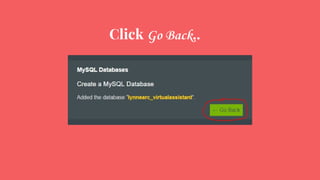
You will see this..
Click Go Back..
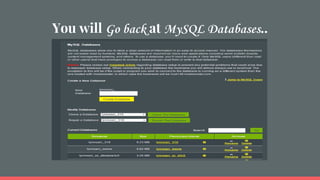
You will Go back at MySQL Databases..
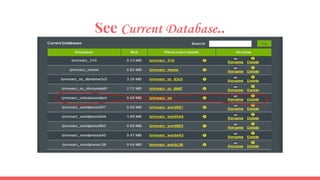
See Current Database..
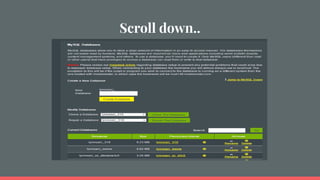
Scroll down..
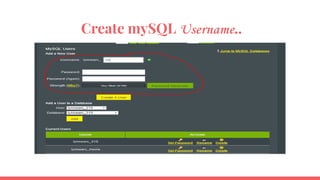
Create mySQL Username..
Create mySQL Password..
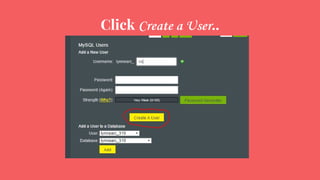
Click Create a User..
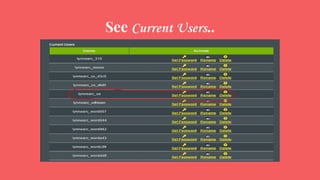
See Current Users..
Make Sure
to List down
the Details..
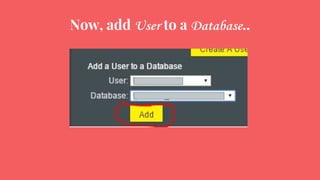
Now, add User to a Database..
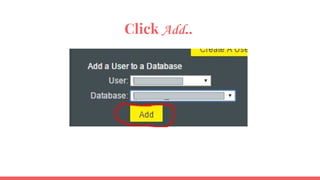
Click Add..
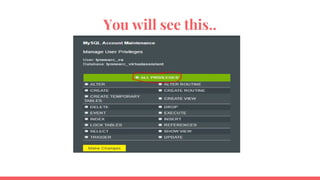
You will see this..
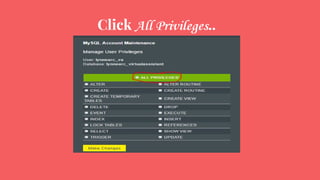
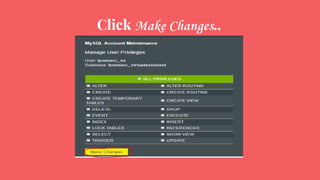
Click All Privileges..
Click Make Changes..
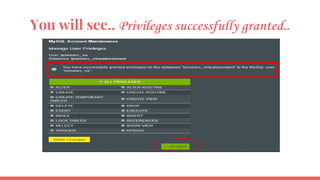
You will see.. Privileges successfully granted..
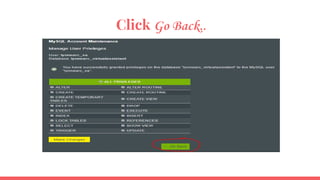
Click Go Back..
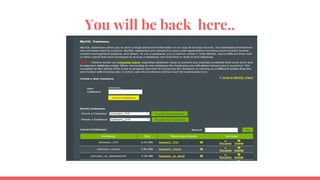
You will be back here..
Now,
Let’s Install
Wordpress
at Cpanel..
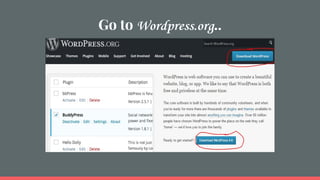
Go to Wordpress.org..
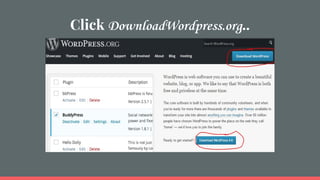
Click DownloadWordpress.org..
After wordpress file was
downloaded at zip format..
Go back at File Manager..
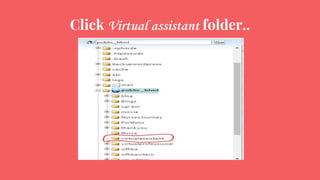
Click Virtual assistant folder..
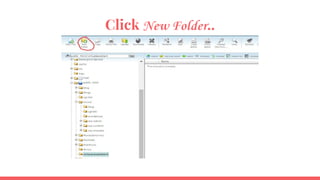
Click New Folder..
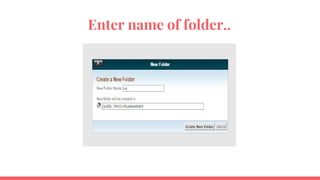
Enter name of folder..
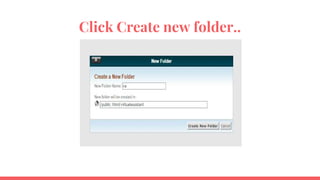
Click Create new folder..
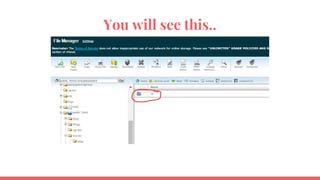
You will see this..
Then Upload Wordpress zip file at
the newly created folder..
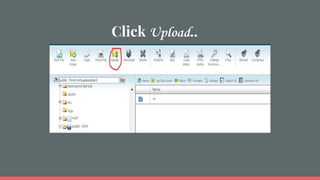
Click Upload..
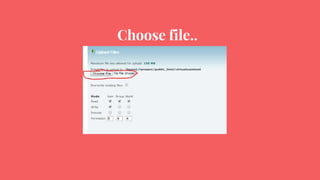
Choose file..
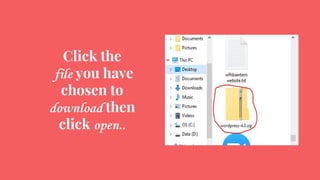
Click the
file you have
chosen to
download then
click open..
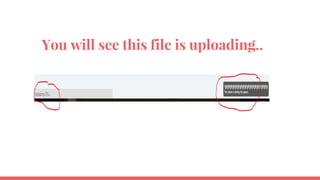
You will see this file is uploading..
After file was completely uploaded..
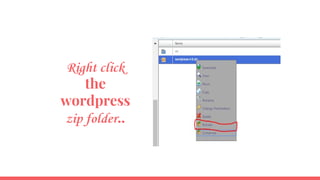
Right click
the
wordpress
zip folder..
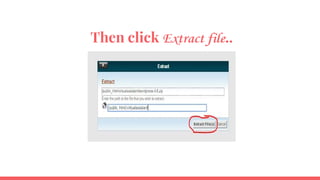
Then click Extract file..
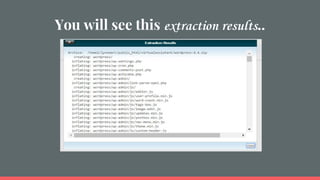
You will see this extraction results..
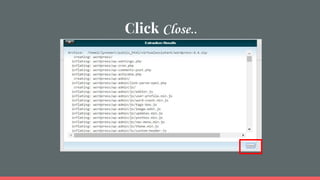
Click Close..
See the Wordpress folder added..
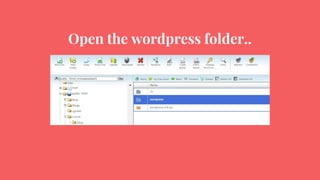
Open the wordpress folder..
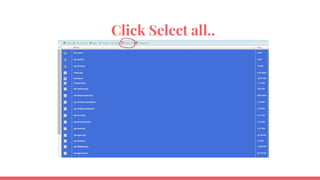
Click Select all..
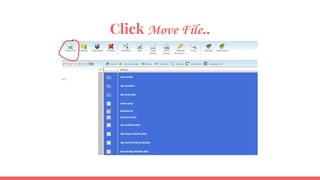
Click Move File..
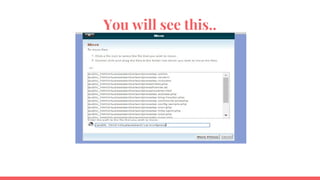
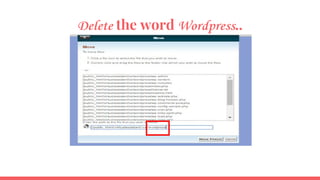
You will see this..
Delete the word Wordpress..
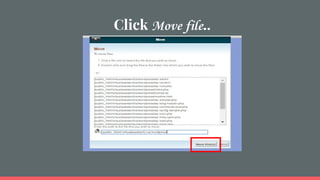
Click Move file..
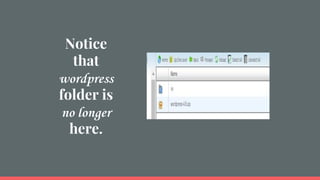
Notice
that
wordpress
folder is
no longer
here.
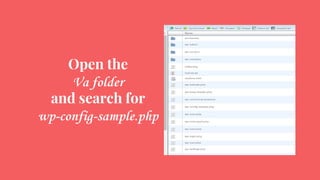
Open the
Va folder
and search for
wp-config-sample.php
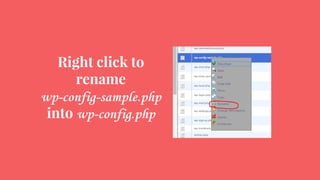
Right click to
rename
wp-config-sample.php
into wp-config.php
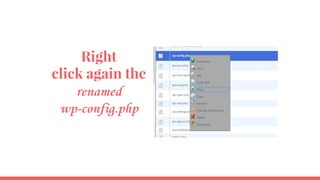
Right
click again the
renamed
wp-config.php
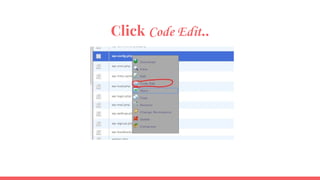
Click Code Edit..
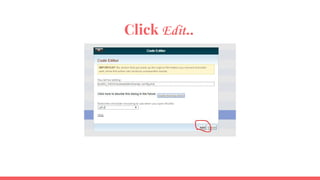
Click Edit..
Don’t worry you will only
change the SQL settings..
Remember the one
you created at
MySQL databases?
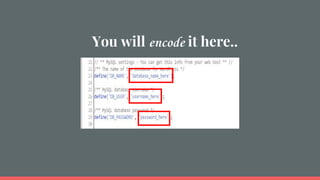
You will encode it here..
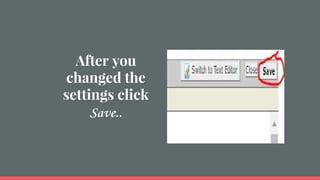
After you
changed the
settings click
Save..
Notice that settings was saved successfully..
Open a new link at web browser then search
for the domain name plus the file that you
created at public_html..
Ex: www.lynnearcangeles.com/virtualassistant/va
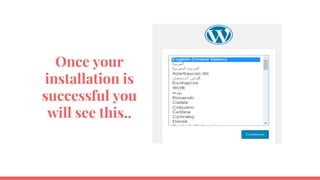
Once your
installation is
successful you
will see this..
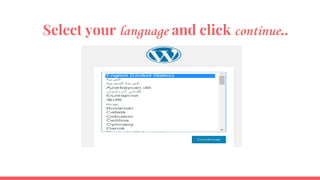
Select your language and click continue..
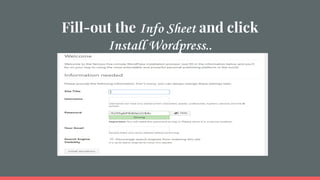
Fill-out the Info Sheet and click
Install Wordpress..
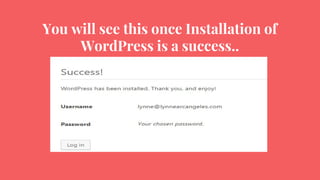
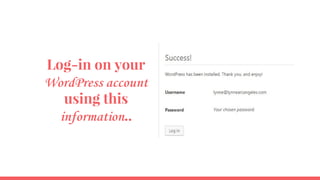
You will see this once Installation of
WordPress is a success..
Log-in on your
WordPress account
using this
information..
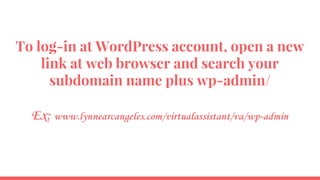
To log-in at WordPress account, open a new
link at web browser and search your
subdomain name plus wp-admin/
Ex: www.lynnearcangeles.com/virtualassistant/va/wp-admin
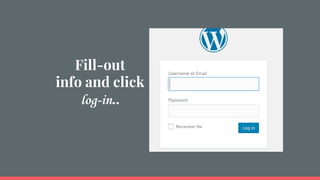
Fill-out
info and click
log-in..
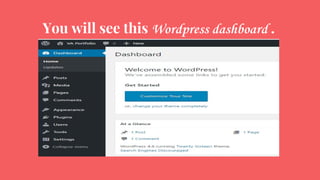
You will see this Wordpress dashboard .
Easy right ?
Hmmmnnn.. Actually, when I first
attempted to do this it took me 24hrs before
I finally figured it out :)
But, I do believe that constant practice will
make you perfect. So keep going.. Keep
learning :)

How to install Subdomain and Wordpress through Cpanel