Download Required Files
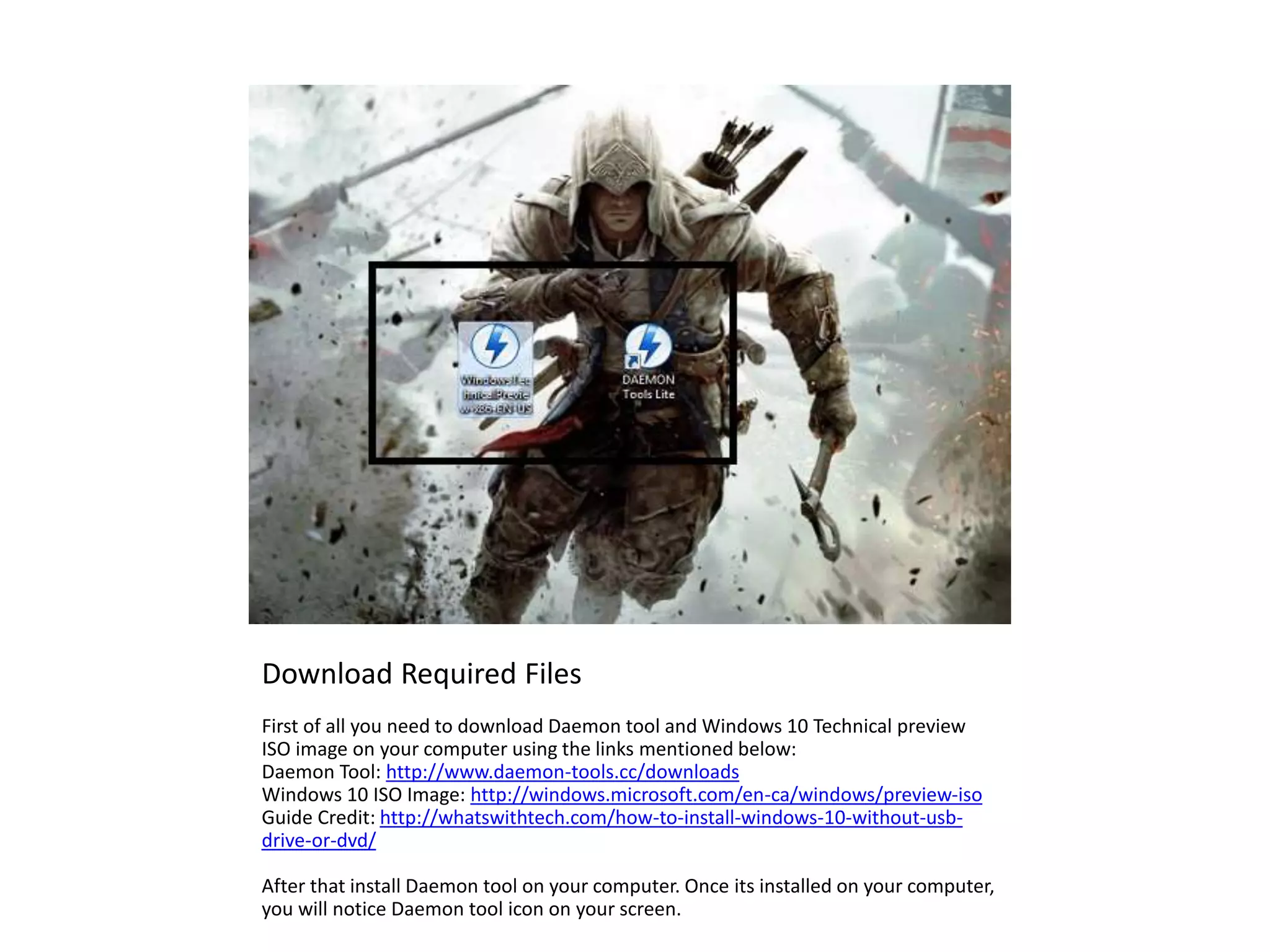
First of all you need to download Daemon tool and Windows 10 Technical preview
ISO image on your computer using the links mentioned below:
Daemon Tool: http://www.daemon-tools.cc/downloads
Windows 10 ISO Image: http://windows.microsoft.com/en-ca/windows/preview-iso
Guide Credit: http://whatswithtech.com/how-to-install-windows-10-without-usb-
drive-or-dvd/
After that install Daemon tool on your computer. Once its installed on your computer,
you will notice Daemon tool icon on your screen.
Mount ISO Image
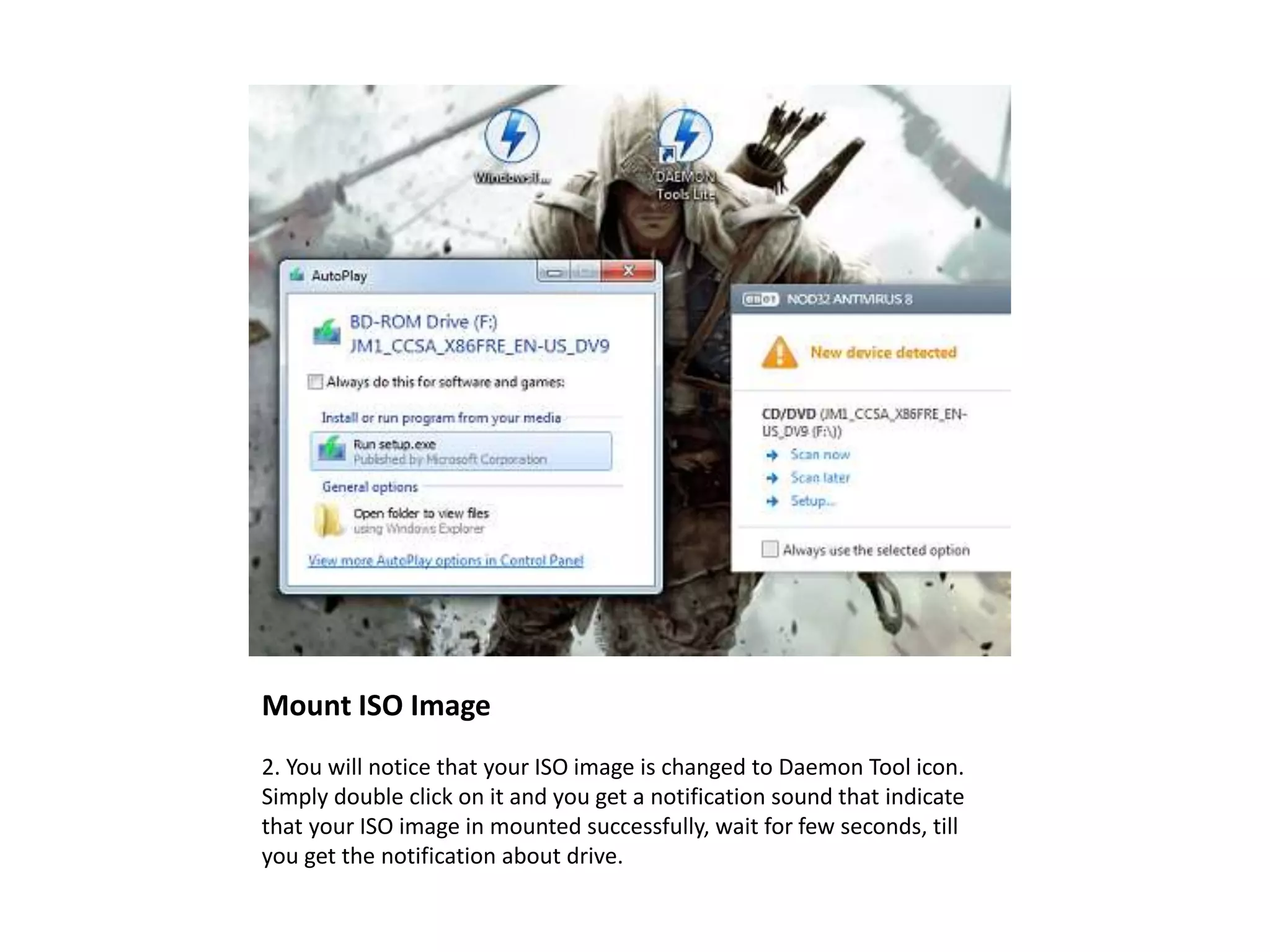
2. You will notice that your ISO image is changed to Daemon Tool icon.
Simply double click on it and you get a notification sound that indicate
that your ISO image in mounted successfully, wait for few seconds, till
you get the notification about drive.
Open the ISO Image using Daemon Tool
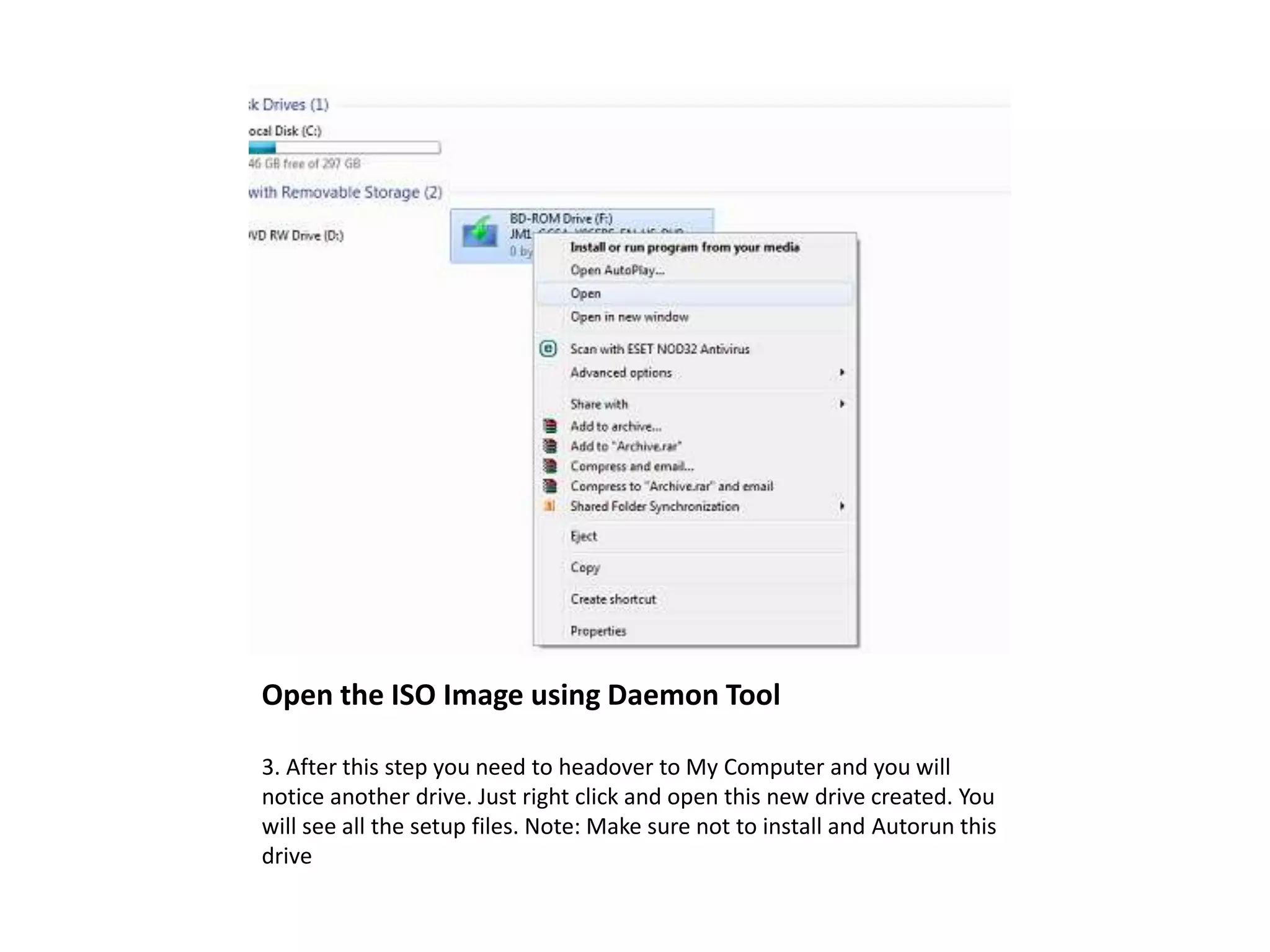
3. After this step you need to headover to My Computer and you will
notice another drive. Just right click and open this new drive created. You
will see all the setup files. Note: Make sure not to install and Autorun this
drive
Look for Sources Folder in Setup file
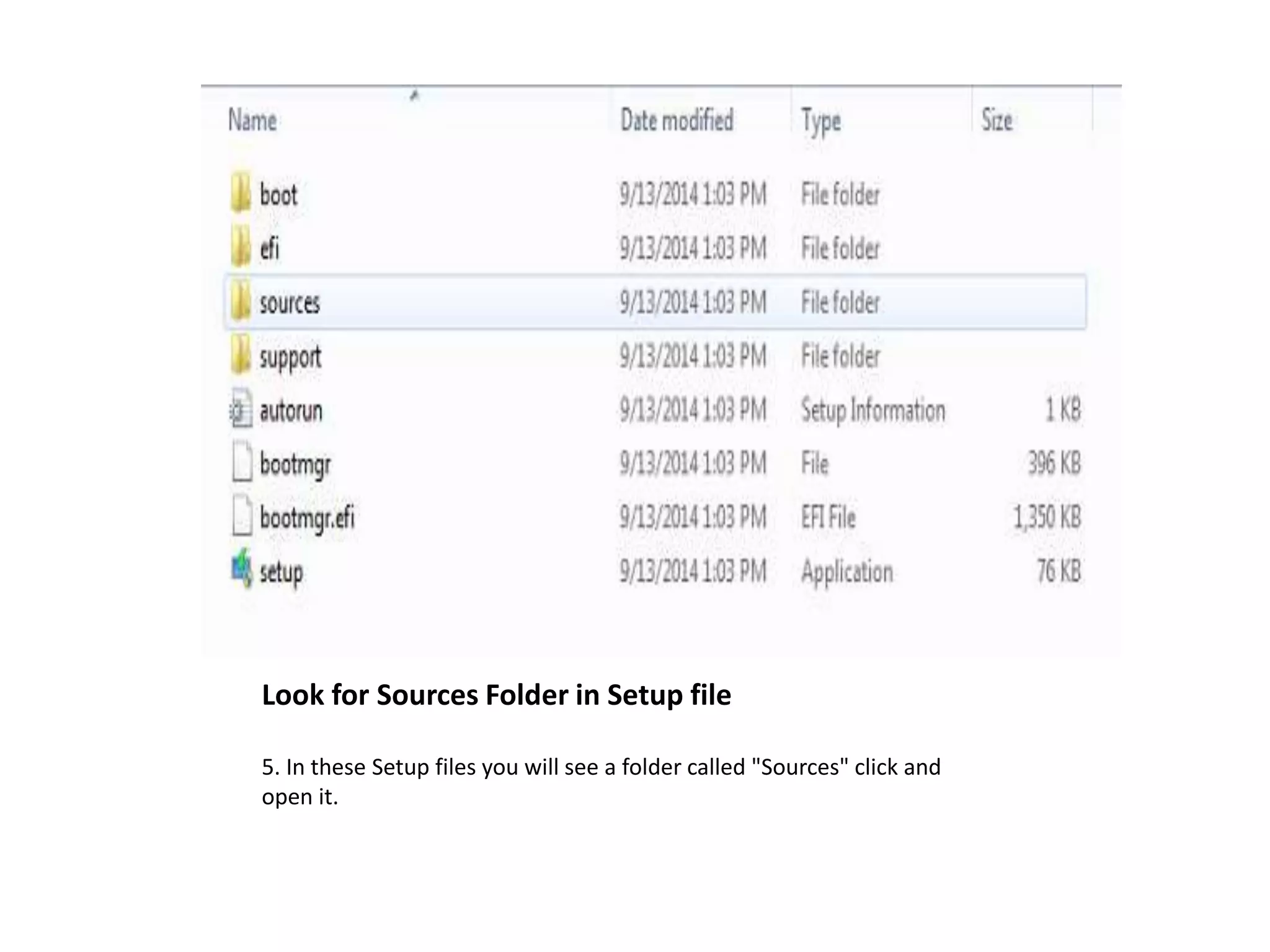
5. In these Setup files you will see a folder called "Sources" click and
open it.
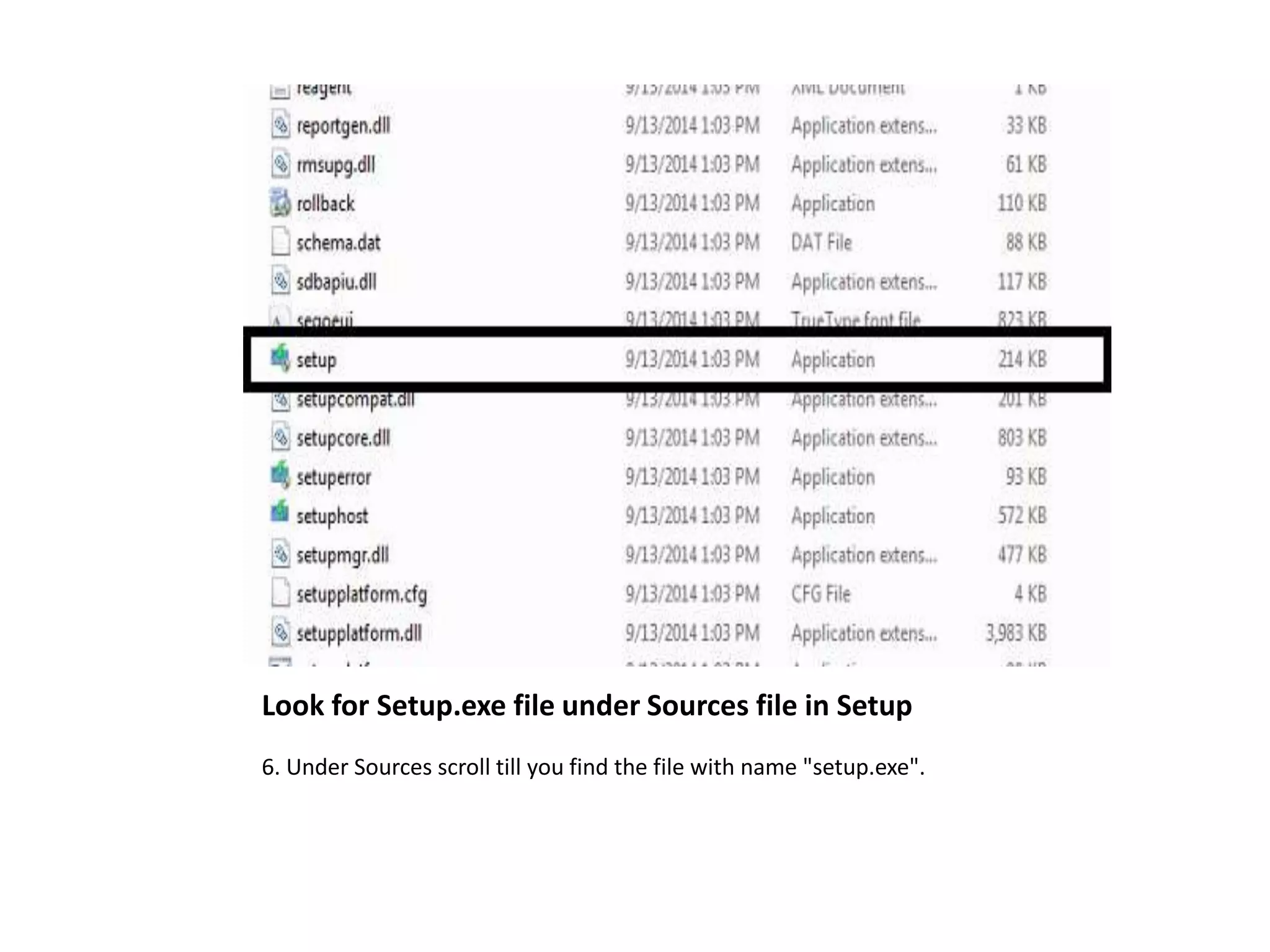
Look for Setup.exe file under Sources file in Setup
6. Under Sources scroll till you find the file with name "setup.exe".
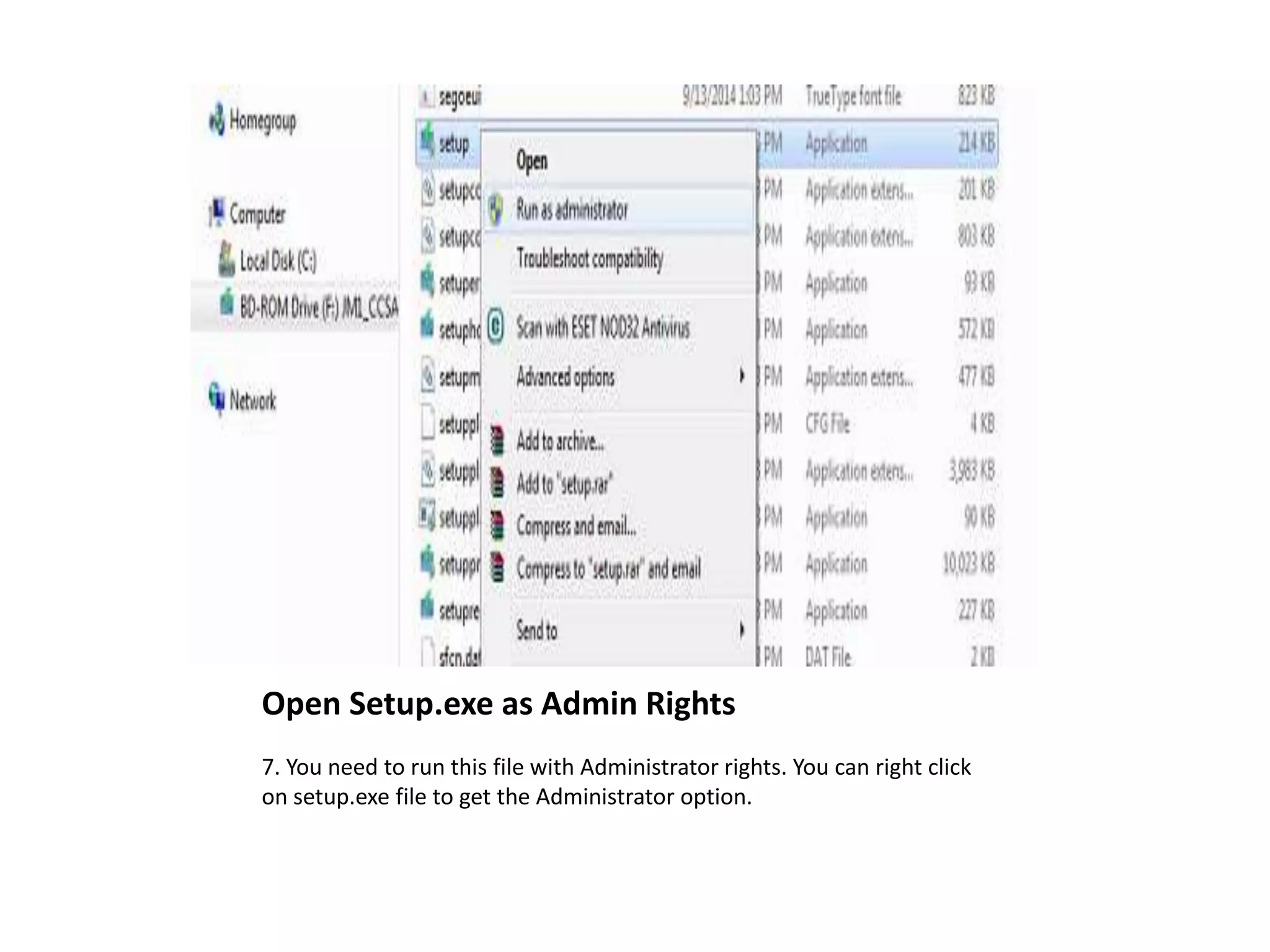
Open Setup.exe as Admin Rights
7. You need to run this file with Administrator rights. You can right click
on setup.exe file to get the Administrator option.
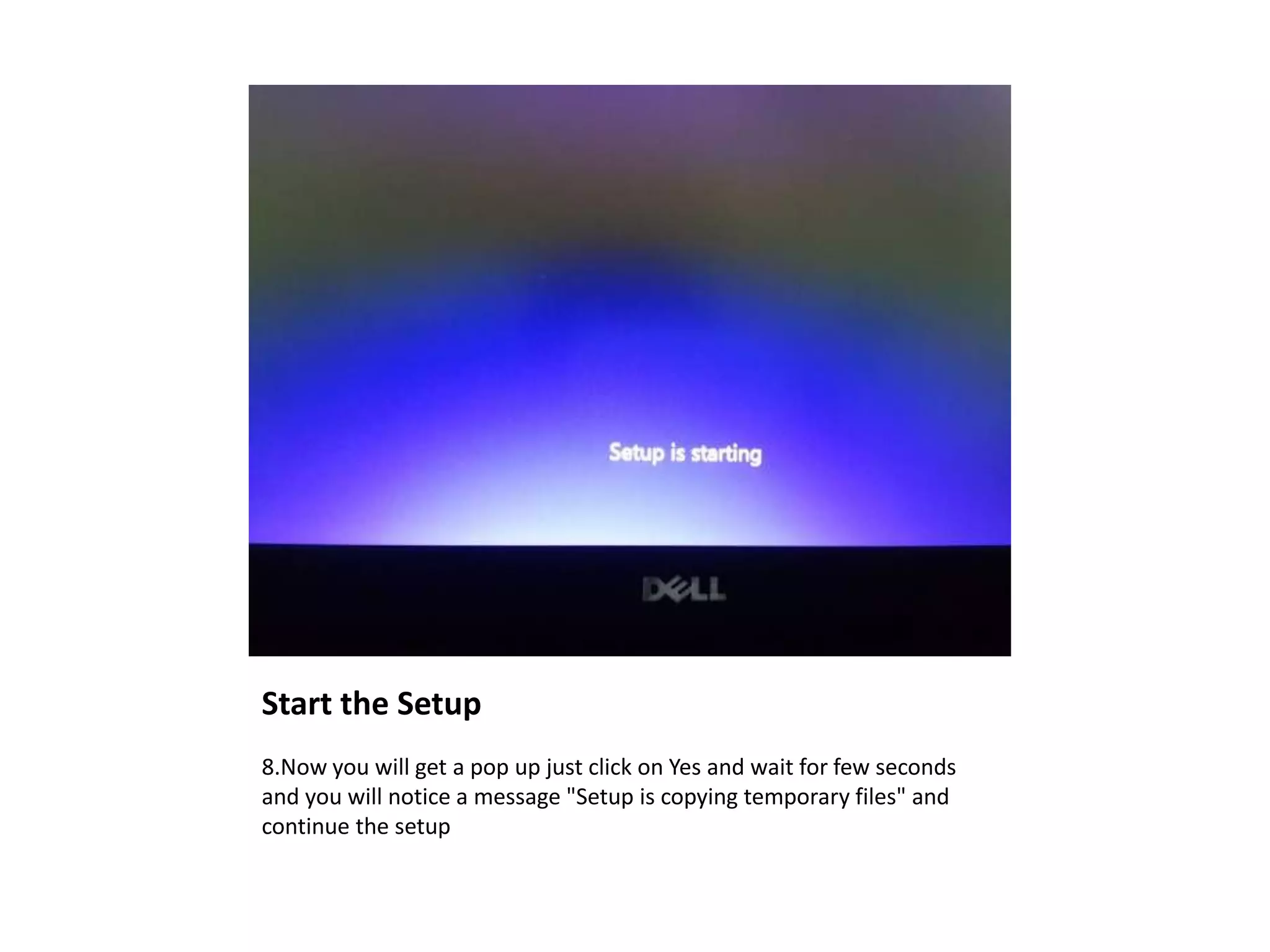
Start the Setup
8.Now you will get a pop up just click on Yes and wait for few seconds
and you will notice a message "Setup is copying temporary files" and
continue the setup
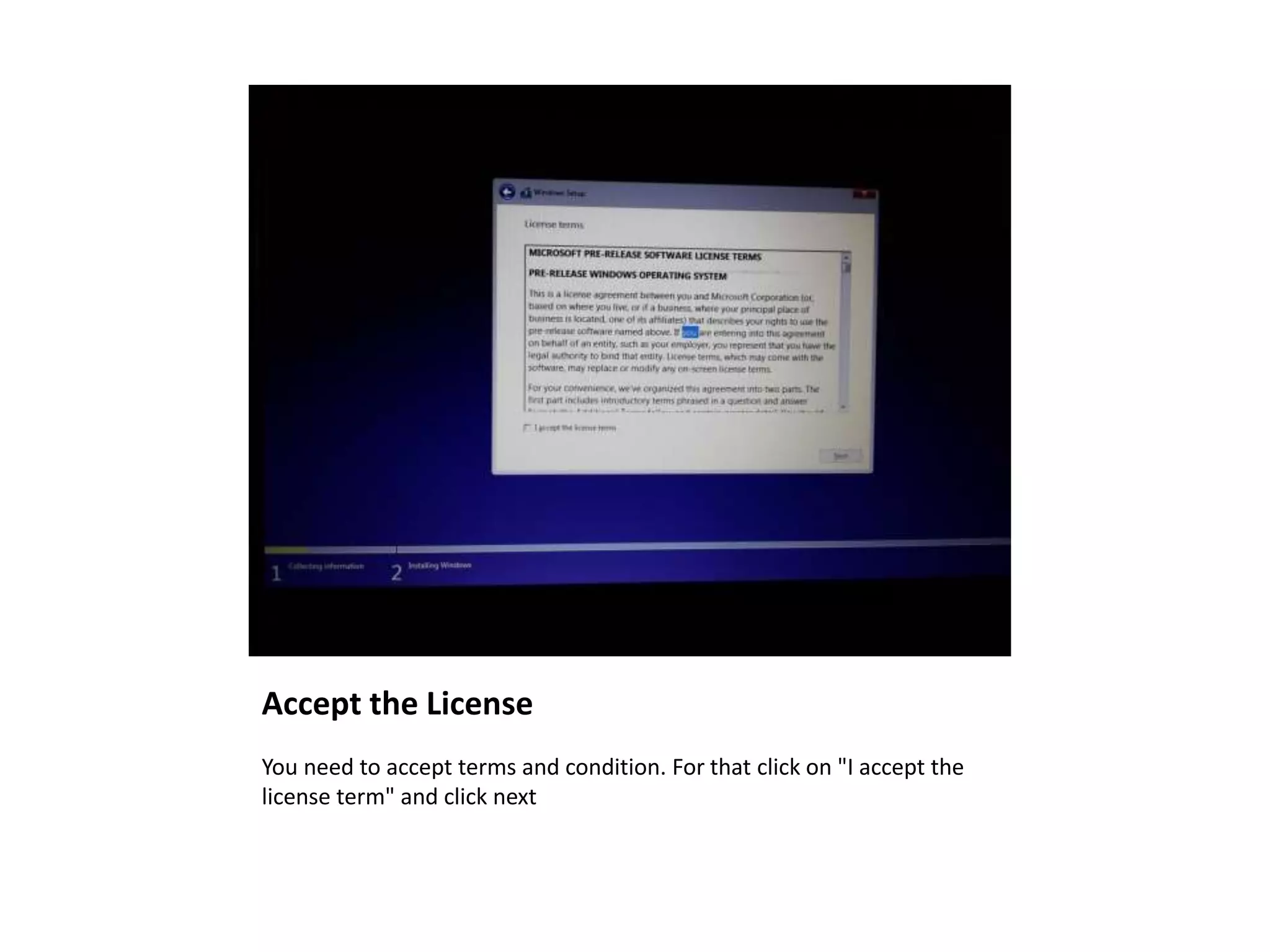
Accept the License
You need to accept terms and condition. For that click on "I accept the
license term" and click next
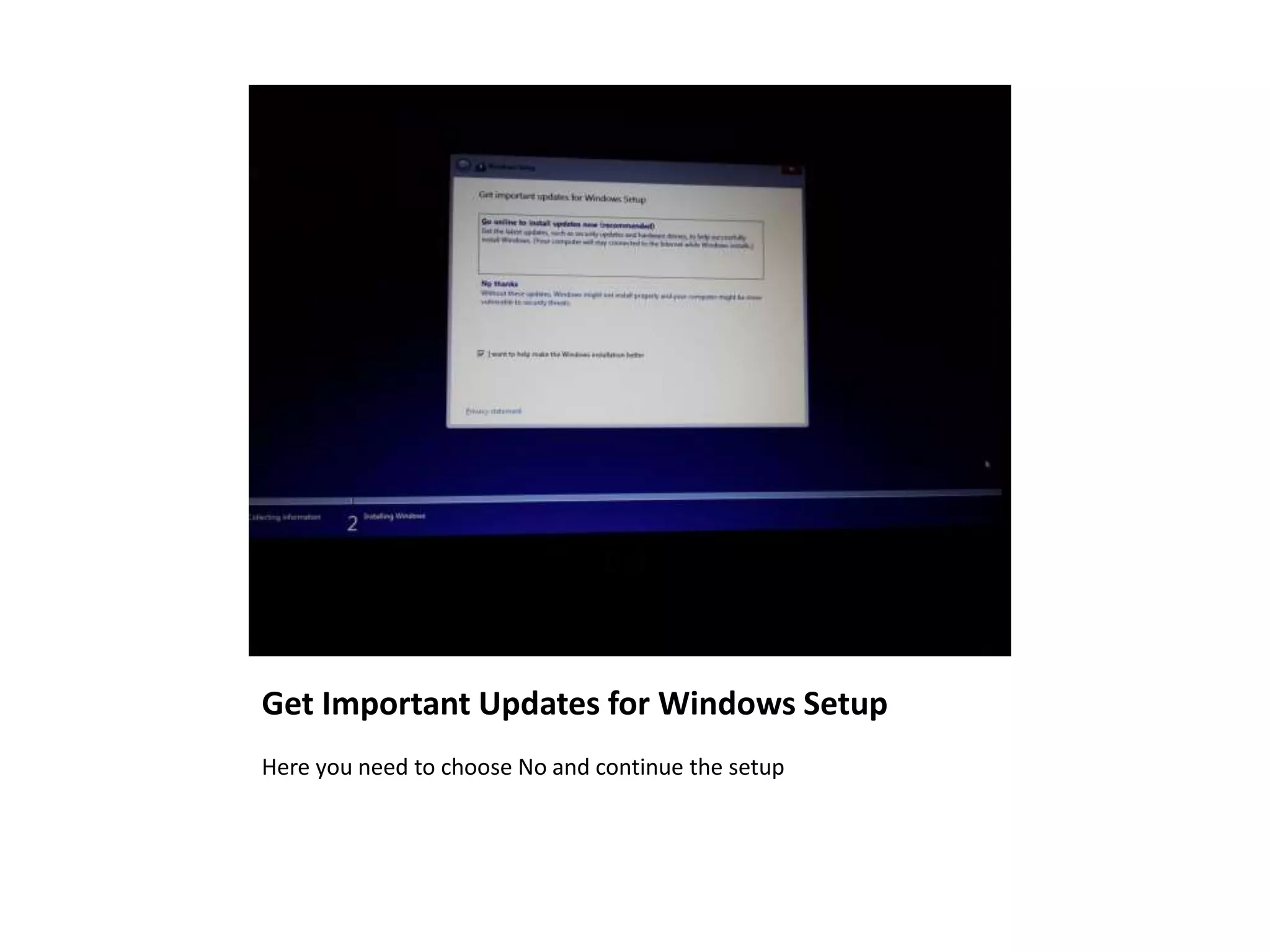
Get Important Updates for Windows Setup
Here you need to choose No and continue the setup
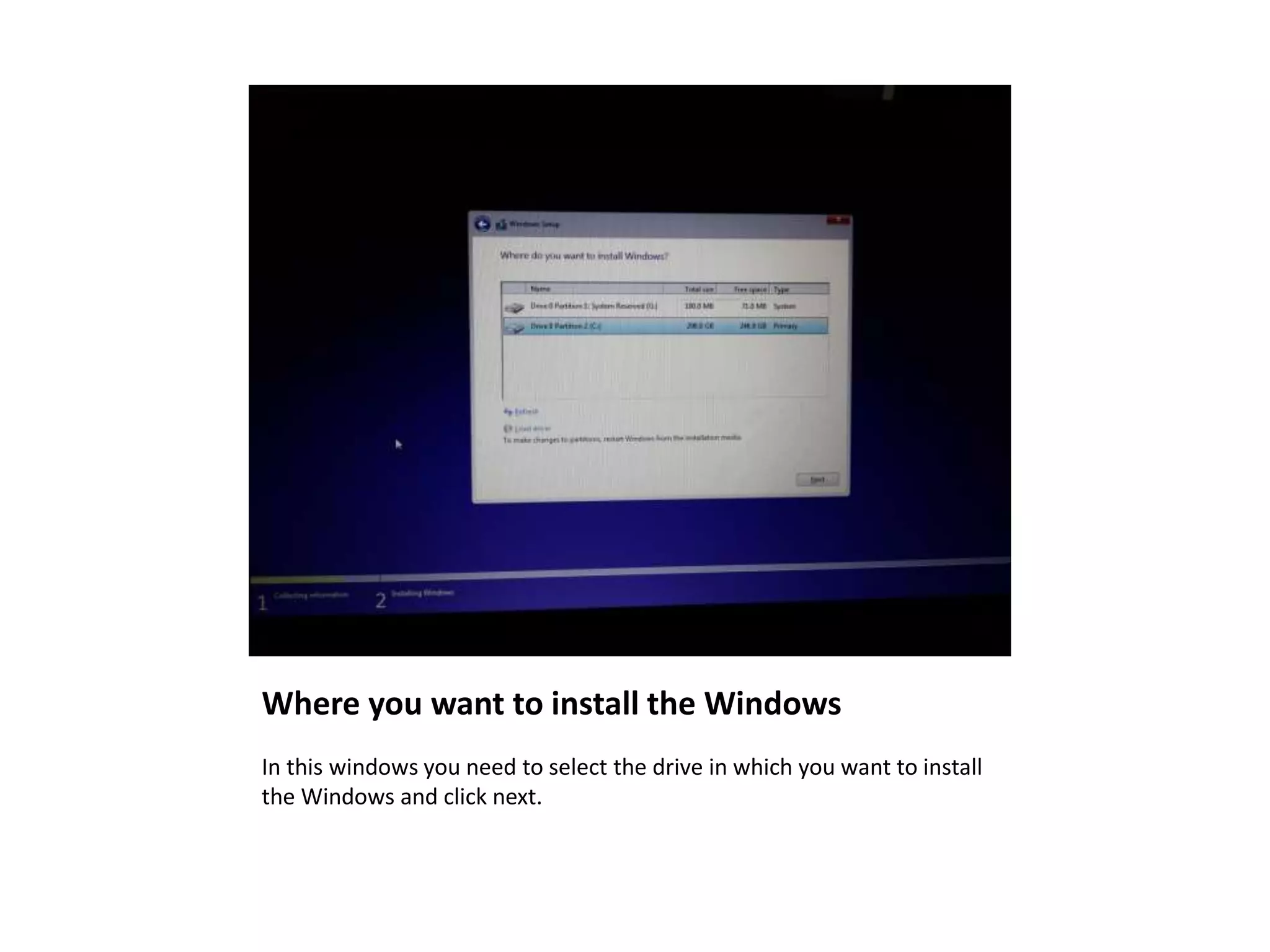
Where you want to install the Windows
In this windows you need to select the drive in which you want to install
the Windows and click next.
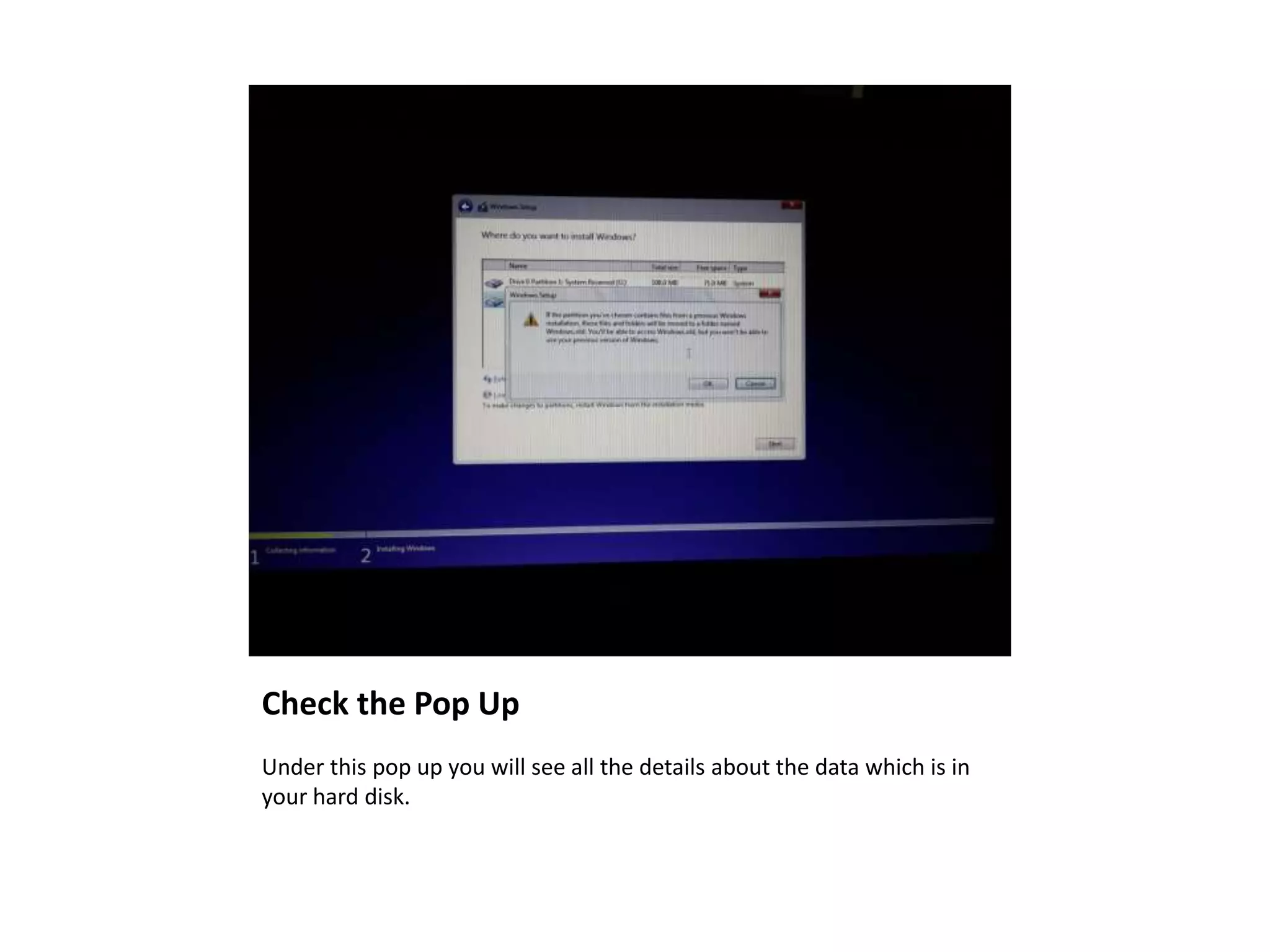
Check the Pop Up
Under this pop up you will see all the details about the data which is in
your hard disk.
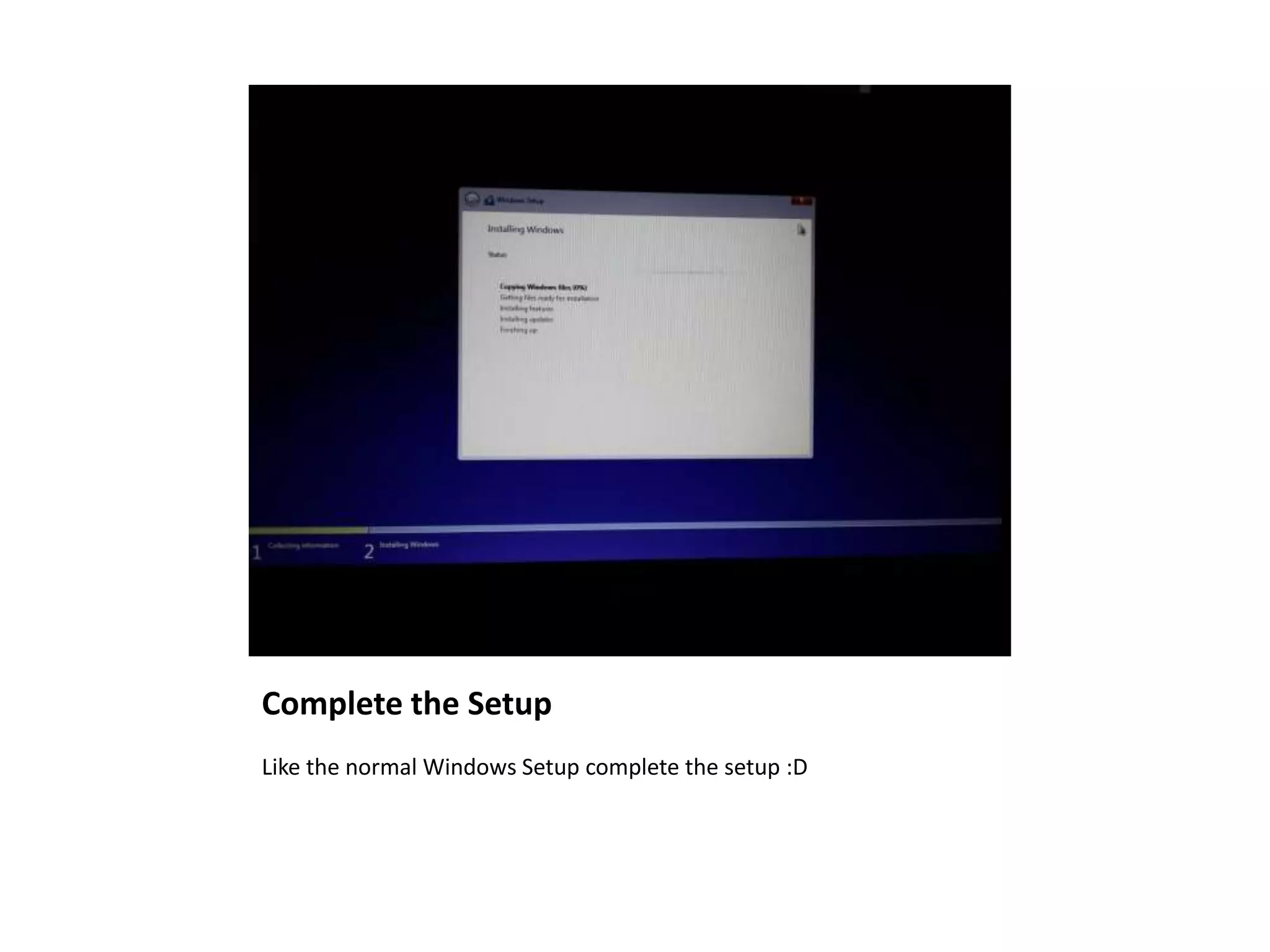
Complete the Setup
Like the normal Windows Setup complete the setup :D
Thanks for Watching!
All credits for this slide goes to:
What’s With Tech
Check Complete Guide Here:
How to Install Windows 10 without USB
Drive or DVD

How to Install Windows 10, 8 and 7 Without USB Drive or DVD

  • 1.
    Download Required Files Firstof all you need to download Daemon tool and Windows 10 Technical preview ISO image on your computer using the links mentioned below: Daemon Tool: http://www.daemon-tools.cc/downloads Windows 10 ISO Image: http://windows.microsoft.com/en-ca/windows/preview-iso Guide Credit: http://whatswithtech.com/how-to-install-windows-10-without-usb- drive-or-dvd/ After that install Daemon tool on your computer. Once its installed on your computer, you will notice Daemon tool icon on your screen.
  • 2.
    Mount ISO Image 2.You will notice that your ISO image is changed to Daemon Tool icon. Simply double click on it and you get a notification sound that indicate that your ISO image in mounted successfully, wait for few seconds, till you get the notification about drive.
  • 3.
    Open the ISOImage using Daemon Tool 3. After this step you need to headover to My Computer and you will notice another drive. Just right click and open this new drive created. You will see all the setup files. Note: Make sure not to install and Autorun this drive
  • 4.
    Look for SourcesFolder in Setup file 5. In these Setup files you will see a folder called "Sources" click and open it.
  • 5.
    Look for Setup.exefile under Sources file in Setup 6. Under Sources scroll till you find the file with name "setup.exe".
  • 6.
    Open Setup.exe asAdmin Rights 7. You need to run this file with Administrator rights. You can right click on setup.exe file to get the Administrator option.
  • 7.
    Start the Setup 8.Nowyou will get a pop up just click on Yes and wait for few seconds and you will notice a message "Setup is copying temporary files" and continue the setup
  • 8.
    Accept the License Youneed to accept terms and condition. For that click on "I accept the license term" and click next
  • 9.
    Get Important Updatesfor Windows Setup Here you need to choose No and continue the setup
  • 10.
    Where you wantto install the Windows In this windows you need to select the drive in which you want to install the Windows and click next.
  • 11.
    Check the PopUp Under this pop up you will see all the details about the data which is in your hard disk.
  • 12.
    Complete the Setup Likethe normal Windows Setup complete the setup :D
  • 13.
    Thanks for Watching! Allcredits for this slide goes to: What’s With Tech Check Complete Guide Here: How to Install Windows 10 without USB Drive or DVD