How to Install Linux Operating System –
Redhat Enterprise Linux
By SathishkumarOn June 6, 2011 · 5 Comments

Installing Linux operating system is very easy. You can install it either from CD/DVD , USB
Sticks, Network or using ISO images. Here we are using Compact Disc to install the operating
system on your machine. First enable the Boot from Compact Disc option in your BIOS Setting
and it is must.There are numerous linux distributions are available, here we are using Redhat
Enterprise Linux. It contains 5 CDs.

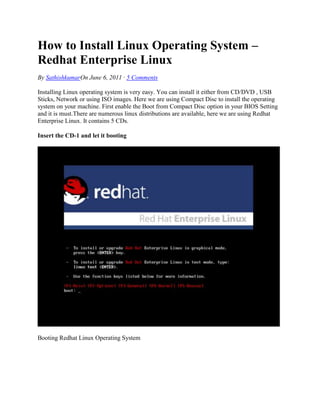
Insert the CD-1 and let it booting


Booting Redhat Linux Operating System
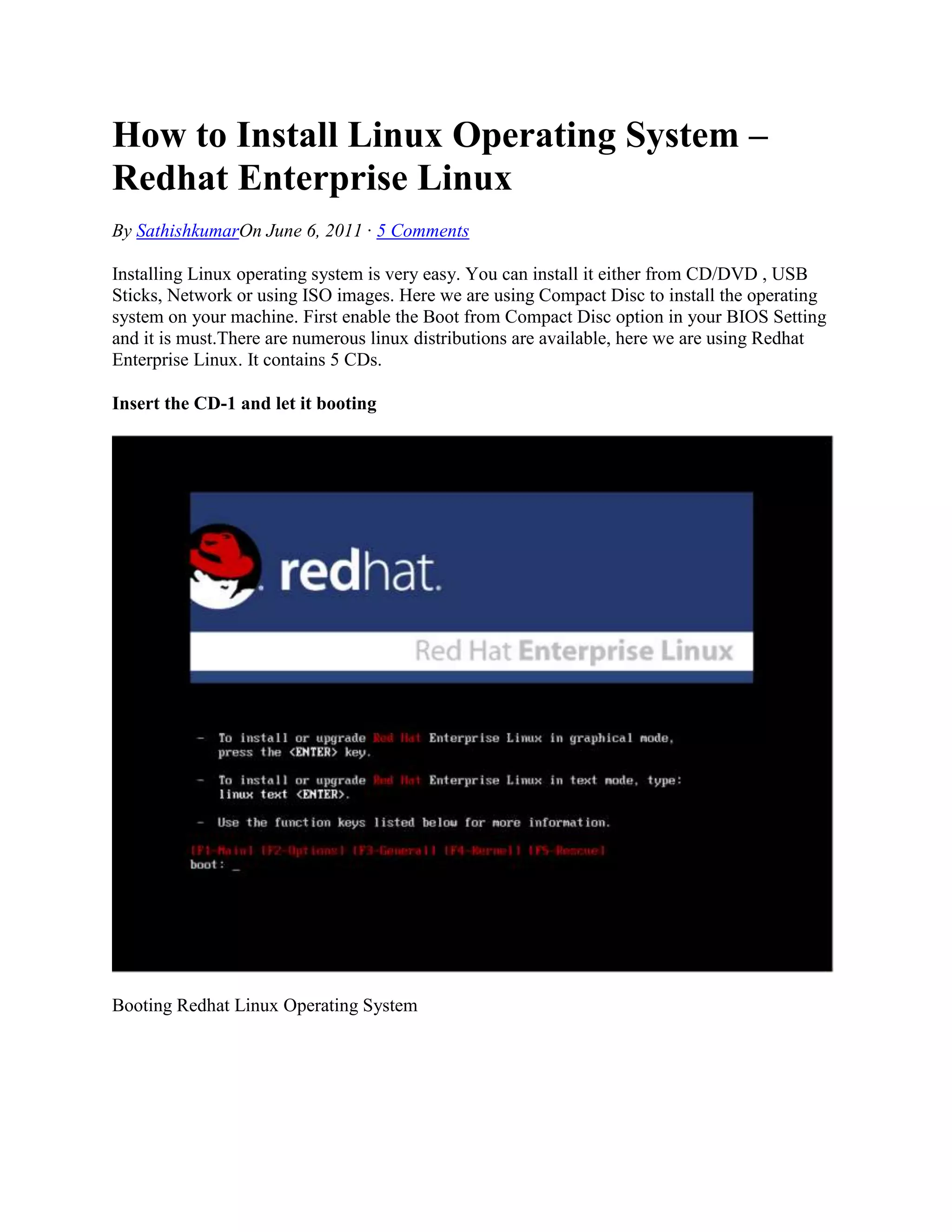
Linux booting process


Linux Booting Process

Welcome to Redhat Enterprise Linux
Redhat Enterprise Linux Screen


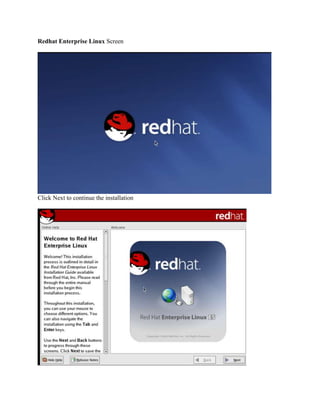
Click Next to continue the installation
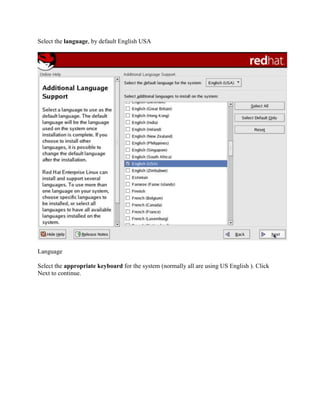
Select the language, by default English USA


Language

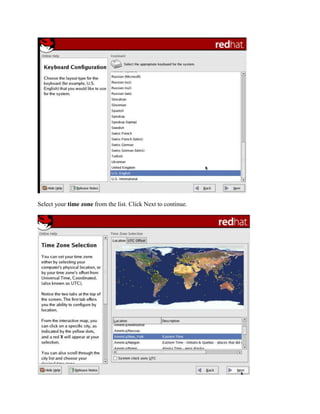
Select the appropriate keyboard for the system (normally all are using US English ). Click
Next to continue.
Select your time zone from the list. Click Next to continue.
Time Zone

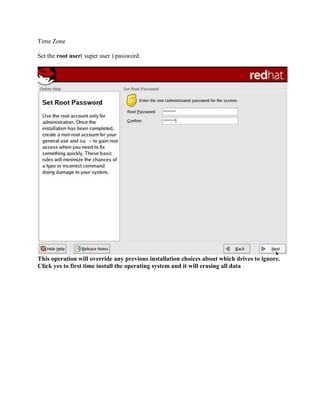
Set the root user( super user ) password.


This operation will override any previous installation choices about which drives to ignore.
Click yes to first time install the operating system and it will erasing all data
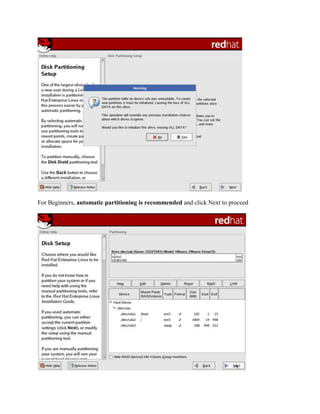
For Beginners, automatic partitioning is recommended and click Next to proceed
Automatic Partition

The GRUB boot loaderwil be installed on /dev/sda. Click Next to continue[ad#Amazon mini 4]


GRUB Bootloader

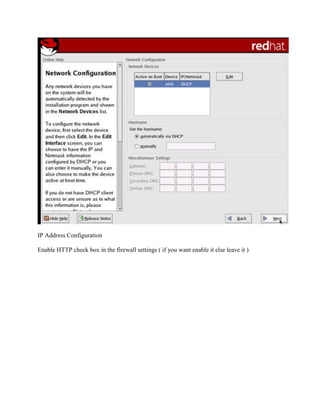
You may set the IP address on your on host. Let it be automatically via DHCP first. You may
configure the IP address later. Click Next to continue
IP Address Configuration

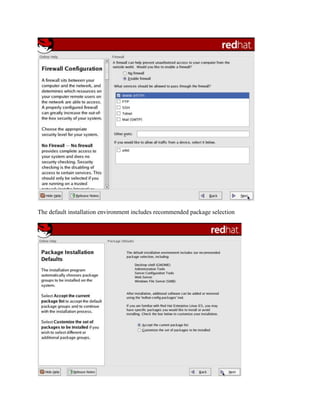
Enable HTTP check box in the firewall settings ( if you want enable it else leave it )
The default installation environment includes recommended package selection
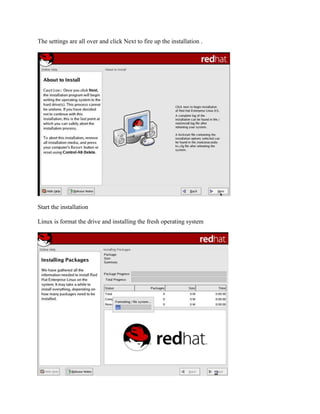
The settings are all over and click Next to fire up the installation .


Start the installation

Linux is format the drive and installing the fresh operating system
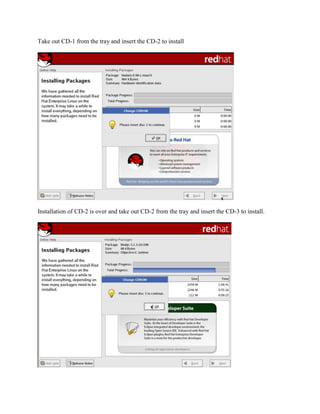
Take out CD-1 from the tray and insert the CD-2 to install


Installation of CD-2 is over and take out CD-2 from the tray and insert the CD-3 to install.
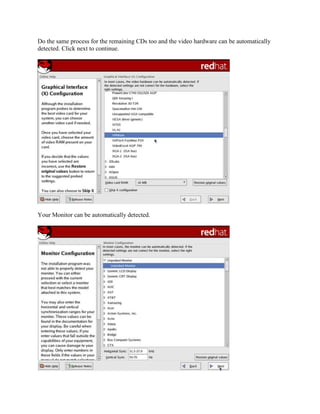
Do the same process for the remaining CDs too and the video hardware can be automatically
detected. Click next to continue.


Your Monitor can be automatically detected.
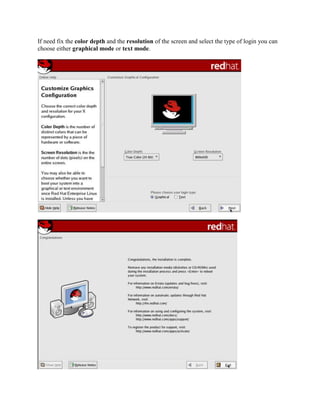
If need fix the color depth and the resolution of the screen and select the type of login you can
choose either graphical mode or text mode.
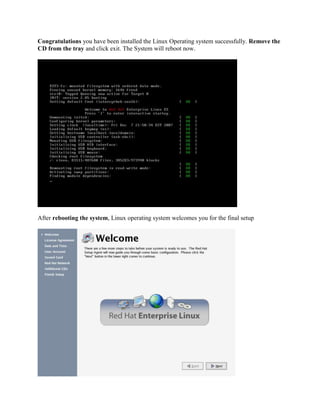
Congratulations you have been installed the Linux Operating system successfully. Remove the
CD from the tray and click exit. The System will reboot now.


After rebooting the system, Linux operating system welcomes you for the final setup
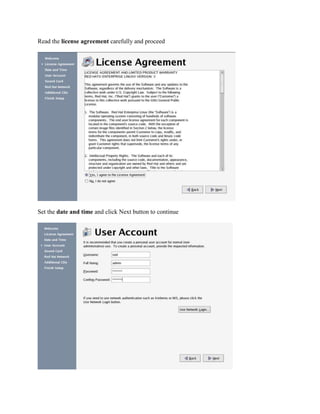
Read the license agreement carefully and proceed


Set the date and time and click Next button to continue
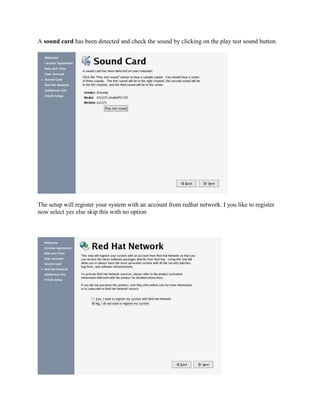
A sound card has been detected and check the sound by clicking on the play test sound button.


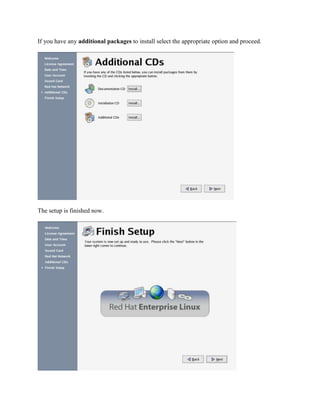
The setup will register your system with an account from redhat network. I you like to register
now select yes else skip this with no option
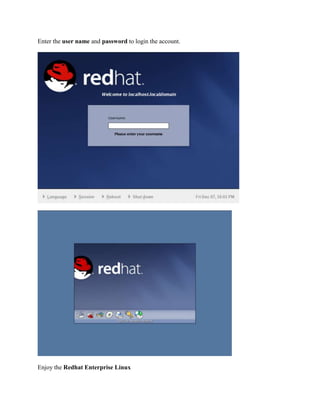
If you have any additional packages to install select the appropriate option and proceed.


The setup is finished now.
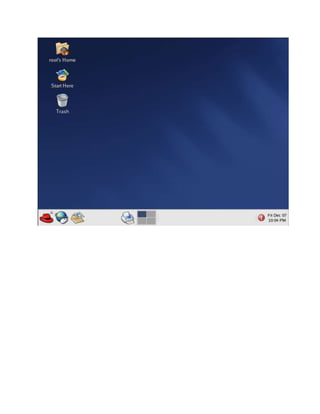
Enter the user name and password to login the account.


Enjoy the Redhat Enterprise Linux
How to install linux operating system

How to install linux operating system

  • 1.
    How to InstallLinux Operating System – Redhat Enterprise Linux By SathishkumarOn June 6, 2011 · 5 Comments Installing Linux operating system is very easy. You can install it either from CD/DVD , USB Sticks, Network or using ISO images. Here we are using Compact Disc to install the operating system on your machine. First enable the Boot from Compact Disc option in your BIOS Setting and it is must.There are numerous linux distributions are available, here we are using Redhat Enterprise Linux. It contains 5 CDs. Insert the CD-1 and let it booting Booting Redhat Linux Operating System
  • 2.
    Linux booting process LinuxBooting Process Welcome to Redhat Enterprise Linux
  • 3.
    Redhat Enterprise LinuxScreen Click Next to continue the installation
  • 4.
    Select the language,by default English USA Language Select the appropriate keyboard for the system (normally all are using US English ). Click Next to continue.
  • 5.
    Select your timezone from the list. Click Next to continue.
  • 6.
    Time Zone Set theroot user( super user ) password. This operation will override any previous installation choices about which drives to ignore. Click yes to first time install the operating system and it will erasing all data
  • 7.
    For Beginners, automaticpartitioning is recommended and click Next to proceed
  • 8.
    Automatic Partition The GRUBboot loaderwil be installed on /dev/sda. Click Next to continue[ad#Amazon mini 4] GRUB Bootloader You may set the IP address on your on host. Let it be automatically via DHCP first. You may configure the IP address later. Click Next to continue
  • 9.
    IP Address Configuration EnableHTTP check box in the firewall settings ( if you want enable it else leave it )
  • 10.
    The default installationenvironment includes recommended package selection
  • 11.
    The settings areall over and click Next to fire up the installation . Start the installation Linux is format the drive and installing the fresh operating system
  • 12.
    Take out CD-1from the tray and insert the CD-2 to install Installation of CD-2 is over and take out CD-2 from the tray and insert the CD-3 to install.
  • 13.
    Do the sameprocess for the remaining CDs too and the video hardware can be automatically detected. Click next to continue. Your Monitor can be automatically detected.
  • 14.
    If need fixthe color depth and the resolution of the screen and select the type of login you can choose either graphical mode or text mode.
  • 15.
    Congratulations you havebeen installed the Linux Operating system successfully. Remove the CD from the tray and click exit. The System will reboot now. After rebooting the system, Linux operating system welcomes you for the final setup
  • 16.
    Read the licenseagreement carefully and proceed Set the date and time and click Next button to continue
  • 17.
    A sound cardhas been detected and check the sound by clicking on the play test sound button. The setup will register your system with an account from redhat network. I you like to register now select yes else skip this with no option
  • 18.
    If you haveany additional packages to install select the appropriate option and proceed. The setup is finished now.
  • 19.
    Enter the username and password to login the account. Enjoy the Redhat Enterprise Linux