How to Create  a  Podcast Presenter:  Joel Kinison
Outline Podcasting Defined Academic Uses of Podcasting iPod features and options Creating a Podcast Recording your audio Creating a mp3 with Audacity Uploading to your faculty web page Posting on Blogger Sample lesson plans
Podcast Defined An audio file you create in .mp3 format Which contains your own presentation or lecture or any audio you wish others to have.  Typically in radio broadcast format . That you upload along with an  RSS  (Really Simple Syndication) file to a  server  (Faculty web page for instance). Notes: XML based language RSS is a file that contains a link to downloadable audio files. Simple way to send out, once available files.
Podcast Defined Students download using one of several programs ( aggravators/podcatchers ) that have been created to retrieve your audio file automatically, on a regular basis. iTunes, Yahoo, Firefox, and iPodder RSS Logo and subscribe. Podcast Directories Students can listen to it at their convenience on their own iPod or .mp3 player.
Academic Uses Course content dissemination tool access to lectures, songs, historical speeches, and foreign languages Classroom recording tool capturing lectures, discussions, and verbal feedback Field recording tool field notes, interviews, oral histories, environmental sounds Study support tool repeated listening of music, audio books, rehearsals Student Support Virtual tours, student news, orientations
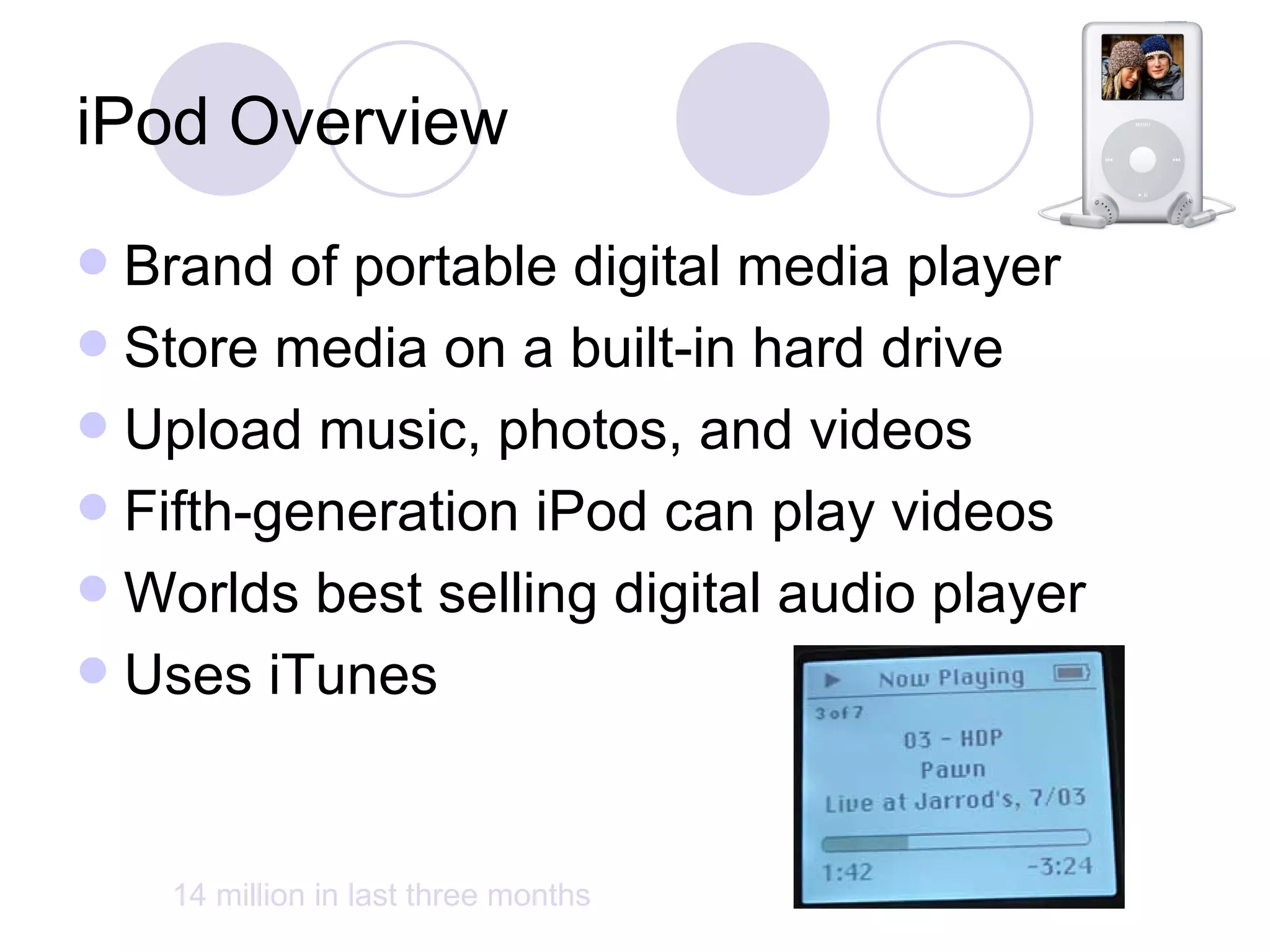
iPod Overview Brand of portable digital media player Store media on a built-in hard drive Upload music, photos, and videos Fifth-generation iPod can play videos Worlds best selling digital audio player Uses iTunes  14 million in last three months
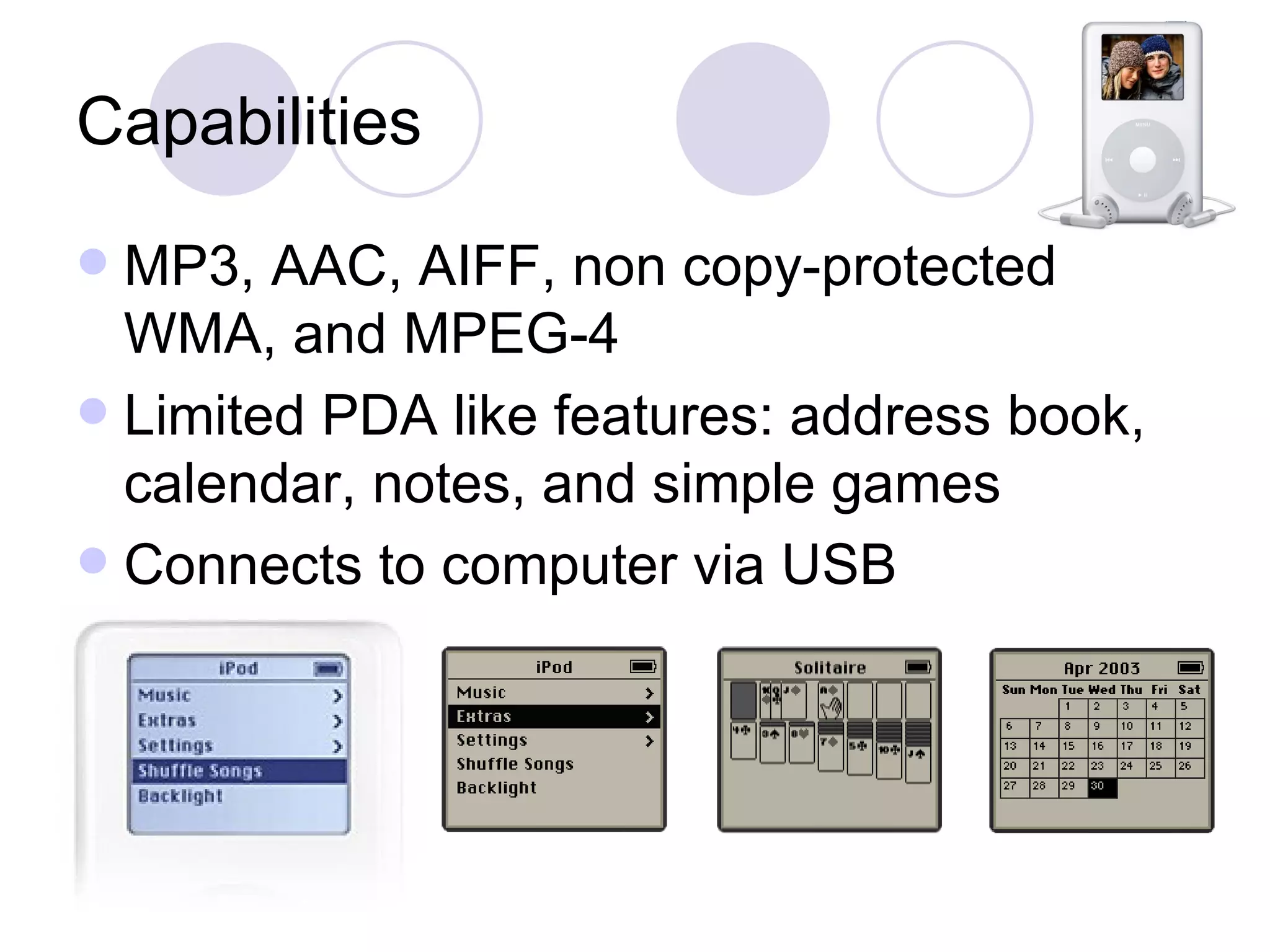
Capabilities MP3, AAC, AIFF, non copy-protected WMA, and MPEG-4 Limited PDA like features: address book, calendar, notes, and simple games Connects to computer via USB
Hardware Batteries iPods can recharge internal batteries Connector proprietary 30-pin dock connector > USB Earphones low quality (security issue)
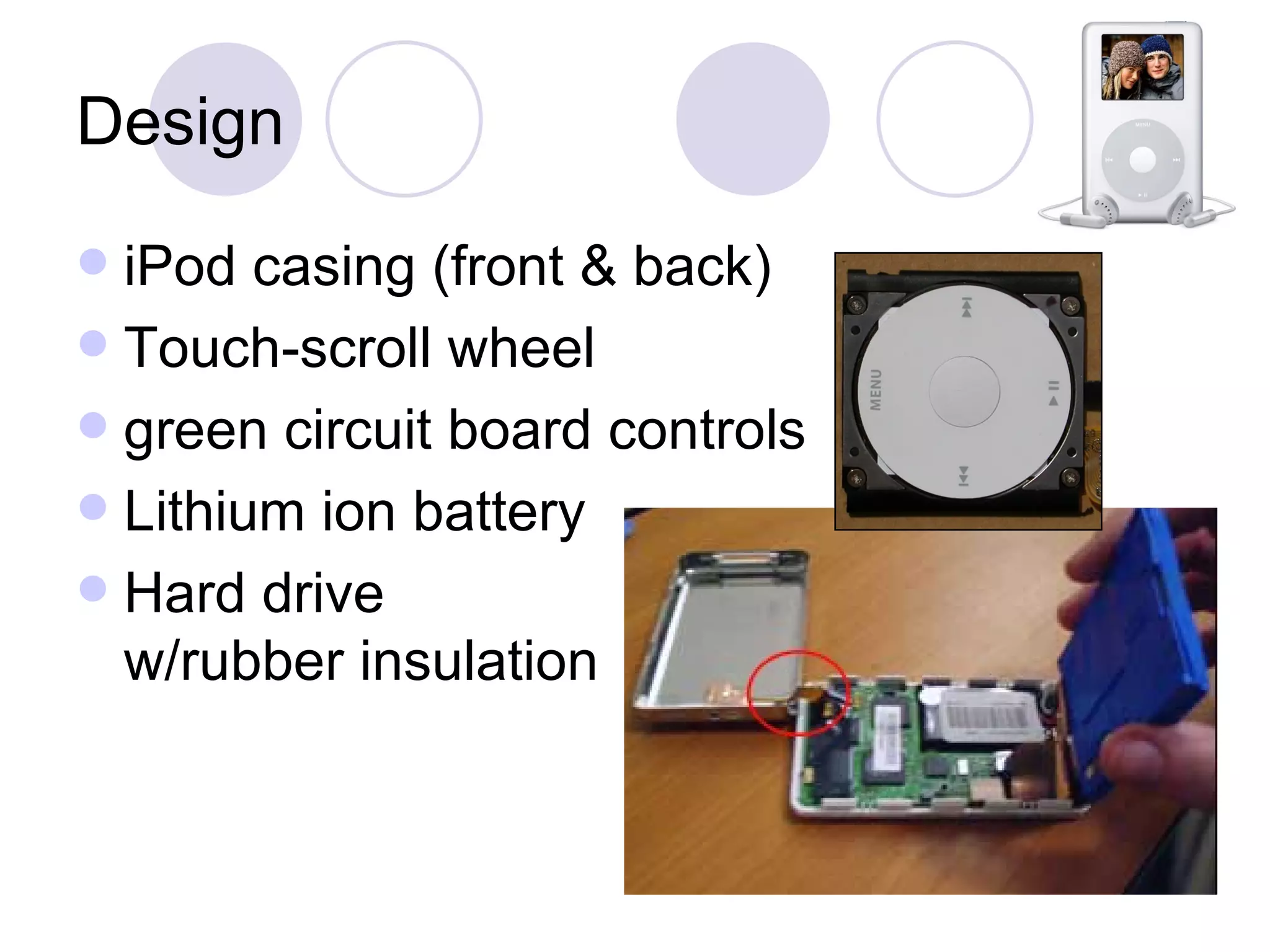
Design iPod casing (front & back) Touch-scroll wheel green circuit board controls Lithium ion battery Hard drive w/rubber insulation
Cost iPod 30 GB hard drive - $299  60 GB hard drive - $399 iPod nano 2 GB hard drive - $199 4 GB hard drive - $249 1 GB of storage will hold 250, 4-minute songs in 128 kbit/s AAC
Creative offers alternatives Cheaper Creative $225 (40GB) Creative $269 (60GB) Can handle recorded book recordings available for free through the library (IPod can’t)
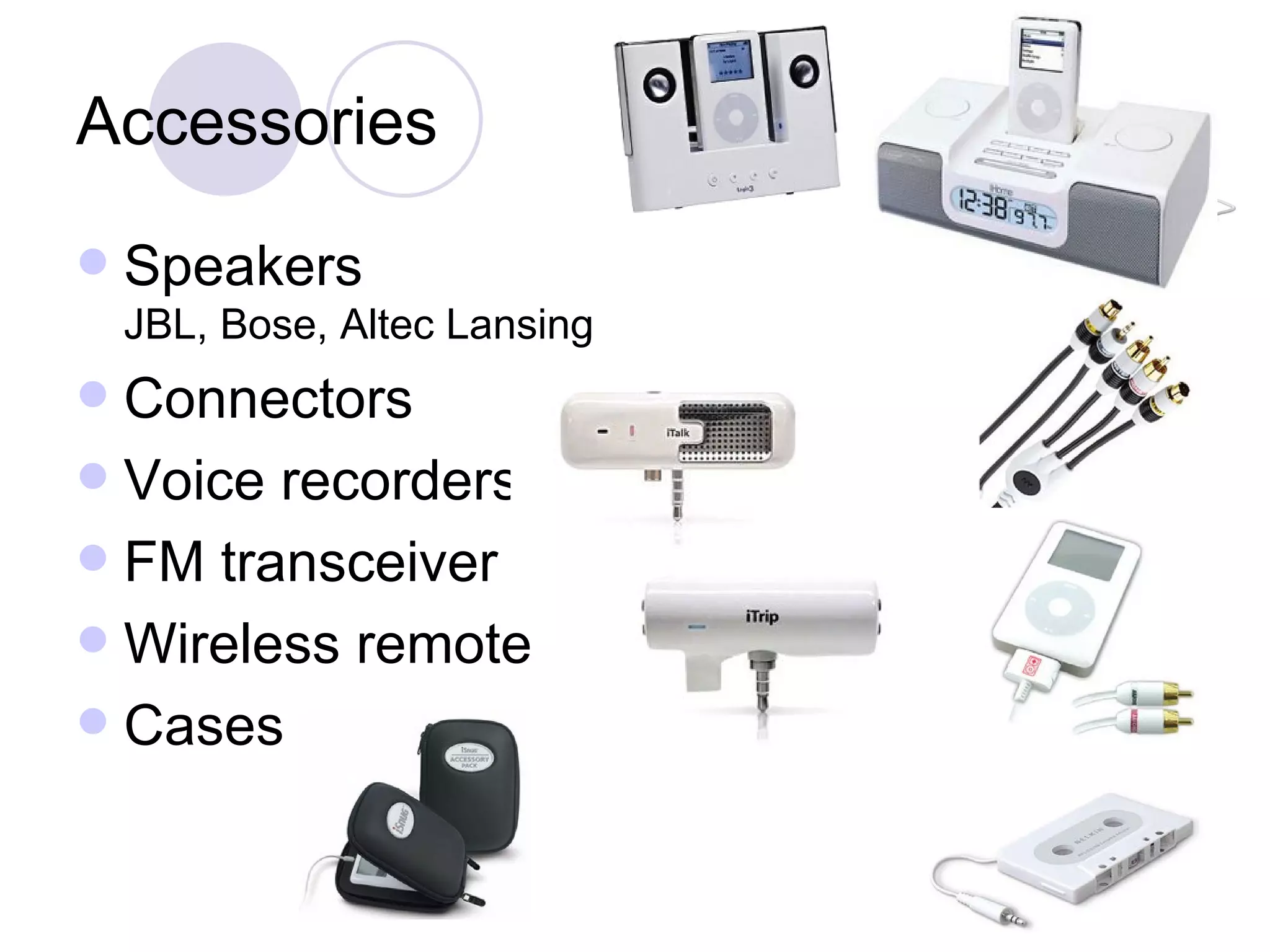
Accessories Speakers JBL, Bose, Altec Lansing Connectors Voice recorders FM transceiver  Wireless remote Cases
Creating a Podcast Step 1 Recording your audio Step 2 Creating a mp3 with Audacity Step 3 Uploading to your faculty web page Step 4 Posting on Blogger
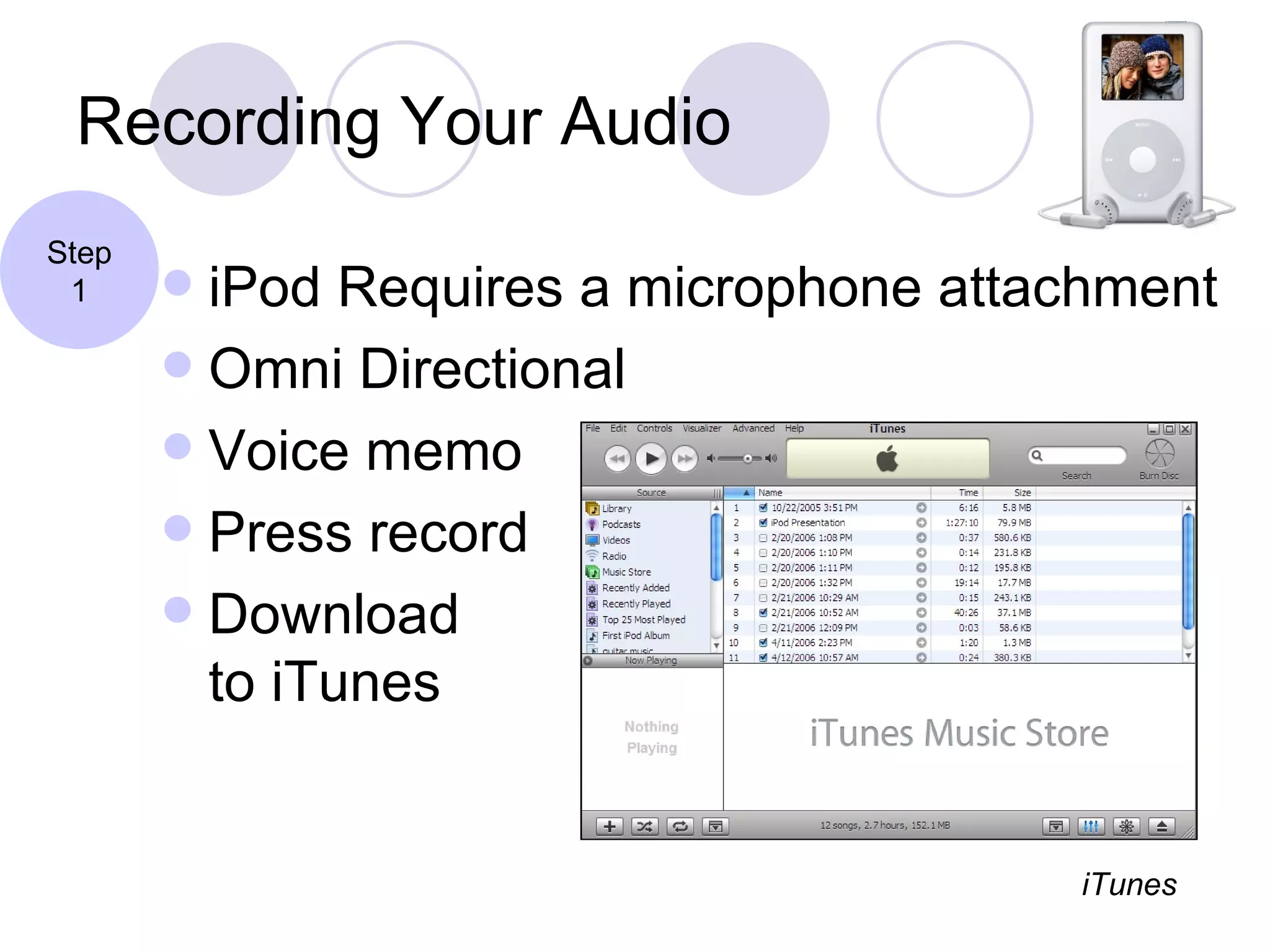
Recording Your Audio iPod Requires a microphone attachment Omni Directional Voice memo Press record Download  to iTunes Step 1 iTunes
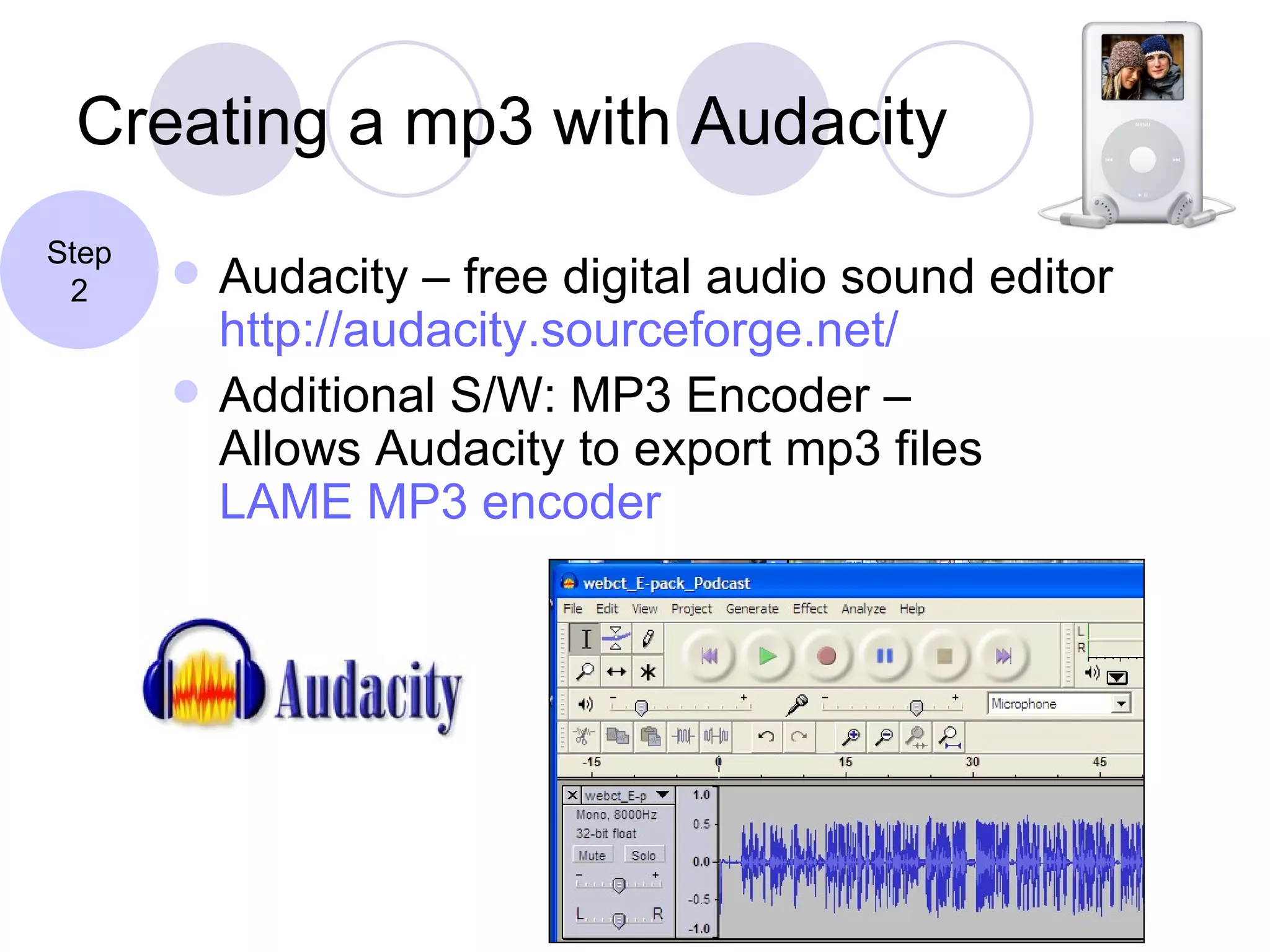
Creating a mp3 with Audacity Audacity – free digital audio sound editor http://audacity.sourceforge.net/ Additional S/W: MP3 Encoder – Allows Audacity to export mp3 files LAME MP3 encoder Step 2
Creating a mp3 with Audacity Modify mp3 Preferences Sample Rate 11025 Hz  (mono low/med quality) Sample Format 16-bit Advantages: compresses 10 minute file:   Example. 9mb – 3.9mb Options: Fade in/out, layer music  Export MP3 Step 2
Uploading to your faculty web page You will need a Web Server/Web Space  You will need access to a folder “H” Drive (Web2)  Remember the address Example: http://www.itc.csmd.edu/joelk/pod2.mp3 Step 3
Posting on Blogger Why Blogger? A good starting place to experiment with podcasting. Go to Blogger home page ( http://www.blogger.com ) and select  Create Your Blog Now: Create an account, name your blog and select a background. Your blog will automatically be created. Step 4
Posting on Blogger To add your MP3 file, create a text link, select it with the link tool, and enter the URL for your MP3 file. When your done, select  Publish Post , you should get a conformation page. Look at your  Setting  tab, and select  Basic  to update Blog information. Step 4
Sample Lesson Plans See Handouts
Thank You Questions?

How to Create a Podcast

  • 1.
    How to Create a Podcast Presenter:  Joel Kinison
  • 2.
    Outline Podcasting DefinedAcademic Uses of Podcasting iPod features and options Creating a Podcast Recording your audio Creating a mp3 with Audacity Uploading to your faculty web page Posting on Blogger Sample lesson plans
  • 3.
    Podcast Defined Anaudio file you create in .mp3 format Which contains your own presentation or lecture or any audio you wish others to have. Typically in radio broadcast format . That you upload along with an RSS (Really Simple Syndication) file to a server (Faculty web page for instance). Notes: XML based language RSS is a file that contains a link to downloadable audio files. Simple way to send out, once available files.
  • 4.
    Podcast Defined Studentsdownload using one of several programs ( aggravators/podcatchers ) that have been created to retrieve your audio file automatically, on a regular basis. iTunes, Yahoo, Firefox, and iPodder RSS Logo and subscribe. Podcast Directories Students can listen to it at their convenience on their own iPod or .mp3 player.
  • 5.
    Academic Uses Coursecontent dissemination tool access to lectures, songs, historical speeches, and foreign languages Classroom recording tool capturing lectures, discussions, and verbal feedback Field recording tool field notes, interviews, oral histories, environmental sounds Study support tool repeated listening of music, audio books, rehearsals Student Support Virtual tours, student news, orientations
  • 6.
    iPod Overview Brandof portable digital media player Store media on a built-in hard drive Upload music, photos, and videos Fifth-generation iPod can play videos Worlds best selling digital audio player Uses iTunes 14 million in last three months
  • 7.
    Capabilities MP3, AAC,AIFF, non copy-protected WMA, and MPEG-4 Limited PDA like features: address book, calendar, notes, and simple games Connects to computer via USB
  • 8.
    Hardware Batteries iPodscan recharge internal batteries Connector proprietary 30-pin dock connector > USB Earphones low quality (security issue)
  • 9.
    Design iPod casing(front & back) Touch-scroll wheel green circuit board controls Lithium ion battery Hard drive w/rubber insulation
  • 10.
    Cost iPod 30GB hard drive - $299 60 GB hard drive - $399 iPod nano 2 GB hard drive - $199 4 GB hard drive - $249 1 GB of storage will hold 250, 4-minute songs in 128 kbit/s AAC
  • 11.
    Creative offers alternativesCheaper Creative $225 (40GB) Creative $269 (60GB) Can handle recorded book recordings available for free through the library (IPod can’t)
  • 12.
    Accessories Speakers JBL,Bose, Altec Lansing Connectors Voice recorders FM transceiver Wireless remote Cases
  • 13.
    Creating a PodcastStep 1 Recording your audio Step 2 Creating a mp3 with Audacity Step 3 Uploading to your faculty web page Step 4 Posting on Blogger
  • 14.
    Recording Your AudioiPod Requires a microphone attachment Omni Directional Voice memo Press record Download to iTunes Step 1 iTunes
  • 15.
    Creating a mp3with Audacity Audacity – free digital audio sound editor http://audacity.sourceforge.net/ Additional S/W: MP3 Encoder – Allows Audacity to export mp3 files LAME MP3 encoder Step 2
  • 16.
    Creating a mp3with Audacity Modify mp3 Preferences Sample Rate 11025 Hz (mono low/med quality) Sample Format 16-bit Advantages: compresses 10 minute file: Example. 9mb – 3.9mb Options: Fade in/out, layer music Export MP3 Step 2
  • 17.
    Uploading to yourfaculty web page You will need a Web Server/Web Space You will need access to a folder “H” Drive (Web2) Remember the address Example: http://www.itc.csmd.edu/joelk/pod2.mp3 Step 3
  • 18.
    Posting on BloggerWhy Blogger? A good starting place to experiment with podcasting. Go to Blogger home page ( http://www.blogger.com ) and select Create Your Blog Now: Create an account, name your blog and select a background. Your blog will automatically be created. Step 4
  • 19.
    Posting on BloggerTo add your MP3 file, create a text link, select it with the link tool, and enter the URL for your MP3 file. When your done, select Publish Post , you should get a conformation page. Look at your Setting tab, and select Basic to update Blog information. Step 4
  • 20.
    Sample Lesson PlansSee Handouts
  • 21.