
How to Create a Glitter
Text Effect in Photoshop
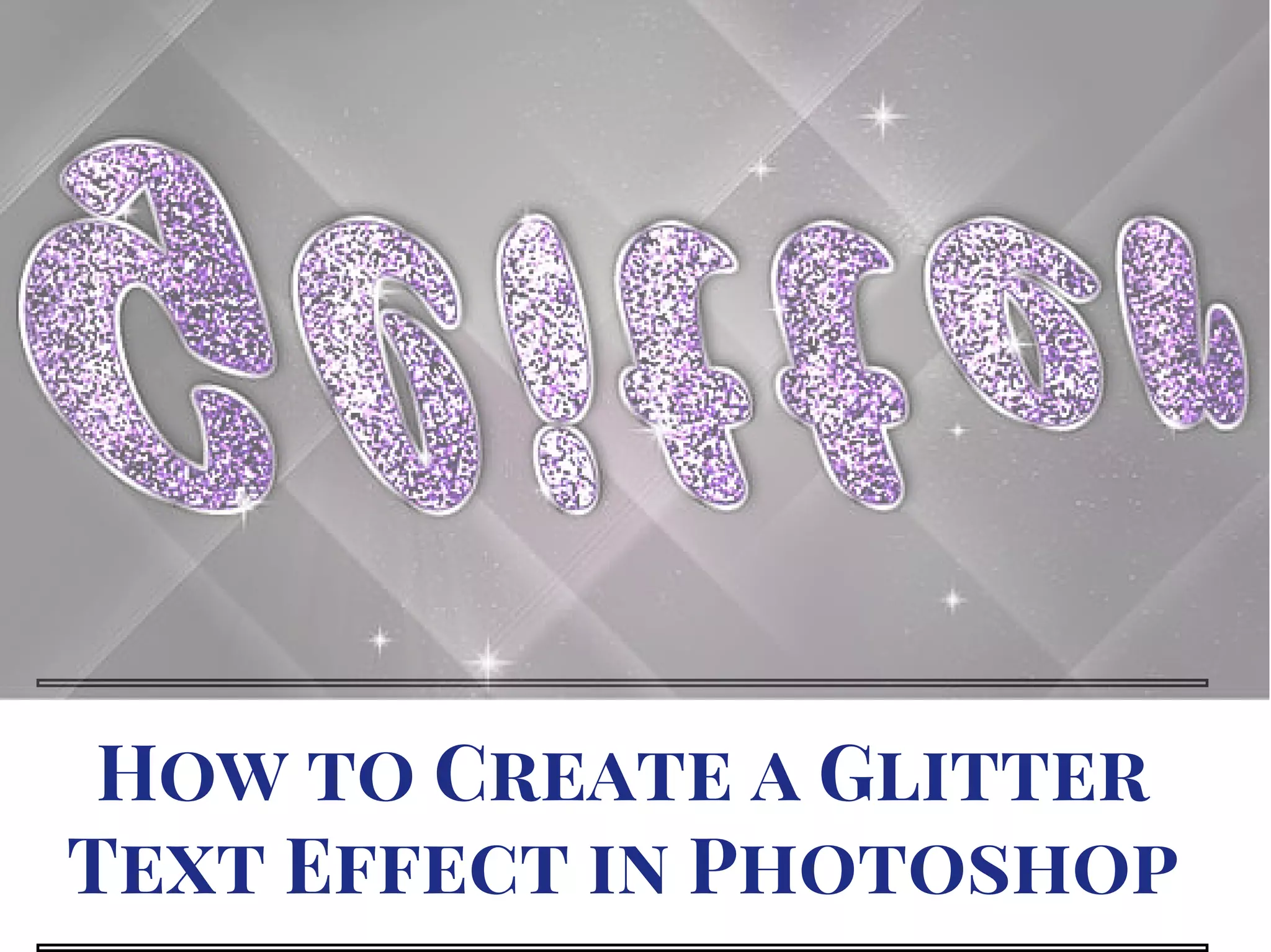
In this tutorial, we will learn how to create a glitter
text effect in Photoshop. Hopefully, it will help both
beginner and advanced level of students in a great deal.
 At first, create a new document, and adjust depending of
image size and resolution.  
Fill first layer with the radial gradient. Make some
adjustments on the settings. 
Type any sign you want with black color, in order to get
better result use bold fonts. Rasterize text layer now. 
Adjust default background and foreground colors on the left
side of Photoshop. Go to Filter > Texture > Stained Glass
and make adjustments on settings. 
In order to load selection for the black cells, go to Select >
Color Rang. Click with eyedropper to the black area and
click OK. 
Then go to Select > Refine Edge. Make adjustments on the
settings. You should get visible only black pieces from the text
layer. Apply some gray pattern to this layer.  
Go to Stained Glass filter again. Exchange background and
foreground colors as black and white. Correct levels to increase
sign contrast. 
Set background and foreground colors download glitter brushes
and use one of them to create glitter tiles around the sign.
You may correct brush size to get better result. If you would like
to add crease texture effect, apply Stained Glass filter to this
layer as well.
Then merge the sparkles layer and “Shiny” sign layer. Duplicate
merged layer. Make one of duplicates invisible. Convert second
duplicate to the 3D Postcard. 
Duplicate 3D layer, and rasterize the duplicate. Make 3D layer
invisible and apply layer style setting to the rasterized duplicate. 
To create reflection effect, make a new “Shiny” duplicate and
place this layer below the gradient layer. 
Photo Courtesy – http://design.tutsplus.com/
Add Layer Mask to this layer and fill it with black and white
gradient to make reflections visible only for the front plan and
wash away the far area. Apply Fill to 0% and add drop
shadow effect. 
 Duplicate “Shiny” layer third time. Set Fill and Opacity 100%,
apply Overlay Blending Mode to the layer. Place this layer
above both previous duplicates. 
Make one more duplicate layer and fill to 0%, apply Bevel and
Emboss effect. Create 5th duplicate of “Shiny” layer and
apply Screen Blending Mode to this layer.
Correct levels. by going to Image> Adjustments> Levels. To
increase glow effect, duplicate previous levels corrected layer
and apply Gaussian Blur filter to it. 
Use Screen Blending Mode for this layer as well. Return to the
layer. Make it visible for a while. 
Add a new empty layer and make several white spots above
the sign using large soft brush. Make plain “Shiny” layer
invisible again and now convert white spots layers to the 3D
post card.
Use the same settings to set position exactly the same as
“Shiny” 3D postcard. Apply Overlay Blending Mode to the
spots layer.
You may add another one large blur glow spot. Use the
same way as in the previous steps. Create regular large
blurred spot and convert it to the 3D post card. 
Set the same position as for previous 3D layers. Apply
Overlay Blending Mode effect. 
Create a new empty layer and take glitter brush again, set
the size 8­10px and draw some falling glitter pieces. Apply
Gaussian blur filter to 1px. 
Duplicate blurred glitter and go to Filter> Blur> Motion Blur.
Make adjustments on settings and move this layer up a bit to
combine the bottom tip of blurred strokes with the light dots
from the previous layer. 
Draw new sharp glitter pieces in a new layer with the glitter
brush but with the larger size 12­14px. Create a new layer
above background layer. 
Fill it with the lines pattern. Go to Filter> Distort> Twirl. 
Convert this layer to the 3D postcard and apply the same
position settings as for the “Shiny” sign and glow spots. 
Add layer mask to twirl background layer and fill it with black
and white gradient to smooth far edge.
That sums up the process.
To learn more about Photoshop Effects and other Image editing Tips & Tricks
Visit
clippingpathservice.com
metrodesk.com.bd
Follow us 
 
Write us
support@metrodesk.com.bd
support@clippingpathservice.com

How to Create a Glitter Text Effect in Photoshop