Windows 7 Clean Install Step by step Guide
Windows Vista to Windows 7
Step 1 Preparation
1.1 If your computer does not come with a DVD or BD reading device, you will need
to provide an external one to continue.
1.2 You can download the latest drivers for Windows 7 and save them in an USB flash
disk. The drivers can be found on GIGABYTE product support page. Please go to
www.gigabyte.com.tw for more information.
1.3 If you are not following the upgrade path for Windows 7, you will need a clean
installation.
During the Windows 7 installation, your Hard Drive Disc will be formatted and all
the data will be lost. Please backup your data before installation.
Step 2 Step by step installation
2.1 Insert the Windows 7 Installation Disc into the external DVD or BD reading device.
Turn on your computer.
2.2 During the boot up screen, press [F12] on your keyboard to enter Boot Manager.
2.3 Once entered Boot Manager, choose the DVD or BD reading device where you
insert the installation disc.
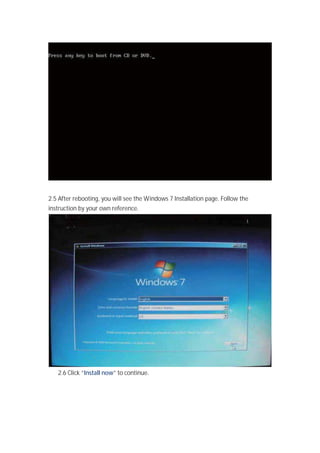
2.4 Press any key on your keyboard when you see the message to reboot from the
DVD or BD reading device.
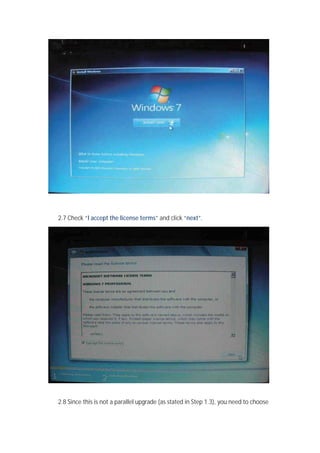
2.5 After rebooting, you will see the Windows 7 Installation page. Follow the
instruction by your own reference.
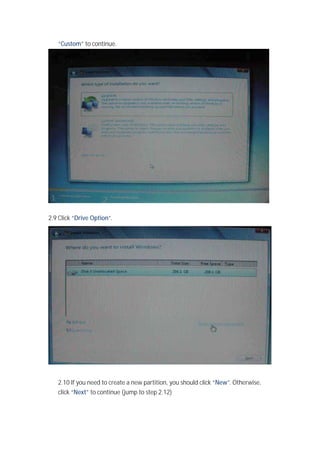
2.6 Click “Install now” to continue.
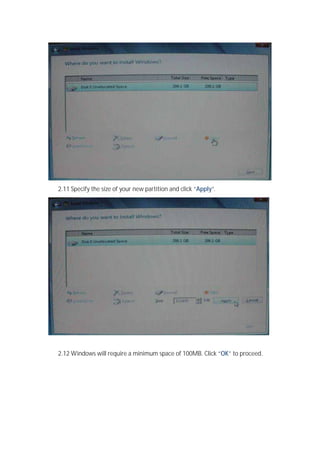
2.7 Check “I accept the license terms” and click “next”.
2.8 Since this is not a parallel upgrade (as stated in Step 1.3), you need to choose
“Custom” to continue.
2.9 Click “Drive Option”.
2.10 If you need to create a new partition, you should click “New”. Otherwise,
click “Next” to continue (jump to step 2.12)
2.11 Specify the size of your new partition and click “Apply”.
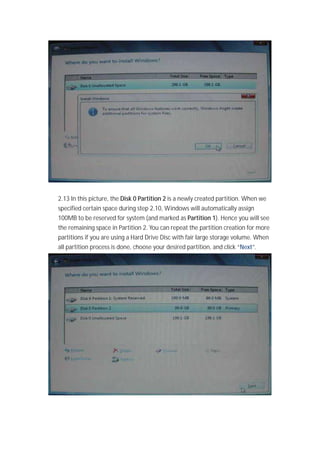
2.12 Windows will require a minimum space of 100MB. Click “OK” to proceed.
2.13 In this picture, the Disk 0 Partition 2 is a newly created partition. When we
specified certain space during step 2.10, Windows will automatically assign
100MB to be reserved for system (and marked as Partition 1). Hence you will see
the remaining space in Partition 2. You can repeat the partition creation for more
partitions if you are using a Hard Drive Disc with fair large storage volume. When
all partition process is done, choose your desired partition, and click “Next”.
Step 3 Complete the Windows 7 Installation
3.1 Specify a user name.
3.2 Specify your password, or skip this by click “Next”.
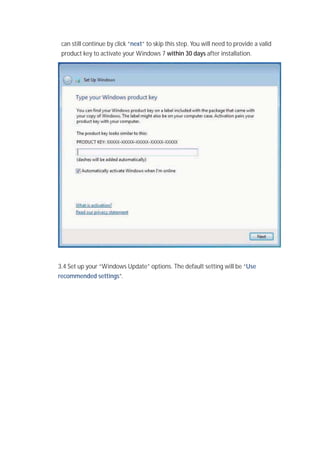
3.3 Windows will require you to type in the product Key. You should find your
product key in your disc package. (If not, please contact your disc providers.) You
can still continue by click “next” to skip this step. You will need to provide a valid
product key to activate your Windows 7 within 30 days after installation.
3.4 Set up your “Windows Update” options. The default setting will be “Use
recommended settings”.
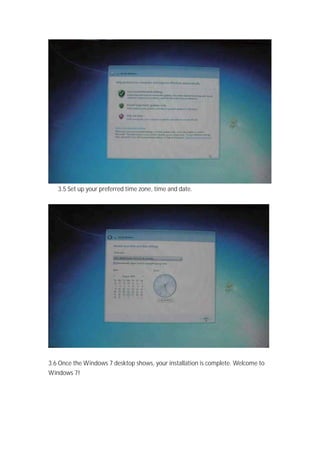
3.5 Set up your preferred time zone, time and date.
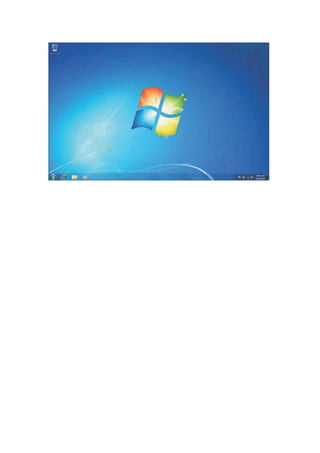
3.6 Once the Windows 7 desktop shows, your installation is complete. Welcome to
Windows 7!
How To Clean Install Windows 10 - awesomehowto.com

How To Clean Install Windows 10 - awesomehowto.com

  • 1.
    Windows 7 CleanInstall Step by step Guide Windows Vista to Windows 7 Step 1 Preparation 1.1 If your computer does not come with a DVD or BD reading device, you will need to provide an external one to continue. 1.2 You can download the latest drivers for Windows 7 and save them in an USB flash disk. The drivers can be found on GIGABYTE product support page. Please go to www.gigabyte.com.tw for more information. 1.3 If you are not following the upgrade path for Windows 7, you will need a clean installation. During the Windows 7 installation, your Hard Drive Disc will be formatted and all the data will be lost. Please backup your data before installation. Step 2 Step by step installation 2.1 Insert the Windows 7 Installation Disc into the external DVD or BD reading device. Turn on your computer. 2.2 During the boot up screen, press [F12] on your keyboard to enter Boot Manager.
  • 2.
    2.3 Once enteredBoot Manager, choose the DVD or BD reading device where you insert the installation disc. 2.4 Press any key on your keyboard when you see the message to reboot from the DVD or BD reading device.
  • 3.
    2.5 After rebooting,you will see the Windows 7 Installation page. Follow the instruction by your own reference. 2.6 Click “Install now” to continue.
  • 4.
    2.7 Check “Iaccept the license terms” and click “next”. 2.8 Since this is not a parallel upgrade (as stated in Step 1.3), you need to choose
  • 5.
    “Custom” to continue. 2.9Click “Drive Option”. 2.10 If you need to create a new partition, you should click “New”. Otherwise, click “Next” to continue (jump to step 2.12)
  • 6.
    2.11 Specify thesize of your new partition and click “Apply”. 2.12 Windows will require a minimum space of 100MB. Click “OK” to proceed.
  • 7.
    2.13 In thispicture, the Disk 0 Partition 2 is a newly created partition. When we specified certain space during step 2.10, Windows will automatically assign 100MB to be reserved for system (and marked as Partition 1). Hence you will see the remaining space in Partition 2. You can repeat the partition creation for more partitions if you are using a Hard Drive Disc with fair large storage volume. When all partition process is done, choose your desired partition, and click “Next”.
  • 8.
    Step 3 Completethe Windows 7 Installation 3.1 Specify a user name. 3.2 Specify your password, or skip this by click “Next”. 3.3 Windows will require you to type in the product Key. You should find your product key in your disc package. (If not, please contact your disc providers.) You
  • 9.
    can still continueby click “next” to skip this step. You will need to provide a valid product key to activate your Windows 7 within 30 days after installation. 3.4 Set up your “Windows Update” options. The default setting will be “Use recommended settings”.
  • 10.
    3.5 Set upyour preferred time zone, time and date. 3.6 Once the Windows 7 desktop shows, your installation is complete. Welcome to Windows 7!