Hotspots and screentips in Powerpoint Designed by A.Charles  January 2008
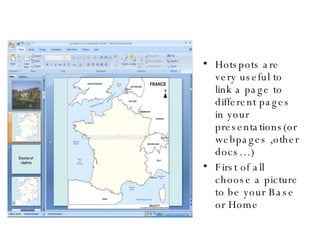
Hotspots are very useful to link a page to different pages in your presentations(or webpages ,other docs…) First of all choose a picture to be your Base or Home
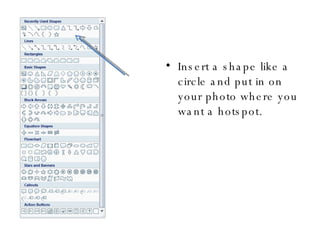
Insert a shape like a circle and put in on your photo where you want a hotspot.
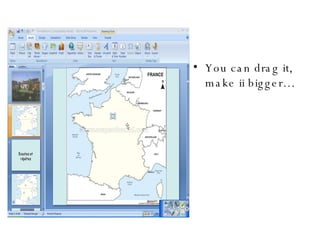
You can drag it, make ii bigger…
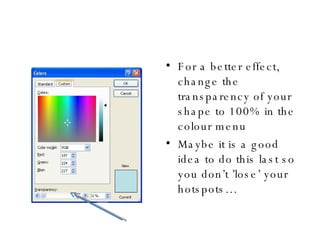
For a better effect, change the transparency of your shape to 100% in the colour menu Maybe it is a good idea to do this last so you don’t ’lose’ your hotspots…
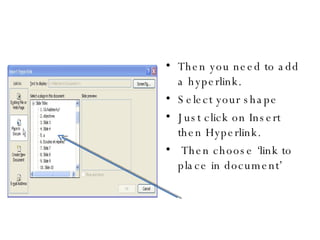
Then you need to add a hyperlink. Select your shape Just click on Insert then Hyperlink. Then choose ‘link to place in document’
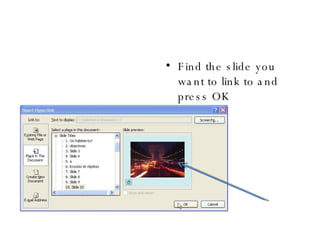
Find the slide you want to link to and press OK
When in viewing mode, if you click on your hotspot …
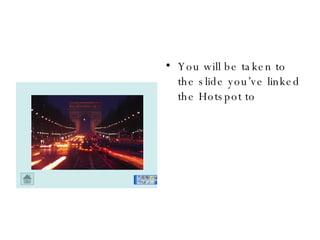
You will be taken to the slide you’ve linked the Hotspot to
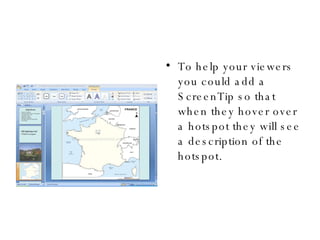
To help your viewers you could add a ScreenTip so that when they hover over a hotspot they will see a description of the hotspot.
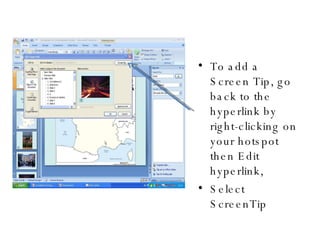
To add a Screen Tip, go back to the hyperlink by right-clicking on your hotspot then Edit hyperlink, Select ScreenTip
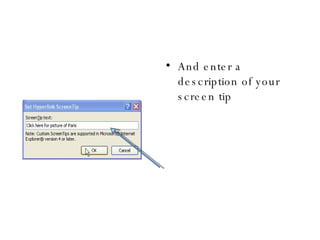
And enter a description of your screen tip
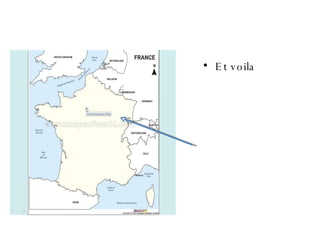
Et voila
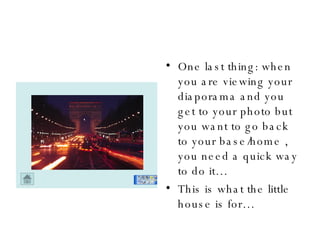
One last thing: when you are viewing your diaporama and you get to your photo but you want to go back to your base/home , you need a quick way to do it… This is what the little house is for…
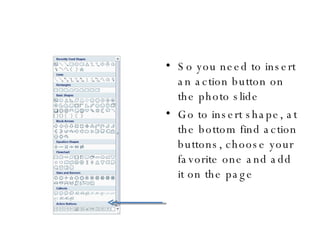
So you need to insert an action button on the photo slide Go to insert shape, at the bottom find action buttons, choose your favorite one and add it on the page
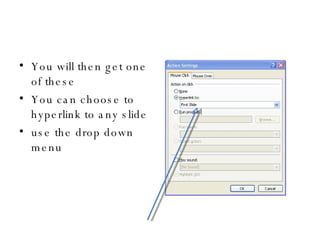
You will then get one of these You can choose to hyperlink to any slide use the drop down menu
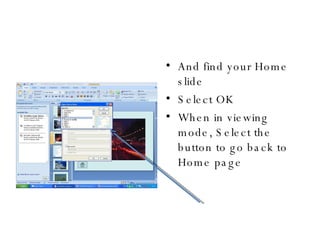
And find your Home slide Select OK When in viewing mode, Select the button to go back to Home page
You can now add as many hotspots and screentips as you want… Hope this will be useful Any problem…. Go to an Inset about ICT!!! Or get your partner to do it for you.

Hotspots And Screentips In Powerpoint

  • 1.
    Hotspots and screentipsin Powerpoint Designed by A.Charles January 2008
  • 2.
    Hotspots are veryuseful to link a page to different pages in your presentations(or webpages ,other docs…) First of all choose a picture to be your Base or Home
  • 3.
    Insert a shapelike a circle and put in on your photo where you want a hotspot.
  • 4.
    You can dragit, make ii bigger…
  • 5.
    For a bettereffect, change the transparency of your shape to 100% in the colour menu Maybe it is a good idea to do this last so you don’t ’lose’ your hotspots…
  • 6.
    Then you needto add a hyperlink. Select your shape Just click on Insert then Hyperlink. Then choose ‘link to place in document’
  • 7.
    Find the slideyou want to link to and press OK
  • 8.
    When in viewingmode, if you click on your hotspot …
  • 9.
    You will betaken to the slide you’ve linked the Hotspot to
  • 10.
    To help yourviewers you could add a ScreenTip so that when they hover over a hotspot they will see a description of the hotspot.
  • 11.
    To add aScreen Tip, go back to the hyperlink by right-clicking on your hotspot then Edit hyperlink, Select ScreenTip
  • 12.
    And enter adescription of your screen tip
  • 13.
  • 14.
    One last thing:when you are viewing your diaporama and you get to your photo but you want to go back to your base/home , you need a quick way to do it… This is what the little house is for…
  • 15.
    So you needto insert an action button on the photo slide Go to insert shape, at the bottom find action buttons, choose your favorite one and add it on the page
  • 16.
    You will thenget one of these You can choose to hyperlink to any slide use the drop down menu
  • 17.
    And find yourHome slide Select OK When in viewing mode, Select the button to go back to Home page
  • 18.
    You can nowadd as many hotspots and screentips as you want… Hope this will be useful Any problem…. Go to an Inset about ICT!!! Or get your partner to do it for you.