
Google Earth Creating Lit Trips
Fun things to do with Google Earth View an image of your home, school, or any place on earth. Click Fly To (under the Search tab).  Enter the location in the search box and click the magnifying glass.  Double click the location in the search results to fly to it.
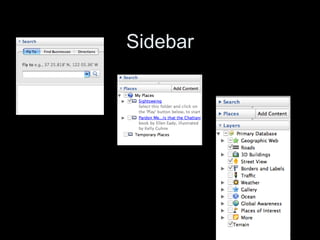
Fun things to do with Google Earth Go on a tour of the world In the Places panel, check the Sightseeing floder and click the Play Tour button
Fun things to do with Google Earth Driving directions Click Directions in the Search section.  Enter the two addresses and click the magnifying glass.  Use the play button to fly the route.
Fun things to do with Google Earth View other cool features In the Layers panel (located below Search and Places), check the topics that interest you.
Fun things to do with Google Earth View the 3D terrain of a place (works best with mountainous locations) Go to a location.  When the view shows the location, use the zoom slider to tilt the terrain.
Fun things to do with Google Earth Flight simulator Under the Tools menu, click Flight Simulator Have fun flying around!
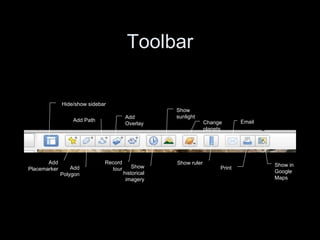
Toolbar Hide/show sidebar Add Placemarker Add Polygon Add Path Add Overlay Record tour Show historical imagery Show sunlight Change planets Show ruler Email Print Show in Google Maps
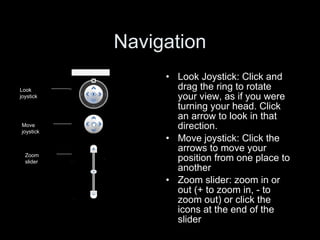
Look Joystick: Click and drag the ring to rotate your view, as if you were turning your head. Click an arrow to look in that direction. Move joystick: Click the arrows to move your position from one place to another Zoom slider: zoom in or out (+ to zoom in, - to zoom out) or click the icons at the end of the slider Navigation Look joystick Move joystick Zoom slider
Sidebar
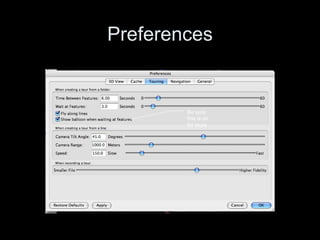
Preferences Be sure this is on for tours
Resources http://googlelittrips.com http://slideshare.net/library_chic http://delicious.com/library_chic/littrip+ inservice
In Google Earth Placemarkers Center dot = placemarker Naming Changing marker icon Editing <img src=“”>
In Google Earth Paths Routes & driving directions Folders New folder for each tour Saving
Exporting Kmz files

Google Lit Trips

  • 1.
  • 2.
    Fun things todo with Google Earth View an image of your home, school, or any place on earth. Click Fly To (under the Search tab). Enter the location in the search box and click the magnifying glass. Double click the location in the search results to fly to it.
  • 3.
    Fun things todo with Google Earth Go on a tour of the world In the Places panel, check the Sightseeing floder and click the Play Tour button
  • 4.
    Fun things todo with Google Earth Driving directions Click Directions in the Search section. Enter the two addresses and click the magnifying glass. Use the play button to fly the route.
  • 5.
    Fun things todo with Google Earth View other cool features In the Layers panel (located below Search and Places), check the topics that interest you.
  • 6.
    Fun things todo with Google Earth View the 3D terrain of a place (works best with mountainous locations) Go to a location. When the view shows the location, use the zoom slider to tilt the terrain.
  • 7.
    Fun things todo with Google Earth Flight simulator Under the Tools menu, click Flight Simulator Have fun flying around!
  • 8.
    Toolbar Hide/show sidebarAdd Placemarker Add Polygon Add Path Add Overlay Record tour Show historical imagery Show sunlight Change planets Show ruler Email Print Show in Google Maps
  • 9.
    Look Joystick: Clickand drag the ring to rotate your view, as if you were turning your head. Click an arrow to look in that direction. Move joystick: Click the arrows to move your position from one place to another Zoom slider: zoom in or out (+ to zoom in, - to zoom out) or click the icons at the end of the slider Navigation Look joystick Move joystick Zoom slider
  • 10.
  • 11.
    Preferences Be surethis is on for tours
  • 12.
    Resources http://googlelittrips.com http://slideshare.net/library_chichttp://delicious.com/library_chic/littrip+ inservice
  • 13.
    In Google EarthPlacemarkers Center dot = placemarker Naming Changing marker icon Editing <img src=“”>
  • 14.
    In Google EarthPaths Routes & driving directions Folders New folder for each tour Saving
  • 15.

Editor's Notes

  • #10 1. Click the north-up button to reset the view so that north is at the top of the screen. Click and drag the ring to rotate your view. 2. Use the Look joystick to look around from a single vantage point, as if you were turning your head. Click an arrow to look in that direction or continue to press down on the mouse button to change your view. After clicking an arrow, move the mouse around on the joystick to change the direction of motion. 3. Use the Move joystick to move your position from one place to another. Click an arrow to look in that direction or continue to press down on the mouse button to change your view. After clicking an arrow, move the mouse around on the joystick to change the direction of motion. 4. Use the zoom slider to zoom in or out (+ to zoom in, - to zoom out) or click the icons at the end of the slider. As you move closer to the ground, Google Earth swoops (tilts) to change your viewing angle to be parallel to the Earth&apos;s surface. You can turn off this automatic tilt (Tools &gt; Options &gt; Navigation &gt; Navigation controls; Mac: Google Earth &gt; Preferences &gt; Navigation &gt; Navigation controls).