

Google AppsAn Introduction
Google Apps & Libraries“…the fact is that the Google Apps Education Edition is a useful tool that teachers and students can employ in almost any school.” – Suzie Boss, Edutopia“Buffy Hamilton's Unquiet Library, utilizes many of these resources. In Hamilton's January 27, 2010 LIS 5313 Library 2.0 Presentation , she said that the reason for her library's move to Google sites was because it was easier to interface with other Google applications, because of the option for having an announcement feed and because it was easier to embed widgets. The Unquiet Library has students collaborating through teacher pages on Google Docs, using a Google calendar and using Google Books. These tools provide students with an opportunity to collaborate with each other in what Hamilton sees as the essence of participatory librarianship: creating conversations, participation and knowledge building.”  School Libraries Using Web 2.0 Collaborative Tools-LIS5313 Course WikiCreated by Sundi Pierce sundi.pierce@sdhc.k12.fl.us
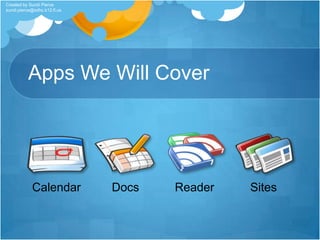
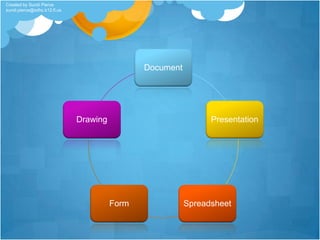
Apps We Will CoverCreated by Sundi Pierce sundi.pierce@sdhc.k12.fl.us
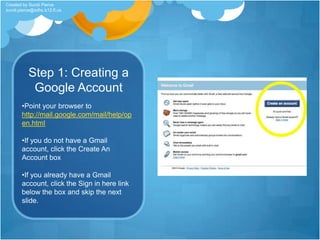
Step 1: Creating a Google AccountPoint your browser to http://mail.google.com/mail/help/open.html
If you do not have a Gmail account, click the Create An Account box
If you already have a Gmail account, click the Sign in here link below the box and skip the next slide.Created by Sundi Pierce sundi.pierce@sdhc.k12.fl.us
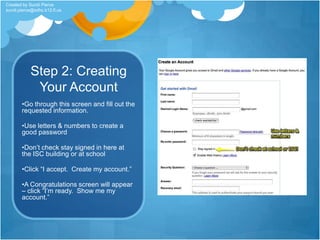
Step 2: Creating Your AccountGo through this screen and fill out the requested information.
Use letters & numbers to create a good password
Don’t check stay signed in here at the ISC building or at school
Click “I accept.  Create my account.”
A Congratulations screen will appear – click “I’m ready.  Show me my account.”Created by Sundi Pierce sundi.pierce@sdhc.k12.fl.us
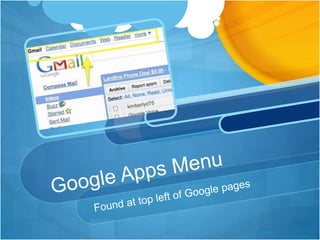
Google Apps MenuFound at top left of Google pages
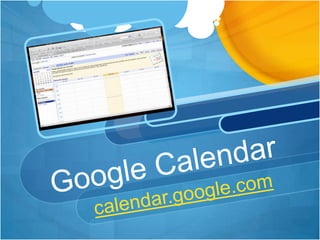
Google Calendarcalendar.google.com
Why use Google Calendar?Easy to useNice search feature for tracking appointments by keywordAbility to add Google Docs attachments to eventsAbility to share calendarsYou can have multiple calendarsAccessible everywhere - on all data devicesCreated by Sundi Pierce sundi.pierce@sdhc.k12.fl.us
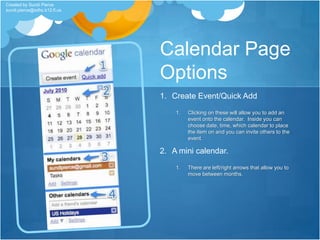
Calendar Page OptionsCreate Event/Quick AddClicking on these will allow you to add an event onto the calendar.  Inside you can choose date, time, which calendar to place the item on and you can invite others to the event.A mini calendar.  There are left/right arrows that allow you to move between months.Created by Sundi Pierce sundi.pierce@sdhc.k12.fl.us
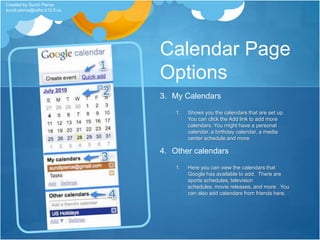
Calendar Page OptionsMy CalendarsShows you the calendars that are set up.  You can click the Add link to add more calendars. You might have a personal calendar, a birthday calendar, a media center schedule and more.Other calendarsHere you can view the calendars that Google has available to add.  There are sports schedules, television schedules, movie releases, and more.  You can also add calendars from friends here.Created by Sundi Pierce sundi.pierce@sdhc.k12.fl.us
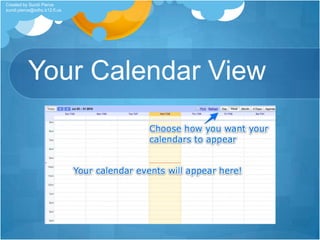
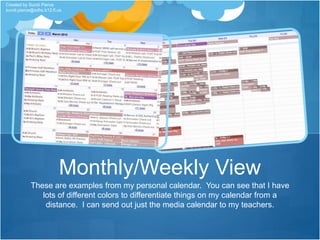
Your Calendar ViewCreated by Sundi Pierce sundi.pierce@sdhc.k12.fl.us
These are examples from my personal calendar.  You can see that I have lots of different colors to differentiate things on my calendar from a distance.  I can send out just the media calendar to my teachers. Monthly/Weekly ViewCreated by Sundi Pierce sundi.pierce@sdhc.k12.fl.us
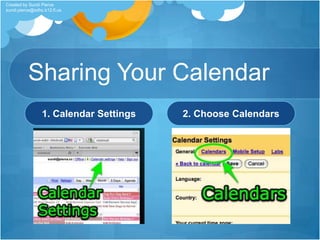
Sharing Your Calendar1. Calendar Settings2. Choose Calendars Created by Sundi Pierce sundi.pierce@sdhc.k12.fl.us
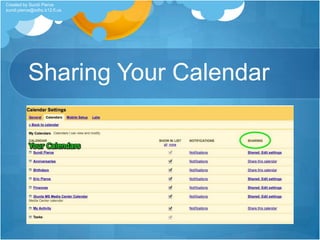
Sharing Your CalendarCreated by Sundi Pierce sundi.pierce@sdhc.k12.fl.us
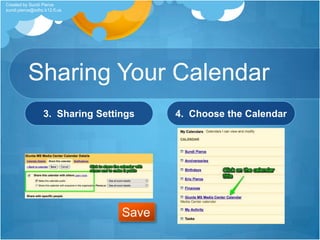
Sharing Your Calendar3.  Sharing Settings4.  Choose the CalendarSaveCreated by Sundi Pierce sundi.pierce@sdhc.k12.fl.us
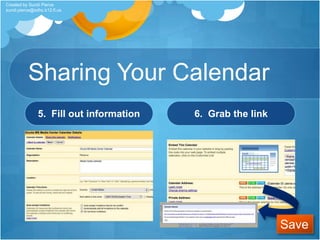
Sharing Your Calendar5.  Fill out information6.  Grab the linkSaveCreated by Sundi Pierce sundi.pierce@sdhc.k12.fl.us
Google DocsThe Google version of Microsoft Officedocs.google.com
Created by Sundi Pierce sundi.pierce@sdhc.k12.fl.us
Why use Google Docs?It’s FREE!You can collaborate on documents and projectsMultiple people can be working on the same document at the same timeMobile access to documentsCan be used as a replacement for personal storage (Flash drives, CDRs)Ability to save any type of file into the storage areaCreated by Sundi Pierce sundi.pierce@sdhc.k12.fl.us
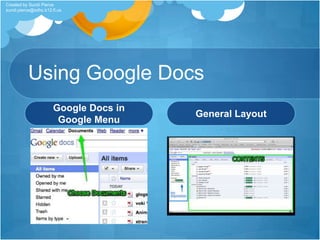
Using Google DocsGoogle Docs inGoogle MenuGeneral LayoutCreated by Sundi Pierce sundi.pierce@sdhc.k12.fl.us
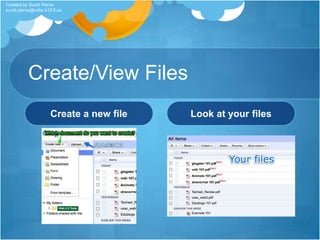
Create/View FilesCreate a new fileLook at your filesCreated by Sundi Pierce sundi.pierce@sdhc.k12.fl.us
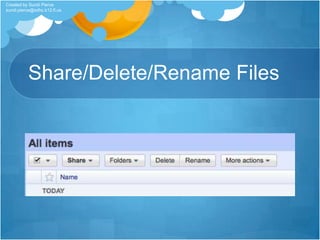
Share/Delete/Rename FilesCreated by Sundi Pierce sundi.pierce@sdhc.k12.fl.us
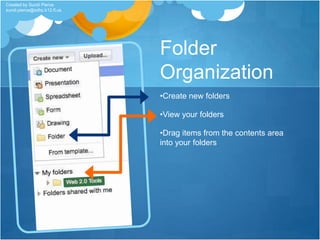
Folder OrganizationCreate new folders
View your folders
Drag items from the contents area into your foldersCreated by Sundi Pierce sundi.pierce@sdhc.k12.fl.us
Google’s Version of Microsoft WordDocuments
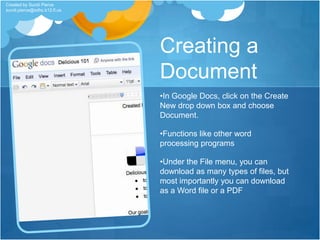
Creating a DocumentIn Google Docs, click on the Create New drop down box and choose Document.
Functions like other word processing programs
Under the File menu, you can download as many types of files, but most importantly you can download as a Word file or a PDFCreated by Sundi Pierce sundi.pierce@sdhc.k12.fl.us
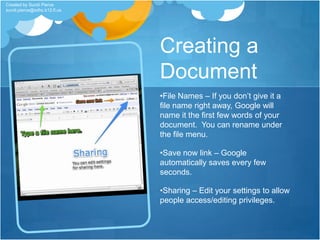
Creating a DocumentFile Names – If you don’t give it a file name right away, Google will name it the first few words of your document.  You can rename under the file menu.
Save now link – Google automatically saves every few seconds.
Sharing – Edit your settings to allow people access/editing privileges.Created by Sundi Pierce sundi.pierce@sdhc.k12.fl.us
Google’s Version of Microsoft PowerPointPresentation
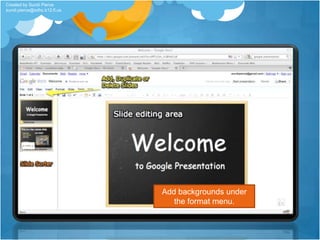
Add backgrounds underthe format menu.Created by Sundi Pierce sundi.pierce@sdhc.k12.fl.us
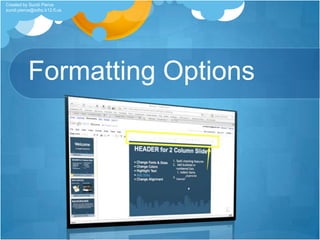
Formatting OptionsCreated by Sundi Pierce sundi.pierce@sdhc.k12.fl.us
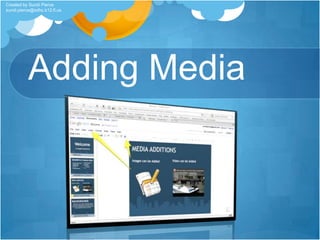
Adding MediaCreated by Sundi Pierce sundi.pierce@sdhc.k12.fl.us
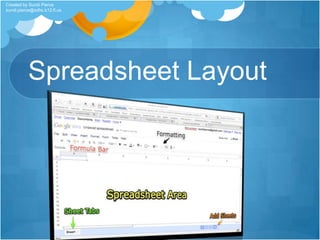
Google’s Version of Microsoft ExcelSpreadsheet
Spreadsheet LayoutCreated by Sundi Pierce sundi.pierce@sdhc.k12.fl.us
Google’s Version of Survey MonkeyForms
Created by Sundi Pierce sundi.pierce@sdhc.k12.fl.us
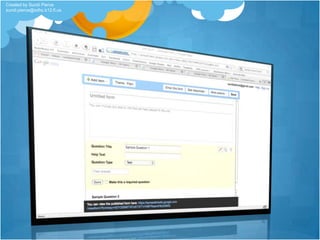
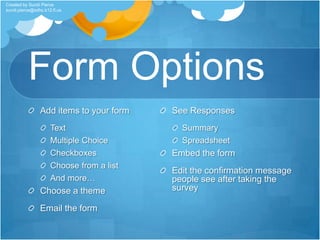
Form OptionsAdd items to your formTextMultiple ChoiceCheckboxesChoose from a listAnd more…Choose a themeEmail the formSee ResponsesSummarySpreadsheetEmbed the formEdit the confirmation message people see after taking the surveyCreated by Sundi Pierce sundi.pierce@sdhc.k12.fl.us
Google’s Version of Adobe IllustratorDrawing
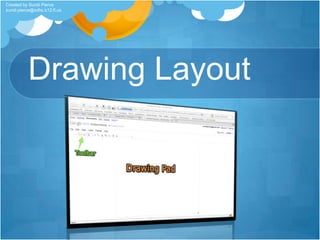
Drawing LayoutCreated by Sundi Pierce sundi.pierce@sdhc.k12.fl.us
Uses of Google DrawingMake charts, diagrams, designs and moreCreate project timelinesCollaborate on drawingsCreated by Sundi Pierce sundi.pierce@sdhc.k12.fl.us
Google Readerreader.google.com
Google Reader = RSS ReaderRSS (Really Simple Syndication) ReaderAn RSS reader allows you to collect information from your favorite sites and read them all in one place.  It notifies you when you have new articles to read.Allows you to stay in touch with the day’s eventsCreated by Sundi Pierce sundi.pierce@sdhc.k12.fl.us
Why use Google Reader?Professional UseAllows you to stay up to date in the library fieldYou can’t market yourself well if you aren’t versed in what’s going on!!Allows you to get ideas from your colleaguesAllows you to interact with other media specialistsPersonal UseRecipesOthers with similar interestsInspirationAnd much more!Created by Sundi Pierce sundi.pierce@sdhc.k12.fl.us
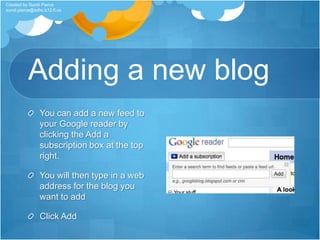
Adding a new blogYou can add a new feed to your Google reader by clicking the Add a subscription box at the top right.You will then type in a web address for the blog you want to addClick AddCreated by Sundi Pierce sundi.pierce@sdhc.k12.fl.us
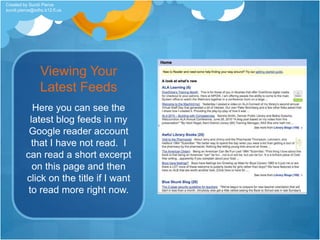
Viewing Your Latest FeedsHere you can see the latest blog feeds in my Google reader account that I have not read.  I can read a short excerpt on this page and then click on the title if I want to read more right now.Created by Sundi Pierce sundi.pierce@sdhc.k12.fl.us
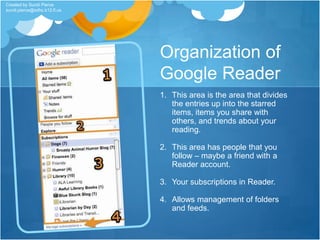
Organization of Google ReaderThis area is the area that divides the entries up into the starred items, items you share with others, and trends about your reading.This area has people that you follow – maybe a friend with a Reader account.Your subscriptions in Reader.Allows management of folders and feeds.Created by Sundi Pierce sundi.pierce@sdhc.k12.fl.us

Google Apps 101

  • 1.
  • 2.
    Google Apps &Libraries“…the fact is that the Google Apps Education Edition is a useful tool that teachers and students can employ in almost any school.” – Suzie Boss, Edutopia“Buffy Hamilton's Unquiet Library, utilizes many of these resources. In Hamilton's January 27, 2010 LIS 5313 Library 2.0 Presentation , she said that the reason for her library's move to Google sites was because it was easier to interface with other Google applications, because of the option for having an announcement feed and because it was easier to embed widgets. The Unquiet Library has students collaborating through teacher pages on Google Docs, using a Google calendar and using Google Books. These tools provide students with an opportunity to collaborate with each other in what Hamilton sees as the essence of participatory librarianship: creating conversations, participation and knowledge building.” School Libraries Using Web 2.0 Collaborative Tools-LIS5313 Course WikiCreated by Sundi Pierce sundi.pierce@sdhc.k12.fl.us
  • 3.
    Apps We WillCoverCreated by Sundi Pierce sundi.pierce@sdhc.k12.fl.us
  • 4.
    Step 1: Creatinga Google AccountPoint your browser to http://mail.google.com/mail/help/open.html
  • 5.
    If you donot have a Gmail account, click the Create An Account box
  • 6.
    If you alreadyhave a Gmail account, click the Sign in here link below the box and skip the next slide.Created by Sundi Pierce sundi.pierce@sdhc.k12.fl.us
  • 7.
    Step 2: CreatingYour AccountGo through this screen and fill out the requested information.
  • 8.
    Use letters &numbers to create a good password
  • 9.
    Don’t check staysigned in here at the ISC building or at school
  • 10.
    Click “I accept. Create my account.”
  • 11.
    A Congratulations screenwill appear – click “I’m ready. Show me my account.”Created by Sundi Pierce sundi.pierce@sdhc.k12.fl.us
  • 12.
    Google Apps MenuFoundat top left of Google pages
  • 13.
  • 14.
    Why use GoogleCalendar?Easy to useNice search feature for tracking appointments by keywordAbility to add Google Docs attachments to eventsAbility to share calendarsYou can have multiple calendarsAccessible everywhere - on all data devicesCreated by Sundi Pierce sundi.pierce@sdhc.k12.fl.us
  • 15.
    Calendar Page OptionsCreateEvent/Quick AddClicking on these will allow you to add an event onto the calendar. Inside you can choose date, time, which calendar to place the item on and you can invite others to the event.A mini calendar. There are left/right arrows that allow you to move between months.Created by Sundi Pierce sundi.pierce@sdhc.k12.fl.us
  • 16.
    Calendar Page OptionsMyCalendarsShows you the calendars that are set up. You can click the Add link to add more calendars. You might have a personal calendar, a birthday calendar, a media center schedule and more.Other calendarsHere you can view the calendars that Google has available to add. There are sports schedules, television schedules, movie releases, and more. You can also add calendars from friends here.Created by Sundi Pierce sundi.pierce@sdhc.k12.fl.us
  • 17.
    Your Calendar ViewCreatedby Sundi Pierce sundi.pierce@sdhc.k12.fl.us
  • 18.
    These are examplesfrom my personal calendar. You can see that I have lots of different colors to differentiate things on my calendar from a distance. I can send out just the media calendar to my teachers. Monthly/Weekly ViewCreated by Sundi Pierce sundi.pierce@sdhc.k12.fl.us
  • 19.
    Sharing Your Calendar1.Calendar Settings2. Choose Calendars Created by Sundi Pierce sundi.pierce@sdhc.k12.fl.us
  • 20.
    Sharing Your CalendarCreatedby Sundi Pierce sundi.pierce@sdhc.k12.fl.us
  • 21.
    Sharing Your Calendar3. Sharing Settings4. Choose the CalendarSaveCreated by Sundi Pierce sundi.pierce@sdhc.k12.fl.us
  • 22.
    Sharing Your Calendar5. Fill out information6. Grab the linkSaveCreated by Sundi Pierce sundi.pierce@sdhc.k12.fl.us
  • 23.
    Google DocsThe Googleversion of Microsoft Officedocs.google.com
  • 24.
    Created by SundiPierce sundi.pierce@sdhc.k12.fl.us
  • 25.
    Why use GoogleDocs?It’s FREE!You can collaborate on documents and projectsMultiple people can be working on the same document at the same timeMobile access to documentsCan be used as a replacement for personal storage (Flash drives, CDRs)Ability to save any type of file into the storage areaCreated by Sundi Pierce sundi.pierce@sdhc.k12.fl.us
  • 26.
    Using Google DocsGoogleDocs inGoogle MenuGeneral LayoutCreated by Sundi Pierce sundi.pierce@sdhc.k12.fl.us
  • 27.
    Create/View FilesCreate anew fileLook at your filesCreated by Sundi Pierce sundi.pierce@sdhc.k12.fl.us
  • 28.
    Share/Delete/Rename FilesCreated bySundi Pierce sundi.pierce@sdhc.k12.fl.us
  • 29.
  • 30.
  • 31.
    Drag items fromthe contents area into your foldersCreated by Sundi Pierce sundi.pierce@sdhc.k12.fl.us
  • 32.
    Google’s Version ofMicrosoft WordDocuments
  • 33.
    Creating a DocumentInGoogle Docs, click on the Create New drop down box and choose Document.
  • 34.
    Functions like otherword processing programs
  • 35.
    Under the Filemenu, you can download as many types of files, but most importantly you can download as a Word file or a PDFCreated by Sundi Pierce sundi.pierce@sdhc.k12.fl.us
  • 36.
    Creating a DocumentFileNames – If you don’t give it a file name right away, Google will name it the first few words of your document. You can rename under the file menu.
  • 37.
    Save now link– Google automatically saves every few seconds.
  • 38.
    Sharing – Edityour settings to allow people access/editing privileges.Created by Sundi Pierce sundi.pierce@sdhc.k12.fl.us
  • 39.
    Google’s Version ofMicrosoft PowerPointPresentation
  • 40.
    Add backgrounds undertheformat menu.Created by Sundi Pierce sundi.pierce@sdhc.k12.fl.us
  • 41.
    Formatting OptionsCreated bySundi Pierce sundi.pierce@sdhc.k12.fl.us
  • 42.
    Adding MediaCreated bySundi Pierce sundi.pierce@sdhc.k12.fl.us
  • 43.
    Google’s Version ofMicrosoft ExcelSpreadsheet
  • 44.
    Spreadsheet LayoutCreated bySundi Pierce sundi.pierce@sdhc.k12.fl.us
  • 45.
    Google’s Version ofSurvey MonkeyForms
  • 46.
    Created by SundiPierce sundi.pierce@sdhc.k12.fl.us
  • 47.
    Form OptionsAdd itemsto your formTextMultiple ChoiceCheckboxesChoose from a listAnd more…Choose a themeEmail the formSee ResponsesSummarySpreadsheetEmbed the formEdit the confirmation message people see after taking the surveyCreated by Sundi Pierce sundi.pierce@sdhc.k12.fl.us
  • 48.
    Google’s Version ofAdobe IllustratorDrawing
  • 49.
    Drawing LayoutCreated bySundi Pierce sundi.pierce@sdhc.k12.fl.us
  • 50.
    Uses of GoogleDrawingMake charts, diagrams, designs and moreCreate project timelinesCollaborate on drawingsCreated by Sundi Pierce sundi.pierce@sdhc.k12.fl.us
  • 51.
  • 52.
    Google Reader =RSS ReaderRSS (Really Simple Syndication) ReaderAn RSS reader allows you to collect information from your favorite sites and read them all in one place. It notifies you when you have new articles to read.Allows you to stay in touch with the day’s eventsCreated by Sundi Pierce sundi.pierce@sdhc.k12.fl.us
  • 53.
    Why use GoogleReader?Professional UseAllows you to stay up to date in the library fieldYou can’t market yourself well if you aren’t versed in what’s going on!!Allows you to get ideas from your colleaguesAllows you to interact with other media specialistsPersonal UseRecipesOthers with similar interestsInspirationAnd much more!Created by Sundi Pierce sundi.pierce@sdhc.k12.fl.us
  • 54.
    Adding a newblogYou can add a new feed to your Google reader by clicking the Add a subscription box at the top right.You will then type in a web address for the blog you want to addClick AddCreated by Sundi Pierce sundi.pierce@sdhc.k12.fl.us
  • 55.
    Viewing Your LatestFeedsHere you can see the latest blog feeds in my Google reader account that I have not read. I can read a short excerpt on this page and then click on the title if I want to read more right now.Created by Sundi Pierce sundi.pierce@sdhc.k12.fl.us
  • 56.
    Organization of GoogleReaderThis area is the area that divides the entries up into the starred items, items you share with others, and trends about your reading.This area has people that you follow – maybe a friend with a Reader account.Your subscriptions in Reader.Allows management of folders and feeds.Created by Sundi Pierce sundi.pierce@sdhc.k12.fl.us