Table of Contents
1 Purpose 2
2 Prerequisites 3
2.1 System Access 3
2.2 Roles 3
2.3 Master Data, Organizational Data, and Other Data 4
2.4 Business Conditions 5
3 Overview Table 6
4 Test Procedures 7
4.1 Actual Distribution Cycle 7
4.1.1 Create Actual Distribution Cycle G/L 7
4.1.2 Change Actual Distribution Cycle 9
4.1.3 Execute Actual Distribution Cycle G/L 10
4.1.4 Display Actual Distribution Cycle 11
4.1.5 Overview Actual Distribution Cycle G/L 12
4.1.6 Delete Actual Distribution Cycle G/L 13
Test Script
SAP S/4HANA -
General Ledger Allocation Cycle
https://www.linkedin.com/in/andersonbrunopaes/
PUBLIC
General Ledger Allocation Cycle
PUBLIC 2
1 Purpose
Overview
Prior to the allocation process at period end of profit centers or segments that cannot be allocated, shared costs are accumulated during the period on those profit centers or segments. These
costs must be allocated on predetermined criteria to allocable segments, or the reposting of the profit center for adjustment. You distribute the costs from profit centers (assigned to segments
that cannot be allocated) to profit center assigned to allocable segment under original general ledger accounts. The distribution cycles must be configured.
This document provides a detailed procedure for testing this scope item after solution activation, reflecting the predefined scope of the solution. Each process step, report, or item is covered in its
own section, providing the system interactions (test steps) in a table view. Steps that are not in scope of the process but are needed for testing are marked accordingly. Project-specific steps must
be added.
Note Values in this test script (decimal notation, date formats, and so on) are presented in U.S. standard notation. If your test system is set up to use a different notation, enter values as
appropriate.
General Ledger Allocation Cycle
PUBLIC 3
2 Prerequisites
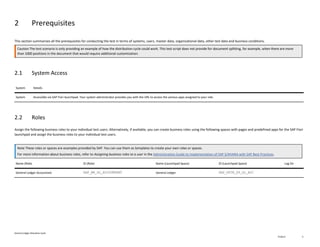
This section summarizes all the prerequisites for conducting the test in terms of systems, users, master data, organizational data, other test data and business conditions.
Caution The test scenario is only providing an example of how the distribution cycle could work. This test script does not provide for document splitting, for example, when there are more
than 1000 positions in the document that would require additional customization.
2.1 System Access
System Details
System Accessible via SAP Fiori launchpad. Your system administrator provides you with the URL to access the various apps assigned to your role.
2.2 Roles
Assign the following business roles to your individual test users. Alternatively, if available, you can create business roles using the following spaces with pages and predefined apps for the SAP Fiori
launchpad and assign the business roles to your individual test users.
Note These roles or spaces are examples provided by SAP. You can use them as templates to create your own roles or spaces.
For more information about business roles, refer to Assigning business roles to a user in the Administration Guide to Implementation of SAP S/4HANA with SAP Best Practices.
Name (Role) ID (Role) Name (Launchpad Space) ID (Launchpad Space) Log On
General Ledger Accountant SAP_BR_GL_ACCOUNTANT General Ledger SAP_SFIN_SP_GL_ACC
General Ledger Allocation Cycle
PUBLIC 4
2.3 Master Data, Organizational Data, and Other Data
Default Values
The organizational structure and master data of your company was created in your ERP system during implementation. The organizational structure reflects the structure of your company. The
master data represents materials, customers, and vendors, for example, depending on the operational focus of your company.
Using Your Own Master Data
You can also use customized values for any organizational data for which you have created master data. For more information on how to create master data, see the Master Data Procedures
documentation.
Use the following master data in the process steps described in this document:
Master Data Sample Value Details Comment
Company Code 1410
Chart of Accounts YCOA
Controlling Area A000
Profit Center YB800, YB111
GL Account
For more information on creating master data objects, see the following Master Data Scripts (MDS):
Master Data ID Description
BNM Create Cost Center and Cost Center Group
BNG Create G/L Account and Cost Element
BNH Create Profit Center
General Ledger Allocation Cycle
PUBLIC 5
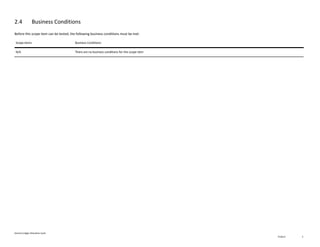
2.4 Business Conditions
Before this scope item can be tested, the following business conditions must be met.
Scope Items Business Conditions
N/A There are no business conditions for this scope item
General Ledger Allocation Cycle
PUBLIC 6
3 Overview Table
The General Ledger Allocation Cycle scope item consists of several process steps provided in the following table:
Note If your system administrator has enabled spaces and pages on the SAP Fiori launchpad, the homepage will only contain the essential apps for performing the typical tasks of a business
role.
You can find all other apps not included on the homepage using the search bar.
If you want to personalize the homepage and include the hidden apps, navigate to your user profile and choose App Finder.
Process Step Business Role Transaction/App Expected Results
Create Actual Distribution Cycle G/L [page ] 7 General Ledger Accountant Create Actual Distribution Cycle G/L (FAGLGA31) You created the G/L distribution cycle.
Change Actual Distribution Cycle [page ] 9 General Ledger Accountant Change Actual Distribution Cycle G/L (FAGLGA32) You changed the G/L distribution cycle.
Display Actual Distribution Cycle [page ] 11 General Ledger Accountant Display Actual Distribution Cycle G/L (FAGLGA33) You displayed the G/L distribution cycle.
Execute Actual Distribution Cycle G/L [page ] 10 General Ledger Accountant Execute Actual Distribution G/L (FAGLGA35) You executed the G/L distribution cycle.
Overview Actual Distribution Cycle G/L [page ] 12 General Ledger Accountant Overview Actual Distribution G/L (FAGLGA36) You viewed an overview of the G/L distribution cycle.
Delete Actual Distribution Cycle G/L [page ] 13 General Ledger Accountant Delete Actual Distribution Cycle G/L (FAGLGA34) You deleted the G/L distribution cycle.
General Ledger Allocation Cycle
PUBLIC 7
4 Test Procedures
This section describes test procedures for each process step that belongs to this scope item.
4.1 Actual Distribution Cycle
Context
In this step, you create the header data and the segment data of the G/L Actual Distribution Cycle. In the following steps you change, execute, display, get an overview, and delete the actual
distribution cycle.
Prerequisites
You must have some postings from the G/L account that you want to distribute.
4.1.1 Create Actual Distribution Cycle G/L
Test Administration
Customer project: Fill in the project-specific parts.
Test Case ID <X.XX> Testing Date:
Tester Name: Duration:
Business Role(s): Responsibility: <State the Service Provider, Customer or Joint Service Provider and Customer>
Purpose
In this step, you create the actual distribution cycle.
General Ledger Allocation Cycle
PUBLIC 8
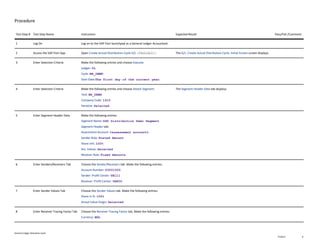
Procedure
Test Step # Test Step Name Instruction Expected Result Pass/Fail /Comment
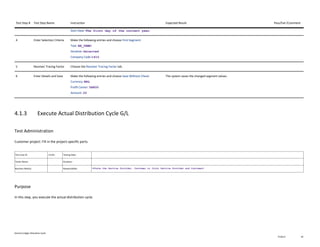
1 Log On Log on to the SAP Fiori launchpad as a General Ledger Accountant.
2 Access the SAP Fiori App Open Create Actual Distribution Cycle G/L (FAGLGA31). The G/L: Create Actual Distribution Cycle: Initial Screen screen displays.
3 Enter Selection Criteria Make the following entries and choose Execute:
Ledger: 0L
Cycle: BR_DEMO
Start Date:The first day of the current year.
4 Enter Selection Criteria Make the following entries and choose Attach Segment:
Text: BR_DEMO
Company Code: 1410
Iterative: Selected
The Segment Header Data tab displays.
5 Enter Segment Header Data Make the following entries:
Segment Name: DSD Distribution Demo Segment
Segment Header tab:
Assessment Account: <assessment account>
Sender Rule: Posted Amount
Share in%: 100%
Act. Values: Selected
Receiver Rule: Fixed Amounts
6 Enter Senders/Receivers Tab Choose the Sender/Receivers tab. Make the following entries:
Account Number: 63001000
Sender: Profit Center: YB111
Receiver: Profit Center: YB800
7 Enter Sender Values Tab Choose the Sender Values tab. Make the following entries:
Share in %: 100%
Actual Value Origin: Selected
8 Enter Receiver Tracing Factor Tab Choose the Receiver Tracing Factor tab. Make the following entries:
Currency: BRL
General Ledger Allocation Cycle
PUBLIC 9
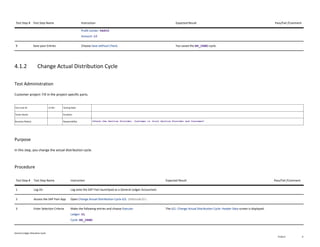
Test Step # Test Step Name Instruction Expected Result Pass/Fail /Comment
Profit Center: YB800
Amount: 10
9 Save your Entries Choose Save without Check. You saved the BR_DEMO cycle.
4.1.2 Change Actual Distribution Cycle
Test Administration
Customer project: Fill in the project-specific parts.
Test Case ID <X.XX> Testing Date:
Tester Name: Duration:
Business Role(s): Responsibility: <State the Service Provider, Customer or Joint Service Provider and Customer>
Purpose
In this step, you change the actual distribution cycle.
Procedure
Test Step # Test Step Name Instruction Expected Result Pass/Fail /Comment
1 Log On Log onto the SAP Fiori launchpad as a General Ledger Accountant.
2 Access the SAP Fiori App Open Change Actual Distribution Cycle G/L (FAGLGA32).
3 Enter Selection Criteria Make the following entries and choose Execute:
Ledger: 0L
Cycle: BR_DEMO
The G/L: Change Actual Distribution Cycle: Header Data screen is displayed.
General Ledger Allocation Cycle
PUBLIC 10
Test Step # Test Step Name Instruction Expected Result Pass/Fail /Comment
Start Date: The first day of the current year.
4 Enter Selection Criteria Make the following entries and choose First Segment:
Text: BR_DEMO
Iterative: Selected
Company Code:1410
5 Receiver Tracing Factor Choose the Receiver Tracing Factor tab.
6 Enter Details and Save Make the following entries and choose Save Without Check:
Currency: BRL
Profit Center: YB800
Amount: 20
The system saves the changed segment values.
4.1.3 Execute Actual Distribution Cycle G/L
Test Administration
Customer project: Fill in the project-specific parts.
Test Case ID <X.XX> Testing Date:
Tester Name: Duration:
Business Role(s): Responsibility: <State the Service Provider, Customer or Joint Service Provider and Customer>
Purpose
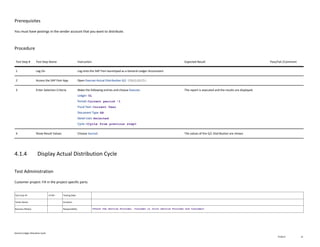
In this step, you execute the actual distribution cycle.
General Ledger Allocation Cycle
PUBLIC 11
Prerequisites
You must have postings in the sender account that you want to distribute.
Procedure
Test Step # Test Step Name Instruction Expected Result Pass/Fail /Comment
1 Log On Log onto the SAP Fiori launchpad as a General Ledger Accountant.
2 Access the SAP Fiori App Open Execute Actual Distribution G/L (FAGLGA35).
3 Enter Selection Criteria Make the following entries and choose Execute:
Ledger: 0L
Period: Current period -1
Fiscal Year: Current Year
Document Type: SA
Detail Lists: Selected
Cycle: <Cycle from previous step>
The report is executed and the results are displayed.
4 Show Result Values Choose Journal. The values of the G/L Distribution are shown.
4.1.4 Display Actual Distribution Cycle
Test Administration
Customer project: Fill in the project-specific parts.
Test Case ID <X.XX> Testing Date:
Tester Name: Duration:
Business Role(s): Responsibility: <State the Service Provider, Customer or Joint Service Provider and Customer>
General Ledger Allocation Cycle
PUBLIC 12
Purpose
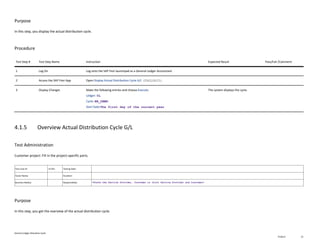
In this step, you display the actual distribution cycle.
Procedure
Test Step # Test Step Name Instruction Expected Result Pass/Fail /Comment
1 Log On Log onto the SAP Fiori launchpad as a General Ledger Accountant.
2 Access the SAP Fiori App Open Display Actual Distribution Cycle G/L (FAGLGA33).
3 Display Changes Make the following entries and choose Execute:
Ledger: 0L
Cycle: BR_DEMO
Start Date:The first day of the current year
The system displays the cycle.
4.1.5 Overview Actual Distribution Cycle G/L
Test Administration
Customer project: Fill in the project-specific parts.
Test Case ID <X.XX> Testing Date:
Tester Name: Duration:
Business Role(s): Responsibility: <State the Service Provider, Customer or Joint Service Provider and Customer>
Purpose
In this step, you get the overview of the actual distribution cycle.
General Ledger Allocation Cycle
PUBLIC 13
Procedure
Test Step # Test Step Name Instruction Expected Result Pass/Fail /Comment
1 Log On Log onto the SAP Fiori launchpad as a General Ledger Accountant.
2 Access the SAP Fiori App Open Overview Actual Distribution G/L (FAGLGA36). The Actual Distribution Overview: Initial Screen view is displayed.
3 Enter Selection Criteria Make the following entries and choose Execute:
Ledger: 0L
Period: current period -1
Fiscal year: Current Year
The report displays the execution status and document number of the distribution cycle.
4.1.6 Delete Actual Distribution Cycle G/L
Test Administration
Customer project: Fill in the project-specific parts.
Test Case ID <X.XX> Testing Date:
Tester Name: Duration:
Business Role(s): Responsibility: <State the Service Provider, Customer or Joint Service Provider and Customer>
Purpose
In this step, you delete the actual distribution cycle.
Prerequisite
Create an actual distribution cycle (for example, BR_DEMO1) without postings and then delete it.
General Ledger Allocation Cycle
PUBLIC 14
Procedure
Test Step # Test Step Name Instruction Expected Result Pass/Fail /Comment
1 Log On Log onto the SAP Fiori launchpad as a General Ledger Accountant.
2 Access the SAP Fiori App Open Delete Actual Distribution Cycle G/L (FAGLGA34).
3 Enter Selection Criteria Make the following entries and choose Execute:
Ledger: 0L
Cycle: BR_DEMO
Start Date: The first day of the current year
Note Delete a cycle without postings.
The Delete Cycle screen displays.
4 Delete Actual Distribution Cycle Choose Yes. The actual distribution cycle is deleted.
General Ledger Allocation Cycle
PUBLIC 15
Typographic Conventions
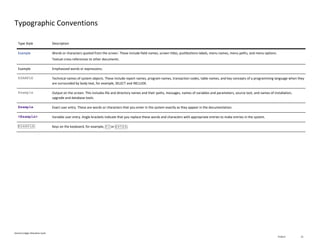
Type Style Description
Example Words or characters quoted from the screen. These include field names, screen titles, pushbuttons labels, menu names, menu paths, and menu options.
Textual cross-references to other documents.
Example Emphasized words or expressions.
EXAMPLE Technical names of system objects. These include report names, program names, transaction codes, table names, and key concepts of a programming language when they
are surrounded by body text, for example, SELECT and INCLUDE.
Example Output on the screen. This includes file and directory names and their paths, messages, names of variables and parameters, source text, and names of installation,
upgrade and database tools.
Example Exact user entry. These are words or characters that you enter in the system exactly as they appear in the documentation.
<Example> Variable user entry. Angle brackets indicate that you replace these words and characters with appropriate entries to make entries in the system.
EXAMPLE Keys on the keyboard, for example, F2 or ENTER .
www.sap.com/contactsap
© 2023 SAP SE or an SAP affiliate company. All rights reserved.
No part of this publication may be reproduced or transmitted in any form or
for any purpose without the express permission of SAP SE or an SAP affiliate
company. The information contained herein may be changed without prior
notice.
Some software products marketed by SAP SE and its distributors contain
proprietary software components of other software vendors. National prod-
uct specifications may vary.
These materials are provided by SAP SE or an SAP affiliate company for in-
formational purposes only, without representation or warranty of any kind,
and SAP or its affiliated companies shall not be liable for errors or omissions
with respect to the materials. The only warranties for SAP or SAP affiliate
company products and services are those that are set forth in the express
warranty statements accompanying such products and services, if any.
Nothing herein should be construed as constituting an additional warranty.
SAP and other SAP products and services mentioned herein as well as their
respective logos are trademarks or registered trademarks of SAP SE (or an
SAP affiliate company) in Germany and other countries. All other product
and service names mentioned are the trademarks of their respective compa-
nies.
See www.sap.com/copyright for additional trademark infor-
mation and notices.

GL Distribution Cycle Allocation No1.pdf

  • 1.
    Table of Contents 1Purpose 2 2 Prerequisites 3 2.1 System Access 3 2.2 Roles 3 2.3 Master Data, Organizational Data, and Other Data 4 2.4 Business Conditions 5 3 Overview Table 6 4 Test Procedures 7 4.1 Actual Distribution Cycle 7 4.1.1 Create Actual Distribution Cycle G/L 7 4.1.2 Change Actual Distribution Cycle 9 4.1.3 Execute Actual Distribution Cycle G/L 10 4.1.4 Display Actual Distribution Cycle 11 4.1.5 Overview Actual Distribution Cycle G/L 12 4.1.6 Delete Actual Distribution Cycle G/L 13 Test Script SAP S/4HANA - General Ledger Allocation Cycle https://www.linkedin.com/in/andersonbrunopaes/ PUBLIC
  • 2.
    General Ledger AllocationCycle PUBLIC 2 1 Purpose Overview Prior to the allocation process at period end of profit centers or segments that cannot be allocated, shared costs are accumulated during the period on those profit centers or segments. These costs must be allocated on predetermined criteria to allocable segments, or the reposting of the profit center for adjustment. You distribute the costs from profit centers (assigned to segments that cannot be allocated) to profit center assigned to allocable segment under original general ledger accounts. The distribution cycles must be configured. This document provides a detailed procedure for testing this scope item after solution activation, reflecting the predefined scope of the solution. Each process step, report, or item is covered in its own section, providing the system interactions (test steps) in a table view. Steps that are not in scope of the process but are needed for testing are marked accordingly. Project-specific steps must be added. Note Values in this test script (decimal notation, date formats, and so on) are presented in U.S. standard notation. If your test system is set up to use a different notation, enter values as appropriate.
  • 3.
    General Ledger AllocationCycle PUBLIC 3 2 Prerequisites This section summarizes all the prerequisites for conducting the test in terms of systems, users, master data, organizational data, other test data and business conditions. Caution The test scenario is only providing an example of how the distribution cycle could work. This test script does not provide for document splitting, for example, when there are more than 1000 positions in the document that would require additional customization. 2.1 System Access System Details System Accessible via SAP Fiori launchpad. Your system administrator provides you with the URL to access the various apps assigned to your role. 2.2 Roles Assign the following business roles to your individual test users. Alternatively, if available, you can create business roles using the following spaces with pages and predefined apps for the SAP Fiori launchpad and assign the business roles to your individual test users. Note These roles or spaces are examples provided by SAP. You can use them as templates to create your own roles or spaces. For more information about business roles, refer to Assigning business roles to a user in the Administration Guide to Implementation of SAP S/4HANA with SAP Best Practices. Name (Role) ID (Role) Name (Launchpad Space) ID (Launchpad Space) Log On General Ledger Accountant SAP_BR_GL_ACCOUNTANT General Ledger SAP_SFIN_SP_GL_ACC
  • 4.
    General Ledger AllocationCycle PUBLIC 4 2.3 Master Data, Organizational Data, and Other Data Default Values The organizational structure and master data of your company was created in your ERP system during implementation. The organizational structure reflects the structure of your company. The master data represents materials, customers, and vendors, for example, depending on the operational focus of your company. Using Your Own Master Data You can also use customized values for any organizational data for which you have created master data. For more information on how to create master data, see the Master Data Procedures documentation. Use the following master data in the process steps described in this document: Master Data Sample Value Details Comment Company Code 1410 Chart of Accounts YCOA Controlling Area A000 Profit Center YB800, YB111 GL Account For more information on creating master data objects, see the following Master Data Scripts (MDS): Master Data ID Description BNM Create Cost Center and Cost Center Group BNG Create G/L Account and Cost Element BNH Create Profit Center
  • 5.
    General Ledger AllocationCycle PUBLIC 5 2.4 Business Conditions Before this scope item can be tested, the following business conditions must be met. Scope Items Business Conditions N/A There are no business conditions for this scope item
  • 6.
    General Ledger AllocationCycle PUBLIC 6 3 Overview Table The General Ledger Allocation Cycle scope item consists of several process steps provided in the following table: Note If your system administrator has enabled spaces and pages on the SAP Fiori launchpad, the homepage will only contain the essential apps for performing the typical tasks of a business role. You can find all other apps not included on the homepage using the search bar. If you want to personalize the homepage and include the hidden apps, navigate to your user profile and choose App Finder. Process Step Business Role Transaction/App Expected Results Create Actual Distribution Cycle G/L [page ] 7 General Ledger Accountant Create Actual Distribution Cycle G/L (FAGLGA31) You created the G/L distribution cycle. Change Actual Distribution Cycle [page ] 9 General Ledger Accountant Change Actual Distribution Cycle G/L (FAGLGA32) You changed the G/L distribution cycle. Display Actual Distribution Cycle [page ] 11 General Ledger Accountant Display Actual Distribution Cycle G/L (FAGLGA33) You displayed the G/L distribution cycle. Execute Actual Distribution Cycle G/L [page ] 10 General Ledger Accountant Execute Actual Distribution G/L (FAGLGA35) You executed the G/L distribution cycle. Overview Actual Distribution Cycle G/L [page ] 12 General Ledger Accountant Overview Actual Distribution G/L (FAGLGA36) You viewed an overview of the G/L distribution cycle. Delete Actual Distribution Cycle G/L [page ] 13 General Ledger Accountant Delete Actual Distribution Cycle G/L (FAGLGA34) You deleted the G/L distribution cycle.
  • 7.
    General Ledger AllocationCycle PUBLIC 7 4 Test Procedures This section describes test procedures for each process step that belongs to this scope item. 4.1 Actual Distribution Cycle Context In this step, you create the header data and the segment data of the G/L Actual Distribution Cycle. In the following steps you change, execute, display, get an overview, and delete the actual distribution cycle. Prerequisites You must have some postings from the G/L account that you want to distribute. 4.1.1 Create Actual Distribution Cycle G/L Test Administration Customer project: Fill in the project-specific parts. Test Case ID <X.XX> Testing Date: Tester Name: Duration: Business Role(s): Responsibility: <State the Service Provider, Customer or Joint Service Provider and Customer> Purpose In this step, you create the actual distribution cycle.
  • 8.
    General Ledger AllocationCycle PUBLIC 8 Procedure Test Step # Test Step Name Instruction Expected Result Pass/Fail /Comment 1 Log On Log on to the SAP Fiori launchpad as a General Ledger Accountant. 2 Access the SAP Fiori App Open Create Actual Distribution Cycle G/L (FAGLGA31). The G/L: Create Actual Distribution Cycle: Initial Screen screen displays. 3 Enter Selection Criteria Make the following entries and choose Execute: Ledger: 0L Cycle: BR_DEMO Start Date:The first day of the current year. 4 Enter Selection Criteria Make the following entries and choose Attach Segment: Text: BR_DEMO Company Code: 1410 Iterative: Selected The Segment Header Data tab displays. 5 Enter Segment Header Data Make the following entries: Segment Name: DSD Distribution Demo Segment Segment Header tab: Assessment Account: <assessment account> Sender Rule: Posted Amount Share in%: 100% Act. Values: Selected Receiver Rule: Fixed Amounts 6 Enter Senders/Receivers Tab Choose the Sender/Receivers tab. Make the following entries: Account Number: 63001000 Sender: Profit Center: YB111 Receiver: Profit Center: YB800 7 Enter Sender Values Tab Choose the Sender Values tab. Make the following entries: Share in %: 100% Actual Value Origin: Selected 8 Enter Receiver Tracing Factor Tab Choose the Receiver Tracing Factor tab. Make the following entries: Currency: BRL
  • 9.
    General Ledger AllocationCycle PUBLIC 9 Test Step # Test Step Name Instruction Expected Result Pass/Fail /Comment Profit Center: YB800 Amount: 10 9 Save your Entries Choose Save without Check. You saved the BR_DEMO cycle. 4.1.2 Change Actual Distribution Cycle Test Administration Customer project: Fill in the project-specific parts. Test Case ID <X.XX> Testing Date: Tester Name: Duration: Business Role(s): Responsibility: <State the Service Provider, Customer or Joint Service Provider and Customer> Purpose In this step, you change the actual distribution cycle. Procedure Test Step # Test Step Name Instruction Expected Result Pass/Fail /Comment 1 Log On Log onto the SAP Fiori launchpad as a General Ledger Accountant. 2 Access the SAP Fiori App Open Change Actual Distribution Cycle G/L (FAGLGA32). 3 Enter Selection Criteria Make the following entries and choose Execute: Ledger: 0L Cycle: BR_DEMO The G/L: Change Actual Distribution Cycle: Header Data screen is displayed.
  • 10.
    General Ledger AllocationCycle PUBLIC 10 Test Step # Test Step Name Instruction Expected Result Pass/Fail /Comment Start Date: The first day of the current year. 4 Enter Selection Criteria Make the following entries and choose First Segment: Text: BR_DEMO Iterative: Selected Company Code:1410 5 Receiver Tracing Factor Choose the Receiver Tracing Factor tab. 6 Enter Details and Save Make the following entries and choose Save Without Check: Currency: BRL Profit Center: YB800 Amount: 20 The system saves the changed segment values. 4.1.3 Execute Actual Distribution Cycle G/L Test Administration Customer project: Fill in the project-specific parts. Test Case ID <X.XX> Testing Date: Tester Name: Duration: Business Role(s): Responsibility: <State the Service Provider, Customer or Joint Service Provider and Customer> Purpose In this step, you execute the actual distribution cycle.
  • 11.
    General Ledger AllocationCycle PUBLIC 11 Prerequisites You must have postings in the sender account that you want to distribute. Procedure Test Step # Test Step Name Instruction Expected Result Pass/Fail /Comment 1 Log On Log onto the SAP Fiori launchpad as a General Ledger Accountant. 2 Access the SAP Fiori App Open Execute Actual Distribution G/L (FAGLGA35). 3 Enter Selection Criteria Make the following entries and choose Execute: Ledger: 0L Period: Current period -1 Fiscal Year: Current Year Document Type: SA Detail Lists: Selected Cycle: <Cycle from previous step> The report is executed and the results are displayed. 4 Show Result Values Choose Journal. The values of the G/L Distribution are shown. 4.1.4 Display Actual Distribution Cycle Test Administration Customer project: Fill in the project-specific parts. Test Case ID <X.XX> Testing Date: Tester Name: Duration: Business Role(s): Responsibility: <State the Service Provider, Customer or Joint Service Provider and Customer>
  • 12.
    General Ledger AllocationCycle PUBLIC 12 Purpose In this step, you display the actual distribution cycle. Procedure Test Step # Test Step Name Instruction Expected Result Pass/Fail /Comment 1 Log On Log onto the SAP Fiori launchpad as a General Ledger Accountant. 2 Access the SAP Fiori App Open Display Actual Distribution Cycle G/L (FAGLGA33). 3 Display Changes Make the following entries and choose Execute: Ledger: 0L Cycle: BR_DEMO Start Date:The first day of the current year The system displays the cycle. 4.1.5 Overview Actual Distribution Cycle G/L Test Administration Customer project: Fill in the project-specific parts. Test Case ID <X.XX> Testing Date: Tester Name: Duration: Business Role(s): Responsibility: <State the Service Provider, Customer or Joint Service Provider and Customer> Purpose In this step, you get the overview of the actual distribution cycle.
  • 13.
    General Ledger AllocationCycle PUBLIC 13 Procedure Test Step # Test Step Name Instruction Expected Result Pass/Fail /Comment 1 Log On Log onto the SAP Fiori launchpad as a General Ledger Accountant. 2 Access the SAP Fiori App Open Overview Actual Distribution G/L (FAGLGA36). The Actual Distribution Overview: Initial Screen view is displayed. 3 Enter Selection Criteria Make the following entries and choose Execute: Ledger: 0L Period: current period -1 Fiscal year: Current Year The report displays the execution status and document number of the distribution cycle. 4.1.6 Delete Actual Distribution Cycle G/L Test Administration Customer project: Fill in the project-specific parts. Test Case ID <X.XX> Testing Date: Tester Name: Duration: Business Role(s): Responsibility: <State the Service Provider, Customer or Joint Service Provider and Customer> Purpose In this step, you delete the actual distribution cycle. Prerequisite Create an actual distribution cycle (for example, BR_DEMO1) without postings and then delete it.
  • 14.
    General Ledger AllocationCycle PUBLIC 14 Procedure Test Step # Test Step Name Instruction Expected Result Pass/Fail /Comment 1 Log On Log onto the SAP Fiori launchpad as a General Ledger Accountant. 2 Access the SAP Fiori App Open Delete Actual Distribution Cycle G/L (FAGLGA34). 3 Enter Selection Criteria Make the following entries and choose Execute: Ledger: 0L Cycle: BR_DEMO Start Date: The first day of the current year Note Delete a cycle without postings. The Delete Cycle screen displays. 4 Delete Actual Distribution Cycle Choose Yes. The actual distribution cycle is deleted.
  • 15.
    General Ledger AllocationCycle PUBLIC 15 Typographic Conventions Type Style Description Example Words or characters quoted from the screen. These include field names, screen titles, pushbuttons labels, menu names, menu paths, and menu options. Textual cross-references to other documents. Example Emphasized words or expressions. EXAMPLE Technical names of system objects. These include report names, program names, transaction codes, table names, and key concepts of a programming language when they are surrounded by body text, for example, SELECT and INCLUDE. Example Output on the screen. This includes file and directory names and their paths, messages, names of variables and parameters, source text, and names of installation, upgrade and database tools. Example Exact user entry. These are words or characters that you enter in the system exactly as they appear in the documentation. <Example> Variable user entry. Angle brackets indicate that you replace these words and characters with appropriate entries to make entries in the system. EXAMPLE Keys on the keyboard, for example, F2 or ENTER .
  • 16.
    www.sap.com/contactsap © 2023 SAPSE or an SAP affiliate company. All rights reserved. No part of this publication may be reproduced or transmitted in any form or for any purpose without the express permission of SAP SE or an SAP affiliate company. The information contained herein may be changed without prior notice. Some software products marketed by SAP SE and its distributors contain proprietary software components of other software vendors. National prod- uct specifications may vary. These materials are provided by SAP SE or an SAP affiliate company for in- formational purposes only, without representation or warranty of any kind, and SAP or its affiliated companies shall not be liable for errors or omissions with respect to the materials. The only warranties for SAP or SAP affiliate company products and services are those that are set forth in the express warranty statements accompanying such products and services, if any. Nothing herein should be construed as constituting an additional warranty. SAP and other SAP products and services mentioned herein as well as their respective logos are trademarks or registered trademarks of SAP SE (or an SAP affiliate company) in Germany and other countries. All other product and service names mentioned are the trademarks of their respective compa- nies. See www.sap.com/copyright for additional trademark infor- mation and notices.