COST CENTER ACCOUNTING
GENERAL LEDGER
END USER TRAINING DOCUMENTS

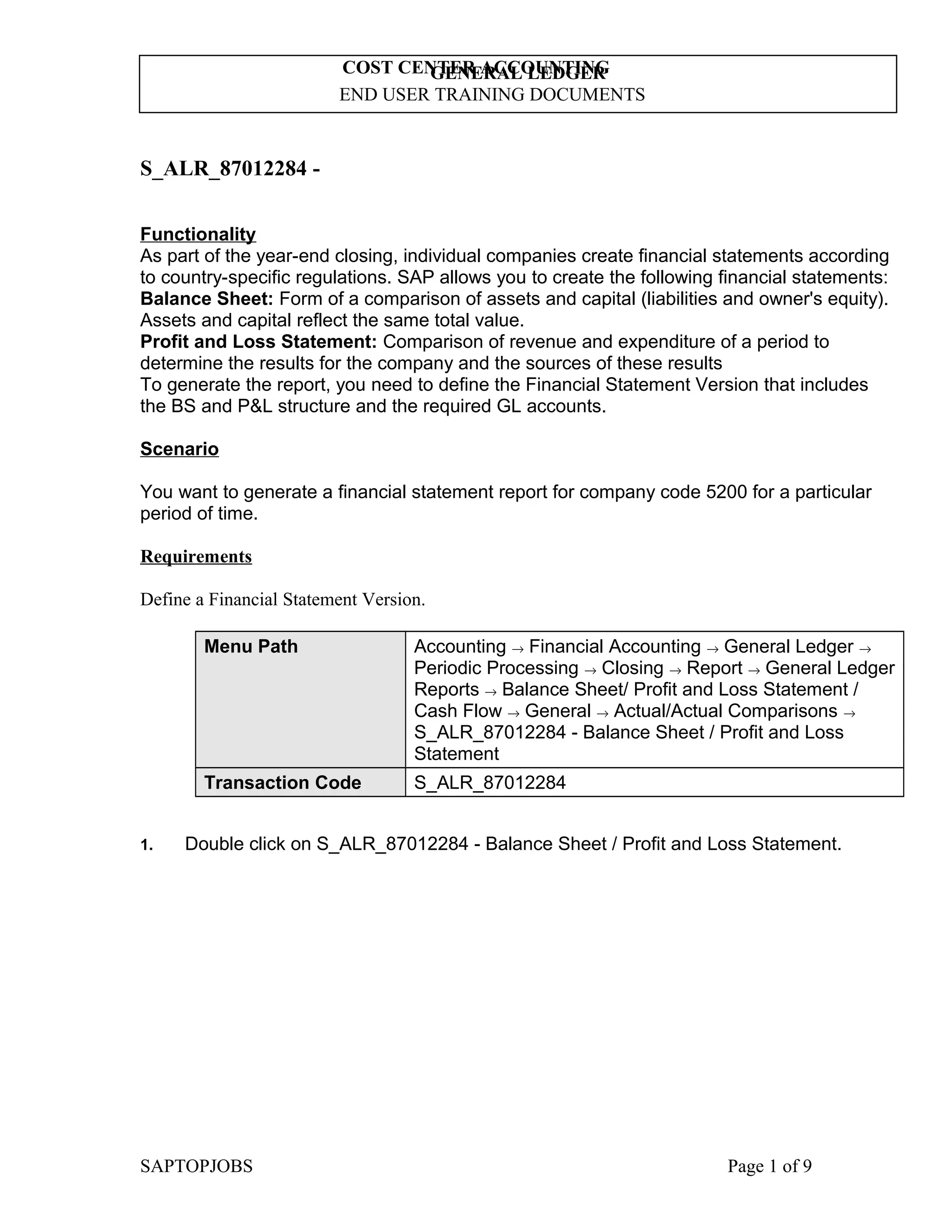
S_ALR_87012284 Functionality
As part of the year-end closing, individual companies create financial statements according
to country-specific regulations. SAP allows you to create the following financial statements:
Balance Sheet: Form of a comparison of assets and capital (liabilities and owner's equity).
Assets and capital reflect the same total value.
Profit and Loss Statement: Comparison of revenue and expenditure of a period to
determine the results for the company and the sources of these results
To generate the report, you need to define the Financial Statement Version that includes
the BS and P&L structure and the required GL accounts.
Scenario
You want to generate a financial statement report for company code 5200 for a particular
period of time.
Requirements
Define a Financial Statement Version.
Menu Path

Transaction Code
1.

Accounting → Financial Accounting → General Ledger →
Periodic Processing → Closing → Report → General Ledger
Reports → Balance Sheet/ Profit and Loss Statement /
Cash Flow → General → Actual/Actual Comparisons →
S_ALR_87012284 - Balance Sheet / Profit and Loss
Statement
S_ALR_87012284

Double click on S_ALR_87012284 - Balance Sheet / Profit and Loss Statement.

SAPTOPJOBS

Page 1 of 9
COST CENTER ACCOUNTING
GENERAL LEDGER
END USER TRAINING DOCUMENTS
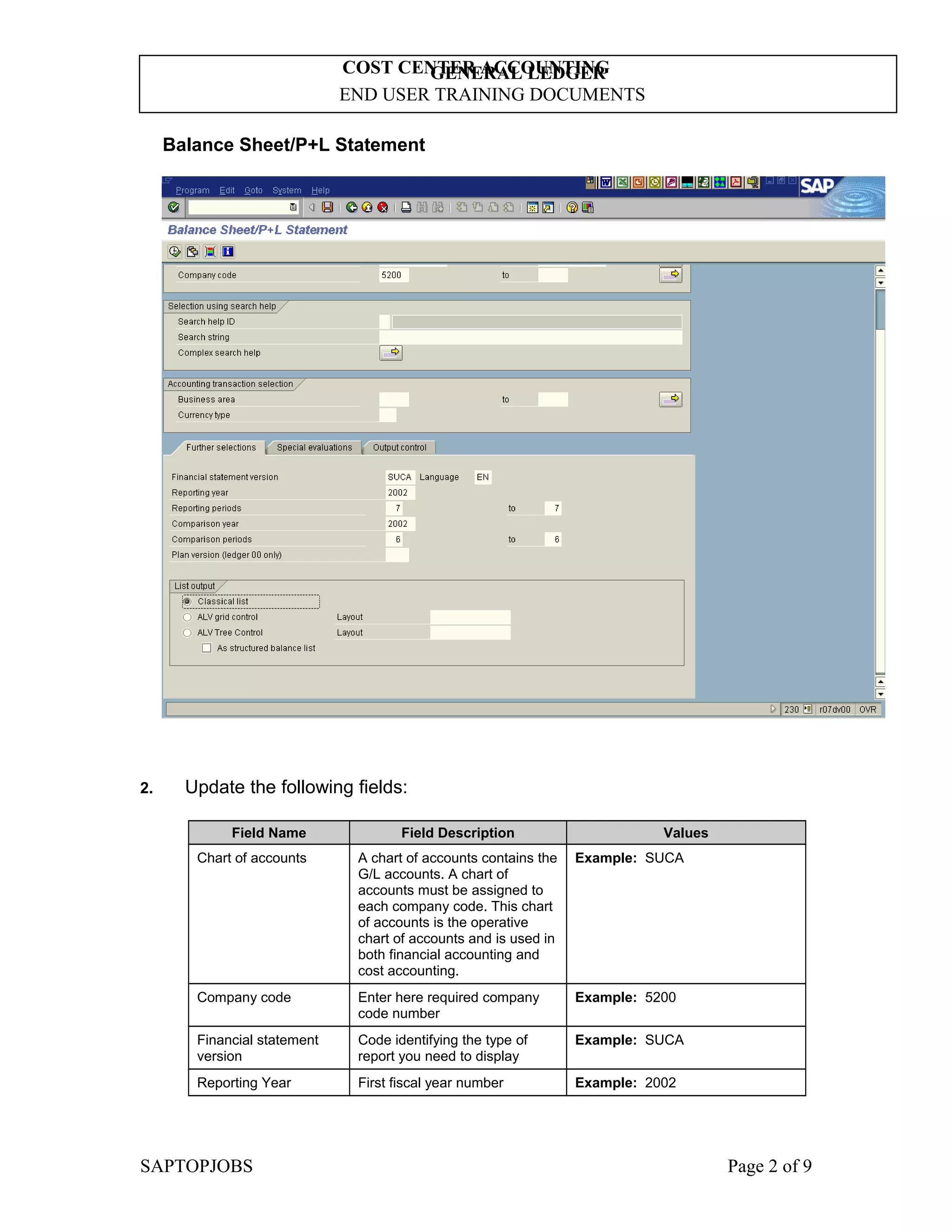
Balance Sheet/P+L Statement

2.

Update the following fields:
Field Name

Field Description

Values

Chart of accounts

A chart of accounts contains the
G/L accounts. A chart of
accounts must be assigned to
each company code. This chart
of accounts is the operative
chart of accounts and is used in
both financial accounting and
cost accounting.

Example: SUCA

Company code

Enter here required company
code number

Example: 5200

Financial statement
version

Code identifying the type of
report you need to display

Example: SUCA

Reporting Year

First fiscal year number

Example: 2002

SAPTOPJOBS

Page 2 of 9
COST CENTER ACCOUNTING
GENERAL LEDGER
END USER TRAINING DOCUMENTS
Field Name

Field Description

Values

Reporting periods

Enter here the required period.
You can prepare a financial
statement regarding one month
or enter a range, e.g. Jan – July

Example: 7

Comparison year

Year against which to compare
the reporting period profits

Example: 2002

Comparison periods

Fiscal period against which to
compare the reporting period
profits

Example: 6

If you want to generate the Trial Balance, select TB variant in the field
Financial statement version.

3.

Click <radio button> Classical list

.

Note: Now you can define your special requirements for this report (like choose the
balance sheet type or decide whether to include in the report the accounts with
zero balance).

4.

Click <tab button> Special evaluations

SAPTOPJOBS

.

Page 3 of 9
COST CENTER ACCOUNTING
GENERAL LEDGER
END USER TRAINING DOCUMENTS
5.

Update the following fields:
Field Name
Balance sheet type

Field Description
This parameter controls which
periods flow into the reporting
and comparison period. The
following entries are possible:
1: This means that an
accumulated balance sheet is
created, that is, the balance is
calculated from the balance
carried forward plus the periods
01 to the upper limit of the
reporting and comparison
periods you have specified.
The lower limit specified in
these parameters is ignored in
this case. Balance sheet
accounts and P+L accounts are
treated the same.
2: This means that a flow of
funds analysis is created, that
is, the balance is calculated
from the reporting and
comparison periods you
specified.
The balance carried forward is
not taken into consideration.
Balance sheet accounts and
P+L accounts are treated the
same.
3: This means a combination of
possibilities "1" and "2". Here
balance sheet accounts are
dealt with as described under
balance sheet type 1, and P+L
accounts as described under
balance sheet type 2.
4: This means that an opening
balance sheet is created. Here
only the balance carried forward
is used for the reporting and
comparison periods. Accounts
which have not yet been posted
to or have a zero balance, are
also displayed in this variant.

Values
Example: 3

It is recommended to select Balance Sheet Type number 3.

SAPTOPJOBS

Page 4 of 9
COST CENTER ACCOUNTING
GENERAL LEDGER
END USER TRAINING DOCUMENTS

Balance Sheet/P+L Statement

Note: You need to define the output of the report. For instance, you can determine
the level of detail of the balance sheet and P+L via your entry in the "Summary
report" field.
6.

Click <tab button> Output control

SAPTOPJOBS

.

Page 5 of 9
COST CENTER ACCOUNTING
GENERAL LEDGER
END USER TRAINING DOCUMENTS
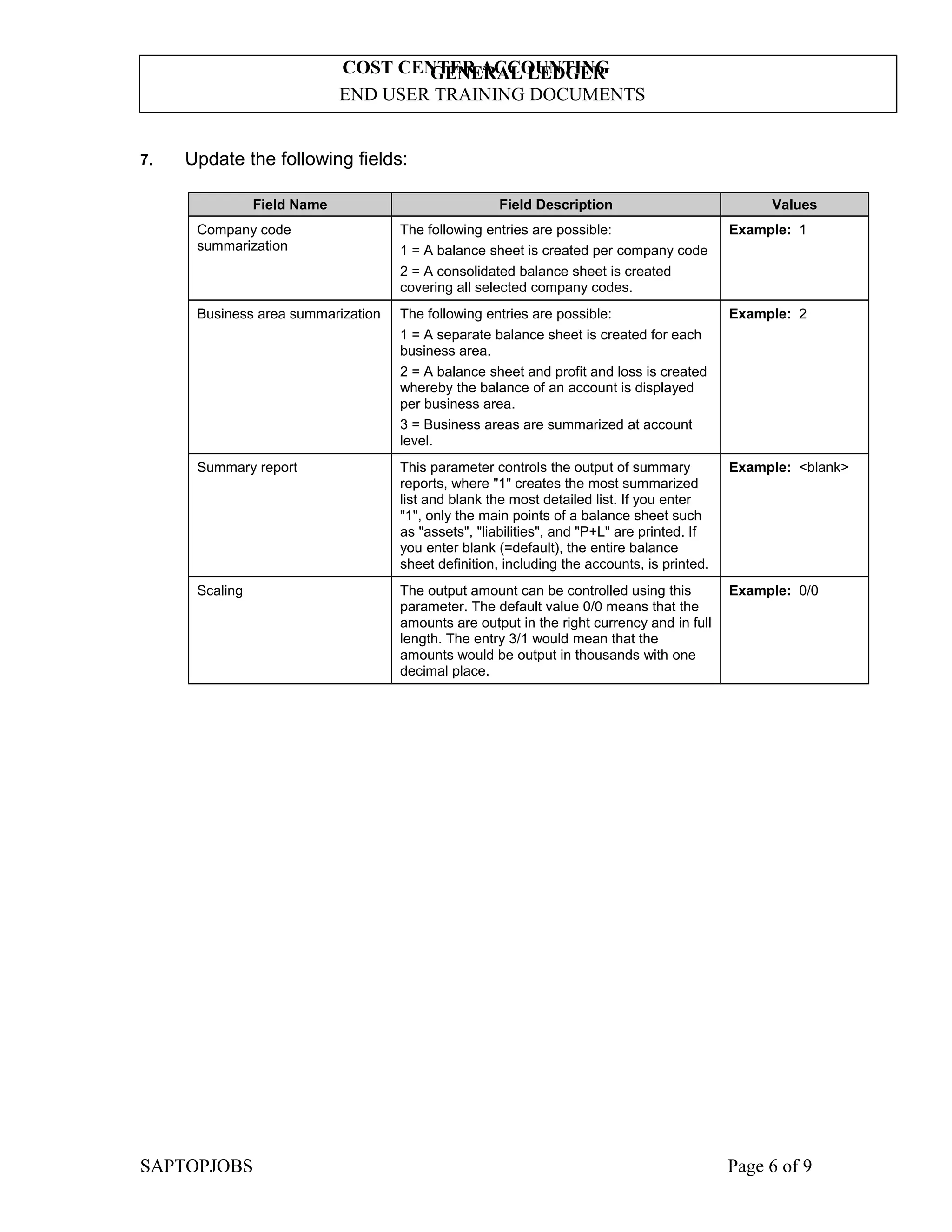
7.

Update the following fields:
Field Name

Field Description

Values

Company code
summarization

The following entries are possible:
1 = A balance sheet is created per company code
2 = A consolidated balance sheet is created
covering all selected company codes.

Example: 1

Business area summarization

The following entries are possible:
1 = A separate balance sheet is created for each
business area.
2 = A balance sheet and profit and loss is created
whereby the balance of an account is displayed
per business area.
3 = Business areas are summarized at account
level.

Example: 2

Summary report

This parameter controls the output of summary
reports, where "1" creates the most summarized
list and blank the most detailed list. If you enter
"1", only the main points of a balance sheet such
as "assets", "liabilities", and "P+L" are printed. If
you enter blank (=default), the entire balance
sheet definition, including the accounts, is printed.

Example: <blank>

Scaling

The output amount can be controlled using this
parameter. The default value 0/0 means that the
amounts are output in the right currency and in full
length. The entry 3/1 would mean that the
amounts would be output in thousands with one
decimal place.

Example: 0/0

SAPTOPJOBS

Page 6 of 9
COST CENTER ACCOUNTING
GENERAL LEDGER
END USER TRAINING DOCUMENTS

Balance Sheet/P+L Statement

8.

Click Enter Button

SAPTOPJOBS

to confirm your entries.

Page 7 of 9
COST CENTER ACCOUNTING
GENERAL LEDGER
END USER TRAINING DOCUMENTS
Balance Sheet/P+L Statement

9.

Press Execute button

SAPTOPJOBS

to generate a report.

Page 8 of 9
COST CENTER ACCOUNTING
GENERAL LEDGER
END USER TRAINING DOCUMENTS

Balance Sheet/P+L Statement

Note: You can print this report or download it as a local file. To download it, select
from the menu path List -> Save -> File… and choose the required file format.

10.

Click Back Button

SAPTOPJOBS

.

Page 9 of 9
COST CENTER ACCOUNTING
GENERAL LEDGER
END USER TRAINING DOCUMENTS

Balance Sheet/P+L Statement

Note: You can print this report or download it as a local file. To download it, select
from the menu path List -> Save -> File… and choose the required file format.

10.

Click Back Button

SAPTOPJOBS

.

Page 9 of 9

financial statements & trial balance

  • 1.
    COST CENTER ACCOUNTING GENERALLEDGER END USER TRAINING DOCUMENTS S_ALR_87012284 Functionality As part of the year-end closing, individual companies create financial statements according to country-specific regulations. SAP allows you to create the following financial statements: Balance Sheet: Form of a comparison of assets and capital (liabilities and owner's equity). Assets and capital reflect the same total value. Profit and Loss Statement: Comparison of revenue and expenditure of a period to determine the results for the company and the sources of these results To generate the report, you need to define the Financial Statement Version that includes the BS and P&L structure and the required GL accounts. Scenario You want to generate a financial statement report for company code 5200 for a particular period of time. Requirements Define a Financial Statement Version. Menu Path Transaction Code 1. Accounting → Financial Accounting → General Ledger → Periodic Processing → Closing → Report → General Ledger Reports → Balance Sheet/ Profit and Loss Statement / Cash Flow → General → Actual/Actual Comparisons → S_ALR_87012284 - Balance Sheet / Profit and Loss Statement S_ALR_87012284 Double click on S_ALR_87012284 - Balance Sheet / Profit and Loss Statement. SAPTOPJOBS Page 1 of 9
  • 2.
    COST CENTER ACCOUNTING GENERALLEDGER END USER TRAINING DOCUMENTS Balance Sheet/P+L Statement 2. Update the following fields: Field Name Field Description Values Chart of accounts A chart of accounts contains the G/L accounts. A chart of accounts must be assigned to each company code. This chart of accounts is the operative chart of accounts and is used in both financial accounting and cost accounting. Example: SUCA Company code Enter here required company code number Example: 5200 Financial statement version Code identifying the type of report you need to display Example: SUCA Reporting Year First fiscal year number Example: 2002 SAPTOPJOBS Page 2 of 9
  • 3.
    COST CENTER ACCOUNTING GENERALLEDGER END USER TRAINING DOCUMENTS Field Name Field Description Values Reporting periods Enter here the required period. You can prepare a financial statement regarding one month or enter a range, e.g. Jan – July Example: 7 Comparison year Year against which to compare the reporting period profits Example: 2002 Comparison periods Fiscal period against which to compare the reporting period profits Example: 6 If you want to generate the Trial Balance, select TB variant in the field Financial statement version. 3. Click <radio button> Classical list . Note: Now you can define your special requirements for this report (like choose the balance sheet type or decide whether to include in the report the accounts with zero balance). 4. Click <tab button> Special evaluations SAPTOPJOBS . Page 3 of 9
  • 4.
    COST CENTER ACCOUNTING GENERALLEDGER END USER TRAINING DOCUMENTS 5. Update the following fields: Field Name Balance sheet type Field Description This parameter controls which periods flow into the reporting and comparison period. The following entries are possible: 1: This means that an accumulated balance sheet is created, that is, the balance is calculated from the balance carried forward plus the periods 01 to the upper limit of the reporting and comparison periods you have specified. The lower limit specified in these parameters is ignored in this case. Balance sheet accounts and P+L accounts are treated the same. 2: This means that a flow of funds analysis is created, that is, the balance is calculated from the reporting and comparison periods you specified. The balance carried forward is not taken into consideration. Balance sheet accounts and P+L accounts are treated the same. 3: This means a combination of possibilities "1" and "2". Here balance sheet accounts are dealt with as described under balance sheet type 1, and P+L accounts as described under balance sheet type 2. 4: This means that an opening balance sheet is created. Here only the balance carried forward is used for the reporting and comparison periods. Accounts which have not yet been posted to or have a zero balance, are also displayed in this variant. Values Example: 3 It is recommended to select Balance Sheet Type number 3. SAPTOPJOBS Page 4 of 9
  • 5.
    COST CENTER ACCOUNTING GENERALLEDGER END USER TRAINING DOCUMENTS Balance Sheet/P+L Statement Note: You need to define the output of the report. For instance, you can determine the level of detail of the balance sheet and P+L via your entry in the "Summary report" field. 6. Click <tab button> Output control SAPTOPJOBS . Page 5 of 9
  • 6.
    COST CENTER ACCOUNTING GENERALLEDGER END USER TRAINING DOCUMENTS 7. Update the following fields: Field Name Field Description Values Company code summarization The following entries are possible: 1 = A balance sheet is created per company code 2 = A consolidated balance sheet is created covering all selected company codes. Example: 1 Business area summarization The following entries are possible: 1 = A separate balance sheet is created for each business area. 2 = A balance sheet and profit and loss is created whereby the balance of an account is displayed per business area. 3 = Business areas are summarized at account level. Example: 2 Summary report This parameter controls the output of summary reports, where "1" creates the most summarized list and blank the most detailed list. If you enter "1", only the main points of a balance sheet such as "assets", "liabilities", and "P+L" are printed. If you enter blank (=default), the entire balance sheet definition, including the accounts, is printed. Example: <blank> Scaling The output amount can be controlled using this parameter. The default value 0/0 means that the amounts are output in the right currency and in full length. The entry 3/1 would mean that the amounts would be output in thousands with one decimal place. Example: 0/0 SAPTOPJOBS Page 6 of 9
  • 7.
    COST CENTER ACCOUNTING GENERALLEDGER END USER TRAINING DOCUMENTS Balance Sheet/P+L Statement 8. Click Enter Button SAPTOPJOBS to confirm your entries. Page 7 of 9
  • 8.
    COST CENTER ACCOUNTING GENERALLEDGER END USER TRAINING DOCUMENTS Balance Sheet/P+L Statement 9. Press Execute button SAPTOPJOBS to generate a report. Page 8 of 9
  • 9.
    COST CENTER ACCOUNTING GENERALLEDGER END USER TRAINING DOCUMENTS Balance Sheet/P+L Statement Note: You can print this report or download it as a local file. To download it, select from the menu path List -> Save -> File… and choose the required file format. 10. Click Back Button SAPTOPJOBS . Page 9 of 9
  • 10.
    COST CENTER ACCOUNTING GENERALLEDGER END USER TRAINING DOCUMENTS Balance Sheet/P+L Statement Note: You can print this report or download it as a local file. To download it, select from the menu path List -> Save -> File… and choose the required file format. 10. Click Back Button SAPTOPJOBS . Page 9 of 9